Transcripts
1. Intro Turret Class: Hello, everyone.
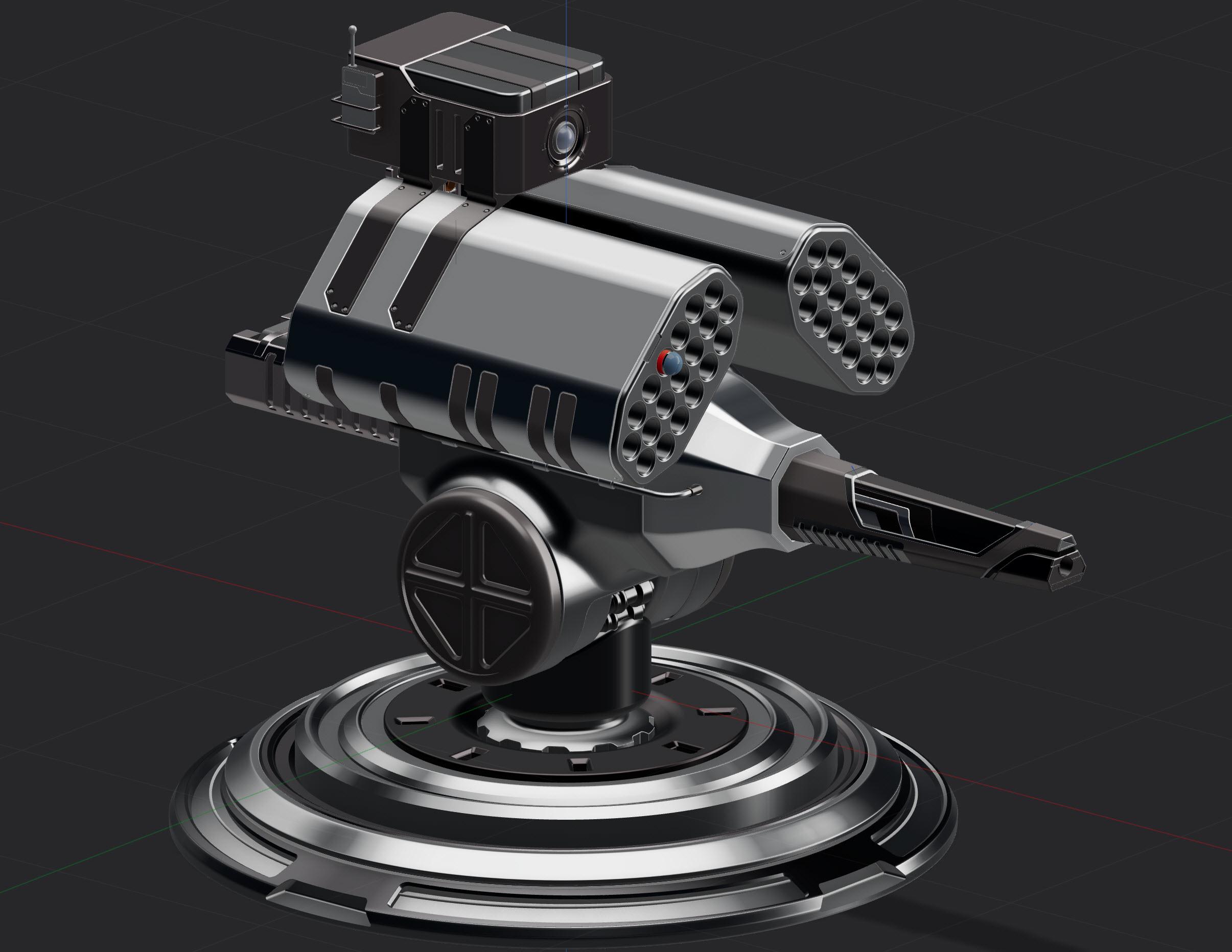
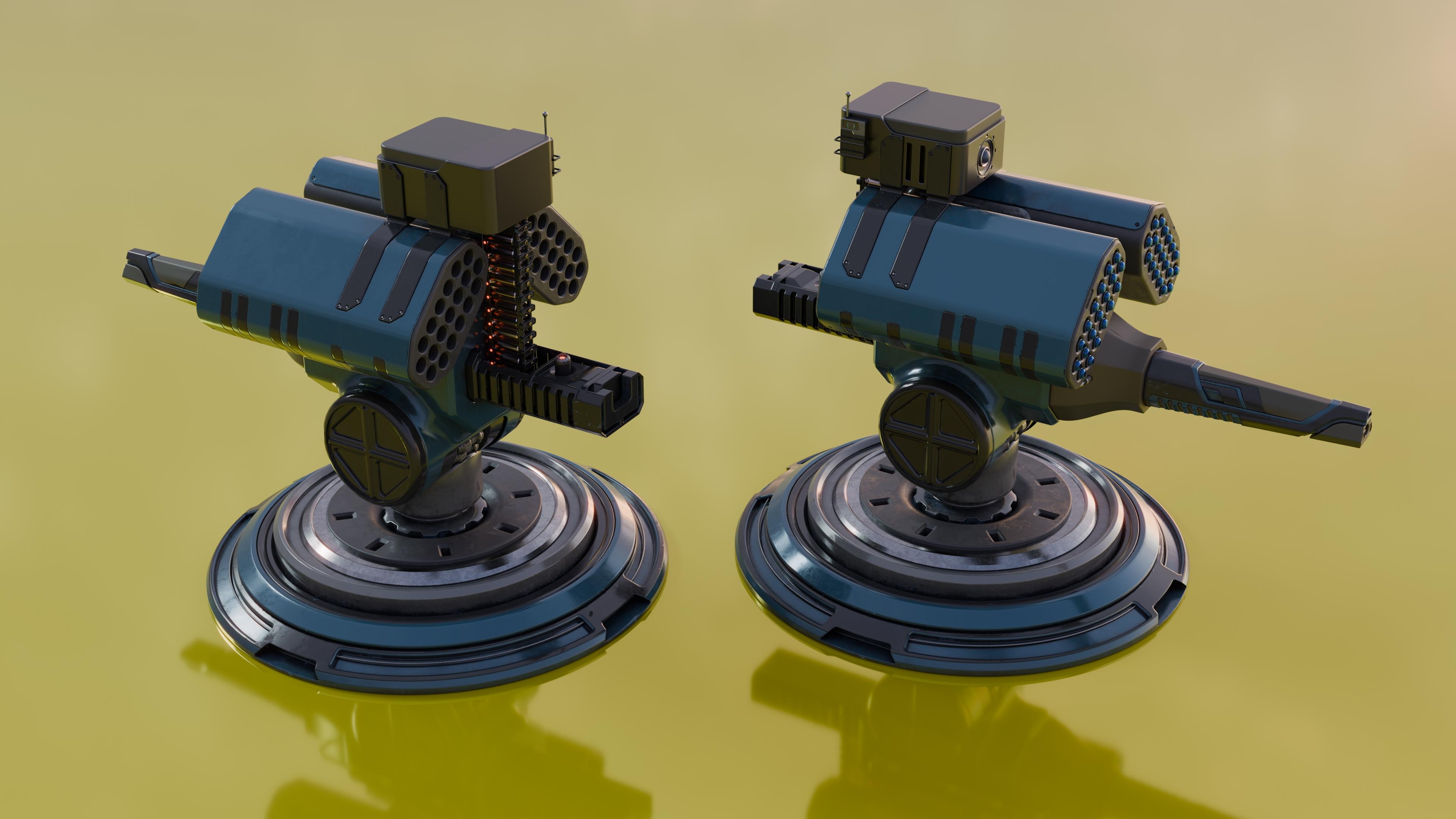
This is John Moberly here from The D Cree Tutorials. I am super excited to bring you this brand new class
in Skillshare. Creating a conceptual model
mostly using plasticity, CAD program, and a
little bit of blender. This class is supporting
beginners as I communicate what things to do
while creating this model. And this is from a start
to finish production of 7.5 hours long and full of modeling techniques to create some of these
interesting shapes. I have been doing The D
modeling since the early 90s. Mostly as a hobbyist, and
in the past few years, I've been teaching others
how to make things. This will be my sixth class with Skillshare and each class have
different things to teach, check them out if you want
to learn more techniques. Make sure to follow
me so that you will get information as
they continue to make more classes and
communicate how to use different techniques to create different models.
So lista started.
2. Turret Support Files Information: So now I'm going to go over
the downloading section of this support for
this full buildout. And the first file here is basically the main
base tutorial. This is actually the
background object to support the base buildout
to use in your background. If you want to use
that and just put this as N to be able to be modified. That's one way to do
this. The second file is also the same thing, but this is an OBJ
file that will be actually also created
that was done in Blender, and you can use this for
the poly supplying option as well to learn how to do this next object is the polyspine object
converted over to plasticity. So you can use that
in the background as well as another option. This one right here, the
tort side base view image is an image to bring in the background to support
building out the base, and again, another
option to use. And this last file will be the actual full version
of this whole model. And again, it's easy to use to look at to see how
everything was created. And you can learn by
seeing what I've created in this object. So
hope this helps. If you have any
questions don't hesitate to connect with me on
these files. Thank you.
3. Turret Creation of the Base: So we have our shape here, and there's going to be
a couple options here. I'm going to show
you how to actually create the very simple base. So you can use
poly swines to use the actual sections to
kind of make this work. And they're going
to also show you another option with just creating in plasticity
completely. From A to Z as well. So the base is the only thing I'm going
to be bringing in blender, just for awareness of that, and the rest will be
done in plasticity. I'm going to show you
both options so you have some opportunity to use the
polysmns if you wanted to. Again, it's real easy way
to control some things. But if you don't have a blender, you don't
want to use that. If you only want to use
plasticity, that's fine too. I'll show you the
same exact way or process to do that.
So let's get going. When you start up
with plasticity, we're going to actually go to wherever you
downloaded your file. We're going to actually open up that file if you want to follow
along with this process. So I put everything basically
under additional downloads, main base Detroial open. And this will basically
have your main shape here. So we could use this
to kind of help us with the forming
of this whole thing. So again, we just want
to use the line and kind of use these sections
here to kind of just follow along right where it's
going to be the section where it's actually
does the fillet here, same with here, and we're just going to go kind
of round this whole thing. This would be another
one. This would be one here, here, here. Again, we're going to readjust these things as we need to. And we can go here. And we can just go straight to the very center of this space, so make sure this is on. So right here and there we go. So now we got the line. We could also add
another line here, which would be from this to
the base of this right there. All right, so we
could take this line and shift and select this line. We could do a quick J here to join them,
and it becomes one. Now, the idea here is to take these kind of the problem is when you have
this ready polyspine it's kind of hard to deal with, so you get a lot of
stuff in the way. But we could just go in
here and just select this. We could hide this shape here. So this is pretty close. I'm going to actually bring
these all in a little bit more so it's actually
kind of aligned. But to do that, I need
to kind of hide this. So these can all be kind of
moved in as well as this one. So now if I hide this, it's just real easy to just move this back into place here. Like that. There we go. And now we got that.
We can just hide this. We have the half here. And it's on 00 axis. The idea for this
is to kind of just take this and just
rotate it around. So before we revolve this, we want to make sure
that we have this line exactly on the 00 axis. So we're going to go in
here and select this line, select the points, and
we're going to go in here, kind of just use this here. We can kind of just back
this off a little bit, use the Control key
and snap it, right? This to make sure
that it is lined up. So this again, same thing here. Use the mouse here, move it a little bit, use the
control key and re snap it. This way, the thing is
exactly on the 00 axis. We got our lines and
we've adjusted this here. Now, we're going to
also go to the side here and just maneuver
some things here. Let's just go and
select the lines here and hit the B key, move this out so it's on
the plus. Nice and rounded? We can go ahead and
left click or hit Okay. Again, B key, pull this out a little bit on the plus
little tighter on this one. Again, Beki kind of giving
it a nice rounded form, so it has a way to kind
of maneuver properly. This one here, I'm going to move in a little bit like that. So it's straight. Be ky. Going to move that in a
little bit rounded there. Again, B key, just going throughout the
whole process with plus. That way, when I actually do a revolve on this,
it'll look really nice. B. So maybe a little
tighter on this one, too. And this one B. So basically what we're
doing here is we're also adding in a rounded form, so it's nice and smooth. And this way it'll just
be that much cleaner. Okay, so before we go
ahead and do this, I think it would be easier
just to get this done first is go in here and we
can maneuver this now. So go ahead, we know that we want to
cut into the top here. Again, this might be a
little problematic later because the way this
is not maybe straight. So another way to make sure
that you're straight is to make this actually, right here, we want to take this line and
get rid of it for now. Because again, it might see how it's kind of pulling downward. It might cause problems
when we do the revolve. So just kind of look at your material once you
do things like this. So let's just select it. Let me use the trim key here just sit this
little line right here. Okay? So now I'm going to take
the line here, select it. I want to make sure I go
straight out just like that. And I can now take this and split it right at the
center of this space, and then I can use the trim here to kind of get
rid of that piece. Now let's go and
select the lines. So again, select this. Escape, select this and this
one and hit the JK to join. Okay, so now we got
a full connection, and we can now use this
to kind of rotate around, select the three points here. Use revolve and select the top here and
just go straight up. Now, you notice that
there's a line here. Hopefully, that doesn't
cause a problem, but these things
can cause problems. So I also suggest maybe just
taking this and deleting it. So we're going to do a shift X just to get rid of that piece. And we could take
this line down, just get rid of
this whole thing. Use the line selection, and we could hide this, right? And we can now take
this whole piece here and we can do a
shift J to close it. So, there's no line
in the center here. That's a good way to
do this and hit Okay. Now that we've done
that, we have the form. We can just select the top here. Now we can hit the okay
and just pull this in like this and
we could hit Okay, then we select it
and pull it down. There we go. We got our
form and our shape. That's how you work this and we can now go in and just add a little bit more
here, of course. Now this won't be exactly the same as my object, but again, just try to follow along as
much as you can and make it similar. All right,
so there's that. So that process is done. Now I'm going to go to
the other process of adding in more detail
into this shape. Even though we don't have
the polyspines on this one, we do have on the other version. Okay, s continue. I thought I'd also
show you if you just want to use the image
as a background. A lot of times
that's all you have, you know, an image. And when that happens,
it's good to have this completely on the side view so you can see
what you're doing. And again, it won't be exactly
lined up to what I have. But what I also suggest is
that you lock it in place, and you could kind
of use this to use the line here to help you
kind of figure this out. So I would start from down here, just work your way around Again, I kind of want to do something
like this, like this. So it's kind of
like smooth there. You're going to try to get
as close as you can to that and to here here. I would just go straight up, we could play with this
a little bit later. So about there over to here, right where it goes
around kind of It's the same process really, just a little bit different. Again, we can just go
in here and cut down, but I'm just going
to go ahead and go straight over to the center here and click off of
there. Okay, cool. So now we can just hide
the image and again, do the same exact thing
that we just did. We can go and start
maneuvering all this stuff, just like we did before. It's the same process
just cleaning it up. Again, be key, make it a
little bit nicer, like that. This again, control Z, don't want to make
mistakes like that. Sit the B again, plus. Then we can take these two here, B key again, just make
it rounded right there. Now, again, I would select
this one by itself first, B because it's a different
angle like that. This one here, we go and B. So it's nice and rounded
here. Here we go. We can now take this whole
line and we could rotate this again with the let's go to the side here,
make sure it's right. We're going to go with the
three dots here, revolve, and we suck the bottom
here and just bring it straight up like that. Hit Okay. So one thing you'll notice is that we can just take
this now and hide it. And again, we still
have this thing. So again, what I was trying to communicate on one
before is that when you hit the ok actually,
let's just do this. If you hit O, you should
be able to pull this out. If it doesn't work, it's because the constraints here
are causing it not to work. So what I suggest again
is the same thing, Shift X, get rid of it. Go ahead and select the
whole line here, shift J. And now we got a
complete new start because this line
causes the problem. So again, ok Oops. Cancel. Okay. We can pull this out now real
easily. Same process. Hit that, hit this,
bring it down. Yeah, it's that easy. And again, again, same scenario, just a
different way to do it. I just want to show
you both options so we can continue now. Now I'm going to start using
this form to cut into it. And again, I do have a
polyspline part of this as well, so you could follow
on with that as well. All right. Just continue. All right, so now
we've got the shape. We're going to select the
actual surface selection, and we're going to
select the thing on the base here or
surround this area. And we're going to go kind of closer here to see
what we're doing. I want to make sure
that we have that selected and I'm going to hit Shift D to make a
copy of that now. It's that simple.
Now we can take the actual object selected
and we can actually hide it. Go and select it and hide. Now all we've got is that
surface that we had here, which is a sheet and we're
going to use this to help us maneuver this
into the right forms. Again, if you don't have
the polyspine option, this is another way to
do this real simply. We're going to actually
use the Control R to create a line down the center
here, away from the top. We're going to do the
same thing on the bottom. Again, all you got to
do is select Control R again and we're going to hit the tab key
and bring it down. We don't have to actually
select it because it's lining up right
on this object. So we're going to put
it right about there. Cool as simple as that. Now we can go in and just
get rid of some things. Let's going to use a line. We're going to bring this down. I'm going to use this
for a cutter. Hit Okay. We're going to do
a shift D here. I'm going to use the RK F key, I'm going to bring
it straight up here and just move it around. So now I got two cuts, right? All right, so now
we're going to select those two lines that we just cretedOce we get this selected, make sure we
get the right ones. We're going to actually
extrude them down with the EK through the space. So now we've got three
surfaces, basically. Now we can select
the main surface with the object selection, and we can select these
other two here and hit the key to basically cut them. So use the Q So there we go. And now that we hit the
e, we can hit Okay. And now we got three sections. So let's take that one off and
get rid of these two here, delete them. We don't
need those anymore. And now we have our form. So again, that's pretty much how we cut these
services easily. If it was an object,
it'd be simple to do, but since it wasn't
have to kind of create an extrusion on your line. All right let's go now
create another line. Now that we've got
this line here, we're going to also rotate this again after
we cut this out. Let's go ahead and use we
can make a copy of this, so Shift D. We're going
to use the rky V key, and I'm going to hit
right here in the center, and I want to make sure
that so it's good to hit that control key So we
got it right there. Hit Okay. So now we
got two of them. I'm just going to
use this here to rotate with the V key
in the center here. And again, use the control key, and we can do 15 degrees or
ten. Maybe I'll do ten here. So we can sit, Okay, I think I went with 15
here for my build this. And then same thing
with here. Rotate. And we're going to
use the Control key to kind of move this into place
one more, just like that. All right, hit the okay. There we go. So same
process that we just did. We're going to select
this one and this one, and we're going to
extrude it downward. So it's real simple.
There we go. And now we can select this
with the object selection. This one, this one,
Q k, and again, hit the K, and we can select this here,
delete, and delete. All right, so now we've got our main shape, and we'll continue. Okay. Now we're going
to actually select the actual surface with the surface selection and
we select the center here. We're going to actually use the E key to move
this downwards, so make sure you get
selected properly, hit E, and extrude out. Once it's done,
you can hit Okay. We can also get rid of
the top piece here, select this actual
object selection. Select that top
piece and delete it. We don't need that piece
on the top anymore. So again select it, delete. Now we got our own
separate piece, basically. Now we can actually
add some curvatures to the form here and we're going to do that
by selecting the edges. Select each of those sides by selecting the line selection, and we're going to
select basically all four of those corner sections. Again, hit Shift while you're selecting you get
the right ones, and then we can pull
this out on the plus. Not too much, just enough to
give it a nice edge to it, not too rounded, there we go. Now we've got this, it's
as simple as taking this shape and just
maneuvering in place. I'm going hide the
actual main shape and just see how this is lining up before I do anything to it. And hit Okay here. And we can also select this form
here and just get rid of it. So again, select it, hit
delete. Now we got this form. It is too far through, so we definitely want to bring the bottom back up
through the space, select it and just moneuver
into this section, so it's actually
through the surface. So when we cut this,
it does it right. Okay, so now that we've
got this in place, let's go and select
the object here, and we're going to
move this up with the actual K use the
arrows to move it up. So again, once it's selected, just go ahead and we could use the actual Vk to kind of line it up and just
bring it upward. Kind of like that, okay? And now that we've got it
kind of through the space, we can actually go to
the top you and make some copies of this by using the radio array
right down the center. We're going to bring
this down to four. So once we get it at
four right there, then we're good to go. That's kind of how I
created these forms. So hit Okay. Now we select the main form and those other forms and then
hit the key and delete them. Select each of these
other little pieces here. Select them all. Should be
four and plus the main. So now hit the key,
and there we go. It's that simple
to cut the stuff, and once you get in position, we can delete that actual object so we
don't have it anymore. And yeah, it's that simple. Now, if we need to
maneuver anything, we can actually bring
the intersections down more by diselecting them, or you can bring them up,
whichever you prefer. Alright, so let's ignore
the stuff on the top here. That's the build out for later. But anyway, we're going to select all four of
these sections here, and we're going to
actually add in a chamfer just to make it look nice,
select all four of them. And then once they're all
selected, we can hit the Bike. So again, I'm going
to pull this out, make sure it's
actually on a chamfer. Not too much, kind
of get closer. See what you're doing.
And about there, it was good. So hit okay. So now that I've done
that, I could now go back in and select all those edges if I wanted to or
leave it as it is. It's a decision to
be made, of course. Alright, so that was a process
within plasticity using the background image as well as the other object for
creating the form. Now, this will be a complete
blender part of this, which you're going to
create the cylinder, and this will be brought
into plasticity. Use the polysplines to help
with the other forms as well. So this will get us continuing to go forward with
this shape as well as how to cut into the
existing shape down the road. So I hope this helps,
so let's continue. So we're going to
keep this block here, the one that comes with
blender, just for reference. It's basically six by six. We're going to create
the tort similar size. So basically, it's nice to keep that same
kind of understanding. So we're going to use this
to kind of help us form out the shape exactly
six by six round disc. Let's go to object here
and we're going to go select the section over
here where it's a disc, and we're going to go ahead
and go to the top view on the Z axis and I'm going to pull this out on the very
left side and bring it out. So we're going to
go ahead and select the shift key and we're
going to hold it down right on the edge
there and pull it out right along the edge there. That way we can maintain
that exact disc shape. So all the edges in basically
going to pull this out now to create the
actual three D form. Now we got a disk here and we can adjust
this all we need. Again, we can now basically take this block and
we could delete it. So now we're going to
add in a modifier, and we're going to
select the object, and we're going to go over to the wrench, select it, generate. We're going to add modifier, generate and
subdivision surface. And with that, we're going
to add in two actual levels, and we're going to also
put this simple for now. We're going to modify
this in a minute, and we're going to do
this one more time. So again, we're going to
add one more modifier, and again, we're going to get this set up the way I like it. Got two of them now
set up, let's go ahead and change this
to Cat Ml Clark, which makes it more rounded. I'm going to go to Edit mode
here and select and I'm going to use a loop cut to select here on the top section, kind of pull it out upward, just to give that form. And we're going to do
the same thing. We need some control sections here to
help modify this properly, so bring it down,
and there we go. We still got to do some
things in the center and some other things as
well. So let's continue. So we're going to go
ahead and select both of these sections
that are actually the edit mode section
display modifier on both subdivision
modifiers and take that off. When we actually
we're in edit mode, it goes back to a standard mode, not a subdivision mode. We're going to go back to
the edit mode section here. Make sure we have selected go in and we're going to
offset the top now. Again, I'm going to select
the actual face there with the selection and
select inset and pull this in this gives it some more detail on top
to help hold it properly, and there we go
right about there and we can go back down to
the same thing on the bottom. Select the face, inset, and pull this in just like that. This way, we have another method to help hold everything
together, of course. Again, we can now
modify some things. We can go back to Edit
mode, see how this looks. It's looking pretty cool. It
looks a lot more detail now. Again, let's continue
with building this out. Alright, so we're
going to go ahead and select Edit mode again, and we're going to
start modifying the bottom a little
bit differently, so we can pull this thing out. So we're going to
select the base here. We're going to extrude this
out now or bring it up actually with scale with SS twice just to kind
of move this out, and then we're going
to use the extrude here just a little bit, just to kind of create that form and go right there, and we're
going to do this again. And we're going to take this now and kind of also
scale this out. So again, we select the
face here and hit SS twice to actually scale this
outward just like that. Now we can go back in
and extrude it again. And bring it down.
This is giving us a nice way to form this out real quickly. About
right about there. Again, we can use
the line tool here, select it, t now that
we've done that, we add in basically a champ for two sections only because again, we're going to make
this subdivision. We can add a loop cut now into this area here as
one down below, just to help keep the
form. Same with here. And it's looking good. We can now go to O to see
how this is coming out. This is what I do a lot. I go back and forth to see what this is
going to look like. Let's see how many
actual polygons we have. Let's go and select this section here and it'll tell us exactly
how many polys we have. All right, cool. Getting
a little bit more. Let's go ahead and edit again. Again, I'm going to
select the face here. Make sure I select the
selector, select that. Now we're going to use the
Control plus key to help continue to select this down a little bit, and there we go. Now we can actually scale
this down a little bit. First of all, hit SS
twice just to pull it in. And about right about there. Now we can actually
use the G key and Z and bring it downward. Of course, we're going to
have to modify the top a little bit more just
to make it more smooth. That's real simple to do
here, so let's continue. Here I'm going to
use the line tool or number two and select each of these lines here
with the Alt key, Alt Shift and then Alt Shift. We can just now select these SS or just S to scale inward. It's more of a very smooth transition
between those lines, something like that. I
think that looks good. You can also delete the one down below that if we wanted to, but we're going to
keep it for now. So good to pull that out so we can just adjust it on the side here to get a good shape. I think that looks good.
So now we can deselect. Again, we can start adjusting
some more things here. Let's select the
actual face here. Control number key so we
can select a few more. Again, we got those
now selected. Then we can use the
actual extrude key and bring this inward like that, create more forms. I
think that looks cool. Let's go and select
the lines now. We're going to add in a loop
cut on top and one over here to keep hold that
form and one here. This way everything holds
and one there as well. And we could also do
one inside there on the edge just to bring it down
on that edge and one here. Make sure we have
enough cuts here to help support all these loops. Put one here as
well and one here. Again, this helps control
everything, keep it together. Yes, I have one inside
we could do as well. But let's go back to object mode to see how this is looking. That's coming out really cool. Let's continue to modify this. Okay, we're going to
go back to edit mode, and we're going to go ahead and modify this a
little bit more. Again, we're going to start
selecting some things here. I want to see how this looks in the C through mode a little bit. Select the actual top here so we can get
all these selected. Make sure it's all
properly selected. If you don't have
them all selected, just go back and select them. We're going to hit the GK
Z and move it downward. Just give it a
little bit more of a really kind of edgy shape and kind of scale
this out now with SS. Just kind of give it a little
bit different form here. I think about there
would look cool. Again, I do a lot of changes in modifications as they go
through this process. Cool. I'm going to hit the GK and bring it up a
little bit more, have a little bit more of an
edge there, just like that. Again, let's go to
object mode and see how this looks now
and take off the see through to continue to see how things are
coming together. We're going to use loop cut here and add a little bit
more detail there. One inside here as well. I make sure you suck the right
line, bring it down. This will hold it in place
and one in here as well. All right, cool. Let's continue. Let's go back to object mode
and see how that now looks. The forms are coming
out a lot nicer, and we can continue with this. Let's go back to Edit mode. First I'm going to set
these top sections here. Again control numbers, select little bit more
and go down right to about to make sure I get
the right one selected here, and then scale this I'm going to do Control Z on that just to add a
little bit more. Someone hit the S key. Bring it about
right about there. Get it a little closer,
see what you're doing. Let's go back to object
mode, take off C through. Just trying to see what
the forms looking. Let's go back to edit mode, select the edit mode,
and we're going to continue to modify
this a little bit more. Again, I'm going to select the actual faces and
select the loop cut. I'm going to go over here
and just select this edge because I like that form there. I want to keep it sharp on that end like a form
in there as well. I think that looks cool and we can bring one here as well. It helps keep those edges
and we can go back now, see what it looks like.
That looks great. Let's continue to
build this out. Go back to Edit mode again. **** the face here
on the bottom now. Again, we're going
to add in a inset, suck the inset and pull this in a little bit just to help us
control the bottom there, and that's great right there. So we're going to now hit
the Control plus key on the keyboard number pad and
add more of these sections, so we have them selected.
To the side view here. We're going to hit
the S on the Z to help squish this down a little bit more,
just like that. Then we hit the G key on
the Z and bring it up. So we tightened up that
edge a little bit more. Just give it some variations. And now I'm going to go back
and see how this looks. All right, cool. I think
it'd be good to kind of get rid of some
of that middle detail and kind of start over. So let's go ahead
and modify this now. Let's go back to Edit mode, and let's go and select some of the stuff
in the center here. Select the faces.
Select the l key and select this one here. Shift Alt and select that one. Shift Alt. Just get rid
of some of this stuff. And this one here, shift. We can hit delete key. So delete faces because I could just bridge this
back together again. Now I want to suck this Shift
Alt and this one as well. So again, delete faces,
and there we go. So now we have a little
bit different form here. Let's select this one
here with the Alt key and this one as well. Shift Alt. And now we got those,
we're going to go back to the edge section here and bridge edge loops,
and there we go. Just like you said, it's
real easy to go back and forth and add stuff
and take stuff away. As long as you got the
forms all the same Okay, we go to the side view here
and see what we're doing. Okay, we're going to select
the C through mode again, and we're going to select
this section right here and hold it
down. Here we go. And again, GK on a Z to bring it down a little bit tighter
right about there. And let's continue. I'm going to go to the selection of the faces here, select this. I'm going to loop
cut it, basically. I don't need to really
select it, but let's bring that up a little bit
and down a little bit, right along that edge just to help hold those together,
right about there. We can also go back
now and select it. Select the section here
and we're going to hit the SS twice and bring it in a little bit just to
get that cut now. Again, it's a lot
smaller than before. We can also add in a loop
cut on these sections now, bring this inward on
that bottom section there and select
it here as well, down and one up. That way you'll
hold that section, go back to object mode. Let's take out to see through
and see how this looks. Yeah, I think that
looks a lot cleaner. Again, it's real easy to
go back and forth and stuff when you start creating
this stuff in blender. And we'll be bringing this
into plasticity very soon. Again, let's go ahead
and go this see through section here so we
can see what we're doing. And just like that, but this one here so I can see the actual faces kind of
and on the Y side here. So again, go to Edit mode, select the actual section here with the selection and bring
it down just like that. Right about there.
I want to just get those little sections
right there, right, cool. So I'm going to hit the S
key here and just scale that up just a little
bit like that, and then I'm going to
actually hit the G key. First of all, I
do not want it to scale on the Z, so
put it back to one. Make sure this is actually
at the same number 1.163. Made a mistake there, so I
was going to modify that. Make sure they're all 1.163, except for the Z, and
this would be one. Okay. Now I can
actually go in and move this with the GK Z, and this bring it
downward into the space. It's just like that. All
cool. That's coming together. I kind of like this
kind of a little bit squish form a little bit better, and we can go back and
see how this looks. Alright, so I'm going
to go into Edit mode, and I'm going to adjust some
of these lines and take some stuff away because
it's a little bit too busy. And when I actually
do the actual SubD it'll just be a
lot more detail if I keep all the small sections. So again, just going to clean
this up a little bit here. So we're going to select
basically some lines here, and I'm going to go and
dissolve the edges, and again, a few
more here and there. So let's go ahead and take
this one away as well. So delete, dissolve edge. This one, delete dissolve
edge. It's just real simple. Again, delete dissolve edge. Just trying to get
a lot less detail, like I said, we're going to
get rid of that one too. I'm going to add
one back though, bring it up a little
bit more just so it's a little
bit more tighter. Go ahead and add more. So let's put add a
loop cut right here, bring it up a little bit more
right there, and one there. So it's a little tighter
now, a little bit cleaner. Just again, one here as well. And yeah, this is
the main object. So once I get this completed, I'll be moving it into plasticity or keeping it in
blender and both options. So this is looking good. I like it. I think I'm
going to continue. This whole section
here. First of all, I'm going to add some
more detail here. Select the bottom actual polygon with this polygon selection, and I'm going to
use the inset here to add another more
detail on the bottom. Inset and bring this
in just like that. Now we have this. I can go into the actual face section and it's going to
hit the grid fill. Now, what I normally
do is I go on the Z axis to see
how this looks. So I can make sure that it's at the right angle because I like
it to be smooth and clean. Again, I'm going to
use the actual offset here and rotate it a couple of times till
it's exactly straight, and there we go. So
that looks nice. I can deselect that one and go to the side
and the top as well. Let's go to the top piece
and do the same thing. I'm happy with the overall base. I'm going to continue
to do this now. Again, grid fell
again, underface, go to the Z and just
do offset a couple times right about
there, and, cool. Now we got this done.
We can deselect. So I'm going to add back in the actual subdivision
surface with Ket Clark. And again, I want to
see how this looks because this is what
it's going to look like when it gets into plasticity. It's going to be very
smooth, just like this. It's kind of similar
to one subdivision, but it's even more
smooth than that. So it's not like
it's kind of hard to determine the amount
of subdivisions here, but it's a lot smoother. You just need a very
simple quack base. So we're going to export this
now out as OBJ, select it. And one thing that I
want to do is you're going to put it on wherever
you think it needs to go. Again, I'll be providing this object for
anybody that needs it, so they could take it right into plasticity if they wanted to. And again, I'm going
to go and make sure I have it selected
where I need to put it, of course, put it under turret. I'm going to go ahead and
create a new folder here and we'll call it turret Cool. We can double click
it and go ahead and make sure you got
the name here, tour it. Now I'm going to go
ahead and go to the Z on the up axis and the Y on the forward axis and make
sure it's selection only. That's all you got to do
to send it out, is it OBJ? Cool. All right, so that's done. Now I'm going to
continue to build out this in blender
and PlasticZ. All right, so we're
going to go to the top here on the P and select Import append and we're going to select the file
wherever you put it. Just go and bring it in and
continue to build this out. Okay, so we've now inported
our object and we got to make sure we hit Okay on this
first so it's be selectable. Now we're going to
select the F key, and we're going to go actually into the actual polysplins. If it's not there, go and
do a search for polysplins. You can always add it into your favorites, whatever
you want to do here. I keep it on my favorites, so I assign it to favorites. I'm not going to
remove it for now, but that's kind
of how you do it. All right, so once it's done,
then you go to select it, I'm going to just hit, just
standards wherever it's at. And once it's done, it becomes like a
bunch of polygons. You got to make sure you
show edges and you can see what I mean by that. So See all the lines there,
if you select show edges. You see how it kind of creates all those edges of
those forms that you've created with your poly base
that you did in blender. So keep that in mind, that's
why we want to keep it very light because it has a lot of detail here and it's
very difficult to work around if you don't kind of somehow clean
some of the stuff up. A lot of times I
merge a lot of stuff here just to make it
easier for myself. But anyway, here we go. So just for awareness, I've actually taken
this object here and saved it as a
plasticity model. So you can bring this in
because some people do not have the actual more expensive
version of plasticity. So this way you can work
with it just as it is, and you won't need to modify this anymore
with polyspines. Just want to make sure you have the awareness that this
will be available, as well as the other
models when I bring them in from blender, I'll
be doing the same thing. And yeah, so I hope this helps. Alright, let's continue. So for those that do have the
more expensive version, we're going to go
through this process of how to clean this up
to make it easier. So again, I'm just going to go in and start selecting a lot of these sections here and just merging them with
the JK to join them, and I go through the
process of doing that. A lot of areas. Wherever I'm going to do
some kind of cuts and stuff or changes to
my actual object, I'll go in and kind of do this. To kind of be diligent about
which ones you select. Again, I just go through
and do this process. I'm going to fast
forward this part because this is
not really needed. It's just a very, you know,
long duration to do this. I'm going to fast
forward this part. Okay, so now we're
at the point where we got our object and
it's all cleaned up. And we're going to select some of these upper sections along the edge to make a way to
cut into this real easily. And this is really great
about this program. It's just simple to do. So again, select the
actual surfaces. I'm going to go to pretty
much leaving two on the top and bottom and
the sides all like left. But I'm just going to
select one area here, do a shift D, and
then I'm going to hit the GK and move this
out of the way. It's this on actual object now. And then I'm going
to go in and select the actual sections here and
just merge them together. So again, select each one. Surface, select them all and we're going to hit the
jk to merge them as one. Jki, now it's one section. This is much easier this way. Now we've got this. We can
actually extrude it in. We'r
4. Turret Create Missile Holder & Support Structure: Okay, so we're going to go ahead and hide that shape there. We're going to create another
section of the model here. We're going to go to the
polygon section here and go right to the middle
here and just bring this out after I hit everything. And I'm going to
use this shift key to kind of help
rotate this around. So again, bring this
up a little bit, hit shift, and then
rotate your well. I'm going to go with six
sections, basically, and make sure that we
have the snap to grid on so we can help control
that a little bit. So we're going to use the
line tool here and I'm going to select the line and go from the top to the bottom. In this way, we can divide
out that actual surface. So go and select the line, go from top to bottom,
just like that. And then we can use
the actual trim key to cut the rest of this out. So we're going to
go ahead and select trim and select the
other side here, these sections
here. There we go. Now we got our own
little half section, and we're going to
move this over. So we'll select everything
here and kind of move it to the side, just like that. Actually, I'm going to select that and now we're
going to mirror this over. So we'll use the mirror
key as simple as that. There we go. Now we can use the line tool again to help connect the
spec together again. So go ahead and use the lines, make this rectangle and
close it. There we go. Now we can use the trim key you can and delete the
sections in the center. So now we got a full polygon
for the rocket section. So select the whole thing. Now go ahead and hit
the J key to actually join them together after
we selected them all, and now we got a form. So we're going to use this
to actually extrude out. So again, we're going
to select the surface. So select the surface, select the actual section
there. There we go. And now we're going to
extrude this in downward. So go and bring it
down a few sections. There we go. Right
there, it okay. Alright, so this
is your main form, and we can now select this
section here and delete it. We don't need that anymore. Now we're going to the top view, and we're going to
create some cylinders to go into it for where the rockets would be actually located into the smart
bombs, whatever they are. So we're going to
go with the line here to help us kind
of create the center, and we're going to go
from edge to edge here as well to help with
that understanding. And we're going to
create a cylinder. So go ahead and bring that out and scale this up a
little bit right there. I'm going to type it in
actually 0.55. Hit okay. And now I'm going to bring this up again with a copy.
So again, select it. Shift D, and bring
this over here with the actual GK and Fky.
I'm going to hit Okay. So I'm going to
suck from here to here to kind of help me center that we can now move this down. So ki and move it. Now, these are a
little bit too big, as you can tell, we
need to adjust them. All right, so we're going to
make sure that's centered, first of all, right there. And we're going to
adjust the sizes of these circles so they
can actually be kind of, like, away from each
other, basically. So we're going to scale
this down with SS. We're going to bring
it down to 0.7 0.7. Okay. I'm going to do the same
thing with this one, Ss, bring it down to 0.7,
and there we go. Alright, so we're
going to make a copy of this by selecting it. And we're going to
use the mirror, so you can do Alt X, if you want and
go opposite side. So now those are completed. We're going to create some more. So again, we're
going to try to use the lines to help us kind of create the distance
between things. So we're going to
start with a line. So let's go ahead
and select the line. And we're going to
take this from here to here, give us some distance. Again, select the line again, and we're going to select
from here to here. I think we're going to actually use the line between these two. So from center to center. This will kind of help give
us some distances here. And then from here to here, we're going to
create another line. Yeah, that helps us really, you know, be able to
do this real simply. So we're going to suck the line here and just delete that. And we can make a copy of this. If we're going to
hit the Shift D, and make a copy and
then we're going to use GK and FK and bring it right
to the center of that space. That way it's
perfectly centered. Again, we can hit X to mirror this over
to the other side. So again, we can do
something like that. There we go. And then
we can delete these, get them out of our
way. And this one too. Delete. Okay, so select those
five. You select that one. And again, that one.
And we're going to use the Altex again, opposite side. So we've created both sections, and now we've got to create
some down the center. So a real easy way to do that
is to select three of them. And we can also
shift D this GK, FK, right down the center,
right at the center axis, right there. All right, cool. Now we can use a
line again between the two centers to make sure
that we line up perfectly. So again, go from here to here. Here we go. Now we suck
three of them again. You didn't really have to do
that one, but that's okay. All right, so suck
these three again. We're going to
shift D them again. So shift D, G key, F key. We're going to suck
the center here and the center
there. There we go. And now that we've done
that, we could just mirror that one again over
to the other side. So select these three
or this one delete it, and this one delete. And we select those three
again. Just like that. We're going to do what we can do it all X and bring
it over to the side. That's fine. Exactly
opposite side. That's as simple as it gets. All right, so we're going to select each of these surfaces, all these rounded sections. Select them all. Continue to
use a shift key to select. Once we get them all selected, we're going to extrude
these down into the space. There we go, go to the
side a little bit, and we're going to
extrude this downward. All the way past the
area there and hit Okay. Now we can select the
objects themselves and bring this up
just a little bit. Just to make sure
everything's cut. We're going to take off
the actual snap to grid first though There we go. Again, key, and
we'll move it right. Right in the center.
Alright, cool. So now we can select
the main object, we can go to the side here and select the bottom
section here with a left mouse button,
and there we go. Those are selected, now delete, and now we got our holes,
and it's as simple as that. All right, cool. So now we got the form, we can start modifying
this as well. Let's take these other
edges away and delete them. Delete. So I'm going to select each of
these rounded ones. I could have selected and deselected the sites as
well, but here we go. Select each of these. Now later in my video,
I'll be showing that we shouldn't even do
this yet because, again, if I need to adjust anything, it's better to keep these,
just straight like they are. So don't recommend doing
this at this point, just for understanding
how this looks is good. But I don't recommend doing this early on until we get
the shapes formed. Alright, so now we've got
this main piece created. We're going to go ahead and
start blocking this out. It's really important to do
this upfront because it's going to be very
confusing if you start building stuff out and you don't have a way to connect things. And yeah, we just got
to work a blockout. Very important in doing design that we have
some type of blockout. So again, we already
have our main base right here, right? And we have this other
object selected. Now, I might have
this a little bit longer than before, but
that's not a big deal. We can always adjust it very simply by cutting it
and stuff like that. So I can show you
the process of, you know how to work your
shapes if you need to. Let's say you don't want to ruin all the stuff that
you already did here. We could just simply, you know, cut it and
stuff like that. So we can go here, cut, make sure it's straight,
select it, sky, cut. And once you cut
it, it's, you know, real simple to kind
of go in and adjust. So now if I go back in here, I could simply just
go in and kind of take this surface
here and move it down. I'll make sure you get
the right one, one, and bring it down.
Simple as that, right? And then if you want
to shrink it down, like I said, we could
bring it closer to here. It's the same exact size. It might not look like it from
the side here, but it is. We could just take these two now and just merge them with QQ. And it's really
that simple, right? So, we'll start off with this. So one thing we're going to do is we're
going to bring it up and rotate it because we want the base to
stay where it's at. So let's go ahead and
just modify this. I'm not going to do any
crazy rotations on this. I just want to kind
of move it upward. So I'm going to go
to the side here, make sure we're off
that zero, zero axis. Also get rid of this
line. First hit okay. Delete. Again, I'll bring this up a little bit
more because again, once we do this, we can now hide this, see what we're looking at. This is a good way
to kind of judge your placement of everything.
I already have this here. I'm going to lock this
one here in place. I don't want to
modify this at all. So that's an easy way
not to tamper with this. Could even put this in this mode here, but I don't
want to do that. We can just do like that. So
anyway, we got it locked. We can bring this down
a little bit more. And one thing we're going
to run to do is rotate it. I want it to be rotated
on this axis here. So for now, we're just
going to go to the side, bring it down, hit
the rotate key, and we can hit the
control key while we're rotating this and
we can get exactly at 90. This is a real easy way
to make sure it's kind of like easier to control. Hit Okay. All right,
so that's that. And we're going to make
it with two of these, so I'm also going to bring this down just a
little bit and bring it over. So thinking about the
logistics of everything here, I want this to be kind
of in the center, but I also want to
have some form here. Now, another way we can do
this is go back in here. We can't select it right because
of what we've done here. And we could just
unlock it real quick. So this is another way to
just figure out some forms. I would like this piece here. So I taken off that, and it's now actually in place. We can select this, select the surface here so we
can make a shift D of this copy and we can actually
bring this up just a little bit away from that and we
could extrude it upward. Select it with the
face selection. Okay. Surface extrude. So hit the EK and bring it up. And the idea here is that this is rotating
within the space. I would even suggest
that we make it a little bit thicker for support. So hit SS. Again, this is your main beef thing that's going to be
rotating this whole thing. So right now we have rotations
within this space, right? We also need rotations
going up and down. That way we can rotate the
turret in a better direction. So let's just go ahead
and hit Okay first, and we can start
modifying this now. Again, we want to add in some rotation so we can actually rotate this
thing left or right. I also want to extend this, make it bigger just to make
it look a little bit better. I wanted this to be a
little bit longer too. Just thinking through
this thing as we designed this shrink
it down a little bit. I'm not going to
extrude anymore. I'm just going to select it. Go ahead and hit the circle. Because we want the full circle. And we can set somewhere
over here just like that. I want it to be a little
bit bigger than the base. I also need to bring
this up a little bit. So kind of keep this in
mind where we're building. We have to have a
way to kind of, you know, reconnect this. So I'm going to hit the ok
here because I like the shape. And we can also now create this something like see how this is going to
cut through this. We can select this now, hit the Ciki, use this to help
control that and hit Okay. So now we have a
separate piece here. We can just delete
this and we can also delete these two pieces
here and there we go. So now we have a base kind of where thing would sit, right? So again, easy way to design this is kind of
think this stuff through. I'm going to go
to the front here and kind of just
pull this through. And again, don't be perfect. We can always realign this
with the mirror later. Okay. And there we go. So
we can take this now with the selection here
and just delete this. Okay. So again, we have two forms. We got one that can
rotate around this. It would also be
kind of, you know, I think it would be good
that it can have a way to hold onto this because
this has to rotate inside. This could be part of this shape if we wanted to as one object. And then we can have the
inner pieces rotate. Whatever we do here,
we got to have somehow the way to
reconnect to this. Still trying to figure
out our design. I also be good to throw
another one of these onto the side here just for
references, just for reference. So we can do that, to get
some ideas about our design. Some of the other
things we should always think about when
creating stuff is not having a lot of extra detail and stuff like that
on your objects because when we try to adjust things or move
things or adopt things, you know, to different lengths
and stuff, these will be, you know, basically stretched and other things will
happen with them. So it's better not
to do all this, smaller detail until you're
ready to go forward. Like the whole object selected and you have bevels
in it, that will stretch. So always keep that in mind
when you're creating stuff. So we're going to go
and clean something now kind of with all
that stuff because, again, it's just
hindering us from design. So we're going to just
basically select here. Shift this and bring
one over here. And this way, we can kind
of really just go in and just stretch it out as much as we want once
we're done with this. So okay. So select it. Se key. We can select both of
these now, just like that. Okay. What this has
done now is giving us the opportunity now to
kind of modify this. So this is the one I want.
We don't want this one. Again, we've got two
of these, right? So delete this one. Late. And yeah, there we go. Now we don't have any of
those issues to work with. Okay, so now that
we've done this, we have a lot better opportunity here to kind of
just adjust things. So again, we can
stretch this now, and it doesn't affect
the ends at all. I just gets, you know,
the sizing that we want. We want to think about
this whole thing is going to be large somewhat. It's going to hit okay. We could now adjust it
a little bit higher. These would be kind
of cool, higher. We also need to put some
type of forms in here too. We got this form, this
form, this form now. We're kind of just creating
some blockouts again, I could probably lock
this down at this point. However, this one here
is a separate object. It's part of that. And this is part of that. So
we're real good. All right. So I'm also thinking that we want some type of form on top here to
go between the two. So we can do a simple blockout we're going to go to the
side here and we're going to just block out a
block, basically. We can go to this,
do this center box. I'm going to go here
though about that. Now one thing I want to do
is I'm going to go ahead and hit this here and hit Okay. Now it's a separate object. It's not connected to this one. Then we hit GK G key, and make sure we
select the blue here. I'm going to put this
in the center here. So G F, center to
center. Here we go. Okay, a few things I'd
like to do with this is extrude it a little
bit more in the front. So we can simply just
select it with the surface. You always hit your keys
too and make it easier. Let's bring this out a little
bit. Something like this. Make sure we hit Enter. Again, really hard to sometimes hit the
Enter on this one. Bring this out a
little bit as well. Again, hit Enter, and
we go simple with the hit Enter key because it doesn't really
work very well otherwise. I'm going to go ahead
and select this as well, bring this up a little bit. This could be part
of this shape here. A good way to do this
is to select it. And we can add in a little bit of a nice looking fillet here. So, again, we could do
something simple like this for a chamfer. Okay. And then go back in
and suck all these. And it pull out with a fillet. Just real easy way to clean
this up a little bit. So now we can go in and just
select both of these and QQ them become one
object and hit Okay. Us to go back in and just
make it look like it belongs by selecting the
whole thing with the lt key. We don't get them all selected, we can go around it like that. Pull this out on the plus, and we got a really nice
connection form there. Okay, let's take this off
and see what it looks like. Yeah, that looks really
cool. Very simple. So this is going to be
rotating around this, so we got to keep that in mind. We're going to pull this
out with a plus as well. Not too much, just a little bit to make it look like it's
writing on the top of this. So when you're creating
stuff like this, you got to think about
the fact that when you have this setup, for instance, for
instance, this here, we have these edges here, right, and we have the edges here, and we cut it in half,
which is okay, but understand that when we're going to try
to rotate this, it will only rotate
a certain amount. So again, we can hit the VK and just get it right
on the center here, and we can see how far
that rotates, right? So this would go,
like, basically only up to there, right? And that's the highest it
would go when rotating this. The whole thing
would be Control Z. Let's say, for instance,
I select this too, go back to the sine RV
right down the center here, again, we're going to go in and rotate this inward,
see right there. That would be the far
it would go upward. If that's not workable, then you need to think about
that as you cut stuff. We can do Control Z. What we could do
is just, you know, make this smaller
and have it less, you know, lengthwise, or we could cut this a little bit higher when we put
this together. So a couple of things to do
that would be different. But they're definitely doable. So let's just say you wanted to really just bring this
up a little bit more. We kind of go backwards
a few, right? Before we connect it,
before we cut it, we could also go back
and redo that make it nice and smooth. Okay. Okay, so what we can do is just move this up a little bit. So this way, it's
not as you know, you're going to have a lot
more space here now to rotate. So yeah, there we go. So
this is another option. Let's try this now, see if that works better
for what we want. QQ. Is it okay? There's a lot of things to think about when you're creating stuff is how is it going to work for what you're trying to show? It's all comes down to that. So we can bring this
out with a plus. Again, not too much,
just about there. And again, let's try this
down and see how that looks. Su both these side view, R B down the center here, and we kind of bring this in. See how much farther
we can go with this. It is much farther. It's all about the design, what you think is going to
be workable for your design. All right, what we can
do now is just kind of take this and make it
a little bit, softer. So this way, it kind
of reduces itself down a little bit,
something like that. Give you a little bit
more space there. I'm also going to cut
into this to kind of make something rotate
within this space. That look kind of cool. So again, I'm going to go here. Going to use the rectangle
with the center. I'm going to select it. Make sure this is on and
select it right about here. And I'm going to bring
this out about there. So think of it this way. This is going to rotate
within this space. I'm also going to use this to help drive a smoother
roundness there, Beki, pull this out. So it's plus, okay. Another thing we could
do is kind of move this to the side to see
what this looks like. I'm gonna go right
here. I'm going to bring this down
just a little bit. I don't want to cut
into that too much. Thinking that would look
pretty cool there. I might. Alright, so we're going to use
this now to cut into this. So select this, hit the C key, and there we go. Okay. And now we've cut
into this space. We can now delete that, delete. All right, so now that
I've cut this out, we can now take this
piece right here. Make a copy of this
shifty and we can kind of bring this back into the center of this
space like that. Go a little bit farther. So something like
right in the center, maybe a little bit to the right. Again, we can always
modify this later. And yeah, it's as
simple as that. We're going to do a
shift of this again. This one, we're going
to kind of shrink in a little bit like that. Is it okay? I'm going to take this one right
now and hide it. Take this one here and
extrude into the space. Not too far in. Control Z. Again, let's do this
again. Do this, bring it in, go to the side. You see kind of where
it's at, right? We don't want to go too far in. I think something like about
there a little bit away. And now we can take
this shape here. First of all, hit okay. We could also get rid of this. So it's not in our way. Select this, this and Qq this way we have
this taken care of. I'm going to keep object,
however. Okay, cool. So we got that kind
of figured out, and I can take this one
right here and delete it. So we got the form. I'm going to go ahead and take this now. Just push this in a little bit. And then I can go in
here, modify this. So let's do this. I want to make sure
wherever this cut into, we can just hide this
for a second, hide it. Make sure we get the right line. I want to get this circle
right here, pull this out. Kind of like that.
All right, cool. Now we can go back to
the solid and hide it. So it's in here, right? I also want to do
something like this. The problem is we did one side, so it's causing a little bit of a challenge in
here, but that's okay. We're going to mirror
this over anyway. So let's do that
now. Already got this shape kind of formed. Alt x, opposite side, merge, it All right, so
we got this shape, and the next thing is to make something in the middle, that would look really cool. All right, so let's go ahead and this creates
something in the center. So let's go back to cancel. We can take this, go
to the side view. We can move this into the
center, just like that. GK FK. Kind of like right there. All right, cool. Now I can go ahead and just
simply scale this up. I'm going to make
it something like this long enough to the center. I need to scale this up too. So let's scale this. I don't want it to go
over past the edge there, just right inside there. Okay, so we got to take
it back a little bit. TZ. Let's get closer,
see what we're doing. Like that. Scale two
times, bring it out. And once it hits that line, it starts cutting into it, like right there, we stop. Okay? I think this is
going to look really cool. All right, so right about there. I'm making it big enough also, so it just will kind of hide
some of the inside here. Again, it's kind of on purpose. So we're going to
take this and fill it a little bit and hit Okay. Yeah, I think that's cool. All right, so let's go ahead
now and go to the side view, and we could select these
things here and hide them. And this one height. So set
this one here, this line. Okay, so we're going
to go to the top here to the front
view or side view. And we're going to
create some forms. So go ahead and
5. Turret Create Gear Section: Alright, so for
this section here, we're going to create
this object here, and it's going to be
a lot of fun to do. I'm going to show you
some other examples if you want to kind of
make it more consistent, both sides are the
same on this kind of, like, gear like section. Anyway, I just wanted to make it a little bit interesting. Just kind of see this
without the lines. It has some character to it. So it's a rotating thing
that actually goes around. And it's so far you can't really see all that little,
like, a here, so you don't really have to
worry about all that detail, but if you want or two, you
can actually add in, like, actual fill it there
or a chamfer just to make it look more like
separate from this, or you can actually add it
as a has some edge to it, so it actually looks
like it kind of like it's part of
the object itself. Anyway, so here
we go. All right. So like I said,
for this example, we're going to make
this exactly, you know, symmetrical on both sides,
just for awareness. I'm just going to
bring a line here just to kind of get
myself centered. That way, it's easier to kind of form this shape properly. Why you just use a
basic line here. I kind of go out a little bit at an angle,
kind of like this. Kind of like that. Here we
can go a little bit smaller. So it has a little
bit less of a cut in and just something like that. Now, we've got this now. We can actually go in and
kind of take these sections here and kind of smooth
them out with the B key. Make sure it's on
the plus, make it more rounded, just like that. Then we can also do the same
thing here on these ones. This way, the whole thing
is kind of just done quickly. Maybe a
little bit less. I like that. All right. So what we can do as well is try to get ourselves
centered here. We're going to create a
line about right about here just to quickly create
that sample there. What I'm going to
also do now is take this line and duplicate
it so we can do the tX and F key and just
bring it straight down. Cool. And we can now
take these two lines. Do we create it? I okay? Select this one and
just join them. All right, so we got
this kind of worked out. So we can take this
whole thing now and kind of use this to
help us rotate around. So we're going to
use the three dots here and we're going
to select the revolve. We're go select this and
kind of just go toward that space just like
that. Easy as can be. So what we can do now is
take this one and just do a shift J to close. It okay? Same thing here.
Shift J and close it. So one thing I want to
make sure that I have is, I don't want this to
be past these zones. So we're going to take
each of these sections here and reduce it inward. At the same time, sure we
get the right one here. Shift. Let's go back to the
front here and pull this in. I do not want this
to pass the edge here because that way it
will be part of the same. You know, I won't stick out, basically, that's what I mean. So let's take these
and hide them. Hide this one as well. And
now that we've done this, we can now select this
one, shift this one. And then we can do these both the same time
with the plus. Something like that. And we can now take this object and move
it. So I'll bring it in. I kind of want to make
sure everything kind of cuts into this thing properly. And yeah, it's that simple. We can actually make this a little bigger if we wanted to. So let's go and hit it okay. I want to scale this up with SS, and I'm going to not
go with the actual. We do not want to go along
this zone here or this axis. So I'm going to make
that exactly one. So it stays the
same width, we go. And this is just a much easier
way to kind of do this. Okay, so now we've done this, we can now go in, see how
this looks on the side. It is definitely pretty cool. I might bring it down
just a little bit more kind of near the center so it
doesn't stick out too far. Okay, cool. So let's go
and select this now, and we're going to go with 28. Just type that in 28, and now that you've
got it in place, you kind of see how
this is going to look. Okay, cool. So let's go
and take this back off. One thing we can do
here is first select this and then select the rest of these like
that and hit the u. And you know that you got
to select it properly when you see the blue and red. So if you wanted to cut it out, you can do that as an example, or we can do again
to connect them. And I think I'm going
to go with the cue on this to make it more, you know, sticking
out, basically. So hit Okay, there we go. Now we have our object. Now we take the lines out
and see what we have, and it looks like a
kind of a gear thing. Now, some things to keep in mind is one of the
reasons why we did all this smoothness is just with a smooth with a smooth object. It just makes it so much easier to select things properly. And we can go around
this whole thing. If we wanted to just kind of reconnect all this stuff
with a nice smooth fillet. So it all belongs.
Also do this side. Just go ahead and keep going.
I'm going to do these. These are the ones that
are not as easy to select, but we can still work around
it. Just move it around. Again, we're not going
to do too much of a fill it here. We
don't have to do this. I prefer it myself, but you
can always do this with a bevel or something
like that and blender after you
actually bring it in. So it's not like the
details not really added. It's just more of a shader
type effect to make it look like it's bevel Okay. I still going quite
a bit here to do. Just keep going until
you get it all. Rotate it. And I think that
is it. I think this one, too. Okay, so we got
everything selected. We can now hit the Bki and find the actual unit
here to pull it out. Alright so we can
suck this down, pull this out on the plus. H. Or you can do it on
the negative either way. I'm just going to
barely do this. All right, so we went
with a very small number, 001, two, and we
can now hit Okay. Now, everything looks like it's kind of part of the object. It looks like it's formed
with it, basically. And if you don't like
that type of effect, then you don't have to
do that, like I said. But this is one
option to make it look more like it's together, and it's similar on both sides. So that's one way
and showing this as additional option from
the original one that I did in case you want
to have it this way. All right, so let's
go back to now the original that I
had done earlier. All right, so for this section, we're going to
create that gear and the second way of creating it. Now, I made this line earlier on and somehow I didn't
record the forming of this. Again, I would always suggest
to create your own anyway. So you have your
own type of design. It's just an easy way to do it. But what I would suggest is first putting a line over here. This will be our
rotation section here, and it's right down the
center of this, right? So we can go back to this. And let's go and create our own. And again, I suggest that you just create
something similar, but maybe a little different. So I can start off
with a line here. And again, I want to go
into the space somewhat. I could always
adjust this later, but I want to make sure that I have a
way to go back here. I'm just going to create
something like this, maybe a little bit less here, and then a little bit more here, a little deeper here maybe And we can kind of do
something similar to that. And back over here, and then we can even go upward
if we wanted to because I want to make this kind of
similar to this line, right. And just like that.
Real simple to do. I also would suggest that we start cleaning this
up a little bit. So we can select
these ones here, and I would select this
here as well at the bottom. So they're all the same
kind of sections here. Hit the BK to hit
this on the plus, just to give it a
nice form like that. Hit Okay. Now we can
select this one here. These two as well. This one
and this one, Control Z. Sometimes you select it
by accident. Be careful. And I could have done
this one earlier, but here we go again, B key, and we're going to
do a nice smooth roundness. Just do this one B,
make it more smooth. And there we go. All right. So what we can do here is
now that we've got our line. It's that simple to
kind of just take it, hit these three dots here. We're going to go to
the actual revolve. I'm going to select this
line right now that I created earlier and just
kind of bring it over. Now, you see, it's
pretty thick, right? I really don't want
it that thick. So what I would do is just bring this down
a little bit more. And this will be if you want it right off the
center of this thing, so it's kind of like this
will be exactly centered. You can kind of just line
this up with this piece here, maybe a little bit above. Alright, cool. Select
it again, or revolve. And we can select this line
and just go to the side. That's simple. Git okay. So a couple of things I would do here is I would select this, hit the shift J to kind
of, you know, join this. Okay. And the same
thing over here. Shift J now. It's that easy to make
these type of shapes down. What I would suggest is these
are different lengths here. But what you can do
here is just take this here and go
back to the side and just kind of make sure
that this doesn't go past the curve like that.
Same thing here. Bring it in, pass
the line there. And now we got kind
of a tube Again, this is a little
different than the one you see because again, I didn't record that
for some reason, so I'm showing you
another way to do this. I'm going to pull
this out on the plus. Again, it's a nice smooth form. Now we've got this,
we're going to use the radio array and again, write down the center. This is with 28 sections, and if you want it all combined together, then
go ahead with that, or you can bring it
down to 22 or 20. That gives you more separation
within your object. It spins what you want, right? So you got to make a decision. I'm thinking something
like that would be good. I'm going to hit
Okay. Because I'm going to select everything, it doesn't really matter
which one I select first because it's all
going to be joined anyway. But if I select
everything in here, just hit QQ, and let it do what it's got to do once it comes back, hit Okay. Now we take lines off
and see what we have. If you don't like it, we
could always undo it. And again, simply,
like I did earlier, selecting some of
these sections here. Another thing you can do
since these are combined, we can kind of smooth
all these out. And an easy way to do that is to go to the side view here. Right here. We're
going to hide this, of course, and hide. What we really want to
do is fix this, right? So I'm going to put the
lines here, to the side. Here we go. All right, so see how we got
this line here? We really just want to
select the whole thing by just selecting all the
way down just like that. Now we've got all selected. And we can now hit to
Biki Where's it at? Let's see what we're
doing here. Here we go. If you start pulling
this out on the plus, it forms pretty much all
the way to this area. That's what we wanted, it looks like it's combined, yet okay. Now we can do is select this
whole thing right here. An easy way to do
this is just going to select down the center
here just for reference. I'm going to select
all these. Get a little closer, see
what we're doing. I'm going to go right
down this center here. So I got all those, and
I'm going to also select thinking something like this
real simple right there. This will get us
both of those areas. Control Z. Again, do this again. But this time, hit the
shift key. Just like that. Now we got them all selected. Now we can kind of just
pull this out on the plus. Not too much. So this is going to be a
little challenging. So we're going to
go with 0.0 065. It's going to take a
second to think about it. Now, it did do what
it needs to do. This see this is going to
look without the lines. Again, that looks really cool that everything's
kind of blended in. And it looks like it's
part of the gear. So I'm going to go with
that for this one. Again, make your own,
and it'll be similar. But again, wherever you got connections where you
have a hard line, just try to smooth those out first and then go back
in and try to select. Real simple to do and continue. All right, just for reference,
this object looks a little different than the
one that we created earlier. However, I just
want to bring this in to show you that we're going to unhide this object
that we created earlier, and this is what we're
going to use to cut into. So continue with
this method here, and here we go. All right. So one thing I'm going
to do here just to get kind of set
up properly here. I'm going to take this away, select it and delete it. And the reason for
that is I'm going to unhide this now and try to make sure that I am placing
this in a good location. So I'm going to select
the surface here. And on the side view here, I'm going to kind
of just to make sure this is kind of
close to that object. So something like
that would be okay. Again, when I round it off, it will be a little bit
different than that. So to first. Make sure you get the
line selection here. And we can just select
this line right here. So right there. And I'm going to pull this
out on the plus. So to do that, we're
going to pull it upward. And again, depending on
what we want to do here, I kind of want this form to
kind of show on the edge like it's supposed to rotate
around this section. And, I think that looks really cool. So I'm
good with that. So one thing we can
do here is just simply select this
main object here, this object here, and we
can hit the e key here. Now, what I'm going to
do is once you see it, you kind get an idea what this is going
to look like, right? See how that is forming into that space. It
looks kind of cool. It's like it goes
around this section. And with that there, I'm going to go ahead
and keep the object. This way, I'm not messing
with this at all. And then when I hit Okay, that would be now formed.
So we could hide this. And again, a good way
to kind of make sure it looks really nice is go back in and kind of just take all these areas and
reform them properly. So wherever you have
some hard shapes, you kind of want to make
sure we select them. And there's some over
here, there's some here. Wherever you had a cut
that was a little bit off from the main will give
you some hard edges. You see where it's
also here, here, here. Again, it goes all
the way around here. You see now that we got most of that selected. We can
also suck this one. This could have
been a little bit better here, but that's okay. We can suck this one here.
Let's hit the Beki again. Get a little bit closer to this. I'm going to pull
this out on the plus again just a little bit. The main objective
here is just get a nice little soft smooth form along the edges here because it's going to be
that much nicer. I think that looks really cool. So we're going to hit Okay. Now that we've done that, we
could actually unhide this here and see how plays like it's actually rotating
within this space. And it's kind of
hard to tell here, of course, we could even bring this down a little
bit more if we wanted to. I really want to do that now that it's cut into it, though. I mean, another
thing we can do is just take this object here and just raise it a little bit
kind like that, right? So it gives it a
little bit of spacing, and I think that looks
cool. Alright, cool. So that's that for
the gear part, and continue with
the rest of this. Again, it's going to be a little different than what
I had recorded because it was more items here
that were on the gearing, and it will look different,
so just keep that awareness. But again, you can design
it any way you want, of course, but this is just
giving you some options. All right, so now
I'm going to hide this other part of the object
that we created earlier, and to see how this looks with the actual section
of the gearing. So the gearing is sticking out a little bit on
the bottom there, so we definitely want
to kind of adjust this form a little
bit to make it fit properly. Okay, here we go. Okay, so we're
going to go to the surface selection mode
here and select that. And we're going to select
the outside of this space, and it basically selects that whole tube
section right there. So we're going to
pull this out just a little bit just so we can
make it a little bit bigger. And that way, it
surpasses that gearing. Once it's done, then it's kind of like hidden from within, and that's all you really need
to do to get rid of that. So it's a simple solution. Now we hit Okay, and
that part is done. All right, so let's continue. Okay, so what we're
going to do here, we're going to actually
take away the edge on the tops because I got to be able to pull
this whole thing inward. And I can't do that the
way this is at right now. I got to get rid of that
actual nice curve right there. So I'm going to select
both of these sections here and the other side as well. And I'm going to
delete those first before I start pulling this out. This way, it'll be a
nice cut, basically. So do actual delete it,
actually, that's easier. And we're going to
actually now select this line here or this
section in this section. And we're going to, actually delete that one
little section there. And then we're going to pull
this whole thing inward now. Right past the edge
of the bottom there. So it actually looks
like it kind of fits in there and just a
little bit closer. About right about there.
It's a little confusing, but you want to pull
that whole thing in, and there we go. We can actually go in there
and kind of just pull this out now with a nice fillet. And we could always mir this
over so we don't have to try to do this all over
again in this side as well. So again, we'll pull this out. And again, one side looks nice. We're going to do
it with a chamfer and then inside a little bit. And this side and pull
it out with a fill it. Just trying to do one side
here so it looks nice. And we'll go about right about there, and I
think that looks good. Hit Okay. Make sure
that enters in. Okay, now we've done that. Let's go ahead. See how this
is looking at the moment. Okay, so let's go
and select this now. Hit Okay first. And we're going to select this
object now and mirror it. So Alt X will be great. Or you can select it
here, hit mirror, opposite side, and go and make sure that we merge these
together when we do this. So merge both sides. I didn't merge there, but again, that would be the
best way to do it. We don't do this twice.
Now we're going to go back into the inner cylinders, select those two and pull this. Let's select each of these
again and pull this out. Again, we're going to
select the intersection here and just delete that we got this one
selected and delete that. Now it's a flat cylinder. Same here, and same there. Once we delete those, it's much easier to grab the
actual edge there. Select the edge line
and pull this out. First of all, it's hit cancel. We're going to see if
we can pull this back a little bit, and we go. Okay? Here I hit the other side, and I'm going to go in here
and modify this a little bit. Might have a little
bit of issues there. I'm just going to
delete some things that are like this in the way. I'm going to fix the inside
here so it's nice and clean. I'm going to use a
different method to add another cylinder into the
space is what I'm doing. Again, I'm going to
go in here and select the inner piece here with the
line selection right there. I'm going to make
sure I pull this out. It makes it nice and smooth, not too much though
about right about there, so it doesn't overbeak and yeah, that looks good.
I'm good with that. Okay? Let's go
ahead and hide this and hide the gear itself.
Okay. Here we go. Alright, so I'm going to select
the surface selection and select the actual center
of the disc here. I'm going to hit the oh
key and pull this out to create another section
that I can use. Hit Okay. Once that's done, select the actual selection and pull that out
real simple, right. Once that's done, it's
easy enough to hit Okay. And then we can go in and just kind of use this to kind of help pull this out with
actual fillet or chamfer, whatever it makes it look nice. This time I went with a chamfer, and I'm going to select
both of these now and hit as a fillet. To give it a little bit more of a different form and hit inter. We got the one side now and we could do the same
thing to the other side. I'm going to select
the line tool here to get the same distance
from edge to edge here. This way, I can place it
on the other side to make it easier to make sure I
get the right size there. Let's continue. I'm going
to select this here. I know how long that next
disc is going to be. I did that because
I should have done the other side exactly
the same time, but you can always go back
and use this for reference. So now we can
actually select this. Again, hit the O key after
we go to the side here, Oh, to the center. Okay. Oh. And this
cool and pull this out so the lines match up with the
blue line, just like that. This is another way to kind of go backwards if you
miss something. There's so many
different ways to kind of resolve an issue. So now we can select this
again and pull this out just like we did before. And
we're going to hit Okay. Let's go and hide the
other piece. There we go. Now, the piece is not
exactly as it should be, so we're going to have to
mirror the other side over. I'm going to get rid of
this piece and delete it. Okay, we got a problem. Just fix it by removing
the other piece. Alright, so here we're
going to do a mirror, so Altax or mirror. And we're going to use
the opposite side. But this time, we're
gonna make sure we merge, so merge, it okay. There we go. So now everything's
nice and clean, and we can pull this
out a little bit more. Okay? Okay, we're
going to use this to cut into the other object by using the QQ, but
make sure we keep it. And now that I've
done that, we got an intersection there,
which is great. Probably won't even see this, but sometimes we over model
when we don't need to. But anyway, we can go in here now and
kind of pull this out. It looks like it
belongs better, right? It has that inner piece. So it looks like
it rotates within. And the same thing on
the ter side here, pull this out with a fillet. There we go a plus, I okay?
6. Turret Create Support Form: We're going to select
these two lines here and we're going to actually use the actual chamfer here
to pull them out an angle. It's going to be a chamfer. I want this edge look basically, if it is a side angle. I want to use this to help me decide how this is
going to be rotated. Alright, so I'm going to now
take this actual other part here and rotate it similar
to what's down on the sides. So it kind of matches the exact, you know, location here, too. It actually actually
fits kind of in a sense. I think that would look kind of cool. So that's what
I'm going with. So again, if it's not
lined up properly, you can kind of just use this
to kind of move it over. I'm going to actually
now take it and use the rotate at I'm going to try to place it
similar to what's there now. I'm going to hit
the GK to bring it closer so we can
get it real close, and then we can actually
really adjust it this right. Again, archy, rotate, try to get this lined
up really nice about there, and you got a little
bit of distance there. So we got to move this
a little bit over, so hit okay after the rotation. GK, VK, and we're going to move
this basically straight up. That way, goes a little
bit farther away, just like that, and hit Okay. Now, we can also mirror
this to the other side, see how this looks
with the mirror key. So select it opposite
side and hit Okay. All right, so let's continue. Alright, so I'm going to
select these three sections, the three actual services. So select all three
of them. Hit the Shift D. To make a copy of this. This is going to make it
easier to kind of connect these pieces together,
so hit okay. And we can now select some
of these other parts. Again, same thing, same process, and that one right there. And again, Shift D to
make a copy of this. And now we can just
hide these other parts, so we can work with
this what we have. Alright, so we've got these
sections here, side them. And we're going to go back
in and kind of just some of the main parts here so we can have a little bit
different design. So let's go ahead
now and work with these two things here that
we have already created. We side view here. I'm going to use a line tool to kind of help cut
some of this out. So just kind of going with the straight line here
and then to the side. Just to give it some different
forms. Alright, cool. So I can select
this now. Se key, and we can cut that piece out. Okay. And same with
this one, Sky. Same process. Okay. And we can deplete these two
after we select them. Cool. All right, so that's kind of creating
a different form here. Also going to put a line here to also take some of
the back piece out. C key. There we go. Now, S a key on
this 11 at a time. Now we take these two
away and delete them. Okay, we're going to now go
and select each of these. And we're going to actually
add some thickness to it. So again, we're going to
take this right here. We're going to do Control
R. We're going to put a line down the center first before we
do the thickness. I'm trying to get the
thing kind of separated from the other side, basically. So I'm going to use the
thickened selection right here, bring this downward
a little bit. So about right there. Hit Okay. And the
same with this one. However on this one, we suck these two sections only again. We're going to go
ahead and delete these for now, ShiftEx. So this time, instead
of doing thickening, I'm going to actually extrude each of these
sections out all by itself to kind of help me
pull this thing together. So I'm going to
select one at a time, and I'm going to hit
the extrude key and use the actual F key to kind
of pull it straight through. That way, it kind of just
gets into the ter space, and I think that's a real
easy way to do it, okay. And I'm going to do
the same thing with this one, but straight up. So E to extrude and E
key, and straight up. There we go. And yeah,
about right about there. Doesn't really matter how
many cuttings anyway. Okay, so we've got that now. Now we can actually
take this section here and also extrude it
out with the push to kind of actually hit both of these
sections here basically. And I realize it's
sticking out a little weird here,
but that's okay. We can still work with it. All right, so we're going to select this one and this one, and we're going to actually use the QQ Make sure
both are selected. Q Q and we're going
to combine them together as one, so hit okay. And now that we've done that, we can kind of go to the side here. What we're going to do
is we're going to take this thing and kind of
just cut the whole thing. So I'm going to use
the line tool here, select the lt key, so it selects all that side. So we're going to select
the object itself. And this time,
we're going to use the C key and select that
line that we just created. So select it and then hit Okay. And now we have a section
that we can cut out. So's take that piece away, and now we have or two pieces that are completely
separate from each other. We have extra one here,
go and delete that. Sometimes it does that, and we can fix this
other section now. Alright, so we're going to
take each of these sections, kind of extrude them
with the face selection. So select this one first and
just kind of pull this out. We're going to push
the face basically almost to the edge
of this thing. I can give a little bit pass. It doesn't really matter.
Something like that. Once you do that, we
can actually now select that piece and the whole thing
kind of became one piece. Let's try this again,
pull this out. About right about
there, hit Okay. So Bekim one, so we're just
going to pull this out again. Little bit of pass
is not a problem. Let's just do it like that. It's easier this way. Take the same thing,
bring this out. So pull this out. Okay? Okay, we still got the
line there from earlier. We got to select this part now. Use the C key after
we select it. Let's go to the
side here and hit C. Set that sleem line
that we created earlier. Okay, now we make sure we
got it selected, hit Okay. Now we got that
done. We can select this back piece here
and just delete that. Cool. So now we've got a form that kind of fits
the same top piece. That's the objective here is to kind of combine
it together as one, so it becomes like a solid. Now, there's some things that
are a little bit off here, which is the line there, sticks
out a little bit too far. So again, make sure
you select it and hit the C key again with the same
line that we had created. That way, we can
take that piece of that area away. There we go. Now it's completely flat,
which is what we needed. Yeah, that looks a lot
better. Okay, cool. Let's continue. I'm going to hide the other piece here to see what this
is looking like. We got some things
we can work here. I'm going to select
both of these and use the B key
to pull them out, make it more rounded
smooth it out. So it looks a little cleaner. All right, go ahead and hide this piece over here so we can see what it looks like
with everything together. I'm going to pull that
out just a little bit. Something like that.
Just to give it a little bit more curvature. Inner. I can adjust this as well. Make sure I suck both lines
here and do at the same time, pull it on a plus, just to give it a nice
smooth curvature there. I'm going to take this
one and that one. I'm actually going to
go to the side here. I'm going to mirror
these together to the other side,
just like that. Perfect. Now we got
these two sections. We can hide some of
these things or hide. Just want to see the
overall you look of this, see what I think
needs to be changed. So here I kind of pulled
this out with a fillet. Again I should
have just mirrored that been easier. So it's exact. So here I'm going to
kind of pull this back in just to see how
this is coming along. All right, so we can take
the edges off and see. I think overall before
I make the next step, I just want to make sure
that this looks nice. I'm happy with the design. All right, so I'm going
to select the line here and the center
section here, pull this up just
to make that nice and smooth now that I've
have these combined. I just think that looks a
lot nicer now that it's kind of following kind
of a good angle here. All right, go to make some
more adjustments here. I'm going to take these
two together and pull them in a little bit just
to get away from that edge, give it some separation here. Now I'm going to
select these lines here on each of these corners. First I'm going to
hit Okay. Now suck the line sect these
four corners. So all four of them. This
one over here and this one. And we can pull this
out with actual fillet. So it's nice and rounded. Just looks nicer that way. I it okay? All right. We can also select these and
get a nice fill it so it has a nice rounded form
there. All right. Again, I'm going to
select the bottom here, pull this out too.
More of a rounded. This is actually a chamfer. Now I'm going to take
these sections and kind of just cut into the
top piece here. Select the object here
and these as well. Make sure I get them
all selected here. Go to the front view. GKVki I'm going to select it right there and just kind of bring it into the space. Now one thing it's a little
bit off on the edges, so I kind of want to shrink
it down a little bit. So SS and it pulls down
just a little bit more, so it kind of cuts into that. One more time with SS
and GK. There we go. Now we're into the space. Hit Okay. So we're going to select this one
first, then this one. And we're going to hit the QK, and we're going to
make sure we keep the actual object hit okay. So now we've got a kind of a section here
separate from that. So we select the line there
and kind of pull this out. I'm going to do this
on the plus to give it a nice rounded
form. G hit inner. Okay, check it out
without the lines. Alright, that's coming
out really nice. So let's select this edge here. I also make this more
smooth, nice and smooth. So about right about
there. All right, cool. Alright, so we got
that side done. Let's go ahead and go to the other side now and
do the same thing. Let's go and get this edge here. Make sure we get the line
selection and select this. We're going to pull this out
again on the plus to make it nice and smooth and
round, something like that. Go ahead and enter Okay, cool. Now we can take
these objects here and recombine them with the Q Q, but make sure you get
all three sections. So Q Q to merge them, and again, hit Enter
or o, and there we go. Now we can get rid of some of these extra parts
that we do not need. Sometimes it makes extra, so select that one, delete it. Make sure that's it.
You can hide it, see if there's anything else. Okay. This one's still there. Delete that as well. All right. Now we got
the whole thing done. Let's go a do some more
modifications to this now. I'm going to select
this line here. A and this line here, we can pull this out on a plus. Just kind of have a
nice smooth form. Now, the front side looks
better than the backside, the way it rotates, it has to do with the distance on
the backside, basically. So if you don't want to have
that weird edge like that, you could always
pull it in a little bit more before
you combine them. Just some ways to
get around that. Go hide the base down, see what this overall
shape looks like, and it's coming along very
nicely. Let's continue. But Okay, I'm going to do some more adjustments
on some of these edges. I'm going to take these around the actual shape
all the way around. I'm going to do all
these sides here, these lines and
just make this much cleaner, more smoother rounded. To get to the backside
over there as well. I'm gonna pull these out with the B you get the right one. So this one here. Okay, now we got all those four selected. We could pull this
out just to make it a little bit more
rounded with the fillet. Something like that. I
think it looks nicer. I still got to do
the ones on the top. Hit Okay, and it's going
to do these ones as well. Basically it's total
of eight of them. Let's go to the side here. Select that one. This
one, opposite side. All right, cool. Let's
pull this out on the plus. Not too much. Here we go. I think the form
looks a lot nicer, a little bit more rounded there. Hit inner and there we go. All right, now to the next step, which we'll be doing some of the base section. All
right, let's get going.
7. Turret Create Rotation Section: All right, so now that
we got that done, we're going to do some more modifications to
the bottom section here. So let's go ahead and
kind of clean this up. So we're going to
select these edges, and I'm going to
make a copy of this, so basically a shift D on that. I'm going to shrink this
line down just a little bit, bring this out a little
bit as well, and hit Okay. I'm going to select this
actual surface here and pull this out
towards the actual unit. I'm going to take this
now away and delete this. So we can now take this and kind of just bring this
into the other space. So it's actually
in the inside of this to add a little
bit more detail inside. That's the idea here to
block this out a little bit. So it looks nice inside. So I'm going to hit inner and
I'm going to go ahead now and adjust this with SS a little bit, make it
a little bit bigger. Okay? We're going to bring
it back just a little bit. Let's give it a little
bit of separation here. Just seeing how this looks, and I'm kind of good with that. Let me just adjust a little
bit more. So hit okay. And we can now go in and
select this edge here and do a nice basically kind
of a champ for there, and we can go back now and
add a fill it on the edges. So select these
two sections now. And we'll pull them
out on the plus. It's really nice way to get some nice edges by doing a champ for first
and Dna fill it. Just have a lot more
control that way. All right. I'm good with
that for right now. I'm going to go ahead
and mirror this to the other side. Now
we got two of them. Enter we can select now some of these edges
to modify some things. Select this one. We can pull this out on the plus,
give a nice edge. Type that in 0.0 525 and copied that and put it over here as well.
I can do both same time. I should have done
both at the same time. But anyway, go ahead, Inter All right, cool. I'm going to bring a line
down now just straight down, make sure you get a little
closer so you don't have to have it actually be
controlled by that. We're going to now select
the object itself, and we're going to copy
that to the other side. So that line is copied. We're going to sect the main
object here, we hit C key, and we're going to
sect both of this with the shift key and hit Okay. So what we're doing here
is we're separating out these two objects,
give it some forms. Okay. So I'm going to
hide those first, just so I can work with this. Suck this with the lk
key and this one shift. And now we can pull
this out as well. So again, I'm going to
do a B key on this. Shift alt. Make sure we
get it all selected. As well as this one. Okay, cool. So let's pull this out now. Turn the lines back on and
see what that looks like. Just a little bit of an
edge with a filllet. Yeah, I think that
looks really nice. Alright, cool. So now I'm going to select
these edges on both of these sides and kind of extrude those out with the surface. Make sure I get both
of them selected. Shift key and just kind of bring that out a
little bit more. Give it a little bit more of a edge to it, so it
kind of sticks out. And if you want them smaller, you don't have to
make them that big. You can make them smaller,
depends on what you want. So I'm going to hide the other sections
there now and kind of work these out
to the side view. I'm gonna create, like, a little section
here in the middle. So I'm gonna go to the center here and just kind
of pull this out. I'm gonna bring it
over to the edge here, kind of like that. It okay? I'm going to kind of shrink
this in a little bit more. It's a little bit too
wide with the S key. I'm gonna pull this out now. I actually pull it in, so it actually goes into the space. We can suck this edge now
and just get rid of it. So delete and again, suck the surface here or the object itself and
pull it back out. Cool. So I'm going to select it and actually go to the front here. I'm going to do a shift D, and I'm going to
rotate this around. So rotate it. Make sure you get
the right angle, and we're going to type
it in exactly 90 degrees. We hold the control key down, it actually will
hold the location. I should have done this before. I should have done
these edges here first. Saves time when you
do everything just once beforehand before you
make a duplicate or something. So now I got to do four, eight of these instead of four. So some things to keep in
mind while you do this stuff. Get rid of that one. Make sure
you get these out or two. And now we can pull
these out on the plus. All right, we could hit Okay. Now we got these two
sections selected. We can do QQ to combine it. And there we go. Now
we can streak it down just a little
bit after we created or combine them just
to kind of fill in that space a
little bit better. And we're good with that. So I'm going to suck this now
and kind of use this to kind of pull this a little bit. So we're going to
pull it inward. It's negative, just to give it a nice form. And there we go. And we take this
one and move in. Let's go into the
space, it okay? So we can select
it, select that. We're going to combine it QQ. Make sure we get
selected properly, QQ. Now both are blue,
and we're good. All select the line around it. So select this one.
Select these other ones. Got to redo the bottom one here. It's not correct.
Let's unselect these. All right, so let's
do this again. Bottom here. Bottom there. Okay. So we're going to pull
this out. Just like that. We should have done
the centers as well beforehand before we merged
them, but that's okay. We can still go
back. These four. Pull this out. Plus. You have a lot more control if you
do that ahead of time, but it still came out nice. So I'm okay with this. Is it okay? Alright, so we can take a selection of the
top now and kind of just pull that with
a little bit. Fill Great. So we can
delete this one, take this one and copy it. And before I copied it, it should have been easier to keep modifying this first before I make a duplicate of something. Just want to see how
this is looking, though. Yeah, I kind of
like that design. So now I'm going to
use the line tool here to kind of select a line outward from the very center of that space over to the edge and then as well to
the ter side here, kind of lining it up
with the er section. Now again, that's a little
bit higher than this, but I'm going to make
sure I connect them. Becomes like a
triangle. I'm going to make sure it's actually
on the front of this. I'm going to adjust
some of these points, go to the point selection, and I don't want to do that. I want to go back and
select the other one here. So we're going to use
the move tool here to move this over kind of similar to what's
on the other side. Trying to make it as
much as I can, exactly. So that way it becomes a very, you know, detailed triangle
that's perfectly aligned. Now that I've done
that, we can go in and select all three
of these and use the Biki to make this into
a nice fillet curvature. We're going to do
something like that. Okay. And now that
I've done that, I can actually use
the Giki to move it. So I'm going to select the line. And we're going to
move the actual unit. We're going to put it right down the center of this
space like that with the Vki kind of bring it out a little bit
so it's more centered, just to give it some
variations here. Alright, cool. So I'm going
to select the surface now. And again, I'm
going to bring that through, so extrude it in. Hit Enter and we're going to
move this whole thing out. GKE, bring it out
just a little bit. Let's bring that in
a little bit more. Again, we're going to
select all the center here, we're doing the radio array. And now we got
them all selected, suck the main one first,
the knees, and Q. Problem is I have
this piece here that's causing a little
bit of confusion. Set it et's first sect that
and delete it. Okay, cool. Now I hide the main shape. Let's do this
again, select this, this and this QK there we go. Now we got all four
selections done. And hit okay. Now stuck lines
here, all four of them. And the other two on the bottom. So we got those all selected now. We can now pull this out. Actually doing a chamfer here just to give it a
little bit of a spread, an angle, and hit okay or enter. Let's stuck these
other ones now. Again, all four of them. And again, be key to
make it nice and smooth. There we go. Hit okay. All right, so that's
it for that part. And now we can mirror
it to the other side. We can take this one here
and duplic it to the side. But first, let's go
and delete that one. Go ahead and select this
and then lt X or mirror. Opposite side, it okay. Cool. All right, so that's
it for that piece there. All right,
to the next part.
8. Turret Details & Gun Form: Alright, so I'm going
to start selecting these sections around the actual top of the
turret with the holes here to try to create
some type of form to make it more interesting
than just simple cut. So we're going to go around this whole thing and select
each of these as we go. Okay, go ahead and pull out
a actual chamfer on this. So we have a nice hard
edge, just like that. Alright, cool. Then we're going to
go back in and check. Actually select all the edges around the top section here. And we're going to
add back in a fillet. So going to do this
pretty easily. Just select each one of these. Select the bottom and
top section just to make it look
pleasing to the eye. Again, select each one of these. And continue to go
around this whole space. Almost done. A
couple more to go. So we're just going to
do one side at a time, and we can mirror it to the other side to make
it simple, right? So we don't waste a lot of time. Okay, so we're going to pull
this out on the plus just to give it a smooth surface
and it nice and soft. Something like that looks
good. You can hit okay. All right, So let's go
and delete this one. And let's go to take these other ones and do these as well. Same process going
around the whole thing. And again, it's very
simple to do, right? Just go and select each
of these outer sections. Little tedious after a while, but at the end, it looked nice. Okay, so let's go
and pull this out now with actual chamfer, similar to what we did
on the other side. Again, it doesn't
have to be exact because it's going to
be different angles. You're not going to see
at the same time, right? So let's go ahead and select
all these other ones now. I mean, it is an easy way to kind of select
everything just by going to the site and kind of doing something
like this, right? And then control key
to unselect things. That's the easiest way
to do this, right? So I just want to show
you both options. Sometimes you find yourself doing things and
just wasting time. So again, just deselect these things a lot quicker
than selecting everything. Unless you want to have
the same ankle on the top, then you can just
leave that alone. Okay, so let's go pull this
out again with a fillet right about there. Not too much. Okay, it okay. And we
get the edge here. We're going to form
this a little bit more rounded and hit Enter. We can actually type that
in if you want or copy it so we can paste it to
the other side as well. So Control C, of course. So let's go and
sect it again with Al key and pull this out
on plus a little bit. And really doesn't really matter because we could just
copy it into here, Control V, and hit Okay. For the next build
out, I want to make a copy of everything
here just so I have it. I don't want to mess with anything and not be
able to go back. So it's always good
to copy something when you're going to cut
into something majorly. So I'm going to copy
this with the Shift D, make sure everything's selected. So again, shift D and
then we'll copy this or actually use the Control G
to put it in its own group, basically, or you can move
it to the backup section, whichever you want to
do, and then hide it. Just want to make sure that I don't have this stuff showing. And then we can go back into this object now and
start working it. Again, it's really
good to make backups of things as you go
forward with stuff. All right, so I'm going
to go ahead and select the surface of this part
of the object here. So again, use the
surface selection, and we can select
it just like that. I'm going to make sure I have that turned off a little bit. Kind of hard to see through this makes it a little
bit harder to see. So to hide that for now. So I'm going to copy this
down with the Shifte and going to scale this down,
something like that. And now we can pull this
out just a little bit. And we can extrude this
into the space now. So go and extrude. And this is going to help us cut
the shape into this thing. Then we can take this object and this object and use the key, so, and we're going to keep
this object and hit Okay. So now we can use the edge here, select it all with the lt
key, and pull this out. We can do this with a
chamfer, something like that. Be a little bit
less. There we go. Hit Okay. All right,
cool. Let's continue. And now we can go and select this intersection here
and pull this out as well with a fillet,
again, hit inner. So I'm going to go
ahead and select this line now with the Alt key. I'm going to pull
this thing out. So again, select it Alt key, and we're going to
pull that out with a champer and there we go. Hit okay. All right, so I'm
going to go ahead and select the surface here, and I'm going to create a
copy of this with Shift D. And I'm trying to figure out how I want to
create the tip of this thing. So I'm originally thinking about direction and
all this stuff. So here, I'm trying to
decide what I want to do. I'm going to pull
this out over here. Kind of out of the
way, go ahead. Okay. And thinking
about it again, just skiing it down
just a little bit more, not too much. Hit Okay. So I'm going also now go back
to the surface selection. So for surface, sect again, shift D. Making a copy of this so I can have
something extruded into. I'll pull back into
the space like that. And enter. Stuck the object here and
just hide it with Hk. So now I have this form. I'm going to take this
one and this one and basically just loft
them together as one. And thought about
the design here. I kind of want to change it around a little bit to make it more like a triangle shape
on the tip, kind of. So kind of redesigned
the tip here. So I decided to cancel
that, of course. And now I'm going to go
to the front of this. Select it and delete it. So I'm going to come up
with a different shapes, so I'm going to use the
polygon tool here and go right to the center
of this and kind of pull this out in
the center here. Try to keep it basically even. And then I'm going
to use the shift key to rotate this around, so it's going to be
basically a triangle. So I'm gonna pull
this up a little bit more just like that. Okay, cool. So select the points. All three of them. Hit the B key and we're going to do
a chamfer on this. M this is going to
be more edgy, okay? And then again, I
could select it and we could pull this
out. So bring it outward. So it has some extension to it. I it okay? That
about right there. This hide dsp I'm going
to select this line here. So select the line. Al key, Shift D. There we go. So now we got that
kind of created. Okay. I'm going to
select these here, B key, and this kind of
make everything more rounded with the
plus. Just like that. Cool. Now I select these two surfaces with
the surface selection, and we can key them together just to make
an interesting shape. And definitely from a
hard edge to a soft edge. And I think that
looks really cool. So I'll continue with
the build out of this. Let's go and get
rid of this line. Actually, we're
going to go in and kind cut out some things here. So we're going to
pull this out with a line tool to
actually angle here. It, suck the points. The suck this one
here and be kit. For selected points B key. I'm going to pull
this out on the plus. Hard to see this one
for some reason. There we go. See through it now. So something like
that. Hit Okay. Select the C key, select it. Hit Okay. All right, cool. So we've got two separate
now entities here inner we select this edge here and delete. And
delete that one. So we can use this center circle here to create an
actual hole onto this, so let's bring that
out like that. I'm going to bring it to
the front and hit Okay. And again, I'm going
to pull this through. You could also have done Cki and just deleted it
that way as well. There's different ways
to do this, of course. Am I going to pull this through? Hit okay? And again, the main shape So first, suck the object selection. First select that and get
rid of it. Suck this. Yeah, delete it. Scalp down a little bit
first. That looks better. Not too big. Okay. So again, select each other
these objects here. And we select the actual disk here and we're going
to use QK, keep it. We're going to have to
do this twice. Hit Okay. Same thing with this one.
And now hit this again. QK This time we can take it off. We don't need to hold it. However, I could just delete it. Delete. After Q, take that off. Hit Okay. There we go. So now we got that formed in there. Alright, so I decided to do
another design here as well. So we're going to pull this
out here and did down, kind of similar to the other side and
drop it right there. Then again, point selection. I'll select this here with
the B key, pull it out. Kind of similar to
the other side, the top section. Hit Okay. Select the object itself. C key, and we can select
this as well. Hit okay. All right, cool. So creating
some interesting forms. We could hit the
SK and it's pulled inward on that side there. Hit Okay. Let's select these two
sections here and pull it out with the plus,
make it more rounded. Hit okay and these as well. Pull this out on the plus. Not too much. About
right about there. Hit Enter. All right. And we slick this one as well. Pull this out on plus. Right about there. Hit Okay. Hit again, suck this
whole thing. Alt key. Pull this out. Just a
little bit on this one. Hit inner, we can do the same thing with the ball
joint here. Not too much. We select this now. All key. Pull this out a little bit. Plus. Not too much, it okay. Same thing with
this side, Al key. Just to give it some nice forms. There we go, okay. Take it off to see
what it looks like. I'm gonna shrink this
down just a little bit. I think it looks a
little bit better with a little bit
smaller section here. So first of all, I'm
gonna scale this down. Okay? Same thing
with this one skill. Delete it first, and I'm going
to add another edge here. Just to make it a little
bit closer to the edge. I don't want to penetrate
that top section. I it okay? All right, so I'm going to do some
more adjustments here. So I'm going to the side view. Ma use the line again. And this time I'm going to take a chunk of this piece here. I just think it'd
be kind of cool to kind of take that away. Just to give us some variations. Again, select the point. Go ahead, hit the
BK, make it smooth. Surrounded. There we go. And again, select
the object itself. Here, Ski, select it, it okay. And now delete this piece. Alright. We get rid of
these lines I also select this inner piece here with
the lt key and pull this out on the plus.
It's a nice fill it. Not too much, it okay. I'm going to create
another section here. Again, use the line tool. I'm going to make sure that
I'm on the side view here, so I get a perfectly
straight line. I'm going to try to get similar exact form as I did before. I'm going to bring
this over here and up. I'm going to take this line
and move it now upward. It helps me make sure
I get that same form. So bring it down a little bit. All right, so let's select this and bring this
down a little bit. Sit the Biki, pull
this out. Plus. We can select this
here and move it over. So we're actually connecting and I'm going to do
similar opposite side. I'm going to pull
this out on a plus. I it okay? And we still need to connect
these two together, select both lines with JK. There we go. Now go back to this
point in the middle here and hit BK, pull it
out on the plus. Not too much about right
about there. All right. So again, select the object, C key, select the line. I it okay. And now we got two separate
things, as you can see here. Alright, so let's adjust
this a little bit. We're going to scale
it down a little bit. So go to the side. We're going to hide this for
now and hide this. So we're going to use this line here to cut out some sections. And then we're going to mirror
this over with the Altex. So let's make sure we hit F
to select the edge there, and then pulls straight down. That way we can actually have the form exactly half and half. Okay, select the
line total again. Let's select both of these and hit the actual Jkey again. Cool. It okay to accept. I'm doing this cutting this
little section out so I can actually manipulate
the top section. So go and stuck
these and pull this out on a plus. All right, cool. So now I can take
this object here. So select the object selection. See key, and we're going to cut that piece
out just like that. Okay, cool. So now we can take this now and kind of manipulate
it a little bit more. So we're going to scale it in. So we're going to bring
it over to the side here or down below, and just pull inward
and downward, trying to keep it
within that space, but just giving it
some variations. All right. Hit. Okay. And we can just
make sure that now we take these two
and join them again. So QQ, so it becomes one again. So I don't tamper
with the whole. I'm going to bring this
in to see what I got. So one thing we can do is see now it's actually
smaller, which is great. I didn't really scale
it in on the actual X, so it lines up into the space. So I'm going to just maybe
modify this a little bit. Scale a little bit in X
direction, there we go. First of all, again, hit Q, keep object, and hit Okay. And we can go back in and
adjust those lines as well. So go and select the
inner section there. First this one we can do. We can do all the way around, which we've got, and we can
pull this out on the plus. Just a little bit
right about there. So it gives a nice
form and hit okay. Okay, so let's go ahead
and unhide some things. So let's hide that back piece there so we can see
what we're doing. We got to clean some
things up a little bit. So again, taking
some of these out, you can see, we got
all those unhidden. Now we can get rid of
some of these lines, so select the line to. Let's go ahead and
select that one, delete it, as well as
these other two here. Delete those and this
one in here. Okay, cool. So that's very clean. So let's continue to work on this model. I'm going to hide
this one as well. I got to do some adjustments to the main centersection here. So let's go ahead and look
at this, see what we can do. I'm going to shrink
this down with the SK, give it a nicer, tighter form to it, so it looks a little bit nicer
and go ahead and hit Okay. Now we can adjust the insides. There is some issues inside the area here which we
got to resolve first. Okay, we're going to go
ahead and select this piece here out of the ordinary
type section here. It's just cause us some
errors if we don't get rid of it because it's just a shell, and just going to
cause some problems. Let's go and select
the whole thing with the surface selection. So I'm going to put
it on regular mode. And again, surface, select each of these pieces
wherever it's kind of, you know, just out
of the ordinary. And we're going to go
all the way around. It's like it was cut from the
existing or a form somehow. So select these ones as well. And there we go. So shift
I'm going to do a shift. Actually, let's
take that one away. Take this one. And let's just do a shift X
to get rid of that. There we go. Make sure there's no other loose sections there. All right, that's
much cleaner now. Okay, to resolve this as well, I want to get rid of
this edge piece here, so we're just going to select this whole thing
all the way around. So we use Alt key here
because it actually has a form that's not correct because it got
cut out by accident. So we're going to take that piece now and just
kind of delete it. Now we've got the
selected. Go ahead and hit this shift X to delete that section.
Alright, there we go. A select this piece right here. So first of all,
select the surface, select this Alt key. Now, we're going
to do it by hand. And this section here, we've got to go all
the way around. Otherwise, we might
have some problems. So again, keep selecting do that, select it again. If you actually do
something wrong, just do Control Z,
get a little closer, get kind of away from
that rounded section. That's really the goal here. If you hit the rounded section, it'll do the same thing
over and over again. So kind of just select each
of these sections here, and we can deselect that one. Now we can just delete that, that closed the whole thing up. So now there's
nothing really there. Cool. All right, so
let's continue now. It's kind of a closed object. Even know still
showing as a sheet. So there's some issues
still in this, of course, which would probably
most likely to be in the bottom section,
but that's okay. All right, so we're
going to go ahead and just modify something. So we're going to go to this and basically first hide this so
we can see what we're doing. I'll come back to that
later if I need to. We're going to use
a line tool here to kind of help cut
some more sections out. So I'm going to go to the side
here a little bit and then out and all the way
through like that. Right click. Now
I'm going to go to the point mode and go and
set this middle one here, hit the B key, and pull
this out with a fillet. Smooth. But right
about there, it okay. Now we can take
this object here, select it, sect the C
key, suck the line. Hit okay. And now we got two separate
objects here, which is. All right, so it'll hit
inner, and there we go. Now we can take
this object here. Again, we can modify some
things with the line tool. Let's select the line
here and pull this out. Just give it a little
bit of a fillet there. So it's a separation
of the other object. You can lessen it
down a little bit. I just think that's too much. Okay. Same thing here. We can select this object
itself and also pull this out. We're going to pull
this on the Hansel, the right line here, this one here, and this one Alt Shift Alt, same
thing over there. Again, we could pull this out with the Beki and we're going to put this
out again with fill it. It's so smooth, just like that. Okay? We can move this
now down a little bit and into the space
just like before. Enter. Now we select this top piece and modify it and
this piece here, shift and just pull this out. Do this one first, actually.
Just a little bit. Not too much right about there. Hit inner, and then the same
thing with the other one. Suck this one with key, B, and pull this out.
Again, with a fillet. Hit inner. And the same
thing here. Suck that one. Pull this out with a
B. Not a lot, there. All right right there, it okay. We can also select
this one here, key, and pull this
out so smooth. There we go. Hit er.
That's coming out nice. You can delete this
one. Lets hide these things, see
how it's coming out. And in the sheet. Okay. Okay, we're
going to go ahead and adjust this little piece here now to suggest a
little bit different. So a little bit in. Not
too much, of course. Bring it back bit up, actually. Just trying to get a good
position on this one. And we're going to pull
this out a little bit, so it kind of gives
it a little bit of spacing there and a
little bit higher. Just give it like
a different form. Now we got that
backpiecekind of showing. Let's pull it back a little bit. All right. That looks good. Okay, we're going to go ahead and create some other forms. So let's go and select
the box with the center, and we're going to bring
out a box right about here, a rectangle and pull it up
a little bit. There we go. Gonna use the actual rectangle
array, bring this out. We can kind of
bring it up toward the same angle if you
wanted to or we straight. I kind of like the
idea of the angle, I think maybe right about there. I'm going to go
straight and hit okay. Let's pull this back
a little bit. Okay. Then we can adjust those
top pieces or we can just actually use the
surface selection and go ahead and do this now. It would have been quicker
if I would have just done top pieces first with a fill
it and then did it one time. But it's okay. We could
always go backwards. Let's go ahead it.
Okay. Now we got this. Let's go and select those top sections before
we cut into it. So we're going to select
each of these top sections. So here I decided just
to select each one. Like I said, it would
have been easier if I would have done
it the first time. So I'm going to go back
and select each of these, make sure you
get the right one. Continue. That one and this one. And make sure that
one's selected as well. Get rid of that one
with the control key. And we got these two more to go. Great. Now pull this out on
a plus, and there we go. Not too much, just
about right there. Okay, so I think that
looks good right there. And we could now hit Okay. And again, we're going to
select the object selection, select the main unit there, and then we'll select
these other ones. Use the Shift key
or select each one. Depends on how you
want to select it. I could have went to
the side and select the whole thing at one
time. Been easier. So, shift Q. I'm going to cut into it so it
creates a separate piece. And then once it's done, Okay. Now we can select this whole bottom section here and delete. Alright. And we got the little
pieces there as we see. So now we can just delete these. Delete. Okay. So let's go back, we're going to take each of these pieces
here and adjust them. We could deselect the
other one when we're done. Each one of these should
be a total eight of them and control with that. Cool. All right. So now we can adjust it. The Ske and shrink it inward. There we go and
upward a little bit. Okay, let's go and select
the rest of these edges, and we're going to
actually do a fillet on all of them to make
it look a little nicer. And that's it for this
9. Turret Adding Details & Piping: All right, so we're going
to go ahead now and select the outer edge of
the bigger piece here. So we're going to select
the surfaces here and we're going to select
and just delete that. All right, so we're going
to select this edge now that we've got that selected.
Let's go to pull this out. And we're going to pull this
out with actual chamfer. Now we're going to select
this outer edge and this inner edge and kind
of pull this back in with a fillet to make
it look a little nicer and go ahead and inner
and I think that looks good. All right, so I'm going
to ahead and select the rectangle tool here
and pull this out. We're going to adjust
this a little bit more kind of like a square. Any bring this out and
let that look there. I want to select the
points here and add a fillet here to the top here. So make sure we select
it, get a little closer. Again, hit the Bk. Kind of pull this out on
the plus and hit Enter. We can pull this back
out a little bit toward the er side here, so it's going to
cut in properly. Now we can use the
rectangle tool here to kind of modify and add
some more detail here. Now, again, I actually
added the rectangle array, but we could have
actually created the actual object first and then did sometimes a little
easier either way. Again, we're going to select
the actual edge here and rectangle array right there and pull this out
to the side here. Again, we're going to reduce
the number here to four. Is it okay? There we go. Now we select the
actual object itself, hit the C key, Deselect
that piece there. And hit Okay. So now we can take
these little chunks here and just delete them. That's when I decided to get rid of the actual edge itself. So let's go select around
these areas here and we're going to add a nice
little fillet. So let's get all sections here, make sure it's all around and
pull this out a little bit. Not too much. So here I decide to do
a chamfer, actually. Now I'm going to go
back and hit the edges. Only pull this out on
the plus just to give it a little bit more edgier type
design. All right, great. Alright, so I'm going to do some more work to this opposite. So I'm going to take this
one and hide it for now. So I'm going to just hide this for now and
continue to work this. I'm going to go ahead
and also hide that. Definitely have some
work to do here. So issues with this show object. So gonna go in here
and suck the surface, and this is delete this with
Shift X to get rid of that. See what that comes
out. We still got some sections here underneath
it, so that's great. All right, so let's continue. I'm going to bring this
in a little bit to kind of get this a little closer to the other
part of the object. About right about there. So I'm actually going to select
this now and actually do a shift D on it to make a copy of this so we
can use it again. So I'm actually going to
move the actual opposite way on X and bring it closer
to the end there. Decided to kind of
change a little bit. I go to scale this down. So right about there. Go ahead and enter, and we can select this part of
the surface right here. So select surface and select this whole
thing with the lt key. We're going to shrink
this down a little bit. Just like that. So keep in mind when
you shrink it down, you do lose some of your
curvatures on your fillets, so we're going to have
to fix those afterwards. So what I'm going to do now is just basically now
select the object and kind of adjust it
a little bit more with the scale, bringing it closer. So something like that,
maybe not too much, but right about there. And let's just go with that. And then we can also
scale or bring it up a little bit so it's not
into the actual object. And then we can also adjust
the sides a little bit. So we can also now
hit the S key, and we'll skil it
on the actual Y. Hit Enter and cool. So now we can start
selecting some of these curvature or these lines that the fillets were dropped. So I'm going to select
this one and kind of make it similar, hit okay. And then I'm going to go around and fix the other ones as well. So let's select all these. And this one as
well. And this one. All right, cool. So now
we can pull these out. Similar to what we
had done earlier. It's about there, okay. All right, so now we got this. Can hide that other
object behind it, and we can work
these two together. So we're going to go
select the actual surface. Select this and hit
the extra Shift X. So that make a sheet again
and the other one as well. So I did both same time. And we can start putting
spec together again. Now, the best thing
would be to do is to take the inner sections and recombine them since we had it open first to make the surface, and the outer one would be
the best to do secondly. This way, the object becomes a real object down the sheet. Alright, so we got that done. And do you see actually adjust edge here with a little bit
of a fill. There we go. Okay, so we're going to
go ahead and start adding a railing system to this with
some piping and some other, you know, add ons to this
to make it look nicer. So I'm trying to decide
here what I want to do. Use the line tool here just
to kind of start selecting some areas and trying
to define the space. So I kind of selected that section right there
on the side of the actual object here to
kind of pull this out. I'm trying to make sure
this is aligned correctly. Similar to the existing
forms that we have. And I just think this is
a good way to do that. So we're going to bring
it down now to the side, and we're going to now
bring it out this way. So I'll go to the side view just kind of make sure
it's on the side, so it exactly lines up properly. And I'm going to bring it out most likely as far as
I can, so it's straight. I you got to zoom in a little bit to try to do
a little bit better there. Actually, that's straight
right there, so right there. All right, great. So now these points to give it a little bit
more rounded forms. Actually, we got this selected here. I go to go to the side. I'm gonna pull this one
out a little bit more to the center and hit okay. And the same thing with these. I'm going to suck all
these and just kind of pull this over to the
right a little bit. So it's again, similar to the side just a little bit more. I think it'd be better a
little bit centered over here. Hit Okay. And these two as
well. Just try and get the line to
kind of be correct. It's a little bit more
up into the side. There we go. So same angle basically as what we
had discussed earlier. So now I'm going to take this
one and go straight down, add another line to it
basically into the space. Make sure it's done
right, though. So we're going to go here,
go to the side view first. This one here, and this
goes straight down. Make sure it's exactly at
90 degrees right there, and right click and
get out of there. So now we can kind of adjust
this a little bit more. Okay? Let's select the bottom
point here and just kind of pull this outward
kind of so it's same angle as what we got there. And that will make
it look much nicer. All right, cool. So go to the side view and
just set that point. I'm going to pull this
out a little bit more. So let's just bring this out about right about there,
about midway almost. And again, same similar thing. I kind of just take this
and move it inward. Set the line here in point and go straight into the space. I want to go past into Trying to get this
lined up exactly. Sometimes you might need to
go past it, which is fine. So now that I've done that, I can kind of just
go in and just take this and g key it
or just move it over. I want it to be into the space. So right about there.
Great. I okay. Now, we need to actually
select these lines, this one and this one and
join them with the JK. Great. And same with this one,
select that and then again, J after you shift it, of course. Hit o, and there we go. Select the points now.
We're going to start giving some rotation on
this to make it look nicer. So let's start with this one. Beki and we're going to
pull this out with a plus into the space. Not
too much, right. When it gets close
to the edge there, that way it kind of has
a straight form into it. I okay? Same with this one. BekiOe of that angle there. So we're going to select that
one point there and pull it out just like that
with the fillet. Then we hit Okay. And we're gonna select the
other one as well. So be ki, pull this
out on the plus. Again, to make it
nice smooth form. Again, I don't want to go
too far with the curvature. Something like that
would be good. And again, hit Okay. Okay, so next we're
going to select the line selection
and select the line. We're going to actually
hit the P key now to make it into a pipe. It's
so simple to do. It's a great program for
this type of opportunities. I'm going to just pull
this out, not too thick. Just a medium sized
pipe, basically. That doesn't overthrow the
actual object itself and doesn't look like too big.
I'm going to go with that. I think that looks good. So go ahead and enter. So I'm going to go and select
the surface now and select this edge here kind of white
where it stop the curvature. And I'm going to actually
push the face here. So now I got selected I'm going to actually
bring in a Control R here, kind of break it up a little bit more. So just a quick note. If you're making a pipe
and you want to just actually make part
of it thicker, you could select
the whole thing. Instead of hitting Shift
D to make a copy of it. Now, if it's going to
be the same coloration, same everything, just leave it alone and just scale it up. It's all you got
to do. So once you pull it out, it's that simple. However, if you're going to make a copy of it to make it a different form and you want
to texture it differently, then it's good to make this
shift D and thicken it. Those are two different
ways to do this. Just want to get awareness
for the pipe option. If you take these now, you can
either do that or do this, and it's pretty much done. Thanks. It's a little bit
smaller, and there we go. Now what I pull this out
Shift D, make a copy of it. So it could be its own sleeve and then SS to make this
a little bit bigger. And I'm going to pull skillet
in a little bit like that. Now, again, it doesn't have
the actual full surface here, so I got to select the
actual edge here, shift J. If I would have thickened
it, it would have been much easier just for awareness. Again, I'm going to
go ahead and hide this for now, hide HQ. Looks like I have two
parts in the same place. So you can just go go actually join those
together now with QQ. So it becomes one since they are separated
now they're together. And now we could actually
just go in and hide this these as well. So trying to get Bill to
see what I'm doing here, All right, so just kind of getting everything
out of my way. Again You see it kind
of coming through here. So again, I got two
sections here again. That section in this
section, so suck them both. QQ, becomes one
object and hit okay. All right, much easier
to work it now. And we can kind of use this
to help close this shape up by selecting these two
edges inside if I wanted to. So let's go and select it with the key and select this one. This way, we can have
a sealed section here. So again, L. Now, if it's acting weird, we can just cancel. The problem is some of this is smooth and some of it's not. That's what's causing this
issue. So we can select this. Again, we should go ahead and just create these as
more of a nice fillet here. Select these two. So suck this one and this one on the
opposite side as well. So this way, it'll just
come out much nicer. So let's pull these
out with a fillet. So it's like a
smooth to a smooth. That's objective here. Okay. And the same thing here. I got some hard shapes and some soft shapes because when I pulled it, it causes those effects. So let's make that
more rounded as well. All right. Now, this would be much easier now to connect it. So again, select the line tool. Make sure we sucked everything. Select these two sections here. For now, we're just going
to do on this two sections. So select it lk. There we go. Simple as
that. That looks nice. And hit okay. So we
select this one, this one, and join
them with the Jake. That way becomes one section. And we're going to do
the same thing here. We kind of go back in and just
make these merges things. Alright, so this merges together these two sections right
here with the Jake. We're just kind of cleaning
this up. Same with these two. Jake, giving reds some
of those sections, so they're just less
areas to connect. Sometimes it causes problems when you got too many of those. Same thing here. Let's get these two, Jake them. And we'll select these
two as well, JK. Okay, so we're going to select the bottom sections
here, this one, this one, and the
one next to it, as well as the three
on the other side. And again, we're just
trying to slowly connect these back together
again so it works right. So now we can hit the key
G and G one, that's fine. And we can hit Okay.
So we'll select these two sections again
and hit the JK to merge. Okay, we're down to a
couple little sections to do, so let's continue. So again, select the line, select these two here, and select this
one and this one. Now, that one as well as
that one and that one. Again, Alki. And we can also
select the edges. So select There's a
problem right there, so we can just delete it. Sometimes it's all
you need to do. It's kind of tricky, but just delete those things
and they actually go away. Alright, so everything looks good now, so select them again. Suck this one and this one, lk I got a little bunching
up here going on. So let's try these two first, Alki, and we're going to
select this site here, shift. So it becomes one, G
one, g one, g one, and hit Okay. So
let's go this route. These two getter Alki, we're going to
select a Shift key here and Shift key here. I'm going to make this
G zero and G zero. I'm just gonna put them all
G zero, see what happens. Okay, that came
out a lot better. All right, so now we
can just join these together these two, J. And then this one and
that one as well, J. Now it's becoming one shape. Alright, so let's go and
do this side as well. So slip the line. So again, select these weird
anomalies delete. D that's one and this one here, two, three, and four. We just went with that
first, Shift key. Everything's G one,
again, hit Okay, and select them again, J, shift first, and then hit J. Now let's go and connect these two sections together again. So again, use the line
to select this one. Actually sect these two again
like we did before, lk, and we'll select shift
and shift again, G zero. Everything should be G zero. I could have selected on
the left side more GZ. Okay, it okay. Now we're going to sect
these objects again and we're going to
actually now join them. Now it's become a solid, so that's exactly
what we needed. So now the inner
piece is a solid. Okay, so we're going to now hide some things and get
back to that pipe, and we're going to select
it and then do a shift J. So now we have the closed
and we could hit Okay. So now that's been done, we can actually select
each of these edges. So select the line
selection, select this one. We can pull this out with a chamfer something
like that, hit Okay. We don't need to worry
about the one inside because it's not
going to be shown. So let's pull this out a little
bit with actual fill it. Yep, and there we go.
Let's do this one as well. Little bit on the plus.
It okay? All right. Cool. I want to hide this
section in this section. We can hide that one
as well. And let's go ahead and unhide
the main shape. There we go. Not that one. Actually, we would
like to just go and take this one and take this one and now hit the ki and keep. We cut into this. So that's
one section cut into, then we could just
add a little bit of a nice either fillet or
champer on this edge here. I'm going to go with actual
fill it myself here, okay? A. Let's set the line here.
We can delete that. Okay, so we're going to
use surface selection to select these two sections
here and pull this out, so it becomes its
own little cutter, and this will be perfect
for the endpipe. We don't want to go too far because it's too close
to that end there. So we can cut this as well. So these three sections
will be perfect. So let's pull this out
right about there. This will be much
better when it cuts into the outer surface.
So there we go. So again, select these edges, and we can do a nice
little chamfer, okay. And the fill it
there. On the plus. Again, the one you see on the other side
would not be seen, so we don't need to
worry about that one. Let's go ahead and
hide it. And yeah, that looks a lot better.
So let's go with that. All right, so we're
going to actually now select this
surface selection, and we're going to go
ahead and select the main pipe here just like that. Again, we're going to create some sections here
to make it easier. So control actually, we're going to do a
shift D on this one. We could have done Control R, but anyway, we're going
to make a copy of this. And we scale it down
basically to that size there. Separate entity
from the other one, which makes sense, and we
shrink it down like that. Again, I'm going to
now make it bigger. Thicken it right now, make
it a little bit bigger. So about right about there. That looks good. And that's your first section, and
we're going to hit Okay. All right, so we're going
to select the edges and create a nice chamfer. So we're going to select
the line selection right there and go and
select both of these sides. Make sure got shift on and then pull this out on the
actual negative. So something like that. And then we can select these outer ones. And again, we can hit the peek or just pull it out with
the fill it. Here we go. All right, so we can now
select this again and do a shift D to make
a copy of that now. And we can also make a
copy of this as well. So we can actually now use the thicken and make
this a little thicker. So about right about there,
not too much bigger. A right about there,
hit okay. All right. So now we can use the line
tool to help us with this. So we're going to bring down
in the center of the space. Could use this here and
just go straight up. And then we can use
the arrow key to bring it down. It okay? Select the object that you just created with the
object selection. And we can use this C
key and select this. Is it okay? Now we can just
select this and delete it. Great. Now we got a little piece
here, which is perfect. Now we can select the
surface of this and we can hit the E key
to actually extrude. So it okay. Again, key and pull
it straight out. So it goes at that angle. So it gives us like a
bracket, basically, is what we're
creating here? Okay. We can go to the side here. And scale the center
a little bit. So it's a center
section bracket. Give us a little bit
of separation that way. Go to the side view. And we can now create a disc
into the center of this. So we can go to the
center of this here. Bring it out, see
what we're doing. And we could extrude this in. It okay? Now we can suck this piece here, delete it. Suck this piece. We're gonna bring it
in. So into the space. So right when it cuts
through, it okay. First, we suck this and this and we're going
to hit the QQ. And then we're going
to suck both ends a Q. Alright. Now, we can select the extra object
here, delete it. I made a copy by
accident of that. All right, we're going
to select the edge here and kind of just
pull this section out. So it's a little bit away from the actual disk on
the inner side. This way we have to have
some room to play with. So I'm going to let
that stay there and this one as well,
bring out a little bit. Is it okay? Alright, cool. So I kind of just
bringing this out. We can also now select this edge inner piece here
and pull that out as well. So let's pull this out. We're just going to go
a little bit past it, right about there, hit okay. The same thing on
the other side. Make sure he sucked
it, go past it. Right there it's good. Hit okay. All right, so let's go ahead and start adjusting this piece now. So now we got enough
spread there. We can actually do the
inner side if we wanted to. Okay, so we're going to
select this actual section here and we're going
to pull this out with a plus to make it
look like it belongs. Like it's welded together. Alright, cool. So let's
go to adjust this now. So go and select the
inner line here. We're going to pull this
out on the negative, just to kind of pull it
away from that object. There we go. I pulled
it out, hit Okay. Let's select this, this, delete. Now it's one piece. It
looks a lot better. I'm going to do the same
thing on the other side here. I decided to go ahead and
just mirror this thing. I went to the side, hit some
things, went straight on, so make sure it's on
the exact straight line here. I'm going
to select it now. Going to make sure I select it, hit Alt X or select the mirror. Alt X and then hit the F key. So Fk straight down,
right down the center. There we go. And merge
union. There we go. Simple as that. Now, I saved a lot of steps on that, so I don't want to waste time. Now we can select
these two edges here, pull them out on the plus. Alright, that's much nicer now. It okay. Same with the inner one as well. Great. Alright, that
looks a lot better. Okay, so now we've
got this object. Let's go ahead and
make some copies of it and along the pipe
to make it look nice. Alright, so I'm going to start hiding a bunch of
stuff to see what it looks like as I put
these sections back in, so go ahead and hide most of your objects that
we've created already. That one, as well. All
right, there we go. Okay, now we're in
the pipe itself. N that one for sure. So
suck the object now. So this section and this section, we're going
to do a shift D. Go to the side. Shift D,
and then move it over. So with the G on the X, simpler. Then we're going to do it again, Shift D. Same two
that we already had selected and bring
it the other way. Kind of close to the in there. I way it looks like it
has a good support. Alright, very cool. Hit okay. And we can select
the subject here. First of all, we can hide those. Hide some of this other stuff. Hide that as well. Okay, we're just gonna get some
stuff out of our way. Okay, so let's go
ahead and hide some of this stuff before we go
to the next section. All right, so let's
get this stuff and go and hide it up for now. We're gowait come
back to it later. Alright, this one as
well. Alright, cool. So let's go and continue, and we're going to do some
repairs and some other things. All right. To the next section.
10. Turret Ammo Chamber & Details: Okay, we're going to start
hiding some things in here just to make it a little
bit easier to work with. So let's go and select
this piece here and hide it as well as this
piece here and hide it. And we got this
little inner piece, as well on the left side
that we need to hide. So let's go and select
that one as well. The right one's gone already, so don't need to
worry about that one. Yeah, I think I'll get this
one out of there, too. Hide. Alright, cool. So we're going to adjust and create some things
just to make it a little bit better
inside. So do that. We're going to use
the actual All right. So I'm going to go
ahead and select the disc selection
itself, the tool, and we're going to use
that to kind of help pull this out in the middle of
this cylinder section here. So god and select it, and we're going to bring this
out about there. Something like maybe
right about there. And it kind of extruded it
outright, which is fine. We can now pull this in. You can actually
go and hit do not, you know, hit the X here so
it doesn't actually attach. Okay? And that's separate object. Otherwise, it would
be connected. So we're going to
pull this through. Now one thing you
notice is that it doesn't really
engulf the gearing, so we need to make that
just a little bit bigger. So select it, and we're going
to scale this up with SS so it kind of can basically take over that whole
thing, and there we go. And now we're going
to actually use the GK to move this
over a little bit, so it actually goes all the
way through, and there we go. I it okay? Okay, so we select this now and we select the other
object that we just created, and we can use the
actual cue key here. We're going to actually
hit the shift ue. So we're actually
going to create the inner piece as well. So now that we've done
that, we can actually take this one and delete it. We can take this edge here, delete it, delete it. Then we can take this
here and delete as well. So now we just got
this inner piece now that's kind
of all by itself. All right, so we're going
to hide everything, but those pieces All right, so I'll just now select the
main piece and Shift key. And we're going to select
the edge over here as well. So again, shift, select both. Hit the actual J
key to join them, and we'll do the same thing
on the other side as well. So select this shift and then J. And that's become
basically one piece. And again, I still need to get some work on this by adding
some thickness to it. So that's the next step. Let's hit the three
points there, thicken, we're just going to pull this out
just a little bit. Just to give it a little
bit of thickness to it. And we're actually going to
do this on the negative. We're actually on the positive, a little bit 0.00.
Let's go at 29. Okay. All right, so that gave
it some thickness. So now it's a solid. That's what we needed.
And let's continue. Alright, so we're going to hide everything here and
just bring it back out, and we're going to get to the object that we need
to actually modify. So just go ahead and select
everything unhide it all, and I'll show you which ones to hide after the fact and keep. So I'm going to go through
this real quickly. Just go and select all
these with shift, hide. Let's take these
two sheets as well. So let's go ahead now. Snuck from here to here. And I'm going to actually pull these over to the top section. Where they belong? So everything's now
in the top section. See if that takes
care of the problem. So we can select all these. Again and hide. See what we got. All right, so we're
going to go ahead and hide that sheet. There's no reason for
that to be there. You're not going to
see that top piece, either, so it's not needed. So we can hide that. Okay? So we can go to Sal now and
also hide this one. Make sure you get the right one. I want to hide that for now. And I'm going to be in here, so let's take a look at this. Take this, hide it, and this one as well, hide it. And this we can also hide. So go ahead and hide this one. There we go. So now we got the inner
structure that we needed. Yeah, that looks really cool. Alright, cool. So
let's continue. Alright, so let's
go ahead and start and hiding some things
that we needed. No this one, but this one here. Just kind of go through it. Not that one. Not that one. Just kind of take a look at what you're doing
while you're doing it. Let's go to the top. Make
sure we got them all, that one MCing and Hyde. This one, as well. Okay, so now we got everything hidden and kind of
the way it should be. We're going to take actual
selection of this object here, and we're going to
select these edge pieces that the pipes that
we set up earlier. So these three sections,
select them all three. Should get the right
one and this one too. And we're going to actually hit the shift while we're
holding these and then Q to cut into
the main object. Now, it did not
suck the right one first, so let's do this again. So that one, this
one, this one Q, it should be all red except for the main one and hit Okay, make sure it keeps the objects. And then we can select
these three holes that were created within the space
and pull them out. We're going to actually
do that as a chamfer. Maybe a fill it just to make
it look a little bit nicer. I think it'll go with fill it. All right, so let's
go with that. Some reason that did not go, so let's do this again. Again, fill It's about
right there, it okay? And now they all have
holes. Alright, cool. So we also need
to cut into that. So we're going to select
this and this pipe here. Select that and then Q, keep object of
course, and hit Okay. Now that we've done that, we can now go in and select
the line again, select this line
and pull this out again with the chamfer I'm
sorry, with a fill it. There we go. I'm going to use the
actual line here to pull this all the way
through to the side, go to the side view and bring
it all the way through. I'm just trying to
get myself lined up where the hole is
for the back end. It's an easy way to do that. We could also g key this
a little closer in. Something like
that, there we go. Alright, so now that
we've got that through, we're going to actually select
the actual discs creation. So select it with
the center point. And we're going to go
to the front view. So let's go to actually
the back view, actually. And we're going to select
the point where it's at. So it's actually a little
bit off, but that's okay. We're going to go and adjust this bring this to the center here just to create the
hole right about there. Alright, cool. So hit okay. And now we can actually
pull this through. Now we can put a
hole through this, select the surface, select the surface, and
pull it through. Okay? And we can select the object itself and this object
here and hit Q. And we'll take the object off, so we're not going to
keep it, hit Okay. So Q should be red. There we go. The hit
in, there we go. So now we can select
this piece and get rid of it and
this one as well. So now we can go in here
and kind of adjust this. I pull this out a
little bit bigger. Something like that, okay? Alright, going to
the backside here. Trying to work
something out here. So we're going to
select this again, and we're going to
pull this through. Okay. The problem was the
piece was too skinny there, so we didn't have
a lot of depth. So we can go in here now,
kind of adjust this. So go and select the
actual object itself. And we can actually
now use the hollow. Just bring that back in a
little bit, just like that. Hit Enter. And here we go. Now we can pull this
back out a little bit. And hit okay. So now we can go back and
kind of just adjust this a little bit with a nice chamfer. So we're going to use
the line tool here. Actually, the box
tool with the center. And we're going to bring
it right to the center of this and pull this out like
a square or rectangle. Similar to that. There we go. So we're going to
make it easier. We're just going to select
the box with the edges. Bring this over here. Kind
of like this and kind of get it close to the other
side, just like that. Cool. Now we can use the
actual trim key to take away this piece,
and there we go. Make sure we select
another tool, and we can now start
adjusting things. So we're going to
join these together, J, and that's one piece. Then we can select some
of the points here. Be careful when you
suck these things. So both of these,
we're going to use the actual pool here with
a chamfer there we go. Same with the bottom. Be key. I'm gonna go with another
chamfer. There we go. And these four, B key. We can make this actual fill it. Same with this now,
Beki. Fill it. These as well, Beki
another fillet. And these as well, B. So there we go, fill it. Then last two B key. Again, this time
with the fillet. All right, so everything's
now smooth and round. Great. Now we can take the
actual surface, select it and
extrude it outward. There we go. And I'm gonna select
the actual thing again, push it in a little bit more. I think I decided to
change it a little bit. Okay, hit Enter. I'm going
to select the surface and I'm going to do a shift D here to
make a copy of this. Great. Okay, so what
I'm going to do now is create a line
down the center of this. So let's go to the straight
side here, back view, and going to select a line to kind of bring it down from the center here
all the way down. Now that I've done
that, I can select the actual section here, select H to hide this
part right here. Make sure I get the
right one selected, hit C and select the
line. And there we go. Now we got half
of the selection. We can actually take
that one and delete it. And now we got this
one here, suggest it. So I'm selecting it, hit
the SS key, bring it down. Then I'm moving it
back into place, kind of making some different
forms here. I like that. On selected again. So I'm going to actually
use the line tool here to help cut
some things out. So I'm going to go about here. Select this actual section here, C key, select it, okay. Easy way to kind of just take
away sections. There we go. I'm going to extrude this in. So again, select the surface
E for extrude, bring it in. There we go. I'm going
to hide that object now. And I'm going to
pull this into it, so make sure you hit the
G key and bring it in. Something like that. Just give us some
interesting forms. So I'm going to take this
now and move it inward. Again, I'm going to
mirror this anyway. So I go to the side here. Use the actual box
selection with the center, go right down the
center of this. I'm creating some shapes
in here, basically. I'm going to bring
this down a bit with a little rectangle. Here we go. I select the
object itself again. C key. Let's cut that through. Delete this section here. Now we've got a hole through
that, which is really cool. Let's go to the back. And again, let's
look the line here. Kind of use this to help
create some shapes. So again, we're going
to bring this down. So about there and about here, just kind of lining
this up here. And go up, back in,
and then up again. Get closer so it's a snap to it. So lining it up right about
there and then to there. Now we can adjust it with
the point selections. So again, bring this down a
little bit, so it's straight. So right about there.
All right. Okay. So I'm going to select
these two here. Be key, pull it out with it, fill here we go. And the same thing with
these two right here. Be ki. And these two as well. B, pull this out. But right there, not a lot. And then we suck this
one here with the B ki. Make that more of a fillet
and this one as well. B. Here we go. This secret an interesting
shape into this. A, so now we suck this
and Ski, suck this one. Again, hit okay. Again, I suggest that you
make your own type of shapes, make it interesting. Alright, there we go. Alright,
so now I got selected. I'm going to actually now
go into the side here. I use the Alt X to
actually mirror this over. So again, Alt X. And I could use the F key to go straight down
this section here, so it lines up
exactly in center, and I'm going to merge a
union halves together. So now I got a
pretty interesting shape that's in this space. So I'm going to
select First of all, I'm going to go ahead and
select a few things here, but I'm going to adjust these edges here to
make them not so sharp. Just think it'd look nicer if
it was a nice fillet there. So I'm going to pull
this out with a fillet. Okay, so now I got it selected
and I'm going to go ahead now and select the main
shape here and select this shape with the
shift key and we hit QQ, so I'm going to merge
them together as one. There we go. So now
we actually can select the intersection here and it goes all the way around, and we can pull this out
to make it look like it actually is merged
into this object. So it looks like it belongs
basically. There we go. It okay. And then we can do the same thing with this outer
edge as well, pull it out. This time, we're going to
pull out with a not so much. Brings down a little bit.
So right about there. Again, with a fillet, okay. And now we got this
interesting shape. So I'm going to
select this shift D. Bring this out the
center section here. And again, we're going to use this to help pull
some shapes out. We use a surface selection here, select this. We're
going to pull this out. Basically, we're copying
that insert to make it like a section here to basically hit the actual ammunition and this way exactly the right
shape to fit into this hole. Shrink it down just
a little bit with SS, and there we go. So I'm selecting this and using the GK on the X to move
it in a little bit. You have some space
there, basically. I'm also going to be
pulling this out. Just trying to figure out
my best position here. I'm going to pull this
out with a chamfer, and then I'm going to
go back and select these lines and
use a fillet here. This will be the actual
part that actually hits the actual ammunition and we
can pull this out in order. Again, I'm just trying to look at ways to make
this concept work. All right, so I'm going to
select a few things here. I'm going to select
this used to GK. I'm going to move
it into the space. Oops. Used to GK. Move it on X. So it's a little bit deeper
in, and there we go. So now I can use
the selection here. Main shape first, then this one. We hit the key and keep the
object and we hit okay. So it's kind of like a bracket that's on the inside
of this piece, we can actually select
the outer piece here and just kind
of pull this out. So it looks like
it belongs inside there, not together, of course. I just did a fill it
there and hit inner. Then we can delete
that extra piece. Sort of select this piece here and just extrude it
out a little bit more just to give it some depth. Also going to select this
section here. Shift D it. And I'm going to bring
this inward with the X, something like that. Okay? Can I go to
the back view here? And again, hit Okay first,
get the line tool here. We use the center of this,
pull it all the way out. And then I take the line here
and just move it back over. So it'll be a cutter for that piece of metal
that I'm creating. All right. So now we can select with the
selection object here, this piece here, S key, select this and cut. Cool. Then I can take this
piece on top and delete it. This is a shaft to help the actual unit
go into the space, bring it out just a little bit. Again, I'm going to select the surface of this one versus. I'm also going to pull
this out Actually, I'm going to use
the actual thicken here to make it thicker,
pull it out with thicken. Just give it some metal
forming, something like that. Get close to the edge here. Maybe out there. Just a
little bit of thickness. It okay? I got the
inner one selected. All right, so I'm suck the
piece right here. Here we go. Pull this out just
a little bit more. Gum a little bit of thickness. I think it was too thin
before and we could take this now and kind of move it over
a little bit with the X. This has a place to
kind of drive through. All right, so we're
going to create the actual mortar
that actually pushes this device into
the actual chamber to push the ammunition in. So we're going to create a box here a rectangle, actually, just kind of bring it here and just bring it
out a little bit. We just kind of creating a form and trying to establish
something that will look nice. So I kind of got that
setup here on the side. I'm going to use
the extrusion here. We're going to pull it
through. So about halfway. You can also do a line tool
here, select this and delete. Then going to go and select
this again and go to the back view here and just kind of bring
this into the center. Something like this
in the center. Again, just trying to figure
out a good concept here. I'm going to select
the back here and kind of just bring
it in a little bit. I think it's too far out, okay? I'm gonna bring this
as well, upward. It's a really easy
way to concept things moving things
around, placing it. Get the top down a
little bit as well. Yeah, I think that looks cool. So I'm going to select
these two edges here. I'm going to pull this out
with the actual chamfer, give it some kind of form. Is suck these two in the bottom, I don't have it on see
through. It's interesting. Can't see this one, but
anyway, go to the side here. Pull this out again with the
chamfer. And there we go. So I'm going to suck
these ones here, pull it out with a fillet
to make it nice round. And then we'll suck
these bottom ones, change it up a little bit. Again, pull it out with
the fillet. There we go. I mean, I could do
it all at one time, same fill it, but it depends
on what you want to go. Now we can select this
shape and this shape first, and then this one and hit Q, keep the object, and hit Okay, so we can actually have
a place for it to go. So we can actually
go in here and just change this outer edge here, pull it out with
a fillet. We go. So it has a place to kind
of be driven out from Okay, so we're going to go ahead
and select this edge here with the surface selection. So select it. And we're going to pull this
whole thing outward now just to kind of keep that form to help bring in
the bracket here to support. Holding this piece inside. So there we go. Kind of
like that looks cool. And we can go to the side view here and, of course, hit Enter. Now we can go in and
select some things to give it some spacing or
something to see. So we're going to come over here and just kind of pull out a rectangle, bring it out. We're going to bring this
in closer about there. Again, it suggesti.
So's line up there. And then we can get these points and kind of modify these. So suck them all,
be ky, pull it out, with a nice looking fillet. There we go. Now we can
**** the surface of this. First, let's go and use this to actually rectangle
array out straight, so it's completely straight. Okay? I could have made the object first
and then the this. That's another way
to do it, or you could just use this
to cut it, right? So I'm going to select the
main object now and hit C, and I'll select all those
ones that we just did. A use your mouse and hold it
select them all one time. However decide to do
each one separately. And we can hit, okay? That
way, it cuts it all out. We can deselect this one with the control key and
dit delete key. We go and same with this
one. Delete. All right. That looks really cool.
Now, you'll see that. I still have these
over here, too. So we can select each of these. Any again we're going
to delete those. So delete. Very good. Do a side view here,
see what I got. I'm going to create a form here and just bring
that up just like that. Take the point here and
just use the fillet key with a B to pull this out
with a nice curvature, okay. Now we can select the
main object here. Select the object selection. Select it, hit the C key, bring this in, select it, okay. Now we can select this
piece and delete it. Very cool. Easy way
to create forms. And now we suck the whole thing. Make sure we get a couple
other areas here selected. We pull it out on the plus
with a fillet. Hit inner. All right, so we can use now
the disc selection tool. We're bring this out, create a little disc up on top here. I'm going to do Shift
D of that disc. Gonna bring this
up with the G key, Z. And now I got this. I'm going to scale this one up. So SS and make it bigger
than the other one. So about right there. And now we can select the
surfaces of these two, and we can do a Lkey to
connect them with a loft. It okay. Very cool. Then we can select these pieces and get them
out of our way. This one here, delete, this one on the bottom, delete, and now select the
main object here and just bring it
down into the space. Okay? Now we can suck the main object, this one and we can also hit the Q k and do not
keep this time. Secrete that cylinder. Then we can select
this outer edge, pull it out with a chamfer. Give us some extra deforms. Select this one here with
actual this one will be a fillet and we can select
this one with a fillet. Then we make hard shapes and always do fillets afterwards. And this one here, we can pull
it out with a nice fillet. Get nice and smooth inside. Inner, okay? Select this actual
section here and just use the okey to help
create a section here. Then we can put this in
and just bring it inward. Now, some of this work, I'm
not sure if it was even shown when I created the back edge here to
hold this piece in place. When I pull this
out with a fillet, some stuff you might
not need to do. All right, so dustings a little
bit more about there with this other intersection here I think we just do a
filth there as well. It okay. All right,
so let's continue. So I want to do something in the inside here to
hold it, as well. So I'm trying to think
about ways to do this. I go to the side here. I'm going to go ahead and select this actual surface
here and just pull this out it bit more to get a little bit
of depth there. And I think that's
good right there. I get to the side view here
and see what I'm doing. So here I'm going
to cut in a line, so I'm going to bring
a line straight down just like that. And then I'm going to
select the actual object here and hit the Seiki. Select that, hit okay. So now I can take
these two sections here and let's make sure
we select all three sides. And we could actually use the
tool here to kind of pull that in just to kind of break
it away from the shape. Real easy way to kind
of add some detail. Now I'm going to use
the line selection, go into the intersection
here as well as here and I'm going to pull this out with a nice fill Actually,
I didn't get that one. Make sure we get
all two sides here. So this one, this one, just pull this out
with a fillet. So it causes a nice round shape. I think that looks really cool. And also now take these two and QQ them to merge
them as one. I it okay? Very cool. Now I can select this piece and move it in a little bit more closer to
the edge there, so it looks like it has a
way to hold it in place. That supports your back area, and we're going to have to do something for the top as well. Alright, so I'm going to
select a few things here. I'm going to select the surface. First of all, let's hit okay. And we'll pull this out one
more time. Not too much. Out there, hit okay. All right. For some reason,
that one didn't take now, I'm going to suck the
surface here. Shift D it. All right. And we can kind
of bring it in a little bit. So it's kind of like a bracket. Let's suck the object itself. We can actually
hide that one, and we can select that now. So now I'm going to
select this piece as well with surface selection, this one, and this one.
We'll just do one. Shifty this, right? And then we can go
ahead and start cutting so kind of
hard to see here, so set the object
itself and hide this. We can use this to
help line this up. So let's go use
the line tool from the one edge down
just like that. And we'll do the same thing. Take this object here first, hit the shift D, and then we'll move that line over to the other side here. Perfect. Hit Okay. Now we can select
this and hit hiki, sect both of these, hit inner. Now we can select that one
and this one and delete it. So we kind of are
creating our edge form, and that's really simple, right? Alright, so select some of these lines and get rid of them. Suck them all, delete them. All right, so we're going
to suck these two here. We're going to hit the key, and there we go. Simple, right? Created the form connection, and it gives us a little
bit of a bracket. So we're going to take these now and basically select them, join them with the Jky, hit shift first, and
then J them all three. And now it's
thickness, basically. So pull this out upward to
create that form. It okay. I'm going to select
the two edges here to make them a
little nicer forms. I pull this out with fill it to make it rounded. Here we go. Cool. Now we can select this main object
here and we can do the lx to make a copy of this and we go right down the center or use the actual arrows here, the opposite side, and we
merge them and union them. Great. Now we can
hide the main object. Make sure we get the right one. So I'm going to hide
this one right here. Great. And that one.
And there we go. So we can bring this down a
little bit into the space. So it looks like it
holds it in place. We're also going to go ahead and now take this piece,
use this piece, and we're going to use the K, but we're going to keep
the object hit okay. Same thing here.
We're going to select this one first. That one. Actually, we use QQ to
attach it together as one, select this and to hit the HQ
to hide this section here. So here I'm just selecting
these sections here. I'm going to get rid of them. So it has some open
spaces just like that. So again, use the de
leak key to do that. So I'm going to hide this now. I'm going to first
select this shape. And we're going to take this and kind of just
make it cleaner. We're gonna make this nice. Basically, you fill
it underneath. So one thing that's a little confusing is I got two objects, one with that top piece and
one without the top piece. So there's actually
two of those forms. When I actually, you know, combined them together, it created a separate
copy of one of them. So just keep that in mind. It doesn't need to be I'll delete the one that doesn't have the top piece on it
first and just have that out of your way before
you start modifying it. But when I did
actually QQ of them, I actually got them
combined together as one, so just for awareness. We should do the top section. The problem is I have a separate
object underneath here. We're just going to
form it out like that. Not too much, but right
about there. Great. It okay. We'd also select this
section here, pull this out. And we want to make sure we
do both sides, so select it. And we'd select underneath. I got to hide this first. And let's go and
set this section first, on the other side. We're gonna create a
nice smooth curvature here with the fillet. Now it's easier to
select the whole thing and pull it out with a fillet. Is right about there? At okay? Not too much. Right about there. Alright. That looks
good. It okay. So listen hide this again. I'm going to also select
these sections here. Here again, this section. We're going to pull this
out now with a plus? Okay, so we're going
to select this section here and use the shift key to try to select the rest of it. Just making sure that we
get everything selected. Well, again, did hit shift here. Let's go and continue to
select the rest of this. So select the Alt
Shift key here. We got most of it there. We got to do the other side down. Got a little turned
around there. You make sure I get
this little piece here as well, right there. Alt Shift, lt. Okay. And the same
with the other side. Select it. Okay,
let's pull this out. We're going to do
this on the plus, so it kind of looks like it's actually welded
into this piece. I think that looks
much nicer, okay. Before we actually start
doing some more fillets, we're going to select
the old object that's there prior and hide it. The one with the actual
piece on the top. Make sure you get the right one, I'll select the top piece first. Select this other piece
and just delete that so we don't have two of
the same objects. Now let's unhide this one and
go ahead and go through and select all the edges
around this thing so we can actually do a
nice fillet around it. I vest for through this
section right now. Alright, so now that's done. We're going to actually
select the other pieces here, and now we got them selected. It's going to do a fill it here, pull it out with a
chamfer Actually, I think, definitely want a
chamfer here and hit okay. And then we can do some
more of this as well. So let's continue
to do more of this. So let's go and clean
this up as well. So we can suck
these inner pieces. This one, too, as well
as the cuter side. So get it lined up here, this one, and this one. Then we can pull this
out on the plus, and we go and we can do the
bottom section as well. So we're going to go to
those two and these two on the other side. So
these two as well. All right, again, pull
this out on the plus. So it's nice curvature.
Alright, cool. Now we can continue to select
the rest of these again and fill like them after
we've done the chamfer, it makes it look much nicer. Make sure we get them all. These ones as well, and
continue to select them. This one, too, and this one. And now we can pull this
out. Nice soft, fill it. All right. That
looks good. It okay. All right, we're going to start working on the top piece here. So we're gonna select the
actual surface selection, select this, hit Shift D
to make a copy of this. We're creating a
whole new object, and we're gonna
extrude this out. Just like that. It okay? Okay, so let's go ahead and hide the other objects
and kind of just readjust this a little bit. So now that we've
kind of adjusted it, we're going to go in and
actually hide this one for now, and we're going to take
the second one here and also use this to
kind of adjust it. So basically, we're going to
extrude it into the space. So there we go. Now
that we've done that, we kind of come in here. We actually did a queue
here to cut into it, basically. All right,
so that's that. Now we can unhide the other one. And we can also start
work on this one. So pull a champer that. And once we got that design, we're going to go back in and
kind of modify the top here or fill it and same with this
one as well with a fill it. So pull that out. There we go. So this is a separate object from the original, so
we can move it out. Now, this one doesn't
have an actual cap on it, so we got to select this
whole line here and do a shift J to close it
that's become a solid. First we got to make sure
we get the whole thing. Select the whole thing,
shift J. Here we go. We have all those
things around it, that means you got it. So we can now take this
and move it back down. But before we do that, we're
going to take the box or the square surfaces here
and kind of just modify it. So we're going to go in here and just bring this up a little bit. We're going to select the
surface here and pull it down. Just like right about there. Creating some
designs, basically. So we're going to go
to the sb you here. We're going to rotate
it the same angle as what you see there, kind of. And we're going to
move it with the GK. So we're going to get a little closer here and kind of
rotate a little bit more. It's pretty much the same. All right, so we can now
use GK and just move it into the space,
just like that. Right now we can
select the sides here. Make sure we get
that on see through. So select that one and this one, and we can pull this
out on the plus. There we go. So now
we got the shape. We can select it with
the shape selection. And we can basically do their radio array now.
Let's go to the top. Use this to kind
of cut into this. So radio array right
down the center. We got eight there. I went with actually I think 12, okay. Now we can sect
this main object, go to the top here and use the shift key to
select the rest of these. And now we've done
that, we actually hit the cue key to cut that. Okay, so we're going to
keep adjusting this. We're going to add
some fillets to this. Now cut sections. Select each one with
the Alt Shift key and continue to go around
this whole object. Now sometimes you might miss
a few, so just get them all. It should cut all
the way through without having to
select everything, but just in case, sometimes
I select everything. So continue to go round. Some of them completely
select everything. So don't. So anyway, all the way through. Pull this out with the
Bekey now to make it nice, fill it around this whole thing. So I'm gonna pull that out
more rounded and more smooth. We'll go about
right about there. I okay? Now we slick
the top piece here, and we can hit the key. This will help us create some other detail in
the center of this. First of all, I want
to go to the center. I'm going to just pull this out. Not too much. So about
right about there. Give kind of crazy design there. Then we suck the center here and kind of just pull this down. It's easy way to cut into
something. I it okay? And we suck the lines. And we're going to go through this whole thing
and select each of these sections
around this object. Make sure we get
them all. These are not the easiest
to select, right? I suggest hiding things out
of your way if you have to. So let's keep going around. We're going to get
this one as well. Like I said, just keep
going all the way around this thing till we
get it all selected. Go. Almost there. Now a lot of times you
might miss one by accident. It's great to actually hit the Control C after you put the information in
just in case you need to, you know, put back in to
something you might have missed. So all the things
will be the same. I think you got them
all. All right, so let's go to hit the B key, it's actually selected already. We can select this
and hold it and pull it on the plus, not too much. We want to get the
nice curves there. Now we can sect the base here. Same thing, alter key, and pull this out with the plus. About right about
there, hit Okay. Now we can use the
actual discs tool. We can do this one
as well first. This one I did a chamfer. And now let's take the circle on the center and pull it out
right in the middle there. We hit Okay, we're going to
use the surface selection, select it, pull it
into the space. Okay? Now we can
select this piece here and this new one and hit
the key to cut into it. Hit Okay. I can suck this edge here and
pull it out with a chamfer. Again, hit okay. We can delete this one now. We can select these
two pieces here, use to be keyed, pull it
out with a nice fillet. And we've got to do the
same thing inside here. Make this lot nicer, smoother, and there we go. Now we take the object itself
and move it into the space. So you key it down. It okay? So I'm going to take the edges off to see
what this looks like, and I am content with that. Okay, so let's say
you want to add another bracket somewhere
to support this thing. We could add the
same bracket just by copying part of the
actual surface of this. So for instance, we could
just do something like this. This is one easy
way to kind of go back and modify some things, right, so we could
do a shifty here. So it becomes its own entity, we just pull this out and
around just like that. And this is not as thick, of course, so we could
do something like this. We could make it thicker,
just like we did before. So the thicken like that, bring it in just like this. This one we might even want
to go a little thicker, right, because it need
11. Turret Controller Box & Details: In hiding everything, see
what this looks like now. I'm gonna get some
ideas of how I'm gonna build this next piece. Okay, so I'm going
to start over here with a box selection. We're going to bring
this out to about there, kind of, like,
right about there. Great. We're going to have to use something
here to kind of hold the ammo as a way to
continue to feed this thing. So I'm going to pull this
out now just like that. Easy to make these
kind of objects. And hit inner Okay. So here I'm going to
use the line tool with the Control R just to kind of, you know, create a section. I need to make sure it's past the edge of that unit
there like that. Okay, so we can pull
this up a little bit. This is a little section to
kind of give it some spacing. Enter. All right,
so we're going to now select each of
these corners here, basically off these
two in the back and just kind of rotate
those out with a nice fill. Good hit it okay. And I'm going to do
the similar thing to the front side here
or the backside, actually, but let's
pull this out a little differently. A, we hit okay. Good done all at the same time
for one or two. All right. I'm going to select this
inner piece here and pull this out with a fillet. So it's nice and
smooth and round. Good hit it. Okay. So we're going to select the surface
here and suck these again. I'm gonna bring this up
a little bit higher, just so it actually kind
of goes into the space. I think that look better that
way. We're gonna hit Okay. Once we've done
that. We're gonna do the top view
here now and kind of get ourselves aligned. We're gonna hide this for now. Hk. There we go. Now we can go back and
kind of select this area with a center selection square. We're going to pull
this out to about the same diameter as that. Here we go. Has to incorporate
the actual ammunition. I'm going to go to
the edge there. And I think that looks good. We're going to bring
this back a little bit. Okay. And we're going to
bring this over here as well. That way, they can actually fall out of the unit into this unit. So I'm going to
select these two, hit the B ki, rotate this
out a little bit around it like that. Then the
back ones as well. Okay, so we're going
to take this section here that we just
created and move upward with G ki straight up on
the Z, out of the way. And we're going to
now go and hide the other object that we
just created a minute ago. We're going to use this
to cut into this object. So this hit. Okay. We're going to now select the surface of this
object or this line, and we're going to hit
the Ek or just pull it out on the two and hit Okay. Now we're going to take
this subject and move it downward into the space. So this way it'll cut into it, make sure it lines up properly. Go with something like this.
Maybe a little farther down. Okay, so we select this now, select this one, and we with a shift and we get Q key and we do
not want to keep. So that opens up the
space down below on this object to be able to have the ammunition come through,
and that's it for that. All right, so we're going to
go and modify this again. I'm not liking the
bottom of this, so I'm going to
use the line tool here straight out from
there, all the way across. Bring that out,
select the object, hit the C key, and we could just use the
cutter here and hit okay. Then I'm going to take this
piece and just delete it. I'm going to do a dtype bracket. I just think it look
much better if I do. Okay. Alright, so what I'm
going to do here is select both of these and pull this out with a
chamfer, actually. Probably not going
to really see this unless you really
look underneath it. I want to suck this now, bring
it down a little bit more into the space. There we go. Kind of right to it. Okay, so we're going to do some
modifications to this now. La go to the side view here. I'm going to actually
use the line tool here to cret some shapes. So we're going to bring it
out here and up like that. And I'm going to use the
actual point selection here. Do a B key, make this
nice and smooth around. Just like the forms this way. Set this object, hit the C key, let's cut this with
the C, hit okay. We got a separate object.
I'm going to scale this in a little bit toward the Y
and toward the X. Okay? I'm going to take this
and move it inward a little bit and down, create a separate containment. And a little bit more on the Y. All right, cool. So we got
this subject selected. First of all, we're
going to select these and pull this out with
a nice fillet, it okay? Same thing here. All right, we're going to hit
the O and continue. So now we're going to
select this section here, pull this out as well. Let's fill it. Again, hit Okay. Now we're going to
select this object here, first this one, and then this one hit
the capsoc by accident. So this one hit Q, and going to keep
object and hit Okay. All right, so we're going to now select the line inside here now. We're going to also pull
this out as a fillet. Okay, in hidiness to
see how this looks now. And it's coming
along. Alright, we're going to select some
of these surfaces down with the surface selection. We're going to set this
piece, this piece. And we're going to select
the edge here as well. And this one and this one. I do. So select this one as well.
So we got these selected. We're going to do a shift
D to make a copy of that. Great. So I'm going to
use this to help us modify some brackets
here. Really easy to do. All right, so let's continue. So we're going to go
to side view here. I'm going to use
a line selection to help cut some of
these sections out now. So we're going to
use this section here and go straight down. Make sure it's exactly
straight, right? And there we go. Now we can select this section here with the object selection. So select it it okay.
Select the object. And we're gonna hide this
stuff, this one, too, and this one, get
these out of our way, and hide this as well.
And this one, too. We're gonna keep
these two sections here so we can see
what we're doing. All right. So let's
go to the side here. We're going to select bring
this up a little bit more. Select the object. First
side this as well. So we're going to select
this on the side, hit the C key, and
basically cut that. So we take this piece
here away and delete it. All right. So going
back to the side here, thinking about cutting a little bit more of this section out. So I'm going to use
the line tool again. Just kind of move it
down straight here. Just think it a
little better here. I'm going to use the S
key again, cut it, okay. Go ahead and take
that piece away, and now we're going to take
this other piece here. And make sure we cut that
as well and delete that. So now we got that
kind of defined. We could select this
and go to the side, and use the other
line that we created earlier to cut it
with the sea key. So select it C key. First of all, make sure
it's selected to the side. C, select it. There we go. Hit okay. Now we can get
rid of this piece here. So now we have a flat section. All right, very cool. So I'm going to take
both of these here, and I'm going to actually
use this to kind of go to thicken here and
add some thickness to this. So it actually has some
form, just like that. And I'm going to do
the same thing here. However, I'm going
to modify this So suck the whole thing. It all tier, it would
have been fine. Again, thicken and we're
going to pull this the other way upward this
time, about there. Okay. Now we can select
the actual edge of that piece in the front. See what we're doing here. Hide a few things. To
see how this is looking. Okay, so I'm going to
select this piece here now, pull this straight through
right into the other object, so it actually matches into it. Make sure it's all
the way in. Great. Again, go a little bit
farther if you have to. It's fine. It okay. So now we can actually
select both of these. So I'm going to
use the line here, just go across on the top here and make sure
it's straight. And when you use the
selection here, C key, select this piece
and just delete that just to clean it up a little bit, make
it a little easier. So I'm selecting this
one and this one. I hit to Q Q. So they're combining together. Simple to do. There we go. Now we can select the inside of this space with the line tool. And we're going to
pull this out on the plus all the way to the edge. This way creates a
nice rounded form there and completely
gives you some thickness. La stuck this piece as
well here, pull this out. Go to readjust here. Stuck the right one, pull
this out on the plus again. Not too much. Just
enough to kind of hold that edge so smooth. Great. I'm going to do this
one as well with the plus. There we go. It blends
in really nice. All right, come together. Move this over with
another shift D to create a copy and move
it over to the side. So we actually got two
supporting brackets here. Yeah, I think that's
gonna look really nice. Now we can hide a few things. Let's go hide this one as well. Okay. The box here. There we go. Again,
set the lines. And let's pull this out
with a chamfer like that. There we go. Hit Okay. And then we can take these two and the other two
on the other side. And we can also select
that one on the end. So let's pull this
out with a plus. There we go. Okay? So on how to the other side as well, just to see what this
is going to look like. All we're going to select this actually use this to create a copy. We created that copy now, so it goes into the space. So make sure I had a copy
of that on the other side. Alright. You see that the forms are
kind of like very close to the existing cover that we descend hit or
actually mirrored. We need to make this
a little thicker, so I'm going to go
back in and kind of adjust the actual sections here. I hit Q, and of course, it won't really work very well because it's just too close. So the idea is actually to take this section and we work this
thing so it works properly. So I'm going to basically
undo what I just did here. I need to go in here first,
select this and hide it. So I can just hit the H key. It'd be much easier, but I want to make sure
I know where I'm at. When I can bring it
back in. So it's this one right here.
I'm going to hide this. Okay, so now what
we're going to do is we're going to
select the edges of this whole thing just to kind of make it a
little bit thicker. So make sure I select all
the way around this thing. We can actually take off the
lines, see what we're doing. Just keep going. I'm going to go all the way up
to the edge here. This one, too, this
one, and this one. This way the whole
things now kind of like selected and this will be much easier now to kind of just
select the whole thing and kind of pull it
out, so pull it out. Just to make it a
little bit thicker. This way, it'll actually work properly when we're trying
to work this thing. So before I do anything
else I'm going to also add a little bit more
detail on the edges here. Similar to the top. Just to make it look like it's similar, gives it some character.
I'm going to hit okay. Again, select these
ones as well. Let's get the stuff all
smoothed out beforehand. So again, set these other ones, pull this out with a nice
fill it on a plus, okay. Now we can go back and
then hide the other. And see now that actually works. That's going to
go right through. That's perfect. So suck that
and then suck those two. We're going to hit the key
keep objects, it okay. There we go. So
now that's created that shape, and
that works great. So we can go in here and
suck the whole thing with the Alt key Shift Alt
over here as well. And let's pull this out. Just to give it a little bit
of area to go into. Don't have a lot of space there because it will cut
into each other. Okay, so that looks good
with the fillet is okay. Great. So yeah, that comes
out a lot nicer now. It looks like it
belongs in that space. I do a good job on
that last line here. So sometimes you got to make sure you select the
other sides as well. So control Alt. Make sure
we do these as well. There, control this one too. I get that back one there
as well. There we go. We can pull this out. Now,
if that doesn't work, the best thing to do would be select the
intersection first. Alright, so it actually
did what it needed to do. Let's get the top section
and this section here. All right, so let's make sure we got everything selected here, and we're going to go back in and start pulling this
out with a fillet. So let's select it and pull. And we're going to go not
too far with this one. This one's going to be a little bit just to give it
a little bit of form on top. So we about there. Don't
want to go too far with it. Yeah, I think that
looks really good. So the next step is
to kind of go in and just modify the
other side as well, so we're going to
mirror the stuff over. Okay, so let's get
going with that. All right, so we're going
to select this piece here now and just get rid
of that with delete. We don't need it twice, so we're going to also
select this piece here. We do the same thing. We'll select it and
also delete that. All right, so we got those
two pieces now gone. We're going to select
this piece and this piece and this piece
with the shift key, and we're going to actually
mirror this over now. We can do A Control X. Make sure it's on
the one side view, and to X here, and we can just do the opposite
side, and there we go. Okay. So those are kind of
copied over now. Great. All right, so I'm going
to start selecting some parts here and cleaning
it up a little bit more. So we're going to
select the edge here, hit the Alt key, and try to
get everything selected. And we're going to go around this whole part and just kind of get everything selected here. So let's go ahead and go
around and see what we got. Also select this site over here. So select that. This side as well. And this side with the shift lt. All right. So we can pull this out now with a basic fillet to
make it more smooth. Now I don't recommend doing
as much as I did here. You probably want to do a
little bit less because it kind of creates a little
crease in the corners there. I wouldn't just to go too far. Always keep an eye on
your actual model itself. When you do these things,
sometimes it does create some type of bad effects. So so go ahead. Okay. That's what I
basically did here. And I'm going to suck
this whole edge here, as well as this one
here, shift Alt. Same thing here, pull this out. G to make this more
of a fillet here, just a small fillet
and hit okay. All right, so I'm going to
update some more things here. I'm going to select
the side here. I'm going to make sure the
left and the right side are both the same with
the pipe install. So I'm going to select
this object, do Alt x. We're going to make
a mirror of this as well, so do opposite side. And I'm going to
make sure that I merge or union these halves,
which I should have done. But anyway, since
I didn't do that, just make sure you guys do that. All right, so make sure
you select the pipe and all these little parts that
are connected to the pipe. So that way, everything can be copied over and make sure we get all these other pieces
that are part of the holding sections
here as well. A just got to make sure
everything can selected. I got an extra part there, as well as these over here.
Got that all selected. Go to the side here and
we're going to do an lt X, or we can sect
mirror either way, sect opposite side,
and we could hit Okay. Now, the whole pipe
assembly is on both sides. It looks like it kind of matches the existing other side as well. So it looks very symmetrical. We're going to hide
that piece for now. Alright, so we're
going to do a little bit more adjustments here. We're going to sect the lines
around this whole object, so sect ey one of these edges, we're just going to add
a little bit more detail to it to make it not so sharp. Again, just a choice, you know. You don't
have to do this. If you want that extra clean
look like it has a form, nothing's ever really
completely, you know, straight, so keep that in mind when you can
build this stuff. We're just going
to pull this out a little bit with a fill it. And there we go. Hit Okay. Okay, so we got everything
kind of hit in. We're going to select
these two forms here because they
were not connected. Make sure I hit the
QQ to make sure it's one object
now and hit Okay. Once you've done that, now we probably have an
extra object here. So if you do, just make sure
you selected and delete it. So basically, you got
to make sure you don't keep the Keep tool on. If that's selected, it actually will create the
duplicate objects. So just turn it off before
you actually bullying them. Hit okay. Don't. So there we go. Now he's got one. So again, just make sure you
just select that. You don't create that
secondary object. So I'm going to select
these inner pieces here. So select that one, make
sure it's the right one. Make sure that we can see
what we're doing here. We got a little bit too much see through here, so
let's just select it. Make sure we get
this one selected, and the other two as well. So once we get all four
of those, selected, pull it out, a nice fillet. Did that first. So I
selected these as well. All the way around,
pull this out. Again, with a fillet It's
a very small fill it. Just give it a nice form. I'm going to try
to hide this thing here so I can see
what I'm doing. She get the right one.
It's a good thing to label this stuff while you're doing it so you can
find it easier. I saves you time
at the end of it. I kind of like the
way this looks. So I'm hiding everything else.
12. Turret Smart Missile: Alright, so we got most of this object created,
and it's ready. I went back to the
missile creations for the smart missiles
that go in here. I just thought it'd be much nicer if I kind of
just redo this. So I'm going to
take the existing, circles here and kind of use this to help me
form out this stuff. I'm also going to go
to the side over here. Kind of just move this
over and with that, I'm going to take a
line so I can make sure I get the right
distance that I need, right? So if I go here, get
real close to this, we can kind of just figure out that it's from
here to there. Sometimes you got
to go really close to it doesn't have to be exact, but let's just try to
get as close as we can. And then we can just
click over here. I don't want to select
this stuff here, and I could just here and move
this back into this space. So it's going to be real
close to the end here. I just want to make sure I get that whole figuring that out. Okay, cool. So we got the line. We got the edge. Let's make sure
we select it now. So let's do in case we don't have a Shift D.
And we can go back here, make sure we get the right one. Right there should
be this one here. I can do the same thing here, Shift D. So now we got
two of these great. Now, we could go ahead and
hide all this other stuff. It's much easier if I can
get this out of my way. I think I'll get
these out of the way. These all this. We could do this simply
like that, hide. And I could just
select them all. Everything's out of
my way. You kind of have the idea that
we want to make sure that these are like the thin or the thickest
parts that you can have. And we can see that
the length is here. We can just take this now and just kind of make
this a little easier. Select it GQ FK, select the center,
select this center here. Get closer. There we go. And now we
got this perfectly lined. So we know how long this
thing is going to be. You go to their side here. Cool. So the idea now is to create some forms
that will look nice. So this is the thickest we want. So to keep it from
going too thick, we got to make sure we
keep a line straight out. So we never go past this. All right, so we
can take this now. Shift D it. We can move this over here. Kind of like that. We can now do a shifty
again, bring this over. This one we can scale,
bring it inward. Okay, and we can
do shifty again. This way, we have some
forms to fall into. I think it would be
nice if it was a bit farther out, it okay. We can take this one, shifty, move this in, just like that. Creating a nice
little form here. Now, I think I might want to
make this a little bit less. And we're going to
use this to kind of use these forms to
kind of connect. So we could do the
surface if we want to. So if you do the surface, we go in here and just select
all these one at a time. We'll see what we get
by just doing this, loft it with L. As you can see, it creates the form here. Very simple. And it doesn't have to
be exactly perfect, but we want to have some form so we can actually now hide this and we can always go back. Let's just pull this out, make sure that this is a
nice plus so it's really rounded there this would be the I of the actual Smart bomb. You could also do
something like this. I'm going to do a delete here. I'm just going to
select this here, hit O, kind of create
a inner piece. So it has an exhaust.
Just do that right. Simple, select this
and just push that in. It's that easy.
We can go in here now and select these
other sections here. So we can do Alt or alter here. Make that a little bit of a
nice fillet, as well as this. We can go more of a harder shape there. I think
that looks better. Suck it, selected it. Make this into a nice fillet. So, yeah, it's
really simple to do. So another thing I
would suggest is that we kind of cut this
up so it has its own, this will have its own piece
here. So we can do that. Select it. Sky. There we go. This way, it has its own, like, a head section here, so
we could pull this out. Not too much. So just a
little bit of a fillet. I think I'll go with
something like that. So here, I can go
with more of that. And then I could also do this. So it looks like it's own head. All right. So again, it's just a very simple model. It's not going to
be too complicated, we're not going to see
much of it anyway, so we can just delete this. So the idea here now is to
create another box form, so sucked it with the center. We'll go to the top. We'll go right down
the center of this just kind of bring this out
a little bit like that. Now, I'm going to scale this
so it's a little thinner. Cool. We can also go here,
select these these. You can pull us in a little bit. Lo these two BikiPull
out on a plus. Kind of like that. Okay. So now we could take this form and just push it into the space. Again, we don't want to go past this line, so keep that in mind. Okay. So I kind of
want to bring this down because I need to add
in a flared section here. Okay, okay? Now we can
take this piece here. For instance, I don't
want it to be the same. I'm going to scale this a little bit outward,
a little bit longer. Yeah, I think that would
look kind of cool. Might even hit the ki here and bring it
down a little bit. Then we can rotate
it just to give it a little bit more
of a push pull. Giki will bring this
down past this point. Cool. And we could also go
back in here. Hit Okay first. Select this and bring it down. I might even scale this again. So select the object, scale a little bit more in Cool. So what I can do now
is select this piece. Here and just extrude it out. That way we can
keep a nice form. You can go back in here now, make this into a sheet. First of all, hit okay. Select the surface.
Shift X. Suck this here. Delete that for now. We can select this whole thing
and we can select this whole thing we could do
an l key to create a form. Very cool. Hit Okay. So what we can do now is
select one, this one, and joint A they okay? You can suck this piece
now and just delete it. So we can suck this whole thing and we could do a Shift J here, just make a nice flat surface. And we can go back now, suck the whole thing
with the shift key and just pull this
out a little bit. Kind of like that. First of all, I want to see how
this is looking. I would like this a little
bit farther back, I guess. GK. We can move this backward. I can also bring
this down a little bit and rotate just to give
it more of a flared look. Theirs looks good. So what these can do
is they can probably expand if we wanted them to once it gets sent out as
a thought process. All right, so we can
do something simple. We're going to go
to the radio array. First of all, make sure you're
on the other view here. Select this here. Let's see what that
looks like with eight. That is kind of cool. And like I said, they
can probably expand outward once it ignites. So we suck this now. Select the shift key. I think I'll just select
each of these separately. Shift. This just go through and make sure you
don't select the main object. This way, it actually
bullyings it properly. All right, there we go. Cue key. Now you know it's right when
this is blue or purplish, and this is all like red. We're going to keep tool. Some reason it did
not like this. So we have an issue
in here, so cancel. So first of all, let's go ahead. And hide this. So
something's wrong. So this is what the problem
is. So it's a simple thing. We can go in here and just do a quick something
like this, okay? Let's just take these other ones away first and do this again. So delete. Delete. And we suck
this, hit the sky. It's this one right
here. So Ski, suck this. Okay. So now we can
get rid of this piece, right? So let's do this again. Radio array. We go
right to the center. There we go. Now
it's like separate. This way the bowling work
properly. I it okay? All right, so let's go
ahead and hide this again. It's selected, right? So
let's select each of these. This time it should
work. There we go. Q Q, again, it's blue, purplish, and this is red. You see all kind of
cutting through it now? I don't have an error
that's causing that. And again, I can keep tool. So these can expand
out once it takes off. So like I said,
when this ejects, these can extend outward
a certain distance. All right. So we can make some other forms here to make it look nicer. Again, we're going to
select the site here. I go over here like this, scale it a little bit smaller. Move it in. We can
hit the points again. BikiPull this out. Hard to see what we're doing
here. Without this being on. Yeah, I think that looks good. Go back here. Hit the okay, and we can bring this
out like this. Alright. So again, let's go ahead and take this
and pull it through. Bring in. I don't
want to go too much. I just want to create a
form in there. All right. So let's do this again. Radio ray right down the center. I okay. This time,
we've select it. I'm gonna select
these all of them. Be careful with that one
since that's in the way. We should have all of
them. Cki. This time I'm not keeping. Okay. All right. We can go in, delete
this piece here. And we can select this and
all these outer pieces. I think I might even
do the inner ones as well just to have it, like, look a little
differently inside. So did all these pull this out? I do this as a chamfer. Just to give it a little
bit more of a spacing. You know, I think that
looks better. Okay? Again, same thing. We've
**** these outer pieces. So you get the right
one, Shilt, Shipt, ship don't go all
the way around. **** don't this out
with a little bit of a nice fillet. Not too much. Something like that
looks good, okay? All right. So let's go ahead and do these other
ones real quickly here. Slipped R one, Alt, Shiflt. Shift alt. All eat. Okay, we got them all. Let's pull this out.
See what we're doing. P on the plus just a little bit. Yeah. Okay. I think it'd be kind of cool if these were different
colors as well. So let's suck this
inner piece now. Alt key. Shift
keep going around. Almost there. Pull this out now. I too much. Yeah, I think that looks cool. So how can we make
these separate objects? It's real simple to do. We don't want to cut too far in, but we want to make
sure it looks right. So I'm going to start
with the top one here and just select the
whole piece on top. First of all, make sure we
get the right side here. We want Z key here. And we can just select this
piece right here, right? So I'm going to do
a shift D on this. It's really that simple. We're just going
to pull this out. I'm going to do a shift J. It becomes a solid. Okay. Then I'm going to select this
whole piece and extrude it down. I don't go too far. So to keep in mind, we don't
want to go past the center. We want to get past this here. Something like that. All right, so we're going to select
this and actually use the SS to scale this up. So SS, scale, and we're also
going to go on actual Y. So it's a little bit wider. Perfect. So this will kind of go around
that edge boundary. We're going to test,
make sure this is working before we do
the actual radio array. So we're going to
select the main object first, then this section here. And we're going to hit the Q and just see if it
actually will cut, will doesn't have any
errors, so that's workable. Now that we've done that, we can know that it's going
to work successfully. We're going to. We're going to take this now and
do a radio array. We're going to select the center of that with the radio array right down the middle there
and it's in place, hit okay. Now we're going to sect this main object and
then we're going to go back and sect all eight
of these sections. And we're basically going
to bullying them in. So we're going to select
each one of these. There's eight of them total. So let's go to the
side here as well. And we can hit the u and
then shift u to hold it. This way, we can cut it and use the part inside.
So hit Okay. Now we can select
these outer sections. So select it, delete it. That's right, and we can do
these other ones as well. Do one at a time or
do them all at once. It's up to you went one at a time just to make
sure it's cutting properly, and then make sure I get
the last one on the bottom. Now you notice that
when you select it, it is a separate object. That's what we
want. In that way, we can texture it completely different from the
rest of the object. All right, great. This continue. All right, so let's go and
select all these lines here. So we can do a quick,
either a chamfer or a fillet on all the
sections connecting. So it gives a little
bit more of a form that kind of looks like it's like a separation, basically. So I'm going to select both
of them as I pull these out. I'm going to do this throughout the whole space because
they're all smoothly rounded, so it's easy to select this way. So continue to select them all. Need those two sections on
each of these and continue. We got eight of these to do. So once we get it done, make sure we continue
to hit the shift key. And if we suck something wrong, just hit the control
key to get rid of it. Again, sometimes you
got to move some stuff. Another good suggestion
is just hide the stuff by taking off the see through mode while
you're doing this. It just saves you a
little bit of effort. So again, set these, go around, and we can select
these as well. Right? We got them all selected.
Now we can pull this out. And make sure I get
them all first. All right, so good and pull this section out now
that's not showing. You could hit the BK and O show. Barely pull it out. 0.004 here. For awareness. And there we go. Again, like I said, most of this stuff is going to
be inside the unit, so you're not going
to see a lot of it, but this gives you opportunities to animate
it if you wanted to. So these can all stick out, go out about that far, right? So, yeah, that's really easy
way to create these things. So I'm going to
go ahead now take this other section here
and kind of create like it's like a piece
that goes into the piece. So I'm going to select this now and we're going to use the line tool here to
kind of go straight down. We we move this back
up the G straight up. And then we can cut this piece here and make it
a little easier. Select the object,
use the C key, select the line
here and hit Okay. Cool. So now we could just take this little piece here and
we'll scale it up with SS, so bring it up and hit Okay, and then we're going
to take the edge here and kind of bring it
out a little bit more. So select the surface of the inside of this,
bring it out. This will give it like a form
to look like it belongs. All right, so we've
done that. Now we can take the object
and cut into it. So we could select
the object now. This one here, and we can actually cut into
the other object with Q and make sure
we keep and hit Okay. So now we have two objects
and one's going to be the lens for the smart bomb. Cool. So we can hide that one and
we can select this line here, pull this out a little bit. Okay? The same thing inside. Just
to give a little separation. T we could use a chamfer. It's not going to
be really seen. It's inside, but it does give
a little bit of spacing. Now, you can go crazy with this. You can put a lot
more details inside the actual part of the actual see through
transparent part. I'm not gonna make it too crazy. Just go to go with that
for this model exercise. Alright, so I'm going to
go ahead and get rid of that right now, hide it. So let's continue
with the next steps. Alright, so for one
thing that I would do with this is I would just
create one of these. I wouldn't duplicate them all. I would just do that, like in blender or
something like that, because there's no need to do it again and again and
again inside plasticity. I mean, if you're never
going to animate it, then you could just
do one of them in blender and just create
a an instance of it, so you're not creating so much of the object unless you want to send it out with all
these smart bombs in it, then you can do that, but
I don't recommend it. It just makes the
object really heavy. I would suggest instancing it. So again, I would
just go with one. I'd get rid of all these
lines just for awareness. There's no reason to keep
any of this stuff now, delete everything
that's not needed. So just doing that real
quickly here, clean this up. Do this one too, delete. Now, again, if you don't
like the form itself, you can always redo it yourself
to whatever you prefer. But it's just an easy
way to do this stuff. I just thought to
show the method here. So anyway, I think I'm
good with this for now. And yeah, let's keep going. All right, so we
got the object now, and it's inside the
chamber as we had created. Now, if you don't
like the placement of this and you want it to be more, I guess, sticking out,
that's easy enough to do. We could always scale down either this piece
here if we wanted to, or we can expand the
actual rocket unit itself. So yeah, it's that simple. I'm just going to show
you how to do that quickly just to give
you some understanding. So if I select these here, these are all in
group number seven. So I'm going to make sure
that when I turn these off, it's just easy to find them.
So hide these for now. You can just leave
that alone, I guess. I'm not going to hide that one because it will be confusing. I'm going to do this
just like this. First of all, all these. Then I can control, select these, control, control. All those are now out of my way. Now, I can either, like
I said, expand the end. First of all, I
would suggest moving it if you go to the site here we can
see what we're doing. We could bring this over
just a little bit, right? Just get it past
this right there. And you'll see that. It's not really long enough now. And you can go here. I could just take a
line and just make it a little bit bigger so we can just do
something like this, real simple. Make
sure it's straight. So it's not straight,
so I do that. So we can also hide this one. Almost would like to I think because of all
the objects in my way, I'm just going to create
a line just like this. See how easy this
is. You bring it here. And didn't bring it in. So you can kind of see
what you're doing. Make sure it covers the
whole thing. Hit okay. Select the main object here, and we can do a Ski, select it, and hit Okay. So yeah, there we go. And now I'm not affecting
that piece at all. I'm just going to bring
this out like that. Right? And now that I've done this, I can just go in here
and select this. The reason I don't
scale it up on the X or Y axis is because
it creates a deformation, it's not straight because everything's going
to be pulled, right? Not just one thing,
but everything. This is why I suggest
going back and doing this. So we can hit Alki. Now, if that doesn't work,
I could always do Okay. If that doesn't work,
we can just do this. You can either pull this back in and just do a
QQ to connect it. Now, if the form is not, see how it's kind
of scaling down, that's the problem because
it had a little bit of, I guess, a form change. So we can just go on
here now and select this face shift exit. Then we can go back in here. Same thing. Shift x. There's different ways
we can handle this. I take this line now
right here. Select Alt. Move it out a little
bit. Go in here. Again, Shift Alt. Make sure you get
the right one, k. So this connects
the inner piece, and I'm Okay with that. So we can do this, this and join this, this and join because that becomes one piece
within the object. Okay? So let's go ahead now
and select again. Select somewhere else.
Select this one. Shift select this one k. Now, the problem with G, G one, it creates sometimes
a smooth form here. We're going to go ahead
and go with that anyway, and it just look nicer at the end of it. So let's just do. Select this, this join join. Now, the whole thing
is complete, it okay. Now we can go back,
take these ones here, and then hide and
we can go through the rest of This one. See, that looks a lot better. Yeah, it's that simple.
Okay, great. So that's done. Let's continue. We won't worry about these.
These are older ones. All those.
13. Adding Details to Controller & Screws: So this section
here, we're going to add some details
to the controller. So here we go. All right, so we're going to get closer to what we're doing on
this section here. We're going to pull
out actual section here of the actual
square rectangle tool. We're going to bring
this out about there. We're going to move
it into place, so we're going to move
it over a little bit. Just adding in some type
of control box here. Cool. And we're going
to go in and select and we're going to hit the B key to modify this a
little bit rounded, so about right there,
and that looks good. All hit the OK button
here to accept. And we're going to go in now and select the surface here
and pull this out. Just to create a simple
box with rounded edges. Cool. So we're going to take this now and kind of
make it a little bit nicer. Going to select it, hit the
alt key and pull this out. Do a little bit on a chamfer and then we're going to
go around this as well. Select it again,
and this one too, shift and pull this out with
a little bit of a fillet. All right, so we're
going to select the circle drawing tool, and we're going to bring it
up to the top here and just kind of pull this out a little
bit on the center there. At about there, and then
we're going to move it over to the left side. I okay? Again, we're going
to use the surface selection to pull this up. So pull this downward
actually into the space. So we're going to
put a hole in here, and then we're going to
bring this up a little bit. Cool. So now we're going to select this and delete
the smaller part, and we're going to
actually take this now and bully in into the er object. So make sure you
do a cue and keep. Now we can select the inner
section here, pull this out. So it looks like there's
a form there with a fill. It okay. And we can also select this edge here and
also pull this out. All right, so we're
going to actually pull out a fill it here, so it's nice and rounded, just like that, and hit okay. And we can now select the top here or we could actually
add another circle here. So let's bring it out in
the middle about there. And we're going to use
this to kind of pull through an actual pole. So we're going to
select it there, make sure we select the surface. And we're going to
pull this downward. So make sure we select
it and putting it down. Here we go. And we can hit Okay. So we went through
the area and we now can go in and
select this main object here and this one
and hit the cue key to cut it and keep and hit Okay. Same thing as before. So we're going to take this now
and just pull this out so it looks like there's a
piece that goes in with a champer pull this out with a fillet just
to make it look nicer. We can do the inner
one if you want, but you're never
going to see this. I wouldn't worry about
that one. Again, just more detail and more poles. If you don't want them, you
can just get rid of them, don't do it. All
right, so we did that. I'm going to take this
here and hide that. All right. So we're going to
add a line here on the side. We create some detail here, so we're going to
pull it out straight. If you can't get
it to go straight, you can always bring it outward
and go the opposite way. Sometimes it's just
easier that way. I hold the shift key down here and then bring
it down and then out. Again, bring it all the way out, hit the shift, kind of
make sure it's straight. And we select these points in the middle. It's
kind of hard to see. We could have put
the C through here. I'd been much easier.
Again, without seeing, bring that on. We can see what we're
doing. We could hit Okay, and that's it for that. So hit Okay there. All right. So we select the object now and we use this line to cut it in with the C,
secrete some detail. Now we got two
separate sections. Okay, we can hit
Enter. I'm going to select this one
here, pull it out. Just a small little
bit of a fillet. And the same with the top piece. So hit the lt key while
you're selecting it. Pull this out. Again another
fillet and hit inner. Great. Now I got too much
stuff I can see through. All right, so we can take this, and we're going to add in a
sphere to the top of this, select the center of that space. Sometimes you got to
zoom in a little bit. You got to be careful
howm you pull out here. So just kind of put
out a little bit. Just go over to the sphere
section here and select the X. That way, it doesn't
cut that piece. It just kind of adds the ball. And that's a simple
way to do this. So now we can actually
delete that inner piece. Now we can select
these two together and do a QQ to
combine them as one. And hit okay. Now we have extra piece here.
We can delete that. Sometimes, again, you got to make sure you
deselect that thing. So let's pull this
out as a nice fillet. So it's nice and rounded there, nice and smooth to
connect it together. It looks like it's part of it, and we can start modifying
some more things here. So I'm going to the side here. I'm actually going
to use the line tool and kind of use this over here, bring it straight
down, just like that. Great. Now we can hit Okay,
suck the main object. I'm going to cut this
with the Ski, select it. Hit Okay. And same thing
with the top piece here, Ski, select it, we go. So now we got two full sections and a P second open, kind of. And on both sides, just to give it some variations. Alright, so I'm going to do some more modifications to clean it up a little bit better. So I'm going to go
to the very side of the actual unit itself
on the bottom section. Just getting this line here
to kind of clean this up. I think it would
look much nicer if this was kind of more
of a nice form here. So we're doing just a fill
it there and hit it okay. And I could do the same
thing on the other side. I could have done the same time, actually, which would
probably been better. So select it Alt, pull this out again on a fillet. Again it would be good if
I would have copied it over because it'd
been exact same size. Definitely an option
here. So in here too, I'm going to clean
this up a little bit. Select the elk key,
pull this out. We're going to add just
a small little bit of actual hanfer here. Very little. So about right about there,
so it's not too much. Okay. Too much will be out
of control for some reason. And we can pull this
out now with a fillet, just to get a nice soft form. So again, just trying to clean
this up a little bit more, smaller details as needed. So okay. And, yeah,
it's coming together. And what else can we do here? Let's do some more
modifications. Okay, we're going to use the
disc tool here to create some interesting
cutouts that will make it really nice for adding screws and holes and
different type of, you know, just little
things that add to the, you know, object itself. So created the disc, and moved it up a
little bit with the GK. Selecting the surface down, pull this into the space. It doesn't have to
go all the way in. It's just right
there. It's fine. Okay. And we're
going to use this to kind of just start the
process of making this work. So make sure we set
the object itself, do a shift D. We're going
to make a copy of this. We're going to bring
this up out of the way. And we're going to do some
modifications to this. We're going to shrink
it down with SS. And I'm going to do some
modifications to this. So we're going to select this section here
and just pull this out with a nice fillet to
make it really rounded. About right about there. And we can hit Okay. And we can also do some more
modifications to this. So I'll sect the
surface selection here. We're going to do actually
Control R. I'm going to bring this with the tab key
to make sure it goes inward. And again, select
another section here. Again, control R tab, and we're going to
bring this back in. So now I'm going to
select this inner piece here real simple to do. So let's get a little closer to see what
we're doing here. I'm going to select the piece right there, bring it down more. I'm going to select kind of
like that right about there. Okay, hit okay. Now we select the center piece and
kind of just pull this in. So go and select it, pull it in, simple that, and right
about there. Hit okay. So now we just
select these lines inside or this one here and
this one here at same time, pull this out with
a nice chamfer, give it more of a kind
of a nice polished look. I'm going to hit Okay,
and we're going to select these inner pieces now and give it a nice fill it
on all four of these. So put it on the plus.
Here we go. Hit Okay. So now we could
take this object, bring it down into the other object right about
there. Go to the side view. It okay. See where it's at, you kind of get the idea. All right, so now we select hide that for now, just so
you can see what we're doing. We're going to sect that
object and this one, and we're going to
hit the Q key here. And I'm not going
to keep object. I want this piece to kind of
be the inside of this piece. Just really cool this way. It makes it nice and easy. I'll show you the
way not to do this. Basically, you're using a G key and then F key, and
you kind of select it. If it's going to
be a flat surface and not a problem, right? But if you've got
a curved surface, the most easiest way to
do this is do actual a control I'm going
to show you that, but don't do it this
way because again, it's all over the place. It doesn't make a lot of sense. I just want to show you the
differences between the two. So again, trying to
place this on something, you got to go in, you got
to rotate everything. It's not a simple thing, right? So let's continue and I'm going to show you the
right way to do this. Well, first I'm going
to scale this down SS. Then once I get smaller, I'm going to actually hit the Control D. And this will
make it easy to apply. So simple to use.
This is a great tool. So Control D, hit
the selection on the top and kind of bring
this into the space. What a powerful tool this is. You bring this in here and you kind of place it
where you want it, and you kind of let go of it, and then you've got the
little arrow there. You just kind of bring
this up a little bit. And it's just real
simple to use. It just Wow, it makes this is a very powerful
tool, really easy to use. Now we can go to the actual Z, and I can make more
copies of this. So I'm going to kind of
go to the side here, make sure this
lines up properly. I'm going to do a
shift D to make a copy of that and just bring
this one over here as well. Kind of near the center of these spaces right
where the corner is. Kind of just looks like
it would be long there. Again, shifty again,
move it again. Again, just real simple to
kind of move this in place. And you see that they're all
higher too, which is great. They kind of copied
the same form as the one we did a minute
ago with bringing it up. As continue. So again, Shift D. We're going to
bring this over as well. Here. Drop it again. Shift D, bring it over.
Right about there. I think kind of line it
up as nice as it looks. Again, shifty again. We're going to be
doing this quite a bit, so get used to it. So we're bringing it up.
Just to add that detail. I don't want to add too
much screws and stuff. I want that person looking at this object to
see where these should go, not all over the place. Now, I brought this
one over here as well. So I did shifty on
that, and again, we can go to the
top here, shifty, bring it over. Same thing here. Just trying to get a good
placement where it makes sense. Drop it, and there we go. Okay, so another shift here, we're going to bring it
now to the other side and place it right there. Similar to the other
side. And again, shift again over here. Again, I'm going to
do this quite a bit. Now, you see the
one on the left is a little bit not proper. Again, it for some reason did not take the
right curvature. So we're going to
adjust these as well. So, again, I did a shifty, and I'm going to bring these in. Get rid of these two
that I did this one. T one's right. So again, shifty. We're going to bring
it straight over to the side here, just like that. Sometimes you got to go
back a little bit. Okay? We can suck these two now, Shift D. We can bring the whole thing
over just like that. There's always a way to
make it easier, right? Alright, hit okay. And
that's it for those. We could now mirror these over
to the side if we want to, so it's easy to do. So I'm going to take
these two and kind of take the main object there and just select all
these screws now. And I'm going to hit the
cue key here just to cut into it and hit Okay.
We see what we have. It's going select
this one again, the main object and the
screws the cutouts and again, u, cut those out, don't keep. And yes, simple to do. All right, so we can
select all these edges here kind of just add a nice
little fillet around them. No. Okay, so hit the B key and pull this out
with the basic chamfer. Just to give it a little
bit of design look there. Okay, so now I'm
going to select it again and again,
do the same thing. Control D, select the top. We're going to move this
along over here to this side now to get some more of
these added to this object. So I'm about right about
there, let go of it. And we could bring
another one over here. We could do this ahead of time without moving anything
if we wanted to. Just drop it there. Again, Shift D, keep
moving these over. So again, Shift D. Bring this down over
here to this other side. Again, try to make it
similar. Shifty again. Again, like I said,
it's going to be a pretty continual process here. Let it go. Shifty again, one over here,
right about there. Right about there. Let drop it. Cool. And yeah,
it's that simple. So first of all, I'm going to go back to the ones
that we just did. I'm going to select this
basically and hide it. We're going to take
all these units here for this one, too. I'm going to sect
all these units and bring them out a
little bit so they're not too far in and bring
them just like that. Cool. So this will be a little bit different cut
than before, but that's fine. So let's go and unhide the one we just did.
So here they are. Let's hide those two. And now we can actually select
the main shapes. Let's go and select it.
Select these three here, and we're going to
cue them as well. I might just move them
back out a little bit more just to give it more of that
rounded shape at the end. If you go too far in or too
far out from the space, you won't get the
same shapes, right? So there we go. So
same thing here. We get stuck all
these three here. So select all three of these. We can actually
move these again. I'm going to cut this, actually. So, and we're going to move this in a little
bit more before we do that, so bring it in or
out so we can get that nice rounded edge
like we did before. All right, hit okay. So a little bit of
maneuvering there. Alright, so we're going
to add this over here, so Control D again. We're going to
select the top here and we're going
to move this into place over on the side now. Yeah, we could always use
different types of screws if we wanted to kind of just
give a bit of variation, but I'm swtting
with this for now. It's because it's more of
a common screw throughout. That was the design
look I was looking for. So again, I got it placed. So here I'm going
to do a shift E to make a copy of this and just bring this over to the other side. So
it's real simple. So about right about there,
kind of where it rotates. I still break out
just a little bit, and same thing on this so one. So once you select it, move
it out just a little bit. Cool. So again,
select these two. I'm going to hit the G FK, and we're going to pull
this out a little bit more. Is it okay? Now we're will do the same
thing. Select the body. Select these two areas here and QQ and see
how this looks. Is it okay? Yeah, that
looks a lot better. I just needed to bring
it out a little bit. So again here, Control D
here, select the top again. We're going to continue
to do a few more. One on this side, and
one on the other side. So we're going to
put this on here. And we're going to put one way over that
corner over there. So again, we're going to get a little closer,
bring this out a little bit. Makes you can select it, right? Sometimes you move it around
to get to the right place. So a little bit
to the side here. There you go. Bring it
out. And shifty this time. Bring it straight over here.
So it's at the same height. About there and that looks good. So we're going to go and
select it now and select these two sections that we
just added. And again, hit Q. Okay? Now, that could have been a little bit
better on the tip, but we could always adjust
it with the fillet. Let's make sure we
suck the top properly. We could either
pull this out like that or we could
do a fillet here. Let's pull this out, make it a little
different this time. Okay? Same thing
with the other one. I'm going to do a little
bit more adjustment here. I'm going to put it out with
a fillet. Just like that. There we go. Hard
to see this one. Good with that. Alright, so I'm mirroring this over all
these over to the other side. So I hit it X, and I hit Okay. So this whole form is now redone with all those
specific cuts into. Alright, so that looks good. So let's continue with
the other parts now. So we're going to select this
piece here, so select it. And again, we're going to do an Alt X to copy this
over to the other side. So Alt x, do the opposite side. This way, we can control having all those
holes put into it. So it's very similar
to what we have. So now I'm going to
select all the bolts, and I'm going to mirror
these over as well. So go ahead and go around, select everything
that you've done. Let's go and deselect those. Actually, those are part
of the actual object because it got fused, so we don't need to worry
about that for now. Let's just get these
other ones here selected. These ones as well.
And continue. Got these over here. These
are also part of the objects, so we don't need
to select those. These two All right, so we got those all selected. Don't need to worry
about these. Like I said, they all refused. And you can always
defuse them by putting a circle there and
just cutting them out. I think we're good
with that for now. So you don't have
those holes there. We had those already set up. So yeah, that's simple. Go ahead and hit Alt x to
make a copy opposite side. Hit Okay. And there we go. Now we got all those
extra screws added. Now we're going to
need to do these little ones over here as well, select them and go
to the other side. Sing whatever ones
I need to do here. I need the one on
the corner there, so this one as well. Select it. Again, Altex opposite side,
there we go, hit Okay. Those are now done, and we can continue. I'm going to go ahead
and check these here and do a fillet on
them to give them a little bit better
look so there's some separation on those
pieces there. Hit Okay. And basically, you can
do a chamfer there if you want to reduce the polys. I think we're going to
set this one right here, Alt key, and same
thing right here. Shiftlt. I go to both selected, pull this out with a fillet. Again, you don't really
have to go to this extreme. You can just go with a lower, depending on your that
you want to control, you don't always
need so much detail. It depends on what
you're doing and how close you are to
your objects and stuff. Anyway, I went a little bit more than I should
have, probably. All right, so I'm going to
continue to clean this up. Okay, we're going to
create a camera section here so it can define
what it's shooting at. So we're going to
create a disc here. Move it out a little
bit, and we're going to use the actual
surface here to select it and push it into the object
just like that. It okay? We can make it smaller or
bigger, whatever we want to do. I'm going to take this one
and delete it for now. We'll also select this one and kind of rotate it
out a little bit, like round it, so it
has some form to it. Hit okay. I'm going to select it the
object selection here. I actually want to cut that out and going to
keep the object. We have now a hole here. I'm going to pull this out
with a fillet, it okay? Cool. Now we can select
the object here and push it inward a little bit
closer to the end there. I'm going to select
this. Select the line. I'm going to do Shift D on that. To pull this out a
little bit. It, okay? And we're going to select
the surface again and we're going to push into
the space just like that. Okay. Okay, we're
going to select that main object and
select this object, and we're going to go ahead the cue key to cut
out that section. And we're going to do
Shift cue as well, so we can actually now take that and take this piece away. So we're going to delete this and we're going
to delete this. So now we got that
inner piece in there, kind of what we're looking
for. Select the edge tool. We're going to select this
edge and pull this out. So about right there with the actual fillet.
It looks nice. And we're going to
also select the edge here and pull this
out with a fillet. All right, so that
looks a lot nicer. And we can now hide the section of the actual
lens, and there we go. Alright, so now I'm going to go in and just kind of adjust this select the
surface selection. We're going to delete that. I want to redo this to make
it a lot more rounded, so I can pull this
out a lot more. So something like that. Yeah. And I'm good
with that right there, and that's the end of this
section. This continue.
14. Turret Final Details: Let's go ahead and add
some more details to this. So we're going to add some
actual square sections here. We're going to bring
this out like that. And we're going to
move this out a little bit from the edge here. There we go, hit Okay. And we're going to
add some more detail to this by selecting the points. And we're going to bevel this. So what's going to hit BK, pull this out on the plus. Just a little bit like that. So we suck the line now and
we can make a copy of this. Shift D, move it over, and right about there, okay. Lining it up with the
er part on the top. We're going to make
a copy of this with Shift D and bring it over to the side and
bring this one up. We're going to select now the points after we've moved it, the very base here, we're going to hit the GQ and
bring this straight down. Do that G and Z or just bring it down with
the arrow all the way down to the same location as the other ones, and we go. Now we're going to
make another copy of this by selecting it the lines. Shift D, move it over. And we're going to
make a more copies of this right about there. Cool. We can select
these other two now. So select both of
these Shift D again, make a copy, and bring those
over to the side here. Okay, so we're going to
select all these surfaces, and we're going to extrude
them into the space. So once you get
them all selected, hit the E key and extrude
them outward, just like that. So we're going to use this
to cut into it, and it okay. Now we're going to select
the main object itself. That one there, select it and then select
these other parts, make sure you don't
hit the blue ones before those to the side. There we go, and we can hit Shift Q to keep it
and cut into it. Shift Q and there
we go. Hit Okay. We can select these other
sections here and delete them. But at our time is
fine. There we go. And now we can get rid of
these other ones to the side. Delete. And now we can select these intersections here with the line tool or line selection. So I'm just trying to
get a little closer. So go and select each of these. You could hold the shift key to do both at the same
time if you wanted to. That might have been easier. You may want to go
through each of these and just sluck one of these edges. Like I said, it could have
been easier if I'd shift and healed we got one more here. Okay, cool. Now we can
start pulling this out. You don't need to
select the other side because it's completely
rounded anyway, but go to pull that out now. Alright, I didn't like the way the original recording came out, so I went and redid this
for better understanding. So once I actually did the shift and deleted
other parts of the object, I was showing the lines here. I wanted to kind of show
you what you can do here. You could just select these
inner pieces like that. Or you hit shift and
hit this whole thing, you don't need to do both sides because it goes all
the way around. I'm just going to hit
those two with a shift. If I wanted to do
both sides at a time, if you want to change
the variations on the inside and outside, then I would just
do one at a time. But for this exercise, it's easier just to pull the
whole thing out at one time. We're just going to
go very little point. Oh, Now, if you have any problems
really getting that detail, you can go in here just
manually do it yourself. Let's just do
something like this. And if that's too small,
we can bring this up. I'll take this away and make
this eight. Here we go. And gives a lot of
nice variations on this real easily
and hit okay. That's an easy way to
just add that detail in there without having
fumble through this. But if you're doing one side at a time, that's fine as well. Again, I'll go back here, control Z before
I start cutting. Now, if you really wanted to
control the inside piece, then I would just just hiding
these like that and then selecting this section here only because it's just easier to kind of
use this to help. Basically, I'm
hitting Alt Shift. This one didn't do
so well right here, so I'm going to make
sure I selected it from the top, just like that. Then you could just pull this out if you want to
just reduce it down or we're going to bring
this down quite a bit. We're going to go like 2.009. There we go. It's just a
simple way to do that, and then just unhide
the other parts, right. This way, you can
do that separately. So we can hide this one now. Let's look the key key. Like I said, you can just
do one of these at a time. Ambia pull this out.
If you want to fill it or chamfer or whatever you
want, do something like that. So it's a little bit
thicker than the other one. And then unhide this one here. And then you got
your forms that are a little bit different
on each, right? So this is easy way to work
this, okay, continuing. All right, so now I'm going
to select everything here, go to the object selection, and I'm going to select the
mean one that we just did. So let's go to the
side here, select it. We're going to select
all these little cut pieces here as well. So hit the shift key while
we're selecting each of these. So this way it's all selected. We'll go to this actual backview here and I'm going to hit the Alt x or mirror on the
thing here with three dots. So I'm going to go to
the opposite side there, select it, hit Okay, and that kind of
redid everything. So now we have the forms redone and they're all the
same, what we wanted. It's easy way to do that. Alright, we're going
to start adding some more details to this. So we're going to select it. I hit the surface selection right on the front
there and adjust this. So now I got this selected, I'm not liking the
way this position is, even though it's lining up, but I ended that by
just deleting it. And then I selected the
main surface itself, hit the okey, and just
kind of pulled this out. Not a lot, just a little bit
so I can get past that hole. So kind of don't want to
bring it down too much, but I bring it back up here. So let's go and pull again. No, like I said, just
bring it out a little bit. I think about right about there. Actually, I'm
going to undo that. I'm going to make a
line here instead. So using the control
are there so we can make a line and make another line over
here somewhere over here. And then I'm going to
**** this and hit O. So I'm going to create another
form here, just like that. Yeah, I think that looks good. I'm going to actually select the actual edge here and
delete that for now. Select this piece here
or the inner piece, actually, and we're going
to move these in or out. So we're going to sect
all three of those, pull them inward like that. About right about there. Just creating some
variations here. Cool. So now we hit Okay, and we can now go in and start adjusting
some things here. I'm going to select
the inner lines here in the bottom
on the bottom, as well, right there in the center and just
pull that out. Make it more rounded.
So it look nicer. It about there. Hit Okay. Now we can select these edges
that are a little sharper. And this one here as well. Actually, we're going to
select that whole thing. First of all, I'm going to
select these inner pieces. So I selected everything, but the inner pieces here. I want to make
this more rounded. So select each of
these all the way around. You select that one? Suck that one. Now, we
already have one in here. So suck this one. One. And we can pull this out. We're having problems
because we had that intersection one
that was already done. We need to delete that.
Set the surface here. That's what happens when you got something that might have
been created beforehand. Let's just delete
those two, delete. And now we can select the
lines a little bit easier. Got any more of those
makes you delete them. We go back in select
each of these. I'm gonna suck these for
now and just hit okay. Should have did a control C to copy that, but that's okay. So now we do the bottom
sections. This one, this one. We can pull that out
separately, again with a plus. I okay? I'm going to do a few at a time
instead of the whole thing. Just give it some variations. So we can select this one now, and the one on the other
side. So selected it. So here again, we
got another problem. So's delete that, delete suck the line again
and the other side. And we can pull this out now
on the plus. There we go. Hit okay. Yeah, it
looks a lot better now. I'm going to select this
edge here in this one. And this one here as well. So we can pull this
out on the plus. Give it more of a
smooth edge there. Cool. And we can now go back
in and adjust some things. So we can suck this whole
thing now and just pull it out with a plus, just to give it
some smooth forms. And we can now select
this piece here. Shift hold it down. Okay? We can pull this now.
That was much smoother. And this one over here as well. I think it. So I went with
that right there. I okay. All right, so let's continue. Let's select this surface here. We're going to do Shift D
here. Make a copy of that. We're going to scale it down just a little bit about
right about there. I'm going to bring this
out just a little bit and bring that red arrow out. And then we select
the surface again, hit the Eki to extrude
into this space. A, we're going to use
this as a cutter. So we're going to redo some of these edges
here to make it nicer. So we select this one here, the right ones and
this one here. Can pull this out on the plus. You'll see we got another
shape in front of the solder shape
so we can delete that one. Hit Okay first. Select the object selection, suck this piece here
and just delete that. All right, cool. So now we select the main right here and we can hit Q to cut it. So this 1 second, Q for
delete, and hit Okay. Do not keep this one. Now
we can select the edge here with the lt key
and just pull this out. Make it nice and smooth. Be a little bit
less. Actually, I went with a champ for here instead just to give
it a little bit more of edge Alright, so we can suck this now. Kind of push it back a little farther so we're not seeing it. It's not affecting the
backside that's important. If it isn't, could redo it. So we can go back, bring it back a little bit more when
it hit the extrude E out. So it made it more of a hole. I really didn't want to
see that inner part. That's why I did that. All right, so we can now select this piece here, pull this out. We're not going to
really see that either, so no real need to do that unless you're going
to be turning toward it. If that was the case, then you might want to have
some other forms inside of this. I think
that's good for now. I'm going to use to
help cut some pieces, so it's thought that
would look kind of cool. So I'm going to use
this line here to kind of use this to treat some forms, and we're going to do this
instead. More like this. I think that would look nicer. Now we can select
the point here, hit the B ki, and we're going to
bring this out with a little bit of a bevel. Fill it basically. We're going to select the line here
and make a copy of that. Shift D. We're going to move this now
over a little bit to the side and a little bit higher up just to
create some designs. Cool. We're going to
select the point selection now and select this
very bottom one here. First of all, hit Okay
after we created that. So select this point, and we're going to move
this the other way. This way we can cut that piece a little easier. Alright, cool. So now we can select
this outer piece. And we can hit the C key. First of all, I'm
going to connect these together to make it
a little easier. These two together as
well. And there we go. Alright, so I redid this section to make it a little bit
easier to understand. So I kind of brought the
lines out like I did earlier, and I got a nice form here and just hit everything else
around the main object itself. So you can see what
we're doing. So I'm going to take this now surface here and extrude
it completely out into the space. I'm
going to hit Okay. So that's one thing, right? So I'm going to go
to the side here. I'm going to make a copy of that Shift D. I'm going to bring this back over here and I'm
going to bring this up. Even though it's not
really, you know, hitting the right areas,
it doesn't really matter. We can adjust. So this is kind of really cool
about this program, we can simply, first of all, get rid of this stuff
here now, take this away. Hide it for now. We could
take this section here. We could just basically
select it and move it, right? You don't even have to extrude. That's one great thing about this program. Same thing here. If it's not past the edge, then we need to
redo that as well. And try to adjust
as much as we can. This might look a
little different than the one I've finished with, but it's the same concept. So we're going to do this G, just bring it up a
little bit more. I'll do something like that. I even thinking about
rotating it a little bit, so it's not as, you know, the wrong angle here. So again, R. We do a Viki here
to make it easier, and we're just going
to just right here. We can do something like
that, or we can keep it as is I'm almost wanting to make
sure that this is kind of following this edge. Kind of like that, and also
suggest this one as well. So we can bring down GK
bring it down like that. Rk again, VK we could
just set it right there so we can just get it so it forms
properly like that. Real simple to do. Again,
select this main object, select both these Q, Shift Q. Hit Okay. We could take this now,
delete it, this, delete it. And yeah, that's
simple as it gets. So we can now delt
both these lines. And again, shift slick
both these lines. And we can kind of pull this out With a nice chamfer. Actually, we'll go
with the fillet here. Just so it looks nice. Now I should have grabbed
the other one too, but we can do Control
C here, hit okay. And we can get these
inner lines as well. So let's just do this to this. And we can do the same thing. Control Z, this
one, too, this one. Pull it out. Not too much. Again, I could do
Control B here. Tab, and there we go. So now we got both forms
kind of figured out here and it was
real simple to do, right? So let's continue. Okay, so we're going to
now go in and select the actual surface
of this model. Go to the side
first, click it and select shading the surface
selection, and there we go. Select the surface selection, and we're going to
modify this now. We're going to do a
shift D of this. Cool. You made a copy
of it, basically? I'm going to create a box
right near the bottom here, pull it out just like that. Use this to help cut out some of that piece
that I just created. So I'll select the
two top pieces here, and we'll do a Biki. And again, we're going
to make this into a nice fillet radius. Is it okay? Cool. So
now we can select. Got to make sure we select
the right object, though. So first of all,
I'm going to select this line or this section here and pull it
out a little bit. So go to the site here, use the blue, pull it out. Okay. Now that we've done that, we can go in and modify this. So again, I'm going to select this one and
hide the other one. I'm going to suck the inside
of that and just hide it. Now we just got
that outside layer. That's one way to figure it out, right? Okay, so select it. Select this with the
C key and delete it. Select it again, delete it. Hide the other part that we just did right there. There it goes. See now it actually is back, and you can see that
it's another section. Okay, so now we're going to
do some more adjustments. We're going to
thicken this thing just a little bit, pull it out. It's gonna give it a
little bit of an edge, so it's kind of like
an outside shell. Don't want it too thick. There's some issues with
it while thickening it, so going to have to kind
of get rid of some things. So go to the side view.
Basically cancel this. Just go to select the
line here and just cut across this top section here and bring it over and out. I'm going to also use this to help define it a
little bit better. So again select this edge here and this one
here at this point. These two points
and hit the Biki. Again pull that
out with a fillet. Nice and rounded. Hit okay. So the same process, suck
the main section there, the outer shell, and select this with the
C key and delete it. So hit okay. And then we can delete that section. Selected. Hit delete key. There it goes. Now we got two different
variations here. As you can see after I
delete it, you can see that. You can see through it now.
Okay, suck the shell again. We're going to use
thicken again. Again, we just want to pull
it out just a little bit. So let's go and pull this
out outward, inward. Give a little bit of
thickness, right? And not too much see
or about right there. I'm good with that. Is okay? I stand out now from the er surface then
hide the other one. You see now we got two sections. Okay. We can select the edge of this it's going all around, so we can select it
now and pull it. A little bit of a
fill it hit okay. I'm going to select this
other section as well. One we created before. Sect that very edge
and pull this out. But this fill it
again, small fill it. Hit okay and we continue. So I want to fix
these ends here. I want these to be rounded, so suck the very edge. Make sure you get
the right one. Go to either side and get
that one as well. Here we go. We can pull
this out on the plus. Just like that. Cool. Okay, we're gonna
select the edge of this now and
just pull this out. So select the very edge
key and just pull it. And we're gonna make
this a nice smooth, rounded edge here with a fill. Here we go. Alright, cool. Let's get to
the next section of this. I'm going to go in and
modify some things. So I want to kind
of shrink this in. So how do I do that without
damaging the insides of this? Well, you can just select it. You can cut into it
through the middle. I'm going to hide some things
first before we do that. Let's go and hide
all this stuff. So we can see what we're doing and try to figure out
where we're at here. I'm going to go ahead and
stuck these other ones now. Hide those, each. There we go. All right, so we can
just offset this thing. It's a little bit
off, but that's okay. So I'm going to select
an actual rectangle tool and we're going to pull this out about here in the middle and just bring it out into
the center of this hole. Reason for that is I'm going to cut the whole out basically. Select this object here, and we're going to
select the C key, and it cut right through it. Just like that. All right. That gives us the
ability now to take this section there and scale
it in, so hit the S key. And we could bring it inward like that to give
it some different forms, and the center
stays the same now. So we can now select
these two objects, select both of them, and
you're going to hit the Q twice to merge it
together as one. So select this one, and that one Q Q, and hit okay. There we go. So now
it's one object. And is shrunken. Now we can
then hide the other objects. Yeah, as you see, it's
kind of pulled in now. Okay, this one, too? Okay, let's go and hide these as well. See what this is going
to look like now. This one as well, and this one. All right, cool. So now we
got everything kind of unhid. See what we're dealing
with. Yeah, cool. So watching it so
far. Let's continue. Okay, we're going to now select this center hull
and just give it a little bit of a
nice edge to it. So select it control Alt. And we're going
to pull this out, and we're going to
put this on the plus. Just a little bit of a
fillet there, not a lot. There we go. Okay, let's go in and add some more things to
the controller box. So we're going to add the
rectangle tool again. We're going to pull
this out. I'm going to bring it over here a
little bit and to the side. I'm also going to squash
this down a little bit with the SK just so it's not
so high about there. I'm going to select
the point selection, select all four of these
and pull this out with a nice bevel,
basically, fill it. So's pull this out
on the plus, okay. So we can do a
shift D of this and bring one more out
just like that. And hit okay. So now I'm going to select
the surface selection of the two sections here and we're going
to pull it through. Select the surface
selection on both of these, and we can extrude them outward. Okay? So I'm going to select
these two right now and just kind of move
them out a little bit more away from it. I want to make sure when I
cut into it, it's done right. Okay, so we can now select
the surface of these. Slur selection. Suck
that one and this one. And we can now extrude these in. Put it all the way all the way through the
object, about there. Not too far. Hit Okay. And it's going into the box. Alright, cool. Hit Okay. And now that we've done that,
we can slap the main object itself and these two sections
that we just created, and we can hit the key to
cut those pieces out. So. There we go. And it's
now open. Hit Okay. We can get rid of these two
line sections here and here. Either hide them or delete them. We can now select the
edge of these as well. Both sides with the Alt Shift, pull that out with a nice
little chamfer and hit okay. Then we'll select
the outsides again, just add a little bit more
of a fill it on the edge. Again, pull this out. We can do the inners too
at the same time. Just add a little
bit of fill it. Not too much right about there. Cool. All right, so hit ok. And now let's go ahead
and do some more work to the camera section of this tore. Okay, let's go select these circle selection and
actually circle drawing tool, and we're going to pull this
out about right about there. Cool. And now we can select the
actual surface selection, and we can pull this
into the space. About about there. Hit
Okay. All right, cool. Pull it out a little bit. And
something like that, Enter. And then we can select
the actual bean surface there and select
this one as well. So select it. And now we can hit the uki
to cut out that section. Select. Okay. So we entered, and now we
can get rid of these lines. Stuck the line, delete it. Let's stuck this line here and we're gonna
pull this out with a champer about like
that. Hit Okay. And then we can suck the edge here and pull it
out with a fillet. Make it nice and clean, enter Okay. So now we can select
this piece here. We're going to make this into
an actual fill it as well. So with a plus,
just a little bit. Just give it a little
bit of edge there. Cool. I okay. So we'll go to the
actual front view here. I use the rectangle tool to pull out some sections
here down the center. Right above that
space right there. And then we're going
to select the points again and pull this out with a little bit of a
fillet, it okay. Select the surface tool, and we're going to pull
this in just a little bit. So about right about there. It okay. Now I can take this object
and just move it out a little bit so I can make
sure I cut properly into. Enter. All right. So we're going to go
and adjust this now. So I'm going to select this
and make a copy of that Shift D. And I'm going to
use this to cut this, hit the C key, select it. Okay. This is an easy
way to cut that, cut this one out, delete it. Now we got these
two sections here. I'm just going to
go with the one. So we're going to
do a radio array. First of all, I'm
going to the front. I want to make sure I
got the object selected. We're going to see
what we're doing. So we're going to
cancel that one. I'm going to go ahead and
select that piece again. And again, radio array right down the center, just like that. So now we can actually
select the edges. Let's select each of
these bottom ones. First of all, hit okay. La select the edge of each
of these sections now with the Alt key and shiftlt
all the way around. Then you got to move your
thing around a little bit. So set this one too. This one, that one, and you got two more to go,
this one, and this one. So let's pull this out, make
it in a nice little fillet. Pull this out a little bit more, not too much, but it
went too far with it. There we go. So that looks good. Alright, so select the main object itself, this one, and now select each
of these other parts here. We're going to cut these
out, select each one, and we're going to hit
the cue key, there we go. And it cut out that section just to give some
variations to this design. So let's select each of
these outer sections here, the Alt key, and I'll Shift Alt, all the way around, and we're going to add a little
bit of a nice fill up you get the right one. Sometimes you need to turn
the object a little bit, just to get the
right shape right. So, select this one. Shift all. Same with this one. Shift all. Got a total
of eight of these total. So continue. You got to be
careful when you do this. So this one here, this
one. There we go. And again, pull this
out on the plus. Something like that.
All right, is it okay? I'm going to take it out,
see what this looks like. So now, select the center
selection, center circle tool. We're going to pull
this out like that. Right down the center of these, going to use the Pkey here
to make this into a pipe. Again hit P and now
pull this out right about there. See how
this is going to look. So we can now we've
created this, we can pull this
inward into the space. I want to get it kind of past those edges on the
lines of that section. So it looks like it's inside. Okay, so we're going to select the actual main object
and then the pipe. I'm going to hit the key. First of all, select that
and then this and hit Q. So I'm going to cut into this, so it should be
completely around. And we're going to
keep tool so that way we can keep the pipe inside. And we're going to go around
and kind of just give it some edge here around each
of these sections here. So sleuck to each one of these. So this way it will
look like it belongs, like it's going through it. So again, it just gives
a little bit more of a, you know, edge look, so it looks like
it belongs into. So again, it depends how close
you can get to something, you don't really
need to do this, but if you're going
to get real close, it's good to have that detail. It depends what you want to do. So if you don't have a lot of space on your computer and
don't have the bandwidth, and you might not want to do
all this little extra stuff. Anyway, here we go. So we're going to pull this out. With a nice fill it,
you can even did a chamfer in here because
it's so small that area. It's going to be
hardly being seen. Okay, so we can now
bring this circle down, shrink it down like that. Okay. And we're going to
hit the PK again and we're going to bring out
another circle here. And again, we're
going to pull this in to the space
right about there. I okay? So I'm going to select it now. Use the ter selection. And again, delete that. So here and change the
color. Mounts well. I'm going to make it a little
bit darker so I can see it. Okay. And again, hit the end key to change
this color as well. Just give it some
different colors here. Okay, let's add some
more details to this. So we're going to go
to the bottom of this. Select the base here to
see what I'm doing here. Go to add adjustments to this. So I'm going to add in, again, rectangle tool to kind of add some details to
the bottom of this. So again, select
the rectangle tool. Go to the bottom here, we're going to pull this
out down the center here. About right about there. So we it there, and
we can move this over a little bit. Is it okay? Then we can just select
these edges here, B key, and pull this out. Here with again, a nice
fillet. There we go. And now we can select
this and bring it down. There we go. Okay, let's go and select
the surface selection. And we're going to select this piece here
and we're going to now bring this upward
into the space, something like that.
A right about there. That looks good. Okay. And we're going to make
some copies of this. So first of all, I'm going
to select this right here, kind of bring it downward. I want to get an angle
to it, basically. Give it some variations. Let's go ahead and delete this. I'm going to also do some
more modifications to this. But when I got to
make sure I'm on the bottom or top, whichever. Again do this again.
Rectangle array. I'm going to go
with three or four. E three. Here we go. And we'll get about
halfway down. Similar to the other
side, just like that. Okay, so that's straight. Now we can select
the main object and select these three pieces. Before I do that, I'm going to make some modifications to this. So we're going to select
all these with the Alt, Shiflt and Shift Alt. I'm going to pull this
out in with a nice fill. Great. Now I'm going to
set this and these three. I'm going to hit the Q. So again, hit Q, shift Q. And what I'm doing here is
adding the piece to it. Good hit it. Okay. And now we can select these three
pieces here and delete them. And again, we got
these pieces made. So we can go in now
and just modify the inner pieces. So
I'll select them. We can hold it down.
Select one at a time. Make sure you get
the right ones, just like that. Pull this out. Nice, fill it and hit okay. Okay, let's go and select
each of these objects. All three of them.
Hit the shift key. Make sure we get the right ones. So again, suck this one as well. This one, and hit the MK, we're going to do some
adjustments on this. Again, coloration.
Select the color here. Let me make it just
a little bit grayer, kind of similar to
what's down here. So it matches, hit okay. All right, cool. So let's continue.
So I'm going to do some little cuts into the
actual top piece over here, and that's going to be some
fun. So let's get going. Okay, we're going to select the rectangular
array tool again. First of all, I'm going to
select the surface of this. So it's not really
selecting very well, just to get around that. It's a good way to
kind of just go in and select the surface of that edge that you
want to select, right? Once you do that,
and then we can actually hit the
rectangular ray sorry, rectangle tool again
and watch what happens. We can now select it right
down the center here, and we can even use the actual
center one just like that, pull it out. There we go. So I'm going to use the S key to scale this out in
the other direction. Okay, we're going to
sect the points now, set the bottom two and
actually use the V key to help us realign this so it's
a little bit higher up. So hit the GK V key and
hit this side here so we can actually
select it exactly on the edge there and
bring it upward. Cool. And hit okay. Now that we've done that,
we can hit the BK to create a nice fill
it on the here. That's nice and smooth around. And now we can actually
select the surface itself and just bring this
into the space just like that. Not too much, just
about there. Hit okay? Now we can get rid of the lines. So select this section here, delete and we can now go in and set the bottom of this
and make sure that Sne and fill it there as well. Select the subject now, GK, VK, select something where we can select it
exactly straight. I'm going to undo that. GK V. Make sure it's on the edge there and just pull it outward
just a little bit. There we go. Now we've done
that, we can cut into this. We'll simply So stress to see how this
is going to look. Okay? So let's go and
select this object here. I'm going to make
sure I mirror that over so I got two of
those pieces now. Then I'm going to
select the main section there and use this section, and I'm going to use that
to it into it and hit Okay. So I'm just cutting in
that tip of that area. Same with this one, suck
that one, suck the cutter, and then hit Q,
and again, cut it. Just real simple to do. And
then we can kind of just add a nice little fill
around the edge of this to make it stand
out a little bit. It's suck this edge here, the Alt key, and the
Shift Alt on this one. So shift and pull this out, let's fill it, and there we go. Okay? And that's
it for that piece. Okay, we're almost
done. Let's do a little bit more
cleanup work on this. So we're going to select
the line tool here and kind of go to the
center of this space. I'm going to create some
type of bracket here, is what my objective is here. I'm going to go, I think, right over here for now, just about there. We're
going to bring it out. We're going to make sure we
kind of move it outward, but I kind of want to bring this out
a little bit as well. So I'm going to go to
the other side here. Just go to the top
view side view, actually, and just
bring it straight out. All right, we're going to
bring it straight like that. Perfect. And now that
I've gotten this out, I'm going to bring it back over to the top view or side view, kind of like to the side here and bring it straight
out here as well. We're going to create a bracket. So I want to make sure
this is straight. Now we're going to do
the best we can hit the shift key or control key here to try to get exactly
at the right angle. And I'm good with
that right there. And then I'm going to
go straight out again, go to the front
view or side view, actually, and just go straight
out right about there. We're going to select that line X basically with a mirror. First of all, I got to make
sure this is selected. Now select it hit the F
key and bring it down. So you actually
made a mirror right down the center of
this. Hit Okay. So we can now select both of these lines and hit the chee key to join them. So
now they're joined. We can now take
this other section and bring it into the space like and I'm going to just make sure I bring
this also into the space. Okay, now we select these two
and also bring them closer. It's a little too far away. I'm gonna suck all four
of these, actually. And I'm gonna hit the Biki
first just to make them into a nice fill it
or rounded curve. So pull this out. Let's fill it. There we go, hit okay.
Yeah, there we go. I'm going to hit the Pike
to make it into a pipe. I'm going to make the actual
diameter a little bit bigger, something like that. Be a little smaller. It's
a little bit too thick. I'm going to go with
that. There we go. It looks a lot better.
And hit it okay. So suck the object, and we
scale this in a little bit more just to make it
kind of condensed down. Here we go. I think that
looks better there. Hit okay. Okay, so we're
going to now select the actual corner
sections here with the surface selection and
same as the back piece here. So it's like all one piece. And we're going to actually
use that to make sure we hit Shift select everything. And we're going to
pull this out now, easily pull it out, right? There we go. Now we've
got some different form on the pipe to make it look
like it's an added piece. And now we can select the
actual edges of these. We get okay, select the
edge selection mode here. And we're going to select
this selection there as well as here. Should
have both selected. I wanted to do a chamfer on
this so it's nice and edgy, just to give it some variation
there, just like that. It okay, and we can
continue with it. Now another nice. Well, I did too much, I
guess, so let's go back. Because the curvature
might stop you. Just make sure you
don't go too far with it because the radius is
rounded on the end, right? So just pull it out just a
little bit. Not too much. See if we go about
a little bit less. Pretty much get away with that. That worked. Be careful
on how much you do. Okay. Now we got that done. We can do a Shift D on
this to make a copy, but let's go to the
side view here. Shift and bring it up. We have two of these forms now and hit Okay.
Cool. That's that. Suck that object in
these two pipe sections. We're going to hit
the Q and keep tool and hit Okay,
it goes through it. Then we can pull this out
and the set of side No, I didn't cu
15. Turret Final Uploading Images: Okay, so we have finished
the actual model. And yeah, really cool. So hopefully, yours is similar or different as you needed, but hopefully you kind of use the same type of techniques
to create this stuff. Really interested in seeing
what you have created. So make sure you upload
your images and rendered images or just the shading
images of your creation. So it'd be really cool
to see that as part of the requirement of your
class is to, you know, upload some of these
things so, you know, we can get some interest
going, and it's very helpful. Again, don't forget to follow me as I continue to create more and more videos
for these classes. All right. Thank
you for joining me. Have a great rest of your day.
 Jon Moberly, YouTube Creator / 3D Artist