Transcripts
1. Trailer: Welcome to the exciting
world of animated stickers. In this class, we'll dive
into the process of creating a pack of
animated stickers that will add flare and
personality to your digital presence or
personal brand. Gifs and animated stickers are
such a versatile format, they're fun, light, easy adaptable to any platform, and perfect for
adding an extra touch of creativity to your content and for captivating
your audience. Let's unlock the potential
of animated stickers, and create together
a cohesive pack that you can use to spice
up your social media, make your presentations
more engaging, or add some fun to your
newsletter and websites. I'm Giulia Martinelli, an
animator and illustrator, and I'm clearly obsessed
with animated stickers. I think they are
great for making a presentation pop or to
liven up a newsletter. In this class, we'll explore the purpose and potential
of animated stickers. We'll discuss how
they can be used in various contexts and what are the ingredients that
make them unique. At the end of this class, you'll have developed a pack of animated stickers from
sketching ideas to animation. The class comes with handy resources that
I share with you: an inspirational mood board
tips for Ash tags, some fun, minimal color palette ideas, and full-time lapse videos
of the animation process. This class is perfect for all you creatives out there who love illustrating small
spot illustrations and want to bring them to life. The best part, you don't need any specific animation
skill or software. We'll be using Adobe
Animate and Procreate, but feel free to use any animation software you're
comfortable with. I'll share some animation tips to make your
illustration look alive even without crazy
animation skills and tailored to
different skill levels. Now let's dive into
this exciting project.
2. Getting Started: Welcome to this class and
this new creative journey. Today we talk about stickers, which are basically GIFs small animated loops on a
transparent background. I use them a lot: from social media to my
newsletter and website, but also in slides
presentations. Animated stickers are great because they are a
loop in the background, they don't distract, but they keep your slide, Instagram story, e-mail, or web page alive and engaging. I use stickers, for instance, on Google Decks
to pitch ideas to clients or share a
work in progress on newsletter to break down a paragraph and
add some color and a fan element, on social media for encouraging interactions
in the stories. During this class, you'll create your own pack of
animated stickers. A pack of animated stickers
is a collection of animated graphics that
share a consistent style, theme, or visual language. Each sticker within the pack is designed and
animated in a way that aligns with the overall aesthetic and purpose
of the collection. This cohesiveness ensures
that all the stickers work harmoniously together and create a unified visual experience. Today for my own class project, I will create a pack of animated stickers
for a presentation. Other ideas for you
could be to develop a series of stickers
for Social Media, for an event to
promote engagement, or for your website. When creating a cohesive
pack of animated stickers, you'll want to ask yourself
the following questions. What do you need them for? What emotion should they convey? Do you want them to be fun, serious, or maybe cute? Do you already have
a personal brand with a style and colors? Or do you have complete freedom in terms of style
and tone of voice? As usual, our creative journey begins with brainstorming
and mood boarding. Let's create a list of
sticker ideas, and gather visual inspiration
through a Moodboard on a platform like Pinterest. In the resources,
you'll find a link to a secret Pinterest board
I created over the years. There you find some
pints there are animated and some there are not. You can notice
here, for instance, that animation is quite minimal. The color palette and the
style are consistent. A spot illustration is an
illustration that doesn't have a background or too
many floating elements. It's quite compact. Those work well as stickers. Some stickers include a
piece of text, some don't. You can decide if
you want to add some text to an image, or maybe have one
animated stickers being a word or a small
sentence on its own. We also notice that
there is a limited, but not fixed number
of images in a pack. It could be three,
but also ten usually. They are simple
spot illustrations showcasing different moods. A quick note about transparency. Notice that your sticker and GIF should have
the alpha channel, which means the background
will be transparent. Now that we gather
some inspiration, let's think about what we need
for our pack of stickers. For example, in my presentation I might need a welcome sticker. Maybe a character waving something for the slide in which I share my contact information. Because these slides are
always a little empty and sad I'm thinking about something with an envelope
symbolizing the E-mail. Some categories useful for
me are celebratory sticker, new sticker, pointing
or showing sticker. This early brainstorming phase serves to write down ideas. Let's not worry too much, you can already doodle, but you could also write
down a list of notes, if that's your
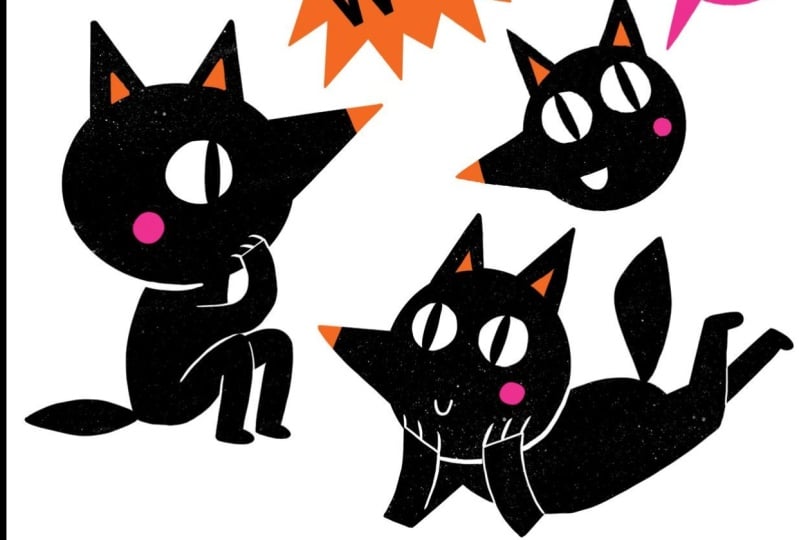
brainstorming style. For my new pack of stickers, I decided to use this little wolf character
I designed some time ago. You don't need a main character, as we just saw on the mood board. Your stickers can
also be objects, words, or a bunch of
different characters. Maybe you need an
animated arrow or a new post sign for
your Instagram stories. We can write down and sketch multiple ideas, more
than we actually need, Later, we will select
our favorite ones. Here I am sketching
some waving wolves. Here there is one
holding an envelope. This could be a good sticker for the contact info or for
the newsletter as well. This one says "hi". It's another potential
candidate and a good idea for the
welcome sticker. If you choose to design
and animate characters, try to have dynamic poses
and interesting silhouettes. I made a whole class about this topic. Go check it out.
I could also have some arrows to point at things which are always
useful stickers. Or it could be the character
pointing at something. Here I try to organize
a little my sketches, dividing them into groups. I start thinking about which
doodle I like the most. Remember, we want our stickers
to have some movement, so keep that in mind. As we brainstorm and sketch. For instance, this
wolf could wave his hand. And in this sticker. The balloon could be animated
as the wolf speaks up. This sticker could show the wolf happily
jumping up and down. Let your imagination run wild. As you doodle and explore
different concepts, it's good to start thinking
about potential animations and especially be sure that
they can be short loops. In the next lesson, we will
dive into illustration.
3. Illustration: Now it's time to bring our
stickers ideas to life, finalizing the spot
illustrations. First, we need to pick
our favorite ideas and decide which ones go into
our sticker collection. There is no fixed number of
stickers to create a pack. It could be three, but
it could also be 12. I would suggest to start small, especially if that's
your first time. There is always time to add some later in my case and
looking at my drafts, I think I will go for this one. Choose your favorite ideas
and start refining them. This is the time to decide
what the style will be. Do your illustration
of an outline or not. Do you already have a
color palette in mind? Think about color palettes that will make your stickers
visually appealing and cohesive choosing and using a color palette
creates a sense of unity within your
animated stickers pack. A well curated color palette doesn't just facilitate
consistency, it also enhances the impact
of your animated stickers. Maybe you already have
your own brand colors or you have a palette in mind. If not, no worries. I provide you with
some colors idea. In the resources of this class. For my pack of wolves, I chose this color palette. The colors complement
each other. The palette is minimal and bold. Let's finalize those
illustrations. I will focus on clean
and simple lines, because let's not forget we
have to animate this later. Complex details will require a longer time and a lot of drawing across numerous frames. Keep dynamic poses and
silhouettes in mind. In this stage, you can
refine the sketches, polish the shapes, and even add small details or change
something that doesn't work. For instance, here I'm trying different graphic options for
his mouth. Another example. In the case of this line Wolf, I really needed to
redesign the arms. Cute. Here I'm using procreate and I'm falling
in love with this texture. It's definitely an extra step that's going to complicate
my animation process later. Feel free to leave it out. Keep in mind transparency, your stickers have to work
without the background. You might try to turn off
the background layer every now and then to check out
the illustration is looking. In the end, I decided to add one text to my pack
and it says wild. I think this is a very
versatile sticker that I can use on
many occasions. This is how it looks with
a transparent background and that's how I say
a PNG from procreate. Here they are our cut
stickers illustrations. Now it's your turn. Pick a color palette and finalize your spot
illustrations. Remember, focus on clean lines, clear shapes, and
appealing colors to make your stickers
visually striking. In the next lesson, we
will start animating.
4. Simple Animation: Now it's time to bring
those puppies to life. In this lesson, I'll guide
you through the process of animating your stickers,
using Adobe Animate, Procreate, or your preferred
animation software. There are multiple
ways to animate. In this class, I'm
presenting you three ways with different
levels of difficulty. All hand-drawn. GIF is a very
light file format. Let's keep in mind that the animation of our sticker
should not be too long. A couple of seconds is ideal. Boiling effect. This
super easy technique gives movement to a
still illustration. It's very common on
Instagram stickers. It does not describe an action, but gives a little life
to a still illustration. If we draw the same illustration
three or four times, let's say on twos or threes, the illustration
will be "boiling". To do this, simply copy your illustration
three times. Tip one. Your boiling effect can be subtle and minimal,
or very crazy. This depends on how
precise your copy is, and how fast your
animation goes. Tip two: when you copy
your illustration, always copy from the
first master illustration to avoid a "shifting effect". Simple minimal animation. Adding small animations
to some part of the illustration also helps achieve a sense of
livingness and engagement. For instance, making
your character blink instantly
brings it to life. Another option could be
to move only one element, such as its arm or tail, in my case. This type of animation is very simple
to make, and effective. It does not require
crazy animation skills, but does its job especially
for short loopy GIFs. Tip one, blink. Blink
in three steps. The blink animation can be
broken down into three steps. Open-eye, half-closed
eye, and closed eye. I usually keep the
half-eye drawing for two frames before moving to
the closed-eyes drawing, which can be two or
three frames long. To reopen the eyes, you can go directly back to
the first drawing, or paste another two frames of half
open eyes for a softer blink. That's how you bring to life a character with only
a couple of drawings. Tip two: waving. The rest
of the body stays still while we animate only
the arm or the tail, I would suggest redrawing
the entire body, though. Otherwise, we would notice that one part does
not move at all. That's what I'm going to do
here with the sticker of the wolf holding the
envelope. For the waving we should first of all draw
the arc of the movement. This will be the anchor point, that's how the tail will move. I think my movement could
last 1 second back and forth. I want the animation to
be soft and the tail to be faster in the middle and
slower at the extremes. This means I will draw more frames close to
the extreme positions. The closer the drawings are, the slower the movement looks. This is me animating
in time-lapse, the wolf wagging its tail. For the rest of the body, I will have a boiling effect. Another minimal animation is the one for the "Hi" sticker. I make the balloon appear and
disappear, so it is a loop. And I animate the head
of the wolf with a blink and the mouth opening. To
give it a little more life. I also animate a little bit of rotation as he opens
his mouth to speak.
5. Timelapse Boiling Animation "WILD": Here in Procreate, I'm animating this GIF for an
animated sticker. And I'm going to turn on the animation
assist on Procreate and go on copying my
illustration, that says "wild". I'm basically going to copy
the illustration first. On one layer here is the orange and on another
layer is the black. For the typography,
I like to find a thick brush and just
try to copy my image, then simply cut with
the eraser here. The edges to create
this typography. I'm not too precious
or too precise. I like the look to
be a little rough. Also, later when
I'm going to copy this typography multiple times. Of course, I'm
trying to be precise and copied but not too much in the sense that the most
precise your copy will be the least amount of boiling
effect we will have, of course. Interesting
on Procreate. is that
if you keep separate layers, as I do now with the
orange and the black, the software considers them separate frames
of the animation. If you want to have
backgrounds or multiple layers of elements, you can then group them. - And I'm going to do it right now - to be considered as
one single frame. Now I'm moving to
the second frame and I copy it all over again. You want to repeat
this at least three times in order to have an
interesting boiling effect. Maybe even more,
four or five times. It's also fine. Usually, if
you're animating on a timeline, you can decide to animate
on two or on trees. Meaning each illustration, each drawing stays on the screen
for two or three frames. In this case. At the end
you're going to see, I'm going to set the animation at eight
frames per second, which means basically on 3s, if it was 24 frames per second. Here we go. Almost done with the second "wild" as you can see, it's a very long process and it's sped up the video
you're watching right now. Overall, I think it
took me 25 minutes to animate this very simple loop. I think it's worth saying this. Yes, sure it's repetitive. You can listen to podcasts or do other stuff
while you do this. For sure it takes some time. That's because it's
a very manual labor. And I specifically want to get the imperfection. That's why I cannot
copy and paste. And that's what I like about
this type of animation. The boiling effect
is really getting the imperfections and let
them boil. Here we go. This is the third and last
copy of the typography. Next, I'm going to move to, uh, the orange part. The orange part, I'm not going
to copy exactly as it is. Or maybe, yes, we
could say that, but like in a very
much less precise way, in the sense that the
next orange shape for the second and third layers and frames are going
to be more random. I pay attention to have
the same number of spikes, Of course, you're
going to see it now, but for sure I'm not
following... - You can see it now - I'm not following
exactly the same size, let's say, of those spikes. That's because I want this
shape to flicker a little bit, to be crazy, and
grow small and big. I can't explain it
in a better way. Also, I want to say that this process might
take some testing, some experimenting, and
then going back and forth. In this particular case, I don't need to because I do this kind of
animations quite often. I know what I'm going for, but I'm just saying this
because maybe we would take you a couple of tries
and that's totally fine. This is the third here. I'm coloring all the
shapes. Then in the end, in order to see it's a loop, eight frames per second as I
said before, here it goes. This is how it looks.
And then you export it as a GIF, and there you have it.
6. Full Animation: Full animation. Lastly, a
GIF can be fully animated. This technique is
more time-consuming and requires more
animation skills. It can describe an action that requires
different key poses. It can also be a morphing. Morphings do work pretty
well as animated stickers, and you can check my
previous class about morphing loops to
learn all about them. For my class project, I want to animate this wolf
jumping and celebrating. I set up the project at 24 frames per second,
which is standard. I start with importing
the illustration we prepared before into
my animation software. I want to make some
loose sketches to think about the
actions movements. In this case, it
is better to make a rough animation first, before
cleaning each frame up. Sometimes I make those
sketches on a piece of paper. Sometimes I start directly
in the timeline. You could also act the
movement and use yourself as a reference to better analyze the action
you want to describe. Here I'm trying to imagine
how to make him jump. The illustration I made, is clearly the
extreme key pose of the wolf in the air. I need the other extreme, the wolf on the ground. To emphasize the movement. Note how the arc of the back is the opposite in the jump
and in the preparation. This position is quite
closed and compressed. But I pay attention to making the silhouette easy to read. From there, I gradually
make my character jump. I would like the wolf to open his arms and legs
as he jumps up. At the top of the jump, the drawings are
closer to each other. You can see that in this
rough stage of animation, I do not care about small
details like the claws, the inside of the
ears, etc. When the walf falls back down, I added one smear frame where the face is all
stretched and funny, this helps with a fast movement. Once I'm happy with
the rough animation, I move on to Clean Up. Here on animate, I created
a symbol of the face which helps me to maintain the proportions between
all the elements. The last step is coloring. Remember to check
your alpha channel. As usual. You need your GIF to have a clean background
and silhouette. You can find the full time-lapse of this animation
in the resources. So here you have three ways to bring your stickers to life. Choose the one you prefer. You can even combine
some of them: For instance, have a
character blinking, but also redraw the whole
piece to make it boil. In the next lesson, let's find out how to use our
stickers online.
7. Export: To export from Animate. Go to file > Export >
Export Movie Which will give you
a .swf file, or Export Gif. In animate, remember that
all the layers are exported, even if they are switched off. If you don't want a
layer to be exported, like for instance
my rough animation, you have to set it
as a Guide layer. Because as I mentioned earlier, I wanted to complicate
my life with a texture. I had to export the black
and the other colors separately, and add the texture
later in After Effects. For the texture I created on
Procreate four textures with the brush I liked, and imported them into After
Effects as footage. My animation lasts
only 1 second. I duplicated it four times
to have 4 second loop. I applied a time
remapping effect on the texture pre-comp and made it loop forever
with an expression. Here I use the black animation as a mask to see the texture. You can export GIFs from After Effects and
Encoder like so. Selecting animated GIFs,
I did the same procedure, also with the other stickers, to add the black texture. Congratulations on creating
your animated stickers! Look at them, so cute!! In order to use them,
we need to export them as GIFs. A couple of notes about exporting a GIF, and some
things to keep in mind, it's important to set
our loop to be infinite, to have a transparent background
and good image quality. Let's see how we can use them. Maybe you want to incorporate
your stickers into presentation newsletters
and websites to add that extra touch
of fun and quirkiness. That's what I'm doing
now with my wolves. Here is a template
presentation in which I use my freshly
animated stickers. I can simply drop them into
Google slides or import them. I pick the same colors for the headlines, and spread the stickers across
the presentation. I think it looks pretty nice! These waves will also look
very cute in my newsletter. I can't wait to use them
for the next issue. If we want to use them on
Instagram stories or chats, we need to upload them. For instance, on Giphy, Simply go on Giphy - and you
will need an artist's account - Upload your stickers. Alpha channel,
transparent background, and most importantly, add hashtahgs for easy
discoverability. Choose hashtahgs wisely and pick at least one
that's only yours. I use, for instance,
my own name to be able to see and
find all my stickers. In the GIF research, the hashtags are
not only useful for you to find and use your
own animated stickers, but also to let your audience know how to find and use them. and that's it: your GIFs
are up and running! In the next and final lesson, I'll give you a little
bonus and some ideas to push your stickers forward
and outside of the screen.
8. Bonus!: You did it. You've learned how to create a cohesive pack of animated stickers that will make your digital presence
or brand shine. Now here's a little extra. You have this super cool
series of spot illustrations. Do you know what you can do with it outside of the digital world? You can print them as regular stickers or you can even make them into
temporary tattoos. I love re-using and repurposing my designs to optimize
time and energy. I think these wolves
are too cute to stay only in the digital world. You can order stickers online or you can
print them at home. I recently found out, that they
sell temporary tattoo paper that you can print with your inject printer.
How cool is that? I hope this class has
inspired you to explore the endless possibilities of animated stickers and
unleash your creativity. Remember, practice
makes you improve. So keep refining your skills and sharing your
creations with the world. I can't wait to see your fantastic sticker
packs in action! Please share your
progress at any stage. I'd love to see your sketches
or color palettes as well. Please also consider
leaving a review as this helps greatly me and the class. Thank you for joining me in this exciting class on creating
animated stickers. You can find me and my
work on Social Media. I always appreciate it
when you get in touch, if you have any questions
or need further guidance, feel free to reach out. Now go forth and have fun bringing your
illustrations to life with animated stickers
Happy Creating! bye!
 Giulia Martinelli, Animation Director / Illustrator