Transcripts
1. AI Content Class Intro: Yes, you're still hesitating
to show up on camera. You're stressed about editing, writing captions, posting
every single day. But what if I told you you
do not have to do that anymore because now you
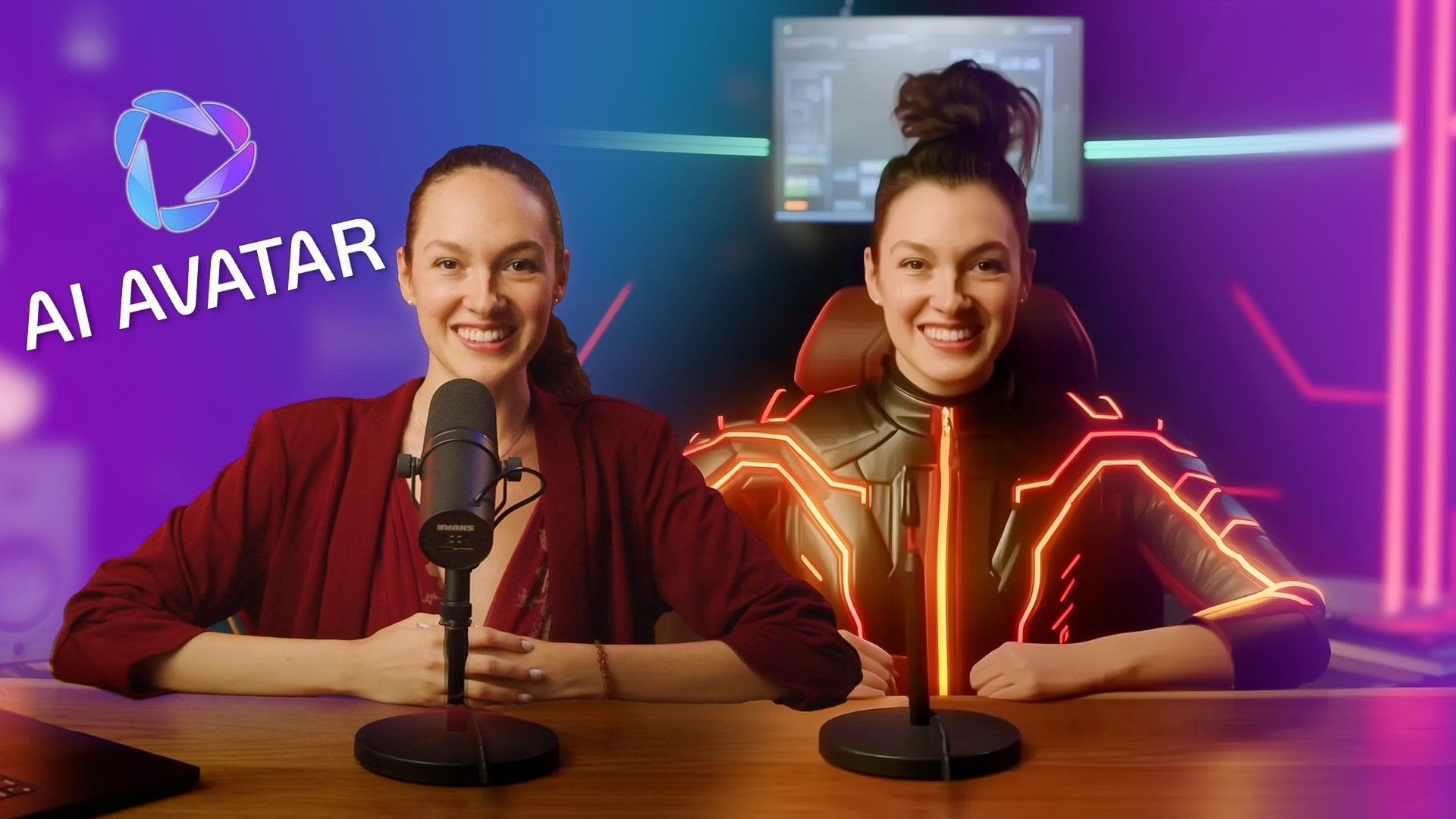
can create your AI Avatar. So with this AI Avatar, you can create
whatever you want, any photo, any video, and it's no longer just
generating a random image. You can create one based on the images you already
have on your phone. So now with these tools, you do not have to edit. You do not have to
show up on camera. You don't even need any gear. My name is Steven Sally, and together with future skills, we've helped over 300,000
students learn AI and even hosted
corporate trainings with companies such as Samsung. So in this course, I'm going
to be showing you how I use my AA Avatar and how you can create a personal
brand trailer. Now, this is just one exercise, and we can use all
the skills we learned during this process to
create anything you want, from unlimited images
to viral reels, and you can have these tools at your disposal to do whatever
you want with them.
2. Class Project: Just created one of the most
exciting videos of my life, telling my life story
that I can use now as a trailer for my business. And it was completely
AI generated, no cameras, very little editing. By the end of this training,
you'll learn how to create this AI generated
video using Suno, Higgsfield, Chachi BT, so you don't need camera
equipment whatsoever. And this is perfect for
coaches or creators that want to build a personal brand that feels authentic to them, artists, musicians that don't
want to burn out editing. And anyone that wants to
express themselves online, this unlocks that potential.
3. Class Roadmap: Throughout this course,
we're going to be using mostly these three platforms, Cha hip T for prompting, Sno for creating our music, and Higgsfield for creating
photos and videos. And you'll be going back
and forth between them a lot to prompt for
everything that we do. So you'll be jumping back to ChachiPT to prompt what
kind of song that you want. And then when we're prompting
images for Higgsfield, we'll use CachPT to come
up with prompts and even videos for Higgs field of how to animate those images, we'll come back to ChachiBT. So we're going to get very familiar with how
to create a song, how to create photos
and videos with Higgsfield and how to use ChachiPT to prompt
specifically for those platforms.
4. Higgsfield: Build Your AI Avatar: Alright. The first thing
we're going to do is build our AI avatar
to look just like us. Alright, so here we
are in Higgsfield AI. This is where I was in a portal the last three days straight,
just having so much fun. And we're going to create
our soul character. So if you go to character here, you're going to make
your own character. All you need is photos of
yourself. I have a ton. But if you just take
photos front of your face, side arms up and down, I'm going to show you if it lets me show you the pictures I use. So all you're going to do is take and upload
pictures of yourself. I have a ton from taking pictures of
myself over the years, but look at this
one here and here. These are very simple
ones of me standing and just the side profile, smiling, not smiling, hands up, hands to the side, hands out. Simple pictures like
that can go a long way. Because then it can
show your body type. It can show how you stand.
It can show your posture. It gets a different
fades in your hair. So just upload all of your pictures, and that's
all you're going to do. It takes about 10
minutes. So now, once you have your avatar,
you can hit Generate. And what that's going
to do is bring you to this image creation place which you can also get
to by clicking here. Okay, so now we
have these images. So I literally wrote sipping Espresso on the Amalfi Coast, sleek white tank top
and black sunglasses. And you'll click
your Avatar here. So if this wasn't here, you're going to click
your character. I have Energy Steve here, boom. And you can click
your style type. This is where you can
have a lot of fun. You can have iPhone where you're holding like you're
taking a selfie general. I did realistic and
you just click it, and then also you
can do nine by 16. This is great for portrait mode, great for 16 by nine, if you want to do landscape
for a long widescreen video. But all you're going to do is start generating some images. So if we look at mine, for example, it made
me a girl here. But in my video, there's a lot of crazy ones, so
don't judge me here. But this was me on stage, right? I used this in my video. This is me dancing
on the Amalfi Coast. This was me dancing in Rio. But you have fun telling your story in
these different images, and we'll teach you
how to do that later when we get to the
video section. But you're going to start
generating some images of you. I Freaking Love this one.
It's me in a crowd screaming, and you can see it
made me a character. Now, what's great about
this I'm going to give you a quick preview is you take this and you hit animate video, and you can animate
it into a video. Now we're going to get
into video a little later, but that's the
simplest way to do it. You just showing you
that we're going to use these images to make videos. So I can take this image, and if I go back download
another image, for example, maybe this one or even in
a different spot here, then when I go back
to the video section, it goes from video to video, and we're going to splice
the frames together. So that's how we're
going to create that seamless video that doesn't even require editing. But
5. Suno: Make AI Music In Seconds: Okay, next up,
we're going to make our own theme song,
Introducing Sno. Alright, so Suno is a place you can create music
just from a prompt. So, for example,
if we came here, we can type our lyrics here. We, let's say, I
am Energy Sieve. And we have the style here. I like hip hop and rap, so
I do like eight or eights. That's the type of beats,
but let's just say hip hop, anthem, right? But we have all the lyrics we want from our story,
but we can shape them up. So what we're gonna do
is go to Chachi PT, and I'll put like, say
you had your life story, you have your whole
life story here. I'm going to put my life story. But you could put as
much text as you want. But what you're going to do
is say, make this a song formatted for Sono as
an anthem for my life. Now, when you're using Suno, it knows how to
format the lyrics, so that way it builds and
does different things. So if you see here
intro, whisper Build, hook anthem drop,
it knows my story a little bit because I'm in my
chat. Who am I? Who am I? I don't even know if
it's going specific, but you can make
it tell your story that you gave it earlier. So this is telling your
story of the life, and these things are telling it, Hook intro verse one. The won't be said, but the
words under will be said. So you can always adjust
the words as you like, boom, copy that, and you'll
put it in Suno here. And you can create a song, just like that. It's that easy. And mine actually
came out fantastic. Don't worry about
what I'm having here. These are weird songs
I'm working on. And as you do this, you can start to
tweak how it sounds. So let's find mine really quick. So I had this one and it plays. Now, if you like
the style of music, if you don't, you can
hear how it sounds. You can come overhear,
hit the three dots and create a use the
style and lyrics. You can either update
the lyrics or just keep the same lyrics you
had from your anthem. This is mine, right? This is Rap. This is story. See, like it has most inspiring man in the world, Energy Steve. And I had this as my style, but you can change the style
up and you come down here to weirdness to make it more
weird or style influence. If you put that at
100, it'll keep it very similar to the song
that you're reusing. So if you like the way it
generated it randomly, great. If not, and you want a little different,
try something else. Scale this down, so that way
it's less like the song. You can scale the weirdness up. But you can keep
generating a few songs. And depending on my profile is, I think, the $10 a
month. Not a big deal. If you want to make one
song, you have 500 chances because I think you make 500
songs for ten bucks a month. So there you go. Super easy. You make your song, and
you're having fun with it. It's incredible to me
that we can do that.
6. Higgsfield: Create AI Images of YOU: Now it's time to go
deeper into how to make these images that
tell our story. Alright, so over here in Higgsfield, what
we have is create, we go to the image section, and we can start
typing in prompts. Now, what's great is if
you were just writing your lyrics in your same prompt, you can have it generate images. So, for example, generate
prompts for Higgs field. To create different
images of my story. And you can give it more
specifics of your story, but my point is it
helps gives you some detail prompts,
and it makes it fun. So for me, it gave me ideas. So Origins young man on a basketball court
at dusk, right? I can copy that, put it
into that's the video, into the images
right here and hit generate and do
different styles, right? So you can try these different styles and
just have fun with it. Big key is to try to generate images in order
of your story because, for example, look at mine, for example, I was at corporate. That's an early
part of my story. Don't mind these images.
Don't worry about it, ok? It's strange. But
I'm in corporate, like, feeling like
I'm behind bars. So, this one I really liked, but the next one I
wanted to do, like, my soul was draining, so I
did this one next, right? But I liked these
images it came up with, so it gave me ideas
for the next one. But sometimes I
got excited about, like, later in my journey
when I'm on stage, right? But I didn't really know
how it would connect yet. So it's really
helpful to just go in order of your story and
generate those images. And then when you see how to make the video
in the next lesson, you can generate the video and then it'll give you
ideas for the next one. So just make the first
five to ten images so you know the first
part of your story. And if your story is
only a 32nd trailer, that'd be fantastic, too. I made a whole three
minute music video, which you do not have to do. But just go in order
of your story, so I'd say make the first
five images of your story. Don't worry about
these creepy ones. So for example, I
was in corporate. I broke that desk job, and I traveled to California, so I made me traveling. I tried a bunch
of things, right? So this plan gives you a
good amount of credits, too. I'm on the biggest
plan because I was going really hard with
a three minute video, try to getting it
done in just a day. So then I'm at corporate
in the office. So anyway, it's fun to use
hATTBT before you make any images to come up
with different ideas of ways you can display
that part of your life. So say you were in pain, L say you had a
broken leg, right? Give me variations of
scenes to depict when I had a broken leg and describe
them emotionally, right? Something like that,
just to give you ideas. And it'll give you scenes,
and you can either just read them and whichever
one excites you, then you could put
it as the image. So use this first to
give you some idea. So it's like athlete collapse
on the basketball court, young man lying in
the hospital bed, man on crutches,
close a man crutches. So it gives you a lot more to work with before you
create your image. Okay? So then you've
made your images, right? And you're going to want
to just map them out, like I said, the
first five to ten. So make all of your images. And once you've made
all of your images, then we're going to move
on to the next lesson. So, make your
storyboard of images, whether it's five to
ten or up to 50 images, however many you want, just tell your story in these images and get them
ready for the next lesson.
7. Higgsfield: Unleash AI Videos: This is so exciting for me, and it's so fun to see
what gets generated. We're going to make
those images into videos and have a lot of fun telling our story and seeing
what we can create. Alright, so now what
we're going to do is I'm going to show you how to make your
images come to life. So one thing you can
do, for example, let's just keep this
example right here. I'm in the airport. I took the image of me
being in an airport. I'm going to just show you here. So it'll be empty right here. Like, it'll look like this.
Upload image or generate it. You can upload because
you had to save it, but I'm going to hit
Generate because it's in my field here, right? So you can it'll take you here. Now, you go find your image,
right? So let's go back. Alright. So it'll look like
this upload or generate. You pick your image and
it'll look like this. I'll start with the start frame, then you pick your end frame. Now, the tricky part is
when you pick an end frame, it doesn't take you
back to your photos. So you do have to
go to your photos, and that's why I said, get out your storyboard, say I saved that picture of
me as a selfie, right? Let's see if I can find
it for you real quick. Yeah, so I generated all
these images of a selfie. I think I picked
this one, right? And then you're going
to hit Download and save it to your folder. So so maybe you have your
photos here and you have this photo here and you
named it Selfie, boom. So it's saved, right,
you open that. And when you go to
upload this photo, you can just come
to your folder, put it here, selfie. I'm not going to upload it because it takes a few minutes, but it'll be here and
it'll look like this. So this is your start frame. This is your end frame, and
you could prompt it how you want it to transition from
this frame to that frame. So if we watch this one because this one was
already generated, I forget what I prompted it
because this is different. But look, he jumps
into the bush. I love it, right? It's fun. But then there was
another one let's see which other ones I did because
I did a variation of this. Airplane See, it's the
same if you look here, it's the same start
frame, same end frame. And there's also
the way it moves. So Higgsfield has this. So I believe that one was. If we go back, actually,
I'll show you what that was. So this one we
were working with, it was FPV drone. So if you change this, this is the ones that I
found most useful. General, under A,
this Earth Zoom out was really fun because I
just wanted that effect Energy Steve is inspiring
the whole world. So these effects are pretty good because they
did the right thing. But when you're trying
to transition smoothly, I actually used Kling. King doesn't have any special
effect. It's just general. But the transition
from first frame to second frame was the
smoothest by far. Like, it didn't have
any weird glitches. I didn't like the character
didn't really morph weird. This was like the
smoothest transition. But when I wanted cool effects, I used, like, building
explosion or Earth Zoom out. I could show you
some of those, and then you can look at them here. But then under epic
camera control, I really liked this FPV drone. After so many chances. These
didn't really do that much. You can experiment
as much as you want. But these are the ones that
I found work really well. The FPV drone was really fun. And then so say we
picked a drone, and then the prompt was
like, I'm in the airport. So I'm in the
airport and I wanted to transition to this end frame. This is what it shows
after I've generated it, so this is not the exact
frame that I used. I mean, a prompt that I used. You can take ChachiPT and say, Start frame is in airport. End frame is a selfie
in California, right? The variations of prompts of how this can transition
for Higgsfield. And what I like about
this, it gave me ideas, and it gives a more
specific prompt to Hisfield to help it transition. So, young man standing
transition in his mouth to have airplane
in the clouds, right? All these different
things, dark, rainy, airport terminal. And you can make it
more dream like, right? Like, dream like energy. Sometimes I would
say, make it gold and vibrational because
that's my style. So you can add more style to it. Anyway, you do that, and you can see the difference.
So is this the same one? So this is the one
I ended up using, but I thought that was so cool. I like when he morphs body
to body, he stays in frame, but I actually really
liked this one where it kind of just transitioned
because it showed the plane. And I had another one here. So then, for example,
like, the next scene was me here and then me
on stage right here. So I did a prompt, and I
tried different variations. So let's see how he did
this. This is the one I ended up using jumping over
the crowd was hilarious. But I think I did a few
variations of those, as well. I made him go up to
a different picture, but you can see, like, that's
the Earth Zoom out one. So it's really what I
learned from doing this, I was trying
different frames with different pictures if you know what story
you're going to tell, it's so much easier to go
from one image to the next. The last couple tips
is that under here, you can have more steps. It's more quality,
and you can see it takes more
tokens to generate. So you can keep it low. You can keep the duration
three to 5 seconds. Three is also less generation. So it depends on how
many scenes you want. I would probably just
do the higher seconds and the low steps. So that way, it takes
it's a longer video, and then you can show
you the little tweaks you can do in the video editor.
8. Higgsfield: AI + Real Footage: Okay, so this is one of the
coolest things we can do. It's blending our AI
with real footage. So this is actually
me performing. Now, watch this transition. It's one of the coolest things. Then he actually
flies into the world. So not only can he go
from regular to AI, but you can go from AI to real. Now, here's how we do
it. So this is me. I'm going to show you
exactly how I did it. First, we're going to use a different clip
than the one you saw because this clip is a lot shorter so it's easier to use. All you're going to do
is open it up, right? So this is the clip. This is really me my boy, Michael. We're at
a festival, right? So I'm taking this frame. Wherever I want it to
start in this video, I want it to start here
because I just like my face. It's like a full frame.
Control Command Shift four or just take a screenshot on your phone or
wherever you want, and you're taking a
screenshot. Boom. Now, this screenshot
screenshot is going to save. I'll just put it right here
actually, so it's easy. This is the video. Here's
the video right here. There's the screenshot, boom. Now that's going to be our end frame. And
it's already here. So you just upload it there. And I had put this as the
start frame, the selfie one. I'm doing this one
because I've already generated it so we don't
have to waste time. And then you could
say, the selfie man turns into a performer
and you hit Generate. And what you get because we have this one AI image to our
real image, we have this. Ah. It throws the leopard
print on my thing. Okay, and it ends on that frame. So you kind of understand
how it works, right? So now we download that video, this new generated video, and we put it here. So now, this is
that video we just downloaded, this transition one. You see? Same thing, right? Throws it on. And this is our
original video of me Real. So we put this frame, if we just look it right here, this is the beginning frame, and this is the end frame. Sorry, it's confusing. This is the end
frame right here. See how it's similar? It's all AI generated. I'm trying to help you understand
what's AI, what's not. It's kind of crazy. So
this is the end frame, just like we're
doing all of them, but it goes right into this one. So now if you play it, boom, right into real life. So crazy. And if I were to,
like, pause it right here and do a screenshot, boom, I can go back to AI. So I take I let that
load, go back here, and then I can make
that the new start frame. There it is. And you get the
point. We can put an AI image here and
it'll start right there. And then what we
would do is just cut the video right here, boom. So it'll end on that
frame, we just screenshot, boom, and it goes right back
to AI. Let's just do it. What do we want to upload?
I'll take this one. Let's do that one of me. Let's say, man transcends into highest version of himself. Okay, let's see what
it did. Here we go. This is always the fun
part to see what it does. Whoa. Okay, incredible. So now, this is going
to be really fun. We're going to download
this really quickly. We'll just put in the downloads, man transcends, open
that up, put that here. Now we can watch
the whole thing. It's going to be very fun. So if we're watching
this whole thing, you know, he transitions from
the Selfie, turns into me. Bada boom, Ba Bing, it's real. I'm my boy there, and
then next thing you know, I step out of the tent. Oh, look how cool that is. So then all you got to do
is put your music below it and make it match.
That is just beautiful.
9. Higgsfield: Unlimited Social Media Content: A quick bonus while
you're doing this, which is really fun
is you can just take pictures like I did at the beginning with
a sipping espresso, make it nine by 16 for social media and just
hit animate, right? So if I come over here and
hit video, it animates it, and you can see, boom, I'm going to use this as a
two second clip right there. I'm gonna pause it because
I don't really like his smile because it doesn't
look like me anymore. But like this quick clip, you can make 1 million reels
out of all these images you've made that are
formatted for social media, and you could write
a quick caption on the top and then a
long caption below. And it's just fun. So I had this other image
of me wrapping too, and you could actually
add speech to it. Ice thing, I think.
That's me rapping. It's not bad. Trip. But his mouth doesn't
move that great. But you can upload
your own speech. Like, I did it here. I uploaded my own songs, and it works. And it's not great,
but I'm a rapper, but you can just speak
into your phone even and just upload a quick ten
second clip of you speaking. And that's under here
in the speak section. Use an image that
you had, right? You can upload the
image right here, and then you can change
what kind of style. This is just selfie, but you
can change it to in the car, so it'll put you anywhere,
which is amazing. And then you have
your audio that you upload and it'll move the mouth and you can
prompt it what you want. I put guy rapping.
You could put guy just talking, girl just talking. And yeah, it's
super fun. You can put yourself in Italian mode. Really, really funny stuff.
So that's just a bonus. Once you have all these
images, you can just change them 29 by 16 and
make a ton of reels.
10. Congratulations! This is just the beginning...: We did it. I hope
you enjoyed that, and now you have this trailer that you can use anywhere.
You can share it. You can post it, and people
can hear you, see you, and most importantly, feel your story. I hope you had fun. I'd love to see your trailer if you want
to share it with me, and I hope you are excited about the potential of how this can be an extension of the energy that we put
out into the world. I'll see you for
our next creation.
 Future Skills, Uplevel Your Future Self