Transcripts
1. Intro: This course will teach you procedural modelling of a castle using Planner to my 933, procedural modelling is a way of modelling where you keep the control over your object. For example, here I went to bevel the edges of the cube and I can do it manually, and this is done. But if a later decide I want more bearable, for example, I cannot change this very easily. It's very annoying to add more bearable because I have to remodel everything by hand. Now we're going to do the parallel procedurally. I keep the control over the model and I can adjust the barrel according to my needs. This is a simple example of course, but the principle works everywhere. It just have more control with proceduralism and you can achieve complex models that wouldn't be possible manually. This class is more for intermediate level, but I think you can also follow along if you're a beginner. And now I want to know something about me as well. I mentioned so well, I live in Estonia. I work as a VFX artist. And I also do some consulting for you to channels, for example. And I have my own channel called paranormal swear, do some 3D stuff, everything like that. And that's me. I also have a cut and the speak five languages. Now let's start with the castle.
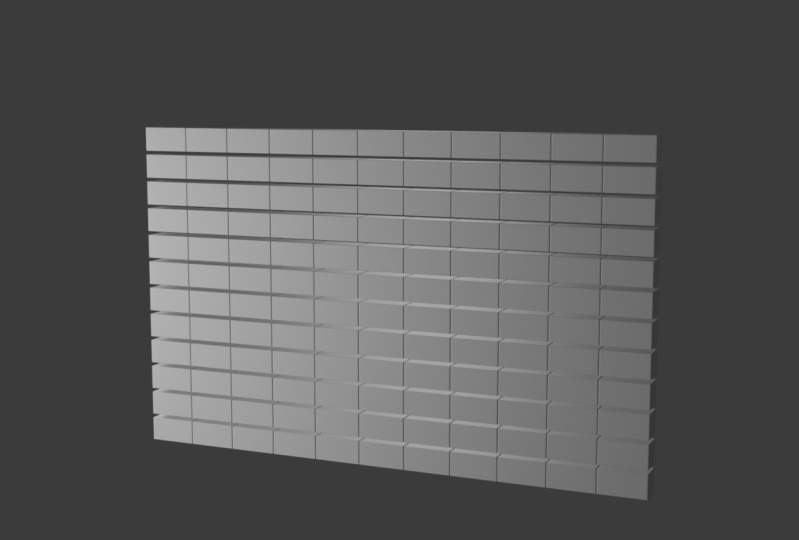
2. Chapter 1 : The Walls: So the first thing we're gonna do is, or are the vaults, right? Because the walls are the most important part of a castle. They keep it from the wind, what's inside and whatsoever. So we're going to make two volts. First, keep this cube here and go to the terminal node workspace there. And now this cube is going to be our basis, basis of the castle because every procedural object made a geometry notes, needs a base object. You can't just add a procedural object in the middle of nowhere. You just need something to be based on. For example, this cube area is the basis of our castle. And if you add some notes here we can. For example, let's say we add a grid, which is a plane. And if we visualize that pressing Control Shift, then we have a plane here based on this QPR because this cube is like the mother object of tomorrow. So if you can understand what I mean, now going to create the castle and the first thing we're gonna do our divorce. So let's add a cube to create one stone of the wall because we have to do something manually. We can't do everything procedurally. So the cube is here and I'm going to just make it look like a stone. So I'm going to scale it in the z-axis. Also scale it on the x-axis by 0.5. And now we have this little thing that could be called a stone, but it isn't very much, I mean, believable. So let's add a modifier, which is the bevel modifier. And let's make the sides a bit more smooth. And also let's shade it smooth as well. So this is our stone. Now if we want to make this a little bit more sharp or more like keep the shading with more strong. You can go to the shading here and check harden normals. And if you do that, you also have to go here under Object Data Properties and under normals, check auto smooth. So this is going to, I think you can see the difference. It's kinda like make sure that phases here are as flat as they can be. So I'm going to probably not tick this because this gives like this little roundness to the stones because the stones in real nature aren't as flat. And let's name this thing here, that the stone, so now the stone is here. And let's go to this thing here. And as you see, we have added a grid. Now, everything in Geometry notes, at least as much as I know, is based on points. So for example, if you want to have for stones, one here, the other hair, and the third one here, then a fourth one here. Then if you wanna instance like for stones like that, then you need four points because the stones need to know a place where they are going to be placed. So if you want to have, for example, a stone in the middle here, you also need 1 here. So this is like the board we're going to create. And as you see, we need some points in order for this wall do appear. So you have points like that. We have already added a great. And this creed is a very useful thing because when I click Control Shift, click on this, you see we have a little plate like that. And you don't see any points, right? So do you have the possibility to see those points? We need to add a point separate node. This point separate node creates this kind of an effect where all the little points of this plane are going to be visible. So as a 0, it now it says vertices x. So on the x-axis tree and on the y-axis also tree. So this means if I add, for example, more on the x-axis, I'm going to have a point cloud like that. And if I keep it at three, I'm going to have a perfect square like that. And also the size can be manipulated from here. Now what we're gonna do is to have this as the basis of our world. So as you see, we have to rotate it somehow. So to do that, let's add a rotation node, which is called transform. So I'm going to have to transform here. And as you see, we have a lot of controls, for example, for the x moment for the y movement, and also for the rotation and scale of this little 9-point thing here. So I'm going to rotate it 90 degrees on the y-axis. And now this is already more like our war, also going to make it bigger. So let's say we have a wall of four, about five meters on the, let's make eight meters on the y-axis, and let's make it for about three meters. Hi. And also we can add some controls or ready for that because procedural objects are always very handy. Do controlled through this modifier here, so you can add control for the size x and size. Why? So Let's also rename those. So press N and open the side panel and you can rename the size X to be, let's say the wall width and the size. Why did we of wall height? Now this is going to give you the control over these walls so it can add a higher or a wider war. And there is a kind of a program actually. And you can see this in a minute. First, let's add. The stones to those points. So to do that, we need a point instance node and we can delete this geometry things from here. And let's add a point instance nodes. So let's use the instance point instance. And everything has disappeared. And the reason is that, you know, this object thing here is empty. So we are instancing on the points and nothing and as no, nothing is invisible. So let's select our stone. And now we have a war like that looks pretty nice. But it's not too much like a wall. I mean, we have Rachel as vertices are points. So we should have for about, let's say four here and also about five here. So this is a K like they have a pretty large distance between them, but that's okay if you make them a bit smaller. But let's say I were to have a really, really high wall. And now see we don't have more vertices appearing, and this can be solved very easily. So as you see, we have this wall width controller here. So let's say my width is actually, the naming is incorrect here, as you see, with is making a tire. So we just have to rename those or switched their places. So the width is going to y, like that, and the height is going to x. So now we have something like that. So now how do you add those vertices? You can just take the width controller here and that to the y. So now if I increase the width, I always have more points appearing because the same number from 6.6, 26 is also going to go to the points and it's adding more points as the world gets wider. But as you know, we cannot add 6.26 points, so we have just six, or for example, in this case we have seven points or 50 points in this case. So it's going to be like basically rounded to the nearest integer or whole number. And as you see, we have way too many points, so they're always intersecting and we have this little problem here. So to solve that, what we're gonna do is to make sure the number that gets to the vertices y is going to be smaller than the number that goes to the y into the size here. Then you do that. We need to add a magnet. So I'm going to add a node here. And right now I can add a negative number, which means subtracting. Or I can just subtract something from here. For example, I subtract, let's say two points or tree. And this is getting a little bit nicer, but subtracting or adding doesn't work here because when I increase the width, you know, this is still going to overlap because subtracting those six points isn't going to be enough as the ball gets wider. So I'm going to divide the number by two. So right now I have twice as less. Is that the right way to say that? I, basically, I'm going to make the world twice as large as I'm adding. Those vertices are the points. So if I make this wall of it wider, you see I'm going to have perfect ball every time or at their length. So this is working now and as you make it bigger, you see we are losing some and some resolution here. And that's completely normal to fix that, why do you have to do is to just add another math nodes and set it to add. So we can add some like SOS points, terrorists. So in case we need something more when just going to add 1 more. So I'm going to add a war with width controller here. Let's call this width fix. So this is for fixing the amount of points that we could have. For example, this is a 0 right now. And if we increase the width, for example here, we can add one more point. And this seems to be working nicely. And if you make this like that, then it seems also to be working pretty nicely. Now let's deal with the height. So I see when I make this war higher, we don't have points appearing. So the same procedure here, we're just going to make it a smaller bit and move them down so that we can see it better. And now let's add the same division. Or let's actually tracked the same height to the vertices x also. So now if I'm making this bit higher, you see I'm going to have more of those things. And it seems actually that this is working even without the division because I'm going to make it smaller or bigger. I'm going to have a perfect wall every time. And this is because the block is for about five as wide as it is high or long. So that's the reason why it works. So, yeah, I should probably still add this division or this addition here to the vertices x. You have one more vertex. And this is going to fine tune it so that I have a little bit more like a war, right? So this is our vol, and as you see, we have a pretty nice system already. But there is one thing we have to do, and this is with the height. So as you see when I increase the height, we actually want the wall to move up or we want the volume is sitting here and when it goes higher, it should go hire from the top. So how do we do that? Well, we can. Increase the translation here on the z-axis. And it works. But now if you make this a little bit higher, it doesn't work anymore. So we have to do some pretty great amounts of manual work here. So to fix that, we can make the computer do it for us. And for that, we have to use a combined XYZ note. So you see here we have three numbers which form a vector. A vector is always purple in Blender. And if you plug, for example, a control from here to the vector, we have also the vector controls here, but we just want to affect only one channels. So I'm going to remove this purple thing we have appearing here. And let's track the combined XYZ here. So now we can control all of those separately using three different inputs here. And let's think which kind of number do we want there? So let's say my wall is for about four meters high. Then I have to have movement of 2.5 meters, It seems to me, right? And if you have a wall of ten meters, then I have to have the movement of 5.5 meters. And I can see a pattern here. And the pattern is that every time I make this bigger, so for example, if I put a 100 here, I should have 50, 0.5, The being derived x0 amount. So if I make a 100 meters here, I should have 50.5 here. And this works because it has to be divided with two and we have to add 0.5 there. And you're asking me, how do I know that? Well, I just figured this out right now. I literally don't have any crazy equations in my mind. I just looked at the relation between numbers and this seems to work. So let's take a control for the wall height here. Let's plug it to the combined XYZ and let's make it purple, 20 meters high. And as it is very, very, very way up there. So let's add a division note here. And let's divide the number by two. So now this is in the right place. And this is like exactly in the origin point of this stone. What I can do is to add something to move this up a bit more. So I'm going to add to the position 0.5. And now everything should work very well. Let's see how it works. And it does work. So if I make this bigger or smaller, I always have the vol, getting longer to the sky and not to the ground or into the soil basically. So let's make this a little bit more easy to understand here. I'm going to add all these Matt's notes here. And this should be a bit more graspable if that's a word. But anyways, here we have our wall. So the question is how do you make so that we have, for example, one stone here, then we have another stone here, and for example, trees, stones. And the next layer is going to be like that. And let's say for example, fee, fourth layer is going to be like that. So basically we should have irregular placement of the stones. And we can do that using a random number or we can do that using a sine function. So Eisenhower is sine function is pretty much like a sine wave, which looks like that. If I make this from the up-down. So this sign wave looks something like that. And it is placing something to the right side and something do the left side. So this is a pretty useful function for us. So let's use this in some ways to displace those stones. This place them. We're not gonna do this after the point instancing here because as I told you, everything in geometry nodes, pretty much everything is done with points. So after the instance, we have basically those stones, those vertices of the stones as the points. So each stone has one to eight points. And after this point instance, these are the points we have to commodify. But before the point instance, they are those 24 points of our base plane here. And after that, these are the stones. So if you want to move the placement or modify the placement of the stones, we have to do it before instancing anything gone those points. So what we can do is to change the position or alter the position of all those 24 points that are in our spreadsheet right now, we can alter the position using a vector math nodes. And you're gonna ask me, why do I need a vector math node? Why can't I just use a normal math node for example? Well, the reason is that as you see, the position attribute is a vector attribute, which means it has three values inside of it. And we live in a three-dimensional world, so we need three numbers to express the position of a certain point. For example. The first is 0 on the x-axis, this number on the y, and this number on the z-axis. So to actually now move those points using our sine function, what you have to do is to use a vector method. So I'm going to take the vector math nodes. And if a plug this here. You see I don't have any attributes available for me, even this position attribute. And the reason is that they just disappear after the transformative return transform node. So I'm going to take the one from here and put it here holding down Alt key. And here I have the possibility to access these attributes by default, we have, for example, a normal attribute which tells us in which direction the face is looking at all the phases of a mesh. Then you have Shade Smooth attribute, which is a boolean attribute, which means it's either true or false. So this means an object can either be shaded smooth or not. And then we have the position attribute, which is a vector attribute. Let's enter this here. And let's add to the position something. Let's say the sine function, and let's result in the position. And this is the basic, like them, basic order of how we are going to do that. But we don't have yet something to add to the position. So how do we do that? Well, we have to have for the sine function, as you know, sine function is basically like going in the direction of increasing values. So if you have an increasing value in this direction, the sine function is going to form like that to the infinity as long as divider keeps increasing. Because our wall has to be moved using this kind of a sine function as you see here. This means we need to have a growing value from here to the top, basically to the sky, to the moon, whatever, doesn't matter where, but it has to increase from this point where the ball starts to the infinity, we need a vital like that. So how can we do something like that? For that we can use an attribute separate XYZ note, something just happened IS separate XYZ attributes separate XYZ. And we only have one vector attribute right now. And let's separate the position attribute into x, into y, and also into z. And now we have the exact same attribute into three different attributes. Now let's see which one of those, x's, y's, or Z is increasing upwards. So let's preview this. And as you know after these notes, we are going to rotate our plane. But it is transform node. If you don't use it, the plane is going to be like that. So we have to think of like the ways of the original plane. So without rotation, our plane is like that. So we cannot use the zee attribute because like in the space of this plane, we have an increasing value in this direction. Or actually have an increasing value in this direction because this is the direction of the x-axis as z, the minus x is here and the plus x is here. And on the y-axis we have an increasing value on this axis, on this, in this direction. These are the values we can use or attributes we can use to take the sine function from. So right now I'm going to take the sine function from, let's say the X here. So to do that, I need a math nodes attribute math. And let's take the sign. I'm going to actually plug it here. And looking like fat. Let's take the sine of x are resulting in the, let's call it this new attribute called sign. And as you see, we have a new attribute, which is a sign attribute called assign. It isn't like a specific attribute type. It just call the sign. And it has different values ranging between minus one and plus one in theory. So let's now add this attribute math sign thing here to the position of the points. And we did something like that. And what do we have here? We have something changing here, which is nice, I think so. But it's not changing in a very nice way because we only want to change this only on the, on this direction, only on the Y direction. But it's currently displacing on all the directions. And that's because, you know, the sign attribute here is a float attribute. Float means single-valued attribute, and as you see here, we only have one column, which means only a single value is in here, unlike position which has three values. So the position or the vector math vector math node here takes this single float attribute and slums this attribute into all the sockets of the vector. So this is going to displace on all the axises, which is not what we wanted to do. So let's duplicate this vector method. Let's multiply the sine attribute with a vector, resulting in a sign attribute. And now we can choose which vector. For example, if you would keep the x, this would do something like that. Not at all what we want to do. If it would keep the y, this is now only displacing on the y-axis, which is basically giving us our wall as you see here. So an IFA code you and preview this point instance thing here. You see we have a war like that, which is a very, very castle like vol, idea to say. So we can control like the power of displacement here. But if you want to shift the pattern. But you have to do is to multiply the x before it gets to design. So this one here is multiplying after design. So this is just making it powerful, more powerful. But if you do this before and multiply the x, resulting in an X, then it's going to change up the pattern basically. So we can just multiply it with one or with another number, for example, something like that. So this is our wall right now. And this is working on the all the ways. Yes, it is. It is increasing in width, which is pretty cool. And it also is increasing on the height or the height. And as you know, as it is moving upwards, you can see the sine function in here. So if I make the multiplication with more, we see we have the same thing here. What was that? Something like that. And let's make this little less high. And I'm going to have all those nodes in here so you can actually see what we did. So we took the position attributes separated into X, Y, and Z. And we took an attribute, a resulting attributes which was increasing in value. All of those were actually increasing in value except z because the plane was flattened or disease always the same thing as you see here. The attribute is 0. Then we do get and we multiplied it, and we took the sine of it. And then we add it to the position, which basically means that here we converted it into a vector attribute by multiplying it with the vector only on the y-axis. So this is how the wall is made. Now let's add four of those. And this chapter is going to be finished. After that, I'm going to and select them all and press Command J or Control J if you're on Windows, and let's name those war. And now we have the vol and actually under Properties I'm going to make this a little bit bigger. So we have the vault. Now, here's the question. How do you add four of those? Let's make this one also bit more like a white because the customer has to be a bit more wide like that. Let's add four of those. So to do that, we could either duplicate all of those nodes and have four of those, which could be pretty stupid actually. But I have done that actually in the past. So yes, I'm not the smartest all the time. So joint geometry is something we can use and we can also join two of those worlds together. But this doesn't make any sense because they're exactly the same walls. So you make the second one different. We can use a transform node. And now what we have here is two separate walls, which is a pretty nice thing and they're matching like puzzles because this is a sine function. So basically I'm moving this on the y-axis, and now I'm also going to rotate it on the z-axis like that. And let's actually, let's actually make the ball down there. So this is our first warm or the second roll actually. And I'm going to just move it like that. This isn't actually a very good placement for this role because you see these corners aren't matching up at all. So I'm just going to rotate it by 270 degrees. And now there should be matching up pretty well. So just a little bit of fine tuning on the y-axis, like that. The towers are going to be on those positions. So actually the like the border doesn't matter too much. And if you are bothered by those errors there, you can just basically shift the sine function and this can make things better. So none of this wall is in place and moving on with the with the other wall. It's increasing in height, width, which is good, but isn't increasing in width. Of course not because we haven't done anything for it to move like that. So to make it move like that, we need a combined XYZ note because as you know here, what do we have here? We have x, y, and z, and we just have one control for all of them. And we definitely have to have different contrasts because you see those values are also different here, right? So let's neck this vector here, and let's small this thing more about here. And let's see what we can do to make it work. So as the number here is minus 26, and let's make this number here a bit smaller so we can understand better. Let's make it 10. So now I have 10 here, and let's drag those into place so we can actually find the correlation that works. And in case of 10, we need a value of, let's say, for about 6.3. And in case of 5, Let's see what we have then. Print the value of for about 3.4. So in my head, I have a correlation of dividing this number here with two. And adding one something. So let's put like 20 here and we should have 21. Bring Tucker at 11 being to correct number. And if I move this area, we have 11 being fee pretty correct number actually. So let's do so that we take the wall width and divided with two. So we have already done this here. We have divided them all with, with two. So let's take the wall width and drag it to x. And let's also drag it to the y. And we actually wanted them to be negative because we are the negative before the SDR. So we can just add a math nodes here and multiply them with minus1. And now we have our wall here. And this is working problem. Yes, this is working, but it's a bit shifted. So what you can do is to just add something to the placement of those walls. Or actually we can just subtract one or add minus1. It works either way. And now let's add the four remaining walls. So to do that, we're just going to add another joint geometry here. And let's take what? Let's take another transform roads and let's put it here and let's shift those. We have tools in right now. So we can rotate them by 190 degrees and move those 0 on the y-axis, which is convenient. And for what minus 24, which is actually the movement, devote, war with movement here. So let's add a combined XYZ note here to the translation. And let's put 0 here. And let's see on the x-axis for about minus 24. So let's devolve width. Let's take the wall width, which is here. So I'm going to track the wall width and plug it to the x. And now everything seems to be periodic, yes, because the original one was negative. So we can take the, another math nodes and put it before the thing, multiplying it with minus one. And now this seems to be working, but it's a bit shifted again. So let's add some fixation here. Let's add, Let's add minus2 or let's subtract 2. Yes, this is working right now. So now when I take the controls here and I add a decreased with it is working. And when I increase the height, it is also working. The borders are likable, bit junky, but I think they are pretty add some like maybe realism because they are not like exactly even. So let's make them a bit more like flat, like that and a bit smaller. So these are our vaults. And the next chapter is going to be about towers.
3. Chapter 2: The Towers: So let's go on with the towers. And the towers are going to be quite interesting. They're not hard to make, but they pose a little problem that currently is a limitation in blender that will be addressed in the future. I hope so. Let's make this towers right now in the same geometry nodes setup. So let's start up here and let's add a circle because a circle is the base of a tower, Don't you think so? So basically we have a circle and I'm going to in the middle here. And let's say we want to have a, Our coming up from here. As already know, we need points to instance the stones onto. So for example, if I was to point instance here and the instance, the stone here, it's going to look pretty crappy if increase the radius. Well, you see we have a lot of stones here, right? But now here's the question. How do I add more of those circles on top of each other to form a tower. And as arrays in geometry, those are made in a way that you add a line and then on each vertex of this line you Instance basically an object. So for example, write down, this is an array of stones, right? And we basically need to create an array of objects like that to create a tower. But the problem is that we basically just cannot instance those circles. So for example, we have this line here. And if we want to instance on this line, those circles, I cannot. This doesn't work. This limitation is being worked on to create this green geometry input down here. But as we don't have this right now, we cannot use those circles in the geometry node, node system. So we have to create our circles ourselves. So let's just add a circle. Here. Let's add a circle. And let's add, let's say 13 vertices. This is like the resolution of our tower. We have to choose it right now because afterwards you cannot change this anymore. If you click again here, I mean, you don't have this menu anymore. And because it cannot use the circles inside the geometry notes, we also cannot change the resolution afterwards, unlike those circles here, which can be changed. As you see, you can change the resolution and they change as well. And we certainly can't do this anymore. But this isn't a huge problem. Let's first take the circle and put it inside. Our Castile system is called this, our castle actually. So we are inside of this Castile object. And let's take an object info nodes, and let's select this circle here. So right now we have the same circle that we have here inside of our Castile object. And we can Instance on that circle, for example, the stones, right symbol. What we can also do now is that we can add a line and instance a lot of those circles on top of each other. So we can take this line and we can duplicate this point instance here. And using this line in geometry here, we can select the circle as Z here. So let's select the circle from the drop-down menu. Now we have a lot of circles on top of each other. Or we should have actually, for some reason we don't. Let's try instancing on the surplus. So I'm gonna take this stone thing here and all track here. And yes, we do have a tower right now. Yeah, we have the basis of the tower. It is looking horrible because all the stones are way too big. So let's make them smaller because we're dealing with points right now. Let's add a point scale notes. So let's use a float here. You can either use a vector. So we can, for example, scale on the x-axis, which is going to create an effect like that, or only on the z-axis. But we want to scale on the axis is at once. And we have a tower and we can change the distance between those things in the line here. And basically this is working fine and all. But the stones are not placed very well, so we have to fix it somehow. And for that we have a very nice note. Actually, I only got to know this for about two months ago. Before that, I was just like doing some crazy maths to rotate the stones in a correct way so that each one is, I think you can understand what kind of stones we need to basically need stones to be placed like that instead of them being rotated very horribly, right? They are right now. Still create this kind of like a flower effect. We need an align rotation the vector node. So let's take the vector align rotation vector, and it doesn't do anything. So with this node we can, for example, rotate all of those points to some kind of a direction. So for example, if I want to rotate them, do a vector of 10, let's say 111. Now the vector of 1, 1, 1 is facing that way up there till the positive direction on all of those, all of those accesses. So if you want to place all of those stones or rotate them like that, we can use an attribute because vector is same for all of those and they all have to be rotated differently. So we cannot use a vector here, we have to use an attribute. So let's use an attribute called position. This creates this kind of an effect where it takes basically the position of all of those points from this middle point here. And it's going to rotate them based on that position. And this sounds maybe a little bit complex and it actually, I don't fully know what's happening under the hood here. But basically, the position thing works if they are located like that circularly around the center here. So let's select the pivot axis to be x, and this doesn't work at all. Let's select Y. And this doesn't work as well. Let's select Z and Z does work. We have a tower like that. Now, in your case, this might not work because this is like different axis, different pivot every time. So try them all and try all the combinations. If, if that doesn't work. After that, even after that Fantasia, this object, you have an in edit mode, rotate it on some accesses. For example, on the y-axis, this seems to be working pretty nicely usually. And see if that works and you should be good after that. So basically we have the tower right now and it looks pretty nice. But again, the same problem as before. And we have all, this is very neat, very organized and irregular. Let's make so that each one of those circles is rotated a bit more as it progresses upwards, each one of them is going to be rotated a bit more. So you do that. What we can do is to add a point rotate nodes. So let's use the point rotate and that's where we can place it. I cannot place this after the point instance because we don't have like any points after that, we just have the stones and these are the points we want to rotate. So let's see what else we can rotate it. Let's place this before this circle like that, rotate on the z-axis. You see the tower is rotating, but we cannot use this vector rotation because you see it's working on all the layers at the same time. And this isn't very useful for us. So let's use an attribute, but which kind of an attribute? Well, this has to be something that is progressing continuously upwards, for example, from here to there. So the first one is going to be 0 and the one up here is going to be a positive number, cannot be negative. And what is that? Well, that is of course, our beloved z-axis. So the US, the z-axis. Let's use separate XYZ attributes. Separate XYZ. Let's separate the position, not decrease. This is completely useless. I haven't actually attribute like, like never. So let's separate this into x and into y and z. And let's use the Z attribute to rotate those points. And what do we have here? We have Madness going on here. Is that nice? It isn't. And the problem is again, it's using a float attribute. You see here z is a float attribute and discuss the lambdas into the rotation, which is of course, something that has to be changed using a vector. Because we live in a three-dimensional world, we have to have three components in something like that. So this attribute here has only one component and it's going to rotate on all the accesses with the same power doing some mindless, stupid stuff. So let's fix that. Let's take this as the attribute. And before it even reaches the point rotate. Let's use a vector math nodes, which is going to no, no, no, the vector math is going to delete everything that Susan attribute vector math nodes. And let's multiply the z attribute, resulting in a z attribute. Right now we're multiplying with nothing. So this means we don't get anything out of that. So let's use another vector and let's make sure we only give the z components. So let's keep it at one and try it. Now, we have our result. Everything is working nicely. They're rotating more and more as they progress. For example, if you add to this line, more of those, they're going to rotate to the infinity. And this is pretty nice transition, Don't you think so? My English accent is getting a bit we're getting bit too comfortable. I have to have to be a bit more attentive to my verb usage. So, yes, this is our tower, right? And now let's add four of those towers. And actually before we do that, let's add the top thing to the tower. So the top thing to the tower looks basically, is basically the same element. It just has less of those. What are these called? Less of those stones there. So basically we only have one here and another one here and here. And here. Maybe four, maybe five of those, but not too much. So these are things that can be used to protect yourself and your, for example, in a war. And you have like those enemies coming from this direction. And then you are here and you have a nice little comfortable stone here. And then you can hide behind that stone so that the archers don't catch you. So let's add this little protective thing here. And to do that, let's use the same circle. Let's use the object in finance. And let's use the same circle. Let's see how it looks. Well actually less than two. Let's not use the same circle because this circle here has 13 vertices and this is exactly the same number as we have on every level here. So let's add a new circle. And let's add not 13, but let's add six of those. And this is our like defense circular for the archers to be happy. And let's select the defense circle here. And let's instance on the defense circle, the stones looking very crappy. So we need to make them smaller. Let's duplicate this point scale. They're smaller and we also have two, align their rotation. So let's take the same thing and let's align their rotation to know that this is done. What we have to do is to combine those. So combine this tower here and the defensive thing up there. So I'm going to use a joint geometry because this allows me to join geometry logical, right? And this thing is down there. So we have to move this up and do that. Do that, we need a transform node. So let's use a transform node here. And I'm going to move this up on the z-axis. And basically this is the tower, right? Maybe I should make them a bit bigger because they do look better that way. And as you see, the order is really important. I shouldn't be scaling here, but I should be scaling before using the, the thing here. So let's put 0.7 there. And I'm also going to scale them on the y-axis is a bit more so something like that. Maybe even a bit more on the z-axis. Something like that. And now this is in place, and let's add controls for the towers. So let's take the crop input here that already has controls for the width or height and width fixed. And let's add the tower height concerns. So this is the tower height, and let's call this our heights. Unbelievable, right? Our height. What is the next thing? Well, the next thing is to add a control for all. So is there anything we can control with this thing? Well, if you add to the tower height, actually there is the same problem. So now there isn't the same problem. It's actually pretty easy. So let's add also to the movement of this upper theme here, because this is currently like staying in the same place. So let's take a combine XYZ. And let's plug it here to the translation. And let's move this up to around here. And let's maybe Let's plug this tower height to the z. Superiors it now. I don't know exactly. So let's add a math node here, and let's add something so to make it visible. It's up here. Yes. And that's because the number here is ten. So this means like 10 meters, which isn't actually a very good thing to do. So if you add one more vertex is current, is placed one more meter, which isn't very nice. So let's add a multiplication here. And let's multiply this by 0.5. So this is like half as fast. So this is still moving. I'm going to go sipeoyo. This is still moving like faster than shoots. So I'm going to add 100 of those repetitions. And then I'm going to go up here and add a nice multiplication here, which seems to be working. And 0.3 seems to be doing its job pretty well actually. Yes. Whenever I add something, it's going to stay on top. So that's nice. That tower is finished. Now let's add four of those towers. First one I'm going to do is that I'm going to select all of those and press Command J and name those. Power with the label size of 64. Be nice and big and visible. Maybe also capitalized. If you're getting like cocky here already. So we have Tower and the ball and knowledge that four of those towers. So let's combine first power anti-Castro. So the last node of the customer and the first node of the last node of the customer and tower. And as we see, the tower is really small. Actually, I wasn't expecting that to be honest. So to fix that, what we can do is just actually use a transform node. So let's use a transform node afterwards. And let's scale this tower. Yes, this is actually four. So this is like a executable tar size to me. And we should have a little less of a distance between those rocks, something like that. Yes, we also have to fix this movement to the top basically right now because now going to add some n positions, some vertices. Here, it is moving up and we have to add. Something that works for 0.65. That's a bit too much, 0.61, maybe a little less 0.605. This seems to be working, so let's add 10 and see if this is working perfectly now. Yes, it is. It is in a pretty nice place here. So the tower is basically a fixed, let's make it a bit higher actually. And now let's add four of them so that forward towers, what you have to do is to again a joint geometry of course. So let's add a transform node and let's plug another tower here. And let's move this on the y-axis. So one hour is going to be here, the other one here, and the rest of them there. The first tower has to be moved. Where does it have to be moved? Actually going to add another transform node here, because we're already using this one to scale. So I'm not gonna mess with that anymore. And now it's more, the first one also, the nice spot. So here. And now we have two of those towers in some really nice places. We shouldn't move those on the x-axis, Something like that, right? And we have to make them dynamic. So if you increase the wall with, they are actually moving alongside with them. So let's take the controls here and let's see what we can do with them. So basically, what do we have to add? We first have to add a combined XYZ, of course, because you have to combine three numbers into a vector. So note this isn't her I think to do and move it here. So 17. Let's make sure we have a couple of nice width of 20. And in case of 20, the movement should be does minus 10 work? Does maybe you have to add something, but basically this the right thing. So let's add here, and let's also add the math nodes. And we have to make it negative, as you see. Because before this was negative and it worked. And to make something negative and twice as small, let's just divide with minus2. And this is in the right place. You could also multiply with minus one and divide with 20 afterwards. This is up to you, which I just do it that way. Now we just have to add something to the movement like that or subtract the same number in a positive way, doesn't matter actually. Now the tower is in that place. Let's see if it works. If I increase or decrease the size, this is working very nice. Till the next hour. What do we do with that one? Well, we need a combined XYZ, of course. And let's put it here and let's move it here. This is basically the same thing, but just not negative. So let's move it here and let's add a math nodes with the division of just two. Is it working? It is. I'm just going to, yeah, you see, in this case the addition node is going to displace it in the wrong direction. So I can either remove the minus sign or just to subtract that we are doing things in the most idiotic way, adding negative numbers and subtracting negative numbers, which actually sounds more reasonable than it should. But anyways, now the towers are working and moving alongside with the Castile. Yes, this is the Castillo two towers. And let's add the next two towers. And what are we going to do? Of course, showing geometry. Let's add a joint geometry. Let's add a transform nodes, and let's see what we can do. So we have those two towers that we can probably move on the x-axis just like that, minus 27 meters. Let's set it to 20 meters again. And now this should be minus 22, okay? The same number, 10, the width just negative and has something added or subtracted actually. So let's take the width. We need to combine XYZ. Of course, combine XYZ and plug it in the translation there. And let's kind of an axis, was it, it was on the x axis. Okay? So this means let's pluck the width to the x axis. This doesn't work. We have to divide. What just happened. We have to divide the thing here with minus two. No, actually we don't have to divide it minus2 because the original number was, what was it? Minus 22. So this is like the unedited number, it's just negative. So let's use a multiplication instead and multiply with minus one. Now they are in the correct spot. They are working, but they're just shifted a bit. So let's add a subtraction node, which isn't working again, let's change it to addition. And let's do something like that. So let's shift those a bit. And now the customer should be working very, very well. Yes, it is. We have done it. The towers are ready. The archers can be safe up here and no one's like transparence their head, it's something sharp because they have protection. Six nice strong stones. And yes, it is working. And in the next chapter, we are going to deal with this door here. And yes, this is the end of this chapter.
4. Chapter 3: The Gate Hole: So your back very nice. We're gonna make some doors right now, doors, how would we pronounced doors? Do whatever? We're gonna make some doors. So the order gates, the gates is nicer expression I think. Let's start with the, let's say the towers are here and the tower movement is also here. I'm going to place this afterwards. So we have a system where first you have a wall and then we have like the system to make it and dynamic, something like that. Now we should have the gate. So how do we do the gate? Well, the gate works in a way that let me show you. Let me actually go to the layout and let's select another axis. No, not working. Yes. So the gate worked, innovated. Let's say these are our stones in the war, right? Speed it up a little. These are like the representations of these stones. And now how the whole, or how the gate worked is that we have to make a hole inside of this thing here. And if you have used blender before, which you probably have, you know, that there is a Boolean operation. And the Boolean operation basically it's like a modifier which uses another object to cut out from another object. So for example, if you have like, let's say we have a cube which is looking like that. And then we have a Boolean operation which is going to cut out a piece of this cube so we can use another cube and approach it. And so it's going to cut out basically imagery the artists been maturity drawing skills are horrible. So basically we can cut out like part. If you can understand what I mean from another, this cube like that from its different side. So this is how Boolean works. Or for example, let's say you have like a cylinder from top-down. And then you use another cylinder and the cut out this part from here using the another cylinder. And this is going to result in a new cylinder or a new object looking like that. But we can't do that with geometry is because the Boolean operation in Geometry notes is so slow, It's kinda like booked on your computer like for sure. So let's do this in a different way. We can't just cut out a part from this thing here, which could be like cutting out and hole like that. This would be easy, right? But what we're gonna do is we're going to use an object, for example, a plane, just a random plane here, like that. It doesn't have to be like a rectangle. It is a square shaped plane. And what we're gonna do now is that we are going to calculate the distance from each point to the plane. And if the distance is bigger or smaller than a certain number, then it's going to separate those points. And if the distance is smaller than, for example, let's say 0.5. Let's distance here is 0.5 from those points, then it's going to delete all those points in the center here. So that basically it's going to give us an empty hole in the middle of those stones. This is like pretty easy in theory, but how do we make this practice? How do we, how can we get this hole in the middle of our wall here? So to do that, let's go to Geometry notes, of course. And we have to use an attribute proximity notes. And let's actually first add the object that we're going to use to determine the position of the div. All right, so let's add a plane. Let's make this a bit bigger in the edit mode, and let's rotate it on the x and y-axis 90 degrees. So this is now here inside of this wall. It's got a geometry nodes and this object will be called like the wall, let's call it a vole destroyer, something very intense. And let's select the castile again. And now let's calculate the proximity of the face, this one single face of this plane through all those points of a war, which can be done using an attribute proximity node. So let's use the attribute proximity. And I were asking where should I place this? Well, you should place this somewhere where we have still points but not the stones anymore. So here we have our histones. So this is not a good place. For example, here we still have points and you're saying, no, we don't have points to, this is like a four flat white plane. Let's use a point separate node and there are points for sure, points like that. So let's use the attribute proximity him. Before the point instance. Let's drag that thing from here. And now let's delete this attribute point separate. And this isn't doing anything right now. So we somehow have to insert this ball destroyer here. So let's use an object info. And let's connect the geometry to the target. And let's select the wall destroyer. And let's write the distance from the phases to a new attribute called distance. What has happened? Nothing has happened. Well, that's because we haven't done anything, but it's distinct attribute. And we need to note that separates points based on an attribute, based on this distance attribute. And for that we have divert correctly separate. So let's write here separate and we have points separate for the third time today already I think. And let's use the distance as the mosque. Nothing has happened. And that's because the mask needs a boolean attribute and the Boolean attribute is either true or false. How can we convert this distance attribute into a boolean attribute? As I said you before, we have to have a distance greater than something or smaller than something in the middle here. So it's comparing the distance to a certain number. And this is important because for example, the distance from this point, the hole could be like, let's say one meter, distance from here it would be two meters, but like, how is it going to decide which number is going to be like whole and which number isn't going to be a whole. We have like basically all the possible numbers here. So to do that, let's use an attribute compare node attributes compare. And let's use the distance attribute, result in a distance attribute, and let's compare it to a float. And let's preview this. Now. Let's see what we have here. We have geometry like that. And let's start comparing it to a float. And IZZ, this is removing some of those points in the center. When something is bigger than 0.3 meters, then it's going to be like true. As you see here, we have this little tick box, it says true. But for some points, let me check here. For some points this is going to be false. So these points are going to be excluded underground be geometry one. So geometry one is like the excluded points. Geometry to is the points that are eligible for the whole 40 volt solar use. The geometry due to as the point instance. And let's see how it evolves. Look right now. And we have a hole in exactly every VOR, which might be what you want to have. But I don't want to have something like that right now. We have those points here that can be used to create a wall with a whole. So basically, here we are copying the same wall that comes from here over and over again. So let's just make two walls. One of those is with the whole and the other one is without the hole. I'm going to add a point instance node, and you can see how it works in a minute. I'm going to drag all of those here. And let's select our stone. And it's used geometry to. So this is like the war right now. The wall without those stones in here. And this is the wall with stones here. So let's add the controller for the position of this hole right now. And you do that, let's add a transform node and plug it before the attribute operations. So that stuff just after the geometry. And now we can just, for example, Moody's on the y-axis. And this is client is placed aboard, which is very, very cool. And we can also scale this down on the x axis, something like that. So this is pretty useful idea to say. So let's add contrast for those things I'm just going to drag to the translation may be, well actually just let's add some combined XYZ's here, because if this looks a bit nicer that way, I think so. So let's add the translation and let's add the y translation, which is important. And nothing else actually is except the, the scale here. So the scale, we can control this also the wide scale. So let's add another control for the y scale. And now we can control the scale and also with the placement. And on the z-axis actually we should also control the Z placements. So I'm gonna go here and name the first one, door placement, but placements but placement. Then the second one is going to be door width, and the last one is going to be your height. You should actually add a control the door height to the translation. So now we can move this up. And we can also add like a whole like that, the wall. So you can add more of those doors and create more interesting pattern like that. I'm going to make this a bit smaller. And now we have this one hole here in the middle. So I can probably just hide this wall destroying right now and everything is fixed. And this is like a crate mess here. But basically this is for the separation here. We have right now to wars. The one with the filling here and one without. And let's just, for example here, the first wall here should be should be with the door. So how do we do that? Well, we have to let me think that it's actually, you know what, let's just delete all of that from here. And let's just rebuild this movement system so that it's easier for us. So we have one with the wall, and this should be the first one. So the first one is the one with the wall connected to here. And with control drag you can I just do Shift drag. With control drag, you can cut those lines. So our customer looks like that right now. So the first one is here. And now let's add the war without. And let's transform this to a different position. So let's move this on the y here, and let's rotate it on the z-axis. And let's place this minus 90, and let's notice like that. And also here, necessarily 90 degrees isn't very nice. If you want to, you can fix that. Actually, we should also move it on the y-axis and this is going to fix it by itself. So this is one mole is the second wall. And now we should just take the whole thing. And because the cards that are gonna drive here afterwards have to get out from somewhere. I'm going to also have a hole here. So to do that, we just need another transform node, plug it here, and rotate on the z-axis Like that 90 degrees and also scale on the not on the X axis. On what access do you have to scale? On the y-axis, right? Something like that. So minus1 on the y-axis. Let's plug this one here as well. And let's move this like that and like that, and this is working. Well. I think again, the borders are looking pretty horrible and you can actually fix that if you want to. So you can just use the original scale here and rotate it. This would require more work actually, and this isn't very important since we have towers there. So this is required rebuilding the whole thing fall separately. And this isn't very useful, I think, because these places are going to be hidden anyways. And I will just have to make sure the wall width is doing something because right now it's just doing something like that. And this actually has to move those walls. So let's put 20 here, or let's put 30 here. And let's take this controller stuff from here. And the ball with so. And let's add a combined XYZ. And let's connect it to here. This pretty strange, so I'm just going to copy all those numbers and I'm going to paste those. Just doesn't work like that. So I'm just going to minus 16 and minus 70 in basically the same numbers. So minus 16 or 17 and minus 17 here as well. So this is like that and the width right now is 30. So we just have to divide 30 by 2 and subtract two from that. So let's use this for the x and the y shift drag to make this one. And vg, you can crop this. And I'm going to add a math nodes, which is going to divide with two, with minus2. And now I'm going to add something to that or subtract doesn't matter. So something like that. And this the width working now it is, but we still have something else to fix. So let's put it at 30 again. And now let's deal with this moment here. So to do that, again, need a combined XYZ and we need to move it like that. So minus 70 and up here, which is the same number coming from here, minus 17. And also the one down here should be minus 17, but actually 17. So let's multiply this. And right now you might be thinking like, okay, I didn't understand anything or this isn't like, what is he doing? Basically, you just have to every Castile is different. For example, you might have started discussed like that. So all the movements are going to be different that way. You should not try to copy everything I do. Like for example, this isn't important at all. Like the accesses, the system behind that is important. So just have to think and see the relation between the numbers. And then you can add at the moment that works for your situation. So if this doesn't work, there is no problem. You just have to use different accesses, different divisions, relations, and everything is going to work out in the end. So right now this is working right now. Right now. Why did I say this twice? Anyways, 35 meters of width, and let's add the towers. And this is working very nice. Let's make this a bit smaller. To castile is looking very, very good.
5. Chapter 4: Roofs, Flags and Grass: How do we add the roof steel railroads to see here. So the other roof, what is a roof? It's just a plane, right? So let's add a grid, which is in the 3D view. This is called a plane, but here it's called the grid. And let's add this grid here. Maybe add another electron geometry so that it's a bit easier to see. We don't actually have to add. But anyways, here is everything and varies the roof. And we'll make this a bit bigger. Yes, it is down here. I see. So as I make this bigger, it is down here. So I'm gonna move this up with a transform node so that we can see what they're actually doing there. So we have one here, okay. And let's move this here. And do have carried the checks. I do have, but it's not very strong. So this is the roof and I'm going to move this in about the right place there so far about here. And it also should be a bit smaller. I'm gonna change the lighting too mad cap, because this is a bit better to understand, I think. And let's make this a bit smaller, something like that. And also scale is on the y-axis. Okay, this is about the nice size for it. And now the first thing I want to add is a control for this roof. So I want to have the control over the length of the roof. So it has to start from here and displace or not displaced, but, you know, move, get longer in this direction. And down here. And it shouldn't pop out from the other side of divorce. So I can do that in a pretty simplistic way. And this is basically going to increase the x scale. It increases on both sides. So I just have to move it at the same time that I increase this size x here. So to do that, I'm going to add a combined XYZ and the translation, which was minus 29 here, and also something on the z-axis. And now let's make sure that we take this control group input here. And let's add a new control here called the basically the roof length or what is it? The roof. Roof, let's say roof length is so roof length and that's at the control to the size X and also do the x movement. So right now if my roof length is 17 meters, is it is here and it's moving at the same time. But we also have to shift this a little bit because it's quite in the wrong place. So let's use the math nodes and let's subtract something from this moment. So let's move it around here. So that's kinda like the good place for this roof. And now if I do this, well, it does work with, but we have to and divide this translation with two because it is moving too fast away from this wall. Right? Now it's touching the wall now it's moving away. So let's add a division note. After or before doesn't actually matter too much. And let's divide the thing here with two. So an on-ground some of these in the right place for about here. And now the roof is scaling in the correct way because it's moving exactly twice as little as it is increasing in size. So I'm going to make this forward, the size and normal circular rotate this on the y-axis. Like that and move this down a bit. You can also add controls, for example, for the roof height, but I'm going to keep this here. And this is for about the right thing. Actually, what I should do is to rotate this after, after the transform node, because as you see when I rotate it here and I want to increase the length, it's going to move up also, and this isn't very convenient. So what I'm gonna do is to add another transform road. After an hour, I rotate this. It's going to do something like that. But is it increasing? It's still increasing in size in like that. It's not moving in in any other direction. So I'm going to move this down like that to here and make sure the rotation, the x-axis is reasonable or something like that. Also, I'm gonna move this out of it. So this is the roof. And now it's working as intended. Now have to add this sine function pattern as you see on these roofs here. So to do that, I have to use an attribute vector method because I have to change the position of the points in that roof. So attribute vector math is here, and I'm going to add to the position of the points a certain sine function. And then I'm going to result in the position attribute again. So the position is getting changed. And now where do I get the sine function from? I can just do as it did with the wall. So I take the verb was it it was here. So a separate deposition into different attributes, X, Y, and Z, and 10, I take the sine of a certain attribute and add it to the position of the points. So to do that, let's separate the position of this position attribute of this roof. So let's use a separate nodes attributes, separate XYZ, use position, and separate it to x, to y, and also the z. Now we need another attribute math nodes to take the sine of them. So let's use an attribute math, not just a normal math and attribute math nodes. And let's take the sine or it could be cosine, doesn't matter. Cosine is just shifted. And let's take, for example, from the x and see what happens after that. Soon zoom in here. And let's take the sign from the x and add the x to the movement. And now it's doing something like that. And we first need some more geometry. So what I'm going to do is to go back to the grid here and that more vertices on the x axis like that, and maybe a bit on the z-axis, but this is in the wrong direction as z, like this, we should be having this sign pattern in this direction instead. So did do that. What you have to do is just take the sign of the different attribute, for example, from why resulting in y and using the y here. So now this is working like I would say intended. But it's still a bit strange because it's displacing on all the accesses as happened before. So what you need to do now is to use another attribute vector methods and multiply the y attribute here that is displacing, which is a float attribute. I'm going to open the spreadsheet here. Spreadsheet. So the y is a float attributes and we're gonna multiply it with a vector. On the z-axis, only sonatas displacing like that. And here is the order is a really important thing. So if I do this after the transforms and stuff, you see this is like displacing straight up, which can be what you want to do. But if I do this like a before those things. So for example, if I this connectors like that and I move them here, and then move that transforms here. Reconnecting those and connecting this one to here. Then you can see now it is displacing more in, more like in the local space in this direction, unlike before it was like cut straight from here. So I'm going to give just like that because this is a bit more realistic. And what amounts are going to do is that I'm going to make this the sign patterns here a bit more pronounced. So to do that, I'm going to use a attribute method and attribute math nodes and multiply the y attribute with a float. So I can do something like that, for example. And if I want to decrease the intensity, what I can do is to just multiply after the sign has been calculated. So this is going to reduce the intensity like that. Now I have this kind of a roof. Maybe I should add some more of those. And this is kinda finished. Now we don't need any extra vertices here, actually, I'm just going to add more of those y's. And now you want to shade it smooth problems. So how do you do that? Because now it's quite clunky and this might be an interesting, this could be an interesting result actually. But I think we are going to shade it smooth. So how do you do that? To do that, we need an attribute fill nouns, and let's add an attribute filters. And here we have an attribute called Shade Smooth, which is a boolean attribute. So let's put it here. And we can either fill it with a value of something which doesn't work actually. Let me try one. So basically, one means true in the Boolean attribute sense and 0 means false. But the flood doesn't work here. So let's use the Boolean true or false datatype here. And let's check this checkbox. And now this is shaded smooth. And if it is still a bit strange for you, you can just add more of those vertices on the y-axis, something like, let's say 200. And now this should be nice, right? The roof is ready. You can also add one to here, which is just done with joint geometries, but I'm first going to make make it move with the castile. So if I increase the width now, it isn't moving with the castle. So I'm gonna do that by using another transform node because adding more of those like it's just a bit easier to understand, I think. So we have to move it on the x-axis. Now, not in the y, we have to move it on the X axis as the castle and goes bigger. So do that, we need a combined XYZ. Let's use a combined XYZ and plug it to the translation. And now we can move this again, plaque different things here. And let's take the group input thing here, which is already like amazing mess going on here. And let's add a control. Wall width is increasing so you have to use the wall width and control the x moment like fat. So what happens if I do that? It is moving, but it's moving in a totally wrong direction. So what I have to do first is to invert this because when I make this bigger, this should go in that direction, but it actually is going in that direction. So let's use a multiplication nodes, the math nodes, and set it to multiply, multiplying with minus one. And let's see what happens if I increase the wall width. This is moving in a correlation. Is it moving? It seems to me that it's moving in correlation. But what we have to do is to shift this a little bit. So I'm going to add another math node here. And let's just subtract something from this. Yes. It doesn't matter if it's add or subtract, just pick a valid. It works. And now he increased the value like that. This is working. Now, I could add a control for the roof to get like a bigger like automatically to cover the whole wall here. But I think it's like better if you can do this manually on your own. So I'm going to make discuss a little bit smaller, again, for example, 30 meters. And what I'm gonna do now is that I'm going to add a control for the width of the roof. So the roof width is on the y-axis. So I'm going to check the y here. And I'm going to rename this as the roof with our breath is probably also a word. I don't know. But anyways, I'm gonna use the width here and move it here. And here we have the roof. So I'm going to, Let's do like that. Command J and rename this whole stuff to a roof. And the label is nice and big so we can understand what is actually happening with all those nodes here. I'm going to move those like that. And here we have the roof. So we can control the length now. And we can also control the width of the roof or something like that seems to be pretty nice. But if you want to add another roof here, you can add this using the same methods as, as we added wars to just add a joint geometry after. For example, you can either change our material like that and then you can use a transform nodes here and connect the geometry, the geometry and add to the joint geometry. And now what you can do is just rotate this like that for example, and move it on the y-axis, moving on the x axis. And basically you can have a roof like that. But I'm not gonna do this right now because I think you can already understand how to do that. So I'm going to delete this one from here is in control X. And now let's start making those flux. So the flux are going to be a separate object because I don't want to add anything or everything in this custom object. So let's start making the flag here. So for a flag, what you need first need a flag, of course. So let's add a plane for the, for the, what is it called? The cloth, cloth part of the flag. And let's make it like a triangle. So I'm gonna go to the top, fill, select the vertex mode, and scale those things here down. So now we have a flag like that. And let's scale also those down. So this seems to be like a nice little triangular flag and you make it move a also need some subdivisions or some look at. So with Control R, you can add those. And I'm going to add like this amount here. And these are, this is the flag. And now we also need a stick for the flag, which is going to be of course a normal cylinder. We are just going to scale it down. Rotate this on the z and the y-axis 90 degrees, and scale it on the X like that. So this seems to be like an ice stick. I'm going to move it around here and the flag, if the flag is finished, right, isn't this nice? So now let's add this whole thing together with geometry out. So I'm going to determine your notes setup, fraud for the stick here, which I'm going to call the flag. And let's add a set of these notes. So let's track those like that. And first and grab this. Let's call this the cloth. Let's add this cloth to the system here to make it move. So let's add an object info nodes. And let's preview barista cloth. Cloud is here. And it's so small because the scale hasn't been applied. So I'm going to apply the scale. And also I'm going to apply the scale of the flag object itself. So this looks like that right now. And I'm also going to apply the road station and also for the flag object itself. So now that everything is applied, it is sitting in the right spot, not in the right spot, but it has to write rotation. So let's join those together using a joint geometry note like that. Now let's move the flag to the right spot, or let's actually first make it move like a normal flag. So I'm going to hide this original cloth here. This isn't important anymore. And now I'm going to add a first-class think how we can make this flag move as is. So from here, we made this, this roof here using what? Using sine functions. So let's do the same thing with the flag. Let's make it look like this roof, and then let's make it animated. So I'm gonna go here and let's do as a DVT roof. So first we need to add something to the position of the points for which is of course done with the vector math node, not the vector method but the attribute vector methanol. So attribute vector math, Let's add to the position, resulting in position. For example, a vector, it goes up or, or on the x and y-axis. And we don't want to add a vector, we want to add an attribute which is going to be sine function. And the sine function will be taken from a separate XYZ, where we separate the position into X, into Y, and also into z. So now I have those numbers here, which we can use to create the sine value. And we cannot do this from the Z because this is like 0 or lower. So we only have one value for design from that. And this isn't very useful. But for example, the x and y can be used very well. So let's use the Y as this is like in the direction where we want to have the sine waves. So I'm going to add an attribute math nodes. And let's take the sign of the Y attribute. And let's add the y to the position. And now we have something like that. This isn't very nice. So first I'm going to make this a little bit more pronounced so that we can understand what is actually working and what isn't. So we have something like that. Of course you have to fix this because this is displacing on all the axes at once, and not only on the z-axis. So let's multiply the y attribute resulting in y. And let's multiply this with a vector only on the z-axis. And now we have a flag like that. So I'm going to make the intensity of it smaller, something like that. And this is working, right? And now we have to make it animated. We can add more of those repetitions or to make it a bit more. So intense, I'm going to add four here. And now let's move this flag into the nice spot and let's make it animated. So for that, let's add a transform nodes and move it on the y, and also move it on the X like that. So the flag is in the right spot right now. Now, if you want to animate this and let's see what we can do. So basically, we have to make sure that we shift this displacement right? Because this is going to displace them. This isn't working. And so the solution here is to add something to the Y attribute before the sign is being taken. So you see when I add something to that attribute is going to do something like that. And if I subtract something from it, then it's going to do something like that, which is the right direction. If I would do this after the sign, this would just move it up or down because this is making the whole thing more or less powerful. What I'm going to do this before the sign is taken. So now we need something here to be added to this design. So we can use the same frame number as before. So I'm going to add the math nodes, put it here, and let's use a hash frame here, which is a driver for the frame number. And if you go to the beginning, which shift left arrow of the frames and you press Play. You see we have the frame rate here and the frames are also increasing here. So this seems to be working. Now. I'm going to set it to divide in case you want to change the speed afterwards and then I'm going to plug it here. So now this is moving at a horrendous, the fast speed. And we can add a division here, for example, five. And now this moving five times as slow, maybe let's add two. And this seems to be working better. And we should still lose like tree. Yes, I think tree is a better choice and the flag is ready. Maybe I should move this also a bit more like up like that. And yes, this is flagged. So now let's take the flag objects and this is like the flag. And I'm going to also make sure this is rotated like a normal flag has to be. So. We'd like that. And if I rotate this like right now, this is going to rotate from the middle, which is not very good, but I'm going to add another transform node afterwards. And if you want to make this more like a rotated like straight up, I'm going to rotate right now. And now this is going to use the new origin point because if he didn't do that, this would still rotate from the, from the origin point in the middle, which isn't very good. But now this is working more likely want to. So I'm going to add 90 degrees of rotation like that. And not the flag is working. Maybe I should also shed its smooth. Yes, we should say shaded smooth. So to do that, let's use an attribute fill nodes. For example. We could use this here. And let's set it to shade smooth and change it to Boolean and tick the box. So now this is shaded smooth and is working very nicely. Okay, the flag is ready. Now let's place it somewhere. So for example, I'm going to take the flag and put it here in like in this position on the gate. And I'm going to move this leg around here. And coded the top fill. Crowded this on the y-axis like that. And not like that, but like that, then move it up. And more ids here. So the flag is here right now. Actually this has to be rotated around the z-axis. And this is right now the local z-axis, which is a very convenient way to control this. And I'm going to move it here, maybe make this a bit bigger like that. And let's duplicate this and move it also here. So now the flags are in place and they are being animated with the frame rate. Very nice. I also had one flag here, so I can also do that. Let's just duplicate this flag and move this one up and rotate on the y-axis. And let's also rotate it like that. So now the flags are ready, the gates are moving, and also the roof is ready. So what is the next thing? The next and the last thing to make the geometry nodes is the grass. So to make the cross-referenced in the kras stalk or this little green thing that grows on the ground. So to do that, and because we are doing everything quite low poly here, I'm just going to add a cube and scale it like that. Then go to Edit Mode, Add. If you look at, let's say two of those, so that it looks like that. And then I'm going to select the upper face here, Cody proportional editing or by pressing O. And then select, for example, smooth works well I think, and I'm going to just scale it down like that. So this is the crosstalk. And now I'm going to move this around here and maybe rotate this a little bit. So basically this is the grass, very simple. Let's call this the grass. And let's, let's go here. So first I'm going to add or add a lot of grass to this ground here. And basically the grass is going to be distributed in a way that everything that is close to the castle is going to have grass and everything that's far away, for example, here, we are not going to have any grass at all. So this can be done using attribute proximity. To do that, let's first add a set of, I'm going to hide some onion, unuseful, not useful stuff here. And let's select this plane here and add a new set of geometries. So the first scatter these crossings on this plane. We need points. Currently we have four points, 1, 0, 1, 2, and 3. And that's true as you see, we have four points in each of those tips here. So this is clearly not enough to add some grass because we can only add four stocks. So you make those things a bit more. With better, we can use a distributed nodes. So there is a point distributed nodes, just put it here and you increase the density so that you have points like that. Now first I'm going to apply the scale of this plane to make sure I actually have the right number because, you know, it just blows up. And then I'm going to decrease the density to forward.1, right? So this is, these are the points where we are going to add some grass and to add actually some grasp organisms appoint instance node, which is going to instance on all of those points, who created the distributed. So let's select the grass here and let's see what happens. Something strange. This looks like the skin of a dragon actually. And this is completely normal because we haven't applied the scale of our crosstalk. So select the crosstalk and press Command a or Control a Apply Scale. And if rotation is also messed up, you can also press Apply rotation, but in this case, everything is working fine. Another grass has been added, has been added. And how do you make it so that the only near the castle we have the grass and further away we don't have it for that. We need attribute proximity. So I'm going to track those here. And we're going to do this before distributing the points. Because then we can control the density in this attribute socket here with the distance attributes. So if the distance is smaller, we are going to have an X amount of points. If it's bigger, we're going to have an X amount of points as well. And we can choose like, what amount of points do we have there? So first you need a attributes and attribute proximity nodes to create a distance attribute, but between which objects, like of course when the target. So to add a target, let's use an object in front node, which is the way to invert, insert objects into the geometry neural system. And let's select our Castile and plug it into the target. And nothing has happened. Well, that's logical because we haven't used this distance attribute in anyways. So let's put it in the density here and distance. And this might actually broke down my computer because it, distance gets pretty big in this location here. So this means we have a lot of crust there. So I'm going to save my project and see what happens. Yes, we do have an enormous amount of grass and we're computer is getting really slow here. But I think we can fix that by, well, first let's multiply the distance attributed something. So I'm going to take a math node attribute math nodes. And I'm going to actually divide the distance attribute with a number. So it's divided with, for example, five. And now we have a little more reasonable amount of cross here. Fbs is still amazingly low so we can play our animation right now. But basically the problem here is that you see we don't have a difference in the density of the cross. We have exactly the same amount of cross everywhere. And the reason is that we use faces as the attribute proximity like algorithm. So it calculates the distance between the phases of the castle, which we have a lot of them, and the faces off that plane here. And as you see, we only have currently one single phase here. So we have to subdivide it. Let's subdivide it like that. And now you see we have a little, little effect here going on. For example, on this side we have more. Here, we have a little. So I'm going to subdivide this once more and once more advanced more, maybe even once more. So now we have like this kind of agreed and obviously the effect is taking place. So we have less smaller amount of cross here and more grass on the borders. And that's logical because the distance is also getting bigger. They're, so how do we invert this? Well, as we did before, we just have to use a math nodes and attribute math nodes and subtract from a float. For example, one feet distance attribute. And this is going to invert it because in the center here we're going to basically subtract only a tiny bit from the number of one. And in the borders we are not going to stop. And in the borders we are going to subtract a lot of a lot from the number of one. So here we are not going to have any of those crest dogs. So I can increase the number here to have more of those near Castile. And this is looking pretty nice. So let's keep it that actually, I think 1.5 works well. And now I can decrease or multiply actually the thing afterwards. So I might actually try to use the power notes because power is creating like power is basically taking, for example, a value. Let's say you have a like a gradient like that. And here you have the 0 or like a graph like that. Then if you use a power node, this is going to tilt it because this is going to make the higher values even more big and lower values even more low. So this is creating like an extreme effector. And yeah, for example, if you had like Logarithmic thing like that, then if we would power this with an exponent of, for example, let's say 10. This would look more like that, a bit more steep. And with exponent of 100 would look like that, even more steep and so on. So this is how power makes things a bit more intense. So we can make this a bit more intense in those areas where it has where it has the density. So I'm going to add some, some numbers here and as z I slide it and it turned out to be a bit too strong. So now I have to wait until my computer response again. Yes, This didn't work. I had to wait for like half an hour and still it was like frozen. So let's not use are actually yeah, the PowerNotes seems not to be working actually. Very good here. So let's just multiply this to make something like that. And now the grass is in place. But what we have to do is to first also randomize their scale because this isn't very realistic that all the grass stalks have exactly the same scale. So let me move something like that. And I'm actually, is the attribute randomized right now. So of course I'm gonna do this after the point distribute. Because now I have points. I cannot like randomize anything before the points and also after instancing, because this is the only region where actually have actual geometrical points or something like that. So let's randomize the point rotation and look at that. We have a pretty messed up thing here. So rotation can be, can be randomized using a vector or a float. So float means all the accesses are going to be randomized the same way. But here I can choose which one of those are going to be randomized to. For example, right now, I have only the z-axis randomized and 12 z-axis to be randomized, fully, fully randomized something, as you see, these numbers here are not degrees, they are radians. So for rotation in radians is two pi. But this isn't important actually. To make this even more elaborate, you could write tall here, which also means two pi. But why should you, I mean, you can just drag this up and this is fully randomized. So yes, I'm going to, I'm going to pay like exact here and write two pi here so that everything is randomized like fully. And now what I'm going to do is to randomize also a little bit on the y-axis. And as you see there, randomizing from a very strange spot there, like rotating from the center almost, which is actually the case. So to fix that, what we have to do is to take the crosstalk. Where are you, my little crass grass talk here, right? We have to move the origin point. So I bet it's in the middle and this was right in the middle. So I'm going to select everything and move this whole thing up here alike that. And now this should be fixed. And yes, they seem to be a bit higher and also they're rotating more like that. So I'm going to add a little bit of variation on all of those accesses. Maybe actually it would be nicer to keep it that way. No, actually, this is better, so this is like that. And now I'm also going to make them a bit smaller. So I'm going to randomize the scale also. So where is this? K, l? It isn't here, so I'm going to type it in and it exists now. And skill can be randomized using just floats. Because this is pretty much like we want to randomize the same in all the accesses if you don't want to, you can also use, use, for example, vector randomization. So I'm going to keep the main room at 4.5, let's see 0.2 and the maximum at 0.6. So the carts when coding past here don't actually seem to intersect with the grass because this will look pretty strange, right? Let me check. No, not a single cross is coming to actually one is, but this isn't important. So, yes, The grass is in the place. And if you're rendering, you can add more of those. For example, multiply this number here and we have more of that grass. But right now we shouldn't. So this is bowing down the animation speed quite a bit and the castle is finished, except one thing you see, we don't have a ground plane. This can be fixed very easily, and you probably know how to do that. We just joined the geometry of the original one and the plane together and bump, we have a scene which looking very nice. Yes. So this is the castle. Now, in the next chapters, we're going to shade everything and make it look amazing. So stay tuned.
6. Chapter 5: automatic gate YouTube 1080p: And now we're going to add the self opening door animation, which is going to be interesting to do because first we need a gate or door. Let's add a cylinder. Where are you? Let's move it here. Actually, let's go to the layout system. It's going to be easier that way. And I'm just going to scale it on the z-axis, like let's say 20. And I'm going to scale it down so that we have like a thing like that. Actually, I'm going to model this right in the space here so that I can do a bit more qualitative work. So something like that seems to be working, right, like a door. And the next thing we are going to do is to add an array modifier and on what axis? On the x-axis. Again, in your case, this might be totally different. You just have to find an axis that works and maybe not so dense. Something lie that seems to be working. Now what I'm gonna do is I'm going to shift the duplicate. Those are rotated on the x-axis like that, minus 90 degrees and move those on the y-axis and those up a bit like that. Maybe one less and move it down. Yes. And now let's apply by Command a or Control a on Windows. And everything is really geometry now. And now what I'm gonna do is I'm going to actually, I made a stupid mistake. So I'm going to go back because right now I want to add like this, sharpening edges are sharpening ends to all of those cylinders, but because they're all separate geometry right now I have to do this separately for all of those is very time-consuming. So I'm gonna go back when our header an array. And I'm gonna do this on one of those. So I'm going to press Control a or our controller and add a loop, cut it down here, and press two to select edges and shift. Select the law can shift all actually just all it works as well, right? Yeah, just all. And then I'm going to scale this down like that. So now I have a door like that. And now I can apply the array modifier because it worked for all of those. Right now. Yeah, this is the door. I'm going to join those using command J. And this is here and this is going to move up and down, up and down on the z-axis. So let's go to Geometry notes, and let's start working on this thing. So first what we have to do is to add this door or the gate. I'm going to call this the gate to be a part of this customer. So how did we do that? We just need to add an object in funnels. And let's select the gate and bomb. We have a gate here, but it looks very weird. This thing down here, I'm going to move the original gate in different location. This looks pretty strange and that's because we haven't applied the scale of this gate. So let's press Command a and apply scale. And now this is here, and we also haven't applied to rotation, it seems so let's apply the rotation. And now this is in the right spot. So let's move this up first so that we can actually see what's going on here like that. And let's preview the whole castle. It is looking like that. And now how do we move this whole thing up for that, Let's use a tried and true method of attribute vector math. And why do we use an attribute vector math instead of just moving this like that? Well, the reason is that here we can move this manually, but if you want to move this based on the proximity of the little cards, then we have to use the distance attribute between the cart and between the gate. And as you see, we cannot use any attributes here. We just can't do this manually and this isn't very convenient. So let's use an attribute vector math instead. And let's add to the position of the points, resulting in the position of the points. Something like a vector only on the z-axis. And it moves up. Pretty nice, right? Math is, math is doing the job. And it moves up and it comes out from the top. And this is something we have to fix using just higher walls because, I mean, this would be just illogical to have war. Like I could make a gate that disappears when it goes up. But this looks pretty unreal, I'd say. So. I don't want to do that. And this is also supposed to be like a beginner thing here. So yes, we don't do that. We just add the higher vol, which is a very nice solution. Let's also make them like this towers to be higher. Now as you see the magic of procedural buildings, everything is customizable. This is the maximum movement of this gate. So how do you make it move? Depending on the proximity? Let's add a random cube that is going to be our cart. Let's call this. Cart. Move it, let's say here. And let's now work on the geometry thing here. So we need the distance between the cart, which is here, and also between the gate. So to do that, we need a proximity node attribute proximity. And let's plug it. Let's say here the target is missing. Its target has to be the cubed. So let's duplicate this object info and let's take the cube. Here are our cart, and let's plug it to the target. And we can write this to a new attribute called, for example, gate distance. So this is the gate distance. And as you see, we have some numbers here under gate distance that seemed to be the distance between the cate AND gate and the cart. Let's move the cube here. And nothing happens because we don't use this distance attribute in any ways. So let's use the distance attribute to displace the gate. So good distance. And what is happening here, something very, very strange. The gate is doing some veered dances, and also the cube doesn't have any effect at all. So let's first fix the cube not having any effect. That's because the position of the cube is original instead of being relative. So relative means it's going to be dynamic. So if I move this here, the gate is also doing some very psychedelic stuff and we have to fix that. Now the problem is that it's displacing on all the axis is right. So to fix that, let's add an attribute vector methods multiply the gate distance attribute using a vector only on the z axis. And let's move this now. And what do we have here? Well, gate is still doing some very junky stuff. And that's because, you know, the distance to every point of the gate is going to be different, of course. So this is why every point is moving in a different way. So we cannot do it like that. We have to find another way. So my solution is to use a single vertex like that. So this is like the door or the gate hole from the side. And here we have a single vertex and we're gonna instance the gate on that single vertex. Why am I drawing so badly? So we're gonna incidence the gate on this single vertex here. And then calculate the distance between the vertex and the cart that is approaching, right? So this is the way that we're just going to move the vertex. And this is not going to affect how the gate describing transformed. So let's do that. Let's go here and let's first add something to instance this gate on, so a single vertex. So go to Shift a and add under Mesh single vertex at single work. If you don't have this, you can either go to the preferences menu. And under Add-ons you have, I believe, extra objects. Yes, you have extra objects here. And then if you don't find to do that, you can just do this manually by using a cube, for example, mesh cube, and go to Edit Mode and vertex mode and select all of those and merge vertices at center. So now I have only one term. If we don't venues extra objects, but we want to use extra objects. And I'm going to go here and call this like the, let's call it, It's just divert. And I'm going to take the vert and put it into this system here and this actually pretty complex. So I'm going to move all of those things down here. So that now I have the gate distance and this distance calculation down here. And I'm going to add another object info node for the vert. So divert, let's select it or actually it's easier to select from the drop-down menu because it's so small and we have divert. How does it look like a vert? I don't see that. And let's instance on divert with a point instance node because vert is a point. What do we instance on that instance, the gate. And now we have a gate here. And an hour for I'm gonna do before instancing anything is that we're going to calculate the distance between divert and between the cart. So doing something like a vat and I'm gonna delete the gate actually all over. Now we're calculating the distance between the cart and the vert and getting the gate distance that we are going to use as the displacement or the moving attribute. And I'm going to move this here. And now we have same thing as before, but the thing that is actually moving is divert, not the gate. The gate is just going to be instance on the moving. Avert because the position of the word is being moved. As you see, we only have 1 and this, these are the likely position attribute and the gate distance attribute for this thing. So now I'm gonna move this QPR. Think moves, it's working. It is dynamic, but it works exactly in the inverted way. And that is because you see here. And I move this closer, the distance is basically 0, so it's moving up basically by the amount of zeros. So it's not moving up at all. And it's going to basically come down when the distance gets smaller, which is when the cube gets closer to the gate, and it actually has to move up. So we have to invert a distance attribute. And this can be done using a lot of Emit method sexually, but let's use an attribute color ramp in this case. And let's use the color ramp and versus the plug this in before the multiplication here. Because if you do this afterwards, this kinda like remove the effect of this multiplying on the z and it's going to displace again on all the accesses at the same time. See you when I move this, doing something like that and this isn't good. So we do this before to remove all these x's and y's from the attribute. And that's what Kate distance attribute here. And let's move those on the x-axis right now. So see, something has happened. And this is because it's moving so little because the gate at the attribute color ramp is clamping t-values. So right now we have the gate distance, the maximum is one. So what we can do is to first invert those. Let's make it work the intended way first. So if I move this cube right now, after inverting the handles, you see it's going to move up when a cube approaches and it's going to move down afterwards. A very nice, but it moves like a little, little, so we have to make it a bit. So do you have to make it a bit more powerful? And for that, to make something more powerful, we have attribute math, multiplication, gate distance, resulting in gait distance, and multiplying with one, nothing happens. Let's multiply width plus a 10. And let's see what happens. It's going to do like that. And this, yes, This isn't very good because, I mean, it's first of course, during this very weird movement, because it's calculating the distance from the faces. So let's set it to edges and let's see if this makes anything better. Know it doesn't make anything better. Let's use points. Does this work? No, faces is the only solution for us. Let's move the attribute math before the colorRamp. And this is now like has very, very high contrast, and this isn't also a good solution. And right now I feel that attribute color ramp isn't actually a good thing to do here. So I'm going to get rid of that color ramp. And actually what I'm going to use here is a simple subtract notes. So what I'm gonna do is I'm going to subtract the gate distance, a distance attribute from a value of 1, or let's say eight. So what is happening right now is that the distance as the cube gets closer to the gate is getting smaller, right? So the distance here is going to be big and here it is going to be small. So from the value of eight, here we're going to subtract a little, like a tiny, tiny amount. But when the cube is here, then from eight we're going to subtract a lot because the distance is bigger. So this means that before the distance craft was like that. So basically we had like as higher distance here and a smaller distance as it gets closer. And now what we're going to do is to basically we're gonna make this negative. So we're going to remove, for example, if the value will be 0. Let me make this a bit more clear. If that value would be 0, we would, we would subtract a little from the 0 here. So basically nothing and more and more as it goes down. So basically this means that this is going to get negative. And but if we increase this value here, we're basically going to move that thing down here upwards. So for example with one, let me scale this a here. So for example with 1, 2, 3, 4, 5, it's going to move here. And with, for example, let's say here, if we add 12345678910, and if we have the value of 10 here, the thing is going to move around here, right? The graph or this distance is going to be inverted that way. So I hope this was understandable. And what I'm gonna do here is first I'm going to delete everything because we don't need this. And then let's see how this works right now. So I'm going to move this thing, and as it moves up and it moves infinitely down as the thing, as the cube goes away. So how do we fix that? Let's use something that restricts the values to a certain range. So to do that, first, Let's move this Kubrick write down the thing here so that we can know what the right movement is. And I'm going to also preview the whole castle. So is that the right moment? Maybe a little bit low. So let's add some more. So this is like the maximum. It's doing like that. And now let's do so that we use an attribute clump node. So we're going to clamp the distance, clamp the gate distance attribute. So right now we made so that the maximum distance value is one. So this means it's going to only move up the maximum of one unit. And this is true. So if I'm go, you see it is doing some very basically nothing there and I don't understand why. So I'm going to increase this a bit more. And this isn't doing anything. I have to have some negative room to move also, probably. Yes, I do have to have it. So right now, when I move this down and this is now going to move up, down, up, down. So the moment is nice, don't you think? So? This is basically going to move up and down, but it's just shifted by a strange amount. So let's do so that we add the minimum value like that. And the maximum should be up by around here. So now we're gonna move this cube. The gate is responding pretty well. So I'm going to move this here. And as you see when I get closer, the gate is also moving up. But we have to treat this a little bit. So either the minimum value like that and also the maximum value of animal closer. This has to be maybe a bit more up like that. No, not like that. So make sure it doesn't pop out from the from this area here. And this is basically the gate. This is working like that. You move it up, you move down. Working like a charm, right? So I'm going to move this cube here, and I'm not going to add a gate here because I think it looks, looks a bit more interesting. Might also be because I'm lazy. I tend to say, I think it's more interesting that way, and I would just have to add those cards. So look at this card for a while. They look like that. So now you remember them and let's make first at the card basis. So I'm going to move something do here. This is like the cart basis, a normal plane at a modifier called solidify, which is going to make it thicker. And I think this looks okay. Just a bevel modifier like that. Maybe took two seconds, three seconds. Anyways, I'm going to apply all of those from the top-down because this might mess up the other ray sono have this like the basis for the for the cart. And now we're going to add those little like ribbons or Takes basically. So to do that, just add a cube. Here, a cube, shift C on the z-axis, doing something like that, and move it here. So let's basically put those sticks in places in Geometry notes, I'm going to add some geometry nodes. And let's call this the cart basis. And let's call this the cart stick. Like that. Yes. So you add those cards sticks. But I'm going to do is yes, we have a problem here. I editors modifiers and this is, this is not good actually we can, we can figure this out. Let's first add this karstic into this system. So using an object in front nodes. And let's select the card stick. And we have this here, but this is looking like a cube. What is happening? And that's because we haven't applied the scale. I haven't also. So let's apply the scale. And this looks like that. And now we can join those two together. And what do we have here? A stick in the middle of a plate, and we have to have more of those. And to do that, what we need to do is basically instance those sticks in the borders, so hard to have one here, one here. Maybe like four here. And basically all around this thing, we have to have those sticks. And how do we add them? Well, we need some points in those locations and also here. So if you need points like that in a square, a nice thing to add is a grid. So I'm going to add a grids and let's see how it looks. Like a plate. And I'm going to add a point, separate nodes so that I can see the points. But as you see, this grid also has points in the center. And this can be removed using some masking and some points separation and stuff. But this is just too complicated. Why should we do that? Let's just delete this grid and let's get this cursor to select it. And let's add a normal plane like that. And let's scale is on the y-axis. So now we have like an object for those. And let's add Lucas here. So let's make three points here. And at two points to here, and we have something like that. Let's tell it manually these middle vertices from here vertices been done. And this is our thing. So this is called the plane, as you see here. And now let's go to the cart basis. And let's input the plane here and instance on that plane. So where is our plane? Plane is here. Looks like that. Again, the scale hasn't been applied at supply the scale and the card basis. And use a point instance node because we want to instance points on that thing or discard sticks on the thing. So let's select the karstic and this looks like that. Very nice to anything. So I'm going to hide the plane also in the render view. And the first parameters that we know, the sticks should be starting from this position not to be having a nice time in the middle here, what we're gonna do is to select this original point and shift this origin point because this is where the, this is where they are going to be instances from. So I'm just going to move this thing up like that. And we have a nice like a children's bed is looking pretty much like that or a cage for for a beer, depends on your point of view. Anyways, what you have to do is to first make those sticks bit shorter. So to do that, let's use a transform after or before. Let's see what happens before. Nothing, exactly nothing. And let's choose this after. It does work. So pretty nice and thick. So let's move it like that, looks like an ice cart. Join those together. Let's remove the card stick actually. And this looks like that. And now what you have to do is to rotate this, these little sticks to match the electric, little more wide-open. So to do that, let's use a vector, align vector alone, rotation vector. And let's just, let's just pick something that works. So I'm going to align to the position attribute as before, and this seems to be working like that. So as you see, I'm just going to add in the factor tour around here, pivot x, y, and z. And auto seems to be working like that. So yeah, this is the thing, this is the, this is the cart. So you might try to, again, try different axis is try different stuff. But if you have done everything like here, so this one is pointing right up and everything is applied. This should work very well. So this is in the place, this is nice. I know I'm not gonna do anything else with that. I'm just going to apply the modifier. Now what I'm gonna do is to add cursor to select it. And let's add just a plane. And I want to move this up, and I'm going to scale this on the Y. So basically I'm going to create like this frame for this, for this little cart selective face and press I to insert it, delete that face and select all of that and move it up. So this is the cart looking pretty medieval, pretty, pretty good. And what I'm going to do now is just adding four cylinders. Yes, I'm boring, I know that. So adding four cylinders. One of the, one of the easiest things about this course problem. Let's do something like that. Models here we can delete that one. Actually don't need that anymore. And let's smoke on the y. And there are super fat probably, yes. So let's scale on the x axis like that to here. And let's also press Alt D to create a copy that is like inherits all the changes. So basically, for example, if a here press shade smooth, this is going to shade smooth also. And the same for this one. And I'm going to enable the auto smooth for the wheels. And which look like that, maybe I should also add a Boolean modifier, not a Boolean, a bevel modifier, something like that. Let's apply the scale. We cannot apply because it's a multi-user. But no problem, I'm not gonna do that. And let's add a bevel here also. And these wheels are looking pretty nice, don't you think so? So the cart is ready and I'm going to join all of them together. First, I should probably make those instances is real. So I made those using all d. So to make them like real geometry, as if this was made with shifty, I have to go here under object and convert or it's not theory, it's relations. Make single user object and data and select all of those and do the same thing. So object relations make single user object and data. And now what you can do is to apply the scale for example. So select all of those and press Command a scale. And as you see, the bevel modifier is doing some crazy stuff here, but we can trick it now a bit more and adding the symbol here. Or you can just do that. So that is select all of those. And the last one with the modifier is the yellow one and press Control L link modifiers, copy multifarious, looks like that. And this is the cart. Now let's make those cards moving here. Let's make this car smooth. So what do we do? Let's use the same cube here. Let's actually use them. We can use the same cube and let's place it somewhere here. And let's add a set of Geometry notes, and let's add those carts. So object info. And let's add the carts. Where is our cart? Looks like that. Y IS they haven't been joined. So I'm going to join those together. And now we have a thing like that here. And they also, the scale has to be applied. Also for the wheels is a good practice. And we have a Cartier and I'm also going to have a car to we'll set here and there isn't when adding those separately is that I want to add separate materials afterwards. And if I do this like just joining them together, then I can't add separate materials. And it's just going to be a bit harder. So I'm going to add a joint geometry here. And yeah, I'm turning to us together here, but I can actually at separate materials before using Blender or 3, which we are going to use in the end of this tutorial. The rotation has also done something wierd, so something like that. And I'm going to add a transform node to move those real stone because they are currently very, very strange, very, very, very strange. Something like that, something like that. And on the z-axis, are they ready? Oh, yes, they are. The cart is ready to roll. Something like that. Okay. It is here. And now what I'm gonna do is to add actually a ground here to the whole world because I have to see whether the car is in the ground, which is which it currently obviously is, or it is above the ground. So I'm going to add a cursor to the world origin which Shift S. And we're going to add a, what is it? A plane. And I'm gonna make this plane a lot bigger, something like that. And now everything is bit hard to see. So I'm going to enable cavity. Only the world cavity, which is I'm at the occlusion basically. And now everything is easier to measure. Do discover or C. The castle is a bit in the ground, which is, I think, okay, maybe I can just move this down a little bit like that. And also the cart has to be moved up by a substantial amount. So let's add a transform node and let's move this. Let's not scale this card still. Let's move this up by around that amount. So now this card is sitting on the ground like that. And we have to move it, make it move circularly. So how do we do that? Well, let's add another transform nodes to make it a bit easier. So we have to make it move circularly here, like that. And if you want to make something move circularly, then you can use sine and cosine. Here is the explanation. I have explained this like ten hundred, ten hundred, maybe three times omega two, the channel. But I will do it here as well because maybe you haven't watched videos there. So this is the PSR, cool, pretty horrible circle, but it works. And basically in the circle you can have a right triangle. A right triangle means it has an angle of 90 degrees, and all the other angles are going to be different angles. The rest of the design goals. So 90 degrees is going to be here. And this is the just angle. And the other angles are going to be, for example, let's say alpha. And this one here is a bit. This triangle can be formed for every, for every point of the circle. For example, for this point here, we could form a triangle like that. And for this point here, we could form a triangle like that. So everything is clear, right? We have 90 degrees here. We have 90 degrees here. Everything, everyone is happy and know. To calculate the angle in the middle here. What we can use is the opposite leg here. And this is like the, as is the y movement, right? This is divine movement. And the one down here is the x movement. And we'll make this a little bit more bold. So this is understandable. Or maybe it isn't. Anyways, the x and y. And you calculate this angle here. We can calculate y divided by the hypotenuse. So the sine of this angle Alpha is going to be y divided by the hypotenuse. And the cosine of this alpha is going to be x divided by the hypotenuse. So if you calculate this for every point on the circle using the dividing the y by h dx by the age, we're going to get the movement on the Z, movement like circular movement, right? But in our case, since we want to move this cart around, well actually we don't want to calculate like the angle here. We already know the angle. The angle doesn't have to be precisely something, you know, it just has to be a valid that is increasing because the angle also is increasing guarantees circle like that. And if you use, for example, the frame number from the timeline, where is our timeline? For example, if you use the frame number as a replacement for the angle like the sine and cosine. Don't have to know that we are actually using the frame number. They are just doing their calculations. And if you feed an increasing number to them, they're gonna give us the circular movement. So let's first deal with this movement here. So you move this cart around, we have to move it on the x and on the y like that. And this movement is going to be given to us from the sine and cosine. So let's use a combined XYZ, since we want to move those separately, have separate inputs. And let's use the frame number. So use the frame number. I'm going to use a math node, and I'm going to type hash frame here. This is a driver. And drivers are not like very, very much used in Blender, at least like I haven't seen many people use them, except maybe this one, this is the frame Trivers, so we're going to press play. This is kinda take the frame up here and it's going to put it here. Simple, right? Since this is an ever increasing number. And what if I plug this to the x? Now this is, let's go back to the beginning. And now this is moving at a pretty fast pace on the x-axis. But what do we have to deal with the x axis? We have to take the sine of it, right? Or actually from the why we should take the sign. So let's do that. This is like this can be explained with more thoroughly, but I think this isn't very important here. The main thing is that you can understand it once you see that. So I'm going to add a math nodes here using sine. And what happens? Well, something like that. I could also use the cosine here. And this is like visually no difference because sine and cosine are just exactly the same waves, but they are just shifted a bit. And by that I mean like the sign is, for example, like that. And the cosine is actually like that. So it's shifted just a tiny bit. And together they're going to create our circle. So this is like very, very small radius here. So I'm just going to add a multiplication nodes. If add before, this is going to get faster or be shifted. And the fat is after. This is going to become something like that. It has a higher amplitudes, are larger amplitudes. So in this method here, I can control the speed. So if I said to divide, I can divide the frame number with, for example, 50. And this is now very, very slow. So let's use something like 10. And this is now moving back and forth, but it isn't like this isn't a circle. So how do you add a circle here? Well, I can use a the same number from the cosine, for example, for the y, Let's see what happens. I'm also going to use same multiply here. And this is doing like that right now. So they are like perfectly in sync the cosine of x and y. And this is why it isn't moving like a circle. So as I said, Sign is a bit shifted. So let's use the sign and let's put it here as a sign. And now it is moving like a circle because they're shifted just like, just like a certain amount. And together they're going to form a circle. And this is how the math works. Circle around that, the yellow dot here. So if I want this to move in from here and up and up and out from here. I can just do so that I move this object. So I can move this center point to here. And this moving out, in and out, actually the direction is wrong. I want this to move in the opposite direction. So what I can do is to multiply using a negative number. So I can just actually add negative multiplication afterwards. So this is now doing stuff like that. And if I add negative four, the x as well, this, again, we're going to move in that direction, but I can just keep it on one axis at once. So now this is moving in and this is working. Every time the chart comes, it moves up. And that can also make this a bit slower, I think so let's add like a 20 here. And let's see how it works right now. Works pretty nicely. And now there is a problem. And namely, the cart isn't rotating at all. It's just like on ice. And this can be called maybe in some very specific situations. In this situation it definitely isn't. So you fix that. We have to rotate it on the z-axis as it is like driving like fat. We have to add this number to the rotation all the time or the ordered or subtract a number from the rotation all the time. As you see, I just figured it out by dragging with my mouse. So to do that, let's just use a combined XYZ here. And let's add to their rotation the same growing number that you have on the 010. And this isn't working, right, but it's actually just inverted. So let's use the multiplication here, inverting it, because right now this is like going in an opposite direction. We are going to invert it. And right now the car is driving in surplus. And we can actually make this even more slow. So 25 is going to be great number I think. And yes, we have the cards. So now you're going to ask me how can I add more of those? I like them so much. Well, you can add a joint geometry nodes and add a transform node and do like we did with divorce. You just have to rotate on the z-axis. You add a bit more of those. And now we're going to ask, are they going to work with all ready gate? Let's see. The gate's going up and back. The frames just messed this up. It wasn't a big moment, but it does work. You see? So I'm going to shift one of those by 120 degrees. And I'm going to add more frames actually as well. So now we have a lot of room for these cars to drive. And this works. Maybe I'm just going to add one more because in the original, you know, I had one more, had three of those. And let's shift this one, but by this exact number, but let's make something like that. So this was the original setup, right? To card striving like that. Maybe they have to be a little bit closer to each other. Yeah. Seems to be working pretty nicely. Well, we have four of those, right? Well, let's have four of those. The cards are ready. You have, congratulations. Now you know how to add cards and, and make dynamic and animated object using frames.
7. Chapter 6: Wall & Tower Material: Now it actually shade and give materials and cars and all that beautiful stuff. We have to splendor 3 alpha currently it's sin alpha as you see here. Now, if you're watching this in for about a year or in the Ottoman 2021, this might be already released, but right now it isn't. So if you want to download something like that, then you have to go to the blender website and you go to Download. And then under this download here you can download blender to maintain tree checking your version. And also you can go experimental, which means to go down here. And then you're going to download Blender 3, alpha, which is probably if you're on Windows, for the Windows, Linux, whatever. And also there are the daily builds which have cool features. For example, experimental builds, yes, Here, for example, cycles x, which is the build I'm going to use because cycles x is just faster so I can render a better using my GPU. Anyways, this is how you can download the new version of treatment 0. So here we have the costal open Injury Plant Scherer. And as you see right now when I press the Render button, and this will probably open up iwi. And it did that. So we're not going to use EV in this case, although it might actually work. I mean, most of the shaders will work anyway, actually all of them. So I'm going to delete the lamp here and I'm going to set up my cameras. So right now my camera looks like that. Not very interesting. I'm going to make a square renders, so one like 1080 by 1080. And this is done. I'm going to put the camera view and then scale down. But you see my castle Gibbs disappearing. And that's because the scale is just too big for this camera handle. So I'm going to select the camera and select a clip start to be, for example, one kilometer, which is gonna make everything visible until you zoom out too much. So I'm going to put the camera like that. And in the viewport display, I'm going to check pass b2, which means in French like actually it means to lead pass everything. I don't know why it's collected basically, it means it's going to turn everything, make everything dark outside of the camera. So I'm going to set it to view and what it's something like, something like like that. Which seems to be quite good. And maybe I should also increase my focal lengths. So for about, let's say 110 millimeters and I'm going to drag it from further away. So something like that. Now I'm going to uncheck camera view. And let's first open a window from this side here, which is going to be our shaders window. And I see the cross is bugging. Them, are bowing down our computer too much. So what I'm gonna do is to go to the geometry node workspace and the crystal multiplication of the grass to for about two. So now we should go back to the layout and everything should be a bit more smooth, which it is, and turning off the overlays. And as you see the ground here isn't covering the image fully. So what I'm gonna do is to select the loop cut here and here by pressing Alt. And if you want to select more, press Shift Alt. And now I have everything selected like that. And now I'm going to scale them. The reason why I'm not just scaling like the whole object like that is that when I do that, for example, you see the resolution of the grass displacement is getting a bit lost. So I'm going to avoid that and select all only the edges I have to. I need to cover the image like that. And then I'm going to scale them like that. And it doesn't matter that the upper faces are like very distorted and stuff because we're not going to use them in some displacement and stuff. It doesn't matter. Of course, if you're doing like a terrain here and all, let some beautiful landscapes and stuff. Then you of course need to have square faces everywhere, preferably because this is gonna work better with displacement and stuff. So let's go to the shader editor and let's start working. So what kind of material could we add first? First? First we are going to work with divorce and the towers. So you make the material for those. I'm going to go into the render deal with cycles. And this is for like very dark here right now. So I'm going to switch it to a different HDR. For example, this one here. So this is the castle right now. So how do you add material for these for these castle walls? I just select the stone, which is the original like object, and add material to it. So let's call this the stone material. And I'm going to enable denoising goals. So because, why not? And five samples is enough. And tyrannizing works with Open Image dinner is starting at five symbols, also normal inputs. So this is the castle and this term material is working. Let's check if I make them black yet is working. Actually, this looks kinda cool. I have to say this black and white like things, but I'm going to show you how to make the materials he made in the thumbnail also. So you add a random material for all those random color for all those stones, as you see here, they have a slightly different coloring. I'm going to use the object info node, which is the different thing that is, that it is in the geometry and workspace. So here I have, for example, the my preview isn't working here. That's strange. So I have to go to the preferences under Add-ons and enabled the Node Wrangler like that. So now it is working and I can position for the objects thorough till color their index, material index and also randomness. So this random thing here, it gives us this a Lego look like you see here. And we can use this to create basically a random colors. So let's plug this to the base color and let's see how this looks. It looks like that, which is cool. But we can do better. So what we can do is to use a colorRamp in the middle here. And this is how we can change, for example, the dark colors to be gray like that, and the white colors to be something like that. So this works as intended. Actually, I think I'm going to keep this a bit more random than I did this originally. Something like that. Works, works very well I think. And now the next thing we have to do is to make sure the rocks aren't like 2D plane. So if I make this a little window here and we can see that Iraq and the stone blocks are looking very well, just, just very smooth. So to fix that, what do we have to do is to use some bumps. So let's use a noise texture. And let's also use a bump and plucked in normal to the normal of the principle be SDF. And let's pluck the fact color to the height. So now we have this kind of histones which isn't very realistic. So the noise texture can be mapped using different texture coordinates. Which means if I press Control T, I can tell it is mapping here. Actually. I can switch between generated normal coordinates which aren't gonna do anything, and object coordinates which are going to distribute the texture evenly on the object starting from the center point basically. So this is what we're gonna do and I'm going to add a lot of roughness for it to look like a stone and some more detail, for example, for now this already looks kinda like a stone, I have to say. So this is done and I am going to decrease the distance too far by 0 when zero-point five, maybe a bit more point to as the sort of isn't too strong and maybe decrease strength dose. So I actually, I don't think that's necessary. So the pump has been added for the stone and this looks a bit more like a, like a stone now. And the next thing we're gonna do is to add some, some different colors. So basically what I'm gonna do is to add some mass to the crevasses is discovered. The crevices of the stone is basically like for example. Here we have something like that. And in-between those were the stone statues touch each other. I'm going to add some green material to make it more like Masie, our stuff. So to do that, I have an ambient occlusion nodes. So let me check that it looks like that it has mapped for things that are touching or are close to each other so I can increase the distance and have a stronger ambient occlusion or I can make it very weak ambient occlusion like that, which I'm going to do right now. So I'm going to use a mixed RGB right now and mix the original gray colors with a green color. Like that, something dark. And I'm going to mix them using the ambient occlusion as the factor. So I'm going to use it as the factor and let's see how it looks. It does exactly the inverse. What we can do is to either inverse the factor or just switched their places. Down here. I'm going to go for inversion. So do something like that. And now we have green things between the rocks. And actually this shouldn't be so strong. So what I'm gonna do is to also add connections. This here actually, no, I cannot. So I'm going to use a color ramp here and make the black areas here are the white areas, to be honest, a bit less white so that we don't have too much of that green. And let's check how this looks. It looks like. That. And actually because this is like a secondary effect, not so important, we don't have to have too many samples here. I think for samples works very nicely and this also speeds up our render times. So this is how this looks right now and this is how it looked before. So before it was like that and after it was like that, which does look a bit more realistic, I think. So let's look at the whole scene once more. I'm also going to add a little like dirty things in the in some areas of the image using again, the ambient occlusion. So I'm going to duplicate the ambient occlusion and I'm going to increase the distance now. So now this is looking like something like that, right? So for about five is the distance, maybe make like distance to be six. So basically I went to get darker areas down here when it touches the ground. And also for the for example here where the towers and divorce are touching each other. So to do that, I'm going to use this as the targeting factor. But now there's a problem. And the problem is that it also has the darkening factor in between here, which might be good, but I think I want to remove this. So if I want to remove that, I'm just going to use a mix RGB nodes. And I'm going to mix those two together, which look like that. And I'm going to use a subtraction which is going to subtract from that the first segment occlusion we had, which looks like that. But it also doesn't work very well. So what we should do is to subtract the inversion of the first one. And this should work better, like it actually doesn't work. We should maybe adds, let me see what works and then I can tell you. Yes, this worked. So I see I added to the original thing like that, which has this little crevices between the stones that they don't find too dark. And again, we already did this once with the green material here. So because I want to get rid of those, I'm just going to add here, this kind of thing. So this is white here. So this means the black and the white are pretty much going to cancel each other out. And we only have this kind of format for the thinker, which is going to look very strange, but the dino Azure is still an Alpha probably in this version. But this isn't very important. So I'm going to use a mix RGB and use this as the factor. And now the colors look like that. And I'm going to The control over making them darker or not. I'm actually going to invert those. And now I have those those areas here, down here being a little bit darker, so it looks like that or that. And I'm actually going to add a color ramp here, zoonotic and control like a contrast. And the castle looks like that, which does look a bit more realistic, Don't you think so? So this is basically the towers and the vaults. And in the next chapter, we are going to shade thi roofs and the flax.
8. Chapter 7: Roof & Flag Materials: So now if you under shade the roofs and the flags ran into a problem, not with the flags but with the roofs, we do run into problem. And the problem is that if roofs have been made in the Geometry notes system. So this means we have around our roofs. Roof, roof is here. And here we have the grids, and this is the basis of our roof. Now, how do we how do we add a material to a roof like that? Because, I mean, we cannot just go to the Material Editor. Here we have on material for the, well, we actually don't have a material. This material here doesn't have any effect. Because if you do something in Geometry notes, as you see with the castle, we added the material to the original, to the original stone. But we didn't add a material to the castle itself because the stone has the stone material as z here. But the Castile has just a random material. And if I change the color, just doesn't change literally anything because this material isn't important at all. So how do you make so that two materials are important, and this is done with pen retrieved when 0, and this cannot be done in pander to 0.93. So basically, here we have a node, we have a lot of nodes actually here. And one of those nodes is the material node. So material assign note. So we're going to take the material as sign and put it like let's say after here. So in the last step of the, of this, this node tree and here we can change, for example, the material. And this is going to now be assigned through those little roofs here. So let's go back to the layout and let's see what we can do with those. So right now the roofs look like that, which is fine and all. But I think we should add some more like metallic imperfections. So what I'm gonna do is to add a window for the roof only here, which looks like that. And then let's select the roof material. Let's call this the roof. And where are my notes here? So first, let's make sure that we have like paint in most of the areas and in some areas we have met metallic like scratches and stuff. So to do that, I'm going to use a noise texture. So we have to alter between the metallic and between the, a dielectric, is it called plasticky surface. So to do that, let's use this nice texture. Let's preview it. It looks like that. And let's press Control T so we can change the mapping and stuff. And let's use object coordinates. So this is now a bit more like basically evenly distributed. So what I'm gonna do here is to decrease the scale a bit. And now I'm going to also make something like that so that I have The scratches on the surface in this direction. And I'm going to use a color ramp afterwards and with a constant fall off. And now I can add some of those little scratches coming from the noise texture. Because this mapping has made it a little bit distorted. I can just basically use this as the factor. So I'm going to do so that I plug this into the metallic output. So now I should have some points where the material is metallic, which you do can see you have some like red spots there. But they also should be, you know, different colored. So I'm going to color them a way that I use a color ramp. Then use the output from the first colorRamp so that we have exactly the same thing, but I can just modify the colors. So for example, I can make the painted area red and the other area white. So this looks like vat, like a metallic roof that has been scratched by quite a big amount sexually. So there is a way to make this a bit more random. And to make it a bit more random, we basically have to multiply this noise texture with another noise texture. So I'm going to take the object coordinates, nice texture here. And I have a different one. And I'm going to bring down the scale to a really, really low amount. And I'm going to use a mix RGB and mix those two nice textures together. So this looks like, and that right now, I'm going to multiply them actually. We have some darker spots and stuff. And let's see what the colorRamp does with that. Basically, now, if increase this, we have scratches only in some areas because this nice texture here is just affecting this so much. So if we increase or decrease the scale, we can have different variations and I'm going to keep it that way. So this is how the roof looks like right now. Can probably, well, this looks okay, I think. So the roughness is a different topic. And actually this should be really, really, really rough. But for about, let's 0.3 roughness in the painted area and for about 0.1 roughness in the metallic area. So I'm going to drag this into the roughness and I'm going to use a color ramp because I need to remap those values. So the dark areas, which are the painted areas, should have the roughness, Let's say Let's test point for and metallic areas should be really dark, so something like that. And let's see how it looks. It looks definitely better. Maybe the metallic area shouldn't be so glossy like they are here, like that. So I'm going to increase this may be a bit more, something like that. I think is a good is a good possibility. So let's keep it like that. And we also have automatically assigned to material for the other roof. So this is working fine. Now, let's add the material for this flux. So the ADA material for this flux, you can either just add an image texture or you can make this manually. We are going to make this manually. So where is our flag? Let's select the flag here. And when we add the material directly to the flag, no, we actually cannot, because this has made it Geometry notes. So if you add the material and we change the color, for example, this actually does change the color, but for the whole flag. And this isn't, you know, I don't want to have something like that. So what we're gonna do is to go to Geometry notes editor and add two materials for the flag. One is for the stick, and the other one is for the cloth. So we have two materials and I'm going to use the material assign thing here. So let's search for Assign Material, assign. And let's assign the cloth to the cloth. And the stick stays for the stick. And this is working very nicely now. So now I'm going to go back to the shader editor. And here I'm going to add a material for the cloth first. And the sticks should be something less intimidating. So the cloth, and let's add a little dot for the cloth. So what I'm going to use are the objects coordinates, texture coordinates. Because everything procedural is made texture coordinates. And we have the object colors here, which can be actually pretty cool flag to be honest. But I'm going to use a vector math here and use the length of the vectors, which gives me something like that. And this is basically giving us the length of the vectors from the center point of the flag. So now where is our flag? I have to know where the center point is so that I can make something that looks like good. And also our flag is here and I think the same material is going to be, No, this is not the fly. Where is our flag? That's the question. One flag is here, but the cloth, the cloth. It's done the stone here. So I'm gonna move this up and let's see if the material is also applied to it. It isn't. So I'm going to add cloth material. And I see it's the center point is here and it has taken three objects like giving us the gradient from the central point of the object. But in case of our flag up there, we don't actually know where the central point is because this is just a bit, to be honest, it has been moved. So how do you know where the center point is, where we actually don't know? So I'm going to use the mapping nodes. And I'm going to move this up. Or just like searching for the thing, maybe material preview gives us better results because this is real-time and cycles isn't as much real time, although it has been getting faster recently. So I'm going to search for the thing here. And yes, if I move this on the z-axis, I have found the gradient of the flag. And I can also move this on the y-axis. So here it is. And I were going to ask me, how do I tell how do I make this look like a dot, like I had on my original flux for nitric and use math nodes and set it to greater than. So this is going to compare as values to a certain value and give us like a black and white mask if the values, for example, organelles inside of the circle are smaller than point to a tree and all values outside of this circle are bigger. They're originally bigger in this gradient. 10 point 2, 3. So now if I play this, the dot is actually it's moving pretty nicely with the flags. Everything is going as I want to, as we wanted to. And now let's use a colorRamp to switch the colors up a bit. So something like that works, works for a black and white image. But I'm going to use for the dot, Let's make something dark and for the cloth, something reddish like that. So now the Castle materials are materials for the flux and the roofs are finished. And there are also animating with the flags, so this is all done. The next shading is for the cards and for the grass. And after that, this is going to be finished.
9. Chapter 8: Cart and Grass Materials: So the shaded part, what we're going to do is to select the original object for the cart, of course. So let's select because here you see our cards have been made and geometry anode system. So this means again, if I add a material, this isn't going to change how they look at all. So I can either assign a material to them or use the original objects, whichever is faster for me. But actually in this case, I'm going to select the original cart, which is somewhere in our, in our outliner, and this is here. So let's select the cart and let's start creating a material for it. So this is blank white right now. And what we're gonna do is to add like a void like materials. So I'm going to add a material up here called woods. And let's move it around here. I'm also going to add a render Puerto with Control B so that it's faster. And now let's start this process so that you make avoids. We need a noise texture actually, like this doesn't have to be super realistic. Vote is it's just like a toy or something like that. So let's add a nice texture. It looks like that. And I'm going to add also the mapping. And I'm going to use the object coordinates. Let's see how it looks. It looks like that. And I'm going to shift the coordinates afterwards. I'm just going to keep something here right now. And I'm going to use a color ramp to create devote pattern. Some great mystic constant thing here. And as you see this here looks more like a call. But what we're going to do is to add some distortion and also take down the scale to one. And the roughness 24 about here, the distortion shouldn't be as strong and the details should be quite low. And this is looking like some kind of a root, right? Like a cut out from the woods. But what I'm gonna do is I'm going to unwrap this object, select all of those, and press project from view. And I'm going to use the UV coordinates for the noise. Which means I'm going to get, I'm going to have to increase the scale of it. But this looks more like it has been cut out from a piece of wood that way. So I'm going to use those colors as the base color. And I can actually change the appearance to colour appearance right here. So I'm going to make the this part here look like that. Nothing too crazy. Turn down the saturation of it, something like that. And the other part to be basically the same color but just, let's say darker. Which doesn't look too much like vote right now. Because it has to be a bit, has to be worked on a bit. So maybe let's just use the colors without the colorRamp. Let's see what happens. I'm going to change this to linear so that it is more smooth now. And let's see how this looks right now. This looks definitely more like words. I just have to make the other cholera bit more dark. So this is cut out from some votes and she thinks so. I'm also going to use a bump note here to make it look more like it has some depth. So tractive factor that height, and this looks like that right now. And I'm going to track down the distance to 0.2, maybe stronger or weaker. 0.05. Yes, this looks definitely better. And I think this is kind of finished for the words. Actually the other colors should be maybe, maybe a bit even, even even more, more like white. In a sense. Yes, this looks more like a children's toy cart. And this is it, at least actually adding a bevel should make this a bit more believable. So I'm going to apply the scale of it and add a small bevel to the sides with, let's say, three cuts. So this is looking better right now. Not so harsh cuts in the edges. So let's see how it looks. It's called the wood material. Let's go to the camera view and let's check our creations. Maybe a bit too pink. So I'm going to make the other color which shifted on the hue. And this looks more like some bright village right now. But I'm also going to do, is that the wheels, as you see here, don't have any material at all. And this can be solved in Geometry notes. So I'm going to go to the geometry node workspace and let's assign the food material and like that to the wheels. And actually we should have a darker material for the wheels. So where is our cart? Two original card? Yes, the words. And I'm going to add a another good material here, which is going to be a good material, 0, 0, 1, which I can chains in the shader, shader editor to be a bit darker. That can do that using a hue saturation nodes, which also has a value control. So I can put 0.5 here. And now I can go back to the geometry node editor and change things. Material here devotes 000 001, which means now the like the wheels are going to be darker, a bit darker. And basically this is it for the cart. Now let's add a material for the grass and the ground and this is going to be finished. So for the grass, what should we do? Let's add a color to the original stock. So actually going to use the camera view, it doesn't matter actually. So let's select the grass stalk and it's called the shader editor and add a new material. Let's see if it works. It seems to be working, Yes. And I'm going to add like more of those grass things right now. So selecting the ground. And here we have our notes and I'm going to crank this multiplication up to for about 20. And now we have a lot of cross in the original layout. I can change the material now. So here we are, and let's select the grass stalk again, and let's change the color a bit because this is a very easy material. We're just going to add a greenish color, which is going to be a bit to the yellow side of things. Maybe read more, something like that. And let's make this a bit more dark. So this looks pretty nice chance, Don't you think so? But what we need to do is to add a randomness control. Which actually might not be so useful because this is more like a, it is a non-photorealistic seen. So this doesn't matter. But if you want to, you can use the object info here and connect the big can actually do that so that you can see how it's done. So you just go, I'm going to keep the color here and I'm going to track the random to the factor. And now I have like the control between you see here I have some white stalks and some green stalks. And I'm going to select the other one to be the same color, except maybe a bit more yellowish and having a bit less saturation and being a bit more bright. So let's see how this looks. This looks away, but they're actually so this was the right decision. And now the castle is pretty much finished except the ground. So how did we add a material for the ground? If you select the ground and that the material, it probably doesn't work. It does work. So this is fine. You can change the color you like here. If you like. You can add some color palettes to find what works with red and what works. Not for dread. But in our case, I'm going to choose something blue actually. So white could be a thing. Black could be a thing actually also. Let's choose plaque this time. Actually this is a good, Pretty good thing actually. So I'm going to use a mass grave texture for the ground. And you have some imperfections and use the, use this as the bump. The bump costs than normal. And the most credit texture goes to the height of the bump. Okay, For some reason my node triangular has stopped working again. So let's go to the add-ons and search for the Node Wrangler. And I'm going to say the presets preferences for once and all. And it does work right now. And this is the texture is very, very, has a very large scale. So I'm going to take the scale down the word 2005 and detail up to four. And the dimension is the thing that makes it look more irregular. So if you add one and it looks like that at point 2 and maybe even more details, Something like that. Let's see how the pump looks. The bump looks like that. And let's see how it looks in the preview. The ground is definitely a bit, a bit better right now. And also, I mean, if you don't want to have so many details, you can just crank this down. It looks like in the middle of water, which isn't exactly what I want. You have someone crank the details up to ten and this should look more like a paper or something like that. So I'm going to give this that way. And actually I think I'm gonna make this look. I'm going to render this as the thumbnail and see what kind of colors I'm going to use in the end. But basically you can switch them up, It's up to you.
10. Chapter 9: Rendering: So now let's render this. What you have to do is to code the output here and choose a path. For example, if both like two slashes here, this is going to output to the same directory that are blend file is in, or you can choose your own directory. Doesn't matter. And for the output, you can just choose the file format to be PNG, which means you, for example, render all the frames to PNG. And this is going to be useful, for example, if you want to combine them later in the video editing software, you can already like output directly into FF MPG widow. In this case, you can output into the container of MPEG-4 and choose your codec, H.264. Output quality can be high-quality if it is perceptually lossless or lossless. This has some problems with playback on different machines, So I would prefer not to do that and encoding speed or give him interval, you can keep the same. Anyways, I recommend to use PNGs because you can change the color depth if you want to, like, do some colored work afterwards. And you can also be safe from some different failures. For example, when your computer power goes away, then you still have all your frames in your hard drive until that moment. If you have been recording or rendering into a FMCG video, then this file is going to be corrupted and other work has been for nothing. So I recommend using PNG and rendering. And now here comes the question about the frames. So if you want to make this loop bubble, you have to watch the first frame, which is going to be Cartier. And probably the last one is going to be at around 314 frames because this is the value of pi, if you remember anterior making a circle here. So this is the point where they're going to look. So I'm gonna type 0.33.14 here. And let's see if it is little bubble. So Shift left-click coast to the first frame, which you like that. And shift last click goes to the last frame. And as you see, the last frame is just a little bit before the first frame. So this should be loop over. Let's see if it is. Yes, it is completely lovable target to make their traveling forever here. So this is how I render this PNG sequence. So just press Render Animation and the printer treatment as 0. It's going to render using cycles x. And also as you see here, it's going to render a completely black image. And that's because in the previous section here, we are using and likability in HDR, which is not going to be possible to use in the final render. If you want to use an HDR, you have to choose one here. So kowtow color, add an environment texture, and then you're going to add a new texture from here. So for example, when I open my images here, I can just select the random, just a random thing here, the Christmas photo studio. And this is going to look like that. And that's it. That's how we can render an animation of your creations. And this is also the end of the class. Congratulations, you finish this. You are a very, very, actually there is no word for that in English, but in Estonian we say duly, which means like, you're a person who has done a job very well and has accomplished quite some good stuff. So you are very easily and you can start with the class project now.
 Bad Normals