Transcripts
1. Welcome: Up guests. My name is Bouba. I'm a freelance artist
and teacher. Hen Skohair. I'm excited to bring you my newest class on mid journey A. I. I've been a
professional artist for the last five years
doing commissions, making, original arts teaching. And just like you, I'm
excited about the role of artificial intelligence and
the future of arts make. By the end of this class,
you'll transition from a mid journey amateur
to a real pro. If you're beginners, you're
just watching this class from start to finish to inculcate
the lessons you're in. If you have more
experience in mid journey, you can scroll to the
videos that most part your interest and save
some much needed time. This class to cover the basics such as the sign up process, all the way to more
advanced actions like image ponting
and face swapping. I'll begin by showcasing some of my creations of Mid Journey
to give you an idea of what you can expect
with the software and just how valuable a tool it can be in your creative process. Afterwards, we'll dive straight into
the meats and the bones in the class and get down to business without further
ado, let's get to it.
2. Class Project: Hey guys, for this
class I'm going to create an art
piece structured in the following
formats drawing upon your imagination and the lessons you learned over the
course of this class. To junior prompt writing, Yes you could just
write a couple of words and maybe you'd
get something nice. But to really
leverage the power of the software,
specificity is king. Feel free to browse the Discord, General channels and
the Explore tab on the Mid journey website to gain some much needed inspiration
for the task ahead. As you go through the lessons, make sure to carry out time to experiment with
new ideas you've acquired and add them to the toolbox of your
own imagination. Figuratively speaking,
you can post any of these works in the Project
Town Resources section, along with a short
description of your thought process prompt
and initial inspiration. I'd love to give you
feedback and help you write a better prompt
if you so desire. It's going to be off. For now is a log to you all.
Let's get to it.
3. Signup and pricing: All right, so head over to Mid Journey.com Click
on Join the Beta. You'll be invited to the
Mid Journey Discord server. From there, accept the invites. If you don't already
have a Discord account, you'll be prompted to make one go through that process and filling your personal
details and click Continue. The next step will be
to verify your e mail. I'm going to head over
to Yahomio real quick, verify my e mail and
head back to discord. At this point you haven't
paid for a plan yet, so your user interface will
be mostly empty. That's okay. In a minute or so, I'll go over the payment plans
and pricing options. As you can see to my left,
I have various servers. The number, which should be very few if you need to discord, we'll discuss how you can
open a new server later on. What we care about right now is the little Sabot icon to the
left titled Mid Journey. So go ahead and click on
it. Once you do this, we'll reveal to us the different
channels on mid journey. You can think of
them as chat rooms, each one with a central theme. Discord is mainly
a discussion app, so feel free to browse these forums when you
feel like you can learn a lot about the platform just by chatting people and
asking questions. Once you sign up to discord with a verified mid journey account, you will have the option to
upgrade to a paid account. There are two ways
of doing this. You can either go into one of the channels, find the textbox, type forward slash
Subscribe, hit Enter, and click the link that pops up alternatively. And
that's what I recommend. Just go to Mid Journey.com sign in and you'll be taken to a page where you can see all
your upscaled images. In this case you'll have none, but you will also have a managed subscriptions tab
towards the left. You can click on that.
You'll be able to subscribe to the appearing
plan that way as well. In the Managed Plan menu, you will see all the details
of your current plan. If you have one specifics about how many image generation
hours you have left, your bidding period and
the next date of renewal. It will also show what
to buy more fast hours. And if you scroll
down what's upgrade, downgrade, or terminate
your membership. Here we can see all our
options and I'll just briefly overview what they're about and the different pros and cons. Four basic plans, we have
basic standard Pro and Mega. The prices are $103,060.120 respectively for monthly billing and 82,448.90 $6 per month respectively
for yearly billing. It's cheaper to pay
yearly in the long run, but it requires a
greater upfront cost to pick what suits your
needs in this moment. The most important
aspect of each plan, in my opinion, is the number
of fast GPU hours you get. In other words, how
many images can you generate per month at
a reasonable speed? A basic plan, you get 3.3
hours of fast GPU time, which translates to about
400 image generations. And I know this
sounds like a lot, but it really isn't very much. So if you're using MG
for commercial purposes and you plan on generating
a ton of images, I wouldn't recommend
a basic plan. I think when I first
signed up for MJ, I did get a basic
plan and I must have finished all the images
in the first five days. The standard plan is where
you get the real bang for your buck with 155 GP hours. You have to get a lot of
work done before you need to buy any additional
fast hours, if at all. Finally, the Pro America
plans are reserved for heavy users of mid journey as well as businesses with
several employees. Before I go further, I have
to point out that you have a commercial license to all the images you generate on MJ. So if you're worried about
any potential legal issues, I guarantee you there
will be none next, outside of generating images
in all but the basic plan, you have an unlimited number
of relaxed GPU hours. And so what that means is once you run out of your fast hours, you still have the ability
to generate images, albeit at a much slower speed. The absence of this in the
basic plan is another reason why it may not be so compelling for the creative professional. Once you run out of fast hours in the basic plan, that's it. You have to buy more
additional fast hours, or you can't generate
any more images on MJ. Another relevant criterion is the number of
concurrent fast jobs. The basic and standard
plans are limited to three, while the Pro Omega plans
go all the way up to 12. I found so far for
me that running three concurrent
fast jobs and having ten in the Q is
sufficient for my needs. But if you're a
heavier user of MG or you have a bunch of images
you want to generate at once, you might consider switching to the Pro Omega plan
for that reason. I almost forgot to
mention another perk to the higher tiers is that you
can work in stealth mode. Stealth mode as opposed
to public mode, meaning all the
images you generate, the stealth mode can be
seen by you and you only. This is important to you, plan on using these images to create original arts or selling
them, et cetera. As you can see, the Sanu process is
fairly straightforward. So Pico plan works for you
and let's get rolled in.
4. Showcasing my creations: This is one of my
favorite images I've been able to generate
from mid journey, and you can see
the prompt above. It's essentially a
painting of a female Asian warrior
mounted on a horse. It has a golden age
of illustration aesthetic with surrealistic
elements like with the hair, for example, and how it
blends into the scenery. Let me analyze my prompt, which are the set
of keywords we use to instruct the EI as
to what to create. You can see that I reference
JC Lindekerho was one of the most prominent illustrators
of the 20th century in the United States that has flavored the look and
the feel of the image. Do Something Mid Journey is very good at doing how I tapped in both sunset and moonlit night
to see what MG it creates. And when I look at the image, it kind of looks like a moon and a setting sun all in one. That's one of the many tricks to extract more out
of the AI engine, is juxtaposing very
different words, very different
concepts, and see how it combines them to create
something original. And this one we have a very eye catching
cinema poster look. I mean, have you ever
seen a cooler chem? This image in
particular demonstrate how creative the AI engine is. Because my prompt for
this was just three Ejs, smiley face, a monkey,
and some trees. And from those three Ejs, it generated a
spectacular image. If I do say so myself
and I'm happy with it. It goes to show you
that when you use image journey, it doesn't
take a whole lot. So you don't need
to write an essay in your prompt to
get a good image. Sometimes less is more, and
in this case, definitely was. Here we have essentially a
high definition photograph of a ballerina dancing. I decided to work more in
the realm of photography here as opposed to
traditional arts. And it's really amazing how realistic these images turn out. If I saw this scroll on the
Instagram Explore page, I would swear that somebody, an actual photographer,
took this image. But yet it's mid journey. Having keywords like
hyperalistic four K the focal length of the lens photograph all guide
mid journey in the direction of producing
a very realistic, very true to life photograph. I like the other worldly
feel to this image, the man in shadow staring
across the horizon. The light show violets and magenta hues might even get a print of this
one. It's so nice. However, if you
look at the prom, some of my keywords, we were represented in the final image. However, that's okay,
because they still turned. Here we have a samurai holding the Tana and a very
mysterious pose. It looks like it
was kind of created in gas, a watercolor. And it has a very striking
light and shadow dichotomy. Well designed
shapes, clean lines, all make for an elegant picture. Next we've got this badass
special forces Kitty. I mean, just super realistic. The poses immaculate. The colors all meshed
together well. Looking at my keywords, Eight
K and Unreal Engine are a big part of why I
ended up getting the aesthetic that I did and papo, Frida Calo in New York City. To my delight, the A, I did
an excellent job in getting her likeness and the
image generation vaguely resembles a
Frida Calo painting. It's got a cool composition, the color palette is perfect. And I'll have the one hand
still modified later on in MJ. This image is definitely
a keeper in my mind, this is originally
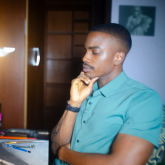
just an MG generation of a portrait of a black man. But what's special
about is that I facet my face to
put on the image. And I think it did
a pretty good job, especially because the
photograph of myself that I use was really not ideal. Looking closely, I can see that my facial features were
integrated seamlessly. The textures of the skin and hair look realistic
and engaging. There are some limitations
to face up technology, but for straight on poses like this, it does
a pretty good job. Take your time to explore
different styles and extract as much out of
each one as you can. These images can
be final products or the starting point to
create the original arts. That's off for now.
We'll be exploring many more creations as
the class progresses. But until then,
let's learn about mid journey pricing and the
sign up process. Bye bye.
5. Navigating MidJourney: In this video, I'll be giving
you a quick walk through of the ins and outs of
navigating mid journey. All our actions to
be carried out in mid journey servers and
with the mid Johnny bots, the mid journey bot is
on the member list menu. You can talgle this menu
on if you don't see it. One of the ways you
can interact with the bot is by clicking on
it and selecting message, you can see a list of
different commands. The most relevant for
this class is imagine. This will allow you
to create a prompt for an image or in other words, a set of keywords
for the software to use to generate a picture. Alternatively, you can go
back to the mid jury server, go to the newbie channels
and perform the same action. These channels are
also a good source for inspiration for prompts
as you can see on screen. So especially useful
channels are prompt chats, which can help you if
you're struggling to find the right prompts to generate
specific kind of images. And member supports
where you can get help with any problems you
have with the program. Also, Blend Showcase is a
great channel for seeing the results of blending two to five images
in mid journey. You do this using the
Blend Commando Mj actually demontrate that now
so you can see how it works. It's not perfect,
but you can get some cool images if you pick
your photographs correctly. So you want to select the
first image, then the second. Hit Enter, and
there's your results. To start, you can begin making your prompts in the
Newbie channels. But once you acquire
more experience, you can share more
in the general and theme service really, you can do whatever you want. It's just that the
newbie channels are made specifically
for beginners. Voice channels
exist for those who want to get together
in groups and talk. It's all pointed
out that at 02:00 P.M. on Wednesday Central time, the founder of Mid Journey
hosts office hours. So if you're interested
in that, you can join in at that time. Going through these
channels and chatting with people will give you
insight into the software. If there's a period of
unusually high volume where version update is
about to be rolled out, you can get access
to this information on the announcement channel. Also for additional privacy, you can create your
own server and invite the mid Johnny bot to click the green button to
create a server. Click Create my Own. Then for me and friends, upload an image if you want to and then create
a title to the server. You now have your
own server in it. There's a general text channel
for writing prompts and force channel for communicating with friends or acquaintances. In order to actually
run commands, you need to invite the mid
journey bot to the server. So head back to the
mid journey server, right click the bots, click Profile and then add the server. Select the server you
want to add the bot to click Continue Authorize, and head back to
your created server. You cannot prompt the
mid journey bot in your general text channel
in your new server. You can create more channels by clicking the plus button in case you want other
people's joining on the phone, select channel type. Make sure as text pick
the privacy level. Okay. Let's talk about settings
to access your settings. Go into the text box type
four settings and hit Enter. On the top row we
see the version of Mid Journey we're running, which in this case is
version 5.2 If I score down, I can see all the versions
going all the way down to one. Each version
presents a different aesthetic and quality of image, with later versions, on average, producing better
results on the screen. Currently, I'm demonstrating
very briefly the kind of interversion variety you can get whilst using
the same prompts. I've come to realize
there are situations where earlier versions
are more desirable, it really just boils down
to taste and what you're after next, we have Rum mode. Toggling on this
button will lead to image generations that
are less opinionated, meaning that they will be truer
to your actual prompt and have less of mid journeys
on artistic flavor. This can be a good
thing if you have a well curated set of keywords, and there really after
a particular look, we can try that just to see. Select Rum mode
inputs, your prompt, wait a few seconds and voila, hopefully you have
something that reasonably resembles
what you typed in. It will take some trial
and error to get get at this mid journey is notorious for occasionally
jumping up images. As you will come to realize the stylize option is a measure of how much creativity and liberty mid journey would take in generating images
from your prompt. The higher the styliz value, the more potentially whimsical, unique, and interesting
the results would be. But also the more likely
it is to deviate from your specific keywords
depending on what you're after. In terms of the level
of stylization, you can either go for
low, medium, or high. You got a standard
Pro Omega plan, you can talco between
public and stealth mode. At the time of this recording,
I had a basic plan, so I can actually
do that right now, but the default mode is public. And if you do have one of
those plans that I mentioned, you can switch to Stelth mode, which will allow you to
have a lot more privacy in the images that you
do generate on MJ. Remix mode allows you
to alter your text before you create new
variations of those images. Using the V command, you can modify the lighting
aspect ratio, model version, and mode
if remix mode is off. When you attempt to create
variations of your images, you won't have the ability
to alter the text on. Just going to go ahead
and make some variations of that original set
using the variations, buttons will produce new images that may change the composition, colors, and kind of
details within an image. High variation mode is
great if you want to expand into multiple concepts
from a single image. Whereas low variation mode tends to produce
variations that have a similar composition
to the original image with slight modifications
to the lighting and detail. This mode is ideal
if you want to make incremental adjustments to an image while holding onto
the original essence of it. Medium variation
mode is somewhere between both in
its effect turbo, fast and relaxed mode at
the various options we have in terms of speed
for image generation, turbo is the fastest followed
by fast and then relax. The default mode and mid
journey is fast and it usually generates images
in 30 seconds or less. With turbo, you
might get images in as low as 15 seconds or less. And in relaxed mode,
it takes anywhere 1-10 minutes to
generate an image. The speed of image
generation tends to vary based on the time of day or really how many people are using mid journey at
any given point in time. The trade off with
speed is that you use up more GPU power in hours. So it's important
to utilize say, turbo mode judiciously so you don't run out of fast
hours for the month. That's a right for this video. The next one will be
learning about the ins and outs of Pum
writing. Bye bye.
6. Creating your first prompts : Video comprise. Probably
the most important aspect of mid journey, which
is prompt creation. Let's get right into
it. Go into discord. Go into your message area
in your private server. Preferably type in
forward slash imagine. And now you can
type in any prompt for an image you want to create. Let me briefly
describe what a prompt is for the sake of clarity. A prompt is a phrase
or sentence written by you as an instruction as to
what you want MJ to create. Journey breaks down these
words into tokens and compares it to his training
data to produce a result. There are two basic
types of prompts. Text prompts, which comprise of words in your
chosen language, and image prompts,
which of course consists of an image or images. Our first prompt today will
be low angle point of view of a sorcerer cast in a spell at twilight in a magical forest, in the style of
Antoine Blanchard, or however you say that name. I know it's a artful,
but that's our prompt. We'll just have to wait a
bit and MJ will produce four images that should
represent or we typed in. Ultimately you get
the notification once the picture is ready. And beyond that,
you're free to edit, upscale, or save the
images at the way. Your image generations will
always have an orange bar next to them on the left hand
side versus other command. And MJ, which have a blue bar, processing speed is anywhere
20-45 seconds in fast mode, depending on the number
of active users. Remember, if you're
generating images on a public server and you get lost in the noise of all the entries, just click on the Inbox
button on the top right. Go to Mentions and click Jump. Each prompt initially
generates four images. You can upscale all of them
using the U1u4 buttons, none, and everything in between. You can also create
variations with the V 1v2v3 and V four buttons. Or redo the prompt to
four different images by clicking the recycle button. The V buttons will
create relatively subtle variations of
your chosen image. For example, V one will create four new
images in the style of the picture in the top left hand corner as you
can see on screen. Currently, if you
upscale of the images, you have additional options, you can outvary this
image significantly, be very strong or
slightly be very subtle if there's a particular area of the image
that you don't like. This often comes up with hands that look anatomically
incorrect. You can be specific with your
changes with very region. Next, if the framing
is suboptimal, you can expand the
pictures borders with the zoomart function
and the arrow buttons. The Zuma buttons
are going to expand the composition from all
sides of the arrow buttons. Do so unidirectionally. I haven't covered
aspect ratios yet, but that's a better
way to secure the composition ahead of time when you're creating images. When in doubt though, you can
utilize the zoom function, arrow buttons, like I said. Of course, to save an image
you have to obscale it first. After that, right click on
the picture and hit Save. Alternatively, you
can right click, hit open Link and then save the image found that
link. Both are the same. In effect, the dimensions of the images you save
in my journey are all 1024 by 1024 pixels. Not super large, but
not small either. While on public channels you can perform these
actions on your own, on prompts generated
by other users. Md is a very open environment, so feel free to draw
inspiration from others as you go about
your creative process. The more descriptive
of your keywords, the closer the match. Going back to the specifics
of prompt writing, prompts can be
brief or elaborate. The forma will leave more room for the AI to make decisions. And the latter less
room, however long. It's not always
better as there is a limit to the number of tokens. But prompt, which caps out
at about 77 fewer words, also means that each individual
word carries more weight. Also, the details of your
prompt matter a lot. So things like subject, medium, lighting, and
environment are crucial. One of the most impactful
keywords you can use, the kind of style
that you choose. It could be the name
of a genre like pop art or the name of a
particular artist like anguyath. Using the same keyword
with just a change of style can lead to drastically
different results. You can add different
styles to your images by using specific keywords, IE. Steam punk, impressionism,
Japanese lo fi. Doing so will give you
different outcomes. You can also reference artists, camera types, camera
angles, scenes, seasons, or even try juxtaposing disparate elements on screen is one of the main prompt
guides available for MJ. You don't have to
follow it to the T, but this sequence is
a good guide as to what to think about when
you're writing prompts. The details matter in MJ. Whatever you leave out
will be randomized. Take your time in
idea generation in order to get the
best possible results. Just for fun, let's use this format and see
what we can get. I'm going to type in landscape, Vietnamese fishermen catching
fish on a rustic boats. Bird's eye view, Boca Morning, Golden Hour and Fuji Film Pro 400 H. There we go.
Not too shabby. I feel like this is a pretty good representation
of what I was looking for. If I wanted to, I could
continue to tweak the keywords until I'm perfectly happy with
images that I see. Like we discussed in
the previous video, utilizing the same prompt, you can alter the
MG version you're using to give a different
flavor to the final image. Personally, I usually
try the default version, which is 5.2 4.3 And if I can get something better from the other versions, I usually just go with that. More than anything, you must put yourself in the
mind of the artist and carefully craft
what story you want to tell, the
keywords that you use. Fortunately, we have resources
like media library dot IO to give us the tools we need to create the
images of our dreams. On here you can browse
different styles, concepts, artists, photographers, and get some much needed inspiration
to fuel your future prompts. They also have very
informative articles on various aspects
of prompt writing, useful guides on
different MG commands and some advice and
commercializing your images. So definitely check
that out link in the class description. In MJ, you can use fear prompts and achieve remarkable results, whether through emogies or
more carefully chosen words. In the examples
you see on screen, I was able to get
pretty good images without having to do a
whole lot of writing. This is especially
great when you need a very specific image and you just want something
that's nice to look at. Feel free to play
around the more outlandish prompts as well. For example, let's see here a cacophony of musical notes
spinning around the Earth, rotating through space
time in vivid color. Boom, This is what we got. Rather interesting, very
weird, but equally amusing. It's always a good
idea to enter photo or painting in your list of keywords if you really care
about that distinction. Including the what
photo will lead to more realistic images because the AI will source actual
photos for that generation, whereas adding painting will create a more
stylized appearance. The algorithm has
been trained on certain keywords that
lots of people use. Thus, if you use them, you will get results similar
to everyone else. Examples of this include
the keywords Four K, Dramatic Lighting on
Real Engine ChBtyle, just to name a few. Also, MD has been trained on some classical
artists and you can incorporate their style into your prompts as Some
good ones are Da Vinci, Apoya, Katsushika, Hokusai. Those are some of the
ones that come to mind. In addition, you have
access to a variety of different art styles
like magic realism, surrealism, Victorian
illustration, raw shocking blots,
and so much more. Experiment with
different lighting to change the mood
of your picture. Volumetric, cinematic,
back lit split rembrandts. Each one can significantly
alter the mood of the finished product and
possibly lead to better results. For more prompt
writing inspiration, check out the pages
like Nick St. Pierre, your fellow MG uses in the
General and UB channels and even Instagram has
its fair share of mid journey prompts
in Sip pages. That's all for this video.
I'll see you guys in next one.
7. Utilizing MJ Parameters: In this video, we're going to be talking about parameters. Simply put, parameters
are options you add to prompt to change how
the image generates. They all start with the D and there are a bunch of them.
As you can see on screen. This is a parameter that changes the relationship between the width and the
height of an image. The mid journey default is
a one to one aspect ratio, which is a square, but you can change that to whatever
orientation you want. Some common ones are three
by two or two by three, which is common in
Pro photography. And 16 by nine, which
you find often in smartphone pictures and
Youtube videos and television. To modify the aspect
ratio of a prompt, just type in R or aspect followed by the
aspect ratio you want next. The stylized parameter
allows you to deviate from your base prompt
with an artistic flare, you can initiate it
with an S followed by number 0-1 thousand. A high stylized value will
prioritize a generation that the AI thinks is artistically pleasing over your keywords, whereas a low stylized
value will more accurately magic prompt or may be
a bit less artistic. The default stylized
value in MJ is 100, The maximum is 1,000 and
the minimum is zero. Q represents the quality
parameter and you can pick between 0.250 point 5.1 These numbers
determine how much detail the images will
have as well as how long NG will take to
generate the images. Higher numbers
equal more detail, more refinement, but also
longer processing times. The chaos parameter uses
numbers 0-100 and determines how much variation will exist between the four
images in our grade. A high chaos value will produce more unpredictable
and unusual results. A lower chaos value,
more consistency between all the four images. You want to avoid a particular element in your generation. You can use the null parameter. You want an image
of a busy city, streets with no cars. You can include that
with your promise. Or you want MD to produce a
drawing with cross hatching, but you don't want it to
confuse the hatching part. For eggs, you can include
no eggs in the prompt. Using multiple no parameters
can lead to strange results, so be careful with that as
you go about making images. If you want to override
your current settings and run a job in fast mode, just type dash, dash fast
at the end of your prompt. And it will keep in mind the default mode in
mid journey is fast, so unless your settings are
pegged at turbo or relax, using this parameter is
redundant along those lines, typing dash dash relax, or dash dash Turbo at the end of your
prompt will override your current settings and run a single job using those modes. A thin two columns
to prompt tells mid journey to consider each part of that prompt separately. For example, step arm
versus stiff arm. The image weight ranges
from 0.5 to two, with one being the
default weights. The numbers themselves ascribe a degree of relative
importance to each word. As an example,
we're going to use the word road runner
and ascribe road a weight of two and run out
the default weights of one. The outcome is a picture
with a lot more emphasis on the road part
of that equation. The P parameter allows you
to create multiple jobs. From a single prompt, you
can pick a number 0-40 and whatever number you pick will be the number of times
that job is re run. This is very useful
if you really like a particular prompt and one
of many versions of it. Without having to click the
recycle button 20 times. The keg parameter creates a distinctly anime
field to your images. Variations of the standard
garameter include keg style, expressive style, cute,
and nijityle scenic. Each one of these
offers something new to your picture and introduces more creativity
to your final generations. The mid journey board
uses a C number to create a field of visual
noise as a starting point. To generate the
initial image grids, the C parent allows
you to enter a number, 0-4 0.2 billion, but each number generating
a different result. The C number also lets you
reference an image you previously generated and
make some modifications. You do this by clicking
the reaction emoji, clicking the e mail button, going into your
direct messages and looking for a message
from the MJ bots. All the specific
information about that image, including
the C number, copy that number and add
it to your prompts to get images that are similar
to the original one. Stop allows you to halt the
generation of an image in mid journey at whatever
percentage that you want. The numbers available are 10-100 and you generally get
more blurry cate images. The closer you stop to ten and more refined finished images, the closer you stop to 100. So far in my practice,
I haven't found this parameter
particularly useful. But depending on
what your goals are, you might find this
to be of great use. Last but not least, the weird parameter
allows you to explore unusual aesthetics in MJ and produce strange but possibly
interesting results. Type in a weird and a number 0-3 thousand and
see one awaits you. That's going to be off
mid. Jenny parameters, I'll see you next one. Bye bye.
8. Going beyond the frame: This video will be covered in
depth the ways in which you can manipulate an image
after it's upscaled. To begin, let's analyze
the very buttons. Beginning with very strong clicking this button will create four new image generations
that are based off the upscaled image with a
reasonable amount of deviation. In other words, these
new images have their essence in the
upscaled picture, but are different in
a number of aspects. These might include color
palette composition, orientation of the subject, contrast, lighting, et cetera. In conclusion, the
very strong feature is there if you like
your opscode image, but want to see more
distinct versions of it, very subtle. On the other hand,
as is indicated by the name will trigger MJ to make four new images based on the opscode one that are only
slightly different to it. Oftentimes only one element
of the original image is changed and usually in a
fairly understated fashion. Sometimes it's a minor
change in background colors or some variations in the
design of specific shapes. All of these changes occur. Why preserving the main
essence of the opscode image? This feature is great if you're happy with the original picture, but would like to see what a few small tweaks could
potentially look like. But very region, we
have the ability to be more specific
with our changes by selecting only the part of the upscaled image
we're unhappy with. We can do this using either the lasso tool or the
rectangle tool. The former is a bit
more flexible than the latter and how we can
delineate our boundaries. However, both are the same. In effect, once we press the arrow button and
initiate the command, often than not,
you'll have to do this multiple times to finally get a change that is desirable. But it's worth the effort if there's just a small
part of what would otherwise be a spectacular
picture that bothers you. Moving on from the very buttons, we have the zoomard functions. There are three of
them, to be precise. The first one we're
looking at is the two egg zoomoud feature. Clicking this button
will generate four new images that are
zoomed out versions of the upscale picture with small variations
in the appearance of the foreground
and background. The borders of the image will be expanded in all four directions and the degree of
the zoom out is two x that of the original
focal length. Ergo, the images will appear
to be twice as far away. This feature is a great
choice if you wanted more panoramic or
environmental shots. Conversely, the 1.5 ex
zoom out function is essentially less
zoomed out version of the two ex zoom.
Just like that one. We have Scelto
variations between each of the four
images on the grid. With the commonality being
that they are all zoomed out 150% The custom zoom button allows you to choose how much
to zoom out on an image. When you click on the button,
a dialog box will appear, enable you to enter
a custom zoom value, 1-2 The closer you
zoom values the two, the greater the expansion
of the image's borders. And the lesser the
closer we are to one. You can use the directional
buttons after you upscale an image to extend its borders horizontally or vertically. You can pan to the left, right, up and down. The AI will fill in
the edges based on the information present in
the initial upscaled image. This doesn't always go
out the first time, so try again if you need to. Currently, there are some
limitations on the Pan feature. For example, variations
are not supported, and zooming out on
Pan images reduces its resolution back
to its default size. By the way, if you really
like an upscale image, you can click this
little hard button. And now whenever you go
to your profile page or midjourney.com you will find it under the favorite detection. That way you don't
have to scroll through tons of images to find
the ones you love. The final feature we'll
discuss is the web button. Clicking on Web will take
you to Midjourney.com and specifically a page containing detailed information
about the upscale image. Some of that information
includes things like the parameters,
the prompts, image dimensions, and possibly the coolest feature
is the gallery of related images you
can find below. That's going to be for this one, I hope you're able to get a better understanding of how to manipulate opscaled images. Thanks for watching.
I'll see you guys in next one. Bye bye.
9. Unique art with image prompts: One of the greatest
features, a Mid journeys, that you can use your own images as the basis for your prompts. Choose between personal
images or those from royalty free websites for the latter like Pexels.com
and On Splash. Because of the variety and sheer volume of images
available at no cost. First let's use an image from Onsplash.com Head
over to the website. Type in the search box where you're looking for
and hit Enter. Hop over to an image
that you like. Click on it, right Click on the expanded photo and
select Copy Image link. Now we can go back to our
server at Mid journey. Type in forward slash imagine Paste the new link and type in some keywords to
modify the image. That last part is very important as you cannot run
the command with. Just to paste the link, you necessarily have to
include some text. All we have to do
now is hit Enter and mid Jenny will produce
four images based on a re, imagined version of
our original image and the text modifiers. This is a great situation to experiment with image
weights so you can shift the emphasis more
and less between the image link and
your text keywords. In this example, I'll type in I followed by the number
two after the last keyword. Doing this will trigger
MJ to prioritize my image link much more
than the keywords. Conversely, changing the image
weight to 0.5 will cause the keyword to dominate
the essence of the photos MJ generates. In short, the closer the
image weight is to zero, the more the text part of
the prompt shines through, the closer to two, the more
emphasis on our image link. While we're on the
topic of images, you can use the
described feature to get text prompts out of
images that you upload. These text prompts will be approximation of
what the software deems to be the content of
the image that you upload. This is useful if you're
struggling to get prompt ideas or trying to replicate a particular
style of image. Using the text
prompts you get from this feature wouldn't replicate the original image exactly, but it might get your related
image with unique twists and variations similar to
the described feature. You can use websites like Replicate.com to help you
get new prompt ideas. Head over to the website, upload your image, or
take one with a webcam. Submit, and in a short while
you'll be fed an output containing an elaborate set of keywords describing the image. Also, check out other channels
for what people are doing. Scrolling through
the exploit tab on the jury website is sure
to spark your imagination. You can see the prompts
that people use, copy and paste it
over in your server, modify them if you want
to and see what you get. You can also just
save images that you like on MG or on the internet. Use the described function and the ensuing prompts to get potentially similar results.
That's all for now. I'll see you next one. Bye bye.
10. Art styles and their application: Mid journey, we have the freedom to explore many
different styles of images if you can harness the right keywords
and parameters. For example, let's create an application icon
for a video game. The prompt you will
use is as follows, Beautiful application icon UX Ui four K ultra detailed
Human Explorer game on Charted Val. We have a starting point for a potential video game
application icon that you might find on the
playstore or Apple store. You can also make
engaging in advertising flyers if you work in event planning by including fly in the prompt and some
appropriate descriptors. For this example, I'll type in fancy cocktail party flyers
for an event and press Enter. The result being these
fairly decent flyer ideas, MB is pretty bad with text, so you'll likely have
to take those images in Photoshop or Canva and
modify them to your liking. If you have plans
on setting stickers on net or red bubble, MG has got you covered. Adding stickerd in of
your prompt to default the image generations to appear in the style of a sticker. On screen, I have some examples of just how nice
the results you can get from experimenting with sticker prompts on the software. Next, logos for your business. Like all the examples hitherto adding logo to your prompt to instruct the AI to craft a unique logo based on
your chosen keywords. A grid tape is to
add the name of well known logo designer like Paul Rand to better guide the
outcomes in terms of style. Play around with
descriptors like retro, minimalist dynamic
and many more. To infuse those logos
with varying aesthetics. In this example,
I use the Prompt Caroline Davidson logo for a classy women's
clothing retailer in New York City,
Minimalist, Stylized 200. And I have to say I
like the results. In addition, just tweaking
a few parameters like changing stylized Nig can give an entirely different look
and feel to the images. If your logo needs adjustments, you can use vectorizer
dot for free. And that will transform
the image into a vector file that you can then edit in Adobe Illustrator. One way to take your image
generation to the next level is by infusing them with
specific art styles. As I talk about each one, I'll have images on screen with their corresponding
prompts just to give you an idea of what they
look like in real time. First on the list is
Chinese ink brush. This is a loose ink
brush technique that utilizes washes of black ink of different concentrations
to create work that captures the
essence of the subject, minimal detail and much flare. Our Deco, on the other hand, was a popular architectural
style from the 1920s and '30s that
utilizes bold geometric shapes, shrunk colors, and street lines to create an elegant finish. Next we got etching,
which simply put, is a print making
process that involves the use of acid metal plates, an stylus, to create recesses that can hold ink and
produce a design. Once the acid is poured over the plates, the
outcome is a grainy, monochrome aesthetic that
is beautiful to look at and infused with rich
texture and character. One of my favorite
biological illustrations, an artistic style that combines the anatomical specificity of real life species with the
liberal exploration of color, texture, and
whimsical artifacts. I found that it works best
with natural objects. Comic book style is one that we're probably all
familiar with. It creates images that
are stylized, bold, high chroma, with clean lines
and dramatic expressions. On the opposite side
of the spectrum, we have gold leafing, which is a unique art
style that incorporates thin sheets of gold to give an ornamental feel
to your images. Gustaf Glimpse is one of the trail glazes
of this technique. And I find that when paired
with the Nisi parameter, it generates some
interesting outcomes. Or art comprises of
simple illustrations, colorful geometric shapes,
eye catching designs, all based off
mathematical models. A truly unique art style. The realism is the 20th
century artistic movements that attempts to reveal the
unconscious elements of the human mind through
dreamlike imagery by juxtaposing disparate themes and combining unusual elements. This style was made famous by Salvator Dali and
decades after his death, his work still has a
lasting influence. Pop art is a kind of art
made initially to grace the covers of cheap
fiction magazines in the 20th century. It was named after the inexpensive wood
pulp paper that was created on pop art is
very illustrative, colorful with the classical
theme and vintage feel to it. Acclamation, on the other hand, is an animation
technique that utilizes adjustable play figures and stop motion photography
to create films. When you pump for clamation, you'll get clay idees with
a handcrafted aesthetic. This is just the
tip of the iceberg. There's so much more
for it to go out there and explore
in terms of style. You can also fuse
together some of these R styles and even artists to create unique outcomes. Cocoons and realism. Anime and Vaporware, Da Vinci and Hiromo Arakawa. I guarantee you if nothing else, these combinations will produce unique and interesting results. Also, don't forget lighting. Here's an example of a kid
swimming in the pool now with brilliant light pumps
like volumetric backlit water file
lighting Chaoscuro, we can completely
change the look and feel of the picture. If you want something a
little more out there, you can try keywords
like descent, bioluminescence, neon for
a stronger pup of color. However, if you find
the high detail, take advantage of prompts
like hyper realistic, intricately detailed,
insanely detailed, to bring your art
work into full focus. Some of these keywords may add more detail
than you care for. Try each one to see
which works for you. Punting for texture
is another great way to add variety to
your generations. Using keywords like raw, smooth, shiny can make a big difference in the appearance
of your images. You can also use a picture of
a texture and blend it with an image you've
previously created and see how that turns out. Some of my favorite general
keywords include beautiful, because it removes deformities, it draws attention to
the facial features, and it makes the image
generations more attractive. Overall. Punk, I
like because it adds a cool factor to any prompts making the image
livelier and bolder. Someone who likes more
unpredictable results type in random letters or emogies and see
what the I creates. These are sometimes the most
fantastical results and can be a launching pad
for other creative ideas. You can use symbols,
misspell words, random phonumeric
combinations, and somehow the AI will try to
make sense of what you put down and
generate something. Cool, that's all for this video. Thanks for watching Bye bye.
11. Your very own face swap: Hello everyone. In this
video we're going to be exploring face
swaps in my journey. You can do this from
start to finish in MJ and it's pretty easy as you'll
come to see, check it out. This is an image of
Chadwick Boseman. The prompt for this
was Chadwick Boseman, Black Panther movie cinematic
portrait photograph, aspect ratio 16 by nine, and me as Mr. Black Panther
himself in the Flash. All right, so the
software I'll be doing the heavy lifting is
called Inside Face. It's an open source library for two D and three D face analysis. And it will be used as a
plug in in the Discord app. Go into your personal server,
don't have one already. Hold over to the
Add a Server button and the pop up window. Click on Create My Own, then for me and my friends, and you can name the
server whatever you want. I'll call mine inside Face Swap. Next you want to click the link in the Project and Resources tab to add inside Face
to your Discord server. Select Add to your
server and hit Continue. Has to go through a human check, you'd be authorized
so you can close this window and head
back to Discord. The next step will be to invite the mid journey bot over
to your new server. So you can run commands
like forward slash, imagine to do that, head over to one of the public
channels like general one. For example, locate the mid journey bots on
the panel to the right. Right click on it, select Profile, and then
add the server. Next you have to give inside
face a face to swap with. We do this by creating an ID, type in four, save ID, attach an image, and
give that image a name. The name can be anything,
it doesn't really matter. Preferably, you want an image where you are looking
directly into the camera in front
view with no glasses, hair bangs, things like that. Think passport photoware. However, it will still
work in if the image isn't perfect, mind
definitely isn't. Once you have the image
uploaded in an ID name set, hit Enter and you should receive a message saying an ID
name has been created. Now we can begin
generating images with the image command and face
swapping them for fast image. You're going to reference
another pop culture figure. So I'm going to type in
the prompt Treselber, Beast of No Nation, close
up natural lighting. I like the second
image the best. So I'll go with that to
sort my face with his. I'll hop over to
the ellipsis icon, click on it, go to apps, select Swapper, and
in a short while, I'll get a version of that
image with my face on it. There we go. Not too bad. I kind of like it actually. Actually, it's not going
to be a perfect fit. The lighting on the face might change the hair, jewelry,
stuff like that. But enough trial and Nero, you can get a
pretty good outcome in much less time than you would using Photoshop
or most other software. By the way, it's a good idea to pick an individual who has a similar skin tone and physiognomy to you to
enhance the realism. Let's go ahead and try
another example for this one, I'll give my man Michael B. Jordan some love and throw
in a creed movie reference because why not running inside
face gives us this image. Looks like me with a
little extra oomph in all the right places. I've always wondered what I'll look like as the
male cover model. So let's go with that
men's fitness cover model. Portrait photo, light
colored background, dark skinned man photo shoot. This is the before and
this is the after, I must say, of all of them. This is my favorite.
So far, so good job. And Sapper, talking back to the golden age
of illustration, I've always loved the
paintings of Norman Rockwell. He will be our foil for
the next MJ Generation. The theme will be
an African American farmer sitting down somewhere in his farm in the early morning with an aspect
ratio of 16 x nine. This is what I got after
inputting the prompts, which looks relatively in
line with the rock painting. After swapping my face in, we get this not too shabby. I can already picture myself being quite the
enthusiastic farmer. Some limitations do
exist with the software when it comes to more
stylized image generations. In this example, I prompted for a stylized portrait
of James Bond in a tuxedo drinking
scotch at a bar with the Negarameter and got
this after face swapping. We're left with what you
see on screen, which is, in my opinion, considerably worse than the original image. Although not terrible, the skin tone looks muted and flat, lacking all of the pop of
the earlier generation. Same thing in these images, the aesthetic of the picture is completely thrown off because the face swap is designed
for more lifelike photos. In addition, MG
generations where the facial expressions
are different from that of your operate images will lead to some unusual
looking face swaps. Put it mildly, although I
will see later versions of inside face is handling these tricky generations better
than they used to. So that's something to look
forward to going forward. Feel free to try
as many different prompt ideas as you can. An experiment to find which image types work best for you. Everything from
professional head shots for a business profile to face swaps to favorite
movie characters. There's so much you can
do with this feature. Like I alluded to earlier,
the inside face team is constantly updating the
software and its capabilities. So we can all look forward to even more spectacular
face swaps in the future. Thanks for watching. I'll
see you all in the next one. Bye bye.
12. Creating elegant patterns with tiling: He guys, today we're going to be creating some
interesting patterns using the tiling feature as well as the texture
checker tool. In mid journey,
first things first, you have to type in a
Prom that we want to see a seamless
repeating pattern for. So in our first example
of input four dash, imagine followed by
Christmas ornaments floating in space two
D, cartoonish and end. The command width dash tile. The dash dash tile at the
end is the parameter that instructs MJ to produce a
seamless repeating pattern. The result is this grid of four awesome looking
Tible images. I'll pick the one I
like best upscale it, and save it to my device
for the next step. There are myriad of ways
you can go about it, but I find that
using this website produces the best results. The link to the website to being the Project and Resources tab. Once you're on the
website, click file, select your talable image and
press the download button. The result being a
seamless integration of that pattern into a larger file that
can scale almost infinitely and create
a beautiful backdrop. The pixel count is 6144 by 6144, which is big enough
for most purposes. However, you can
increase the pixel count with Photoshop
and sell these as digital or physical prints on ebay or Ts for no small change. Let's do a couple more
examples for the fun of it. A prompt two will be
detailed night and pattern of a metropolitan
city, Scape tile. And this is what we
get rather quaint collection of high rise
buildings at night. I'll go version two,
Upscure that image, and run it through the Ms
Texture website like last time. There we have it,
the enlarged image, put together in a big pattern
that flows harmoniously. For our last example, let's make this one sports theme just
because I like sports. So the prompt two will
be an intricate pattern. Baseball bat and ball
pastel colors dash tile. As you can see, some of the
results are pretty weird. This one you probably
would have to run a few times to get rights. Nonetheless, I'll
choose the one I appreciate the most
and scale it up before using the
Ms texture checker to put those patterns together. Overall, I think the
combination of MG and the texture checker does a pretty good job of getting
good Talabu patterns. The more time we spend
crack in our prompts, the better our outputs will be and the more potential
for stunning images. That's it for this video.
Thanks for watching. Bye bye.
13. Upscaling AI art: Hello everyone. In this video, I'll be demonstrating
briefly how you can enlarge image journey images
for use commercially. The initial image, MG, gives you 1024 by 1024 pixels,
Which is okay, but not great if you want to print an image on a large scale, see like on a
canvas or door mats and still have a
big Crystal Clare. First, we're going to increase the pixel count in Photoshop. By the way, as I'm
sure most of you know, Photoshop is not a free service. But if you have the
resources, I highly recommend getting an
Adobe Cloud subscription. It's great value for
a reasonable price. Next, go to Edit,
then Preferences. Click on Technology Previews, and make sure the option to
enable preserved details. 2.0 P scale is checked. This will lead to high quality
outcomes when you enlarge the image due to
the influence of inbuilt I opscalting
technologies. All right, so it's
also the image size. We're going to go to image on the top panel,
select image size. And in this new pop up window, we are free to modify the
pixel count to our liking. Like I alluded to earlier,
the defaulties 1024 by 1024 pixels on MJ get 72
pixels per inch resolution. I'd like to increase the
pixel count to about 7,500 by 7,500 pixels. I find this size sufficient for my printing needs and
a good compromise in terms of quality. You don't want to increase the pixel count too much because you begin to lose
detail and clarity. Still here, clicking
on the chain icon will disconnect the width from the high dimension and alight all to the pixel
count independently. That step completed, you notice our picture appears
a bit granier. Not to worry, just head
over to the filter menu, select Camera Roll filter. And here we can use the noise
reduction slider to get our image to the original
sheen or surface quality. It's not a bad idea to zoom
in on the image as you're just so you can see
things more clearly. And finally, I usually
end up setting the noise reduction slider to about 85 to get the look
that I'm after hit. Okay. And now we have a much
larger version of the image you started with
that's optimized for large scale printing. A variety of surfaces. If you don't have photo shop, you can check out AI image
and larger which is free. If you want to two x or four
x your photo resolution, you have to sign up first. But once you do,
you'll be awarded with ten free credits to
use for your images. Another option is Replicate.com which used to be free
but isn't any more. Sadly, the pricing is
reasonable and you can really scale up the resolution by quite a bit using the software. It's as good, if not
better, than a Photoshop. In my opinion, based
on the results I've seen from other creators. There's some other software
out there like Giga Pixel and Chener that do a great
job of scaling AI arts. If you're willing
to spend the time to understand the tools as well as pay the price
of these services, that's all for this video. Thanks for watching Bye bye.
14. Making money with Midjourney: Hey guys, in this video I'll be going over three quick and easy ways to start making
money using mid journey. The first will be
the creation of high quality prints
of the art work he generates using the
software Case study one is Jonas Peterson, who sells prints of his
AI arts for upwards of $1,500 Looking at his
social media accounts, you can see that
he has mass appeal and has developed a
significant fan base. He currently wax in well over $100,000 a year from the
sale of his prints alone. To be successful doing
this, you have to find your own unique style and consistently create
images that are aesthetically pleasing
on social media. If you want to go
down this route, you can use Chad GPT to
help you come up with prompt ideas by
following these steps. First, sign up for an account
login using your details. Then in the chat area,
type in the following for imagine you get a message
back from ChagPTCan, he understands the
formula from there. Using this format,
we can instruct the software to help
us write prompts. For example, using the formula. Write five prompts
for mid journey depicting an African woman and a child in the market and the early morning in the style
of John Tiger Sergeants. And in no time you get five pros that could potentially generate some amazing images in
the style of sergeants. If you want the promise
to be in the text form without the brackets of bullets, just type write
out these prompts. One word next to
the other without brackets or commas reply. Yes, if you understand the
request and it would do so. By the way, the
initial structure of the prompts can be
changed based on the criteria you find most
relevant. Writing, IE. Could swap our composition
for camera angle. The second way you can make
a fortune is to leverage the wave of AI based content
on Instagram and Tiktok. I'm sure many of you have come across inspirational, romantic, and philosophical pages that make videos containing
an array of EI generated arts
or photographs with some deep Tes or poem across
the slideshow of images. These have become very popular
and if you do it right, you can build a
tremendous following that will open the doors
to add revenue and the sale of digital merchandise like books or even
an exclusive patri. Lastly, print on demand is the next strategy you
can employ to earn cash. This business model
allows you to sell designs on a variety
of different products, like mugs, shirts, wall
arts, stickers, et cetera. So what you do is you upload your designs onto the
products and a company will print out the products
and ship them out to your clients on demand. You get paid every time
you sell something, and the company keeps
a percentage of that selling price
for themselves. If you're able to create
some eye catching designs, the numbers add up quickly and you can find yourself making thousands of dollars every month just from a few listings. Print flow and
sell Fire a Great. If you have an C
store, shopping, fire store or any
kind of online store, you can just link to rent Bubble in society
six at beta if you wanted more hands off experience and don't have any
online stores currently. The advantage of
mid journey is very apparent here because
you don't have to spend copious amounts of time
creating the artwork and can iterate much faster to
find what works online. Make sure to upscore your
images before using them so you don't lose much
detail when you print. And beyond that, you're good to, before I leave you
all one bonus idea for those of you who've
made it this far, congratulations
it's connected to the first idea, but
it's worth mentioning. You can also sell
digital prints of your AIR and C on ebay. People could use these
as screen tabers or print them out to hang on
their walls themselves. This is a very
competitive arena, so you want to find
sues where you can get more visibility and
consequently more sales. Rank is a great tool for this allows you to
search terms and S that have low competition but high search volume
or click through rates. In addition, you can just
look at the number of results that pop up
per search term. Higher numbers equal
greater competition. Usually lower numbers means you will likely
have more exposure. There's a chance that particular niche isn't popular as well. Hence the value of a lot of these methods are
garage quick schemes, but if you apply
yourself consistently over a long period of time, you're sure to get
something out of it. That's right for this video. Thanks for watching Bye bye.
 Terence Zulu, Fine Artist & Teacher