Transcripts
1. Promo Video: Hello everybody and welcome to this fantastic cinema 4 D masterclass. In this course, you will learn all you need to know to master Cinema 4D in very little time and with very little effort. This is a complete cinema for the course. And we're going to cover everything from the very basics like cinema for this interface, the basic navigation controls and file creation. To the more advanced stuff. You will learn how to use cinema for these tools in detail with all of their different options. And that will help you to become a cinema 4 D Master. We will also cover different modeling, texturing, and lighting techniques that will help you to become a true 3D artist. In this course, we will also create different projects where you will learn how to implement all your new knowledge and make sure that you truly understand the concepts and techniques this course. And you will also have access to all the files are used. So you can follow along and practice. Everything you learned in this course is for anyone who wants to learn how to use and master cinema 4 D. This course will benefit you greatly if you are a complete beginner and haven't even opened cinema 4 D for the very first time. But it will also help you a lot if you are ready now cinema for these basics and want to expand your knowledge and abilities with the South work. Whether you are a beginner or an intermediate student, this course will help you improve and take your 3D skills next level. So if you want to become a cinema 4 D Master in very little time and with very little effort. This is the perfect course for you. So what are you waiting for? Get ready to learn a lot. And I will see you inside.
2. Welcome to the Course: Hello class and welcome back. I'm glad that you have joined us. Now, if you remember, in the promo video, I made you a promise. And it was that by the end of this course, you are going to be able to create the renders that I showed you. And I'm going to tell you how this is possible. And the key is that the cinema 4 D chorus is very different from any other Cinema 4D courses out there. And what makes it different is that in this course, you are going to learn how to use cinema 4 D. At the same time as you learn how to create the scenes that I showed you in the promo video. Now, I believe that most beginner courses fail to help their students because they tried to focus on teaching every single tool and every single option within the specific application that they are trying to teach. However, the truth is that in real life, you're not going to use many of those different tools or actions that they taught you. In real life. All you need to know to start using any software obligation is to know about ten to 15 percent of that software application. The rest is information that will not help you at all. Especially if you're just starting, if you tried to learn everything about a specific application in a very short period of time, you'll just get overwhelmed and you will not learn the way you should. And the reason is that you're not going to be able to find a good use to those advanced options if you are just starting. So the goal of this course is not to teach you how to use each and every single tool and option within Cinema 4D. We're going to focus on the things that you're going to be using on a daily basis. The things that you're going to be using most of the time for most of your projects. You're going to learn from the very basics, like how to navigate around the canvas and how to move, rotate, and scale 3D objects. You will also learn how to model using different techniques like polygon modelling and Spline modelling. You will also learn the basics of sculpting, texturing, and lading in cinema 4 D. And you will also learn a lot more. So I'm confident that by the end of this course, you will have a solid base to start creating amazing through the art. And believe me, what you're going to learn is going to be more than enough to create amazing 3D renders. So, thanks a lot for your time. And I will see you in the following lesson.
3. Work Along and Take Notes: Work along and take notes. Hello class, and welcome back. I highly recommend you to work along with the course and make your own 3D renders. Practicing will help you to really understand and learn the information within these cores. Also take notes on the most important information, such as keyboard shortcuts. That way, when you complete the course, you will have a summary that you can take back whenever you need to brush up on your new knowledge. So make sure you work along and take notes.
4. Cinema 4D's Main Interface - R23: Hello class and welcome back. In this lesson, we're going to talk about cinema for these main interface. So let's start. All right, so as you can see, I have Cinema 4D open. And this is the way that it is going to look when you open it up for the very first time. Now, Cinema 4D, this interface is actually very clean and very easy to understand. So at the very top, you can see that we have different menus. And each of these menus is going to help us to achieve a specific purpose, to create our scenes in cinema 4D. And these menus are very important. So I'm going to cover them in individual lessons because each of these menus is going to help us for a specific purpose. Now, if you have an older version of cinema 4 D, This menu's can actually be down here, but it doesn't matter if you have him here at the very top, or if you have him over here, the menus are going to be the same and they are going to work the same. Okay, now, over here we have the title bar, and as you can see here we have the files title. And this time it is called Untitled one. And that is because we haven't saved this file. So what I can do is to go to my menus. I can go to file and I can select Save, Project or save as. And you can see here the shortcut, depending on which of these options you're going to use. For now, I'm going to use Save Project. I'm just going to click there. And as you can see, now we have a new window. So here we can input the name that we want to assign to these file. I'm going to call it interface. And I'm going to select these folder that I have here, which is for a Maya cinema 4 D chorus. I'm going to select this one. And I'm going to click on Save. Now, if we go back to the title bar, you can see that the name of the file is here. Now it is called interphase that C for D. And now I'm just going to create a new object. So you can see what happens in here. I'm just going to click on this cube. And if we go back to a title bar, you can see that there's something new here. This asterisk at the end of the files title. And what this means is that we have made changes to this document, but those changes haven't been saved. So when we see this asterisk, that means that we have to save our file if we want to save the progress that we have done. So I'm going to go back to the File menu and I'm going to select Save Project again. And if I go back over here to the title bar, you can see that the asterisk is not there anymore because I just saved my file. Now if I make new changes to my document. So let me create another cube. You can see that now the asterisk is back. And that's the basic use that we're going to give to the title bar. Alright, now let's go back to these different buttons that we have over here. Let's start at the very left. So you can see that here we have our Undo button. And this button is going to help us to go back and undo what we have done in our project. So if I click here, that's going to get rid of the cube that we just created. If I click again, it's going to get rid of the other cube. So this is going to work as the undo button on any other application. Now, over here we have our redo button. And this is going to do the opposite. So if I click here, it is going to redo what we ended. I'm going to click again. It's going to add the other cube. And again, this button is going to work the same as they read the button on any other application. So there's really nothing new about these two buttons. Now, this one here is the live selection tool. And if I click here, I'm going to be able to select it. Now, you can see that this tool or the icon of this tool, has a little triangle at the bottom right corner. This little triangle here. Now, whenever you see this little triangle at the bottom right corner of an icon, that means that this tool has other tools. And you can see those tools if you click and hold on that icon. So I'm going to click and hold here. And as you can see here, we have our other selection tools. And we're going to cover these tools in another lesson because these tools are very important and you're going to be using them a lot so they deserve their own lesson. So these are the different tools we have. The live selection tool, the rectangle selection tool or the Lasso selection tool, and the polygon selection tool. And Like I said, we're going to cover them in a future lesson. Now, over here we have the move tool, then we have the scale tool and the rotate tool. And after that we have the reset BSR button. And I'm going to explain this in another lesson as well. So don't worry about this. Now, over here we have what it seems to be the exact same tool as we have here, but it is actually the exact same tool. But in this area, we're going to have the latest tools that we have used. And as you can see, it has also a little triangle at the bottom right corner over here. And that means that if I click and hold, There's going to be a sub-menu. Now, you can see that here we have the exact same tools that we just saw over here. And the reason for that is because in this area we're going to have the latest tools that we have used. So if we click on hold here, we're going to be able to access those tools very easily. Now, right now, I have this was at, we have our here. But later on we're going to have other tools that you cannot see here. Tools that we get from the menus or from shortcuts. And you're going to be able to access them from these menu. Okay? Now, here we have our three different axis. We have x, y, and z. And if we click on them, we're going to be able to activate them or activate them. And I'm going to explain how to use these axes as well in another lesson. Now, our Here we have the coordinate system and in this area, we have three different buttons that we're going to be able to use to control our renders. We have the render view, we have the render to picture viewer, and we have the Edit Render Settings button. And I'm going to explain all about these in a future as well. Now, all of the following options that we have here have that little triangle at the bottom right corner. So that means that all of these different buttons will have a sub-menu that we can access by clicking and holding on that button. And here we have our premiums. Now, if I click on Hall here, you can see that we have a lot of different objects. And all of these objects are called primitives. And these are the objects that we're going to use as the base for our models in cinema 4 D. Over here we have our splines. I'm going to click and hold. And you can see that we have some spline tools here and some spline objects are over here. Now, the difference between the primitives and the splines is that primitives are made of polygons, meaning that they have volume and splines are made of only lines. So if I create a circle by clicking here, you can see that this circle doesn't have any volume. It is made of only lines. And I'm going to explain all about primitives and splines in future lessons because these are very important. Now, the next two options are both generators. And if I click on hard here, you can see that here we have different generators. And if I click on hold over here, you can see that here we have also some generators. Now, the difference between these generators that we have here and these others that we have here is that with the first ones, we're going to use them with meshes, meaning that we're going to use these generators to modify polygonal objects like these cube that we have here. And these other generators that we have here, we're going to use them combined with splines. So that's the main difference between these different generators and that's why they are separated. And over here we have some MoGraph objects and effectors. So I'm going to click and hold. And you can see we have some green objects and some blue objects. The ones in green are the MoGraph objects, and the ones in blue are demography effectors. Now, we're going to use these different elements to create motion graphics using MoGraph plugin that comes with cinema 4 D. Next, we have the volume objects. Then we have the field objects. After that, we have the deformers that are going to help us to deform our meshes. And I'm going to explain some of these deformers in future lessons as well. Over here we have our environment, objects. You can see we have a physical sky, a floor, and a few more objects that are going to help us to create the environments for our scenes in cinema 4 D. Then we have our cameras. And finally, we have our lighting objects. Now, if we go to the right, we have the objects manager. And here is where we have all of the elements that we have created in our sin. So you can see that here we have the circle. Here, we have one of the cubes and the other cube here. So whenever we create anything in our Canvas, it is going to appear here as well. So let's go back to our primitives. I'm going to click on hold. And I'm going to create a figure object. So I'm going to click here. And as you can see now, the figure object appeared in our Canvas, but it also appeared over here in our objects manager. Now, something else that we can do here in our objects manager is to rename our different objects. And all I have to do to rename an object is to double-click on the name of that object. So I can double-click here. And now I can change the name for these object, like so. And I can do the same for all of these other objects. We can also delete objects by selecting them and pressing the Delete key on our keyboard. So I'm going to delete these objects. I'm just going to make sure that it is selected. And I'm going to press the Delete key on my keyboard. And as you can see, that object disappeared from our objects manager and also from our Canvas. And another thing that we can do in our objects manager is to rearrange the order of our objects. So I can select this circle and I can click and drag and move it down in the hierarchy. I can move it down again if I want to, and I can place it wherever I want to. Now, it is very important that you notice that when I move or change the order of these different objects in the object manager, that will not affect anything in our Canvas. So if we modify the order of these different objects in the objects manure is just to keep everything organized properly, but it will not affect anything in our Canvas. Now, let me go back to the objects manager because as you can see here, when we create a new primitive, this primitive has different elements to the right of the name of the primitive. And one of those elements is these green check mark that we have here. Now, that green checkmark is going to help us to turn on and off the view of that object in our Canvas. So let me go back to our primitives. And I'm going to create a figure object again. Now we can see this object here in the Canvas and also here in the object manager. And as you can see, it also has bad green checkmark. Now, if I click here on the checkmark, you can see that this checkmark turns into a Red Cross. And that means that this object is. So if we go to our Canvas, we cannot see that object anymore. Because now it is turned off. Now to be able to see it again, I have to come back to the object manager. And I can click here on the Red Cross. And that will turn on the view for this object on our canvas. And you can see it here again. And those are some of the things that we're going to be able to do from the objects Manager. Now, if we come down here, we have the attributes manager. And in this manager, we're going to be able to see and modify the different attributes of the object or objects that we have selected in our Canvas or in our objects manager. So you can see that right now I have the figure object selected. And if we come to the Attributes Manager, we're going to see the attributes of this particular object. If I select a different object like this cube, you can see that those attributes changed. Because now we are seeing the attributes of this cube. So we can see the size for x, for y, and for c. We can also see the segments for x, y, and z. And we can also modify those attributes just by modifying these number. You can see that the cube size changed. And I can do the same by just clicking and dragging on these arrows. So I'm going to click and drag. And that way I can modify the size for that cube. I'm going to turn off the view for this other cube so it doesn't get in our way. And now we can see only the cube that we are modifying. And if I come back to the Attributes Manager, I can also change the size for z by clicking and dragging on those arrows, or by typing the number that I want. I can also change the number of segments for x, y, and z. Now, if I go to the Basic tab, you can see that here I have other attributes related to that object that I have selected, starting with a name. You can see that it is called cube one. But I can also modify these from here. Like so. And you can see that these name was updated here in our objects, my layer as well. Now, we have some additional options here, but we're going to cover those in future lessons. So don't worry about those for now. Now, if I go to the Coordinates tab, you can see the different coordinates r, the position of this object within my Canvas. And we can also change the position for x, for y, and for z, as well as the scale and the rotation. So let's start by modifying the procedure for x by clicking and dragging on these arrows. I'm just going to click and drag. And you can see that the object is going to move on the x axis. I can click and drag on this other one, which is going to move the object on the y-axis. And if I click and drag on these other option, it is going to change the object's position on the z axis. And if I come over here, you can see that I can modify the rotation values of this object in the three different axes. I can also modify the scale of this object. So right now the scale is set to one. And if I type two, it is going to double the size for x. I can double the size for Y as well. And for C. And I can input any number that I want here. Just keep in mind that the numbers you use here are going to be in relation to the original size. All right, so those are some of the things that we can do within the Attributes Manager. Now, if we come down here, you can see that here we have the coordinates manager, which is very similar to the Coordinates tab within the attributes manager. Now, the coordinates manager is going to help us to do basically the same. The only difference between these two managers is that here in the coordinates manager, we have the size in the unit that we have said for our document. In this case, we have them in centimeters. And I can do the same that we did before. I can change the size. And as you can see that modified all of the three axes because this is going to increase the size of the three axes at once. I'm going to bring it back to 400. And I can also come over here and change this option. You can see that right now it is set to size, but I can also change it to scale. So right now it is set to scale like this one over here. And I'm going to change this back to size. Now over here we have our materials manager. And here is where we're going to create the different materials that we're going to apply to our objects in cinema 4 D. Now I'm going to explain how these Manager works in a future lesson because this is very important and it deserves its own lesson. Now, over here we have some options for animation. We have our timeline here. We have our frames here. We have the play button and some additional plague back buttons. And we have some additional options that we're going to use when we animate our scenes in Cinema 4D. Now, we come to the left over here, you can see that we have some other options. This one is to make our primitives into polygonal objects. And I'm going to explain how to use this option in a future lesson. Now here we have our modes, so we can change these ones depending on what we're going to do. We can use the model mode, the object mode, or the animation mode. When modeling, we're going to use the model mode. We have other modes here like the texture mode, the points mode, the edges mode, and the polygons mode. And we're going to use these different modes when we model our in Cinema 4D Lee. And I'm going to explain how to use these different modes in future lessons. We also have the UV mode and the axis mode. And we have these three different options that are for soloing our objects. And I'm going to explain how to use them in future lessons. We also have a button to enable or disable this map capabilities in cinema 4D. And we also have some additional options that I'm going to explain in future lessons. Now, the only thing that we haven't covered is these big section here in the middle of our screen, which is the Canvas. And this is where most of the action is going to happen. This is where we're going to model texture, lead, and animate our scenes in cinema 4D. And those are the most important elements of cinema for these interface. And I know that this lesson was a little too long, but all the information that I gave you is really important and is going to help you in the following lessons. Okay, so that's all for this lesson. Thanks a lot for watching. And I will see you in the next lesson.
5. Cinema 4D's Main Interface - S24: Hello class and welcome back. In this lesson, we're going to talk about cinema for these new main interface. So let's start. Okay, So in the previous lesson, we covered cinema 4 D is main interface, which is the one that you're looking in your screen right now. This one here. So this is cinema 4 D are 23. But Cinema 4D came a newer version, which is cinema 4 D is 24. Now, with this new version, there were some changes to the interface. And I'm going to show you those changes. So let me switch to cinema 4, D S 24, which is list 1 here. And as you can see, there are some minor changes to the interface. Now, what are the things that they did? And that we can see right away is that they added some empty spaces in between some of these islands of icons. So now we have our undo and redo buttons here. We have some empty space. We have a few more buttons here, another empty space, more buttons here. Another empty space, and some other buttons here. Now, even though this looks different than the previous version, it is basically the same. All they did was to add some empty spaces. So we can work much more easily in cinema 4D. So here we have our undo and redo buttons. Here we have the tools that we're going to use to manipulate our objects. Here we have the different buttons to create new elements, like primitives and other elements. And here we have the buttons to control our renders. So it actually makes sense that they separated those different buttons. Now, like I said previously, most of these buttons are going to be the same than the buttons that we had in the previous version. Now, to make it easier to see, I'm going to split the screen into sections. At the top we have cinema 4 D S 24, which is the latest version. And at the bottom we have Cinema 4D are 23, which is the previous version. So let's start with the similarities. As you can see here, we have the undo and redo buttons. We have the select, move, rotate, and scale tools. Then we have the reset BSR button, which in the newest version of Cinema 4D, it is called the reset transform button, but it is going to do the same thing. Then we have the different axes, x, y, and z. You can see they just have a different icon, but they are going to do the same. Then we have the coordinate system button. And you can see that the rendering buttons were moved to the right. In the previous version, we had them at the center. And in the latest version, we have them all the way to the right. But they are the same buttons and they will do exactly the same as they did in the previous version. We also have our primitives button, our splines button, and all of these other buttons. You can see all of these buttons are the same in both versions. And we cover some of these buttons in the previous lesson. So as you can see, it may look a little bit different, but it is actually the same thing. The main difference is that they added some spaces in-between buttons and that they moved some buttons around. Now, this one here is actually a new button. It is called the play's button. And with this button, are going to be able to place our objects using physics. And I'm going to show you how to use this button because you're going to be able to do some really cool things using these new tool. So this one is actually new. And as you can see, now we have two additional buttons that we didn't have in the previous version. This one is to the asset browser, which in the previous version was called the Content Browser. And this one is for the null object, which we actually had in the previous version. Let me switch back to cinema 4 D are 2003. It was inside of the Primitives section. So if I click and hold, you can see that here we have the null object button. So now this button, they moved it over here. Okay, now let me go back to S 24. And here we have the asset browser button. I'm going to click on it. And this is the asset browser. Now in the previous version of Cinema 4D, we have something very similar, but it was called the Content Browser. Let me switch back to Cinema 4D are 23. And the content browser was located. Over here. You can see here we have the objects manager, and here we have three different tabs. On the right side, we have the objects maniere tab. We also have the Text tab, which is this one. And we had the content browser tab. So if I click here, here we have the Content Browser, which is basically the same as the asset browser in the newer version of Cinema 4D. Let me switch back to cinema 4 D S 24. And this is the asset browser. You can see Click here to hide it, or click again to open it up. Now I'm going to explain a little bit more about the asset browser in a future lesson. So don't worry about these for now. Just make sure you know that this is what these new button does. Now, those are the main changes when it comes to these bar. Now, over here, we already talked about the changes that they did. As you can see, we don't have these different tabs over here on the right, as we had in the previous version. Now those tabs were moved to the top. You can see we have the objects Manager tab, the tax manager. And we don't have the content browser tab because now we have the asset browser button right here. And we go back to the objects manager. And the same happens down here. If I click here, we have our layers manager and our structure manager. And in the previous version we had these tabs on the right side. So it's basically the same. They just moved the precision of the tabs from the right to the tab, but they are the same thing. Now, they also did some minor changes to these area over here. Let's go back to cinema 4 D are 23. And let me go back to the obliques manager. And as you can see, these buttons that we have here, we're moved around, but we have basically the same buttons. As you can see. They were moved over here, but they are basically the same. We have our timeline. We also have our materials manager. And there is something that they added here. Now, if you can see here we have two new buttons. This one is to create a new material. So if I click here, it's going to create a new material. Let me go back to the previous version. You can see we don't have that button here. So if we want to create a new material, we have to go to create and select this option to create a new material. Let me go back to Cinema 4D S 24. You can see now we have this button which is going to make it easier to create new materials. We also have this new button, which is the apply button. And it is going to help us to apply the selected material to the selected object or objects. I'm going to modify the color of these material. So you can see now I have these red material. It is selected. And you can see here I have these cube that is also selected. Now, if I use this button, it is going to apply the selected material to the selected object. So that's what these applied button does. And those are some changes that they did to the interface. They added the a default material button and the apply button. And these are really good changes because it is going to make it easier for us to apply and create new materials. Now, the elements on the left are basically the same. They didn't change these elements. We also still have the title bar at the top and our menus at the very top. And of course, our coordinates manager down here. All right, so as you can see, even though at first sight, it looked like they made really big changes to the interface. The changes that they made are actually really small. And they just move things around a little bit. They added some spaces in-between buttons, and they added a few new buttons. But besides that, everything is exactly the same. Now, when I started creating these curves, the latest version of Cinema 4D, cinema 4 D are 23 and in the middle of creating the CORS, cinema 4 D S 24 came out. So for the first two sections of the course, we're going to be working with cinema 4 D are 23. And for the rest of the sections of the course, we're going to be working with cinema 4 D is 24. But as you, You're, so the interface has some really small changes, but it's going to be basically the same. I hope that doesn't represent any problems for you. Like I said, you will be able to follow along regardless of the version that you have. Okay, So that's all for this lesson. Thanks a lot for watching, and I will see you in the next lesson.
6. Live Selection, Move, Scale and Rotate Tools: Hello class and welcome back. In this lesson, we're going to talk about the four most important tools in cinema 4 D. So let's start. Okay, So in cinema 4 D, we have a lot of different tools. But there are four tools that are very important because we're going to use them in basically every single project that we work in, cinema 4D. And those tools are the live selection tool, the move tool, the scale tool, and the rotate tool. So let's see them in action. And for that, I'm going to create a cube. So I'm going to click here. And I'm going to create also a sphere. So I'm going to click and hold here on the cube. And I'm going to select the sphere. Now we have a sphere and a cube. Now, I want to move this sphere so we can see it, because right now it is behind this. So I'm going to select it. And I'm going to go to the attributes manager. And I'm going to make sure that the Coordinates tab is selected. And now I'm going to move this sphere on the z-axis. So I'm going to click and drag here until I see the sphere. Now let's start with the live selection tool. So I'm going to select it. Now with the last selection tool, we can select or deselect our objects within our Canvas. So if I want to deselect this object that I have selected, all I have to do is click outside this object, like so, as you can see now, it is deselected. And if I want to select an object within my Canvas, or they have to do is click on that object. So if I want to select the cube, only have to do is click on the cube. If I want to select the sphere, only have to do is click on the sphere. It is that simple. So I can click on the cube to select it. Or I can click on the sphere to select it. Or like I said before, I can click outside. And that's going to deselect all of the objects. Now, there's something else that we can do with this selection tool. And it is to select multiple objects at the same time. To do that, instead of clicking, I have to click and drag. So I'm going to click and drag on the cube. I'm going to click and drag. And I'm going to go to the sphere. And I'm going to release. As you can see, now the two objects are selected. I'm going to click outside to deselect them. And I'm going to do the same. But this time I'm going to start with the sphere. So I'm going to click and drag to the cube. And as you can see, now, the two objects are selected. And that's the way we use the selection tool in cinema 4 D. Now I'm going to click outside to deselect everything. And now I'm going to select the Move tool. Now with the move tool, if I click ones, I'm going to select the object. So I can select also the sphere or the cube. So if I click once, I'm only going to select the object. But if I click and drag, I'm going to do that. You can see that now I am moving the object. Now, it is important to know that when I click and drag, I'm going to move only the selected object. So you can see now this fear is selected. And if I click and drag on this side where we have the cube, it is still going to move the sphere because the sphere is selected. So let's do it. I'm going to click and drag here. And you can see that I am moving the sphere. So wherever I click it, it's going to move the selected object, in this case the sphere. If I want to move another object like this cube, first, I have to select it. So I can use the left Selection Tool or I can use the Move tool. So let's use the Move tool. I'm just going to click on the cube. And now it is selected. And now I can click and drag. And that's going to allow me to move the cube. So again, click once to select the object and click and drag to move that object. And that's how the move tool works in Cinema 4D. Now, if I select the scale tool, you will see that it works basically the same. I'm going to click outside to deselect everything. And I'm going to click on the cube. You can see now it is selected. If I click on the sphere, it is going to get selected. And if I click and drag, I'm going to be able to scale up and down. Object. If I want to scale up and down these cube for us, I have to select it. So I can click once to select it. And then I can click and drag to scale it up and down. Like so. And it is going to be the same as with the move tool. So if I have this object selected and I click and drag anywhere else, you can see that only the object that I have selected is affected. So if I want to do the same with the sphere, I have to click once and then I have to click and drag. And that's how the Scale Tool works in Cinema 4D. Now let's go ahead and select the Rotate tool. And the rotate tool is going to work in a very similar way than the previous two tools that we have covered. So once I have the Rotate Tool selected, I can use it to select the elements within my Canvas. For example, if I want to select this cube, I can click once. And the cube is going to be selected. If I want to select the sphere, I can click on the sphere and it is going to be selected. But I can use it also to rotate my objects. So if I want to rotate, fear, I have to make sure that it is selected. And then I have to come inside of these gizmo, click and drag. And that's going to allow me to rotate the sphere freely. If I want to rotate this cube, I have to select it first. So I have to click ones. Then I have to come inside of these gizmo, click and drag, and I will be able to rotate it freely. Now, it is very important that when you want to rotate these elements freely, you have to come to the interior of this gizmo. So you can see that there are some silicons here. You have to come to the interior of these circles and click and drag. And that's going to allow you to rotate the object freely on all three axes at the same time. On the other hand, if you do it outside of the gizmo, for example, here, you will see that I can only rotate this object on one single axis at a time. So if you want to rotate it freely, make sure you come inside of the gizmo and then click and drag. Okay. Now, before continuing, I'm going to reset the rotation values for these objects. So once it is selected, I'm going to go to my coordinates manager. And I'm going to select this number. And I'm going to input 0. And I'm going to press Enter. I'm going to do the same for these other axis and also for this other one. And I can do the same for the sphere. So I'm going to select it and I'm going to reset the rotation values of the sphere. Like so. Now, remember, when we work in 3D, we work in three different axis. So if I go to the bottom left corner of the canvas, you can see a little diagram that shows us those axes. We have the x-axis in red, the y-axis in green, and the z axis in blue. Now, let me select the live selection tool. And as you can see, when I have an element selected using either the live selection tool or the Move Tool, those same axes are going to appear on our objects. If I select a different object, you can see the exact same axis in here. Now, what this axis are going to help us with is to know where our objects are facing depending on where these arrows are pointing. And we can also use these different arrows to move our objects in only one axis. So if I want to move this cube only on the y-axis, which is up and down. I can click and drag on these arrow. So I'm going to do it. I'm going to click and drag. And now you can see that it doesn't matter where I move the cursor. This object is going to move only up and down. Now if I want to move it on the x axis only, are they have to do is click and drag on these other arrow. And the same applies to the c-axis, which is the blue one. I can click and drag. And I'm going to be able to move this object only on these axes. So this way, I can move my objects in only one axis at a time. And that's going to apply to all of our objects within our scene. As you can see here. Now, like I said, we can do this using either the move tool or the live selection tool. Now, if I use the scale tool, you can see that the ends of these axes change. Now we have small squares at the end instead of pointing arrows. And with the scale tool, I can do the same. We can scale up and down our objects in one specific axis. If I select the Rotate tool, we can do the same. We can rotate our objects in only one axis at a time. So I'm going to select this cube, and I'm going to click on this axis. I'm going to click and drag. You can see that it is rotating only around that axis. And if I do it this way, now, it is rotating around that other axis. And I can do it this other way as well. And it is going to rotate around that axis only. And another option that I want to cover before finishing this lesson is how to use these little squares that we have here. So for that, I'm going to use the live selection tool. And you can see that here we have a very tiny squares at the end of these yellow line. And I can use those squares to change the size of this object. So if I click and drag here, you can see that I can change the size on this axis and it is going to work the same with these other ones. You can see I can do it like this. And also with these other ones that I have here, like so. And if I select a different object like this sphere, you will see that we only have one of those handles. And right now we cannot see it properly because it is overlapping with this red arrow. That if I move this object closer like that, now we can see these handle. Now I'm going to click and drag. And as you can see, I can now modify very easily the size of this object. So that's all for this lesson. I hope that you liked it and that you learned something important. Thanks a lot for watching, and I will see you in the next lesson.
7. Basic Navigation Controls: Hello class and welcome back. In this lesson, we're going to cover the basic navigation controls within Cinema 4D. So let's start. Now. If you remember in the previous lesson with his cast, how we can move our objects around in our scene. But this time I'm going to show you how we can move the camera so we can navigate around those objects. So we're going to start by talking about the viewport, which is also called the canvas. Now, if we go to the top right corner of the canvas, you can see that here we have four different buttons. The first one is to move our camera. So we can click and drag on this button. And you will see that we can pan and tilt our camera. Now, the second button is the Zoom. And we can click and drag on this button to zoom in and zoom out. The third button is the rotation. So if we click and drag on this button, we're going to rotate around our objects just like that. And finally, we have these other button here. So let's click it. And as you will see with this button, we will bring the four different views within Cinema 4D. Right here. We have the perspective view. Over here, we have the tab view, then the right view, and finally the front view. Now you can see that I have the Move Tool selected. So if I click and drag and move these objects on the perspective view, you can see that it is going to move on the other views as well. So all of these for Windows show us the same scene that we are creating, but from different angles. And this is really helpful. We are working in 3D, whether we're modeling, texturing, or animating our scenes. And that's because sometimes you want to see the same object from different angles at the same time. And this is the way to do it. Now, sometimes you will want to see your object or your scene in only one of these different views, but not the perspective view. So let's say you want to go to the front view. And to do that, I'll you have to do is to come to the front panel and click on this button. And now we're looking only at our front view. Now to bring back the other views, all we have to do is click here on this button again. And we can do this with any view that we want. So I'm going to go back to the perspective view by clicking here. And as you can see, it is actually very easy to do it. Now let's go back to what we learned. So let's start with this button. Remember, this is going to help us to pan and tilt. These other one is to zoom in and zoom out. And this one here is to rotate our view. And the last one is to see the different views. Now, these buttons over here have shortcuts. And we're going to use shortcuts as much as we can to work faster and more efficiently. So the shortcut for the first button is the number one on your keyboard. So press and hold the number one on your keyboard and then click and drag. You can see now we're planning and tilting. If we want to use the zoom option, we can do it by pressing and holding the number 2 key on our keyboard. So I'm going to press and hold the number 2 key. And I'm going to click and drag. And as you can see, now, I'm zooming in and zooming out. Now for the third one, we're going to use the number three key on our keyboard. So I'm going to press and hold the number three on my keyboard. And I'm going to click and drag. And as you can see, now, I am rotating around these objects. Now, as you saw, these shortcuts are very easy to remember. So I highly recommend you to learn these shortcuts because that's going to allow you to move really fast when you work in cinema 4D. So take a few minutes to practice these shortcuts and move around your scene in Cinema 4D. So that's all for this lesson. I hope that you learned something useful. And I will see you in the following lesson.
8. Cinema 4D Basics - Assignments: Hello class and welcome back. In this lesson, I'm going to give you a few assignments for the second section of this course. So let's start. So your first assignment is to get familiar with Cinema 4D, this interface. Remember that we covered the different elements within the interface. So open up Cinema 4D and get familiarized with the interface. Now, your second assignment is going to be to practice the four main tools within cinema 4 D. Remember those tools are the last selection tool, the move tool, the scale tool, and the rotate tool. So go ahead and practice using those tools. Now, your third assignment is to practice cinema for these navigation controls. And remember to use the different shortcuts that I taught you. Remember, and those are really easy. Short gets number 1, 2, and 3 on your keyboard. Now a finishing these assignments is going to take you only a couple of minutes. So I highly recommend you to follow these assignments and complete them because they are going to help your blood to know the basics of cinema 4 D. So that's all for this video. Thanks a lot for watching, and I will see you in the following lesson.
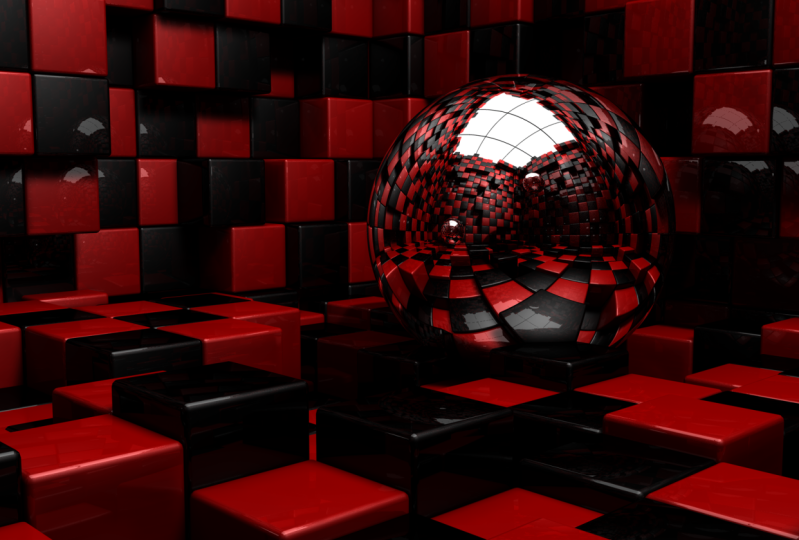
9. Wallpaper project - Creating the First Set of Cubes: Hello class and welcome back. In this new section of the course, we're going to create these amazing wallpaper that you're seeing in your screen. Now, we're going to do it in different steps. And in this lesson in particular, we're going to start by creating the first set of cubes. So let's start. Okay, So as you can see, I have a new empty document append. And I'm going to start by creating a cube. So I'm going to click here. Now here we have our cube. And if we go to our attributes manager, we can see the different attributes of this cube here. I'm going to make sure that I have selected the object tab. And now here I can see the size where x, y, and z. You can see that it is 200 for all of them. And now if we pay attention, you can see that the edges of this cube are really sharp. And I want to change that. So I'm going to go to the attributes tab, and I'm going to turn on the fillet option by clicking on this box here. Now you can see the difference here. It looks much smoother. I'm going to undo it so you can see how it was before. Really sharp. And I'm going to redo it. And you can see that This looks much more appealing. Now, of course, we can change the settings for these fillet option. We can increase or decrease the radius. I'm going to increase it. You can see the edges get rounder. Or we can decrease it. And the edges are going to get sharper and sharper. I'm going to leave this at something around five. Now, we can also change the Philae subdivisions. But I think three is a good number for now. So I'm going to leave it the way it is. And now I'm going to make a copy of this object. So I can do it by going to the Edit menu. I can select Copy and then Paste. You can see the shortcuts here. Command C to copy and Command V to paste it. So I'm going to select Copy. I'm going to click here. And then I'm going to go to Edit, and I'm going to select Paste. And if we go to the objects manager, you can see that now we have two different cubes here. So I'm going to select the second one, and I'm going to move it to the left. So I'm going to use this arrow. I'm going to click and drag, and I'm going to move it to the left. Now, you can see that as I move this object, there are some numbers displaying. And those numbers are changing. And those numbers indicate how far I'm moving this object from its original position. So I'm going to make sure to move this to 200. And to make sure that this is set to 200, I'm going to get as close as they can to 100. And then I'm going to press and hold the Shift key on my keyboard. And that's going to help me to snap these to round numbers. In this case, you can see it is set to 100. And if I continue moving it, it is going to snap to only round numbers. So I'm going to make sure that this is set to 100. I'm going to release here. So now we have two cubes and we can do the same again. So I'm going to select the two of these cubes. I'm going to make a copy of these two cubes. So I'm going to use the shortcut Command C, command V. And I'm going to select these two cubes, the new ones. And I'm going to move them to the left again. This time, I'm going to move him for a 100 units, like so. Now I'm going to navigate, remember your shortcuts 1, 2, and 3, to navigate around your scene. And you can see now we have four different cubes. I'm going to repeat process. So I'm going to select now all of these different cubes. I'm going to duplicate them again, command C, Command V. And I'm going to move these objects to the left. This time, I'm going to have to move him 800 units to the left. Like so. And I'm going to have to do it again. So I'm going to select all of these different objects. I'm going to duplicate them. So I'm going to go Command C, command V. And I'm going to move all of these different objects to the left. This time, I'm going to move him 1600 units to the left, like so. Now if we go to our objects manager, you can see that these objects monolayer is getting really crowded. So what I'm going to do is to group all of these different objects together. So I'm going to click here on this cube at the very bottom. I'm going to press and hold the Shift key on my keyboard. And I'm going to click on these other ones are the very top. And as you can see now, all of these different objects are selected. And I'm going to group all of these objects together. To do that, we can do it by right-clicking on any of these different objects and select the group objects option. You can see the shortcut here. Alt G. So I'm going to use the shortcut in the future. For now. I'm just going to click here to group these objects. And as you can see, now we have a new group. Now if we go to the left of this group, you can see a little square here with a plus sign at the center. That means that this object here has some other objects inside. And if we click on this plus sign, it is going to display all of the objects within these other object, in this case within these null objects or group. So I can click here again to close it down, or click here again to open it up. I'm going to close it down. And I can rename this if I want to. Like so. Now at this point, I'm going to make two different materials. And I'm going to explain later on why it is important to make these materials right now. But for now, let's go ahead and make them. So let's go to the materials manager down here. And I'm going to go to Create. And I'm going to select the first option, new default material. And I'm going to make sure to double-click on this material. So we have these Material Editor window. And I'm going to start by changing the color. I'm going to move this handle to the left. So these becomes black. And then I'm going to go to the reflectance tab. And I'm going to select the Add button. I'm going to click here. And I'm going to add a legacy reflection by clicking here on this option. Now you can see we have a new reflection here on this material, but I think it is too strong. So I'm going to reduce this to something around 10 percent. Now. I'm going to rename these to black. And I'm going to select this material over here. And I'm going to make a copy material. So I'm going to go Command C, command V. And now I'm going to rename this one to read. And I'm going to go to the Color tab. And I'm going to increase this option. And also this one over here. I'm going to increase it. Now we have red. I'm going to make it a little darker. Maybe a little bit more like so. And now I can close this window down. And now we have these new material. I'm going to click here outside of these different objects to make sure that none of them are selected. And now I'm going to start applying these materials to these different cubes. And I'm going to start with the red one. I'm going to click and drag it and drop it on these object like so. As you can see, now these material has been applied to these cube. Then I can continue doing it. I'm going to leave one in-between. I'm going to apply to these other ones. Like so. I'm going to live another one empty. And I'm going to apply this material to these other square. And I'm going to repeat this process until I get to all of these different cubes, like so. And now I'm going to repeat the same process, but this time I'm good to use the black material. I'm going to click and drag. And I'm going to start applying it to the remaining cubes. Just like this. You can see this is actually very easy to do. So as you can see, now we have the base to creating our amazing wallpaper in Cinema 4D. Now, only have to do is to save my file. So I'm going to go to File and I'm going to select Save Project. You can see the shortcut here. I'm going to click here, and I'm going to save it in the Section 3 folder within the Resources folder of this course. And I'm going to call it cubes. I'm going to click on save. And that's all for this lesson. Thanks a lot for watching. And I will see you in the next lesson.
10. Wallpaper project - Creating the Floor: Hello class and welcome back. In this lesson, we're going to continue creating our wallpaper seam in cinema 4 D. So let's start. All right, so this is where we left in our previous lesson. And as you can see, we have the base for our floor. And I'm going to start this lesson by making a copy of this group that contains all of these different cubes. So I'm going to select it. And I'm going to go Command C, command V to make a copy. And now with this copy, I'm going to move it on the z-axis. So I'm going to make sure this is selected. And I'm going to click and drag on this axis. And I'm going to press and hold the Shift key on my keyboard to make sure that this naps 200 units. Like so. Now, as you can see, now we have two different tiles. And I want these tiles to have different colors. So if I have read here, I want to have black here. If I have black here, I want to have red here. So what I can do to fix this, because right now you can see we have the same color, is to come over here, expand this group. And I can select these different tags that I have here. You can see these tags belong to these different materials. So if I select these different tags and I delete them by pressing the Delete key on my keyboard. Now, all of these different objects don't have any materials applied to them. And now, we can start with the black color. I can apply this material into this cube, and I can continue doing it one by one, like we did before. I'm going to undo all of these because there is an easier way. And it is by rotating these whole group. So I'm going to collapse this group and I'm going to make sure it is selected. And now I'm going to use the Rotate tool. And I'm going to rotate this whole group BY had am going to make sure that I rotated only on these axes. So I'm going to click and drag here. And I'm going to make sure that I press and hold the Shift key on my keyboard. So this rotates exactly 180 degrees. And I'm going to release here. And as you can see, now, these colors are the way we want them. Now we have red and black and so on. And that's the way we want them. Okay, now I'm going to select the live selection tool and I'm going to do the same that we did previously. So I'm going to select these two different groups. I'm going to duplicate them. You already know the shortcuts to duplicate, so there is no need to repeat it anymore. So I'm just going to duplicate these two groups. And I'm going to move him on the z-axis. I'm going to press and hold the Shift key. And I'm going to make sure to move him 400 units, like so. I'm going to do it again. I'm going to select all of these different groups. I'm going to duplicate them. And I'm going to move him this time 800 units. Remember to press and hold the Shift key on your keyboard. So these knobs to 800. And I'm going to do it again. So I'm going to select all of these different groups. I'm going to duplicate them. And I'm going to move him. But this time I'm going to move him 1600 units. Remember to press and hold the Shift key. So it snaps to 1600. Okay? As you can see, now we have our floor and this is almost ready, but we still have to work a little bit on it. So what we're going to do next is to select cubes are random. So I'm going to make sure that I have the live selection tool selected. I'm going to click on it so I can see the attributes of this tool. And if I come hour here you can see that the radius for this tool is a little bit too big for what we're going to do now. So I'm going to come over here to the attributes of the live selection tool. And I'm going to go to the radio settings, and I'm going to change the radius. I'm going to try with five. And as you can see now the radius is much smaller and it is going to be better for the next steps. Okay? So what I'm going to do is to select some of these different cubes at random. So I'm going to start by deselecting everything. And now I'm going to start selecting cubes at random. I'm going to select between 20 and 30 cubes. So now that I have all of these different cube selected, I'm going to group them together. And for that, I'm going to use the shortcut. Remember it is Alt G and it looks like nothing happened. But if I come here to the object manager and I expand these group, you can see that here we have another group inside. And I'm going to move this outside like so. And I'm going to collapse these other group. Now if I expand this group, you can see that here we have a lot of different cubes. And I'm going to collapse it again. And if we come to the right of the name of this group, you can see that here we have two different circles. And if I click on those circles, you can see that they are going to change in color. Now it is green. If I click again, it is going to turn red. And if I click again, it is going to go back to gray. Now, this you guys are going to help us to turn on and off the view for these elements within our Canvas. So if I click here once, it is going to be on, if I click here again, it is going to be asked for the canvas. Now you can see that all of the elements within this group disappeared in our canvas. Now we have a lot of different holes here. And those holes that we see here are the LMS that we have inside of this group. This other circle at the bottom is going to work in a very similar way. We can click here to change its color. And it is going to turn on and off the view of these elements from our render. So the one other tab is going to turn on enough the elements from the canvas. And the one at the bottom is going to turn them on and off from our renders. And for now, just turning off, the one at the top is going to be enough. So now you can see we have a lot of these different cubes missing. And that's exactly what we need. Now, I'm going to repeat the same process. So I'm going to start selecting different cubes. And once I have a few more of these cube selected, I'm going to group them together. So I'm going to use the same command, Alt G. And I'm going to expand these group. You can see I have another group here. I'm going to move it outside. I'm going to collapse this one. And I'm going to turn off the view for all of the elements within this group by double-clicking on this circle. Like so. And now you can see that we have more of these cubes missing. And I'm going to continue with this process until we are left with no cubes. Okay, I'm going to do it again. Alt G to group these different objects together. I'm going to take these group outside. I'm going to turn off the view for all of the elements within this group from our Canvas. I'm going to repeat the process. Okay? Now I'm going to group all of these cubes together. And I'm going to take this outside and turn off its view from the Canvas. I'm going to do it again. And I'm going to continue. All right. I'm going to do it again. I'm going to do it again. And as you can see now we have very few cubes. So I'm going to continue. I'm going to move this outside and turn off its view. And now I can continue with these ones. So now you can see that we have some other cubes. And I'm going to go to the objects manager. And you can see that soft, these different groups don't have anything inside anymore because you can see that they don't have the plus sign over here. And that means that they are have anything inside. So I'm going to select these ones that are empty. And I'm going to delete them. I'm going to continue with these ones, like so. And now I'm going to select a few of these cubes. And I'm going to move him into these other groups just at random, like so. And now we only have this one right here. And now I can select all of these different groups that are empty. You can see they don't have the plus sign over here. And I'm going to delete them. So now that I have all of these different groups, I'm going to start turning this back the way they were by clicking ones. And these Leland circle, until all of these circles are gray. And now we have again all of our different cubes. Now, I'm going to show you why with the, all of these because maybe you are asking yourself, why are we doing all of these? And the answer is very simple. I'm just going to select one of these groups. I'm going to get closer here because I want you to see while we're going to do. So, I'm going to select this group and I'm going to use either the selection tool or the Move tool, so we can get these arrows. And now I'm going to start moving these up and down. So this cubes are at a different level. And I like it that way. I'm going to select the next group. And this time I'm going to move it down a little bit. I'm going to go to the other group. I'm going to move it up. And I'm going to continue doing that with the rest of these different groups. Ali wanted to have here is some randomness. So all I'm doing here is moving these cubes up and down just a little bit. So we get all of those different levels. And as you can see, now, these looks much more interesting than it did before. And I like it. So that's all for this lesson. Thanks a lot for watching, and I will see you in the following lesson.
11. Wallpaper project - Creating the Walls: Hello class and welcome back. In this lesson, we're going to continue creating our world paper in cinema 4 D. So let's start. Okay, so this is where we left in our previous lesson. And in this lesson we're going to create the walls. But before doing that, I went to explain to you why it was very important that we created these two materials at the very beginning of the project. And the reason is very simple. We did it to save time, and we actually saved a lot of time. So as you can see here, we have a lot of different cubes. And each of these cubes has one of these two materials are applied to it. But if you remember, we applied these materials to only the first line of cubes, this one over here. And then when we made the copy of these ln of cubes, those cubes have the materials applied to them already. So instead of applying these two materials to every single one of these different cubes, we apply them to only the first line. And that helped us to save a lot of time. And believe me, it would have been really time-consuming to apply these materials to every single one of these cubes. And that's something that you want to do in every project that you work. Whenever you can save time, go ahead and do it because time is money. And in this business, time is really important. All right, so now let's continue and let's make the walls for these room. And we're going to save a lot of time again. And I'm going to show you how. So you can see here we have our different groups. And what I'm going to do is to select all of these different groups. And I'm going to group them together. So I can do it by right-clicking here and selecting the group objects option. And remember the shortcut Alt G. So I'm going to click here. And as you can see, now, this becomes one single group. And I'm going to rename it. I'm going to call it floor. And this is where we're going to save a lot of time again. So what I'm going to do is to make a copy of this group. So I'm going to go Command C, command V, and I'm going to name these while a. And now what I'm going to do is use the rotate tool. So I can select it from here, or I can use the shortcut, which is the letter R on your keyboard. And now I'm going to rotate the whole group, but I'm going to rotate it only on these axes. So I'm going to rotate it like this. And I'm going to make sure to press and hold the Shift key on my keyboard. So this maps to 90 degrees. And I'm going to release here. Now I'm going to navigate around. And as you can see, now we have the first wall. Now I'm going to go to the different views because I want to see these object from different angles. So I'm going to click here. And I'm going to zoom out here on the top view. And I'm going to use the Move tool. I'm going to get closer. And I'm going to move this wall like this. And I'm going to go to the front view and I'm going to move it up like so. Now I'm going to go back to the perspective view. And I'm just going to get closer here to make sure that these look nice. And if I have to move them, I can do it very easily. Like so. You can see now this looks much better. I can move it a little bit further. Like so. And as you can see now we have the first wall and we saved a lot of time because now we have to make the whole process again. All we did was duplicate all the job that we had done before. And I'm going to do the same again. So I'm just going to select this group and I'm going to duplicate it. And I'm going to rename it to world be. And I'm going to move it to the other side. And now I'm going to select these two different worlds. And I'm going to duplicate them. And now I'm going to use the rotate tool. Remember, we can use the shortcut letter R on your keyboard. And this time we're going to rotate them horizontally. So I'm going to click and drag on this axis. I'm going to make sure to press and hold the Shift key on my keyboard. So these maps to 90 degrees and I'm going to release. And as you can see, now we have all of the walls that we need. And I'm going to get closer just to make sure that these look good. And as you can see, they look really, really good. I'm just going to zoom out. And now the whole room is complete. And it was really easy to do it because we have done most of the job in the previous lesson. And now all I'm going to do is to save my file. So I'm going to go to File and I'm going to select Save Project just to make sure that we have saved all of the changes that we have done to these file. And that's all for this lesson. Thanks a lot for watching, and I will see you in the following lesson.
12. How to Use the Locate Selected Elements Command in Cinema 4D: Hello class and welcome back. In this lesson, we're going to talk about the Located selected elements command. So let's start. Okay, so this is where we left in our previous lesson. But I'm going to switch to a different file because I want to show you something else. So I'm going to click here on window, and I'm going to select these other file that I have already opened. So I'm going to click here. And as you can see, this is a very simple file. And Ollie having here are three different objects. You can see them here. I have a cube, a cone, and a sphere. Now, at this moment, we can only see the cube here in our Canvas. So if I select the cube, it gets highlighted here in the Canvas. Now, if I select the cone, you can see that it is not visible in the Canvas. But cinema 4 D is going to give us a hint of where this object is located. So as you can see here, we have a little arrow that is pointing in this direction. So that means that this cone that we have selected here is somewhere around, over here in this direction. And if I select the sphere, you can see that this arrow is now pointing in this other direction. Meaning that this object is somewhere around this area, are somewhere in this direction. Now, like I said, and this is a very simple document. But when you work in 3D, you will usually have a lot of different elements and a lot of different objects in your scene. And when that happens, and you want to locate a specific object, Let's say you want to look at this fear. All you have to do is press the S letter on your keyboard and the camera is going to move. So you can see that object in particular. So right now I have selected the sphere and I'm going to press the Esc key on my keyboard. But before doing that, I'm going to make sure that the cursor is inside of the canvas. And now I'm going to press S. And as you can see, now we're looking at this sphere. We have the cube over here. So I can select it. And if I press the Esc key, it is going to be focused again on the cube. Now if I want to look at the cone, I have to select it here from the object manager. And then I have to move the cursor inside of this canvas. And then I can press the letter S on my keyboard. And that way I can see this object. So that's an easy way to be able to see your selected elements when you cannot find them in your canvas. So again, I can select the cube, move the cursor inside of the canvas, press S, and then I will be able to see the cube. I can select the sphere, move the cursor inside of the canvas, and press S. And that's going to be much easier than doing it manually. Trying to navigate around your scene and trying to find a specific object, especially when you have a lot of different objects in. And the best part is that this command is going to work in any view within Cinema 4D. So it is going to work in the perspective view like we just saw. But it is also going to work on the top view, on the side view, and on the front view. So you can use it wherever you want to. And that's all for this lesson. I hope that you liked it and I hope that you learned something useful. And I will see you in the next lesson.
13. How to Use the Axis Mode in Cinema 4D: Hello class and welcome back. In this lesson, we're going to talk about the axis mode in cinema 4 D. So let's start. Okay, So as you can see, I have a very simple scene up and in Cinema 4D, all I have here is a cube that has been modified. Now, remember if we want to move an object, we can do it by using the live selection tool or the Move tool. Let's use the Move tool. Now, if I want to move this object on this axis, I'll have to do is click and drag on this arrow. Like so. But sometimes when you try to move an object, it will not move. So if I select again this axis and I click and drag, you will see that I cannot move this object any longer. So if I try to move it again, it will not move. So what happened here? This is a really interesting question because previously I was able to move it. And if you pay close attention, you will see that this button here has been activated. And this button is the Enable Axis button. And with this button, we are going to enable or disable the axis mode. Now, the axis mode is going to allow us to move the axis of our objects, but not the objects themselves. So you can see this object has an axis and I can move it freely. When this mode is activated, I can move it in any axis that I want. Like so. And that's not going to modify the position of the object itself. Now, if I turn this off by clicking here, and I tried to move this axis again. You can see that now I can move the object. And I am explaining these because sometimes you will activate these axis mode by accident because there is a shortcut to activate it. The letter L on your keyboard. So you can see right now it is the activated. But if I press the letter L on my keyboard, you will see that now it has been activated. If I press it again, it has been the activated. So if I'm working on a scene and I press the letter L on my keyboard by accident, I can enable or disable the axis mode by accident. And if you don't know what you did, you're going to try to move your objects, but they will not move. So that's why it is very important that you know how to use these axis mode. Now, the real question should be, why can we modify the axis of our objects? And the answer is quite simple. The axis of our objects is going to define the center of rotation of the objects themselves. So I'm going to make sure that the axis mode is activated. And I'm going to move these two somewhere about this center of this object, like so. And I'm going to be activated. And now if I try to rotate this object, I'm going to use the rotate tool by pressing the letter R on my keyboard. And if I rotate this object, you will see that it will rotate from the center. But if I want this object to be a door, for example, I will want the axes to be on this side or These other one. It doesn't matter, but it has to be on one of the two sides. So to do that, I'm going to activate the axis mode by clicking here or by pressing the letter L on my keyboard. And then I'm going to use the Move tool. I'm going to move this axis, let's say to the left. Like so. And now I'm going to activate the axis mode. And if I use the Rotate tool again, and I rotate this object, you will see that now it behaves like a door. Because now the position of the axis is on this side. And again, I'm explaining these because in our wallpaper project, we are moving a lot of objects. And if you press the L key on your keyboard by accident, you will not be able to move your objects because you will be moving only the axis. So that's how we use the axis mode in cinema 4 D. And that's all for this lesson. I hope that you liked it and that you learned something useful. And I will see you in the next lesson.
14. Wallpaper project - Creating the Roof and the Interior Elements: Hello class and welcome back. In this lesson, we're going to continue creating our world paper in cinema 4D. So let's start. All right, so this is where we left in our previous lesson. And as you remember, we finished creating these room of cubes. And I'm going to start by grouping all of these different groups together. I'm going to select them all. And I'm going to use the shortcut Alt G to group them together. And I'm going to rename these to room. And now I'm going to create the roof. And for that I'm going to use a plain object. So I'm going to click and hold here. And I'm going to select the plane object, like so. Now I'm going to go to a top view. And as you can see here, we have the plane, but it is way too small. So I'm going to use the scale tool and I'm going to scale it out just a little bit, like so. And I'm going to use the Move tool because I'm going to move it all the way to the left like this. And I'm going to create two copies of this plane. And I'm going to move them to the right. But to do it better and to be able to see these better, I'm going to turn off the view for all of these different cubes that I have here. And to do that, all I have to do is come to the object manager and click twice on these tabs here, caldera half here. So I'm going to click once and click again. And when it turns red, it is going to disappear from our Canvas. And now we're going to be able to see these better. Okay? I'm going to zoom in a little bit and I'm going to make a copy of these plane. So I'm going to go Command C, command V. And I'm going to move this object to the right, but I'm going to make sure to press and hold the Shift key on my keyboard. So I get round numbers only. And I'm going to make sure to memorize that this stance that I'm moving, this object, you can see right now it is set to 950 centimeters. So I'm going to release here. And now we have these two planes and they are separated by a small space here. Now, I'm going to do the same again. I'm going to select this object and I'm going to duplicate it. And I'm going to move it to the right. And I'm going to make sure that this is said to 950 centimeters because that's the distance that we use on the other object. Now, I'm going to release here. And now you can see that we have three different planes and they are separated by the same amount of space. If you're following along these corals and creating your own scene displays that you will have to move these objects is going to depend on the size of your objects. So don't worry, if you are moving your objects a little bit more or a little bit less than I do. It doesn't really matter. So the important thing is that you have the three objects separated by basically the same amount of space in between. So I'm going to the same again, but this time I'm going to select the three objects and I'm going to duplicate them all. And this time I'm going to move them on these other axes. But I'm going to make sure that I press and hold the Shift key on my keyboard. And I'm going to move them the same amount of distance, 950, like so. I'm going to move up and I'm going to do it again. I'm going to duplicate these objects and I'm going to move them up like so. Okay, I'm going to zoom out. As you can see. Now we have nine different panels and they are all separated by the same amount of space. Okay? Now, once I have all of these different panels selected, I'm going to group them together. So I'm going to use the shortcut Alt G. And I'm going to rename these new group to roof. Like so. Now I'm going to go to the perspective view and I'm going to turn back on there. We civilly for their room group by clicking here once. And I'm going to select the roof group. And I'm going to move it up because this has to go at the very top scenes. It is going to be the roof. And I'm going to go back to the top view because you can see that this is way too small for the room. So I'm going to move it to the center or roughly the center. And I'm going to scale it out. I'm going to select the skeletal. And I'm going to make sure that I have selected the whole group, like so. And I'm going to click and drag like this. And I'm going to use the move tool. And I'm going to move it to be able to center it. And now I'm going to go back to the perspective view to make sure that this is the correct size. And if I have to spell it out a little bit more, I can do it. I'm just going to use the Scale tool and scale it out just a little bit more. I'm going to make sure to move it down a little bit. Maybe a little bit more. Like so. And now I'm going to create a new material for these panels because I want him to be some kind of lighting panels. So I'm going to go to the materials manager, and I'm going to click on Create and I'm going to select new default material. I'm going to double-click on it, and I'm going to change its name. This is going to be for the roof. So I'm going to call it drove. And I'm going to turn off the color channel and also the reflectance channel because I only need the illuminance channels. So I'm going to select it. And I'm going to click on this checkbox to turn it on. And I'm going to increase the brightness to around a 150%. So now these material doesn't have any color and it doesn't have any reflections. It has only some lighting. I'm going to close it down and I'm going to apply it to all of these different panels. You can see we have nine panels. And I can apply this material to every single one of these panels one-by-one. Or since all of these panels are going to use the exact same material, I can actual apply this material and not to the panels themselves, but to the whole group. So instead of grabbing this material into the canvas, I'm going to click and drag it and drop it here on the roof group, like so. And as you can see now, this material was applied to all nine panels at once. And the reason for that is because if we open up these group, you can see that this group contains all of these nine panels. So when we applied a material into a group, this material is going to be applied to every single one of the contents of that group as long as they don't have any other material supply to them. Because you will see if I grab another material and apply it to one of these objects. It will be using that material and will be ignoring these one that has been applied to the whole group. And if I delete this tag, now, it doesn't have any materials applied to it. So it is going to take the material from the group. Okay? Now I'm going to collapse this group. And now the roof is complete. Now I'm going to create a sphere. So I'm going to click and hold here. And I'm going to select this sphere object. And I'm going to go to the different views because I want to move this sphere. I'm going to make sure that this is visible. So I'm going to move it up. And a little bit to the left. I'm going to go to a top view. I'm going to move it close to this corner, but not all the way into the corner. And I'm going to increase the size. So I can click and drag on this handle. Like so. And I'm going to go back to the perspective view. Now in here. If I want to see the sphere, remember we can use the shortcut S on our keyboard. So I'm going to press S, and that's going to bring us to our selected element, in this case the sphere. So I have this fear here and I'm just going to move it. So it looks like it is resting on these cubes. I'm just going to make sure that this looks okay. So I want it to look like it is resting on the cubes, but I don't want it to look like it is going through the cube. I'm going to move it down a little bit. Like so. Okay. And now I'm going to create a new material for the sphere. So I'm going to go to my materials and I'm going to click on Create. And I'm going to select new default material. And I'm going to double-click here to open up the Material Editor. I'm going to move these to the right. And I'm going to turn off the color option. And I'm going to select the reflectance option. So we can open up the reflectance panel. I'm going to add a new legacy reflection. So I'm going to click on add. And I'm going to go down to Legacy reflection. I'm going to click here. And I'm going to close this down for now. But before doing that, I'm going to rename these two sphere. Okay? And I'm going to close this down. And now I can apply this material to these sphere like so. And I'm going to make a quick render just to see how this looks so far. Now, to make a render, we can come over here to these different render options. And I can select this first option, the render view option. So I can click here, or we can use the shortcut Command R. I'm just going to click here for now. And this is how it is going to look so far. But you can see that it doesn't look too good. And the reason for that is because this looks a little bit blurry. So to fix that, I'm going to open up this material again by double-clicking on it. And I'm going to go to the reflectance channel. And I'm going to reduce the roughness. Right now you can see it is set to 10 percent. I'm going to reduce it to 0. Now, roughness in cinema 4 D is basically blurriness of the reflection. So the more roughness you have, if I increase it all the way up, you can see that now it looks very blurry. Reflection is completely blurred. If I reduce it, let's say 35 percent. Now it is going to be less blurred out. And if I reduce it even more, is going to be sharper and sharper. So I'm going to set these all the way down to 0 because I don't want to have any blurriness in the reflection. And I'm going to close this down. And I'm going to make another quick render. So I can click here, or I can use the shortcut Command R. I'm going to use the shortcut. And as you can see, now, this looks much better on the sphere. But we can see that the walls are still looking really bad. And the reason for that is because we modified these material that is applied to the sphere. But we haven't modified the materials for the cubes. So I have to modify these other two materials. And that's what I'm going to do. So I'm going to double-click here. I'm going to go to the reflectance channel and I'm going to reduce the roughness all the way back to 0. You can see right now it is set to 10%. And you can see the preview here. And also over here. When I reduce this, it is going to change. So I'm going to reduce it all the way down to 0. And as you can see now, the reflection looks very, very sharp. And you can see it here as well. And now I'm going to select this other material for the black cubes. I'm going to do the same. I'm going to go to the roughness option and I'm going to reduce it all the way down to 0. And I'm going to close this down. And you can see already we have a dramatic change. And if I make another quick render by using the shortcut Command R, you will see that now this looks much, much better and much, much cleaner. So I like how this looks bad. I'm going to make a copy of this fear to add some other spheres in this scene. Now, we will not be able to see those spheres here in our scene, but in the reflection within the sphere. So I'm going to select the sphere and I'm going to duplicate it. And I'm going to go to a top view. And I'm going to move it to this other corner. And I'm going to make this a little bigger. So I'm going to scale it out like so. And I'm going to move it up. I'm going to make a copy of this one. And I'm going to move it to this other corner. Like so. I'm going to go back to the perspective view and I'm going to make a quick render. Remember the shortcut Command R. And now we can see the spheres reflected in these other sphere. Even though we cannot see them in our scene, we can see them in these reflection. So that's all for this lesson. Thanks a lot for watching, and I will see you in the following lesson.
15. Wallpaper project - Finishing Up the Scene: Hello class and welcome back. In this lesson, we're going to continue creating our wallpaper in cinema 4 D. So let's start. Okay, so this is where we left in our previous lesson. Now, I'm going to create a new camera because I like this composition. So I'm going to click here to create a new camera. And right now, if I move the camera, if I zoom out, for example, by clicking and dragging here, you can see that here we have that camera that we just created. It is right here. And to be able to get into this camera that we created, we have to come to the objects manager and click on this icon here. So if I click here, we're going to get into the view of these camera. So now this is the active camera. And if I move around or rotate, I'm actually moving and rotating these camera. So I can get closer to get a better composition. And I can rotate or do what I want. And everything I do is going to affect these camera object. Now, I can always click back again here, and I will get out of this camera. You can see the camera is here, but now it is deactivated. So we're not looking through these cameras anymore. I'm going to click back here to get into this camera. And I'm going to make a quick render. And I like this composition a lot. So since I like this composition, I want to lock these camera so it doesn't move anymore. And to do it, I'm going to right-click and I'm going to go into the rigging tags. And I'm going to select these protection tag. I'm just going to click here. And now, as you can see, it added a new tag. And whenever you see this tag, that means that the object will be locked. So we're going to modify it anymore. So you will see that if I tried to move this camera, like I want to zoom in or zoom out, I won't be able to do it. Or if I want to pan tilt the same and if I want to rotate it, I cannot do it anymore because we have a protection tag applied to this object. Now, if I remove this tag, you will see that I can move it again. So I'm going to undo that because I liked this composition. And I'm going to move these back to the camera. So now I cannot move it even if I want to. And that way I will keep this composition. Now, remember to add the protection tag. All you have to do is right-click on the object that you want to add the tactile. So you have directly on it. And you have to go to the rigging tags option and select it from this menu. Now, if you're working on a previous version of Cinema 4D, you will not find these protection tag. Inside of these rigging tags option. You will find a different menu called Cinema 4D tags, which is going to be at the very top of this menu. And inside of that menu, you will find the protection tag, which is going to look exactly like this one. So if you're using a previous version of Cinema 4D, that where you will find it. All right, now I'm going to click over here to get outside of the view of this camera. And I'm going to make sure that these two other spheres are not going through these cubes. So I'm going to select this one and I'm going to make sure that it is not colliding with the cubes. Now, it looks better. And I'm going to do the same with the other one, the one on the side. I'm just going to make sure that it is not colliding with these cubes. Now, this is not going to matter too much because we're going to look at these objects only through the reflection of the other sphere. So we may not even notice it. If they are going through some of these cubes. I'm just trying to get these as better as we can. And now I can click here again to get back into the camera. Now, I'm going to make another quick render just to see how this looks. And as you can see, this looks really, really good. Now, the only thing that I don't quite like is some of these cubes. You can see that some of these cubes that we have here are at about the same level. And we want them to have a little bit of variation. So we can fix that very easily by selecting the selection tool, clicking on these cubes that we want to modify and just moving them around. So I can move these down like this. I can move this other one. Also, if I want to move this app, our movie, the way I want. Also this one, I can move it up like so. And I'm going to move this one down just a little. Maybe not too much. And we can do it this way. Like so. And I'm going to make another quick render. And I'm going to move this down a little bit. Like so. Also there's one. And I'm going to make another quick render. Okay, I like it. And now all I have to do is to add some lights. So I'm going to create a new layer by clicking here. And I'm going to go to my different views. You can see the light is over here. So I'm going to move it up like this. And here on the top view, I can move it around. And as I move it around, you can see how this is going to change our scene. So I'm going to get closer here. So you can see these better. You can see this sphere is the one that we have here. Our camera is here and looking in this direction. So we can move this light around and see how this is going to affect the scene. I'm going to have it on this other side, something around here. And I'm going to move it down just a little bit. Like so. And I'm going to go back to the perspective view and I'm going to make a quick render. And as you can see, now this looks much, much better than before. Now Ollie have to do is to add some shadows. And to do that, I'm going to select a light. I'm going to go to the Attributes Manager. And here we have an option to add shadows. Right now it is set to none. So I'm going to click here. We have three different options for the shadows. So we have some shadows, harsh shadows and areas shadows. Now I'm going to explain about these different shadows in future lessons. But for now we're going to use soft shadows, which are the ones that take the least to render. So I'm going to select these one. And I'm going to go to the shadows tab. And I'm going to increase the shadow map. And this number represents how blurry your shadow is going to be. The bigger the number, the sharper the shadow. And the smaller the number, the more blurred out the shadow is going to be. So I'm going to use something around some a 150. And I'm going to render this out. And now we can see some of the shadows here. You can see how this is affecting our scene. And I'm going to add another light. I'm going to select this one. I'm going to make a copy. And I'm going to go to the attributes. I'm going to go to general. And I'm going to reduce the strength of these light. I'm going to use 20 percent only. And I'm going to move it around. So I have here my main light. That means that I can move these to the other side. Like so. So this is going to be a field like I'm going to move it down a little. And for this one, I don't want to have any shadows. So I'm going to select it. I'm going to go to the shadows option. I'm going to click here and I'm going to select none. I'm going to come back to the perspective view. And I'm going to make a quick render. And I like it. I think it looks really, really cool. And that's all for this lesson. Thanks a lot for watching. And I will see you in the next lesson.
16. Wallpaper project - Rendering Out the Scene: Hello class and welcome back. In this lesson, we're going to render our world paper. So let's start. All right, so this is where we left in our previous lesson. And as you remember, we've finished creating our wallpaper, and now we're going to render it out. So remember, to make a render, I can do it by clicking on this button. And this is going to make a render in the Canvas. But the problem with this option is that if I click anywhere, like here, for example, you can see that the render disappears. And that's going to happen all the time. So if you want to save your renders, you have to use the second option. So this is going to make the same render, but it is going to make it to the picture viewer. So I'm going to click here. And as you can see, we have a new window. This is the picture we were. And here we have our render. And you can see we have different objects are going to cover some of these options in future lessons. But for now, the most important ones are the ones that we have here on the right. You can see here we have a small preview of the image that we have here. We have a slider here to zoom in and out, like so. And we have our different images. Right now. We have only one over here. But as we make more, we will have a whole list of different images. So one thing that we can do is to double-click here on the image. And that's going to serve the image to 100%. If I double-click again, it's going to zoom again, but this time it's going to zoom. So the whole image feeds within these window. And that's the basic use that we can give to the picture viewer. Now, I'm going to close these down because I want to change some of the settings for our render before we make our final render. And to edit the Render Settings, I can click on these other button, like so. And you can see we have here the Render Settings options. Now, the first thing that I'm going to do is to go to the Options tab and I'm going to turn off the default light option. And the reason for that is because I haven't really added my own light. So I don't need these default light. Just going to modify the lighting that I made here. So I don't need it. And now I'm going to go to the anti-aliasing option. And I'm going to change this from geometry to best. I'm going to select it here. And what this is going to do is to help us to improve the edges within our renders. So you can see these edges look a little bit jagged. And if we don't use this option, they're going to look jagged also in the render. So always make sure that you use the best option within the anti-aliasing. Now we have more options here, but for now we're just going to leave this the way it is. And now I'm going to come over here to effect. I'm going to click and I'm going to add the global elimination option. So I'm going to click here. You can see we have a new menu. And if I select it, we can see we have different options. But for now we're just going to leave it the way it is. I'm going to close this down and I'm going to make another render by clicking here. Now, you will notice that these render is going to take a lot more time than the previous one. And the reason for that is because we modified the render settings and especially because we are using global illumination. And whenever we use global illumination, our render time is going to go up. But the quality of our render is also going to go up by a lot. And you will see the results. Now down here, you can see the time that it's taking these machine to process these render. And depending on the machine you have, it may take it a little bit more or a little bit less than what it is taking to these machine. It is all going to depend on your machine. And the render is complete. Now, if will look at the time it took it. It says that he took it one minute and 36 seconds. And like I said previously, the time that it's going to take to your machine is going to depend on how powerful your machine is. So if you notice that your machine is taking a lot longer to process the information, don't worry about it, just let it work. And if it does it faster, well, good for you. Okay, so now we have our two renders. This is the Render that we just made. And if I click on this other one. You can see that there is a huge difference. This one looks much better. And this doesn't look that good. So I'm going to get closer here. I'm going to double-click here. And you can see here how these edges look, especially here on these leaving panels. You can see these black lines look all jagged. And if I click here, you can see that they look much cleaner. And that's what the anti-aliasing option does. Now, it will look at this image. You can see that it looks darker and the second image looks much more brighter. And that's what the global elimination does. I'm just going to make this window a little larger. So we can see the whole picture. And you can see the difference between these two different images. And you can see that the second one looks much better than the first one. You can see this one looks really bad, especially on these areas where we have edges also here. And if I select this other one, you can see that these edges look much cleaner and the image in general looks much cleaner and much better. Now, I'm going to close this down and I'm going to come back again to the render settings. And this time I'm going to go to the output option. Now, in this option, I can change the size for my image. Right now you can see that it is said to 1280 by 720, which is a very small image. But I can click here. And I can select from all of these different presets. You can see we have four screen for film and video. For our mobile devices, print and more print options. We can also come over here and change these numbers by hand. So I'm going to use the standard HD dimensions, which are 1920 by 1080, like so. And over here you can make sure that you have the pixels option selected, or you can change it if you want to. But if we are going to use 1920 by 1080, we have to use pixels. But you can use centimeters, millimeters, inches, and a few more options. So now we have changed the dimensions of our render. I'm going to close this down and I'm not going to modify anything else because I really like the render that we had. But I just wanted to modify the dimensions. And now I'm going to make another render by clicking here. And I'm going to speed up this video so you don't have to watch the heart rendering process in real-time. And now the rendering process is complete. And if will look at the time it took it to render it, you can see it to get to minutes and 139 seconds. And like I said previously, depending on the machine you have, it may take it a little longer or a little shorter. So it could take it five minutes, ten minutes, or event 20 or 30 minutes to make an image like this. So as you can see, now we have our final image. If we select the previous one, you can see that this is much smaller. You can see it is at a 100 percent. If I select the last one, you can see it is also at 100%, but it is a lot bigger. So this is our final image. You can see it here. And if I got closer, you can see that all of these different details look very sharp. Because we said the anti-aliasing option to best and the render in general is really good. Okay? So if you want to save these as an image, all you have to do is come over here, select this button to save your file. And here you have different options to save your file. The most important one is the format. You can click over here. Select one of these different formats. If you want to keep all of the details, you have to use either a thief or PSD like this. And if you don't want to modify this image, if this is going to be the final image, you can use JPEG. But I recommend you to use tiff or PSD because those formats are going to keep the most information. You can use a bag if you don't want to modify this image anymore in Photoshop or any other software application to enhance your image. You can use JPEG. We're not going to modify it, so we're just going to use apec. And here you can change the depth. For now, eight bits per channel is okay. And we have more options that we don't need to change for now. So all we have to do is click Okay, and select a name for this image. I'm going to call it cubes are one. I'm going to select the folder that I want to save it into. And I'm going to click on save. And that's going to save our image. Now, I'm going to close this down because I want to show you something that you can do as well. And it is opening up any of these materials, for example, the red one. And we can change the color. So let's use a blue color like this. And just like that, we've changed the color for all of the cubes. And I can make another render. And as you can see now we have a different grinder. By just changing one of the materials. I'm going to zoom out. So we can see the whole image. And you can see here the difference between this renders. So they are the same scene. All we did was change one of the materials. And you can change both of them materials if you want to, or only one. And you can make different renders with the same scene. And these are the renders that I made. And as you can see, they all look really, really beautiful. I hope you like them. So that's all for this lesson. Thanks a lot for watching, and I will see you in the next lesson.
17. Wallpaper project - Assignments: Hello class and welcome back. In this video, I'm going to give you a few assignments. So let's start. Now, it is very important that you follow these assignments because that way you will ensure that you really learn what we have covered in the previous lessons. So your first assignment is to create your own 3D scene. Your second assignment is to render out and save the render your scene as a JPEG file. Your third assignment is to modify the materials that you used for the cubes. Remember, we can change the color for our materials and that way we will get different results and also make a new render and save it. Now, your next assignment is going to be to modify your scene are little bit further. For example, instead of using spheres to place in the interior of the room, you can use other primitive objects like cylinders, pyramids, capsules, cones, or any other primitive. You can also modify the angle of the shot. So you can move the camera around and you will get a different render. Alright, and that's all for this video. I hope you enjoyed it. And I will see you in the next lesson.
18. Cinema 4D Layouts: Hello class and welcome back. In this lesson, we're going to talk about cinema for these layouts. So let's start. Okay. So in the previous section of this course, we created a wallpaper using only primitive objects. If you remember, we used a lot of cubes, some spheres, and some planes. And all we did was to move those objects around until we got our scene. However, when you want to model something in 3D, something specific, like a cell phone or a TV, or a car, or basically anything else. We will have to modify those primitive objects using the different tools that Cinema 4D comes with until we get the shape or the object that we need. For example, if I want to make a car, I can start with a basic shape or a primitive and modify it until I get the shape that I want. And to modify those objects, I will need to use some of the tools that Cinema 4D comes with. But I don't see those tools right now because we are using the startup layout. So you can see that here we have some tools for animation, like a timeline, some animation controls, and a few other things that I don't really need when I want to model something in 3D. So these elements here are taking a lot of space in my user interface. And there are some tools that I need to model my objects and that I don't see right now. So to solve that, I can come over here to the top right corner, and I can click here on layout. And you can see that here we have different layout. And these different layouts have been designed to help us to work faster and more efficiently depending on what we want to do. For example, if I want to animate a scene, I can select the animate layout. So I'm going to click here. And now you can see that I have a different layout. Now I have more animation controls over here. You can see now the timeline is really long. And I also have a lot of different buttons that are going to help me to animate my scenes. Let me go back to Layout. And I can select a different layout like this one, The Body Paint 3D bend layout. I'm going to click on it. And as you can see, this is a different layout that is going to help us to create our own textures in Cinema 4D using body paint. I'm going to come over here. And as you can see, I have a lot of different layers that I can choose from. I have a layout for a UV Editing. Also, one for modelling, another one for motion tracking. 14 nodes for rigging, and a few others including sculpting and a few more. Now, the one that I'm interested in right now is the model layout, because I want to model my objects in cinema 4 D. So I'm going to select the model layout. And as you can see, this is a defect layout. We have the menus our hear, the same tools that we had previously, and also these other tools here. So these are not going to change. But you can see that now we don't have the timeline down here. And instead of the timeline, we have some other tools that are going to help us to modify our objects in cinema 4D. So let me just create an object like a cube. And I'm going to click on the Make editable button. Don't worry about this button. I'm going to explain how it works later on. So for now, don't worry about it. But now I can select this cube. And I'm going to select the polygon mode, for example. And as you can see now, I have all of these different buttons available at the bottom and also some commands. I also have my objects manager over here and my attributes manager down here. And of course, my coordinates manager. And a few tabs that I have here on the sides. But we're going to use mostly the objects manager, the attributes manager, and the canvas. Now, as we progress in this course, we're going to talk about a few other of these layers that I have here. But for now, we're just going to concentrate on the model layout because we're going to start modeling our own objects in Cinema 4D. But if you want to check out the different layout, all you have to do is to come over here to the top right corner. Click on Layout, and select the layout that you want to check out. Like I said, for now, we're going to use the model layout. Now, if you have an older version of Cinema 4D, this layout is going to have a different name. Right now you can see it is called model, but you will see it as modeling. But it is basically the same. All right, so that's all for this lesson. Thanks a lot for watching, and I will see you in the next lesson.
19. The Subdivision Surface Object in Cinema 4D: Hello class and welcome back. In this lesson, we're going to talk about the subdivision surface object. So let's start. Okay, So as you can see, I have a new empty document open. And if I go to my layout, you will see that the model layout is selected. Okay? So let's talk about the subdivision surface object. And it is this one over here. So if I want to create a subdivision surface, or they have to do is click on this button. And as you can see, now we have here a subdivision surface object. If we go to our Canvas, you can see an axis here. But apart from this axis, it looks like nothing happened. If I deselect this object. You can see that there's nothing in my Canvas. And the reason for that is because this object is not like a primitive which has volume. This object is a modifier and it is going to help us to modify other objects. So in order to work with this subdivision service object, we need an other object that is going to be modified by the subdivision surface. So let's create a cube by clicking on this button here. And as you can see, now we have our cube. But this subdivision surface object is not modifying this cube yet. So you can see it looks just like a regular cube. And if I want these cube to be modified, the subdivision surface object only have to do is to make it a child of the subdivision surface. Now, to make it a child, or they have to do is to click and drag on this cube. And when I see this icon here with an arrow pointing down and a square, I can drop it here. And you will see that the cube is now inside of these subdivision surface object. If I click on this little icon here, I can close this down. And if I click here, I can expand it. So now this cube is a child of the subdivision surface object. So this is apparent, and this is the child. And these different names are the ones that Cinema 4D gives to these different states of the objects, the parent and the child. Okay? So now if we go to our Canvas, now we can see that our cube looks more like a sphere. And that's because now it is being affected by this subdivision surface object. Now, if I come over here to the subdivision surface object and I click on this green arrow to turn it off. You will see that Mao and x appears. And that means that these object is off. And now if we look at the cube, it looks again like a regular cube. If I come back over here and I click on this Red Cross, I will activate again the subdivision service object. So it is going to influence these cube again. Now, the reason why this cube looks like a sphere is because what the subdivision surface das is to subdivide the object and it's going to give us a really smooth transition on the new subdivided polygons. Now, I'm going to select the cube and I'm going to turn off the subdivision surface object. And I'm going to come over here to the display mode. I'm going to click here, and I'm going to select the second option. So we can see the different lines that create these cube. So I'm going to click here. And now we can see the lines. And you can see that we have only one segment on each phase. So if I have these objects selected and I go to the attributes of this cube, you can see that here I can change the different segments for x, y, and z. So that's what I'm going to do. I'm going to increase the segments for x. I'm going to use three. You can see now we have three segments. I'm going to do the same for Y and the same for C. So now we have three segments on each phase. And if I turn back on the subdivision surface object, we can see that now the cube looks more like a cube, but this time it has its edges rounded, and that's what the subdivision surface object does. Now the question is, why do we have these subdivision surface are objects in cinema 4D? And the answer is really simple. We have them because like I said previously, in 3D in general, we aim to have a little polygons as possible. But we also want to have really smooth objects. For example, if we are creating a character, we want that character to look soft. We don't want it to have really hard edges. And when we use the subdivision surface object, we can have very few polygons, but we can also have at the same time really smooth objects. So that's what the subdivision surface object does in cinema 4 D. Now, I'm going to show you a different example of how the subdivision surface object works. So to do that, I'm going to switch to a different document. So I'm going to go to Window and I'm going to switch to this other document. So here you can see that I have a little pig. And this is one of the projects that we are going to be working in a future lesson. Now, if we go to the objects manager, you can see that we have only two different objects. We have a subdivision surface object, which has now a different name. Because we can rename these objects as well as we can rename any other object in cinema 4 D. But this is still a subdivision surface object. And the second object is these big, which is a really simple model. We're going to make it using a sphere as the base. And we're going to modify it until we get this shape of the peak. So we have the big and we have the subdivision surface object. As you can see, the subdivision surface object is the parent and the pig is the child. And you can also see that the subdivision surface object is because we have these green check mark. So I'm going to deselect everything. So you can only see these objects without the lines. And you can see that this object is really smooth. You can see that the different elements of the object Eris MOOC, like the ears, the mouth, and the different legs of the peak. But that is because I have the subdivision surface object on. But if I click here to turn it off, you will see that now these different parts of the peak have really sharp edges. So if we get closer here, let's say to the ears, we can see that different polygons that create these ears. If we go to the mouth, we can also see the different polygons. But if I turn back on the subdivision surface object, now, this looks really smooth. I'm going to go to the ears. And as you can see, now they look really smooth. I'm going to turn it off again. So you can see the difference. And I'm going to turn it back on. I'm going to zoom out so you can see the whole object. And that's what the subdivision surface object does in cinema 4 D. So that's all for this lesson. Thanks a lot for watching. And I will see you in the next lesson.
20. The Make Editable Command in Cinema 4D: Hello class and welcome back. In this lesson, we're going to talk about the Make editable command. So let's start. Okay, So in order to explain how the Make editable command works in Cinema 4D, I need to have a few primitives. So I'm going to create a cube by clicking here. And I'm going to modify the number of segments for this cube. So I'm going to go to my attributes manager and I'm going to increase the segments for x, y, and c. I'm going to use three for each axis, like so. And to be able to see the different segments, I'm going to go to the display menu and I'm going to select the second option. And now we can see the different lines. And we can see the different segments for each of the faces of this cube. Alright, so now I'm going to make a copy of this object because I want to have two identical objects. So I'm going to go Command C, command V. And if I go to my objects manner here, you can see that here we have two identical objects, Cube and cube1. And pay attention to this because these objects have the exact same Eigen. This Very important. Okay, so I'm going to select the copy and I'm going to move it to the right. And I'm going to move the camera so I can see the two objects are the same time, like so. And I don't want to see the grid that we have here. You can see it is getting in their way. And we have a lot of lines here. So I'm going to go to Filter. And I'm going to turn off the work plane by clicking here on work plane. Now we don't have those lines. And that way we can see our different lines much easier. So now we have these two different objects, which are basically the same one. So this one is a copy of the first one. Now, this one is a primitive object. This one is also a primitive object. But if I select this one, and I come over here to this button, which is the Make editable button. And I click here. This is not going to be a primitive object anymore. This is going to be now a polygonal object because that's exactly what the Make editable button does. It converts our primitive objects into polygonal objects. And we can also use the shortcut, which is the letter C on our keyboard, to use the make editable command. Now, these two objects are different. One is a primitive and one is a polygonal object, but they look exactly the same. However, if we go to our objects manager and we pay attention to the icons of these two objects. You can see that this one, which is still a primitive, still has the cube as its icon. And this other one, which is a polygonal object, doesn't have the cube as its icon. Because now it is not a primitive. It is now a polygonal object. And with polygonal objects, we can modify points, edges, and faces of those objects. So if I select this cube, which is this one here, and I go to these different options here. This one is the points mode, this one is the Edges mode, and this one is the polygons mode. If I select the points mode and I use the selection tool. And if I come over here to these different points, you can see that I can click and select these different points that create this object. So I can select, let's say, this point here. And I can move them if I want to. And you can see that now this is not a cube anymore. This has now a different shape. Now, if I try to do the same with the cube, the one that is still a premium object. So I selected, which is this one, and I select again the point mode. You will see that if I tried to select the points, I cannot do it because this is a primitive. And with primitives, we cannot modify the points. We cannot modify the edges. And we cannot modify the faces that create those objects. We can do that only with polygonal objects. In this case, if I select this other cube again and again, I go to the point mode. You can see that I can select these points and I can modify them if I need to. I can also select the edges by using the edges mode. And let's say if I want to modify these two edges here, I can select them and move them like so. And I can also select the polygons mode by clicking here. And now I can select these polygons and move him if I want to. And I can do it with any of the polygons that I want. Also with any of the edges, and also with any of the points. Like so. And again, we're going to be able to do this only when our objects are polygonal objects. And we're going to convert these objects into polygonal objects by using the make editable command, which is the button that we have over here. You can see right now it is grayed out because this is already a polygonal object. But if I create a different object, let's say I create a sphere and I select it. You can see that now we can use this button again. Before doing that, I'm going to move it to the right so we can see it. You can see here we have our sphere. And you can see it is a primitive object. If I come to the points mode, you can see that I cannot select the points of the sphere. I cannot select the edges. And I cannot select the different polygons that create this sphere. So I'm going to select the sphere again. And I'm going to use the make editable button. Or remember we can also use the shortcut, which is the letter C on your keyboard. So I'm just going to select it. I'm going to press the literacy on my keyboard. And now this has become a polygonal object. Now you can see that if I want to, I can select the polygons and I can move them like this. I can also select the edges and move them. And I can also select the different points and move them if I want to. And this way we can make any object that we want in cinema 4 D. All we have to do is to create a primitive, make it editable. And then we can modify it to get the shape or shapes that we need. We can make a car, we can make a character, we can make a boat or anything you want in cinema 4 D. So that's all for this lesson. I hope that you'll learn a lot. And I will see you in the following lesson.
21. Modeling a Table - Creating the Base: Hello class and welcome back. In this lesson, we're going to start modelling the table for our scene. So let's start. Okay, So the first thing that I do whenever I want to model something in 3D is to come over here to my primitives and a click and hold here. So I can see all of the primitive that I have available. And then I look for the primitive that is closest in shape to the object that I want to model. For example, if I want to model a dice, I'm going to select the cube. If I want to model a balloon, I'm going to select the sphere and so on. Of course, some objects are going to be easier to make and others are going to be much more complex to make. But the key is to select the primitive that is closest in shape to the object that you want to model. Now for this project, we're going to create a round table. So we can either use the disk are the cylinder object. I'm going to use the cylinder object for now. I'm just going to select it. And now here we have our cylinder. So I'm going to select it. And I'm going to go to the attributes of the cylinder. And here I can change the radius for the cylinder like this. And I can also change the height for the cylinder. Or I can use these handles here, the yellow ones. I can use this one to modify the height. And I can use this other one to modify the radius. You can use the handles or these other parameters over here. So I'm going to use the handles because this way it is much easier. Like so. And now I can go to the Caps tab. And you can see that over here I have this option turned on the caps option. And as you can see here, we have a cap at the top and a cap at the bottom. Now, if I turn off this option, you can see that now the calves are gun. So for now, I want them on because I want to have cabs for this object. Now, I can also change the segments. So you can see right now it is set to one. And these segments are for the cabs only because remember we are on the Caps tab. So these parameters are going to affect only the caps. So right now these segments option is set to one. And I can change this if I want to. Let me use two. But you can see that it seems like nothing happened. But if I come over here to the display options, and I change the display mode to the second option, this one here. Now I can see the lines that create this object, the cylinder. You can see that now I have two different segments for the cap at the top and two different segments for the cap at the bottom. Now, let me take this back down to one. And as you can see it now we have only one segment. And I can use as many segments as I need. But remember, one of the goals when we model our objects in 3D is to have the least amount of polygons possible. So for this object, I'm going to use only four segments. Like so. Now let me go back to the object tab because you can see that here we have different segments, but this time for the body of the cylinder. And if I come over here to these different options, you can see that this is set to four and I can increase it. And as you can see now we have more segments here. Or I can decrease it as well. Like so. I'm going to use only two. Now, I can also change the rotation segments. Right now you can see that it is set to 16. And I can increase this rotation segments. And this way we are going to have more segments around this object. But it is also going to give us a lot more polygons. So again, we want to have the least amount of polygons possible. So I'm going to reduce this. I'm going to use only 20 rotational segments. Okay? Now, this looks much better now. And I'm going to go back to the Caps tab because I want to show you something else. And it is this option that we have here, the fillet option. Now, this option is going to be the same as the one that we used for the cubes in our previous project. So I'm going to turn it on so you can see what it does. And I'm going to make these a little taller. So you can see the effect. So as you can see, this is going to round the edges of the cylinder. Now over here we can change the number of segments for this fillet option, or we can change the radius for the fillet option. I'm going to start by changing the radius. I can increase it. And you can see that now this looks even more rounded. Or I can decrease it. And it's going to look less rounded. I'm going to increase it a little bit. And we can also change the number of segments that we want to have for these field a. So I'm going to increase this. You can see now this is going to have more segments and that's going to make it look more rounded. You can see it looks more rounded. And if I decrease the number of segments, it is going to look less rounded. So those are some of the options that you have available to modify these cylinder as a primitive object. Now, I'm going to turn off the fillet option because we're not going to need for this project. And I'm going to reduce the height for the cylinder. Maybe a little taller. Like so. And now we have the base to creating our table. And now I'm going to save my file. So I'm going to go to File and I'm going to select Save Project. And I'm going to select the folder where I want to save it. And I'm going to give it a name. And I'm going to click on Save. And now our file has been saved and we have completed the base for our roundtable. Okay, so that's all for this lesson. Thanks a lot for watching, and I will see you in the next lesson.
22. Modeling a Table - Adding Details to the Base: Hello class and welcome back. In this lesson, we're going to continue modelling our table in cinema 4 D. So let's start. Okay, so this is where we left in our previous lesson. And as you remember, we've finished creating our cylinder, which is going to be the base for our table. We modified the different segments of the caps and the body. And we also modified the dimensions of the cylinder. So now we are ready to continue. And to do it, I'm going to make the cylinder editable. So I'm going to select it. And I'm going to come hour here and click on the Make editable button. Or I can use the shortcut, which is the letter C on our keyboard. I'm just going to click here. And now this is a polygonal object. Now, as you can see, this cylinder doesn't look too round. And to fix that, I can create a subdivision surface object. So I'm going to click here. And now I'm going to make the cylinder a child of the subdivision surface object. So I'm just going to drag it like so. And now you can see that this looks much more rounded that before. Now, I don't want to look at all of these different lines because this is going to get really confusing. So I'm going to go to the display menu and I'm going to select the first option. So I don't see that many lines. Now if I deselect everything, I can see the object without any lines. Okay, let's go back and select the cylinder. And now I can continue modifying the cylinder by modifying the different polygons that make the cylinder. And to do it, I have to come and select the polygons mode. So I'm going to click here. And now with the cylinder objects selected and with the selection tool selected, I can come over here and select these different polygons. You can see if I click and drag, I can select all of these polygons. Now, if I have the selection tool selected and I come over here to the attributes of the selection tool. You can notice that the only select visible elements option is on. And this is very important because as you can see, if I look at the bottom of this object, you can see that none of these polygons GAD selected. I'm going to go back to the top. And now I'm going to turn this option off by clicking here. And I'm going to deselect everything. And I'm going to select these polygons again. So it looks like nothing happened. It looks like it is the same as previously. But if I look at the bottom of the object, you can see that now this other polygons GAD selected as well. And that's because this time the only select visible elements option was off. So whenever you use the live selection tool or any of the other selection tools which you are going to cover in future lessons. Always make sure that these unselect visible elements option is either on or off, depending on whatever you want to do. For now. We want to have it on because we don't want to select any of the polygons at the bottom. Okay? I'm going to deselect everything again. And I'm going to click and drag to select all of these polygons and also these other ones, and also these other ones. Like so. Okay. So now with this polygon selected, I can further modify the cylinder. So to do it, I'm going to use a different tool, which is the extrude tool. But before doing that, I'm going to turn off the subdivision surface object because I want you to see what's going to happen with these objects. So with this polygon selected, I'm going to select the extra tool. And I can do it by coming over here. You can see here we have different modelling tools. And the extra tool is this one over here. So I can click on it to select it. Or I can use the shortcut, which is the letter D on my keyboard. Now, with the extra tool selected, and with this polygon selected, I can click and drag. And you will see the effect. Now we have an extrusion of the selected polygons. And if I drag to the other side, you can see we have something like a hall. I'm going to release it here. And now you can see we have these arrows. So we can continue modifying the position of these polygons by clicking and dragging on these arrows. You can see it here. I'm just going to move him. Just a little bit like that. I'm going to get closer here just to be able to move this the way I want. Like so. Okay, let me zoom out. And I can turn back on the subdivision surface object to see how this looks. Let me deselect everything. And as you can see, this looks much better than before. But you can see that these edges look really, really soft. And I want them to be a little bit sharper. So I'm going to fix that by selecting the cylinder again. I'm going to get closer here. And to fix this problem, I'm going to use the line CAT tool. Now, the Lanka tool is this one over here. And if you have an older version of cinema 4 D, you're going to find it as the knife tool. But in more recent versions of cinema 4 D, you're going to find it as the land CAT tool. So I'm going to select it and I'm going to show you what this does. I'm going to turn off the subdivision surface object so we can see these better. And now with this tool, I can click and drag like this. And as you can see, this is going to create a cat in between polygon. So now, instead of having only one polygon, we have two different polygons. Now, it is important to notice that if I move the cursor, you can see that there is a line that moves with the cursor. And that is because with this tool, we can continue making cat by clicking. If I move the cursor, I can click again and I can continue making new cats. And in order to finish the cats that I have already made, I need to press the Escape key on my keyboard. So I'm going to press Escape. And now the different cat were applied to my object. And you can see that now these different polygons work at, into two different polygons. So in this way, we can make cats. And the smaller the polygons, the sharper our edges are going to be when we use a subdivision surface object. So if I make a cat all around these different polygons all the way here to where I started. These edges are going to look sharper. When I turn on the subdivision surface object. I'm going to show you what I mean. If I get closer here, let me come over here to the side where we don't have any cat. You can see how this looks, really, really soft edge. But if I make a few cats like this and I deselect everything, you can see that now this looks sharper. And we can do that to all of the polygons that are close to the edges. And we're going to get sharper edges. Let me undo everything I just did because there is a better way to do it. Okay. So now we are where we started. And like I said, there is a much better, much faster and much more precise way to do it. And it is by using a different tool. So instead of using the land CAT tool, I'm going to use the loop CAT tool. So the loop cut tool is this one over here. You can see if I click on it, I'm going to select it. And if I come over here to these polygons, you can see that this is going to cut these polygons, but it is going to come as a loop. You can see that it is going to go all around all of those polygons. So this way, it is going to be much faster, more precise, and easier to do it. I'm just going to get closer here. And I'm going to turn on the subdivision surface object so you can see the effect. And I'm going to make a cat here close to this edge. I'm just going to make a cut here. And you can see now this edge looks sharper. I'm going to turn this off. So we can see these polygons. And I'm going to make another cat here, like so. And I'm going to turn the subdivision surface on again. And I'm going to deselect everything to see how this looks. And as you can see, now, this looks way better. Okay? I'm going to select the cylinder again. And I'm going to apply the same concept, but this time to these other edges. So you can see this looks really, really round. And if I use the loop cut tool, this one over here, I'm going to select it. I'm going to make a cat right over here. I'm going to click there. And you can see that now this looks much sharper. I'm going to go down over here. And you can always turn after the subdivision surface object to be able to see this better. And I'm going to make Cat right around here. Like so. So now we have a cat here and another one here at the top. And now, if I turn back on the subdivision surface object, you can see that now these edges look much better. Okay? So now we have the base for our table. And I'm going to continue. Now. You can see that I have a grid that is getting in the way of the view of our object. So if I deselect everything, you can see these greed that we have here. And sometimes these greed is just going to get in the way. And when that happens, we can turn it off. So I'm going to go to Filter and I'm going to go to work plane. So if I click here, it is going to activate that grid. I'm just going to click here. And you can see we don't have that grid anymore. And that's going to make it easier for us to model our objects. Okay? So I'm going to select the cylinder again. I'm going to turn back off the subdivision surface object to see how this looks. And before continuing, you can see that I turned on and off the subdivision surface object to be able to see how it looks with and without the subdivision surface. So to be able to work faster, there is a shortcut that I use a lot to turn on and off the subdivision surface objects. And it is by pressing the letter Q on my keyboard. But I have to have selected either the child of the subdivision surface object or the subdivision surface object itself. So let's select the cylinder. And I'm going to come over here to the canvas. And I'm going to press the letter Q on my keyboard. You can see now it is AF. And if I press it again, now the subdivision surface object is on again. So I can turn on and off the subdivision surface by pressing the letter Q on my keyboard. And again, I can do it by having these objects selected or by having the subdivision surface objects selected. I can do it as well. Like so. But most of the times you're going to have the child objects selected. So let's continue. Now with the cylinder objects selected. I'm going to go back to the polygons mode because I want to continue modifying these polygons. And I'm going to use the selection tool. And I'm going to come to the bottom over here. I'm going to turn off the subdivision surface, our object using the letter q. And I'm going to select now these different polygons here at the bottom. But there is an easier way to select them. Instead of using the regular selection tool. Like these, I can use another tool that is going to help me to select loops or polygons. So if I come over here, you can see that here we have the loop selection tool. So I'm going to click on it. And now I'm going to click outside to deselect everything. And if I come over here, you can see that with one click, I can select a whole loop of polygons. So I can click here. And now all of those polygons are selected. I can click, let's say here. And now all of those polygons are selected. So you can see this is much easier and faster. So I'm going to select those two sets of loops or polygons. And I'm going to use the scale tool because I want to scale them out like so. And now I'm going to move them down. So I'm going to use the selection tool. And I'm going to use this arrow to move this down. Like so. I'm going to scale this down just a little bit. And I'm going to move them down just a little bit more. Like so. Okay. I like it. So if I turn on the subdivision surface object, you can see that we have the same problem that we had before. You can see that the transition here is really smooth. By 12 have a sharper transition. So I'm going to use again the loop cut tool. Remember, it is this one over here. Or we can use the shortcut, which is by pressing the letter K on your keyboard and then pressing the letter L. So this time I'm going to use the shortcut. So it is by pressing the letter K and then by pressing the letter L. And now you can see we have the loop cut tool selected. So I'm going to click here to make a cat there and another one here. And you can see this looks sharper. I'm going to turn off the subdivision surface object for a second. So we can see this better. I'm going to click here to make a cat. And another one here. And I'm going to turn back on the subdivision surface object. And as you can see, now, this looks much better than before. I'm going to deselect everything to see how this looks. And I like it, I like it a lot. Now, I'm going to select the cylinder again. And I'm going to get closer over here. I'm going to turn off the subdivision surface, our object using the lyric you. And I'm going to make another cat here and another one over here. So I'm going to use the loop cut tool. Remember the shortcut k, l. And now I'm going to click here. And another important thing about the loop cut tool is that as you can see here, we have a handle at the top. So with this handle, we can change the position of our cat. You can see as I move this handle, the position of the cat is going to move along these axes. So I can move it in percentages. And if I press and hold the Shift key while I move this, it is going to snap to round numbers. So right now it is set to 50 percent. I can really sit here like so. And I can click here. And I can do the same. I can move this handle. And I can press and hold the Shift key and move it. So it snaps to 50 percent. Like so. I'm going to undo this last one because I want to show you something else. If I come over here and I press and hold the Shift key, this is going to help me to snap this cat to 50 percent. And it is also going to snap to other percentages. So I'm going to click here. And as you can see, this snapped to 50 percent, exactly. Okay. So I'm going to select everything. And now I'm going to select all of these polygons here in the middle. So I'm going to use the loop selection tool. Remember, it is this one over here. So I'm going to click here. And I'm going to select these polygons by clicking here. And I'm going to press and hold the Shift key and select also these other ones, like so. So now we have all of these different polygons selected. I'm going to get closer and I'm going to use the extra tool to make an extrusion. So remember, the extra tool is this one over here. And we can also use the shortcut, which is the letter D on our keyboard. And now with the extra tool selected, I'm going to click and drag to make an extrusion like these. I can get closer to see what we just did. And I'm going to turn back on the subdivision surface object. So we can see now we have some additional details here. But I'm going to make another extrusion. I'm going to turn this off again. And again. I'm going to click and drag like that. And I'm going to turn on again the subdivision surface object. And I'm going to zoom out. And I'm going to deselect everything to see how this looks. As you can see, that little detail is going to help these object to look a little bit more complex. And it's going to make it look better. Okay, I'm just going to zoom out to see how this looks in general. And I like it. I think this looks really, really good. I'm just going to get closer to see if I have to modify anything before we continue. And it looks like everything is the way it should. I'm just going to deselect everything. I'm going to zoom out. And as you can see, this looks really, really good. Now, all I'm going to do before ending this lesson is to rename these different objects. So this is going to be called table, and this other one is also going to be called table. Like so. I can now go to the model mode, deselect everything, and take a look at this object. And I like it. I think we have done a really good job so far. So that's all for this lesson. Thanks a lot for watching. And I will see you in the following lesson.
23. Modeling a Table - Modeling the Legs: Hello class and welcome back. In this lesson, we're going to continue creating our table in cinema 4 D. So let's start. Okay, so this is where we left in our previous lesson. And in this lesson, I'm going to create the legs for these table. Now, to create the legs, I'm going to start by using a primitive. Remember, where we have to do is to come to our primitives, click on hold. And we're going to look for one of the premier use that looks closest in shape to the object that we want to model. In this case, I'm going to use a cube. So I'm going to click here. And I have my cube here. Now, this cube is way too big. So I'm going to resize it. I'm going to come over here to the attributes of this cube. And I'm going to reduce the size 4 x2, let's say 20. And also the size for a C, Also training and the size for y. I'm going to use 150, like so. And i'm, I'm going to go to the different views. I'm going to go to the front view. And I'm going to move this down. And I'm going to move it to the right because this is going to be one of the legs for this table. So I'm going to move this like so. I'm going to make it a little bit taller. I'm going to use 170. That's going to look better. I'm going to move it down. And I'm going to reduce the size for x to only 15, like so, and also the size for C. And I'm going to go back to the perspective view. Okay? So this is how these leg is looking so far. Nothing really special, but we're going to continue modifying it. So what I'm going to do is once I have this cube, the way I want it, I'm going to make it editable. So I'm going to come over here and I'm going to click on the Make editable button. So now we can modify the different polygons and edges and points that create these cube. Okay? So I'm going to select it, and I'm going to go to the edges mode because I want to select these edges on the sides. And I can do it by clicking and dragging. You can see I can select them like so. Or I'm going to deselect them. I can use another selection tool. So let's go to our selection tools. Remember we have an hour here, and this time I'm going to use the ring selection tool. So I'm going to click here to select it. And with this tool, we can select rings of edges, points, or polygons according to the mode that we have selected. In this case, we have the edges mode selected. So if I click here, you can see that I'm going to select the ring of edges around this object. In this case, this cube. I'm going to deselect them. And again, I'm just going to click here. And you can see that this way is going to be much easier to select these rings of edges. Okay? So I selected these different edges because I want to make some cat in these polygons are these edges. So we have more sections here. Now, I could have done this previously by modifying the attributes of the cube, adding more segments for the y-axis. But I'm going to show you a different way to create cat when you have a polygonal object like this one. So the first thing that we have to do is to select the edges that we want to cut. And then we're going to come down here and we're going to select the Add CAT tool, which is this one over here. I'm going to click to select it. And now you can see that here we have different attributes for this tool. And I'm going to come over here, you can see the subdivisions. Right now it is set to one. So if I click here, it is going to make one cat. You can see we have a new cat here. I'm going to undo that. And now we don't have that cat anymore. I can also increase the number of subdivisions. Let's use seven for example. I'm going to click here. And now you can see we have seven different subdivisions on this object. And I can also modify the number of subdivisions once I have made the cat. So I can come over here and decrease the number of subdivisions. Or I can increase it like so. You can see we have a limit of 10 subdivisions. But if I won more subdivisions, I can type the number that I want. I'm going to use 20. And now you can see we have 20 subdivisions. Okay? I'm going to undo all of these and I'm going to use only five subdivisions. Okay, that's going to be enough. And now we have our different segments here. And another thing that we can do with the edge cut tool is to modify the offset. So you can see what this does like. So I'm going to undo that. And I'm just going to use 50 percent. And I'm going to click here. So now we have our five different Cats. Alright, let's see how this looks. And now, to make things easier to see, I'm going to turn off the visibility for our table object by double-clicking here on this data. And I'm going to select the polygons mode. And I'm going to use the selection tool, and I'm going to select these polygons. On this side. I'm going to make sure that I didn't select anything else. Okay? And I'm going to use the scale tool. So I'm going to select it. And I'm going to scale these polygons, but only on the z axis. I'm going to scale them down. Like so. Okay. Maybe not so much. I'm going to scale them back up. Like so. Okay. Perfect. I like it. I'm going to turn back on the visibility for the table to see how this looks. I'm going to zoom out. And as you can see, this looks really nice. Okay? So I'm going to add a new subdivision surface object to apply it to these leg. So I'm going to come over here and I'm going to click here to create a new subdivision surface. And I'm going to rename these cube. I'm going to call it leg. And I'm going to make it a child of the new subdivision surface object like so. Now you can see the subdivision surface is affecting the leg, but it is rounding it to match. So I'm going to add some cat to fix that. But before doing that, I'm just going to turn this off for a second. I'm going to go to the front view and I'm going to add a little curve over here, so this leg is not so straight. And for that, I'm going to use the points mode. And I'm going to come over here to the selection tool. I'm going to click and hold. And I'm going to use the rectangle selection tool. I'm going to select it. And with this tool, we can select different points, polygons, or edges by clicking and dragging. So you can see I have the points mode selected. So I'm going to be able to select only point. And if I click and drag, you can see that I'm selecting all of these different points that were within the selection area. I can select all of them if I click and drag from here. Now, all of these are selected. So this tool is going to help us to make rectangular selections. I'm going to click and drag to select all of these different points. Because I want to show you something. If I come over here, you can see that the only select visible elements option is turned off. So if I move this point, it is going to move all of the points. The ones that are in front and the ones that are behind these other points. I'm going to undo that. I'm going to turn on the only select visible elements option. I'm going to do the selection again. I'm going to click and drag. And it looks like it is the same selection. But if I try to move this point, you can see that now not all of the points are being moved. Now, this points that were behind these other points were not selected because the only select visible elements option was turned on. I'm going to undo that. I'm going to deselect everything. And I'm going to make another selection. And I'm going to move those points. And the same thing happens again. So make sure that you have the only select visible elements option, either on or off according to your needs. In this case, we have to have it. So I'm going to click here to have it off. And I'm going to click on the undo button. Okay? So now I'm going to be able to select the points that are in front and the ones that are behind. You can see now it is working the way we want it. I'm going to undo this. And now I'm going to start bending this leg. So I'm going to select all of these different points, except for the ones at the very bottom and the ones at the very top. And I'm going to move them to the left just a little bit. I'm going to select these other ones. Move on to the left. And finally, the ones at the very center. And move on to the left just a little bit. So you can see now we have this curve here. And I can select. The model mode. And I can move this a little bit to the right. Like so. Now, let's come back to the perspective view to see how this looks. I'm just going to zoom out. Now as you can see. Now this looks much more appealing than before. Now we have these area here is a little bit thinner than this other one. And we have a curve. So this is going to look better than if we had only a straight line. So now let me turn back on the subdivision surface object and see how this looks. And I'm going to make the cat that we had talked about previously. So we don't have these very round areas here. So I'm going to make sure that the leg object P selected, I'm going to go to the edges mode, and I'm going to use the loop cut tool. So I'm going to select it here. I'm going to get closer here, and I'm going to cut right here. Now you can see this looks better. I'm going to go to the very bottom. I'm going to cut around here. And now we can deselect everything. As you can see, these looks much better. I'm going to select it again. And I'm going to make this a little bit thicker. So I'm going to use the scale tool. And I'm going to scale it but only on the z-axis. Like so. Okay, this looks better now. And now I'm going to go back to the edges mode. And I'm going to select again the loop CAT tool. And now I'm going to add a few more cat, but this time on these sections here. So I'm going to add one cat over here, another hour here, like so. And also one here and one over here. I'm going to deselect everything to see how this looks. And as you can see, now, this looks much better than before. I like it. So now what I'm going to do is to multiply these object. I'm going to make a copy of it, and I'm going to rotate it around so we can have the other legs. That's going to be really easy to do. All they have to do is select this object, make a copy. So I'm going to go Command C, command V. Now we have this Gabby. And now I'm going to use the Rotate tool. And I'm going to rotate it, but only on the green axis. So I'm going to select it and I'm going to rotate it 90 degrees. Remember we can use the shift key on our keyboard to make these snap to 90 degrees. Like so. Now we have two legs. I'm going to make another copy. And I'm going to rotate it 90 degrees, like so. And I'm going to make another copy. And I'm going to rotate it 90 degrees. Like so. And as you can see, now we have the four legs. Okay? I'm going to zoom out to see how this looks. And I like it a lot. It looks really nice. Okay? So as you can see, now we have a lot of different elements here. We have way too many subdivision surface objects. So what I'm going to do is to take these different objects out of the subdivision surface. So I'm going to move the legs out like so. And I'm going to delete these subdivision surface are objects because we don't need him anymore. And what we can do is to place all of these different objects inside of these other subdivision surface object that is modifying the base of the table. So I'm going to select them all. And I'm going to make him a child of these subdivision surface. And I'm going to get closer here because I want to show you something. As you can see, this subdivision surface object affecting these table object. You can see it is round, it is soft. But if we look at the different legs, we can see that polygons here. And that means that this subdivision surface object isn't affecting these leg objects. And the reason for that is because subdivision surface r objects are going to affect only the top most object, in this case the table. So if I move this table object, I move it down. And I deselect everything. You can see that now this table object is not being affected by this subdivision surface object. You can see the polygons here. It doesn't look around anymore. And if we take a look at the legs, you can see that one of the legs is being affected by the subdivision surface object. In this case, this one. And this one is the one that is at the top. So if I select the one at the top, you can see that it is these one. And that's the way these subdivision surface objects work. They are going to affect only the top most object. Now, to fix this, what we can do is to group all of these different objects together. So I'm going to select them all. I'm going to right-click on them. And I'm going to go down over here and I'm going to select group objects. Or you can use the shortcut Alt G. I'm just going to click here. And now you can see that we have a new group here. I'm going to call it table. And now the subdivision surface object is affecting the top most object, which is this group. But these group contains all of our different objects. So now all of these objects are being affected by the subdivision surface object because they are inside of the topmost object. If I deselect this group, you can see that now all of these different objects are being affected by the same subdivision surface object. And that's what we wanted. Because as you can see, this looks much cleaner than what we had previously when we had a lot of subdivision surface objects. And that's going to help you keep your files cleaner and easier to manage. So now we're almost finished creating this table. Well, I'm going to do is to select the main object, which is this one. I'm going to switch to the model mode. And I'm going to make a copy of this object. So I'm going to go Command C, Command V. I'm going to place it inside of this group. And I'm going to use the Move tool. I'm going to move it down like this. And I'm going to scale it down. So I'm going to use the scale tool. I'm going to click and drag to scale it down. I'm going to get closer here to make sure this is the correct size. Like so. And as you can see, now, our table is almost complete. Now I'm just going to come over here. I'm going to modify the bottom of this object here. So I'm going to select it. I'm going to go to the points mode. I'm going to select all of the points at the bottom. So I'm going to turn off the subdivision surface object so we can see this better. I'm going to go to the front view. And here I'm going to use the rectangle selection tool to make it easier. I'm going to make sure that the only select visible elements option is off. And I'm going to select all of the points at the bottom. And I'm going to move them up. Like so. I'm going to go back to the perspective view. I'm going to turn back on the subdivision surface object. And I'm going to deselect everything to see how this looks. As you can see now, this looks better and now our table is complete. So that's all for this lesson. Thanks a lot for watching. And I will see you in the next lesson.
24. Modeling a Table - Texturing the Scene: Hello class and welcome back. In this lesson, we're going to take to our scene. So let's start. Okay, so this is where we left in our previous lesson. And in this lesson, I'm going to start by adding some new materials to our table. Now, as you remember, in the previous layout, we had our materials manager over here, but we don't have it now because remember, we changed the layout to the modeling layout. Now, I still can have the materials manager if I go to Window and I select these material Monday or option. So I'm going to click here. And this is our Materials Manager. Now if I click and drag on these little icon here, I can actually plays the material money or wherever I want to. So as you can see, there is a highlight over here. So that means that if I release it, it is going to become part of the interface. I'm just going to make these smaller, like so. And now we have our materials manager here. So I can create a new material for these table. So I can come over here, click on Create, and click on the new default material option. Now I have a new material. I can open it up and I can change the color if I want to. Okay. And then I can apply it to my object. Now, I'm not going to use this material because I'm going to add a new material that comes with cinema 4D. And to access it, I have to go to the Content Browser. So I'm going to come over here and we're going to select these tab that I have here, which is for the content browser. And I'm going to make this window bigger. And as you can see here, I have different folders of presets. And one of the folders is for materials. So I'm going to select the materials folder and I'm going to navigate to where I have these wood materials. I'm going to click here to select it. And as you can see here, we have different kinds of wood materials that I can use in my sin. So I'm going to use a few of them. I'm going to click on this one. You can see a bigger preview here. This looks nice. So I'm going to click and drag, and I'm going to release it over here in the materials manager. You can see now we have it here and we can use it to apply it to our objects within our scene. I'm going to use another one, like this one. I'm going to click and drag it like so. And I can add as many as I want. I'm just going to use these two materials for now. Now, if you don't have all of these different presets, you can actually download them for free because they come with your copy of Cinema 4D. So if you don't have them, you can go to Help. And you have to click on check for updates. And you have to wait a few seconds because cinema 4 D is going to check online for updates. And as you can see, I don't have any updates available. But in your case, if you haven't downloaded all of these different elements, including these materials and some 3D objects. You will have a list of these presets. Now if I go to the History tab here, you can see all of the contents that I have downloaded from cinema 4, these server. And you will have access to all of these different objects and materials from the maximum, unlike updater, remember to bring this window, you have to go to help and select, check for updates. Just make sure you are connected to the Internet. And this list is going to appear here on your Updates tab. All you have to do then is to select the different elements that you want to download and start downloading them. I'm going to close this down. And once you have downloaded all of those elements, they are going to appear here in the Content Browser. And that's how you do it in cinema 4 D are 23 or previous versions of Cinema 4D. But remember, there is a newer version of Cinema 4D, which is cinema 4 D S 24. And things changed a little. So I'm going to switch to cinema for the 2004. And as you can see. I come to this area where I used to have the content browser tab. We don't have it anymore. Remember, we had our tabs here on the right and they moved them to the top. So here we have our tabs. But you can see that we don't have the content browser tab. Remember, they added a new button for the content browser. And you can find a button right here. You can see now it is called the asset browser, but it is going to be basically the same as the content browser. So all you have to do is click here. And we are going to open up the asset browser. And now all I have to do is come to the Materials folder. And you can see here we have basically the same library. Only have to do is open up the Word folder. And as you can see here, we have all of the materials. But this time we cannot download the materials the way we did it in previous versions. As you can see now, it is much easier and much more convenient because now everything is in the cloud. You can see I have these different materials, but they are not on my computer. So all they have are the previous of the materials. And if I want to access the material, all I have to do is to click on the Cloud icon. And that's going to allow me to download this particular material. And it is going to take a few seconds to download it. And when it's finished downloading, you will be able to use this material in any project that you want. And now let's go back to cinema 4 D are 23 to continue texturing our table. Okay. I'm going to go back to the objects, my lawyer. And I'm going to apply these two materials to these objects. Now, I can do it one by one. I can apply this material to, let's say, this object. And then to the legs. If I want to. I'm going to undo that. Because I can also apply the material to the whole group. And that's going to apply it to all of the elements within the group. Okay? Now I'm going to grab these other material and I'm going to apply it to the whole group. Like so. I like this one better. I'm just going to take a look at how this looks. And as you can see, this looks really nice. Perfect. I'm just going to get a better angle. And now I'm going to make a quick render by clicking over here. And this is how this looks so far. Now we need a background. So I'm going to come over here. I'm going to click and hold. And I'm going to create a new background object. And I'm going to apply these other material to the background object. And I'm going to click on Render. And as you can see, now we have our background. I'm going to collapse these. And I don't like this background too much. So I'm just going to delete it because there is another way to make a background which is going to look better. So I'm going to delete this background and I'm going to create a cylinder. Like so. I'm going to go to the different attributes of the cylinder. And I'm going to go to caps. And I'm going to turn off the caps because I don't want to have the cabs. Okay. And now I'm going to use the Rotate tool. And I'm going to rotate it 90 degrees, like so. And I'm going to make it bigger using the scale tool. I'm going to make it even bigger. Like so. And now I'm going to change the display mode to the second one. So I can see the different segments of this cylinder. And I think the number of polygons is okay. So what I'm going to do is select the cylinder and I'm going to make it editable by clicking on the Make editable button. And now, if I go to the right view, there's one over here. You can see here we have the different points that create these cylinder. I'm going to use the rectangle selection tool. And I'm going to make sure that the only select visible elements option is turned off because I want to select these different points, but I also want to select the ones behind. So I'm going to click and drag. And I'm going to delete all of these different points. Like so. We're going to come over here and you can see here we have other points. I'm going to select them and I'm going to make sure that they are aligned with these other point here. So I'm going to move him to the right, like so. And now they are aligned. And I'm just going to move this up. Like so. If I go to the perspective view. You can see what we're doing. We're making a background, which is going to have a round corner. So we don't have any weird shadows over here. And now I'm going to come back to the right view. And I'm going to delete these other points. So I'm going to select them, and I'm going to delete them. I'm going to select these points here, and I'm going to move him down. I'm going to make sure that they are aligned with these other points here. Like so. And now I'm going to move these to the left. And I'm going to move this up a little more. And as you can see, now we have a small set here. Now, I'm going to get back here to the right view. I'm going to select their cylinder. I'm going to switch back to the live selection tool. And I'm going to select the model mode. And I'm going to use the axis mode. I'm going to select it, make sure it is blue. And I'm going to bring this axis over here, make sure it is aligned with these line here. I'm going to make sure it is aligned like so. And now I'm going to turn off the axis mode, make sure it is not blue anymore. And I'm going to move these object. So is connecting with the legs of our table. Like so. I'm going to go back to the perspective view. And now you can see that this set is a little too small for what we need. So I'm going to make sure we are on the model mode. I'm going to use the scale tool. And I'm going to scale this out on this axis, like so. And also I'm going to scale it out from all axis like that. Now, this is why it was important to modify the axis. Because now we can scale this out or down. And this is going to be still connected to the legs of the table. It is not going to move around. Okay? I'm going to move these like so. And now all we have to do is to add another subdivision surface and make the cylinder a child of the subdivision surface. I'm going to rename the cylinder to background. I'm just going to type BG for background. And also for the subdivision surface. I'm going to get closer here and see how this looks. I'm going to move these back like so, so it is not too close to our object. And now I'm going to deselect it. And I'm going to make a quick render by clicking here. And this is how our table looks. So far. I like it, but we still have a little bit of work to do. And the first thing that I'm going to do is to add another material that we're going to use for our background, our set. So I'm going to go to the materials manager. I'm going to click on Create. And I'm going to create a new material. I'm going to double-click on it. I'm going to name it background, and I'm going to change its color. I'm going to use a dark blue, something like that. And now I'm going to go to the reflectance tab. I'm going to add a new legacy reflection by clicking here on Add and selecting the reflection legacy option. And I'm going to reduce the opacity for these reflection. And I'm going to close this down. And I'm going to apply this material to our background. I can do it by dragging it here or here. Like so. Okay, now I'm going to make a quick render. And I like how this looks. But as you can see, we have a small problem with our reflections. So I'm going to double-click here on my material. I'm going to go to the reflectance channel. And you can see that we have the roughness set to 10 percent. Now, roughness is going to help us to blow the reflections. So if I reduce this to 0, we're going to have really sharp reflections. If I increase it, we're going to have really blurred reflections. So I'm going to set it to maybe 15. So we can have some blurred reflections. There are going to look nice and I'm going to make a quick render. But again, when we add some roughness, we're going to have some deformations here on our reflections. But we can fix that by increasing the layer sampling. So I'm going to come down over here. You can see here we have a tab for layer sampling. I'm going to click here to expand it. And I'm going to increase this to maybe eight. And I'm going to make another quick render. And we can see that now this looks much better, but it took much longer to render it. So the more sampling subdivisions we have, the longer it's going to take for our computer to render our sins. So you have to be really careful with these different options. So I'm going to reduce the roughness. I'm going to reduce it back to 10 percent. And I'm going to keep the sampling subdivisions to eight. I'm going to make another render. And this is the result. And I like it. So I'm going to close this down. And now we have completed the texturing brasses. And I like it a lot. All right, So that's all for this lesson. Thanks a lot for watching, and I will see you in the next lesson.
25. Modeling a Table - Lighting and Rendering the Final Scene: Hello class and welcome back. In this lesson, we are going to be lighting and rendering our final scene. So let's start. Okay, so this is where we left in our previous lesson. And now I'm going to add some lights to the scene. So I'm going to click here on the like button. Now we have a light. I'm going to move it up and I'm going to go to the different views. So I can see these from different angles. I'm going to move this app and to the right. And I'm going to go to a top view. I'm going to move it to the front. Like so. Maybe a little bit more like so. I'm going to come back to the perspective view and I'm going to make another render. But before doing that, I'm going to go to the Render Settings. And I'm going to go to Options. And I'm going to turn off the default light option, because now we have our own lights. So we have this light. We don't need the default light anymore. Okay, I'm going to make another quick render. And this looks better now. I'm just going to add some shadows. So I'm going to select the light. I'm going to go to the different options for these, like and here you can see we have an option to add shadows. I'm going to click here, and I'm going to select soft shadows because these are the ones that are going to take the least time to render. So I'm going to select soft shadows. And now I'm going to go to the shadows tab. And here I'm going to modify the shadow map. I'm going to increase it to around 10000. So the smaller the number, the more blurred out your sorrows are going to be, the bigger the number, the sharper your shadows are going to be. I'm going to use 1, 0, 0, 0. And I'm going to make another render by clicking here. And I like it. I think this looks really nice. I'm just going to move the light a little bit more because I want the shadow to be it more to the back. So I'm going to go to the different views. I'm going to move it a little bit to the left, like so. And I'm going to move it up a little bit more. Okay? Now I'm going to add another light. So this is going to be a field light. I'm just going to make a copy of this one. And I'm going to move it to the opposite side. So I'm going to move it over here and a little bit closer and maybe a little bit down, like so. Now for this slide, I don't need any shadows, so I'm going to select it. I'm going to go to General and I'm going to change the shadow to none. Okay? And this is going to be really bright. So I'm just going to make another quick render just so you can see. And now I like the position of the shadow of the previous light. But now the shadow is really dim. So I'm going to have to reduce the brightness for this slide. I'm going to reduce it to maybe 40 percent. I'm going to make another quick render. As you can see now this looks better. And I'm just going to modify the background a little bit. I'm going to make it a little bit darker. So I'm going to open up our material for the background. I'm going to go to the Color tab and I'm going to make it a little darker, like so. And I'm going to go to the reflectance channel and I'm going to increase the opacity for these reflection. So I'm going to use maybe 15. Maybe it's going to be too much. We're going to see. I'm just going to make a quick render. And I'm going to reduce it a little bit more. So I'm just going to double-click on it. I'm going to reduce this to maybe 12%. And I'm going to get back to the perspective view. And I'm going to modify the angle just so we get a berry composition. And since we only have one table, a simple object, There's not much we can do with the composition. So I'm just going to get something like this. And I'm going to collapse this. And I'm going to create a new group. So I'm going to create a new null object. This is going to be for our light. So I'm going to call it a lighting. And I'm going to place inside the two lights and also the background. And I'm going to collapse it. So now our scene looks cleaner. Okay, so I'm going to make another quick render just to see how this looks. And I like it. So all I'm going to do now is to fix these areas that we have here. You can see they look a little bit jagged. So I'm going to open up the Render Settings. I'm going to go to anti aliasing, and I'm going to set the anti-aliasing to best. So I'm going to click here. I'm going to select best. Remember we talked about these when we were rendering our previous scene. So you already know what this does. I'm going to close this down. And I'm also going to add some global illumination. So I'm going to go back to the Render Settings. And I'm going to click on effect. And I'm going to select Global Illumination. And I'm not going to modify anything here. I'm just going to close this down. And I'm going to make a quick render here just to see how this looks. And remember, depending on your machine and how powerful it is, it may take it a few seconds or a few minutes to render these kinds of scenes, which are really simple scenes. Okay, I like it. So all I'm going to do now is open up the settings. I'm going to go to the Output Settings, and I'm going to change the dimensions for our render. I'm going to use a 1920 by 1080, like so. And I'm going to make the background a little darker even. So. If you want to make any changes, this is a time before you do your final render. Like so. Perfect. And I'm also going to modify these section here, these part of the table. So I'm going to open up this group and I'm going to select it. And I'm going to make sure we have the model mode selected. And I'm going to use the scale tool. I think it looks very thin. I'm just going to increase its thickness like so. I'm going to deselect everything. And I'm going to change this blend mode to the first option so we can see this better. And I'm going to collapse at least group. And I'm going to open up the group for their lights because I want to make these a little brighter because right now it is way too dark. So I'm going to select the first light and I'm going to increase the intensity to 170%. Now you can see this looks brighter and I'm going to select the second one, this other one. And I'm going to increase the intensity to about 80 percent. Like so. I'm going to collapse this. And now I'm going to make my final render. So I'm just going to click here. Now, I sped up the video because I don't want you to see the whole rendering process. It took my computer to minutes and 36 seconds to render this image. And this is the final image. And as you can see, this looks better because now we can see more details of this table. And I went ahead and made a few different renders using the same elements. All I did was change some of the materials and also the lighting. And as you can see, we can get different results by just changing a few things. And these are the results. Okay, so that's all for this lesson. Thanks a lot for watching. And I will see you in the next lesson.
26. Modeling a Table - Assignments: Hello class and welcome back. In this video, I'm going to give you a few assignments. So let's start. I'll write. Your first assignment is to model your own table. So open up Cinema 4D and create your own table. You can make the exact same table that I made, or you can make your own version. You can change a few things if you want to. Now, your second assignment is to render out the scene that you created. Remember, you can also change the different our lighting of the scene to create something unique. And your third assignment is to model a different object. You can model a chair, you can model a coach or anything you want. The important thing is that you create something new. Now, the objects that you create, the more you will learn. So go ahead, open up Cinema 4D and create your own objects. And that's all for this video. Thanks a lot for watching, and I will see you in the next lesson.
27. A Brief Introduction to Splines and Generators in Cinema 4D: Hello class and welcome back. In this new section of the course, we're going to talk about splines. So let's start. All right, so in the previous sections of the course, we created our scenes using primitives. You remember, these are our primitives. And we used cubes, spheres, and cylinders. Now there are solved different objects that I didn't cover. And don't worry about it because I'm going to cover some of these in future lessons. However, if you want to learn how to use one of these different objects or primitives, you can create it. Let's say you want to learn how to use the tube. You can just click on it to create it. Then make sure it is selected and go to the attributes of this object. And then you can just play around with the different attributes, like I'm doing here. And this way, you will see how these different objects work, what each of these different attributes do. So you can just create an object and play around with the attributes of this object. And you can do the same with any of these other primitives. I'm just going to a believed these tube because we're not going to use it anymore. And now let's talk about splines. Splines are these different elements that we have here. And you will see these difference blinds. You can see over here in orange, we have our difference blind tools. And over here we have our different spline objects. Now remember that the main difference between these polygonal objects or these primitives and the splines that we have here is that the primitives are the polygonal objects have volume, and this blinds don't have any volume. So let's create a cube like so. And let's create a rectangle like that. I'm going to deselect everything. And you can see that the cube has a volume and the rectangle doesn't have any volume. Now, if I make it render by clicking here on this button, we can see the cube because it has volume, but we cannot see the rectangle because it doesn't have any volume. Now let me delete this cube. And in order to give volume to our splines, we can use some generators, like the ones that we have here. So let me create an extra generator. And now all I have to do is make this rectangle a child of the extra object. And now you can see that this rectangle has volume. Now, we can do the same with any other of these different splines that we have here or with the customs planes that we create using the difference blame tools. Now, once we have created an extra object or any other generator to modify our splines. We can modify the different settings of these generator, in this case, the extra generator or the extra object. So I'm just going to select it. And I'm going to go to the attributes of these generator. You can see here we have different tabs and I have the object tab selected. We can see we can change the direction. We can also change the offset. You can see this is going to make the extrusion bigger. We can also change the different subdivisions of these extrusion. So in order to see the subdivisions, I'm going to go to the display mode and I'm going to change to the second option. And now I can change the subdivision number to have more subdivisions on these extrusion, as you can see here. Now, we can also come to the Caps tab. And you can see here we have the startup is on and also the end cap. If I turn it off, you can see that now we don't have a cap at the front, but we still have a cap on the back. And I can also turn off the end cap, like so. And now we don't have any caps, we only have the extrusion. And I'm going to enable the caps again. Like so. And we can also modify the cabs themselves. So we can see we have the run option selected. But here I have other options. You can see we have round, curve, solid and step. But the size is set to 0. I can increase the size. And you can see that this is going to bevel, this cap. Now it is rounded here. We can change the number of segments if we want to. And we have other options here. Let's go back to the object tab. And now you can see we have a grid here in the background. And it is just getting in the way. So I'm just going to turn it off. I'm good to go to Filter. And I'm going to turn off the work blame by clicking here. Now this looks cleaner. And now again, go back to the display mode and change it back to the first option. Now, at this point, we cannot modify the different polygons. Edges are points of these object because right now it is not an editable object. So in order to make it an editable object, we have to select the main object, which is this one here. And we have to use the make editable command. So I'm going to click here on the button. And now we can see if I select the object and I switch to, let's say the point mode, we can select the different points that create this object. We can also select the different edges and the different polygons that create this object because now it is an editable object. Okay, let's switch back to the model mode. And now I'm going to select this object. And I'm going to delete it because I don't need it anymore. Now, let's go back to our generators. I'm going to click on hold because see we have other generators. And let's talk about the love object. I'm going to create it by clicking here. And if I click outside, you will see that it looks like nothing happened. And the reason for that is because in order to use the loved object, we also need to have some splines similar to what we did with the extra object. So I'm going to create new splines. I'm going to click on hold here. And this time I'm going to use a different spline. I'm going to use a cycloid. So I'm going to click here. And now I'm going to make the cycloid a child of the left object. Like so. And again, you can see that we still have nothing. And the reason for that is because we need more than one spline to work with the love object. So I'm going to select the cycloid and I'm going to duplicate it using the shortcut Command C, command V. And I'm going to make these blind, also a child of the left object. And now I'm going to take the second spline. I'm going to move it like so. Now you can see that here we have the first blind. And on this other side we have the second spline. And what the love object does is to connect this splines and create polygons in between them. So what we can also do is to select any of the splines and move it around. And the left object is going to continue connecting those splines, creating polygons in between. So I'm going to create another copy of these blind, and I'm going to make it a child of the left object as well. I'm going to move it. And this time I'm going to rotate it. Like so. And as you can see, just like before, these loved object is going to connect the difference planes and it's going to create polygons in-between. We can also modify our explains. So let me select the one at the center. It is one. And now I'm going to go to the attributes of these blind. And I'm going to change a few of these attributes. So let's start with the radius. I'm going to make it a little bit smaller. Like so. I'm also going to modify the angle. And as you can see, this is going to affect the shape that we're creating using the love object. I'm going to reduce it. And as you can see, now, it looks different. I'm going to increase it again. And now I'm going to create a difference blind, but this time I'm going to create a custom one. So I'm going to use one of this plane tools that we have here, which is displaying pen. I'm going to select it. And I'm going to go to the front view like this. And I'm going to make a simple spline by clicking and dragging. You can see this is going to work the same as the pen tool in Adobe Photoshop or Adobe Illustrator. All you have to do is click and drag to create curved lines are just click to create straight lines. Then I'm going to press the Escape key on my keyboard. So we finish this plane. And now that we have our spline, I can select it, make sure it is the only one selected. And I can use the selection tool. Make sure I am in the Point mode. And I can select some of these points and I can move them if I want to. I can also scale them out or scale them down. Iran, rotate them. Or I can use the Delete key on my keyboard to delete them. Now let's go back to the perspective view. And let's move this spline that we have here. I'm going to go to the model mode, going to move it to the right, like so. And now I'm going to make it a child of this laughed object. And as you can see, the love object is going to connect the previous plan to these new one. And it is going to create polygons in between. And I still can select any of these splines and modify the different points of this blame. So I can move this if I want to. I can also rotate it if I want to. Like so. Now, something that is very important when using the love object is that the heirarchy of this difference planes really, really matter. And I'm going to show you what happens if we don't have this blinds in the correct order? So let me switch back to the model mode so we can see these better. And now I'm going to move these spline out of order. You can see it is the second one from top to bottom. And I'm going to move it to the very bottom. And as you can see, the how object is going to change because now it is going to try to connect this plane with this one here, then this other one here, and then back to this one over here. So when you're using the love object, just be careful of the spline heirarchy. I'm going to move it back to the second place. And now it is doing it the way we want it, because now it is connecting the first one with the second one. There's one over here. Then it is going to connect that one to this one. And that 12, the last one, as you can see here. So this loved object is going to help us to create a really complex shapes, but could be harder to model if we model them with the traditional modelling tools in Cinema 4D. Now, you can see that we have a very few polygons. We don't have enough polygons. So this object doesn't look the way it should. So if we want to change that, we can select the love object. And here we have different options to modify the transition of polygons between splines. So I'm going to go ahead and I'm going to modify some of these options. You can see we have a mesh subdivision you and mesh subdivision v. Let's start with you. I'm going to increase this number. And you can see now the transition is much better. If we decrease this number, is going to get worse and worse. So this is going to give us a better transition around this object. Now if I want to add more polygons, are long, the object, I have to increase the mass, subdivision b. So I'm going to increase this number. And you can see now we have more polygons and this looks smoother. And remember, one of the goals when we make through the objects is to have the least amount of polygons possible. So you can see we have a lot of polygons here. So maybe this is not the ideal number of polygons. So we can reduce this number, maybe something like that. And also these one, maybe something like that. And now you can see that this object looks much better and much cleaner than before. And remember, if we want to modify the different points, edges, and polygons of this object, we're gonna do it right now. So I'm going to use the selection tool and I'm going to switch to the points mode. You can see I cannot select the points. The edges are the polygons of this object. So to be able to do it, I have to make this object editable first. So remember we can do it by selecting the object, the main one, in this case, the love object. And then I can either click here on the Make editable button or I can use the shortcut, which is the letter C on my keyboard. So I'm going to use the shortcut. And now this is an editable object. Now I can select the different polygons, the different edges, and also the different points that make these objects. So those are the basics of splines and generators in cinema 4 D. Now, if we come over here, you can see that we have other explains that we didn't cover, but don't worry about it. We're going to cover some of these in future lessons. And I'll sort some of these other generators that we didn't cover in these one. And that's all for this lesson. Thanks for watching. And I will see you in the next lesson.
28. Two Very Important Concepts Regarding Splines in Cinema 4D: Hello class and welcome back. In this lesson, we're going to talk about two concepts that are very important when working with splines in cinema 4D. So let's start. Okay, So as you can see, I have a new empty document in cinema 4D. And I'm going to explain how to use these tools and some of these objects. But before doing that, I want to show you something that is actually very important when working with splines in cinema 4D. And it is that when you create splines in cinema 4 D, you are seeing these different tools. It is actually better if you create them using either the top, the front, or the side view, and not the perspective view. If you use the perspective view, you may not get the results that you want. And I'm going to show you why. So let's go to the perspective view. And I'm going to click and hold here. You can see here we have our different spline tools. I'm going to use the Spline Pen tool for this example. And I'm going to create a simple shape. Let's create a star. So I only have to do once to create a point. Click once again to create another point and continue clicking to create new points. And this way, I can create the object that I want or the shape that I want. In this case, I want to create a star. Doesn't have to be a perfect star. Just like these. And to finish, I'm going to click on the first that we created to close the spline. Like so. Now again, this is not a perfect star. I know that, but it looks okay. The problem is when we rotate our camera or the view of this camera. So I'm going to rotate it. And as you can see, from this angle, it looks okay. But if we look at it from a different angle, you can see that these points were created at an angle. You can see they are not straight, like these green line, which represents the y-axis. So they are at an angle. And that may not be what you want. You may want to have your splines at exactly 90 degrees or at 0 degrees. And now I'm going to show you another example. So I'm going to move to this other side here. And I'm going to create the same star or something similar. So I'm just going to click here, click again. And I'm going to continue clicking to create the different parts of the star. But let's say that I move the camera a little bit. I continue clicking to continue creating the star like this. And I'll move the camera again. And they continue clicking like this. And I move the camera again. And now I want to finish my star. So I'm going to click on the first that I created like this. And now from this angle, it looks kind of okay. But if will look at it from a different angle, you can see that here we have a huge problem because now this points are not even a line like they were on these other example that we made before. You can see all of these different points that create these star are aligned. But with this one, they are not aligned at all. You can see it will look at it from different angles. This points are not aligned. And that's a problem that you're going to have if you create your splines using the perspective view. Now to solve this problem, you have to go to either the top, the front are the side view. And here you can create your different objects. Let me come to this view. And let's create a simple star, just like the ones we made before. Like this. And let's go back to the perspective view. And as you can see, this star is absolutely outlined. And it is resting on what we would say. It is the floor of our 3D environment because we created this star looking at it from the top view. Now, if we created using different view, Let's come over here. And let's create a star really quickly. Again, it doesn't have to be perfect. Like so. And if we go to the perspective view, and this is our new star, you can see it looks perfect. If we look at it from this angle. If we look at it from the top, all of these different points are absolutely aligned. And if we look at it from the side, you can see that all of the points are completely aligned. Let me look at it from this other side. You can see all of these points are absolutely aligned. And like I said, you will have these problems here, like the ones we have on these two stars. If you make your splines using the perspective view. And again, we solve that problem by working either on the top, the front are the side view. Now let's go to the front view because I want to show you something else that is also important. As you can see here, we have four difference blinds. We have a star here, a second one here, a third one here, and a fourth one here. So we have four different stars. Now, if we go to our objects manager, you can see that we only have one spline object. So all of these difference blinds are inside of these spline object. And this is also important because the way that these tools work is by creating the different objects within this same spline object. So if I create another shape, Let's say a triangle like this. You can see that we still have only one spline object. If I create another shape. Again, we still have only one spline object. Now, this is the way cinema 4 D works. It is going to continue creating different splines within this same spline object until you deselect that spline object. So as you can see, it is still selected. And that's why this blinds are created within this same object. But if I deselect this object by clicking, Let's say here. Now you can see it is not selected. And I create another triangle like this. You can see that now we have to the friends blank objects. If I select this one, it contains all of these different shapes. And if I select this other one, it contains only these triangle. Now, if I click again and I still have these objects selected. If I create another triangle, it is going to be created inside of these same spline object. So again, to create an independent object, I have to deselect the splines. Nothing has to be selected. And now I can create another object or another spline. And this is going to create its own spline object here in the objects monolayer. I'm going to deselect it and I'm going to create another triangle. And as you can see, it is going to be created in its own spline object because all of these other splines we're de-selected. Now, the reason this is important is because sometimes you want to apply one of these generators to some of your splines, but you want to apply a different generator to other splines. So that's why it is important to know how to create these different splines in their own separate spline objects. Okay, now let's create a null object by clicking here. And let's make all of these different splines, children of these null object. Let me collapse it. And I'm going to call it splines. And now I can double-click here until these, that dorms red. So we don't see these splines anymore. And that's all for this lesson. Thanks a lot for watching. And I will see you in the next lesson.
29. Spline Tools in Cinema 4D: Hello class and welcome back. In this lesson, we're going to continue talking about some spline tools in cinema 4D. So let's start. Okay, now let's go back to our difference blank tools. Let me click and hold here. You can see we worked with these blind pen tool. And this tool is going to work in a similar way as the pen tool in Adobe Illustrator or Adobe Photoshop. So if you use Adobe Illustrator or Photoshop, you already know how to use this tool. But if you're done, I'm going to show you very quickly how to use it. So I'm just going to select it. And like we did previously, all we have to do to create straight lines is click once to create a point. Move the cursor. Click again, and that's going to create another point. And the two points are going to be connected with a line, which is the spline. And we can move the cursor click to create another point. And we can click as many times as we want to create our different points. And this way we can create any shape that we want. Now to close this plane, only have to do is come to the first that I created. Now you can see that the cursor changes. You can see right now the cursor is an arc with a plus sign. But if I hover over this other point, you can see that it is going to change to a circle. That means that this is going to close the spline. So I'm going to click here. And now we have finished our spline. And this is a closed spline because it ends at the very same point as it started. Now, if we want to create an open spline, meaning that it ends at a different point than the one where it started. All we have to do is again, just click to create the different points that we need. Like this. And let's say that I don't want to connect these two points. I want these to be an open spline. Ali have to do is press the Escape key on my keyboard. And now the spline is complete. And I can move the cursor. And you can see there's nothing new here. We're not going to be adding new points because now the spline is complete. And it is an opened spline because you can see we haven't closed the spline like we did here with this other one. And that's how we use the Spline Pen tool to make straight lines. Just click, click, click, click, and click. And you can get any shape that you want. And I'm going to move over here to this side because this is to make straight lines, but we can also make curved lines. Now, to make curved lines, we're going to be working in a similar way. But instead of just clicking, we have to click and drag. So I'm just going to click and drag. You can see I'm creating a new point. But now we have these handles. As I drag, you can see I can change the size and direction of these handles. Now I'm going to release here. And if I move the cursor, you can see that we have a new line, but this line is a curved line. Now, this is very important because I'm going to click and drag again. And we're going to get new handles. Now, the bigger the handles, the more pronounced the curve is going to be. This molar the handles, the less pronounced the curve is going to be. Now, this curve is going to be defined by these handles that I'm creating, but also by the previous handles of the previous point that we created. So I'm just going to make them bigger to have a more pronounced curve. And I'm going to release. And I can move the cursor again, and I can click and drag again. And I'm going to continue creating these curves. As you can see, like I said previously, the size and direction of these handles is going to define the curve that we are creating. Like this. I can come over here, click and drag. Come over here, click and drag. And again, I'm controlling these curves with the handles. So I'm just going to make the handles the size and direction that I want to be able to define the curve. And again, I can click on the first where I started to close the spline. Or I can press the Escape key on my keyboard to have an Arpanet spline. I'm going to close this one here like that. And I'm going to make another one really quickly. Like this. Remember, we are using these handles to control the different curves. Now I'm going to have these as an operand spline. So remember, all I have to do is press the Escape key on my keyboard. And this is going to finish this plane without closing it. You can see we have an urban spline. Now let me move over here. I'm going to deselect these splines because I want to create a new one. And now I'm going to come over here and I'm going to use these other tool, which is the sketch tool. Now, this is going to work as a pencil. So you are going to click and drag as well. But this time, the shape that you want to create is going to be defined by the path that you create when you click and drag. So if I want to create a circle using this tool, only have to do is click and drag, making the shape of a circle. So I'm going to do that. I'm just going to click and drag. Like so. You can see I have something like a circle. And if I want to make, let's say an arrow, only have to do is click and drag, like this. And there I have my arrow. So this tool is actually very easy to use. And we can create any shape that we want using this tool. Let's say I want to create the letter a. I can do it very easily like this. And as you can see, this is actually very easy to use. Now, let's go back to our difference blind tools. So I'm going to click and hold here. And you can see we have these other tool, displaying Smooth Tool. I'm going to select it. And as its name says, it is going to help us to smooth our splines. Now over here in the attributes of this tool, we can change the radius. You can see the size right now. If I decrease it, it's going to be smaller. And if I increase it is going to be bigger. And of course, the size is going to define how much of the shape this tool is going to affect. The bigger the size, the more points it is going to affect at the same time. So I'm going to reduce it a little bit like so. And we also have the possibility to reduce or increase the strength of this tool. So this is going to reduce or increase how much this tool is going to smooth our different splines. So I'm going to reduce it. Let's use maybe 50 percent. And I'm going to come over here to this circle. I'm going to click and drag. And as you can see, this is going to make this circle really smooth. And something that is very important to notice is that as you can see, it also reduced the number of points that we have. Look at how many points we have making this circle. You can see we have 12345678 points. Let me undo it. And as you can see previously, we had a lot more points. You can see all of these points that we had here. So this will is going to help us to smooth our splines. And it is also going to reduce the number of points that create our splines. I'm going to redo this. And this is going to work with any spline. So let's try with these other ones. Like this. You can see the effect. And again, we can modify the settings of this tool. And that's going to modify how the stool is going to affect our splines. Perfect. Now let's go back to our different spline tools and let's talk about the spline Arc tool. Let's select it. And this tool is going to help us to create arcs or circles. So I'm going to click here. You can see it does nothing. First, I'm going to deselect these blinds. Now, let's make sure we have this blind Arc Tool selected. And then let's click and drag. You can see if I click and drag. We get a line. Let's move over here. And let's release. Now if I move the cursor, you can see that we get an arc or a semicircle. Now, according to where I move, the cursor is going to be the arc, the shape, and the size of the arc. Now, to create an arc, or they have to do is again, click and drag. And that, just click, that click and drag. If you just click it, it's going to finish this lane without the arc. So click and drag. And as you can see, we have this Help, which is going to help us to know how many degrees we are creating this arc at. And we can make it smaller, bigger, more like a circle or less like a circle, just like an arc. So I'm just going to release here. And now you can see the arc was created. Now I can click and drag again to create another line like this. Click and drag. Like so, release. And I can click and drag again to create another arc. So I'm going to click and drag create another arc. I'm going to release. And I'm going to come over here. You can see if I go in this direction, is going to create a line. But if I move to the other side is going to create a curve. Also, if I move to this other site, it's going to create another curve. So the arc is going to be defined by the direction in which we move our cursor. So I'm going to come over here and I'm going to click and drag to create another arc. I'm going to release. I'm going to come over here. All the way over here. I'm going to click and drag like this, like so. And I'm going to come over here and I'm going to close it by clicking on the first that we created. Like so. And I'm going to use the selection tool and deselect everything. And as you can see now we have this shape that we created using the Arc tool. Now, this tool is going to help you if you want to make some mechanical pieces or something that needs perfect arcs, are perfect circles. But for most of the shapes that you're going to create, you're going to use either the Spline Pen tool or the sketch tool. And you can refine your splines with this blind smooth tool. Okay, so as you can see, cinema 4 D has very few tools to work with splines. But with this few tools, we can make basically any shape that we can imagine. So go ahead and practice using these tools because they are going to help you unlock when modelling in cinema 4 D. And that's all for this lesson. Thanks a lot for watching. And I will see you in the next lesson.
30. Spline Objects and Generators in Cinema 4D (Circle, Helix, n-Side and Rectagle): Hello class and welcome back. In this lesson, we're going to talk about spline objects in cinema 4 D. So let's start. All right, So in the previous lesson, we talked about these different spline tools. And as you can see here, we have different spline objects. Now in this lesson, I'm going to cover some of these spline optics. Now. I'm not going to cover them all, but I'm going to cover the most important ones. So let's start with the circle. So I'm going to click here to create a circle. And as you can see, it doesn't look like a perfect circle. And that's because we are on the perspective view and we're looking at it from a different angle, not from the front. If I move the camera, now it looks more like a circle. So to work better, I'm going to go to the front view. You can see from this view, it looks like a perfect circle because it is a perfect circle. Now, if I use these cultural, again, scale it out and scale it down like this. And you can see that it is going to still be a perfect circle. So if I want to have annual leaves, I cannot do it. You can see if I tried to increase only the size on this axis by clicking on this handle and dragging, you can see that the whole circle is going to be modified. So I'm going to select the circle. So we can see the different attributes of this object. And you can see that here we have an option that is called a loops. So if I turn it on, you can see that a new radius is enabled. This one over here. If I turn it off, you can see it is disabled. I cannot modify it. So I'm going to turn on the ellipse option. And now we have two different radiuses. This is the main radius and this is the radius for y. So now we can modify the different radiuses independently. So I'm going to modify the radius than hormone one. I'm just going to increase. And as you can see, now we have an ellipse and we're modifying these radius for x. And with these other option, I can modify the radius for y like this. So now we have an ellipse. And if I turn off the ellipse option, you can see that this goes back to a perfect circle. And I can modify this radius, but it is going to modify the whole thing. And of course, I can also type in the size that I want for this radius. So let's type to a 100. And that's going to give us a circle with a radius of 200. Now we also have an option to create a ring. If I turn this option, now, I have two different circles because now it is a ring. So I have two different radiuses. The first one is going to be the main radius, the outer radius. And the second one is going to be the inner radius. So I can modify it. You can see I can modify these radiuses independent from each other using these two options. Now, remember, when we work with splines, we have to combine them with these different generators. So I'm going to create an extra object. And I'm going to go to the perspective view. And this is important because remember, when we have only splines, these blinds are not going to be rendered out. This blinds will have no volume. So if I render this out by clicking here, we can see nothing because this blind doesn't have any value. Now if I make this circle I child of the extra object. Now we can see that this has some volume. And if I click here to render it out, now we can see these ring. Okay? I'm going to delete it because we don't need it anymore. And now let's create another spline. So I'm going to click and hold here. And I'm going to create a helix. So I'm going to click there. As you can see, this is like a spring. It's like a circle, but it is going to go around itself. And it's also going to move on the z-axis. So it looks like a spring. Now, let me go to the different views. Here. We can see it from the front, from the top and from the side, and also from the perspective view. Okay, so if I select the helix, we can see the different attributes of this object. Now, the first attribute is the star radius. You can see that this has two different radiuses, one here and another one here. And right now they are the same size. It will look at this from the front. You can see that it looks like a circle. But if I modify the star radius by clicking and dragging here like that, you can see that now here on the front view, you can see that the star radius is much bigger. And it gets smaller as it gets all the way to the end radius. And that's because we have modified the start radius. We can increase it or decrease it like this. Like I said, these radiuses are independent. So this one is to modify the star radius. And we can also modify the end radius with these other option here. Now, this is going to modify the end radius, this one over here. So I can decrease it, make it even smaller. Or I can increase it and make it bigger than the star radius like this. And you're going to use this options if you want to have different radiuses at the start and at the end. If we want to have the same radius, you can just type in the same radius. Let's use 300. And also for the n radius, 300, like so. Now you can see it looks like a skull from the front view. And you can see it has the exact same radius at the start and at the end. I'm going to go to the perspective view. And I'm going to zoom out because I want you to see these that we're going to do now. So you can see we have, of course the star radius, but we also have the start angle. Now it is set to 0 by default, but we can increase it or decrease it. And as you can see, this is going to modify the angle at which these objects starts. So again, decrease it and it is going to give more terms, is going to turn around and around and around. And we are modifying the start angle. So this is the angle, it's going to continue going around. Or I can increase this number and this is going to go back to 0. I'm going to type in 0. And this is a way we had it at the beginning. And I can also modify the end angle, which is this one over here, this end. So if I modify the end angle, you can see it is going to modify these ones over here. The angle at which these spline ends. I can increase it and it's going to give more terms. Or I can decrease it and it's going to give less turns until we have just an arc. Okay? I'm going to increase it like this. And I'm going to go to the top view because I want to show you something important. Now, this is our spline, the hell. Now, it is important to notice that it doesn't matter how many times it turns. It is going to keep the same height. You can see this helicase starts over here, these line here. And it's going to end over here at these other line. And it doesn't matter how many times it turns, it's going to keep the same height. So I'm going to modify the m angle. You can see it's turning more times, but it's keeping the same distance in between where it starts and where it ends. So the way in which we can test that this stance is by modifying the high value. This one here, you can see it is set to 100 and I can make it bigger. You can see now we are modifying the distance between the starting and the ending points. I'm going to move this like so. And as you can see, I can make it larger or smaller like this. And again, if I make it large and I reduce the amount of times that it is going to go around. By reducing the angle. It is going to keep the same distance in between where it starts and where it ends. Now, I'm going to go to the perspective view. You can see this is our helix. And to work with the hair leagues can come over here to our different generators. And for this one, I'm going to use the sweep object. So I'm going to select it. Now for this week. Object to work. We have to use two different splines. So I have one already, which is the bath. I'm going to make it a child of the object. But you can see that nothing happens if I deselect it or if I make a render. We still have nothing. We don't have any volume. So like I said, we have to use two different splines for this to work. So I'm going to come over here and I'm going to create a circle. And I'm going to make it smaller using the scale tool. Like this. And I'm going to make this a child of this sweep object. Now, like I said previously, we have a helix here and this helix is going to be the path. And if I make this circle a child of the sweep object, you can see it looks very strange because it is not in the correct order. I'm going to move the circle up in the hierarchy. And now this is the path and the circle is the profile. I can make the circles smaller. And this is going to reduce the size of the profile. So as you can see, it is going to take the circle or displaying at the top. And it's going to use it as a profile. And it's going to take this blind at the bottom, and it's going to use it as a path. So now the profile is going all the way across these helix. And it's going to take the shape of the helix. Now, I'm going to delete this circle and I'm going to create a different spline so you can see how it works. I'm going to create a star and I'm going to shrink it down a little bit because it's too large, like so. And I'm going to make it a child of this sweep object. Remember, the profile has to be on top and the path has to be at the bottom. Now, if we look at these from this angle, you can see that now we have this star as the profile and the helix as the path. And now I'm just going to make it a little smaller so we can see this better. And now we have the profile, which is the star going all the way across these helix, all the way around until it gets to the end point. And it's going to take the shape of the star. And of course, we can modify the helix if we want to. We can modify the star radius or the start angle like this. And this is how we use the helix and how we use the sweep object. Okay? So I'm going to delete this because I don't need it anymore. And I'm going to come to my difference blinds. And I'm going to talk about the n side spline. So I'm going to create it by clicking here. Now we can see we have a spline with six different sides. Let me go back to the front view so we can see this better. I'm going to get closer. And now we have these spline with six different sides. And if we come to the different attributes, you can see we can change the radius, make it bigger or smaller. And we can also change the number of sites that the spline has. Right now. It is set to six, but I can decrease it to five. You can see now we have a spline with five different sites. We can use for three given to, or we can use more than six. We can use as many as we want to. Now, if I increase this number and I make it really big, you will notice that now this looks like a circle. So with these inside our object, you want to keep the numbers relatively low, like that. And you can use the number of sides that you need for your object. I'm going to decrease this. I'm going to use only eight, like that. And now you can see that we have a rounding option. Now, if we look at the corners over here, you can see that they are very sharp. And if we turn on the rounding option, you will see that now they are round and we can modify the radius. We can make it bigger or smaller. Like so. I'm going to go to the perspective view. And again, this doesn't have any volume, so we can use one of these generators. Let's use the extra one. And I'm going to make this a child of these extra object. As you can see, now, this has volume and we can render it out like so. Okay, let's delete this one and let's go back to the different spline objects. Now we have a rectangle. I can select it. And we're going to have basically the same different attributes for this rectangle. I can modify the width. I can also modify the height. And I can also round the different corners. And if I run them, I can modify the radius for these corners. And that's basically what we can do with the rectangle. And again, I can create an extrude object and make this rectangle or child of the extra object. And I can render it out like so. Okay, let's delete the extra object. And those are the Difference blend objects that we can use in Cinema 4D. Now, in the next lesson, I'm going to continue explaining how to use are the spline objects and other generators. So I'll see you there. So that's all for this lesson. Thanks a lot for watching, and I'll see you in the following lesson.
31. Spline Objects and Generators in Cinema 4D (Star, Text, Extrude Object and Lathe Object): Hello class and welcome back. In this lesson, we're going to continue discussing spline objects and generators in cinema 4D. So let's start. Okay, So let's go back to our different splines. Now, you can see here we have other splines, lag, this star. I'm going to click there. You can see we have different attributes for this one. I'm going to go to the front view so we can see this better. And we have an inner radius which is going to modify the radius at which these different points start. So we can make it smaller. Now the radius is really small, or we can make it bigger. We can even make it bigger than the other radius, the one on the outside. But this should usually be smaller than the outer radius. The outer radius is where these different points. And over here, you can see, now, I can click here and drag to make it bigger, or I can make it smaller. I'm going to decrease the inner radius and also the outer radius. So we can see this better. Now, we can also add a twist to the star. So you can see now it is set to 0%, but I can increase it or decrease it. Now, it looks like a ninja star, something like that. And I can still modify the different radiuses until I get what I want. Usually you will use these add 0 if you want to have a regular star. Now, I can also modify the number of points. Right now, it is set to eight, but I can decrease it. Or I can increase it to as many as I need. I'm going to increase it like so. Okay. And again, if we want to give some volume to this spline, we can use some of these different generators that we have here. I'm just going to delete it because we don't need it anymore. And I'm going to go back to my difference blinds. And you can see we have other splines. I'm going to use the texts blind by clicking here, I'm going to create one. And as you can see, we have a new text. Now, if I go to the different attributes of these texts blind, you can see the first option that we have is to introduce the text that we need. I'm just going to type hello. And if I press Enter, I'm going to create a new line. So I'm going to delete that. And if you want to finish your texts because you can see I typed hello and it has an updated. All you have to do is click outside of these bugs, like so. And now it's going to update. Because if you press Enter, you're just going to create a new line on the text. I'm going to add hi there. And again, to be able to update this text that I just created, I'm going to click outside. And you can see here we have our text. Now, again, this text doesn't have any volume. So if I go to the perspective view and I click on Render, we're not going to see anything. So let's go back to the front view. We're going to add some volume at the end. I'm just going to show you some of the options that we have when we create texts in cinema 4D. So I'm going to select the text plane so I can see the different attributes. And now over here we can change the font. I can click over here. And it's going to load the phones that I have installed in my computer. So I'm going to change to this one. Or I can use a different one. Let's use this other one. And you can see how the text changes here. Let me use a different one. Like this, one. Like so. Or I can use something like this. It doesn't matter. Here is where you can change the font. Now, some of these ones are going to have different styles. You can see this one only has one style. That if I select a different one, like the Helvetica, I can come over here and you can see that this has different styles. So I can select bolt. It's going to change the font. I can select oblique, or I can select any other of these different styles. But again, this is going to depend on the font that you use. Some funds are going to have different styles, and others are going to have only one style. Let's select the impact fund again. And if we go again over here to the styles, you can see that it only has the irregular style. So again, this is going to depend on the font that you're using. Now, here, we can change the alignment. You can see now it is aligned to the left that I can select a line to the middle. It's going to align the text to the middle. Or I can use right. It's going to align it to the right. I'm going to select middle. And here we can change the horizontal spacing. I can increase it. You can see now we have more space in between each letter. I can decrease it as well. And as you can see now they are overlapping. I'm going to set these back to 0, like so. Now they look better. And of course we can change the height, make it bigger or smaller. And the same way we can change the horizontal spacing like this. We can also change the vertical spacing. You can see this is only going to work when we have more than one line. Of course, if we only have one line of text, this is going to do nothing because this is going to modify the different lines that we have. Right now. We have only two lines. But if I add another line like that and I modified the vertical spacing, you can see it is going to do it with all of the lines at the same time. And those are some of the basic options that we're going to have when we use texts in cinema 4D. So now let's go back to the perspective view. And like I said previously, this doesn't have any volume, so I can make a render and nothing is going to appear. So again, what we have to do is to create a new generator like an extra object and make these texts blind a child of the extra object. Like so. And you know how to use the extra object, I'll ready. We can select it, increase the asset, make this larger. So it looks more 3D like this. Even larger if you want to. You can increase the subdivisions and other options. And also you can modify the caps. You can see we can change the bevel. You can see it is set to round, but the size is set to 0. So I can increase the size. Now it looks round. Or I can change these to curb, solid or step. And this is going to give us different results depending on the style that we select. I'm going to switch back to round. And you can change the size of the bevel. And we have other options that we have covered already in a previous lesson. And now, if I click on Render, you can see that now our text is visible. Alright? So the last thing that I'm going to show you is how to use the lathe object. So I'm going to select these extra object which contains our text. And I'm going to delete it. And I'm going to create a leaf object. So I'm going to select it here. And I'm going to deselect it. As you can see, nothing appears. It looks like we have nothing in our Canvas. Because remember, with this different generators, we have to combine them with splines. Now, the way a leaf object works is by taking a spline and duplicating it in a circular manner and then adding polygons in between. And I'm going to show you a quick example. I'm going to come over here to the front view. And I'm going to use the pen tool. I'm going to select it. And I'm going to create a simple line like this. And I'm going to press the Escape key on my keyboard. So this is complete. Now let's come back to the perspective view. And now we have our spline and our late object. So again, what this object is going to do is to take this plane here and it's going to rotate it all around until it goes back to where it starts. And it's going to create polygons in-between. So I'm going to make it a child of the object. And as you can see, this is what it does. Takes the spline, duplicates it, and makes polygons in between. You can see this is our object. And if we select the different points, I'm going to go to the point mode, and I'm going to select this point here. But I have to have the spline object selected. I'm going to get closer. And I'm going to select the point. I have to turn off the layer object. And we're going to have a point there. That's why we couldn't select it. I'm going to select all of the points at once by using the command, a shortcut. You can see we have 1234 points. So I'm going to turn this back on, and I'm going to select this point here. Now you can see I'm selecting this blind. But if I move this blank, it's going to modify the hall object. I can move it around. I can rotate it. And this is going to modify the object. So this is going to help us to create objects like glasses of water or a flower vases or something like that. Now, there's something else that is actually very important when we work with the laser object in cinema 4D. And I'm going to show you what it is. I'm just going to select these blank object and I'm going to delete it. So I'm going to go to the front view. And here I'm going to use these blind pen tool because I want to create a glass of water. So to do that, Molly have to do is create the profile for the glass of water. And that's what I'm going to do. So I'm going to click here. I'm going to click and drag over here. It doesn't have to be perfect. I'm going to click and drag here. Click and drag over here. Click and drag over here. As you can see, this is a very simple spline that I'm creating here. I'm trying to do here is creating the profile. And I'm going to finish this blind by clicking here. And I'm just going to press the Escape key on my keyboard. So this plan is complete. Now, I'm going to use the selection tool and I'm going to get closer here. And there are two things that I want you to pay attention to. As you can see here, we have our y-axis, these green line that we have here. This is what indicates where the y-axis is. Now, our shape or spline is on the left side of the y-axis. But if we get closer here, you can see that one of these points is going over the y-axis. So this plane is going over the y-axis. On the other hand, this other point here is not even getting close to the y axis. Now, these two different points are going to cause some problems when we work with the object. And I'm going to show you. So let's go to the perspective view. Let's get closer here. And let's make this blind a child of the object. Like so. Now we have our glass of water. Of course, it is not perfect, but it looks okay. But what I want to show you is that if we go inside, you can see that we have a lot of problems here. Where is actually one problem only? But it looks really bad. And it is that solve the polygons are overlapping. You can see here we have some polygons that we shouldn't have. And all of these other polygons here are overlapping. And the reason for that is because let's go back to the front view and a limit on the leaf object. Remember, this point here is going over the y axis. And that's what is causing these different polygons to overlap. Because this point is going over the y-axis. And it is going to go over the y-axis on our ankles. On the other hand, the point at the bottom, this one is not even touching the y-axis. So if I turn back on the leaf object and I look at this object from the bottom. You can see that here we have a whole, so this glass of water has a howl at the bottom. You can see here, we can see through these glass of water. Now, if I move this point, you can see this is the point that I'm going to move. If I move it closer to the y-axis, you can see that the hall gets smaller. And we move it closer to the y-axis, they haul is going to get smaller and smaller. And if I move it away from the y-axis, the hall is going to get bigger. And the same is going to happen to these interior that we have here. I'm going to select these other point here, the one that is overlapping. And I'm also going to move it. As you can see, as it gets closer to the y-axis, our probe is going to disappear. And if I move it away from the y-axis, we're going to have a hall like the one we had at the bottom. So when this points get over the y-axis, we're going to have overlapping polygons. And that's going to be a problem. If we have them away from the y axis, we're going to have a whole. So the solution for these problems is actually very easy. I'm going to turn off the layer object. And the solution is to have these points that are going to be at the center, to have them at the exact center. So I'm going to move them as close as I can to these y-axis. Now, to make this easier, I'm going to use the coordinates manager. So if you pay close attention, you can see that as I move this point, the x value is going to change here. Pay attention to this value here. And it is going to change as I move this point. So what I'm going to do is to input the value for the position of this point. So I want these to be at exactly 0. I'm going to make sure it is selected. And I'm going to come over here. I'm going to select this value. And I'm going to input 0. And I'm going to press Enter. And that's going to bring our point to exactly 0 on the x axis, which is where the y-axis begins. And I'm going to do the same with these other point. I'm going to select it. Again. If I move it, you will see that it moves on the x axis. So I'm going to input 0 here as well. And I'm going to press Enter. And it's going to bring it to the exact center. Now, if I go back to the perspective view and add to embark on the leaf object, you will see that if I deselect everything, now we'll have that problem anymore. Now you can see we don't have any holes and we don't have any overlapping polygons. If I take a look at this object from the bottom, you will see that we don't have any problems here either. So we don't have any holes and we don't have any overlapping polygons. And that's something that is actually very important when you work with the object in cinema 4 D. I'm just going to take a look at these from a different angle. And as you can see, it looks okay now, because now it is, okay. So now you know how to use some of these different spline objects in Cinema 4D. Now, I didn't cover all of these different objects, like some of these objects here. I covered the ones that are the most important ones and the ones that you're going to use most of the time. But if you want to learn about any of these others, blank objects, all you have to do is create them and mess around with the different values. And you will see what they do and how they work. So that's all for this lesson. Thanks a lot for watching, and I will see you in the following lesson.
32. Creating a Lightbulb Scene: Hello class and welcome back. In this new section of the course, we're going to create a new scene in Cinema 4D. And we're going to create the scene that you are looking in your screen right now. And we're going to use a variety of modelling techniques and modelling tools. So we're going to use Polygon Modeling and Splain modelling for this project. And as you can see, this scene looks very realistic. And that's in part because we're going to use HDRI images to lagged our scene. And that's a technique that I'm going to show you how to use. It is actually very easy to use and it will help you to accomplish really realistic scenes in cinema 4D. So get ready and let's begin.
33. Lightbulb Scene - Modeling the Glass Tube Using Splines: Hello class and welcome back. In this lesson, we're going to create the light bulbs glass tube. So let's start. Okay. So as you can see, I have a new empty document sharpened and I'm going to create the glass tube. Now. I'm going to create it using splines and generators. So the first blend that I'm going to use is a helix. So I'm going to go to my different splines. I'm going to create a helix object like this. Now if we were to the different attributes of this helix, you can see that we have different attributes. We talked about all of these attributes in a previous lesson. So I'm going to leave the star radius and the radius the way they are at 200. And I'm going to increase the end angle because I want this plan to have more turns. So I'm going to increase the angle. I'm going to use 1100, like so. And I'm also going to increase the height value. Right now it is set to 100, but I'm going to use 480. Like so. Now you can see this looks more like the object that we want to make, which is the glass tube. Now, right now, it is only a spline. So I want these to have volume. So I'm going to create a new object. So I'm going to go to my different generators and I'm going to select this object. And remember when we use the sweep object, we need a spline that is going to act as the profile. And another spline that is going to act as a path. We already have our path here, which is the helix. And all we need to create now is the profile. And for this, since it's going to be a tube, I'm going to use a circle. So I'm going to go to my splines. I'm going to create a circle. So now we have our two splines and our sweep object. So I'm going to make the circle a child of the sweep object and also the helix. Remember, the profile is going to be added up and the path has to be at the bottom. Now, you can see that this looks way too big because the circle is way too big. So I'm going to select it. And I'm going to use the scale tool. And I'm going to shrink these down like this. You can see, now it looks much better. I can increase it a little bit more. Or if I want to, I can select the circle and I can come to the different properties, and I can input the number that I want for r, the radius. So I'm going to use 35. Like so as you can see, now, this looks much better than what we had previously. And it looks more like the object that we're trying to model. Now, if you pay close attention, you can see that we have a cap here and another one over here on each of these ends. And I don't really need those caps. So I'm going to select this object. And I'm going to go to the Caps tab. And I'm going to turn off both the startup and the end cap by clicking here. Like so. And as you can see, now we don't have those gaps because we don't need them. Now, something else that we don't need is this greed that we have here. You can see we have a grid and it's just getting in the way. So I'm going to turn it off. So I'm going to go to Filter. And I'm going to turn it off by clicking on work. Blaine. As you can see, we don't have that grid anymore. And we can see our object much better. Now, I'm going to change the display mode. I'm going to come over here to display, and I'm going to select the second option. So you can see what we're doing here. As you can see, we have way too many polygons are lot more polygons that we really need. So I'm going to reduce the amount of polygons by selecting the hell explain. And I'm going to reduce the subdivisions. So right now you can see it is set to 100. But I can reduce these subdivisions. And you will see that we are going to get less and less polygons. So something like this is not going to work either because now we have very few polygons and they are not going to be enough. So I'm going to increase this a little bit more. And I'm going to use something around 30. That's going to work better. You can see now we have enough polygons, but we don't have as many as previously. So this is going to work better. Now, this object looks closer to the object that we're trying to make, which is the glass tube. But we still need to modify it. We have to bend some of these points here, this one, and these other one here. But at this point I cannot do it because let me turn these sweep object of for a second. I'm going to make sure that this helix is selected. And I'm going to go to the points mode. And you can see I cannot select the points that create these spline. And the reason is because our spline objects, this one's we have our here are going to work in a similar way as our primitives. Remember, when we use primitives, we couldn't modify the different points. Edges are polygons of those primitives until we make them editable. Remember we had to click on the Make editable button so we could modify the different points, edges, and polygons of those primitives. And the same is going to happen when we use spline objects. Right now, I cannot modify the different points that create this blind until I make it editable. So I'm going to make sure it is selected. And I'm going to use the MEG editable button. As you can see, now, I can select the different points that create these spline. Now I'm going to use the selection tool and I'm going to select this point here. You can see, if I go to the different views, you can see this point is right over here on the right. Now, I'm going to move this point to the very center over here. So I'm going to select it and I'm going to drag it over here like this. Now to make sure it is at the very center, I'm going to use the coordinates manager. If I move this point around, you will see that this value for x is going to change, as you can see here. So I'm going to input 0 here for the X axis, and I'm going to press Enter. And now you can see the spline is going to come around here. And it's going to take a different direction to the center of this object. Now, I'm going to rotate it a little bit. So we don't have this curve that we have here. I'm just going to rotate it. So it follows a straight line like this one here. Now, let's go back to the perspective view. And let's turn back on the sweep object. And as you can see, now this looks better. Now we can see we have a small problem here. And I'm going to turn off this reap object. And I'm going to select these other point that we have here. I'm going to turn back on this object. Again. I turn it off only to be able to select that point. And now I'm going to use the selection tool. And I'm going to move this point a little bit closer to the center. So I'm going to move it just a little bit like this. And I'm also going to rotate it so it has a better flow. I'm going to rotate it just a little bit like so. And I'm going to move it a little bit more like that. As you can see, now, it has a better flow. I'm going to turn back on the sweep object so we can see how this looks. And I like it better. I think it looks way better than previously. Okay, so now I'm going to do something similar but with these other end. So I'm going to turn off the sweep object so we can see the different points. I'm going to select this point here at the end. And I'm going to go to the different views. And the point that I have selected is this one over here. So I'm going to go to these right view. And I'm going to move it. So it is all the way to the back like this. And I want these to follow these motion that we have here. You can see it comes over here and it's going to come all the way to this other side. So right now you can see that the direction of these point is in this way. So I have to turn it around a little bit. I'm going to use the Rotate tool. And I'm going to rotate it a little bit like so. And I'm going to move it down just a little bit. So as you can see, now this looks better. It has a better flow. I'm going to rotate it a little bit more like so. And I'm going to go to the perspective view again. So we can see these from a different angle. And as you can see, I have to rotate it as well in these other direction. So it has a better flow. Like so. And now I'm going to use the selection tool. I'm going to deselect everything. And I'm going to turn on the sweep object again so we can see how this is coming out. And as you can see, this looks way better. Now, what I'm going to do is to take these two points, the last one and the one that is before the last one. And I'm going to move him a little bit closer to the center. So I'm going to go to the different views. And I'm going to go to the front view because I want to see where I'm going to move this point. I'm going to move it a little bit to the center, like this. And I'm going to have to rotate it a little bit because you can see it now has a really pronounced curve here. And I just wanted to follow this same direction. So I'm going to move it like this. And I'm going to move it a little bit closer to the center, like so. And I'm going to go to the perspective view to see how this looks. And I'm going to turn on the sweep object again so we can see how this looks. And I like how it looks bad. I think we can do better, especially on these area here. So I'm going to turn off the sweep object again. And as you can see, we can modify these other point. So it follows more the direction of the other points. I'm just going to move it a little bit like so. And I'm going to rotate it a little bit as well. And I'm going to turn back on this 3D object. So we can see how theses coming out. I'm going to look at these from different angles. You can see how it looks from the right. By the way, you can see we have a grid view here. But if I go to the display mode, I can turn on the first option. And we're going to be able to look at the volume of this object. And I like how it looks. I'm just going to modify this point here. Just a little bit more. I'm going to move it up a little bit. And this one I'm going to move it down just a tiny little bit, like so. And I'm going to turn back on the sweep object. And I'm going to move this up a little bit like so. And I'm going to take a look at this from a different angle. I'm going to go to the top view. I'm also going to modify the display mode. Like so. And you can see it is not straight. I want these to be more straight. So this point has to be aligned with these other one that we have here, or at least closer. Like that. I'm going to turn back on the sweep object. And as you can see, now this looks way better. Now, let me take a look at this. From the front. I'm going to change the display mode for this one as well. And now you can see this looks much better. I'm going to go back to the perspective view, and I'm going to change the display mode. I don't want to see those polygons anymore. So I'm going to use the first option. So I can see only the object without all of these different polygons. Okay? So I like how it looks. And all we have to do now is to duplicate what we have here. So I'm going to select this object and I'm going to make a copy. So I'm going to go Command C, command V. And now I'm going to make sure these other sweep object is selected. I'm going to make sure that I have selected the model mode, like so. And I'm going to use the Rotate tool. And I'm going to rotate this 180 degrees. And I'm going to make sure to press the Shift key on my keyboard so it snaps to 180 degrees. And I'm going to release here. Now if I look at this from a different angle, you can see that now we have our glass tube. The only problem is that a right now, these are two separate objects. You can see we have one part here and the other one here. So we have to make sure that this is only one object. Now, I can do it very easily by connecting these two splines, the two helixes. So I'm going to select this one. I'm going to take it outside of the sweep object. And also this other one. I'm going to take it outside of the sweep object. And I don't need these two Sweep objects anymore. So I can delete the second one, the copy. I'm going to select it and I'm going to delete it. And now we have our sweep object, the profile, which is the circle, and the two helixes, which are the path. So what we have to do is to join these two helixes together. And I'm going to show you two ways to do it, which are very similar. So the first one is by selecting the two objects that you want to join. And once they are selected, you're going to right-click on them. And you're going to go to the bottom. And you're going to select the command connect objects. So I'm going to click here. And now you can see I have a third object here. And if I move this object to the side, you can see that now this object is one piece and these other objects that we have here are two business. We have one side and the other side. So now these new helix is the one that is connected. So if I take a look at this, if I go to the points mode, you can see that now they are one single spline. So that's one way to do it. But as you can see, now we have the new spline and the ones that we had previously. So I'm going to delete these one that we just created. I'm going to select it, and I'm going to delete it using the delete key on my keyboard. And I'm going to select them again because there is another command that we can use. So once they are selected, I'm going to right-click on them. And I'm going to go down and I'm going to select not the connect objects command, but the one below it, the connect objects delete command. Now this is going to do basically the same, but it's going to delete the two objects that we use to merge them into one. So I'm going to click on Connect objects, blast, delete. And as you can see, now we have only one single object. The others got deleted. So this is the command that we're going to use most of the time. Connect objects, delete. So now this is our path and I'm going to make it a child of the sweep object. Make sure it is below the circle. And now you can see this is our final object. Now, if I get closer here, you will see that we have a small problem. You can see there is a small gap in-between these two parts of the tube. Now, that gap is created because remember these spline that we have here, these blank here was created using two separate splines. So they are now one single spline, but they are still separated. But that's not a problem. I can fix that by coming over here to the area where we have this problem. I'm going to turn off the view for the circle so it doesn't get in the way. And this is where we have the problem right over here. So I'm going to make sure the helix be selected. I'm going to go to the points mode. And I'm going to use the rectangle selection tool like this. And I'm going to select these points here. Now, I use the rectangle selection tool to make sure that I selected both of the points. Because if we get really close, you're going to be able to see that we have two points here instead of one. So using the rectangle selection tool, it's going to be easier to select the two points at once. So now these two points are selected. I'm going to switch back to the live selection tool. And I'm going to right-click on this point. And I'm going to select the command Jain segment, like so. And now we have only 1 here. If I turn back on the sweep object, you will see that we don't have the gap anymore. Now, this is only one single spline that we're using as the path for this week object. So we don't have the gap here anymore. And now this is almost complete. Now I'm going to go to the side view and I'm going to turn off this week. Object. As you can see, we have a small problem here because this blind, you can see it has like a little bump here on this area. It should be a little bit more smooth. So I'm going to make sure that this point here at the center is selected. And I'm going to right-click on it. And I'm going to use this option soft interpolation. I'm going to click there. And as you can see, now it got smoother. And now this is going to look better. And all I'm going to do here is to move it like this. So this looks smoother. I'm going to turn back on this object. You can see if I move it. It was like these previously. I'm just going to make sure it has a really good flow here. I'm going to go back to the perspective view. And as you can see, if we look at these from this angle, I'm going to turn off the sweep object. You can see we have another problem here. And I'm going to look at these from the front view. So we can see this better. You can see this point is going in this direction and it is not following the flow of this blind. So I'm going to rotate it a little bit just so it goes with the flow of the spline. I'm going to undo it. So you can see the difference. I'm going to redo it. You can see now this looks way better. Okay? Now I'm going to go back to the perspective view. And now I'm going to turn back on this sweep object. And as you can see, now, this looks way cleaner and way better than previously. From any angle that we'll look at it. Like this. As you can see, it looks perfect. So I'll have to do now is to rename this object. This is going to be the glass tube. Also going to rotate it around because right now you can see it is lying on the floor. So I'm going to select it and I'm going to rotate it like this. I'm going to make sure to press and hold the Shift key on my keyboard so it snaps to 90 degrees, like so. I'm going to deselect it. And as you can see, now we have the base to creating our light bulb. And all I have to do now is to save my file. So I'm going to go to File, I'm going to select Save Project. I'm going to go to the cinema for the course folder. I'm going to go to Section 7. And I'm going to call it light bulb scene. And I'm going to click on Save. And as you can see, now, these is complete. And I know that this lesson was a little bit too long, but I really wanted to make these as clean as possible and explained to you every step of the process. And I do this so you can learn as much as you can. So that's all for this lesson. Thanks a lot for watching, and I will see you in the next lesson.
34. Lightbulb Scene - Modeling the Body: Hello class and welcome back. In this lesson, we're going to create the light bulbs body. So let's start. Okay, so this is where we left in our previous lesson. And in this lesson we're going to create the body or the part that goes over here. And I'm going to start by creating a disk. So I'm going to go to my different primitives. And I'm going to create a disk like this. And I'm going to move it down. I'm going to use the selection tool and I'm going to move this down. I'm going to get closer so I can see this better. And I'm going to increase the radius for this disk. So I'm going to use the skeletal and I'm going to increase the radius. Like so. I'm going to select the disk again, and I'm going to turn on the second display mode. So we can see the different lines that create these disk. I'm going to get closer here. Now, as you can see, we can increase the disc segments, so we can have more segments. But for this one, I'm going to leave it at one. Now, what I'm going to change is the rotation segments. I'm going to increase. These are little bit more. So we have more polygons like so I'm going to use 20 for this one like that. And we are ready to continue. I'm just going to rename these to body. And now I'm going to make it editable by clicking here. Okay? And I'm going to move it up just a little bit. So it is closer to the glass tube, like so. And now I'm going to use the different modelling tools, but to be able to see them, I'm going to select the edges mode. So now we can see them. And I'm going to use the loop cut tool for this one. I'm just going to click on it to select it. And I'm going to create two cat. I'm going to get closer here because the cats that I'm going to create are going to be defined by these two that we have here. So I want to create a cat that is close to this area of the tube where the tube and the body collide. So I'm going to click here like so. And I'm going to create another one on the side. So I'm going to get closer here. And I'm going to click like so. As you can see, now, this looks much better. Now I'm going to go to the bottom. Now what I'm going to do is to create another cat in between these two costs that we just created. So I'm going to press and hold the Shift key. So it snaps to 50 percent and I'm going to click there. And as you can see, now we have the three cats. And now I'm going to move these different points around. I'm going to use the selection tool. I'm going to go to the points mode so I can move the points. And I'm going to make sure that this points follow these circle. So I'm going to select this point here, and I'm going to move this point around. So it kind of follows this circle that we have here. I'm going to make sure that I do the same with this other one. I'm going to move it around, so it follows the circle. I'm going to do the same with this one here. What we're around. So it follows the circle. And I'm going to do the same with the rest of these points. You can see it's actually very easy to do. All I have to do is to select these different points and make sure they follow the shape of the circle, including this one. I'm going to move it around just a little bit. And also this one here, make sure it follows the circle. Also these one and also this one here. Like so. So now if I turn off the view for the glass tube, you can see that now we have a shape that looks like a circle. So I'm going to turn this back on. And we're going to use this to create another circle. So I'm going to select the polygons mode, and I'm going to use the polygon selection tool. And I'm going to select these polygons here at the center. And I'm going to make an inner extrusion. So the tool to make inner extrusions is this one here. The extrude inner tool. So I'm going to click and drag like this. And if I turn this off, now we can see we have this circle. And now I'm going to use the loop selection tool. I'm going to make sure that I press and hold the Shift key. And I'm going to click here on these loop of polygons that we have here. I'm going to turn back on the glass tube object. And I'm going to use the scale tool because I want to have the inner radius of the circle of polygons connecting with these outer radius of these glass tube. So I'm going to click and drag to make this bigger. Like so. As you can see, now we have this ring of polygons around these glass tube. And I'm going to turn this off for a second. Because as you can see, this area here needs some more polygons. So I'm going to use the knife tool, this one here. And I'm going to click here at the center. And I'm going to drag all the way over here, like so. And I'm going to press the Escape key on my keyboard. So it applies. And I'm going to go to the points mode. And I'm going to select these points here. And now with these new points, I can give it more roundness to this area. Like so. I'm going to turn this off again. As you can see, now this looks more like a circle. If I'm peaking. I can also modify these other ones here to make it more rounded like this. So we have a better distribution of partly goes. I'm going to turn this off again. And as you can see, now we have this circle here. Okay? So I'm going to turn back on the visibility for the glass tube. And now I'm going to look at these from this other angle. Because I want to select these polygons that I have here on the outside. I'm going to use the loop selection tool for bad. So I'm going to select it from here. And I'm going to go to the polygons mode. And I'm going to deselect everything. And I'm going to click here to select that loop of polygons. I'm going to make sure that nothing else is selected. So I'm going to go to the side. You can see nothing else is selected. And now I'm going to use the extra tool. I can select it from here. Or I can use the shortcut, which is the letter D on my keyboard. And now I'm going to click and drag like this. So you can see now we have an extrusion of polygons. And to make this look better, I'm going to create a subdivision surface object by clicking here on this button. I'm going to make these body object at child of the subdivision surface. And if I deselect everything, now, this looks really nice. Now I have to make a few more cats. I'm going to turn this off for a second. And I'm going to use the loop cut tool for that. This one over here, I'm going to select it. And I'm going to add a cat right here. I'm going to turn this back on. You can see this looks better now. I'm going to add another cat right here. You can see it looks even better. And I'm going to add another cat here at the center. And as you can see, now, this looks much better. I'm going to turn off the different lines by selecting these display mode. And as you can see, now, this looks way better. I'm going to get closer again. And we have to do the same process on the other side. Now, to do the same process is going to take a lot of time. So one of the things that I always tried to do is to save as much time as I can. So I'm going to turn the subdivision surface off and I'm going to select the body object. And I'm going to go to the top view because I'm going to show you how to save time when you have a situation like this one. To be able to see this better, I'm going to turn off the visibility for the glass tube. And as you can see, this is actually a symmetrical object. So meaning that what we have on the right side is going to be the same as what we have on the left side. So we can take advantage of that. And what we can do is to use the rectangle selection tool. Go to the points mode, and I'm going to select all of the different points on the left side like that. And I'm going to delete them by pressing the Delete key on my keyboard. And now we have only half of these objects. So what I'm going to do is make a copy of this object. I'm going to go to the model mode. So I make a copy of the object. I'm going to go Command C, command V. And now I'm going to select the copy. And I'm going to use the Rotate tool. And I'm going to rotate these 180 degrees. I'm going to press and hold the Shift key on my keyboard. So it snaps to 180 degrees. And now if I change the display mode, we can see that now we have the same elements on this other side. So now the problem is that we have two different objects. So if I place them inside of a subdivision surface, our object and I turn it on, you will see that we have a problem here because these are two different objects. So I'm going to do the same that we did previously with the spline. So I'm going to select a list two different objects. I'm going to right-click on them. And I'm going to use the command, connect objects, delete. I'm going to click on it. As you can see, now we have only one single object. Now I'm going to turn back on the subdivision surface object. And you can see that even though now this is only one single object, we still have a problem here. And that problem is caused because we have some points that are not connected here. So I'm going to turn this back on. And I'm going to go to the points mode. And I'm going to come hour here. And if I use the rectangle selection tool and I click and drag like this, you can see that I have two different points here. This one here, and this one here. And they are independent from each other. You can see this one here and that one there. So what I have to do is select them both like this. And once I have them selected, I can use this tool that I have here. It is called the weld tool. So I'm going to click there, and I'm going to click here. And now they are connected. And as you can see here. So I have to do the same for these other points. So I'm going to select the rectangle selection tool. I'm going to click and drag here. And I'm just going to make sure that the only select visible elements option is off. So I can select all of the bonds, the ones that we can see, and the ones that we cannot see. I'm going to press and hold Shift, click and drag to select these points. Come over here, press and hold Shift, click and drag to select these other ones. Also here, these ones. And I'm going to do the same with these other ones. Click and drag. Now we have the two of them selected. Click and drag, pressing Shift, click and drag. And here, click and drag. Okay, so now we have all of these different points selected. I'm going to use a different command. Now. I'm going to merge all of these different points at the same time. And to do that, I'm going to go to Mesh. I'm going to go to remove, and I'm going to go to optimize. You can see the shortcut. Hear you. Oh, so I'm going to click on optimized. And you can see we have a little panel here. And I'm just going to click, Okay. And that's going to join all of the different points that are very close together, but that are still separate points. And as you can see, now, we don't have any problems at all. So now this part is complete. I'm just going to turn back on the visibility for the glass tube. And I'm going to take a look to see how this looks. And as you can see, it really looks nice. So all I'm going to do now is to continue creating the body. So right now we have only the base. So I'm going to use the loop selection tool. I'm going to go to the edges mode. I'm going to click here. And to make it easier to see, I'm going to turn off the subdivision surface object. So we can see this better. We can see the different polygons. And I can even turn on these display mode. And now I'm going to use the extra tool. I'm going to breast day to bring it. And I'm going to click and drag just a little bit so I can create new edges. I'm going to move these edges down just a little bit, like so. And I'm going to do it again. Click and drag just a little bit. And this time I'm going to scale these out. So I'm going to use this cultural, I'm going to click and drag to scale this app like so. And I'm going to use the extra tool again. I'm going to click and drag just a little bit. I'm going to move these polygons down like so. And I'm going to do it again. Click and drag to make a small extrusion. Move the polygons down. And this time I'm going to scale them down just a little bit. Like so. I'm going to get closer here like this other bit more. And I'm going to use the loop cut tool. I'm going to click here. And I'm going to use the loop selection tool to select these edges. I'm going to scale them up a little bit. So we have a little bit of roundness here. You can see, we can get a little bit of roundness. Like so. I'm going to make two small cats here because I want to add a small detail here. So I'm going to use the edge CAD tool again. I'm going to click here to create a cat. And I'm going to click here again, like so. And now I'm going to select these new polygons that we created. So I'm going to use the polygons mode. I'm going to use the loop selection tool. I'm going to select these different polygons here. I'm going to use the extra tool. I'm going to select it. I'm going to click and drag. I'm going to make sure that these extrusion goes in. Because if I click and drag on the opposite direction, It's going to go out. So I'm going to make sure that I dragged to the correct side. So we have these extrusion going in like that. And now I'm going to select the whole object. I'm going to use the live selection tool to move this up. Like that. I'm going to deselect it. I'm going to change the display mode so we can see this better. And I'm going to turn on the subdivision surface object and see how this looks. Okay, I like it. I'm just going to add a few more cats because I want these edges to be more defined. So I'm going to go to the edges mode. I'm going to make sure these objects is selected. And I'm going to use the loop cut tool. Now to make these edges more defined, I have to create more polygons close to these edges. So I'm going to click here. You can see now this is more defined. I'm going to click here again. And if I deselect this, now, this looks way better. I'm going to select this object again. And I'm going to make a few more cats here. I'm going to get closer so you can see this better. I'm going to make a cut here. Another one over here. Let's see how this looks. It looks better. And I'm going to continue making a few more cat, one here, another one here. Let's see how this looks. Looks much better. And I'm going to the same one here. Another one here. Let's see how this looks. I'm going to deselect everything. And as you can see, now, this looks much better than before. I'm going to select this object. And I'm going to move it up just a little bit more. And I'm going to zoom out to see how this looks. And as you can see, now this looks much better. And I like it. I'm going to do now is select the points at the very bottom. Because I think this is it larger than we needed. So I'm just going to go their front view. And I'm going to use the rectangle selection tool. I'm going to select all of these points and I'm going to move them up a little bit. And also these ones at the very bottom. Like so. Now it looks way better. Let's go back to the perspective view and see how this looks. I'm going to get closer here. And I'm going to make a quick render just to see how this looks. And I think that this area here looks a little bit sharper than we need. So I'm going to get rid of some of these different gadgets that we made. Now, this is a good opportunity to show you how to use another command. So if you have more lines that you need, we can go to the edges mode. And I'm going to use the loop selection tool. So let's say we want to get rid of these edges here. So all we have to do is select them. And once we have them selected, we can right-click on them. And we can use the dsolve command. I'm going to click here. And you can see now we don't have that cat that we use to have there. I'm going to do the same with these ones. I'm going to select them all. I'm going to right-click on them. And I'm going to use the solve command. So I'm going to come over here and I'm going to click there. And if I turn back on the subdivision surface, you can see that now this looks better. I'm going to get rid of some of these other lines like this one here. Select them, right-click and select Dissolve. I'm going to turn this back on. I'm going to deselect everything. And as you can see, now, this looks better. I still want to get rid of some of these lines like this one here. I'm going to select them, all right-click and select dissolves. Like so. And as you can see, now, this looks better. I'm going to change the display mode. So we can see the distribution of polygons. And as you can see, this looks really nice. I'm just going to change the display mode again. And I'm going to switch back to the live selection tool. And as you can see, now, this looks really, really nice. And I like it a lot. Okay, so that's all for this lesson. Thanks a lot for watching, and I will see you in the next lesson.
35. Lightbulb Scene - Modeling the Base (Creating the socket base): Hello class and welcome back. In this lesson, we're going to create the light bulbs bays. So let's start. Okay, so this is where we left in our previous lesson. And in this lesson we're going to create the base here at the bottom. So I'm going to start by creating a new cylinder. So I'm going to click here. Now, I'm going to move this cylinder to the bottom. So I'm going to use the selection tool and I'm going to move it down like so. And as you can see, this cylinder is not the correct size. If I look at this, you can see we have to make it bigger. So I'm going to select it. So I can see the different attributes of the cylinder. And I'm going to increase its radius. I'm going to make it bigger, like so. And now if I get closer here, you can see that now these two different objects are colliding. And as you can see here, we have some problems because the cylinder doesn't look around. You can see we have some kind of deformations here. And the reason for that is because the cylinder is made of only a few polygons. And I'm going to show you how it is. So if we go to the display mode and we use the second display mode, you can see the lines of the cylinder. And you can see that this cylinder is made of only a few polygons. And that's why when these two objects collide, it doesn't look round. Now, if I add a new subdivision surface object and I make the cylinder a child of the subdivision surface object. This is going to be fixed. Now before doing that, I'm going to switch back to these other display mode. So you can see this better. You can see we have these problems here. But if I make the cylinder a child of the subdivision surface, our object, you can see that that problem is solved. So we don't have that problem anymore. Now, I'm going to turn off the subdivision surface object. And I show you that just to let you know that you shouldn't worry about how this looks over here for now. Because when we applied a subdivision surface object to this object that we have here, this problem is going to disappear. So now let's continue. I'm just going to make sure that this is the correct size. I'm going to move it down a little bit more like that. And as you can see, now we have our cylinder which is going to serve as the base. Now, since this is the part where we are going to use to screw these light bulb into the socket. This has to have a spiral over here. So we're going to create that very easily. I'm going to go to my different splines and I'm going to create another helix. So I'm going to create also a circle, like so. And I'm going to select them both. And I'm going to move them down because I want them to be down here. But before doing that, I'm just going to undo this. Before doing that I'm going to create a new sweep object, like so. And I'm going to make these two different splines, children of this sweep object like this. And I'm going to scale down the circle using the scale tool, like so. And I'm going to select the sweep our object, and I'm going to rotate it 90 degrees. I'm going to make sure to press and hold the Shift key on my keyboard to be able to rotate it exactly 90 degrees. And I'm going to move these sweep object down. I'm going to get closer here because I want to see what I'm doing. And I'm going to select the whole object and I'm going to scale it down like this. And I'm going to move it up just a little bit. Like so now this looks more like what we need. And I'm just going to select the helix object. And I'm going to increase the end angle because I want these to have more terms. So I'm going to increase this just a little bit more like so. That looks better. I'm going to select this circle and I'm going to make it smaller. Like that. I'm going to select the sweep object and I'm going to move it down like this. And I'm going to modify the helix are a little bit more, I'm going to increase the angle a little bit more. Like so. And I'm also going to modify the head like that. I'm going to move the sweep object down. Now let's zoom out to see how this looks. And as you can see, this looks really nice. I'm just going to select the helix object and I'm going to increase both the start and the end radius. I'm going to use maybe 120. And we're going to get closer here. And 120 is a little bit more than what we need. So I'm going to reduce it. Maybe 115 is going to be okay. And I'm going to use the same value for the radius 115. And I'm going to zoom out. Ok, I'm going to make this circle a little bit smaller even. So we have basically the same space in between each of these different gaps, the same space as the thickness of these tube. I'm going to reduce its size a little bit more like so. And now it will get it from far away. You can see that this looks really, really nice. Now, I'm going to create a new null object, and I'm going to call it base. And I'm going to place inside all of the elements that create the base, because that way is going to be easier for me to manipulate the whole base. So I'm going to place inside the sweep object. Also these subdivisions surveys object with the cylinder. Like so. And now I can select the whole base object. And I'm going to modify the axis. So I'm going to click here to enable the axis mode. I'm going to move it down like that. And I'm going to turn off the axis mode. I'm going to zoom in a little. And now I'm going to use this scale tool. And I'm going to scale down the hall thing because you can see it's a little bigger than we need. So I'm just going to scale the whole thing down. Like so. Now this looks much better. And I'm going to have to select the body object. And I'm going to make sure that this point at the very bottom are selected. If you don't have them selected like this, you can just go to the points mode, use the loop selection tool, select this whole loop of points. And then we can use this cultural scale, this down, like so. And maybe move these points down just a little bit. Like so. Perfect. Now let me expand this group and let me turn back on the subdivision surface object for this cylinder. And as you can see, these looks better. I'm going to make the cylinder a little thicker. So I'm going to select it. And I'm going to do it because as you will see, the subdivision surface object is going to shrink this down a little bit. So if I turn it off, you will see that this cylinder gets a little bigger. And if I turn it back on, it gets a little bit smaller. You can see how it shrinks down when the subdivision surface object is on. So I have to compensate for that. So I'm going to leave it on. I'm going to select the cylinder and I'm going to increase its radius just a little bit. Like so. As you can see, now this looks the way we went it. Okay. I'm going to select the cylinder and I'm going to move it down just a little bit, maybe a little bit more. And I'm going to increase the height just a little bit. Like so. Maybe a little bit more. And I'm going to move it up. Like so. Perfect. So now this is the way we want it. And I'm just going to modify the hell digs a little bit. So I'm going to select it and I'm going to make it editable by clicking here. And I'm just going to turn off the sweep object so we can see the different points that create this helix. And I'm just going to turn off the visibility for the cylinder because I want to see what I'm going to select. I'm going to select this point here, the last one. And I'm going to turn back on the soup object and also the recessive allele of the cylinder. And now I'm going to move this inside because I want to have a smooth transition. So it doesn't look like it ends like this. I'm just going to move this inside, like so. And I'm going to turn off this reap object. And also the visibility for the cylinder. So I can see this other point. I'm going to select it. I'm going to do the same. I'm just going to move it inside just a little bit. So we have a smooth transition here. Maybe not so much like that. And I'm going to save again. And as you can see, we're getting a little trouble here. And one way we can fix that and not have the same amount of trouble is by undoing everything we just did until our helix is a spline object. So before we made it editable, and to make this easier, I'm just going to select the helix object and I'm going to decrease the subdivision value. So instead of having 100, I'm going to go for 50. And now it looks like nothing happened. But if I make this helix editable by clicking over here. And I turn off the visibility for the cylinder and also for the sleep object. You will see that now we have fewer points. And when we have fewer points is going to be easier to manage these points. So the transition is going to be smoother and easier. So now that I have these points selected, I'm going to turn back on the cylinder object and also the sweep object. So now this is just the way it was before. But you will see that it's going to be easier to make these smooth transition that we want to have here. If I just move this point to the inside, you can see now this is much easier. I can select the following point, which is this one here. You can see we have fewer points previously. We had another point here, and we have more points to manage. Now this is going to be much easier. And now I'm just going to move this point in just a little bit. And as you can see now that transition is very, very soft. And it looks really nice. I'm just going to move it in a little bit more. And as you can see, now, this looks much better than previously. Okay? So I'm going to the same, but this time with the point over here. So I'm going to turn off this cylinder and also the sweep object. So we can see our spline. I'm going to select this blind. I'm going to select this point here. I'm going to turn back on the sweep object and the cylinder so I can see what I'm doing. And now I'm going to get this point inside. I'm just going to move it inside, like so. And I'm going to turn off the visibility for the cylinder and the sweep object. And I'm going to select the second, this one. And I'm going to turn back on the strip object and the cylinder. And more of these other point to make this transition even better. As you can see, now this looks cleaner and better in general, and I like it. Okay, so let's zoom out to see how this looks. And as you can see, this looks really, really nice. I like it. It looks beautiful. And now all I have to do is to select cylinder. And I'm going to make it editable because I want to add a few more polygons here. You can see right now it doesn't look good hour here. So I'm going to select it. I'm going to make it editable. And before doing that, I'm just going to go to the display mode, select the second option. Turn off the subdivision surface so we can see the amount of polygons that make the cylinder. And we can add a few rotation segments. So you can see right now it is set to only 16. We can add a few more, maybe 20, and it's going to be better. Like so. And we can also add some high segments. You can see we have four, but we can have more than four because you can have as many as we need. But I'm just going to have maybe six, like so. And now I'm going to select it and I'm going to make it editable. Like that. I'm going to turn back on the subdivision surface, our object. Now this looks better. I'm just going to select the polygons at the very bottom, like this. And I'm going to move them up just a little bit like so. I'm going to turn off the subdivision surface and I'm going to add a few cats here to make these area here a little bit sharper. So I'm going to use the loop cut tool, these ones over here. And I'm going to add a cat right here. I'm going to turn back on the subdivision surface so we can see how this looks. And as you can see, this looks really nice. Okay? I'm going to add another cat here, like so. And let me see how this looks. If we deselect it and if we change the display mode. Now, this looks better. I'm just going to round this area. So I'm going to select these. I'm going to turn off the subdivision surface. And to round this area, we can do it by going to the edges mode. I'm going to select the loop selection tool. And I'm going to select these edges that we have here, which are the ones at the very bottom. And now I'm going to dissolve these edges. So I'm going to right-click on them once they are selected. And then I'm going to select the option, which is this one over here. And the edges that we have selected are going to disappear. So I'm going to click here. And now you can see those edges disappeared. And now we have another kind of transition here. You can see if I undo this and these was straight down. And if I redo it, now we have these in this direction here. I'm going to turn back on the subdivision surface, our object. And as you can see, now, this looks much better than before. I like it. I'm going to zoom out to see how this looks. And I like it a lot. I'm just going to select the whole base group. I'm going to go to the model mode, and I'm going to use the live selection tool so I can move the whole thing up. I don't want to have this gap here. So I'm just going to move this up like so, so we don't have that huge gap. I'm going to move it down just a little bit. And as you can see, now, this looks much better than before. Okay? I'm going to zoom out to see how this looks. And I like it a lot. So that's all for this lesson. Thanks a lot for watching, and I will see you in the following lesson.
36. Lightbulb Scene - Modeling the Base (Creating the socket tip): Hello class and welcome back. In this lesson, we're going to continue grew aiding the lightbulbs base. So let's start. Okay, so this is where we left in our previous lesson. And I'm going to start by creating the TPP, the one at the very bottom, where we're going to screw up the light bulb to the socket. I'm going to select the cylinder object. I'm going to get closer. And I'm going to turn off the subdivision surface object because I want to see the polygons and I'm going to select the polygons mode. And we can see we have some polygon selected. And I'm just going to move these polygons down just a little bit. Like so. I'm going to turn on the subdivision survey so we can see how this looks. And I like it and I'm going to use the extra tool. I'm going to click and drag to make a new extrusion. Like so. And I'm going to shrink it down a little bit. I'm going to turn off the subdivision surface so we can see how this looks. I'm going to move it down just a little bit more. And I'm going to shrink it down a little bit more even. And then I'm going to create another extrusion. So I'm going to use the extra tool again. I'm going to click and drag like so. And I'm going to scale it down as well. I'm going to move it down just a little bit. And now I'm going to use the loop cut tool. I'm going to create a few cat here. I'm going to create one at the very center. Like so. I'm going to select these different polygons here using the loop selection tool. Clicking here. And I'm going to move him down so we can have a round end over here. So I'm going to move this down a little bit. And as you can see, this is going to round these area here. I'm just going to scale this out just a little bit. And I'm going to add another cat here. So I'm going to use the loop cut tool. I'm going to click here. And I'm going to do the same. I'm going to use the loop selection tool. Select these polygons. And I'm going to move them down a little bit. So this area even more rounded, like so. And now I'm going to turn back on the subdivision surface object to see how this looks. And I like how it looks. Only have to do now is to add a few cat. So these looks better. The transitions are going to look better. So I'm going to use the loop cut tool. I'm going to add a few cat over here. I'm going to add one here. Before doing that, I'm going to go to the edges mode. I'm going to select a loop selection tool. Select this loop of edges. And I'm going to use the scale tool to scale. These are little bit more and I'm going to move it down a little bit more. Like so. Now I'm going to use the loop cut tool. I'm going to come over here. I'm going to create a cat here, another one over here. And I'm going to turn back on the subdivision surface object so we can see how this looks. I like it. And now let's come back over here to the bottom. And I'm going to grade a cat above these edges here. About here. Perfect. And I'm going to go to the polygons mode. And I'm going to select these polygons here. By using the loop selection tool. I'm going to select those polygons. And I'm going to use the extra tool and make a small extrusion like that. Because I want these to look like aids from a different piece. And this is going to be a different material from this over here. And also from these one hour here. And I like how it looks. So I'm going to do the same over here because I want these to look like they are separate pieces. So I'm going to go back to the polygons mode. I'm going to turn off the subdivision surface object. And I'm going to select these polygons here using the loop selection tool. Like so. And I'm going to use the extra tool. And I'm going to make a small extrusion. And I'm going to turn back on the subdivision surface object to see how this looks. I'm going to deselect everything. And as you can see in now, this is complete. Now, this area here should be a little smaller. So I'm going to fix that. I'm going to select all of these different polygons here. So I'm going to go to the front view to make this easier. And I'm going to select the points mode. It's going to be easier in the points mode. I'm going to use the rectangle selection tool. I'm going to turn off the subdivision surface object so we can see this better. And I'm going to select all of these different points using the rectangle selection tool. And also these ones over here, starting with these ones here. Like so. And I'm going to shrink this whole thing down. So I'm going to use the scale tool. And I'm going to scale this down like so. Maybe a little bit more like that. And I'm going to move this whole thing up just a little bit. I'm going to go back to the perspective view. And I'm going to turn back on the subdivision surface object to see how this looks. I'm going to zoom out. And as you can see, this looks really nice. Now I'm going to go back to the front view. I'm going to select the cylinder again. And I'm also going to shrink this down on the y-axis. So I'm going to use the skeletal. I'm going to scale this down like this. I'm going to move everything up just a little bit like that. I'm going to go back to the perspective view. And I'm going to see how this whole thing looks. And as you can see, it looks really, really nice. And I like it. I love how it looks. I think we did an excellent job. So now all I have to do is to clean everything. You can see we have a mass over here, so I'm just going to clean everything. So these object here is okay, it hasn't named glass tube. These other object also has a name body. So I'm going to move this outside of the subdivision surface object. I'm going to delete this one. And this one here is the screw. I'm going to name it the screw. This is also okay. I'm going to move it down. And this one here is the base. So I'm going to call it base, and I'm going to move it outside through. Now, we don't need these anymore, these null object and the subdivision surface. So I'm just going to select the whole thing and I'm going to delete it. And now I'm just going to select the glass tube. I'm going to go to the model mode. I'm going to move it down just a little bit. So it's closer to the rest of the objects. Like so. Now it looks better. And I'm just going to create a subdivision surface object. I'm going to move it down. So it is about at the center of this whole object. And I'm going to place in here a null object. And I'm also going to move it down. Now if I want to have them at the exact same level, only have to do is select the subdivision surface object. And I'm going to go to my coordinates manager. And they can copy these numbers that I have here, which is the value for y. Then I have to select the null object. And I'm going to paste these numbers that we copied on y here. And then we can press Enter. So now these two objects are at the exact same place. So now that I have these subdivision surface object and these null object, I'm going to make them object a child of the subdivision surface. And then I'm going to place both the body and the base objects like so. And now we have our subdivision surface object and the screw. Now I can create another null object, which I am going to use to place all of these other objects inside. I'm just going to collapse these. And I'm going to select this. And I'm also going to paste the value that we copied previously on the y axis. So it is at the same place. I'm going to place all of these different objects inside of this null object. I'm going to collapse it. I'm going to call it light bulb. And now these lightbulb is complete. And even though it took us some time to make it, you can see that the results are just beautiful. So that's all for this lesson. Thanks a lot for watching, and I will see you in the next lesson.
37. Lightbulb Scene - Texturing the Different Components: Hello class and welcome back. In this lesson, we're going to create the materials to add to our light bulb. So let's start. Okay, So as you can see, this is where we left in our previous lesson. And in the previous lesson, we completed my link, these label. So now I'm just going to create the different materials. I'm going to start by creating a basic material by clicking on these blast button here. And then I'm going to open it up by double-clicking on these material. Okay? Now I'm going to change its color. So I'm going to make the color tab is selected. And I'm going to click here on texts or on this little arrow. And I'm going to select the Fresnel option. Now, I'm going to click here on these gradient, and I'm going to double-click on these white color. And I'm going to make it a light gray like this. I'm going to click OK. And for the second color, I'm also going to double-click on it. And I'm going to make it a pure white, like so. Perfect. Now I'm going to go to the reflectance tab and I'm going to add a new reflection. So I'm going to go to Add, and I'm going to select the reflection legacy option. And I'm going to decrease the strength of these layer. I'm going to use something around 20 or 22, like so. So this is going to be for the tube. I'm just going to rename this material. I'm going to call it a glass tube, like so. And I'm going to apply it to the glass tube. Remember, we can do it in different ways. We can just click and drag it to the object that we want to apply to. Or we can come over here to our objects monolayer. And we can apply it directly to our objects over here on the objects manager by clicking and dragging it like so. As you can see, now, this material has been applied to this object. Now I'm going to create another material. I'm just going to click here on the plus button. I'm going to double-click on it to open it up. I'm going to go to the Color tab, and I'm going to make sure that this is a 100% white. So I'm just going to increase this to 100%. And I'm going to turn off the reflectance channel because I don't want these to have any reflections. And then I'm going to add it to these other object, like so. And now I'm going to create a third material by clicking here on the plus button. I'm going to double-click on it. And this is going to be a metallic material. So I'm just going to go to the reflectance channel. I'm going to click on Add. And I'm going to add a layer 0 flexion. And I'm just going to leave it the way it is. The only thing that I'm going to change is the layer sampling. So we get better reflections. You can see right now the reflections have very low quality. I'm just going to increase the sampling to eight. You can see now the reflections have much better quality. And I'm going to close this down. And I'm going to apply these two different objects. The first one is going to be to the screw. So I'm just going to apply it here to the screw. Like so. And the second object I want to apply it is to the base. But the problem is that this base has to have more than one material. You can see here. These part of the base has to be of one color and these other ones here have to be of a different color. So what I have to do in this case is very simple. I have to make a selection of the areas that I want to apply these material tool. So I'm going to make sure that the base object is selected. And I'm going to switch to the polygons mode. Like that. I'm going to select any polygon like this. And then I'm going to use the select all command by using the shortcut command a. And now I'm going to deselect the polygons that I don't want to be affected by these material, which are these ones over here. So I'm going to get closer here. I'm going to use the loop selection tool. And I'm going to press and hold the Control key on my keyboard. And I'm going to click here. You can see that's going to deselect those polygons. I'm going to do it again here. Also here. And I'm going to get closer here. I'm going to make sure I have the polygons that I need to deselect the selected like this. And I'm going to do the same down here. I'm going to deselect these other ones here, like so. And maybe also these ones here. I'm going to undo that. That's going to look better. And I'm going to select these ones here. But I'm just going to make a cat there. So I'm going to use the loop cut tool. I'm going to add another cat here. I'm going to use the selection tool again, the loop selection tool. And I'm going to link those polygons here. Okay? Now that I have all of these different polygons selected, I can just click and drag this material to the selection like that. And as you will see, the material was applied only to the polygons that were selected. Now we're going to invert the selection. So I'm going to go to select, and I'm going to select the invert option, which is this one here. Or you can use the shortcut you, I am just going to click here. And now the selection is going to be inverted. Now the polygons that were the selected are now selected and the polygons that were selected are now de-selected. Okay? So now we have these other polygon selected. I'm just going to create a new material by clicking here on the plus sign. I'm going to open it up. I'm going to change the color to black. I'm going to go to the reflectance tab. I'm going to add a legacy reflection. I'm going to decrease the strength of this layer to only maybe 3%, maybe even 2%. And I'm going to increase the layer sampling two, only, like so. And now with this polygon selected, I'm going to click and drag this material to that selection. And now I'm going to deselect everything to see how this looks. If I zoom out, you will see that now these is complete. Now each of these different parts has a different material applied to them. And it looks like they are different objects. Even though they are one single object. I'm going to zoom out to see how this looks from different angles. And as you can see, these looks really, really good. Hello, I'm going to do now is to rename these direct materials. This one is for the body. This one is the metal material, and this one is the plastic material. I'm not sure if this is plastic or any other material in real life. I'm just going to call it plastic. Okay? So as you can see, now, these is complete. And all we need to do is to light our scene. But we're going to do that in the next lesson. So that's all for this lesson. I hope that you'll learn a lot and I will see you in the next lesson.
38. Lightbulb Scene - Lighting and Rendering the Final Scene: Hello class and welcome back. In this lesson, we're going to light and render our final scene. So let's start. Okay, so this is where we left in our previous lesson. And in this lesson we're going to light our scene and render it out. So I'm going to start by creating a floor. So I'm going to go to my different primitives. And I'm going to create a plane object. I'm going to go up here. And I'm going to increase this size for this object. I'm going to use this cultural. I'm just going to make it bigger, maybe a little bigger. And now I'm going to collapse this group. I'm going to move it up like this. And I'm going to rotate it 90 degrees. So it is going to be resting on the floor. I'm going to move it down. I'm just going to make sure that this is resting on the floor. Like so. As you can see, it is just going through the florid just a little bit. And now we have our label resting on the floor. Okay, so I'm going to make a copy of this label. I'm just going to select the whole group. I'm going to go Command C, command V. And now we have a copy. I'm just going to rotate it a little bit. And I'm going to move it like that. And I'm going to create another copy. So I'm going to go Command C, Command V. I'm going to move it as well. And I'm going to rotate it just a little bit. Okay. I'm just going to rotate it more so it doesn't look the same as the other one. Something like that. I'm going to move it and rotate it a little bit more. Perfect. And now I'm just going to rotate it this other direction. So it looks more random. Also this one, I'm going to rotate it a little bit. So it doesn't look in the exact same position as the other ones. Okay. I'm going to move this just a little bit away from the other ones. Like so. Okay, so now we have our three labels and a leg, these camera angle. So I'm just going to create a new camera. And I'm going to adjust it. But I'm going to click over here to get into the camera view. So I'm going to click here. And now we are inside of the camera. I'm just going to move this until I get the angle that I want. Now to make sure I get a good composition. I'm going to select the camera. I'm going to go to the different attributes of this camera. And I'm going to go to the composition tab. You can see here we have a great option. Right now it is torn off. But if I click here, it is going to be turned on. And I can click here to expand these options. I'm going to increase this number like this. And this way we are going to be able to make a better composition. I want to have about the same space here on the right as here on the left. And these greed is going to help us. The same thing here at the top and at the bottom. Like so. And now I'm going to right-click on this camera. I'm going to go to rigging tags, and I'm going to use a protection tag. So we cannot modify these camera anymore by accident. And now that I have my composition, I'm going to modify these blame object. I'm going to make it bigger. So I'm going to go to a top view. I'm going to increase this size for this object like that. And now I'm going to click here to bring the asset browser. And I'm going to go to the different materials. So I'm going to click here. And I'm going to look for a wood material. So I'm going to click here. We have different kinds of woods here. I'm going to select one that I like. I'm just going to grab it, place it over here. It's going to download it. I'm also going to use a few more like these one. Maybe also these one. I'm going to click here to close this window. And I'm going to apply these materials through these blame. See how this looks. I'm going to use a different one. And I'm also going to apply this other one. And I like this one better. So I'm going to select it. And I'm just going to make a quick render just to see how this looks. Now, you can see that this doesn't look really good right now because we haven't modified our Render Settings and we haven't added any source of light either. So I'm going to add a source of light. So I'm going to go back to the asset browser. I'm going to collapse this. And I'm going to go to templates and presets. And I'm going to go to lighting, and I'm going to select the HDRI object. And as you can see here, we have different HDR images, which are going to help us to light our scene. So all I'm going to do is select a few of these different HDRI images, like this one. I'm going to grab it, place it here, and it's going to download it. I'm also going to add this one here. And maybe this other one here. And I'm going to collapse these bundle. And now I'm going to go to these different options. I'm going to create a new sky. And I'm going to apply this different HDRI images to this sky object. So I'm just going to select one. I'm going to apply it here. And this is going to add the lighting that we need to this scene. Now, this may take a while because it is going to download a high resolution of the HDRI image. So if you see that this is taking too long, that is kind of normal. It's going to depend on your internet connection. Okay, so now let's change the different settings for the render. So I'm going to come over here. I'm going to click on this button to edit the render settings. The first thing that we're going to do is to change the renderer from standard to a physical like that. Then we're going to go to effect. And we're going to add gullible illumination. And then we're going to go to options. And we're going to turn off the default light by clicking here. We don't need it because we have added our own source of light. So we don't need that one anymore. And now I'm going to go back to the Render Settings. I'm going to change the output. I'm going to log the ratio. I'm going to use only 900 pixels. Because I'm going to make just a quick test. So I'm going to click here to render it out. And this is the result. Now, I'm going to close this down. I'm going to apply a second material. So I'm just going to drag it over here. And I'm going to make another quick render. Okay, So this is the second render. Now we will look at these different renders. You can see that by just changing the HDRI image, the hall lighting is going to change. You can see that we have a different ton of lag, different color, different temperature, different shadows. The direction of the shadows you can see that is different between each of these different pictures. And the lighting in general is different. You can also see a difference in the reflections. You will look at these area where we have some reflections. You can see that the reflections are going to be different because their reflections are going to depend on the environment that these HDRI images are providing. So I'm going to close this down and I'm going to apply these other HDRI image so we can select which one is the best one. And I'm just going to click on Render. And as you can see, we have a completely different result. So each of these different HDRI images are going to give it a different lighting. So I don't like this one. I like this one. And also this one. I think the second one is the one that I like the most. So I'm going to close this down. I'm going to keep the second one, which is this one. I'm going to delete this one here and also this one here. Now, I'm going to make a few changes before I make the final render. One of the changes is I'm going to change the material that we have applied to the background. So I'm going to come back over here. And I'm also going to add a different HDR image. Let's try with this one here. And also this one here. So we're going to try those. And I'm going to go back to the different materials. And I'm going to go back. To the different wood materials. And I'm going to add a darker wood. So I'm going to add this one. And also these other ones. And maybe event these other ones here. And I'm going to collapse this one again. And now I'm just going to try with a different material for the floor, which is this one here. I'm going to delete this too because I don't need them anymore. I'm just going to add the dark ones. This one. I'm going to make a quick render to see how this looks. Now you can see these looks different, may just changing the material for the floor. I'm going to move this one down because this is the other one that we liked. We can see the difference here. We are using the same HDRI image. We just changed the material for the floor. Okay, I like it. I'm just going to apply another material which is this one here. I'm going to apply it to the floor. And I'm going to make another render to see how this looks. And this is how this looks. So we can make a comparison of the different renderers. And we can select which one we like the most. I'm just going to make another render with this other material just to see how this looks. And this is how it looks. And I think we have a winner because I like this one a lot more than the previous ones. You can see they all look good. But I personally like this one better. You can see it has more contrast and it looks really nice. So I'm going to keep these last one. I'm going to collapse this. And to make everything look cleaner in our file, I'm going to delete the materials that I'm not going to use. So I'm going to delete these two materials, also, these other ones that we didn't use. And I'm going to delete these ones from here because we didn't use them. And now I'm going to delete also the different HDRI images that we don't need anymore. So you can see this is the one that we're going to use. So we don't need this one. And this one here. I'm going to delete them. And now I'm just going to dry with these other two HDRI images. So we have decided which floor we want, are just going to decide now which lading we want. So I'm going to apply these other HDRI image and I'm going to make a quick render. And you can see that this looks different. You guys see the difference between this one and this one. And this is the real power of using HDRI images to lag your scenes. Because just by changing the HDRI image, you're going to change the whole lighting. And the work that you do is almost nothing because all you have to do is choose a different image. You can see the results are very good and very different. I like them both. So the thing that I like about this one is that you can see we have some orange colors are right here from the sunset. Because in these HDRI image we have a sunset over here. And you can see those colors here. And that makes the image look really beautiful. So I'm just going to try with the last image. I'm going to apply it to the sky object. And I'm going to create another render. And I also like this one a lot. See, this looks much better. And it looks like a photo. So I like them all. You can see, they all look different and I like them all. Now, another thing that we can do once we have selected which of these different images we want to use to light our scene is to rotate these sky object. So you can see with this HDRI image that I have selected, you can see that the lighting is coming from this direction because here we can see a reflection of the light source. And just by rotating the sky object, I'm going to close this down. I'm going to select the sky object. And I'm going to use the Rotate tool. And just by rotating the sky object, you will see that the lighting is going to rotate. Now, the source of the light is going to come from these other direction. And if I make a quick render, you will see that the results are going to be different even if we're using the same image. Now you can see this looks different. Now. The reflection of the source of light is our hero. Again see that difference. We're using the same image, but this is going to give us a different result. You can see that, especially here, you can see how these lab is touching this area here. And on this image, it is searching it, but in a different way. You can see it changes the whole image. And I like it a lot. Okay, so I'm going to close this window. And remember we rotated this guy object. So I'm going to make another render. You're seeing the previous HDRI images. So I'm going to start by deleting this HDRI image because I don't need it anymore. And I'm going to make another quick render with this other one. And now we can see that this looks different from the previous image, which was this one. You can see it looks slightly different because now the light is stoking it from a different angle. And I'm going to do the same with the other HDRI image. I'm just going to see how this looks. And I like this one better. I think this one looks better. I'm going to look at this other one, which was this one. You can see this looks really nice and very realistic. So I think I'm going to use this setup. So I'm going to use these HDRI image. I'm going to delete the other ones. Like so. And I'm going to use this material for the floor. Now, I'm going to increase the brightness of these HDR image. So I'm going to double-click on it. I'm going to go to luminance, which is where we have these texts are applied. I'm going to click here. And I'm going to increase the exposure. Right now it is set to 0, but they can increase it. And if I increase it a lot, Let's input one. You will see that this is going to get brighter. If I use something like for now, it's blown out. So I'm going to use about 0.5. Like that. I'm going to make another quick render. And now we can see the difference. This is the same setup. The only difference is that we increased the exposure for the HDRI image. And I like these images are lot. So this is going to be our final image. So all I'm going to do now is go back to my render settings, because now we're going to make the final render and I'm going to go to output. So I'm going to increase these one to 1920 by 1080. Like so. And I'm going to close this down and I'm going to make our final render by clicking here. And this is our final render. As you can see, it looks beautiful and it was worth all the work we put into it. And I went ahead and made a few more of these different renders. Just by changing a few elements. For some of these renders, I used a different floor texture. And for others, I used a different HDRI image to lag this scene. And the results are just beautiful. I heard you like him as well. So with that, we have completed creating these beautiful 3D scene. So that's all for this lesson. Thanks a lot for watching, and I will see you in the next lesson.
39. Lightbulb Scene - Assignments: Hello class, and welcome to the last lesson of this section of the course. And in this lesson, I'm going to give you a few assignments. So let's start. Now. Remember, doing this assignment is going to help you to really understand and learn all of the information that I just showed you. So make sure you go ahead and do these assignments. Okay, so the first assignment is going to be to create your own labeled seen. So go ahead, model the light bulb and render it out. Now, remember, you can create your own version, so you can use different materials and different HDRI images to light your scene. Okay, so your second assignment is going to be to create a different scene using splines to model your different objects. So remember, in this section of the course, we focus on splines and Spline modelling techniques. So go ahead model a different object using splines and render it out. And I know that these assignments are going to take you maybe a few hours to make. But I can assure you that doing those assignments is going to help you a lot. And that way you're going to learn much faster and much better. So that's all for this lesson. Thanks for watching, and I will see you in the next lesson.
40. Sphere Types in Cinema 4D: Hello class and welcome back. In this lesson, we're going to talk about the different field types in cinema 4 D. So let's start. Okay, So as you can see, I have a new empty document open. And I'm going to start by creating a new sphere. So I'm going to go to my different primitives. I'm going to click on hold, and I'm going to create a new sphere. So here we have our sphere. Before doing anything else, I'm just going to turn off the grid. Remember we can do it by going to Filter and we can select the work plane option. And now we don't have that grid. Okay, so now we have our sphere. And I'm going to go to the display mode. And I'm going to select the second option to be able to see the different lines that create the sphere. I'm going to click there. And as you can see, our sphere is made of different polygons. If we get closer, you can see that most of these polygons are squares or polygons with four different sides. And in 3D, having polygons with four sides is actually the best kind of polygons or we can have. And we can also have polygons with three sides, like triangles. Or we can have what we call M cones, which are polygons with five or more sides. Now, triangles and end guns are going to cause some problems when we make animations in any software application. So in 3D, we always try to have polygons with four sides. Okay? So now that being said, if we look at the sphere, you can see that it is made of basically all squares. You can see all of these different polygons have four different sites. However, it will look at this veer from the top. You can see we have a lot of different triangles and it will look at it from the bottom. You can see that we have the same problem. Now, this is going to cause some problems, like I said, when we make animations or when we add a subdivision surface object, if we have triangles or n goes, that's going to be a big problem. Especially when we work on organic modeling, which is basically a character modeling and anything that is organic. Okay? So what I can do, you can see we have a lot of triangles. And like I said, that's going to be a problem. But I can actually change that type of sphere in Cinema 4D. So you can see we have the sphere and with these triangles. But if I selected and I go to the different attributes of the sphere, you can see we have a type option. Now, this is set to standard, which is this kind of sphere. But I can click here, and you can see that I have, are there sphere types? So if I select the Teatro headroom, you can't see that now we have a different kind of sphere. And this one is made of all triangles. And sometimes you will need to use a sphere like these. But usually when you work with organic modeling, this is not going to be a good idea. Okay? So I'm going to come back to type. I'm going to click again. And you can see we have the hexahedron option. So I'm going to select this one. And as you can see, this one is made of only polygons made of four sides. So you can see at the top, we have all of these polygons with four sides. On the sides of them have foresight. Also at the bottom. And here and these corners, you can see that we also have polygons with four sides. So this is going to be the best option of sphere that we can use when we work with organic modeling. And this one is called hexahedron. Let's change the type again. Let's come back here. And let's use the octahedron. And you can see this is going to be similar, but this time we have only triangles. And like I said previously, there are going to be times when you are going to need to use a sphere like these. But those times are going to be very rare. Okay, let's go back to Type and let's select the icosahedron. So I'm going to click there. You can see it is a similar sphere, but it has the triangles displayed in a different way. Let's go back here and let's select the last option, which is the hemisphere. I'm going to click there. And you can see that this is basically the regular sphere. You can see we have triangles at the top, but it has been cut off in half. So we have only the top half and we're missing the bottom half. So this is going to be the same as the standard one. You can see, but the hemisphere is going to be only the top half. Okay? So like I said previously, triangles in 3D modelling are usually not a good idea. So whenever we work with organic modeling or character modeling, we're going to try to use spheres with polygons that have four sides, not more and not less. So for that, we're going to use the hexahedron action. And as you can see, this is this weird that we're going to use most of the time when we muddle through the characters. Once we have selected the type of sphere that we want, we can of course, select the sphere, got to the different attributes of the sphere. And we can of course change the radius, make it bigger or smaller. And we can also change the number of segments. Right now it is set to 16. And I can decrease that number. As you can see. And it is going to keep all of these as polygons with four sides. You can see it doesn't matter how low I go. All of these different polygons are going to be made of four different sides. And I can also increase the number of segments, of course. And you will see that we still have a sphere made of polygons with four sides. We don't have any triangles, and we don't have any end guns. And those are the different types of spheres that we can use in cinema 4D. And it is important that you know them because sometimes you will have to use one type and other times you will need to use a different type. And that's all for this lesson. I hope that you learn something useful. And I will see you in the following lesson.
41. Other Selection Tools: Hello class and welcome back. In this lesson, we're going to cover some additional selection tools in cinema 4 D. So let's start. Okay, So as you can see, I have the same file that I had in the previous lesson, sharpened. And I'm going to work with these fear because I'm going to show you other selection tools in cinema 4 D. So I'm going to start by selecting this sphere, and I'm going to make it editable by clicking here. And now I'm going to go to the points mode. And you can see now I can use the live selection tool and I can select the different points that make the sphere. Okay, so we have already talked about the live selection tool in a previous lesson. Now, if I click on Hall here, you can see that we have other options. We have the rectangle selection tool. We also have the Lasso selection tool and the polygon selection tool. Now, we have already used the rectangle selection tool. Bad, I'm going to select it. And with this tool, all we have to do is click and drag. And you will see that a new selection area is going to be created and everything that is inside of that selection area is going to be selected. So if I release here, you can see that all of these different points are selected because they were within the selection area. I can do it again like this. And now you can see that all of these points on the right where selected. Now of course we can modify the different attributes of the selection tool. So I'm going to make sure it is selected. So we can see the different attributes of this tool over here. And you can see we have different options. Now, one of the most important ones is one that I have already covered in a previous lesson, which is the only select visible elements option. You can see now it is torn off. So if we're looking at these sphere from behind, you will see that all of these other points were selected as well. Even though they were not visible from this angle from which we made our selection. So I'm going to turn on this option. Now. This time I'm going to do the same selection. I'm going to just click and drag to deselect everything. But this time the only select visible elements option is on. And that means that if I click and drag to make the selection, you can see it looks like it is exactly the same as previously. But if we look at these from behind, you can see that now these other points were not selected. And the reason for that is because they were behind our geometry and we couldn't see them. And we had the only select visible elements option on. And that's why these other points didn't get selected. And you will see this option in basically any of these different selection tools. So I'm going to turn it off and you're going to have to make sure that you check this option when you make your selections. Because sometimes you will want to have this arm and sometimes you will want to have it off. So now it is off. And if I make a selection, it's going to select all of these different points and the ones behind. And that's the rectangular selection tool. Like I said, we had talked about this tool in a previous lesson. So now let's go back to our different selection tools. And now I'm going to select the Lasso selection tool. Okay? Now I'm going to click outside to deselect everything. And with the Lasso selection tool, we're going to be able to do something similar than what we did with the rectangle selection tool. The only difference is that this time we're going to be able to create our own shapes. So that means that if I come around here, I can click and drag. And you can see that I am making my own shape. And everything that is within the selection area is going to be selected. I'm going to release and nothing is selected because the selection area was outside of this object. Now, I'm going to do it again, but this time I'm going to get inside and I'm going to make a different shape like this one. I'm going to release. And as you can see, all of these different points that were within the selection area, GAD selected. And again, if we look at these different options, you can see that the only select visible elements option is up. And that means that all of the points that are behind our geometry also got selected. The points that were within the selection area. Like so. And with this tool, we can create any shape that we want. And that's going to define the different elements that are going to be selected. And that's how we use the Lasso selection tool. Now, let's go back to our different selection tools. And I'm going to use the polygon selection tool. Now, this tool is going to work very similar to the Lasso selection tool. The only difference is that we're going to create straight lines. So if I click and drag, you will see that a new line is created. If I click there, a new point is going to be created. And I can move the cursor again. Click, move the cursor, click, move the cursor, click, and do it as many times as I need to. As you can see, this is going to create a custom shape, but the shape is going to be made of straight lines. Now to finish this shape, I'll have to do is click on the point where I started, which is here. And now the selection is complete. Now, again, I made this election outside of our geometry, so nothing gets elected. But if I come over here and I click and drag, then I click again. And I do this multiple times. You will see that I am going to be able to make my custom selection. And I'm going to come to the first that I created. And I'm going to click there. And now we have our selection, which has the shape that we created with the polygon selection tool. And remember, you always have to make sure that the only select visible elements is either on or off according to your needs. Now, let me switch back to the live selection tool. And I'm going to click outside to deselect everything. And now we're going to talk about some other selection tools. Now, we have already talked about the loop selection tool. You can see it is this one we have here. I'm going to click there. And with this tool, we can make selections in loops. So if I click here, you will see that all of these different points that are in a loop got selected all the way around, like so. And we can do this horizontally like that, or we can do it vertically like so. And this tool is going to do basically that creates elections in loops. Okay, now let's talk about the ring selection tool, which is going to work in a similar way. But as you can see, this is going to create a selection in a ring form. I'm going to click here. So you can see this. Now to be able to see the difference between these two tools in a better way. I'm going to go to the edges mode because in this way we are going to be able to see the difference better. So I'm going to go back to the loop selection tool. I'm going to click here. You can clearly see these selection in a loop. You can see that going all the way around. And that's what the loop selection does. Now if I use their ring selection tool, you will see that difference. If I come over here and I click, you will see that the selection is different. You can't see it. We zoom in. You can see that the different edges that got selected are the vertical edges. And they got selected one next to the other, all the way around until they go back to the first edge. And with this tool, we can also create horizontal selections like this one. Or we can create vertical selections like that one. Okay, so let's go back to the loop selection tool. This is a loop selection. And with the ring selection tool, we can make this ring selection. So they have a different purpose. And sometimes you will need to use one and other times you will need to use the other one. And finally, I'm going to talk about another tool, which is the path selection tool. For that one, I'm going to go to Select. You can see here we have other selection tools and commands. But I'm going to go to select, and I'm going to select the path selection tool. You can see the shortcut here is U M. So I'm going to click here. And now I'm going to click outside. So we deselect everything. And with this tool, the Path Selection Tool, we're going to be able to create our own path. So we're not going to be limited to a loop that is already here. So with this one, I can click and drag like this. And you will see that a new selection is going to be created. Now, the important thing about this tool is that I can change the direction of the selection anytime I want. So if I want to select the edges that go up and just have to move the cursor up. Like this. You can see, and you can see that it changed the path. Now, that is because if we come over here to the different properties of this tool, you can see that the selection mode is set to free path. Now if I click here and I select the life path option, I'm going to click here to select it. I'm going to click and drag here to deselect everything. Now I can do the same selection. I'm just going to click and drag. I'm going to change the direction. I'm going to go up. And as you can see, now, this is going to select those other edges. And I can come back here if I want. I can go wherever I want to. And with this tool, I'm going to be able to create a path and that path is going to be selected. I'm going to release here. And now you can see we have this path of edges selected. Now during this lecture, using the live selection tool is going to be hard. Because if I tried to make that selection, I'm going to click and drag. And you will see that I'm going to be able to select this line that I want to select. But I'm going to select also these other lines or edges that I have here. So trying to do something similar with this tool is not going to be possible. You can see we cannot get the same result. So for that, we can go to select and we can select the path selection tool, which is this one here. Or we can use the shortcut U M. I'm going to click here, and I'm going to create my own path. I can do it in any direction that I want. Like this. And this tool is going to be really useful when you work with advanced modeling, also with UV mapping, and also with animation, especially when you are reading your characters. So those are some additional selection tools that come with cinema 4 D. And as you can see with these different tools, we're going to be able to make basically any selection that we want very easily. So that's all for this lesson. Thanks a lot for watching, and I will see you in the next lesson.
42. Basic Selection Commands: Hello class and welcome back. In this lesson, I'm going to show you how to use different selection commands in cinema 4D. So let's start. All right, so as you can see, I have the same file that we used in the previous lesson, sharpened. And I'm going to show you how to use different selection commands. So I'm going to start by selecting the sphere, like so. And I'm going to go to the polygons mode because it's going to be easier for you to see how these commands work in the polygons mode. Now, these commands are going to work on any mode, but it's going to be easier for you to see them in action in the polygons mode. Okay, so let's say we want to select all of the polygons that create the sphere. So we can do it using the live selection tool. I have it selected. And all they have to do is click and drag and select all of these different polygons manually, like so. And I would have to do that for every single one of the polygons that create this fear. But that's going to take me a lot of time because we have a lot of polygons. Now we can do with also using other tools, lag the rectangle selection tool, like so, I'm going to select it and click and drag. And all of the polygons are going to be selected. And I'm going to switch back to the live selection tool. And I'm going to deselect all of these polygons. So those are some of the ways in which we can select all of the polygons of an object are all of the points or edges. But there is another way, and it is by using a command. So only have to do is to have my object selected, in this case the sphere. And all they have to do is to go to select. And I'm going to use the select all command. You can see it here. I'm just going to click here. And as you can see, all of the polygons are going to be selected. If I look at this object from any other angle, you will see that all of those polygons are selected. So again, I'm going to deselect all of the polygons. And I'm going to go to select, and I'm going to use the select all command. Like so. Now you have seen me multiple times clicking outside of our objects to deselect the polygons, points, or edges of those objects. Like this. We have all of these selected and to deselect them as just click outside in the Canvas. But there is another way to do it. So I'm just going to select some polygons, like so. And I'm going to go to select, and I'm going to use the select all command. I'm going to click here. And as you can see, all of those polygons are de-selected. Now, the reason I don't use this option to after is because as you can see, these select all command doesn't have a shortcut. So it's harder for me to come all the way to the Select menu and select de-select all command. And it is much easier for me to just have some polygon selected and click on the canvas. And that it's going to do the same. But if you feel more comfortable using the command, you can use it. So just go to Select and Use the de-select command. Like so. Now I'm going to show you another command. And for that I'm going to select a few polygons. It doesn't matter which polygons. I just need some polygon selected like that. And now I'm going to go back to the Select menu, and I'm going to select the invert command. You can see the shortcut here, u i. And what this command is going to do is to invert the current selection. So the polygons that are now selected are going to be deselected. And the polygons that are deselect it are going to be selected. So before doing it, just take a look at these polygons are the ones that are selected. And these other ones are the ones that are deselected. And I'm going to move the view like this so you can see this in action. I'm going to go again to select, and I'm going to use the inverse command. I'm going to click here. And as you can see, now, the polygons that were selected before are now de-selected. And the polygons that were deselected before are now selected. And we can do it Coming to the menu. Or we can do it using the shortcut, which is, you. Then i. So you have the breast you, and when you see that menu, you press I and you can do it quickly. You I. And I'm going to do here again, UI, like so. And this command is very useful. I use it a lot. And there is another command that is actually very useful as well, and it is the CRO selection command. So let's go back to Select. And you can see the gross selection command here. You can see the shortcut you why? And we also have the opposite to this command, which is the shrink selection command. And you can see the shortcut here, u, k. So let's start with the gross selection command. Now pay attention to the polygons that are selected on the sphere. And I'm just going to click here and you will see that the selection is going to grow. I'm going to click there. And now there is a menu that appears. I'm just going to click Okay. And you can see now the selection grew. I'm going to do it again. Go to select, and I'm going to select the gross selection command. Remember the shortcut you, why? I'm going to click here and I'm going to click Okay, or I can use the shortcut. You, why? Uy and you why? Again? And I can do it very quickly if I want to. Like so. Now let's use the other command, the shrink selection command. So let's go back to select and let's use the shrink selection command. Remember the shortcut U, K, and pay attention to the polygons on the right. Because this electron is going to shrink. I'm going to click here. You can see the selection shrunk. And now I'm going to do it using the command you, then k. And I can do it quickly. Uk, UK, UK, UK, UK, UK, like so. Now there is a shortcut that you can use to access all of these different commands that I just showed you. And that's your gap, is the letter V on your keyboard. V as in victory. So all you have to do is press V on your keyboard and you will see that a menu is going to appear. And you can see we have different sub menus here. But one of the sub menus is the select menu. And here we have all of the different options that we just covered, which are the same options that we have here on the Select menu. So you can access quickly all of these options that we just covered by pressing the letter V on your keyboard. Then going to select. And here you can access all of those different commands and many others. Now, there is another command that I want to talk about, and it is the star selection command. So let's say that you have the selection. And the selection is very important and you're going to use it later on. But you're going to work on this sphere. So you will have to deselect these polygons. So you don't want to have to select all of these polygons again. So what you can do is to start this election or save the selection. To do it, all you have to do is go to select, and you're going to go to star Selection. Now, in previous versions of Cinema 4D, this Archean was called set selection. So you will find it as set selection. But now it is called star selection. So let's click here. And it will look at the objects manager. You will see that this fear has a new icon to the right of the sphere. You can see this triangle here, and this is our selection that we just saved. Now, let's use the live selection tool again. Let me click and drag. You can see we have now a different selection. But if I want to go back to the selection that we just saved, all I have to do is double-click on this icon. So I'm going to double-click here. And as you can see now, we are back to that selection. I'm going to start a different selection. So I'm going to click and drag like this. And I'm going to press the letter V on my keyboard. I'm going to go to Select, and I'm going to select the star Selection option. Like so. As you can see, if we go to the objects manager, now we have two of these different selections saved. So if I double-click on the first one, it's going to load the selection. And if I double-click on this icon, it's going to load the other selection. And we can save as many selections as we want. Now, this command is also going to work in the edges mode and in the points mode. So I'm going to go to the edges mode, and I'm going to select a few edges like this. Now, I'm going to press V on my keyboard. I'm going to go to select, and I'm going to go to store selection. I'm going to click here. And now if we look at these objects, you can see that we have a new icon here. Now, you can see that these icons are different because this one is telling us that we have a selection saved. And this election is a selection of polygons. And this one is telling us that we have a selection saved. But that selection is of edges. You can see here we have a polygon and here we have some edges. And I'm going to do another one. I'm going to click and drag. I'm going to press V. I'm going to go to select, and I'm going to go to star selection like so. And now we can double-click here. We have that, our selection Double-click here. We have this other one. I can double-click on this one here. I have these other selection and so on. And the same is going to apply with our points. So I'm going to go to the points mode. And you can see we have some points selected already. And I'm just going to select other ones like this. I'm going to press V. I'm going to go to select, and I'm going to go to set selection. And now you can see we have a new icon here. Now, these icons are called tags. The icons that are to the right of our objects, they are called tags. So now we have Amy attack. And this tag is telling us that we have a selection of points. So I'm going to select the sphere. I'm going to select some other points. And I'm going to double-click here. And that's going to load our selection. As you can see here. And like I said previously, we can save as many selections as we want. I'm just going to save this other one. Like so. And now we have this one and this other one. Now, this command is going to be very useful when we work with advanced modeling techniques. And also when we create UVs are when we read our characters. So these different commands are actually very useful. And those are some of the different selection commands that we're going to use the most in cinema 4 D. And that's all for this lesson. Thanks a lot for watching. And I will see you in the following lesson.
43. The Symmetry Object: Hello class and welcome back. In this lesson, I'm going to show you how to use the symmetry object in cinema 4D. So let's start. Okay, So as you can see, I have a new empty document, our bend. And I'm going to show you how to use the symmetry object. Now, you can find the symmetry object if you come over here where you have the subdivision surface object and you have to click and hold. And you will find the symmetry object right here. So I'm going to create one by clicking here. And as you can see, nothing happened. And this is because the symmetry object is going to work with other objects. So let me create a cube really quickly. And for the symmetry object to work, I have to make the cube a child of the symmetry object, like so. And now it looks like nothing happened. But if I move these cube around, you will see that now there is a copy. And everything we do to the original one is going to be replicated on our copy. Now, let me turn off the grid really quickly. So I'm going to go to Filter and I'm going to click on Work Plane. Okay? So as you can see, whatever we do to the original object is going to be replicated to the copy. And it is going to be applied not only if we move our objects, but also if we modify those objects. So if I shrink this down, you will see that this is going to be applied also to this other one. And anything I do is going to be applied to the other one. I can rotate it if I want to. And we are going to have the same result on the other side. Now luma select the cube, and I'm going to go to the display mode. I'm going to select the second option. And I'm going to go to the Object tab. And I'm going to increase the segments for x, also for y, and for C, like so. And now I'm going to make this cube editable. I'm going to click here. And now this is an editable q. And if we added this cube using the polygons, edges are points mode. The same is going to be applied to these other copy because this is basically a reflection of these original object. So I'm going to select some polygons and I'm going to move them around. And as you can see, we have a reflection of what we do on these objects, onto these other object. Now, this symmetry object is going to be very useful, especially when we create characters, because characters are usually symmetrical. And that's going to help us to do only half of the work. And the other half is going to be done automatically. So for example, if we are going to create a phase, we can focus only on making the right side of the face. And the left side of the face is going to be created automatically if we use the symmetry object. Now, I'm going to show you how we could do that. I'm going to delete this cube. I'm going to select the model mode. I'm going to delete it. And I'm going to aid a sphere. Like so. I'm going to change the type to hexahedra. So all of our polygons have four sides. Okay? So let's go to the front view. I'm going to change the display mode, like so. And the first rule that we have to take into account when we work with the symmetry object, especially when we want to create something like a character, is that we want to have some edges right at the center where we have the y axis. This green line that we have here. You can see that we don't have any edges over here. And that's going to be a problem because if I make these, we are editable like this. And then I go to the points mode. And I use the rectangle selection tool because I want to delete all of these points on the left. I'm going to select them all and I'm going to delete them. And you will see that we have a gap here. So if I make this sphere a child of the symmetry object, this is not going to be connected because we're missing some polygons here. So I'm going to undo that. And before deleting all of these points, I'm going to make a cat right in the middle of these different edges. So I'm going to select the sphere object. I'm going to go to the edges mode and I'm going to use the loop cut tool. I'm going to select it. And I'm going to come over here. And I'm going to press and hold the Shift key. So it snaps to the center. I'm going to click there. And now we have some edges right at the center. You can see these new edges are exactly at the center where we have the y-axis, this green line here. Okay? So now if I go back to the points mode and I make this election again, I'm going to click and drag. And I delete those points. You will see that now we don't have that gap anymore. And if I make this, we're a child of the symmetry object. Now, this is okay. Now I can work on modifying this object the way I need to create, whatever it is that I want to create. Now, when you work with the symmetry object, you've gotta be really careful where you have these different points here at the center. Because if you move him on the x-axis, meaning to the right or to the left, you're going to have a problem. You're going to either have a hall like this one. Let me go to the perspective view so you can see this better. Now you can see we have a hole here. And if we move them on the other direction, now we have overlapping polygons. So when we use the symmetry object, the points that are here at the Center have to be at the exact center. So if we have a problem like this, either we have overlapping polygons or if we have halls, all we have to do is select those points that are causing problems and go to the coordinates manager. And we have to move this point on the x axis, this one here. And this has to be set to 0. Like so. You can see now we don't have that problem here. And I'm going to do the same with this other point. I'm going to select it and I'm going to go to the x value. I'm going to input 0 here and press enter. And as you can see, now we don't have any of those problems. And this is going to work in a very similar way in which the laser object works. So if you remember in the lesson where we'll learn how to use the object, we talked about a similar problem. So when we have a symmetry object, you want to be careful where these points in the middle are. They have to be at 0. If you don't want to have halls or overlapping polygons. And now another very important thing regarding symmetry objects is that once we have made all of the changes that we have to make to our different objects. And you don't want to have asymmetry object anymore because if you turn off the symmetry object, you can see that we still have only one piece. We'll have the full object. We just have the half on the right. So what we can do is to turn on the symmetry object and making sure that the symmetry object is selected. I'm going to go to the Make editable command, and I'm going to click there. And as you can see, now we have a new group. I'm going to click here to expand it. And inside of this group, I have my object. So I can take this object outside. And I can delete these null object. And now you can see that this is now one single object. And it is the full object. It has both the right side and the left side. And symmetry objects are very useful in cinema 4 D because they're going to help us to reduce the amount of work that we do when we model our objects in Cinema 4D, especially those objects that are symmetrical, like vehicles, characters, and many others. And that's how you use the symmetry object in cinema 4D. And that's all for this lesson. Thanks a lot for watching. And I will see you in the following lesson.
44. A Brief Introduction to UV Mapping: Hello class and welcome back. In this lesson, we're going to talk about UV mapping in cinema 4 D. So let's start. So let's start by talking about UVs and what they are. So UVs are basically a 2D representation of a 3D object or a model. Now, to understand this better, let's take a quick look at this short animation that I made. So as you can see here, we have a cube, and it is a simple cube. It of course has six different sides. Now, I'm going to add some lines so you can see the different parts of the cube better. And let's say that each of these different squares represents a polygon. Now, we're going to take this cube, which is a 3D object, and we're going to convert it into a 2D object. All we're going to do is to take its different parts. In this case, the different polygons that it is made of and unfold them. As you can see, this is going to unfold and each of the different polygons that create these cube are now represented in a 2D canvas. And that's basically what the UV mapping process das would take a 3D object. And we take the polygons that make that 3D object and make a 2D representation of itself. Now, once we have the 2D representation of our 3D object, we can create a texture adding colors, lag, these ones that I have here. In this case, we are adding a dice, the extra, of course, besides the color map, we can add other mobs like roughness, ambient occlusion, normals, and many others. But in this case we're just adding some color. So now that we have these scholar applied to our UVs, we're going to convert that to the representation back into the 3D model. And this is going to be our final result. You can see now our 3D cube has detectors are applied to it, and now it looks like a dice. And that's basically what the UV mapping process is, is just to take a 3D object and create a 2D representation of the polygons that make that object so we can apply some textures to it. And the reason why we want to have a 2D representation of our 3D objects is because when we come to the texturing process, we want to make sure that every single detail of the texture is applied correctly to our objects. Now, to make it easier to see, Let's go to cinema 4D. And as you can see, I have a different document opened. And in this document I have these character, a little shark. Now you can see that this character has some textures applied to it. You can see the eyes have a texture of some ice, of course. And the body of this character has a different texture. We can see it has a lag blue here at the bottom, and it has a darker blue on the top side. And it has some gradients over here. And it also has some additional details like these that, that are scattered around his body. And doing these using only regular materials in cinema 4 D is going to be really hard because there's no way in which we can tell cinema 4 D where exactly to add these different transitions of color and all of these details. And that's why we use textures. And to be able to apply our textures appropriately to our characters, we need to have our UVs properly set. As you can see here on the left. These are the UVs that correspond to a different objects that create these character. You can see these UVs here represent the body of the character. We have other UVs for the eyes and for the rest of the parts of these character. So then we can create the textures as a 2D image. And the colors that we add to that to the image are going to be added to the different polygons of our objects that are represented here in 2D. Now, we cannot see the texture right now because I haven't loaded it. But I'm going to load it. I'm going to go to File. I'm going to open up these texture, which is this one that I have here. You can see here the preview. You can see the different colors that make these texts are. So let's open it up. And this is how it looks. You can see here we have the eyes and all of these polygons that we have here represented in 2D are the polygons that belong to these objects here that make the eyes. Like I said previously, here we have the body and we have the other parts of our character. Now, let's take a look at our texture for a second. And as you can see here, we have the different elements and we can see them more clearly. We can see the different transitions in color. We can see a lighter blue down here and a darker blue here, and some gradients. And of course, the eyes and the rest of the parts of our character. And that's basically how we use UVs in cinema 4D and basically in any other 3D application. Now, there are different techniques to create our UVs in cinema 4D. And I'm going to show you how to use some of those techniques in the next section of the course, where we're going to create some little cartoon pigs. And I'm going to show you some of these UV mapping techniques. So that's all for this lesson. Thanks a lot for watching. And I will see you in the following lesson.
45. Modeling the Base Using a Sphere: Hello class and welcome back. In this lesson, we're going to start modeling our cartoon pig. So let's start. All right, so as you can see, I have a new empty document are opened and I'm going to create the base for the Khartoum pig for our cartoon peek sin. And I'm going to use a sphere. So I'm going to create one. This is going to be the base for our cartoon peak. Now, I'm going to get rid of the grid that we have in the background. Remember we can do it by going to Filter and going to work blame and disabling the work link. Okay? And now I want to change the display mode because I want to see the different polygons that make the sphere. Remember in a previous lesson, we talked about polygons and this sphere object in cinema 4D. And we talked about how triangles are going to affect our objects in 3D. So we don't want any triangles. So I'm going to change the type of sphere. I'm going to make sure the sphere object is selected. I'm going to go down here to the object tab, and I'm going to change the type. I'm going to use hexahedron, like so you can see now we don't have any triangles and that's going to be better. Okay? Now I'm going to select the sphere and I'm going to reduce the amount of polygons that we have. So I'm going to go to segments, and I'm going to reduce this to something around 13. That's going to work better. You can see now we have less polygons and it's going to be easier for us to work with less polygons, at least at this stage of the process. And now I'm going to make these abject editable. So I'm going to click here. And now we can go to the polygons mode. And we can select the different polygons that create our sphere. So I'm going to go to the front, which is this one here. And I'm going to select these four polygons. This is going to be the nose and the mouth of our character. So once these polygons are selected, I'm going to make a small inner extrusion. So I'm going to use the extrude inner tool, this one here. And I'm going to click and drag just a little bit like so. And now I'm going to make a regular extrusion. So I'm going to use the extra tool. You can use the shortcuts. Remember the shortcut for the extra tool is the letter D on your keyboard. So I'm going to select the extra tool, and I'm going to click and drag to make a small extrusion. Like so. Remember this is going to be the mouth and the nose of our character. And I'm just going to make sure this is where I want it to be. Like so. And once these polygons are selected, I'm going to use the scale tool. And I'm going to flatten these values because he will look at it from this angle. You can see this is not flat. So I'm going to use the scale tool. And I'm going to scale it on the z-axis, which is the blue axis. I'm just going to click and drag a little bit until they are a little bit more flat like this. I don't want it to be completely flat, just something like this. Now I'm going to zoom out to see how this looks, and I like it. Okay? Now I'm going to use the pi's mode and I'm going to use the selection tool because I want to select these different points that I have here on this side. And also these other ones. Because I want this to be a little bit more rounded. You can see this looks more like a square. So once these different points are selected, I'm going to use the scale tool. And I'm going to scale them out. Like so. Now you can see this looks more rounded. And now I'm just going to come over here, make sure that didn't affect our model. And you can see we have some points that are going too far away, like this one and this other one. I'm just going to select them and I'm going to move him back a little bit. So now they follow more the shape of the sphere that we have here. I'm going to undo it. So you can see how they were before. You can see they are not following the shape of the sphere. And if I just move him back a little bit, now, this looks much better. Okay. I like it. I'm going to do the same with these ones. These and this other one. I'm just going to move him back just a little bit. Like so. Okay. Perfect. So now we have the base for our character. And I'm going to make the ears. So to do that, I'm going to add a new cat hour here. So I'm going to go to the edges mode. And I'm going to use the loop cut tool, this one here. Remember the shortcut KCL. And I'm going to add a new cat on these edges here. I'm going to click there. And now I can come up here and I can create the ear. So I'm going to go to the polygons mode. I'm going to use the live selection tool. And I'm going to select this polygon here. This is going to be the ear. I'm just going to make an inner extrusion before anything. I'm going to use the extra inner tool. Click and drag like this. And now we have this new polygon. I'm going to move it up just a little. And I'm going to make a regular extrusion. And I'm going to move it into place. I'm going to move it up just a little bit. Like so. And I'm going to have to modify some of these different points. Because you can see this part of the ear is wider than this one we have here. So I'm just going to move this, make it thinner. So this one and these others, I'm going to move them. So we have about the same thickness and the two of the sides. Okay? Now I'm just going to move this point down a little bit. Like so. So this is going to be the ear. I can make it a little taller. Just going to move all of these points up just a little bit. And that's going to be the ear. I like it. Now. I'm going to select this face here. And I'm going to make an inner extrusion. So I'm going to use the extra inner tool. I'm going to click and drag like so. And now we can use this polygon to mobile inside. And we're going to have something like looks more like an ear. I'm going to undo it because I'm going to do this in the sculpting process. So I just want to have those polygons there to help out. When we do the sculpting process, I'm going to deselect everything. And as you can see, now, this looks more like the character that we want to make. Now, remember, this character is going to be symmetrical, meaning that what we have on the right is going to be exactly the same as what we have on the left. So to help us save some time, I'm going to add a new symmetry object. So I'm going to click on hole here. And I'm going to add a new symmetry object. Okay? Now I'm going to go to the tab view. So we can see our character from the top. And I'm going to use the points mode. And I'm going to select these character. I'm going to use the rectangle selection tool. And I'm going to select all of the points on the left. Remember, it is very important that we have some edges here at the very center. And we have m, so we don't have to make new ones. If we didn't have edges here, we would have to make some new edges, but we haven't already. So I'm just going to select the points on the left, all of them. And I'm going to press the Delete key on my keyboard to delete them. I'm going to go back to the perspective view. And you can see now we have only the right side of our character. So I'm going to make this object here a child of the symmetry object. And now you can see we have the same on the right as on the left. So now all we have to do is create the legs of this character. I'm going to select this object again. And we're going to create the legs down here. I'm going to switch back to the polygons mode. And I'm going to use the live selection tool. And I want to have one leg over here. But before doing that, I'm going to have to move this point here because you can see right now, this square doesn't look quite right. So I'm just going to select the point that we want to move, which is at least one. And I'm going to move it around. Like so. I'm going to go back to the polygons mode. And I'm going to have to move this point also. So I'm going to go back to the point mode. I'm going to move this point like so. Now it has a better distribution. And I'm going to go back to the polygons mode. And now we can use these to make a new extrusion. Before doing the extrusion, I'm going to make an inner extrusion. So I'm going to use the extrude enter tool and I'm going to make that inner extrusion. Now, the reason why I do these inner extrusions is because we want to have a loop of polygons around here. Before we make another extrusion. Because that's going to help us with the characters topology and the flow of the polygons. So I'm going to use the live selection tool. And I'm going to make these polygon that we just created, the new extrusion. Going to move it down. And I'm going to go to the front view. And I'm going to rotate this polygon just a little bit like that. And also this other way. Like so. As you can see, this looks better. Now, I'm going to go back to the perspective view to see how this looks. And I like it. Now, I'm going to add a new subdivision surface object just to see how this is looking so far. So I'm going to click here and I'm going to make the symmetry object a child of the subdivision surface object. As you can see, this is how our character looks. So far. I like it. I'm going to come down here and I'm going to add a cat around here. I'm just going to turn off the subdivision surface object for a second so I can see what I'm doing better. I'm going to use the loop cut tool. And I'm going to add a cat here, like so. And I'm going to turn back on the subdivision surface. And I like these better. Now this looks much, much better. Okay. Perfect. Now, I'm just going to have to make the other leg, which is going to be our here. So as you can see, we have the same problem. We have to move some points around. I'm just going to go to the points mode. I'm going to select the sphere object. And I'm going to use the Lasso selection tool to move these points around. I'm just going to move them a little bit. So we have a bird distribution of polygons. I'm going to move this a little bit too. Like so. And also there is one. Like so. Okay. So as you can see, we can add the leg either here or over here. So we have to decide where. And I'm just going to look at these from this angle. I think if I added here is going to be a little bit too far to the back. So what I'm going to do is select these two points. And I'm going to move him to the back a little bit more. And I'm going to add a new cat here. So I'm going to use the loop cut tool. And I'm going to add a cat right about here. And I'm going to use these new polygon that we have here. Let me select it so you can see which one. And this one there. This is going to be where the leg is going to come from. Just let me take a look at this. And this is going to be a good place for the leg of this character. You can see this polygon is okay, we don't have to modify it. I'm just going to add a new inner extrusion like that. And now I'm going to add a regular extrusion. Just click and drag. And I'm going to go to the front view. So we can move this into place. I'm going to move it at about the same place as this other one here. You can see the base of this one is here. So I'm going to move it as well. Like so. And I'm going to have to rotate it a little bit. So I'm going to use the rotate tool. I'm going to rotate it this way. First, like so, and then the other way like that. So now I can come back over here and I can move this into place. You can see I have to rotate it a little bit. These other way. Like so. I'm just going to try to make these look as good as possible. Like so. So that's going to be good enough. I'm just going to go back to the perspective view to see how this looks. I'm going to deselect everything. And as you can see, this looks really nice. I'm just going to turn back on the subdivision surface object so we can see how this looks. And I like it. It looks really, really nice. Now let's come back over here. And you can see we have to add a cat over here. I'm going to turn off the subdivision surface so we can see this better. And I'm going to use the loop cut tool. And I'm going to present hold Shift. And I'm going to click here to add a cat at the very center. And I'm going to turn back on the subdivision surface. And let's take a look at this. And as you can see, this looks really nice. We can even add a cat right here. So I'm going to use the loop cut tool. I have its electoral ready. I'm just going to add a cat here. And this is how it's going to look. As you can see, now we have completed creating the base for our character. Now I'm just going to go to the display mode. I'm going to select the first option. So we can see these much better. And with that, we have completed creating the base for our character object. So I'm going to save this file. I'm going to go to File, and I'm going to select Save Project. I'm going to go to my cinema for the course folder. I'm going to go to section nine and I'm going to add a name for this document. I'm going to name it Khartoum PEGI. And I'm going to click on save. And this part of the process is now complete. Okay, so that's all for this lesson. Thanks a lot for watching. And I will see you in the next lesson.
46. UV Mapping the Character - Creating the Edge Selection: Hello class and welcome back. In this lesson, we're going to create the characters UVs. So let's start. Okay, so this is where we left in our previous lesson. And in this lesson we're going to create the UVs for this peak. But before doing that, I want to make sure that my object is ready. So if we come to the objects, my layer, you can see that here we have three different objects. We have our mesh, which is this character. We also have asymmetry object, and we also have a subdivision surface object. Now, if we turn off the symmetry object and we turn around, you will see that we still have only half of these character because the other half was being created by the symmetry object. And we don't want that. We want to have the full object, or in this case, the full character. So to fix that, I'm going to turn back on the asymmetry object and I'm going to make it editable. So I'm going to make sure this is selected. And I'm going to make it editable using the make editable button. And now if we come back to the objects manager, you can see we have a new group. I can click here to expand it. And we have a new object. And if you notice, we don't have the symmetry object anymore. So I'm going to take this new object outside of these symmetry group. And I'm going to delete these symmetry group because I don't need it anymore. And as you can see, now this object contains the whole character. And now we have the subdivision surface, our object, and our mesh. Now, if I turn off the subdivision surface object, you can see that this character is made of very few polygons. I'm going to change the display mode. I'm going to use the second option. So you can see how many polygons we are using for this character. And as you can see, they are very few and they are not going to be enough. So if I turn back on the subdivision surface object, you can see that now we have more polygons. Now we have way too many polygons. So what I'm going to do is to select the subdivision surface object. And I'm going to reduce the amount of subdivisions that this object is providing to our main object, which is our character. So I'm going to select the subdivision surface object. And I'm going to go to the Object tab. And you can see here we have how many subdivisions we're applying to these object. In this case, we are applying two subdivisions. So that means that if I turn this off, you can see we have different polygons and each of these polygons is being subdivided twice. I'm going to turn back the subdivision surface object and I'm going to reduce the number of subdivisions. So I'm going to reduce it to one. And as you can see, now this has the perfect amount of polygons. So it has less polygons at previously. But if we turn it off, you can see that it still has a more polygons than our original object. So I'm going to turn it back on. And I'm going to make sure that the subdivision editor is the same number as the subdivision renderer. So I'm also going to decrease the value for the subdivision renderer. I'm going to use one as well. And now I can select the subdivision surface object. And I can make it editable by clicking on the Make editable button. Like so. I'm going to switch to the model mode. And now if I deselect it, you can see that now this has that number of polygons that we need, and it is only one single object. We don't have the subdivision surface object anymore. And we don't have the symmetry object anymore either. So now this object is perfect and we can use it to create our UVs. But before doing that, I'm going to rename it. I'm going to call it little piggy, like so. And now I'm going to create a selection of edges because we are going to need that selection to create the UVs. So remember, our UVs are going to be a 2D representation of our 3D objects. So in order to create a 2D representation of this character, we have to tell Cinema 4D how to flatten those polygons. How to make that to the representation of those polygons. So our object you can see is a closed object. It doesn't have any holes. We can look at the whole object and it doesn't have any holes. So if we want to flatten these objects, we're going to end up with overlapping polygons because we're just going to squeeze all of these different polygons together. And we're going to have a lot of overlapping polygons. So what we have to do is tell cinema 4 D that it has the cat, this object in different areas. So these object becomes different pieces. And then low species can be flatten without overlapping polygons. So what I'm going to do is to select the object. And I'm going to go to the edges mode. And I'm going to use the loop selection tool. And I'm going to create a selection right here at the very center, like so. And this is going to tell Cinema 4D that we want to create a cat here. So these object is going to be two separate business. And now this part of the right is going to be flattened without any problems. Because now it is going to have a hole. And these other part is also going to be flattened on this other side, for example. And we are not going to have overlapping polygons. I hope this makes sense. Okay, so now we're telling cinema 4 D where we want to make those cats. So these different polygons can be unwrapped without overlapping. So I'm going to get closer here to the ER. And as you can see, we have to make a selection here because we want to tell Cinema 4D that we want to make another cat here. Because if we flatten all of these polygons, you can see these polygons don't have enough space to be flattened. And they are going to squeeze and they're going to be overlapping. And we don't want that happening. So I'm going to make that selection there. I'm going to make the same selection over here, like so. And I'm pressing and holding the Shift key on my keyboard to add the new selections that I'm making. And we have the same problem here with the legs. So I'm going to come down here and I'm going to press and hold Shift, add these new selection. Also this other one here. And also the ones for these other legs, one here and another one here. Okay? So I hope it makes sense. What I'm doing here is just telling Cinema 4D that I want to cut this piece. So this one becomes a different island of polygons. So this island here of the body is going to be independent from these other pieces here. And these ones are going to be flattened independently from the rest of the parts of this character. I know it is a little bit confusing at first, but once you see how this is going to end up, you're going to be able to understand it better. And now we are almost complete. And all I'm going to do is to add a few more selections here on the ears and on the legs. Now, to make those selections, I'm going to use the path selection tool. So I'm going to go to select, and I'm going to select the path selection tool, like so. And I'm going to make the selections. I'm going to get closer to this year. And I'm going to start here at the bottom. I'm going to press and hold Shift. Then I'm going to click and drag like so. And now we have the selection. So now when we create the 2D representation of this ear, it is going to make a cat here at the bottom where we have this loop and also another cat here. So these object is going to open up like a book. And you're going to see that when we unfold this object. So I'm going to the same selection here. I'm going to start here at the bottom. I'm going to press and hold Shift, click and drag. Like so. You can see I selected an edge that idle need. So I'm going to use the selection tool and deselect this edge. And I'm going to go back to select, and I'm going to select the path selection tool again. Now I'm going to come down over here to the different legs. And I'm going to make the same selection. So I'm just going to start here, press and hold, Shift, click and drag, like so. Now we have this selection. I'm going to do the same here. Press and hold Shift, click and drag. And also with these one, click and drag pressing shift. Like so. I'm just going to make sure these ones go all the way to the other selection. And I'm going to do the same with these other one. Click and drag pressing shift. And now we have all of the selections that we need. As you can see, these selections are going to tell Cinema 4D where we want the different cats to be made. So these different polygons can unfold without any problems. And since I want to save this selection, I'm going to go to select and I'm going to use the star selection command. This one here. I'm going to click there. And if I go to my objects month a year, you can see I have a new edge selection tag. Now, just to make sure that this election was saved properly, I'm going to make a random selection of edges like so. And I'm going to double-click here on these selection tag. And as you can see, now, the selection has been loaded again. And that means that the selection was saved properly. And with that, we have completed creating the first step in the UV mapping process, which is selecting the edges we want to use to cut our object into different basis. Now, we still have some work to do with these UVs, but we're going to continue with this process in the next lesson. So that's all for this lesson. I hope that you learned something useful and I'll see you in the following lesson.
47. UV Mapping the Character - Unwrapping the UVs: Hello class and welcome back. In this lesson, we're going to finish the UV mapping process. So let's start. Okay, so this is where we left in our previous lesson. And now we can continue with the UV mapping process. Now, remember, we are working on the model layout. Remember in a previous lesson, we talked about layouts in cinema 4 D. Remember, if we come over here to the top right corner, we have different layouts. And right now we are working on the model layout. That's why we can see all of these different modelling tools here. But if we come back to the different layouts, you can see that we have a layout for UV Editing. It is called Body Paint UV editor. And this is the layout that we're going to use to create our UVs. So I'm going to click here on BP UV editor. And this is the layout that we're going to use to create our UVs. Now, if I select this object, which is our character, and I go to the polygons mode, and I select a few polygons. You will see that this polygon size select here are going to be selected over here. So right now, these are our UVs. And you can see that this is a whole mass because all of these UVs are overlapping and we don't want that. So we're going to create our own UVs. Now, we can come hour here you can see we have different tabs. One of the tabs is the projection tab. And I'm going to make sure all of these different polygons are selected. So I'm going to go to select, and I'm going to use the select all command. Now you can see all of these polygons are selected. And I'm going to use these different rejection options that I have here. I use these fuel production option. You can see how this is going to project all of these different polygons. We can see some of the details here. This is the mouth or the nose area. We have the ears over here and the four legs bound here. And this could work, but you can see if we get closer, we can see that we have a lot of different polygons are overlapping here. And this is not good because if we add some color to this area of detector, this is going to be applied to all of these different polygons. And we're not going to be able to have total control over the textures that we create if we use these projection. Okay, so let's try with cylinder. You can see we have the same problem. And if I try with frontal, you can see we also have overlapping polygons. Now we're going to use actually this option. But I'm going to go to the front view or to the right view. Either one is going to work. Let's go to the right view. And I'm going to use the frontal option. Again. I'm going to click here. You can see now we have these frontal projection from the side, but we want to use the relaxed UV options. So I'm going to come over here to the Relax UV tab. And the first thing that I'm going to do here is to turn off these options, the pin border points option. And then I'm going to turn on the second option, the pin two neighbors option. And then I'm going to turn on the card selected edges option by clicking here. And I'm also going to turn on the US tag option. Now, here you can see we have a space and here is where we're going to place the selection tag that we created previously. Remember, we created a new selection of edges and we saved that selection. So I'm going to click and drag this tag. I'm going to drop it here. And then I'm going to click on apply. And I'm going to zoom out. And as you can see, now we have a different set of UVs. Now you can see they are overlapping, but we're going to fix that very easily. I'm going to click to deselect everything. And you can see we have different islands of polygons. And if I double-click on one of these different islands, is going to select the whole island. And then I can use the Move tool and move these island of polygons like this. I'm going to use this selection tool again. I'm going to double-click on these other island of polygons. I'm going to move it as well. And you can see if I select these different polygons here, you can see that they get selected here on our object as well. If I go to the perspective view, you can see which polygons we are talking about. Okay, now let's go back to the side view. And I'm going to double-click now on these other islands of polygons. I'm going to move them using the Move tool. Like so. And we have another island, which is this one for the whole body. And I'm also going to move it. And I'm going to zoom in. And as you can see, if I select some of these different polygons using the selection tool. If I select these polygons, you can see these polygons belong to the bottom side of this character. And this ones are the ones a 100 top. So we have to rotate these polygons. They are upside down. So I'm going to double-click here to select them all. And I'm going to use the rotate tool. I'm going to click and drag to rotate these polygons like so. And I'm going to move him like that. So you can see this is the character's body. We have here the mouth area or denotes area. This is where we have the ear and this is where we have the back leg and different leg. I hope you can see all of those details. And now these are our UVs. We have another island of polygons here. I'm going to zoom in. I'm going to double-click here. And if I go to the perspective view, you can see these belong to these leg here. Okay? So I'm going to come to the perspective view. And now I'm going to resize some of these different polygons because you can see they are not the same size. So I'm going to double-click here to select these ones. I'm going to press and hold Shift. Double-click, present, hold Shift, double-click. And then I'm going to shrink all of these down. Like so. I'm going to get closer here. I'm going to double-click to select them all. I'm going to move him with the other ones. And I'm just going to try to make sure that these are the same size or a similar size, at least. I'm going to rotate them. And I'm going to scale them out a little bit. Like so. Now they are of similar size. And I can just move all of these together. Like so. Now we have the body, I'm going to double-click on it. I'm going to move it into the canvas like this. I can make it a little bigger. Like so. Move it into place like that. And I'm going to take the rest of these different islands of polygons. And I'm going to move him inside of the canvas. In the remaining spaces that we have here available. Like this. I'm just going to rotate this so it fits. And I'm going to move it into place. And I'm going to do the same with this one. I'm just going to rotate it and I'm going to move it into place. Like so. So as you can see, now we have completed creating the UVs for our character. Now, let me use the selection tool and let's select some of these areas. So you can see which of these polygons belong to which of these areas of our 3D character? We can select the mouth. We have it here. You can see it is this area here. We can select the ears, or at least the surrounding areas of the ears. Or we can select also this year, which is going to be this one here. We have the ear selected. We have also the legs, the back legs, and the front legs. Like so. So as you can see, creating our UVs is not that hard to do. It just takes a little bit of time to make, but it isn't hard. And I know that this lesson was maybe a little longer than expected, but I wanted to show you the whole process so you can understand it and you can apply it to any other project that you work in cinema 4D. And all I have to do now is to save my file. So I'm going to go to File and I'm going to click on Save Project. And that's all for this lesson. Thanks a lot for watching, and I will see you in the following lesson.
48. Sculpting Additional Details: Hello class and welcome back. In this lesson, we're going to stop some additional details to our character. So let's start. Okay, So as you can see, this is where we left in our previous lesson. And in order to stop details into our character, we have to change our layout. Remember, right now we are working on the UV mapping layout. So I'm going to go to the top right corner, and I'm going to click here on layout. And as you can see here, we have a layout for sculpting. It is called sculpt. So I'm going to click here. And as you can see, now we have a different layout with different tools. And these tools are going to help us to stop our objects in Cinema 4D. Now, the first thing that I'm going to do is to switch to the model mode. So I'm going to click here. And then I'm going to make sure that this object is selected. We can see it is selected, but when you're working with a file that has multiple objects, you want to make sure that the object that you want to scope is the one that is selected. Now, to do that, we have to come over here to these different tabs. And you can see we have the object stamp here. I'm going to click there. And you can see it is selected there. Now if I deselect it, you can see that none of these tools is going to be available anymore. So I'm going to select it again, make sure it is selected. And now the other thing that we have to do when we want to Scott objects in cinema 4 D is to subdivide these mesh. You can see right now we have a good amount of polygons. But this polygons are not going to be enough to add details. So once our object is selected, I'm going to click on sub-divide. And you can see that a new tag is created. This tag is the tag. And you don't want to remove the stack because this is what is going to give us the power to scope details into our objects. So again, this object has to be selected. And now I'm going to go to the sculpting layers tab because this is going to be important as well. I'm going to click on sub-divide again. And if we look at these, you can see the base object has one level of subdivisions. Now, if I click on subdivided again, you can see that now it has two levels of subdivisions. So it means that our object has been subdivided twice. If I click again, you will see that now we have more polygons and the level increased to three. If I do it again, we're going to have even more polygons and the level is going to go up to four. Now, you gotta be careful because you don't want to add too many polygons. You can see right now we have way too many polygons. And this is a good amount to add details. But don't go crazy and add like ten or 20 subdivisions because it's going to be really hard for your computer to process all of that information. And as you can see now, our object has been subdivided multiple times. Now, the cool thing about this process is that if you come over here, you can see, here we have the levels that this object has been subdivided to. And you can see we are at level four. But I can click here and decrease it to level three. Again, decrease it to level 2, click again and aggressive to level 1, and click again and decrease the two levels 0. And this is dimension that we started with. Now, I can come back here, increase the level of subdivisions if I want to or decrease it. And this is going to help us because if we want to work with only a few polygons, we can use a low-level of subdivisions. And if we want to add more details, we can increase this to a higher level. Now, I'm going to decrease it to only level one because I want to make some small changes here on the legs. If you come over here, you can see that these legs are way too thin. So I want to make them a little thicker. Now, I can do it by using these different tools. So the first folder I'm going to use is the Grab tool. And this tool is going to help me to grab these mesh and move it around. If I come to the ER and I click and drag, you can see that I am grabbing and moving these mesh around. I'm going to undo that. And we can do this to any part of our object. I'm going to undo that. And also this one here, I'm going to undo it. And you can see right now, if I do something on this side, it's going to affect only the side. So we have to turn on the symmetry option for this tool. I'm going to undo this. And to do it, I'm just going to click on graph. So we can see the different attributes of this tool. And you can see that I have here asymmetry tab. I'm going to click there. And I'm going to enable the symmetry on the x axis by clicking here. Now, if I come over here, you can see that as I move the cursor, there is another dad moving on this side. So now that means that whatever I do on this side of the character is going to be reflected on to the other and vice versa. Whatever I do here, it's going to be reflected on this other side. So now if I modify these character, let's say I move the ears. You can see that the two ears are going to be modified. I'm going to undo that because that's not what I need. And now this tool is ready, because now this has the asymmetry option turned on. I'm going to undo that. And another thing that we can do is to link the symmetry. So if I switch to a different tool, the symmetry object is going to be enabled as well on that other tool. And since we are working on a symmetrical character, we want to turn that option on. So if I go back to the asymmetry tab, you can see here we have an option to link the symmetry. I'm just going to enable it. And if I select a different tool, like the smooth tool, you can see that now this is going to be the same. I can now use this tool and it's going to be applied to both sides. I'm just going to undo that because I just wanted to show you what the link symmetry option does. So I'm going to go back to the grabber tool. And I'm going to come down here where we have the legs. And you can see that the legs are way too thin. So I'm going to change that. And I'm going to select the grabbed tool against so we can see the different attributes of this tool. I'm going to go to settings. And here we can change the size for this tool. You can see right now it is set to 60, but I can decrease it. And now the size is going to be much smaller. Or I can increase it. And the size is going to be bigger. Of course, according to the size of the tool, is going to be the amount of polygons that this tool is going to affect. So I want these kind of low, maybe something around 30, something like that. And what I'm going to do is to move these polygons out. I can even go down to Level 0. So I work with less polygons. That's going to make it easier. And I'm going to increase this a little bit. And now I'm just going to click and drag like this. And on this other side, as well. As you can see, what I'm doing here is making this leg a little thicker. All I'm doing is moving those polygons around. Like so. Now you can see the legs are thicker. I'm going to do it a little bit more. Like so. Don't worry if this doesn't look perfect right now. It's going to look better. I'm going to do the same here. I'm going to move some of these polygons. So these ones and also these ones here. And these ones here like so. Now you can see the legs are much thicker. And this is going to look better. Like so. And something like that. Okay. Now I'm going to reduce the size for the grabbed tool. And I'm going to work on these details that I have here because I don't like how this looks over here. I can work on this details like so. And move that one like that. Okay, now you can see this looks better because the legs are now thicker. And if I increase the level of subdivisions all the way to four, and I'm going to change the display mode so we don't see all of those lines. We can see that now this looks much better. And what I'm going to do is to use the smooth tool. And what this tool is going to do is to smooth the transition between the different polygons. So if I click and drag here. You will notice that these transitions of polygons are going to be smoother. Now, if I decrease the number of subdivisions, you will be able to notice these much more easily. If I do this, you can see that this is going to morph transition. I'm going to undo that and just wanted to show you. And I'm going to increase bag the level of subdivisions to only three. And I'm going to continue smoothing these polygons here. Like so. All I'm doing here is just clicking and dragging. And that's going to help me to smooth these different polygons there. Like so. And I can use the grabber tool again if I need to increase the size and move some of these polygons back. Like so. I'm going to smooth this again. And as you can see, now, this looks much better. I'm just going to smooth out this area here. And you can see that besides reducing the size or increasing the size of the tool, we can also decrease or increase the pressure. So if the pressure is set to 100%, this is going to affect the message a lot more than if the pressure is set to a low level. Let's say something around 17. You can see now it is affecting the mesh less. And you can play around with these different values. So the size and the pressure are going to define how these tool is going to behave on your objects. So the legs are good for now. And I'm going to do here is to add in those trails for these cartoon character. And to do that, I'm going to use a different tool, which is the draw tool. I'm going to select it. If I get closer here. First, I want you to notice that this is going to affect both sides. Because remember, the symmetry option is for all of our tools. So why do here is going to be applied to this other side? I'm going to undo that. And I'm going to reduce this size. And I'm going to increase the pressure to a 100 percent. And what the draw tool does is to pull our message out. As you can see here. And we can do it on any part of our different objects. Of course. I'm going to undo that. And as you can see, it is pulling the mesh out. But I can click and hold the Alt key on my keyboard. And if I click and drag, this, Sam is going to be pushing the polygons in. As you can see. Now it is pushing the polygons in. So I'm going to do that. I'm going to increase the size a little bit. And I'm going to create the nostrils. I'm going to click and hold the Alt key on my keyboard. Like so. I'm just going to make these nostrils. Now as you can see, that was really easy to do. Now I'm going to come over here and I'm going to use this move tool just to smooth the transition a little bit. Actually, I liked it better the way it was. And remember, we can also change the level of subdivisions. I'm going to use four. And I'm going to smooth this transition a little bit. Like so. I like it. And I'm going to use the grabber tool. And I'm going to increase this size. I'm going to get closer here. And I'm going to modify this a little bit. I'm going to add a little pointing ending here. Like so. Perfect. And I'm going to increase it a little bit more even. And I'm going to drag these to the side. Like so. As you can see now we have the nose for our character. And now I'm going to add the mouth. So I'm going to use the draw tool. I'm going to reduce the size for this tool. I'm going to come down here and I'm going to add a mouth, something like that. And I'm going to use this tool to smooth the transition of polygons. As you can see now we have the mouth. I can work on it a little bit more. I'm going to draw again there. I'm going to smooth it again. Like so. And we can also move these polygons. So it looks like it is smiling. As you can see now we have the mouth, we have the nose, and I'm going to work on the ears. So I'm going to use the draw tool again. I'm going to get closer to the ear. I'm going to press and hold the Alt key on my keyboard. And I'm going to push some polygons in. And I'm going to use this move tool to smooth the transition of polygons. I'm going to reduce the size and also the pressure. Maybe a little less pressure. And I'm going to click and drag to smooth the transition polygons there. Like so. As you can see in now, this character looks much better. I'm just going to use this move tool again. I'm going to increase its size. And I'm going to smooth these areas here. I'm going to increase the size a little bit more and smooth these areas here. Like so. So now these colloquium process of this character is complete. As you can see, it was a very easy to do. And now all we have to do is to create the color maps for this character. And that's all for this lesson. Thanks a lot for watching, and I will see you in the following lesson.
49. Baking the Normal Maps: Hello class and welcome back. In this lesson, we're going to bake the normal maps. So let's start. As you already know, in 3D, the more polygons we have in a particular scene, the bigger the file is going to be. And also, the harder it is going to be for computers. Brushes that information because we are going to have more polygons to browsers. So when we work in 3D, the less polygons we have, the better. Now, when Wisconsin an object in 3D, we start by subdividing that object, like we did with our b character. As you remember, we started by subdividing the character. So we could have more polygons to work with. And then we could add more details. And that was a very important part of the sculpting process. That was a necessary part of this cognitive process. So we can skip that part. But let's go back to what I just said. The more polygons we have, the bigger the file is going to be, and the harder it's going to be for computers to process that information. So what we have to do is a process called baking, the normal maps. And this process consists on baking or exporting the normal maps, which are to the images that will provide all of the details of everything that whisker that into our objects and place all of those details into a low polygon object. So in the end, we will keep all the details. And we will also have a low polygon object. And that's what we call baking the normal maps. And you will understand these better once we have completed baking the normal maps, because you will be able to see the full brushes and the end result. So don't worry if you still don't fully understand these concepts yet. I'm sure that by the end of this lesson, you will. Okay, so let's bake the normal maps. So as you can see here, I have the object that we scoped it, which is these BE character. And over here we have some information regarding this object. The first information that we can see here is the layer. We're using, the base object, which is the character. The current level of subdivisions is level 4. Remember, we subdivided this character four times, and right now we are at level 4. Remember, I can reduce or increase the level of subdivisions using these lighter here. And this is going to give us more or less detail. The bigger the number, the more detail we're going to have. And the smaller the number, the less detail we're going to have. I'm going to increase this back. You can see before I do anything else, you can see at level 0 without any subdivisions, the polygon count is only a 196 bilinguals. I'm going to change the display mode. So you can see this better. You can see right now this object has only 896 polygons. But if I increase the level to four, you can see now we have way too many polygons. And we can see the poly count here. Previously we had a less than 100 polygons. And now you can see that number is 229 thousand, 376 polygons. So this is a huge number. And I'm going to switch back to the first display mode. So we can only see our character. So right now, the most important number is the poly count. Remember, if we are at level 0, we are going to have less than 100 polygons. And at level four, we have our 200 thousand polygons. And that's why begging the normals is a very important process. Now to bake these object or the normal maps of this object. The first thing that we have to do is to make sure that this object is selected. So I'm going to go to the objects tab, and I'm going to make sure that this object is selected. And now you can see that down here we have different options. And this one is to bake the objects that we have sculpted. It's called beg scoped objects. So if I click here, we're going to get a new box here with different options. The first option is to select a name for the file that we're going to be exporting, the normal maps. And we can also select a location to save this file. So I'm going to click here on this button. And I'm going to go to my Cinema 4D, the course folder. I'm going to go to Section 9. You can see in here I have the Cinema 4D file that we have are open right now. And this is where we're going to save our normal maps. So all I have to do is add a name. I'm just going to call these normals. And I'm going to click on Save. So now we have selected the location and the name for the maps that we're going to be exporting. Now, the format, I recommend you to stay with TIF or you can use BSD. Try not to use JPEG or any other files. Gif is going to work perfect. Now, the color depth, you can see right now it is set to 32 bits per channel, but you can use eight bits or 16 bits if you want to. And I'm going to stay with 32. This is going to depend on your computer. I'm going to say with 32 bits per channel. Now here in prison, we can change the dimensions of the file that is going to be created through this process. Right now, you can see it is said to our a 1000 by 1000 pixels, 2048 by 2048, or coordinated six by 1486. I'm going to use this option. And right now you can see the width and the height. This was set using this parameter here. And I don't have to change any of these other options. So I'm going to go to the Options tab over here. I'm going to click there. And here I cancel leg, which maps I want to export or bake. You can see I have an option to export our bake, the displacement, the normals, and the ambient occlusion maps. So the only ones that I'm going to export right now is the normal maps. So I'm going to click here. And in optimal mapping, we're going to keep it off. If I click here, you can see we have other options. We have cubic and angle. But since we created our own UVs, we're going to turn this off. So it has to be up and down here is where the most important part of this process is. Now, as you can see, we have two different columns, one on the left and one on the right. The one on the left is the one for the source object or the high resolution mesh. And the one on the right is the one for the target object or the lower resolution mesh. Now the question is, what does that even mean? And that's what I'm going to explain rain now. So if we look at the left column, you can see that we have four different levels. We have level one, level two, level three, and level four. And these levels represent the different subdivision levels that we created when we start the sculpting this character. So level 4 is going to have the most resolution because it's the one that has more subdivisions and has more polygons. On the other hand, level one is going to have less resolution. And then it's going to have less detail because it has less polygons. And in this column on the left, we're going to select the level of subdivision that we want our normal maps to represent. So when we make these normal maps, these is going to take into account the level of subdivisions that we have selected in this case for to create those normal maps. So in this column, the one on the left, the one for the source object or the high-resolution mesh. You usually want to have the highest level, in this case, level 4, because we want our object to have the most resolution possible when we apply the normal modes low polygon object. So on the left column, we will select the amount of detail that we want to keep in our final object. Now, it is important to know that these detail is going to be provided by the normal maps, not by the amount of polygons within our object. So on the left column, we're just going to tell Cinema 4D how much detail we want to keep. Now, we will look at the other column, the one on the right, the one for the target object. In this column, you can see we have four different levels as well. But this time these labels go from 0 to three. So we have level 0, level one, level two, and level three. So level 0 represents our base mesh, the one that has not been subdivided. If you remember, at the beginning of the sculpting process, we subdivided our object. But before doing that, our object was made of only a few polygons. So level 0 represents the base mesh, the one that has not been subdivided. Level one represents the first subdivision. Level 2 represents the second subdivision, and level 3 represents. The third subdivision. Now in this column, the one on the right, we're going to tell Cinema 4D how many polygons we want our final object to have. If we said these two level 0, we're going to have the same amount of polygons that we started with before subdividing our mesh. But even though we have the same amount of polygons, we will have more detail. The same amount of detail as our sculpted object, the one that has been subdivided multiple times to add more polygons. So we can add more details. Because remember, our normal mouths are going to add that detail back to our objects. So in the column on the left, we're going to define how much detail we want to have in our final objects. And on the column on the right, we're going to define how many polygons we want our final object to have. Now, the reason why we can change the amount of polygons here on the red column is because sometimes the base mesh is not going to be enough. Sometimes you want to have the final object with more polygons as the base mesh. So when that happens, you can select level one or level two. Or according to how many levels you have is the level that you want to select. Now, I recommend you to keep the levels on the left column, the one for the source object as high as possible. So level 4 is going to be the best option in this case. Now, for the column on the right, I recommend you to have the lowest level possible. In this case, we can use either level 0, which is the base mesh, or if that doesn't work, we can select level one. And the reason for that is because we want to keep the most amount of detail possible. And we want to have the least amount of polygons possible. And now that everything is ready, I'm going to bake these normals. But before doing that, I'm going to go to settings because there's another option that I need to change. And it is the method. You can see right now it is set to object. If I click here, I can see other options. We have tangent, we have object, and we have world. So we're going to use tangent. This is the one that is going to give us the best results. If we use object or a world, we're going to have some errors. So I'm going to use tangent. And then I can come back to the Options tab. And I can click on bake, make sure your object is selected. And then click on bake. And it is going to take a few seconds to process. And now we have our baked object. You can see now we have two different objects. The original one, which is this one here, and this new object is the one that has been baked. If I turn off the visibility for the original object, now we can see our object that has been baked. And if I select it, and I move it, I'm going to move it to the left. And I'm going to turn back on the visibility for the original one. I'm going to go to the display mode, and I'm going to select the second option. You can see that this object here has a similar level of detail as this one over here. But you can see that the amount of polygons of these one is a lot less than the amount of polygons of these other object. Now, let me select these first object. And remember, we said the source object option to level 4 and the target object option to level 0. And that's why we have very few polygons. But let me change the display mode again. You can see that the amount of polygons is not enough to bring all of the detail in. So that means that we can select our original object and we can change the target object to level one. Remember, this is going to give us a final object with more polygons as the base mesh. But that's going to help us to have more details. I'm just going to rename this one. This is going to be a little piggy. I'm going to add a level four and level 0, like so, because this one was said to level four and level 0, I'm going to select this object again. And I'm just going to turn off the view for this one just for a second. So we don't get confused. And I'm going to select this object again. And now I'm going to keep the source object as high as possible at level four, which is the highest level. But I'm going to change the target object to level one. Remember we used Level 0 for the previous one. And now we're going to use level 1. And then we can bake our object again. But since we have already baked an object, we have already created the normal maps. So I'm going to go to my Finder and I'm going to go inside of my Cinema 4D course folder and inside of the section line folder. And here is where we have these normal maps that we just bake. You can see these normal maps have a name, normals and another information that we didn't provide, which is called normal source for I'm just going to add a level 0 here. I'm just going to add LC. Then I'm going to go back to Cinema 4D. And I'm going to bake these objects again. Remember we changed the target object level from 0 to one. And I'm going to click on bake. And it's going to take off your seconds to bake these object and the normal maps. And now you can see we have another object here. I'm going to select it, and I'm going to move it to the left so we can see it better. And I'm going to change the display mode. And as you can see, now, this object has more polygons than these other ones. I'm going to turn on the view for this one. And I'm going to move it to the left. I'm going to move this window. So we can see all of these objects. As you can see here, we have different objects with different levels of subdivision. You can see this one has less polygons. This other one has more polygons. And this one has the most polygons. And this is all created according to the different settings that we've selected here in the Options tab within the begs Scott objects window. Now I'm going to change the display mode again. So we can see only the different objects. And as you can see, these are the ones that we baked. And I'm just going to take a look at them and see which one we can use. Now. Right now, we can see it doesn't look perfect, but when we render it out, it's Control look better. I'm just going to make a quick render. As you can see, now, this looks way better. So as you can see, this object over here has a less polygons. And that's why we can see some straight lines here on the ears and also here on the mouth and the nose area. And on this one, we can see these areas a little bit more rounded, especially on the ears and the nose area. So I think this is the one that we're going to use because this one looks better and the amount of polygons is still low. So we don't have as many polygons as these one. And we have kept most of the detail. So I'm just going to rename this object. I'm going to add a level four and level one. And now I'm just going to turn off the visibility for these two objects. And I'm going to close this window. And I'm going to move these one to its original place. So I'm going to select it, make sure I have the model mode selected. I'm going to go to the Coordinates tab and I'm going to reset the position value for x. And this is going to be our final object. As you can see, this looks really nice and it doesn't have a crazy amount of polygons. I'm going to make a quick render just to see how this looks. And I like it a lot. And with that, we have completed baking the normal maps. And as you saw, it was very easy to do. And that's all for this lesson. Thanks a lot for watching, and I will see you in the following lesson.
50. Painting the Color Maps in Cinema 4Ds Body Paint: Hello class and welcome back. In this lesson, we're going to create the textures for our character using Cinema 4D, this body paint. So let's start. Okay, so this is where we left in our previous lesson. And now what I'm going to do is to change the layout. Because remember, we're working on this card layout. So I want a different layout to be able to paint these object. So I'm going to use the Body Paint, 3D Paint layout. I'm just going to click there. And now you can see we have a different layout. We have some other tools here, and we also have different tabs here. And these tabs and also these tools over here are going to help us to create the textures for our objects. So as you can see here, we have different objects. We have this one, which is the one that we can see here on our Canvas. And we have these other objects that we have turned out the view for. And I really need these objects anymore. So I'm going to delete them. But if you want to keep them, you can go ahead and keep them. Especially this one because this is the one that we used called the details into our character. So if you want to add more details or modify the details that we added, you can keep these objects. I personally don't need this anymore. So I'm going to delete them. But before doing that, I'm going to show you something else. So to be able to create the color maps for our objects, the first thing that we have to do is to click on this button here, the paint set-up with our button. I'm going to click there. And as you can see here, we have a new window. And in this window we have the different objects that we have within our scene or our file. You can see here we have three different objects. And these are the same objects that we have here. And this is the object that we're going to use, which is this one here. You can see the names here. And you can see that to the right of these different objects, we have a green checkmark. If I click on that check mark, this is going to change into a Red Cross. And I can do this for any of these different objects. And we're going to use these checkmark to tell cinema 4 D for which objects we want to create these textures. In this case, I only want to add the textures for these objects. The one at the very top, which is this one here. So I'm going to leave this on, and I'm going to leave these other two. Now, if we had more objects within our file, we would see a whole list of all of the objects within our file here. And now that I have selected this object only, I'm going to click on Next. And you can see I have other options here. The first one is to recalculate the UV maps. Now, we're going to use this option only when we are going to work with objects that we haven't modified the UVs for. And then we can select the kind of mapping that we want to assign to those objects. In this case, we have already worked on our own, your viz. So we're going to have to leave these off. And then I'm going to leave this the way it is. And I'm just going to click on Next. And here I'm going to keep the Create missing materials option on. And from these other options that we have here, we can select which maps we want to add to the different materials that we're going to create for our objects. In this case, we're going to work only with the color map. But you can see we have other maps like diffusion, luminous, transparency, reflectance, and environment, bump, alpha, displacement and normal. Now you can see that normal is checked. And the reason for that is because we have already created the normal maps for these objects. So this is on, but I can turn it off and I can turn it on again. And this is going to help us to create new normal mouse. And if I leave it the way it is, it is going to use the normals that we have already created. So I'm going to use only the color maps option because I'm just going to add colors to these objects. Now, here we can select the color for the background that is going to be created for these material. Right now it is set to gray. But I can double-click here and I can select the color that I want. I'm just going to create a green color. So you can see that this is going to be applied to our new material. I'm just going to click, okay. And before doing anything else, you can see that this object over here has a material already applied to it. Which is this gray material. But when we finish this process, this material is going to be replaced by a new material that is going to be green. And that is going to have the normal maps assigned to them. Now, our Here we have an option to select the width and the height of our new texture. Because remember, we're going to create the color maps. And to create a color maps, we have to create a new texture. So I'm going to use 4,096 by 4,096 pixels. You can set the values here. And now everything is ready. And all they have to do is click on Finish. And this is going to give us a quick summary of what we just did. You can read it if you want to. I'm just going to close this down. And as you can see, a new material has been applied to this object. It will look at these here on the objects manager. You can see that these material is green. Just like I said. Now before doing anything else, like I said previously, I don't need these objects anymore. And like I said previously, you can keep them if you want to. But I'm just going to delete them because I don't need them anymore. So I'm going to select them both. And I'm going to delete them using the Delete key on my keyboard. And now we can work on the textures for this object. Now if I go to the Layers tab, this one over here, you can see that we have different layers. And these layers are going to be for the color map. And you can see that the background is set to green because that's the color that we selected in the previous process. Now, I can create new layers, and I recommend you to use layers when you create your textures in body paint because that's going to make it easier to modify your textures later on. So what I'm going to do is to right-click here. And I'm going to select New Layer. And you can see these layer is going to be created on top of the background. And I'm going to rename this, and I'm going to call it base color. So this is going to be the base color for this character. And I'm going to select a different color. So I'm going to go to colors, and I'm going to select a pink color, but this is going to be a really light pink. I'm going to decrease the saturation a little bit like so. And then I'm going to go back to my layers. And I'm going to make sure that the base color layer is selected. I'm going to come over here to the gradient tool. I'm going to click on hold. And I'm going to select the field bitmap tool. I'm going to click here. And as you can see now, these painted the whole layer. And that means that the object is going to be painted. Now I'm going to get rid of these lines because I want to see the object without any lines. So I'm going to go to this play. I'm going to use the first object. Like so. So you can see now our character is pink, and I can go back to colors. And I can modify these colors a little bit. Make it less saturated if I want to. And I'm going to click here again. And as you can see, this is going to change the color for the whole character. I'm going to increase the saturation a little bit. And I'm going to click there again. Okay, so now we have the base color for these character, but we still have to add more details. So I'm going to go back to the Layers tab. And I'm going to create a new layer to add the details. I'm going to right-click on it. I'm going to click on new layer. And I'm going to rename these two details. And for this one, I'm going to use a different tool. So I'm going to come over here to the left and I'm going to select the brush tool, like so. You can see now we have here the different options for this tool and make sure you're working on the details layer. So the first thing that we have to do is to change the color. I'm going to add a little bit of saturation. And I'm going to modify the hue as well just a little bit. And I'm going to go back to the layer stack. Now, make sure that you have the details layer selected. And now if I click and drag, you can see that I'm painting on this object. And I can paint anything I want. I'm going to undo that. And you can see we have different options here for our brush. So you can increase the size for the brush. We can paint like this. You can see the size is much bigger. We can also modify the pressure. I'm going to reduce it. And this is going to add less pressure. Like so. We can decrease it even more. So you can see this better. Now we are adding less color like that. And I'm going to increase bag the pressure to 100%. And we can also modify the hardness. You can see the edges of the brushstrokes are really blurred out. But if I increase the hardness and I paint again, you can see the edges are really sharp. So that's what the harmless option is going to do. We can also modify the spacing. You can see it is set to 18 percent. But as you can see now the spacing is really high. And this is going to add space in-between the different strokes. I'm going to reduce this because it was too high. I'm going to use 60. I'm going to reduce the size. So you can see this better. I'm going to click and drag. As you can see, this is the effect. I'm going to reduce the size a little more. So you can see this better. And I'm going to increase the spacing. And that's the effect that we're going to get with this option. We can also squeeze this brush. I'm going to reduce the spacing before doing anything else. And I'm going to make the size a little bigger. And if I decrease this quiz value, we are going to have an oval like this. I'm going to increase it a little. And you can see this is going to create our walls. Sometimes you want to have this effect, but usually you want to have these set to 100%. So you have perfect circles like this. Now we can also change the rotation, but since we have perfect circles, I'm going to come down here. So we can see this. Since we are painting perfect circles, this is not going to be noticeable. So I'm going to reduce this quiz value, like so. And now I can increase the rotation value. And we're going to be able to see the effect that we can get with this option. So those are the main settings for the brush tool. I'm going to reset everything the way it was, especially this quiz option and the rotation option. And now this is the way it was before. Okay? So since we have painted a lot of details that we'll need here, I'm just going to delete the whole layer. So I'm going to right-click on it. And I'm going to select Delete layer. And now I'm going to right-click on it again. And I'm going to click on new layer. And I'm also going to call it details. So now that we know how to use the brush tool, I'm going to create some details here. I'm going to start by increasing the size a little bit, maybe a little bit more. And I'm going to decrease the pressure. And also the harness. I'm going to set it to 0%. I'm going to make a test just to see how this looks. I'm going to undo it. And I'm going to increase the size a little bit more. And now you can see the brush is bigger. I'm going to use maybe 800. And this is more what I want. And the size is going to depend on the size of your object. So for some objects, the size is going to have to be smaller, and for others is going to have to be bigger. Okay? I'm going to reduce the pressure even more. And now I'm going to start painting some colors here like that. Also here on the ears. I just want to add some colors like that. Also here on the nose area. Like so. Here at the bottom too. Like that. Little bit more here. Here at the bottom. Also here on the legs. Just a little bit. As you can see, this is really easy to do. All we're doing is adding details, just painting some details in. And we are using only one single color. Like so. And now, as you can see, this looks better. I'm going to get closer here. I'm going to paint this area here like that. And I'm going to make a quick render us to see how this looks. So I'm going to go Command R. And I like how it looks. We still need to add more details. So I'm going to create a new layer. I'm going to right-click on it. I'm going to select New Layer. I'm going to call it brown details. And I'm going to go to the colors tab. And I'm going to select a brown color. Now, to select a brown color, we have to go to the oranges. Like so. We have to increase the saturation and we have to decrease the value. And now we have a brown color. Now I'm going to go back to the Layers tab. I'm going to make sure the brown details layer is selected. And I'm going to add some additional details here, especially here on the nostrils. So I'm going to reduce the size of this tool. Maybe not so much, a little bit more, a little bigger. And I'm going to keep the pressure down. And I'm going to just click and drag in circles. Like so. Okay. And I'm also going to add the same color here on the air. Just a little bit like so. And also here at the bottom of each leg. As you can see, all I'm doing here is adding some colors. For this one. I'm going to undo this I just did. And I'm going to change the settings for the brush. I'm going to increase the harness a little bit. I'm going to use maybe 70 percent and I'm going to increase the pressure as well. For this one, I'm going to use 100%. And I'm just going to click and drag. Also this one, like so. And this one here. As you can see, I'm just the bottom of each leg. Like so. And as you can see, this looks really good. I'm just going to make a quick render. And as you can see, this looks really nice. And now all I need to do is to add the eyes. So I'm going to create a new layer. I'm going to right-click here. I'm going to select New Layer. I'm going to call this eyes white. Because this is going to be the white part of the eyes. I'm going to modify this brush. I'm going to increase the hardness to 100%. And for the size, I'm going to make it bigger as well. Let's use 800, like so, maybe a little bit less, 700, like so. And I'm going to click once. And as you can see here, we have the eyes, but this is not the color that we need. So I'm going to undo this. I'm going to go to colors. And I'm going to set these two quite like so. I'm going to go back to my layers tap to make sure that this layer is selected. And I'm going to get closer here. I'm going to reduce these to 600. So the eyes are not that big. And I'm just going to click ones. Like so. Perfect. Maybe a little down. I'm going to undo it. Just trying to find the perfect place for the eyes. Like so. And now I'm going to add a new layer. So I'm going to right-click here. I'm going to create a new layer. I'm going to call it eyes brown. And I'm going to reduce the size for these brush. I'm going to use 300. I'm going to get closer here. And I'm going to click there just once. But I'm going to have to undo it because I have to change the color so I can use the color picker. And to do it, I'm going to press and hold the Control key on my keyboard. You can see the icon of the toll changes. And we have now a color picker. So I can't select this brown color here from the ear. And now if I click ones, you can see this is going to have the scholar that we selected. Now it is not the color that we want it. So I'm going to come over here where we have a darker color. I'm going to click there. And I'm going to click once here. And now we have the brown color that we need. Perfect. Now I'm going to go back to the colors tab, and I'm going to make these darker, a lot darker. And I'm going to decrease the hardness all the way down to 0. And I'm going to decrease the size for this tool and also the pressure. And we're going to reduce it to about 25 percent. And I'm going to click here a few times, like so. And now I'm going to go back to my layers. I'm going to right-click and create a new layer. I'm going to call it iss reflection. And this is going to be white. So I'm going to go to my Colors tab. I'm going to set this to white. I'm going to go back to my layers tap to make sure DC selected. And I'm going to change the size for this tool. I'm going to use something around 75. And I'm going to increase the hardness all the way to a 100 percent and also the pressure all the way to a 100 percent. And I'm just going to click right here. So we have the reflection for the eyes. Like so. And as you can see now, our piggy is almost complete. So I'm just going to make a quick render to see how this looks. And I really like it. I think we did an excellent job. So now all I have to do is to save this file. So I'm going to go to File and I'm going to go to Save Project. Now you can see I have a message here and it is asked me if I want to save the changes to the textures of the project, Khartoum piggy. And since I want to save those changes, I'm going to click on yes. Now if I go to my Finder and I go inside of these Cinema 4D course folder. And inside of this section 9 folder, you can see that here we have a new file. I'm going to preview it. And this is the file that we have just created. You can see this is the color map. So I'm going to go back to Cinema 4D. And as you can see, the color maps for this character are complete. And that's all for this lesson. Thanks a lot for watching, and I will see you in the following lesson.
51. Lighting and Rendering the Final Scene: Hello class and welcome back. In this lesson, we're going to light and render our scene. So let's begin. Okay, so this is where we left in our previous lesson. And as you can see, we have completed creating our character. So all we have to do now is to create a background and light the scene so we can render it out. So I'm going to change the layout. So I'm going to go to Layout. I'm going to use the model layout because I want to model a background for the sin. Now I'm going to do it the same way that we have done it in previous lessons. So I'm going to come over here and I'm going to create a cylinder. I'm going to rotate it 90 degrees, like so. And I'm going to make it bigger like that. And we don't need the caps. So I'm going to select the cylinder. We're going to go to caps. And I'm going to turn them off. Like so. Now let's go to the side view. And let's make this editable by clicking here. And let's go to the points mode. And I'm going to use the rectangle selection tool because I want to select all of these points. And I'm going to delete them because I don't need them anymore. And I'm going to select these two points here. And I'm going to make sure that these points are aligned with these ones down here. So I'm going to move on to the right. Like so. And I'm going to move him up like that. And I'm going to do the same here. I'm going to select this point. I'm going to delete them. And I'm going to select the other ones and I'm going to align them with these ones that we have here. So I'm just going to make sure that these are aligned. And now I'm going to move him like so. And also these ones like that. Okay. Now I'm going to take the cylinder, I'm going to go to the model mode, and I'm going to move this cylinder. So these big is resting on the cylinder like that. And something else I can do is to move the axis. So I'm going to enable the axis mode. And I'm going to move it down here. So it is at the same level as this lane here. And this way, I'm going to turn this off. And this way if I scale this object out, it is going to stay at the same place. It is not going to move. I'm just going to move this back a little. And I'm going to go back to the perspective view. And as you can see, I'll have to do now is to scale this out on these other direction. Like so. Perfect. I'm going to go to the display mode and I'm going to select the second option because I want to see the different lines that create these objects. And I'm going to add a subdivision surface object. And I'm going to make the cylinder child of this subdivision surface. And I'm going to select the cylinder again. And I'm going to go to the edges mode. And I'm going to use the loop cut tool. And I'm going to add a cat here at the top, and another one over here. Like so. And I'm going to add another cat here. And another one here like that. So this polygon stunt stretched too much. Okay, I'm going to go to the display mode again and select the first option. And now I'm going to get closer because I want to get a good composition for the scene. These. And I'm going to have to create another material for the background. So I'm going to go to window and I'm going to select the material Mano, your option. You can see here we have the materials for this scene. I'm going to click here and I'm going to drag it like so. Now you can see here we have two different materials that we'll need. So I'm just going to select them both. And I'm going to delete them. And now I'm going to create a new material for the background. So I'm just going to click here on the plus sign. I'm going to double-click here. I want this to be brown. Like so I'm going to go to their flexors channel and I'm going to reduce the strength of the default specular, maybe 50 percent. And now I'm going to click and drag this material onto these background. So it is applied to the background. Like so. I'm going to have to make these a little wider. So I'm going to select the cylinder. I'm going to go to the model mode. And I'm going to scale this out like so. And now we can turn the camera a little bit more. And we're going to still have some background over here. Okay? And now I'm going to make a copy of these character because I want to have more than one. So I'm going to select it, I'm going to duplicate it. But before doing that, you can see that the axis for this character is right at the center, specially on the vertical axis. And the problem with that is that let's go to the right view so you can see what the problem is. I'm going to get closer here. I'm going to move this character up just a little bit. You can see we have a black line here, which is the floor that we created. So I'm going to move this character up a little bit. And as you can see, this character right now is sitting right on these floor, on this black line. It will look at these from the perspective view. You can see that the character is sitting on the floor. You can see that here. Now, the problem with having these axes right at the center, on the vertical axis is that if I scale this character down, you will see that the character is going to move and it is not going to be sitting on the floor anymore. Now it is full loading. You can see the floor is right here and the character is all the way up here. If I look at this character from the perspective view, you can see that this character is floating and that's not what we want. So let's go back to a right view. And I'm going to undo that. So to prevent that, we have to modify the position of the axis. So I'm going to enable the axis mode. I'm going to use the move tool and I'm going to move the axis down. So the axis has to be right at the bottom where we have the feed of these character. Like so. I'm going to disable the axis mode, and I'm going to move this a little bit up. So this character is ride on the floor. And now if I scale this character down, I'm going to do it. You can see that at least character is going to be scaled down, but it is going to still be sitting on the floor. You can see right now, if I go to the perspective view, you can see this character is still sitting on the floor. It is not floating lag, it was previously. So I'm going to undo this because I want to keep these one the size that it is right now. And once the axis is where we need it to be, I'm going to make a copy of these character. So I'm going to go Command C, command V. And I'm going to move this character to the right. And I'm going to scale it down. And as you can see, now, this is going to stay on the floor. Okay. I'm going to make another copy because they want to have another one. I'm just going to go Command C, command V. And I'm going to move it as well a little bit to the right. I'm going to select the other one. And I'm going to move it to the left, like so. And I'm going to rotate these characters around just a little bit. I'm going to select this one. I'm going to rotate it a little bit like so. And this one is going to be looking at this way. And this other one also is going to be looking at that way. And we can also change the position of these characters. Like so. I'm going to get them closer together just a little bit. And I'm going to rotate this one a little bit more. Like so. I'm going to move it back just a little. And I'm going to make this one a little smaller because I want to have different sizes. Like so. And also this one just a little bit. Okay, perfect. So now we have the characters the way we want them. And all they have to do now is to create a new camera. And I'm going to activate this camera by clicking here on this icon. You can see the icon is quiet now. And that means that we are looking through this camera. And I'm going to select the camera, and I'm going to go to the different attributes of this camera. I'm going to go to composition and I'm going to turn on the grid option. You can see now we have a grid. I'm going to expand these grid option and I'm going to increase the number of cells. Like so. I want these characters to be at the center. So I'm just going to move the camera around. So these characters are at the center. And I can change the angle like that. You can see right now they are at the very center. And I like how this looks. Okay. I'm going to get closer a little bit so we don't have too much space on the sides. Like so. And now, since I like these composition, I'm going to create a protection tag so we can modify these camera anymore. So I'm going to right-click on it. And then I'm going to go to rigging tags, which is this one here. And I'm going to select the protection tag. And as you can see, there is a new tag that has been added to this camera. And this DAG is going to prevent me from moving this camera. So I cannot modify it anymore unless I move these protection tag I weigh. Now I can move this camera again. I'm going to undo that. To undo a camera movement, you can do it by pressing Command Shift Z. That's going to undo the movement of the camera. And I'm going to place back the protection tag on this camera so I can move it anymore. Okay? So as you can see, I have the composition the way I like it. I'm just going to turn off the view for this camera by double-clicking here. So I don't see those lines anymore because I don't need them anymore. And I'm going to start lighting the scene. I like the composition already, so I'm just going to like the scene. So I'm going to come over here to where we have the object. I'm going to click and hold. And I'm going to create a physical sky. As you can see. Now we have a sky and I'm going to make a quick render just to see how this looks. And this is the way it looks. I like it, but it is going to look much better if we turn on the global elimination option. So I'm going to go to the Render Settings. I'm going to click there. And I'm going to go to effect, and I'm going to select global elimination. I'm going to close this down. And before doing that, I'm going to bring back the Render Settings. I'm going to go to output. You can see the size we have, 1920 by 1080. That's going to be the size that we are going to use for our final render. But for now, I can reduce these to 1200. Saw the render is faster and I'm going to click on Render. And as you can see, this is how our render looks. And I like it. I'm just going to rotate these big R little bit to the right side. So we can see this character better. I'm going to rotate it just a little bit. Mexico. And I'm going to make another quick render. As you can see now this looks better. We can see the before and the after. And I like this one better. Okay, I'm going to close this down. I'm going to move these PV at the center just a little bit to the left. Just a tiny little bit. Like so. Okay. And I'm going to add another light just to create a warmer look to these render. So I'm going to click over here to create a new lag. And I'm going to change the color. I'm going to use a light yellow color. And I'm going to decrease the intensity to maybe 70 percent. Like so. I'm going to have to move it because right now it is inside of this peak. So I'm going to move it all the way to the back. And I'm going to move it back a little. And I'm going to click on Render just to see how this looks. So this is the before and the after. You can see the difference because we move these big bad. We can also see the difference in the lighting. Especially here. You can see how this lighting is going to affect these areas. And I like it, but I'm going to reduce the saturation for the color of this slide. I'm going to make you less saturated. So it's going to look less warm. I'm going to click on Render again. And you can see the before and the after. And I like this one better. So I like how this looks. This is going to be our final render. All I'm going to do now is to go to my Render Settings. I'm going to go to Output, and I'm going to change the size for my render. I'm going to use 1920 by 1080, like that. And I'm going to click on Render to make the final render. And as you can see, this is our final render. And I really like it. I think we did an excellent job. And what I liked the most about different there is that we created this character using a simple shape. And we use polygonal modeling techniques to create these character. And then we made the UVs and we also sculpted the character. So even though this project is a little bit more advanced than the previous projects that we created in this course. It was really fun to do. And it was also very easy to do. And we'll learn a lot. So that's why I like this bright it so much. And I hope you like it as well. So that's all for this lesson. Thanks a lot for watching, and I will see you in the following lesson.
52. Assignments - Section 09: Hello class and welcome back. In this lesson, I'm going to give you a few assignments. So let's start. So your first assignment is to model texter. And it's called the character that we created in the section of the course. So go ahead and create your own PGE. And also create the set and the lighting. So you can have your own renders of these big Eocene. And your second assignment is to create another character. You can make it a little bit more complex than the piggies. Or you can make it even easier. So you have to decide which character you want to create and you have to go ahead and do it. And that way, by practicing, you're going to improve your Cinema 4D skills and become a better 3D artist. And that's all for this lesson. Thanks a lot for watching, and I will see you in the following lesson.
53. Final Thoughts: Hello class and welcome back. I'm really glad that you made it to the end of this course. And I want to congratulate you and also to thank you for your time and effort. Now you know the basics to start creating amazing 3D renders in cinema 4 D. Now, the main goal of this course is to show you that creating 3D art is really easy. And I hope that at this point you are motivated to continue creating amazing 3D art. So what I want you to do now is to open up Cinema 4D and continue modeling, texturing, and rendering beautiful 3D scenes. Remember that the more you practice in cinema 4D, the easier it will become and the better the results that you will get. So go ahead and continue creating beautiful 3D art. Now, I'm going to ask you for a very small favor, and it will take you only five seconds of your time. But it will help me a lot to continue creating Cinema 4D courses on different topics. And this small favor is that you take five seconds of your time to read these cores. You can also leave a short review if you want to help a little bit more. Please take five seconds of your time and read these course. I will really appreciate it. Thanks a lot. This is your friend and instructor, Milo, BTO. I wish you the best in everything you do. Keep being amazing and I'll see you in another of my courses. Take care, and I'll see you soon.
 Moy Lobito