Transcripts
1. Intro: Have you ever imagine
that you can integrate your own Google account with an artificial
intelligent model? This model help you
with generating text, dealing with data,
analyzing it a notch more, yes, that is possible. And this is what we're going
to learn in this course. I'm minimum let a
certified trainer and artificial intelligence and I am willing to be your guide, walk you step-by-step
to mastering using GPT with our own Google accounts in our documents
and spreadsheets. So first of all, we
will learn how to integrate the model
to our own files. And then we will work with
some advanced features and functions in order to deal with data smartly and efficiently. This will be done with
hands-on experience of which you can apply on
your own work right away. So don't tweet a mistake you're writing and data preparation
to the next level.
2. Installing ChatGPT Add-On : Hello and welcome again. In our lesson today
we're going to learn a new feature about Jot to be T. But there is an impressive thing about this feature is that we're gonna use it
on our own drive, like an Excel sheets
or Google Doc files. Today we're going to
learn how to install and activate that picture. So let's go to the
drive together and see what do we need to do. Going to my drive.
Here is my drive. I'm going to start by
adding in your Excel sheet. Here we go. In this Google sheet, I can actually use
chat to proceed directly to the data
I have on the sheet. But first, I need
to add an add-on. And today we're going
to learn how to add this battle and install
it on our drive. I'm gonna go to Extensions. And as you guys can see, the word add-ons
appear over here. We're getting click
on Get Add-ons. This screen appears
to us and this is where we can search for
add-ons to be added. As you guys know, there are lots of autos that we can use when x. So I'm going to type in the search bar up here,
taught to petite. Let's see what we get. Here is our add-on that
we're going to add. It's about GPT and it
was done by Silurian. So I'm going to click on it
and go to click on Install. And of course you have
to get permissions. You have to make sure that you
login to your own account. This is my Gmail account. That one I'm going to use the one that I already
activated chart UP team. The first place. As you guys can see, it shows you what are
the things that are allowable once you download
or install this add-on. And of course, you have
to make sure you have only one account connected in order not to make trouble using the feature with
other accounts as well. So I'm gonna go give a permission by
clicking on the Allow over year and then
wait for a long. And it shows me some
description over here, like where do I find
the Autobahn in my document vine or
in my spreadsheet. So let's go to next. And then it says that there are two additional steps to work on, but they're not necessarily
no click on Done. And as you guys can see, the button here
change to uninstall. So the add-on is actually
added to my Excel sheet. I'm going to click
on those and go back to the extension
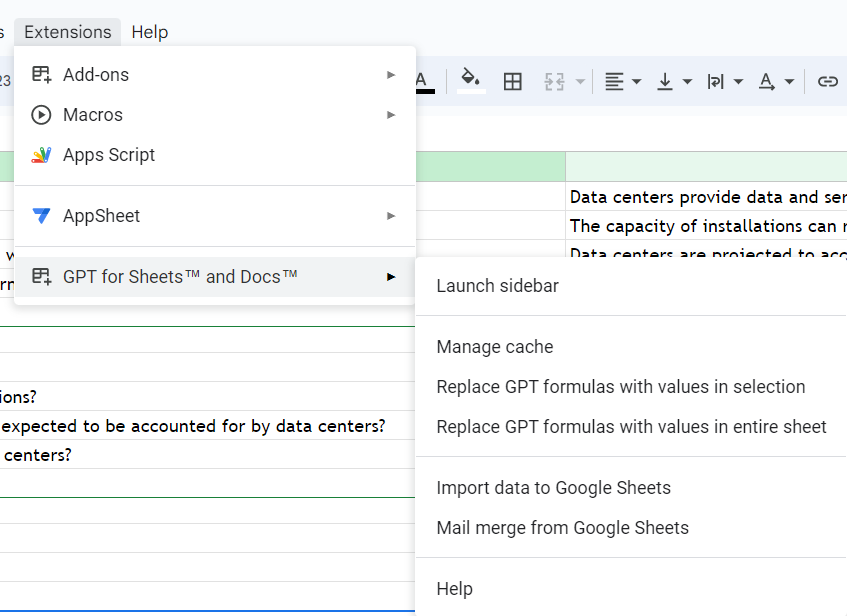
section on my sheet. Once you click on Extensions, you guys will see that my
add-on appears over here. As you guys know
to activate this, we have to enable it. We also have to
set some API keys. And this is what we're going to explain in our next lesson. In this lesson today, we learned how to install the add-on to our Excel
sheets while. And let me show you something. If I go back to My Drive, start a new document file, I would find out that the add-on is actually
added to Wi-Fi. So critical in the
extensions over here, I will find that the same
add-on is activated already. So you can do this, these steps on the
Excel sheet over here or on a Google Doc for
that search for today. In the next video, we're
going to learn how to activate and enable
this feature.
3. Creating and Activating API Key: Hello everybody and
welcome to a new lesson in my chat to be course
in our lesson today, we're going to complete what we started in the previous lesson, which was using GPT on our own Excel or our
own Dr. documents. The thing is, whenever you are working on a specific content, you may come to chat to PT, write a prompt, and
then send the product, see the text you received
and then take this text, copy it to your own file
in order to prepare the content and keep
a copy for yourself. Even though that chart
you petite keeps every job that you
did before over here. But yet you want to keep your own Virgin where you have the logo,
whatever you need, whatever flaws for your work, for your school or studies
that you have to have a copy. So rather than coming church, if DN working here, we're going to work
on our own drive. So let's go. The thing is I'm gonna go to my drive and
start a new file. So here I'm young, I'm gonna go to the drive
and start a new Excel sheet. I already created an extra
sheet over here under the name chart to PT with Excel. I'm going to enter to modify and start working on a
chat to a pretty picture. The first thing is to make sure that you install the add-on. So to make sure that
we install the add-on, I'm gonna go to the
extensions over here. And as you guys
can see here it is for those who didn't watch
the previous lesson. Let me remind you,
we go to Add-ons, we go to Get add-ons. And once we get this
screen popped up here, we go and search for GPT. And once we find this, this is the one
that I installed. As you guys can see, it
says installed the one that was created by tellurium. We click on it, we install
it, we give permission, and that's how we get
it on our own drive. The thing is, let me try
to test this feature. I'm gonna go here. I'm going to start
with typing GPT, an opening bracket
starting with saying, Hi. I'm gonna go with Enter. There it is. It is loading,
but it gave me an error. Look. What does it say? It says that your API key is incorrect or no longer valid. So this is the thing that
I'm going to teach you today how to create
a valid API key. Because whenever you work on
Excel sheet with judges OPT, you have to make
sure it's activated, it's enabled, and you
have a correct API key. How do we create our API key? Let's leave this slide over
here or help they need. And let's go check
what we can do. Going through the extension's
going to the add-on below. Over here, there is
an enabled button. Let's leave this step for later. We have something
called Set API key. This is where you have to
go to your playground to get an API key and
paste it over there. So going to the playground. Here you go. I'm gonna go to
Chart GPT plague, plague old chart
GPT, playing around. And once you go to the
Open AI takes classifier. This is your chat tuple space where you can go
to a playground. This is my plea. Now to generate an API key, you can go click on your
personal account on the top, going to view API keys. Once you go to the API keys, you guys can see
this is my API key. You don't have to
use the previous one because it won't
appear to you anymore. You have to create
a new secret key. And after you create this key, it's going to be given
to you in this box. You can copy it over
here and then take it and go to the chart GPT, going to the Excel over here, going back to the
extension section and going to sit API key, once the screen appears, we have to go and paste the
API key and check for it. And then it's going to
give you a message, says that you're
keeping it open. Api key is done. It saved the API key. And this is actually
what you have to do. Now, whenever you
activate the EBI key, it should be active as
long as you already paid your accounts fees on
everything is okay. The thing is you have
to make sure that you enable the feature on
every spreadsheets. Any new spreadsheet that
you want to work on, chat TBT, you have
to go to Extensions. Go to the section
where you see the anon and enable the chat
too petty ocean. Once we enable
that, it says that it's enabled, that's fine. Let's go on to writing
my GBT functions. I'm gonna go with
equals because it is a function, go with GPT. Open the brackets. And as you guys can see, it takes many variables. The prompt to think that you
want to ask about the value, we will speak about that later. The temperature they knocks
Dawkins on the model. So let's start with
typing the prompt. Remember, you start by adding the double quotation and then write whatever
prompt you want. I want five cars needs. And then you can close the
condition the brackets. There's no need to add the other parameters
because they are optional. Once you click
Enter, there it is, It's loading earned.
Just a minute. There you go. It gave me five different
names of cards. So as you guys can see, I already activated it. I enable it. I added my
API key and I decided it. You can try whatever you want. Go to another slide, start with equals GPT and
then open your brackets. Go with, I need a tagline for a flower shop or close
your brackets and Enter. Let's wait for a while
until it loads the data. Heritage, bringing beauty to
your life with every blue. Okay, so that's it
for today, guys. You first have to
download the atom activated by bringing
in Active API key from your own playground
and then enable it whatever you want.
Thank you for watching.
4. Advanced Features and Variables: Hello and welcome
to a new lesson in our chat typically course
in our lesson today we're going to speak about
some features and variables that we
may need to adjust inside Google Sheets whenever we're using the chart GPT adult. So as you guys know in
the previous two lessons, we added an extension that
is related to chatter BD and be activated and
enabled dysfunction. But to be able to use
these functions over here, we have to know more about
how to adjust our brands and different values and temperature according to
what data do we need? So as you guys can see, I
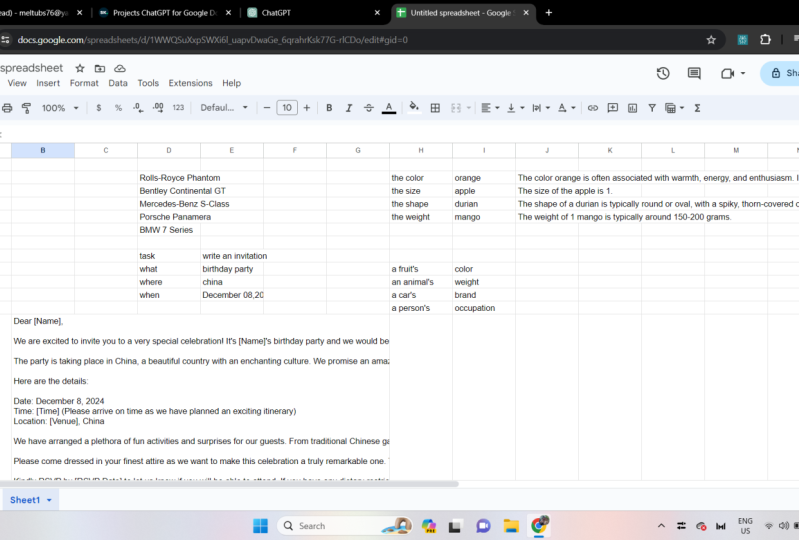
prepared here some data. These are different
features that I may need to know about
different types of fruits. So I'm going to
start with pink GPT. Then deciding that the prompt that I need to know
is this feature, according to this kind of fruit. And I want to also put the value one to the
temperature variable, because the temperature
is a variable that works on the
creativity of judges OPT. If I didn't choose the
temperature as one, it's going to be taken as zero. And this actually makes
chat GPT less creative. I'm going to close my bracket
and send my prompt dry. Now, as you guys can see, it's answering, you need
that Apple is not a color. But once I drag and drop, I drag it to mixed cells. Judge, if it is going to start understanding the pattern
and it's going to start giving me responses according to the data I have over here. So it went with the shape
of oranges, somehow oval. The size of Mongo can be vary depending on
variety of things. If I'm media Mongo can be
four to 8 " long and so on. The weight of Avigad
or maybe 5-20 oz. So touchy, but you
start in understanding moire pattern and acting as what I need that we may use with touchy be D is
the TBT fill function. And this function actually
works on taking examples and filling other cells according to the
example we worked on. So I'm going to start
with preparing my data. E.g. I may need to know
about a fruit color. I may need to know about
an animal weights. So these are two
different types of things and these are two
different types of features that
you need to know. I'm going to start here and
I'm gonna go with equals. And I'm going to ask
chat GPT to fill for me according to the
following example over here. And remember to adjust the temperature too long
and send your prompt. It started by giving me the car and it's asking for
its fuel efficiency. And if I drag this
to the cells below, I'm going to end up
with more items asking are previewing
different types of features that people may
need to know about them. So that is a good helping
function with chat. Gpt goes with a person's
heart to computers, processing speed at
car's fuel efficiency. So that's it for today's lesson. In today's lesson we saw
some cubic functions or GPT ways to be
able to use inside Google Sheets in a smart
way to get data in a good way without actually
writing a long prompt. Thank you for watching.
5. Using Prompt Engineering : Hello everybody and welcome to a new lesson in our chat
GPT with Excel series. In our lesson today
we're going to work on some extra features
and we're going to break on the
prompt engineering. As you guys know, whatever prompt you type, you do get a response. Yet sometimes when you control the features
of the prompt, when you add more data and
give variables, charge UP, te will be way too smarter
and we'll give you the exact response that
you need to work on. And this is what we're
going to work on in our Excel sheet. Using the chat too
pretty punishes. The first thing is, let's start thinking about
the following. E.g. I worked with GPT when
my prompt walls, right. And we'll mail to my boss thanking him
for whatever I want. Rather than doing this, I'd rather do the following. Prepare my data on
this slide, e.g. to ask tone to or let's
think of the topic. And I'm gonna go with filling
each one of them with write an email. A joyful mourn. They topic is, thanks
for the flowers. I'm gonna go to ask e.g. to my boss. So going to a different
kind of cell, let's shut GPT function and select the data
we prepared up here. So now antipathy will work on these data to
create my response. And of course we should add
the other parameters, e.g. the temperature and enter. So as you guys see, I got my email that's
the subject of the e-mail and I've got
here a message to my boss. I just wanted to express my heartfelt gratitude for the beautiful flowers and so on. Let's go up here and change
one of the variables. E.g. I want an email
for my friends. Good. So once I click Enter again, shatter beauty is
going to change the response over here
according to the data included. Again, dear my friend, I wanted to take a moment to
express my gratitude that. So let's change in
another variable, e.g. I'm going to change. Joyful, too angry. Why would anybody right? Thank you. E-mail
feeling hungry. Let's take what is chatting
with you gonna do about that? It says not happy about
the flowers different. I recently received the flowers
you've sent. Thank you. However, I was a bit taken aback because I asked you not
to send me any good. So as you guys can
see, each activity is actually creating or reasons for people according
to the features that we get. That's smart, good. Now let's think about
two different things. Why don't I give different values and
receive different prompts? So I'm going to
click on the photo. First of all, I don't
want to write an email. I want to write a good
sample, a tagline line. Okay, let's keep
the tone joyful. And let's work on the topic. The topic is the flowers shop. I'm gonna go with. I'm going to remove this
too because the deadline is not to a person and
it's a different country. Let's imagine that we want
chat to potato prepare different taglines according
to different countries, e.g. Italy, Jordan, and
maybe China. Good. Going next to Italy over here. I'm going to start GPT. Then this is the data I want you to include
in the prompt. But the value is for this specific country,
which is Italy. Good. Now let's add the
temperature function. And remember, put $1 sign next to the number
and then let your overhear to make sure that the prompt each time is specified. The SAP S4, this fun
or earned enter. And let's see what
do we get here? It says Happy blooms, bringing a little bit of
Italy to your doorstep. Good. Now I'm going to drag my function down to the
other two countries aren't, as you guys can see, chat to PT will adjust steep, wronged according
to the country. It says, put a
smile on your face with a bouquet from
Georgians flowers. And here we go with blooming
joy from our China flowers. So that is actually very smart, including different
features according to different variables.
Good bucket. Let's work on something else. Let's imagine I
want a less things. So I'm gonna go with GPT. List of five fancy cars. Okay, send my prompt to
chat to see what doin. Good. I got a list of
flight fancy cars, Lamborghini, Ferrari, Austin,
Rose, rise, and Bentley. The thing is, this is
not an actual list. This list is created
in one cell. So in order to adjust them, you have to work on
this cell itself. So I'm going to show you a very good feature and that
is the chat to be T list, where you go with the
following GPT underscore list. Here is our function. And then you will tilt that
should be t to give you names of falling fancy cars. Let's see the difference between this prompt on the one before. So I'm sending it now. And as he buys, see,
what do I receive? Let's wait for a loan. I received a list
five different cars, even though they're
the same icon here. But I'm actually receiving
them in different cells. And this actually
allows me to work in each one of them and adjust
the data I received. So that's it for today. Today we wrecked on the value parameter where you can
give lots of features and change different
values in order to get different responses
from chat to be t. We also worked on the GPT list function.
Thank you for watching.
6. Tips and Tricks: Hello everybody and welcome to a new lesson in my
chapter PT course. In our lesson today we're going to speak about chat to be T, but not here in Google
Docs. So let's go. I prepared a Google
sheet on my own, Dr. Herodotus, and indeed
APT with Google Docs, as you guys know, we already tried chat
to pity on Excel, but this is the first
time we're going to break on chat GPT in Google Docs. Remember, we added the
extension from here, from the adult section, we got it from the Get add-ons. The thing is whenever
you add the chat to VT, add-on to the Excel sheet, you just have them
added to the docks, to the whole drawing
fights dead. So going to the extensions, coming here to the GPT, remember, if you didn't get
the API key over there, you have to set it right now. Good. Now the thing
is it's not the same as in Excel where you
can use functions. You have to go to the Adam
and launch this sidebar. And you're gonna get
a sidebar over here that has anything to
do with jet typically. Now, as you guys can
see, first of all, you have different
types of actions and these are
suggestions for chat GP. So look here, you can change the tone whenever you
write something and you want to change to
an angry tone or other type of talking tones. You can pick this one. Fixed grammar and
spelling goods. So if you have a story
that you wrote it and you are a student,
you want to recall it, you can charge me
to help you fix the grammar and spelling
or summarize something. If you have a link of a PDF file or maybe you have
the whole test that you can paste over here and just
pick this summarize mode. Then it's going to
summarize the text for you. Maybe it can translate it
from English to French. English to Arabic comes. Other things like that. Or maybe just try to costume prompt and taught typically
will do the work. So I'm gonna pick
the general one, right, equals to improper. This is where we write all
the thoughts over here and we have to submit
our prompt in order for our prompt to be added
inside our document. So I'm gonna go
with the following. Puts your cursor wherever
you want your data to be added and go
with the following. Name, five course. Submit your prompt. There you go. I mean five cars, Toyota, BMW, Honda, Accord, and Audi. As you guys know, we have other parameters to work on
as the temperature over here. This here is the modal
texture Vinci 003 is the API model that's actually responding to us on the
Google Docs over here. So remember when we had
the temperature e.g. for zero and send
the same prompt. Let me show you a
very nice trick. Whenever you click on
the brown bits up here, sent back to you to use it. So let's try to see
what's going to happen. If I actually click on the
same prompt this time mean five cars with the temperature
parameter turning to zero. I'm going to submit it. Yeah, I don't mean five cars. It's going to give me five
different names, of course. Yes. But not if I wrote name a
car and then named McCarthy. Okay. Let's check it here. Mean name a car, a car type, e.g. and I'm going to
submit this c done. I'm going to submit it again. Rural know, I need to click
on it and subletting regrow. It gives me another
kind of color, but yet repeated the
steps done up here. So as it goes, can see
this is automation. The first time I
asked for a car and then it gives me a description
for the car's name. And then it gives a
different type of garden. It gave a different description. That's good. So let's
work on it differently. E.g. I. Have a story. Let's write our story here. A girl, five-years old. I'm going to put some mistake on columns and stuff like that. Happy. Always. Fell down. Lost a leg, became
sad for many years. Until let's put a spelling
mistake over here. A friend and met her
and helped her get, let's say, happier, happy again. So as you guys see, this is a story about a girl
that this story is actually unorganized and it has some very short glues
and stuff like that. So the thing is, Jared, you change the mode over here. I'm gonna go with e.g. fixed grammar and spelling. It seeds high in
light did document where you want me to apply
this specific selection. I'm gonna go and
highlight the text over a year and then submit my chat to be t now is going to work
on fixing the grammar and the spelling mistakes
above this text over here. And look, if five-year-old
girl was always happy, tragically fell and lost the late coming south
for many years. But then when met her and helped her to be gained her happiness. So that is a short
story and it was actually fixed in a
very good and easy way. This is one of the features
where you can use, if you want to try each one
of these per summarize e.g. you can grab the text and enter the text that you want
to summarize over here, submitted, drawn, the prompt and cheek, what's
going to happen? Translate to where you have to write the name of the
language you want, e.g. Spanish, e.g. french. And you can go highlight the text over in here or inter submit your prompt. And trapezius is gonna do
all the translation for you. Here we go. Here's the translation
of the text highlighted a ball in
the French language. So as you guys can see, touch of t on Google Docs can
be a very good help for us. Remember, always keep your
temperature and Nahal, you're right, the
highest is number one. So whenever you have a
high temperature value, it means that the GBD will be so creative for you and
it will be so helpful. This is a brief explanation, helped you use chat to
putting Google Docs, and that's it for today. Thank you all for listening.
 Mariam Omar, Skilled in AI, Chatbots, Robotics