Transcripts
1. Introduction: Hi, welcome to this
course on how to design with Canva and work
on line as a freelancer. So first I want to thank
you for enrolling in this course and taking your
time to go to the content. And my aim here is to provide as much value as I possibly can. So in this course, I'm going to focus on teaching
online intrapreneurs. Freelancers wanted
to learn how to design Instagram posts and social media content and how to find clients that
interested in your work. So here's what you're going
to learn in this course. First, we're going to
look at how kinda works and the different
kinds of designs you can create in Canva. And we're going to do
some market research to find out what
types of designs of a lot of interests
today and what you need to focus
on as a freelancer. Then I'll show you
exactly how to design Instagram
infographics using Canva. And I'll show you a simple
method you can use so that you can never run out of
content ideas for your designs. I'm also going to show
you where to find free extra icons and graphics you can add
to your designs. And finally, I'll
show you how to find plans for your work
using Instagram. I'll show you exactly how to
set up your Instagram page so that people can easily find you and learn about your work. I'll show you how
to reach out to potential clients on Instagram. And I'm also going
to share with you the exact damn script
I've been using. So this is simply a copy and paste message that I send
out every potential client. And I'll show you my results
using this exact script. So if you want to
learn how to create awesome designs and how
you can find clients, then this is the
right course for you. If you're ready to get started, I won't hold you much longer. And now let's go over each
step into more detail.
2. Sign Up For Canva: All right, So if you guys are
new to Canvas or just take some time to explain what kind of a is and what
you can do with it. So cameras at graphic
design platform used to create social
media graphics, presentations, documents,
and other visual content. So it's a drag-and-drop
tool that anyone can easily learn
without any design skills. And it's completely free
to sign up for Canva. And though they do offer a paid subscription
such as Canva pro, you can take that out as well. So the first thing you
wanna do is come about Canva.com and sign
up on account. You can sign up for
a free trial of gamba Pro and check out
the premium features. So when you come
over here to Canvas, as you can see right there guys, you can create presentations. I actually make all
my presentations from my courses using Canva. And now you can create
an Instagram posts. You can also do posters. So just scroll
over here and see. So you can now create logos. That's something you can do
as a freelancer as well. You can create a logos
for businesses out there. So you can create
Facebook posts, infographics, Instagram
stories, and more. So just come over here to
kind of go and check it out. I is an awesome platform. They do offer a lot
of great tools and resources you can use for
your designs and graphics.
3. Types Of Designs You Can Sell: Okay, welcome back.
In this video, we're going to take a
look at some designs you can create ansel
as a freelancer. And we'll be doing
some research to find our sellers out there that are successfully doing
this right now. Okay, so the first
thing is we're going to be using Fiverr
to do some research. So fibers and online marketplace
for fill and services. This is where
freelancers can post on offer services to customers
around the world. So it's the perfect
place for us to do some research and
find some services that we can go out
there and offer. And when you come to 50, one thing you notice
is that there's so many different
kinds of services that people are
offering on Bible. So as you can see right here
we go, graphics and designs, got digital marketing, go right in and
transcription services. So if you're good at writing blog posts are our cars
and stuff like that. You can do that as a Service. What people would video
creation and animation, you can do that as well. Are there so many different
services are here. But in this course we're
gonna be focusing on our social media
designs for businesses. Okay, so the first
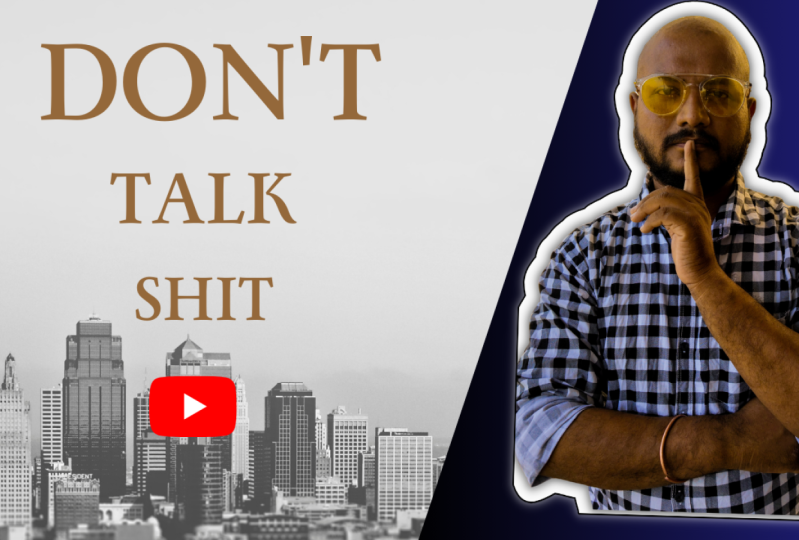
service I would recommend you guys check out is creating YouTube downloads. So when you come over to Fiverr, assess for YouTube thumbnails. So what you're going
to see right here is the so many people
providing this service bad. If you look at this
one gig over here is about 100 class reviews and
another one right there. So when you see so
many reviews on Lake, a single gate like this as a sign that there's
so much demand for this service
and it's actually a good market to actually go in. So dominoes are images that you see on videos when
browsing on YouTube. So on account we're
here to youtube.com. I just says for YouTube, download these images that you
see right here at downers. So when you scroll
down here, you can see that this download
just looks simple. And there's a video
here of a lady talking about how you can use
Canva to create dominoes. So you just need some
text and an image. You can easily learn how
to do these on Canvas. The reason why dominoes are
very important is that having a good time nor can
actually increase the click-through
rate of that video, which can lead to more views. So this actually very
helpful for you to bears. For creators who do
you chew food time. One thing I've done
stand is that there's so much that goes into
making your videos. So there's our
script in the video. Do some keyword research, should in the video, editing, making the town now. So if you can help somebody with one of these things
may be editing the video or doing the dominoes
or Antioch don't stand, is that some people would
not have the time to do the terminals themselves
or they might need somebody to help
them out with it. So if you learn how
to create downloads, you're definitely going
to get a lot of plants. That's why when you
come over here to 50, you can see that there
are so many people are getting, so many others. It is person is getting 1, 0, 0, 0, audience. Do you think they actually got? So it's probably a lot, right? So Dominoes a great
service to offer. Just lend us q and r. Yeah, right, So
another service would soon as demand is creating social media graphics
for businesses. So for example, you can
create Facebook posts, Instagram posts, and
Pinterest pins right here. Just as for Pinterest pins, as you can see
right here, there's so many people providing
these services as well. So yeah, that's another
thing you can do, guys, if you come over
here to Pinterest, score down and just look
at the pins on Pinterest, you'll notice that
it's not really that difficult to create
things like this. You just need some text and simple graphic which can take
like a minute to create. So yeah, this is analysis
that's easy to provide. So yeah, guys, you
can do that as well. All right, so now service
you can check out guys is creating social media covers and banner designs
for businesses. So when you come with Fiverr, you notice that there's some
gigs with so many reviews, which means the gates,
so many others are that means there's so much
demand for the service guys. She look at this person. This person says they can
create LinkedIn banners, Facebook until the
covers as well. So you have to do guys just
learned how to create covers. You come with Facebook. I can see a Franklin on his
page is got a simple cover. If you think in create a
better carbon this you can provide these
services work as you can look at it as really simple. Yeah. So that's it now sewage
can provide guys. Okay, so the last
thing I want to talk about our
Instagram infographics. So this is something our
personality diamonds of, of actually made posts for
Instagram business pages. So if you come
back to Instagram, you see a lot of pages that actually pause
this kind of contents. So infographics are posts that visually represent
information or knowledge. And it's a great way to teach something and provide
value to our followers. That's why a lot of
businesses actually use infographics to grow
their brands on nine. So yeah man, so that's an
Azure service you can provide. So if you come to
whereby you see a lot of people
providing this gig. And yeah, they just shows
that people are looking for content creators who can create infographics for them. Okay, so that's it
for this video. I just wanted to show
you some different kinds of designs you can sell online. So make sure you do
your own research and decide on what you're going
to focus on and go in. So thank you for watching this video and I'll see
you in the next one.
4. YouTube Thumbnail Design: In this video, I'm going
to show you guys how to create a simple
YouTube damn know, just to give you an idea of
how to go about creating dominoes if you want to provide this service for your client. So once you log into
your Canvas account, which wanna do is
come over here to create a design
and click on that. And you want to select
YouTube download, right? So what you're getting here, you see that on the
left-hand side, camber gives us a load
templates you can use for our dominoes are
this can actually guide us through the
creation process. I'll just be creating
one from scratch. So I just changed the
background color right now. So you can click anywhere
within this book. And you see this luteum
pop up right there. Just click on that. And I'll select my kinda slow
this color right there. So I'm just going to
add an image right now. So add an image, you can just drag it
and drop it right down, or you can come over
here to upload. And you can click on upload media and select your
file from your computer. But our, we'd have
an image right now, so I'm just going to select bed. All right, so there's
my image. So let me just resize this. So I'm just going to
duplicate this image. So click on that, click
on the plus button. And I'm going to
add some effects behind the overlay image. So I'll click on the
image behind and convert to edit image. Right? So I'll just go down here and the brightness all
the way to the right. And the contrast as well
all the way to the right. And I'm going to adjust
the situation on the wind and negative
to the left, right. So you just move this the effect I'm looking for. All right, so I'm just going to add
some text to my domino. So on I'm gonna, and I'm
gonna select Create. I'm going to highlight the text. I just double-click into white. And I'm going to change
the font as well. So I'll click on this
drop-down arrow. And now select my phone. Right? I want to add some
shadow to my highlight my text. Come here to effect the
intensity to the right, all the way to a 100 percent. Right? So I'll just duplicate this dotted lines and click
on the plus button to add some more text as well. All right, so next I'm
gonna come over here. And I'm going to
add some shapes. I'm going to select that. So just to begin backwards. Okay? So the last thing
I want to do is resize that text. Alright, so that's pretty
much it for the domino guys. Just come over here to
cargo and practice. You get good at it with time. So yeah, I guess so. I hope you liked this video. I'll see you in the next one.
5. Instagram Infographic Design: Okay, So in this video, I'm going to show you guys
exactly how I go about designing Instagram
infographics for my clients. So I just go right into it. First thing you wanna do is
log into your Canvas account. And over here on the homepage, which one to do is
come over here to this button where it
says Create a design. Just click on that. And you want to select Instagram posts. So if this does not
show up right here, you can just search
for it right there. Yeah. And you and I click on that, it's going to open
up in a new tab. All right, so the
first thing I'm gonna do is change the
background to black. So come over here and click
anywhere within this box. Just click on that and you
see this lutein popup, right? That was his background color. So I'll click on that
and I'll select my color right there, just like black. And I'm going to add
some text right now. So over here on the
left-hand side, you can find elements
are blurred. You can upload images and stuff. Then I'll just click on Text
and are under subheading. So this is going to be
my Hadean right now. So let me just jump down on top. What I'm gonna do is I
just write some texts. I say the biggest trimesters. Okay. So all right. So what you can do it fine, I'll make this
bigger or smaller. You can just drag
the corners front to make it smaller or bigger. So yeah, so I'll just drag is the and then I'm gonna do is
I'm gonna make my dx boat. So I just double-clicked to highlight everything
and come over here to this B where it says
Bowen and just click on that to add some
colored my text. I can just highlight that. And are coming here
to this a symbol and select my colors are
selected for this text. I just drag the corners
to make this bigger. Let's double-click
to move data around. Okay, so now I'm
just going to add some content to my design. So just come in
here, add some text, is click on that and some text. So I created a not dynein that control C to copy
and paste that in there. So I'm just resize
that, drag the corners. Then what I want to do is
duplicate this text box. So I do is select the
dark dx1 a duplicate. And just come up here to
the two dotted lines. Click on that and click
on the plus button. Duplicate. And I do this a couple
more times. Everything. Duplicate that as well. Okay. So I can add my my nodes Control V to best. Do it again. Yeah, so we can make
this looks better now. So the next thing I'm
gonna do is I'm going to add some graphics
and my post, right? So what I'll do is
I'll come to click on that and says for TB. And I come over here
and click on graphics. All right, and now select
Graphic aren't add my posts. Just keep this simple and I'll select this one real quick. And I'll drag the corners to resize it just to
make it smaller. So let's go to align
this with the text. All right, I think that's okay and just
move this a little bit and do the same
with this as well. So I just come over here, copy this color to a graphics and graphic related
to this text. So I just keep this simple. I'm just going to select
this graphic grader. And I can resize this,
this jagged line, this with the text as
well. Think that's okay. So copy that NACADA
here and such. I select this
graphic right there. This align that with
this little bit. Here. Select my text message bar and search for the graphic
on this like this. Okay? As well. Just go and do that. I'm going to select this little bit. Okay, so the last thing
I'm gonna do is I'm going to scroll down to the edge. Verandas like that. I'm done with my content. Okay guys, so that's exactly how I go about
creating info-graphic posts. So he gets his need to
come over here to Canvas. As you can see, it's
a really simple tool to use drag and drop. And N1 can then how to use it. So, yeah, that's
it for this video, guys. I'll see you
in the next one.
6. Instagram Quote Post: Okay, So in this video, I'm going to be designing
an Instagram posts. You've probably seen a lot of these because they're
very popular. So I'm just going to
get done right now. So the first thing I'm gonna do is I'm going to add some text. So I'll just come
over here to text. And I'm going to add
on an X-ray done. So I just say I'm gonna do is I'm going to
add an image right here. So I'm going to add an
image or was made himself. So I'll come over
here to uploads. And now I'm going to
upload the image. Click on upload media
is click on that. So I'm going to select an
image from my computer. So I'll select that
image into an open. All right, So our image
is uploaded right down. So to add it to my boss, I just want to click
on it and they go. So the next thing I'm gonna do is remove the background
of this image. So to do that, what you need to do is click on the image and come over
here to edit the image. All right, so we're
gonna do is go here and click on
background removal. And it's just going to remove our background automatically,
just like that. So just wait for it to complete. So it's done. And
just like that, you just want to come
here and click on Apply. And our background is removed, is really that easy. So I saw injustice. Next. I'm going to do
guys. So I'm just gonna, I'm just gonna make
the text mode. I'm going to do guys
is I'm going to select the shape and the image, so I'll just click on it. I'm going to add another shape. So again, duplicate this text. All right, so I'm just going
to add some more elements. Elements such as the size right down. Okay guys, so right now
I'm done with the post. So that's how you create a
quote posts with Canvas. You can see guys, it's so easy, I'm literally making
this from the top of my head because just come over here to get to know the
software a little bit more. And I just spent time
designing a logo, different kinds of pause
and you get good at it. So that's it for
this video, guys.
7. Download Free Icons: So in this video, I'm going to show
you guys that gave free icons and graphics
for Instagram designs. So as you can see right
here on cargo are a lot of these icons have this
loop right next to them. So that means you
only have access to them when you have the
provision of Canva. If you guys can afford that, I'll show you two websites. They can get a free
icons and graphics. All right, so in the
first website I recommend you guys to guard is
called flat icon.com. So just come over here
and you can find a lot of icons you can
use for designs. So once you find an
icon you want to use, I just want to come over
here and click on it. I'm gonna come over
here to this button and click on that. It's going to give
you some options. So you want to call
it here where it says Free Download and
download the image. Click on that button.
Download to your computer. Okay, so the second
website I recommend you guys come into cout
is called a free pic.com. A lot of free icons you
can use for our designs. So much wanna do
is find an icon, want to use as
well, click on it. So I'm going to download
the cycle right now. So I just want to come over here and click on the
download button. So done with this icon, just wanna come over
here to PNG and click on Add button and scroll
down to and why I say it's free download.
Just want to click that. So it's downloaded to
my computer right now. Right, so now I add the icons to your design or you wanna do
is come over here to upload. Click on upload media. Yeah, and go ahead
and select your icon. So I just select them
and click on Open. All right, so just like that, we can add them to our design, just click on them
and resize this. All right, So just
like that guys. So that's how you
get free icons. If you guys can't bind like the icons you're
looking for in Canada. So yeah, this video guys hope you found this
helpful and peace.
8. Setup Your Instagram Page: In this video, you're
going to learn how to optimize your
Instagram page to look more professional
and that you hope to close more clients
for your services. So since you're going to use Instagram to manage services, it's important for you to make
sure that you're following the right steps to setting
up your page for success. Okay, so the first thing
you wanna do is create an Instagram page and add
some content to your page. So you want to do is create some infographic posts
and some quotes, then upload those
to your Instagram. So what you want to make sure
you're doing your content is that you're using the
same colors and fonts, and that will make your
page look a little bit more professional and this more
appealing to the eye. So an attorney you want to do is create a professional
looking Provo photo. You can do that in Canvas and you can create
some highlights. So I'll show you how to create some high
industrial quick. All right, so which have
to do is come to Canva and come over here where it says Create a design
and click on that. And you want to select Logo, going to open up in a new tab. All right, so as you
can see right here, guys are kinda gives you a lot of templates
you can choose from. These would help you
RTD easily create your profile photo or
your highlight covers. So what I'm gonna do is I
just create one from scratch. So come up here to
elements and click on that and select the circle. You can search for that as well. Since it's now just selected. First, such as a bug on color. So I'll click here and
convert to this bug on color. And then select yellow. So I'm just junk this jagged size to adjust
the size and the shape. So I'll come over
here to the colors and change this to black. And are there elements
as well? Click on that. And I can search for
whatever element, that one, so only use a graphic. So I just searched for tips. Come via the
graphics to conduct. You can select
whatever graphic one. So this is jagged corners
to make this bigger. Just like that yoga
highlight cover. So that's how I created
my covers right here. Okay guys, so once you create your highlights and
your profile photo, the next thing to do
is to edit our bio. So to do that, just
one company hit Edit Profile and click on that. So the first thing is
to change your name. So for the name, I'd recommend you add in some
keywords in your name. So the reason why I recommend adding keywords related to
your niche order we are doing is because that's
going to help you extend it says to rank
from the search results. So whenever someone searches for distal microdata or
digital marketing, you have it sounds to show up. That's for the name
and for the bio. For the bio, since
we are going to be creating content for
social media accounts. So I recommend you do something like Social
Media Design Expert. So let's just do that. And you can add some more
content creation for brands. Just make sure you
mentioned which do in your bio so
to make it clear, or people visit your page, which bits are the BOD and
which offer the service. And you want to have a
call to action as well. So you want to tell people what action to take when
they come to your page. So what I recommend
you do is actually ask people to send you a message landmark
or just services. So I'm just going to
do that right now. So you answer some dm. Learn about services. So you just have to keep it simple and straight
to the point. Don't complicate things. And a 99 recommend
you do is add some, some emojis right here. So it adds some emojis. You can go to object
code emoji PDA, right guys, so this
is emoji pedia. So this is where I get all my emojis or you
have to do a search for an image you want and just copy that and add it
to Instagram page. Okay, So I decided my
modules right here. And once you're done guys, I have to do with
this code down here and click on submit,
and that's it. Alright, so that's how you
optimize your Instagram page. So all you have to do is add some highlights
and a profile photo, then add some content
to your pages. We'll then the most
important thing is bio. And we have to do is
just make it clear which page is all
about and watch over. And you need to have a
call to action your bio. So that's it for this video, guys. I'll see you
in the next one.
9. How I Find Clients On Instagram: In this video, I'm going to
show you guys how you can go ahead and find clients for
services on Instagram. So before you start
doing any day, you need to make
sure that you have a good optimized profile, because a lot of
people will first check your profile
before working with you. So if you're posting
random images on your page and your buyers
not well optimized, that we will lower your
chances of closing a deal. So first, make sure your
profile looked good and then you can proceed. Right? So this is exactly
what I do when I'm trying to find a
client and Instagram. So right now I'm providing content curation services
for Instagram brands. So what I do is just come
over here to the search bar, type in a keyword related to the template pages
and trying to find. So for example, I'm
terrifying pages in the business slash
invest in niche. So I just say something
like investing, right? So as you can see, right,
there are a lot of pages, gun shops or you have to do is just open this in a new tab. Just go ahead and open lake
five or 10 of these in a new tab. Right. So it's hard to do right now
is just go ahead and took out these pages and see the
type of content are posting. So it seemed like this disaster.
 Jack Sichi, Social Media Marketer