Transcripts
1. Hello & Welcome!: Hi, I'm Kelley Bren Burke. I'm a digital collage artist. And as a digital collage artist, I have isolated thousands of images from
their backgrounds. There are lots of
different ways to remove images from
their backgrounds. Some are more quick than others. Some are more effective. Some cost money,
and some are free. There's one way that's brand new and it's actually
kind of magical. I'm sharing what I've learned
in the last three years so you don't have to
isolate 1 million images. You'll learn all of my best tips and tricks in under an hour. Isolating images from
their backgrounds is a super useful tool. You can use it to
create everything from personalized greeting
cards to digital art. This class is perfect
for anyone who wants to learn how to isolate an
image from its background. I'll be using my iPad
and Apple pencil. I'll show you four
different ways of removing an image
from its background. Two of the methods are free. One method has a
onetime cost of $10. The other method requires
a yearly membership. But there's lots of other
ways to achieve this. You may have a favorite method
that I don’t know about. I would love for us
to teach each other. So please share what
you've learned about isolating an image from its background as
a class project. I'd love for all of us to be able to learn
from each other. For your class project, I've compiled 33
different images for you to experiment with. They're all from Unsplash. Unsplash is a website full of gorgeous photos that are freely usable for any of your
creative projects. Are you ready to become
a pro and isolating images from their background?
Let's get started!
2. Project & Resources: For the class project, you'll experiment with removing a background from
one or more photos. Feel free to use any
photo that you'd like. To make it easy for you, I have compiled 33
different photos for you to use for
your class project. All of the photos are
from Unsplash and they are freely usable for any
of your creative projects. To access the Class Assets, click the Project and
Resources tab from a browser. You won't be able to access these goodies from
the Skillshare app. Feel free to use one or more of the methods that
I teach in class. Or you can choose an
entirely different matter. That way we can all
learn from each other. I'll leave a comment back
for every project uploaded. If you have any questions, I've got you, click on
the Discussions tab. I'll respond to every
question and comment. Are you ready to
take the first step? Download the class resources. I will see you in
the next lesson.
3. Adobe’s Free Background Remover: Welcome back. We are
going to go in order, so we're going to start with Adobe's free background removal. So if we just type in "Adobe
free background removal", we can go right to Free Use
Forever, and Start For Free. What we want to choose here
is Remove Background. So we're going to
browse on our device, go to Photo Library. And we're going to start
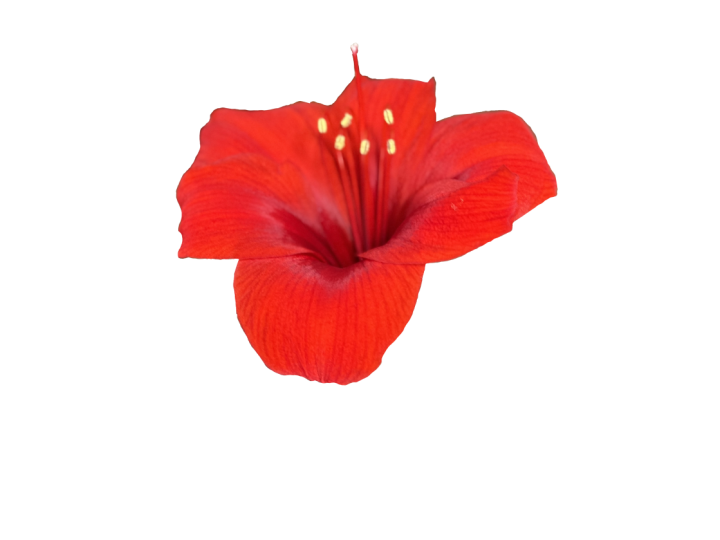
with this pink flower. So we're going to
hit Use. With this, all of the checkerboard area
is a clear PNG background. Checkerboard always means clear. So it looks like it
did a pretty good job, will be able to see more
clearly once we get it into Procreate and give it a different colored background, let's just hit Download. So here's the pink flower
within our download files. And you can see here that
there's some white bits that Adobe not remove like this
area here and this area here. Other than that, it
did a pretty good job. So, let's keep moving; let's upload a new photo. So let's hit Photo Library. And now we're going to
try this smiling woman. And we're going to hit Use. And for this one, it failed to remove
the background. What it will say in this
case is "please try again." In my experience, I've done a lot of experimenting
with this, some photos Adobe will just
not remove the background. I don't know if it's too hard for it with all the
wispy hairs or whatever. Let's try it one more time. Yeah, it says failed
to remove background. If you hit Learn More, it comes up with some
troubleshooting information. None of it applies to this
right now it's a JPEG file. It's small enough. If it was too large, over 6,000 pixels, it
would tell us that. So it just didn't
work for that one. Let's go back to the Free Background
Removal > upload our photo, and we will do the
peacock feathers. And here we can see that it removed
a lot, but not all. There's a lot of white
left still there. That's not a checkerboard, so let's hit Download. And that went into my Files. We're gonna be doing Canva next, but first, so we
don't get confused, let's import what we've done already, and those
went to our files. So I'm gonna go to
Recent and Files. And we have these
flowers, the feathers. I should back up for a second. If you want to bring
something into Procreate from your
Files, you hit Import. And if you want to
bring something into Procreate from your
Photos, you hit Photo. Here is the result
for our woman. It was saved to the camera roll. It did not work. So let's label all of these
so we don't get confused. So we're going to call
these Adobe Flowers. We'll call this
one Adobe Feather. And, we will call this
Adobe Woman Fail. Let's arrange these into a stack so we have
them together. So I'm going to hit
Select and I'm going to check all of these. And then I'm going to hit
Stack, and we will call this stack Background Removal. So now that we know
how Adobe did, we are going to go into our next automatic
background removal, and that is Canva. I will see you in
the next lesson for our Canva experiments.
4. Canva’s Background Remover : Welcome back. In the last lesson, we explored Adobe's Free
Background Removal, which did pretty well on one, not so great on another. And there was a fail on the woman with the
loose hair tendrils. We're going to see how
Canva does with this. Canva is a free
graphic design app. However, you do need Canva
Pro for this experiment. Like I said earlier, you
can get a month free trial. You'll find the link in the class Project and
Resources section. We're going to continue on
with the same three photos. There's two different ways to remove backgrounds in Canva. And we're going to
start with this one. This is the homepage of Canva. There's an Upload. We're going to upload
from our Photo Library. We are going to start
with this pink flower again. We're gonna
go in the same order, with the same things. So we're going to hit Use and we're going to
hit Edit Photo. And here's the
Background Removal. So I'm just going to tap that. So, this one looks pretty good. I don't see any errors here, but we'll be able to see better once we get into Procreate. So I'm going to move into Procreate by hitting
Save Download. And then I'm going
to tap Procreate and it'll send it right
into Procreate. The second way to
remove a background is if you are already within a template,
within Procreate. So if you would just
tap, Create a Design, and let's say we wanted
to do an Instagram story. We can go to uploads and we have already uploaded
this file to Canva. If you wanted to upload a
different file to Canva, you would hit Upload Files. And again, you could
choose to upload from your Photo Library
or from your Files. So here is our pink flower and we're going to hit Edit
Image and Background Removal. And that was quick. So let's hit this Arrow and hit Save
With Transparency, and put that into Procreate. Since
we are in Canva we'll just keep going with this upload
method; Photo Library. Next is our friend here. I'm going to hit Use > Edit
Photo > Background Removal. Canva did a really great
job here with her wisps. That's a really
challenging thing to get. So it looks like Canada
did a great job here. So we're going to hit Save > Download > and put it
right into Procreate. Let's continue our
experiment and Canva with our peacock feather. Edit Photo > Background Remover. That did a pretty good job. This is a pretty
challenging thing for a background removal with
all these little tiny wisps. So, let's save that
into Procreate and we'll look at it there. Okay, So this is our
background removal stack, and these are our new things that we moved into Procreate. We will label this one Canva. And this is the Canva
Background Removal. And this is a much smaller file, and this is the
Canva From Template. We did that from an
Instagram story template, and this is our Canva
Peacock Feather. Let's move these into
our stack and we will look at them later
once we have them all done. Next, we're doing iOS, but for now let's move them
by hitting Select > boop, boop, boop, boop > and put them into this Background Removal Stack. And they're all labeled. Okay, so we will be looking at the quality more closely
after we do the iOS. The iOS background
removal system is next. I will see you in
the next lesson.
5. IOS 16's Background Remover: Welcome back. In
the last lesson, we explored Canvas
background removal tools. In this lesson we're
going to explore the brand new iOS 16
background removal. And this is free
to people who have an iPad or an iPhone
with iOS six or greater. So this is pretty cool. I am in my camera roll and
this is our pink flower. And what I could do here is
touch it and I don't know if, if you could see the wavelength, but look at this,
that is so cool. Look at that. It's like magic. You can
hit Copy and you could e.g. text it to somebody. I could hit Paste
and then text it to my husband and he
would receive this. The results here
look pretty similar to Adobe's free
background removal. Pretty good, but
there's some white along in some of the same areas. But we'll look at that
more closely later. We could also go into Procreate. It remembers that
we have a pace, so I'm gonna do a new canvas. If I hit Allow pace, what is it going to do? Where
did it paste it? Oh, no, no. Let me just do a screen size canvas and let's see if we do a
three-finger drag down, if it will remember the pace. It is. So this is our paste from
the iOS background removal. And if we put, say, a green color in there, if we fill the layer
and bring this up, we'll be able to see how it did. And once again, yeah,
there's a little white here. It did a pretty good job. There's another way to do it
within Procreate as well. And I'm going to hit Clear
and we can swipe up. These are the apps
that we use most recently down at the
bottom when we swiped up. So I'm gonna do that
again, swipe up. If you have a
problem doing this, you might want to clean your screen that will
make a difference, make it a little bit easier. So here's our camera roll. We can bring it right into
here with a split screen. Here's the one without
the background removed. So if we hold our
fingers on this, it starts to shimmy
again and we can just drag it right
into our canvas. So it looks exactly the
same as the other one. I'm going to unselect it. Pretty good job. Not perfect. Apple is always
improving things. Of course, this is brand new. I'm guessing it will get
better as time goes on, but that's how it
looked for our flower. And let's just label this
iOS and let's keep going. We're gonna go to my photos. I'm going to find this woman. And if we press down, we can hit Copy and we
could paste it again, or we could do this method, bring this camera roll here. You can do this with
your finger or an Apple Pencil and it gets that
kind of wavy look. Here she is. If we just give her a
different background color. We can see here that iOS
did a pretty good job. But when it comes to all
the little wisps and tendrils and did not
do as well as Canada. So we will label this iOS and I will do another
big canvas here. And we will bring up
our peacock feather. There we go. And this looks similar to
the Adobe express one. Again, if we filled the
background layer with a different color and
brought this one up, we can see how it did. I'm going to label
this one IOS too. They are all within our
background removal stack. In the next lesson, we'll zoom in and
look more carefully at the results of how each one did with the
background removal. I will see you in
the next lesson.
6. Comparison of Automatic Background Removers: I wanted to take a moment
and congratulate you. You're over halfway
through this class. So good job. This is quick class and
we're going to keep going. Welcome back. In this lesson, we are going to zoom in and look at some of the finer details of the different automatic
background removal options. So let's start with Adobe. I just wanted to make
sure that I grab this color since we're using it, so it'll be consistent
through all of them. So this is Adobe. And I'm going to fill this
layer with that green, put the flower on top. Let's just do this so we can
see them all more clearly. First, we can see that the
different sizes, again, using the Canva background
removal from the template, you just want to
make sure you have a really large template
that you're doing it from. And I can't remember if
I mentioned this before, but I'll just
mention at this time the largest canvas size
right now available on Canva is this 14166
pixels by 6,000. I have canvases or
template set up permanently for vertical
and horizontal. So if I'm using
background removal, I use it from there
rather than say, from an Instagram story, you're working from
a small canvas. It will automatically
make the results smaller. Let's go back to procreate. If you want to scroll through
different canvases easily, you just open it like that and then you can scroll
through all of them. So that's what I'm doing here. We have our flowers. This is Adobe. Adobe has issues here
and here, and here. And this is Canva, the small Canva, It's smaller. I think it did a
little bit better job, but there is an issue here, right there, maybe right there. But overall it did a better job. This is the Canva from the automatic background
removal section, which is the one I
recommend using. And again, a pretty good job. This is the iOS one. And in this case, I think it did not
do as well as Adobe. Let's scroll back. See, Adobe cleaned up that part, but iOS did not. I think there's this is an area that iOS didn't clean
up right here as well. And I'll show you in
the next lesson how we would tidy those
up in Procreate. So in this one, I would say Canva is the winner. It has the cleanest
background removal. Let's go onto this woman. So this was the Adobe option. It did not work. So this one is a fail. This is Canva. And let's put that same
green color in there so we can see what
we are looking at. So this is Canva from
the background removal. This did a great job. I think it cut off a few
of her tendrils over here. But that's okay. This is an area where
Canva really shines. Getting those wisps is not easy. And this was iOS. And again, it did a pretty
good job except for the wisps. There's just these white
areas around here. And Canva, this is
pretty perfect. I think her tendrils, we're a little bit longer here, but you would never know it. And in this instance, Canva is the winner. Now, let's move on to
our peacock feather. And for that we're using this
peachy pinky background. So let's fill the layers. Okay, so going in order here is Adobe's free background
removal. It didn't work. Adobe did not catch
the finer details. This is Canva. Canva did a great job. If we zoom in, there might be some little tiny white things, but Canva did a great job. And this is iOS 16. And it was very similar to Adobe's free background
removal. So here we go. Canva, once again is the winner. Adobe background removal and iOS background removal
at this point in time are pretty similar. And if you just need a quick, simple project, they
would work great. But when it comes
to the ones with the finer details that are
wisps and the tendrils, Canva really does a better job. In the next lesson,
we're going to be looking at procreates free hand selection,
option for background. I will see you in
the next lesson.
7. Procreate’s Freehand Selection Isolation: Welcome back. In the last lesson, we compared the results for three different automatic
background removal. In this lesson, we're
going to be using Procreate's free
hand selection tool to isolate something. And procreate once again, is, as of now about a 10-dollar
flat fee for the app. It's not a yearly charge,
it's a onetime fee. Steel, if you asked me, Let's go back to our class assets and I'm going
to use this little frog. So I'm going to choose
this little frog. I'm going to hit the arrow. I'm going to hit View. And I am going to
hit Save to photos. And I am going to
go into Procreate. I'm gonna be in our same
background removal stack and I'm going to hit
photo and import. So this is how we would do
it by hand in Procreate. We would hit this ribbon and
then we would hit freehand. So this is a freehand selection. And then we're tracing
around our little frog. And let me show you
how to do that. Let's say we want
to get the frog and the little stem it's on. I'm tapping there and
I'm tapping here for a straight line
and I'm just going to close it around here. You can see here, but there's
a lot of diagonal lines. I've only selected that part
and I'm going to cut it. So I did a three-finger drag down to bring up the Copy
Paste menu and I hit Cut. Let's bring in a peach color again so we can see the
background pretty clearly. We're gonna keep going like
that freehand selection. I'm going to tap down here, I'm gonna do a straight line. And then I am going to
keep drawing around here. And I want to get
just inside the frog. So I don't get any
of the background. This is just tracing. And you can be as
thorough with this or as not thorough as
you want it to be. I'm just kinda doing
a quickie job here. If an object is really large, sometimes I will just do
it in chunks like this. I'll hop around
here and do a cut. And then I'm going
to keep going. Freehand selection. Sometimes it helps
to zoom out to see what we are actually tracing. And here we have a nice
long straight line. And let's bring it around here. Three fingers drag down and cut. So here is our little frog. And if you zoom in here, there are some rough edges and you can leave it like that
or you could clean it up. Procreates, airbrushing, set are great for some gentle erasing. Let's just choose the medium
hard airbrush as an eraser. So I hit eraser,
medium hard airbrush. And let's just see
how big that is. So I'm adjusting the size. That looks pretty good. And I'm just gonna go
in and kinda smooth out our rough edges because a frog would be smooth, right? I haven't touched one lately, but I'm still kind of
slimy though, right. Okay. So I am just gently erasing
some of the rough edges here. And if it's a smaller space, I could make my cursor smaller. Let's move out as
little frog bottom. Okay, that looks pretty good. And if we wanted to save him with a
transparent background, we would turn off the pH, we would turn off the
background color. I could name him if I wanted to make it easier to find him, I think I will do that. Let's name them. Green frog. So Wrench Share PNG. And in this case I
would save it to my files rather than
to my camera roll, because PNG files take up more
space and the camera roll. So what Apple does, it will keep it as
a PNG for awhile. Then afterwards it will
convert it to a JPEG. I isolated them from the
background on Wednesday, and they've already
been converted to a JPEG or something with a
non transparent background, and that's just to save space. So I'm going to delete my photo. If we go back to our
frog once again, there he's isolated,
we can see that. But if I revisit
this little frog and a couple of days or a week, he probably will no longer
have a transparent background. That's just something
to be aware of. So save PNGs to your files rather than
to your camera roll. We wanted to go back and look at cleaning up some of
these other ones. We could, this is
our Adobe flower. We could use our free hand
selection to clean it up. Selection freehand. We could go in
here and cut that. And it also now that I'm
looking at it a little bit more closely has
these white edges, which depending on your project, you might want it perfect or it might be okay to have
these little imperfections. But again, I would use
my airbrush to kinda clean these up if we
look at our feather, and this is the feather
from the iOS which was similar to the Adobe
background removal. There is no way we could
really do this by hand. I mean, I have an eraser. What layer am I on?
The wrong layer? There's just no way it would be. Well, I guess you could do it. It would be incredibly
tedious and you wouldn't be able to get these
little tiny details. I wouldn't even try it myself. This is the iOS hair one. This would be very difficult
to clean up because of the wispy nature with either an eraser or with
the freehand selection. It would be very
tedious work and it would be pretty imprecise. So that is how you would use freehand selection in
Canva to either remove the background or to clean up something else that you used an automatic
background removal on. I will see you in the final
lesson for a quick wrap up. I will see you there.
8. Congratulations & Next Steps : Congratulations, you have
completed this class. Thank you so much
for joining me. We can all learn from
each other about different ways to remove an
item from its background. So please share what
you've learned in the class project area. If you'd like lots more
resources for digital art, please check out my website. Kelly Brian burke.com,
if you'd like to learn more about digital
art and collage, check out my other
Skillshare class. Wants to be the first to know about new classes
or bonus content. Follow me on Skillshare
by clicking here. Thank you so much for joining me and I hope to see you soon.
 Kelley Bren Burke, Artist & Educator