Transcripts
1. Introduction App and Web Design: Are you planning to design
a website or an app. But let me show you
how you can do both of them quickly using Adobe XD. And, Martin, I
have over 20 years of experience as a
graphic designer, illustrator, and Adobe
certified instructor. I have worked with companies
like BBC, Disney, Google, Ikea, and I cannot wait to share my best
practices with you. This is a streamlined
hands on course focusing on a real
life design project. I will be walking you through
everything step by step, and you will get all
the exercise files so you can follow along. In case you prefer
not to copy me. You can also follow
my workflow using alternative assets provided and create something
completely unique that you can showcase in your
creative portfolio. I am pretty sure
this course will inspire you to create
something amazing. We will be covering all
the important features of DOB XD while building our
app and website prototypes, including components,
artboards, togal interactions, animations, overlays, parallax scrolling,
and so much more. By the end of this course, you will be confident knowing
your way around DOBXC and ready to create complex and engaging prototypes
for your clients. Besides all the technical stuff, we will also cover some important graphic
design theory that you will be able to apply in any of your future
creative projects. You can join this course
without any prior knowledge in graphic design illustration
or DOB applications, But to complete the project, you will need access
to AOB Creative Cloud and a desktop or
laptop computer. But now, it's time
to start creating, so I will see you
in the next lesson.
2. Overview of the App Design: We will be building an app
and a website prototype. I came up with this
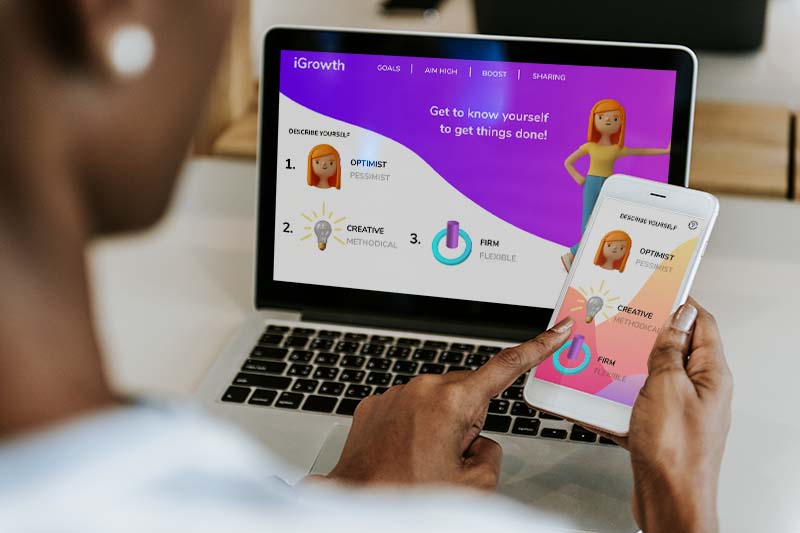
theme of self awareness, so the app is helping
to get to know ourselves based on some simple profiling
in the beginning. And like most prototypes here, we won't actually
adjust the advice or the answers based on what people choose
at the beginning. But this type of logic
can be added later on once the developer starts
working with our design. Of course, in this project, we will be concentrating
only on the design, but we will be creating a fully functioning prototype that can be shared
with our client, and then later on also
with the developer. So let me show you how the
app is going to look like. This is the demo starts
with the alcum screen, and then we will have the choice to change these few attributes. So depending on what
we think of ourself, We can choose these options, and if we want, we can also get some help on what
these words mean, if you are not
familiar with that. But once we selected what
we believe that we are, and we can get our answers and then it gives us a few tips, and there's some fun little
animations here as well. We can go to the next tip. Again, little
animation up there, and then we can move
to the next one again. And one more at the end. And then we also have
a little menu here on the top with which we can
jump between the advice. We can also jump
back to the home, and then we can play
around with this. Now, as I said, this little
profiling section here, the selection that
we choose doesn't actually change the advice
here in this prototype. However, You have the option
to extend on this app. So if you want to
get good at DOB XD, this week's project is the perfect opportunity
for you to continue and maybe have more screens
added for this app. And like always, you
don't have to use the exact same assets that
I'm going to work with. However, I have them all
prepared and ready to go, which will save you
time and will allow us to concentrate
on the XD workflow. However, if you're interested where these assets
are coming from, the original resources are all listed and linked from
the assets board, so you can find them there. I even linked the site where I found the copy that I
used in this prototype, and I even included a few
references or examples of the style that I was
going for with my design. And jumping back to XD, I just want to also show that we will be putting
together at the end a website version as well of
the same self awareness app. And this is also going to
be a working prototype, which we will be able to test. And it's a single page that scrolls with a
sticky menu on the top, and also with some anchor links with which we can
navigate on the page. And also go back to the home. And again, the selector works
the same way as in the app. So I hope you are excited to
get started on this project. And don't worry if
you're not familiar with that OBXD because
I will walk you through step by step from
the beginning designing things and then to create the fully functioning
prototype in the end.
3. Welcome screen: You can download the
exercise file that I prepared to get started
with this project, which includes already
all the assets. It's a single XD file. And once you open it in XZ, you will have the option to
save it as a cloud document, which will allow
you to be able to access it from different
computers as well. So once you open
it, you can always choose Save as Cloud document. Currently, for me it's
say local document because this is already
a cloud document. This little icon
indicates the status. You will notice once you
open this file that I have the assets artboard with all the elements and copy
that we will be working with. But in the library panel, which you can open by
clicking on this icon here, you will also find colors and character styles that
I already set up. So we will be using
these gradients and this color as well. And I am also working with
two Adobe font families, Dan, 2014, and Nunito. I recommend sinking both of the entire font
families for these. However, once you
open the XD file, it should automatically
sink these selected funds. In this first video, we will be concentrating
on the first two screens, the welcome screen and
the pro file screen where we can choose our
personal traits. So let's just start with
the welcome screen. Notice that I'm in the
design mode at the moment. And here we already
have an artboard, which is set up for the iPhone
12 and 12 pro screen size. I'm going to double click first here and rename this Welcome. I like to use all caps for artboard names that are
actual screens in the app, and I use normally sentence
case for overlays, which we will be
creating later on. But on this first artboard, we will already need some text. So I'm just going to
use the type tool, Click here, and I will
just type in growth. That's the name that I
came up with for this app. Then I am going to
change this already here on the right to the to typeface, and I will actually
set this to bold. Now, once I press escape, I can just use
this little circle in the middle to increase
the size of the text. And with the selection tool, we can also move it and
align it to the center. I think somewhere around
there, it will work. And then alter option click
and drag to duplicate this. Let's reduce the
size of this text to 20 maybe 25 is
going to be better. And then the text here is, get to know your self next line with a line break
to get things done. Exclamation mark,
and then I'm going to again press escape,
center this text. Then we can maybe change
the leading a bit. So the distance between
the lines can be 25 or 30. Yeah, I think 30 looks good. This doesn't have to be bold. Maybe we can make it medium. And we can also just use again the circle to reduce
the size of the text. And we just place it
underneath the main title. Now, let's come up
here to the assets, first, I'm going to just
duplicate this element. Again, old click and dragging
with the selection tool, and then let's rotate it around, holding down shift key, aligning it to the edges. I'm going to drag it down. Also align this corner
here on the top, and maybe just
stretch it in a bit. I'm going to select
this and then right click Send to back to make
sure our text is on top. And then let's change
the color of the text, the field color to white. And then finally, we
just need an image, and I'm going to use this one. Once again, I prefer to keep all the assets here
on this art board, and I just always duplicate
the things that we need. So click and drag, and then let's increase
the size of this. You don't have to hold
down shift key it automatically keeps the
proportions the same. However, While you are resizing, it happens sometimes that the layers don't
align perfectly. So the car shadow is on a separate layer
as the main model. So we might need to
adjust that a little bit. But first, I want to make
sure it's in the right place. I would like to
have the character somewhere in the center
of the screen and make it look like she's leaning on the edge
of the screen. Yeah, I think that's close, maybe just a little bit smaller, and then drag it back in again. When I click away
outside the artboard, I can see how it's
going to be cropped. I think that works quite nicely. So if we want to refine the
alignment here on the shadow, we can double click and then having either the shadow
or the character selected. We can use the arrow keys
on the keyboard and just adjust or nudge them until
they are perfectly aligned. And then when we click outside, now it is set up, and that's all we needed to
do for the welcome screen. This is definitely the easiest screen that we had to create. The next one will be
much more complex, which we will put together
in the next video.
4. Creating the profile screen: So moving on, we are going
to use the artboard tool. And with that, just simply click here next to the
previous artboard. It automatically creates the same size
artboard as before. And this we will call profile. Again, I'm using all caps because this is an
important screen. So on this screen, we will be using a
couple of elements. First of all, we will be
using all of these assets, so I'm going to select them. And like before, I'm going to click and drag
them down here, and then let's just move
them onto the artboard. Then we will also
need some text. So I'm going to use
the type tool and just type in describe yourself. But for this text, I already have the
character style set up, so we will use this one here. So it automatically formats it to the version that we need, and I just place that there. And we will also need an icon, which I have again prepared
this question mark. Let's just copy that with
Command C, we can also copy. Click on the artboard and Command V is going
to paste it in. So let's just move that here
for now on the top right. Later on, we will need
a button as well. But first, let's just
set these images up. Now, they will be used
for a visual toggle. So we have three
different toggles letting the users choose their
personal traits. So the first one is the
pessimist optimist selector. What you need to do is to align these two heads
on top of each other. And I prefer to have
the happy one on top, that's going to be
our optimist version, and below it is
the passimist one. If we switch to the layer
spanel with commando Control Y, We can also see these
images are already named. So that's the happy image. And if I hide it underneath, there's the sad face as well. So I'm going to turn this back on and I can move the
two together now. We will need
additional copy here, so I'm just going to use this one or a copy of
the one on the top, and I will type in optimist and maybe increase the size
of the slightly place. Here, and also I'm going to
set this to light or medium, or maybe regular is going
to be the best for us. And then, again, we just
duplicate this text. Make sure it's aligned
to the one above, and then I'm just going
to type in pessimist. Okay. So that's pretty
much ready to go. So let's prepare
the next selector. I'm going to place
on top of each other the cog and the light bulb. This is going to be
the selector between creative personality
and methodical, which is represented
with the cog. I'm going to just place
that on top of each other, align it to the head
roughly for now, and then I'm going to copy the two text objects
and rename them. This is going to be creative, and this one is methodical. Okay, so I can see that we need to move this
slightly to the left, make sure they all fit. In. And then the next selector is probably the most
unique one because here, there's no two separate images between which we will
be transitioning. Instead, I have these shapes
that we will be using together with some masks and
the auto animate feature. Essentially, what
I want to create here is that we are going to switch between this cylinder
shape and the sphere. And they will be moving
in between that ring, which is almost like there to switch from one
shape to another. And this is just a
fun little example of the cool visual in directions
that you can build in XD. But for now, I'm just going
to put this here on the side. And again, I'm going to
copy these text objects. Now, here, we just
need to type in firm, and the other one is flexible. For now, I'm just going
to move this to the side, and later on we can
align things better. What I'm going to
do is to select this all And here
on the right side, make sure you turn off the
responsive resize option. So just set that
to the left side, so that has no constraints. And then when you hold down
shift key while resizing, it will make sure
that everything stays the same the
way we need it. Yeah, I think that's
going to work better. And then later on we can
always move the text closer.
5. Interactions for the profile screen: Now that we have these ready, let's set up the
first interaction. So this one will be very easy. All we have to do
is to select all of these elements
here on the top. So there's two images on
top of each other and the two text objects and
turn them into a component. The shortest way to
do that is to press command or control
k on the keyboard, and it is going to
be indicated with a green bounding box that
this is a component, and also important that
on the top left corner, if you see a field green star, that means this
is the main component. So in case you duplicate this, then this is going to be the parent and the others
will be the children. So any changes that you make to the main component will be
reflected on the instances, but not vice versa. We will be using copies or instances for the website
version of this app. So that is why it's important to remember that this is
the main component. Now, the reason why we have
to create a component in the first place is in order
to be able to add states, and we have a default state
created here on the top, but we will need to create
an additional state. I will just choose new state, and I will call
that one pessimist. Now, at the moment, there's no difference between the two, and I'm switching here, But what we will
need to do is to go to the pessimist state, and then from the layer
spanel, which again, you can reveal by pressing
Command Y on the keyboard, you will be able to
find the component. Again, we can rename this just
so we can find it easier. So optimist pessimist selector. We can even just put the beginning selector so
we can find it faster. So this one can be opened
up, and then within it, we can see all the elements
like layers in a group. And here we can just
hide the happy phase. So now we can see the set phase. And then now if we switch
between the two states, we can see how the
transition happens. But to make sure that it's
indicated even better, switch between these two. I'm also going to change
the text a little bit. So I'm going to double click
here to select optimist, and that I'm going to set
to bold and pessimist, I will reduce in
opacity down to 30%. So now it's clear
which one is selected, and then we can switch
to the pessimist state. And in there, I'm
going to reverse this. So I'm going to select optimist, set that to regular
and 30% opacity, and then do this one up to
100% and set it to bold. So now if we switch
between the states, both the image and the
text formating changes. Moving on, we have to do
exactly the same thing here. So I'm just going to be
a little bit faster now. I will select all
of this together, press Commando Control K, which creates the component. Again, I will rename
this selector and type in the two options
creative and methodical, and then we create
a new state for it. And that's going to
be the methodical. And then in the default state, we don't have to see the cog, so I'm going to hide
that and we need to make sure the
creative is selected and set to bold while methodical can be reduced
down to 30% visibility. And now we can have the
whole component selected, switch back to methodical, the second state in which we can turn back the cog and
turn the bulb off. And then we just have to change the formating on the text
similarly to before. This is regular down
to 30% visibility, and the other one goes back
to 100 and set back to bold. Once again, don't forget to
switch back to default state, and then you can just double check the transition
between the two. I think this looks great. And we'll keep it in the first
option creative for now. And then let's come
down to this one here. As I said, this is
the trickiest one because here we have
two separate masks, and we will have to
add an animation for both the cylinder
and the sphere. So let's create these
mask groups first. I already created the shapes with which we will
be doing the masks. So this one here on the
top will be used with cylinder and this other one
will be used with the sphere. So let's select this one
and the cylinder first. I just use Shift key to
select them to together. And then going up
to the object menu, we can choose this option
called mask with shape. Let's command Shift
M from the keyboard. And once you do that, notice that here in the layers panel, we now have a mask group. I will rename this
mask cylinder, and let's do the same
thing for the sphere. We select both of those
with the shift key and then object mask with shape, and then we rename
that mask sphere. Once again, let's just double
check what we achieved. And here, the actual sphere
currently is not visible. But once we move it
down into that region, which is created with the
mask, we will start to see it. So I'm just going to
show this quickly. If I have the sphere selected, once it goes into that
region, it will appear. But I'm going to keep
it here for now. And now that we have
the masks in place, we can move the text back here, and align it to the other
text objects above, and then we can select all of this together and turn
this into a component. That's command control K, and I am going to
rename it here as well, call it selector
firm and flexible, and also create
the state for it, new state and type in flexible. First, what we can
do is that we go into the default state and
set up the text objects. So this should be bold
in the default setting, and this should be reduced
down to 30% visibility. And then notice I
always click outside, then select the whole
component again, and then I can switch
between states. Because once you double click to make changes to elements, you are inside the component, and you can't see
the state option. So that's why I always click
away then select it again. You can also use the layers
panel to switch between the elements inside
the component and the component itself. So I have the flexible
text selected, set that back to 100%, and then we choose bold. And this is the last
time we have to do this. So I just choose
regular and type in 30. That's great. So now let's
just check this out. We switch between
default and flexible. Works well. But now we have to create that animation
I mentioned. So here instead of just
a simple transition between the elements or images, we want to have
this cylinder drop through the ring and
turn into a sphere. This is the way I came
up with representing the difference between someone
being firm or flexible. So a cylinder feels much
more firmer than a sphere. So the sphere represents flexibility while the
cylinder represents firmness. To be able to create
the animation, we will need to work with these elements inside
the mask groups. But they are already
set up the way they should be in
the default state. So this is the firm state. So all we have to do is to
go to the flexible state. And within that, we have to
move things around a bit. I'm going to open the elements. So first, let's just
move the cylinder. So I'm going to
find that object. And once it's selected, I can rotate it slightly
and then start dragging it down and notice once it
goes underneath the ring, it will actually disappear so
we can already preview that the visibility is going to be completely zero once
it reaches this part, because that shape that
we originally created, this mask shape is the only area where the
cylinder will be visible. So by moving it down here, it's going to disappear. Notice how I still try to keep it in the
center of this ring. So horizontally,
it's still aligned. But now I'm going to switch to the other mask and
select that group. Again, in each mask group, you would see the mask on top
and the object underneath. If you want to find
these easier later on, I recommend to name
these as well. So I call this for mask
and there's the sphere. Like in the other one, we again had the mask and below it, we had the cylinder. So coming back to the sphere, once I have that selected, I can use the shift key, and just drop it down
somewhere around there. And that is all we had to do. Now, clicking outside and selecting the full
component again. I can switch between the two. And this is exactly
what I wanted. However, we don't see
an animation yet, because that will only show
once we add the interactions and start using features
like auto animate. But before we do that, I want to make sure that all the elements are
ready on this screen.
6. Buttons and background for the profile screen: We will actually
need a button here, which will take us
to the next screen. So for this button,
I'm going to use the rectangle or square tool. And with this, we can just draw rectangle here
at the bottom, and we can keep the
field color white. And for now, I'll
just keep the border just so we can see
where our button is. But I'm going to drag
these corner rigids down, so it's a fully rounded button. And then with the
selection tool, I will click and drag this text. Move it here, and then right click on it and bring
it to the front, and I'm just going to
align it to the button, double click on it, and then
type in, get your answers. I will also change
this to medium. Doesn't have to be bold, Aalign it to the
center of the button, and having everything
selected together, can also align this to
the center of the screen. Besides these
elements, we will also need some colorful details
in the background. So let's just copy
this one first. I will click and drag it, bring it down here and
send it to the back. That's a shortcut
I use quite often. That's commando Control
Shift left square bracket. If you find that
hard to remember, you can always right click and you can memorize
these shortcuts. They are extremely useful, and they work the same way in
all the Adobe applications. So it's universal
arrangement shortcuts. So that element is
already in place. Let's just bring in this one, click and drag again,
bring it down here. And then I'm going
to drag this up, so increasing the size and probably have it
somewhere around there. Again, same shortcut to
send it to the back. And then I'm going to
duplicate this again. So that's do option
key and drag. But this time, I'm going to flip it horizontally with
this icon on the right, and I'm going to
adjust its colors slightly by clicking on
the field color swatch, and there we can
find the gradient. So I'm going to select this color and just
reduce its intensity, make it brighter
and less saturated. Something like that, I
think is going to work. Essentially, I just want
to make sure that there is enough contrast
between these shapes. So I can place that
here and drag it up to somewhere around there and then use the shortcut
to send it to the back. And I think there's
enough contrast between this shape and that. So this is going to work. But just so we have a little
bit of more difference. I'm going to also select
this yellow color and make it a little bit more
brighter yellow like that. Now, let me select
this other shape, and we can make this bigger. I'm just going to resize it. So it fits in here a bit better. Yeah, I think that's
a nice composition. And by the way, you
can draw these shapes with the pen tool here in XD, or you can bring these
shapes in from Illustrator. And just so you know
how to do this. If you want to make changes
on a shape, just select it, and then double click on it, and then you can find
individual anchor points, corner points, and also
these smooth points where you have the handles, and you can adjust
them just like in Illustrator when
we work with parts. Returning back to
our profile screen. Now we have all the
elements in place. However, we have
to make sure that these background shapes are also connected to our three toggles. And the way we can make this
work is that we will have to place them inside the
components that we created. So let's start with this
one here at the bottom. I'm going to select
that shape and then use commando Control
X to cut it. You can also use the
edit cut option, then select this component
and double click on it, which means we are
now inside it. It's like isolation
in Illustrator. And then if I use
Commando Control V, it's going to paste that
shape back where it was in terms of its place within
the screen or artboard. But in terms of arrangement, I will have to send
this to the bottom or the back of the component. So that was commando Control
Shift left square bracket. And now that it's placed there, we can click av, select
this component again. And check whether the shape stays visible in
both of our states. And it shows in both of
them, so that's perfect. And the reason we placed it in here is because we would
like to see a bit of animation on these
shapes as well when we're switching
between the options. But that is something we will be setting up later on for now. All I want to make sure is these shapes are all
connected to these togos. So now we can select the
second shape, cut it out. Double click on the component, and then paste and send to back. Click a v. Let's just
double check as well. The two states works fine. Then let's select this shape. Finally, that's again,
command x to cut it out, double click on the component, paste with commando Control V, and then send it to the back. Click a and check
the two states. Yeah, works perfectly. Now we have everything in place. It is time to finally set up the first interactions and see the cool things we can achieve with the auto animate feature.
7. Toggle interactions: In order to add interactions, we have to switch to the
second module with xD, which is called prototype. Notice that there
is a shortcut with which you can easily
switch between these. From design, which
is alter option one, we can use alter option two
to switch to prototype. That's definitely
worth remembering because we will be switching between these two quite a lot. Now we are in prototype mode. We can select our
first component. And within this, I
would like to double click to go inside it. And there, I would
like you to select the image and the other
image underneath it, that's shift key from the layer spanelHapp and set together, and also the text objects. So you should have these
four things selected. The path behind them is not
needed for this selection. And we are going to
turn this into a group, which we can achieve
by pressing command or control G on the keyboard. And the reason why we do this is that it's
going to create the area which we will be able to assign our
in direction to. So you can see having
the group selected. We have this little
arrow here on the right. And just simply
clicking on that once, we already have our
first interaction ready, and the trigger for this
is going to be tap. So simply clicking on
it or tapping on it on the screen is going to
trigger the action, which in this case, is going
to be a simple transition. We have to make sure
that the destination is set to the second state
of this component, which is the pessimist option. For the animation,
I am going to keep the dissolve feature
with which we can create a nice
subtle transition. And we can later on decide
how we want to do the easing. But I feel like ease
out might be good. And the duration is by
default set to 0.3 seconds, which I think is quite good. But we can test
this out already by pressing the play icon
here on the top right. So if I click anywhere either on the image or the two text
objects or even in between, I can already switch
to the second state. But as you can
see, we don't have a way to get back to
the other option yet. So it works one way for now. But it is an easy fix. All we have to do is to
select the component. So first click a weight
then select the component, switch to the second
state, then double click. Make sure the group
is highlighted. Click on the little
arrow on the right, and then we will set this
up again the same way. So transition to the
default state this time. And XD is really smart. I always remembers your
last use settings, so you don't have to worry
about setting them up. And now we can just click away
and select the component, make sure it's set
back to default state, and then we can test it out. So again, using the play
button on the right, we can now tap on
it and tap back. So we have our first
toggle design. At this point, it's
worth mentioning that if you plug in your phone to your computer while using a OBXC and you have the
XD app on your phone, you will be able to see the live view of your
current project, and it's a great
way to really test out everything and
see how it feels, whether the areas are
big enough to tap on or whether there's any issues with the
notch on the top, hiding some details
like the text. This is something
you want to see here on the desktop preview. It's easiest to see it
live on your phone. Just make sure you download
the Adobe XD app and you sign in with the same creative
cloud account details. That way, the cloud document
on your desktop will be able to sync and connect
to the app on your phone. I love the way how ADB XD has this live
prototyping feature. It really makes the
whole design process so intuitive and fun. But to move on, let's
not forget about that shape in the background
of this component. So I also want that to change when users are
tapping on this togo. So to be able to do that, first, in the default state, I want
the shape to be where it is. But in the pessimist state, I want it to move slightly. So I first switch the state. Then I double tap inside. And having that shape selected, we need to change its
size and its colors. But this is something
we can only do by switching back
to the design mode. So that's option one. And within that, I can easily
change the size of it. It can come down
maybe up to here, and then to change
the color quickly, I will press Command Shift
Y or control shift y, which brings you the document
assets tab on the left. You can, of course, also
access it with this icon here. And then from here, I am going to go with maybe this color. So a cooler gradient, just to go with that cool or
bluish color on the head. And the best thing is that
that's all we need to do because everything is already set up with
the interactions. Any elements you change
within a component that uses these interactions should
also automatically update. So if I click away,
click back here, I can now see that the shape is also changing.
But if we play this, It's not going to be
a smooth transition. It's just a quick
jump between the two. That is because we
are currently using just a normal
dissolve transition which fades from one
state to another. However, at OBX D has the coolest feature
called auto animate, which can create
the in betweens for these animations and morph one state of an
object to another, which will be able to create a very nice smooth transition between the two
states of the shape, both the colors and
the position of it.
8. Auto-animate and toggle interactions: To be able to set this up, we jump back into
prototype mode, and first double tap inside the first state or default
state of this component. And here, all we have
to do is to change the transition to auto animate. So this is the interaction
that we already set up. We are just changing the type, but it's going to remember
all the rest of the settings. So we don't have to
worry about that. I will click away, click back, switch
to the other state, and remember we
have to make sure it's set up both directions. So I'm going to double tap, select the group, and also
change that to auto animate. Now, we can click av,
select the component, set it back to default state, and it's time to test it out. So let's see. Now we have the cool auto animate
option creating that smooth animation or transition on the
shape on the right. It didn't really affect the visual transition here
on the image and the text, but even that got a little bit
more subtle in my opinion. So if you pay close
attention on the text, because we are switching between two weights bold and regular, instead of simply just one
state dissolving into another, it actually morphs
between the two. So the letters are
increasing in thickness gradually and also
reducing gradually. It is a very subtle thing, especially because
our animation is very quick at 0.3 seconds, but it still helps to create that smooth transition
that I was after. Now, you will need to do the same exact steps on
the other two selectors. But just to make sure you
know what you need to do, I'm going to run through
this very quickly. So first of all, I'm going to select this second component. Double tap and select all the
elements that we need here. Using my layers panel, I also make sure that
the currently hidden cog is included in this group. I will group them together and assign the
first interaction, which is going to use auto animate, switching
to methodical. See how it remembers all the rest of the
settings already. Then I click away, switch
to methodical, double tap, add the other interaction, which will switch back
to default state. Also, I'm going to
select this shape here, switch to design
mode, drag it down. And again, use one of
the saved color options, maybe this one, or we can use another one just to
have some variety here. So now we can click
away, click back, go back to default state, and we can already
test this out. There's a beautiful
auto animate in action, switching between
the two images, text and the shape
in the background. Now, for the last
toggle on the screen, we will actually have
to fix a problem, and this is something
I intentionally left there just so I can show you what happens in case you forget to
set something up, and this is a feature
called nested component. So in order to be able to create a smooth transition between
the two shape states, the cylinder and the sphere, and be able to see that cool auto animate feature on them, they would also have to become a component inside
this larger component. But just so you can see
how it works without it. Let's just see the
preview again. So when we switch, there's
the simple transition. And even if I change
this to auto animate, this is not going to improve. So let me show this to you. First of all, I'm
going to switch to the flexible state,
double tap here. And in the design mode, I'm going to just change the
shape of this path here, and also let's just change its color to maybe
this gradient, and then just change it slightly so it doesn't
clash with the other one. Going to make this
a bit more orange. I think that already
starts to stand out more. I can make it slightly darker. I think that's going
to work quite nicely. So now if we switch
back to default state, that's the togo where
we can test it out. Clicking on it, it has
that dissolve transition because we don't have the auto animate option on just yet. But if I double click here
and go back to prototype, I can change the transition type to auto animate and I keep
the rest of the settings, then I go back to the component, switch to the flexible state, double tap again, and change
this also to auto animate. So now, when we come back
to the default state, we can test this out
tapping on this, You can see how we have now a smooth animation on the
path in the background, but not on these shapes. And that is because this
would need to become also a component or nested
component for that to work.
9. Nested components: No, don't worry, if this
feels too complicated, you don't have to create
that nested component. The way it set up currently
already looks good, so you can jump onto
the next video and continue with the rest
of the app design. However, if you
feel confident that you already understood
all the concepts so far, then let me show you this fix of creating that
nested component. So all we have to do is to
go back to early years, make sure that we see what
we are going to select, and then we need to go
into the design mode. Double click to first
enter the component. And within that, we
have this group. So I'm going to
again, double click. And inside that group, I will be able to
now select the ring, the cylinder, and the swear. And while having this selected, I can press commando control k, which is going to turn
this into a component. But notice that since this
is a nested component, so it was created inside
another component, it's not going to be considered the main component for this. Object, so it's not filled
here on the top left corner. So when I want to make some
changes to this component, XD is going to generate the main component
outside of my art boards. So let me show you
how that works. All I have to do is
to right click and choose Edit main component. And there you go, that's the new one that is
generated for me. Now, don't worry about having this outside of your artboards, because whatever you assign to this version will also apply to the other
instance on the screen. So for this main
component version, We can add now a new state. I just call it sphere. And here, we have to repeat
what we've done before by opening the component and
also the mask groups, selecting the cylinder,
rotating it slightly, dragging it down,
and then selecting the sphere and dragging
that down as well. So this is our second
state for this component, and that's the first one. And in order for this to
work and update here in this interaction that we created. We just have to come back to it, switch to the flexible state and notice how the nested
component is not changing yet. But now that we
are in that state, we can double tap and
double tap again. And there is our
nested component, which we can switch to sphere. And once we tap back outside, we can switch this
back to default state, and we can test this out now, and the good news is that we don't have
to do anything else. So the auto animate now, is fully functioning on the toggle image as well on these shapes and the
shape in the background, which was already
working before. But remember, for this to work, we had to create this
nested component. And by the way, you can
save yourself a lot of time by planning out your
components in advance. So if we created this component before creating the
larger component, then it wouldn't be
necessary to have this main component
outside of the screen, and things would have
been a little bit quicker and easier to set up. As I said, this can be slightly confusing and a
little bit more complex. But it's very important
to understand how you work with components
in general in XD. And as you get a bit more
advanced in using this tool, you will be using more and more nested components as
well like this one. So just to keep things tidy, I am going to move
this component, which is our main component for this element on the
assets art board, and I will also rename
it and call it shapes. But the good news
is that now we have this profile selector
fully functioning. So everything is
changing nicely, The animations are there, and we can change everything independently from each other. And the only things that
are currently not hooked up or set up are the Help
menu and the button. But we will add this
after we created all the additional screens
in the next video.
10. Creating the advice screen: Compared to the profile screen, everything else will be
fairly straightforward. So don't worry, in
case you found that a little bit complex
and confusing. I think you will find the rest of the process much simpler. So I'm going to switch back to the design mode and
using the artboard tool, I'm going to create
a new artboard, and I'm going to rename
this to advice calls. And for this, first of all, we need some text, which I will paste in here. We can also use the asset from here on the other artboard. This is actually what we need. The set goals, can align this
somewhere in the center. We will then also
need this home icon, which I just drag here holding
down the alter option key. Then we will need the mountains
element and this image, and this speech
bubble or text frame, and then also a shape, which I'm going to
set up later on. But yeah, these are
all the elements we will need in the beginning. However, we will also need to design a couple
of elements here. First of all, we
will need a backdrop for this icon just to make it a little bit
more interesting. For this, I'm going to
use the ellipse tool, and with that, I'll just
draw a perfect circle. By holding down the Shift key, I can make sure that this
is a perfect circle. And I'm going to use
the colors saved in the libraries panel that's
Commando Control Shift Y, and this yellow is what I would like to use
for the field color. And I don't need border,
so I can remove that. I'm going to make sure
that it's sent to the back using the shortcut
or right click Send to back. And then let's select
the mountains, and I will just
resize them a bit. But be careful when resizing, you might need to turn off the responsive resize option
first and then hold down the Shift key to make
sure that the elements inside this group are
kept in the same place. I'm going to place
this somewhere around here and make sure that the circle and the mountain is aligned somewhere
here in the center. Then we can select this shape
here, flip it horizontally. And then move it down, and probably, we have to
make some more space here. So we just double tap on the artboard and
drag it down a bit. And notice that there is
a cut off point here. So that's the original
size of the screen. And once you increase
the size vertically, that means there will
be a vertical scroll automatically enabled. So now we can move
this shape down here, increase its size, and then select the image and make
sure it comes to the front. So bring it to front. Let's just increase
the size of this. Again, making sure that the
responsive resize option is off and you hold down the shift key while
you are resizing it, so this can come
down somewhere here. And then the speech bubble, I actually also want
to be in the front, so that can be somewhere there. Now, everything can
come slightly up, and then the
artboard can also be moved up a bit.
Somewhere around there. Now, there's a feature
that I would like you to turn on for this shape. It's the fixed position
when scrolling. So when you turn that on and
you test out this screen, you will see that that
shape is actually not moving up and down,
which I quite like. But there's other things that
we will have to fix here, especially for the menu. But for now, I just would
like to make sure that we have all the elements
necessary for the screen, and this home button should
be a little bit smaller. So I'm just going
to resize that. And align it here in the corner. And then we need also
a menu on the left, for which I'm going
to use the line tool. Holding down the shift key, I can draw straight line, increase the thickness
of this to two points, change the border color to
black and add round caps, and then zooming closer. I can make sure that we
have three of these. So old click and drag once, and then again, making sure we have equal distance
between them. You might need a little bit more spread out shape like that. And whenever I create icons, I always like to create an
empty shape behind them, which is going to help creating a larger
region on which we can tap instead of just relying
on those small thin lines. So notice how I have
this shape here created, but this will be invisible. I'm going to turn off the
fill and the border colors. But then I select
everything here, so the three lines that
empty shape and turn this into a component by
pressing commando Control K. Any icons that you use on multiple screens should always
be set up as components. Because that way you can easily come back to your
main component, make some simple changes, and you will see the updates reflecting on all
the other screens. Not to mention the fact
that you will only have to create the interaction
of the menu once, and that will also be
repeated on all the screens. So this is ready as a component. And I'm going to do the
same with the home icon. So once again, I'm
going to use rectangle, draw here and make sure it's
aligned to this other shape. And then I turn off the
border and field colors, but make sure that
both the home icon and that shape around it is selected and then press
command or control K and turn that also
into a component. Now, these components
will show up in your document assets area, and there you can just
call it home and menu.
11. Finalising the advice screen: And finally, we also need to create an arrow here
on the right side, for which I'm going to use
the pen tool, tap one. Then click somewhere
here on the right side, and then click again here, try to make it equal in size. However, you can always
adjust this later on. But for now, I'm happy
with the way this looks, so I can increase the
thickness of this maybe up to three
or five points. Set round caps and
round joints as well. The border color
should be black, and that's the arrow we needed. I'm just going to
resize this slightly. Just like before, for this, I'm going to create a
bounding box around it just to make it easier to be able to interact
with this icon. Align it a bit closer and then turn off the
visibility of this, select them all together, group them first as
Commando Control G, and duplicate it on the left
side, flip it horizontally. And now we can
create a component for each of these directions. So the one towards left
and the one towards right. So each I'm using
Commando Control K, and I'll just call
this one right and that one was the left. And we won't actually need the
left on this first screen. We will remove that later, but for now, it can stay there. And now that we have
everything in place, we can just duplicate
this artboard by pressing alter option drag with
the selection tool, and then our second
artboard is going to be AMH That's the title. Can change the text
already here. Aim high. We can keep the circle in
place, delete the image, and bring down the asset with the darts alter option,
drag it down here, can increase it in
size after removing the responsive resize option and holding down the shift key, can align it somewhere there. Then we can delete all of
these things at the bottom, and instead, we will
need this image here. We can already resize it. And then we need this text. And I am going to
use this shape. Just flip it horizontally. Notice that the
fixed position while scrawling is already turned on. I will make this bigger,
send it to the back, and I'm going to apply
this color for it. I want to make sure that
there's no tangents, like this speech bubble is currently aligned exactly
on the edge of that shape. So we want to make
sure that there is a nice separation there
and a nice contrast. That looks perfect.
Let's move on, create the next artboard. Again, I'm just
duplicating this. This one, I'm going
to call boost. The text can change
here already. Type in boost yourself, can remove the darts and
remove all of these elements. And in this case, we will need the rocket. So I just duplicate that, align it here in the middle. We need this image. We need the copy, and we need the same
shape that we use here, but flipped to the other side and changed to this gradient. So let me just zoom
a little bit closer to make sure everything
is set up correctly. So this can be bigger set to the front and set up
somewhere around there. I think that looks quite nice. The rocket can be
slightly bigger as well. Just make sure you turn
off responsive resize, hold down the Shift key, and just resize it a bit. So it just a little bit
comes out of that circle. And then last, we
have one more screen. Again, just copy this and rename the actual art board
and call it share it. Same text goes here, share it. Once again, we can
delete these elements. And bring in the megaphone
place that here, can increase it a bit in size. Then we need this shape, increase that in size. Make sure the fixed position
when scrolling is turned on. Then we need this image
also increased in size, and then the last text frame. So now zooming closer to this. We can again align things, make sure that the
image is on top, but it doesn't cover the
text on the text frame, and that shape can
be maybe slightly wider and just crop
outside like this. This is how quick and easy it was to set up these
additional screens, obviously, having all the
visual assets and copy ready, saved us a lot of time. But in the next video, we will set up some fun
interactions for these images, and also the interaction to be able to move from the
profile screen to the advice screens and also to be able to move in
between these screens.
12. Setting up animations: Let's start by creating the first interaction
on this goals screen. First, I would like you
to select the shape in the background and
the mountain image and turn this into a component. That's Commando
Control K. Now we can create a new state for this
by clicking on the plus sign, and the new state
you can rename or just keep it as
default state two. But what's more important
is that we need to double click inside this to be able to select
the mountain. And then by pressing Commando
Control Y in the layers, we will be able to
open this group. And you will notice that there's actually more elements here. This is again,
something that I went ahead and prepared
in the photoshop. Even though this was a
flattened rendered image, I separated the flag and even
created two versions of it. We have a purple version
and a green version, all set up on separate layers. So in this new state,
what I want is for both the purple and the
green flag to be raised. So I just selected them, and then using shiftpero, I can drag it up until it goes just outside of the circle, but still showing
behind the mountain, so you don't want
to raise it too high until it separates. But, yeah, I think I will just have it somewhere around here. And then once both
of them are raised, make sure that you turn off the visibility of
the purple flag. It's important for
both flags to be raised first and only
after that turning the visibility off
because this is needed for that smooth
auto animate to work. But now we can just click
outside, select this component, and go back to the default state and switch
between these two states, just checking how it looks. I'm happy with that. But
for this to actually work. Coming back to the
default state, I can switch to prototype mode and just click one
on this little arrow here and keep it on tap auto animate
switching to state two. Then we switch to state two. And also assign another
interaction there, which will go back to the default state with
the same settings. So now let's reach back to default state and press
commando control enter to quickly jump to the preview where we can
already test this out, and it goes in both directions. How cool is that? So let's do the same thing
here with the other images. Once again, I start by selecting these and turning them
into a component. Switching back to design mode, we can add the new state to it. And once that new
state is created, we can double tap. First, let's select within
this group the board, and we can just resize that. Again, holding down
the shift key to make sure that we don't mess
up the proportions. And also, I'm going to
rotate it slightly. And then this dart can be also rotated and then move down
into the center like that. So now if we click outside, we can check default state
and the other state. I think that looks really good. And now switching
to prototype mode, we add the auto
animate to state two. And for state two,
we want to also add the animation going
back to default state. So now we can test this out
and it works perfectly. Let's do the same thing on
the third advice screen. Once again, we select
all of these elements, and in design mode, I will turn them
into a component, then add the new state for it. And in the new state, I want the rocket to come out of the frame a bit
and also maybe rotate, and the smoke can
also rotate and go outside there or maybe
just slightly that way. The rocket can be
also slightly larger. So it feels like it's
coming towards us. So let's just quickly see
this before and after. Yeah, I think that works well. And then switching
to prototype mode, we assign the first interaction
to switch to state two. Then from state two, we want to be able to switch back
to the default state, and then again, testing it
out quickly. There it is. Effect. And then,
last but not least, we would like to also turn
these into a component. However, here, I
would like to also add some elements
by using the pano. So all you need to do is to draw a little shape like
this, using the pano. So it's like a little
lightning bolt. But we don't need
the border color. Instead, we want to
use a red color. I'm using the hydroper tool and sampling a color
from the megaphone. So that's going to be a
shape that we will need. And let's duplicate this
once and another time. The one in the middle,
we can flip vertically, and then these we can
just rotate around, maybe resize a bit, and then I want to align them. Roughly where they
will end up in. But then now, I'm going to
select all three of them, and then using the commando
control left bracket, I'm going to move them until they go behind the megaphone. So they are in
front of the shape, that yellow circle, but
behind the megaphone, and just nicely and v there. Now, having all of these
selected together, we can create our component and then add a new state for it. And in that new state, I would like to move
things around a bit. So first of all, I
would like this image to increase in size,
also maybe rotate. And then having those
parts selected. We can just move them out and maybe increase their
size a little bit. So let's switch back to the default state and switch
between the two states, we can just see a quick preview of how this is
going to look like. But to add the auto
animate feature, we switch to prototype, click on this select state two. And then for state two, we want to add
another interaction, and the destination this
time is the default state. Once again, if we
do a preview on this, it works perfectly.
13. Interactions between screens: Now it's time to set up the interactions
between these screens, and I actually won't need
an arrow on that side. Also, I don't need this
arrow on the left side. So I just press back space
while having them selected, and we can start
with this arrow. In prototype mode,
we click and drag the blue arrow to set up an interaction with
the destination on the second artboard. And for the type
of animation here, I would like to use transition. And for the animation, I would like to use push
left instead of dissolve. The duration and easing can
be the way it is by default. Once again, if I
just preview it, I feel like it's fast enough, and I think it works well. So now that we have
that one set up, we can continue with
the other right arrow, create the interaction
to the next screen. Notice it's going to use
the same settings again. So we can just very quickly
set up this one and move the interaction
on the last screen. So I'm just checking they are
all going in the right way. And then let's start
with this one. So this is the
backwards transition. From here, we want to go there. And instead of push left, we want to use push right,
same settings apply. Then this one can go there
again, same settings. And then finally this one can go there with
the same settings. So now if we test this out, you can see how we can switch between the four advice screens. So that works perfectly. And each of these animations, we can test out as well. They still work just
the way we wanted it. And then finally, we need to also make sure that
from the profile screen, we can jump into the
first advice screen. So first of all,
make sure that you have the button and the
text selected together. You can turn it into either
a group or component. That's Commando Control G, if you want to turn it into a group or Commando Control K, if you want to make
it into a component. The main difference between the two is that if you
create a component, you can always assign
states to it or animation besides
applying an interaction. So it doesn't really
matter here because I'm not going to do any
animation on the button, but I'm just going to
create the interaction quickly to the first
advice screen. And in this case, I
want to use push left. So let's test this
one out as well. Clicking on either
of these options, we can still change the toggles. And once we are happy
with the selection, clicking on get your answers, we'll jump into the first
advice screen that we created. And since we have all
of our artboards ready, let's just hook up the
welcome screen as well. So having this one selected, this is the one that we want to set up as our home screen. So by clicking on
that little icon here in prototype mode, we'll set up our first flow. This one can be renamed to app. And then from here, I want to create a time
trigger to the next screen. So I'm just going to
drag this arrow there. And instead of tap, I'm going to set this to time and maybe set it
up for 3 seconds. And the animation, this
time can be set to push up, and maybe the duration
can be set to 1 second. So let's just see this
if we test this out after 3 seconds, it's
going to go down. I think the ease out should
be changed to ease in out. Let's test this out again. Yeah, that's much better. But the duration can
be maybe even longer 1.5 seconds, one more test. Yeah, that's much
nicer and smoother. So now we can get through all of the art boards or all of the
screens that we created. And in the next video,
we will be adding all the additional
navigational options like the main menu, hook up the home icon, and also add the help option
for the profile screen.
14. Sticky menus: The first thing that we
need to fix is to make sure our menu is always visible. Let me show you what I mean. If I preview this and I scroll, the menu disappears on the top, so it will be hard to switch without having
to scroll up again. So I want to keep this
menu always visible here, and we normally call
this a sticky menu. And to be able to do this, first of all, in design mode, I'm going to draw a rectangle
behind these elements. I will make sure that it goes all the way in
the back for now. Drag this up maybe
somewhere around here. And by the way, I'm keeping
the text here because I know that there is a
notch on the phone there, so it shouldn't be
overlapping that. But for this shape, I don't
want to use a border, just a white field. But have this option turned
on called background blur. We can refine the
settings for this later. But for now, I would like to also select everything
here on the top and group them
together with commando Control G. And once
they turn into a group, we can fix their
position when scrolling. This turns it into
a sticky menu. So now if it tests this
out, when I'm scrolling, you can see that they are
all staying there on top, and we have that cool
background blur feature set up on that cngle. If we want, we can
always go back, double click on it, and
then adjust the settings. I might reduce the exposure and maybe increase the opacity
of the shape itself to 20%. So let's just test this out. Yeah, I feel like that
looks a little bit better. Maybe the exposure
can be increased. Let's check it out again. Yes, slightly better. I think that looks good. And we actually need to do the same thing on
these other screens. But to save time, I'm going
to set these up actually once we have this first
menu fully functioning. So I will actually
delete these fan. So all of those elements
that we prepared here, we can just backspace and
delete them. We know that. We will be adding
them there, but, let's just come back to this first instance and
switching to prototype mode. Double clicking on this. I can select the home icon. And that will be linked
to the profile screen. And in this case, I
just would like to have a normal
dissolve transition, which is like a fade. Easing and out for
easing is good. But the duration maybe can
be set to 0.6 seconds. So we can test this out, see how it feels. I
think that's good. It might be a bit too slow, so we can just come back here, again, select that and
go down to 0.4 seconds. Let's just that one
more time. Yeah. I think that's fine. But this was the easier one to set up. For the actual menu, we have to also create
a separate art board which is going to
host our menu items. So it will be like a drop
down or pop up menu. And for this, I am
going to create that new art board just
above these other artboards. So in the design mode, switching to the artboard tool, I'm going to first just
create an artboard, but this doesn't have to
be a full height artboard, so it can be a
little bit shorter. Like that. And I
will call this menu, and we can zoom a bit closer. And first of all, I'm going
to create a shape here, which is going to
be the menu itself. We can add round corners. But we don't need round
corners on all sides. So here in the options, we can click on
this little togo, and we can find the radius
for all the corners. I want to set the top
left and right to zero. So those are the first
and the second ones, needs to be set to zero. There is a subtle indication of which corner you are affecting
when you select a number. So that little blue line
there tells you that you are working with the top left
corner or top right corner. Or you can also just wait a
little bit and you will get the tool tip telling
you which one is which. But now that we have the set up, I will remove the border color. I will keep the field color on. But then I will
add a drop shadow, and I'm going to increase
the visibility or opacity of this by clicking on the swatch and just dragging this up, probably around 50%. And then the blur, I will also set to 15, so it creates a little bit
softer edge like that. Maybe 50% is a bit too harsh. So let's just set
it down to 30%. Yeah, that's a bit more subtle. I think that looks better. Now, I'm going to copy
the text from here. So we need all four of these, duplicate them and
align them all to left. And then let's just
move that down. Move this one up. So the order should be set your goals first, then aim high, then
boost yourself, and then finally share it. So once I have that order, I can place the text in here, and maybe we can reduce the
size a bit to 18 points. I think that will fit better. Once again, left a line, and then we can just align
it within this drop down. And we just need an X icon here, which we already have
prepared in the assets. I can just drag that
down again here. Set it up somewhere there, and this x can be a component. So I press command or control K, but the whole menu should
also be a component. So I select everything together. And again, press command or
control K. So in this case, because we created a
component first for an element that will be
inside the main component, the nesting was set up
in the right order. Remember, when we
were struggling creating this nested
component before, You can see the right order is always to start creating
a component first, which will then be wrapped
into another component. And you can have
even multiple levels of components nested
into each other. And as long as you start
with the smallest element, and then you work
your way outwards, creating the
additional components, you won't have any issues
setting them up properly.
15. Menu overlay: Now that we have this menu, we need to hook it in
to the other screens. So let's switch to
prototype mode. And here, I am going to double
click until I can select the menu icon and drag
it onto this artboard. By default, this is going
to be a normal transition, but we would like to
change this to overlay, which will change this
solid line to dash line. That's the way XD is
indicating what we are doing. And also notice that we get a preview of where this
overlay is going to show up. And this actually
is something that we can drag up all the way here. That's where I want
it to show up. And the animation, I would
like to be slide down. We can have ease in and out. Maybe 0.4 seconds is good, and we can just test this out. Let's see how it works. If we click on that,
the menu comes down. If I click somewhere outside,
it disappears again, comes down, disappears,
and by the way, is a default behavior in XD. Whenever you click AA
from an overlay element, it automatically reverses
the original animation. However, I always like to have a to close it as well
like this one here. And the good thing is you
don't actually have to assign any interaction
onto that, because as long as there
is no active element here, by clicking on that we'll
also close that menu, just like clicking
anywhere else, apart from the active elements, which we will set up
on these text objects. So to do that, all I have to do is to come back to our menu. Double click, select
the first text and drag it to this screen. But this time, you have
to be careful to go back and change the overlay
option to transition. So the overlay is only necessary to bring up
this floating menu. But from that floating menu, you would like to transition to these screens with a normal
transition, not overlay. Reason why it was coming up
by default with overlay is because that was the last
used action or action type. So just make sure you don't forget to change
that to transition. And then with the menu, I recommend using dissolve, and you can probably use as
out and maybe 0.3 seconds. So let's just set the same up for the other three screens. We don't have to
change anything here. Now again, it remembers
the last settings, and this time, it's
not an overlay. It's the transition,
so the correct option. So for share it, we have the last one there. Now, this menu is
fully hooked up, so we can test it out. We click here, comes down, we jump to a high, and we can come
back here, again, select boot yourself,
goes in the right place, and then we can do
share it as well. And once again, we can navigate in between
these as well easily. But now we can also add that sticky menu on
all of these screens. So we can just simply
duplicate this. The fastest way to
do it would be to press command or
control C to copy, and then select
this next artboard. Press Commando Control V, we paste it in exactly
in the same place, the same thing here,
same thing there. And notice how already it
has everything hooked up. So the home icon goes back
to the profile screen. The menu brings up this overlay, and the only thing we will
have to change are the titles. So let's double click type
in a h. For this one, I want to use boost yourself. And here, type in share
it, and that's it. Once again, we can
test this out. You can use the menu to
jump to the next screen. We can scroll up
and down to test our sticky menu on the top with that background
blur feature. We have our animations as well. The menu works here
just like before. We can jump to the
next screen scroll up and down works,
animation works. The arrows should work as well. But let's just test the menu, share it goes in
the right place. The scrolling works as well, and the home icon should also work from any
of these screens.
16. Help Menu screen set up: Since we are back on
the profile screen, let's not forget to
set up the Help menu, which is going to work very similarly to this other
menu that we created. I'm just going to
zoom out again, move the assets out of the way, and I'm going to create a new artboard in
the design mode, using the artboard tool. I just create that new artboard, and I'm going to rename
this and call it help. Can place this
somewhere around here. And now we can just reuse
this other element. From within that component, we created a double
click, select that shape, copy it and then
paste it in here, we're just going to
rotate it around, like so drag it up and
place it in this corner. We probably have
to make it longer, and then we can just copy this x component and put it
on the top right corner. Again, we won't have to
actually link that up. Just make sure it's there, and then we will copy this
text that I have prepared, and we just simply
paste it in Here, maybe we need a little
bit more space for this. And yes, I think
that looks good. Can now just drag this up a bit. And that's all we needed for this other overlay
that we created. But it's important
for this artboard to turn off the field color
in the background. Otherwise, it's going to cover up completely what's
underneath it. There is something that
for the menu as well, it's important to make
sure that you do. But XD by default
is going to remove the fiel once you create
the overlay interaction. For which, if you recall, there's only two
things necessary. First of all, making sure
that on this new artboard, all of these elements are
wrapped up into a component. That's commando Control K. And then within the
prototype option, when we select the
question mark, we want to make sure that is
hooked up to this artboard. However, if you recall, wherever I use icons, I always like to create a larger bounding
box around them. So that's just something I don't want to forget
adding here as well. I will just draw this shape, allowing much more space to be able to tap on
this because there's nothing more annoying than
having to tap a couple of times somewhere to be able
to start the interaction. So I'm going to turn
off boarder and fill, but select all of this together and turn this into a component. And now that it is a component, I can switch back to prototype, hook it into this
new artboard and set this up also as an
overlay transition. The animation this time can be slide left because it
comes from the right, so it's going to slide left. And the alignment of
it is already good. Since I use the same
exact artboard size, I didn't have to do any
manual positioning here. And instead of just ease out, I think ease in out is better and maybe 0.5 seconds for this. So let's just test this out. If I click on the help, it comes in, And no
matter where I click, it's going to hide it away. So I can click on it again, click anywhere else,
so on and so forth. And by the way, if you want the details in the background
to be blurred out a bit, you can always add another rectangle here
on the help art board. Without the border,
just a feel color. Make sure it's set all the
way in the background, and then just click
on background blur. So now, if we come back here, when I do this, it's going to have that
blur appearing there. The only issue is that
it also slides in that background blur instead
of nicely transitioning. So let's see before and after. And of course, there's
ways to fix this, but I don't want to
over complicate things. So I'm just going to
delete that shape, and I think it works
fine the way it is. And the good news is that we have the app fully
functioning now. All the elements are in place, and all the
navigations are ready, so we can do a final test starting from the
welcome screen. We have our timed
interactional animation. We have our togos which
we can play around with. And then we can also
check our help. Then go to the answers, scroll up and down,
jump through them. Check the animations
here as well. Go back to the home page, or go back to answers
and use the menu. And it seems like everything is working as it's supposed to. So now that the app is
complete, in the next video, we will turn this into a
single page website prototype.
17. Website Design: The good news is that
putting this website together will be much faster
than building the app. Since we have already
all the elements designed directly here in XD, and we can very quickly
repurpose all of these in that new format that we will start by creating
a new art board. And this time, I'm going
to use the b 12 80, and we can place this here and just rename it as
well to website. And I'm going to already
extend it because I know we need more
space below it, and that cut off point marks our first fold
within the site, which is the one
that will be first visible on most screens. Now, let's start
by copying things. So I'm going to select everything
on this welcome screen, old click and drag,
placing them here. And then I will be moving
things fairly quickly because I don't really have
to explain the steps anymore. I believe it will make
sense what I'm doing. So I'm resizing that the growth
is going to be our menu. That's part of the menu. The image can be
here on the right, maybe increased in size. A bit. Like that. Text can be in this case, right aligned and
increased in size a bit. If you ever have things
that overlap each other, like in this case, it would
be hard to select the text. Instead of moving this image av, you can just bring
up the layers panel. That way you can very quickly
select things that are hidden away and then just use the arrow keys on the keyboard, holding down the Shift key, you can move them
faster as well, and I think that's going to be a nice placement
for the text. So it's nicely aligned
with the head. Then let's just duplicate
this text here, and I will type in goals. I'll set this to all
caps with this icon, and I change it to regular and also reduce the size
by dragging it up. It might actually be
better in medium, and I align it to the
center of that text, and then we can just
duplicate this and then start typing a high again, duplicate typing boost, and
then once more sharing. And by the way, this
is where setting up a character style
would be useful. So if we go into the
libraries or document assets, having one or all
of these selected, we can tap on the plus sign
here in character styles. And now it's saved it. So this way it will be
much easier to make changes to all four of these
elements at the same time. Just simply by coming here to the character
style, choose edit. If I type in, let's say, 35 for the size, you see immediately, all
of them will update. So that's a very handy feature, I highly recommend to
use character styles. Just like in the other
DOB applications, it can save you a lot of time. And I'm just going
to use a little line in between these
to separate them. So let me just draw that line. I set this up to
white round caps, and the size to be
maybe three points, and then just drag it up a
bit and then duplicate it. So we want another one there
and another one there. Okay, so that's our menu. This can be slightly
higher as well. And actually, the whole thing
can go a little bit higher. Just select them
together. Moving them up. Then let's bring in the
additional elements that we need. So we need this
describe yourself text, which we can place here, and then all of
these components, we can copy and paste
on this artboard. But we won't need the
shapes in this case, so we can just separate them first and quickly
remove these shapes. Double click Delete, double click Delete,
double click Delete. And you don't have
to worry messing up your other versions because they are the main components
or master components. And these are just
instances of them. So these overrides that we do here won't affect
the original ones. But still in case
we make changes to the original one,
and it affects, let's say the text
or these images, they will still be connected and updating on this website
version as well. So I'm just going to place
these three options here, and we can test this out already with commando Control Enter, and we see the shapes showing up in the second state so that's something we
also have to fix. I'm just going to select these switch to
the second state. And double click
delete, delete, delete. And then make sure that these are set back to
the default state. So once again, we
can just double check if it works or not. Yeah, that works, that that
works as well. All right. Perfect. So the
first fold is done. Now it's about copying the rest. So let's start with these. Going to copy these,
paste them in here. The shape we won't need for now. This component can be here. The text can be in the middle
and the image on the right. We can also copy that set your goals text,
which in this case, since we have a larger screen, we can make bigger, again, another one that's worth
saving as a character style. And by the way, it's worth naming your character
styles as well, so you know where you use them. So I'm going to rename this
and call it site sections. While this other
one is site menu. So we have set your goals. We have our image there. And in this case, we can just
double click on and we can delete this speech
bubble triangle. Because here, I just want
the text on its own. And maybe this image can be bigger holding
down Shift key. I'll just resize it.
And then we'll just repeat the same thing
for these other screens. So I'm just going to speed
things up a bit before we wrap up with some final
touches on the site.
18. Adding Interactions to Website Design: So this is the final
version of the site. As you can see, I created an
alternating pattern here. So we have the images alternating
with the text frames. So we have a zig zag created just to make it a little
bit more dynamic. Plus, we also have these
shapes, one on the left, and one on the right, reused and repurposed
from the app. And if we test this
page out already, we should also have these little interactions
working here. Which in case of a website
could be parallax effects, which is something we can easily communicate with the
developer and the client. But to add a little bit of additional
interactions in here, I would like to make sure
that the menu stays sticky, similarly to how we've
done it on the app. But for that, first,
I will have to create another rectangle
somewhere around there. Make sure that it uses the
same gradient as behind it. I'm just going to switch the field color to
linear gradient. And then I'm going to
sample these colors, so we need this
color on the left, and we need that
color on the right. And we just need
to make sure that the two gradient stops
are aligned as well. So now it almost
completely disappeared. But now that this is in place, we can just select
everything here on the top apart from that big shape in the background. Just
shift click on that. And grouping these together
with Commando Control G, we can make sure that this
will be fixed when scrolling. So now if I come here, when I'm scroll down, you can see it's
there on the top. And the only thing that
we have to make sure that we do is that it's set
all the way on the top. So everything else
is underneath it. So having these group selected, we just make sure that we
bring this to the front. So now testing this out, it will work perfectly. And this is, by the way,
something you have to make sure with
these menu as well. So these, of course, will have to also be on
top of everything else. Especially in case
you are planning to increase the length
of these screens, the menu should always be
on top of everything else. But since we have
our menu created, we should also add some
interactions on it. So let's go to the
prototype option. Double click inside this group, and starting with the logo
and the name of the site, we can just grab this
little arrow and drag it onto this large shape
here in the background. We can also just drag it here to make sure that
the shape is selected. And then notice how XD already understood that we want
to scroll to this on tap. This is important because
we have a sticky menu. So if I come down,
let's say here, once I click on that, it just scrolls back
up straight away. And now for these other options here, we will do the same, so I select goals and come down assign it to
that item there. Once again, let's
just test this out. And it goes down there, but the problem is that the sticky menu is
covering up that text. So we have to make
sure that there is something that creates an
offset from this text. And similarly to
the technique that I've done before around icons, we need to create a safe area, which will create that offset. So I will just go
back to design mode, use the rectangle tool. And just draw
something like this, make sure it goes
in the back and has no border and feel colors. But having that selected
together with the text, we can create a group. And the same thing I'm going to use for the
other ones as well. So I'll just copy that shape, then move it down, make sure that there is enough
space above there. And then again, let's just keep the border on for now just
so I can see these shapes. There's another one
there. It doesn't matter how wide it is. It's just how much space we keep above it is
what's important. I think, that will work. So let's just set these
up all as groups, and I'm going to remove
that stroke color later on. So we just need to
make sure that we have that share option also
selected and grouped together. So now, in prototype mode, we can hook things up. So for goals, we want to
scroll to this group here, for a high, we want to scroll further down
to this other group. And before I go any further, I'm just going to test this out. So let's see goals. We'll have to increase
the height of that rectangle, a high. Same thing goes here. And high actually now ended up being on top of the menu because we created that group
that came to the top. So let's just fix
this already now. So I select the sticky menu, bring it all the
way to the front, that fixes the alignment, and then we can
select these shapes, double click and
then in design mode. I can just extend it
a little bit further, and the same slightly we will
need on these other ones. We can extend and extend. And since we are here, let's just also turn off already the border on these shapes. I just double clicking each
time to go inside the groups. And now we can come
back to the menu, and in prototype mode, I select the word boost. Come down to boost
yourself group, and then sharing, come
down all the way there. So let's test this
out once again. Goes perfect alignment a high. That's perfect as well. Boost yourself and sharing. There's no more content
here at the bottom, so it can't scroll any
further than this. But we also have our home option with which we can go all
the way back to the top. And that is how fast it was to create a fully functioning
website prototype, repurposing all the elements
that we used for the app. And in the next
couple of videos, we will make another version of the website prototype
showcasing parallax scrolling.
19. Parallax scrolling: And as you can see, I
always like to start with the final static version of that single
scrolling page that I can then duplicate
and start adding all the necessary movements and changes for the parallax
scrolling effect. Unfortunately, currently
in NDBXD creating these parallax effects is only possible by creating these
duplicate artboards. But in the future,
they might add some features that will
make this workflow easier. But for now, as I said, we will have to create
duplicate artboards. But first, let me just
show you this website. So if I just show you
the preview for it, it's commando control enter to quickly get to the preview, This already has some
elements that work. So these are simple toggles
that I edit on these, and they are set up as
components with separate states. And then if I scroll down, we also have some
components further down here that we can
already interact with. But as you can see
at the moment, this is just a simple
scrolling page. One thing I made sure already is that the menu always
stays on the top, and that is a very
simple feature that you can find in XD. Just make sure you select
that group or element, which is your menu. And then here in the options, just choose fixed
position when scrolling. So if I take that off
and I test it again, then the menu will go
out of the screen, which obviously, in this case, we don't want, so, we'll
just turn that back on. However, this option
won't be really necessary for the way that we will be setting up our
multiple artboards, for which, what's much
more important is to make sure that this menu is
set up as a component. So at the moment, it's
just a simple group, I can check here in the layers. It is just a group. So what
I'm going to do is to press commando Control K to
turn it into a component. So this is going to be necessary once we have multiple artboards, but we still want
to make sure that the interactions
that we assign to each of these menu items will be applied throughout
all of our artboards. But we will come
back to that later. For now, just remember, anything that you
need as a component, so all interactive
elements like buttons, menus, icons should first
be created as components. And then the second and
most important thing you will have to
do before you get started duplicating
your artboard is to select everything
on this artboard. And then group them together, so that's command or Control G. So this is going to
actually make selecting things a little bit trickier because you
will have to always double click to go into the group and then
move things around. But this is necessary for
the paraax scroll animation. Without everything grouped
together in the beginning, you will have a lot
of problems later on. So remember to do this
at the very beginning. But now we are
ready to start with the intro animations that we would like to add to the site. So this is not yet
the paraax scrolling. This is just the animations
on the first fold. So for this, I am going to already duplicate the artboard. So I use the selection tool, and in design mode, I just hold down
alter option key and drag it to the right. Make sure that you have
enough space to the right of your original artboard
because you will be adding quite a lot of these depending on how
complex your site is. And also, I like to keep a
fair amount of gap between the two artboards because there might be some
elements overlapping, and it can be a bit
confusing to work with. So sometimes I would even
make that space bigger. And later on maybe move them closer just to tidy things out. So, first of all, I
would like to have a nice animation on the
background element, this nice curve
that we have here. So I don't actually need this character or the
text or even the menu, and I'm actually going
to even delete these. So I just select them
and delete them. So we only have
that shape there. And what I'm going to do with
it is to really enlarge it, so I'm going to make it bigger. And then by double
clicking on it again, I can access the anchor
points inside it, and I can even
move those around. So what I want to create here is a nice animation when this curve is going
to get adjusted. So I make sure that it
covers the whole screen. And you can see that
on this artboard, we already have the
viewport height set to 800. So that is that dash
line indicated here. What that means is
whenever I test this out, the window will only
show that area. Now, currently, we can't
see any animation. We can just see how this nice soft gradient is
going to look like. But once we switch to the prototype mode and
select the whole artboard. That's quite important. So
you don't want to assign the animation on
individual elements. You want to make sure that the whole artboard is selected and then drag this little arrow
onto the duplicate artboard. There we can choose what we want the animation
to be assigned to. So in this case, I
actually set it to time, and I make sure that the
delay is set to zero second. This means that it will automatically be
triggered straight a A as soon as we test out
this as a prototype. And instead of transition, I want this to be auto animated, because I would like to see that cool animation that will be created on the shape how it morphs from one
state to another. And to make the
animation even smoother, I am going to add
es in and out and maybe increase the
duration to 0.8 seconds. So now let's test this out. We can already see
how it is animated. If it happens too fast, what you can do is to come back, select that little
arrow there and change the delay to maybe 0.4 seconds. So this way, we
have a little bit more of that background
visible before it animates. And if you quickly want
to replay the animation, just press the same shortcut again, Commando control enter. And yeah, I'm happy with
the way this looks. And if you want to delay elements in this
intro animation, what you can do is to already have another artboard setup. So what I'm going to do
is to duplicate this once again to our option drag. And once again,
delete the things that I don't want to reveal yet. We need to double click
and then delete things. I'm going to delete the
character and the tag line. And maybe just animate
these little details here. So I'm going to move
this text to the left, so this one to the left and
then this one further out. You can see already I'm creating a little bit
of a pattern here. So whatever I would
like to appear first is closest to the
edge of the artboard, and then the things
I move further out will come in slightly later. So it's a way to delay them. And then this one here, we can just move down. Let's just move it down there. And then I'm going to
select all of these and even reduce their opacity to 0%. And then on the next screen, we will see them appearing, but we have to also
make sure that there is an interaction between
these two artboards. So similarly to before, I use the prototype mode, and I'm going to use
still the time option. Here, I'm going to
set this 20 second, and the rest of
the properties for the action should be
the same as before, so I don't have to reset them. So let's just test
this out again. I go back all the way
to the beginning. So the first artboard, use the shortcut to test it out. We can see already how all
the elements on the left came in one by one and had
a little animation on them. While all the other
elements here that we deleted just simply appeared. The reason for that is
because, of course, between the two artboards, there were no instances
on the first one. The only thing that OBXD
could do there is to simply fade them in
and make them appear. While for these elements
here on the bottom, it had before and after stage, and it could create a
nice auto animate action between the two states. Or if we are thinking
in animation terms, we can even call
these keyframes. So let's test this again. The two stages of our
animation are ready. But let's not stop
there. Let's add one more artboard still
for this intro animation. So I'm going to
duplicate this further. And this time, instead of deleting anything, I'm
going to come here, select the menu by
double clicking on it, drag it up, and
select the character, drag it to the right, and
then select this text, and maybe switching
back to design mode, I can even rotate it
holding down the shift key, make sure that it's
exactly 90 degrees, move it somewhere here, and maybe only for this text, I'm going to reduce the
opacity down to 0%. I didn't have to do that
for the other two elements because they are already
outside of the screen. Now if we switch
back to prototype, we can select the
whole artboard, drag it onto the other one. Still using time, the
delay set to zero second. But this time, instead, I'm going to use the snap easing and maybe set the
duration to 1 second. Once again, now we
have four artboards. Let's go back to the
first one and preview it. So you could see
that there was a little bit of swing back and forth both on the tag line and the menu and the character, and that is thanks to that snap animation
that we used here. So once again, let's
test this out. There you go. Very
subtle, very nice. And of course, we still have
our Togo animations here, and we can still
continue scrolling down. But now that we have
this beautiful build up created for the first
foil of the site, we can continue
concentrating on the rest of the site and adding all of those parallax
scrolling effects.
20. Adjustments to Parallax scrolling: So we are back in XZ, and I'm going to
duplicate this artboard, and I'm going to rename it
and call it parallax one. This way, I will know that this is where the
scrolling starts. So the first and most
important thing we have to do is to have
this whole group shifted up and make
sure that it's roughly aligned here
where our next fold is. So this is going
to be the section about setting your goals. I'm going to make sure that our menu is going to
stay here on the top, so I'll drag that down, and that all of these other
elements that we don't want to see are
out of the screen. So I'll just drag this
down, not the shape, and then we can concentrate on the
elements in our viewport. Still, remember that dash
line shows the viewport, and now we can
start moving things around and even scaling
elements up and down. So if I select this item here, I can make it bigger, move it a bit to the right, then let's move this
text frame down. And I always try
to avoid creating tangents or kissing
between the elements. That basically just
means that you want to avoid placing them in a way where it is hard to say what's in front
and what's behind. So when it's perfectly
aligned here, the pole and the edge of the
text frame, it feels weird. So we want to make sure that it has a little bit
more overlap than that. Same thing with this element, I wouldn't place it here. Again, feels awkward, you
want to make sure that there's at least a little bit
more overlap between them. Now, if we come back to the prototype option and
select the previous artboard, we can add the interaction, and I'm going to keep it on tap auto animate easy and out with the same
settings as before. So we can just test this, and if I tap anywhere
on the screen, we will already
see the animation. If I want to test it again, just press commando control
enter, and let's see. It looks good, but it's not that interesting
at this point. So what I'm going
to do is to select this shape here on the
previous artboard. And since it's outside
of the viewport, we can play around with
it in the design mode. So for instance, I can
stretch it all the way out, and then I can double tap to select individual anchor points, and I can make a completely
different shape, curving it in this way, And then maybe even this
point here can come up. So almost filling in that area. Then the set your goes text
can maybe move to the left. I'm holding down the shift
key while dragging it, and then this shape can go down. The text can come up, and this illustration
can go to the right. Notice how I'm
moving everything in different directions
because that will make the parallax animation
more interesting. So let's test this out. I'm going to select
this artboard, since I don't want to see the whole intro animation right now. I'm just focusing on this
first parallax detail. And yeah, that looks
much better already. Let's test it
again. I like this. Quite nice, both the shape as it animates and all
the other elements. And at this point, it's worth mentioning that if
you are presenting to a client and you want to really show them the parallax
animation and concentrate on how things are transitioning from
one fold to the other, there's a cool way to making that a little bit
easier for you. So instead of using
the tap trigger, you can switch to drag, which means when you
are testing this out, you can just start
dragging from right to left to see the transition. And with this, you can control the speed and you can
even go back and forth. So as long as you are holding
down and keep dragging, you can really concentrate on all the elements and
how they are moving. But remember, once you let go, it's going to stay with
the last artboard. So to be able to go back, you will still have to just press command the control enter. For a quick demonstration, it's always easier
to set up the tab. But if you want to slow things down and really focus
on every detail, then remember to use the
drag trigger instead. But for this example, I'm going to switch back to tap. And then let's continue by creating yet another
duplicate of this artboard. So I'm going to hold
down alter option key, drag this to the right. Zoom out a bit, select
the whole group, drag it up until the next
fold is in our viewport. Again, make sure the sticky menu stays where it's
supposed to be and that all these other elements don't reveal themselves in
the viewport just yet. And just like before, what
I'm going to do here is to start playing around with these elements in
the design mode, So let's just make
this shape bigger. Again, double tap on it, change its curvature as well. And again, similar to
avoiding tangents, I also like to
avoid having, like, a sharp line around the
neck of characters. It just feels a little
bit strange once again. Putting it somewhere here
feels much more pleasant. And then we can even
move these details around if we don't
like the placement, we can have the
texter on the right, maybe slightly higher as well. And then this character
can be bigger. And then we just have to
go back to prototype mode, connect the two artboards using the same interaction settings
as before, is in and out. So if we test this out
from the previous fold, This is what we see
on the next one. And usually once I have everything set up on
the new art board, I come back and refine where
things are coming from. So a high can come
from the right. This text can come from below. The character can
come from above, and maybe with a bit
of transition or fade, and then that shape can
come from the left. So let's test this out again. Click, and then we
can see how it works. Once more. Yeah, it
looks quite nice. Now, maybe the characters
transition is not the best, so I'm actually going
to come back here, increase the opacity,
drag it down. Let's test it this way. Yeah, that's better. I
didn't want to create that blending between the
background and the character. So now that's fixed, and it looks already
much better. Now, from this point on, I'm going to speed things up because I'm just going to repeat
the same steps as before, to add all the
parallax animations for the rest of the
folds in the page. And we will jump ahead
and concentrate on setting up the navigation
for our sticky menu.
21. Menus and Navigation for Website: So now we have
everything in place, four art boards for the intro and four artboards for
the parallax scroll. Let's just see how it works. So there's our intro
animation works nicely. If I tap anywhere, we scroll down, tap
anywhere, again, scroll down, keep scrolling, and then we arrive
to the last fold. So now it's time to set up the sticky menu and
the navigation, because, of course, currently, the way this
prototype is set up, we can't just scrawl up and
down because, of course, on these folds or
these artboards, we don't have any
more detail to show. So it's completely hidden
away from the viewport. That's why it's
important to include a sticky menu for this type
of website prototypes. Now, since we set up our
sticky menu as a component, I'm going to come to
this instance of it. And I can tell from the
top left corner that this is actually not
the main component. It's just an instance of it
or a child of the original. So if we want to make sure that the interactions will be assigned on all
of the artboards, it's always worth choosing the edit main component option. Now, since we hit or
deleted that one, it will have to be generated separately outside of
one of our artboards. But from this, we can now
double click and select goals, and in the prototype mode, we can drag it onto
that artboard. Using the same to
animate tap with the ease in and out and 1 second, I think it
is going to work. Then let's select sharing that will have to go on
the last start board. And I'm just going to move
this here in the middle just so it's easier to
select all of the elements. The boost needs to
go into that one, and a high needs to go here. And then finally,
we want the growth, which is the name
of this product. To go back to the
page or artboard, where we have all the
elements already in place. So we don't want
to keep replaying the intra animation.
We see that once. But after that, we
want to come back to the first fold where already
everything is in place. So now that we set this up, we can just come to any of these pages and test things out. So let's just jump to boost, then go back to a high. And you can see I'm
intentionally going in a non linear way just so we can see that all the
linking is going to work. Sharing, then jump
back to goals, then jump maybe
again to aim high, and then go back
to the first fold. Thanks to our component,
everything works as expected, and we didn't have
to repeat all of these interactions for each
of the duplicate art boards. Working and utilizing components in OBXZ is extremely important. So if you haven't
started using them, make sure you do so
because it will really speed up your workflow and make you work
more efficiently. And if you enjoy this
tutorial and you want to learn how I also created the app version of this project and how I built
everything from scratch, all the elements, then remember, you can learn that from our graphic design
start at boot camp, for which, once again, the link is in the description below.
22. Sharing your prototype: You have a couple of different
options when it comes to sharing your prototype that
you created in AdoBXD. But probably first, the
most important thing is to have two separate flows set up in case you have both an app and a website
in the same document. But in case of more
complex projects where you might want to have maybe
a tablet version as well, or you want to have both a portray and landscape orientation
versions for your app, you should have
multiple flows set up. Here, we only have one
flow at the moment, which is for the app. But when I come to the website and I am in prototype mode, I can now click on
this home icon. Which will set up
a new flow for me. So I can call this one website. And this is important
for our next step, because in the share module, we will be able to separately
share both of these flows. So when we send
it to the client, they will get a link for the website and a
link for the app. And you can always
recommend that they should open the link for the
app on their phone. While the one for the website, they should check on a desktop
computer or on a laptop. So currently, I have the
website flow selected, and already the link
is named accordingly. But I can type in here
I growth website, and I can choose from the
following view settings from which design review is recommended if you
want to share this with stakeholders like the
client or your colleagues, why you should
choose development when it comes to sharing
it with the developer. And also presentation
is useful if you are personally presenting
something from XD. But for this instance, I'm going to stick
to design review. And finally, you should
decide on the permissions. So by default,
anyone with the link will be able to access
this prototype. So they will be able to see it. Of course, they won't
be able to edit it, but they will be able
to comment on it. And in case you
want your project to be a little bit
more protected. You can say only invited
people will have access to it. In that case, you will have to add their e mail
addresses in here. And finally, you can also assign a password to restrict
access to the prototype. For now, I'm going
to keep it with anyone with the link will
be able to access it, and then once I click
on create link, it's going to generate
this on an Adobe server. And it spits out
this URL for me, which I can copy or even get its embed code if I want to
place it into a website, for instance, and this is
how it looks in the browser. So we have everything here. It works the same way
as we've seen it in XD. We can jump around. We also have our
little toggles that we created, and
most importantly, the invited people
or the ones who got the URL will be able to
start commenting on this, either making
general comments or pinning comments to specific
parts of the design. Let's say they want
to change something here when they make
their comment, change wording or words. Once I submit this, it's going to be edited there, and whoever is reading
this will always get a little highlight where it
is placed on the design. Now, when you start to
have lots of comments, you can always resolve them, edit them or delete them. And there's also options at the bottom to hide annotations, just to see the
design without them, and also you can filter comments based on a lot of
different options here. Also a quick way to invite other collaborators or reviewers with this button
here on the top. And there's also
another cool feature, which we will see once we
export the other flow. So I selected app, and I have all the same
settings here on the right. I just create the link and
opening this in the browser. Once again, we have the same
interactions showing up. We can go through everything the same way as we've seen it in XD. But additionally, we also have another way of navigating
through the artboards, with these icons at the bottom. I can also jump back
to the first screen. And if that's not enough, we can even click on this icon here on the top left
with which we can have an overview of all the artboards that were used in this project. And if I want to jump
straight into this one, I can just click on it and then continue
testing things out. In case you have multiple
screens in a project, by default, you will see
all commands for the app. However, if you want
to filter and show only commands assigned to the current screen or the
currently visible screen, you can also use this
little toggle here. And there's one last thing
I wanted to mention. Once we jump back into XD, notice that for both
of these flows, we have the little link
icon there visible. And in case you go back and make some changes after you
got your feedback. Let's just say we move
this text slightly down. You will see that this little
label here turned gray. Indicating you will have
to remember to update your shared prototype by going
back to the shared module, make sure that the
app flow is selected, and choose Update link. So this is going to refresh
the shared prototype, and whoever is doing
the review will immediately see these changes
updating in their browser. That is all I wanted to
cover for this project. I hope you found
it fun to work on, and it will help you to
decide whether UX and web design is the direction that you would like
to specialize in. But even if that is not the
direction you want to take, these skills and being able
to use that DB XD will be incredibly useful to showcase
in your CV and portfolio.
23. Conclusion: Well done for
finishing this course. I hope you had just as much fun going through it as
I had recording it. And of course, don't forget
about the class project. Because remember,
practice makes perfect. I can't wait to see your work, so make sure to submit it. And in case you
like this course, and you would like to
learn more from me, then there's plenty of other courses that
you can find here. Go and check them out now. I can't wait to meet
you in the next one.
 Martin Perhiniak, Graphic Designer, Illustrator & Educator