Transcripts
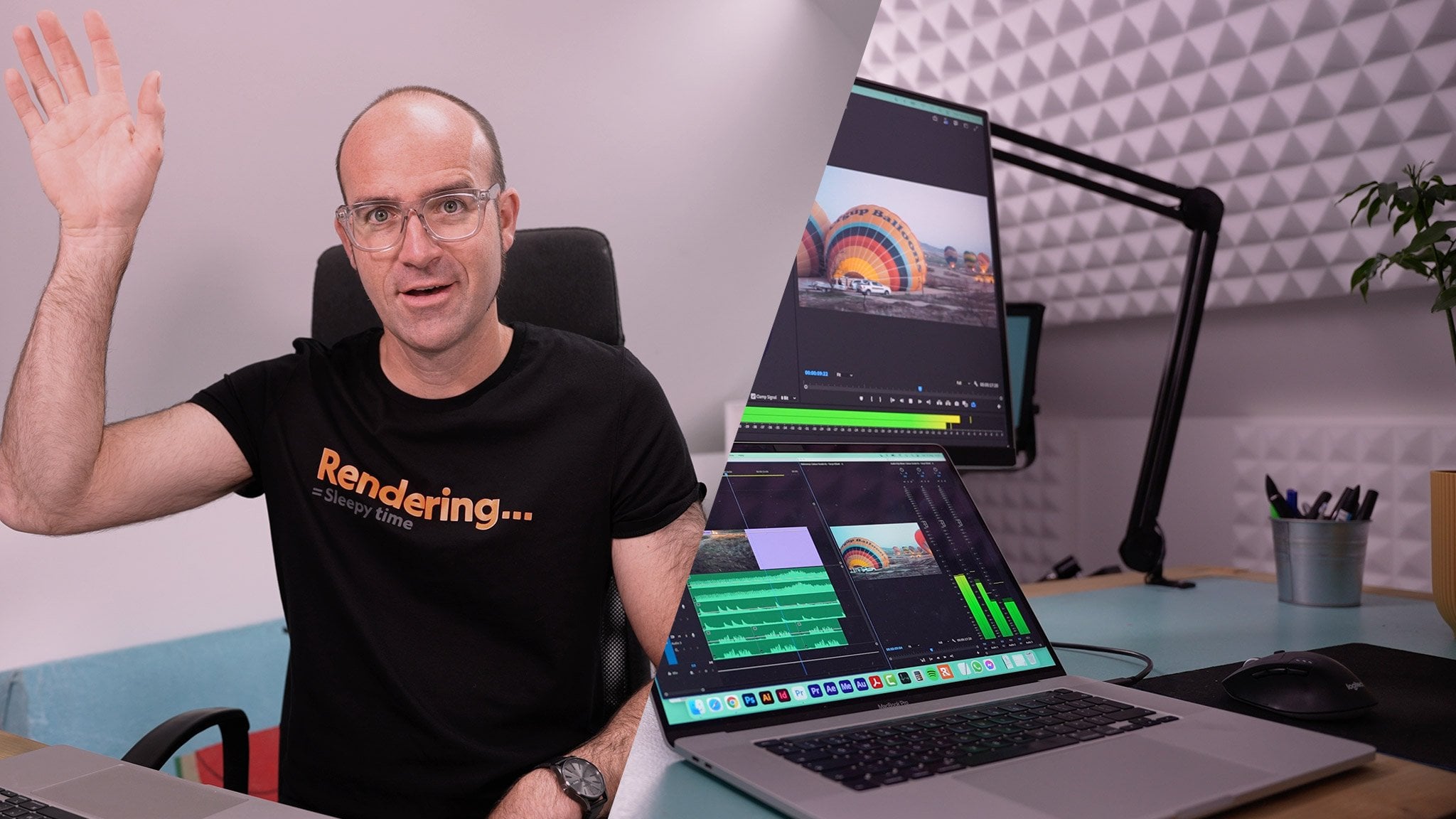
1. Introduction to Premiere Pro Essentials training course: Hi there, my name is Daniel Walter Scott,
and I'm an Adobe Certified Instructor. In this course,
you and me are going to learn... how to make beautiful videos together,
using Adobe Premiere Pro. This course is aimed at people
new to Premiere Pro. No previous video editing experience
is needed. It's also for those of you
who are self-taught... who open the program reluctantly,
hack away at it, swear a lot... this course is for you too. We do start right at the beginning,
and work our way through step-by-step... but we do cover a lot of ground
in this course. You'll come out the other side with... be pretty confident taking on a real
wide range of video editing work. During the course you'll work
through real-world projects... like editing an interview... a wedding video... a short commercial, and documentary. Social media advertising videos... YouTube how-to videos
with Talking Head footage... mixed with screencasts
and voiceovers. You'll learn how to work with text,
animation, and motion graphics. We'll make special effects... add music. We'll take your still images
and make them feel like real video. You'll learn how to do color correction... color grading,
and lots of video transitions... plus all the technical bits too... like HD vs 4K, and frames per second... all the way through to exporting. You'll learn how to balance
and sync your audio... fix bad audio, like removing echo
and background noises... plus loads more, including things
like shortcuts and tips & tricks. On top of the class projects
that we'll do together... there are practice assignments,
like little mini projects... that you get to do
to practice your skills... but also build videos for your portfolio. Enroll now if you are ready
to upgrade yourself... and finally learn how to make
beautiful videos in Premiere Pro.
2. Getting started with your Premiere Pro course: You made it; welcome to the course. First thing we need to talk about is
'Getting Started'. First up, exercise files. So you need to download
the exercise files. There'll be a link on
the page here somewhere. Be warned though that they're
pretty big, 1.4 Gigabytes. So if you are somewhere
where you've got... like a limit on how
much you can download... you might have to go to work,
or go to school... the library, and download them. They'll take a little while but you
need those first to get started. Next question is,
what kind of computer? Do you need a Mac or a PC?
Doesn't matter. Software runs the same on both of them,
some of the shortcuts are different... and I'm going to explain
those through the course... but I'll just point them out,
I'm using a Mac myself... but it's not hard to
follow along with a PC, and I'll just explain if there are any... small little differences along the way. So what software do you need?
You need Premiere Pro. There's a couple of other
different flavors of Premier... Premier Rush, Elements... but Premiere Pro is what we're
going to be using in this course. It's the kind of main
one that Adobe makes. The other question I get is... can I use an older version of Premiere Pro?
Not really. If you're using, say CS6 Premiere Pro... it's just going to be pretty
frustrating doing this course. You're going to be able to do about
60% of what we're going do together... but when it gets to like--
so you'll be able to do basic editing... the same as the newer version,
we're using 2020 in this course... 2021's just about to come out... so anything above or around that
sort of time frame will work perfect. Anything that's pretty old, like CS6... you're just going to get to the bit where
it says, 'Fix Audio', there's a button... and you're not going
to be able to do it... you're going to have to figure out
how to do it in older versions. So maybe an older course for
CS6 might be better for you. All right, let's talk about hardware. You're going to need some
minimum requirements... in terms of your computer or desktop... to actually run Premiere Pro,
it's quite stressful on computers. So the best way to do is--
it changes all the time... so Google the words 'Premiere Pro
system requirements'... and Adobe will tell you what the
minimum and recommended requirements are... and the closer to recommended you are,
the better, the faster it will run. The minimum will actually run,
you won't have any problems... but it will be painfully slow. Now a question often asked is... "What happens if I'm
below the minimum?"... "I've got a really old crappy
laptop, what do I do?" It will probably still work, I don't know
how old and crappy yours is... but I know I've got a PC back there,
my Lenovo, it's really old... it's below the minimum requirements... but it still loads Premiere
Pro just fine... okay, I'll take that back,
not just fine, it loads, it works... it pops up with a warning saying
"Hey, we do not support your video card"... but you click 'OK' and it still works. The biggest problem is
collecting it from downstairs... once I've thrown it at the window. It is painfully slow but it will work. So have a little look
at the requirements... and don't skip any videos. I realize the irony of putting
this at the end of this video... because the skippers have
probably already skipped. I say it because there are some
sections that you might think... "I'm just going to skip that because
that doesn't relate to me"... watch it because I've had
to kind of, you know... stage all the different kind of bits... that we're going to learn
throughout the course... a different kind of, like learning levels. So even though it might say... something like Instagram, you're
like, "Eh, I don't even watch that"... I've got other bits
that can be used... techniques and tools that
can be used generally... amongst other different
kinds of video editing. So try not to skip videos. This is the end of this one now,
you can skip now. Yeah, let's get going.
3. What is the difference between After Effects & Premiere Pro: A question that comes up a lot is... "What is the difference between
Premiere Pro and After Effects?" If you already know the answer
you can skip this video... if you're unsure, stick around. Basically Premiere Pro is video editing,
and After Effects is special effects. So Premiere Pro would be
something you'd use... if you are going to make a how-to video,
like this one, okay? If you are making a commercial,
a documentary, a feature film... I can't think of anything else... but it's all to do with taking
footage from a camera, generally... and doing cuts, doing transitions... doing some basic color correction,
fixing the audio... and then sending it on its merry way. After Effects on the other hand
is all about motion graphics... and kinetic type, and if your logo
needs to spin in... and spin around and catch fire
for no good reason, that is After Effects. Let me show you a couple of examples
just to make it crystal clear. All right, a good example of
what After Effects does is... kind of their--
their own website... you can see in the background here,
the types of things that gets used. You can see kind of cool transitions
and intro videos. There is special effects,
a laser car, some-- just-- interesting, okay, special effects... but I feel like there is
another side to After Effects... the side that I do more of. It's more like motion graphics,
see this intro here... there's something similar to
the beginning of these videos. There's a bit of camera work going on,
and some zooming, and some... kind of animated graphics, you can
see me interacting with, it's here... that's After Effects. So more-- I do kind of more-- you can
kind of see, motion graphic style stuff... animated infographics is
what this course is... if you want to do After Effects,
check out that... but there's a lot of cool stuff you
can do like this in After Effects. Other things that are quite cool,
with more motion graphics... where... yeah, it's kind of more
design style animations. You can kind of see all of this type stuff. Yes, there is After Effects... and Premiere Pro, let me show you
some of-- let me show you an example. So this is one of the examples from
the course that we're going to do. It's a short documentary on Parkour... and basically you can see
in the footage here... is a bunch of mp4s I've recorded
on a camera, there's some audio... and we combine it together to tell
a story in the timeline over here. Let's play it through... "When I first started doing Parkour,
it was five years ago, and... there's a bit of interview
in the background... we cut between a few different videos... "...watching videos,
and blowing my mind..." "...that some people can jump so far, and
do some awesome tricks." - Wait for it. "I realize that there's no limits,
all limits are... We fade in such dramatic music. Hah, look at that. So yeah, Premiere Pro,
documentaries, commercials... YouTube videos, how-to videos,
anything that does videos... Premiere Pro is really good
at doing it quickly... and outputting it quickly. Freaks out for special effects,
does some stuff. We're going to do
special effects in here... but After Effects freaks out at doing
this kind of editing in front of us... but loves doing all the special effects. Can you get away with using Premiere Pro
without After Effects? Totally; Premiere Pro does
a lot of the simple stuff... that you want to do in
terms of special effects. It's just the more hardcore stuff you
might have to jump out into After Effects. All right, that's it,
Premiere Pro, video editing... After Effects, special effects. Let's actually start one of our projects.
4. Getting your project setup in Premiere Pro: Hi, there. This is going
to be our first project. We are going to take some
video captured on a camera, stitch it together
here on our timeline, this handsome man
is going to talk about our course
that he's making. We're going to fix the color, we're going to fix the audio, we'll add some lower thirds
and some background music. Let's have a little listen. [MUSIC] Hi, there. My
name is Daniel Scott and I'm an Adobe
certified instructor. You'll love it and some
happy background music. There'll be some
bullet points as well. They will be a
fade-out at the end, correcting audio,
correcting the colors. It's a nice simple
project to get us started to figure out a way around Premiere Pro.
Let's get going. First up, the welcome
screen to Premiere Pro. What I want you to do
is go to New Project. Now they do move this, this welcome screen
changes quite a bit. The vision that you
might be looking at, you might have to hunt
around for New Project. Otherwise is a long version
here that should be the same on every version
file, New Project. It doesn't matter whether you
use this one or that one. I want you to click it once. I've got this big screen. What we'll do is
we'll cover this in a bit more detail
in the next video. But for the moment, we're
going to only do two things. We're going to name our projects here at the top
here, project name. We're going to give it,
I'm going to call mine XD Intro. You do the same. We're making an XD Intro video. It's going to be the project
we're making that you saw at the beginning and often I'll put it in a hyphen
and then I'll type in when it was made, just so that I've
got a reference. You'll end up making two
versions of it or updating it. I like to add the
date there just as a simple reference, up to you. Call it final if
you want to tempt fate because you know it
would be Final 2, [LAUGHTER], Final 3, 4, maybe V1, V2 is another good option
for Version 1, Version 2. We're going to name and
we're going to decide where it's going, so project location. Click on this. Down
the bottom here, it says "choose location". What we're going to do is wherever you've downloaded
your exercise files, so download them, unzip them. By double-clicking
the little zip file, you should get this folder. Inside of here, there is one called Project
1, talking head. That's what we're working
on at the moment. Double-click that, and this is where
we're going to put it. Click "Choose". Windows
is slightly different, but you should be able to
pick the folder for that 01 and that's what we're
going to put our project. Let's leave all the rest
of this for the moment. Down here, let's click "Create". The Premiere Pro is open,
mildly scary interface. One of the things that
you might find is if you have been tinkering
around and breaking stuff and things are just not looking how mine
look on the screen, what you might want
to do first is go to Window Workspaces
and go to editing. You can see mine's already on , Window Workspaces Editing. You see a little dot there.
It's already on editing. What you need to do is reset to the save layout of editing. Click that. It will
reject back to this. This is a really handy
one in this course, you might accidentally go. Can you see? You can go,
"I want this to be wider." You can accidentally
drag this one to bins. [LAUGHTER] If you click
and drag it by accident, and you get things all
looking a bit weird, you can always go
Window Workspaces. Make sure you're on editing. It's the good generic one. It's the do it all workspace and go to
reset saved layout, and it'll go back to this. You've got a new project. We have got our
workspace all laid out. Let's get started by
importing some footage. Let's go to File. Let's go to Import. I want you to go to
your Exercise Files, go to the Project
1 Talking Head, and in here just bring in O1 XD Intro.mp4. Click "Import". Now, let me introduce you
to your project window. Basically, this
is all a file set that you bring
into your project. What we want to do now
is actually turn it into something called a
sequence or a timeline. They mean the same
thing. Over here. This is the raw footage
to make it into an editable timeline
that we can start editing and cutting and
adding other videos too. You click "Hold" and
drag it over to here. Now, first thing I
might acknowledge is that yours might be
looking like this. I switch between List View
and Icon View quite a bit. You're probably on Icon View. This is really handy view. The cool thing about
Icon View is you can, I'm not doing anything, I'm
hovering my mouse over it. I'm sliding it across. I'm not even sliding. I'm
moving my mouse back and forth. You can scrub
through the footage. Footage is another word for the video that
you've brought in. You can get an idea
of what's in it. Let's all go to, let's be on this Icon View to get started. What we want to do now is create our sequence/timeline
by clicking, holding, and drag it in
this area down here. It just makes a sequence for us. Over here in our Project Window, it's taken my MP4 and
created a sequence, and it's used the same name, which can be confusing.
This is the sequence. This is my video. How do
you tell the difference? See this little icon here. If you hover above it, it
says "I am a sequence". Over here, it says "I'm a bit of video and a bit of audio". This sequence, whenever
I make a new one, I try to make a habit of going in and double-clicking
the word down here and giving it a different name so that it's clear what it is. I'm going to call this
my XD Intro sequence. I don't often call it sequence. I just add that just
for this course, just so that we can
remember what we've done. I hit "Enter" on my keyboard. Here's my sequence
with a video on it, and that's just a
video by himself. Over here in my little timeline, you can see this is my video. Let's add a second
video to it to make it a little bit clearer
how this sequence works. To do it, simple what file? Let's go to Import. Let's open O2 XD Intro. Click "Import". There we go. I've got my O1, my
O2, and my sequence. What I'd like to do is add
both videos. I've got O1. You can see the name there. Let's click "Hold" and drag O2. Drag it so it's afterward. You don't really want it here. Nothing wrong with that, but
we'll talk about that later, but try and get it
on the same channels here or the same tracks. Wait there for one minute. This is a little addition
to this video because, in my original video, I said, click, drag it out,
and put it over here. It worked fine. It
normally works fine. For some reason on a bunch
of people's computers, it's only dragging
out the audio, and not the video. You can see there's no video. What do you do on the bottom? No video. What is it? I'm going to undo. When you are dragging it out,
it's this thing here. It's called source patching. It's reasonably advanced. We won't cover it exactly now. Later in the course,
we'll look at it. But it's saying that with this off if yours is working,
it means that it's on. It's a nice blue color. It's saying "when
I drag stuff on, I want the video and
the audio". Thank you. That's V and A. With it on, perfect. Yours might be doing
that and you'd be like, "Skip along" but there
will be a time where you accidentally click this by accident or you messing
around with it. You're not sure what
it does and then from the neighbor on when you drag it on, it will
only bring the audio. You could do the same.
That's what it's for. I don't want to have to separate or delete
the audio afterward. I just want the video part. You get it. Audio is
on and video is on. It's called source patching. Search now if you want
to learn more about it. I have got a video
called source patching, but that's way advanced and you've got the
basics already. If you are running
into that problem, it's probably just
this thing not on. Continue on with the video. Drag it over and start
the video again. What you can do is click on it and drag it so it butts
up at the end there. Just some basic nav to get started because
you might be like, "I can't put my O2
in because I can't see it" or enough room
to put it on there. We're going to look at
zooming in and out. What we're going to do
is we're going to click anywhere down here in our timeline because you can see it gets that blue
line around the outside. You can see if I click up here, the blue line around there, the blue line around
the outside of that. I want the blue line to
be around my timeline, and then if you look
down at your keyboard, you've got plus and minus. The gym really along the top of your keyboard
at the end of the numbers, you get a plus and a minus, or might be labeled as an
equals. Try tapping those. Plus to zoom in and minus
to zoom out obviously. I want you to zoom in
like this so you can see, but at the end here. If you couldn't before, you should be able to now go
through and drag a Number 2. The one weird thing
about that though, is if I have this selected
in my program window, which shows me what's
appearing in my video. If I hit "Plus" there,
it will zoom in on the timeline along the top there and not do what you want. You got to be very careful
where you have selected. Keep an eye out for
that blue arrow while the blue blocks
are on the outside. Click down here.
Plus-minus, easy. Now for some reason you don't like that or can't do that, you can use these little weird rubber bands down the end here. I hate them.
[LAUGHTER]. They are really weird. But some
people like them. You can see I can grab the
end here and drag it out. Drag it in to zoom in and out. That's lovely. I can grab the center of it to scrub along. That might be the way you do it. There's nothing wrong with it. Most people use the
plus and minus, but some people in my classes are like, "No, I like that way". Use the weird rubber
band stretchy thing. Next thing in terms of
basic navigation is, can you see this
little link here? He's called your CTI, your current time indicator. Depending on what tutorials
you're following, I think technically
it's called the CTI, current time indicator,
but it's your play head. It's wherever you are, if I grab this little weird
half diamond thing, drag it along, it's showing me where I'm up to
in my play head. If I hit "Play" here, watch. Moves along. This is
your CTI play hit. Click it, hold it, and
drag it along just to get used to scrubbing
along the timeline. Because what will happen is say, I drag along to here and I
hit my little "Plus" button, it's going to zoom
into wherever that is. You can see I can zoom right in, and I'm starting
to see the audio for my voice and
minus to zoom out. Move it along here. Plus to zoom in,
minus to zoom out. Basic stuff. Let's get into
becoming an actual editor. To be a fully fledged editor, which you are going to
be in about 10 seconds, you need to actually start
slicing your footage up. Because at the
beginning there's me. I've put it right
at the beginning here, hit the "Play" button, you can see me's, because I've filmed myself, I have to get the camera
going and then go sit down. I've just noticed
that my flies down, [LAUGHTER] a real professional. There's a lot of like
me wiping the sweater [LAUGHTER] Lots of great stuff. These are false
start. Watch this. I drag my playhead to
beginning here. Hit Play. Hi there. You don't have the audio
through this video here. You can drag it along
and listen to it. You can see that
I said, Hi there. I just didn't do very
well so I started again. There's a lot of restarts,
or second takes. You can see, roughly where I get to about
here is to drag along, just before I start
waving my arm, drag the CTI, to about just before I start waving and we're going to
grab our editing tool. This is the main one you're
going to use in Premiere Pro. It's called the razor tool. In your Toolbar, the
fourth one down, click on that and click once anywhere in here along with this little blue
line for your CTIs, and you've made your first cat. Let's grab the "Selection"
tool, this top tool. "Click" on this first
bit, hit "Delete". We've made our first edit today. You're video editor.
Not a very good one, but [LAUGHTER] because
that some way, next thing we're going to do
is "Click" it and "Drag" it. I've clicked it once
and just dragging, you can drag any part. It's better to drag
the top part of it, but if you drag the bottom part, this is the audio part of the video in this top
part is the video. If you drag the bottom part, you can adjust the volume in
duels, it's a weird stuff. Don't do the weird stuff. Click "Hold" and "Drag" this along until it snaps
at the beginning here. It's stuck at zero. Drag it along right
there at the beginning. The next bit of editing is going to be chopping
it off at the end. You're going to play it through and when it gets to the end,
we're going to hit "Stop". I'm going to show you
a little shortcut. We're going to do a few shortcuts
throughout this course. We're going to start
with this one, the "Spacebar" key
on your keyboard. Look down your keyboard, Spacebar, hit it
once [BACKGROUND]. It's the shortcut
for this button, because you do it so often, you can see if I hover
above it, it says, "Space start, stop it." Spacebar on, [BACKGROUND] Spacebar off to
start and stop it. Play it all the way through
until it gets to the end. I'm going to do the same and where I feel like it finishes, I'm going to hit my Spacebar
to stop [BACKGROUND]. Here you go, got to there roughly and doesn't have
to be perfect just yet. I've stopped it. I'm going
to grab my Razor tool again. Remember fourth tool down. If that happens, you
see that little thing, flash, that's the "Auto Save". Premier Pro is pretty good at saving your project
as you go through. We're going to grab the Razor
tool, click on it once. Selection tool, click this
part that I don't want, hit "Delete" and then I'm
going to shuffle this over. We're going to do the same
thing for this next bit. Now the cool thing about
Premier Pro is I'm going to zoom in on my little
timeline down him. What was the shortcut for zoom? Plus, that's right.
As long as it's blue around the outside by
clicking anywhere in here, well, the clip doesn't
matter. Zoom in a little bit. You can see this audio
waveform and that's do a lot of your editing
to this audio waveform. What I would like to do is
grab my CTI on my play head, the beginning hit Spacebar, [BACKGROUND] realized
false start. Drag it along here [BACKGROUND]. Sometimes what some people
see my interests like, no, it's really good. I realize I had to do like 50 false starts to
get my flow going [BACKGROUND] Persistence then, so I'm going to get right
to the beginning of this. But I can tell us the bit
without actually knowing so the dragging the center of this stretchy thing
is quite useful. At least now until we get
into a few more shortcuts. I can tell by the waveform that I continue on my merry way. This is probably
the final cut or the final shot that I want. I'm going to drag
it to about there. Grab my Razor tool. Thank you, Razor Tool, "Click." I can just go over here and actually probably
just guessed, that's probably the
end. Just click once. Go back to my selection tool, "Delete" this first bit, Select this last bit, and I'm just hitting
"Delete" on my keyboard. Then this guy, I'm going
to click the top part, not the bottom part
and drag it along. Because if you drag
the bottom part, often misses with the audio, remember to drag this top part. You my friend, have
edited Alphas video, at least the first part.
Welcome to the club. I'm going to zoom out a little bit so I can
see my whole time, now I'm going to drag the CTI all the way to the end here. I'm going to hit "Spacebar" [BACKGROUND] and watch
it all the way through. I'm not going to,
but you should, just actually I'm going
to drag my CTI to here, [BACKGROUND] is my
little cut across, this is a straight cut. You've done a bit of editing, you've done a transition
that believe it or not, as a transition and probably the one you're
going to use the most, just a nice straight cut
between two different shots. If I'm honest, 80 percent of my time in Premier
Pro is exactly that, Razor tool, Caddy
cut, drag it up. We'll learn a few speed tricks to speed that part of it up. But that's a yeah. You're a video editor people. Now one thing I
want to acknowledge before we go is a little
bit of weirdness. There's a lot of weirdness in
Premier Pro, to be honest. What I'd like to do is show you what might happen
you might have done already, is I got my sequence. I got the two video
files over here. This is my timeline, over here, it's something
called the Program window. This is what's actually
going to be exported. Anything that plays along in here is the stuff that's
going to go at the end. Here there's other window
called the Source Window. If I double-click on one
of your double-clicker, you've probably
already found here. Double-click it,
you're like, uh, what is this? What is that? If you've opened up Premier Pro before and got a bit lost, this can be a little confusing. Your source monitor is
just a preview monitor. Scribble that out. Instead of saying,
"Source a preview." This is where you preview stuff. Over here is the stuff
that actually goes out. This is your finished product. That looks weird
having two of them, and you doing same crazy phases. What I find for new people
is if that scaring, just click on "Fixed
Controls" for no other reason than to
hide your source monitor. You're like, uh, just
leave that there. You can go back to that
later on by clicking it. But for the moment, it's nice just to have the
program window up, your timeline down
the bottom here, and this project window
with the weird files.
5. Importing video using the new interface in Premiere Pro: Hi everyone. In this video
we're going to look at this new input interface that Adobe Premiere
Pro has released. This is an update video to
the original course just to explain what this
is because it's new. It's pretty cool, let me
show you what it does. This is the old version
of premium product, this is the new one that
you're using probably. This course is recorded
in the old version where the rest of the course
is going to work great. The reason I've added
this update video is because just here at the
beginning the way you get started with the
project has changed in quite a lot and for the
better in my opinion. The old version
you'd click on "New Project" and you get
given this thing, big, ugly, and very scary if you are new. What
is Scratch Disk? What is Ingest Settings? We get into those things, but only in the advanced version of Premiere Pro at the course. There's lots of
stuff in here that are handy for advanced people. Even for me, I'm advanced and I never go through and
change my capture format. There's lots of other more
useful things that could be at the screen. They
have got rid of it. If you are using
an older version basically throughout the
course it's going to work fine and the main
things you need as naming your project
and where it goes, everything else leave as it's
but let's leave that now. Goodbye old version, let's
look at the new version. This is the new version
of Premiere Pro and what they're doing
now is when I click "New Project" instead of
that big scary window that doesn't have a lot of
useful information on it, now they say here's lots of
really useful information. You can just name
the project and give it a project
location and carry on, but what you can do now
and there's newer version is you can jump ahead. You can say actually I want
to find my exercise files; I put mine on my desktop. Here they are for the
course under Project 1 and I want to import O1 and O2. I'm going to give
my project a name, [NOISE] so XD Intro-May 22. We'll give it a place to live like we did
before going in there. I think I've already got one called x and I'm
going to call mine b, and we're going to say import this and give it
a sequence name. This is going to be my
[NOISE] XD Intro Sequence. Let's click "Create".
There you go. Let's Workspace Editing, Reset to Saved Layout, but basically we
just jumped along. Remember in the
last video we said create a new project
and it was blank, then we imported the footage down here by double-clicking, then we can dragged it over here to create
a sequence from it. We'll just skip that
step, so that's cool. It's created our sequence;
there it is there, and it's imported our O1 and O2 video to it and stuck it on this little
sequence timeline here. That's the perks of the
new project window, so do you get started off. From now on you'll have to go through and
double-click and import, it's just a way of
getting started. For the rest of this
course I'm just going to start with a blank
one and important it, but for you now
because you know the sweet new features you can when you are going to File New start with this option here. Just skip that step
of Dan importing it secondarily and
making a sequence, you can skip and say
I want to import this one and this
one into a project. Give it a new sequence and
hit "Import", up to you. New way, old way, it doesn't change
the final output, but definitely this
new project window is a lot more helpful. While we're here,
let's look at some of the other features for
this new import interface. So some of the helpful stuff. First of all you might be like, "Where did these
videos come from?" These are somewhere [MUSIC]
from South America. These are just sample footage that Premiere Pro
have given you. This might change over
time but this is here just to give you an idea or just give you some
video to start with, so you can say, "I don't
want to play around with Premiere Pro without having
to import my own footage." You can decide on these two
and create a project name, give it a location, give the sequence name; Somewhere Dan Should
Know [NOISE]. It seems like an important
part of the world, [LAUGHTER] I'm a
little sheltered. You've got some sample
footage here and the cool thing about it is while this particular screen
is here, watch this. I can just move my screen
and a mouse back-and-forth. I'm not clicking and dragging. It's just scrubbing
through the footage so I can decide which version. Is this one that I want
or is it this one? It seems a bit jumpy
to get started. If you've got a
really old computer it might not ever catch up, and you might be like, "Why
isn't mine scrubbing?" It's just because
your machine is just struggling to do it. It is really handy
especially when you've got footage and you're
like, "Is that the one? Is this the one?" I'm just moving my mouse back and forth. You can switch it from
grid view to list view if you prefer that because it's got a bit more information
about stuff. You can decide on
the sizes as well, fit more in, that, then listen. Okay, up to you. Another
helpful thing about this is over here under
your local stuff. You're also going to
be different depending with you're Mac or PC. It's just really
handy. Grab stuff off your SD card it'll appear here, or another hard drive. Another handy one is Favorites. At the moment the only
favorite one is Sample Media. Let's say that you've got a folder that you keep stuff in, so I'm going to go rummaging
around my computer. [LAUGHTER] I hope
there's nothing in here, nothing to give
away personal data. Well, I'm diabetic [LAUGHTER]
and I want a Datsun, but let's not go
through there too much. Let's say Living Spree, let's hope nothing's in there. Let's say this is where
you keep all your videos, this is just a for instance. Double-click it to go inside,
[NOISE] nothing in here. Go up to here and say
starred. Can you see it? It appeared over here.
Turn it on, turn it off. It just means that if you've got a place that you always
go to on your network, or SD card, or hard drive, or somewhere deep dark in
your documents [LAUGHTER], or a big pile of mess
on your desktop, you can add a favorite
tool once you find it, then you can easily
go back to it from Home to Living Spree. Nice. The sample median here I might turn it off
because I don't really need this unknown country that seems really important
that I should know about. Point to the stuff and it
won't be in my favorites. That's the new helpful
Import feature when you are creating
a new project. That's it, on with the
rest of the course.
6. How to add import video your Premiere Pro Project: Hi everyone, in this video
we are going to add a couple more videos. We're going to edit it in a different way. Different from using the Razor Tool,
like we did in the last video. Also I'm going to show you what to do
when your computer starts running slow... and I'll show you how to make this
waveform bigger and edit from it directly. I'm ready, you're ready, let's get going. To get started let's bring in some footage. Let's go to 'File', let's go to 'Import'... and let's bring in, from our
'Exercise Files', 'Project 1'... let's bring in '03' and '04'.
You can bring in more than one at a time... by clicking the first one, holding 'Shift',
grabbing the second one. You can bring them in individually if
you find that hard, let's click 'Import'. You'll see down the bottom here, our little
project window's starting to fill up. Remember, our project window
has all our files in it... and I really-- I don't hate Thumbnails but
I switch to List View very early even... because I just like to
see the names and all listed. In this view here it's great,
you can make them bigger. I'm not sure why you would... but you can't make them much smaller. The one thing that is
weird about this... is that they're actually listed
non alphabetically in here. You can see, 01, and it jumps to XD,
and then 02, it's kind of random. So if you do prefer this view because
it's scrubbing along, is pretty cool. So to kind of get it a little bit
more useable... see this little slotted lines down here... click on this, and you could say,
I want to order... not by Users order, but by Name,
just put it in alphabetically. I don't know, is that just me?
Maybe it's me. So we're going to add
these to the timeline... you can-- let's click this
first one, '03'... and just drag the whole thing over
until it's after 02. Zoom out a little bit. What's the shortcut?
Yeah it's ' - ', we're getting there. And bring in number 4 as well, nice. Now we're just going
to kind of like jump... you don't actually have to drag... you can just kind of click
in here and it jumps to it. Up to you whether you want
to drag the CTI along... but with it here, hit 'Spacebar',
let's preview. There you go. One thing though is, if yours
is struggling to play back... if it's struggling to play back
this video already... that's not a good sign... but if it is-- see here in the bottom... it's trying to play it back
in full resolution. This is shot in HD so it's trying
to play it back in full resolution. Let's drop this down
to half or a quarter. If it's playing back slowly
just drop it to a quarter. Keep an eye on this... it's like-- it's playing
okay, looks fine... go to quarter, and then
I hit 'Play', 'Spacebar'. Can you see, it's kind of blurry. It's not affecting, like the output, if you
export this now it's going to look perfect. It's just, like changing the preview. This will happen to everybody,
doesn't matter how good your computer is. You'll get to a point where
you've got so many layers... and so many things going on, that
actually just stick it down to quarter. When you're doing color grading
and making it all look pretty... you might have to jump
it back up to full... but quarter is fine. You'll notice,
when it's paused it's always at full... it's only when it's playing, look. Goes to a low quality one
just to speed things along. Now in the last video we edited
using the Razor Tool... so I'm going to click down
here on my Timeline... so that goes blue around the outside,
hit ' + ' a couple of times... and what we did was-- I know this video already, so let me-- So the first bit, I start... and then... get lost... start again, get lost, start again. There's this last chunk that we want... because that's the bit that I actually
complete my sentence. So in the last one, we used
the Razor Tool, and we just clicked... and we deleted the bits we didn't need. There's another way of editing... there's no real right or wrong... just sometimes you need one and
sometimes you need the other. So we're going to do, we've done Razor,
let's grab the 'Selection Tool'... and what we're going to do is... I'm going to put my Playhead kind of
where I want it to be... because it's really helpful, and tries
to snap to wherever the Playhead is. So you can use that to your advantage... to get it kind of at the beginning here. What we're going to do is... watch this, I've got my Selection Tool,
and if I hover between this gap here... can you see,
if I move it to the left hand side... it's got the left hand arrow... right hand arrow, just going
to be close in here. So I want this side because I want to
deal with this track, or this clip. I'm going to click it, hold it,
and drag it. You can see, I could drag it to
my Playhead and it kind of snaps... and it's the exact same thing,
nothing's different about it. Instead of slicing it
with the Razor Tool and deleting it... or dragging it at the end, some people--
you'll end up using a bit of both. So we're going to grab it,
drag it along. Do the same for the end,
I'm going to hit my 'Spacebar'. Now what I do when I'm editing is that... I edit via the waveform,
it kind of took it in the last video... but it's very hard to see,
see it's teeny tiny. So what we're going to do is... can you see, basically there's
this kind of a thicker line here. Video is all on the top,
and the audio is all below. So if you've got like 10 audio tracks
and one video... you're going to have 10 below this. We've only got like three
layers to start with... but you can add more. So all the videos at the top,
and the audio is down the bottom. What I would like to do
is move my little mouse... between these lines here,
and you can see... this one here, just underneath
the track I'm working on. Now if you've come from other
Adobe worlds, the like layers... the same thing, but they call them
tracks in here in the video world. So I'm just going to click,
hold, and drag it down. Look at that, I can see all the little
peaks and troughs, and stuff in it. Just makes it really easy to edit. So I'm going to hit ' + ' to zoom in... and I can see,
without even watching it... and kind of pausing it when
I feel like it's finished... I can just drag this along to
about just after I finish speaking... and then it's nearly
always the time to cut it. So it's real easy to edit
via the waveform. So what am I going to do now?
I'm going to drag the end. So if you can't see this end here... you might have to grab the middle of this
guy, just to drag it along a little bit... and grab the end - So I'm still using my Selection Tool -
and just drag it in. Boom. Now a big question that people have,
is like... "Have I deleted this forever?"
No. You can grab it again and
just drag it back out... it's always there,
you've never deleted anything ever. You're just kind of trimming
the view of it up for export... but your original audio, sorry,
your original video... this XD, what are we up to?
We're upto the third one... is never ever changed, just sitting
on your hard drive, never amended. It's the same thing for
when I use my Razor Tool. So I'm going to drag along here... to go to my first one... and what you'll notice is--
actually I'm going to zoom out. Now to select more than one-- I want
to drag both of these along to the right. So got my Selection Tool... and I'm just going to click anywhere
up here and drag a little box. You can see, as I drag it,
it kind of selects a couple. So got more than one thing selected. I'm going to grab-- remember,
the top part of it is best, drag it along. What I did earlier is we
used the Razor Tool... but it's exactly the same, look. I've razored it before but look,
all still in there, all the extra junk. So it never goes away, it's just... just trimmed the view of it. Now I was undoing there... if you've never used undo before,
just the 'Edit', 'Undo'. I'm using 'Command Z'
because I'm fancy with my shortcuts. I'm going to drag that back, great,
and let's do the last one together. Let's grab this guy. I'm just going to edit by the waveform,
so I'm going to drag it to about there... and drag the ending, go about there... then drag in. Even without checking it I'm probably
going to be pretty close. So this is, consider it a rough cut... I'm just going to kind of drag it all up,
cut it all up... and then we'll look at it in
a little bit more detail, fixing things. It's best to kind of do
a real rough cut first... to just get everything in
before going into the details. One other little kind of like
using Premiere Pro thing... I want to just clarify, clear on is... if I click on this and I want
to get rid of it... just 'Del' key. So just select it, delete it,
easy stuff, I know. All right, one last thing I want to
kind of share with you before I go... is just like how I
got to these files... just prepare you for the future. When I recorded this course... this 05 XD is my raw footage
that came out of my camera. It's shot at a modest HD. We're going to talk about
HD versus 4K later on... but it's a modest size,
good enough quality... and it came out at 1.2 Gigabytes,
it is huge. That's the footage that comes out
of my camera that I have to work on. So you as the editor, you'll be
given files this sort of size. So what I do for this course though
is I took that same file... and I compressed it right down... it's still HD but I kind of
like lowered the quality of it. So it's not going to look as pretty
as the original... but you can see the file size
is like 15 Megabytes versus 1.2. So know that you're
getting this sort of stuff. In this course you can--
everything's quite small, and it's... I guess it's not realistic, so you're
going to finish this course, and go... "Yeah, my computer can handle it,"
and then all of a sudden... you get given this big giant 4K footage
and your computer kind of... it catches fire, so just to know
that I do some pre-edits. The other thing I do as well is, if you
end up recording yourself... like I do a lot, be prepared. I've kind of made these all look like... I've done one or two takes and then
got it good, but let's have a look at five. So this one here, to get this last
little bit where I actually get it... I finally get it,
and it takes about 20 seconds... but it took me six minutes
to get that 20 seconds. So if you're filming yourself it's hard... even, I'm like super experienced... that filming myself, and it's--
man, there's a lot of takes. So I've cut all this down
to make it smaller... and know that it's hard to film yourself. All right, that it is it, you should have
something that looks reasonably like that. One, two, three, four, remember, recap. Timeline is where also your sequence,
your project windows, all your files... over here is your program window,
that's what's going to be exported... and over here, if you double click
on something, remember... source window, just the preview window. All right, on to the next video.
7. Class Project 01 - Basic Editing: All right, it is class project time. Don't think of it as homework... think of it as exciting
practice that you get to do. So what I do to facilitate this is... in your exercise files, there is--
'Exercise Files'... there is a folder called
'Z Class Projects'. Z, just get it down
the bottom here. So in Class Projects, open it up... and the main one you want is this Word doc,
so open up 'Class Project Notes'. You'll see this, there'll be more class
projects coming up. I'm kind of adding them as
I go through the course. So this is Class Project 1, basic editing. So I want you to do a couple of things. First one is, add the last two files. So over here we've got 01XD, 02, 03, 04. We've got those already,
there's two more to go in. So add those two files from your
exercise files, they're called 05 and 06. Edit them either using the Razor,
or the dragging method. So snip them up with
the Razor Tool... or just drag the ends like we learnt,
up to you. Has a little bit of extra level in it. The second, sorry, the 06,
I want to show you real quick... has more than one kind of good edit. I did a couple of versions, so you're
going to import both, 05 and 06... but 06, if I drag it to my timeline here... and kind of scoot across... you'll notice that-- I just
want to show you... I do this version and I get-- that one's okay, so I kind of-- a couple
of false starts there, where I give up... and then this long chunk
here is actually okay... and when I get a good take,
it's very common... to have a bit of a clap at the end,
not because I'm so great, but listen. See, that one's alright, clap. It's just so that when I'm editing later
on I can see in the timeline a spike... because say I've done it 10 times
and I'm not sure which one it is... I'll clap after the ones that I
think are okay, so I think that one's okay. No clap after this one
so I think that one is bad. Then I get started again over here,
I half started, give up. You can see this long chunk here
is another option. So you can decide
whether it's this one... have a listen through, do some editing... is what I guess, I'm trying to say is pick
this one or this first one, after here... and decide which one you want to use. They're both the same,
just different kinds of deliveries. So that's the kind of homework... but what I want you to do is, do that... this one doesn't require any submission... you don't have to like send
it to me to prove it... because it's just something simple. I want you to do it, but I don't
want you to prove it. Karma will come and get you
if you pretend to do it. Give it a go, give it a practice. One thing you can do is just let me
know you've started the course. So on social media just let me know that
you've started the Premiere Pro course... kind of, yeah, interesting to know
who gets started. They're all-- use the hashtag Premiere Pro
on any of the social medias, they all work. So if you're an Instagram
person, I'm bringyourownlaptop... Twitter, I'm danlovesadobe. On Facebook group there's
a link to the Facebook group... and there's a link to the LinkedIn group. If you can't find either
of them through the link... just type in bring your own laptop group
on both of those... and you can go and just let me know,
yeah, you got started. So go give it a go, if it goes horribly
wrong I will do it in the next video. So you can see me doing it,
and how I would approach it. Yeah, I'll see you there.
8. Class Project 01 – Complete: All right, I hope the practice went well. I'm going to show you a little bonus,
for this one... is 'File', 'Edit', it's-- it's not painful,
it's just... a long way, you can double click
anywhere there's space. So it's a lot easier if
you're in List view. Does work in Icon view if you can see
a space, just double click in it... and you go to 'Import'. Cool, huh? So I'm going to hold-- click first one,
hold 'Shift', grab '05' and '06'. Go to List view,
because I hate thumbnail view. There, I said it, some video in. I said I wouldn't-- anyway,
Thumbnail view is fine. I'm going to grab '05'. I'm going to zoom out... and I'm going to add '06'. Often, just dump them all in
especially if they're easy like this... in that kind of nice little order... then I zoom in and I have a little look... and I go... I know that that chunk there is
the only one, so which way do I do it? You're going to get an extra bonus
in this one as well. That looks probably about right Now instead of dragging it,
you ready for your secret trick? If you double click--
if they double click... no, just a single click, I think
I always double click, doesn't matter. Click on between here,
and just hit 'Del' on your keyboard. You can see, just deletes the space.
Cool, huh? And I'm going to move along,
and I'm going to-- which one did I pick? I'll pick the one without them,
put the clap afterwards. I'm going to jump to my Razor Tool. Delete you. So this is kind of how I work,
that's very typical of kind of how I work. What you wouldn't have noticed there is
I jumped to my Razor Tool. It's like this, super, like used one. You can see, if I hover above it,
can you see, it has C in brackets. It says, if I hit my 'C' key,
goes to the Razor Tool. Think chop, chopping with a razor,
or cutting with a razor. It's probably--
nobody chops with a razor. What we're going to do is,
well, so two shortcuts... is C, and the other one is V. I'm forever toggling
between 'V' for move... and 'C' for razoring. Taken between to delete it, and then
just give it a little check to see... how good these little transitions are,
hit 'Spacebar'. There. That's all right, and this one here,
track it here. That one there, just a little bit,
I do a little bit of like... looking, for no good reason,
so I'm just going to jump in. Go back to my V Tool,
sorry, my Selection Tool. I'm just going to grab it and drag it in. Click in the space, hit 'Del',
look at us, editing stuff. All right, that is your homework done.
Good work, high-five if you've done it. Let's get on to some
more Premiere Pro-ness.
9. Color Grading vs Color Correcting Video in Premiere Pro: Hello, it is time for
Color Correction time. Before we get started
I just want to quickly... define two terms for you
that are important. One is Color Correction, the other one
is Color Grading, and Color Grading... grading, accent, is a term that
gets used a bit flippity-flop... but you need to be
reasonably clear about it... when you are working
as a Video Editor. Somebody asks you to do some color
correction or color grading... they're very different jobs. So Color Correction is fixing photos... Color Grading is giving a specific look,
or a feel to it. So Color Correction would be things like...
"Hey, the lights aren't great." We need to kind of play with the shadows
or make it brighter, fixing broken video. Color Grading is adding
an effect or a look. Think Instagram filters, think I want this
film to look a little bit more cinematic... or I want to make it look
like an all-time film. So you give it a look,
that's Color Grading. So we're going to do Color Grading
in this course but not right now. We're going to do Color Correction. So let's jump in now and
I'll show you how to do it. All right, let's do some Color Correction. To do it we're going
to open up a panel... under 'Window', and there's one called
'Lumetri Color', click on that one. Kind of open up on the side here. The next thing we need to do is... let's say we're going
to correct 01 XD Intro. So what we need to do is put
our Playhead in a position that's... a good general representation
of the footage... and because mine's shot on a tripod
and nothing's moving, it's pretty easy. You can pretty much have it anywhere
in here, and color correct it... but let's just say for instance--
I'm going to drag in 01 again... so you can have more
than one instance of this. What you can do is,
no point color correcting there... because color correcting
my back is not a good... you know, not a good way
to color correct because... it's going to actually look different where
my actual skin tones are all involved. So remember, when you're color correcting
different from Photoshop... Photoshop, you just do once,
you know one shot... whereas video you actually
have to kind of... try and guess it for this
whole entire thing... so you need to find somewhere
kind of in the middle. So I'm going to delete that. I'm going to scroll down, find a bit... where I'm looking... vaguely intelligent. What we're going to do is
we're going to select 01. You might have to zoom in and out... to kind of move your way
along but have 01 selected... and all we need to do is click on,
over here where it says basic correction... click on that word once. What will happen is--
click it again to close it. So there's a bunch of
different categories in here... and it can look very confusing
in here, I get confused too. So basic correction is the one we want. What we're looking for is we're going
to do the quick and easy auto option. Make sure the actual clip is selected,
click on 'Auto'... and it didn't do a whole lot,
what did it actually do? You can test it by going
to 'Basic Correction'. See this little tick next to it,
just to turn it off, on, off, on. Just did a little bit of work
with the shadows and the blacks... so just minusing a little bit. The reason that is is that
I spend a bit of time getting my... kind of room set up,
with the right lighting... I mess around with my camera to try and... not have to do a color--
all that color correction afterwards. Yours might be changing
loads of different things. So that is color correcting this one. The one thing we might
do though is that... it's very small in
comparison to the rest of it. So what we're going to do is... I'm going to show you how to
kind of adjust your workspace... because this has kind of crowded it out. Yours might be looking a
little differently... but can you see, in between any of these
panels these little double lines appear. So this one here I can kind of, between
my Source monitor and my Program monitor... I can click, hold, just kind
of like drag it across. You can see how you just get more
screen real estate if you will. Same with the Timeline,
you can drag it down... to get a bit more space,
drag it out this way. So you will find the happy medium
for your computer screen. I've got a really big 4K LG monitor,
I love it... but when I'm working on my laptop... actually have to have a different
kind of view. So drag it around to kind of
something that looks nice for you. Now that it's done I need to kind
of acknowledge that this one here... is not done,
nothing's been changed in this one... because I had this one
selected when I did it... and this one hasn't been done, so I can
do the same thing, find a good middle... a middle kind of shot. Then with it selected click 'Auto'... and it's done basically the same thing. Why? because it was all
shot at the same time. Work away long, is that any different?
Auto. Same. It's like in-- it's the same. Same footage. If you've got, like Windows open... it's going to be different every time... because you're using the light
from the window to change... it's clouds, the Sun moves. So that's the Auto feature, super easy. Let's look at doing it manually. So let's-- I'm going to-- So I've got this one here,
I'm going to go to 'Edit', 'Copy'. I'm going to scrub along a little bit using
the middle of the little rubber band thing. Bring my CTI along here. It's wherever this Playhead ends up being
is where it's going to paste. So if you leave it behind,
even though you've scrubbed along... it's going to paste wherever this thing is. So we're going to go to 'Edit', 'Paste'. I'm going to use shortcuts from now on. That's 'Command V' for a Mac,
and 'Ctrl V' for a PC. So I'm going to use those shortcuts
from now on, pretty common. So I've got this one... which has been auto corrected. I'm going to duplicate it again. So I'm going to put one just next to it... and I'm going to go to 'Edit', 'Paste',
I'll use a shortcut, look at that. I'm doing down here... just to kind of show you
different ways of working. So you do the same,
have two versions. This first version is being done with Auto,
the second version here... we are going to... let's go to 'Reset'. So I've got the second option selected,
reset it, so it's back to normal. What I'm going to do is show you
how I manually correct. I find, weirdly, that
working from this tone... this is where you start in tone... and you start at the bottom up,
I find it gives you a more... just it works more-- I find that's the best order to work in... working from exposure down
I find is quite tough... but working up, doesn't matter,
there's no right or wrong... but basically all you're doing is... dragging it back and forth. So I've got that selected, grab blacks,
drag it left, right... and don't be afraid to like,
to give it a good drag. People in my class are like... "Oh just get it up a little bit,
just going down a little bit, just... Go forth and back,
you can always go back to 0. And all I'm doing is,
I'm not even looking where the slider is. You can't see me but my head
is pressed against my screen... and I'm just kind of going back and forth. Then I get slower and slower
until I find like, that feels good. So when I'm dragging it, it's blurry... it's because I've turned
my quality down to quarter. Earlier on, because, while it's static
it tries to go full resolution. It's only when it's either playing
or you're manipulating it... it goes down to the quarter. I'm going to be, probably for the
rest of this course go back to full... because my laptop's pretty good. You might have to toggle
between half and a quarter... the whole way through this whole course... just to get the best out of your laptop. So I'm going to go to full,
and drag it back and forth. Close to the screen. There you go, that feels nice to me. It's a lot different than the -5. This is just like my preference. Same with the weights,
I'm going to get up and down. I'm not caring where it is, I'm just
kind of going back and forth in to there. So it's up a little bit,
so the same, start big, start big... until I find it. You can see that one went up 5. I'm not watching the numbers,
I'm just clicking, holding with my mouse. Looking crazy by getting
real close to my screen... until I find what I'm looking for. You see mine is 6, what have you, 0.6?
Why even bother. And exposure. Hey, I ended up at 0, that never happens... but, yeah... so you can see, my manual ones
are a lot different than my auto. The difference is,
let's have a look, click here... click here, click here... click here, which one do you like more? You're like-- it was a big waste of time
because they look pretty close. I like my one better... because I took some time to do it... but to be honest,
when I'm doing this kind of-- I'll probably manually edit... or manually correct for
an important video. If I was doing a documentary
I'd spend a lot more time doing it... a short film, loads of time. These how-to videos... if I'm more honest, I just click
on auto and just move on. Maybe not the intro... but definitely for the 100th video
I just kind of click on auto. All right, one last thing we're going
to do before we go is Saturation. So this little slider down here I ignored. We are going to look at saturation,
we're going to go left and right. Do we want it more saturated,
less saturated? Mine are pretty good... like the camera and the lens,
and the lighting's all very nice. So I'm not going to mess around with it
but there might be the last thing is... I often go in and just pump out
up a teeny tiny bit just... I just want a little bit more,
always a little bit more. So just a teeny tiny bit more saturation... and probably 105, you can--
Oh, I didn't show you that, did I? You can drag them... or you can click in here and
just type over the top... '105' on my keyboard, hit 'Enter'. I can just bump it up a little bit. Basically in terms of this footage you can
only go as high as my skin tone allow... because if you go too high I get
a big suntan, or a sunburn. So I'm going to go 105. And when I said it was the last thing
I don't mean it's the last thing, I mean... this is the third-to-last, we're going
to look at Tint and Temperature. Don't worry too much about
these words, it's blue to red... and then green to magenta. So depending on--
cameras these days are shooting... really lovely balanced colors. So very rare that I actually have
to go in and mess with temperature... other than when I'm Color Grading,
giving it a certain look... but let's say you've shot it inside,
and you are shooting in... somewhere that has like
lots of florescent lights... those big long tubes. You might find it's just a little bit
on the blue side... just a little bit like, "Yeah, I... And it looks fine, there's nothing
wrong with it being a little bit blue. It's called a Color Cast. Doesn't matter if you
like it kind of bluey. It's great, there might be
a sad moment in the film... but I often like mine quite warm
for what I'm doing. So you could move it into the oranges
or the reds, or way down here in the blues. So you can kind of find
your happy medium again. I'm finding mine's,
just up here in the middle. Same with magenta and green. This happens less,
it's mainly to do with temperature. The tint is moving between these colors. Again, it'll depend on... sometimes a lens that you're using
on your camera can give it to you. It might be that it's
shot in a room with... green wall, so greens cast everywhere. So you might have to do some
adjustments to tint and temperature... but most of the time it's tone, starting
from the bottom, working your way up. A little bit of saturation, and every now
and again a bit of temperature and tint. All right, one thing before I go... that I want to just tidy up
this Color Correction is... we need to do two things... first of all let's delete,
three things, let's delete this. We don't need those,
they were just like a trial. The other one is, we didn't actually
add auto to this last one. So we did it to number 4... number 5, but not number 6. It's all still at 0, and this brings up
a really good point. So my Playhead is over here. Basically my Playhead is displaying this,
the sequence. So I'm actually looking at this... but I can actually have this selected
over here but I'm still viewing that guy. You can kind of see, I have this one--
I can have lots selected, but my CTI... displays it in the Program window. So that's confusing explanation,
let's just demo it. I'm viewing it here but I've got that
selected, so if I go through and I go... dip, dip, dip... Why isn't it working?
It's not adjusting. You start dragging it around. What's happening is,
if I click over here... it has adjusted it with
the one I had selected... so I'm going to hit 'Reset'. Another good point to drop in here... is reset only works for tone. Watch this, if I go yip, yip... okay, add your own sound effects. And I hit 'Reset' it resets all of this
but not these guys. So 0 and 0, or just drag them
close enough to it. All right, so we're back to this,
we're going to click 'Auto'. Lovely. All right now, that is it for
Color Correction for the moment. We'll do a bit more high core stuff
later in the course... but for the moment you are
Color Correction good enough. Let's carry on to the next video.
10. Adding transitions between videos in Premiere Pro: Hi everyone, welcome to the video. We're going to be looking
at Transitions in this one. Transitions is, we'll be doing one
at the moment, it's just this. Watch for this, goes from this video
to the next one, and we just do a cut. Just jumps across,
but that is a transition. We're going to look at other ones
like, ready? Cross Dissolve. We'll look at another one
where it fades to black in between. We'll fade it to white in between. Different transitions, we'll also get it to
kind of like dip to black at the end here. There you go. We'll also talk about
Pre-roll and Post-roll, and what it is... and we'll do some adjustments
to our workspace. Yeah, let's get started. All right, let's look at our transitions.
So we've done a transition already, right? Just a cut, watch. I'm going to put my Playhead there,
hit 'Spacebar'. That is a transition... but we want to do some
fancier transitions... but you will use just a lot--
you know, just so you know... cuts are really common. So what I want you to do... I'm going to show you
some basic ones here... we'll do some more fancy
ones later in the course... but I want you to just keep an eye out... now that you were a Video Editor,
just look at your... favorite TV show, your Netflix, look at... your YouTube channels you watch,
and just see how they do their edit... just to build up a bit of,
like a vocabulary about it... just get a feeling for what you like
and what they kind of convey. So the very next TV show you watch,
that's not my video course... go and just keep an eye out
for like the transitions. Just to get an idea of how they work. So we're going to look
at some of the basics. To find your transitions--
they kind of hide them... they're in the Effects panel. In my particular screen layout, I've got
to click this little double arrow here. It's kind of there-it-is-there effects... and it jumps across. So that is painful,
because I don't use info very much. I don't use libraries
at the moment very much. Media Browser, we're not using
these in this Essentials course. Markers, History,
there's lots of stuff we don't need. They're all kind of lumped in here. We will use Effects a lot, and we'll use... the Project Window a lots. So what we're going to do is just click
on the little, see the little Burger menu. Next to the word History, or any
of these ones, go to Close Panel. Next one, Close Panel. Effects, we're going to leave on,
Info, so I just click on the word. Libraries, and then the little
stripy lines appear, Close Panel. I'm just going to get that down to 2,
nice, and clean, and clear. If you accidentally, I bet you... half of you have gone through
and actually closed the wrong one. So you've gone, "Oops, effects is gone"... or your Project's gone. Just go to 'Window', there it is there,
'Effects', turn it back on. If yours has gone horribly wrong
what you can do is... go to 'Window', 'Workspaces',
and go to 'Editing'... then go back into here, 'Workspaces',
and go to 'Reset to Saved Layout'. Problem is, Lumetri Color's
going to close... and all these windows down here
are going to reopen... but you can kind of get back
to here, eventually. So these two are what we need most off,
and the one we're going to use now... is called Video Transitions. See this little chevron here,
little arrow, click on it... and you can scroll down,
and there is transitions. So we look at the main ones to get
started with, and the main-est one-est... is the one under Dissolve,
hit the little arrow... there's this one called Cross Dissolve,
this is the main one. So cuts, all other time,
Cross Dissolves, rest of the time. And all we need to do is we need to-- I'll show you what happens,
click, hold, and drag it... and we're going to put it between... number 1 and number 2. You can kind of see, it's like, where do
I put it, just kind of dump it in there... regardless of where it is, and we'll have
a look at how to adjust that afterwards. It's very teeny tiny so we have
to zoom in, so get your Playhead... where it needs to be... and let's zoom in a little bit,
hitting ' + ' on your keyboard... or struggling along with
the little rubber band. You can see, there's a Cross Dissolve
in there. I'm going to click on it... just select at the middle and hit 'Del',
that's how you get rid of a transition... and I'm going to add it again. So dragging this on, and you'll notice
that there's a way of putting it there. I can kind of like have it
on the right-hand side... can have it on this side. It just depends on what kind of
like dissolve you want. You want it to be mainly
this side disappearing... and this side kind of
like starting off fresh... without any sort of fuzziness... or you want to kind of an equal blend. Most of the time, stick in the middle... bit of both... whereas this,
you can drag it afterwards... and kind of decide that I want it
mostly on this side. So it just means that--
can you kind of see... Dissolve's already finished
before we get in there. It doesn't really matter... at this stage at least. So I'm going to Cross Dissolve
right in the middle... I'm going to grab my Playhead back... hit 'Spacebar'. Look at that, soft transition,
moving across the screen. So that is how to add a transition. Let's look at how to adjust it. So let's say that
you want it to be... more of a Scooby-doo kind
of like extended stretch. So that was a bit quick. You can just grab either ends of these... and when I say grab them,
use your Selection Tool... and just hover above the end,
do you see this little icon? Click it, hold it, drag it, and just
drag it up, it will drag both sides. You've got a-- basically doubled
the length of that Cross Dissolve. So move your Playhead back here,
hit 'Spacebar'. That is very... too purposeful, you'd have to
be doing something other than... a how-to video to really pull that off. I feel like, just so you know... like a Cross Dissolve
can be used quite simply. It doesn't mean a whole lot,
but when you extend it out a bit... it's kind of playing with, like time. It's saying that time has passed, watch. So lots of time has passed in this one. You can use it for different effects. I'm not going to go
into too much detail... on what the meanings behind
the different transitions are. It's kind of another course, but... in this case, a nice simple transition. I might speed mine up,
you can make it smaller as well. Just to kind of change between scenes. I don't really like it here, but, hey... you'll use it in lots of different projects
we do through this course. Let's look at another one... so I'm going to leave the
Cross Dissolve there... and I'm going to grab the middle of
my little stretchy rubber band thing... and going to find that gap
between 02 and 03. Let's have a look at some of
the other ones in Dissolve. So Dip to black is a nice one. Stick it between, here, 'Spacebar'. Nice simple one. Just transition between two
different videos, Dip to Black. Let's scroll along a little bit further... you can Dip to White,
let's have a little look. Just a different way of transitioning. Let's not-- Film Dissolve
looks a lot like... Additive Dissolve look a
lot like Cross Dissolve. There are lots of other ones in here. You're happy, like,
I can't really stop you now... from going and playing with them all. Some of them,
like Morph Cat is super hard core... it's going to freak your machine out. We'll look at Morph Cut later on... but you can play around with these
at the moment. We will cover that later on
in the course... if you do want to hold off,
but you don't have to. There's only two in here
that you're not allowed to use because-- Page Peel... and... where's Barn Doors?
Is Barn Doors in this one? Barn Doors. So Barn Doors and Page Peel, you're banned
from using, it's against the law. They are terrible, terrible transitions. You are going to go
and try them out, I know. You'll see that they're terrible... and if you find somebody actually... that's using Page Peel
in their video editing... make sure you, I'm serious, contact
a member of staff, and tell people. Those are really bad transitions. What else we need to do? Oh yeah, let's look at kind of
other uses for, say Dip to Black. So let's go back to Dissolve,
let's go to the end of our video. Dip to Black, even though it's kind
of like a transition as well... you can actually just stick it on the end. Watch this, just a nice-- So it dips to black, a nice way
of finishing my clip like this... and you can drag your way out
so it kind of starts fading nicely. There you go. Another thing before we go, I'm going
to talk about Post-roll and Pre-roll. So I'm going to click on this
'Dip to Black', and get rid of it. I'm going to explain why-- what Pre-roll and Post-roll is... and why I sit around like an idiot
at the end of these, doing this. Watch, playing, playing. Then I sit there like an idiot for a while. You're probably like, editing the video,
going, "What is it telling?" It's so that I can do
transitions like that... it gives me scope after I've filmed.... to kind of go like this,
add this transition... scope it-- you know,
drag it out so that it is... can you see, now I've got scope to do it... if you finish, and the first thing
that the talent does... or the actor does,
or in this case me, is finished... then quickly stands up. There's nothing you can
really do at the end... other than just cutting it,
which is a little bit lame. You'll notice at the beginning
of lots of my videos as well. Let's go back. So that's pre-roll, uh, post-roll. So post as in afterwards,
so after the footage... try and get your talent to
sit there for a little while... and-- I feel like an idiot,
but let's have a look at this one. So I'm looking at 01 again,
you'll notice that I do a lot of-- I always got Post-roll because I'm
always thinking about something. So, can you see, it's just a
little bit of like me. Being a dork. It just means I can do the same thing,
grab my Razor tool, slice it off there... delete that bit, grab my Effects,
grab my Dip to Black. Things freaking out, I'm going to
use my Selection Tool. Drag it on, you can't drag it
on to the audio. So I was trying to drag it onto the
audio then, it's like, it won't work. You might have already had
that problem in the course... but just make sure it's dragged up
to the video part at the beginning. And now I got some Pre-roll. There you go, see. And Post-roll. That's what it is,
it's more just showing you... so, "Why does Dan do all that
stuff at the ends and beginnings?" That's because of that. All right,
that is the basics of transitions... we'll do some fancier bits later on... but a nice good introduction to it. Let's move on to the next video.
11. Manually Balancing & Levelling Audio your audio in Premiere Pro: Hey everyone, this video we are going
to look at adjusting the video's volume... or leveling or balancing. Basically what it means is, we need
the volume to be at a certain level. At the moment it's too quiet,
and you have no idea... you're like, "What?
Sounds fine"... but we need to kind of reach
a consistency with the rest of the world. So we need to be able to
send this video off... and it not to be too quiet
and not to be too loud... compared to everything else
that's either on YouTube... or on the television or at the cinema. So this needs to be balanced
to make sure it's right. So let's go and do
that, so what do we do? First of all we need to see the volume. So I've got my Playhead amongst my
video clips, I'm going to hit 'Spacebar'. You probably notice this thing jumping
up and down, that is our volume... but it depends on your laptop. If you can't see that,
go to 'Window' and find 'Volume'... where is it?
Under 'Audio Meters'. So turn that on, turn that off. So what we need to do though is we need
to see the actual measurements on it... and it's too small. Like we did between here and here, we can
adjust the gap between this, watch. See, no numbers, numbers;
yours might already have numbers. So drag it out minimally to where
you can see the numbers. It could be really big, it doesn't matter
as long as you can see the numbers. Now if I hit 'Spacebar'... so you can kind of see in here
that it is bouncing in between... kind of gets up to 6... but mostly it's bouncing between
this -24 and -18. Weirdly, 0 is the highest, and it
uses negatives, don't ask me why... but it is bouncing about here. So it's fine but it's just not loud enough;
what is loud enough? So dialogue, people talking in videos... should be bouncing somewhere between
-6 and -12, somewhere kind of in here... not past -12 really,
just somewhere in this zone. So how do we adjust it? First of all we're going
to use the first video... so we're going to click in here... have this one selected, give it a click. It is-- kind of creeps up there
when I'm yelling... but most of the time it's a bit low. So to raise it, the easiest way to raise
it is down here, in your audio track... if you haven't already... remember, you can click the bottom
of it and kind of drag it bigger. I'm going to zoom in a little bit. So this line, that's kind of
hovering in the middle here. That is your volume,
that's the easiest way to do the volume. So at the moment it's set to 0... if I click it, hold it,
and drag it all the way up... can you see, so it's raising it
by 3 decibels, 7 decibels. Way too high, I'm up at 13,
see what it's going to do. Hold your phone, ready? Ah, very loud. Getting into the reds,
so what you need to do... is you need to come back here
and figure out where it is. So that looks about fine. Bouncing, roughly in there,
doesn't have to be perfect. You'll notice that I start off real
excited in all my videos, "Hi, everyone." It's getting a bit of consistency. Later on what we might do is,
lower that down a tiny bit... once we get a few more skills... but at the moment,
consistently I've raised it up by about... 7 decibels, to make it bounce
in this right area. So do the same over here. About there, about 7 decibels,
it doesn't have to be super perfect. I'll show you more perfect ways of
doing it later on, but for the moment... and not just for the moment but most
of the time, just grab it, drag it along. The other cool thing you can do
when you're manually doing it... is you can hit 'Spacebar'
and let it play... and drag it while it's
actually moving, watch. So you can kind of let it roll, just... move it up and down just to
kind of get it where you want it. If you do have a lot of stuff
to do manually, like that... you could go through, because
I've only got six videos, easy, done. If they're all different... then you're going to be raising
and lowering them all differently. So there's no point doing like a bulk,
raise it by 7 decibels because... you might have-- you might
be shooting outdoors... or in different rooms, so that audio
is going to be at different levels... but this is all the same,
so what we can do is, we can grab this... we can right click it anywhere
on the clip... go to 'Audio Gain', they call it. So we want to add to it, we want to adjust
the gain by 7 decibels... and the line doesn't move, but watch the,
like graph in the background. Can you see, it gets bigger by 7 decibels. You've done the same thing... you've done the same thing,
it just looks different down here. So this one, the line's raised,
but the bar graph, sorry, the waveform... the little hills and valleys
stayed the same... but doing it that way, using Audio Gain... you've essentially
done the same thing... it's going to sound the
same on the other side... but you've done it, just kind of
looks different down here. When do I use both? I'm going to show you the
automatic one in the next video... you're like,
"What, there's an automatic view?" Automatic way of fixing it,
there is, that's the way I do... but we need to know about
these things, what the line does... trust me, we need it
for the course later on... but for the moment I'm going to leave... the fifth and sixth one,
I want to use that for auto in a second. All right, let's get on to the next video.
12. Automatically raising your audio in Premiere Pro: Hi everyone, my audio's too low,
if I play it... you can see it bouncing around in here,
it is too low, I need to raise it up. Imagine if there's a button though
that would do it all for me... and I just had to select on the clip... and then click a button, called Auto Match. Look at the graph, went up, undo, redo. There is such a button, and I will show
you where it is right now in this tutorial. All right, to fix our audio automatically,
we'll do it to the last one, we'll use 06. Have the track selected,
or the clip selected. Track is the whole length of it... and the clip is the actual
unit that's on it... in our case, a video.
Let's go to 'Window'... let's go down to 'Essential Sound',
that's where the magic is. It should open up next
to our Lumetri color, there he is there. So Essential Sound, what we're
going to do is click on '06 XD'... then click on-- you probably won't be able
to see Loudness, I've used this before. So click on the word 'Loudness'
to open it and close it. You want to find this one
that says Auto Match... give it a click, and watch this. Well, happen to be quick,
I'm going to undo it, watch, down a bit. Redo it, above it, undo, redo. Just razors it all up, let's do
the same for 05, move along. Grab this one, say 'Dialogue',
go 'Auto Match', happy days. The other thing you'll notice
is that if I undo it... you'll notice that... see this thing here,
is kind of like dulled out... but when I click on it and go to--
keep an eye on this effects. I'm just going to add the Auto Match. Can you see, this glows yellow. Just to give you a visual cue
that that one's being done... because later on you might come
back to this in a week and go... "Did I auto match these, I'm not sure,
did I adjust the volume? I can't tell." Anything that has a little yellow cube
means you've messed around with it. This one we did with the gain. Remember, we right clicked it and went into
Auto Gain, and raised it by 7 decibels. This one was different, we went through
and raised it up. So just a visual cue that you've
done something to the audio... and that is automatically how
to fix your audio, it's pretty cool. All right, that is it,
I will see you in the next video.
13. Add text & lower thirds to Premiere Pro: Hi everyone, we are going to create
something called a Lower Third. It's called a Lower Third because it's
lower, in the third part of the screen. Not half way, not on the top,
that's Top Third, there's a Lower Third. Doesn't really matter if it's on the
right hand side or the left hand side... we are doing a Lower Third. If you want to call it
just text on a screen... that's what it is as well,
Lower Third is more like a generic term... for something like--
traditionally it's this, I'll show you. So let's have a look, news bulletin,
and watch, this guy, stuff appear here. Where is it? Wait for a second, and then gives you... at the bottom, a little
Lower Third that says... this guy's name is Robin Brant,
and he's a China correspondent. Same thing for this one here. Let's look at another one. So that's like a traditional Lower Third... but you can use it for anything,
it's the same term. I use it quite a bit for -
let's have a look. - for social media stuff,
so when I start talking... you've probably seen at the
beginning of this course... just gives you, like still a Lower Third... it's in that position,
lower third of the screen. It could be a logo... or text, typically not an image. Yeah, let's work out how to actually do
that Lower Third now in Premiere Pro. All right,
to create our Lower Third's text... we are going to use the Text Tool,
there he is there. The bottom of this little tool bar,
click on it once... and then click where you
want it to get started. I'm going to kind of start it about here... because I know it's going to type off to
the right, click once, start typing stuff. Your Type might look different from mine,
I'm Daniel Walter Scott. To adjust the text we're
going to open up a panel. So we're going to work on 'Window'... we're going to go to one called
'Essential Graphics', click on that. Opens with this gang over here. So a lot of your time in Premiere Pro... is going to be using Lumetri Color,
Essential Sound, and Essential Graphics. So what we want to do is,
with our Move Tool have this selected... and just make sure our Playhead's
kind of in the middle here. Have it selected and click
on this one that says Edit. This is the best way of
editing text in Premiere Pro. If you use the old titling thing-- we're not going to use that
anymore, just so you know... this is the replacement for titling
if you have used it before. So we have that selected,
we can change the text up here. So let's look at a couple of
things, let's change... we won't go through all the
text features, because Centered... Left Align, Right Align, you can work out,
there's a lot of just basic text features. Pick a font, we're going to pick anything. I'm going to pick one that
I'm using lots of, Museo Sans. Museo. That's been way too long,
picking font, I'm going to use this one. Size wise, drag it up, drag it down... to... mine feels appropriate
about that sort of size. Obviously you want to design
for the longest name you've got. If you've got a series of interviews,
and it's with... Dan Scott, it's very short. So you can do some stuff,
but if you've got... a really long name, I can't even
guess a really long name... but Danielle Wallen Tarantino... you know, big long names,
you're going to actually have to... make sure that it kind
of like starts over here. So we're going to get it to about there... and we are-- how am I moving it,
that's one question... is back to this Arrow Tool... or the Selection Tool,
so Type Tool for editing... Arrow tool, and you can click anywhere
on the word and just move it around. So get it to where you want,
and pick a font, pick a size. Done that, what else we want to do? Let's look at some of the more
unique text features for Premiere Pro. It's down here in this Appearance Panel. Let's have a little look at Shadow. It adds a Drop Shadow,
actually let's turn that one off... let's look at Background first,
so let's click on 'Background'. You notice it puts a background behind
my text, just to kind of help pull it out. So let's say that I want to do background,
but I'm going to do... a black background. So it's got a background behind it. Let's change the color of it... by clicking in this,
like little square here... and let's open up on my other monitor. I want black, so black is,
see this little circle... you can kind of drag it around
to pick your color. If you want to change the hue,
see this little slider here... say that I want pink,
I slide it down to here... and then I move this around to decide
on the shade of pink that I want. In my case I want it to be black... so I'm going to drag it
all the way up here... and instead of just kind of like
getting it close just drag it past. So I've-- I keep my finger on my mouse,
I'm dragging, dragging, dragging... and I'm dragging way past
where it needs to go... just so it gets really
jammed up in that corner... never let go of my mouse... and I've clicked 'OK'. So I've got a black box
in the background here. I'm going to change this one here,
the size around it. We're going to drag it up,
click, hold, drag, drag, drag. I'm going to drag it right up,
can you see where it is? So it adds a box around it,
and I like the opacity. Say you don't, you want it to be solid,
you can play with this slider here. Drag the opacity right up. So have a play around with these,
get your name in there... it's probably weird having your name,
type it in, put my name. Get the opacity how you want it. Get the size how you want it,
and we will look at Drop Shadow. How do I show you
the Drop Shadow really well? Let's turn Background off,
let's look at Shadow. I'm going to do the same thing, for some
reason the default is like yucky gray... and then it's transparent out,
I don't know why. It's the default anyway,
it is at the moment, so I'm going to make it full black... and I'm going to,
leave the opacity probably. I'm just going to kind of show
you the basics for a Drop shadow. You probably know how
to do a Drop Shadow... but I'm going to extend it out. Let's move it up here to make it
easier to see, you can see it there. There it is there. So you've got-- we're not going to cover
this too much but you got distance... and you've got how fuzzy it is,
it's this last one. Can you see, it kind of gets more blurry... and now if I ring it right in,
it's nice and sharp. It's up to you what you want to do. You can expand it around the outside of it. Basically this is what I do,
this is the direction. Can you see, if I grab the size... and I drag this, you can
kind of drag it around. Click it, just move it around,
you'll get a feel for it. Can you see it changing up the top here? So what I do is often,
straight up and down... oh, I've spun mine around twice. So I'm going to set mine back to 0. So straight up and down,
I might go to actually 80°... so it's pointing straight down. I'm going to lower it right down... and I want the blurry right down. What am I doing now, Dan? Just a real simple Drop Shadow,
probably the opacity straight up... and probably put that down
to maybe something like 2... just a real subtle, maybe 3. Subtle Drop Shadow. There's no right or wrong,
the Drop Shadow... but that's my Drop Shadow, anyway. So I'm going to actually
leave the Drop Shadow on... and turn the Background on in one go... just because. Now a couple of other things
I want to show you... is where it appears in the Timeline, I just
randomly put it wherever my cursor was. So it's at the wrong time. So what we're going to do is
we're going to zoom out... so I'm going to hit minus,
' - ', ' - ', so I can see it. I'm going to zoom a little bit... because what you want to do
is grab your Selection Tool... and drag the center of it,
trying to grab the ends of it... grab the center of it to kind of
move the core of it along. I'm going to kind of move it over here,
move my Playhead, and hit ' + '... because remember,
you zoom in to wherever this thing is... so if you zoom in over here... zooming in the wrong bit... just get your Playhead where you want it,
zoom in a bit. And how long do you want it?
So the duration is in there by default. You can change the duration of this... how long it appears on screen,
in your Preferences, but for the moment... let's just say I want to shorten it up. I could just grab the side
and just drag it in. It just gets shorter, just on the screen
for a short amount of time. Let's have a look. It's up to you. It's a bit of pacing to see how
much information is there... how long does it need to be read. Mine's pretty short,
so I'm going to, maybe... I want it to kind of finish at the cut,
at the transition here. Could be a Cross Dissolve,
and it's going to start here. Now a couple of other things
when you're working in here... how do you change the text? Grab the Type Tool, and you can
kind of just click on it in here... and start working on it. Change the spelling, or you can do it
up in here, you can double click it... and just start typing over the top,
depends on how much text you have. You might have lots of
different parts of text... for the moment I've only got single. So you can just kind of like
double click it up here... and start typing over the top. Typing over the top. I'm going to undo. And that is it, position it. The one thing when you
are positioning text... now when it's going--
it depends on its end format. So if it's going out to television... you need to be a bit more specific about
how far away from the edges it is. So if I put it down here... and I'm on a TV that doesn't
quite suit my Aspect Ratio... or the shape of my video... it is going to get cut off. So it's very common to have
something called Title Safe. Where is it, Dimension In and Out. I'll show you that later on,
a bit more detail... but just be wary that it's probably... probably good design as well, just to
kind of not have it right at the edges... but know that some screens, say you're
doing this and it's going to be... shown in a-- on a TV inside
of a showroom... and go be on loop, you make like
some sort of, I don't know... property developer, and it's just
going through lots of videos... and it's going to be on loop,
it's going to be on a physical TV... and it's going to maybe get cut off,
so just keep it away from the edge. One last thing before
we actually move on is... we-- it just kind of appears,
like, ta-ta. What we might do is actually get it to
fade in and fade out a bit more nicely. Now there is animation, which we're
going to do later but to be honest... to do this we're just going to use
a technique we've already used. It's cheap, it's quick, and it works. We're going to go to our Effects Panel. We're going to find,
under Video Transitions we're going to find our Dissolve... and we are going to find Dip to Black,
no, sorry, Cross Dissolve. Click it, drag it,
and dump it on the front here... and we'll dump it
on the back as well. So we're using transitions normally
to transition between two shots... but you can use it just like this, watch. Just fades in... and fades out. Nice, you can obviously extend
it like we did before... to have it long fade in
or a long fade out... then just kind of time it. Can I read it before it disappears?
Probably. Maybe a bit longer. All right, that is Lower Thirds,
or just text on the screen... in the bottom right hand corner. Yeah, let's get onto the next video.
14. How to export a video from Premiere Pro: In this video we're
going to look at exporting what we've made. We're going to go to File, Export, where is it? Export there and go to Media. If you're using the new
version of Premiere Pro, you can actually just click
on this little option here that goes to export. Either way, you end
up at the same place and we're just going
to cover it briefly. Now, we'll cover more details
later on in the course, but I'm going to do what your going to do or
need to do most often. We're going to export it. We're going to give a name. Depends if you've played
around with this, here's my already
default to this. We're going to give
it a name often when I'm exporting
mine, my video. I'm going to call mine
XD intro sequence. I'm just going to
call it XD intro. I'm going to call it V1
because it's going to be a first draft and
send it to the client or check it and if there's
something wrong with it, you're going to end
up with V2 and V3. Call it final actual payroll
it's like the kiss of death. You're laughing because
you've done it and let's do V1 and give it a location. I'm going to put mine
into my exercise files, Talking Head and I'm just
going to dump it in here. Often I'll create
a folder called Renders and put it in this, just, so I've got a place for all my final outputs. Up to you. Dump it onto your desktop with all the other junk you've
got lying around, up to you. I've given it a name, give it a place and leave the
presets like this. Match Source Adaptive High
BitRate is perfect, awesome, because again, it gives
you a good quality, is good as quality
is it needs to be. If it's coming out too big, just switch it to medium or low. But use this Match Source
Adaptive, that's perfect. Format. We're going
to use H.264. We're not going to
explain this too much. I will look at codecs
later on, but basically, this format is going to give you an MP4 if you need
something else, say MOV, so use QuickTime and you'll
see it change up here. You might have to play around with all these
different ones, to see which format you need. Don't use MPEG-4. Feels like an MP4 should be
this one. It's not different. You want H.264 and that's it. That's all you
really need to do. We'll talk about
this stuff later on, but for the moment,
just click "Export." Now, I'm going to speed mine up. I'll see you in a second. actually, I'm not
going to speed it up. Mine is going fast enough and if yours is taking
very like," Hey, mine didn't take
like 10 seconds." You might have a
really old computer. It might take forever. You might have to go, have
lunch or [LAUGHTER] go to bed. Sometimes, rendering
equals sleepy time. Let's have a look
at how I'II put it. Now, put it is another word. Let's have a look
at Exercise Files. I put it in here, I put it in my sweet renders and
follow, here it is there. Its my MP4. My nap
being a 175 megabytes, I'm going to double-click
it to open it and play it. Hi there, my name
is Daniel Scott. There it is, cool. That is the basics of exporting and 99 percent of the time, all you need as an MP4 and that's going to
probably do what you need. That is exporting
from Premiere Pro. But before you go, I want
to show you the old way. Actually, before we go on, I wanted to show you something
that might catch you out. You might have gone to File, you might have gone to
Export and you went, " Hey, it's grayed out. Why is it grayed out?" It is because it doesn't know
which sequence to export. We've got our sequence
down here. Can you see this little blue line around
the outside of up here? I clicked on here on
papers or click over. Actually, this should work, but you might be clicked
on something random. It doesn't know which sequence. You're going to say,"
This sequence down here," File, Export, Media. You need to indicate, because later on we're going to actually have a project which is the whole project with
more than one sequence. This happens, think of a TV show with different episodes on it. You can have a
project is the show, the dance got Show
[LAUGHTER] and Episode 1. We might call this one EPO1. That's that sequence there, but I could create
a new sequence, a new sequence or from a video can you making new
sequence from the video, that is Episode 2, Episode 3. You can keep
everything together in one giant project and have
all the different episodes. When you do that, so let's
create a new sequence. I'm just going to
click "Okay" on everything and if I call this one episode EPO2, if I have two of them open here, it doesn't know which one and really doesn't know if you
have none of them selected. It goes, you Export Media. Whereas down here you could
say," I want Episode 1, no two," let's export this one. It's got nothing on it,
but you get the idea. It needs to know which sequence. Just click down your timeline. [LAUGHTER] That's how foolish you might
run into that problem. Let's get on to the next, but let's look at exporting
using the old version. Now, why do I show you this? It's because this course was finished and just
after it was finished, Adobe Premiere Pro updated some bits and one of them
was the export feature. The one you just saw is probably the one that
you're using now, because you've got
the latest features and it looks great. Throughout the rest of
this course though, I'm going to use the old
way and I'll show you it because you might be using an old version of Premiere Pro. But also, so that
you can see when I do do it later
on, the connection. In the old version of Premiere
Pro, did the same thing. Click on your sequence,
go to File, go to Export, click on "Media" there's
no little tab up there, this is Export did you notice? That's the new thing.
The difference is, you get this window
instead of the other one. Everything is in there,
they're the same. They just laid out differently, a bit more intuitive. The UX is better in the new
version and the old version, you do the same thing format
member H.264 and over here, you end up to Adaptive
High BitRate. Because Dan said the
output name we're to click on this to give
it a different name. Remember we did V1
and that was it, then we had export. Those are the same we're. This is what I'm going to do for the rest of this course, but for you using
the new version, you'll have the same stuff
just in a different layout. You've actually come
back from the future. Are you sure I can
come back from future? Yeah, this is future Dan
updating this video for you. Because they made a
significant change. The import has changed and
the export is changed. Same features, different
layout, there you go. That is it. On to
the next video.
15. 14 vimeo: It is class project number 2 time. This one's a little bit more involved. What I have done is you need to save and close your current project. In I'm going to the File, and close project. You can quit it, and come back in. Just save it, and close it, because we're going to start with a new project. When you get back in, you can get a File, New project. There it is, project. It says that doing you are project, give it a name. Call it web course, and give it the date that you are currently at in your life. Then import videos, they are listed here, they're in the exercise files, and I'll show you we're. When you exercise files under class projects. There's one called class project 2, and this is what we're up to. Project 1 we did earlier on. I sent you just a couple of videos to add, and there wasn't much else to it. This one's a little bit more involved, because you can see this eight videos in here. This is not anything connected to the last project we did. This is another intro that I've done, some of the sort of thing. There's a bunch of these that you need to stitch together into a final intro for a course. You're going to have to create a sequence from it. Later on in the course, when I said homework, I'm not going to be as explicit, because you're new, and just getting started. I'm going to give you a little bit of help at the beginning, but then I'm going to abandon you at the end. You do it all by yourself. You need to create a sequence from them. That can be painful to remember when you're new, is that once you've imported them. Just pretend is you right-click any of them, and go to that new sequence from clip. Then rename it instantly, calling it with intro sequence. It's probably a good one. Then keep going with the project. Going to use sequence, I want you to add all the clips to your timeline. I want you to edit them any which way you want, you use razor tool, drag ends. Probably practice with both, I want you to color corrected all. Remember color correction? We're going to use telemetry pile, color panel, and remember starting from the bottom, and working up, or you can just hit order. That's okay. I'm allowing that. At least one transition, if you deciding that you don't like cross dissolves, you might just do the transition to the lower thirds, which is another part of this project, or you might just do dip to black at the end. Once you prove that you can use it. You won't be judged on how amazing this is. Later on, I'll give you more creative projects, just get it done, and tickle these boxes. I want you to level all the audio. Get the balancing all right. You can practice it manually, but also you can go through and do auto. Remember under the essential sound panel. You set it to dialog, and there's an auto match. I want you to have a lower third in there. Just do my name at the beginning. Exactly what we did in this last course. Case the type tool, click on it, pick a font. You might get it to fit in. I don't really mind. I probably put it in a more appropriate time than I did the last project. Then I want you to export an MP4. A little bit of a jump cut here, but once you've created a your MP4, I want you to share it with me. You can send your MP4 directly. It's just too big, and it doesn't work. What I need you to do is to upload your video to something like Vimeo, or Behance. You upload your video there, and then you send me that link. You can post the link on this page, and the comments, or any assignments, but also, I would love to see it via social media. You can see it down here. Share with me on Instagram, Twitter, there's a Facebook group, LinkedIn group, so share with me in the comments, and assignments, but also on social media. The one thing though, when you are uploading yours, be sure to have a look at at least two other projects from other students. I'm finding it really super hard at the moment to review everybody's work. I'm getting hundreds of assignments every day now. What I need to do is we need to do this together. Take a look at somebody else work, and you might have some time to add some constructive feedback, or even just some little stuff might be a high-five, nice work, I love it. We need to help each other out in that reviewing aspect. I tried to get to as many as I can. I've got teaching assistance that helped me do reviews, but yeah, we needs to be teamwork now, so I talked about uploading it to Vimeo, or Behance. They're written there, Vimeo.com, or Behance.net. You'll notice that both of them are free services, but you'll notice that I didn't include YouTube. I had originally, that's why there was a jump cut a second ago with a screen change because originally I did say to upload it to YouTube, but we've had some problems with YouTube thinking that you as my student are parting my videos because we're all using the same content, and it's originally my content. We tried to work with YouTube for a little while to figure it out, but we couldn't figure out a solution. Avoid using YouTube to upload your assignments. Even though all through this course I'm going to say upload to YouTube. When I say upload to YouTube, what I really mean is upload to Vimeo, or Behance. Just make a note of that. When I say upload to YouTube, and share, I mean upload to Vimeo. Vimeo is just a complete competitor to YouTube, but doesn't have the same pirating problems as we have had with YouTube. You can use Behance.net as well, and that you can share videos through it. It has the bonus of being a portfolio for creative. Check out that as well. Upload them to either, and then share the link with me. That is it. Good luck with your assignment, and I'll see you in the next video.
16. Weird Stuff I wish I knew when I started: Hi everyone, it's live me again. I just want to check on you,
see if you're still awake. You look all right. This video is all about checking some of
the weirdness that goes on in Premiere Pro. So you might have run
into a few issues already... that you're like,
"Oh, what's wrong with it?" So this video is going to hopefully... save you from those ones, and hopefully
prevent some in the future. Premiere Pro is a big program,
it does a lot of things... and there's just some quirky bits
that you need to get used to. So let's jump in now and
look at the weirdness. All right, the first one that kind
of causes lots of problems is... stuff disappearing here on the Timeline,
and often that's due to your mouse. If you look at your mouse, you might
be using a trackpad on your laptop... which is probably not going
to cause you much problems... but if you are using a mouse
that has a scroll wheel... or I'm using like a magic Mouse
from Apple, they do some scrolling stuff... watch this, if I scroll accidentally... can you see, half the stuff disappears,
scroll down, scroll up. It's meant to be helpful, you're like,
"I can scroll down the tracks"... but it means, often when you're new,
you're like, "Half my stuff disappeared." All it means is, find your scroll wheel,
and just move your-- You don't have to click anywhere,
just kind of scroll back down... or grab the little rubber band
and drag it up and down. It's the same-- because like that,
you're like, "Where did everything go?" Restart machine, close it down, open it up. It's always kind of
hidden up the top there. So just be careful that... it happens the same with this,
if I make the video bigger... you can kind of bend it up,
scrolling down, going, "I lost a track." It's just, it's there,
just kind of scroll down. So that will happen. On to the next bit of weirdness. All right, the next interesting thing that
Premiere Pro does is that you can go to-- at the moment I've got a project open,
it's called XD Intro. You can open up more
than one at a time. So I'm going to open up this project
we're going to do later on... called Wedding. So now I have two projects open. You can see, this is like a new feature... and it's just painful
for people that are new. It's useful for people that are hard core. When I say hard core, I mean, some
people that are using it quite a lot... really good at it. The cool thing about it is
I can grab this stuff... copy it and paste it over to this one. So you can see, I've got
two sequences open. I also have a bunch of different projects,
I got the project for the wedding. I've also got the project for XD, and it
gets really confusing when you're new. The one thing you've probably
tempted to do is go... okay, go to this wedding one... that we're going to do, and we're going to
hit the ' x ', and it's closed. It's actually not,
you can kind of still see it. It's open over here in the Project Window,
it's still kind of open. So the best way to do it is, let's--
find this project... and I have it selected,
or have the Timeline selected over here... that I've already closed... and go to 'File', 'Close Project'. Now if you just-- if
you're like unsure... just close all projects,
and just open one back up. So it's not really a problem,
it's more just a quirk for it. So I know that only one
of them is open now. All right, that's multiple
project weirdness. Next thing to be aware of,
is converting your file. So let's set up a little scenario where... Dan, I'm using the new version,
because I'm awesome. I got that brand new version
of Premiere Pro. Let's say my brother, Ben,
he's already featured... he uses a really old version
of Premiere Pro.... let's say 2018, or something. Let's say he sends me a file,
and I go and open it. Premiere Pro is going to say... "Hey, I can't use it
unless I convert it"... and you're like, "Mmm, what is this?" You don't worry about it,
it works just fine... you can convert it,
it's going to say-- Let's not use the same name,
I'm going to call it ' _1 '. This is where I call it,
maybe v2, or, yeah, V2. It's missing a bunch of footage,
that's okay. Ben forgot to send me all the PSDs,
I'm going to find them all in a moment... and that's easy peasy. Now the other way is not so good. Let's say I work on this now
and send it back to Ben... and Ben tries to open it,
won't open at all. It will just come up
with an error saying... "Can't open it,
made in a newer version of Premiere Pro." It is not, what they call
backwards compatible. So remember, if you kind of go forwards
you can't go backwards. So if you are working with somebody
who's stuck on 2018... for some reason you need
to be stuck on 2018... otherwise you can't send it back to them. All right, that is converting files
which will appear from you. What mostly happens is, I'm just
opening up my own files in the future... and it converts them every single time,
so v1, v2, v3. Cool, next feature. Next weird feature is,
I'm grilling the features. This thing here, you're like... "What is all this junk?
Why is it all gray?" So before, after. They're in and out points, we're going
to look at them properly later on... once we're a little bit more skilled,
but for the moment if that appears... they're just annoying, they kind
of actually make it play weird. You can right click anywhere in this
kind of like gray stuff up at the top... and go to 'Clear In and Out'... and just get it back,
"Whoo, all right, gone away." The shortcut most people hit is... if I have something selected
and hit ' x ' on my keyboard... that's the thing that kind of cause it. We'll talk about the in and out points in
more detail later on, but for the moment... just know that if you accidentally
get them going, how to clear them. All right, next not feature. Next thing let's quickly throw in again,
is if I have something selected... you can see up here, in Premiere Pro,
lots of things are grayed out... and can't be done, do you remember why? Just to reiterate you need to have-- like lots of things that says,
okay, let's do stuff to the sequence... and you don't have a sequence selected. See the blue arrow-- blue border
is around the Source Monitor. So doesn't really know what you mean... because you can have more
than one sequence open. So here, I say, this sequence... and then I get lots of things
glowing again, so same with clip. It's like, "What do you mean,
it's all grayed out."... but if you click on a clip... then it goes in here, all comes to life. So there are some things
that are not going to work... and you might just have to be
conscious of where your Playhead is... sometimes it has to be up here. Sometimes it has to be selected over here,
it depends on what you're trying to do. Just make sure you might
have the right thing selected. Grayed out bits,
all right, next not feature. All right, the next thing
I want to cover is... let's say that I am-- it's
called Insufficient Media. So if I drag in this first video... and then I grab the second video,
and I put it just after it. I want to do a Cross Dissolve
between the two... and I haven't edited it, like we
did before, remember, when we cut it off... to make it all look nice,
but let's say I don't. Go to 'Effects', I'm going
to use a 'Cross Dissolve'. I put it between, and disappears;
insufficient media, ah. It's just saying that--
let's have a look. When I get into here-- because that's
right at the extent of the mp4... and this Cross Dissolve,
there's a bit of like... can you see,
bit of that one overlaps this one. So it doesn't know what to do... because there's no extra
bit of footage to try and... kind of get the dissolve to work,
so it's going to fake it... and it does a perfectly good job... but let's say-- it doesn't appear
because - let's zoom out. Let's undo that. - because, before we trimmed all this off. Remember, so there's all that stuff that
was there, it's still in there, remember... and Premiere Pro can use that to do
the transition, to make it all look nice. So when I do it like this, there's
plenty of bits for it to trim in to. Got you, there we go. Doesn't complain. So if you are using footage that
is completely already pre edited... there'd be stuff that you've
brought from, like a stock library site... a stock footage already cut
and ready to use... you might end up with that. All right, that's Insufficient Media. The last thing to help you is,
often Premiere Pro is... prone to just kind of
do some weird stuff... and you can just close
it down and start again. So on a Mac,
if it is just giving you problems... first thing to do is just
go to Premiere Pro... on a Mac, go to 'Premiere Pro',
quit 'Premiere Pro'... on a PC it's under 'File',
down here somewhere. Just quit it and restart it again,
and often it can run a bit faster. Media starts loading properly,
you can fix some problems. If you're still running into issues
there's something kind of weird about it... and you might just want
to get it back to default... on a Mac and PC you can reset
all the defaults, pretty easy. On a Mac you need to find the application,
mine's down here in my Taskbar. You can find it on a Mac
under 'Go', 'Applications'. Dig around there
and find Adobe Premiere Pro. However you normally open it... and all you need to do is hold
down the 'Option' key on a Mac... and it's the same on a PC,
but you hold down the 'Alt' key. So on a PC it's slightly different... you find it in your kind
of like 'Start Programs'... wherever you've got it. So before you open it, hold down the
'Alt' key on a PC, 'Option' key on a Mac... and hold it, hold it, hold it, hold it,
and this will appear. It says, "Do you want
to reset your preferences?" The trouble will be, is if you
have changed preferences... things that you really want to keep. So I'm reluctant to do it myself,
because I've changed lots of things. So I'm going to cancel,
but that will just get everything... kind of back to,
as it was when it came out of the box... and that can be just helpful when
you're new, and you're like... "I don't know what preferences
I've changed," so go ahead. All right, that is it for the weird stuff. Know that there is another weird stuff
number two video later in the course... because it covers some
weird stuff that is bit more... advanced from where we are now. There's kind of two of these videos
of just strange helpful things... that Premiere Pro does,
and how to fix them... but for now my friends
that's the weird technical stuff over. We're now going to get into the
exciting world of File Management.
17. Working with lost missing offline videos in Premiere Pro: Hi everyone, this video
is about File Management... and what happens when this big red scary
box with all these languages on appears. We'll cover what to do
when you delete it... rename it, move it,
we'll go and find footage. I can tell you're excited
for this one; File Management. Let's do it anyway. All right, the next thing that's
going to cause you problems... not problems, just good to know, is when
you mess around the leading footage. So I've got my project here,
there's my Premiere Pro file. You can see it's quite small,
43 Megabytes, Kilobytes even. It stays nice and small by actually
just linking to this footage. It doesn't actually bring
it inside itself like... something like Microsoft Word
or Photoshop... where it kind of like draws it into
the one file, just links to them. What happens though, if you delete one
of these files it's trying to link to... let's say for instance
I deleted it by accident... and I come in here and it freaks out,
and goes... this window up here is
the big red scary thing... and lots of languages appears. It's going to say, "I'm missing this file." You're going to say-- let's say
we've deleted it and we didn't mean to. What I'm going to do is-- I can't
go and locate it because it's binned. So what I'm going to do is
I'm going to offline it all. Now I need to go back and just find it. Undelete that file, or get it off
the network drive that I left it on... or my USB stick,
put it back where Premiere Pro can get it. It's not clever enough to go and find it,
I can right click it. It will go and find it, you can either... you just have to turn Premiere Pro off
and on again, and it will link to it again. Let's go to 'Replace Footage'. Let's go to you, and all's well
in the world again. All right,
let's do another for instance. Let's say that I'm bringing in
footage, just to kind of test it... I was like,
"I wonder if this will work." I'm going to bring in something
that I was messing around with. I brought that in and I kind of
played with it, this is me talking. The beginning of this video, I was
just checking, it looked all good. I do this all the time,
I'm like checking out... I'm like, "Yeah, that looks cool,"
or "I don't need that anymore."... and I'm going to go to my files and
there it is there, I'm going to delete it. Then this thing goes, freaked out. So I've deleted it on purpose,
and I just forgot I had it anywhere. So I'm going to go offline all, and I'm
going to do this, I'm going to say, you... I can trash you, what is it,
'Del' on my keyboard, get rid of it... because I don't want it on here, I just... was like a test, I was just checking it... but Premiere Pro says... if it just deletes, that's great,
it hasn't been used anywhere. If this pops up, it says... "Hey, you're deleting
something that actually... is being used in one
of your sequences." "Would you still like to delete it?"... and that's when you kind
of take pause and go... "Actually, I don't realize
I was using that somewhere." And you need to go and look in
your sequence to see where it is. I'm like, "Yep, I don't mind, go away"... and it deletes it from both the
Timeline and your Project Window. Next issue, is renaming stuff. So you're going to kind of record it,
it's going to come through as like... what if your camera records it in... and you want to kind of maybe,
you know, name it nicely. So let's say I go in here and I need
to call this one v1. Same problem's going to happen here,
it's going to freak out. The red bar's going to
appear at the back here. It's going to say,
what would you like to do? Let's say that we-- you can
do it from here... straight here, or let's say
you do offline it. Let's find the big red bar. You can see in here,
it's question mark. The same kind of principle as deleting it,
doesn't know where it is. What we're going to do,
is slightly differently... is right click it and go
to 'Replace Footage'... and say, actually this is it. Where are you? That one there. It connects it back up again. So renaming will freak it out,
so just be careful of that. Next thing that is less weird
and more helpful... is where I go and move footage,
so let's say that I... I'm in here and I've got it all messy
and I need to start... some kind of folder structure,
I'm going to put in my footage... and I go and move 01 XD in there. The cool thing about Premiere Pro, goes... it kind of had a little twitch here,
but I went and found it. It seems to only work
if it's kind of like... near the program-- the Premiere Pro file... and kind of deeper, it doesn't
seem to work as well, or at all. I haven't put that-- I don't
know exactly how this works... but if I go and stick it
on my desktop it goes... too far, can't find,
back to the crazy red box. So if you're moving it-- I imagine it's
just kind of like from the route... to where the file is, all the way
through to kind of other boxes... it seems to work just fine. So I'm going to-- just know that. So you can rearrange
without having to relink... but if you go too far freaks out. Last tip in terms of this file management,
let's just say that... you've got footage and it's all moved--
so I'm going to hit 'Cancel'. Let's go to this one that says... this one here, I'm going to
put them all on the desktop... and they're all
going to freak out. Let's say I left them at work on a
network drive, or on a USB stick... and it's going to go, "Ah." You don't want to have to go and
find each individual ones of these... or right click them and relink footage. What you can do is,
let's say that later on... you know, I can't, man,
I'm just going to cancel that. And what you can do is just
put them back where it got it. Everything can go back in there. Get one back as well. And what we can do is, in here... instead of having to try and relink them,
right click, Link to Footage, or... doing any sort of other thing,
just go to 'File', 'Close Project'. Yes, I'm saving it. Then open it up again, and Premiere Pro
is pretty good, and goes... when it opens it goes and
tries to search for them all... and just kind of cuts down your
time having to go search for them. All right, that is kind of it
for the File stuff. You'll end up moving things
around or losing them... and seeing that red screen all the time. One last thing is quite helpful
when you're dealing with footage... let's say I do move it... and I'm like, it's going to desktop,
and I don't know where it is. It's on my machine somewhere,
I go to 'Offline'... I don't know where it is,
I can right click it, and say... actually let's go and replace the footage. Actually we're going to link the footage. And in here we can do a search. So I can say I want to find this one here,
I'm going to go to 'Locate'... and this window here is, if you're like... "Man, this is really hard to use," it is,
I hate this window. I just use a Finder window,
like everyone else. Yours might be on this as well,
so I'm going to go to List View. What I want to do is kind of give it
a help, I'm going to say, look... I'm in my hard drive somewhere... and I want you to display only the
ones that have the exact match... because that's all I'm looking for. Hit 'Search', and it will find it,
it is there, hello, click on it... click 'OK', and the cool thing about it
is if you're missing other ones... it will automatically go and
find those at the same time. So if you do miss one, you don't
know where it is, use the Link Media... and then use Locate. All right, that is enough
about File Management. Let's get back into some of the
more exciting things in Premiere Pro.
18. Getting started with editing a wedding video in Premiere Pro: Hey everyone, it is time
for another project. We are going to edit this 'Wedding'. So let's have a little look through it,
just to kind of see where we're heading. "Marriage is what brings us
together today." "Marriage, that blessed arrangement." "That dream within a dream." "Marriage is the promise between
two people, who love each other." "To trust that love." "To honour one another as individual." Okay, you get the idea. So we got lots of footage
taken on a wedding. We're going to add music... there is a nice kind of a dialogue from
the celebrant, we're going to mix in. We're going to do filters,
to kind of give it a look. Yeah, lots to learn in
this particular course. So let's jump in. All right, before we start
inputting the footage... I need to know a slight difference... between my footage that I'm going to
be using and the stuff I've given you. You'll see, this is my stuff
that I'd be using in the course. The big difference is that,
you'll notice down the bottom here... there is no watermark,
the ones that I've given you... have to have a watermark, can you see... footage provided by EditStock. It just means like... EditStock is a company that has
supplied me footage for this course. It's a paid thing, that they sell. So Misha there said,
"You can use it... you just got to keep it
watermarked for your students." If you do want to remove the watermark--
there's no real difference other than... it's an annoying watermark, if you
want to use it for your portfolio, or-- we've got just a limited amount as well. Part of the deal is,
I get to use a few of the footage... but not every single thing
from the whole wedding. So we've got a limited amount,
there is probably... another 200 videos that you can use...
that are downloadable from EditStock. So if you do want to use it,
for whatever reason... either you just want to
remove the watermark... because you want to use it
for your portfolio... or that you want to get more footage
for this wedding... because there's going to be a project
at the end, you don't have to... you can go out to EditStock,
go to bringyourownlaptop.com/editstock. Also note that some of the links
that I do in this course... are affiliate links, just means... misha@editstock gives me a small commission
on any purchases that you make. You can go around me by going
to EditStock directly... but these guys are
pretty amazing regardless. The cool thing about EditStock is that... if you want to become,
or practice being an editor... especially if you want
to kind of get out... of just editing your own YouTube
videos, or whatever you're doing... the cool thing about this is you can go in
and actually start looking at films. EditStock have done deals with
kind of independent film makers... and what it is, is... let's say you want to start
working on a music video... or let's look at 'Wedding',
because that's the one we're working on. Click on 'Wedding'. You can grab the rest of this 'Wedding'. Kammes, Krammes, Kemes?
Can't remember... but you can see in here, you can
download it, it's not that expensive. 29 US dollars, and you get
all the footage... high quality, no watermarks,
and you get to play around with it. They give you the ability
and the license... to actually start editing it, and adding it
to your own portfolio, and practicing. The cool thing about it is,
there's so many cool things in here... you wouldn't get a chance
to edit otherwise. It's hard to become
a world famous editor... when you don't get to work with
world famous directors and camera people. So there's really cool stuff in here
you can practice with. So check it out, go to
bringyourownlaptop.com/editstock... and you can download the rest
of the wedding footage... if you want to remove the watermark... but it's not essential to this course... I've got everything
that we need right here. The other thing I didn't mention
is, obviously... there's lots of other things
you can practice with. We're going to do a couple
more from EditStock... as part of the course, but there is loads
up here, just, of amazing... kind of raw footage that you can start
editing yourself, and practicing. I practiced with the Jacuzzi
the other day... just because it was shot in New
Zealand, and uses New Zealand actors... and that's where I'm from. It was just a really nice
experience to work on stuff. I end up, tend to working on... kind of video that's less in the... kind of cinematic shot film world,
and more in the... going up to the internet type world,
so it was really fun doing that. The other cool thing is that the--
people that make the film... get a commission on the sale as well. So it's just a way to kind of-- it feels like a bit of a win-win. They get to share their footage,
you get to edit it... which is really hard,
to get hold of raw footage... and they get a bit of a cut back... which is really cool. Lots of cool stuff on here, but let's get
back into editing our Wedding video.
19. Organizing your video editing footage like a Pro in Premiere: All right, I promised you exciting,
editing a wedding... and it's going to be great, I tricked you. We're actually going to be organizing
the files within Premiere Pro... but doing it right. So this is the exercise files. You'll notice the first
project I gave you... inside of it, that's all just
dumped in here... like here you go, there's some mp4s. That works fine for little projects... when you get into something slightly
more complicated, like this wedding... you'll notice that if I go into Project 2,
in your Exercise Files... we've got a nice file structure in here,
this is the one that I use. So this is how-- whenever I start
a new job, doesn't matter what it is... I have an audio file, I have a copy file,
footage, graphics, all of these six. So audio is any dialogue or music. Copy is, there's often some sort
of text that goes along with it. It might be talent releases,
it might be a shooting kind of timeline. It might be,
in this case like a wedding program... actually had the timings on it. Footage is where everything goes,
that's the main stuff... that's all the mp3, sorry mp4s. All the stuff you've captured
off a camera, or being given. Graphics is just any JPEGs
or PSD files I'm working on. Project Files is where my
Premiere Pro files are going to be... and Renders is that final,
like export folder. It's called Export or Renders,
it's up to you. These are the-- this the footage that I,
or this is the structure that I use. So if you want to copy that,
I've actually included it in here. It's called ZZ Template Folder Structure. ZZ, is just so it's at the bottom. So you can just copy and paste that. So whenever I start a new job I go,
all right, copy, paste. Then I call it the New Project,
and I give it the date. In Jan 2024, in the future. So at least I can get started now... start putting the footage
in the Footage folder. It's just a nice quick way to get started. You might not like that. Everyone's slightly different,
you will find, working at agencies... or other kind of editing houses,
that they'll have their own structure... but I find that's a real
kind of generic one... that works most of the time
for all projects. Let's look inside Wedding. Now the other thing I
want to point out is... this footage came through
and split up by cameras. So A cam, B cam,
it just means... this wedding actually had
four videographers, with cameras. Running around, recording everything... and that's the way that this
footage was given to me, to say... okay, that is-- here you go,
here's camera A, camera B, camera C. It seemed like an easy way for them... well, that's the way they organized it. Let me show you different ways
of organizing it, so you don't... freak out, you're not going to freak out,
but let's have a look. The Jacuzzi, that's the one
that I was working on... that New Zealand kind of short film. It's going to that. They've given me this,
so they're called it Media. I often go and rename, call it Footage,
just to keep my own kind of sanity good. What they did is they broke it
into different sections. So OO is the driving scenes. There's a section in here... whereas this bit's all the kind
of entering into the building. So this is the second scene,
and then this is all the... these third to fifth scenes,
so they've organized these by scenes. They're just kind of like groups
in this short film. Let's have a little look in--
this is a television commercial. So we go into this one,
they've put it into scenes. They've broken it into different sections. This one has kind of some footage
of somebody folding an airplane... that we're going to use. Then there's a section of trying
to throw it in to get it going. So they've broken it into kind-- seems similar to the Jacuzzi... but nice, explicitly named,
so it's really easy for me as an Editor... to kind of know which ones
to start jumping into. Let's have a look at one more,
let's have a look at-- So this one, Parkour, we're going
to do this a little bit later... but if we look at footage they've
broken theirs into indoor and outdoor. What they did was, they did
a lot of naming of the cameras. So they've used two different cameras. So they've used, it's a Canon DX2,
and a 7D. Oh no, sorry, it's a 1DX2,
they've named the cameras. So they've actually filmed
in two separate cameras... and they've just grouped those together. So indoor, to kind of group
all the indoor stuff... and then there's an outdoor section,
which we're going to be doing the most of. You can see, a Hero 4 is a type
of camera, it's a GoPro. 1DX is a type of Canon, I think as well. So this is the way that
they have grouped it. So you're going to get stuff
all grouped like this, hopefully. It's just good to see
how other people do it. If you're filming your own stuff it can
be really handy, if you're like... "Man, I just throw it all in the desktop,
and it's fine." That's fine too. I'll have a panic attack
when I open your computer, but... you don't have to put it anywhere,
there's no real rules... but when you are working
with larger jobs... and if you're a little bit like me... you'll love a little
bit of folder structure. So you can come back
two years from now... and they say,
"Can you grab that stuff for us?"... and you're like,
"Oh, the stuff." And you're like, "Can you grab that footage
that was shot, that was outside?" You can go, "Okay, cool." You can know the folder, you know it's
in footage, you know it's on the outside. All right, that's enough
of the theory of... how to actually get
your files all together. Let's actually start bringing it together
inside of Premiere Pro in the next video.
20. Importing & organizing you footage inside Premiere Pro: Okay, let's get started,
let's make sure you've got nothing open. So go to 'File',
and go to 'Close All Projects'. So make sure, let's go to
'New Project', or 'File', 'New Project'. Let's give it a name. Now this project came
with some paperwork. So we're going to go
to our 'Project 2 - Wedding'... in our 'Exercise Files', look,
there's a 'Copy' folder, handy... and in here there's a couple of PDFs
that came from the project. In this case, under 'Miller Kammes',
can't say that... there is a PDF that has a few things. So A, we can get the name right... and in this case we're probably
going to name it with the occasion. Actually have the name
of how it's pronounced. It doesn't help me at all,
Thames, anyway. Should help me. So we're going to do Wedding,
say I'm a wedding videographer... I'm going to start them all,
probably not with Wedding... because I'm doing all of them, but I'm not. My part-time wedding,
so I'm going to put 'Wedding'... so I know it's a wedding... and I'm going to put in a name... then I'm going to put the date in,
and it said, the 24th of August 2013. Occasionally, like--
normally I use the date, today's date... so I know the month that
I've actually got started... but in this case,
because it's a wedding... it's quite a specific date, and it might
make it easier to find in the future. Where am I going to stick it? I'm going to put it in my Exercise Files,
you do the same. Put it under 'Wedding', and
remember, we got a folder... all the project files go in here. So I'm going to stick it in; perfect. I'm going to change nothing else,
click 'OK'. We're going to import the footage,
we've done it a few times. You can go to 'File', 'Import',
remember, just double click down here. We are going to go to our Exercise Files,
and I want to bring in part of the footage. So 'Wedding', let's go to 'Footage'. Let's bring in, let's say the Cam A stuff,
so go into it, 'A Cam'. Let's bring in all of this, yeah, why not.
Let's bring it all, click 'Import'. What you might find as well,
is if your computer is pretty slow... it might be buzzing away down here,
saying, converting files... might need to process them
so that I can use them... but this has come through just fine. Let's switch to 'List View', just because. Let's bring in another bit of footage... so we can't double click
the background now... you kind of can,
you can squeeze down the bottom there... but you could learn the shortcut for it,
'File', 'Import', it's not hard. 'Command I', I don't know,
because I double click every time. Let's bring in, instead of the footage
let's bring in the audio. Let's bring in just the three bits
of music, let's click 'Import'. You can see quite quickly how this
is becoming a little bit unmanageable. It's really well named... and it's very clear, you're not
going to have this kind of clarity... so we're going to have to
organize something into bins. What is a bin?
A bin is a folder. That's just the way you
call it in video land. Bins were just, actually literally bins... when they used to have film on reels... big physical reels,
they just stick them in a bin. So you'd have different bins,
and they used to be labeled. So they continue that along here. So if you hover along this,
it should say New Folder... it says, let's make a big dusty bin. We're going to click on that one... and let's kind of re-- let's re--
kind of create that footage. That same folder structure I had. So I'm going to grab the first one,
click it once. Scroll down to the bottom, hold 'Shift',
click the last one, they're all selected. Scroll back up the top here, and grab
one of them and try and get them in. How do I know they're in? They're kind of indented, and I should be
able to close it, they all lock in there. Hah, phew; organization. Let's go to 'Music', so I made a new bin. Call this one, not going to call it Music,
I'm going to call it Audio. There's no rule, you can
call it Music if you like... but I'll feel bad putting dialogue
in there if it's called Music. So you can see how bins can
be really helpful for larger jobs. A little bit tedious to reconstruct,
so I'm going to show you some tips... but actually one thing
I want to show you... before we go off and do kind of
a little bit more helpful stuff, is... bins can be confusing, so watch this... if I double click the footage called Bin... it opens up in its own tab... original one, the project,
it's home base, the bin is open. So it can be handy just
to have the footage open... and the audio open, so you can
kind of switch between these two... but it can be confusing at first. So I'm going to right-- no I'm
not going to right click it... I'm going to click the little
stripy Hamburger Menu thing... and go to Close Panel, and I'm going
to click on this one, 'Close Panel'. At this stage,
probably what we want to do... is in the Project Window,
is just twirl it down, twirl it up. Hit the little chevrons, there's nothing
wrong with doing it this way... but if you do want to open up separately--
you'll probably do it by accident... and you can close the panel. So that's one thing
with the Project Window. The other thing that happens is,
when you're creating new bins... you might have already done this... and you're like,
"Ah, my bin is inside another bin." You have to be very deliberate
about where your bins go. For some reason it really likes to
put them in where you've got selected. So if I've got audio selected I'm like,
"I want another bin"... and I want to put it next to all
of these guys, called Copy... or Graphics, let's call it. So new bin, and you're like,
"Where did it go?" There's a bin, I can't see it. What's happened is, because audio was
selected, watch this, if I twirl it down... my bin ended up in there... and you're like,
"What are you doing in here?" I don't know, it's just the way
that Premiere Pro works... and it's a little bit,
gets me all the time. So don't feel bad. So if you are creating a new bin... having something selected,
means it's going to disappear inside. There he is there,
you can just drag it out... by dragging it kind of out here,
it's painful. I've just dragged it into Audio,
it is hard, promise you. So Audio, it's easy when
you can see the outside. So what I'm going to do is delete that guy,
and just be very mindful... of having nothing selected,
not you, not you. Just kind of click off in the background... or scroll down to the bottom,
and is like... always a space at the bottom,
click off, and then hit a new 'Bin'. You can kind of rebuild
that structure we learned earlier. This one here, Audio, Copy, Footage,
Graphics, Project Files, and Renders. You don't need Project Files obviously,
inside of here, or Renders... because Project Files is a Premiere file... and Renders are something
external as well... but you can rebuild these ones. So now that we learned a little bit
about it we're going to delete it all... and you're like, "He does this again,
there's an easy way," there is. Now that we understand it though
we can actually do a nice, real easy way. So we can just double click anywhere... and if you have got fancy folder structure
that you want to kind of rebuild in here... so let's click on that one. I'm inside of Project 2,
I'm going to select all of these. Actually, don't want you and you,
I want you. So I'm going to hold 'Shift',
and click just those ones. You can import them one at a time. Watch this, I can import it and it
will convert it into bins for me. It's failure to import a couple of things,
what's this? Not like-- It's something that is,
I think it's the PDFs... I can't see it, hover above it. Failed to import. It hasn't imported the stuff in copy
because it doesn't like PDFs. So it will only import the stuff
it can use. So it's got things in here,
yeah, that's the PDFs... but it's given me the actual folder. The cool thing about the footage
is in here... remember it was kind of separated out in
terms of other sub folders, Cam A, C, D. So it's kind of rebuilt all that,
which is handy. Audios in there, so that's kind
of the easy way to get started. Copy, am I going to need? Probably not in this particular video,
so I'm going to get rid of it. You might be asking,
"Where's the graphics folder?" That was definitely there,
when we dragged it in. The graphics folder is not there
because there's nothing in it. It's empty, so it's like... "Mmm, not going to bring in a bin
that has nothing in it." Your last question is, "Can I just have
them all lying around in the folder?"... or just in here, without bins,
you totally can. That's-- happy if you're happy
to work that way. I always work that way to
get started, and it takes me... like if it's a short project
I don't change anything... they will just lie in the Project Window... but as soon as they start
getting a little bit unwieldy... I start creating the footage... or creating the bins and start
kind of organizing them a little bit. It's just personal preference,
and you will need to-- a bin or two... there are some quirks to it,
but now you know them. Let's save our project,
and I will see you in the next video.
21. Where to find free music for Premiere Pro: Hey there, this video
we're going to talk about where to get free
background music. We want some background
music for our wedding. I'm going to show you the
couple of places that I use. If you've got a place
that you're like, oh man, this is a cool spot.
Everyone should know. Drop it in the comments. If you're a student watching this video, check
out the comments. There might be some
good other places to get free background music. Wistia is this place I go to
bringyourownlaptop.com/wistia. They do video hosting like Vimeo and YouTube,
but more commercial. But they do some free
stuff in terms of music collections and
just really good music. It's my favorite. [MUSIC]Good. There is just lots in here. You can download them and
use them in your work. That's Wistia. The
other place that I get free music from is
YouTube directly. Sign up to YouTube
or at least login. You don't have to have a
proper business account. This is my YouTube channel
for Bring Your Own Laptop. Go check it out,
YouTube.com/bringyourownlaptop. But in here there
is audio library. So it doesn't matter
that if you've got a personal account, which is free or a professional
account like this one. You can go into audio library. Inside of here, there's some really cool stuff
that YouTube giveaway. Now the cool thing in here
is that there're free music. There's also sound effects. But in the free music, you can organize
by genre and mood. You can go through and say, I need some stuff that is
ambient background stuff, but it's a little bit calm, it's only using drums. You can get really specific and then go through
and preview it. [MUSIC][LAUGHTER] You
can't really hear that, I know, but it's great to fine. You can easily download it, use it in your
Premiere Pro project. Your question might
be, can I use this commercially for other
things other than YouTube? The answer at the moment is yes, they're not really
explicit on it, but there's a couple of
forums that I follow and according to the T's
and C's, it says yes, but don't take my word for it if you're going
to be doing it for some large insurance
company background music you might have to
look at paid sites, but or at least get somebody to look through the T's and C's to
make sure you can use it. But in the moment people are using this stuff
all over the place, and some of it is bad and
some of it is really good. The one thing you do need
to check on is attribution. Some of them, if I click
on this one it says, you are free to use a song
and monetize your video. So there's nothing you
need to do for it. Just use it. There are some
attribution required. It's narrowed down the list. I've got a very specific
group of requirements. But it just means that
you can use this one, but you must include this
in your video description. Just check whatever
one you like. Don't worry about, some of
them just require you to write that this is from us. Some of them are a
little bit like you actually have to have
it in the video. So just check out
what they want from their licensing point of view. Or you can just go
only showing me stuff that does not require
any attribution. That means I didn't have to
acknowledge it in any way. Just get to use it. It's
pretty amazing stuff. Let's look quickly at
some paid sources. I'm about to show you
another link for paid stuff. It's going to be
bringyourownlaptop.com/envato. It goes to Envato Elements.. I've just realized there's
going to be a lot of links, so I'm furiously scribbling
them down or wishing I did. If you look in your
exercise files now I've started a file called links and I'll start
popping them all in there. There's the Editstock one
we looked at earlier, Free Music, and this is the
Envato one we're up to now. So Envato Elements
bringyourownlaptop.com/envato. Envato Elements I
have a license to, I love it, it is
amazing for music, but you pay a monthly
subscription, but also you get lots of cool
stuff like stock footage, they get to use photos, graphics or icons, all
sorts of cool stuff. We'll reference at a couple of times in this course
because there's some really cool templates
for Premiere Pro as well. But in terms of music, you can click on here
and similar process. I'm going to actually just
hit search and look for at all and you can refine
it over the top here. You get a bit more control and
you can download them from here [MUSIC] and
download them from here. The one thing with this though, is when it downloads, you'll be given a document in case you get challenge later
on by somebody like YouTube. It says, hey, do you have a license
to use this music? You can say, yes, here it is, and wave the bit of paper
at them and they'll let you monetize the video if that's
something you're into. But this is just a, I guess a high level of
quality and a lot more range. YouTube audio is cool, but it's quite limited
and it's being used quite heavily by all
other YouTube channels, which might not be
a problem for you. I use it myself loads when I'm working with a client who, I just know that it's
not worth trying to see if I can make
free stuff work and it's just easy to
pay for something like this where I
can get a license, official license,
better documentation. So everyone is happy and the legal team is
happy, and I'm happy. Great music, but that's it. Better. Wistia, a
bit of YouTube audio and maybe some paid staff
through Envato Elements. Let's get into the next video.
22. Saving & updating your workspace layout in Premiere Pro: Hi everyone, this video we're going to
get our workspace all in order... and then save it. By workspace I mean, like this is here,
and that's down there. We're going to save it,
in case everything gets lost... we can at least come back to
this lovely laid out version. Before we do that we need
to get our sequence going... so we can lay it all out. We're going to go to 'Footage',
we're going to go to 'A Cam'... and we're going to pick any of
these footage to get started. The right way to create a Timeline
or Sequence is to right click it... and go to the one that says
'New Sequence from Clip'. If you're lazy, you just drag it over here,
efficiency, they call it. You just drag it,
and it does the exact same thing... get to the exact same place,
and have this name. Let's rename it, because it's got a-- it's got the same name as my movie,
which is not that useful. So we're going to call this one 'Wedding'. It's going to be 'Kammes'. Kammes, that feels like it, right? And I'm going to put in the date
for it, can't remember what it was. That's what it was, it was Aug 2013,
that was it. It's in the wrong place,
it's in kind of a bunch of folders... so how do I get it out? It's a bit of a weird one. If I drag it here,
it's going to end up in Footage... can you see, it's highlighted. I'm like, "How do I get it out?" Best way is just to kind of
drag it to the left of it... all the way back out here... and hopefully, if I close down 'Footage',
here it is, there. You might have to do some
like, it might end up in this folder. Drag it out of that one. See if you get it down,
the root, kind of... home base, so that's where
we want our sequences. All right, that don't have to be in there,
just useful. The next thing I want to do
is get my workspace laid out. So you can grab any one of these. You're going to have to
work it out for your screen. I like having Lumetri color,
and the Essential sounds... but, I don't know,
not sure what's wrong with me... but I like Lumetri color first... then graphics, then sound. And I like it that width, nice width,
so I'm on my big screen nicely... and change at the Timeline,
I'd rather, a smaller... kind of Project Window... and a much bigger Timeline. In terms of the Timeline,
doesn't need to be that big... because it's already got a little bit
going down here. Same with this Project Window. You can actually grab where
they all coincide there. I just want this to be bigger... and I'm happy for my Source Monitor
to be nice and small. So that's how I like mine,
and I'm going to save it. You can already see,
I've got one there... but let's say, for this class, let's go
to 'File', 'Workspace'. What we're going to do is
save as a new workspace. You're going to give yours a name. Something unique, so it doesn't
blend in with the other ones. That's unique. Let's click 'OK'. So I know that if later on,
I'm messing around with it... and I end up messing it all up,
and I'm like... "Ah, what's happened?" What's all this stuff, what are those,
those look scary. You drag that all around,
and you've broken it. You can also-- you can just
go up to 'Unicorn' up here... or go to 'Window'... 'Workspaces', and pick 'Unicorn'. Hah, back to normal. That is how you create your workspace,
let's say you need to update it. Let's say later on, actually that's just
too small in there. Oh, don't drag that one,
drag this side. And you're like, actually I need a
little bit more going on in here... and I want to adjust it now. So you can go to 'Window', 'Workspaces'. This one here,
'Save Changes to this Workspace'. So it's going to,
like update the unicorn. The other thing you might do is... I had to kind of delete all my preferences
to make this course, but I've got... one that's Unicorn,
I've got another one called 4K Monitor... I've got another one called Laptop. So that-- At the moment I've got
my laptop in front of me... you've probably seen it in the videos... and I've got my big screen plugged into it.
So I've got a different kind of layout. If you have-- but when I unplug it... and I'm working on just my laptop,
which I do very often... I've got a different
workspace that utilizes... my screen on my laptop
a little bit better. All right, that is Workspaces. That's it, let's get on
to the next video.
23. Rough Cuts Using Source Monitor in Premiere Pro: All right, we're back,
what I forgot to do was... we got everything in there,
figured out how to get free music... and didn't actually add it. So I used that track here just
to kind of create the sequence. I'm going to delete it off my Timeline,
and add the music. So in Audio-- this is
where the Source Monitor... is going to come in
a lot more handier... is that if I-- I don't want to
actually add it to everyone... to kind of pick the audio that I want. I can just double click it here,
it opens in the Source Monitor. I can make sure my Playhead's
kind of where I want it to be... and we're going to hit 'Play'. Double click this one, hit 'Play'. Ah, that one's good too, this one. I found some very,
well I-- what I like is... very appropriate wedding,
getting ready music. They're all from YouTube, those ones. So that you don't have to go
and find your own, totally. Go have a look at the free stuff
or the paid stuff... and get your own music for this, if you
hate the music selection I've done... but for the moment I'm going
to use Blizzards. I'm going to double click it,
I've previewed it, and I like it. How do I get it down to here? I could just drag it across here,
that's fine... but I want to, I guess, get you some
experience with the Source Monitor. You can see, this particular clip here
has no video, and only has audio. So you can drag the audio part down here. And why won't it go up the top? Because everything above here
is V1, V2, V3, it's video. Everything down here,
A1, A2, A3 is the audio. So I'm going to drag it down here. All right, next thing we're
going to do is... close down Audio,
we're going to look at Footage... and we'll open up Cam A... and we'll start with this first one,
we're going to double click it... because now we're not sure,
like the last ones it was very clear... we're going to drag them
all onto the Timeline... but in this case we have no idea
what we're going to use. We've filmed a lot of different things
and we're going to decide what to keep. We're going to use A003. What we're going to do
is a real rough cut... before it goes on to the Timeline. Instead of just dumping it
on and trying to edit it... it's very common,
especially with larger jobs... is to do some kind of rough cut editing
in the Source Monitor. What does that mean?
It means that you can play it in here... or scrub along in it,
and just figure out what it is. I like that it kind of
disappears down here... but I don't need
the whole 13 seconds of it. So what I'm going to do is
pick it, just a little chunk... do a little rough edit before I add it. To do it get it to where
you want it to start... and then hit this little button here,
it says Mark In. I add the sound effect. There's a little gray bar that appears. At the moment if I drag this in
it's going to drag in... from everything from this
all the way to the end, but I want... maybe when it starts disappearing down here
I'm going to transition into the next shot. Good work, videographer;
and there's a Mark Out. Now I want to drag it in, and I can drag-- It doesn't work for audio, but video
I can just drag the center of this... just put it down here. And you'll run into your first problem
with using that method... of rough cutting,
using the Source Monitor... as everything overlaps. Can you see it down here... zooming in with the + button,
it's kind of cut my music off. Music only starts here now,
so what I'm going to do is undo... and before I drag it in, the audio,
or at least this background music... really needs to be on the layer underneath. I can just click it, hold it, and drag it. So it starts on the second layer,
now when I drag this in... here it goes, you notice you can
drag it on to different layers. Just deciding which layer it goes on. In this case I want it to go on V1 and A1. It expands out from there,
it's an interesting little setup. So I'm going to hit 'Spacebar'. You'll notice, it's only brought in
that little chunk here. So we are doing kind of rough cut edits. Rough cut is, I find it really hard
to do a rough cut. I do it, but I have to force myself... because basically what you want to do
is open up the next one, go through. What do you want?
Oh, the change of focus, look at that. So I like it there,
so my end point, go along. Get my out point, they did it
a couple of times, can you see? They changed it to decide
which one you want. When you're ready for it chuck it in. Already conscious that chuck it in
is probably a very Kiwi way of saying it... but you get what I mean,
just throw it in... and keep doing that,
run through it really quickly... and just do real big rough cuts. Don't go in and think... "Oh, how's the transition
going to work?"... or "I'm going to work on this audio." It's better just to dump it
on to the Timeline... get a feel for it, get a feel
how long it's going to be... because you might be spending
ages getting this to work... and then realize, "Man, this is
epically long, or way too quick." So it's really just to do a real rough cut. You can see how useful it is
to use the Source Monitor... that we were scared of before. I was; double click this one. You might decide, I don't want... fancy shoes, I'm aware of,
but I don't want that in my shot. I want this though, you know, and like... you do the same thing over here... it's at half,
you put it full or a quarter... if you are finding it hard to scrub along,
because your machine's not really coping. It's a little hard for me now because
I just want to pick a rough bit... but I want to actually look at it. So I'll get the editor to speed this up
while I have a little listen and a look. All right, I'm back.
So basically I'm just scrubbing through... and I'm just trying to do
what I want to do in terms of an editor. I didn't want, there's a lot of like... they have a lot of fun in this,
and I want people smiling and having fun... but I don't want-- there's a lot of
like, let's not jinx it. I don't want that appearing in the video,
just as my editorial choice. So I like this little bit. And what you would have noticed,
you wouldn't have... because it was zooming along,
as I didn't click these buttons... because they are a pain, you've got
your in and your out point. Can you see, if I hover above it,
it says I in brackets, and O. So if you look at that on your keyboard,
I and O sets the in and out points. So if I go along here
and I hit 'O', can you watch this? This is my out point,
it's just the difference... instead of clicking that button. All right, so I want to add it to it,
there we go. And that is my first little rough cut. Now of course if this is a wedding,
I'd go and rough cut all of these. I'm going to leave some of this
for you for practice. One thing I want to show you
before we move on is... that-- mine is out-- I want to add another
chunk there, so I'm going to pick... I kind of half looked at this before. This person looks like having a good time. Cardboard body, anyway. So she's laughing at the beginning... see my end point,
and I'm going to get to here. Laughing, having a fun time
at the wedding. I've got this little chunk. Now we've been adding the audio
but it's really loud, listen. I don't want to interrupt the music,
I want it to be quiet. And there was a person talking
in the background of this. So what you can do is a nice neat trick
of using the Source Monitor... is you can actually just draw-- If you drag the middle it drags
both the audio and the video... but if I just want to drag
one or the other... I can drag this part, so you drag
video only, just drag it down. Then I don't have to go
and separate it later on. I'll show you how to do that in a bit,
but actually, might as well do it now. I've got a special class on it,
I'm cheating. You can right click it here,
and you go to 'Unlink'... and you can click on
this one and delete it. So either way it's just easier
just to obviously drag this. You can do with the audio as well
if you just want the audio from a track. In this case I don't want that... but that's the basics of
using the Source Monitor... why it's there,
and some tips for using it. Set your in and out points
before you drag it onto the Timeline... because it can get really busy
on this Timeline... especially when you're doing a wedding,
when there's lots and lots of clips... and it's just really hard to
drag every single one there... and start adjusting them and
then dragging them all along. All right, that's our rough cut,
let's get on to the next video.
24. Premiere Source Patching & Track Targeting what is the difference: Hi everyone, welcome to the video. This one we're going to talk about
Source Patching and Track Targeting. We're also going to show you
another way of editing. So let's look at the other way of editing. I want to show it to you because--
I don't use it myself very much... because there's a couple
of ways of doing it, right? We've worked out the way of using the
old Razor Tool, to kind of razor it... you know, to start deleting stuff. We've also dragged the ends
using the Selection Tool... that's one way of doing it on the Timeline. Another way we just learned was
doing it in the Source Monitor. We were setting in and out points. So let's find a bit of footage. Let's all do this together, go to Cam A,
find something, what are we going to use? I'm going to use AO12,
it doesn't really matter. Just double click it so it
opens up in my Source Monitor. In here we set in and out points,
say you like this part, we set it in... go down here, and we like an out. We've been dragging it across,
and adding it to our window. Now a lot of people, for good reason... like do do this,
they just like to click 'Override'. You can see, it just adds it
to the Timeline... rather than having to drag it across. So it means you can kind of
really quickly work, and say... set my end points and my out points. That's I and O on your keyboard,
in and out. Then just click,
you can click the button... but if you are starting to get
in this flow of rough cutting... can you see in the brackets there,
insert is comma, ', '... and the override is full stop,
or a period, ' . ' You see them on your keyboard,
down there, next to the M key. They're right next to each other,
just a handy kind of little shortcut. Go I, O, and then I'm going
to use period, ' . ' to override. You can start, sees you can
get a good flow going. I end up just dragging it across... no better, no worse,
but you need to know both because... you might start using it... and it helps us understand this
next thing called Source Patching. So what the hang is Source Patching
and Track Targeting? It's annoyingly confusing. Like I'm really good at it, and I still,
like find it hard to explain. I had to re-record
this a couple of times... just to kind of like,
"Okay, this is what it does." And what it's to do with
is these guys here. So you'll notice that when I hit
the 'Override' button... so it puts it onto my Timeline-- Actually, first of all, before we go,
I did Override... we'll look at Insert, you can use either. I use Override mostly when I'm
using it but let's look at Insert. If I use 'Override', look what happens,
it just sticks it there. If I hit 'Insert', the exact
same kind of clip here... can you see, it cuts a hole
and pushes the music along. So if I'm back here and I'm like... actually I want to insert something
right in the middle here... I'll hit 'Insert', it all kind of
like push everything else along. Let's look at the difference
between Override... when you're over the
top of some stuff... it sticks it over the top. Cool, so there's a couple of
things I've been ignoring. Let's delete all this. Is we're not being adding it,
it's been adding it to weird tracks. Yours might be going to here,
and you're like... "Why is yours going to here?,"
or you might be using this... and forever dragging it on afterwards ... you're like, "Why does it
sometimes appear on track?" Kind of 1, 2, 3, 4, not at all. That is the thing called Source Patching.
So I'm going to delete this... and it's to do with this kind of line here. These guys don't have any
relationship to each other. They should be called something else,
different colors. And they disappear,
if you have nothing selected... nothing in your Source Monitor,
if I go 'File', and I go 'Close Panel'... and I have nothing selected over here... do I have nothing selected?
You see, they disappeared. You're like, "Hah, they're gone." Because what it needs to know is
what you're talking about. So I'm going to click on this, they appear. Double click it to open
in the Source Panel. So what is Source Patching? This is my source, where is
it going to patch to in here? So when I hit 'Override' now,
it's patching the video to this track. Look at it, it's perfect,
the exact one I said... and audio is going to
this first track here... which is what I kind of told it to. So you're like,
"Actually, go there buddy." Now I delete it, do the exact same,
use my shortcut, the period key. The source is patched to your Timeline
wherever these guys are. I'll show you it here,
just because you're going to be... going through this course
and you're going to have it-- If you have it off I think it just patches
to the kind of... oh look, I turned it off,
and it only patched the audio. So I show you this, more of that bug,
so you're going to be going along and... having no audio, no video forever,
and restarting the machine. You'll eventually change your preferences
and it will start working again. You have to delete your preferences,
you're like, "Hmm'. It's mainly because of these guys.
I have lots of problems. with my students in class, by them
clicking these things by accident. Where it's going to go? To this window,
you can turn them off. That brings us onto the next one,
this group of them, something different. Kind of similar but they do
a different job. It's called Track Targeting, let's do that. All right, let's talk about
the Track Targeting. There's no prizes for
remembering the words... Track Targeting, Source Patching. You just need to know,
kind of what these two groups do. This is where stuff comes
from the Source Monitor... and this thing here is mainly to do
with things like copying and pasting... and one of our little handy shortcuts,
I'm going to share with you... because you sat through this video. Let's look at inserting. So it went to these two tracks
because of my Source Patching... but this one here, my Track Matching... watch what happens when I copy it
and I paste it... and I have this set to here... watch what happens,
paste, it pastes to this one... which can be useful,
and really annoying. That's mainly why I show you,
because you're going to have it off... not realizing it, or not knowing
which one should be on... and it's going to end up
at V3 or the wrong one. It is quite useful later on... like, at the moment, the default... if you're like,
"Man, this is all confusing"... just have it here, make it look like this. All on, those two ones, that's the, like-- It's going to do probably what
you think it's going to do... or want it to kind of do. Later on though, when you get
a bit more handy with things... you can do things like,
if I want to copy this... and you want to paste it
kind of over the top of this... but if I paste it like this,
kind of overrides. So what I want to do is actually
say you can go on track V2... and the audio, not on 1,
not on 2, but on 3. Can you see, kind of wraps
around the outside. So that's Track Targeting. So by default, I'm all on. Because you did hang around
I'm going to give you a secret shortcut. So we've used the holding 'Shift',
and dragging... it kind of snaps to the beginnings
and ends of all of these... that's really handy, right? There's another super handy one,
is the up and down arrow. So look at your keyboard,
you've got the little cursors... the up, down, left, right,
just hit 'up'. You'll see on my one here,
watch, up, up, up, up. Just jumps to the next, like chunk... which can be really handy if you're like... "I just want to go along to the end here." Rather than dragging it,
you can just use your keyboard shortcuts... or drag it, it's fine... but the one thing that will be,
maybe annoying... is let's say that I'm down here... I've got something on this... and I'm going to put the audio up here,
and move it down a little bit. I'm going to paste you,
paste it here. So I've got all this stuff,
and at the moment... if I have my cursor here,
and I hit 'up', goes to the next one. Oh, down, next one, next one. Jumps to the next one. So that's doing exactly
what I hoped it would do. If you turn these off watch what happens. So I only have it on the 1 in A1. It won't see this guy
because he's on V3, so if I hit my-- I start over here, watch,
next one, hitting down arrow, next one. Ah, it jumps it. You're like, "Just go to that one,
why are you doing that?" It's because it doesn't acknowledge these
exist without these little lights on. All right, that is Track Targeting
and Source Patching. I show you here probably
not so much as to like... show you the benefits of copying
and pasting all the stuff... because it's a bit early
in the course for this. I'm showing you because
it's a pain in the bum... when they're off, and you're like... "What's going on?" You're like-- Yours looks like this, yours might
already look like it, and you're like... "Ah, it feels like it should
be doing something else." Remember, just do that,
it will work just fine. And you learned a sweet shortcut,
up and down. Love it. Oh, you learned a new way of editing,
using the comma and the period key. Bam, bam bam, look at us editing. All right, I'll see you in the next video.
25. Mastering bins & the thumbnail view in Premiere Pro: Hey there, this video we're going
to start mastering the bins. We're going to have separate bins,
looking differently. We're going to show you
little tricks, what these icons mean. Let's jump up and do it now,
jump in, let's jump in instead. All right, the first thing I did
was I cleaned up my Timeline. I was inserting and overriding,
like a champ in the last one... tied it all up. What we're going to do is work
on this Project Window. So bins, bins can be tricky. We're going to make them a little
bit more better, more better to use. So Footage, I've got this one open,
I've got cam-- I'm liking List View because it helps
me personally, see all the structure... but there are times where actually
it's better to have a separate bin... that's set to Thumbnail. Let's say I'm going to open up Cam A,
double click 'Cam A'. It will open up in its own bin... its own, like window,
so you can toggle this one and that one. There it is there, yours might
be set to List View. So it depends on what
you were doing before. So this original Project
Window I'm keeping... and this List View,
but in this other bin... Cam A, I'm going to say,
you're actually better in Thumbnail view. The other thing you might do is
you might not be able to see Bin A... depending on how big
the name of your file is... it kind of, can push it over... so this little double arrow
here can hide everything... because you can't see the
Effects Panel anymore... this is the way to kind
of jump through them. So let's master it,
let's switch to bin-- A Cam. What I'm going to do is,
remember from before... you can switch it by User Order,
I like it Preferred by Name. So that it's in kind of
some sort of alphanumeric. The other thing you can do is... your screen's going to
be different from mine. So I'm going to kind of
extend mine out until it gets to - can you
see, they get bigger. - until it breaks into three,
I find like that's a nice good size. I'm going to make this a little bit bigger
so I can at least see that. Now I'm going to go
to reset my Workspace. So workspaces that we did
before is my Unicorn one... and Reset to Saved Layout. It's the next day of recording. I think, back sometimes I'm like,
"Where did Unicorn come from?" You're a weirdo, Dan. Anyway, so we've saved--
oh, I hit 'Reset'. All right, open it up,
it's in this, let's go back. Let's practice, practice together. Just so I can see the last names,
now I've got it good... and I go to 'Workspaces' and I
'Save Changes to this Workspace'. So now if I mess it all up,
I can go back. 'Window', 'Workspaces',
now I can reset, ah, phew. So it's really kind of, you get... eventually get this like
sweet spot off your monitor... and you're like, "Man,
got a nice system going." So overall project, Cam A, you can do it
for A Cam, B Cam, C Cam. Let's look into these little Thumbnails
a little bit more because... can you see some of them are blue
and some of them aren't. Basically this is showing me
that the video... and the audio, because they're both blue
are on the Timeline somewhere. This one isn't, watch it go blue
when I add both of them there. You see, it's added to both of them. This is really handy when
you're working on something... especially when it's not yours. When I'm working on my own stuff,
I kind of have an idea... when I'm handed somebody's wedding... you're like,
"Have I used this clip before?" "How many times have
I used this thing?" Just handy to know what's been used
and what's not. Takes a little bit of update. Other useful things you can do here... is, you can see, track is video,
video you use because you can see it... and then audio is, if you can-- this one has audio, some of them don't. Remember, you can add video
separately from audio. The other thing you can do,
you can hover above it so... remember, just kind of like
scrubbing back and forth. If you've got a really slow
computer this never works... but for mine it's quite fast, and I'm just
moving my mouse back and forth. Other thing you can do is click it once,
not double click it, just hit 'Spacebar'. Can't really hear it but it is
actually playing through. So you can actually kind of work
out, because some of the shots... would be like,
what's the difference between-- they're all very clearly different ones,
mainly because I've... pre edited them for you just to give
you a good sense of different shots... but you'll have lots of--
looks like the same thing... and you're like,
"Which one is that?" You can hover above it, but you can
actually click on it, and hit 'Spacebar'... drag that Playhead, but it
needs to be selected first... then you can drag it along,
'Spacebar' to play, 'Spacebar' to stop. Cool, huh? So you can kind of do
some like previewing down here... and that's why this
User Order is pretty... you know, can be useful, is you can
actually drag this one up here... instead of alphabetically... stacking it, you can say,
actually I want... actually I want this one to appear,
but earlier on... you're just kind of doing some,
like story boarding style in here. It's really helpful. It can be really cool to do inside the bin. All right, so remember you
can open them up like audio... there's going to be no point
having this as Thumbnail. So you can have this one as
nice little lines, Cam A... B and C, we'll call B little Thumbnail,
be open down here. All right, closing bins, and then
we'll move on, Close Panel... to close that particular one. All right, that's it,
let's jump into the next video.
26. How to do an audio transition in Adobe Premiere Pro: Hi everyone, this video we're going
to look at Audio Transitions. We've done video transitions,
where they cross dissolve. We do the exact same thing with audio,
so they kind of blend together and merge. The easy way is, go to 'Effects',
'Audio Transitions'... and just use this one, Constant Power,
drag it on, add it, you're done... but for a little bit more detail
let's watch the video. All right, first thing,
let's kind of zoom in a little bit. Remember, ' + ' on your keyboard, as long
as you've clicked inside your Timeline. Scroll along a little bit. Next thing I want to do is... extend out this waveform. I just want to make it bigger. You just hover between the
two lines here, remember. I want to see that,
I'm not too worried about the music... just want to see this in a bit more detail. All right, audio transitions are hiding
in the same place as the video ones. So if you're on your bin... you might have to hit this little
arrow if you can't see Effects. So grab 'Effects',
grab 'Audio Transitions'... and 'Cross fade', it's pretty limited. So this first one, I can see between them. Exactly the same as adding video
transition, except when you drag this... you don't drag it up here,
you drag it down here. Basically you're going to use
Constant Power, every single time. These other ones are very similar. Let's have a little look at them, visually,
let's click on that one. Give it a click here,
basically it's going to kind of... it's got a bit of a curve in it,
so basically this one, this clip here... is going to slowly but surely... start off going slow, and then... go more faster. More faster. You can kind of see it there, right?
It's not completely consistent. So Constant Gain, if I add that one
over the top of it, and I click on it... you can see, it's just more of an even one. To be honest, don't tell anyone, but I feel
like they all do the exact same thing. They're meant to do something different,
I can't tell the difference... but you might be an audiophile,
and you might be like, "Man." Constant Gain is definitely
the game changer. For me, I just use the default. You can tell it's default because it's
got a little blue thing around it. Can use Constant Power, or anything. To be honest, I don't do
a lot of transitions for audio. It's not necessary, completely. It's just useful if you do have
something that's quite abrupt. This, there's lots of kind of
murmuring going on in the background... but there is--
there's not too much going on... there's not like huge,
not cutting to a... I don't know, a police chase, that you
might need to cross them over... but we have to have it
because you might need it. So I'm going to do the same thing here. Oh, I don't have audio for this one.
So this is what, A006. So I'm going to find it in here, my bin. A006, where is it? I can drag it straight from my-- Here we go. Straight from the Project Window,
rather than going by the Source Monitor. There he is, there. I want this last one because this has
a pretty good-- like this. One of the things you might run into,
which one was that? 16, this one has left my Timeline. I'm going to have these ones here, 16. So got them all on here. Let's add the-- this one here
has no cut, so I haven't cut it. This one here, let's say I've edited... but this one here actually starts
where I want... where she starts smiling, and I want
to kind of get rid of it where she-- Look, that looks perfect. So I want my 'Effects', 'Constant Power',
look when I drop it in. It doesn't know what to do,
it's all kind of stuck on one side. It's because there's no pre-roll to
this one here, there's no bit over here. This one does, it's got all this
extra stuff to use and mix across... whereas this one here, it will
still work and you probably won't-- Premiere Pro will do its best
to kind of fudge it for you... but it's just letting you know
that there is no kind of... like cross fade audio to
actually make it work. So it will just kind of blend them across. All right, just drag it on, give it to me. You got to be careful where you drag it,
right on the gap there. Cool. Constant Power,
like we did with transitions... you can speed it up or slow it down. That is Audio Transitions. If I'm honest I very rarely use them. Maybe the only time I do is when
I want to fade it out of the end. So I've got this chunk here
and I want to fade it out... I'm using it not to cross, you know,
not to transition really... but kind of like we did
when we faded to black. So I want it to fade out, and I'll do the
same thing with the video transitions. Go to 'Dissolve', 'Dip to Black'. That on there, on the video side,
if you can actually get it... man, I'm a Pro. Around the end there, you can see,
it's fading out. I'll turn the music off, I'll mute it. That's something I'll show you
again properly in a sec but... you can see, kind of fades out
both the video and the audio. All right Audio Transitions, done.
27. Editing Audio in Premiere Pro: Hi everyone, we're going
to do some audio editing. There's a celebrant
that we're going to do. We're going to cut it up,
we're going to mess with the audio. Not much different than editing video... but let's have a quick little listen
of what we're going to do. "Marriage is what brings us
together today." - "Marriage, that blessed arrangement."
- Ah, beautiful. So we've done some spacing,
we've cleared out some laughter. We've deleted some tracks off
this video, lowered the music. Nothing real special, just practicing some
audio specific editing. All right, let's get in there. All right, let's find our celebrant. He is in our Audio folder,
there he is there. And the celebrant I'm going to add now... I'm just going to move the music
and the celebrant around. The music I want to unmute,
because I did that in the last video. I want to kind of just drag it down,
so I'm at the beginning of my Timeline... I'm just dragging the middle
of it down to this one here. You got to be careful because you can
grab the kind of audio levels. So just kind of-- try and-- if it doesn't move you might
have turned it all the way down... in terms of the volume. Remember, when we zoom in there's like
a little line that you can drag. Cool. All right, so I've got our empty
track here, which is perfect. I'm going to add my celebrant to it. Now I'm going to do a bit of pre editing... because the celebrant audio - I double
click it - it's actually quite long. The cool thing about the audio track
is you can view the audio. I've already had a little play around
with it but about in here... I'll tell you the time code in a second... because there's like a bit of preamble. Let's turn up a little bit. So there's a little bit of
walking down the aisle stuff. They just recorded
the whole lot of it. Cool. So I'm going to go to... I already know, I wanted to go
kind of about where it starts. Hello, welcome. So that's kind of where I want it to start. No, I decided that, not hello and welcome,
I'm going to start it there. Now if you're following along
you can either drag it, and find it. Remember, I'm using
my ' + ' and minus, ' - '... and it's working because I have the
little blue bar around my Source Window... and I have my panel just a
little bit over, come over here, buddy. I'm zooming in, I'm finding this,
or you can just type in here. We've got the time code reviews
down the bottom here. Do the same thing, that Source Monitor
to follow along with me. I want you to go to 18,
what did I write down, 4122. That gets us to the position that I want,
I'm going to set the end point. Anybody remember what
the shortcut was, remember? 'I', or you can just click
on this button here, in, out. I want it to play along to... I've already decided
where it's going to go... and I'm going to go to 190515. So there you go, type in that, 190515... and set the out point, you can
see with a few little shortcuts... which is, out point is 'O',
I'll click the button... you've got some-- we've
done some editing. Now I'm going to drag it down,
you can't drag it from the center. You have to drag it from this,
there's no video. So you have to drag that little icon
down there, or you could... let's just do it once,
the thing I never do... is, remember, Track Matching. That there, it's going to go there,
we don't want it to do it. I don't want to insert it because
it's going to push everything along. I want to hit 'Override'. For the people that are keen on using those
shortcuts that's what would work good then. Kind of flick to the end,
because it's quite a long track... but that was Track Matching,
look at that, good example, Dan. So next up we're going to do is,
I'm going to show you some icons here... because I need to balance all of this. There's people talking. I think the celebrant's talking
amongst all of that, it's hard to tell. So what do you do? First of all let's get the celebrant
to the loudness it needs to be. We've used mute, you can mute
that track, unmute that track. It's very common though
just to solo a track. Solo, like a solo artist, means that
track is only going to play by itself. These guys are going to be excluded. It's just useful, if you've got 10 tracks
you can just solo one of them. So only the celebrant's going to talk. Marriage is-- And turn it off and they will come
back to life, so I solo it again... and I'm watching my little bar... remember, if you can't see the numbers you
might have to drag it out a little bit... and 'Spacebar'. It's not quite high enough, we know that,
we can either click on it and drag it up. Let's do it both ways
just to get the hang of things. So I've made it bigger,
you notice when it's quite small... you can't see that little line,
that's it there. You can't see it down here
in teeny tiny view. So I'm going to drag the bottom of it
just where it joins. I'm going to scroll down a little bit
so I can see everything. Next I want to do is-- actually I've got
a lot more audio than I do video. This bar in the middle, I can say,
actually go up there a little bit. Just got a little bit more room
for the audio. All right, so this is my celebrant,
I can just crank him up until-- It's kind of close to it. Yep, I'd say that's it. Up about 7.8, or you can go the other way,
I'm just hitting 'Edit', 'Undo'. I can go to you, go to 'Dialogue',
go to 'Loudness', 'Auto Match'. Give it a second, and it's raised it up. There's a lot of laughing in the background
at this wedding, it's a funny wedding. If you want to watch it all the way
through-- do I have the final one in here? Go check it out on Editstock. Did I put it in your class files,
I can't remember. I think I kept the file size down. It's not in there, but go check it out. The final edit is on EditStock,
you can see somebody else's edit. Yeah, they are a fun couple,
lots of jokes through the wedding... but we're going for like emotion here,
but there's people laughing, listen. Can you hear the people laughing,
you can't probably hear them... but play it through yourself,
and you'll see... between kind of this chunk here,
all through the chunks. There's laughter, because they're making
gags all the way through their wedding. So what we can do is
we can start editing it out. I can grab my, say I want to cut
the chunk where there's, like giggles. I can grab my Razor, and you edit it
just the same way you do the video. I want that back on, maybe right
to the beginning over there. Now back to my Move tool,
which is the V key, and delete it. So now we've just got the celebrant. You can get in there,
and start cutting it all out. What I've found in this
particular instance... is I don't really have to, because if
I put the music on, turn solo off... and I'll undo that and put that back in... it's in Solo off, let's hit 'Play'. First of all that's really loud,
and talking over it, I don't want that. I could just mute the tracks... or-- I don't want this
background audio music. I want the background for this... All this, getting ready stuff,
I want to delete it. So what you can do is you can
right click one and go to 'Unlink'. Click the bottom part, hit 'Del'. All that work we've put in
with the cross fades. So right click, 'Unlink', click that way. On a Mac, right click,
I think you hold down... I've got a mouse in front
of me so I can right click. I think you hold down 'Option' and click. I'm going to go 'Unlink',
and then delete the audio. Let's zoom out a little bit,
same thing here. You can't do them all at once,
you can select them all. Unlink them all, then select them all,
delink them, so got rid of that. I should probably grab them all,
and drag it up to the next track. Here we go, so I've tidied everything up. Kind of run the risk of-- I can't put anything back in there,
you can drag them, they're easy. So it's good, but the music's too loud now. So I'm going to grab this,
and just drag it down. I find, with music, is you play it
and drag out while it's playing. You need the balance,
there's no official rule. The audio dialogue needs to be bouncing
between -6 and -12... but music is, it's up to you. Maybe just a little bit lower. So you can kind of still hear it. When I was doing another edit
I felt like the music could be louder... and I couldn't really hear
the laughter, so I just left it... but now I can hear it
and it annoys me. So I'm going to use my Scissors Tool,
sorry, my Razor Tool... just to slice the bits out, and it's
pretty easy too, where it needs to be... and you can get a bit of flow going. Let's have a listen. So there's a big chunk of... the big chunk in there. So that dream within a dream. C key, click. Drag Playhead. It's easier often to have the Playhead
where you want it to be. If you try and do this... and go around here, it's fine... but I find, getting your Playhead... and it will snap to
wherever the Playhead is... I find that's quite useful. V key, click, delete, ah, look at us. The cool thing about this ceremony... because it's-- you can't
see the person talking... you can adjust this to kind of get it. It's going to be part
of one of your projects... so you're going to go through
and edit the rest of this. So know that it doesn't have
to be-- we're not going to-- You could mix them around,
who would know? We don't really want to mess
around with the world... but there's no reason why you can't. If there's an awkward bit... or he just fumbles it and ruins the mood,
you can delete it... but there's a lot of laughter in there
so I might solo this track... or mute that track, either one... just to see. Go through now,
and edit out a bit of that. You noticed, there was kind of jumping. The reason that's bad,
well not bad, it's kind of like, why, oh-- You know I was trying to get in front
of it, can you see just above it... there's the Dip to Black. So it's trying to snap to that,
which is useful... but not in this case, I'm like,
"Don't split to black"... so I get my Playhead,
put it where I want to... and it will snap to both Dip to Black
and my Playhead... which I can kind of force it
to go where I want. V key, click, delete. So you might decide that's a bit closer... and that these are all spaced apart. I feel like they all should be really
far apart for the mood that I'm going for. All right, so that's kind of basic editing,
we've learned what 'solo'ing is. Make sure to turn it off afterwards,
and you can mute different tracks as well. One last thing I want to do for my mood,
is I want to grab all of this... and just drag it off. I don't want to start straight away,
I want it to be a bit of music. 'Spacebar'. Marriage is-- Probably even further along. Just to have a bit of,
get the music going, in the mood. Let's save it and let's get on--
like we're not doing full audio now... but just easing into it. There is a full section on
fixing audio in terms of like reverb... and getting rid of background noises... like fans and air conditioning,
that sort of stuff. That is in the one a little bit
further along. The video will be called Fixing Audio. Haven't actually made it yet,
but something like that. All right, that's it for audio
for the moment. I'll see you in the next video.
28. Introduction to Color Grading & LUT & Looks in Premiere Pro: Hi there, the next kind
of group of videos... we're going to start
looking at Color Grading. So remember, earlier on,
Color Correction is kind of like this. I started off washed out,
now I'm a little bit richer... because I was playing with,
remember the Lumetri Panel. So I'm dragging the sliders here
to make myself a look a little better. So that is Color Correction. Color Grading, the two terms that
come underneath Color Grading... is Luts, L-U-T-S, and Looks,
we're going to look at both of those. They're basically the same thing... and they have this, where we go
and change the feeling of it... to give it a vibe,
Instagram filter style... and there's a bunch of them, look. All sorts of different Luts and Looks.... that gives a certain feel
and quality to the image. Now we're going to do those... plus we'll look at things
like black and white... we'll look at black and white. Black and white with some film grain. We'll look at some stuff... like this kind of orange and teal as well.
Anything else? I've written them down. I was going to-- we'll do vignettes,
my favorite, see the coolness. I use this too much. And that is kind of what we're going
to be doing in the next few videos. The other thing I'd like
to point out though is that... this is a applying a Lut or a Look. It just changes the-- you
take the raw footage... and you just kind of
change it a little bit... but for really true color grading... the cameraman and the lighting people... who need to be involved,
I'll show you like... this is, I just flipped through
all the filters there... using the Easy Panel
that's in Premiere Pro. I'm pointing over there,
there's nothing there. It's going to be over there soon... but I just flicked through all the filters. What needs to happen really is... this camera, just got these
lights set up the exact same way. So let me change it a little bit to try
and get a different look; you're ready? See, what do you think?
How is the transition? Did I click at the right time,
look in the right direction? I'm probably not sitting
in the right spot. Hey, amateur. All right, but you can tell
the difference, right? Like this is... I've done nothing with Color Grading... I just changed the way
I've set up my lights. I guess I show you this because I'm
definitely not a very good lighting person. It's more, I wanted to show you... because I got
disappointed as well... like I'd go off, find this amazing
videographer that I loved, buy the Lut... because it looked really cool,
and I'm going to apply it to my footage... it's going to make it look really awesome,
and you apply it, and you're like, "Hmm." It's kind of changed it but not really... because what you need to do is... you need to put effort
into kind of the shoot. Know what you want it to
look like at the end... so that when you are
shooting you can talk... with the camera person,
the lighting person... to work with them to kind
of get the effect you want. The right lenses, the right camera,
the right Frame Rate, the right lights. It might be out of what you're doing now... but if you do enjoy this type of,
you know, the camera side of things... you can spend probably... a teeny bit of time,
and be way better than me. I just wanted, I guess, show you... yeah, the possibilities of... why Luts potentially don't work
as amazing as they promise to, and why... lighting and camera is important. What I might do is quickly
show you what it looks like-- we'll do a little bit Color Grading here,
what do you think? This is my favorite. I'll show you some of the setup
that I have just for these two. Again, not a professional
lighting person... but I'll show you what I did
just so you get an idea. This is the first thing that you see,
you've seen all through the course. I've got a bunch of lights in the roof... I put in some LEDs that are,
the sunlight Kelvin... or bright day Kelvin, at least. I run those, I also have these two lights. They're the LED lights with soft boxes
over the top of them. And that's what gives me that look. I like just a really bright look. Sometimes people like to ask... well, catch you off,
asking what kinds of lights. That's the brand of this one,
there are lots of knockoffs of this one. They're fine, these ones. They are actually just, let me show you. They are actually just,
they come like that. Actually come with like,
fences on the side, or gates, on doors. Can't remember what they're called... but that's it,
it's like an 500 LED panel. That's dimmable, which is cool... and then later on, after a few years
I bought these soft boxes. They're just,
they're not made for that brand. They're called Diffuse,
there's a bunch of these as well. Just Velcro's over the front of it... to diffuse the light a little bit more... because I'm looking for
that real gradual light. I found it was a little bit
harsh with just the LEDs... but that is my setup,
let's look at the other one. Okay, this is the second setup. So that light that I had over there
with the soft box on... I took it and moved it over here,
and used it as a fill light... just to kind of,
so it doesn't look like us... recording in an empty cave. So it's called a Fill Light,
fills the background. I had that little guy on as well,
just give it a little bit more. I'm not sure how much he's doing. That light there I turned down
a little bit. You'll notice I turned all
the lights off on the roof. Then I thought I might need this,
this is just a ring light, my beauty shots. I thought it might need it to cast
on the other side of my face... but I ended up, it looked a bit dumb,
so I turned it off... and that's why that's there... but that's the second setup,
that's all I did... really was,
move the light that was there... and face it that way,
and turn my head lights off... well, the top lights, you get the idea. So actually let's go ahead
and do some Luts and Looks.
29. Adding a LUT & Look to video in Premiere Pro: All right, in this video
we're actually going to... apply some Luts and Looks ourselves. It will be a bit clearer
why they're the same but different. So I've got my wedding video sequence open. I'm going to be-- it doesn't matter
which one but I want to see a person. Either this one or that one, or whatever. It's probably best to make sure
that the Look... doesn't make the person
into an alien, or some wrong color. So I'm going to use a person,
I'm going to open up my Lumetri Color. If you can't find it,
it's under 'Window', 'Lumetri Color'. Yours probably looks a little bit
more like this. Now why I say Luts and Looks
are similar, a Lut is a lookup table... and a Look is just a shortened
version of that. Just so you know, a Lut is
kind of more of a universal term. People talk about Luts all the time,
doesn't matter what program you're using... but a Look is what Premiere Pro
have decided to call it. The weird thing is,
they've got spaces for both. So you can input a Lut here,
they got a few built in. So I've got my track selected,
or my clip selected... and work through a couple. Now go back to 'None', that's my Lut... and the Look goes into
this creative section here. So what we'll do is we'll click
the word 'Basic Correction'... just to tidy it all up; ah, safety. And under Creative there's the Look,
it's just short for Lookup Table. Why have they got them
in two different places? Basically Look is something
that Premiere Pro does. There's a few other things
about it that make it special... but they're out of the scope
of what we need to know now... but the cool thing about it is... Premiere Pro's gone and made
a bunch of presets for us... whereas in the past
you'd have to download... a Lut from somebody and load it in. The other strange thing, and why they're
so similar is you can load a custom Lut... that you've downloaded from some
videographer that you really like... or some website that's got
free Lut downloads. You can browse and load them in,
which we'll do in a little bit... but you can also do the exact
same thing in Basic Correction. So you can browse and load them in. The real big difference
between the two is that... under Creative there's some presets... whereas under Basic Correction
there's some standard camera stuff... but there is not the kind of
wide gamut of awesomeness. You have to go and find them, but you
can load them both in, in the same places. The other thing to note,
and the difference is... I guess it's good to get clear about it. Wasn't sure how much
detail to go into. So if your brain's broken you
can skip to the next video... but the other difference is... basically these are fixed,
get applied in order that they appear. So if I do a Lut here,
then start adjusting the color... it's adjusting the exposure of the Lut. So that's been applied, and then
I'm doing stuff to that Lut... to mess around with it... whereas the other way around,
if I go to 'None'... what's happening is,
if I mess around with the color here... get this right... I apply this creative thing afterwards. So I'm applying this Look after the fact. So once before,
then you correct for color... and then doing the Look is afterwards... and I prefer this method, afterwards. I like to leave the luts alone... do my color correction,
get it how I want... make it look good,
we'll just smash on, on auto... then close down Basic Correction,
go to Creative... and then pick a Look. Now since we've gone
down this rabbit hole... one last thing is,
often Luts are there to fix cameras. So say you got a camera,
and you are shooting-- a specific camera,
these are all camera names. So say you're shooting
with this Alexa one here. They will give you a Lut to correct for it. So it might be you shooting
something called Raw or Log... and they say, "All right,
you've shot this footage... we've got this special Lut for you
to make it the absolute best it can be." You can go find your
camera manufacturer... and apply it to your footage, and it
will just make it look more normal... or correct any sort of issues that
that particular camera or lens has. Often Luts are technical fixes. And what people did in the past
is they went, "Oh, if I mix this... you know, I'm using
Alexa camera but... let's say I'm using this Phantom Lut
on top of it, what happens?"... And you kind of mix them up... and people get excited
by the different look... you got from mixing up Luts. Brain melting. Yes, so it's generally a little
more of a technical thing... and then Looks are just... effects that you can apply, like Instagram. I keep using Instagram, I know. I'll stop doing that. Now we're going to look
at applying these things. You've kind of seen me do it already. So we're going to ignore the Luts,
you can use those, no problem... but under Creative it's quite handy... because you can kind of
just move through these. You can either
use a drop-down... you got to have a clip selected... and just, you can use the drop-down and go,
"Oh, I wonder what blue ice looks like." It's 'blue'y and icy... or you can kind of move through it. You can kind of see down the bottom... it gives you a preview of what
you're up to in this list. Then you click in the middle of it... and it applies it to the
clip you have selected. So, yeah. I do a lot of this... right click, right click, right click. Because the thumbnail's
not big enough for me. You might be fine with the thumbnail... gives you a good general sense of it,
you can kind of get closer, you're like... The other things that are important
for working with Looks is the intensity... because sometimes you're like... "Actually I like that but
it's just too strong"... so I'm going to lower it down. You can decide to double down
on it and make it 200%... or lower it right down,
just so it's like a little hint. There's some ones in here that
are quite, like Matrix. Matrix has a really specific color grade. Especially the green one is pretty clear,
it's always that murky green. You can decide how murky green
you want it to be... but it's that Matrix movie look. There's a bunch of other ones
in there as well. Now let's say you do like-- I'm going to go to-- I
like this one here... the Bleach HDR,
for this particular wedding... I don't know, it's a Look. The problem with these is that... you're going to look back in five years,
and go, "Oh, geez." Go into that Bleach HDR phase. Your client's going to have
preferences as well. Fashion's going to change,
so looks change as well. The thing though is to give it a
good kind of-- is it-- how does it look? You're going to find a good part of
the footage, I think that looks good. And you can turn it on and off
by ticking next to Creative. You don't actually have
to click that word. Just click the tick on
and off; before, after. You see, it's a very distinctive look. I quite like it, that's the one
I picked for this course anyway... but a picture, I'll be looking back,
going, "Geez." Way too much Bleach HDR in my editing life. The other thing you might need
to know is, under 'Look', you can go... scroll all the way to the top,
there's like a little slider there. You can go back to 'None'... if you need to set it back to none. I'm going to go back
to Bleach HDR, up to you. Now it is not really a class exercise... I just want you to,
after this video is finished... just go through, just start toggling
through and have a little look. What do you think works for this wedding,
there's no right or wrong. Obviously Bleach is right,
and whatever you pick is wrong... but pick something, it doesn't matter
for this course, pick something you like... you can carry on with it... and I'll see you in the next video.
30. How to comparing before & after video in Premiere Pro: Hi there, in this video we're going to show
you how to do this kind of comparison view. Before, you can see it up there, after. You can split it side-by-side
and kind of do that, top and bottom. We're going to look at it now
in this video. The cheat is, just click on that button
and then click that button... but there's a little bit more
I can explain. Let's do it now in the video. All right, to find the Comparison View,
we go up to 'View'... and, ah, it's all grayed out. Why is it all grayed out? It's a test, brain test, how're you doing? Why are things normally grayed out? It's because we don't have
the right things selected. At the moment my little blue box
is running around Lumetri Color... because that's what I was using last. So you're like, "All right, I can fix that,
no problem." Click on this,
maybe you can click on my clip. Whoo. And go to 'View' and it goes,
ha, still grayed out. Rats. So it's not always the Timeline... in this case I want this view here
in my Program Window, click it once... and now, 'View',
hey, it's will come to life. I can go to 'Display Mode'... Composite Video is kind of the general one.
That's the one that we always look at... and 'Comparison View' is the one we're
going to use temporarily, click it on. Really, that was more just
a test of working out... how to make these things un'gray'... because there's actually a little icon... and you're like,
"Why don't you click on there?" The icons there, in earlier versions
it's not actually there... you got to click this
little + button to add it... but currently it is, hope they
don't move it off again... but we get to here, and what
we need to do is-- what's this? This is doing some other fancy stuff,
we want Frame Comparison. So I'm not sure if that's on by default,
or not, can't remember... but you want it on, so you see
the same thing either side. Now the before and after look the same... because what it does is, basically put it,
turn it on and then do your changes... because it doesn't know
what it's comparing to. So what you do now is you click on this... and you make some adjustments.
So let's say I'm using Bleach HDR... and I want to change it to a different one. So I've got my clip selected,
I'm going to go up here, and I'm like... I don't know if it's that
or this Cross LDR... like which one,
so now you can see the comparison. It's kind of like the
last thing you did. So now you can see this one ore that one... and you can decide how you
want to view it as well... you can decide,
side-by-side or vertical split. Mine's not quite vertical
but it should start off like that. You can just grab the center of it,
just kind of like, okay. Just gives you a really clear,
you can drag it back and forth... to kind of see what it does, and decide
whether you like the before or the after. You can do up-and-down, vertical even. Horizontal, man I get
this backwards, it's horizontal. That is the Comparison View. I often do it this way... just to see the before and after
while I'm messing around with this. Just so that I have to
turn it on and off... I can just kind of work
through it and check it. When you finish with it you can
just click on this little icon... or go back to 'View', 'Display Mode'... and 'Composite View' is the one
we kind of normally end up in... and then, did not want orange or gold. Going back to Bleach HDR,
High Dynamic Range. SL, it's Speed Look or Studio Linear,
I can never remember. Doesn't make any difference doing it. Guess, the acronym game. Looks like this, which is cool. All right, let's carry on with the course.
31. Class Project 03 - Wedding Practice: Hi there, it's time for
another class project. So class project is listed,
remember, in your Exercise Files... under Z Class Projects,
and open up that Word doc. The Word doc looks like this. So what I want you to do is
I want you to add four more videos. You can add three, you can add five,
but don't add them all. I want you to get them from
the B Cam bin or folder. What I mean by that is, remember,
this is our kind of home based project... and we've been working in A Cam,
I want you to grab four of them from B Cam. I want you to practice things
like opening it up in its own tab... and playing around with List,
go to Thumbnail. Scrubbing along to get used
to this type of editing work flow. Then I want you to add it
into the Timeline. We don't need the audio from it,
you might decide you'll have the audio. So you might have to make room
for it on the tracks... but I want four of them all stitched
together, put at the end there. What else we want to do? So it's all about rough edits,
so I want you to do the editing up here. So I want you to double click
on the one you want... have a little look at it,
or look at it down here... remember, we can hit spacebar down here... to preview it as well... but up here we want to set-- I want you to practice doing
your in and out points. So shortcuts are I... and O, practice doing that... and then adding them to your Timeline. Now in this case it's probably going
to be dragging just the video... because that's what we want,
we don't want the audio at this stage. So yes, it is just a bit of practice
to get used to that. The other things I want you
to do are, choose music. You can use the one I--
you know, I've been using. There is a couple more in your actual--
where is it, here, in the Wedding... under Audio, there is... those are the two I've been using... Blizzards, you might decide
one of these two is good... or you might go back and find
your own audio, which can be fun. Remember, there's the stuff from
YouTube, Wistia or Envato Elements. Use your own music. The other thing I want you to do
is I want you to color correct. Remember, just fixing the colors
of each and every one individually. Just because they're all
shot at different times... different lights coming
through different windows. I want you to practice
your color correction. Then I want you to color grade. Color grading is quite important
in this particular one... because there are lots of shots
that are, like very different. Like that one is very different from that. There's a very different look to it. So color grading is going to allow us to... add some consistency across
all these different shots. So pick one, you're going to have
to apply them each to every clip... decide on the intensity, you can
play around with Faded Film. You can mess around with it... but it's under Creative,
find the look that you like... and apply it to all the different clips. Make sure there's some
sort of video transitions. They can be cuts if that's
what you prefer... but remember, under 'Effects Panel',
you can go into 'Transitions'... and don't make the world explode
by using Page Peel. You probably just use Cross Dissolve... because that's what
looks good at a wedding. Ah, fady. But that's up to you. We can't do audio transitions
even though I want you to practice... it's because we've got rid
of the audio tracks from this. These are all kind of
hung out by themselves. You're going to have to tidy this up... get rid of the laughter,
stretch it out, get it feeling good... and what I want you to do is
export it and send it to me. What you'll have to do though is-- let me zoom out, can you see
my audio track, it's very, very long. So what we're going
to have to do is... I might need this eventually,
but for this one... I'm going to get it down
to this, even my celebrant... tied it up to here because if
I leave it all the way up there... and I go and export my video now... it's going to be lots of video... and it's going to get to here,
and the whole music's going to play. So just tidy it up to here,
so that it will only export to there. Remember, it's under 'File', 'Export'... and go to 'Media'
and then export an mp4. Then I want you to upload,
it's like, "Man, there's a lot to do, Dan." It's like, yeah, we're practicing,
we're doing stuff. I want you to upload it
like we did earlier... to either YouTube, Behance, or Vimeo,
or some sort of video hosting... because then I want you to get
the link that you've got... from uploading that video... and I want you to share it on,
depends... they changed the name of this,
so it's either Assignments or Projects in this particular website... or sometimes it's just
the comments on page. Just dump the link in the comments. Make sure you have a look at some
other people's ones as well... and give them feedback... take some notes from what
they've done as well. Remember, constructive criticism, please. It can be just a high-five,
like, "Wow, that's really nice, nice work." The other thing to do is
share it via social media... if you're okay with doing that. So make sure you share it,
Instagram, Twitter... there's a Facebook group link here,
LinkedIn group. Just tag it using the hashtag Premiere Pro. Just so that I can find it... so that when I'm looking for
Premiere Pro stuff I can find it... because there's a bunch
of other courses that I do. So social media if you like,
I'd love to see what you're up to. It's also good to be held accountable. All right, that is your project,
I will see you in the next video.
32. How to use an adjustment Layer in Premiere Pro: Hi everyone, this video we're
going to look at this thing. It's an Adjustment Layer,
we stick it on top of all my clips... and then we can add
our Look to that... instead of doing it each individual
for every clip. It's really easy to adjust,
cover everything up... we turn it on, we can turn it off. All in just one lump rather than
trying to do it for every single clip. Let's jump in now and I'll
show you how to make it. So to create our Adjustment Layer
what we're going to do is... we are going to go back to
our kind of Project Panel. If you can't find it,
little double arrow... it's this one here called Project,
you know that one. We're going to stick it in here,
I'm going to do it wrong to start with... because I know everyone's going
to do it, I'll show you how to fix it. So we're going to add an Adjustment Layer. You do use it using this new item... little tag down the bottom here,
little turned up page, click on that. For some reason they're not alphanumeric,
you got to find Adjustment Layer. You have to look for every time. Click on that, and you get
an Adjustment Layer. It's going to match the
same height and width... of the sequence they have open. So it's all going to be perfect,
we're just going to click 'OK'. The trouble with it,
it's going to go into... like wherever you have had selected. In my case it ended up in Cam B,
I'm like, "I don't want it to be in there." Do you remember how to get it back
to the kind of like the root folder? Right back at home base,
do you remember? You do, I knew you would. You click it and drag it to the left. Kind of drags out everything
and kind of appears at the top here. I'm going to leave it
at Adjustment Layer... but you can double click it
and give it a name. Let's call, Adjustment Layer,
let's call it Color Grading. Just to be clear because you can
have more than one Adjustment Layer. Now it's in here, another way to
actually create one if that doesn't work... go to 'File', 'New', it's in a
weird place, there he is there. Where is it? I can't even see it, Adjustment Layer;
why aren't you alphabetically ordered? Anyway, you can add it there. If it's grayed out it means you
don't have a Project Panel selected... with the blue line around the outside. All right, we're getting there. So to add it you kind of
click it and drag it. We're going to add it
above all of this video. So that looks good to me,
I'm getting right back to 00:00 I'm going to start it there... and I'm going to drag it
all the way across. Now this is the bit where
you're not going to like me much. The last video I said, add your
color grading to every single clip... and you're like, "Man, there's going
to be an easier way." This is the easier way. So a bit of pain, now you're going
to find the awesome version... and you're going to be relieved. Step-by-step, we're getting better. So what I want you to do now
is click on every clip... and go and set them back to 'None'... you're like, "He's not kidding... he's better be joking."
I'm not joking, sorry. Go set them to none,
you can do a little trick. We can go through, click on this one. Actually I'm going to zoom out,
and try and drag... a little teeny tiny box across
all the ones I haven't changed. Like that. Oh, you can't do it that way. Easiest way is probably click on it... and just turn the tick off Creative. So it's turning everything
I did in Creative off. That maybe a slight tickle,
I'm going to speed it up now. All right, sorry about that. All right, so why? It's because we can apply it
just to this one Adjustment Layer... and we'll cast its color grading goodness
across them all. It's best to color correct
each individual clip... unless they are all shot in the same... like a lot of my how-to videos,
nothing changes... so I can do it for the Adjustment Layer... but often you need to correct
for every single clip... because they're all the shoes that
are shot in a different room... from this one, potentially. So Adjustment Layer. It's kind of the same thing,
there's just, with it selected here... we're going to make sure
Creative is turned on... then we're going to go through
and pick whatever one you liked. I used the bleach HDR, and you'll notice
that it's applied to this whole thing. You have to have the Adjustment Layer
selected for that to work... and now anything underneath has changed. Let's just do a really big--
I'm going to do Faded Film. So it's a really big clear change,
you can see... it applies to them all, kind of like that. Let's go there. So Adjustment Layers are handy... for both color correcting, if you're
doing general stuff for everything... but it's really good for
this color grading... where we add a look, just to that,
we can adjust it and turn it off. You can just extend it along forever
as you keep adding footage. All right, that is the magical
Adjustment Layer. Let's get on to the next video.
33. How to make a Black & White video in Premiere Pro: Hi everyone, this video is all
about making black and white videos. The short version is,
you select your clip... go to 'Lumetri Color'
and pick 'Monochrome'... from the Creative Look Panel... but this video goes into a little bit
more detail, mainly around... sequences, and kind of getting multiple
sequences going in our learning experience. So hang around for that as well. All right, let's jump in,
let's make some black and white video. What I want to do first is,
let's go back to our 'Project Window'. So remember this little arrow here
and go back to 'Project'. What I'm looking for is-- you might have to
close them all up, tidy it up a little bit. I want to find our footage. I'm going to use the little arrow
to get into it. I'm going to open 'C Cam',
and I'm going to go down to... something called 'CO19'. That's why I like List View
for looking for file names. What we're going to do is right click it... and we're going to go to
'New Sequence from Clip'. It's giving it the same name as our movie. Yours are going to be dot mp4, '.mp4'... because I've reformatted them to make them
a little smaller for the exercise files... but it should have the same name. We're going to call this one Experiments. Experi-ments, that's close enough. Now it's in the wrong folder,
remember how to get it back to the root? You click, hold, vaguely drag
it around here... and it should disappear
from that list; scroll up... and there it is down here. Experiments, that does it for me. Cool. So what we're going to do is we're
going to experiment with black and white... plus a few other effects we'll learn
in the next couple of videos... and I want you to get used to... toggling between these two Timelines. You now have a project
with more than one sequence. We're going to keep it pretty
light for this course... but I want to show you a file, wait there. So this is a file I just grabbed out of
my archive, because it looked impressive. Look how many, can you see
all these folders here? So this is one Premiere Pro project... that has 92 different
separate sequences in it. So you can see, it's up in number 3. There's a video that I've made... it's the third video in this series,
and is a 4K version... but I also made a version that's not 4k. I made a version that gives away
some free stuff at the end... so there's a different version of it. They're all separated into
their own little bins... there's a 4K and an HD version... and that goes on forever. So you can get projects
that are huge... in terms of the amount
of sequences they have. You can see, all mine are open
over here, all the different Timelines. My media's missing at the moment
because I didn't want to... download and link all that up
because it takes forever... but just know that we've got
two new projects now, right? We've got our Wedding one
and our new Experiments. We're going to toggle between them,
but you might end up with ten, five... or me, a hundred and--
well, was it 92. So I've now got two projects
open at the same time... which is real confusing,
we looked at this earlier... I'm going to go to
'Close the Current Project'. And by doing that you need to be on
the project when it closed, not this one. I want to close this one,
this is just an example for you. You don't have this file
so you can't play along... but I'm just going to show you,
I close this project... and this is going to disappear... all the sequences that are all open,
in a second. I'll speed it up, and I'll see you
again in a sec. All right, so we're back,
we're in Experiments... practiced toggling between these two. What we're going to do
with this one here... is we're going to apply
the black and white look. So with it selected here,
make sure Lumetri Color's open... remember, 'Window', Lumetri Color'... and where it says Creative,
click on that, go to 'Look'. You've probably discovered these already. Let's go to 'Noir'. So either of these three,
1965, I quite liked... but you can maybe click through them,
click on them, decide. Now the thing is, with black and white
there's different kinds of black and white. There's another one here
called Monochrome, where are you? There's, these group, different-- They have these things like Kodak and Fuji. Just to kind of represent
old-style actual physical film. Remember, you might not remember... but there were film that
went into cameras... and they were-- Kodak had their version
and Fuji had their version... of what black and white should look like... and they're just different, and it
tries to mimic it here digitally. Anyway, pick your black and white. What you can do though is once you've
picked that Look you might go back down... to Basic Correction,
and start adjusting it in here. Things like the blacks and whites... and shadows, and against there,
at the bottom... and just kind of work through and decide
what works for you in this film... to get it how you want it to be. What I think is quite cool
when you are doing black and white... is to look under Creative... I click these words just to close
them up because it does get confusing. So under-- close down Basic Correction,
open up Creative... and the Faded Film effect is pretty cool. Just kind of built into there. So you can decide on,
whether that works for you. Let's add some noise in the next video. Kind of hopefully finish off
our lovely black and white look. Lastly, before we go, let's just
practice toggling between these two... closing that one down,
you can close both of them down. There's still here, my Project Window,
so I can open up Experiments... and Wedding if I need to,
I can close down Wedding... but still have Experiments open. Was getting used to having multiple
sequence in a Premiere Pro project. One project, potentially lots
of sequences. In this case there might be
a small version and a long version... like a 36-- a 30-second version that's kind of more of
a promo one and then a real long version. That's what we had for--
that's what I had for my wedding. Just a short one, everyone. Good to see, was quite cool and quickie,
didn't last very long. Then there was the one
that only me, Mum... and Nanna sat down and watched where--
it's the really wrong-- and my wife... sat down and watched. So in this case you might
have two sequences. All right, let's get into the next video,
we'll look at Film Grain.
34. Adding Film Grain using the effects panel in Premiere Pro: Hi everyone, this video we
are going to make our video... have a bit of film grain,
kind of noisy stuff. I'm not sure if you can see it in
the preview, I'm going to turn it right up. That's the stuff we're doing,
that's far too much. So I want something a bit
more subtle like this... but it's easy to do
using the Effects Panel. We're going to use something called
Noise to add this kind of Film Grain. All right, let's jump in
and work out how to do it. So I'm going to show you Film Grain... but really what I want to do is
introduce you to the Effects Panel. Currently we've been doing everything
through Lumetri, black and white. You can do some stuff like Faded Video,
some cool stuff... but in terms of like special effects... there's a panel over here
in your Project Window. Click on this little double arrow,
and let's click on 'Effects'. If you can't find it go to 'Window',
and come down to 'Effects'. Some effects. We've done transitions... and we're going to look
at this Video Effects now. So let's twirl this down. Now I'm going to introduce
a little shortcut because this is... it's not hard to find
but I'll show you the way that... normal heavy users of Premiere Pro... not even heavy users, just people,
just see how this panel is used... because I know it's in Video Effects... and I had to go through and like,
I'm pretty good at Premiere Pro... and I was like which one is it? Isn't it under Distort?
No, it's under this one. Oh no, that's right under Noise and Grain. And then you find it in here... I know what it's called,
it's called Noise... but what ends up being
an easier way to do things... is go to 'Effects', see this little
search guy at the top here? Just type in the beginnings of 'noise'... and you'll see everything that has,
in any panel, has the word noise. I find that's an easier way to find it. We're going to apply it. You click, hold,
and drag it either to the window... you can't do it here,
drag it to the clip... but the video part of the clip,
not the audio, drag it on... and we have some Film Grain. One thing when we are using
this Effects Panel, let's say that we-- I just want to wrap this up,
the search in case. If I delete noise, and I'm looking for-- remember our Cross Fade? I find it's easy just to type
'cross', there it is there. Constant Power, Cross Dissolve. I want to do Dip. Instead of digging through
which ones they are... Dip to White, and Black are there. The one thing with it though,
is the search doesn't disappear... so you might later be going... "It's broken, Dan," it's broken. It's because this guy never disappears. You have to actually hit the
little cross or just delete it... then everything comes back to life. Cool. Effects Panel, we've applied it,
you're like, "Hmm, what happened?" Have we done much of this? It's clip selected, Effects Control. So you apply the effects down here,
and this is the way you control it. Technically when we added
our Lumetri Color... when we did our black and white... that's been applied up here. You can see,
Lumetri is the first thing we did. There's some default stuff... like our Motion Effects and our Opacity... and Lumetri's what we've added... and what you'll notice is,
can you see, Lumetri Color... it's the same over here. You'll see there's basic Correction,
Creative, and Curves... can you see over here? Basic Correction, Creative, Curves,
they're all in two places. They've made this lovely Lumetri Panel... because it has nice little icons
and sliders. Up until they made this lovely panel
you had to do it through all of this junk. Ah, it's hideous. It worked, worked perfectly
but doing the effects through here... works, but it's just not intuitive
and nice, and it's a poor UI. So you can do in here or over here,
it doesn't matter. We're going to twirl it up for the moment. Just to get rid of Lumetri Color. We're going to look at Noise,
there he is there. So you have to have your clip selected,
you've dragged it across... and you can see it in here. Now, by default it's at 0,
so it's done nothing. Click, hold, drag this to the right,
you can type it in. I'm just dragging mine. It's very common to scrub. So click, hold, and drag
left, right, left, right... in these sorts of programs. So you can click it in here to type '20',
if you're that way inclined. You can actually twirl it down,
there's like a little slider here... lots of ways of doing it. So I've added Film Grain,
I'm going to put in way too much just... because it's hard to see sometimes... on the video that you're watching. Now we're going to hit 'Play'...
and your machine's going to freak out. I'm going to hit 'Play'... and even mine, super serious machine-- Effects are... depending on the effect,
can really slow down your machine. That will render and play fine
when they're exported... but while you're in this working view... you're probably going to
need to go down to 1/4... because I don't really need it to be
super high quality when it's playing. It looks bad there, but watch,
when I stop... you can see, it actually shows you
the high quality output. It's only when it's playing
does it go down to 1/4. And that's important for all things,
when you change it down to 1/4... when it's paused it's giving
you the full version... but when you play it, it's just
going to give you a basic one. It's up to you whether you
can live with that or not. Not sure if you can hear it but my
poor laptop, the fans are flying on... trying to keep up with this effect,
it's not a big effect... but anyway that's adding
a bit of Film Grain. It's actually just called Noise. You can play around with these types... whether you're going to use color noise
or just black and white. You have to zoom in quite a bit
to see the differences, color, non-color. Decide what works for you,
there's no like right or wrong... and what I find is -
I'm going to go back to 'Fit'. - is that it just needs to be subtle. It's too consistent that way. I'm going on 20%, kind of works for me,
gives them that... gives me that effect without it
really being overbearing. Black and white, bit of Film Grain. Another thing I want to show you
is how to turn this off and delete it. Say later on you're like, "Ah, man,
don't like the grain"... or the client comes back and says... "What the hang is this grain?" I thought you shot it in really
good high-quality cameras... I'm like, "Yep, I did." So over here you can turn it off
by hitting this little 'Effects'... and you can't really see,
I'll crank it up to a 100%... just a second, see it turning on and off. So on/off. Turns it off just temporarily... and if you export your video now
it's going to export with it not on... or you can be a bit more hard core. Click on the word 'Noise' and hit 'Del'
on your keyboard, and it's gone. It's the same when you're doing Lumetri. So Lumetri Color,
say later on you're like... actually, you don't want that anymore,
just delete it, and it goes away. So that's how to turn it on and off. All right, that's Film Grain... and bit of an introduction
to the Effects Panel... and getting used to this Effects Controls. All right, let's get into the next video.
35. How to add darkened edges vignette to video in Premiere Pro: Hi everyone, we're going to
look at adding a Vignette. It's this lovely dark stuff
around the outside. Off, on, off, on. You can add white stuff as well around
the outside, very different effect... but very easy to apply,
let's jump in now and apply a vignette. All right, to apply our vignette... we're going to add, remember,
my Experience Timeline. I'm going to drag out a bit of footage,
you can drag anything. I'm dragging B005 from Bin B. Just make sure your Playhead is above it
and that the clip is selected. Make sure you can see
your Lumetri Color Panel. It's this one here, under 'Window',
and there it is over here. What we might do is just
close down everything... so that you can see the last one
here called Vignette or Vi-gi-nity. I can never spell it,
I'm typing it in Google. Even Google's, you know, "Did you mean?" Sometimes it just doesn't,
so Vi-gi-nity is how I remember it. With it selected, and down... with your clip selected,
just drag this top slider to the left. You'll see, ends at nice kind
of darkened edges in here. So dragged to the left gives you dark,
drag it to the right, gives you white ones. It's probably not the right effect. I feel like it's more of a... you know, like... thought actually might have died... and this is more of like
a recount of a life, remember when... and this, dramatic. All right, this could be me. You can play around with Midpoints,
basically I just leave them... but just so you know, you can kind of
stretch it in, stretch it out. It depends on how much you want. Roundness, let's drag it in there... I want to show you roundness,
you don't have to. Can be a square vignette
or a really round one. Can you see this one,
let's go for Amount, Midpoint. I'm trying to kind of at least show you,
there you go. So roundness, do you
want it to be like that? Feather is how blurry it is on the edges,
you probably want it pretty high. And Midpoint, let's turn that down
so you could see what Midpoint does. You might want to just get the edges,
look at that, just a little hint at it. It's a weird feature where it's... you know, we-- I add it
way too much, I love it. Every video that I ever make,
add a vignette. Never a good-- it's like Lens Flare
in Photoshop. When I first learnt it,
put it on everything. Problem is, I've never grown out of it,
I just have it on everything. What are the defaults?
I can't remember... Just going to stick
more in the 'middle'ish. Now we add as an effect, it's kind of
a by-product of old photographs. When you had bad camera equipment... you were forced to have vignettes
because it couldn't capture the light... and the focus around on the outside,
we add it now as an effect. So it's up to you,
you might hate it, I love it. You want to turn it off,
just turn the little tick off... turn it back on; that my friends
is a vignette. Known only to me as a Vi-gi-nity... you too, now. I've cursed that word for
the rest of your career... you look at it, you'd be like... yeah, geez, vi-gi-nette, I can't spell. All right, that's the end of that one,
let's jump on to the next video.
36. How to apply the Orange & Teal effect to video in Premiere Pro: Hi everyone, this video we're
going to look at an effect. It's Orange & Teal, which are off. Looks fine, Orange & Teal
is just a really kind of... a popular Filter or Look,
or Color Grade at the moment. Call it Orange & Teal because it's got
orange and teal bits in here. There's another one we do; off... that's the original footage;
on, just gets a little bit of... I don't know high fashion
or retro awesomeness. Same with this one; on, off. This one here, clearly something retro... but yeah, that's what we're going
to be looking for in this video. Those are the examples,
I want to quickly show you... just some other, like it happens
a lot in photography as well. We do it in the
Photoshop Essentials course. And just, this is kind of... this one here is probably my
most exciting example of it. You can see before and after. I'm just looking at other people's
kind of work through Google images. You get a sense for the feeling of it,
that's what we're going for. Some movies use it,
like the latest Blade Runner... has a very, like they've kind of,
not overcooked it, they have... really embraced orange and teal
as a video... kind of color grading,
you can see it, it's quite "Matrix'ey... but the new Blade Runner
has it all the way through. You can kind of see this orange and teal
going on through it. Let's have a little look at-- say with
one of the latest Transformer movies. You can see here,it's got a very, like... it's not subtle, they've gone... they've gone all in on
the Color Grading there. You can see some of these examples. All right, that's Orange & Teal. Stop waffling, show us how to do it, Dan. All right, to add this effect,
it's pretty easy. We have-- you might
have been wondering... why this footage was in here;
today's the day. So underneath-- in your 'Project Panel '
you'll find under 'Footage'... there's one in there called
Orange & Teal that I've been ignoring. This is just for this particular exercise. Why? Because you can apply it
to this Wedding one, we will... but it's just not the
right footage for it... and doesn't give a really nice effect. So I want to show you like... A, give you the best footage
to give you a great effect... but also explain that doesn't
work on every bit of footage. So Orange & Teal,
what we're going to do is... using our Experiments let's drag in,
what have we got? We've got... this one's got audio,
let's drag in the first two. Not organized, you can see mine's
got 3, 2, 1, 4, random. It's organized by Frame Rate,
so I'm going to hit 'Name'... so that they're in 1, 2, 3, 4,
happens all the time. We're going to drag in two at a time. I've clicked the first one, held 'Shift'
to click the second one, watch this. Two at a time. Oh, does it fit in there? It does. I'm just kind of separating
this out for no reason... other than these just little experiments. So works really good
on 'beach'ey scenes, I feel. So with it selected,
your Lumetri Color Panel open... go to 'Window', 'Lumetri Color',
if you can't see it... we're looking for this one
called Color Wheels & Match... and it's pretty simple. You want to do the shadows first,
highlights, and their midtones. Shadows, there's this little target
in the middle. All you want to do is kind
of click in this sort of area. Even in this dark area you'll notice
it just kind of moves. You can drag it, it's painful
to drag for some reason. Ah, I'm dragging it really hard. So you can just click anywhere
and it will jump to there. We've done the bottom right. Highlight's kind of in the top left. So you want to get this
down into this Teal range... and you want this up
into this kind of like... gold orange amber color,
you can already see, it's got that effect. Midtones will depend on your image,
sometimes I don't move it. Does it need it here? This one I'll actually just click a
little bit up there, is that better? Little bit down there. Depends what you want to do. There's no like official--
it will depend on the footage... and how much you want
to apply this thing. It's the basics, let's turn it
off and on; off, on. You can see it's got that lovely glow,
I feel like we're in Miami. I have no idea where this is, but... I've never been to Miami,
but feel like we're there. Let's have a look at some other footage,
the second one called Coffee. It's a fine-- finally, you know,
composite image. The rule of thirds have been applied. Just kind of occupying this space,
that's great, let's add that effect. So with it selected, remember, down here... up there, and then something in the middle. I always find this effect works
really nicely when you go up to Creative... and look at Faded Film,
just kind of add that a bit as well. Gives it that retro--
man, look how good it is. It's up to you, there's no real,
like an official look. You're going to find it,
and you're going to go... "All right,
that works for me in my situation"... because I actually went out and found
footage that work really good with this. I trialed a couple of things,
it didn't work... and I'll show you that in
the Wedding one at the moment. The other thing you might do is... under the 'Color Wheels',
let's play around with the intensity here. Crank it up, lower it down. Depends on-- there's no
right or wrong way as well... just to kind of get a sense of... adjustment. I feel like mine's fine as it is,
this one here... just a little tweaks. All right, let's have a quick look
at the one that doesn't work. This one here, my vignette,
there's nothing wrong with it. First of all I want the... dramatic vignette... and the Color Wheels here, I'm just
going to show you like, you, you... then something going on, it's cool... and it's very like my-- one of
the Looks that we had earlier. Looks like Bleach. Obviously this is one we can
customize a little bit more... and it's fine,
there's nothing wrong with it. I just feel like it's not very, like if-- it's not very clear what it's doing,
it's a Color Cast. It's Color Grading,
just not that hard core. I guess what I want you to do is... you'll see people's tutorials online,
they'll go like... "Do this," and you look at their example,
and you're like, "My God, that's awesome." And you go off and do yours,
you're like... "It's okay, but just not quite right." It very often has to be Miami pictures. If you're doing... I don't know, selling houses in Miami,
or tourism in Miami... this is only going to work. All right, these are like our
little micro class project. So what I want you to do is
there's another two options in here. Orange & Teal 3 and 4. I just want you to drag them
to the Timeline, and on your own... someone's got some audio... you can delete that, it doesn't matter,
I don't think it says anything... or has anything in it. This one is pretty heavy
color cast already. You can kind of see,
but have an experiment with this one. Have an experiment with this one
just on your own. I don't need to see your results. There's no like
homework to do... I just wanted to give you some
stuff to play around with. You can go download your own, obviously,
look at your own footage. Play with a bit of Orange & Teal. Remember, Faded Film is
a little bit of secret source... to make it look even better... but yeah, all right, I'll see you
in the next video.
37. Creating your own default preset effect & lumetri in Premiere Pro: Hi everyone, we're going to
create a preset. We're going to add some noise
to this film... we're going to add a bit
of color grading to it... then we're going to turn it
into a preset... and then we're going to grab
random of the footage and apply it. Ready, steady, apply. It applies both the Lumetri Color
changes that we made... plus some of the effects that
we made in the Effects Panel. It's a way of kind of
bringing together... separate parts that you've
done in Premiere Pro... to change the footage
into one reusable preset. Super helpful for those repeatable jobs... where you want to do the
same thing every time... and get the same kind
of effect and look. All right, I'll show you how
to do it now in Premiere Pro. To create a preset we need to actually
do something to some footage. I'm just going to use-- which one
I'll use? I'll use this one here. So which one is this one?
This is the shed. I'm just going to do
a quick little bit of... orange and 'teal'ey looking stuff. Remember it captures Lumetri Color... and you could just do that,
and create your preset. We're going to do something
a little bit more... so we're going to say that,
plus we're going to do our effects. Remember, under 'Effects',
we want to put on our 'Noise'... and where's our Noise, there it is there. You can do as much or as little as
you like and increase the noise up. Okay. Oh, it's looking good. So we've done a
couple of things... it could be the black and white,
we have to have a vignette... because that's my addiction,
can't help myself. So we've got a few things applied. Basically what we're doing is
we're looking at this Effects Controls. Doesn't matter if you applied
Effect on here or Lumetri Color... you can see in here, these are
the different things we've done. You can include anything in here. We are going to include-- I'm going to
hit those little chevrons just to... tidy things up to make it look nicer... and I want to include this one. I'm going to hold down my 'Command' key
on a Mac, and click on this 'Noise'. So 'Ctrl' key on a PC... and I could decide to hold that one... so you can see,
you can select more than one. I'm going to click it again... holding down 'Command' on a Mac,
'Ctrl' on a PC... so I just want two of them. These are what I want
to include in my preset. All you do is right click any one of
the words here and go to 'Save Preset'... and that's basically it. What I'm going to do is
going to give it a name. I always give mine my first name... mainly because later on-- if you call it
Black and White or, I don't know... Orange and Teal, or something else... you might forget, like is it
the one that's Preset... or is that one that came
with Premiere Pro... or is that one I've made? So I'm going to call this one... Orange Teal + Noise. I'm going to leave it 'Set to Scale'. You can add a description
that nobody will read. Okay, where does it go? So we're going to add,
you can add any footage here. You can be working on our--
let's go back to our video footage. What have we got here? Let's do it to--
I'm going to bring in the last one. You've already done it in
your practice exercise. So which one are you going to use?
Let's overwrite it. Actually no, let's use a bit
of the Cam B footage. So I'm going to grab it,
grab anything I like... and I'm going to stick it on my Timeline. Oh, can't fit it in there, what do you do?
Zoom out a little bit. Remember, minus ' - ' on your keyboard. Stick it in here,
I'm going to apply my preset. Where do they hide the presets?
Go to 'Effects', click on this. You can do a search for it,
if I type in 'Dan'... here you go,
all the Dan ones together. If you don't do that though
they're all under Presets. So if any of this is open
just close them all down... go to 'Presets', and there's mine there. So there's my preset,
I'm going to drag it onto my clip... and it will apply both that
orange and teal thing that I made... and way too much noise. Good shot. So yeah, that's how to create a preset,
it could be anything in here. You could play with the opacity
when we get into doing animating... moving things around. We set Position Scale,
will be in your Preset as well. So really handy for 'repeatable'ness. Can you see over here? For some reason that's the icon
for your presets. It will show you, if you squint
and look in there... actually has noise applied to it... and the orange and teal
just gives you a kind of a... tries to give you a preview. All right, that's presets, my friend.
Let's get on to the next video.
38. Importing & using someone else's preset in Premiere Pro: Hi everyone, this video
we're going to look at... how to find and import
other people's presets... free ones from the internet... and get them into Premiere Pro,
drag them onto our footage, and... ah, like we did in the last video... but using other people's
downloaded presets. The super shortcut version is,
in your Effects Panel... just right click this little stripy
line here and say 'Import Presets'. I want to discuss a little
bit more in this video... around how to add them,
how to change them... delete them, where to get them from. Let's dive in and talk about
other people's presets. All right, to get started
let's pick a bit of footage. I'm sick of Cam B. We're going to go to Cam--
we got footage. We'll use Cam D, haven't been in there yet. So I'm picking D005, haven't even
looked at it, it's going to be great. It's kind of cool. I am going to right click it and delete
the audio, you could mute the track. I don't want this audio
so I'm going to unlink it. Click on the bottom part, hit 'Del'. Find a good spot, it's in focus,
that feels good, at Full. I am going to install
somebody else's preset. To install a preset we're going
to go along to our 'Effects Panel'. There we go. We're going to right click 'Presets',
we're going to go to 'Import Preset'. So just right click the word up there. You can go up to the little burger menu
here and import it as well. Either way we'll end up here. What you're looking for is these,
that's the extension, the ugly extension. Premiere Pro Preset... not sure. Filter Preset, there you go, that's what
explains that one, it's a crazy one. Now where can you download them? I'll show you that towards the end. I've got one ready to go for you,
so I'm just going to show you... it's easy, just download them... but in your Exercise Files, in your--
where is it? Under Wedding. I put it in Graphics, that's where
I tend to put my presets. Probably they are project files,
whichever feels good to you. I've got this one from Motion Array. They've given us some presets... for free to download, I'll show you
where to get them in a sec. So you've done it, you're like,
"Huh, awesome, where are they?" Down here in your 'Effects Panel'
under 'Presets', twirl that down. It's whatever they've called them. They've called theirs
10 Free Color Presets. It might be called Motion Array Presets. So just be looking through these folds,
and seeing what they might have called it. This one here has a bunch of presets;
cool, huh? To apply them, it's the exact same way
we did our own preset. So if you grab 'Vignette',
and drag it over... you get Dan's favorite; a vignette. You can see over here,
they've done it slightly different... they've done Lighting Effects, there's a-- they've done a lot, different way
of applying the same thing. You might like it better. To delete it I'm going to click
on 'Lighting Effects'... and just hit 'Del' on my keyboard,
go back to normal. Let's have a look at, looking at Moonlight. This one here, click, hold,
drag it on to my footage. It's got a very specific look. It's got this kind of like
Color Cast over here... let's do some other footage. I picked this randomly. It was a terrible idea. Let's have a look at Cam D. Let's go to-- let's open up 'Cam D',
let's go to Thumbnail View. Let's go to something, let's use that one. It's easy to see with some people in here. So back to my Effects Panel... and I'm going to use 10 Moonlight. Very dramatic, looks like night time,
and the moon's there. So this is somebody else's
preset that we've installed... you can work your way through. The one thing you need
to be careful of is... let's say that I don't like Moonlight,
I'm going to apply 'Spring'. It won't override it,
it will just add it to it... which might be exactly
what you're looking for... but over here you can see,
if I twirl these down... it's added that lighting effect
which was Moonlight... but also these two other things... that are Spring, and they're all combining. So what you might need
to do is delete Moonlight. Spring... it's not working for me,
but it's all right. Now you can adjust them all,
hopefully adjustable. So in here if you're okay
using the RGB curves.... you can start playing around with this. If you're not, you might stay away from it. Some of them are easier than others. The 4-color gradient
should be easy to adjust. So you can decide, if you don't
want green you can double click it... pick another color, you might work
your way through adjusting it this way. So you might just start with
somebody's preset and do some tweaking... and when you're ready you can select
both of them so you've done some changes. Remember, select more
than one of them... if there is more than one. Hold, which key down on my keyboard? That's right, on a Mac it's 'Command',
'Ctrl' on a PC, select both of them... right click them and save
as your own preset. Kind of based on theirs,
but you've made your own. One thing we should really be doing is... I'm going to select both
of these and hit 'Del'. I'm going to be doing it
on an Adjustment Layer. So let's say that I've got this,
let's look for Cam... D Cam, I say that backwards every time,
it's probably annoying you. So let's add this one as well,
I'm just throwing a few in... to give you an example
because you can do it per clip. That's what we've been doing
up until now with presets... but remember, early on in the course
we learned what an Adjustment Layer does. So we're going to create a new
Adjustment Layer, new item... find 'Adjustment Layer'. It's going to match my footage perfect,
I'm just going to drag it on. Extend it out to cover everything,
and apply it to this... then it will affect everything underneath. So back to my 'Effects'... and let's go for 'Spring'
and add it to the 'Adjustment Layer'. Then you're controlling
just the Adjustment Layer... and everything underneath it. we've got the same effect, random effect. So there's times in this class... where it's actually just easier
for me to add them to the clip... but if you're thinking... "Hmm, why doesn't he do an
Adjustment Layer, that would save time"... you're probably right,
I'm just trying to keep the class... like it's concise and not
to get them too confusing. I'll try and use more Adjustment Layers. Cool. Next thing I want to show you
is where you get them from. It's not particularly rocket science,
type in 'Premiere Pro free presets'... and there's loads out there,
and it's like lots of free stuff. You've got to search through lots of,
not that good stuff to find good stuff. One place I do end up going back to a lot
is this place called motionarray.com I'll add it to your links file. There it is, Motion Array... I'll add it to your Links folder,
that's in your Exercise File. Yeah, there's no real--
you just kind of go through... and you've just got
to look for examples. Motion Array as a video editor
comes up a lot for things. So Luts are different,
but basically they're the same thing. It's like Lumetri Color... but doesn't include effects as well,
so it doesn't really matter... I guess, Presets, Looks and Luts are doing
the same thing, we're correcting video. A Preset often includes not
only the Lut or the Look... but also effects,
like the noise that we did... and the lighting effects
we saw a second ago. So basically just kind of go through here
and you're looking for free color presets. The ones that I got for you, I can't
remember which ones they are. It was called 10 Free Presets,
and they're pretty cool. You just kind of go through,
download them... and you'll end up with
this weird extension. I think you have to say-- I think
you might have to sign in. Wow, it's loud. You might have to sign in to download them. Yeah, I'm pretty sure. I've already
done that, it's free to sign in. You just download them
and you end up with your weird PP... where is it, there, prfpset file. People sell presets. You will find people online selling them,
and there's nothing wrong with a sold one. You might like somebody's style,
and they sell them... and that is amazing, it supports them
and it can look really good. Note that-- we've done it a few times
in this class where you add a Look... and it looks good in the example,
and it looks terrible on your footage. That is more common than it is not. So often you're like,
"Oh yeah, make it look cinematic"... and drag on a Preset, and you're like... "Oh, it looks a little bit more cinematic." That's probably pretty true. A healthy dose of realism is required... dealing with Templates, Presets,
Luts and Looks. Man, I'm such a downer today. Let's do more happy stuff,
let's get in and talk about... other things in the next video. All right, bye guys, next video.
39. Speeding Up Premiere Pro so it doesn’t run slow 1: Hi everyone, this video is
about speeding up your computer. If you are ready to throw your computer
down the stairs because... it runs real slow, and the bouncing ball
of doom happens on a Mac... where you get the hour glass
on a PC, and it just can't work... and you're super frustrated. Even if you're not, you will be soon. The more that we go through
this course, the more effects... and presets and filters
that we're going to do... and it's going to slowly drive
your computer to overheat. If that sounds like you then this course
is for you, or at least this video is. Let's see if we can tame the rage. So you might find that your computer
is already stressed out... or not quite stressed out, mine seems
to be running just fine with the footage... and the reason why, mainly it's because... these are mp4s that we've imported, and... Premiere Pro loves working with them. It's a really easy codec
that it can work with. If you're using other file formats,
sometimes, like movs or other formats... it can stress it out a bit more. The other thing that I've done is
I've made the mp4s really low quality... which means it can play it really easily. So if you're working with
mp4s and it's really slow... it's probably because you've
got really good quality footage. So how do we stress my machine out
to try and show you? I'm going to just pretend
it's running really slow. By slow I mean you hit 'Play' and it
just spins and doesn't quite catch up... and it jumps along, and it can't do things. So what we want to do is... just so you know,
the things that mostly stress it out... are things like the Effects Panel. So if I add a Gaussian, there you go... if I add Gaussian Blur as an effect... Gaussian Blur is the effect... it's the blur everyone uses in
every single creative product. It's the same here in Premiere Pro. Blurring it out,
let's hit 'Spacebar', ready? Hit 'Spacebar'. It's actually doing okay. Good, bad computer. You might find, if you do the exact
same thing with your footage... Gaussian, it might take a little while,
so how do we fix it? The easiest way is,
we've looked at this before... is actually just to playback in 1/4... speed. If you are dealing with 4K footage... like really big high quality footage... which we'll talk about
later on in the course... you can go down to these lower resolutions. They're grayed out because
it doesn't go that low. So you might decide that 1/4 or 1/2
is the thing that works. Remember, you're not changing the
actual export quality, you're just ex-- just the way it previews in Premiere Pro,
it exports perfectly good. Now the other thing is just to
check the minimum requirements... which is way too late. You've got Premiere Pro going,
you might have to have a look at... what Adobe says should be your
minimum and recommended requirements... and try and maybe upgrade
your computer or buy a new one... but that's obviously
out of the scope of this course. Let's look at things that affect
the performance for me the most. It's mainly due to RAM. So RAM is a specification
on your computer, right? So up here under 'Premiere Pro',
under 'Preferences'... on a Mac I want you
to go down to 'Memory'. If you're on a PC it's under 'Edit'... and down the bottom here
will be 'Preferences'... and go to 'Memory'. What you can do is you can allocate
how much memory Premiere Pro is using... and leaving for the rest of the programs. You can see in here, in my case
I have 64 Gigabytes of RAM, which is... at this time of recording,
quite high for a MacBook Pro. Won't be in the future. I've left 10 Gigabytes left
for other things to do. Often I have to come through here
and change this quite a bit. I used to say actually leave
30 Gigabytes for other things. Mainly because I do
lots of screen recording... at the same time I'm doing Premiere Pro... and the screen recorder needs
some RAM to do its thing. So you come through here and say,
actually get none, everyone else gets... it's a minimum of 6... and the rest of your operating system
only gets 6 Gigs whereas... Premiere Pro gets the rest. So that's something you can do in here... but let's just say-- I'm going
to put mine back to a moderate... that some of my other applications work,
I'm going to click 'OK'. That's an easy one to look at to see
how much RAM you have if you're not sure. PCs are quite easily updatable with RAM. Macs are near impossible. So you could go through and throw
some more RAM into your computer... if you are finding you're around the 16,
and it's running really slow... you might want to think about 32 or 64. Probably the most effect that has on me,
as other program's running. So you can kind of see
my Taskbar down here now. I'm using this bit of footage
to do the screen capture. You can see the little black dots,
just means I've got things open. So you want to close down everything
that's not essential to Premiere Pro. Everything that's not
essential to Premiere Pro. For me, I need my Chrome open
because I need-- that's where I've got my notes
that I use to teach you guys... that I kind of refer to
before I start my video. Screen Capture, this, nothing else open. Make sure Word's not open,
you've got Spotify not open. Anything you can close down will
make a drastic change to Premiere Pro. If you've got Photoshop open
at the same time... Man, that really, they fight over
the RAM, and it just goes badly. Now this is on a PC, on a Mac--
sorry, on a Mac. On a PC, is very similar, you'll notice
you'll have a Taskbar kind of down here. Next to your Start button, and there'd
be indications of what's open. So just make sure everything is closed. On a Mac,
easy way to check what's open is... just hold the 'Command'
key down and hit 'Tab'. It just shows you the programs
that are open. You can click on them all and just
close the ones you don't need down. Another thing you can do is kind of force
quit stuff, on a Mac, I'll do PC in a sec. So hold down the 'Command' key,
the 'Option' key... and hit 'Esc' key on your keyboard. It shows you the things that are running. You can click on them and... hit that one, 'Force Quit', just kind of
make sure they're all closed. You should go individually and close
them down but you can force them to do it. The other thing on a Mac is,
up here in your Taskbar. This is my number one resource killer. Is Dropbox, you might
not be using Dropbox... but when this thing is actually
syncing and kind of doing this... and it's starting to upload files... man, does it steal resources. My fans come on my computer,
Premiere Pro hates it. So I just make sure whenever
I'm using Premiere Pro... I go into here and I quit Dropbox. So have a look, what else
is running up here for you. That's my little screen recorder icon,
but I got nothing else running. You might have a bunch of stuff running.
Before we wrap up Mac issues... we'll do PC in a sec... is the Activity Monitor,
that can be really useful. If Premiere Pro is not
running really well... hit 'Command' and 'Spacebar'
on your keyboard... and in here you can just
type in 'Activity Monitor'. We'll just start typing it,
and clicking on it. This will give me an indication of,
at the moment what's using all my CPU. At the moment Activity Monitor
is using it all. Camtasia is using a chunk,
Premier Pro is not doing anything. Watch this, when I hit 'Spacebar'
back here... it will jump to the top... because it's being used,
and it will drop back down again... because it's not using my CPU. So you want to look at who is stealing
all your resources. at the top here... there's all those random stuff
that you can't really get rid of... but there might be stuff there,
you're like, "Huh." Didn't realize Adobe Acrobat
synchronizer was stealing everything... but it's not, just taking
a tiny little bit. The other thing is your memory. CPU and memory are different... but in our, kind of speeding up
our machine... something that is stealing all our memory,
like this one at the top here... Premiere Pro is using lots of our RAM... so is Camtasia. Chrome's down here, it's using quite a bit. You can see all these things
that I could close down. And how you close them down,
you click on this and say, close down... and I just want to Quit it. Sometimes you need to Force Quit things. Just to tidy stuff up... you're like, "Actually, Creative Cloud,
I thought I closed you." Thank you very much. I'm going to quit it,
sometimes you need to Force Quit it... and sometimes it will
re-back open again. Just close down the things that
you think might not be necessary. Be careful though,
don't close down everything. Just a really good
handy way to look at... what's open and what's actually
stealing all your resources. On a PC it's very similar. I don't have a PC here to show you... but if you go to your-- two things,
you want your Task Manager... which is kind of like our Ctrl-Alt-Esc. It will show you what's actually running. So find Task Manager... I think you just do a search
down the bottom here... and it's a little application you can open. There's another one
called Resource Manager... which is more like this... which will actually show you where
your resources are being delivered... and we close down those programs
that aren't necessary. For me that is more than any other
tweak that I can do on Premiere Pro... is just to close the stuff
that is not needed, down. The last quick easy thing you can do is... something, well avoiding
Thermal Throttling. Thermal Throttling means,
can't say that word, throttling. Just means your computer will slow down
the CPU when it gets too hot... or slow down your machine from working
because it's just too hot. It's easily avoided, like if you
are sitting, working in your bed... you're hot, it's hot,
your blankets keep it warm... and it just runs really slow because
it's got no way of kind of cooling itself. So on your desk... if you are one of those people who
like to keep your laptop closed... and plug it into a separate monitor... open it up, a lot of the fans and stuff
that are used to keep it cool are there. It's meant to be used open. So I know my MacBook Pro,
if I try and close it... and work on my other monitor... it's like a big heat sink,
and just kind of... sucks it all in and doesn't--
the fans don't work effectively. Another thing that can slow
it down is working off battery. Especially when you're close to the
end of your battery your computer will... not ask you but try and slow things down. Just so that the battery lasts longer... which is cool,
that your battery lasts longer... but bad that Premiere Pro
can lose performance. You can get fancy with
on-desk fans to keep it cool. If you're finding the fans are on
all the time, like... you can use fans that sit
underneath your laptop. I've seen a few of those,
I've never used them. Basically if you work in a freezer... that is the most efficient way of
working with your little computer. Doesn't have to waste time, or battery,
or resources keeping itself cool. You may die but it would work
nice and fast. Next thing you can do is something
called Rendering or Pre-rendering. We're going to do that
in a separate video, next... because it's pretty cool,
and deserves its own little video. All right, let's go do it.
40. What are the yellow red colors on timeline rendering in Premiere: Hi everyone, in this video I'm going
to show you how to get Premiere Pro... rocketing along nice and fast... by making everything green,
not yellow, not red, but green. Green is good, yellow is okay, red is bad. To make things all green we're going to
have to look at something called Rendering. Okay, what is this Rendering business,
I call it Pre-rendering all the time... because I feel like the final export
is rendering... but it's not, in Premiere Pro they call
this rendering where we, kind of... at the moment, it's something
that's running really slowly... running really badly. What we can do is we can render it
inside of Premiere Pro... just temporarily so that
it runs nice and fast. Now I need to introduce you to the colors. You've seen them up the top here,
and you're probably like... "He'll get to that eventually." We are, we're here, so green,
green, yellow, red. Green means go,
it means that it's actually... I've already done a Pre-render... I've done a Render and it means
that it's ready to go... and Premiere Pro guarantees, if it's green
it's going to play back up here... and hit 'Spacebar'. It's going to play this back without
any problems, not a problem at all. Yellow means I'm not even going
to pre-render but I can guess... that it's probably going to be fine. Yellow means don't worry
about rendering it... it it'll play back fine, trust me. That's not always true,
and I'll show you how to get around that. Red means you've got no chance... no chance of actually getting this
thing to render, or play back nicely. Premiere Pro recognizes that
you've applied an effect... like this noise here, and it's like,
"Um, probably not going to happen." And for me at the moment-- let's go up to high quality, full quality. It's thinking about it. It's doing pretty good,
it's a little bit jumpy. So those are the three colors.
I'm going to show you how to change them. The easiest way really is just to hit
'return' key on your keyboard. I've said this in previous classes... people are not sure what I mean. That's the return key,
that's the enter key. That's kind of the return and enter key. That's the one we want, with the little
arrow on it, look down your keyboard. You might only have that... you might have one that looks like this,
it has 'return' on it. Sometimes it says 'Enter' as well. That's the key I want you
to hit on your keyboard... when you're in Premiere Pro,
I'm going to do mine; ready? This thing appears, on the wrong window. What you'll notice is that,
first of all my poor computer is... trying its hardest to render it,
which is perfect, it takes a bit of time. So it's only a cure all
if this works for you. So let's play this out and see how it goes. What it's doing is it's rendering
right at the beginning of my Timeline... and working my way
through everything. Now you might only have a couple of things
on your Timeline, and it's going to-- you can see that one's gone green. Let's have a look at this one,
this one's going to go green in a second... once it's finished rendering it. It's going to skip the yellow ones
because it's like don't worry, be fine. Eventually this one will go green,
I'll speed it up until it goes green. Hasn't gone green yet,
I just want to acknowledge this thing. Never works on any computer ever. I'm not sure why they
bother putting it on there. It's like 2 minutes, 2 hours,
50 seconds, 30 minutes. Back to the rendering. All right, we're back, it's green. So it's rendering some stuff,
takes a long time... which was the noise grain on the ?? here. Everything else it's going through... and you can see it's already green here
while I'm talking. Oh, it's already partially
through this one... and it's going to work our way
through the whole thing. I'm going to let it get to the end,
I'll see you in a second. There you go, and it plays
all the way through. So what it's done is,
anything we applied effects to... and in our case we added
the noise effect... it's gone through and pre-rendered it. What it means by that is,
let's check out your hard drive. Now wherever you've saved
your Premiere Pro file... at the beginning of this course you
might have saved yours somewhere random... I've saved mine under Project 2,
in the Project files... and there's the Premiere Pro file. You'll notice this thing has now appeared,
it wasn't there a second ago. So Premiere Pro previews,
and in here are literally... mp4s or mpegs that have
actually been created... to replace this footage,
so that plays back nicely. So if I open up this one... can you see, it's not a video
with an effect on it anymore... it's literally the finished product. So that's what it's gone and done. It's basically gone to 'File', 'Export'... and exported the little individual bits... then put them back on the clip... and it's there so that
when you hit 'Play' now... I can hit 'Play', and we'll play
back at real time, I can look at it. I can do adjustments over here. I can go to this one and say... actually, don't like that,
I'm going to turn the Look off. Actually it's not creative, I did it in the
Color Wheel, so I'm going to turn that off. You'll notice I can go back,
I can still hit 'Play'... this one plays,
it doesn't like re-jig everything... it just keeps the bits that it knows
it hasn't changed... and I can adjust these things. So it does make-- you might have to
do it every now and again just like... every time you go to the toilet
or go grab a cup of tea... click on 'return'... and let it render while you're out
just so that when you come back... everything's kind of running
a bit smoother and faster. That's called Rendering. Now these files can get a little bit big. So you can go through and actually
just grab that whole folder... and delete it if you want. It's not essential to the course,
it just means... that obviously it's going to play a
little slower if you go and delete them. So if you are struggling
for hard drive space... delete all the renders when you
don't need them. One of the cool things about them though... is that you've spent all that time
doing the rendering... and when I go to File, Export now,
'File', 'Export'... I go to 'Media'... what it's not going to have to do
is go through and... add all the - let's say this one here,
let's 'Cancel'... - this effect with the Noise Grain... it's not going to have to go back
and do all that again, it's already done. So it means that when
I go to 'File', 'Export'... it's going to go heaps faster because
I've already got my render files done. Let's have a little go,
let's stick it on to the 'Desktop'. Do as I say, not as I do,
don't jam everything on the Desktop... but if I go to 'Export' now... yes please, I want to replace it. It will go super fast because
it doesn't have to go through... and render out these bits. All right, that's super fast by the way. There is actually a more official place
to delete them if you want to clear them. Under 'Sequence' you can go to this one
that says 'Delete Render Files'... and that will go and delete them all... instead of you manually
going and finding them. Now let's talk about what happens,
it's green at the moment but watch this. I'm going to do something a bit smaller,
which was red? That was red, what do we do
to that one? Yeah. I'm going to turn my volume down. This one here had Noise, first of all
I'm going to make it smaller. You can see, it's adjusted it. So it's gone red, or--
I'm going to undo that... if I go and change it, and I say... actually, the noise amount
is only like 1% more... 31 instead of 30... it goes back to being red
because it's like... "Oh, can't use that old render,
gotta do it again." So render when you kind
of got parts that... I guess, you're not going
to be changing loads. It will just make your
computer play back... the footage a whole lot
faster in real time... but again now, because a lot of them
are rendered... I was going to make this
one teeny tiny. just to-- Where is it? Maybe not that tiny. A little bit bigger... because that's the only one that's red,
if I hit 'return' on my keyboard now... oh, it's racing on the other screen,
there it is, it's racing. Cool, huh? So it's only going
to render that part of it. Now you're going to ask,
"Can I render just this bit?" So let's say that we do go down here,
and you're like... "Actually I make a change to this." So we've made, let's make
a change to this one... and that one's all fine, I'm going
to change this one a little bit. Just by dragging the end. It's going to go red again,
is it not, it doesn't need to... because it's just a Lumetri Color effect. How do I change it? I'm going
to go and make you, intensity. It's gone back to being yellow. This one here... this one here has some grain on it. It has something going on,
let's change the color of it. It's gone red, but let's say I'm working
on this, and I've trimmed it up. Goes red, I don't want to have
to render all of this... that stuff... that stuff there, I just want this bit
to play back in real time, please. All you need to do is select it,
so have the clip selected... and then go up to 'Sequence', and you
can see this one, says, 'Render Section'. So just the bit you have selected. You can select more than
one thing at a time. It's going to render, here it goes,
just this little part here... and I'll get it to zoom along. All right, it's done, you can see
just that little bit of screen... and the stuff back here, that is
still red is left all by its own. I hope that gave you a bit of
a recap of what rendering is. Easiest way, go to the toilet, hit your
'Return' key, not your Enter key... and it will do this while you're away. You'll come back and
everything will just be... nice and rendered,
so it will play back nicely. And other than working in the freezer
or buying a new laptop... which were ridiculous suggestions
in retrospect in the last video... the easiest way to get Premiere Pro
to start working fast again. Remember, green means guaranteed to go... yellow means probably going to work
just fine, don't worry about it... and red means no chance
of playing back at real time... and when I say real time it means like it will do when it's exported. It's going to be a little
bit jumpy and jittery. It won't on Export, just previewing
within Premiere Pro... and it's normally because of the effects
that you've done in the Effects Panel. Normally nothing to do with Lumetri Color
because it's just a subtle change. All right, my friends,
let's get on to the next video.
41. Shortcuts to speed up editing in Premiere Pro: All right, this video is about
speeding up your workflow... with a few extra shortcuts. I've got some that are
appropriate for us now. We're going to learn a few more
throughout the course. I'm not sure if I mentioned it before... but I'm going to put all the
shortcuts and tips into one video... right at the end of the course,
just so you've got one place. There'll also be a PDF that are in
the exercise files for all the shortcuts... in one little place,
but for now let's look at... the ones that are appropriate for us,
right at this second. So the first one, and probably
the most useful one... is going to be the back slash ' \ ',
now back slash key is a tough one. It's the back slash, not the forward slash,
that does something different. So we're looking for that key. It's all over the place on different
keyboards around the world. Hunt it out on your keyboard... and what it does is if I'm zoomed in,
on my Timeline... so I've got my little blue box around it,
I've got it clicked, hit ' \ '... look at that, just zooms out the Timeline
so I can see it all; super handy. Instead of trying to do this... or the old minus, minus, minus,
too far, zoom in 1... zoom out 1, huh. Hit ' \ ' and it just kind of fits it all
into the windows, can see everything. Watch this, if I delete all this
and hit ' \ '... it fits all of this in with a bit of space
to drag a new footage on. Super handy; I've undone it so there
it is, ' \ ' again, zooms out. I still got room to stick stuff
at the back here; awesome. You can toggle it as well,
so watch this... if I'm zoomed in real close to this -
I really like being this close... - I can hit my ' \ ', it comes out,
I move my Playhead... click it again and it zooms into... whatever that zoom level was,
that you were at. So you can kind of move around, zooming
in and out of that exact same size... by just tapping it on and tapping it off. The other shortcut I want to give you,
we've done before... I want to reiterate a few of them because
I'm going to give you a big job... a big class project in the next one,
and you'll need some of these. Remember, if you need to close
these gaps, click once, hit 'Del'. Nice, that's an easy one. The other one is, holding 'Shift'
when you're dragging the Playhead. Remember, it jumps between
the beginning and the end. So I'm holding 'Shift' on my keyboard,
dragging the 'Playhead' or the 'CTI'... and it will snap into
the appropriate parts. Where it won't work is if you've got
something that's on this. So you need to have all of those on
as the basic default. It allows us to use the keyboard
shortcut up and down as well. It's another really good one
for the upcoming task. So I'm just using my down arrow just
to jump to the next significant thing... either the beginning of the clip,
end of the clip, some of the centers. Another thing you can do that is useful is,
if you hold down the 'Shift' key... click on, say this one, you can
hold 'Shift' and click on this. So I've got two selected so I can
drag two of them around at a time. I can drag a box around them... but obviously it can only get
the ones that are in line... but if you need to grab this one
or maybe this one, but not that... you hold down the 'Shift'
key and click them... then you can move just those parts. The next one, and probably the best one... not sure why I left this to be
like the fourth on the list... but it is my favorite shortcut
in all of Premiere Pro... and it is the Tilde key. It is, let me show it to you,
it looks like this. Where is it? It is--
have I spelt that right, Tilde. It is the key that looks like that,
the little wave on it. So you're looking for that little wave. It's everywhere on lots of
different people's keyboards. On my current keyboard,
my last Mac, was there... on my new Mac it's down over here
for some reason. They like to move this thing around,
actually it's down over here... but you'll notice that some keyboards... I know, I've had people from France
complain that they don't have it at all. There are ways of figuring it out. So you might just have to look for
your particular laptop's Tilde key. Once you've got it though,
what does it do? It does this. Ready to tap it,
so wherever your mouse is... watch this, if I hit the Tilde key
above my Program Window... it makes it full screen,
you're like, "Yeah, hope you do"... but watch this, hovering,
don't have to make it bloat... just hovering above my Timeline... oh, I hit the 'Tilde' key,
goes full screen. How cool is that? There's a chance that I'm excited
because I'm a nerd... and you're not going to be that excited,
but I think it's amazing.. like especially down here, look,
the Thumbnails, look at Cam B. 'Tab', I can see them all,
look at that, super helpful. Anything you want to hover above,
the Lumetri Color Panel... anything that you want to go full screen,
what I use it for is the Bin. So in here, my Project Window,
I can just go full screen... start looking at things,
cleaning things up... dragging them around, deleting them,
hit the 'Tilde' key again... and the Timeline is probably
the most obvious. We can start doing stuff in here,
and start looking at it... you're like, "Actually, just want to
move this around"... rather than trying to scrub back and forth
in this teeny tiny window... hit the Tilde key. Now it's not so much where you've got
it selected, it's where your mouse is. Remember, mouse hovering, full screen. Hovering, you just toggle it,
so click it off to turn it off again. All right, those should get you going
with your next project. There's one other thing I want
to show you, I'll show you my keyboard. The trained spotters might have
spotted my colored keyboard already. I'll show you that. This is it here, basically just
a keyboard you can plug in... and it has all the shortcuts
for Premiere Pro. Just got to get a close-up of it. There it is there. So we've been talking about setting
our in and out points, it's I and O... and it's written here on it. Remember, we go from Selection to Razor. Now who is this good for? It's good for people who plan
on doing lots of video editing. If you just got to do this once,
every now and again... it's not worth buying the keyboard... it's going to be on your desk,
kind of in the way... but if you are doing a bit of this,
what I found really useful for it... was when my computer's
like catching fire, and... spending time trying to load... I was just looking at my keyboard,
I was like, "Look at that." There's that thing I use all the time,
and I can go through and Match Frame... or Zoom Tool, or Track Select, or Snap. There's lots of things on here,
we'll cover through the course... but it just really helped me kind of
figure out some of these ones. You can see, you can jump to Panels,
it's all very cool. These actually exist on your keyboard. Just, you know, if I hit the 'Y' key
on my keyboard now... without the special keyboard... it's still going to go to the Slip Tool,
it's just like a visual guide. So for me now though,
that I've been using it for a long time... it's not as useful anymore... because I know all the shortcuts,
I'm getting really good at it. I still have it on when
I'm doing video editing. It makes me feel like I'm doing
my video editing properly. I'll show you where it is, if you go to
'bringyourownlaptop.com/keyboard'... I'll put it in your Links file,
in your Notes as well. Mark, it's Mark Brown... the guy that runs EditorsKeys... small company, they do
some really cool keyboards. I do have an affiliate deal with them,
I pay for my own keyboard... because, I don't know, I feel like
it's better to work it out yourself... rather than get sent a free one
or demand a free one... but I really like it. Have a look, so under Video Editing... there's After Effects,
there's Premiere Pro. If you are more of a Graphic Designer,
either Photoshop ones, Illustrator... now he assures me that this
backlit one is the best one. I got the non backlit corded one... and I kind of regret it now,
only because there's a cord. There's a wireless version,
and he said this one here is the best. It's a little bit more expensive,
and look how fancy it is, all backlit. The cool thing about these keyboards... is that they're color coded
to be more like... so all the blue things do
a very similar function... and same with like these pink ones
across the middle here. These are the Stop, Play,
Pause, Forward buttons. They do a similar kind of group of things. So if you're looking for editing,
like doing cuts... and kind of rough cut on the Timeline,
you can look at all the blue ones. There are ones that aren't
just keyboard, so if you've got... skins, where the keyboard covers... there's not one yet available for
my new MacBook Pro at the moment... so I have the keyboard... but it will come live in here, you can get
skins to go at the top if you do have-- they've only got them
for Macs unfortunately... oh no, Service Pros,
I think they've got them for, as well. Mine's in Euros, US Dollar's
not far off that. The keyboards are more expensive,
around the 100 Euro mark. So they're great if you are new... and you're going to do a lot
of video editing, perfect. They're also really good
if you are experienced... but can never remember
all the shortcuts... then you end up at a place like me,
where you don't really need it anymore... and I put it out there because it makes me
feel like I'm doing video editing properly. It's like a Graphic Designer with
a Wacom tablet, that never uses it... or, I don't know, a Developer that... turns their screen portrait,
because they get more coding going. It's kind of a look. Ask me how I know, I've got a Wacom
that I use some other time... really, I get it because that's
what Graphic Designers have... and I'm a Graphic Designer,
but do I use it every single day? I should because I spent money on it. Sometimes these things... like if you want to look like
a boss editor at your office... you get one of the keyboards
or one of the skins... people walk passing go.... "Yep, that person knows
what they're doing... look at them,
with all the colored buttons." Anyway, check out EditorKeys,
and you too can learn new shortcuts... while your computer is rendering
or freaking out trying to render something. All right, that's it for these shortcuts,
let's get on to our class project.
42. Class Project 04 - Pre Wedding: Hey everyone, it's class project time,
an exciting one. I feel like we've got our skills
to a certain point where... "Man, we can do quite a bit
in Premiere Pro now." So this is a bigger project. What I want you to do is close down
everything you've got. So close down the project, save it. We're going to start a new project,
a new sequence. We're going to focus on the Pre-wedding,
kind of like what we've been doing now... but this one with a lot more
artistic license, this is up to you. I'm going to give you a brief. You can use all the stock that
I've got in the exercise files. So where is it? All the footage that we've-- you've done--
you've had a little look through it so far. Now we've got to make it
up to 2 1/2 minutes... or cut it down to 2 1/2 minutes,
depending on how you look at it... but there's a lot of footage to go through. So no more than 2 1/2 minutes. I want you to use as much
or as little as you want. In terms of, if you want
the un-watermarked version... you can go to... bringyourownlaptop.com/editstock,
if you want to. It doesn't matter, you can use
the watermarked stuff if you like. I want you to-- just use the techniques
we've kind of learned up until now. I'm going to show you where to
get some inspiration in a second... but there will be things where you're like,
"Oh, why haven't we done that yet?"... and "Why we haven't done that?" Keep those as lists
and get excited by them... and we'll do some of them
later in the course... but I guess when you are looking
at inspiration just kind of think... "I want to do this," but we're
only halfway through the course. So let's look at some of the inspiration. What I do, the easiest way is to type
in 'wedding showreal' into YouTube. It's not, not simple,
oh, not hard at least. Wedding Showreal and Showreal together
actually give you different results. Showreal's generally what... say a professional wedding videographer
will call it. That's what we're looking for. So what you do is click
on a few of these... Queenstown, that's in the
southern part of my country. This is a really cool one,
you just watch a bit of them. I got mute on,
ah, this is proper 4K... and you can just watch a few of them. If you're saying, "Hey, why can't
we do the Flaming Text intro?"... or a little bit early Flaming Text... so you might just have
to do a simple Fade In... and just kind of work
your way through... and just have a listen, and look,
and see what they've done. Queenstown Wedding, because this--
like, you might get a little bit, like-- "Why are we doing the... we don't have a helicopter... to drop the bride and groom off
in this particular one." So have a little look. So the term Wedding Showreal,
or another good one is... just Our Wedding,
you end up with lots of... celebrity weddings,
which might be perfect... but it's a good way to
kind of get ideas of... like how you might stitch it together,
tell a story. If you did already plan to go
and buy the, their Wedding... there's more footage than
I've got in our exercise files. You might find some other stuff in there. Also note that I picked this one
because I really liked... the couple, and it's a
little bit more realistic... in terms of the types of footage I get. Some of these other ones are higher
production levels-- how do I be kind? They're just better filmed. They have, they've got better technology... the gimbals, they've got
all sorts of cool stuff. So these two weddings,
if you want to edit these later on... it's practicing,
they tend to be a better end result... because the footage itself
is just a little bit more polished. All right, so that's for inspiration. Again, choose music, so if you... you can pick a new music track
if you want to. Russ cuts, sorry, rough cuts. The process I want you to do... I want you to do the editing
in the Source Window. Remember, just doing our quick
little in-and-out rough cuts. Then do your Color Correction,
then do your Color Grading. That's the kind of general purpose flow... for when you're doing editing like this. I'd like you to have at least
three transitions. So Cut, Cross Fade, Dip to White,
Dip to Black, Page Peel... if you have to, Barn Doors. I won't be mad, well, disappointed... but I won't judge you on anything. I just want you to practice
doing transitions, really. You're going to have to add text,
doesn't have to be at the beginning... or the end, or the middle,
it can be anywhere. Doesn't have to be just all thrown
at the front there. You're going to add the name
of the bride and the groom, and the date. I want you to-- I've left it
not written in here... just so that you can go
check the paper work. It gives you a chance to actually
have a look through... where is it? under 'Copy', so this is
the paper work from the actual job. Give you some ideas of how it's done. You can see their names are in here,
and the dates. Also, it will give you a chance to look at
the proper user licenses for EditStock. Just to explain that you get to use this,
but what you can't use it for. Just have a little read through. The celebrant, you don't
have to use it all. You might want to use a bit of it,
you don't have to. This is like a bit of creativity here. The thing is, is that chunk
of it where he says... "I now pronounce you man and wife." It's probably not appropriate
for the pre-wedding. So you're going to have to do some edits. You might have lots of it in there... you might have little bits of it,
up to you. The one big thing you need to do... before you send this off to us
to have a look, and to share... is you need to add this End Credits. EditStock has allowed us
to use all this stuff... as long as we add this thing at the end. And I'll show you how to do that now. So I've given you that
particular footage, it's in your... where is? It's under your Project 2,
and it's in footage called zEnd. I just put a 'z' at the end so it
stacks down the bottom there. So you should already have it. Well, you're going to have to
export it into a new project. And here is mine, so you can go
'File', 'Import', bring it in. All it needs to do is go at the end,
when you're finished. Let's just see what it does, finishes... So it is the deal that we
struck with EditStock. Just to say, "Hey, you can
use this for your course... but just make sure that you acknowledge us
at the end," and that's fine... because it's awesome stock footage. Thank You, Misha there
for working with us. Last but not least,
export your mp4, share it with us... upload it to somewhere,
like we did earlier on. Get the URL and share it
either on the Comments... Assignments,
or Project section of this website... and also via social media. Love to see what you're doing. Make sure you use the
hashtag Premiere Pro. All right, one last thing before we go. You can leave,
your assignment is being outlined. This is a total little extra
bonus bit at the end. I just want to show it to you,
we'll watch it together. It's the real reason I picked this wedding,
I love this couple so much... because it's something
that I feel like I might... All right, you ready?
Let's watch it together. It's a very unique wedding video,
seen from the point of view of the groom... shot by a tiny little camera
hidden in his eye glasses. Rigged up by the groom is
a Hollywood technology consultant. He says it's just one more way
to keep the focus on the bride... as the bride thought it would be. Their private keepsake,
until it wound up going viral... and they're now sharing it with a quarter
of a million people, and counting. I love it so much. Camera in his eyeglasses... and the best bit is he had
a backup in his lapel... he had a double backup
in the priest's pocket... in case any of the
cameras failed. If you do end up downloading
the footage from EditStock... it includes all of that and you can... you can add it to your edit as well. I hope you're excited to go off... and practice some of the tricks
that you've learnt so far... and put together a little bit
more substantial editing project. All right, enjoy the process
and I will see you in the next video. Only once you've finished
your homework; bye now.
43. Revisiting our talking head monolog to add more sizzle: Hi there, this next section is going
to be kind of a new project. The new project is,
taking that first project we did... right at the beginning of this course... and adding more kind of sparkles to it. I think I've called it Sizzle. So the first one was good,
it was simple, it was the sausage. We're going to add the sizzle now,
and make it look more professional. We're going to both, enhance audio
and fix problematic audio problems. We're going to do things
like animation and gradients. Just to kind of raise that first video
that we made, is level up... to a lot more professional standard. So that's the group for this next section. So we're going to open up the
old project and do a 'Save As'... and kind of build up from that one. You also might notice... laptop's gone, the screen blew up. You don't need to know that... but that's why it's missing there,
if you are train spotting. Luckily the monitor still plugs in... and I can still continue filming... before I go in to get it fixed,
but the screen goes black. It doesn't work anymore. Anyway, those are my troubles,
you don't need to know them. What you need to know is how
to add more sizzle, or sparkles. Let's get started. All right, first thing we need to do is
close down any project that you have open. So 'File', 'Close Project'... and then we're going to open up our
earlier project, our XD Intro. We're going to do a 'Save as'... so we've got a new copy and
we're going to add our sizzle. If you are like, "Gulp, I don't have that
original project," for whatever reason... it's either in bits or you
just didn't do it; naughty. I've got a version for you to work from... that's exactly like mine. So go to 'File', 'Open', and in your
'Exercise Files', under 'Project 3'... go to 'Project Files'... and go to this one here. So it's our XD Intro, that's what
we called the earlier one, Web 21... and we are on version 2. Now if it opens up and it says
"Hey, you're missing footage"... I want you to see if you can connect it
back up to the missing footage. If you're not sure how,
go back and check the earlier video. It's called 'Working with
lost missing offline files'... or videos, or something like that. Video 16, I think. It might move, so be around there... and connect it all up... but optimally what I'd like you to do
is go back to your original project... and work from that. So it was under Exercise Files,
Project 1 is where we did it. And it was, that's what we called it,
we called it 'XD Intro Feb 21'... when it was just sitting
in our hard drive... without any kind of nice
file structure or bins. So let's open that and do a 'Save As'. It's better to work with your
own projects just because... I want you to have problems. It's weird to say, but I want you
to have to fix these things... because getting to the end of the projects,
and it looking exactly like mine... and not having too many problems... it's obviously not the
optimal way to learn. So let's do a 'File', 'Save As'. We'll keep this one for prosperity,
posterity even. We're going to save this new version
in our exercise files... and the Project 3 into our project files. And this one here is going
to be called ' -v2 '. You're like, "Ah, don't save
over the top of that one." Maybe you want to keep that one,
call it v3. All right, let's click 'Save',
and now you're kind of up to me. Yours might look a little different,
that's fine. It won't really matter for this project.
Now I promised you a shortcut. The shortcut is, on your keyboard,
if you look down at it... you are looking for J, K, and L... three letters that are
all next to each other. They do this,
so I'm going to put my Playhead here... if I hit 'L', goes forward... and I hit 'K', stops. So 'L', forward, 'K' is pause. Kind of like space bar but the nice thing
about it is 'J' goes backwards. Give it a try, especially over me talking,
very funny. The other nice thing about those
J, K, and L-- I have my fingers on them all
the time when I'm working... because I'm going forward,
I'm hitting 'K' and going backwards... just to find the right cuts,
and breaks, and pauses. The other nice thing is that
you can kind of double speed it. So you can tap 'L' key twice, one, two. You can you get to chipmunk me,
I kind of... I speak really fast, I totally understand. If you hit 'L' twice I speak
super duper fast, you can go... you can go three. You can keep mashing 'L' until it starts
ripping through the Timeline. It's just really handy when you
are trying to like move to a bit... and you don't want to... I don't know, is it weird that you
don't want to drag the Playhead?... because it's weird, it's up here,
it's kind of awkward to grab. This could just be me, but practice
with using the L, K, and J tools... just for this next kind of project... and if at the end you are like,
"Those were dumb"... then you can stop using them
but if you find them useful carry on. All right, that's your shortcut. If you tie it in with your up and down,
up, down, play, play a couple of times. Because sometimes I'm just trying to find
where I say something in the dialogue... and I don't really know... by dragging it around you can just
listen to me in chipmunk mode... which makes you-- you can still hear it,
but it's moving fast, you get the idea. Get on with it, Dan. All right, we've got our new project,
we've got J, K, L sorted. Let's jump into the next video.
44. Framing your video using scale & position in Premiere Pro: Hi everyone, in this video
we're going to crop this video... and zoom in a little bit,
and reframe it... because it's going to go from this
to something more like this. Exact same shot, just cropped in. Gets rid of the microphone
that I left in the video by accident. I'm going to show you some
of the hard and easy ways... to use Position and Scale to achieve this,
let's get going. First thing we're going to do is
we need to acknowledge the fact that... I have my microphone
in the shot by accident. Like I pretend it was for this class... but you can kind of see, that's the
tippy-top of my shotgun microphone. You can see it moves when I move. I basically have changed position
alternately through this course... because I am cheap and I want
to change my camera angle... without having to change
my actual camera angle. So I'm kind of making it feel like... I'm kind of using two different cameras
by moving around. What I'm going to do is zoom in
on this kind of alternate ones. So there, where I'm kind of like
on the left hand side... then in the middle,
I want to zoom in. And all of them, I need to
get rid of the microphone. So let's do all of that. We'll start with cropping the microphone. Let's do this first one,
you can kind of see it there. It's kind of on purpose,
I make sure that I leave some room. When you're filming you get kind of-- whether it's photography
or videography, you get-- you can chase the perfect composition
where you have it framed nicely... but gives you no wiggle room afterwards. So my wiggle room is going to allow me
to chop off this microphone... and move it around just a little bit. So to do it we click on the clip... and we're going to go
to the 'Effects Controls'. If you can't find Effect Controls,
go to 'Window', 'Effect Controls'. So clip selected, and what you're looking
for is - I'm going to twiddle these up - I'm looking for the Motion. Motion has Position and Scale,
those are the main ones. So what I'm probably going to need
to do is just scale it up. Now when you're dealing with Scale
and Position you can use your arrow... double click it down here
and start playing around with it. I don't know why,
they remain real high... then it's just easier dragging
these things, I'll show you both. Fit is probably not going to work
because I can't see the edges... because I want to scale it up a bit,
so let's go down to 50%... and I can scale that up, and it's perfect. That is all fine when
there's just one of them... when there's two of them... I try and double click stuff, ends up
picking the wrong thing, the wrong clip. It's not right now,
because you're watching... but it does happen, I just want to let
you know that if you're finding it... frustrating a little, and you're from
another bit of Adobe land... like Illustrator, InDesign, or Photoshop... you're like, "Why not just do it over here?
You'll find out... because this is a little bit clumsy. So I have got in a habit of
just doing it over here. What I mean by that is,
can you see the scale... click, hold, hold, hold,
drag it to the right, drag to the left. I find that it's just easy, especially
when you've got more than one layer... you can see, I've scaled mine
up a little bit... you can see, it's kind of cropped it off... and what I might do is
lift it up a teeny tiny bit. You can, with your Selection Tool,
make sure it's selected the clip. You can click on it, double click it,
then just drag it up. Again, there's nothing wrong with that,
I'm just going to use this... because it always ends up being easier. So just clicking and dragging slightly,
so it moves up. So it's going to reframe this one... and even though I've done it
really subtly... actually want it to be a bit more
because I left room around the outside... for a bit of this. So I'm going to do that, drag it up. Just get down the bottom there,
I feel like that's a bit of composition. Now scale it up by 107,
and that's really bad. Well, not really bad, it's moderately bad. Scaling anything up means that
it's potentially going to pixelate... or, you know, we're increasing
the size of it... and eventually if you do it -
let's go all the way. - you start to see all this kind
of like goop, so if I play this now... it's going to be fine... but it's all blurry and yuck. Blurry and yuck, where's my face?
Let's look for some proper blurry and yuck. That's the-- I can't even tell
where I am at. Oh geez, I'll get the editor
to speed this up. Okay, I won't. If you do get
lost like this, I'm like... I should actually tell them... there's a reset button there,
click that, whoo. Get it back to kind of,
back to the top left... and same with the Scale,
let's get it back. Now I'll scale up a little bit
more meaningfully. So I want to get it here because
I want to show you that eventually... you're going to see,
it's going to look pretty bad. So what limits do you put on your scale? I find, between, like a hundred and-- I find that as long as it's not too high,
like 150, it's too high, over scaling... and it depends on your output. If you're going out to the cinema
then you can't scale at all. You might get away with teeny tiny bits... but if you're going out to
YouTube videos like me... I'm okay with scaling a little bit
more heavily. So I'm going to go up, like if--
I'd be-- No, once you get out to about 150,
you've probably gone too far... and even then that's like,
that's pretty generous with it. I'm finding 110, nobody will notice. So I'm going to scale it maybe 115,
you can click on them and type them... then I'm going to drag this one
to the right... and eventually you'll get used to
which ones these are. If you, for the next two years go,
"Oh, undo"... I mean this one... you'll be like me for the first two years
of using Premiere Pro. Can't even remember which one is which. Only now through sheer
frustration, habit... I'm not sure,
I know which one to drag. So that's my composition,
I got rid of the microphone... and I have kind of centered it
how I wanted. Maybe want a little bit more this way. Should I get rule thirds going here? Kind of got my-- I'm going for
actually halves, I'm like-- So that's that one done. Let's look at this other one where
I do my fake, different camera. You can set up two cameras to
get two different angles... that will work even better. I'm not lazy, I'm just-- I don't think
it's worth the effort... setting up two cameras
and trying to edit at the moment. I just moved my little stool around. Here I am, move my stool. And if I do a bit of this, did you notice
in the intro that I just move stool? You probably didn't,
of this particular course... because I'm going to show you why. I'm going to leave this error in here
because you'll do it, you'd be like... "Did you just scale out to 200%... and it didn't change?" You can see why. You can see I still have
that clip selected. Premiere Pro can be a
little bit stubborn... it still thinks you're working on this--
I'm going to undo that, undo it again. Go back to make sure I haven't wrecked it.
Now click on this clip. Now I'm going to bump it up
quite a bit and break my rules on... like how much you can blow it up,
I feel like that is good. It's hard seeing yourself
caught in all these faces. So there, and there's cut to another--
does it look like another video angle? I hope it does, that's my trick anyway. So I've scaled it up a bit probably
too much for lots of purists. So know that you might get in trouble... for scaling that up that much,
but not for me. 110%, nobody's going to notice,
132, you might do. You're going to notice a lot more
in this particular footage... because I've scaled it down... when I exported it,
I put it as like low quality... mainly so that when you're
downloading these course files... they weren't ginormous... because I think like this video here
by itself is like 200 megabytes... and I've cut it down to like 8. So there's quite a bit of compression
going on; still looks fine. All right, that's it... we've reframed it, we've played
around with Scale and Position... and we've got rid of that mic
that was in the top. Let's jump into the next video.
45. How to duplicate lumetri color onto all clips in Premiere Pro: Have you been sitting there thinking... "Man, I wish there was a way to copy
Position and Scale, and Lumetri color... that I spent all that time doing
onto all the other clips at once."? Well, you my friend, are in luck. Basically you select it,
you hit 'Edit', 'Copy'... then you go to 'Paste Attributes'
on all the rest of them. It's pretty much that easy. There's a couple little quirks
with Premiere Pro... that I want to share with you
in this video, so let's jump in. So we want to, let's say this... we'll do this one first
because it's quite obvious. So the position and scaling of this one... because it started off looking like this,
and we've got it this way... and because I mark on my floor
where I put my little stool... so that I get into the same spot
every time... and I just move in between clips. So this should be perfect for this one. So what we do is we select it, we go--
you can use shortcut. So you can go the long way, 'Edit', 'Copy',
or 'Command C', or 'Ctrl V' on a PC. Then what we need to do is
find our other buddy. Be above them,
make sure the clip is selected... then go to 'Edit',
and we'll go to 'Paste Attributes'. We can decide which attributes to paste. Yours is probably going to
look different from mine... because I think it remembers
the last thing you've done. So what we can do is, say,
I want everything from the Motion tab. Can you see over here,
Position and Scale are in Motion. If you've changed the opacity
you could have that on... if they're the same it doesn't matter... because we haven't changed it,
they're both at 100%. You could have it on or off,
doesn't matter. Time Remapping, we haven't changed,
that could be on or off. The one thing we might
turn off is these ones... because we have played around with
the audio for this first one... might be different for the second one. I know it's pretty much the same
so it would be fine... but let's just turn on,
whenever I'm using this... I just go through and I say,
"Actually just the thing that I mean." These will probably be fine,
but I'm never sure enough. So I just turn everything off
that I don't need. One thing we might turn on
is our Lumetri Color. Before, I got you to
do it individually, right? We went through and set Auto
in the Essential Graphics Panel. So this would be a great thing to do then. At the moment we don't need to add it
because we did it earlier... but just know that you can do
it once for the first one... do your color corrections... get everything cropped and framed right... then apply both Motion
and the Lumetri Color to everything. Let's do it to this one and let's see
what happens; perfect. The other thing we might do is... I want to show you a couple of little
extra tricks, because that's basically it. Your extra tricks are,
one is acknowledging that... "What happened over here?
Everything's disappeared." I've got Essential Graphics
but where's my Lumetri Color? Basically what happens is, your project... ours is called-- what is it called--
at the top here. Mine's got a funny name
because I'm teaching... but it was called XD Intro Feb 2021. That file actually remembers
your workspace... because different projects,
you might be moving things around... to kind of suit that particular project... and it remembers that,
which is kind of cool... but also, you're like,
"Actually go back to the other one."... and luckily we've got the Unicorn one... to get back and it brings up-- hasn't changed your project at all. Nothing actually changes,
just your workspace. I got my Dan one from-- I was using for a different project,
not this one obviously. So you can see,
you can move these things around. You can see I make my Timeline
quite big, often. I'm trying not to-- we will do this
pretty much later in the class... to make our Timeline more usable in here,
but let's stay at our... earlier one, where we've got
all these guys around. Other thing I want you to do is practice. Let's say that we want to actually clear
them all and apply them all in one go. You can actually select them all. Let's say that you want to remove... everything you've done on these,
in terms of... let's say Lumetri Color, or the Position. You just want to get them back to normal. you can go through individually
and go, you, so let's go... have one selected, and go through,
'Effects Control'... click on 'Lumetri Color', hit 'Del'. And in here, Motion, you can hit 'Reset'. We've done reset on the Position
and the Scale separately. If you click on this it will do them all. In one go all of these will reset. So that's one way. Another way-- I'm going to undo that
so it's back in there. Here's our Lumetri Color,
I'm going to grab all of these... and a nice easy way is to go to 'Edit'... and underneath Paste Attributes
is 'Remove Attributes'. You can say, actually I want
to remove all of the-- you might say,
I'm going to leave the Motion... but just remove all the LumetrI Color. You might have a couple of effects
applied to it... we've just got one, Lumetri Color... and you can turn just that one on,
or just the other one on. You might have, remember
Noise from earlier? So I'm going to remove
all the Lumetri Color... because we did them all separately... and you might say, actually I want them
to use the same as this. So we're going to go to 'Edit', 'Copy'. Let's select all of this, go to 'Edit'... 'Paste Attributes',
I don't want the Motion... because I cropped this one quite
specifically for this particular video... and I just want to apply all the effects,
Lumetri Color, remember the audio... and it's now applied all of
that color grading... not color grading, color correction,
that's it, to them all. Now what we're going to do
is finish this off by going... 'Copy', I'm just using 'Command C'
on a Mac, 'Ctrl C' on a PC. I'm going to grab that one,
he's the right one. This one here, I could go
to 'Edit', 'Paste Attributes'. There's a sweet shortcut for it... and you can say, actually I want
just the 'Motion' on this one. Same with this first one, we got this one
nice and cropped, 'Command C'... I'm going to click on this one,
and that one. I'm going to hold my 'Command' key down. I'm not-- click this one,
hold the 'Shift' key down... and have both of these selected because
I know they're in the same sort of zone. I just want to crop out the microphone
and get it a little bit better. Now I can go to 'Edit',
I can go to 'Paste Attributes'... I can say, just the 'Motion'. Do I want my Essential Sounds? No. Just one, I've already worked on that... and now that one and that one
are all going to match. Cool, huh? Paste Attributes. I feel like I might have
made that complicated. At the beginning you got, right? We just copied it and pasted
on something else. You can do a little bit more
by turning things on and off... selecting more than one
to get it a bit more fancy. One last thing before we go
is this one here, I think my gag is like... looking at my jumper, where is it? I need to look down at my jumper... so this one actually has to
be a little bit different. They're not connected,
when you paste attributes... there's nothing actually connecting them. So if I adjust one,
it's not going to mess with the others. I'm probably going to have
to zoom out a little bit. If you find that dragging this
is a little bit tough... you've got to kind of really--
if you drag it just a teeny tiny bit... it doesn't move,
you've got to give it a bit of a 'uh'. Then you can go back and forth. Wrong technical, Dan. I think it's just so that you don't
accidentally bump it a little bit. You've got to really click it,
hold it, and give it a bit of a pull... to get it to kind of unstick itself,
so you don't accidentally do it. So I think I need this ilab thing in here. Make sure my head is through there. Let's use our shortcut, 'L', a few times. I think there's enough of it in there... maybe it needs to come out
just a little bit more. Maybe 110, and a little bit higher,
there you go. 'L', 'L', 'L', there we go, cool. All right, that is Copy and Paste
Attributes in Premiere Pro. On to the next video.
46. Getting started in our Audio section of the Premiere Pro course: Hey everyone, it's me, back, I'm live,
and look, you can't see my microphone. This little section, we're still
working on that same project. So my XD Talking Head project... adding a little bit more
excitement to that... but we we're going to fix up
a bit of the audio from it... but also go on a bit of a tangent
to cover a lot more audio... that's kind of related to
this particular project... but I want to kind of
jam it all together... so that you've got a nice little segment
in the course to work with audio. If you haven't had audio problems
in the past... you'll probably get at least... a couple of these in the future. So yeah, let's look at fixing audio,
making audio better... audio stuff, let's jump in. To get started we're going to add
a bit of background music... and learn a few shortcuts
to help our process out... while we're working through audio. Now the first thing we're going
to do is import some stuff. So let's go to 'File',
let's go to 'Import'. We're going to import two complete bins. From our Exercise Files, Project 3... and we're going to bring
in Audio and Footage. There's nothing in the Graphics folder,
so we're not going to bring it in. We're going to bring in both those,
there's quite a bit in Audio... that we're going to work through
in this kind of section. There's a little bit of footage as well. So bring in both of those, click 'Import',
hopefully you should get two bins in here. If that doesn't work for you
for whatever reason... this one here is a problem,
what is this one? Doesn't really tell me what it is. I can't remember what file format
is not supported. Can't be important; click 'OK'. So I want to find an audio,
let's find the... one that I want is Music. I'm going to use Cali Buzz,
you can pick any of these... but just pick Cali Buzz for the moment. I'm going to click, hold, and drag it. I'm going to put it on my Track 2. Sometimes you can't see the front of this. So you might be zoomed in,
I mean, dragging it in. So what you might try--
what's the sweet shortcut... that gets-- that kind of expands
the Timeline? That's right,
backslash, ' \ '... not forward slash, ' / ',
forward slash is the tricky one. If I hit forward slash it sets
in and out points around that. You've probably already done it,
you probably done it right then. You're like, "I knew what it is," whoops. So forward slash, bad,
I'm going to undo it... or you can right click it
and 'Clear In and Out' points. So that's a sweet shortcut for you,
'X', sorry, forward slash. It's not what we want now,
we want backslash, ' \ '. So now I can see everything...
now makes it easy for me to add Cali Buzz. I'm going to do a couple of things... is, we're going to get
it to the right volume. It's way too loud for
my particular project. I'm going to switch--
I'm going to do a few things... let's tidy this project up
so we can move on. Here it will fit, so it fits in here. I'm also going to extend
this down a little bit, so I can see it. So you need to grab the gap,
I'd like to be able to see the waveform. Other thing I want to do is
I want to see the end of the track. We can still hit that backslash, ' \ '. Look at that, and it expands
it out to include this thing. What I want to do is extend it probably
just a little bit past this last part... because I want there to be a-- still too loud, I've ignored that. So I wanted to kind of just... maybe it is nice against the end here,
I changed my mind... but let's lower the volume. So while it's moving
I'm going to grab this line. If you can't see the line
it means this is just too small. If you wondered how I slide that up... you can just grab this,
and slide it up and down. I'm using my scroll wheel on my mouse... but make it bigger,
so you can actually see this line. I just want to reiterate, you'll be like,
"I already know this"... but if you don't, if it's too small,
you can't grab that line... so you need to actually make it bigger. So that line appears,
and while it's playing... I'm going to drag it down. Too loud. So kind of dragged it down. What you probably need to do is... you need to get a second opinion
before you publish anything. So if you are thinking,
"Wonder if that's too loud"... I think nine times out of ten
your music's always too loud. That was always my experience,
I'm getting better at it now... because I think, "Oh, that's good,"
and then go even lower... because I export it, I'm like... "I can't hear your voice over the music,
music's too loud." So we've got that in, we've got the music
at the right level, we've clipped the end. I was going to continue on
with a few other things... but I think they deserve their own videos
mainly so that you can find them... in the distant future,
when you come back... and it's not all lumped
into this particular video. All right, let's put them off,
and I'll see you in a second.
47. Organizing our footage & super full screen panel shortcut Premiere: All right, we're in our own
separate little fresh video. Let's talk about organizing our footage... and I'm going to share with you
the super secret shortcut... because scrolling in here is a pain
in the bum, because it's really small. You can start extending it
and readjust your workspace. Shortcut I'm going to show you
is going to be really helpful for... a zillion different things in Premiere Pro. And it's the Tilde key. The Tilde key is a hard one to describe,
it's a little wavy, squiggly thing. It's this thing here. It's tied together often with this thing.
I'm not even sure which one activates it... but these two are often grouped
together on lots of keyboards. Like on my Macbook Pro, at the moment... on my PC keyboard,
when I'm on a PC keyboard... my EditKeys keyboard is
up here in the top left. On my old Mac, is in the top left... and on my new Mac, for some reason
it's down here, next to the Z key. They've pushed the Shift key over. So just have a look at your keyboard,
try and figure out where it is. If you have a keyboard
that doesn't have it, I-- sometimes that key works... but you'll have to kind of
try and work it out. Some other languages, different country's
keyboards might not show it. You might have to Google, how to find it. Tilde's the word. Sometimes it's called the Grave key. I've never heard it called the Squiggle,
I call it the Tilde. And I'm sure that's not pronounced right,
but you get the idea. So this key, what does it do? It means wherever your mouse is hovering,
watch this, mouse hovering, 'Tilde' key. No way, it made it full screen.
How do you get it back? Hit 'Tilde' again. So you can see how awesome this is
for sorting out our project files. If I hit 'Tilde' again, but look at this,
is my favorite one, is... over the Timeline, hit 'Tilde'. Hey, look at that, it's full screen,
and I can work on this... and I can use my other shortcut,
' \ ', look at that; I get like... it's obviously problematic if
you need to see the video here... but say you are doing something with... just down here you want
to kind of line this up. Remember, we were doing this,
you're like, "Ah, can I line it up?" You can do it really easily
when you can see it full screen. Tilde, the Grave key, or Squiggly. So it works for anything, same with
Program Window, Tilde. You just have to have your mouse over it,
doesn't have to have the blue line... just hovering above any panel. Effects Panel is going to become
more and more useful later on... and it's going to be really good
when we can bump it up to full screen. The ones that don't work very well,
Lumetri Color. Doesn't really-- it's actually
not very well lined up for this. If I want to do some basic correction,
I click on this... and I go into here,
it's all a bit disjointed... but maybe this in the future
it will be better. Let's look under Basic Correction. I don't think this is more helpful. They might rearrange this
later in the future. Just becomes probably too big and unusable. Awesome, that's the Tilde key. Let's have a look at finishing off
what I wanted to start with... which was organizing this project.
I'm going to show you another shortcut. So I'm going to go to here,
we've got our footage... we've got our audio,
and this isn't too bad, right? We've got a pretty simple looking project. I told you before, I very rarely
start a project with all my bins... because sometimes it's just small
and doesn't need them all... but later on when I am either
frustrated by stuff everywhere... or I'm sending this file off
to someone, and I'm trying to... at least pretend I've got the illusion
of organization in my files... I'm going to go through and order them. What you can do is, let's say I need
everything into the Footage folder... but it's all messy,
there's all sort of mp4s everywhere... there's mp3s, there's JPEGs,
it's a big mess. You need to do this, type in
dot mp4, ' .mp4 '... to kind of match the extension
at the end here. That's really cool because
I can select just the mp4s... I can close this down,
this little search... remember, you turned the searches off
once you've stopped using them... and it goes back to where it was,
but it's got all the right things selected. So if they're not in a lovely order,
like this, they're all just mixed up. You've got them all selected,
and you say, all you do is go in there. So you might go up here and say,
actually I got audio everywhere. It's all mixed in, dot mp3, ' .mp3'. You select all the mp3s,
then you come back out. By coming back out,
you hit the little cross, ' x '. You can just dump it
into the correct folder. That's a nice easy way to kind of... group everything up real quick. Tilde key, awesome. Oh, doesn't work if you've
got typing in here... look at that,
just typed the Tilde key. So it must be that apostrophe,
reverse thing. So I got to delete it,
and click out of it, then hit Tilde'. That's a problem, in all my years of
Premiere Pro I've never actually done. So well, we did it together. Tilde on, Tilde on/off,
Tilde, on/off. Cool, huh? And we learned a little search
feature inside the Project Window. All right, our footage is in
a nice kind of organization... we've learned some shortcuts. Let's jump into the next video.
48. Problems using headphones or speakers with Premiere Pro: Hey there, in this course
I'm going to show you... the perks of using headphones
when you are Audio Editing... and also some of the problems
that happen... when you are trying to connect headphones,
and they won't connect. The same for kind of
external speakers as well. Let's jump in now and see what
Premiere Pro has to say for itself. All right, using headphones
is super important... when you're working with audio. Just listening to your--
through kind of computer speakers... you'll get most of the audio... but there'll be just
lots of little things... that you can only pick up when
you've got your headphones on. It can be any ones, that's fine. Over-ear ones or On-ear headphones,
it doesn't really matter. It's all about just getting
really close to the audio... so that you can start to
hear all the weird stuff... like all the lip noises and the... I don't know, the sounds from inside
your mouth, you don't want to hear them... but you want to make sure you get
rid of them as well before you send... your kind of video out. Now what kind of headphones
do you need? It doesn't matter. Headphones are-- in my personal opinion,
have come to a point where actually... even cheap headphones
are pretty good these days... but if you need justification to spend
$300 on a set of really sweet headphones... you totally have my permission. I did it, it doesn't make my
audio editing any better, but... I feel good, and they look good. Anyway, let's talk about
the problems you can have... with headphones, when you plug them in. The first one is, when you plug
them in they probably didn't work. The music's still probably coming out... through the actual
speakers of your computer. You notice that if you--
anything else on your computer... if you plug your headphones on... it switches it to it automatically. Premiere Pro is a little
bit more deliberate. It's not meant to kind of toggle
between things plugged in. It wants to be very specific... where you get your audio from
when you're editing. It doesn't change,
so where do you do change it? So I've plugged in my headphones,
and they definitely don't work... if I hit 'Play' now... it's playing through my computer speakers. So to make it go through my headphones... go to 'Premiere Pro', 'Preferences',
and go to 'Audio Hardware'. If you're on a PC, go to 'Edit',
and down here will be 'Preferences'... then go to 'Audio Hardware'. So you need to tell. You need to say... look, my input, not worried about at
the moment, but my default output... is going to be my external headphones. It's going to say, "Hey, changing this
mapping is serious business." It's not that serious, but... it's just warning you that it's going
to stay like this forever. I'm going to say, "Yes, please," so it's
going to go to my external headphones. You can see these other things
that are plugged into my machine... but that's what I'm going to get it go to. Now if I click 'OK', and hit 'Play'... there you go, you can't hear it... but it's playing through my headphones
now, and not my speakers. The trouble is, if I disconnect
my headphones... just unplug them from my computer,
now if I hit 'Play'... ah, invalid audio output... which is handy, because previous versions
didn't even have that... it didn't say anything, it just said-- which it didn't play. That was terrible. Now I'm going to click
this little icon here... just to have a look at it. It says this, no valid output. Can you see, it's very literal, it says... once you pick that I'm only
going to try that... and I'm going to have
big problems if you don't. So what you need to do is... if you unplug it and you want to go back,
you have to go back in here. So you, not working, I'm going to
go back through my MacBook Pro. Yes, please; click 'OK',
and it's working again. Now you don't have to use speakers... you can use your computer speakers,
that's fine. If you want to get even more hard core,
you want to be super serious... go to your sweet keyboard,
and you want to get some... they call them Studio
Monitor speakers. You'll see them on Video Editor's desks... when often they're working by themselves
because they're very loud... and they look like this; where are they? They're kind of like small set of speakers,
very expensive, generally... but just really good sound quality... and they'll use those
to test their audio... because you can get a lot bigger range
than headphones can... but you've got to decide
whether that works for you. If you're video editing while
the kids are sleeping... Studio Monitor speakers are probably
not going to work for you. I don't use Studio Monitor speakers... because I'm not an audiophile, like... I can totally see why people would... but I just use headphones. Now the other thing I want to share
with you about Premiere Pro... is you can change hardware stuff in here... and occasionally other things
will stop working. Like if I go and mess with this audio
hardware, and I mix around with it... I've had problems with Skype and Zoom,
and other things... not knowing where my microphone was,
especially microphones. If I go and change it
from my microphone to... that's the one that I'm using right now,
one of these other ones... I find that they can have problems. So you just need to make sure
you come back in here... and put it to whatever you want it to use. So Premiere Pro can take control
of other programs as well. This might be my own hoodoo,
but I feel like it does sometimes. Not even sure how or why,
whether it's just a bug with mine. Anyway, those are headphones,
just be very specific about them... going to audio hardware, pick them,
I'm going to go back to my speakers... and where are they? I've unplugged them,
I'll plug it back in and use those. All right, I'll see you in the next video.
49. Some audio can’t be fixed in Premiere Pro: Hi everyone, in this series
we're going to talk about... fixing audio, making it amazing... but there are times we just can't fix it. I'll let this guy with the headphones
in the freezing cold explain why. Some audio just can't be fixed... when there's like
inconsistent background noise... unlike a fan or A-con,
you can kind of get rid of that. When there's ups and downs, like car noise,
and the microphone's not great... would be hard work. Do you know what's also really hard to fix?
Really bad microphones. So this laptop is my PC,
it's ancient Lenovo... it's got Dolby written on it,
and JBL written on it. I'm not sure what they did here,
it definitely wasn't the microphone. So if you are recording
on terrible microphones... it's kind of un-fixable. You can make it slightly better... but as you can hear,
you probably can't fix this one. The other problem is... if you were really far away
from your microphone. My microphone is up there,
I'm far away from it. The further you are away,
the worse it is... and often with pretty
much all microphones... the closer you are the better
sound you're going to get. I've got a shotgun microphone... just out of screen here,
as close as I can get it down... without it being in shot. Oh geez, breaking. Broke some stuff, don't just
pull on the microphone. The closer you are the better it is. I'm going to have to clean that up now. I'm sorry, I had to do it. Anyway, let's talk about bad audio. I guess those, that section there
is not really to-- I don't want you to rush off and prove
to me that that audio can be fixed. It's more there just to demonstrate
that some audio is going to be... that you're going to get handed,
that you're going to record... it's going to be really bad, and there's
not going to be a magic bullet... and there is lots of things
that Premiere Pro can do... really well, and just fix magically. We're going to cover that in this course,
but there are-- I just want to start with like... there are some that are just too far gone. Just as a weird Editor note... you'll notice there, when I cut to... from the beginning, kind of
talking head stuff to the, in the street... was very like, when I was editing it
I was like, there's a very dramatic cut. So I used audio transition,
believe it or not... and I used Cross Dissolves,
just because, you know, Page Peel. All right, let's go in
and start fixing audio... rather than talking about broken stuff. All right, see you-- See you in the next video.
50. Lifting little bits of audio up & down using keyframes in Premiere: Hi everyone, in this video we're going
to make these, these Audio Keyframes... because I speak really,
quietly there for a section... but speak really loudly either side. So erasing the entire volume
is not going to work. I need to raise just this little bit... so it kind of ramps up a little bit
and then comes back down again. That is using Keyframes
in your audio waveform. We're going to raise it up,
we're also going to lower it down... where people are laughing
through our wedding video. Let me show you how to do that
now in Premiere Pro. To raise that bit up,
I'm going to find it... and it's kind of towards the end,
I kind of start really loud... and I always taper off, that's just... you can see most of my dialogue
works that way. It's just a lot lower than this,
you can see the peaks there. Now if you can't see the peaks very well... just remember you've got to drag this
a bit taller, so you can see it... and what we're going to do as well
is turn off the audio. Everything is getting
pretty tight down here. So what was the shortcut
to go full screen? You ready? That's right, the Tilde key
or the Grave key. Probably always going to remember it
as the Squiggle key. So I can in here be very, more deliberate. In here I'm going to zoom in a little bit. I'm going to mute that track
so I can't hear it. Listen to it, and you can
kind of see through the peaks... that it just tapers off down here. So what do we do?
We need to be able to see this line. So make sure it's nice and big,
by dragging this, too low, can't see it. Nice and big. What I want to do is,
we're going to learn a shortcut. So you hold down the 'Command' key
on a Mac, or the 'Ctrl' key on a PC... and click the line once. I want to do it where you want to start
the transition into making it louder. We don't want to instantly make it louder,
we want to click about there once. So right here on we want it
to increase gradually. And how long do you want it to increase? Maybe, we're going to make it
like a little ramp. So click just randomly about there. So I can show you what we're going to do.
We're actually going to-- So we've got two lines, if we grab this,
I'm not holding anything down... click, hold, and drag it up, you can see... I've kind of used those two dots
to make a little ramp up. So I'll do it one more time,
you can rewind, but I'll do it again. So I've undone a couple of times... 'Command' on a Mac,
'Ctrl' on a PC, click once... click again somewhere randomly. You can move them afterwards... you can drag this little blue dot
anywhere you like. You don't have to drag the line either. Dragging the line just means it goes
up and down, not left and right. If you drag this dot you can
get it any which way you like. You might decide that it's more
of a progressive increase. So this is where I'm just going
to listen to it, I'm not going to-- I've just kind of raised it up a little
bit across there because it's so low. The actual waveform doesn't change shape. So you've got to kind of listen
to it through your headphones. I'm going to hit the 'Tilde' key again... and just watch this
little thing jump up down. Remember, if you're missing the numbers... just drag it out a little bit
so you can see it... because it does want to disappear
when it gets really low. So I'm going to watch it. Cool. So I've raised that up. Another one I want to do is... I've listened to this previously
and I'm like... this bit in here, there's a bit
about beginners, let me listen. Not that bit. That's it there,
the complete beginner's bit. Some reason I start really loud
and then I kind of... whisper that bit. So zoom in again, I'm going to
hit my 'Tilde' key so I can see it. This one we're going to make
a little tabletop, this is a bit weird. So I'm going to do two this side... and when you get started
just put them in, just two... just two either side so that you
can grab the middle and raise it up. Can you see what I mean by the tabletop? It means there's a point
where it raises up... and stays up for a little while
but then comes back down... because this stuff is fine,
for some reason I just whisper this bit. Now it's probably too high but I'm going
to listen to it with my headphones. Yeah, so that sounds all right for me. I should probably check with the levels. Cool. So you can do that all the way along,
be editing things... be kind of lifting this up and changing it. Got to remember that shortcut key. Remember, I've put all the shortcuts
in an end video... and I've made a PDF, that should be
in the exercise files... but holding down the 'Command' key
on a Mac, 'Ctrl' key on a PC. One thing I want to show you
before we go is... I've actually secretly opened
up the Wedding project... to have open at the same time,
two projects open... which is normally really difficult... especially when you're new,
so don't do this... but I'm doing it just because
I want to show you... earlier on when we did the Wedding... we did a special kind of way. We used the Razor Tool
to cut out the sections. That is totally fine,
you can still do that... but let's say that we didn't want
to do that; I'm going to extend it out... as we could... instead of doing the cuts, is we could
hold the 'Command' key down... make a little-- doesn't even need
to be a tabletop. All it did is we hadn't had that cut there. So let's actually delete that
and just extend it out again. There it is there. So I'm going to make a little tabletop... and just drag that down. So instead of cutting it out
we've done that. It might be a little bit more,
less abrupt... where you can kind of do it
so it kind of trickles off. So there's a little bit
of something going on... but without it kind of just jumping in... or just cutting on or off. There's no real right or wrong,
you can snip it, it's easy. I often do this for a little bit
of graduation, a little ramp... and I just drag it all
the way to the bottom. So you can drag it up,
you can drag it down. You might have a couple of peaks
that are just too high... compared to everything else,
it might be easier... just to lower a couple of these
little tippy-toppy peaks... where you yelled into the microphone,
and everything else is normal and fine. All right, so that is adding Keyframes
in Premiere Pro, or at least an audio. Let's get into the next video.
51. Removing background noise like fans aircon fridge hum in Premiere: Hi everyone, we're going to try
and remove some background noise. Have a little listen, I'm going to turn the
repair on and off, that we're going to do. Let's have a listen. All right, to look at repair we're going
to try and remove some background noise. You can probably hear it, maybe,
I've got an electric fan plugged in. Can you see that,
hopefully you can hear it anyway. There's a bit of a hissing in
the background from a fan... and we can turn it on and off
using Essential Sounds Repair. All right, let's jump in now
and I'll show you how. To remove it, let's find--
I've got some footage in here... that has the bad audio in it... and for some reason I left it
in the Audio, actual folder. It's got video on it, bad me. Let's leave it in there for the tutorial,
so that you don't get lost under Audio. Something called Bad Audio Background. Let's find it, let's make
a sequence from it. We won't dump it into
our current sequence... so right click it,
go to 'New Sequence from Clip'. Let's name this clip,
let's call this one 'Audio Fixing'. We'll use this for a few
of the next tutorials as well. Remember, to get this out of here
click, hold, drag it to the left. Kind of comes out, close it up,
there we are. So let's have a little listen together,
we'll play it all the way through... because I do end up describing stuff,
so let's have a listen. To look at repair we're going to try
and remove some background noise. You can probably hear it, maybe,
I've got an electric fan plugged in... and it's humming away in the background. It's consistent, which is useful... for getting rid of background noises,
maybe fridges... air-con, fans, let's see if we can
repair it now. So that is it, you can kind of hear. I've left the gap at
the beginning here, of it... because it's very clear by itself, listen. You hear a humming, and I can see
it humming, can you see down here? This is-- we'll call-- like what
we're going to do is remove... like tidy up the noise flow. So kind of like the stuff down
the bottom here, this background goop. Ours is coming from a fan that I purposely
put on, like a little fan heater... but it works really good as well
for like fridges, air-con. Works only really good
for microphones as well. So if you've got a microphone
that's got a background hiss... it might be that you're probably
pushing it past its operating... you know, if you if you find you've
got this, like 'sssss' in the background... it means your microphone's not happy... and it's not in the scope of this course
to go through and fix your microphone... but check out things like raising
the noise flow for microphones. Normally it's to do with your preamp,
anyway it's a bit nerdy. Let's say we want to get rid of it. So to do it, have your clip selected... find your Essential Sounds... remember, if you can't find it,
'Window, 'Essential Sounds'... and we're going to,
in our case it's Dialogue. I want to try and get rid of it
from behind me. There's lots of things in here,
I like to click these buttons... just to tidy everything up,
clean them all up... and click on 'Repair', and you want
this one here, it says 'Reduce Noise'... turn that on. It's set to 5 by default,
and that's probably going to work. So back to the beginning, listen. To look at-- pretty good, huh? Now it's pretty amazing for
those background noises... like I just literally grabbed
the fan and try to break it... and it fixes that up nicely. Now it's really good
with consistent sounds. When there's kind of
cars in the background... and it's all up and down, and it doesn't--
it's not that good, it will tidy it up. Now we've used Reduce Noise... at default, kind of halfway strength. You can turn it up and down,
but let's have a little listen. I'll show you how to preview it,
because you're like, "Sounds the same." The way to do it is,
see this little tick next to Repair... I'm going to hit 'Spacebar' to play... and I'm going to turn this on
and off as it goes through. So you watch my tick, and just give
a listen to what's going on. You might have to turn your
volume up to hear it. So I will turn it off first. To look at-- you hear that?
One more time. You can see it there, well you can
see it actually in here, watch this. So the noise flow down the
bottom here, with it off... can you see, it jumps up to
about -36 decibels... whereas if I have it on,
look what happens. It's a lot lower, it's still there. You got to decide whether
it's noticeable enough for you. There will always be something
jumping around down the bottom here. You want to try and clean
it up as much as you can. The trouble is, if I crank the
Reduce Noise up, it will go, watch this... but-- To look at repair we're going to try
and remove some background noise. There's a weirdness that
happens to your voice. You might decide that
it's perfectly fine... but I notice it, probably hear it, maybe. I've got an electric fan. Will the audience notice that? You might because you've heard me
so much in this course so far... but let's say I'm sending this out
for a YouTube video... nobody's probably going to notice. They'll probably notice more,
hey, troll you on YouTube... "There's a bad noise in the background"... but it's only tiny bit robotic,
might be okay. Now we're using Reduce Noise,
which works perfect for this example. Reduce Rumble can help as well. Like it says, if you hover above,
it's kind of a low frequency noises. So you can play around with Reduce Rumble. Don't worry that-- like, hey, he said
reduce noise works background... and you're only going to use this. You might have to use a teeny tiny bit
of all of this stuff. So it really depends,
everyone's situation's different. You might whack them all on
and just see where you go. DeEss, Reverb, we're going to
cover a couple of more of these... a couple more in the upcoming classes... but play around with them,
drag them up and down. The cool thing about it
is while you're doing it... you can raise and lower this... so you can kind of get a sense for it
as you're going. Again, often headphones
can be really useful... because if you're just listening
through your computer speakers... they're really like... they sound quite good... and then somebody puts the headphones,
and you're like, "Wow." It's not as good as you thought. All right, that is repairing background
noises in videos, in Premiere Pro. Let's get on to the next video.
52. How to remove echo reverb from your video in Premiere Pro: Hi everyone, we're going to remove
the echo, or the reverb. You can't call that echo,
if you call that echo... you'll have a bunch of people
saying, "It's not echo, it's reverb." Whatever you want to call it,
it's the kind of bouncing noise. It sounds like you're recording in the
toilet, let's have a little listen. I'll turn my Effects
one on and off. "Hi everyone, I'm recording
on a really good microphone... but I'm in a room full of hard surfaces." "Let's just say it's the kitchen,
definitely not the toilet." There you go. Reverb's easy; 'Essential Sound',
crank up the 'Reduce Reverb'. Be prepared though, it's not going
to be absolutely 100% perfect... you can make it better... but you can't make it great. Let's jump in now, and show you
how to do it in Premiere Pro. To remove the reverb we're going to
use sequence, Fixing Audio. I'm going to zoom out. And the audio is in Audio. This one, it's called Reverb,
just a plain old mp3. Drag it on, it's going to have no video,
we're just going to keep it separate. Let's have a quick little listen together. "Hi everyone, I'm recording
on a really good microphone... but I'm in a room full of hard surfaces." "Let's just say it's the kitchen,
definitely not the toilet." My lame joke, seems funny at the time,
you have to live with it. Could you hear it there?
I'll play it one more time. "Recording on a really good microphone." Can you hear it, that reverb,
that echo? To remove it, we're going to select
on this, we're going to go to 'Dialogue'... and you're like, "I saw it before,"
there it is, there. So Reduce Reverb, let's click on it... and we're going to decide
how high or low this goes. I'm not sure why zooming in helps. Makes me feel like
I'm getting more in there. Let's have a listen. "Hi everyone, I'm recording
on a really good microphone... but I'm in a room full of hard surfaces." A lot better. The trouble always with reverb is,
that you can never ever get rid of it all. If you're thinking, let's keep cranking
it up, let's have a listen to robot Dan. "Let's just say it's the kitchen,
definitely not the toilet." "Recording on a really good microphone." Sounds like now. There's no reverb but it sounds like... I don't know, I'm recording
from inside a bubble. Yeah, reverb you can medicate,
but you can't remove. Oh, big words, Dan. That's it, just drag the sliders up. Now, you can do other things as well... you might have more than just
one problem, I'm isolating these. You might have reverb and a fan
going in the background. So you can play around with
adding all of these... but it is pretty cool that it is
now built into Premiere Pro. You just have to go out to things like,
audition to do a lot of these things... but they just kind of brought them
into Premiere Pro... using the same technology,
just inside here now, which is awesome. The other thing you can do is... remember, hit 'Play',
and just slide this up. So we'll start quite low. "Hi everyone, I'm recording
on a really good microphone... but I'm in a room full of hard surfaces." "Let's just say it's the kitchen,
definitely not the toilet." So I'm just listening.
- "Recording on a really good microphone... but I'm in a room full of hard surfaces." I feel like, around here is where
I cross over from it... being noticeably echo-ey
to noticeably bubbly. You'll have to decide yourself for your
situation, how much it's going to happen... but be prepared for tears because... this one here, I just literally went in...
recorded audio in my, maybe kitchen. It's full of hard surfaces, obviously,
it's the kitchen. I haven't found the perfect example,
but there are worse examples. So if you are recording in a, let's say
a big, you know, your garage. Is it worse? Probably. There's some machines in my kitchen. Just to kind of absorb a bit of sound,
bit of angles going on... but a big square box, really bad. That's going to be it for fixing
reverb in this video. I can move on to the next video now
if you like. Hang around if you want to... I'm going to bore you with the
details of how I fix reverb. I've kind of done battle with it... with the echo for a long time,
and I'm just going to show you. I feel like I've won. So I started-- basically
it's hard surfaces... you need to cover them
with something soft. And I'll show you my progression
from moving to Ireland... having a spare room... and that's what I did to it. I didn't have any blankets or anything yet,
they were on a boat coming in. So I found this skanky white rug
that was in the roof loft of this rental. That was one of the bed mattresses
we got lent. That was my poor son's cot... and some pillows that I found... just found anything and
threw into this room... and started recording. If you are recording into
a microphone like this... instead of,
like into a camera... away from where you're actually talking,
so behind you. You'll notice in a lot of my videos--
let's have a little look. This one here, you'll notice that... "Hi everyone, in this series
we're going to... Can you see that?
That is a soft finishing. That is absorbing sound
behind my screen. The screen's a bit of a pain,
because it bounces the sound right back... but that's while I'm talking
into right now... to try and absorb bit of the sound
without it being too ugly in the screen. So my wife said, get out of the room... stop making it look terrible,
like, great. So I moved down to another room... now my office, about then my office,
and did the same thing. Turned that into a shanty town,
you can see, let's have a look. Duvets literally gun stapled to the wall The curtain's closed because
that absorbs sound. So I'm living in this dark room. I found the mat out of the
lounge, stuck that in there. Had to put it back in the lounge
every time everybody came home. And I made this weird thing. It's meant to be this, that was cheap. See this, it's meant to be
a sound microphone shield. I had no luck with it. They look cool, you can buy them... maybe it was me,
I did mine with Italian material. I spent a lot of
time making it... mine will look like it,
and didn't work at all. So it was mainly to do with the room. I found, with it on and off,
there was a lot of change... but then, same one... but then, don't worry, I got
my own office, outside of the house. Made it even more professional one,
this is bit of a blurry one... but basically I moved into this room,
it had hard wood floors. Everyone in Ireland has
a hard wood floor... or fake hard wood. Everything echoes, so to do the recording,
this was-- like this works really well. You need some blankets and some sheets... and I set my little desk up in there,
and I had to close it down... and when it got hot, I sweated... but the sound audio came out real good... especially this one at the background here,
you got to stop the noise bouncing around. There you go. So hard wood floors,
I paid for this rental office... to have carpet put down,
which made a big difference. Well, it was the start, and then... I made these things, you can't
really tell from this view. That's the corner of the thing,
there you go. So I made these,
they're basically just beached house... because it's really absorbent... and they look cool,
you get good prints down on them... and I put this sound insulation behind it. It's not sound insulation,
it's wall insulation. Wall, not the fiber glass stuff,
you don't want breathing that in... but the nice bits of wall behind there
just really help it... and also setting them off the wall. I think it's really good to capture sound. Basically you're
trying to trap sound... that's why they call
these things sound traps. I tried to make
mine look fancy... with some wooden frames
and some beached house. I got the beached house from Society6,
if you're looking for them. You see them in all my videos,
that's why they are in lots of my videos... because they're there
to absorb sound. Then I moved to a new office,
back to shanty town. Bloody hard wood floors again. So this one here,
I stayed for a little while. I worked out of this one,
and that's what it looked like. It looked nice on this side of the screen,
but on backside it looked like that... and unfortunately that's what
gives you the best audio. That is my experiments in sound. So now I'm in my, actually bought a house... and I actually have an office,
where I actually can... put carpet in, make it all nice,
and stop the echoing... but if you are trying to capture audio,
and you are at work... you might have to explain... "Can I use this spare room,
and can I turn it into shanty town?"... with things hanging all over the place. You might do a little bit
more professionally than me... but to get started, these things here... you've seen them,
probably they're e-carting stuff... you can stick up the walls. They're not very good. If I had the choice between
a bunch of these... kind of those panels that
stick to the wall... I would take a... we call them duvets, Doonas,
blanket, let's call it blanket. I'd rather gun staple a blanket
to the wall... than a wall full of these. They don't look as nice, obviously... so you might have to do
something a bit fancier... but these things are just like... they're more for packing,
not for sound absorption. They do work, but not--
they're not the proper stuff anyway. Anybody still here?
If you are, that's it. You've seen my offices,
and the curse of the hard wood floor. Let's get into the next video.
53. Syncing aligning video & audio automatically in Premiere Pro: Hi everyone, in this video we're
going to automatically sync audio. We've got some terrible audio,
let's listen. "Hi there, let's talk about... but I've recorded on a separate microphone,
some good audio. "Hi there, let's talk about... I'm going to show you how to
automatically sync them together... so that they match up perfectly. All right, real quick, why do you get
a video that's not synced with your audio? Often you'll have a camera that you're
recording on, let's say DSLR, like I am... and it's got a terrible microphone... and you are then using a separate
microphone to record the audio. So video from this guy,
and audio from this. They're actually two separate files. The way for this needs to work... it will not sync up unless you've
actually captured your audio... the bad audio on the video. So you're recording... just make sure that actually,
microphone is recording on your camera... but it's going to be terrible... but that's what it uses
to align the good stuff. Basically the higher end you go,
you get fancier... you know, digital video cameras... They'll do the same thing,
they might use this microphone... and you can get away with some
of these shotgun microphones... but often the higher
the production level... the more often you'll get camera stuff
and microphone stuff recorded... separately onto different devices... and it will be your job to make sure
they're lined up. Just make sure whoever's
'video'ing, even if it's really bad... record the audio that's coming in
through the camera. Let's actually sync them,
let's find the footage. It's under the Footage folder,
I'm going to drop it down. So I'm back in my Project Window,
so I've found footage... let's find, it's called Sync 1 Dreamweaver. Let's right click it, and say,
'Make Sequence from the Clip'. Double click this, and let's
call it Sync 1 Sequence. Just so you remind yourself what it is. Let's click, hold, and drag it
to that side there... just so it's not all getting
bunched up in the Footage folder. So there's my Sync 1 Sequence,
let's add the audio. So let's go to 'Audio',
let's find it in here. It's called Sync 1 Dreamweaver,
let's drag this out. Now one thing when you're
dragging out audio from here... is that it won't go to the video layer... because there's no video with it,
just audio. So let's have a little listen to this. "First up is, what we're making is,
it's going to be a video background... So you can see, very terrible... because I've got hard surfaces,
but also because it's from my camera. Also, yeah, so-- The audio is not going to be amazing,
it's amazingly better... but over here-- The reason it's not amazing is because... actually I just have a microphone
between my legs here. That's how I used to get my audio,
work fine. You listen to it, looks okay. I've got a fancier microphone
now, my shotgun microphone... but this worked great. So recorded this,
so it needs both of these. One of the things that will happen though
is if I select both of these... so I'm holding 'Shift', clicking them both,
and I right click any of them... and I go, ah, synchronize. It's not working, why is it grayed out? It's because these two can't--
these two audio are on the same track. These two audio clips, same track... and it will try and smush them together,
it doesn't like that. So you got to have one on one track,
and one on the other... because basically it's going
to line them up for us. So they're on their own tracks. I'm going to hold 'Shift',
click this one... click that one, right click it,
hit 'Synchronize'... and we're going to say--
I think it defaults to Clip Start. That will mean I'm going
to try and line them up... based on where these clips both start... I can never turn my microphone on... at the same time as my camera,
with any accuracy. So this one here is the automatic feature. So it doesn't-- just click on 'Audio'... it's not going to work if you've got
your audio on track 3, 4, or 5. We've happened to have ours
on track 1, which is perfect. Let's click 'OK'. Give it a sec, it lines it all up. I'm going to double click this
to delete it. Bring it back over,
and let's have a listen. "...thing that we're making,
and the resources I've got." So they're both playing. You can either just mute this track... - "First up is, what we're making...
- Way better. What we might do is just hide it,
because that's all you really need, right? So you can skip on now. I'm going to show you a few little tricks,
because I don't need this bad audio. I only recorded it so that I could
sync up the good audio. So I'm going to, instead of muting it... I'm going to right click it,
and say 'Unlink'. Click on this bottom bit, delete it. I'm going to drag this in, to the ends... because I recorded way more
audio than video. Mainly just because I can... I turn my audio on first
then turn my camera on... and vice versa when I turn it off,
so there's a bit extra. I'm going to move this up
to the next layer... select them both, right click it,
and say 'Link'. Now it just means that when
I move this track around... so just moving the video part around,
it's going to all move together. Now again you can carry on, I'm just going
to do a little bit of work to fix this up. I need to raise it up because it's too low,
you can see it bouncing down here. So how do we fix that, do you remember? You do, because we've
done it loads; click on it. 'Dialogue', 'Loudness', 'Auto Match'. Magic Premiere, love it. It's probably my best feature out of
the new versions of Premiere Pro. "...like a big effect in the background." Cool. So is it at the right decibel levels? I do this as well. - I do my...
- "Hi everyone." get started really loud and then tail off. Your talent might not be doing this,
my talent is not very talented... and I need to do this a lot. So I kind of just... how far across? Yeah, that works. So it starts too loud and then
I'm going to just raise it up. Might even raise it just
a bit steeply there. To delete a keyframe, just click on it,
hit delete on your keyframe... 'Del' on your keyboard even;
let's listen. "Hi there, let's talk about the thing that
we're making, and the resources I've got." "First up is, what we're making is... it's going to be a video background,
with like text and images." "Basically a whole website over the... Probably get's just a
little bit too loud... but that's what I tend to have
to do for a lot of my stuff. It depends on the course, like... sometimes I don't bother. All right, do the last little bit
of editing. So I do something there. I'm going to, 'Spacebar' there, 'cut'. Hit 'C' on my keyboard to get my... I can tell that I lose my direction
because it's too short... and the rest of it looks... let's have a look. Yeah, lost my way. This is where I get started again. If you are hanging around,
and you are watching... you get rewarded with a little shortcut. I'll cover it later in the course
for the people that skipped on... but you get to this point
and you're like... how do I get it kind of dragged,
and how do I get it so he's not like... sleeping? You can get it close with this... but sometimes it's just-- it's a bit... trying to connect with stuff,
and jump and snap. Get your Playhead close
to where it wants to be... and just use your arrows on your keyboard. There's the-- we've used the up
and down to kind of jump around... but use the left and right, watch this. I'm just tapping the right key,
and moves one frame at a time. I'm going to start there with my eyes open. so just forward one frame, back one frame. Left and right keys. Click it. 'V' key to grab the Move Tool,
delete, click again, delete. Do a lot of that. There are some fancier tools which
we'll cover but that's a lot of what I do. "...in the background
and the website over the top." "We'll also make the... There you go, that's me. Also note that I got better at--
can you see the-- my glasses? Just as a little tip if you are doing
similar stuff to this... you keep the light way up high. So I had it quite low
to reflect on my face... which was good, to light my face... but if you've got glasses
you end up seeing the lights. That's not too bad,
I've got this ring light... but if I just moved it up
a bit higher and facing down... it still gives me a good light
and it doesn't reflect in the glasses. Great for like podcasts that I do... if I've got a light in front of me,
just keep it real high... means I can continue wearing my glasses
without there being a big reflection in it. Anyway, thanks for hanging around, guys. Let's look at the next video.
54. How to manually sync align video & audio in Premiere Pro: Hi everyone, in this video
I'm going to show you... how to manually line up audio with video... in case the automatic feature doesn't work. I'll show you a really cool
nudge shortcut as well... if you do hang around and watch it. It's like a little bonus there at the end. All right, let's manually line up
video in audio, in Premiere Pro. So you've got to match up
your audio manually. Just know, if you're jumping to this video
without watching the whole course... there is an automatic way
using Sync Footage... but let's say we do have to do it manually. Let's find our footage, it's called Sync 2. Let's right click it and make
a sequence from it. Let's give it a name, Sync 2 Sequence. Let's just drag it out,
back into our kind of bin. So we've got our footage in there,
here it is over here. Let's find the audio, do the same thing. Sync 2, just drag it out
into the audio track. Now of course I could have this
on its own track... right click them both and go to
'Synchronize', and that would work... but let's say we can't, because we have,
either Premiere Pro just won't do it... or you just won't do it because
otherwise you'd do it auto... but there are times you do
have to do it manually. So what we're going to do is... I'm going to kind of move
them both to the center... put them underneath each other. Basically we're just going
to match the waveforms. What I might do is make
both of these a bit taller... and what I might do is use my super spidey
shortcut that makes this panel really big. Who remembers what it is? That's right, it's the Squiggly key,
well, the Tilde... or the Grave key on your keyboard... make it full screen,
and it's going to allow us to line it up. Now where does it go?
That's why automatic's useful... because you're like, "Does it line up
with this one?" Kind of does... but it's not it,
so I'm going to do the fun game of... is it this one,
or is it that one? Is it that one? I don't think it is... mainly because this bit
doesn't copy across. I repeat myself quite a few times on this
one, which makes it difficult for you... you're like, "There's a tough one." It is, is it that one? Must be this one. I should know, I made this course. I got these really a while ago. It takes me a long time to prep,
so I forget what I did. So they're kind of lined up,
let's have a little listen. - "Hi, my name is...
- Not quite. So what you end up doing is
spending a lot of time zooming in... and just dragging a little bit that way... try and get it close. "Hi, my name is Dan." Not great, so I'm going to show you
a little trick for nudging our footage. It was useful for not just
obviously matching sound... but all sorts of things, is with-- I'm going to nudge this one
so I've got it selected... I'm going to hold down
a key on my keyboard. On a Mac it's 'Command',
so hold that down... on a PC it's 'Ctrl', and just
use your left and right arrows. You can see, I can nudge it along. Get it close. "Hi, my name is Dan." There is still a tiny bit of echo,
so I can move it back and forth... but really I don't need them,
I don't need this. So I'm going to right click it,
and I'm going to say 'Unlink'... and I'm going to bin that one. I'm going to drag this one up. Tidy it up, snappy doodle, snap. Let's have a little look. Where's it all gone, what's the shortcut
to bring it all in? You remember? backslash, ' \ ',
there we go. I might just tidy it up at the beginning
here and delete that stuff. And hopefully, let's have a look at the--
we're just looking for the synchronization. "Hi, my name is Dan,
and I love animating... Close enough. Now in this case there is a little reverb - "I love animating infographics." - because again, got my microphone
between my legs. Kind of early production days. So what I want to do now is... let's first of all do a couple things,
let's get the dialogue auto matched. So that raises it up a little bit. Also let's do a little bit
of Reduce Reverb. Probably needs to be pretty low,
let's have a listen. "Hi, my name is Dan, and I love
animating infographics... and bringing potentially
boring data to life... using After Effects." I got my tongue out, kind of listening. It's a little bit of art knowing how much
reverb to do, but that works for me. Why am I doing the weird ducking thing?
Just want to show you. "My name is Dan, and I love
animating infographics." Look at that. "Bringing potentially
boring data to life... using After Effects." That's why I've got the weirdness
in here because I kind of... did some fun stuff with
some animated graphics. Those infographics were
done in After Effects. If you are keen on doing kind of animated
infographics check out that course. What was it actually called? Animated Infographics
& Data Visualization Introduction. Yeah, that's the course anyway. So let's talk about other ways
you can line them up. Now we've lined it up using
matching the waveforms... what if you don't have the waveforms? What a lot of people do is clap. What do I mean by clap?
I mean this, let's have a look. So there is an official clapper,
that's what it's called, there you go. Clapboard. So you do that, and make
the little snappy noise... so that on both the-- they'll be recording on both the camera... and separately through another microphone. They'll probably use the
automatic feature to line them up... but if you don't you can use the--
like, where both of these touch together... you can use that and line it up
with the spike. That will appear on here, so you can
visually line it up with the audio. Just so you know, yeah, clapboards. They're just used to--
obviously this is the name of the film. Actually got changed to Jacuzzi,
this is a New Zealand short film. We call them Spas. You can call them Jacuzzis,
depending on where you are. A1 Roll, this will be a folder
that get sent to me. There'll be a bunch of rolls,
which would just be folders or bins. Maybe an A1, A2, A3, so I can find it. I know that it's Scene 1, it's Take 1... I know who the director is,
I know who the cameraman is. What else? The date, and these lines here. Often can be used for color correction... so you know that, that in the scene,
is meant to be pure white... and that's meant to be pure black. So you can adjust accordingly. Sometimes that will be color blocks
on there as well... so you can kind of match the colors. Now if you don't have a clapper board
what you can do is, this one, ready? "I was hoping that turns
on or off something." I love her, Miss Donut, uh, Madame Donut. Watch, there's another scene. "I was hoping that turns
on or off something." She got asked to clap... because they don't have a clapper board... and nobody really needs a clapper board
unless you're-- well for this particular production
they just clapped. It means they can sync camera A,
which is a nice tight shot... to this one kind of like, this mid shot... where they're filming the exact
same person at the exact same time... but just different zoom levels... and it allows them to kind of
match it up later... if they don't use the automatic feature,
which they should. They can match it up manually
by using the little clap. Now they clap at the beginning
because they're professionals - "I was hoping that... - but I clap at the end of it,
quite often because I forget. So if I need to line something up
and I need the clap... often I'll forget and get either
the talent to do it at the end... or I'll do it at the end myself because
I always forget to do at the beginning. It doesn't matter, it's easy to line up,
you see the little spike in the old audio. Let's have a look at her spike. I'm just going to drag it
straight into my Source Window. It's a little trick for here. It's cool, you can drag video
straight into the Source Monitor. Random shortcut. It doesn't come into your Project Window,
just the easy way of previewing it. If we look at the audio, can you see,
at the beginning here if I zoom in... should hopefully see... right there at the beginning
there's a nice sharp spike... and you can line it up with the
other video, you have the spike. There you go. All right,
that's manually lining things up... and way too information about-- and way too much information
about clapping. On to the next video.
55. Customizing our workspace more in Premiere Pro: Hey everyone, we're going to go
from this look for our workspace... where everything's kind
of laid out this way... to this, my more happy space... where things have all moved around,
and I got this nice big Timeline going on. Also show you a sweet shortcut
to minimize all of these guys... so they're nice and tiny
so we can add lots of tracks. Let's jump in now
and I'll show you how to do it. All right, this is like a little interlude. It's a little bit frustrating sometimes
working on your spaces and... it's hard to work on things,
so we're going to tidy things up. I'll show you a few little
shortcuts and tips. So I want XD Intro Sequence open. I'm going to close down Sync 1 and 2. Is it weird that the cross
is on the left hand side? Let me know in the comments,
I feel like... is it just me? Should be over here. So I've got that one open,
make sure your Project Window... I'm going to add some music
in the next track... and I just can't really see
where the music goes, it's all-- We're going to make this better,
like you saw at the beginning. So first thing I want to do is I want
to be able to close these down. I made them really big before,
which was really helpful... but now I want to close them down,
I'm going to show you that shortcut. I can just go to this little
wrench icon on your Timeline... and go to this one that says
'Minimize All Tracks'. Just makes them teeny tiny. It's really good when you're
working on really complex projects... and if you want to go the other way
you can say 'Expand'... rather than dragging them all out... because you are-- it's not
expanding them fully... because they can go massive... even bigger... but it's just a nice kind
of middle ground... but let's minimize them for the moment,
minimize all tracks. The other thing I want to do
is move my Timeline over here. So Project Window,
I always keep it up here... and what does it look like? It's weird
when you move these things. So you actually have
to click the word... either the effects or project,
whatever you're dragging... click it, drag it,
you have a couple of options. You could stick it right in the middle,
which is what we want. You could stick it above our current
Source Window. This is what we're dealing with,
the source... if I went above it, watch this. Can you see, it's above, there's my
Source Window squished down. I don't want that. What I want to do is grab it
and drag it in the middle. These little icons are pretty handy,
they never used to be here. Drag them in the middle. So I want the Effects Control,
my Source Window... I am happy that all of these
are together... but because I'm really weird,
is I like this being that way. Let's have a look at this one. I like to just drag the tabs along... my Project Window goes first... my Source Window goes next,
then my Effects. It's up to you what you do,
but we've got that. Now the Effects Panel down here... I'm going to drag that up here as well,
and it's going to be in the middle... but it's going to be the last
in the group... and it leaves room for this. Ah, look at my big Timeline,
look how cool you are. Can this go any smaller? Yep. Can that go any smaller? Yep. Your Toolbar over here, look at this. Just squeeze them all up,
get the most out of your... teeny tiny screen or in my case,
my big gigantic screen. So I'm going to go... ah, that's my new home base. So my Unicorn's going to be updated... you might have it,
you might have more than one. I'm going to save it at the top,
go to 'Workspaces'... and in here I'm going to go to-- don't click that, click this one,
'Save Changes to this Workspace'... if you want a new one... call it Unicorn 2 or some other
mythical creature. I'm going to save this one... so that if I end up doing editing,
which is the default... I can go back to-- oh geez, where is it? I can't even find it,
it's not along the top. I've wrecked this one, so I'm
going to go to 'Workspaces'... they're hiding in here as well,
there's Unicorn. So this is in all truth,
my most generic... this is the one I use the most. If I'm doing specific stuff
I might move things around... but this is nine times out of ten
what my workspace looks like. All right, interlude over,
let's jump into the next video.
56. Shortening extending or looping background music in Premiere Pro : Hi everyone, in this video we are
going to extend our background music. At the moment our track ends about here,
we need it to go a bit further. So we're going to extend it out,
now if you're thinking... "He didn't just hack that one off,
then start it again with a fade, did he?" Oh yes, I did; I'm not proud of it,
but it works. So first up we've got audio track already,
it's been muted earlier on. - "Hi there..."
- Cali Buzz. So we're going to click on that one
and delete it. Next thing I want to do is
find the audio that's going in. It's the Audio folder, or the Audio bin. Let's find this one called Little Wolf,
it's one of the Wistia tracks. Click, hold, and drag it, drag it down
to my track number, what is it, A2. So this is what it sounds like. - "Hi there, my name is...
- Way too loud. It's very cool, and I love the image. "...as well as that I'll set assignments... You might not love it, but that's okay. What we first want to do is - I'm going to drag this a little
bit bigger so I can see it. I want to lower it, get it to be,
to match my audio. So I'm going to probably start off
being low, and just drag it as it plays. "You and me are going to learn how
to become a User eXperience Designer... using the software Adobe XD." "Together we'll use this
UI/UX software to create... So just dragging that line up and down
to get it where I feel right. Remember, it's always louder
than you think it is... but that's what I've decided. Now I need two copies of this,
so we can blend them. Copying and pasting is a bit weird,
we cover this. So if I go copy and I paste it... it will just put it there, you're like,
"Why did you go in there?" Copying and pasting is weird. Probably the easiest way
to get around it is to select it. So I'm to going to copy it. That's 'Command C' on a Mac,
'Ctrl C' on a PC. Just move your Playhead down
to the end here and hit 'Paste'. At least it just doesn't cover anything. You can just drag it on afterwards
where you need it to be. That's the cheat way,
let's do it properly, officially. To get used to it, the official way
is to say, I'm going to copy you... then I'm going to turn that one off,
that one off. I want to go to the Audio Track 3. "...where I want to go." It's going to land wherever your
Playhead is, but if I hit 'Paste' now... can you see, you forced it to go to there. Do I ever do that? I don't. I'll show you the exact way I do it. So a little shortcut is,
if you select it... and if you start dragging,
and then look down at your keyboard... I want you to hold down the
'Option' key if you're on a Mac... or the 'Alt' key if you're on a PC. It will just drag out another copy
as you're dragging... just drag it down to the A3. I'm going to line-- I'm going to make it a
little bit bigger again so I can see it. I want to drag this roughly to the end... because I want it to kind of... "...upside down, so I wear it lots." I want to kind of end,
maybe the little beeps and bops... where it fades out. Cool. So now this is where
the hackery comes in. So I'm going to put my Playhead
in about here... zoom in, it zooms in to
wherever your Playhead is. I'm probably going to go full screen. Remember what the keyboard
shortcut to full screen is? Tilde. I'm going to go real big on these... because I need to do some
real big adjustments. What we're looking for is
the peaks and troughs. We're looking to match them up. It's not particularly scientific. Let's have a listen to them now. - "...way through step by step."
- Can you see, they're way off. I'm looking for a group of them
that are quite similar. Even though I'm probably going
to only overlap this bit... I'm going to keep zooming in... and I'm just looking,
see this tower here... I'm going to move it along. You'll notice, dragging, it's a bit of
a pain, especially when in the zoom. Oh, nailed it. Remember the shortcut for just nudging it? So have it selected, hold down 'Command'
key on a Mac, 'Ctrl' key on a PC... and just use your left and right arrows,
you have to have a clip selected. Just try and get it in there
close enough, and have a listen. "You don't even need to know
what those terms mean." So because there's a consistent rhythm
through it... it's going to be really hard with--
say it was just vocals... but because this is computer generated
there's a really clear beats per minute... that you can kind of match up,
that's what I've done. You're going to have to spend a bit more
time probably messing around with yours... because I've done this hack loads,
I'd like to match those little peaks up. Now what we want to do is,
probably tuck this in about there. I don't want to match this end bit
because it's quite distinctive... the little beeps and boops,
so I want to go about there. And how much overlap?
We'll just practice. So I'm going to dip this one out
as this one comes in. We could use Audio Transitions... that works fine, let's do both of them
because we want to practice. Really hard to see... but let's go to my 'Effects',
which are now up here... and we go to 'Audio Transitions',
I'm going to click everything but that. Let's dump in that one there... at the end of the clip... that one there at the end of the clip,
I'm going to extend them out... so that one's fading that way. This one is fading this way,
let's have a little listen. Let's see if we can match it. "...UI or UX, you don't even need to know
what those terms mean yet." "We're going to start
right at the beginning... and work our way through step-by-step." I can notice it but what I do is I--
this is weird. I drag mine back to random. I'm closing my eyes right now, hit 'Space',
then I try and listen for it... because if you're visually watching it... it's really easy to notice the beats
change, or get a little bit squirly... but I find-- that's my trick anyway. Drag it back here randomly,
I'm closing my eyes. Hit 'Space', and then I have no idea
when it's really coming. Random. Anyway, so you can do that,
I'll show you the other way... of cross fading it, just to practice,
let's get both practices going. You can hold down the shortcut key
to add a little keyframe on here. Remember what it was? You do, because we've done it
a few times now. It's 'Command' on a Mac, 'Ctrl' on a PC. I'm going to click one at that end,
one at that end. Do the same here, click once,
click once, drag it down. We're doing the exact same thing. "...UI or UX, you don't even need to know
what those terms mean yet." "Going to start right at the beginning
and work our way through stepwise." Not very scientific, I apologize to
Dan Mills who produced that track... but that's how-- a nice quick and easy way
to kind of extend your music. We learned a few little shortcuts though... remember, holding 'Alt'
while you're dragging it... or 'Option' on a Mac will duplicate it. We've kind of reiterated that nudge one,
that's quite handy, that you'll forget. Hold down 'Command' on a Mac,
'Ctrl' on a PC... have a clip selected and just use
your left and right arrows, tap it along. On to the next video.
57. Technical audio problems wave not appearing on Premiere timeline: Hey everyone,
this video we're going to... talk about some more of the technical
problems that happens with audio. So up until now we've
just had like bad audio... it's been recorded fine, just not the best. From now on, in the next sections... the next few videos we're going
to talk about... just really kind of technical problems
that can happen with audio. The first one, I guess an easy enough one. Is let's say that I add this footage
to this sequence. What you'll notice is that
there's no waveform. You can see down here,
in the bottom right hand corner... it is slowly but surely... generating peak file for
my really big video. Now what's happening there? Now, my computer's pretty fast... so I found the biggest mp4 I could find
to make that happen. Most of the time I just drag it in,
and it just flashes through. I have had all the computers where... I spent ages doing it,
and if you don't notice down there... you'd think, "It's broken, what's wrong?" And you spent ages trying to fix it,
then one day-- a minute later it starts working,
and you're like, "Huh, that's weird." Basically, Premiere Pro sometimes
when it's dealing with... it's called an audio codec... It's a bit nerdy,
but it's the way that the... audio file is being kind of created. Sometimes Premiere Pro needs
to rebuild it, needs to say... "I don't like it,
the way that you've given it to me." I'm going to make this kind of like... little separate file to work with... because it's easier, quicker,
and plays back nicely. And you will notice it down the bottom,
right there, going up and down. Okay, it never goes down, just up. The other thing is, sometimes the waveform
just doesn't appear. Just, it's blank, it plays,
you can, like play it and hear it... but it will not actually be visible. This is like a glitch,
happens every now and again. If you re-import it, it comes back... close Premiere Pro and open it again
it comes back. So don't stress if there is
no visible waveform. It will render just fine, just might--
it's just a glitch. So let's get into some more technical
problems that you can run into in audio.
58. Stereo sound in Premiere Pro explained: All right, so let's talk about
Stereo sound. Stereo just means that there
are left and right speakers. So when you put headphones on... some music comes out the left,
and some comes out the right. You'll notice here, in the tracks
that we've been using... you can see here, my microphone,
this particular one... records the same on both channels. So even though it's a stereo track
you can see L and R, left and right. If you can't see those you have to kind
of just make it bigger so you can see them. So left channel and the right channel,
both of this, music and this... are just using the same thing,
so nothing really happening here. That's why you have two of them. You will get given stuff that is
on these two, will be different. So have a little look at one. So I'm going to look in my 'Project' file,
let's find, under 'Audio'... let's have a look at the one
called 'Sound 1'. Just double click it, we won't add it. You can see it here, my Source Window,
and you can see... there's two tracks, left and right... but there's different things happening...
at the beginning here it's on both sides... so both sides... but it will toggle between the two. So I'm going to start at
the beginning here, hit 'Play'. Both tracks, you can't really hear this
because you're listening... "...moving images." I can hear it on my headphones. So it's gone on my left track now,
it's kind of really weird. It's on one side only, and then it's
going to change to this right hand side. Beautiful. Cuts to either side. Really weird, you can see it down here,
bouncing on just one side. Cool, so that is Stereo. You will get stuff that might-- We're going to talk about what to do
with it if it's only on one channel... but just get the idea, Stereo sound
means there is two separate channels. One on the left, one on the right. Most of the time there with microphones,
they're both on both sides. Thank you to MasterStudy for this track. I borrowed it from his YouTube track. So check him out, MasterStudy'... he's got lots of cool stuff
for testing speakers. There's a link in the links file as well,
called Testing Speakers. Now there will be times
where you get given... stuff that is separate on different tracks
but still usable... is when you're using
something like this... this is a stereo microphone
for a video camera. Another stereo one. This one that I used, the NTG4+
is not stereo. It records it in and sticks it
on to stereo tracks... but basically just duplicates it on to,
there it is there... on to the exact same track, left and right. The nemesis of stereo is mono. Most things recorded in stereo, most,
you will get some mono stuff as well. We'll cover that in this course as well. The reason we're going to
talk about stereo and mono... is if you output the wrong
one with just one channel. I was listening to a YouTube video
the other day... and I plugged my headphones in... and I just put one of my earbuds in,
do you do that? I listened to it, and then all of a sudden
it disappeared, I was like, "Yeah." Mouse moving,
and I mess around ages trying to... turn the volume up and down, and mute,
and restart the computer.... turns out he had exported stuff
to YouTube... with it all onto one side of the track. So it was only on kind of like the left
and I had the right ear in. So you need to make sure that
goes out on to both tracks... or at least know what you're doing
when you're exporting stuff. Couldn't for the life of me
find that one... but know that it can happen. Another thing before we go is
I just wanted to show you this file... because it has these two tracks here. So one is in stereo, one is in mono. This just means when I recorded
this particular screencast... it was from a microphone
that only recorded mono. So there's no two channels,
left and right are the same thing. There is no actual left and right,
just mono... whereas this is recorded on a different
microphone that has stereo recording... records under both channels... and in this case this particular mic... just records the same thing
on to left and right. What does it mean for you? It will depend, if you have a final output
that needs stereo... as in you're doing a film
or a short documentary... or something that's going out to
anything other than the Internet... you probably want stereo, not always. What we're going to do,
is in a later video... I'll show you how to kind
of smoosh it all together... so you get everything on to one channel... so it's the same on both ears... but for all intensive purposes... for the moment these two
work just the same. So that's your crash course
in stereo audio, and mono as well. Let's get into the next video.
59. How does Dolby 5.1 in premiere Pro work: Hi everyone, this video we're
going to quickly talk about Dolby. Mainly because we are in the whole,
learning about stereo versus mono. There are actually more channels
that you can use. Let's have a quick little look at it. For me the word Dolby Surround Sound
was just this kind of mystery... until I opened up in Premiere Pro,
and I was like, "Hmm, that's what it is." It's really clear to see. So in your Project Window, find 'Audio'... and in here there's one in here
called 'Sound 2.' What I want you to do is-- yours might be ordered--
mine is ordered by Frame Rate... it happens all the time. So I click 'Name', just get
in the habit of reordering. What we'll do is we'll double click it... and we'll hit 'Play' to have a look
at this Dolby 5.1 experience. Now in this case-- I'm going to talk
over the top of it and ruin it. You have a listen to your version,
it's both video and audio... and to get the real true sound you'll
have to put it on a surround sound... home theater style system, or try
headphones, it's still pretty cool... but let's have a little look
at another way of viewing this. So instead of looking at the video,
which is pretty cool... is to actually have a look at the audio,
you're like, "Oh, look at this." That's why it's 5.1 You've got 1, 2, 3, 4, 5, 6,
and you're like, "That's 6 not 5.1" Basically they call-- all of these channels
you got your left and your right... which is what we've got in stereo,
but you've also got center. It's that center speaker that you
stick underneath the TV, typically... then you've got left surround
and right surround. So just two speakers that generally... go behind you to the left,
and behind you to the right... and then this one here,
low frequency effect, this is the bass. That's why it's .1,
I don't know why it's .1... but it's the sub woofer
that you plug into it. So that's why they call it 5.1 You can have 3.1, you can have 7.1 7.1 gives you roof speakers. I think, Dolby call it Atmos, I think. It just fires the speakers off the roof. I think they actually just
project sound up there... but anyway, if you do see Dolby 5.1
on stuff now, you'd be like... "I know what that means." It's a bunch of channels all together. If you listen through just your
headphones still sounds pretty cool... but obviously doesn't have the right amount
of speakers to get the full experience. Now the other thing to note when
you are using files like this... watch this, if I go back
to my video version... and I want to say, add it
to this particular sequence... I'm going to hit my ' \ ', zoom out
a little bit so I can add it over here. So you want to add the whole thing,
you're like, "Uh, what happened?" You're like, "What's going on?" I can see it, but where's the audio?
It's down here, watch. Got its own layer. So it's got its own track
because it is special, it is 5.1. So if you are dealing
with stuff that you've got... and it's ending up on it's weird track... it might be 3.1, 7.1,
just a handy thing to know that... you can't have all these separate
tracks mixed in with the stereo. Just doesn't like it. So if there are things splitting off... and doing their own thing
on their own layers... is because this guy
doesn't want to go there. In the next couple of videos I'll show
you how to convert things like this... multi track into kind of stereo or mono. Yeah, that really helped explain
it to me when I was like... kind of half understood it... but now, seeing it in here kind of makes
it really clear, at least to me it did. You might be thinking,
"Why the hang are we talking about 5.1?" Mainly because you have stuff
ending up on weird tracks... just have a little look in here. This one here says, "I am 5.1" Let's move on to the next video. Actually, before you go
have a look at that video. If you have got surround sound,
even with just headphones... just watch it all the way through,
it's pretty spectacular. It's amazing what you can do
as a sound artist. I don't know the term for it
but that is pretty beautiful stuff. Mixed in with some
pretty beautiful graphics. All right, next video.
60. Can only hear sound audio from one side in Premiere Pro: Hi everyone, in this video
we're going to look at... how to fix when you've got audio
coming out of just one speaker. You can see it here,
coming out the left, but not the right. We're going to convert it into mono,
so it comes out both, left and right. Let's do it now together. Let's move on,
let's delete the Dolby thing... which is like a little preview. What we'll do is we'll go back to our... 'Project Window',
let's be in our 'Audio Fixing' sequence... just because it's... self throw away testing sequence. What I want you to do... under 'Audio',
is I want you to find 'Sound 3'... one side only. It's just audio, so we're going to
drag it to our audio track. It can go on any of these. You'll notice, if I make it a bit bigger... that is only on one track, weird. Listen to this one, it depends
on how you're listening to it. Headphone's on, and it's clearly coming
through one speaker, which is weird... or on your laptop, it's probably just... let's have a little listen,
it's probably only coming out one side. So to fix it, it's pretty easy. Best to do it up here, in your
Project Window, just right click it... go to 'Modify', go to 'Audio Channels'... and say, I would like this clip to be mono. You got to decide, over here,
which is the good channel. I can kind of see it down here. You can see, my good one's on the left. Yours might be right,
you can test it down here. Test the left, hit 'Play'. All right, this is... yep, right... nothing on that one,
so it's definitely left. That's what you need to do, click 'OK'. It's going to warn you that
you're going to miss some stuff. Now this one down here,
and the Timeline hasn't updated... so we're going to drag back out. You can see now, just one big mono track. This is just the sound pull... that's coming out both the ears,
which is cool. That is how you get sound
coming out both of your speakers. Converting it to mono in Premiere Pro. I will see you in the next video.
61. Separating stereo into two separate mono audio files in Premiere: Hi there, in this video we're
going to talk about what happens... when you get given one mp3 file... that's this one here, Sound 4... but actually it's a bit weird. It's got my part of the interview on
the left channel, and my interviewee... Tayla Coman on the right channel,
they've been smooshed together. Happens a lot with podcasts. I'm going to show you how to split
them up so you can use them separately. I won't make you sit
through the podcast... because it's basically just
there to help us make this file. You can listen to it on
your own if you so wish... but let's show you how
to separate them up. To separate these two out, let's drag
the original onto my Timeline, just to see. One mp3, two different tracks being used. To separate them is have it selected,
go up to 'Clip'... go down to 'Audio Options',
and go to 'Breakout to Mono'. It just separates this stereo
that had two separate tracks... into two mono tracks, left and right. I'm going to name mine just because--
I'm going to click it... just because... Man, where am I going? Click it once, don't double click it. I'm going to call this one 'Podcast Dan',
because that was my side. I think I was the left,
and this is 'Podcast Tayla'. I'm going to delete that one,
now I've got two separate tracks... that I can do two separate things with. Remember in the last video
where we did the fancy-- was it this one, One Side Only,
we went, right click, 'Modify'... or 'Audio Channels', and we
kind of separated them. We did this, this, this
to mono, remember that? You could do the exact same thing here. You could get it down to one,
by instead of smooshing them together... is separating them out and just
deleting the one you don't need. You might decide that this side is gone. We end up in a similar position. Now why do we get these? Happens a lot for me when we're
recording on either of these two things. Basically you can plug two microphones
into one recorder. This recorder is clever enough to go,
instead of that, separating... well, instead of having two separate files
that you're going to line up later on... is it will actually just make one mp3
or wav file, or whatever its format is... and it will put one kind of source
from the microphone... one interviewee on one side,
and one on the other... and later on you can separate it. That's what we just did... otherwise you got to have two microphones,
and yeah, no fun. I use this one as well, so that's
kind of a recorder, this one here is... it will pull in-- that's what I use
for my camera. I can pull in two different microphones. It puts one microphone on one channel
and one on the other... and runs-- I run it straight
out into my camera. So it actually matches up
with my video straight away. Anyway, getting a bit nerdy. Oh, one last thing before we go,
is we split stereo... this one here into two monos,
you can do the same thing with... remember our Dolby 5.1, you can
right click it and do the same thing. Don't right click it, go to 'Clip', go to
'Audio Options', and 'Breakout to Mono'. You'll see you get all the
different options, six in total. Weird, anyway I'm going to undo that... and I'll see you in the next video.
62. What is the difference between Vibrance vs Saturation in Premiere: Hey there, in this video we're
going to describe the difference... between vibrancy, ooh, nice,
and saturation, oh, not so nice... and I can feel a vignette in our future. Yes, I can. To get started, in your 'Footage' folder... let's make, we're going to
use 'Color 1 PP Pre Launch'. So right click that and make
a sequence from it. We'll just use this to do our practicing. With it selected, let's do a bit of basic
editing quickly to get it up to speed. Just the practice, 'Dialogue',
'Auto Match'. Make sure the audio comes up, nice. Let's go to Central Graphics... no, let's go to Lumetri Color,
which you can almost see there... and do your basic corrections. I'm just going to go to 'Auto'
because I'm lazy. I should go through and start
adjusting this a little bit more... because it's a little bit dark. Actually can't help myself,
I'm going to speed this up. All right, I'm back, what do I feel? Yeah. Definitely better. So what we're looking for is,
never using saturation, saturation, bad. I got sun burnt. So even if you just do a little bit
I'm just getting a little bit sun burned. So what you'll find is--
turn it back to 100... and the one you're looking for
is under Creative. I'm going to close down Basic Correction,
and open up 'Creative'. Just don't use Saturation,
this one here, use Vibrance. Vibrance is really good
at protecting skin tones. It also does cool things where, watch this,
Saturation, watch the screen here... it's quite rich in terms of color. Same with my skin,
if I crank it right up... this gets quite overdone, my skin
obviously gets overdone, just kind of... goes too far, it grabs every single color
that exists, and lifts it up... whereas vibrance is different,
what it does... you probably still don't want at 100%... but what it does is it tries to
find colors that are pretty low. You'll notice that the colors in here
don't change very much... whereas colors that are quite light... or don't have a lot of saturation
in them get affected... but the ones that are already rich
get left alone. Does that make sense? So it kind of lifts up the ones
that are a bit weak... but leaves the strong ones,
and it's just a-- just gives you a bit of effect
in 99% of the cases. There are times, with saturation
you just want to yank up... because it's-- generally it's maybe
non live footage. Might be digitally created... maybe through some sort of
3D software or After Effects... saturation could be fine... but also vibrance, except as skin tones... you can see I can--
let's turn Creative on and off. I've really brightened up,
you can see the dulls in the blue... is a really good example; on/off. It's really brightened those up... but it hasn't overcooked the purples
and pinks in here... and it's left my skin alone,
which is useful. So that's the difference
between vibrance and saturation. I've explained it a couple
of times with saturation... let's all colors up equally... and vibrancy leaves the already
saturated ones... and tries to lift up
the little weak ones... to try and make them pop a little bit more. I should have said that at the beginning,
there you go... I've said it like three or four times now. Hopefully one of those stuck. Vibrance good, saturation bad. And one thing for old times sake... clip selected, and just one more vignette,
I promise, just one more. And if you ain't here, I'd do this. I'll just do it here
because you're watching, just a little one, just one more time. That's it, also any of you acknowledge
that the quality of this one is pretty low. Mainly because I made it for Instagram... so I kept the quality quite small,
so uploaded fast. So it's not the best example,
but yeah, there you go. Goodbye me, have a shave. I'll see you in the next video.
63. Changing color over time to black & white in Premiere Pro: Hi, everyone. We are going
to get our video to dip from colorful to black and white and lower the
exposure over time, and it's going to
allow us to learn the fun world of keyframes. Keyframes are awesome.
They're going to allow us to do simple things like this in more
advanced motion graphics. Be excited. Let's
get into the video. First up, let's
close down a few of these sequences that
we're not using. I want to find the XD Intro 1, it should be home-based
here in your project panel. Cool. What we want to do is, first of all be able
to see down here. I'm going to scroll
this down so I can see. Actually I minimized
this earlier on, didn't I? I don't know. It feels too bad, too small, make it a little bit
bigger, and for this audio, we're going to scroll him up. I'm going to hit the
"Backslash" key to get it all in screen
and ready to roll. What I want to do is there's
a bit at the end here, which I've actually realized that I'm missing a
big chunk in here, like this is what
we had cut it in. I want this little bit where
I start talking about. [MUSIC] I hope you're ready
to upgrade yourself than a Adobe XD [inaudible]
user experience designer. I'll see you in
class. That pause, where I do the awkward
pause at the end, I want to dip to black at
the beginning and fade out, that's what I want. I'm going to get rid
of the dip to black. It was a cheap trick and
real cool and easy to do. We're going to do the hard way. We have a lot more control. We're going to introduce you to something called keyframes. What I want to do
is have the clip selected about where I want it to start now going
black and white, so after I start talking, I'll see you in
class, right there. I want to have it selected.
I'm going to find my effects controls and we're not going
to use the Lumetri, I'm going to tidy
it up just to make it look pretty and
we're going to be dealing with two things. We're going to be dealing with actually everything in Lumetri. If you don't have
Lumetri applied, let's say you're doing it out of the scope of this
particular course, let's say I find a bit
of footage and I edit, you'll notice that I don't have Lumetri as an effects
control option. What you need to do is
do one simple change across here and it will
apply. It could be anything. You can go up the intensity by 1.1 percent and it will
apply that filter. Then we can start doing this. I'm going to undo
that. There we go. We're back to where
I want it to be, and I've got my Lumetri
effect applied. What I want to do
is twirl it down, and we want to find both. There's two things I want to do. I want to do the exposure and the saturation.
Where are they? Going to have a look. You can work it out over here as well. You can see the saturation and in basic correction
is exposure, there's another
saturation in here, so we'll probably do them
in here basic correction. There's basic correction
and the tone. You can see they match up, basic correction, tone. We're going to set a
keyframe. What do you do? You get your play-head
where you want it to be. You have your clip selected and you can hit this
little stopwatch. Basically, it's going
to start recording now what you're doing. At the moment, I don't
want it to do anything. I want it to stay where
it is for the exposure, and then by the time
it gets over to here, where I start talking
again, I want to play with the exposure. You can do it over here,
it doesn't matter, or this little slider.
Drag it left to right. I'm going to use
this one because I want to get down and dark to feel like we're in
behind the scenes zone. That is the look
I was going for. You'll notice that it's added
these two little diamonds. The first one we added ourselves by clicking
the little stopwatch, that's our first little diamond, and the second little one
gets automatically added to wherever our play-head was because we done that
adjustment to exposure. What we've got now is I move
it back, hit ''Space Bar.'' I'll see you in class. [MUSIC]
There it goes [inaudible]. What I might do as well
is mute the audio because it's not helping
us in this class, and it's probably going on mute. Mute scrolling down using the scroll wheel on my mouse,
to get rid of all that. That's what I'm
looking for, starts there and fades along. Keyframes are awesome. We can do it obviously
in the middle of a clip, whereas that dip to black
only works on the ins. We could slice it and
do some cool stuff, but keyframes are
going to be really important for the
rest of this course, so let's learn how to use them. Where the big things are, is that you can see
there's a little CTI play head up and this. This is the extent
of my clip in here, and inside of my clip I've
got two little keyframes. I can drag this
back and forth and it's the same as dragging it
back and forth over here. If you're like, man,
this feels really confusing over here, it is. The fix control is one of
the tougher things to learn. If you double in this, you're going to every time open up a fix controls and go, [NOISE] [LAUGHTER] and it's
not you, it's Premier Pro. To make it a little
bit easier to use, I'm going to share a
couple of little tips. When you're dragging the
CTI, like it is down here. If you hold Shift, it will
snap to the keyframes. If I want to make an adjustment, say to this last bit and I'm
like it's not dark enough, it is near impossible. Watch this. I can't
drag it over the top. It's really hard to get it
over the top of the keyframe. If you think you've got
it, you're like, yeah, that's it, and make an adjustment, look
what happens over here. You see it in there. I
go to another keyframe. There's actually three of them in there so I'm
going to undo that. Actually let's not undo it,
let's have a little look. I'm going to put it back. Now, you quite often will
need to zoom in on here. Now, how does the zoom work? If I have my timeline selected and hit ''Plus,'' it
zooms in down here. If I have my fix control, that little blue line
around the outside and hit ''Plus,'' it zooms in up here. That's why they have
this little blue box. Knowing it first, but it's
actually quite useful now, we don't have to learn a separate shortcut
for zooming in, and you can see, here's
all my little shortcuts. These are all my
little keyframes. There's my first one, there's
is my random third one. I don't want him, so
I just click him, hit ''Delete'' and he's gone. Now, if I want to adjust this, I say hold ''Shift''
on my keyboard, drag my little CTI along the
top here and it's snapped. Now, if I make an
adjustment, I make it a little bit darker even, I'm actually just affecting
that one keyframe. Same thing with this one. If I drag it up and adjust
this either over here, I'm adjusting that keyframe. We've done that for
one of the attributes, I want to do it for saturation as well, so we need to find it. Where is saturation? Here he is. I want to start it
at the same time, so I'm going to make
sure holding "Shift", I snap my little CTI, my play-head to that keyframe. I stop my little stopwatch. You say, where are we? Here it is, that saturation. I get my first little keyframe, drag it to wherever
you want it to be. I'm going to line mine up. You don't have to. I'm
going to line mine up just so they're doing the
same thing at the same time. I can manually put in a
keyframe if you so wish. That's the official
way of doing it, and then do an adjustment, but because it's looking, it'll let the keyframe
automatically. Let's go to saturation,
drag it down. I want it to be nice
and black and white, here you go, got a keyframe. Play it back, not
talking, but it dips. Does that dip too long? Let's say it does.
Let's say it's to far. It takes too long. What you could do is you
could reset everything, to reset everything, click on the stopwatch and
watch these keyframes. I'm going to say, would you like to lead
them? You say yes. It's gone. It's gone back to the default while whatever
last one it was slit, so I have to set that
back to zero now, and they're all gone.
I could do that. I'm going to undo, put
my keyframes back. Let's say I want to change
the timing of them. Basically, it's how
far apart they are. If I want to make them longer, I make them further apart. Let's have a look.
Can you see the time? It just takes longer time. Obviously, if you want
to make them together, you drag them closer together. Now, I didn't ignore the
fact that I selected both of them by just clicking and
dragging a box around them. You can click one, hold "Shift" and
click the next one. Doesn't matter which one,
I just drag both of them. Now, I'm going to
drag them real tight together just to show you. It was a nice quick
transition to this new look. Obviously, you can
set keyframes for any thing in here,
basically anything. We're going to cover quite
a bit of it in this course, but positions scale, anchor points, anything
in Lumetri color, lots of cool stuff in here
you can play around with. It's got to stop watch. It
means it can have a keyframe, which means you can
adjust it over time. One thing before we go is that the effects controls panel
is always too small. I'm going to drag my now, and you're like,
look at that space. That's probably better for me. Then we go to Window workspaces. I'm going to update my unicorn, I'm going to save changes to this workspace.
Thank you very much. Also you can grab this
side and say actually, I don't need all that.
I've done that first. Now go to workspaces
and save workspace. Nice. We've got a bit more room. What would be a cool trick? Because we can zoom in and out. What would be a cool trick to
get this to go even bigger? Imagine if we could
go full screen. Remember our shortcut,
L tilde/grave/squiggle. Often it can be
really nice tiding up keyframes in here when you're
in this big nice view. The button again, go nice
and small, and that's it. Let's get onto the next video.
64. Custom Lower thirds using the Essential Graphics panel: Hi everyone, in this video we're going to
take our amazing new keyframing skills... and create this text, sliding box comes in. Realizes a little bit,
did it pretty get the Discovery Channel... that investigations, crimes, murder thing? Think it was all shot in the 80s... and they all had lower thirds
clunky like this. We'll make it prettier
in another video afterwards... but for now let's make
this clunky goodness. First up let's remove the bad one. So-- what bad one,
the original one we made. So up here, this fades in... I can't remember,
did I set any extra homework? Let's just make sure you've got
rid of all of your original ones. Actually let's just have a look
at how it's constructed. I've got it selected here in my Timeline. I might make it just a bit bigger, I don't
know why, because it's better, taller... and we cheated, we didn't cheat actually... we got it to cross fade in -
I'm going to zoom in. - we use the Cross Fade to fade it in,
and Cross Fade to fade it out. I'd do it again that way
if this is all what we're doing... but we can start using things like,
can you see over here, there's opacity. If you twirl down opacity... there is a keyframe,
you can start messing around with that. So we're going to delete those
because we don't want them. In terms of the actual title itself
what we did was... you'll notice over here it's a bit weird,
with the Essential Graphics Panel. If you can't see it go to 'Window',
then go to 'Essential Graphics'. You're like, "Hmm, how do I
change the type... how do I do stuff,
there's nothing over here." You actually have to click
on the actual line itself... and it will all kind
of spring back to life. What we did is we picked the font... and down the bottom here
we added a background graphic... sorry, a background color to it. You saw at the beginning there... we're going to actually start
animating it differently. All the text to animate
separately from the background... and in this case we can't
because they're all kind of fused together. So let's actually just delete that whole
title here, and let's add a new one. So there's our little Type Bar over here. What's this panel, I can't remember
what's over here, does anybody remember? I got two Project Panels open, cool, huh? Goodbye, 'Close Panel',
thank you very much. We're going to grab the 'Type Tool'... and we are working our Intra Sequence,
kind of about here. We're going to click once over here... and I'm going to type it in my name. So we're going to use
Daniel Walter Scott again... but what we're going to do
is going to do some changes. We're going to turn off the 'Background'... I'm going to turn off the 'Shadow',
we'll leave the shadow on... and I'll show a few things
when you are doing lower thirds. Often it's probably best
to right align it... so that when we type in
the next person's one... it's pushing from that side,
so pushing over here... because I'm going to have mine
in the bottom right. To move it around use your 'Move Tool',
move it around. What we want to do as well... kind of want to add a few little
bonus extras, is avoid this thing. That's the Center of Rotation... or the Anchor Point,
we don't want to move that around... because it doesn't
really move anything. It's used for this,
when I rotate it around... so just leave it where I got it. Just avoid grabbing that thing... wherever it might be, sometimes
it's in the middle, bottom left... trying to drag it around. So got mine here... and I want to, whenever
I'm doing lower thirds... I want to make sure I'm working on,
like the biggest... mine's quite a long name,
or quite a long name... if you add my middle name, it is... but what I often do is I'll come in here
and look for a condensed... so I'm looking for fonts, and I'm
just typing the word 'condensed'. I'm just looking for a font that
will work, it is condensed as well. You don't have to pick-- you probably
won't have the same fonts as me... just a little tip to go,
okay, condense fonts. Cool thing about it is that it can
be visually, like same, like legible... but a lot shorter, it's not poking
out so far across the video. So now we're going to animate it over time. What we're going to do
is start it somewhere. So I kind of want it ending there... but I'm going to kind of
wreck that by going... I want you, got my Selection Tool... and I'm going to drag mine off screen
a little bit. Now dragging it off screen's
a little bit tough... because I can't see the edge,
because I'm on Fit. You can either zoom out a little bit,
or lots, and drag it off screen. Remember, don't drag the target,
drag it off screen there... or you can use, I don't know
why I do this, you might not like it... but I often will use this,
under here, the text... there is one under here... so I twirl that up just to make it
a little easier to see, is position. I find I can just drag it
off screen that way. We've done that before,
up to you, I drag mine off. Basically it's helpful to see anyway... because this is where
we're going to animate it. So if you didn't do this make sure
you've got your text selected up here. I'm going to start mine a little earlier. Got it selected in my Timeline... over here, in my Effects Control... I want to find the text,
I want to twirl it down... I want to find - twirl up - 'Source Text'. Find 'Transform', and start the stopwatch. I actually want to start my stopwatch
at the beginning... because there's no point starting it
further down because I still can't see it. So what's the shortcut to jump
to the beginning of this? You have two at your disposal. The one you can--
there's two you can use... hold 'Shift' and drag along,
and it will snap... or you can use the up arrow,
why didn't the up arrow work? It's because this is not highlighted. It's ignoring that layer when I'm using
my up and down, now all get in there. Remember, I just have them all on. There we go, be at the beginning... and I want to set the timer
going for position. Get a little diamond there,
it's kind of half cut off, that's okay. Then after some time-- In terms of timing you'll have to,
you'll get better at it... I like to hit 'Spacebar'... then stop it just where
I feel like it should come up... and then just raise it up. You always drag it the wrong way,
drag it the right way. And up here... that's what I'm going to do,
so I got two keyframes. One when it's down the bottom
and one when it's up the top. So back a bit, hit 'Spacebar'. Hey, we'll get animating text. Hooray for keyframes. Let's do the same thing for the box... but I want the box to
come in from the right. So what do we do?
Let's kind of get to grips... with the Essential Graphics Panel
a little more. Let's have it selected, let's go over here,
let's add a new shape. You could do it in a separate box... we're going to add it to it
because it's really cool. We're going to say, I want a rectangle. Mine's already the right color, because-- Is that the default color? It's probably
not, it's something I've picked. So I'm going to click on the little box... drag the Hue slider to find
the color that you want. I'm going to pick... that color. I'm going to use the edges of it... just to kind of get it there. It's hard to know where it should go... so we're going to play
around with the Layer Order. So shape 1, I'm going to call this one
Background Box. You just click on it once and then type it.
I'm going to put him underneath. Now I can adjust it, check it,
kind of how I want . All right. And I want the opacity down
a little bit on this fella... just so I can see through it
to the background... for no good reason. So what I want to do is animate it... the kind of same sort of
times this is happening. So, over at the beginning,
remember the up arrow... get locked into the end there. Where am I going to start it? I'm going to find it over here,
in my Effects Control... I'm going to twirl up the text... twirl down Background Box,
and I'm going to try and find Position. So I'm going to start it over this way. I'm just dragging it, I just click,
hold, and drag it to the right... it's called scrubbing. Just needs to be off screen. And then... I'm going to get it to come in
at the same timing as this, maybe I do. If you do want to get it
to the right spot... remember, you can drag this,
the CTI over here, hold 'Shift'... and it will snap to any other keyframes... that are within this
Essential Graphics thing. You can see them, there are circles there,
why are they circles now? It's because you can't see them. They're only circles until you undo it,
and then the diamonds. It's just kind of showing you that... somewhere in this little
group is a diamond. To express that we're going to
show you a circle. So at the beginning here,
it's off screen... and what I need to do to actually
kind of mark that as off screen... is actually, my 'Shape Layer'... I'm going to twirl up 'Appearance',
we have to set the keyframe going. Forgot to do at the beginning,
it's not going to matter now. You have to do it at the beginning
to kind of say that I want... at this point in time I want it to be
off screen, and then holding 'Shift'... at this point of time,
I want it to be on screen. I'm going to drag to the left,
you're going to drag it the wrong way... then the right way. It's a little bit mechanical,
let's have a look. It's kind of like <i>News at 5:00</i> from 1990. So it's animated... we need to look at doing some easing,
and maybe some timing. There's no reason why this
doesn't have to be either longer. Let's have a look. Whoa, is that good?... or shorter? Is that good? Neither of them are good. You can select both of them and say,
actually I want it to be sharp... but I want it to--
I want the starting one... to start later on, so it does nothing
until it gets to here. Zooms out, look. A little bit 1990s still. We're going to make it prettier, I promise,
but that for the moment... is us getting a little bit more advanced
into Essential Graphics Panel... because we're actually adding
animation and keyframes to them. That is it for this video,
let's jump into the next one.
65. How to apply easing to keyframes in Premiere Pro: Hi everyone, we are going to change it
from clunky to smooth... using Easing in Premiere Pro. Look, clunky, smoother. Really clunky animation,
nice graceful smooth animation. That is Easing or Temporal Interpolation
in Premiere Pro. If you're sitting there thinking,
"They look the same, Dan"... they look similar, but have
one more look, look, clunky... not clunky, oh, smooth. Whether you're convinced or not... let's jump in anyway
and work out what Easing is. First up we need to find some keyframes
to add some easing to. I've got some keyframes applied
to my little lower thirds here... where they slide in. We'll do the text first,
and the box second. So with it selected,
up here in my Effects Control... we need to find the keyframes. Not these ones, because that's for my
background box, we'll do him in a second. So I'm going to close it down. Remember, little circles mean
somewhere inside of here, very deep... is a couple of diamonds,
and that's what we're looking for. So inside 'Text', down to 'Position',
a couple of diamonds. We'll do the first one. So we'll get this first one done. You don't actually have
to have your CTI there... just have to click on it,
make it go blue... then right click it, it's teeny tiny,
I'm aware. Right click it, and you're looking for
this one called Temporal Interpolation... which is a super nerdy way
of saying Easing... which is a slightly less nerdy way
of saying sliding in nicely. So we want this one, then you're
going to play the fun game of... is it Ease In or is it Ease Out? You'll get it wrong half the time... after about six months of
playing around with this... you'll be pretty confident with it,
it is, you're like, "Which one is it?" There's a lot of try it, and undo,
try the other one. Now I know that this one here is going
to be easing out of this keyframe. We can't ease into it
because there's no side of that. Nothing's happening there,
so it's easing out of this keyframe. So I'm going to right click it... I'm going to go 'Temporal Interpolation',
I'm going to 'Ease Out' of it... and it changes to, like a little diamond. You can't, oh, sorry, hourglass,
you can't really see half of it... there it is there, I'm going to undo that. So that gives you a kind
of a visual indicator... that you've done some Easing
or Temporal Interpolation. Why do I call it Easing,
and nobody else does? It's just because it's very common
in lots of other programs... and they call it Easing,
so I still do it too. If you Google, like, how to do easing... you'll end up here with
Temporal Interpolation. Nobody calls it that,
just Premiere Pro. So let's have a look at what it's doing. Let's get our Playhead
back to the beginning... and watch this over here, 'Spacebar'. Nothing really happened... because it's happening--
it's going slowly... as it's coming up the screen,
you can't really see it. The one that will be a bit more
obvious is the second one here... so just click on it. You don't have to have your
CTI on it, right click it. Now in this case,
is it Ease In or Ease Out? Easing out is this side, easing out of it,
nothing's happening there. We want this side of it because
there's lots of action on this side. If there's action on both sides
you'll have to do it twice... you'll go, you, Ease In,
and then add Ease Out. So we're going to ease into this one. Let's have a little look. 'Spacebar'. Can you see, it just comes in
with a little bit more grace. It's called easing. It's hard because the big colored box
storms its way in. So let's fix that one with some Easing. Same sort of thing, we need to close
all this down, find our Shape layer... find our diamonds,
and this first one here... we're going to right click it,
and you're going to go... Oh, brain melts, which one is it?
It's Ease Out... because there's nothing
happening over here... there's nothing to ease in for... but using out of this keyframe
it's doing lots. Right click, 'Temporal Interpolation',
we're going to get this to 'Ease Out'... and if you get it wrong
just add Ease In as well. It's going to do the exact same job... because there's nothing happening
the other side, doesn't really matter. So if you like just clicking it
and going, "Don't care"... just do it twice,
because you don't want to learn. That will work too... but just do it officially
just to get us going. So this one here is Temporal Interpolation. This is easing out of that keyframe
and then into this one. Here we go, now hopefully,
let's have a look. Can you see, it's just got a bit more--
I like the word grace... it comes in with a little bit more pizzazz,
that's a terrible word... but you get the idea, right?
It's just not as clunky. Now often when you get to here
you can play around with the timing... and the timing is just
how far apart these are. So you might decide to go in faster,
let's see what happens, watch. Move it back, 'Space bar'. Move it out. So once you play around with the easing
your timing will be off, they'll get to-- they'll get to the right point
and end of the right point... but their timing in between it
is a lot different. There's a bit of graduation going in. Basically think of it as--
it gets kind of like a bit of slowness. I always think of it as putting glue on it. So it's going really fast in the middle
but it gets a bit 'glue'ey here... and it gets a bit 'glue'ey leaving. So it takes a little while,
get some inertia... and then gets all slowed down. All right, that is Easing, my friends,
or Temporal Interpolation... giving your motion graphics some grace. And that's it,
we're not going to do huge amount... of motion graphics in this
class, we're going to do a bit... but that is the term that they are using,
we've got graphics, they are in motion. It's pretty simple, but you can
now put your hand up and say... "Yep, now it's some motion graphics." All right, enough easing,
I will see you in the very next video.
66. Changing the scale size of rectangle or text in Premiere Pro: Hi everyone, in this video we're
going to change our little background box. So instead of just coming in from
the side we're going to get it to scale in. Ooh, we're going to get
to move a little bit as well. That's some easing for a bit of practice... let's do that now. I know, I know, we just spent ages... getting it to slide in from the right,
look all easing... but I want to show you both how
to kind of modify your own work... and also how to maybe... when you've got other people's work
that you need to adjust. So we're going to dig back in
and kind of clear stuff out. The quickest, easiest way,
is select the clip... over here in your
Essential Graphics Panel... click on 'Background Box',
and just hit 'Del' on your keyboard. You can start again by
drawing in your rectangle. That's too easy, I want to show you
a harder way... a different way, so with it selected... make sure, over here in our Shape Layer,
so what we want to find... I'm going to find our keyframes,
you might have to dig in and find it... is you need to delete these
two keyframes and start again. So we delete them,
often it will end up, like it's... there's no animation anymore,
it's just over on the side there. You can do it differently, as in... if I have my Playhead on this side and
actually just turn the keyframes off... toggle the animation... it's going to say,
I'm going to delete your keyframes... you're like, "That's okay." It doesn't really matter,
you could drag it back in afterwards... but at least the keyframes are gone. What we want to do is we want to animate
the scale, like you saw at the beginning. So at the beginning here... we're going to start
our little stopwatch... and what we're going to do is,
I don't want to just scale like... top and bottom, you saw it just
kind of came in from the right. So I'm going to twirl that down,
and I'm going to use... I'm going to untick 'Uniform Scale'... so that I can play around
with the scale for vertical... undo, and horizontal, separately. This is going to allow me to show you
something useful... is the Anchor Point,
we looked at it before... when I was clicking on this
and I said don't move it. Now is the chance to move it
so I can grab it and it just, it's-- Basically if I do it from here, watch,
it's going to scale out of that corner. Let's do that way. No, that one there. Can you see it's kind of using that
as its home base. So I'm going to undo, undo. Where do you want it to go from?
I'm just going to go from about there. Got to be reasonably precise. You can hold down while
you're dragging it... holding down the 'Command' key on a Mac... 'Ctrl' key on a PC, it will snap
to all the edges, which is handy. So I'm going to get mine
to go from this middle here. I want to start it at horizontal. Horizontal, vertical?
always forget which one. So we're going to go '0' here. Actually no, we're not,
it doesn't really matter actually. You can start the stopwatch now,
and then make your adjustment down to 0... or you could have done it
the other way around... as long as this gets started before
you make your second keyframe. So what have we got? I'm confusing everybody,
so I'm at the beginning here... I've switched tools somehow magically. I'm going to start my little stop watch. I've moved my Anchor Point. If you can't find Anchor Point... 'Selection Tool', give it a click,
drag it around. I'm going to start it at 0,
so it's nice and small... and then after some time... I'm not sure exactly how long yet,
it's going to go up to its 100%. Let's have a little look. There you go, that's how to scale things,
you can do text. Doesn't matter that
we're doing the shape... and we're going to add a bit of easing,
get a bit of practice... and to make it look prettier. For this first one here, can you guess,
is it ease in or ease out? Can you remember? So right click it,
this one here is a little different... because, I don't know,
we're inside of Horizontal Scale... it cuts down what you can do with it. So I definitely want it-- you don't
have to go to Temporal Interpolation. We can just go, do you remember
what it is? Ease Out. Did you get it?
I think you probably got it wrong. Don't worry, everyone does. Ease in to this one, out of this one,
going along, and they move with the glue. It's easing into this one to glue it up. Nice. How fast we want it to go,
drag it back and forth. Play around with yours to get your timing. Now if that's all you came for
you can skip along. We're going to double
down a few actual things. We're going to do some Position as well
to get it kind of be exciting. So right at the beginning here... it's a little hard
because you can't see it. So I'm going to move just
like one keyframe in... just dragging a little bit in... and I'm going to mess around
with the Position. So I'm going to start it there... and I want it to be a little bit this way. So it's going to both
come in from the side... and then by the time it's got
to this last bit... remember, holding 'Shift'
to snap to that keyframe... so when it's kind of finished... I would like it to be completely lined up. About there, all right, let's give it a go. Oh, it's moving across as well,
needs a bit of easing going on. So these two guys here, I'm going to
do it backwards, freak everyone out. So easing into this one... do you remember what this one is? Ease out, there you go. Don't have to be the same time,
this one can still be moving. So play around with it, get a feel for it. Try and get yours looking
a little nicer than mine. Yeah, maybe that's cool. Sound effects. All right buddies, that is going
to be it for this one. Slides in, animates in,
text comes in, it's all very pretty. On to the next video.
67. Class Project 05 - Animating Text: Hey there, this video is a class project,
you're like, "Hooray." What I want you to do is add this
text here towards the end of your clip. Let's have a little listen. "... XD, and become a
User eXperience Designer." So around that sort of timing
of the 06 video... I want you to add Signup text, and I want
you to slide it in from the bottom... and I want it to be eased. So just maybe, save a version 2
of your Premiere Pro file. So just do a 'File', 'Save as', especially
if you're finding this pretty tough. If you're like, "Man, easing and keyframes
is driving me mental"... go in and do a 'File' 'Save As', 'v2'... just in case you break it. That's the text that needs to come in. You're going to animate it from either
the bottom or the right hand side. I don't mind where it comes from... just some sort of position animation,
make sure there's easing. The optional for the people
that are pretty keen... you're like,
"I'm getting the hang of this"... I want you to animate
the background separately... because in this one here
I have it coming in together... but remember, earlier on... in terms of the colors I've totally
got mixed up my colors, but anyway... different fonts, different colors,
I'll leave that choice up to you. For this one though,
because it's kind of a small one... I don't want you to export an mp4. Just take a screenshot, remember,
in here is, get it, so it's up... and hit this, like a little camera button. You can save a JPEG and then
submit that as your homework. Either on the assignments page,
the project section, or in the comments. Tag us there on social media as well. Nice easy one... maybe, it could be really frustrating,
a bit of practice with animating text. What I'll do is I'll do it together
in the next video. This is probably a little bit early
in your animation keyframing career... to go off and doing assignments... but I feel like, you'll probably run
into questions, if you do this one... that we'll answer in the next
couple of videos. So it might be a little bit tough... but it will give you some
really good questions to ask. All right, go on, do your homework,
and I'll see you in the next video.
68. Class Project 05 - Animating Text - Completed: All right, how did it go?
If you found it a little bit frustrating... that's totally fine at this stage. I'm hopefully going to,
if you did have some problems... I'll show you what happened,
if you didn't have any problems... and you're going pretty good,
probably watch this video anyway. Just, yeah, can be handy sometimes. I'm going to get my Keyframe or at least
my Playhead where I want it to start. I grab my 'Type Tool',
I'm going to start with that. I'm going to click over here. I'm going to type in 'Sign up',
I'm using a slightly bolder font. I'm going to grab my move tool,
'Selection Tool'. Get it to where I want,
avoiding the Anchor Point. I want it to be about there... and I'm going to do-- I'm not going to add
the background, you might have done this... and added the background color,
that's fine. I'm going to do mine separately,
just to be fancy... and I want to have it off screen. Now with your Selection Tool... you can actually drag it pretty
close off the screen, there you go. You can zoom out a little bit... or you can use the position,
and this is where... some of you might have had the problem,
is that there are a bunch of positions... vector motion has position. The text, look at this -
close down the Source Text... - has a position as well,
there's another position under Motion... you're like, "Oh, my goodness." It's because, remember we're going to have
text and a rectangle in here... which we want to animate
the position separately. So you actually-- we're going to work
on the position of this. If you didn't plan on that it wouldn't
matter which one you do. Basically if you use either one
of these... say this one here, this is going
to move the, animate the position... of both the text and the box, all together. It's kind of like an overall wrapper. Thinking of bad 2pac jokes there,
but let's just stick to the plan. Let's add our rectangle... or add our animation actually,
I haven't actually animated it yet. So starting at the beginning,
holding 'Shift', so it snaps... I'm going to start it off screen... and I'm going to set
my keyframes for position... then after some time I just
hit 'Spacebar'. Hit 'Spacebar' again, that feels like
a good timing, is probably a bit long. Then I'm going to animate it up. I can't really see it so I'm just
going to use this one, 'Position'... there he is there,
get him up to about there. Enough room so I can
put a box around it. So two key frames, one at the bottom,
one at the top. Bit slow, don't spend too long on timing
until you got your easing done. Now you don't have to animate this
easing on this first one really... because it's off screen. You don't actually see a lot
of the fun that goes on... you can do it though, just because. Let's go to 'Temporal Interpolation'... 'Ease Out'. This one here,
'Temporal Interpolation', 'Ease In'... or you do the right one, test it,
hit undo, do the other one, or do both. So we've got some easing. That sounds nice, it doesn't sound nice,
it looks nice. All right, let's add the rectangle. I'm worried my voice has gone a bit weird. It's not you, it's me,
I'm not sure what's wrong with it... gone a bit croaky this afternoon. So to add our rectangle we are going
to hit the little 'New Layer' button. Make sure it's got-- you've got
your clip selected. Let's go to 'New Layer',
let's go to 'Rectangle'... Shape 01's fine for me. I'm going to move it,
not dragging the Anchor Point... I'm going to change the position
so it's underneath... and I'm going to get it
so it's kind of like this. You can pick the same color,
pick a different color, it's up to you.. I'm going to pick the same color... and going to animate mine differently. So I'm going to use not
the position of this... or the position of motion--
vector motion. I'll just show you what it means... because watch this,
if I change the position... they both go along for the ride,
you're like, "It's not what I want." So that might have been a troublesome bit. So under 'Shape',
I want to find 'Position'. I'm going to get to the beginning here... holding 'Shift' to snap,
start the Keyframes. It doesn't really matter if you start
the keyframes and then move it. Where do we come in? We went from the bottom,
so I'm going to go from the side. It doesn't matter if you turn it on first,
or move it first... it doesn't really matter. The second one though, I'm going to hold
'Shift' so it snaps to the same point... and I'm going to
move it back in. Which one? That one there. There we go. That feels about good. Let's add our easing. So there we are there, don't really
need that one so I'm going to ignore it. We're going to ease into that keyframe. Ooh, nice. Let's check our homework... I think I nailed it,
what have we got, Sign Up text. Animate left, right, easing... optional animated background,
share my photo. Not going to share it with myself... but I might turn the opacity down
just a tiny bit on the old shape one. Where is it, opacity, just down
a little bit so I can see through it. Not sure why?
Looks cool, that's why. That is your class project done. If it's gone horribly wrong,
what you can do... probably easiest is just to grab this
whole thing, delete it, and start again. Trying to patch up keyframes
that are all a bit weird. It can be tough, it can be just easy
to start again, be very deliberate. If you are still finding it hard,
and you're like... "Man, that explanation didn't
really help me that much"... don't worry,
we're going to do... a bunch more keyframing and animation
throughout the course. So hopefully you'll become
a little bit more natural. On to the next video.
69. Fade in overtime using opacity keyframes in Premiere Pro: Hi everyone, in this video we're
going to get our text - watch it here... - to fade in using Opacity Keyframes
rather than Cross Dissolve... that we put in the beginning and end,
like we did earlier... because we want to animate them separately. I want the shape layer to actually change
opacity differently from the text layer. So we're going to use Keyframes,
plus we'll get it to fade out at the end... which we haven't done much of that
in the class so far. So let's jump right in. We're going to do the opacity
to this first, where my name pops up. What we want to do is we
could just use our Effects Panel... and use the Video Transitions,
Dissolve, Cross Dissolve... and that works, but there's
a problem with it. The first problem is,
I can't drag it on properly. The second problem is that
it does opacity for both... the box and the text
at the exact same time... so I've got very little control.. That might work for you in this case... but that's not what I want to do right now. So what I want to do is, I want the text... because it comes all the way
from the bottom, all the way out there... what I want to do is actually
physically start the position a lot lower. So I'm going to go to the beginning here... and I'm going to do some
adjustments first... before I do my opacity... and what are we going to do? 'Effects Control', click on this,
I'm at the beginning. I'm going to find not the shape
but the text. You're getting a hang of kind of this
Effects Control a little bit, maybe not. Let's find 'Transform', there's 'Position'. So I'm at the right keyframe... so I'm holding 'Shift' to make sure
it snaps to it, there it is... and I want to move the actual
initial start; wrong one. There it is there. I want it to kind of start about there,
and then move up. I find it's just a nicer effect... kind of just moving up, and you
can see the easing a lot better as well... but I want it to be completely
transparent here. So there's opacity through all of this,
there's opacity there... there's Opacity, Vector Motion... we're on the one
specifically for the text... and we're going to start
the little keyframe here. I'm going to turn it down to 0... and move it along a chunk, how long? That long, and turn it up to 100. I'm just typing it in, hitting 'Enter'
on my keyboard, let's give it a test. It's probably a little bit too fast,
so I'm going to zoom out. Now one thing is that the position
takes a while to get up there. So do I want the easing to match it?
There's a lot of playing. I probably want all of this to be
just a bit tighter, a bit quicker. Here you go. So now it just
doesn't appear out of nowhere... well it doesn't appear all the way off
the side, it appears out of nowhere. Let's do the same for the Shape Layer. So the Shape Layer's here, I'm going
to find this one, get to the beginning. I want the first frame to
be completely transparent. So where is he,
Opacity 'on', down to '0'... and I want it after a couple of frames,
to be up at 100, Actually I didn't think I--
I didn't have it all the way up to 100... something like 83%,
remember we lowered the background... just a tiny bit when we were designing it. So if I move it up to 100 now,
watch, I drag it... it goes completely opaque,
I want it to be... just a smidgy bit transparent. Just gives everything a little bit
more polish as it comes in. Now why aren't I easing this opacity? It's because I can never
tell the difference. It actually happens, like... if you can go to this and right click it... and say I want this to
ease into this one... but I've done tests, I just can't visually
see it, so I don't bother doing it. You can if you like. Now the last thing I want to do
with opacity is the Fade Out... and this is where it can
be a little bit weird. Basically-- so we're going to build
another tabletop like we did for the sound. Did we actually do it in this project,
remember this tabletop? Down here, for the sound,
remember, it came up... and then held for a while... so it raised my volume
and then came back down again. We're going to do something similar,
less visually... with the opacity, but keep that in mind. So I'm going to go to here,
click on my clip, zoom in a little bit. And what I want to do is--
so it comes up... you can see my keyframes there. Moves along, and there's the end of it. So what I want to do is-- What people tend to do is this,
they get to the end, and then... they get-- weird thing, if you get
right to the end it disappears... so we're going to go just back 1,
if you're thinking... "Why isn't that the one?"
you have to go back 1 from the end... just to be able to see it,
don't ask me why. The ends of clips-- ends of everything,
you need to go back just one little step. What I want to do is--
people do this, they go... "Okay, opacity down to 0 now,
perfect, it's working." So you do this, and you play it,
you're like... something weird happens over time,
look, slowly disappears. So basically what you've done is,
can you see, starts at 0, gets up to 83... then you see, it gets back to 0
between here and here, so it starts 83... 82, 81, 80, just kind of slowly,
slowly, slowly going down. So I'm going to undo that keyframe. Whenever you do something like this
it's that tabletop again... that needs to be two at the front,
and two at the end. So here, what we want to say is... kind of just before the end here,
what I want to do is... enter another keyframe to hold it
at 83 from this one, to 83 here. So how do I add a keyframe? You can just drag it up and down,
and back down to 83. You can see, you get one auto generated... but remember, earlier I showed you
- I'm going to undo that... - you can just click on this thing,
that's the official way to add a keyframe. So, 0%, 83, and it stays 83
the whole way along... because I've set it to be 83 here as well,
so it's kind of agreeing to me. Now down here I say,
between this and this last frame... I'm going to set you to 0,
a little tabletop. So it kind of goes-- do you get what
I mean by the tabletop, maybe not. It starts at 0, comes up to 83,
hovers along and then comes at the end. Let's do the same one with position,
where do we go. So with our position--
we're fading it out there... but let's say we do it
with the position as well. So my position comes in, comes up... and I want it to hold there
for the entire time. Doesn't matter how long,
and I'm going to say... between here and here,
stay there for this last little bit... and we get you to disappear,
maybe move off screen. So that's where I can go like this;
which way did it come in? He came in from the side. I'm going to say, move off to the bottom. So he's staying where he should be there... and this last one I'm going to say,
you get on there, please. So he came, position,
from the side across... holds for a while, is my little table top,
then between here and here, drops off... as it fades out. Probably drops off a little too fast,
or too early, right... so let's move this over... just so I can see it. Cool. Let's practice doing it
with the text as well. So with it selected let's twirl up
all the shape, grab the Text Layer... and in here I want to say... you can see here, it kind of
moves up from the bottom... and we'll get-- what should we do? We'll do opacity because
we'll practice that. So it comes up, stays at 100%,
and all the way to here... we're going to get it to stay at 100%. So 100%, 100%, another little bit. We're going to say, fade down to 0,
so just fades out. It's all doing something a little
different here, what's the effect? It's okay, it's all right,
a bit fast when it leaves... and that's my fault, didn't add any easing,
so I'm going to go to my Shape Layer here. Go here, my two keyframes
for my position... you can see, they are... they're actually set as keyframe--
easing looking ones... but does it have ease in,
or ease out, who knows. So what I want to do is just force it,
I'm going to right click you... selected it so it goes blue... right click it, and I'm going to
definitely say, you ease out of this one... and then this one's going to ease in. Ease in, all right,
let's see this ending bit. Not magic, but... just needs a bit more time, I think. Here you go, nice. All right, that is changing the opacity
using keyframes in Premiere Pro. I'll see you in the next video.
70. Class Project 06 - Opacity Change: Hey there, little micro class project. I want you to do this, so you sign up... it kind of fades in, and at the end here -
let me play it... - it fades out at the end as well. So practice what we did
in the last video. So get it to fade all in... hard to tell with that one,
it's clear when it fades out. The difference between this one,
is you'll see in your notes... that we're not going to do it per text
and the shape... because we'd have to do it separately,
they both have their own positions. We're going to do it globally using
this one here, under video. 'Video', 'Opacity',
do the animation on then... because then it's kind of fade out
for both of these at the same time. We're going to use the difference
between the two... and for this one there is
no homework submission. Do not need to assign--
do any sort of assignments. It's just a little micro project. I'll know if you don't do it, I'll sense
it in the force if you don't do it. So make sure you do your practice... and make sure you're using this one... using the Effects Control,
which is this panel here... and we're using Video and Opacity. All right, I will see you in the next video
71. Class Project 06 - Opacity Change - Completed: All right, it's a reasonably easy one,
there was a little bit of... a squirly thing in there,
to kind of test your reflexes... and your adaptability,
hopefully you got it going. So I asked you, you could do it
per text and per shape. There's the opacity there... but in this case I wanted to do it
for the video and opacity. Decided, have to do it twice,
so I'm going to twirl this down... and I'm going to get to
the beginning here. This is the weird one, you're like,
"It's already gone, did I turn that on?" How do they get on, that is one
of the weird questions in Premiere Pro. There is a huge big dialog. If you go to uservoice.com,
if you look online... and look for "Why is this on?"
you will see a lot of like... serious Premiere Pro nerds
complaining about it. Sounding, "Just turn it off,
why is it on, nothing else is on." So it's one of those kind
of weird things where... yeah, just is, you have to turn it on. So we've got it set to 0, and then
it's going to come in for a little bit. I'm going to drag it up, just type it in. How long, that far, maybe further apart. We're going to get to fade out as well. So I'm talking, talking, talking,
get to the end here. So just before the end,
remember, set a keyframe... leave it at 100, get to the end. Gone to the end, and then set 0. That should do it, let's give it a preview. I'm just going to scrub it. I'm going to use our shortcut,
so we're going to use 'L'... and we're going to go double L,
triple L, just to speed it up. There we go. Yes, you could use
Cross Dissolve in that case... but we're practicing using keyframes,
and I wanted to get you to share the... random, did I turn this on... why is this already on again,
Opacity Slider. All right, on to the next video,
well done by the way.
72. Complexities of the Essential Graphics Panel in Premiere Pro: Hi there, this video we're going to
talk about some of the weirdness... that goes on, I won't say weirdness... the complexities of
the Essential Graphics Panel. It's awesome but it's also, has some
things we just need to recap... and a couple other things
we need to address. So let's look at this first bit
of animation here. First thing I want to show you is,
we've talked about it a few times... is we've got two different motions. We've got motion, motion, motion
in all of these. It can be handy-- say I want
to move this over and left... but I've got lots of animation going on. So if I try and move the position
of this it's going to add a keyframe... you're like, "I just wanted to go up
because it's too close to the side." That's where this one comes in handy,
this motion. We're not going to actually animate it,
we're just going to actually move it... and you'll notice that there's this box,
you're like, "Where did that come from?" Because it really wants to be
our fixed size, our HD size. Doesn't make any difference. Just be shifting the whole video
over to the left... and it addresses that as
this whole big square. So I want to get that distanced nicely. There's a nice way of tidying things up... rather than having to go
and individually move keyframes. One of the things that happens as well,
is if I scroll in down here or zoom in... I want to extend this, so I'm
going to extend it out. What you'll notice is, my animation still
all happens back here. So it was there, I extended it out. Why didn't it come out? What you can do is you can click on it,
you can open up all of these. Let's find them all, I think
I can see them all, here you go there... and I'm going to drag a box around
them all, set everything? I think so. I'm just going to extend it to the end,
now that is the end... of your animation, which is the
last keyframe? This one here. It's going to drag them all out,
so they all snap to that end there. So now they should all have a go,
and their animation should do it. Now the opposite is also true. If I drag this in, gets a little bit
more complicated, if I drag it all in... my keyframes are gone, forever,
so before you move it in... you need to go through, select them all. I'm going to go to my full screen,
hit my 'Tilde' key... grab all those guys and girls,
I'm going to drag it way past... kind of, you know, ridiculously far in... because I can always
extend it pretty easily. Now I can extend this in to where
I feel like it should be, timing wise. That's too early. I want to kind of last
till about maybe there. Now let's go 'Tilde',
grab all these guys again... and just drag them to the edge here. I want that last one kind of just inside. It's nice, some of the weirdness. This next one's more of an animation trick. I'm going to just do it
way off the end here... scrub it along with my mouse. I'm going to add a rectangle. So instead of using the Type Tool,
that's how we've been starting so far... is I'm going to-- Playhead about there,
got nothing selected... I'm going to go to my Essential Graphics... I'm going to be under 'Edit', I can add
just a rectangle straight up by itself. So I want to just do some animation
because I want to show you some stuff. So we're going to start it
down the bottom here. Let's get it to start off screen... but that never,
you never kind of do that, right? You kind of get it to
where you want it to be. Let's say I want it right there. Then you go, "All right, now I'm
going to start it off screen." So you set your position,
we'll do it for the shape... twirl this down to make it look nice,
we set our position... and then you're like,
"Actually, I'm going to do this off"... and then you kind of bring it back. So what you can do is,
before you hit the little timer... is actually-- this is what I do... so I get into position,
because you've lined it all up... all the text is all matched up
with logos and stuff... and you come forward a little bit... then start it,
so that's set in time there... then you come backwards... and then you drag it off. While you're dragging it
you can hold down 'Shift'... you have to drag-- shift first. Let me check. Testing things as you're watching... yeah, you start dragging it first,
then hold 'Shift'... and it will lock it in to that kind of
like left and right. You can see, it's not going up and down,
so I'm dragging it over here. I was holding 'Shift'. Did that get a bit inception for you? So you kind of made a keyframe
out here to say... this is where I want you to end up... then you double back
and move it off screen. I find that's a better way,
well the way I work. A little interesting thing is,
let's say that I want to animate it off... but back to the exact same position,
back to exactly where I got it... rather than just dragging
it off randomly... I want it to be exactly where that one is. So what you can do is you can
copy and paste keyframes. So this one here doesn't need
to be copied and pasted... but it can be, copy, paste. So all I did was select it, made it blue. I use my shortcut
but you can use a long way... copy and then paste. Paste, and it just copies
and pastes that one. I could do the same for this,
grab him, copy him, move him along... and go paste, and it puts it back
exactly where that one is. Now this doesn't save you much time... when we're doing this
simple position animation... but you could imagine,
if you're trying to do stuff... where it's moving all around the screen,
and doing all sorts of fancy stuff... or even repeating,
I can grab this whole chunk... copy them all, move it along and paste it. So I've got this kind of like
seesaw effect where it goes along... about back in again... about, back in again, it's kind of cool. Then to add the key framing here
I'm not going to go through and go-- I'd probably do it for the first one
because I copied and pasted it. It would have been good
but let's say I haven't done it... right click, 'Interpolation',
'Ease In', and I'm going to ease it out We kind of stick in probably too much
on top of it... but it ends up-- they all look pretty
nice doing it that way, watch. Aah, nice. The other thing I want to recap is,
that to add text to this... you have to select it and use this little
option to add things, add an Ellipse. You can add text, you just have
select on it to add to this group. Now if you are finding it difficult
because it's just like... "Oh man, there's a shape, and this text,
and these three shapes"... when you're new, actually forever,
doesn't have to be now... I'm just giving you
the best way to do it... but you might just find at the beginning... that actually trying
to combine all these... and doing animation across them all
is just doing hidden. So what you can do is click off
and have the Type Tool... click typing, you can see, it ended up
on this other layer here... make sure they're all blue. Now I'm going to do my text
and this is going to be... I'm not sure what I'm doing... but I got rid of the text... and what I'm going to do -
I'm going to overlap... I'm going to do the same things
I was doing earlier in this course... but I want it to be on its own layer
because it just makes things easier... at least simpler up in here in our
Effects Control, because it is confusing. It's a weird little box that eventually
it used to... but if you're a dabbler you're probably
never used to it. It's a weird old box, it's useful,
and I'm going to... do last little thing and then leave. I think I've run out of useful tips. I'm just going to animate this,
but you can skip on if you want to. We'll practice our animation skills,
but you can go now if you want. So I'm going to set my scale there,
double back to make it small. So it gets bigger; boom. Anchor Point's in the wrong spot. Let's have a go. Needs to be faster. Add some easing to it. Ease In, I'm totally cheating,
Ease Out, just add them both. If you are from After Effects,
Flash, or Animate... the easing there is a
bit more controllable... this one's a little bit simple. What I'm going to do is actually get it
to go bigger than what I wanted to. You can drag it up. It's going to go, boom. Then quickly come back down
to maybe 80%... then move it along, and go to 110%. This is probably going to look pretty bad. You can kind of see what I'm doing... it's kind of like, wobble,
go back and forth, between. Maybe 90%, and then 100. The timing really needs to be worked on... but let's have a little look
at this concoction; boom. So if you didn't quite grasp that... basically I went from small
to bigger than when I needed it. Then I went back past, lower,
back down to 80%. I want it to be 100, right,
so I say, 0 to 128, down to 80. Back up past where I need it. It's not, you know,
bigger than 100, lower than 100. Finally at 100, and I get
this kind of like... boom; genius. This is off the cuff teaching
at its greatest. So those are some of the complexities
covered for the Essential Graphics Panel. Just so you know, if you are
brand new to Premiere Pro... it is way better than
the last thing we used to do. We used to have to use this thing
called the Title... they've even hidden the title. Was this big extra window that appeared up,
and it was pretty horrible... and had some pretty horrible defaults... and everything was hard inside of it. So this is way better,
gives you a lot more control... but comes with a little bit
of complexity as well. All right, that's it,
let's get into the next video.
73. How to add a gradient in Premiere Pro: Hi everyone, we're going to
learn how to grab gradients... and then apply them in Premiere Pro. See the background there, sweet gradient. Let's jump in and I'll show you
how to add them. Hi everyone, to apply a gradient
we need to select something. In our case we're going to use this
rectangle behind our little lower thirds. So I'm going to select on the clip... then I click on the actual
rectangle itself that we applied. If you haven't got one existing
what you can do is... you can have nothing selected,
go over to here, 'Essential Graphics'... go to this little turned up page here,
and say, let's insert an 'Ellipse'. You can start from here. We're going to start
with this existing one. Just have a random circle
halfway through our clip. So let's have it selected up here,
down here under 'Fill'... and it's this little drop down here,
'Solid', you need to have a Linear... which is left to right, or Radial,
which is a circular gradient. Let's go with Linear Gradient
for the moment, let's click 'OK'. You have to click 'OK' for it to apply. Now it's going to apply-- For some reason mine
applies pretty randomly... but you've got these two little dots,
these little dumbbell bar things. So one side is one color,
and the other side is the other... and you can just move them around... to get the angle you want,
you might want them up and down. Go that way. Let's go and change the colors,
so let's click on this 'Fill' again. Now to change the colors,
is these two little swatches here. So if I click this first one... and drag the circle around,
I can pick within the hue here. To change the hue color, is this little,
see these little chevrons here... drag it up, drag it down, let's say
I'm going to go for an orange color... and I'm going to drag it down here. Click on this other side. Doesn't update live,
which is annoying but... hey ho, I'm going to get
down to another orange... and just pick like a
darker version of it... and click 'OK' and I've got hideous orange. Now I've lowered my opacity,
earlier on, I'm going to turn it up. You can drag these around. Let's have a real quick look at Radial. Does what you imagined. It's like a circle in the middle,
can you see it... well, where is he?
There he is there. So this dots the middle, and this is
the extent of how far it comes outside. A little circle, big circle. I find it's quite-- yeah, it's not
going to-- it's up to you. Another couple of things I want
to show you is how to get colors... or color inspiration, and then get it
into Premiere Pro. So there's a couple of places I go to. Grabient is one that I use loads. It's still around, which is good,
might disappear in the future... just this random site that
gives you nice gradients. So let's say you do like this
kind of color grouping. You just click on these dots here,
you're after these Hexadecimal numbers. So just, there's generally
just six of them. You can have three, but all I do is... can you see I want to add it to this first
little swatch here. Click in here, delete what's in there,
and paste that, and that's that color. Let's click on this other side,
come back here, click on the pink. Grab that, we don't need the hash
because it's kind of in there by default. I've clicked on that house, paste it in. I've got that proper gradient... but let's say you don't want--
there's not an official site... you just kind of discover it
either on Grabient, or, sorry... either on Behance or Dribbble,
there's a couple of good places. I just typed in gradient here... you don't really need to type it in,
it's popular enough to like be... kind of through a lot of the art work here,
and same with Dribbble. You might discover one, and go,
"I like this, what's going on here?" So let's show you how to kind
of steal it for Premiere Pro. Probably the easiest way is,
let me find something I want. Let's-- actually, I'm right there. Let's say you really like
this kind of contrast... between this green and this purple here. So what you need to do is
you need to open up Premiere Pro... kind of shuffle it over, you can grab
the sides and just drag it or move it. Whatever you need to do
to be able to see behind it... and do some sort of,
like magic where you can see both of them. You might have to drag this this way,
this this way... then click on your 'Fill'... and if you move that other way,
see the eyedropper here... you can say,
this first little color, well... I'm going to click on it,
and then click on this. It's a bit random,
kind of randomly clicked... and it goes across, get the blue. Let's click on the pink side here... 'Eyedropper',
I'm going to grab the purple... and it brings it over. Does this work on PC?
I'm not sure. Jump out-- give it a go. Let me know in the comments
if it doesn't work. If it doesn't work, another way to do it,
another way that I use... is-- where are we? Is I got
this little plug-in for Chrome... it's called Colorzilla,
if you go to the Extensions Manager... either using-- I'm using Chrome... you might be using Internet Explorer... actually they don't call it
that anymore, do they? Edge, I think it is,
and you could find a plug-in... and it just does the similar sort of thing,
wander around, pick a color... and it tells me up there
what my Hexadecimal number is. Anyway that is how to do
gradients in Premiere Pro. I'm now going to go change it
from Radial to Linear... and mess about with it to try and-- It always looks better
on somebody else's work. To get rid of the lines, here we go;
what do I think? Yeah, I think that... but we learn how to do gradients. Let's jump into the next video.
74. Checking video properties size dimensions in Premiere Pro: Hello there, it's time
to get very technical. No more exciting Page Peels, we're going
to be talking about things like... 4K, 8K, UHD, HD, Frame Rates. Sounds nerdy but it is stuff
that you need to know... to become a professional Video Editor. We'll start with a nice simple one. We'll look at how to find out
the properties of the videos... that we can discuss some of the terms. Let's jump on in. To find out basic information
about your footage... the easiest probably way is,
in your Project Window... hover above anything,
just hover for a little bit... and it tells you, this one here is an mp4,
it is a movie... it is 920 x 1080,
and it tells me the Frame Rate... which is 25 frames/second,
and gives me the sound Hertz. So basic information like that to find
out a little bit more rather than... this magical waving, hovering thing. You can actually just
slide this bar along... and you'll see that my
first one is Frame Rate... but if you come along you'll see things
like how long it is. Where's the one that I want?
Here's the main one... The size of the video,
you can see this one is... what was it, 1080 High,
this one here is double the size. This is 2160. Another way you can find information... is just hover down here, gives you some
other information about it. so don't hover above the line... if you've got the line,
if you don't, don't worry... but hover above the name here,
and it will tell you... this one here gives me the duration,
which is quite useful sometimes. You can get a bit more scientific about
finding out footage information... or a bit more detail... is let's select anything
in my Project Window... and go up to 'File', and go to
'Get Properties For'. I'm just going to use 'Selection'. So I've got this selected
in my Project Window. You can have things selected
in your Timeline, it doesn't matter... whatever you have selected you can say,
this one here... tell me information about the selection... and it gives you a little bit more
deeper information... Duration, Frame Rate,
Size, Size of the file... where it's actually located. So that is useful, you might use,
that I've never ever used before... but I know it's in here... is you can get properties for a file
that's not currently in your project. You might have a really
good use case for this. You can just say,
it's not in my file... but I want to know what this
is before I bring it in... this mp3, let's click 'Open'. Don't want to import it, you just
want to have a look at this... and it tells the information
about the file... that's not actually in
your Premiere Pro project. It's an mp3, it's using stereo,
if this hurts... you might find that useful. So now we know how to find
all the information... about the size and frame rates... let's talk about what those size
and frame rates actually mean to us.
75. What is HD vs 4k in Premiere Pro: Hi everyone, it is time to talk about
the difference between HD and 4K. I apologize in advance, this is going
to be nerdy and confusing until the end... and hopefully it will be a revelation. So when we are shooting things
we shoot things on our cameras. More often than not, at the moment... we are shooting in something called
HD, High Definition. Now the cool thing about
all of these terms... is that there are different
words for the same thing. Some people call it HD,
technically it's still... it's meant to be called Full HD, FHD... but most people just call it HD. What they mean is,
it's the height by the width. So it is a width of 1920 pixels
by 1080 high. Just pixels wide. You've heard the term 1080p, maybe. They just mean the width,
sorry, the height. Nobody-- often people don't
refer to the width of it. They won't refer to it as 1920,
they'd probably say... hey I'm shooting 'ten eighty'. If you want to impress people
you got to call it 'ten eighty'. One thousand and eighty, people will know
you're new, so say 'ten eighty.' So that's what's really common. Now the next jump up is a huge jump
in terms of quality. The term that gets used is 4K. 4K gets used all the time, wrongly. Think of it more as a generic term
at the moment. When somebody says I've got
a 4K television... they probably mean they've got a UHD TV. I know, I know, but we need to know
about these technical details... because if you're asked
to make a video that's 4K... you need to be very clear, like does it
need to be 4K, or do you mean UHD. The only difference is,
one is slightly wider. So this one here, 3840 is
the normal high resolution. 4K generally, with this extra wide bit... normally gets used for cinema,
not always... but normally when somebody says 4K
they mean this one called UHD. That's why you see lots of things,
see this television here, this little ad... "I'm a 4K television,"
but really, underneath they whisper... "I'm actually Ultra HD." So you can go in looking
at TVs now and go... "Oh yeah, it's 4K," and know
that they probably mean Ultra HD... and they probably mean
this size, not that size. ST, Standard Definition, that's what
televisions were when I was growing up... and then we got HD,
which was super fancy... and then that got left behind
by UHD or 4K... and depending on where
you're watching this... 8K is something that comes out,
you can get 6K which is halfway between these two here,
and the resolution just gets really big. So that's some of the terms. Pop quiz,
UHD is slightly smaller than 4K... but when people talk about 4K
they generally mean... Ultra High Definition, UHD. Let's talk about some of the other things
you need to be concerned about. Next thing we're going to talk about is,
should I be recording in 4K... and editing in 4K, and then
sending out my files in 4K. Now I'm going to use the word 4K
in its general terms, I mean UHD... because nobody calls it that, so I'm just
going to call it 4K from now, is that okay? Just to confuse things,
get you ready for the real world. So should I be shooting everything in 4k?
Yes and no. I flip and flop at the moment... if you're watching this in the future,
4K might be the standard... and 8K might be the decision
where they go up to... but at the moment 4K has pros and cons. If you are going out to cinema
you're going to be asked to do proper 4K... and if you're going to do television
or doing commercials... they're probably going to want 4K. So you're going to need to be able to shoot
from cameras shooting 4K. Lots of cameras at the moment don't,
just don't go up that high. It's becoming more and more common. My camera that I shoot from
in my studio here, my Rebel7... does not shoot 4K,
it's too old, not fancy enough... and it's not even really a video camera... it's more of a DSLR that I used to
shoot video on, very common to do. So I could say, actually I can't
shoot 4K because I physically can't. Cellphones though, most of them
at the moment can shoot 4K. Great, so you're gathering in the data... that's your decision to
make at the beginning. It is the end product,
does it have to be 4K... because then there's
no decision to be made. The decision you might have to make is... I'm doing this for say social media... maybe YouTube, Facebook,
or for our website... should I be shooting in 4K
and editing in 4K? Pros and cons; cons are that the size,
can you see the size, that's HD... it is double, not even double
the size, it's four times the size. Can you see, see this green box here,
it fits not just twice the size... it's twice as wide,
but actually is another high. So you can kind of see, I can fit how
many of these, one, two, three, four. I could put four full HDs inside
of my UHD... and that is super
stressful on your computer. If you're finding
this course hard... I've shot everything in this course... I've got all the video
ready for you in full HD... because it's quite common now,
and because the file size is quite small... and because Premiere Pro won't
have a seizure and die. Full HD might make it. So you've got to decide whether you have
the hardware capabilities... and if you're
prepared to do it... and everything's going
to run a bit slower... and everything's going
to be a bit harder. At the end of that,
is the end result worth it? So we've discussed, sometimes 4K or UHD
have to be done... because it's the technical requirement
for the project you're working on... but let's say we're going out to,
say YouTube... you run a YouTube channel,
and it's going out here. So I'm looking at--
you can follow this one... it's an 8K <i>New Zealand Ascending</i>. They've got some-- these guys here,
Timestorm films... got some really cool
high quality 8K footage. Now when I started this up
it defaulted to HD. You can kind of see this
little cog down here... because it knows my internet connection has
no business going up to these higher ones. So it said, because there's no generic
terms, that's the general term for HD... is 1080p, that's the height,
you can have a smaller, 720, or 1440. Now these are HD just because YouTube
doesn't know what else to call them. So you go from this one,
jumping up to 4K, which is the height... 2160, and then all the way
up to 8K, 4320, is massive. Now me as a user, I'm only
going to see this... because that's why my computer
and my internet connection decided. If you're watching-- even if I--
so let's say I go up to at 4K... and have a watch, it's going to run
a bit slower, burn through my data... but it's going to look slightly better. It's going to look
pretty good on my screen. Now the cool thing about this
is that I'd have-- it's beautiful work, with beautiful
scenery that actually deserves a bit of 4K. Dan's how-to videos, with me talking,
I'm not sure deserve 4K... and all the extra hassle that
comes along with processing it. You have a watch of this video
and have a little look through. The thing is, if I go up to 8K... it's not going to look
any different from 4K... because I'm watching it on a screen
that's in front of me right now... that's a 4K monitor. It can't show 8K, so even though
this is awesome... my 4K monitor can't show it. So I would never work in 8K myself
at the moment, ever... because the standard kind of monitors
out there that are going out... you know, laptop screens... are no bigger than 4K,
so great, that's my ceiling... and I've also decided,
as a personal thing that... it's not worth the hassle
to go to 4K at the moment... for buying a new camera... for the editing to be four times as hard... the computer to be four times as slow... to get a slightly better, well, you know... I say slightly better picture of myself
talking in front of you. So make that decision for yourself
whether you want to be working 4K. The other thing to note is that
if you're going out... and most of your stuff's going to
be viewed through a cell phone... even the newest iPhone at the moment... at the moment is 2.7K,
so it's somewhere between HD and here. Can't actually show 4K. So doesn't really matter if they want-- if they can click the button
that says show me 4K... they're only getting half of that... because cellphone screens
are just not complex enough. So that's the argument between HD and 4K. Let's look at some 4K footage
just as an example. In your footage folder you should
already have it, it's called Clouds UHD. We're looking for the one,
it's called Anwaroptin, that one there. You kind of see there, look,
there is HD versus UHD... and you can see there, the size. Remember, you can just hover above it... and it should tell you it's 2160,
and it is... four times the size as the one
just above it here, the HD. So nothing changes,
you can right click it, and say... 'Make Sequence from Clip',
and it's going to match it. We're going to rename this one. So where is our sequence?
There it is there. I'm going to call this one
'Mountains 4K UHD'... just to get used to the two terms. Cool, we've got our footage in here.
Now let's play it back. I'm going to go full screen--
full playback... and it's playing just fine on my screen. You might find yours is a little tough,
so I'll lower it down. Now I talk about editing in--
you know, 4K is quite tough... you can use things like proxies
to make things run a bit faster. It's out of the scope of
the Essentials course... we'll cover it in the Advanced Course... but it's still going to make rendering,
and importing, and creation of proxies... a lot harder to work with, with 4K. I'm not sure why I'm ahead
on 4K so much... because I want to show you... you'd probably be watching
this video in 4k... and you're like,
"Hey, his Essential course is in 4K"... it's mainly so that
I record on the screen at 4K... so that you can zoom in and out
of all this kind of like, watch this. Jason, the editor will zoom
to my mouse over here. Ah, look how nice it looks, so zoomed in,
same way down here. You can see that it zooms in really nicely. The nice thing about what
I do when I record 4K... is that it's not live action,
it's not my talking head stuff... is just the screen capture,
which is actually quite low in terms of... it's just, there's not a lot of colors,
not a lot of movement. So the file sizes are smaller... so that the computer runs reasonably fast
when it's editing it. Now this is a bit of a waffly
rant kind of video... because it is a bit of a waffly... my opinionated topic to talk about,
because in the future... in a few years from now,
nobody's ever going to be talking about... should we be doing HD or 4K,
it's just going to be super simple... but at the moment it is a bit of a... 'Should I, shouldn't I,'
pros and cons kind of talk to have. All right, last little parting shot,
is when you are downloading footage... say from free stock footage,
or any stock footage... let's say, can you see this one here,
it says HD. So I know what kind of size it is... it's going to be,
the height of it is going to be 1080... and this 4K one is, we're not sure. I've told you that 4K sometimes
means 4K and sometimes means UHD... let's have a little look. So in this one here we can go for
free download. You can see, we've got
standard definition. The smaller one, we've got this one here,
which is 1080... which is our normal Full HD. There's an in-between size here,
and then this one. 2160 is the height,
and 3840 makes it UHD... not 4K, does that make sense? Let's have a little look back at this one. You can see,
they're the same height, 2160... and this one here, UHD is,
that's slightly smaller, 3840. So that's it, we're going to do some
practical application of it now. So next time you walk into... like a department store,
and they're selling TVs... you can get all nerdy in there with
the guy trying to sell it to you... about 4K, UHD, and 1080, and FHD, and... or you're going to forget this
straight after this video... because you're like,
"I do not care about any of that, Dan"... and I wouldn't blame. Let's get into the next video
where I'll be a bit more concise... and we'll do some practical applications.
76. Mixing 4k video with HD video in Premiere Pro: Hey there, this video is all about
mixing 4K video with HD video. We'll discuss how to scale the small
stuff up, and the big stuff down. Before we get started
let's close this project... it's getting a little confusing... trying to throw everything
into that same project. We're going to make our own new project. So go to 'File', 'New', we'll go to
this 'New Project' button... and we're going to call this one
'Tech Info', I'm going to call it 'v1'... because I can't think of a better name. I'm going to stick mine on my desktop,
it's just like a throwaway project... just to kind of show us, you know,
to practice a few things. Click 'Choose', click 'OK'. Let's import a couple of files... so just double clicked
in the 'Project Window'. We're going to bring in 'Clouds HD'
and 'UHD', click 'Import'. Next up, let's create a sequence. We're just going to create
a little turned up page here. I'm going to create a kind of a sequence
on our own. So we're going to use... just a really common HD size,
is under 'Digital SLR'... and we'll use this one here, the 1080,
which is the height, and 25 frames/second. We'll talk about frames/second in a sec. We'll call this one,
let's call this one 'Mountains'. This one's going to be the HD version. So what happens when I've got
this HD size, it's 1080 high... but I want to put in the UHD,
or the 4K footage. I drag it onto the Timeline,
you get this warning... 'The clip does not match
the sequence settings." What do you want to do? You get to decide... "I want to just keep the settings
as I've got it," keep it HD... because that's what I want it to be... or you can say, "Actually, yeah I didn't
realize they didn't match... I want you to upgrade,
and change my sequence... to match this new bit of footage
going on to it. It will transform it from being HD to UHD,
to match the footage. So you get to decide what
you want to do here. If you don't get this warning dialog box... it's kind of hard to get it
to come up sometimes... find it a little bit-- sometimes
it appears and sometimes it doesn't. Let's say, 'Keep Existing Settings'... and if you can't find that little
warning dialog box, and you want it... it's under 'Premiere Pro', 'Preferences'... and in your-- on a PC it's slightly
different, it's under 'Edit'... and down the bottom here, 'Preferences',
then go to this one called 'Timeline'. It used to be in General, just check
if they've moved it back... but at the moment it's under 'Timeline'... and it's this one here, it says,
'Show Clip Mismatch Warning dialog'. You can turn that back on. So it came in and you're like,
"Okay,' great, it skipped HD... and it's put my really big footage
on here... and it plays back okay,
I've lowered my quality a little bit... but it's just really massive. So let's go to a view of like 25,
if I click on my footage... you'll see that-- actually just
double click it in the screen... you can see it's actually a
lot bigger than that size. So you want to shrink it down,
you got two ways of doing it. Let's zoom in on our footage here. The two ways are in the same place... you right click your footage
and you have... Scaled Frame Size and Set to Frame Size,
they do a very similar job... but basically--
I'll explain the difference... but you want to do Set to Frame Size
all the time, pretty much.. Think you're all Set, we're set... This is best as I could do... but Set is good, Scale is bad. Basically if I do Scale, or I do Set,
they look like they're doing the same job. Scaling down actually lowers
the quality of the footage. So if you ever have to like
lift it up again later on... it will actually be quite pixelized. So this is kind of like scaling it down... but also pulling the resolution out of it. If we look at the Effects Controls... under 'Motion', you can see the Scale-- So I'll undo it, so I right click,
and if I do 'Scale, Scale is bad because... it's left the scale at 100, and just kind
of like ripped out a lot of the quality. So now if I try and scale
that up to like 110-- 200%... it's actually pixelizing it... and kind of like making it
not as good as it was. So if I do the same one, but I use-- we're all Set with Frame Size... here we go, it's scaled at 50%... and I can come back up, and it's still
got all that good quality in there. So you're all set with Set
to kind of resize it down. Let's go back up to 50, there we go. It works the same way
the other way around. So let's go to our Project Window
and let's do a 4K version. To make a 4K version,
if you want to make one by itself... without using the footage to get started... you can go into 'New 'Sequence',
and there's not a lot-- I feel like Adobe,
probably, in the future... are going to have a nice HD or 4K
kind of drop-down. At the moment, probably the easiest one
is under your red camera. They've got a 4K little sequence here... a bunch of different kinds of 4K... but let's click on this one here,
25 frames/sec. You can see, this is the wrong one. So it's the-- it's too too wide for us,
we want fake 4K, which is HD 4K. Even a different word for it,
it's the same thing. Let's have a look at this one. You can see here,
it's the proper width, 3840. So let's click 'OK' in that one. You can give it a name here
before we go out. So this one's going to be 'Mountains',
this one is going to be '4K'. If we add our HD footage -
we're going to drag it and add it... - it's going to say,
"What would you like to do?" I'm going to say,
"I want it to keep 4K, please... just keep the existing settings"... and what I'd like to do is, the same
thing, right click it, and blow it up. Remember, you're all Set with Frame Size... and that's going to be
the best way of doing it. It doesn't really matter as much
when you're scaling it up. Know that it's going to kind of be 4K. We've scaled it up, but obviously
the quality is not there. It's going to try and stretch it bigger,
so if you're combining two... so let's say we've got this actual
4K footage, that fits in there nicely... playback is a little slow
because it's so big. So I'm going to lower my quality down,
but this one here... is actual 4K, and this one here
is just blown up to 4K. So you, yeah,
you match the two... you got to decide whether
you want to bring... the lower quality stuff up, to match 4K... or do you want to lower
the 4K stuff down... to be the exact same as the HD stuff All right, that's enough of that 'nerd'ery. 4K, UHD, HD, matching it... it's going to be it for the moment. Let's get on to the next video.
77. What is frame rate fps frames per second in Premiere Pro: Hi everyone, this video
we're going to talk about... Frame Rate, or Frames/second, or FPS. You can see it here, because in
footage imported into Premiere Pro... this one says it's 25 FPS, Frames/second. It's referred to as the Frame Rate. The easiest way to understand Frame Rate
is to look at our flick book. So this flick book here is obviously
a lots of single drawings. Let's have a quick little look. This one here is a really cool tutorial... animation, how to make a flip book... but basically drawing every,
like every frame... remember, our frame is just a singular
point in time, a little snapshot... and he draws every single one of them... but if you run them together,
let's have a little look. Where are they? Watch, if you run
them all together, all those frames... it starts looking like real motion,
let's go back to-- there you go. Cool, huh? So that's probably a Frame Rate
of about 5, or 6, or 7. 7 Frames/second, us as clever humans... we can see every frame,
we can see the jumpiness of it all. We can see that it's a non--
here we go... there's a bit jumpy, but if you go--
if you run that a bit faster... the humans aren't so smart, we can
get to about 25 Frames/second... and we all feel like it's live action,
like happening right in front of us. So let's have a look in Premiere Pro. So I know that if I pause it here,
I'm not moving... and if I go one frame ahead... I'm going to click down here, and use
my keyboard shortcut left and right... just go forward one, look at that. That's another one, another one,
another one... another, another, another. So if I speed this up I'm smashing away
at the old keyboard... eventually if I can hit that 25 times
in a second it looks like this. So that's the Frame Rate,
collection of stills, run fast enough... that us clever humans can't tell the
difference between... a collection of images and actual live,
right in front of us happening right now. So how do they go, it's a hard thing
to understand. I guess, probably the-- let's talk about
the different standards. The standard at the moment is
probably 25 Frames/second. Anything digital is normally either given
to us at 25, or expected to be 25. Now the cool thing about it though is... you can be at this level
of Premiere Pro production... doesn't really matter what you get
or what you export... things like social media and websites
will accept any sort of frame rate. Where you have to be concerned
is if you are shooting to... like production schedule or at least
some specifications that says... "I want from you 4K
at 24 Frames/second"... then you have to be a bit more specific. Lots of cameras, you can go into
the settings and pick the Frame Rate. All kind of digital video cameras,
DSLRs, cell phone cameras... all have some sort of option often
to increase it, increase the Frame Rate. We'll talk about that in a second. All right, we're in and gathered
some stuff with strange Frame Rates. Now this one here is 30.06... this was, this, me walking
with my headphones. So this, why is that one
a weird Frame Rate? Cell phones often have what's called
a variable Frame Rate. It changes over time to get... basically get the smallest
file size it can. So you've got this weird size,
this was shot for our 'Wedding'... this one shot at a
really strange Frame Rate. So what is it? 29.976,
another really random one... but what ends up happening is all of
this stuff, if you've got, you know... you can't reshoot this
at a different Frame Rate. It would be lovely if we told everyone,
shoot everything at 25 frames... because there is a tiny, if I drag this
onto my 25 Frames/second Timeline... let's go to the 'Mountain HD',
I add this one here... it's not quite the same,
it's the same size but the Frame Rate... is going to be adjusted to be this 25... and there's going to be, I don't know,
you have to be a pretty purist... and it has to be some pretty
amazing footage to start with... to notice the difference... but there is a difference. Thumping 23 on a 25 will convert
that 23 into a 25... but I just want to, I guess, I don't
want to get you scared, at this level... before you get into more
advanced stuff, it doesn't really matter. You can export it,
drag all this onto the same Timeline... and when it exports it will
export as 25 Frames/second... because that's what we told this HD
sequence here to be 25 Frames/second. Where things get a little
bit more useful for you... when you are getting
started at this level... is something that's like 60 Frames/second,
or 50 Frames/second. You can shoot really high Frame Rates,
and you can do some really cool Slow-Mo... but we'll do that later in the course. This is just like an introduction
to Frames/second... because we're in this kind of like... technical understanding
section of the course. That's why when you
make a new sequence... there's all these options in here
to say-- let's have a look at... let's look at NTC, let's look
at Standard one, this one is 29.97... this is what TV in America
used to look like. Doesn't work the same way anymore... because it's digital and satellite... and this is what it did in my
part of the world, we used PAL... which was 25 Frames/second. Cinema, if you go to the movies,
they use 24, you're like... "Why are we still using 24 there?"
I don't know. There's all these rules that
are kind of often legacy rules... somebody picked 24 for cinema... somebody else has picked
25 on a digital camera... and we've all got this kind
of mixed up Frame Rate now. There's a little bit more
consistency now... 25 becoming more or less the standard... but 29.97, and 24 is around, but again... using 25 is a good all around standard... unless you've been asked
specifically otherwise. I hope that helped understand
what Frames/second is... and we'll use it to our advantage
later on when we do Slow-Mo. All right, that's it,
let's get into the next video.
78. Difference between Media Encoder VS Premiere Pro: Hi everyone. In this video, we are going to look at
the difference between Adobe Media Encoder and Adobe
Premiere Pro for exporting. Now this is a fully
updated video just because they've
changed the export option. We looked at it before remember. They've changed it
to look like this. I've updated this video. Let's get back into editing. There's two main
reasons you would use Media Encoder
for making your, say MP4s or your MOVs, your final output, your
renders, your exports. There's two main
reasons. One is that Premiere Pro can remain
open and usable. The other one is that
I can't remember. You could do more
than one sequence. [LAUGHTER] Dan Chicks notes. Let's look at the
first version is just like before click on a sequence. Let me use my shortcut
command in to export. It's going to switch
to that tab here. If I hit Render now or export, it's going to spend
some time doing it. The thing is, let's actually
do it. Where's it going? It's going to
replace hit Export. Premiere Pro now can't be used, stuck. You hit it a little boop. Until you're finished,
which is fine, something short who cares. Becomes a real big pain when you have to export
it says two hours. [LAUGHTER] I can't use
Premiere Pro for two hours. You can, you just
need to send it to Media Encoder to
do the work for you. Let's do the same thing again. Let's certain
sequence command in. What we're going to
do is same thing. Pick your location,
your presets, you can do all of that here. It doesn't matter.
You can still do it here in Premiere Pro, but then say send
to Media Encoder. Media Encoder will open up. If you've never used it before, it might ask for
some permissions, but this thing will open up. He's got one job
to encode media. What happens is, I'm going to
jump back to Premiere Pro. When we hit that button,
it's sent this sequence over to Media Encoder. There it is there. There's the project
that I'm working on. It's called XD intro sequence. The cool thing about it is it's pulled through
all that information. Remember H.264 I debited. I can change it here. I can say actually I want
one of these ones. I want to change it
to V or I want to use something else
and where it's going. But what happens is
if I hit play now, you can see it'll
start chugging away. But watch if I jump back into Premiere Pro, I
can still use it. Still be working on my project or working on a
different project. This is not going to take too long. It's going pretty fast. But you can imagine if you've got a big long
sequence to export. Media Encoder can
continue doing it's exporting while you continue working in Premiere Pro.
That's why it's handy. That's the decision
I make normally when I'm deciding if I go to Media
Encoder or Premiere Pro, because if it's short, I
just do it in Premiere Pro. If it's long, I do it
in Adobe Media Encoder. I said there were two perks
for using Media Encoder. We understand the first one. The second one is I can actually send more
than one sequence and queue them up so that it's can work through a bunch
of different sequences. I've got this first one that I'm working on, and
I can see in this one. Command M or Control M on a PC, pick all my savings
and I'm going to say actually sent to
the Media Encoder. But I also want to open up this other sequence
that I've got. Command M or Control M on a PC and go same thing,
send to Media Encoder. You can keep sending them. You can select all of them. Right-click and say
Send to Media Encoder, Export Media or Command M works. You might have like
my video courses that the Premiere Pro course
that you're watching now has like more than 100
different sequences in it, all the different videos. When we get to the
final rendering, or Jason or tailor
their editors do, they select all of them and
say Send to Media Encoder. In Media Encoder, look, there's my two
different sequences. Now I hit Play and watch. It'll chug through them
one after the other. If I hit Play, they'll
go to the right place. Watch, it's doing
this first one. Look at him. I'll do the
second one when he's finished. That's the other perk
of Adobe Media Encoder. You can just queue
loads of them up. If there's 100 different
sequences to be rendered, then you might do this while you sleep or out to lunch
or whatever it is, but it's just handy
to do more than one. You can pause it. If you finding your machines running really sluggish and you're like, I just wanted to
finish this one thing in Photoshop or something else, you can actually
pause it [LAUGHTER] and get your work done in machine to be a
little less stretched out by rendering and then
you can play it again. Pause play. Actually
let's finish it off. There's one last
bonus thing that I use Media Encoder for a lot. I guess want to throw
it in here because man, I did it the long, painful
way for a long time. Let's say that I've got,
let's find something. Let's find those renders. These are the renders
that I just exported. Why do I have a bunch
of different ones? Is because what happens
is I exported it a few different times because I messed up this video
a couple of times. This is like the fourth
attempt at this video. There's my original one and the three other
goals that I had. Version number 4, these videos often take a couple
of takes for me to get my ideas in some
like logical order. Let's get rid of these ones. They're not meant to be there. This is my final output. Nice. Let's say that
I've got these. I've got them from somebody else or a clients come
to me and said, I can't use MP4, I need an MOV. Or can you just give me
the audio from this track? What you can do
with Media Encoder, just open it up, it's
on your machine. Go find it. I'm going
to clear these off. I'm going to click
on it, I hit minus. Click it, I have minus,
I have done so again. Because they've already done,
just cleared those off. They stay there so that you
can see that they got done. But I don't want those anymore. What I'm going to use it
for is I can actually say. This is a weird use
case, just so you know. You might be like,
why would I use that? I use it all the time,
so I'm throwing it in. I need an MP4 that
needs to be an MOV. I could bring this
into Premiere Pro, create a sequence and
then export it as an MOV, just a different file
format or an AVI or MP3. But you can do is and
say you drag over here, are now a QuickTime or let's say we just
want the audio from it. MP3. I could say I
want to duplicate you. I've got an MP3 from the
same original format. I want an MP3 and
I want an H.264, but I want not a high bit rate. I want
a really small one. Medium. It's a way of
going around Premiere Pro. Premiere Pro wasn't used
at all in this experience. I just dumped the roof video
that I want to change. I will say make an MP3
and make another MP4, but with a lower bit rate. The naming wise, I'm
going to name it better. This one here, just
by clicking it, and maybe this one is
medium resolution. Save and hit Play. There you go, Premiere
Pro and not used at all, just using it as
a Media Encoder. If you've done it the
long way, I used to use Hambrick and all other
weird bits of footage. I just upload them
to websites and say, can you extract
the MP3 from this? I don't know if you're laughing or shaking
your head because you're like, man, I do that too.
Then you're welcome. Media Encoder does this just
on its own that's it's job. The sad thing for me was that I did it for years
before I realized Media Encoder had been
on my computer for years because just comes
with the credit suite. Anyway, let's have a little look what output before we move on. There we go. There's my MP3. There's my medium quality when can see it's
just a lot smaller. There's my original one 195, this one here, a lot smaller. Hi there Hello. This one just an MP3. Hi there, my name is Daniel. I hit Spacebar to preview
these things on a Mac. I don't know what
it does on a PC. Actually, it might
open up iTunes or some other crazy
software for MP3s, but you get the idea. That's Media Encoder,
super handy. It allows you to render while Premiere Pro is still active
and you can still use it. It also allows you to do
multiple sequences at once. You can use it just
to drag things in, not using Premiere Pro at all, just to convert the format
or encode the media. Thank you Media
Encoder. That is it. That is all, onto
the next video.
79. How to create small video mp4 size videos in Premiere Pro: Hey everyone. This video, we are going to make
our video really small. Lower the quality so that
the file size is nice and small for either
e-mailing or, I'm not sure,
you've got a reason in your head for making the video small because otherwise sometimes it can get
really, really big. We're going to export
this XD Intro Sequence. See, they have it selected
down here on my timeline or have it selected
in my project window. Then go to File Export
and go to Media. Now you can make changes here or you can hit 'Q'
which sends it to Media Encoder and do
the changes in here by clicking on this thing
that says "Match Source Click the
little blue words. Get back to that same window. It's up to you. The first
thing I'm going to do, though, is clear all this up. I'm going to select you, you, and you. Hit "Delete" on my keyboard. Yes, get rid of it just
to tidy things up. Those are all ones
we were working on. First thing we're going to
do is we're going to export a high bitrate one
and we're going to make a smaller version
to compare it. You can do more
than one at a time, which is one of the other
perks for Media Encoder, is you can say, I've got
this sequence selected, I'm going to hit "Duplicate." We get two of them. In the second one where it says Match
Source high bitrate, I'm going to say Match Source Medium bitrate just to see what
the difference is. Where are you going
to put these? I'm going to put mine on
my desktop just because I want to show you easily. Actually, no, they should
go into my exercise files and into Project 3 under Windows. They're
going to go in here. Now, mine's got the same
name as an existing one I did earlier on. What
do I do with that one? I'm going to replace it.
What you'll notice in here is that the second
one is called _1. You'll end up with lots of
these because it really, by default, doesn't want to
override an existing file, so it's going to call
it _1 You can change it and call this
one another name, but just know that for a long time you'll
have _1, _1, _1. I was like, yeah, premiere Pro and Media Encoder doesn't
want to go over the top. You'll end up with
underscore and a number. I'm going to be a
bit fancy with mine. I'm going to put
mine on my desktop. I actually now in the
right folder where we talking hits azoles
footage, not in there. We're going to put it in our
Windows but I'm going to call this one medium. I'm going to make one more and we're going
to get really low. I'm going to duplicate it again. I'm going to give
this one a name. I'm going to call this one
low. Will show you all three. You could just do medium and bitrate and that will give
you quite a small file. Let's go super small, and the way you guys super
small video footage, there's a lot of stuff
you can change in here but in terms of lowering the file size and keeping the quality is if you want to go to this
tab that says video, and you want to scroll down, and you want to say, you
are looking for this one, it's called bitrate settings. Hi everyone. I just
wanted to jump in here because there's been an
update to Premiere Pro. You've seen it through
the course already. But I want to do
it one last time just to make it super clear, is up until now in this video, everything's going
to work the same new version, old version. We go into Media Encoder and
I said go down to video, or is it Video tab, scroll down to bitrate. Where is it? Bitrate
there it is there. See bitrate settings, VBR1 pass. That is the same if you're
not using Media Encoder, but inside of Premiere Pro, can I show it? It's the same. They're just jiggled
around a bit. Down here, File Export Media, same thing, but you can
get to that same part. It's too little up
by going into video. Remember we've got
video bitrate. Now it's under video. You might have to
click Show More and go down to bitrate.
Here it is there. They just changed it around. I'm not going to
keep interrupting for the rest of the course. if I'm showing you
something in this video, this bit and I'm
like go to audio. You watch this up here or there. It's all there. Just different
layout. Is that cool? All right, We're cool.
I'm cool, You're cool. Premiere Pro's cool. They just changed it
around a little bit. Hope that's all right.
Yeah, that is it. On to the next video. Note, continue with
this video even. If you're a graphic
designer maybe, or a video or a web designer
when you save a JPEG, JPEG ask you what quality
you want it to be in your like 60 percent or
I want it to be three. This is essentially what
we're doing, but for video. Normally we're at about 10 for the high-quality and
medium has about three. But you can go down to one. You can put it on
variable bitrate of one pass and put it down to one and that's
as low as it'll go. Now in terms of lowering the
audio, never touch this, you can but it does nothing to the file size really just sounds weird, sound
like a transformer. We've used a preset of high, a preset of medium, and this custom
and we just made, and all we did was we started with medium and
lowered it down from 3-1 Let's hit "Play"
and see how it goes. Again, this is the
cool thing about using Media Encoder
is it's going to encode them all whilst you're
off making a cup of tea. Awesome. That was
rendering and I was thinking that it took
about a minute or so. But I think it near men, If you wanted that to go faster, you can close down
Premiere Pro or anything else you've got open so
that Media Encoder can get as much available RAM as it can to
start rendering it. Let's have a look
at the file sizes. Here's my renders. There's the big one, there's the medium one,
there's the low one. Here's big, was 133. It was shot at HD resolution. The medium was still HD, so as low, but the
quality was lowered. You can see the big jump, so 133 is as good as it
was going to get. Then 42 megabytes
for the medium, and then quite low, 15 for the low one. Let's have a quick little
cycle through the quality. There's HD, that's
medium, and there's low. The low is pretty bad, especially when
things are moving. Yeah, there's the translation
between file sizes. I want to quickly show
you something just because my natural instinct like can we make it
physically smaller? Because it's still 1080. Let's duplicate this
one. Click on Custom. I want to show you this as
well because of Match Source. When we pick these customs, there's a lot of them
that same Match Source. What does that mean? It means it's going to match the source with our sequence. We told it to be 1080 high, 25 frames per second so
it's trying to match it. We can override it
by unclicking this. Now we get this custom
and we can say actually I want it to be standard
definition, which is 720. But if we lower the
size and even play around with the frame rate,
pick something lower, it doesn't do much
to the file size once we're already
down at this like low setting where we down here. This one here the
variable bitrate, one. The estimated file
size is actually bigger than what we had, was 15 or something. But you get a physically
smaller video, but you don't get a
smaller file size. That small little videos out of Premiere Pro via Media
Encoder, onto the next video.
80. Scale down 4k to HD when exporting to Media Encoder & Premiere: Hey there, I've got some 4K footage
that I want to export... as just a little old HD, a smaller size... and I want to do it
while I'm exporting it... rather than trying to resize it
all here in Premiere Pro. I do this, often I've got some places
that I share videos with... that don't currently accept 4K... so even though I'll edit in 4K... I need to actually
scale it down for them... and instead of like duplicating
the sequence and trying to... scale it all down, I can just do it
when I export; let me show you how. If you haven't already,
in our footage, we've got... this one called Clouds UHD,
let's make a sequence from it... because it is, it's size is,
let me scroll across... it should be UHD, or 4K. So I need to export it. So I'm going to
do the same thing... I'm going to have it selected
down here in my Timeline... or have the sequence selected
up here in the Project Window... then use my shortcut, 'Command M'
on a Mac, 'Ctrl M' on a PC. I'm going to say, you, my friend
are going to go get queued... and a good place to start is... under here it should be--
it depends on the last thing you said... but Match Source - High Bitrate
is a nice good place to get started... and then let's click on
the word 'Match Source'. At the moment it's going to come out... under 'Video Settings', you can see it's
going to match the source, which is 4K. Actually I want to untick that... and actually just make it HD,
which is 1080. Click enter and it changes the width
and the height because this is linked. So I've gone from UHD or 4K, down to HD. I didn't have to mess
with my Premiere Pro file... just kind of do it all on the export. Now while we're here I'll throw a little
bit of bonus extra stuff in... because the-- it started
off at Maximum Bitrate... I lie, High Bitrate, and basically
it's just to do with this part here. So the Bitrate setting is set to 10. What you might do is, just to get
the best quality out of this... you can set it to a variable Bitrate,
2 pass. All it just means is... well, we lowered it down
maybe to get it quite small. If you put it on this setting... Variable Bitrate, 2 pass,
it's going to take longer... and what it will do is it will
look through the footage... and the stuff that
is moving fast... will use this higher Bitrate, 12,
you can go higher than this. This would be a really typical kind
of good quality video. You can crank it right up
to a zillion, but 12 is good... and what it's going
to do is going to say... when it's moving fast
it's going to use 12... and when things are moving slowly
we're going to lower it down to 10... because there's not much
changing between the frames.. So the Bitrate doesn't need to kind
of change in a depth so fast. You could lower this down to,
I don't know, 8. You can play around with this
depending on your video. The other one in here, just so you know,
Constant Bitrate. You can just say,
don't mess around with the variables... just stick it at 8,
don't change it... whereas a Variable Bitrate
will give it kind of a high low... but will take a lot
longer to process. The other thing you might do
is use maximum render quality... just to get the most out of this
4K footage being cut down to HD. Let's click 'OK', that should render it,
and it should come out HD. Where am I going to stick it?
I'll stick it on my Render Files. So we're going to 'Exercise Files',
'Project 3', renders... stick it on with that gang. Hit 'Play', and let it go through its time. That didn't take any time at all,
and we've got our clouds. It's been cut down to HD footage,
looks nice, nice and easy. That's it for this video,
I will see you in the next one.
81. File types & codecs to use in Premiere Pro: Hey there, this video we're going
to talk about the main file types to use... mp4s or mov files. We'll also look at codecs, what they are,
and what the main ones you'll use are. We can export anything, I'm going
to export something a bit smaller. I'm going to use Clouds HD,
make a sequence from the clip... and I'm just going to export this
straight out like this. I'll do some basic editing, just make it
smaller so it doesn't take so long... even smaller. So now I want to export it... remember 'Command M' on
a Mac, 'Ctrl M' on a PC. You must have your Timeline selected. Let's talk about the two file types. The main ones are, there is lots... it's outside of the scope of this course
really to go through everything... but the main ones are h.264,
which is going to give you an mp4... and then a QuickTime video, it's going
to give you a .mov. If you're on a PC, occasionally you might
get asked for an avi. It's not in this list here because
I'm not on a PC, and it's PC only. If you're on a PC and you
can't see QuickTime... often you need to install the
free QuickTime Player... and often that will give you the
kind of codecs and things... that you need to make this work. So let's do it twice, let's send the--
let's do the one that we've been doing... h.264, let's add it to Media Encoder... and then I want to duplicate it,
select it, duplicate it... and this one here, we're going
to change to QuickTime, where are you? Doesn't really matter if you
change it in here, or in Premiere... when you're kind of passing it over,
it doesn't matter. Now we've talked about mp4s quite a bit,
and how to like lower the Bitrate... QuickTime's are a lot bigger
in terms of file sizes... but the codec, which we'll talk about
a little bit more in a second... is what you need to pick, now in this case
you could pick Match Source... or often you get asked for this one here,
the ProRes 422. I'm going to 422 HQ, that's what I get
asked for a lots from different people. So that's the other one
we're going to discuss. So let's export both of these
to the right files. So you can-- I go into my Renders file... this is going to be called, actually
just leave it the same name. Same with this, you're going
to the Renders file. Renders, there you go. Let's put it one after it,
we end up with loads of these. The underscore ones. Let's click 'Play',
and I'll see you in a second. It's exported them, nice and quickly,
because they're so small... but you can see the difference,
the mp4 and the mov. So the mp4 is the super compressed file,
it looks great when you play it... but the quality, well, the compression
is very heavy. So for a video purist,
people don't like mp4s... because they use a codec called h.264,
which is very heavily compressed. Keeps the file sizes small, and the reason
we can watch video online now... is because of the h.264,
which is wrapped up in this mp4. I'm getting ahead of myself with codecs
but mp4s, small, movs, really big. They get blown out to Gigabyte files. Now why would you use an mov? An mov, especially if you're using that
codec that we just used, the ProRes 422... is not as aggressive when it comes to... like shrinking it down and pulling
out bits it doesn't need. So the file size becomes bigger,
but the Pro is often like... if I'm ever having problems with video... you know, looks good in Premiere Pro,
and I export it... and the colors are a bit strange in mp4s,
it's because of the compression... and I'll switch to this mov
using this codec... and often the quality will be great again.
The big drawback though is that... the file size are ginormous. So let's move on to talking about codecs. So what is this codec thing
I'm talking about? Basically this first one just gives
its name, mp4 or mov. What's really happening is the type of
compression that gets used within of these. Basically these are considered wrappers,
they're just names. Inside of it you can have different
kinds of compression going on. We're not going to get all the way
into it, but in terms of an mp4... it uses a codec very often,
doesn't have to be... of h.264, that is the poorly named codec... that compresses the file
to make it look good... but also have a really small file size. That will change over time. There's this newer one here, the h.265. Now, it's not very common now,
why wouldn't you just use that new one? It's mainly because of the players. So let's say that I'm looking--
I'm watching a video on my phone... if I start using random codecs,
that I just go through here... and just pick some random one
from in here... the phone's going to go... "I don't know what that is, I
know what an h.264 codec is"... and I'll happily play that... but I might not play the newer version
or the older version. The type of encoding that keeps it small... but the actual thing playing it needs
to understand it as well... and that is super common,
and super small, and super good quality. QuickTime's the same,
if I duplicate that one... QuickTime is the .mov,
it's just a wrapper... inside of that though there's lots
of different options... and people will-- like I get,
professionally, I get asked for... "Can you send me a mov with
a ProRes 422 codec, please, HQ"... and I do that all the time, and send
it out, because people want it. It's uncompressed, the file footage
is as good as they can get it from me. If I send them an mp4,
they've lost the ability to... they've lost some of the content
in there because I've kind of... squished it down and got rid of
the bits that I don't need... whereas something like ProRes
is keeping the quality in there... so that the person on
the other side can, I don't know... have as pure a video as they can get... and that's probably the most common
at the moment... but you might get asked for animation,
or, what else is in here? 444, this Cineform one, just whatever
they ask for, give it to them. So those are the two main file formats. So mp4 and mov, and within them
we are probably... most commonly going to use h.264
for the mp4... and there's Apple ProRes 422,
for a QuickTime video. You might get asked for something else... and then you just got to work
through what format it is... which file format it's going to be... and then which codec, and ask people,
"What codec do you want?" If they have no idea,
"What do you mean?"... just give them an h.264, mp4,
and the world will be fine. All right, how are you doing? How is this all going, is
it going into your brain? You might have to watch this section
a few times over... or you might ignore all of it
and just go to h.264 Match Source... and forget this ever happened. It's kind of exhausting talking about it,
I enjoyed like trying to demystify... but it is tough, it's a weird old world
of wrappers, and codecs, and 4K, HD. It can get a little heavy going,
and if you do find it heavy going now... you're sitting there,
leaning back, going, "Wow... I need a strong cup of tea,"
then you're not alone. It is a little bit painful
to learn about... and you won't be expected to kind of
know all of this all straight up. Basically you'll get a job,
you'll figure out what they need... and if they don't ask for anything
just give them mp4... and if they ask for something specific
you rush around with your hair on fire... Googling stuff, or coming back
to this video to talk about codecs... but anyway that's a good place to wrap up. Take a deep breath,
maybe go for a jog, go for a walk... and I'll see you in the next video.
82. Exporting video from Stereo to Mono in Premiere Pro: Hi everyone, to round out
our exporting technicalities... we're going to export
Stereo footage to Mono... but instead of doing it here in
the Timeline like we did earlier... we're going to change it when we
export it through Media Encoder... plus we'll do a little recap
of where we're at now... with our learning on Premiere Pro;
let's get going. It's a nice, simple one, so I'm going
to export this particular sequence... there's Stereo inside of it, I need it to
be Mono, all in one big go. 'Command M' on a Mac, 'Ctrl M' on a PC,
we've ignored this one, Audio. We're going to leave-- what have we got?
Let's actually use h.264... where is he, I can't see it at all,
there it is. Let's go to 'Audio'... and down here we are going to say... actually just export
everything to Mono, please. That's how you do it, hit 'Export',
or add it to the 'Queue'... and we'll mix down to Mono,
so that it's the same on both ears. So you don't run the risk of having
a little bit more on one side... or just actually one channel working
and the other ear not. Nice and simple, and I also want to do
a little recap of where we're at. How do you feel, do you feel like you--
I felt like, at this stage... I feel like I had a pretty good
understanding of Premiere Pro. There's other things we
want to do in the course... but I guess I want to--
I want you to sit back and go... "I haven't got every single thing
in this class... but feel like I'm getting
the swing of things." I want you to be proud of that... because Premiere Pro is a weird one,
it's like Indiana Jones movie. It is, there's jewels and gold
at the end, that's your video... but there's traps and spikes, and giant
balls trying to crush you along the way. It's not you, it's this program. You know, it's complex,
I'm not going to lie. We're trying to weave our way through it
without getting too overrun... but I know you can get a little bit lost
in here quite quickly... because I got lost, I spent ages lost,
I wandered around in Premiere Pro for years I finally felt like I got to grips
with everything now. So if you do feel,
"Man, this is tough work," it is... but with a few practice exercises
and following along with the course... hopefully you're navigating your way to it. All right, the pep talk is over,
let's get into the next video.
83. Class Project 07 - More Sizzle: Hey there, it is time for a class project,
it is project number 7. More sizzle; great name, Dan. Basically I want to take the project
that I set for you, project no. 2. Remember the Web course you did right
at the beginning of this experiment. So it was class project 2,
was all these ones, saggy jeans here. Should have had a shave, red glasses. That one there you did at the beginning,
I want you to add more sizzle... like we did for this last section. So grab that old exercise, duplicate it. I want you to do the following. So change the framing, so reframe it. Remember we did it in this last project... remember, kind of, I'm standing
kind of halfway... and in this one here we zoom in,
that's what I mean. So scale that up and reframe it
so it looks like a change of camera angle. What else? There is the lower thirds,
you created some in the last one... I want you to delete what you've got... and I want you to create
an animated option using Easing. I don't mind what kind of animation,
but go nuts in this one... you know, the text can slide in... I don't know, the box can scale in,
and use Easing, do something. Now in terms of the sound... the sound wasn't too bad, so go through,
have a little listen... and decide whether it needs
to be fixed up... and if not, you can-- I just want you
to have a look at the clarity option... in Essential Sound, let's have a look. So clarity here is this option,
have a little play around with these. It's not-- there's not a like
a specific magic potion in here. Just get an idea of what some of these do,
just to enhance the audio. So what else is on our list? Background music, you'll either have
to shorten or extend it... depending on which music you've picked,
you pick anything... remember we did that funny overlap thing,
I want to do that again. Get to fade it in, fade it out, so that
it's kind of the perfect length. You might have to chop a big chunk
out of the middle... or you might be extending
and doubling it up. Experiment with Vibrance,
with that course... remember, not Saturation,
we'll look at Vibrance... and Color Grade, it's up to you whether
you want to color grade it... because it's like a how-to video... probably doesn't require a whole
lot of like special looks... it will only look like the matrix... but have a play around with it. Remember, it's under Lumetri Color,
we'll play around with looks. So once you've done all that
I want you to export an mp4... will match the source,
we use the Medium Bitrate... just to make it a little bit smaller
from now on... and I want you to export it
just make sure it's Mono sound. Then once you've done that,
upload it to the usual places. Remember, we want a link, either from
YouTube, Vimeo, or Behance... or wherever you want
to stick the link. Share with us through the assignments,
or the projects, or the comments... and also share it to us via social media.
You can either post a YouTube video... inside of something like Instagram,
and tag us... or you can upload your video directly
to Instagram using some tricks. Actually it's quite hard
to do an Instagram... you can upload directly
to Twitter and Facebook... or look at getting your videos up
to Instagram in an upcoming video... it's a little bit tricky to do. All right, my friends,
go add more sparkles... more sizzle to your Web course. Do what we say, do your homework
from this list... and then upload it and share it. I'll see you after you've done
your homework.
84. Weird Project Panel & strange file behaviour in Premiere Pro: Hi everyone, this section is more
weird stuff that Premiere Pro does. I've broken it up from
that first chunk of it. We did it earlier in the course,
just so that-- this kind of stuff is more for
experienced people, like yourself... just some of the quirks of Premiere Pro. So you can just watch this bit,
so grab a cup of coffee... find a comfy seat, and let me show you... some of the crazy things
Premiere Pro does, and how to fix it up. We'll get started with the Project Panel
and File Behaviors in this video. There's a few of them, we'll start with
one of the weird ones... is if you go 'File', 'Import' you can
import the same file more than once. So I've already got XD Intro there, 01... I can import it twice,
two different versions. There's one there, they can even be in
the same folder, with the same name, weird. Just something that happens. Now if I delete, because I've used it down
here in my Timeline... if I delete this one, it's going to say,
"Hey, it's all been used in my sequence"... and I say "No',
I delete this other one... it hasn't been used,
it doesn't say anything. If I've used both of them, they both
will tell me I've got a problem... and just leave both of them in there,
they're connected to the same file... weirdness in Premiere Pro Next bit of weirdness is, let's say that
I've got this file here that I've imported. It's got a terrible name,
it's got the name... that came off my digital camera,
MVI_blah, blah... and I've started using it,
and I'm working with it... but then later on I'm like... "Let's be fancy, let's impress
people with my naming." You're actually going to do some naming... and this is for the client
<i>Bring Your Own Laptop...</i> and it's their, it's the first video
in there, welcome for YouTube video. We're going to call it 'v1'... and we rename it, and in here it goes... ah, we freak out, and that's okay,
we've done this before. So we locate it, we know that
it's actually called, there. There we go, click 'OK'. It's matched it up,
but see what it did with the names. It keeps the old name, and you're like,
"Ah, this is a whole waste of time." It is not good at picking that up,
it doesn't want to... and it brings up the point of,
let's say I rename in here. So I've got-- well, there's nothing
you can do about it... you can't, like automatically
re- update it. If you do know a way,
please drop a note in the comments. So what I end up doing is this. Paying for my-- good naming... I have-- click it, copy it,
and paste it in, '.mp4'... and rename it that way,
you can see down here... it's still the same, oh, geez. So just-- if you rename stuff,
know that it does link to the right file... but it will keep the old name,
it's pretty persistent. We can kind of use this
to our advantage. Let's say that you want
to keep this old name... and in here it's going to locate it,
let's actually... let's offline it, this one here,
I'm actually going to delete it. Let's say I import it again... and I don't want to do it
the other way around. So I want to find it on my desktop,
my lonely old desktop, where is he? And I bring this guy in... and I don't want to rename it out here,
for whatever reason. I can actually rename it in here
and give it a really good name... and it doesn't change the file name... it's just like a label
that goes on the top. I'm going to call this one
'01 BYOL - Welcome'... and I don't have to put mp4... it's just like a label that
goes over at the top of it. Underneath is the right file... but I can give these any sort of name
I want inside of Premiere Pro... and it doesn't mess with anything,
the file, or the connection. It's mainly a problem. You can use it to your advantage.
All right, next session. The next thing to cover is,
what happens when... you create a Premier Pro file... it creates a bunch of files for you,
let's have a little look. I'm going to do a 'Save As',
and save this onto my 'Desktop'. At the moment, on my desktop
there's nothing... there's a couple of files
that are unrelated to this... and I'm going to go, save it to my desktop. I'm going to give this one a name. This one's going to be for the
Bring Your Own Laptop client... it's their welcome video. Welcome video. Welcome video. And this one was shot in March 2020... and this one's going to be 'v1'. So I've got this new project,
save it to the desktop... let's have a look. You'll notice that there's two files
that are created. One is the main file,
it's this prproj, longest extension ever. This is the one that you really
want to keep a hold of. This one here is useful, it's where
the auto saves happen. So automatically, in 'Premiere Pro',
under your 'Preferences'... some of you are on a Mac, 'Premiere Pro',
'Preferences', and go to 'Auto Save'. On a PC, it's under 'Edit', 'Preferences'
and go to 'Auto Save'. It's going to, in my case save
automatically every 15 minutes. This is kind of useful, if you're finding
it's taking forever to do auto saving... and it's really stopping your flow
you can increase it up... but obviously you run the risk
of it crashing... and you not having an automatic backup. You can turn it off in General,
but yeah, that's what you do, auto saves. That's where it generates them,
you can go and delete them. It will just generate
another one in 15 minutes. So they're not that--
don't be scared of them. And when somebody asks
you for your project... you have to email to them... you just need this thing, plus all
the raw footage that is in there but... this thing is not that useful. You'll end up with up to, I think
a maximum of 20 auto-saves... that you can go back from,
so if Premiere Pro crashes... and it loads up and it's not
where you thought it might be... or you need to go back a few versions,
it will be here, in the Auto Saves. Just keep opening up the different ones. The other thing that you will see
appearing is your render files. We looked at these earlier,
remember, let's add an effect. So Effects Panel, I'm going to
add noise just... so that I can add it to a small video,
can you see, goes red above it... and remember it's going to find it hard
to actually update that one. Where did that cir--
I remember him, go away, circle. So I've added noise here, if I
raise up the noise a little bit... just so you can actually see it... it's going to need to-- it's not going
to playback very smoothly. So do you remember what
the shortcut is to do all the renders? Remember, it's the return key on
your keyboard, so hit 'Return'. It's going to render out the files,
where did they go? That's where they're
going to be stored... right next to where your
Premiere Pro file is. So it's going to chug through these,
you can see it goes green. So it plays nicely, that effect,
and in here you'll see a new folder. So there was my Auto Saves,
and this is a new one, Video Previews. In there is basically just mpeg. Little renders that have helped
this thing play smoothly. And again, gone to bin. It doesn't hurt it, just when
it comes back in here... and tries to look for it, and I hit 'Play',
it's going to run slowly again... and eventually goes red, eventually
it catches up and goes... "Hey, I don't have
that file anymore"... but the color takes a little
while to update. So I'll keep those, because I've done it... but that's the file, so that's the main one
you need to send somebody. These ones here are just like
little extras that happen. Keep them around, there's no point
deleting them. Your previews can actually get quite big
in terms of the file sizes. So if you're struggling for file size
you can just bin them... but don't be scared to bin them. The next thing I want
to introduce you to is a Title. Titles are from earlier versions
of Premiere Pro... before we had the Essential Graphics. The Essential Graphics is lovely
and awesome, and does really cool stuff. Before we had this we had to use titles... and the titles were
a pain in the bum to use. So they look like this, the same kind
of thing, a bit of text, that's a title. They work differently in the fact
that they're actual units... that appear in your Project Window,
rather than just, like this... this thing here, this Sign Up Now button... doesn't actually appear
as a unit over here... is like its own discrete thing... whereas titles do, you might open up
somebody else's project... and have a bunch of titles,
there's nothing wrong with them... except they're Comic Sans. So we've broken the law, be prepared
to be dragged away by the Type police... but you can edit them,
there's nothing wrong with them. You just wouldn't be creating them,
if you do need to. Say you're working with somebody
that just deals with titles... it used to be in here,
used to go here, and go to Titles. They've just hidden it away because
they don't want you using it... like that's the old thing. You can still find it, I think it's
under 'File', 'New', no, where is it? Here it is, they've really scrolled
it away so you can't find it. It's under 'File', 'New',
it's called 'Legacy Title'. So you can create your own title,
and you end up... it matches the frame size,
you end up in here... There's nothing really wrong with this. You might-- you'd be-- you might have been using Premiere Pro
for a long time and love this thing. I dislike it, it's a weird
little separate thing... and I'm a lover of Essential Graphics. Now if you do get a project with it,
to edit it you just double click it... down here on the Timeline
this thing opens up. It's only like separate little window... and you can start doing all
your bits and pieces in here... like at least default fonts, wow. Lovely, that's what we need,
a green Drop Shadow. Anyway, Premiere Pro doesn't want
you using it very much anymore... but you might get a file that has one... and you just use them like a video,
drag them on... drag on my new title. Is there anything in that one? Nothing. Delete it, and to double click them
just to open them, and edit them. All right, that is going to be it for the
interesting things Premiere Pro does... with the Project Panel
and the files that it creates. Let's do a little bit more weirdness
in the next video.
85. Weird things the timeline does in Premiere Pro: Hi everyone, this video we're going
to continue on the weirdness... by looking at things down here
in the Timeline... and the funny things Premiere Pro
does in this little panel. The first one is snapping,
it's really handy when you grab stuff... and it kind of locks into the end there. That's real handy, locks into the Playhead. Snapping is awesome,
unless you accidentally hit the S key. You can try it now, tap the S key,
and that all goes away. Where it's useful is... say you do want to line something up
not quite at the end, but close to it... if I zoom in, you'll notice,
with snapping on - tap 'Yes'... - it snaps, you're like, "Stop it."
So you can tap 'S' to turn it off... and most of the time though you're going
to accidentally hit 'S' when you've... tapped it by accident, and you're like
"Oh, why isn't it snapping anymore?" So turn it back on by tapping the S key. The long way is,
under 'Sequence', there it is there. You can 'Snap in Timeline'. So use it to your advantage, turn it off... but probably get frustrated,
and hit 'S' to turn it back on. The next frustrating thing
with Premiere Pro... is when you add, say a transition,
and you try and move it. I'll show-- I'll give you a, for instance. Let's say, in my 'Effects Panel' here,
I'm going to type in 'dip'... because I want it to Dip to Black here. When you're at this zoom level you can
adjust the end really easily. You can tidy it up, but if I zoom out
and it gets quite small... and I try do the same thing,
watch what happens. I go to in here, I'm like... "Okay, I'm just going to come
in here and adjust the end." It can be really frustrating,
and it's only because... it has the transition on the end,
it's not sure what to do. You can either just drag--
it's easy just to drag where the audio is. Does the same thing... doesn't really matter if you're dragging
the video or the audio part of the clip... or just zoom in, and then it's a little
bit clear about what you want to do. That bugged me for a long time,
trying to work out what that was. Anyway, what's the next thing? Next thing is, let's say that
I'm working with this footage... and I accidentally insert something,
and it overlaps all of this, you're like... "Man, why is it overlapped?"
okay, I'll just delete it. It's part footage, they're still linked
and I'm like, "I'll just drag it out"... and you're like, "They're all connected,
what's going on?" You can either, obviously delete it
and bring it back in... but the easier way for this... is to hold down the 'Option' key
on a Mac, or the 'Alt' key on a PC... and you can actually drag these. So holding down the 'Option' key I can
drag this one separately from the audio... you can tuck them in, separately... and I don't often use that... mainly just fixing problems,
like I just showed you there. Now that happens a lot, the easiest way--
instead of overlapping it... I don't know, there's the proper way
and then there's the way that I do. Most of the way, if I want
to insert something... and it's going to be-- it keeps
going into the wrong spot... I'm like dragging it, and I'm like,
insert you, and it goes. "Oh." I could stop messing around, which I'll
show you in a second, but I just do this. Zoom out, so I can see the edge,
and I insert it... and then I just drag it to
the layer that I want. The proper way, the proper way is to say,
this one here, Source Patching... we looked at this earlier, you could say... "I want to be on this
layer here, please"... and then insert it,
and it goes wherever your Playhead is. So my Playhead there, I'm going to insert,
and it goes on the right one. So that's Source Matching, that I never do. Also remember, dragging out
these separately... is holding down the 'Option' key
on a Mac, 'Alt' key on a PC. The next one is something that drove me
mad for years, using Premiere Pro... and I never bothered figuring it out,
just lived with it... is when I accidentally hit X key... and I get these in and out points. There's a couple of shortcuts that will
give you your in and out points... but you just get rid of them,
it's just this gray stuff. I'll show you what it does in a sec,
but to get rid of them, right click it... click in and out, and "Phew." You use it on purpose,
if you do use it on purpose... so I've got this clip selected... hit 'X', and I can do fun things,
like render in and out... because I've set an in and out point
by hitting 'X'... and I can render just this, this chunk. So I could say, I want to go to this one,
and I want to move my out point to here... just this little bit, and I want to
hit 'Return' on my keyboard... just to render this chunk. So you can use it purposely,
mainly I turn it on by accident. There's a shortcut for getting rid of them. It's, hold down the 'Option' key on a Mac,
and hit 'X'... or the 'Alt' key on a PC, to hit 'X',
or just right click it. Clear in and out points. I'll show you this twice, because, yeah,
drove me mad for a long time. All right, that's it buddies,
it is time to get into our fun project Enough technical nerd stuff,
and problems with Premiere Pro. We love you Premiere Pro, but now it's
time to make some exciting things again.
86. Getting started with social media video in Premiere Pro: Hey everyone, it's time for
our new group of projects. We're going to be looking at
some social media videos. Now if you are thinking... like, "Hey, I don't need to learn
about social media... because that's not part of my job"... I would continue on learning about them
because it's just general video... squished into different shapes,
and there's some important concepts... that are going to be within this course,
so carry on with it. We're also going to focus on just
two social media kind of outlets. We're going to look at
Instagram and Facebook... because they're different enough... in terms of the video we need to make. Once we learn about those two you can
apply them to Twitter or LinkedIn... whatever platform that's
more important to you. We'll do YouTube on its
own in another video... but this will work for YouTube
stories, which is quite 'newish. So yeah, let's jump in
and do some fun projects. First thing to get our project started... is we're going to practice using
our templated folder... and getting our job all together
just so you'll get a bit of practice. So what I'm going to do is,
remember, in your Exercise Files... I got this one, it's empty folders,
nothing's in them. I'm going to copy this and paste it. Now I'm going to
stick mine on my desktop... and in here I'm going to give it a name. So I keep that one perfect so that I can
duplicate it real easy... then I'm going to rename this one... yours will be different,
PC or Mac, how to rename. This one is going to be for the client
<i>'Bring Your Own Laptop'</i>... and this is a project
for their Photoshop course... and this is, I put hyphens
between everything for no good reason. So let's put in 'February 2020',
so that's my project... and I want to copy some files into it,
and I just want you to practice with me. So these two in there, and I want you
to go into your Social Media... and let's copy out some bits. So Project4, Social Media,
I want some audio. We're going to drag ours,
I'm going to copy mine... so 'Command C', in here, paste. Why am I doing it, you're like,
"It's the same thing." I just-- I guess you're not
going to get given a project... in these lovely little folders. I want you to get the hang of
creating your own project... saving your own footage into it. So the graphics, actually the footage... let's say that's come
from your cell phone... but in my case I've put it in here for you. I'm going to copy that,
copy it all, and paste it. To get the idea of what we're doing-- I just want to give you
an idea of organizing... your own footage into
its own project. You can skip it if you're like... "That's a waste of time,"
well, we're practicing. So we've got our project here... we're going to create our
Premiere Pro file... and get it put into our folder as well,
let's do that. So in Premiere Pro, have nothing open. If you've got something open,
go to 'File', 'Close all Projects'. Let's make a 'New' project... and it's going to go into -
browse - onto my desktop. You can put yours
where you like, obviously. There's my lovely new folder,
this is where I put my project files. Man, organization, it's going to be fun And in here you call it 'Untitled',
ruined it all... 'Untitled Final',
that's the kiss of death. Let's do a proper name, this is our
'Bring Your Own Laptop'... this one here is our project
for our social media... and this is going to be my 'v1'. All is right in the world,
let's click 'OK' to get started... probably I'll see you in the next video.
87. What are aspect ratios how to set ratios in Premiere Pro: Hi everyone, this video we're going to
discuss something called an Aspect Ratio. It is a term that we need to understand
before we can go on. It doesn't affect us as much when
we're doing plain old video... but when we start getting
into social media... where there's all
these weird sizes... and they start giving us these things,
you're like, "What the hang is that?" 4:5, 1:1, that is an Aspect Ratio... and we're going to discuss what it is... and how it works in terms of making
the different sizes of our videos. The first thing to--
I guess the term is the shape. So, think aspect ratio,
think what shape is it. That is what it means,
it's not the physical size of it... it's the shape, so this is a square,
it's always a square... doesn't matter what size it is,
so it has the expect ratio of 1:1. So there is this side, measures 1... and this is equally 1,
it's the exact same... because it's a square. So aspect ratio of 1:1 means,
I am a square. A rectangle, so remember,
replace aspect ratio of shape... so the shape of a rectangle
is this, 16:9. So 16 across compared to 9 down,
and it can get a little confusing... because you're like,
"Isn't that just the height... is that 16 centimeters or inches,
what is it doing?" It just means, the actual 16 made up units
versus 9 made up units... and those units can be anything,
because you can see here... this here is our HD footage... we've learned that it's 1080 high
and it is 1920 wide... but it is an aspect ratio of 16
compared to 9, down the side... but UHD, the bigger version
is exactly the same... I'm like, "How can that be?"
because of this, watch this. I can scale this one up, and I can see
that it's the exact same. It's 16 across by 9 down. The fact that it happens to be... a whole bunch more pixels bigger
doesn't really matter... and that's why people
give us aspect ratios... rather than sizes
because you'll find stuff... on, let's say here, this is
an aspect ratio of 16 to 9... like this one here, either of these two... but they say, the optimal
is going to be... pixels of 1920 by 1080,
that's what we got here... well, why doesn't it want this? Because at the moment it doesn't like
the really big sizes for social media. Too big, drags on data plans... and most social media platforms... I seen on a phone, and that phone can't
actually display this really big size. That will change though, they'll still
have the same aspect ratio... but they might want something
slightly bigger, let's have a look. I show you, because the rectangular
Facebook video-- I'm just looking at random websites,
to give you a... I guess an idea of the confusing nature
of it, and trying to tie it all together... because they say it's an aspect ratio
of 16 to 9, which I'm doing... but they say the size is different... they say the size is 1280 by 720... whereas this other website says,
Instagram wants 1920 by 1080... and you're like, "Hmm, they're the same
aspect ratios but different numbers." They just want
different quality. You'll also see minimum and maximum. You'll find, at the moment... I think the recommended size is this,
but the minimum size... is a width of 600, whereas we can go
up to this, and down to that. So let's work our way through a couple
of actual aspect ratios into Premiere Pro. Let's start with the easiest, 1:1,
it's going to be square. 1 across the top, is exactly
the same as the height... so it ends up being a square. Now in this case the optimal size
is 1080 by 1080... but it can be smaller-- whereas this-- So I'm looking on a completely
different website. I guess I'm trying to mix you up
through different dimensions to show you... people say the same thing
in a different kind of way. On this website here it says, your square
recommendation is 1:1... and it says the square size is 600 x 600,
but this is the minimum. So you need to check,
at your time of recording... not your time of recording,
your time of being live... right now, is go and check... just say what is the square
recommended pixel size... for a 1:1 on Instagram... or whatever new fan dangled
social media is out... fan dangled makes me old. Reluctant social media person. Anyway, so 600, if I made it 600 x 600,
that accept it... but at the moment
they really want 1080 x 1080. In the future it might be more,
depending on how things go. So let's look at putting
this into Premiere Pro. So what you do is, in Premiere Pro,
we're going to go to our Project Window... we're going to create a sequence... a brand new one, because we can't
really get it from a video... unless you've got a video
camera shooting in square. I don't know any that do,
but I'm sure they're ones out there... but let's go to a new sequence. And how do you get started? Probably the best way for using
any sort of social media... is to get started with this one
called Digital DSLR. It's a really kind of just generic size. There's already a 1080 in there,
which is good. We're going to use 25 frames/second. Now pretty much all social media
will accept everything, they have maximums. I think Facebook at the moment
won't accept... anything higher than 30 frames/second
for general videos... and is there a low one?
I don't know, just stick to 25... nice and simple, and pretty consistent
across the net at the moment. So we'd start with this,
but before we click 'OK'... we're going to go in here
and click 'Settings'... and we are going to leave all of it... except we're going to play
around with the frame size... The cool thing about Premiere Pro
is it actually tells you... you can see, at the moment
we're using this 16 x 9... so if we were ready to make
video for-- let's have a look... this one, 16 x 9, here we go... so for Instagram TV,
I have to make a video for that... then, look, 16 x 9,
I've got the right ratio... and the optimal at the moment is 1920. 1920 x 1080,
so actually don't have to do anything. It's only when we get into
the weird shapes of... let's have a look, square, square, square,
1 : 1, 1080 x 1080. I realize I say "ten eighty",
and not "one thousand and eighty"... it's just, I don't know, the industry
seems to say it like that.. and if you want to be cool like
everyone else you say 'ten eighty'. You can see I changed that, you can see,
look at that, gives me the ratio. It says I'm 1:1, you're like, "Jackpot,"
we're on the right track. Everything else I'm going to leave,
I'm just going to give it a name. We can do it
afterwards or now... I'm actually going to use
this for the next project. So make sure you're
following along with this one... and we're going to call this one... let's call it 'Instagram',
Insta-gram... and call this '1:1'. I'm going to probably
reuse this later on... and it's going to help us
get the language right. I'm just going to write 'square'... just in case, yeah, not sure what 1:1 is,
so click 'OK'... and we've got ourselves our first sequence,
be adding video to. Let's have a look at this one,
pretty common... and the reason you'd
pick different sizes... can you see, a video post versus
video stories, they're very different. You could use this,
they call it screen real estate. On my little mobile phone,
I can either have a video this big... or look at that, I can take up
the whole screen with a video. So Instagram stories, at the moment
you can use either of these sizes... but let's say it's just a generic post
in Instagram, they want 4 to 5. You can kind of see the optimal size there,
so I'm going to do that, what is it, 1350. So I'm going to go to a new sequence. I'm going to start with this one
just because... but before I click 'OK',
come into here, and I'm going to say... what was it, it was 4,
so 1080 across the top, to 1350. Look at that, 4.5, and we're away. We'll give it a name, I'm not going to now
because we don't need it... but the same thing is-- we'll do one more
together to get the idea, so 9:16... which is basically the one that we've
been dealing with throughout the course... 16:9, flipped up, portrait. So it's 1080 x 1920, so 1080 x 1920. Look at that, 9 x 16. Last one to hopefully drive it home is,
just to recap... remember, the aspect ratio is
the shape of it, not the size. Just how far across it is,
by how far down it is. Let's have a little look at one
of the Facebook ones now. You can see the recommended size is this,
you're like, "It's a random size... "I wonder what aspect ratio is."
Don't look down here. So I put it in this, 1280,
it's going to here, it's 1280... and this one over here is what,
720, so 720. Look, it's 16 x 9, just a regular
old horizontal movie... but it's just smaller,
they just want smaller videos. So in here they want something
about this sort of size. I'm using this program, Illustrator... just because it was easier
to mock this all up in. So I'm going to copy and paste
this one, I'm to make it blue... and I'm going to make it--
what did they say? I can't remember, let's have a look,
it was 1280 x 720. So if I go 1280 here, x 720... you can see, it's like, what I've been
working on, just slightly smaller. So I make a new sequence,
I make it this size... and really, I could actually get
any of these bits of footage... that I've worked for now,
to work in this size... and even though they say,
recommended size... I bet you they probably
accept larger sizes. So do some testing, you might go,
I've got this thing in 4K or UHD... do I have to shrink
it down to export it?... because some website called Hootsuite
decided that... they said it's optimal like this,
probably not. They're pretty clearer in these days,
where you can upload any old size... and it will convert it to
the size that they need. Takes a bit of processing time
but works fine. The other thing you can do is,
let's have a look at Premiere Pro. Let's say that you are ready to
export something to Facebook... and you were like,
you want to use their 16 x 9. How do you check say some existing stuff,
you're like, "Already made this thing." Great face. So I've got my earlier project open,
my XD Intro sequence. With it selected down here
in the Timeline I can go... 'Sequence', 'Sequence Settings',
and you bring up this window... which you can change now, I could
physically change my sequence size... but you can see it's the
right aspect ratio... you're like, "Phew, but it's the
wrong size, it's too big." Let's say you need to get it down to that,
was it 1280? Can't remember. 1280, what you can do is
instead of trying to shrink it here... and then shrink everything down... what you can do, during export,
who remembers what the shortcut export was? That's right, 'Command M',
'Ctrl M' on a PC... and in here what you can do
is actually say, I want to be this h.264... which is probably the most common
to upload to social media... and under 'Video', I can say,
I do not want to Match Source... I want you to shrink it for me,
to that 720... because this is locked, if I click out... look at that, it's 1080 x 720, ready to go. You might do this--
it's going to-- I know it's going to accept
the larger size... but let's say that you've
got hundreds of them to do... you might want this to be smaller
just to save on upload time... or you might be uploading
them to your own platform... or website, or something. So you can just export it... it won't change the original size,
just the size on the export. I do this quite a bit
when I'm editing in 4K... then I need to export it for HD,
I can come into here and just say... scale it down, don't actually have to... change it in the settings,
just hereby, export settings... either via the Media Encoder
or just doing it here in Premiere Pro. All right, just a recap, remember,
aspect ratio is another way of saying what is the shape,
and 1:1 is another way of saying... it's the same height by the same width,
so it's a square. The shape of this is 16 across x 9,
which kind of looks like a rectangle. There's everything in between. So let's do a little for instance. Let's say you've been hired by somebody
to help them with their Twitter accounts... and you want to do some video for them. The first thing you're going to do
is go, 'Twitter video sizes'. You'll have a look, there'll be
a bunch of aspect ratios. You decide on which is best for you. Sometimes it's hard to get away from
this kind of rectangle format... because the footage you already
have is recorded this way... but you can decide what aspect ratios
you're going to do. The next thing you're going to do
is you're going to work out... what the optimal size for
that aspect ratio is... and there'll be a height
and a width, in pixels. You open up Premiere Pro,
you go to 'New Sequence'... and then you type them in. You'll also note here that
I've put in 1:1... and I've done 16 : 9, I think
that's the more official way of doing it... but I put times, 'x' in all the time. That my friends is aspect ratios. Hopefully we're going to start
creating some aspect ratio videos now... to hopefully put it into
a little bit more context. If you are a little confused,
don't worry, aspect ratios are hard... and are a bit of a brain teaser. Hopefully that helped,
on to the next video.
88. Setting the length of our video using markers in Premiere Pro: Hi everyone, this video
we are going to work out... how long our Instagram video needs to be... then we're going to add
this little marker here... so that we don't go past it,
let me show you how. To set the length of our sequence
we need to figure out how long... our little Instagram (Square) video can be. You end up doing things like this,
you go into... oh, side note, follow me on Instagram,
bringyourownlaptop. You'd end up doing stuff like this,
how long can an Instagram video be? I've added the word 'Feed', because you
can actually do videos for like ads... for Instagram, so you got to
be careful you're doing the right length. So, for ads are different from feed... I think the feed videos can be 60 seconds,
but stories... they can only be 15 seconds,
if you can spell and write. So just have a little look through,
figure out what they are... at the moment they have changed. They change frequently enough. So I know it is one minute or 60 seconds. Now what I want to do is to make
sure I didn't go over that... is I want to, down here,
is to go into 60 seconds... and set a little marker. So what we're going to do is get
our CTI pretty close. You can see here, remember it's--
this last one is frames... we've set ours to
25 frames/second. So every second can be broken down
into 25 little bits. So that's what this last unit is... you're worried about this one,
this is seconds... that's minutes, that's hours. Frames is a second broken up. So we want to find something close to,
I want to get it to 60. It's going to toggle over... it's a little bit too far,
so it's too much. So what we do is just zoom in
a little bit, okay, zoom, zoom, zoom... and you get a really, like finite,
if you zoom in far enough... you can see I can get it perfectly
on one minute or 60 seconds. Now what we want to do is
set a marker. The shortcut is just tapping 'M'
on the keyboard, so M, for mother... and you get this little marker here,
that's your like visual reference. So markers, you can, up here you can
'Add Marker', that's the long way. So that's how you add a little marker
to say, don't go past this. Now what I want to do
is I want to zoom out a little bit. I'm going to hit backslash, ' \ ',
and I'm going to add some footage. So the footage we brought in
a little while ago... well, we at least moved it
to another folder... so you can double click
this dark area down here... in my Project Window,
or go to 'File', 'Import'... and under-- we made a new
folder on Desktop... BYOL, it's under Footage, in Ink. If you didn't do that you can
find out under Exercise Files... Social Media, and under Footage,
either one we want. I'm going to grab this one. Bring it in. Handy, it's the same frames/second... but let's drag it down onto
our Timeline, on to v1... and it's going to say,
"Hey, I'm the wrong shape." "You've got a square, I'm a rectangle"... because everything that gets
recorded is a rectangle. So what you got to decide is,
do I want to keep my settings... or do I want to change it
to match my video... you're like, "No, no, no, I made you
square for a reason"... and you can see, happy days,
it's not past a minute. That brings up a good point,
it's not like a target, it is a limit. So mine is only going to be about this. What's the end-- holding 'Shift'... so 24 seconds plus a few frames,
or lots of frames. So I'm just going to make it that long
because that's how long my video is. I could try and extend it out but
that's actually going to work for me. So I'm going to hit my--
have a little look at it. It's a strange old video
I got from Pixabay. Yeah, that's a skull, with ink
coming down on it, anyway. Let's hit our backslash key, ' \ '
to fill it all up... and what I'd like to do
in this particular one... is I want it to kind of loop,
videos can loop on Instagram... so I want it to kind of fade out
and fade in at the beginning. So I'm going to use my 'Effects',
I'm going to type in here. You'll notice that I always
use the search... instead of kind of looking through
all of these things. I just do a search at the top,
it's up to you. So under 'Video Transitions', 'Dissolve',
'Dip to Black' at the beginning... 'Dip to Black' at the end,
and it's just going to... fade in, and when it gets to the end,
and when it loops back around... I'm going to come back
around to the beginning. One last thing we'll do is we'll actually
just get this in the right size. So ours is actually perfect in the middle,
but let's have a little look... because square is a weird shape,
let's have a look, our Project Window... actually no, let's have our 'Ink'... select it down here on my Timeline,
let's go to 'Effects Controls'... and we can see-- let's do our Position,
this way, or that way. We can't really go up and down
because it kind of fits in there just. So I'm going to reset it back to normal. You can play around with
left to right though, it's up to you. You might have to do this... just so that you can get some text
appearing kind of down the side here. So you're going to have to frame this
as well as you can, for-- it's weird, I don't know why the world
is rectangular, photographs, video... square seems a much more,
I don't know, simple shape. For some reason we don't use it... and everything's just a bit
harder to frame in a square. Don't be afraid to play
with Scale as well... if you do need to kind of
get it framed nicely... you need a lots more space for text,
you can kind of like zoom it in. Obviously the more zoomed you are... the more pixelated it's
potentially going to be... but I get pretty rough and ready
when it comes to social media... because, I don't know, they never play
at full quality anyway... so a little bit of,
bit of pixel distortion... there'd be people out there
kind of tutting, but it's okay. I'm okay with the tutting. So you could frame it like this.
I'm going to set my scale back... and this back, right to the middle,
because-- yeah, anyway. We've got it framed, we've got it in... we've dipped to black,
let's move on to the next video.
89. Working with text boxes in Premiere Pro: Hi everyone, in this video we are
going to add some text. We're going to do it in a text box... that actually breaks on the sides,
rather than go on forever. Then we're just going
to do some basic layout. We're going to fade the background out,
add some drop shadows... change the colors, oh, very exciting.. Let's jump in now and do it together. We're going to add our text,
now where we going to do it? We'll just do it at the beginning here. Grab your 'Type Tool', and
I'm going to show you... there's two ways of actually
adding Type in Premiere Pro. You can click once and type it in,
'Type it in'... and it will be this box that goes
on forever, good for headings. If you want text to actually
flow into the next line... you can hit 'Return' on it to break it. I'm going to show you a different way. We're going to delete it by clicking
here in the Timeline, 'Del'... and with your Type Tool selected
click, hold, and drag a box out. It's going to give it width and a height,
so now when we type... I'm going to type lots, can you see
it breaks on to its own line. Pretty exciting. We're going to type in... 'Crop it.' I got my uppercase on from
a previous thing I was doing... can you see, All caps is on,
just so you know. I thought my caps lock was on, it's not... this little button just says,
I want you to all be caps. I'm going to turn that off. 'Crop it, like it's hot.'
Very clever, Dan. We're going to grab this,
we're going to pick a font. Your font's going to be different from me,
I was using this one... Scriptorama, it's very cool, I like it. That's all caps, just turned that off. Before we go any further--
you're going to have different fonts... so just pick any font you like,
except for Brush Script. Again that is illegal font. Let's talk about size versus scale... because I can scale this text box up
to make the type bigger, this one here. Drag it to the right, I can scale it up. I can undo it, or I can use the font size. They do a similar job,
you can't animate the text size. So if you're going to animate this to get
bigger you have to animate the scale... but you can't animate the font size. It doesn't really matter,
I'm going to use the font size... because I want the text box to say the
same width, I also want it to be centered. I make it just a bit bigger. I want it to break it on to a few
different lines, there we go. One last thing to do, is I want to put
the actual title of the new course. Now I've put it in here, into your
'Project4', under 'Copy', under 'Quotes'. It's this stuff here, if you can't be
bothered typing it you can copy it. So Photoshop Essentials, I'm going
to do it in two separate fonts. You'll notice that I've pasted it in there,
but like, where did it all go? It's because this is not big enough,
I'm going to grab my Selection Tool... and I'm going to drag this box bigger. It's not really scaling, it's just
allowing more bits to fit in there. And what I'm going to have to do is... grab all of this, and make
the font size a lot smaller. Try and grab it all, and I'm going to
pick a different font, I'll speed this up. So I've changed the size,
I've changed the font, to something... you probably don't have
Museo Sans either, but pick any font... remember Brush Script is not allowed,
and Trajan isn't allowed either. I'm just hitting on fonts, it's okay,
if you like Trajan it's all right... So we've got our font,
for spacing in here, like... the Essential Graphics panel
at the moment... lacks some of the paragraph settings
that I really want. So I just put a 'Return'
to space these out. What you really want is a space after... and this Hex you can do in here,
I'm not going to get into it... but you could have just two separate
text boxes, that'd be fine too. I just put a Return in. Let's have a little look, so it
appears across a lot of it... but once I get into here
the contrast is a bit different. Actually one more thing before I can
move on, is hot is going to be... hot color, it's going to be very exciting. Also what I might I might do
is break it on to two lines. So I'm going to select both of these... that line, and just shrink
it down so it fits on these. Then I'm going to grab the word 'HOT'... and you can actually change
the font separately... by just having them highlighted... and to do that I've got the Type Tool,
and I just double click the 'Hot'. You can drag a box over it all. So grab this, I'm going
to pick a Fill Color... that is, you can't do gradients
on fonts at the moment. I say this because as soon as I make
a course they release new features... and there'll be a gradient option up
the top here when it does come. So I'm going to pick a color,
hot, but not red hot... or a ruby red, I call it ruby red. A couple of things I want to do is,
the problem is, once I get out of here... you can't really see the text even
though there's a Drop Shadow on it. If yours doesn't have a Drop Shadow,
you can select all the text. Come down here, turn it on, for some
reason that default's really weird. It's defaulting to, like this
washed out gray color. I don't want a washed out gray color,
I want black, like all Drop Shadows... and Drop Shadow, how-- the percentage,
do I want it up full percent? It gives me kind of a better
contrast to the background... but you can spend some time playing
around with the depth of it. I think we've talked about
Drop Shadows before... but it's still not giving me enough
contrast between the background. I could put a box behind it... but it's probably going to ruin
the effect that I want. So what I'm going to do is... I am going to lower the-- I find this,
I'm going to darken the background... and I find the nicest way to do this is,
let's select on 'Ink'... which is the background video. Let's go to Lumetri Graphics,
Lumetri Color, sorry. If you can't find it,
remember, Lumetri Color. What I like to do is use Exposure,
Exposure gives a nice-- I feel like it's got a really
good consistent-- adding black over the top kind of works,
but I find exposure, lowering it... still gives you like,
you can have it quite low... and still get a very good
understanding of the background... whereas black just seems to
smoosh it all into the darkness. So find something that's
a nice kind of balance... between the type and the background. Bit high. The other thing I'd like to do is,
before we move on... is I don't want it to-- I want the
video to start for a little bit... So I'm going to play it. I want the ink effect and then I want it
to kind of appear... and with my timing there's a lot of
getting at the front, hitting space bar... watching it and just get
a feeling for it. So there's no rhyme, no reason to it... there's not a specific science,
it's more of a feeling. I feel like, intriguing, what's happening,
BAM, sales pitch... and I want it to go along,
and because it's an Essential Graphic... it can be as long as you like. Now I want to disappear there
at the end before this is finished... and I want it to fade in and out. The fancy way is to select on it,
go to the front. We've played with this before
and it's a bit tough, right? Opacity, set a keyframe,
lower it down. Let's just do it because,
don't you do it. I'm going to set a keyframe here of 0... then I'm moving along and I'm going
to set it up back to 100%... and I got two keyframes. So you could do that, right,
fades in, holds for a while... gets to the end here,
remember our tabletop... it's another keyframe
that's stuck at 100... get to the end here, and then set it to 0. That's one way of doing it... and I've probably shared this,
this again, before. Let's get it all gone, so got rid of
all my keyframes, I hit 'undo'. We're just going to sneak on
the old Cross Dissolve. I think Dip to Black would work,
let's do Cross Dissolve. The front, and the end,
in and out, easy, whoop. It's at the wrong position,
so I could use my Move Tool... or with multiple layers going on now,
we're going to use the Effects Control... and just click on this,
and then lower it down a bit. Wrong way, you always drag
the wrong way first, there we go. That will be us for this video. I'm moving a little
faster with this one... because it's everything
we've covered so far... just like a recap, so I'm kind of,
find myself speeding through it... maybe a little too fast but hopefully
you can pause, rewind, play it slowly... if you are finding a little
bit hard to keep up. Now in the next video I'll try
and go a little bit slower... and we'll animate the text in.
90. Animating text in our Instagram video in Premiere Pro: Hi everyone, this video we're going to
add some music and animate the text. It's relying on some of the
features that we've learned already. Couple a little new tricks,
but let's watch it. How cool are we? Skulls, bad-ass music, and text slides in. We are so hip. Let's learn how to do it now
in Premiere Pro. Before we do our animation
let's add a bit of music. I always find my animation flows
better when there's a bit of music. Some are in my Project Window,
I double click in the dark area. I am actually going to go
back to my exercise files... I'm going to use some of the audio,
we use it throughout the course. That's from an earlier project,
from Project 3... under Audio, is a bunch of music in here,
so have a little listen through them all. Have a play around with different ones,
I'm going to use Trespass... because it's kind of cool,
it matches my big skull theme. Okay, I'm hard core. I'm going to drag it down
to its own little layer... you'll notice that it's way too long. So I'm going to hit my backslash, ' \ '... There's my little marker,
so it can't be any more than that... but really I want it to kind
of snap to the back here. Again, backslash again,
such a cool tool. It's the one that slopes backwards,
backslash... and what I might do is I'm going
to put in an audio transition. So 'Effects Panel', 'Audio Transitions'. I'm going to use 'Constant Power'. Go to my little audio one just
so it fades at the end. It's pretty loud... and I'd say too loud for my--
it's just banging away here, at the red. So I want to grab it and just
lower it down a little bit. The easy way is, remember,
just make it a bit bigger. See this line, just lower it down. Seems to be--
dialogue should be around this... music can be higher, it totally can. Depends on what you want to do. Surprised, really loud music. I love it. You can have a play with different tunes,
might even download your own one... but for the moment, this one here... what was it even called?
It's called Trespass. I want to say dub-step, but who knows. That is it, let's do the animation now. I don't want mine coming from the top--
I'm going to turn down my volume. That's loud. This is kind of where it appears, right? It starts fading in, I'm going to
get rid of the Cross Dissolve... by just clicking it once,
and hitting 'Del'. You got to be careful where you click,
click on this little transition there. I'll leave the Fade-out,
but I want it to move in. To do it let's select the clip,
and you can drag it on the window. You'll do more and more jobs,
and you'll start to realize... it's kind of tricky doing
it in the Program Window... it's easier doing it over here. Also remember, there's a bunch
of different positions we can change. Remember, there is our video,
there's ones under Graphics... there's one under this one, Position,
there's one under here... and in our case, because they're all going
as one, doesn't really matter which one.. I'm going to use
the Video Motion Position... and I'm going to start my stopwatch. We're going to use the secret trick... because now what you want
to do is move it up. Move your Playhead along,
set another keyframe, drop it down... but we're going to-- remember, I showed
you my animation tricks, this is what I do. You can do it any way you like,
but I'm going to go along a little bit. Start my stopwatch,
come back to the beginning... and then move it up, get the wrong one. Got the right one, it's going up and down,
horizontal, vertical. So I'm going to drag it up,
just dragging it to the left... just so it's off screen,
when it get started... and then we'll move along to here... and we'll just play-- we'll get
a sense for the timing first. Well that's an Easing, select them both,
we'll cheat, and do Ease-- so right click them,
'Temporal Interpolation', 'Ease In'... and 'Temporal Interpolation', 'Ease Out',
you should be more official, but-- look at that, beautiful. Remember, playing with the timing... you can make it closer
together to go faster. That's-- feels better, faster,
further apart... maybe that's what you want. Oh, mine is fast. All right, that's it, a bit of practicing. Get yours to animate 'em,
from the top or the bottom... whatever you want to do, we've got our
music in, we trimmed it up, with Fade-out. How easy is it now to do stuff,
cool, huh? That's it for this video,
let's get on to the next one.
91. How to use the Time Code in Premiere Pro: Hi everyone, this video is all about
the time code. We're going to inject this video here... because we're going to use
it throughout the course... and you'll use it in your professional
Premiere Pro career. It's this little timer here,
we've briefly talked about it... let's learn a little bit more about it. So you've seen it before, right?
It's-- I've talked about it a little bit. Runs along, the little timer... and basically hours, minutes,
seconds., and then frames. And there's a time code both in the--
you can see, this one here they're joint. So the program one is attached
to the one in the Timeline. You can also have a third one,
that is in your Source Monitor. So if I open up 'Ink', and I hit 'Play',
can you see it's got its own Timeline. It's really useful, time codes, because,
especially giving feedback... if somebody says to you, "I don't like it,
I don't like the text"... and you use the text a couple of different
times throughout your animation... you can ask them what second,
well, what time... and if they're previewing it on YouTube,
or you've send it to them in an email... and they've downloaded it and watched it... they can generally tell you
what second they mean. It's great for giving feedback. Gets a little bit more confusing
when you start getting close to like-- what do you do if there is--
you want to get to 1s... you want to get to one minute, do you
do 60 zero zero, which gets you there... or do I do 100 zero zero?... 100 seconds, one minute, sorry. You get to the exact place, so it doesn't
really matter which one you use... but I find it really useful for... if I'm jumping back and forth
on the Timeline lots... and I kind of know where I'm at... instead of having to zoom out... move my Playhead, zoom in... you can just use this little time code
to jump along, you can scrub it as well. I'm not sure why, that's just the
interesting fact, but I never do. All right, I'm going to do
a little class test, you ready? I'm going to get you to click
on this, and type numbers... and see if you can do it fast... just to get used to like how to jump
around the Timeline, you ready? The first one is 22 seconds,
type it in, go. How did that go,
you're at 22 seconds? All right, ready?
Another one, 45 seconds... did you get there, another one,
a minute and two seconds. If you're like me that probably
broke your brain. That's enough testing, but-- I want to get you fluent with it... I don't want you to
get fluent with it... I just want you to know it's there,
and it's a really useful tool... and I'm going to use it
more throughout the course. A minute, two, zero, zero, there you go,
that would have worked. Now I show you this now,
just because... I'm going to use it more
throughout the course... that we can all get to the right point... and when people give you feedback,
whilst watching the video... you can kind of jump
between the two points. Yeah, just kind of general
Premier Pro proficiency; wow, all the Ps. Let's do one more, I'll show you
kind of how I do a lot of stuff. I know that Instagram stories needs to be
15 seconds, watch 1500, the short cut is M. Look at that, entered a marker. The problem with my marker is I had
a track selected, that's a very good point. We'll do markers a little bit
more later on... but if I have nothing selected
and I hit 'M'... it puts it up here in my Timeline,
kind of a global marker... but if I do it here on a clip,
or this clip, and hit 'M'... it will add it to the clip,
which is-- it's fine, just... you might want one,
you might want the other. I generally just want them up
in the Timeline... get along the top here because
it's a little easier to see. All right, undo that, let's save it,
and I will see you in the next video. Haha, surprise pop quiz,
2 minutes, 32 seconds and 10 frames. It's enough yelling at you. I hope you got there though. I'll see you in the next video
92. Creating an Instagram story video in Premiere Pro: Hi everyone, this next kind of group
of videos, just in the next few... we're going to build another social media
kind of video, this one looks like this. It is nearly ready,
I am right in the middle... of filming my Premiere Pro
Essentials course. If you want to be the first
to know when it's ready... swipe up and pre-register. Don't miss this course,
it is going to be loads of fun. So a few things we're going to do... is we're going to deal with
video that has to move... if we actually animate that video... so we get the best use of the space. We got some text animating, we do some
audio adjustments, fix some plosives... and some weird stuff I do
with my mouth over here. We'll talk about markers and how
that can be a little bit weird. So really, it's a lot of
the stuff we've done. It's kind of like a nice little,
slightly more complicated project... that's going to allow us to kind of
combine some of our skills... before we move on to new tricks;
all right, let's get going. To get started let's close down
our Instagram 1:1 Timeline... just so it's all clean... and let's create a new sequence. So 'New Sequence', we're going to
start with 'Digital SLR 1080p'... we're going to start with this,
25 frames/second. I'm going to give it a name. I'm going to call mine
'Instagram Stories'... just so that I can use it later on,
so I know what it is... I know that the aspect ratio is 4 : 5,
and it's portrait. Now remember, basically I want to
make sure that the settings... I Googled what 4.5, what the optimal is
for Instagram stories... and it said, let's add our time code,
15 seconds, 15 zero zero. So jumps out there,
let's hit 'M' for our little marker... because I know Instagram stories
can't be more than 15 seconds. You can just hack
to stitch them all together... but let's just say we're doing
the official way, 15 seconds. Right there, this one, we've got
our kind of sequence ready... and we'll start adding all the content
in the next video.
93. Editing voice over & music to our Instagram story Premiere: Hi everyone, in this video
we are going to put in... our dialogue and our background music. We'll balance them out, get them corrected,
add some clarity. We're going to get rid of some
weird lip noises that appear... plus we're going to learn
what a plosive is... and how to try and get rid
of it as best as we can... and what you'll figure out... is Dan will not notice that this
marker moves from 15 seconds. Freaks him out, eventually he catches up. I like to talk about Dan in the third
person when he does silly things. You'll see what I do in a little bit... and you'll see I'll probably lose my... lose my, I don't know,
professionalism a little bit. Lot of laughing, but anyway, let's get
in there and edit our Instagram story. Let's start adding our audio, double click
anywhere, or remember, 'File', 'Import'... and we want to go to our 'Exercise 'Files'. Actually no, the one on our desktop
where you imported it over. Under 'Audio' there's one
called '1 Dialog'. Import that. You'll notice that I haven't put
anything in folders yet, or bins. I feel like there's no point at this stage,
so my process normally is... wait till it gets out of control,
then put it in bins. So let's add our dialogue, we're going
to kind of use that to get started. You'll notice that it's probably
way too long so let's zoom in. It's way past our 15 seconds,
which is annoying. Have a little listen through it yourself,
and we're going to do some basic editing. I'm going to do it as well,
but probably in fast forward mode. "It is nearly ready... I am right in the middle of filming
my Premiere Pro Essentials course." "If you want to be the first to know
when it's ready swipe up and pre-register." "Don't miss this course,
it is going to be loads of fun." Adding lip smacks while you're
actually trying not to add lip noises... is really difficult, like the tenth take. I'll explain this in the course. All right, stop talking, Dan,
you're making this mp3 really long. It was a long time since I recorded this,
I laughed myself because I'm like... I forgot I even recorded all this stuff,
so basically in this audio... I added lip smacks, like little
weird yucky lip noises, in here... so you can get rid of them. Where is it? This one here, I think, ready? Pretty gross. So we're going to go and edit it out... and I'm just going to show you how I do it. So I'm going to zoom in. I'm going to trim up the beginning here... because I need it to be 15 seconds. - "It is nearly..."
- That's good. Double click the space,
click it once, delete it. "It is nearly ready, I am
right in the middle... of filming my Premiere Pro
Essentials course." - Our first bit of problem is this,
- "... my Premiere Pro..." I remember it now, when I recorded this,
because I was like... I'll record it again because
I did what's called a plosive. A plosive is this, I'm going to--
move your-- If you've got headphones on,
turn them down, ready? In three, two, one, Premiere Pro. It's when you like yell
into the microphone... it's not even yelling,
it's just some words... shoot out of your mouth really fast... and make this weird kind of like
puff noise across the microphone. So I did it here and I was like,
"Oh, I'll record it again"... because they are really hard to get rid of. Then I was like, "No, leave
them in the course"... because these things will happen. And I'll show you,
there's a way of mitigating them... but not a way of removing them,
let's have a look. "My Premiere..." - So I can zoom in...
- "... my Premiere Pro..." What I might do is get the audio--
can you see the waveform's quite low. So before I go and do my editing
I'm going to select it... go to 'Essential Sound', 'Dialog'... 'Loudness', 'Auto Match'... give it a second just to
raise it up a little bit. I'm going to make this bigger as well
so I can see them... - ...and let's have a look...
- "My Premiere Pro..." It's that bit and that bit... so what I'm going to do is
just lower it at the peaks. So I'm just, I'm not going to do
a tabletop, I'm going to do a 'V'. Just to kind of take the edge
off that peak there. "Premiere Pro..." I can still hear the word,
and it doesn't sound weird... but I feel like I need to like
just drag these plosives down. "Pro Essen... my Premiere Pro..." Definitely better, right?
So we've made it a little bit better. The best bit is actually
just going and re-recording it... but can't always do that,
so we've fixed the plosives. Next thing we want to do is, let's have
a little look, I think I'm pretty good... "... this course, if you want to be the..." It's this lip smack that I added for you. "Register..." Gross, Dan. I'm going to zoom in, you can see it,
look at that gross thing I made. So we-- you could just
snip it out, it's up to you. Now I want to-- you could do what
we did for the Premiere Pro... probably just going to snip it out. What I'm going to do is leave the gap... because I feel like the timing
still needs to be there. If I jam it all too close to it... - ...listen. - "Swipe up and pre-register,
don't miss this..." There's just, I get straight into it
too quickly so I want to keep the pace. - ...and go and...
- "Pre-register..." - "Don't miss this..."
- There you go. - Anything else, we kind of
get to the end. - "... of fun." Let me start laughing. So 'C' on my keyboard, click on it,
'V' key, delete that stuff. How close are we? Oh no, we're going
to have to trim it up. Oh no, 15 seconds,
what are we going to do? - "If you want..."
- Here you go, there's our deep breath. - "If you..."
- That's going to have to go. 15 seconds, I recorded this audio,
I don't want to go re-record it... plus I guess I want to show you how we... how we can make this happen. "It is nearly ready, I am..." I'm going to have to go through and chop
out all these little gaps, unfortunately. You know I said, keep the spacing... we're going to get rid of all the spacing,
it's going to be smashed together. What else can we get rid of? "It is nearly ready." "I am right in the middle of filming
my Premiere Pro Essentials course." "If you want to be the first
to know when it's ready... swipe up and pre-register." "Don't miss this course,
it is going to be loads of fun." Oh, we are still way over,
we're at 15 seconds? We're not even at 15 seconds. You know the best bit? This is in my course. My notes say, "Oh, when the marker
moves make sure--" you know, there's-- it's even in the title,
like weirdness about markers. I'm leaving this in there because
this big frustration you might have. The problem is, I had this frustration
on purpose, and then forgot about it. It takes me so long to
prepare these courses... and then I come back and
start doing them... and forget what are some of
the key points, anyway. So this marker here, you're like... "What's it going on about,
the marker's there," it's at 12 seconds... but we made it at 15,
so what are we doing? First of all let's undo it a bit,
because I was chopping it up... to make it really small, and actually
it doesn't need to be that small. So I'm just undoing to get rid of my edits. Back to there, I'm leaving the gap... actually I've got to get rid
of the-- there's 15 seconds. Don't get caught out again, Dan. What happens, basically the default... is, under 'Markers' it says
'Ripple Sequence Markers'. So it means, watch this... if I delete all of this, delete it... and then delete the space in between,
watch the ripple. Tries to keep it with
the footage that it's at. That's really good if you've
left the marker here... say I put a marker here for the plosives... that's a note to myself to say... actually fix these
plosives before I go out. What's really cool about that is
if I go and, say delete a chunk... it comes along for it,
so it's still marked the plosives. We've used ours slightly differently
to say, let's mark the end of the video. So what I want to do is actually
put this back to 15. Let's get my CTI at 15;
oh, so close, 15 zero zero. I'm going to probably just delete this one. So I'm going to 'Clear All Markers'. Go to 15... and push my little markers. What you can do is just untick that. So go to 'Markers', untick this... it will be right for this project,
it won't turn back on... and it means, now, when I go
and delete stuff it stays where it is. So we've learned something... and I'd like to pretend I put that in
there on purpose, I kind of did... is in my notes Dimension... but I caught myself out by doing it,
so it's a good one to remember. Markers, and just whether
it ripples on or off... depending on how you're using it. One last thing to do
before I add the music is... I want to play around with-- I probably
should have done this at the beginning... because now I've got two separate parts,
it's okay. I've got this part selected, is clarity. I kind of forced you to
use it earlier on... but this one seems to do all right
with clarity, so I'm listening. This is going to be a
bit of a personal preference... but I'm going to turn clarity on
by just kind of like dragging it... and it kind of turns the tick on
and starts working. So have a little play around with... and remember, while it's playing,
turn it on and off... Kind of boosted a bit, but I feel like
it does add some niceness to my voice. A bit more of a professional microphone,
it sounds like. Like that one wasn't the best recording,
A, I was too close for plosives... and something went wrong... wasn't the crystal clear
stuff I'd hoped for. Now in here as well you can
play with like... it's a male voice, we want
to enhance the speech... and this is where I get like,
"Is it better or is it worse?" "If you want to be the first to know
when it's ready, swipe up..." I'm not sure I have like a-- like a real deep male voice,
I'm not sure... what kind of voice,
I have a Kiwi voice, we squeak a lot. So I'm not sure that's helping me. "Swipe up and pre-register..." I'm not sure if female or male
is helping me, or making it worse... but I know when I was messing
around, trying to make it nicer... clarity was a nice one. I'm going to do the same for this... what's this? 5.3;
let's use the proper way... just to get our skills, because we
haven't done it for a little while. Is let's select it, hit 'Command C'
for copy, on a Mac, 'Ctrl C' on a PC. Click on this other clip, and go to 'Edit',
and we'll go 'Paste Attributes'. We want to say, I want everything... what do I want? All attributes... yeah, because there was no like--
there's no motion in the whole project. So it's only-- you might
have to untick these ones... if you only want--
I don't want any of that... I just want to bring in the Essential
Sound stuff, and anything that I've done. I'm going to click 'OK', there you go. So now it has a bit of dynamics,
and it's exactly the same. We could just copy that, I know, but... "Swipe up and pre-register." Using the paste attributes is
a really handy thing to practice. Let's now add our music. Now my music is,
I'm going to double click... I am pulling them from an old project... under 'Project 3' in your
'Exercise Files', 'Audio'... and which one did I pick? I think I picked Fond Memories,
you can pick any one you like. We're going to add it to
our sequence, and... "It is nearly ready,
I am right in the middle of filming..." It's not that one, hang on... but if you did want to use it--
ah, why is that even in there? I'm going to go back here and I'm
going to undo; bye Fond Memories... and I want, CaliBuzz,
that's the one I wanted. I'm going to insert that one down here
and trim it up. - Get started with the flurry.
- "... nearly ready..." I always feel like it just comes in
too loud, some of the stock audio. It's a little hard to see,
I'm going to zoom in, make it bigger. - Drag that down a little bit.
- "I am right in the middle of film..." I guess it's also balancing
with the audio and dialogue. "... my Premiere Pro Essentials course,
if you want to be the first to know..." I feel like it can be a
little higher, for this ad... kind of seems to blend in nicely... and backslash, ' \ ',
grab all this, trim it up to my-- can't be any past my 15 seconds but let's-- actually the dialog
doesn't have to finish there. You'll notice it snaps to the
marker as well, which is handy. "It is nearly ready, I am right in the
middle of filming my Premiere Pro..." Even the Premiere Pro gets
hidden a little bit more... with the background music. Might actually go a bit lower. - "... Premiere Pro Ess..."
- Yeah, you still get the hang of it. All right, that will be it for this one,
and what we've all learned... read your notes, Dan, before you
start recording the video... and also, markers will move along,
and disappear in kind of-- depending on how you're using them,
just make sure... 'Markers', turn off
'Ripple Sequence Markers'... if you don't want them to move along. All right, I will see you
in the next video.
94. Animating moving video over time in Premiere Pro: Hi everyone, this video we are going
to put in some stock footage. It's this landscape version
that we all know and love... but we have to try
and squeeze it into this... really weird portrait shape
that Instagram stories want. So we're going to add some keyframes,
watch this. We're going to focus on here,
and then we're going to move across. "... Premiere Pro Essential course.
If you want to be the first..." Look at that, just to get a bit of
best use of this footage. All right, let's jump in and do it. Let's bring in our video, I've got mine
on my desktop, under 'BYOL', 'Footage'... and number '2 - Girl Editing',
yours might be under your Exercise Files... under 'Project 4', and go to 'Footage'... and go to '2 - Girl Editing'. Let's import it, and a couple of things
I want to share with you. One is that I can see that there's
video and audio from this icon. Can you see this original one here,
just has the video, no audio with it. Remember if you're on thumbnail view,
that's fine... we're going to-- I just
work in this view, from-- That's what I do, but what you can do
is you can double click it... to open in the Source Monitor. The other thing to remember,
if you double click the word... it renames it, got to
double click the icon... will open up in the Source Monitor. Remember, the Source Monitor
is just the Preview window... nothing's on my Timeline yet. If I click on the audio track... that's kind of like--
it happens quite a bit where... video, that never had any audio
just gets exported with an audio track... even though there's nothing on it,
so you end up with a lot of that. So I don't want the audio,
I just want the video part... so I'm going to drag this thing over. So I could drag, I'm going
to drag it and trim it. The other thing I want to point out
about this video, is you can see... we're at the beginning here,
somehow it's not 0... you're like, "I haven't even
played 38 seconds... sorry, 38 minutes, 2 seconds,
and 18 frames." That's the beginning,
why isn't it 00:00:00? It's because this original footage
was part of a very long tape... and it was recorded for a long time... and this little snippet's being cut out... and exported for us to use,
as stock imagery. So that happens quite
a bit, I know it's... there's a lot more, I don't
have it, I can't get it... but it's just kind of set the time code,
it goes into the metadata of the mp4. So when it gets moved around it still
knows where it was in that larger tape. So you might get some stuff,
like this Ink thing here... this Ink thing, starts at 00:00:00. That's because the original footage
was just cut there and reset to 0... whereas this one, where is he,
started at 38, 38 minutes. That just happens. So what I'm going to do is I'm going
to drag the whole thing on, but just... the video part of it, not the audio... and I drag it here, you'll notice that,
"Oh, doesn't fit." You're like, "What am I going to do?" So it does-- it's the right kind of size,
as in it's 16 x 9... but we need it the other way around. Obviously I'm not going
to go through and rotate it... you could rotate it around, benefits. That's not what I need to do
for this Instagram story. What I need to do is scale it up,
so I'm going to scale it up. It's not perfect, like obviously
I'm losing some resolution... but for an Instagram story it's going
to be fine, in my humble opinion. So it'd be great to find 4K footage,
or UHD footage that we could use... but we don't have it, so we just scaled
it up by nearly double. So where are we going to crop it to?
I'm going to... start it with her face, because
the format's such a weird format... that I want-- I can't really see the screen
so I'm going to animate it at the time. So I'm going to start it with her here. Now actually, how much of her are
going to be in it? Let's have a look. So what we could do is... let's double click it with
our Selection Tool... just to give us a sense of
how big this thing is. Can you see, it comes
all the way out here. You might have to zoom out a little bit... just to see, there's actually
quite a big chunk. Now you can either drag it
with the Selection Tool... because there's nothing
really else on the Timeline. So this is actually kind of safe... or you can, again, remember,
position it using this. I'm going to start it with the girl,
and then after a little while - "... nearly ready..." - I'm going to animate the video,
so that slides over to here... so I can see the screen. It's like doing a pan with a camera... because I got all those extra stuff. So how far along? "... nearly ready, I am
right in the middle... of filming my Premiere Pro
Essentials course..." About there, I'm going
to animate it across. So just like we did with text,
the same thing with video. Let's start out little stopwatch, to say,
at this point it's going to be here... but then in a little bit of time
I want to move it. I can either use my Selection Tool,
double click it, move it across. If you are moving it across, you can
hold down 'Shift' key on your keyboard... and it will lock it in left to right
as you're dragging it... or just use this, and say, you... so I want to get the camera kind of
facing the editing that's going along. "... Premiere Pro Essentials course.
If you want to be the..." I'm aware that's not
Premiere Pro in there... but this is the stock library footage
I could find. Let's do it fast. "... Essentials course,
if you want to be the..." So at 2 keyframes, and they're probably... too far close to each other
to start off with... then I'm going to select them both... 'Temporal Interpolation, I'm going
to 'Ease In' to both of them... and then I'm going to 'Ease Out'
of both of them... just to get a little bit of... "... Premier Pro Essentials course... if you want to be the first
to know when it's ready... - ...swipe up and pre-register."
- Kind of getting the best of both... and probably it's come across too far... because the actual raw footage
is panning as well. So what I'll do is go back and edit
one of these keyframes. Now the trick is with the edit controls,
remember, while I'm dragging this... it's best to hold 'Shift' so that snaps
to the keyframe... so that when I'm adjusting it
I'm not kind of getting close... and adjusting it, which gives me
an extra keyframe. I'm actually holding 'Shift',
snapping to it... so it's actually at the keyframe... and what I'd like to do is
move it a little bit further that way... because the camera's moving. You keep setting keyframes
and move it over a little bit more... maybe I'll do that, we'll get to-- let's tuck it up at the end,
so I'm going to hit backslash, ' \ '... backslash, it's going to snap
to my unmoving marker... and when it gets to here
it's still off, remember, right? So I'm going to get to go
to the end here... snap to the end, it goes blank. For some reason the last keyframe is kind
of like just past where I need it to be. I'm going to go back one frame, which is
your left arrow on your keyboard... just to come back one. For some reason, kind of
drops off at the end... even though I've got
the clip selected, anyway. So I'm kind of here, and I want
to do some, bit more adjustment. I'm going to drag this. So it's kind of on screen,
so it's going back... that's playing loads, then it moves
across to my-- let's have a look. It's playing loads, looking at the girl,
then jumps across to see the computer... then because the computer moves... I move the slight animation
to kind of keep it on screen. "It is going to be loads of fun." So that's animating our Timeline. We've kind of-- it's really hard to use
this portrait Instagram story size... and it's going to be a few tricks
we'll do later on, on how to fill it up... but in this case we just scaled it up,
which is technically not a great thing... because the quality gets a bit stretched... but that's what we have to do for stories,
because we don't have... a lot of portrait stock photography
to work with, or stock footage. So we just animated it,
so it moves from there... and moves the focus across to here. All right, that's it,
let's get into the next video.
95. Text animation for social media video in Premiere Pro: Hi everyone, in this video we're
going to add two blocks of text. Watch, they're going to do some
cool sliding thing when they overlap. The majority of this video is not
going to be particularly new things... but just recovering and showing... some of the quirks and issues
that you'll run into... when you're dealing with Type,
so it's worth a watch. Keyframes, Source Matching,
Overlapping, Arrows. I'm trying to sell you on this video... but if you are here
at video, like 90 something... you're committed, I feel it... I'm committed too,
let's jump into the video. So let's start putting in our text... I'm going to drag my CTI
to the beginning here... and let's put in some Type. We'll do it with the Type Tool,
I'm going to click once in the middle... because I'm going to get mine
to be centered. The text, if you want it, is in
your 'Exercise Files', under 'Copy'. You can type it though,
it's just, not that many words. This bit here,
"Coming Soon, Premiere Pro Essentials." It's weird, because I'm making
this course now... and this is a promo that I'm going to
publish at the end of this little project. So if you are following me on
social media already... you would have seen this already
a long time ago, "Coming soon." All right, little inception. I'm going to select it all,
and go to my 'Essential Graphics.'... I'm going to make it centered,
I'm using Tandelle. I like this because it's a really clear,
condensed font, it's compressed. So it's-- you can fit a lot of words in. So I'm going to separate
mine out on to two,bigger. Fill that one up, this one here
is going to get smaller. Probably not be all uppercase. Just so it all lines up, nice. Now I'm doing mine,
like on two lines here... you can just add a second bit
of text and do this separately. You don't have to have it all in the same
text box if you're finding it difficult. Just in this case it seems
to work all right. So mine are ending up down here. So it's actually going to just
be there at the beginning. "It is nearly ready..." One thing that seems to be weird is,
there's a return in here. There we go. So I want mine to come down and kind of
slide down like you saw at the beginning. Now there is an option, I want to show
you an option that you could use... that you might be thinking,
"Why isn't he using that one?" There's a reason why,
but let's have a look at effects. I know it's called--
it's either Push or Pull... what is it? Push, yeah
let's have a look at Push. So if we add Push as a transition... it's pretty cool,
you can get it to slide off... and you can select on the word 'Push',
go to your 'Effects Controls'... and actually get it to go
from these different angles. So by default I think it's
going to the right... no, it's going-- pushing that way. Pushing from the left out. "Premiere Pro Essentials course..."... but you can get it to push up, off screen. "Premiere pro Essentials..." And that would work perfect,
except in a little bit of time... we're going to look at
saving this as a template. It's a thing called a Mograph Template,
and that won't get included. We have to use the, like standard
position set keyframes... for that to be recorded. It will make more sense later on... but if you don't want to
turn this into a template... totally use the push and just
get it to go off screen. Where do I want to get off screen?
I wanted to kind of... do I say, sign now,
I'm just listening to the audio here. - "Swipe up and..."
- There you go. "So if you want to be the first
to know when it's ready..." So about swipe up, about there... is where I'm going to switch to that... other bit of text that I've
got here, that says... "Swipe up to pre-register." So I'm going to go to there... and then about here
it's going to start moving up. So I'm going to set my position
on pretty much any of these. This one here is going to work... and then I'm going to hold 'Shift',
snap to the end, and get it to go up. You'll notice it disappeared,
where did it go? This happens all the time... we've kind of looked at it before,
where the video goes blank... because it doesn't know it should
be there, or there, it gets kind of stuck. So often you'll drag it, hold 'Shift',
get to the end... you're like, "Where did it go?" You have to go back one frame,
I know, I know, I don't-- I'm trying to justify it, seems like
a really dumb thing, I don't know. You have to bring it up with Adobe. You do have any things that you'd
like fixed in Premiere Pro... there's a place called User Voice. Go to User Voice and look
for Premiere Pro... it's where they take
feedback on bugs and stuff. You can hit on them in social media,
and they do not do anything. User Voice is a way you can vote,
look for things that you think are useful. See if anybody else has mentioned it,
and upvote it, it's pretty cool. Anyway, so we've got it here... I've gone back one frame,
how did I go back one frame? I can just drag it or get it
to the end by holding 'Shift'... and then just hit my left arrow,
just goes back one frame. Weirdness. Anyway, I want it to move up,
so it's this one, wrong way, go up here.. Oh, one little thing that
I haven't shown you... is I have to go quite the distance,
it's a lot of scrubbing... which is fine, but watch this,
if I hold 'Shift'... hold 'Shift' key down your keyboard
and then start dragging it... can you see, it goes in like mega fast,
kind of like 10X is the speed. So without Shift key,
the exact same motion... well, holding 'Shift' key... So if you do have to go long distances. Works for any sort of thing
you scrub in here... Not just position,
but scale anything you like. - Cool.
- "... add a bit of easing." So grab him. Let's do it properly this time, Dan,
come on, just so we can understand. From between here and here
I want this to ease, which is it? Ease in or Ease out? Pop quiz. I'm looking at this one here... and half of you going to be right,
and half of you are going to be wrong. You ease out of that keyframe,
and then into this one. Mix. - Eventually makes sense.
- "... the first to know when it's ready." So that's that bit. So the next bit of text, we can just cheat. We're not cheating,
it's just, we're being efficient. So we're going to copy this... and we're just going to paste it
and change the text. So I'm going to copy it, and paste it,
and you're like, "Ugh." It ends up there, how
did it end up there?... and you'll come over here and go, "Oh." I'm just going to do the Source Matching,
you're like... "Where are they all gone?" I thought I understood, it doesn't--
it's weird. It is weird, took me ages to work this out. These things here are only to be used
when you're using your Source Monitor. So if I open up something,
you'll see it appears. So nothing in there, if I open up 'Ink'... then the source matching works... and I click on this, and it will
insert on to that line there. So that's to do with that. Nothing, if I close this down,
watch, they all disappear again. Doesn't disappear, it's back,
but it's nothing to do with that, it's-- copy and pasting is to do with
these first ones, so you can say... actually, officially I'm going
to go to this line... maybe even this one, just to
keep it away from everything. So yeah, it is confusing. And what you'll do is
you do what I do... you copy it, and you're lazy,
you zoom out... and you just paste over here,
wherever it goes, and then drag it back in. That's what I do lots of. So I'm going to extend this one this way,
so they kind of match up, listen. "... first to know when it's ready,
swipe up..." So let's change the text,
you can be on any tool, basically... the Selection Tool, the Type Tool... Just kind of double click this,
and eventually you get there. If you find it too hard you can click
on it, go up to 'Essential Graphics'... and just double click this as well,
it kind of starts the same sort of process. So I'm going to do swipe up... and then this text here is going to be... "Pre-register." Come on,
I can do it, paste. "To Pre-register..." Man, making a meal of it; it's all right. All right, "SWIPE UP TO PRE-REGISTER".
Let's all be caps, because. Let's make it all bigger,
now this is where... I want to make it all bigger
but I can't really... because there's two
different kinds of fonts... I'm going to cheat and use the scale... because they both come up together. Move it up a little bit.
Now I want the arrow at the top. Did you see it in that
kind of initial preview? Now arrows, you can go off,
there's lots of ways you can do arrows. A nice easy way is just
use the font Webdings... or you can go off to the internet, find-- you're looking for an arrow that has
a png or transparent background. You can import it as an image, bring it in,
but I'm just going to do this trick... where, I want an arrow. So I'm going to switch my font to Webdings,
or Wingdings, can never remember. So Wingdings, we're going to use. Wingdings have a bunch of symbols. So over here I've got Wingdings
I'm going to type in a-- So I'm going to type in,
I know it's meant to be lowercase h... so I'm going to put in
lowercase h to start with... Get rid of the uppercase thing,
and go to Wingdings. You're like, "Man, how does he know
about Wingdings? This guy's good." He's not, he typed in
'wingdings free font map'... and just had a look through
them all, and just-- that one's not a good one to look at. You can start looking at
all these different ones... and you're like, "Oh, I want that arrow,"
and you can see it's a lowercase h. An uppercase h is a double arrow that way. Just a font for symbols;
thank you the spreadsheet guru. Anyway, so it needs to all come up,
let's grab my 'Selection Tool'... holding 'Shift' to kind of get it
to slide there. So again, I'm going to use my little
special trick where I want to kind of-- there's this, there's the join, right?,
and I want it to come in a little bit... and that's where I want it to finish. So I'm going to go to my
'Effects Controls'... turn my Position 'on', I've
got this one selected. Now this has got animation
from the last project I did. So I'm going to delete that,
I don't want those keyframes... or the easiest way probably
is to reset it... or to turn the clock off, and you say... "Would you like to delete
the keyframes?" "Yes"... and then turn it back on. So I got my first keyframe, get back
to the beginning holding 'Shift'... and I want to scrub it down there. All right, that didn't work. How am I doing there? Undo. There's my first keyframe,
back to the beginning... there it is there, and then scrub it down. There you go, keyframes are tough... even me, I spend as long as the time,
like, "What? What happened up here?" Effects Controls, rah. Anyway, we got it, right?
So plays a little bit, swipes up. Let's do the proper way. Temporal Interpolation, which one is it? You ease out of that keyframe,
and then into this one. Into. - "Ready?"
- Having a good day, I'm humming. Don't normally hum in a class. It's the beginning of a new day,
I've got myself a coffee... the sun's out, and we're swiping up. - "Ready?"
- Looks nice. And we might do it at the end there,
where it actually completely swipes up... and leaves us with a bit of video
to actually click on. We're still at our 15 seconds... and we're going to put a keyframe in
to say, don't move. So between here and here, don't move,
but between here and here... zoom, and what do we hold down
to zoom it up the top of the screen? That's right, we hold 'Shift',
we go the wrong way, then the right way. Hopefully the easing, it's continued
the easing on from these... and it's not going to be right. Just grabs whatever this one was,
and replicates it. So between here and here,
it's going to be wrong... because that's meant to be easing in... and I don't want it ease in,
I want it to ease out into this one. So let's cheat, let's just click
them both, and say, all in... and all out, there we go. Now that trick works normally really well
when you've only got two keyframes. If you've got a really complex animation,
just selecting them all... and go easing in and easing out will,
maybe work or might not work... but it really, works really easily
with just two keyframes. "... course, it is going..."
- Oh, a bit fast. - So let's give it a play.
- "... ready, swipe up..." That's an interesting question,
that you didn't ask. - This one here went nice.
- "Ready?" So that's what I did, I matched
the kind of spacing over here... and I was like, "Okay, it's the same
spacing, it'll be the same niceness." "This course is going..." Where is that one going? So much faster,
is it something to do with the easing? No, it's just the amount of space
it has to cover. So this one here starts,
can you see the top of the box?... It only have to, watch it move,
it only has to come up that far. So between here and here
it only has to move a little bit... but between the same distance
it has to move a whole lot further... because we have to hold Shift
to get it all the way up there. So that's why this one
is a whole lot faster... even though the keyframes look the same,
just this one has to get up, get moving. - So I'm just going to space them out.
- "... don't miss this course, it is..." - It's probably too slow.
- "... this course, it is..." All right, one thing you might do is... there's this thing, we missed
this opportunity here where... they could push one off... at the moment it's a very simple... you know, this one finishes,
this one starts. "... the first to know when it's ready." So this one here, we're going to overlap
just to make it look a little nicer. So which one's going to overlap,
it doesn't matter. I feel like this one should overlap,
I don't know why. I'm going to lift this one up,
I'm going to overlap it... and then I'm going to have to move
the keyframes, because at the moment... doesn't matter that they're physically
overlapped down here on the Timeline... the keyframes are still finishing,
can you see, about here. So I need to grab them and just
zip them along a little bit... towards the end. - Let's give it a go.
- "... it's ready, swipe up..." A bit too much. - "... know when it's ready..." - "... ready, swipe up..."
- Oh, it's not quite right. - You get the idea though.
- "... when it's ready, swipe..." Maybe I did like it
when I was getting there. - "... when it's ready, swipe up..."
- Yeah, it's kind of nice. All right, kind of had some practice,
we've learned a few things... we've addressed a few little issues
that happen to us... like copying and pasting,
and source matching... and keyframes doing
weird stuff... and hopefully reintroduce you to Webdings,
you remember it, you've used it... you're like, "Huh, I can use it,
maybe I should use it more." Handy for things like arrows,
shapes, and symbols. The best was the bomb emoji,
does anybody remember that? Like it wasn't even emoji back then... was just a symbol of like this old... TNT Acme Disney bomb,
that came with Webdings, one of them. Anyway, that's enough for this one,
let's get into the next video.
96. Exporting video for social media using Premiere Pro: Hey everyone, it's time to export
our video for social media. Basically it's the same as every
other video we've done. Right up into the end in terms of
which platform it's going to. Everything's the same
except for Instagram... which we'll do in the following video. Let's get started. So exporting is easy, it's just like
all the other videos we've done. So we're going to export both
of these ones, so we'll do... which one's open? We'll do Instagram stories
because it's open. 'Command M' on a Mac, 'Ctrl M' on a PC...
and now you just need to make sure... that you're not breaking any other rules. So I found a little list
of what you need to do. I have got the max file size, 4 Gigabytes. It needs to be one of
these two file formats. Needs to be no longer than two hours,
and the frames per second. So this is for Facebook. Let's just assume we're doing all
social media, at the moment. See this, figure out what the specs are. You probably have done
this at the beginning... when you're working out your sequence. So we can just double check,
we're using h.264, which gives me an mp4. Under the video tab here... I'm going to scroll down,
my frame rate is 25. I think the maximum was 30. In terms of file size, can you see
down here, it's teeny tiny... it's only 19 Megabytes. So we fit in the 2 Gigabyte range,
and we've only done two ads... but when you're doing social media
you end up doing like... when I'm doing these things,
I'm promoting different courses... I'm doing all the courses, so they'd be
like 30 different videos. Queue this one, and that's where
Media Encoder becomes super helpful... because the same thing for the--
this one here, 'Command M'... leave it all, it's all good,
except it's probably in the wrong place. If you've accidentally not put it
into the right folder... you can do it here once it's
in Media Encoder. So you can go into Output file... and go to, actually I want
this to go to our desktop... into the folder under Renders. So I'm going to put the drafts folder here. This is my little favorites,
so I'm going to put into drafts... because this is what's
going to go to the client. We're pretending,
because I'm my own client... and the finals go in the Finals obviously
once the client's approved it. That is it, we're going to hit 'Play'
and let this thing run... but basically for anything
that's not Instagram... you just take these mp4s and you
upload it to your social media. Just log into LinkedIn or log into Twitter
using your browser on your computer. It's slightly more quickie for Instagram,
and we'll do that in the next video.
97. How to get your Premiere Pro video from laptop to Instagram: Hi there, in this video I'm going to
show you how to get your video files... from your computer to your phones... so that you can upload
them to Instagram... because Instagram will only let you add
content via your phone, at the moment. There's many ways,
let me show you the one that I use. So there are many ways to get your video
from your computer to your phone. You can use any of them, there's no right
or wrong way, just figuring out a way. I'm going to cover my way here,
but you could use AirDrop... if you've got a Mac computer,
and an iPhone. I don't, I've got a Mac computer and
an Android, and they don't like each other. They are polite to each other but they
don't work very well. The other way you could do is Dropbox.
Dropbox is a perfectly good one... and Google Drive is another good one,
or whatever you use to share files. You can email it to yourself,
that's a way of doing it. Often the file sizes can be a bit
big free mail but that can work. I'm going to show you to use the way
using Adobe's Creative Cloud... because if you're doing this Premier Pro
course you probably got the license. So let me show you how. So you've got kind of two ways
to get started. On your computer you probably have
the Creative Cloud app installed... and it probably,
during its startup process... installed this Creative Cloud Files folder. If you can't find it, on a Mac,
look under your kind of root directory... and there'll be a folder in there. On a PC it's-- do a search for
Creative Cloud Files... that's the folder you're looking for. What we can do is we can just add to it. So I'm going to open up two windows here. I'm going to open up my 'Drafts',
and I'm going to just drag it in. I'm going to drag a copy
because I want to keep these in here. I'll do one that way,
and one another way. So I've just dragged it into my files,
because my Creative Cloud app is open... can you see the little double arrows... it's syncing to the Internet,
that's the whole idea of this. It's a version of Dropbox or Google Drive,
if you haven't used it before. As part of your subscription you get
a chunk of available space. So that's one way... the other way is just to go to your
web browser, go to 'assets.adobe.com'... you'll end up at--
this first one here is called Files. What we might do is be a little bit
more clever, we'll create a folder... and we'll call this one... the same name as the folder
on our desktop, we're going to click it. So BYOL is the client... now we're going to try and find
their folder, there it is there... and all we need to do is drag it in here. Can you just drag it in? You can. So where is it?
Instagram Stories, in it goes. You end up doing the same thing,
it says uploading. They change the layout
or the UI of this quite a bit. I'm going to wait for mine to upload. Come on, farm internet,
I'll see you in a second. Okay, it's there, now it's on the Internet,
now we need to get it to our phone. I'm going to show you how to do that. I'm going to switch over to my phone now. So I've dropped to my phone... it doesn't matter if you're
on iPhone or Android... just download the Creative Cloud app. So go to your App Store
or the Play Store on Google... download the Creative Cloud app... and open it up. You'll have to sign in, it will ask you for
your Adobe ID and password... and then what we need to do
is find our file. You can either find it, or go search
for it, it does need to update. So there is a bit of lag between it
actually going from your computer... and actually appearing in here. I swipe down from the top just in,
and there it is. There's my two files, one on the right,
which you can't see me pointing at... is the one that I uploaded just
by dragging it into the files. Remember, just into that
Creative Cloud Files folder... and the one on the left... is I used the web interface
and created a sweet folder. Doesn't really matter which one you want,
we'll use the square one. So what you need to do is download it. So click on it, I hit the little,
three little dots to the bottom right... and let's download the original file. We don't want a cut-down version... and it's just going to download it
to our phone somewhere. Remembering the name of this
can be helpful for finding it later. So it's downloading, I think, there it
is down the bottom there, downloaded. I'll do the same thing for this one. Actually I don't want to
download the folder... I just want to download this,
'Download Original', thank you very much. So downloaded that, now I've got
it on my phone to load to Instagram. So you don't need to show me this,
I'll show you this really, because it's... kind of how you upload
anything to Instagram. So in here I'm going to go,
and say ' + '... and you'll see,
see the two files there, on the left... or the first two files, are the two
different videos, there you go. That's how you upload it to Instagram. So whether it's a story
or a post, that's how you do it. If Creative Cloud for some reason
doesn't work for you, in your flow... you can download apps, like the
Creative Cloud app there... that I'm pointing to,
that you can't see... the red one on the left, you can
download apps for Dropbox... and what is Amazon's one, Drive?... or OneDrive I think, from Microsoft. Doesn't really matter, you just
need the files to be transferred... from computer to phone,
and then into Instagram. All right, that is it,
I will see you in the next video.
98. Saving your own motion graphic template in Premiere Pro: Hi everyone, in this video we're going
to take our Essential Graphics animation... this 'Swipe up to Pre-register',
and turn it into a template... using something called
Motion Graphic Templates. The easy way is just to click on it,
right click it... and go to 'Export as Motion
Graphics Template'... and most of it, or the majority of it
is self-explanatory... but hang around, there's a couple
of little tips for some other bits... but yeah, let's go and make
our own graphic template. Now why would you want to?
I hear you ask, or not ask... is brand consistency. So you need to send this to your team... so other people can use it,
so it's all the same. You might design it, send it off. Handy things like this, where your
social media needs to look the same... where it might be... in cards for YouTube... you put a bit of effort into it once... you can save them as
a template to reuse them... add a bit of consistency for yourself. Might be title sequences
for your TV show... in credits, that you spend
a while getting ready. You get the idea, they are templates,
you can make them, reuse them. Let me show you a little bit
more detail with them. First thing is, you need
an Essential Graphics element. We've got our animation
that kind of slides up... "Swipe up to Pre-register". So we've done it already in
our Essential Graphics... in the last couple of videos... and now we want to get it out. All you need to do is have it
selected in your Timeline... right click it, go to 'Export as Motion
Graphics Template', all pretty easy... and in here give it a name. I'm calling mine
'Swipe Up Instagram Story'. You need to add some keywords
in here, because... where you've got to find it can get
lost in the pile of other stuff. So add as many keywords as relevant,
like add the client name... so in this case it's BYOL, add Daniel IG... whatever you want for Instagram... just kind of add a bunch of keywords
because it does make it helpful later on. Now let's talk about
these two destinations. The first one here, is the default one... Local Templates folder is the one
you're going to use most of the time. We'll come back and talk about this
other one in a second... but basically you just click on that,
and click 'OK'... and it's going to do what you
imagine it does. Means that later on, let's pretend,
you know, let's fake pretend... that we've got this other
animation we're working on... and we're like, "Ah, I've got that
Essential Graphics thing that I've got"... let's go and bring it in. You have to go to Essential Graphics panel,
go to Browse, and then here's the search. There it is there, mine's at the top.
Yours is not always going to be the top... but if you can see it there,
you can just drag it on. If you can't see it there,
most of the time... you can type it in, like 'IG'
should get me there. All my different Instagram bits and pieces,
you won't have them all. If I type in 'Daniel', so you can see
how the keywords are quite useful. Drag it in. and all you get
is a duplicate. Comes along with all the extra bits,
like the animation. You can kind of see it over here,
and if I want to edit it still... it's not connected to the original,
like sometimes... if you come from Photoshop land,
like smart objects or symbols... so you can click on it,
and it's all fully editable... and you're not really changing
the original, so change the formatting... double click it to add down... so you can edit it quite easily. So that part of it's easy... and that's what you're going to
be doing most of the time... adding random text boxes. Also, what I've done--
let me get rid of those. Let's talk about the other things
you might do. Gone, gone. So let's say we want to do it
to this first bit now. I'll show you the other option,
Save Locally. So we're going to-- there's a little
bit of animation going on here... for our 'Coming Soon', kind of swipes up. So I'm going to select it, right click it,
'Export as Motion Graphics Template'... and we'll just pick this other option. Local drive just means I'm not going
to put it in my Templates folder... my default templates, I'm going to pick
the folder it goes to, on my local drive... I was going to stick it onto my desktop... and I'm going to call it,
'Coming soon number #2'. I got a different keyboard, here we go. So I've got number two because
I've already done this previously... and I recorded on the wrong microphone. So it sounded bad, so re-doing it. So let's click 'OK'. It's going to save it to my desktop... and it's going to do
something kind of weird. So there's the original one; goodbye. So this one here is on my hard drive,
which makes it easy to send to someone. You just drop this in an email, and go... "Here you go, here's that Motion
Graphics template to use." Great for kind of brand
guidelines style stuff... where you need a bit of consistency
across a bunch of people. So you can make it as the designer... and send it out to the people that need it. The weird thing is that
it doesn't get added... to your Essential Graphics browse. You'll notice in here, if I go into here,
and go, 'Coming Soon'... there's everything but that thing. So weirdly, by doing that,
it kind of just yanks it out of here... and puts it onto your hard drive... doesn't actually put it in here,
you can later on. So what you do is, if you drop this
into an email to someone... you say, "Here you go, here's the
Motion Graphics Template"... what you'll need to tell them is, say... "Go watch Dan's course,
he is a great teacher." Right after you're finished saying that,
you should say... open your Essential Graphics panel... click on the little icon
in the bottom right... and click on that, and they should
be able to work it out from there. So there's my 'Coming Soon', click 'Open',
and it should be part of the gang... and because I've typed in 'Coming'
in there... top ones at the top, this hasn't been my-- I've been using this for a little while... and it hasn't always worked like this,
with the new ones at the top. You can go into here and go,
Sort by Recent and Sort by Title. I'm not sure what the default
is in here but anyway... add some keywords to make
life easy for yourself. Now if you're sitting there, going... "Can we just, like open up
our old project"... go 'File', 'Save As'
and just change stuff... and I don't have to create templates,
and you're like, "Yep, you totally can." A lot of the jobs that I do,
repetitive stuff... so I wouldn't bother going
into making templates... I would go and just reopen
the old one, do a 'File', 'Save As'... give it a new name and just go
and change the text, that's totally okay. I guess I want to show you
this process because... in the next couple of videos
I'm going to show you how to import them. Basically I'm going to show you
how to click that button... but also show you where to
get other people's ones... free ones, paid ones, some of the pros
and cons for using them. You need to know how they are originated,
how they get born... and it's basically just right
clicking an existing one... and making it, nice and easy. All right, that's it,
I will see you in the next video.
99. Using the default Mogrt Templates in Premiere Pro: Hey everyone, we are going to look at
the default Motion Graphic templates... that are installed in Premiere Pro. Get ready, hold on to your seat. Generic news thing,
and then some sliding text. That was my theme music. News at 5:00. So we'll look at the templates,
what there is, and how to install them... and get them working for you. Maybe right after this commercial break. All right, to get started let's import
our footage of the waves. So either 'File', 'Import',
or double click down the bottom. In your 'Exercise Files',
under 'Project 4', under 'Footage'... we want three waves... and let's make a sequence from it,
so let's right click it. Giant drop-down, if you're like,
"Man, this is massive," it is. I spent a while looking for
'New Sequence from Clip'; cool. It's given it the same name,
which we know is a little bit confusing. So we're going to call this one
'100% NZ V1... and that's what should be up and down here,
let's close down these other Timelines... just so we're nice and clean
down the bottom here. Could be a good time to
start doing a bin, Dan. Nope, I'm going to leave it
all messy till the end. Let's have a little look at the waves. Very cool, man, drones have really
transformed what we can get, right? Imagine trying to hire a helicopter
to shoot these, it's beautiful, anyway. So what we want to do is we want to find
our built-in kind of template Mographs. So you want to find your
Essential Graphics panel... remember, 'Window', 'Essential Graphics'... and click on this 'Browse',
and here they all are. Mine aren't appearing because
the last thing I did... was do a bit of a search,
so I'm going to close it down... and you'll see in here, you're not
going to have exactly the same as me... because you're in the future... and they're probably going to
put more in here, hopefully. There are lots of really bad ones in here. If you're like, "Man, these look
a bit bad, are they bad?" Yes, some of them are real bad. They're mainly aimed
at broadcast and cinema. At the moment there's not a lot of
social stuff going on in here yet. I feel like they should, and they will... and it's some that I've installed
for other projects... that you're not going to have. So how do I kind of figure them out? Probably a really good way is to hit that
Tilde ' ~ ' key, remember our grave key. So just hover your mouse above it... hit that Tilde ' ~ ' key,
just to go full screen... and down the bottom here, our little
thumbnails, make them a bit bigger... just so we can have a little look through,
and it not be so tough. Let's make it massive, let's do it. The other thing to preview them,
is let's say this one here... it's kind of like our thumbnails
from the last... you know, from, where is it? Down here in our Project window,
when we search to this view... you can do the same thing over here,
you just move your mouse across them... so you just start on the side
and just slowly move across... and they will animate for you, watch this. So just slow-- I'm not doing anything
or holding anything... that's just animating across,
so some of them don't do a whole lot... and some of them you're like, "It's not
doing anything, Dan, not doing anything." It's trying its best to load... it takes a while, you can see, there it is,
oh, look at that. Remember this one, you ready? That one loads straightaway,
if I find one that's a bit more hardcore... let's look at some of these,
I don't know, sports ones, watch. You're like, "It's not loading at all." It's trying its best, you just need
to be really patient. You hover above them,
don't have to click them... it's trying to load it
in the background... and it takes forever,
sometimes it just never loads... because you computer's slow,
and it's just really, really complex. There's our one, look, you can
kind of swipe across this one. There you go. One of the things I didn't mention is--
what is this? Because it uses a
font, it's saying... there's a font included,
and you might not have it. So be careful. You'll notice the ones that don't have
text in it don't have that font thing. You can right click them
and say, 'Sync Missing Fonts'... and it will go and check Adobe Fonts... which is part of your Creative Cloud
license, and see if it can link it up. Sometimes it doesn't because
whoever made these originally... didn't use proper Adobe fonts... might have used some random font. So get to be careful that if--
there might be missing fonts. Let's find one now and show you
how it actually works. I am a little judgy,
the ones that I kind of like... are the bold section of the template ones,
I'm going to find this one here. Scrolling is really slow on my computer,
it's going to be the same on yours. Just a little hard to navigate these... because all those animations'
trying to happen. I'm going to use this one
called Bold Title. I'm going to click on it once... and I'm going to hit my Tilde ' ~ ' key
to go back. I was hoping it might show it here
but it's not. You scrub up and down
till you find Bold Title. It's alphabetically, so I can find it... and in my alphabet there it is there. You just drag it in like
we did our Swipe Up. So I'm going to add it
to the beginning here... and what you might have to do is... you might have to wait
for the fonts to load. Mine hasn't loaded yet... my Creative Cloud app
is open, which is good. So if you haven't got it open
find the Creative Cloud app... and either open it or just
make sure it's doing its thing... and it will try and load the fonts,
it does take a little while. It doesn't do it automatically,
it doesn't anyway... if you're going to change the font... don't worry about it,
just go and change them... but if you do want them... try right clicking it over
here and sync missing fonts. Give it a sec, watch this little
Creative Cloud app. Waiting for it to do its little magic. If you find like, sometimes it works,
sometimes don't want to work... happens to me all the time as well. I'm going to ignore it, and assume that
it's never going to sync. So what I'm going to do
is have it selected... and I'm actually going
to go change the fonts. So I'm going to go-- your title here
is going to be my-- click it, I want to say '100% Pure.' Change this, 'Visit New Zealand',
I'm using different fonts, '100% Pure'. That's another important point,
see the ones in brackets... it's looking for Bebas Neue,
that will do... If it's in rectangles it means, that's
what I'm looking for but I can't find it. You might go off and search the internet
and see if you can download it... you might go to fonts.adobe.com
and see if you can sync it... but I don't want it,
so I'm just going to go, Museo... and I'm using Museo-- like a bit of
Museo Rounded, maybe a light font. So that's my adjustment, let's actually
look at the animation, Dan, come on, ready? Hey. It's a little bit clumsy,
that's just my opinion. So what I'm going to do is
I'm going to select it... go on to 'Effects Controls',
and you can see... there's a bunch of stuff going on in here. The person who made this Mograph-- have a look, we know the circles mean
hiding inside of here is... more diamonds, unless they're circles. Slightly more complex easing
going on in here, but I can... I can play around with the timing
and adjust it as good as I can. Maybe separate it out a little bit. So you can do some alterations afterwards. I've changed the fonts, I'm going
to change the Drop Shadow as well. So to work on both of these
at the same time... a little trick is, I can work on
this one that says 100% Pure... and hold down my 'Command' key on
a Mac, the 'Ctrl' key on a PC... to click both those bits type... and down here I'm going to
play around with the Drop Shadow. So I'm going to add,
where's my shadow, it is applied. What I want to do with it,
anything that has a line means... these two are two different,
and I can't show you. So what you can do is just type in '0'
to get them set back to 0... and then start playing around with them.
How fuzzy do I want it? Maybe a little less, I want
the drop down to be 5. I'm just messing with this now. The opacity is right up,
how far away, a bit less. It's going to be hard to
get it to stand out... so I'm just going to
grab this Lumetri Color. I'm going to go to my Exposure, and just
take it down just a tiny bit. Just a little bit,
to let my text stand out. One of the other things I want
to show you before we go... is we've used a pretty simple one from
the Essential Graphics, run 'Browse'. That's one thing that does get lost. I do it, obviously I just did it. Editing it, it's one thing... but if you want to go back to
the templates you got to click on Browse. So we inserted this,
and in my Project Window... nothing happened, there's nothing
extra appeared in here. Some of them that add some bits... let's have a look at our crazy
sports team one, where is it? Sports team, New Spin. This actually has a bunch of graphics
in it, so if I want to add this to it... it will add it to it just fine
but you can see... over here it's added this folder
that wasn't there before. In here is a little clip,
if I double click it... give it a sec, that's what's
being included, this lovely... New Spin. So some of the ones bring in their
own assets, some of them don't. In this case I'm going
to undo it, undo it. Didn't get rid of it, stays there forever,
even with my undo. So some of them will throw in
bits in here that they need... and with fonts, I hope your version
works better than mine. I've forever had problems syncing fonts,
maybe I'm doing it wrong. It feels like that's right,
but it never seems to go away... and the font never seems to sync,
so I just go to fonts.adobe.com... and, oh, hey, you proved
me wrong, Premiere Pro. It heard me, it was like,
"Quick, Dan's making a tutorial." So it does work sometimes. So that's using templates that
are built into Premiere Pro. In the next video we'll look at templates
that you've got from other people... that aren't yourself, and that
aren't the ones that are built in. Let's go do that now.
100. Installing free Adobe Stock Templates into Premiere Pro: Hey everyone, in the last video
I might have been unfairly critical... of the default templates
that are in Premiere Pro. It's just a style choice,
and they're not my kind of style. Luckily though there are other
free options that Adobe makes. It is Adobe Stock to the rescue. We're going to do this in this video,
ready? Oh, music. How red is that! Lags it as well. I'm going to show you where
to find these free templates... and how to get them going. We're going to start with
a really easy version... and in the next couple of videos
look at some of these templates... that are slightly more complicated;
let's get into it. To get started what we'll do is,
we've got this original version... so the one we did in the last video,
100% NZ V1. Let's right click it and go to 'Duplicate',
and a giant list is towards the top. I'm going to double click this,
and instead of 'copy1'... it's going to be called 'V2',
so our second version. Now down here, just note that
even though I was working... with kind of V2 there
V1 is the only one open. So I'm going to double click V2,
so it's open. I'll close down this one
so I don't get confused. Next thing we're going to do is
we're going to delete 100% newer... newer? 100% pure... and look for some other templates. So like we did before, we go to... 'Essential Graphics' panel,
click on 'Browse'. So the default ones just appear here,
what you can do is Adobe Stock. So Adobe Stock is kind of
a different part of Adobe... that allow stock footage, and they
have both paid and free stuff. Let's look at the free stuff,
because we're cheap. Let's have a look at it,
let's click the button. Now without anything doing... all of these are a mixture
of free and paid. So, like if you've got
an Adobe Stock license... you might be paying for it already... you can obviously look
at any of them, I do... but if you want to look at free stuff... you can tell the ones that
are free, and not free... and also you can hit this little tick box,
and it just gives you the free stuff. Now with this though,
this window is too small for it. What was the shortcut to make it massive?
That's right, the Tilde key. Now these are loaded
instantly for me... they're going to take a long time
to kind of download for you... because they're all
spilling from our website... and what we want to do is,
you can see, we've got the free ones... and you can see there's only
two pages at the moment... this, well, one in a tiny bit... but there's some cool stuff in here... and more and more will get uploaded
to Adobe Stock for free... and also you might look at
premium, paid for ones as well. We're going to stick to free right now. The hover thing doesn't work,
like in here... just because these are kind of online--
oh, look, a cool swipe up. So there's lots of cool stuff on here... and there will be more and more
as time goes by. So we're going to start
with a nice simple one. We're going to start with this one
here called 'Sliding Pop Art Title'. We're going to click it, and you can
either right click it and download... or hit the teeny tiny
little 'Cloud' button... and sit back, relax, and it's going to
install everything we need. You can see, now I can hover above it... look at that, so that's
what it's going to do. Let's jump back out to big view. So turn off the Tilde key,
so how do we find it? So over here, we're on Adobe Stock still... so go back to 'My Templates',
and it's in here, somewhere. So you just switch and try and find it,
or try and remember some of the names used. I remember pop, and that's what
it was called, sliding pop up title... and you just drag it like
you did the other one. So drag you drag, and I'm going to
stick this one in here. Now it's going to take some time
to install the fonts. Remember, if it has a little 'A'
at the top here... right click it and say
'Sync Missing Fonts'. You can go and change the font,
which I'm going to go do. There you go, it's a nice simple one. Before we go further, why is this easy... and the other ones
we're going to be doing hard? Basically there's two ways to create
a Premiere Pro Mograph title. You can either use Premiere, like we did... remember, in the last video
we did our Swipe Up. That was created inside Premiere Pro
for Premiere Pro. So the trade-offs are,
often they don't look as magical... if they're created inside Premiere Pro... it's not really a motion
graphics design tool. Does bits of it, but it's
really After Effects... that does all the really exciting things. So if it's made for Premiere, by Premiere
it is not as pretty generally... and the perk is, is that
they're really easy to update... like this, I'm going to go through,
just change the text and pick the colors. I have full control over it. The harder ones are ones
that are made for after-- The harder ones are made by
After Effects for Premiere Pro. So another program, separate from this one
has created the Mograph title... and kind of delivered it
to Premiere Pro to use. The visuals are often really beautiful... there's a lot more you can do in
After Effects for motion graphics... but in terms of the adjustability
it is a lot less. We'll look at that in another one. The other thing is, is that
it can run really slowly. This one here, because it was
created in Premiere Pro... it slides and plays really quickly,
and easily. So that's why we're doing
easy one to start with. So let's go and change the text,
this one here is going to be 'New Zealand'. That's where I'm from. This one's going to be '100% Rad'. I got a pretty red font as well. This one here, get more red than that. So that is our quick adjustment. Let's add a bit of music to this one,
because music always makes it better... and this one here I'm going to
go back to my 'Exercise Files'... we're going to go to that 'Project 3'
that we've been pillaging from. Find 'Audio', and this one here
was called 'Slow Motion'. This just felt, felt right. The other thing is that Waves
had a random audio track... remember, we can right click it,
unlink it... click this bottom one,
hit 'Del', drag in our music. Trim it up, zoom right out
using our backslash, ' \ '... trim it up to our waves,
and it's going to be too loud. Oh, it's too loud. Zoom in a little bit,
make it a bit bigger... and turn it down
until we're happy with it. It's hard because we don't
have any-- not hard... but we don't have any dialogue
to really balance it against. So as long as it's not going
past the 0, you're right. 0 is when it starts clipping out... and it's because I don't like it
when it goes past above the 0. So that's an easy one. Just a recap, go to 'Browse',
you can do cool things like lower thirds. Remember, there's not a huge
variety in here yet... but there is some lower thirds... actually, I'm searching in my templates,
which is the built-in stuff. Let's go to Adobe Stock
and do the same thing. Lower thirds, and the quality
kind of jumps up a bit. There tends to be quirkiness,
there's some... I don't know, hard copy, CNN stuff,
but let's have a little look. Let's go full screen, there is
a bunch of lower thirds in here. Got to wait for them all to load,
takes a little while. Depending on your internet connection... mine's going to, it's kind of
getting through them all. So yes, that is it, lower thirds,
put in Travel, put in... whatever you're thinking,
social media, you'll find stuff. There's all sorts of really cool things
built in here that are free. Why would you use premium ones... that are just even more,
and even more better... but you got to pay for them,
how much are they? The trick is to kind of leave here
and go to Adobe Stock, the website... and just see what the memberships are,
how much the templates are... because it changes all the time,
and I say, in a video... and then it's not true all of a sudden. All right, so that's the easy one done. Handy, that's built into Premiere Pro,
thank you, Adobe. Let's get into the next video... where we'll look at something
that's medium hard, let's do it.
101. Working with Harder Adobe Stock templates in Premiere: Hello friends, it is time. We're going to look at this
free template from Adobe Stock. It's one that was created in
Adobe After Effects for Premiere Pro. We don't need After Effects to actually
edit it, we can do it within Premiere Pro. Just makes things slightly harder,
call it medium hard. We'll do the adjustments, and we'll add
that really appropriate music, look at it. All right, let's get into the video. So let's create it, let's first... in our Project Window let's find--
let's duplicate V2. Right click it, this one, call it 'V3'... and to tidy everything up let's close
down V2, open up V3, slightly more cleaner. Just make sure we're working
on the right version. You will figure that out, you will work
on the wrong version, and break it... and there's no real way I can help you
fix that unless you do it a few times. What we're going to do is
get rid of the 100% Rad... we're going to go for
a different music as well. Now the one we're going to work with,
the medium hard one... is under your 'Essential Graphics',
'Browse'. Be on Adobe Stock and type 'travel',
we did that a second ago. And in here, if I hit the full size one... the one thing that fit more in here if
you don't want to go to that full size... is you can just drag the thumbnails
down as small as they go... so you can fit two of them in there. The other way as well, when you're in
this view you can crank them right up. So you can get a good look at them. So I'm going to go low,
hit my Tilde key, ' ~ '... and we're going to be using this one. I've already downloaded this one,
have I? Maybe I haven't, not sure. It's got a tick next to it,
so I feel like... when I was prepping for this course
I've already downloaded it. Let me have a check, what is it called?
Remember the name, Password Stamp. Go to my 'Templates', go to 'Passport'. I have it there, cool. So let's look at adding it,
it's pretty easy, drag it across. An interesting thing is to just check,
in here, Motion Graphic Templates... News Intro is something that I did
by myself, I deleted it, I'll delete it. You'll notice that this folder appears,
and it's got an animation in here. Basically that's-- I know it's
come from After Effects... because there's this kind
of weird clip in here... and we'll also know, because of
the Essential Graphics panel... can you see, it's really different
from the other ones. So version-- let's have a look,
version 2, that we installed... it has the exact same kind of look
and feel to the Essential Graphics panel... that when we were working
on it by ourselves. Everything is customizable, I can click
on everything and change everything... whereas if something's been
made in After Effects first... and brought into Premiere Pro
or exported for it... you'll notice that they've allowed us
these controls, that's it. It's cool though, they've given
us lots of good controls... but it's up to the good will... no, the good thinking or forward thinking
of the person making this animation... and the restrictions of After Effects,
to what actually goes in here. Sometimes you download some,
and it's got two sliders, you're like... "How do I change the color?"
you're like, "You can't"... because the guy didn't put-- or girl didn't
put a slider in there, you're like, "Hmm." So let's look at working with it. Be prepared for it to be
a little clunky-- clumsy. Just as when you're working with... After Effects kind of
smooshed into Premiere Pro... but the effects are really cool. So I'm going to type,
instead of Travel 100%... you notice how the text kind of appeared
above it, rather than highlighting it. Just the way this works,
or you can do it over here... can you see, 100% Tour. What they've done as well
is they've put a fake break in here. So if you're not sure how to--
let's click out. So on one line it's not really
occupying this space very much. You can put a return in
just to kind of break it. So I'm going to put 100%,
and New Zealand. Cool. Oh no, I wanted--
New Zealand doesn't fit... and you're like,
"Oh, how do I change that?" It depends on what they've
allowed you to change. Is there some main text controls... is there-- I haven't checked this--
is there a... shadow size? There is no size for the font,
there's spacing... but there's no size for the actual font... and you're like, "Well, just let me do it,"
and you can't from Premiere Pro. You can start hacking the Mograph
templates from After Effects... that's another course really... but in here what we can do is,
I'm just going to do this. Work within the boundaries that I've got. That's always going to
be the trade-offs... of using After Effects things
in Premiere Pro. Let's look at previewing, I'm going to
go through and change a few other things... but I want to show you the previewing
because it's going to freak out. You ready? So we're going to play... and then it's going to go... and die. And it's only on half, stick it on full
and you've got no chance. Remember, this is a pretty good computer. So it's not going to play back nicely,
but don't worry. We know how to pre-render,
remember, it's just called rendering. What key on your keyboard do you tap?
That's right, the return key. All right, and it's off, and... we're going to acknowledge
the estimated time left... that never ever works,
just keeps getting bigger and bigger. It's the opposite of useful. I don't think there's a-- ah, there's not
a better program in the world... no operating system that
doesn't have this ridiculous... may take 3 days, 7 hours,
2 minutes, 14 days. I'll get Jason to speed this along,
go, Jason. All right, we're back,
and it's green finally. I'm not sure how long that took,
I looked away... but now it plays beautifully,
look at that. So that's one of the drawbacks,
but you'll notice that, like-- you got to balance it out,
because it looks really cool. Really swish, the animation's great,
the easing is beautiful. There's all this lovely
movement in it, but it takes forever... to actually render, which is problematic... and the controls aren't that great,
so how do you check? You can't, when you are looking through
your kind of, like Essential Graphics... scroll to the top, go to 'Browse'... you kind of just look at them, and go--
you know, check the kind of animation... and if it looks awesome,
it's probably After Effects. Let's go back into 'Edit'. The other troubling thing is
we spend all that time rendering... and now we're going to have
go do some changes. So this lovely green stuff,
it's all going to disappear. So let's go and change the top. Let's do the bottom here, 2017... we're going to put in New Zealand,
and see what fits. It doesn't fit, well,
luckily there is some... so where is it? Semi-Annual. You see in this one here,
Bottom Text Size... oh there's Bottom Text Size... so there might be Top Text Size,
the whole time... I was ragging on it, Middle Text Spacing. Why can't I see Middle Text Size? For some reason there's
Bottom Text Size but no Middle Text Size. And don't think,
"Oh, maybe you can't do it"... it's just to do with-- there might be
some complication on the other side... whoever the author of this was... might have decided that there is
no way to kind of make this work... and give them the option of doing
Size without breaking everything... but bottom size, there might have
been obviously a solution for it. I'm going to lower the size,
let's play with Scaling, we can play with-- hopefully we can play with the--
man, I want to play with... not the scaling, but the spacing,
but no spacing there. I can change the color, and I
guess I leave this here... because I just, you know... I just get frustrated
myself, and I'm like... "Man, this would be good if they
just did this one other thing"... and that's why I end up
jumping into After Effects... and just making my own stuff. If you are keen on After Effects,
check out my After Effects course... but in this case we're going
to use these sweet templates... and that's-- that's it for the adjustments. You'll notice that--
see the little red thing is gone. A couple of things I want
to cover before I go, one is... background color is-- yours is probably on,
and mine's been turned off. You are like,
"Hey, mine doesn't look like yours." So this Background Opacity... I'm not sure what yours is set to,
yours might be set to black... so I just changed my color, I can't
remember what it was originally. So you can click on the button,
change the color, lower the opacity... just to see through it. The other weird things is that
there is no change of font. You can change what's in it
but you can't change the font. It's kind of built into
this Premiere Pro... into this After Effects project. Let's have a little look at what it--
so I've got it selected... let's have a look at Effects Controls. So it's pretty lonely in here. Basically it just lumps it in here,
and says-- Is there any kind of control? There is. Basically it's showing you,
under this one, Graphic Parameters... it's just showing you the exact
same thing as over here. That's how you used to deal with it... and they've made this sweet panel
over here which is a lot nicer to use. So yes, there's not a lot
of stuff we can do in here... but I guess the other thing
it highlights is that... can you see lots of stuff is happening,
lots of different animations. It's kind of moving and scaling,
and text is doing stuff. It's because of all those different
ways of controlling the scale and size. So there are, I guess that's the reason
once you get a bit more hardcore... why there's so many different controls
for position, for different parts... then you get into more
complex animations like this. Okay, medium, before we go though,
a couple of-- just housekeeping. We need to do some housekeeping,
look at it. It's atrocious, let's clean it all up... and I'm going to show you
the way that I do... I get to a point like this. Generally when it's off screen,
and I'm like... "I have to start sliding up and down." I get to this point, I'm like,
"Actually, should probably fix this." So what you can do is... one of the weird things is,
mine always defaults to Frame Rate... I'm not sure why, is it just me?
I don't know... but often you want to stick it by name. So that might just help things,
you might be like... "I can live with it a bit longer"... but now I'm going to make
a couple of bins. So remember, we've got footage,
I'm going to show you how I get it going. So 'Footage', 'Audio'... 'Graphics', they all end up
inside each other. Oh, I renamed something wrong. Let's do a bin, even. Bin inside of bins,
I'll leave this in here as well... because if you're like... "Is it just me who does
this?" nope, we all do it. So I've got three folders... and how I get them all in,
where they need to go... is I'll do things like this,
I need an mp3. So I'll grab all of you. I'm holding 'Shift'
to select all of those... and going 'Audio', I'll grab
you in there as well. For the footage, it's an mp4. It's not that hard, our one... because we don't actually
have a huge amount in here... if I'm honest, I leave it go,
I'll even a little bit longer... and the graphics is probably... this thing here is going to go in there. Now these, they can go into their own one,
you might create one called Sequences. I generally just leave them
sitting in the root directory. Depends on how many you have,
but I generally just leave them there. Next thing I want to do
is bring in some audio. So I'm actually going to open the bin,
and then go import, double click down here. The one I want is this one,
this feels right. I kind of downloaded
this one, I was like... "I won't use this one, this would
be funny but I won't use it"... but if you've ever been
to New Zealand... ever been to maybe Northland
or the Coromandel Peninsula... this is the perfect kind of music. Let me pre-render it first. I'm going to quickly cut back
in here now just because... if you are frustrated by rendering,
and it takes forever... I will show you how to kind of not do it
by lowering the quality down here... but also rendering details, you can
see how much time you've lost... how much you can't get back... and the other useful thing
to know is that... to speed this up, basically you need
to do two things. You need lots of RAM, and there's
two kinds of RAM you need. There's the regular old RAM,
normally kind of described as... you know, you get 8, 12, or 16,
32, or 64 Megabytes of RAM... but there's also a RAM that's
to do with your video card. So there's a video card in your
laptop or computer, MAC or PC... and cheap ones don't have any,
what's called VRAM, a Video RAM... and the really expensive ones
have loads of it... and that can really help this rendering. So if you are getting serious
about video editing... you want as much RAM as you can fit
in your computer, or afford... and as much VRAM as you can. Oh, it's done. The animation, the music... the slo-mo waves... I want to go back
to New Zealand right now... find that beach, maybe do some fishing. That's what I want to do. Instead I'm in Ireland, it is winter... they say it's spring,
but really it's always winter here. That is it for this video,
we've tidied up... we've looked at a medium
hard graphic template... that was free, that came from Adobe Stock. Let's get into the next video.
102. Where to get free motion graphic templates for Premiere Pro: Hi everyone, I'm going to show you... how to find, download,
and install a template... that you've downloaded from the internet. We're going to do this one... oh, look at the zoomy, it's got
a bit of Motion Blur going. I'm going to show you
where to find them... how to install them,
plus some of the limitations. First of all though,
actually before we get started... the easy one, if you just came for
figuring out how to install it... go to 'Motion Graphics',
'Browse', and click that button. That's how you install one... but stick around if you want to learn
a little bit more details, get into it. So finding stuff on the internet... we're going to look for free stuff,
because, I don't know... I don't know why, is it just me? I've got money to pay for them,
I just want to look... to see what the free stuff is first,
and then maybe pay for it. Motion Array, if you do
a Google search for... 'Premiere Pro motion
graphic templates'... they appear quite heavily,
and they got really nice stuff. What you can do is you get to here,
and you can do things like-- they've got a really nice search feature... they support these video products
really well. So I can go to Premiere Pro templates,
and actually just hit 'Search'... and it gives me everything,
and then if you're cheap like me... go and turn this to 'Free', pop that
back in and just see what they've got. So in here, remember we talked about the
difference between presets and templates... presets are the things that,
we did them way, way ago... and they end up in your Effects Panel. Remember we did our own preset,
that's a preset, often... it is things like color grading, so you
can look in here for those as well. Templates is more motion graphic templates,
and there's a bunch in here. Yeah, well thought out,
well considered from this site. I've downloaded one for us,
but you can download them. You've got to click on
the 'Download' button. There's a cool little preview. Then you hit 'Download', you need
to give them your email to get it. It's the ethical bribe if you
go into their emailing list... but they're pretty good with not
spamming you, to send you useful stuff. Obviously you can unsubscribe,
you'll end up with something like this. So in your 'Exercise Files',
under 'Project 4'... I've put the little download. Let's tidy this up.
Under 'Motion Array'... and that's what I downloaded. It comes as a zip file, I opened it up,
and these three things were in there. This is the thing you want, the mogrt... and this is a font link, a little PDF
explaining how to install it... but that's my job right now. The Link one becomes useful because
they've used a font called Roboto... which might not be linked to Adobe Fonts,
it might not come down automatically. I know I already have Roboto
installed on my machine... because I use it for other things... but often it can be really helpful
to figure out what font is needed... to go off and install it,
even tells you where to get it from. Typekit, which is what they
used to call Adobe Fonts. Anyway, let's look at installing it. Installing it is easy, over in your
Essential Graphics panel, go to 'Browse'. Let's go to this little button down here. Look, even tells us,
'Install motion graphics template'. Find it in your Exercise Files. Doesn't matter where you've downloaded
it from as long as it is called... this one here, m-o-g-r... g-r-t,
mogrt, motion graphics template. Click open, and it will--
I already have it... because I've already installed it... and it will appear. You can get lucky by going,
let's sort by recent... oh, look, and it appeared... but often it doesn't. If it was made three years ago
it could be at the bottom. So you might have to just try and
remember what it's called... and you might have to type it in. There's my one there,
and I'm going to install it... by clicking-- actually I need
to make a duplicate. I'm going to call this one 'Course V4'. Let's delete what we have in there,
go, get rid of the music. Let's find it, under 'Browse', drag it in. Awesome. It's going to pretty much
stress your machine out pretty badly... even though it's a kind
of a simple thing... basically anything that uses something
called Motion Blur while it's moving... really freaks Premiere Pro out,
looks cool though, so it's worth it. So what we're going to do is... we're going to lower the quality
over here to '1/4'. I'm not going to pre-render it
because I want to change the text. I'm just going to get a look of it. Yeah, it's playing a bit slowly. I find sometimes it does-- I don't
need to see it in like actual time... I can just grab my CTI and just
slowly move it across myself. That's enough of a preview for me. Even though it's not in real time
it's a little bit jumpy... I find that's a easy way to test it. Let's have a look what they've done. So again, no changing of the font,
I can live with that, kind of. So pretty-- pretty basic. You can see, got some cool stuff
going on in here that I can change... change the color, the text, I'm not
going to run through all of that... it's pretty self-explanatory. The thing that I might do is,
let's change this to... 100% Pure. And I also want to... go through and maybe put more than one in,
because I like this kind of zoom effect. So I'm going to tuck this in,
so it disappears. I'm going to do-- copy it,
I'm going to paste it. Remember, just paste it over here,
drag it back in. Don't tell anyone. Drag this one on top, so we've got
this kind of, like pacing... and that one doesn't disappear,
just kind of goes over the top. Doesn't make much sense, if
you don't change the color... so I'm going to pick a new color... and let's change it from
'100% Pure' to 'Visit New Zealand'. So, space bar, lowest quality,
still not going to work. I'll pre-render it for you
so you can get a sense of it. That one needs to be probably longer. I'll see you in a second. We're back, I hope we got
the timing right, 100%... Pure, New Zealand,
look at that, we're doing it. It's beautiful, so that's really
cool thing about Premiere Pro... and those mogrt templates... is that you can find lots online now... and again I'm not kind of advocating
for always looking for free... because we'll do some premium ones
in the next video, just give you a look. Actually it felt like I was finishing up,
there's one last thing I want to show you. Oh, I want Visit New Zealand
to be on two lines. Don't worry, just put a 'return' in there. Look in here, let's have a look. So there's just, this is like, ugh. That's the problem with sometimes
using somebody else's template... and you're like... "What do I do? I can't play
around with any of that"... there's no space after
or line spacing. Just have to live with that,
and try and work around it. I guess I don't want to make it
seem like it's perfect all the time. I want to show you some
of the issues that... face us all as Premiere Pro video creators. All right, that's it,
let's jump into the next video.
103. Where to get great paid motion graphic template for Premiere Pro: Hey everyone, this video
we're going to look at... why you would go and pay good money... for Motion Graphic templates,
when there's free ones around. Why? Because of this. Look how pretty this one is,
oh, it's growing, and stuff... and this one here,
look at this little quote... oh. so pretty. The cool thing about ones like
this quote, is check it out... it's part of a pack you can download. There's 300 of them,
look how cool they are. Clean, modern, quotes. There's all sorts of cool stuff in here,
loads, and loads, and loads. And this is what you get when
you pay for premium versions. So we're going to show you where to
get them from, how to install them... and some of the quirks that go along
with them regardless of that premium. Let's jump in now,
and I'll show you how to do it. The couple of places I'm going to
show you for paid premium templates... both, I have affiliate links for... means I get a small commission
if you do buy from them. So bringyourownlaptop.com for Envato... and bringyourownlaptop.com for Adobe Stock. Now the reason I have these
two options is their payment plans. So Adobe Stock will charge
you per download... for your Motion Graphic templates... and Envato Elements have a monthly
subscription where you can download... it all, and everything, but you've
got to keep paying monthly. So it's up to you, I end up
paying for Envato Elements... because it does all sorts of cool things... music, images, and videos,
plus templates... but sometimes it's nice
just to download one... and that's where Adobe Stock
might be more useful. Now in Adobe Stock,
you just got to make sure... when you're looking for things... you go to this one,
you do 'templates' for search. I'm just going to hit nothing in there,
and just see what templates they have. You can use these little sliders
over here to go through and decide... what kind of template,
I'm going to use Premiere Pro. Then you might start doing
some searches from here... that you've kind of
like got it down a bit. So there's these ones, Envato Elements... very similar, they've got video templates. And same kind of thing, I'm going
to do a search, for nothing... to make sure that I'm saying,
show me the templates for Premiere Pro. Now why would you pay for them
instead of getting the free ones? Mainly for me, is the fact that
a lot of the pa-- free ones, sorry... aren't sized for 4K, and I need 4K,
some of them are... but it's a little bit harder to find. And really the main reason is the quality,
quality goes way up... when somebody gets paid for
what they do, and they should do. It's a really small fee to support
the people that make these amazing things. The one thing to consider when you
are downloading them, on both sites... either-- any site, Motion Array do
premium ones as well, go check them out... but sorting by 'Most Popular'... the problem was, is that from 2018
version of Premiere Pro onwards... they introduced the
Essential Graphics panel... which allows us to do all this kind of
cool stuff brought in from Premiere Pro. So you really want the newer ones,
actually no, it had it before then. The big changes, you know a lot of
the templates we've been using... haven't got fonts
and you can't change them. It's because that wasn't
an option earlier on. So a lot of the stuff that's been around
for a while, even the most popular stuff... because it's been there long
it's often the most popular... but the newer ones, you can
often change the font now. After Effects can allow you to
change the font, into Premiere Pro. You don't have to search 'By New'... but I can't guarantee that you
can change the font... but it is more likely, in the newer ones,
from about 2018 onwards... you will be able to adjust the font... which we haven't been so far,
which has been annoying. Hey, it's Saint Patrick's Day tomorrow,
which is exciting. So you download them--
because I pay for a subscription... I can hit 'Download', and just download
it straight and start using it. I want to show you a couple of files... yeah, just in Premiere Pro just so I can,
you know, so we can practice... using Mograph templates. I'll show you some of
the nice ones that are found. So we're going to duplicate this one,
we're going to do it slightly different. We're sick of right clicking and figuring
out where in the giant list Duplicate is. So we're just going to select it... best, just click the icon, and then
'Command C' on a Mac, 'Ctrl C' on a PC... we're just doing copy and paste... and you get-- the difference
between this one... is it gives it the exact same name,
which is weird, and good. Anyway, we want V5 open... and we're going to close down V4
if it is open. Let's just delete them, both,
the music, actually. Yeah, we delete the music,
not appropriate anymore... and our previous kind
of Travel looking one. Let's install one I've downloaded,
one of the premium ones from Envato. Let's go to 'Browse' and let's click
this little button here... and in your 'Exercise Files', under
'Project 4', 'Social Media', 'Graphics'... under 'Envato Elements' I've got these two,
so we're going to start with 'Floral'. Now this one here is not to be used,
other than just to practice in this class. So not only use it in your portfolio,
or commercially, or personally... unless you go off and buy it,
so this is just like a little sample. It's part of a bigger pack,
but it's so pretty. For this one to work as well,
what I should do is... when you download it, they're pretty
handy, that gives you a Read Me file. The Read Me file says,
"Thank you for downloading." So this is the person that made it. So if you do want to go and buy it,
go check this out on Envato. Tells you little bits about it,
their email address. The other cool thing, it tells you
the fonts that have been used. So you can go through and download them. Often when people make these
they'll make sure they're free fonts... and to install them you just find
them in your exercise files... select all of these... and on a Mac, actually on all of them... just double click them,
all the TTF fonts... and it will ask you, "Would you
like to install?" and you say, "Yes." Let's say I've done that already... and now I'm going to bring
in my mogrt, click 'Open'. Mine's already there,
you can see it there, I've practiced... and I bring this one in,
put on my Timeline, it is so pretty. It's a bit big, let's make it
a bit smaller. So I could do one or two things
in this case. Probably for most of them,
this one's come at 4K, which is great. I don't need it at 4K at the moment... it's a bit big, but at least
I've got it there. What we want to do is,
right click it and get it to fit. Do you remember, if it's Scale or Set?
What was that lame thing Dan said? That's right, you're all set for Frame set. That will scale it down. I think this particular one
has scale built into it... so you could just drag the slider. Now this thing is pretty elaborate... so we're going to turn down the resolution
to 1/4 just to make it usable... and we're going to run instantly
into a problem, I love this one. There's a bunch of ones to pick
from for different use cases... I just use this one... and then this ended up happening,
100% New Zealand... and it works on none of the fronts. So I leave these things in here
because I guess, it's not always all roses. So 100, for some reason the font is that--
what is it called, Tubular Old Style. It's that weird font where it goes
up and down, watch, if I put 6 and 7 in... it's that kind of font,
and it just looks weird under 1. hundred percent,
and New Zealand doesn't fit... and there's no size over here... and where I said before,
make sure that they're 'new'ish... 2018 above, because you can select fonts... this one was obviously made beforehand... but I couldn't resist,
because look how pretty it is. I have to scrub along because it's... it's so complex that
even doing a rendering... I'm going to render this in a second,
and I know it's going to take like... five to ten minutes to just do
a little preview render in here. See what happens when you try
and break it onto two lines... probably awfulness, let's have a look. Yep, awfulness. Ones that are done in Premiere Pro
don't have all this exciting stuff... but often are a little bit more usable... because you have full
control over everything. There's not a really good way
in any of these platforms... to know whether they
are Premiere Pro mogrt... made by Premiere Pro
or made by After Effects. Now I'm not super worried
about this mainly because... I pay a subscription to Envato Tuts+
so I can download loads of them... like a thousand in a day,
I'm not sure if you can do that... but if this one doesn't work
I just move on to the next one. Where is buying one per-- you know, playing once at--
one at a time can be a little bit... roll the dice, anyway this is super cool. Let's move on to the next one. Now the next one, another
Envato Elements one, and I love this one... like 300 titles, I've given you
just one of them... again as a sample, not to be reused
unless you go and buy it... but I love-- I love this one,
it's got really good video... just so you can see what's going on. So Modular Setup, no way. It's 300 titles, glitch,
look at them all go. There are so many cool things in,
like these kinds of packs... and you can start to see... you could use these for a long time... change the colors, change the fonts,
change the text. So that's what we're going to work with. Let's stop the 'ooh'ing and 'aah'ing
and look at actually installing one. So, again, copy paste. Version 6. Open up version 6, close down version 5. Let's delete this one
and let's install Essential Graphics. 'Browse', '+', we're masters of this now. Envato Elements,
there's one in here called Quote... and this is one of the 300. Actually what I want to do is show you... the actual thing that you
get when you download. So this is what I got when I downloaded... comes in a zip file, you open it up
and this is what you get. This is a beautifully created one. It's up to the-- Like Envato is actually
more of a marketplace... so if you're a designer, you can upload
stuff to it and hopefully sell it. So the person that made this one
is Motion Theory Studio... and just like, beautifully designed. So where do you get the fonts? Cool. Tutorial on how to install them,
that's what I've done. Previews, this is the best bit,
because there's 300 of them... they've made a sweet little web page
that I can double click and open... and it's this weird,
like cool little web page. It lives in a browser to show you them all.
They've broken them into little categories. You can see, look at these
cool clean ones, they loop. So you can just sit there looking
at them, and go, "Oh, I want this one." Then go off and find the mogrt
called Clean Title 07. So then you go into here, and you go... here they are, clean. Title 07. So useful. So we're going to install our 01. So Clean Quote 07. Now I did go through a few of these
and they just didn't fit my quote. Like we had the problem
with Hidden Paradise... some of them just weren't
designed to support the size... of the quote that I wanted to use. So I'm going to install that one... and there it is there. I can always-- already see there's a... probably going to be
something wrong with it. Shouldn't be a giant white box,
let's give it a go. There's nothing really going on,
so it's probably 4K. So if anything is kind of like too big
and you can't see it, it's probably 4K. You can right click it, and I'm
going to stop doing the gag... and let's just click on
'Set to Frame Size'... and it kind of works,
and you're like, "Great." I'm just going to go to
my Effects Controls... and I'm a Pro, and I'm
just going to lower this. Where did half of it go? This can happen when you're
bringing in stuff from After Effects... and hopefully if we go
into our Essential Graphics... and have a select of this... hopefully there's Main Position -
Left & Right, that's what I want. It's a good few controls in here. Such a good block of things. Get mine perfect, there you go. And what I want to do as well is probably
get rid of background opacity. I probably want the text to be white. Now I'm just going to
speed through this... because this is just
dragging these up and down. I'll stop if I run into any
problems that I can... you know, give you a
bit of heads up on... but I'm just going to kind of animate it
through really quick, see you in a sec. We'll stop there because
there's something that came up. You saw me messing around forever... changing them to white,
that took a long time... and then I just made the lines
a bit smaller, it's pretty cool... but just then what I did was... I wanted to go and add a Drop Shadow. There wasn't an option in here. There was no option or facility for it. So what I did was,
is I did it a different way. So you can, on your Effects panel,
I typed in here 'drop'. So under 'Video Effects', 'Perspective,
there's another way of doing Drop Shadows. So up until now we've been just doing it
through the Essential Graphics... because it allows us to do that... but because this has come
via After Effects we've had to grab it. I just dragged it onto the clip there. Now if I go back to my Effects Controls... I've got it applied as
an effect rather than... through the Essentials Graphics panel... and I can do the same thing,
make adjustments, but I'm happy with that. I missed a little bit... you know, there was control
for these lines... to make them bigger and smaller,
which I thought was cool... and the weird thing about this one
is that even though it's red... and there's quite a bit going on,
if I hit spacebar... it will play through pretty much
without any problems. It's pretty cool. Even at full, I think
this one works pretty good. It's mainly because there's no Motion Blur. Motion Blur really kills, kind of,
it's the faded stuff... for the Motion Blur... that gets applied in After Effects... that comes through here,
that really slows down render time... and that is going to be the end
of this video, a bit of a long one... and I kind of toy with
throwing some of these out... just to keep the course a bit shorter,
but I feel like some of these ones... the actual doing stuff, and things
going wrong, and you know... not being exactly how they are described
on the tin can be just as helpful. So yeah, hopefully this one
wasn't too tedious... and that will wrap up our premium
version of these mogrt styles. It's up to you whether you
want to invest in these. Especially some of these cool packs,
that have like 300 different styles... but always the trade-off is,
over here, you're upto the... winds of the creator of what
can actually be controlled. All right, on to the next video.
104. Where to get Free Video to use commercially for Premiere Pro: Hey everyone, let's talk about
free stock video. So we're looking for stuff that we can
use both personally, and professionally... commercial video as well. The term you're looking for
is free stock video. Stock, as in, it's in stock and you
can use it, anybody can buy it... or anybody can actually get it for free. There's another term that gets thrown
around, that is called Royalty Free. It's not free, it just means you don't have
to pay a royalty every time you play it. Some videos are Rights Managed... and that term means that often
you'll have to-- every time it plays... you'll have to pay the owner
of the video a little bit. That happens more with like news coverage
and sports games, those sorts of things... but for us Royalty Free is out
of the scope of this video... because we want just regular free. The most common ones are, the ones
that I use the most are Pixabay... and this one here called Pexels. Both of these do both, images and video. What you're looking for
in all of these sites... I'll go through them all real quick... is you're looking for, not all of them,
just because they're on here... doesn't mean that they're going
to be completely commercial free. Let's just click on this one... and we're looking over here,
this one is Free for Commercial Use. You're looking for No Attribution. Some of them will be free
for commercial use... but you'll have to attribute the owners... and that might be, let's say
that it's used in YouTube... you'll have to put a link to them... or at least acknowledge
them in the description... but if they do ask for it,
they'll be a bit clearer about it. It's amazing, it's a bit of
a revolution lately, there were-- There was a time where there was
no such thing as free video... now there's lots on there. Pexels is another one,
this one here, Mazwai is another one. Videezy, comes up a lot in searches. Videvo, basically I did a search
for you beforehand... and found the ones that I've
used before in the past. There's a lot of crossover
between lots of these. So those are the kind of main ones,
there are lots of other ones. I've linked them all in your Links folder,
here they all are here. So all of these are just your generic,
where to get free videos to use. These last two are slightly different. The term public domain is a useful term
to know when it comes to content. So things that are
public domain are either... kind of created for public consumption,
from the start... or that they're just so old
that they've-- there's like... a standing license time that the owners
are allowed to have for footage... and it can drop off... and it falls into something
called the Public Domain. Often there's really old stuff,
it's really cool... but you've got to kind of hunt through it. A website called Pond5
did a really cool project... where they tried to kind of
put a category together... or at least a catalog -
that's the word I want... - of all the projects. Now you got to be careful in here. Pond5 are a commercial company
that sell videos, they're great. They're a great company... but you do end up kind of going
through here looking for footage... typing a search, and then-- some birds... and you end up not only kind of-- you've ended up outside of that
kind of public domain catalog. So you've just got to be
careful how you use it. Even now the back button
ended up doing crazy searches. The best way is to go to pond5.com/free... and that will kind of get you in here. Just be careful where you're working in
here to make sure you stick to the... cool old pictures that you're allowed to
use, because they're a public domain. This is the best one, an actual hovercraft. Let's have a look at
other kind of public domain. NASA kind of allow people to use
their images, not commercially... but they do supply them out
to be used for different projects. Just make sure, before you go
and stick it in some sort of... you know, Super Bowl ad,
that you're allowed to use it. So you can-- yeah, they've got
some really cool stuff in here... some raw stuff as well to play
around with, which is cool. The last thing is, don't be afraid of paid,
I know, for a long time... I never paid for anything, I would
spend hours looking for free stuff... even though my hours were costing me. So don't be afraid of free.
Remember, Envato you can go to... and as part of your license,
I like this site because... as part of my monthly license I get to
download images which is really cool. You pay your
subscription though... or again, like Adobe Stock,
they have some really cool stuff... but you can buy these once off here. Just buy once off things. 4K, HD, you have full commercial license... sometimes you just need to go out to these
kinds of sites, he's very concerned. One thing that happens quite common... is when you are pitching
ideas to a client... is you just leave
the watermarked version... and when the client approves it
you go in and pay for it afterwards. Just make sure the client's
aware of the costs involved. They're all slightly different,
let's have a look at this one here. This one here is going to cost me,
for HD, it's going to cost me 50 bucks. So it's not cheap, it's a lot more
expensive than your images... like when it comes
to our free versus paid... remember our Graphic Motion templates
earlier on... the quality just goes up, and there's... you can see lots of
variants of the same thing. Free or paid, there's going
to be times in your career... that you're going to need one or the other. Those are all the places that I use,
there are plenty more. Just remember those terms,
you want free stock video... and also when you are on these sites
just make sure that when you do a search... you will-- the reason Pixabay
can give away free stuff... is because they get paid another way. Let's say that I need a picture
of a handsome man. I'm not appearing, where is it? Ah, let's-- What they've done, there's no-- they don't
have anything of a handsome man. That's the only handsome man they have... and you're like,
"Oh, this would be awesome." What they do is they sponsor this... like slightly darker bit is
full of the paid videos. Shutterstock is another site
like Pond5 or Elements-- Envato Elements... and that's how they make their money. They want you to go... "Oh, but I really want
this handsome man"... because that handsome man's
not going to cut it. So you end off going and buying it,
and they get a commission on royalties. Let's say plant,
things like nature and plants... often you can find just as good
free stuff as you can paid stuff. Often, not always. You're probably not going to
get too many stock motion... of things growing out of the dirt... but you've got to be conscious... all of the free sites will
have some sort of like... "Ah, this would be awesome"... oh, it's sponsored by
something, often Shutterstock. Anyway that is the free video,
video done, I'll see you in the next one.
105. Class Project 08 - Your Place: Hey everyone, it is time
for a class project. This one is about your place. In the last kind of group of videos
we did some stuff with my place. We just did one video
with a quote on this one. We did a lot of that
100% Pure New Zealand. Now these are just-- they were really
quick and simple, just one video. I'd like you to take it
a little bit further. Let's look at the project. So you've been asked to create
a short video about your place. It could be your town, your state,
your city, your country. I don't really mind... but it's basically a tourism drive. It's showing people the kind of
experiences that they could have... when visiting your town
place, city, country. It can be serious or funny, I don't--
I'm not too worried about that. It could be beautiful, and beautiful music,
or it could be a bit tongue-in-cheek. Now the requirements,
you've been asked to make two videos. You're going to have two things
at the end, two mp4s. So you've been asked to do
these Aspect Ratios... the Facebook feed and the Instagram feed. Not the stories. The Facebook one is your traditional
16 x 9, which is the landscape video. That size. The Instagram feed is a strange
old size, 4 x5. So go research that and just figure out. This is a "check out the requirements,"
so figure out... how big it can be, how long it can be,
what you can do within there... file sizes, that sort of stuff
before you get going. You can use video, it can
be the free stuff... that we looked in the last video. You can use paid stuff
if you have access to it... or you can use the watermarked videos
from your-- from those paid sites. I don't mind if it's watermarked. You get a bigger range of videos... obviously from the paid stuff,
but it's up to you. The other thing is, it doesn't actually
have to be video of your place. I don't think this is New Zealand. It's just some waves and some cliffs. You know, this is a practice exercise. If you did do this for tourism
and it wasn't actually your place... that might be different,
but this is a practice. We want to get the vibe of your area. So you need background music... you need to do your Color Correction,
your Color Grading. There's going to be text,
so it must be animated. You need to have kind of two parts,
you need to start with your slogan... and kind of end with 'Visit New Zealand'. Some sort of call to action at the end. Now in terms of the slogan,
lots of places have them. I was looking at-- I was
just looking around... and Dublin took a new--
what did they do? "Take a Deep Breath"
was their new kind of slogan... for the city in Dublin, in Ireland. It's a really cool video, good kind of
representation of what you could do. This one's quite long, you don't have
to do-- doesn't have to be this extreme. I was looking at U.S. states,
and they have lots of them. I was like, "Ah, look at that." They're all very-- you know--
I like California's one. Eureka, I don't know if people
actually know these things. I'm a foreigner looking in and I'm like,
"This is good," you've found it. All very motivational and inspiring. I lead... through the stars... to the stars through difficulties,
oh, great stuff. So you can work with these to kind of
give yourself kind of a starting point. Your town might have something different,
you can make it up, it's okay. I was contrasting with New Zealand names. So we love to put slogans on our towns. I don't know why, your town's
probably the same. New Zealand, I love this one. So Dunedin changed it from
"I am Dunedin..." whichever was it,
"It's All Right Here."... which everyone said,
"It's alright here." Featherston had the best one,
"If you live here you'd be home by now." Such a good one. Timaru did like an online one,
that never seems to work out these days. Let's, as a community work out a name
that bonds us all, and it becomes-- "Timaz Hard." Does anybody remember
Boaty Mcboatface? If you haven't seen that go check that out. Naseby, "2000 Feet Above Worry Level."
So good. Hamilton was another good one, they had... their one for a little while
was "City of the Future." Nothing wrong with Hamilton, but it's
definitely not the city of the future. "You Matter in Matamata." There are some other good ones that
you can look into, for New Zealand... but look out for your one, if you can't,
if you don't have one just make one up. My nana's from Kerikeri, and they're
named, "So Nice They Named It Twice." Kerikeri, aah. Let's get back to the
assignment restrictions. They're not restrictions... they are requirements,
that's a better word. So animated text, start with your slogan
to kind of set the scene. So nice that they named it twice. Then it's going to end with
"Visit Kerikeri." Some sort of call to action. Optional, you could do some sort
of quote in the middle, if you want. Like we did with the New Zealand one... it's not a small country,
it's a large village. So have little quotes about
your area, you might use that... and put together something. Obviously their length is going
to be set by what this is... but it doesn't have to be that long,
yours can be 10 seconds long... it can be whatever the maximum is,
I know what it is. You have to go research, because you
have to fish your way through... like I know what it is right now,
during recording... but I bet you, in the future
it will change. So you need to go--
Facebook Feed Length 2027... whenever this is. Now the sharing is slightly
different than last time. Because there's a lot more kind
of creativity going in here... and in terms of the text animations
you're going to probably be doing... either your own kind of, you know,
using the Essential Graphics panel... or you might be doing things like... downloading templates from the internet
from other places. So what I want you to do is when you
do share it just describe your work... just the relevant things. You might only mention
a couple of things... you might describe it heavily because
you've done a lot of work on it. So things you've fixed,
adjusted, I'd love to know-- and it's not just for me,
it's for other people looking at it. They're going to look at yours and go,
"Oh man, that was really simple." "What did they even do?" It might be that you've had a big
kind of frustration with a part of it... and how you kind of got over it,
and problems you had, and how you fixed it. Really help each other because you're
going to get the questions anyway. You're going to post it,
people are going to go... "How do you do that? What font is that?
Did you use a template?" I'm not sure what that voice is, but-- if you say-- yeah, just let us
know a little bit about it... so that we can all learn from each other. Then do the same thing,
we want to see the link. Also share it on our social media,
tag your city or town. I bet you it has a handle,
social media tag. They'd probably love to see some... "Come to our town" stuff that they
didn't have to make themselves. All right, I want you to go
do this project; this is a fun one... "Take a liking to a Viking." Great. All right, I will see you
in the next video. It's going to take a little while
because you've got a bit to do. So I'll see you in a long time, bye now.
106. What is Pre & Post Production in Premiere Pro: Hey everyone, time for
a nice new project. We are going to be doing... a documentary/commercial/sports thing,
that's everything. Basically we're going
to follow our guy around. His name is Amin Smajalovic. I practiced that; sorry, Amin. Basically we follow him around,
he's practicing his Parkour... which is kind of urban running,
jumping, flipping off things... you'll see in a second. We follow him around so he can
practice and enter a competition. That is what we're making. It kind of brings up some
really interesting things... that we haven't covered yet... in terms of the techniques of editing
and some of the requirements... for high Frame Rates,
sports action and stuff. So it's going to be an interesting one. Before we get started
let's talk about post-production... because that's what we're doing. To understand post-production... we need to understand
the production process in general. You've probably heard these terms,
you might already know what they are. Basically there's kind
of three main groups... there's pre-production,
production, and post-production. So pre-production is everything
that happens beforehand. So it's the planning, it's the, getting
actors or organizing interviewees... or organizing the equipment. So writing scripts, getting sign-off,
getting budgets approved. It can be big or as small as you like. So that's pre-production,
pre getting started into production. Production is the day you turn up
with the actors, with the scripts... with the camera equipment,
and actually start filming. So people running around with cameras,
sound gear, Sound Engineers, Directors... or if it's just by yourself
it's you, with your camera. Your pre-production was
buying camera from Amazon... your production is you filming
yourself for your vlog... and then once you've got it all,
you've recorded it all... then you move into post-production. So doing stuff after you've done
your production, post, you get it. So that's what we're doing
really in this course. So we've been given a film,
and we need to make magic from it. You might have heard the term,
"Fix it in post." They mean, in post-production,
it means... "Don't worry, it's hard to record on
the day, we'll fix it up later on." And some things are really easy to fix,
just fix it in post... and some things can't be fixed in post. Like giving me a shave... this morning I was like, "I don't
need to shave, they won't notice"... but then I'm just watching
my earlier videos, I'm like... "You look like a bum, Dan,"
this can't be fixed in post-production. So pre-production, beforehand... production, actually doing
and filming the thing... and then post-production, the editing,
that's what we're doing. So we're going to post produce... this Parkour documentary
commercial sports thing. Let me show you the,
a final kind of cut. We won't get to this
level in this course... we're going to cover all the things
you need to get there... but like we did with the Wedding
we are going to do... just a small part of it, and if you want
to go off and grab the rest of it... to practice your editing,
you can get it from Edit Stock. So let's jump in. When I was in Bosnia
I started doing Parkour... and I had a lot of struggle,
we didn't have gyms or nothing... but since I moved here, to United States... I discovered <i>Above All</i>
and <i>Above All</i> helped me a lot. I progressed a lot, I'm coming
to the point where I wanted to be. It's not the competition as much as it's... how hard can you push yourself... and how much can you take on your body,
and break those limits. Progression is the main key. If I'm trying to do a big jump I would
keep jumping closer and closer to it. Training indoors is a lot more helpful... with knowing that I cannot get injured,
and I can try those things... and once I learn the feeling
on how to flips feel... then I can bring that outside
and have less difficulty. Once you decide what you're going to do,
that would just calm down my body. Picture myself, breathe out three times,
and just go for it... with meaning, towards accomplishing
what I'm doing. You just got to go and push,
and once you push... it's the best feeling in the world. You get proud of yourself because
you just break that wall... and you can go break another. Through all these years doing it... I realized that there's no limits. All limits are inside your head. My message for all the future athletes,
who have passion for Parkour... is to be in control of their bodies. The best way to learn is to... go somewhere safe, start having
the feelings of what you're doing. That way once you get outside
you can just go for it. My name is Amin Smajolovic,
I'm 19 years old... and I train for Above All.
107. Working with the Parkour footage in Premiere Pro: Hi everyone, in this video we are
going to discuss a couple of terms. One is called logging,
rough cuts and final cuts. Logging is the important one here. It's kind of how we get our footage
from the production process... and I'll show you a few examples
just to give you... a little bit of a mild experience
with it before we start our project. So we talked about the terms... pre-production, production,
and post-production, right? So we're okay with that. Let's talk about post-production,
because that's what we're doing. That can be broken into
a couple of little spots. There are lots of variants of this... but the main ones are, you can do
some logging at the beginning... then you do a rough cut,
which we've done a bit of already... and then there's a final cut... where everything gets tidied up
for final production. Probably the weird term is logging. Logging is just the process of-- happens directly after the production day,
or generally at production day... but basically it's, you've walked around
with cameras and sound equipment... and you've recorded everything... and now you've got a bunch of files
that have terrible names... and no sort of structure to them. We've talked about it before,
but the official name is Logging. Let's have a little look at what I mean. So in the 'Exercise Files' that
we're going to be using in this course... it's under 'Project 5', under 'Footage'. Basically I've just cut out
the bits that... we've got from Edit Stock,
that we can use in this course... but the full-- I'll show
you the full package. This is what comes from
the production process... and what comes downloaded from Edit Stock. So in 'Footage'-- now remember
this is different for-- It really depends on what
you're filming, who's filming it. There'll be a different way
of structuring it... but they've structured it
for indoor, outdoor... and in here they've structured it
for different cameras. So there were two people videoing... or one cameraman with
two different cameras... and they've just recorded it this way. So there is a 1Dxii,
which is a fancy enough camera... and a 7D, basically the 7D
is the kind of level that I'm at. There seems to be this,
like intro to DSLR video cameras... then there's the next level up
and then it goes higher. So this is kind of like an $800 range,
that's the camera that I use. Then you jump up to about three grand... and then you kind of jump up further,
these are all Canon cameras. Seems to go sub-1000,
about the 3000-5000 mark... and then it goes kind of
like 10 Grand plus... once you get into proper
commercial video cameras... but anyway that's how they've broken
this footage up. The outdoor stuff was done on a 1DX,
this is done on a Hero camera... one of those kind of ones you--
sports cameras, that you strap to things. It's interesting, the way
that they've done it... and obviously in this we're going
to be doing a small part of it. If you do want to get all of this
to do a nice big edit... you can get the footage from Edit Stock. This one here is called, what is
it called? It's called Bos Parkour. So that's the one you
could potentially get... if you want to go further with this
project and use it for your portfolio. Remove all the watermarks,
but you don't have to for this course. Let's have a look at
a couple of the other ones. Donut, Donut Dynamite,
Madame Donut, we looked at her earlier. This one's broken into kind of parts,
part 1, 2, and 3. I think they came back
on different days to record it. They've got some behind the scenes,
they've got B-Roll. Now B-roll is just a-- let's have
a look a little bit of the B-Roll. We're going to talk about it later on... but it's the stuff that isn't,
like the main interview, lots of... lots of small kind of shots,
little tight things... to kind of help tell the story
but not the main interview. The main interview I think is in here. I love that. Basically they've come down-- they've broken it into
three parts at least. The main interview and everything
else in this is a bunch of B-Roll. On obviously different days they
might have been recording... and they've obviously set up this one... where they've recorded a bunch of stuff. Eggs. That's how this was delivered... let's have a look at one more,
that Jacuzzi one. So the Jacuzzi one
is set up in case scenes. This one was a little bit different,
this was a short film. So this was shot in--
so '00' were the different scenes. So scene 2, you can see, scene 2/1. Same thing, these were all broken into
the different scenes that were shot. This obviously is a lot easier
to work with in this particular setting... because there is obviously a script,
and they match these things to it. I guess I just wanted to show you,
like what logging looks like... and the process of logging is basically... you'll have a bunch of cameras
with a bunch of SD cards in it... and you need to kind of get them off
and start labeling them up... so you can edit them later. Now this is lovely, named Awesome Stuff. Great names, that's not such
great names but it works... but you're not going to get
footage that says-- that has all the lovely keywords in it. You're probably going to be working
on your own stuff, potentially... and it's just going to be '_2_1' You might even just have one giant file
that you have to work through. So you might skip the logging... dump it straight into Premiere Pro
and start working.. but obviously there's going to be times... where you need to chop
things up to work with. So you might spend a bit of time
before you start editing... doing some logging,
adding some good names... putting it into categories so that
you can work on it later. It's really important to do it
straight afterwards... rather than waiting till
the end of the year. I did a big motocross kind of video... and I just dumped it all into
a folder, and I'm like... "I'll work it out by the dates
later on," and that doesn't work. Just need to take a little time
after every shoot... just to give it some labels,
put it in some folders... so that you're aware of it all... rather than having to re-watch every
single thing to know what is in there... and then to come back to it months later,
and still have to re-watch it all again. Geez. Anyway, logging has been done for us. We're going to now start importing
and doing our rough cut. Let's do that in the next video.
108. Importing Parkour footage into Premiere Pro: Hey everyone, in this video we
are going to create a sequence... import footage, and you're like,
"We've done this loads of times," we have. I'll throw in another little shortcut... to make it a little bit
more worth your while... but just some basic setup
before we get into our project. Let's get started, let's go to 'File',
'New Project', or hit the big button... and in this case we're going to
call this one 'Parkour V1'. We're going to stick it in, we've got
a folder in our 'Exercise Files'... 'Project 5 - Parkour'... and inside of here, 'Project Files',
that's where I keep everything. Let's click 'Choose',
and basically when you are... from intro to medium level, you won't
change anything else on the screen. You will move into some of the more
hardcore ones in the advanced parts... but for the most part just click 'OK'. Just need to tell it what it's called,
and where it goes. So you might get this
quite often, like I do... because I'm forever plugging
speakers in and microphones in... and Premiere Pro, like we saw before,
is very, like... "Hey, the thing that was plugged in
before is not plugged in." What do I do? I'm going to hit 'Yes', just because... because you can see, my default input--
we're not using the microphone here... so I don't really care about
that one at the moment. The output though, where is it going to? So I had some speakers plugged
in before, my headphone speakers... headphone speakers? Just headphones. So they've been unplugged
and it freaks out. So I'm going to put it
to this thing here... that's a little headset that
I wear when I'm recording... but yeah, you're going to have to come
in here all the time and change it... if you do like to plug things in,
and unplug things. To import our footage we could use
the boring way, which is 'File', 'Import'. You could use the sneaky way by
double clicking this area down here. Let's give you a third awesome shortcut. This kind of jumps straight
into the rough cut; I love it. So you need to have your window... kind of hovering above
Premiere Pro for this to work. It might not work on your system. I don't know all versions of Windows,
and whether this works. Seems to work on my version of Windows,
and every Mac that I've owned... but I'll show you, so in 'Exercise Files',
'Project 5', there's a 'Footage' folder. What you can do is you can click the
top one, hold 'Shift', grab the last one... and I don't need the end credit
right now... but I can just click, hold,
and drag it straight into my... where my timeline is,
and watch this, magic happens. Look at that, it dumped it all in,
imported it, created a sequence for me... and then put everything into the sequence. You might find this is just,
if you've done some good logging... this doesn't work if you've
just got crap everywhere... but it works really good if you've
done some serious logging... and everything's kind of
in some sort of order. It's just a nice way to get it all
onto the Timeline, all at once. Let's tidy it up a tiny bit. So the sequence, you can tell by the icon. I'm going to call this one
'Parkour V1' as well... and we are going to create a bin. This bin's going to be called 'Footage'. I don't really need to do my fancy search
thing because there's only mp4s in here. Now I'm not sure if you know how to
do all this kind of file stuff... but click the first one, hold 'Shift',
click the last one... and on my Mac, I hold 'Command',
and click that guy to deselect them... or on a PC hit 'Ctrl' and deselect them. So if that's a bit fancy
just drag them all in... however you can do it,
drag them into footage. Let's bring in a couple of other folders. I could dump on my audio in here
but it's not what I want. So I'm going to double click
in the dark area... and I'm going to find,
in my 'Exercise Files', under 'Parkour'... let's bring in 'Footage',
no, got that already... 'Audio' and 'Graphics'. You can bring them in individually... or hold down the 'Command' key
to click them both on their own... or 'Ctrl' key on a PC,
let's bring everything in. There's a bunch of stuff in here
that could not be supported. Graphics have a bunch of things in here,
there's actually nothing in that folder. Don't bring in graphics,
it's for later in the course. Audio, all in there nicely. Before we go let's delete everything
off the Timeline... because we're going to be a little
bit more purposeful with this edit... because I want to show you
some tips and techniques... but totally if I was
working on my own now... just dump them all on the Timeline,
if they were in some kind of order... and we could start rough
cutting on the Timeline... rather than up here in the Source Monitor. All right, everything's in,
we're ready to go. Hit 'Save', and I will see you
in the next video.
109. Editing the audio interview in Premiere Pro: Hey everyone, in this video we are
going to cut up our interview... we're going to take our 10 second long
kind of straight interview... cut it up into some bits that we can
start using, down to about 40 seconds. Let's jump in. To get started we need to find
the interview... and you really need to just
have a listen through it. So it's in your Audio bin,
called Interview.mp3... double click it to open it,
in your Source Monitor... and just listen to it
the entire way through. So whenever I'm doing
a project like this... I'll listen to the interview
all the way through... and then come back and do a rough cut... rather than trying to do
it all in one big go. You need to get a sense of how
this thing kind of balances out... and where the good bits
may or may not be... but I'm not marking it, I'm just
listening to it all the way through. The other thing is, is often
I'll listen to a little bit... just to make sure,
the audio is good... but I don't mind if they
speak in chipmunk voice... so I'll stick at the beginning here... and we're going to go back
to some of our shortcuts. So remember, looking at your keyboard
there's that J, K, L keys. You rest your three fingers on them
quite often when you're editing. So 'J' goes backwards. Weird. 'K' is stop, and 'L' is forward,
plays once. So you tap it once, it just plays
a normal view, 'K' to stop. If you double tap 'L'
it plays in chipmunk mode. - "I've got nothing..."
- " I'll take a shower and brush my teeth." So I find I'm happy listening to it,
and just tapping it twice... to go to mild chipmunk, I can't
go any faster than that... I can't really understand
what's going on... but I often listen to everything
in chipmunk view... and be surprised when that
goes back to normal... when they go all kind of
slurry and drunk sounding... but it's their regular voice... because I've been listening to
it at super speed for so long. Pause the video now, play through it... have a little listen to it,
it's about 10 minutes... and you can watch it
in chipmunk view if you like... and then come back
and we'll do some editing. So you've listened to it,
a few little things just to mention... is that, at the beginning there
he asked what's for breakfast... there's a few kind of random things. It's basically just to get... Amin talking, for sound check... to make sure that the microphone
is recording right... it's not too low, it's not too loud,
there's no background noise... and also to get Amin a bit more
comfortable with the interview process. So you can imagine it's pretty stressful. So you want to get him kind of
laughing and kind of joking... just try and release some of
the tension in his voice. So that's why he started talking about,
he had nothing for breakfast. "I don't know..." Obviously, not going to be
included in the interview. Another bit was-- where is it? It's about here. - Let's have a little listen.
- "What it was like..." "How hard it was, just things like that." "And say, and start the phrases,
say, when I first started Parkour..." So we asked him to start with the phrase,
basically this particular video... we don't want an interview-- uh,
we just want the interviewee. So Amin's going to start asking
basically himself the question... and answering it, so there's no
need for an interviewer voice. I'm recording him, otherwise we'd
have to introduce the interviewer... and that's not what this is about. So it's very common to have that,
so he'll answer his question. "Well when I first started
doing Parkour..." Instead of asking him
a question he just kind of answers... kind of suggests what he's about
to talk about and then answers it. That's the role of the interviewer... and often it's the Sound Engineer
or the Director, or... if you are doing it all, you're going to
have to practice a little bit about... making sure that there is some context when
people start answering your questions. Anyway, next we're going to do
is start cutting it all up... and get a rough cut into the Timeline. Now to do this rough cut, because we
are going to follow along together... I need you to grab
the exact bits that I do. So we are going to practice
copying and pasting time codes. It's going to be good practice,
mainly for copying and pasting... but I want the same footage in here. So what I've done to make
it a little easier... is, in your Exercise Files... inside of 'Exercise Files'
under 'Parkour', which is 'Project 5'... in your 'Copy' folder I've got this
Parkour Interview time codes... open that up. Basically we're going to copy
this first bit, just grab it all. You'll notice that they
don't start at 00:00 They've started their time code
four hours earlier... or five hours earlier. You can set your sound equipment
and your camera equipment... to all kind of start at the same time. So even if there are individual machines
you can kind of have a joint time code. It's a bit hard core but that's why
it starts at a random time. What we're going to do is make sure
your interview.mp3 is open. Click in here, paste it in, hit 'Return'... and it should jump to the exact position. Now, it won't work-- well let's get this one going
for the people that it did work. We're going to set our in point,
remember, I on your keyboard. Now we need to jump to the out point. If yours didn't work it's probably
because you've got that selected. It won't work if you have
this space over here... because Premiere Pro doesn't
know what to do with it. So you've got to make sure
you grab just these letters. So none of these. I'm going to do the second one,
and grab just the numbers. I'm going to paste it in here,
and hit 'Enter' on the keyboard. Maybe that's what
I did in the next line as well... hit 'Enter' on your keyboard,
and then hit 'O' for my out point. That's the first chunk I want. What I'm going to do is-- you can't
drag audio into your timeline; weird. You're going to drag the,
just this little icon down here. Make sure you're not dragging it to here
because that's not going to work. Why is that not working? That's right, it has to be
on the audio track... so that's going to be my first one. I'm going to zoom in a little bit
just to get a sense of it. "I started doing-- when I first
started doing Parkour..." "... jump so far and do all
these awesome tricks." So I'm kind of purposely
giving you a rough cut. We're going to tidy it up later on,
I don't want it to be perfect just yet. So we've got our first chunk... let's go through and just
cycle through all of these. I'll do one more with you,
then we'll speed it up. So paste, 'Enter', 'I' for input, or... if you're not liking the shortcuts
you can use I for mark in... and O-- just these icons down here. You can get a bit of a flow going. Copy, over here. Paste, set your O, your out point. Drag this in, and just bunch
them all up together, rough cut. I'm going to speed the rest up. Cool. The last one I haven't put in
because you might use this other method. So remember, you can use
your up and down arrows... to kind of flick down
here in your Timeline. So make sure you're down here,
and your Timeline selected... you can get to the end... and you can use another shortcut,
which is... in our case it doesn't really matter... if it's insert or overwrite,
because we're at the end... but remember, your shortcuts... are full stop and comma, or,
Americans call it period, I think. Let's go to that one. So you can get a bit of a flow going. Now what you would have
noticed is that... have a little listen to where
we're at, what we've got. You'll notice that I've cut bits out,
and in this particular interview I'm not... afraid to move things around... mainly because it's this--
it's the type of thing it is. You just got to be really, I guess
I want to draw your attention to... changing the way that the interview
comes across with editing... you can get into trouble... from the talent, or from the public... but in this case it's pretty--
there's no sensitivity in here... and we're just trying to tell a story,
we're making Amin look better... by cutting out all the ums and ahs... and the interview process
was just a bunch of questions. It wasn't a particularly strategized
interview string to not be edited. It's meant to be edited. So I've cut little bits out
and strung them together... to kind of make it feel more fluid. Okay, that's my disclaimer,
let's get into the next video.
110. What is a high frame rates in my video in Premiere Pro: Hey everyone, in this video
we are going to talk about... why everybody is running in slow motion,
with our footage... and there's a bit of a slurriness
to everybody's voice. Then we're going to kind of move
towards this, where we take our footage... and we speed it up, to regular size. - "I don't like the day there's no limits."
- Slo-mo, awesome; ready? "... inside your head." So High Frame Rate,
I'm going to do my best... to try and explain it. We're going to kind of touch back
on Frame Rates in general... and I'm going to probably
leave you a little bit... more confused than when you started. It's not my goal, you let me know
at the end how well we went. That's a nervous laughter. Not laughter of joy, like confidence. We can do this,
let's learn High Frame Rate. We need to discuss High Frame Rate
because the footage... has been given to us in
a kind of a strange format. So we need to understand it... so that when you get it in the future,
or you're recording High Frame Rates... you are comfortable-ish with it. So I'm going to open up one of them,
you'll notice that... these are shot in High Frame Rates. They're all given to us in slo-mo,
which is cool but weird. So let's-- we're going
to end up doing this. The reason we want to do this is-- this is the kind of thing
we're going to do. So have a look at this side. "We can jump so far and do
all these awesome tricks." "I realize that there's no limits,
all limits are inside your head." We want that slo-mo kind of effect. So we have a High Frame Rate... because we get to do really beautiful
kind of cinematography like that. Now ours is okay, but you can go
and look at things like-- like this has been shot
at 60 frames/second. Everything else so far has
been either 29, or 23, or 25... but this has been shot at 60 frames/second. A higher Frame Rate than normal. You can-- like it goes-- I think--
I just Googled the... the fastest Frame Rate at the moment,
and it's 10 Trillion. You can actually start
to see light traveling. "So what we're seeing here is..." Bananas; like light passing
through something. And, if you-- like-- I need to acknowledge that this video
took me about half an hour to make; why? Because I ended up going down
a worm-hole with the slo-mo guys. These guys are amazing,
they just shoot stuff in slow motion. It's worth having a look, just-- Just because. - "Oh, you're ready for high adrenalin?"
- "You're like doing it for months." And underwater bullets,
all that kind of stuff... is all shot in really High Frame Rate. These guys shoot in, I think... they've got like half a million frames/sec,
which is obviously spectacular. Your digital camera is probably
going to shoot standard... probably 60 frames/second. Most cameras do that now. It will get higher as we go along,
but they've just got so much cool stuff. The one thing I would recommend
going watching is... the slo-mo guys on YouTube,
but the one that says how a TV works. It's kind of an eye-opening one
for how video gets produced... especially if you're going
out to broadcast. Not even that now, just any sort
of understanding of television. They cover all sorts of
cool stuff in terms of... - how the image...
- "...takes an extremely fast..." how it's produced. And they go through kind of range of TVs. Anyway, you can do some
beautiful stuff with it. Let's get back to our understanding. So let's understand High Frame Rates. I've got something in your Footage,
called 'Frame Rate 30 FPS'. You don't actually have to open this,
it's just an example that I'm going to use. It's shot at 30 frames/second, which is
helpful for my math in this example... but it doesn't really matter
if it's 29.97 or 25. The principles are the same. If you're like, "Why is it 29.97?,"
I don't really know. I know it's a technical bye-product
of the olden days of television. And I researched it once,
and it blew my mind. So just know that it's a very
common Frame Rate in America... because of technical limitations
that don't exist now. So 25 frames/second is very common
in Europe and Asia... and 29.97 or 30 frames,
it doesn't really matter... there's such a slight difference. So what I'm going to do is
make a sequence from this... and down here I'll find
a bit of footage that is... nice. A little side note is, see how I'm dragging
this edge, and two little windows appear. There you go. So there's just one, and if I drag
the end of it, so you see... it compares to where my Playhead is
versus where we're going to. So it's just kind of like a... give you a comparison of like what's
left behind, which is empty space... to where we are now. So let's put in our one second,
so it's one zero zero, '100'. I'm going to zoom in a bit. I'm going to hit my 'Marker' key. I didn't have the track selected
so it went up there. Let's go in one more zoom. Now this is exactly 30 frames. So 1, 2, 3, and you count them
all up to here and that will be 30... and because they're all stills... our little human brains can't tell
the difference between live action. So this is my little example here
of that exact same setup. So 0 seconds, one second, 2 seconds. It was at 30 frames/second. Well that's what it is now, and say
we want to make it slow motion. So in Premiere Pro we can--
let me zoom out a little bit. So it's about 10 seconds long. I need to stretch it out,
I can right click it go to 'Speed'... somewhere, 'Speed Duration',
and say, actually I want it to be... half the speed, so it goes nice and slow... and it kind of jumps out because it's
longer now, because it's half the speed. Let's have a look at our man,
you can see, it is not very good slo-mo... because we just stretched it out,
this is my little example here. So this is my 30 frames,
these little cubes. If I stretch it out to be 2 seconds... you can see, there's still
the same amount of frames... we just kind of stretch them out,
that's why they're nice and jumpy now So I'm going to undo that because
that's not what we wanted. There is better ways of faking that... but that's a really good example
here in Premiere Pro, really jumpy. That's why this other stuff is shot
in 60 frames/second... and is, oh, opened the wrong one,
let's open this one. That's why this is all very slow. So that we have all those extra frames,
so we can stretch it out. Now when you do shoot
in 60 frames/second... so you get your camera, and you have
a look through your settings... your cell phone will do it, it
will shoot in a High Frame Rate. It's getting higher and higher,
it's going to like 60, 120. Just some real simple cameras. So you've gone to your camera... you've set it up to shoot High Frame Rates,
like our Videographer has... and you've found 60 frames/second... and that's probably the max of
that camera, and you're like... "Great, I'm going to shoot it like that,"
so that we can go do cool slo-mo stuff. Now your camera is going to give
it back to you in one of two ways. Let's have a look at both ways;
I'm going to delete that. I've got, in your Exercise Files,
there's one, there's two Walk 8s. There's a Walk 8, and there's
a Walk 8 60 frames/second. So I'm going to add both
of these to my Timeline. I'm going to keep my existing settings,
so the first one is 60 frames. So this is-- my camera said, here you go... here's your video at 60 frames/second... and it plays at regular speed. Ignore that. Down here, the other version... that is 29.93 Random. This one here plays in this kind
of really weird slow motion. They're the same thing,
one is sped up, one slowed down. Let me show you in my example. I'm not sure if this is going to help. Sometimes it does, it feels like it's
helping, and then sometimes it doesn't. So this was my old man walking,
it's shot at 30 frames/second. This is High Frame Rate stuff,
is 60 frames/second. So there's double the amount of frames,
which gives us all that extra detail. So your camera can say,
here you go, here's your 60 frames... and at 60 frames/second,
so there's 60 little boxes... there's one second. It still plays over the right time,
they just hold a lot of detail in there. So you can spread it out later on... and open it up
and slow it down if you like... but it's still playing at the regular
60 frames in a second. That's this one here,
playing at full speed. There's lots of detail in there, if I do
want to slow it down, which is cool... and there's no real difference
between which one you get... in terms of the end result of our slo-mo... but the other way you can get it... your camera can say, actually,
I'm shooting 60 frames/second... I'm going to give you 30 frames/second... but I'm going to smear these out. So there's your 30 frames/second... but there's all this extra stuff,
what do we do with it? Oh well, we'll just lump it in,
and it will make it longer. So now that one second
is now taking two seconds. That's why everything plays
in this kind of like slo-mo version. That's pretty jumpy at the moment. So it doesn't really matter how I get it... you'll get both of them, some of them
will say, here you go, 60 frames/second... and some of them will just be... 30 frames/second, it'd be super slow,
and this one here... we need to speed up to look regular... and this one here we need to slow down
to get our amazing footage out of it. Does that help at all? I spent ages trying to work on that,
it is confusing... even more confusing to explain. So if you found it useful,
carry on, if you didn't... maybe drop a comment in there to maybe
help other students explain it. Last little thing we might do is,
this one here is playing at regular speed. If we want to get out... extract our amazing slow motion,
you can change the speed. So I want it to be slower. I want to slow it down because I want
to see all those extra frames... and I can never remember,
is it 50%? Yep. So it's longer... so it's going to play in slow motion
like the first one. This one's in slow motion,
and we say we want to speed it up... which we're going to have
to do for this video. So it's playing too slow, my computer
is struggling to play it at all. It's playing a slow-mo, to speed it up... I'm going to go, you, I
want you to be faster. How much faster?
Double the fastness. There you go; let's have a look. Can't do it, poor computer. Let's go. It's playing at regular speed, badly. It's a bit stressful for this computer
to do the Time Remapping... which we kind of just did,
changing the speed... and also do the screen recording,
and all sorts of other stuff. All right, let's go into the next video... and we'll actually go and change
the footage, now that we understand it. We'll actually get it
back to regular speed... and then just slow it down occasionally. High Frame Rates; more confused than when
you started this video, or less confused? Next video.
111. Speeding up or slowing down footage in Premiere pro: Hey everyone, in this video we are going
to actually bring in our footage... keep some of it slow-mo,
speed some of it up. Just, really a nuts and bolts
kind of video... where we actually kind of
get some stuff together... and we'll get it vaguely similar,
between us, doesn't have to be exact. All right, let's go throw some
stuff on the Timeline. So close down, if you still have
the other Frame Rate sequence. We just want to be in this one
called Parkour V1. We're going to add a couple
of bits of footage. We're not going to be as
prescriptive as we did before... like following time codes, but let's
get the same basic stuff in here. You can adjust this later on
to suit your taste. For the moment let's open up,
we'll start with Lamp 2, double click it. Now in here, I just want a section
of it, just really cool... like just a little bit of movement. So I'm going to set an in point randomly,
and an out point. Oh, just two in points. So I and O, and drag just-- We don't want the audio,
there is audio with it... well there's an audio track
attached to it, with nothing on it. So we just want to drag
this part down here. "When I first started doing Parkour,
it was five years ago." Stop; my stop's not working
very well at the moment. A bit stressed out laptop. So roughly that sort of length. Let's go to Lamp 4, open that one up. It's got some really cool close-ups
of the hand, so just want the in point... out, oh, I keep hitting
in point twice, out point. Grab a chunk of it. It's probably a bit long. I know it's a bit long
because I just kind of... I've already done a practice, kind of go
through this, and I kind of have an idea. Normally there's a lot of playing forward,
playing it back... but you don't want to watch me do that. This particular shot has
a couple of good scenes. There's the close-up of the hand... and then there's the kind of
visionary look over the city. That's what I kind of want. So I want to grab a bit of that... and a bit of that. Some great camera work, I love it,
just grab the video. "Years ago, and..." - "I was doing just some small little..."
- All way too long. That's all right, let's get the basics in
and then we can edit it to the interview. The next ones we're actually going to
speed up, so I want a couple of the walks. So we'll start with Walk 8,
so open that one up. Have a little scrub through, what I'm
going to have to do is slow this... turn the quality right down. My poor little laptop is struggling. So I want kind of, before he gets there. In point. Out point. I'm going to drag it on... and over here it's running in
kind of slow-mo, it's not what I want. I want to get back to real world speed,
so we're going to go to Speed and Duration. So I've just selected it,
right clicked it... and in this case I want it to be--
is it 50? 50% of the speed, no I want it to be 200,
man, I get that wrong every time. 200 speed, so sped it up,
so it's shorter... - but now it's kind of running...
- "...and blow my mind." I might switch this to 1/4 as well. - Cool.
- "... and blowing my mind that..." And then just to be
a little bit longer now. So don't worry too much
about matching mine. We're going to do that jump sequence,
and we'll kind of back date all this. So we've got a bit of that, let's grab
one more, let's go to Walk 20... and just grab a chunk of this. I've already looked at this one,
basically the same walk all the way along. I keep hitting the in point twice. Out point. We're going to drag this over,
right click it. So select it first, right click it,
speed, 200%. Make it just a teeny bit longer, and then
we're going to end with that Superman. Now you'll notice that I've
just gone through and picked... cherry picked some stuff
to kind of match my intro... even though it was shot in
a progression, I'm just kind of-- it's just the style that I was looking for,
at least the style I came up with. You can do it differently. For the moment though,
just the purposes of the exercise... let's go to Superman 4,
and what I want is... I basically want just bef-- I want
that bit, so just before he comes out... so about there, set an in point,
come along... and he kind of dives,
and starts going over. That's kind of what I want; out point. Listen to it. I'm going to leave that slow-mo
because I'm going to want to... yeah, I'm going to want to play
around with this in a second. And for me, I'm going to time this jump... to a profound bit of his dialogue,
where is it? "I realize that there's no limits,
all limits are inside your head." Oh, see? No limits; limits inside
your head, look at that. That is keen. Holy Molly, that's brave. Anyway, big jump. So I'm going to time that with,
but I feel like it needs music first... before we go through
and start cutting it all up. So let's go off, get our music in,
and then we can kind of come back... and start timing this and playing with
a little bit more of the slow-mo. All right, I'll see you in a sec.
112. Finding appropriate mood for music in Premiere Pro: Hey everyone, in this video we pick
background music for our video. We play a lot with the timing. Now just so you know, you might be
looking at the length of this one, going... "Oh, there's lots of value in this one,
it's a really long video." It's not particularly true,
it is a lot of waffle... and I leave it in here because... I find that when I'm doing
these tutorials... I'm very concise and,
you know, succinct... and we follow along, and it's great... but this one here, there's so much timing,
and, like creativeness. There's no, like really specific tool
to be doing. It's trying to get this balance of audio
versus video, versus background music... and kind of baseline drops,
there's a lot of messing about. So there is a chunk of waffling
in this one. I know there's a lot of waffling
in this intro as well... but what I want you to do
is follow along, definitely... but if you do find, because I chop
and change so much you might find that... it might be easier, you don't have to... but there is a file that I've saved at
the end of this to get you to where I am. I would just keep going with your
own version, but if you're just, like... "Man, this dude's waffling too much,
I'm just going to catch up with him"... in your 'Exercise Files',
under 'Project Files'... there's one called 'Picking Music'. You'll have to open it up, it's probably
going to need you to re-link the music. We've done that, or relinked the footage. You've done that in a previous earlier
video, you might have to go back to it... but hopefully when you relink once you'll
be able to relink all these footage... otherwise carry on your own one. Yeah, let's get started. Actually I'll play this through,
it's where we're going, ready? "When I first started doing Parkour
is five years ago... and I was doing just
some small little jumps." "Watching videos of others
and blowing my mind... that some people can jump so far
and do all these awesome tricks." "I realize that there's no limits,
all limits are inside your head." That's kind of where we get up to
in this video. All right, let's get going,
let the waffle fest begin. The first bit of music I want is... this first bit, it's... the guy's talking, slow motion. It's all very--
I want to add some drama. The interview itself is a little bit plain. "I was doing just some small little..." It's fine, but yeah, let's add some drama,
and I-- just so you know... I'm never looking for a bit
of video that's going to do-- audio that's going to do
the backing for the entire thing. Just the timing can never be found. So I'm going to find a better music
to start with... and then kind of launch
into something else. And how do I pick music, I don't,
I just get started looking for stuff... start throwing it into the Timeline... and see what sticks. There's a lot of times where you're like... "Oh, this is going to be great,"
and you find it on... let's say, YouTube Music,
or one of your stock library... song sites... and when you actually add it
to the interview, or the video... it either bombs or does really well. So what I want to do is,
in here what I did is I went to-- remember, check out that the link of
this is in your Links, Word doc... and in here I went Genre mood,
and I was like, looking for this kind of... either dramatic or sad, I had
to play with both of these... and I spent way too long. I spent so much time looking
for the right music... and playing and downloading... but this is kind of where I ended up. I just kind of like started
working through these... just trying to find the right one. I ended up with this one
called Towards Us... which I've got in your exercise files. So the nice thing about this
one as well, it's free to use... and monetizing your video... if you've never heard the word monetize,
it just means... as a YouTube creator you can
turn it on a box that says... I will be willing to run ads
over my videos... and get paid a small part of it; cool. So even though I wanted dramatic
I kind of really like this one. Especially when it gets started,
it's got this kind of-- Anyway. So I downloaded it and installed it,
I went through a bunch of them. I've got a couple more,
that are in your exercise files. So there's a few of them in here,
that I got from YouTube. Now you can go and download
your own one. We'll work through this together,
just do this with me... and then you can go
pick your own one... because you're like, you might hate
the music I've picked, very personal. So let's have a little look
in Premiere Pro. In your Audio folder it should
be up for you to pick from. We're going to this one called Towards Us. So I'm going to drag this on to the
next available space, which is A2... and I'm going to drag it up a bit bigger. What I found with this one is... "I started doing-- when I first started..." Got this kind of like weird
walking noise at the beginning. I just want to get started here. So I'm just going to drag it along
to this kind of part... and just see how it starts,
just have a listen. "I started doing-- when I first
started doing Parkour..." You might want to get it to fade in, but... -"I started doing, when I first started..."
-Maybe we'll do that. Let's add a quick little
audio transition... and we'll just put in that,
and we'll make it a little bit short... just to kind of ramp it in. - "I started doing-- when I first started
doing Parkour..." - There you go. So get started, it's quite loud
in comparison to the... in comparison to this. So the dialogue, so I'm going to
select it all, so I'm going to select-- This is a good trick,
I need to adjust all of this up... so if I select them all
and make it a bit bigger... I can drag one up but not all of them. So if you want to just do
them all at the same time... you select them all,
I just kind of made sure... I can see this side and just
drag a box around them all... and over here, in my 'Essential Sound'... it's 'Dialogue', you can do them all at
the same time, if you drag this one up. Doesn't change the look of this one,
which is strange. It's like an effect that's applied,
so these don't go up. Like they have in the past,
when we do our Auto Loudness... but you can just raise the level of them. "Watching videos, I always think..." What we might do is solo it... remember, solo means only play
this audio track, not this one. We could have muted that one,
would do the same thing. "Blowing my mind..." You can see it's bouncing
in the right place. "Jump so far and do all
these awesome tricks." "I realize that there's no limits,
all limits are..." It's kind of need to be
a little bit higher. I could use the Loudness Auto Match,
I just wanted to show you a different way. So I'm going to un-solo that. So hopefully now... "I started doing-- when I first started
doing Parkour is five years ago..." So this needs to come down a little bit. I'm trying to get this balancing
between these two. - "...watching videos and..."
- And remember, in my head... always, whenever I think that's perfect,
I lower it down a little bit more... because I always have
the music up too high. How do I know? Because of
all my YouTube comments... like, "Great video, music was too loud." Let's look at adding another bit of audio. So what I wanted is when he starts getting
into the Superman jump... I want people to kind of launch
into some... like really crazy big... - "I realize there's no limits."
- Kind of this, I want, boom. I want him to kind of launch into some... in my head I was like some dub step... that was going to be it,
some angry mad dub step... and just so you know I went through... searched for ages, trying to find
the right angry mad dub step... and I added them to the track,
and I played with them all... and then I realized I didn't
really want angry and mad... not for any other reason other than... it just didn't suit the scene,
and what I was trying to do. So I ended up with some
kind of more dance stuff. I'm going to show you Envato,
remember, this is a paid one. Link is in your Links panel,
it's called Envato Elements. The cool thing about this is that
as part of that subscription... it is music as well. What I really love about it,
it's a small thing... is to be able to see this waveform... because what I'm looking for is... let's say over here I'm looking for,
sort by... let's do a search, I'm going
to do a search for "dub step". I end up doing two searches,
dub step singular, and dub step together... just, because it does actually
give you different results. Then I just spent time going through
because what I really want is... to build up into this, like
I want a big drop when... he jumps off. So I looked at this one and I'm like,
I can see instantly from the waveform... it's not what I want, I want this kind
of like moving into it and then, boom. So I want something more like this. It's not what I want, I'm looking
for the big dramatic drop. So let's have a listen to this one. Kind of what I want, you'll also hear... the word audio jungle; listen. You can kind of hear it in there,
it's easy at the beginning. So they overlap audio jungle in there,
it's not part of the track... it's just there so that while
you're previewing it... and haven't paid for it by downloading it,
as part of your subscription... they add that, it disappears
once you've downloaded it. So I just spent my time going through,
I've downloaded a couple... both from YouTube, I typed in
"dub step" in here, down in here. I can't remember where I got to... like how many pages I went through
listening to all of this stuff. Just know that you might be different... you might zone in on the thing
you want really quickly. I spent a really long time,
it's like searching for stock images. It's the same thing, I spent forever
searching stock images. Most of my professional time... is wasted looking for the right image,
or the right font, or the right music. Anyway, so I've found it,
I downloaded it... it's just part of it, it's the first,
like 18 seconds of it or something. I can't give you the full version,
obviously, because it's paid... part of that paid subscription. So let's start with this one, let's add
a few different ones I added... and I'll show you my process. So in Premiere Pro,
I'll show you what I do. First of all I don't have much video... so I'm going to use this
to scrub this up a little bit... so I can see more
audio down here... and when I'm dealing
with the audio tracks... I'm probably going to go
a lot of full screen as well. So remember, that's the Tilde key
on your keyboard; that's the wrong key. So I'm going to do this,
the Tilde key, just to go full screen... and I'm going to do a couple of things. I'm going to get my Playhead
to where he jumps... because I want him to kind of like - "... awesome trick, I don't like
that there's no limits..." - jump, kind of about there. I'll have to get the timing right,
a little bit later on... but I'm going to put in a marker. I'm going to have nothing selected,
just click out here... hit 'M' on my keyboard... to have a little marker that's kind
of where I want to line it up. I'll do my first one
and just see how it goes. This one here I'm going to tuck in... because I don't want it to be
for the whole thing. Let's add some audio tracks, so you. We'll start with the one that--
it might be fine for you, might not be. This one here, 'The End Is Near',
just dump it in, make it bigger... because I want to be able to see
where the-- kind of, riddle kind of goes... kind of launches, the drop. See, that's what I was thinking. Big angry dub step,
I love a mere bit of dub step... but it didn't end up working in this case. So I'm looking for,
basically see this peak here... I want it to kind of be around here... and there's no real science to it. Specifically you need to be watching
the video, let's have a look. "...so fine, do all these awesome tricks." "I don't like that there's no limits." That's kind of what I'm looking to do. About there; I have to speed up
the video from about then on. Now there's so much of like,
this is where it's creativity, it's like... I can show you how to paint
but then it's, there's a lot of like... your own interpretation
of what it needs to be... so I'm going to, I guess
leave this in because... what I want to do is... I want it to actually go fast
and then go slow motion. At about that jump there. So kind of when he launches... about there.... just about to launch off... I'm going to grab my sweet 'C' key
for the Cut, or the Razor tool. I'm going to slice it, and I'm going to
change the timing for both of these... because I want it to be going
probably fast and then slow... and we have to move that marker. So 'V' key, click on this,
right click, 'Speed Duration'... and I want this to be a lot faster... because, remember it's been slowed down... so I'm going to put this at 200,
let's have a little look. That should be the actual speed. "Find they do all these awesome tricks.
I don't like..." Still feels too slow. So I'm going to go and trump
just about 300%. "...and do all these awesome tricks." That seems more realistic. "People can jump so far
and do all these awesome tricks." There we go, I'm going to
butt that up to there... and I'm going to move my marker
to be about there... and then I'm going to move this... and just kind of see how it goes. There we go. "Jump so far and do all
those awesome tricks." Kind of there. So now I'm going to dump in
the rest of my tracks... and just kind of
compare the two. You'll notice you can scrub this
to make them all bigger or all smaller. I sometimes do that,
I never do that, actually. I do it per track. I do this because some of them
I want big and some of them I want small. So let's have a look, we've got an Audio 3. So kind of run out of tracks... so we're going to have to add a new track,
you're like, "How do I do that?" If I go to my Project,
and the other one that I want is... we're going to use 'Cold Step'
was another one... and I can't add it, so all you need
to do is right click anywhere... kind of where there's nothing. So let's go to this side,
over here, right click... and nothing appears. You have to do it on this side,
so right click anywhere along. You have to be in the As but just do it
just to the right, let's 'Add Track'. Hopefully now there's
another one called A4... and you can right click
in there, 'Add Track'... and just keep adding tracks as you need it,
we need five of them. Not Add Tracks, there's two,
there's Add Track, and Add Tracks, plural. So you can add more than one,
I'm just going to add one at a time. So I should have a bunch of them here. So I've got my marker, I can hit
my Tilde key to go full screen. Also note that sometimes it's not
the Tilde key, it is on most keyboards... all the ones I've ever used, but I have had
students who have had weird keyboards. Sometimes it's a different key... you might have to do a little
experiment with your keyboard. So I've got those other tracks,
let's add this one. Make it a bit bigger,
this one a bit bigger. I'm going to add-- where are we? Cold Step, I'm going to either-- grab the middle of this. Here you're in. What other one we've got? We've got our Future Final,
that's this one here... And yeah, I'm just going
to drag this along till-- So I'm going to solo this one,
just listen to when the actual-- So it feels-- where is it?
It's about there. So I'm going to drag that,
kind of in there. I just keep playing with the-- Let's have a look at this one. This is the one I actually picked. So we have to un-solo that one,
solo that one. You can, well, you can't really tell but... it's a lot happier, this one here,
a lot more-- less kind of dark and moody... and I just stumbled across it, I was like,
actually, that's kind of more what I want. Let's have a go. Way too early. It's kind of where I want it. We're going to do some cool cuts
in the next video... to kind of cut to the music a bit more... but I guess I wanted to show you kind
of my process of throwing things in. One of the weird things is that... let's say that I want this one
to be up the top. There's no way of actually
dragging the layers; strange, huh? You can't drag tracks, at the moment,
and this might happen later on... but you can't just kind of
rearrange the layers. You need to drag things
from one layer to another. So if you want this to be at the top... you need to probably create and--
I'll just show you, the pain. So probably this one,
I don't really need it... well, I'm not sure if I need it. This one's my priority,
so I'm just dragging it up... and it will try and snap
to go where it was before. So I just kind of reordered them. So this one's kind of at the top,
these ones, I'm going to keep them around. There's so many times where
I wake up the next day and I'm like... "Oh yeah, let's listen to
that amazing thing I made."... then I'm like, "Oh man, that's terrible." And I can go through some
of the other options... or I run it past the clients and give them
a couple of different options... or they come back and say,
"We don't like the music." I don't want to waste,
or get rid of these just yet. If you did you just go through
and delete them. Just to tidy off this waffly video is... I'm going to just check the audio levels... to make sure I'm not blowing
anybody's eardrums. It's probably a bit long there. Blowing everybody's eardrums. So let's have a little look. First of all, this one here,
what have we got, this one is-- I actually wanted that one
on the top, didn't I?... because it's my backing music. So you my friend,
are going to go down here. This one's going to go up here... and I'm going to mute that one. I'm going to mute. You can come back up here... and you as well, might use you later on. It's the backing music. "I was doing just some small little jumps." - "Watching videos..."
- I'm just listening to the dialogue. So what I'm probably going to do
is just lower this down. So remember the keyframes. Remember what shortcut
allows me to see those... first of all, how do you see
the keyframes, or the line? Is remember, you've got to have this... if it's too small you can't
see it, so make it bigger. And I hold down which key on my
keyboard to give me keyframes? That's right, 'Command', so I'm going
to go something like this... and just blow that down,
have a little listen. "... videos of others,
and blowing my mind... that some people can jump so far." "I don't like that there's no limits." This is where it gets extra waffly. I'm just playing around with the music,
trying to get the timing right. So there's no, like actual science to it. Just me kind of trying to get it
how I feel like it works. So you can skip on to the next video,
if you haven't already... or you can watch me
mess around with everything... because what I think I want is,
I want-- I like this... "...inside your head." "Inside your head" is where I really like,
so I'm going to move all of that out... because I want there to
be a bit of a break... and I actually want the Superman jump
to happen... basically where he goes from
the big leap, "inside your head"... where all the music launches
and does all that stuff. So let's-- I'll show you what I mean. So Superman, you can come,
I'm holding my 'Shift' key... to click on various things at once... because I kind of timed all of this, right?
Actually I want just these... and the timing for the jump to come along. - Let's have a look.
- "... limits are inside your head." Boom. Let's see if that work, so solo off ,
this is definitely too loud. - "...inside your head."
- I can't hear him at all. So I'm just going to drag this side down. - "...inside your head."
- Still even a bit lower. "I realize that there's no limits,
all limits are inside your head." That seems all right,
it can maybe get louder... maybe it needs to come in just
a little bit further along. If you find it hard to kind of
move it along... you put your Playhead
and it will snap to it. Let's see how that goes.
So all this stuff needs to be extended out. I'm just going to see what there is,
this is the walking. There is plenty of walking
so I can just extend this one out. Go to scrub. My machine is struggling. This looks all right. There's quite a bit of this
that we can play around with... because we just rough cut that, remember,
we didn't put a lot of time into it. The cool thing about it is, when you
drag it, watch what happens up here. You can actually see what's getting added. So I can see the end of it there; nice. "When I first started doing Parkour
is five years ago... and I was doing just
some small little jumps." "Watching videos of others
and blowing my mind that..." Don't like that end part. So hopefully the beginning
of it's a bit nicer. Yeah, cool. - Let's see how that goes.
- "When I first started doing Parkour..." There's an audio problem
at the beginning here... which is going to save me some time. I'm going to trim that up,
and what I want to do... if I click in here and hit 'Del'... it doesn't want to bring everything back... which is an interesting thing. Mainly because it wants
to bring everything... including all of this, can you see,
this back... but that's already jammed
up against the end. So what we can do is
we can grab all of this... actually we'll leave that there,
we'll just do it manually... you can move this forward... and then try and use the 'Del'... because now there's space
for it to come back... but what we want to do is
we want to actually just grab all of that. Oh, my music timing's not going to work,
these are the issues. So get your dialogue sorted first. - "When I first started doing..."
- Oh. Don't change it at all. It's good, just needs
a little bit of break... a little bit of music helps fill that gap. "When I first started doing Parkour
is five years ago... and I was doing just
some small little jumps." "Watching videos of others
and blowing my mind that some people..." This first bit is way, a little quieter
than the second bit, have you noticed? You can actually see it in the waveform,
so I'm going to see if I can... "...watching videos of others
and blowing my mind... that some people can jump so far
and do all these awesome tricks." "I realize that there's no limits,
all limits are inside your head." That doesn't feel quite right either. You definitely should skip ahead... because I am just making
this feel good now and... yeah, you can either keep watching... because you can't reach the Skip button. So I need, I think I need this bit to be... "...all limits are inside your head." That feels a bit better, let's have a look. "People can jump so far
and do all these..." Come on, computer. "...jump so far and do
all these awesome tricks." "I realize that there's no limits,
all limits are inside your head." That could be okay, I might change it
later on when we do some... - cutting to the action, but...
- "...awesome tricks..." "I realize that there's no limits." "All limits are inside your head." That will do, I feel like
I've kind of got it. I hope that was useful,
and not painful to watch. Probably was a little bit of both... but I do find sometimes... because I've already pre-made
all these exercise files... that it seems like really easy to do... you're just like, " Ah, just add this,
and do this, and it looks great." I spent ages trying to get
the course material right... and mess around with music,
and play with timing. Even though it's not quite right,
but it's good enough for now. All right, that is it,
let's get on to the next video.
113. Cutting the video to match your music in Premiere Pro: Hey everyone, we're going to
do some cuts, or action... we're going to do some
glitch effects, where we... let's have a little look at it first. So you can see those first two bits,
we're going to do this kind of like... Jump Cut/Glitch effect,
then we're going to change the cameras. I'm going to show you how to add markers,
and try and match it to the music. Let's jump in. Depending on how you
finished up the last video... you might have just decided to catch up
and use the one that I've got. If you've got something that resembles
vaguely what I'm up to just carry on. There's no-- you don't
have to have it perfect... but if you did want to kind of catch up... it's in your "Exercise Files',
under 'Project 5'... 'Project Files',
it's called 'Picking Music'. Now it might come up
and say you're missing files... and you want to go through
and see if you can locate them. Remember, there's a video way
at the beginning of this course... on how to re-link missing footage
if it's gone. Often you only have to do one of them. What we'll also do is do a 'Save As',
instead of-- we'll keep picking music... and in your 'Project Files'
we'll call this 'Parkour V2'. So we've got the kind of
like slow motion jump... and then goes into slow motion. Actually let's check the speed of it. Also note, if you zoom out far enough,
you try and right click something... it kind of doesn't give you what you need. It's too far out, and you can only
see this basic overall selection. If we zoom in a little bit... then you right click it,
and you get a lot more. That might have happened to you already. So just needs to be zoomed in
a little bit, let's go to 'Speed'. This one is set to 100%,
which is already slow-mo. I'm going to slow it down even
a little bit further, go to 80%. I just want it to be extra slow
but not too far... because I don't want to be able
to see the jumpy frames. That looks all right. Now I want a couple of cuts. I've got to make sure
that this is kind of... where I want it to be
for the first launch... because then I'm going to slice it... on different kind of Bass drops
in here, let's have a listen. That seems about right. We can obviously adjust it later on,
but what I'd like to do is... I'm going to kind of listen to the music,
and try and work out... where there is kind of
like a Bass drop, listen. There's some weird other music going on,
let's figure out who's that. It must be this person. Yeah, you can see, kind of
these guys appearing through. "Inside your head." Cool, so we can... we can do one or two things,
basically I want to drag the back of it... and maybe fade it out. So holding 'Command' on a Mac,
'Ctrl' on a PC, just to add my keyframes. "All limits are inside your head." One, I feel like there's another one. You can kind of see it
in the Timeline there. So I'm going to have nothing selected,
and go 'M'... and I'll show you a little shortcut... watch this, I can hit
'Spacebar' and just tap 'M'. So I've got nothing selected,
clicked off... and I'm going to go back and just tap
'M' a couple of times on my keyboard... and it will do it as it plays,
let's have a look. "It's all inside your head." So I just tapped those as it went through. They're probably not
going to be perfect... but it's a good place to get started,
these little markers... because what I'd like to do
is do a little-- it's called a Jump Cut. It's a mixture of a Jump Cut
and a kind of a Glitch effect... where I want to slice out a bit,
you saw at the beginning there. So what I'm going to do is
grab my 'C' on my keyboard... I'm going to cut it,
and what I want to do is... let's just see what it looks like. Back to my 'V' key to kind of
drag this up a little bit... and then snap it back, just move,
remove the sections, let's have a look. It's not big enough, so I'm going to
drag a big chunk out, more, drag along. Watch. That's the kind of thing I want,
so I want to go... kind of like lurching through the air;
you normally do things like this... kind of like jump cuts to
either show passing of time... and ours is kind of more of an effect
than it is a proper transition. So 'C' key for my little slice. I'm going to grab my 'V' key. Drag it along, a chunk, to get
the same kind of timing as before. Just see how this feels. There you go, seems all right. If you get it wrong, which you will,
you won't get it to the right timing... is you just spend a little bit of time
dragging this back and forth... dragging that out, dragging this bit out. The Snap key at the moment
is actually becoming quite difficult. So we looked at how to turn it off before,
the 'S' key on your keyboard... where is it, up here,
let's click in here, where is Snap? Snap to Timeline is,
there it is there, so under 'Sequence'... 'Snap to Timeline', sometimes
I only know the shortcut. The 'S' key, it's off at the moment. So it means that when I drag this
it's not going to try and snap to that. Just remember how to turn it back on,
remember the S key. I liked my jumping, I got it,
like, that was total fluke... I feel like I got those two beat changes. There's another one there. What I might do for this one
is actually switch to the next shot. So these things here are
basically just Jump Cuts. Next one we're going to do
is a called Cut to Action. So we're going to switch to
when he's actually on the other side. So there's two cameras,
there's somebody... you can kind of see him down here,
is that the person? No, this is that. There's somebody just off screen here... where they've recorded the other side. So basically at this cut
I'm going to drag him up... and I'm going to add
my other bit of footage. So it's in here, so under 'Footage'... and, where is it, there's one called
'Superman Grass'. So I'm going to double click it,
I don't want the audio... so I'm just going to drag--
let's do a little pre-edit. My poor little computer
is not really handling this. You can see, it's getting bigger in here,
a little bit more complex. We're playing around with the speed,
which it doesn't like. Mainly for me though, my computer
is recording this for you... which is stressing it out. So basically kind of where I feel--
because his hat falls off about there. Let's have a look over here. Kind of looking for the same kind of part,
we'll have to mess around with that bit in. Oh, I've got the Timeline selected
so I'm going to undo that. I have my Source Window selected,
so the in point... so he's going to do his little roll,
and I'm going to move on. In this particular video we're not
going to go any further than this... we're just doing this first chunk. So that will work for me,
set this on here. Probably what I want to do as well is,
let's play around with the timing of this. So zoom out a little bit, right click it. Speed Duration, I'm going to
speed it right up. Actually I'm not even sure,
I can't remember what I picked. I'm not going to go back into full... like 50%, remember, will get us
back to like real life... but I still want it to be faster... but not maybe 100%
because I still like the matrix-ey effect. Let's have a little listen. Yeah, that'd be kind of cool, right? You can keep rolling on for this. Then we move into our next shot,
I imagine... but that's all we're going
to do for the moment. So this one here, if you know
the name of this kind of cut... where we just kind of do this... the slow-mo transition is kind of cool... but this kind of-- it's like a
Glitch effect/Jump Cut. I don't know what the official name
for that one is... but this one here is
definitely a cut on action... because we are cutting from this bit
of action to that bit of action. It's the same thing, but different cameras. It's pretty cool,
like a little transition, right? To get yours something like mine,
it doesn't have to be perfect... you might find a different way of doing it. Again, just kind of
showing you my process... so you get an idea of how
to do some of these things. All right, let's get into the next video.
114. How to clean up your timeline in Premiere Pro: Hi everyone, just a little short video
on tidying up our Timeline. We're going to go from this messy thing
we've created, to this; beautiful. Deleting all the unused tracks
and just shrinking down the audio. Just to make it a little bit
more manageable... let me show you how. Just a little Segway;
Segway is the word? I don't know. A little extra thing,
just to get us reset... because our Timeline is starting
to look pretty messy, right? Remember the Tilde key or the Grave key. Got lots of audio tracks,
some of them we don't need... video tracks we don't need. Some are big, some of them are small. It's just a nice way of
now and again to go... let's reset, it's getting looking pretty. So what we're going to do is,
first of all... delete the audio tracks that I don't want,
these two. Now let's decide -- I've decided I don't
want those, so I'm getting rid of them. I've got a Saved As version from earlier,
so I can go back to it if I need to. I've got these empty tracks though. To clear up the empty tracks
you need to right click on this side... kind of near, where this is, just anywhere
in this empty area, it's a bit weird. Not that side, this side. So you right click,
go in this one that says... look for the one that says
Delete Tracks, with an S. Delete track will kind of do what
it sounds like, you might want that... but you can right click
any of these tracks... and go to the one that says
'Delete Tracks', with an S... and there's this other option to say
delete all empty audio tracks... and video tracks, let's click 'OK'. Just kind of tidies it up. You can add them back by right clicking
and saying 'Add Track'. Just a nice way of tidying things up. The other thing you can do is
go up to this little spanner. It doesn't really matter if you're
in the big view or the small view... but go into here and just say,
let's just 'Minimize All Tracks'... and just tidy everything up, look at that. We'll make the things bigger, that we need,
and things smaller if we need them... but anyway that's our little, kind of--
added a little bit. If you want to get rid of these markers... we can go up to 'Markers',
and let's just go and 'Clear All Markers'. Where is it? 'Clear All Markers',
because I don't need them anymore. That was just a good helpful, getting
started bit, to try and time the music. All right, that's it, you'll learn
to get back to work. Just a little tidy up exercise,
back to work.
115. Introduction to B-roll & how to add it to our video in Premiere: Hey everyone, it's B-roll time,
we've talked about it before... but in this one we'll go
into a touch more detail... because what I want to do is I've got
this kind of first visionary look... looking at the city, close-ups, and then
I kind of just jump into the street... and what I want to do is have something
to help carry the transition across... between those two spaces
I'm going to use clouds. So we're going to try and tie it together. We're going to slow down the clouds... we're going to color correct it
a little bit to try and blend it in. We'll talk about places to get
inspiration for B-roll. We'll talk about what B-roll is, again,
let's jump in. So just a quick recap,
B-roll is not your A-roll. A-roll is the main focus of the film,
so at the interview, let's say, or... yeah, the kind of the main focus of it. B-roll is any kind of thing that
supports it or just supplemented to it. It's not absolutely
essential for the course. It just helps make a cohesive story. A pretty good example of this is... the "Miss Donut." Let's have a little look at the interview,
so this is the main-- "We work, well we live
and work here on Maui." "We opened our store
about seven months ago." So there's an interview,
her discussing lots of things... she's asked lots of questions... but then the final edit,
which is not my edit... let's have a listen, it's the
same kind of dialogue... but let's have a
look at the video. "I'm Madame Donut, and I own
Donut Dynamite, with my husband." "Well, we live and work here on Maui." "We opened our store about
seven months ago, in the town of Waikuku." So you can see, it is--
the interview's underlying it... and they do cut back and forth
from the interview throughout this... but there is a ton of B-roll. I'm just kind of scrubbing through it
so you can see it... but that's happening
all the way through it... but then they cut out to
this supportive material B-roll. So in this case it helps tell the story. I use it quite often
to cut out my bad edits. So I'll be trying to do
a whole length of dialogue... and I'll just mess it up. -"Absolutely...
- Watch and work our way through step-by-step." "We'll start with the techniques
that you'll need..." So instead of having a really
bad cut where I kind of go "um"... I cut out the um,
instead of doing another cut... I just put it over the top of... kind of an example of what we're doing. Here's another example,
so me talking, always great faces. So me talking. "...on mobile, on tablet, and on desktop." - "We'll build four sites..."
- See there, I just cut to... like I drew this on my book to kind of
have some B-roll to go over the top of it. So I shot my own B-roll,
I am not good at B-roll... and I really want to get better at it. In terms of inspiration for B-roll... check out-- the two people that
I'm trying to kind of lift my game with... is a guy named Peter McKinnon... and Daniel Schiffer. Both of these guys,
they seem to know each other... but their B-roll is amazing... and I just want to take some
time out soon and kind of-- this one is a B-roll challenge
that Peter did. You can see, it's kind of telling
the story about-- around where he lives. B-roll. Same with Daniel, he... Wow's this. So go check out them,
they've got lots of stuff on YouTube. I've got links in your Links
to both of the YouTube channels. Go subscribe to both of them,
tell them Dan Scott sent you... and let's talk about the reason why we
have B-roll in this particular exercises. Mainly because there's a weird
transition between this guy... doing the whole looking at the city,
thinking thing, to him walking. I want there to be a bit of
a better transition across. Some sort of passing of time because
he just kind of appears on the street. The reason we're doing it is we don't... we're going to go out and
find our own B-roll... which is not ideal. We're just one of those projects
where we need to find some of our own... because this particular... we just don't have much footage
in our cut down version. So in our-- where is it,
Exercise Files, we just don't have a lot. There wasn't a lot taken
of actual B-roll. There's a lot of him jumping around,
which is cool... but not a lot of actual B-roll. So in here, you can see,
we've only got a few, not a lot. There's some walking B-roll,
which is cool, we've already used it... as opposed to, let's see this,
the Madame Donut one... check out the B-roll in this one,
we've looked at it before but look at... Part 2 B-roll, look at that. That's just one of the sections of B-roll. So yay for them. We had so much good stuff to go through
and edit this one with. So yeah, some projects will
come with lots of B-roll... some will come with very little. Because we don't have a lot of B-roll,
remember... and we-- I still want to find some... we're going to have to find
something generic. What I did was, decided on some clouds. He's kind of like looking up
at the clouds, and he's walking. Bit of a connection between them. Clouds are easy because
nobody can really tell... if it was shot on the same day
or a different day, at the same place. I went through and found
a bit of clouds that... kind of resembled what was going on. I was looking at kind of
the scenes in here... to make sure the day
wasn't too different... and then grab these,
like he was looking straight up. I downloaded it, and I've got it ready
in your exercise files. It's actually-- you should
have already imported it. It's under Footage, and it's this one here. So I want to open up a gap. I don't want to mess with my timing... because I spent a lot of time in
getting the music going over here. So what I'm going to do is,
this Lamp 4 for me, is particularly long. So you're working on your own one... just find a space in here
that's not the jump... because we spend a bit of time
trying to time that. So I've got my clouds, what I'm going
to do is I'm going to need another-- what can I do? It's going to be easiest
to add another track... so that we can match it up
and then sneak it in. So we're going to right click anywhere
on this right hand side here... we're going to say 'Add Track'. Make sure we're doing it
for the video side... and then I'm going to go, you... and I'm just going to trim it up. So I'm going to slide along,
make sure my S key is snapping. I've turned mine off
in the last video, remember. So if you want-- it's not snapping anymore,
tap the 'S' key... and that's just kind of how
I'm going to go. - "...blowing my mind that some people
can jump so far." - Awesome. Couple of other things, I want to
match it a little bit nicer... the clouds are probably moving too fast. I want to kind of retain the slow-mo
that's going on in this first bit. So I'm just going to slow it down,
I'm going to lift it out of the track. So when I mess around with it,
so right clicking it, 'Speed Duration'... it's maybe half the speed. It's going to get longer. I'm just going to tuck it up
at the end there. Not particularly worried about what's
actually on screen, let's have a look. - "...blowing my mind that
some people can..." - Nice. The other thing is, is that it's quite
different in terms of the light. So this one here I'm going
to have to select on it... and try and Color Match,
or Color Correct... for these other videos,
so I'm going to select on it. You might just find that
there are actually... a different part of--
there's quite a long clip... actually, now it's all very similar. I forget that. Let's have a look at some color correction. So 'Basic Correction' under
'Lumetri Color', I'm going to go... start at the bottom and just
kind of try and match it up. Really needs to get brighter. I bet you Exposure is going
to be the best one for this one. It feels like a better... blend across them. We're going to use some
Luts at the moment to kind of... put something across of them all... to try and tie this one with
this one, with this one. Get them kind of close... but then we're going to use some
sort of creative Lut or Look... to kind of blend them together. So a quick little look at the clouds... let's turn the Basic Correction
'on' and 'off'. That works for me, but let's go and try
and tie them together with a Lut or Look... if you remember what those are. We'll do that in the next video, let's go.
116. Color Grading with downloaded LUTs in Premiere Pro: Hey everyone, we are jumping
back into Luts and Looks. To recap it and to show you
how we can use it... to blend in some footage,
the one we have... that's not really part
of this whole scene... plus lots of these bits of footage. They're all shot at
different times of the day. So we want to add a bit of consistency. So that's before, that's after. We'll look at some free ones and we'll
look at some paid options for Luts. Look up tables, let's get in there. So great use of our Lut or Look... is to try and blend in, like this B-roll
that didn't come from the same scene... and to be honest, like the whole
thing is a bit-- the lighting changed quite dramatically
throughout the day while they were filming. So there's a lot of bits that we
need to kind of stitch together... to try and add consistency... because we're kind of starting
with the sun setting, and then... jumping to when it's kind
of a lot earlier in the day. So a Lut's going to fix that. Let's do a couple of things. I want to show you a little shortcut,
oh, not a shortcut, a tip. Watch this, if I make it bigger
nothing really happens... but watch when I make it a bit bigger... oh, a little bit bigger, you can
see the thumbnails appear. That can be really handy
when you are just trying... to jump through the Timeline and
just work out where you're at... because I keep forgetting where
the clouds are; so there it is. The other thing we're going to do is... we're going to apply our Lut
to an Adjustment Layer... because we are good like that,
you have to cut that bit up. So we do it, click on the little--
make sure you're on your Project Window. Go to the turned up page, we're going
to make a new Adjustment Layer. We're going to click 'OK'. We're going to leave it,
called Adjustment Layer. I'm going to apply this over
the top and stretch it out. Now you'll find, working
with Adjustment Layers... when I move my arrow, can you see... it actually selects the next thing
underneath it. So you got to be very specific
and select your Adjustment Layer... otherwise it's not going to work. We'll do it to this first bit
just to see it. So with Adjustment Layer selected... We're going to install our Lut. You can do it, the official way
is under 'Basic Correction'... you install it here, click 'Browse'. I like to install it under 'Creative'... and put it with the Looks,
they're the same thing. The difference here is I can play
with the intensity, which I like. So I'm going to go into here,
I'm going to click 'Browse'... and I've downloaded some for us,
so just went to the internet, went... "free instagram luts." I know I use that word free too much,
I'll talk about a paid one at the end... but let's have a look, under 'Parkour',
let's look under 'Graphics'... and pick one of them, and click 'Open'. You kind of see it applied there,
I can play around, it's called Hefe... I can lower it down, raise it up. You don't see it in the thumbnail,
if you're wondering why... it's because Luts aren't meant to go
in here really, they work just fine though. So you can decide on
how much you want... and because it's covering
everything, everything should... get this kind of consistency across
it all to tie it all together... which is really nice. It's probably a little bit high... I'll go back to the 100 that it
was set at, seems to look nice. One thing to note about
Luts and Looks is you can... only have one in it at a time,
which is really weird. So if I want to go through
and pick a different one... I have to kick Hefe, and put in Hudson. So it's kind of one loads at a time,
you can see, Hefe's gone... which is a real big pain. This might be-- in the future this is a
request that a lot of people have asked... Premiere Pro for, and there
is a way of kind of... putting in more than one, there's a bit
of a hack but it's way too hacky... like mixing with the code... but they might actually just turn
into a feature in the future... which I believe they probably will. I'm going to go back to Hefe
because I liked it. The other thing to note is that
Hefe will only be around for this project. If I save and close it and open up
a different project... it's not going to have Hefe in there. There is another hack to kind of
make it persistent through all projects... but again, hopefully just be a feature
that Premiere Pro releases soon. Now in terms of paid Luts and Looks... you are going to find a lot more Luts
around because it's more generic. Goes into lots of different programs,
not just Premiere Pro... whereas the Looks, which is
essentially the same thing... but the word that Premiere Pro uses,
it's more specific for Premiere Pro. You can look at things like elements
as part of their subscription... they've got lots of Luts. Luts, and Travel maker Luts. The cool thing about having something
like this is you can click on them... and kind of preview them,
and watch the little video generally... This one doesn't have a little video... kind of has them over here,
you can kind of see... rather than having to load them all in,
go to Browse and load them all in... you can kind of get a sense
of what you might use. Another place you'll find Luts is... often videographers, famous people
on YouTube that talk about film... they will have their own Luts... like this guy here, Peter McKinnon,
we talked about him earlier... I've made a link for you
at bringyourownlaptop.com/peter.. and no referrals or anything here,
just, I like... his style, and I like his Lut pack. It was 15 bucks, I use it a bit. The big thing to remember though,
with these Luts, from anybody... is that they will make
a good footage great... but if you've got bad footage
it's going to make it less bad... but it's not going to bump it up to great. So it depends on what you're starting with,
depending on the effects of some of these. If you do go visit Peter, let him
know that I sent you because... mainly because I'm a fan boy... and I want to do something with him
professionally one day. I'm not sure why I added professionally... what else I'm going to do with him... maybe I'll give him a kiss,
just on the cheek though. Anyway let's look at what
we've used our Lut for. We've used it here to add
a bit of consistency... across all the different shooting times... and because we've mixed up the time... we've put stuff before,
this was shot at the end of the day... this was shot obviously earlier in the day,
we can tie it all together... plus our random clouds
fit in there a bit better. One last thing, I can't help myself... let's click on the 'Adjustment Layer',
don't judge me, let's go to 'Vignette'. This also ties together
the different screens... our different shots, because... you can see I’ve added a black border
on the outside to this, and to this... and also out of just interest
you might notice that... it affects the dark parts a lot more
than the light parts. Have a look at, see this one here... you can't really see the vignette
on the white stuff... but it affects it quite heavily
on the darker parts... it's just part of the vignette. And I'm going to pretend like it adds
consistency across them all... but really I just want to do vignette. All right, that's enough, oh, one
last thing, lots of last things. If you can do the effects on and off,
to see where we ended up... because we've done stuff with
vignette and creative... and basic and color correction,
potentially... you can't-- you can turn them on,
all individually on and off... but it's often easy just click on
the 'Effects' button... and it will turn everything
that you've done in here off. All right, now that's completely it. Kids don't do vignette;
see you in the next video.
117. Cinematic Bars Letterbox cinema effect envelope in Premiere Pro: "When I first started..." Hey everyone, this video,
I am going to show you... how to put these black bars,
top and bottom. They're totally fake, they are just here
to add a little bit of cinema effect. Some people call it black bars,
letterbox, the envelope, cinematic bars. I think I've already called it that... but they are just black boxes
that go into the top and the bottom. Purists hate them, because it's fake,
it's not real cinema, so be careful... but because it's just me and you... I give you full permission
to play around with them. If you don't tell anybody
about my vignettes... I will not tell them about your black bars. Let's jump in and I'll show you
how to make them. So we're going to need a new layer,
or a new track. So I'm going to right click anywhere... in this kind of random dark space
over here, 'Add Track'. We're going to find our
Essential Graphics panel. If you can't find it,
'Essential Graphics'... and with nothing selected,
just click anywhere... hit the little turned up page,
click 'Rectangle'... and we want to snap it to the top. Make sure it's set to
'Pin to Video Frame'... so that when we do, like align it
to the top, it snaps to the top... and then just drag it out so it covers,
at least goes out the sides there. How big should it be? There's some actual Math you can do... to get kind of a real mock,
but there's more than one size. I'll talk about why they're there
in a second. Let's just jump in and actually make them. So I figure, if we're faking them
we can fake them any size we like... but there is some Math
to work out the official sizes. What I want to do is make sure
it's not too big... because I don't want to have to
re-crop too much of my footage. So I've got this one, I'm going
to duplicate it... right click it, 'Duplicate',
so I've got two of them. This one here is going
to snap to the bottom... and there's my black bars. I'm going to make sure
it covers the entire film... - and there's some... "...blowing my mind
that some people can... - "... jump so far."
- Cool, huh? Adds a really cool effect. Now just remember, like I said at
the beginning, you'll get in trouble... like there is so many websites saying... "Do not do this,
stop adding black bars."... but if your output is YouTube
there's nothing really stopping you... and it's effect, so many things
are effects... but if you're at a conference
with other videographers... you don't mention the black bars. Let's talk about why they're there
in the first place. So a cinema is just
a different size screen. So most cinema screens
are a different ratio. There are these kind of crazy,
there it is. It is 2.35 : 1, I should
know that off by heart... but it's really wide, you can
tell your TV is not that shape. So when it gets onto your TV... that's it at the cinema, and this is
what it ends up looking like in your TV... because there's none of this area. Now the other thing to note is that... they don't just crop it themselves,
they shoot on cameras... using special cameras and lenses... to be able to capture that really
wide cinema style footage... and you might be working
in that industry... but for me I end up with lots of stuff... that's stock library from online,
stuff I've shopped myself for my camera... so I add black bars. One thing though with the black bars... is that you are cropping,
there's stuff underneath it... but it's best to probably add these. If you do plan on doing it,
do it right at the beginning... because you are adding it at the end... you might have to
reposition lots of videos... and it's easy to do once you're
kind of doing your rough cut. So in here you might decide,
actually, with this selected... 'Effects Controls', 'Position'... I'm going to just drag it down a
little bit, for that whole video... just so that, that part's in there,
because you just... yeah, you might as well throw
them in the beginning... so that you are editing
for the right composition. So that is cinema bars,
or the cinema effect... or the letterbox, the envelope,
or the black bars, the fake black boxes... whatever you want to call it. They look cool, I give you
permission to use them... but note that if I do see you
out in public... and you point at me and say... "Hey, there's that guy, there's Dan... he said I could use black bars
in all my footage"... I will deny it, 100 flat deny
that I said that. So just be aware it does offend
some people, not me though. - That' awesome... - "...blow my mind
that some people can jump so far." All right, I'll see you in the next video. "I realized that...
118. Class Project 9 – Parkour: You're like, gulp, it's the video with
the orange writing in the Word doc. "He's going to make us do
a class project." Yes, I am. We've got to a nice place in terms
of the tools to learn... in that Parkour kind of
commercial/documentary... and I want you to take it further,
so let's just scrap what we've got so far. You can continue on with it
if you've kind of modified it. but if you're following it
exactly like mine... let's make a new project, because we want
everyone's to be slightly different, right? These are things we can use
for our portfolio. So a new project,
import all the footage that we have. You don't have to use it all... and remember, if you want to
get the full set of footage... you got to go to Edit Stock... but you can just use what's in this course,
you don't have to go out and buy anything. You have to edit the interview. Now we interview-- you notice how... instantly I went and changed
the kind of order of the interview. You can do the same, let's get
that kind of done first... generally helps me, it's up to you. Now I'm going to give you
some specifics to do... but I really want you to
look at this job and go... "How can I make this
a little bit different?" It doesn't have to be-- like you're
not being hired by the client. You get a little bit of scope to do some... doesn't even have to be crazy,
it can be sensible. Maybe just a different angle,
I've gone for like... quite a, I don't know, there was that
big kind of like drop of the base line. You might go be something different,
just have a little think about what... just have a little thing
about what you might do... like what you could bring to it
to make it a little bit... strange, or unique, or different,
because we get to play... because it's just practice. I want to be prescriptive about
a few little things to be in there. So you need to add text. There's an, Above All is the company really
that hired the filmmaker to make this. So we need either
the beginning or the end. In your 'Exercise Files', in 'Project 5',
under 'Graphics' is their 'Logo'. There's a couple of options
that the company uses. So include those somewhere in there... big, small, beginning, end,
lower thirds to practice that. I want them to be animated. That's the guy's name, and he is
a Parkour Athlete at Above All. So you choose your music. In terms of B-roll I want you to use,
find something else to use. You can use the clouds as well,
but I want to find you-- see if you can sneakily work in
your own fake B-roll footage. You might shoot it yourself... you might get it from a free website
or a stock video website. Everyone's going to be
reviewing each other's... and we'll be able to see
when that footage is... if we can spot it, so see
if you can integrate it in. Color grading will help with that,
integrating it in, give it a look. Make sure that it ends with that... Edit Stock video, where is it? It's under 'Footage',
it's this last one here. It's called z-- mine's not ordered by name,
there it is there, zEnd Credit. That really needs to go at the end. Thank you, Edit Stock, for sharing,
and when you are ready to share... describe what you've done,
be interesting to see... how you did it, things you
fixed and adjusted... problems you had, same as the last one. Make sure you review other people's work,
just see what they did... and comment on their work... we're looking for a bit
of community spirit. Comments, high fives,
"That's really amazing," or... I think, me, you know, if it was me
I'd try and do this a little better. Make sure the tone is right
in terms of criticisms. We all want to get better but we
don't want to make each other cry. Same thing as before, upload a link,
either way you want to... and make sure you share it online. I'd love to see what you guys are making
using the #premierepro. Drop it into the Facebook
or LinkedIn group... Twitter or Instagram, do them all. All right, that is your project. Yeah, I will see you once
you've finished; bye now.
119. Getting started making a how to video in Premiere Pro: Hey everyone, this next section,
we're onto a new one... is, we're going to start
looking at how-to videos... specifically screen recordings. So things like-- I do a
lot of them, obviously... I show people how to use software. So I record the screen,
kind of do how-to videos. Yours might be something like
how to use my website... or how to use this government agency's
website to upload files to the system... or something like that,
some sort of how-to video... specifically around screen recording. Now, if you are thinking,
"I'm not doing that," don't skip it. I've said it a few times, because we
cover lots of things in here... that will apply to the general
kind of video editing world... whole frames and green screens,
and all sorts of zooming and moving. So we're going to get really good
at keyframing and moving things around. Another thing that I want
to mention is that... Premiere Pro is like
a Swiss Army knife. It does an amazing amount
of things for video... in terms of the whole screen recording,
it doesn't do the screen recording part. I'll give you a quick demo, this is
not like how to do a screen recording. You'll have to Google that,
"how to record my screen". I'm going to give you
a teeny tiny hint into it. We're going to do more--
focus more on the editing of it. This also brings up another point,
that Premiere Pro is... kind of a, the Swiss Army tool,
does lots of things... and in terms of screen recording editing
it's not specifically designed for it. So it's a little bit clunky,
clunky is not the word. There are other specific
bits of software... that focus purely on recording
and editing screen, recordings... and that's what I've ended up using
because they do so many of them. So I use something called Camtasia. Check out the link in your Links folder.
it's bringyourownlaptop.com/camtasia It's a paid product. You have to be doing this pretty
all the time to want to go out to Camtasia. Even me, I'm using this
other bit of software... I have to combine it in Premiere Pro... with this kind of,
like live head talking stuff. I fix all the audio in Premiere Pro. We're going to assume
the rest of this section. You're not using any other software... we're just going to use Premiere Pro
to do everything... and it does it-- does it perfect. That is it, I'm going to play
the final product... that we're going to be actually creating. It's just a mock product
I've made for you guys... just so that we can test our skills,
I'm going to play that now. Actually instead of actually just playing
the whole thing I wanted to talk over it... because we'll do a bit of talking head
stuff which we've done before... but then we'll cut to our screencast... and the thing is, with this screencast
it will have a dialog. We zoom in, but we kind of move around... can you kind of see the
keyframes down here... so that we can really show
how good this tutorial is. We're going to mix 4K with HD... so the headshot is shot in HD,
this is shot in UHD... so that we can zoom in
and get it really crisp and clear. I'm going to show you
how to do voice overs. I know there's this random
guy that I have mentioned. We're going to pretend-- we're going
to do green screen with him... and pretend that's me talking... and he's going to kind of narrate... anyway, he's going to talk
down the bottom here... it's just a for instance... he doesn't actually match my voice. We'll show you how to freeze frame
and kind of do interesting things... plus you'll learn how to mask a pug,
very important skill to have. So that's going to be our how to
screencast video, that we're going to make. Let's jump in and start making it.
120. How to record screen capture for Premiere Pro: Hey, let's talk about how
to get your screen recording. This course is focused on what to do
with it afterwards, in video editing... but I guess I want to just give
you a little head start... if you are getting in down that
kind of route of how-to videos. Basically you need to--
the short answer is... just Google "how to record
my screen on my..." Mac, is either Camtasia or QuickTime. I'll give you a quick QuickTime demo
in a second... because it's quick and easy,
and it's already installed on a Mac. On a PC... I have friends that record all
their how-to videos on PCs... and they're either using CamStudio,
OBS Studio, or Shortcut. I'll leave links in the Links folder... or the Word doc that I've got
in your Exercise folder for those. There's just so many different ways
of capturing it... like on an iPad, or an
iPhone, or Android... I just, I do various captures on those... and I just go to the App stores and just
Google "screen recording software"... and pick the one that's free,
and has the most stars... that's generally how I gather it. Let me give you a quick demo of
the QuickTime one while we're here... and then we'll get into actually
doing some editing. Let's talk about screen recording on a Mac. You're going to use something
called QuickTime... you can either go to your finder,
have nothing selected... and go to 'Go', go to 'Applications'. You'll find QuickTime in there... or often I just use my quick launch... go to 'Command-space bar',
and just type in "quick"... and it should be the top result,
just click 'Enter'. QuickTime wants to open a video... you're like, "No, I don't
want you to open a video." I'd like you to go to 'File'... I'd like you to go to
'New Screen Recording'. Nice and simple. Down the bottom here I want
to record the entire screen. You can just do a little bit,
pick the microphone. Now you might be doing voice over
later on so you can pick 'None'. That's one thing Premiere Pro does do,
it will record your voice... so you can voice over this
later on, which we'll do... but I'm going to record
using my microphone... I'm going to get to save to the desktop
when it's finished. You can set a little timer
so it's a little bit clearer... and you can show mouse clicks,
it's pretty cool. So I'm going to click 'Record',
'5 seconds'... it's going to do a little timer
down here... and it's going to start recording;
all the pressure. So this is my screen recording. It's going to be about how clean
my desktop is, and you're thinking... "Does he just dump it all in a big folder
like everyone does?," let's have a look. Does everybody have this folder,
2B Sorted... and if you're really unlucky you might
have 2B unsorted 3, 4, 5... and then when somebody's looking,
you just dump all your files in there. Do I do that? I'm not telling you... because that's going to be the
end of my screen recording. And to stop it you hit that button there. Now on my version of Mac, this-- you need to leave that alone
for a minute... and it will appear on the desktop,
that's annoying. Wait, wait, wait, there it goes. So now I've got a little QuickTime video,
I can double click and hit 'Play'. It's inception, where it's playing
the video, plus my microphone... and now that file is ready to come
into Premiere Pro, so I can start editing. So whether you've recorded it on something
using a PC, your iPhone, your iPad... or on a Mac... let's say you've done the recording... and we're going to start editing it
now in Premiere Pro. All right, I'll see you in the next video.
121. Combining live video with screen recordings in Premiere: Hey everyone, in this video
we are going to create a new project. We are going to combine our Talking Head
and our Screencast. One is HD, and one is 4K UHD. So we're going to scale one of them up,
or one of them down. We'll do some basic audio correction
and color correction. Great face, Dan; let's get started. To get started let's go to
'File', 'New Project'... or click the button, we're
going to give ours a name. We're going to call ours
'Pug Photoshop Tutorial V1'. I'm going to stick mine
in my 'Exercise Files'. I'm going to put it in
'Project6-Screencast'. I'll put it in the 'Project Files'. Cool, let's click 'OK'. Now for whatever reason... my workspace is set back
to the kind of default essentials. So we're going to go to
'Window', 'Workspaces'... and go to the one called 'Unicorn'. You might be able to see yours
along the top there... but let's go to 'Window',
'Workspaces', 'Unicorn'. That was just over there, wasn't it,
okay, but we're already set up. We're going to import our footage,
so let's double click this area here. Let's go into our 'Exercise Files',
'Project 6'. I want to bring in the 'Audio',
'Footage', and the 'Graphics'. Those three are bins. One of the files is a Photoshop
document with layers. I'm just going to say 'Import' them
all as just one merged layer... that's what I want for the moment. So now I have kind of two parts... there's a part, well,
there's a few different footage... but let's have a look at these
two Pug options. I'm going to order mine,
but instead of by Frame Rate, by 'Name'. So I've got 'Pug Screen Recording',
which is basically me doing the tutorial. You can have a little watch through that,
you should. Get familiar with the footage... it's a bit ridiculous, just me,
doing the example. Also have a look through
Pug Talking Head now. Just pause the video,
have a listen to both of those... especially the Talking Head... because there's a couple of
different versions in there. We need to kind of
resolve into the best one. Hopefully you've paused it,
and you're back. So we got both of those. The thing is, with those two,
is that if I scroll along here... so Pug Screen Recording, and this one here,
if I scroll along... one of them is 4K,
or in our case, it's UHD... and one of them is shot at HD. So you got to decide... "Am I going to go 4K editing,
or am I going to stick to HD?" So one of them has to be stretched. In my recordings, often I will
stay at the 4K... mainly because there's a lot of quality... in these frame recordings that
you're watching right now... that you might appreciate, when I zoom in
you can actually see stuff. So I'll get the editor to zoom in now. Okay, all clean in crisp letters. Lot of other tutorials online,
people are using HD... and when you zoom in,
just doesn't look as good. So what I'm going to do is, start... I'm going to base my sequence off
this high quality version... and I'm unfortunately going to
scale my Talking Head up. It's going to look
a little bit crappy, but... I don't have a fancy enough
camera to shoot 4K... and I'm not prepared to
go and buy one just yet. Just makes everything hard. So we're going to right click
our 'Pug Screen Recording'. Right click it, let's make a
'New Sequence From Clip'. Let's give it a name,
it's going to be the same as our... same as our kind of project... I'm just going to call it
'Pug Photoshop Tutorial V1'. There it is down there. It's not terribly long, I'll just keep
that nice and short for us... but what I want to do is, in front of this,
I want to put my Talking Head in. Now what I want to do is, I-- you probably had a look at it, and
there's a couple of different versions. So what I'm going to do
is do some pre-editing. Some rough cuts up here
in the Source Monitor. So I'm going to double click
the 'Pug Talking Head'. Not the words, because that
renames it, double click the icon. In here I'm going to-- I'll show you
what I do, so I hit this... and I can tell I did a clap there. Hang on, block your ears,
there's going to be some loud clapping. So you can see where I felt
like I got a good take. So basically I go like this,
then I go back to the next big chunk... and then, watch it. "Do you, like millions
around the world... wish there was a better way to
mask your pug in Photoshop." "Well, good news;
I've got a tutorial for you." That's going to be good enough. You might like one of the other ones,
that doesn't matter for this tutorial. So pick the one that
you liked through it. So I'm going to go back to 'Audio',
because it's easy to find the beginning. Back to 'Video', and I'm going to
use my left and right arrow... just to get the-- so I can find
where I begin. That seems like a good enough spot,
hit 'I' on my keyboard. I'm going to hit 'L' a couple of times. "Millions around
the world wish... they had a better way to
mask your pug in Photoshop." "Well, good news;
I've got a tutorial for you." Okay, so... I like how I look off to the side... so as soon as I make
the little eye switch... about there, that seems
like the end of it. So I'm going to grab that,
I want the audio and the video. So I'm going to grab
just the center of this. I'm going to move you along,
going to grab you, drag you in. And just see where this goes,
we're going to start doing a rough cut. Actually, before I do that
I'm going to scale it up. So I'm going to right click it. Remember, you remember now,
it's 'Set to Frame Size', and... "Do you? Like millions
around the world... wish there was a better way to
mask your pug in Photoshop." "Well, good news;
I've got a tutorial for you." Let's do a rough cut
for this one as well, so-- It's pretty easy to do this one... because you just need to
jam it right up to the... wherever the waveform starts,
we're going to drag it down. So, there's probably going to be
a little bit of a pause. I click this, delete it,
backslash ' \ ' key, so it all fits in. - All right, this is...
- "Good for you." There's a bit of a long-- too long there. So this is not rough cut anymore... I'm jumping straight into,
like a final edit. - Don't do that, Dan, just wait, just get
it roughly in there. - "... my tutorial." That's the end of that one, 'C' key
for the cut, oh, for the Razor Tool. 'V' key to select. That's kind of the basics done. Next thing I will do is do
audio correction and color correction. You've done that before,
so if you're in a hurry in this course... you can't be, because you're at
like a hundred and something video... but if you are, you can
just skip ahead... I'm just going to show you
what I want to do... because it's very obvious... just seems to be a
difference between the two. I'm going to go to 'Essential Sounds',
'Dialogue'... I've selected both of them by just
dragging a box around them both. Loudness, Auto Match. Try and balance him out a little bit,
that one came down, that one went up. Let's have a little listen. "...tutorial for you.
All right, this is the pug..." - Now, I lower my...
- "Well, good news, I've got my..." I lower my voice here,
and it doesn't match... but I think I do that on purpose. - "...to have forbidden drama."
- So I'm going to leave that. Let's do color correction, let's get
our Playhead to a great spot. Great face, Dan. Let's go to Essential Graphics,
no, Lumetri Color. I'm going to do 'Basic Correction',
and I'm going to cheat, just hit 'Auto'. It's pretty nice. Do I want to do more?
Probably should, but... don't do it, don't do it. A little bit. I never do it on this stuff, I promise,
just on this stuff. So we have got that done, that done. We should do a transition,
I'm not going to... you'll notice, in my tutorials
I just do, just a hard straight cut. So transition of sorts, but really
just cutting and starting the next one. So that's our tutorial,
kind of ready to move on... to the zooming in and out,
throughout the screencast. So let's do that in the next video.
122. Zooming in to a screencast recording in Premiere: Hey everyone, in this video
we're going to do... lots of zooming around to our tutorial. Moving a bit, zooming out,
resetting, lots of keyframes... and if you might be a little
freaked out by the layout... don't worry, we just reset this
to be helpful. If you're like,
"Oh man, that looks way too hard"... don't skip the video, it's just
a reordering of the workspace. It's meant to be helpful,
you don't have to do it... but we're going to learn all the tricks
and tips for zooming in and out... moving around footage in Premiere Pro. Let's get going. First up let's
make sure it's proper... let's get our sequence
outside of our footage... and at the beginning here
we don't need to do anything. It's when it starts in here, whenever
I start doing a screen recording... doesn't matter really what
I'm going to do next... is I make sure there's
an establishing shot... which just kind of shows you
the whole screen. So when we do zoom in
you know exactly where you're at. So let's get a listen to it. "All right, this is the pug in question." "Let's remove the background
and mask them out." - "First thing...
- I'm waving my mouse around... waving a mouse around
is a no-no as well, I do it less... but I still wave it around, you can see... it's zig-zagging all the way around,
be a bit more precise. So we're going to move down at... mine's a little different from yours,
about 14 seconds 17 frames. Basically when the mouse
moves over down here... we're going to, just before that
so we're going to go back a little bit. I'm going to start zooming in;
why just before? Is because we need to set our keyframes
so we need to go 'Effects Controls'... make sure our 'Pug Screen Recording mp4'
is selected. Now even if you're not changing
the Scale or Position... it's just a habit just to get
into doing both of them. So that kind of sets it there,
so I want it to stay exactly where it is... and then in a little bit
I want to zoom in down here. So I'm going to zoom in, I'm reluctant
to use the Scale and Position in here. I do a bit of both, I lie. When you're new it's better to probably... just do it over here by
dragging these things. What we also want to do is
maybe go from Fit, down to 25%... because there's going to be a lot
of zooming in and seeing the edges. So what I want to do is scale it up,
so I want to zoom in. I'm just dragging it to the right... and I want to drag it across. Now this is where position,
you might actually... double click it to move it across. What you'll notice is that it
automatically puts the next keyframes in. I'd like that actually to be turned off,
I don't know how, I can't figure it out. There's no way of turning
automatic keyframing off... as far as I know at the moment... if you do know, jump into the comments
and let me know.. So basically it starts here... and then zooms into this,
let's give it a little preview. "...the background and mask them out.
First thing we need..." It's a bit fast, so you'll get the habit
of how far apart this should look. - "Move the background and mask them out,
first thing we need..." - Cool. That works okay, it's maybe a bit long. Still a little bit short, so I'm just
dragging a box around these two... just to separate the two keyframes
out a little bit... - and just get... - "Move the background
and mask them out, first thing..." The biggest problem you're going
to have with any animation... doesn't matter if it's... how-to videos, is automatic keyframing,
I talked about it a second ago. Basically it just means, like you... say we just go on,
"Ah, I want to move it around"... but we haven't noticed
where our Playhead is... we just left it there, we're like,
actually, just going to move it here... maybe a little above,
there you go, perfect. What you've done is you've created
this third keyframe, which is fine... but it's going to do this,
it's going to go to this one... then that one we originally created,
and then this third one. - So it's going to do this wiggle, watch.
- "...the background and mask them out." "First thing we need to do is..." So, just got to be careful
when you are doing this... to make sure, because you've got
automatic keyframing on by default-- I'm going to undo it... and just make sure I'm right above
that keyframe to make edits... and the best way to do it is
to hold the 'Shift' key... while you're dragging your Playhead,
it will snap right above the keyframe... then make your edit and say... "Actually, I want to be there,
and I want to be a bit further in." So it's not going to generate
another keyframe... because I'm at the right time. Let's have a little listen. "Let's remove the background
and mask them out." "First thing we need to do is rename
the background to something appropriate." - "I am lazy..."
- Okay, so... it's not the best tutorial ever... but I double click it,
and I don't actually tell you. "First thing we need to do is rename..." And about here is where I need to
move up to the screen, so I'm going to-- Now what your tendency is... is actually just to kind
of drag it over here now. It's my new keyframe,
you're like, "Awesome." This is great; when did that appear? Let's go-- there it is, it appears there. You end up doing things like this... I've got all these keyframes
that I don't need. So what we need to do is delete them... and about here... when it appears... appears about there,
I need to move it up... and instead of just dragging it
up this way... because what it's going to do is-- watch the Playhead-- watch
this-- it goes across here. "...background and mask them out." - "First thing we need..." - As soon as
it gets there it's going to start moving. So what we need to do,
instead of kind of coming along... and just dragging it, this new keyframe... we need to do our kind of tabletop... where we pause it for a little bit
and then start moving, pause a little bit. I call it a tabletop
because you can look... at this view down
the bottom here differently. So make sure your video is nice and high,
this can-- this is-- I'll give you a few tricks
for doing screen casting. So make this bigger so you
can see the thumbnails. Also right click in here and say,
'Show Clip Keyframes'... 'Motion', and we'll use
'Position' or 'Scale'. What it will do is show you
the little tabletops... that's why I call them tabletops. So it's paused, it's doing something
between these two... and then we need it to
pause for a while again... and for how long?
We'll set our keyframes... because I want this to be
exactly the same as these. So it kind of just duplicates them by
clicking these little keyframe buttons... and then we want to move it,
so now a bit by here. Double click it, move it along,
that is a better move. Now scale hasn't adjust--
hasn't added itself there automatically... I'm going to add it there
just for a bit of OCD balance. Doesn't really need to be there
because we're not scaling it... but it's a good habit
to do both of them. "So we'll move the background
and mask them out." - "First thing we need...
- Waits for a bit. - "...rename the background..."
- It moves over here, appropriate. I am lazy, and we-- there you go. So you can see that new
little tabletop there. So just right click, 'Show Clip Frames'... 'Motion', and I'm putting
'Position' in here. I'm not really adjusting these, I'm just
showing you they're there to give you... you know, you should have
lots of these everywhere. If you don't have any of them... let's say I get rid of these,
I just select these by accident... you end up with stuff like that,
you do not want these. That's not a tabletop,
not a good one anyway. So you want all these like ups and downs. That is a scary site, I love pugs... from a distance, not really close. Next part; the next thing I want
to do is I wanted to... before I kind of click 'OK',
I wanted to-- I like to go back to that
establishing shot just so you can see... because we have to zoom in again,
and I like to come back to... often a full screen of
the whole bit of software. So you can kind of then zoom in,
so people know where they're going. If you do too much of this moving around
zoomed in people get a bit lost. - So about here...
- "...appropriate... So what I want to do is I
want it to not move... between this last part,
and where I'm up to now. So I set two keyframes,
the beginning of our little tabletop... then after a little bit of time
I'm going to move it around. We'll get it back to the full screen. Now you can, Scale is easy enough one,
you know you can hit 100%... and then trying to guess this,
like I know it's 920 x 1080... but you'd be like, "What is it?" You can just hit 'Reset', see this
little button here, Reset Parameter... go back to kind of how
it came out of the box. That kind of resets the stage
back to where you were... you can do it for both of those. So let's have a little look. - " I am lazy..."
- It's a teeny tiny tabletop. Not much is happening. - " I am lazy..." - Position's not moving
at all, just a teeny tiny bit. That's why we've set it to... well that's-- it's doing a lot of Scale,
but we didn't set it to Scale. Scale will be, well, not very exciting
going on, just small scale changes... but down here we're using Motion. It's not perfect down here... I just find it a little bit helpful
for people that are new... to see the, any teeny tiny movement
because it only moves it up a little bit. You get the idea. If you are lost and let's say
just the last bit is bad... you can just select the bits
that are bad and hit 'Del'. Often it's easy just to start again,
to start again you click on these guys. It says, "Would you like to continue?"
"Yes." Just turn off the little stopwatches,
and that starts again. I'm going to undo,
because I quite liked how far I got. We're going to do the last bit, but we're
going to add another little tip... when you are doing this kind of animation. This Effects Controls thing,
you can zoom in and out... or just use your, if it's blue around
the outside, your ' + ' and your ' - '. What I want to do is rearrange my workspace
to best utilize what we're doing. So to do it let's start
dragging things around. So I like my Timeline,
I like to be able to see it... but I need to see this little bit... I'm going to shrink this
as far as I can go... where I can still see my tabletops,
that works all right. Audio is not as important anymore... it's all about getting
enough space in here. I'm going to grab the 'Effects Controls'... because that's the other one I'd like
to see a nice long kind of version of. So I'm going to click, hold, hold, hold,
and kind of move it around... and I'm going to get it to go there,
and that will join it... with this one, I want it
to be just above it. It's a bit weird. Drag it around, if you get
in the wrong place... just drag it back out again... drag it back in, I want it
to be this little icon... and I want to make this bigger
so I can kind of have that nice-- it's just so I've got this
nice big area to work in... same with this, I can grab that... and go down as small as it can go,
within reason. My Timeline probably needs
to be a little bit bigger... this big, and just find your-- your monitor
is going to be different from mine... so you're going to have to
figure out what kind of works. 'Program Window', 'Source Monitor'... let's go to 'Fit'. The other thing I haven't--
that I don't need... when I'm doing screencasts
is Lumetri Color... all these Essential Graphics, often. So I'm going to click on this... actually I'm not, I'm going to click
on this little stripy Burger menu... and let's go to 'Close Panel'. This one here, 'Close Panel'. I'm sure there's a closed panel
group in there. I've got rid of them all, and now readjust. I like my audio there. Everything else looks okay. Can that get a bit bigger?
That feels nice. That's going to be my layout... so I'm going to go to my 'Window',
I'm going to go to 'Workspaces'... and I'm going to 'Save as New Workspace'... and this is going to be my screencast. Screencast is a word that
gets used quite a bit... with this type, this style of video... where it's casting your screen. Now is that more useful for you,
or is this too new? It's up to you, I quite like
this way, you might hate it... you like everything back where it was... but you can now toggle between Unicorn... actually when I go to Unicorn I need
to go 'Window', 'Workspaces'... 'Reset to Saved Layout',
that's how we kind of started. Now I can go to screencast,
unicorn, screencast; cool, eh? So let's be on screencast
and do the last little parts. We're playing along, it kind of resets,
let's have a listen. "I'm going to call it Layer 0,
then in your..." So I want to zoom in to... where I start talking about
the Properties Panel, about there. So let's go to my 'Effects Panel'. We're going to set both of these... so that I've got my beginning of
the table-- taking long, a little bit. I can adjust them or I can set them here. Doesn't really matter,
and adjust that afterwards... and I'm going to zoom,
and position... and this one here... zooming, position. You can hold 'Shift' while
you're dragging any of these. Did we talk about this earlier?
I feel like we did. To kind of get it to go lots,
we did with, I think the swipe up. So it works for all of these as well.
I'm going to scale in. Don't need to hold Shift to scale in. Cool, about-- actually where do I
want to go, zooming in the wrong bit. Properties panel, zoom out a little bit. Let's go to 300. I very rarely drag it in,
I'll normally just type in either 150... and I'll reset that... or I'll go to 200, or 250, or 300... just so there's some consistency
throughout the zooming... but you'll find, often... yeah, those measurements work just fine,
so I'm going to go to maybe 250... and I'm going to double click it,
move it around. I won't be able to see this. - So I've got my little tabletop,
let's have a look. - "Zero." Then in your property, it's a bit fast,
so grab this guy. "I'm going to call it Layer 0." Then in your Properties panel, down the
bottom here there's a button that says-- and before I click the button,
my secrets-- Sneaky voice, I'm going to, again,
set my keyframes... just to hold them so it pauses
between here, then about here. I'm going to zoom out and I'm going
to go back to the full screen... and for the magic; ready? - "There's a button that says,
Remove Background." - No way. - Yes, yes way.
- "Look at that." And you can get a sense for it. I can tell that's pretty quick because
I've decided that one's a nice move. "...remove the background
and mask him out." "First thing we need to do is rename
the background to something." So after a while you get
a sense for like... okay, this will probably just be
a bit bigger to match other things. - Depends on how much you're moving.
- "...it says remove background." No way, yes way, too good. So that is-- it's me,
double 'all right'ing. What other things can you do? The other thing is easing,
we've talked about it before. We're going to be cheap,
and just select them all... and right click one of them. 'Temporal Interpolation', and we're going
to ease in, then we're going to ease out. - Let's give it a little play just to see.
- "... background and mask them out." First thing we need to do... "... rename the background
to something appropriate." I am lazy, I'm going
to call it Layer 0. Then in your Properties panel,
down the bottom here... there's a button that says
Remove Background; no way. Yes way; cool, eh. You'll notice our tabletops
have become table humps... let's call them hills now. They've been smoothed over to give-- to represent the kind of
easing that we've added... the kind of, a little bit of inertia,
a little softer movement... that has softened the edges of it. So like a visual representation of easing. And that is how you zoom
in and out of screencasts. If you are unfortunate like Jason--
I love you, Jason... who's my editor, he has to do it like
a hundred and-- we're up to 120 now... so probably 140 times,
oh, it's going to be big. Lots of zooming, lots of moving. The one big thing for me,
and when I'm teaching people is... the Auto Keyframing,
it's a pain in the bum. So whatever you just... - "...happen to be
playing here, and you're like... - I wonder if I could just..."
- Actually, let's do it here. Let's just move this across,
watch my keyframes... double click it, I move it,
just does weird stuff, watch. - "I am lazy, I'm..." - ...because I've
accidentally added a keyframe. So you just need to be very careful
where you are adding keyframes. Hold 'Shift' and drag the Playhead
to get to the top. So that's kind of like
the best tip I can give you... plus you should have lots
of these double collections... these tabletops, and now hills. All right, let's get on to the next video.
123. How to add a voice over to your screen capture in Premiere Pro: Hey everyone, in this video we are going
to take our original kind of screencast... delete all the audio, pretend like we're
going to do the voice-over separately. So we'll delete it and we'll show
you how to use Premiere Pro... to record straight into the Timeline... and kind of combine it
in with your screencast. Now there's a few quirks to it,
but basically you click that button... and it will start recording... but let me show you the quirks
in the video now. To get started let's go back
to our old setup. We're finishing doing the zoom, so when
I am finished I go back to my Unicorn. If yours doesn't go back
to kind of how it was... remember, click 'Unicorn' or 'Editing'... go to 'Window', 'Workspaces' and just
'Reset to Saved Workspace'. What I want to do is, we're going
to duplicate the original, because... actually don't really want to remove it
because I've got a good voice-over... I'm good at just doing it
as I'm recording... but you might find that really difficult,
you just want to voice over afterwards. So we're going to duplicate it
by right clicking 'Duplicate'... this one here is going to be called 'V2'. So I've got two versions... I'm going to open up V2, close V1,
because it can get confusing... and I'm going to delete the audio here. Do you remember how? I want to get
rid of the audio but keep the video. You got it, you right click it,
and you say 'Unlink' and you delete that... because what I want to do is actually
record it while it's playing. You don't have to do that, you can
maybe just write out your dialogue... type it out, that's a really good way
to do it so you've got a bit of... structure and clarity,
and less ums and aahs. I'm not going to do that, you might
just write out your dialogue... we're not going to bother
doing that for the moment... I'm just going to show you the voice-over. So what we'll do is we'll kind
of get at the beginning here... and it's this little icon here,
Voice over Record... look at that, little microphone button. Before we do it just need to make sure... we've got the microphone
plugged in properly. So go to Premiere Pro, and on a Mac
go down to 'Preferences'... and then go to 'Audio Hardware',
there it is there... and on a PC, it's under 'Edit'... you'll find 'Preferences',
'Audio Hardware'. There we go. So my one-- input is the microphone,
output is the speakers. Premiere Pro does something
really strange... where it will, as you're speaking... will play your voice through
your headphones or your speakers... and it's just really distracting. You probably won't know what--
it's hard to describe now... but start doing it in a second,
and you'll notice like, "Man, it's weird." So often what I do is I'll record,
so I'll pick my microphone... I've got a couple of different microphones
that I'm using, I'm using this one... and the output you can put into-- let's say I'm going to put it
into my monitor... and turn my monitor down
so I can't hear it. That's just a nicer way of doing it
so I cannot actually hear myself talking... or you might plug some headphones in
and pick those... pick anything you like. So microphone setup, and output,
let's click 'OK'. Basically we just need to hit this,
little 'Record' button. So ready, set, go. Kind of gives you a better lead in,
which is cool. First thing we need to do is
we need to go down to our Layers panel. We need to right click it
and we need to say 'New Layer'... give it a name, click 'OK'. So I'm recording this demo,
of myself recording this demo. That's it, I'm going to hit
'spacebar' to stop... and it just throws in my recording there,
cool, huh? I'm going to go back, listen to it... and it just, actually I can't
hear it at all, why not? Because I went and changed my headphones
to be going to my monitor... which doesn't have speakers,
or at least turned them down. So you're going to have
to toggle between this. You'll figure out a better way. What I do is I have headphones
just plugged into my computer... and I put them on when I
want to listen to it... and take them off when
I'm just using my microphone. Let's go back to 'Audio Hardware'. I'm going to say I want to hear this
now through my computer speakers... or through my headset,
that's what I've got. Let's have a listen to me, this panel,
we need to right click it... and we need to say, 'New Layer'; nice. Now with my microphone you can
see, I've only got one channel. So we've talked about sound
recording in the course... where I'm going to have
to make them go Mono... but it's all right, that's this
particular microphone's quirk... that's how you record your own voice. Again, it's really good if you
want to write yourself a dialogue. A couple of things I want to show you... is where everything works, or ends up. So I have done two versions... one version was a practice, you didn't
see it because I was recording this demo... and I did it badly so I re-recorded it. You'll do the same thing,
you'll re-record lots of takes. It saves a couple of audio files,
now there's two. This one here is not being used... if I hover above this one,
I select on it, hover above it... it tells me that this one is audio1_2.wave Wave is like an mp3, it's just
a lot bigger and uncompressed... really good quality, quite big file sizes,
for an audio file. Nothing compared to our 4K video,
but anyway. So I don't need this one. So there's two things you need to do. Figure out exactly what you want to do... you're like, "I like this one,
so I'm going to..." This one's going to be my Pug Dialogue. You might end up with a few of these,
so you might have a Dialogue A. You might have another one that's
B, C, D, but this one here I don't need. You can just delete it from here,
but it is still on your computer... clogging up the hard drive potentially
of stuff you're not going to use. So to find it, is right click it and go
to this one that says 'Reveal in Finder'. On PC it will be something similar... will it say Finder in Windows,
I can't remember what it is. Something similar, look for the
same sort of space, and 'Reveal'... and will actually show me where on my
hard drive this stuff has been saved. So I don't need you, gone. The one that I ended up using
was called _2... so I didn't need that one either,
so I'm going to delete that one. You'll know if you've
deleted the wrong one... because you'll go into here... and it will have question mark,
and say, "Where did it go?" I'm going to offline it,
and actually don't want it... so I'm going to select the icon, hit 'Del'. It's a nice way of tidying
it up at the end. That's a really helpful tool for anything. So you've got footage in here... you're like, "Where the hang
is this thing?" Right click it, 'Reveal in Finder',
it actually takes you to where it is. I'm going to close this down. Last thing before we go is... the microphones that I'm actually using,
the tech that I'm using is... I kind of half mentioned them earlier... but I thought I'd throw them
into your Links folder. Those are the two microphones. That's what I've used
for every course up until now. So if you've done one of my other
courses that's what it is. This is what I'm using for
this particular course. I'll show you the difference. I'm not-- am I happy with this new one? Yeah, I am, I like it, it took
me a while to get used to it. So that's the one I used mostly. I'll probably still continue using
Audio Technica AT2020 USB. Plugs straight into my computer,
and I can record from that. The new one that I'm using is,
the same company... but this one here is a headset one... more like what a Sports Presenter
would use... and I use this one here,
the single sided one. I just feel like after having
two sets of headphones on... I like having one ear free,
I don't know, it's a quirk... and I like it because I get
to see my keyboard. If you are doing tutorials and you've got
a big microphone in front of your face... it's hard to type on the keyboard,
so that was the reason. A lot more quirky, this one here
has to plug into something... because this is not a USB microphone. It has to go into something to convert it
into USB, and I use this thing here. It's pretty common in the audio world. These are Focusrite things,
I picked the number 2... I think number 1 would work as well,
it's a cheaper version... but you plug it into this, and then
that plugs into your computer. It's a bit more nerdy, if you're new
just go for this one, it's awesome. If you want to be nerdy like me... and spend ages trying to figure
it all out, use this one. Last thing as well is, once you've
finished doing your recordings... just go through and set your preferences. Remember, 'Audio Hardware',
set your 'Output Speakers'... back to what you normally
kind of have them on... otherwise Premiere Pro won't change. All right, that's it, I'll see you
in the next video.
124. How to reattach audio clip after you've deleted it in Premiere: Hi everyone, in this video
I'm going to show you... how to re-link your missing audio. Boom, it's back; let me
show you how to do it. So we want to get this video--
audio back. The last video, remember we made,
we did a voice-over. That was just like a for-instance,
"Hey, this is what you could do." What's happened for me is
it's been another day... I've had my sleep and I've woken up... and there's no more undos, because
I've saved and closed everything. So now I need to bring back the audio. The way to do it is, it's complicated... it's not complicated, but you're
never going to remember. So just know that there's a video in
this course you can come back to. So with-- you can get your Playhead... above the thing you want to replace,
just above it... then you need to say, on my markers
I need to mark this clip... and it will set your in and out points. Then you need to say, of this clip
I want you to go and find... I want you to match the frame... it's going to go and try and match
the original source. So it's opened up my Source Window
and it's matched it here... with the in and out points,
then you say 'Override'... and it will work, mostly. Mine work perfectly, yours might not... and if it's not, let's say that--
there's two things that could go wrong... and it's all to do with
this Source Patching over here... so I'm going to undo. So what we're saying with
override here, is we're saying... you can say, let's say audio,
we'll talk about the audio first. If the audio ends up in the wrong place... it's because this patching here,
is patching to the wrong track. So it ends up here, or say you don't
need it there, you need it over here... up to you, you can do it
purposefully or by mistake. Watch this, 'Override',
it ends up on that track. So just have this wherever you want
it to be, then click 'Override'. Now the other thing that might
go wrong is your Video Patching. Let's say your Video Source Patching
is this one here... when I hit 'Override', it's going
to go to this third track here. So if I do the same thing... it kind of works, my audio comes back
but my video is up here... you're like, "Huh," it's because of this. Now how do you get it, you could say,
I want it to be V1... but let's see what happens
when that does it. If you've done no editing to
your video it works perfect... but you see what happens
to mine, if I undo... I did all this amazing kind of animation... plus I've done some Lumetri stuff,
have I done Lumetri? I haven't, but let's pretend I have,
it's going to override it. If I have nothing selected, this little
drop down button here is going to say... I want you to override
just the audio... because I've got no Source Matching
going for the video... click 'Override', there you go. They're not linked... they're still separate so you can hold
'Shift' and click them each separately... holding down 'Shift' and say 'Link' again,
so that kind of joined back up. I put it in there mainly
because I made a mistake... and because it's quite
useful to know... and that's also good practice
of the Source Patching... this mystical world of
the 'v's and the 'a's. Hopefully I made it a little bit
clearer about this whole... why I have all this kind of
Source Patching, why it's useful. Now that I think of it,
there's actually probably an easier way. I'm going to leave this in here too,
so I'm going to get rid of this... and over the top of this
I do the same thing. I do my 'Markers', I set
the 'X' to mark it... then I make sure I go to my 'Sequence'... and let's go find--
match that frame in my source... and then just drag the audio part out. That will do it either even easier enough
to mess with the Source Patching... then you can link them both up. Let's do that, 'Link',
and 'Clear In and Out'... because those are ugly,
and drive me mad. All right, that's a little bonus video
when Dan messes up, and how to fix it... but for now let's get back into
the regularly scheduled videos.
125. Pause Video Freeze Frame & Export Frame in Premiere Pro: Hi everyone, this video we're going
to show you two things. First thing is, picking... like say a thumbnail for your video,
might be for YouTube. You can pick a Playhead and hit
the little 'Export this Frame'... and use that as your thumbnail;
ah, one of the better shots of me. That exact same technique though,
we can export that frame... and in our case we've got
this video that ends... but I've got more audio, but
I just want to pause the video... all the way over the top of it
while this dialogue's happening... and that exact same thing,
we're going to export a frame... the last frame of our video,
bring it back in, stretch it over. It's pretty easy regarding just clicking,
exporting the frame... but there are a few quirks
so carry on and watch the video. Let's get started. So I want to add our extra bit of audio. That just kind of refers people to our
social media that I didn't do originally. So let's go to, let's close down
our Pug, Source, back to my Project... and under 'Audio',
there's one in there called 'Outro'. I'm going to double click it... I'm going to set an in point,
and just guess an out point... and then drag the audio in. You can see instantly our problem,
hitting my backslash, ' \ ' key. - So let's check it.
- "All right... our tutorial..." So it's the wrong level,
let's just correct the-- 'Essential Sound', 'Audio', 'Dialogue',
'Loudness', 'Auto Match'... we're getting pretty good at that. So we've got it, the audio is ready,
I just need to extend this out... because it didn't come with any video. There's a couple of ways of doing this... the easiest way is to
find the last frame. Remember, how do I jump
to the ends of key areas? Do you remember what shortcut
on my keyboard... kind of like leaps along the Timeline? That's right, the up and down arrow. So I'm going to use--
I always hit the wrong one, down. Down has jumped to this gap here,
and like we've figured out before... one of the quirks of Premiere is that it,
it's kind of gone just past the last frame. So how do I go back one frame? It's just your back arrow key... so forward a couple of frames,
back a couple of frames. So we'll find the last frame because
that's the one I want to extend it on. So once you're hovering above
the thing that you want to extend... what you need to do is hit this
little icon here, the 'Export Frame'. If you are using a really old version
of Premiere Pro with this course... you're going to find everything hard,
this is one of them... but if you haven't got that on your screen,
hit this little ' + ' button. You'll find it in here, and you can
click, hold, and drag it down to here. So we've got it already,
let's just give it a click... and in terms of the file format
I find the best is png. You can use jpeg, I'll show you-- I have some problems sometimes
with color, coming out of jpegs... png is a nice safe one. The other thing that's probably not
ticked on yours is the Import Project... because at the moment we're going to
save it, we're going to give it a name. Let's call it 'Pug Hold Frame'. I'm going to call mine 'Hold Frame V1'... in case we end up doing a few of them. Where's it going to go? We're going to put ours in
our 'Exercise Files'... let's put it in 'Project 6'. Let's put it in 'Graphics',
it's a good place for it. This one we're going to turn on... because otherwise it will export it,
then you'll have to then go and import it. So you might as well save a step,
and import it as you're exporting it. So in here, hopefully there it is,
here's our Pug Hold Frame. We're going to put it
in the appropriate bin... and there is the png. So I'm going to add it to it... and because it's an image
this goes on forever... you can drag it out forever
as long as you need it. I'll show you the difference
between the png because it's... it's seamless, right? Playing along. Hidden changes, it's lovely. The time won't change,
and anything else won't change... so you just got to be careful,
I guess in terms of... what might be animating on the screen. You can see, I've kind of hovered above
this the whole time, but I don't mind. Let's have a look at the difference
between the jpeg and the png one. So I've done this one already for you... but you can see, watch the difference,
you see the color difference? Sometimes it's really stark like that,
like it's a real obvious change. Most of the time you don't even see it. So if you're using jpegs,
normally they're fine... but if you do notice a color change
just switch to png. Let's put our png back into place. So we've used it to kind of
cover up audio... but you could see how
you could easily use this... for picking, like say a YouTube thumbnail. So you kind of like scrub across and go... say that you want this to be
the thumbnail for your YouTube clip. Just find it and just hit 'Export'. That is how to freeze a frame
or hold a frame... and how to export a frame
from your video, all in one go. All right, let's get on to the next video.
126. How to burn in a logo watermark onto your video in Premiere Pro: Hi everyone, in this video we are
going to add this watermark here. Can't quite see it, there it is there. It's going to run the entire length
of our video. We're going to make it slightly opaque,
we're going to add a Drop Shadow. Super easy to do. Let me show you now in Premiere Pro. To add the logo I have some
pre-made ones in our Graphics folder. So I guess it's out of the scope of this
course, how to create logo and export it. So you-- if you're the Videographer
you might ask... the brand to send you a copy of the logo... and you can ask for one of these options. So a psd, a png, an ai file... anything but a jpeg,
jpeg looks bad, I'll show you why. So the trick here is just
dragging it onto the Timeline. So let's say this ai file here,
that's the one I'll tend to use... because I know how to use
Adobe Illustrator, but a png is fine. So I've dragged it to the Timeline,
you can see, there's my logo... just kind of sitting there,
right over the top. So ai file's good. All these other ones are good except
for the jpeg, watch the jpeg version. The jpeg version has no transparency,
fills in the gaps with white. So trick is to find a format
that has transparency... and png does, and psd
often does, not always... you can turn it on and off
if you know how to use Photoshop... but these formats are all really good. I'm going to use the ai file, just because. All you need to do then is
get it in the right position. So in my case I'm going
to double click it... move it down to the bottom right,
get it the right size. Just dragging the corners, about there. I'm going to lower the opacity. So with it selected over here
I'm going to go to my 'Effects Controls'. Lower the opacity, I'm going
to twirl that down... and just lower it down. So it's there the whole time. Now I want it to run
the entire length of my video... because it's a static image... like a whole frame we can just
drag it over the whole thing. There's our little watermark,
running the entire length. Now I want to show you
a slightly different way. You might be thinking, "Why didn't
I use the Essential Graphics panel?" That works, I'll show you what happens. So instead of just dragging it as a unit,
or importing it and dragging it on... you can use the Essential Graphics panel,
click on 'Edit'... click on this, so I've got
nothing selected. I'm going to click this
little turned up page... and you're like, "What about this one?" That works fine, there's nothing
really wrong with this one... except some of the perks for using
the Essential Graphics panel... don't work at the moment... but you might check this in your
future version of Premiere Pro. Let's say I bring in the png,
and import it. So it's brought it in the exact same way. When I select it over here... normally we get a lot of extra options,
like adding Drop Shadow is one of them. So that's not an option in here. So that was one of the perks of using this,
there's a few things in here. So it just lost a bunch of perks,
so it doesn't really matter either way. One of the weird things
for inserting it this way... is I inserted our logo png... and what it's done in my Project folder
is that it's imported a second time. It didn't know it was already
in my Project window. So you might just notice that,
that it brings it in. Doesn't really matter,
it's the same file twice. I don't think I've used this one
so I'm going to delete it. So we've got one again. The other thing I might want
to do is adding a Drop Shadow. So let's do it with this one,
just double click it. Move it to the bottom right again. Scale it, I'm not holding anything down,
you just drag the corners. I've got it the right size,
now I'm going to add my Drop Shadow... because I lower the opacity a bit,
can't remember what I had it before. Probably pretty low. This is like background music,
it's always too bright. It's always brighter than
you think it should be. You think, "Ah, my logo needs
to be bright and bold"... and then after a while you're like... "Actually, it's too dominating,"
and it's it's meant to be subtle. Cool, so the logo is in let's add
a bit of a Drop Shadow to it. Well, let's go 100% before
we add our Drop Shadow. So adding a Drop Shadow, we can't
do it with Essential Graphics... and it doesn't matter whether
you've imported it... through the Essential Graphics panel... or just dragged it onto the Timeline
like we did before, this effect will work. There is an Effects panel, and inside
of here somewhere is a Drop Shadow. You'll notice that when I'm working I
never know what folder to go into. I never spend my time going--
it's probably under here... then it's probably, I'm not even sure. So I just opened 'drop' up here, find it. You can't drag it onto here strangely,
has to be actually onto the Timeline. You'll notice this one has a Drop Shadow... and you're like, "I can't notice anything." Let's zoom it up, uh, scale it up... can you see the Drop Shadow on it now?
There you go. Undo that, undo that, and it doesn't
matter which one you do it to... just drag it on, you got a Drop Shadow. To change the type of Drop Shadow,
with it selected... go to your 'Effects Controls',
and it's there as an effect... and I can say actually
I want the opacity to 100%. I want to be very strong. The Direction is kind of
top left, that's fine... Distance, let's make that a bit bigger. Softness, let's make it a bit softer. Maybe even more softer... because I'm going to lower down the opacity
and I want it to be kind of visible. Can't really see it. Kind of a waste of time, but we know
how to do Drop Shadows on it. Some logos will, uh, Drop Shadow
can be seen there, there you go. Delete one of them,
doesn't really matter which way you do. Add Drop Shadow, lower the opacity,
it's pretty easy stuff. All right, that's it, watermark's done,
let's get on to the next video.
127. How to remove green screen from video in Premiere Pro: All right, in terms of the green screen
I found this footage here... I didn't shoot my own because
I don't have a green screen at home. I don't do a lot of that
type of kind of filming... I do more of the editing, so in this case
we've got one that's watermarked. So in your 'Footage', double click
the thumbnail, just have a little look. It's a guy that kind of
looks like me, not really. There's no audio with it, it's just a guy. So if you are in charge
of filming it though... the best results is when there's
a nice clear definition... between the background
and the subject of interest. I'm not sure that's the word for it... but in this case the background
is a nice consistent green... which is going to make it easy for us. So what we'll do is we'll do it over here
at the end of our Timeline... and then drag it over the top
once we're finished. So let's edit-- the whole thing
to our Timeline... and what we need to do
is have our Playhead above it. Also, it's the wrong size, we'll--
actually I don't need to scale it up... because I'm actually going to make it... you saw at the beginning,
that's quite small in the bottom right. So with it selected I'm going
to go to my 'Effects Panel'. So remember the word was keying, right? So there is-- if I type
in the word "key"... it's a very-- there's lots of different
kinds in your effects of keying. Now the most common one
that gets used is Ultra key. Ultra key. Just drag it on, it's pretty easy to use. With your track selected
go to your 'Effects Controls'... and it's this one here, so we're going
to scroll down so we see Ultra key... and the main work is going to
be done by picking the Key Color. Doesn't really matter if it's blue screen,
or green screen, or white screen. You just use the Eyedropper tool
to randomly click in this green area... and it will remove everything
that matches that color. You'll see, I'm not sure if you
can see it on the video... but there is some frosting
around the outside. So it hasn't got it all, so sometimes
you need to keep picking a different green. Pick the one that's kind
of closest to the person... because it's easy to remove this stuff... but it's harder when
it's really close to his skin. Now I'm going to zoom in a little bit... just so I can see the
area a little bit more. Where is it? The main parts that are problematic are
in the-- this is the easiest part to see. Now when it's in this
kind of Composite view... it's a little bit hard
to see the definition. So what you can do is just say--
where it says Output... we're going to pick 'Alpha Channel',
it just gives you a kind of a clearer... difference between the two;
we're going to ignore the watermark... because this is a paid Adobe stock video. So this is just a good way to work... and you will switch it back
to Composite when you're finished. Now there's a few things you can do
to kind of make this thing work. Now lots of-- everyone has their own
kind of tactics when it comes to keying... which kind of-- where they start,
I always start with my cleanup... because what I really want
to do is, I want... I'm not so worried about this, I'm worried
about where it transitions from his skin... because it's going to be easy
to mask this out in a second... but let's go back to 'Composite'. You can start to see, can you see this
kind of green kind of goop around them? It's letting the background
leak in a little bit. So what I want to do is, it's probably
still better to look in 'Alpha'... and then go to this 'Matte Cleanup',
and the 'Choke' I find is the most-- it's going to affect the edges the most... I'm dragging it all the way left,
all the way right. Can you see, it just kind of like
creeps in, gets rid of the ghosting... and what you might need to do now
is come in a little bit... and then switch back to 'Composite'. You can see, if I go all the way in
it probably sucks it in too far... but you can get this nice balance of-- the hair is always going
to be the hardest... like any sort of masking... and the other thing to do is not spend
too much time just looking at one frame. Once you've done it, and you've got it
half good you move this along... because things are going to change... hopefully he's not moving-- the light
source is changing-- not changing. That would be a real big
hard thing to do... but you can see in here, it's pretty good
most of the way through. You also need to be careful
that you're not... trying to get it perfect
against this black... when it's not going to be-- we're going
to actually use them quite small... and use them on top of our footage... so we're not going to spend
forever getting it perfect. We're going to get it into position
and then get it perfect, perfect enough. I seem to always stop on the gray frames. Actually before we shrink it down
let's have a look at... because these corners here are annoying. Let's go back to 'Alpha',
so we can see them more clearly... and then 'Matte Generation'
is probably going to be... the one we need to do to get
rid of those edges here. So you just kind of, like-- I wish I could give you like
the exact same hard facts... but it really depends on your footage... and if I'm all honest
I don't do a lot of... green screen, so there's a lot of this... back and forth, nope, undo... back and forth, nope undo. Shadow, no, undo. Tolerance is probably going to work. There it is there,
it's getting pretty good. Get close to it,
and definitely the 'Pedestal'. Don't worry too much about
what these terms mean... it's all about getting the right effect. Sometimes you get it and you
might have to come back... and play around with other parts. If it does start wrecking it
you can go back to maybe... the Choke is a little bit too hard now,
that I've done these other things... can you see, kind of bring the edges back. So there's a lot of 'to'ing and 'fro'ing,
really the best green screens... happen when somebody has put the effort
into lighting the green screen. So if you are in charge of doing
some green screen, at school or at work... just make sure you spend ages
trying to get the footage - Where's our source? - trying to
get this lit nice and evenly. If you've got really highs and lows
all over the place... or any sort of dirt or wrinkles,
oh, it's the worst. If you've got green screen
and it's not a taut sheet... it's not pulled nice and tight... and you've got wrinkles everywhere,
man, that's hard... but you'll have to go off and check
how to do proper lighting. For me, I've done it a couple of times
and it's really... you need lots of fill lights
behind the person... and I've had real big problems when the
talent is too close to the green screen... and there's something called,
well, there's spill... it spills off the background onto
the person, kind of reaches around... and bits of the edges of him become green. So that when you remove the green screen
he starts disappearing. If you do have that... the thing you're going to need to do is,
this one here that says Spill Suppression. This will start messing around
with the edges of him... and try to gather some of that back... but it is just trying to fix broken stuff
if you've got a terrible green screen... but you might have a terrible green screen. The last thing I want to do
is I want to zoom out... and I want to put this above... and hit my backslash, ' \ ' key. So let's pretend this guy is talking
all the way through this tutorial... and it's me talking,
I'm going to trim it up. He's too big, let's go to 'Fit', I want-- he's not too big, he's actually
probably the right size. Let's say I want him--
I want to switch these around. So that's an interesting thing,
so I want the green screen... to be below my watermark. You'll see there, if I just dragged it
on top it kind of just smooshes it. So what we really need to do
is either add a new track... so that we can do some, you go there,
you go there, some crazy old reordering... or do what I do and just kind
of like drag you over there... you go up one, you come
back across, there you go. So at least my watermark's on top of
this man, there's another watermark. - Let's listen to him.
- "I'm going to call it Layer 0... - then in your Properties panel..."
- He does not match at all. Better imagine me talking. We can double click him
and shrink him down... and just kind of have
him at the bottom here. All right, that's it. One last thing to talk about... the other thing to consider
is, when you are filming... if you are in charge of
green screen make sure-- Well the other thing is... what's the difference between
blue screen and green screen. No difference, it's just, you just
want a really high contrast... between the person or the object,
and the background. In this case this dude
turned up in a blue shirt... so if you did a blue background
or blue screen... that's a terrible idea because you're
going to end up masking out his shirt. So if you are in charge of,
you know, the people... say "Don't wear a green shirt,
or green pants"... or if you're filming, say, plants... green screen's not going to work,
because they're all green... you're going to have to do a red screen... or a blue screen, or whatever's
going to be most high contrast... otherwise you end up
with problems like this. Do you remember Anchor Man,
have you seen Anchor Man? If you haven't, we'll watch the
video together at the end... if you have you can skip along. Let's watch it together,
we all need a break... we're getting towards
the end of this video. It's funny, let's watch it. If you don't want to, skip along
and I'll see you in the next video. "Happy St. Patrick's day to all
of our native American friends." "On the big map-- where's my map? There's no map,
it's just green." - "No, there's a map there,
look at the monitor." "Oh God, Ron, where's my legs." - "Where are my legs?"
- "Your legs are there." "I don't have any legs, Ron.
I don't even know how I'm standing up." "No, Brick." "Your legs are fine,
the color of your pants just... just matches the Chroma key behind you." "In 93, 93." "Relax." That's enough of the... ah, green screen and Anchor Man,
ah, some of the best. Now let's get on to the next video.
128. Exporting multiple screencast videos from Premiere Pro to MP4: Hey everyone, this video is less
of a follow-along tutorial... and more of a for-instance. Imagine if you were doing
a how-to video, like we have... but that was in a really long series. We'll look at one of my videos,
or my video series, how-to videos... that's kind of like 90 plus videos,
what you can expect... how to export multiple sequences... and how your poor old computer might
handle it; let's have a look. So one of the things that tends
to happen with how-to videos... is there might be a chain of them, a big
long list of how to do different things. You can include them all
in the same project... as long as they're in
their own sequences... because these sequences are just like
their own, like little mini Timelines... or many videos that can be exported. So as long as you've got
your bins in order... you can kind of put quite
a few sequences in. I guess I want to show you
one of my big projects... just so you get a feel for like... what it looks like in just
a real world example. This is not in your exercise files... it's just something that
I'd worked on previously... and it seemed to have a lot of videos. So it's this one here. First of all it's going
to take ages to open... because it's full of all sorts of stuff. It's a little bit long time ago
that I made it... so it's probably going to have
some missing video, but let's just see. And I want to show you, I guess... because this thing's going
to take forever to open... and you might be like,
"Wow, why is mine so bad?" Yours isn't, yours is like mine. If you've got like 100 videos
in the same project... the actual project can take
a little while to open and close. It's flashing because it's kind of trying
to open up a bunch of different sequences. It's still going... I might speed this up, oh, no,
I think we got to the end. So look at all these things
on the Timeline. It's missing this video
because I don't want... to go and download it
from my Dropbox... but this is-- the outro is still here,
the music's still there, at least... and there's a lot of video that I haven't
bothered to re-link for this tutorial... but there is just,
there's just hundreds of videos. Let's have a little look at the project. So where is my project? Somehow it's squished into there. Project Adobe XD, so you can see
what we've done with our bins. We've actually squished them all into,
there's a video 1, it has an intro part. Because we have two different ways
of separating our videos we do... sometimes we do a YouTube video
version of it... like, "Hey, come check out my course,"
and then there's the actual course itself. So there's two different versions
of that exact same video. There's the mp4 that normally
gets imported, that we're missing. There's like a little intro thing,
there's my Instagram logo... and again, and again,
and again, and again... and again, and that's how we organize
one of these massive projects. The reason I show it to you is because... often now what I need to be doing
is I'll be working on it... and then I need to export this
to get rendered... but I want my machine
to continue running nicely... so I'll go and hit 'Command M'. So I've got this one selected,
'Command M'... and it's telling me there's
some offline material... I'm ignoring that at the moment... it will pass it on to--
you pick your format... and you click 'Queue', rather than Export. Remember, there's nothing wrong... with exporting from Premiere Pro
but in our case... we want version 1 to be done. Ours has a status warning
because we're missing footage... but this is just a for-instance,
then this one here maybe both of them. I'm going to hit 'Command M'
on both of those ones... and it's saying both of those
have problems, I'm going to say 'Queue'. Let's have a little look. It's exporting both of them. Poor old media encoder's having errors. So you can keep adding it to it. You can see what I do as well,
I have a 4K version... but there are some places where I put
my courses that don't allow 4K at all. So you've got to go for a lower version,
it's a real big pain. That's what a big ugly project looks like. It takes a while to load, you've got loads
and loads of different Timelines... and if I'm honest, on these big projects
I need to thank... Tayla and Jason for a lot of their editing. I make the videos,
they put them into production... and have to deal with
these massive big files. Thank you, Tayla, thank you, Jason. So I'm going to close down that project
and we'll move on, 'Close Project'. I guess I want to show you just
because we've got two projects open. This one closes, takes forever. Everything about this project--
how many videos are there? I can't see it, but there's over 100. Yeah, stressful on the poor
little machine... and this is not a poor little machine... this is a super advanced, as much as
I could spend on a laptop machine... and it still struggles a little bit. Let's hope you're not doing
hundreds of videos... and you might just have a couple... and you can select both of them
and export them. All right, let's get on to the next video.
129. Introduction to new project using images: Hey everyone, it's time
for another project. No more how-to videos, we're going
to look at animating images. So we're going to
make these two. They are starting
with static images... but we're going to make them move,
scale, and add music, let's have a look. So they're just obviously jpegs... static images we're going to
kind of give a bit of life to. We'll do this one as well,
bit of a travel one. A bit more upbeat music. Kind of look like they're moving,
just a little bit. The cool thing about these
is they're really quick to do... and for you as a videographer,
often it's easier to take photographs... or at least get stock photographs. You might have some
already in your business. It's way easier than
going out and filming... and taking audio,
and organizing interviews... because you might not have a budget
for videos, cameras, and sound equipment. You might have a budget though
for using your cell phone. It's also really good for
some of those industries... that just don't do well
going and 'video'ing... some of the more highly restricted ones... where it's just going to be really hard
to go off and get good quality video... for your really strange unique area
or potentially boring area... but it's really easy to go off
and find generic happy people... doing happy things, using your products,
because you probably already have them. It's really easy to get 4K... it's really easy to shoot stills in 4K
than it is to record and edit in 4K. So I'll play this one out,
and when it's finished... actually no, I'll stop it in a second... but this is what we're going
to be making... taking your stills, getting a little
bit of life, a little bit of magic. Let's get going. Sheep. You get a lot of sheep,
it's New Zealand.
130. How to make images into a video in Premiere Pro: Hey everyone, in this video
we are going to make this. Some background music, some images,
some cross dissolves. Look at that. Making images into videos. It's a few little shortcuts,
and tips & tricks in this video too. If you're looking at it and it seems
a bit simple, hang around, there's a... couple little nuggets of goodness in there,
let's jump in. So let's turn our images into video,
let's go to 'New Project'... this one's going to be called
'Car dealership'. We've been asked to make a video... that plays on a TV that is in
the showroom of a car dealership. It's going to loop over and over. So 'Car Dealership', we're going to
put it inside our 'Exercise Files'... under 'Images', and 'Project Files'. We're going to click 'Choose',
we'll call this one 'V1', and click 'OK'. I'm making sure my Unicorn window,
just to kind of reset everything... go to 'Reset to Saved Layout',
everything should look nice again. Let's bring in our footage,
double click in the dark area. 'Exercise files', 'Project 7'... and we're going to bring in,
there's nothing in Footage... there's this chunk in Graphics,
and there's a chunk in Audio. So bringing in those two. Just keep things tidy. Cool, we're not going to
drag our image to the Timeline... because it will create
a sequence that has-- it's not quite right, it's creating
the sequence that matches my photograph. In photographs, we talked about
Aspect Ratios earlier on... remember when those blew our mind,
and we were like, "Oh, 4 to 5." Instagram, man, that was hard. It's even worse for photographs,
their Aspect Ratios are crazy. I've kind of listed out the basics. So normally photographs
are done in inches... it doesn't really matter where in
the world you are, for some reason... and you can see these ratios are 1.5 : 1,
1.4 : 1, they're just weird ratios. So they never match video. So what you need to do is
create a sequence on your own. So it's a little turned up page,
I'm going to create a 'Sequence'. We've done it a few times,
the good default HD... and how do we know it's HD? I actually called the person
in the showroom... and asked them what kind of TV it was... and he said it was an HD TV. So I made sure before
I started designing it. You got to decide whether it's UHD or HD... I'm obviously lying,
this is a made-up job... but you need to really make sure
if you're doing something like this... you don't design it for the wrong size. So he read out the details,
I checked online. Just get the make and model of it,
just to make sure. I've decided it's HD, and I'm going
to use this 25 frames/second. The sequence is going
to be called 'Car Time... it's not Time Lapse actually,
that's technically not right... it's just a Carousel... Carousel, is that close? If you've done any of my other course... you'll realize I can't spell,
it's just not in there... it's probably bad,
I'm going to say that's right. So we've got our Car Carousel... I'm going to delete that original--
I made a sequence. It's probably ended up inside of Car,
there it is there, go away. So now we're going to add
some of our cars to the Timeline. Let's have a look,
so Car 1, we'll start with. You just add it to the Timeline... you'll notice that it's,
in this case way too big. They're all going to be different sizes. We can't really use our trick now... I'm going to zoom in on my Timeline,
we can't use our All Set trick... because it works,
but it's got bars either side. It's like the anti letter box,
anti cinema bars... because it's just the wrong Aspect Ratio. So what we're going to do
is just scale it up a bit. So we're going to go to 'Controls',
we're going to go to 'Scale'... and we're going to scale it up to--
I'm just going to drag it to the right. You kind of need to break it, right? It kind of just doesn't want
to go, doesn't want to go... and then kind of starts launching... if you find that for yours,
yeah, happens to mine too. Position, to kind of get it
as good as it can be. So it's in scaled, and in terms of timing
you're going to have to work out this. You might have to stretch it out
if you've not got a lot of images... and you might have to speed it up
if you've got loads. So in our case we've decided that it's
going to be three seconds per car. So you can drag your little Timeline,
or remember, what is it? It's a pop quiz, 300. I think it's usually the right one,
you can drag it out. We can do a slightly different way... another little tip for you
as we're going through. Car 2, drag it on... and the default is 5 seconds,
but what you can do is you can drag it... use markers, or you can use this thing... we've used it before
but for a different reason. So I’ve right clicked 'Car 2',
and I'm going to 'Speed & Duration'. We've used Speed
but Duration's in there too. They kind of go hand in hand,
so I can say I want you to be 300. It doesn't really matter
how you want to do it... whether you punch it into your Timeline... and then just work in multiples
of 3, 6, 9, 12... and ours, very big, this size here. I just grabbed them from one of
the free image sites, Pexels, I think. So again, we don't have
to use the Set Frame... but just gets it down
to something usable. That's way too big, you need to decide,
do I need these all to fill... maybe, because it's in a really
strange format, portrait... maybe I'll leave it like this,
I'm not going to. I want it to be full screen. We're going to use some of these
as like real kind of details. Break it. If you do find Scale is a bit weird... when you like just want
to do a little bit... you can turn this down... and just this scrubber thing here is
a little bit nicer to scrub with. So I'm going to get it
so it covers the edges... and then position wise I'm going to get--
we're using Audi in this one. I have dreams of an RS4, sorry an RS6,
I'm not sure, 4 or 6. Oh, it's tough decision... but we're going to use all these,
like little Audi accents throughout it. Let's drag the last one on. Car 3, on you go, click it, right click. Duration, we're going to make that 300. This one here, same thing,
let's set 'Set the Frame Size'. Needs to be a little bit bigger. So I'm going to use my slidy scale one. Just go up just a teeny tiny bit,
here we go. So we've got the basics, it's kind of
images playing like a video, kind of. Let's talk about some
transitions and music... and I'll throw in a few
little tips and tricks. So 'Project', let's look under 'Audio',
there's just one bit of music already. You can go find your own if you like. It's a bit long, backspace key
to see it all. Just drag it a little bit
so it's a bit more manageable. Backslash, ' \ ' again,
let's have a little listen. Ah, it's perfect for this kind of thing. I think it is, subjectively. Now let's look at the transitions. So let's go to 'Effects'... and have a look at-- have we--
I'm not sure if we've done this before... let's look at 'Slide', 'Push Pull'. Works, it's very common to use
with images, I don't really like it... but here you go,
easing's not beautiful for it, but hey-ho. One thing with Push Pull is that... by default it's going to go west to east. It's going to kind of-- the new one's
going to push it over. You can go to 'Effects Control'... make sure you've got
your 'Push' selected and go... instead of going west to east,
you can go the other way. So it kind of does this. You can go top to bottom. You just got to make sure that
the transitions are selected. So this one's going to be that. 'Effects', I'm going to add
the 'Push' to this one. So it's in the middle... and this one I'm going to go
'Effects Controls'... this one's going to go,
I don't know, where is it? We'll go back from that way. So one going that way, one going that way. It's all very exciting. One thing also, is the length
of the transition. Say you, because this is going
to be quite repetitive, right? So you want to learn some... how to do things repetitively tricks. So in this case let's say I want the push
to be extended out a little bit. I can then, to make this
exactly the same... as you can select on your transition... you see up here, it's a 118.
I can click on it and just copy it all. So just 'Command C' on a Mac,
'Ctrl C' on a PC... then go into the second one,
I've clicked on the transition... click in there, hit 'Paste', hit 'Enter'... and now they're the exact same size... but I hate pushes so I'm going to
click on both of these and delete it... and add the default one. Cross dissolves in, cross dissolve in. Make them a bit longer. Working a bit faster here because
we're getting better, right? Oh, it's the same, I drag it
to the exact same timing. How about that? Down to the frame. I feel like this is a bit better. Oh, look at that. So, also the music, just be careful... not be careful, you don't-- what you don't want to do is the poor
person in the showroom for this car yard... is to even-- to like-- Christmas time... anybody has to listen
to Christmas carols... for like I don't know, it gets
longer and longer every year. So they might end up turning your TV off... because it's playing this repetitive music,
that's quite intense, or it’s generic. Adds the mood without it being too... overpowering. Unlikely to get turned off. So it's starting to get there, right? We've got some pans, got some zoom,
some images... let's look at the next video,
we'll add some extra spice to it... to make it feel more like a video,
I'll see you there.
131. How to add fake pans & zooms to images in Premiere Pro: Hi everyone, in this video we're going
to take our images, that go like this... where they just kind of fade across
each other to a little bit more sizzle... where they actually move, and pan,
and zoom when they're going. Ah, a little bit zooming,
just a bit of movement... plus we'll do a bit of Color Grading
as well to get them to kind of... not be so strong, the original one... there's very kind of high contrast
between the different images. This other one we're trying
to bond them together... a little bit more with some Color Grading. There's a couple of little shortcuts in
this one here as well for images, so enjoy. To get our images moving around
we're going to start at the beginning. With the first one selected, 'Car 1'... we're going to set a
'Scale and Position'... we'll do both of them, often,
yeah, just do them both... and what I might do is, because these
other ones are really close-ups... I might do the same thing for this,
and just fake it. So what I might do is actually just
start this one off really scaled up... and just find a bit that I like,
I'm double clicking it. I might just kind of move
across the front grill... kind of something like
that to the wheel maybe. A bit of 'Quattro' in there as well. So I've got my first one,
Position and Scale, and then... after this whole thing,
how do I jump to the end? Can you remember the shortcut,
hold the 'down' key, I always hit the 'up'. The down arrow key on your keyboard
will jump to the gap... and what you'll notice is
that it jumped to Car 2. Goes to the end and it assumes
that you mean the next track... but I didn't, I meant, stay in this one
but just go to the end... and it's going to bring in a little bit
of a shortcut for you. It's handy, your Playhead, can you see it? When it moves along it actually
automatically selects wherever it's at... even though you didn't click on it... which is, most of the time useful,
lots of the time not. You can go to 'Sequence',
and down here go to the one... that says 'Selection Follows Playhead'. You can turn that on and off
while you're in here in Premiere Pro... just to say actually I've selected
this one, and now when I hit down arrow... I'm still part of Car 1,
hasn't jumped to the next one... and when I move my Playhead, can you see,
it hasn't automatically selected it. It's up to you, there's some
times where it's infuriating... and sometimes when it's awesome. So I turn mine on and off,
depending on what I'm doing. You might be-- people can get really
staunch on which one they really like... and they'll turn it off forever
or have it on forever. So with it selected let's add
another couple of keyframes. You can force them in
and then make the changes... whoops, don't hit that arrow. Here we go, it just jumps
back to the nearest keyframe. Don't click on those ones. So you can either put these two in... or you can make changes and
they'll go in automatically. And how much change?
it's at 98%, 98.4. It's surprising how much-- how little
change you need, let's say we go up 10%... in terms of Scale. Let's go back and watch. It's surprising how much 10% changes it. Let's say we're trying to fake
a bit of a camera pan... somebody moving with the camera. It's kind of moving along to kind of... rather than, it just looking
like we're zooming. So we're going to go to
something really small. So we'll go just 5% or 3%,
so what was it? Can't remember, 98... let's go 93... and now have a look at it. Still pretty big though, right?
It's pretty bad. 98 to-- I'm going the wrong way, 93,
what Math am I doing? I decided to go backwards, anyway. Let's just leave it like that, 93. I've still gone 5%,
but I've gone the other way. Yes. There's a little bit of Dyslexia
in there, I think. Let's go to 'Position'... and let's change that as well,
we're just going to do... a slight kind of movement across here... because we've got lots to play with,
because we're zoomed in... so we can just do like a little
bit of a move as well. I'm not even sure how much
of that move I'm doing now. Terrible. So go to 'Position',
and I'm going to go, you... actually let's go, you... yeah, that way a little bit. Cool, let's go back. Way too much, let's leave that
for the moment. You're as frustrated as I am
with my going-ons. Let's have a look at the--
one thing we need to be careful of... is making sure when we
do make adjustments... if I do need to come back,
I want to adjust this keyframe... make sure holding 'Shift'
on your keyboard... or in our case we can use
the up/down arrows... because it is locking into this end point. Let's work on the next one. Let's have it selected,
and let's set Position and Scale. Even though we can't really see it yet
because it's kind of transitioning... we're going to leave it as is,
and just after a bit of time... at the end, so I'm going
to use my down arrow... I'm going to set two new keyframes
and I'm going to play with my-- I'm going to add a 5% this time,
come on, brain, 52. I know it's not exact but... at least this is what I wanted to do,
rather than doing it backwards. You see they're just nice, subtle change. Is the camera moving, is the image moving?
That's what we're going for. It's Camera 3, so Car 3. The one thing I will mention though is... this Sequence, Selection Follows Playhead
is per project. So if you turn it off now you'll have
to turn it off in the next one... and the next project,
and the next project. Go back to an old project
and it will be back on again. It's pretty persistent, so it likes to... you set it for the project, not for
the application, so this one here... we don't have much to play with. So what I'm going to do is... let's say I just want to do a Pan,
I'm not going to do Scale. So I'm just going to scale
it up a little bit... so that I've got some room to work with. So I'm going to do left to right. So I'm going to go all the way
to the edge here. I'm going to set my keyframe for Position. I'm not going to worry about Scale... because I'm not going
to change it over time. I'm going to go down arrow
to get to the end. It's a little bit hard to write,
I'm going to have to go back one. Even though that's the end
I can't see it... it's that really weird quirk
for Premiere Pro. I'm going to go back one frame
using my left arrow... and I'm going to grab my Position,
and just drag it that way. How much? That's probably too far,
let's give it a little play. Yeah, it's way too far. So what we'll do is, go back one. Holding "Shift' maybe just to make sure
you're on the right keyframe... and just going to go a little bit. One of the quirks you might
have noticed is that... watch, that doesn't start moving
until the actual change. There's an easy way to fix it. Basically what's happening is that... we're saying Cross Dissolve so what it is,
is it's grabbing a bit of the car... and throwing it over this side,
a bit of that car... and throwing it over the other side... but what I've said with my keyframes is,
if I use my up and down arrow... on this gap here, for Car 3
this is where the animation starts... and without the Cross Dissolve, watch this. That's the full on beginning
of this animation... but because I have that Cross Dissolve... and it leaps across, can you see
there's actually this gap here... and that's the gap we're going to fill
by just going, you... just dragging it to the front. You can kind of just drag it up to the
inner bangs there, can't go any further. So you can just keep going
further, further, further... and it will just stop there. Now in here you'll notice
that it starts moving... on this side of the transition as well. So we probably need to do it
for these other ones. I don't think you really notice it,
these other ones. I notice that now that I'm looking,
so I should go in... so with Car 2 selected
I'm going to grab you and you. Close our Scale, grab you,
drag it to the end. Same with these ones at this end,
drag it this way. You get what I mean?
We've got Car 2 selected... and with these transitions
they actually leak into both these sides. So when I was being very careful before... making sure my start and stop
was at the end of the clip... they're actually extending across. So let's do the same for Car 1,
Car 1 just needs to go this way. So we've got them kind of going,
it's looking pretty good. One thing I want to do is,
these images, there's a real big kind of... photographic style difference. This one here,
very strong black and white... this one here is
very kind of washed out... that kind of faded film Instagram
feel to it, really soft focus. This one here is a more classic brochure
for your car photograph. So we're going to add
a bit of color grading... just to get them kind of
in the same sort of zone. So to add our Color Grade we're going
to do it not to each individual clip... we're going to do it to something over
the top that sits in this track here. Do you remember what it was called?
It's a pop quiz. You remember, that's right,
it's under 'Project'... it's under the new little item option,
which one was it? That's right, 'Adjustment Layer'. I'm going to click 'OK'. I'm going to call my one 'Color Grade',
let's go my spelling as well. I always spell it with American one,
because that's most of the audience... but let's go with a 'u', it's one
of the words I can spell. You might disagree,
it's got a 'u' in there. Let's add it to our Timeline... let's stretch it out so
it covers everything... and with it selected
I'm going to do some, 'Creative'... I'm going to pick, I don't know
what I'm going to pick. I know what I'll pick,
I've already played around with this. I'm going to pick 'Noir'... and lower the intensity down... because I just want to wash out some of
that really strong blue, it can be there... but I want to kind of match
these other ones. So I'm going to do that, also do
some of that faded film, I don't know. It's weird, we spent ages trying to get
everything rich blacks and whites... and then all of a sudden we all
now want to wash out the blacks... to make it look, I don't know,
like the 70s or 80s... or my kids, as a photograph. Oh man, that's it. All my photographs as a kid is... all this kind of washed out gray stuff,
rounded corners. Put your hand in the comments if you had
rounded corners around all your images. That was a thing, that was white borders... I don't even know what it is now,
it's faded out, anyway. So we've got some color grading going
just to add a bit of consistency. I'm going to reframe just this once
from adding a vignette around it. I can't, just a little touch there,
go back to 0. That can be a way to kind
of add consistency across. You might add noise, just some sort of way
of binding them together a little bit. Before we go I'm going to set you
like a little mini project. It's not going to be one that I put
in our proper class projects... because it's just one I want you
to practice with. I want you to add the other cars. So we've got three of them,
add the other four. Do the same thing, 3 seconds,
add a Transition... doesn't have to be Cross Dissolve. It doesn't have to be my Color Grade but just get the practice of using images... and figure out if you've got any quirks... and extend the music
to kind of fit with it. You can go and grab more images from any
of the free image sites or Google images. Just to kind of continue on
the Audi goodness... but you don't have to submit this work,
I'll know if you've done it... I've got my spidey senses ready to go... but you don't actually have to submit it... just your own little bit
of editing practice. Once you've done that
I will see you in the next video.
132. Adding lots of images at once to a timeline in Premiere Pro: Hey everyone, a simple video but some
interesting things to understand... about adding lots of footage to your
Timeline at once, especially images. The way that it applies them,
does it put it to them alphabetically? Sometimes yes, sometimes no. How to really control how they go on... when you're doing huge,
big image slide shows... that we're going to be doing
in this coming project. "What is he even talking about?"
Let me just show you. To get started let's make a new sequence,
so let's click on the 'New Item'. So we're in our 'Project Window',
'Sequence'. We're going to use the same one
as before, 'DSLR 1080, 25 pixels'. We're going to call this one
'Travel for New Zealand'... and this will be our... we're going to do a couple of options... let's say the client's not sure
what they want... so we're going to do an Option A,
Option B, you could call it V1, V2. I often call them Option A V1... and there will be an Option A V2,
just as I work through it... and Option A is like a completely
different creative direction. So that's the one I'm going to call mine. Next thing we're going
to do is add our images. So if you haven't imported them
they're in your 'Project 6' folder... under 'Graphics', under 'Travel',
just go to 'File Import'. The ones I want, Travel, I want to grab
them all and I want to add them. You just select them all. If you're not sure how to do that,
right click the first one, hold 'Shift'... grab the last one and then just
drag any of the thumbnails in... and they all pile up on the Timeline. Now one thing you'll notice
is that they're all kind of hard... they all reasonably fit,
we don't have to do any scaling. I just did that to save time;
how did I do it? I used the batch feature in Photoshop. It's out of the scope of this course... but it's in my Photoshop Advanced course
if that's something you want to do... or just Google "how to do batch,"
b-a-t-c-h, my accent... "batch export of Photoshop,"
and you can pick the size. It's a nice quick way of
doing lots of images at once. So we've got them in,
they're roughly the right size... but let's look at the way they were added. Another thing we want
to do actually is... I want to make the thumbnails
a bit bigger... because I want to make
the video one taller... by dragging the top of it just,
so I can see the thumbnails. It's just really handy to... in this setting to kind of
see the thumbnails. So you can see the first one,
if I hover above it... it tells me that this one is Aaron... the first one, and the last one is Tyler. So it edited them alphabetically. Now you've just got to note
that it's not... it's-- there are some
considerations when adding them. Sometimes they don't go in
alphabetically or alphanumerically... and that might be that from--
for whatever reason... it quite often defaults to Frame Rate... in terms of the way it's ordering it... and it can default to any of these. So if you want it to be really specific... and to be in A, B, C, D, you got
to click on the word 'Name'... you might have to toggle it depending on,
see this little chevron here... to whether it goes up or down. The other thing to note is,
it's actually how you select it as well. So if I click the bottom one,
I click 'Tyler'... then hold 'Shift' and click the top one,
watch this, if I add it over here... can you see the first one
is now that Tyler... but the second one is weirdly
back to Aaron. So, because I clicked on this one first,
and then 'Shift' clicked at the rest... for some reason Premiere Pro goes... "All right, you mean this one first?,"
and then it goes... the rest of them alpha numerically. So there is just quirks
for that sort of selection. So if you do want to be A, B, C... click on this one first, hold 'Shift',
grab that last one. Other things you can do if you want
to be a little bit more specific - so I'm going to undo both of those. - is you can actually hold down... the 'Command' key on a Mac,
'Ctrl' key on a PC... you can say-- let's say that I want
to open up Travel, as a bin... so just double click the folder. I'm going to go to my little thumbnail,
and now in this view... I'm going to make it as small as it can,
that's as small as it goes... and you can say, I want this one, but on
this next one I want probably this one... and you hold down that
'Command' key on a Mac... 'Ctrl' key on a PC, and you
can be very specific... about which ones you want... and the way that you select them will
be the way that they go in the Timeline. So I clicked - where is it?
- Aaron, Kevin, Martin... but then I came back and picked Jasper. Let's add them to the Timeline,
you'll see that-- you can't see anything. Aaron, Kevin, Martin, and back to Jasper,
so you can be a little bit more specific. It's more to do with like, it just
randomly dumps them on, and you're like... "How did that one get there,
why is it that one around that way?" So just be careful, the way
that you've listed them... whether it's Name or Frame Rate, and also
the way that you select them is important. If you're following along just delete
everything in your Timeline. We'll jump to the next video,
we'll talk about... playing around with
the default timing. All right, I'll see you there.
133. How to change the default duration timing for an image in Premiere Pro: Hi everyone, in this video
I'm going to show you... how to change the default image duration... when we're working with lots of images,
we'll change the default. I'll show you what the quirks are... when you are adjusting
the preferences or the default... and also how to change it
on the Timeline... and if we end up with gaps,
how to remove those. It is 50% super-duper easy,
and super-duper strange. Let me show you both. All right, what have you've
left over from the last video... you probably didn't do anything,
you probably just watched me fluff about. I want you to have a nice clean sequence... and what we want to do is... I'm not particularly worried of how
they're going to get applied... just grab them all. So I'm-- I don't mind
which order they're in. So just select them all,
drag them into your Timeline... and what you'll notice is
they're on a default of 5 seconds. So I use my up arrow or down arrow,
just to kind of jump, you'll see... a little Timeline-- I pointed
with my actual hand... just then onto my screen, not my mouse. You can't see my hands, okay,
right there, look. You can see though, over here,
is the different 5 seconds. So that's the default. So how to change them? Once they're on the Timeline,
it's really easy, just select them all. So zoom out so you can
kind of drag a box. Remember, whenever I drag
a selection around them... you just kind of start
in the no man's land. Kind of just click, hold your mouse
and drag them over. Right click any one of them... and just go to 'Speed/Duration',
we've done that a bit lately. So Duration, we're going
to say you are '3'. Actually how long, I was
playing around with timing. I wanted them to be about... 2 seconds and 10 frames,
I'll show you why in a second. Let's hit 'Enter', you're like, "Great,"
that kind of worked. Now you can go through and click
in there, and delete them... and you can get a bit of flow going... but you're like, "There's got
to be an easy way," there is. So if I undo all of that,
back to how it was... I've gone 'Edit',
'Undo' a few times. So I'm going to select them all again,
the same thing, right click... let's go to my 'Speed/Duration',
and back to-- you see it, don't you? You can see it there. So I'm going to 2 seconds 10 frames,
and let's click 'Ripple Edit'... which does this. Yay, so that's how to
do it on the Timeline. Now if I drag them back out again,
the default is still 5 seconds. So it kind of depends on what you're doing. If you know that for the next wee while
you need it to be changed... we're going to change the preferences. To change preferences, actually before
we get started with preferences... this is going to do some weird stuff,
if you've tried to do it... and you're like,
"Man, that didn't make sense"... it doesn't, it's kind of strange. So, let's look at it. Remember, on a PC it's under 'Edit',
and 'Preferences' is down about here. On a Mac, let's go to
'Premiere Pro', 'Preferences'... and we're both looking for
this one called 'Timeline'. So Timeline in here, I'm looking
for 'Still Image Default Duration'. I don't want it to be,
remember ours was like 210. I want it to be 210, 2 seconds 10 frames. This doesn't work here, watch this... If I click or hit 'Tab' on
my keyboard to get out... it's actually just put in
210 seconds, because it's... a little bit different from
some of these other ones... I got caught out by this when I was... practicing this exercise for you. So in here I need to do
some Math, either like... something like that gives me
close to what I want. You could probably work it out
better than I could, or frames. So there is 25 frames in a second... I want 2 seconds, and I want
2 seconds 10 frames. I like to pretend like that
just came to me right then... but no, I had to practice that. Up to you, but set your Still Default... but look what happens,
let's click 'OK', you're like, "Great." Cool; so I'm going to add these things,
I'm going to grab you. I'm going to delete these ones... and I don't want those to
be 5 seconds anymore... I want them to be--
selecting them all, adding them all... and if I have a look... they're all still 5 seconds,
and you're like, "Well, I just... why isn't that happening?" It's frustrating. It's because, what ends up happening is... those preferences apply to
everything in the future... because these were already imported,
when I import them... they were kind of like
labeled with the default. They can't be changed later on... well, they don't get changed
along with the preferences... because you might be using
them in other places... and they've got kind of
default set to them now. So there are two ways
to kind of circumvent this. You can either-- let's select them all,
delete them... and let's delete all of these... and re-import them, then... it depends on what stage
of the project you're at. If you can just re-import them, easy... because now they should all be
2 seconds and 10 frames. So there might be that chance though
that you're not at that point... and they're all just in here... and you don't want to have
to go and re-import them... because they're all over the place. So the way to get around that is... let's say that I want to change
my default, 'Preferences'. I'm going to leave the actual preferences,
no, we'll change it, you can just watch me. So let's say that I want to change it to... 'Seconds', I'm going to put mine up
something really high, so that it makes-- I'll put mine up to 10 seconds. Obviously these haven't changed... they're still my two point--
2 seconds 10 frames. What I can do is I can
select them in here... and instead of doing it down here... down here, and I right click them
and go to 'Speed/Duration'... won't change what's going on up here,
they're kind of separated. Up here though if I change them... I'm changing the defaults
for these ones up here. So I can say you are now, say 20 frames. Oh, what do we do? 10 seconds 0 frames. Click 'OK', so now I can add these
down here and they are really long. These are 10 second blocks. It's up to you, either delete them
and use the preferences... to kind of change it, or you might
just never touch your preferences... and just right click them all... because you might have different
paces for different things... and you just do it always, right clicking
them up here and doing 'Speed/Duration'. That makes sense?
Kind of three ways... you do it once it's already
on the Timeline... forgetting about what the defaults are... and just right clicking them
and changing them. That just changes these
unique kind of usages of them. If you know, and you hate the 5 seconds,
it is quite long... just go and change your preferences
for all future jobs... and then either right click them
in here to update them... or just delete them and import them again. Overly complicated, I know, I understand
the logic why Premiere Pro does it... but it's-- there's quirks, that's why
we got a course, keeps me employed. To tidy everything up,
everything's got a bit messy... so what I'm going to do is... I would like them all to be the... 2 seconds 2 fra--
sorry, 2 seconds 10 frames. I'm going to change my preferences
just for the future, to go back to... for me, because I'm an instructor
I need to always go back to 5 seconds... just, it's a pain... but I need to kind of keep it close
to whatever the defaults are... but you can have yours
on whatever they are... but down here on the Timeline... I'd like you to select them all,
right click them... and just make sure we're at least
doing something around here. 2 seconds 10 frames,
'Ripple Edit', perfect. Nothing changed because mine are perfect. Last thing to do before we go is
just going to add a backing music. So I'm going to travel-- sorry,
close the bin called Travel... back to 'Project'. Close all that up, under 'Audio'... actually I'm going to
import a bit of audio. It's one of the previous projects,
so I'm going to open up the audio bin... double click in this area down here,
go to 'File', 'Import'... go to 'Exercise Files',
we're going to the 'Project 3'... and in 'Audio' here, there's a bunch
of them, I want 'Back and Sides'. Back and Sides, kind of
one of the twisty ones... that look quite cool for this one... and this is the reason I picked
that strange 2 seconds and 10 frames... because I felt like it had a good pace
with this music, let's have a listen. There's cross fading as well
so it's not as a literal cut... but anyway that's--
that was my decision making. So we've got our audio,
probably a little bit loud... actually, probably not... music can be just a little
bit higher than vocals... because it's going to be
in a similar sort of pitch... and because we're not trying
to balance it with audio... I'm not going to lower it down much,
I worry that it bangs against the 0, but... I'd probably still lower it
just a teeny tiny amount. All right, that's us done,
let's look at the next video.
134. Change & apply default transition to lots of footage at once in Premiere: Hey everyone, in this video
we are going to show you... how to choose a default transition... how to change it, how to apply it
to lots of images really quickly... changing all the default
transition times as well. So we're going to do lots
of Cross Dissolves... all quickly and automatically... and then really easily change it to this
kind of like white flash camera noise. You imagine the noise,
that's what I was going for anyway. Let me show you how to do
that now in Premiere Pro. Let's start by adding
the default transition. What is the default?
If you go to your 'Effects Panel'... go to 'Video Transitions',
and go to 'Dissolve'. How do you know? One of them
has a little blue line around the outside. You might have noticed this earlier. That's the default, that's how
you kind of visually see. Let's say we do like a Cross Dissolve,
it is the most popular transition. So how do you apply it? What you'll do is, make sure
you're between two gaps... I'm going to mute the audio track. So make sure, remember, holding 'Shift',
snap between any of them... and then hit 'Command D'
on a Mac, or 'Ctrl D' on a PC... you're like, "Didn't do anything,"
you're like "Why didn't it do anything?" Basically what it needs to be, it needs
to be in between, which is perfect... and you have to have nothing selected,
so just click out, then hit 'Command D'. Needs to know kind of both of them... or you can have both of them selected
and hit 'Command D'. That works, just can't have one of them... which is the default
if you're holding 'Shift'. Who remembers? Because it's
a bit of a pain, right? You're like, "Oh, stop
selecting them all then?. I'm like, "How do I just stop that?" Do you remember from one
of the previous videos... how I stop this automatic selection? You're like, 'Nope'. I remember it but I don't know where it is. It's under 'Sequence',
and there's this thing... 'Selection Follows Playhead'. Remember, this is per project,
if I turn this off... it doesn't matter if I'm using the
car carousel that we did earlier... or this one here, it turns off... but as soon as I start a new project
it will turn back on. It's on all the time
unless you turn it off... and it would be off for this project only. So now click off, and I can hold 'Shift'
and I can jump between these things. Command D', or 'Ctrl D' on a PC... and you can start adding your defaults. How do you do it all at once? Just select them all at once,
and go 'Command D', 'Ctrl D' on a PC. It's a handy one, that's why
I said it a million times. It's a wonder note-down
in terms of your shortcuts. One thing you will notice... we've talked about how to
adjust this transition... I can't remember if we did
the default transition... if we haven't, it's good to cover
it again anyway just for our memories. So let's say I'm going to undo all
of that so I've got rid of them all. I want to go through,
go to 'Premiere Pro', 'Preferences'. If you're on a PC, remember,
it's under 'Edit', 'Preferences'... and we're going to go to 'Timeline'... and you can see here, we've got
our default video transition. 25 frames, in our case this is a second,
let's say you want it to be longer. Let's say it's kind of a,
and a half, so we're going to go 37. It's kind of like 25 seconds
plus a half, that's close enough. So I want it to be a little bit longer. Click 'OK', now if I select them all
and hit 'Command D'... they're just all a bit
longer and moodier. Other things to note is that the first one
is actually a Fade to Black. You got to decide, it's not
actually a Dip to Black, it's more... it's fading through to the background... and because there's no image joining
the beginning or the end... it just fades out to like nothingness. So you can decide whether you want
to maybe just get rid of that... or I'll show you a trick... actually once we do a few more things
to kind of loop it back around. So we've got here, let's do our Option B... and look at changing
the default transition. So let's duplicate this one, and we're
going to change the defaults... because I want Option A
and Option B for my client. So we've got 'Travel NZ - Option A',
let's right click it... and go to 'Duplicate', click it once. Double click it, open up. For some reason mine's not working today... normally just double click it
and it changes. I'm going to go the long way... this happens to you, right
click it, go to 'Rename'. It just won't do it, weird.
Why won't it do it? I don't know. I like to leave this sort
of stuff in the course... because sometimes you're like... "What if that happens to me?" Let's have a little look,
click once, double click. Nope, not working; give me a sec. I'm back, not sure where I went wrong,
I just closed it down and opened it up. I'll leave that in the course just
because that might happen to you. Premiere Pro is reasonably solid... but don't be afraid to close it
and open it again. So now I can rename it, click it once. I'm going to call this one 'Option B V1'. Cool; so I've got it open
down the bottom here. What I'd like to do is do a few things. I want to select it all
and let's change the timing... to something a bit faster,
I'm going to do a kind of like... you saw at the beginning there,
kind of like a camera flash. So right click it, 'Speed/Duration'... and you can see why now it might
not go and change my defaults... because I'm not even sure what I want... because I'm messing around with
different kind of creative ideas. So in this case I want the
duration to be, I don't know... one minute-- 1 second,
and let's go 13 frames. I'm going to make sure I do my
Ripple Edit, so it all comes down. My little Cross Dissolves
don't really work anymore. I'm going to leave them there... it's a little bit hard to delete
all of the Cross Dissolves. You can delete them individually
by clicking on them. What I want to do is just replace them,
it's easy just go over the top. So I've got them all selected,
we've got the timing different... let's go to our 'Effects'... and we notice before, that... under 'Video Transitions',
under 'Dissolve'... Cross Dissolve has got the blue thing. So here what I want to do is Dip to White. Just set it as default
and you just right click it... and set this as the default transition,
get a little blue. So now our 'Command D' on a Mac,
'Ctrl D' on a PC... I've got to be down here,
make the blue line... go around it all and then
hit 'Command D'... You can see they're all Dip to Whites. What I might also do is go into here
and change my preferences... 'Timeline' to... what is it? 'Video Transitions'. So there's video by
any sort of transition... and I'm going to turn mine
back to something slower... which was 1 second. Actually no, it needs to be more. I pick 12 frames, now select them all... hit 'Command D', 'Ctrl D' on a PC. Now I've got these kind
of like white flashes. I'm trying to give it like a picture. I know it's not beautiful... I needed to find a second Option B
to show you how to change the default. I use white flashes a little differently. I was trying to--
it seemed like a good idea... when I was thinking of the tutorial,
like a camera snap. We probably need the camera clicks
all through there and... I don't know, it needs to look more
like a photograph but you get the idea. I'll show you what I do
with white flashes. This is an example of how I do it. I like to kind of keep pace
with the white flashes. I saw it on somebody else's tutorial,
I was like... yeah, it's a good way of kind of like... white flashes, exciting music,
let's do stuff, get creative. I'll show you, like, I'm playing,
watch the transition. "The tools and features necessary
to make it both beautiful and easy." - So, white flash. - "You'll learn how
to easily enhance images... - correcting the light and color."
- Large. "You'll know how to add, remove..." It's also like a visual cue,
that I'm changing topic. "...mask and we'll combine images." - "Then we'll work with..."
- Lots of white flashes, that's what I use. Really short ones, I can't remember
how short they are... but that's what I was using
white flashes for... and it's just a Dip to White, really fast. So that's going to be it, I'm going
to do one last thing before we go. You can go, I'm just going
to change the music... and I'm going to pick,
it was in 'Exercise Files'... under 'Wedding', under 'Audio',
it's the 'Blizzard's one. Kind of match my-- at least I felt like
it matched my 'snapshot'ing camera thing. Let's have a little listen. Got a bit more of a pace to it. I liked it, all right, that's it,
I'll see you in the next video.
135. How to get your image slideshow to loop in premiere pro: Hey everyone, in this tutorial
I'm going to show you... how to get our image
slideshow to loop... so that visually at the top here
it will get to the end... and watch, you won't notice. Ready to not notice. Hey look, it just started again
without you noticing. We'll also show you how to get it
to actually play in reverse... inside of Premiere Pro,
rather than just stopping at the end. Let's do both of those now. To get it to loop we're going
to do it with option A. Let's make an 'Option A V2'. So I'm going to right click it,
duplicate it... this one here is going to be
called 'Option A V2'. So if the clients come back and say... "We love it, but we want it actually
just looping on the TV... without any music,
because it's driving us mad"... and because it's going to loop. So we're going to delete-- oh, make sure
the right version is open, double click it. Close down these other ones
just so we don't get confused. It's across on the wrong side. I'm going to unmute this, delete it... and we are going to get it to loop. At the moment it's dipping to black... so it's very clear when it goes
back to the beginning here. Now you can't force a video to loop... but most players on, like most TVs... will have the option to loop just--
lots of them have it. If you're plugging into a computer,
most players have an option to loop. So you just need to produce
a loopable video... and let the player, like Quicktime
here on Mac, loops easy. It's one of the settings in it... this says, "Would you like to
loop it?" You're like, "Yep." But what we need to do
is make the visual loop... not so obvious. So we want this to loop back
and it's a trick. To do this trick there's two parts... first of all let's get
it to play in a loop. So we can kind of get a sense of it. So we've got it shortened up to this. Now there's an option that we
need to add to loop the playback... because at the moment if I hit 'spacebar'
it goes to the end, watch what happens. It will stop. I want to take a loop around
just to see what it looks like. So you hit this little ' + ' button. There's a bunch of buttons
in here, the main ones... but the ones I want to add,
is you click the 'Button Editor'... and say, actually I want this one;
where is it? There it is there, loop. You just click, hold, and drag it... and say, "I want this to be
part of my little gang here." I'm going to click 'OK'. So that's my little looping play button. Now if I get to the end,
hit 'spacebar', look what happens. Starts again, so now it's really clear... these are cross-fading, and
this last one doesn't work. So we are going to get it to loop
by doing this, we grab the last one... copy it... put my Playhead over here to paste it,
and basically we're going to fake it. So we're going to basically
end with the last one... and then start again over here. Hopefully it will make sense. It's a little bit inceptionary,
what's going on here. So first of all I need to get
rid of the Cross Dissolve... because it doesn't automatically
just join up and cross over again. You got to delete it and then reapply it... by holding 'Shift',
having nothing selected... 'Command D', oh, our default is changed. I'm going to go change my default,
I'll do it real fast. So I figured out what
the original transition timing was... and then I right clicked that. Now I can go back to here,
to the Timeline... make sure it goes blue
around the outside... 'Command D', cool. So it finishes and then starts
fading back into the first one... and then we'll loop back around,
if I get rid of this. Basically we're kind of faking it,
this one just stops... and because it instantly starts
again over here there's no, like... no appearance of a loop,
let's have a look. The timing is going to be a bit long,
let's have a look. Fading, fading, fading. So if you ignore the Timeline
it just continues looping. The only problem is
it's double the length now... because it has to do
this one and this one... and we can just halve both of them. I feel like we're getting into the
weirds and complications here, but... you might end up doing
this image slideshow like I do. So let's select it, right click it. When you are right clicking it... just right click it down in the thumbnail,
in this lower part... up here when I right clicked 'Effects'... it was doing weird stuff, so just be
careful where you're right clicking... and let's go and do 'Speed/Duration'... and instead of trying
to work out the names... what I wish I could do is just type in 50%. That works for video, but not these stills. So I need to halve this,
come on, brain. You might have watched that,
and it'd be painful. I can't do it, I can't, I can't,
so I'm going to do 30. Assuming 30 frames, and it should
convert it to the half a second in a bit. So I'm going to do the same for this,
right click this one, 'Duration'... type in my '30' frames... and because that Ripple Edit is on,
it went and moved it down a bit. You might have to drag those across,
and now... they are combined at the right time. So let's have a little look at our play. Fading, fading. Amazing image going on
in the foyer of our... I don't know, travel agency, I guess. That's how to do looping, and we figured
out some of the weird things... that happen if you break them off... and then try and connect them back up. They don't instantly kind of redo it. You hold 'Shift', get the snap
between them, have nothing selected... Command D' to reapply it,
and you're away again. All right, let's get on to the next video.
136. How to add scale & position for multiple videos at once in Premiere: Hi there, in this video, as you can see... the image is kind of
like slightly moving... they're kind of scaling just a little bit
to fake the idea... that they might be real, they might not be. I'm going to show you how to add it to one,
then copy and paste it across all of them. So we can do it nice and quick. Let's jump in and I'll show you how. So to breathe a little life into these... I want them to kind of
pan out a little bit... just feel like they're moving. Now I'm going to do Scale in this one,
just kind of like change the size. Why am I not going to do Position? Mainly because there are just
different sizes going on... and to try and-- there needs to be
some consistency across them all... for Position to work. Let's have a look, 'Graphics', 'Travel'. You can see, they're different heights
and widths, and I just don't... you know, Position,
they're all so different... that Position's not going to work. Scale though, they're all going to go... be able to zoom in to
the center pretty easily. So what we want to do is,
you do it to one of them... and then copy and paste it across,
so we've done this part a bit. So I'm going to click on this first one... and I'm going to go to the front of it,
by hitting 'up'. So it's snapped to the top of it,
I'm going to go to my 'Effects Controls'. I'm going to say,
start the stopwatch for Scale... and I'm going to start high,
so I'm going to-- I want to feel like it's moving backwards,
so I'm going to start at about 103%. So a bit big, and then it's going to get
a bit smaller, I'll go back down to 100. Now I've resized these images, so you
might be starting it, I don't know... 50%, and going to 53. It will depend on the length
and duration of your image depending on... because this is quite a subtle effect. So I want to go to the end of it... so I'm going to use my up key,
no, down key... and if you-- yours won't work
if you still got this selected... because if you go down you can see... it will actually jump and start
selecting the next one. So I'm going to turn this off... so that-- because I want to keep--
I want to be in this gap... but I want to be selecting this clip... and I want to say, actually,
now go back to, not to 107, to 100. This is going to half work,
let's have a look. Can you see, it's just a real simple,
it's only 3%, but it does move quite a bit. I guess I'd want it to feel like,
is that a real image? I'm not sure... sorry, is that real footage,
video footage or not, I want that. Sort of just subtle change. One thing you will notice though is... that it actually stops scaling
when it gets past the mid point. So just like we had that problem
with the Position, with the cars... remember, it kind of stops... but the transition carries on. So you can kind of just grab these
and drag them to the outside. You don't have to hold anything down... you can just drag them to the edge
until they stop... and it will be right on the edge there. So we've got our transition, we like it,
now we're going to copy and paste it. So with it selected down here
on my Timeline... let's go to 'Edit', 'Copy',
or use your shortcut... and then select everything else,
that's the same. So all of these are the same distance,
I want to apply them all. These little half ones at the end here
are a little tough because... I can't do the math in terms
of how much that should scale. So I'm just going to leave that,
not scaling. It's not a big difference between
these little subtle ones... but I've got them all selected. I'm going to go to 'Edit',
I'm going to go to 'Paste Attributes'. I just want to untick everything
except for Motion. That's what I want to bring across,
I'm going to click 'OK'... and hopefully, now, let's hit 'spacebar'. Look at that, all slowly moving. Are they real? Are they not? Anyway, they look cool,
doesn't have to be just images. This trick works for them all,
this trick works for video as well. Easy one, let's get into the next video.
137. Class Project 10 - Unwrapped: Holy Molly, we are at the end,
well, nearly there. This is the final project, at least. There's a couple of other videos
to carry on with. Just kind of what's next,
and the shortcut videos... but really, this is it,
this is the last project we're going to do. It's a big one, or a small one,
it depends... there's a lot of creative freedom
in this one. What you'll notice,
in the Class Project Word doc... this one's called 'Class Project 10'... so have a look at the
requirements in there... but basically there's only--
I've left it quite short... because I want you to be able
to do what you want to do... using the skills that
you've learned in this course. So use all the skills, use none
of the skills, it's up to you. There's only two real main things
I want there to be in... or things I want there,
to be in there. It's the end of a long course, I agree. So there's two things I want in there,
are, there is a voice over... kind of underlying voice over... and there's a website address to go to. We'll talk about both of those in a sec... but that's it, everything else
is up to you. So I wouldn't-- if I was you
I wouldn't be thinking... "How am I going to make
this one thing amazing?"... I would go, "Let's do an
option A, B, and C"... and follow a couple of ideas... and you might post all three... and get feedback from other students,
and from other tutors... but yeah, there's a lot
of creative freedom. Now when it comes to the footage... I've given you no video, no images,
no music... that's all the stuff that you know
how to go and find now... and you might decide that
you're going to use only free video... or only paid video,
because you have a subscription... or you might use watermarked video,
because there's lot more of that around... and you don't have to pay for it,
because it's watermarked. You might decide to use free images,
paid images, watermarked images. That choice is up to you. In terms of the music,
you might decide to have none... you might find something that you like. What else? In terms of the voice over,
so what happens is... I wrote the dialogue, or me and a friend,
a writer friend of mine, Dean... we put together the writing,
and we got a voice over artist to do it. I performed one of them,
I'm not a voice over artist... although the Kiwi accent
is quite distinctive... let's call it distinctive. I've got a couple of other accents... because of the subject matter here... I kind of tried to find some
different people, different countries. So there's Giovanni, who's Italian,
there is Trish, who is Irish... there's Spencer, who's American... yeah, so there's a couple
of different artists to pick from... and you might decide,
with the voice overs... there was kind of like two different ones
that got made, there was option A and B... because I wasn't sure which one works
for this project, so you get to choose... whether you're going to use
my version, option A... or my version, option B,
have a listen to them both... and decide which one works for you... or you feel, kind of communicates
your idea the best... or you might mix them up,
you might use a snippet of mine... a snippet of Trish's... or a bit of Spencer's,
then cut to Giovanni's, up to you. You might cut bits out,
you're allowed to do that. You might just use bits and pieces. It's a long winded explanation,
but I want to, not feel like... it's been quite restrictive up until now,
so now you get to do whatever you want... except for including the voice over,
and including the website address. Now when it comes
to sharing this project... same as before, upload it,
give us the url for the video... and if you share it on social media,
make sure you tag us like before... but in this case we'll do
a different hastag, it would be this one... unwrapped, use that hastag. Let's now talk about
the project in general... just so that you get an idea of... yeah, expectations, or at least
give you some sort of direction... in terms of your creative direction. Let's talk about the project. Before we actually carry on with that
it's the next day... I'm actually editing my own video,
and I realized you just watched me do this. I realize I didn't actually
tell you where the files were. So I need to quickly jump in... remember, this is your class
project, Project 10... and the actual files
are in your 'Exercise Files'... they're under 'z Class Projects'. We haven't got into here much
during the course... and I just thought, this morning
when I woke up, I was like... "Hey, I didn't tell them, I should jump in
and tell them, this is what I'm doing." So go into 'z Class Projects'
and it's 'Project 10'. In here there's only actually one folder,
with anything in it, and a few audio. This is the voice over. So there were two scripts,
there was a Script A and Script B... and all four of us read both of them... so you can decide whether
you like Script A. If you like that one better
then pick the talent... or the voice over artist
that you want to do the most. So that's all, let's jump back
into the video. Let's talk about the idea behind this... to give you a bit of back story
so that you get... so you can, yeah, kind of create
the video around it. It's kind of a personal project of mine,
it's only just getting started... and the basics are, it's reduced in waste,
it's pretty clear. The long answer is a bit fluffy,
because it's kind of new... as in, I haven't really
formalized it yet... haven't got it really good
clear about what it does... but let me discuss it so that
you can get an idea for the video. Hopefully you can express it
better through the video. So the long answer is,
the one I coin a word... it doesn't need to be coined
because it's pretty clear... it's not even there anymore, right?
Unwrapped. Where I associate it to, is,
I'm a vegetarian, and I love that word... and the fact that I can
go into a steak house... and ask for a vegetarian option... and it's a word that doesn't
carry a lot of baggage. I can say it to the proprietor,
who loves animals, and eating them... and I can say kind of vegetarian option,
and it's a word that doesn't say... I'm judging you because of your
meat eating, just says politely... I choose not to eat animals... and you've probably got a polite option
of Risotto that I'm going to have to eat. Restaurants are getting better,
but I love that word... and I feel that 'unwrapped'
could be that word. Now the voice over dialogue
is pretty weighty. So maybe we were trying to do a little bit
too much all in that one voice over... but let me give you a little
for instance story... to help explain it as-- so I can explain it, as the client, to you,
the videographer. So let's say that I go to McDonalds,
and I say, I would like a burger... but I'd like it to be vegetarian,
and Gluten free, and my Coke to be Diet. Non 'judge'y words, I'd also like it
to be unwrapped. So that's the kind of feeling for it all. I'm looking forward
to seeing what you're going to do. You might go a couple of options... you might try like a fluffy option,
you might try a dark moody option. All right, that is your final project. I'm looking forward to seeing
what you come up with. Yeah, go get started. Let's go save the world,
one plastic fork at a time.
138. The ULTIMATE Premiere Pro shortcut list: Do you know what you need more
in your life? Ultimate things. This is the ultimate shortcut
tips and tricks video. I do it so that, you know,
we've kind of covered lots of shortcuts... and tips throughout this course... I wanted to put them in a nice
easy to access video... so you don't have to go
back through them all. Also it's a really good chance
for us to kind of just... really get clear about
some of those shortcuts... and tips, and quirks of Premiere Pro. You will notice a few
of the shortcuts are... a little bit more advanced
than what we've covered in this course. I've kind of begun
my Premiere Pro Advanced course... and I guess I wanted this video
to be right for all people. So there's a few little extra bonuses
in here for you, we'll call them bonuses. Also remember there's a PDF that you can
print off, of all of these shortcuts... that will be in your Exercise Files. Yeah, let's get into the ultimateness. Let's start with some
easy ones to get going. The first one that I use the most
is the backslash, ' \ ' key. Just tap it on your keyboard,
puts everything in the Timeline in view. So you can see everything at once. The cool thing about it is you can zoom in,
say you are working very tight in here... if you tap backslash one,
see the whole thing... tap it again, goes back into that exact
same kind of zoom level you were at... but I never do that,
basically this is what I do. I trim stuff up because
of this giant soundtrack... and then I hit backslash again,
just kind of fits it in appropriately. It's a good start, next one. The next shortcut that
I found the most exciting... was the Tilde key
or the back tick key, ' ~ '. I'm not even sure which one does it because
sometimes I've got different keyboards... sometimes it's this, sometimes it's that. You might have to hunt around
and see if you can find it. On my Mac it was up there,
now it's down here, it will move. What does it do? It means wherever
your mouse is, just tap it... and it makes it full screen. Super handy when you've got
like really complicated bins... and it's hard to search
and look through them all... just tap the Tilde key,
it goes full screen... tap it again, it goes back,
so wherever your mouse is. Full screen... Full screen Timeline, you can even combine
it with a backslash; look at that. I made it big and made it
fit in there, nice. That's the Tilde/grave key,
some people call it the squiggle... or it's back tick, but it looks like that. Next shortcut, next one is
holding down the 'Shift' key... while you drag your Playhead or CTI. It will, if you're holding down 'Shift',
snap to useful things. You can see the gaps here, see my
audio track down the bottom here. If I'm holding 'Shift' and dragging,
it will snap to these. Gets even more useful
if you have a track selected... and up here in my Effects Controls
I've got keyframes. If I need to adjust these keyframes,
dragging this CTI... it will snap to the keyframes... stop making all those random
duplicates that are right next to it... close but not quite. Hold 'Shift', drags to the front,
to the key frames and to the end; nice. This next shortcut is how to do
a nice razor cut that show us the... "All limits are inside your head." There's a sweet jump, but what
I want to do is chop a few bits out. So I'm just going to make sure
my track is selected... and 'Command K' on a Mac,
and 'Ctrl K' on a PC. Go to my next one, 'Command K'... next one... 'Command K' on a Mac,
'Ctrl K' on a PC. I'll do one more and then I'm going
to magically delete some bits. By magic I mean just clicking them
and deleting them. Another little shortcut is you can
click the gaps and hit 'Del'... and it just toggles everything in. So I'm just clicking it once,
hitting 'Del' on my keyboard. Not very short 'cut'ey, you say,
let's undo those, get them back... and instead of just deleting them... is hold down the 'Option' key on
your keyboard, if you're on a Mac... the 'Alt' key on a PC, hold that down
and hit the backspace key. Generally in the top right,
next to the plus ' + ' and minus, ' - '. That will both delete it and Ripple Delete
at the same time, look at that. Not good enough, you say, let's undo it. Still not good enough, you say... let's say you've got footage and there's
lots of gaps, hundreds of them... for some strange unknown reason. Select all the ones you want
to remove, go to 'Sequence'... come down to 'Close Gap'. Hey, you're crying a little, right... because you've done this,
we've all done it. All right, next trick, it gets better. How? You ask; the Ripple Edit tool. That tool that you should use more,
you know it's there, you never do... is this one here, Ripple Edit,
it's got a terrible shortcut, the B key... B for bad shortcut,
that's how we'll remember it. We'll select it and instead,
watch, I can drag this along... and the gap that's going to open up
gets closed automatically. It will Ripple Delete it, you're like... "I use that all the time,
don't tell me about Ripple Edit tool." All right, how about this one,
let's go 'undo'... and instead of any of these
tools here, nothing-- so no tools selected, I've got this
clip selected and I just hit the 'Q' key. Look at that, it did it all in one go,
no Ripple Edit, no clicking and dragging. Undo, watch that again,
get it anywhere you want... hit the 'Q' key and it just trims it up. You can do the other way around... if you get to the end and you're
like, oh, I want to just-- Let's say this one here,
I want to trim it up a little bit. It's selected, I hit the 'W' key... which is right next to the Q key,
which is handy. It's called the Ripple Trim tool,
some people call it topping and tailing. Just got to make sure the clip is selected,
Q and W, love those keys. Not to be left out, Q and W
have a buddy, his name is E. If you look down at your keyboard,
there he is, just to the right of them. His job is to do something
called the Extend Edit to Playhead. So get your Playhead where you want
it to be, and you click on the end of it... it kind of goes red, and you hit 'E',
will jump out to wherever your Playhead is. It does not work if you
have the clip selected... because it doesn't know where to end. So you've got to really be very
specific and click on the end... it could be either end. I can click on this one, so it's red,
and say 'E', and it will jump back to it. It also doesn't work,
you can't click the ends... if you have any of these other tools. You just need to be on
your Selection tool. It's the shortcut that
I never use, to be honest... but I reckon it might make at least
one person's day out there. Get it to the right point,
click the end, click 'E', oh, good. Extend Edit to Playhead; next shortcut. To continue on our Timeline mastery... we're going to insert,
let's put in some sheep... I'm from New Zealand, we love sheep. If you know nothing of New Zealand,
you know Flight of the Concords... Lord of the Rings, and there's
more sheep than people. I wish it wasn't true, but it is. What you do is, you're like,
"Okay, I'm going to put it in there"... so I know it's that long
and I'm going to grab this... and I'm going to extend you out... and you slip it in, you're like, "Yay." Today gets better, I'm going
to undo all of that jugglery... and we are going to, as we drag it in... hold down the 'Command' key on a Mac,
'Ctrl' key on a PC... ready, steady, we can put it anywhere,
put it there... oh, look at that, just opened up a gap. No messing around with,
ah, man, Source Matching. Source Patching, the mysterious Vs
on the side sent, to confuse us all. There's another way of doing it,
that way I use a lot... this way is pretty good as well,
let's say that... this one's been on the cutting block,
we want to get rid of it. Replace with sheep, so what we
can do is click, hold, and drag... and if you drag it up to
your program window... you get some awesome things,
like Overlay... or Replace, look at that. Just replace that one, same time,
has the same animations, or transitions. There's other ways of doing it
but that's just too easy. Let's have a quick look
at the other ones... you can insert it before,
let's insert it afterwards. Look at that, two sheep,
we have millions of sheep. Have a little look, it'd be one of these
things that you're doing all the time... and it's just nicer often just to
look in here and do it, Overlay. Look at that, over the top, I didn't do... have to do any more of that
mysterious Source Patching. If I were all honest,
nobody really knows how it works... or why these should be different,
anyway, next shortcut. I lied, one last little thing to show you,
it's really good for... big stacks of images,
there's just a whole bunch of images. There's always some
reshuffling to be done... in this case I got too
many sheep together... so I want you to be down here,
and I can just drag it... and it does an Insert Edit,
and kind of overrides that one... or I can use my fancy new trick... hold down the 'Command' key on
a Mac, 'Ctrl' key on a PC... and it kind of pushes along, but... lift the gap here, that's all right,
I can get rid of that, delete. Oh, there's a way of
doing it all in one go. So just like before, drag it along... 'Command' on a Mac,
'Ctrl' on a PC, but also... on a Mac hold down the 'Option' key,
so 'Command' and 'Option'. On a PC, it is 'Ctrl' and 'Alt'. Man, it's hard to do in my head
at the moment. You can see them on the screen... look at that,
there's a little switch-a-roonie. Puts that over there, gets rid of the gap,
everything shuffles along. I can make this one go backwards. So 'Command Option' on a Mac,
'Ctrl Alt' on a PC... and it kind of shuffles that one over here
and everything tidies up nicely. Now another shortcut, or at least
another range of shortcuts. Let's talk about importing. So you might not know, you might know,
you can just double click... in your Project Window,
anywhere in here that doesn't have words. Double click and say, I'm going
to bring in all of these guys. You don't have to go File, Import,
or any sort of shortcut. I can import more, just double click
the non have things in area. You can go a bit faster, undo that. You can actually just drag it
straight up from your Finder window. Either Mac or PC. Just drag it, let's grab both mp4s,
drag it straight to here. You have to kind of rearrange things
so you can see it, but check it out. It creates a sequence
and puts both of them in there. It's a great easy way to get started. Another couple of good hot keys,
is look down your keyboard... J, K, and L, that's what
I rest my fingers on... pretty much constantly when I'm editing. So L is going forward, it's playing,
'K' is stop... but the cool thing about is,
if you tap 'L' twice... play it once, plays double speed. I do a lot of my editing... or at least checking of myself talking,
using that speed. I don't mind that I sound
like a chipmunk... but it's way better than
listening to myself talk. You can tap it three times, one, two,
three, a little bit hard to understand... but if you're just trying to kind of
listen through something real quick... it's a good way to speed things up. 'J' is backwards. I use it surprisingly a lot, you can
hit 'J', a couple of times backwards. Just to kind of get the Playhead
where you need to. Useful if you are kind of
jumping around like that. 'L' to go forwards, 'K' to stop. If you need to go forward one frame,
because you need to find... like something that is, say just scrub
it along, and you find a bad picture. All of my, like freeze frames,
there you go, that's a bad one. Just trying to find something
where I don't look as, like that. Your left and right arrows... so remember, I've got my
Playhead selected down here... the blue arrow, just hit left once,
right once. Just frame, I can kind of go
back a couple of frames until... ah, there we go. Way more handsome. So just tap them along,
it's really helpful as well... because weirdly in Premiere Pro... if you hold your 'Shift' key
and snap to the end... it snaps to the next one, never this one,
so you can go back one... that's what I do a lot. So dragging along,
holding 'Shift', snaps there... goes, no, get back one,
go back to this clip, watch. Back one arrow, look at that. If you hold down 'Shift' and do it,
it jumps in sessions of five. So I'm just tapping my left arrow... holding 'Shift' key, and it
goes into like bigger chunks... because you might find
that useful, sometimes. Same with forwards, hold 'Shift',
goes in lots of five frames. There we go, nailed it. So I'm going to reuse one of my
earlier shortcuts, I want to delete it. Do you remember,
I want to Ripple delete it. That's right, hold down your 'Option' key
on a Mac and hit backspace... or 'Alt' key on a PC. Now listening to this one,
I've got terrible audio. "Hi, my name is Dan." It sounds like I'm recording
in my toilet, clearly not... but it does sound like that. So I'm going to add some better audio
that I've recorded off camera. I'm going to hit my backslash key,
because I want it to be full screen... and we're going to unlink it. You right click it, you got to 'Unlink',
and then you delete one of them. You've done that before, right... but you can just hold down your
'Option' key on a Mac, 'Alt' key on a PC... and click off, click one,
so I have nothing selected... hold down 'Alt' on a PC,
'Option' on a Mac... and you can just click
one of them, hit, 'Del'. Another weird thing you can do with it,
is with both of them selected... you can hold down
the 'Option' key on a Mac... 'Alt' key on a PC,
and just drag one of them. So you might just want--
don't want the audio at the end there... where you're kind of like doing stuff,
but you want the visual still. They're still kind of linked. It's weird, I've used it once or twice... but at the moment, nothing selected... hold down my 'Option' key on a Mac,
'Alt' key on a PC, and delete it. One of the way you might do that is -
I'm going to delete all this. - is I'm going to open it up in my
Source Monitor, you might go... bring it in, brings them both... but if you drag just one of these icons,
if I drag just the video... I can drag it to one of my V1 tracks... get the kind of the same result. If you just want the audio from it,
just drag the little audio. Down to one of the audio tracks. All right, I want it,
so this guy is gone... let's bring in our better audio,
not amazing. I'm going to bring in my mp3,
I'm going to drag it on. The next shortcut I want to show you
is the-- we've used the left and right... just to go forward one frame,
back one frame. The up arrow and the down arrow
will jump to the next significant thing... that's happening in your Timeline. In our case if I go up one, it's jumping
to the beginning of the mp3... and go up one again,
it's beginning of this. It's really handy way to kind of like
start scrolling through all of your work. Up arrow, down arrow, and like before,
I go back one frame, weirdly. So Premiere Pro loves to get to the end... but go past where it needs
to go, get back one frame. We're back where we want to be. If this doesn't work for you... say you've got something
else on this other layer... which one do I want? That's the sequence,
let's put that on there... and you're like,
"I'm jumping up and down"... but let's say it's skipping. I'm going to make it do it. Watch this, it's not going to find this
Dreamweaver one, watch, I go down and... why aren't you jumping to this one?
Works on some of them, but not others. You kind of notice, already gave it away,
it's any of these. So this is your Track Targeting. Kind of like Source Matching, except... it's not the same, just make sure... just make sure they're all on,
that's generally a good rule. Does most of what you want. All right, up and down arrow. Next one is, I'm not sure if
I've even said this one already. Selection follows Playhead,
I think I did. Just means it's going to
kind of jump to whatever is... the Playhead is above,
that can be useful... but just know you can turn
it off if you're like... actually just don't select anything
when it's moving around. I'm going to have mine off
for the second... I'm going to have mine off for the moment.
Next one is Nudging. So we've done-- back and forward goes
forward one frame, back one frame. So left arrow, right arrow... but if I hold down my 'Command'
key on a Mac, or 'Ctrl' key on PC... and use the same ones, watch what
happens to the footage down here. Left, right, I'll zoom in
so you can see it. ' + ', ' + ', ' + '. With this selected I'm going to go
'Command' on a Mac, 'Ctrl' on a PC... left one, right one,
just kind of nudges it along... and you're like,
"When would you ever use that?" It is just helpful sometimes... because sometimes the Playhead
kind of likes to jump to things... and in our case it's going
to work really well. I'm going to zoom out,
I want to grab this... and I can't even remember which one
it is, but this is the good voiceover. I think it's this one. What you want to do is you're
doing some manual aligning, right? You're trying to see when
he starts talking, he, that's me... and I come in there, and you're
trying to line these things up, right? Here I am. "Hi, my name is Dan." It's not quite right... but you can zoom in
and then you can use your nudge... to kind of try and align the peaks of this. You can see the peaks a little
bit easier by dragging this down. Fine, where I started saying "Hi... and I bet you this, has got to go left. So I'm holding my 'Command' key down
on my Mac... 'Ctrl' key on a PC,
just nudging along. There'll be things you need to line up... logos, brands, different waveforms,
sound effects. - "Hi, my name is Dan, and I love..."
- It's not the right one... but you get the idea. If you are still doing this manually,
there's times where you do need to. Let me show you the quick way. So I'm going to delete both of these,
because I have got both the bad audio. - Remember this?
- "My name is Dan, and I..." The old toilet audio,
and then I've got the good stuff. I'm going to put you over there,
anywhere really. I'm going to select them both... right click any one of them, and say,
sync, where are you? Synchronized, there it is,
it's grayed out, why is it grayed out? I think it's on the same track. These guys need to be on different tracks. Select them both, right click,
now I can synchronize... and it's going to say,
what would you like to do? Let's synchronize the audio... because I've got the bad audio
and the good audio... and hopefully it will do
some Premiere Pro magic. Backslash, ' \ ', look at that,
it found the right one, we were close. - There it is there, let's have a listen.
- "Hi, my name is Dan." It's got both audio tracks going,
and I mute the bad one. "I love animating infographics." There you go, it's lined
it up automatically. So just make sure you're recording
all the bad audio on your camera... and your good audio on something else
so that it can match it up. Way easier than the manual way. So let's do a few tricks... let's get our Playhead kind of
just before I start talking... and do you remember,
the Ripple Edit was Q. Kind of trimmed it off, got rid of that,
I don't need all this stuff. I can click this gap here, goes all the
way to the beginning, find the end. "... boring data to life... - ... using After Effects."
- Space bar. What's the Ripple Out, remember? 'W'. There's this little bit left here,
you're gone. I want to unlink these, without using
the right click, 'Unlink' option... because Unlink is there,
and it's not hard... but man, this is big, and you're like,
unlink, unlink. Here it is, every single time,
maybe just me... but remember, if you hold down the
'Option' key on a Mac, 'Alt' key on a PC... click it once, delete it,
let's move him up. We don't have to group them
but it feels good. Let's right click it, search through it,
find Group. Unmute this, and you'll notice over here,
it's not quite loud enough. A really super easy shortcut
for all dialogue; man, this is good. With it selected, make sure
the audio is selected... go to your 'Window',
find 'Essential Sound', grab it. 'Essential Sound', click I am 'Dialogue',
I need to be-- If this is closed, open up 'Loudness',
click 'Auto Match', watch what happens. - "... and bringing potentially boring
data to life." - Look at that. minus, ' - ', because it's bouncing
around in the right areas now. - "I love animating infographic."
- The audio is not amazing... but it's better than the camera stuff,
too good. I want to go through lots
of other cool stuff in here... but you have to check out my
Premiere Pro Essentials course for that... bit of Advanced as well... because man, this video is
getting already pretty long. Let's get on to the next shortcut.
Next let's do a little bit of tidying up. I'm not sure about you,
but this thing is... it's messy, man, it's messy... especially when you're new,
even when you're experienced. So first of all, backslash, ' \ ',
look at that, fills it up. The other one is, there's this
random area, if you can't see it... it's as small as it can get... you've got this like random
important area here, you're like... it doesn't look very important,
but you can right click in here. So right click in any of these V1s,
probably works in A1 as well. Right click and go to this one that says... 'Delete Tracks', plural,
just the plural one. You can say, actually I would
like you to go and delete... any video and audio tracks... all that are empty, and watch this,
ready? Watching, messy, messy, messy. Nice, just a clean track. You might have two video tracks,
but it can be a little bit nicer. I can make this a little bit smaller,
ah, so good. Another thing you can do is
you've kind of expanded these out... and some of them are big,
and some of them are small... and they're all over the place,
you just want to go... actually, all you guys can you go to... can you just minimize and just
be small; ah, look at that. Likewise you can go in here and say,
actually, everyone be expanded. Just so that you don't have to go
and do this whole fun game of like... "Oh, they got the right one,
is this the right one?" Ah. There is a shortcut for it as well,
hold down the 'Shift' key... and hit minus, ' - ' to make them small,
and plus, ' + ' to make them big. Cool, eh; hold 'Shift', ' + ', ' - ',
you have to actually have... a blue line running in here. So click anywhere in this, ' + ', ' - ',
holding 'Shift', nice. The next one's not even really a shortcut
but it's my gift to you... especially if you're, you don't use
Premiere Pro very often... you end up with things like this,
and you're like... "What is all this gray stuff,
where did it come from?" It's probably because you hit
your X key or your forward slash key... instead of your backslash key,
and you're like... you've ignored it for ages
and it works fine... Just right click in this gray area... and go to 'Clear In and Out Points'. You can use in and out points for good... but most of the time
people accidentally put them in... and you just live with it,
right click, 'Clear In and Out'. Next thing I want to show you
is the hidden buttons. In your Program Monitor... there's this little ' + ' button
down the bottom, click on it. There's a bunch of stuff
that you might use... much of stuff you won't use, I only
used one or two things out of here. Probably the most useful
is this Loop Playback. To use it, it's kind of weird,
you kind of hold it and drag it... and dump it into there,
anywhere you want, click 'OK'... and now we can loop our playback. Why that's good is let's say that
I am trying to do the timing for this... I want to sit back and kind of
get a feel for it... instead of having to go all the way
back to the beginning... you drag your Playhead,
you've done that a million times. You can set an in point,
which is 'I' on my keyboard... and then put an out point,
which is an 'O', then turn that on... hit 'Play', kick back,
I am actually kicking back. Just watching, just to get
a feel for the timing. Who remembers how to get rid
of this frustrating gray stuff? You remember, right click it,
'Clear In and Out'. Then it will just actually
play the whole thing over. It will get to the end,
my end actually is a bit there. Watch. - Go back to the beginning.
- "When I first started doing..." Cool, eh; have a little dig through there,
there'll be stuff that you use. If you're a multi-cam person
that's quite useful in there. Toggling proxies if you're hard core,
I'm going to do that. Turn it off, next shortcut, please. Let's look at adding a transition. so if I want to add a default transition,
which is by default Cross Dissolve... I need my cursor, I can set my Playhead
between two bits of footage... and it's not going to work... 'Command D' on a Mac, 'Ctrl D' on a PC,
you're going to have nothing selected. Then do the exact same shortcut... and that will apply your Cross Dissolve. You can do it from all,
select them all and hit 'Command D'... or, you just can't have one selected... you can have two of them selected,
watch this. You two, 'Command D'. Now there is a shortcut for
the default transition for audio. Constant Gain, I think it is. So again, between the two you
just hold 'Shift - Command - D'. So that's 'Shift - Ctrl - D' on a PC. That will do your default
audio transition. You can do them all in one go,
select them all... and go, a weird one, just 'Shift'... and 'D' by itself, no other keys. Same for both Mac and PC. Really good if you are banging out
lots of the same thing... with all the same sort of transitions... if Cross Dissolve isn't your thing,
or Constant Power... you can go and change your presets,
under your Effects Panel... find your video transitions,
find the one you want. Let's say I'm going to be
the Dip to Black. Just right click it and say,
you are now my default transition. Select all these guys, 'Command D'. Now we've got... One thing I want to show you is this. It's another, less of a shortcut
and more of a, saving your sanity... like why is this transition-- this one's
in the middle, this one's not? Ah, man, I wish-- can I just-- why won't it go in the middle,
you can force it. You can go, make sure it's selected,
go to your 'Effects Controls'... so we've got the transition selected. We can say, no don't start a cut... I want you to start at the center,
I'm going to force you to. It kind of freaks out a little bit
but it works perfect... especially with a Dip to Black at least. Nice. Symmetrical. The little shaded line says... I can't really do it
but I'm trying to do my best. Works kind of okay with the Cross Dissolve,
not as well. With a Cross Dissolve,
is the same kind of thing... you just force it to it, by selecting it... but you watch, it will just pause her... until it kind of starts going. She's kind of paused all this time
and then launches into life... but who's going to know? You might. That is transition shortcut goodness. Next one is the scroll wheel
on your mouse. Not everyone has one but if you do,
it's that thing in the middle there. By default it does something
really kind of weird. It just moves up and down
if you've got a few tracks... but if you hold down the 'Shift' key,
that's really good. Goes back and forth,
kind of scrubs the Timeline... instead of dragging this ridiculous thing,
so hold 'Shift'... to scroll your wheel up and down. You can hold down the 'Option' key
on a Mac, 'Alt' key on a PC... and it zooms in, that's a real good one... and it's wherever your Playhead is,
sorry, your mouse. So it doesn't really matter
where that is... you can just go, I want
to zoom into this bit. Make sure you're zooming in. So wherever your mouse is pointed
it will zoom. That will work with pinching
and zooming on a trackpad. It does at least on my MacBook Pro. This next shortcut is probably
one of my most favorites. I'm not sure why I left it
this late in the video... but if you're still around
it's like a prize. So I'm working on this Wedding... and Wedding footage, there's so
much of it, let me show you. So I've gone full screen, that's... remember, Tilde, or the uptick,
that's not the shortcut... but I just want to show you all this,
look, there's just lots going on, right? What I want to do is... actually give you a little bonus shortcut. If you want to close all
these down in one go... hold down the 'Option' key on a Mac,
'Alt' key on a PC... and just click on one of them. Look, they all get collapsed
if you've got a big mess of bins open. That is also not the shortcut. So I'm going to come back out of that,
what I want to do is... I have no idea which bin this footage is... what it's called,
what the in and out points are. So with it selected,
tap your 'F' key on your keyboard... and it takes you to the Source Monitor,
takes you to the in and out points... tells you the name, what codes you got,
what in points, what out points. Just a real helpful one
if you're like... "Where did this one,
where is that one kept?" Shows you where it is,
there's in and out points. I can make adjustments, grab it,
know that I've used it already. That's the 'F' key,
it's called Match Frame. Okay, this is like an
impromptu tip/shortcut... because I was opening something
and it's missing some footage. You've all done it and you're like... "Okay, cool," and you're like,
"Okay, I can locate it"... and you spend ages just hacking around,
this thing's a weird window. Just to make things easier, if you
kind of vaguely know where it is... I know that it's not on my desktop... I know it's in this Dropbox
folder somewhere, somewhere. Just click 'Display' - check this on,
it's not normally on. - and just click 'Search' and kick back,
and it will find the exact word. As long as you haven't changed the name,
makes things and life easy. You can see there was three
other graphics that it needed... but because they're all
kind of in the same boat... or at least the same location,
just linked them all. Great if you have to kind
of move things off... to different documents or hard drives. Anyway, that's an extra little tip. Let's talk about Time Codes and Markers... let's say you're doing an
Instagram thing here... and you're like,
"How long can this be?" You know that it has to be, you've checked,
Instagram story video is 15 seconds... type in '00' for the frames,
hit 'Enter', jumps out. Hit 'M' for your marker, you know,
that's how long it needs to be. So everything here needs to -
select all of this. - come out to this, there we go,
little visual reference. Another cool thing with your Timeline is... forget Instagram stories,
and let's just say I get to the end here... and I need it to be another 10 seconds. What you can do is click, instead of
doing Math, which I'm terrible at... I can just say +10 seconds
and 0 frames, hit 'Enter'... and it jumps out, 'M' for a marker. You can even minus,
not that I've ever done that... but you can, just type over the top. Let's go, -1 second, 0 frames, 'Enter'. Look at that, jumping around. Next shortcut, I'm playing this
and I want to get a full screen look at it. Instead of watching it
in the program even-- instead of watching it
in the program window... remember we can hit that
Tilde/grave key/squiggly back tick thing. We've used to kind of make
it bigger but we can also... make sure your mouse
is over the top of it... and hold 'Control ' first,
both Mac and PC, and then hit the key... and it goes full screen,
then we get to watch it. You have to use spacebar because
you've got no controls... to turn it off, turn it back on... and when you're finished, hit 'Esc',
it jumps back in, that's cinema mode. Hold down 'Control' and then
hit that crazy key... that's somewhere on your keyboard. So we've done the marker thing,
and I should have edited it in then... but let's say I get to here, I'm like... "Yeah, I definitely need
a marker right here." So I've got nothing selected,
hit my marker so it ends up up here... and a cool little trick
is you can hold down... the 'Option' key on a Mac,
'Alt' key on a PC... and click it once and it turns
into this strange looking thing. You're like, "What is that?
I can drag it one side." Look at that, I can kind of like
use a marker for like an area. I can say, actually I want
all of this to be a marker. You can make it even better
by double clicking it, and say... 'Needs New Quote'. You might be adding notes for a colleague,
or just a reminder for yourself. Starts life as a regular marker but if you
hit 'Alt' on a PC, or 'Option' on a Mac... you can click it and it turns
into that little stretchy guy. Nice; next handy shortcut,
I do this surprisingly a lot... is I've got some video, I just want
to check it for a couple of things... I want to see what it is. You can drag it into Premiere Pro
without actually opening it. You need to be able to see
your Source Monitor... and if you just drag it directly
from your Finder or your Window... straight into the Source Monitor... it does a cool thing, it means I get
to play it and kind of look at it... but it's not imported into my project... because this actually has
nothing to do with this project. I just wanted to see what the file was,
I can check some stuff about it. I can do the things you normally
can do in the Source Monitor. There's no audio, it plays just fine,
I know what it is, I can then add it... and it will be brought
into my Project Window... but at the moment it's just
like this temporary thing. I do it quite a lot when I record
my own headshot stuff... and I just want to check
the audio and video levels... make sure it's all in focus without
actually creating a project... and sticking it, I just drag it
into the Source Monitor. If you go and open up something else
in your Source Monitor... let's open something else... it's gone, we're just like
it was never there. The next one is, you hold down
the 'Shift' key... hold it down on your keyboard... and then you can hit the numbers,
it can't be-- not the number keypad,
if you've got it... the ones that are just
above all the letters. Just kind of toggles through
all the different panels. Now there's no real reason to go from
the Program Window down to the Timeline. So hold 'Shift 3',
kind of jumps down there. What is really helpful is,
this whole thing... where you've got project... and there's Effects Controls, and they're
all kind of small and squished... and they're down here and
you can't get to them. It's handy to know that if I go
'Shift 1', I go to my Project panel. If I go to 'Shift 2',
go to my Source panel. So I use 1, 2, 5, and 7. Those are the kind of ones that
I end up toggling between... because they're all a bit strange. So hold 'Shift' down, toggle those
top ones, there are other ones... and you might be like,
"How do you remember those ones?" To be honest, I only remember those ones
because I got this fancy keyboard... which I'll show you,
I'll show you now, I guess. So this is my setup... setup? I've plugged a keyboard
into my laptop... and it will monitor into my laptop,
you got it. So this is the keyboard here,
let me zoom in. The wrong way, honest,
that was another project. Anyway, this is the keyboard,
you just plug it in, and... there's a Mac and a PC version of this. It is from a website called Editor Keys. If you go to
'bringyourownlaptop.com/keyboard'... it will take you there, it's an affiliate
link that I've got with them... but you can go directly to them
if you would rather. They give me a small commission on sales. Yeah, it's a cool keyboard,
now who's it good for? It's good for people that are brand new... that are only just getting
started in Premiere Pro... and it's, it's just for, like... I'm finding it now, I'm not
using it as much anymore. I've just got to a point now where,
you know, I'm using Premiere Pro enough... and I know the shortcuts well enough... that I don't actually check
the keyboard shortcuts anymore... but it was super handy for me to get
from kind of like moderate to advanced... at least in terms of shortcuts... because it's just, like when you're
waiting for things to render... or your poor machine to catch up
you kind of just look on your keyboard... and you're like, "Oh, look at that,
Match Frame tool." That makes sense, you kind of know
where it-- you know what it does... but you just don't know what
the shortcut is off by heart. They've kind of grouped all these things
into cool colors as well. Kind of-- in and out points,
you can see we've talked about... like the dumb Ripple Edit is B... but yeah, up to you,
now I got this corded version. I got that one, not that one there,
I wish I did. I went and just bought
my own version... before I had any sort of
kind of relationship... with Editor Keys, at least
in terms of affiliates... and I cheaped, I wish I didn't... because Mark, Mark Brown,
I think he's guy that runs it... he-- there's Premiere Pro options... there's all sorts of different
video editing options... but I went in for this one. Actually no, I went for the corded version,
it's not even there anymore. Oh yeah, there's a wired and wireless. A, I wish I went for wireless... and then, B, I wish I went for
the backlit pretty version. Anything but the cheapest one that I got. You can get covers for different Macs,
not for all of them... like they just-- they do a few
for Surface and some MacBooks... but not all of them, it's up to you,
kind of what you're using. Obviously it's cheaper
just to get a skin... but anyway it was really cool. They do some other cool stuff as well,
they do it for Photoshop and Illustrator... but yeah, how many keyboards do you need? It really depends,
if you're going to be doing... a little bit of Premiere Pro
every now and again... then the keyboard's probably
not right for you... but if you are, like serious about it... or doing some regular work
in Premiere Pro... whip out the old keyboard, save a few
minutes every day, it all adds up. All right, ultimate shortcuts video over. On to the next video, our last video.
139. Premiere Pro Course Updates New Features 2022: Next software is Adobe Premiere Pro. Let's jump into the new features. The first new feature for Premiere Pro is taking a messy old sequence like these things are locked, these muted, these empty tracks, everything is scattered a little bit. Ready, three, two, one, tidiness. It's called simplify sequence, let me show you how to do it. Just as an aside, this is a little video from my YouTube channel. This one here is where I go through how to design a logo, so me drawing, showing my process of designing a logo from start to finish and yes, that happens at some stage. Anyway, let's look at the feature. I've going to sequence down here, it's a regular old sequence, nothing too hardcore. But there is tracks where it got away from me. This is up here. The only thing holding this track open is this one. See down here, often I will have music tracks where I'm trying to pick the music. I don't want that one, so it's muted. There is an empty track there. There's all sorts of junk going on. There's markers here that I don't need anymore. Simplify sequence is, have your sequence selected, go to Sequence, and then Simplify Sequence. You can join a bunch of stuff on. Basically, what it's going to do, it's going to create a new sequence that's important called -Simplified. You can decide, do I want to close the vertical gaps, so just basically these tracks here. Do I want to get rid of empty tracks? Why not? Let's turn off clips that I've disabled, anything that's offline. Any particular labels here that you've given it, I don't want that. Move sequence markers. That's my little guys there. There's a bunch of different options, so you can work out what works for you, but let's click, "Okay." Look at that. Before, after. It's just a way of tidying it up for yourself. But often it's great. When you're sending it to someone else to work on it, you're like, here is my super professional sequence that I want you to work on. You can see here, here's my super project file. Nothing is in bins, don't tell anyone, but at least I can quickly and easily simplify my sequence. Tidy it up, get ready for sharing with other collaborators. You can get to it as well is you can just right-click the sequence that you want. Right-click and go to Simplify Sequence. It's in here somewhere. Just got to remember, it's not turning up the original, it's still here. It's created this other one called simplified. I've got two because I've already practiced this video and I forgot to delete the old one. Anyway, a nice little upgrade for Premiere Pro. The next upgrade is more of a backend improvements type upgrade, but the actual tool itself, the speech to text, came out in an update recently, and it just flew under the radar of most people. I bet you don't even know this exists, and it's worth showing because A, it's got better in this version, but B, it is a fantastic upgrade to Premiere Pro. It is transcribing and captioning. Basically, I've got this bit of transcribing speech here. Creating your very first logo can be. I don't want it transcribed. I don't want to transcribe well. I'm going to select on this and hit the X key just to set some in and out points, because I don't want to do the whole thing. You can do the entire thing, it's a little bit long. With it selected, I'm going to actually go to my Window, Workspaces, and I'm going to switch to the Captioning workspace. First of all, you can click, transcribe it. It's going to turn it into text, which is fantastic on its own. I can say transcribe in and out points only, just so it doesn't do the entire thing. You can mess with different settings, but let's have a little look. It is done, let's have a little look. Now, creating your very first logo can be pretty overwhelming. I remember it well when I got started, the kind of vastness of the Internet. It is good man. I have only used that a little bit in last few months, but it is good. Especially, I'm not American, initially some of these things are designed for the American market first. I've got lots of ums and ahs. My accent is easy enough to follow, but it's not perfect. Man, it is good every time I try it. If you've ever experienced auto-generated captioning transcribing before, it can be really bad. But this is being really good, as you can see. It didn't pick this in particular, it just works. Let's pick one randomly. That took probably less than a minute. I sped it up in this video, but I actually transcribed this whole 29-minute clip, and it took about 12 minutes for it to process, which is pretty sweet, and it gets better. You can get this automatic transcribing done, which you can export, do what you want with, but I want to use it to generate captions. You can just click on the generate captions. I'm not going to go through it all here. Let me can just click it, see what it does. It's created a captioning track for me, and let's have a little look. I haven't changed anything, so have a look. Now, creating your very first logo can be pretty overwhelming. Look at it. Captioning. I remember it well when I got started. I'll turn my audio off. But look, captioning, automatically done, really good. You can add subtitles. If you're thinking, can it do that? It probably can. It does everything that I need to do. Anyway, that's been upgraded in the 2022 feature. The backend is just become better, the backend stuff. But if you haven't seen the frontend stuff, that is a pretty cool feature that came out a few months ago. Thank you, Premiere Pro. Another small but tasty upgrade is this is the old version of Premiere Pro. If you are using scopes, this vector scope in particular, to do color grading, or in this case, you can see my little color card here. It is a little small and white. What they've done is they've done this. They've made it colorful. Look at that. You can see the hints of the colors that are being shown, especially, when I've got my color card up. Where is it? There. You can see it moving around, and also you can double-click it. Look at that. It zooms in real close, which you couldn't do in the last version. If you've got all those scopes up like I have, you can zoom in on that. That's the key area right there. The skin line and all those colored dots. YUV vectorscope has got a couple of little upgrades in Premiere Pro. My friends, that is it for the 2022 updates for Premiere Pro. Onto the next video.
140. What Next after Premiere Pro Essentials: Holy moly, you made it to the end. Well done. This was a very long course and a lot of work for you, so yeah congratulations. You should be really proud of yourself. I'm proud of you. Not many people make it to the same [inaudible]. Also thank you to the editors who put it together, Jason Hummels and Taylor Coleman. After I record, they go to work in Premiere Pro, cutting this all up and getting it ready. Also to Stephen Butler who you might have run into either him directly or one of his amazing teaching assistants throughout the course, so thank you, Stephen Butler. Let me know that you've made it this far and not many people get here. Just let me know in social media. here will be my social media's appearing and just let me know. I've just finished Premiere Pro Essentials, and then appropriate emoji, hit exploding emoji or happy love emoji, probably both. What next? The next course for you is probably Premiere Pro Advanced. That course flows directly off from this one. It is not for advanced people, it's to get people with the kinds of skills you have now, to the advanced level, that's why it's called Premiere Pro Advanced. Check that out as well. Other courses appropriate for you with your new video editor status is probably Afterfix. I've got a couple of courses on that as well, check it out. I've also got courses on lots of other creative tools. Depending on your career direction at the moment, you might want to upskill Photoshop is advanced and Essentials for Photoshop, Illustrator, and design. There's a UXWXT1, Visual Studio Code, Dreamweaver; there's a lots of them. Check those out. They might be the next step for you. Another course. Another step for you might be to go and check out the Bring Your Own Laptop Show. It is a YouTube series that I do. Here's my channel here. Look for the playlist Bring Your Laptop Show, and it's a little bit more lighthearted, entertaining, hopefully, look at design, at least the design that I do, [inaudible] this tutorial like we've done in this course. Check that out there. Also, follow me on social media if you haven't already. It's how I announce the next things I'm doing. Ask for your opinion about what should go into them, light courses like this, so check those out. Those are already [inaudible] on-screen. On-screen again. You know them already from the course. Also, if you enjoyed this course and you can think of a way to share it with a friend or a colleague, I'd appreciate that. Friends telling friends is how my courses are growing. So if you can think of any way to tell people how great it was, please do, and that is it, we are done. This is the emotional goodbye time. We've spent a lot of time together. Maybe a little hug or awkward hug. But yeah, you should be sitting there really proud of yourself. Not everyone makes it this far. It's a lot of work and I appreciate your time and effort. I hope to see you again in another course real soon. I'm going to wave and we'll do a bit of a [inaudible]. Bye.
 Daniel Scott, Designer & Teacher