Transcripts
1. introduction: Hi there, everyone, and welcome to this new lesson
in our course. In this lesson, we are going
to create a simple to do list using HTML,
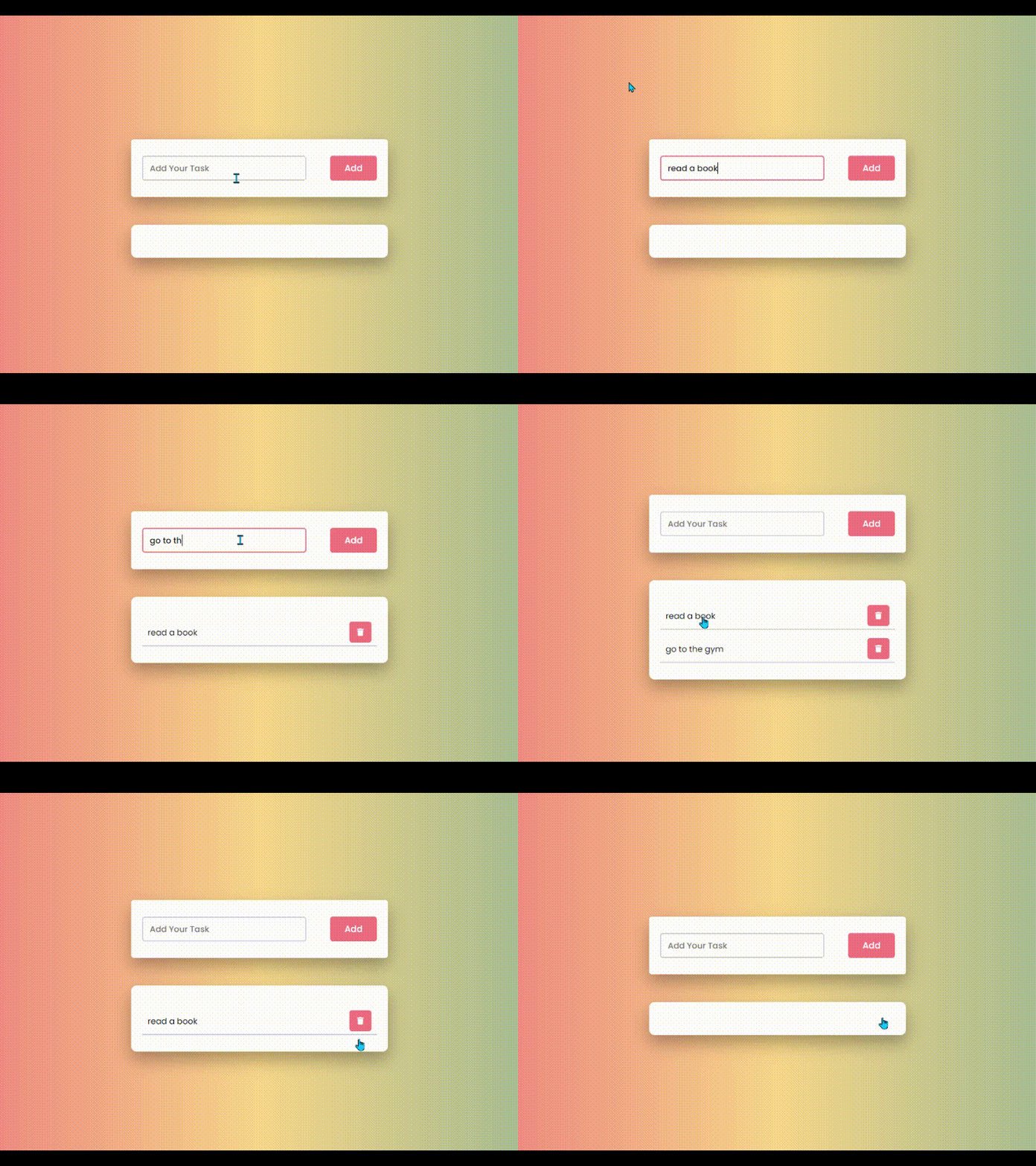
CSS, and JavaScript. You can see here we have an input field that
says add your task, a button to add the task. So if I go here and I say, read a book, then
click on the button. You can see the task
is added here with this bottom border and this
trash icon on the right. And if we added another
task, let's say, go to the gym, you can see it's added here
below the first task. Alright, let's say we finished the first task here
reading a book. We can go here and click
on it, and as you can see, it has this stroke line indicating that this
task is finished. And if we want to
completely delete the task, we can click on the
trash icon here. And you can see it's
completely gone. This course is ideal for students who have
learned the fundamentals of Javascript and want to apply their knowledge
in a practical way. By building a simple yet
engaging to do list app, students will gain
hands on experience, deepen their understanding
of core Javascript concepts, and boost their confidence in developing real world projects. To gain the most
out of this course, students are encouraged to build the project
on their own and upload their completed work as a zip file to the
project gallery.
2. To Do List App UI Design: Okay, let's start
creating this app. I will start here in
my HTML and at a div, give it a class of container. Then inside it, I will add another div with a
class of new task. So this new task div will
contain the text input in which we will write our task and the button responsible
for adding it. All right, let's go to our CSS and start by targeting the body. Then adding height, 100 VH, then background, linear
gradient to right. So its direction will
be from left to right. Then I will add these
three nice colors. And as you can see, the body now has this cool gradient
as a background. Okay, now I will target
the container div. And add width, 40% of the body, then minimum width, 450 pixels. So on smaller screens, the width won't decrease
below 450 pixels, but in larger screens, it will take up 40% of
the width of the body. Then in order to see it, I will add border, two pixels, solid, white. I will also add padding, 30 pixels from top and bottom and 40 pixels
from left and right. And you can see here we have our container div in
the top left corner. But we want to center it horizontally and vertically
inside our webpage. So we can go up here
inside its container, the body and add display flex, justify content, center
to center it vertically, and align items center to
center it horizontally, just like you see here. All right. Now let's target the div with the
class of New task, which will contain
the text input and the button and add
background color. White padding 30 pixels from top and bottom and 20
pixels from left and right. Then border radius, five pixels to have some curves on the corner, then box shadow, zero as a horizontal offset, 15 pixels as a vertical offset, and 30 pixels as a blur value. Then this semi
transparent black color. As you can see
here, the new task div is looking much better. Let's go back to our HTML to add the elements
inside this div. I will add an input
with a type of text, then a placeholder
of add your task. So this will be the
placeholder text inside the input, as
you can see here. Then below that, I
will add a button with a class of BTN.
Then I'll say Add. You can see we have a
button next to the input. Then I'll go to
my CSS and target the input inside
the new task DIV. Then I'll add width, 70% of the new task div width, then height, 45 pixels. Then to slightly increase
the font size of the text, we will add font size 15 pixels, then border, two pixels, solid, this light gray color. I will also add padding, 12 pixels and color this color. Then font weight,
500 and finally, border radius five pixels. And now you can see the
input looks much better. And when writing inside it, you can see the text
looks pretty good. But we want to change
this ugly black color when we focus on the input. Let's go back here and
target the input again. And when focusing on it, we will add border color, this nice color from
the body gradient. I will also add outline. None. And now when I go
and focus on the input, you can see we have
this nice border. Let's style this button here. I will go back and target it. Then add wits, 20%,
height, 45 pixels. Border radius, five pixels. Font weight, 500. Font size, 16 pixels. Background color, our
favorite color, then border. None, color white
cursor pointer. And finally, outline, none. Now, as you can see, the button looks much better. Now we want to push the
button all the way to the end of the new task div so that we have some
spacing in the center. We can do that using Flexbox. So I will go here
in the new task div and add display flex, then justify content
space between so that the space would be between the input and the button
like you see here. Okay, now let's
create the part where we will display the added tasks. I will go back to my HTML, go below the new
task div and add a new div with a class of tasks. Then I'll go back to my
CSS to style that div. I will target it.
Then add width, 100% of the container width. Then background color, white, padding, 30 pixels from top and bottom and 20
pixels from left and right. Then margin top 50 pixels. And now you can see we have
this white background at the bottom in which we
can insert our tasks. Let's add some border radius. Of ten pixels, then
box shadow zero, 15 pixels, 30 pixels, and this semi transparent color. And now we have finished
styling our to do list app, and then the next lesson, we will continue working
with JavaScript. So, see you there.
3. Adding Tasks using JavaScript: Welcome back, everyone.
In this lesson, we're going to continue
working on our to do list. In the last lesson, we finished the HTML and CSS
for our to do list, and in this lesson, we will continue building it
using JavaScript. So let's head to our JavaScript
file and get started. First of all, let's
target some HTML elements and store them inside
JavaScript variables. I will create a new variable, name it Add task button. Then we want to select
this button here. So I will add document
dot query selector and add the class button here. Then I'll duplicate
that and change the variable name
to tasks input. So this variable will
contain the text input here. So I will change the button here to the div
with the class of new task and then add input to target
the input inside it. We also want to target
the placeholder div that will contain our added
tasks, this one right here. So I will duplicate
that one more time, change the variable name
to tasks container. And target the div with
the class of tasks. Now, let's implement
the logic of this app. What we want to do is
we want the task we add here to be displayed
in this div at the bottom. But if we don't write anything
and click on the button, we want some action to stop
us from doing that and a display message
for the user to tell us that you should enter a task. So let's quickly set that
up as our first step. I will go here and say add taskbton dot AD Event Listener. Then I'll listen
to the click event and add a callback function. So what we just did, everyone, is we added the add Task button, and we want to respond to
clicking on this button. So we added add event listener to allow
us to do just that. Then we listen to the
click event here, meaning whenever we
click on the button, we wanted to do something, and we can tell the
browser what to do here in this
callback function. So I will go here inside
this function and say, I tasks input dot value
dot Length equals zero. I will add alert and inside it, I will say, Please enter a task. So here we just checked
using the I condition. We told the browser if
the value that we give to the tasks input here has a length of zero
or in other words, a number of characters
equal to zero, and that just means that
nothing is written yet. We want to show this alert to the user and tell
them to enter a task. Alright, let's go
back and try that. You can see when I click on the button without
entering any text, this alert pops up
for me and says, Please enter a task. Now I can click
Okay and then start to enter the task and add
it using this button. But let's continue our
work on Javascript. I will go here and in the case where the
user entered a task, we can translate that in
the code by adding else. Then we basically want to grab whatever value the
user added here inside the input and display it in this place holder
div at the bottom. And, of course, all
of that should happen when we click on the ad button. That's why all of our code is inside this
callback function. So I will add tasks container. And since we want to
insert the tasks inside this container wrapped in some HTML elements in
order to style them, I will add dot inner HTML
and set that equal to, then I'll add template literals, and inside it, we will
add some regular HTML. Like you see here, I just added a div with
a class of task, and inside it, I added a span that should
contain the task. So we want to grab
the input value we added and insert it
inside the span here. We can easily do that by
going here and saying tasks input dot VLU. All right. Let's try that. I will go here and add a task. Let's say read a book. Then click Add, and now you can see the
task is added here. But once I add another task, we're going to face
a new problem. Let's try that and
add a new one. Then when clicking
on the Add button, you can see the
new task is added, but the old one is removed. But we want to
keep the first one and display the second
one underneath it. So let's understand why this is happening
in the first place. When we look here, you can
see we set the HTML content of the task container to be
equal to this content here. And that should happen when
clicking on the button. So each time we
click on the button, this clode here
will be executed, and the HTML content
will be updated basically from square one and contain the
value of the input. That's why it changes with
each new task that we add. But we can fix that
with one simple trick, which is adding a plus sign here in front of the equal sign. So it will be plus
equal this value. And that basically tells
the browser to add the new content while keeping the old content in its place. And now, when I go back
and try to add some tasks, You can see the new tasks are added underneath the old ones, but now it's time to
add some styles to the task div and the span side. I will go to my CSS and target the task div then add height, 50 pixels, padding, five
pixels from top and bottom, and ten pixels from
left and right. Then margin top ten pixels so that we have some
spacing between the tasks. We also want to add a border at the bottom to
separate the tasks. So I will add border bottom, two pixels, solid this
light gray color. Then finally, I will
add cursor pointer. And now when I go and
try to add tasks, You can see the
tasks are displayed here in a much better way. Alright, now let's
style the span inside the task
Div. I will target. And add font size, 15 pixels, font weight, 400. And just like that,
the tasks are looking exactly the way we
want. Let's keep going. We want to add a trash icon on each task so that we can remove the task
whenever we want. So I will go back to
our JavaScript file, go here inside the tastiv and below the span and add a button. With a class of delete
Then inside that button, we will add the trash icon, and we will add this icon
using Font Awesome website. And in order to include Font Awesome icons
in our project, we will search for
Font Awesome CDN. Then we will copy
this first code here. Go back to our HTML and paste it here above
the style sheet. Then I will search
for Font Awesome. Go to icons. Then search for Trash. Click on this icon here, then copy its code. Go to my code
editor and paste it here inside the button
with the class of delete. Now when I go and add a task, you can see we have
this trash icon here, but let's add some styles to it. I will go back to my CSS and select the button that
contains the icon. Then I'll add height, 100% of the task div
width 40 pixels, background color, our
red color, color, white border radius, five
pixels, border none. Outline, none, and
finally, cursor pointer. And now you can see
it looks much better. Finally, we want to move it to the end of the task div here, and we can do that using
Flexbox by going here inside the task div and adding
display flex, align items, center to align it
vertically inside the task div then
justify content, space between so that it will
be pushed all the way to the end of the task div
just like you see here. Okay, everyone, that's
it for this lesson. Let's quickly recap what we did. Here in our JavaScript, we told the browser that when
we click on the ad button, we want to execute some code, and the code to be
executed will be added inside this
callback function. Then inside the
callback function, we checked if the
input field is empty. And as a response to that, we added this alert that
tells the user to add a task. Then below that, we just grab the value of the input
added by the user, add it inside a span and a div, then inserted inside the
tasks div at the bottom. We also added a trash
icon next to it using Font Awesome website so that we can remove the
task once it's finished. Okay, in the next lesson, we will learn how we can remove or mark the tasks as completed. We will use some cool JavaScript
functions to do that, so I will see you there. But
4. Finishing & Deleting Tasks using JavaScript: Hey, everybody. Welcome back to the final part of
creating this to do list app using HTML,
CSS, and JavaScript. After displaying our tasks here, we want to have the choice to delete them once we finish them, and we will do that using this
trash icon we added here. So let's do that
in our JavaScript. First of all, I want to target the buttons here on the right, so I will create a new variable, name it remove buttons. Then I'll say document. And since they can be
more than one button in the case of adding multiple
tasks, just like here, I will say dot query selector all and target them
by their class, delete that we added above
here in our inserted HTML. So by doing that, this
variable here will contain all the buttons of the
tasks in a node list. And in order to listen to the
click event of each button, we will need to loop
through the buttons first, then listen to the
click event of each one. So let's do that. I will say remove buttons, and we will loop through
them using for each method. So I will say dot for each. Then I'll add a callback
function inside the loop. So this function
will be executed on all the buttons inside the
remove buttons node list. Then we need to pass a parameter here that represents
each button. So I will add button. Then inside the function that will be executed
on each button, we want to listen to
the click event of each button so that we
can delete its task. So I will add button, which we just passed
as a parameter here. Dot add Event Listener. Then we want to listen
to the click event. Then I'll add a callback
function that will be executed whenever
the button is clicked. Then inside this function, we want to remove the task relative to the
button we clicked. If we go up here, you can see that each task is
represented by this div here that has the
class of task and contains both the added
tasks and the delete button. So we will need to remove this whole div when
clicking on this button. And if you notice,
the div we want to remove is a parent of
the delete button. So I will go down
here and say button, dot parent node. Dot remove. So as you can see, I have targeted the parent
node of the button, which is the div
with the class of task using this
parent node here. Then I removed it, and all
of this should happen once I click the remove button.
So let's try that. I will go here and
add some tasks. Then let's say I want to
remove a specific task. I can go here and click
on the trash button, and as you can
see, it's removed. And I can also remove the other tasks
completely. All right. Now, when finishing a task, we want to have the ability
to mark it finished. And we will do that
simply by adding a cross line through the task when clicking
on the task itself. So to do that, we will
loop through the tasks, and when clicking on any
tasks, we will add that line. This is very similar
to what we did here. So first of all, we want
to select the added tasks. So I will create a new variable, name it added tasks. And I will set that equal to document dot query selector all. And I will target all the divs
that have a class of task, which is this div above here. Then we can easily go here and
copy this logic from here. Paste it and just change
what we want to do. First of all, I will replace remove buttons with added tasks, so we will loop
through the added task themselves this time. Then I will change
button here to task, which represents each
individual task. Then inside, we will change
button here to task as well so that we will listen to the click event of each task. Then I'll remove this
code here because we clearly don't want to remove the parent of the task
when clicking on it. But actually, we want to add a simple line across the task, and we can do that using CSS. So I will say task
ClassLt dot Toggle. And I will toggle the
class named done. So what this will do is each
time we click on a task, a class named Don will be added to the div with
a class of task. And if we click again, the class will be removed.
So let's try that. I will add a task
then inspect it. And I want you to
take a closer look here at the div with
the class of task. You can see when
clicking on the task, a class named D is added. And when clicking again,
this D class is removed. And that is happening due to the toggle method we added here. All right. We will use this De class to style the
task when clicking on it. So I will go to my CSS
and target the task div And when it has
another class named done, I will add text
decoration, line through. Then go here and click on it. You can see the line is added to indicate
that we have finished this task and that line is
added because of the De class. And when clicking
again, it's removed, and we can completely
remove the task by clicking on the trash button. Okay, now we have
one thing left. You can see that the task in the input is still there
after adding the task, but we want to remove it
once we add the task. In other words, we want
to empty the input so that it will be ready for
the next task to be added. That way we won't have to remove the previous task text manually. We can do that easily by
going to our JavaScript file, and at the bottom here
I will say task input. Which is, remember, the text
input we selected here. Then I'll add dot value, and I will set and empty
strings as a value. And remember, this will
happen when clicking on the add Task button.
So let's try that. I will add a new task and now you can
see that the input becomes empty when
we add the task. And when adding another task, it becomes empty again, and we can mark this task as finished. We can also remove this task. And with that, everyone, we have finished creating
this project. I hope you liked it and
got something out of it, and I will see you in
another JavaScript project.
 Ahmed Sadek, full stack web developer, freelancer & t