Texturing in Photoshop: Exploring Filters
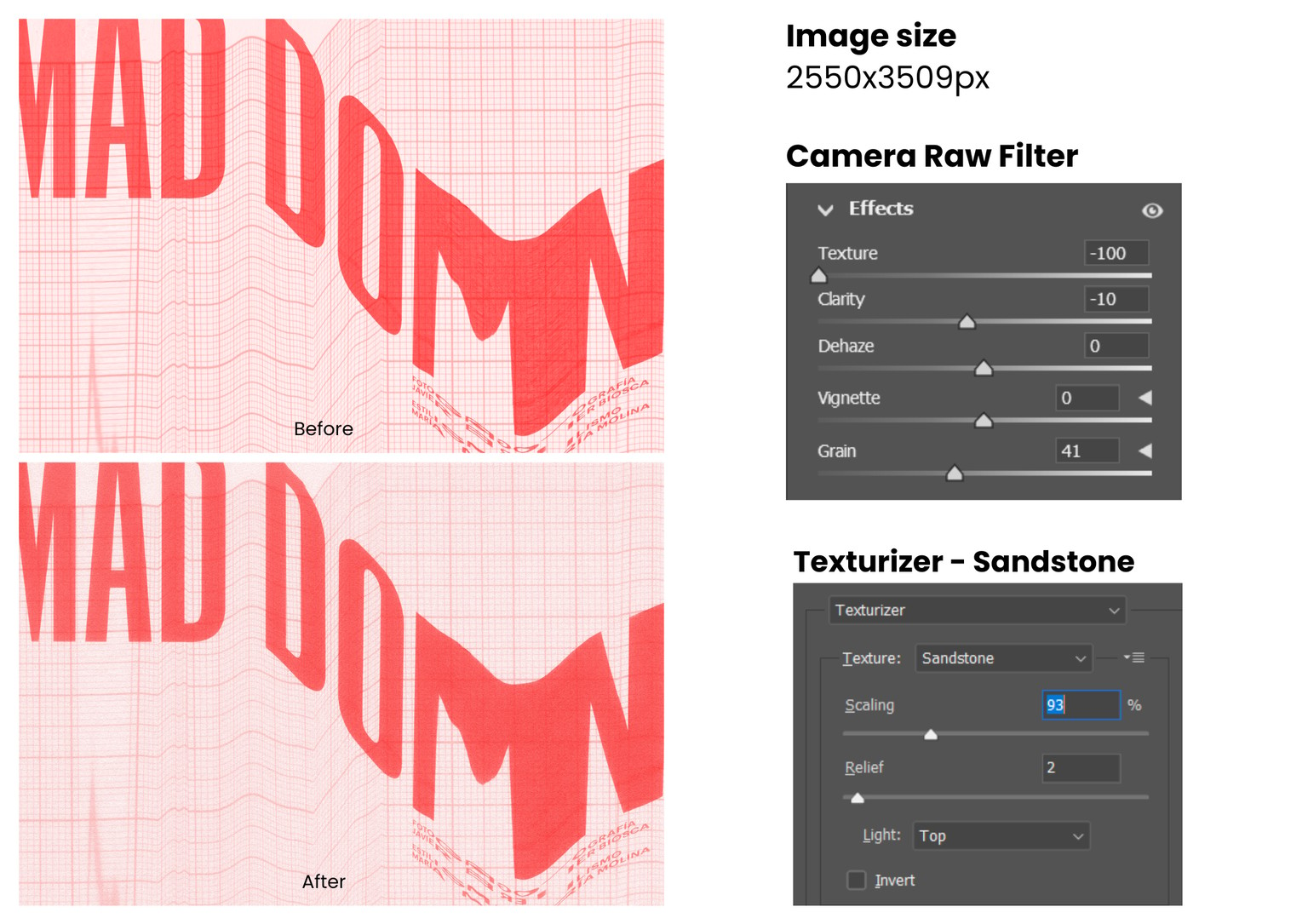
For this project, I used my own analogue textures and botanical illustrations and experimented with Photoshop Filters to give them a more tactile, organic feel.
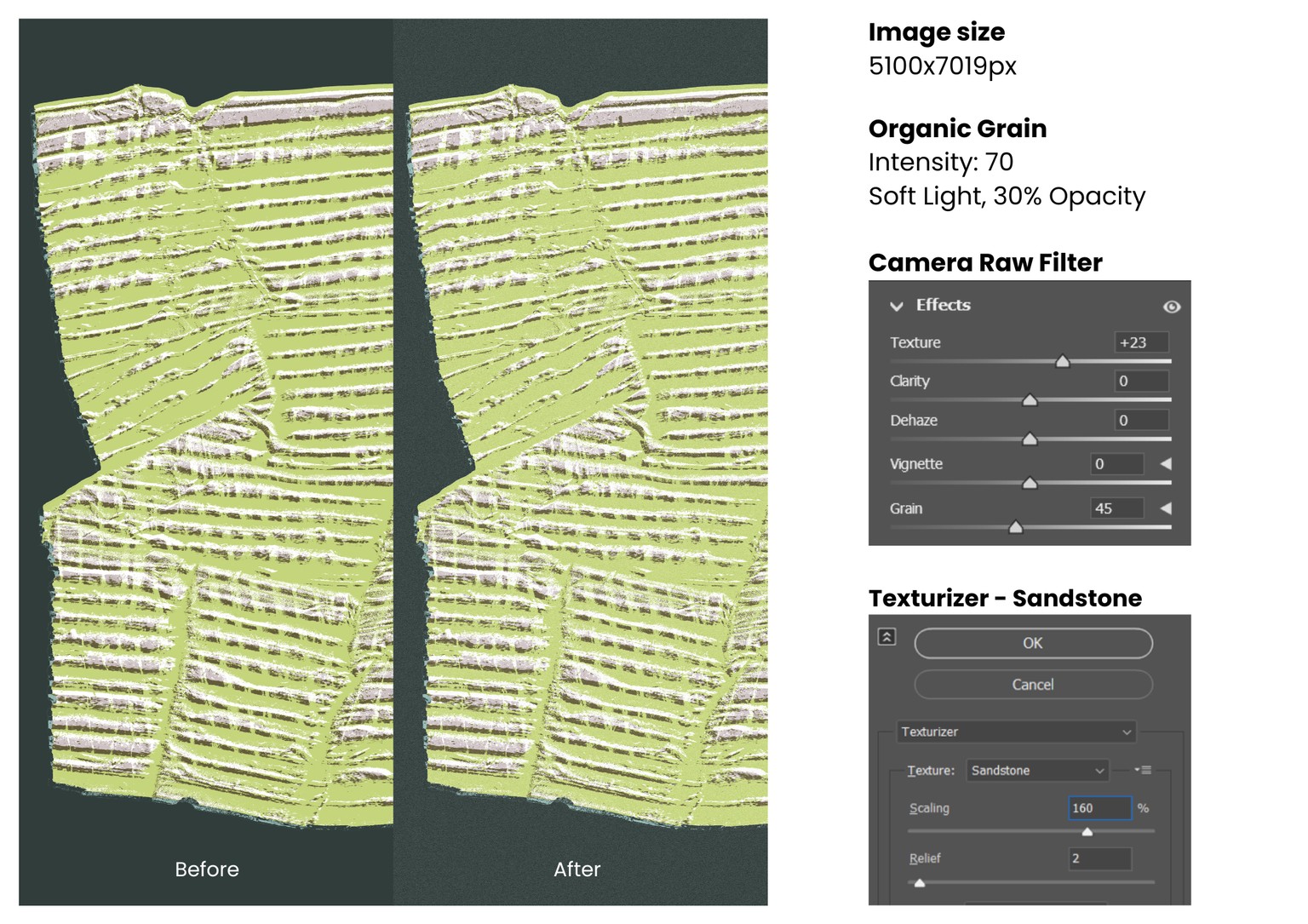
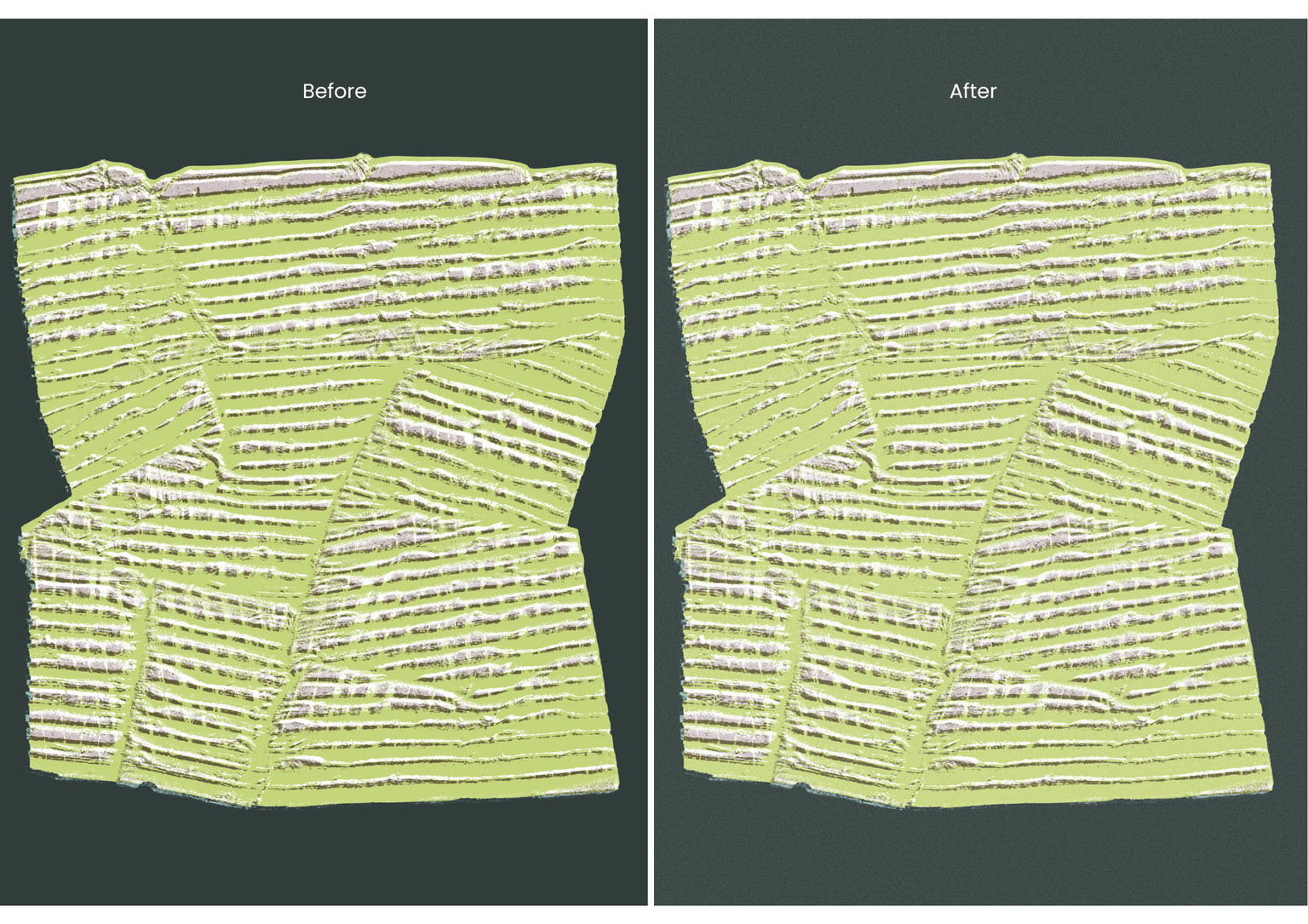
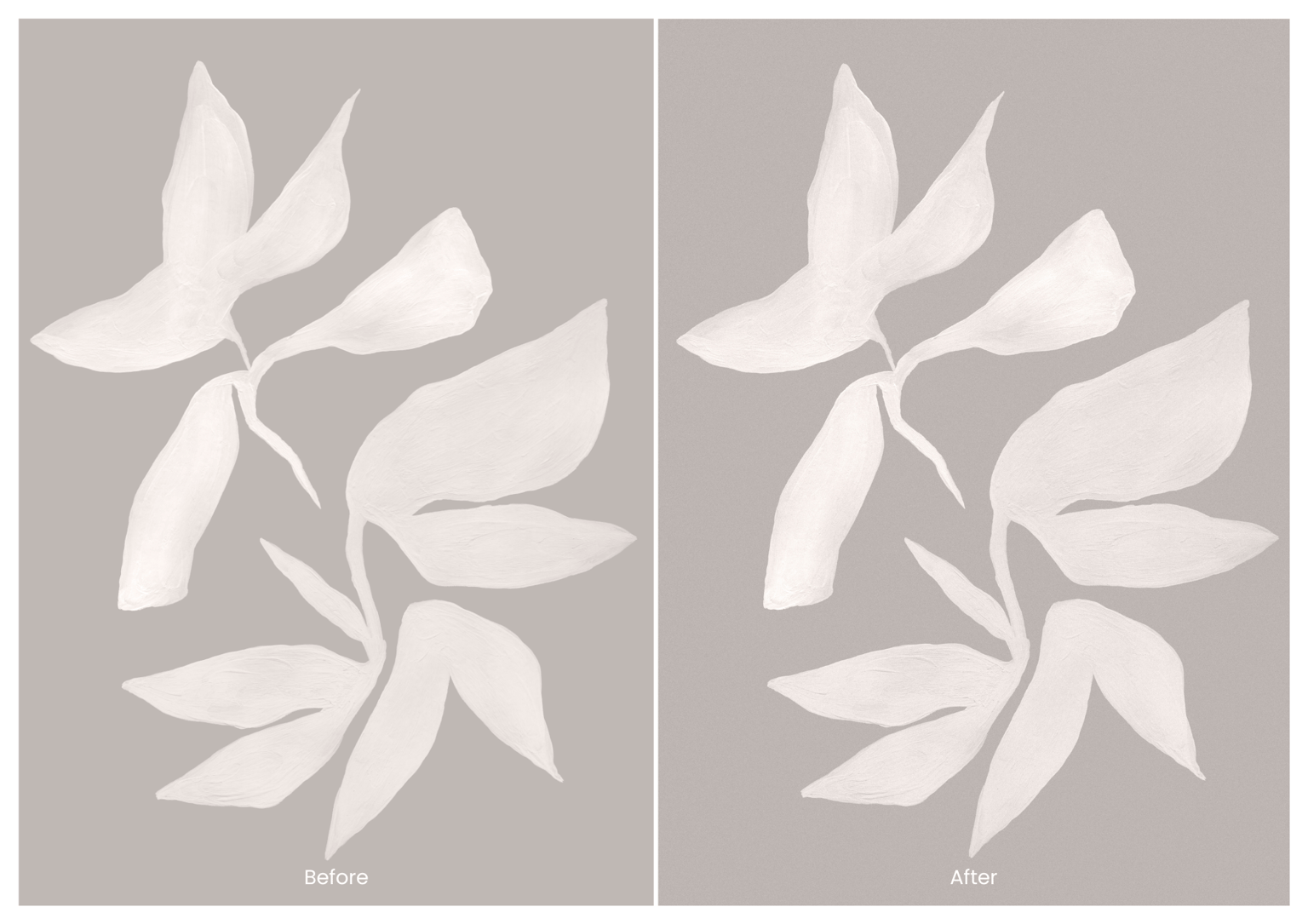
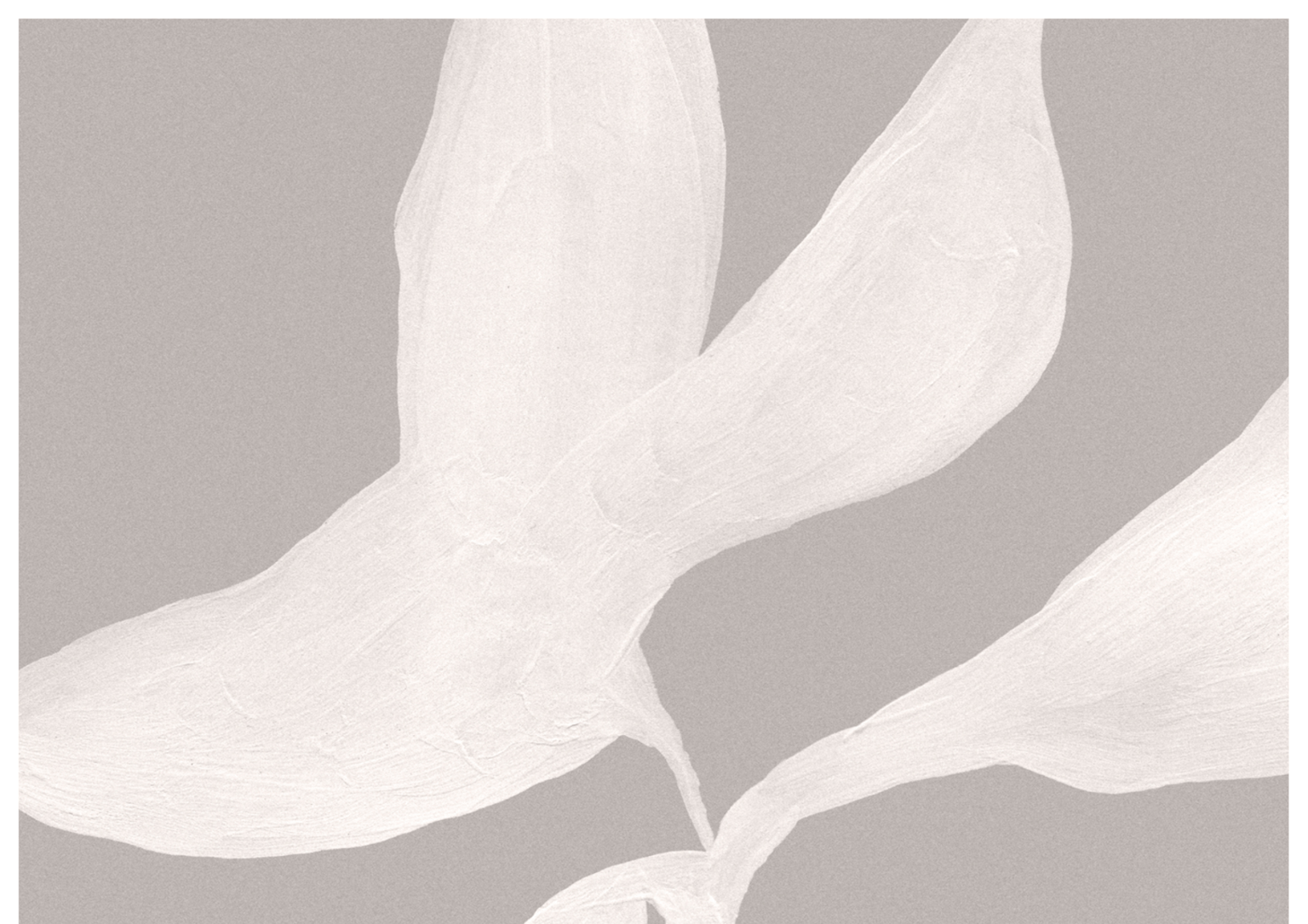
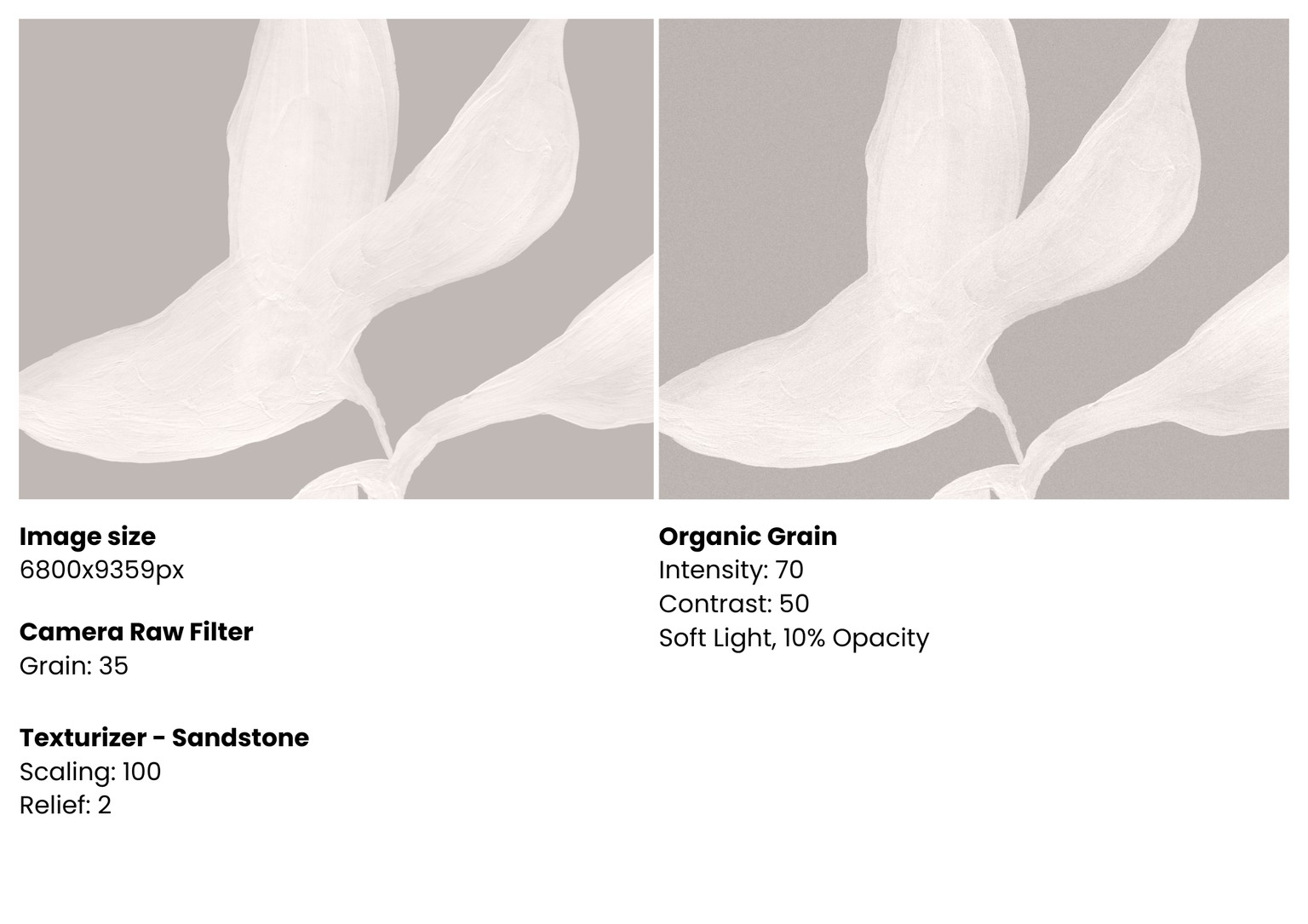
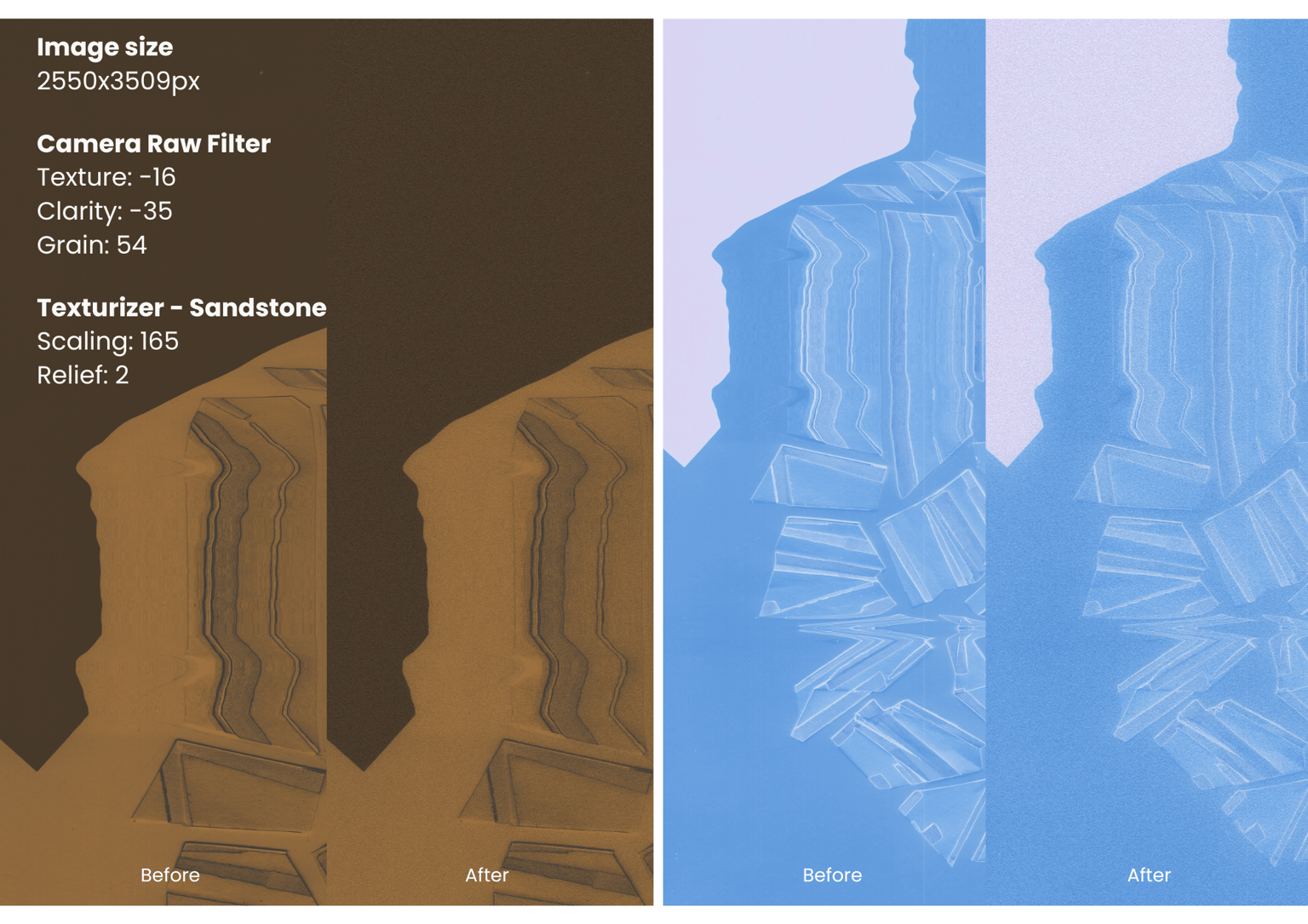
I combined Organic Grain, Camera Raw Filter, and Texturizer – Sandstone to enhance the original artwork while maintaining visual harmony and balance among all the design elements. I also experimented with blending modes, opacity, and different filter settings to find the right balance between the original images and the added texture.
I really enjoyed seeing how these simple techniques can change the character of an image and make digital work feel more physical and handmade. I can see myself using these effects in my future creative projects!
Here are some examples of using textures.
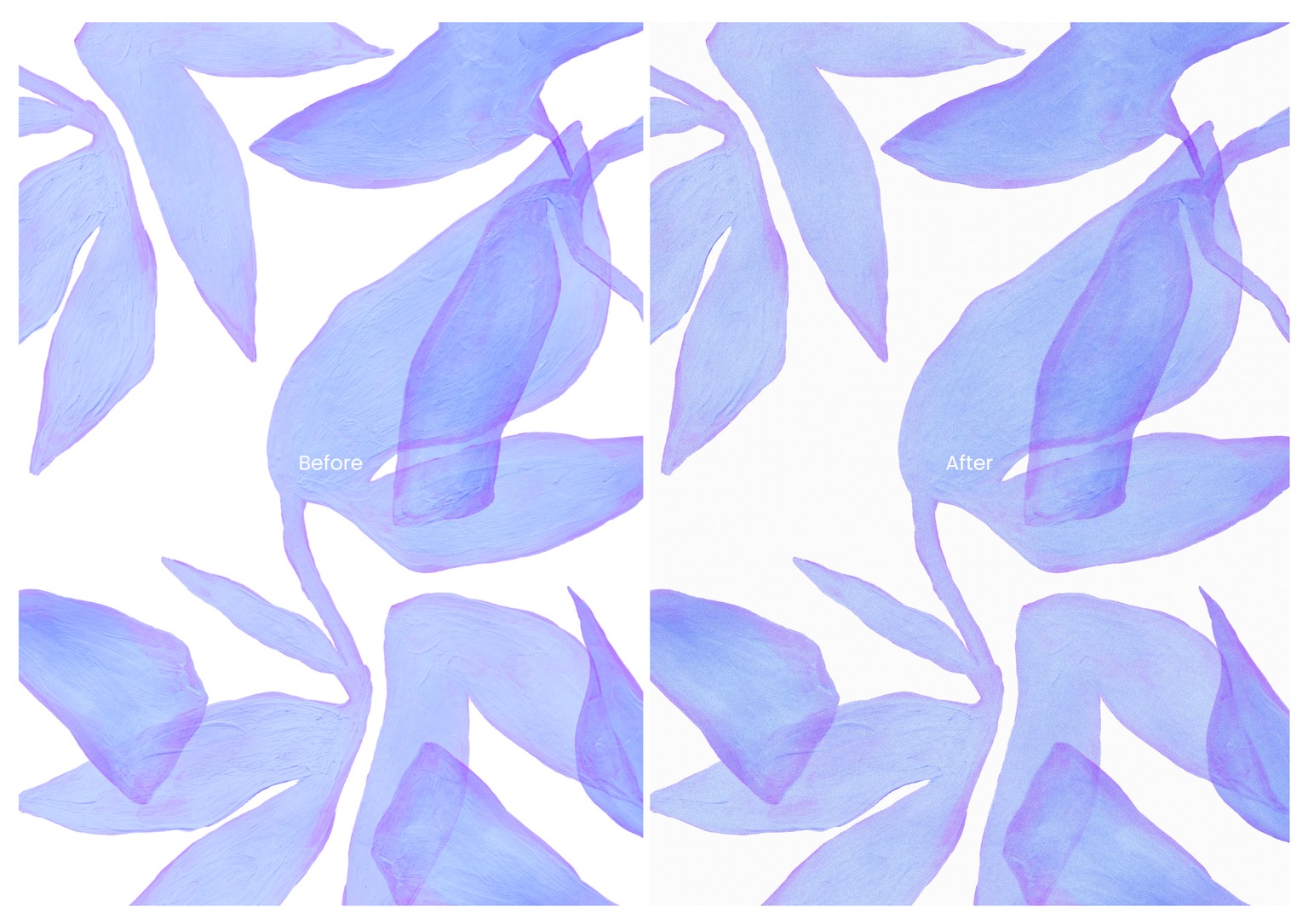
In this case, I wanted to smooth out the gouache texture to achieve a softer overall visual reading.
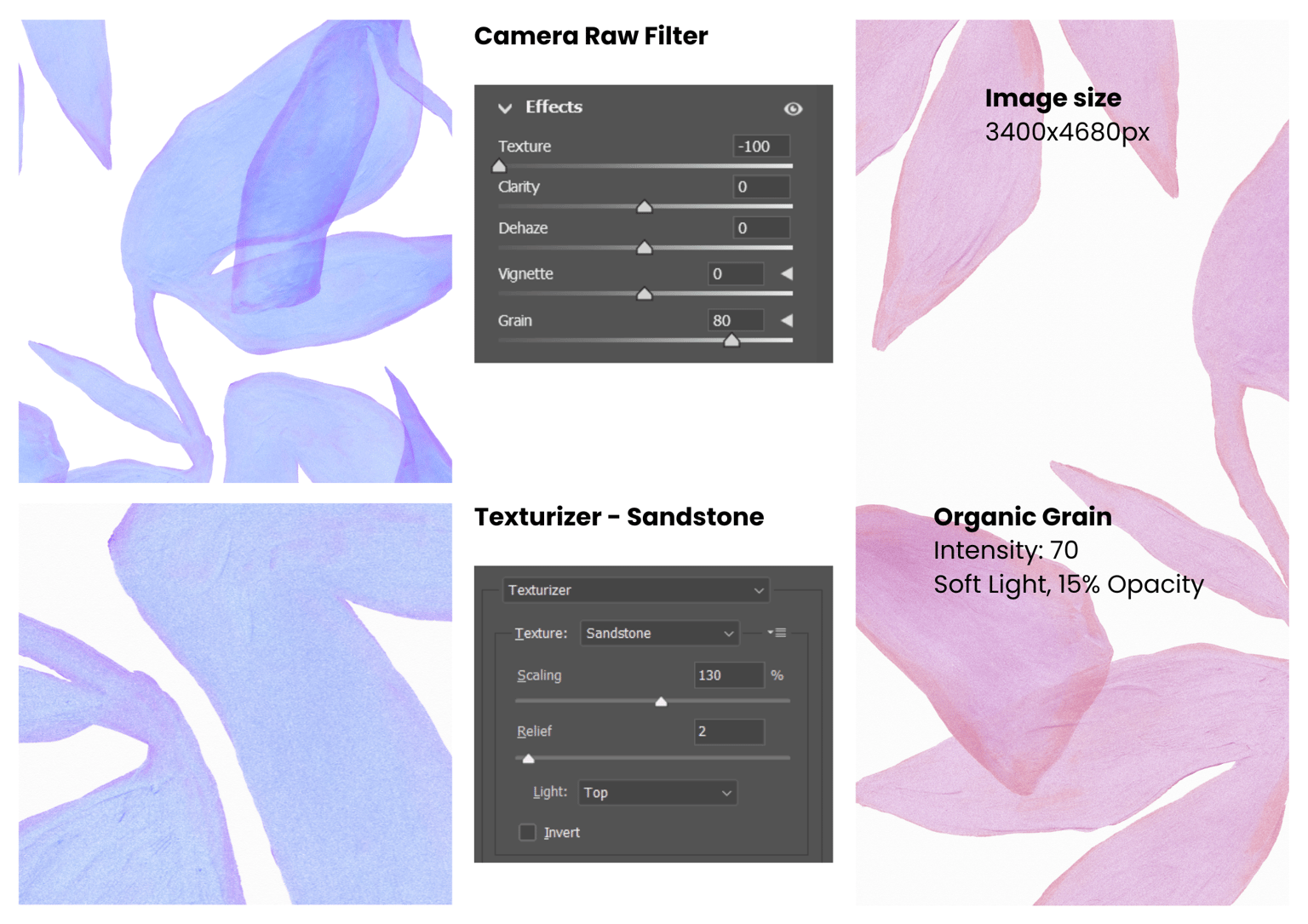
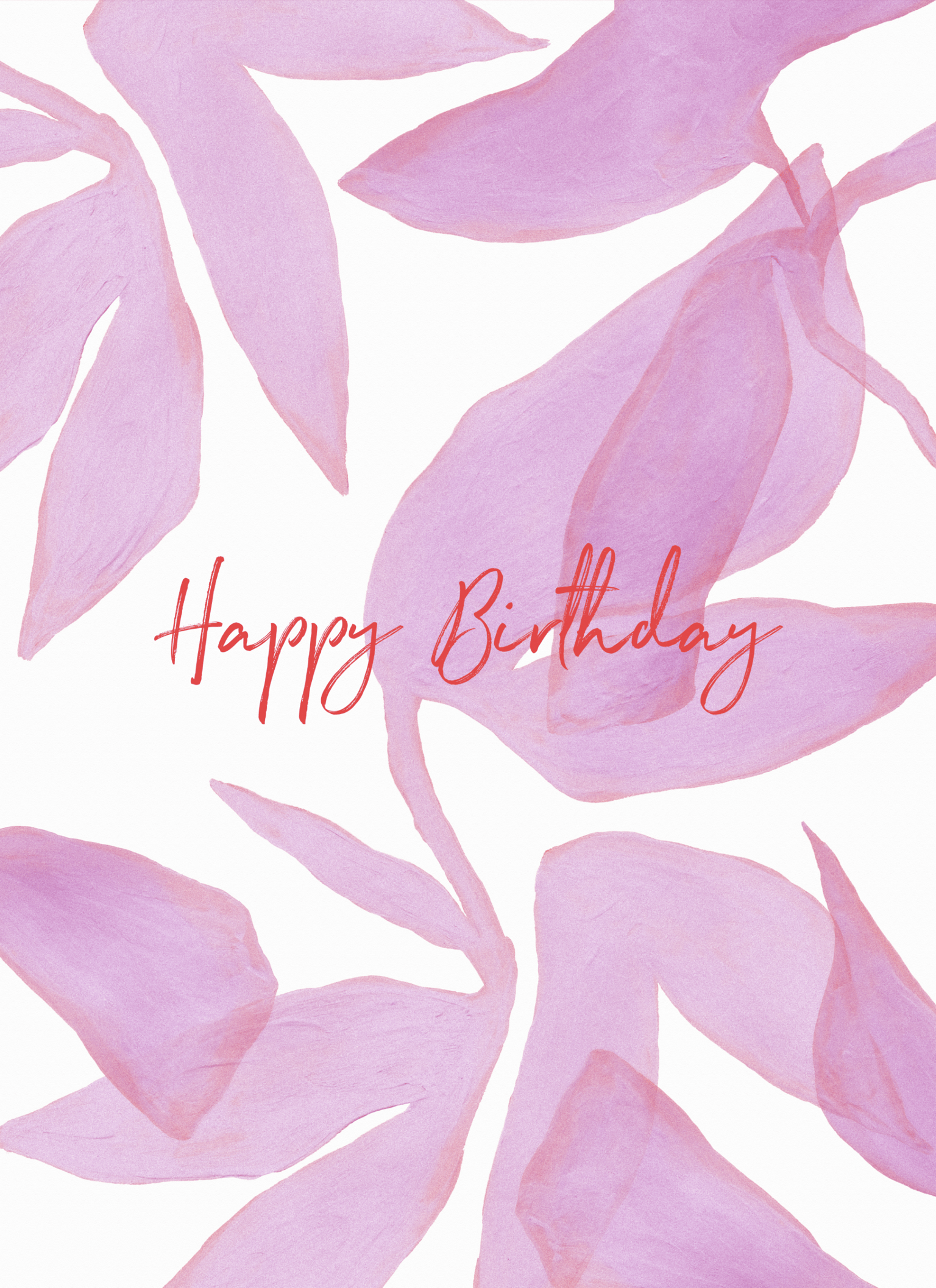
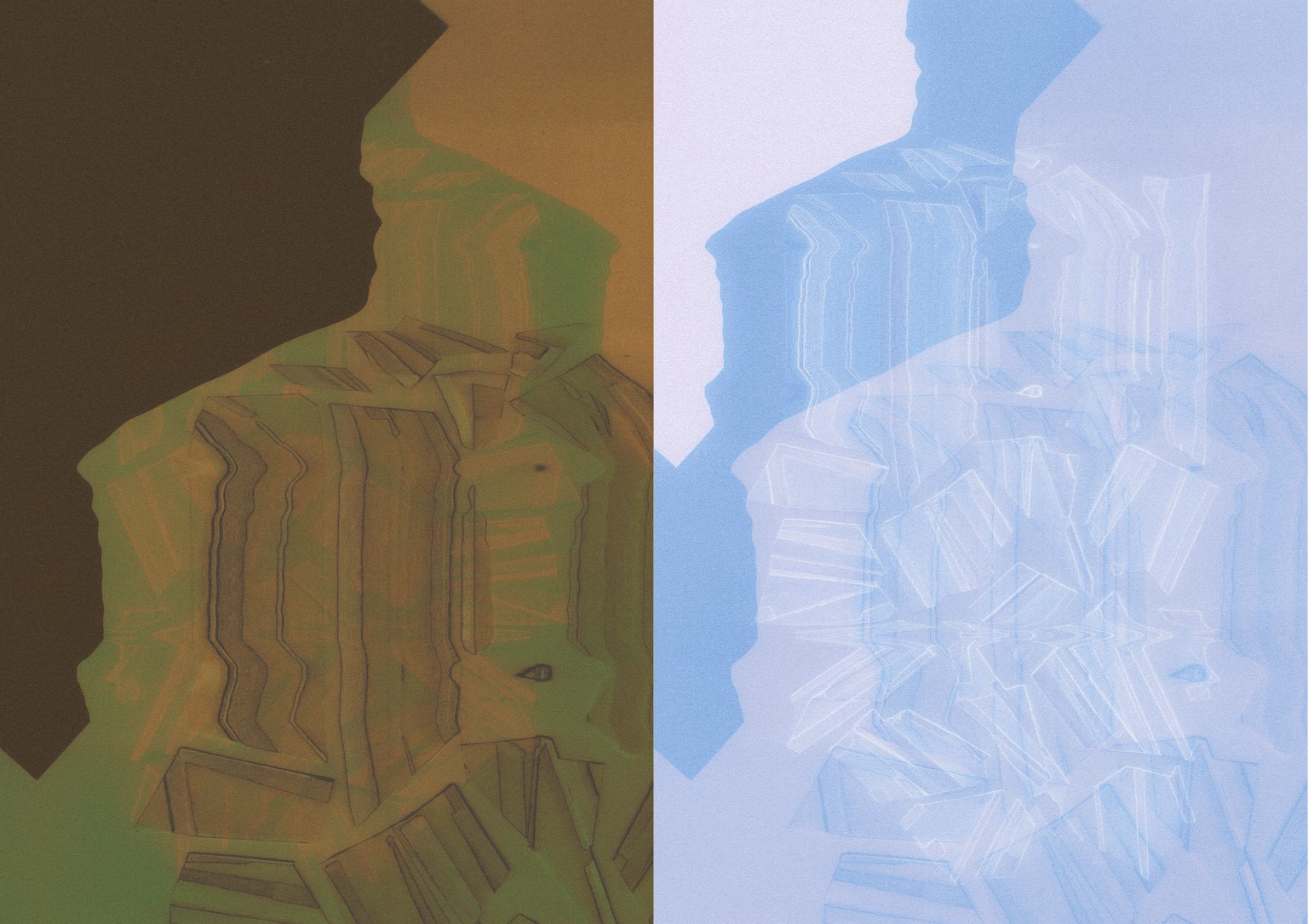
In the end, I couldn't resist playing with different layer blending modes :)
Thank you, Evgeniya, for another useful and interesting class! I'm looking forward to learning new graphic design techniques from you!