Transcripts
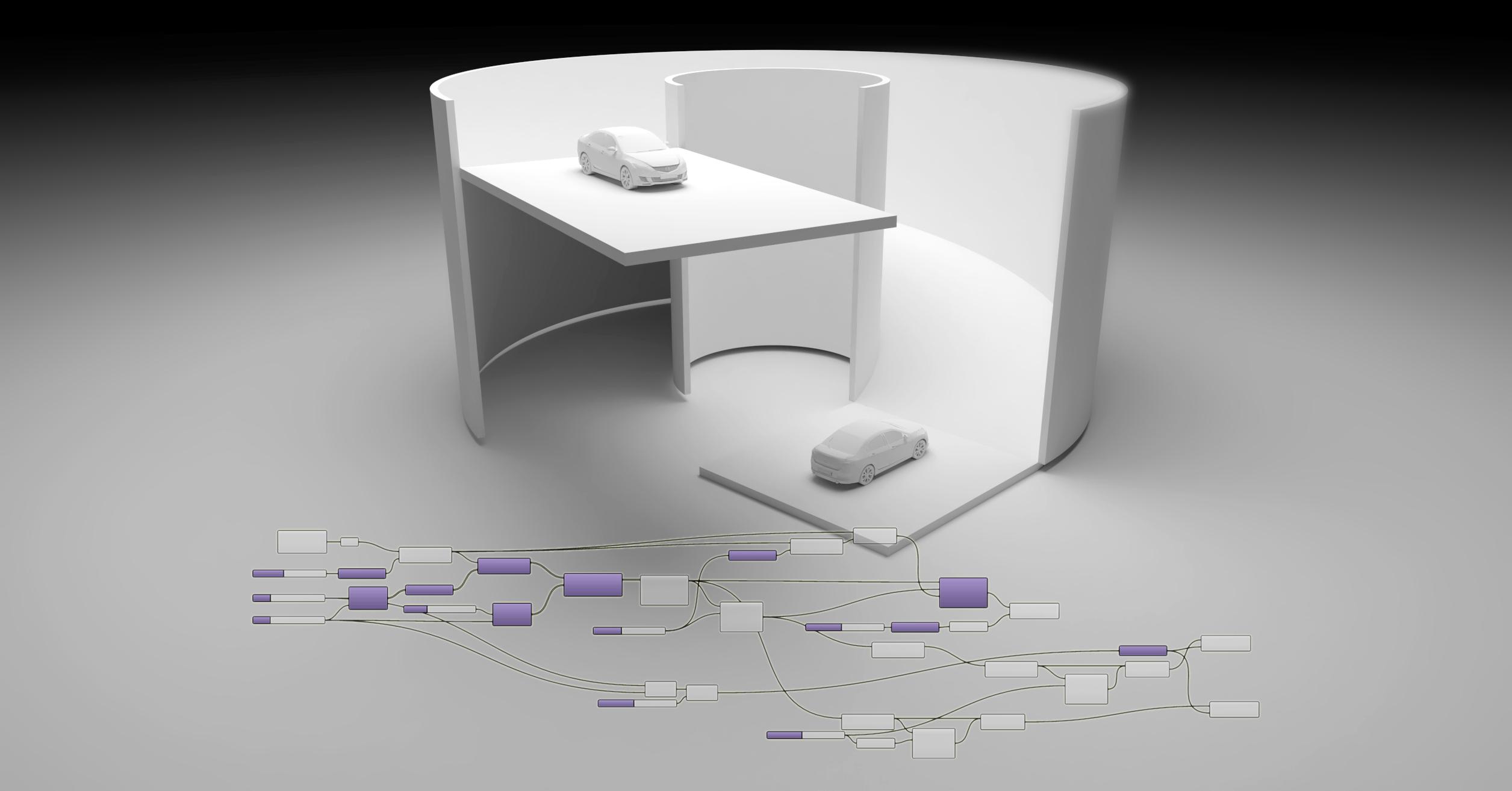
1. Introduction: Hi and welcome to this Rhino And Grasshopper course. This course is perfect for architects, engineers, students or anyone that wants to learn how grasshopper works. In this video, I'll be going over how to create this spiral ramp with an initial radius for the inside portion. Then we have the height and all of these parameters that allow us to even increase the length of it. And all of this stuff. If you're new or you have never used grasshopper before, don't be afraid to give it a shot. It's a little bit confusing and it has a little bit of a steep curve at the beginning, but once you get used to it, it becomes what are the most important tools you can have. So thank you for being here. And let's go ahead and jump right in.
2. Vertical Points: Alright, let's first go to units. And right now it's in meters. I will change that to inches and feet and inches here. But you can use any units as long as you know how big you want this structure to be. Perfect. Now, let's open up a brand new grasshopper file, and let's go ahead and get started. The first thing we're gonna do is we're going to bring in a point. To bring in a point, we're going to double-click on the canvas here in Grasshopper and type in construct point. This gives us the ability to actually create a point and plug-in. So if we had a slider, we can plug in where this is located. I will actually leave this in the zero-point. And this is going to be the point that starts everything off. So the reason why I like to start with the point is that will then become the point that you can place anywhere to move the location of where the script is going to be located. Now, let's go ahead here. Double-click. Good appoint. And we're gonna bring in this point component, and we will plug in this point into this one. Would, the reason why I do this is because this allows me to then go to set 1 and be able to set up point anyone here, anywhere here on the grid. So I can move it right. So let's go ahead with this. And now the first thing we're gonna do is we're going to move this point a certain amount on the x-direction to create the inside gap. So we're gonna take this point. We're going to double-click here and go to move. And we're going to bring in the Move Component. Well, we're gonna do is now move this point in here to the right. So the way that I guide myself as to which direction I am moving things is by the bottom-left little widget here, that's the XYZ. This shows you the x positive, y positive, and z positive. I need to move this in the x positive. So what I'll do is with this MOOC component, we're gonna plug in the geometry, which is going to be this point. The motion is going to be double-click unit X. And now the factor is going to be how much I automatically, the factor comes in with one. So we're going to want to change that to, let's say 120. So now we have the ability to move this point using this lighter. And so this becomes the inside radius. So you can double-click on it, on the slider and change the name or right-click on the slider and just change the name right away. So here we'll call it inside radius. Now what we're going to do is take this point and create copies up vertically. So let's do that to copy something vertically, a specific amount in between. I use a component called series, along with the move component. So I'll double-click here and go to move. And basically we want to move this up, right? So how do we move it up? And we go here, it's z vertical. So I'll double-click and go to unit Z. And I will plug in the unit z vector into the motion and then plug in the point into the geometry. Now that we have this, we can plug in a slider. So we can either take this, Make a copy, or we can create a custom slider. So to create a custom Slater, we'll double-click and we'll say from one, and then we'll go less than, then we'll say about 50. So this will give me a slater from one to 50. And now I can plug this into the factor. It notice that it only moves that point up vertically once, right? And it still tied to this. So let's move this back to one. Now what we want to do is move it up this amount, but a series of times. So this is where we will use a series component. And in my opinion, the series components, one of the most important ones to learn because this allows you to create multiple points just using one component. What it does is the series component. When we hover over here, it says that it has ten locally defined values from 0 to nine, right? And how does it create all of those nine numbers? It says it starts at 0, at steps by one and a count of ten. So automatically, if I plugged this series into the factor, you'll see that we actually have ten points spaced out by one. So just by using this series company without anything, we already have created a series of copies vertically up those points. But now we're going to use this slider will change this to hate. And we will plug this into the step. This will allow us to, to increase or decrease the step in between. Next is the count. So we'll say from 0 less than 15. That way I can plug this into the count. 0 is not going to do anything and it actually doesn't work. But when we come here and we start increasing the numbers here, we see that now we have 15 copies vertically spaced out, 26 in-between. And we have the inside radius that we can still change here. So this is the starting point. I'll change this to number of copies. Just put the copies here. And I also like to make sure that my information is organized and that I can avoid as much as they can having wires crossing. So for now we have a pretty simple script. But as we go along, I will show you how to maintain this clean and you don't have this, so you can always be working on it. So next step is going to be to take these and using the same series component, we will take these points and rotate them around relative to the center point.
3. Rotate Points: Okay, at this point, we would need to take all of these and rotate them around. So I like I said, we are going to use the series component. But if you think about it, the step is not gonna be a amount vertical. What we're going to do is a rotation step, right? And we need to have the same amount. So what we'll do is we'll do a rotate. Now for the angle, make sure to right-click on top and go to degrees. Cool. Now let's take these points and plug them into the geometry. But notice that basically it's doing a angle or all of them. So if I went here to 45, we know that we can basically rotate that 45 degrees. This are 90 degrees like this. So we don't want it to be a consistent amount for all of them. We actually wanted to step a little bit each. So for this, that's unplugged that. And let's do a smaller number. So let's say like five is gonna do five degrees every time it steps up. So I'll bring in a series component. So this we will call this rotation the account. While this is going to be the same amount of count of copies, 15, because we have 15 points here. So we will have 15 counts here. Step is going to be five in starting at 0. So what it's gonna do is it's going to create a series of numbers. The first one is 0, the next one is five, and the last one is 70, so it steps up every five. We can plug this in. And now notice that we basically have taken that and rotated it around by five degrees. This is going to be what we can use to increase our rotation. So if we know how many, how many steps we have, we can do a mathematical equation as to know how many to create, to go around in a perfect circle. But for now, this is a good way in which we can take that information and just have it rotate relative to whatever we want. So we can make it more or less drastic depending on the angle we choose. So we can say five. We can go here and let's say to 25. And if you don't like the way that it's looking, you can always increase the number of copies. So let's go here to 50. We can always increase the number of copies and then decrease the angle. Right? So with this information, we basically have the form to create a ramp to go vertical. Now let's decrease the count here. And let's just do it a simple, just going around a little bit here. So with this, let's go ahead and create a line that goes throughout all of those points. Now sometimes these points get a little bit confusing. So I will hide those. So to hide things, select middle click and disable preview or right-click and click on the preview to disable the preview.
4. Outlines and Offset: So let's double-click here and bringing an interpolated curve. And this is going to basically, as it shows in that diagram, of that icon, is a line that goes through all those points and it interpolates between those. So we'll plug those into the vertices. Now. This is basically all we need. So let's go ahead and just increase the number of copies here a little bit. And now let's go to the top you. So basically what we've done is we have a specific step amount. So let's go here to 15. And let's increase the count to that. And actually 25. Let's go halfway. Okay? Now what we're gonna do is take this curve and we're going to go to top you. Let's take this curve and double-click and bringing an offset curve. And offset this curve out the width of a road. Now we're actually going to increase it a little bit more because since we're turning, we actually have less driving area. So when we take this, we plug in this curve here that's typing the distance as 240. Right? So in top view we can see that it offsets it out, so that's what we want. And now if we take a look here, this is kinda where we've created, we've created a ramp that goes vertically and rotates all the way around. Now if it's too steep, one thing too, that will help for it not to be too steep as to increase the gap. The initial gap. So if I said 240 gap here, this makes it a little bit easier for car, let's say that's driving up. Next thing that can help us decrease that, that amount is saying the vertical amount decreases to say 20 here. And so next, let's create the line in between. So for this, I realized there's two different ways to do it. First, Let's take this, all of these points, middle click and disable preview. And having this one and the one that we offset, we can loft together this curve and this curve. And if it doesn't work, make sure to right-click and flatten, and that will make sure that that information works. If that's not an ideal solution that you like, we can go to. Let's go here too. Disable. So middle click and disable this. We're going to take this point and we're going to move it in the x-direction, the same amount as the road width. So if the road is 240, we're going to move this one in the x-direction. The same amount as the road width. So when I increase this, that increases automatically. Next is, let's connect those points. So I'll go to a line between this end point and this start point. Next, let's do a sweep to and would sweep does, is it'll take two rails and it'll take this curve and put it in between it. So it'll take this initial rail, this offset rail, and this curve that we basically just created with the sections. So two different ways that you get similar result. So depending on where you want to do, sometimes when the this inside circle gets a little tight, loft might not work correctly. So you might want to use this one. This seems to me like it works a little bit better. So I'll we'll go with the sweep to but either one works. So just keep that in mind. Okay. Next thing is, we're going to create now the thickness of the bottom. And then we're going to create the outside walls.
5. Ramp Thickness: Okay, so now that we have this surface, it's double-click here. And let's type in extrude because we want to basically take this surface and we want to turn it into a solid. So we'll take this surface, plug it into the base for the extrusion. And now the extrusion command in component, it's going to need a direction. So we definitely want to go up and down, but we want to go down in the negative direction. So z down. I will double-click here, go to a negative component, plug this negative component in the direction. And then I'll bring in the slider of six. And then I will bring in a unit of z. So we're going to go six in this vertical direction, but we're actually going in the negative direction. So down. And I will take this TB1 and disable the preview. And now there we go. We have the initial portion of what's going to become the ramp. And what's cool is that we can come here and change this on the fly. So I'll double-click here and increase this to like 24, just so I have a little bit more range between the start and the end. Here. I'll actually make this a tool. Okay, great. Next let's create the waltz. So we have these two rails. And for me, what's going to be, what's going to help is we can take these and project them to the ground. So type in project, double-click and type of project. There's two different four jacks. There's project to the sea plane and then there's a project for an object. So do predict to see plane. And I'll do this inside curve. And then I'll do the same thing for this outside one. So what that does is gives me a curve that's projected from that outside base. Now, what I can do is take this and this and just offset them, create them, make them into a solid and then extrude them out. So let's do that. We'll take this one and we'll do it to one or 1 first. So I'll take this and go to offset. So it offset ID to the inside. I actually want to offset to the outside. So I'll double-click good or negative here. And I'm going to plug in six, six-year quote. Now we'll take this and this one. And for this one I will use the loft command because I want to create a plane at the bottom here. So I'll go to loft. Between this one and this one. And I'll go to flatten. And now I will do the exact same thing to this other component. So I'll slide it, hold down Alt, and then let's me do a copy or you can select it and copy paste. Just make sure to plug in the geometry into the geometry here. And now it's offsetting in the wrong direction. So what I'll do is I'll take I'll actually delete all of this and bringing in the six to the distance here. That way they're both tied to one distance. Cool. Next thing we're gonna do is now take both of these and extrude them up to be past the top of the ramp. So one way to figure out how tall this ramp score it is, is by doing this, we have a step amount of 20 in the vertical direction. But we're multiplying it by 13. So we'll do a mathematical equation here and it's sun, too tricky, but you just have to kind of get used to some of the, some of this thinking, which is doing a little bit of math. So I'll do multiplication, I'll do Enter, and I'll do 20, because that's what we're doing, vertical times 13. And this is going to be how much we extrude this. So let's start by taking this 1 first and type in extrude. We know that we want to extrude this curve, this surface, in which direction will we know up? So I'll say z. And I will plug in our multiplication in the z. And then the factor here in the direction. Now notice that we basically have extruded it up that same amount, even a little bit more. So that's just a little trick in which you can use math up to take care of some of that information. Now, in this case, I feel like we are going to let's see here. That looks okay. The only thing is that the RAB is coming down a little bit more than than it should. But that looks fairly okay if you want to increase the amount that we're increasing, right? So if we're going up this amount, we can increase the amount we go up by doing an addition. So this and I'll do a plus. And this one I'll do, let's say 60. So whatever that amount was, plus 60, we can plug that instead into the Z. And this allows us to count how much to go vertical past that. So for this one, I'll say 60. And now, what's cool is that now we can do the same thing to this other loft. So I'll take this extrusion. I'll bring it down here, hold down Alt to make a copy. And I'll go to this loft surface, plug it into there. And there we have that inside wall being taken care of that this inside. And this is how you would actually kinda build it, right? You would build this one, this well first, put in some dirt and then into here, do this kind of the slab going all the way up. So we still have the ability to increase our count. But at some point, you don't wanna go too far. So for now, I will decreases to kind of be something like that. Just wanted to show you that all of our dimensions are still kind of working. The only thing is you don't want to offset. Yeah. You don't want it to be too tight. 240 looked like it was pretty OK. And so now let's organize some of this. So this is while extrusion, This is going to be our offset. So road width, this is going to be our thickness. So we have some of this and this is good. And then z direction, this is going to be our ramp thickness. And I will make sure to have this script for you to download. So you can follow along and see if you were able to kinda achieve the same thing. With this. We should be pretty good to basically bake this information and do a little bit of modeling and set a rhino to kind of finalize it.
6. Bake and Export: Ok, so what I'll do is I will go to layers. I'll change the default layer name to wall. Then I'll hit Tab to create a new layer. I'll call this floor. And I think that's all I need. So I will go to the wall air, makes sure that its current. And go to both of these walls here, middle click, then go to the sunny side up AIG or yeah, just click on it and it'll bake it. Same thing with the floors, but before I bake, I like to change it to that layer. So I'll select it, middle click and then bake. And that's all the information we're going to need where you're going to want to do also is save the file so you don't lose your information and same with your Rhino model. Okay, so I'll go here and just close out of Grasshopper. And here I'll go to shaded view. Now what I'll do is I'll take this surface and extruded out. So go to the floor layer, do extrude surface and extrude this surface out this way, assert an amount. And I will do the same thing with this one. So extrudes surface and extrude this one out a certain amount. Next, let's create the footings. So I'll do extrude this one and I'll extrude it down just enough so it kinda goes pass the floor slab.
 DCO Graphicstudio