Transcripts
1. About Course: In this video course, learn Microsoft Power
BI and its concepts. Power BI is an interactive data visualization
software product developed by Microsoft. It is a business
intelligence software. Power BA provides cloud based business
intelligence services known as Power BA services
along with Power BI Desktop, a desktop based interface. Power BI is a critical tool for modern business
intelligence due to its capability to
transform raw data into meaningful insights through interactive dashboards
and reports. It supports data driven decision making by enabling users
to visualize trends, track performance, and identify opportunities in real time. In this course, we have covered the following lessons with
live running examples. Let us start with
the first lesson.
2. Power BI – Introduction & Features: In this lesson, we will
understand what is Power BI, its features, and why
it is so popular. So let us see so Power BI
is a BI tool by Microsoft. With POWerBI you can easily get data from different sources, such as Excel, PDF,
even from the Internet, and the data can be easily analyzed and converted
to meaningful reports, dashboards, different kinds
of charts and graphs. Through this, you can
easily get help in business decisions by
tracking the performance. So Power BI was
developed by Microsoft. Okay, so if you can easily analyze your data and convert it into reports
and dashboards, Okay, easily, then it will definitely help an
organization in scaling. Okay, so I just said Power
BI is a BI tool, right? Now, you would be
wondering what is BI? That is business intelligence. So in this lesson, guys, we will understand the
task of a data analyst. Then we will understand what is BI that is business
intelligence. What is Power BI? What are its features and why
Power BI is used. So let us start. First, let us see the task of
a data analyst. Okay, consider that
a data analyst basically understands the data to get valuable
insights from it. Okay, and all these
things are used to track the performance and
scale the organization. That's it. First the data is prepared, that can include cleaning the data, transforming the data. Let's say there are a lot
of duplicates in the data. There are some missing values or some values which are flawed. Then the data analyst
prepares the data. Okay, it will take that
particular raw data and it will convert
it into a useful, easy to understand information. As I told before, it
includes fixing the data, that is fixing the
inaccurate data. Okay, identifying
the missing data, fixing the duplicate
values, that's it. Then the second step
includes model. So your data is now ready to get modeled after the first step, that is the data
preparation step. Now in this step determines how the tables
are related to each other. This is done by creating
relationships between them. Then comes your visualize. Obviously, we all
know that if you're looking at a chart at
a graph or an image, then it's way easier to understand when
compared with text. Okay. Now the step
is to visualize. Okay. So this data is then converted to reports which are easy to understand. If you're checking a report, then you can easily
understand everything about the company that how the things are going
on in the company. Then comes Analyze, analyze, as the name suggests is
used to analyze that is to find the insight so that the
patterns are identified, and the outcomes
can be predicted. Okay. The information
displayed in the reports are interpreted by analyzing them. Then comes your management. That is the last step.
All these reports, models, dashboards are
managed by the data analyst. All the work related
to the supervision of managing the data, all this that also includes your distribution of reports and dashboards is the work
of a data analyst. So, guys, now, let
us see what is BI. Power BI is a BI tool I told you before BIM is business
intelligence. That means to
analyze the data and display it in a way it speaks. That means in the form of
charts, dashboards, graphs, reports, Pi chart, got chart, even clustered and
in many other ways. So obviously, if you
have a dashboard wherein all the
charts are visible, it's way easier to
understand than just understanding
the text, okay? In this way, you can
quickly view it. You can quickly analyze it
and track the performance. Also fix the issues
quickly because your charts are easily
available on the dashboard. Every year detail is
on the dashboard. So this automatically helps
in taking the decisions. So the BI concept,
business intelligence is a must for any organization. Now comes Power BI. It is a tool by Microsoft
that came in 2011. To understand data and build reports and
dashboards out of it. So a Power BA is a
collection of power query, power pivot, power
views, POW VA service. A power query means an ETL. Okay, that means to extract, transform, and load the data. Consider it as
cleaning the data. Let's say removing
the duplicates. Okay, cleaning the data, fixing your null values
as I told before. Then comes your PowerPivot. That means to connect the data from multiple sources
and create relationships. Multiple data sources
can include your Excel, PDF, from the Internet, from text files and others. Then comes your power views. That means creating charts, graphs, and different
kinds of visualizations. That means you can easily
create a got chart, column chart and other charts and graphs with the
POWuss component. Then comes your PVS surveys. That means to communicate
with the reports. The data is also filtered
from the visual. You can consider you can export
the data from the visual. Let's say you have a chart, you can filter the
data from the chart and export it easily to
different formats like CSV. Here are the features of POW BI. I already told you
that you can easily create reports and dashboards, create different
kinds of charts like your Pie chart, column chart. Okay. The second would
be data connectivity. That means you can
connect. You can connect to various data sources. Let's say your data
is in Excel format, CSV format, PDF, JSON,
even Cloud services. Then you can easily connect
it with your POW BI. And after that, you
can easily create custom visualizations
using R and Python. Power Query, you can perform, source and transform the data. That means fix the
missing values, you can fix the
duplicate values. If there is an incorrect
value, you can easily fix it. Okay. It is also having a
mobile app easily access the reports and dashboards you created using the
official mobile app. Since it is a Microsoft product, so it has amazing integrations. So amazing integrations with different other Microsoft
products are very easy, even with your Excel SharePoint. Okay. With that, after
creating the reports, obviously, you need
to share it, right? So that is also very
much easy with PowerBI. Easily share reports
and collaboration with your team. With your colleagues. Okay. And that,
too, in real time. Last one is security. All these features
are really secure. It ensures data protection. Let's say you have the
revenue details of a company. Obviously, if you're using a tool, it should
be secure there. You don't want data leakage, you don't want data theft. So with Power BI, you
don't need to worry about all these things.
Now why Power BI? Okay, we all know that there
is a large amount of data, and especially the amount of unstructured data crossed over 80% since the introduction
of our social media. Obviously, tools like Power BI is really important first
to collect the data, then to handle it properly so that insights
can be generated. And then you can also create reports and
dashboards from it. Okay. And display
the visualizations so that you can compare the performance and you
can track the performance. It streamlines your data
analysis and reporting process. It is suitable for businesses of all sizes because you need
to analyze the reports, the performance of every
company to grow it, right? So Power Wear is a must. I told you before that it
is a Microsoft product, so the integrations
are really easy with Share Point Excel and many
other Microsoft products. So, guys, we saw Power
BI is a BI tool. We also saw what is BI. Why we say that Power BI is
a must for data analysts. We also saw the role
of data analyst. With that, we also worked
around the features of PowerBI and why PowerBI is so
popular in companies, even in small organizations. Thank you for
watching the video.
3. Power BI – Types and Components: In this lesson, we will
understand the types and components of POW
BI. Let us see. Power BI is a BI tool
as we discussed before. It helps you in analyzing
and clearing the data, converting the data into different visual formats
such as charts and graphs so that you
can later on create different reports and dashboards and help your
organization in scaling, basically tracking
the performance. So here are some of the types of POW BIPA desktop. This
is the desktop version. Okay. We'll be working on the Pop bear
desktop version only. That is easy to install on your local system.
We'll see you later on. Using this, we can
easily get data from different
sources like JSON, CSV, Excel, even from the Cloud. Okay. The second time
is Power VA service. PowerVA service is a
cloud based service. Okay, it is used
to create reports, and using it, you can easily edit and collaborate reports.
You can share your reports. The sharing can be done with the people in your organization, with your colleagues,
Okay, with your managers. Okay. Now let us see the
components of Power B. Let us quickly understand. We saw that using Power Query, we can extract data from different sources,
different databases. Okay, the sources can
include your Excel CSV, different websites,
even from the Cloud or databases like SQL Mcculracle. Then Pop pit. It is basically for modeling, that means you can easily
create relationships between different tables
and you can perform calculations with the DAX
data analysis expressions. We will see this
concept later also. So DX is basically a powerful
formula language used in PowerBI to perform data analysis and create complex calculations. Okay. Then comes your power map. Well, you must have guessed that it is related to your
geospatial data. That is representing
the geographical data. So Power Map visualizes geospatial data in three D.
Then your PowerBI website, you can easily create reports directly on your
official website, and PowerBI is also
having Obi labs so that you can easily share
your reports and dashboards. The app is also available
for your IUS devices, your windows, as
well as Android. So, guys, we saw what are the types and
components of PowerBI. This shows how powerful Power BI is for tracking the performance
of your organization. Thank you for
watching the video.
4. PowerBI vs Tableau vs Excel: In this lesson, we will
understand the difference between Power, and Excel. We all know these three
tools are really important. Excel came first, then came W, and then Power BI was
launched. Let's see. Okay, as I told you before, Excel came before
both Power B and W and Power B is a recent introduction
to Analysis and BI. Okay. Data visualization,
all three of them works great for
creating charts and graphs. Okay. But as we all know, Excel only creates simple
data visualization as compared to Power B
and W. The best of the visualizations are
considered in Tableau only when we compare it
with Power B and Excel. Your tableau is written in
the following languages, including Python and Java. Your Excel because it dates back to even before 1990 when there was
no Java and Python. Okay, it is written
in C plus plus, Objective C, and
other technologies. Power BI is written
in Python M and Dx. That is Data Analysis
expressions. Your PowerBI is
unavailable for Mac. You can still go
to our web browser on Mac and work on it, but it is unavailable
currently for Mac. Tabu and Excel are available for the three operating
systems including MAC. ExcelV developed by Microsoft. PowerBI is developed
by Microsoft. But Tabus now owned by Salesforce because Salesforce
acquired Tabu software. Power B is cheaper than T and Excel is cheaper
than both Power B and T. The cost of Tableau also depends
on the organization. If the size of the organization
is very much scaled, then Tableu would
be more costly. Okay, processing
of Power B and T is quite quick and far
better than Excel. We all know that What
will happen if you load large amount
of data on Excel? Let's say you created an Excel file with lots
of rows and columns, then loading issues can occur. Then data analytics
capabilities. Excel is not better than T
and Power BI, we all know. The analytics capabilities of
Power I and is quite good. But still, it is
considered that T wins the race in the
analytics capabilities. Reports Excel is having limited capabilities
in report creation. Okay. So reports are more
interactive when you work with Power B and W. When
we analyze dataset, I just give an example
of Excel file. Let's say you have
heavy Excel files, large Excel files with
lots of rows and columns, then Excel may create issues. Okay. But Power B and T easily supports a lot
of different formats, and even if the file is huge, there won't be any such
problem with Power B and W. Enterprises generally Excel is preferred by
small enterprises, and Power B and T are mostly preferred by
large enterprises. Power BI is also software that can be used
by small enterprises. Okay. So, guys, we saw
the difference between one of the top three
tools for analyzing data, creating visualizations,
creating reports. Thank you for
watching the video.
5. Power BI Versions ( Free vs Pro vs Premium): In this lesson, we will understand the
versions of Power BI. So you have your
Power BI Power BI Pro as well as Power VI premium. So let see the difference and check which of them
is freely available. Now, here it is. First comes your free account, then you have Power BAP, ten per user per month. Then you also have
Power BA premium, dollar 20 per user per month. Okay. The differences here, the more priced one will have all the
features, obviously. But if you're starting
with Power BI, go for the free version, and in this tutorial, we'll be covering only
the free version. Okay, you can easily create
Power BA reports and share and collaborate with the Power BI pro and
premium versions. Okay, you cannot do this
with the free version. Okay, specifically,
publishing the reports, like sharing and
collaborating with your team members,
with the colleagues. Advanced AI, you cannot expect it in the free version,
even in the pro version, but your premium
version comes with advanced AI advanced AI
data flows and data mats. So advanced data
flows in Power BI are a powerful feature for data preparation
and transformation. Okay. Advanced data Mats
in PowerBI are designed to provide data preparation and analysis significantly enhancing performance
with large datasets. Okay. So these three features are not available for the
free and pro version, but it is available for
the premium version. And as I told you before, we can create reports
in all of them, but we cannot share
and collaborate the reports with the
free version. Okay. Now here is the official link wherein you can check
the differences, and if the prices will change, it will get updated here.
Let us see the link. So, guys, here is
the official link. Okay. I told you
the free version, the pro version, as well
as the premium version. It also has an embedded version for that there is no
price visible here because this is a custom plan you can consider and you can
directly contact sales here. So here are the differences. I discussed the same.
So in this course, we'll be covering
the free account. So, guys, we saw what is the difference between
the versions of Power BI, the free Power V version, the pro version, as well
as the premium version. If you want a custom plan, you can go for the
embedded version. Thank you for
watching the video.
6. Install Power BI on Windows 10: In this lesson, we will
learn how to install the current Power BI
version on Windows ten. So we will install
the free version, that is PowerBI desktop. Let's see, go to the web
browser on Google Type. Power BI Desktop
and press Enter. Now the official
website is visible. Power BI is owned by Microsoft. Click on it. Okay, you'll
reach the following link, the download section, go below. Here, PowerBI is visible.
You can select the language. I'll keep the default English and click the Download button. Now you can see different
versions are visible. I'll go for the 64 bit Xifle. If you're not sure
about the version, go to start type
about and click Open. Here it's written X 64. That means 64 bit. Therefore, I'll go for
the following version 544 MB, click Download. Now to download
started, let's wait. Guys, we have
downloaded the EXCFle. Right click and click Open
to begin the installation. Minimize. Select the language. I'll keep the default
and click Next. Now, click Next. Accept
the agreement, click Next. Now, Power B Weg installed
in the following location. Keep it as it is,
and click Next. It will also create
a desktop shortcut. Okay, click Install. Now it will install on our
Windows Sten system. A we have successfully
installed click Finish. It will launch on its soon. Okay. Let's say, I'll uncheck
this and click Finish. Now to start Power I, you can either click
on the Desktop shortcut or you can go to Start and type PowerBI and click Open. So PowerBI will open
for the first time. We saw how to
easily download and install PowerBI on Windows Sten. Thank you for
watching the video.
7. Install Power BI on Windows 11: In this video, we will
learn how to install the current Power BI
version on Windows 11. We will install the free
Power BI Desktop version. Let's start. At first, go to the web browser
on Google Type, Power BI Desktop
and press Enter. Now the official
website is visible. It is owned by
Microsoft. Click on it. The first link. Now here
is the official website. Go below and the Power BI
Dektop version is visible. Download it from here.
Can select any language, I'll go for the default
and click Download. Now you can see two
versions are visible. I'll go for the x 64. Why? Because my system
is Windows 11 x 64. If you want to
check, go to Start, type about and click here
About your PC, click Open. Here and you can see it's return 64 bit operating system X 64. That means the
following X 64. Okay. Now I'll click Download
and this file will download. The download started. Let's wait the EXCFle download it for Power BI DktopR click and click Open to
begin the installation. Minimize. Now the setup
started. Select the language. I'll go for English. You can select any language
and click Next. Now click Next.
Accept the terms. Click Next. Now Power
BI will get installed in the following location
under C drive. Click Next. A Desktop Shortcut
will also get created. Okay, click Install. Now Power BI will install. I Power BI installed successfully. When I click Finish, it
will launch on its own. Or you can uncheck
this and click Finish. Now the desktop shortcut
is also visible. Here it is. You can click on this to open or
you can go to Start. Type Power BI and it's visible Powerba Desktop because we installed it. Click open. Now Power BI will open
for the first time. Now, Power BI opened
successfully. So Power BI opened
for the first time. So, guys, we saw how we
can download and install the current Power BI
version on Windows 11. Thank you for
watching the video.
8. Get the Data from Excel: In this lesson, we will
see how we can easily get the data from
Excel in Power BI. With Power BI, you can use
different data sources. Okay, so let us see from where we can upload the data
and load it on Power BI. Now let us open Power
BI after installing. So when you open Power BI, the following interface
would be visible. Directly click here to
select a data source. Now I'll just click on Blank
report. Okay, here it is. Now the exact
interface is visible. You can import the data
from Excel from SQL server. Okay, you can paste the data into a blank table
or use sample data. You can also click
on get data from another source to get the
list of all the data sources. Or the best way would
be to click here, get data, and all the
data sources are visible. You can also go for
the text or CSV if you have your data in these
files, even from the web. Currently, I'll just click Excel Workbook because my data is in Excel Workbook.
I'll click. Now, here is our location wherein all our Excel
files are visible. Our data is in store. I'll just click KB file first. Now here in you can see we have some columns and
around 3,000 rows of data. Okay. And it includes
a store data, a MAT data you can consider with order ID date, ship date, the name of the
customer country city, the category of the product, product name, even sales,
quantity and profit. Okay. So this will
be a sample data, or sample Excel, store dot
Excelsx I'll close it. Now, here is the data,
I'll just click Open. Now, here it is. It is showing
us the workbook, My store. I was having the More workbook. You can also check again.
So this was our location. We were having store dot XLSX. Click on And here was the
Excel workbook, My store. Okay. I'll click Cross. Now, here is the same data. We selected the same workbook. Now here two options
are visible, load and transform data.
Now, what does that mean? Okay, transformed
data is a step in the data input process that
will allow you to clean, manipulate, and prepare
our data for analysis. So let's say you have some
duplicate values in the data, you have some missing
values or incorrect values, you can easily fix it here
by clicking Transform Data. Okay, this step transform
data will clean the data, handle missing values,
remove duplicates. It is also used to combine
data from multiple sources. Okay. Transform data means
to enhance the data quality, the data consistency because
it will fix the data. Right now, data is perfect, so what I'll do, I'll just click on Load.
Now our data will load. It will take some time. So now
you can see a data loaded. So where it is visible,
it's visible here. Data, my store, and
here is our data. So all the fields are visible. We also have some of sales
quantity, and profit here. You can also drag it here like
this and this accordingly. So, guys, we saw how we can get the data from Excel
workbook Inner Power BI. Thank you for
watching the video.
9. Create a Gauge Chart: In this lesson, we will
understand how we can create a god chart in Power BI. First, we will understand
what is a good chart, then we will create
it under Power BI. We will also learn
how to format it at different colors and work
around it. Let us start. So PAVEA includes a lot of
data visualization components. One of them is got chart. Okay, so a got chart easily displays information
on a radial scale. You must have seen
your car speedometer. It includes a needle
that displays a scale, the current scale also while you're driving and
the maximum also. So the needle points to the current value within
the predefined range. Okay. Or you can also
display your percentage of the sales target
using the Gt chart. Here is the example. We all know this speedometer in a
car, this is the go chart. Right now, the car is altered, so the speedometer is on zero. When it goes on, the speedometer
increases accordingly, and the maximum limit is here. The same is written here. A Gchat is a type of data
visualization that displays a single value or a range of values relative to a
specific goal or target. Okay. So right now, we have shown a
basic example here. It is a circular or arc shaped. There is a needle or a pointer. Okay. Car speedometer
is the best example. It displays the limit. It can be 120 here, it is 220. So in this lesson, we will see first how to
create a got chart. Then we will format it. We will also change
the got chart color, and the data labels will also be unable
to change the font, font color units
and others easily. Let us now create a Gt chart. So, guys, if you remember, we successfully loaded our
data. Here it is my store. Okay. My store was the Excel
workbook. We imported it. Now we will create a got chart. First, what I'll do,
I'll save it, save as. You can save it at any location. Let's say, I'll save it under documents. Okay, I'll name it. The extension of your
Power BI file is dot PBIX I'll name
it, let's say, Okay. Am Power B. Underscore Gchat. Save. Now we have
saved it. Here it is. Okay. Latest creator Gothat. First, select some of sales
because we'll be using it to Got hat. Just select it. Okay, if it's not visible
data, you can click here. Collapse. Now it
is visible here, data. Here it is. I'll click Sales and it
will automatically create a clustered column
chart. Here it is. Okay, you can increase the size so that it is visible to you. You can also drag this here
or filters will check later. I'll click here. Now it's fine. Now we want to create a Gchart. So just click here, and here are your visual charts, and you need to
find the got chart. Okay, beside your card on
the left, you can see Gach. Click on it. Now, this will convert to Gt chart. Here it is. Okay. Now what does
this represent? We are not showing
a needle right now, but what this basic
got chart represents. This shows a got chart
displaying the sum of seals. Okay, here it is
visible sum of seals. We selected the same here. The gauge are just scale
ranging from 0.0 to 1.45. Okay, here it is. The scale, maximum just like in your car. The gauge is
partially filled with Blue Herets representing
the current sales value, which is 725 K round. Okay, so that's it, we can
easily create our gouge chart. Now you would be wondering
how to visualize it, how to change the
color of this chart. Let's say I want to
change the color. Select this, click
on the visual here. Select this and click on here. This is format of
visual. Here it is. Now under visual, you
need to click on colors. Here it is visual colors. Right now it's this
color, you can change it. Let's say, I'll take
it to the following. Now you can see we
successfully changed it. Okay, or we can change it to any color.
I just added this. I'll click here. Let's say, I'll click this. Now,
this looks fine. Okay. So we successfully
changed the color. Now, what about the data labels? We can easily enable
the data labels of the got chart and
change the font, font color display
units, and others. So for that, click here
again and go to close this. Go to Data Labels. It's on that's why the
data labels are visible. But we can also format it. Here, the font is visible. You
can change the color also. Okay. Let's say, I'll go to here and change
the color to the following. Now the new color is visible. If you want to change
the font value, it's only 12, I'll
change it to 15. Let us change it to ten
and see the difference. It's very less. I'll change it to 18, let's say. How about this? Pre
Center and it's fine. If you want to set bold, italic and under and
you can do Okay. I'll close this. Now you can see the title
is also visible. You can also change it. Go to journal,
click Title I's on. It's 14. Let me change it
to 22. Let's say. Here it is sum of sales. You
can also change the heading. I'll set it to heading
two. It's fine now. Text, you can change from
here. You can also bold it. Let's say I'll click bold, and now it looks amazing. Also set the background
color alignment. You can also set subtitle
it's off, you can own it. You can also set
a divider effects and other things you
can play around. Keep the mouse cursor and
the tool tip is visible. You can also on or
off the tool tip. So in this way, guys, you
can create a Gchat and play around the visuals
to make it more amazing. After that, you can go
to file and save it. Our file was amid Power
BI underscore Gothat. So it was under documents. Okay, Amid Power B
Gchat, created it. Okay, dot PBIX So, guys, we saw how we can
easily create a Gchat. We first understood what is a gotchat with the
speedometer example, and we created a basic
Gchat after that. We also changed the font, the color of the got chat, and did some other
amazing stuff. Thank you for
watching the video.
10. Create a Column Chart: In this lesson, we will
understand what is the column chart and how we can create a
column chart in Power BA. With that, we will also format the column chart
after creating it. Let us see so a column chart basically uses vertical bars
to represent data. As shown in the
following figure, you must have seen
this chart before. It is also considered as
a vertical bar chart. The height of each bar is proportional to the
value it represents. Each category is represented by a vertical bar. The
same is visible here. It includes the horizontal as
well as the vertical axis. Obviously, the horizontal axis typically displays
the categories, which is the X axis,
and the vertical axis, that is the Y axis,
displays the values. Here are the different
types of column charts. The simple column
chart to display only a single series of
data we have stacked. Clustered three D column as well as interactive
column chart. The stagged column chart is used to stack on
top of each other. That means it will display multiple series staged
on top of each other. Clustered column chart will display multiple
series side by side. The three D column
chart displays the data in three D,
dimension format, and interactive column
chart would allow users to over click or even to click on a chart to drill down so that you can see the
entire information. That is more
information section. Here we will see how we
can create a column chart. Then we will also learn
how to format it. We will also change
the column chart color and enable the data labels also. We will also see how to change the font fond color
units easily. Okay. Let us see the example. So we created this in the
previous example, Got hat. We already loaded the
data in the form of our Excel workbook.
Here it is my store. So what I'll do first
I'll go to File, Save as the documents, I'll save it as a
underscore Power BI. Okay. Dot PBIX is the
format, so I'll save it. Now all our examples will
be inside this file only. So we created this got chart. So here, page one,
I'll just right click and click Rename
to write Gauge. Okay, so this is our Gt chart
under a single project, which is fine, which is great to evaluate other
projects quickly also. So I'll just click Plus here. And now, right click and rename. So I'll rename it
as column chart. Okay. Here it is. So now our example is here. We will create a
column chart here. We already loaded the data so we don't need
to load it again. So all our projects will be
under Aminderscoe RV dot PBX. Okay. Now, let's say we
will create a column chart. Okay, so here under
your visualizations, we can see the second one,
stacked column chart. So I'll just click here without selecting any of the column. Here it is stacked column chart. Click Stacked Column chart. Here it is, I'll just drag it and expand it so that
it's easily visible. Now, guys, I'll be creating a column chart with the category and sum
of Profits column. So that I can see profits
according to category. Select category and
select sum of profits. Now we have a result. I
should expand it here. Okay. Now you can
see category wise, the sum of profit is visible. Okay, so it automatically
placed the X axis and Y axis. Okay. So now the X xs represent the category and the Y axis
represent the sum of profit. So now you can see it's so
easy to understand the chart. If you'll keep the mouse cursor the exact category name with the value that is the sum
of profit would be visible. So here we created a
basic column chart. Okay, using the stagged
column chart section. Here we are only displaying the sum of profit by category. Okay. Now let us format it, click on it here and
click format your visual. Under this, go to columns here and you can see the color of
the column is this. I'll click here and change
it to the following. Okay. In this way, you can
also easily change it. You can also set
the transparency. Okay, but I'll keep it at 0%. Okay. Now here, I'll
click Color and close it. You can also set specific
category wise settings here, but I'll set completely. I'll set all. Okay.
I'll click layout now. You can also set the
space between categories. It's 20% right now. Okay, here it is. It changed. I'll keep it to
the default, 20%, or I'll just type 20 and
press Enter. Now it's fine. I'll click Close. Now,
here it is data labels. Now here, data labels
are visible. It's off. You can see we need to
keep the mouse cursor for the category values,
sum of profit. I'll just click on, and
now it looks amazing. Click on Data Labels again
after clicking it on Series. A is selected by default. Click Color. We already set it. Click on Xaxis. This is
the following size Xaxis. It's nine. Let's say,
I'll set it to 12, and you can see it's more
visible now. I'll just drag it. It's clearly visible now. Okay. Let's say
I'll set it to 14. Or 13, I guess. You can also set bold, I'll
click, and it is bold now. So change the color and also
set the maximum height. Do the same for YXs. YXs is the following. Okay. Here it is values. It's nine, I'll set
it to 12, or sorry, 13. 13 looks fine. Bold. Okay. No, the title is
also visible, sum of profit. I'll click here and format it. So it is under your YXs that means sum
of profit the following. I'll set it to. Let's
say 18. No, it's fine. Also change the
color. Here it is. Okay. Now, I'll go to Xaxis and we will change the title text for
category here. I'll set it to 18, and I'll also change the
color to what we did before. Same. Now we have the
same color for the title. Now, this was for XYxis. I'll click Journal now
and title entire title. So of profit by
category will change. Here it is, we can
change it from here or I'll set it to
heading two directly. Okay, bold. It should be like 20. Okay. I can also
set it to center. It looks fine now. Now I
think everything looks fine. You can also set a subtitle here for your basic
column chart. Okay. You can also set all text here for
the screen readers. We are creating a
column chart to display some of
profit by category. Okay. Now we have completed
it. Go file, save. Now omit underscore
powerbi dot PbIX will have a got chart and a column
chart in a similar file, and it is based on your data. Click on it and you can see
which columns we selected. So in this way, guys,
we can easily create a basic column chart. We saw what is a column chart? What are the types
of column chart. We also saw an example. Thank you for
watching the video.
11. Create a card: In this lesson, we
will understand what is a card in Power BI. We will see how to create a
card also. So let us see. So you can consider cards as indicators giving the values
like I've shown it here. This I have created
on power B only, and you can see the
representation here. It displays a single value, you can see the sum
of quantity here, another one with sum of sales, and another one
with sum of profit. As you can see, it
is a quick snapshot of your important data points, from your data itself,
these cards can be updated. Change the font color,
the background color, also the text color. Also, you can allow users
to click on them and get more information
about a particular card. Format it completely according to the design of your report. Now let us see how to
create a card in Power BI. So here is a Power BI under Ami Underscore Power BI project. We created a got chart. Then we created a column chart. Now click plus to
add a new page. Okay, after selecting
now type the name cards. Now we have our cards page under our Power BI,
and this is our data. These are the categories
I told you before. Okay, now let us create a card. Now just select sum
of profit here. Check and it created a custom column chart on
its own. Place it here. Now we will convert
this to a card. Select this. Go to
visualizations. Now click here.
Here is the card, and it will convert
to a card here. Okay. You can drag it
anywhere you want. Let's say, I'll
drag it here only. This looks fine. In this way, we can easily add
multiple cards. Okay, now I'll again
click on some of sales. I'll just select and
I'll place it here. After that, I'll
just click Card. And it will convert. Now I'll just drag and place it here. Now the last one, let's say, I'll also create another
card, sum of quantity. Here it is now place it here
and again, create a card. Click on the card,
and that's it. Now we have some of quantity, some of sales, and
some of profit. Okay, so in this way, guys, we can easily
create cards in Power BI. In the next lesson, we
will see how to format these cards and how to even
update it based on columns. Thank you for
watching the video.
12. Format the cards: In this lesson, we will see
how to format the cards. So we created the cards easily. Now we will learn
how to format it. Let's see. So you can easily format a card
by updating the text size, color and the background to match the design
of your report. So right now, we will just change the card color as well
as the shape of the card. Okay. So let us see. So, guys, this was
our Power BI under Amid Underscore PowerBI
project and the page cards. We create the following
in the previous lecture. Now let us see how to format it. First, we will change
the card color. Let's say I'll click here. Okay, then I'll go to here
and click Format your visual. Here, click the Journal tab. Under effects, click
the background. So background is
white right now. Let's say I'll click and
change it to the following and we have changed it
successfully the background color. Okay. You can also
do other stuff. Set the transparency
by clicking here. Like this also or I'll
keep it a default 0%. You can also set the title here. Okay, set the title here. You can also set the
format of the title. Heading one, heading
two tail heading six. Okay, we won't do it,
so I'll switch it off. So in this way, guys,
change the card color. Now we will change the
shape of this card. First, I'll just
select all of them and give them the same color. I'll click here
and click Control. Okay. Now we have
selected all of them. Go here again, journal, effects and the
background color. Okay. Now, I'll just click here and select them so that
all of them are selected. Now we have changed
the background color for all the cards. Now we will change the shape. For that, you need to
select them again. Let's say, I'll click
here, here and here. Now I'll just go to format your visual journal effects and here we changed
the background before. Go to Visual border off and
you can change the shape. I'll just give them
rounded corners, let's say let's say
I'll place 30 Px, I'll type 30 and press Enter. And we have added rounded
borders to our cards easily. Okay. I'll select them
again using Control. Here it is, Journal. Effect Visual border, it's on. And we've set the visual border. You can also change the color. And the width of your
border from here, as well as you can
set the shadow from here by clicking on. So in this way, guys, we
saw how we can easily set the card color,
as well as shape. We just added rounded corners. Go to file and click Save. So we have saved it under our Amenderscope
Power BA project and under the Cards page. Thank you for
watching the video.
13. Update the cards: In this lesson, we
will understand how we can update the cards. So we created the cards
and then formatted them. Now we can update them easily based on records. Let us see. We will be updating our cards, according to the columns now. First, we will
create any chart and then update the card
values based on the chart. Okay, so let's see how
we can achieve it. So here was our Power BI under Ahmed UnderscoePower
BA project. We created a cards Pigeon.
We have set three cards. Okay, we can just
align them like this. Now let us see how we can update the cards based on columns. Now, guys, what we'll do. We'll go to
visualization section and click on the field
map and here it is. Okay, now I'll select some of sales based on state
and here it is. Okay, now what will happen? This will show you sales in a particular state,
it will update. Now let's say I
want for Arizona. When I kept my mouse
cursor, it's visible, but I'll click here, and now your card will also
change completely. Here it is, it was 35,000. That means 35 K, and it's
visible, sum of sales. When I'll keep here again,
the state was Arizona. Okay. So in this way, guys, we also updated our sales. Now, let's say I'll click on Washington and you
can see it updated. Okay, sum of sales were
around around 138 K, and the semi visible 138 K, and when you'll keep
the mouse cursor, you can easily verify. So in this way, guys, we
updated the card accordingly. After selecting the
field map visual, we saw the sales according
to states by just selecting it and it updated
the cards accordingly. Thank you for
watching the video.
14. Create a Table: In this lesson, we
will see how we can easily create a
table in Power BI. We will create a table and
display records. Let's see. So we can easily display data in Tableau format with Power BI. So you can create a table
and display records. You can also sort the table values only
at selected columns. With that, remove a
column from the table. Now let us see an example
to create a table. We created a project
minderscoe Power BI. Now let me create a new page. Here I'll select
and name it tables. Okay. Now we already loaded our data or Excel workbook,
and this was our data. Okay, these are our columns. Now let us create a table. Go to visualizations panel. Click table, it will
get created here. You can resize it like this. Let's say I resized it, I'll just minimize it.
I'll just drag it. Now this looks fine. You would be wondering from where
the data would be visible. Okay, so the loaded data
columns are visible here. We will click the columns for which we wanted
data on a table. We will only select
some columns. You can drag them here.
I'll start with category. Okay, then you can go
for sum of profit. Second one, I'm dragging
it here under the columns. Then your sum of quantity. Here it is. Okay, then your
sum of sales, here it is. And it's visible here.
The table is visible. You can also shuffle it. Let's say I just want sum of sales after the category
here in the table. So I'll just drag it and
here it is sum of sales. Then I want sum of quantity, and the last would be profit, obviously, and here is a table. You can take it like
this and drag like this. Okay, now you would be
wondering how we can sort the table values to sort
it, select the okey. When you keep the
mouse cursor here, the okey would be visible. Let's say I place it
on sum of quantity, I got sorted in
descending order. I'll do it again and it will get sort under ascending order. Okay. Also, we can remove
any column from the table, how click the cross
sign. That's it. Which cross sign here it is. If you want to remove
any of the columns now, you can just click
cross here. That's it. Let's say you want to
remove sum of sales, click the cross for the specific column that
is sum of sales. So guys, we saw how we can
easily create a table. In the next lesson, we
will see how we can easily format a table because you can see
the font is less, the color we can easily
change and we can easily update the
design later on. Thank you for
watching the video.
15. Format the table: In this lesson, we
will see how we can easily format a
table in Power BI. So we created a
table, added columns. Now we will see how
to format a table. Okay, so formatting means
you can resize the table, change the design, the background
color, and other stuff. So in this lesson, we will
change the font size, color and background color. Color means the text color. We will also format
the column headers. We will style the
table and also set the table title
easily with Power BI. Let us see so here
we created a table. We added four columns
to it, category, some of profit,
some of quantity, and some of sales, and the
total was also visible. We also saw how we can sort it and how we can remove a column
in the previous lecture. Now let us see how to format it. Okay, select the table under the following
visualization spin. Click on format of visual.
Then go to values. And here you can change
the font color easily. Okay. Let's say you want to
set the font color to 14, I'll do it 14. This looks fine now. Now you can drag it and it looks fine. Let's say you want to
change the background color or text color. So
we can do that. Let's say first I'll change the text color to the following. For the following
background color, I'll just set it to this. Now you can see the
background color changed for alternate columns.
Now, this looks fine. You can also change the
alternate background color. That means the following here. Let's send a table
and a bookcases, you can also update it
later on on your own. Now we will see how to
format the column headers. You can see the column headers
are not quite visible. So for that, keep the
mouse cursor again. Go to the same
format your visual. Under that column
headers are visible, go to text and change
the font size. I'll set it to 15, and now it is easily visible, 15, and now it's visible. Okay. You can also
set the color, so I'll just set the
background color to let's say this black. Now the text color is not visible, so I'll
set it to white. Now, this looks
fine. In this way, guys, you can easily
format the column header. Now to style the complete
table, what you can do? Click here, so we will use
the predefined designs. Okay. Under the same
visualizations, go to format or visual. Go to the Visual
tab. Here it is. Then go to style presets and the default one is here.
You can change it. Let's say, I'll change
it to just to show, I'll change it to
flashy rows and you can see it changed
completely. It's looking fine. Okay, if you want
to return back, you can just select the table
again and click Default. So you can style
the table easily. Now, let us set the table
title and format it. Select format visual
under visual, go to Journal tab, and
toggle the title to one. Here it is It's on now, click it and set the title. Okay. Let's say
profit by category. Now your title is visible, but the font is
not quite visible, so I'll just change
it to heading two. After that text color, you
can change if you want. And also the background color. Okay. Let's say the
background color, I'll set it to the following. Okay. This is fine. I'll again go here. Okay, journal title, and I'll
just set it to bold also, and in the center.
Alignment at center. Okay. With that, we can
also go to visual again. And what I did before, I just set the column header to text color white and
background color black. Okay. Again, I'll do it. I'll just drag Visual values. And here, I'll set the text
color to the same only, I'll change the
background color. Okay, this looks fine now. Okay. So in this way, guys, we can create a table
and easily style it. You can save it, file, save. Now, you have created
a table easily. Okay, the total is also visible. In this way, you can
change the design of the table also, format the text, the font size, the font color, the background color,
the head color also, and even the title. Thank you for
watching the video.
16. Table Conditional Formatting: In this lesson, we will see what is conditional
formatting in a table. With that, we will also
implement it in Power BI. So this is a feature
that applies specific formatting based on the values or conditions
of your data. Like, you can easily
format specific columns, set icons for records, you can set different font color text color and
background color for each column. With that, you can also
highlight key trends, specific data points so that when your table would
be set in a report, the context is more insightful
and visually appealing. So let us see. So now we will see how to set a color on a table column with
conditional formatting. With that, we will also set
an icon on a table column. So let us see the examples. Okay, so here was a table. We created a table. Now, first, I'll click here and go to format your visual style
presets and I'll said none. Okay. Now we have
our basic table here without any
proper formatting. So I'll just click
a table again, go to format your visual. Column headers, I'll just set it to let's say black color. Okay. And text color to white. So now what we'll do? We will do the conditional formatting. Okay. For that, first, you will set a
background color for the column values,
select the table. After that, what
do you need to do? You need to go to let's say any of the
column sum of sales. I'll click the arrow. You can see the
arrow, click on it. Then go to conditional
formatting and click background color. Now a new section
would be visible, background color sum of sales. Okay, now we will set the
color for the maximum value. That is for the maximum sales. For that, here in field
sales by default selected. Summarization is sum by default. Here minimum is for the lowest value and maximum
for the highest value. Keep the default and click Okay, so this color would
be visible for the highest values and
this for the lowest value. I'll click okay. Now here you can see the sum of sales are visible and
you can see the color. I told you for the
highest value, the colored would
be the darkest, and it will go down when
the values go down. The minimum one would be what the lightest one would
be for the lowest value. That means 923. So as I told, the darkest color means
the highest value, whereas the lightest one
represents the lowest value. So this is how we can set
conditional formatting. I'll just sort it. After that, the things
would be more clear. Now here you can see the color, the highest one, and the
lightest one based on the value. So this is how you can set
the conditional formatting. So here I have sort using
the descending value. When I'll click here
again, it would be according to the
ascending value. So the minimum on the top and
the darkest in the bottom. So in this way,
guys, we can easily set colors with
conditional formatting. Now let us see how we
can set the icons. Okay, let me sort it according to let's say sum up,
I'll click here. Now, it looks fine. Now
let us set icons also. Click on the table.
Under the columns, click the sum of profit. Here it is. Click the arrow. Now go to conditional
formatting. Here icons are visible. Click on it, and now again,
the section is visible. Let's say I want to set a specific one for
sum of profits. By default, the styles are
visible for the arrows. So here I'll just click
and select arrows. Okay. Now, let's see
what will happen. Later on, we will
understand this. Okay. Now you can see
on the basis of sum of profit, the values are visible. Up arrow means the
highest value, whereas a down arrow
means the lowest value. Since we have sorted it, therefore, the
following is visible. Now let us sort it. I'll click here and you can see. Now the category with the least sum of
profit is on the top, and the maximum in the bottom, I'll change it again, and you can see the copier category, the accessories category are having more profit
than the lower ones. So in this way, guys,
we can easily use conditional formatting
to set an icon. So you can easily
set it like this. I'll click here again
and I'll go to some of profits and click
Conditional formatting. Then I'll click your icons. So here was the exact thing. If the value is greater than
zero and less than 20%, the below arrow
would be visible. In this way, the upper value would be visible
for these values, 8,200, the middle
one for 40 to 60. So this is how
things were working. You can also change
the style from here, more changes you can do. Click Okay, and here
it was visible. So, guys, we saw how we can
use conditional formatting. Okay, we have as set different colors for a
column based on records. We have also set an icon
to display like this. Thank you for
watching the video.
17. Create a Filter: In this lesson, we will
understand what is a filter and how we can
create a filter in Power BI. Okay, filters, as the
name suggests is used to narrow down the results
to be displayed. Okay. So if you're adding your data to reports
and creating visualizations, if you can narrow it down, then what can be better than narrowing your data
to understand it completely to let the
performance be easily tracked. Okay? Let's see. So filters, you can understand it based
on a specific criteria. Let's say you want sales for a particular region,
let's say North India, so you can filter down
your complete data, your complete dataset,
complete data source so that you can get
a specific result. Okay, so obviously, it
will easy in analyzing if the analysis is easy and
can be easily understood, then the insights
can be easily drawn. And in that way, the
performance can be easily tracked and worked upon
to increase the sales. Okay. So here and we will
work around filters. There are mostly three
types of filters. You can set a filter on this page only the
page you're working, or you can set filters
on all the pages, and also you can set filters
on a particular visual. So when we'll see an example, then the things
would be more clear. So let us see so here
was our Power BI. We created a project Amit
Underscore Power BI. For this filter, lesson I'll click Plus to
create a new page, select and rename it. Let's say I'll set
filters, and that's it. So the following was our data. We already loaded our data before we are having the
following columns here, including some of profit
quantity sales and shape data. Easily you can
guess that this is a store data or a MAT
data or a supermart data. So let us create a filter. Here is the section, click here. You can see the filters on this page and filters
on all pages section. Okay. Let us create
a Pie chart first. So Pie chart, you
can consider as a circular graphical
representation of data. That displays how
different categories contribute to a whole. Okay. It is having a circular shape. Slices represent categories. Okay, size of each slice is
proportional to its value, and all the slices
would be equal to 100%. So we'll create a simple
Pie chart for example, here and go to the
visualization pane. Under that, you can see different charts are
visible, graphs are visible. So herein select the Pie chart. Here it is. Click on it. Now you can drag
it or you can keep it as it is. Keep it here. Select it and herein, we will select sales
in State columns. So we are creating a filter for sales on
the basis of cheat. I'll select some of
sales and Schat. Okay. Here it is. It created a Pie chart. I'll just maximize it. Okay, now it's fine. Straight
and sum of sales. Okay. Now, it's fine. Now you can
go here and format visual. You can go to detail labels, values, and herein, you
can change the font size. Let's say, I'll set it to 12 or let's say I'll set it to 15. Now we have our Pie chart. Now you can also
see the filters on this visual it automatically
add state and sum of sales. Okay. Now let's say you want to get the data
for a specific category. So what you can do? Can
you add data fields here? So just drag this here. Category and add data fields. Okay. Here it is. Now,
this is the filter. It's written basic
filtering type, so we will see the
basic filtering only, and other columns
are visible here, State and the second one. State and below,
we have a sum of sales column Here it
is some of sales, now we have a category
and it's a filter type. Now, let's say I'll
select accessories first. I'll select category, and
the Pie hart will update. Here it is the Pychar updated. Here is the pie chart updated. Instead of all the categories, it is now showing us the
accessories category. You can do for, let's
say bookcases here, and here it is, it changed completely and the
states are also visible. I'll again do it for accessories and you
have set a filter. Okay. I'll just click here and I'll just go to
legend and text. I'll just change it to 15. This is also clearly
visible anyway. So we just added a filter here and we have set
the basic filtering based on the category for sum of sales in a
particular state. Okay, I'll remove
this bookcases now only accessories is
visible for a filter. So in this way, guys, you can either select a
specific category, set filters in power a we
worked on the filters on this visual section to display sum of sales in all the states for a particular
category, accessories. You can see California.
I'll keep the cursor and the sum of sales for accessories in California is the highest. So it narrowed down your
data to be displayed. So, guys, we saw how we can filter your data with the
filtering option in Power BI. Thank you for
watching the video.
18. Create a Slicer: In this lesson, we
will see what is a slicer and how we can
create it in Power BI. So you can easily relate
your slicer with filters. Let's see. So slicing, you can easily consider them as interactive filters or filters we already discussed before. It has to narrow down your data. It is to get a specific data. Let's say you want sales for a specific region
from your data. Let's say North India. Okay. Let's say for
a particular state. We saw an example before
related to filters to get the sum of sales for a
specific state in the US. In this way, we have
interactive visual filters in the form of slicers. You can easily filter
your charts, maps, even reports easily
with slicers. Okay. As I said before, you can relate slicers
and filtering. So slices are another
way of filtering. So now we will see how
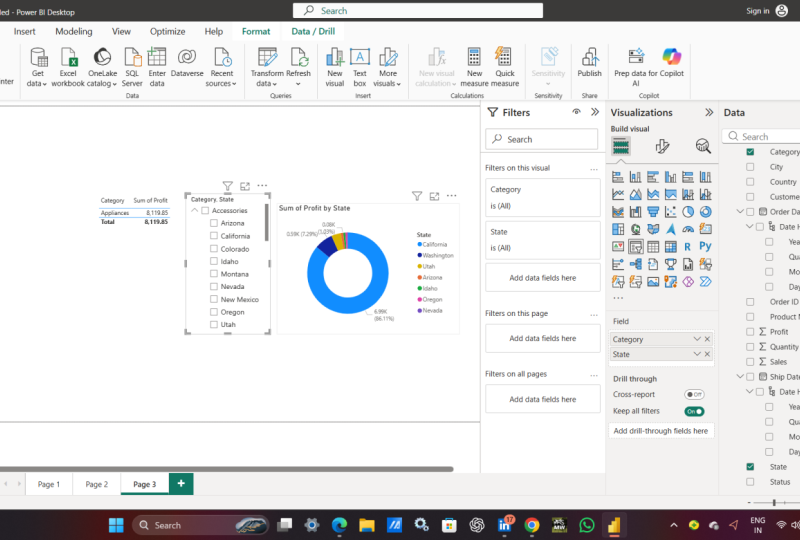
we can easily create a slicer in Power BI. Let's see. So this is our Power BI. We created a filter before to filter the sum of sales by
state for a specific category. Now we will create a slicer. So I'll just click
Plus here and I'll rename slicers, let's say. So this was our data. You can check the columns
also of our data. We already loaded the data. Now just go here
and click Slicer. Here it is, click on it,
and it's visible here. I'll just expand now, guys, what we will do. Right now, there is
no data in the slice. Therefore, now we
will add a column. Let's say we will add
a category column. Click here and select
category from here, and here it is category
is now visible. Okay. Now we will
create a table on this same canvas
only so that we can control the table content
using the slicer. Okay, I'll just
expand it like this. And now click here. Click Table, and here it is. The table is empty. Okay,
click on any of the column. Let's say we will click on. Profit and category
column category and the sum of profits. Now the table is visible. Okay. Okay, I'll click here. First, I'll increase the font. It's not quite visible. Click here and now click format
of visual Visual values. Okay, values font.
I'll set it to 17. Okay, and now it's visible. I'll drag it and let's
say, Okay, it's fine now. I'll click here again and go to format your visual
column headers, I'll set it to 17 and I'll set the
background color to black and text color
to white for the header, so that it's easily visible. Now, everything is visible. Okay, category with sum up
and the category from Slicer. Go here, click on the slicer. There's no data here,
know what we will do. Now we will add some more
columns to the slicer. Click on it and select
the state also. From here, here it is. Now it will add a drop down. You can see now we added a dropdown to each
category in the slicer. Now the state's dropdown is visible because we
selected the State column. I'll click on the dropdown. Let's say accessories
and you want to check the profits for the
accessories category in the state of New Mexico. Select it. And you can see we
filtered it using a slicer. The sum of profits are visible. Similarly, go check
this, go here. Let's say I want
for arts category for a specific state, let's say, New Mexico, and here it is, it's visible or let's say you want for California and
here it is visible. So in this way, guys,
we can easily filter our records with slicer. We created a table
and a slicer to easily filter our records. Thank you for
watching the video.
19. Select multiple values from a slicer: In this lesson, we will
see how we can select multiple values from
a slicer. Let's see. So, guys, we can easily select multiple
values from a slicer by pressing the control key on the keyboard with
the mouse click. Let's say, for example,
selecting multiple states. Okay, or as an alternative, we can set the multi
select option also so that we don't need to click
Control again and again. Let us see both the methods. So we created a slicer and we added a table and
filtered our records. Okay, I'll try to select
multiple records. Let's say I want for New
Mexico and Washington. I'll click, but
it will vanish to New Mexico because you cannot select multiple
categories in this way. You just need to use the Control key on your
keyboard and click. Let's say I want
for Washington now, I want for New Mexico. So it's visible here both. I want also for California, let's say, and in this way, we can select multiple
categories using the control. Okay. So, guys,
we saw how we can easily select
multiple values from a slicer by just pressing the Control key with the click with the
mouse click, that's it. There is also an
alternative option. I'll just uncheck them. I'll just select, let's
say California so, guys, now we will see
the Multi select option, click on your slicer and then go to format
or visual here, here and go to slicer settings, and here in select
selection and you can just switch it off so that you can directly multi select it off
and now I'll try to do it. Let's say for California and
Washington, it's enable now. For New Mexico, it's enable now, and the sum of profit is
visible for the art category. So guys, we saw how we can use two methods easily to
select multiple options. Okay, this works
great if you want to select multiple
values from a slicer. Thank you for
watching the video.
20. Set a chart with slicer: In this lesson, we
will see how we can set a chart with Slicer. We will create a doughnut
chart. Let's see. So, guys, a doughnut chart is like a pie chart that
looks like a doughnut. Okay, as you can see here, it is a circular graphical
representation of data that displays how different categories
contribute to a whole. Okay, it is a circular shape with a hollow center,
as you can see. The segments of
slices represents categories just like
your Pie chart. The size of each slice is
proportional to its value, and the total goes to 100% just like just like your Pie chart. So we will create a donut
chart with a slicer. So let us see the types
of donut charts also. A simple donut chart will
display a single series. If you want to show
hierarchical data with nested categories,
use the multi level. The interactive donut
charts will allow the user to how click on it to get more information
like drilling down to display
more information. You can also create a
three D donut chart that displays data
in three D format. Now let's see an
example to create a donut chart with a
slicer in Power BI. So we already created this. Okay. Category wise,
I'll just uncheck them. And we have our table here
with the slicer. Okay. I'll just drag it here
and drag it here. Okay. And these were
all our columns. We created the table
with category and sum of profit and slicer for state. Now let us create a chart. What do you need to do? Go to visualizations, go here. Okay. Here the click on Donut Chart. Okay. Now, click on it and select some of profit instate from
here, the columns. That's it. I'll first click here and go to format your visual values, and I'll change the font. Let's say 14. It's visible now. Now I'll click here again. And select category appliances. Okay, now I'll go to appliances. Let's say, here it
is, go inside it and select and unselect
any specific category. Let's say I just unselected
it or I'll select completely. Select for a specific
state like this. Okay. I'll select this format, labels, values. 13 I'll just drag it here and I'll just
Okay, that's fine now. Now it's visible. I'll
also drag it here. Now our chart is visible easily. And now you can work around
and check your donut chart. I'll uncheck it again, and this is visible for
all the categories. Okay, for a specific
category, I'll change again. Let's say for Cheers, I'll select and it changed
and it updated based on cheers in the
following state. Let's say I only
want for let's say I want only for New Mexico and Washington, here it is visible. Okay, Colorado,
California, Arizona. Okay, Arizona.
It's visible here. So in this way,
guys, we can easily set a chart with a slicer. We created a donut chart. Thank you for
watching the video.
21. What is Data Transformation: In this lesson, we will see what is data transformation
in Power BI. Okay? So let's say
you're uploading an Excel file and the
data is not clean. So you can usually clean
the data, fix the data, fix the missing values, fix the duplicate values using the data transformation concept. Let's see with this, you can easily rename
columns or tables. You can easily set the
first row as headers, change the type or
change text to numbers, remove any row or columns. Okay? As you know in PowerB, we can upload our data from various sources
like Excel workbook, from the web, even from SQL, from text, CSV, and
many other sources. While uploading, PowerBA gives you an option to transform
your data or you can achieve this using other methods also. So we will
see both of them. First, let us upload
a new Excel file as a data source and try
to transform it. Okay. So here is a Power BI. Now we will upload
a new data source. First, I'll go to File and
click New Blank report. Now, here it is. To upload your data, click Get Data here
and Excel Workbook. And herein, you can
upload your Excel file. Let's see, I'll upload
Store Underscore a Here and you can see, select your workbook and here you have your
transformed data option. Okay. You can directly load, but you also have this
transformed data option. When you click this, your
Power Query Editor will open. I'll click. Here it is, Power Query Editor, and you can see the steps it
applied for transformation. I promoted the headers
and changed the type. As an alternative, you
can also see we can go to Powerw desktop and select the transform data
option on the home tab. Let's see. Here you
can directly go to Home tab and here your transformed data option is visible. You can click here. Okay. And here was our
Power Query Editor. You can also click Transform here and find all the options to transform your data. Now let us close this project
and we will start PowerBI again to see an example related to data transformation
by promoting headers. Okay, let's see. We will
load a new Excel file, and after loading it,
we will transform it. Okay. B going to the Home tab and
clicking Transform Data. You can open PowerBI from
the Dk off shortcut or good Start type Power BI, open it. Click Blank Report. Now, click Get Data Excel workbook, and this file, we will
use region dot Excelsx. Click Open Now, click the location. And this was our
file, Column one, column two, click Load. Okay. You can see first, it is not taking the columns. So what I'll do, I'll
click on transform data. Now, I'll click
Transform data here. And herein, I'll click Transform and use first Roe's header. Now, here it is. Okay. Now we reached here, click
Apply changes. Now here it is. We have our
columns here, perfectly. So we transform the data also. So we saw how we can work around the data option to
transform our data, promote our headers,
change the type. So in the next lesson,
we will see this further and group the rows. We will also pivot the columns and also learn how to create custom columns under the
data transformation concept. Thank you for
watching the video.
22. Group rows: In this lesson, we
will see how we can easily group rows in Power BI. This is part of data
transformation in Power BI. Let's see. So with Power BI, you can easily group the
values from multiple rows in a single value with a
Power Query editor. We saw the same in
the last lesson also. In this lesson, we
will get the count by grouping from raw data. So this will be our input file. Let's see. So I'll go to
File, click Blank Report. Now, let us load the data again and
understand the concept. I'll load the store
Underscore Raw file. Again, go to get data. So I'm showing the steps again. Click Excel Workbook now select stor underscore
row dot Excel Sx. Here and go to your workbook
My MAT, and here it is. Instead of load, I'll click Transform data so that
I can clean the data. This will also open the
Power Query Editor. In this way, we can
also group the rows. I'll click Transform Data. Here it is. You can see Power Query Editor. Here, let's say, I'll
select the category column. So here is our category. I'll click here. Now
I click Group B. This will calculate the number of orders for each category. Okay. Now we have this section. The dialog box for
Group B will open. You can add more
categories here. This is the basic
one. It will group by category and the new column would be count. You
can also change it. This new column will
group the rows and display you the count of
orders for each category. Okay, you can also change
the operations from here like count
rows sum average, but I'll keep the default
because we need to count it. Okay. And the new
column would be count. Okay. And here it is, you can see we have 116 orders
in the labels category. For nsings we have 304 orders. This is how we transformed
the data and used group B so that we can count the rows that is orders
based on each category. The changes are also visible. We grouped the rows. Okay. Let me save it by
going to AirFle save as, and I'll save it as let's
say ath grouped rows. Dot PBX, it will
automatically add as a Power BI file, save. So, guys, we successfully
group the rows. Thank you for
watching the video.
23. Pivot columns: In this lesson, we will
see how we can use the pivot columns concept
for data transformation. So you can pivot columns and
create a table that contains aggregated values for
each unique value in a column. Let's see. So pivot on columns, it's like converting
columns to rows. We will get the data and then perform the pivot
column operation. This will display
aggregated values for each unique
value in a column. So our input file will
be profit dot Excel x. So let's see. So this is our
new project under Power BI. Now I'll get data,
click on Get Data, and I'll click Excel Workbook. So let's say we will
work on the profit dot celsXFleR click and open
it. We will first view it. So it is having your profits based on months for three years. 2022, 23 and 24. So we will pivot the column, so that we can arrange them. We can aggregate the
values. Let's see. I'll close, select,
no it will open. Select the workbook
store profit which I've just shown you click Transform data so that we
can transform the data. Now here it is, guys,
this is our data. Now we will transform it. We will perform the
pivot operation. Okay, so I'll just click here. Now we've selected this and
I'll click pivot column. Now here you can see
the values column is profit, keep it as it is. Okay, and I'll just click Okay. Now, what will
happen? Use the names in column month to create new columns and the values
column here is profit. Okay, click Okay. After that, you'll understand what we did. So now we have our values
with the pivot operation, that means now we have our
values according to the ear. Now the rows are
grouped by ears, the opposite of
what we saw before. A separate column is no
visible for each month. Okay. We have the pivoted column now and it's visible
here. We performed it. On the right, it's visible
under query settings. You can delete, if
you want, you can click the cross to
delete this step. I'll save it file, save as. Let me save it as Amith pivoted. Columns PBIX it will
automatically add. That means the Power
BI file. Click Save. Thank you for
watching the video.
24. Create custom columns: In this lesson, we will
see how we can create custom columns under
data transformation, operate on multiple columns
and place the result in a new column called
a custom column. Let's see. Here, we will
operate on multiple columns, and we will see the
previous example only. That was our input
file profit dot xlsx. So we'll be creating
a custom column. We will also apply a formula
on our custom column, to get profits based on
quarters. Let's see. So, guys, this was our file. In this we perform the pivot
and we pivoted the column. Now the results are
visible based month wise. Now let us create
a custom column. Click Ad column. Now here, guys, click Custom column. So consider first quarter as from January to
March in a year. We will display the result of quarter one profit
in the new column. I'll rename Okay, from
the available columns, we will click Insert
to drag the January, February and March columns. First, select or you
can also type here. I'll just click here and click
Insert. Okay, here it is. Now you can type plus and drag February like
this, click and insert. Now March. Click and insert. Now we have our formula here for the first quarter profit. That's it. No syntax
errors have been detected. Click Okay. Now you have your new column custom column herein only the profit of quarter one is
visible in this way, you can also add profits
for other quarters. Okay, what we did
it's 2,200 a year. We just added the
first three values. January 4 90 plus 690 plus 1020 is the first
quarter for 2022, 1 0 9 0 1 2 3 0 and 1 1 8 9 is the first quarter for 2023, and this is what we have
added to display here. This works similarly for
the last year also, 2024. So in this way,
guys, we can create a custom column also easily. We have displayed the quarter
profits for each year. Under the applied steps also, the added custom is visible. That means custom column. So now what we can do, we
can go to file and click Save As also as in
okay, let's say, I'll mention Amith
custom columns, Amyth custom columns
and click Save. Apply Save. Okay, we have fixed it
amid custom columns. Okay, so in this way, guys, we created a custom column, and we added a result which is better than the
previous one because we have shown the profit
based on a quarter. Similarly, you can add
profits for other quarters. Thank you for
watching the video.
25. What is DAX: In this lesson, we will
understand what is DAX in Power BI. So it is data
analysis expressions. Consider it as a
collection of functions, operators and
constants to create calculations and data
models in Power BI. Let us see its features, data types, and other concepts. Okay, so it is a formula
expression language in Power BI. You can perform
calculations like arithmetic, statistical
and logical. You can also define
relationships, analyze and summarize the
data using its functions. So it has the following
two data types mainly. The numeric ones
are the following, and it also includes your
sting and binary objects. DAX enables you to create custom calculations in Power BI. Okay. It includes your
calculated columns concept. The common DX functions are
the following like you must have seen these
functions before also. For logical, we always have
if and or not aggregation, some average to
find the average, to find some datetime text includes our concatenation
and other such functions. So you can easily at the
following calculations like calculated tables,
columns, and measures. Okay, create calculated
tables easily in Power BI. Let's say we want to
combine some tables, then the calculate tables
concept would be useful. This will allow you to display the students who got maximum
marks in a subject, using the calculated
tables concept. Then we have the calculated
columns concept. You can easily add a new column to your table using
this concept. I calculate results
by using DAX, and the DAX measures in the end, this is used for data analysis. So in the upcoming lessons, you will understand these
concepts one by one. So, guys, in this video,
we saw what is DX, its importance, its features, what data types it includes? And what are the common DAX
functions and concepts? Thank you for
watching the video.
26. DAX Calculated Tables: In this lesson, we will
understand what is the calculated tables
concept in DAX. We will also see an example. Let's see. So we can easily create calculated
tables in Power BI. Okay. Consider them as virtual
tables created using tax. So calculated tables
would allow you to combine data from
multiple tables, perform calculations
and aggregations. You can also create new datasets for analysis and visualization. You can also summarize
data by grouping or aggregating Mrs data from
multiple tables. Okay. Also enhances data modeling
and relationships. Okay, some of its use
cases include you can summarize data by
grouping or aggregating. You can easily merge data
from multiple tables. Okay, you can create custom data sets for specific analysis. The benefits, it improves
your data analysis, also improves data modeling, reduces data duplication, and in turn leads to
better performance. So we will see an example. We will create
calculated tables. Okay. The input file, we will create a table instead. The input would
be our own table. We will combine the tables. Let's see the example. So
we will open Power BI. You can click on the
Desktop Shortcut. Okay, you can click
on the Desktop shortcut or go to Start, Type PowerBI and open it. Click Open Click Blank Report. Now here in let us
enter the data. First, we will
create a new table. Here, click Enter data. Now, I'll create
the table manually. I'm adding the columns,
student subject and marks plus subject Marks. Okay. Now I'll add some values
to each of the columns. So I've added three columns
and four rows data. I named a table, let's
say, coding students. Now, I'll just click Load. Now the first one will load. Now the first table is loading.
Four rows loaded. Okay. Okay, on the right,
you can see under the data, you have
your first table. Now click Enter data again
and create the second table. This will be our
management students table. The first one was
coding students. I'll add student.
Click the plus sign subject and mark same. But for different table. Now let us add the values
for the second table. So we have added the
values, three rows, three columns. I named a table. I named a table,
management students. Okay. Click load. Now
we have two tables. Both the tables are visible. Okay, on the right, you
can see coding students, Table one and management
students table two. To combine both the tables, that is under the
calculated tables concept. Now we will reach
the table view. For that, click here, table
view, and here it is. Now the tables are
visible, one and two. What we will do to combine, click Table tools, this one. Now we will create new
table by clicking here. Now the formula bar
will also open. We need to add the DAX
expression now here. Okay, so let me add Total
students is equal to union of it will automatically show you
the coding students. When I type this
code, here it is, you can add coding students, code again, and it will show the last one,
management students. That's it. Now close it. And the new table's name would
be Total students. Okay. So this is the query
we added for DX that is DHEpressi press Enter. And now you can see we have
combined our tables together. Okay, and we can save it also. We can directly click here, save, and it will save it. Let's say, I'll name it. Amith Dx calculated tables dot PBIX is the extension
for your Power BI file. Okay. Now I'll click
Save and it will save. Okay, now you can see the
new table is visible. This is the result of both
the above two tables. So guys, we saw how we
can work around DX, calculated tables concept
to combine tables. Thank you for
watching the video.
27. DAX Calculated Columns: In this lesson, we
will understand the calculated
columns concept in DAX and we will also see
an example. Let's start. So calculated columns, consider
them as virtual columns. Okay, that is added to an existing table using
data analysis expressions. That is DAX. You can easily perform calculations
on existing data. You can also enhance your data modeling and
relationships with it. These are the
columns that you add to a data model in Power BI. These columns are computed from other data in
your data model, allowing you to create
new data points based on existing ones. They are created using formulas and are not considered a part of the
original data source. Here are the features. You can add it to
existing tables. It can be used in
your filters also. The use case is you can
calculate profit margins, extract the date parts. Let's say you want to
extract here from a date, you can do it with
calculated columns. You can also combine
text columns and also create custom
categorizations. Now we will see an example. We will use DAX to
add a new column to our table with the
calculated columns concept. So let us load an Excel file first and work on an example
for calculated columns. We will add a new
column to our table. You can open PowerBI from
the desktop shortcut or go to Start type Power BI, open it. Click Blank Report. Now click Get Data,
Excel workbook, and this file, we will
use region dot Excelsx. Click Open. Now, click the location. And this was our
file, Column one, column two, click Load. Okay. You can see first, it is not taking the columns. So what I'll do, I'll
click on transform data. Now, I'll click
Transform Data here. And herein I'll click Transform and use first Roe's header. Now, here it is. Okay. Now we reached here, click
Apply changes. Now here it is. We have our
columns here, perfectly. So we transform the data also. Now we will add a new column. We will right click here, location and click New column. Remember, calculated
columns are created and displayed in report view, data view, or model view. By clicking the new column like this, click on the new column. Now your formula bar
will be visible. Is. Now column is equal to. I'll type like this. No presenter after that mention and we're mentioning the
comma here like this. And here, mention the state. That's it. Now when
you press enter, it will create a new
column, presenter. And you can see the
new column is visible. It's visible on the right also. The symbol is also visible. The column text in the
formula can be replaced with whatever name you
want for the new column. So here we mentioned column. This is your new column name. You can mention anything. We
can also rename it later. Let's say, I'll right click
now and click Rename. Here and type city
state to represent, and now we have renamed it. Now what you can do, go to visualization span like this and here and click on the table. Here it is. Now here is your table and just
select the city state. And the table is now visible. Okay. You can click and go
here Format Visual. Go to Visuals and here and I'll increase the font size
to, let's say, 13. So that's visible. Okay. Here it is. Now, you can save it. Click here. Okay, dot PBX is the Power BI file extension. Okay, click Save.
Now, it will save. Here it is, we saved it.
So in this way, guys, we can work around the
calculated columns concept to add a new column. Thank you for
watching the video.
28. DAX Measures: In this lesson, we will
understand what are DX measures in Power BI. We will also see an example. So these are used for data
analysis in Power BI. Okay, you can consider them as dynamic calculations to
perform complex data analysis. These can be used to analyze and visual data in Power BA reports. It calculates on existing data can be used in your tables also. And can be reused
across reports. So herein we will see an example and calculate the value of the new measure on our monthly
profit dot Excel SX file. So let us see an example. So you can either click on the Desktop shortcut
or Good Start, Type Power a and open it. Click Blank Report. Now click Get Data and click Exlwobook
to load your file. Here and I'll select
monthly profit. Right click and open it. Let
us see what it is having. Here it is only the
month and the profit. That's it. And the Exl Workbook
name is profit by month. I'll click Open. Now select your workbook, and here is the same file. I've just shown you click Load. Now, it will load. Now go to the data and
your file is visible here. Excel file with the two columns, month and sum of profits. Okay, now first, go to the visualization span
and click the table. Here it is. Select both of them so that it gets
added to the table. Here it is. Let us first
format it. I'll click here. Let's say I'll drag
here. This looks fine. Now after selecting this, go to format your visual values
and herein, set the size. I'll set it to 15,
now it's visible. Or I can directly go here, go to presets style
presets under visual and select bold header. Now also this looks
fine. Select it and format visual values
and 17 select it, go to column headers
and set it to 17. Now this looks fine. Now
it's visible. Here it is. Click New measure
where it is here. Add the formula here, we will
set the projected profit. It's written measure, first, change it to projected profit. Okay. Okay, now mention
the sum function. This is the DX function. Under that mentioned profit by month and within that
the profit value. I'll just multiply it by two, close the sum and just
multiply it by two. I'm just projecting the
profit to be double. Okay. The reference table
is profit by month. The reference column is profit
in the profit by month. That is the
following. That's it. And all this is going from the following table.
The details are here. Press enter and the
projected profit is visible. Now you can see the
calculator sign is visible, so this is your measure. Okay. Click here. That's it. Now we have our
projected profit also. That means we have
selected the columns and created a table
with the projected profit column as well now. Using the same two columns and the projected profit column, we will create a
clustered column chart. Click here, clustered
column chart. Here it is. Click here and select
all the three values, and this will create our
clustered column chart. Okay, you can check here. So in this way, guys,
we can easily work around the DAX measure. So we added a new column and used the DAX to
project the profit. We added a new column.
Okay. The projected profit we have set just for a sample to twice
the current profit. Okay. Now I'll save it. Click here, save. I'll name it, Amit DX measure. Okay. Do PBX is the Power
BA file. No problem. Click Save and we have saved it. So guys, in this way, we can
work with the DX measure. Thank you for
watching the video.
29. What is a Report in Power BI: In this lesson, we
will understand what is a report in Power BI. We will also understand
the structure of a report. Let's see. So Tella we have created
some reports in Power BI. If you remember we added
some pages to the reports. Okay, so you can
relate it with this. A Power BI report has at
least one report page. So in some of the projects, we added a single page, and in some we added
multiple pages. Okay, reports can
have multiple pages. Consider that each
and every page is having a report object. So we added some
visuals to our pages, consider them as report objects. Okay. You can also relate
it with an Excel worksheet. Just like we added a page,
we can also delete it. We can rename the pages
and we can also change its position just
like we do in Excel. If you're creating a report, it should also have the
first page as a summary. Okay, because let's
say later on, you'll be publishing the report. Then the first page
obviously should be your topics or what this
report will be having? Consider adding a high level
summary on the first page, and the rest of the pages
will have all other details. As I said before,
a single report can have multiple pages. We can change the page size, the page background, and
information, and other stuff. In the upcoming
lessons, we'll be creating and publishing
a report in Power BI. Thank you for
watching the video.
30. Create a Report and Publish in Power BI Service Account: In this lesson, we
will see how we can create and publish
a report in Power BI. For that, we'll be
using Power BA service. So the report will be published from your PowerBI desktop
to Power BA service. Let's see create a report and publish it to
the PowerBI service. We'll publish a report form the text to survey.
This is what I said. Okay. Previously, we
saw what is a report? A report can have
multiple pages. Consider that the first page will have the summary
of the report. Okay, we will also see
how we can publish and export a report in different
formats. Let's see. First, we'll open Power BI. Go to Start, type
PowerBI, click Open. Now, let us open one of
our previous projects. We can click Open here, or
we can directly go here and click or file Amit
UnderscoeO VI. Click on it. Now, we opened it. So here we
were having multiple pages. Okay, you can check Gothat
column chart cards. So let us publish this only. I Okay. So first, what I'll do, I'll create a new page by
clicking here and I'll type. Let's say lessons or summary. Okay. And I'll drag it
here on the first one. Now let us write the summary. I'll click here first and go to format your report page and here I'll click
page information. Name is fine. You can
allow a tool tip also. Canvas settings click on it. Type is fine. Vertical
alignment fine. Background. Let me add the
following background. Transparency. Okay. We can make it a
lighter one also again. Let's say the following. Okay.
I'll add a textbooks here. Now, I'll add a text here. My supermatRport. I'll select and let's
say 40, this looks fine. Or my store report. Okay, I can click and take it to the center. This looks fine. Now I can add the sections also. I'll take a textbook. Okay,
now let us add the topics. Okay, first, let us increase
the font, 32, I'll write. Got chart. Then we
created a column chart. Cards, tables,
filters, and slicers. Okay. We can also add
the background here. Click here, G here. Properties you can change. Potion also title,
you can also set. Effects let's the
background color. I'll now change it
to the following. Okay. You can change the
transparency from here. Okay, now that's it. Now we've added a basic summary. You can also change the
background color here. So let's say I'll just click and go to Effects and change
the background color. Okay, fine. Now I'll
select this Herein I'll select font color
white. Now this looks fine. Okay, so generally, we have
these pages in our report. So reports basically have
a grid like structure. Win generally you can add
12 different sections. Since we created these
projects before, so I'll be directly
showing you how our report will look
when we'll publish it. I'm here. You can now directly click
Publish to publish it. A now, do you want to
save your changes save? Now it will ask
your email address. I'll be adding my
work email address. Continue. You don't seem to
have an account. Okay, to sign up for an
account, click here. I'll click here, let's say. Now it will take us to the
signup under Microsoft fabric. What kind of email is this? I got it from my organization. Okay, click next. Now create your account,
you can add your number. Text, I'll first select India. I'll first select my country,
then the phone number. This is only for verification. It's written. Click
Send verification code. So we got the code.
I'll type it. Okay, now go below. Here and you can click Verify. Now create your password. Also, it will send a verification
code to your email ID. So let me check my email ID. Add the code verification code. That's it. And we have
created the password also. If you want, you can click here. Click Next. Okay, you need to also add
your name and everything else. Country India. Business
phone number. That's it. Now go below, and I'll
select this also. Click Next. Now, this
is your user name. Your email ID is your username. Click Get Started. Now it will open your Power
BI service. Now here it is. Now here you can see the
workspace is visible. I'll click and here
is my workspace. You can create a
new workspace here. I just clicked on it
and click Got it. Okay. Now I'll go to my
Power VI, click Continue. Now, click Publish, and it will ask you to enter
the same email ID. Click Continue. The same
mail ID and password. Click sign in. Click Okay. Click Done. Now you can
see we have logged in. So you can select a
destination for this report. You can directly
click my workspace because we were having
this workspace, we can also create a
workspace later on. So consider workspace
as a folder, which will include your reports. You can also create a new
folder within your workspace. So I'll just keep the default. And I'll click this
and click Select. Now it is publishing
from Power BI to Power BI service Success, you can directly
open it from here. Now your Microsoft fabric will open your
report. Here it is. We created a report, and we
published a report here. Okay, that is from
our Powerb desktop to PowerBS service after login. Now you can also see here. Let's say God slices and you can see the report is
interactive online also. Let's say, I'll just
click on accessories to get some of profits by state according to let's
say accessories category. You can see it is interactive. I'll just remove them and you
can see it is interactive. Okay, so your exact
report is here. Okay. You can also edit it from
here directly. Okay. So, guys, we saw that
whatever we published from our Parway desktop to service is interactive in a
similar way. Okay. Can also check here.
Okay, like this. Now, I'll click on Export. I'll direct click on PDF, let's say, Export with current
values and click Export. Now, let's see what will happen. It will open. It
will export to PDF. Now, PDF is visible. Here it is. Okay, you can click
here and find it here. Click on it to open,
and here is your PDF. Okay. We just created a
demo and it has shown us the first page summary.
Second was Gothat. The third was your column chart, and in this way, we created it. Okay. And the last one was
the following in PDF format. Okay. So in this way, you can also export
it in PowerPoint. Okay. Here is the notification.
You can check. We just created our PDF file. This is your my workspaces, and it will include
your current one. You can also create workspaces
here by clicking here and selecting new
workspace here. So here click got it. Here, we can also
add some stuff. Let's say we added this
here, my store report, and we can also
add a textbox here like gotchat or slicers. Okay, similarly, in
a similar way by clicking Textbox and it
will get added here. Okay, I will show you because
you already signed in. Let me click here, PowerBA service and it
will open the same. Okay. And below, you
have your workspace, the first one which you
created under my workspace. Am Thunderscoe Power BA project. Okay. So in this way, guys, we saw how to create a report,
then we published it. We worked on the
free version only, and then we also saw
how we can export. And we also saw how we can go from PowerV
desktop to Power BA service. We also exported a report in PDF using the free version only. Thank you for
watching the video.
31. Create a Dashboard from Report in Power BI Service: In this lesson, we will
see how we can create a dashboard from a report. So let's see. So, guys,
this was a report. We click Publish and logged in and and that actually
created a report here. And that published a report
here on the PBA service. Now, you would be wondering
how to create a dashboard. So let's say I'll go to a report and let's say
I went here slicers. Let's say I want to add any
of these to the dashboard. So let's say, I'll be selecting
a donut chart here and also the slicer and
the table also. Okay. So what I'll do, let's
say, I'll just click here, and the pin is visible here. Pin visual, click, and it will give you an
option to pin to dashboard. Okay. So we don't have
a dashboard right now, so I'll just type my dashboard.
Okay, and click Pin. This is your dashboard location. You can click and your
dashboard will now have your doughnut chart. Okay, now, similarly, we can
go to our Power BI again. And I'll also add this. This was a table
interactive with our slicer and Dut chart. So I'll just click Pin. It will again ask me to
existing dashboard. Yes, click Pin. You
can go here later. Okay, so now we can
also add other options. Let's say we can also add this. Okay, this will give
you an option to pin. So, guys, in this way, we can
easily create a dashboard. So to reach the dashboard now, click here my dashboard. And here is your dashboard. Okay. Okay, now, if you'll
click any of the chart here, so let's say I clicked here, it will take it to the source. So obviously we took
it from here, right. Now if you want to again
reach, click the dashboard, and here you are now when you go to my Workspace, you
have your filters here. If you want dashboards
or only reports, so the dashboard
is visible here, I'll just select dashboard and only the
dashboard is visible. Okay, here it is. In this way, you
can add multiple charts also from your report. So, guys, we saw how we can create a dashboard
from a report only. Thank you for
watching the video.
32. Subscribe to Report: In this lesson, we
will see how we can subscribe to report in Power BI. We will also see what does
it mean? So let's see. So we created this report. Okay, under our MW space, we were having a report. Okay, so let's say
you want to share it. So I'll click here
Subscribe to Report, and you can see
what does it mean? You can access reports
shared by your colleagues. You can also share
our dashboards and reports with others
with your colleagues, let's say, anywhere
around the world. Okay, you can also the
data on the mobile app. It is a free trial for 60 days, so I'll just click Try Free. Okay, it's available for
free now, you can see. Okay, till the
following. That is two months. Click Got it. Now here, click
Subscribe to Report. Let us create a
subscription now. Click on the button. You can add the name of
the subscription. I'll mention report, let's
say, or weekly report. Recipients, you can add here is biodefaul added my email ID. You can add other names also. Attach, you won't
be able to attach. You can see you need to
upgrade to the paid version. That is the Power BA premium to, attach the report.
Not a problem. Repeat, you can repeat daily or I guess weekly would be fine. Okay, selected day, let's
say, I'll mention Monday. Time you can set, let's say, 10:00 A.M. 10:00 A.M. Weekly every Monday.
Time on it's in India, you can change accordingly. Click more options. You can
set the email subject also. Let's say weekly report sales or or base on your data. Okay, attached is the
weekly sales report. Report page, which
one you want to send? Let's say, I'll
send the slicers. Rest, keep azts and
click Save first. After saving all the subscriptions
will be visible here. You can again edit.
Okay, and that's it. You have enabled it. For new subscription,
you can click here. Now we have a subscription here. Let me create a subscription and I'll send an email quickly. Click New subscription. Let us keep it as it is, and recipient is a default. You can select the start
date and end date. Let us keep the default. Repeat Daily, for example, 645. Time Zone, you can change ta and under more options you
can set the email subject. I'll say daily reports. Okay. And Dear team members or dear all, you
can mention anything. Attach is the sales report, which page you want to send? Let's say again I'll
send the slicers only. And after that, I'll click Save. And now you have
two subscriptions, and the trial is for
two months. Okay. So, guys, these were
our subscriptions. Let me change the time. It was 645, right? I'll click Edit, and
now it was 645 Daily. It was 645 Daily. I'll set 7:00 P.M. Okay. I'm just
giving an example. You can also set the start date and end it by clicking
here, calendar. Okay, since we are
under the free version, we won't be able to attach it. Okay. Everything we discussed, repeat daily, let's
say, time zone also. Okay, and these were
having the more options. Dear Team members attached
is the SAS report. Now you can see Send NO is not visible because we
need to save it. Now click Edit, and now
you'll be able to send it. So it will reach at
7:00 P.M. Today. Let's see. And it will be sent to only a
single email ID right now. You can add your
colleague's email IDs here under the
recipients section. I'll just click Send now
and subscription sent. Now at exactly 7:00 P.M.
You'll get the email regarding this subscription.
That is a report also. Let's see. We got an email. The heading was the same.
The heading we set before, daily reports, and
it is from Power BI. It was having heading slicers. And this was the text. Okay, for the report, and now your colleagues can
directly click here and open. Open report in Power BI. Okay, and every other
detail is visible. So in this way, guys, we can
easily set subscriptions. You can close this and all your subscriptions are now visible. Okay, we have set two of them, one weekly and one daily. Okay, we could have added any of the pages
or we could have changed it on weekly basis or even
daily basis or monthly basis. We could have easily
changed it on hourly basis, daily, weekly, or monthly basis. So this is we can use the subscription options for two months even
with the free plan. After that, you need to pay. Thank you for
watching the video.
33. Update Power BI: In this lesson, we
will see how we can easily update Power
BI. Let us see. First, we'll open
Power God start, type Power BI, and here it is Power via
desktop, click Open. Now here it is, you
can go about here. And under your current
version is visible, 2.129. Now we need to update it. Okay. Minimize go to
start on Google Type, download Power Bi
and press Enter. Here it is first link. Click on it microsoft.com. Now herein always the current
version will be visible. Select the language,
click Download. I'll click the first one
and I'll click Download, 544 MB. Let's wait. We have downloaded
it. I'll click on it, minimize. It's written close it. I'll close it. Retry, retry. Next, you can select the
language, then click Next. Click Next. I accept, click Next, and here
is the location. Now you can see it
is showing the path. It is the same path
which we already have. Here it is C drive
program files, and here it is Microsoft
Power BA Dektop. Okay, the older version, minimize and click Next. Created Dextop shortcut.
Okay, click Install. Now let's see what will happen. Here you can see, guys. Now we can click Finish,
and it will launch it. Or we can also click
here to open it. Finish. And Now, you can see everything
is the same. All my files are
still visible here. Okay. So we updated it. I'll click about now,
and it was 2.129. Okay, you can set
the appearance also. I'll keep it as it is,
and click below Okay. Okay. I'll click
Cross and it's 2.138. Okay, we updated it
successfully click Close. So everything is the same. You can see my recent
files are also visible. So you can easily
update it like this by downloading it from the
official website itself. Thank you for
watching the video.
 Amit Diwan, Corporate Trainer