Transcripts
1. Unique Features and Benefits of Our Comprehensive Obsidian Course: Welcome to Obsidian, the ultimate course for
organized thinking. In this introductory section, we'll be covering
three main topics. What makes this course
different from other courses? What will be covered
in this course? Lastly, just a brief introduction
of myself and who I am. What makes this course
different to other courses? Well, I like to live
by the acronym Kiss. Keep it simple. Stupid. Unlike most of the
courses out there, my goal is to keep this course as simple and to the
point as possible. In my personal experience, I found that there's
nothing worse than buying a course
that's hours long, only to find out
that the content is actually made up of
filler conversation. As someone that values their time and has a lot on the go, I want to have the
minimum dose and get the maximum amount of
information out of a course. Meaning I want to learn how to use a piece of software
or principle as effectively as possible
so that I can get started utilizing what is
taught as soon as possible. Therefore, this
course will not cover full of topics that do not have a direct influence on you using obsidian
as soon as possible. Secondly, I believe it's highly important to ensure that when you are learning
a new concept, you should ensure that the
content has some relatability. Sometimes learning a new concept can be extremely difficult. But relating your content to
that of a tool, principle, or application that
you already know can decrease the amount of time needed to learn
a new concept. That's exactly what
we're going to do.
2. Comprehensive Curriculum Topics Covered in Our Obsidian Course: What exactly is going to
be covered in this course? Well, firstly, we'll start
with the introduction. We're then going to move
on to Obsidian basics, where we're going to look
at what is Obsidian? What is the difference
between the paid versus the free version? General set up, getting a general understanding
of the layout, what the settings look like, what volts are creating notes ending with links,
hashtags and graphs. We'll then move on to advanced obsidian
editing techniques, where we're going
to take a look at adding RLs, exporting options, adding code, images,
tables, diagrams, and even mathematics call outs and just good
practice techniques. We'll then move on to
advanced Obsidian features. We'll take a look at themes and support followed by
Obsidian Plug Ins where we're going to take
a look at core plug ins as well as the top five
community plugins. Lastly, we'll look at a real world obsidian
case study followed by an obsidian course
exercise where you'll be able to apply what
you've learned through the
3. Instructor Introduction Learn from an Accomplished Knowledge Worker: Before we begin, I'd like
to introduce myself. My name is Ryan Dean Brink, and I am passionate about
growth and success. My life's journey has
been a testament of my unwavering dedication to personal and
professional growth. I have a background in
genetics and biochemistry, and I have a proven
record in excelling in both academics and
in the workplace. I've hone my skills
in time management, self discipline,
self motivation, and effective process
optimization. My mission is to
help others reach their full potential and
live their dream life. I love sharing my wealth of knowledge that I've
accumulated over the past few years in four
main categories being health, wealth, love, and happiness. Lastly, as a project orientated and results focused
professional, I like to approach
each challenge with enthusiasm, creativity,
and initiative. And so I really hope this
course is going to add value to your life and get
you to where you want to be.
4. Exploring Obsidian An Introduction to the Innovative Knowledge Management Tool: So what is obsidian? Well, what sets
obsidian apart from other note taking
applications is its focus on actually interlinking
your notes to help you connect ideas and basically
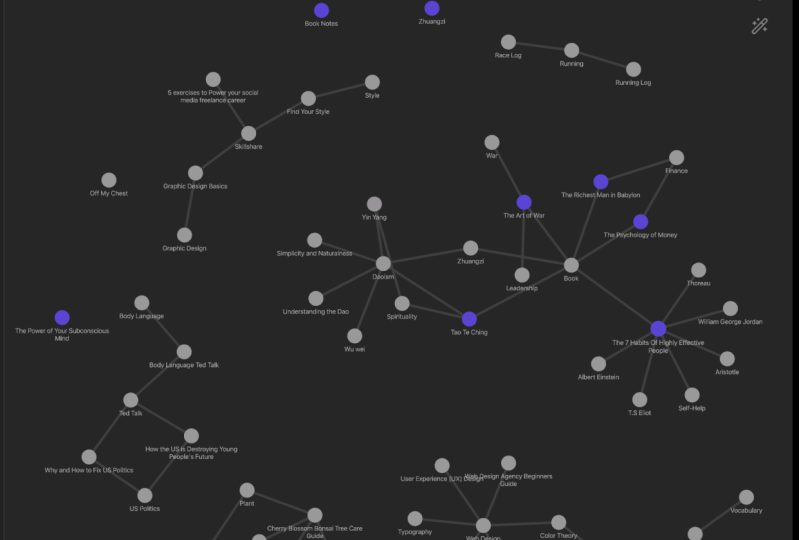
create a web of knowledge. I like to think of obsidian
as a brain or spider's web, whereby you're actually
creating links across multiple nodes
that you can think of. Create a spider web or neural
pathways in your brain. Basically, what this
means is you can create a web of connections
between your notes. This makes it easier to explore your ideas either in the
present or even in the future, and see how they
relate to each other. Obsidian also has a very
powerful search function, which allows you to
quickly find notes based on the content
or the metadata. And it also supports or allows support for plugins and themes, which means that
you can basically customize the application
according to your needs. Lastly, one of the big
differences is that Obsidian does not run off a browser and it actually is a
standalone application. I believe this is a big
benefit of using Obsidian. The fact that it's not
browser based means that it's easier to actually get into a workflow free of distractions. And this is a huge benefit, especially for those
looking to use Obsidian for professional
or academic uses, where you need to get in the workflow and you
need to have that focus. Lastly, Obsidian
uses what we call markdown File format
distorts notes. Markdown is basically just a very lightweight
markup language that allows you to add formatting
to the text using a very simple
syntax or language. Markdown is actually
supported by many text editors and writing
tools including Atom VS, Code, Github, Stack, Overflow, Jupiter Notebook, and
even Sublime Text. This basically means you can use Markdown to write and
edit your notes in Obsidian and then export them to other programs or
platforms as needed.
5. Choosing the Right Version Navigating the Paid vs Free Features of Obsidian: So looking at Obsidian, there are a couple
of options that you have when it
comes to licensing. You have three licenses
that you can opt for, which is either the
personal license, the catalyst license, or
the commercial license. For this course, we're going to be using the personal license. I believe that if you're using
Obsidian for personal use, the personal license
is more than adequate because it's
100% free to use. You don't need an account or
you don't need to sign up. And you do have access
to the plug ins, the API's, and the community
support behind the program. If you are looking for something a little bit more robust, you can opt for the catalyst
or commercial license, which is going to give you
additional functionality. But we won't be covering
that in this course.
6. How to Install and Setup Obsidian A Step by Step Guide: Now let's move on to the set up and installation of Obsidian. The first thing you're going
to do is go to Obsidian, or simply Google Obsidian. And when you land
on the home page, you're going to see in the
middle of the home page, it already says Get Obsidian. And in my case, for Windows, because I'm using Windows, the homepage will pick up what operating system
you're using and you can simply click on Get Obsidian and it will download
the appropriate files. If by chance you are using a different operating
system and you'd like to see what other
options there are, you can click on more platforms, which will bring you to a
page with download links for Macos, Linux and Windows. Depending on what operating
system you're using, you can click on the
appropriate link and download the file. Once the file has
been downloaded, you're going to click
on the file and follow your normal
installation process. Walla, there we go.
7. Obsidian Layout Optimize Your Workflow: In this section,
we're going to cover the main sections of the platform and what
they're used for. But as we go through the course, you'll then start to figure
out where each section is applicable and how it can be used to improve
your workflow. Let's take a look at your
top left hand corner. Your first button is
going to be files. Under your file section, you'll see your vault name, as well as any folders and notes that fall
within that vault. If we look above the vault name, there are four buttons there. First one is going to be
to create a new note, The second one is going
to be to create a folder. We then have a sorting button, and our last button is
basically an expand button. To expand what you have
within your vault. We can then move on
to the search button. The search button
is going to work like any other search function, where you'll be able
to type in a keyword and search through
your associated notes, four notes that
contain that keyword. The nice thing is we also
have a search setting button, which will allow us
to toggle between collapsing results
showing more context. Which is quite a nice
feature as it allows you to see context behind
your search results. And then we'll have our
explain search terms. We'll also have your button, which will allow
you to basically filter your results
by file name, modified time, or created time. Then we've got our bookmarks
and our bookmarks. If you do have any bookmarks,
they will appear there. Looking at the left hand side, you have your quick switcher. So what is the quick switcher? Well, if you find that your note taking environment is getting too large and you're basically struggling to find the
notes you're looking for. You can then use the
quick switcher to switch between notes by
searching the note name. I believe that if your work environment is structured enough and you're using folders and naming conventions
correctly, you'll really need to
use the quick switcher, but the functionality
is there if need be. Under that, we've
got our graph view, which we will cover in
depth at a later stage. But this is basically
going to show you a visual representation of how your notes link
to each other. We then have our
new canvas view. We have your today's
daily notes, which is also a plug in. Then we have our
template button, which obviously
right now we don't have any preset templates. And then lastly, we have
our command palette. And our command palette is
going to basically list out specific commands that
you may want to carry out. This will also be covered
at a later stage purely because you can enable a shortcut to your
command palette, which I use quite frequently, and that's going to be
your forward slash. If you go to the bottom,
you'll see that we've got open another vault button, which will allow
you to either open different volts or
create different vaults. I highly recommend, as
stated in a future video, to create 1 volt and then
multiple folders within that vault just so that you know exactly where everything
is at all times. Under that, we've
got our Help button. And then lastly we have our Settings button,
our Settings button. We will cover our settings
in detail in the next video. On the right hand side, we can basically see our back links, which is going to contain
our linked mentions and our unlinked mentions
mentioned links, meaning having a physical
linkage to another note. And your unmentioned
links on notes that may mention
something in the note, but don't actually
have a physical linkage to another note. This will be covered later
on in the course as well. Once again, if we look at our four buttons above
our linked mentions, we've got our collapse results, which will obviously
just collapse. The results once again,
show more context. We've got a sorting
button and we also have a search
filter as well. Next to that we've got
our outgoing links, which is also containing your links and
unmentioned links. We then have our tags,
or our hash tags, which if there's any hash tags represented within
a specific note, they will appear over here. Then we have our outline
section at the very bottom, You'll also be able to see a quick snapshot of
your back links, your word count as well
as your character count. Then extremely important, if we take a look at
our center panel, that's exactly where your
notes are going to appear. You can see we've got tabs at the top very similar
to your browser. Below that, you'll see this
button here which basically will allow you to switch between editing mode
and reading mode. This is extremely
important and we will get back to this
at a later stage. But just be aware that to switch between
editing and reading, you'll click here next to your Edit and
Reading mode toggle. You'll then find more options which is also
extremely important. Because this will
allow you to do various things
such as Pin notes. It allows you to
split notes either to the right or down.
Rename your notes. There are multiple
options to choose from. Once again, that's going
to depend on your need, but we will get back to
this at a later stage. That's going to be your
outline of Obsidian. Now that we know exactly
where everything is, let's jump into our settings.
8. Configuring Obsidian to Fit Your Workflow: Let's take a look
at our settings. In our Settings window, you'll see that our options
open, Our editor settings. Now within your
general settings, you'll see that the default view for new tabs is set
to editing view, which can be changed
to reading view. Your default editing mode
is set to live preview, which can be changed
to source code. We know how to change between our editing mode and
our reading mode, But what exactly is the
editing mode and reading mode? According to Obsidians official documentation in Obsidian, a document can be viewed in either the edit mode
or reading view. In edit mode you will see
basic markdown rendering, but certain things like code, syntax highlighting, and embedded files will only
show up in reading view. Most notably, any images you embed will only be
visible in reading view. Therefore, there are
two different ways in which you can edit
or view your edits. By default, Obsidian sets it to edit view with a live
preview mode enabled. This basically means that
while you're editing, Obsidian will actually
show you what your edits look like in
reading view in real time. I believe this is
the best way to work as it keeps
everything clean while allowing you to add edits and see the
results in real time. If you do want to work
with two different views, then I suggest changing the default editing
mode to source mode. Moving along, you'll see
your display settings, which I would recommend
leaving as default for now, unless there is a specific setting that you
would like to either enable or disable according to your needs and
your preference. We then have our
behavior settings. Now within the settings group, I normally enable spell check because my spelling is terrible. Then as we scroll further down, you'll see your advanced
settings and once again, I would leave these as default. Then going onto our
files and links. Firstly we'll see at the
top confirm file deletion. I normally take this off, but I think it's a
good idea to keep it on because this will
basically send you a prompt before you
delete a note to just confirm if you'd
like to delete the note, it is an extra
safety precaution. We then have our
deleted file settings, which will allow you to either
move the file directly to your system trash or
your obsidian trash or to permanently
delete the notes. We then have our automatically update internal link setting. And what this basically
does is if there is any changes and those changes affect linkage between notes, the system will
automatically update all of your notes across
the platform so that there is no broken links
within your platform. Moving onwards, we do have your default location
for your new notes. The other settings in
the section I would once again keep as default
unless need be. Moving on to appearance, we're going to start off with
your basic color scheme, which is either going
to be light or dark. I prefer the dark color scheme. You'll also have
your accent colors, different themes
that you can install depending on what
your preference is. It's then got your fonts, which allows you to
obviously change your default fonts
and your font size, which is obviously
very important. We then have our
advanced settings. Under our advanced settings, we have translucent Windows. These, once again, it's going to be completely
personal preference. I would normally leave these
as default, like I said, unless you do have a
personal preference that you're used to using, whereby you can either
enable or disable a setting or change it within
the appearance settings. I would generally leave them
as default unless you have a specific look and feel that
you like to work with in, then you can go ahead
and change as need be. Next we've got our hot keys, which we're not going
to cover in depth because this is obviously a very personal section as well. If you do like to use hot keys, this is where you can obviously enable them and set them up. We then have the about section, which is going to
give you a bit of detail about what
version you're running, allow you to check for updates. It will also allow
you to see if you are logged into your accounts or if you have a specific license. You'll obviously be
able to activate it or purchase it in this section. And then at the bottom we've
got our advanced settings. Once again, I would recommend leaving this as default for now. Then lastly, we have
our core plug ins. We will go through
our core plug ins and community plug ins
in a later section. But within the section, there are one or two
things that I do like to enable from the get go. The first one is going
to be random note. This allows you basically to
rediscover notes that you may have not seen in a while
or that have been lost. I'll then normally enable
our slash commands, which basically acts as
your command palette. And what this allows you to do is while you're
typing out a note, you can click on the
forward slash button. And it'll bring up
your command palette so you'll be able to add commands straight from
your notes instead of having to go into
your command palette. Other than these plugins, I normally keep everything
else as default, but we will go
through the plugins in detail in a later section. With that, that's our overview
of our settings complete. We're now going to move on
to volts and creating notes.
9. Supported File Types for Importing and Exporting in Obsidian: I'd like to just point
out that Obsidian does have specific
accepted formats, and I have attached them here
from the official website, you can clearly see that
the Markdown files are MD. It also has specific accepted formats for
your image files, for audio files,
for video files, and your PDF files.
10. Mastering Obsidian Vaults Organize Your Digital Knowledge: Grass, grass, grass. We've now covered
what is obsidian, the different types of licenses. Within obsidian, you'll set up an installation where to
find what and your settings. We're now going to
move on to vaults. What exactly is a vault? Well, according to the official Obsidian
supporting documents, Vaults can basically be
classified as a folder on your local file system where Obsidian
stores your notes. You can keep all your
notes in one vault, or you can create several volts for each of your
different projects. Therefore, your vault
is basically like a main folder in which
your notes will be stored. Now the great thing about this is that either you can create multiple vaults that relate
to different content, or you can create
one main vault with multiple folders in which each folder represents
various projects. Each of those folders
can then store multiple modes that relate to that project or
to that folder. For example, let's create
a vault named courses. I can then create
separate folders within that main vault for each course that I would
like to create for demi. Then I could store
my notes pertaining to each course within
that appropriate folder. Therefore, the hierarchy would look something similar to this. As stated before, you can also open multiple vaults at
the same time if need be, but I highly recommend rather
having a main vault with multiple folders so that there's less confusion as to
where your notes are. Especially when you're looking for something very specific. It's far easier to know that all your notes are under
one vault where you can use the search functionality then to try and figure
out what vault, what note is in.
11. Mastering Note Taking and Linking in Obsidian: All right, now the fun part, which is actually creating
notes in Obsidian. Before we get into
creating notes, please remember that we do
have our editor view and our reading view which can
be changed either using control or command
E. That these are two separate ways in which we can work with edits
with in Obsidian, the default being our edit view with live preview mode enabled. Please remember as well, if you'd like to work
in another mode, I suggest changing your
editing mode to source mode. Now that that's covered, let's jump into actually
creating our notes. We've created our main vault, but before we create a note, let's create a new
folder called Obsidian. Now let's create
the actual notes. When we're creating a note, there are multiple
ways to create a note. The first way is by clicking on the New Note button
above the Vault name. Let's name this note
Obsidian Introduction. Next we can either use control command or click Create
a new file in the middle. This one we're going to
call Obsidian Introduction. Then our last way,
which is one of my favorite ways to
create a new note, we're going to jump
ahead a little bit, but that's to create a link. If we go to our course outline and we hit our double
square brackets, we can then create a new link. Firstly, new links will
be displayed in blue. And you'll see under
the notes window, there is no Obsidian Basics note until we actually
click on the link. Then what Obsidian is
going to do is it's going to actually create
that note for us. It's going to link that
note to our course Outline notes because that's where the new link that
we've created sits. A great way to see
this is to actually go to the outgoing link section. And you'll actually
see there that there's an outgoing link to obsidian basics within
our horse outline note. Once again, if we take
a look at the top, we'll also see that we've
got multiple tabs open. And those multiple tabs will represent each note
that we're on. Now that we've got
a couple of notes, let's go through renaming. If you'd like to rename a note, you can simply right click on
the notes and click Rename. We can also go to the three
dots that we saw at the top, which is your
additional options. And we can click Rename. Or lastly, we can
actually just rename the notes by clicking on the note title at the
top and renaming it. When we're looking
at deleting and saving notes to delete a note, we'll basically do
the same thing. We'll write, click on the
notes and select Delete. But when it comes to saving, Obsidian does have an
auto save feature, but if you'd like
to do a for save, you can do a For Save using the standard shortcut of
either command S or control. What about navigation? Well, if you'd like to
have multiple tabs open, which will represent multiple
notes, we can simply write, click on a note, we can just say
open as a new tab. The best way to think
about this is like having multiple tabs open
within your browser. It's the exact same concept, but the difference being that each tab will represent
a different notes. We can also control click
on a link which will open the new window next
to our current window. Continuing with your workflow
regarding new notes, you can also open new notes, whether it's the same note or a different note adjacent
to one another by right clicking on it and
selecting open to the right. If you prefer to have a note open adjacent but horizontally, you can do so by clicking on
the three dots once again in the options menu and
selecting split down. Running adjacent tabs is a great tool for
those that want to work in both the editor mode
as well as the reading mode. Or if you just want
to have two notes open at the same time, maybe one is a reference
and one is an edit. If you want to work
with each view open. You can also link adjacent tabs by clicking once again
on your three dots, which is your options menu, and clicking Link Tabs. Once you've clicked Link Tabs, you'll then be prompted to select which tab you'd
like to link with. Once you've clicked link, you'll see on the tab, it's actually got a link icon. What's really nice
about this is now if you notice when we scroll
down on the one note, both notes scroll down. It's a really nice
way to just to link both notes as you're
editing each note. Lastly, we're going to
cover our pinning notes. If you find that you have
a note that you would like to have open on
a consistent basis, then you can pin
the note by simply clicking on the three
dots and saying pin. Once a note has been pinned, you'll see that if you
click on a new notes, it will keep your Pin note open. In our case, I'd like to pin our course outline because this will be the outline of our
whole course as we work. I don't want the
outline closing, but I do want new tabs to
be opened so that I have a quick reference to
our course outline while working on
different notes. To summarize the section, there are multiple ways
to create new notes. You can either use
control in or command in. You can create a link and then click on the link to
create a new notes, or you can just use
the New Note button. You can also rename your notes, you can delete and
save your notes. You can also then have
different views on your notes, whether they be adjacent
or horizontally adjacent. Lastly, if you have
important notes that you want to have open
on a consistent basis, you can also pin your notes. Now that we've created
a couple of notes, let's move on to hashtags, graph views, and links.
12. Enhancing Your Obsidian Knowledge with Additional Linking: Moving on to Linkage. What is the benefit
or the advantage of actually having
linkage between notes? Firstly, linkage allows for better structure
and organization. Using note linkage allows you to potentially
connect ideas from several notes to
form a network of information that once
again resembles a spiders. We, this basically
makes it easier to arrange and connect your
thoughts and your ideas. Secondly, you have improved
comprehension and context. By grouping notes that are related to each
other together, you can basically browse between
them and you can acquire better understanding
of the links and the connections
between various concepts. If you're using obsidian
as a learning tool, this can basically lead
to in depth learning. If you're using it to create
notes and write content, it may give you extra insight. Thirdly, you'll be
able to quickly and effectively retrieve
information that you need. And this is made possible
by note linkages. When looking at, retrieving
and discovering information, you can basically
follow a link to the relevant content to find
the specific information faster and easier
than looking through numerous notes whereby you only have keywords
to search through. Fourth, basically, it encourages innovative thinking
and idea generation. Obsidians linkage basically will allow you to generate
fresh thoughts and get your creative juices
flowing to uncover important discoveries
that you may have not seen
without the linkage. Therefore, linkages in
obsidian basically provide you with another tool that you can use to unearth
important discoveries. Lastly, linking
notes together will allow you to basically
cross reference and integrate knowledge from
different fields and different notes into unrelated fields and
unrelated notes, which then may promote
interdisciplinary learning. What I mean by this is
the ability to take old knowledge and apply it to new problems in an
unrelated field, which may actually
lead to a solution. Meaning taking information from a completely unrelated
topic and actually applying it to the topic that you're working
on currently. Which may actually
provide you with a better understanding a
solution or a new idea. Now that we've gone through
why linkage is important, I'd like to just remind you that we have different
types of links. We've got our mentioned links which have basically
a physical linkage to another note that's
represented as a node with a line as we
saw in our craft view. We also have unmentioned
links which is nodes that have a mention of another
node but no physical linkage. This is basically represented as a node that does
not have a line, as we know, also
known as an orphan. Other than your mentioned
and unmentioned links, we can also link
specific pieces of information to your note that is contained
within another notes. We can do this by using the circumflex symbol
within a link. Once the symbol has been
inserted into a link, you'll then be prompted with which section of a note you would like to link
within your link, you simply click on it and.
13. Organizing and Navigating with Hashtags in Obsidian: Moving on to hashtags. When looking at
social media sites such as Twitter, Instagram, and Facebook, hashtags are a type of meditated tag
that are often used. The hash symbol which precedes
or comes before a word or phrase makes that word or phrase clickable and searchable. Users can then organize their
content using hashtags, which makes it simpler to identify and follow certain
topics of interest. Just like on social media, hashtags and obsidian can
be used to classify and arrange notes according to a
particular subject or theme. By inserting the
hash symbol with a turbo phrase while
creating a note. You can incorporate
one or more hashtags in the text of the note. For example, you may be writing a piece which has the word
time management in it. And creating a hashtag with time management will
allow you to search for this hashtag at a
later stage and find relative information or notes that pertain to this keyword. Once you've added
hashtags to your notes, obsidian tag pine makes it simple to browse
and categorize them. You can simply click on
a specific hashtag to view all of your notes that have been tagged with
that specific term. Using hashtags, you can
organize your notes, making it simpler to discover and retrieve information
in obsidian. Additionally, it also
enables you to make connections between
various notes based on the shared theme, topic, or subject, which might inspire fresh
thoughts and discoveries.
14. Exporting and Options for Obsidian: So now that you've
created your notes, I'd like to just talk about
exporting your notes. This is going to be a
very brief short section, but I didn't want to
just show you guys, if you'd like to export to
PDF, how you can do that. The first way in doing
this is if you've enabled your shortcut for your
forward command palette. You can literally hit forward
slash and type in exports. And you'll see the option
for export to PDF. If we click Export to PDF, you'll get a dialogue
box that opens, which will allow you to include
the file name as a title. It'll include your page Sars, whether it's landscape or not, your different margins,
and also downscaling. Then all you need to do is
simply hit Export to PDF. This will then allow you to save the PDF of the current notes. You can save it anywhere
on your computer, but it'll basically save
that note as a PDF. Alternatively, if you're
not using the shortcut, you can basically go to
the top right hand corner where you've got your
three little dots. Click on that and you'll
see export to PDF. Clicking on this will bring up the exact same dialogue box as if you were using
the shortcuts. And it'll allow you to export
the page you're currently viewing or the note you're
currently viewing as a PDF.
15. Visualizing Your Knowledge Network Graph View in Obsidian: Now one of the features
that really makes obsidian stand out
is your grapht view. There are two
different graph views. Standard graph view which will show you all of your volts, notes and the linkage. But if you prefer to see the graph view for
a specific note, you can then once again select the three icon and
select local graph, which is our second option. This will then show you a graph specific to your note
you're currently viewing. When in graph, any node that is attached with a line
links to another note. Meaning there's
something in one of the nodes that links to
an additional notes. While nodes that don't
have a connecting line or standalone nodes that have no linkage to
any other note. Once in graph view, you can add filters, groups,
display settings, and forces to your graph view, which will help you to refine
your view of your needs. Now let's go through your
graph view settings. The first section is
going to be your filters. Your filters consists
of four options, which are toggle options whereby you can
display your tags, you can display attachments. You can also display
existing files only. Or you can display
your orphan files, which are basically files that don't have any linkage
to any other file. Next we have our groups, whereby you can group
specific nodes. This is followed
by a Display View, which will have a toggle for your arrows showing the
linkage between each node. You'll have text fade threshold, which will basically
be the capacity of each of the headings. We'll then have node
size if you want to increase or decrease
your node size. Lastly, we'll have
link thickness, which will just be
the thickness of the lines if there is a
linkage between nodes. Next you'll have your animate. And your animate
basically will just start a time lapse animation for each of your nodes and the
linkage between your nodes. This is one of the features
I don't really use, but it is something quite
nice to take a look at if you've got
some spare time. Lastly, we'll have our forces, and this basically controls the force between
different nodes. So you'll have your
center force basically, which has got your
originating node and what the force is between
your originating node. You have your repel
forces as well, your linkage force, and also
your link distance as well. These are all controllable
settings which basically just give
you a different view of your graph view, whether you want
your nodes spread out or a little
bit more centered. This once again, is complete personal preference to
play around with it, see what you like best, and use those settings. Now that we've covered
the graph view, it's a good time to note that this is a feature that Obsidian provides which basically can give you a little bit more
insight into your notes. Once again, it's not
about the tools, but specifically
about how you use the tools for some graph view is going to be
really insightful. It's going to allow
you to maybe discover new ideas or new linkages
behind certain ideas. But for others, it may be a feature that may
not stand out to you, which is perfectly fine. Personally, I don't actually use the graph view very much, but it is a nice feature to
use if you are stuck and you are looking for a couple of
linkages or some new ideas.
16. Incorporating Visuals Image Management in Obsidian: Including photos and images can significantly improve your
notes comprehensiveness. Let's take a look at how
we do this in obsidian. Obsidian adds a very simple way to add photos or
images to your notes. And here's how you go about it. Firstly, you're going
to locate the image on your computer or device that you wish to include in your notes. Step two, you're going
to open Obsidian, and you're going to
navigate to the note where you want to add,
Insert the Image. Step three, you're
simply going to drag and drop the image directly
into your notes. And remember, alternatively,
you can insert an image using an embedded link once
the image has been added. If you need to resize the image, you can simply add a bar
after the image link name, followed by the
dimensions needed, starting with the width
followed by the height. If we insert this image, let's just pop it
into our note here. You can see we've got our image now simply if we would
like to resize it. We'll add our bar, and then
we'll start with our width, and then we'll follow
that by our height. Now that we know how to
import images into obsidian, I'd like to also just
discuss why or what the significance is of creating a dedicated
attachment folder. This is just good practice. You can add an attachment
folder by simply creating a new folder and
naming it attachments. This folder will serve as a centralized location for
storing all of your notes. Attachments that will
include your images, your PDF documents,
and any other files. Why an attachment folder? Like we said before, it's always good practice to add an
attachment folder to a vault. As stated before,
you're simply going to add a new folder and
name it Attachments. You're then going to
basically right click on the folder and just select
Set as attachment folder. Now the reason this
is good practice is because if you do not add
an attachment folder, whenever you add an
attachment to your notes, it'll be added as
a separate notes or attachment to your vault. And this can lead to your vault getting littered
with attachments, which will obviously create a very messy environment and just cause difficulty in
finding what you need to find. Whereas if you add an attachment folder
to your environment, every attachment
that you add will automatically be added to
the attachment folder. And this will basically meet
in your work environment, allowing you to
find things easier, to know where all of your
attachments are at all times, and just to have a better
experience with Obsidian.
17. Incorporating Hyperlinks (URL's) in Obsidian: Now let's move on to adding
URLs into your notes. In order to connect
your notes to outside sources such
as websites, articles, and other online content, you can basically use
hyperlinks or URLs as a tool. You can build a network of connected information
and basically increase the depth of your knowledge or your notes by including
URLs into your notes. Let's quickly take a
look at the benefit of using hyperlink URL's. The first benefit
is that it provides quick access to
external resources. What I mean by this
is by adding URLs, you can quickly navigate to external resources such as websites and articles
directly from your notes. This basically
saves you time and effort in searching
for the information. The next advantage would be it enhances your research
and your referencing. Because your Ls enable
you to basically site or reference specific
web pages and sources, it allows you to
ensure that you've got accurate and reliable
information in your notes. This is especially valuable
especially when you're conducting research or if
you're writing academic papers. The next advantage links
to our previous one, in which it basically provides you with dynamic
content updates. And what we mean by
this is basically your website content may
updates itself dynamically. Which means if you have
a link or hyperlink in your note to this
online content such as maybe news articles or websites, you can basically
access the most up to date versions of what
you've linked to your notes. Lastly, it allows for
seamless cross referencing. What this basically means is
your URL's will allow you to create connections between
different nodes with obsidian. And this basically
will create a web of interconnected
knowledge as we spoke about in previous lectures. Now let's quickly dive into
the process of actually adding a URL into your
notes in Obsidian. And there's a few simple
ways to achieve this method. One is to use an inline URL. What we're going to do is we'll open a note where you
want to include your URL. Next, we're simply
going to type or paste the full URL
directly into the notes. For this example, we're
going to use Google. We'll type www.google.com
and there we go. You've got your
link, click on it, you'll see basically this
will take us to Google. Method number two is to use descriptive text, hyper links. You can do this very
simply by opening a note and selecting the text that you want
to actually hyper link. You're then going to use
the keyboard shortcut either control K or command K, which will basically
open a link dialog box. Then in your dialog box, you can either enter or paste your URL that you
want to link to. Alternatively, you can
also use the shortcuts. If you're not highlighting a word that you want
to hyperlink to, you can just click
control K or command K. This will then set up the
template for your link, and then you just have to enter your title as well as your link. Once this is complete, you
can click Okay or Enter, and this will create
your hyperlink. In our case, we're
going to stick with our Google example
if we click control. In my case, because
I'm using Windows, I'm just going to type in
Google and then link it to www.google.com When I click Enter, there's your hyperlink. Lastly, method three
is basically to use your markdown style URL. This is very simple, It's
exactly what we said. Nana, you're basically
going to open your notes and you're
going to start with your square brackets in
which you're going to type in what your
descriptive text is. You're going to then
use your normal brackets with the URL. Click Enter, and
there you have it. You'll see that method two is basically just a faster method, and it uses shortcuts to
achieve the same result. For method three,
the markdown style, basically we can do exactly
what we did in the last one. As an example, we'll use Google www.google.com And
there you have it. Lastly, before we
end this lecture, I'd like to just
note that videos and online photos can also be
embedded into your notes. This is done by simply copying the embedded link
straight to your notes. We do not have to create a link such as the one created above, but rather just copy and paste the link straight into
your notes and a.
18. Table Creation and Organization in Obsidian: Now we can look at
creating tables. There are one or two methods in order to create a table
that you can use. Our first method is going to be using vertical bars and hyphens. Vertical bars will represent
a separate column, while hyphens represent or
define a column header. Once your table is created, then you can use your normal
editing syntax method. Two would be to use a plug in, such as the table
editor plug in, which provides a
graphic interface that allows you to
create and edit tables. Our third method, which
we're going to use today, which has been covered in
other videos in the course, is to use some AI or some program that will
create a table for you. Please just remember that if you are working with
sensitive information, be very careful who you
share your information with. But in this example,
we're not working with any specific information
that's sensitive. So we're going to use chat GPT to basically create
a table for us. Our prompt is simply
going to say that we'd like Chat GPT to create
a table for Obsidian. But there's three headings, car one, car two, and car three. And lists the color of each of the cars below as
green, red, and blue. Chat GPT will then
spit out the code. We can just say simply copy code and paste it
straight into Obsidian. And there you have it, you'll
see that we have our table. Just remember guys, there are a lot of tools out there which can simplify or speed
up your workflow. But once again, it's just dependent on what information
you're working with, whether it's sensitive
information or not. So just be very careful.
19. Incorporating Code Snippets in Your Obsidian Notes: Let's take a look
at adding code. If you're a programmer or
work in the technical sector, adding code snippets to your notes might
be quite helpful. So you can record and store individual parts of your
code using code snippets which expand the scope
of your notes and basically serve as a convenient
resource to use later. In saying this, there
are two ways in which you can add your
code to Obsidian. The first method is inline code. To do this, you're
going to open your note where you want to include your code and you're going to surround your code
snippet with backticks. As an example, we're going
to use our prints hello. And we're going to put
that with backticks. And you'll see that when
you're fit it with backticks, it'll highlight as code. Our second method is basically
to open a code block. And to format a code block, you're going to
surround your code with triple back ticks and then you're going to indent
your code four times. And you'll see it will
basically look like a call out, but it'll be a
code block itself. If you're using a
specific syntax and you'd like to
highlight your code block, you can basically
do this by adding the language code after the
first set of backticks. Adding the syntax will
then allow you to copy the code by clicking
on the syntax symbol. And you'll see the syntax
symbol as you write the code. For example, if we're sticking
with our print hello, and we'd like to say
that this is Python. We can simply do our
triple back tick with y followed by print hello
with our backticks again. Once we click out of that, you'll see that it's created lit code block and
you'll see that it actually states PY stating it is a Python script or snippet. You can then click on
that to copy the code and you can paste it
where you need it. You'll see that I have added
your supported formats. In case you do want to
add your language code, click on that link and it'll take you to a page
where you can see exactly what language is supported and what the shorthand for that language will be.
20. Creating Effective Callouts to Highlight Important Information in Obsidian: A bad. Now, one of my favorite
advanced editing techniques, which is going to
be your call out, What exactly is a call out? A call out is a visual
element that basically helps you emphasize specific information
within your notes. It makes it stand
out in your notes. They are often used to
highlight key concepts, quotes, or important reminders. And basically, by
using callouts, you can make certain
that content stands out, captures your attention,
and creates visual cues that basically aid in
comprehension and retention. Once again, Obsidian offers various community
plug ins that will enhance the functionality
of call outs. Some popular plug ins include
advanced call out Plug In, which provides advanced
styling options and additional call out styles. And the admonition Plug in, which allows you to also
create call out with different styles and
customize their appearance. For this lecture,
we're going to use a stand call out without
using a plug in. So we can use the call out to include
additional information. As we said, to just break
that flow of the notes. To create a call out, we're basically going to add
a greater than symbol with your square bracket and an
exclamation mark with info. This is going to be
added to our first line of our block quotes, where info is the
type of identifier. Your type of identifier will determine how your call
out looks and feels. What's really nice, if you're looking for
additional call outs, you can take a look at the
link page that I've put here. It'll basically
give you a list of supported call outs
whereby you can then just copy and edit
the call out as need be. For example, we're going to use the info call out
and we're just going to put Obsidian is amazing. And then once you type that, you'll see your call
out is in blue. And you can see how nicely it stands out within your nose.
21. Creating Visual Aids Diagrams and Flowcharts with AI in Obsidian: All right, let's
look at diagrams. In order to create a
diagram in Obsidian, you will use what we
call Mermaid syntax. Mermaid is a simple
syntax for creating diagrams in markdown
documents, including Obsidian. With Mermaid, you can
create flow charts, sequence diagrams, Gan charts, and a whole bunch of
different other charts using a simple set of
text base commands. The basic syntax for mermaid is straightforward
and easy to learn. It uses keywords and symbols to represent different elements. But we won't be going through the syntax of mermaid
specifically in this course. There are multiple
tools you can use. And these include a range of community plug ins such as
Obsidian Grapht Plug in, which will allow you
to create mind maps, concept maps, and grapht
maps using obsidian. And also the diagrams plug in, which provides additional diagramming
features and support. For this example,
We're not going to be typing out our code, but if you'd like to type
out the code in Mermaid, just remember to start with your three back ticks
followed by the word mermaid. Then your code.
And then you need closes off with three
backticks again. Once again, for ease of use, I'm going to be using AI to
generate the code for us. In this case we're going
to be using Google Bard. How prompt we're going to
be using is going to be create the code for a diagram that will
be added to Obsidian. I want the graph to have a
main box called Courses. This will be linked to
three separate boxes named Productivity Course, Obsidian Course,
and Resume Course. Once we've got our code, I'd just like to point
out that you'll see our three back ticks
followed by Mermaid, because that's good we're
going to be writing in. You'll then see that
we've got our graft code. What's just interesting to note here is that you'll see that, for instance, we've got courses, and then we've got a square
bracket courses again, followed by an arrow stating Productivity course with a square bracket
Productivity Course. Now within that square bracket
is going to be your title. If we take those
square brackets away, you'll see that you will
still have a graft, but the spacing between productivity and
courses will not be. So your square bracket
just ensures that we've got the correct
title for our graph. Now that we click okay, we can basically
go from edit mode, reading mode, and you'll
actually see the graph there. That's exactly how we insert
a diagram into Obsidian. There are, like I said,
multiple ways to do this depends on what
you're going to be using it for and how
much time you have. If you would like to
use AI to do this, please remember that
you should be very careful with what you do
with sensitive information. In our case, this is not
sensitive information, hence why I was using AI. But please once
again, be careful who you share your
sensitive information.
22. Integrating Mathematical Equations into Your Obsidian Notes: Looking at mathematics, you can simply add a math expression to your notes using Math Jack
and the Latex notation. Math Jack is a library
that allows you to include mathematical
equations and symbols into your notes
using latex syntax. Latex is basically
the markup language that's used for
scientific documents. And it provides a very
flexible and powerful way to basically typeset complex
mathematical equations, or expressions, and
formulas into your notes. As this is a beginner course, we're not going to dive
into creating the code, but rather we're
going to use chat GBT once again to
write the code for us. This is a theme that
you're going to see, especially with time consuming
activities in the course. You're going to
see this over and over again where we're
going to use AI to assist us in basically
creating the code we need based off of our
needs that we can then just copy and paste
straight into our notes. Let's take a look at
a very basic example. I've basically
just prompted chat GPT and said using
math Jack create code needed for Obsidian to show AB divided by CD
equals AD minus BC. You'll see that it's
taken that code and it has given us
the code specifically. All we're going to
do is copy and paste that code straight into our GTP. And that's going to show
you our mathematical formula as you can see there. Additionally,
Obsidian also offers various tools and resources that will basically
assist you as well with working with
mathematics in your notes. If you are using this
just for mathematics, you can use Math Editors. And when you're looking
at math editors, you can consider using
dedicated math editors, such as Math Type or Overleaf, to basically create your complex
mathematical expressions that can easily be integrated
into Obsidian notes. Secondly, you can use math
libraries such as Math Jack, which will basically provide you with additional
functionalities and rendering options for
mathematical notations. In short, Obsidian can handle mathematical
formulas and you can integrate these into your
notes if you would like, you can use AI to assist you in creating the code for your
mathematical formulas. But once again, this is going to be complete personal preference.
23. Best Practices for Efficient and Effective Note taking in Obsidian: In the section,
we're going to cover three additional topics. The first topic is going to
be your multiple cursors. Then we're going to cover
comments in Obsidian. Lastly, we're going
to cover how to add a footnote to your notes. Let's jump in starting
with the multiple cursor. If you've written out a note that you now need
to edit in bulk, you can edit this using
a multiple cursor. To add the multiple cursor, all you need to do is
hold Alt and then click. And then you'll see
that this will allow you to add multiple
cursors to multiple lines. Looking at the example,
we have three lines. If we would like to
edit all three lines, all we're going to do is we're going to hold Alt and click. And you'll see as we go along that multiple
cursors are added. Then if we want to delete, for instance the lines,
we can then delete. And you'll see as we delete, because there's
multiple cursors, it will apply to all of
the lines that we've got multiple cursors on.
Moving on to comments. Comments can be
very useful if you are writing very complex
notes or if you want to just add something
to come back to or maybe just an explanation as to why you put a
specific note down. To do this, you simply add double percentage signs to your comment and end it off
with double percentage signs. For example, if you wanted to
add a comment to this note, we simply will hit our
double percentage signs and then we'll type
our comment in. Let's just type
comment in Obsidian. And we'll close this with
double percentage signs. And there you have it. You'll see that your
comment is grade out. But it's quite nice. Like I said, if
you do want to put a comment down to
explain something, or if you want to add
something at a later stage, looking at footnotes,
this is a great tool, especially if you're going to
be writing academic notes. Or if you just want
to reference or cite a specific
thing in your notes. We can do this very easily. The first thing we're going
to do is place a cursor in the desired location where
you want that footnote to be. You're then going to type in
your double square brackets. In your double square brackets, you're going to put
the carrot symbol. Then you need to add
a unique identifier. Generally, you'll use a number, but you can use a
keyword as well. You're going to
click Enter, then you're actually going to add
the footnote to your notes. This can be done obviously
at the bottom of your notes or wherever
you would like it to. You're going to do
the exact same thing. You're going to open
your square brackets. You're going to put
your carrot symbol in with your identifier. You're going to end
this off of a colon. What's nice about
this is Obsidian will automatically generate a
number superscript for your footnotes and
it will link it to the corresponding content
in your footnote section. You're going to then
obviously want to put a description as to what your
footnote actually means. Lastly, to view your
footnotes in obsidian, you can either
navigate to the end of your notes or you can create a dedicated section at the end where you collect
all your footnotes. And this basically will
allow the readers to access the additional
information or references.
24. Essential Obsidian Core Plugins Optimizing Your Workflow: We're now going to go
through core plug ins. Core plug ins basically give us additional functionality
with Obsidian. I suggest that you play
around with some of these core plug ins and see what works for
you and what doesn't. You don't have to enable
all the core plug ins. You don't have to enable
any of them actually. But at a minimum, I would suggest keeping the core plug ins as
is when you start with Obsidian and then
start to play around and see what works for
you and what doesn't. Let's jump into it. Let's
start with the audio recorder. The audio recorder allows
you to record and save audio recordings directly into Obsidian or into your
notes in Obsidian. Once the plugin
has been enabled, you'll see a microphone icon on the left hand side and simply clicking this will
start the recording. And clicking it once again
will stop the recording. This recording then
will be added directly into your notes
if we look at it. If we're going do just a test, I don't have a microphone
plugged in right now, but for this example, we can still use what we've got. If I click on the
microphone button. And let's say we
were going to say Obsidian Disparate and
we stop the recording. You'll see that that recording has been inserted
into our notes. Next we have our back links plug in with the back links plug in. This will basically
allow you to see all the back links in
your active notes. Just remember that a back
link for your note is a link from another
note to that note. The next plug in we have
is our Bookmarks plug in. So our Bookmarks plug in is simply a plug
in that allows you to quickly save and access information or locations
within your notes. The best way to
think about this is exactly as you would think
about it in a browser. If you're on an
internet browser and you'd like to bookmark
a specific page, you can simply then click on the bookmark and it'll
take you to that page. This is the exact same
thing with the obsidian. If you navigate to
the bookmark section, you'll see on the
top left hand side, you can create a bookmark. If we click on that bookmark, you can simply see that it will have a path
to your bookmark. You can then give your bookmark a title if you'd like to
create a bookmark group, you can add it to that specific group that
you've created. To add a bookmark group, simply click on the new
bookmark group icon next to the create bookmark. Once we've done
this, you can simply just rename the group,
and there you have it. This plug in works
extremely well, as it basically enhances
your productivity. And it stops the need to actually manually search for
what you're looking for. If you have a note or
specific information that you would like to come back
to at a later stage, you can simply bookmark it. And then you can simply
click on the bookmark and it'll take you directly
to where you want to go. We then have the canvas plug in. Now the canvas plug in is a very interesting
plug in because the canvas plug in is basically a tool for visualizing
your notes. What it will do is it lays out your notes and other
resources on a canvas. You can simply think of this as a visual representation
of your notes, which will allow you to
also organize and connect ideas in a very
different dynamic way. Once the canvas plug
in has been enabled, you'll see the icon
once again to the left. Once we click on
the canvas icon, you'll see that it takes us to a new canvas that it creates. We can then rename the
canvas we can basically drag from below or double click and you've got three
icons at the bottom. You can drag to add a, you can basically drag to
add a card from the vault. And you can also drag to
add media from the vault. For instance, if we were to
drag a note from the vault and we decided we'll put
our footnotes example. And we'll also want
our course outline. We'll see it creates two blocks. Obviously, these notes
are empty right now. But it does create two blocks. And this is quite a
nice way to visualize your notes to see if there's maybe other linkages
that you haven't seen. Or just visualized
concepts that may be quite complex that you want
a little bit more ease. Or if you just want
to ponder over your notes or a specific
concept itself. The next plug in will
be the command palette. Just remember the
shortcut is either going to be control
or command plus P. This basically
gives you access to your commands in Obsidian
directly from your keyboard. It lets you run
specific commands. Let's say you have enabled
the slide plug in. You can obviously then
use the command palette to access a slide or to
start running your slides. Just remember, if you
have enabled the plug in, you'll also be able to access this command palette
using the forward slash, but we'll get to that in a bit. Next, we'll move
on to Daily Notes. Once we've enabled
this, you'll see once again an icon to
the left hand side. And that's going to be your
open today's daily notes. The great thing about
this is daily notes will open a note based
on today's date. If you don't have
one, it'll basically create a note with today's date. This is great if you're
going to be using it for journals or maybe to
do lists, daily logs. Things that you would discover
on a day to day basis. The next plug in is going
to be our File explorer. This plug in lets you manage your files and your
folders in your vault. Moving on, we've got
our file recovery. Now, File recovery
helps you recover work in the case of
losing the data, in case you may have
unintentionally done something and
you've lost that data. It will help you
to recover this by regularly or saving
snapshots of your notes. What Obsidian does do to avoid taking up too much
space in your system? It will only keep snapshots for a certain number of days
and then it deletes it. Now one thing to note that if you've moved your
vault recently, you may need to move your vault back to its original location where it was when it was taking the snapshots in order
to recover those files. Our next plug in is going to be the format converter plug in. And our format converter plug
in lets you convert mark down from other applications
to your Obsidian format. Now the format converter convert your entire vault base
on your settings. Just remember that
before enabling this or before using this
to back up your notes, just as a safety precaution, the next plug in is going
to be our graph view. If you are not sure of
what your graph view does, please take a look at
the previous sections where we covered our graph view. But this basically
enables you to use your graft view to basically visualize your relationships
between different nodes. Remember, when looking
at your graph view, nodes that have lines between them have
some sort of linkage. While nodes that
are called orphans, and those are
basically, they don't have any reference
to any other nodes. We then have our note
composer plug in. And that allows you
to merge two notes or obstract parts of notes
into a specific new notes. Moving on, we have our
outgoing links plug in. And this will basically show you the links from the
active note at a glance, as well as potential
links to be made. It's very similar to
your back links plug in, which instead shows you incoming links to
your active notes. Next we have the
outline plug in, which is quite a nice plug in, specifically if you use quite a few headings
in your notes. Because what this
does is it will list out your headings
in the active note. If you have quite
a complex note, but you've got headings
throughout the note, it's a very easy way to jump to a specific point in
your note very quickly. This can be accessed if we
expand our right column, you'll see that we actually have an outline section once
we've enabled to plug in, if we're taking a look at a note and let's say we create
a quick heading, so we're going to create a
heading called Obsidian. And then once that
heading is created, you'll see it will appear
in your outline section. Looking at the page
preview, plug in the page preview plug in will allow you to
preview a page. When you hover your cursor
over the actual link, it stops the need for actually
navigating to that page. Basically, we'll give
you a quick snapshot of the actual note that
you have the link to. Just remember to do this, you're going to have to
hold control command and then hover over the link
to see the page preview. The next plug in
we're going to take a look at is your
published plug in. Your published plugin allows you to publish your notes and create website or
digital publication from your vault itself. Now sadly, this is a paid
service in Obsidian. You are going to have to
pay for this feature. But in light of this,
I did want to cover this plug in in case
any of you do have a website or blog or
something along those lines where you're going
to be writing out your notes and want to publish
it to an online platform. You can then obviously
pay for the service. You can then set it up
to publish directly from Obsidian to your
website for your blog. Sadly, I won't be able to
actually demonstrate this for you guys because I don't have
the actual paid service. I don't use this for publishing my notes to a website
or an online platform. But there is quite a bit
of content out there. In case you are looking to published notes,
you can take a look. There's plenty of resources out there to help
you along the way. Next we have the quick switcher. Remember the shortcut
for this is either going to be control
or command plus o. And your quick switcher, as covered in a previous topic, will allow you to search and open notes
from your keyboard. Moving on, we have
a random note. Now, random note is
quite a fun plug in. What this plug in
does is it will basically open a random
note in your vault. This is really nice if you
have quite a dense vault, If you've got quite a few notes, maybe you've been using
obsidian for quite some time. It's quite nice because it allows you to rediscover notes. You might be able to find
something new insights or maybe new links to current
notes that you're working on with random notes going on. We've got our search plug
in, our search plug in. We have also covered this
in a previous section. But just remember, the search
plug in will allow you the functionality to basically search through all your notes. It provides that advanced search functionality which
will basically allow you to quickly locate specific information
or references. Whatever you're
looking for, that's where you're going to be
using your search plug in. Now going on to my favorite of the plug ins which is going
to be your slash commands. If you guys are familiar with
platforms such as notion, you'll know that you can
basically use a slash command. And this is going to bring
up your commands palette. Just like we spoke
about earlier. It's a quick way just
to bring this up, especially if you are typing
notes at quite a pace. It's quite a nice plug
in just to have at hand. We then have our slides plug in. Now our slides plug
in will allow you to create presentations
from your notes. This is one of the plug
ins that I wouldn't recommend if you are looking to create a
professional slide. If you are doing a
presentation for instance, I think it is still
far better to use a dedicated application
to create a presentation. But if you're using it as a creative tool to maybe
gain some more insight, look at the flow of your notes, it is quite helpful. But once again, I don't
use this one personally. That often going on, we've got our sync plug in. Now our sync plug in is just a powerful tool
that enables us to basically synchronize your notes across multiple
devices or platforms. It allows you to access or work on your obsidian
volts from any. This basically does
a link up with cloud services
such as Dropbox or our cloud to obviously securely sync your files in
the background. With this, you can effortlessly switch between
devices and continue your not taking
journey as you go along without any interruptions. If you are one of those people that like to take notes while you're traveling to work
on a bus or on a train, or if you would
like to just have Obsidian available at all times. This is quite a nice plug in to enable Moving on to the tags. Plug in your tags
will basically list all your tags within your
vaults with the tag name. If you are looking for
where to find this, it'll be on the right
hand side, top, right. You'll see we have covered
it's your hash tags. You've got a little hash
symbol, It'll say tags. And it'll list out all of
your tags within your vaults. The next thing we're
going to take a look at is our templates. Now our templates
basically allow us to insert a predefined snippet
of text into an active notes. Now this is a great
feature because it allows you to create
note templates that you can quickly create within new notes that contain predefined
structures and content. This is specifically helpful, especially if you
are creating notes frequently that are very
similar to each other. Such as maybe meeting notes or project plans, maybe
research papers. It's quite simple to
create a template. To create a template, we simply are going to ensure obviously that template
plug in is active. Then what we're going
to do is I highly suggest creating a
template folder, which we're going to do here. If we create a new
template folder and we just name that template, then we're actually going
to create the template. I'm going to name
this template course. Let's say that every
time I structure, of course I want a
specific template. That's what we're
going to build out. We're just going to put maybe
topic 12.3 as an example. Then if you would like a date, you can add a double parenthesis with the name date within it. If you would like a time stamp, you can also add your
double parentheses, time. And what will happen
is when you insert a template to a specific notes, you'll see that it
will automatically then enter in the
date and the time. Once your template
is actually active, you can then drag that
to your template folder. Then we're going to go
back to our settings. Now if we go back
to our settings, you'll see you've
got a core plug in section at the bottom now. And you'll see it
actually says templates. What we simply need
to do here is where it says template
folder location, you're going to select
the actual folder, your template folder
that we created. Because this is basically
going to show bid and where to look when looking for
a specific template. You'll see it will also
contain your date, format, and time format. If you'd like to
change that, you can. But I'm happy with the
standard date and time format. We can then close this. Now let's create a new note, and we're going to
name this note. Let's name it Resume
for our resume course. Then we're going to simply
open our command palette. Obviously, I've got the
slash plug in active, I'm just going to say slash. We're going to type
in the template. You'll see it will
say insert template. Now, because we only
have one template, it's going to basically insert the one that it's
got in the folder. If we click Insert, there we go. So there you'll see that
it's inserted our template. You'll see it's got out
dates, it's got out time, and it's got whatever we had in our template already listed out. Once again, this is a really, really nice feature to use. Specifically if you are using a very similar format
Over and over again, it will save you
a lot of time and obviously increase
productivity as well. All right, moving on to
our last three plug ins. We then have our
unique note creator, the unique note creator plug in. We'll let you create notes
with a time based name. For example, if you're
creating a note and you're creating it at a specific time on
a specific date, your unique note
creator will then name the note with the
date and the time. If there is already a
note with the same name, it will then obviously create a new note using the next
available timestamp. If you are someone
that wants to organize your notes based off of
the dates and the time, it's a great feature
to use as well. Moving on, we have
our word count, and this simply just
displays the number of words and characters
in active notes. You can find this at the bottom
of the right status bar, where you'll see
your back links, your words and characters. Quite a nice feature
to enable as well. Then lastly, we
have our workspace. Now our work space plug in
will allow you to manage and switch between different
application layouts depending on the task at hand. Once again, if you
have specific tasks that you're using Obsidian four, let's say you're using it
either for journaling, reading, writing, or
whatever the case may be. You can create specific work
space templates as well, if I can call it that, not to be confused with the
template plug in itself. But you can create a unique
workspace that you can load up whenever you're working
in a specific task. Like I said, such as
journaling, reading, writing, whatever the case
may be with that, that's going to be
your core plug ins. Once again, a lot of
these plug ins may be useful to you or they
may not be useful to you. Play around with them,
see what you like, see what makes your
life easier and makes you more productive and
take it from there.
25. Exploring Third Party Community Plugins in Obsidian: So now we're going to jump into third party community plug ins. But before we start this, I'd like to just ask if there is any specific third party
community plug ins that you guys would
like me to cover. Please send me a direct
message with the name of the plug in that you'd actually
like me to do a video on. The reason I ask is in the section you'll
see we will cover five common community plug ins
that people generally use. But sadly, as everyone's needs
are completely different, everyone is going to need different community plug ins or everyone will be installing
different community plugins. I won't be able to go through every single community
plug in in depth, else we'll have a 30 or 40, 50 hour course, if not more. If there is anything specific, please directly message me and I'll try to make a video on
it and add it to the course. With that said,
we're going to jump into our first
community plug in, which is going to be data view. Dynamic data management
is actually made possible within your notes
because of data view. Basically, it provides a query language
for data filtering, sorting, grouping, and
basically aggregation. And it allows you to create structured data tables using markdown or a syntax called W, A, M, L basically. This allows you to effectively
organize your information, analyze it, and visualize it. And it also allows you to have the ability to generate reports, monitor progress, and basically derive different
insights from your data. As you can see, we have listed
what you can do with it, which is create custom views, generate tables and lists, perform aggregations
and calculations. Fly filters and groups utilize templating capabilities and
integration with Markdown. Next we're going to
go through Obsidian. Get the Obsidian Git
basically incorporates Git or enables you
to basically track and manage changes in your
notes using Git repositories. So if you are a programmer or have any programming knowledge, you might be aware
of Gets because Get is used quite often
in this industry. But Get is a very
popular version of control systems that basically
facilitates teamwork, version tracking,
and file updates. I think the big one here is the collaboration and version
tracking that get can add. But once again, it
depends on if you're going to be using gets
on a consistent basis. We've also listed here
what you can do with it, which is obviously
initializing Git repositories, tracking changes, commitments
and push changes, branching and merging
conflict resolution and Aserial repository
management. Moving on, we have the
Templar Community plug in the template community. Plug in basically allows
for insertion of variables, functions, and scripts
within templates. It goes beyond the normal
static note templates by allowing you to create dynamic templates
for your notes. Basically, this allows
you to generate dynamic material
and then automate tedious operations
and alter the format and organization of your notes based on your actual
templates itself. What makes it different
is the actual capacity to automate and personalize your
note generation workflow, which will obviously
save you guys effort. This is basically the main
advantage of using Templtor. Obviously we have covered
the core template plug in, but if you're looking for
something a little bit more, you can use Templtor. Generally what you can
do with it, once again, is just to create
your templates, customize template variables, generate content input data, automate content
creation, and then obviously your flexible
output formats as well. Next we're going to move on
to the calendar community. Plug in guys, I'm going to keep this extremely
short and sweet. The calendar plug In basically enhances the capability
and functionality of Obsidian by integrating a calendar feature
with Obsidian, just like you would with any
other calendar application. This basically can be
used to create events, view and navigate your calendar. Link events to notes, set reminders and notifications, customize your filters
with events and obviously sync with
external calendars as well. Lastly, we're going to cover your advanced tables
community Plug in. What this does is it
basically improves obsidian table
capabilities and gives you sophisticated features
such as the ability to build dynamic interactive
tables inside your nose. Additional features
include your sorting, filtering and formula
computations. And this basically helps with effectively handling
and analyzing data. Once again, what we can do with this community plug in
is merge and spit cells. Sort and filter data,
apply formulas, customized styling
and formatting, export and import tables. And obviously the response
of table redesign as well. So this plug in
really does enhance the table capabilities
with Obsidian. And it offers a
little bit more of a fluid effective
caabular experience, whether you're managing datasets or managing project processes, or even producing
data driven reports. With that, that's going
to be the overview of our five common
community plug ins. Please guys, remember
that there is a lot of content out there when
it comes to plug ins. As once again,
everyone's need for specific plug ins will differ. There's plenty of videos
that specialize on specific plug ins that
will cater to your needs. But once again, please
just remember, be very, very careful as to what plug ins you're using and what
plugins you're installing.
26. Leveraging Community Support Workspace Expand Your Obsidian Knowledge: In our last module, we're
going to take a look at the community that
surrounds obsidian. When I say this,
what I'm meaning is two main things we're
going to take a look at, which is community themes, and also the obsidian community in terms of help and support. To begin with, let's take a look at Obsidian Community themes. Now the community
themes are pre made visuals and there are themes that can be
applied to obsidian, which will change the way the
interface actually looks. These themes are made by
the Obsidian community and distributed amongst
members or users. What they'll do is
they'll basically change the type, faces, colors, or maybe the overall design, to give obsidian a new
look and a new feel. One thing that is extremely
important is that community themes are made by
members of the community. And they are not endorsed by Obsidian in any
official capacity. Even though there are a lot of risk free themes out there, it's a really good idea to take a look and analyze the code, look for any potential
security issues. And if you're not sure, rather stick to the basic
obsidian theme. In order to use a
community theme, the first thing you're going
to have to do is you're going to have to download
the community theme, which can either be done on a third party website or through the community theme
section in Obsidian. You'll also see if
you navigate to the settings panel and go to
appearances under Themes, you can actually take a look. If you click on Manage,
you'll be able to actually take a look at the community
themes that are available. We'll then be able to
choose one and apply it to Obsidian guys. Once again, please
just remember, and like I said before, be very careful what
you're installing, because these are made
by the community. Now moving on to the actual obsidian community
and the support, the obsidian community
is a thriving, and it's a friendly ecosystem
of people that basically gather to exchange information and concepts about obsidian. This includes various
things such as people working together or asking for assistance and
forms or discords. The advantage of interacting with the community are numerous. It gives you a wealth of knowledge because
there are many people on the forums or maybe on the discord that have
quite a bit of knowledge. When it comes to obsidian, it allows you to
expand your knowledge, maybe find new workflows by interacting with
the community. It gives you a chance to learn more complex or
sophisticated features, or ways in which to
use obsidian itself. Secondly, the community
does offer a setting for teamwork and support
amongst its members itself. It's quite nice because
you can use it as a networking tool whereby
there's many people on the platform that are also
looking to grow and develop in terms of their
personal development and knowledge base
around obsidian. This collaborative setting encourages learning
and development. It allows users to basically improve their
obsidian experience. Also, obviously, if you
do experience problems or if you're looking
to do something specific and you
don't know how to, it's a nice platform to go on and get the help
that you need. So I really encourage you guys to use the community platform. If you go to the
Obsidian website, you'll see on the top right
hand side the community link. If you click on
that, you'll find a page that's got the discord. It's got forums and
it's also got a made by community section with a whole
bunch of different forums, blogs that will help
you along the way.
27. Final Thoughts: So we've covered a lot of
ground and I want to take a moment to summarize what we've learned
throughout this journey. But first, I'd like to
express my gratitude and thanks to each and every one of you for
joining me on this course. Your commitment to learning
and improving your note taking skills is
truly inspirational. During this course,
we delved into the fundamentals of obsidian, Mastering the art of
organized thinking. We started with the basics,
understanding the interface, creating and linking notes, and exploring powerful
features such as tags and search capabilities. We then went on to
the advanced sections where we explored advanced
editing techniques. And this included various
types of content like images, URL's, code table, and
diagrams to your notes. We also delved into
note linkages. We then advance to more
complex techniques such as plug ins to
enhance your productivity. Customizing obsidian
workspace with themes and leveraging
the power of the community to further enrich your knowledge
of note taking. As we conclude this course, I want to emphasize
the significance of taking control of your knowledge and organizing your
thoughts effectively. Remember, obsidian
empowers you to transcend the limitations of traditional note taking methods. And it allows you to
capture your ideas, connect concepts, and unlock
your creative potential. Once again, thank you for embarking on this
journey with me. Your dedication and
enthusiasm have made this course truly a
fulfilling experience. Remember that learning is
a lifelong process and I encourage you to continue honing in your skills with no taking. I wish you all the best
for future endeavors. Keep organizing your thoughts, embracing new knowledge, and never stop pursuing
your passions. Once again, thank you
for being part of this course and if
you like the course, please check out my course
on time management titled Time Management Stream Proven
Time Management Techniques, whereby we cover topics such as defining your
definite chief aim, creating realistic,
obtainable goals. Breaking these goals down, creating a measurement
method for yourself and achieving
what you want to achieve.
 Ryan Brink, Helping People Design & Achieve Growth