Transcripts
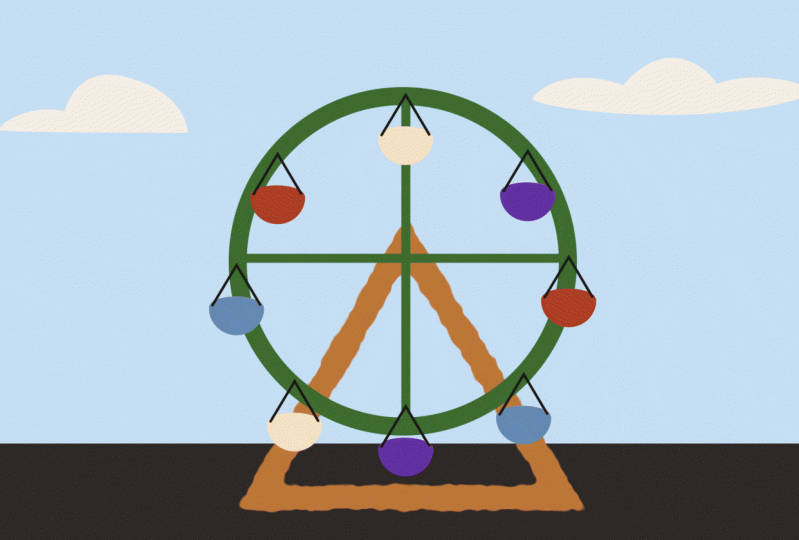
1. Intro: One of the biggest problems I see with new students of animation is key-frames. And I might think, is animation you have to have keyframes, right? Well, yes, but the problem is that new animators tend to use too many key frames to achieve the look they're going for. When you can use a lot less and still get the same effect. And the reason that's important is because if you need to change something later on or you need to re-time something or change something around to look a little bit different. It makes it a lot harder. If you have 50 keyframes, then if you have two or three that achieved the same look. But I'm going to show you how you can animate using 0 keyframes. That might seem strange, but it is all due to the power of expressions and After Effects. Expressions are a way that you can control layers and how they move and interact with one another through the code without having to tell them explicitly what actions to take using keyframes. So it may seem a little scary, it may seem a little mathy if you're more visually oriented. But I promised with some of these little simple tools, you can go from lots of keyframes to 0 keyframes. Now it's not always going to work. You know, you can't use expressions to do everything, but with a few simple tools, you really can achieve some amazing things without having to spend a ton of time forcing things to animate with keyframes. So we're gonna do a Ferris wheel project and I'm going to show you how to get this thing moving and build a whole scene without using any key frames at all. It'll be super customizable, really easy to edit, and you'll have a lot of fun doing it. Hopefully you'll learn a lot along the way.
2. Shape Creation: So first things first, I'm just going to create a new composition here. And I'm actually going to set up, I have a preset here called Icon. This just 1080 by 1080. And we'll just make it ten seconds. And we'll call this Ferris wheel. Oh, All right. Now this first, this first section is going to be basically me just creating the graphics that we need to animate. So if you want to skip the portion where I'm actually creating the graphics, then you can go ahead and skip to the next section. And I'll include these graphics for you to practice with in the project file. But for the sake of those who want to see how I do this, I'll show you right now. I'm just going to use the pen tool. And we are going to create just a simple Ferris wheel. Let's go, let's do some cool, trendy colors here. I don't want wrote a Bezier a on, I went that off. Put that there in the center. And we'll do a little triangle. Always holding down Shift to make sure I do everything in one direction. And what's a cool, trendy background color to go with this? Maybe like kind of a sucker for this palette. So let's do that. And then we'll do another one in the background that is more of a sky coupler. Call this ground, call this face, and we'll call this sky. Alright, now, going to beef this up a bit. Beef up the stroke. Bring it down here. And let's make our actual Ferris wheel. This is, this triangle is going to be the base here. I'll grab a circle, oops, premature on that. We'll use the same sort of palette, but I'll make it a little bit greener, perhaps will probably change this later. You go. We don't want it to have a fill, so I'll turn that off. Probably need this to be, oops, a little bit higher up and make this a little thinner. Maybe my ground is a little bit bright, so temper that down a bit. Maybe let's make these colors a little bit more poppy. So they help up the background a bit more. Same thing that this one. That'll work. And just so we can see that this thing is going to be spinning, I'll create just some simple lines across like that. Okay, So if we rotate it, we can see that spins like that. Now we'll call this the ring. I'm going to color both of these, yellow just so we know that those two go together. And next, I will create some little carriages to go around here. Okay, the characters on a separate layer. So let's create another comp. We'll call this carriage. And we'll just make these pretty small and say 300 by 300, because we're going to be pretty tiny. Cool. Let's create our little orange carrot is, again, these can look however you want. These are just for the purposes of our project later on. And actually fill it with this color. Something like that. And I'll make that and empty, something like that. I'll probably do. I'll bring this down a bit. Nothing too crazy. Okay, Now grab my carriage, put this into here. And I want to scale this down a bit. Now before I go ahead and duplicate this a whole bunch of times and put it around the Ferris wheel. I'm going to do some magic in the next session. So let's save that for them. See if we can change the color. Maybe this would work better with the yellow and see yellow. I'm going to put the carriage shape on top of the other shape. Here we go. Cool. And just for the sake of the background, I'm going to create some nice fluffy clouds. Something like that. On top of the sky. Call this cloud. And I'll make one more, little bit smaller. And call that Cloud small. And maybe we'll put the Sun in the sky. Why not? Little bit yellow? Call that Sun. Put that behind the clouds but over the sky. Something like that. And I go, Okay, I will put this in the project files so you can follow along. And let's move on to the next one and actually get into some expressions.
3. Rigging: Okay, so now we've got our shapes and what we're gonna do is some really basic rigging. And what I mean by rigging is we are going to attach this carriage to our wheel. So actually first we're going to attach the wheel to our base. So let's grab our ring, this wheel. And we will do some parenting if you don't know how parenting works. There is this section here called parent, this little attribute list down here. If you don't see it, then you can hit your Toggle Switches Modes thing here at the bottom. And that should bring it up. Actually, it should be visible all the time. Sometimes not though. So, and you can come here and click the menu and pick what you want the parent to be. In this case, we want it to be the base. That means the ring will be attached to the base. So wherever the base goes, the ring will also go. The other way to attach it is to just grab this little spiral here called the pick whip. And you can click and drag. And then you get this little arrow, this little line that you get to pick what you want the parent to be. So if you just want to do it more visually, then you can do it this way. Attach it to the base, and you'll see it changes to base layer number three. We want to do the same thing with the carriage. So let's attach the carriage to the ring because it's going to be on the ring. So I'll use the pick whip and drag it to the ring. And we want the pivot point of the carriage to be at the top, because it's going to really want it to rotate here at the top right. If you think about how a Ferris wheel should work. So let's grab our pan behind or anchor point tool, which y? Click that and just drag that to the top right about there. Cool. So now we're sort of roughly rigged. Everything's parented the way it should. So if we rotate it, you should see that the carriage is attached. You should also see a pretty glaring issue. And that is that the carriage is inheriting all the attributes, all the transform attributes of our ring. Which means when the carriage rights, when the ring rotates, the carriage also rotates that much. Now, we don't really want that. We want it to just be parented to. We wanted to inherit the position as it rotates, but we want, we don't want it to rotate at the same rate. So what we can do is use some simple expressions. So let's go to our carriage. Hit R to bring up our rotation. And instead of creating key frames like you normally might like clicking on the stopwatch, you can hold Alt if you're on a PC or believe command if you're on a Mac. And while you're holding alter command, you click on the stopwatch. And now it will turn red. Now that we've just told After Effects that you want to add an expression, you see that the numbers turn red. It says expression rotation. And this is where we can tell After Effects how to figure out what the rotation should be. Instead of just telling it what the number is, we can give it some math or some kind of expression to help it calculate what it should actually be. In this case, we want it to be the opposite of the rotation of this ring. Meaning if it rotates forward 20 degrees, we want this carriage to rotate the opposite. We wanted to rotate negative 20 degrees so that they offset each other and it always remains upright. So what we can do is click our ring, hit R to bring up a rotation. And right now the default on our carriage says transform dot rotation. All that means is it's looking to whatever number you enter is the number it's going to return. But we want it to be the inverse, the opposite of the rotation of this ring. So let's grab this, this number by grabbing our Pick Whip, just like we do with parenting, clicking and dragging to the rotation. And so now what you can see it automatically added in this code for you, this comp dot layer ring dot transform.py patient, you don't need to understand that expression as the Sara Lee, we're just doing really simple stuff After Effects tries to make it easy for you by typing all that stuff in for you. Now, all that means is, right now, it's going to return whatever the ring rotation is. So it's actually double rotating because it's parented. And we're also adding this rotation from the ring. So it's adding it twice. You can see it's doing the opposite of what we wanted. So all we need to do is some simple math to invert this number, to make it the negative of this number. So the easiest way to do that is to do times or asterisk negative one. So I just did this rotation times negative 1. I'm going to hit Enter on my numpad. Now, if we try to rotate this ring, you can see it's attached to the ring and It's giving you the nice negative value of the rotation. You can see right here, the ring has rotated two times 213.5 degrees and the carriage has rotated negative 2 times negative or negative two times 213.5 degrees. So it does all that math for you because we set up this really nice mathematical expression. Now, the cool part of it is we can go through and add as many characters as we want. And it retains this expression that we already built-in. Now you could do the math and make sure these are evenly spaced. I'm just kinda eyeballing it just for the sake of simplicity. But now is where the real cool part begins. We can just rotate the ring and you see all of the carriages act the way that they should act. That is very cool. All right, still, we have no keyframes. So I'm going to move on to how we can make this ring spin automatically.
4. Time: Okay, So we've got everything rigged up. And what we want to do is tell this ring to move without any keyframes. Now what you could do if you're used to after effects is hit our keyframe that rotation at the beginning. Go forward, move it forward however many times you want. And yeah, it's spinning for you. But you have two keyframes. And my role with my students is, don't use keyframes where you don't need to. Now usually that means use less keyframes than you typically would like if you're doing a curve. Have multiple keyframes along this curve, just have two points and then change your handles to make it move on a curve. But it also can mean if you're having something just move automatically, you don't need to tell it. You don't need to give it keyframes to use. You can just tell it to keep moving with time. And the way we do that is with an expression called time. So we're going to do the same thing we did before. Grab our ring, hold Alt or Command and click on the stopwatch for rotation. And enter just the word time. You see it gives you a little hotkey. Now if you have the latest version of After Effects, Enter. Now if we hit Play, you can see it's moving very slowly. And that is because it is returning one degree for every second of time. So what time does it returns the value of whatever your time slider is that so as 0 seconds the rotation, it's going to be 0 degrees at 1 second, it's going to be rotated one degree, two seconds, it's going to be 20 degrees and so forth, which is why it's moving so slow. Now the way we can speed this up, if you maybe a little ahead of me, is we can multiply the time by whatever factor you want. So if it's going too slow for us, we can go time times, let's say 15. We'll see how that looks there. Now that's a much better speed. And again, still, we have no keyframes. Our Ferris wheel is just moving at a constant rate. And this is really useful for if you have a long scene or you have lots of stuff going on in the background and they don't want to animate everything by hand. You just know, Hey, I want this Ferris wheel to be moving in the background as the scene in the foreground goes, you just type time times 15 and you know, as long as the timer is going to go, it'll just keep on spinning. Whereas normally you might have to set two keyframes. And then maybe the scene gets longer. And you, and you extend the scene out and then the Ferris wheel stops at a certain point because he had said in earlier key-frame and now you've gotta go back in, stretch it out, readjust the speed. This way. You know, you can just set it and forget it. It's just going to keep on spinning. So that is very, very useful. The time expression to, to return the value of time.
5. loopOut: Next, I'm going to cheat a little because I know I said no keyframes, but there are some expressions that require key frames in order to work. So we are going to use an expression called loop out. And now loopOut, all it does is repeats the same keyframes over and over again. So what I'm gonna do is have, let's just say we'll have here, i'll I'll, I should have maybe done this earlier, but we'll have a little plane going through the sky. Oops. Cool. Make that little brighter. Doesn't have to be a plane, but you know, whatever you wanna do plane, put that in front of the clouds. And I'll make it smaller to alright, so plane we'll start off screen here. And we'll hit P will make a position. Keyframe will go forward two seconds, and we'll bring the position over here. So in two seconds, the plane is going across the screen. Now, if we want to, if we want this to keep looping, we can hold alt or Command and click that stopwatch again. And it will again open up our expression editor and we can add the expression called loop out. Now, it's very important that you remember that these are case sensitive and it will give you a little tip here. You've got to make sure that o is capital and that could be if you're having issues getting it to work, that could be an issue. So if we just type in loopOut with our open and close parentheses and hit Enter key. You can see it will just keep going. And hopefully you can see the efficiency of this because normally again, you would have to copy paste keyframes, copy paste, copy paste if you want any sort of repetitive motion that is very particular that with your keyframes. But with loopOut, it will just keep on going. Now there are a couple of things that you can put within the parentheses to change how loopOut works. If you want, you can have it repeat only a certain amount of keyframes. If you type in any number, it will just repeat the last amount of key frames rather than repeating all the keyframes. I don't tend to use that a lot, but one thing that is useful sometimes is the effects are as the attribute called ping-pong. You need to put it in quotes and it will even show you here as soon as you hit the quote button, that'll give you your options. So ping-pong, you may know this on Instagram as boomerang. And the idea is instead of cycling, it will go forward and background forward and backward. Now obviously with our plane, it doesn't make much sense. But you can see at least the value of being able to do this if you're having something going back and forth that you wanted to go over here and do something and then come back over here and do something else, a little character or a little graphic. Then the loop out. Ping-pong is what you want. Typically though, the way I use it in my projects is just empty because I just want something to keep cycling. So that is loopOut.
6. Wiggle: Okay, so we've got our spinning Ferris wheel, we've got our crazy plane in fact had been committed during off the planets. Little bit distracting. But what if we wanted to create a little bit of randomness without having to create a bunch of keyframes. So there's something that computers are pretty good at and that set just creating the, at least the appearance of randomness. And if you do it by hand using keyframes, it can be really frustrating because it takes a lot of keyframes and it always ends up looking less than random. Because people aren't actually that good at simulating randomness, but computers are pretty good at it. So What we're gonna do is just create a little bit of life with these clouds just kind of drifting back and forth. Now you could animate them by hand, like I said. But's, we're going to do a little bit of expression magic to make them move on their own. Let's grab our Cloud, hit P. And we actually want to split this up. And I'll explain why a little bit later. But we want to split this position into x and y, the left and right and up and down. So let's right-click and hit Separate Dimensions. Now you can see it's separated them on two different cards here, the x position and the y position. Because basically we want these to drift left and right randomly, but we want the y position to remain basically in the same spot if that makes sense. So when we add the randomness, if we added it when they were together, it would sort of wobble all over the place and it wouldn't look very cloud-like. We really want these to sort of sway back and forth. You could do this with trees or anything like that. I use this all the time. So let's grab our exposition. Do what we've been doing. Hold Alt or, or Command and click that. Stopwatch. And we are going to type in wiggle. You can see it's popped up already. Open the parenthesis. And the way wiggle works is it is going to ask for two values, two numbers inside the parentheses, separated by a comma. The first number is going to be how many wiggles per second? So something on the slow side would be like one per second. You can even do fractions like 0.5 would be at one wiggle every two seconds, or even 0.1 will be one wiggle every ten seconds. If you did 10, that will be pretty erratic. We don't want clouds moving like that. So let's start with one. We want one or wiggle of the position per second comma. And the second number you're going to enter is the amplitude or how much you want it to wiggle each second, or how much, how much you want the position to vary. The first number is the frequency, how often? The second number is the amplitude? How much? So we're going to say, and I believe it's in pixels. So let's say like 50 pixels because this is about a 1000 pixels wide. We'll hit Enter. And let's hit Play. And you can kinda see it. Let's actually, let's solo it. So you can really see it. It's kinda, kinda hard to see hotline and make this background dark so we can see it. Right now it's, it's a little fast for me. So I'm just going to come in here and change that. Let's change it to 0.31 roughly every three seconds. And let's make it a little bit more. That's actually punch it up to a 100 pixels every three seconds. Nice. Okay. So that's not bad. Nice subtle drift just enough to create some life in the scene. We don't want it to, I don't want to overdo it. Let's do the same thing with the other cloud. Let's hit P. We will right-click on position separate dimensions. Instead of retyping this, we can actually right-click on exposition and hit Copy Expression Only. And now we can click our other cloud and hit Command V or Control V for paste. And you can see it moved a little bit. And now that should have a nice expression on it, too. Nice. So that is wiggle. You can put that expression again on any attribute. You can put it on the Rotate of the Ferris wheel if you wanted to sort of teeter-totter sort of randomly back and forth. There's really no end to what you can do for it. I did this a lot in my classwork. That there's like an icon that pops up that's sort of in the center of the frame just to create some life kinda floats and hovers there. Or if you're doing, if you're doing like a car, you can have the wheel's stuck to the ground within the body of the car with a really high frequency and a low amplitude, it'll make it look like it's shaking. You can simulate camera shakes with this all kinds of stuff. So wiggle, super, super useful.
7. Math: All right, Now I'm going to get a little bit more complex to where you can actually build your own, your own affects basically, if you know, affects your here in your effects menu and you can add them to layers. And usually they'll have like for instance, a whole bunch of dials and stuff for you can you can affect them, you can change the values, et cetera, et cetera. You have switches and numbers you can turn on and off. We can build our own using expressions with relative amount of 0s. So what we're gonna do is hits are our on our ring. And what we're gonna do is add an effect. Let's go to our effects and presets. Add an effect called slider. In fact, actually, if you type in control, you can see all these different controls that you can, that you can add to your project. And we want to add a slider control. Drag and drop on the ring. Cool. Now we have this slider control and it has just a number. You can set the number to whatever you want. But it's not hooked up to anything right now. It's just a number. So let's, let's name this speed just so we know what it's called. You can click on the text, hit Enter, and then type in whatever you want. So we're going to basically tell this expression that we created earlier time, times 15. We are going to tell it, instead of being stuck at 15, we are going to attach this number to our slider, which means we can control the speed with this slider that we just set up. So let's delete the 15. And you could learn the complex code for all this. But the easiest way again is to grab this pick whip, click, and drag all the way up here to your slider. Now it'll do that little magic Fourier. And let's click away. And it's at 0 right now, right? If we turn up the speed To say 45. Well now we're cooking pretty fast. Okay, cool. So now we have a little control for how fast we want this thing to go. Now in order to show the next expression, which is Math.random. And I'm going to actually have to have a text layer. And this is going to show us how fast are our Ferris wheel is going. So let's grab our text tool. We'll just type speed. And I'll copy paste this, slide it over. And I'll call this speed value. And you can actually edit text with expressions as well. Now I'm going to grab this source text and the way I can figure out what the speed is. Well, we already know. Let's go up to our ring. And we want to be able to pull that value. So let's grab the source text and again, grab the speed value. Cool. So now we know that the speed is 12 and as we change the speed, it will change up there. Now the problem with this setup is if you decide to key frame the speed, you can see we're getting all sorts of decimal values. And that's probably not something you want, especially because they give you so many of them. So there is a simple solution to that. And that is by coming to our expression that we created with all this stuff that you don't even need to worry about and go to the very front of it. And type capital M a th, math. Now this is like an operator and it has all these sub attributes that you can unlock by hitting period. So math dot and then lowercase round RUN D. Now it's going to round the number up to the nearest 100th. Now we don't want the parentheses to be in front. We actually need the whole thing to be in parentheses. So we'll have another parentheses here at the end. Cool. So now as it speeds up, you can see our speed number goes up as well.
8. If / Else: All right, so now I'm going to get a little bit more complex as far as the the switches that you can use, and most of them are self-explanatory, but I just want to go a little bit farther and show you how you can use the switch controller and use if else statements. So this is a little bit more programmer, but if you know anything about JavaScript, this will be really familiar. And I think it's really easy for people to learn because it's very intuitive. It's simply says if one thing is true, then do something else. And if something else is true, then you tell it to do something else. So I'll explain in a second and I think you'll understand it intuitively. First, let's create a new right-click, create a new null. And this is just going to be our day, night control. And no objects, they don't render anything. They are purely just for for holding data, which makes it really useful for controllers. And we are going to go back to our effects and our controllers. And we are going to create a checkbox control. Drag that on there. And you see we have a little checkbox. This just returns basically a 0 or a one value, a 0 if it's off and a one if it's on, we will call this night night question mark. So now we know if it's checked on, we want it to be nighttime. If we want it to be daytime, you can be that off. So let's go to our sky, will actually rename this day sky. And I'll duplicate it. And I'll call it night sky. And we'll change this guy to be, well, you know, nighttime. Now we want to attach this to, we wanted to attach an expression to the opacity so that this layer appears when the switch is on and disappears when the switch is off. So let's hit T to bring up or opacity. We will click on opacity and let's grab our night control so we can see it. And we will go type IF open parentheses. And now what this is saying is if this thing is true, then we're going to give a specific parameter. So if this checkbox is on, if checkbox equals true, hit enter, go to the next line, then return a value of 100% opacity. And you need to end every line with a semicolon. That's just how programming works. And then go down a layer or go down one more line. I'll make sure you don't end this top layer with, with a semicolon because this is all part of the same sort of expression. So if this checkbox is true, return a value of 100 else is the next statement. And this basically says, If not true, if, if anything else is true except for the check mark. Meaning if it's off, then return a value of 0. And we're going to end that with a semicolon as well. Let's hit Enter on our numpad and C. And we're not. If equals one. There we go. Ms. One thing up and that's, you have to add equals equals 1. Basically it's saying if this checkbox equals one, you don't want to use one equals sign because that's a whole different operator. I don't want to explain sort of how that works, but you need to do equals, equals next to each other that checks to see if that checkbox is equal to 1. One again simply means checkmark on. So if the checkmark on then be a 100 percent opacity Mr. sky layer. If it's not, else equals 0, which means off. So now we have this little switch. You can just turn it on and off. And we can attach other stuff to this too. That's kind of the cool part. We can go. Let's, let's add the same thing to our sky layer. Let's Copy Expression. We'll add it to our Sun or sorry, our Cloud. And I'm going to edit this Cloud 1 a bit so that if it's nighttime, I want the clouds to be, let's say like 30 percent opacity, like barely visible. But then during the day I want them to be a 100 percent. So nighttime 30 percent, datetime, a 100. Let's see what that looks like. Cool. So a little bit more dull because the sun's not Alice, so they're not quite as bright. And then we can copy that expression and paste it to the other cloud as well. That's kinda neat and you can use it to control color, which is maybe a little makes more sense than opacity, is a little more complicated, but the capacity is nice and easy. So I decided to use it there as well. You could do the same thing with the sun if you wanted to switch it out with a moon or something like that. But now we have this cool day night switch that we can do. You can have it set to turn on lights on the Ferris wheel, all kinds of cool stuff like that. And that is pretty exciting stuff. So if else is really, really powerful, That's his deepest will go on the programming stuff. I know it's a little crazy. If you're, if you're more of an artist, you're more visually minded, it's a little tricky to wrap your brain around, but these few things can really add a lot of quality to your projects.
9. posterizeTime: Okay, so the final attribute I'm going to show you, the final expression is called posterize time. Now you might know that Posterize Time is actually an effect. And that's true. You can use Posterize Time on an, on an entire layer. But that post arises every single keyframe, every single bit of motion that's going on. But if you want to posterize one particular attribute or a piece of animation, then you can use it in an expression. And all it means is it automatically forces the frame rate on something. So instead of being 24 frames a second as animation, typic typically would be, you can set it to specifically be like four or eight or 12 or something like that. And it gives it this really cool, organic feel, more hand-drawn sort of feel. I'd like to do this effect a lot to give something rough papery edges. So I'll show you how I do that now. I'm going to add an effect called roughen edges. Click and drag onto our carriage. And we're going to copy this to where other stuff. But for the sake of argument, we'll just do it like this for now. And by default that's pretty nice. I kinda like that. You can play with the border if you wanted to break it away a bit more. Edge sharpness. I kinda like it where it is. And you can animate this evolution. But you can see the problem with animating the evolution is it feels kinda like skin crawling, like it's not the best. It's a little creepy and we want it to be a little bit more sketchy like you might see this strobe effect in TV commercials a lot. So first of all, let's use our time trick with our evolution. Hold the Alt key and click, and we'll add time times a 100. Let's turn our speed down so we can slow it down. Totally forgot about that. Just so we can, just while we're working now we're going to go here it is at the bottom. It's a little bit slow. Speed it up. See, it's cool but it's a little bit unsettling, right? It's kinda like crawling skin and you don't like that. So we can posterize this. So go to our expression, move this down a level. And we'll put posterize time at the top of posterize time again, it'll pop up, makes sure that t is capital. Open the parentheses and we're going to enter four, which means four frames a second. Instead of just the full 24 constantly warping like this, we're going to do four frames a second. And now it's got more of this like playful, sketchy, chalky look. And that's more what we're going for. You can, again, you can attach all this stuff, two expressions, if you want to. If you want to change the frame rate, just for example, I'll do this really quickly. Create a slider and we'll call this sketchy frame rate. We'll set that to four. And we'll do posterize time. Instead of four, we'll pick, whip it up to our slider. So now if you want to change it, if you want to change all of them, you can just come up here to our little checkbox and use that. But let's grab our evolution, copy the expression, and let's paste it on everything. Just our graphics anyway. Paste actually not on our background AS day, night sky will leave those locked and the ground will leave that locked. But everything else, Let's paste it. Whoa. What happened to the speed here? Oops. Oops, oops, oops, I messed that up. Totally. I meant to copy it from here. There we go. We can copy the entire effect, sorry, not the we need to add the effect to all the other layers first, that was my fault. So I'll grab that and paste the effect. There we go. So now it all has that effect. Now if you decide, I kinda don't like, I think it's a little too slow. And you come in here and change the frame rate to eight there. And now it's a little bit, a little bit faster. And now you have control over all these layers without having to go through one by one and change each individual thing. Now that's also get the speed going a bit. Here. Sliders set that to 30.
10. Conclusion: So there you go. There is your spinning Ferris wheel with a grand total of 0 keyframe. So with the exception of the plane, because I wanted to show off the loopOut expression. You can take it and leave that if you want to document points in that I understand. But other than that, this whole scene here you go, 0 keyframes, you've got a sketchy look. You've gotta constantly moving Ferris wheel. You've got some Drifting Clouds. You even have a day night switch if you want to turn Today on or the night on. And it's super, super editable. If any client needs to change anything, you have all the tools you need without having to go in and figure out what all your keyframes are doing. So we hope this was helpful. Please don't be afraid to get into expressions. There are hundreds and hundreds. These are just some of my favorites, some of the ones that I use all the time. So be cognizant of that, tried to get the most use of them out as best use of them as you can, and they really will save you time. Good luck.
 Justin Z, Making Animation Easy