Transcripts
1. Introduction: Hi. I'm Hunter from Interactive, and I am a graphic and motion designer
based in Australia, and we'll be teaching
this course. Illustrator is a
powerful tool that allows you to create
scalable vector graphics. Using its tools, you can turn basic shapes and colors
into illustrations, logos, icons, fonts,
and many more the. Illustrators Pen tool is one of the most powerful tools
inside the illustrator. It's the tool that allows you to create these vector graphics. But this tool can be challenging
to master as a beginner. This course is made up
of five video lessons, which teaches you the
pent tool step by step. We start with how
illustrator is laid out, and I'll show you
how to navigate the artboard the
quickest possible way. Moving on, we start to use the pen tool to
create anchor points, paths, and direction handles. Throughout this course, you will follow a pre made template, which will guide
you through using the pen tool and make
the process easier. Finish off the
course, I will show some pro techniques to make perfect curves and also how to use other shapes
to make paths. When you enrolled
to this course, you will be automatically
placed into a community of illustrators and
designers running through the same
course that you are. So you may be able to ask
questions in that group to get some answers from people who are a little
bit more advanced. This community
also allows you to share and gain
feedback on your work. This course will take
you from a beginner to an expert, and by the end, you should be able to
make complex shapes. Inside Adobe Illustrator. Even if you know the
basics of the Pentool, this course will have some
advanced techniques for you to learn and to help you step
up that Pentool game. I can't wait to see you in
the course and good luck.
2. Welcome + Download the Exercise Files: Okay. First of all, I'd love to thank you for
joining this course. There's a few things
I'd like to run over before we get started. There are exercise files, which you can follow
along inside this course, and they're really
handy and useful to help you practice the pen tool. Second of all, I'm running
a Windows computer, which means that
whenever I say control, it means command on a Mac
and lt is option on a Mac. Also, preferences are in
a different location. On a MAC, they're up under illustrated preferences
and on Windows, they're up under edit down
the bottom preferences. You can also access the preferences using
control or command K, and that might be a
quicker way to get there. All right, I'm going
to jump in and show you where you can get
the exercise files. I'm on the page where
this course is, and there'll be an
extra lesson in here called Welcome and
downloading Exercise files, don't worry about the draft. This is because I'm still
uploading the course. So to grab the exercise files, you can come down to
the section here, you can go about this class
and down the bottom here, we have downloading
the working files. Here, you can click
that link and I'll take you through to download
the exercise files. And also, you can do it under
projects and resources. I have the exercise
files under here. Another thing that
would be great is if you start your project and you just do point
number one of the project. You just introduce yourself, why you want to learn the penal what the hardest part
of using the penal is and what is the
hardest thing that you've found about the pento if you've used the penal before. You can create
that project here, and then to complete
the project, you will upload a
screenshot a bit later. I'll show you how to do that. In the end of the course, you upload a screenshot
of what you've done, and you can edit the
project and upload it in. All right. We're
going to jump into the next lesson,
grabbing Illustrator. If you already have
Adobe Illustrator, you can skip the next
lesson. I'll see you there.
3. Downloading Adobe Illustrator: In this lesson, we'll go
over how to actually get Illustrator and how to install
Illustrator to computer. So you'll have to
come to adobe.com and you'll need a subscription, so we need to come
to creative and design and go down to view
all plans and pricing. Now, as you can see here, Adobe Illustrator
is 2099 a month. For just Illustrator. And you can see all apps, which is all these apps on
this page is 52 a month. So you can see that if we
just buy three separately, we quickly come
up to this price. So it's a better value to buy all the software if you plan on using Photoshop in
design and illustrator. You can also come to
the Adobe logo here, back to the home
and go creative in design and view all
creative products. And you can see here,
we can do Illustrator, and we can actually
start a free trial, but you may want to do the
Creative Cloud all apps. So we'll start a free trial, and as you can see here, you get seven days free, and then you get charged that. So it might be
worth trying it for seven days if you
haven't used Adobe. Now, it'll take you through that whole process of setting
up an Adobie account. Once you've done that, you can come to download Adobe Cloud. And you'll want to download the Adobe Cloud
desktop application. So if you take this URL, and you can hit download here, it'll get you to log in. So with your Adobie account, and I'll get you to download this little app and you'll
need to install it. And this little app sits on your computer and it holds
all your adobe programs. These are all the adobe
programs available in my plan, and it'll have all the
software and I can just hit install when I want to use one to install it
to my computer. So you need to do
that for illustrator. It'll be down in here. And you can just install. You can also update
the software here. So if you click on
that update available, it'll come to
update, and you can click update the software. So that's how to install
adobe and update it.
4. Getting Started with Adobe Illustrator: So now that we have
Illustrator open, we can actually open
our exercise files. So instead of creating
new, we want to open. You can also open a file up
at file open, or control. Now, we want to
navigate to wherever you've saved the
course working files, which you downloaded at
the start of the course, and we want to open 2.2
Pen tool practice guides. Click on that and just
press open. All right. Now that we've opened it, you should see across from the properties
panel a layers panel. If you don't see that, your workspace may be
different to mine, and to reset the workspace, you can come up to
switch workspace. Currently, I have the
essentials workspace selected. We can come down to
reset essentials and it'll reset
the whole layout. You can also do it
over at windows, essentials and come down here to reset essentials.
And click that. Now, we'll be using
the layers panel, and we'll be using
this top layer. If you've clicked this other
layer and try to draw on it, you'll have an error or
you won't be able to draw. So we need to be able
to use that layer. So we select the
layer practice layer of the top and you'll be
able to use that top layer. Also, I'll show you later, we'll switch these two layers
from step one to step two. Let's head back to
the properties panel. And in the next lesson, we'll go over navigating illustrators interface.
I'll see you there.
5. Navigating Adobe Illustrators Interface: In this lesson, we'll go over the illustrators interface
and where everything is. Up the top is called
the application bar, and we can find lots
of settings in here. We can also find a control bar under window and
down at control. And the control bar sits
under here and it changes depending on the tool
that we are using. Let's go to the type
tool down here, and you can see it adds all
the type features here. Let's hide that control bar. Let's go back to
our selection tool. In here, we have the
document window. And of course, the
document name here. That a little star there means we haven't saved our document, and we can do that by pressing Control S or going
file and save. Inside the document window, we have an artboard, which is the big white area. Now, Illustrator can
take multiple artboards. This is the area that
we do our art in. Outside the artboard is
called the scratch area. Let's move over to
the right here. We have panels. These
panels are depending on which tool we use and allow
us to change settings. Let's go back to our properties. You can also open up more
panels under window. If there's a panel, I say
that it's not showing, maybe like the pathfinder. You can come down here and find it under window pathfinder. You can see it opens
a new panel up and we can click this top bar
and drag it around. We can also snap it into areas. If I drag it to the side here, snap it in there, and I can just pop it back
in there like so. So it's nice and hidden
and tucked away. Let's open that, pull it out and cross it out. We
don't need it for now. And of course, over to the left, we have the tool bar, the tools that we'll be using
are the selection tool, the direct selection
tool just under that, and the pen tool, we
may also use this tool. There's some shortcuts to
avoid using this tool there. And also down here, we have here a scale tool, and we'll be using
that one there. If any of these tools are
missing for any reason, you can come down to the
bottom. Add a toolbar. If I scroll to the top, you can see that any of the tools that are graded out
mean it's in the tool bar, and it may be also hidden under the tool and you can open that up by clicking and holding. If we find the tool, maybe
the scale tool is missing, we can drag the scale
tool back out, like so. If the scale tool is
missing for any reason, you can click this tool here and drag it straight back into
where it come from there. Let's click off to
hide the tool panel, and that's it for navigating
illustrators interface.
6. Panning and Zooming in Adobe Illustrator: In this lesson, I'll
show you how to pan and zoom in Illustrator. First of all, I'll
show you how to use the tool to pan and zoom, and then I'll show you how to do it the quick way
using keyboard shortcuts. The Zoom tool is down
the bottom here, and we can select it here. And to zoom in and out, you can click and drag to the right to zoom in and click and drag to
the left to zoom out. As you'll notice,
it'll zoom into wherever we start the Zoom. If I click the center
of this corner here, and then drag to the right, it'll zoom into that
area and vice versa, I'll zoom out of that area. We can also use
keyboard shortcuts to center the document, so we can use control
or command zero. Control or command plus and
minus to zoom in and out. Now, you may be
finding that your Zoom is a little bit different. We can get that to
our Zoom preferences, bo pressing control
of command K, and it will open it up,
and I believe it's under performance and under
GPU performance, which is the graphics card. It's got animated zoom. If we check this off, I can show you how it usually zooms in the
old illustrator, which is by selecting an area and you can zoom into
that area by selecting it and by holding the oltkey You can just
click and Zoom out. Let's press Control
or Command zero. Let's go Control or Command K back down to our
performance and turn on animated Zoom
and press K. Now, the quicker way I find
to zoom is going back to our selection tool
is to just hold Alt and use my scroll
wheel to zoom in and out. Once again, it'll
zoom into wherever your mouse or cursor is placed. So, we can zoom in and
out by holding the key. The easiest way to pan
is by holding down the spacebar key and left
clicking and dragging. That'll pan. If we hold
down the spacebar key, it'll sharp this little hand, and then we can use that to pan. Centering the document
again, Control Command Zero. That's it for panning and
zooming adobe Illustrator. And in the next lesson, we'll start creating Anchor
Points adobe Illustrator and start creating
this letter here. The letter A. I'll
see you there.
7. Creating Anchor Points and Paths in Adobe Illustrator: In this lesson, we'll start adding anchor points and pars. To add anchor points and pars, we have to use the pen tool. The pen tool is three
down from the top, and it looks like this here. We can also access
the pen tool by pressing P on the keyboard. Next, we want to make sure
our layers over here, we have the practice layer selected so that we're drawing
a guide on this layer. We also want to make sure these two other
layers are locked, and only step one is visible. Let's go back to our properties. Now we can change the stroke, and we want to change the stroke color so we can actually see the stroke when we draw
over this ladder here. To change the stroke,
you can do it over here, and you can double click
this stroke background here, we can change it to a color
that we like. Let's hit. Let's use our key and our scroll wheel to zoom
into the bottom here. And so what I'm going
to do is pan across. I'm going to start
at the bottom here. I'm going to start
at the anchor. We're going to plot a
point by left clicking. Now we can pan over here by pressing a space
part and dragging, then we can come over here
and plot another point. As you can see if we zoom out, we've still got the
pental is still connected to this
line to the anchor, and we've created two anchors, one here and one here. Now there's a line
connecting them, which is called the path. So what we can do
is use that line or the penal to add anchors to create paths
between those anchors. What I'm going to do
is now go up here, what I can do is hold shift, which you snap it on
a 45 degree angle. Let's go up to here.
Click and we'll continue on just by left
clicking in all the places, holding down the
space bar to pen. Then what we can do is bring
it to the top and just click and click here. Now, what I want to do is
just press the escape key, and that'll finish this line. So now you can see
that we've got this line from here all the way up to there
and it's finished. The reason why I finished
there is because we start having some curves
in the next line, and we'll go over handles
in the next lesson.
8. Creating Curves using Handles in Adobe Illustrator: In this lesson, I'll
show you how to create handles to
create a curve. So direction handles help us create curves in
Adobe Illustrator. So what I can do is
I'm going to zoom in. Last lesson, we press escape, which finished this
line or this path. So to connect the path back
up, we have to have a pen, P on the keyboard to go
back to our pen tool, and we can hover over
that anchor point. And you'll see that
the tool changes. Right now, it's
got a little star, and then it'll change
to a forward bracket, which means we can select or
left click on the anchor, and it will select that path again and we can
continue creating. Let's use that key and
scroll will to zoom out. Let's go down to the bottom and let's hold key to zoom in. What we want to do here we need to start creating a curve. And so what we need to do is we're going
to come back up a bit just before the curve
starts around about here. And what we can do is click, without letting go, we
can drag out a handle. And these are called
direction handles, and we want to drag it in the direction that we want
the next anchor point to go. So we don't want to drag it backwards because it's
going to create a loop. So if we drag it this way
and we want to line it up roughly with the line before
it, and we can let go. So, let's go to create a curve. This here is creating a
direction of our curve. Now, we have a little
handle out the back here, which you can see here, and we want to get rid
of that because this line behind us is straight and it
doesn't need a curve. So we can hold down the
control key on our keyboard. Why we've got the
pen tool selected, and just select
that little handle and drag it all the way back in until it intersects with the
anchor, and we can let go. Let's come around the bend. Once again, we want to
click and drag this time, we're going to hold shift
to snap it horizontally. We're going to drag it out
that far and let's drag that handle back in. Like so. Now we can adjust these curves
by using a control key. I can use my control key to
pull this curve down a bit. I can also pull this handle
back in a bit. Like so. And let's complete the shape. Let's keep going around, holding our shift key
to make sure it snaps. Let's bring it up here, and we want to add
an anchor point just before the curve again. And so this one
will have a curve, which means we need to
create direction handles. I'm going to drag it
out to about there. I'm going to create a curve, and let's make this
one a bit bigger. Because this curve is a
lot sharper up the top, we want the handles to be
longer than the bottom. Let's pull these
handles back in a bit. And we also notice that the
point here starts too early. So we can hold down
a control key. Click on the anchor point, and we can hold shift also
to just drag it back. Now what we can do is drag
that anchor out a bit. I also want to get rid
of the back of that. And then I'm going to drag
this handle out a bit more. We don't want to hold shift there because it will
snap vertically. So we just want to drag
it out to about there. And we can also hold control, select that anchor again. Now I want to grab that
top handle and bring it back into the anchor. Let's hold a space bar
and complete the shape. Let's go up to there.
Hold shift for this horizontal line.
Put another point. Once again, we want to just
before the curve here, drag. We don't want to hold
shift for this one. We want to drag it in the direction that we
want the curve to go. Let's pull this handle back in. Let's go around the
bend and come to the bottom where
it straightens out again and go horizontal. We want it there. Let go. Maybe we bring this
handle in back in a bit and we can bring
this handle out. Like that. Let's take
this handle back in, control key and drag it all the way back to
intersect with it, and then we'll come in here. To close the shape,
you'll see that the pental has a little
circle next to it, which means when we
click on the anchor, we can close this shape. And so now this path has
turned into a shape. Let's finish off the center by just adding three anchor points. Let's shift along the bottom. I'm not worrying about
if it's perfectly on the guide because it's never going to be perfectly
on the guide. Now we've created the A. In the next lesson, we'll look at corner widgets and how we can create curves with a corner
wget. I'll see there.
9. Use the Corner Widget to Create Curves: In this essen, I'll
show you how to use corner wgets to create curves. So what we want to do down
here is create a corner wget. So let's use a key and a
scroll wheel to zoom in there. We'll Zoom in nice and close,
probably not that close. Let's press A on our keyboard. That's going to bring up
our direct selection tool. That allows us to
select an anchor point. And so we can do this
one of two ways. Making sure the bottom
layers are locked. We can Just click and drag
across that anchor point, and you know it's selected
because it's filled in, and the rest of the
anchor points are white. You can also just click on
the anchor point like so. Now, this little circle
here is a corner wget. And as you can see, my
direct selection tool now has a little
curve towards it. If you cannot see this, then you need to
go up to view and down and click Hide Corner Wget. And that will show and
hide the corner wget. So what corner we can do is if we click on
that little circle, we can click and drag
out here, like so, and it creates a corner and it'll create a corner
all the way up until the anchor point here
hits here, like so. So now, there are two
points in the bottom here, and one point up here, it's created two extra points for us to create that corner. Let's zoom out and that'll
create the corner wiget. Let's hide step one layer, you can see that it's
probably not as big, we probably don't
want it that big, so we can adjust it
and bring it back. Now, there are
some other options in the corner wget
that we can use. We can double click
on the little circle, and it brings up
this little panel. That's a corner panel, and we can change how
the corner wget works. So we can go inverted, which means it'll bounce
out and the curve will be opposite to what
it usually would be. And we can also create a champ, which is just a straight
line between the two. Let's go back to our round, it has a dimension, which is how much the radius is of the curve. Down here, we also have two options relative
and absolute. These don't make too
much difference. They probably make
more difference in other options and
make slight changes. We just want to here as round. We're not going to touch
this because we can addit the radius using
the little icon. And we can press, and we
can create a corner widget. This will work
anywhere up in here. If we want to
create corner wgets that are the exact
same as each other. We can select more
than one point. So I've got that point selected
because it's filled in. Now can shift and select
this anchor point, and you can see two corner
widgets that popped up. Now I can click and drag
this and it'll create the exact same radius
dimensions on both sides. Let's go control. A few problems that you may find with
the corner widget. I'm just going control, going to go all the
way back before we made the corner wget. Let's go P and add
a point in here. Then if we press our A keygin for the direct selection tool. You can see that we
have an issue with the corner wget because
we've added an extra point, which means we can't
create a corner larger than this point here. So we want to make
sure we haven't got points in our line. In the next lesson,
I'll go more over creating anchor points and subtracting them and
how we can use them.
10. Adding and Subtracting Anchor points in Adobe Illustrator: In this lesson, I'll
show you how to add and subtract anchor points, and I'll also show
you how to add handles to anchor points that
don't already have handles. So to add and subtract handles, we used to use other
tools in the penal here. But since Adobe has
had so many updates, we can just use
keyboard shortcuts to access those other tools. So let's go and get
our selection tool. Let's select this
shape and press P. Now we have the whole shape selected
and all the points, and you can see that
if we hover over with the pen tool without
clicking anything, the little pen tool
has a little minus. That means we are going to subtract the anchor point here. But we don't want to do that
because that'll connect all this from top to bottom
straight down there. What we want to do is
we're going to hide step one layer under
layers and show step two, which has the curve, and we'll
come back up to the top. And we'll add a point at the
start of the curve here, and you can just
hover over the path. You don't want to
click outside the path where the star is on the pencil. You want to hover over
the path with the plus. That'll add an anchor point. Then we can add another
anchor point here like so. T minus an anchor point, you come in here and it'll turn into the minus
tool and you click it. So a way to add handles onto our shape is
with the penal also. Sometimes you may want to
use the anchor point tool, but we can always just
use the penal to do it. I can do here is hold
Alt and you can see the change to that other
tool I just showed you, which is the anchor point tool. And just by holding Alt, you can access that tool and
you can click and drag up. And right now, I'm dragging in the direction that
we created the line. I'm going to drag
it like that far. We can also use this
tool to pull in handles. So if I hold Alt, I can grab that handle
and drag it back in. And that means we are splitting this tangent and the
direction handles. So they're no longer linked. So we can bring that
all the way back into the anchor and let it go. Let's add another
point down here. Let's hold alt, click
and drag this way. We're going to hold
shift for this one, don't worry about that
handle coming out the back. We'll fix that in a second. Let's hold control, grab that handle and pull it in, like so. So what we've done
is added and taken away anchor points in
adobe illustrator. We've also added handles
using all the pen tool. Let's press control S
to save the document. And in the next lesson, we'll use Pathfinder
to punch out the triangle out of this
shape. I'll see you there.
11. Using Path Finder to Subtract Shapes in Adobe Illustrator: In this lesson, we will create a compound path
using pathfinder, and I'll show you in a second
why we need to do this. What I'm going to do is
select this inner shape here. As you can see, this shape is deselected from the
outside shape here, which means they're not
connected in any way. If I drag this, it's not connected to that center
triangle that we had. So if I go control
Z to undo that. Selecting the shape,
we want to make sure we have the selection tool, not the direct selection tool. If I give this a fill, I'm just going to come here and default the fill and the stroke, and I'm going to swap the
fill and the stroke here. Then we're going
to come down here, select the stroke, and hit none. As you can see here, one, this shape here is in front of the black shape
in the background. And also the black shape is filling in this area
which we don't want. Let's change this stroke
here to a f, switch it like. And if for some reason, yours looks like
T. Let's go range. Send this one to the front. Your fields looks like this, all you need to do is select it, right click it and go range
and then send it to the back. Now what we can do is
select both of these, and we want to use pathfinder
to punch this shape out, the shape in the front out
of the shape in the back. We can do that by going to properties and Under properties, there is a pathfinder tab. This is the path finder panel that I showed you
earlier in the course. If we go window
down to pathfinder, you can see that it's a separate
tab from the properties, and it has more options. Now the option that
we are looking for is the minus front. With both shapes selected, and the shape that we want to minus out is in front
of the other shape. We need to click minus front, and as you can see here, it punches the shape out. And if we go to layers
and twirl this down, you can see that it's
creating a compound part, and that's how
illustrator creates two shapes in one and
punches out other shapes. So now we have the
finished letter A, and we can move on
to the letter G, which is the next
chapter of the course. We'll show you some more
advanced techniques of using the pen tool and some quicker ways of creating some shapes.
I'll see you there.
12. Perfect Curves with the Pen Tool: All right, it's time to jump into the next chapter
of the course, and we'll start with
the letter G. Now, I'm not going to show
you all the techniques of doing letter G. I'm just going to walk through
one technique which really helps your skills
with the pen tool. That is to always keep all your handles
horizontal and vertical. It's easy to manage
your handles that way. I'm going to show
you an example. And what you can do to
look at the example yourself is 12 down step two, and you can unlock it, and G is the top one here you
can just hit select there. You can see that this
shape is selected. Let's go back to our
direct selection tool. What I'm going to do is
come into my preferences. I can go edit preferences, and let's go into general. What we can do here is come down to selection and anchor display. Now, if you're on a
Mac, the preferences are under Illustrator
rather than edit. Now what I can do is here show multiple anchors when selected. Let's check that and hit Okay. Now, with our selection tool, we can drag across
all the shapes, and you can see that we
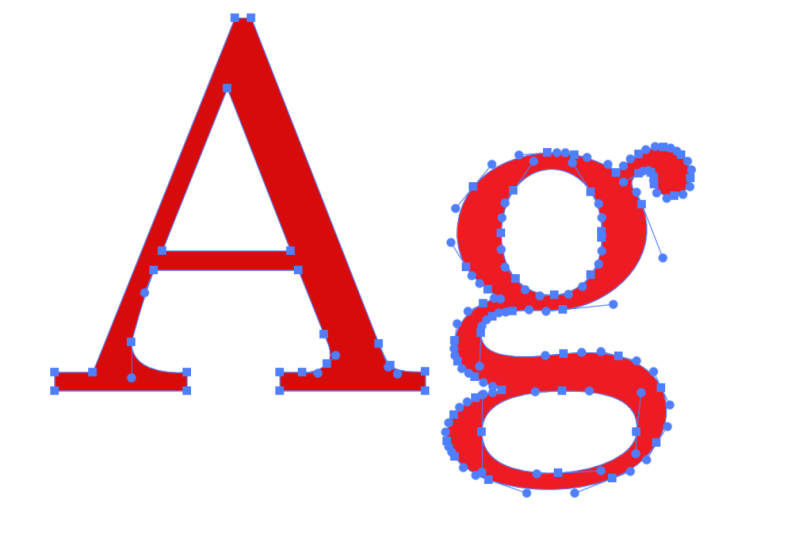
can see all the handles. You can see that making a really nice curve You can use vertical and
horizontal handles. These are all perfectly
vertical and horizontal lay creating these handles. So let's go and do that. Let's twirl this step
two back up, lock it. Let's come down back
into our preferences. You can go control or
command K. Let's go back into selection and anchor
display and hide those handles. I don't want to see
them. I'm going to hit. And we come back up to
our practice layer, and we can start
drawing that practice. So start at the top. Click Shift, and I'm going
to go in this direction. And we can come
down there. And we can just make our way around. I'm always holding shift, and we also want to place the
points on the extremities. So the fest outside
of the shape. So we don't want to
place it halfway here. We want to place it down
the bottom here like that. Can use a control key to edit the previous handles
and continuing to hold shift to make sure that
it all stays horizontal. And we can make our way around. Let's come in here. Add a point. Let's pull this back in. Remember that the layer
below is just a guide layer, so you don't have to
follow it strictly. So there we have it, I've
run around really quickly and edited this shape
and drawn it out. Now what you can do is if
it's not that perfect, you can come in here and with the direct selection tool
and you can edit some of these points by selecting the point and you can
just drag those handles. Remember to hold shift and
just visually edit it. So there's some areas in here. Another technique
is to smooth it out using that corner tool. But I don't like a lot of
points in my document. I refer to adjust it here because if you
smooth it out using that, it's going to add
two extra points. Let's come down here. Let's alter that path there. I think that looks pretty good. It could probably do a little bit more adjustments
here and there. But I think we'll move on to the next lesson where I
show you how to scale handles and scale shapes so that you can do the
insides very easy. Okay.
13. Use the Scale Tool to Edit Paths: In this lesson, I'll
show you how to use the scale tool to edit
handles and parts. Let's go and turn that
step two layer back on. It's a guide layer underneath. What I'm going to do is change my stroke on the front
to a different color. Pick a random color. Now, what I'm going
to do is come into here and click and hold
on the rectangle tool. Come down to the ellipse tool. What I can do is in the
shape here is I'm going to come in the center,
click and drag. Without letting go,
I can hold alt, and that means we can
scale from the center, and we can get this
shape how we want it. We're scaling from the center. We can get pretty close,
and we can let go. Now what we can do is use the scale tool to
edit this shape. So what I can do is come in
here, direct selection tool. A on the keyboard. Let's
select this top point. We can press S to
access the scale tool. And when we've got
that point selected, we can click and drag out here, you can see that by
dragging to the right, we're scaling this shape up
and dragging to the left, we're scaling it down. We just want to drag
it to the right. Okay. And let's come A, and let's select
that bottom point and press S for scale tool, and let's scale that bottom. We can also scale both points. In height. Let's straight
down the sender, let's select the bottom
point and the top point. Let's press S on the keyboard, click and drag down and
that'll scale in height. What I want to do is
just scale over so slightly like that in height. There we have that shape. Can also do it down below. Let's go L for lips tool. Let's draw a circle this
time. Perfect circle. Let's hold shift to
create that circle. What I can do Here's
come in here. Let's select the
two outsides press S. Let's click and drag to scale this
to where we want it. Now, let's grab these points, and I'm going to
drag this one up a bit while holding shift, and I'm going to drag
this one down a bit. Just a little bit.
Now I can also press S here to scale that up a bit. Let's press A on a keyboard, select that other side, press S. And we're
going to scale up. Ver so slightly, and we can just adjust this using our keys now. There we go. Let's hide
that bottom layer. Let's give the
outside shape a fill, shift x to switch the
fill and the stroke. And we want to make sure that this color is a bit
different so we can see it. Let's change it to
a lighter color. Let's select them all, go properties and minus front. Now you can see that we have the G. Let's change it back
to the normal colors, switch the front turn stroke
and switch it to none. Now we can see all the problems that we have in our shape. One, I think this corner here could be fixed
a little bit. Let's bring this down
a bit more. Like that. Also, we've got a little bit of a funny thing
happening up there, which is probably
that being too high. We can just edit it slightly
to make it look right. All right, there we
have it. Let's have a scale shapes and handles
inside of Illustrator.
14. Class Project: All right, we're
going to jump in and do our class project. So for the class project, what I want you to do
is recreate a font. So what we're going to
do is come into layers and turn off the practice layer, and we can lock that just
so that we don't edit it. And we'll come
down to new layer. We'll create a new layer and we'll just call this one guide. We'll come over to our toolbar
and grab the type tool, and we're just going
to click once, and I'm going to paste in a word that I've
already got copied to my clickboard we're just going to paste in
this word beautiful. We're going to use a
selection tool and select the word and use this little
corner here to scale it. Let's hold shift to
keep the proportions, and we'll just make it nice and big and move it back
into the center. I'm going to double
click on that word and it'll bring up the
type tool again. Now with that cursor like this, rather than that, we can select, click and drag across the word. I'm going to come
back to properties, and I'm going to find a font, I believe we've got
a nice one here. This is an Dobe font, so you can grab
this if you want. And so I'm going to pick a font that would
challenge my skills, and you can work up to
something like this. Now, I'm going to
right click it, come down and create
the outlines. That will vectorize this font. And what I'm going to do
is use this as a guide. If we look at this font, you can see that it's made fairly well if we look into it. So we can use this
as a guide for us. Or we can choose to
make it from scratch. So we'll make it a new
practice layer up top. What you can do is lock that guide layer and draw
over the top of this, using the penal, so you could come in and using what you've
learned in the course, you can come in and
start creating this. Now, what I want you to do when you've finished building out this new shape is we'll
use this as an example. Or show the practice law. With your new font, what I want you to
do is come here and we're going to select it or with our direct
selection tool. What we'll do is go to view. You can either hide or
keep the corner wigets. I'm going to hide the
corner wgets so that it hides all those corner
wgets so we can't see them. We're going to go to
preferences down here, preferences selection and
anchor point display. And I'm going to put
the size up a bit, and I'm going to
show handles when multiple anchors are
selected. Click that and hit. That's going to
show our handles. Now, for the project, we're going to screenshot this and upload it
into Skillshare. To do a screen grab on Windows, you can press Windows
Shift S, like so, and you can click and
drag over what you've done to create a screen grab. And on a MAC, I believe it's Shift command
four to do the same thing. And what you'll do is upload
that into your project. So you'll need to
edit your project or create a new project if you haven't already and upload
the image into your project. That way, I can see what
you've done with the pencil and see if you picked up the techniques that I've
taught in the class. And of course, you can do all
the reverse of that if you don't like this when you've
finished with a screenshot, come back to preferences, selection and anchor display. Hide the handles. You might want the size of
the anchor points and handles smaller and press
and once again, view and show those
corner widgets so that you can see them again, and Illustrates back to default. All right, I can't wait
to see your projects, and I'll see you in
the next lesson.
15. What's Next: Well, you've made it to the end. I hope this course has taught
you how to use the penal, and you feel a bit
more confident about creating pards in
Adobe Illustrator. So what's next from here. First of all, I'd love your
feedback from this course. And down below, you can
write in the discussion or send us an e mail at info
at Interactive do Studio. And you can send us an e mail, giving some feedback on what you thought the
course was like. You can also leave a
review down below. We'd love to hear feedback and we'll be updating
the course to make it better for the next wave of students as they come in. Also, we would love
to see your work. So if you create anything using the pen tool and you
post it to social media, especially on Instagram, you can tag at Interactive Studio, and we'll give it a lie, and we may repost it or
add it to our story. We'd love to showcase
our students work. Skillshare has some
amazing classes, so it's worth
diving into some of those and enhancing
your skills even more. Also look out and be on the watch for more
of our courses. We're releasing courses,
and we've definitely got a heap of courses
planned for the future. So give us a follow
and you'll get notified whenever we release
a course on Skillshare. Anyway, that's it from
me, and until next time, I'll see you guys
later. Bye bye.
 Interactiv, Graphic and Motion Designer