Transcripts
1. Introduction: Landscape of digital creation
is moving faster than ever. As Freepik evolves
into magnific, the creative possibilities for generative AI has become
incredibly exciting. In this class, I'm
going to guide you through this
revolutionary platform, showing you exactly how to
generate mind blowing images, cinematic videos from scratch. At first glance,
advanced AI interface can look completely
overwhelming. But don't worry, by the
end of this course, everything will feel
incredibly easy and intuitive. We will dive deep into
advanced techniques like maintaining absolute character consistency across your frames. I will also break down the past image-to-video models to use
for your specific workflows. We aren't just
adjusting sliders. Together, we are going to build a complete production ready
storytelling projects. I will take you from
the absolute basics to advanced tools step by step, whether you are freelancer, creative professional,
a video editor, or a digital marketer. This course is built to
level up your toolkit. Let's get started. See
you in that course.
2. Navigating the UI A Beginner's Guide to the Interface Freepik/Magnific: This lesson, you will learn how to set up your
free Pee account. But more importantly,
I'm going to give you a full guide too for
a Freepik dashboard. You will see why it is now the ultimate all in One
solution for artists, video creators, and
business owners. I have been using Freepik
for quite a very long time. Years ago, it was just
a nice website for graphic designers
to find vector fs. But today, it is a Powerhouse. You name it and you will
find it in Freepik. Setting up your account
is incredibly easy. It is just like setting
up a Gmail account. So first, you have to
go to your browser and you have to
click on this link. That is freepik.com. Once you click and this is
the window, we'll pop up. So they have regularly changed
the layout of the website just like they have changed the Spaces intro, the
video generation. Right now, they have
used this kind of video generation and image generation on
their front page. But before they only show
you the graphics and videos. But right now it
has changed a lot. For the log in purpos
you simply have to go to your Freepik and it will
automatically ask you to log in. Just like any Gmail account, you have to go to
here and sign it by using Gmail or you
can create a password. So you simply have to sign up here. That's all you have to do. It's not a hard and
fast rule here. Once you logged in, you will see a premium here. So you will see a
upgrade to premium here. I have already upgraded
to I have already upgraded it to the premium
and subscription billing, so it's not showing to me. After you have sign up for it, you will see this crown image. This indicates that you are
a premium user of Freepik. This is the credit user
that I have spent already. 158000 carries left
in my account and I can use it anywhere on Freepik on the spaces
image generator, cinematic shot, video generator, upscale anywhere I want to. Once you click here,
and you will see uh lot of new option that has been added and they are actually it on weekly
or monthly basis. They have now reach out to three D scenes and
three d generator. We are going to talk about
it everything one by one. Now, I will show you around. Imagine we are walking into a massive three D supermarket. I want to show you
every single Ashley so you know exactly
where the good stuff. Right in the middle
of the scene, you will see a giant search bar. On the left bar, you will
see so many options here. You can minimize or
maximize this depending on your uses also a
search bar here, once you click it
and you will see so many options
that will pop up. So we are going to let's
simply click on vector, and once you click vector, it will specifically
search for vectors. Now once you search for bunny and it will show you so many bunny that is
created in vector. You can check for the
air generated bunny, license bunny orientate, or you can check for
the orientation. If you want a horizontal
vertical square or panoramic, it depends on your project. If you want a specific color, you can do so a people
file type style advance. Once you clear this out, you will again, click here, and you will see so many of
Sincere create a image icon. Now we are going back
to our homepage, just like again, Freepik. And now, depending
on your project, you can select for the
Illustration, photos, PSD files, templates, mockup,
videos, three D, audio phones, anything you want. You can search it in
its massive library. Also, you can check
for the Spaces, image generator,
video generator, voice generator,
assistant old tools. And once you hover
over old tools, a massive mega menu that
has been pop up in front of you and all the options that you can use
within the free pick. Also, once you go to other Spaces design
editor, mockup generator, icon generator,
background remover, skin enhancer, change camera, rete sketch to image. There are so many options, we are going to look into all
these options one by one. And let me tell you you can test this option within
your free account also, or if you want to test it out, they will also provide on a simple monthly
basis subscription, and they will give you some
cart so you can test it out. You will get the amount of
cart and you can test it out. And if you do not want to
test it out, use your credit. You can simply watch
all my lectures and see which model
is best for you. After that, you have at least
the idea to use the credit, and where you have to credit, you will get the idea of it. And let me tell you, after
completing this course, you will have confidence
to use Freepik AI suit. So let's start by a
simple image generator. First of all, you can
create a project if you want to create a specific
project for your specific lint, you can create a project here, and it will
automatically show you the images and videos history related to that project only. But right now, I have simply created a new
project of AI generation, and once you click it,
you have to simply hover over to Image
generator and click it. And it will automatically
redirect you to a new window that
is image generator.
3. First Steps in AI How to Generate Your Very First AI Image: So this is the image generation
that I have already done, and it is not image generated. It is actually I
have used this image for another case that
is about Adobe Firefly, and I have tried to expand
it from left to right side. Also, this is the image
that I have used, and also I have created
a video out of it. It actually created
my face and turn it into this with a creator Hodie. And I don't like the face and
it's not actually my face, but yes, it's somewhat similar
to mine, but it's okay. It's AI and we can't
say that AI is perfect. Once you click it, I have actually expand this
from left to right, and I have uploaded this image. Now let's try to go to image
generator, and one by one, we are going to actually test all the models that available, and one by one, we
are going to test. It might get boring,
but it might not get boring
because if you are enthusiastic enough to see
all the generation and what output they give
and what type of cinematic or what type of image generation they give
according to the model, you will understand which model you are going to use
for your next project. So it is really important for you to understand
image generator of which AI model give you
what type of result. Now let's start from
the auto generation. So it is just a
suggestion though it will automatically check your prompt and give you a desired result. But first of all,
but first of all, improve short prompt and
generate diverse variation. So this is the AI prom. Let's start with the AI
prompt by toggling it off. Just a simple image generation
we are going to use. What we are going to use,
let's start by acute bunny, for coffee, four, lady. Now let's generate it, and let's try to
generate this image in the ID screen so that we
can look into it better. And also, you have to select
for only one generation as it will give you
so many generation depending on your model. And I recommend you to use only one generation
because it will deplete your credit really fast. So let's close this bar on the left hand side and
we have the full view. Also, if you want to delete
this one, you can delete. If you want to save
it, you can do so. And if you want to move this asset to a new
folder, you can do. So if you want to publish
it, you can do so. If you want to save
it, you can save it as template element or save
as character. It's up to you. We are going to look into
it every single option, we are going to look into
in future generation. So now let's generate it. And it's actually using
50 carats of mine. And once you click it
will 100 go to 100. Now it will go to 200. So I recommend you to use generate only simple
one generation. So now let's generate it with a acute bunny ports
coffee for a lady. Now let's generate. And let me tell you
the generation is really fast and sometimes it get really no carat word use and
moderated. For our lady. So now let's make it, wrap it in a small house. Now let's try to
generate it again. If it get moderated, I have to actually
change the prompt. Model it has used, it has
used Google image entry, and I really don't
like the result. Now let's try to use
our specific model. Now let's try to make
it a cinematic look. And with the cinematic, let's
try to add a camera here. What type of camera we are going to understand
which type of camera and which type of
focal length it will give us. But let's not go to this
really advanced feature. Let's try to simple image
generator I want it. Flux two P. Now let's
try to make it possible. And I want image. A simple image I wanted. With a simple
model, Flux 02 Pro, I want a simple image that I have imagined of and let's see. So this is a prompt
that they understand, and I want it to be
acute rabbit coffee, not let's see, pour coffee
for a lady in a small house. Let's try to generate it. Now it's understand better. Now let's try to make it a little bit dramatic by
using a simple AI prompt. Once you use AI prompt here and let's try to generate here the difference of
image generator, AI prompt enhancer, when the
AI prompt is of a result. But when I use AI prompt, it actually gave me the result, and this is what I wanted, and it actually really cool to
4. Storytelling with AI How to Generate Consistent Characters for Your Projects: Now you have understand
the difference between this Toble switch, and the Flux door two
pro is really awesome. But now let's try to option that is upload
image to describe. Now let's try to find a bunny. Within the Phi Peak, let's
try to find cute bunny. Now let's try to find it within the Pipek and it has
given me an illustrator. Now let's try to find and
vector if we can find it. Now let's try to find it in a three D model,
if we can find it. No. Now let's try to all
images and only AI I wanted. Yes, this is a cute
puny this is cute. This is cute. Now let's try
to use any of the bunny here. Let's try to use
this specific bunny. I want. This is cute. It has a cute eyes. Now let's try to
download this image. Once you click it, it will automatically pop up a
window and you can download this image depending on your
specific need or the size. Now let's save this one. I have saved this image, and I'm going to upload this
into the image description. Now let's try to upload it here. You can simply drag it
here or you can simply the image that you have already
generated, you can use. But right now let's drop
this image into this area. Now, once you drag it
and use this image, as the image has been
used prominently, and it has been
described as a prompt. And also, let's try to shift
enter once you enter it, and you will see
and you have to add bunny pour coffee for a lady. Now let's try to
see generate again. And within just seconds, you will see the
generation here. This is the bunny and this is the actual bunny
that we have used, and it's not actually
working, right? So now, don't worry, we are going to dissolve
it in our images, understand how all
these thing prompt. This is to give an idea that
you can use this prompt, how you can familiar
with this area. Don't worry, we are going to
learn everything about it. We are going to use that same character bunny in our image. Now let's try to use. So we have used this option, so now let's try to
go to prompt Editor, on you go to prompt Editor, ask me about prompt, or you can simply
ask for then prompt, once you click for
the Nance prompt, you will see a simple
magic happen here. Now let's try to apply
prompt or if you want to make a more detailed
prompt, you can do so. And if you want to add a
image for description, you can also use it as a prompt. So we have used prompt
and apply this prompt, and now let's try to generate. Again, and I have I have 6,309 images remaining
to generate. Now let's try to generate again. So this is a image that
has been generated, and Rabbit O Boni is actually serving a
coffee for a lady. Now let's try to use
now let's try to remove this prompt or if you want to generate with the
seed, you can do so. If you want to fix seed, let me tell you what is seed. This is unable this to get consistent result every time
you use the same prompt. If you want a specific result, every time you use this prompt, like we have
generated this image, if you want specifically
this image for every time you generate using Flux two P, and this is the prompt and you want this
result every time, you have to disable
this seed option. And if you want to and if you want a
different generation, every time you
click on generate, you have to enable it. Once you enable it, you have
to remember the seed number. With the same seed number, you will get the same result. But with a different
seed number, example, let's say, use five, you will get a different result. Once you click here, you will get a different
result here. And also, if you
click here and again, type four, you will get
the same result like this. What is the use of this
fixed set and variable set? It is used for
consistent character and the image generation,
consistent image generation. Now let's try to
while generating, let's understand what style, character, and
additional information. Look, now let's start by clicking EtyleOnce
you click on Estyle, you will see which type of style do you
want in the image? Which type of character
you want in the image. And if you want a
design or a three D, you can also select the type
of the image generation. All these are actually
preset and you can actually test it out and
run it out with the image. And let's try to make it
a classic animee style. Let's click it, and this
is the style I wanted. Sometimes you will
see this type of error within the Freepik or anywhere on the Internet that image generation and
video generation, you will see this type
of error sometime. But why this happened because at the bank of
this image generation, there are so many calculations. So they might give you error sometimes like this
you get here, right? So sometimes it's work, sometime sometimes it will not work or it will actually
not give you any results. So you have to try it again with the clicking on generation. And let me tell you that
is I love about FEI PI. Once the generation is done, they actually
decrease the amount of the credit from your account. But if it not actually
generated anything, they will not actually deplete any credit
from your account. This is what I
love from Freepik. It has changed the
variation of the image. And yes, this is
for the reference, we have used a style here, like how we have selected. This is how we have
selected here. And for the illustration, I have used this classic anime, and if you want to use any of the media or the type of
the image, you can do so. Now let's try to minimize the window and now simply
generate this image. We are going to understand
everything here. After that, we are going to jump to different models one by
one with the same prompt, so you will understand better. Now, this is the image
generation we got. The anime style is
really awesome. Now let's try to
decrease this one. And now let's try
to use a character a and let's remove this one, only a character we want here. For the character, let me
upload the image here. This is and this
is the image that I want to use as a character. Now let's try to add
a character here. Now, let's try to generate. Now the image has
been generated, and let me tell you
this is how you can use the same character in your image that you
have downloaded. Now this is the same, and this is the same. So before we have tried to use a prompt and
described our image, right, and it has
gave us a bunny, but not the same or exact
bunny that we want it, right? But right now, we have explained the AI model that we want This specific character
for our image. Now it has generated that also, you can also use let's delete this
prompt and also you can use that once you press Add at, and it will automatically add a character here
once you click here. The image character has been
addi here within the prompt, and now let's add. So now you don't have to
add a bunny or rabbit hair. You simply have to type
pause coffee for a lady. Now let's try to generate. And why using an extra feature, we got the generation
of 75 credit. According to according
to the future, they charge you
different credit. Now you have not actually specifically tell what type of bunny or rabbit I want yet. Simply add a simple prompt, and the image is actually
really good, right? The bunny has posed the
coffee already for the lady, and I like it. Now let's try to. Now you have understand
the very basics of this prompt generator, and you can also add another
character if you want to add in your character list or into your prompt,
you can do so. Right now, my objective is to explain you how this
prompt actually works. Now you can actually delete this prompt and
use another prompt. Here, thank you for watching. We are going to explore every model generator
out there one by one and understand every
generator what type of generation it give and
when to use this generation, we are going to explore them. See you in the next lecture.
Thank you for watching.
5. Understanding Your Models: I want you to understand what each model give you and how you can actually test the model and how you can
understand a model. You have to simply go
to the model website like mistake 2.5 model. Once you go to this and
you have to actually check for the information
on the Github, on the hugging face, anywhere you want, you can actually you can actually
check for the information, what type of high
quality images they give what type of
information they are using. After that, you can actually and determine a specific
model for your project. So now let's for the mystic AI is cutting edge
imagination model. We are actually working. So I'm trying to find out the
information about mystic. I'm trying to find
out and I'm trying to teach you how you can find the information
about different models. Right now, I'm
searching for mystic, and this is how you can
dig into the Internet and find a specific model
in information. So this is a high quality
aesthetical pleasing image with minimal effort
designed to perform. Effectively, mystic I can
generate a stunning visual as few as eight to
16 inter fans steps. So this is what it tell me that it is using a simple
step of eight to 16, and that is why it gave us a really fast result here, here. And the results are also
really cinematic. I loved it. Now, once you check
this one and make powerful tool creative
professional enthusiast like, so it is a high quality output, efficient interface, and
versatile application, idle for raising for
creative projects, including fashion photography
and portrait art and more. So it is really good for fashion photography
and portrait, like we are using here. I actually good for
portrait, right? This is how you can check for
the specific model that you are using or if you
are using it into your CFUI or offline project, you can do and
understand and test it out and understand and test it out with the
different model. So now let's try to go with
AI model with the 2.5 fluid, and let's try to
generate this one.
6. Different model different output: So I'm going to test a single prompt that
Gemini has given me, and I'm going to use it with every model available
within the free peak. So there are 40 models available right now and
we are going to test it. Now that's how we can test it. And let me tell you what
is the prompt here. So this is prompt a
cinematic portrait of a guardian warrior made entirely of
moss ancient distort and glowing teal fungi. They are standing in
a mist, dense forest, rain is falling, creating tiny water splashes
on their stone skin. The armor is incredibly
carved from the dark rock, dramatic moody lightning,
macrophotography, style, hyperalistic,
and eight K resolution. Now we are going to use this specific prompt for every
image generator out there. Within the free pick. Now let's try to use it. First of all, let's start from the Flux dot to P. Let's
try to generate it. And also, while it's
generating, let me tell you, you can also increase
the size of the image. Once you increase the size, you can also, and the
carat will also increase. But right now, we want it in the four K resolution and
all and let me tell you, and this is the image
that has been generated. It looked mythical and it
looks really cool, right? Now, let's try to cut the
image and now let's try with a cinematic look
and try to change the clean and try to
change the cinema digital. I'm using a camera
that is cinema digital 35 and with the
prime lens classic, and it will give me a
tap with 200 M. No, I want it with a
35 M with a crop. And right now, let's try to
make it so it will give me a really great bouquet
effect behind my subject. You can actually try it out with different different
focal length aperture, lens and camera. You have to try all
the combination here and you will understand
how you can use it. But before that, you have
to understand how camera works and you have
to understand how all these camera actually
do in real life. After that, you will understand which type of image
generation you want it. Let's remove this
reference, right? Remove this reference
and generate. Our image generating,
let's try it with again, Flux dot model. Why? Because I have used that character and
I don't want it to be actually affect
my image generation, and let's try to create again. Meanwhile, so you can give more command to generate
also, generation, while it's attempting to create your image with the
one generation, you can also try it with
the second generation. Also you can queue
it every time, and it can actually do a lot
of generation at one time. So you don't have to
worry about that. So let's try to click it and adapt or field it's cool, right? Yes, image generation
is really amazing. Now let's try to cut it
and see our second image. And now this is the image
that has been generated. In the reference image, we have forgot to remove
the bunny, right? So it has generated
this type of image. But yes, gave me a
really good result. Now it has created
a human figure. Now let's go to our second generation and
Google Nano Brana True. And again, let's
try to generate it. With the Google Nano Brana True, let's use another model
and C dream five light. Let's try this one, and it's
actually using 50 credit. Again, we have made it in Queue, and meanwhile it's
been generating, let's look into this.
It's good, right? Now let's try to remove this one and using a different
model here, meanwhile, CT AI is working, and we are going to
us Flux two max. Now let's try to
generate with this one. And the generation of Flux Flux two max
is 195 arts, right? Now, let's try to make it one K, and it's actually
using 130 arts. The Flux two max is really going to be a great
model, right? With the C dream one,
but with the C dream, the generation is actually good. It seems like a
gaming character. A powerful game character, and I can see it's
going to be a villain. So this is so this is the
Flux model we have used, and this is the Flux pro. The image generation
is really dramatic. As we have described
in our prompt, that interact with cave
dampd moody light, and like we have described, that creating tiny water
splaces on the stony skin, it's working really well, right? Now let's try to click this one. Yes, it's done really well. But it has the texture, the texture on this one, and on this one is
really different. The lightning effect
is actually different. That is why it's
charging so much, right? Now let's try it with
another model with the Flux dot two flax and now let's try to generate
it with 80 credit. This is the result we
got from the flax. Now let's try with
another now let's try with another model
that is context Max. And now let's generate
it and it's using 150. It has given me a result that we have never
expected, right? It is a really cinematic look, and it's really awesome to see. Now let's try with
a different model. So as far as I can understand, the Flux Context Max has
given me a different, really different
result now let's try to use KlNFlux
Flux dot to Klan, and this is the
result that we got. And let me tell you I don't want any prompt to interact with me, right, with my prompt. Now let's try to generate
it again with the Klane, and let's see what we got here. As far as I can understand, the AI prompt is actually interacting with my prompt and I don't want
it to be happen. This is the Klan before and after results
are not bad at all, but I love this result. Now let's try to use a different model that
is Flux Context Pro. And let's try this one. So the Flux context is actually giving us a result that
we never expected. So if you want a result that is totally different
from the same prompt, but from a different model, if you want a different result, totally different
result that you can't even imagine or
AI can't even imagine. You can use Flux Context P. And it actually gave me
a really awesome result. Now let's try to
generate it with another model that
is Mystic 2.5. Now let's try to use this one. Mystic 2.5 has given a result. That is, it looked like
iron man made of stone, but I loved it. The results are really good. Mysti has given me a different
result and I loved it. We can use it in our
upcoming prompt testing. Now let's try to use it
flexible, 2.5 flexible mesti. And let me tell you
we are going to understand all the
model one by one.
7. Testing Advanced Models and Style Checkpoints: Result from misty 2.5 is
look really realistic. While looking at this one, it looks like it's
coming towards me, and anytime it's going
to play like a video. It's so much realistic, I love the result. With the Flux, one, the generation is
using only ten cadets. Let me tell you,
Flux one, Flux two, there's a lot more
difference in between them, and Flux one is
really fast to use, and you just create it
within just seconds, right? Information is not that much good as compared
to Flux two, but the results are good. Also, is really fast. Ten or 5 seconds just
generated the image for me. Flux 1.1. Let's try
to generate this one. Meanwhile, it's generating let's try to use another model. Because Freepik is
really fast to generate. And now Flux one realism, let's try to generate it. Meanwhile, we are generating, it actually generated
another image. It's really fast to generate. And with Flux 1.1, the results is awesome. We can see so many images
that has been generated, and we can actually
differentiate what type of model we want it and for which
product we can use. The graphic design,
negative prompt, let's try to idiogram
also generate it. Meanwhile, idiogram is
working on our prompt. We have to check for another model that is
Google image and three. Also, let's try to
generate with this one. Let's try to again, generate with all
models en four, let's try to generate this one. Idiogram has cia result
actually created a human face, and this is what I
loved about this model. I actually work on portrait. And now let's go to this one, Google Image and three, it has generated a vague result, but as far as I
understand, it's good. Because of the contrast, the details, it's
not very visible. And about this one, Google Image and four, it looks like that
beginner Photoshop artists have tried to create a image
or tried to add a creative. As far as I understand, it looks like image and
four is really fast, but it has generated a really vague results
and I don't like it that much compared to
all these generation, I don't really like it. But now let's try to again, generate with the
model ImageN four, and let's try to
generate this one. And again, let's try to generate after the
image Gen four, we are using ImageN four ultra. Let's try to generate this one and with the image Gen four. So it has generated
a gladiator for me. It's look Cool, but
not that detailed. So now, image and
four is also good, but let's try to use Ultra. Okay. Ultra has given
me a different result, and I loved it, yes. But one thing I don't like about the image generation from
the Google is that it actually gave me a result is
that has so much contrast. So because of that, the details we might not
able to see because of so much shadow and so much and
the shadow has a contrast, the darkness in
the image, right? Now, let's try to use another model that is
Google Nano Banana, and let's try to
generate with this one. And meanwhile it's generating, let's try to generate
with the Nogle banana P, and again, generate
Google Nano Banana true. Let's try to use
Google Nano Banana. No, we don't have Google
Nano Banana two right now, but it has shared us, so let's try to use it. Now we have used it. Now let's try to generate
with Google Nano Banana two. And meanwhile, Google Nano
Banana has given me a result. So it looked like a
alien predator to me, and it's look good, not bad. But the results are
not that detailed. But Google Nano Banana
Pro is really good. The results here
and the details. And now let's try to
use a different model. Meanwhile, Nano Banana
is working on our image. Now let's try to Flux one fast. Let's see if we have
selected Flux one before. Yes, we have Flux one
now it is Flux one fast, and its generation time
is actually 7 seconds. Wow. Now let's try to use
this one and generate. Let's try to use
GPD and generate. Again, Google Nano Banana two
is really slow right now, but meanwhile, Flux
has given us a result. It's not that detailed, also because it might be a four step image
in the generation, but results are okay, but the details are not good. The detailing is not that
much up to the mark. Now let's try to check this one. We have used a GPT. Cool, it has a
different aspect ratio. But yes, the results are actually it's looked
like a statue. Don't worry, but still working. Okay, no problem. Now let's try to
use another model that is Flux GPT one HQ, and let's try to generate
it with the 500 karats, it's using actually 500 karats. Wow. So this is really
important for you to understand that GPT one HQ is
actually using 500 karats. It's way too much, right? Now let's try to use it from
a standard the two ratio, and Okay, so Google Nano Banana two has been failed to
generate the result. Now let's meanwhile,
generating again, let's try to use a GPT
four. Let's see it. And also it's actually
getting really interesting for me to see what type of results
they will both give. Google Nano Banana two
has given me this result, the details are good, it's
actually a good result. But again, like we
have discussed before, Google image
generation is not that much good because of the
contrast of the images. But right now, the GPT HQ
has generated our image. That is actually
really detailed one. I love this one. It
looks really realistic, and it has been generated
within 500 arts. Now let's try to use another
model that is GPT 1.5, and let's see it's
using 150 arts. Meanwhile, it's in Q. We have
to check for another model, 1.5 his it's using
500 arts again. Wow. Only Image
generation is 500 arts. We can actually
generate a video out of these carats. But don't worry. Let's try to generate this one. But also, with the GPT 1.5, it is really good. The results are really good. I loved it. The details of raindrop itself is
really realistic. And we can see that
and we can tell that it has been captioned
from the camera, right? Now, let's try to
use another model. Meanwhile, it's working
on another model. Let's try to use C dream four. With C dream four, we are
using a wide screen camera. Here, 50 generation with
the model of C dream four, let's try to use four K, CDream four K, and
let's try it again. GPT 1.5 hi also has given
me a result. The raindrop. The raindrop is actually
a realistic one. I loved it. No doubt about it. They have generated
within 500 arts, but they have gave me a result that is more
satisfying to see. Wow. Now, CDM four has given me a result that I
like it with the horn. Yes, it's actually
a different result. It is actually me and so now it is actual gaming character. A realistic gaming
character, right? Now let's try to see
a see dream four K. Yes, it is kind of a
foggy mystic image, dreamy image, but
results are good to see. Now let's try to run it with a different model that is Okay. And now I'm using 4.5 generate. They have marked
runway as duplicated. So right now, image
generation using runway is actually
with a less value. This model has been duplicated this month please
use C dream 4.5, so we can't use
runway this time. Why? Because the
runway model has been duplicated because maybe
of less popularity, they have deprecated it. But now let's try to
use a classic first, and let's try it with
the generation of one. Whenever I see a 500 carats, it's really bad to see, but whenever I see only one
carat is really good to see. But classic fast has given me a result that is almost a good. It's really good.
No doubt about it. It gave me a fast and
really good result, right? But the detail is
not that much good, but the results
that it gave me and the speed in which it has
been generated is awesome. It's really cool to see it. And one more thing, see
dream 4.5, it's good. Now let's again, with the model of classic First
and we are using classic, and I'm using only five Carter
with the classic model. I recommend you to use classic First so that you get the idea. Now let's use mystic 1.0
generate classic results. This is really bad. I recommend you not to use
this one with a classic. You can use a classic fast. It actually gave
you a good result. So now you can see mistake
1.0. The results are good. Let's try to generate
with the Z image model. Now let's go to our
in and generate. Z image has given me a result. It's good but not
that detailed, right? So now check for the Quin image. Quin has given me a result. It's okay. No doubt it's okay. And with the defend model we have only three model to check. Let's try for the rock
one and generate. With the defend
model, let's select, meanwhile, re craft V four, and 60 carried with the models, let's try to use it with a pro. And these are new models
they have introduced. And also grok results are good. It's actually good, right. Now let's see what
it has given me. So V four is really good to see. No doubt, it's really
awesome to see this result. It has actually given
me a different result. Re craft v4p, the results of this one is totally different
out of this world. The way it holds its
hand and the way it sitting inside an is
really love to see. The details are really good. The results are really
hyperrealistic.
8. Manage your generations within UI: So now we have generated all the image using
all the models. After that, if you want to delete a specific one or if you want to delete all of
them, how you can do so. You simply have to you
simply have to go here. Once you hover over on image, you will see a circle here. You simply have to
click it, check, check, check, and the
information will pop up. If you want to upscale
specific image, you can do so and you can
upscale up to 20 image at once. You have to select 20 image
and you have to upscale them, and it will upscale for you. You can check here also. If you want to check
one, two, three, you can either delete, you can download from here. Once you click here,
if you want to download it in PNG,
JPAC or original, you can download according to your need and according
to options given. Or also you can
delete them at once. This is how you can move
to Trash, and after that, it will go into your
history or trash folder. Once you go to your history, your favorite ones,
if you have one, or you have a history, you can do and if you have any upload, this is the upload. All these are uploads.
And after that, if you want to
specific download, do you have any creation that you have downloaded
recently here, and here is a trash
folder that recently you can see anything that
you have moved to trash. So both these images, I have moved to dress. If you want everything
to be deleted, you can select and delete them. And if you want empty trash, just like Google Drive, you can empty your
trash at once. You simply have to permanently delete
everything in your trash. So this option will permanently delete everything in your trash. Now, go to our history. If you want to see
everything in your homepage, you simply have to go to
homepage and all the generation. Here. And if you want
to if you click all, again, a window will pop up. And if you want to move them into a specific
folder, you can do. So you can move into
a specific folder, just like Google Type, it is working like that. It is not difficult to use that. So right now, I'm selecting
this this one, two, three, four, five, six, seven, eight, nine, ten, 11, 12. All these are generation you
can simply click and select. After that, we will going
to download them at once. Download all the 50 ones
in their original format. Let's click Download, and
it will going to download. Your folder and a zip
folder has been created. Now, save it here in
Picasso and extract all. A folder has been created, and now you can see
your generation. All my generation has
been downloaded at once. It is really easy to use, right?
9. Overview of Video generation : We have tested out
image generator. Now, we are going to test
video generator for it. Let's go to Video generator. And once you go to
Video generator, you will see many models are available for the
Video generation. Just like image generation, there are so many models available for video
generation also. Video generation is
somewhat advanced. So we need to understand how video generation work and where we have to
use video generation because video generation
uses at least 500,000 or 2000 credits
from your account. And I recommend you to choose a video generation
that is best for you. So I recommend you to first read about every video generation
or every model first, which type of model
give what type of output are going to so according to your
need or your project, you have to
specifically use them. So here's the prompt that
Gemini has given to me, a happy golden retriever
dog running fast across a wet sandy
beach at sunset. Water is splashing under its paw camera tracking
alongside the dog cinematic golden lightning and that this prompt is
really detailed one. So we need a specific model, a video generation
model that will work specifically with camera
tracking an important one and the lightning if it says wet sandy beach at
sunset and water splashing, we need a model that work really well with the
small detailed graphics. Everything has been covered
within this prompt. This is a lightning,
camera tracking, and detailed graphics detail. It's work with photo
realism and what I want, I want specific video model
that work really well, and we will compare it with other model so that
we can understand that our research is working
with the model or not. So let's understand
the model first. So we have to work hard for
the video generation model. Unlike image generation, it
is really easy to do that. In video generation, they
are charging us the credit. It's about TNAX the
image generation model. This is the latest
model that has been introduced in Freepik, and it's working really
well with the graphics. The details they have showed. And if you are using
a camera tracking, you can use this one
also realistic videos, and camera tracking is
working really well with it. With this one, it's not for the camera
tracking right now, clink three and camera tracking, photorealism and sand
detail in their output. Yeah, now we can see
better by zooming in, it's working really well. Okay. With this one, it's 2.7 cling 2.6
motion control. It will not work
for us because it is working on motion
control and we have to give our output or we have to give a reference
video so that it can actually copy the motion
as it is for motion control. And it is for realistic videos, Kling Kling 2.5, it is
for realistic videos. Kling 2.1 will not work
for us Kling 2.1 masters. I will not work for
a specific model, just like the detail
we have added, it will not work like that with this different
camera angle, Google Vo three
with the lip sync, we don't want lip
sync right now. Google Vo three is duplicated, so it has been. So some of the model
has been duplicated, they are not really well
with the generation, so we are not using them. Yes, it will work a little
bit with seed dream, see tense, 1.5 pro. And yes, we can see the
output here is really good. For this one, yes,
it is really good. But it will work with
the motion control. It can work with
seed dream fast. Here is a detailed one, Sedran. It will work with human figure, but we don't want it right now. It's good but not that
much good. I can see. We fabric 1.0 fabric here. I will specific work
for fabric also. Two weed fabric, minimax, hello, illustration
and animation. And is Pix six realistic video, Minimax, Yes, it is
Minimax Hello two, and it is actually good. This is a fast motion control. It is good for time lapse video. I don't like the result of
it that much. This is good. So it has been
generated to Pixes. Okay. Pick into the video has been created
into Pixel world. The pixel was 5.5, illustration and
animation Native audio. You can add an audio here. It is for Native audio one, 2.5. For 2.2, it is good
for camera tracking. Animate, move, cool. Good for camera
tracking, I guess. So right now they
have introduced us with the camera tracking, and I can see that the generation with this
output is going to be good. So now let's try to generate
it with the Pacific prompt, and we can see if
they're in generation. Joe, they are using
1,400 of generation, let's try to reduce the
seconds here so that we get a little bit of 480. Now, the generation has
been reduced to 533, so we can upscale it
later but right now, let's try it with the
simple generation. Now let's try it.
Let hit generate. So content acknowledgment by
continuing confirm that you all contain upload or
generate character, use of tools of generate connect that violet third party we
is strictly prohibited. Misuse may result in immediate suspension
of your account and potential legal consequences
in accordance with PP. So content acknowledgment has been so there is a term and
condition for us to see that they have a specific third party tool
that has not been generated with the prohibited
of third party hikers. So we have to simply check this. And just like everything, every company will show you. So it will take about three
to 5 minutes for generation, and the bar has been increases. So when Freepik shows you a
third party prohibited oning, it means that you ask the AI to draw something that belongs
to another company or person. So it can be a famous character, real celebrities or politicians or brand logos and products. So Freepik put this block
in place to protect you. If you generate and sell
an image of Batman, the creator of Batman
could show you. So the AI simply refuses to make it to keep
everyone safe. So you have to use
the specific image or character if you have the
rights to use that character. Got it. So now let's check the output that that
seed dream has given. With the sound, it's cool. The detail of this
is really good. The video generation is good. So now let's try to compare
it with the different model. For the video generation, I love killing models because it's work
really well in my case. So right now they
have introduced with a Croqlo let's try to use and generate generates
320 carats of generation, and it is same for
both the generations. And we can use 1
second, 3 seconds. Let's try to use it 3
seconds and generate. The generation time
is really fast. The result of Croc,
this is really good. If you want a cinematic look, how see dance 2.0 is
working, a cinematic look. But for the photorealism, I think Grock has
the upper hand here. For a cinematic look, I go for the seed dance and
for the photorealism, I go for the Croc. And we can test it
out with every model, but right now the result we wanted has been given
from both the model, and we can use either
one from grok or either from the C dense 2.2 dot. Oh, so we are going to generate so many things
in upcoming lecture. Same in the next lecture.
Thank you for watching.
10. Generation your first Ai video : We have tested out
image generator. Now, we are going to test
video generator for it. Let's go to Video generator. And once you go to
Video generator, you will see many models are available for the
Video generation. Just like image generation, there are so many models available for video
generation also. Video generation is
somewhat advanced. So we need to understand how video generation work and where we have to
use video generation because video generation
uses at least 500,000 or 2000 credits
from your account. And I recommend you to choose a video generation
that is best for you. So I recommend you to first read about every video generation
or every model first, which type of model
give what type of output are going to so according to your
need or your project, you have to
specifically use them. So here's the prompt that
Gemini has given to me, a happy golden retriever
dog running fast across a wet sandy
beach at sunset. Water is splashing under its paw camera tracking
alongside the dog cinematic golden lightning and that this prompt is
really detailed one. So we need a specific model, a video generation
model that will work specifically with camera
tracking an important one and the lightning if it says wet sandy beach at
sunset and water splashing, we need a model that work really well with the
small detailed graphics. Everything has been covered
within this prompt. This is a lightning,
camera tracking, and detailed graphics detail. It's work with photo
realism and what I want, I want specific video model
that work really well, and we will compare it with other model so that
we can understand that our research is working
with the model or not. So let's understand
the model first. So we have to work hard for
the video generation model. Unlike image generation, it
is really easy to do that. In video generation, they
are charging us the credit. It's about TNAX the
image generation model. This is the latest
model that has been introduced in Freepik, and it's working really
well with the graphics. The details they have showed. And if you are using
a camera tracking, you can use this one
also realistic videos, and camera tracking is
working really well with it. With this one, it's not for the camera
tracking right now, clink three and camera tracking, photorealism and sand
detail in their output. Yeah, now we can see
better by zooming in, it's working really well. Okay. With this one, it's 2.7 cling 2.6
motion control. It will not work
for us because it is working on motion
control and we have to give our output or we have to give a reference
video so that it can actually copy the motion
as it is for motion control. And it is for realistic videos, Kling Kling 2.5, it is
for realistic videos. Kling 2.1 will not work
for us Kling 2.1 masters. I will not work for
a specific model, just like the detail
we have added, it will not work like that with this different
camera angle, Google Vo three
with the lip sync, we don't want lip
sync right now. Google Vo three is duplicated, so it has been. So some of the model
has been duplicated, they are not really well
with the generation, so we are not using them. Yes, it will work a little
bit with seed dream, see tense, 1.5 pro. And yes, we can see the
output here is really good. For this one, yes,
it is really good. But it will work with
the motion control. It can work with
seed dream fast. Here is a detailed one, Sedran. It will work with human figure, but we don't want it right now. It's good but not that
much good. I can see. We fabric 1.0 fabric here. I will specific work
for fabric also. Two weed fabric, minimax, hello, illustration
and animation. And is Pix six realistic video, Minimax, Yes, it is
Minimax Hello two, and it is actually good. This is a fast motion control. It is good for time lapse video. I don't like the result of
it that much. This is good. So it has been
generated to Pixes. Okay. Pick into the video has been created
into Pixel world. The pixel was 5.5, illustration and
animation Native audio. You can add an audio here. It is for Native audio one, 2.5. For 2.2, it is good
for camera tracking. Animate, move, cool. Good for camera
tracking, I guess. So right now they
have introduced us with the camera tracking, and I can see that the generation with this
output is going to be good. So now let's try to generate
it with the Pacific prompt, and we can see if
they're in generation. Joe, they are using
1,400 of generation, let's try to reduce the
seconds here so that we get a little bit of 480. Now, the generation has
been reduced to 533, so we can upscale it
later but right now, let's try it with the
simple generation. Now let's try it.
Let hit generate. So content acknowledgment by
continuing confirm that you all contain upload or
generate character, use of tools of generate connect that violet third party we
is strictly prohibited. Misuse may result in immediate suspension
of your account and potential legal consequences
in accordance with PP. So content acknowledgment has been so there is a term and
condition for us to see that they have a specific third party tool
that has not been generated with the prohibited
of third party hikers. So we have to simply check this. And just like everything, every company will show you. So it will take about three
to 5 minutes for generation, and the bar has been increases. So when Freepik shows you a
third party prohibited oning, it means that you ask the AI to draw something that belongs
to another company or person. So it can be a famous character, real celebrities or politicians or brand logos and products. So Freepik put this block
in place to protect you. If you generate and sell
an image of Batman, the creator of Batman
could show you. So the AI simply refuses to make it to keep
everyone safe. So you have to use
the specific image or character if you have the
rights to use that character. Got it. So now let's check the output that that
seed dream has given. With the sound, it's cool. The detail of this
is really good. The video generation is good. So now let's try to compare
it with the different model. For the video generation, I love killing models because it's work
really well in my case. So right now they
have introduced with a Croqlo let's try to use and generate generates
320 carats of generation, and it is same for
both the generations. And we can use 1
second, 3 seconds. Let's try to use it 3
seconds and generate. The generation time
is really fast. The result of Croc,
this is really good. If you want a cinematic look, how see dance 2.0 is
working, a cinematic look. But for the photorealism, I think Grock has
the upper hand here. For a cinematic look, I go for the seed dance and
for the photorealism, I go for the Croc. And we can test it
out with every model, but right now the result we wanted has been given
from both the model, and we can use either
one from grok or either from the C dense 2.2 dot. Oh, so we are going to generate so many things
in upcoming lecture. Same in the next lecture.
Thank you for watching.
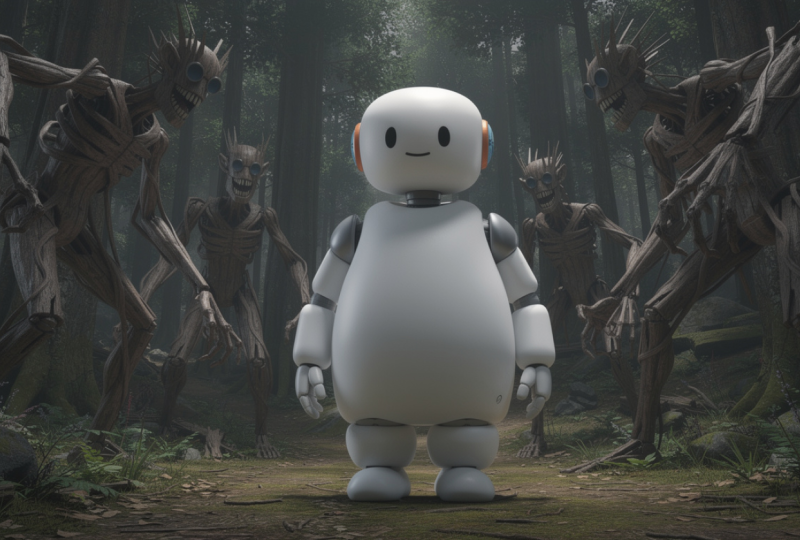
11. AI Character Design How to Create and Concept Your Own Character : Now let's try to
generate a character. So I simply ask that I want a character just like big
hero six, but different. So help me with imaginary
character generator for my course so I can
test run prompt on it. Character should be
like my big hero six, but I want it to be
with texture different. Can you suggest some options? And I will ask in the end, give me prompt for it. Let's go for the ChatGPT and ChatGPT has given
me some options. Copy this one, and in
our image generator, let's go for the specific
character and for the models. I think has photoism, I want it with Flux two P, and it's using
only 50 character. But without AI prompt, I want it will work or not. The character is good
but not that much good. Now let's try it with
a different model, and if it will not work, I will ask for the
different character. But with the Context Max, I like this so much that it has given me a
different characteristics. Let's try to make it. Using Context, Max, and I hope it will give me
a different result. Other than this, at least. Yes. As expected, Flux
context is really good. So we are going to use this character at
least for our image. Also, let's try to see this one, the lava energy core,
a mechanical hybrid. Let's see if it will work
with contracts pro and I want the contract pro to work for me with
this character also. Let's generate. No,
I don't want it. To be this is scary, I want it to be like this. We can actually use this as
a character, also, right? A mechanical hybrid. Let's see if it will
work for this one also. Actually, I'm trying to
generate a simple character so we can use it in our
upcoming lectures. I'm sharing you all
the process how we can generate a character
and how it will work for us. But right now, no, it's not working at all. It's doing something else. Now let's try it with
the different CD light. Let's try it with this
one and with the Okay, let's try it with
this see dream. Basically, my motive
is here is to show you how we can generate
a specific arrector and use them in our video. And if there is any specific advertising video
or anything else, you can use that character and generate a specific
advertising video, product video, any kind of
video you want to generate. It has generated something
but not up to the mark, and the generation that I got
here is really cool to see. So what we can do here, we simply have to copy this
prompt and paste it here. After that, we have
to paste the style he just like lava energy core,
fabric mechanical hybrid. Let's try to use lava mechanical core hair
and paste it here. As powerful presence. I think that no, it will not work like that. And I think at the first result we got
here is really good to see. We have to use this
with our generation. So how we can use
this first of all, let's download this download
this, this, and this. And this. Okay. And this. Now let's download Extract All. So this is the
generation that we have created, and
I like this one. And we can actually use
it within our free pick. I want it to be edit it
first, how we can do that. First of all, you
have to click it, and if you want to
edit the details, you can edit, use this
image, edit it image. If you want to image if you
want to edit the image, you can use edit image. Once you go to your dit image, you can see there are
so many options here. And if you want and
once you click here, you can see the
lightning top, front, right, left, back,
bottom, front and top. We can generate a image
by using lightning also. It's really cool to see. And wow, it is a new option that has been
introduced really quick. So first of all,
let's go to this. And if you want to see any
change, you can do so. And if you want to see
by using any prompt, you can actually
change the prompt by typing the prompt here. And if you want to see
anything by using visually, let's try to click here and
see, remove this robot. A remove this robot also. And now with this one, also, you can actually remove
this by using this also. There are so many
options to remove this robot and you can simply remove by selecting
this specific area, and it will automatically
remove or expand for you. And if you want to
remove this one, you can remove this one also. Now let's try to erase. And once you click Generate, it will automatically select a model for you and automatically
remove the character. So the generation has been done, and you can see we have a specific character that has been generated.
Now let's save it. Save and close,
save and continue. Let's go to save and continue. The save changes have been done, and now you can download this. Let's cut this one and export. Export in SVG, JPCPNG I want it in PNG, let's
download this one. And I have downloaded
it in my folder. Oh, it has not been downloaded, but Okay, let's try
to make it back. And this is the image
that we have saved. You must have to
save the image as it will not appear in
your generation history. So you simply have to click
the download button here and download directly
into your computer. Now you can see the
downloaded image. This is the edited and
this one is the image. So we have generated
a character that will work really well with
our upcoming generation, and I will try to use it
in different scenario.
12. Advanced AI Video Generation Mastering the Seedance Model : The video generation, let's
go to video generation part. And if you want
the specific model to generate image for
you, you can do so. How we can do that, we
simply have to go to models, and here is the CDM. Photo is S for the grok you can see there
is a simple reference image, and it will automatically
animate that image. But once you go to
all models and C for the specific C dream fast
and C dream and C dense 2.2, you can see there are so many references that
has been generated, and you can see if you want
to add image camera motion and image of your character,
you can also use that. Let's try to use this image and let's try to add a video if
you want a video here. No, we don't want to video
to work and let's try to add we have to specifically generate
a image by using this, then we can apply that
image with our character. First of all, let's let's go to image generation and with
the image generation model, we have to select specifically a model that will work really
well with our generations. As far as I can understand, re craft Pro and re craft, these are actually good
for my image generation, and once I selected it, it actually asked me a style, but not for a specific
character they are asking me. So I have to select a model that they will ask
me for a character. Let's see if Pro has asked
me the character, yes, Flux two has asked
me the character, and I have to upload
this character here. Once I drop the character
and at Character one, I have selected Character
one is standing in front of big human like
structures made of wood. They are trying to scare the character in the
big dense forest. Let's try to generate the image. And I hope whatever
I have in mind, it will work like that. And if it not, I'm going to test on all the prompts and we are going to
see what we will get. And if there is any
style, we want, no, right now, I don't want
any style to work. Okay, the lightning
has been changed also. Cool. Let's see. Let's try to change
the facial X pression of the character
change to scared. Let's try to generate. No, it's not working, but I like this image
also. Don't worry. Let's try to use this
image here as we go to video and with the image, let's drop it here. And with the motion control, I want this F PV drone style, and let's try to remove
the prompt here. If we want to add a shot, we can actually generate
different shot here, short one, shot two
and shot three. So how we are going to generate the shot one and shot
two for C trends, we want the help of the ChatGPT for the
prompt generation. Let's add this and ask ChatGPT that I want that prompt for shot one and shot two
that first character jump and hit the ground
very hard shock wave appear and run towards the humanit figures, punch one of them. So first shot. So I have to define it as
a first and second shot. And the character appear with the camera movement in
cinematic style short to cool. Now, I hope advity will
give me something. So it is just like
a storytelling. You can see I will ask my
character to work like that. And I hope it will
work so prompt. Chat has given me some prompt. The soft drop from the sky lands with massive
force on the ground, creating a powerful shock
wave that surface sends out flying camera start
with the top and flying. Let's try to add the first generation
should be this paste, and the second generation
should be this. Let's paste it here. And for the generation, I
want it to be three second. And for this one, I want
it to be three second. And for this one, I want it to be four second. It is A advanced
prom we are using, and I hope that seed dens
tupino will work with this. Now let's try to generate. And right now it's using
2000 of my credit, and let's try to
make it for ATP so that we will upscale it
in our upcoming videos. Let's try to generate the video. So if it will not work, don't worry, we are going to
rectify how we can do that. But let's see if
it works or not. The video has been generated, and let's play this video. How smoothly and how
cinematic it has done, connecting all the dots
and the way it has generated using just single
image is really amazing. The results is really awesome, and it is just like a
cinematic movie Pixurs movie, whatever you suggest, it's
just like a movie scene. And let me tell you how we can actually upscale this video,
how we can the there. If you want to upscale it, you simply have to use this
video and go to upscale. Once you go to upscale,
they will show you how you can
upscale the video. This is how you can
upscale the video. You have to simply select
the specific model. And if you want a
pre season one, you simply have to select
for the pre season. And if you want
anything upscale, you can do so easily. Now, let's. So this is a video that has
already been updated here, and we are going to use it
creatively or precision. You can see the generation
here and the generation here. Let's use and use Magnific
and try to use it into ten AT P. Now let's with
the strength or FPS boost, interpolate fame to increase the video frame rate
for smooth and motion. If you want it, you can do so, but it will also
increase your credit. But I recommend
it depend on you. If you want a sharpness, you can increase the sharpness. If you want a smart
grain, you can do so. Review 12 frame preview. It can also generate 12
frames for your video, and it will cost you this. But I want it to
generate like this. So let's wait for some time, and it will automatically
scale up the video for you. We have to wait
until 20 minutes. We will come back. Let's
jump to the future. So the high quality image
has been generated, and you can see the video
with the high quality, low quality video and
high quality video. Now let's download this video. And download this one also. So we have understand how we can generate different fame videos. We have understood how we
can upscale the video. We are going to generate so many things in upcoming video. Stay tuned and see you in the next lecture. Thank
you for watching.
13. End to End AI Production From Gemini Script to Advanced Video Generation : And we have created
a two frame sequence by using CD dance to Point, which is the latest model
video model generator. So now let's go to our
video generator, again. And now we are going to
generate a sequence of videos that is more
advanced feature to use. Now let's go to your CDansTPinOF or you can check for
the Seedance to Pinto. Let's go for this right now. And with this selecting, we have to first we have
to look into our script. So I have asked Gemini to
create a frame by frame video. Let me show you
what I have typed. The video is incorrect. I have asked Gemini to
create a video for him, but it not give me a right frame or the
sequence that I wanted. So I have asked it, it is incomplete and
it's not correct. So give me a prompt that is
at least with 12 frame video. After frame by frame generation, we will look into our
video generation. Let's start by
going to two hands of diver comes and hold
the glowing p. This is the sequence that I
have in my mind and I have typed it and ask Gemini to give me a actual prom with the correct vocabulary because as far as I can understand, vocabulary is not really good according to the
prompts and according to the needs of the
model so that it can understand precisely
what we want to portray. This is my words that I
have asked to rewrite prompt prompt
generation of frame by frame generation for
my upcoming video. Drop come from drop off
tube from the cloud. Then comes on face off lady, I will provide a picture of
lady or character sheets. I will tell you what
is the character sheet and you will understand
how it will work. Then drop from in
hand and drop into C, drop turns into pearl. Two hands of diver
comes and hold that glowing pearl camera move to the person in
the sud character, face visible character
looks into the large city, a beautiful mermaid comes and takes the pearl
from his hand, put it into a small area that ps is energy source of
the city city glows. Now give me prompt for
this each frame by frame, I will animate it it using AI. You do not need to
generate image-to-video, I want prom from film. As far as I can understand, Gemini has a disadvantage
that whenever you generate image or generate video and after that you prompt. Even if you type prom
that you want to prompt, it will automatically start generating
image-to-video for you. And the credit that you have, it will automatically cut the
credit from your account. And that is really bad or we can say this is
the drawback of Gemini. From the day Gemini introduced, this is the same complaint I
always have with the Gemini. Bottle is good, but
this is really bad. It has generated a
good result for us. Now let's read it first and understand
the flow of the video. Is beautiful detail and complete narrative flow for this science fiction animation. So now, as requested, I have generated detailed
prompt from each frame. Now with this deep sea echo and 11 frame video
prompt sequence, a macro start
establishing the origin, prompt a cinematic eight macro closer of a massive swirling incent Columbia cloud system in a deep sea blue sky at the
core of the cloud formation a transparent glowing
conducen of water resembling then ancient organic tube extend downward from
its precise tip, a single large resident
water droplet details and begin to
accelerate downward, capture with extreme
high speed photography, dramatic studio light. We have to start
generating a frame first. For this one, I'm using. Again, video generator, let's not go or let's not jump into a
video generator now. By generating into
the image generator, let's go to first, image generator and with this, let's use Google Nano Banana. Or search for the Nano
Banana pro with this one, try Nano Banana two
better and faster. Let's try it with
Nano Banana two. Let's try it with the
prompt I have generated, and you have to understand
that the prompt that you have added or you want to
dit, or you want to add. In the prompt section, there might be some limit
with the generation. So you have to
keep that in mind. Also, this is the
resolution I wanted, and this is the one K resolution
I wanted for this one. Now let's try to generate. It has generated something, but now let's try to add it
with the different model. Let's try it with this generate. Otherwise, we have to change the prompt or retouch
it with another prompt, and it is looking like
something it's good. No doubt. But let's try
it with the context. As far as I understand that context is
really better, yes. Context has generated something amazing and I want this
type of generation. As far as I understand that
context actually giving me a really good
generation. Now let's try. Now let's try to save this
image first in our system. With PNG, now let's
download it one, download. Now let's save it.
With this one, now we have to simply
add a cloud system. No Simple, clean. Now let's go to
Freewi and clear sky. Let's type it and you have
to download image from it. This is the image that I wanted. Now let's download this image, a large image and save it in our system because we
have a Freepik subscription. Why not use PEPC for
simple image generation. Sometimes we can save our
generation credits also. Now let's go to another image generation that is the contact that I wanted. The droplet makes impact with your character note ensure the generation is em provide
character appearance, right? So the photo realistic
closer portrait of female character matching
the user provided surface image sees
looking upward with a sa comparative
cinematic depth of field. Now let's copy this prompt
and let's paste it here. But with the character, we want right now a
character, right?
14. How to Create and Use AI Character Sheets for Multi Image Consistency: This is a character sheet
that I have created, and this is the image, just a simple image
that I have clicked. Let me tell you how we
can use this image. With the video generation, and selecting the tool that is video generator C dense
with the motion and image, let's try to add image here. That is the image. I have
uploaded this image. And now, so in the
image generator, I have added the character
with the context max. I want to use the same
prompt that I have copied and now paste
this prompt here. This is the same prompt
for the second frame, the contact of the image. Now let's generate. If it not work, then we have to tell that we want to use the
character for the image. So I have to add a character
here if it's not work. As far as I understand, it created an image. I loved it, but I don't want
this to be very simple. I want it to be a
very dramatic image. The image, it generated
a good image, but I wanted something else. Now let's drive it
Google Nano Banana two if it will not work, then I will use AI
prompt and answer. Image generation is good,
but I don't like this. I want something else. Now let's try to use AI prompt and answer with the generation. No, I don't like this one. Now let's try to use image description for
it comes on phase. Now let's try to use
this for only I want it. This is I want it, this
type of imagery I wanted, and this type of
imagery I wanted, check what else we
wanted are happy. This is a complete workflow that I'm sharing with
you so that you can understand how we can
generate a perfect video for ourself with this one yes, I want this type of imagery, but cinematic raindrop
face of girl, not girl of lady. As far as I understand it girls means the age
should be under 20. But I want the age at
least about 25 to 20. I want this type of imagery. Yes, this is what I wanted. This is for the
image generation. With this image, add it in the photo editor or
upload as a description. With this one, let's
select this one, upload and add it here. Simply drag it here.
Use this image. Now it's generating a prompt. So now let's use this image. Or we can try another
sequence of it. Water droppers place
face and hair, dismiss, which is wet and dark. No, not wet and
dark brown color, curly curly hair, the
background blur, green pot. I wanted in a cinematic look blur of green photos with blur, C Bach is soft, out of focus, light, warm, yellow and white tone. Not yellow and white tone, creating a dreamy
and eth atmosphere the lightning is
soft, diffusing, highlight the water and
the women expression. I have tried so many prompt. I got these many results. The first generation
that I like the most, and after that, I have
not liked that much. So I'm going to use
the first generation.
15. How to Create scene matching the sequence: Right now I'm tating a
specific workflow here. What I'm trying to do is to
upload this character sheet along with the main character to see how it processes
the reference. At the same time, I'm
using a specific prompt. This is my active
prompt right here and you can easily read
it out on the screen. After that, once I
run the generation, this is the result I am getting, it shows a hand
holding something. It's a single water droplet. It looks exactly like a
raindrop falling into the hand. Now I want to see what happened
if we switch things up. So I'm trying to use a
completely different AI model. Let's see how the output changes after using
a different model. After switching to the second
model, look what we got. This time, it generated a moon type object sitting
right in the hand. Honestly, as a
standalone element, I'm not a big fan of this loop. But let's see I will save this image anyway for reference. Moving forward, what
should we try next? Let's try utilizing another
prompt and this time, I'm going to generate
it using Gemini. Inside Gemini, I will set up my requirement to pull
up refined prompt, copy it and paste it
back into our tool. Now with this new generation, look at the result we achieved. We got this beautiful pearl like object glistening
inside the water. This is a major improvement, and visually, it looks
absolutely stunning. I really like how
this turned out, so I'm going to save
this image right away. With that saved, let's
move on our next step. We need a proper background. So I'm pasting our environment prompt right here to
build out the scene.
16. How to generate and edit the image for story board: The PL has been downloaded, and now let's try to add this in the environment
with the context Flux. Somehow I love the output
of Flux, one Context Max. Now let's try to generate
this with this one or if not, I will ask for another. No, it's not that one. I want this in the character. Let's add this in arrector. This is the PL add one, and now let's add the
same prompter paste. Let's add this prompter, paste. And now let's try to add a
generate. I don't want it. Let's try to use
another one with this. And with the character,
the size of the pun, let's try to add this one. Let's see if the pearl
is very big or not. This time, it has
generated like this, and I like this result.
No doubt about it. And right now, let's go
to our new generation. That is, let's remove this one. And now let's add my own character sheet
with my own phase. I have created this
character sheet of my face, and as you can see, I am really handsome
today. Don't worry. Let's try to move forward
with our image generator. Now let's go to our character. Again, I'm using Nano
Banana two for this one, and for the image generator, for the phase, let
go to this close up, simply add this one
and try to generate. And I hope we will get a result. That we have never expected. I can either good
or it can iter bad. Expectation can go
either good or bad. Let's wait for some second. Final task has begun and the image that I
look is really good. Let's try again
try to generate it and the face character
inside helmet clearly and must fine person
and frame two, as they are illumined by the intense gray
lightning effect, the diver face
characteristic helmet, close up focus
directly diver helmet. They are light. Pearl visible. Clearly, now let's try to
again generate this one. Basically, what I
wanted is that I want a perfect frame for
every video generation. That's all I wanted. Right now, I want the focus on my face as well
as on the pearl. It looks totally odd. Let's try to enhance the prompt. And again, why this total Lod, you can see the hand is looking as far as
I can understand, it's a reflection of the
pearl on my hand, right? But I don't want it
to be like this. I want it to be hand P with a pearl focus
and with my face. This one looks okay, but no, this one is not pearl
visible car not this one. Now let's try to close up shot. Not a close up shot. Let's try to add it, remove the close up. Let's try to add
up portrait shot here, trait shot focusing. And now let's try to generate. And if not, I will try to again, using a free peak reference, I will try to use a
futuristic water diver. Let's try to search for it. If we get something else. Yes, it's look cool. Now let's try to see. It's cool. It's really cool. But I want something
special with the AI. Let's try with this
image, I guess, no. The image with the image I want it to be like
this. Let's see. Let's change orientation with the horizontal water
diver, holding pearl. It looks great, like this. It's look good. Let's try to again generate a
different prompt here. Let's try to edit this image. Okay. Let's try to edit
this one reference and Pearl visible, clearly. Now let's try to generate. Right now, let's try
to generate with the Nano Banana search for
Nano and Nano Banana Pro. I want it. This is
totally different. The style is, again, different. Let's try to use this one. Okay, don't worry. Let's
try to use this one. And again, with the pearl, let's see if we can get
our reference image glowing pearl on hand in water. No, the reference
is also not good, but let's do it with this one. And if not, let's try to
again, generate a prompt. If we don't get what we want it, let's try to I don't get better result from this prompt
as Pearl is not visible. Clearly, give me prompt
for Nano Banana image. No, I don't want
to use because it will generate for image. Let's try to see. And I hope it will
not create an image. If it creates the image,
I really don't like the gemini because sometimes it generate the image and
I really don't like. No sometime it actually created the image
mode of the time. What we get this close up
focus directly on divers helmet visa making the face clear visible through
the clear glass dome, your character person look profound with sound
dramatic light, and I have position the intense
Soja frame lower right, it's vibrant, right,
blue light and deep, so she enclose the skin
and reflexion in her. Let's try to generate
with this one. Let's try to generate
with Nano Banana too, as the result of this
one is really great. Yes. This is a prompt
that I wanted, and now let's try
to helmet wiser. But let's try to add a
prompt with AI also. The results are really not
good and not satisfying. I like this one, but you can see we have to edit this
image a little bit. Let's use this use as reference. No, let's not use
it at reference. And now let's try to did this image first.
Add this image. With this one, let's
try to add retouch by selecting this one,
diver Marine suit. Let's try to change
to diver marine suit. Let's try to add
it with the model. No, I don't want four variation, I just want two variation
of it and with the model, I want it Nano Banana, two. Again, let's try it. I want it to really
futuristic one. Now let's try to use this image. Let's save it. First save it. You have to save it first.
You have to remember it. Now let's back. Use this other apparent, change the suit of
futuristic diver suit. Generate. So this suit is like the heritage
style and I can see that the suit is about
90s or 80s type of suit. This is good. This
is really good. And I can see it's amazing. But the pearl has
been changed also. I don't like this
one. Let's try to change this pearl
to simple pearl. Let's remove and remove
and did this image. Use it, edit, add
a glowing pearl. You. Lun let's try
to generate Image and I want only one K
resolution with one variant. Now let's try to generate it. Yes, this is good. Now let's try to
download this image. First save it and
download it and export this image and
download as PNG or JPEG, it's up to you. Save this one. We have another
sequence that is first, second, third,
fourth, fifth, six. It will fifth, six, seven, eight, and before that, I have also generated another
image that is, this one, let's download
this one and save. This is the image that I
have downloaded and one, two, three, four,
five, six, seven. So these are seven sequences
that I have downloaded. Now let's move to
another sequence that is onto the frame, the pace is done, the vison, the massive change in
scale of tab the goal and establishing video wide so looking over the
shoulder of a diver, still holding the pearl paste, and in the distance, a massive futuristic
drawings is done. But I want it with
this character. This is the character I wanted, and I don't want it. And let's generate
it what we will get. We have to understand it
first, what it will give us.
17. Total Character Control Advanced AI Workflows for Persistent Actors: Image has been
generated, you can see, I have used it at character and created image that is
good to see, right. Let's see if it will
work or not like this. Let's try to save this one. So this is the futuristic
underwater city. We can see, and this
is the pearl that will going to illuminate this. So this is the
powers of this city. So we have saved
this image also. You can see the character. This is the suit, this
the suit, and this suit. All these are resembling
to each other. That is what we want
it. If the suit is not resemble to each other, so the video sequence might break and we
don't like that one. Now let's try to
generate an image. Emitting a beautiful
mermaid approaches a cinematic mit sort or
beautiful mermaid with intensequ that gently places the growing pearl into her palm. Now let's copy and paste it. And now let's try to generate. If it did not work, then we have to ask
for the mermaid. Or we have to find a mermaid fails and then no
carriage for use. Imagination. Let's retry it. If it not work, then
we have to ask for another character asm
beautiful mermaid with inter scale glowing pattern on her tail and
long flowing hair, sewing gracefully
towards the diver see extend a delicate
hand with web finger, and the diver gently places the glowing
pearl into her palm. No, it's totally bad to
see. Now let's try to. Move this one and not the
reference image I want it. You can see that
cinematic or a beautiful mama glowing pattern on her. Let's try to use it style
or this one I want it. Let's try to use.
Glowing pattern. And for the reference I want it, let's mermd with
glowing pattern. Let's try to add our character from
the character sheets and try to add a
merit like this. Let's try to make a first
let's try to make a mormd. Let's remove this one. I
want a character sheets. Let's add a character. From the uploads, this
is the character. And for the image, I want character history. Uploads at character is did. Now let's make a Murmad with
this one, I like this one. Let's try to download this
specific one. I like this one. Let's download this and try to create as per
our reference image. Now with this one,
upload the image here and use this image for the reference and
for the character. Now let's try to generate. And I hope that we got the
result that we wanted. Don't like the result as
it's not use the image, so I have to use the character
let's delete this one. I don't like this.
For the character, let's try to add the character here because it's totally
adding image here. So I want it to work
as a character. Let's try to add
a character here. No, it's totally different. I don't know why
it's not working. I have to work it
with the style also. Let's try to add this image
for the video generation, let's try to add
it with a style. I have to add a style
here, character. And if it will not work, then I have to check for
the different prompt. It's totally different. It's funny. Let's
delete this one better. But it's not like that
futuristic with a smile. Let's try to remove
this one, remove this. And I want the prompt to
work like create with this. Let's try to add a
prompt here again. Let's side to prompt
here, use it. And after that, let's enhance this prompt,
enhance the prompt. This is the next feature. We are using a pros and you can use 10,000
character for this one. Wow. Let's apply the
prompt and let's generate. It's not a close up. I don't want it to be a close up shot. Let's make it more dramatic. Yes, this is what I wanted a
close up sort of the moment. Yes. Now this is what I wanted. Now let's save this
one with the hand. Now let's try to add this
and at this from the rep, friends gave the
pearl two image. We are using now two images. You can see this is daily advanced prompting we are using. Now for this style, use it style here,
the background. They both are amused
to see each other. And let's see it will work. And I hope it will work.
So what I have done here, this is good. Let's
save this one. But also for the image, let's try to Image is a mermaid. And goes into the city. Let's try to generate it again. The mermaid swim
into the city with wide angle shot and from behind no face visible of the mermaid red glowing tail of mermaid visible from behind. Let's see if it will
create or not. Yes. This is good. Try to
remove it by using. Let's save it, save. And with this one, let's try to open
with Photoshop. Let's try to edit with
Photoshop as I don't want it to be like this one, let's remove this one,
remove by selecting this. Okay, no. By removing tool, let's try to remove this one. Yes. Why am using it Because I don't want to use
my cart in the Phillipe. That is why I'm using Photoshop. So it has been removed. And I think there
might be a crown. Let's add a crown like this one. With this one, let's try
to add a crown here, genitive pill by selecting
partner Nano Banana, two, Nano Banana, two mermaid
wearing a CROWN Crown. Yes, it's now working fine. Now let's try to
save this image.
18. Next Level AI Illustration Keeping Characters Consistent in Complex Scenes: With the generation, we have
to add a character here. Again, the character, the pearl. What I'm trying to see,
I'm trying to look into a area where we can add the pl and I want it to be very futuristic and very
generative. I like this one. Now let's try to create
a prom for it as add the pearl onto the area is spatially created for the pearl scene looks ancient and dramatic
mermaid put that pearl from her hand that
s after that and other prompt will be for the close up of
the other prompt ware, pearl, power the whole city and
everything's glowing. Now let's try to generate it. So I'm asking for
two generations, and I hope it will not
give me a image here. Please don't or do this, which is the power sort. Defining. Okay, so it will
not generating an image. I just want a prompt or here. It's look good, but I
don't want like this one. The mermaid added. Yes, I want this one, but the marmd is different, but give me the reference. Let's do it. This closer so capture
the historic drama. Now let's try to add this one. Now let's paste it here and ask for Nano Banana two for
the image generation, and I hope that
we got something. And for the second image, let's try to finish
our first image. Once we got the output, better output for our
video generation, then we will go for
the next generation. Right now we are just working on the image generation part. Then we will work on the
video generation part. It's really cool to see. I loved it. Now let's
try to save this one. Let's save it. And
with this one, let's try to add up. Let's paste what we got here with the image generation for the image second
image, right? The grand white angle
sort of wonder. Now let's see with
this one, paste here. And for the character,
let's remove the character, the p. And I want the
style to be like this. This is the city I have in mind, and now let's try to add this
sty layer with this one, let's try to generate activated the p from image
one, I don't want it. Basically, I'm changing a prompt little bit
according to my need. A great result that we got here. Now let's save this one also. So the sequence
has been created, a complete sequence of the
images has been created. Let's look into the images
that we have created just now.
19. Using Claude for better prompt direction in Video generation models: So far, we have generated all this image. Check
for the sequence first. This is the first image.
This is the second image, and this is the third image. This is the fourth,
fifth six, seven, eight, nine, ten, 11, 12, 13. So this is the 13
images we are going to animate using
these 13 images. Now let's see what we
got in our results. So video generator is a little bit different from
the image generator, as we already know that video generator is
very advanced to you. So we have to first understand how the video generator
actually work. We have first understood image generator how
image generator work, but now at this time, we are going to learn how to generate video by
using C dense 2.2. This is the latest model
that has been introduced. Recently, we are going to
use and create the video by all these generation
that we have done. This is the first image. We are going to actually add a simple frame to
frame did video. This is the image. And for this one, let's
start by adding a shot here. We can add multiple shot
in between if we want, and you can see the
generation point, here it is. So first, let's
understand how we can generate a video
without using a frame. Let's use any model
available here. So first, I'm going
to use any model. This is a random
generation of the videos, how we can do that and where we can use and different model
have the difference use. We have already talked about how the difference models work. We are going to actually use Motion Control 2.6
and cling 2.6. We are going to
use different type of video generation
and work like that. So for a simple
video generation, we are going to actually use a nominal video generation tool that is Google view
3.1 for this one, for the reference, and we are
going to actually create. First, we have to
create a prompt to describe the image
and the video. Then we will going to compare both the image that we got
and the video and after that, we are going to animate
that specific video. First of all, I'm
using a cloud here. Don't worry, you can use
your clod Gemini ChatGPT. It's depend totally on you. Social media, informational
video for a single frame, not a single frame, Fa give me a prompt for social media informational
video in which a man drink coffee and how it will react in its stomach and brain. Keep the video prompt,
very detailed. I want that the
animation should be like a three character like Manekuen or wearing
modern clothe, then there is a transparent
visual of its body, just like human body. So this is I have given a prompt that give prom for social
media informational video, informational video
in which a man drink coffee and how it react
in its stomach and brain. Keep the video prompt
very detailed. I want that the animation should be like a three character
like Many quin wearing a modern clothe
where then there is a transparent visual of its
body just like human body. Now let's enter it out
and wait for the prompt. So it had just suggested I
can use Sora Kling and pica. We will going to do that. So this is a global style
direction, a visualchctor. After that, it will give me some scene also for
one to four second, four to ten second, and the journey begin
soloing, stomach reaction. So it has given me the visual
direction for my video. Let's use this as a
prompt. Let's copy this. But the expect I have to
change the expectation. We will do that.
By Let's go too. It's now using 160 P, and let's see if it's well. Okay, it's working
for this one, also, and I want this one, and
expect should be around this. And this is the TD
animated video. For this one, now
I'm going to copy the scene, the coffee movement. Now let's paste it. I'm going to generate two
videos with different prompt. Let's see if it will work with the same character
and animation or not. Got it. Now let's
try to animate it. And if I want the audio for
it or not, I want the audio. Let's try with 260 credits. This is the video that
has been generated with that It's okay. It's totally okay. The visualization
that I have in mind, it's completely
working with this. But we have to understand if we do not want this taxpayer, then we have to check for the subtitle because
sometimes not sometime, but every time in
informational videos, AI thought of the subtitle or the title for the
better understanding of their viewers or students. So it must have added a subtitle
that I forgot to remove. Then simply we have
to find that out. And yes, as you can see, bold animated tax paid
in at the bottom, what happened when
you drink coffee? This is what happened when
you drink coffee there. We have to remove this one. This is okay, but actually not able to see the face
of our character. It just look like it's not
opening the face at all. The glass is not coming
towards the mouse, like it's not touching
the lips at all. So it's not that consistent one. So we want a different
type of video or animation or we can ask for another
model to create for us. As far as I can understand, Google VO 3.1 it will not
work like we have thought of. We have to take another
route, rectify this problem. But don't worry, it
is just an example to show you how we
can create a video. Again, we are back to our
main generation where we are using the see
tense two point oh, not fast two point oh. This is the T is the
actual scene we want it. Let's start by using
start and end frame and see how it will fill our video. And what I love about
seed dense is that it actually fill the frame between our images and
it work really well. Let's see how it will work. And right now and for that
one, I'm using Cloud. So this is what we
want to generate by starting from so this
is the start frame, and this one is the and frame. And let's add a Cloud. But also, we have to add this both frame to our cloud so
that we can understand. It's up to you if you
want to use Gemini cloud, Ja JBR, it's totally fine. I want a cinematic movie
scene type prompt for video generation in
which Killer Iki as a reference image turns into this drop of water. Here is a prom, let's copy it. Now once you paste it here, you simply have to read it out first so that you
will understand that the AI actually understand what we are trying
to portray in front of it. Let's read the prompt first. A cinematic time la begin with an open sun drenc
blue sky fill scatter with cloud drifting. You can edit out fast
and understand pure vast and peaceful and the camera slowly is up at the smotfhift. The cloud begins
swirling inward, converging into majestic
rotating votetex lit from within the electric and and bioluminescent
blue light, spiral titan into a singular growing
funnel from the heaven. So we have to actually
add first and last film. So I simply drag first and
last film here. That's all. And it's uploading. Don't worry, it will upload in some time. And if not, we will have
to upload it again. So for this one,
let's start with the motion against a twilight. So we have to add the image, the start image
and the end image. The timelt scatter
in different pathway peacefully upward
south different beyond into a majestic vortex. So before it, we have to as
in reference in start image. Now for this one, for and image the camera
slow tiles. So I have ad. You have to understand the
prompt and you have to decide where you want
to put this thing. And if you have not put it
and simply start generating, it will automatically
adjust your prompt and both images or frames and start creating
a video out of it. But for now, right now, let's start with the four
second with this one, let's start with the 480 and
we can upscale it later on. But right now, let's
start with the 720. Don't worry about the credits, and let's do it. Right now, I am using the
credit so you don't have to. You simply have to learn
it and you have to create a awesome
video out of it. You can actually copy it. If not, you can create your own. And I would love to see that. I'm a little bit
nervous because this is our first generation and I don't know what it
will generate for us. Let's play this out. I honestly don't
like this at all. Let's start by typing ourselves. We are not using prompt here we are not using
this type of prompt, we are using simple
prompt start from clear sky to dynamic sky in which shot two will
be a close up of the drop making in the
clouds and the shot three, the aim and image will
appear like this. So we have two and fin will appear with the rain drop in it. After that, I want
fourth frame in which the raindrop drops drops
towards the Earth. Let's see what we get here. We have to wait for at least for three to 5 minutes and
we got the generation. If we not get the result, then we have to
change our strategy. I will show you the
entire workflow, how we can achieve a
cinematic best result. The video has been generated and let's see what we get here. Just a simple transition, right? I don't like this
transition to happen. Let's see, let's remove
this first frame, and I want this as a
end frame. Got it. And now let's try to use a different model where we got a best result for our video. And with this one, let's
add the image here as from clear sky to vortex of clouds
rain drop towards Earth. And we are using five
second of frame here, and let's generate it. And right now we are
using Kling 3.2.
20. Understand the Node based workflow FreepikMagnific Space: Is the issue we are
facing and we are switching over to
free peak spaces. When we generate videos on a large scale using
a reference image, we aren't just making a single isolated
video clip anymore. Instead, we are building an
entire sequence storyboard. To do that, effectively, we need a lot of workspace. We are moving into
free peak spaces because standard image and video generation workflows just aren't give us the
precise result we need. That is exactly we are leveraging free peak
spaces for this project. So how you can enter this
space, let's go to back. And once you go to
home you will see a space here or you can
see the space here. From here, you can
see the space. And once you go to Spaces, it will automatically
pop out like this. You can create new
or you can just open your last created space. Once you create your space, you will see a well connected
web structure you can see, and this is the video. Let's first see this
with the sound. You can see this is a 15
second video created using seed dens and the
aspect ratio is 69 with the sound
and one variation. And it is 720 P. Here is the second generation
that I have created. It is without sound.
So you can see here the character
consistency is really great. This is my face
totally working fine. Now, let's start by creating
your first I space. So this is advanced I space where we are going
to learn the prompt, as well as we are going to learn how you can create
your own space. So first of all, if you want to create
this type of space, you simply have to add a node. All these are node
based structure. Whatever you want, you can just add a text, just like this. If you want to add
image generator, you can add image generator. If you want to add
video generator, you can add video
generator like this. If you want to add assistant, you can add assistant. If you want to add
image upscale, you can add image upscale. All these are nodes. Every node he their title, and with the title, you will
understand what nodes does. So title itself says, I generate images, and the
image will appear here. There are two types to
generate the image. First, if you want to
generate the image, describe it here like
this and simply hit run, and it will cart you 100. If you want to select the
specific model like this one, you will see the carats here, the K cardit for the
ten carts for Flux. You can select the
model here if you want and there is another way to
add a text also. Like this. This is the text,
and here is a node. You simply had to
connect it like this. Now the connection
has been done, and if you want
to disconnect it, you can see a casar here. Once you click
anywhere on the node, it will just automatically
disconnect it. And if you want to simply
connect it, type here, blah, blah, blah, and you
will see the light up here. Now, for the example, let's try to create a cat
with Watermelon heat. Now let's try to run it. With the Flux model
or image anything, you can use it and you can see the cart has been used
for each generation. You can test it out with
different generation. For this one, I'm using
Zmge and let's try it. You can zoom in and zoom out by pressing Control plus
scroll down and scroll up. If you press Alt, you can see scroll
down and scroll up. And if you don't press anything, simply scroll up
and scroll down, you can see, just
like web browser, you can scroll the page. And once by selecting
left click, you can select the
node like this. By selecting right click, you can see all the
options has been list here like this node system. Now, if you select, once you press the
button in scroll, you can simply the hand will automatically grab
the Canva and you can move around the
Canva, just like this. The Watermaner head has
been created on the cat, and it's really good to
see what you have to do. So we have understood
the tax prompt here and we have understood
the image generator. Now let's try to add
a video generator. Let's try to add a
video generator. Now, simply connect this one. You can connect it with the single or you can connect
it with the multiple also. For this one, let's
try to use a symbol. So for this one,
let's try to use a simple video
generator like 12.2. I'm using it, and now
let's try to run it. As you can see, it
already informed us that it a start frame. For the start frame, there are two types if the
so for this one, it requires the start frame. So adding any once
you click here, adding prompt any prompt here, it will not actually
work at all because it requires a image
for the reference. So for this one, we
do not want this one. We want a simple
image reference. So getting image
reference is here. So I have added a
start frame here. As you can see now, first, move cat move around
in the house. Once I add the prompt here, the run key has been light up. If you do not want it, you can also add a text prompt here add text and connect it here and add simply I paste it here and now you can see the text has been appear. Now let's try to run it. What we have done, I didn't
write any prompt here, I simply add extra prompt here and add the
image that I have generated and connected it to my video generator and
it starts working. And within one or 2 minutes, it will generate
a video for you. Once we understand the
basics of the spaces, you will understand
this web design. Meanwhile, it's
generating the video. We can let's simply
check for the images. So all these are
images that I have simply dragon drop
and uploaded it. So this is the image. I simply
drag it and drag it here, and you can see it's uploading. Once it's upload, the
image will appear. And this is the same image, and this is the same image
that I have uploaded. Now, if you want to delete it, you can simply
delete from here and if you want to download it,
you can download it again. So now let's delete this one. Just like that, I deleted I have uploaded all the images that we
have generated before. And we have connected it
with the assistant node. Just now, I have not used
any text prompt here. I have used assistant here. So how you can add assistant, add and you can see
the assistant here. We will see what assistant done. We will see what assistant
did in this case. Meanwhile, we were talking
about this node system, video has been generated,
now let's play it. You can see the video
has been generated and it's working really fine. Now let's try what the
assistant does for us. For this one, let's try to right click and add a assistant
here with the assistant. Let's copy this one
and paste it here. With this pasting here, you can see the
assistant has a prompt, the result and the prompt, and it has the different model
for the different output. For export as text. So first of all, let's
connect this with the text. And now you can see the text has been appeared and the tax is
connected with this. Now you can see, same text
has been appeared here. The prompt has appeared
in the assistant. And if we want to use the
assistant for our prompt. Let's do not do anything and start by
generating a prompt. And you will see a simple
magic will appear. A redefined provocura domestic
tabby cat explorer cozy lived in house from
morning into afternoon. It's spit through the
sunlit living room, and this is the total prompt. Once you drag it here, you will see this is the
prompt that has been created, and you can see three and one to 4 seconds each frame poses and spatial coordinate
for moment path. So it has actually understand my input of the text and
why using ChatGPT model, it has created a really advanced and
detailed prompt for me. Now, if you add or if you connect it with
the video generator, or a image generator, you will see the magic happen. Let's try to connect it with the image generator
at this time. Once you connect it with
the image generator, you can see the
prompt we can run it. Now let's try to use classic. I'm not using extra
carried for use for this generation because
I just want you to understand how all
these network work. Now let's play it after running it and let's
run it in this also and you can
see image has been created and it's just a
random event it just created. With this one, let's try to
generate the image here. For the reference
we are using again, the start frame for our Van, as it will not work
with just a prompt. We have to add a frame here. Now let's try to add a prompt. And I'm using four
ATP for just now. Meanwhile, it's in queue and it will generate
really soon. So what this is start frame. Let's understand it by
going to Freepik again. And in the video,
Video generator, once you go to video generator, you will see the magic
is happening here. The magic is
happening here also. Now, let's see this
is the start frame. This is the reference
that it wanted and it has showed us
the same result. Wow. You can see the video
is working really fine. This is just a simple
prompt that it's working. And this is the advance from that our assistant help
us as an assistant, and the result has been created. But the problem is, we do not have the water
meanel hat anymore. Obviously, the cat has
jumped and the hat has been removed automatically. Or we can say the gravity
will also work in it. No problem jokes
apart. So no worries. We just want it to understand how the prompt
system and assistant work. So you have understood now you can see it
just creating a web. This is the node
structure you can see, and it's really easy to use once you
understand it better. For this one, let's remove this. And for the upscaler, if you want to upscale
any of the image, you can upscale it by connecting the image
directly to it. Let's connect it. Now the
image has been connected, and if you want to upscale it, you can upscale it by
running through it. And if you want to use
any of the magic here like creative Magnific
precision clarity. And if you want to use
another model, you can use. So if you want to see
any of the detail here, grainy analog, portrait balance, if you want to see
any of the result, you can just experiment it out. Which model gives the
best result to you, you can simply use.
21. Magnific Spaces From a Single Prompt to a Full Video : You have understood the
basic of the node system. It's really easy
to understand it. Now let's try to group it. If you select all of them, you can simply group
them just like that. Group has been created. This group also can be used as a reference image or as a reference video for any of the further generation
if you want it. For the larger model and
for the advanced model, you need to use a group, just like for the UGC model, we will talk about it
in upcoming lectures. But first, we just wanted to understand the node
system, how it's work. Now, let come back to our. You can just simply drag
it out anywhere you like. And if you want to change
the color, you can do so. Now, what we have done, we have simply added
the images here. All these are images that
has been updated here. Now after uploading the images, you can simply add
the assistant here. This is the assistant.
Now for the assistant, I just wanted to
understand how you can actually use this prompt
system, how you can use it. So this is the prompt.
Let's export this prompt. Now, let's try to export it as a text or export it as a list. Now let's try to
export the result. Once you export the result, you will see that prompt has
been exported as a text. Here, you can increase
the size of the text, and you can see
our generation or our video has been exported
as a list of the prompt. And if you want to
export it as a text, now let's try to delete
this one, delete. And if you want to export is
as text, you can export it. You can see here is the result. This is the result that we got as a text. So here's a text. If you want to export it, you
can do so just like this, and it will simply work for you just like any text prompt. Now, let's delete this text. And we have the assistant
working for us right now. If you want to copy it, you can copy and paste the
text here directly, just like copy and paste
it, just like this. And also, if you want
what we have done here, we have connected all the
images, just like this. Simply I removed all
the connection here. Just like this, you can either connect by simply
drag it around here, just like this, drag it here, and it will automatically
connect with the assistant. As you can simply select all
of the node, select them. And after selecting it, you can simply drag it and connect it connect
everything at once. This is how you can connect
everything at once. After that, once you go to
assistant, how assistant work? Let's see. All copy. Simply what I did, I simply past the
prompt here and ask Gemini to create a prompt
for me. That's what I did. It's not that hard
and fast rule for it. You can actually
and one more thing, this assistant is
really advanced that it understand all your inputs and create a sequence out of it. If you understand
the prompt better. Let's see, vortex formation, image to image node
condition on image to prompt glowing
blue vortex funnel from storm into C electric
circuitry like energy pattern. And you can see that in
the three to four second, the image and the generation
will work as if X building deep resonant Hum layer B is raising in pitch
and an amplitude. You can see the
grand stabling white sort image generation
node condition on image six. All these are images
that has been added here and it automatically
understand the images. And if you do not want to add the image or if you want
to change the image, you can do so just like this. Once you click here and Shift A, you will see and it will automatically help
you in the assistant. But with the assistant, so with the assistant, you can actually connect
whatever it connected, you can simply connect whatever it generated by
using your simple prompt into the advanced prompt and
simply you have to connect it like this into the
video generation part, or I have generated it with the video
generation here also. So before that, I simply run the prompt so this
is the output. This is the first output
that we have created. This is the first output that
we have generated by using image two assistant to video generator and simply
run it using C 2.2. This is what I have done. And you can see this is the output that it
has gave to us. For again, after that, I simply not satisfied because
my face and my model face, that is my wife is
not appear here. Now, also, if you want
to remove this one, you can remove that
and I have connected. I have dragged this layer
here, the node here, and I simply drag a new video generator
here and connect it with it and connect it
with the text prompt here, and I did a new video
generator added here. For this one, I have
added the text here. This is the text I have added. I have selected the
seed dense two. For this one, I have
asked specifically, I have connected the
reference image here. And this is the reference
image, I have connected here. So both the reference
image has been connected or we can see the
character sheet has been connected with them. After that, I have added use reference image for Explorer at my face. This is my character
sheet for Mermaid, use this use character
six as reference. After that, I have
told the AI that use my face as explorer and Mermaid face as this character sheets, and it automatically generate the output that I
wanted with my face. This is what I did extra. So this is really important
if you want to generate it. This is the output with my
face and with my wife face. And also one more thing
I want to share with you that you don't have to actually settle it with the
one generation. I recommend you to use at least the generation
for two or three times. If we see this generation, I can use this is the part
I can use from this video, and it looks really amazing. After that, the generation
is not that bad. It's really good to see
the generation here. Just want you to know that do
not settle everything with just one generation because AI will always amuse you
with new generations. Because every time
you generate it will give you a better result, or you can guess if you get
the worst or best result, you have to decide
from every iteration. I recommend you to work at least with two or three options
or you can work with two or three iterations of the same output or
the same prompt. This is it for this space, I hope you have
understood the basic of
22. Project : Now that you have
mastered the tools, it's time to put your
skills to the test. For your class project,
I want you to create your very own visual story using the techniques
we have discussed. Once your image and
video clips are ready, head over to the
Project Gallery tab. I will personally
review your submission and giving detailed
feedback on your work. If you hit a roadblock
or have any question, just put them in the
discussion tab blow. I'm here to help.
I can't wait to see your stories.
Happy creating.
 Karan Rathore, Creative Technologist: Video Editing, AI, and 3D