Transcripts
1. Introduction: I actually started
using Blender almost 10, 15 years ago because I didn't have
the money to afford some of the more expensive
creative software, and Blender has always
been open-source. It was one of the first 3D
applications I opened up, and then I returned to it
many years later after it gotten a lot of
features and things and I wanted to explore 3D more. Hi, I'm Remington. I run @SouthernShotty on
YouTube and Instagram, and then I also
work as an animator in Silicon Valley at Facebook, and I have to disclose that
they do not endorse my work, but they do allow me to
explain that I work there, so I'm an animator
there full-time. In today's class,
we are going to be going through getting
started with Blender. What we're going to be
doing is focusing really on the interface and the
basics of Blender. My previous courses where
I taught animation, how to model your
first character, and how to convert your
illustrations with 3D, some Some the feedback
I got is that it was hard to keep up with
the process for people who weren't overly familiar
with Blender's interface. So in this course we're
going to be making a small little frog character,
and through that process, we're going to be going through the interface and all
the basics of Blender, trying to make you get
a bit more comfortable with the software so
that you can go on, move on, and make
your own projects. This class was initially
recorded live, and I was able to answer
the students' questions. If you have any
questions yourself, feel free to ask
in the comments. I'm always going to
watch it on Skillshare, and I'll do my best to answer any reoccurring questions or questions that pop up. With this course just launched, then I'll most
likely be there in a couple of weeks answering
every single question, and then after that,
keeping an eye. If you have any questions while following along with this post, don't worry, I'll most
likely get to you. Thank you so much for joining. I'm really excited to
have you in this project. My students always upload
their projects to Skillshare, and I always love seeing
what they create, even if I don't comment
on all of them, I do look at all of them because I'm always really excited
to see what you're making. With that being said, let's get started and
dive into the project.
2. What You’ll Need: Hi everyone. I'm Dylan Morrison. I'll be your host today. I'm a Writer and Editor
living in Cleveland, Ohio and my pronouns
are he, him. So Remington, why don't you tell us a little bit about who
you are and what you do? Hi, my name's Remington. I run a YouTube channel
on Instagram called SouthernShotty, and I also teach classes here
on Skillshare. I've done a few on how
to model your character, how to animate your character, and converting your
illustrations to 3D. Some of the feedback I
got from those classes, where that people
felt it was difficult if that was your
first time opening the program to follow along so I thought I would
do a live session called Getting
Started with Blender, so that we could really
focus on the basics and I will be going ahead and
creating a little frog render, which I will show
you a bit later. Then a bit more about me outside Skillshare is that
I actually work in the industry out in Silicon Valley, and I have
to make it clear that my employer does not
endorse my messages, but they are fine with
me talking about them. I work at Facebook as
an animator and I do use Blender in my
workflow there as well. So you don't need to pay to have expensive software always
to work in the industry. So that's a nice barrier
of entry removed there. So yeah, it's a bit about me. Excellent, and I know you
went over it very briefly, but just so students
have a real sense, what are we doing today, just in terms of like
brief run-through? So I can actually begin sharing my screen now, if that's okay, and I can show the
project. Is that cool? Yeah. Just go ahead share
the screen here, and is everybody able
to see my screen there? I certainly can, and I
think folks will let us know in the chat if they are struggling. We
should be good. So we'll be using Blender
3D, and we're going to be creating a frog from
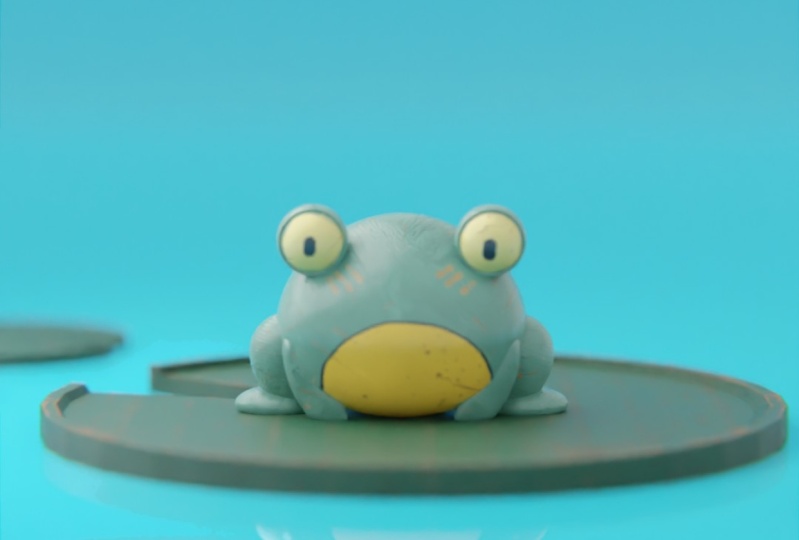
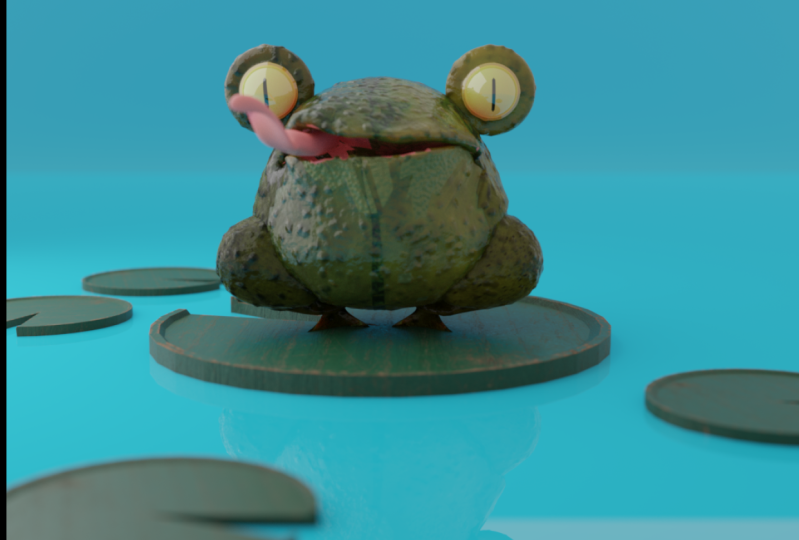
this scene right here. So we'll be focusing on
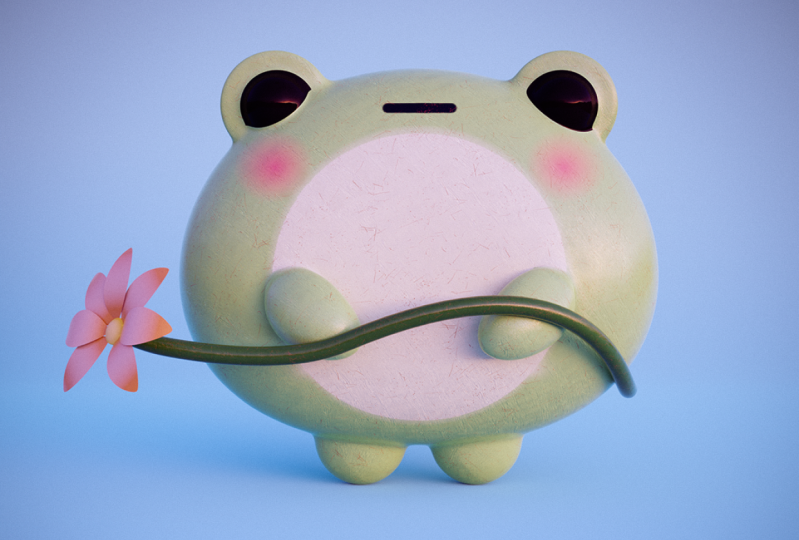
creating this little frog here. I have a couple of
different sketch variance, if you want to make your own version, and
then the full scene here, I have a recording of how
I put that scene together. That would be intense for
some people's computers. I've included a basic scene, which has this lily pad, and this water back
here, that we'll be able to import our character
in so that you can render out an image or animation
at the end of the course. So we'll be walking through
making this little frog here and, I love frogs. I grew up with frogs in the Southern catching
them all the time. I just think they have adorable
eyes as you can see here. I made them extra big. So you mentioned a
little bit that part of the reason that you liked
talking about Blender is that it is a low barrier to entry access
point for people. Why else did you
want to dive deep into the Blender
interface and basics? So the thing is that
some creative software makes it a bit more sense when you open it for the first time. If you have drawing experience, Photoshop might make
a bit more sense when you first open it, just to get started. But with 3D, because it's own thing on the computer and
very technically oriented, it can be very intimidating
to open for the first time, because there's really not
much correlation to real life. So I understand that
the interface and the navigation and
all that can be quite overwhelming for people
opening it the first time, so I'd like to help people get comfortable so they can get
in there and start creating. Awesome, and what can students expect to come out
of this class with? Well, you should
come out with one frog Blender in a scene, and hopefully, a
better understanding of the Blender interface, feeling a bit more
comfortable moving around, being able to add
some basic objects. Fantastic, and last
but not least, I always ask what materials
will the students need to follow along but
unless I miss my guess, they just need Blender and a device capable of
running Blender. Yeah. Just Blender and a device capable of running Blender. Throughout the course,
we'll be doing some things that might be more intense on lower-end computers. So I'll try and
caveat those things, and let you know what
steps you can skip, if you're running on
a lower-end machine, or maybe some settings
you can tweak, if your machine is
struggling to keep up. So if you're serious about 3D, then you'll want to look into a computer with a
decent processor, a good amount of RAM
and NVIDIA GPU card. Oh, no, go ahead. I also included a
link that includes a material that
we'll be using if you'd like to use the
material I created, like a wooden material to match the wooden look at the
frog, and then I've also included a scene that you can import your frog into
if you don't want to just floating in space, and I also have a sketch
sheet in there as well. I sketched a couple of different
variations of the frog. So if you want to
make it a bit more of your own while following along, you could do that as well.
3. Setting Up the Blender Interface: Cool. I'm going to go ahead here and I'm going
to share my screen. Here we have Blender and I have my keyboard shortcuts
down here on the bottom right. I'm going to try avoiding as many shortcuts as I can so that it's easy for
people to follow along, but if I screw up
and you are having a hard time following
along, they will be displayed down there. Then when you open your scene, you should have this
default scene here with this cube and
this camera here. I'm going to go ahead and grab that camera and we're
just going to delete that camera because we won't
be using that in this scene. The way you delete in Blender
you can press "Delete," but the common way to do
it is actually to press "X" and then click
"Delete" there. That's one thing
that makes Blender different for a bit of people. One other thing we're going
to go ahead and look at it as you're going to come
up here to the Preferences, we're going to turn some
options on that make it a bit easier if
you're a beginner. What we're going to do is
come to "Edit Preferences" here and we're going to click the "Add on" tab which
we'll click here, and then up here in the
search if you type in extra you'll see these add extra objects for curve and
mesh and you'll want to click this little check mark on
"Add Mesh: Extra Objects." That's going to allow us to add extra objects into the Viewport that we don't have to
model and that'll just save us some time which is
great if you're a beginner, giving you a few more options. We're going to come down here to the key map here and you can see
that I have a couple of different options that I think actually make it a lot
easier for beginners to use, so we're just going to go ahead and turn those on for now. You can turn them off
later if you want. We're going to set
space bar here. By default, it would be at play. We're going to set it to search. We're going to do Select All Toggles and Tab for Pie Menu. Just make sure those are checked on and that'll
make it easier to follow along and I
generally leave those on because they feel they're a
bit easier to use overall. I'm going to click out
there and that will automatically save
when you X out. Here, we have our viewport right here and we're
ready to get started. First what I'm
going to do is walk you through a bit
of the interface, but we're going
to start creating our frog pretty quickly
and try and learn most of the interface as we go along with modeling frog
because that's a lot more interesting than me just
explaining a screen to you but I have to go ahead and
show you a bit up front. First up is that you're
going to probably want a middle mouse button
so that you can move around. There are ways to do it without a three button mouse but if
you're serious about 3D, you're going to need
a three button mouse. One way to move around
the viewport is if you click the middle
mouse button, you can see here that you can
rotate around your object, and then if you hold Shift
middle mouse button. You can pan back-and-forth and then if you
scroll in and out on that wheel, you can
move there as well. Now that can be hard
for some people. If you're a gamer,
it's probably going to come to your pretty
naturally but if you're having struggle
moving around with it, they have this
thing up here which is called the viewport gizmo. This thing is pretty nice
because you can just click this and drag it to move around, and then you see that there's all these
little dots here. If you click that, that'll
snap it into view. If I click this little
red x right here, you see that it snaps
it into a view. If you're curious as to
what view you're in, you can always view
that up here and it sees here that we're on right. This is what I'm
going be calling side view then if I click
this green one here, it'll take us to the front. You can see how it
just snaps in 90 degree increments and
if you ever get lost, lookup here, and it'll
tell you where you're at. If you still get moved around, you can come
up here to the View and then you can go to Viewpoint there and you can
switch around here. When I say I'm in front
view or side view, I'm talking about
front and right view. If you ever get lost, just
come up here and you'll be able to move that around there. Then looking at the rest
of the basic interface, what we have here is
called our view port, and this is how we
move around in 3D. Over here, we have our outliner which serves
as like a list of layers. You can see here we have a
collection which is like a folder and then here,
we have our cube object. You can see I have a couple
of different options on right here, you can toggle those
under there if you want, and if you hover over
them they'll tell you what to do but we won't be using too many
of those in this piece. Over here, we have
our basic move tools. So we have our grab tool here which allows us to
grab things and move it on the different axes. Then over here, we have the rotate tool
and you can grab any one of these colors, and it
will lock into that or you can grab it and move
it around like that. Lastly, we have the scale which again allows you to scale on those axes or scale up and down. That's basic
navigation of there. Down here we have our timeline, which we can use to introduce
animation and to play our timeline back and we'll see those key frames appear there. Over here, there's a
catch-all properties panel where we can grab it and
click different things. Here, I'm on this little material button and
if you hover over it, it'll tell you what
it is so we can control our materials from here. This little wrench will allow us to add modifiers which are like effects and there's just
various other options here. Try not to get
overwhelmed about those, I'll tell you what
they are as we use them and I think we're
ready to get started.
4. Setting Up Your Frog: So I'm going to go up
here, I'm going to go to View and just depending
on where you're at, we're just going to reset
to the front view because we're going to use that
to begin sketching. Now we have this cube here, but we're going to go
ahead and delete the cube. So I'm going to press ''X''
and then hit ''Delete'', that'll get rid of that cube. Now you have this little
thing right here, called the 3D cursor,
and if you shift, click and right-click,
that'll move that around. Wherever you move, that is where your objects going to place. So if that's somehow
got moved around, you can reset that by
pressing ''Shift C'', and that'll just put that
right back in the center. So just press ''Shift
C'' to start and make sure you're in the
center because some of the things we're
doing are dependent on being in the center
of the viewport here. So we're going to be using the
frog sketch as a reference. So if you look in the folder, you should see this
little sketch sheet here. I know this is rough, I
could have cleaned it up, but I honestly get a lot of questions when I was doing
more clean drawings, people are asking, can I do 3D if I don't know how to draw? The answer is yes, some amazing 3D artists
are terrible 2D artists. I intentionally [LAUGHTER] left this sketch pretty rough, because I don't want people to think that you have to
have this amazing drawing, to even start that
can be intimidating. But I've gone through
and created a couple of different frog variance
and we're going to go ahead and make
this one right here. But feel free if you're
comfortable grabbing any different proportion
and following along. I tried to make just a wide
variety of sketches there. It's actually pretty simple how to get that sketch in there. So if you just take your
file here, and you just grab that little PNG
file, and then you just drag it into the
viewport in front view. This is going to snap that in
there and we're going to be able to use that as a reference. So now what I'm going to do
is if I click this image, I can move it around using my gizmo here, and if I grab the little
white section here, I can just move it
wherever I want. I'm going to go ahead
and I'm just going to shift-click that
move down there. I'm just going to try
and get this frog just in the center here
of that cursor, so that when we create a sphere move around the
edge of that frog. Now up here you can see
[OVERLAPPING]. What's up? I'm so sorry to interrupt,
I just have somebody in DMs who is wondering if we can just go a little
bit slower so that folks have a moment to follow along with
what you're doing. I think they're just
looking for a little pause after the action. Cool. Yeah, I can do that. Excellent. We have our sketch here, caught up here in the middle, and then over here
on the outline while you're getting that ready, you can actually rename
this if you want. You can see I named it as empty. You can go ahead
and double-click that and rename it if you want. But the first thing we're
going to do is make this a bit easier to work with. So we're going to come
over here, and there's a little object data
properties down here. It looks like a little picture, it should be the second
from the bottom. If you go ahead and
you click that, you can see that
we have a bunch of options for image here, and this is going to make it easier
to work with on the sketch. So we're going to turn on depth, and what depth does is there's the default depth, where it lives in the viewport, or we're
going to turn them front. Basically, what that's
going to do is make sure that our image is always in the front of
whatever we're working on. We're going to click this
Opacity button here, then we're just going
to turn that way down. So one is 100 percent, so I'm going to put
mine at like 0.1. Then that'll just let us
see what we're doing there. Then if you come up
here in the Empty, you can grab this
little filter button. Make sure this button
right here is toggled on, it looks like a little arrow. What we're going to do is
once that's toggled on, we're going to click it there,
and that'll disable it. So now we can go
ahead and work in our viewport without that
image getting in our way. So as long as everybody's
caught up there, we're ready to begin
modeling our frog. So I'm going to go
ahead, and I'm going to mass wheel zoom in here. I get as close as I can, so it's easy for
everybody at home to see. Then what we're going
to do is add an object. So we can come up here to Add, and we'll see that we have all these objects that we can add. Because we did more, we have a couple of options by enabling that add-on
at the beginning, which will make
this a bit easier. So we're going to come
over here under Mesh, and we're going to come
down here to Roundcube. We're going to click
''Roundcube'', and if I zoom out a bit, you can see that it's giving
us a cube with round edges. Now, don't click away yet, but you come down here and
this toggle will be down here, and if you click that or open this and we're just
going to use a preset here. So we're going to go ahead
and we're going to click that Operator preset,
and we're going to come down here and add what's
called a quad sphere. That's going to give
us a sphere that we can then use on our frog. Then we can come up here, and once we have
that sphere added, we can grab the
scale button here. We'll click in this white
circle, and we'll go ahead and we'll just click
and move that in. I'm just clicking
and dragging it that way to make
it a bit smaller. Now we can see that we have a sphere for our
little frog body. Now, if you want this, you can see that it looks flat. So what we can do is
right-click this and hit ''Shade Smooth'' and you'll see that makes that a bit smoother. Now, this may not be optimal for everybody who has
a slower machine, but we can actually add
what's called a subdivision. So I'm going to just put
this back to shade flat, so I can illustrate
what that does. You don't have to do that step. Now, if you come over here
to the little wrench icon, you can add a modifier,
and these are effects, and there's quite a few here. We're only going to use two in this course, and
there are two of the most common ones
you're going to use, which are mirror
and subdivision. Let's start with subdivision
and what that does. So if I click
''Subdivision surface'', you can see that what
it's doing is for every face there it is
then subdividing it once, so you can see that a bunch
of faces gets smaller. Now, if you're on a
lower-end machine, this might make
your machine lag, so you may want to
skip this step. So if you're having trouble
moving around the viewport, just get rid of
this subdivision, and it might make
that a bit easier. But what it does is when I right-click and hit
''Shade Smooth'' again, you can see that it now
makes my object look quite a bit smoother,
and that's because it's adding geometry and stuff. Some people like
the low poly look, so feel free to do that as well. So we're going to add
one other modifier that'll make this a bit easier. So if we tab into edit mode, we'll be able to
edit our object. Which this is one of the
things that is always hard for people learning 3D understand is the difference between
object mode and edit mode, so we're going to pause
and go over that. So I'm holding down tab to
get this menu to pop up, and you can see
that it highlights whatever one I'm on
and I can select. So right now, we're in
what's called object mode. If you're familiar with Adobe, then an object would be a
pre-comp in After Effects, a Smart Object in Photoshop, a graphic and Flash, or a group in Illustrator. An object can hold
multiple things within it, and you can't edit those objects until
you go into edit mode. So you can move it around, you can scale it and
you can rotate it, but you can't actually
start sculpting or manipulating the geometry
until you're in edit mode. So right now, we only have
this round cube object, so we're going to
tab into edit mode. So with this object selected, we'll hold Tab, and then we'll come over
here to edit mode. You'll see that that
brings us in here, and now we can suddenly see all the faces and vertices and edges that are used
to make up geometry. So if we come up here, we can actually toggle the different
selections between those, so I'm going to grab this
for illustration purposes. So I'm going to
click off here to the side to deselect everything, you know something
selected when it's orange. So here, we're up here, you can change the different
modes between Face Select, Edge Select, and Vertex. So when you're in face mode, what you can do is
you click and grab in order to grab all
these different faces. When you're in edge mode, if I click edge mode up there, what it'll do is select
the different edges, and there's all
different ways to select and make this
bit easier here. Then over here we have vertex, which allows us to select
different vertices. Since I'm in edit mode, I can grab those things and
move the geometry around, which I can't do in object mode. Now, the different types of selection can be
toggled up here. You have the select box
here and if you hold this down and you can do
select with the circle, select with the lasso. We're just going to mostly
stick with the box, which allows us to
just click and drag, which everybody should be
pretty familiar with if you've used creative software before. Now one thing you'll
notice is that when I'm grabbing things and
moving them around, you can see here
that we're getting this weird-looking mushy look, and it's hard to see, that's because of our
subdivision modifier. So if I disable that, you can see that we see the
original geometry. Now for simplicity sake, since it's hard to
work with this on, I'm just going to ask you to click this little
button right here, which will turn it
off and edit mode, so that you're able to
work without seeing that. So again, just make sure
the subdivision surface that you toggle off this
little button here, edit mode should be gray.
5. Wireframing: Now we're ready to begin
modeling our frog. One thing we can do to
make this easier is we can use a mirror modifier so that we only have to
model half of the frog and then we know that the
other half will look correct. Here we are in what's
called solid view. You can see here
that when I grab and select there
and rotate around, it works just like
a regular object, you can't sect what's behind it. If I go up here, I have Wireframe Mode. If I click "Wireframe
Mode" there, and then I click and drag, I'll select everything from
the front to the back, so that just makes
that see-through. We're going to be
switching between those modes quite a bit. We have Wireframe Mode
here and Solid Mode here. I'll make sure to always tell
you which mode we're in. But notice that there's
these other two options, we had this mode here, which is called Viewport Shading and when we add materials, this is going to give us a view of like what our
materials could look like, and then over here we'll have what is called a render preview, which will preview our
lighting and everything. Try and stay off of that tab, especially if you're
on a slower computer that's going to be
harder to work in. We'll mostly be working in
the solid and wireframe view. Now, lastly, before
we get started, I'm going to run
through a couple of these tools over here, which are very common
modeling tools that we'll be using
for these tools will actually be using
the keyboard shortcut because there are actually
a little bit easier to use, but I'm still going to show you how to use them over here. But before we start there,
do we have a question? I do. Yeah, so I have
somebody wondering, it looks like they hit Tab and it didn't pull up Edit Mode. Is that something that would have been a preset
on your computer? Is that something that
should work generally? Yeah, you might have missed
the beginning of the class. If you go up to
Edit, Preferences and you bring this down
and you click Keymap, you want Tab for
Pie Menu toggled on and that's just a
lot easier to use. The other way you can do it
if you don't want to do that, is you can actually up here
with your objects selected, you can click "Object"
and go down to Edit Mode, so that's another way you
can enter Edit Mode as well. Is there any other
questions before I move on? I think otherwise we're good. There are folks who
are going to want to look back over this, I do have somebody
who wants to know, if you could slow down a bit and just sum up the
first step till now. Yeah. Basically the first
step until now was to drag the reference
image into the viewport, which allows us to
use it as a sketch and then we were able to come down here and change
this to a front view, and then toggle
Opacity down to 0.1. Then I was able to take
the filter up here, make sure this little
selectable buttons turned on, and I grabbed that empty, which is what
contains that image, and I click this arrow here
to disable the selection. Then after that, we
went up to Add, Mesh, and then we added
a Round Cube here, and when we did that, we change the preset
to a quad sphere. Then after that
we're able to scale it down to match the
size of our frog and then we click that and we've moved into Edit mode. Are we good to continue? I believe so, yes, I just have one person
who is not seeing the vertices when they
pull up Edit Mode but I wonder if that is. Yeah, so you may have
missed that step, but there's this toggle up here where you can switch in-between the
different modes there, and then depending if you added
the subdivision modifier, we disabled that
in the Edit Mode or Edit button right here. Toggle that, so
it's gray because I can sometimes screw up
your viewport as well. Awesome. Thank you so much. Yeah, no problem. I'm in Vertex Mode up here, so that's this
little button here, and we're going to switch
to Wireframe Mode. Then we're going
to make sure that we have this clicked up here, which is our box
select and then what we're going to do is we're
going to drag and select. If you're with me, you
should be in the front view. We haven't left the front view, so just View,
Viewpoint, Front there. Then now you should have
these vertices here selected. Then what we're going
to do is press X and then we're going to Delete. You can see here that we have
all these different options and this can be a
bit overwhelming, I know but just
follow along with me. We're going to hit
X, Delete, Vertices, and that's the top one there. Going to click that, you'll see that half of
our sphere is missing. Now that we have half
of our sphere missing, we're going to tab back
out into Object Mode. I'm just going to switch
over here to Solid view and make that a bit easier. You don't have to do that. We're going to add
another modifier. Now this modifier is
called the Mirror Modifier and what it will do is mirror this side over here to make it so that everything we do
on the right side will happen on the left side. We're going to go ahead
Add this Modifier here and you'll see Mirror
here under Generate, and you'll see that
that automatically mirrors over to the side. You can see that we're getting
a weird bump right here. If I turn this to flat, you
can see it a bit easier, you can see we're
getting a crease here. That's actually because if you use After
Effects or Photoshop, you should be pretty
familiar with this, the layer stack affects the
order effects occur in. Because we're
subdividing our cube first and adding the mirror, it's given us this
weird artifact. What we can actually do is grab this little thing
on the right here, it looks like a
little texture and that'll actually let us
drag and move it above. You'll see that
should disappear. One thing important
to note about the Mirror Modifier is that it operates off of the
origin of the object. You may have noticed that
when you click your object, there's this little
orange dot here and that orange dot
is like the origin. If you're familiar with
like anchor points, so it's like if I
move that around, you can see it's going
to split because it's mirroring based off
of where that origin is. Now if you've been
following along with me, that origin should be dead
center of your sphere and there shouldn't
be any issues. But if it's giving you an issue, what you can do is
you're going to click your object
and you can search, Set Origin and just
do origin to geometry and what that'll do
is whenever you have an object selected and you
do origin to geometry, it's going to put the origin at the center mass of
whatever that object is, so that could help
you solve there. Now, we're going to go
back into Edit Mode so that we can begin
editing our frog body. What we're going to do
is click our object here and then we're going to go to Edit Mode here and
then I want to make sure that I'm
in Wireframe Mode so I can select all
the way through. Up here, we will
correct Wireframe Mode. I'm going to click off to the side so that we can
see through our object. Now, if you've been following along, you should still be here, but we're in Vertex Select Mode and now whatever we do over here will be mirrored on the left and you can see
that grayed out there. I'm just going to go ahead
and deselect everything. One thing you want to
be careful of is that if you alter these vertices
here in the center so that they're
not on the center, you can see that if I tap
back on the Object Mode, we're going to get a split. That's just something to be wary of as you're working. I'm going to go ahead. Now, everybody should
be in front view in Wire Mode with
Vertex selected. With that, we're ready to
begin modeling our frog.
6. Beginning to Model Your Frog: What I'm going to do before
we model our frog though, is walk you through a few
of the tools over here. Don't follow along with
these steps, just watch. But what I'm going to do is
go ahead and you can actually add cubes and other
objects within an object. These are called meshes. We can move those
meshes around in here. That's what I was
talking about before, how an object can actually can contain a group of message. Like I said, don't worry
about following along, I'm just showing you what
some of these tools do so when I reference them
later, you know what they are. Here's the cube over here, and it's just a bit
easier to illustrate. We have the Extrude Region tool. Now what this does is allows us to extrude a portion
of an object. How we can see that is if
I click this face here, you can see that it actually
just extrudes that up and creates new geometry. I'm going to go
ahead and undo that. We have the Inset Faces tool. What that will do is shrink
this face in on there. We'll actually be
using this one later. Now like I said,
these tools are cool, but I think the
keyboard shortcuts are actually easier for these, so we'll be using those later, but I'm showing you how
to use the tools as well. I'm going to go
ahead and do that. The other one is bevel. If you grab bevel, what that will do is actually
bevel the edges there. Then if you go up and
down on your mouse wheel, it will add more geometry
to create a smoother bevel. If you're interested
in making robots or things like that, you can see how that
would be quite useful. Then lastly, one that's pretty useful is we have the loop cut. What that will do is
it will create a loop around the geometry at the
center of wherever you click. If I click there and click there and
then click over here, you can see how it's
adding all these edges. That'll give you more
geometry to work with. For example, if you were
modeling a box that way, then you could come on here and then you could grab this and extrude this one, and then you could just
inset that face a bit and then you could
extrude that again and then you could bevel
that and scroll up. You can see how you
can start cutting up your geometry and making
anything from it. Now, the stuff we're doing
won't be quite this fast or complicated, don't worry. We're going to go ahead and I'm just going to
get rid of this here so that it's not
interrupting us. Real quickly. Before you do, I do
have somebody wondering what the best practice way is to merge those meshes in an object specifically for
rigging and animation? They said for example
adding an arm. We are going to be
modeling the leg different and then joining
it into the mesh. We'll cover that later. Rigging in itself, there are entire people who base their career
off of just rigging. It's a bit complicated to
cover in a beginner video. That is something that I'm
considering for future courses because I get a lot of
questions about rigging, but we will be covering
how to make a leg later and join it into this mesh, which is what you would do if you were planning to animate and rig the character later. Awesome. Thank you. I'm resetting back to
where I left everybody, which is in the front view here with the wireframe
mode on the vertex and we're ready
to begin editing. What we're going to do here is we're going to box-select
these bottom pieces here. What we want to do
is scale these up to flatten out the bottom. I'm going to go ahead,
grab the scale tool there. Let me see if I can move this. Sorry, the zoom
toggle is in my way. What we're going to do is click this "Proportional
Editing" up here. What Proportional Editing will do is move all the
geometry around it. Right now if I scale, you can see that we get this not natural-looking
deformation, but if I come up here and turn
off Proportional Editing, what we'll do is when we scale we'll get the circle
that will go around and you can adjust the
size of that circle with the mouse wheel
and you can see how it's affecting different
parts of the geometry. I'm just going to reset back
to where everybody else is. Make sure this is toggled on. What we're going to do is grab this blue scale right here and we're just going to
drag that down a bit. Then what we're going to do
is scroll on our mouse wheel until it's about
that size there. You can see how that's just
flattening out our bottom and we're just going to let go and then what we're going
to do is come over here, grab the Move tool. We're going to grab
that bottom one again. We're just going to
drag that down a bit. I'm actually going to scale my circle to be a
little bit larger. With that, you can see that we have the bottom of our frog. I'm just going to
click off the side here to de-select everything. I'm going to click this
button again to turn off Proportional Editing because
that can screw us up. One thing I'm going to point, if you're following
along exactly, this shouldn't happen, but
this happens all the time, that if you're grabbing things
and moving them around, it can split that center there and give you artifacts
with the Mirror Modifier. That's just something that
happens quite often when I'm working with beginners
in a Mirror Modifier is they accidentally
break their middle. If that happens to you, what you can do is
you can go into wireframe mode with
everything de-selected. Just click off to the side. You can box-select all of these vertices
in the center here. You can come up here and
you can hit 3D cursor and then you press S, X, zero. What is going to do is just snap everything back
to this 3D cursor. You shouldn't have
to do that step, but I'm just going to
put that step in there for anybody who's
watching later that if they get lost or if
that middle breaks, that's how you fix it. But with what we're doing,
it shouldn't happen.
7. Adding Eyes: Now we have the
body of our frog, so what we're going to do is
go ahead and add the eye. We're actually going
to add this object still in edit mode. We're going to go to Add
and we're going to go to, sorry, we had to do
it through the menu. We're going to hit "Shift A" and click "Round
Cube" down here. Shift A will bring
up this mesh menu and then we add
"Round Cube" here. That's going to
add us this cube. Again, make sure your proportional
editing is turned off otherwise you're going to start scaling everything all around. Make sure this button
up here is gray. Then what we can do is
grab the Scale button here and it should still be
the same quadrasphere that we had before, but if it's not,
you can just make sure to click that
quadsphere there. We're going to grab
this white circle here and we're just going
to scale this in. What we're trying to
do is get it to be the size of the pupil. Then what I'm going to do
is grab this Move tool and just go ahead and
move that over there. If you see this, this is just the mirror
modifier working. Then what I'm going to do
is just go back and forth between the Scale tool and the Move tool until
I get that to match the size of our pupil
right there in the center. That's pretty close for me. I'm just going to
pause and let people catch up there before we
move on to the next step. Excellent. I do have somebody wondering if they should enable clipping
in the mirror modifier. In the mirror modifier, there you shouldn't need
to enable clipping now. Excellent. It should be off by default. Perfect. Everybody is probably
caught up by now, so I'm going to go
ahead and move on. What we're going to
do is actually use Inset to create the rest of
this eye in a very quick way. What we're going to do
is we're going to do our first few changes. We're going to snap
into the right mode, so we're just going to click
this little red X here and your view should
say right orthographic. Now, you can see here that it's problematic because if I want to click
there and drag, we will select this
mesh back here. What we're actually
going to do is select this mesh and hide it so that
we can select just our eye. By pressing L, you can select an entire object if you hover over that object. Since we're in vertex mode we want to hover over a vertex. If I press L you'll see that the entire object
there turns orange. Then we're just going to press H and that's going to disappear. It's still there,
it's just hidden. It's like toggling an eye on a Photoshop layer or
an Illustrator layer. Up here we have our eye
and we're in right view. What we're going to do is
we're going to go ahead and we're going to
click and drag there and select the back
half of that eye. We want to go all the way to select the middle of the eye. I'm just going to wait for
people to catch up there. Absolutely. I'm just keeping a little
bit of an eye on time. It's a couple of minutes
before 10:45 now, we can go up to 15 minutes
over if we need to. What I'm going to do is
I'm going to go ahead and click this view here and that will bring us
back to the front view. You should be in front view
with that back half selected. Now what we're going to do is we're going to
use the Inset tool. In this case, it's a lot
easier to use the shortcut and it's easy to remember
because it's I for Inset. We're going to press "I" and you'll see that you
get this line selected. Now, what you're going to
do is you're going to hold Control and then you're just going to move
your mouse over. You don't need to click
or drag anything, just move your mouse over until it matches the side of
that eye right there. Then you can just
let go of control and click to set that and
you should have an eye. Let's make sure that worked. I'm going to switch
over to solid view here so you can see. Now we have a little eye here. If I go ahead and rotate around, you can see how we've
created an eye there. What we're going to
do is I'm going to snap back in the front
view with everybody. I believe everybody should
be caught up by now. We're actually going to switch
modes to Edge Select mode. This will be the first time
we switch modes for this. I'm going to switch
over here to Edge and then we're going to
click this line here. Now, it's going to be hard
to select In front view, so I actually recommend
grabbing this up here and moving over so
you're slightly offset. What you can do is
you can hold "Alt" and you can click
this edge right here and you'll see that it moves
the entire edge there. Then we're going to bevel this, so we're going to
hit "Control B". You'll see that it
creates that line again. Again, you don't need to
click or anything yet, you're just going to drag a bit. You can roll up and down
on your mouse wheel to insert as many edge loops there as you want to get
a smooth look. Then I'm just going
to click to let go. What that does, it gives
our eye a round look. Now, the next thing
we're going to do is we're going to
shift click this edge. I'm just going to give
everybody a moment to catch up there on the bevel. While we're doing that, I'm going to explain
the next step. If I come out here
in the object mode, and just as a note, things that are hidden in the mesh mode will still show up when you switch back
out to object mode, but you can also hide objects. You can unhide objects
by pressing "Alt H" which we'll do in
a minute together. But what we can see here is that the subdivision is
smoothing everything, so if I go ahead, anytime
you add new mesh, you need to right-click "Shade
Smooth" to get that look. We can see here that our eye and they're globbing together and that's because of
this subdivision modifier adding geometry and
smoothing that out. But we want a sharp edge there. What we're going to
do is we're going to tab in the edit mode here. We're going to Alt
click this line here and that should select
everything there. Everybody should have
that edge selected now. Then what you can do is you can actually
go up here to edge and click "Mark Sharp". Then when we tap "Backed Out", it should sharpen that a bit. Actually, I'm sorry,
that was the wrong one. I'm just going to undo that. If you're unsure of whether
you undid it or not, you can either come up here and you can go up to edge and you can do clear sharp and it should just be
back to its yellow color. It shouldn't be blue. We actually want
to do edge crease and then that's going to
make your mouse disappear. But you'll see that if
you drag left or right, that that line gets purple. You just want to drag it
till it's full purple. Then I'm just going to
click up to the side to de-select and that's what
it should look like. When we tap back
on an object mode, you can see that now we have
a much sharper line there, which gives us a much
more natural looking eye. I'm just going to
chill out for a second so people can catch up
on that step because I know that might be
confusing to some people. As you're catching up what
we're going to be doing, just we're going to return
to the front view here. I'm just going to go
to the Viewport Front to get back to our frog here. I believe everybody should
be caught up by now. If you tab in the Edit mode, what we're going to do is
in the object edit mode, we're going to hold "Alt H" and that's all that's
going to do is bring our body back just so
that we can see that and edit it if we need to. I'm going to come back
out to object mode, wait for everybody to catch up. We're in front view
with solid view on and we're in our object mode.
8. Adding Legs: I'm going to go ahead and
add a round cube here. I'm going to come
up here to add mesh and add another round cube. We're going to take
the scale tool, grab this little white
circle, scale this in, and you can see the
outline behind the object. This is an object
mode by the way. You don't want to be
in edit mode here. Then I'm going to grab
the move tool here. I'm going to move this over
here to the leg right there. What this is going to do is to sculpt our leg in a
really simple way. There's a full sculpting
suite in Blender, and we're just going to look
at how to use one tool. But with this leg selected, we're going to tab and
go into sculpt mode. You see that you have all
these tools over here, which can be quite overwhelming. But we're only going
to look at one and it's a really easy one. Over here, there's a little
arrow you can click, but it's easier to press N. That'll toggle up this view
over here if you click tool that will allow you to
see your settings here. Again, this may
look overwhelming, but all you need to look at is the radius here, the strength. What we're going to
do is come over here and you see see little
tool right here that looks like a
little pin head. We're just going to click that, and it's called the grab tool. When you hovered over,
it should say grab. Let's say grab up here, and then we're
just going to make sure that our radius is big. I'm going to set my radius
to about 100 pixels, give me a bigger thing there. I'm going to set my
strength to about 0.5. Radius is 100 pixels
and strength is 0.5. Then what we can do is we can
just grab our object here and we can just start
moving our object around. What I'm going to do is
actually zoom in here and grab this object
and drag it down. Now as you see, as you zoom in, the cursor gets smaller, so you can only do
small increments. You can go ahead and
increase your radius way up if you want or you can just
zoom out to follow along. That's up to you how
you want to do things, but I'm just going to
go ahead and zoom out, so my legs small here. You see that the cursor
rotates to tell you where you're selected. I'm just going to get
here at the bottom where it starts to flatten out. Just going to go
ahead and grab these and then just going
to drag that down. I'm just going to
click over here. I'm just move that there. There's no exact
process to here. Just grab something and make it so that it
looks like the leg. And you could really
spend a lot of time here. There's really no exact
way to follow along here. It's just moving things around until you're happy with
how it looks on the leg. Don't worry about the foot yet. We're going to add that
again in a second, but I'm just going to go ahead
and keep clicking around. You don't need to follow
me step by step here. Just move your leg until you
get something that you like. I'm going to go ahead and make the top of my leg a little
bit just chunkier there, give him a little bit of
thunder to his thighs there. Absolutely. He's got a half on those sides. I know. Who doesn't love a
good thick frog leg? I'm just going to move
that around there. Just feel free to move
around in your viewport. Keep moving it and adjusting it. I'm just going to pause, I'm going to return to
the front viewpoint and just give everybody
a moment to get their leg somewhere they're
happy before we move on. I know we are running
short on time, so we won't spend a
ton of time waiting.
9. Bringing It All Together: I'm going to assume
most people have caught up with their legs. Where I want everybody right now is to cleave view,
viewpoint front and make sure you're
in solid view up here. Now we have our frog body
and our frog leg here. We're going to go ahead and
we're going to add a foot. Again, we're going to
add another mesh sphere. We'll come up here to add
and we'll go to mesh, and then we'll go to round cube. I'm just going to zoom out there and we're just going to go
ahead and scale this down. Again, this should
be its own object and I'm just going to
scale down quite small. You can see that
outline right there. We're going to grab that. We're just going to
move this over here. Then we're just going
to zoom in on it. I'm going to slow
down for a minute so everybody can catch up. Then what we're going to do is, we're just going to tab
back in the sculpt mode, and we're just going to grab
that foot and move it out. Again, press N to get this up and you can adjust the
radius if you want here. I'm just going to
grab that foot. Just move it out there. I'm going to flatten the bottom. Now, the foot, you could
spend a lot of time finessing to get to fit
exactly how you want. I'm not going to
spend a ton of time since we are running
short on time here, but I encourage you to
spend quite a bit of time massaging your frog's foot to be whatever you
want it to be. I'm going to go ahead and move this around
because, as we know, frogs feet are pretty
wide at the end there. If you missed in the beginning, I'm just moving
around my viewport with the middle mouse button. Because I have this
object selected, you can see how I'm
rotating around that foot. You must just be spending hours just massaging the foot. Yes. The frog foot should be cool. Just write it out. Again, like I said, we could spend a lot of time
here for the sake of time. You can return to
this foot later. Nothing we're doing on this
foot will be permanent that you can adjust later. We're going to go back
into object mode. You can use the Tab key if you've been
following along there, or you can come up here and click and go
back to object mode. Now what we're going to do is
go to View, Viewport Front. I'm going to wait for
people to catch up. While you're getting
back to this mode, make sure you're
still on solid mode. You'll see that now
we have three objects and these aren't mirroring. That's because these objects
aren't part of this object which has the mirror
effect on it. What we're going to do is
we're actually going to put these into this object, which will allow us to join it. For the person who asked
about animation and rigging, you can actually model
your character out in pieces like this and
combine them into one. Or you can model the character
all out as one piece. I model the character
all at as one piece and the modeling your
first character class. Maybe you'd be interested
in learning that one. I also include the project files to the owl, which I have. I believe I have the
owl rigged as well. You can see how I rigged
that for the person that was asking
about that earlier. What we're going
to do, is assuming everybody's caught up here
and in the front view, is we're going to
select these objects with this being the
last one we select. We'll click this one. Then we're going to
shift click the leg and you'll see that it goes from dark orange to light orange. Whatever is light orange
is considered your act of selected object or your
last selected object. That's important to know. Those select, we're then
going to shift click and grab the body. You should have these
two dark orange and this body should
be a light orange. Then we're going
to hit Control J and Control J will join. You can also search for join, if you want by pressing "Search" and doing object
join there as well. Then you'll see that it
immediately mirrors that over because now everything
is selected in here. You'll also see that the
subdivision was applied as well. If we right-click Shade Smooth because we've added new objects, that we'll go ahead and make everything
there into one object.
10. Adding Textures: The last thing we're going to do is I was going to add a tongue, but we could technically
paint that into save on time so we'll go ahead
and paint that tongue in. What we're going to
do next is we're going extra paint our character. What we're going to do
is we can come up here and there's all these
different layouts that you can use and when you
click in these layouts, you'll see that it gives
you different views. But I'm going to show you
how to make your own views. You can see here all the different ones that
you can click through. We're going to go ahead
stay in layout though. What we're going to do
is click down here. You'll see it turns
into a crosser, going to click and drag. That's going to give
us a new window there. Now what we can do is
turn this one into a texture paint
mode and then over here we'll be able
to see your object. Now your controls are
only going to work and whatever window
you're hovered over. If I want to rotate over here, I can do this so you can have a
front and side view, for example. You can see how that's helpful. But you can also change
all these windows here. If you come up here, we have this little
editor type window. If we click that,
you'll see that we get all the different
types of windows that we can put over here. We're going to put
the UV editor, so that's the third
from the top there. If we click "UV Editor"
you're going to see that we get this, and what this does is allows us to see the texture
that we're about to paint. What we're going to
do is we're going to grab our little frog here. We're going to tab into edit mode and we're going
to select everything, and then we're going
to smart, unwrap that. But first what I
want to do is you see here that we only
have half of our frog. We're actually going
to go ahead and apply our mirror modifier
to make that permanent. If you're following along, you may want to save a
different version if you plan to go back to your
frog layer and modify it, because it's going to get more
difficult after this step. What we're going to do, it's come back out
to object mode, make sure you are in
object mode up here and you have your frog selected. Give everybody a moment to save if they need a new version. [inaudible]. Any questions? No. I think we're good for now. Cool. Then we have our
mirror modifier up here, which should show up
if you have your frog selected and you're on
the little wrench icon. We're going to grab
this arrow here and then you'll see that we
have the option to apply it. We're going to hit "Apply" and then when we
tab into edit mode, we will see that now it
is all one single mesh. You can see how
it'd be a bit more difficult to change
some things later. Make sure that you
have your frog in edit mode and what we're going to do is
select everything. You select everything. You can press A on the keyboard, which is different
than other programs. Normally press Control
A to select everything. But in this program you
just press A. Just press A. Then what you can do is
you can come up here to the UV menu and we're going
to do smart UV project. Then it'll give you
this little menu here and we'll just click an arrow up here on the island
margin like once or twice. As long as it's like 0.0, 2, 3,1 or something like
that, it should be okay. Then we're going to
hit "Okay" What you can see is that it's unwrapped our object over here so that it creates almost like a 2D object. The way I like to explain texture painting to
people is that it's almost like you're breaking your geometry apart into
a bunch of stickers. If you're trying to
paint a real object, you would break it apart into stickers and you can place
it all over the object. That's how I'd explain
it. With that, we're ready to begin
texture painting. What we're going to do is we're going to create a
new image up here. Now, by default, mine is set
to 1,024 by 1,024 pixels. I'm going to leave
mine at the default. That should be good
for most computers, low-end or high-end, and then we're going
to name this frog and we're going to hit "Okay". You can see that we have the texture or the
image appear here. Now what we're going to
do is come back up here and you can see that we have
the different modes up here. Right now we're in edit mode. If we go to texture paint mode, you can see that we get our
frog here and they turn purple and that's because right now they don't have a material. What we're going to do
is add that material. First let's take this image up here and we're going to save as and I'm just going
to save this in a texture folder and
just call this frog PNG. I'm just going to
save that in there and that's what we're
going to do there for now. Now what we're going to
do is actually import the texture which
I have provided for free with the class. If you have everything
downloaded, you should have one that's
called painted wood. What we're going to do is
we're going to go to file, append and append
will allow us to import things from
other projects. We're going to go
ahead and do append. Then you're going to select
that painted wood project or puppet wood is
what I called it. You have puppet wood here and
if you double-click that, you'll see that you open up a folder with
everything in there. We're going to the
material and painted wood. When you double-click that, it should import it
into your scene. There's nothing to really
tell you it's there. What we need to do is we're
going to click over here to material properties and we're going to add a
material to our frog. Adding a material to our frog allows us to apply materials to different
parts of the frog. What we're going to do is go ahead and we're going to click this to add a new material and it gives us a slot so that we can put a
material in there. Now we can click New
and create our own, or we can go ahead and add the puppet one that I just made. We're going to go ahead, click this little toggle
button here and add this painted wood texture and that should give us this kind
of painted wood surface. Now if we come over here, we're going to go to
the shader editor. Again, that's clicking up
here where the UV editor was. I'm just going down a little bit further until you see
this little sphere. It gives us the shader editor. I've tried to make this
as simple as possible. Notice here that mine has a red tab over there and that's a add on I'm using that
gives us a preview. Just, just ignore that for now. I'm going to switch the material preview
here so that you can see we have this painted
wood texture. What we're going to do is add that image that we just did. If we come up here to
add, go to texture. Add texture, and we're
going to add image texture. We'll get this little
menu right here. We're going to take
this color socket and we're going to move
this color in here. Now again, you're kind
of seeing some text up here and this is a preview tool that I use
that makes it easier. It may be a bit confusing right now, so just ignore those. You shouldn't see
those. Now you'll see that everything
went black on my frog. Now your frog may not look
like this because you may not be in material
mode and that's fine. We're going to do is
we're going to click this button here and this
allows us to choose an image, and we're going to
choose the frog image. We'll see here that that
makes our frog black. I'm going to switch back over to the solid view-port here. This is where you
should be left off. Now we're ready to begin
painting on our frog and we'll be painting onto
this image texture directly. I'm going to press
N to get rid of this tool there and give
us a bit more room to see. I'm going to go back
to the UV editor. Click on that top left. Click the "UV Editor" and you should see your
frog texture there. Now you can drag
this to give you more room and you
can zoom in and out. I'm going to drag this over
so that people following along can see a
bit easier because it's less important
what we see over here. If you've been following along step-by-step at this point, you should still be in
texture paint mode. If you're not, you
can click the object and click texture paint up here. Now we're ready to begin
painting on our frog. We had the brush tool and then we also
have the fill tool. Those are the two tools that
we're going to be using. You may notice that
there's no tool options and just like sculpt, if we press N, they
will pop up over here. You can see that we have
several different places that we can paint on. I'm going to go ahead
grab this here. It should give me the
single image. Yeah, sorry. What we're going to do
over here is where it says texture slots and
if that's not down, you can twirl that down. For mode, by default
mine says material. If you grabbed single image, it'll go purple again and that's because you
can't see an image. What we're going to do
is we're going to grab this little button here
and choose that frog and that'll allow us to paint on that layer there
that we just created, and you can see how
it's showing up there. Now, I know we're
pressed for time. What we're going to
do is we're going to go ahead and just
use a fill button here and if we click
"Fill up" there, you can see over
here that we have different brush settings. Make sure that your
strength is set to one. What we're going
to do is drag on this little color wheel and
pick a nice green color. I'm just going to grab
a color there and then over here I can drag up and
down to darken that color. Then if I click with
the fill button, you'll see that it
turns our whole frog green and we see
everything light up here. Of course you're going
to want to paint some character and
stuff into your frog. Let's go about how to do that. I'm going to show you how
to paint with the brush, and I'm just going to
do the tummy for now and then you can go ahead and paint in your details later. With the brush tool selected, we have the radius option here, which allows us to
adjust the radius of our brush and we have
the strength here. We want our strength at one because we want it fully opaque. I'm just going to go ahead and paint a little bit of
yellow right here. I'm just going to go ahead, grab a yellow that looks
like a frog belly yellow. Then I can go ahead
and move that around. Now you see that
that's a soft edge. If you want, just
like in Photoshop, you can adjust everything. Down here you have the fall off. If you twirl it, fall
off down and you click this little brush
tip here at the end, you can see that gives
you a harsh edge. If that's what you prefer. But you can play with that
and get what you want there. I'm just going to go ahead
and make mine semi harsh. Just give it a little
bit of yellow there. Again, I encourage
you to return to this after the course and spend quite a bit of
time finessing it. With that, we have our
frog yellow belly, and I'd encourage you to
paint in the tongue as well. I'm going to skip that
step for now for time. Now one thing that's
very important is Blender does auto
save your image, but it's pretty infrequent. So you're going to
want to make sure you always save your image, otherwise you're going
to lose your work. Come up to image, save, and we have that texture there. Let's go ahead and
Tab back out into object mode and you'll notice that the colors disappear and that's because they
don't display in solid view. If we come up here
to the painted mode or the material mode, you can see that now
we're seeing that appear in our viewport there. Now you could spend a lot of
time painting our character. Of course, you're going to
want to paint the eyes, and the tongue, and the
mouth, and the rosy cheeks. I'm going to go ahead and
show you how to render it, because you could spend quite
a bit of time painting it. Now, if you want to
watch me paint it, I will be including a
link to the full-time lapse recording of this process. It's like a three-hour recording so you can watch me build this entire scene if
that interests you. It's a bit much for a course. A course like that would
take eight to 10 hours to go through and we're trying to walk through the basics here. But if you'd like to see
how I created everything, I have a video recording of that that you can
follow along with. But you can go ahead
and you can keep painting your object and then once you have it
where you're happy, we're going to move
on to the next step. I'm going to show you
that next step now. But if you're watching
this retroactively, I encourage you to
pause the video. If you're watching
it with me live, I encourage you to follow along for the next step and
return here later.
11. Rendering: What I'm going to
do is go ahead, hit "Save" and make sure
that our frog is saved. I'm going to make sure
that our image is saved and everything
should be saved there. Now what we're going to
do is we're going to grab a round cube up here and we're finally
going to name it. We're going to name this frog. If you double-click
that up here, you can just double-tap, and then you can tap "Off" and it'll select and have your name
finished there as well. I'm just going ahead and save. With where we're at now, you should have
your image saved, your project saved, and
your object named Frog. Now what we're going to do is, we're going to open one of
the other files I included. If we come over
here to File, Open, we're going to open the
Frog E-Pond Environment. I've also included
a finished file, so you can see how
I finished mine as well if you'd
like to match mine. I'm just going to go
ahead, open that. Going to give everybody a
minute to catch up there. When you open the scene,
you should have this open. You should see this
frog scene here. We're going to go ahead and I'm going to show you
how to close a window. This was if we were going
to teach animation, but since we're skipping that
for now, and don't worry, if you're here for animation I promise we have an animation
course on Skillshare, so you can go ahead and watch that after this, if you like. That's also geared
towards beginner. If you hover over here, you remember that I told
you if you clicked and dragged, you could
split windows. I added a new window. You
can click and drag over and it'll show an arrow there
and combine the two. We're just going to
go ahead and do that. You should have a
full scene here. What we're going to do is now append our frog into the scene. Wherever you saved
that frog file, you can go ahead
and do File Append, and I saved mine out of it
further. Live session here. Now when you double-click
that Project file, again, you'll get
the objects here. Now what I'm going to do is
double-click "Object" there, and then I'm going to
double-click the frog. You'll see that our frog came in way down here, and that's okay. Let's show you how
to use that split viewport to make
that a bit easier. We're going to drag
that split viewport, and we're going to go to
View, Viewport, Front. You'll see that a frog just
got dropped under down here. What we're going to do
is click and drag that up there and place
them on the Lilypad. We're going to want them
to be a bit bigger, so I'm going to go
ahead grab scale, scale them up so that
it fills that Lilypad. Now you notice
that he's way off, and that's one thing
that's always hard for beginners to learn as that 3D. It's not a drawing.
You can't just work on one perspective
the whole time. You're going to have to
move around the fix things. Right now I'm in front view. Let's go ahead and get
him timed up on that. But you'll notice he's
still not on the Lilypad, so what we need to
do is go to View, Viewport, Top, and then scroll back
out and move over. It's easy to get lost
in the Viewport. If you have an object
selected and you press "Period" on your number pad, it will take you to that object if you ever just get
completely lost. [LAUGHTER] I think you can
also View, Frame Selected. If you don't have a
numpad, you could do View, Frame Selected, and it'll
take you to your frog. I'm going to zoom out here. This is the Lilypad,
the big one right here. We're just going to go
ahead, drag him back there. We now see that there
on our Lilypad. I had this scene set up already. Let me switch to Render View. You can see here it's dark
because there's no lights. What we're going to
do is add a light. We'll go in here to View, Viewport, Front, and we'll go to Add, Light, Area Light. This is going to give
us this square light. We can just move this
around just like we would anything else. I'm just going to go ahead
and move this over here. First time, we're going
to use the rotate tool. We're going to rotate that
light so it falls in. We're going to scale
that light up. Grab that. Scale that light up. You'll see that it's
still too dark. By default, it usually
goes to the lighting tab. But over here, you'll
see a little light bulb. If you click that,
you'll see power, and you can just
crank that number up until it's as
bright as you want. I'm just going to put mine
all the way up to like 250. You can see that we're
getting a bright scene here. Now what we can do is add a bit of a mission color
into the world. If we come up here to the
World Properties tab, grab this color here. We can see it's black now. If we just drag this slider up, we can see that we're
brightening our scene there. I'm going to go ahead and
move my light over a bit. That gives us a basic
setup so that we can go ahead and render
our scene there. Now, I'm working in Render View. If you find that your computer
is slugging too much, you can click up here,
the Render Properties. There's a render engine
here called Cycles. You can switch this over to EV, and it'll take a second to
compile all of your shaders. This Render won't look as good. You can toggle a lot of settings
and make it look pretty, but that's pretty advanced. This is a game engine. If you're on a
lower-end computer, you may want to
render in this mode. One quick thing you can
toggle on to make that a bit easier is
ambient inclusion, and you can see that
adds some shadows. But I'm going to
move back to Cycles. That's just the name
of the render engine. Now we have our scene
lit and ready to render. Then now all we have
to do is render. There's two settings you need to look at when
you're rendering. One of those is
your sample count. That doesn't really apply
if you're using EV. But if you're using Cycles,
the more sample you have, the less noisy your
image will be. For a lot of technical
reasons that are too advanced [LAUGHTER]
to explain right now. But if we toggle this
denoising down here on Render, it'll give you
options to denoise. You should see all
three options. If you don't, you should see at least either Optics
or Open Image Denoise. I'm going to select that
one. What that'll do is use denoising so that we can
render much quicker. Right now the Render
is set to 5,000, so we're going to
lower that sample to something really low, like five, and that will allow us to render our image quickly. Lastly, you want to
come over here to Output Properties and
check your resolution. Now, if you're on a
lower-end machine, you can lower this resolution
to whatever you need. But after that, we're
ready to render our image. I'm in a Render View,
which might be hard for some computers so you can always operate out here in
solid view if you need. You can actually go ahead
and render your image now. The easiest and quickest
way to do that is just to press "F12"
on your computer. Now if we press "F12", we will see this
Render View pop up, and you can see how
it's noisy at first, and then it's going
through doing that denoising path
to clean it up. Now, of course, our frog
isn't fully textured here, so it'll looks a lot more
interesting with eyes. [LAUGHTER] We're going to go up here and we're going
to go to Image, Save As, and then you can save your frog
wherever you want. I have an exports
folder here and I'm just going to save as there. Then when I open
that Export folder, you'll see that it'll save
out your image there. Then you can use
that to upload it to Skillshare and share your
project with everybody. Again, I know we had to start cramming there a bit at the end, but feel free to
review the video. I would love for
you to return back and finish texturing your frog, maybe adjust the look
and size of your frog. Maybe make it your own, give
it some unique proportions. Maybe add a couple more lights. One thing you can do with
the lights as well is you can add colors to the light. If you grab the light, you can change the
color of the light. Maybe play with the lighting
of your scene and your frog. We've went through some
of the basics modeling. If you go through some of
my other courses as well, you could go ahead and create
other objects in the scene or you can go ahead and just create your own creature
from your own scratch. I'd love to see
whatever you create and make sure to upload
it on Skillshare. I do actually look at
all those projects. I try and comment
on most of them. I would love to see whatever
you create from this course.
12. Final Thoughts: Thank you for joining
in and watching. I hope that you learned
quite a bit about Blender. If you have any other questions, feel free to ask in
the comments below. As again, as usual please share all your projects to Skillshare. Thanks.
 SouthernShotty3D, Motion: Design, Direction, & Animation