Transcripts
1. Welcome to this class: Hi and welcome to Skillshare. My name is Emilia. I love technology and
hopefully you do too. And if you're
watching this class, is because you want to learn
more about Active Directory. Active Directory, of course, is a technology that is used in thousands and
thousands and thousands of companies around the world. It's almost like the
default technology that is used for management
of a whole bunch of stuff. We're gonna be talking about the definitions of
Active Directory. We talked about how to
build a domain controller, how to use Active
Directory, how to control, use manage users,
computers, Security Groups, process accounts, and
even how to get a computer talking to an
Active Directory domain. We're gonna be covering a lot of material that under that
you'll find helpful. Now I'd recommend that
you follow along and re-watch some of these lessons so you can get what
we're talking about. There's gonna be a lot of
material and if you're new to AD to Active Directory, then you're going to want to
go and try this yourself. If there are technologies, here are the things that
we're talking about in this course that you haven't
actually done before, I'd recommend that you go
and try this yourself. Now, of course, depends
on where you work. You may have access
to a lab environment. You may have asked to a
space in your company, in your work to be able to play around with Active
Directory of self. But if you don't,
I recommend going and setting up a
home lab for you. At home, you can actually go
and download Windows Server completely for free off the Microsoft website
to use it for 180 days. So if you have a spare computer, I'd recommend going
and grabbing one. If you go and download
Windows Server directly off the Microsoft
website, install it. And then we can then look at configuring a
domain controller. And then you can build an Active Directory
environment from scratch. So I recommend that you follow along not just by listening, but take notes and then
go and try it yourself. And one than that I recommended
in the project section, create a project in this class and let us
know how you're going. Throughout each class. I'm gonna give you
a few things that you can go and try yourself. One would be, of course, configuring a domain controller. Then going into Active
Directory, creating yourself, a few users, create
some computers, add some users into
a security group. So I'll give you
a few tasks along the way so you can actually
go and try it yourself, and then let us know
how you are going. Let us know the
differences between a domain and Active Directory, what the purpose is or what
a domain controller is. But then Linnaeus or
how to actually go and create a user by
letting us know in that project section and also collaborating
with other students who may be taking this class so that you can also
help each other. Because if we all work together, then we're going to do
and be better learners. But that's it for
the introduction on Eric way that we go into that first lesson where
we're going to be talking about a domain, specifically
Active Directory. And then we'll go
through the full steps on how to configure, set it up and fully use Active Directory so
that when you finish, you'll have the skills
to be able to go and work in a business and be confident as being an Active
Directory Administrator.
2. What is a Domains and Active Directory: So we're going to
put you, Cynthia, are I give you an
overview around what a domain is and what
is Active Directory. Now, AD specifically is
a Microsoft technology. So Microsoft have
developed this or anything use across a lot
of different organizations. Ad is sort of the, I guess, the foundation that a lot of companies will use
when it comes to administering a lot of the networks and all of the
security around networks. Now there are others out
there that are sort of competing against Active
Directory specifically, but AD really is
the clear winner, the clear market leader. Knowing Active
Directory is almost like foundational if
you want to work in IT, if you want to improve
in your skills in IT. So AD is essentially a
centralized hierarchy, repository of user objects, of all sorts of objects
or end-users computers, security groups that
essentially used for your network to be able to authenticate against a domain. So it's almost like a gatekeeper to be able to allow a user, e.g. that logs into a computer, it authenticates
against the domain and Active Directory and
then grants that use the access permissions to
specific thing on the network. So all of these objects, user objects, computer
objects, server objects, all of this stuff that
is inactive directory is actually stored within a domain that sits
within Active Directory. So the domain is the
central container, the central database where objects authenticate
against and all of that process essentially
is managed within Active Directory to
actually go and configure a domain and a Active
Directory environment, it needs to be set up
within a domain controller. So you may have heard the
term domain controller. So you'll have yourself
a Windows Server, e.g. Windows Server 2019. You then convert
that Windows Server into a domain controller. And by converting it to
a domain controller, you then install
a whole bunch of AD tools, Active
Directory tools, which then make your domain
controller essentially an AD server and Active Directory server with a relevant domain. When you're configuring
your domain controller, you allocate a domain to it so you give
it a specific name. So domain is essentially
just a database. You're going to give it a name. So e.g. my home.com, that becomes your domain. Think about e.g. on the web. Now, you've got an
Internet browser and you go to google.com. Or google.com is
a domain that is obviously publicly available
out on the Internet. Your domain is almost
like a private network, domain name that you give
within your organization. It can be public as well, but generally your domain within an Active Directory
environment is for you internally and all
of your objects on your network or your relevant
objects on your network, all talk and communicate
with your domain and managed all within
Active Directory when you are configuring
a domain controller, you've also got what's
called a forest. So you've got a forest
and the domain, we're not gonna go into
too much detail here. But essentially I forest is the top level and then the domain is what sits
within the forest. So you can have multiple
domains within a central force. Now why would you want
to do this now if you're in a smaller organization, perhaps a forest with
a specific name. So you can still call it my
company.com as the firstName. And then the domain inside of
it could be my company.com. And that's really just
the domain sitting within a forest if you're in
a larger organization. So let's say you've got
hundreds of thousands and thousands of staff. You may want to have
different domains or multiple domains all sitting
within a centralized first. So your force is almost
like your top level. And then you might have, let's say you've got a forest
called my company.com. And within that company, there were actually
three sub companies. So let's say in the real-world, you've got a company
called google.com. And within Google,
there's actually a lot of sub Google companies. There's not just google.com
is just the parent company, Well, as a parent
company above them. But there's also little
sub companies, right? So this is something
you have to think about when you're configuring your network because he
could have my company i.com, my company b.com, I Company
c.com, different staff, different levels of permissions, different computers, and they can't really
talk to each other. We really don't want them
to talk to each other, but they all sit within
the parent company, which is your first. So that's sort of a little
bit around the overviews. You can set up what's called domain trust
between the domains. You can share resources between all of these
sort of stuff. We're getting very, very advanced and you'll
probably already lost with what we're talking about forest top-level
domain underneath that. And you can have multiple
domains within a single forest. Now, what helps me
is always to look at a visual diagram of
what this looks like. So you can see right here
what we're talking about. We should really
show you a bit of an overview around the
domain controller. And then you've got your
Active Directory, your domain, as well as your
forest and all of your Active Directory
domains sitting within it. So that's really how it
works. On a nutshell. It's very, very great
and it's foundational.
3. Setup a Windows Server (Optional): The great thing
about Windows Server is that you can install
it in various places. If you're doing this in
a real life environment, in a production environment,
in a company, e.g. if you're doing this
in your home lab, if you're just watching
this to learn about it. So then you can put
that into practice in a rural business will of course, Where are you going to
install Windows Server? You're gonna be
installing it either on some form of a
physical computer, visible computer or
physical Rack Server, a blade server, some sort of
physical hardware somewhere, could be in a server and
could be in a comms room, could be in a data
center somewhere. You could also be
installing it within a virtualization environment to some sort of a
virtual hypervisor could be running
something like VMware. It could be running
something like Citrix or Hyper-V by Microsoft, whatever those options,
you could also set up as a virtual machine in a
virtualization environment. And then you could also be
sitting this on the Cloud. So if you're running
something like AWS or Microsoft Azure, one of those two, you're going to also
be installing it on the Cloud or even
Google as well. To regardless of
where you're gonna be sticking Windows Server 2022, just be aware that the steps may vary a little bit depending on what
you're gonna be doing. This video is going to now
focus on how to actually get and download
Windows Server 2022, and then how to actually install it and get it running
in your environment. Now, for this demo, for the demo that you
are looking at here, what I'm gonna be doing
is I'm doing this in a virtualization environment. I'm running VMware, so I'm
running a VMware ESX Hosts, it's essentially a hypervisor. It's a physical computer
that's got ES6 I installed, that is the operating
system and then I'm building a VM within it. So what I'm gonna be doing is
I'm going to be downloading Windows Server off the Microsoft website
completely for free. So you can use a
completely for free, for 180 days, for a free trial. But then of course, you're
gonna have to go and buy Windows Server if
you're going to want to continue to use it. If you're doing this
in your home lab for your own testing, then you could build it and then he could go and
build another one. And then every time you
rebuild a brand new instance, you're gonna get a whole
180 days extra for every instance of
Windows Server that you're going to actually
go and configure, so just be aware of that. So what we're gonna be
doing is we are gonna be downloading the ISO file of Windows Server 2022 off
the Microsoft website. And then what you do
with that ISO file is completely up to you
whether you're going to go and boot that onto a USB stick
with it and putting it on a DVD drive and then
sticking it into a physical computer and
then booting off that. You can boot that physical, physical device, physical
computer off the bios. You can say it's
Boudin from your USP, which has that ISO in there. And then you can
actually install the installation that way. Or in my case, I'm
gonna be doing this in VMware where I create a new virtual machine
and then point to that VM and actually start
the installation that way. So just be aware that I'm doing this in a
virtualization environment, but yours may be
slightly different, but the main focus of this video is how to get that ISO itself. And then how to actually
start the installation and go through the configuration
of that virtual machine. So on here on my computer, I've just gone in and said
download Windows Server 2022. And you'll see that
right at the very top. You've got a winner. So 2.22 on Microsoft
Evaluation Center. So I'm going to select
right there to say Windows Server 2022
evaluation for 180 days. Now of course, the great
thing is you can go and get yourself previous versions
of Windows Server. If you do want to try
Windows 2019, Windows 2016, even down to Windows 12, Windows 2012, then you can
go and download those. You've also got
other versions of Hyper-V if you wanted to
go and try all of this. This is the great
thing about Microsoft, is that they let you
fully try a lot of this service software without
you having to buy it. You can try before you buy
for at least the 180 days. In some instances, you'll
see that it says unlimited, which is actually quite cool, but others are 180 days. So there's a few options. You can try Windows
Server on Azure. You can create a Windows
Server VM in Azure. In Azure, you can
download the ISO, you can download the VHD. Now, in our case, we're gonna be looking at downloading the ISO. But if you are running
a VMware, sorry, if you are running a
Microsoft Azure instance somewhere on your cloud, then you can actually go and
try it directly on there. And you are going to
have to connect this to Azure environment
in some instances. So we're not gonna be
covering that in this video, but just be aware that that
is a possibility for you. But of course, the whole
point of this is we're going to download the ISO
itself. So here it is. Download the ISO for
Windows Server 2022. And you click on Download. It's not going to ask
you some information about the company. Now, it doesn't have
to be necessarily the real information
if you are going to be using this in a trial
in your own home environment. But if you aren't gonna be
doing this in a business, then it's best to
put it in the right details so that Microsoft at least know that you are
downloading a copy of it. And then if you
need any support, they've got some of those
details already there. So putting your relevant
details into here. Then we click on Continue. Once that's been done, you select your
relevant language, what language of Windows Server you want to
be downloading. I'm going to be getting
my English version, select Download, and then
that will start to download. You'll see that it's
downloading. And right here, Server evil 64 is a 64-bit
edition of Windows Server. It's five gig big, so we'll take a
little bit of time depending on your
internet connection. Once it's downloaded,
you'll have that ISO. And then we can continue
the next steps. And as I said, we're gonna
be doing this in VMware, but the installation
of Windows Server is the important part
as part of this video, of course, what I
wanna do is I want to create a brand new
virtual machine. Now in my case, I've got my ISO file that I've
just downloaded, and then I need to add this
to what's called a datastore, which is the hard-drive space that is detected on my
VM or environments, then I can point to it in
my VMware environments. Let's just do that
very, very quickly. We're going to upload our
ISO into our Datastore. We're going to right-click
and say Browse. I've already got a folder called ISOS and I'm going to upload my ISO into there with
the ISO now uploaded, we're gonna go back
to virtual machines and I'm going to
create a brand new VM. I'm going to create a
new virtual machine and then give it
a relevant name. I'm going to call it
home demo or three. You see that I've already
got another couple. Home demo, O1 and
O2 compatibility. The OS version, Windows. Now of course we
don't have windows Server 2022 available on
this version of ESX psi. So just pick the latest one. It's more just for configuration
more than anything else. If you are interested
in learning a little bit more about
VMware in general, if this is something that's
completely new to you, I do have a full
length training course available specifically
on VMware, so you may want to check
that out if you're wanting to learn a little
bit more about VMware, specifically how to use ES6 psi, how to get it set up for free, then how to get ESX psi working within a cluster using vCenter and all of
the other conflicts. You can check that out
if you are interested. I'm going to select
the data store where we want that VM to sit. Within. Of course, config up our VM and how much resources
do we want to give it? So we're going to
say, we'll leave it as oldest and one CPU. We're gonna give it
full gig of RAM. And now I'm going
to actually go and select right down here my ISO. And I go and pointed at ISO that I just literally downloaded. In my case, I've got
a separate ice or heat of Windows Server 2022. Here it is. Select that one. Happy with that next summary of what's going to happen
and we can select Finish. So that has now created the
shell here it is over here. Home demo or three. And now we're going
to right-click on it and say power on. We'll now do is we're
now going to go and console into it so I can
see what's going on. I'm going to open
it in a new tab. If you're saying something like this and you
are going to be presented with a Windows
Server Setup screen. He got, he got the logo. This is great. It means that we're
in a good position. It means that the
VMware environment or whatever environment
you're using has detected that ISO and is mounted that I saw
on that computer. And now we can install the actual installation
of Windows Server itself. So the installation is gonna
be pretty straightforward. If you're ever familiar with
installing Windows 781011, the steps aren't gonna be
too different in this case, where it gets a little
bit more complicated from a server perspective. Once you're actually in the Windows Server and
understanding some of the differences with
a Windows Server compared to a Windows clients. So we're just gonna go and set up all of our standard
stuff in here, our language, our time
currency, so we can click on, continue on next if you're
happy with that, install, now, know what version
you're gonna be running now there's a couple of different options or
four options in total. One is a standard evaluation, the other one is a data
center evaluation. And then you've
got a couple which it says desktop experience. And what these are, these are, if you read it
right, standard edition. This is the recommended. This option emits most of the Windows graphical
environment managing with the command
prompt or PowerShell. So this is where you
have to be a little bit more up-to-date with
the command line, with the PowerShell and
with the Admin Center, it's going to minimize any of the fancy graphical
user interface that is available in commonly with Windows Server or any sort
of Windows operating system. You've got data center, which of course is a little
bit more advanced, has a lot more
options available. But the version that we are
going to be demoing here is the desktop experience
where it's going to install some
additional features. So you can actually use it with a standard
keyboard and mouse. And there's a graphical
user interface as opposed to just command line. But either way, if you are
somebody who's gonna be administering Windows
Server in some extent, it is good to understand
the command line. I understand PowerShell because it will make your life easy as an administrator
if you can trigger certain actions over
the command line. So we're going to
select Data Center evaluation desktop
experience, and select Next. If you're happy with
those terms and conditions, you can read those. I'm not going to select custom install Microsoft Server
Operating System. Here is my disk, so I've allocated a 40 gig disk. And of course, if you're in
your VMware environment, if you're Citrix, whatever, you can actually change, you can make this bigger
before you even get commenced. You can make it smaller. It's really up to you if you're running on a
physical computer, if you're running on
the cloud somewhere, that is the disk size
that's gonna be there. But at the moment, you will
see that it is unallocated. Nothing has really happened. There hasn't been a
partition set up, it hasn't been formatted. So we're just going
to select that disk, right in that state, in that state and select Next, that will then create the partition and
will then format it. And then the installation
will commence. Alright, that is, they are done. Now, it's starting to do all of the preliminary
setup steps to start installing our Windows
Server operating system. And then once this is done, your actual server, your
VM, whatever it may be, we'll reboot a few times and then we're going
to be presented with a login screen when we
start the configuration of our Windows Server were then
presented with a space. We need to add your password. Now this is an administrator. So by default this is the
username is administrator, and this is gonna
be the password. And Reese entered the password, making sure that is
very, very secure. This is the god right. This is essentially full
rights to this Windows Server. So you want to make sure that
it is going to be secure. Even if you are going
to be connecting these windows
server to a domain, to Active Directory, which
I hope that you will, because we're gonna be covering Active
Directory in how to use all of that
in future videos. But if you are going
to be doing that, make sure that you
still set up a very, very secure password
because he can bypass Active Directory and login
with this administrative. So do make it very
complex, very secure. And now we login. We have Windows
server configured, it's now downloaded,
it's now installed. So before we even start building a domain controller and all
of those other settings, we need to learn
a little bit more about where our Windows Server, including how to do some
basic configuration. So we need to set the host name. We just had an IP address where to go and do some
other configurations. Because ultimately, yes,
I'm here connected to a VMware environment
and I'm consulting, essentially just opening
up a console to these VM. Ideally, you want to be
able to remote into it using your remote
desktop connection. So we're going to show
you how to actually get that setup as well. So you can actually manage it and actually set it up a little.
4. Build a Domain Controller for AD (Optional): Data domain. You can't
really have computers talking to each other
in a meaningful way. So we're going to be setting up a number of computers,
of course, on a network. In a real-life network, you want all those computers
to be able to talk, communicate with each other, communicate with a domain, communicate with
Active Directory, centrally manage users and groups and servers
and everything, all from Active Directory. Push out group policies
against these computers, use DNS, dhcp, all of
these technologies. But the foundational component
is active directory, setting up a domain. And of course you
do that with what's called a domain controller. Essentially, the
domain controller is what controls your domain. Now, you've built your
Windows Server 2022. We've allocated it
a specific name. We've already have
given it a DC name so that we know this is gonna be
for our domain controller. We've given it a
irrelevant IP address. Now we're going to
go and actually set up the role and the feature to convert
this Windows Server, which at the moment is
not doing anything. We convert it and make it
into a domain controller. So what we're gonna do is
we're going to open up our server manager on our
Windows Server right over here. It's in our Start Menu
and Server Manager. And we're going to now select, Add Roles and Features,
and click on that. Next, we're gonna do role-based or feature-based
installation. We're gonna do it
on this server. Remember that you can do this
on other service or e.g. if you want to go and
install some particular role or feature or domain controller
role on another server. You can actually go
and search for it and add it to a server
pool and do it that way. But we're just doing it
on our standard one here. Now this is where
we actually go and configure the server role. So this is essentially where
you install the software, think about it as an
additional feature, additional software
and an add-on that you add to the
server to actually have the ability to now act as
a domain controller to create a domain and have the Active Directory
environment all configured. But the one we're primarily
looking at is the second one. The other ones can be used
for different purposes. Once you've set up an initial Active Directory
Domain Environment and they get a lot
more advanced. They're not gonna be
covered in this course, but they can do a lot of additional features in terms of connecting things together, managing certificates, doing all these
other great things. But that's for another session. Here is add features that are required for Active
Directory Domain Services. So if you remember, this is
the area where you're adding server roles and features. The role is our Active
Directory Domain Services. But then it's saying, hey, if you want to install Active
Directory Domain Services, you also need to install all
of these features with it. Because without these features and you're not
gonna get the best, you're not gonna be
able to have this thing working the way that it should. So along with the
Active Directory role, The Domain Services
role is going to go and add group policy management. So here we are already
in preparation for a future video where we're gonna be talking
about Group Policies. Here you are preparing that
by actually installing the Group Policy
Management feature into your domain controller and some other
remote server tools, AD DS, etc, in there. So you want to include
management tools if applicable. Yeah, we'll take
that when I click on Next, click on Next. So Active Directory Domain
Services or AD DS for short, stores information about users, computers, and other
devices on the network. It helps administrators securely manage this information and facilitates resources sharing, collaboration between users. There's a couple of things
he didn't note to help ensure that users can still
log onto the network. In the case of a server outage, install a minimum of two domain
controllers for a domain. Now we talked about
this previously. I recommend more than
one domain controller because if your primary
domain controller goes down, you're going to have a problem. Remember that your domain controller using Active
Directory in your domain, your computers and other
devices on your network. I gonna be authenticated. They're gonna be bound to these Active Directory
domain controller. If your domain
controller goes down, becomes offline,
someone accidentally disconnected or powers
it down or whatever. Then these devices, these users will not be able
to login to their computers. They won't be able
to authenticate against the domain controller. So it's very important that
you have more than one, because if you have
more than one, if your first one goes down, then computers can still
talk to the second one. If you're in a
larger organization, it's not uncommon
that you'll have pools of domain
controllers if you're in an organization that has multiple states or it's
in multiple countries, then you're going to
have domain controllers specifically set up
in different regions, perhaps around the world
that all talk to each other. And they're all part of a
pool of domain controllers. Because that is the
best way to make sure that systems can
stay operational. That's the first point. The second point is AD DS requires a DNS server to be
installed on the network. If you do not have a
Danish server installed, you will be prompted to install the DNS server role
on this machine. Now, future video, we're
gonna be talking about DNS. We're gonna be showing you DNS. We're gonna be talking about
some of the DNS records. What is DNS useful? Now we haven't talked
about that yet. But here, very similarly
to group policy, where it's going to be
pre-configured during some of the Group Policy features and the installation
software that it needs. It will also do the same thing
here for your DNS server. So if this is the first
domain controller that you're building
and there is no DNS server already existing
on your network somewhere, then this is where actually install your first DNS server. So it'll install the software, the features needed for DNS so that in a future video when
we are talking about DNS, those roles are already installed and they
are ready to go. Now the last point there is around Azure Active Directory, which is a separate
online account, can provide simplified identity, identity and access management. We won't cover that in this course, that's
for another course, but this one is specifically
focused here on our on-premise building
the domain controller within your home or
office environment. So we're going to select Next. It's always good to take this, restart the destination
server automatically for quiet and we can
click on Install. Now that role will
start to get installed, the features will start
to get installed and if it needs a reboot,
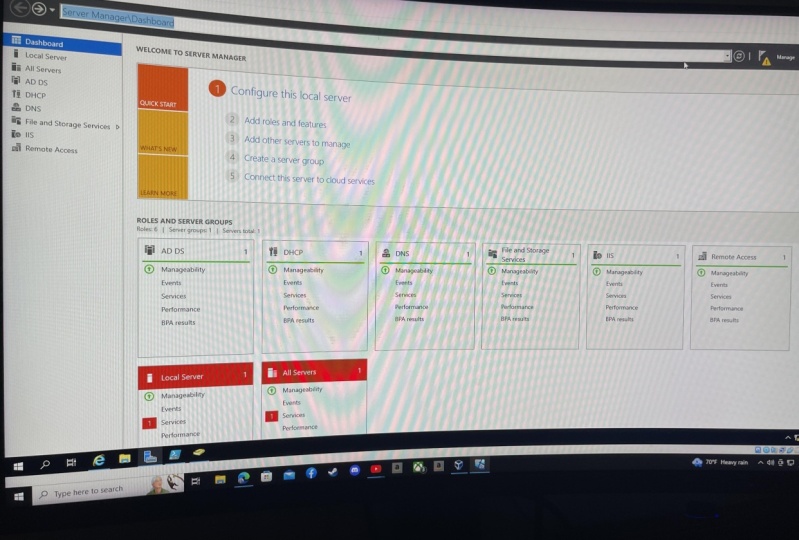
it will reboot. Your Windows Server. Installation has now finished. We can now click on Close. You see that now on the very far left in the navigation area, you've got dashboard,
you got local server, and you got all server,
you got file server, and your AD DS. So these two things were added as part of
our installation. Part of adding these
roles and features, you've now got these
additional little areas here that have been added
to our Windows Server. The first one here of
course, being our AD DS. So this is now an AD services. It's got a overview. This is the server. It's online. Looks good. And then the bottom
is some events talking about this
thing called dfs. Dfs is something that we
won't cover in this course, but essentially, it's something
around File Services. Where you have a file server, you have multiple file services, and then you can sort of share some resources and make
it easier to manage file server services using
this protocol called DFS. But we'll cover that
in another course. Either way, you've got this little warning at
the very top up here saying configuration
required for Active Directory
Domain Services. Now this is in regards to that promotion that we
were just talking about. So we can click on more tasks. And you'll see that it
says additional steps are required to make this
machinery domain controller. Here is a little
summary of the task. Now, we can click on promote this server to a
domain controller. Now there are three
options available to us. Really depends on what the configuration state of
your domain is in a network. So the first option here is add a domain controller to
an existing domain, added domain to an
existing forest, and add a new forest. Now add a domain controller
to an existing domain. So this is in the
event the first two, do you have some sort of a domain already in existence
in an organization? So let's say you're
doing this in a lab environment or in
a real life company, then you've got to ask yourself the question is a
domain already there? If there is a domain
already there, then you don't need
to go and configure a brand new domain or
a brand new forest. We'll talk about these
in a little bit. You don't have to
do that because there's already something there. So you may want to just add your domain controller
to an existing domain. Or you can do an add a new
domain to an existing forest. So if there's already
something in existence, then there are the
options that you pick. If there's nothing in existence, if you're configuring a
domain here from scratch, something completely brand new, then you do what's
called add a new forest. They're essentially a
force in the domain there. A little bit similar, but a
forest is the parent level. The forest is at the
very, very top level. And then there's a domain
that sits within the forest. So one forest can have
multiple domains. You could have Domain one
domain to domain three, and they all sit under
one single forest. So when we actually select, Add a new forest, you're creating the
forest with a name. And you're creating the domain within that forest with
a particular name. Or it could be the
exactly the same name. That forest could be called
the same thing as the domain. So what this is saying is added domain controller to
an existing domain. Well, this is saying there's an existing domain out there
which is part of a forest, but we're not talking
about just the domain. We want to add a new
domain controller because you want to
give that domain, maybe an additional
domain controller for better redundancy
for failover so that if one domain controller fails, There's another one that
you could be doing that the second option is to add a new domain to an
existing forest. Maybe there's already
a forest there. And there's already maybe
one or more domains that exist in your organization. But you want to create
a another domain. That's what you would do here. You would say, I want to
add a brand new domain, but it's part of
an existing forest that already exists
in the environment. Of course, in the
case of this demo, we're showing you how to
do this from scratch. So we're going to select,
Add a new forest, specify the domain information
for this operation. So what is the root domain name? What do you want this
domain to be called? Because now we get into the
configuration component, think about the
relevant domain name. Now this is a domain name
that should not be changed. Do not change your domain
once you've named it. So everything, every
computer you're going to have P co1.domain.com. So that domain is going to be
something that is for you. Could be Domain dot local, could be another
extension there as well. Give yourself a
relevant domain name. I'm doing this in a demo, so I'm going to call
it home demo.com. That is the domain that I'm
going to be giving out. Now this is completely different to domains
out on the Internet. If you're familiar
with, when you have to go and
configure a domain, the figure to www dot
Emilio Aguinaldo dotnet, which is my website e.g. well, that's a domain that
I went and registered. I went to accompany and
said I want that domain. And they gave me that
domain and then I've built a website and that's the
domain that it's sitting on. That's one thing. But this is now an
internal domain, a domain that is just for
you and for your business. It's not connected to the
external world at all. It can be, but it's not
connected in this time, in this case, to the
external Internet at all. It's completely internal. So we're gonna be calling
mine home demo.com. But of course you give
it your relevant name, make sure that you give
it a strong unique name, something that you will not
want to be changing later on. And then we click on next. We then go to an area here
called functional levels. Now what is a functional level? So let's say you've
got a pool of domain controllers and
they're all part of a domain. And the functional
level is 2016. Well, what this means is that your domain controller
that you're building, let's say you add a brand new domain controller to a domain. It needs to be on at least a functional
level of 2016 and upwards, it needs to be, which means it needs to be a
domain controller that is at least running
Windows Server 2016. If you go and build yourself a Windows Server 2008 or
a Windows Server 2012. And that is a domain controller. And you want to add a
2012 domain controller to a domain that he's running
Windows Server 2016 or higher. It will not work because the functional level
for your forest, of all for your domain. Remember that the forest
is the top-level domain sits within the forest. These are the
levels, the minimum levels that are available. If you're thinking
in the future, we'll look maybe
I do want to add some earlier versions
of Windows Server. Then maybe you want to say the functional
level of my forest. Maybe I want it to be
Windows Server 2008. So now I can actually get a Windows Server 2008 or a
server 2012 domain controller and add it to my
functional level. But then you also
lose some benefits that are going to be
coming with later versions of these functional levels. So if you're very
confident that 2016, every domain
controller you're ever going to build an add to this forest or domain is
going to be at least 2016, then you don't have
to worry about it. You could leave it as is
and let it do its thing. Now, specified domain controller cake capabilities is
a few things here. You can add this DNS,
which we've talked about. So it's going to add the DNS
and also a global catalog. The global catalog,
something that's gonna be used quite a fair bit. You're going to do lookups
of this global catalog. And it's gonna be
used by devices on your network to get names, to get authentication, all of that within your domain itself. So you want to make sure
that those two are ticked. Now, we type in that
directory services, Restore Mode password. This is a very
important password. In the event that in the future you need to do some
troubleshooting, you need to do some
restoration activities. This is a different
password to the password that we've set when you
configure your server, make this a very, very
strong secure password. Note it down somewhere, should only be known really
by domain administrators. And make it very, very strong
to go and put that one in. Do you wanna do any DNS
delegation with at the moment, we don't really have
anything set up. So I'm going to just
leave that as is. We're not gonna do
anything there, verify their net bios name. Now this isn't used
commonly as much anymore, but if you're using computers on your network
that are slightly older than maybe the net bios
time they want to be kept. And by default it's
found the net bios name, which is the same as my domain, which is home demo. We're happy with that.
Specify the location of your AD DS
database log files. And Cisco, very, very important that you know where these are
going to be going. These are gonna be needed
for you to do any. If you're gonna go into
advanced troubleshooting, if you want to do
any restoration. If you wanted to learn
around backups and restoring your actual
domain controller, needs to know where these are. Now, you can store these
locally on your own server to, on the server that
we're building. You can say, well, look,
store these files on here. It's not uncommon for servers to have multiple
disks potentially. And a disk could be
stored like it could be shared on that server
from a SAN or from an S. You could have some external
media connected to it. You may want to point these to a different location and have some separate backup set up. So I would recommend my personal recommendation
is you have your C Drive for all of
your main installation. But then perhaps you have some separate D or E or F drives in there that are mapped. How you're sharing
those is up to you whether that's from
a SAN or arenas. But then you store these
in a different path, in a different location. Make sure that you've
got relevant backups in place to back this
stuff up as well, because these files are gonna
be very, very important. So you can see a full summary
of what's going to happen. And the great thing is
you can actually see your script if you're big into PowerShell and you
wanna know well what's happening right here
behind the scenes. Let's view a script here. If you want to use PowerShell, then you can run that
command right there, throw it into
PowerShell, press Enter, and it'll do the same
thing as what we're doing here with the graphical
user interface. If you're happy
with all of that, we can click on Next
doing some prerequisites. So it's needing to
validate before AD is installed
on this computer. Now have a look at these. I would note these down. You don't have to
fix them right now. If there are any crosses,
big red crosses, then you're going
to have to go and fix those before you continue. But these are more advisory. So it's saying that a Windows Server 2022
domain controller have a default for the
security settings names. So it's essentially a vulnerability that's
been identified. Go and read up on
this KB article, familiarize yourself
with what's going on and frightened
and try to fix them. The second one is
around our DNS. So delegation with this DNS
can not be created because the authoritative parent zone cannot be found or does
not run Windows Server. And that's fine because
this is something completely brand new, but there's no action
required just yet. There's also a
notification saying that if you click on install, the server automatically
reboots at the end of the
promotion operation. If you're happy
with all of that, take note of these advisories, I'd maybe take a screenshot
or copy and paste this because you
can have to come back to it and have a look
at those at some point. But everything
else has passed or prerequisite checks have
passed successfully. So we can now click on install. Now you'll see that it says home demo, forward
slash administrative. So essentially identified
the domain itself, which is really nice. And if I go to other user, you may have seen this before. But down the very bottom
you'll see it says sign-in to and he says home demos
was actually identified, that it is part
of the domain and essentially the
domain controller is our first item that has added itself to a new
domain called home demo. So you could add the username
and password in here. But at the moment, of
course, we haven't even opened up Active Directory. We haven't configured any
users or anything like that. So let's just log back into the local administrator with the standard parser that
we set up previously. Now we've got a
domain controller now sit up and promoted. If we go into our start menu, we've now got an area under
Windows administrative tools. If I click on that, you'll see that there's
now additional software in their Active Directory
Admin Center domains and trusts modules for Windows
PowerShell is what it says. And sites and services
and users and computers. So you can open up
what's familiar to some people would be the
sinkhole users and computers. And this is essentially the home location where
you're gonna go and configure a whole bunch of
stuff specific to your domain. You will see that
it now says Active Directory Users and Computers. And it's part of this Windows, windows Server D
CO1 dot home demo.
5. Structure of AD: We're gonna go into
our start menu. And under Windows
administrative tools, you'll see that there's
these applications listed and the one that
we're gonna be focusing most of our time over the
next number of videos is the Active Directory
Users and Computers area. There. There are other areas in here
that you can look at and doing a little bit more
advanced features. And that's generally going to be the next step once
you've focused and once you become an expert with Active Directory
Users and Computers, we then can look at in a future course specifically
around what domains, domain interests, sites and services, some of
the other features. And of course, we've also
talked about DNS and group policies and everything
that comes with that. So let's now go and open up Active Directory
Users and Computers. And this is an area
that is used by IT administrators in thousands of companies around the world. And this is even commonly used with very junior technician. So people who are
working in help desk and services scrolls to level two, desktop analysts and desktop
support people in texts. And then even level
three people that are systems administrators,
systems engineers, even architects could have a handle here at working
in Users and Computers, you can go very, very basic. You can go very, very advanced when it comes to
users and computers. But we will try to cover
as much as possible, including some of the more
advanced features as well. So first things first is
we see at the very top, you've got your root level. You've got Windows Server, DC, O1 dot home demo.com. Of course, that is the name of the server that
we've just built. We've been given it and promoted it as a
domain controller, configuring it as a domain, and then setting it
all up accordingly. Dot home demo.com, that
is our domain itself. And you'll see that here. You've got two
areas, save queries, we won't bother about that. You don't need to really
use that too much. But then you've got this
area here called home demos. If I select that, click
on this little arrow, that's going to expand
this hierarchy. And this is essentially
the structure of Active Directory. Think about it very similarly
to your Windows Explorer. Off course, when you open
up Windows Explorer, which we can actually do to sort of show you the comparisons. You've got files and folders. You've got a number
of different folders. And then within each
of these folders, you can expand this. We can expand our C drive. It looks very similar. These are folders
and then within those folders there's
specific files. So here we've got some
folder, some objects, and we've got OUs or
organizational units. And OU is something that you
would create and then you'd add additional
things into that OU. So if you ever heard the
term OU, if you haven't, you will become familiar
with this term because you need to know what
an OU ears and OU, if we're talking about
Active Directory, is really the folder
that you're creating an Active Directory and then adding relevant OU's within it. Then of course you
create your users and your computers, et cetera, within these relevant OUs
or organizational units, built-in is an area
that is just built-in. So this is some pre-configured
security groups that have been configured
within Active Directory. And think about this from an
organization perspective, the way that an organization
may be structured. You've got users in IT. You've got users in marketing, you've got users in sales, you've got users in finance. Well, what could be
happening here is you create relevant OU's, some for finance and then you
have users within finance, you have then IT, and you have
the users that are in IT. You then can create these
things called security groups, where you are adding
these users to a security group
and you could call this security group
administrators. And you'll see that right there. There isn't an actual group
called administrators. And what's going
to sit in here is every single administrator or every single IT person is a member of the administrative
security group. So when you're
going down, you're configuring a file server, e.g. and you've got a folder in
there that is the I t folder, the folder that
only IT people can access where rather than you, you can create some permissions
on that file server. And you can say, well,
this file folder, we only want these people
to be able to access it. Well, what you could do is
rather than individually adding every single
IT person into there, you can actually just
say add administrators. You add the entire
administrators security group. And then by default it will
check Active Directory. And because inactive
directory, you've said, well, administrators include
all of these users. It's all done for you. We will cover that
in future videos. We're gonna go into
specifics around users and security groups and
how to manage all of that. But that's essentially
what a security group is. Anyway. Built-in
folder here, built-in. These are all pre-configured
security groups that Active Directory has used and created for you by
default, you can use them. You don't have to use them. They're not necessarily needed. If you don't want
to, you could create your own list of
security groups. In fact, I recommend that you do create your own
relevance security groups. If you are playing
around with this in a home demo, home lab, if you're playing this in a workplace and of course
in a development or a testing environment in a real life company is
not uncommon to find a whole bunch of security
groups that have been already created for
you by default. And administrative has gone
and created them as well. Computers includes computers
that have been created. In our case, we don't
have any computers yet. There's nothing talking. Our domain whatsoever,
There's nothing talking to our Active Directory
domain controllers. However, here is a single
domain controller. So this domain controller,
it's listed in here. And this is the only device itself has been listed in here. So the server that is now a domain controller
has listed itself as a domain controller and is visible within Active Directory. So as you bind computers, as you get computers and servers talking to your Active
Directory environment, they're gonna be listed
under computers. If there are
computer, if you add a second domain controller or
a third domain controller, well, they're gonna be listed
on that domain controllers. There'll be listed there
as an individual item. That's really, really helpful. Foreign security principles,
we wouldn't worry too much about managed
service accounts. You can look at service
accounts as well. So service accounts, instead
of having a user account, you can create a service
account instead. So e.g. to login to a specific server while we don't want to
log in as myself, maybe I want to login
as backup user O1, and that's what a
service or counties, but we'll cover a lot of this
in future videos as well. And then uses, these are all predetermined user
being configured. And there's also
some security groups that have been configured. So there is security
groups created end-users, and in the built-in, security groups can live in
any of these folders or OUs. Users can live in any folders or IOUs and the same
thing with computers. Think about this
just as a good guide for a name on where certain
things should be living. They didn't have to live
in that specific spot. You can move them around,
you can add them, you can rename them, you can do all of that
without too much problem. But by default, in
the user's area, here is my administrator user, here is a guest. Here's these things
called domain admins. You may have heard the term
domain administrators. Well, this is where your domain
admin security group is. Inside your domain admin, you can see a little bit
of an overview here. You've got members
and you've got administrator, which is a user. You'll see Administrator
here says user. That administrative user is a member of the domain
admins security group. So by default, if I
manage domain admins, if I grant access to a server to domain admins than the administrative gets
access to it by default. And as I mentioned, these
are all pre-configured. You don't have to
use all of these, but some of these
are good to use just from a foundational
perspective. You can right-click on here. You can do properties to see a little bit more
information about it. You can also right-click
on home demo and say new, compute our new
contact, New Group, new organizational
unit, or an OU test. We now have a test. Are you? Now what is shown here around the structure is really
just out of the box. So this is a structure that
you can just use and follow. You could start adding your
users straight into here. You can start adding
your computer straight into here
if you want to. But you don't have to
follow this structure. You don't have to follow
exactly what he's right here. I would in fact recommend
that you create your own OU structure within this area and then
follow that because every single organization
is gonna be different. Every single department, state, country is gonna be different. So what I'm gonna do
is, let's say e.g. you've got, you're
working in a company that has multiple countries. It's based in the US, it's based in Australia,
is based in the UK. You may want to differentiate your AD accordingly
because what's going to happen is if you've
got a whole bunch of domain controllers and maybe a domain that is being used by your
entire organization. Then you've got IT. People sitting in the US,
sitting in Australia. Well, how do you know which
areas are relevant for you, which users are based
in each location. So you may want to
differentiate this based on the location
of your stuff. So what you could
do is you could create a new right-click. You can create a
new OU over here. And I could call
it USA, like so. Now you will notice that
this thing here protect container from accidental
deletion is ticked. And that is just in the event that you want to accidentally. And that's just there
in the event for preventing accidental
deletion of an OU. Because if you delete an
OU could be some problems because you delete all
the stuff within it and then it could just cause
a lot of breakage. So you just have that
ticked by default. Okay? So we had testing here and you'll see that if I
tried to delete that, it's actually going to fail. Telling me I don't
have permissions or that protect deletion is ticked. And what you can
do to untick that, what you have to do is go into
the view area at the top. Click on advanced features. You see that the
whole bunch of other little areas have
just shown up here. The same ones have stayed with, additional ones have come up. You don't have to worry
too much about those. But now I can go into test
properties and go into the object area and see this area protect object
from accidental deletion. Then I can untick
that and say okay, then I can go to Test
and I can delete it. And then my test
are you goes away. But anyway, so
let's look at here. So we've got USA. And then I want to
create my own other OUs and will create users, computers and servers. Like so. Then maybe my users, I want to get a little
bit more creative. I want to break it down
further because let's say, let's say you work in a
company that's maybe got 30 staff, then
that's not too bad. You can have all of your
users listed in here, all three of them,
and that may be okay. But if you're in a much
bigger organization, then you might you might want to break this down by department. So I may want to right-click on here and actually
create a further or you don't want to
call it finance. And this is where
my finance team are going to be sitting in AD. Then I want to go and
create another or you want to call it IT. I've now got a USA
organizational unit or an OU. I've got a user's OU with two IOUs finance and
IT sitting within it, and then, uh, computers
and the servers. Are you. In the next few videos
we're going to show you specifically how to add users, how to add computers, how to do all of these other fancy things. Active Directory hasn't changed
very much over the years. So even if you look at earlier versions of Active Directory, Windows Server 2016, 2012, 2008 AD does not
look too different. So really this is
gonna be focusing on, of course, Server 2022. But if you go and work for
an organization that is running a different version
of Active Directory, a different version
of the domain controller, an early version. Don't worry because this
is all really the same. It hasn't changed a whole lot. So early versions of AD
are going to look the same as long as you understand
the fundamentals here, how to manage all of this, you'll be okay when it comes to administering
your environment. So that's just a bit of
a high level overview. We're going of
course cover a lot more information from here. But there's a whole bunch of other features that you can do. You've got a nice
task bar at the top. You can do a cut,
you can do a paste, you can actually
move things around. You can delete things. You can do properties,
you can do all these other
things right up here. You can even click
on create new, use our Create New Group. Exactly the same as you right-clicking onto
here and going knew exactly the same as you go in cut paste, delete, rename. These settings are
all available there. You've got, of course, your
task bar at the very top. If you want to even do
further things here as well. And that's just an overview
of Active Directory. I will now go into
a lot more detail.
6. Users and Computers: Now let's get a little bit
more practical and show you how to actually
go and create a user. Now of course, the
whole point of having Active Directory in the
first place is because you want to manage a pool of
users in an organization. So at the moment,
this is all empty. Other than this root users folder right here, we've
got administrator. There's really nothing
else configured. Now what I generally like to do as I, as I mentioned before, is create my own hierarchy around OU's to make it
a little bit easier. I personally don't use these,
these ones right here. I just go and create my
own hierarchy to make things a little bit
easier to manage. So we're going to start
off with, let's say, I've got a company
and it's called, but let's say my
company is called home demo.com because what
you generally do is your domain name or your
company name would be somehow integrated into the actual domain name
that you've selected. Anyway. So let's say the
company is called home demo. And they've got an office
in the USA right here. And we've just gone and
created ourselves a USA IOU. Let's create another OU. Again, remembering that an OU, It's really just a folder. That's what we're going to
be calling it right here. Are you right here? And let's call it Australia. If you can tell from my
accent, that's where I'm from. And then within Australia, I'm gonna go and
create another IOU. Then I'm going to call it, uses another OU under Australia. And I'm gonna go and
call it computers. Alright? And it could be
because USA has got servers, but Australia does
not have any service. So I've only created what's
relevant for my groups. Under here. We've got ourselves USA users, and I've created two
folders in here, finance and IT under Australia, we didn't really
have too many staff. We've just got you. Oh, you minister craters. Now you will notice that
there's this option right here called Protect container
from accidental deletion. Now the reason that
is their ticket is let's say you've
got some in future, you have somebody who may
be accidentally delete. So try to delete something
or you by yourself, try to go and accidentally
delete something. If I select Administrators, right-click and I say Delete. To delete, yes. So tell me you don't have
permission to do this because it's protected
from accidental deletion. Now, I can right-click on it, then go into properties. Oh wait, I can't
actually do anything. He's a little trick is a bit
more of an advanced feature. You can go into view and
say advanced features. You get access to a few
more things in here. We're going to talk too
much about this right now. But I can now go into computers. Properties, go into
this area right here, object and you'll
see that protect object from accidental deletion. And I can just select
that and say, Okay, now I can go in and
delete that OU. And then I'm gonna go back into heat and untick
advanced features and I'm back to where I was. Back into here. Let's
just create it just for, just for now because we like
to have this structure. Computers. Alright? So we've got Australia
users, administrators. We create an actual computer. Let's try that again. Computers. Let's delete this one. You're saying you made a
troubleshooting right? In this demo, which
is always really, really good computers. Okay? So we've now got Australia
and we've got the USA, we've got some OU's
underneath it. Now of course, what
we wanna do is you want to manage all of our users, so all of our staff. The whole point of Active
Directory is that all of our staff have an AD account. All of our staff can login to a computer with specific
username and password. They then login, they authenticate against
Active Directory. And that's how they
really do all work. So all permissions,
accessing file servers, accessing printed,
accessing servers, whatever it may be. They all do it with
all the security and the permissions all controlled and managed within
Active Directory. So we really want to have all of our users part of AD to
good practice to have. Really, my preference would be no staff member that
is going to touch a computer should not have AD anybody's going to touch a
computer who needs a login, needs to be authenticated by AD. The other good thing
about that, of course, is that from a tracking, from an auditing perspective, you know exactly the
activity that is taking place because they're logging
within a day, you know, when they've logged in,
when they've logged out, you can manage their passwords, you can expire, reset their
password, their account. You can add, remove
permissions to specific areas rather than somebody just having
access to everything. That's why we want to use AD, and that's why we want to
have users configured. Usa users. Let's go ahead and create a
new finance finance person. We're going to right-click
and say new user. So right-clicking just
here on the, on the thing, new users, you can also just click on this
little icon right here, create a new user in
the current container. Or just right-click new users. Okay? I'm going to ask for some
specific information. So we've been talking a lot
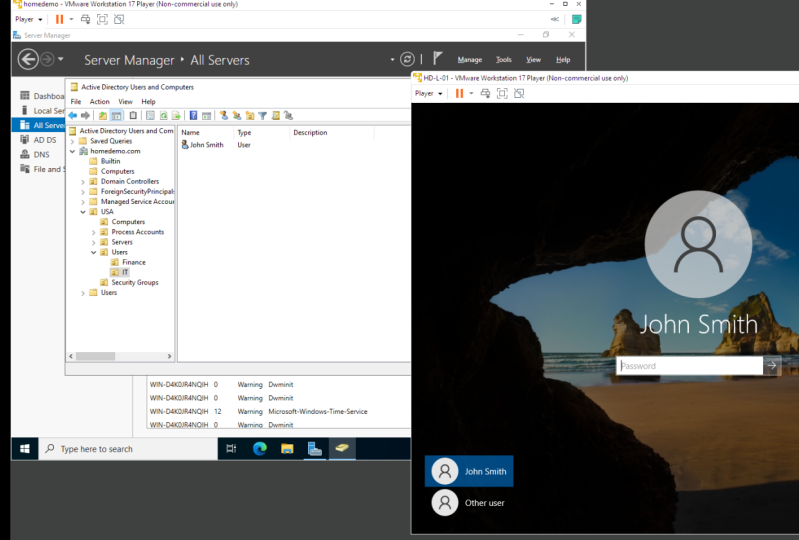
about this John Smith guy. You see that by default, it's grabbing the
firstName and the last time I'm putting
it under full name, John Smith right here. What do we want our
login name to be? Okay, now this is
how they login. This is their username. You've heard the term username. This is where you put it in. Now, your company may have its own naming convention around how you want to
use the name to be. It could be your email
address, it could be e.g. John Smith. That could be their
actual username. Other places could be John
Smith with no full stop. Other places could be J. Smith. Other places
could be john S. Whatever your
convention is in your, wherever you're working,
wherever you're setting this up, just create a good
logo name convention and then follow that for
any future use up, right? Don't don't have usernames that are just don't make sense. If you're going to pick
firstName, surname, stick with that for any future users that you may have joining
the organization. Okay, so we're gonna say
John Smith is our username, and that is John Smith
at home demo.com. Now, this is not
an e-mail address, this is just the domain. It's at home demo.com domain. Alright? And that's it. We can put an initial
if you so choose to. Next. Now we put in the password. Now this is the password that John Smith is going to be using. The very first time
John Smith logs in. This is the password that
is needs to be used. Now it depends on how you
want this configured. Sometimes you could get the user to come
out to your desk, put in that password
because you don't know it, or you could put in
a temporary password in here and confirm it. And then you can have this
option ticked here with the user must change
password at next login. I recommend that IT staff should not know users passwords. Terrible, just because the
all the IT guy doesn't mean that you should know people's passwords and
I'll tell you why. Firstly, it's a privacy issue, but secondly, what if I use
that same password at home? What if I use that
same password to access their banking details? That's trouble. The IT person should not know the passwords of
individual staff. They should know parsers of
administrative things such as servers and network switches
and things like that, but not staff members. So I'd recommend my
preference would be going to here put in a
temporary password. Now we're going to use a
temporary password cold. We can say return at, to return. And then the at symbol
and the number two, we're going to select user must change password at next login. There's some further
options in here around. User cannot change password. If, if the, if the user tries
to change their password, they can't, that the
password never expires. So by default, the passage will expire
after amount of time. The users will get reminders
letting them know that a password will expire after
30 days, after 60 days, after 90 days, then they have to put it
in a new password, or you can take that and
say that they never expire. Again. My preference never tick that we want users to have
their passwords expire. It's good practice. We don't want people using
the same password for months and years and years
and years, not good practice. The only reason that I would say a password never expires is sometimes for these
service accounts, which we're going
to talk about in a future video in a
little bit more detail. But that would be the
only reason why I would select password
never expire. And then account is disabled. So is the account
disabled or not? You can have it
disabled by default, so you can create the account and then just have it disabled. And then perhaps when
the staff member starts, you then enable that account. But we're just going to
leave that like this. And user must change password at next login and then next. What's good if the
passwords match? Let's try that again. Okay, that's been
created John Smith. We can now go in, right-click on John Smith, go into properties. Then you can see some further information
here you can go and add some additional information which is sometimes good to do. That is description at a
telephone number, email address, webpage, and address some
further information. So this is actually
a great spot to even store some of this information, something that I've seen
and it can be helpful. So a lot of organizations
use SharePoint, e.g. and they have a nice
Intranet page where staff information is in there and you can
go and see staff, photos and understand
what they do, etc, etc. You could actually
integrate that with AD and then pull some of this information
and automatically post it into SharePoint. And of course, you
wouldn't be posting public, publicly
people's addresses. But you can speed at
any of this information into SharePoint or
something similar account. He's a bit more
information you've got now John Smith at home demo. Right from here, you see that there's some account options. This is what we ticked earlier, which is user must
change password at next login and nothing
else is ticked. Let's now talk about computers. We're going to focus
on two things. We're going to focus on
computers and servers and potentially a little bit
around domain controllers. Essentially, a computer could
be a end user computer. So a computer user that could be on a
desktop or a laptop, then you've got a server, which is something a little
bit more infrastructure wise. So it's a survey is
still a computer. And then you've got
a domain controller, which is still a
computer to an extent as at least known within here. Now, of course, if you want
to have a user to be able to login to a computer using
their AD credentials. So they've already
got an account. John Smith is a user within IID. John Smith can go
to a computer to his computer and login
with John Smith. But you can only use that
computer to login with AD credentials if
that computer is connected or bound
to Active Directory. Future video, we're
gonna talk about how to bind a computer to AD. I generally recommend
going in and creating a computer
account inactive directory first and then later
on going and binding a specific computer
to Active Directory. Now, the computer needs to
exist in Active Directory for that computer to be
able to be logged in with Active
Directory credentials. If the computer is
not bound to a date, you're going to have a
trouble time logging in. And that's also true of servers. If you want to log into a
server with AD credentials, that server needs to
be bound to AD tied to a computer account that you define and set up within
Active Directory. Now, of course we had some OU's. We've got an Australia OU, we've got a USA's OU. You've also got a computer's OU right here. This is
in the root level. So let's just actually
minimize this and this. If our computers and you've got domain controllers
right in here as well. Domain controllers, you'll see
that the type is Computer. Alright? The type itself is computer, regardless of whether
if it's a server or a computer,
desktop or a laptop. And this is the
name of my server. This server is called
Windows Server DC, one called computer. Now, because I like
to make things a little bit easier to manage.
We talked about that. We're going to have a
company called home demo.com under a USA
and in Australia, site USA has some service
and has some computers. Australia does not
have any service. Australia communicates
with servers that are in the US
over the network, but they do have some computers. So let's say we're in Australia. We're going to create a
new computer account. We're going to
right-click right here. Select new computer. Alright, so what do we want
this computer name to be? Now, we're not gonna talk
too much about this, but the first thing that
you should even do is, what is the naming convention of computers and servers
on a network? What is the name of a computer? Is it just called computer one? Computer to compute a three
is the computer called the name of the person,
John Smith's computer. I didn't recommend that sort of stuff because then
John Smith leaves, you have to go and
rename the computer, rename it in AD, and you just get
into a big mess. What I recommend is use elements of some sort
of an asset number. Whether that'd be
the serial number, perhaps if you're working
with a finance team, they have asset numbers
that they allocate against computers so that they know perhaps the date
of the computer or the number of the computer
when it was purchased, whatever it may be. Have some sort of a
number In your name along with a actual
word of some sort. So let's just give you an
example of a computer name. The computer name could be
your organization's name. Our case, it's called home demo. So let's just say we're
going to call this H D. Alright, so that we
know straight away that this computer is HD. It's a home demo computer. It's part of that organization. Dash 0001. Okay. That could be the
name of my computer. So on that computer
there could be a sticker stuck on it that says HD 001. That's it. Computers now created. Right-click. Let's go and create another
computer, HD zeros 002. Okay? Now, this is nice and all. If you've only got
a few computers, what if you've got a lot more? What if you've got
hundreds of desktops, laptops, servers, you've
got Mac computers. You're not going to
call a server O1, and then a desktop or O2
and then a laptop O3. Why not have a different
naming convention that could mimic that? So what I like to do
is I'll say HD dash l for laptop, dash one. Now I know that
that is a laptop. Or you could depending on again, the size of the company, you could go HD dash, L, dash, F for finance, dash oo1. This is the first computer in
finance, which is a laptop. Perhaps I've got a desktop, we're going to call it H D dash, d for desktop, dash i t because
it's an IT computer O1. That's a bit too
long. There you go. Whoops, I'm creating a user. That's what's happened. I was wondering what was
going on their computer. Hd dash D dash, dash 01. Okay, so these are
naming conventions. Of course I can now go into this computer, go
into the Properties, Right-click and
properties, and I can now add some further information
around the description. This is John Smith's computer. Of course, this is nice
because that way you can easily know that this
computer is John Smiths. But of course, when staff
members come and go, you'll have to go into
heat and update that. Alright. You've got other stuff such
as disabling, are resetting. Operating system at
the moment is blank. We'll talk about that
in a future video, because once you've bound that competed to
Active Directory, all of these will
be automatically populated and you'll be able
to see this information. Member of is what sort of one account accounts can use
this particular account. So you can tie a specific user account
to a computer account. Alright, But, um, so we talked
about naming conventions, so come up with a good
naming convention, and that's how you
create a computer. Of course, if you've
got a server, you can create all your
servers and computers within the same
computers are used, but in my case, I like to
have its own server or you and perhaps give it a
different naming convention. So I'm gonna say
new computer again. I'm also going to call it HD. But now when I have a
little bit more information because it's a server. So I'm going to now
call it a file server. And this is my file server O1. So now I know that this is HD's the company and this
is my file server O1. Or I can create
another one called HD, and I could call it dB
to database server O1. Alright, if you want
to get even more fancy and you want to have
even more breakdown, you could do HD, dash, S, T, G, Maybe it's a staging server, file server, Dutch O1. Alright, well, you
could say new computer, HD dash PRD to production
server, dash FCFS, R1. Now I've got a
Production file server and staging file server. We can have a
development's file server. You generally would follow a
different naming convention. For services you
would computers, but still trying to keep
at least some sort of basic structure so that you know what is what now of course, I recommend creating computer
accounts in here first, before we then go and
bind computers to AD, getting them to talk to
these particular computers that we've just
defined within here. One common requests that you're going to receive from staff is my account is locked out or I
can't login on my computer, isn't working all
of these things. The first thing that I
would always do is go into their AD user account and double-check and
unlock their account. Because their account
could be locked because I've entered in their
password wrong. Too many times. Their password has
expired and they haven't reset it or their account
could just be locked. Whatever those reasons. In here, we're going to look at their specific user account
and see what's going on. Now, let's say Sam
George calls you somebody that I've just created and they say, I can't log in. It's just saying that my
pastor is not working. We're going to right-click
on Sam George and going to Properties and go to the
Account tab right here. And we're going to
see everything. Looks okay, but if
we scroll down, you're going to see right here
that account is disabled. That is ticked. Why is he can't say
Well, I don't know. Maybe she's been a bad employee and we want to block
them from access. Or maybe somebody's accidentally done this wherever it may be. I tried to find out why is
he can't disabled first. But then all you do is you
just take that and say Apply. And now their account will be enabled and they
should be able to login. Alright, Let's say John Smith
calls you up properties. I can't login. I've
tried everything. Well this could, this
is still ticked, so let's just untick this apply. And it could be that
their account is locked for whatever
reason they've entered in their password too many times
where they were not able to reset their password.
Whatever it may be. You could try in its first case, click on unlock account, say apply, and get
them to try again. See if that, if that
works, that doesn't work, then you may need to go and actually change
something different. What you could do is
you could say, okay, you could right-click on
John Smith's account and now say reset password, right? So you could say putting the
new password right here. You can then leave
it ticked as user must change password
at next login. Or you could just
kindly tell them, alright, here's
your new password. You tell them the new
password when you login, go in and change your
password, alright? And then you can also
unlock the account in case it has been
disabled. You see that? And he currently says
that it's unlocked, so it's all okay. And okay. Password for John
Smith has now been changed. Alright, so now John Smith's
password has been changed. You as the
administrator override whatever passwords that
he had on his account. Alright, so now
that new password is the power that he
needs to now go and use, that is really the basic
steps on how to do it. So let's say Sam George
has started at accompany. She's only employed for
a one-month period. You could do a couple of things. You could obviously create their account once they've
commenced in the organization. And then after the one month, you go and disable it. That is one thing. You'll have to set yourself
a reminder to disable it. You'll have to possibly
check with her manager when the contracts expired
once they've left the company, Are you okay for
me to disable it or you could go into
SAM George's account, right-clicking and going
into Properties under account and setting an
account expires area, she could say end of here we go. When do they actually
finish up with us? Now, at the moment, we're going to say
that they finish up at the end of March. So at the end of March 31, 2021 is when they
actually finish up. We can now say Apply. Then by default, when that
particular date comes, the account will be
disabled and then they'll stop getting access
to the system. Alright? So it can expire. Very, very easy. That's the first
thing, that's how it happens automatically. If you do want to manually
go and disabled somebody, of course, you can
go into Sam George, right-click, go into Properties account and then scroll down
to account is disabled. Tick on that and then say, okay, you see that
the icon has changed. It's got this little arrow underneath it and then a
little picture of the person. And that account
is now disabled. Easy steps on how to set an
expiration on an account. So let's say in the
event you've got a user in the place
that you work, you're managing
their AD account. And they only work at a
particular set of hours. So let's say they work from
09:00 A.M. and then they go home at 01:00 P.M. so there are only
here for a few hours. And your manager
has said to you, we need this user to only be able to access the
computer between 09:00 A.M. 01:00 P.M.
once 01:00 P.M. comes, they can no longer login. If I start earlier, they can no longer login either. Well, what do you do? Let's say John Smith right here. We right-click on John Smith
and select Properties. And under the account area, you've got log on
hours, right here. We click on that
and get yourself a nice little calendar
here of the week, Sunday through
Saturday, as well as all and some times right here. And log on permitted,
login denied. Blue means log on permitted. White means log on, denied. So what we're gonna do is we know that they
commence at 09:00, which is right here, 21. And they don't work on Sunday. So we're going to just
mark Logan denied for all these log on denied. And that didn't work on a
Saturday. Logan denied. And from Monday through
Friday, log on to nine. And then from here down
to here, logan denied. There you go. So now, Monday through Friday, for these hours, logan
permitted, hence blue, white means that
they log on, denied, so they will not be able to
work during those times. Very, very easy. That's how you restrict that essentially. So when that person
tries to login during those times, they can login. If they tried to login
outside of those times, they will not be able to login. Generally, most people
are not going to go and set this up.
That's what I found. But in some organizations
you may want to have restrictions across when
users can and cannot do.
7. Security Groups + Process Accounts: Security group is essentially
just a container. Think about it as
just a container that contains multiple
users within it. So if you are a member of
this particular container, you can do a specific function. Alright, so right in here, I've got, I mean,
we had some appeal. It's going to builtin. We've talked about
this one earlier. We talked about the printers. So print operators,
if you're a member of the print Operators
security group, then all you do is you add that particular security group to a printer and then
you've got access to print on that printer
without having to go and actually add individual users
into that printer, right? And that's also true
of false servers. You've got a file
server called finance, a folder called finance within the file server
or I should say. And you've got an HR
folder and IT folder, a styles folder, wouldn't it be great to have security groups
for these particular users? The particular
security groups with the relevant users within it. That's really the whole
point of a security group. So what we're gonna
do is we're going to co-create some brand
new ones, okay, so I have built-in, you'll have got underused
as I've got some here. We're pre-defined. This is out of the box, AD created these, but I've
now got two containers. I've got Australia
and I've got the USA. I'm going to create a
new IOU right here. New. And I'm going to now say
organizational unit. And I'm going to call this
security groups and say, okay, so right there, I've now got a Security Groups. Are you which is
currently empty? Computers has got
some computers, servers has got servers, users have got users
security groups. Let's do one under
Australia as well. We're going to call
it security groups. So these could be
security groups that are specific to this
particular region, or at least specific
to Australia, specific to the USA. Alright, so we already know that we've created
some users in here. Under users there's
a folder called administrators or an OU
called administrators. And then there are these three. At the moment, there
is no security group. So let's say we've got
ourselves a file server. I've got to foster that, that is in use within the organization. And I now want that file server to have a
folder within it. And I want a security
group or a bunch of users to get access to that
particular folder. Now administrators is
what I've created. I can go and create a new
security group in here. Here we're going
to look up group. And we're gonna give
it a group name. We're going to call IT admins. Alright, group scope is what level do we
want it to go to? Now I've got domain level, which is home demo. You got global and universal, which we're now
going forest level. Okay, so this is now
sort of one level above. We're not gonna go
into too much detail, but essentially the
forest is the top level. And then you've got multiple
domains within your forest. So we're going to say
just in the event that I create multiple
domains in future. And they all sitting
under my forest, we're going to just
say universal. The security group
or the group type, sorry, is security
not distribution. Security is the actual type
and it's called admins. And Okay, now that's
all that's done. We just created that
particular security group. I'm now going to double-click on it and go into
members right here. And now add specific people
into this security group. Now you can do this two ways. I can go into the security
group and say Add. And then in here you
see that by default it selects this type of object. You said user security accounts, groups and other objects
from this location, which is the domain,
the object name. So under here, we can click on object types and you'll see that there's some other options. But essentially this is
telling AD what sort of account types do you
want me to search for? So at the moment,
if I want to add a computer to a security group, I can't do that because
computers is not ticked. I want I'm specifically focus here on users,
which is what I want. So I'm going to select users. The location is my domain. Okay? I've only got
the one domain. So that's all I've
got access to or I can go really deeper. But if you had multiple domains, you would have multiple
domain options. Here, I'm searching for this person and you can
search by their name. You can search by
their username. So I'm gonna type in John. Now I don't have to type
in the whole thing. I'm just typing Jon and click
on checkName right here. Is that by default it is
now fill that out and gone. John Smith, because
there's only one John. Okay. Let me show you something. If I cancel out of here, I go back into here and
I type in a new user. I want to create a new user. He called John.
What's a good name? Rabbit. Rabbit. That's a good one. John. Rabbit. Give it a relevant password. And okay, so now
there are two Johns. So if I go back into
my security group, go back into heat,
back into members. We're not going to say
add John, checkName. Oh, hello. I found two of them. Which one do you want? Which one you're referring to? So this is really good
because I can now, if I've got 1020 John's, which is a very common name, especially if you've
got a company of hundreds or thousands. It's going to make it very, very easy to just search by people. Because if you've got a
whole bunch of John's in your company and you
don't know their surnames. This makes it very
easy to go on. Username, was that?
Yeah. So John Smith. Okay. And Okay. Now John Smith is a member
of this one once I click, Okay, so now if I
right-click in here again, going to go into
Properties members, you see that John Smith is
now a member of admins. Alright, I can then
add somebody else, but let's do it a different way. Go back into users
administrators. We know that we've got
three other users now, Rob, we had to, but now
we've got John Rabbit, we've got Bob buildup, and we've got Sam, George. Alright, so you could go into security groups and
then add it that way. Let's say we want to
add sam into here. Let's double-click on Sam. We've got some axis here. Let's click on member of, so this is now what groups
is Sam George a member of? The moment the only default
group is domain users. Alright? Now, domain users is a default security group
where all domain users, so anybody who's a
user that has got a user account within here is classified
as a domain user. They are user in the domain. And that's why that is listed. So that is listed in
there by default. But we're going to now say Add. And we're now going to type in the name of the
security group, not a user, but the name
of the security group. We now know that there's
one called admin. So let's just type in add IDM because we don't have
to type in the whole name. Select Check Names. And now it's come, oh,
look, there's two. There's an administrator's
group that is by default. And this is its location is
under the built-in folder. You see that home demo.com
for such built-in, which is referring to
this one right here. And then there's Australia
slash security groups, which is this one. And that's the one
that we want admins. And okay, here it
is, okay, and apply. Now, Sam George is a member
of admins and domain users. So now we say, okay, so now if we go back into
security groups right here, and here is the admin
security group. If I double-click on
it, go into members. You'll see that now
John Smith is in here, and Sam George is in here. Okay, if we go back
into John Smith and you'll see that he is also
a member of domain users. And that means, right, so that's how you use
essentially what, how you create security
groups and add people to those security
groups. Very, very easy. Then the next one is
around process accounts. A process account is an
account very similar to a user account that is used for some specific purpose
now via just a user. So what do I mean by this?
So let's just go back into the heap and the users. Australia, we're going
to create a new YOU. I'm going to call this
process accounts. All right, and okay. Now this particular
section is for, let's say we've
got a, a printer. We'd be talking about printers. Alright. You've got this
printer, this printer, nice to communicate
with Active Directory, now needs some sort of
authentication into Active Directory for this
computer to be able to use a security group
for printers, e.g. it needs to be or login or athletes
authenticate with AAD. One way to do this is to create a printer process account so that the printer
when you are, when you are setting
up that printout to talk to AD and
it's asking you what username and
password you want it to authenticate against ID with. You don't put in your
username and password. You punted, you put
in these protests account passwords that
you've just defined. This is true for a lot
of different reasons. I mean, I use process
accounts all the time for service, e.g. you want a server to login with a specific function and specifically specific
application. Perhaps a database server
needs to communicate with a file server or communicate
with a web server. You don't want to use your
username and password, okay? Because if you
leave the company, nobody knows your
username and password, your account gets disabled, perhaps the
communication between a database server and a
web server is broken. So why don't you use and
set up a process account? Perhaps you create a
web process account. When you're defining
your database, you then allocate
those credentials between your database
and your web server. If acting with a
process account between these two processes as opposed
to with a user account. I could create in
here a new user. Alright, that's all I'm doing. I'm creating a brand new user, but I'm calling this
something different. So in this case, I want
to call it printer. Alright, and this is
going to have a printer. Username doesn't need to have a last name because
it's not a real person, it's just a process account. Next, we're going to
give it a specific name. We want to make this
specific password, make this password complicated, and save this
password somewhere. Because this is
the password that probably will never change or it could change if you
want to go and do that. But make it complex,
make it long, save it somewhere safe. And what I would
do in some cases, not in every case you see set that account to never expire. Because the last thing
that you want to happen is let's say your
printer talks to id. It's using this procedure,
county communicate with ID. That account disabled
after 30 or 60 days. Printing stops or communication between a database and a
web server stops because that database or that web account has now stopped
or has been expired. So let's say Next and Finish. We've now got a printer
process account. I can give it a nice
meaningful description. This is a printer
service account so that everybody knows
what this is useful. We can double-click on it again, Go into account and
you'll see that the password is set
to never expire. So anybody who
goes into here can easily see that that
password will never expire. Alright? We can then go and
create a new user. And we want to call this
particular one web. Web server, alright? And we give it a
name of web server. Next, password never expires, and then we give it
its relevant password. Next and Finish. Alright, and that is
a web server account. Alright, nice and easy. So there isn't a
web Seth printer, web server, process accounts, and then your security groups. Now let's look at
practically how to manage these and how to actually use them in the real-world. Now, we're not
going to be talking about how to create
a file server, okay, so this series focuses
on Windows Server, will focus on Active
Directory Group Policies, DNS and DHCP. But if you do want
to learn more about false servers and
fall permissions and things of that nature. And there'll be future
videos that will focus on that outside
of this course. So do stay tuned for those. So we're just going to
be showing you the very, very basics on how to
apply a security group to a file server or to a file structure,
directory structure. And then how you would use
that particular account, e.g. so we're here on our AD. We've already shown you
how to create a OUs. We showed you how
to create users, Security Groups, Processes,
accounts, computers, etc. I've now gone and define
some further OUs in here. So under the Australia OU, I've got to users or you
have got administrators, which is my IT team, my marketing, and
my sales. Okay. So I now need to go and allocate these two
specific locations. So what I'm gonna
do is I'm going to open up a folder right here. Here is a folder on the
C drive called data. Data is a folder that is going to be shared
on the network as a shared folder that people on my network from any computer
in my company, e.g. they can access data and that
could be on their computer, could be like a G
Drive or it could be an x drive or an H drive or something like
that on their drive, which is mapped to data. And then when they login and
open up the J Drive, e.g. they will see this. That's what they see. But if it's structured
and set up correctly, they should only
be able to access the areas that are
relevant to them. They should not
be able to access areas that they should not be able to access that is
not permissible for them. So here's a very good example. If we go back into AD, we've got a salesperson
here called Bob buildup. In here, I've got a
folder called sales. Now, generally a salesperson will not have access
to finance folder, to HR, to IT. Maybe they'll have access to marketing because
they need to get some information
from a marketing folder. And then of course,
have access to sales. So we don't want them
to be able to open, double-click on IT,
double-click on HR, double-click in finance
which are currently empty, but they shouldn't
be able to go and access those particular folders. So when they login
on a computer, what's going to happen is they're going to login
with Bob, the Builder. Alright. Ad will then view the
member of location and determine what access
they will have based on what member groups
they're a member of. And of course, those groups
need to be allocated against a folder somewhere, in our case, one
of these folders. Now you've already noticed
that we don't have a security group or
anything created for Bob, the Builder for sales. We've only created one
security group called admins. That's it. There is no other security
group that we've created. So you've got a couple
of options here. We could go into data and you can right-click on sales
and select Properties. You've got an option here, a little tab called security. It's not going to ask you
what, who, what groups, what users have got
access to this path, the sales folder within this
particular file server. At the moment, it's a created
the owner of the system, administrators and users,
that's really problematic. So the users of this
already have access. But what we wanna do is
we want to go into Edit. We're going to select, Add. And in here you
now add the user, all the security group that
needs to get access to sales, and only that particular
security group. Now remember we've got
our user right here, Bob. I can type in Bob checkName. Now remember this is
going to search for home demo and Bob checkName. Here it is, and select, Okay, What sort of permission
Do we want him to have? Well, we want him to be able to modify, read, and execute. We don't want him to
have full control. Only IT should really do that. And okay. And okay. So now if I go into sales, right-click and
properties security, here is Bob builder is listed in here and
this is his permission. That's great, right? But imagine you've got 1,000,000
staff members in sales. That's gonna be problematic.
You don't wanna, you don't want to
add all of those do. So let's go and create a
security group in here. We're going to say group, I'm going to call it sales team. Within sales team, there's
a member called Bob. Okay. Now there's a security
group called sales team, back onto our file server. Let's just cancel out of
that sales properties. Bob build-up. We don't need him in
here anymore, Dewey, we can now remove him, apply. We can now say Add. Now we're going to add
in SIL sales team. Okay? We want them to have
modify rights and apply. Now the sales team has
access to that sales folder. Easy. Okay. So now that particular
user, Bob builder, and anybody has any of his other colleagues
that are in sales, we will have access to
that particular folder. So it's very easy
to set that up. And that's practically how you
would use security groups. Other reasons that you could
use security groups would be once a computer
is bound to AD, you add specific people who can use that computer and
that computer alone. So this is a good example
where you have e.g. a, hot desk situation. You've got maybe
three computers. You've got a team of six people that need to share
those computers. So this user does
not have access to their computer and that
computer only they sharing process tree computers. What you could do is you
could create a sales team, security group, add your
six sales team members, uses that you've
created into there. And then on the computer, once the computers
have been bound to AD, you change the permissions
on those computers. And you say only
sales team members have Logan rights
to this computer. So that if anybody from
the marketing team tries to login to
those computers with a username and password, they won't be able to. Only the sales team will be
able to because you've added the sales team security group as a logged on user to
those computers. We're gonna look
at that slightly a little bit once we look
at the next video, which is around joining
a computer to AD, but that will only be
possible, of course, once we do join a
computer to ID. But it's one of the
other great reasons why you may want to have
security groups. Now the purpose, of course, as working in IT, we want service to only be
accessible by administrators. So we've got our admins
security group in here. We only want I taste specific people to
be a member of that. And then you'd add the
admin security group to the log on areas or to administrative groups
within those servers so that only IT
people can login. Imagine if anybody
could log into a server and cause havoc, that
would be terrible. So you only restrict access to the people who need access to
what they should be having.
8. Binding Computers to AD: Now what we've got,
we've got ourselves a Windows PC that
is on the network. You need to make sure that
it is on the network, that it can access the network. You need to make sure
that it can access the domain controller. So what I mean by that is you shouldn't be able to open up your command prompt on
your Windows computer, on your Windows
ten computer e.g. and be able to ping
the domain controller. That's the first point. If you can't pin it, then
you're going to have potentially network
connectivity problems somewhere on your network. And you may not be able to
bind the computer to AD. So you need to make sure that the network is set up correctly. That your, both your
domain controller and any computers that are gonna
be binding themselves to AD, all work correctly on the network and can
all see each other. You want to make sure
that network sharing is enabled, network discovery, things like that so
that both devices can see each other
on the network. Now, first thing
that we're going to need to do as well
is make sure as well that DNS is configured correctly because you
don't want to make sure that the IP address and the host name of your
domain controller are inside DNS and that is
configured correctly so that your PC can actually
see the domain controller. So we're gonna be
talking about DNS a little bit in a future video. But just be aware of that if you do have
connection problems, it could also be because of DNS. Alright, so we've got
ourselves here, our structure. Now we are aware
that we've created ourselves in Australia, OU, and under there we've
got some computers. And these are the computer
accounts that we've done. Now. I do have myself a
computer, Windows ten computer. Now there are two
things you can do. You can go into heat and
create the computer account first by going
right-clicking new computer. Or you can just go
and try to bind the computer directly into AD without creating it in here. But what that will do is
that will add it directly into the computer's
OU right here. While if you create
it in here, first, it will then be bound directly to the account that
already exist. Now the other thing is
in some organizations, this bottom level to the
very top root level, essentially, sometimes
it's locked. So you might not
actually be able to bind they competed AD at all. Because these computers
are not accessible for the end user to be able
to bind a computer to it. So what I'd recommend is creating the
computer account first. Now the first thing of
course you need to know is what is the name
of the computer. So let's go ahead and
open up your computer. Now, I'm doing this all
in a virtual environment, but it's exactly
the same if you're doing this out on the
flight on your network, we know that we can go into
our start menu right here. We're going to open
up our control panel. And we're going to navigate
into system right here. And here you'll see information
about your computer. Alright? This computer is
called HD dash D, dash 0001. That is the computer
name itself. Alright, so you wanna
be able to input that into our computer account. So let's just go into here and we're going
to right-click. We're going to say new computer and we're going to call it H D dash, D dash 00010001. And okay, there it is. Let's just go back into our PC, make sure that that is correct. Hd dash D dash 0001. Alright. Now the other thing that
we want to double-check is our IP address. Now this is one thing. Now
if you do have DHCP enabled, we are going to cover
that in a future video. But what this computer
needs to be able to do. So let's say in the
event you need to bind a, a server e.g. to your domain controller. You want to go and configure
your IP addresses. Right now, I'm
assuming that you know how to do this stuff. You should be able to
know how to go in and change between a static
and dynamic IP address. Again, we'll talk
a little bit about this when we are
talking about DHCP. But the first thing is we want
to make sure that this is pointing to our DNS server, which in our case, easy
I domain controller. And then of course,
it is pointing to L gateway right here, which is what we've
got right there. So if that's all
okay, we're good. Alright. And then the next thing
is I want to just be sure that I can actually ping
my domain controller. So I'm going to
open up a command prompt and I'm going to try to ping my domain controller, which is 145 and ping, and that is pinging,
and that is great. So other thing is you
could try doing is picking the actual host name of your domain controller
to test that as well. But if that's all good, the next step is from within
here, from system again. Alright, we're not
going to click on Advanced System Settings. And here is where you
actually go and configure some furthest stuff
around your computer. But on a computer
name you'll see that the computer description
is John Smith PC. I generally recommend putting a good computer description in there so that you
know what's going on. And then we want to select
Change right here. Alright? Now in here you've got
your computer name. If your computer
name is not correct, if it's not following
an adequate convention, go and put that
computer name in here, make sure that it is the
correct computer name. Then say, okay, you'll ask your computer will ask to be
restarted and that's fine. But you will see that under
member of it says work group. Work group right here is listed. But we now need to connect
this to our domain. So we're going to select domain. And now we need to put
in our domain name. Now we can go back
into our domain, into Active Directory, and
here it is, home demo.com. Alright, so we're
going to input home demo.com into our actual PC. Alright, so right in here, we can do home demo.com. Now you may not
need to do the.com. You'll have to try that
because once you've got DNS or working in DNS is working in propagated
throughout your network. You shouldn't have to
put the what's called the FQDN or the fully
qualified name. You could put just home demo and that should be
okay, but in our case, we're gonna do home
demo.com and do okay. Now, that's a good sign. If that has not happened. If this has come up with an error saying that
it cannot communicate, it cannot see the
domain controller. You need to go back and
do some troubleshooting. This is a point
where you need to go and double-check that all of your IP networks
are set up correctly. The IP addresses a Connect are correct that the DNS is correct, that everything
is accessible and communication from one
to the other, 0s, okay? Humanity check with network
guys around firewalls, around any security stuff. But if this has been seen, then urine and good point. Now, here is where you
put in a credentials in here that are allowed to be able to add
computers to the domain. So you need to have
appropriate credentials to be able to add a
computer to a domain. Not anybody can do that. So if you're setting up
your AD environment, you're setting up
security groups. Perhaps it's gonna be
an IT security group. This is where you
actually go and do this. Now the other thing
right here is within Active Directory Eve, of course, got all of your
built-in users in here. So in my case, I've got my
domain admin right here. And that is the administrative. So I know that my administrator has got the relevant
rights to be able to bind this computer and this is the
account right here, administrators,
you should be able to have the credentials, the relevant credentials
to be able to bind the computer to AD. That's the very, very
important thing. So if we go back to our PC, I'm going to put in my administrative
credentials administrator and then the relevant password
that I know that I've got. You see that it's
connecting the domain home demo.com and say, Okay, if everything is worked, it should now say, Welcome
to the home demo.com domain. Now if this has failed, if this says
incorrect password or insufficient privileges
or sufficient privileges, it's because there's
something gone wrong around the permissions around that account that you've used or you've put in the
password incorrect. So just double-check
all of that, come back and then this
should be up here. And if everything is okay, you should click Okay. It will say that you need
to restart your computer. And in this case we now
restart our computer now. And that is it. Alright, so now that
computer has now bound to AD and it's restarting and then we should be able to then
login with AD credentials. Now, let's go back to
our Active Directory. And then here is the
computer that we just bound. So we shouldn't have ever
double-click on this, go into operating
systems and then you'll see that it's actually
gone and populated. Now the name automatically
being Windows ten, that it's a Windows ten
Enterprise the version. Then I can just go
into generally for so I want to actually
add something a bit more meaningful
right here and say, okay, and now that
is ready to go. So that is now bound
and it's all good. So now we can go
back to our say, right, which is now rebooted. We can now login. Login with. This is more this is my
administrator password. This is not nothing
to do with ID yet. Right here. And this will now login. And this computer
is now bound to AD. Alright, How do we know
that we can go back into control panel, right here. Open Control Panel up, go back into system. And then you'll now see
that it now is actually HDD or one home demo.com, and that is now the fully
qualified name, the FQDN, and it's part of the
domain home demo.com. Now theoretically you should
be able to log out and then login with a domain user. But what we can do right from here is I recommend now adding a security group or a user as administrator or a login
user to this computer. So if I click on Start on this computer and
I'm typing computer, I get this Computer
Management right here and I can right-click and say
Run as administrator. Alright, this is
going to open up. And now I can go down to
local users and groups. And under here
there's some users, these are local
users and groups. These are some
local administrator will not just not
administrative, but local groups that
are built into this PC. So these are not domain groups, is not domain users. These are local users and local groups specific
to this computer. And you see that right here.
You've got administrators, you've got remote
login desktop users. So what I generally like to do, it depends on the organization. Sometimes you can
actually go and actually say that a remote user, you can actually
double-click on one of these and then add members to this particular
remote desktop user group or just a standard user, or if you want them to
be an administrator, let's say John Smith
is an administrator. You can actually say that,
well, under administrators, you see that by default
it's actually added this domain Admins group
into here, which is great. But I can now go and say, Add and specifically say, well now I want John, which is a home demo.com.
It's part of this. It's going to search in there. It's going to ask me
for the credentials now these are AD credentials, so I'm going to use the Administrator
credentials that we've got an Active Directory to
put that into there. And that's going to
pop up those two Johns that we already had set up. And then John Smith. So now John Smith right here
under the Home demo domain, is now officially
an administrator of this particular computer. Okay, so now that
that is all set up, you of course, I
would recommend going and creating relevant groups, relevant security groups, adding relevant security groups into these logins specific to the users that you want
accessing those PCs. But now all I can do is now I can log off altogether
from this PC, which is now on the domain. And now can, now
we'll say other user. And you'll see that
now it says down the bottom sign into home demo, which is my domain. So I can now say John Dots Smith put in his password and enter. And there you go.
Now, John Smith is able to login
to this computer.
9. Your Tasks: We've made it to the very end of the class and thank you
so much for tuning in. We've covered a lot
of material over these next number of lessons
all around Active Directory. We of course gave you some
definitions around it Domain, Active Directory water
domain controller is we talked about and
some optional videos, how to actually go and set up your own domain controller and configure your
domain controller so you can open up
Active Directory. And then we looked
at a whole bunch of basic tasks in Active Directory, specifically around
user management, computer management process
account security groups, some more advanced features, but also how to get
computers on a domain, on a network to talk and
connect into Active Directory. But now it is your turn. You now need to go and do and
try all of this yourself. Perhaps you've been doing this
at the end of each lesson, you've been going and picking up your computer and try yourself. If you've got an environment in your workplace to
do this, great. If you can't do it
in your workplace, Why don't you look at
building your own lab? You can download Windows
Server completely for free. Just go into Google,
download Windows Server. You'll be able to
download this different versions available, download it and install it onto a computer at home
that you know, perhaps no longer using. And then we can go and configure our own domain controller and then start playing around
with Active Directory there. So go and follow
each of these steps. We've given you some taste, but now go and not only
build the domain controller, but set up Active Directory, create yourself a
whole bunch of users, computers assigned some
permissions against them, go and reset some accounts
at some complex passwords, go and assign them to Active
Directory security groups, create some process accounts, then have some
computers outside, maybe Windows, ten Windows,
Olympic computers. Get them talking to your brand new domain and let us know how you are
doing by creating a project in Skillshare and keep track of
what's going on and also collaborating
with other students who are following
along with this class. So that's it. Thank you so
much for checking this class. I do have a number of other
classes on all things tech. So what did you also go
and check those out again, my name is Emilio. Thank you for tuning in. We'll see you next time.
 Emilio Aguero, ...all things tech