Transcripts
1. Engage with the Course: I am so excited to
bring you this course, iPad for seniors, no grandchild needed
to set up your iPad. You'll learn to
set up your iPad, to navigate and control it, and to Customize iPad features to make it work easier for you. I will patiently walk you
through using your iPad, letting you explore and
play along the way. You will complete challenges
designed to help you gain confidence using your
iPad and after this course, you will be comfortable using
your iPad independently. Why might you take this course? Well, you might have just bought an iPad or considering
buying an iPad. You're scared of setting
the iPad up yourself. You might want to become
more comfortable using an iPad or you might want to use tips and tricks for
using an iPad to help you become more
confident using it or you're tired of watching
your kids or grandchildren on their iPad and wish that
you knew how to use it too. I help seniors
experience what is possible when using an iPad. First, my simple, clear explanations and videos will show you how
to use your iPad. Next, my teaching method
allows you to watch the videos while I explain
and model the techniques. Then I guide you to do the techniques along
with me, and finally, you practice and explore
using the techniques, complete challenges or projects and learn a bunch along the way. I don't mind if you pause
and rewind me in the video, I'm here to help you become more comfortable and confident
using your iPad. In this course, I will
compare the iPad models to help you choose an iPad based on the features that
will work best for you. I will walk you
through setting up your iPad without a
grandchild doing it for you. I will explain the features
and processes along the way. I'll give you a tour
of the iPad buttons and guide you as you use tap, drag, and swipe to
navigate your iPad. We'll rearrange
icons and discover what widgets are and how you
can effectively use them. I'll show you how to use
the Control Center to easily access iPad
features and how to add features like
the Magnifier that will make it even easier
for you to use your iPad. You will personalize your iPad by changing the
name of your iPad, the look of your screen Image, the date, time and much more. I'll show you how to dictate to your iPad and it will type your words and how to have
your iPad read to you. Those are cool features. The course contains a
guide that I prepared for you so that you
can take notes, have resources, and complete the exercises
to help you learn. This course is for
you if you have never used an iPad or
you're a beginner. It is not for you if you have used an
iPad before and you're comfortable with it or if you're an advanced user although, those users may
learn a tip or two. I'm Gayle Berthiaume, creative inspirer, learning
specialist, artist, author, photographer, wife, mom, grandmother,
and senior citizen. I am an Apple
Distinguished Educator with a master's degree in
curriculum and instruction, who has provided courses
and training for teachers and businesses
throughout the world. I also taught kindergarten, first and second
grade, for 35 years. I ran an online
technique academy to share technology
and art techniques, tips, and online courses. Check out the website at technique.academy and
grab our free B's, skills which you will need to
get started in this course. An iPad, the newer, the better. The first lesson
though is comparing the different iPad
models to help you decide which iPad model to buy if you don't
already have one. Internet, you'll
need the name of your Internet network
and the password. Apple ID and password, don't worry if you
don't have one, I'll show you how to create a
free Apple ID and password. Download the guide
that I will provide, I will show you how to download these and to print
them if you need to. I would recommend watching this course on a
different device, like in computer or your phone so that you can follow
along on your iPad. However, if that
doesn't work for you, you can always watch the
video and then pause it while you practice
on your iPad. I can't wait to get into
the course with you. Let's get started.
2. Help! I Don't Know Which iPad to Buy!: For this class, you
definitely need an iPad. Many people have told me
that it's too confusing to figure out which iPad
that they should buy. In this lesson, I'm
going to provide an easy-to-understand
explanation of each model and help you decide which model
might work for you. Let's check them out. Here are five
current iPad models. I didn't add the prices
because I want you to think about the features
that you need first. Think about if you would use
the features as we go along. Don't worry if you don't
know how to use them. I hope you'll learn later in the course or in other courses. The iPad Pro models are
the top of the line. They are the fastest,
most powerful, and have the most
beautiful sharp images. They come in a 12.9-inch model, which is about the size of
a sheet of printer paper, and the 11-inch model. The largest screen may
work for you to see it better and have
more screen space to make it easier to manipulate. The iPad Air is about the same size as the
iPad Pro 11 inch. It is fast and powerful, but not as fast and powerful
as the iPad Pro models. The iPad Air is a
comfortable size to use. The iPad is slightly
smaller than the iPad Air, with the iPad Mini being
the smallest model. All are amazing,
empowering devices. I'm able to put these
models in my purse, but I guess it depends on
how large your bag is. You can choose what color you want on the back of the device. This doesn't affect the
performance of the iPad, but it is fun. All of the models come with either Wi-Fi or
Wi-Fi plus cellular. This means that they can all
connect to the internet. With Wi-Fi plus cellular, you can either connect to the internet or to use
cell phone network. Of course, the Wi-Fi
plus cellular cost more. However, it is a solution if you don't have a strong
Internet connection. All of the iPad
models are powerful. However, the iPad Pro models
are the most powerful. Why would this matter to you? Well, if you added
a lot of photos or a video or play
intense video games, you'll want that iPad Pro for
more power and performance. The more storage, the more apps, photos, and videos
your iPad can hold. I always tell people to get
the most that you can afford. You can't upgrade storage in the future without
buying a whole new iPad. The iPad Pro models can
hold up to two terabytes, while the iPad Air, iPad, and iPad mini max out
at 256 gigabytes. Just for reference, my
iPad has 64 gigabytes. I have 21 apps, about 850 short videos,
and 35,000 photos. I take a lot of photos, don't I? For a casual user, 64 gigabytes should
be sufficient. However, buy the most
that you can afford. The iPad models all last
about nine to 10 hours on a fully charged battery. If you are doing a lot of photo editing or watching
a lot of videos, the battery will go down faster. I'll show you later
in this course how to view how much battery
is left in your iPad. You do want to remember
to charge your iPad when the battery gets low so that
it's ready when you need it. Charging it when it's 70
or 50% won't hurt it. Lithium ion batteries
have no memory effect. What Apple does recommend
is once a month let the battery drain down
until it shuts itself off, then charge it fully. All of the iPad models come with a back camera for taking photos, and a front camera
for taking selfies, photos of yourself and others. They're all good cameras that
can take beautiful photos, however, the better and the best ones are sharper
and better quality. The iPad takes
really good photos. The iPad Mini and
the iPad Air photos, are even better and the iPad Pro models
are the best quality. The front and back cameras
also record video. They are used for
FaceTime when you talk to your family or friends and
see them through your iPad. In a different class. I'll show you how
to use FaceTime. Watch for that class
in the future. When deciding on
which iPad to buy, you may also want to think about adding a few accessories. These are purchased separately
and totally optional. All of the iPad models are
navigated using your fingers. However, an Apple
pencil makes it easier to navigate and
to write on your iPad. I use mine for writing
notes and for drawing. You'll see me using
it in this course. Another helpful
optional accessory is a keyboard for your iPad. The iPad does have a built-in screen keyboard
that you can type on by touching the keys with your fingers or with
your Apple pencil. However, if you're used
to typing on a keyboard, they'll find it much easier to type using an iPad keyboard. All of the following keyboards, also our cases for your
iPad to protect it. The magic Keyboard also has a trackpad along with the
traditional keyboard. The smart keyboard folio is a case stand and traditional
typing keyboard. Both of these options work with the iPad Pro and the
iPad Air models. The Smart keyboard works
with the iPad Air and iPad, and there's is a case
with a keyboard. The backside of the case
folds up to make a stand. Two AirPods or headphones, maybe necessary if you use
your iPad in a noisy area, or if you need them to
hear videos better. There are wireless ones
that connect to Bluetooth or their headphones
that connect to the headphone jack on your iPad. With newer iPad models, you will need an adapter
for your headphones. Again, I'll add these links to the resource handout that
will download later. Let's compare cost. These base prices are current
on Apple.com and will vary if you add more
storage or Wi-Fi cellular. If you want more information
about all the iPad models, the comparisons with all the
technical specifications that's on Apple's websites. Or here's the link. I'll add this link to
our resource handout that I'll show you
how to download later on in the course. That was a lot of information. Hopefully, it gave
you some ideas of how to choose the iPad that
will work best for you. Now, it's time for
you to go out and buy your iPad because you
need it for this course. In the next lesson, I'm going to show you how to
set up your new iPad without any grandchildren to
help you. See you then.
3. Setting Up Your iPad Without a Grandchild: Welcome back. I hope
you were able to find an iPad that
will work for you. Today's lesson, I want you to be motivated and excited
to use this new iPad. I will guide you through
the tour of the iPad and show you where
the buttons are and the speaker and the camera, and then we will get started
on setting your iPad up. I want you to know that I
will be using security net and I will help guide you
through the whole process. You don't have to be
worried about it. My teaching style is
that I will first show you where things are and then you'll have some time
to do it on your own. If I go too fast, which I'll try not to do, but if I go too fast, all you have to do
is on this video, push the pause button and do what you need to
do to catch up with us, or push the pause button and
go have a cup of coffee, and then come back
when you're ready. This is the beauty
of online learning. Then all you do is push the play button and
you're ready to go again. Let's get started. You can do this. I know you can, and we'll do it together. For this lesson, you will
need your Internet name, your Internet password,
your Apple ID username, your Apple ID password. If you don't have an Apple ID, decide what you would like
your username and password to be when we create it
later in this lesson. It's time for a turban iPad. I'm going to show and
tell you all about the buttons and features
on the outside of an iPad. Sit back and watch secure or press
pause if you want to stop and find the buttons
and features in your iPad. Please don't start up
your iPad yet though. When we finish this short tour, then we'll turn on our
iPads and set them up. Thanks for patiently waiting. The iPad power button is on
the top edge of your iPad. I know that's near
to back camera, so I can use the camera
to find the top edge. There are speakers also on the top and on the bottom edges. Look for the roles of holes
on the top and bottom edges. Those are the speakers. Depending on your iPad model, the back camera may
look like one of these. The iPad front camera
is hard to see. It is on the screen
side at the top. Look for a little hole about
where my finger is pointing. The front camera is great
for taking pictures of yourself or when using FaceTime to talk to
family and friends. We will learn how to use
FaceTime in another class. There is a headphone jack at the top edge of some
of the iPad models. Other models, you'll
need a USB-C to 3.5 millimeter
headphone jack adapter. It plugs into your USB-C port, where you plug in
your charging cable. On the side edge near
the power button, are the volume buttons. The button closer to the power button is
the loader button, and the button farther away
is quieter volume button. On some of the iPad models, there is a home button. This is the circle button on the screen above where
you plug in your charger. Other models don't
have a home button. They have a white bar
at the bottom to swipe up to open or to go
to the home screen, but they do have a
USB-C charging port. Remember to keep
your iPad charged, so they're always ready to use. Be sure to charge your iPad with the charger that came with it. You plug it in on the
bottom edge of your iPad. I like to label my
technology chords with my name so that my
grandchildren don't take it, or so that I know it's mine
if I've gone to a meeting. Let's get started. You can do this. I know you can, and we'll do it together. Press and hold the
device's power button until you see the
Apple logo startup. When you see the hello screen, you are going to
press the home button or slide your finger
across the screen, depending on which
model you have. We're going to choose what
language that we want to use. I'm going to choose English. Next, switch select
a country or region. You can scroll down. All I'm doing is dragging
my finger up and down on the glass on the screen. I'm going to choose
United States, and then Quickstart, I'm going
to set up mine manually. Now we get to choose
our Wi-Fi network, and I see already that it has found my network
just automatically. I am going to choose Berthiaume because
that's my home network. Now I need to put in my
password and then I'll join. I know it's trained the network because there's a
blue check by it. Then after that we're
going to choose Next. It's going to take a few
minutes to activate my iPad. Data privacy means whenever
you see these hands shaking, it means that what you
are sharing is private. You can learn more by
clicking on the Learn More. I'm going to just continue, and now I get to
set up my Touch ID. Depending on your iPad model, you can set up Face
ID or Touch ID. With these features, you
can use face recognition or your fingerprint to unlock your device and to
make purchases. Going to continue with now, I need to place my finger
on the Home button, and I'm going to choose
my thumb because that's the one I usually will
start up this iPad with. If you don't have this
Home button right here, then your model
might need to use the power button
up at the top so that you would tap
your tab button. I'm going to do my home button and all I'm doing is resting
way finger lifting it up, resting it, lifting
it up, resting it. I'm just going tapping
gently, not pushing down. Now it says keep going to capture the edges of your print. I'm going to be
rolling my finger around until it gets
all of the edges. Keep it on the home button
until it tells me to lift. I was going a little
bit too fast. Now it says I'm complete. Touch ID is ready. I can use my thumbprint
to unlock my iPad. Now I need to create
a passcode because occasionally your passcode will be required for validations before your Touch ID will work. When your iPad restarts, you need to put in
your passcode first. Now I have some choices. I can backup my data from an iCloud account but
because this is a new iPad, I don't have my data
backed up in iCloud. I'm going to select, Don't Transfer Apps & Data. This right here down the bottom. If I already have
an Apple ID from a different iPad I would
use that to log in. For this training, I want to show you how to
create a brand new Apple ID. I'm going to select
forgot password or don't have an Apple ID. If I forgot my password, it will let me
change my password. But I want to create
a free Apple ID. I need to type in my first
name and my last name. I'm going to select a date
and then edit the video, so don't get so many
birthday cards. You can use your email if
you have an email or you can create an Apple ID
with a free iCloud email. You need to think of an Apple
ID that you'd like to use. I'm going to say I don't have an email address and press
this blue line right here. I want to get an
iCloud email address. It's free. Now my email will be
ipadforseniors@icloud.com. You're going to choose
something different but then leave the @icloud.com there. If you choose not to get
Apple news and announcements, you can slide the white circle over until the green
is covered up. When I'm done, I'm going to
select next and hopefully, that email will be available. If not, it'll bring it back to the screen and I'll
try a different one. Yes, I want to
create that email, and then I need to
put in a password. You'll need to type it
in twice to verify it the second time to make sure
that you typed it the same. Make sure that you write down your new email and password so that you can remember them
next time you need to log in. I'm going to press Next. For this one, you'll
need to type in your phone number so they can
send you a text message or a phone call that will verify your identity and they'll
send you a verification code. The terms and conditions, you can read through this
and then when you're done, you're going to tap Agree. Now it's taking a few minutes
to create my new Apple ID. Yes, I want to keep
my iPad up-to-date. It will automatically update
itself if I press Continue. Location services
allows your iPad to give you your
local community news, your weather, and your maps based on where you're located. I would like that. I'm going
to enable location services. With Apple Pay, you can plug in your credit card information and then pay with you your Touch ID whenever you buy things
on the Internet. But right now, I'm going to just continue and we'll
set that up later. Set Up Later in Settings is
what I'm going to press. The information is
in your keychain and it's encrypted and
cannot be read by Apple. That's not your
keychain for your car. That's the keychain in
the system of the iPad. I do want that because
I want it to remember my password just in
case I forget them. Siri helps you get things
done just by asking. First thing we're going to
do is select a Siri voice. Here's what voice
number 1 sounds like. Hi, I'm Siri. Choose the voice
you'd like me to use. You can change it
later in settings. Here's what voice
number 2 sounds like. Hi, I'm Siri. Choose the voice
you'd like me to use. You can change it
later in settings. Number 3. Hi, I'm Siri. Choose the voice
you'd like me to use. You can change it
later in settings. Number 4. Hi, I'm Siri. Choose the voice
you'd like me to use. You can change it
later in settings. I think I'm going to
choose voice number 1. We press Next. Now, Siri needs to learn what
my voice sounds like. I'm going to say what's
in the quotation marks. "Hey Siri. " "Hey Siri, send a message." "Hey Siri, how's
the weather today?" "Hey Siri, set a timer
for three minutes." "Hey Siri, play some music." Now Hey Siri is ready. We'll press Continue. You can decide if you want Apple didn't have
access to your Siri and dictation to help make
improvements in the apps. For right now, I'm
going to say not now. Screen time gives you insights
into how much time you, your kids, or grandkids
spend on your devices. It also lets you set time
limits for daily app use. I'm going to wait and set up that at some other time
if I decide I need it. Nope, I'm not going
to press Continue. I'm going to press Set
Up Later in Settings. Analytics, this allows you
to choose if you want to help Apple to improve its
products and services. Right now I'm going to say, please don't share
my information. True tone lets you choose
how you view your iPad. You can have it with a
light appearance and then you also have the
choice of a dark appearance. My eyes like the contrast
better when I choose light. But you can totally decide
which one you want. When you're done
deciding press Continue. Now it says, welcome to iPad. Get started. I'm so excited. You did it. You set up your iPad without
a grandchild to help. I'm so proud of you. In the next lesson, I'm going to show you
how to personalize your iPad so that it
works easier for you. See you then.
4. Download the Course Guide: [MUSIC] To download
this course guidance in Skillshare on your iPad, scroll down until you find the
projects and resources and select it by tapping on the words under the
"Create Project" button, you will find the course guide, select it, and it will
automatically download. We will save the course
guide on your iPad. At the very top of
your course guide, you will find a share square
select it by tapping on it. In the pop-up menu, scroll
by dragging up softly on the screen until you
see "Save to files", tap on, "Save to files". On the next screen, type of name for
the folder where you will store
your course guide. Tap on "Done". Your folder is now
ready on your iPad. To save your course
guide, tap "Save". To find your course guide
from the home screen, tap on the "Files" icon,
then tap on "My iPad", then tap on "Your folder". Next, tap on the "iPad for
seniors course guide". You will see little
thumbnail pages on the side of your page. You can tap on the thumbnail
to choose one of the pages. Drag the thumbnails up or
down to see more pages. Find the second thumbnail. On your iPad, you can
write on a PDF to fill in blanks or to take notes, select "Markup" in
the upper right. The markup tools will
appear on your screen. If they appear as a
pencil in a circle, tap on it to open up
all of the tools. Tap on the pencil tool
to select it with either your finger
or an Apple pencil. You can use either
your finger or an Apple pencil to write
on the course guide, tap "Done" and iPad will
save what you wrote. If you want to print the
course guide from your iPad, you will need a
wireless printer. Open your course guide,
select the share square, scroll until you find
"Print" and select it. If you are connected to a
printer, it will appear. You may want to print the course guide in black
and white to save ink, you can also select
"Double-sided" to save paper. After selecting the
pages you want to print, tap "Print" in the top right. You may want to print from your iPad or from your computer so that you have the handout available to take notes on
with a paper and pencil. [MUSIC]
5. How to Navigate Your iPad : Welcome to navigating and
controlling your iPad. In this lesson, you will become more comfortable
using your iPad. You will learn the
gestures to navigate your iPad and you'll learn
how to be in control of it. In the last lesson, you set up your iPad. You don't need to do that again. From now on, when you
turn on your iPad, you will see the home screen. Take some time to
read the screen. When I work with young students, the first thing they do is to look at everything
on the screen. They read the entire screen. I would like you to
do that now too. I'll be asking you
if you've found features, so look carefully. I'll give you a little time. Did you find the date and time? Did you find them in
more than one place? Did you find how much
battery you have available? Are you connected
to the Internet? One place you can find
this information is in the status bar at the
top of your screen. On the top left of
your iPad screen, you will find the
tiny date and time. On the top right, you'll find the icons for your
cellular connection. If you have the Wi-Fi
+ cellular iPad model, or your Wi-Fi connection, the battery percentage, and a battery level icon. Let me read the rest of
the screen with you. The larger icons are
widgets, that's right here. They're pinned to stay
on your homepage. Later in this lesson, we'll address the widgets further and customize
them for you. The smaller icons are
built-in iPad apps. We'll play with them
later in this lesson too. At the bottom,
you'll see the dock. On the left side of the dock, are apps that are most used and stay there to make them
convenient to find. I'll show you how to change them later in the lesson also. Can you find that
small vertical line, and it's really
faint on the dock? Or it separates
your most used apps from the recently used apps. Your recently used apps will change depending on
which apps you've used. On the very right, you'll find the app library, which gives you easy access to all the apps on your whole iPad. I would like to simplify
my home screen by moving apps so that's easier
for me to find the apps. Sit back for a minute and just watch what I
do, it's my turn. I want to change how
they're laid out, to do this, I'm going to tap
and hold an icon. Anyone doesn't matter which one. I keep on going until
they start jiggling. When I taught kindergarten, the little sweeties would jiggle right along with the apps. I can just see some of you
jiggling right now too. You see that they all have minus signs in the
top left corner. If I tap on the minus sign, I get a menu that asks me if
I want to delete the app, remove it from the
home screen or cancel. If I delete the app, I'll have to go back to the app store and download
it again if I want it back. If I remove it from
the home screen, it's just going to be into app library and it will not
appear on your home screen. That's another option. If I cancel, I'll
just go back again. I'm going to cancel this. You were watching me do it, now let's do that
process together. Let's do it again. To move or remove apps, you tap and hold on an app
until they start to jiggle. Then I tap on a minus sign. Let's see for right now, I don't need my Apple TV, so I'll tap on the minus sign
and I can delete that app, I can remove it from
the home screen, or I can cancel it. I don't need the
Apple TV right now, so I'm going to remove it
from the home screen just so that I will simplify
my home screen, not as quite so much to look at. Now, I would find that
one in my app library. We'll look in a second. When I'm done, way
at the very top, you're going to tap "Done" to
get them to stop wiggling. If I wanted to get that
Apple TV back again, I can tap on my app
library and then I'm going to go to
entertainment, tap on there. Come on. There's my Apple TV. I can still get to it
when I'm ready to use it. I'll press "Pause" on this
video and practice getting the apps to jiggle and press "Done" to go back
to the home screen. Come back to me in this
lesson when you're ready. How did you do? It's not too hard, is it? We're ready to move on to another controlling
your iPad skill. I like to simplify my
home screen by moving apps so that it's easier
for me to find them. Sit back for a minute and
watch just what I do. It's my turn first. If I want to move the settings, I'm going to get
it so it wiggles, and then I'm just
going to drag it down and see all the other ones
move aside and let them in. Here we go, let go,
and we're done. Then I can press "Done."
That one's easy. I know that I don't use
the music very often, so I'm going to remove
the music from my doc and I can remove it totally or I can just drag it
to my home screen. I want to move an app. I'm going to hold and tap on
the apps and then jiggle, and don't let my finger up. I'm going to drag that
app all the way onto the black side of my iPad
until the next page appears. There it is. Too fast. Let me go back again. Then I can just let go and it
will stay on this page now. When I'm done, I tap "Done." To get back to the home screen
I push my "Home" button. That cleared up a
little bit more. Let's move another app. I'm going to put my finger on
books and start moving it. See how they all start wiggling, and then I'm going to
drag it, there it is. Let go. I'm going
to press "Done." Now I want to get back
to my home screen. I can either do the
home button or I can swipe quickly to the motion. To swipe is just like you're going to
turn a page really fast. I'm going to swipe to
move to the other page. I put my finger in the glass and just lightly flick it over. There it is, it moves
to the other screen. That's a gesture called swiping. You need that to
go back and forth. Now that I've shown you
how to move an app, let me talk you
through the process. Let's do it together. I'm going to move my files
app to the next page. First thing I do is I find
my files and I tap and hold, and then I start to drag
until I get to the next page. Let go and press "Done." Easy. Then I can swipe it to
go back to the beginning. We're going to pause
now and give you time to practice moving apps
and changing pages. When you are ready to move on, come back and press "Play." Glad you're back. Make sure that you are on the home screen. You can get there by swiping up on the horizontal
white bar at the bottom of the screen or
by pressing the home button, depending on your iPad model. You have learned
quite a bit so far. You know how to tap to select. You know how to tap and hold. I'd have to get it to jiggle. You know how to remove it
by pressing the minus. You know how to move it to another screen,
I'll move it back. You know how to move
it down onto the doc. You know how to swipe the
screen to get to another page. All of these gestures are
how you navigate an iPad. You are ready to
control your iPad. Let's go. But before you
go on to the next lesson, I have a challenge for you. I want you to practice navigating and becoming
comfortable with your iPad.
6. Effectively Use Your Widgets: You have seen the widgets, remember, I said that we
will learn about them later. The widgets give you quick
access to information. You can control your
widgets on your today view, let me show you how. To get to your today's view, you're going to start on
the side of your iPad and just drag slowly and magically, more widgets will appear. Let's talk about what
these widgets do. I'm going to go back by
tapping on the home screen, and then we'll come back
here later and edit them. The two largest ones
are called stacks. If I go very slowly
and softly up, they will change
into other widgets. Some of them like photos, I don't have any photos
on my iPad right now, so they turn out blanks, I really don't need that. Reminders, yeah,
I like reminders, I can have my grocery list
here or medication schedule, or reminders to go pick up
somebody from an appointment, or to go to an appointment. This one I know is a stack too. On top is the news, if I go slowly again, now I have the map of North America and no
content available. Again, that's a widget that
I don't have anything in, so it does make sense to
have it in here right now. We're going to change that. But if I want to see the
North American closer, I can tap on the
magnifying glass, and it will open up that app. Well, it tells me
what's new in map, but I can read through that, but I'm just going to press Continue and allow maps
to use my location. Yes, I want them to use my location when
I'm using the app. Help improve maps, allow map to use your
significant locations, sure, they can improve
their apps based on me. The keyboard popped up, so I could type in Minneapolis. Now I'm going to get directions, so I can go see
how far it is from my house to Minneapolis. I have to be safe and
get there safely. I know it's going to take
me 23 hours and 38 minutes. Oh, dear, there
is a winter storm whirring along the way. I'll have to take a detour. I'm not going right now. But if I did, I
could just press Go, and it would automatically give me directions to drive by. But if I want to zoom
in on Minneapolis, I can just drag on the screen, and then I want
to zoom in close. To zoom in close, I take my two fingers and I just start spreading them apart
as I'm touching the screen, and it zooms in, which is pretty handy. For when I want to
see things closely. I could go in and go
all the way down. Let's see if there
is fish in the lake. No. If I tap up at the very top, I can change it to
the satellite view. Now, maybe I could find
those fish in the lake. But see how you
can zoom right in. Try plugging in your address
and seeing which your host looks like from the
satellite, is cool. We could spend a
long time on maps. I'm just going to give
you the basics today, you can play with and
explore that one. When you're done,
you're going to press the Home Button and get
back to your widget. Allow maps to use
your location, yes, I want them to use my
location so that it will give me driving directions
from where I'm. If I tap on notes, I can just take notes of
it, add almost anything. I'll just go through, and I can start typing
in some notes here. If I tap on the screen, the keyboard comes up, and then I can type in whatever
note I want to type in. If I want to get rid
of the keyboard, I tapped on the keyboard
screen to put it away. We'll go more into
notes in another class. This is the calendar widget. If I tap on that, it
gives me my calendar. I've got the day, the week, the month, or the year. Clock. The time gives
me my world clock, where my alarm clock. I don't have any alarm setup. I can tap on the plus
sign and add an alarm. I want to get up at 6:00 AM, and I think I'll sleep
until 7:30 tomorrow. You just scroll up
until it says 6:30. Then if I want to snooze, and then save it when it's done, and now I have an alarm. It's turned on right now. If I don't want it to
ring in the morning, I just turn it off. There's a stopwatch
that allows me to time, or there's a timer. If I want a timer for 15 minutes or 10 minutes
or how many ever, I just drag these around, and then I say start, and it starts my timer for me. Pretty easy to use. I'm going to click
Done, so it stops it. Then press my Home
Button to go back. Let's edit these. I don't want some
of these on here. I don't want this one. Again, if I tap and hold, they start to jiggle, and then I can get rid of that. Remove the whole stack, yes, because I'm going to
show you how easy it is to add it back on here again. Remove. Let's also
remove this big one. Just not sure if I want
that on there right now. That gives me quite a few less, that cleaned up by
screen to start with. I'm going to press Done. Now, if I bring out
my today's view, well let me look at today
and say, what's going on? Or something that's
really easy access. I know I don't have
photos in here right now, so I probably want
to get rid of that until I get photos to look at. Same thing with screen time, to get rid of an app. Same thing, we hold. Did you see how it
popped up, remove app? Otherwise, we just hold, do the minus sign
and click Remove. I'm going to also
remove the photos. That stack. I do want to keep the weather and
the battery level. My battery only has 17 percent, that's why it's
plugged in right now. But I want to add some more, and I want to be
able to edit these. I'm going to press
this plus sign up here at the top, plus. It gives me a list, and other views of
widgets that I can add. Smart Stack will change
to different apps, and they'll just keep rotating. In this Smart Stack, I can put my weather
and some photos and the map in it and will just rotate
throughout the day. Which is great for sometimes, but sometimes I want everything
to stay where I know it. I'm going to not use that one. App Store that gives
me easy access to go download new apps. Batteries, I like that level. I like knowing how much battery is left easily on it
because the one up in the top-right corner on the home screen is too
little for me to see. Now, other views
that I can have. I can have this view, and I know there's more views
because there's three dots. I can scroll with my fingers, so I can have my iPad. If my phone is connected
to it or nearby, I would have my phone here and maybe buy AirPods
or my Apple Pencil. It allows me to have
four devices and check under battery
level at all times. That's a good thing,
but let's see. Well, I can have a list of
all the devices that I have. I think for right now
because I don't have any other devices that I need, that this one is perfect. I will just stay right there. Now, it's already up there, so I don't need to add
it to my today's view. Calendar. Again, well, that you have different views, you can choose and change
those of how you want. It will have all your events right there if you choose list. I could add that to my daily 1, 2 that I have one
of my whole screen, and I'd have one back
on my today's view. I'll do that one. Now, I want to add some
more. The clock. With the clock and
editing the clock, I can have clock, or I can have the city. I know there's two more choices because there's two more dots. I can have the world clock. Oh, I might do that one, and I can have the world clock
with descriptions there. I want to have different areas
of the world on my screen. I'm going to add that widget, and then I'm going
to click Done, and now I need to
edit that widget. I tap, hold and
select Edit widget. I don't need Cupertino. Let me put my timeline here, I'm close to Miami. I'm going to type in Miami. Oops, spelled it wrong. Miami, here it is. Then my daughters
live in Seattle. I want that time up here so I don't call them
when they're sleeping. Then my sisters and brothers
live in Minneapolis. When you are there, I'm going
to type in Minneapolis. There we go. I do have friends that I keep
track of quite often who are in Sydney, Australia, which I
had just deleted, but I'll add it back again. Whenever I bring up
my today's view, I can see at home it's 3:30, in Seattle it's 12:30, Minneapolis is 2:30, and Sydney is 7:30. Let's go back to edit
some more and see what else we have for choices. If I go back to Edit, and I go back up
to my plus sign, I think maybe I want to have
maps available really fast. I'm just going to leave
it as a small one, and just tap on widget right
away to have one down here. Can I going to go back
and edit the weather one. It's my local weather
instead of Cupertino. If I hold on it and edit widget. I'm going to indicate
the forecast and instead of Cupertino, if tap on Cupertino, it'll give me my location. I'm going to tap off that
over here on the screen, and it changed to Englewood. That's where I'm today, it's 78 degrees, and you see the
high and the low, and the forecast for today. Nice. We have learned a lot about widgets and I
did go fairly fast, but it's really
pretty easy as far as just tapping and
dragging because you've got that idea and holding and selecting
which one do you want. Then making choices,
and playing, go in and explore, see what the apps do, what they look like. I gave you a tour of the widgets and showed
you how to use them. I'm not going to go
through and have you do them with me this time. I'm going to just let you
explore and play with them. You know how to get rid
of them, do you remember? If I don't want that one, I could just hold it
and wait for the minus, click Done when you're done. I can't find the Edit button. You may need to grab one
of these and just drag up. Oh, and there it was
hiding down below. Now, if I click on Edit, I can go back, and I can
change around things. I want you to go and explore. I want you to add widgets
and remove some widgets, move widgets around, just
play with them for a while. When you're done,
come on back to me, and we'll learn about the
control center. See you later.
7. Control Your iPad: The Control Center is where
you control the volume, brightness of your
iPad, access Wi-Fi, and Bluetooth controls,
and other iPad controls. Let's look at the Control
Center, and how it works. I'm going to swipe down from
the upper right-hand corner. I usually start at the far
edge and just swipe down, and the control panel appears. Control center,
lets you turn off or on or control different
features of your iPad. You can turn on or
off airplane mode, you can AirDrop to people, you can turn your
Wi-Fi on or off, and your Bluetooth on or off. If I tap and hold in the
middle of the four circles, an additional menu will open up. It tells me that I'm
on my Berthiaume Wi-Fi and only people I know
will get files from me. Airplane mode is on now. Now, it's off, and
Bluetooth is on. This box allows you
to play your music. I don't have any music
selected right now, but this would be your play
button for your music. This button will let
you lock your screen. If it's turning around back-and-forth and
flipping around and you don't want
it to do that, you can lock your
screen right there, and it'll stay in the one spot. This button will let me share
my screen over Apple TV. I can mirror my screen with
whatever Apple TV that I'm wanting so that
other people can see it, which is nice if I want to show pictures or movies or documents. I can turn my brightness
up or down on my screen. I can turn my
volume up and down. All I'm doing is
touching and dragging. Focus will let me
magically turn my iPad off when I'm driving
and sleeping, it allows what focus I'm on. Do not disturb personal or work. Find my focus for the day. This is the ringer that
allows you to turn your sound off or on so that if you're working on a project
in a reception area and in an appointment other
people won't hear the sounds. This is a timer. If
I push this button, it will access the timer so that I can start my
15-minute timer going. To get back to the screen, I push my home button
and then I have to swipe down from the top right again to
access that Control Center. The next one is notes. If I tap on that one, it'll open up a brand new
note and I can start typing, [NOISE] and it will automatically save my note. I'll press my home
button to return and grab the Control
Center again. Then this button
opens up my camera, so I can take a picture. We'll talk about the
camera in another class. That is the basic
Control Center. However, there are more
options that you can add to the Control Center
so that you can be even more in control
of your iPad. Let's go there and
add some right now. I'm going to press
my home button, and now I need to
open up the Settings. The Settings button
is this gray icon. About halfway down,
it says General. Right under General, it says Control Center. I'm going to tap on
my Control Center. I can see that I can access my Control Center within
apps, it's turned on. If I'm in a different app, I can still access
my Control Center. That's a great idea. Here is Silent
Mode, Timer, Notes, and Camera are included controls besides the basics that
automatically come on the iPad. If I want to rearrange these, all I have to do is grab and drag the three bars down here. You can barely see them. But if you look closely, there's a stack of three bars. If I want notes first, I can press, and drag just like when you drag the icons and bring
that one up to the top. Now when I access
the control panel, Notes is in a
different location. In order to change locations, you have to come into Settings, Control Center, and then
drag those three bars. There are just a few
controls that I want us to add to your Control Center. I like to have my
alarm in there so that when I'm ready to
take a nap or go to bed, I can set my alarm rate
for my Control Center. I tap the green plus sign, and it adds the alarm
at the very top. Again, I can move that alarm to a different location by
dragging the three lines. I'm going to leave
it right there, and let's see where it's at. It started a new row for me. I'm going to add an alarm. I want to add a
magnifying glass because sometimes I want to use my
iPad as a magnifying tool. Then I really like the
one that is text size. Let me make my text size bigger. I'm going to add that one just
by tapping the plus sign. Hearing. You can increase
the hearing on it if you have a device that
allows you to do that. If you have AirPods, the hearing will allow
you to hear even better. I don't have those
available right now, so I'm not going
to add that one. These are the ones that I would recommend right
now to start with. I'm going to go back
to the home screen. Now we'll go up to
a Control Center and we'll look at the new
ones that we just added. Alarm clock, I just get to tap the alarm and it takes me to the alarm clock and I can set
my alarm for the morning. Remember we set that earlier, or I can add another one
with the plus sign at the very top so I can have
a different alarm. Then if I go back here
again, magnifying glass. I have to lift up my iPad
so we can access this. Now if I want to really look closely at the cloth
I have on the table, I can drag this yellow button across to plus and really
get in there closely. I have to hold it super still. I don't know how much.
I can go really close, but it's hard to hold it still. The magnifier, that's the
control that we just added. The text size. Text size right now
the default is at 100 percent and at the
home screen or all apps. Let's raise it up as far as it'll go all the way
up to 310 percent. Let's look at some comparisons. Here's notes at 100
percent, and 310 percent. Here's a text at 100
percent versus 310 percent. Here's maps at 100 percent
and now at 310 percent. Makes quite a
difference, doesn't it? The app library provides quick access to all
the apps on your iPad. You can find the app library in your dock on the far right. Apps are organized
intuitively by your iPad. It groups the apps by the
function like entertainment, social, utility, and so on. The more frequently
used apps are larger. You can also search for apps. Tap the app library
search bar at the top. The screen will change to an alphabetized list
of all of your apps. Select an app from the list or type its name
in the search bar. The app will appear in
the search results, and then you can tap
on it to open it. If I pulled out from
the very middle of my iPad screen a notification
center will appear. It'll give you the time and the date and any
notifications that you have. I don't have any right now, so there are no notifications
for me to show you. Notifications might
be news headlines, new email, text
messages, reminders. Here's an example of the notification center
from a different iPad. When I'm ready to get rid of it, I just press the Home button. On other iPad models with
the horizontal white bar, I'll just swipe up to get
rid of the notifications. The iPad has a built-in search so that it will help
you find things. I tried it with my glasses, but it didn't work too well. To access the search, I swipe down from the middle. Don't touch any other apps, but just swipe down from
the middle of the apps. Then now I can type in search. Let's see if it'll
find my glasses. It'll find it in the dictionary. It'll let me search for apps on the App Store and it'll
let me search maps, but it won't find my glasses. If I wanted to search for notes, it'll bring up the Notes app. If I want to find
a specific note, I can just tap on
"This is great", and it'll open it right up. Search is a nice
feature to have. I showed you search. Now let's do it together because it's a
little bit tricky. To access search, you want to go between the apps. Don't touch any of these apps, but go down between. You could even go from here. Press and drag down, and then you type in
what you're looking for. I want to type in camera. It'll find the iPad camera, which I also see right here. It'll also look for
it on the Internet. It will find it in photos. It'll go up to iCloud. It'll go into the dictionary. It searches it for it in
many different places. Pause and practice searching
for various things. You get to search for
whatever you want to. See what it comes up with.
See you in a minute. The last feature on the
iPad screen that we're going to pay attention
to is Quick Notes. We can access Quick Notes from the lower right-hand
corner of the iPad screen. If I drag up quickly, there's a quick note
that will pop up. If you need to write down
somebody's telephone number or address or something quickly, I can just tap on
it, tap two times, and then I can type in the button that I press
to get that quick note, that's first icon there. Now it will give me all
of my notes that I have. I only have one, so we'll leave that one. If I pulled from the bottom
right-hand corner again, now I can access my same note. The circle with the three dots
which is the more circle, and I can share, send my note to somebody, or I can delete it. To share that one, I can share up through AirDrop, messages, mail, or reminders. I can also print it or
save it to my file folder. Then if I wanted
a brand new note, I can tap the third one, which is a square with
a pencil writing. Now it allows me to have a brand new note
that I can type. When I'm done with my
note, I press Done. To get back to the home screen, I press my Home button
or I swipe up with those iPad models that
have the horizontal bar. That was Quick Note. Coming up next is personalize your iPad. See you soon.
8. Personalize Your iPad: I am so excited for you. You are becoming more
comfortable with your iPad and have elevated
your iPad knowledge. You have selected an iPad
that works best for you, set up your iPad, and learn to navigate by
swiping, tapping, and dragging. You can control your
iPad with widgets, the control center,
notifications, and the dock, and you increased your comfort
level by practicing. That's a lot. Pat
yourself on your back. In this lesson, you will
personalize your iPad. You will change your
name of your iPad, adjust the date and time, and change your wallpaper
without paste and water, which makes such a mess. Whenever I train teachers
or kindergarteners, the first thing I
have them do is change the name of their iPad. Your iPad comes just with
a default name of iPad. Well, that's usually
not a problem except when there's
a large group, like maybe you're in the
library or in a classroom, or in a common space and there's other people
working on their devices. Some people are wanting
to share files and they can't because everyone's
iPad is named iPad, so they don't know
who to share it with or who they're
receiving a file from. It's easiest just to change the name of your
iPad from the beginning. Takes us about 30 seconds. Let me show you how to do it. Go to Settings, then go to Generals again it's the one with
like cogwheel on it. Then About, then I want to go to Name
so you can see right now, mine says Gayle's iPad. I'm going to click on "Name." I'm going to tap
on the X to erase. Then I'm going to
rename this one. I'm going to tap on Done
and now my iPad is named. That's pretty easy.
Now it's your turn. I'll walk you through
the process so that it's not quite confusing. Remember, you can press
pause if you need to. First find the Settings button. Select General. Then select About. Select Name at the
top of the screen. Tap on the X to delete the
name that's already there. Type in a new name for
your iPad. Tap Done. Your iPad has a new name. Congratulations. As long as I'm on this screen, let me call attention to a few other areas that are
informational for you. On the screen you see the name of your device, the
software version, the model name,
the model number, and the serial number
which I have hidden. It also tells me how
many songs, videos, photos that I have on my
device and the capacity. Mine's a 128 gigabyte, and I still have 116.78 gigabytes left so
I've plenty of room left. I'm going to go back to General. There's a few areas on
this screen that I want to talk about, iPad storage. It's about halfway down. I just wanted to let you
know about this setting. iPad storage will let you know how much storage is
left on your iPad. It also tells you what is
taking up the storage. Right now I'm only
using 11 gigabytes, so out of my 128. I see that Books is taking up the most megabytes of space. My apps are not taking
up very much space. I think I'm okay
with all of these. If I would tap on this, I could see that in the Books my app size is taking
up most of the space. From this screen, I
could offload the app, which would free up storage, or I could delete the app. If there's an app
that I never use, I could just delete it. Now we're going to
change your date and time. Let me show you how. A setting that many people need to adjust is date and time. I go to Settings,
I go to General, and then Date and Time. Your iPad comes preset with the time zone from Cupertino,
Apple's headquarters. I want to change this
to my time zone. Now, easiest way is to
just set automatically. If I tap on the
switch to the right, it will automatically find the time zone that
I'm currently in. I like to keep it on that
one because that way if I'm traveling to visit my
children or grandchildren, I will always have
the correct time. You can also choose 24-hour time if that's the way you
like to keep time. I want to show the AM and
PM in the status bar. If you look up here,
it tells me my time. Then it says, AM. If I switch that off, the AM or the PM will disappear. I want to have that one on. Then this switch tells me to show the date in the status bar. Today's date is
showing up there. If I shut that off, the date is not showing. It's your turn now. Find the Settings,
select General, select Date and Time,
select Set Automatically. Select General to
return to Settings. Next, we're going to
personalize your keyboards. My turn first. All right. We're in Settings and General. Next I want to talk
about keyboard. I tap on Keyboard, you see that I
have one keyboard, there's Text Replacement and then all of these are turned on. I like to keep them turned on. If I have a problem
with something, I can come in and turn it
off if it's bugging me. Like if I don't want
it to auto correct. This is where I would come in
and I would turn that off. This one is important. I want to be able to dictate sometime and
have it typed for me. Right here it says you
can use dictation for English when you're not
connected to the Internet. I'm going to turn
on my dictation. Enable Dictation? Yes. We'll talk
about it later and use it so that you know
what that was all about. But as long as we're here, we're just going to turn that one on. I want to add another
keyboard to my iPad. Right now I have English. I'm going to add a new keyboard. My gosh, there are
so many choices. I can add any one
of these languages. All I have to do is
tap on it to add it. I am going to add emoji because I want to be
cool like my grandkids. Well I'll show in a minute
how that one works. As long as we're in here, let's add one more keyboard. A foreign exchange student
that I had was from Denmark and so I'm going
to add Danish to it. Then she could type to
her family in Danish. I'm done with this page. I'm going to press Keyboards, General, and stop for a minute. Pretty cool, isn't it? Being able to type in another language
worked really well. When we had a foreign
exchange student, she was able to type emails to her family in
their native language. Let me show you how to
use those keyboards. I'm going to swipe up quickly
to close my settings. Then I'm going to tap on Notes, and it opens up a Notes. If yours is showing a
menu bar on the left, there are two arrows
that will close that. Here I can see all
of my notes and if I tap on the two arrows,
it'll close those. I want to type a note, so I tap on the screen and
my English keyboard appears. If I want to use one
of my other keyboards, there's a globe key in the
bottom left-hand corner. I'm going to tap and
hold on that key, then it allows me to
choose my English, my emoji, or my Danish keyboard. I'm going to choose
the emoji next. I can choose any one of these. If I slide and drag
slowly across, there are just many of them. Or if I know that I want to
go to the musical notes, I can add those or
the sports notes. Animals. There's just a lot
of emojis that I could use. If I want to just start typing in something and add a cute little picture
to it, I sure can. To get back to my
English keyboard, I'm going to tap on
the ABC in the bottom. If I wanted to search
for something, there's a magnifying glass. Then I can type in horse. It will show me my
choices for horses. They even show me a camel, I think they're confused. But let's put a racing
horse in there. I tap on the X to erase. Then if I go back to my globe, I could switch it. Now, it lets me choose
either English or Danish. Let's choose Danish. I don't know, I notice a
whole lot that's different, but every once in
a while there are keys that look
different in here, so I know that I'm in
a different language. If I wasn't sure
which keyboard I had, then I could go back to my
world and I can see that that's in the Dansk and English. Now I'm back into English
so I can type in my word. Another keyboard we
added was dictation. Let me show you how that works. In Notes, you will find a
key with a microphone on it. That's the dictation key. Tap the dictation key and then speak what you
want the iPad to write. Dictation works great, period. You are an awesome student,
exclamation point. Now it's your turn to add
a keyboard to your iPad. I'll guide you
through and you can press pause if I'm
going too fast. Select Settings. Select General. Select Keyboard. Tap on the arrow to
open the keyboard. Tap on the arrow to
add a new keyboard. Tap on the emoji to
add an emoji keyboard. Now that we have an
emoji keyboard entered, let's add a Danish keyboard. Tap to add another keyboard. Scroll through the
pop-up list to find the Danish keyboard or what other language
you would like to add. The list is long, so you may want to type
in the beginning letter into the search bar
to find it quicker. When you are done,
go back to General. You are amazing. So far in this lesson, you have named your iPad, you've changed the
date and the time, you've learned
about iPad storage, and you've added a
keyboard to your iPad. That's quite an accomplishment. Coming up next, your
challenge project.
9. Challenge: Change Your iPad Wallpaper: Now it's time for
your challenge. We're going to change
the wallpaper on your iPad without getting messy. Just sit back and let
me demonstrate for you, and then we'll walk you
through it a second time. To change the wallpaper, I go to settings, and then I'm going to scroll
down until I see wallpaper. On this screen I
see what design I already have on my lock
screen and on my home screen. I want to choose
a new wallpaper, tap on the arrow
to the right side. On this page you can see
dynamic and you can see stills. I'm going to choose which
one I want, let's see. Dynamic will have
movement to it, so it will move. I can drag to see all of
the different choices. Oh my gosh, that's
a lot of choices. I'm going to choose
the mixed colors, and this is what it
will look like on my screen when I
turn on my iPad, and you see how they're
fading in and out. Just here slightly I tap on set and I want it just
on my lock screen, or I can set it on my home
screen, or I can set both. This one I'm going to have
just on my lock screen. I'm going to put to sleep. Now when I wake it up, you see the dynamic screen. I'm going to go back to choose, and this time I'm going
to look at the stills. It will show the light
or the dark versions, how it changes in the
ambient lighting. I'm going to just slowly drag up so I can see
what choices I have. I'm going to choose
this mountain one. Oh yes, that's pretty. Once I decide that this is the
one I want to choose, I choose set, set home screen. I'm going to close my
settings just by swiping up, and now I have my new wallpaper. That was easy and
not even messy. Let me walk you through
that one more time so that you will know how
to set your own screen. I'm going to go to settings, and then I'm going to scroll
down until I see wallpaper. I'm going to choose
a new wallpaper, and I'm going to choose
dynamic or stills, and tap on which
one that I want. That looks good,
and then tap set. Set either my lock screen
or my home screen, or I can set both. Let's see what that
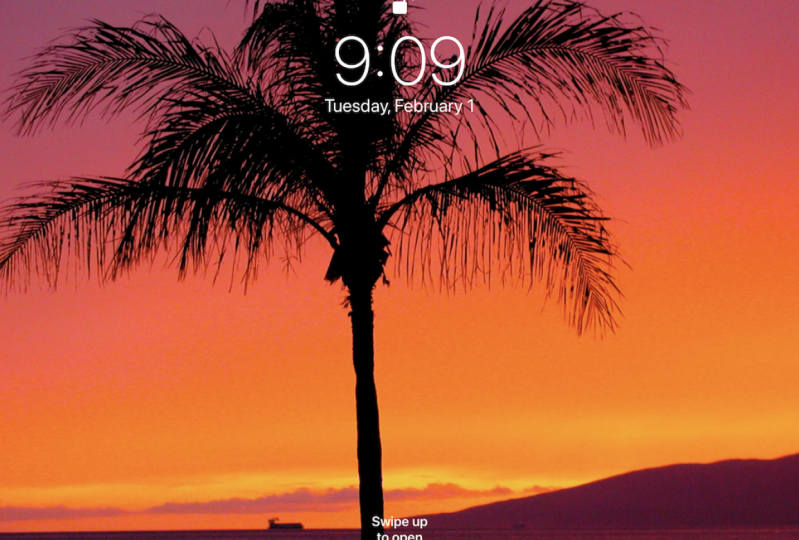
one looks like. I press my power off,
turn it back on. There's my new lock screen, there's my new home screen. What I want you to
do now is pause the video and practice. Set your lock screen and your home screen
with new wallpapers. Choose whichever screen that you would like for your image. Come on back to me
when you're done and we'll change your wallpaper
with your own photo. I like to use my own photos for my lock screen or home
screen wallpapers. I like to have my name on
my iPad on my lock screen, so that no matter who sees it, they'll know that
this iPad is mine. Another way of naming my iPad, so moving and scaling, I can take my two fingers
and just squeeze in and out, and change the size of it. Perfect. I'm going to set it. I want this one to
be my lock screen, and now that one will
be my lock screen. You can use any photo that's
in your photo library. I really like the photo of my grandson
running on the beach, and so I'm going to
choose that one. I want to move it down
so that this head isn't blocked out by the date. I'm going to take it
and I'm going to move it down just a little bit, and then I'm going to set, and set home screen. There's my grandson
on my home screen. Let me show you some examples. Let's take a photo for
your iPad wallpaper. First, decide what
you might have in your surroundings that
you would like to use for your lock
or home screen, hold your iPad horizontally so that your photo will
fit in your iPad screen. From your home screen, select the camera,
then select photo. Zoom in on your
subject by spreading two fingers apart
on the iPad screen, or by sliding the
zoom control up. Remember to hold
your iPad steady, keep your elbows
close to your body, and hold your breath when
you snap the shutter. You can take the photo by either pressing the white
round shutter button, or by pressing the
volume button. I heard the shutter
noise, did you? You will find your photo below the round white shutter
button in the photo library. Tap on the little picture to open up your photo in
the photo library. Next, tap on the square share at the top right of your screen, it's a square with an arrow
coming out of the top. The share menu will appear. Scroll down until you
find use as wallpaper. The wallpaper menu will appear, allowing you to
set your photo as your iPad lock screen
or home screen. Be creative and have fun. Stop this video and take a bunch of photos that you could
use as your wallpaper. Hey, you just learned how to use the basics of
the iPad camera. I'm betting you're
feeling pretty creative and
empowered right now. Your turn, change the lock screen and the
home screen wallpaper. Please share your
project in Skillshare. Let me show you how to do that. First, you'll need to
take a screenshot. On an iPad with a top button, you'll press the top button and either volume button
at the same time, and then quickly release. On an iPad with a home button, you'll press the top button and the home button
at the same time, and then quickly release. You'll need the screenshot to upload your project
into Skillshare. In Skillshare, scroll down to find the projects and resources, and then press the
create project button. A new page will appear, select upload image, then select photo library. In the photo library, select the photo that
you want to upload. Select use, and then
submit your photo. Now you're going to type a project title
and a description, and then press publish. I'm excited to see your project. Coming up next, using accessibility features to make your iPad easier for you.
10. Use Accessibility Features to Help You: Now that you have
personalized your iPad, let me show you some
of the features on the iPad to make it even
easier for you to use. There are accessibility
features on your iPad that help
people in many ways. Let me show you the
accessibility features. I go to Settings and then I'm going down
to Accessibility. One of the things I
for sure want to do is change the text size
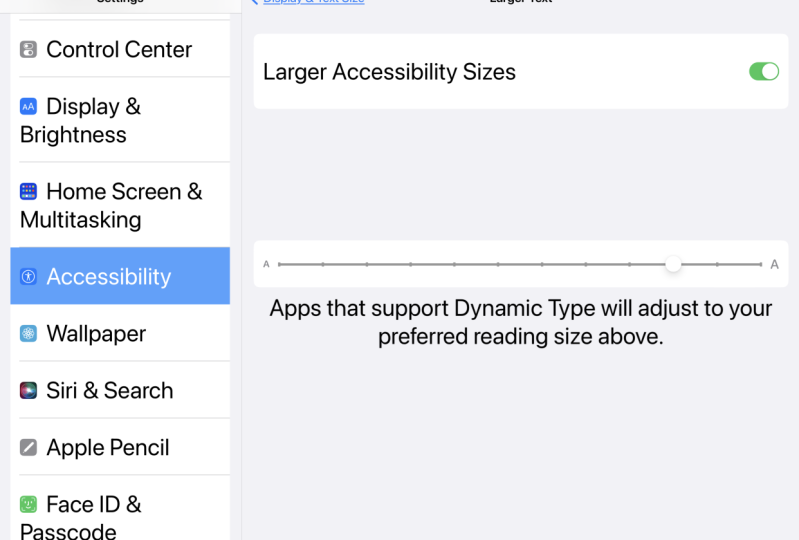
to even larger. Let me go back, make
sure that you saw that, I tapped on the third one down, Display and Text Size
then I want, Larger Text. That's off, I'm just going to turn it on by tapping on it. Right now my text
size is right here. I'm going to move it
up to about here. Yeah, I can read
that much better without my reading
[NOISE] glasses on. You can see that automatically
gets bigger for me. I like that. You can play around and try out some of
these other features. If I want the text bolded or if I want to increase the contrast, whatever makes it helpful. If you don't like it, then you can just tap it
and turn it off again. I'm going to tap
on Accessibility. With accessibility, I can
change the voice of my iPad. Currently, I have Alex, you could also have Samantha. Hi, my name is Samantha. Or I can have Fred or Siri, there's many that
I can choose from. Let's try Karen. Hi, my name is Karen. Play around with
those and decide. I like to choose Alex, because Alex is the
most natural speaking. You can actually hear Alex
take a breath between words. Let's listen to him. Hi, my name is Alex. One of the accessibility
features is Spoken Content. I can select "Speak Selection", pause this and I'm going
to go to my news report, and I'm going to just
select one word. How I selected it was
just by tapping and holding and now if I had
that go and tap again, I get a menu that allows
me to tap "Speak" and I can speak in English
or in Dansk, or Danish. Let me try English first. Ireland. Let's see if they pronounce
it any different in Dansk. Ireland. There you go, a
little bit different. Now, if I want to have them read the whole paragraph aloud, I can select it and
then I can grab one of these blue dots and drag it to highlight
the whole sentence, and then I can click "Speak." "We really didn't
intend selling them." Says Kevin Reagan over the phone from the northwest of Ireland. Let's go back and select a different feature that will
do something similar here. I'm going to close that one, go back to my Accessibility
and my Spoken Content. This time, I don't want it
just to Speak Selection, I want it to Speak Screen. I want it to read the
whole article to me. Let me select "Speak Screen." The direction says, swipe
down with two fingers from the top of the screen to hear
the content of the screen. Well, let's just
try it right here. If I swipe down
with two fingers. Speak selection. Again. A speak button will
appear when you select Text Speak Screen. Swipe down with two
fingers from the top of the screen to hear the
content of the screen. Speech controller, off, highlight content, off. Press "Stop" with
the pause button. What it was doing was reading
everything on the screen. I want to try that
on my news articles. I'm going to go back to
my news and here I've got an airplane article. I want it to read the
whole article to me. I'm going to swipe down
with my two fingers. Turning old airplanes
into home offices. Maureen O'Hare, CNN, updated 9:19 AM Eastern Daylight
Time, March 15th, 2022. "We really didn't intend
selling them," says Kevin Reagan over the phone from the northwest of Ireland. I'm going to stop it. We're not going to read
the whole article. But you understand how
helpful this is if you're having trouble and you need to have someone
read it to you, or could be just playing what to listen to it
being read to you. I like doing that also. Let's look at some hearing accessibility features
that might help you. You can turn on sound
recognition and your iPad will continuously
listen for certain sounds. If you click on the
"Sounds" below, it will open up and give you a lot of different choices and what you want your
iPad to listen for. I like to have it listen for my doorbell or a door
knock because I have a hard time hearing things
and then it will alert me when I'm using my iPad. If I have sound
recognition turned on, then I can't use Siri
at the same time. I can choose what
sound the iPad should make when it hears the
sound that I asked it to. In audio and visual, you can turn on the LED
flash for alerts also. Using subtitles
and captioning is also available under
accessibilities. Turn on closed captions and
then select the "Large Text." This can be helpful when
you're watching videos. There are many
more accessibility features that you
may choose to use. Go ahead and play with them. Just remember if you've turned something on and
decided that you don't want it to go back
and turn it back off again have fun exploring. Your challenge in this lesson is to show someone
else either how to personalize their iPad with changing the name of their
iPad or the date and time, or how to change the wallpaper, or how to use some of the accessibility features
that you've learned. When you're done,
come back to me.
11. Next Steps: [MUSIC] You have learned how to choose the
right iPad for you, how to set up your iPad, navigate it and control it, and how to personalize it
by changing the wallpaper. You have learned how
to use the camera to download and print,
and about Widgets. Most importantly, you're more confident and comfortable
using your iPad. You are amazing. Please leave a review
for this course and for me so that others can
see what a helpful, awesome course this is. In Skillshare, scroll
down until you find reviews and
that on the right, press "Leave Review"
to leave your review. You are ready for more
learning about your iPad. The next course in the iPad for senior series is
iPad for seniors, organizing your life
with your iPad. In this course, we
will learn how to use the built-in iPad apps
to create medication, grocery and packing lists. We'll add appointments,
birthdays and club meetings to
your iPad calendar, and add names and addresses
to your contacts, we'll create a journal of daily activities or a
journal of memories, and use notes to keep
track of medical symptoms. There's a link in
my Skillshare bio for Technique Academy. You can sign up
for my newsletter to get notified of courses, and to get techniques,
tips, and resources. Thank you for taking my class. Hopefully you are more
confident in using your iPad. I look forward to seeing
you in the next class.
 Gayle Berthiaume, Award-winning Educator, Artist, Author