Transcripts
1. Class Introduction: Welcome to this introduction course to the cover page of the Vinci resolve. In this course, we'll take a look at all the features to the color page has to offer. This course is ideal for you if you've never used to call our page before, but you want to start using it. We'll go over the entire layout. So after completing this course, I'm sure that the color page will feel familiar to you. In this course. We'll talk about the following topics. We'll go over all the buttons and pages, will check how to read scopes properly and how it can help you to achieve a better grade. We'll take a look at the basics of the note workflow, then also particularly good Open effects. These are effects that are built into DaVinci Resolve and they're super-useful. And then at last we'll talk a little bit about different color signs and different color spaces. So let's get started.
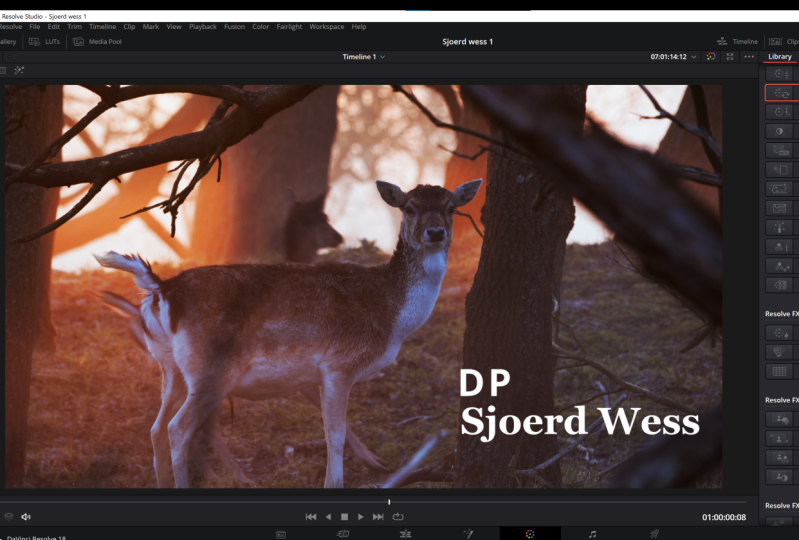
2. Top Buttons: So the first thing you'll see when you open up the color page is this entire screen. Now, for some, it may look a little different, but we'll come to that in a little bit. First, let me take you through all the main buttons on the top right corner. All right, so the first thing you'll see in the top right corner is the Lightbox button. If you click this, you get a nice overview with thumbnail overview of all the clips that are present in your timeline. The next one is the Open Effects step, as mentioned before, we'll dive into this a little later. Then you've got your nodes. Well, if you click this, you'll get your note overview where you can build your note tree. We'll get to this in a little bit. Next, we've got our clips. This is a very useful one because you see all the clips that are lined up in your timeline in sort of a synchronized order. Then next two clips is your timeline. And this is very nice because if you have more layers, you see all these layers here and you can select and deselect layers. So you can really focus on one layer first. For example, if you shoot an interview, usually all your interview shots are on one layer. And if you want to, great all those clips at the same time, you can just deselect all the other layers. Focus on this layer first, de-select this one, and then go to your B-roll shots, for example. All right, Now, let's continue. If you go over to the clip section here again and you click the drop-down menu, you'll see selected clips, graded clips, and all of these other functions. I suggest you take a look at all the different ones and see how these can help you. This one is very nice and useful graded clips because then you see all the clips that are graded already. And of course the same goes for the ungraded clips right over here. All right, cool. Next up, you've got your media pool. This is basically the place where all your media clips are stored. Next, you've got the left section, the word says it all. I guess. Let's then next to that you've got your gallery and this is where you can store all your power grids. So let's say you've made an entire grade in this note tree. You can sort of grab a still and then this would be your power grids. So let's say this is a very nice grant that we want to say. If you can drag it over to this power grade one, you can call this double-click it just like that. And then NYSE grade. There you go. Now, Whenever you close out on the Vinci Resolve and you open it up the next morning or something. These ones will still be in place in a new project. I mean.
3. RAW Tab: Next up we've got the entire bottom part. Well, this is where the magic happens, because here you can find all your tools. Let's start with the raw depth-first. So if you shoot in RAW, let's say Blackmagic, RA, RA, RA, RA, progress row. You get a lot more control and you can find these controls in the Raw tab here. So this shot is shot in Blackmagic RAW. So if I go to decode using clip, I have full control over all these features. Very cool because the Blackmagic Pocket Cinema karmas shoot in generation 4 or 5. Right now they updated it to generation five. But I can still choose generation for if I want to. That's the great thing about shooting in RAW because it collects all the data into the metadata that I can, x's into computer. Pretty cool. Now, I can change the white balance. You can change the color space to gamma, to ISO even. So if I want to go to 100, I can, if I wanted to go to 1000, I can as well. There is a catch though, because the pocket cinema cameras shoot in dual native ISO, it only allows me to use the first stage of the ISO ladder. So that ladder goes from 100 to 100 thousand. And then the next ladder starts at 1250 to 6400, I guess it is. So that is something to keep in mind, but that's a total different video of course. Next you've got the highlight recovery box. This will help you to recover some highlights that are clipping because resolve will sort of guess what kind of information would be there if it would be there. All right, so pretty cool and useful trick, especially if you work with high dynamic range footage. Next you've got gamma and compression. This is enabled by default, so I would definitely leave it like that. Next you've got apply luck. This is basically the metadata lot that is shipped from the camera to clip. So this is basically the light that you're seeing whenever you apply this one in camera on your camera while shooting, right? But you can also at this one on your no tree later. All right, so cool. Next you've got all the temperature sliders, that tint sliders, exposure, and all that stuff that is pretty useful. One thing you need to know is that Command Z or Control Z is not working here. So if you want to revert something, go to these three dots, revert or reset. Okay? Very important because otherwise you'll, you'll mess up your note tree. If you press Command Z, it will deselect something you did in your note tree and not in your rots up. Alright? Well, these settings kinda speak for itself. So just go through it and check what they do. And let's continue.
4. Color Checker: Next up is a color match panel. This panel is very useful if you use a color checker like this. These ones are very useful because you can match the colors exactly how they are supposed to be. And using this tool, it saves you a lot of time because it can put a grid on top of this one and then press match and you're good to go. It makes a world of a difference because it matches the colors exactly how these colors are supposed to be. Pretty cool.
5. Primary Wheels: All right. Next up you've got your primary adjustments, right. So the first button is the automatic sort of adjustment button. I wouldn't ever use this one because it generally looks pretty bad and you have a lot less control over the image. Next, you've got your white balance selector. So if you have a white surface like this card, for example, you can drop this selector or disqualify or onto this white surface and you get a pretty good and accurate white balance adjustment. So that is that next you've got your manual temperature sliders and your manual tint slider so you can do your white balance adjustment manually. Next, you've got your contrast. Next to contrast is pivot. So to set your midpoint from Florida contrast is sort of started from this way. You have a lot more control over the sort of exposure of the image. Next, you've got your MIT and detail. This is basically the same as using sharpening. Next, you've got your color booster. Well, it boosts the colors, kind of the same saturation. There's so many tools in DaVinci Resolve that I haven't used because there's different ways to achieve the same thing. So don't expect yourself to know all the buttons, all right, so just work with the things that work for you and be okay with it. Right next up you've got your shadow sliders, your highlights sliders, saturation boost. And then you've got your, you, if you want to change, like entire colors, go nuts in the colors, you can do it here. Next you've got your luminance mix. And then of course, you've got your Lift Gamma Gain and offset wheels. All right, these ones will affect the shadow parts, the mid-tone parts to highlight parts, and the entirety of the image. All right, then you've got these sliders below, which only change the luminance values of particular parts of the image. Shadows, midtones highlights entire image. All right, then also inside this panel, you've got three different options. So you've got your bars, which do exactly the same, but it's a different view. And you've got your lock wheels. Well, of course, log rules are designed to work with log footage. So this one is shot in log. So this gives me a lot more control over particular parts of the image. Let's take a look. Whenever I drag down this shadow slider, the luminance of the shadow slider. Let's see what happens if we take a look at the scopes. If I de-select it by pressing Command D, well, highlighting the node that I made the adjustment on, you see that only this part is changing mid tones and the highlights stay in place. Well, let's see what happens if I do the same thing on the wheel section. You see that the entire image sort of uniformly drags down. Alright, so in the log section, you have a lot more control over what part of the luminance value you're changing. But be careful because your clipping way faster, let's say a drag this down and attract this up. You see that I'm clipping here already. All right, So be careful with that. Cool. On the Log page, you also got two different tools, low range and a high range. This is very useful when you want to play with colors in particular areas of a luminance value, okay?
6. HDR Controls: Next up is your HDR controls. They work exactly the same as your other wheels in your primary window, but you have a lot more control over what part of the luminance value you want to use. So you've got your Log Wheels grant you a lot more control as well, but these ones will grant you even more control. Alright, so this really works well on high dynamic range footage. Just play around with it and see what it does for your footage. Let's see how you can use them. Let's say I want to change the darker parts of this image. I drag down the shadows, the exposure slider of the shadows. And you see that the shadow parts are being dragged down, the rest of staying like right where it's supposed to be. But if I press this button, I see what my shadow slider is affecting. Okay, so let's say I don't want the entire image to be affected. I can drag this slider up or down to sort of determine what is effected by this slider. Well, she can see you have a lot more slider, so you have a lot more control over which part of the image you want to drag where. All right.
7. RGB Mixer: Alright, next up, you've got your RGB Mixer. This will sort of give you a little bit more control over what kind of colors you want to have in your output. So in your red, green, or blue output, play around with these tools, see what they can do for you. But I'm not going to go in depth about these right now.
8. Motion FX: All right, Next up is your motion effects. This is very useful if you have raw footage or grainy footage because this is your noise reduction panel, more or less. There's more options here, but I'll go to that in a little bit. If you have noisier image, you can use to temporal noise reduction. I personally always use three frames and then better and then change to luma and chroma at between eight and 12. Because this clip is very clean, you don't see any difference. But if you have a lot of noise in your shadows, this will definitely clean it up. It does make sure that your computer kind of freaks out and flies to the moon. So make sure that you have a very fast computer. Otherwise, do this step all the way at the end of your color grading process.
9. Curves Menu: Next up is your curves. These ones are very useful, especially because you have so much control over basically everything in your image if you really wanted to do everything inside the curves. Okay, So one basic note is that you can make an S-curve. Of course, you can do it like that by dragging these points up and down. You can also go over to these three dots up here and highlight editable spines. Then if you press this little tiny ball, you can drag it up like that. Now you have a lot more control over the S-curve, creating a better S-curve. But you've gotta watch out because you can overdo things pretty quickly. Sometimes minor adjustments are better adjustments. Keep that in mind. Okay, cool. Now, that is your basic curve like that. Okay, so of course you have more control when you, just, for example, only once you affect the blues. You can do that here. Or to reds. You can do that here as well. So you have a lot more control over the colors. All right, next up in the curves menu, you've got your u versus u. This is basically where you can change the different values of the colors. This kind of is the same as YOU button here on the primary page. But again, you have a lot more control because I can highlight specific colors. Let's say I only want to change the fear of this cow, which is kind of reddish. You can see by this spectrum over here, I'll make these two dots right there and then I pull up the red. Now we have a purple cow, but the blues still remain blue. Let's say I only want to affect the blue colors. And you could do that by dragging down this. So this way you have so much control over the different output and colors. I will go very easy on this one because you can overdo it very fast. Next up, you've got you vs Saturation. Kind of the same principle, but now it is not changing the colors, so it's not sort of shifting the colors to another spectrum, but it is changing the saturation of a particular color. So let's say I wanted to push the blue's a little bit, I can do that by just dragging up this part around the blues. And now you see that the blues are a lot more vibrant. Alright. Next page is your U versus luminance. So now I can choose a new value, for example, the red again, and change the luminance. So if I drag it up, you see that differ is getting a little bit more exposure, a little bit more luminous. Alright, cool. Next up is our luminance versus saturation. So now I can choose a luminance value and change the saturation of that part. So this is a high luminance value. This is a low luminous volume, shown by the darker tones and the higher tones. So let's say I want only to higher tones to have no saturation at all. I can drag this down and then drag it down all the way. Now you see that all the higher parts of this image lose their saturation. Looks ridiculous because now it's completely colorless, but sometimes this one can work in your favor. Again. Next page is the saturation versus saturation. So in this spectrum you see that this area of the image holds the most saturation. So let's see what happens if we direct is down. You see that we lose a lot of the cows for, all right, so now you have control over what kind of saturation level you want to pull out. All right, this one is very useful if you want your blacks to be black. Because if I make a dot here and a drag this down, no matter what happens. But my blacks will always be black because the blacks don't have any saturation. And if there's no saturation, There's no color, right? So remember that next one and the last one of the curves menu is the saturation versus luminance. So this means that I can choose a saturation level and change the luminance of that saturation level. Alright? I know it sounds very complicated, but once you get the hang of the curves, It's so nice to work with, no matter what kind of editing software you use. These pages, these curves pages, you can find them in any software other. So it's good to know how to use them.
10. Color Warper & Qualifier: Next up is your color whopper. This is another tool to play around with color. Just have a look, see if it can help you in your workflow. Next up, you've got your qualifier. This is a very interesting tool because you can highlight specific parts of the image over you, saturation or luminance or altogether. So let's say I only want to use luminance. In this case, I want to only use the higher luminance values. So I can drag this one over, press Shift H two, see what is affected. I can also press this little button over here, does the same thing. Shift H, and then on the left side I want to soften it out a little bit so it's not so hard. And now you can see that whenever I drag this one over, you can see what kind of part of the image is not being selected. All right, so now we do not select the fear of the cow only wants to have the sky like that. Alright, so if I press Shift H again, takes me out of that window, and now I can change, for example, the output of that sky. All right, so as you can see, I only change what is selected by the qualifier. So this is very useful. Of course. Let's see what happens if we only work with color. Now, let's take this Eyedropper Tool and then click this color area here. And then if we press Shift H again, you can see that we only selected a firm if the cow play around with these sliders over here to really dial down your adjustments like that. Press Shift H again to take you out of that menu and then you can change all these settings. Of course, this looks ridiculous, but you can, for example, push a little bit more red into the fur like that. So you have a lot more control over specific parts of the image.
11. Power Windows & Tracker: All right, Next up you've got your power windows. This is basically the same as your qualifier, but it is a more rectangular shape or a circular shape. This is very useful if you want to, for example, only select the part of the skin tones that you want to be affected. Or if you, let's say, Oh, let's take this out. If you only want your eye here. So for example, you only want the eye of that cow to be selected by this adjustment on this note only, we can raise the luminance. Of course, this looks ridiculous, but it's only for demonstration purposes. Of course, as you can see now, only the eye is affected by whatever I put on this node. Next up we've got our tracker. So this works in conjunction with your power window. So if I make a power window like that and I press Play, the cow is moving, but I want to have that power window onto a specific part. So the I, for example, I can make this power when the light that goes through my tracker and then go to Window and now Trek the image. And now it is only tracking whatever is inside the power window. And it will try to sort of stick to that part of the image. Well, you get the point is tracking itself to that surface. All right. If I go to the tracker window and I select pan tilt, zoom, rotation, I don't mind zoom. Then I track it forward. You can see that it is slowly starting to track everything inside this inside this power window. So if we take a look at how it's done, really nice. So now if I make an adjustment inside this node, it will stick to it. Let's make a new notes who disliked it. It will stick to that area and it's doing an incredible job. That's the amazing part of resolve.
12. Magic Mask: Okay, So next up we've got our magic mosque now this is what makes results so extremely powerful because if for whatever reason to qualifier is not working, you can use the magic mosque in order to get a very accurate mosque on your subject. Let me show you how it's done. So go over to the eyedropper tool here, select this mask overlay to see what you have selected. And then just draw a little dash on the space or thing that you want to select. Bam. Just like that, It's sort of guessed what kind of selection you want it to make. Now, of course, you can do a better job by changing out these, these, these parameters and use these sliders. So play around with it until you have a good selection and then just press Play and it will trick like whatever it's selected. And it, of course it takes a little longer, but incredible. It just, it's done in seconds. And of course, if you wanted to do this by yourself, by rotoscoping it by hand, it would take you so much more time and effort. So yeah, amazing. Again, as you can see, it is sticking to the cow perfectly. It needs a little bit more guesswork. That's why it takes a little bit longer, but let's see how it's done so far. Let's play this out. You can see what it has done and it is incredible suite. So now if I wanted to make an adjustment, I can take off this mask layer again and then make an adjustment like that. And it would only affect that part of the cow. Yeah. So you can see that it looked ridiculous, but you see what I mean? Yeah. So you can really make a good selection of something that you want to select just by making one little dash on that subject.
13. Sharpen & Blur: Let's continue over to sharpening and blur. Now, if you drag this one up, you get a more blurry image. If you drag this one down, you get a more sharp image. You can overdo this very quickly. So I personally stick to to magic number of 0.48. That is what I pretty much always use. And it is subtle, but it is sort of giving you a little bit more punch. So yeah, play around with it. Have a look what works for you, but don't overdo things, please.
14. Key Tab: All right, Next up is your key. Now let's say we have a lot selected. Let's say we have our, let's say filmmaker load and we smash on our Joker zone and I let bam, okay, well, it looks pretty neat, but it is way too strong. They can go over to this key section here and you can drag down to gain. Now what I always suggest when using lots is to put it on 0 and then slowly introduce it until you have enough, basically, because if you leave it at 100, it is usually way too strong. Now this is pretty cool. It gives you a desired effect, really makes that cow stand off from the background. But just play around with the gain tool so it is not too intense. Okay, sweet.
15. Input Sizing & 3D: Next up, you've got your input sizing. This way you can just pan until the entire image works just like you would expect it to work. It is kind of the same thing as in your editing page on the inspector that like that, your Transform tools. So it is kind of the same thing. Cool. All right, next up. This one is only working when you are working in a fusion project.
16. Keyframes, Waveform & Metadata: Next up we've got our keyframes. So let's say I am rotoscoping something all on my own, which I will probably never do. But let's say we've got an amazing shape, shape like that. Now the cow is moving of course. And I, let's say I want to have this shape follow the cow. Now, you can check the corrector. This is correct to one. Make sure that you're selecting these little dots that represents the keyframes. Now, if I change the shape, it will make a keyframe for me automatically. So if I scroll through the video and I change to shape, it will set that key frame for you automatically. So if I play this back, you see that the window is following the keyframes. All right, nothing new, nothing crazy. It's just keyframing next up. And that is basically the panel that is always open is my waveform. I personally like to use the wave form more than a parade or the histogram because it gives me a lot more control over what kind of colors are blending in also gives me a lot more inside if it is why balanced or not. If you want to have a fool sort of view, you can press that button over there and you get a full view of all the scopes and you can make it like you see all the scopes here, or just two or just one x out on it. It will sort of goes back to the original place. Next, you've got your metadata. So you see that this is a six K clip, 24 frames a second. It holds five hundred and forty six sixty four sorry, frames and all that stuff.
17. Reading Scopes: Okay, So next up is how to read scopes. This is very important because this will give you the information on what is clipping or what is not clipping, what is inside your safe zone basically. And it will give you a lot more information about the color if it's white balance or not and all that stuff. So let's take a look at the different options that result has, as mentioned already, click that button to make this a little bigger. So you have your waveform, wave forms. You have your parade, you have your vector scope, and you have your histogram. So I personally always just use one and then I use it in this little window because I mainly work on one screen. Or I have my second screen as my entire window preview. But I use my way for most often. So as you can see, the 0 line sort of resembles where the shadows could be. If it's below that 0 line, you're in the safe zone. If it's below the 0 line, it is clipping and you're losing data. All right, So let's do that. Let's just lose all our data. So right now, you see that this is sort of piling up over here and you can see that it is clipping in the image. Let's do the same thing to our highlights. Let's drag it up all the way. And you can see that yeah, we're clipping. It is quite difficult to see, but a little trick, if you go over to this little panel here, grab your qualifier, you can drag over the image and see what kind of part you're you're seeing in your scopes so she can see part of the horn is clipping. Right. So that is how you can use scopes in order to see if you're a luminance values are in this say, so I'm basically same goes for colors. If you push in a lot more colors. And you can see if the colors are clipping as well, but you'll probably never do this. Anyway. Use your scopes also while shooting because it really helps you out to match a good exposure and to see if your image is sort of in the midpoint of where you want it to be. All right? Of course there's a lot more to talk about scopes, but I don't want to talk about this, this scope thing the entire course. So let's continue to our next subject.
18. Node Workflow: The next thing that we're going to talk about is the note workflow. At first, probably when you opened up the vinca result for the first time and you saw that it is working with nodes are like What the heck? But trust me, notes are very useful and it's very nice to work with them. So let's say you work with Premier Pro and you're used to a layer based editing software. Well, this is, of course in the editing suite. It is exactly the same. It works in layers, but in the color page, it works with notes and how you must see notes. It's basically, I do this by pressing Alt S to create a new serial node. Every node holds one adjustment, alright? And you go from left to right. So basic corrections go further to the left and you're more creative and advanced directions go further to the right. Then you've also got some parallel notes. Parallel notes basically sort of compiles a bunch of nodes in one line. You can do that by selecting your serial node and then press Alt P parallel node. Now, I like to use parallel notes if I wanted to make a few corrections that are sort of part of a global adjustments. So for example, I want to add in a little bit more red into the shadows, but I also want to take out a little bit more luminance. I can do all these little tweaks on one node, but it will be a lot harder to determine what kind of changes I've made. So in that case, I am using parallel notes. So I can make, for example, this red adjustment on this node. I can use the next node for that little luminance, things I am doing. Then this node 2, I don't know, just push in a little bit more yellow again. And this note to change a little bit more of the contrast. You know what I mean? So all these small tweaks that are part of this one thing that I want to achieve on that correction I do in a parallel configuration because that sort of cleans things up in my no tree. All right, so let's get rid of that. Okay, So next up we've got our layer nodes. You can make one by selecting the node that you want to create a layer node from breast Alt L. And how this works is it is kind of the same as Final Cut X or premier work, but it is reversed for some reason. So this bottom node stands above this note here. So everything I do on this note, nothing will change until I make an adjustment in the top layer node. So for example, I change the luminance value inside the qualifier right here. Like that. You see that once I do that, so once it reaches a particular part, blue will be edit into this note because I sort of say to this bottom node, bottom layer, that it is allowed to change this part of the image. So that way you can use layer notes is, for example, when changing skin tones. All right, so for example, you want to have your skin tones to be a particular color, but you want the background to be a different color. You can make the background in, for example, blue, but you want your clouds to be, let's say, still red. So I can use the eyedropper. Let's say the cow is my skin tone right now, and now everything else is blue, but my cow will remain. Okay, so that's why a layer node is very useful. All right, so it's quite complicated. But once you play around with this again and you see what the difference is and you know, when a specific adjustment is sort of created, it is going to make a little bit more sense to you. All right, Again, a little conclusion about nodes. Make your primary adjustments to the left. And as you go along, make your more creative and advanced corrections to the right. Start off with a noise reduction node because you want a clean output and then end it with a grain adjustment, for example, if that is what your projects desired. Cool.
19. Open FX: Okay, Next, let's talk about Open Effects real quick. All right, so you've got a bunch of effects built into the Vinci resolve, but the ones that I mostly use are my color space transform. This is a tool where you can use different kinds of camera brands or color spaces and transform it into another color space. This is very useful because it is non-destructive. So it is not working like a lot. Whenever you smack on a lot, everything after the lot is sort of baked in, but it is working non-destructively so you can still change or keep the data that you want to use after the color space transform so that it's a very nice tool to use. Let's say I wanted to change my footage from Blackmagic Pocket Cinema camera for K into a Rec 709 color space. I didn't update my results yet, so I'm going to change this to generation for, and boom, you've got a very nice imbalanced image. Of course, if you push in a little bit more contrast like that, they go kind of loose, pretty nice already. So now we are working in a Rec 709 color space. All right, so there's a lot to talk about, about color spaces, but I'm going to talk about it in a little bit. But first, a few more adjustments with Open Effects that I like to use. And that is terrain. Grain where aria, ring, ring, ring, ring, ring. You can find it. I film grain. So this is usually what I do all the way in the end. Because if I put this on my image or if I put this on my grade, my computer will freeze. So yeah, I basically always use 35 mil 480 and then up their grain size as much as I want until the image looks nice and balanced. All right, cool. So that's the Open Effects, pretty useful. I would suggest you just take a look and just scroll through all these different effects because there's a lot of cool effects in there. So it's just like this analog damage. You can play around with these and get such amazing results. All right.
20. Color Science & Color Spaces: Next up a little bit about color spaces and color signs. There's mainly three color spaces that you need to think about. The first one being Rec 709, that is basically the color space that you would probably work in because 90% of the time you'll probably export your project for YouTube or for television or stuff like that. So Rec 709 would be the main color space to think about in the future. And that's what I think we want higher and higher quality. And that's where Rec 2020 comes in. Rec 2020 allows you to export in 10 or 12 bit color. And that sort of allows you to see a lot more color detail. So if you export a Rec 709, which is export it onto the web in a 8 bit color depth, color depth. You see a lot of bending. So these colors are sort of getting these weird lines. And if you export it in a 10 or 12 bit configuration, such as what Rec 2020 is allowing you to do. And that goes away. So it's a lot cleaner and it's a lot more high-quality. Yeah. So newer screens like these, these super expensive for K or eight K televisions, they maybe tell you that they support Rec 2020. Well, that's because that is more future-proof and I think that we are making the switch to Rec 2020 in a few years. Next up is DCI P3, which stands for digital cinema initiatives. And that is basically created by the major production houses to use as a color space for these massive projector tools in cinemas and stuff. So the chance that you will call our great in a DCI P3 color space is very small. I hope you do at some point because then you made it. But yeah, Anyway, let's continue. All right. So color spaces are very difficult, but I personally would focus my time on the Rec 709 color space because it's probably why you are going to use the majority of the time. All right.
21. Learn More!: All right guys, that is it for this course. I know it's a little bit overwhelming. There's a lot of tools to be used inside of engine result, and I haven't even talked about all the tools yet. But you've got to learn to use the specific tools that work for your workflow. I use like 30 percent of all the tools inside a color page and it works really well for me. Just try to expand and use new tools every now and then. Don't go. Try to use all the tools at once because it's way too overwhelming and it's way too much. I would suggest you to stick with your primaries at first, play around with all the tools that you have. Air, maybe use a lot here in there or tried to create your own lots by making power grades and just play around these tools and then slowly expand to your curves, to your qualifiers and so on and so on. All right, if you want to learn more about color grading and color correcting, make sure to check my other course and I hope to see you there. Thanks for watching and happy grading.
 Sjoerd Wess, Cinematographer / Director