Transcripts
1. Intro to how to model a realistic living: Everyone. My name is Urea and I worked as an interior designer
for more than ten years. I'm using Pre DS, Max and VA to create my project renders. And I would like to share
with you my experience, especially the
process of obtaining the photo realism
in our renders, and also the experience of creating real interior projects. This course was created
for interior designers, especially for those who
are at their start and seek a working method
in how to obtain photo realism for their renders. Like a step by step practice of recreating a part of a
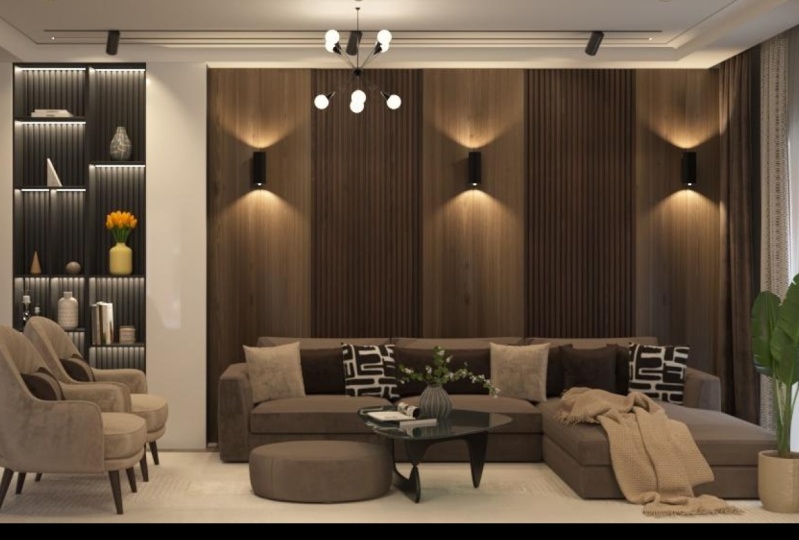
real interior project, a modern living
using Preds max. And this course will follow
real project orders so we can simulate the working process of a real interior designer. The main questions
that usually appear when interior designers
aim to obtain photo realism in their
renders are linked to approaching details
as much as possible. To how they look in renders
compared to reality. The way how real
finished materials are applied and arranged in
real life and how close we simulate that in
our images is one of the main factors that influence the appearance of realism
we try to obtain. That's why we'll focus
mainly on enhancing details to obtain
desired photo realism. What is this course about? First, we will start with the main finished
materials that are present almost in every
interior project. Like tiles for example, we will analyze
how we can adjust their settings so we can
obtain real tiles appearance. Next, we will analyze floor
finish like wood and the way how to obtain real
wood structure and random bump and glossiness. Wood will be used not
only for our floors, but we will use it for decorative wood panels and elements that are
linked to modern style. We will need medium
density fiber board, what we call MDF board
for our furniture. First, we will use our plans to model
with exact dimensions, them using Chamford edges. This will increase
our realism and we will also learn how to
adjust furniture settings, although it's a lot easier
to use standard settings. But we will use advanced
settings to simulate a more realistic appearance
of that material. After we finish with
the hard surfaces that are more common
to construction, part of the interior project, we will pass to soft
finishes like fabrics. We will start, of course,
with the curtains. They are present in every
interior as someone said, curtains dresses the
room and they will fill the whole interior with the
warm touch of a home comfort, as well as of the fabrics that are present in our project. And the main focus must be on enhancing the
realistic appearance. So we can show visually in our renders that the warm
home effect is present. Usually when beginners don't
increase their realism, the images look cold
and crude, Not refined, but an inferior
designer's goal is to create that warm
home comfort effect, a place where we desire
to find ourselves. We will start by the way. We will do this for
every material, not only for the fabrics
with simple tests where we will upgrade the
material appearance so we can understand
the main principle, how we can adjust and
reach that advanced look. All the textures, Fred
models and materials that we use in this scene will be attached so you
can follow along. For example, for fabrics, I will attach a pro
Similes fabrics library I'm using for my
interior projects. And you will be able
to change and adjust any texture with the same
realistic appearance, depending what colors you use for a specific
future project. Of course, we cannot
forget about our sofa. We will use velo material. First, we will create a test to create that
advanced material. Understand how we can control the velo appearance
effect after we will apply it on our
model, in our project. And we will adjust it
as a final touch to obtain the desired
deepness for our effect further, although it's a
part of construction and in real remodeling process
is done in the first stages, we will model our ceiling. We will model it
in the end so we can easy navigate
through our scene. We will use ready plants
and exact dimensions and we will use for this project
magnetic light tracks light. By the way, it's health
of realism in our images. We have to adjust our
lights as close as possible to reality and
interior standards. So we can obtain a
very close simulation of that same light appearance. In other words, same as they would look like in
our real interior. We will use our under tools
to adjust and finally, to check every light apart. By the way, this is a big
problem for beginners. They don't control usually all the intensities
according to their hierarchy overall position. Thus, the
light issues are brought in front because of the
unnatural contrast we obtain. And in that way, we can lose our realistic effect no matter if our materials
are set right, light and materials
must be in a balance. And finally, we will analyze our render settings and post
production in Photoshop. To gain a pro level
in interior design, we have to complete
at least one time a real interior project
in order to obtain experience of how to act
from the start to the end. And it's a lot easier to force that technical level using
a ready structured example.
2. Meeting with the clients phase: First stage of any project, it's about meeting
with the client and finding out what we, as interior designers, must do. Further, I'll stop too much to talk about the first
stages of our plan. Still I would like to point out a few things before
we start our project, so we can understand
what we are doing and why we talk about an old house. It was a project that I've
done not so long ago. Clients wanted
remodeling, so you can see that even some walls
are not quite perfect. I mean, the walls lines
in different rooms, although we will talk only
about the living part. These are the
dimensions I'll attach, by the way, the dimensions, so you can follow
along on stop as well to recreate the
walls in that way. This course will just
take too much time. In this course, I would
like to focus mainly on Prides Max and V Ray
part or we can say how we can create the interior
project image part. Mainly how we can obtain
realism step by step. And of course, if
you will follow along and repeat
this whole process, this material should help you increase your interior skills. We discussed with
the clients that we will use modern style
for this project. We will use as well wood texture to create a warm home effect. And colors will be as well
in brown and base tones. Shortly, we also talked about
the level of complexity. This is very important when you appreciate with the
clients your work volume, deadlines and other details. These are as important
practical parts when we begin our projects. But the last thing I would
like to show was the sketch. This was also done during
our meeting in a rough form, just to set some anchor points in what direction
we should work. So let's begin with
the freed modeling and we will begin
to raise our walls.
3. Using sketch to raise the interior walls: Let's talk about walls
when we appreciate the starting points
with the clients and we understand
what we have to do. Of course, some changes may occur after we show our images, and this is something normal. We have to draw our exact sketch and use it to raise our walls. I'll attach, by the way, a DWG file with the walls so you can
download it and follow a. In this case, we recreate a
ready project and as I said, our main focus in this course
is to understand how we can obtain a realistic
image and how we use Preds, Max and VA instruments. But even when we begin an
absolutely new project, we still maintain this order. Everything always
begins with a sketch. And a lot underestimate this first stage,
which by the way, we discuss first with our clients proposal
of our feature steps. But the shortest way to
obtain a good design is about obtaining a good
proportion from two D. When you raise your volumes, it will look good
in three D as well. I know this is true mostly for beginners when they hurry to get quickly to install and adjust lights and
combine textures. And it seems to be the
most interesting part of any design project. But you can't skip
the gray stages. I know they seem
not so interesting. Everyone wants to feel as a decision maker in
a design project, but the professional approach, it's about the scale
and proportion. And this is done at
the sketch part. And only this will create, as I said, a good design. Proportion will be like the
bones of your overall design. Okay, let's get to our
plans. These are our plans. These are the dimensions. This is the floor plan. We will use borders,
200 millimeter width. First, let's get to max
and raise our walls. I'll create a copy. I'll delete these
details for now. We will need only the walls. Let's use stream. First of all, I would like to say that
we will have to model all our balls so we can simulate the real light appearance for our interior light must be
simulated as in reality. Only then it will
look very realistic. I'll use extrude. We have 2,800
millimeters height. I'll use a white Vira material. By the way, you can see that the materials are already set. I had already accomplished
this project, and I'm repeating it from
the start. One more time, I'll put the walls
back on our sketch. Although it's a floor plan, our sketch will
appear a bit later. Now, we will have to check the flipped polygons as you see in the DWG process. When we create our
project or our sketch, we may have to surfaces
and we must delete them. We don't get artifacts in our renders and we
must check for that. Also, we will check for
unflipped polygons. As I said, I'll use flip for surfaces
that connects with our living. As I said, light is coming
from different directions and we have to create a
correct distribution, correct light distribution. I'm using connect to
create windows and doors. I found it to be the most correct and the
most clean method. You can use it as well. In this case, in our living, we have a window, a big window. The height will be
2,000 millimeters. And for the surfaces, after we use flip, we will use bridge so
we can connect them. In this case, the
mesh will be clean. The same process for the doors. By the way, we appreciated that. We will have no doors, we will have just door portals. We'll create them a bit later. Same height, 2000 millimetres. We use bridge. You may ask why we
model these doors. This is very important
for our light situation. All the doors will have the
height of 2000 millimetres. The entrance door as well, we have to flip this polygon. We will use connect
with two segments. Here we will set
900 millimeters. Same thing, we will use bridge. These are our walls. Next we will get to the floor.
4. Creating our floor using Floor generator: Let's talk about our floor. If we seek to obtain the
photo realism in our images, we have to recreate the same details from
reality for our floors. We will talk about
materials a bit later. But first, let's take
a look at our floor. This is our floor plan. We will use wood and we will also use borders
made from tiles. They will be 200
millimeters wide. Okay, let's get to max. Let's try to model our floor. First of all, I
will make a copy. We will use that
unnecessary details that we talked about in
the previous lessons. Here we will have our
wood in the center. I'll create a rectangle
for every part. We will use floor generator. I'll select them all. I will put them apart for a bit. I'll convert them
to edutableplants, and we will apply
floor generator. Now let's talk about the
settings of our flow generator. In our case, we have the wood
dimensions 1,200 by 200. I'll use a 35% offset. This seems to be the
most pleasant look for our wood planks. I will use a bavel of 1
millimeter and an extrude of 8 millimeters and we
have to set our grout. 1 millimeter will
be enough so we can imitate or simulate
our wood planks grout. I'll copy the same settings for the second and third floor. Here we have to
rotate our direction. We will talk about the materials
a bit later, as I said. Now let's talk about our tiles. Let's create the
contour for our tiles. And this will be the most
fast way to model them. I'll move our floor
plan and I'll attach these pieces so we can use floor generator on
an interior contour. Sometimes it jumps. Now let's set our tiles. Our tiles will be 1,200
millimeters by 600. I'll reset to 0% the offset probably we will change that
direction 90 degrees. We cannot say for sure where
will be the starting point. We have too much corners still. We have to find, let's use
this corner for example. We also have to take into
account how the materials will be applied and
how they will be cut. I'll continue the tasks
under the window. Let's use refine
to at some points. Oh, snap. And one more point for the exterior part. Same thing here. That's it. This is our floor.
5. Creating the main sketch: Next let's get to our sketch. This is our sketch. As I said, we have to reconstruct
this sketch exactly. The sketch is like
a business card or a visit card that you give to your client and it's like a rough appreciation of what you will be
doing in the future. It's the first stage of
first phase where you and the client decide the direction
of any project first, we always draw a
rough sketch by hand. When we first meet
with our client, it must set the basics. And after that, we will
have to present to our client a detailed
in dimension sketch so he can understand
and perceive visually the proportions and the scale of our future design. Let's get to Max. First of all, we have
some details from arcade. I'll remove for now
the floor plan. And I will set the
sketch under our walls. These will be our wood panels. We will have lights in
the middle of our panels. Now let's create a copy. And we will try to
model that wood panels. By the way, you can check
the dimensions here. I'll attach the plans so
you can follow along. We will use these
two textures as well a bit later for our panels. As you can see, we have 2,800 millimeters, our overall height. We have 200 millimeters
our ceiling, and these panels will
be 2,600 millimeters. I'll create a copy
of our sketch. It's a lot easier to model, and then we will drag
them on our main sketch. I'll create a box. As I said, we have 2,600 meters. I will convert them to poly. We will have to create the middle part where
we will set our lights. I'll use chamfer so we
can set our middle part. And I will use
with local normal, 5 millimeters will be enough. I think our wood panel will
have two pieces connected. Now let's use ring set here as well a middle part. I'll reset the selection
from unnecessary polygons. As well From the down part. Then same thing,
less use extrude. We are more interested in the front parts of
our wood panels. Every element should have a chamfer so he can interact
correctly with light. Usually, I do set
around 678 segments. It depends, but it
will be enough. Our corners will interact with light and create a more
realistic appearance of our wood panel. When we finish our
panel, we will copy. I'll set two copies. Now let's talk about
the middle part of the part between
our wood panels. I'll create one more copy. So it's a lot easier
to model them. I found it to be a lot easier
to model them using lines. I'll create an element and
I will copy it before that. Let's use as well for these elements so they can
interact correctly with light. I'll delete those parts. We will adjust a
bit our elements, I'll attach them so we
can obtain one element. I'll delete these
and we will use free form deformation
modifier so we can bring it just
exactly on our line. Let's set the element
on our sketch. And we will use the same
height as our wood panels. Yeah, and I'll copy one more time. Let's select them all. I'll group so they don't jump. And I will set them
on our main sketch. That's it. Let's get further.
6. Creating wall shelves using real dimensions: Next we'll model our
first piece of furniture. I'll attach a DWG file
so we can follow along. You can use the plants
as well if you prefer. But as I said in this
course I would like to focus on image or prides Max and V a part and not on
modeling despite the fact that we will have
to model before we get to our desired stage, the light textures and render part or what we call
the design part. Let's get to Max. We will model this part,
this furniture part. You can use the
plants, as I said, or you can use the DWG
file as you prefer. Our elements will have 300 by 400 millimeters and the
doors will use MDF board, usually 24 millimeters wide. By the way, you can use
Chamfer as a modifier, but I will use, in this example, chamfer boxes. Let's set the upper
part in the down part. Now the side parts. We will adjust the
details Cher a bit later. Here we have two pieces,
all use instance. All four pieces
will be the same. Again, let's copy
using instance. Sure. In our back part, usually it's not
so wide as it is not seen and we will
have elements above it. As I said, our doors will
be 24 millimeters wide. Usually, this is the
width of MDF board. It depends, there
are more wider, but for this furniture, I think we can use 24
millimeters. It will be enough. Let's model the last elements. Now let's try to
chamfer or elements. As I said, you can
use 67 segments. It will be okay. It depends what we are modeling. We use the instance
for our elements, so we can input those segments
only for one element, and the other will
change as well. Let's select our furniture. I'll create a copy. Simple copy. This part, by the way, should be on one line still. I would like to
drag it a bit up. Now let's set our furnitia in
its place above our sketch. Rotate. I think it will be a lot
easier using a line. We will use maximum. In this case, we
will use X on Hive. We will set our
furniture in its place, old group, our wood panels, and we will use this element. Our back part was
moved 5 millimeters, so we will have to move
this part as well, a bit. That in part it's a bit wider, so we will have to
double our element. I'll create an
additional box so we can understand where our width ends. I'll delete these parts, and no snap that element here, and we don't need
those parts as well. I'll attach. Let's move first, let's
change the pivot point. It's a lot easier
to work with it. Let's delete that polygons. We will use a free
form deformation, so we can drag a bit
to close that gap. This is our first
piece of furniture. Next we'll get to
the second one.
7. Creating TV furniture using real dimensions: Let's talk about the second
part of our furniture. First, let's take a look
at furniture plans. I'll attach them by the way, so you can follow along. We can say that the
fern is made of four pieces and two of
them mirror themselves. We will begin with
the lower part. I think this will be
easier so we can have some base where we can
install all our pieces. Our fern is made as well of
MDF board 24 millimeter wide. And as you can see
on the final image, when we pass a bit
later to materials, we will try to recreate a more realistic appearance of our furane using some
advanced settings. Okay, let's get to Max and let's try to recreate this lower part. These are the plans, I'll
attach them as well. As you can see we
left some space for the curtains and for
the door portals. 200 millimeters and I'll try to measure our height will be as
well, 200 millimeters. Let's start with the rectangle. I'll use on 200 millimeters
so we can create the main part. ' I'll snap it to the plan
so it's a lot easier to find the sections
or the dividing parts. Let's use connect. Look, we have the middle part as well. Let's use connect. As you can see we have 30
millimetres from both sides, so Wible use inset. Inset by polygon. Using 30 millimeters here we will have
to change a bit, so we can obtain
only 30 and not 16. I'll move on x in the segment, so we can obtain the same width. Let's extrude for these parts, by the way, you can see the
reference on the images. We will leave 2 millimeters the space between the elements,
the furniture elements. Then we will use extrude inside. We will insert 2 millimeters
and we will use extrude outside using as well 30 millimeters. We will chamfer using 2 millimeters and seven
segments. This will be enough. We must always use chamfer if we seek to obtain realism
for our furniture, it will interact
correctly with light. In reality, we don't have
perfect edges like in Max. I'll have to select them and apply the chamfer as well. And for the back part, we will repeat the same steps. Now let's champ for these
edges. Same settings. This is our lower part. I'll put it above our sketch, so we maintain the dimensions
and the sketch proportions. Yes, I know there is a small difference there
because of the champ, but we will put it very close. Okay, let's get to the other
parts, the upper parts.
8. Adding details to our TV furniture: Okay, let's get to our next
parts, the upper parts. I'll begin with
Eric Tango as well. And let's see, extrude, I'll use 224, then I will
extrude 2 millimeters. It's a lot easier. So we can create
our door effect. We can use connect, but there are too much steps. Oh, put this piece of
furniture above our sketch and we will chamfer
it in its place. Okay, first of all, let's
create our door effect. I'll use Loop. Let's select the
polygons and we will use extrude local normal -24 Let's use chamfer as well. 2 millimeters with
seven segments will be enough for our door. I'll grade a copy and using snap ball and
stalled above our sketch. And we have to raise it 200 millimeters so we can
put it above our lower part. Okay, Next the shelves, same thing as for the
first part of our F. As you can see, we have 300, sometimes it jumps. It's okay. We will
use chamfer boxes. There are other methods as well, but I do find it to be a lot
easier using chamfer boxes. For this example, we
will champer them. In the end, like for the
first part of our furniture, let's create a copy instance, the same height instance. The side birds. Same thing. Okay. These parts are ready. Back part, I'll use five
millimetres, it will be enough. Let's select them. I'll group and I will rotate. I'll hide other
objects so it's a lot easier to put it in its place. And the same thing, we will have to raise it 200 millimetres, a mirror Y. The modern elements,
they, by the way, imitate the columns, the
ancient Greek columns. Although what we call
now modern style, it's not the original
modern style anyway. Let's use the vertices so we can cut or adjust our pieces. I'll delete those polygons and let's use a free
form deformation so we can adjust that piece. And we will convert to poly. Let's see, this champer
for our elements, Two millimetres will be enough. My son, I'll create a small space between the side parts
and the shelves. Okay, let's copy using intense or on X. We have chamfer on corners
so we cannot eat snap. We will set it very close
and this will be okay. Now, the last part.
9. Creating the doors of our living: Let's talk about doors
For this project. We decided with the
clients that we will have no doors
for the living. We will actually use a part of the door to create
some door portals. I'll attach the model
that I'm using. Let's get to Max. This
is our door portal. I'll create a copy and
let's try to install it. I'll drag until we pass all
the details above the wall. Same thing here. One more thing. I would like to UVW map in this part like this. Let's convert this
all to editable poly. And I'll create one more
copy for the second portal. While we decided that
we will have no doors, if we would install some doors, the living would seem too small. Here we have the hall. In the next room, we have
the dining and the kitchen. That is also connected to the living at some
kind of open space. These are our door portals. Next let's get to our base port.
10. Creating baseboard using instrument Sweep: Next, let's talk
about our baseboard. I'll attach a file library of profiles that I'm
using for my projects. You can pick any
profile you want. Later, we will use the
profiles for the ceilings. In this case, I
use this profile. We also do have moldings, but in this project we have only the baseboards
and the ceiling. We usually use moldings
for Art Deco style. This is a modern style I'll create with the line, the path for our baseboard. In fact, we will have
so many elements that our baseboard will not be seen almost still have
to model it in real life, we have to cover the
link between surfaces or we can see the link
between different materials. Oh, sweep. We'll use a custom session and let's adjust. This is our baseboard I'll
and hide our objects. First of all, we have
to raise it a bit above our extruded floor. Second thing, I'll delete the
parts that we don't need. We will adjust these parts. Actually, we will not need
these parts later when we will style our wood
elements above them. I'll move it until it
hits the door portal. I'll delete this part as well, and I will actually scale it a bit so we get a
higher baseboard. It would be correct to
modify the profile itself. Okay, this is our part.
11. Creating wood wall for the door portal: Next we'll create
an element with element like on
the previous wall, so we can cover
the surfaces that are remaining after
we used door portals. We'll have to extend. I'll delete those
polygons so we can copy. And then we will create
one element by attaching, we'll actually need one more. Let's attach all our elements. Let's put it above our wall. I'll just a bit so we
don't see the wall itself. And I'll delete these
polygons as well. I'll drag the vertices up and we will have to create the door part. Let's use a box and we will use our old instruments using subtract. Let's delete the
remaining vertices. This is because we deleted
the previous T is. I'll drag them. They will be
covered by our door portal, so we will not see them. I'll hide. Let's adjust our door portal. As I said, this part
of the baseboard actually won't
need this as well. And let's adjust all
verts Bardo portal. Something like this. Okay, let's get further.
12. Creating realistic wood floor Vray material: Finally we got to the part
the designers love so much, we got to materials
to V materials. As I said previously, we will create some tests
before we will apply these materials into our scene so we can understand
the principles, how we are creating
these materials and how they interact
in our renders. We will begin with
our floor material. First, we'll get
to Max and we'll create one more file, test file. I would like to explain how materials form from their core. Okay, let's get to Max. As I said, we will
create one more file. I'll use a Vra plane,
an infinite plane. We will start with
the first material, a simple ray material, all applied to the V ray plane. And I'll create a sun. I won't raise the sun so
we don't have to deal with V ray physical
cameras and adjust the light and it will feel a bit more comfortable to work. And I'll create a
teapot for this floor. We will create a wood plank. Our teapot will be for round surfaces or
for curved surfaces, so we can see how
these materials interact on plane
and curved surfaces. I'll include real dimensions
of a real wood plank, saying that we use for
our floor generator. We will use rate
material library. So we have some kind of examples before we create
our own materials. I'll choose, for
example, this sample, so we have some ready material, we will try to analyze how
it's created and then we will use the same settings for our material that
we will create. This is how this material looks. At least some kind of preview. I'll pass the Slate material. It's a lot easier to visualize
how materials are formed. I'll create an instance
of this material. As you can see, this is the
structure of our material. We do have a diffuse, we do have a reflection and
we have glossiness and bump. We will have to recreate the same things for
our own material. First, let's apply
this material. I'll read a copy. Let's apply this material to
another teapot and a plank so we can see
how they look in render. Mostly we have to observe the reflections and the way how material
interact with light. That's why I created a teapot. This is our texture
for our floor. I'll attach the texture. I'll create a copy
of this material. I will have to recreate, as I said, our own material. I'll delete this one first, we need a Diffuse. We will use a color
correction as well. Let's apply these materials
to our teapot and our plank all enable showing viewport so we can see what is happening. Let's use a UVW map so we can adjust how our wood
looks on our plan. We'll have to rotate and let's fit. I know
we have some scenes, we are not looking at them. Now, the main thing
that we are looking at is the reflection and how
it interacts with light. We must obtain the
same thing as here. Our reflection is flat. So we have to adjust this. By the way, you can change here the appearance
of your wood, but we will leave
it on the fold. Now let's get to our reflection. Same as here, our bump
and glossiness as well. They do use color
corrections to adjust. I'll show in a bit how it works. Let's use for color correction the same texture as you can see in the
render how it changes. And here we can adjust the
level of our reflection. As you can see, we already got a strong reflection
for our wood. Same thing will be on our plank. We have nothing almost
to reflect in our plank, that's why I choose the teapot. It's a lot easier to
understand that on a teapot, same thing on the Glossinus.
We will have to adjust. As you see, our reflection
faded a little bit, so we'll have to raise
the glossiness it is, using the texture
itself to create random glossiness and thus we are creating a more
realistic effect, not just a straight reflection. You can adjust the level of glossiness and obtain
the wood that you need. I'll set the level of glossiness somewhere at this level for our project will be enough and we have
to talk about bump. I'll grade a copy of our
texture and I'll drag, I'll drag it to our bump. You can control the bump here, or you can control
the bump here. It will be the same thing. This is our wood floor that
we will apply in our scene. You can see it even
here, how it looks.
13. Creating realistic tiles Vray material: Next we'll talk
about our VA tiles. First of all, let's create
one more copy of our teapot. I'll create a tile. We will use, as I said, the same inputs that we
used in our flow generator. We can use a height of 8 millimeters. That
will be enough. We do have a babble here, but for this case
we can skip it. Let's search for a
tile in our V library. We will need a glossy tile. I'll drag this sample here, and let's try to analyze it. First, we'll have to
obtain a glossy effect. That's why we'll
use a reflection. Our Bompsy, it's very low. And the other settings we
will copy from this sample. Let's copy it and
let's try to analyze. We do have Diffuse
and we have bump. Let's apply this material to all these three objects and let's see how they
interact in render. First of all, we
have to understand how they reflect an
interacted light. After that, we'll have to repeat this effect for our tiles. As you can see, we have
a very glossy surface, so we will use the
same settings. This is our tile texture.
I will attach it. As you can see, we will
have 1,200 by 600. I'll drag our texture here. I'll delete those parts, and I'll use our texture to
create our own material. I will use the same
texture for the bump, but the bump will not
be the case for a tile. They usually are
very straight still, our bump will be at a low level. The main feature, the main
tile feature is its gloss. As you can see, the
effect of our reflection, we'll have to obtain this
effect for our tiles. Still, we have to take into consideration that the
tiles are straight, although our tea pot is curved, but the lights and the materials will reflect in our tiles. We will obtain this
effect in our project. Now let's get to Max and we
will apply this material. You can see how it looks. We will have to adjust a
bit the floor generator so we obtain a pleasant
look of our tiles. The distance here will be 750. If you remember, we will
have to cut one tile. We cannot skip that here. We'll have to install the tile. Close to our corner may be lay this, we have too much corners, so we don't have a straight
point where to start. We'll have to adjust this. If you can see, even
changing the direction will not look so good
as in this case. So I'll leave it like this. One more thing, The window, I'll tell our window. I'll use the sketch so I can put it exactly
in the middle. And I will crack the
board until here. Okay, something like this.
14. Creating wood panels Vray material: Next, we will continue
with wood material. We will talk about our
wood panels based on the previous settings and how we obtained our wood
floor material. In this lesson, we will try
to create the material, the wood material for our walls. These are our wood panels. This is our previous material, previous wood floor material. Based on its settings, we will try to recreate the same wood appearance
for our wood panels. We will use these two textures. I'll attach them, I'll
get a slate material. It's a lot easier to
create materials here, and visually it's
a lot easier to understand its structure,
their structure. Let's begin with
the first texture. I'll bring the textures
into our material. I'll create a copy, I'll delete the
previous textures, and I'll put our
new texture so we can obtain our new material. Still the settings
will remain the same. It's a lot easier to
understand how material will interact when we appreciate this material
applied on a sphere. In color correction, you
can adjust the level of glossiness, play
with a high light. Still, we will maintain a
semigloss for these materials. Let's create our second
material, Same thing. I will apply the
first material to our wood panels and the second material
to these elements. I'll drag just a bit so our
surfaces do not overlap and let supply them to the rest of the
panels and elements. Here I will drag as well a bit. I'll apply a UVW map so we
can adjust a bit our texture, we are not seeing the side although we will in
our second render. Here I would like to
adjust a bit our texture so we can get rid
of some details, some details from our texture. I'll copy this UVW map
to the other elements. I will adjust one more time. They don't look similar. When things look too perfect, they tend to break realism. Now, our second elements between our wood
panels, same thing. Uvw map. I'll use a box. Let's adjust the side parts and no copy. Same thing here. I don't know why it
doesn't want to copy. Okay, then I'll copy just the
element and we will adjust. Let's use a line now, let's apply this material
for this element as well. Let's apply VW Map. We will have to adjust a bit. Okay, these are the very
materials that we obtained. The very wood materials
that we obtained. We apply them to
our wood panels, and further we will get to
our furnishre material.
15. Creating realistic MDF furniture matte Vray material: Next, we will talk about
furniture material. In this case, we'll
have MDF Board. Before we get further, I
would like to point out a few things when we talk
about furniture materials. And by the way, not
only for the living, also for the kitchen and other rooms as well,
interferes an issue. Usually that lack of realism that we are trying to obtain. All that is happening because of the standard settings that
we are using, the materials. In this case, the
furnished surfaces look just too perfect. That's why we'll create
first a test with our standard settings so we can understand how
these settings work. And then we will apply a difference in our
surface settings. A fingerprints map, ll
attached map by the way. In that way we'll try to create a more realistic appearance by fading out that perfect look. And at the same time
trying to create the effect that the
furniture is used by people. And this will bring
us a step closer to our realistic perception
of the furniture surfaces. Okay, let's get to Max and
let's try to create that test. Let's open the previous file. I'll select a plastic with the settings that are
close to our MDF board. These are the settings
for our material. As you can see our glossines, it's not too high
still, it's present. We have to obtain that
effect of MDF board. First, I will apply
the standard, as I said, settings
for our material. Let's take a look how
it looks in our render. As you can see, this is the perfect look that
I'm talking about, is just too perfect. The settings look right, but still it's too perfect. These are the reflections
that we are trying to obtain on round surfaces. As I said, on curved surfaces, it looks much better. We can understand
how the light will interact with this
surface in our render. Now let's try to use, as I said, this map
of fingerprints. I'll attach the map by the way, and I will use it
in our reflections, our reflections not perfect. I know the Ti pot God seems. We will apply a UVW
map to our Ti pot. We will ignore for now the Sims. We are interested only
to see the effect. Now as you can see, our material looks a lot better. This will create this
realistic appearance that we are searching for. Let's get to our project. Let's try to apply this
material to our furniture. This is the material
that we obtained. I'll isolate the selection so
it's a lot easier to work. Our doors will be white. We will get to that
in the next lesson, but the rest of the
furniture will be black. I'll enable our texture so
we can see how to adjust it. We must adjust the
reflection map. Something is let's convert to polygons. Let's group. The end is now our second part,
Second furniture. This part, the T part, it's also black and this
lower part as well. Same thing. Let's apply
UVW map. Let's adjust. We will adjust on all Xs and all copy UVW map. For the second part of the let's adjust this TV part. I don't know why we
cannot convert to Polly. I'll convert a part. Okay, let's get to our next
material, the white material.
16. Creating realistic MDF furniture glossy Vray material: Okay, let's get to our
second white material, MDF Board material. This will be a glossy material. First, let's get
to our test file and Max so we can
adjust our settings. This was our previous material. In this case, we'll
have glossy material. First of all, we will
change to white. Our reflection will
use these settings. The glossiness we will have to raise the
frenal reflections so we can obtain that
glossy effect. I'll apply the material and let's see how it
looks in our render. As you can see, we obtain
this glossy effect. Now let's apply
these settings and this material in our project, this is our material that
we recreated in our scene. And we will apply this to our
doors, the middle elements, and for the fern as well. For the doors on group, I will choose the doors and
I will apply the material again. Let's get further.
17. Using Unwrap UVW to correct our textures: Let's get to our last part, the furniture lower part. Actually, I didn't plan
to get to deep into this, but there is no
other way how we can texture our lower
furniture part. We'll have to do
this, we'll have to unwrap it, I'll make a copy. It's a lot easier
to work by the way. As you can see, we
can use any wood. We can say that we
can use any wood. But there is a problem
with such long elements. You'll see that in a moment. F I will apply UVW map. Let's suggest we have a big issue. We can see our seams, such big and long
ferentia elements require only seamless textures. I'll pick a free
sample and I will copy the settings that we
use for our wood panels. We only change the texture. Oh, a name material and I'll activate showing board. Now. As you can see,
we have no seams but our material has to be adjusted. I'll create one more copy, all converted to polygons. As you can see, we have
issues with our texture. First of all, health of
our element is mirrored, so we can use only one health. We have to set the texture in the directions in that way this texture will
look as it should. Okay, let's apply. This will be a quick method. I don't get too deep still. We have to do this. Let's
select the side part. We have to rotate now. As you can see, the
texture lies as it should. I won't play with
these small elements. Although it will be correct
to do this in this way, it will take just too much time. Now let's take the shelves. Let's create a pill. As you can see, we
selected all the elements. In this case, we'll
have to adjust every single polygon and it
will take just too much time. We will adjust only
the front part. In this lesson, I would like
to show the basic principle, how we wrap, quickly wrap
our parts of Ferentia. Same process for
all the polygons. We select the polygon
and we adjust the angle. The level of unwrapping, of course, we can do it perfect, but the level of
unwrapping depends how close will be our
camera to our object. If we have to present and
show only one object, of course, we will play
with every single element. Usually these elements for the furniture are
cut at 45 degrees. That's why we will use
the polygons in this way. As you can see, the angle, the 45 degree angle between
these polygons or elements, they are actually
different elements if we talk about furniture. In this case we just
thrushed how they look now The less shelf and we
will adjust on the front part like this down part, although we are not
seeing it in our render and our part, although we
are not seeing it either. Okay, let's get to
our editor over scale our elements so they
feed their size and scale. This is what we obtained. All copy one half
will mirror it on X. And now let's snap it like this. I'll convert to Polly actually, I'll make one more copy
now, convert to Polly, I will attach, and
I would like to weld the sam between
these two parts. We'll have to adjust it. Should be okay. Now
we have one part. This is our lower
financial part. I will use a line.
It seems to be the most quick way to
put it in its place. In this part, I will delete, but we can move it in
case we need it later. I will then check
the reflection map for the furniture so we can have a perception of how the furniture
will look in the end. Okay, let's get further.
18. Creating a very realistic velvet Vray material: Finally, we got to the, one of the most interesting
parts of this course. We got to the fabrics. In this lesson, we will
talk about curtains. And we will try to understand how the velvet
material is formed. We will create a test with
free option curtain material. And we will keep
upgrading it until we obtain a very realistic
appearance of our material. First of all, I've downloaded
some velvet samples. We must watch how these
surfaces look and we will try to obtain the same look for our
material in V ray. As you can see, the
highlights are very specific. I'll attach, by the way, my library that I'm
using for my curtains. And not only we will pick a random texture from here and we will create a test. And using the same settings, you'll be able later to
change only the texture for your projects and the realistic
appearance will remain. You can see here,
written by the way, it's like an artificial velvet. Velvet being a natural material. In reality, people do use Lu usually as it is a
lot easier to maintain. I'll attach the
curtains as well. I picked three curtains. Actually it's the same curtain, only I made three copies. Now let's try to apply this
texture and we will create, as I said, three
different materials. First, we'll be very simple and we will
keep upgrading it. The first most simple material is just using diffuse and bump. In this case, by the way, the textures are seamless, so we will have no
seams for our curtain. This is like a one
color curtain. It doesn't look bad still, it's not so realistic. Mrs. hold gloves. Let's get to our second option. In this case, as
you can see we have different shades
on our surfaces. We'll have to recreate
that using a map. I'll attach by the
way, this map, first of all, let's use
a color correction. I'll apply the texture to diffuse by the way, you can change here the
color of your texture. If we seek to obtain a
complicated effect on a surface, we'll have to use composite here. We can control the effect, how deep our effect is. Let's try to apply
this material and compare the first material
and the second one. By the way, you can see
that it looks much better. In this case, we have
this type of material. You can see, by the way, that the first
curtain looks, okay. It's one color of course, but this material
looks more complex. And as you can see, it gives a more deeper look and a more interesting
appearance in our images. Next, as you can see, we have a specific highlight
for the velvet material, of the lure material. Anyway, and we will try to
obtain this advanced effect. Let's copy this texture. This is the settings and the material that I'm
using for my curtains. Let's use a color correction. First of all, as you
saw on the samples, we have different colors. At least it seems that there are different colors on
the same surface and we have to obtain this effect using the same
composite map only. I'll add four layers. I'll copy the texture
for the third layer, and I'll apply a
color correction. For the first color correction, we set a bit value. In this case, we will set
a more lighter value. These two colors or two textures interact
or mix between them. I will use the same map
for the second layer so we can obtain this
velvet appearance of luer appearance. And we also have to set
these values for our layers. Actually, I will
use one more map. As I said, I will attach these maps and I will
use it as a mask. Now I'll input a follow off map. I'll decrease the white
to 20 and as you can see, this effect of velvet
highlight begins to appear. I'll use one more
color correction. And here we'll have to, if you watch, you can see this highlight and you can control this
highlight from here. I'll set it to 50% And one more thing,
we have to give some structure to our curtains. Here we have normals that
we will use for our bump and we will use a mixed up. Let's try to apply the
material to our curtain. I'll start the render, and as you can see already, you can see that the
highlights create a more realistic appearance compared to the second option. I'll in so you can
see it better, I'll get the curtain a bit
closer to the second one. Yes. The second option
doesn't look bad. By the third, it's a lot better. Okay, let's get to our scene. In this case we will use for
this project this texture I, I've recreated one more
time this material, and I applied it
to our curtains. By the way, as I said, I will attach the curtains
so you can use them. This is how this material look. I'll drag the curtains. We'll have to adjust the curtains after we
create our ceiling. This will be a bit later. For now, we will
just put them here. They already have free form deformation
modifiers applied. As I said, I've already
accomplished this project once. We will have to adjust
them according to our furniture and
different objects that they interact with. Okay, let's get to our
second and third curtain.
19. Creating realistic curtain Vray material: Let's talk about
the second curtain. And the third curtain, we
finished with the first one. I brought the
curtains here so we can see how they
interact with light. Let's start with
the second curtain. I'll create a copy. Let's choose a material. I'll switch to slate material. In this case, we can use,
for example, fabrics. There are different options
for the second curtain. Let's create the same
two option in this case will be two option for
our second curtain. I'll pick the fabric. I will apply the
texture to the curtain. As you can see, first of all, our texture is seamless. We have no seams on our curtain. I'll a bit so you can
see how it looks. It's not bad. But we have to create a bit more advanced
look for our curtain. First of all, we talk
about the highlights. The advanced highlights, we use the same structure, but we will use a follow off. This is a very strong effect. We will adjust the effect. You can see how it
interacts with light. This is our first
and second option. I'll bring it a bit closer,
and as you can see, the highlight gives a more realistic
appearance to the curtain. Now we will adjust a bit. This effect, the effect,
it's too strong. We must control from here how strong will
be our highlight. You can see now why the
materials with fall off and advanced highlights look a lot better than the
diffuse and bump alone. I'll have to add some structure
as well to our material. You can control the bump here. The bump depends
on the distance. The distance from the camera. In this case, we will
use this texture. The clients demanded some
accent for the second curtain. I'll apply UVW map so we
can adjust our effect. We have to adjust
so it looks right. The last one, we have to use a great two sided
material for this one. First of all, we have
to give it a structure, the same structure that we use
for our previous curtains. I'll use this structure
in the bump channel. In this case we
have a white color. These are the settings that
we use for our third curtain. And as well, I will apply
a free form deformation to adjust its position according
to the objects around. This is how they look in our
render in the final render.
20. Creating realistic Vray velour material: Next I would like to
talk about our sofa. We will use a Lue material, so we can link with the
curtains and our style. In the library that
I've attached, you can find different samples of textures that you can use the texture sofa still for this case we will
use a Lu material. We will try to create some advanced settings so it feels like the veluer effect. This is our library. Previously we use this
texture for our curtains. There are different
textures that we can use for our sofa. Still, we will be using a
beer lure for this sofa. These textures will be attached. First of all, I will
create a copy of our sofas so we can test our materials and see how they interact and render and
they interact at light. I'll switch to Slate material. Let's create a simple
very material. We will use this Luer
texture or you can use the. I'll attach both. They are similar textures, all copy three times our texture and we will use composite. We will watch how
our sample changes although it's a lot clearer
when we see it in our render. First of all, we will
have to use the fall off. I'll add some points to our fall off so we can create a
more visible effect. And I'll add one more fall off, it will create another
effect using three points. I'll convert the
points to bezier. Let's use a color correction
for the first texture. As you saw in the
previous material, we have to blend different colors of
the same texture so we can obtain
that bluer effect. We will use three
different values, and of course we have to use bump. I'll add a mix. This is another way how
we can create a bump for overluer using a procedural map. You can see here the effect, it's too big. We'll have to, you can watch it here. And of course we have to
use our map as a mask. We will create a copy
of the whole material and we will use V A blend. So we can blend or
mix those textures. And this map will
be like a mask. It will be set here. Let's apply it to our sofa. I'll enable showing the part so we can see what is happening and let's start our render the liar effect. It's not so strong for now. We will have to adjust
using this map. As I said, we have to obtain the effect of
different surfaces, more dark surfaces combined
with more light surfaces. There is no specific value. You can play with
the values until it looks like you expect. As I said, this map
or this mask create the blend and you can control zero effect
will be no effect. And we will set a
percentage of how deep the valuer effect will be
perceived. This looks fine, same material we will
use for the pillows. The only difference
that we will change and we will use this texture,
this previous texture. Let's create a copy
of the whole material and we will have to replace this texture so we can
obtain that effect. This material will
be for our pillows. Now let's get to our scene and we will apply the materials. And we will set our sofa in
its place using our sketch. We'll use a fine tuning here. Our curtains interact
with our sofa bit. Perhaps I will drag the sofa, exclude those interactions. That's why we use
free form deformation to adjust the curtains. Still we have to not
pull it too much. That way we can deform
all curtains appearance. We have to adjust to the space. Okay, this is our Sopa.
21. Creating a realistic Vray rug material: Let's talk about how we can
create a realistic rug. I'll attach these textures. If you see we have the
diffuse and the normals. Let's get to max and
let's try to test it. I'll create a VA material, We usually use composite
when we have to interact different surfaces and obtain a complicated surface or a
more complicated appearance. The same thing as you saw
in the previous examples. Usually we use color
correction for different channels and
adjust the values. Then we obtain different shades on our surfaces that interact. Thus, we create a more
complicated appearance in our images, our old son. So I will create a more intense effect. Will use one more for
the third channel, you can already see the effect. Of course, we have to
use the normals so we can obtain the
volume for our rug. Let's start our render. As you can see, we already have some kind of effect still. We have no volume for our rug. We will add that volume
using our map, normal map. We also have a noise map. We will use a normal map so we can create the
volume for our, let's use a normal map. And by the way, for the glossy, I will use the
same first texture with the color correction. We will set it to a gray tone so we don't have
to do this in Photoshop. Same thing here, we have to use composite between the noise map, no texture, and our normal map will be
mixed with this structure. You will have to
adjust some settings. I'll start the render
and you already can see that our
surface changed. We created that rag effect. Okay, let's get to our scene
and we will try to apply it. We will raise it a bit
above our extruded floor, still not too much, so we don't have
shadows under the rug. Second thing we'll have to adjust according to our sketch. Now we have to add
our arm chairs and our table, coffee table. I'll attach the models. This will be an
exercise for you using the lure settings to create
this piece of furniture. Using this type of lure to create the effect of Lure on our armchairs, I will switch to wireframe view, so I can find the
armchair position. They are placed
right in the middle. These effects you can obtain using the same settings that we used previously for our lure and our coffee table. Let's find its place. Okay, we are close to
finishing our living. Let's get further. We will install our lights
in our decoration.
22. Adding decor and details to interior: Next we will get to
a phase that usually beginners designers don't
like they found it to be, in most cases, like
a waste of time. Of course, we talk about interior decoration
or our details. The thing is that
you won't obtain photorealism if you
don't add details, details add life to your image. We have to create the
effect that the interior is used by people
and very important, we have to close our composition using
a composition ratio. I don't want to get too
deep into that now. Shortly 60% big elements, medium elements
30% and details or small elements are 10% So
if you don't have details, your image or composition
will be not finished. And all the design, it's about ratio and proportion. You can use a small tip
to do this phase faster. Of course you cannot skip it. Usually I do load
some models like stands with already
made decoration. But in this lesson, I'll use the decoration that I've
already adjusted once. I don't want this lesson to
grow up to two or 3 hours. The principle, how
we use decoration, I think will be very clear. Okay, let's get to Max. As I said, this is the
decoration that I've already adjusted once I'll pick them and I'll try to readjust them a
bit for our image. Usually I turn off
the angle snap, although it's always turned on. We have to pick random
positions for our objects. And of course, they must not fly something like this. If our objects fly, we will see this in our render
when they create shadows. So be careful how you
adjust the objects. By the way, we will have lights under our shelves for now, we'll leave them at
ten intensity ten. And as you can see,
I'm using temperature. I made these lights invisible and I'll drag them
next to the corner. Let's install our TV next. Let's get to our shelves. I'll pick a few models
and we will adjust them and the lights as well. I think this is a bug by the way. You can scale
ability or objects. We have to adjust
their proportion according to our
furniture ratio and the space ratio son group and will lights. All the lights will have the same values as
our first light. One more time I'd like to
point out we have temperature. We use temperature color. If we are creating interiors of one more very important thing, do not scale lights. I know it's a lot easier, but they can perform correct. After that, it was a time
when this was crucial. I'll try to do this
phase a bit faster. There are designers that love
to play with those details. Usually I focus more
on the technical part. When we will add lights, all those spaces will
look much better. Let's bring the lights as well. As I said, we know skill. I know we have to repeat the
same process over and over. But that's the phase of ins, styling our details skill a bit. As I said, we use scale to
adjust our proportions. I will pick the last objects and lights and we will drag
them so we can adjust them. I would like to see
the level close. Almost finished. I'll copy one model up there, group. Oh, copy light as well, let's kill me. Oh, copy in a sense, this slide, something like this. Now I'll select, I'll select all the
objects and we'll mirror them to the next shelf. You can use different objects, but as I said, the principle, I think is very clear. It's the same process
over and over. And this process,
it's only how much you want to play with
this decoration. Still have to install it. Okay, let's get
to our next fish. Oh, be delight as well. I'll bring them to our
corner and we'll adjust. And now the objects. Oh God, fish you up to some, Let's me the lights as well. A few option served, the last two options. So okay, that's it. I know it's a process that
repeats over and over, but we cannot skip this phase.
23. Adding wall lights and adjusting them using Vray: Next let's install
our wall lights. But before we go further, I would like to point
out a few things. A good light is the
key when we try to obtain photo realism
in our images. First of all, because
it interacts with all the materials and
objects in the scene. And if we don't have
a balanced light, we cannot obtain that effect of physical accuracy that
we have in our reality. That's why some renders
fade a bit into blue, some into yellow, it depends. And it seems like the image was filtered with some
color filter a bit. This is one of the
biggest issues when we talk about light. If we try to obtain
a good light. First of all, we
have to understand the hierarchy of all
lights in the scene. There are main lights, their
intensity it's more higher, there are secondary lights. Their intensity of
course, it's more lower. We don't have a specific
value for all those lights. All the interiors
are different and the dimensions and how the lights are applied
is different as well. Usually the Fredy models, when they are created, are adjusted at a medium intensity. And by the way, of course, we use temperature, not
color for interiors. And this medium intensity, it's like a starting point where we start to adjust our lights. But before you adjust what value you should
give to your light, you have to perceive
how that light will look in the interior
that you are creating. For now, we will load the
Fred model, free light model. I will attach the model and we will use for now its
default intensity. First of all, we have to
install our equalizer, the very physical camera. Okay, let's get to max. This is our free model. You can see the light
source here and here. As I said, we will adjust not color but temperature
for our lights. Now let's put our
lights on our walls. I will use a line using center. I will drag a bit, usually behind the sofas. We install lights, world lights. I'll use instance. And same process with a line. These are our lights. We will leave them for now, at default, until we install
our VA physical camera.
24. Creating our ceiling using dimensions: Let's talk about our
ceiling. This is our plan. Our ceiling plan, we have
500 from both sides. Here we have 300.200
are left for curtains. We will hide our curtains. We will have tracks. In this case we will
have 15 millimeters, but they are different. This is our plan
model, our tracks. I'll attach the model, we will use spots in this slide. We also need a profile for our. I'll attach as well the
library of profiles. Oh, snap. And let's visit a tango in this part will be 200 tres. I'll select the
rectangle and I will apply a sweep so we
can apply our profile. Let's bring it at our height. We'll have to mirror. We'll have to move it. Delete on X. Same thing here. And I'll apply a white
color to all profile. Now let's talk about our tracks. I'll make a copy. Let's delete these parts.
We won't need them. We will use only the
spot, by the way. We'll have to finish the track. The models don't have
usually the end part. In reality, there are different parts,
something like this. Not only if the tracks
are in a square shape, they usually have connectors. We do have three
types of tracks. In this case, we
will have this type. We will set our tracks
inside our ceiling. First of all, let's adjust our tracks and then
we will copy them. We missed one part, the width, the tracks
width is always adjusted. In this case it's
50 millimeters, but they can be different. And we will extend the track, same thing from here. And the end part, as I said, we will
use just a color. Our track doesn't
have this part. It's strange, but a lot
of models, this part, let's use a line to set
the light in the middle. You can move the lights, but we will try to find
a symmetry for them. Of course there will be instance in this case we cover this part. But for the spots, we'll have to do the same thing, same thing, copy instance. Let's grab those
details as well. And I'll group all group and we will copy
them as incense. I'll delete these
parts and we'll use spots for our second
track. Same thing here. All assigned for
this site as well. Now let's copy our spot. We'll have to turn our spot, Let's adjust it something like this. Let's see as a land to set it. Oh, so we can set
our lights. Exactly. One more time. Same thing here. I'll select them all. Let's copy. Same
thing here, intense. I'll mirror and
let's adjust them. And one more thing, we have
to install our main light. I'll use a line
and we'll adjust, now we can adjust our
curtains as well. I'll move them closer to our wall so we can
hide that gap. Maybe just a bit more. Looks okay. Okay, that's it. Let's go further.
25. Adjusting our Vray Physical camera: Next let's talk about our gray physical
camera and our lights. First of all, we have to
install HDRI outside. I'll be using standard settings. We'll have to install
our ceilings so the light won't come
from upper part. I'll use a simple
box in this case, and I'll give it a white color. Next we will have two frames. One frame will be from this direction and the second will be from
this direction. I'll get to cameras to
via physical cameras. Physical camera now we'll
have to adjust the focus, will be in sofa area. I'll use clipping. We will adjust that
clipping in a bit. First of all, we
have our furniture and we will have to hide it. Now, we'll have to play with our frame and the
camera position. If you can see our furniture, we will have to hide it. And we must bring the camera
clip as close as possible to the wall so we can get all
the details from the room. I know it's a lot easier to cut. In that case we
won't play too much. But we must set the frame right from a good frame
results, a good render. As I said, we will have to hide our financial
for the first frame. Our group. In this case
you can see the rug. If we would clip the rug, the frame or our render would
look not so interesting. One more thing about curtains. I always do adjust the objects a bit for different frames. We will use Lister and you can use all the lights or you
can use selected lights. I'm using selected lights, it's a lot easier to adjust. Okay, let's get to our render. Let's see what we have. Festival is too dark. These are the camera settings, so we will try to adjust. We also have light, but light mix will not correct our
light at a critical level. We have to do this
from physical camera. These are the three instruments
that adjust the light. First of all, we have to
play with our environment. You have to feel the
daylight by the way. Daylight, It's a lot easier
to create than nightlight. We have an issue here. We reflect our missing door, and from the next room, we have too much light. We'll have to adjust this. I picked an image image that will simulate
our environment. We have to create a plane at
segments and apply a band. This image will reflect from
our windows and it will create the illusion that we
have an environment outside. Some do use HDRI environment, it's not always in
the best quality. Sometimes I do prefer
images, it depends. Oh, had one more time. French, we will cover part of our light. It will be a bit darker, but we have, in our
reflection, our environment. We'll have to play with
our lights to adjust them. If you adjust your lights here, you won't have to
play in Photoshop. One more thing, you don't
have to expect from light. Makes super results. Yes, it will adjust a bit. Your lights still,
you'll get artifacts. If you overplay that, I usually don't touch F number. I leave it at mid
level. At eight, we have a white wall there. I'll copy an element so
we can simulate the room. It's not empty A, and now we have to balance
our lights in our room. Until we feel a good
balanced light, we must feel the
hierarchy of our lights. I will pick the wall light and we will use
very lightly, Sir, to adjust the lights.
I'll increase. Usually the models come
with a mid intensity, but you'll still have
to adjust them a bit. It depends these lights are at the lower intensity. We'll have to adjust
them as well. There are a lot of
lights there still. We'll have to adjust them all a bit more. That's better. We'll have to play at every
single light until we get something very close
to our desired intensity. We will adjust this a bit
later In light still, we have to be very close. Let's get to our tacks. I'll apply region, do
that a bit faster. We are getting closer to our life situation.
To balance it, we are close. Something like this. One more thing, we'll
have to check our lights, like wall lights, our
environment, our upper lights. As you see, I'm scrolling
down for my lights. We must check every light so we can understand
if we have an issue. These are our spots. Look okay. These are our tracks. We must feel the intensity, the overall intensity
for our lights. This is our main light. Okay, let's get to
our first image. It seems to be right. This is what we
obtained in the end. Now we'll get to
our second frame. I'll create a camera, all check clipping and we have to bring back
our furniture. One more thing, I
don't use too often decrease zoom as it messes
up a bit the render. But in this case,
we'll have to do this. We can have all our
room in one frame. I forgot about the wall colors. We are not seeing them
almost at all still. This is the color that
I use for our walls. And let's set the frame a bit. We'll have to find a good spot. Our lights are almost adjusted, but I'll start the
renders so we can check. We will adjust a
bit in light later. Still our overall intensity is very close to a balanced one. This is what we
obtained finally, in our final render. Okay, let's get further.
26. Final render settings for Vray: Let's talk about Over settings, the final render settings. Before we go further, I'd
like to mention one thing. All the settings,
although so called secret settings, are
almost automated. And the eternal beginners
question why my render, it's not looking as I expected. I did input all those settings. Of course there is a part of
the truth in the settings, but if people were struggling in the earlier
versions of V Ray with finding out the
perfect balance or the so called perfect
balance for the images. Now you can say that all
those settings are automated. Still, this didn't change a lot, the renders and the beginners
keep blaming the settings. First of all, you have to
input all those settings. It's like a technical structure. How you render will be form, but realism, it's about layers. The principle is like Photoshop, only difference is that they are all in free D. One more thing, you have to feel
all those layers including lights and
realistic materials. In the end, when you will mix all those things with
small adjustments, you will obtain that
desired photo realism. Okay, let's get to
Max and let's see what settings I'm using
for my final renders. First of all is the
size you can use 2000 by 1,000 It's
like a medium size. It's okay for the clients. There are different ratios. We won't talk about ratio now. Still try to use
fixed standard ratio. Don't go with random Ratius. Next we will change to bucket I. Don't use progressive
the noise threshold, you can use the
setting lower values increases the ander time. It depends on your deadlines
with your clients. For the color mapping,
I'm using exponential. There are different methods. I'm not using rain hard shortly because I'm doing
my post production Later in Photoshop we are using gamma 2.2 and don't forget
to switch to no gamma. Next, I'm using brute
force and light cash I used to work with the radiance
map because it's faster. But I switch to brute force, even if it takes more time, I think it gives better results. Next about light cash, you can use even the
standard settings. You can use 3,000 higher. It doesn't make sense, you won't see any difference. And you can lower a bit the sample size and the render elements of
I'm using radio Nis. I do use light mix, we will talk about this
in the next lesson. These are the settings
that I am using.
27. Using Vray lightmix to adjust our lights: Let's talk about light mix. I would like to start with
a disclaimer light mix. It's not an almighty instrument. Yes, it can help you to
adjust light details. Still, your overall light
situation has to be in balance. We have to adjust
before the render our lights as close as
possible to their intensity. And light mix is like a fine tuning that
we use in the end. If your lights are out of balance and you try
to use light mix, you'll get a lot of artifacts. Anyway, it's still a good
instrument that we can use. Let's get to max and
let's try to apply it. First of all, we have to enable light mix in
the render elements. These are our lights. We can turn them off all. Now we have to check
every single light until we find our issues. Those lights are the lights
from the furnisher with TV, we will get soon to the lights on the
wall and the ceiling. You can name your lights, but it's too much time. These are our
lights, for example, on our second piece
of furniture. So let's adjust them. We will adjust just a bit, Otherwise we will get artifacts. Now, we will find all the lights and we will try visually to
apply the same intensity. And intensity will be also according to our overall
intensity in the room. These are our wall lights. As you can see,
this blue type of color are the artifacts
that you will get. If you increase too much
or decrease the lights, we will adjust just a bit. These are our spots. Let's try to adjust
the intensity. As I said, we have to be
very close to our intensity. In that way, light
mix will help us. We have self elimination
for our main light, something like this. We
will get soon to Photoshop. Let's get to the second image. These are our first
lights that we checked. I'll increase a bit the light. Same poses for all the shelves. I don't get to that far. Lights, we almost
don't see them, we are just only the
lights that are in front the wall lights,
they are important. I would bring the intensity
of bit up just a bit. As you can see our HDI, usually I leave it at
the intensity of one. And our self elimination
from our main light, we can play a bit, whereas
I said not too much. Okay, that's it. Next we
will get to Photoshop.
28. Conclusion: Next let's get to Photoshop. There are different
techniques of post production in Photoshop, but if you set your
things right in Max, there is not so much to do
in Photoshop, For example, you have to play with contrast if you balanced
your light in Max, I don't want to debate
about different techniques. I'll show you how I'm doing my post production in Photoshop. Okay, let's get to photo. First of all, you have
to check the levels. They must be in a balance. If you set your
things right in Max, there will be a balance. You can use auto contrast
and auto tone still. You have to be in a balance
so they fine tune your image. If your image is not
almost balanced in Max, don't expect super results. Contrast changed a bit our
image, but tone didn't. I'm using Smart
Sharp for my image. Usually I use it at
default to increase a bit. The sharpness, it depends what
technique you have to use. Some do prefer blurry
images for interiors. I'm using sharpness as we have to visualize
all the details. Same thing here,
levels first contrast, you can see the difference. Still it's not a big difference, we are almost there. And same thing, sharpness, it pumps up a bit
all the details. I'll show the before
and after effect, so you can watch
it one more time. Well, that's it. I would like to thank you if you
watched the scores. I hope it was useful and I hope it will increase
your skills.
 Aurelian Castravet, interior designer