Transcripts
1. The Blend Tool - Intro: One of the things that's
always been missing in Affinity has been the
Blend Tool until now, they've added it in
and it is brilliant. There are so many
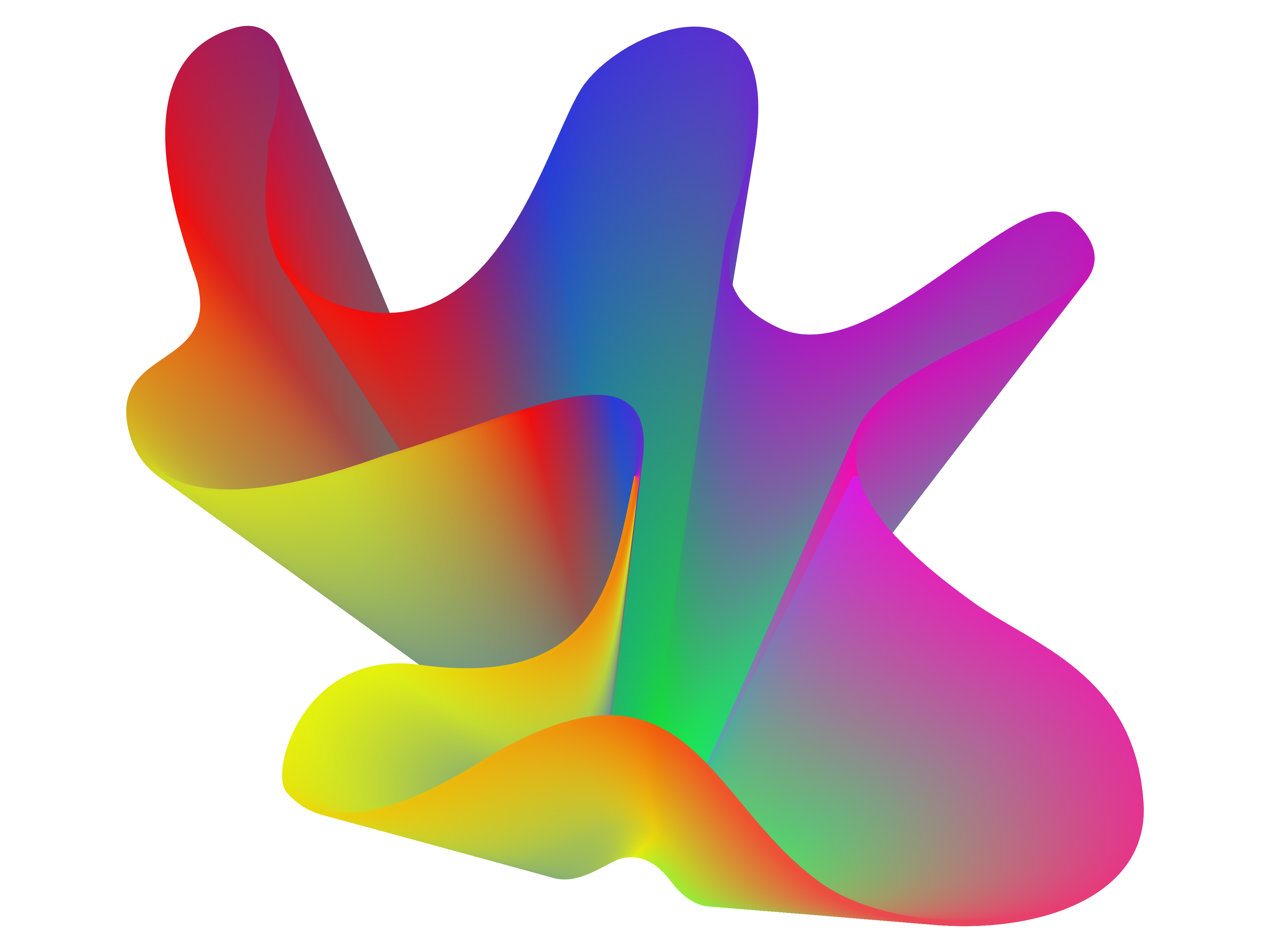
things that you can do with the Blend tool, from creating wild and
wonderful graphics to just doing simple blends. Through text, we can create
some amazing text blends, and you can see here some of the examples that we're
going to actually look at. We'll start from some of the basics and
we'll work our way through to all those little bits that I even have noticed before. Hi. I'm Tim. I've spent over 30 years working
with design software and have trained some of the
world's top companies like BBC, Disney, the Times Newspaper, and many, many more. What are you waiting
for? Start right now, and let's get creating together.
2. The Blend Tool - How it Works: Now, the Blend Tool in Adobe Illustrator has always been one of my favorite tools, and I'm so pleased that
it's now in Affinity. Let me show you how it is or
how it works and what it is. So the way it works is it blends colors or
shapes together, which doesn't sound
very exciting until you start to use it and you
see exactly what it can do. Let's have a look at the basics. I'm going to take
a little shape. I'll use this teardrop shape
and pop it over there, and let's get another
shape over here. I'll just use an
ellipse this time, draw a little
elliptical shape in there and change the color. Now, what we do is use the move tool to select
both of those shapes. And I'm going to go
along to the Blend Tool. That's this one down here. If you click and hold, you'll see that it's
actually in with the Shape Builder and
the vector flood Tool. Now, all I've got to
do is to click on that and then up the top, we've got some options, and
it says, create Blend group. You do have to make sure
they're both selected before you click on the
create Blend group. So I click on that, and
you can see we've got a few shapes in between
those two shapes there. Now, that's okay. We've got five shapes altogether, three
between those two. But what about if I wanted
more or less shapes? Well, all you do is you go
up to the options here, click that little option, and you'll find
that you can change the number of steps
between those two, so I can increase the
number of steps over there, or I can decrease the
number of steps in there. We'll just increase them
a little bit like that. Now, let's have a look at what else we can do
while we're here. Well, let's go up to the
top over here to the mode. And you can see that we've got the create new blend group
button which is active. If I click on the second one, this allows us to distribute
the bias of those shapes. It'll make more sense
when I show you. So I click in the middle
and drag over to the left, and there'll be more towards the left or more
towards the right. There. So we can just bias
them one way or the other. This kind of looks quite cool when you've got a lot
of colors in there, and you can go, Well, let's have more of that or more of that as
changing the shape as well. Now, because I'm doing this, as I'm pulling these apart, you can see we're
kind of getting this jaggedy edge along the top. So we've got one more option before I stop for
you to try this out. And that's the spacing. At the moment, we
are set to steps, and we're choosing how
many steps we want with a maximum of 100 steps in there. If I click the little button, which is distance,
then look at that. It's gone so smooth and it's all about the
distance between them. Now this little slide
is about the distance. So the further you
pull it over this way, the less of them that
you're going to get. You can see how because I've got that middle point over there, we're getting an
interesting result. Let's do that and pull
those out like so. But I can pull them all the way back right way so
I can get a very, very smooth edge on this blend. Anyway, do have a bit of a
go with that, try it out, and then come back
and I'll take you through some more tools
and options in here.
3. Blend Strokes & Path Range Tool: Not only can we create
fills that mix together, but we can also use strokes
or a combination of the two. I've got two shapes here
with strokes on them, and once again, I'll
go back to my Blend, create a blend
group, and you can see how the strokes
will change shape. And, of course, it looks
more interesting when you add a few more on there. Now, don't forget you can, of course, always
move them around, so I can grab the points on the end and move
them up and down. But we need to know which tool we are using in
order to do that. So, along the top over here, the first one is the
distribution bias. The second one is
the path range, direction and selections. Now with this, I can grab a corner and move this
around like that. Can move this one about as well, but I can also go
to the middle and click in the middle and
pull this around in there. And you can just click
and drag to make interesting curves like so by grabbing the path
and pulling it around. Now, when you first try
this out, you think, Oh, there's not that much control
over it, but don't worry. We'll be able to
control it properly later using things like handles, Bezier curve, et cetera. Anyway, do try that out, so it's this third
little one over here. If you're still on this one, it's all about the
distribution between those two whoops,
shapes in there. And you can change the end, the start and the end point, as you can see, as
well. Tried out.
4. Multiple Shapes & Convert to Curves: Now, the other thing is, we can use this on multiple shapes. I've just done two up until now. But if I select all
three of those shapes, I can then use my Blend, create a blend group,
and you can see that I've got multiple
shapes in there. Now, it's going from that
one to that one to that one, and we've got three in
between each of those. Great thing about this is we can also use it for creating
color palettes. So at the moment, as I said, I've got three in there. But if I took that down to two, I've now got the
in between colors between these different
colored shapes. If I took it down to one, well, then I've just got
the in between color between those two. That's brilliant, but this
sort of seems to be one shape. How could we actually make
this into individual objects? Well, what we can do
is we can actually go up to the vector menu and
say convert to curves. And that breaks it down
into individual objects. Now, why isn't that
still an object? Well, it's because the whole
thing is grouped together. Let's just ungroup it. And now we can
move those around, and we've got all
the colors that we need between those three. And of course, at
this stage, you could then go and
you could sample the colors and put them into your swatch if you needed to. But it's a really useful way of creating color palettes
to get the in between colors between two
colors that you've chosen. Once again, tried out.
5. Affinity Blend tool SS 4 BlendingText: In this section, we're
going to blend text and also fade out strokes.
It's really cool. I'm going to go down along
to my artistic text tool, click and drag to get some
text in fairly large, and I'm just going
to type in the word. I'm putting in the
word wow over there. And let's take the size of
that down a bit, like so. So that's my first bit of text. I'm now going to make a copy, so I'm going to hold down on the Macas option key on the PC, it's the lt key, and just drag that up to
make a bigger version, and it's increase the size
of that one, like so. And then we'll change the
color of that, as well. So I've got a nice purple in
there that I want to use. So if I want to blend between those two,
it's really easy. You don't have to break the
text apart or anything. You just leave it like that. And I can then go in
and use my Blend Tool, create a blend group over there, and you can see how it blends
from one to the other. Now, what I'd like
to do on this front wow is to put a stroke on that. So I'm going to go
across to my stroke, but now I need to select it. The easiest way to select
it is to actually use, if you go to the Window menu
and general your layers. So in my layers, if I
click on that blend group, I can then go in and I can
just select that front object, the front piece of text, and now I can go to my stroke, and I can put a black
stroke on there. Can't really see it, so I'm going to make it a bit bigger. So you can see how that stroke
will actually blend from what have I done five points through to nothing over there. Now, the other thing
I could do is I could go to the bottom one over there, which, if we look at the colors
over here, is this pink. Let's just bring that
to the front there. And I could change the
opacity on that as well, so I could actually
reduce the opacity so the transparency comes down. You can see some of these
coming through the other ones. Now let's increase
the number of steps. I can either change them here. You can see the
interesting effect that we're getting there, or I could go to smooth and use the spacing with a smooth
distance between them. Now, that's looking
really interesting, but I think there's too
much black in there. So I'm going to go up to the top here to the distribution bias. And between these two, I'm going to change the
distribution bias so we get more of the lighter color, the lighter pink down the
bottom then pull that right up. That is such a cool effect, and you can then always
change these as you go along. Anyway, do have a bit
of a go with that, create something really
interesting and wow. And just remember
the easiest way to select the individual objects is to use your layers
and just click on what you want to
effect in there. You can change the opacity. You can add or subtract
strokes should you wish. And at any time, you can just
go in and make a change. I'm going to go to that stroke because I
think it's a bit too thick and just take it down
a little bit like that. Oh, that's lovely. It gives
us sort of a little glow in between those two.
Anyway, try it out.
6. Affinity Edit Paths & Handles, and Also Blend Gradients: Two shapes over here. Both of them have
got a gradient on, so I just went along
to the fill tool over there and just used the linear
gradient on both of those. Now, let's select these, and I will go along to my Blend Tool and create
a blend between them. You can see it's not just
blending the shapes, it's actually blending
the gradient as well. I'm going to go along
and show my options, and down here, I will choose the spacing option for distance. So that already looks
really, really cool. But I want to actually make this a little
bit more interesting. I want to change this line, but I want to be a
bit more exact rather than using the tool
at the top where I could actually
pull them apart. What I'm going to do is I'm
going to say convert to Path. Now, before I do
that, let me show you my layers and open
the layers up. You can see we've got the
two circles in there. And I'm going to say
convert to Path. And what it does,
it then puts in a path option there as well. Now, I can click on
that path option and then adjust that path. By the way, if you don't see
your um blend coming up. If it just disappears and
just becomes one color, go from view to preview mode. If you're just in this sort
of standard editing mode, you might not see
the whole thing. So just a quick tip there, check it out in preview mode. Now, what I'm going to do is I'm going to use my Node Tool, and then I can actually go
and click on that path. So I'm actually on
the path there, and I can move the path around. We get a nice sort of
corner point in there. But I could then use any
of the other options. So I'm going to go over
here and give that some handles using
that little tool, which I'm sure you used before, and I can then pull
that around like that. And let's just pull this
one out a bit as well so. Any of these points can be moved around at this stage, so
I can click on there, and once again, just get that interesting shape that
you've seen 1,000 times. Now, the great thing about this is it looks okay on white, but put it onto a
black background, and it really comes alive. So if I were to just take
a rectangle like that. Oops, I didn't mean to mean
to have that blend on it. It's still part of the
blend group. Look at that. You see, because it's
in the blend group, it thinks it's
part of the blend. Let's pull that out over there, and I'm just going
to fill that with black and then send
it to the back. So I'll use my
layers to do that. Over there. Now, once again, and this is one of the
things I wanted to show you, when you
send it to the back, I sent it in there, but it thinks it's now part of
that blend group again, so it's trying to blend
those shapes into that one. Honestly, this has created
the most interesting effect. If they look at that, so
you got this the circle coming out of that in there. But if you don't
want it, just pull that out and make sure
that you're not part of that until you get
a shape like that. Look at that. Honestly, I
preferred the one where it actually looked like it was coming out of the
square as well. But there's so many things
that you can experiment with. Have a bit of a
go with that one.
7. Contours: Let's create some
contour artwork. I'm going to take the pen, and I'm going to start
up the top here, and I'm just going to
put a point there, drag another point
out over here, and go down to the bottom
and put another point there. Now, I'm going to go
back to my move tool, and you can see from
this that well, the sort of semicircle is not a perfect semicircle,
and that's okay. But if you want to squish
it around at this point, you can or you can
wait until later. Now, the next I want
to do is I want to actually change the
width of the stroke. So I'm going to go
along to the stroke width tool and I'm going
to click and drag out here to get a little
bit more of a sort of a thicker bit in the middle and it's going be
thinner at the top. Now, let's take that
and make a copy. So holding down the
l to the option key, you can just drag a copy out. If you hold down the Shift key, it'll go perfectly horizontal. And then up to the
top where we can just flip that horizontally to
get something like that. Now, I want to take those. I'm going to select them both, and I'm going to put the
Blend Tool onto those. So we go along to our Blend
Tool create a blend group, and you can see it automatically just fills in those middle bits, which looks so cool. I'm going to add a few more in there,
something like that. This is the balloon,
obviously that I'm creating. And I want to pull this
one down a little bit. I'm going to hold
down the Shift key to kind of squish it a bit. Over there, there's my
hot air balloon shape. If you want, you
can pull those out, you can move them around. Now, I think what I'd like to do is just select
this one over here, but you can see,
as I'm selecting them, they're both selecting. So I'm going to go
into my layers, open that up and choose
one of them to select. This is the left hand one.
Change the color on that. Now, not the fill
color over there, although if you wish,
you can do that. But we're going to just
choose none for the moment. Go to the stroke, and I can
then put in a color on there. Let's make that sort
of a bluish color. And then I'm going to
go to the other one, click in here, go
to the other side, and we'll have more of a purple
color on that like that, that gives us those
two lovely colors. Now, I'm going to go in and
I'm going to just draw in the little basket that goes underneath my hot air
balloon over there. If you want to put some
lines going up to it, you can use the
same technique with a straight line to just get
a line from there to there, there to there, and
then blend more across. I'm going to just
change that over, so we'll just have a slightly
darker basket like that. Now, let's do something
about the ground because I want some sort
of field underneath here. We'll just move those up
a little bit to the top. So to create the field,
I'm going to use the Pen, and I'm going to click and then click drag over
there, go up here, click drag, maybe down to there, click drag and click over there. Now, let's deselect that, and then I'm going to do
the same at the bottom. So over here, I'm
going to just click, maybe click over there
all the way along. So I've got two shapes, they're separate
shapes over there, one straight line and
one with a curve on it. What I'm going to do now is
I'm going to create a blend, and you can see the
contours coming into that. Let's increase the number of steps in that blend over there, and then I'm going to go along
to my stroke width tool, and I want to
choose the top one. Now, it is not that one. Yes, it is. It's that one there. So I can just go
in and I can just expand that a little
bit like that. I could go over here and I
could actually make that thinner if I wanted over there, or I could make it
thicker in there. You could see there's
just so many options as to what you can do with
this. I'll take that down. Oops. I'm going to undo that. I really should zoom in
when I'm doing that. And likewise, we can still go in here and we can choose
different colors. Now, I've done that
on the stroke again, which I didn't mean to,
so let's take that off. Sorry, onto fill. I meant
to do it on the stroke. So onto the stroke,
a bit of green, and let's have some really
dark green over there, going into the other
one, and we'll make that more of a sort of a
blue type of color. Or we can actually go
with more of a yellow. It might look interesting with the yellow at the bottom there. Anyway, you can just keep going. There's so many things that
you can do with this effect. I'm going to take those, hold down the lt or the option key, and just make a few
more balloons in here. Now, when you do scale them up, you will find that
those lines get thinner and you might have to adjust
them slightly as well.
8. Cyber Background Project - 1: Et's take a pencil tool, and I'm going to go over
the top to the stabilizer. And with a stabilizer, I'm going to use, I
think, rope mode, and I'm going to
make the rope quite long because I want a
really smooth line, so you can see I've
got a line like that. In fact, I think I can
smooth it out even more. Let's do something
along that line. Now I'll just move this
blend out the way. We can always open it later on. What I want to do is I just want to take a shape like this. You can see why I'm
using that rope mode to just smooth
it out quite a lot. And let's have another one. So I'll just give that one
a quick stroke color to make sure I can see
it later over there. And let's do another one. Once again, using
the pencil tool, and I'm just going to
take another one and kind of cross through
that one over there. It doesn't have to
be too complex. If you need to go and adjust
it, by all means do so, you can always go
and tweak any of these little shapes
that you need later on. I'm going to just tweak that
one a little bit like that and maybe move that
down a bit to there. Right, I've got those
two shapes there. And what I want to do now
is to select them both, go along to the Blend tool, and I'm going to blend
the strokes together. So I'm going to
say, create blend. We get this really
interesting look. Now, let's go to
the settings and adjust the number of
spaces between those two. That's already starting
to look interesting. It's almost like a ribbon
that's been twisted. What about if we start to
move some of these around? So I'm going to, in my layers, select one of those curves
and rotate it a bit. And you can see how we
get this incredible look from those two over there, we can just keep going with that until we achieve something
that we like the look of. Now, that's really
quite interesting. I might have to scale
this one up a bit. There we go. That looks a
little bit more exciting. But what about colors now
for these two shapes? I'm going to pick one
of those shapes and I'm going to give it
quite a bright color. If there let's go to the
swatches, I'll go to my colors, and I'll choose a very
vivid green for the stroke, and then I'm going to
pick the other one over here and let's go with
black on that one. Now, I know it's very difficult
to see them at the moment because the stroke
weight are quite narrow, so we'll just
increase them a bit, so you can see what I'm
getting at over there. Now we've got one black
one and one green one. Let's put a background
behind this. So if I go along and
I do a background, and I'm just going to put
a shape over the top, fill my shape with black
and move it behind those, not into that blend group, but actually behind
that blend group like. So now, to see this, what I need to do is to actually go to the
view menu and just go into preview mode so we can see what's
happening with that. You get this really
interesting look over there. And I can go to any of those
and just rotate them still, so I can pull that
around and get a really cool look from that. This is turning out
really nicely now. I like that look. And we could, of
course, select them both and just move them around. And if you find that
you want to go to the other one, once again, you can twist the other one to get a slightly
different look. And then try some other colors. So I'm going and
fading out into black, but I could fade it into
blue so we could get things like this or a bit
of a purple in there, or even a darker green. So I've got both
greens in there, but I'm going to go
to my colors and just darken down the green
on one of them. That's fully black or white. You can do the same trick using a white
background as well. So if I fade it out to white
and delete this background, you can see we can
get the same thing of these fading out into nothing. I prefer that with the dark
green background in there. Let's just undo those,
something along that line. It's a lovely effect, and it just makes really interesting, very cyber or AI for want of a better word
looking type of backgrounds. Anyway, do try that out, and then we're going to
take it a step further.
9. Cyber Background Project - 2: Let's do the same thing again, but change it a bit. I'm going to use my pencil. I've got a black stroke, no fill on here, and I'm going to
start and make this a little bit smaller
to get going with, and I'll just scale
it up in a moment. And let's have another line maybe through there like that. You can do anything
you like with these. But this time, what I'm going to do is I'm going to
just zoom in a bit. I'm going to select these lines, and I'm going to change them, and I'm going to put
instead of a solid color, I'm going to put a
gradient on them. So let's start with
this one over here, and that is the top one. In my case, you can do either
one, doesn't really matter. I'm going to go to the fill tool and where it says context, fill, I'm going to
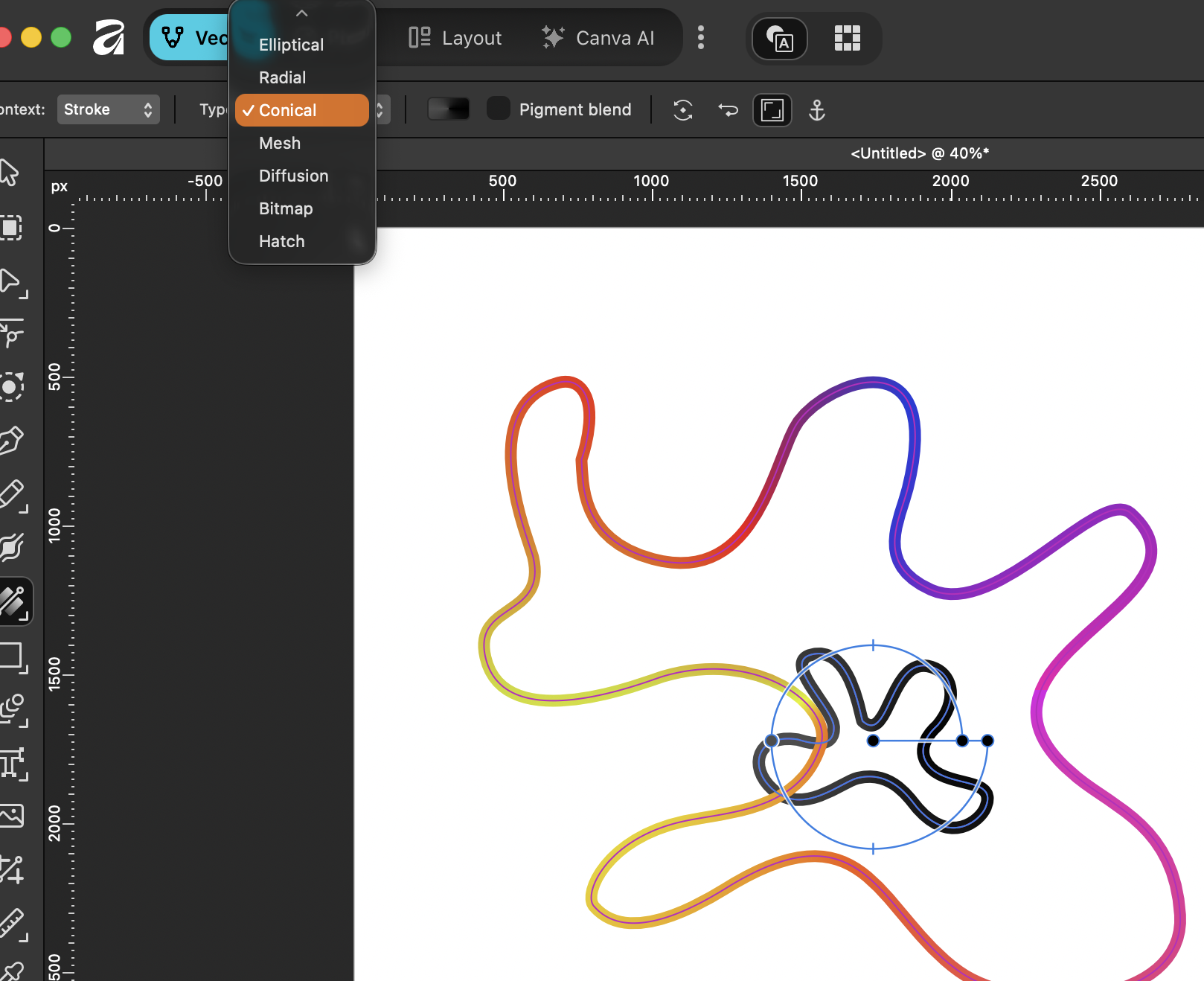
change that to stroke. I'm going to do a
linear stroke on this. Now, let's just zoom out and find the stroke. There
it is over there. This side over here, I'm going to make a
particular color, so I'm going to make
that red in there and this side, let's make purple. And then if you
want to add more, you can just click
in the middle. I can say, Well, that
bit is going to be yellow over there in a
fairly bright yellow. Let's do the same
with this one here. So click on this one. Once again, go to your fill. You're changing the stroke. Don't forget that.
Otherwise, you end up trying to put a stroke, sorry, a gradient onto a fill and wonder why it
won't go to the stroke. And we'll change that to linear. There. And same thing again,
I'll select this side. We'll do some different
colors this time. This is going to be pink.
Click in the middle here. That'll be green. And
this side over here, you can add as many
colors you like, really. We'll do that as a blue there. Now, I'm happy with that. So let's try and see
what we can do when we blend these together because we've got gradients
to blend as well, and it should look
really interesting. I'm going to select
both of them, go to my Blend Tool, and over here, create
a blend group. I'm then going to go into this area here to
see the options. First of all, I'm going to try this option here with the
distance and see what happens. Look at the interesting
result that I've got there with the
colors coming through, although I still don't
like that that much. So I'm going to go down
to my distance instead, and I'm just going to
change that like so. I think the stroke needs to
be smaller as well on them. So if I just choose
them one at a time, let's start with this curve here and make that
stroke pretty thin. And then the same with this one. Once again, quite thin on there. We get these really
beautiful delicate lines. And you can then still
go in here and change the number of lines
that you get on there. I love the way this looks like
it's sort of going around, almost like a spiral or
something like that. Now I've done that quite small, so I can always go out and
just resize it in here. I'm not holding
down my shift cue, so I can just see what I get when I move things
around like this. I also like to start
to rotate them. So if I click on one of them, I can then this is the one
that I haven't scaled yet. I could put it out, maybe try rotating it and see
what I get from that. But what you've got here is just so many amazing
colors coming through. And once you've done that, just have a play with the
blend settings in here, increase the number of lines
between the two of them. You could try, once again, going to the distance and changing the
distance down like so. There's no right or wrong here. Just have a play,
see what you get. As before, personally, I like to put a dark
background behind them. I think these lines
show up so much better when you go and you fill
it with in my case, I'm going to fill that
with black over there and just move it behind
everything in there, and you get these really
interesting effects like that. Have a go with that.
10. Generic Outro for Skillshare affinity: Congratulations. You've reached
the end of this course. I'm sure you're
creating amazing work. Now, don't forget to
leave us a review. It really helps us to help to
build more courses for you. I also do courses in Adobe, as well as Canva and Procreate. Don't forget to follow me and
have a look at my profile. I'll see you in the next one. A
 Tim Wilson, Adobe Certified Instructor and Expert