Transcripts
1. Introduction: Hello everybody. This is Timothy Taylor and I'm
back with a new course. Today's course is entitled
Google Sheets Essentials. A few months ago, I created a Microsoft Excel Essentials
course and I thought that it would be very important and advantageous for everyone if I created a course
for Google Sheets. Now, I'm going to talk about several things in Google Sheets, how you can work
with Google Sheets, be efficient and productive
while using Google Sheets. Without any further ado, let's get into this course.
2. Google Sheets Definition: If you've never been
exposed to what Google Sheets is,
here's the definition. Google Sheets is a spreadsheet
application and part of the free web based Google Docs Editor Suite
offered by Google.
3. Navigating the Workbook: The first thing that
we want to talk about is navigating the workbook. It's very important
that we understand exactly how the workbook
or worksheet works. I'm going to show you that here. The first thing that we're
going to talk about is the worksheets versus workbooks, rows, columns, cells, and then the saving
and organizing files. To open up Google
Sheets, at the top, it's going to say untitled
spreadsheet until you double click in
that area and you can type whatever you
want to type in there. Okay. Now here, I don't
need you to see this yet, so I'm going to
actually click down here where it says add sheet. Going to click here just so
I can get a brand new sheet. Here, whenever you add sheet, you're going
to go from sheet one, sheet two, sheet three, sheet four, sheet
five, et cetera. This is a worksheet. I want you to think of this
as a notebook that you have. Within a notebook,
there are sheets. Worksheets, within a notebook. Google Sheets, the entire
thing would be a workbook, just as if I had
seven pages here. I have two right
now. This and this combined equals one workbook
just like a notebook. Individually, it's just a
sheet, so it's a worksheet. That's the most basic
way I can explain it. Another thing is
rows versus columns. Columns will be
classified by the Alpha, A, B, C, D, EF G. That's going to be a column. It's going to be the columns in our vertical s
goes up and down. Then the rows would
be classified by the numbers are in
chronological order, one, two, three, four, five, et cetera. This is a row. This rectangle, these rectangles
that I'm clicking on, these are cells
within the worksheet. These are cells
within the worksheet. Now the awesome thing
about Google sheets, you won't see it because
this is in the way, but it will show that
it saves automatically. Because you're in
your Google Drive, it's going to be in a folder
that you designated for, and you will see that
it saves automatically. If you make a change, if you make a change
on your worksheet, here it is actually, it says saving right here,
save to drive. You don't have to do any saving. It's already going to save
your drive automatically. That's one of the
advantages that Google Sheets has
over Microsoft Excel.
4. Data Entry and Formatting: We're going to move forward
to data entry and formatting. Right now, we're going to
talk about entering text, numbers, dates, also formatting cells such
as font color and borders, and then also number
formats such as currency, percentage, et cetera. Before we move forward, I
want to show you something. If you click in any cell, each cell has a name and
currently we're in cell B two, so it's column B row two. We always go column before row or we go letter
in front of number. If I go here, this is
column C, row three. If I go here, this
is column D row one. Also, in the top left hand
corner, there's a name box. I'll tell you exactly
what the cell is. I think that's very important, especially if you're
communicating with someone. And it's going to help us in the future when we
start using formulas. Now, if you wanted to type
anything in into a cell, you just simply click on the
cell and you begin typing. A word is pretty basic. A number may be a
little bit different. The cool thing about numbers is the different ways that you
can type in the numbers. Then the date, let's
go with this date. Now, what I mean by how
interesting the numbers can be if you click on
this cell with the 102%, it's already in
percentage format, I can go to currency
and I can change it. Now it's $1.02. I can go back to percentage, and turn into 102%. I can decrease the amount of decimal points and I can increase the amount
of decimal points. Now when we look
at the date here, if I got the format, I can go here to number, I can scroll down and I
can do a custom date. So I can actually have it
written out in a long format. I can have it in a
semi long format. I can just have the
month and the day. And for right now, I'm going
to change it to this one, hit Apply and you'll see that
it shows November 15, 1987. Another thing that's very
important is what I just did. When it first popped
up, it looks like this, but you can't see everything. You know there's 1987 here,
but it's not showing. It's because the things that are in the cell is
too large for the cell, so it doesn't show,
but it's there. But you want it to display, what you can do is
between column D and E, that line in
between, right here. You can click, hold it, and slide to the right and it'll display whatever
is in that cell. What you can also
do if we start back over is between column D and E, you can go here again and you can just double click it and it will automatically
open the cell enough. I would automatically
open the cell enough that everything that's in the cell will show exactly how
it needs to show, and it will do it to the
exact size that you need. Now, here, you may want
to format a little bit different and what
I mean by that is here, I have an input. Now you may want to
change the font. You do have font up here, you can change the text color. I could change it to,
let's say, a red. You can change the
text color to yellow. You can change any
one of these colors. If I go to reset, it's going to automatically
go back to black. You can also change
the field color. The field color colors the cell. Obviously, black on black, you can't see anything,
but it colors the cell. Then we'll reset the reset for the field color is white
or basically clear. I should actually say clear
because there is a white. To make this visibly more
pleasing, you can use borders. You can use borders.
This is a cell. If I go to the border here, I click on the border, it
shows this border all borders. You can do outer borders. This is just one
cell. If I click on outer borders,
now it has a border. If I was to click
and sell B two, hold it down, and I was
slide over to sell D two. It's all selected,
I can go back to the border and I can
do an outer border, and it will have the entire selection
bordered on the outside. If I go back, I can do all borders and you'll see
that all of them are bordered, but they're all
separated by this line. Once you do that, then you can shade with this field color. Now if you have anything below, it's a little bit better to see or easier to
see, I should say.
5. Basic Formulas and Functions: The next thing that
we're going to cover is basic formulas and functions. I'm going to give an
intro to formulas. I'm going to show you how
to use some averages, min and max functions
and then also cell references such as
relative and absolute. Now we're going to talk
about basic formulas and functions of Google sheets. Some people use formulas and functions
interchangeably and nine times out of ten is not
going to get you in any trouble because it's
going to be correct. But the difference
between formulas and functions is simply this. If I start typing equal, sorry, you can't see equal
some open parentheses, I take those four cells, closing parentheses
hit Enter I just added those four
numbers together or those four cells together,
come up with one oh two. That's a formula.
Now, a function, we're going to do a
function in the cell right below it. I'm going
to go to insert. Scroll down the function,
going to go to sum. Going to take those
same four numbers, hit Enter one oh two. The only difference is a function is predefined
by Google Sheets. That's it. A formula,
I type it in. That's the only
actual difference. That's why I say people
use it interchangeably and nine times out of ten
is not going to be wrong. Now, we're going to use some
functions here or formulas. We're going to use
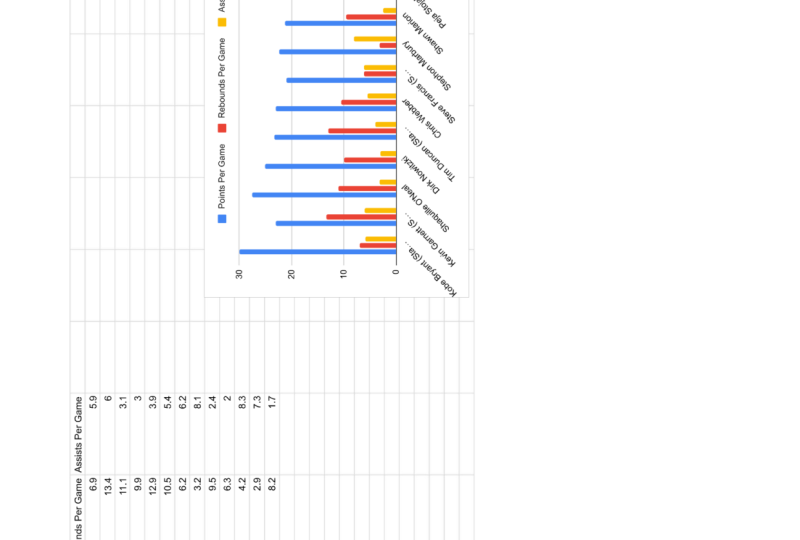
them here. I created this spreadsheet of the NBA All Stars from last season and the average points per game, rebounds per game,
and assists per game. I'm going to use some of the
functions in Google Sheets, the basic functions
that you may use, especially if you
are using I'm sorry, especially if you're working
in Google Sheets often. Also you want to be able to use these if you have a large data. I'm sorry, if you
have large data. Right here, I think
it's only 20 players. But if you're working for
a company and you have 2000 different people or
numbers or whatever it is, it's going to be a lot easier if you know some
functions and formulas. If I want to find the all star
averages points per game, if I want to find the
points per game of all the NBA Allstars,
I'm going to go here. I'm going to use
the function first. Insert, go to function,
going to go to average, and I'm going to select
all the points per game. Here, which is C
three through C 22, hit Enter, and the average
points per game of NBA all star from last year
was 24.9 or 25 points. The cool thing about
Google Sheets. I'm going to go to
rebounds next and I'm going to start with
my formula, equal. Google Sheets already
believes that I want to get the average of D
three through D 22, which will be the rebounds
and it's correct. Because all this information here is correct,
I will hit Enter. The average rebounds of an NBA all star from
last year is 5.7. I'm going to do the
same exact thing here. If I hit equal
starting my formula, it's guessing that
I want the average of E three through E 22, which is highlighted
here and it's correct. Google Sheets is basically
like a calculator. It's a smart calculator
or smart calculator, but just like a calculator, it does all the
calculations for you, but you have to
tell it what to do. The great thing about
Google Sheets and why I say it's a smarter
calculator is because it'll guess as to what you want to do based on what
you've done previously. Now if I want to find out
the minimum points per game, what's the smallest number here? Because it's only 20, if I just scroll up and down a few times, I can tell what it is 18.5. But if I had a database of
over 2000 different numbers, then this will come in handy. If I want to find
the minimum number in regards to the points
per game of last year, I go to the function here, then I highlight all
these points per game. Or I select. Hit Enter, it's going to be 18.5. The exact opposite for MAX, go back up to insert function. MAX, going to select
the points per game, hit Enter, it's
going to be 32.7. Now, if I wanted to
find out exactly what the total amount of points that scored on
any given night in the NBA by the NBA All
stars of last year, I will go to Insert function, some because it's going to add all these
numbers together. I'm sorry. And it's 498 points. On any given night in
the NBA last year, the All Stars scored 498 points. Now we got the basic formulas and functions out of the way. I also want to show you how
to use cell references, but before I do that, if I go down here to sheet one, I can right click
and I can rename. Here I'm just going to put MBA. If I click on Sheet two,
I created something here, I'm going to right click
rename and I'm going to type in I'm going to
name it schools or school. All I created this
worksheet, school supplies, and here I'm going to talk about cell references,
relative and absolute. So here, let's say that the notebooks is
a quantity of four. Each notebook is four,
I'm sorry, $1.50. In order to find out
what the total price is, I can type in a formula equal. Then again, Google Sheets is already guessing that I want to multiply these two
numbers together. Google Sheets is right.
Going to hit Enter. It's $6 for the total price. Now I can click on
this seem sorry, the bottom right hand
corner, this dot, I can click on that and
I can drag this down. And it will do the
multiplication on all these different numbers. This is what we call
relative cell reference. If I open up the
actual formula here, it went from B four
multiplied by C four, to B five multiplied by C five, B six multiplied by C six, to B seven, multiplied by C
seven, so on and so forth. But as you can see,
it's relative. Because I did this, it believes I want to do
this for everyone. It's relative cell reference. Now we're going to
delete this information Be as of right now, let's actually type it in total. I want to type it in total. Here, and then I'm going to
add these borders around. Oops. I'm going to add
these borders around it. Here, if I type in some, it gets correct again. Now I'm going to delete
this information. And obviously, total will
come out to zero again. Okay, now because if you did take if you left the store
and you've paid $325, that's cool, but you may have a problem at the door
and the reason why is because you didn't pay any taxes. You may
have an issue there. What we want to do is create a formula that includes the tax. Equal and we can do some or I can do it just the basic way
I did it previously. I'm just so used to typing in some that I always
type it in some. We take those numbers multiply it by C four, close parentheses, before, multiply it by C
four, close parentheses. Then I want to multiply one plus the tax. Enter. Now you see that I multiplied it with
the actual tax in there. That's the actual number now. Now what I'm going to do is I'm going to click on that cell. Bottom right hand corner, I'm going to drag it down because that's what I did previously so I can get this total
number, correct? A got a problem. Whenever you see
value, this number sign value exclamation mark, something's wrong.
Why is it wrong? If you click on the cell, you can see the actual
function or formula. Here, if I open this one up, it says B four
multiplied by C four, multiplied by one plus D two. If I go to the next
formula below it, B five, multiply it by C five, close parentheses, multiply
it by one plus D three. This is D three. This
is cell D three. It can't multiply some words. That's why you have
this value issue. What we're going to do is we're going to delete
this information. We're going to delete
this information. I'm sorry, I just deleted this. I shouldn't deleted this part. All right. Now I'm
going to go back into my cell and
look at my formula. What I'm going to do now
is instead of just D two, because remember, it's using the relative cell
information or reference. It's going to keep going down. Remember how it went from
D two, it went to D three. The next one was D four, D five. What I'm going to do
here is I'm going to add in $1 sign
in front of two. Why am I adding in $1
sign in front of two? Because it's still going to
stay with the same column, but I want it to stay
with the same row also. I'm going to put $1
sign in front of D two. You can put $1 sign in
front of the D also, which is the column, but
it's not necessary. You can. Now it's going to lock. If I put $1 sign in front of the D, it's going to lock this column and it's going to lock this row. But we already know the
column is locked anyway, so I can hit Enter now. Now what I'm going to do, I'm
going to drag this formula down and there are
no errors here. Why? If I open this up, you see that it's still going to multiply this by this and then multiply one plus
D two again right here. If I look at the next
formula, it's the same thing, D two, because it's the only
thing I wanted to multiply, sorry, it's the only cell
that I wanted to stay on. That's an absolute
cell reference. We got the relative where it also moves with the
different rows, but if we want to absolute because we have to keep it here, we just add $1 sign
in front of the row. You can add $1 sign in
front of the column also, it's still going to get
the same exact number. It's not going to change. That's some of the
functions and formulas that's already in Google Sheets, or I should say the
functions already there. The formulas, that's what you actually create and
that's what you type in. Functions formula, you can
use them interchangeably. Nine times out of ten is not going to get you in
any type of trouble.
6. Charts and Visuals: Now that we have
all this data and we've done different
things with them, we want to work on
charts and visuals. Now we're going to talk
about creating a bar, line, and pipe chart, and then also how to
customize these chart styles. So now you have this number
or these numbers, I'm sorry, if you wanted to create
a chart for them to make it a little bit more
aesthetically pleasing, you can highlight the
information or select the information that
you want to be seen. Go to insert, then we're
going to go to chart. It has suggested charts. The first chart
that it created was a column chart and you can
see all the names here. You can see the points per game, rebounds per game,
assists per game. Here. Now, what you could do
is go to Chart Styles. You can change the
background color. You could change
the border colors. Theme is default for
the text or the font. What you can also do is, if you go to Chart
and Access Titles, You can change the font size. You can do a lot of
different things. You can customize it here. If you're looking to make
it better on your eyes or the way that you're going
to view it because it's all about you and your audience. If you know that you have
to work with it every day, then you create it to the to the fashion that
you want to create it because it's for your eyes. Creating a graph or
chart for any of this stuff is based on
what you want to see. Here, if I go back to
the school supplies, going to hit control. I'm going to take the items and the total price
of the items. Going to go to insert? This
is selected over here, sorry, for some reason. Okay. Going to go to insert,
going to go to chart. As of right now, let me make it a little bit
smaller so we can see. Here it is. It has the notebooks,
pencils, binders, eraser, divider
tabs, calculators, headphones, how much
it costs, total. How much each item costs in total. Here it is. Now, what we can do, we can change this
chart to a bar chart. You could change
it to a pie chart, but we know that pie charts
are a little different. So what it's showing is it's
showing by percentages. So you can see the percentage in regards to the amount
of money that's spent or the total amount for each item. So here
are your charts. Again, you create it how
you want to create it. What's going to be more
aesthetically pleasing to you and your audience? So if you're creating
this for students, you're creating
this for coworkers, you're creating this for
family member or friends, you have to think about
what's going to be more aesthetically
pleasing to them. If it's just for
you, what's going to be more aesthetically
pleasing for you? Because you have to
work with these things. But that's how you create
the different charts.
7. Conclusion: We have now come to the end of the Google Sheets Essentials
course and I want to thank everyone for
selecting this course. I want to also congratulate you on completing this course. In conclusion, we went over navigating the
workbook, data entry, and formatting, basic
formulas and functions, and charts and visuals.
 Timothy Taylor, MBA, Learn / Grow / Make an Impact