Transcripts
1. Introduction Language Translation: Hello everyone and welcome to my little mini-course here I'm just going to show you guys how to create a translation file, get all of that into our project you can use just for games are software, whatever. It's great if you're going to have a global distribution to give you more options. And when we get it up and running, I'm just using a, an example menu screen here you can see we have English and we have the proper titles here and we switch to Spanish. All of our textural change based off of the length we have selected. So if that sounds like something you need or want to have implemented in, go ahead and take a look at this, a little mini-course.
2. Language Translation Final: Alright, in this video here we're gonna go over and how to create translations for our game or software, whatever you want to make translations for. So I've gone ahead and threw together to stay simple little Main Menu without a background. We've got just a transparent black rectangle, just dug that up a bit. And we got wear whatever you would have for your title of your game. And then I've got a dropdown menu here and options button. And that just has a few items in it. As you see here. I've just added one for English and one for Spanish so we can change our language. Now, in most games, you'd probably have this inside of your options menu somewhere. And if you're doing this as a software, you probably haven't inside for settings or preferences pop up or something. So however you want to do that, just make sure you have that set up so that you can actually select an option. And I've just gone ahead and connected a signal in my case, for an item selected for my options menu here. Alright, and then I've got my three blank buttons here. One for new game, one for options, one for I have my three buttons here, one for new game, one for options, one for quit. And if we were to put that up right now, who would see they fill out? We have English. Perfect. But of course if we were to switch, nothing happens because we don't have any translation setup yet. So what I'm gonna do here is we're going to use a program for creating a spreadsheet. Spreadsheets and recommended is use the online Google service or some like LibreOffice. I heard that. What I've heard is that Microsoft 365 directory spreadsheets after doesn't save it correctly and the format or whatever that would need. So if you want to try that again, but I am using LibreOffice, and that'll be the calc option here. So to create this translation for 1A, we just leave that completely blank. 1b, we'll put EN for English. For C. I'm going to do ES for Spanish. If you wanted to do French, could do FR for French. Yeah, there's a bunch of different languages that go in there that you can do. You can easily look up the list of locales. Now we can get the code's there. But if you've seen languages up in URLs or drop-down menus or whatever before. You probably know what this is or probably know what they are. And that's all you're gonna do for the ROE of one sign from 1B forward, she's gonna put the code for each language. Now on 2A in the a column here, we're gonna put a, our code that is going to be translated into different languages. So I'm just gonna do new game, all one word. And then for English, I haven't new space game. And now for Spanish, let's say, let's say you don't know Spanish, right? So what we can do there is we can come into we come up into Google Translate and go ahead and type in new game. Now, obviously these are, this isn't always the best. Because in some languages, contexts could matter, or the way something is sad in a could just be completely different. So preferably you want to pick a language that you don't know how to speak or at least read, or have someone that knows that language to look over everything for you. But for this example, I'm just gonna go with this topspin verified so I know it should be fine. So I'm going to take New Game. And I'm just gonna put that inside of my Spanish category. I'm gonna do the same thing for options under 34, a will be quit. I'll put the English translation of options and quit. And then I'll go ahead and just get my Spanish options here for my translation. And quit. Now we should probably what this has capitals as well for these, so that it fits in a little better. Here we go. Now once you're done adding in as many translations and keys here that you want to translate. Column a, one a, you can leave blank, doesn't matter. Then 2345 A6, AIG, et cetera, all the way down, will be all your keys are translating. So an example you could put here is menu items or dialogue. Our B column here, B1 is going to be a language. The language code can be 2345, et cetera, all the way down. It's going to be your English translations. And then c1 will be your next language code. And in C2, 345 all the way down, it's going to be those translations for that language. And then same with d. If we add another one, d1 would have another language code like FR for French. And then D2 or 2D, 3D 4D, all the way down. It's going to be our French translations and et cetera, all the way down until you've got all you need. So when you got that, go ahead and hit Save. And I'm just going to go into my little program folder for, for the project I'm using here. I've credited the translations folder and I'm going to save it inside of that. I'll just call mine translations. Now the type that we want to save it as is a CSB. Go ahead and hit Save fears in LibreOffice, this'll pop up and confirm file format, which I use text CSV format. We're going to do for the character set Rooney's UTF-8. That's what we've gotta use here. For our field. Delimiter. We use a comma and a string is a quotations. We can just leave that the way it is. Those should be laid out by default. You might have the chance to character fit and hit OK. Now I'm going to close this because it won't load good AT, won't import it rapidly unless we close it. So if we open up Gato, we'll see that imported in. And we have all of our language files. We have one for English, we have one for Spanish, and you'll have one for friends, whatever else you ever put in there. But before that, what I want to do is go to the file we just saved here and open up backup. Now the reason I'm telling you this is because I had an issue when I was doing I what am I? Languages is that they weren't showing up. Proper characters were being left out. And to fix that, I actually just turned on format quoted field as text and detect special numbers. And with both of those on that fix the text issue I was having. So all you gotta do is if that's not set and go ahead and hit OK. And then just resave it again and enclose it and let it have re-import the new changes. Alright, now that we have that, we need to actually get our translations endgame. So to do that would just go up here to Project and project settings will go to the localization folder. And you see, just as I have in here, can pull those out. We're just going to hit the Add button, go into our translations folder and select them. So I'll select English and hit Add, and I'll select my Spanish. And if you have more, you can add those in as well. And go ahead and hit Close. Alright, so we have our translations in. However, are options still isn't gonna do anything because we're not translating anything. So what we can do is we can either just come to our, our button here. And then for the title, just type in our code, which are first almost new game, no spaces. Or we can set that in inside of script, which is the way I personally prefer doing it here. So in a script or in our script, I, where I connected my options button where I can select my language. What I'm gonna do is the first thing I'm gonna do is I'm going to get the name of my option. What do I mean by that is right here when we do our dropdown, I want to see if I'm selecting English or from selecting Spanish. So I'm just gonna go ahead and check. So that'll, we'll get our, our button here that has our languages. And we'll do get item. Text for the argument will pass in the index. That way knows whether we want item 0, item one, item two, item three, et cetera. And I'm actually going to assign all of that into a variable called Language. So now language of where to print that out. That's gonna tell us our what language we have selected here. So to perfect set for doing this is to and then come in and we can do check if language is to English. And we can do another check. We can do LF or we can just do an ethics shouldn't matter in this case because only one will ever be true. But if language equals Spanish, so we have our checks year o, we need two equals there not one. Alright? So now we've got our language check for when he selected. And we just need to make our language, our translation to actually happen now. So English has set selected and there'll be Same thing with Spanish. We're just going to change one item in there, but we're gonna go translate thin server dot set underscore locale. And then the argument it takes is a string. And the string you pass in is the language code, which were English was EN. And for Spanish would do the same thing. Translation, server, set, locale, where in our code will be.'s. Awesome. That's great. So if we hop in, we can take a look at our text years changing automatically for us. That's perfect. Now the reason that is translating already is because the item I said here is two R as R code item. Same thing I have for my code. We see if I had a space in here. We don't have that code and new game won't actually change now. Now, I'll say if for some reason this isn't translating over and you double-check the swelling and it's all in there. Then what we're going to know what you can do is let's wrap this in a translate function like that, like so. And that should force it to translate into the appropriate language. But that's it. That's all we have to do there. Her to work. And just like that, we have we have our language is set up. So if you ever had another language in the future, you'll just come in and you can just add another check if language equals. Let's go with, let's go with friends. Will say we added that. And then we just do translation, server, set, locale, French. And then of course, inside of our actual menu here, we would add in French. And of course make sure you have that added into your actual spreadsheet as well with all your, all your other translations. And just let it import in Azure new language into your project. And there we go. That's it. That's as simple as it is to add a new language into your game to translate everything. Alright, so with that, that'll do it for this. And I hope you enjoyed and found this useful.
3. OS Based Translation: I have one in this one we're going to go over how to automatically set the language. So if you didn't want to have a set of language options like this. And then what you could do is just set it automatically based off of the user's operating system, based off of their language. If they're using an operating system in one language, they probably understand that language. You could also just leave your options hearing kids to want to switch to something else as well. That's perfectly fine, but you'll see if we were to go into our ready script here. So right at the beginning when our game loads up to our main menu, if we were to come in here, translation server dot set locale, locale, and we'll set it to Spanish. And now of course, when you run this, everything's going to be in Spanish when we start up our game because that's what we're making sure a set. Now, what we can do if we were to print out and the following line here. So we'll do OS because we want to get information from our operating system. So we're going to use the OS class and we're going to get underscore locale. And if we print that out, you're see down here in our output section. When we run this, you see my operating system shows EN. So mine is an English. Yours might show up with something completely different. Myself with the Portuguese tag or the Spanish tag, French tag, whatever. And with that, we can use that to set our translations here. So you see that we just loaded up in Spanish. But if instead, if instead we used translation server dot set locale, and for the argument we just use Alas dot get locale. You see that even though we're setting it to Spanish right out the gate. So this would be like our default. And you could set it like that. You'll see that it's going to get my operating system language. And it's gonna show up as spin it, or sorry, is gonna show up as English because that's what we were told my operating system is. So if we run that shows up in English, even though we initially set it to Spanish. And if we didn't have that line to check ROS, it would give us our Spanish. So that's one way that you can set it up for your game to have that default fit or to have that actually set base off of the user's operating system. Now, it doesn't really matter where you set this portion up. You can set it in the main menu or you set it up in a global script, doesn't really matter because once the translation server set, it set. So if I were to come over here, I just have a new default scene here. And if we have changed this to, we'll say the word new game. So we're going to use new game here as our, as our keyword, right? Because it's very key. So we should get new game here written in whatever language. So in my demo menu for my New Game button, I'll go into connect the press button or press signal. And when it's pressed, I'm just going to change my scene. Get tree dot, change scene. And I'm just going to change it to that new scene that I just showed you. Now, you'll see when we load this up. Yeah, cool. So I want to make sure there. So if I were to change myself to Spanish and then hit New Game, you see are keystone changes to Spanish. So it doesn't matter where you set it up, you just have to set the translation. Once at any point during your game. It's not something that you have to keep reloading or checking or anything. But that's it. Now you know how to set it up manually through user selection. And you know how to set it up based off of a user's operating system language.
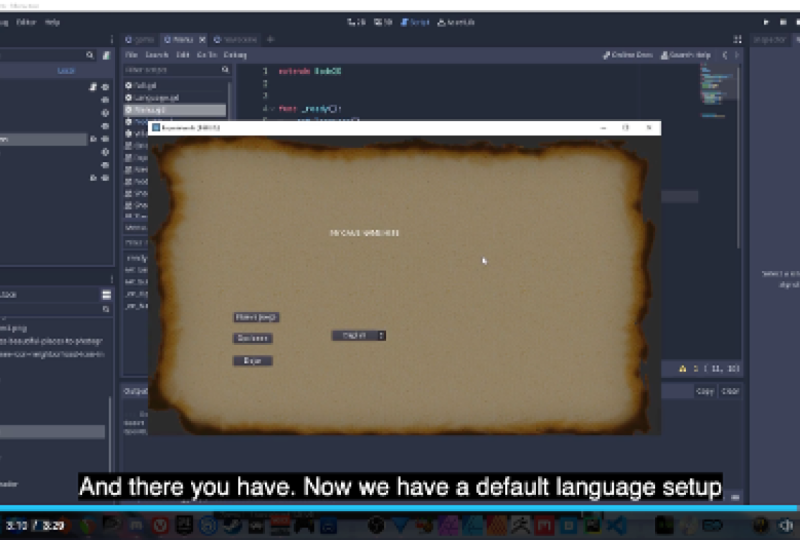
4. Default Language: Alright, I want so now we know how to set a translation and get that base off of our users operating system. However, what if the length that they have you don't support? You know, like what if, what if we, someone from France, bizarre game in their computers in French. And then our project doesn't support French. And then what if we translate to some that we don't have? It just, it'll be completely blank, right? Because there's nothing in our project doesn't have that translation put in here. So we need to account for those kind of situations as well. We're going to come in here and we're gonna create a new function for set language. And in here we're gonna do a check. So we're gonna say if OS dot get locale. So we're going to check what language. We're going to check the language code that our operating system is in Azure. And we're going to check if that is in our translation server dot get loaded locales. So this is basically going to check if the language of the OS is supported by our list. And what this is going to return back or get loaded locales is going to be everything that we haven't here. So this is going to return back English and Spanish ES. So we're going to check if the operating system is English or Spanish. And I will say do this, which would be our line here that we hadn't side of reading, which is setting our translation server to our local language. And we'll just say else. They'll do translation, server.js, set locale. And in here for our string argument, you can put whatever you want your default language to be. Since a majority English, I'm gonna go ahead and set it to Spanish. So now when we run this, it's going to check our language, is going to see that mine is English. It's gonna see if we have English loaded. If so, we're going to set it to English. So when I'm ready function, we'll go ahead and call our set language and run this. And this will show up in English. Perfect. And just to go ahead and test that, if I go into my project settings, I just delete my English. Now it should run. And it will see that we don't have English. And our list that we have loaded. So it's going to default does to Spanish. And there you have. Now we have a default language setup and we'll check based off of the users OS. Alright, so now you guys know how to set up a default language, as well as set the language base off of the user's operating system. Right.
 Michael Mcguire, Author | Programmer