Transcripts
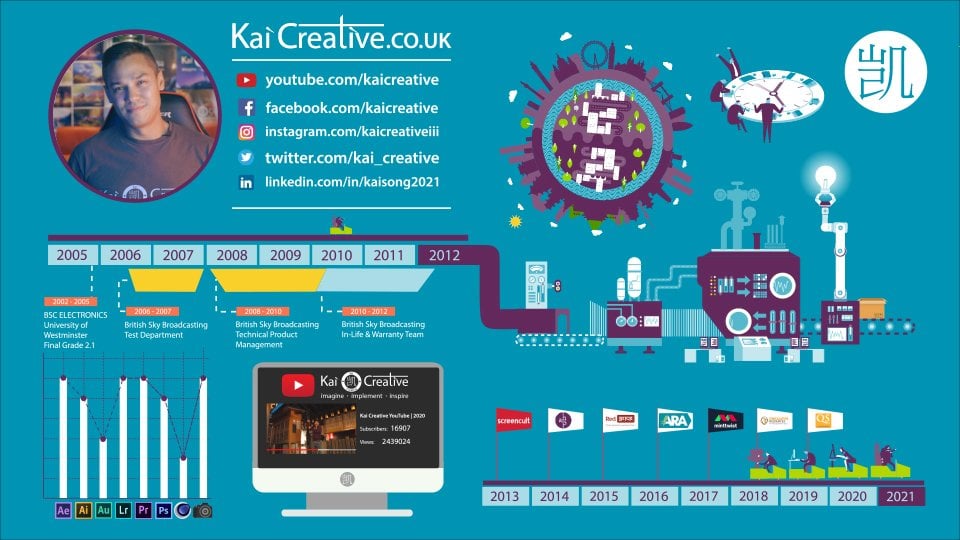
1. Intro - What will we be learning: Hi there, My name is Kai and I'm a visual content creator. I run my own video production business called Chi creative. And I have a YouTube channel of the same name where I
talked about cameras, video production, photography,
and visual effects. So if any of that interests, you go and check it out. And in today's class we
are going to be looking at the top ten most search for Premiere Pro how-to
list for 2022. So if you Google
Premier Pro how-to, Google populates a list of
what most people are searching for when trying
to figure out how to do things in Premiere Pro. We're going to cover
these basics in today's video to help you on
your Premiere Pro journey, particularly if you are a beginner and
there is of course, a Class Project
Analyst for you to use what you learn in
Premiere Pro and get that next video
project created in Premiere Pro and out
into the wide world. So I'm really excited to jump
into this class with you. So let's get to it.
2. How to Split A Clip: So here we are in
Premier Pro 2022. The first how-to that people
want to know is how to split a clip in Premier Pro. So let me add some
footage from one of my short films to my project, just dragging it in here, I won't go in to do is
create a new sequence from these video files
by selecting them, right-clicking on them and going to new sequence from clip. Here we have a bunch of Eclipse and they're all put
together in order. What I wanted to
do is start to cut down some of the footage. So if I just expand
this slightly, the first thing I'm
going to do is just mute the audio because I
don't want to hear anything. And if I hit the Spacebar, I can play this. The camera movement for
this initial tract is quite shaky up until about
this point here, I actually want to cut
this clip and I'll zoom in by just dragging
this bar here at the bottom. I can cut this clip
in a couple of ways. The first way is to come
over to the Razor Tool, selecting it or pressing
C on the keyboard. I can then go to the point in time where I want
to cut and I can cut on the video and
underneath we have the audio. And I can cut the audio there by selecting and
hitting the delete button. I can actually delete the shaky footage and just
have the footage that I want. Another way that I can
cut down a clip is to select either the video and
the audio or both of them. And put my cursor to the end and you'll see this
little red arrow appears. And I can actually drag
my video footage out. Or I can drag my
video footage in. Another way to quickly cut your footage is to select
where you want the cut to be. So I think around here, select the footage
and the audio and hit Control or Command K. Control K or Command K, depending on whether
you're on a PC or a Mac. That is how we can
cut our footage and also delete what
we want to remove. And also if I go
to the empty space here between the beginning of the timeline until
our footage cuts in, I can select that empty space
with my cursor and then hit Delete on the keyboard to
then remove that dead space.
3. How to Reverse A Clip: The next thing on our
Premier Pro How-To is how to reverse a clip. Here I have my character running across the
screen past the camera. Maybe I've got a
flashback scene. I want to rewind this. Y can do is I can right-click on the actual footage and I can
go to speed and duration. If I select speed and
duration or come up, it comes up with a number
of different options. What I want to do is select
Reverse Speed and hit, Okay, now, it will look like my character
is running backwards.
4. How to Crop A Video: The next thing that people
want to know is how we can crop our video footage. And there are a couple of
ways that we can do this. I interpret cropping as
adding in black bars to the top and bottom
of our footage. And we can do that by coming
over to the Effects panel here, writing in crop. As you can see, I've got
video effects transform crop, and I can drop that
onto my actual footage. What happens if we come over to the effects controls panel is we will see that there
are a couple of areas where we can
crop our footage. And straight away what
I can do is I can crop in on the top by 10%. On the bottom by 10%. This actually crops
in my footage. Now if I render this,
these bars will render routes as black bars. Now you might be saying, well, that's no good because maybe I want to move this scene down. So if I tried to shift the scene by coming over to position, it would just move
the whole thing down and it will mess
up the black bars. We don't necessarily want to put the crop effect
onto our footage, so I'll just delete that. What we can do is we can
add an adjustment layer. So if we come over to your
project bar and you select, make sure you select
this project tab. Then go over to File and go
to new adjustment layer. Here we've got the
video settings 1920 by 1080, that's right. 24 frames per seconds
square pixels, yes, and we hit, Okay. And over here in our Projects panel we
have an adjustment layer. We can throw that
adjustment layer. Now on the top of our footage. We can go to our Effects
tab and add in the crop. Now we can add in a top of 10%, a bottom of 10%. What we can do now because
this is an adjustment layer, we can actually move
the footage underneath. Here I'm moving the y-axis
of the position data. It moves within the
crop so we don't lose any of the footage and it doesn't move everything down. So this is a great way to add in those cinematic
bars with our crop. Another way that we
can crop our image, maybe we want to crop
in on the sides here. We could use again
the crop effects, but we can also use
the opacity tools if I drag out some
rulers here and you can just pull them
out from the sides. Like so. Maybe I want to crop
just this area. I'll just go to 50%. So I can see this a
little bit better. If I come over to these tools
here where it says Opacity, I can actually create an opacity box and drag out
the four corners like so. And again, this will help
me create my cropped image. And this method helps you create non-uniform cropped
masks for your footage.
5. How to adjust the Aspect Ratio: The next question that
people ask is how they can adjust their aspect ratio. This aspect ratio is actually
1920 by 1080 because we created this sequence
from our footage, which is 1920 by 1080. But I can actually change
the aspect ratio of my sequence by coming
over to a sequence. I'm going to sequence settings. Here you can see our
default settings. It's 1920 by 1080. If I wanted to upscale
this footage to four k, I could change this
to 3840 by 2160. This would be my 16 by nine aspect ratio for
Forky, I can then hit, Okay, and now I've changed my aspect ratio two for K video. Of course my video
footage is still 1080. Now I can actually
put some Forky video in here if I want to, or I can right-click on this and scale this to the frame size. And now I have upscaled
my 1080 footage to fork. My sequence is changed. Everything else that's 1080 is going to be smaller
in the scene. Now I can change my sequence settings back to normal by going to sequence, sequence settings. Then again, just
changing this to 1920 by 1080, hitting okay. And my footage because
it's set to frame size, reduces back down to the 1080. Everything else is now
filling the screen.
6. How to Reduce Video Speed: The next thing that people
want to know is how to reduce the speed of the footage. We do this using the
same menu that we use to reverse this pizza will
right-click on this footage. We'll go to our
speed and duration. I'm going to uncheck
reverse beads. So now our character
will be walking forward, but I'm going to reduce
the speed by half. So I'm gonna write 50% in
here and I'll hit Okay. And now what we see is
Premiere Pro has added frames in to slow our footage down. We can do that by any
percentage we want. So again, I could right-click
go to speed and duration, and I could make this
twenty-five percent, so that's 30 seconds
long. It's OK. And now it's super slow. Using this method, the
motion blur is not very good because what Premiere Pro is
doing is adding in frames. It's guessing what
those frames will be as it stretches
the movement out. So you end up with some
pretty terrible slow motion. If you want to create
natural slow motion footage, what you need to
do beforehand is shoot at a higher frame rates. If we stop this a
second and have a look over at our project tab, you will see that
the frame rate here is 24 frames per second. Now if I drop in a piece of footage that I shot at
a higher frame rates, here I have some
fitness with his shot at 60 frames per second. And it looks real-time here. But what we can do is we can
right-click on that footage, go to modify and
interpret footage. I can now change
this frame rate to 24 frames per second
and hit Okay, I actually have to drag out
the footage to double it up. What we have now is much more natural looking slow motion. So if you have a
higher frame rates, interpret those down to the
frame rates of your sequence.
7. How to Add Text: The next thing that people
want to know is how to add text into their video footage. And we can do that
by coming over to this menu here and selecting t or using the TI hotkey and just tapping
anywhere on the screen, we'll start a cursor
text bar going. And you can see that
it actually creates a little bar on top
of our footage. And what I'll do is I'll write lacuna fit to promote
Lucy's brand looking at it, this is Lucy from lacuna fit. So let's put her text up there. I can actually move this and
drag this out so that it can fit over different
parts of the footage. But also I can come over to where it says
essential graphics. If I click on the text, it
will give me the option to edit the fonts. For example, I could
change it to next or bold or no TO sand, whatever your
branding course for, you can edit the position,
you can end up the phone. You can edit the
color if you so wish. That's how you add text to
your Premiere Pro sequences.
8. How to Rotate A Video: The next thing that people
want to know is how to rotate their video. So if you have a video
file like we have here, if I wanted to rotate it, I simply have to
come over to effects controls where it says rotation. And I can drag that out and actually rotate my
video 180 degrees. And I can even add in
keyframes to this. So if you look at
this stopwatch here, I can start a keyframe by
selecting the stopwatch, drag it to the beginning
of that piece of footage, then come over here near
the ends and then write in a 180 degrees my footage. We'll do a 180 flip between
those two keyframes. Also appreciate when it comes to rotation that some people might
want to flip the footage. What you can do is go over to effects rights in flip FLL EIP. And you can have
a horizontal flip by just dragging that
onto your footage. You can also have
a vertical flip by dragging that
onto your fatigue. If you wanted to do a complete horizontal
or vertical flip, just go to the Effects and
type that in and you'll be able to flip your footage.
9. How to Fade Audio: The next thing that people
want to know is how to fade that audio. We can do that very simply
by adding in some music. I'm going to add in
pop because that was the music used
in the original. Drag it out onto our timeline just below the original audio, I'll find a place in the middle. What I'll do is
I'll drag so I can see the audio files
a little bit better. Here we go. You can hear the audio
now if I press play, I wanted to introduce
this gradually. So if I come over to my
Effects and write gain, you will see that I
have audio transitions, crossfade and constant gain, and I can drag that
onto my audio clip. If I zoom in a little more, we can actually select that effect transition and
drag that out over time. And if you listen to this
now if I press Spacebar, I can do the same for the outro. If I wanted to fade the
music out, drag that on, zoom in slightly, select the effect and then see
where it changes to that. Red brackets, drag that out, and then it will fade
out when I play it. Alternatively, if I wanted more control over my
fade in and fade out, why could do is just
remove the gain effects. Come to the beginning
of my clip. When I select the audio, this diamond keyframe
option appears. I can select that and
then I can come over slightly further to the
beginning of the audio, select a keyframe again, and I could drag that down. Now what I'm doing is
I'm manually dragging the keyframes and this
will slowly fade in. And again, I can do the
same for the outro. Select a keyframe,
go towards the end, select another keyframe,
drag that down. And I can fade that out. Like so.
10. How to Render and Export MP4 Video: The final two how-to's of what people are searching
for in Premiere Pro, or how to render out their final video footage and
also how to render in mp4. And we're gonna show you
those two final points now, first of all, if you have a messy file like I normally do with B-roll
sitting around everywhere, you probably only want to render out a portion of your project. You can go to where you want
your final render to be. Right-click on the timeline
and then go to mock out. What you can do is you
can drag out the mark out clip and also the mark in. So maybe I want it to render
from the very beginning, but only half of this piece of footage that I wanted to
finish somewhere like there. And I'll just drag that in. Like so by selecting
the market and mark out this is the selection of my sequence that
I will render. To render this out, what
I need to do is go to File, export and media. And here are the export
settings that turn up. Now, you will be given a
list of different settings. Now, I normally export
everything as H.264. And depending on what
you are outputting, you want to choose one
of these for YouTube. I would normally use
YouTube 1080 full HD or YouTube 2164 k ultra HD
because my sequence is 1080, I'm going to go for
the YouTube 1080. You can see my basic video
settings have been set here. If I go over to my multiplexer, I can then choose my outputs
and I want it to be MP4. And that's what people are
searching for predominately, you can find out where
your file is going to be output or you can set a new place by going
to the output name, selecting it, and then
going to where you want to actually
outputs your video, which is getting
to be here for me. And I will say Save, and now all I have to
do is hit Exports. Now my video is going to be
exploited in that location. As we can see here. And if I play that,
there's my footage. And again, it's within
the boundaries of what I wanted according to my mark
in and mark out points. So that's how you
render or export your video in mp4 format.
11. Well Done! You Made it! : Well done. If you've made it this
far, you now have the knowledge and
know-how for the most requested how twos in Premiere Pro and if there's anything that you're
not sure about, then maybe re-watch the
section of that class again or reach out to me with any questions
that you might have. Also makes sure you share
all your edited videos to the project page
of this class. I really look forward
to checking out all your new Premiere
Pro editing skills. So that's it for me today, guys. Thank you so much
for watching or that I've got left to say
is stay creative, stay safe, imagine,
implement and inspire. And I'll catch you
in the next class.
 Kai Song, ìmagìne · ìmplement · ìnspìre