Transcripts
1. Expressions - Trailer: Hey, I'm Jake
Bartlett and this is expressions working smarter
and Adobe After Effects. I've been working
with After Effects professionally as a
motion designer since 2010 and playing around with the program for
years before that. If there's one thing that
I've learned in all of that time to work more
efficiently as a motion designer, It's how to use the expressions, expressions of the
coding language that After Effects uses
you can apply them to any keyframe of all
property and allows you to control and manipulate those
properties in many cases, making complex or
tedious animations, very simple and easy to manage. And if you don't believe me, take a look at my class project, this entire animation
was driven by four keyframes on
a single property. Seriously, and I'm
going to show you how I made every step of this
project from scratch. We'll start by learning
all the basics of the expressions
that we're going to use to recreate the animation, how they work, and
how to control them. Then I'll show you how I created my project from start to finish, teaching you how
to take advantage of all the expressions
that we cover, building custom controls
for making animation easier and ending up
with the final project. You can create your own artwork for a unique class project, or you can use the provided
after-effects project with my artwork all ready to go and
just follow along with me. This class is for anyone with a basic understanding
of After Effects. If you've never used
the program before, then I would highly
encourage you to take one of my beginner's
classes first, like the beginner's guide
to After Effects or the beginner's guide to
Animating Custom gifts. I know the thought of expressions
can seem intimidating, especially if you've
never used code before. But once you get a basic
understanding of how to use them and how to take advantage of them in your own projects. It'll unlock a world of possibilities that you
never knew existed. You won't regret it.
I'll see you in class.
2. Class Project: For the class project, you'll
want to make something that's driven mostly
by expressions. My project is driven
entirely by expressions all tied to one property
with four keyframes. If you want to just learn
about expressions and get right into it than just
download my project file. Go to the Project
and Resources tab, find that After
Effects project file with the artwork already created a shape layers and
you can follow along with me as you
watch the lessons. Otherwise, you can create
your own artwork and make a unique project applying the expressions that you learn
in the next few lessons. And that's exactly what
we're going to do next. We're going to learn about
the expressions that I use most in my own workflow,
how they're written, how they function, and how you can control them so that you can start working a little bit more intelligently inside
of After Effects. If you have questions
at any point throughout this class or
you're running into errors, feel free to leave a discussion. I will get to that
as soon as possible. I check those almost on a
daily basis and you can be sure that I will
answer your question as soon as I possibly can.
3. linear();: The first thing we
need to talk about is expressions because
that's gonna be the driving factor behind the entire animation
of my class project. There are so many
different expressions and they can be used to do so many different things
that it's kind of intimidating to know
where to start with them. And expressions are
actually just JavaScript, which is a coding language
that's been around for awhile and it's
used extensively. And that means that
there's actually a ton of resources online for
learning any expression, because it's exactly
the same as JavaScript. So if you're ever
curious how you could do something in After Effects
using expressions, It's very likely that
somebody has already asked the question and received
an answer online. It just may come through
a JavaScript forum instead of an aftereffects
specific expressions for them. But that doesn't really matter because everything
that you learn about JavaScript can be applied to expressions in After Effects. The first expression I
want to talk about is easily my most used and probably favorite
expression just because of how much you can
actually do with it. And it's the linear expression. What the linear expression
allows you to do is map any range of values to
another range of values. And I'll show you exactly
why that's so powerful. I have a square here
and let's say I want to add an expression
to the rotation to automatically rotate as I move the position on the x-axis. Well, I'm going to bring
up the position and rotation by pressing P and then holding Shift and pressing R to also bring up the rotation. The rotation property
is what I want to be driven by the x position. To make this easier, I'm
going to right-click on the position and go to
separate dimensions. That way the exposition
has its own property. We could do this
with both the x and y position in a single property. But that's something we're gonna get to a little bit later. For simplicity, let's just focus on the rotation and
the exposition. So with both of those selected, I just Control or Command
clicked on both of those. I'm going to double-tap
the S key to solo those properties that we don't have to think about
the Y position. To add an expression to any property you need
to Alt or Option, click on the stopwatch. I'm going to click on
the stopwatch while holding Alt for that
rotation property. And After Effects is going
to automatically fill in the expression it needs to
reference that property. So if I were to apply this
expression by clicking off, it's gonna be exactly
the same as before, except my numbers are now read. This means that it is being
driven by an expression. But because the expression
code that was written in here is just
referencing itself, I can still change the
rotation to whatever I want and the expression isn't really doing
anything for me. Alright, let me go
back to zero and click on that expression to
start writing my own. Now with expressions, you can type everything out by hand, but there's this pick
whip right here. That's specifically for
expressions that I'm gonna be using a lot and that you
should get comfortable with. It's a lot like the parenting pick whip or the
property pick whip. But it works while editing an expression just like
the parent pick whip, compare it one layer to another and the
property pick whip, compare it one
property to another. The expression pick whip
can grab any property that you select and add
it into your expression. So with everything
selected in here, I'm going to use the
expression pick whip, and I'm just going
to drag it up to the exposition and let go. Now this expression is saying to look at the
transform controls of the layer and then the
exposition property value. And that's what it's going
to plug into the rotation. So if I click off, we now have a different value
than zero on the rotation. And the reason it's kind of
a weird number is because once this gets up
to 360 degrees, cycles back down to zero
and adds one revolution. And since the x
position is measured in pixels and the rotation
is measured in degrees, That's why the numbers
don't line up specifically. But if I zoom out a
little bit and crank the exposition
down as I do that, check out how the square
is also rotating. This is a direct link between the values of
degrees and pixels. And that's pretty
cool except it's rotating a lot more
than I want it to. If I wanted it to look like it's actually kinda rolling
than it needs to rotate a lot less frequently as this exposition is changing. And we could do some simple
math in this expression. If I just click into edit
it and go to the end, I could say maybe
divided by ten. That's going to take the
exposition whatever it is and divide it by ten and then
plug it into the rotation. So let me click off and
see what that does. Now it's rotating
a whole lot less, in fact, not enough
at this point. I could go back and forth
with this and modify my calculations until I get
something that's about right, but that's not actually
what I wanna do. Instead, I want to
show you how to use the linear expression to
isolate a specific range of values of the x
position and remap them to another specific range
of values on the rotation. So to write the
linear expression, Let's go into that expression
and just clear it out. The first part of
basically any expression is the method which
in this case is linear and After
Effects is going to auto-fill the rest of this so I don't even have
to finish typing. I could just
double-click on this. And it's going to put two
parentheses in-between. These parentheses is where
I have to put my argument. The first part of the
argument is what we want to linearize or where we want to
take our input range from. In this case, it's
the exposition. I want to take a range of
values from the exposition and remap them to an output range
for the rotation value. So I need to reference
that property and I'm gonna use the expression
pick whip to do that with my cursor
right there between the parentheses I'm going to select with my
expression pick whip. The exposition were telling the expression what value to
look at for the input range. Then I'm going to put a comma. And we need to put two numbers. This is our input range. So the beginning and
end of the range of values for that property
we just selected. So why don't we say
100 for the input, then we'll put
another comma and now choose an input maximum value. So let's say 500. So we want to look at the
exposition and use the range between 100 pixels
and 500 pixels. Then we need to put
two more numbers. So I'm going to put
another comma here. And the next two numbers are the output range or
what values we want these two numbers to be remapped to for the property we're
applying the expression two, in this case the rotation. So another way to
say this is when the exposition is 100 pixels, what do we want the
rotation to be? Well, let's just say zero. We want no rotation at 100
pixels on the exposition. Then we'll put another comma
and choose the output max. Or in other words, when the
exposition is set to 500, what should the rotation be on the same layer, let's say 360. Because remember this property
is measured in degrees. And that's another thing I love about the linear expression. We're basically
converting units here. We're going from
pixels to degrees. Now with any expression at
the end of the line of code, you always finish it with a semicolon That's
proper syntax. Sometimes After
Effects can know what you want to do and not
give you an error. But it's good practice
to always keep your code clean and follow
that proper syntax. So I'm gonna do it here. Now if I click off to
apply that expression, we can see that the
rotation is already set to one revolution or 360 degrees. And that's because
my exposition is higher than 500, our input max. But let's put the
exposition down to zero. So the squares off
to the left side of the comp and start
increasing this value. As I do that, you'll notice
nothing is happening, but watch what happens
as soon as I cross that 100 pixel threshold rate there, the square starts rotating. Nothing happens before that 100, but as soon as I
cross that threshold, then this rotation
property is being mapped directly to these
values that I've set. I'm going to increase this
all the way up to 500. And as soon as it
crosses five-hundred, it stops rotating, it's
finished its cycle. It's reached the input range of max value and nothing
happens after that, but 100-500 or rotating. And I could change this range
to absolutely anything. So I could say 250
and maybe 800. And now it's going to
take longer for it to rotate as the square
goes across the screen. Now this particular example isn't necessarily
all that useful, but I think it's a great
demonstration of how you can map one value
to another value, even if you're using
different units, we're going to use
the linear expression a lot with the project. And like I said, I use it
all the time in my work. So it's something
that you should definitely get familiar with. So let's review the structure of this one more time
before we move on. When writing a
linear expression, we first write the
function linear. Then we put open and
close parentheses. Within those
parentheses, we need to write the first
part of our argument, which is telling
the expression what property or value we
want to linearize. Then we choose the
input minimum and maximum value range separated by commas and then the
output minimum and maximum range again
separated by commas. So the first number
is the input minimum, and that corresponds
to the output minimum. The second number is the input maximum that corresponds
to the output maximum. Now remember we separated the
dimensions of the position. If I combine those again by unchecking
separate dimensions, the expression is actually
going to break and that's because our position is
no longer a single value. It's made up of two. This is called an array. Whenever there are multiple
values on the same property, it's an array of
values and there's a specific way for targeting these arrays in an expression. So I'm just going to put
the rotation on pause for a second and actually add an expression to the
position property. So let me alter option, click on that and show you
how to write an array. It's actually pretty simple. We just use square brackets. So I'm going to start by typing an open square bracket and
a closed square bracket. You can put any
number of values in an array as long as you
separate them by commas. So in the case of this
position property, the way to write an
expression for each of these values is by writing
one value and then comma, which we can see a comma
right here as well. And then the second value. So if I said 100 comma 200, finished that with
a semicolon and clicked off than that array of values is going to be
plugged in directly to the position x and y values. It is now 100 by 200, just like I have
written out here, if my layer was 3D than it would have three values in the array, I could go back into
my expression at another comma and
add a third value. So I could say 100, 200, 400. Alright, I'll turn off that 3D. And when counting array values, they begin at the number zero. So the first value in
array is indexed at zero and then 12 and so on. So if I wanted to target a specific value in
an array property, I could do that by
selecting its index, and that's exactly what I
wanna do with the rotation. So let me get rid
of this expression. So our position goes back to what it was at and then go into our rotation expression and edit the argument where we have
transformed our x position. Instead of that, I
want to just use my expression pick whip to
grab the position property. So it's now transformed
opposition. But I again want to target
just that exposition. To do that, I'm going to write an open and closing
square bracket indicating that I
want part of an array and then choose the index
value for that first property, which again is zero. We start at zero and then one. So I'll just type
a zero in-between those square brackets to let
the expression know that I want the transform
position property and the first value
in that array. Now if I click off and move
that exposition around, we're back to working exactly
the same way as before. If I were to change this 0-1, then we're gonna be looking
at the index number one, the y position. I'll apply the expression. And now as I move it up and
down on the Y position, the rotation is being triggered. Nothing happens on
the exposition. So that's the basics of how the linear expression
works and how arrays of values also function
inside of After Effects. Like I said, the linear
expression is one of the most powerful
expressions and most used expressions by me simply because of how many things
that you can do with it, you can literally tie any
value to another value and be very specific about
what range of values are being translated.
4. Expression Controls: Now another thing that
we can do to make expressions way more flexible is instead of putting in
hard-coded number values, control them with
expression controllers, expression controllers
are actually affects. So if we go up to
the Effect menu, down to expression controls, every one of these effects
will give us values and in the same format as all of the properties that we have
in after effects, e.g. the position property is
an array of two values. We can get this exact same
kind of an array if we go into the expression controls
and grab the point control, that gives us an array
of two values that is affected does not do anything
in terms of visuals. It doesn't render, it doesn't affect anything on the layer. It just gives us
the values that we can reference with expressions. So if I were to
grab the property, pick whip and select that point control on
the position property. Now the x and y
position are being directly driven by
this point control. So I can move it around and it's going to drive that
position property. And since our rotation
is still intact, That's also interacting
with that controller. Alright, I'll get rid
of that point control and remove this expression. There's a keyboard
shortcut for that. If you just select a
property and do Alt Shift E on a PC or Option Shift on a Mac that will remove the expression from
the property for rotation, we could grab an angle control. So let me apply the angle
control expression controller. And now we have an
angle property. Again, it doesn't do
anything on its own. But if I grabbed that property, pick whip and select
the angle that will fill in the expressions for
referencing that effect. I'll click OK to apply it. And now the rotation
is going to be driven by that angle control, even if you're just using it to directly drive the
transform properties. Expression controllers are great because they show up in
the effect controls. And I'll be able to modify these things without
opening up the layer. I just have it selected and
the controls are now effects. Now I would say the most
used expression controller in my workflow is
the slider controls. So let me drag that out
and I'll get rid of the angle control and
double-tap the E key. This is the shortcut for
revealing expression, so I'll double-tap E. That
brings up all the expressions. And again, I'll remove
the expression from the rotation by holding
Alt Shift or Option Shift. On a Mac, a slider control
as a single value, so not an array, and it can
be used in all kinds of ways. Let's bring up the position
by holding Shift and pressing P and starting to expression on the
rotation one more time. Let's again linearize that position property
and our Input Range, we'll just say 200 to 600, and our output
range zero to 180. Now I do want to choose
x or y position. I could write out an array, or I could just
select all this text. And instead of going to
the position property, choose the value in the array
that I want to reference. So let's just say x, I'll let go and it automatically
fills that in. I write as little expressions
as possible and rely on the expression pick whip to do everything faster
and more accurately. I'll apply this expression and we're back to where
we were before. It's going to rotate
between the values 200.600 on the exposition. But what if I wanted to change that input range without having to go into
the expression, well, I could do that
with this slider control. So instead of having
200 hardcoded in here, I'm going to double-click
it to select that number. Then use my expression
pick whip to select that slider value that will automatically
fill in my code. My expression is getting
longer and harder to look at, but this is what we just added. It's just referencing the
slider control slider value. Now if I click off of this, my minimum input is going to be whatever the slider
control is set to. Currently it's set to zero, but I could change
this to say 250. And now when the
x value hits 250, it starts to rotate. Or I could just interactively
click and drag this down to a random number and then
it'll start rotating from that point without having to actually update the expression. Our expression controller
is what's updating that expression because it's
referencing that value. So why don't we rename
this slider input Min. And then let's
duplicate that slider and rename it input max. You can probably guess
what I'm about to do, but let's just change the
value here and then go into our expression and find
that input maximum spot, which is this 600
that we hardcoded in. And use our expression
pick whip to choose that input max slider. Now with that applied, I can set my minimum
and maximum values with these sliders rather than going in and editing
the expression. Now, this range is
very small right now, but I can increase
this past 100. So if I make that much larger than we're
going to see that rotation go across
further distance. And I can even
customize this range. If I right-click on the
slider and go to Edit Value, I could change this range 0-100. The minimum and maximum
values are huge. It's 1 million in
either direction. So I could change this to 1080, and this will be the range of pixels of my comps resolution. So I could click Okay, and I can know that if I drag this all the
way to the right, that's the right
edge of my comp. If I drag this all
the way to the left, that'll be the left
edge of my comp. And now it's going to rotate 180 degrees from the
left to right edge. But we don't have to stop here. Why don't we duplicate
both of these, drag them down and rename these output Min and output max. Then I can go into my
linear expression and grab that output minimum
value expression. Pick whip that
output men slider. Grab the output max
value and expression. Pick whip the output max slider. I'll apply that expression. And now I have four
individual controls for driving that
linear expression. So not only can I control
the input range of pixels for when did the
rotation is triggered? But I can also change
how much it rotates. So if I said 360, that'd be 360 degrees. Now it's going to
rotate 360 degrees, 0-1080 on the input. But remember we had an
angle control that would probably make more sense
to drive the rotation. So why don't I get rid
of those two sliders and bring out the angle
control and point out that my expression did break
because I deleted effects that I was referencing
in the expression. The expression is no longer valid and it's not
going to evaluate. But I can link these backups. So let's say output
Min, duplicate, output max, go into
our expression and find the parts
of the expression to link up to these
angle controls. Now, like I said, this is
getting a lot harder to read since we have so much code
crammed into this expression. But what we're looking
for right here are the last two values,
which are these two, I'm going to select between these two commas for the third value or
the output minimum, and select that output
Min angle control. Then grabbed the last value, making sure to leave that last parentheses because
this parentheses belongs to the linear expression and grabbed the output max. Now those angle
controls are linked up and it makes a
little bit more sense. I could change the angle
revolutions to one, and we're going to get
the same thing as before. I can also change it
to say negative one, and it's going to rotate
in the opposite direction. But now everything is neatly organized in these effects
rather than down in the expressions
and makes it much easier to modify it after
it's already been coded. And that is a very smart way to work with expressions to make them more accessible and
even keyframe bubble, that's definitely
something we're gonna be taking advantage of. What the class project.
5. Random Values: If you're filling a
little bit overwhelmed by these expressions,
don't worry, that was definitely the
most complicated set of expressions that we'll
be using in this course. And when I go to recreate
my class project, I'm gonna be walking you
through how I use each one of those very slowly
in a lot of detail. So that by the end of the class, you should feel extremely comfortable with
these expressions. But let's take a look
at the next expression which is random. This is going to be a way to generate lots of random values. And then we'll take a look
at how we can actually harness it and control
it a little bit. So it's not completely random. So I'm again going to
press R to bring up the rotation of
this square and add an expression to the
rotation property to generate a random value. We're just going to
start by typing random. And After Effects will give us an autofill random with an
open and close parentheses. Now there's some
other expressions that deal with randomness, but this is the one
we're going to focus on and it's pretty much
the most simple. So I'll double-click on
that to auto-fill it. Again, random is the method in, in-between the parentheses is
where we put our argument. That random expression
is actually pretty easy to understand. We just need to put a value
between the expression. So I'm just going
to type out 500. What this is going to do is generate a random value 0-500. I'll finish it off
with a semicolon. Click off. And now if I hit Play, the random expression
is going to generate a random value on every single frame of my composition between
the values of 0.500. If I just step one
frame at a time, you can see that this is
changing completely randomly. And if I click this little
graph button right here, It's called Show post
expression graph. Actually, I'll open
up my graph editor first with the
rotation selected, you'll see that it's
just a straight line, meaning the value
is not changing. But as soon as I click on
that post expression graph, we're going to see what
that rotation value is after the expression
has been evaluated. So we're getting a
completely random number, 0-500 for every frame
of the animation. Now if I come down to
this menu right here, I can say show
expression editor and that's going to show
me the expression written on that as well. And I can even go in
here and edit it. So instead of saying 500, why don't I say 25
and apply that. Now my range has changed
and we're going to get a random rotation, 0-25. But let's say you
wanted to devalue to be between two specific numbers, not zero and whatever
you type in here. Well, we can actually
do that by just going into the argument and
putting two values in. So I'm going to put a comma
right after 25 and say 250. And now the expression is going to give me a random number, 25-250 for every frame
of the animation. I'll click off of that. And again, my values
have changed. If I play this back,
it's going to give me that random value between
these two ranges. And I could do negative
numbers as well. So I could say negative 18180. It's totally customizable to whatever values you
want to work with. But what if we didn't
want this to be updated on every single frame? Because this is really random. It's very chaotic and maybe
not quite what we want. Well, let me get rid
of this graph editor and go back into our expression. And I'm going, and
I'm going to drop this expression down
one line above it. I'm going to write
another expression called posterize time again After
Effects will auto fill. So I'll double-click on this. The method is posterize time and the argument goes
between the parentheses, just like everything else
we've looked at so far. What this expression
is going to do is tell this code how often to evaluate, and it's measured in
frames per second. So I'm working into 24
frames per second comp, but if I say six between those parentheses and
finish it with a semicolon, then whatever I put in this
expression is only going to be evaluated at a rate
of six times per second. So if I play this back, you'll notice that the
randomness is much slower. The frame rate of my
comp hasn't changed, It's just the frame rate of that expression and that
number can be whatever I want. So if I wanted a little
quicker, I could say 12. It also be clever and add in a slider control,
rename this FPS. And instead of putting
a number here, I could expression
pick, whip the slider. And now whatever I put in
here is what the frames per second is going to be
on the posterize time. So since it's set to zero, it's just going to give us this random number and hold onto it. Or it could say ten. Again, controlling these
values with the effects, instead of having to go back into my expressions every time, it's just a smarter
way of working. Let's go back to
the graph editor and you can see
that the posterior is now holding onto those values by whatever
frame rate we have. So again, if I turn
that down to six, that's going to
get less frequent. If I turn it up to 20, We're gonna get a value that
changes a whole lot more. But what if we change our
expression a little bit, instead of being just random, I could type out
another expression. So let's say Gaussian random. And I want to point out,
since I didn't finish typing and I left part
of the expression. If I double-click to auto-fill, it's going to generate
those two parentheses. And I don't need
those anymore because I already have my
values over here. So let me get rid of those two and then apply
the expression. Now it might not
look like there's much of a difference here. But if I put this up
to a rate of 24 frames per seconds so that it
matches my comps frame rate. And I zoom out a little
bit on my timeline. The difference between
Gauss random and random is a little
more evident with random or getting an
even distribution of these random values
between our range. But if I undo back
to Gauss random, you'll notice that a lot of those higher and lower values are not showing up as often. The easiest way to think
about this is that it's basically just
choosing random values from the center of the
range a lot more often than the extreme
ends of that range. So a randomness isn't
as evenly distributed. Now, I actually want to keep
it at the regular random. So I'm going to undo until
we're back to where we were. But I just wanted
you to be aware of that expression in case you ever wanted to play around with how random
things were getting. Alright, let me get out
of that speed graph. And let's say that you're
doing more than just getting a random value in this
expression just before Random. Why don't we say time, times 20 plus our
random expression? Now what's going to happen
is it's going to take the time value and
multiply it by 20, add it to the rotation, and then add our
random number to it. So if I click off to apply
and then play this back, it basically looks
exactly the same. The rotation is
totally randomized. But if I were to get rid of this part of the
expression right here, I'll just cut that out. And now we just have
time, times 20. Then we're gonna get a
slowly rotating square. And if I change my posterize
time value down to zero, then we're not gonna get
any rotation at all. Because this is globally
changing the frames per second on any
expression written in here. But let's say I wanted the
rotation to be happening, but add a random value that
does not change to it. Well, that's where the
seed random expression is going to come into play. So let me drop my expression
down and separate it from the posterize time a
little bit just so we can have a visual separation. And I'll paste this
expression back in. So we're back to having a
random number implemented. But because our frames per
second is set to zero, we're not getting the
rotation driven by time. Well, let's go back
into the expression dropped down a line and type a new expression
as seed random again, After Effects will auto-fill. Seed random is the method and the argument goes
between the parentheses. What this expression
is for is choosing a starting point
for the randomness. Because After Effects is
a program on a computer, it's actually
really difficult to generate truly random numbers. Anytime you generate
a random expression, it's all based on a seed
value or a starting point. Putting in seed random allows us to choose that
starting point. If I'd said seed random one, this could literally
be any value I want. I'll finish that with a
semicolon and click OK to apply. Then my square is
gonna be rotated at a specific random rotation. But it can actually do more than just give us a random
starting point if I change my frames per second backup to 24
to match the comp, we'll get that randomness. But with this seed random, I can add to our argument. So I'm going to separate
that value by a comma. And this next section is the timeless part
of the argument. Timeless means. Is it going to update on every frame or not
update on every frame? By default, it's set to false, which means that it's
going to update on every frame even if seed random isn't part
of my expression. But because it's here, I could type true, telling the timeless
argument to be true, meaning it will not
update on every frame. So if I click off now, even though my posterize time is set to 24 frames per second, my randomness is not going to update and we're going to get
the time times 20 part of our expression added to
a random value between negative 18180 and that
value doesn't change. So if I go to the beginning, my random value is negative 10.2 and that's being
added to the rotation. And if I duplicated this square, we're gonna get a
different random number. But there's still
both going to be rotating at that rate
of time times 20. I could do this as many times
as I want in each one of these layers is going to get
a random starting point. And let's say I don't like the starting point
of this square. I could go into the expression, change my seed random value to something
completely different. Say 64, apply it and it's going to have a
different starting point, whatever this value is. We'll give that randomness
a different starting point. And again, I could link
this to a slider instead. So I could say random seed, grab that value and use my expression pick whip to
grab the random seed slider. And now we can update
its starting point randomly with a slider instead of going
back into the code. So that's how we can
generate random values, add them to other things, slow them down and even tell them not to change on their own. Random values aren't
necessarily all that useful or you can't use
them for that many things. But when you start to
implement controls, then you can really dial in these random values to be
whatever you want them to be.
6. wiggle();: The last expression I
want to look at here is probably one that
you've run into before. It was definitely
the first expression I learned how to use. And it's the wiggle expression. So I'll bring up the position
property by pressing P with that layer selected
and Alt or Option, click on the stopwatch
to add an expression. To write a wiggle expression, you start by typing wiggle, and then I'll auto-fill
those parentheses again, just like before we
have the method of wiggle and in-between the
parentheses is our argument. And they're actually
can be a lot of possible values that go
between these parentheses. But we're going to
start with the first two that are the most common, which is frequency
and amplitude. Another way of
saying that is how often this will wiggle
and how much it wiggles. The frequency is measured
in times per second. I'm going to just say
141 times per second. Then I'll separate
that with a comma and the second value, the amplitude is how
much it can wiggle. So let's say 250, and this is 250 pixels. Since we're working with
the position property. I'll finish that off with
a semicolon and apply it. And now what's
going to happen is the layer is going
to wiggle around. And this is different
than just a random value, 1-250, because it's
actually changing value. It's not just putting
a random numbers in every single frame. It's sliding the values around
at a rate of one times per second with a maximum range of 250 pixels in either direction, either positive or negative. And that's why it looks like the layers actually
shifting around instead of just randomly
sporadically appearing all over the place in the comp. If I wanted this to move
a little bit faster, I could change it to
two times per second. If I wanted it to move slower, I could say 0.5
times per second. If I wanted it to move less, I could change this
down to say AT, and maybe we'll say
five times per seconds. So now it moves quickly, but not as far. Now if I cut this
from the position and instead added
it to the rotation, then we're gonna get this
wiggle applied to the rotation. We just have to remember
that we're changing units. So we're going at
five times per second and a value of 80 degrees. Now what if I only wanted
the Y position to wiggle? Well, I could separate
the dimensions and add the expression to
just the white position. But I want to show you how
to do this on an array. So let's cut that expression off the rotation one more time. Go back into position. And what we need to do is write our expression in an array, which if you remember, starts with an open square bracket. For the x value, I want that to be whatever I set this
value to be right here. Instead of coding and a value, I'm just going to
reference this value. So I'll use my
expression pick whip to select that specific property, separate the array with a comma, and then paste in my expression. Now I need to be careful
here because there's a semicolon at the end
that I also cut and paste. I need to go just
before that and put a closing square bracket
to finish off my array. That turns green
and it highlights the first square
bracket letting me know these two correspond
together and that it's valid. Now, if I click off to
apply the expression, I'm actually going
to get an error. Clicking on this
tells me that there's an array piece that can't
expand to more than one value. This is something that's
unique to wiggle. You saw that I applied wiggle to this property that has
two values in its array. And it worked, it wiggled on
both the x and y position, and I applied it to
the rotation and it also worked there where
it's a single value. So the wiggle expression is a little bit more
universal in that way. But if I want to target a
specific value in an array, I have to add one more thing
after the wiggle expression, which is another open and
close square bracket. And then the index of the part of the array
that I want to target. So in this case it's
a value of one. Remember we count from zero
and then one in an array. I want to target the y
value indexed at one. I'll put one between
those square brackets. Click off to apply. And now the value is only going to wiggle on
the Y position. I can move the exposition around still since I referenced
that code right here. And it will still wiggle. And that's really all there
is to the wiggle expression. Again, just like before, it's a smart way to work
to tie these two sliders. So if I go into my expression
controls and add a slider, I'll rename this frequency
or just FREQ for short. I'll duplicate this one, call it AMP for amplitude. Then I can go into
here and choose the frequency value for
the wiggle expression. Use my expression pick
whip to grab that slider. The second value
is the amplitude. I'll use my expression pick
whip to grab that amplitude. Apply the expression. And now there's
no wiggle because both of these values
are set to zero. So if I change this to two and I change my amplitude
to say 250, then it's going to update
at a rate of two times per second and 250 pixels. Now, this expression just
got a lot harder to read. And in the next lesson we're
going to take a look at variables which will help us make this much more readable. But before we do that,
I'm just going to rewrite this expression back to the
way we had it originally. I'm going to say wiggle
and then say one times per second and 250
pixels and the max, if you remember, I said
that you can write more than just these two
values in this argument. And it can be difficult
to remember what all of these possibilities for
arguments are in an expression. And there might even be
expressions that you don't realize have more possibilities than what you've been using. But this little
arrow right here and the circle is the
expression language menu. And if I click on that, this is the entire directory of possible expressions that you could write in After Effects. And if we go to
the property menu, that's where wiggle is. So let's take a look
at what's written here because it's a lot
more than just wiggle. At the beginning we
see frequency and amplitude and those are the
two values that we put in. But after that is another comma, and we have octaves equals one, another comma amplitude
multiple equals 0.5, comma t equals time. What in the heck are
all of these values? Well, honestly, they're not
used very often and I'm not going to get into exactly
what to do with them here. But this is a perfect
way of being able to see what each part of an
argument is actually four, because if we go to say the
random numbers category, then we're going to see
the random expression. And there are a couple
of ways of writing it. The way we've been using
it is the minimum value or array and the
max value or array. And at the top we
have the seed random where we first put in the seed value and then we put the timeless value
true or false. So this is a great reference
for if you can't remember, what values should be in the arguments and what part of the arguments they should be in. If you're curious what all these other wiggle
arguments can be, then you can just
Google the wiggle expression and find a guide that explains what octaves are and what the amplitude
multiple is. But like I said, those
arguments are very rarely used or needed in
after-effects projects. But that's it for the
wiggle expression. It's something that comes in
very handy for generating random motion that
isn't so sporadic, like the random expression.
7. Variables: Alright, I've gotten
back to where we had this expression that is much harder to read for the wiggle animation that
we added to this square. Remember the frequency and
amplitude are being driven by these slider controls that I added up in
the effects panel. I would like to make this much easier to read and interpret and even modify by using
what are called variables. So if I go to the start of the expression and
drop down two lines, this is generally how I
like to organize my code. I start with variables, I separate it with a
blank line of code, and then I write my expression. I think the easiest way to
think about a variable is that it's shorthand for the
rest of my expressions. And we start writing a
variable by typing VaR, which is short for
variable in After Effects, is going to highlight
that in blue because it knows what you're
trying to write here. So VAR, now I need to actually define the variable
and give it a name. Variables can be
named anything as long as they don't have
reserved values in it. Like I couldn't name
a variable wiggle since that's already
an expression method. But I could say VAR
FREQ for frequency, and that's a
perfectly valid name. And then I'll put
an equals sign. And now I have to actually
define that variable. So I've given the
variable a name, but I have to say what that
name is going to represent. Now. Well, I want frequency to
represent the frequency slider. So I'm gonna use
my expression pick whip with my cursor right there, grab that frequency slider and that affect expression
is now going to be referenced anytime I type in frequency or FREQ
in my expression. So I'll finish that line with a semicolon that
is very important. And then I can go down to my
wiggle expression and find where I have that
same code right here. And instead of using that code, I can just type
FREQ for frequency. Now it's very important
that I follow the proper case because frequency with an uppercase F actually is part
of an expression. It's part of JavaScript. As long as I'm using
the same case, then it's going to know I'm
referencing this lineup here. So that's great. What if we define a variable
for the amplitude as well? Well, let's drop
down another line. Type, VAR AMP for amp equals, and then use that
expression pick whip to grab the Amplitude. Finish that off
with a semicolon. Grab that part of my
expression that was referencing that same
slider in instead of that code type AMP for amplitude will already has gotten a lot easier to look at, but we can take this a step further and let's go to the top, dropped down a line, and write another variable, VAR. And we'll call this x
for x position equals. Use the expression
pick whip to select the exposition finished
now with a semicolon, and then select that part of my expression and
replace it with x. Now if I apply this, the expression evaluates
to the exact same result, but it is so much
easier to look at. But I don't even
have to stop there. Let's go back into
our expression and add another variable, VAR. And I'll just call it W for
short for wiggle equals. And then I'll cut this
expression right here, leaving that final square
bracket for the array. I'll just cut that out and
paste it into that variable, finish it with a semicolon. And then down here
in my array type W. So now my array is literally
two characters, x, W. I'll apply it. And again, we have the
exact same result, but it's in so much more
of a structured format that it is so easy to read, I can just look at
what is my frequency. Oh, it's the slider
for frequency. What is the wiggle expression? No, that's right here and it's isolated so I can modify things. And you'll even notice that I'm using variables
within variables, which is another extremely
powerful use of variables. It simplifies your code so much, makes everything more organized, easier to read, and
easier to update. I use them all the time
and I'm constantly finding new ways of making
them even more useful. But we're for sure
going to be taking an advantage of this technique when we go to animate the class project in the next lesson.
8. Global Controls: Now that we've learned
how to use a handful of expressions and control
them in an intelligent way. Let's start actually
animating our class project. Now if you want to just use my art work and
recreate my project, that is totally fine. Just head over to the
project and resources tab. Expand the little menu down. Look on the right side and
you'll find it the After Effects project with all of the artwork already set
up exactly like this, you can follow along with me. Or if you'd rather
create your own artwork, then you might want to
watch through the rest of the lessons just to see how I handle my layers
so that you can be more informed when you
go to create your own. But let's just
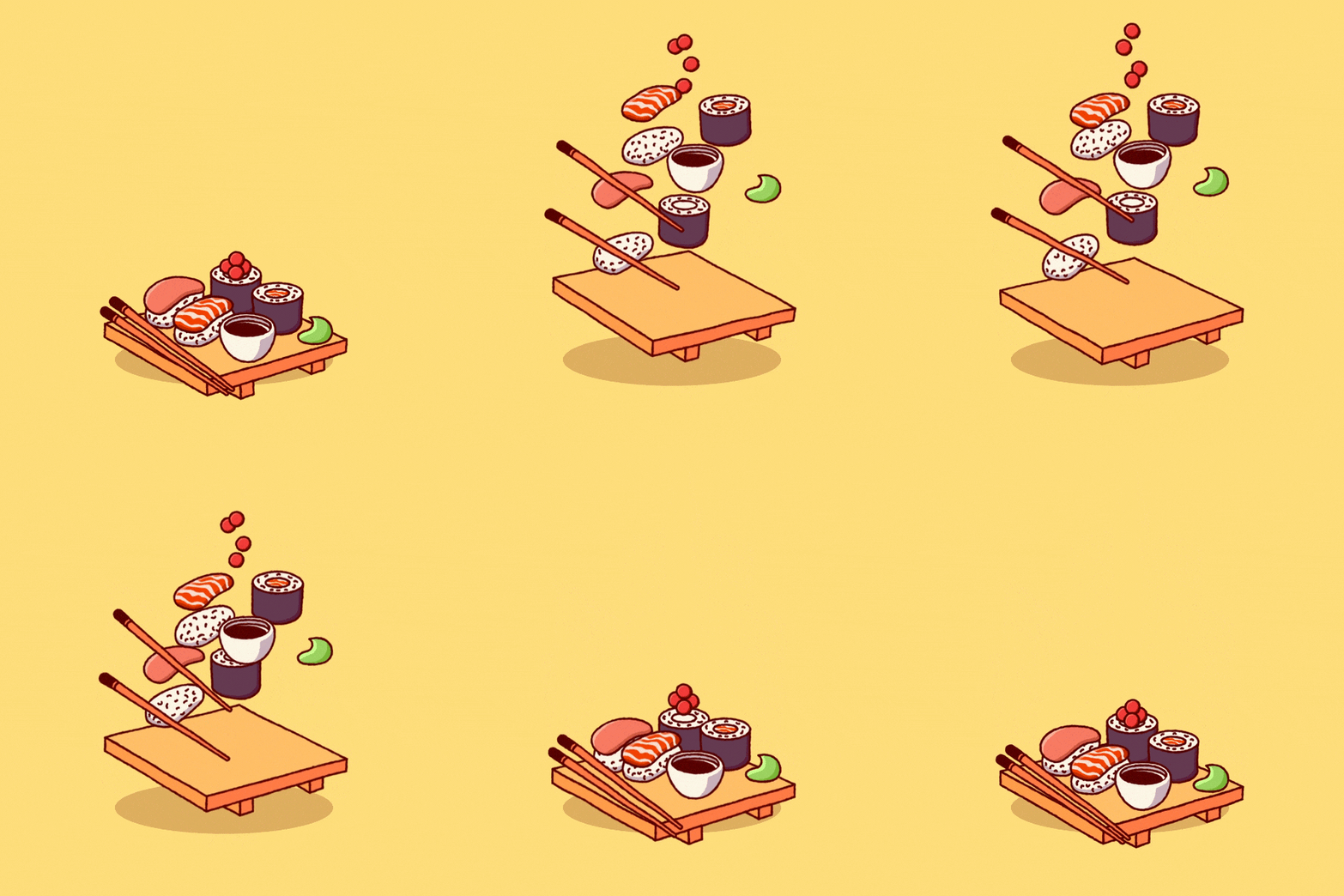
quickly review what the final animation looks like. There's a lot going on here. The tray lifts up
off the ground, all of the pieces of sushi and all the other things on the
tray float up even higher. Each layer is randomly
distributed and they kind of levitate there
hovering up and down, as well as rotating before
all coming straight back down in resting on the tray, back
down on the ground. There's also an animated
texture that wiggly boiled edge that's applied
to every single layer. And yes, we're going to
derive all of this animation with a single set
of four keyframes. So let's get started
very focused and just animate this tray. I'm going to solo that layer along with the background and the shadow so that we're not distracted by the other layers. Now obviously I could
animate this with key frames directly
on this layer, I could set a position
keyframe at the beginning, go forward a couple
of seconds and have it lift off the ground. Easy ease these keyframes,
then copy them, paste, right-click
Keyframe Assistant, time-reverse keyframes. And then the tree is
going to lift off the ground and drop back down. But if I did this for
every single layer, then I'm going to
have keyframes for every single layer and not just on the position
property because I also want to animate
the rotation with 15 different layers that all need keyframes on
multiple properties. This could get really
complicated really quickly and be very difficult
to make adjustments to. On top of that,
if I move a layer around with the position after it's had
keyframes applied, it's going to add more keyframes and it's more difficult to make adjustments to all of
those keyframes at once. So not only am I not going to add keyframes on
every single layer, I'm not even going
to animate using the transform controls
for those layers. Instead, I'm going to use the Transform effect
and I'll show you why. Let me search for
transform over here in my effects panel and apply this. This gives me a set of
transform controls as an effect instead of the actual transform
controls for the layer. So I can recreate
that same animation. Just add a couple of keyframes, shift this off the ground. Copy paste, copy
paste and easy ease. And we have the exact
same looking animation. But the benefit is now, let's say I wanted
to reposition this. I could grab the
layer because you can see the outline of the layer
is right down here. Still. Move it around
wherever I want in that animation is
all relative to the layer because the
transform controls aren't affecting this
transform effect. I can also copy and paste
this to all the other layers. So actually let's
do that right now. I'll undo back to where that
tray should be un-solo. These layers, copy
this transform effect and paste it across
all the other layers. And now they're all
going to move together. Now if I press U, we're still in that same issue of having keyframes on every single layer. That's not at all what I want. But the point is
I set one set of position keyframes and applied it to all of these
different layers. And it didn't mess up any
of their placement because the effect is relative to the layer that
you're applying it to. Alright, let's undo
back to where we were. And again, I don't
want to derive this specific effect
with keyframes. Instead, I want to create a global controller
that has all of my expression controls and tie all the properties that
I want to animate to it. So I'll get rid of those
keyframes and go up to Layer New Null Object. If you're not familiar
with the null object, this layer doesn't render, it, doesn't do
anything on its own. It's just there as a
container for controls. Basically it has all
the same transform controls as any other layer. But I could use it to parent
other layers to it and then transform that layer and it will control everything that
was parented to it. Or we could use it to hold expression controls and then tie individual properties
to those controls. So I'm going to rename
this global controls. And I'm just gonna change
the label color to green and slide this
off to the side. It doesn't have to
be up to the side, but I figured it's less than the way if it's not
over top of my artwork, I'm going to give myself a little bit more
room down here in the timeline since
we're gonna be working with all
of these layers. And one trick with expressions that can save you a lot of time is a feature called copy
with property links. So if we go up to the Edit menu and down to Copy
with property links, what this is going to do
is copy whatever you have selected with all of the
properties inside of it, tied it to the source
via expressions. So let me add the
transform effect to my global controls
null object. Again, it's not gonna
do anything visually because the null
object is not visual. It's just there to
hold the information. But now that, that transform effect is applied to the null, if I come up to Edit and
go down to Copy with property links and then paste
that on top of the tray. It's going to replace the
effect that was already there. But all of the properties
of that effect are now tied to the instance that's
on the global controls layer. So I can move the
position around, I could rotate it and it's all tied to this global
controls null. The reason that's so powerful is because if I
paste that to all of my other layers and un-solo everything so we see all
of the artwork in my comp. Then I can go to my global
controls null and adjust a single position control
to modify all of them. Now again, this isn't that impressive because
I could have just parented everything
to the null object and move the position around. But the point is, copy
with property links is a huge time-saver for linking up properties to a controller. Now, I know for a fact
that this rig is going to get pretty complex with lots of controls and the
transform effect takes up a lot of space. So to make this cleaner, I'm going to use
expression controllers for custom points of control and then just link the properties that I
want to animate to them. Instead of having all of
these transform controls, taking up so much
space in this layer. So I'll undo again to get rid of the transform effect on
all of those other layers. And I'll even remove it from these two layers
with them selected, I'll press Control Shift E or Command Shift E to
remove all effects. Then I'll bring the
Transform effect of back out onto the tray. And on the global controls null. I need to add a slider. So let's go to the slider
effect, apply that. And this is going to
be the y position. So I'm just going to
call it y POS for short. I'm going to abbreviate
as much as I can while still making
things descriptive. And this is what I want to drive the position of the tray. So let's open up the
transform effect. And I'm going to solo
this position property. So with it selected,
I'll double-tap the S key and then
I'll press E to bring up the effects for the
global controls so that that slider is
visible as well. Now I want to write
an expression on the transform property. So I'll Alt or Option, click on it and start writing my array. Since this property is an array, and just like we learned, I'm going to use variables
to make this easier to read. So I'm going to start
with VAR x equals. This will be my x value. I want this to be
whatever it's set to. So I'm just going to use my
expression pick whip to grab that x property and
autofill in that code, finished that with a semicolon, drop down a line and
type out VAR y equals. And I want this to be the Y slider that's on
the global controls null. So I'll use my expression pick whip to select that slider, finish it with a semicolon, and then dropped down two lines because I want to
actually write my array. Now, I'm gonna give myself a
little bit more room here. And we start writing
our array with the open and closed
square brackets. Within those brackets, I'm
going to say x comma y, and finish it with a semicolon. So now my array is
extremely simple. All the code is stored
in the variables and it's very easy to
identify what's going on. So if I click off to apply, my tray is going to
lift off the ground and it's set to a value of zero because my y position slider on the global controls
null is set to zero. But if I increase this
or decrease this, it does drive the position
of that tray on the y-axis. Now I would like this to
start at a value of zero, but not have it lifted
the tray off the ground. And I can actually do that if
I modify the anchor point. If I disable this expression just by clicking on
that equals sign, will see that the anchor
point in position are 540 by 540 because
this is a shape layer or Vector Layer and vector
layers and after effects are basically working in
a coordinate space that's relative
to the comp size. So even though the
tray is down here, the effect by default centers the anchor point in position which to it is in a space
that is 1080 by 1080. If I change my anchor 0.200
and my position to zero-zero, then they're both going to be in the top left corner of the comp, but my tray is going to be
left exactly where it was, so long as the position and
anchor point are the same, that's what will happen. Now if I turn my
expression back on, my values start at 00, but the trays rate where
it's supposed to be, That's exactly what I
wanted because now I can just adjust this value
to whatever I want. Know exactly how many
pixels I've removed it and zero it back out to get it to where it was at
its resting point. Now I could animate this
slider if I go forward and just change this value to lift it off the ground a bit. Copy paste, copy paste
and easy ease with F9. Then we're back to having a levitating tray and
then it falls back down. But again, we're going
to be animating all of this based on one
set of keyframes. And this is not cutting it. This is not going to drive
all of our animation. So instead of that, I'm gonna get rid
of those keyframes, set this back down to zero, and add another slider. In fact, I'll just
duplicate this one and I'll rename it animation. I'm going to move this to
the top of the effect stack because this is what's
going to drive everything. This is what will
have keyframes on it. And I'm going to
think of this slider in terms of percentage, zero to 100% completion. So I'll start by adding a
keyframe near the beginning. We'll say ten frames
forward at a value of zero. Then I'll move
forward a little bit. I'm not too worried
about timing right now, so I'll just move it forward
a couple of seconds, change it to 100%. Press U to bring
up my keyframes. Copy and paste those. Right-click Keyframe Assistant
time-reverse keyframes. Now nothing visual is happening. We're just animating a value. If I go to my value graph, you can see that
it's changing 0-100 holding and then going from
100 back down to zero. Now we get to start implementing
the linear expression. Remember the first thing that
we learned in this class to map values to that
set of keyframes. Let's go back into the
expression for the position and add another variable
at the top of the list will say VAR a for animation equals this animation slider finished that with a semicolon, and now we can write out a
linear expression to map the y-value to that
animation slider. And I'm going to do this
inside of another variable, so I'll drop down
after variable y. And since this is
after that variable, I can actually reference
anything before it. So let's say VAR new y
with a capital Y equals, and then I'll start typing
my linear expressions. So linear and it's
going to auto-fill. I'll press Enter to
get those parentheses. And what do we
want to linearize? Well, the animation slider, this one right up here, which we store it
as a variable a. So I'll say a is what
we want to linearize. Then we need our input range, so comma and our input range
is going to be zero to 100. Because remember, I'm
thinking of this as a completion of zero to 100%. So we'll say zero comma 100, and then another comma
and our output range. Well, when the animation
is set to zero, I also want the position
on the y to be zero, so I'm going to
type another zero. Then I'll put a comma. But when it's at a
maximum value of 100%, I want it to be whatever I've set the y position slider to, which is this y variable that
I've stored right above it. So I'm going to type
in the variable Y from my output maximum. I'll finish that all
off with a semicolon and then change my array down
here instead of to just x, y to x a new y. Now if I apply that expression, nothing actually happens,
but that's because my y position is set to zero. If I change this value
to something else, it's going to lift
up off the ground. So maybe we'll say negative 80. Watch what happens now once
I scroll back past 100, because we're
linearizing that value, it's going to animate
between zero and y. So let's add some easing to these keyframes and I'll go
into my graph editor and just make it a little
bit more extreme so that it kinda hops off the ground a little
more quickly and then eases nicely to a
stop at the end. Maybe it even eases
a little bit longer. Now the tree is going to
pop up off the ground, hover for a second
before coming back down. And I can easily change the
distance that it lifts off the ground just by changing
that wide position slider. No matter what I
change it to though, it's always going to
come back down to its resting point on the ground, a value of zero. And this is the technique
that we're going to use to drive virtually all of the animation in
this scene so that everything is tied to this
one animation slider, but still easily customizable with the effect controls
that we build here.
9. Controlled Randomness: Things are looking great so far, we've now dynamically tied
the position value to a slider that is then triggered an animated by a
different slider. And this is a one-to-one
ratio right now the y position value is how far that tray is
lifting off the ground. But that's not what I want to happen with all of the things
that were on the tray. I don't want it to
just lift up that far. I want them all to
hover up off the tray, all randomized at
different positions, and then do even more after
they're up in the air. But let's focus on how we
can get everything else off the tray and randomly
distributed on that y-axis. Well, first things first, I'm going to rename this
transform effect Y position just for organization. Then I'm going to
copy that effect, close this layer up and solo
the first item on the tray, which is this role to layer. I'm gonna zoom in here so we
can see it nice and clearly. And I'm gonna paste that
transform effect to it. So now both the tray
and the sushi roll are being driven by this
global controls null object, those keyframes going 0-100%. Well, I want this sushi
roll to not only lift off the ground but
also off the tray. So let's take a look at
that position expression. In fact, I'll just double-tap
the E key to bring up the only expression
on that layer so far. And think about
what we could do to introduce some random offset. Well, obviously we could add
in the random expression, but we don't want it
jumping all over the place, so we're definitely going
to need that seed random. So why don't we start there,
we'll just drop down a line and I'll type out seed random. And in the parenthesis will
just say one comma, true. Remember the second
part of the argument is the timeless arguments. So if it's true, that means it is timeless, meaning it will not apply. It just gives us a random value. Finish that with a semicolon. And then I'll actually just
dropped down another line to separate the actual array
from everything else. So that way I just have
some visual separators. I have my variables, I have my seed random and
I have my expression. Now, seed random on its own
isn't going to do anything. We need to actually
implement some randomness. If we think backwards
a little bit new y is a linear expression, but it's based on this slider
right here, the y position, if you remember, we zeroed
out all of these values, so they're going from zero
to whatever it's set to. And that's actually really
convenient because I could use it as a multiplier
with a random number. Because at the start
of the animation, when the position
is set to zero, anything I multiply that by no matter how
random the number is, will always equal zero, meaning that the layer
will not move until the animation slider's value has increased to something
higher than zero. So if I jump into my
linear expression and find where we called
out that y-variable. I could say y times and
then a random number. So let's say random and we'll
just say a value of two. So it's going to
generate a random number 0-2 and multiply that by
whatever the Y slider is set to. So I'll apply that
and see what happens. Well, the tray is
lifting up and down and the sushi is
lifting up and down. But as soon as that animation
keyframe has started, then my sushi is bouncing
all over the place. And I'm actually glad this
happened because it's something that I should
have pointed out sooner. Seed random has to happen before any random numbers are
generated in your expressions. So I'm actually going to cut this seed random from
where it is and put it on an isolated line
before all of my variables. That way we're setting the seed random and telling it to be timeless before any of those
numbers are generated. So now that we've
cleared that up, let's reapply that
expression and play it back. Now you can see
that the tray and the sushi roll are moving
at different rates. But why is the role not moving
as much as the tray is? Well, it's because we're generating a number
randomly 0-2. So if the randomly generated
number is less than one, it's going to be
moving that sushi roll less than the
actual tray is. So as a safe guard, we could say the random
numbers should be 1-2. That way we're going to
guarantee that it will move at least as much as the tray, but could move up to as
much as double the amount. So let's apply that. And now my sushi roll
is higher because we've gotten a new random
number that's 1-2. Now, just like everything else, I don't like hardcoding
in these numbers. So I'm going to add
in two more sliders. Let's duplicate the y
position and rename this y position Min. Duplicate it again and
say y position max. And I'll set these to
the same values of 1.2. Then we'll go back
into our expression, add another variable just
before the new Y-variable. And I'll say variable
y Min equals, and I'm using what's called camelCase in this
JavaScript code, where the first part of
a variable is lowercase, but you set every
corresponding word or separate component of your variables name
using an uppercase letter. This isn't necessary, it's
just common practice. So variable y Min equals, and then I'll grab
that slider semicolon, drop down a line and do another
variable this time y max equals and grab that wide
position max slider. Now we can call those two
variables out down here and say y min and y max. With that applied, I can
now set that y position minimum and maximum value on the fly without jumping
into that expression. So let's say that I
want this sushi roll to be able to go
five times higher. I'll set the maximum to five. And now we'll see
that lift up much higher as these
keyframes take place. Now there's gonna
be a lot of meat copying things back
and forth between all these layers
just so you can see how it's all
affecting everything, but you don't have to
follow along with that. I just wanted to
show it as a visual. So I'm going to grab
that y position, which remember is
a transform effect and paste it on all of
these other layers. And then give myself
plenty of room here so we can see exactly
what's happening. Let's grab those key frames
so we have them visible. Everything starts
where it should at the beginning and then
lifts off the ground, lifts off the tray and is randomly distributed
across that y-axis. But I have the y
position minimum and maximum sliders that
will allow me to dial in just how far up these
things are allowed to lift, as well as how far off the
tray they're allowed to lift. So again, if I set
this down to zero, things could possibly slide
off the trade downwards. It needs to be at least
a value of one for the minimum amount of position lift to be
still on the tray. But being able to interactively adjust this now is so much more visually apparent
what exactly is happening. But let's say I don't
like the way that this is all arranged and I want to
change the random seed. Well, that would be a lot
of work to go through each one of these
effects and change that. So instead, I'm going to duplicate this slider
and rename it. Random seed will go back into the expression
on that first sushi roll. Add another variable for
that random seed slider, which I'll do right
after the WiMAX, will say variable SR
for seed random equals, and then use my expression pick whip to grab
that random seed. Now that wasn't
expanded so I can actually grab it and that's
going to cause an error. But if I give myself a
little bit more room and open that up
so it's visible. Then I can go back into that SR equals and then grab
that random seed. It actually would make more
sense to me if I named that our random seed. And I just need to make sure
that I finish that off with a semicolon and I can incorporate it now
into my expression. The problem is I
need to incorporate that up at the seed random line, which is before that
variable has been defined. So this is where I need to make an organizational decision. Do I want to move that seed random it just after the
random seed variable? Or do I want to move the
random seed variable above the seed random? Well, in this case I think I want to do the second option, put the variable up at the top, just above seed random and keep everything else nice and
organized down here. I think that's a little bit
cleaner and it makes sense to group things together
that go together. So I'll apply that, copy that effect one more time over top of all
the other layers. And now I have this global
random seed slider. So let's give ourselves some
more room again and watch what happens when I
change this value. Now I can call that variable into the seed random expression. So I'll just replace that
one with RS and then copy this effect to all
the other layers and then see how
that affects things. Now that I have the
random seed global control watch what happens
when I shift this around. Every single value that I put into this slider
is going to generate a different set of random
values for the y position, again, all starting and ending at the resting
position of zero. But this is a way to be able to randomize all the elements of my illustration if I'm not happy with how things
are being offset. So that's all great. But I still don't have that much control over
spreading things out manually. So what can we do to add even
another level of control? For instance, this
piece of sushi is below the rice that it
was sitting on top of. So how can I dial that
in more precisely? Well, let's find
that piece of rice. I think it's rice to double-tap the E key to
bring up the expression. I want to add a slider, but not to the global
controls layer. I want it to be on
this specific layer. I'll bring that slider
control out to the top of my effects stack and
call this Y offset. And I want to
incorporate that into this expression so we need to first put it in as a variable. So let's get enough
room to be able to see that slider and
the expression. And I'll type another
variable just before the new y variables. So we'll say variable
Y offset equals and then use the expression pick whip to grab that slider, finished that with a semicolon, and now I can incorporate that
into my linear expression. So again, in the part
of the argument that corresponds to the 100% slider, I want to add something
right after that. The order of operations
applies to expressions. First, multiplication
and division is going to happen and then addition
and subtraction. We're going to take the
white slider value, multiply it by the random number between the minimum
and maximum values, and then add the y offset. And because this is happening on that part of the argument, it's not going to
affect the layer when the animation slider
is set to zero. So let's apply that. Look at this comp in full
view and change that offset. Now I can very precisely
move that better price around to place it absolutely
anywhere that I want. And even if I put it
above where it should be, when I go back in time, back to where the animation
slider is set to zero, it goes back to its
correct position. Now that I've set that
up for this one layer, I'm going to reset the
value back down to zero, press E to bring up the
effects on that layer. Copy, and then paste them
to all the other layers. But I have to be careful
here because watch what happens if I paste
it on everything. Alright, I've just
pasted and I'll press E and you'll notice that it did not replace the y
position transform this time, I've never figured out exactly
how After Effects chooses when to replace effects and
window paste it duplicates. So from now on I'm
just going to be removing all of the
effects before pasting. And to do that again with
all the layer selected Control Shift E or Command Shift E to
remove all the effects. Then I'll paste one more time. And now every layer has
the Y offset slider, which means I could randomize this using my global
controls null. Let's actually find
where that is. So right here I'll move it to
the top of the layer stack, go to the Effect Controls
and change the random seed. So I'll find a
frame where things are distributed fairly well, but one or two things is
not lining up that much. So here we are again where this bed of rice is not
where I want it to be. So I'll go to rice too. I'll grab that slider and I'll offset it
downwards a little bit. It doesn't have to be a lot. This is purely up to me how
far I want things to move, but maybe this chopstick
is a little low. I think chopstick to
that's the one we want. So maybe I'll bring
that one up a little bit and then the sauce
ball right here, I could grab that
layer and push it down more so it's not
raising up so much. So now what I'm doing is randomly distributing
all of my layers, but confining them to the minimum and maximum values that I've set up
on these sliders. Again, I can affect this
however I want at any time. And it's going to
affect everything. I can reposition
individual elements for every single layer
to have more precision. And I can completely randomize everything just by
changing the random seed. It's all being driven
by this single set of four keyframes on
the animation slider, starting and ending exactly
where I want it all to be.
10. Layered Motion: Now that we've successfully
positioned all of these layers and been able
to randomly offset them, but still have some control
over the placement. Let's move on to the next
stage of the animation, which would be having
these items levitate, hovering up and down as well
as rotating a little bit so that it's not just static from point a to point B,
back down to point a. To pull this off,
we're going to take advantage of the
transform effect. Again. Why don't we just start
with the top layer here. So the wasabi, I'll press
E to bring up the effects. And I'm going to
duplicate the y position, which remember is a
transform effect. So I'll duplicate that, rename it to why wiggle, and then go into the
position property. And let's just modify
this expression. We're probably going
to reuse some of the same variables so I don't need to
completely remove it, but I'll just zoom in here so
we can see that with savvy. And I want this to
wiggle up and down, but only when those keyframes, again are not set to zero. So to make this easier to look at what I'm actually
going to do is just turn off the y position effect and disable the expression
on the y wiggles. So now that we're savvy
doesn't move at all. In fact, let's just shut off
all the other layers so that we can stay focused on
just that was sobbing. What we want to
see for this to be just gently bobbing up and down. And we're gonna do that
with the wiggle expression. So let's go back
into the effects and into the wild wiggle. I want to modify that expression that we have on
the position this time instead of being directly tied to this y position slider, I want to tie it to a
wiggle expression that has frequency and
amplitude sliders. So I'm going to select all of these effects up here just
by clicking on one of them, then pressing Control or
Command a to select all, and then just collapse
them all at once. And then I'm going to duplicate the last slider and I'll rename this y position frequency. Duplicate that and name
it y position amplitude. I'll reset these both download. Why don't we just set
some default values of one and maybe 100? And let's think about how we're going to change this expression. Well, we know for sure we need the frequency and
amplitude in here. So why don't we go ahead and put that maybe right after the y. So I'll say VAR FREQ
for frequency equals, and grab that slider. Then VAR AMP for amplitude equals and grabbed the amplitudes slider semicolon. Now we can access
both of those in our expression for the
y part of our array, we're going to want to wiggle, but only when that animation
slider is corresponding to something other than
the zero percentage. So we're probably
still going to use this new y linear expression. It's just this part of the
expression is going to change. Instead of being based on
that Y position slider, we're going to base it
on a wiggle expression. So I'm going to type out
a wiggle expression. So wiggle, then between
the parentheses we'll type of frequency and amplitude. So we're using
those two variables that we just wrote
to drive the wiggle. And remember, because this
is going into an array, I need to put a open and
closing square bracket and the number one for the number one index
in that array, 01. And that goes outside of the parentheses for
the wiggle expression. Now there is an issue. This linear expression needs
a closing parentheses, so I need to go after
those square brackets, put a closing parentheses
and then it should be valid. Now to clean this up a bit, I can get rid of that y variable because I'm not
referencing it anymore. I also don't need
the y minimum or maximum values or the Y offset. And I don't even need
this random seed or seed random expression. So I'm just going to
select all of that. So I'm left with just the
variables I need access to. So what we have now is x, which is the actual x position
and y being our new y, which is the linear expression
taking the animation slider 0-100 and remapping that value to this
position on the why from zero to wiggling that frequency and
amplitude value zonal dynamically change from not wiggling at all to
this wiggle expression. So let's apply it and
see what happens with those keyframes and view down at a value of zero,
nothing happens. As soon as it gets up to 100, it starts wiggling, and then
it comes back down to zero. That is exactly what
we wanted to happen. And now that we
know it's working, I can turn the y position
transform effect back on, and these two effects stack
on top of each other. Now, if we play it back, not only is it going to
lift up off the ground, but it's going to start wiggling and then returned
to its home base. So let me space this out a
little bit so we can see it hovering for longer
and see it raises up, wiggles up and down, and then comes back down
to a resting point. And these are based on the
frequency and amplitude. So let's copy these over to
all of the other layers. So with those effects selected, I'll press Copy with Control C, removed the effects from all the other layers and
I'll turn them on as well, everything but the tray that is press Control Shift E to remove those effects and then
paste one more time. Now the reason I didn't remove the effects from the tray
is because remember, we wrote a different
expression on that wide position than
the rest of the layers so that it's a direct tie into that wide position slider
on the global controller. So if I replace that, then the tree is
going to be moving differently than I want it to. But let's play this back
and see what happens. Everything lifts
up off the tray. It's wiggling up and
down on the y-axis, and then it falls
back down into place. So that's great. Everything is moving
more than I want it to, but this is very easy to dial in now because I
have the position, frequency, and amplitude that I can just scale back if I want. So let's say I don't want it to happen one times per second. I want it to happen
0.5 times per second, or once every 2 s. And let's also say the
amplitude was too much, I could drop that down to 80. Now everything is going
to dynamically wiggled differently based on
those values that I put. So it's much slower now AT
is probably still too much. I'll drop that down to 50. Let's go back to the
train now because I do want that y position
wiggle on the tray. I just don't want to overwrite
the standard y position, so I need to be careful
with my copying. I'll bring up the effects
of any of the other layers. Grab that, why wiggle? And then show you
what happens if I paste on top of what
was already there. It just replaces the transform
that was already there. So instead of that, I'll undo duplicate
y position and with that second copy
selected, I will paste. And that replaces that instance
of the transform effect. Now I should get
the same wiggle on the tray as everything else. There we have it. So
that's looking great, but it's still pretty rigid and static because it's only
wiggling on the y-axis. Let's also introduce a
wiggle to the rotation, which we again will do using another instance
of the transform effect. So this time let's start
at the bottom and I'll just duplicate the y
wiggle on the tray. So I'll zoom in here. Duplicate why wiggle, and then just turn off the y position and the wild wiggle so that we can focus on just the effect
we're working with. This is gonna be the
rotation wiggle. So I'll rename that effect and
then open up the position. We can actually get rid
of this expression. So I'll just hold Alt Shift or Option Shift E on a Mac to remove
that expression. In fact, I'm actually
going to reset this entire effect so that we have default values
for everything. And I want to point
out something. If I change the rotation, It's not going to rotate around the center
of the artwork. And this goes back to
what I was talking about with vector layers
and After Effects, after Effects is
looking at that layer as if it's the size
of the entire comp. And so is this effect, which is why the anchor point is right in the
center of my comp, and that's where it's
going to rotate around. I want that anchor
point to always be right in the center
of my art work. But if I move the anchor point, the contents of the layer
going to shift around with it. And that's because the position also needs to be adjusted. There's two steps
to fixing this. First of all, the position should always follow
the anchor point. So I'm gonna go to the position property, use my property, pick whip to grab
the anchor point, and that automatically adds in the expression to follow
the anchor point. Now I can move the anchor
point around wherever I want and it's not going to
affect the position anymore, at least visually, the actual position
property is changing. But now I can rotate this around whatever point I put
the anchor point at, but I want it to be right
in the center of my layer. Well, if you've noticed
that there actually is an anchor point on
the layer and that corresponds to the actual transform controls of the layer. If I go into the transform, There's my anchor point. That's that crosshair
right in the middle. And that is exactly
what I want to target with my rotation
wiggles anchor point. So I'll alter option, click on that anchor
point and then type out a very
simple expression, transform dot position. And finished that
with a semicolon. So we're just looking at
the transform controls of the layer that this belongs to and the position property
for that layer. Apply it. And now wherever
this layer goes, the anchor point
is always going to be smack dab in the center. Which means when I
go to rotate this, it's going to rotate around
the center of the layer, just like I want it to. So now that we have that
done in all set up, I can actually go to the rotation and
implement a wiggle on it. And we're going to just
borrow the same expression that we used on the
Y position wiggle. So I'm gonna go
into that and copy, then collapse that backup, go into the rotation, add an expression
to it and paste. Now if I apply this, we're
gonna get an error because this property is not an
array, it's a single value. We need to change things
up a bit in here. First of all, we don't
need an x-variable, so I'm going to just
select that by triple clicking it and then
pressing the Delete key, and then I can get
rid of my array. I don't need this
first half with the x. I don't need the
square brackets. We're just going to
leave it to new. Why? I also don't need to specify the index of the array since there isn't one in my
wiggle expression. So I'll get rid of those square brackets and the number one. Now if I apply this, our error goes away and this tray is going to
start wiggling around. That's great, but
it's referencing the same frequency
and amplitude sliders that the y position is. And I want unique frequency and amplitude sliders
for the rotation. So I'm gonna select both
of those, duplicate them. Drag them down and rename them. So we're going to say
rotation frequency, rotation amplitude, and then link those
up in the variables. So I'll go into
here and instead of this line of code
for the frequency, we are going to change this
to rotation frequency. Same thing for the amplitude. Select that all the way up to the semicolon and then
grab the amplitude. Now I can change the rotation wiggle separately
from the position wiggle. And I know for a fact, 50 degrees of wiggle
is way too much. I'm just going to dial that
back down to say 12th. And then I'll turn the other
effects back on and just bring up the keyframes so
we can see how they align. The tray lifts off the ground, hovers up and down and wiggles in a much more manageable rate. I think that's looking great. So let's grab that one effect, the rotation wiggle
from the tray. Un-solo layers go into role too, so we can see the effects. I'll press E and paste. And I did it that way just to make sure that it
wasn't going to replace any of the other
effects and it didn't. So now I know it's safe to grab all the other layers
and paste that as well. Again, just pressing E
to double-check that none of the effects
actually were replaced. And now I'll play that back
and see what it looks like. Okay, So everything
lifts off the ground. It hovers up and down
and it's rotating, but it doesn't seem to be
rotating around the center of each layer the way
that we had it set up. So let's take a look
at why that is. Let's just grab this sauce mole and solo that for a second. So what's happening is it's
lifting up off the ground, but then it's rotating
and it looks like it's rotating from
somewhere down here. So if I press E to
bring up the effects, the reason this is happening
is because effects are applied in the
order of top-down. So first we're moving
the Y position, then we're wiggling
the y position, and then we're
rotating the layer. And that instance of the
transform effect is rotating around this point
right here where the original artwork was. So instead of doing that, I first need to
wiggle the rotation, meaning I need to move it
above the y position effect. Then I'll move it up and then we'll add that
wiggle to the position. With that order of effects. I'll copy them and
then just to be safe, I'll remove all the
effects from everything but the tray Control
or Command Shift E, and then paste them again. And then I'll go into the
tray as well and move that rotation wiggle up above
the other two effects. Now I should be able
to play this back and see the type of motion
that I actually wanted. Everything lifts off the tray. It's bobbing up and down
in all the rotation is happening around the center
point for each layer. That's exactly what I wanted. Now the position amplitude is probably a little too strong, so I'm going to drop
that down to 25. And the rotation amplitude
could probably also be dropped down to maybe
eight degrees instead of 12. This is completely up
to your own taste. And the great part about building all these
controls is that you have the flexibility of
just modifying some of these values and seeing how it affects the overall animation. Now, this piece of rice right here again is giving me trouble. So maybe instead of
dropping that down, I'll grab the tuna and I'll just bring that higher
up in the stack. But overall, this is very
close to what I had in my mind for what I wanted
this animation to look like.
11. Property Links: Now I've generated all
of the motion that I wanted to out of this animation. And I've done it all with
a single set of keyframes, but there's even more
detail that I could add to this that isn't strictly for the motion of all
of these layers. Let's say that you wanted to add some stylized looks to your
art work using effects, but be able to control them with the same amount of precision
from this one point. Well, we can do exactly that. So let's add a boil effect to all the artwork to give it
a texture dancing edge. I'm going to search for the
turbulent displace effect and apply that to the tray. If you've never used
turbulent displace, this is just going to add random distortion to the
entire image and we have a size and an amount to mess with how that
distortion actually looks. So I want to turn
the size all the way down to its minimum of two, which is going to give
this nice textured edge. And the amount, I'll probably
have a rate around 50. I want to bring that
all the way up to the top of the effects stack. And I'll collapse
these other effects just so they're out of the way. But that way the texture
is applied before the motion and it will
stick with that layer. Now. Now there are a
few different ways that you can animate turbulence. One of which is evolution, but this is kind of a more
fluid way of animating things. And I want it to be
pretty randomized. So I'm gonna go down into
the evolution options and there is a
random seed value, just like with the seed
random expression. Random seed is going to give the displacement a random
starting point. So if I change this
to any other number, it changes pretty drastically
how that distortion looks. So we can add a
random expression to this in order to animate it. So let's just press
Alt or Option and click on that stopwatch
to add an expression. In that expression
we'll just type random. And in the parentheses, I'm just going to put
a really big number, so I'll say 10,000. And that way on
every frame it will generate a random
number 0-10 thousand, completely changing the way that that turbulent
displace it looks. So I'll play this
back and you'll see that now that
texture is animating. It's dancing around, but it's changing on every single frame. I would rather not have
it changed every frame. So let's go to our
global controls. Duplicate the last
slider and name this boil FPS for frames per second. Now, I want to make sure that I can always see these effects. So I'm going to click on
this little lock button right here in the
effects controls panel. That way it'll be visible even if I select a different layer. Okay, so let's go back
down to the layer we were working on the tray
into that expression. And before that random 10,000, I'm going to drop down a line and add in a posterize time. And in-between the parentheses, I'm just going to
select that slider. That way whatever
number I type in here is what the frames per
second for that expression, that random value will be. So if I change it down to six, it's going to update at a rate
of six frames per second. And that's a lot more like
what I actually wanted. I might bump it up to
12 frames per second. That's half my comps frame rate. But the point is, I have very flexible
control over it now. But what if I wanted to change the amount and the size as well? Well, I could make more sliders and I could tie these two it, or I could do that copy
with property links trick. So why don't I do that just
to change it up a little bit. I'm actually going to cut this turbulent displace from the tray and paste it onto
the global controls and will collapse all
of these other effects. For now, I'm going to rename this turbulent
displace boil one. Remember this doesn't do
anything because it's applied to the null object and not any
of these artwork layers. But if I copy it with property
links by going up to edit, copy with property
links and then pasted across all of
these other layers. Now I have this one point of reference and can adjust things. So let's say I want
the size to be bigger. I could increase the size here on the global
controller and it will affect every single instance
of that Turbulent Displace. Now I liked to, so I'm going to leave it as is, but maybe I turned the
displacement amount down a bit. Okay, That's looking
pretty good, but I want to double up this boils that we have
two levels of it. So I'm going to solo these
last few layers again, go into my global controls
and duplicate boil one. This will be boiled two, and I'm going to copy and paste both of these with
property links now. So edit, copy with
property links, go down to the tray. I'll just delete the boil
effect there and then paste it. And remember, I want
these boils to happen before the other Motion Effects. Now that I have two instances of turbulent displace being driven by this global controller. I can dial in the second look. So I want the size of
this one to be much bigger and the amount
to be much smaller. If I go into the
evolution options, the random seed is still being animated by my boil FPS slider. So that's still applies. It will update at a rate
of 12 frames per second. So let's play this back and
see what it looks like. Now we're getting a
larger distortion over the entire layer. So let me turn off boil
one just so we can get a clearer picture of what this second distortion
looks like. So it's subtle, but it just adds a little bit of
personality overall, especially when combined with
the first instance of boil. Alright, let me un-solo
those layers and since they're all linked
up with property links, I can copy and then paste
it onto another layer. Press E to bring up those effects and make
sure that they're above the motion
transform effects. I still want the Y
offset at the top, but now that that
effect stack is set, I can copy it. I can go into my other layers, select them all and remove the effects and
paste one more time. And now everything has
that double boil applied. I can unlock this
so that we can see more than just this
layers effects. If I zoom in, it's very easy now to dial this in to
look however I want. So if I want more of
an extreme distortion on that first
instance of the boil, I can dial that up or I can turn it back to be a
little bit more subtle. And with that boil FPS, I could change this to any
number of frames per second that I want to completely
customize the look. Just like that I've added
in some animated texture that is still completely
controllable from this one, global control null object. One thing I do want
to point out though, if I go back up to Edit, there are two options here, copy with property links and copy with relative
property links. So let me go into any one of these Boyle effects and point out how any of the expressions
on that effect is written. It starts with comp, sushi, which is the
name of this comp. So it's looking
specifically for this comp. And then the layer named
global controls and then the effect boil one and
then the property amount. What this means is that if I duplicated this comp and
I now have sushi too, and I go into that
comp and adjust the global controls
for one of the boils. So let's say I turn
the size way up. That is not going to affect
anything in this comp because these layers
expressions are looking for it. This comps global controls null. And the properties
that we have set here, if you wanted to make
something that was a little bit more universal. So it wasn't controlled
by one specific comp. That's when you would use copy with relative property links. So if I grab boil wanting
boil to go to edit, copy was relative
property links. Select boil 1.2 here and paste. Now all of those
expressions are going to be written a
little differently. Instead of saying sushi, It's saying this comp, meaning whatever comp, this
expression is written in. Now if I copy all these
effects to all the other ones, I'll just remove all the
effects and paste them again, and then just copy that boil over to the tree layer as well. Now all of my expressions are relative to the comp
that they belong to. I can delete this sushi to
duplicate sushi one more time. And now all of these
global controls will affect what's in this comp. So that's just something
to keep in mind when you're working with copy
with property links.
12. Layer Styles: I've now pretty much recreated my animation for this
entire class project. But there are some more
things that I wanted to show you that you can
take advantage of, especially with copy,
with property links. Like I said, a null object is
just like any other layer. It just doesn't render, but you can actually apply
more than effects to it. You can even apply layer styles. So if I again go down
to the tray and I right-click and go
to the Layer Styles. Let's say I want to add a white stroke around
the entire thing. So I'll add that stroke, change its color to white and
then maybe make it larger. Now it's kinda going
to look like it's almost a sticker without
white stroke outline. I want to copy that
stroke layer style over to the null object. So Control C, Control V. Again, nothing visual changes, but now that I have it
here, I can select it. Go to edit, copy with a relative property
links this time, and then paste it on all of the other artwork
including the tray. So I'll just select
everything and paste and everything gets
that layer style. It all looks like stickers now. And I can affect the color and the size right from the
global controls null. So maybe that size
is a little too big. I'll drop it down to say seven. Everything gets a
little bit thinner. Maybe I don't want
it to be pure white. Maybe I want to drop it off of pure white just a little bit. So it's not as intense. I actually don't think
that looks as good, so I'll undo that. But the point is you can
control a lot more than just affects with copy,
with property links. Again, freeing up the need
to have to dive into all of these individual artwork layers just to change something
visual about all of it. It's all being driven by
this global controls. No, freeing you up from
a lot of tedious work.
13. Thanks!: That's it. Congratulations
on finishing this class. I hope that expressions
are no longer as intimidating to you as they were before you started and that you really
feel like you have a good understanding
of how to move forward and using them
in your own projects. If you liked this class, I would love it if you gave me a review, let me know what you liked about the class,
what you didn't. So I can always improve it. The next one, I always
want to improve my classes and the
way that I teach it. So don't hold back. If you use anything that
you learned in this class, be sure to tag me on
Instagram or Twitter at Jake in motion so I can see
your work and show it off. Also check out my
YouTube channel, youtube.com slash Jake
and motion of for regular content that's being
posted there all the time. And definitely be sure to
follow me here on Skillshare. So you're always up-to-date with my latest classes and you can start watching them as
soon as they're posted. Thank you so much for taking this class and I'll see
you in the next one.
 Jake Bartlett, Motion Designer