Transcripts
1. Lesson 1 Course Introduction: Hi, everyone, and
welcome to the Excel for Beginners Data
Analytics course. My name is Sherman, and I'll be guiding you through
this course today. This course is built for
two kinds of learners, beginners who have never
used Excel before, and intermediate users who
know how to use the platform, but want to understand
the thinking behind data analytics. In this course, we'll explore
the logical frameworks that companies use to assess
your analytical skills, whether it's for
a job interview, an assessment or an
on the job task. A little bit about my
background in Excel, I started using Excel back in 2016 in my very first co op job. When I discovered pivot
tables and macros. And since then, I've used
Excel in all of my roles. And there have been
quite a few with co op jobs and full
time jobs combined. I've worked in many
different industries, namely banking and finance, data analytics,
consulting, education, construction, and real estate
in which I am currently in. Over the years, I've also taught Excel to hundreds of users, especially when I was working as a data science
teaching assistant from complete beginners
to professionals. This course is built on
the 80 20 principle, the 20% of logic and functions that drive 80%
of real world outcomes. Instead of cramming all possible
solutions and functions, in this course, you'll
learn how to think and present that
thinking using Excel. Throughout the course,
I'll be using a Mac, but I'll share the Windows equivalents for every shortcut. Excel is better on
Windows, but I own a Mac. So now that you know
what to expect, let's begin by
understanding what data analytics actually means.
2. Lesson 2 – An Introduction to Data Analytics: So what exactly is
data analytics? Simply put, data analytics
is the process of turning raw numbers into
meaningful insights that help businesses
make decisions. Whenever you open a dataset, you're not just looking
at rows and columns, you're looking for a story. The steps you'll
follow typically include understanding
the problem, cleaning and exploring
the dataset, analyzing it, and presenting
insights that drive action. Something that has helped me tremendously in interviews
and technical assessments, and something that I now
encourage everyone to do is to add a logical
framework tab. I'll show you what I mean
when we move to my laptop. Whenever you get an assignment, whether it be in Excel or Power BI or any other
coding language, find a way to demonstrate
your logic or your framework. In Excel, for example, you can add a separate tab
for your logic. In Power BI, you
can add a textbox, in any coding language,
you can add commons. Show your interviewer
your thinking, and you want to take them
in the process with you. This does two things. It
shows your interviewer that you think logically and it helps you structure
your approach. And it helps you if you
forget a formula or you run out of time because your
reasoning is still visible. I learned this
during a technical interview with the company Bell. I forgot the sequel syntax because I was panicking,
to be honest, and also there wasn't enough
time but I wrote down my entire logic in
comments step by step. I was 100% sure I failed, but I passed that round
to my big surprise, and the interviewer
told me that the reason I passed was because my
logic was very clear. He encouraged me to always
make this practice, and now I tell everybody
else to do the same. Of course, someone who
understands the logic is able to demonstrate it and knows
the platform really well, will always have the upper hand, but this is a tip that you
should use regardless. In the next lesson, we'll get
comfortable inside Excel, understanding the workspace and the layout before
diving into functions. So let's now move to my laptop.
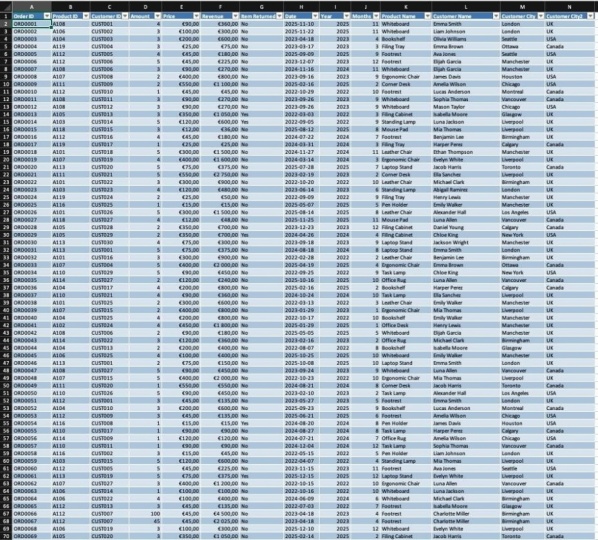
3. Lesson 3 Getting Familiar With Excel: Start by getting familiar
with Excel's layout. I use HachiPT to put
the data together, and it's small enough that you can learn everything without
getting overwhelmed. So the file that
you have in front of you is called a workbook and each separate tab
is called a worksheet. In this case, orders, product, customer data are all
worksheets within the workbook. And this comes in
handy when you start automating tasks
using VBA Macros. At the top here, we have
what is called the ribbon. This is the menu
that holds most of your command options
like formatting cells, inserting pivot tables,
using filters, et cetera. And most of these
commands have shortcuts. You don't need to
memorize them all, but throughout the course, I'll show you the ones
that I use the most. To be honest, I'm
not a shortcut whiz, so I do use my mouse
every now and then, but I try to limit the
use as much as possible. This is because if
you're using shortcuts, you will increase your speed and your productivity in Excel, when you're focused in
on analyzing your data, you won't lose your thought process because
you have to go to your mouse and then it just
slows everything down. It's very important to know the main shortcuts and whatever you don't
know, you can Google. Okay, moving on below the command ribbon
are your grid lines. These are made up of
a bunch of cells, and each cell is referenced by the column letter
and the row number. So for example, order
ID is in cell A one. And if you don't remember
what the cell reference is, you can always check it
out here at the top left where the cell reference will change as you
move across the grid. You do want to get
comfortable understanding the cell references because your functions will be
using the cell references. So this is Excel's layout. The goal of this
lesson is very simple. It was just to introduce
you to the platform itself. So next we'll start with
the heart of Excel, the functions and
shortcuts so that you can start commanding
the data to work for you.
4. Lesson 4 – Functions and Shortcuts: Now that you're comfortable
with the platform itself, let's start with
functions and shortcuts. A function is a command that tells Excel to perform
a specific task, for example, adding up
numbers or looking up values. All functions start
with the equals sign, and there are
mainly two kinds of functions aggregate and
individual cell functions. Some of the most common
aggregate functions are some average minimum, maximum. They give you a value based
on your entire dataset. And when you're analyzing data and you're using pivot
tables and lookups, you might not use these
aggregate functions, but they are very
useful when you have to give quick insights or if you have to present
data in a meeting or if you have to use numbers
to use in a presentation. That's when these
functions come in handy, but you will mostly be
using them when you're using your Excel sheet
as a standalone item. So if we look at our dataset, the first aggregate
function that I want to show you
is the sum function. Like I mentioned
before, to indicate to Excel that you're
going to use a function, you start with hitting
the equal sign and then you start
typing in the function. If I write sum, you'll see that I get a
bunch of different options, and as soon as I
write the function, I have to open parentheses
and then you'll see that Excel tells you the parameters that
it's looking for. To get out of a function, you can just press
the escape key, and I just want to show you a quicker way to type this in. You hit equals to indicate
that this is a function, type in sum, and then you can hit the tab key
on your keyboard. And it automatically comes up without you having to
put in the parentheses. Now, this is where you
will use cell references. What I want to do here
is I want to add up the price of my
first five items, and so I can just select my first five items and close
parentheses and hit Enter. So you can see
that the total for the first five items is 460. Now, every time you
use a function and you come up with an aggregate value or any number for that matter, you should always ask yourself
what that number means. Now, if I were to
copy this number and put it in a presentation
or send it to my manager, they wouldn't know
what 460 is because there is no unit
attached to this number. So again, whenever
you see a number, you always want to ask
yourself, what does this mean? In our case, this is the total price for
the first five items, and so I want to add a unit to and I will add the
dollar sign here, and now it is very clear
that this is $1 value. Similarly, if I
were to calculate the average of the
first five items, I would hit the equal sign, start typing in my
function and you can see that Excel pulls
up different options. I will hit the tab key so that the function populates
itself in the cell. And similar to the sum function, Excel will tell you
the parameters that it's looking for
for that function. Again, I'm going to select the first five items and close
parentheses and hit Enter, and you can see
that the average of the first five items is 92. What does this number mean? Is this number the
total steps that you walk today or the number of apples that you
bought from a store? 92 would be a lot, to be honest. But what is this number? What does it? This
is an average price. So we'll go on this cell and
click on the dollar sign. There are two more
ways that you can format your cells in Excel. I'm just going to hit Command Z to undo the step
that I just did. Under home, I can go
to this option right here and select
currency or accounting. And this brings up
the dollar sign here. Another way to do it is to
right click in the cell. Click on Format Sells. You can choose whatever
category you want to pick. In this case, we can use
either currency or accounting. I'll just go with
currency and you can hit. Okay. Other common
aggregate functions include minimum and maximum, and you can try
that out yourself. In reality, you
would use functions like some average to calculate
your total revenue or your total profit or your average revenue for a specific month or
a specific year. In this case, I just
wanted to show you how to use the function itself. There are a lot of
different ways that you can use multiple
different functions. And if you have some
ideas in your head, you can Google some functions and you can try it out yourself. One hand, where aggregate
functions help you with the exploratory
data analysis piece, which we will talk about
later in the course, individual functions
help you with the actual cleaning and
analyzing part of your dataset. So let's get into that. A very common practice
is to separate out the year and month from a date field so that you can
look at trends over time, and this is where the
year and month function these are individual
cell functions, and even though this is not the first step that you will
do in your analysis piece, I'm covering it
right now because I really want to show you
the difference between individual functions
and aggregate functions and how to use
different shortcuts and a few formatting
tips that you want to use before you actually
go into the analysis. So for this course, we'll apply functions before actually
cleaning our dataset. Hit the equal sign,
start typing in here. You can see that the option
already pops up for you. I'll hit the tab
key on my keyboard, and using the arrow key, I'll go to my date field. Close parentheses,
and you'll see that we extracted the year
from the date field. Now, if I want to drag
and drop the formula, one option to do it
with your mouse, which I don't really recommend and it really slows you down, but I want to show
you regardless, is to hover over the bottom
right part of your cell, and you'll see that the
cursor changes a little bit. And this is your indication
that you are ready to drag your formula
to the bottom. I'm just going to
drag the formula to the first instance of the
blank cell that we have. So you'll see that
the formula has been applied to all the cells. Command Z to go back. A quick way to do this
using your keyboard is go to the closest column
either left or right, whichever one is populated, and then hit the command
end down arrow key. This will go to the very last
cell before a blank cell. This could be because there
are blanks in your dataset, or it takes you to the very
bottom of your dataset. Then you can go back
to the column that you want to drag the formulas down. You hit Command Shift and
the upward arrow key, and it selects the
entire range where you want to populate your
cells with the formula, and you can hit
Command Command D will drag your formula down
to your entire selection. I want to do the same
thing for the month. So how I can go back
without using my mouse is hitting command in
the upward arrow key, it goes to the very
top of your sheet, in this case, we don't
have any blanks, which is why it went
to the very top. If you had blanks
in your dataset, it would go to the first
cell before a blank row. Equals, start typing in month, hit the tab key
on your keyboard, go to the date column. And then close parentheses. Now, I'll go back to
the closest column, hit command and the
down arrow key to go to the last cell before a blank
row or the end of the sheet, and then go back
to the column that I'm interested in,
Command shift, and then the upward arrow
key to get the range of cells that I want
to drag my formula down to and then hit Command D. So this is how you can
apply functions and use shortcuts to
populate your data set. Now, this was mainly to show you how to use quick shortcuts. But if you were actually
applying formulas, the best practice is to convert your cells into a table,
and I'll show you why. We'll convert our data cells to a table purely by
using shortcuts. To select an entire column, you can hit the
Control and Space key, and this will select
your entire column. Then using Command Shift
and the right AERO key, you can select all
the columns that are populated that you want
to convert to a table. And then to actually convert
this dataset to a table, you can hit Command T, which selects the dataset that you will be
converting to a table. And then if you hit Enter, you'll see that your dataset has now been
converted to a table, and you can see that the
table name here is table two. What I can do here is I
can just call it orders. Now, going back to
what we did before, I'm going to apply a function for year and month and you'll see that automatically Excel recognize that this is
part of your analysis, and so it added another
column to your table. So we can start typing in the
function by hitting equals, and then I can type
in, hit the tab key, select my cell, which
is right next to it, where I want to
extract the year, close parentheses and hit Enter. And now you'll see that the entire column
is automatically populated and you
do not have to do the work of dragging
and dropping formulas. And this is why using a table is so important when you're
analyzing your data, and this is going
to be even more helpful when we start
using pivot tables. As we move along this course, I'll introduce you to new
functions that will be very helpful when you're going through the data
analysis process. But now that you know the
core functions and shortcuts, we'll move to the next
lesson and explore how filters and blank rows
impact data quality.
5. Lesson 5 – Filtering and Blank Rows: Now that we know the core
functions and shortcuts, it's time to move
on to filters and blancros because
how you filter and structure your data determines the accuracy of everything
that comes after. Filtering is important because
it allows you to quickly find specific groups of data that share
the same features. For example, all orders
that were placed in year 2024 or all items
that were returned. So you can quickly
group things together, and there are two ways
of applying a filter. The first is in the home
tab under sort and filter. And the second way is to go in the data tab and
click on filter. And you'll know that a filter
has been applied when you see the arrows in the tiny
boxes in the headers. Now, the way I applied
a filter is not best practice because there
are blanks in our dataset. You have to be very careful
when it comes to blank rows, because in my demonstration, my dataset is very small. You can clearly
see that Row 17 is a blank row with the exception
of yes in the item return, which was clearly just
a data entry flaw. But when you have
large datasets, you might not know if there
are blanks in your and if you simply apply a filter and start working
on your dataset, you won't know that
you aren't applying the same formulas to
your entire dataset. Because when you simply
click on filter, the filter is only applied to the first set of data
before the blank Crow. So what you want to do,
no matter how small your dataset is
because you want to build the muscle of
doing things right, you want to click on the
arrow in the top left corner. And what this does, it
selects your entire dataset. Another thing you could
do is press Command A and then Command A again to
select your entire sheet, and then you click on Filter. The filters will only apply to the active cells
in your worksheet. In my case, I had some
data in Columns INJ. I was testing something out. And so that's why the filters have applied on Columns INJ. Normally, when you select
your entire dataset, the only columns
that the filters will be applied to will
be your active columns. Now, I could have added this as a quick pointer in one
of my other videos, but I chose to keep this topic separate because of
how important it is and how much grief it gave me in my early
years of using Excel. I would have large
data set when I was working at a
construction startup. And I simply clicked
on the filter. I did so much work and applied so many formulas on my
dataset only to find out that I only did
it on less than half of it because I couldn't see
that there were blank rows. It really makes a difference, especially when you're
sorting things, when you're filtering
it all out. So the bigger your dataset is, the messier it can be. And so you want to build the
muscles of doing things the right way so that no matter how small or large
your dataset is, you'll always be sure that
your data practices are accurate and that
you're coming to the right conclusions
and the right output. And for that reason, I'm going
to quickly repeat what I said whenever you want
to apply filters, you want to make sure that your entire dataset is selected. You can do that by
pressing Command A twice or clicking on the arrow
in the top left corner. Another shortcut is to
press Control and Shift. To select your entire column, you can then click
on Command Shift and the right arrow to select all the columns
that are active, and then you can
press Command Shift F to apply filters by
using shortcuts. Once your filters
have been applied, you can spot check
some columns to make sure that your
data is correct. For example, I can go into amount and see that I
have a no in there. Because we will be covering data cleaning soon in one
of the next videos, I won't do it right now, but filtering is a very good way to also spot check errors. All right, so now you
have the basics down. You know where
everything is in Excel. In the next lesson, we'll define a real
problem statement to tie everything
that we've learned so far together and see how logic guides analysis from
start to finish.
6. Lesson 6 – Data Analytics Problem Statement: Now that we've
learned how to use filters and clean
up blank roads, let's move to the next most important step
in data analysis, which is defining the
problem statement. Whenever you get a dataset, whether it's for an
interview assignment, a live case study or even
your day to day work, the first thing you should
do is ask the question, what exactly am I
trying to solve? When I used to get
technical interviews or Excel assessments, and then later when
I was creating Excel assessments to
interview other people, I noticed something
very interesting. People jumped straight
into the formulas, but the people who did
really well always started by writing out what
they were trying to achieve. Either in a textbox, a common, or a separate tab. You don't need to do this
for your day to day work, but if you are doing an
interview assessment, I highly recommend adding another tab called
logical framework, and you can use it to outline
your thought process, your assumptions,
and your steps. Here's why this matters.
It demonstrates your logical
thinking even before you present your work
to your interviewers, and this is what they're
looking for, but barely ever. And the second is that if you
forget a formula or syntax, your reasoning still
shines through. So having a clear understanding of your problem statement and defining it before
you start doing any work is going to
be a game changer. For this course, we
have three tabs, orders, product
and customer data, and our problem statement is based on product performance
and customer data, where is the company
trying to expand next? And we'll try to answer this question by the
end of the course. So now that we know
what we're looking for, let's start exploring the data and see what stories
it's trying to tell us.
7. Lesson 7 – Exploratory Data Analysis: There's a saying in data
analysis that 80% of the work is cleaning and understanding
the data and only 20% is analyzing. So before we build any
charts or identify trends, let's start by exploring
what's in front of us. Exploratory Data Analysis or EDA is you getting to
know your dataset? You ask yourself questions
like, What columns do I have? What does each one mean? Are the data types correct? Are there any missing
values or weird patterns? So for example, if we look at
the dataset in front of us, we can clearly see that there
are some blank values in our dataset which could give
us issues down the line. And so this is something that we will address in
the cleaning part. I also want to see if there are other blanks in my dataset. So using filters that we
learned in our previous lesson, I'll quickly see if there are
any errors or blank cells. I'll pick any random
column to look for that, and okay, so not only are
there blanks in our dataset, but there is a random no
in the amount column, which is clearly a
data entry error because this column should
only be accepting numbers, but there is a no
in this column. So there are clearly
some errors, but there are also blanks. So we'll address both
in our cleaning piece. If your dataset is
bigger and messier, you also want to make
sure that the data types are correct because text
cannot be added, right? So those are things
that I would look at when I'm exploring my dataset. Another thing that
we can look at is maybe age in our
customer data tab. What I can quickly do is
selecting the column, I can go into Insert
and add a quick chart because charts are
a really good tool to help you understand
your data better. So here we can see that the age is 25-70, somewhere 25-70. But there's a clear spike
where the value is 460. Now, this is an outlier
and clearly an error. It's very normal to have
outliers in your dataset, but you have to
decide whether it makes sense to remove
it or keep that outlier you don't want to remove true values from your dataset
so it can look better. You want to remove the
errors, like clear errors. So even in the blue
zones of the world, nobody has lived up
to the age of 460. So this is clearly
a data entry error, and this is something
that we will remove in the cleaning piece. Again, you want to make
sure that you don't just remove all outliers
because, for example, if we were only selling
our products in the US, and you see that
there is one product which is sold in Canada. Now, that could mean two things. Either that is an error or
maybe our company is trying to expand in Canada and they have just started
selling products. So if you just remove that one piece, that
would be incorrect. In this case, however, this is clearly an error. So in our cleaning piece, again, we're just
going to remove this. Is a benefit of the exploratory
data analysis piece. You get familiar
with your dataset, and you can get an idea of the work that is required
in the next steps. The logic behind analysis
always stays the same, no matter which tool
you use Excel SQL, Python, you're always trying to convert raw numbers into
meaningful insights. If you're using Excel to
analyze any kind of data, dataset is probably manageable because for larger datasets, Python SQL are better tools, but Excel is still a very dominant software in industries like finance,
consulting, accounting. And so it's very
important that you also understand how to think and
apply that thinking in Excel. The Excel project file
is attached down below, and I hope that you're
following along. For this project, our focus will be on expansion based
on product performance, and that's the lens that we'll keep for the next few lessons. Next, we'll start
cleaning our dataset, handling blank rows,
trimming spaces, and removing duplicates
to make sure that our analysis can stay as
accurate as possible.
8. Lesson 8 – Data Cleaning: Now it's time for one of
the most important parts, which is cleaning our data. You'll often get raw exports
with inconsistent texts, duplicate entries, blank rows, and this is a process where you can start cleaning
up those things. Like I mentioned earlier, I intentionally
kept this dataset very small just so that
you won't get overwhelmed, but we still look
at the different aspects that you
have to consider. You're cleaning your
dataset. And I'll talk through my thinking whenever
I'm looking at data. So first things first,
we want to remove the blank rows from our dataset because like
we talked about earlier, blank rows can cause
a lot of problem, especially with filters, dragging formulas,
stuff like that. So using filters, we can just select the blanks
in our dataset. We want to delete the
entire row and to do that, you can hold Shift and space, and it selects the entire row. And then holding Shift, use the down arrow key to select all the cells that
you want to remove, and Command minus will allow
you to delete these rows. Then we can remove
the filter here. And before doing anything else, I want to convert my dataset into a table because
like we saw before, it's very easy to drag formulas and just play around
with different things when your dataset is in a
table format because it removes a lot of the manual stuff that you might have to do. I'll select my dataset,
Command shift, and the right arrow key, and then holding Command Shift, the down arrow key allows me
to select my entire dataset, and I'm confident that
this time it went down to the last row just because
there are no blanks. In my dataset. So command, T, and Enter will convert
this to a table. During the EDA process, I noticed that there were
some inconsistencies in the amount column. I know that there is a
text value which is no, and obviously, this is
an incorrect value. This is a very good example for you to understand
that knowing what your goal is for whatever task you're
doing is very important. Now, if I wasn't analyzing
my data to understand where I can expand my company based on
product performance, I would have taken a
very different approach. If I was just collecting
data and making sure that my data was complete, I would go back and look
for the order ID in whatever software I'm
collecting all of this information or
if I have a database, I would go there and make sure
that I know the amount of items that were bought in
this order in order 68. The reason that this is clearly a data entry issue because
there was a no that was added. There should have been a number. And this clearly
looks like it was an export from another platform where we're collecting
our order data. So I would go into that platform
and replace the no with the actual amount because
I want to make sure that I'm not losing any of my values. In our case, we don't
really have access to the platform where all of
the orders were gathered. And so, obviously, we
cannot replace this value. What I'm going to do is
I'm just going to go ahead and delete this from my dataset. But I just wanted to
make the point that it's important for you
to understand what you're doing more so than
just doing the steps because your decisions might
change based on the task. So I'll select this
line item using shift in space and Command minus. Enter to remove this. Now I'm going to quickly check that everything else looks fine. There's nothing in the price, item returned is also
just yes and no, so everything else looks great. One thing I want to do is
calculate the revenue. You can do this in the
next step or later, but I would prefer doing it
right now while I'm cleaning my dataset because I know that everything
is clean right now, and I also know what my goal is. So revenue is an important
metric that I would want. So what I can do is I
can add a column here. Right before items return
and after amount price, I can rename this
called this revenue, and revenue is equals
to start a function. It's amount times price
to give the total amount. Now, if this weren't a table, we would also have to
drag drop our formulas, but this is because our data is in a table format,
we don't have to do that. Now, amount, price and
revenue, it seems like, has the same data type, but there are two
very different items. Amount is just the amount of things that a
customer has bought, and price and revenue
are dollar figures. So I want to change
that because I want to be very familiar
with my dataset, and I really want to understand what the different
data types are because the calculations that I will perform will be
based on data types. Sometimes what happens,
actually, most of the time, when you're exporting your data, the data types
might be incorrect. So you might get numerical
values in text formats. What that does is
that it doesn't allow you to perform
specific operations like some average
multiplication division on text because obviously, it's not a numerical value. So you want to make sure
that your data type is always correct so
that you can perform all the different mathematical
operations that you would want to do based on
whatever you're calculating. In this case, I will select the two columns and then convert
them into dollar values. You can see the hashtags
or the number signs. I don't know what this
symbol is called. I call it hashtag, but it
just means that the width of your column isn't enough to fully display
the number here. So you can hover over that particular column where you can see the the line
and the two arrows, and you can double click
on that column and it'll fully expand to show
you the entire number. And then the number or the
hash sign will be removed. Another thing is I want to extract the month
from the date field, and using the month function, I can extract the month. So I'll start typing
in the function, hit tab and go into
the date field, close parentheses and enter, and we'll see that
now our column has been populated with
all the months. Okay, next, I'm in
the product tab. And what I want to do here
is I just want to look for duplicates because maybe
during the data entry process, we added multiple items. And this is also a spot check to make
sure that there were no incorrect items
added or incorrect price or maybe we have the same product
ID, stuff like that. This is where I'm going
to look for that part. So selecting the entire
column under home, I'll go into
conditional formatting and select duplicate values. And then hit Okay. So I can see that I have
two duplicates. One is a whiteboard and both
are white, both are $100. So this was just an entry
that was added by mistake. And so I'll just command minus remove or
delete this column. The next duplicate
item is A 112. Now, this is an error because the same ID is referencing
two different products. One is a green for trust and the other is a black for trust. For our case, I'll assume that this was an incorrect entry, and I'll just go ahead and remove this duplicate
value as well. Right, so now that we
don't have any duplicates, I'm going to go
into the last tab, which is our customer data. Instantly, I can
see that there are some extra spaces in the name
columns, which is not good. Spaces can be a huge issue
when it comes to looking up values because when
you're looking up values using V Lou
index match or lookup, which we will be covering in the next parts of the course, the lookups are
sensitive to characters. Any extra character, a
space is a character, a letter is a character, a comma is a character. Lou can get confused about what you're trying to pull and it
won't pull the same thing. So Liam Johnson in Cell two is different from
SpaceSpace Liam Johnson. For that reason, we have to
make sure that we don't have any extra incorrect
spaces in our dataset. Another thing that I
want to do is I want to combine first name and
last name into one, so I will use the
concat function, and you will probably be
using this function a lot, especially with
something like this. If you're collecting
data from customers, it's very common to ask for the first name and
last name separately. But for the dataset, it's very helpful having the
full customer name, even though you would never be using the customer name
as a lookup function. As a lookup value, sorry, you will either use
the customer email or a customer ID because that is
a true unique value always. So first, I'm going
to bring these two together using the
concatenate function. Before I do that, I
want to convert this to a table to make
life easy for me. And now I can add
another column, call it customer name, and using the concat function, I'll bring these two together. I can start a function by
hitting the equal sign. Concat, you can see that it
already comes up, hit tab. Now, Concat takes different
texts as parameters, as you can see in the function
help box right below, and it considers every
single character. So in this case,
we'll use Emma and then then we need a space between the first
name and the last name, so we have to specify the
space as well, and last name. Close parentheses,
and we can see that the formula has been
dragged to the very end, but we still have extra
spaces that we don't want. So I can now use
another function to remove the extra spaces, which is the trim function. The trim function can help
you remove all extra spaces and then close parentheses
and hit Enter, so we can see that all the
extra spaces are now removed. Now that we don't need
our customer name, I can just go ahead
and delete it and you'll see something
interesting that happens. So I can see that as soon as I remove the customer name column, I get a reference error
because the cell here has a formula which is attached to the column that
we just deleted. And so it doesn't know
where to reference anymore. And this is very important when you're working with
different workbooks, especially if you're building up an Excel sheet to
send to somebody else, if they don't have access to all the worksheets or all the workbooks that
you have referenced, In your final worksheet, they will see the
reference errors. So it's extremely
important that you convert these into values and don't keep these things as formulas. In our previous stab
in the order Stab, I don't have to do this
with revenue because I know that amount and
price will always be there, and they're in the
same worksheet. But in this case, in
the customer data tab, we're using a column that
we're not going to need. And so if I go back
hitting Command Z, now we have the customer
name formula there. And what I'm going to
do is I'll command shift and down okey to
select the entire column. I'll copy and right
click Paste Values. Now I can see that it no
longer is a formula here. It has pasted all the values. Now if I delete this column, you'll see that nothing happens
and our dataset is fine. It doesn't go crazy
because it's no longer referencing
another column. So I can change this
to customer name. And honestly, I don't even need the first name and last name, so I can just delete this. Next thing I want
to do is address the outlier in our age column. We decided in the
EDA phase that this is something that we will
remove from our dataset. Again, you don't
remove all outliers. You have to really understand
what that outlier is. In our case, this is
an incorrect value for sure because nobody can
live up to the age of 460. Maybe there's some
technological advancement that happens in the future. But now, as of today, no one can live up to 460. Even in the blue zones, the max that someone
has lived is, I think, 120 years or something. So this is clear error, and for that reason, I'm going to remove it from our dataset. If I thought that this
was something that was an actual outlier based on the data that we have entered or the data that
we have collected, then you will not remove this. All outliers are not
removed from your dataset. Only the ones that are
clear errors are removed. So shift space to select and
then command minus, okay? And now I can clear the filters. This process wasn't
very difficult because our dataset is pretty
small and quite clean, actually, for big
data standards. This is not even considered
close to big data, but data can be
very, very messy. But the overall approach
stays the same. You're always looking
for duplicate values for incorrect data
types, for blank rows. Those are the main things
that you will look for. You'll address outliers,
stuff like that. So we've covered the
majority of the things that you would need to know when you're cleaning
your dataset. But obviously, the
bigger the data is, the more messier it can. Leaning does take time,
and you might get impatient because you want to do the fancy stuff right away. But just remember
what I said before that data analysis is
80% understanding, cleaning, exploring the data, and only 20% analysis. And if you spend time cleaning the data and
understanding the data, you'll be very
happy with yourself when you have to do
the other stuff. Now that our data is clean, we can start connecting
different sheets and bringing everything
together using lookups. And the first lookup that
we will use is V Lookup.
9. Lesson 9 VLookup: Now that our data is clean
and ready to be used, it's time to talk about one of the most useful and powerful
functions in Excel, which are lookup functions. Look up functions
allow you to connect information across multiple
sheets and workbooks, for example,
connecting product IDs to actual product information, customer IDs to actual
customer information, and they help you organize and bring your data together in a way that your analysis is
seamless and more accurate. In this course, we'll talk
about three lookup functions. The first is V Lou which is the classic and easiest
one to understand. Second index match, which is more flexible and
powerful than Vu. And the third is lookup, which is the modern all
in one most powerful, most flexible lookup
function which is available in newer
versions of Excel. Starting with V lookup, it's short for vertical lookup, which means it looks for a value vertically
until it finds a match. Typing the function here, you'll see that V lookup requires three
mandatory parameters. The first is the lookup value, which is the value that
you are using to look up another value the table array is where your final value lies, and the column index number is the number of the column
where your data is in. So these are the
three things that you have to enter for
Lookup to work. So using it in our dataset, let's look through
the different tabs to see what information
we will be using. Here we have order ID, product ID, and customer ID. So let's first go
into the product tab. We can see that in
the product tab, we have the product name and the product color
and the unit price. I believe we already have the price yes, we
already have the price, so we don't need to bring
that in from the product tab, but we don't have the
name of the product. We only have the product ID, and to make our analysis better, we want all our information from all three tabs
combined in one tab. So we're going to bring data
in from the product and customer data tabs
into the Orders tab. So the first thing that we
want is the product name. We'll start by typing
in the function. The first parameter
is the lookup value. This is the value that we will use to look up another item. We're going to use
the product ID, which is the lookup value to look for the name
of the product. So in our case, our lookup
value is product ID a 108. And then once we've
added the parameter, it's time to add
the next parameter, you hit comma, and now it's
asking for the table array. Now, this is the table that
both our lookup value and our final value lie
in because we will be using that particular table
array to get the information. So our table array is
obviously the product tab, and these are the four
columns that we will be using for our table array. Now, the important thing for V lookup is that
our lookup value, which is the product ID, has to be in the
leftmost column. If it's not in the left
most column or at least to the left of the column that we are interested
in, it won't work. So because product
name is what we want, we want to make sure
that product ID, which is our lookup
value is on the left. In this case, it is. So we will hit comma again and now it's asking for
the column index number. So starting from the
left and including the look up column,
we'll start counting. So A is number one, and B is number two. And because product name
is what we're looking for, we're going to put in two and close parentheses and hit Enter. And then you'll see that
automatically it dragged the formula all the way down
because this is a table. Now, the reason that I
don't like V Lou and the reason why I don't use it unless I have a
very small dataset, and I just want to
quickly get information, and I know that I'm never
going to look at it again is because it's
not flexible at all. In this case, our dataset is so tiny that it doesn't matter what kind of lookup
function we're using. Our product ID is to the left. It's just the perfect
case scenario, but that's not always the case. If our product ID was
somewhere in between and we have lots of different and we had lots of different
information, it would take so long for us
to arrange our dataset first to make sure that
our lookup value was to the left would
just be a waste of time. Another issue is that if our dataset is
changing in any way, it can break the function. For example, if I were to add an extra column
before product name, you'll see that now our V lookup function no longer works because it's
looking for column two. Column two is empty now, and so it's not
pulling anything. So it's not flexible
and it's not dynamic, which is why I'm
not really a fan of V but I also see
that it can be very helpful if you have a very small dataset and maybe you're building
a presentation and you quickly want some
answers and you don't care if more columns are inserted, deleted, you don't
care about that, then V Loup is perfect. So going back if I delete this column or if
I just hit Control Z, you'll see that now the
formula works fine. Loup is extremely simple. Make sure that you're working along using the project file with me because it really helps to strengthen your concepts. So we talked about the
pros and cons of Lookup, but when you have
larger datasets, you would want more
flexibility and would need a more powerful function
for that purpose, and this is where
Index Match comes in. So in the next
lesson, we'll see how Index Match gives you more
control over your dataset.
10. Lesson 10 Index Match: Now that we've talked about Lou, let's move on to
the next function, which is Index Match. Index Match used to be my personal favorite combo
because it's both flexible and powerful and
we'll talk about why my preferences have
changed in a few minutes. Unlike V Lou, which only pulls data to the right of
the lookup value, Index Match can pull
data from any direction, and it does not break if you
make any column changes. Back in 2016, when I was working at the
Construction startup, I learned index match by going through a whole paragraph of different functions
and breaking it down one by one to see
what each one means, and that's how I
learned this function. Nested functions can feel a little complicated,
but they're really not, and they give you a
very good understanding of how overall functions
work in Excel. So we'll start with the
match function first. For this function, we'll be pulling in the
customer name from our customer data tab using customer ID as the lookup value. So let's write customer
name over here, and we're just using the
match function first so that you know what the
match function returns. Equals match and you can hit
tab so that it populates. It's asking for two
mandatory parameters, the lookup value and
the lookup array. So the lookup value will be the ID which we will use
to pull the customer name, and the lookup array is the
column where the ID lies. So customer one is
our lookup value. And if we go into the
customer data tab, our column A is where
the customer ID lies. And then close
parenthesis hit Enter. So the match function
return numbers, what does this mean? Customer 001 returned two. So if we go into the
customer data tab, we can see that customer
001 is in the second row. Let's look at a few mores. Go back into orders, and customer nine returned nine. If we go into customer data, customer nine is
in the ninth row. So this means that
the function match is returning the row numbers
where your lookup value is. Now that we know what
the match function does, let's move on to
index equals index, and then you can hit Tab, it's asking for two
mandatory parameters. The first is the array, and this is where our
final value lies. So in our case, it's a customer name in the
customer data tab. Then it's asking
for the row number, which if you remember, we
got from the match function. So instead of adding
a row number, we're going to use
the match function to grab the row number for us. So let's go into customer data. And then select customer name
as the column that we want, now it's asking for
the row number. And if you remember that we used the match function to grab
the row number for us, so we won't be doing
this manually. We'll use the match function here so that it can grab
the row number for us. If I type in match, then it's asking
for a lookup value, go into orders and grab customer ID because we
want customer information, and customer ID is
the primary key in the customer data tab. And it's asking for
the lookup array. Where is the customer ID
under the customer ID column. One thing I forgot to mention
when I was showing you the match function
is you have to specify whether it's
an exact match or not. So we can do that by
hitting and zero, which shows that
it's an exact match. You close the parentheses, and now this has closed
the match function. So when you close
the parentheses, now our match function, it's indicating to the
function that match is closed, and now you'll close the index function by adding another
parenthesis at the end. Hit Enter and you'll see that the customer name
has been added. I am not sure why this is an NA, customer 005, customer 00o. See, there is no customer 005, which is why it's
giving us an NA. I'm not sure where this
information came from. Maybe when I was
cleaning up the dataset, this could have been
the 460-year-old person that we removed
from our dataset. So what I can do
is shift space to select and command minus
remove this from our dataset. Again, if you were doing
this in real life, you would go back to the
software or whatever platform, gather your data and look
up the information and see if you can grab the original data to
put into your dataset. And sometimes it's
just an error, so you can remove it from your
dataset if it's an error. But by default, don't just assume that if
something is missing, it's an error or if something is an outlier, it's an error. That's not always the case. So you saw how the
index match function works because it's more
complicated than Vu, we'll do another one
and make sure that you're following along
in your project file. So now what I want is the city. I can just type
in customer city, and I'll start with typing in the index function hit
tab so that it populates. It's asking for the array, the final array where
your destination lies. The value that you're looking
for, where does it lie? It's in the customer data tab, and it's in the city column because we're looking
for the city. Asking for the row number. This is where we'll use
our match function. We need the lookup value, which is in the orders tab. Obviously, it's the first
lookup value because this is an individual function and we want it to apply
to all the values. It's not an aggregate function. It's asking for
the lookup array. The lookup array is
our lookup value, like where our lookup value is, which is in the
customer ID column. We want an exact match. Close the match function with the first parenthesis and then close the second function
with the second parenthesis. Hit Enter, and now we have the city for
all our customers. Whenever you're doing lookups, you want to do
quick spot checks. So what I'll do
is I'll just make sure that the
information is correct. Customer 002 is in
London, which is correct. Now the way this
function is set up, it doesn't matter
where your ID column or your lookup column
is because it can be anywhere since you're just
selecting the column and you're specifying where
your lookup value is. The function won't break if it's on the
left or the right. And the second issue
that we had with Vlookup was if you inserted or deleted any columns,
your function would break. So let's test that out as well. If I go into customer data, customer name was one of
the values that we pulled. So if I insert a
column over here, and go back to orders. So you'll see that the
column did not break, and that's one of
the flexibilities that Index Match offers you, which we look up does not. There are two main disadvantages with the index match function. One is that it's slightly complex and so
difficult to write. But if you practice enough, you can easily solve that issue. And the second is that if
there are any errors or if there are any missing
IDs in your dataset, it won't return anything. So if you remember,
when we had customer 005, adding that back again, customer CST 005, we got an NA. Obviously, there's no ID, so it's giving you an error. But if you want to specify what to do if there is an error, you have to use the
if error function, and you can say not found. And close parentheses. So I basically added another
function called if error, and then I specified
what I would want if there was an error.
Let me do that again. So I basically go in here
and I write if error, which is another function, hit tab for it to populate itself, it automatically adds
the first parentheses and the two values that
it requires sorry, the two parameters that
it requires is the value, which is what we're getting from the index match function. And then it's asking
what happens if the value that is
returned is an error? So you can hit comma, so it goes to the
second parameter. And then you can maybe
type in not found. Close parentheses and hit Enter. So if there is no
value that is found, then you can say not found, but you have to use
another function for that. So that is the
second disadvantage of the index match function. But there is another lookup
function called X Lou, which solves all the problems of V Lou and all the problems of index match and combines
it together in a new, more flexible, more
powerful function. So now that we understand
the concept and we know the more complicated
version of lookups, let's move on to X lookup.
11. Lesson 11 XLookup: We've looked at V
Lou and Index Match. Now let's look at the newest, most powerful lookup function
in Excel, which is X Lou. X Lou was designed to fix all
the limitations of V lookup and index match while keeping the formula
short and simple. Before we look at
what X Lookup does, I'm just going to hide some columns so that you can see it clearly and it
becomes easier for me to edit later. All
right, perfect. So we'll be using Xo up to
pull up customer country. From the customer data tab. Typing the X lookup function, we can see that it requires
four mandatory parameters. The first is the lookup value, which in this case is the
customer ID because using the customer ID will extract the customer country from
the customer data tab. The second is the lookup array. So where is this lookup
value in the dataset? The third is the return array, which is the data that we
are actually interested in, in this case, customer country. And the fourth, actually, this is not a
mandatory parameter because we can see
that it's in brackets. It's an optional parameter, but it's the if not
found parameters, similar to the I error function that we used in the
index match function. So using the four parameters, we're going to see
how X lookup works. Our lookup value is
the customer ID, so customer 001, to go
to the next parameter, our lookup array is
in customer data. Look up array is basically
where is the lookup value, and the lookup value is somewhere in the
customer ID column. The return array is what
we're interested in. In this case, we're interested
in the customer country, and we can also add an if not
found optional parameter, which is if we don't find the particular customer ID
that we're looking for, we want our function
to return not found. Close parameters
and we hit Enter. You can see we get
all the values for the different
customer IDs in seconds, there were no nested functions. We don't care if the columns
move here and there. We can also test that out. So if I insert another column anywhere in my dataset so that the
columns move to the right, we'll see that our
function did not break and we still have all the values that
we are interested in. Now, we don't have customer 005, which initially
gave us the error. So let me add it in to
show you how this works. Insert and customer 005. So we can see that
instead of NA, which we can see in
columns L and M, this function without adding an extra function is
giving us not found. So if you have a
very large dataset, you can really use
this function to your benefit because
you can very simply, without adding an
extra function, specify the value that
the function should return if the lookup is
not in your dataset, and then you can filter or
look at it in pivot tables. It's very easy to see which
values you do not have. So this is one of the main
things that X lookup provides, so the other functions do not I would again
encourage you to try this function out yourself
in the project file because no matter how easy this
looks, you will get confused. If you don't practice
it yourself. You really have to understand the lookup values,
the primary keys, and the return arrays to really get some benefit
from lookup functions. So this is why X Loup is my
new favorite lookup function, and initially, I didn't really know much
about it because I was used to using Index
Match since 2016, and X lookup wasn't
a thing at the time, which is one of the
disadvantages of X Loup that if you're using
an older version of Excel, this lookup function
will not work. And if you're working
on an Excel file on your computer and it's the
newer version of Excel, but you send it to
somebody who does not have that new
version installed, then this lookup function will not work and they'll
only see errors. So if you are sending
it to somebody, if you are sending the file and you're sending it to someone who you know has an Excel
version which is updated, then using this
function is amazing. But if not, I would
encourage you either to use Index Match or to
convert your formula into values like we
practiced in one of the previous classes so that you can be sure that your
function will not break, and whoever is reading
your Excel file will have all the values
that you want them to see. We've covered all three
lookup functions, and we used V Loup, Index Match, and
X Lookup to bring our dataset together
into one tab. Now it's time to take
this clean connected data and start analyzing it
using pivot tables, which is one of the
strongest features in Excel. And the next lesson we'll build Pivot table step by
step to summarize data, identify trends, and bring our
project together visually.
12. Lesson 12 Apply Logic Using Pivot Tables & Charts: Now that our data is
clean and connected, it's finally time
to work with one of the most important
features in Excel, which are pivot tables. If you've ever
needed to summarize large amounts of data,
this is how you do it. Pivot tables can help you
find insights, trends, and answers without
writing complex formulas. And honestly, if you have to do any kind of analysis in Excel, you must know how to
use pivot tables. Alright, so we've
already converted our range of cells into a table, and there are two main reasons why you would want to do that. First one, I think, is more of a Windows problem than
it is a MAC problem, but the problem is that if
you don't have a header, for example, if there was no
header in items returned, if this was just
a range of cells, you would just see that
the header is removed. In that case, if you try adding a pivot table with that column
included, it won't work. I'll give you an so
you have to make sure that all your
columns have headers. And honestly, I
don't really mind that problem a lot
because it is nice, especially when you
have large amounts of data to have headers
in all your columns, otherwise, you can get lost. So that is a good
problem, in my opinion. The second issue is that if you start getting additional
rows in your dataset, you would have to
change the selected data range again
and again to make sure that you're all of your cells that you want
included in your pivot table. However, if you use a table,
that won't be the case. So that is a big benefit
of using a table when you're creating pivot tables instead of just a
simple range of cells. We know that our data is
in table format because we can see the table option
in the ribbon at the top, and you'll notice that as soon as we insert a pivot table, that option will appear as well. Let's change the name of the table here and
call it orders, so it's easier for
us to navigate through the different tables. When you have multiple tables, you'll see why doing this
is really important. Let's go ahead and
insert a pivot table. You don't have to
select the range of cells because we already have
everything in table format. But if this was just a range
of cells and not a table, you would have to
select your dataset. And then insert a pivot table. If you just select
the entire dataset, you'll see that your pivot
table has a lot of blanks, and that's not
really fun to see. It messes up the analysis, and actual blanks
can be ignored. As a result. You don't
want to do that. And so you only will
select the range of cells that you want
included in a pivot table. In our case, we don't
need to worry about that because our data
is in a table format. Insert pivot table I like
adding it in a new worksheet. If I was creating multiple pivot tables
for the same table, then I would keep those
in the same worksheet. But the first pivot
table you can create in a new worksheet
and then hit Okay. Alright, so we now
have a new worksheet with the pivot table
options in front of us. So on the right, we have the
pivot table fields panel, and this is where you have all the different
options for rows, filters, columns, and values, you can simply drag and drop your selected field into
one of these boxes, or in a MAC, you can just click on the field name
that you're interested in, and it automatically
assigns itself. You might want to change that depending on what you're
looking for in a table, and it's not always accurate. So I like adding it myself, and you can simply drag
and drop it's super easy. So the question that
we want to answer is, where should we expand based
on product performance? And for that, the
first thing I want to see is total revenue by country. So let's go in and
select customer Country. You notice that I
simply clicked on customer Country and it
appeared in the rose. That's where the first
option will always appear. And if I were to select
any other option, it keeps going into
the rose field, right? So to remove a field
from one of the boxes, you can just click on
that field and remove it out and it disappears. So this is the total
revenue by country. So as we can see that there is a not found option in our pivot tables,
which is incorrect. This is one of the things that I really like about
pivot tables. If you miss something
in the filters, you will see it instantly as soon as you insert
a pivot table. So clearly, there is an issue
in the customer country. I imagine that it might have
got something to do with customer five or maybe something that we removed
from our dataset. So we can go into orders
and using our filters. All right. So we
can see that there is a not found option here. So yes, this is
for customer five, and like we did before, we can simply remove this
field from our dataset. Like we mentioned before, if you were doing this in real life and you had another platform where you were
pulling data from, you would want to go back there and make sure that
you don't have any information connected to customer five because if you do, I would rather that you pull that information and
get your dataset completed instead of just simply deleting for our purposes, our dataset is small and
obviously we don't have any other platforms
because this is a chat GBT generated dataset. So I'm simply deleting the rope. But in real life, you don't
want to just delete data, be it outliers or missing data, you want to first
go and see if you can actually collect the data, and then for outliers, you want to see if
you can understand the reasoning behind an outlier. And then you want to
decide if a data point should be deleted or
not from your dataset. So shift space to select
the entire column and then command minus we do want to delete the
entire sheet row, and then you can
clear the filters, go back up using the command
and upward error key. All right, so if you go
back into our sheet one. So the not found
option is still there, which is a problem. We
just removed it, right? But in pivot tables,
you have to manually refresh your dataset every
time you make a change. So if you go into Pivot Table, analyze the option here to
refresh can be selected. And now we can see that not
found is no longer a problem. Coming back to our
question, which is, where should we expand based
on product performance? We would have to go
through a few layers of data to understand where
we should be expanding. So from a quick look,
we can see that UK has been our best performing
country in terms of revenue. In this class, we're only
looking at the total revenue to decide if we want to expand to another country
or another city or not. But in real life, you
will never just use one data point to make
such a big decision, especially if you're
interviewing for consulting roles or if
you are a consultant, you'll know that just using one field is a
recipe for disaster. And I have been emphasizing outliers and deleting
datasets and not using one field because it's
extremely important in data analytics that you use your thinking and your
logic to make decisions, any decision, whether
it's deleting a dataset or just deciding
on one data point, that's why I'm emphasizing
that over and over again. So if we just have
the total revenue, we are never going to
make the decision of expanding into a new country because there are so
many different factors, tariffs, unemployment rates, the different laws in a country, whether it's actually easy
for us to expand or not. What are the other expenses for country one versus country two? These are many factors that you would have to
consider when you are making a decision for any problem that you are
trying to solve using data. The qualitative aspects
are as important, if not more, as the quantitative aspects any problem
that you are solving. So that is something
that you have to keep in mind whenever
you're looking at numbers. So we have the amount, which is the total revenue. In this case, it's very
obvious that UK is number one. But if you had multiple
different entries, you wouldn't want to see
the relative performance of one country versus another. To do that, I would pull in revenue again in
the values field, right click the sum of
revenue options and go into field settings to show data as a percentage of the grand total and
then press Okay, because percentage gives
you relative information. Dollar values are giving
you static information. And so when you have a
lot of different options, you really want to see how one option works
versus another. And when you have
multiple options, it's very hard to compare
one option versus another. So in this case, we
know that 65% of our products are being sold in the UK and 20% are
being sold in Canada. So UK might seem like
the obvious option, but we're not going to make
that decision right away. We have other things
to look at, as well. So now that we have an idea
of relative performance, I can just remove the
sum of revenue option. From the pivot
table fields panel. And the next thing
that I want to see is the performance
year over year. I'll pull the year field
into the columns section. So we can now see the
performance 2022-2025. So 22-23, the revenue in Canada
was slightly increasing, but UK was a massive increase. But then since then
it's been declining. But our revenue in Canada in 2025 is a lot higher
than UK or the USA. So I can say that both
Canada and UK might be valid options to
compare against. And again, we have to
consider that this is randomized hatchbT data, so it may not be as accurate
as the data you would actually get for sales
in different countries. In a real data set, the trends
that you would see would be very different from what
you're seeing here right now. So the decision that
we might have to make is between UK and
Canada at the moment. USA is not a contender because the revenue numbers
are very low, and even though we
won't be basing our decision just on revenue, it is a very important factor. So if that factor is not even something that we
would consider for USA, we can just eliminate
that option right away. So now that we have a
year over year idea, we can just remove
year from our columns. And now I want to look
at product performance. I can simply select
product name and place that under customer
country in the rose section. And now we have the
breakdown by product. Again, total revenue is not enough information to understand how many products
we actually sold and how popular
product is because, for example, if
bookshelf cost $1,400, that means we only sold
one of that product. Want to understand the volume of the products that
we are selling. And for that, we can just
pull an amount and I actually want amount on top of revenue in
the values section. All right, so I'd like to sort my data so it's
visually pleasing. I can go into the filter
up here that you can see, and the field that I
would like is, I think, customer country, and I want to sort by total
revenue, descending. So now we can see that
UK is at the top, because obviously
the total revenue is the highest in the UK. I'm also going to sort by sum of amount in
descending order. And now I can see that footrest
is what we sold the most. The total amount sold is
160 footrest products, which is quite a lot compared to all the other
products that we have. So from this data, we
got some understanding of what is working
in which country. So Futrust is working
the most in the UK. Our expansion decision will
obviously be different based on whether
we have an online store or a brick and mortar, but this data at least is
giving us an understanding of which country is the most now that we know which country
is the most favorable, I can shortlist my
options to the UK. And now we can check
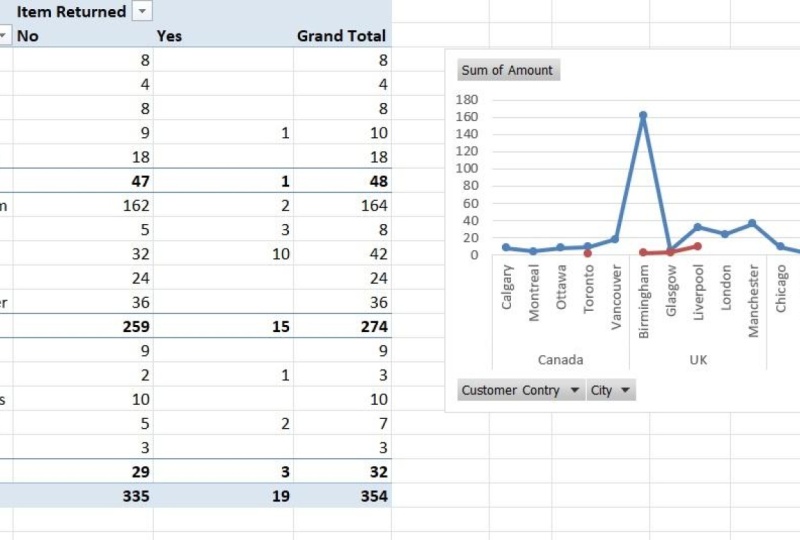
which city is the most favorable so that we know where we want to open up a new store. So what I can do is remove the product name because now
that is no longer relevant, and I can look for customer city and bring that under the
customer country option. Because I'm not really looking
at Canada and the USA, I can just collapse
those fields. So we're only looking at UK. And from our data,
we can see that Birmingham is the place
where we might want to open up a new
store only based on the number of items sold
and the total revenue. Again, I want to emphasize
that this is not our final decision for the data that we have
and for our case, it is our final decision,
but in real life, there would be a lot of
different options that you would have to consider
before making a decision. Another quick thing that
I want to show you about pivot tables is you saw how important pivot
tables are, right? The numbers are
great and you got a very quick understanding of what works,
what doesn't work. Numbers are always better
when you can visualize it, and this is where
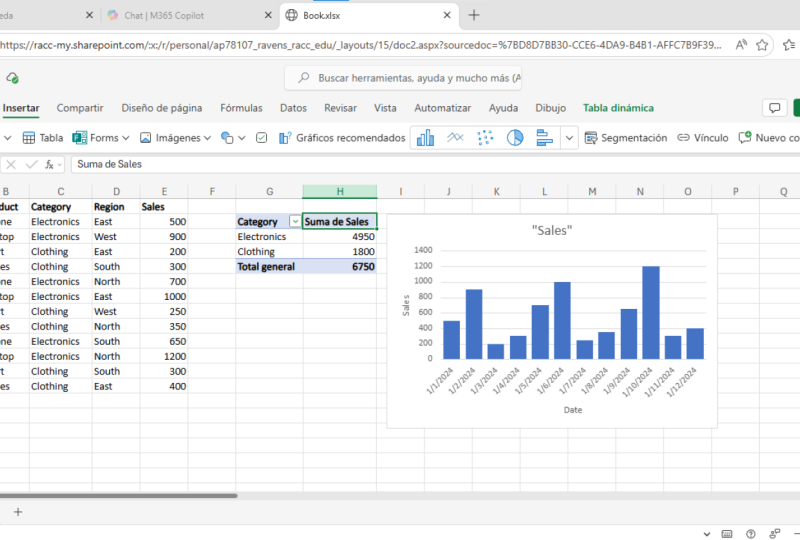
pivot charts come in. Pivot charts can assist you in your analysis because you
can quickly insert charts, and they keep changing
as you're changing your pivot table if you're just using your pivot tables
to get an understanding. So, for example, we started
off with customer country, and then we looked at
product performance, and then we narrowed
it down to the cities. To view a pivot chart, you would simply make
sure that you're in the pivot table analyze section. And to the right here, there is an option for pivot
chart that you can click, and you get a quick
visualization that UK is your highest
performing country. Again, this is more
useful when you have different options and you
want to see quick answers. So if I were to drag customer
city, in the rose column, you'll see that the pivot
chart has automatically been updated based on the selections that we have in our pivot table. So if I were to expand Canada, you get the different
cities in Canada, and if I were to expand the US, then you have all the different
options here as well. Obviously, this can get a little confusing the more
charts that are added. But the good thing about
pivot charts is that you can visualize your data as
you're trying to analyze it. So if I'm just looking at UK, I can simply collapse
Canada and USA options. So now I just have the
view of one country. So you can play around with
pivot charts as you wish, but it really helps you to
visualize your data as you go. This can also be very
helpful when you want to add charts
to a presentation. And as you're
analyzing your data, you can keep gathering
the different charts to really visualize the experience
for other people who will see it's very
important that you choose the things
that you want to show based on the audience. So if you're presenting
to senior management, you will use
different charts and more concise overarching
theme charts. But if you're presenting to a specific team who
would need more data, then you might want to
present the pivot table, which has the nitty gritty of each data point rather than a chart that only shows
overarching themes. So based on your goal and the audience that
you are presenting to, your method of presentation
will also change. So make sure you keep that in mind as you're going
through your datasets. Speaking about logic
and understanding, one thing I want to mention that if this were an interview, you could also add a tab
called logical framework. And here you can just outline the different steps that
you've taken to analyze your data or your thinking and logic behind
whatever you've done. This way, you're helping whoever is looking at your
work to go through your thoughts and they
don't have to play around the data themselves. And sometimes there are things that you might be thinking
of and you might be considering that
other people don't know that you are
considering for example, when we talked about
revenue and not only considering revenue and
making an expansion decision, this is something
that you can add in your logical framework field because if this was your
regular day to day work, you could have that discussion with your manager
or with your team. But in an interview setting, you might not be able
to do that because many times companies give
you technical assessments, and if they like your
technical assessments, then they move you on
to the next round, which is the presentation
of the case study. So having a logical
framework tab will always work in your favor, especially if you're
understanding solid. Now you know how to bring
your data to life and use simple numbers to understand
a bigger problem.
13. Lesson 13 Conclusion: And that's it. You've made
it to the end of the course. We started with the basics, learned how to logically
think about data, cleaned and prepared
our dataset, applied lookup functions, built pivot tables, and finally visualized our data
using pivot charts. If you followed step by step, you now know not only
how to use Excel, but how to think
like an analyst, and that is what's
going to set you apart. Remember this, anyone
can apply formulas. It really is very easy to do so. What employers are
looking for and what will make you stand
out at work or in your personal business is how you think about
data and how you find the why behind the numbers and
communicate it clearly. Thank you so much for
taking this course. Keep practicing,
keep experimenting. Always start with logic before formulas and happy
analyzing. Bye.
 Shermeen Velani, Shermeen Velani