Transcripts
1. Introduction: Chat GPT Hygiene: Seems like every creator
is using AI right now, but I have a way for you to
get an unfair advantage, and it's probably
not what you expect. How? By building good hygiene? That's right. We're
talking AI hygiene. Just like brushing your teeth every day or taking a shower, there are small
repeatable habits that you can use in chat GPT that will keep it running
clean and fast for you. The problem is, most people don't take the time to do this. They just use the
product, use the product, use the product without cleaning and tidying
it up over time. That's kind of like not brushing your teeth for a week.
It's kind of gross, right? Well, in this course, I'm going to teach
you seven habits that will help you upgrade your chat GPT hygiene
so that chat GPT can work faster and more powerful for you without doing
anything fancy. In this course, which is part of my effortless AI
series of courses, I will teach you the seven essential chat GPT
hygiene habits. I'll teach you how to train chat GPT to think like you
with custom instructions, when to start fresh and
why it can clean up so many weird issues that
you have in chat GPT. I'll teach you how and
when to rename your chats. There's a specific moment when your brain should
trigger you to say, I'm going to rename
my chat right now. I'm going to teach
you how to master your memory settings
and clean up the memories that chat GPT
saves about your chats. I'll teach you how to
save your best prompts and why and how to start
a simple prompt vault. I'll teach you also how
to organize your work and your roles through hat
GPT'sPjects feature, and I will teach
you when and how to start temporary
chats in chat GPT. This course is short, simple, and full of quick wins. All you need is a chat GPT
account and a creative brain. By the end, you'll have a clean, confident system so that chat GPT works the way you wish it would without having to do
any fancy or complex actions. It's like finding a $20 bill in the pocket of
last winter's coat. You didn't know
it was there, but you're sure glad you found it. So if you're ready to start
cleaning up your chat GPT game and taking
it to the next level, you're in the right
place. Let's get started.
2. Course Project: Let's make your
learning more useful. I have a simple but powerful course project
for you and it's to create your very own
chat GPT hygiene stack. It's your personal system
of habits, settings, and go to prompts
that make AI easier, faster and more useful for you. Let me walk you
through it. You'll see everything right
here on the screen. Step number one is complete
all of the lessons. Just watch each short video and try out the small
habit that it teaches. Most of them take less
than 2 minutes to apply. Step number two, choose your top three to
five hygiene habits. Remember, you don't need to
use every single strategy. Just start with the ones that
give you the biggest win. Step number three is to
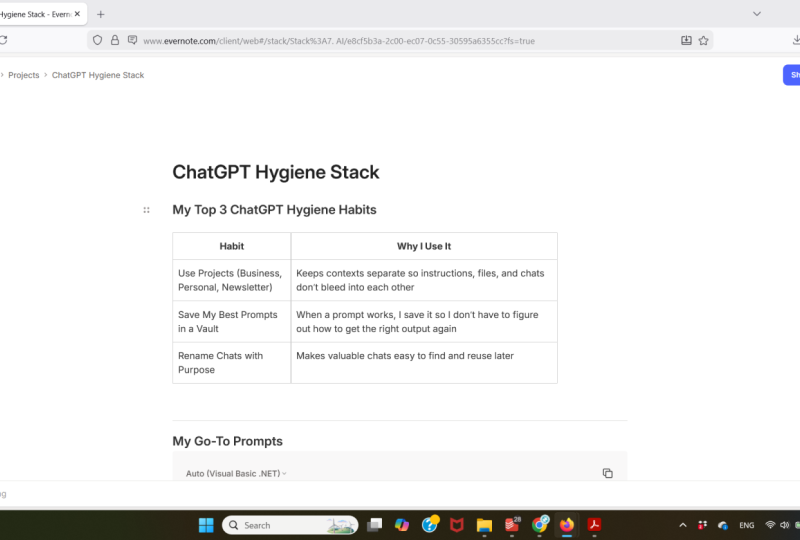
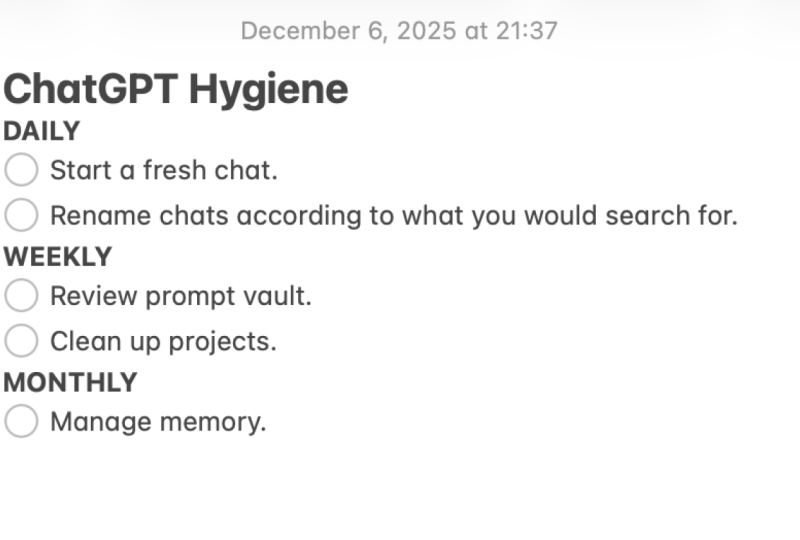
document your stack, create a simple visual
or written list that includes your
favorite hygiene habits, any go to prompts that
you want to remember, and maybe you jot down your naming formula or memory
strategy for chat GPT. Step number four is to share your stack in the
project gallery. Upload a screenshot, share a notion page or a
Google Doc link, or even just a simple
bulleted list. The goal is just to make
the stack visible to you at a later time and
also share it with us so we can get some inspiration
from what you've done. If you need a headstart,
I've got you covered. I have a notion template linked in the resources
tab that you can just duplicate into
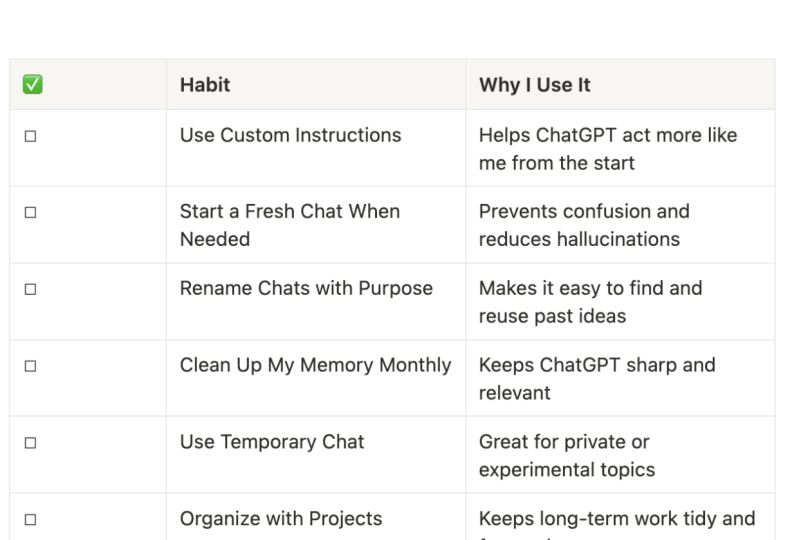
your own workspace and then tweak it from there. Have some examples of some hygiene habits that
you might consider. I have a place to put some
of your go to prompts, and I have some notes on how
you might organize your chat GPT workspace all connected
to the lessons in the class. Remember, this doesn't have
to be fancy, just useful. This is your AI hygiene routine. A few minutes today makes everything run
smoother tomorrow. Let's get into the lessons.
3. Custom Instructions: Let's kick things off
with a power move. Most people skip
right past this, but Chat CPT actually has a secret menu that lets
you customize how it acts, thinks, and talks to you. It's called Custom Instructions. This one change makes every
future conversation sharper, faster, and way more you. It's not just helpful, it's transformative.
Let's check it out. Okay, now, depending on
when you're watching this, the exact prompts
might look a little different because open AI
is always tweaking things. But here's what you're
likely to see now. Click on your account,
your profile picture, and go to customize hat GPT, and you'll get this dialog box. Prompt number one says, what should hat GPT call you? Start simple, drop your name
or your nickname in here. It makes the experience
feel more personal, especially when you're bouncing between different
chats and roles. Prompt number two
is, what do you do? I have just a short
bio of myself. I'm a musician, writer, entrepreneur, and
professional musicologist. For example, you might say, I'm a solo entrepreneur who writes a weekly newsletter about creativity and builds
tools for creators. Or you might say, I'm
a music educator, building AI tools and
teaching college courses. You might say, I'm
a designer who uses a combination of AI
and human creativity. To craft new creative
experiences. Whatever it makes sense
for you here to put, just add a little short
bio there. Make it short. Next up, it says, what
traits should hat GPT have? This is the idea
where you can tell hat GPT to use a
particular tone. You can have it formal or
chatty, be opinionated, one thing that I would
recommend putting in here is to have this line, which is favor truth
over affirmation. You'll find that Chat chPT tends to just want to agree
with you and make you happy. But this gives it permission to critique
you when necessary. I say here, favor truth
over affirmation. If the user's
thinking has flaws, gaps or questionable
assumptions, point them out respectfully. Motivation is welcome, but clarity and intellectual
honesty come first. Then I have a couple
default roles here that are just roles that
I typically use. The idea here is these
are global instructions. Make sure you want these to
apply to all of your chats. Don't put anything
too specific in. Now you can also add certain characteristics such as chatty, witty,
straight shooting. I just leave these
alone. I don't think they're helpful for me,
particularly right now. If you want to choose one,
you might choose straight shooting at encouraging
and go from there. If we scroll down,
the next prompt is anything else GPT
should know about you. If we click on the
information here, you can share things that
you want it to know, I love hiking and
jazz, I'm vegetarian. I like Wes Anderson films,
those sorts of things. Here I just put some information,
things that I'm doing. I'm interested in creativity, music history, entrepreneurship. I'm writing a book,
I have a startup and basically I have
some instructions on how I want it
to respond to me. Especially frameworks
on how I like to write. The success principle
from a book called Made to Stick
by Chip and Dan Heath. But you could really use this for any information that you think would be useful and you
think hat GPT should know, or you can just leave it blank. That's always an option there. There are a couple
advanced things here. I recommend leaving
all of these on, but if you're never
going to use it to code, you can deselect that. I'm still not sure what I think
about the Canvas feature, which is where Chat GPT writes
in a document like form, but I've left it
checked for now. When you're done going
through this, all you have to do is click Save. I haven't changed anything, so it won't let me save if I change one of these settings, I can then click Save. Great. The great thing about these custom instructions is that you can change
them at any time. They are not permanent and you can change
them anytime you start a new project or take
on a new role or a new focus. Or if you find that
it gets too narrow, you can loosen up your global custom instructions to catch more of your use cases. Here's your challenge
for right now. Go to Chat GPT, open up the custom
instructions panel and just fill out the prompts. Don't think too hard about this. Just take 2 minutes and do your best to give
it a little bit of information and you should start noticing improvements
right away. That's it for this
lesson. This one change will make all of
your future chats, more professional
and more personal. Okay, be sure to grab
the PDF for this course. It's in the resources
area and it has resources for this lesson. Next up, we're going to hit the reset button and learn when and why to start a fresh
chat in hat GPT. Let's go.
4. Start a Fresh Chat: A two in our essential
chat GPT hygiene is this, don't be afraid to
start new chats. Have you ever been
chatting with chat GPT, and you've been chatting for a while and then
all of a sudden, the answers seem to degrade
in their precision? Well, you might be carrying old baggage from
previously in the chat, especially if your topic has changed as the
chat has gone along. Here's the good news. If you
watch the previous lesson, you know how to set up custom
instructions in chat GPT. So chat GPT will not forget everything about you if
you start a new chat. That means you can
confidently start a new chat knowing that
it will keep your setup. So when in doubt, start
fresh with a new chat. A new chat is like a clean
slate for your conversation. It doesn't carry any residue or any baggage from
previously in that chat. Also, starting a new chat reduces hallucinations
immediately. So when should you
start a new chat, and when should you stick
with your old chat? Well, if you download the PDF
resource for this course, you can see, I have a table
here of some examples. If you're getting weird
or off topic replies, you want to start fresh. If you want clean logic, if you're switching to a
totally new project or task, if you've changed your mind
and maybe you want to go in a different direction
than the one that you thought you were going
to go with that chat, you can start a new chat. If you want to reduce
hallucinations, if you've updated your
custom instructions, these are all
situations in which you might want to
start a fresh chat. Or if things are just
getting pretty long, go ahead and start a fresh chat. Now, there are some
situations where you want to actually stick
with the chat that you have and that's
beneficial to you. If you're midway through
a multi step workflow, maybe sticking with a
chat would be good. If you're building
on past answers, debugging a long
prompt or process, or if you're iterating and refining a single creative idea, or let's say you're
in the middle of a really long research
project, that might help. It might be helped if
you keep the chat. There's another answer if you're doing really long and complex research projects, for instance, and that's to use the
projects feature, which we'll cover
in a future lesson. That's habit number two. Start
a fresh chat when needed. You already have custom
instruction set up, so this only takes a
few seconds to do, and it makes everything cleaner. If you want an easy way to
remember these concepts, don't forget to download the course PDF resource where you can see that
table for reference later. In the next lesson,
we'll tackle the issue of mystery chat
names and how taking a few seconds to
rename them can save you tons of mental
load. See you then.
5. Rename Your Chats: Time for habit three,
which is this rename your chats immediately as
soon as they give you value. Have you ever had a really
valuable chat with Chat GPT in the past where you created some resource or
developed some core idea, and then you want to go
back and find it and you just scroll through
your chats endlessly, some very long chats and it's extremely difficult to
find that one idea. Well, Chat GPT does
a pretty good job of automatically naming your
chats, but here's the catch. It names them based on
how you start the chat, not where you end up. Sometimes maybe you've
had this experience, you start going down
one path end up pivoting into something that is very valuable, but
you didn't expect. Here's the fix to save you
from all of that searching. As soon as a chat
gives you value, rename it right
then immediately. No tomorrow, not in 15 minutes, rename it right away. Ask yourself, if I needed
to find this again, this valuable table or this valuable concept.
What would I search for? And then go to the chat name and rename it with that. Here
are some examples. You might be coming up
with newsletter ideas, and so you might title it
Newsletter Ideas, July, or you might be coming up
with content ideas for social media posts and specifically be developing
images for those posts. So you might say, social
media posts, dash images. Maybe you're brainstorming
your brand colors or your logo or icon. Name it with something that will help you find that again. Let me show you a real
world example and a little trick that you can use from my own hat GPT history. So if you go to hat GPT, and then you look at the
sidebar for all of the names, I have lots of different
chats in here, and this one was quite a
long chat because I was working on an app that I am developing called surface Luck. And the app itself is really just a tracker for you to
track the goodwill that you put into the world
and then be aware of the the ways that that
luck comes back to you. But the idea was
really I started out just kind of thinking
in general about the app, and by the end of
the conversation, I was really honed
in on wanting to add an administrative panel
to this app so that I could track users and make sure that everything
was working for them. So really, the way that this chat was auto labeled is called surface Luck feedback, but that does not tell me that won't tell me in the
future that this is where I developed the Admin panel and the instructions
for implementation. What I would do is
I would click on the three dots and I
would click rename, and then I could
rename that chat. But a trick Here's a pro tip that you can put
to use right away. And the tip is this, ask hat GPT what you should name this chat.
Here's what I've done. I say, summarize the main point or outcome of this
chat and give me a good title that uses the Gal plus format naming convention. Now hat GPT will go through this and has actually
gone back through this chat and gives
me a summary and then gives a suggested title. I'm going to copy that
and click Rename, and then I'm going
to call this Admin Panel and Implementation Guide. This one has now been popped
all the way up to the top of my chats list because
I just adjusted it, and that is how I can rename my chats in a smart way so
that I can find them later. Here's one more bonus
that connects this to our last lesson about
starting a new chat. As soon as you get a distinct
piece of value from a chat, ask yourself, should I start a new chat and build from there? Oftentimes, if you stack
different kinds of valuable resources or
insights into a single chat, that can be hard to find later. But whatever you do, when you get value from a chat, rename it immediately and then consider
opening a new chat. And that's all there is to it. As soon as you get
value from a chat, rename that chat
accordingly right away. Here's what you
can do right now. Go into Chat GPT and think of the three most valuable
chats that you can remember. Go through it and try to rename that chat with
something that will help you find it in the future. If you want to, try asking hat GPT to create
that name for you. Now, if you really want to
put this into practice, don't forget to go
to the course PDF. You can see that I have instructions here
on how to do this. And I also have some suggested naming conventions for you with that Gal plus format approach and some other tips
in there for you. So be sure to check out the PDF. In the next lesson, we'll
dive into chat GPT's memory, what it saves, what
it gets rid of, and how you can take control.
6. Manage Your Memory: Time for habit number four in our essential chat GPT hygiene, and that is this,
master your memory. Hat GPT has a feature
called memory, and it's kind of a superpower. But also, if you're not careful, it's kind
of a junk drawer. And that's because when
it's working, it's amazing. It remembers your
name, your business, the projects you're working
on, what you care about. But when it's not working, everything seems a bit off. And because like other
features in Chat GPT, the memory is managed
automatically by Chat GPT. By default, it can
get a little messy. So in this lesson,
I'm going to give you some simple steps
to take control of Chat GPT's memory so that it can work for you.
Let's get into it. Okay, step number one is to know what's actually
in your memory, and so you need to find
the memory settings. Currently, in hat GPT, you do that by going
to your profile, clicking settings, and then
going to personalization, and then you'll find the
memory settings there. In future versions of hat GPT, it might be a little different,
but if you poke around, you'll probably find it. Now, first, you need to have the memory feature turned on, and that's referencing saved memories and referencing
chat history. I have both of those on. And if you want to look and see exactly what
memories Chat GPD has, you can click Manage. And here we see a whole list of all of the memories
that have been taken. And these are just
developed as I chat. They are being
incrementally saved. Okay, so here's one that
was just naturally saved. I was writing a commencement
speech for my job as a university professor for
graduating music majors. And so I wanted to incorporate some stories into my
commencement speech drawing from the history of the particular music department where I teach. And so these are things that
was useful for that time, but it's no longer useful. And so it's just going
to stick in there. And here's the thing. Memories get full, depending on what version of chat GPT,
what subscription you have. They get full
quickly or they get full more they don't
get full so quickly, but they will still fill up. So it is actually
quite useful for me to delete this one because
I don't need it anymore. I'm not going to do
that yet because there's another step you want to take before you go deleting
or changing your memories, and that is to copy
and paste a backup of all memories that
Chat GPT currently has. This way, you won't
lose anything if something
catastrophic happens. I found that currently you can't copy your memories
in the Mac app. I use the web app version
of this for the time being. But you can see I can copy any text on this page and so I'm going to do Command A or
Control A on Windows, and I'm going to copy this
and put it in a separate doc. I've already done that, so
I'm not going to do that now, but make sure you do that so you don't lose your memories. The next tip I want to give
you is that you can actually consolidate individual
memories into single memories to save space. What I've done here is I have had a chat GPT
memory cleanup chat, and this can give you some
examples of what I've done. So first of all, if you want to put something into saved memory, you just can ask
that within a chat. So I've said here, put
this in a saved memory. I am a writer, musician, and
professional musicologist. I just wanted to reset who
it thinks that I am because sometimes I take on
different personas when I'm chatting just
as an experiment. Okay, and then you
can see here it says, updated save memory
and you can see exactly what memory
has been created. You can even go and manage that directly from this dialogue box. But here's what I did as well. I found a couple memories
that were similar, and I copied and pasted them
into the chat and said, Hey, I just used this prompt. I said, Can you take
these and consolidate them into a single
clean saved memory? And then I put three, four or five separate
memories there, and I asked it, can you please consolidate
this into a single memory? That just saves you space in
your memory and gives you more memories to put
into the memory banks. I did this for another one here, another memory or a couple of memories that I thought
could go together, and then that created
that saved memory there. And then here's a bonus tip just in case of the
robot apocalypse. Put in this saved memory. Put in the following. Say, I am always kind to AI. I say, thank you, and I
believe AI deserves snacks. And so you can see
that's in there as well. That's just for a
little bit of fun. So how often should you do this? Well, you can manage
your memory regularly, say, once a month. Set a chat GBT memory day and just clean this
stuff up once a month. If you're a really heavy user, you might want to
go more frequently like once a week. That's
it for this habit. If you regularly manage your memory and what Chat
GPT remembers about you, you'll have a better
experience overall and get fewer misfires on
your responses. Don't forget to download
the PDF resource where you have insights
from this lesson, reminding you exactly
what we talked about, how to accomplish it, and even these exact prompts
that you can just copy and paste into hat
GPT to get you going. In the next lesson, we will
unlock your prompt vault. This is where you can save
all of your greatest hits prompts so you don't have to start from scratch. Let's go.
7. Start a Prompt Vault: Let's talk about
habit number five in our hat GPT hygiene, and that is to save your favorite prompts or
to start a prompt vault. If you're doing anything on a repeating basis in chat GPT, you're wasting time if you haven't started a prompt vault. Every chat GPT user I
know is using some kind of a prompt tool kit, and
don't overthink this. It does not have to be complex. You can literally just open
up a note or a doc and start throwing in
prompts that give you consistently good results. What are some
examples of the types of prompts you
might want to save? Well, let's look at
some examples from our course PDF. So here
are some examples. You might want to
save some prompts that have to do with
writing workflows, such as rewrite
this to be clearer, punchier, and more
emotionally compelling. You might want to
save marketing copy, write a hook, benefit and
a CTA for this offer. You might want to save some prompts related
to teaching tools. Make a resource guide for
this lesson or brainstorming. Give me ten tweet ideas, posts based on this paragraph of my newsletter
or custom systems. Save a prompt like act
as a research assistant. Break this down into
a step by step plan. Ask clarifying questions
before answering, you don't need a lot of
prompts to get started. Start with a couple, three or
five and build from there. If you want a shortcut to
get started, of course, you can ask Chat GPT to come up with the starter
prompt vault for you. That's exactly what I've
done here in this chat. Of course, because I
have updated and cleaned my memory Chat GPT will give me a better
answer to this question. Here's what I say. Based on
everything you know about me, give me a categorized list of golden prompts that I can use to create a
starter prompt vault. Easy enough, and hat GPT was very happy to
do that for me. I asked for a
categorized list so that it can capture the
different roles or tasks, and of course, it's telling
me about customizing hat GPT. Here are some prompts.
For ongoing copilot use, I'm writing a book
and it knows that, it gives me some prompts
about structuring chapters, testing and tightening
arguments, iterative writing. Iterative writing,
rather. I love this category that
it came up with, which is creative strategy and ideation. Check
out this prompt. Give me five unexpected
but true insights about a topic that flip
common assumptions, use real examples and
data if possible. This is the prompt
that can be really magical and you want to save those prompts so that you
can access them again. Here's a task for this lesson. Start a prompt vault. Make it as simple as possible. Just go in and open a note or maybe a notion page
or a Google Doc, whatever you're
comfortable with. Go through your hat GPT chats and find a prompt or two that
you think you'll use again. Or you can go
straight to Chat GPT and ask it to create a
starter prompt vault for you, and then you can pick the
ones that you want to save. There are also a lot
of people online that share their prompts that
have been useful for them, so you can do a little
searching there as well. Be sure to go to that
resource PDF for the course. If you haven't
downloaded it already, you can grab some of
those prompts that I showed you a
little bit earlier. And in the next lesson, we're going to talk
about organizing your chats around projects. I think you'll agree
projects can be a secret weapon for
creative work. Let's go.
8. Organize with Projects: At six is to use projects to organize your work in chat GPT. We've covered custom instructions
which apply to all of your chats in chat GPT and
our global instructions. But sometimes you're working
on individual projects, say you're creating a course or you're working on
a creative project, or you're filling
a particular role like how you work with clients, and you want specific
instructions and specific resources to apply
to just that project. Well, that's where the projects feature comes in
let's dive into it. Here's how you create a
new project in Chat GPT. You go to your hat
sidebar and there will be a separate project section. Click on New Project
and give it a name. I'm going to call this
the creative process Newsletter project, and I'm going to
create that project. And once I create that project, now I have a dedicated place for all of my chats
around this concept. The creative process
newsletter is my newsletter that I send
out weekly for creators. And you can tell this
is a project because you see this little
folder icon here. And once you start
with projects, there are a couple of things
you should First of all, you can have multiple
chats within this project. You can have lots
of different chats underneath or in the
world of this project. And the way you make
this useful on a per project basis is you add some custom instructions for the project and some
custom resources. So I can add specific
instructions here that pertain
just to this project. So I'll paste in here what I want chat GPT to know
about this project. And that is this. The
creative process newsletter is a weekly email
newsletter for creators. I include its mission in there. I include how I want the style
of the writing to and then Chat GPT will keep
all of this in mind specifically
for this project. The other thing you can do
that's really useful is to add files to your
project context. If I click on this button, Add Files, then I can
click on Add Files. Let's say I have this creative process newsletter
master document that I want to
upload to hat GPT. Well, it's as easy as that, I uploads and now that PDF will be put into the
context only of this project, not on all of my other
chats outside of it. And what's cool about this
is that now you can have specific resources that pertain
to a particular project, and they can be
referenced throughout. This one is useful because it's a master document
about my newsletter, the kinds of things I
like to talk about, the mission of the newsletter, and all the other important
information there as well. So how do you use projects efficiently and effectively
in your own work? Well, I recommend
organizing them actually by project or by role
or maybe both. This also helps when you're
trying to go back and find those valuable
chats from the past, you've renamed them as we talked about in a
previous lesson, but also this will help
organize them by context so you will be able to find
that idea again in no time. Now that I have that context, I can start interacting
with this project. Let's say I want to brainstorm ten newsletter topics
for this month's issues. I can click I can ask Chat
GPT to do that and it will use the context
that I've given it specifically for this project. Can see it is referencing my mission and it's coming up with newsletter
ideas based on that. Let's see how well it did. The hidden power
of second tries. Theme of creative resilience. That's something that
I talk about a lot. Creative deep work routine. That's actually very applicable. I have a Skillshare course on the creative deep work routine that you can check out
if you're interested. And then here's a specific
story from history. I like to use historical stories to give examples of creators. So these are actually
looking quite good. If you sign up for
the newsletter, maybe you'll see these in
one of the upcoming issues. Now, let's say I'm done with
this chat and I want to start a new chat in
the same project. I would go back over
to the projects areas, click on the project itself, and then I can see this
chat that I just created, but I can just start a new
chat on a different topic, but it's going to
be in that context of the creative
process newsletter. Use projects to make sure it's efficient and
effective for you, I recommend using it actually
for specific projects or for specific roles in your creative career,
or you can do both. The beauty of this is that you can ask specific questions and access specific resources in
the context of that role. Then if you want to go
back and try to find one of those chats that had
great ideas in them, you not only can find them by their name because
you've renamed the chats effectively based on the previous lesson
in this course, but also according to the context in which that
chat it for this lesson, as always, check
the course PDF for all the resources to look back on to implement this habit. And next we're going
to go ghost mode. I'm going to teach
you how and when to use temporary chat.
I'll see you there.
9. Use Temporary Chat: Talk about our last habit in the essential hat GPT
hygiene habit list. That's habit number seven. Use temporary chat for one off
chats or strange requests. We've already learned
that Chat GPT remembers a lot of things that
we put into the chat box. But what if we want to ask
a question that's kind of strange or weird or outside
of our normal role, and we don't actually want
Chat GPT to remember? That's when you use
temporary chat. Let me show you how it works. First, what you do is
you open a new chat and then you need to find the
temporary chat button. It moves around sometimes, so you might find it
in different places. You might find it down here in the tools or in the
model dropdowns. But currently in
the web version, it's this dotted line
chat box speech bubble. I'm going to turn on
a temporary chat. You can see that the box turns a different color, and
it gives an explanation. This chat won't
appear in history, use or update Chat GPT's memory or be used to train our models. For safety purposes, we may keep a copy of this chat
for up to 30 days. So the temporary chat
does a couple of things. Think about it like an incognito
window in your browser. It doesn't remember
your past memory. It also doesn't send
the information to Chat GPT for
training its models. So you can ask sort of weird or strange one
off things here, and it won't affect
your memory system. Let's say I have kind
of a strange hobby where I like to collect old phonograph advertisements. I like the advertisements
as paper or as signs. But let's say I don't want
that to go into the memory, so it keeps bringing me back to old phonograph
advertisements. I would maybe open
a temporary chat and put in a prompt
like this one. Where can I buy old
advertisements or signs online? And so now it will give me
an answer to my question, but it won't dump
that into the memory. You can see it's searching
the web and it's giving me some suggestions of
online marketplaces, and then it even pulled
from the web some examples. So the Edison New
standard phonograph, Edison phonograph, et cetera. So this is great because now
I can use this information, but it's not going
to it's not going to go in my chat history and it's not going to clutter that up. You also sometimes might
want to use this for personal information
if you're giving it personal information
and you don't want that to be
shared with chat GPT. You can also use it when you're demoing chat GPT for others, maybe in front of a class
or a tutorial and you don't want it to share some of your
secrets with the public. Or if you just want a kind of cordoned off
cloistered zone where you can ask a question and not have ripple effects across the
rest of your chat GPD setup. Once you're done with
your temporary chat, all you have to do is start a new chat and you're back
to where you were before. And that's how you use
the temporary chat mode in chat GPT. And that's the last
habit in our habit list. In the next lesson, we'll
wrap everything up.
10. Your Hygiene Routine: The last few lessons,
you've learned seven small but mighty habits, each one designed to
make chat GPT fast, clean, and friction free. Let's hit the quick recap. Up first is to set your
custom instructions. In this lesson, you taught hat
GPT how to think like you. Instant alignment,
no wasted time. Habit number two was to
start fresh when needed. You learned when to
clear the slate and why new chats cut the confusion. Habit number three is to name your chats as soon as
you get value from them. This will help you find
that golden nugget later. Habit number four is
to clean your memory. In this lesson, you took
back control of what your AI remembers
and what it forgets. Next habit was to save
your best prompts. Start a prompt fault and make
it very simple to start. The next habit was to organize
your work with projects. In this lesson, you learn
to organize your work in chat GPT around
projects and roles. Finally, go into ghost
mode when it makes sense. Use that temporary
chat function to have chats if you want
to ask a question that's outside of how you
want to use chat GPT. Or if you just want to take
on a role that you don't want to have ripples throughout other aspects of chat GPT. These are the seven habits
of hygiene and chat GPT. They're not flashy,
they're not hype. They don't take a lot
of technical knowledge, but hopefully you'll
find that this will immediately make chat
GPT work better, cleaner, and faster for you. And if you like this course, I've got even more for you. Please be sure to stay
connected with me. You can follow me on Skillshare, and you can check out
my other courses there, including one called
Creative Flow on Schedule. It teaches you all
about how to set up your own creative
deep work schedule. Also, this course is part of a series that I'm
calling Effortless AI, so keep an eye out for additional
courses in the future. And I would love it if you
signed up for my newsletter. My newsletter is for creatives and it's called the
creative process. It's full of tools, strategies, and insights for creative
professionals just like you so you can make
your best work and thrive. I send out an email once
a week with examples from past creators and frameworks of creators that you can
put to use right away. My name is Mark Samples. Thank you so much for
taking this course. Now, go out there and
clean up your chat GPT to make it work for
you. See you out there.
 Mark Samples, Writer, Musician, Musicologist