Transcripts
1. Welcome: Welcome to digital
art fundamentals. Hey, guys, I am Hardy
Fowler, your instructor. I'm a professional
concept artist and illustrator with over a decade of experience in the industry. I am also the founder of
digital painting Studio, where I have helped
thousands of artists level up their skills
and even launch careers. But mostly, I am an artist. I am happiest in that
moment when I have just painted something that feels awesome that's what
I want for you guys. That's what I want the main takeaway to
be from this course. Digital art, digital painting
apps can be a huge topic. You can spend years
mastering the finer point. For this course, I want to teach you the most valuable,
most actionable, fundamental skills and concepts so that even if you're
a day one beginner, you can start making cool art today without feeling
daunted or burned out. Approach we'll take
is three basic steps, and this is the same format that I use for all of my courses, even Concept art Academy, my master program, because
this really works. Train your brain. Let's pick up some of the core concepts, the building blocks of art. Train your hand.
This is where we pick up the stylus
and get to work. I'll walk you through
some really fun and easy digital painting exercises that will get you comfortable and confident with
digital painting apps, and we'll start
to really develop those fine motor skills. Putting it all together, we learn to do by doing. So we'll finish this whole
process with some projects. We're going to put what you
have learned into practice. By the end of this curriculum, you are going to make
a digital painting that you feel proud of. Before we jump into
the fun stuff, let's talk about equipment. What do you need to
have to participate? We do have quite a lot
of flexibility there. I am using an IMAC and a Wakem Intuos Pro tablet
and Photoshop version 2021, I believe. Now, you don't have
to have any of those specific three things to do beautifully
in this course. Can I use Procreate? Yeah. Can I use an iPad? Yep. Can I use flubster? That's not a real thing.
Can I use Cintiq? Yeah. The only real requirement
is that you're using a setup that has a pressure sensitive
stylist. This is key. Beyond that, use a tablet, use any popular
digital painting app. The main value of this course is the technique and the concepts that you'll learn and
those work on any app. The one caveat that I
want to make everyone aware of is that I will
be using Photoshop. I will be teaching the
course in Photoshop. If you're using a
different you may have some interface
translation to do, but most of the stuff I'll
be doing is quite basic, and you shouldn't
have any problem porting those functions
over to your app. So welcome if you are a traditional artist
porting your skills over to the digital medium or if you're a newcomer
to art in general. This is a great first
step to really unlocking the creative power of
this incredible medium.
2. Digital Painting is Awesome: Let's talk about why digital
painting is awesome. First of all, it is convenient. You never have to
sharpen pencils, wash brushes, nothing
ever runs out of ink. There are no art supplies. So once you have your computer, you have your app
and your stylus, you're done buying stuff. You can kind of
kiss the art store. Goodbye. Just pick up your stylus and
you're creating art. Easy. It is reworkable. This is the greatest
part undo Command Z. All mistakes are forgiven, so you never have to worry
about hypothetically spilling coffee on
an inking assignment the night before it was due. Oh. Control and efficiency, you can just get more work
done when you work digitally. Even the most skillful
traditional artists in the world just can't fill up a canvas with color as fast as I can
just click the fill tool. So who remembers coloring something when you were
a kid using a marker, and it just keeps
running out of ink? It's like, I want this
circle to just be solid red, but I'm on my third marker, and it just looks like
half filled garbage. That stuff just doesn't
happen with digital art. If you want that
circle to be red, it's going to be red. Click. Done. So, for the most part, digital painting apps just
do what you want them to. You don't have to spend
so much energy trying to physically tame some medium. It allows you to
keep your focus and your attention on
artistic concerns. So digital painting
is convenient, efficient, it's infinitely
reworkable and forgiving. All of this makes creating
art less daunting. It's more fun. It
allows art students to really accelerate their
development without that fear. And most popular
digital painting apps do a pretty incredible job of simulating all of the
expressiveness and charm and warmth of
traditional media. So in the lectures ahead, let's take a look at the apps in a little
bit more detail. We'll learn some
basic functions and how we can use those to
make something awesome.
3. Choosing an App: Let's talk digital painting apps because there are a lot of
cool options out there. Things like Clip Studio Paint and Krita and Corel Painter, those have some really
loyal followings. But at the moment, the digital painting app war is still dominated
by two key players, and those are Photoshop
and Procreate has really given Photoshop a run for its money
in recent years. So which one is the best? It's very important to mention
that both are awesome. You can create amazing
art with either, and everything I'm
going to teach in this course really
applies with either app. You can make cool art
with any popular app, so you really can't lose. It comes down to which app
is the best fit for you, depending on your
ultimate goals, your priorities as an artist. So let's break these
down a little bit along a few really key important
comparison factors. First of all, price. Photoshop, at the
time I'm recording this is 2099 per month, but there is a seven day free trial if you
want to try it out. Procreate is 999 with
a one time payment. You paid ten bucks
and you're done. Huge advantage there
for Procreate, especially for a casual, creative user, kind
of an art hobbyist. And I'll include
links to both in the description if you want
to check out and compare. Convenience. This is another really big
advantage for Procreate. Since it's tablet based, it is really easy to just kind of pick it up and
start making art. The interface is
really intuitive, too. So I think a lot of artists just really like
that feeling of having something in their hand and making art quickly and easily. It has that kind of sketchbook feel that a lot of artists, especially traditional artists
find really appealing. That's important, since
especially if you're a beginner, the more you practice art, the easier it is to kind of just pick it up and start doing it. When you're just sort of
hanging out or relaxing, it can really
accelerate your art, and that's really meaningful. That really makes a difference
in your ultimate goal. For the record, Photoshop
does have a tablet version, but at its core, I
feel like it's still an app designed for the desktop. So I think the
convenience and just pick up and paint factor
still does favor Procreate. Power. Here is where the
scales tip the other way. Huge advantage Photoshop. It really pulls ahead because it has just a lot of features, different ways you can control and edit and modify layers. And there are just dozens
of other features that are significantly more
powerful in Photoshop. As an example, Procreate caps
the number of layers that you're able to use where Photoshop does not
little things like that, little limitations really
make a difference, especially for more serious
or even professional users. So while both apps can give you great results and can get you up and running and
painting quickly, in the long run, as you
become a more advanced user, Photoshop's
capabilities just end up going beyond Procreate. It has a much higher ceiling, and that leads to
our final category. Industry presence, another area where Photoshop takes
a meaningful lead, it is simply the
industry gold standard. So if you have aspirations
to work in a creative field, Photoshop is almost
an essential skill on an artist's resume. That's really worth something. So while each app has noticeable advantages,
both are awesome. And in the big picture, they
are really quite similar. It comes down to what kind of user do you
think you will be? If you're a hobbyist
who just wants to pick up a tablet and paint
something from time to time, Procreate is perfect, cheap,
intuitive, beautiful. If you want more depth and power if you have creative
career aspirations. Photoshop is still that
industry standard. It's what I use, and I love it. So that's a quick look at these two most popular
digital painting apps. Up next, let's set
the apps aside, and let's look at some really
powerful core art concepts.
4. Taking Care of Yourself: Let's talk a little bit about taking care of
yourself as an artist. If this is something
you're going to be spending a lot of time doing, it's worth learning some good habits that
will take care of your long term mental
and physical well being. So let's talk about
physical first. The most important
investment you can make upfront is in
your workspace, and that all starts right
here with your chair. Now, good office chairs cost a ridiculous
amount of money. This is the Herman
Miller Aaron chair, and I almost threw up when
I bought it ten years ago, but my back has thanked me. This is actually a
worthwhile investment. I guess you have
to ask yourself, how much is your
back worth to you? In ten years, I guarantee you will thank yourself
if you can afford to just spend that
upfront investment and buy a very high
quality chair. Herman Miller Aaron
is what I've used. I really bought
this a decade ago, and I've never
switched. It's awesome. Another good way to take
care of your back is just to get butt out of chair
every once in a while. You just can't dial
in for 10 hours a day and expect to feel
great the next day. So take frequent breaks, get outside, stretch
a little bit. A little tip that I
use for this is just to chug water kind
of constantly. This sort of naturally forces
you out of your chair to take bathroom breaks and
ends up making your legs, the rest of your body stretch. Your back feels better
at the end of the day. Let's talk about posture. In general, when I
am facing my canvas, I keep my feet flat
on the ground so that my knees and my elbows are
at about a right angle. We want that 90 degrees so that when you're
holding your stylus, you're not leaning over, you're not reaching
out too much. Believe it or not, even
holding this stylus at an awkward angle for 10 hours a day can lead to neck
problems long term. So posture, just kind of keeping your back
pretty straight, not leaning forward and keeping your arm kind of elbow down on the table,
comfortably resting. Stuff seems minor, but in the long term, it
can really add up, so it's worth learning
these things and making those good habits
early in your process. Now, the leaning in
thing brings me to eyes. First of all, the lighting in your workspace is important. We don't want to be drawing
in any art dungeons where the light from the
monitor or from your tablet is the
only light around. It can end up being bad for you if you're just staring into that blue light for 10 hours a day without any
other ambient lighting. So somewhere with windows, if possible, or if not, just turn some lights and some
lamps on so that you have some ambient light in the room.
Your eyes will thank you. You don't have to lean in
closer to that monitor. There are Zoom functions. You can actually
bring your painting closer to you in a
way. So use that. Don't find yourself
hunching over or leaning in over and over just to see
your work more closely, bring your work closer to you. Another good rule of thumb for eye health is the 20 2020 rule. Basically, every 20 minutes, look at something at least 20
feet away. For 20 seconds. This gives your eyes a rest
so that your eyes aren't constantly focusing on
some near ground object, and it will avoid any kind of long term strain that could
lead to thick glasses. Now, mental health,
becoming an artist is actually this crazy
emotional journey. It's something very
introspective, something that you
do for yourself. But it's also kind
of a minefield. Students, especially those
with professional aspirations, have to navigate
all kinds of things like imposter syndrome
or intimidation, especially when you
look at all the amazing work out
on the Internet. It's important to
do a few things to help keep all
of this focused. First and foremost, remember
that your art is for you. Paint the stuff that you like. It should be this really
expressive, wonderful, introspective process that feels like just some time for you to reflect on yourself
what's important to you and express
yourself creatively. If you can stay in that place, art remains this
fun joyful process rather than something that feels like work or feels stressful. Another thing to keep
an eye on is burnout. Again, especially for those artists with
professional aspirations, it is easy to overdo
it to feel like I have got to be the hardest
working artist in the world or I'm not
going to make it. This can actually lead to long term backward steps in your development as an artist
if you overdo and burn out. So what I try to do is set up some sacrosanct time
where I am not doing art. Weekends for me is all about
family and getting outdoors. I think some kind of
guardrails like that are a healthy habit for all artists
to have. So there you go. A few pearls of wisdom
from an old artist. Use these in your
long term success, and health as an artist
will be much better.
5. How to Get Better at Art: Developing art skills is
hard. It can take years. It can be frustrating, and it can feel more like
a chore than the fun, self expressive
relaxation experience that it's supposed to be. So today, let's chat
about navigating that, how to get better at art, how not to quit. So mindsets and philosophies that I've collected
over the years, but also some actionable real
steps that you can take. And these are some
things that continue to have huge impacts in
my own development. A lot of these come
from observations that I've made as an art mentor. There just seems to be
certain things that really successful art students all seem to be doing in common. So let's try to lift the
lessons out of that. So hang with me for
a quick lecture. This is genuinely useful stuff, and there will be
a cool painting taking shape in the background. And I'm going to
try to keep this as fluff free as possible. I'll try very hard
to avoid platitudes, like, don't give
up on your dreams, but don't give up
on your dreams. Okay, when evaluating how best to learn art
and improve quickly, the first question that we
usually ask ourselves is, should I go to art school? Is it possible to get
really good without it? Well, let's look at this from a self teaching angle because I think the line
of art school or no art school is a
little blurrier than we might think when it comes
to actual real learning. When those real
moments of gaining skills and knowledge when you're really getting
command over something, I think it's always
self teaching. Here's what I mean. You can
sit through four years of university lectures and you can take amazing notes you
can really participate. Or on the other side, you can watch 10 hours
of art YouTube a day. But the real moment when
all of that information actually becomes your
knowledge, your skill, those moments are
going to occur when it's just you at your desk, probably way late at night, messing around
with a project and suddenly it will just click. Oh, now I get it.
Value edge control. It really works. It's like, you can be told something. And you can even believe it. You can write it down
and think you know it, but until you actually
figure it out for yourself, it will be purely academic. So the first takeaway today
is we learn to do by doing. Real steps forward mostly
seem to happen when you have these late night
epiphanies that make you realize that that thing you
heard years ago was true. You just had to discover
it again for yourself. And now that lesson, that skill is really
yours forever. We have to find a way to set ourselves up to make
those epiphanies happen. Let's talk about consistency. Now, seeing meaningful
improvement in your art takes time. There's really no
way around that. We can't matrix the
information into our brain. It has to be your hand
holding the tool, going through the motions
over and over again, or you simply won't see progress to use
that gem metaphor, you know, you can join a gym. You can buy a whole room
of workout equipment, but you're never going to get in better shape if you
don't use them. But life is busy. Everybody has jobs, bills, family, and relationships
to maintain. So how do we magically create these extra practice hours while keeping the
wheels of life turning? For that, we have a time
honored little life hack. You simply carve
some space out of your weekly schedule for
some sacrosanct art time, distraction free
time that belongs to you and your art
and no one else. And maybe just an hour a day where you can just be
totally dialed in. But you have to really
commit to this. It can't feel optional. And you have to make sure that the times
that you choose are something that can be respected by the people in your life. So your friends
have to know that you're not available to come hang out during these hours or, sorry, you can't bother mom
or dad now, they're working. And look, I know
this is a hard ask. You're likely already
tired after work, or if you're a parent after
getting your kids to sleep, and you probably just
want to, you know, relax, watch Netflix,
play video games. But even the busiest people can usually find a 1 hour
gap in their schedule. So try and think
through your day, see where that might be for you, and really try and nail
that down for your art. Now, you've probably
heard that one before. Committing hours, really committing to
learning something, that's not a new idea, but I have a flip side to this that I think is
just as important. So artists who feel strongly motivated
to improve quickly, like, really intense, eager
artists who want to do it. They actually have a
tendency to way overdo it. So make sure to have
time blocks in your week where art is specifically
not allowed. For me, that is the weekend. And unplugging, just
kind of getting your brain out of art and just taking a break is critical and
not just to avoid burnout. You actually learn more effectively when you mix consistency in your
practice time. With consistency of
your break time. It's like those pauses between
active learning sessions. It lets the new information, the new muscle
memory in your hand really file itself away
neatly in your brain. You end up learning
more quickly and more meaningfully than if you just
go all out all the time. So consistency of practice
time and consistency of rest. Next, let's talk about
the idea of perfection. Now, artists, and I am talking
about myself too here. We are neurotic. We live in our heads, I think, way more
than most people. And when we think about
the long term arc of our development as artists, it can be really easy to
think of the ultimate goal, the top of the mountain
as a state of perfection. Like, one day, I will
be so skillful and so knowledgeable
that I'll be able to paint anything perfectly. The Internet will just explode every time
I post something, and I'll be turning away job
offers from AA companies. Here's something that you
definitely already know, but that we all
still need to hear. There is no perfection in art. No day will come when you are just done getting better at art. It's this never ending journey. And actually, can you imagine
how horrifying it would be if you ever reached
the end of art? Like, sorry, you have
reached maximum level, try something else now.
I would be terrible. So instead, let's do
something that leads to a much healthier
learning headspace. Embrace imperfection. There's a Japanese
philosophy called Wabi Sabi, which centers around finding the beauty in imperfect
and impermanent things. I really like that. It
helps me keep my work loose to think that way,
keeps things expressive. And in fact, I've noticed
that most of my art idols, their work is just a
mess of brushstrokes. It's the farthest
thing from perfection. But it's awesome. So the takeaway, the thing you can
actually use in your own development from this is when you
are practicing art, make sure that you are
just practicing for you. Practice work has
permission to be ugly. The most meaningful, valuable
piece of art that you ever create might be one that you
never want to show anyone. It's just this ugly exercise where you had a breakthrough. So don't paint for the Internet. Don't paint for likes. Paint with a specific goal of taking one step
forward for yourself. Get 1% better today. And that idea of
challenging yourself brings us to the comfort zone. Here's the main
thing behind this. If your art isn't changing, it probably isn't growing. And this is hard,
especially when you reach a certain skill level, and things start
feeling like they're finally working for you. It's like you decide,
I've arrived. I'm done. And that makes you immediately take your
foot off the gas. It makes you stop stretching
and experimenting. And that's why so
many artists plateau. They kind of end up in this
middle zone and they feel like they've reached
some ceiling that they can't break through. This is maybe the
most common concern I get when mentoring
another artist, something My work is good, but I don't feel like I'm getting better
and I don't think I'm ever going to reach
pro level skills. So when you feel stuck, it's time to blow it all
up. Try another approach. Try another tool, a new
technique, a new teacher, something to just get you
out of the rut that you have worn down by sticking with the
same formula for too long. And this piece of advice
is really hard for me. This is the hardest
one for me to practice what I preach because
I like my work. And honestly, I've been
doing this for a while now, and sometimes I just want
to stay in this nice, comfy box that I have
built for myself. I don't feel like taking it all apart and learning
a new way forward. But every time I just get over myself long
enough to try something new, like a new brush setting, a new tool or working from light to dark
instead of dark to light, I almost always love the results and I learn something new
that has lasting value. I always wonder, why didn't
I do this years ago? The final point I'll
leave you with is huge. Support and accountability. Learning entirely on
your own just isn't as fast or as effective
and many artists are real introverts. We prefer our private
inner worlds, which can lead into these lone
wolf learning mentalities. And that's totally fine. You're going to spend
lots of hours with just yourself when you
choose the art path, but it shouldn't be
entirely on your own. Try to find a small
and trusted group to give you constructive but
honest feedback on your work. As the awesome art YouTuber
Kelsey Rodriguez put it, find some art friends who
will lovingly rip your works to shreds rather than just
seeking out empty compliments. This group also keeps
you accountable, right? It motivates you to
get the work done. Makes you stick to your plan because you don't want
to let anyone down. Most of us are all too willing
to let ourselves down. But if a friend is
counting on us, we deliver. So use that. I hope you find a few
of these helpful. These things really made
a big difference for me. I'll be back again
soon with a new video, but in the meantime, good
luck with your artwork. Paint something cool today.
6. Value: Hey, guys, in the
lectures ahead, let's talk about some really
important core principles of art and how we can apply
those to digital painting. For this course, let's focus on the two most important ones, I think, which are
value and color. First up at that, let's
talk about value. This is the most fundamental, probably the most important
visual quality in any rendering process
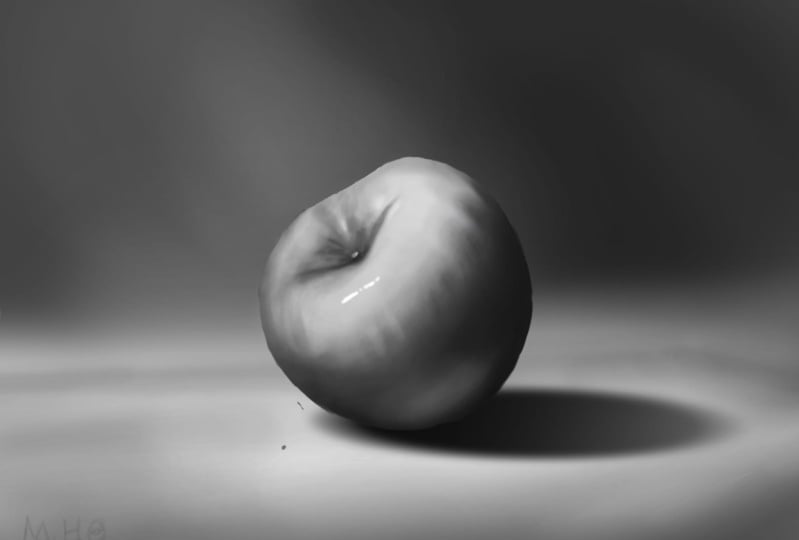
light and dark. Value can describe form, so it gives us shape, three dimensionality, and depth. If we use that basic
highlight core shadow, reflected light and cast shadow, we can make things on a
flat screen look round. This is that most
fundamental illusion of three dimensions
that we can achieve, and it's this really exciting, cool first step for
any digital painter. To understand value, we
have to think about light. So we have to define our light
source in every painting. It could be something
we're aware of, like a sun or a street light, or it could be
something more implied, but light moves in
a straight line from its source to the subjects
that it will illuminate. So for this image,
let's say that the light source is here
somewhere in the screen. The light is kind of shining down in this general direction. Here's where we have to
really turn our brains on and start
thinking like light. We have to determine
which parts of the object are pointing most directly
at the light source. To do that, it's helpful to try and mentally simplify
the objects. Let's imagine that this
sphere is cut in half, or kind of looking
at it in section, and I've actually smoothed
the curves out into these little facets
so that we can see how light strikes each plane. Now, as we can see, the planes
facing the light source most directly are given
the highest value. So with this main
high light value being at the top
of the spectrum. As we follow the planes outward away from this
direct highlight, the values on these
planes start to darken, increasingly so as their angle away from the light
source increases. And if we follow this all the
way out to our core shadow, we find that this is the
place where the planes start facing away from
the light source. So this is where the values
become darkest. That's it. That's the basics of value
lighting and object. And if we take that
a step further, the cast shadow is just the area on the
ground where these rays of light were not able to reach the ground because they
were blocked by our shape. That's all a cast shadow is. We also have this
reflected light area. It's facing away from
the light source, so why isn't it dark? It's actually because light bounces up from
elsewhere in the image, in this case, bouncing
off of the floor. And reflected lights
are really important. They're crucial to completing this illusion of
three dimensions. So don't leave these out. They anchor the object
in its environment, since basically it's
just light from the surrounding area sort of splashing up onto the object. So remember to think
about light and planes in every object
that you paint. When applying a
value to something, make sure that it
makes sense with your light source and with
other parts of the image. If something feels off, just try to mentally break
your subject down into planes, and I'm betting this
will be the answer. Our next value concept
is another key concept. This may be the most
underappreciated and crucial aspects of realistic painting
value edges. So in addition to just
being light and dark, we need to think about
value in terms of edges. Does the value have
a soft edge like a gradual gradient
from light to dark? Or does the value
have a hard edge, a sharp, abrupt cut
from light to dark? Great key to realism is balancing these hard
edges with soft edges, and it is something that
is so often overlooked. This works especially well in organic subjects like
painting people. Our faces, especially, we
have soft gradual gradients for areas with smooth curves
like cheeks or foreheads, but we need to balance
those soft value edges with some really hard cuts in areas where the planes of the
face change abruptly. So the inner corner of the eye, the corners of the nose, the nostril, lots of abrupt changes in
plane around there. Also the edges of the lips,
the corners of the mouth, all amazing
opportunities to add in some hard value edges to
balance out the soft ones. This is an awesome way to
show muscles and anatomy. Just include these two
kinds of value edges. This was a huge light
bulb moment for me, for countless of students
who I've mentored, make sure you have
this balance in there, and I'm going to teach
you some awesome ways to control value edges. You will love the results
that you're going to get. So there's a look at value, the most powerful
fundamental art concept. Up next, let's check
out color. I know that
7. Color: Next, let's talk about color. So obviously, color can be an extremely valuable
tool to create feeling and mood or to lead the eye with
contrast and pop. And on the surface, it can
seem really self explanatory. This thing is either red
or yellow or whatever. But if we dig a little deeper, there are some crazy light
dynamics that can have some unexpected and really
cool effects on color. First of all, the way
color is perceived can change dramatically
depending on what it is next to. It's relative color. For example, the dots
in the center of these diagrams are
the same in each set, but check out how
different they look. The background color
bordering each dot has a huge impact on how we perceive the color
of the dot itself. The light environment,
where the object exists also plays a huge role. Is the object being
brightly lit, or is it in shadow? Does the light have
a color to it? Is it sunlight or
maybe light from a fire or an alien
spaceship or something? All of this stuff
is really important for making the objects in a scene seem like they gel
together like they belong. There are all kinds of
psychological cues that color can have on the mood
and the feeling of our image. So bright and saturated
can be happy. Cold and gray can be depressed, and there are 1 million
variations in between. The other thing we can use color for is an eye leading device. We can use contrast. Kind of if we have an image
that's mostly cool colors, we can save some reds
for a point of pop. I love doing this. There's
this blue flower in this cave project
where everything is orange and just burning red. But we have this one cool
colored little flower and your attention
goes directly there. So those are the kind
of ways we can use color to really lead the eye. Another thing I've gotten a
little bit addicted to is these very brilliantly
reddish orange birds. I'm starting to put this in
way too many of my pieces, but I love it. If it's a mostly
cool color scheme, adding in some red
birds just gives it this perfect amount
of pop and accent, it's a great eye leading device, and it helps that
the birds are sort of flying towards
the focal point. So some really great ways we can use that contrast in color, those great pairings
to kind of save our focal points for that
bright area of contrast. I'm sure you're all aware of
the good old color wheel. One thing I want you to be aware of is complimentary colors. So that's when we have colors on opposite sides of
this color wheel. If we pair those together, they tend to have
a pleasing look. And you can kind of skew
this just a little bit. They don't have to be
perfect opposites. But give that a shot. You'll find that
blue and orange, red and green and
purple and yellow when used in some variations
and with some finesse, about always looks pretty nice. So just a quick look into color, we're going to do some
really fun exercises with color so that you can start using these principles and making these
skills your own.
8. Basic App Functions: Hey, guys, welcome to the
basic functions exercise. This is where we pick up
our stylus, open our app, and actually start using these things so
that you can feel confident and comfortable with your app before we
start making art. Very basic functions here. I just want to go over what the main parts of
the canvas are, how to use some essential
tools, and that'll be about it. I am using Photoshop, but if you are using an
app that is not Photoshop, you will have to do a little bit of interface translation, but again, quite basic stuff that you should have no
trouble catching up with. Let's get started by basic terminology of
what we are looking at. This part in the
middle is the canvas. This is where we paint. These elements on the
side are our toolbar, which we have right here, and then we have our
panels on the side. Now, I have a few enabled. You can customize your workspace to a large degree in Photoshop. You can tell it which windows
you want to be active, and you can see
the ones that have checkmarks here are the
ones that I'm using. That is the Layers panel, and we'll go into layers
a little bit more. The history panel, which is sort of this really
nice running record of every operation
that you make, it's sort of like having a
long list of undoes available. So if, for example, I make
a mark and I don't like it, all I have to do is
go back one step, or I can go back many
steps very handy. I also have my color
swatches layer enabled. You can see the check
mark next to that. The others I don't
use that much. The navigator just sort of shows you where you are in the canvas. Very customizable. So there are text editing tools. There are three D editing tools. There's this whole world of
stuff that I rarely even use, but I just wanted to point
out the ones that I had. So if you want your workspace
to look just like mine, these are the ones that
we want to have visible, these ones with checkmarks. Okay, let's start by
creating a new layer. This is my Layers panel. So we'll go down to
this little plus icon and create a new layer. That is this one layer six. Okay, whenever we have a layer selected in
our layers panel, that is where the
action will take place. So if I paint, it will take place on layer six and
not these other groups. Perfect. Now that we
have a new layer, I am going to use my brush tool. That is this icon right here, the little paint brush
or B on your keyboard. Shortcuts are your friend. They are this really
great way to save you time and worth learning. So I'll be saying
the shortcut for just about every
tool that I select. Now there is a universe of brushes that
you can pick from. In fact, this diamond shaped
one is something that I've been using for a freelance
project this morning. For this exercise, let's
keep it very, very basic. I'm going to use the
standard round brush, and here it is. It is simply a circle, and it makes little
marks like this. We are going to edit
how this brush works a little bit so that it'll kind of serve what we
are trying to do. To do that, I will open the
brush editor, which is five. Okay, this lets us start
at our brush tip shape. That is great. It
shows the brush has 100% hardness, but
we can adjust that. We can make it very soft like
an airbrush, or very hard. Oh, sorry, or very hard to
make it more hard edged. That's a really nice thing
to be able to change. Now, you can actually change that with a keyboard shortcut. If you hold down Shift
and the bracket keys, you can adjust your brush
hardness by 25% increments. So down we go and up we go. Another good use of keyboard shortcuts is you can use those bracket
keys just without shift and make your brush larger and smaller incredibly handy. So let's see, some other really
important brush functions is we have these two
things we can effect here, which are opacity, and flow. Opacity just says, If I have
the color black selected, and let's say I put my opacity
down to 50 or almost 50, it will give us 50% black. So if I tap again, it does another 50%, but you can see
this overlap where the two items kind of you know, we had 50 and 50, and it made nearly pure black. So opacity can be
dialed up and down to show how much of the color
you want to have visible. That's really important. The other main brush
function is flow. Before I go on, I want to
mention that opacity can be changed on your keyboard
just by hitting the numbers. It changes them by
10% increments. See that? You can do the same thing with flow
just by holding shift. I'm holding Shift
now and pressing the keys and it dials
it up and down. So just to show you
more about flow, I'll turn opacity all the way up and let's turn flow pretty low. Now, this gives us an
entirely opaque black mark, but it kind of makes the tone spray out of your
stylus kind of slowly. Let me use my bracket keys to
make the brush softer now. And this will make it
feel like an airbrush. It's flowing out gradually. I have to hold the
stylus down kind of a long time for it to really
develop any darkness. Feels very much like airbrushing or using a spray paint can. Now, we're going to
do a little bit of line art to first get
acquainted with this tool. And I want to show you one more really critical
brush function, and that is smoothing. What this does is
steadies your hand. If you have no smoothing
enabled at all, and if I have flow and
opacity up at 100%, I'm going to try and
make a straight line, but you can see there
is some wobble, right? Here's another one. See
that little wiggle. It doesn't look good, kind of makes my lines look
like they are not confident. Oh, by the way, I am
just hitting delete to clear the entire later to
make these marks go away. And then I'm left with
another blank layer. Okay, if I turn
smoothing way up, it makes that line
silky, smooth. Isn't that great?
You can do curves. You can make, you know,
much more accurate circles. It's this great way
to steady your hand. It's like it gives you
an instant five years of experience as
an inking artist. So be very aware of this. If you dial it up too high, it can kind of
start feeling like you're running through
sand or something. It makes your hand
tired very fast. So be aware of that. I usually do line
art somewhere in the 50% range and
painting with tone, maybe in the 30% range.
But there we go. Opacity at 100 flow, let's try about 50. And let's make this Let's
try and draw this cube. Smoothing will be
a big thing here. Again, we're on layer six. We have a brush and I have made it a little smaller
with my bracket keys, and let's just sort of
trace what we see here. Very basic brush stuff. Every time I am making
one smooth ish, you know, mark with my
stylus, hitting Command Z. If I make one that I don't like, you can just undo or
remember the history panel, you can just go back in
time or forward in time. It's this nice record,
this safety net. Okay. Now I'm going to do
some accent lines inside, and I'll press a
little more softly. And that makes my brush
not quite as big and bold of a line because if I bring up
the brush editor again, let's check out shape dynamics. I have the size jitter
set to pin pressure. And what that means is, if I press very lightly
with my stylus, it makes a thin line. But if I start
really mashing down on it, it becomes thick. So thin and thick, pressing hard, pressing lightly, pressing hard, pressing lightly. It's really powerful,
and it gives your lines this very
expressive quality. And that's why I'm able to
switch from bold ish lines for the outside of this cube and thinner lines
for the inside. It does this nice job
of making it feel like this pretty traditional
line art experience. It feels like you're
just sketching in a sketchbook, which
is what we want. I want this to
feel very natural. Okay, I like our cube. I think that's a good
first attempt at using the brush tool and
showing some of the nuance that those
settings can have. Next, let's try something
a little more challenging. I mean, drawing a
perfect circle freehand, that is hard, right? Let's lean on
smoothing a little bit more to try and do
this carefully. Makes a huge difference. Still not perfect. I'm going
to try that one more time, see if I can be as steady as I can and really rely
on smoothness. Okay, that is not perfect, but it's pretty good. So hearty screwed up, right? What do we do? Actually, the point of this
exercise is that I want to show you that everything
is editable with digital art. You can change pretty
much anything. One of my favorite things
that Photoshop offers, and there are
analogous functions on other digital painting apps
is something called liquefy. You can go to the filter
menu and pull it up here, or the keyboard shortcut
is listed right there. It's Command Shift X. That brings up this second
little editor window, and it lets you actually
sort of move lines around. Anywhere where this circle
is sort of looking a little lopsided or just not
quite the way I want it, liquefy lets you do this really nice job of fine tuning it if you use
this little push tool. There are other functions. Don't really use
those very much. This one is gold. Incredibly powerful
because it lets you fine tune things
with a lot of control. Now, this one still looks a little bit too
top bottom oblong, so I want to show you a few
more editing functions. If we use the Marquee tool and drag a square around our circle, which I did right
before we did Liquefy, I can then hit Command T or
go to Edit Free Transform. There it is. And that gives me the option of scaling
the circle up and down. I can make it wider, I can make it larger to scale. There's all kinds
of things we can do to change the way
that line art looks. So everything is editable. You can use liquefy to kind
of nudge things around. You can use a Marquee
selection and Command T to change
the shape, rotate it. There are all kinds
of great things you can do. There's another one. If we hit Command T
again and then control, it brings up some
secondary options. And my favorite one is warp. This gives you this grid
that lets you kind of push and stretch and kind of
mold your things like clay, your marks, your lines. I just lets you pull and
stretch them around in a really controlled
way. Very powerful. So there you have
it very basic use of the brush tool for
drawing line art. Incredibly powerful,
infinitely editable. And I hope that
that's a good kind of first outing on how
to use this tool. Let's move down to
this next section and check out some
selection tools. These are really important
because they let you isolate certain areas
to work within. You have a lot of control over
the shapes that you make. You can do some perfect
geometric things. It's a really useful way to control how and where
you are painting. So let's create another
new layer, layer eight. And the first one
I want to do is jump back to that Marquee tool. This is the one we use to
do the liquefy function. Now we can simply
make a rectangle. If you hold down shift, it will constrain
the proportions and make that a perfect square. But if you release shift, you're free to do whatever. Now, there's a rectangle. Great. We can paint within that and it won't
go outside of the lines. We can fill with a
solid color by either using the paint
bucket tool or what I like to do is just use
a keyboard shortcut. Option and delete will fill with whatever
foreground color you have. For example, if I pick a
different color blue or purple, if I do option delete again, it fills with whatever is
in your color picker here. Very cool. But let's just stick with black
and white for this one. Now, we can make
multiple selection. So if I make another rectangle, I can then hold Shift, and it puts a little plus sign on the Marquee tool.
Do you see that? That means we are adding
another selection, and we can fill that in. There's no limit to how
many of these you can make. You can make, you
know, 100 of these, and it all works. Now, there are other versions
of the Marquee tool. You can use the elliptical, switch from rectangular
to elliptical. And again, if you
hold down shift, it makes a perfect circle. Now, notice I'm not exactly on target with the circle that's kind of the little
reference point here. If I'm holding down shift, I want it to be a
perfect circle. But if I also hold down
spacebar, check this out. It lets me move it around. So if I release Spacebar, I'm sort of stuck at
one little axis point, but if I hold spacebar,
I can move that. So this gives us a
tremendous amount of control over the size, the shape, and the location
of what we are making. So I'll fill this one in too. Option delete. Great. Let's try
another perfect circle. Again, holding down shift, and I'll move it by
holding spacebar now, if I want to subtract a
shape out of this selection, I just hold down the option key. This time, it turns
the Marquee tool into a little minus version. So shift is plus option is
minus, subtracting away. And again, with spacebar
I can move this around, can put it right where I
want it. And there we go. We have a circle with a little empty
negative space inside, and we can just
hit Option Delete, and we have filled it. Awesome. So, other than the Marquee tool, the primary selection tool that we'll use is the Lasso tool. Now, there are a few
versions of this one, too. There's this free Lasso tool, which basically just lets you, you know, go wild
with your stylus, kind of make a selection in
any shape you can imagine. That's useful in many instances. There's also the
polygon Lasso tool. So if you want to make very
geometric angular shapes, this gives you a great
deal of control. You can make a perfect polygon, basically, and it will
have very straight sides. Useful in certain instances. Let's go back to the
free lasso tool, and let's try and make this
kind of swooshe shape. Just to get you
comfortable with making freestyle shapes, there we go. Now, one thing I want to
do before we fill this one in is I want to show you a function that I
am really fond of. If we hit Command H, it hides the little dotted line. I find this really distracting, this marching ants dotted line. So when I'm trying
to paint something, I don't want to see. If I hit Command H, it goes away, but the
selection is still active. I can paint within it. I can fill it. I can
do anything I want. It's still there, but when I
hit Command H, it hides it, kind of makes my whole painting feel a little more natural
like there is in this big, obnoxious, blinking interface
happening. So there we go. Selection tool is a
great way to isolate what you want to paint
on to have control. Okay, let's talk
more about layers. One of the greatest,
most editable parts of digital painting is that you can organize these things
in new layers. It gives you a lot of control. It lets you experiment, lets you apply certain
effects to some parts of your painting without
others really powerful. What I'm going to
do is actually grab this cube that we made
earlier and use that. In fact, let's take
both of these designs. One first layer
concept that I want to show you is that we can leave layers separate or we
can make them joined. We can actually
smash them together. You can do that by going
to layer, merge down, and it makes the
layer that you are selected copy onto
the one below it. So it's sort of like
imagine this layer kind of going splat onto that one. You can also select the two
layers that you want to join and do merge
down or merge layers, Command E. There we go. Two layers have become one. Now, I want to make a copy of these to
use them over here. I will drag these down
to the plus sign, and it makes a copy. Now I have two of these. To move this layer
around we'll go to the vector tool
or the move tool, I think it's called, and
I'll simply move them over. There we go. We
have a new version of this that we're going
to use somewhere else. Okay, I think you're
with me so far. I'm going to create another
layer because I want to show you guys what makes
layers so awesome. If I make a new layer and
I'm using my brush tool, I just hit B, we can spray
paint under these layers. And as you can see, the
line art shows through. This is being affected underneath the layer
because the line art, the black paint is above it. Now, if we change
the layer stack, if we put the blue
above the line art, then obviously it covers it. So this is a really
nice way to do that comic book style coloring. You'll never actually
mess up your line work. You can just put the
layers underneath it, and it lets it color in
that way. Very cool. And you can make as many layers on top of one
another as you want. You can have them above, below. It gives you all of
this editability. And if you use that move tool, you can just
independently rearrange elements with no worries
about affecting the others. Again, just sort
of a great way to target certain areas and have complete control over
how each effect happens. If you want a layer
to still be there, but you don't want to see it, you can click these
little eye icons to toggle the visibility. So, for example, I
don't want any of those marks other than
this blue paint to remain, so you can just hide them visible, invisible. Really cool. Now, let's do something
with this one more time. I am going to make one more
copy of this line art, which I remember is layer seven. By the way, if you want
to be really organized, you can double click the
layer name and rename it. So if you work in
a document that starts getting lots
and lots of layers, it's very easy to
lose track of that. So just a good habit
to be in is renaming. I don't always follow my own advice on that
just for the record. Okay, once again,
using the move tool, which is V on your keyboard, and I'm just moving this square and circle
pair down below. Now, this is a common
situation where I have a line arc shape
and I want to fill it in. I want to perfectly solidly fill this cube
and this circle with, let's say, this blue color. So I could create a new layer underneath it because I want the
line art to show. And, obviously, we could try to coloring book style
this, actually trace it. But the odds are that you'll
have little blobs outside, and it will, you know, make you crazy when you color outside of the lines just
like when you were a kid. So I have a better way. Let's make sure we are
on our line art layer, and we are going to use
the magic wand tool, which is W. Now, this tool lets you
make this selection it detects the edges of
line art or any pixels, really, and it uses those
to govern the selection. As you can see, it has selected
the outside of this cube. If I go to this underlayer
again and fill that in, it fills the outside
of the cube. Not exactly what I want, but we are getting somewhere. Now, one thing you may have noticed is that,
let me do it again. It filled the
outside of the cube, but for some reason, color went inside of the circle. That is because of
this little gap. When filling in line
art with color, we have to really pay attention to not let little gaps
happen like this. Think of it as a leaky ship. We need that line art to
be perfectly continuous. We can't have any leaks or spots where that selection
can kind of get inside. So watch if I do it again, you'll notice the dotted
line is only on the outside, and but there we go. I treated the circle
the same as the cube. We're still not
quite there, right? This isn't what we want. We want the insides
to be filled. So again, one more time on the line art layer with
the magic wand tool, let's select the
outside, same thing. But this time, we're
going to go to select inverse or Command Shift and I. What that does is it
flips the selection. So instead of
selecting the outside, now we are selecting the
inside of these shapes. And finally, if we
go to our underlayer and hit Option Delete
to fill, Perfect. We have our line art filled in. A really great way
to just quickly and easily block
in some line art so that if you have
a character or some kind of drawing that
you wanted to color in, this is a great way to just
get started with that, have it instantly blocked off. One more really powerful
basic function that I want to show you guys on this
exercise is layer mask. These allow all
kinds of control and reworkability in your art and they're a really good
thing to learn how to do. I have pasted in two photos that will be
part of this exercise, this cracked photo
of some concrete, and if I double
click on the name, we'll rename these just
to keep it organized. Cracked and brick wall. If I click the visibility on and off, you can
see which is which. Okay, layer mask basics. If we select the layer that we want to add
a layer mask to, we just click this little icon. It's kind of a little rectangle with a white circle in it. And notice that
next to the layer, it adds this white box. Now it switches
your color picker automatically to be black
and white because the way layer masks work is that if we paint black within
the layer mask, it hides the layer. It's still there,
we just can't see it because the black
has masked it out. If I hit X and flip my
background for foreground, it gives me white, if I paint
with that, I can reveal it. Again, I'm just pressing X to toggle these back and forth, but black makes it go away. White makes it come back. So you may think, why not
just brush and erase? The good thing about
this is that we're not destroying the actual
cracked photo itself. If I use the eraser
tool on this, it actually removes
those pixels. With a layer mask, all
we're doing is hiding them, and then we are free to bring
them back. Very easily. The other good
thing is the way we put paint on this layer
mask and critically, make sure you are
selecting the layer mask. We want this box to be around the mask and not
the layer itself. Otherwise, you'll be
painting black onto your photo or whatever
you're masking out. So we can paint in any way
we can use the brush tool, so I can change my
flow and opacity. I can use any kind of
specialty brush in the world, any tool that adds black
or white, you can do that. So there's a ton of power. Okay, let's start over. I'm going to go to
delete Layer mask and let's kind of composite
these two photos together. So using the move tool, which is V on your keyboard, I'm just going to move
this cracked photo over the brick wall somewhere. Okay, so it's covering it. We can't really see
the wall beneath. I will add a layer mask. Again, this icon, that
little box appears. This time, I'm going
to fill with black. So if black is our foreground
color option delete, it fills the entire
mask in black, which, as you now understand, makes the layer completely invisible. The entire cracked wall
photo can't be seen. Okay, let's hit X again
to switch back to white, hit B, to use our brush tool, or you can just
click these things. And if we brush white
on our layer mask, it reveals that hidden photo. This is basically how
we composite thing. A photoshopped thing you've
ever seen that's kind of putting someone's head onto someone else's
body or you name it. This is essentially
how that is done. It's how we take
two things and make it look like they all
kind of belong together. So that's a really powerful,
fundamental basic thing. And again, infinitely
reworkable. You can just switch
from black to white, and I can make part of
this go away again. It gives you a ton of control,
which is really cool. And as you can see,
it can give you results that are
pretty convincing. So a really powerful
base concept. I hope these basic
functions are helpful. We will be applying this
in some more exercises, and then on our main course
projects. I'll see you there.
9. Foundation Drawing: Hey, guys, let's check out the digital drawing
Foundation exercise. This is a few very simple
but very powerful techniques that if you spend a
little bit of time getting familiar with
these and mastering them, they can really unlock some huge possibilities
in your digital art. So these are carefully
designed to kind of teach you a single main important thing that you can then apply
to your own creativity. So just some building
blocks that you can use to create
awesome stuff later. So let's go through
these one by one, starting over here, just kind
of with some mark making. I'm going to create a new layer. And for this, I am going
to use Wait, not this one. I want to use this brush. It's kind of a pencil texture. It's got a diamond shape and a little bit of
texture to apply, and this one will be shared with the lecture if you
want to use it, but one important thing about digital painting
that I want everyone to know is that the brush is not as important
as it might seem. They are cool. They
can add a little bit of style and flavor
to your painting, but they are not going to make you an instantly awesome artist. So even a basic
standard round brush that comes with the app
will be fine for this, but I just wanted
to point out that I'm using something
that just has a little bit of paper grain
to it and a diamond shape. It just feels like a pencil, and I like it for this
kind of sketchy stuff. Okay. I've got
flows set to around 60 and smoothing right
around the 50% mark. And the first thing I want to
do with practicing drawing is just get used to making
some parallel lines. And I'm not using any
photoshop trick to, like, keep these lines parallel. It's just a good thing to
train your hand to do. It's kind of like
the lifting weights of training your hand to make confident marks is just to make some diagonal lines that
are roughly parallel. And I think those are
pretty much on point. That is kind of the most basic dribbling a
basketball kind of thing you can do to get your hand really familiar
with how to do these things. Obviously, when we get circles involved, it
gets a little harder. I'm going to turn smoothing up. And let's see what we can do
to make some ellipses that feel kind of on target.
Something about like that. And I just hit Undo to practice
this over and over again. The reason this is helpful will come into play
in this next section. But the more you get comfortable
and the more able you are to make a pretty accurate
circle or oval shape, that is a really
good skill to have. So, if it looks like this in the beginning or if you're
just all over the place, practice it until it feels
like you can imagine, you know, a ring floating in three dimensional
space, a hula hoop. And then we can try and
take that a little farther, work on some perfect circles. Again, this is all just about training the muscles
of your hand to be able to do these things pretty well when you need them in
an actual drawing. If I was drawing some creature that had a
round part of its body, it's nice to have this
skill in my back pocket to be able to do these
curves in a meaningful way. Let me try one more, see if I can hit this trace
line pretty well. Then a few others just
as more practice. But that's the basic
idea. We're over here in the practice area. This is the Bunny slope, the training ground insert
sports metaphor here. There we go. So that's just absolute
fundamentals of digital drawing. You know, can you
make a straight line and can you make a curved line? Now, let's talk about
some digital app cheats that make this easy. If you need a perfectly
horizontal or vertical line, you can just hold
down the Shift key, and it does that for you. I use this all the
time, especially with mechanical type designs
or any kind of you know, thing that needs
something to be truly perfectly parallel,
you can do that. You can also stroke selections,
which is quite nice. So if I wanted to
make a perfect circle with the Marquee tool, I could just go to Edit stroke and stroke it with the
thickness of my choice. So this sheet is more of a drawing practice,
like actual drawing, but I just want you guys to
be aware that there's often a digital solution when you need true geometric perfection. So let's move on to ellipses. Let's make a curved line. Now, what I can do to
make this perfectly parallel is simply copy this line and switch
to the move tool and just move it over and then I'll merge these
two layers together. Simple as that. In fact, I'm going to copy
these two and move them over again and
I'll copy that. That's just a good way to make tubes that are
perfectly parallel, but this is all just set
up for the next thing. I've made a new layer, and after we've practiced this ring, what I want you to
do is start thinking about three dimensional
shapes and using these ellipses to kind of turn these two flat lines
into a cylinder, a tube of some kind. It's really powerful when
we can start imagining these really
basically flat shapes as something three dimensional. This is a great first step. As a medical
illustration student, I got drilled on
this kind of thing. If the ellipse is wrapping
around a drawing of a vein or an artery where
somehow like this or something, I would get called out on it. So this is a really
great foundation of three dimensional form
drawing, and it's remarkable. There's so much information
that comes from just these form tracing lines that kind of show us
what these forms are. Another great habit just
a drill to work on. Let's jump over to some
perspective stuff. This is a huge topic, but one of those core things
that once you understand it, it unlocks worlds of possibilities
for your digital art. So let's create a new layer. And what you can see is I have a one point perspective
grid setup. So basically, there
is a vanishing point right here on the number one, and all of these lines
radiating out from the center. This is a really time honored
art principle is using one point perspective
to make something feel like it is in a
three dimensional space. So for these planes facing
towards the vanishing point, I am essentially following the lines set up by
the perspective grid. These lines have to point
towards the vanishing point. I'm holding down Shift to get these other more perfectly
horizontal lines, another nice little
photoshop cheat. But for these lines that are in the planes facing
towards the vanishing point, we need that to follow
that perspective grid. So there you go, a cube in
three dimensional space. But you can do this in all
kinds of different ways. We can have a fence that
recedes off into the distance. And if I just make each
one of these posts the same height
according to the grid, it gives this incredible
illusion of depth, and they're getting
closer together the farther away we go
and if I connect those with some horizontal
planks and notice I am tracing these perspective lines or following them a little bit. They're a guide.
They're not like a hard and fast must do. It makes this really
cool impression of three dimensions here if we
have a second set of planks. Have a cool little fence kind of receding
into the distance. It just gives this
really awesome sense of three dimensions. There are all kinds
of applications for this a cityscape with buildings. You could have all
of the windows facing a perspective grid. On the ground, I want to
point out one more thing. Let's say we have some pavers or some cobblestones
in the road. We can use that perspective grid to make these seem three
dimensional, as well. Now, let's say they're
not exactly rectangular. They're kind of
irregular shaped, but kind of rectangular. What is most important about
these cobblestones that I've rendering is that the one that's closest to us is very wide. It has a lot of
space up and down. As we go into the distance, these pavers get kind of
smooshed horizontally. It's like I am squashing
them up and down. And the more we go
towards the horizon, the more they get
compressed until really, they're practically
nothing but little lines, and they get more numerous, they get more tightly packed. And it gives this
really vivid impression that the ground itself
is three dimensional, that we can kind of go off into this distance walking
down this path. It's a really
powerful impression. So I call this
surface compression. It's basically when we are
looking down at our feet, we see things kind of
wide, their full form. But as they go off
into the distance, they start getting squashed. And we'll look at a
few more examples of that later in the exercise. Let's expand on this a bit. This next little box is
for two point perspective, basically the same idea, except instead of one
vanishing point where all of our lines converge on this
single point, we have two. So let's see a cube that exists following both
perspective planes. Each plane kind of goes toward the vanishing
point on its side. This is kind of taking
it to the next level, but it has cool applications
in things like cityscapes, where we want to have kind
of a really dizzying sense of depth when we
want to be able to look down the street
in two directions. You can actually even do
three point perspective, which kind of creates
a sense of height. But I just wanted to show you there are kind of
higher levels of this, and it's really powerful stuff. So basics of perspective,
such a powerful, fundamental concept
that can really unlock some really
magical effects, especially in environment art. Alright, let's keep going. Let's come back to this topic
of surface compression. So I'm going to
make two circles. I'm using the circle
Marquee tool, and I will stroke
this selection. Edit, stroke. Let's give it a pretty big
one, like eight pixels. That'll work. And
then I'll copy this, go hit for my move tool, and we'll move the copy over, and I'll just merge
these two circle layers. Stuff we went over in
the basics function. Now, the one on the left, we will make circles without
surface compression. Basically, all of
the circles that I'm using to fill this
space are flat. It gives the
impression that we are looking at a two
dimensional object. This one always looks like
a pizza or something, something flat it has a lot of different circular
objects on top of it, like flat pepperoni on a pizza. It makes the whole circle
look very two dimensional. It doesn't look like anything
curves around the side. It's just flat. There's nothing very three
dimensional about this at all. Now, that's okay if you are rendering something that
is supposed to look flat. But what we're trying to
do is figure out how to render things that feel
three dimensional, even though it's a two dimensional screen
we're working on. For this next one, we are going to apply surface compression. These circles right on the
top of this imaginary sphere, those are quite flat. Those are pretty much like
the ones on this side. But the crucial change
happens as we go out toward the edges
of our sphere, the circles start getting
a little bit smooshed. They get more horizontal, we aren't looking straight
down on them anymore. They are angling away from us, and the effect is
kind of more and more intense the closer
to this horizon we get. So if we start imagining
this as the moon, for example, here we're
looking down into a crater. But as we get closer and
closer to this moon horizon, you can't really see down
into the craters anymore. You can only see the sides of them until when we're
looking out on the horizon, you really can't see
down into them at all. If anything, you just see this little line where
the crater's edge is. This concept is really powerful. Anytime you are painting a three dimensional
object or just trying to describe it with
lines like I'm doing here. And it doesn't have to just be circles with
craters, for example. Any kind of object that has any kind of texture
on Remember this, this way that we can
make things look like they disappear over a
three dimensional horizon. It really has a very
powerful effect of making these objects
seem three dimensional. Surface compression, make a
memory of that one. Cool. Let's dig into texture
just a little bit more. Let's start by making a pretty
simple rectangular pillar. Now, I am imagining a perspective
grid just a little bit. Maybe there's a
vanishing point over here and another one over here. It's kind of like this
but not quite as extreme, and I'm sort of freestyling
it a little bit. With enough practice,
you can actually start calculating
perspective grids, really without the
grid in all cases. Now, I still
definitely use grids, especially if it's
something complicated, but I just wanted
to point that out. Okay, one tool I somehow have not yet pointed out
is the eraser tool. It's basically exactly
what you think. We simply press E. We can control the flow and
opacity just like brushing. It's sort of the
reverse of brushing. But here I want to with
full opacity and flow, just remove some little
notches out of here. Okay, so I'm
basically just giving this pillar some little lip, some secondary detail to make it seem like it
has some texture. Cool. Actually, there's
another trick I want to show you here to get
perfectly parallel lines, and I'll erase this one as well. There's a nice
little digital trick that makes this incredibly easy, and that's the clone stamp
tool or S on your keyboard. What this does is it lets you sample an area by
holding down option, and it turns it into
this little bull's eye, and that lets you paint whatever
you have sampled again. So it really clones it. It's kind of like a way
to brush in a copy. But for a smaller,
more useful use, I actually just sample a line that I want to
be perfectly parallel, and then I just add it
in as simple as that. And same over here. I want
to have these lines be perfectly symmetrical
and it's a nice effect. It really just makes those lines look mechanically precise. Another important thing that
I do with machine design. When you need those lines
to look perfectly parallel, this is a great way to do it. As you can see, it copied a little bit that
I didn't want to, but we can just kind of
erase away and polish. So just a handy use of
another digital tool that can make your lines look straighter
and more interesting. Let's come back to
talking about texture. I want this to feel
three dimensional, but I also want it
to feel like stone. One of my favorite
things to do with stone is just to chip some
little bits away, kind of make it seem like it's this hard rocky texture
that if you just, you know, knock it
with a pickaxe, little bits of it would
cleave right off. And we simply erase away
parts of our perfect form, and we kind of make those
little form details. Like it's a little wedge
knocked out of it. It also works on corners, too. That's actually where
rocks most often break off is where they
have some sharp corner. So just these little changes
to your form, you know, this is basically still
just a rectangular cube, but this has a huge impact
on how this texture feels. Does this feel like rock? Does it feel like it's organic? Does it feel like
something metal? You can actually make
these decisions and show it with surprisingly
little mark making. You can imply a lot
without actually showing. So let's build on
that a little bit. The opposite of this, this is a very, you know, parallel lines,
very straight line, very man made feeling thing. But let's go for very
organic looking lines. Now, what I'm doing with
pen pressure actually has a pretty important effect here because as we make
these smooth curves, I am tapering these
out at the end. This little bit
right here where it eyelashes from thick to thin, where I'm pressing
hard and then softer, softer, and then not at all. That little move right there has a huge impact on making
something feel organic. So, just these curves
that I'm making, first of all, that's probably the first cue that
this is organic. But it's these little
terminations, like, right. Here And another one here looks like a little wrinkle in this
really gross, I don't know. This is going back to medical
Illustration roots again, where it's intestines
or something. But this is how I
learned to draw organic forms is with
these little terminations. It's called eye lashing. It's where you kind of
let go of the mark of the ink line right at
the end and let it sharpen to a nice little point. And it just has these really
nice organic quality to it. And then we can do more of
that ellipse work if we want, just to describe the forms, but pretty optional.
So there we go. Those are the main
moves that I have for just organic versus, you know, stone man
made type of drawing. Really small little tricks
to put in your kit, but very valuable,
very powerful. Okay, our last digital drawing
foundation exercise takes place on top of these 23 dimensional ish forms
that I've created. Let's make a new layer.
The purpose of this is to remind you that anytime
you are drawing an object, you can imagine it occupying a larger three
dimensional space. So for example, whenever
I'm drawing like a bell shaped piece
of shoulder armor, I imagine it fits
within a sphere, but we just sort of
didn't finish the sphere. Let me show you what
I mean. If we follow these basic spherical
rendering lines, we can make this piece of
shoulder armor or whatever. You know, any three
dimensional shape will need to do this, too. And it's sort of like
we have just kind of it's an incomplete sphere. It's like we have drawn this
spherical shoulder pad, but the parts of it that we don't see make
a complete sphere. And that makes the
shoulder pad itself seem very three dimensional
if we remove our guide. You know, this seems like it has the right shape,
the right forms. And that's really powerful. It's all about
making the lines you make fit in the correct
three dimensional space. You brain has to
be a little bit of a three dimensional
calculation engine. You have to know what to
do with these things. Let's say we have just a
stick with gear design, for example, let's say this is some a wrist guard
for an archer. I am following this
imaginary cylinder that tapers as it goes
down toward the wrist. So it's like I'm
subtracting away these little middle
parts in my mind, but they still need to
feel like they are there. Really handy just to imagine the larger three dimensional space that you're
working around, very handy with armor, all kinds of machine design, even character design,
you can do this, too. Simplifying the object
that you're drawing into a three dimensional
base shape like a sphere or a cube
or a cylinder, and imagine that as your framework when
you are drawing it. If it doesn't make sense
within this simple shape, your perspective
is probably wrong. You're probably
somehow miscalculating the three dimensional nature of the object that
you're rendering. But if you keep
these little guides, even if they're completely
imaginary in your mind, you kind of can't go wrong. So one of the most powerful fundamental drawing concepts
that I'll leave you with. But I hope you guys
practice these. This is very basic stuff, but there's a whole world of drawing represented
in this page. So if you can master
these fundamentals, you just apply it to
different challenges. You weave in your
own imagination and you're up and running.
10. Value Exercise: Hi, everyone. Let's take
a close look at value. This is it, the single most powerful and
important way that we can create the illusion of three dimensions and
really describe form. This is definitely
a concept that we want to absolutely master. So this exercise will
really help you put the concepts that we've already
discussed into practice, and let's really make these
skills part of your toolkit. Let's get started. I
have designed a bunch of different exercises that'll get us used to building up tone, kind of creating value,
lights and darks. And then we're going to
get into some more detail about how to control value, how to use value to create these really cool illusions
of form and three dimensions. But we'll start in
a very basic way and build up to the
more complex stuff. This is going to be very cool. So I'm going to
start by creating a new layer and we will do
that. That'll be layer five. And the first thing
we're going to do is just mess around
a little bit. We're going to get used
to building tones. So I'm using the
standard round brush. And as I've described
earlier in the course, we can adjust the size of this brush with
the bracket keys, just bigger and smaller. But in Photoshop, if you hold down Shift and do
the bracket keys, you can adjust the hardness of the brush too
with your keyboard. So it increases the hardness by increments of 25.
It's really cool. You can go from a
super soft airbrush to a very hard brush just by
using shift and bracket keys. So I'll be doing that
kind on the fly as we go, it's a great and
efficient way to kind of change
your brush's edge, and we're going to
get into edge control very heavily later on. One final thing
about brush settings is right now I've got it set on opacity and 30% flow. You can change opacity
with the keyboard keys. The numbers end up just
being factors of ten. So six is 60, for example. With flow, if you hold
shift, it's the same thing. These numbers just end
up being factors of ten. And if you do two
numbers quickly, you can get a smaller number. So I did 32 would be 32. But let's just start
with 30 and 30, and we're just going to build up some tone to get used
to making value. We simply tap and I have
white selected as my color. So one tap is a
30% mark of white. But let's tap some more. Let's start really building up. And as you can see, if I
tap over and over again, it builds up brighter
and brighter tones. We've got white here
where I've kind of repeatedly been
tapping down on this. And that is basically the entire essence
of creating value. I'm just clearing this layer
to do this one more time. And really the whole purpose of this first little
exercise is just get used to tapping the
stylus over and over again, just like I'm doing here and see how that kind of
builds up value. I want you to have a
lot of control over how light and how dark
you make your values. So this is kind of the
play around square, the bunny Hill, just to
get used to making marks. Couldn't be simpler,
though, very easy stuff. Now for a value scale, we're going to take this
basic idea and control it, kind of plot it out as a scale. Now, value scales
seem to there isn't a standardized thing for is ten the lightest
or the darkest? So let's just make
ten the darkest. One, two. And instead of just tapping, I'm kind of tapping and
scrubbing, two, three. One, two, three, four, one, two, three, four, five. I'm going to get a little
more kind of freestyle here. Just kind of eyeballing it. I just want each
one I do to be a little bit brighter than the
one that came before it. I'll increase my flow and
opacity a little bit. And we are getting pretty
close to pure white. In fact, I may have
gotten to pure white a little earlier
than I wanted to. But that's the basic idea. We just want these values
to kind of have a scale. We want to have
control over making a dark value and then all the way up
through this spectrum, all the way to a high value. So play with that a little bit. It couldn't be simpler. It's just all about getting
acquainted with these tools, getting used to tapping
multiple times, using that opacity to kind
of layer these tones, letting it build up over
these numbers until you go from a very dark value
to a very high value, the highest value of
all, which is white. Very simple stuff, but important
fundamentals to grasp. Let's put this into practice. This will be our first
three dimensional form that we're going to render could not be simpler than this. We're just going to do a sphere. So I'm going to switch
from pure white to something that's not
quite that intense. A high key gray. Now, remember, when we
command click on a layer, it will create a selection of all the pixels on those layers. So I very deliberately put
the shapes that I want you to be able to select
easily on their own layer. So as we go through
these exercises, you can just command click here, and it will make a selection. You won't have to worry
about tone getting outside of the lines or
anything very handy. So I have selected this circle, Command click I also hit
Command H to hide that. It just makes the marching ants disappear, and I like that. You can hit Command H
again to bring them back, but it's just nice to get that distracting dotted line out of the way when we're painting. So here we go. I'm going
to create a new layer, and let's just start
adding in some tones. Now, this arrow indicates
the light source. If we think about this
sphere as planes, if we kind of imagine
it is this sort of low polygon count three
dimensional object, then the planes that
are facing up towards this light source
have a higher value. We tap more. We give
more tone to that area. And if I actually do
use a little bit of pure white in this very most intense
part of the highlight, makes a very realistic sense of this being a spherical shape. Most importantly or
equally importantly, is that main highlight is this reflected light
that we've talked about. So I'm going to drop my
flow and opacity down to about ten just so that I
have a lot of control. In fact, as a general
rule of thumb, if you feel like you are
a little out of control, if the tone is building up too quickly or if it's not behaving
the way you want it to, just lower your flow and opacity
and just go more slowly. If you build those
tones up very slowly, you just have perfect control. Nothing will kind of
get away from you. It'll all just do what you want. So that's what I'm doing here
with this reflected light. And if you remember
the main parts of three dimensional rendering, we have our highlight, this brightest part
that is facing most directly towards
our light source, and that sort of
starts to fall away to our termination
or our mid tone. It's this awesome kind of twilight area between light and dark where it crosses over. That brings us to
our core shadow. And then finally,
the reflected light, which really does a great job
of rounding out this form. But already you can see
this is really powerful. That's just some
light and dark tones on what is just a flat circle. But suddenly this looks
very three dimensional. It looks like something we
could reach out and grab, which is incredibly cool. Now to take this a step further, let's do a cast shadow. I'm going to create
another layer, but I'm going to
put this underneath the shapes layer
because I want this to be behind this sphere. And for this, let's do this really easily with
the gradient tool. I've just hit G in Photoshop
is the gradient tool, and it's got a few
different modes. We're going to do
this radial gradient. Also, make sure that your
gradient is set to, I believe, this mode, which will go from the color in your
foreground to transparency. Honestly, I don't
know what most of these other ones
are even used for. So we're going to
stick with that. Now I will put the gradient
opacity at 100. I just hit zero and we'll just pull a
radial gradient out. Cool. So that made this
nice radial gradient. I'm going to hit Command T, which is free transform
and squash this down. And we're just going
to sort of put that behind the sphere. It kind of makes it look like this light source is actually shining a spotlight on this
sphere, which is awesome. That's just what we want.
So the spotlight is there, but we need the sphere
to be casting a shadow. So I'm going to
create another layer and basically just
do the same thing. But I have selected
a darker color. For the most part, actually, every time, when you have
the brush tool selected, if you hold down Alt or option, you can sample any
color on the screen. So I know I'm throwing a lot of keyboard shortcuts at you, but this stuff is
enormously time saving, and it can really just make all of this seem
like second nature. So it's worth committing
those to memory. Let's make another
radial gradient with this darker
almost black color, and once again, command
T to free transform it. And we squash that down flat and basically just slide
it under the sphere. And that really
adds some realism. Very cool stuff. So just like that,
we've gone from a totally flat
circle to something that looks very authentically
three dimensional. That's the core concept. This is the most
basic expression of using value to create
three dimensional form. So give this one a try maybe even a few times to make sure that you're really
getting this and that you're really
feeling those results. This looks like something you could reach out and pick up. That's what we're
after. Moving on, let's move to edge control. Now, value edges are one of the most important and
most overlooked concept in creating realistic paintings. This is incredibly powerful. Now, what I mean by value
edges and edge control. So, now that we understand this spherical rendering,
highlight, mid tone, core shadow, bounced
light, and cast shadow, this basic expression of
form, that's very powerful. We can do a lot with this, but that's not everything. What we also need to be
thinking about is the edges. Does the value change very
slowly from light to dark? Does it have a smooth gradient from the lightest light
to the darkest dark? Or does it have a hard edge? That's really important.
So look at this diagram. We have both soft
edges and hard edges, and to make something
look realistic, especially organic forms,
we need to have both. We need to balance
those soft edges, those smooth gradients with
these really hard cut edges. So this exercise is designed to look at a few different
ways that we can do that, ways that we can control the
edges that we're making with value so that it doesn't always just end up
looking like this. Semi controlled tone, but
it doesn't really look like anything precisely
because there's no consideration for the edges. Let's explore that here. I'm going to create a
new layer and each of these little areas
is just a way that I typically use
to control edges. So with my brush in this
fairly high key gray, let's do 2020, just
to give that a try. Let's talk about some
ways to control edges. The first one is pressure. With these pressure sensitive
styluses that we use, we can either press
hard and make a large mark or we can start to press a little more lightly. It shrinks brush size
that we're using. And as you can see, the
smaller the mark I'm making, it starts to sharpen the
edge just a little bit, especially on this
highlight side. It's starting to look like a fairly hard cut
between light and dark. And that is exactly what I'm
trying to produce here is this really hard line between the shadow area here
and the highlight. I'm going to harden my
brush by holding down the bracket keys and see how
far I can push that. Awesome. So just with
different brush pressure, so a large mark out here
in the soft edge zone. And then if we start to kind of shrink our marks,
tighten things up, and start really carving away at this hard
line, we have both. And I have no idea
what this really is, but it starts to look like something three dimensional.
It's incredible. It looks like it
could be the entrance to a cave or something. It starts to really make
your imagination work. So value edges, super
important stuff, one of the most important
key concepts in all of digital painting
that I teach is this. So let's try some other
methods for this. Another one is brush and smudge. So let's just lay
down some tones with our brush, kind of whatever. And now I'm going to
switch to the Smudge tool. I hit R, and I typically
use this brush. These are all going to be
included with the course, but this is my most basic one. It doesn't really have
a ton of texture to it, but it just looks a
little bit brushy. So let's try this at about 60%, and I can just sort of carve
away the edges on one side. I'll leave the edges
soft over here, or I can even kind
of smooth those out and make them kind of feathered and more soft and gradient like. But if I cut across, I can also make a
very hard edge. It's sort of like you're
moving the tone around, and if you concentrate the
tone in a certain place, it gives you a harder edge. But if you scrub on it and
kind of feather it out, it will give you a softer edge. So it's really just
like you're smudging charcoal on a piece of
paper with a finger. You can feather it out to make those
smoother value edges, or you can really cut in and try and get something with
a nice, hard cut edge. So a different way to do it. Equally effective and
quite powerful, I think. So adding in some tones once again just to sort
of fine tune this, and you can just keep going and going super powerful stuff. Another way to do this is
actually even simpler. We just brush in
some soft edges. So very soft stuff here. That's practically just
purely a gradient. But if I switch to
the eraser tool, I can subtract away some tones. So I've got a hard
edge somewhere. I'm basically cutting into the gradient with a harder edge. And we can kind of
start to imagine that as something. It
all starts to work. One of my favorite parts about digital paintings that
moment when something starts looking real when
it changes from being marks on a canvas
to something that we can actually imagine
picking up or interacting with or a world we can walk out into pretty exciting stuff. The final way I want to
show you guys to create value edge control
is with selections. As you know, there
are 1 million ways to create selections
with Photoshop, marquee tools, paths,
all kinds of ways. But for our purposes, let's
just use the good old Lasso, and I'm going to create
a pretty random shape, something like that. Sort of a narrow part
and a larger part. And I'll expand this. Oh, if you hold down
Shift, by the way, lets you add multiple
selections, super handy stuff. Now I'm going to hit Command H again to hide that so we
don't have to see it. And with a soft brush and
pretty low flow and opacity, once again, we can just add
tone within the selection. And what this does is it
gives us the hard edges on the selection border with
these nice soft edges inside. This can be really
cool for something like foliage or something. I'm going to make
some very rough, kind of not great looking leaf shapes just to
give you this general idea. But if you make
these selections and then slowly add
these soft edges in, it gives you this really nice, realistic sense of
edges and value. It just looks three
dimensional and realistic. So this whole area,
edge control, really give this stuff, these techniques some practice. You're going to use these a lot, and it's going to create
beautiful effects, worth some attention here. Next, let's apply what we have just learned in
this experiment section. Let's actually put this to use. So I'm going to
create a new layer, and we will command click the shapes layer just so
I can work within this. Let's start simply
with this sphere. Let's say the light
source is coming from above and to the left. Essentially, this
is the same thing as the sphere we
rendered earlier. We're going to do a highlight, which will fade away with a nice soft value edge
to the core shadow, and then I'll do a little
bit of a reflected light. But the main point
here is that I want to cut a new primary
highlight in. I'm doing those
small brush sizes, kind of the pressure sensitivity
method like we did here. To add in another form. And essentially all
this form is is two spherical shapes kind of smashed together,
nothing too complex. But as you can see, it looks
like this weirdly organic, kind of realistic thing. If I enhance this reflected
light a little bit, actually, it almost looks like
the light from this is bouncing up onto that form. It gets really believable
and three dimensional. I'll do a little bit
of smudging, too. As I'm painting, really, I kind of use all of the things
that we've learned here. There's no one method
that I think is best. I reach for all of
them when I need them. So it's a great way to just
have those skills on tap, ready to go whenever
you need them. But that is this
basic idea applied, and it looks
incredibly realistic. So all that is edge control, soft gradients and hard edges, balanced just about perfectly. I'm going to make this edge
even harder, actually, with some more smudging, just to really show you
what I mean. Very cool. Now, one of the best
applications of this principle is to create realistic looking
anatomy and musculature. And muscles, essentially, when we are rendering them, it's
basically this. It's two round forms kind
of next to each other. This most classic bicep muscle. Let's try it on that. So almost identical process
to what we did above. I'm just building up some tones, treating this bicep muscle as sphere number one, basically. It's sort of an oval, but you render it
the exact same way, really, just a different shape. And then the other
muscles below here, the tricep, and the others, I treat as form number two. And that's basically it, guys. I'm going to imply
other forms, too, all of these awesome tendons and just anatomical structures
that lie beneath the skin. It's all just value edges and different forms or cylinders stacked on top of each other. And with just this method, it implies all of
this really cool, believable stuff going
on underneath the skin. Instead of just being a
kind of boring shape, suddenly, we're seeing
all of this anatomy. It's believable. It looks realistic. It looks correct, like
something that's alive. And that's huge with painting people, faces, and creatures. Even if you make a monster up, something that is not at all a real thing
in the real world, if you render it with
this principle with these value edges defining
one form from another, and even with these wrinkles
around the elbow crease, that's all I'm doing is putting one gradient next to each other with a hard
edge in between. And I'm just doing this
over and over again. May have gone a little
overboard with the wrinkles, but you get the idea, and I think that looks cool. I'm also unifying things a bit, adding tones over the top, just so that all of
these little forms I'm describing don't get so
visually active that, you know, we want it to
seem like it's covered in skin at the end of the day. So that's important
stuff to do, too. But I hope you are
starting to see the enormous power of
this important concept, value edge, control,
incredibly cool stuff. Moving on, let's jump
back a little bit. This is going to be
relatively simple compared to all of the edge control stuff that
we've been doing, but planes are another
incredibly important way to describe three dimensions. So with this cubic shape, I'm going to grab
the Lasso tool, but I've switched it
to the polygon lasso, which is much better for
creating flat planes. You just click and drag, and it makes a
straight line for you. So, similarly, we're
just going to imagine our light source being let's
do it the same as over here. So this will actually be
kind of the dark side. So I'll just drop a
little bit of tone there. Let's make this side
brighter, though. I'm going to create
another selection. Whoops. Very similar process, and I'm just brushing
in some tones. I hit Command H before
I started brushing, by the way, just to hide that so we wouldn't
have to see it. Very simple stuff, but incredibly powerful, as
you can already see. The thing that I want to do
to take this one small step further is to show you how powerful it is to
emphasize edges, especially when you have an
angular form like this cube. This can be incredibly cool. So I'm going to turn shape
dynamics off on my brush. So when I make a mark
now it will not have that pressure sensitive
thin to thick line. It's just one
continuous line width. And that's what I want for this because we are going to do some shift clicking to
emphasize these edges. So I will click at
the top of this cube, hold Shift, and click again. And it made this line
from top to bottom. I'll do that a few
times to make this a little more visible. And I may highlight
this top edge as well, just to add some edge to this. This little highlight right
on the rim of these forms just really enhances the sense of this thing's angularity. We can really feel
that sharp edge more than we could before. One more really cool
thing to do with this concept is if we add
a little imperfection, it's really cool to do
this right at the angle. So let's say this is
a brick or something, maybe a metal object. And it's got a little chip on the corner. And that
makes sense, right? Because the corners are where
things get bumped into. It's where it hits first, if
it falls, things like that. But if we add a
little imperfection, I erased away a black mark, and then I'm just adding
that highlight back in. It just makes this entire
cube suddenly seem way, way more realistic before
we erased anything, and I'll go back in my history
just to show you that. Looks sort of believable, but after we do those steps, it looks incredibly
more realistic. You can imagine holding
that, picking it up. It just makes it more believable to your viewer. And
that's what we're after. So just remember that
about planes and adding this little edge
treatment when there's an angular object,
super powerful stuff. One final exercise
before we're done with this value sheet is
all about midtones. Now, midtones is
this special zone right where high light
turns into core shadow, kind of this twilight area. It's called the terminator
weirdly, in some texts. But it's this very
special part of a value rendering lots of
cool stuff can happen here. We have lots of
great opportunities. Let's first just render
a simple sphere again. And by the time you're at
the end of this sheet, you will an old pro at
rendering simple spheres. But same deal over
and over again. Basically, we're just tapping in tone, having a highlight, a mid tone and
then just bouncing in this bounced light with a lot more control to
make sure that that is dark and subtle and everything
that we want it to be. I'm doing a little
smudging here just to add a little refinement
and interest. Let's use white to add
a little highlight, and I just hit D to go back
to default black and white, and I hit X to swap those. So if you ever need white, you just hit D and X really
quickly in Photoshop, another handy little trick. Okay, so that is good enough. Let's copy this layer
over a few times. If you remember from
the line art exercise, if you hit V and get the move tool and you hold
down Option and Shift, you can just pull a copy over. That's all there
is to it. So I'm going to do that again
with the move tool, which is V, Option and Shift,
and I just pulled it over. Very easy way to repeatedly
make copies if there's some object you need to repeat over and over again.
That's really cool. Now, the reason we have three of these is because we're
going to explore a few different ways to use the midtone to see some
cool effects happen. So I'll create a new Well, actually, I'm going to do
this on the same layer. We can communicate a lot
of texture in this area. So let's first just do what
we did on this cube and drag across some little
scratches, imperfections. We're basically pulling
dark into the light and then pulling light
into the dark. I described this
earlier as kind of imagine the mid tone
is like a war zone, and we're kind of attacking
across the border. So send these little imperfections
into the darkness and then send the light tones into the darkness and send the
dark tones into the light. But it's all happening
at this midtone. This is kind of where these
little subtle differences between light and dark
are most pronounced. It's where we can see
this action happening in a more visible way because
we have light shining on it, kind of defining these
little microforms in a really intense way that
we don't see right in the highlight or right in the shadow or even on
the reflected light. So the midtone is a great
opportunity for this. Let's do kind of
a pebly texture. Maybe it'll look like this is sort of a bumpy alien
egg or something. And all I'm doing
now is essentially making microspheres
in the midtone. I'm making this whole
shape over and over again, but just much smaller. And just because we
put it on the midtone, it kind of informs the
entire rest of the image. We can imagine that this bumpy texture is
happening everywhere, just because we can see
it here on the midtone. So as you can see, I'm
bringing some lights into the dark and I'm bringing
some darks into the light. Might add some really
bright highlights just to make that
look kind of shiny, add even more information about what this
might be made of. So cool how realistic
that looks. So that's all midtone
making that work. It looks like this cool
alien egg or I don't know, something kind of gross and
subconscious going on here, but it's awesome and a
very realistic effect. So give that a try. Let's see if I can
think of one more here. Why don't we carve out
some little designs here? Have some lines kind
of going in and out of the midtone. And same thing. We have some lights
crossing into dark and dark crossing into
light. So there we go. That is a big look at value, some of the most powerful
and coolest concepts that we can use in all
of digital painting. So really give this sheet
a little bit of time. Give this some practice. Commit these
techniques to memory. They will serve you
incredibly well. You won't believe the effects
you'll be able to achieve. And we're going to be
using this stuff a lot in our main course
projects up ahead.
11. Stegosaurus: Okay, let's put all of this cool new
knowledge to use with our first real project.
I love dinosaurs. I'm betting there are some
dinosaur kids out there, some of you who may have
grown up drawing dinosaurs. So what better place to start than the awesome Stegosaurus? So let's take a
look at my layers. I have the line art
on its own layer, and then the background
is just white. So that's all that's
going on there. We have the line art on
one layer and background. Now, what we're going to do is fill this line art in
with a solid color, just like we did with that cube in the basic functions exercise. And then we are going to
add some form shadow. We're going to do some of that
value stuff that we did in the value exercise to try and make him seem
three dimensional, make all of these
awesome wrinkles and little bony plates, look like they're
the right texture. Basically going
to use everything that we've been discussing and practicing and exercises to come up with a
really cool result. If you want to use
your own line art, you don't just want to
color what I have created. That is totally awesome. Just kind of get
it in a setup like this where you have
line art by itself, and we'll just follow
the same steps. So to start with, remember
how we filled that cube in. We use the Magic Wand tool, and we just select the
outside and then we go to select inverse so that we flip it from selecting
outside to inside, and then we have a
selection of this shape. Let's create a new layer. I'll just call it base
silhouette. Perfect. We have a bit of a
design decision to make. But I'm going to fill him
in as his base color with this cyan option delete to
fill him in that easily, we have a pretty cool dinosaur. One function I want to point out is that if you want to
change this base color, you can do that really easily anytime by hitting Command U, or I think it's image
adjustment, hue saturation. And this brings up this
really handy slider that lets you change the hue, red, green, blue spectrum,
basically, the saturation. So how gray is it or how
burningly vibrant it is? And then lightness.
It kind of lets you raise the value or darken it. So you have complete control
over the color of this. And actually, the way we're
going to set things up, even after we're done
painting this in, making it look
three dimensional, you can still come back
and change these colors. It's all infinitely editable,
which I really love. So for this guy, let's
try something like that. I actually don't want to
go too dark for my base. I think that's just
about right. Okay, cool. We have him nice and blocked in. Let's create another layer, and we will call this
multiply shadow. Okay. Now, we're going to fill this layer in with
the same silhouette. Here's another handy Photoshop
trick I want to show you. If you click holding down Command on the thumbnail
for the layer. So holding down Command
and click, check it out. It creates a selection of whatever pixels
are on that layer. So I've just created a selection
of the base silhouette. Really nice if you want to paint within a shape of some kind, you just command click, and it makes that nice dotted
line selection for you. This, let's fill this in again, actually with a similar
kind of cyan color. So you can barely
tell the difference. But one really
critical difference with this layer is that we're going to change this from normal blending
mode to multiply. Now, there are lots of
different blending modes in Photoshop and Procreate and all popular
digital painting apps. For this one, let's start
just with this one. It's kind of the most
basic blending mode. It makes things darker, but it also takes on a
quality of the color. So it works really well
for adding shadows. It's kind of this
dark blue shadow. Okay, so we have
our base silhouette and our multiply shadow. Here is where we are going to apply that masking knowledge. Let's add a mask, and it's all white. So this shadow layer is
completely revealed. We can just see it completely. All right. Time to use your
value exercise knowledge. I am going to start
painting with black. So it's like I am hiding the
shadow, if that makes sense. Let's lessen the opacity
of this a little bit. You can make a layer less opaque or more opaque just by Oh, wait, I am actually making
the mask less opaque. Okay. There we go. I don't want that shadow to
be quite so stark. All right. Starting over, if I
paint with black, it hides the shadow, which is sort of backwards, but it's almost like we're
painting with light. We are shining a light on the upper half
of our Stegosaurus. I'm imagining his body is
this sort of cylinder. He's this long cylindrical
shape, basically. So let's think about that
sphere that we rendered. We have our light source
coming from here. That means the bottom
half will remain dark. This leg will catch some shadow. Oh, brush settings, by the way, I have it at 100% opacity
right now and 34 flow, but play with these to get the kind of
marks that you like. I also have a pretty soft brush. Notice these nice soft
edges kind of making these forms feel very round
and three dimensional. It's like that leg is a cylinder coming out of the main body, which
is a cylinder. Pen pressure is set to
the size of the brush. So if I press lightly, it's giving me these
smaller marks. And as you can see,
I'm trying to tuck this lighter color up against the edge of
his front leg here. I want this to kind of stick out from his armpit, I guess. So I'm trying to
control that very much. I want the leg and the
arm to seem like they are kind of in front of
the belly, the armpit. I hope you're kind of seeing
the power of this already. It sort of lets
you control where light and shadow happen just like we did in
our value exercise. But with a mask, you
can add and subtract. Anytime I want to
add more light, I paint with black. So let's put kind of a
second little muscle wrinkle or that kind of thing, maybe along this
side of his leg. It makes his leg look like
it has this cool muscle. There are two
different forms just like we did on the
value exercise. All I'm doing is painting black on the mask to
hide that shadow, make those lighter
colors appear, or I'm painting with white to kind of bring
the shadow back. So here's where we have to
use our brains a little bit like this three d light
calculating machine. You have to think where
on this Stegosaurus would planes be facing upward
towards the light source? I think it looks like
right here where his ankle kind of creases, he would have planes facing up. So I'm making lots of
little taps and I'm kind of scrubbing the brush
around to get these marks. Every once in a while,
I'll paint with very strong opacity when I want to get one of those
hard value edges. Like, right here, there's
this crease in the ankle, and I have turned opacity all the way up because
I want that to really pop out is kind of a strong highlight
set against the shadow. It makes the leg look
really three dimensional. Uh, maybe here, this crease
on the forearm, too. We can have a pretty strong
value edge there, as well. Actually, you know what
that's making it kind of come out towards us more
than I really want. So maybe we'll just make
the toes catch some light. Actually, not that either. We'll leave that
arm pretty dark. Infinitely reworkable, right? We can do whatever we
think works best. Alright. Cool. Let's keep
going. Anywhere I want one form to kind of stand
out from the others. So like right here where
the leg joins the body, there's this little crease I have indicated with line art. Well, I'm making a really
sharp value edge there, too, to make it look
like this form kind of rolls around and
rounds off there, but then it changes
plane suddenly. It's that really powerful
concept of value edge control. It makes makes round things look round and it makes organic
things look really believable. There are all of these
little wrinkles and shapes kind of mashing
up against each other, which when you think about it, that's kind of
what organic forms are is just a lot of
little roundish shapes, imagine rolled up
noodles of clay kind of mashed together to
completely oversimplify them, but I think it's kind of just that easy to think
of them that way. Cool. So edge control, using masks to kind of go
back and forth as needed, that is the key here. Now, one thing that is also very powerful
here is the midtone. Remember on our value exercise, how we have that part
where light turns to dark that we can put all of this texture
information within. You see how we have it turning from light to dark right
here in his belly. If I take a little
bit of light and make this wrinkle kind of cross from the light zone
into the dark, it starts looking really
three dimensional. It's like we can hide all of this incredible
texture information just in that little zone. Incredibly powerful. And you can communicate volumes
with these moves without actually having to go in there and exhaustively render
it over and over again. I kind of lets you imply detail without
showing a ton of it, which is really nice. It kind of does a lot of
the heavy lifting for you, kind of let your viewer connect
some dots on their own, which is always great if you kind of let your
viewer participate. I'm not going to get super detailed with this
because I want this to be mainly
just an exploration, like you checking out these
fundamental concepts, but you can get really detailed. You can get in there and noodle around all of these wrinkles. You know, go for it. If you are feeling this and starting to get really
inspired by the possibilities, detail this one, go crazy, make all the little pebbley
texture of his skin. But check out just by bringing these little marks across
that midtone zone, it just makes it look three dimensional and
believable and realistic, which is really powerful as an art concept when
you think about it. This is a key to
much greater things. And once you start feeling
those possibilities, you're off to the races. I especially like
this little zone, his little wrinkled belly. It just it feels very
dinosaur like, which is cool. Right, maybe a
little more feature to the back of the leg. I have rendered a lot of
creatures in my career. So I have kind of a
sense of these things. So if your muscles are not looking exactly like
how I'm rendering them, don't worry about that at all. It's just kind of this
is meant to show you a concept, value control, edge control using
that midtone to make something that feels realistic
and three dimensional. Um, so definitely want this
to be like manageable, and I want you to
get good results. So just just kind of
follow the steps. Don't worry too much about
anatomy or anything, and I think you'll
love the result. Oh, cool. Let's splash a little light on this leg
that's sort of sticking out. Kind of like it's
emerging from the shadow. I think that'll be really cool. Awesome. A few little wrinkles, give them just a
little bit of light, maybe some of these
wrinkles down below. Actually, I think these
nice looking ones on the side of the leg could
use a little love, as well. It's all up to you, though. You are holding the brush. You are in control. These are decisions
that the artist makes, which is really awesome. Trying to make this
little shoulder blade pop out just a bit more. Maybe a hard edge where this little hip type muscle
joins the rest of the body. Nice. These little
wrinkles kind of catching a tiny bit of light in the shadow part of
the foot and leg. Every little wrinkle just
kind of adds something. It makes it feel more
complete and believable. It's incredible. And as long
as I have been doing this, this still makes
me feel excited. It's cool seeing that illusion of three dimensions
come to life. So speaking of that, let's make these bony plates on the near side seem like
they're close to us, but let's darken these
ones on the far side. So I'm basically just
painting white at 100% for these far plates to
give them that darker color. And I'm leaving the ones on the near side light
so that they, you know, seem like they
are in the light source. But these farther ones
are off in shadow. That's already having a
really compelling effect of just three dimensions. This this creature has
depth and distance. There is stuff happening over on the far
side of his body, even though we can't see it, it's kind of implied
by these little cues, these illusions that
we are creating. Oh, by the way, I'm holding down space bar to kind
of move around. Even when you have the
brush tool selected. If you hold down space, it lets you pan around the screen. I should have mentioned that
in an earlier exercise, but better late than never, and that's a very handy one. Okay, we'll make these
spikes on the far side dark. And let's see, I'll
put some highlight on this foreground spike. Don't have to get
super detailed. I know I've said that,
but I tend to get carried away because I just
enjoy this so much, making something feel lifelike
and three dimensional. That's just cool. I think that's one of
those fundamental, like, thrills of art. And one of the things I hope
you take away from this is that really cool
moment when something starts feeling sort of real
on your canvas that like, Wow, I can't believe
I made this feeling. One of my favorite
parts of being a teacher is when I hear
about that from students. So I hope it's clicking for you. Awesome. There is
our shadow layer. I think that's really effective. Again, this is all editable, so I can make the shadow
layer darker, actually, I think I might like
it slightly darker and we can change the color of the base
silhouette, check it out. We could make this guy purple. And it still looks real. The shadows become
a darker purple because of that
multiply setting. It reacts dynamically to
the colors underneath it. That's kind of the special
thing about multiply. It's not just a
flat paint color. It does this dynamic
thing where it kind of affects the colors
underneath it dynamically. It makes it look like it should. So if there's purple under it, it makes it kind
of darker purple. If there is neon green under it, it would work in
much the same way. Now, let's come at this from
kind of the other angle. We have started with
a pretty middle tone, but let's add some highlights. We're going to do this in much
the same way that we added the shadow layer by
creating a new layer. Man clicking on either one of these layer thumbnails
to get that selection, and then I'll fill it
in with a fill color. Let's try something like this. It's a warm gray. It's in the yellow hue. By the way, anytime you want to use the exact colors I'm using, they are in this code. It's called a hex code, a six digit code that every
color has a unique one. For example, the base
silhouette color is this, if you want that one. A really cool
little handy thing. I was unaware of this little number for years,
but that's what it's for. Okay. We will fill
with that color that we had option delete,
and we fill it in. We're going to use another blending mode this
time, but this time, we will use overlay, which, as you can see, it lightens
the value just a bit. Again, this reacts dynamically
to whatever is under it. So I can change the color
of that base silhouette, and overlay will affect that dynamically along
with our shadow. So we're kind of like
building up effects. Once again, let's
add a layer mask. This time, I'll fill the
whole thing in with black. I kind of like painting with
light instead of shadow. So that's what I'm
going to do here. And we're basically
going to come over the top and add some
highlight to the top. Now, it's taking on this
kind of cool hue variation. It's like we're adding a little bit of a
greenish tint to this. I kind of like that, but we can tinker with it. All I'm worried
about right now is just making these
forms look cool. We're adding a little
extra highlight wherever it's needed, wherever these forms would
naturally have that. So The parts that are most directly catching that direct
light source. And as you can see,
this just adds more dimension and
adds more interest, just makes the color look
more believable and nuanced. It's just a cool way to work
with adding these filled in layers that we just reveal
or hide with layer masks, infinitely editable
and forgiving and just it really
is a nice workflow. One thing I like to do
from time to time is flip the canvas so that the image
feels kind of fresh in mind. In fact, I've probably
done that a few times without even realizing it. But we do that by
going to image, image rotation, flip
Canvas horizontal. I've actually made myself a custom keyboard
shortcut for that, but you will not have that by default if
you're using Photoshop. It's just something
I had to make. But it can be really handy if you if you want to use that, you just go to edit
keyboard shortcuts and you can kind of enter in your
own keyboard shortcuts, which can be handy. Okay, adding a little
highlight on the bony plates. This layer is more of an accent. It's kind of like a little
extra zing because I think our multiply shadow layer does a really nice job of
describing the forms, we don't need a whole lot of other rendering
other than that. So this is kind of extra, but it's still nice, and I still wanted
to show you guys the technique because
it's powerful. You can get some really nice
and meaningful effects here. Again, I am revealing and hiding kind of over
and over again as I go. We have that highlight kind of really strong and revealed
fully in some parts. And then we taper it off
with a soft value edge. Very powerful. Maybe I'll add a little light to that
jaw. I think that's cool. That's probably about good. We'll probably want
a little bit of lighter value on
these bony spikes. But I think that is
pretty much good. Let's tinker with the color
of our actual overlay layer. Let me call it overlay highlight
just to stay organized. All right, not on the layer mask but on the
actual pixels themselves, I'll hit Command U. Let's see if a different hue. As I scrub this
little bar around, it changes color, the hue
of that overlay layer. As we move more
towards the blues, it starts to gel a
little bit better. Maybe a tiny bit bluer. But experiment,
you know, go wild. Try all kinds of different hues. Make the saturation
really bright. You know, I can have some unexpected, cool,
happy accidents. For our purposes, I think
something about like that feels just about right. Yeah. Now, is one
final little bit of polish or almost final? Let's go back a little bit. Let's mess with the actual local color
of our Stegosaurus. And again, this is where we
have all of this control. We can completely change
our mind and make him into, you know, a much
warmer color thing. Actually, these pinks
are incredibly cool. What I want to do is
create a new layer and command click
the base silhouette so that we are working
within the selection. And I'm going to add
a few local colors. So for example, I want
the spikes on his tail or his little toenails to have
this sort of bony color. So I will hit Command H to
make that selection invisible, and let's just brush in
some color. You know what? I want this to be lighter. Let's go lighter in
our color picker. Do this entirely to
your preference. But what's so great
about this is even as we change
the local color, because this layer is underneath both the multiply
layer and the overlay layer, it gets affected by those. So we still get
this form shadowing and we get some nice highlights
from the overlay layer. It all just works. Let's see. Maybe toenails too. We can do some of that stuff. And it is affected dynamically
by shadows. So cool. You can go on and on with this. We could add all kinds of
patterning to the skin. In fact, let's try
something like that. What if we create a new layer and I'll
put this one beneath, let's call it bony
color. All right. Let's call this accent color. Just to do it in the same way, let's command click and
let's fill this with, like, I don't know, maybe a let's go crazy. Let's have a pink color. That is really intense. So let's darken
this a little bit. Lower lightness,
lower saturation. That feels kind of cool. Now let's mask. So again, add a mask and let's fill the whole mask in with
black. Command delete. Now, painting with white, we can reveal that color. So if I just use
a huge airbrush, I can make the bony plates, this fun like purplish color. And we could add
spots on this guy. Might be cool to give him
kind of a gentle fade from, like, dorsal to ventral. I think that could
be really neat. And it just makes the whole
creature feel more nuanced, like he's got multiple
colors going on, and that just makes him feel more interesting and complete, especially if I splash some more of this darker
color down below. You can get really kind
of detailed with this. Like, you can decide maybe it has sort of
a spotted pattern. Actually, I really like
the way this often looks. If we actually hide this again, it makes it disappear. So it's sort of like
we're eating away at this darker color with
certain patterns. And it makes it look like
this cool, you know, natural skin patterning
that this reptilian or whatever type of
creature might have. You could put some
spots on the plates, just make this look interesting
and like a real animal. That's totally up to you. This is a great way
to be creative, and you could make this
thing zebra striped. You know, you can do
all kinds of things. Give it the pattern
that feels cool. I always love this part
of a creature design, or I do spaceships
in the same way. It's kind of like where we give our model car a cool paint job. And just to point this
out one more time, you can hit Command U on any of these and change the color. Let's say we want them to have purple or yellow for
the accent color. Actually, I think I prefer that. That really nice warm color, maybe something really
burning orange. I think that's really
quite beautiful. I don't know, tough to
tell what I prefer. This can be so fun.
It's hard to pick. Nice. Okay. We're just
about done. You know what? I want to give this
eye a local color so I will just hide that shadow layer and it gives them
a little blue eye. Okay, final polish. This stuff is all
take it or leave it. You don't need to do
any of these things, but they can be really
cool if you want to. Let's add a cast shadow
under the Stegosaurus. I've created a new layer. And I've named it shadow. Now, this is a really quick
and easy way to do this. You can always hand
paint a shadow, which is cool, probably the more craftsman like way to go. But if we just pick
a shadow color, something like this and
hit the gradient tool, which is G, really like this. First of all, make sure that your gradient is set to this, where it goes from
foreground color, which is this kind of dark cyan to transparent, these
checker patterns. If it's on one of
these other ones, it could get weird. So this is the one we're after. And we're doing this one,
the radial gradient, the one that looks like a box with a circular shape in it. Okay, let's turn the
opacity up to 100%. And this is what a radial
gradient look like. You just drag and pull and it makes this dark spot, basically. Let's make a radial gradient somewhere in the
middle of our page. And let's hit Command T. And if I hold down
option and shift, it squashes this towards
the middle symmetrically. Now, if I move this under our dude here and we
can keep editing this. You can make it very long. You can move it it looks
like a perfectly decent, I think, cast shadow. I think that's
pretty believable. You could copy this
and make smaller ones and put them individually
right under each foot, which I think is maybe a little more believable and realistic. But you don't have to. I
think it's cool when it simply looks like
a blurry shadow. Oh, by the way, I did
that kind of quickly. But if you want to
copy something, you can either drag
the layer down to this plus icon or with the
move tool selected, you just hold down
the option key, and it kind of grabs whatever you click on
and makes a copy of it. Pretty cool. Let's
lower the opacity on this basic one to let those
foot shadows show up. And one final little bit of polish that I
think always adds a nice little zing
to these is I've created a new layer on the
top of the entire stack, and we're going to
set that to lighten. This is a really
cool blending mode. That does is it lets
us paint a color, but it only makes
things brighter. It won't make the
white any lighter. It's kind of invisible
to white. All right. With a orange or
some warm color, experiment a bit and
that radio gradient, once again, we're going to
just add a radio gradient. And it's kind of like
there's a little gleam of sunshine kind of shining through this
Stegosaurus' plates. It's just kind of
this instant drama move that I really like. And I'm going to try some
really intense colors. I've switched to this orange
just to try and make it feel dramatic and it's kind
of a lens flare thing. This is very cheesy and
it's easy to overdo, so use this with some restraint, but I just want to give you guys the tools and let
you artists make these decisions for yourself.
So I hope you like this. So very powerful, fundamental techniques here that you can
use in just about anything. But this Stegosaurus
is a great warm up, so feel free to use my line art or a sketch of your own
to do something similar, and I hope you like the result. I'll see you in
the next project.
12. Still Life Value Study: Okay, guys, for
this next project, let's get a little more
traditional art schoolish. We're going to do a value study. You're probably
familiar with these. This is where an art
teacher sets up a bowl of fruit or some random object and puts a really strong
light source on it. These are a really time honored, classic approach to learning
to paint realistically, because it teaches us to
break down the objects that we see into their
fundamental parts of value. And just as a refresher, those are the highlight,
the mid tone, the core shadow, the
reflected light, the light that kind of
bounces up from the surface, and finally, the cast shadow. We can see all of those things if we learn how
to look for them. And that's what this kind
of project teaches you. We are going to
paint this apple. It's a great object because
it's mostly spherical, but it's got that awesome
little indentation in the top that'll give
us some practice with value edge control, and there's a little bit
of surface texture detail, some of that cool stuff
going on with the skin. I have taught value studies with this exact painting for years. It's a classic. I think it'll really teach you how to
do this process well. If you're looking for
a greater challenge, I have some other objects
that you can study as well. I've got this lemons
and a cup and this candlestick holder if you want a more complex object. Also, for those looking
to stretch a bit, I have color versions of
each object available. If you want to do
this same process, but work color into the mix as well, that would
be really great. If you're up for
that, go for it. Few quick words on the brush I'll be using
before I get started. I'm using this Photoshop
default chalk brush. I'm just doing this to add a little bit of texture and
interest to what we're doing. But you can use a simple circle. Any brush will work for this. It's just something
I'm doing to make it a slightly more
interesting textured look, but don't worry
about that at all. In my brush settings, I
have pin pressure set to size jitter so that if I
press lightly on the stylus, it will give me a
very thin mark. But if I use more pressure, the mark gets wider. So it gives us this nice
thin to thick variation. It makes our brush strokes
look much more natural. Gives a lot more expressiveness and a natural feel
to our painting. So let's go ahead
and get started. So I've got a basic photoshop
document set up here, and I've pasted in
this Apple photo, and we're just going
to leave that in this corner here to
use as a reference. We're going to copy both the
shape and then later the values to start using this as our three dimensional
object reference. So that's on its own layer. Next, I'm going to create a new layer that we're
going to do our sketch on. So I'll just rename this sketch. And guys, this is my
basic process for creating even really
complex digital painting. So this formula
can be expanded to all kinds of amazing things that I'd love to show
you in later courses. But for now, let's stick to
this very simple object. I've got my brush tool selected, and it's just a
default round brush. It's the very simplest brush
that Photoshop offers, and that's really
all that we need to do a simple sketch like this. Going to reduce the opacity of my sketch layer
down to about 100%. You can do that either
with this slide or bar, or there's some cool
keyboard shortcuts for that. If you just hit the number keys, it adjusts the opacity
by factors of ten. So one is ten, two
is 20, et cetera. So an easy way to change
the opacity of your layer. So I think this is
working for us. I'm going to make my brush very small just to simulate
kind of a pencil tip, and I'm keeping one eye on the apple reference in the corner and the
other eye on my canvas, and we're just going
to start sketching out this basic shape, sort of an oblong
sphere, essentially. It's got some cool little
lumps on it that make it look a little
more interesting than just a simple sphere. But essentially, that's
what we're going for. So some nice smooth lines using my erase tool just to smooth out some of those
stray marks I've made. I'm going to put a
little indication of that little indentation at the top of the
apple that kind of shows all the little
lines that are on the apple's skin kind of
pinching into this one point. So I'm going to
transform this now. I want to make it
a little bigger. I just hit Command T to
transform this layer. And as you can
see, we can modify all kinds of scale and sizes. But if you hit control, you can switch to all other
kinds of modifiers. And I've selected warp. Really like this when it
divides it into nine sections, gives you a ton of control over all the little adjustments that you can make to the shape. I noticed that right side had a really smooth arc on
the reference photo, so I wanted to
change that just a little bit. And I
think that's better. You can see kind of
a nice before and after that really changes
the whole shape of it. Just hitting Command Z to undo. And up next, let's do a
little more fine tuning. I've hit Command Shift X, which brings up this super
cool liquefy function. And as you can see,
guys, with this, you can use a big
brush or shrink it to a smaller brush to do all these really fine
adjustments to the line. This is the artist's
best friend. You can fine tune
anything at a project. Even if you get to the very end, and there's something not
quite right about it. Liquefy can save the day, make everything just right. I think that's close enough. It doesn't really matter
if we copy it perfectly. This is just a nice exercise. So next, we're going to use this line drawing to
block this shape in. And what I've done is select the magic wand tool and select
the outside of this shape. So out in this white
space on the exterior, I go to select and inverse
or Command Shift E, and now it's switched
to the inside. So now I have a selection that fits that sketch perfectly, and what I'm going to do is
fill that in on a new layer. So with my medicine
dropper tool, I've grabbed that dark value
on the reference photo, and I'll hit Option Delete. And that's how we fill
it in just like that. Option Delete fills in
the foreground color. So I'm going to make a copy of my sketch layer just
as a safety net, and then I'm going to
merge this sketch and this new blocked in silhouette
that we've created. So I can see the indication
of that indentation, but I've also got
it so faint that it won't really get in the
way of our value painting. I'm going to darken
the background to match the reference
photo a little bit more, but mostly to give
us a good base to do our value painting. I'm using the smudge
tool just to sort of brush out a few rough
edges on that perimeter. I've renamed my
silhouette layer, and gosh, we're ready to
start adding some value. So, before I start adding tones, I'm going to switch
to this chalk brush. This one gives it a really
nice painterly feel. You can see the settings here, but this is one of the brushes that is available for download. Any brush practically
works for this, even that default round. But if we command click
the silhouette layer, it gives a selection. So we can paint within this apple shape with no fear
of going outside the line. So always inside the lines when you've got that
selection made. Even though you don't see
the marching inch right now, I just hit Command
H to hide them, but we are selected here. So I've started adding
in some values. Notice I'm sampling them
from that reference photo. When you have your
brush tool selected, all you have to
do is hit Option, and it turns to the
medicine dropper tool. Unbelievably time
saving shortcut there. You can always just
grab values from anywhere on the page
and just kind of pick them up and lay them down all with the brush tool and
the press of a key. So remember, we
build up our values from dark to light with the
number of times that we tap. So these areas that
are higher in value, I've tapped that light
color more times. So we sort of build it up on that value scale that we talked about earlier
in this course. That's how we get
these lights on the light planes and the
darks on the dark planes. Now, remembering the the
elements that we need to have in every
three dimensional value painting, right now, we're already developing
a nice highlight midtone, core shadow, and I'm even starting to do a little
bit of reflected light, bounce there on the bottom. So again, using the medicine opperTol to select
that highlight, we have that really nice shiny, bright highlight right there on the lightest
part of the apple. That really gives us a ton of information about
the Apple's skin. All those little bumps, the sort of irregular
shape of the highlight, really lets us know what
the skin feels like, gives it a lot of
texture information, really starts to
make it feel real. And, guys, that's really the funnest part of this
whole process is when these marks on the screen start transforming into
something believable. I'm working in this
transition area where light turns to dark. Notice there are a lot of
little splotchy marks, both on the painting and
on the reference photo. This is called the midtone and there's a ton of
information there. We want that to be
very visually active. There are all kinds of
little bumps that are creating shadows and
highlight planes. You want that midtone to
be really visually active, like we see here, gives
it a ton of realism. I'm going to put a
nice hard value edge. I want a light edge
to shine against that dark on this
indentation area. We're going to have a
ton of information. Now I'm switching
to my smudge tool. We'll start refining
things a little. This tool is a ton
of fun to use. We're just sort
of pulling all of these little tones
around the page. And as you can see, it
really starts making things look really
polished and realistic, especially with all
these little striations and lines on the apple's skin. We can really pull
those linear shapes around with this smudge tool, and it starts making
it look super realistic. It's a
lot of fun to do. Sort of smooth things out, gives things a
little more polish. Um, I tend to jump
from the brush tool to the smudge tool really
often in my own paintings, and I definitely
recommend that technique. A ton of fun and a
great way to get a really polished look without
a whole lot of effort. So I'm going to do a
little bit more of that refinement down here
in the core shadow area. Again, want that
mid tone area to have some nice visual activity, and that's looking really nice. So really, at this point, we're just starting
to refine things. I think our values are pretty faithful to
the reference photo. Certainly looking three
dimensional and pretty realistic. So I'm going to start adding in a little bit of
background information. So I'm using the gradient tool and I'm going to switch
it to this mode, which applies the gradient
in both directions. See that? It's kind
of a good way to establish a horizon line, smooth gradients going
up and down equally. So this is a pretty
brightly lit floor, so I want that to
be pretty bright. So next we need a core shadow, and I'm going to select
our Marquee tool, switch it to the
elliptical marquee, and we're just going to pull
out a very broad ellipse, roughly in the shape of this
reference photo shadow. And again, I filled that
in with option delete. I'm going to run
a few filters on this to make it look a
little more realistic. The motion blur kind of
blurs the outer edges, sort of drags it sideways, and then a Gaussian blur, which just universally makes
it a little more fuzzy. The next thing we're going
to do is add a layer mask. And with a gradient,
I'm just going to mask away a little bit
so that the shadow becomes less intense
the farther away it gets from where the apple
contacts the floor. So next, I've grouped everything
and created a copy of the group so that I can merge
my apple into one layer. This makes it easier to adjust. So we can adjust all those
layers individually. We want them to be
merged together. And I'm doing a little bit
more transforming and warping, just like we did to the sketch. And it's looking pretty accurate
to that reference photo. I'm smudging the
outer edges very lightly with the smudge tool just to give it a
little bit of a blur. Those sharp edges
can really make a three dimensional
object seem flat, so a good final polish step. But that's basically it, guys. You've now created your
first digital painting. We've sketched in
our rough forms, used photoshop tools to refine and transform
things as needed, and then we used everything we've learned about
value to make a convincingly three
dimensional rendering of our reference object.
13. Tonal Landscape: For this project, let's
do a landscape painting using a really powerful
fundamental concept called atmospheric perspective. Basically, the short
version of this is near objects in a landscape painting are darker and more detailed, and they get lighter in value as they recede
into the distance. So our closest object will
have our darkest value range, and we'll get lighter
or more accurately, we'll get closer to the color of the sky as they go
far away from us, just like we see
in this graphic. We're going to do a
landscape painting very much like that little test
file that we just checked out. We're going to use darks
in the foreground, and it's going to get lighter as it goes out
into the distance, and it's going to create
this really awesome sense of depth using that one really power fundamental concept of
atmospheric perspective. There is a kind of fancy brush that I will share for this project as well if you want to, you don't have to, but this
one's kind of fun because it gives this sort
of foliage texture. It's really just like
a pencil simulator, but it does a nice
job of looking like little visually
active leafy things. So I wanted to share that if
you want to try this brush. There are all kinds
of texture brushes that you can have as defaults in Photoshop or procreate that would do largely
the same thing. Keep an eye on flow because
if we have flow low, it makes this texture
more pronounced, but if we crank it
all the way up, it makes it more
of a solid line. So depending on what kind of job I'm doing with these shapes, I will be dialing flow up and down with
keyboard shortcuts. Okay, let's jump in. I have a layer created, and I'll name that foreground. I want this to be the thing
that is closest to me. W flow at 100%, I'm just going to
make a little hill. With the foreground,
this is the area where our feet are planted. This is our viewpoint. We are looking out on this landscape world
from this spot. So things are very close up. We can see individual
blades of grass. I'm going to paint a big
tree in the foreground, just to give us this nice
framing thing to make our composition feel
nice and anchored. So, cool. We're in the shade
of this big tree trunk. Now, what I like
to do from time to time is flip the canvas. I actually have a keyboard shortcut for this because
I use it so much. Sometimes it just
is easier to make brush strokes in a
certain diagonal. Like, for me, it's much easier
to paint in this diagonal, kind of low left to high right than try to switch
my elbow around, and, you know, it's just a much more awkward
angle to do that. So it's much easier to just flip the canvas and make
life easy on yourself. It's also a nice thing to
keep the canvas fresh. Whatever you're
painting kind of looks new in your mind's eye if
you do this regularly. But that is a good tree trunk. Let's lower flow to ten, and I'll start kind of
brushing in some little leafy, bushy looking things, maybe
even a bit of foliage above. Like there's a nice canopy. It'll give us some nice
visual activity just to make this look leafy
and kind of pleasant. Okay, I will turn my flow
up again maybe around 80. And now I'll make
a smaller brush. Again, with the bracket keys, I can make the brush bigger or smaller and I'll start
making some little branches. Again, this brush has
a nice little bit of texture and tooth to it. It kind of makes it look like there's a
little bit of grain to this brushy stroke that we're making. I just
kind of like that. It gives this a
little more character than just a standard brush. But that's totally up to you. I think for the most
part, brushes in general, digital painting app brushes, get a lot more credit
than they deserve. Brushes can be held up as these magical things
that just make a painting instantly awesome. And that's not
really how it works. It's much more the technique and the concepts,
the expressiveness. Much more important
is the artist holding that stylus than the
brush being used. So I do want to share these because brushes are
fun to play with. They can give your project
a little extra texture, a little something
cool to hang on. But I just wanted to point
that out that brushes are not a magic wand that make
instantly beautiful paintings. They're a tool. And
like any other tool, they are only as good as the hand holding
them. Okay, cool. I think that is pretty much what I had in mind
for the foreground. We've got a tree trunk. We've got some leaves,
some branches. We can tell that this
is a very near object. This is a big tree, but it looks like we're just
a few feet away from it, and we can just reach
out and touch it. That's what we want from
this foreground layer. Okay, so next, let's
create a new layer. Let's make sure it's below
our foreground layer. Let's label this middle ground. Sure. And now this is important. I'm going to make a
slightly lighter gray. Because since this
is behind the tree, we want this to be
a lighter color. We want it to be like
a hill that's a little farther away. So let's do that. I'll just start
coloring in, basically, just filling in this
area with tone. And at this point, this is when I can always start to really feel the
power of this. It's like I can envision this entire space
just at this point. Because this color is lighter
than the foreground black, it pushes this hill
back a little bit, which is just awesome. Okay, let's make some trees over on Yonder Hill with first
by making a few trunks. This is totally a Bob
Ross technique of just making little Z shaped marks, starting at the top of
a little tree trunk and kind of getting
wider as it goes down. Hope there are some Bob
Ross fans watching this. The guy is my hero, and I still watch him on
YouTube constantly. Any kind of tree shape that you want to make with
any brush will work. Kind of just an indication
that we're after. And the scale is important. Over here, we can see
the base of a trunk, but on this hill,
we can't really. It's becoming more of a whole
tree that we are seeing. We can see the basic shape of the entire tree
from top to bottom. But we're not seeing
quite as much detail, not as many individual limbs and sticks and blades of grass. I'm going to add in
some of those just to give this a little bit of
detail, but not as much. The amount of
information that we show should decrease the farther away that we get until finally, if we're looking at some
really distant object, it shouldn't have much
visible detail at all. It should be vague and far away because that's kind
of how things are the way we perceive
them in nature. If we try to detail everything to the nth
degree on a painting, it ends up not working. This is a lesson that was
really hard for me to learn. I used to put just
maximum hours and effort into every
visual painting, every digital painting. They ended up looking kind
of dead and uninteresting. There just was
something not working. And it's because I
was over detailing. Everything on the
canvas just was so detailed that it all just sort
of faded into white noise. So this is a way that we can show our viewer what is
near and what is far. It's how we can sort of
play art director with our work and show them where we want their attention to go. It's all really cool, and it's
also nice just because you don't have to render
everything for three days. You can just kind of spend that real artistic horsepower on the stuff that matters most. Really that selling
point that you want your viewer to pay attention to. So a little advanced art wisdom, something that took me years
to figure out for myself, and you'll probably
have to kind of learn that lesson
painfully, too. But hopefully you'll
remember this project. Okay, so a pretty decent little stand of trees kind of on the middle
distance hill. I've implied some
little rocks and stuff. Silhouettes are so powerful. It's amazing how much
information you can communicate just by suggesting a thing or two here and there. It's really powerful. The
more we can, you know, create in our viewers
mind by just suggesting rather than trying to detail everything to death, the better. Good thing about having
these things layered too is that you
can make changes. You can move things around if you want your
composition to change. Maybe I want these trees pointing more
towards the canopy, or let's say, I'll
go back in history. I can hit Command T to free transform and
make this bigger. I can change the scale. If I hit control while
in free transform, I really like using warp to
stretch things around just to see if there's more energy I can work in incredibly powerful. But actually, I think
that's pretty nice, so we will leave that as it is. Let's make one more layer back. I'll just call it distance. And just like
before, we're going from foreground is at
the top of the stack. Middle ground will now be in
the middle appropriately, and distance will
be farther back. And of course, since we're
moving back in distance, we raise our value. So once again, check it out. We have this lighter value that just pushes this way
back into the distance. That just always blows
my mind how much that really looks like a hill. And just like before, we're going to take another
step down in detail. I'm going to make these kind of a vague implication of a tree
line off in the distance. We can just see the
tops of the trees, kind of like we're looking
at just a tree lined hill. And because we see less, it pushes this back into the
distance even more. Amazing. And so easy. I, you know, this is real time. We're just minutes in. And this is feeling like such
a fully realized landscape. As a professional
concept artist, efficiency is
absolutely critical. I have really gotten
used to just finding quick and easy ways to
communicate ideas really easily. And this is one
of the best ones. This kind of atmospheric
perspective, tonal landscape is huge. I have used this 1 million
times in professional work, and it's great because
it communicates an idea. It gets the point across to your art director,
to your team. Really easily of the
idea that you're having. So if you want to do
something other than just, you know, basic tree
landscape, please do. This is just to
show you a concept. If you want to stretch
out creatively, I absolutely encourage that. Let's make one more
far away tier, and I'll just call it mountains. Once again, we put that
layer below this one and once again,
raising the value. And let's make this just
a massive mountain. Something where we are seeing no tree detail at all, really. We're just seeing
this colossal peak towering in the
distance, very dramatic. And there we go. That's the easiest one because there is practically no detail. You can easily adjust the shape. You know, what kind of mountain
do you want this to be? How many peaks, how
many little valleys, it's all up to you. And, of course, we can
transform this, too, with Command T and warp
just to stretch it around. Maybe we want this to kind
of run out of the canvas. Totally up to you. But it's
a very powerful way to create a few different
tiers of depth to sort of let your viewers see
what's near, what's far. It's awesome. Now,
one other thing that I like to do in
this kind of painting, and I will switch to a
standard round brush, the most basic Photoshop
brush there is, is we can make the bottom of these layers a
little bit lighter. So I'm going to lock the transparency or
we can just command click on the pixels to
make sure that we're only painting within this layer. But locking does it. I
will use white for this. We're just going to
paint some mist. So with a very soft brush, I'll turn hardness
all the way down so that we essentially
have an airbrush, and I'll turn flow
very low as well. 10% might even be too
much, but let's see. Just going to spray in some very slightly lighter tones near the bottom
of each of these. It gives the sense of mist. That's another really
powerful thing we can do with atmospheric perspective
is make it look like there's fog between
each layer. Isn't that cool? It just makes it look
a little farther away. We can make it seem
like this hill is sort of disappearing
out into the distance. It makes it seem a
little bit mysterious, kind of lets the viewer
imagine what is out there. It's really fun and just
really atmospheric. So we want to do that
a little bit less with each step
closer that we get, but I think we can
still do it a little with this middle distance one. And then maybe kind of not
at all on the foreground. But I think that's
really effective. That's basically the project. If you can master this idea of atmospheric perspective
where near objects are dark and detailed, and objects get lighter
and sort of more vague and less detailed as
they recede into the distance. It's incredibly powerful and
it opens up huge new worlds. Believe it or not, this
fundamental concept is the basis for even very complex bits of concept art like this cyberpunk cityscape
that I just did. It seemed really complex,
but I promise you, it's all built on this
very core principle. I hope you enjoy that. I hope you can really feel
the power of this.
14. Character Art: Hey, guys, let's finish with one more really cool project. This is going to be coloring in some line art for
a cool character. So if you have your
own character art, feel free to use this. Follow the same steps. Or if you just
want some practice with this coloring technique, feel free to use my line art. Once again, very similar to
the Stegosaurus project, I have the line art
on its own layer, and we just have a blank
background layer beneath. So that's our basic setup. And once again, just like
the Stegosaurus, Well, we're going to start by
blocking this entire silhouette in so that we have the interior of the
character blocked out. So I'll use the magic wand tool to select the outside
of the character. And also notice there are
some extra shapes here. This little crook of her arm and the sword makes this
negative shape, and there's another
little triangular one here that her hair makes. We need to select that as well. So just like with
the Lasso tool, if you hold down Shift, a little plus sign appears
next to the magic wand tool. So we want to do another
selection with that plus for that shape and
this one. Okay, great. Now we truly have everything outside of this
character selected. So once again, we go
to select Inverse, and we now have a
selection of the inside. I will create a new layer
and I'll name that base, I guess, and this is
pretty arbitrary, but we'll just fill
it in with a color. I've picked this pale cyan, and if I hit Option
Delete, it fills her in. So cool, we're in good shape. We have the base blocked in. I can command click this anytime I want to color
within the lines. So if I make another layer to paint a color for her jacket, for example, I don't have to carefully try to color
within the lines. I can just command click this base layer and I get a
nice clean selection so I can do this really quickly without having to go to great pains to stay
within the lines. Now, this project is
going to be a little more involved than the Stegosaurus,
but very similar. The main difference, the
thing that adds complexity here is that we have a lot of different materials to color. It's like, we're
going to need to use a lot of different
crayons in the box to have her skin and her hair and the medal of
the sword and her clothing. There are a lot of different materials that
we're going to have to color. We're going to do each
one on a new layer so that we can change the colors
at the end if we want to. So this number of layers
is going to get big, but don't worry about that. That's all just part of it. Let's start with skin
for our next one. Since I've already
created that new layer, I will just name it skin, and we'll make her Caucasian. I'll go for kind of a yeah, kind of a light Caucasian skin
tone, something like that. But there is, you know, wide open creativity here. Now, I have a round
brush selected, and my flow is at about 60. I am being pretty careful here
to color within the lines. This is really, it's literally
like a coloring book. When you were a kid, you
have to sort of just take your time and keep
it within the lines. If I have a little bobo where I go outside of a
certain material, I just use the eraser tool, which is E on your keyboard. And I just kind of
whittle that away. Taking our time with this step where we're kind of
blocking in each material just because it's the
best way to keep this looking clean and professional. That's what we want
from this. We want a nice crisp look where each
material is defined pretty, you know, correctly,
pretty right on the line and within
its boundaries. We don't want this to look too messy because I think that's part of the beauty of these
is having that nice crisp, professional look at the end. And it just takes some patience. This is one of those parts of this job where you just
sort of have to do it. So turn on some music, put yourself in the zone however you like to
to kind of get into a peaceful art vibe
and just kind of patiently do these
individual delineation. And there's not
really much to it. With that base blocked in, I can command click anytime
so that I don't have to worry about going outside of the border of the character. That makes life very easy. And we just kind of add steps. We add new materials. Anytime there's a new part of this character that we want
to have filled in, we can. We just add a new layer so
that it stays organized. Let's do one more, and then I don't
want this to get super redundant with all of
the materials that I'm doing, so I may skip ahead
in the tutorial, but I definitely want you guys
to get the main idea here. It's just basically
taking your time, zooming in if you have to. Remember, you don't have to lean in to look at the screen. You can bring the
screen closer to you. This part that I'm
coloring, actually, it looks like I designed that to be more of
like a leather wrap. So I may I may go over
that when I do leather. In fact, maybe I'll show
the leather step as my next material just so that we're not
skipping too much. I always want these tutorials
to be comprehensive. Like, you don't miss
a step or anything. But this is sort of repetitive, and I also don't want to
just bore you guys to tears. Okay, let's make
one more leather. And yeah, kind of a
brown, I think will work. But again, the awesome
part of all this is that it is
infinitely changeable. In fact, let's jump to
her skin right now. And if I go to
image adjustments, hue saturation or
simply Command you, I can make her, you
know, we can go avatar. We can do whatever we want here. So it's all super
editable and reworkable. In fact, I kind of like
that slightly paler look by raising the lightness. So really, all we are doing
is delineating right now. We're not committing to any
of these colors at all. It's just sort of filling in and isolating each
individual material. So leather, where it's
supposed to be leather, you know, as far as our
design seems, and, you know, skin tones, just picking out each individual material and tracing it and filling it in. I think this grip
can also be leather, so we will sort of
while we're at it, just fill that in too. And let's see. Yeah, I
think that looks good. It also gives the
sword a little bit of variation so that it's
not just one note. It looks like it's got different stuff
going on. I like that. So hopefully you can kind of see where this is heading.
We're on our way. It's just a process of defining each material and trying to do kind of a crisp job so that it all looks clean and everything
is where it belongs. Very nice. And
finally, these well, this belt, too, it
looks leathery. And these boots, for
sure, it's kind of nice. It's like all the fun of a coloring book where you get to see something taking shape, but it's all you've got all these digital tools to
make it really well done. Like, you can color perfectly
within the lines in a way you only dreamed of as a
kid, and it just works. One thing before
I skip ahead that I really want to point out is that the layer order does
make a difference here. So, for example,
if I decided, oh, I just noticed that
there is a metal buckle on top of the leather. So I could move
metal above leather. But as you can see,
what that did is now the leather I have on top of
this metal, we can't see it. So if you run into little puzzles like that where it seems like
things aren't adding up. All you have to do is
just make another one. I'll just do metal two. I mean, it's just that simple. And now I'm free to add
in these little buckles, which I think these
little coloring details really do make a difference, even when they're very small and even a little
bit tough to see. Like, if we do steel
toe boots, for example, it also lets me clean up a few slightly messy
margins there. But that's the basic idea. If you need to edit something, just create a new
layer with Photoshop, especially, there's no limit on how many layers you can do. So if it will make
your life easier, just go for it. Super easy. Okay, I'll skip ahead
a little bit and just have the rest of this
basically blocked in, and we'll take the
next steps from there. Okay, cool. I've got this pretty much completely
blocked in. I've added color for her hair, for the cloak, and the pants, and I think it
looks pretty good. Now, remembering our
lecture on color theory, complimentary colors tend to look good
next to each other. So I have very deliberately
gone with a lot of warm kind of orange
hue colors here. And at the moment, it makes
this look very one note. It seems like it's
kind of all one thing. It's very brown. But what that does
is it gives us an opportunity for some
really nice contrast. If you remember
your color wheel, things on the orange side of the color wheel are
compliments with blue. I'm going to look for some
areas to add in some blue pop. First, I'm going to do
that with the eyes. So let's do a different color on top of the skin layer for
the whites of the eyes. But for the actual
irises themselves, I'll call this eye color. Let's try something very bluish. Let's really make these eyes pop against the orange and brown
elsewhere in the image. Might even make those
brighter and more saturated. There we go. We're
onto something there. I think that looks pretty cool. One other thing that
I wanted to point out is the hairline isn't
really defined by lines. It's sort of left without lines. And I think that's
a good look. What I like to do with this is this is the one
area where I like to smudge the margin
a little bit. So if I use my smudge
tool and just kind of kind of polish
that back and forth, maybe smudge a few little
individual strands, it just gives a nice
sense of texture, and it gives us sort
of a nice soft landing between hair and skin. One little bit of polish
I wanted to point out. Okay, what else can we
do to add some blue to this to kind of balance out all of these
very warm colors? One thing I thought is that
this wrap on the back here, we could make that something other than just brown like
the rest of the leather. Maybe we can make that
a blue thing, too. So if I just select this part of the leather layer
and hit Command U, I can do a hue
saturation adjustment on this specific part. Which I really like. It gives us this little bit of
something different. With those two
steps, I'm already feeling a good bit of balance. It's feeling a lot
more interesting. It's got some color dynamics going on. Let's
take this further. Let's take this one color cloak and add some accents to it. Sometimes fantasy style
clothing like this has some really nice detail
work on the cloth, it's woven like a tapestry. I'm doing some little
rough spun edge work on this scarf part. Maybe it's knitted or something. Maybe there's some weaving here. It just gives me a nice
little bit of blue accent. I'm just doing this free hand with individual brushstrokes. This is one way to do this. Just kind of do it loosely and see if you can come
up with something nice, and I think this is
working quite well. I will continue this
out to the edge, I think, but I'm sort of
just experimenting here. I kind of like the loose
hand wrought look here. Let's maybe do a little
more of this stuff here. And it just gives
this s of brown, a little bit of interest, something to kind
of jump off of. Maybe a little bit of
line work to anchor that. And notice I turned
smoothing way up because I wanted this
to be a very steady, smoothly arcing line, not have any wobble if my
hands are feeling, you know, less than
perfectly steady today. Smoothing is there to kind of hold your hand through
it, which I love. Cool. I think that is
coming a long way, but what else can we do here? Maybe we can do a bit of
a pattern along this. For this, I want to show you a few photoshop
tricks on how to get a more geometrically
precise pattern. This is really cool. So if we just make one
kind of arcing line, maybe something like that. Okay, I'm going to copy this by dragging this layer
down to the plus sign, and I will now move it over just a little
bit. There we go. I have now where there was one line now there is
two and I will select these two layers and hit Command E to merge.
Now it's one thing. Now I'm going to just
repeat that process. Copy the layer,
use the move tool, which is V for your
keyboard shortcut and move it over a little
bit, and then copy. So you see how we're
kind of multiplying. It's like one becomes two, two becomes four, and we just keep merging
that and then copying it. It's this repetitive process. But as you can see, you
can very quickly go from a single mark to
this whole pattern, this whole array of
marks really quickly. And the possibilities
are limitless. I mean, there's all kinds of different patterns
we could make. And if I just hold down shift, I can make straight lines
that kind of anchor these. And it just looks
like this nice sort of woven pattern
that I really like. But of course, this
doesn't really fit the shape of this
cloth or anything. So we are going to well, first, I'm going to make a copy
of this so that I have the original in case I
totally mess this up. But if we go to free
transform Command T, I can rotate this and
move it a little bit. That's already pretty close
to fitting, actually. It's not perfect, though. So I'll hit return to kind of lock that transformation in. But if I hit Command T again, this time I'm going to hit
Control and bring up warp. This lets me bend these little
edges around a little bit. I can make this thing
seem like it's round, like it kind of curves
around this far side, and it gives the whole
cloak more dimension. It just makes it seem round,
a really powerful thing. You can use surface details to communicate volume and texture. I'll simply erase away these parts that are
outside of the line. You could use a mask
and hide those. There's never just one way to do something with digital
painting, which is really cool. But I think these two little
accent bits really help. Awesome. I think our
general coloring job of this character is
pretty much done. So what we're going to do
is one last polish step, really, is add some volume. Let's do one of those
multiply layers to add shadows like we
did with Stegosaurus. So I've created a new layer
just underneath line art. Actually, I'll put
this at the top. It can be on top of linear. I'm going to name that shadow. Now, I will command click
our base silhouette so that I have a selection of the entire character's shape, and I will fill that in
with a cool grayish blue. This usually works quite well. And you guess it, we're going
to set that to multiply. So what this does
is now it makes the entire character look
like she is in shadow, kind of like nighttime mode. But what we're going to
do is selectively hide that mask so that we
can show highlight. Basically, it's like this. We're having high light and shadow on certain parts of her. It creates dimension. It casts a light source on her. What I'm noticing
right off the bat, though, is that the
shadow is way too strong. So I'm going to lower
the opacity quite a bit. I want it to be
something that is there, but it's not super noticeable,
if that makes sense. A little mask use refresher
is if the mask is all white, then the mask the layer will
be completely revealed. If the mask is all black, then everything is hidden. I might actually work from a
completely hidden mask and paint with white to sort of add shadow, if
that makes sense. I don't want too much of this
character to be in shadow. I just want little bits. So I am going to do it this way. That way, I'm not painting out giant percentages
of the painting. I'm just kind of doing it on the parts that I think need
it, if that makes sense. So it's sort of which
parts of this image, this character
would be in shadow. This handle would
be kind of dark. The fingers and the blade
or the handle would be casting some shadows on
this part of her glove. It's sort of a figure out
where the shadows would go, kind of a challenge.
It's really fun, too. It's like Making this pretty
flat cell shaded looking approach to coloring a character into something
that looks much more polished, much more finished,
much more professional. You can really spend
some time making every wrinkle of clothing
have some of this accent. I find that Less is more is a really good rule of
thumb with these just because your viewer can
kind of just get a sense of what you're trying
to show them and then connect the dots a
little bit in their own mind, the result is usually better. So Less is Me, I think, is very much a good
rule to follow here. Looks like this
part of the blade would be sort of sharpened, so there's a plane that's
facing a different way. Her cloak is likely
casting a bit of a shadow, and anytime there's
a far arm or leg, we can just leave that
totally in shadow. It's really cool. I'm going to bring smoothing
back down just because some of these
brushstrokes feel like they're dragging a little bit. It feels better. But
you get the idea. It's just figuring out
where shadows are. Which planes of
these structures are facing away from
this light source, which I imagine to
be kind of here, sort of up into the
left a little bit. A little bit of shadow under
her nose, but not too much. I find if you like,
overshade a face, it can start looking very
sinister, very fast. So be especially restrained when adding shadows to the face, especially on a female
character or a kid. If it's a man, specifically an older
man or somebody who you want to look kind of hard
and tough or weathered, you, you know, go nuts. You can't over render that. But if it's not that
use some restraint, fins it a little bit, save those steps for those grizzled old men
characters or old warriors. Notice I am kind of doing
some midtone work where I pull some shadows
into the light zones, and I do the opposite. I pull some light off
into the shadows, and it just makes these
little bits of detail. It adds so much
information. I love that. And it's especially fun
to see what an impact those tiny little moves can
have on the overall effect. It's disproportionately
powerful for how little work it
is, and I love that. Okay, a little more shading
on the bottom of this boot. We can fine tune this all day, so noodle these things and really finesse them
to your preference. But for now, I just
want to show you the main idea and then
just turn you loose. Hopefully that gets
the point across. One last bit of polish is just
like with the Segosaurus. We can do a bit of highlighting. I don't want to do
too much of that. I just want it to maybe affect the shininess
of the metal. So I will once again
command click. Let's fill in maybe
with something a little lighter like this.
Okay, filling it in. And I'll set that to
something like overlay. Yeah, I think
that's about right. And add a mask, fill it with black so that this mask is hiding all
of that shiny overlay. Alright, so now when I paint
white on this overlay, it will reveal this
fun little highlight. And I can just add
some little gleams to anywhere that I want
this metal texture to really shine or we can add little scratches to make
the metal seem textured. All kinds of fun ways to just communicate that metallic look. Maybe on these belt buckles, I can add a little sheen or
on the steel toe of the boot, we can make it seem
like it's metallic. Little details like that
can really go a long way. Maybe a tiny bit of
highlight on the hair. Actually, I really like that
more than I thought I would. It makes it seem more shiny
and like it has luster to it. Cool. Final bit of polish. And again, just like
on the Stegosaurus, this is kind of an
optional thing. We're going to do one
of those bloomy glows. So if I set this new
layer to lighten and then airbrush in or use a gradient to kind
of make a little glow, it can give you a nice
little atmospheric bit of drama to make your
character seem important. It's sort of like she's standing in front of a sunset
or something. It just adds instant drama. We're going to add a cast
shadow at the bottom. Super optional, but let's go ahead and take this one all
the way to the finish line. With the radial gradient, I then free transform
and just squash it, and I'll put this little
circular soft shadow somewhere under her feet and reduce
the opacity pretty low. Just something that's there,
but not super distinct. Maybe I'll change the shape
of this a bit with one of these free transform tools
and make it kind of fit. Want it to be solidly underfoot here. Guys,
that's about it. We have a really
nicely polished, very crisply colored character, and this is a very
efficient way to work. One final thing I
want to point out is that at this phase, even after all this
work we've done, any of these individual
layers can be changed. So if I go to the
cloak, for example, and hit Command U, I can make it neon pink. We can make it anything, and that multiply shading
will still apply. Now, I don't specifically
want to do that, but I just wanted to
point out that you still have tons of options here. As a concept artist, this is incredibly efficient
because what it lets you do is show your client
multiple looks. We have designed this character, but let's say we want
to show our client that she could have five
different hairstyles, a bunch of different
clothing options. It lets them see a lot of value, and you really only did
the rendering once. So incredibly
efficient and useful. Hope you find that
helpful and I hope you have a final product that you're
really excited about.
15. Recap: Congratulations,
my fellow artists. You have completed
digital art fundamentals. I hope you got some results
that you really love, and I hope you're starting
to see the power that this medium and that these core
principles can unlock. You are formally invited to join the DPS Discord community. It's this really cool
and supportive place where you can share
work and get feedback. You can network
with other artists, and you can participate
in live events. I'm always lurking around
there to join artist hangouts. So definitely check this out. It's free. Free is
my YouTube channel. I'm constantly
making new content, tutorials, demos,
art challenges, even live stream, a lot of
cool stuff to learn there, or just chill and watch a
fun painting take shape. If you want to take some more serious art education
next steps, if you want to start digging
into specific art topics, check out the Skill
Builder package. It is an affordable monthly subscription
that gives you access to a huge suite of courses on how to design and paint
pretty much everything, characters, creatures,
machines, environments, how to paint people, faces, figures, pretty much everything. So this is perfect for artists looking to take that next step, starting to dabble in something
a little more serious. And finally, if you are looking for professional level skills, if you are trying to get
hired in the industry, definitely check out my 12 week mentorship
Concept Art Academy. This is my master program. It's designed to make artists valuable and hirable
to art directors. P level design skills and
an entire painting module that will show you how to
render with style and realism. In fact, if you liked the value rendering exercise that
we did in this course, that actually came from
the Concept Art Academy, exercise library, where I have a how to step by step on how to paint
pretty much everything. Are weekly live classes. There's an exclusive
design house community just for students
enrolled in this program, where you'll get
constant interaction and feedback from me. This program really works. Alums are launching careers, but we keep class
sizes very small. So grab a seat if this
sounds like it's for you. I'll link all of
these resources, but if you have any questions, just contact us at digital
painting studio.com. Helping artists is how I like to spend my days, so
don't hesitate. That's it for now, guys.
Good luck with your artwork. Paint something cool today.
 Hardy Fowler, Digital Artist