Transcripts
1. Introduction: DaVinci Resolve is
a great tool for every aspect of the
post-production workflow. My name is Justin Robinson. I'm a Certified Trainer
for DaVinci Resolve. You might have seen
me on YouTube as JayAre TV or on my
website JayAreTV.com, where I'm actually
a trading partner for Black Magic Designs. For most people that are
using DaVinci Resolve, they get very comfortable with the Edit and Color
Page tools and they shy away from
the other tools that DaVinci Resolve
has to offer, mainly the Fusion page. If you're not familiar
with the Fusion page, it's typically used
for compositing VFX as well as making
motion graphics. It's a very capable
set of tools. Once you have a little
bit of knowledge, you should make just
about anything. My goal with this class is to help alleviate a lot
of the friction that comes with creating motion
graphics on the Fusion page. I thought the best way to
do this is just the jump right in and start
creating something. We're going to create
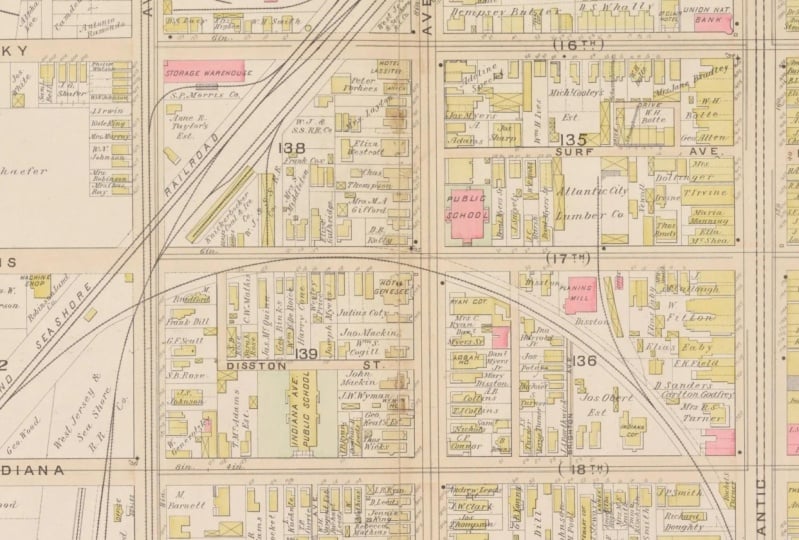
a travel map together. These kind of maps are motion graphics that you would
typically see when we're jumping from one location
to another location and we want to take the audience
on this journey with us. I've made the project
resources available so you can download and we
can work together to create this motion graphic. Throughout the process,
we're going to be learning a lot of
different things. Getting around the UI infusion, we're going to be diving really
deep into what nodes are. These are very similar
to things that you would typically see on the color page. Think of nodes as
just like tools. These tools are going
to be really used and the backbone
on fusion itself. We're going to be diving into
all of the different types of nodes there are how
we connect them up. Don't worry about not
knowing anything. I'm going to go over
everything in detail. We're going to be
working with keyframes. Keyframes are very
similar things that you would typically see
on the edit page. There's also some in the color page and
fair light as well. We're then going to take our map and we're
going to put it into three-dimensional space
where we're going to play around with a three camera. Then once we get to that point, we're pretty much done. We're just going to stylize our map just a little
bit and we'll show you how to make it
grungy and give it an aesthetic to
match our project. We're going to take
that final project that we have infusion. I'll show you how get that image to show up
on the other pages so then we can continue on our editing process
or color grading, or even just rendering
it out if we need to. Don't be concerned if you've never done anything like this, you're in good hands. We're just going to just
going to go step-by-step through the whole process. By the end of this,
you should have a pretty good grasp on how
fusion works so that when it's time to work on your
project and you want to throw a little bit
of a motion graphic in there you don't have to
be concerned with going and trying to find
pre-made assets anywhere. You can tailor make motion graphics for
your next project. Without further ado,
let's jump right in, download the project files, and let's get started. [MUSIC]
2. Your Class Project: [MUSIC] Welcome to the
class. This class project is going to be going over a lot of commonly used
tools with infusion. This was primarily set up so
that we could hit a lot of different tools that you would typically use day to
day with infusion. The course is set up pretty much like a step-by-step guide leading to the creation
of this travel video. If you do want to take it one yourself to create your own
custom version of this, by all means do so. You could simply just take
a different route than I do for the line that's
going through the town, that's by all means
you can do that. Pick a couple of
different streets that have your travel map go and have your animated camera follow that new line that you create. But if you just want
to get through it and recreate the exact same
thing that I have, by all means, you can just follow step-by-step
as I'm doing it. The customizations can
really come in when you're smoothing out most of
those animations there. Then at the end of the project, I will be talking with
you on how to get the video out of DaVinci
Resolve and you can upload it to YouTube or Vimeo
unlist it and add it into the project gallery
for feedback if that's something of
interest to you. Throughout the duration
of this class, if you have any questions or you would like additional guidance, I highly recommend
asking your question in a discussion board and
including a screenshot just so I have a little bit of a
better understanding of what you're currently
experiencing and what you're seeing on screen. Then finally, if
you're working with the free version of DaVinci
Resolve you shouldn't have any concerns about not being able to get through
the course because everything that we
will be talking about is included in
the free version. With that being said,
let's us get started. Don't forget to go into
the resource section, download the map, and
then let's begin.
3. Getting Started on the Fusion Page: I have the DaVinci
Resolve started up here. Now, we're not going to
be really concerned if we're in the free version
or the studio version, we're going to be able to do
majority of everything in this class with
the free version. I currently do the
studio version, and I will be going
over a couple of things way at the end when it comes
to specific to studio. But the majority of the
animation can all be done. It just the way things look like a stylizing
stuff way at the end. But there are other
options that I will show you on how to do
the styling stuff. Starting off here,
we're just going to be making a project like we would any other
DaVinci Resolve project. We're just going to make
one and call it map. Once we're started up here, I'm just going to go
over to the Edit page and we're going to come
down to the gear here. I'm just going to
change my project to 30 frames per second. When you're working on any
animations for your project, you can just work
off of whatever the native frame rate
is for your project. If you're over in Europe, you are going to
be working with, let's say 25 frames per
second instead of 24. There are going to
be differences, but just work with
whatever your frame rate is for your project. If we take a look, let me
quickly create a timeline. But as we move here, we have a time. We have our frames, our seconds, minutes, and hours. That's typically how
people are used to using editing tool is
going off of the time. In most compositing tools, it's actually going
to be framed-based. Instead of time, our time is going to be
every single frame. Because if you're spending time compositing different
elements in and out, or if you're making
different animations, a lot of the time you're
only making it for however long that animation is. You don't want to have what typically ends up
happening when you're bringing media in from a different frame
rate is you're going to have multiple
frames showing up. It's not something that
you can really notice, but it's going to be the same frame showing
up over and over again. Or you're going to
be skipping frames. It would suck to
animate a whole bunch of stuff and then a couple
of frames are skipped. Perfect example, if
you were to make an animation that was
60 frames per second, but then took it into 24
frames per second timeline. Obviously, to stay
within the 24 frames, it's going to be skipping
a lot of that 60 frames, so it has the same timing. Anyways, enough of the rambling, let's create our
fusion comp here. We're just going
to right-click in the media pool and
go fusion comp. Here we have our duration. Let's just change this to 10. This is hours, minutes,
seconds, frames. We can set a name if we want to, and it's pulled that frame
rate from our project. Some use cases we won't want it to be
the same frame rate, but for this we're just
going to leave it the same. You should also be doing all of your project that 30
frames per second, because we're going to go
through and do animations. It'll be very easy for
you to just follow along having the same
frame numbers as me. Lets just grab our fusion comp. It's now an element up here and bring it into our timeline. Then we can go right
over into fusion. When we come over into fusion, let's just make sure that
both of our UI look the same, so we'll come up
here to Workspace, and reset UI layout. I like to just go back into
full screen just so I don't see the Windows stuff for you, so if you're on Windows or Mac, so you don't see all
that stuff and you're just seeing the DaVinci Resolve. From here, if you're ever not sure what
element you are in, if we come up here to clips, we'll see down
here where we are. If I just double-click in
here, it'll show the name. We can see that this
is the fusion comp, the one that we made. Obviously, it's the only
thing on our timeline. But if we were working in a project where
we were adding in motion graphics in the
middle of a timeline, it's nice to be able
to go into here and see all of those
other elements. I'll quickly show you
what I mean by that. If I go like this
and come over here, we can see that now
we can jump between the two different
elements instead of having to go back-and-forth,
back-and-forth. It's an easier way
of seeing this. For now I'm just
going to delete that. Back into Fusion. Now let's
talk about everything. Just like all of
the other pages, you can click all of these little icons up here to
open up different windows, that works the same in all
of the DaVinci Resolve. We have the media pool,
that's where all of our media is going to be placed. We have our effects. These are going to be where
a lot of our tools are. We'll come back to that. We just spoke about clips. We have the node window,
which I don't know why you would ever close
that, but there's that. Over here we have spline. We'll get into this when
we are doing animations, keyframes, another
one for animations. Metadata, you can see the
information of that media. Is it 8-bit, is it 16-bit,
whatever it may be, it'll show all that media just to make sure
you are working with the proper quality footage. It's mainly a
composite anything. Then we also have our inspector, which is on other pages, and that's going to be
where all of our tools are. We'll dive into how that
works here in a second. This little area up here
on other editing pages, we have a program and
a preview monitor. For this, this is just
two different monitors that we can look at
two different nodes. We will be diving into
actually using this. There's also these
little buttons that we'll be using as well. We just see the one monitor. Right below it, we
have our timeline. Like before I was saying
with the timecode, this is just going to be framed. Over here is the current frame
that we're currently on. This little orange bar that's
going to be our play head. Then the ends is going
to be in and out points. Over here this is showing
where in and out points are, frame 0 and frame 299. As we move this in, if
let's say we have a cropped or a clipped
clipp on the edit page, it will show that
represented here, just showing that
there is more media than what's currently
being used, but we're going to
be using all of it. We obviously have
our play controls. There's one other
control that a lot of people don't
really know about. If I right-click in here,
they actually pop up. These are very, very useful. High-quality and motion blur, those are going to be
the two biggest things that are going to slow down the processing of your
Fusion program, all in all. You're obviously going
to want to render out and high-quality
and you're obviously going to want to
have motion blur on your final project
if you turned on motion blur for the
different elements. When you're working
in a project though, you might not want those on. A lot of times it
actually isn't necessary and you would much
prefer half the speed. We can turn both of these off. Even though they're off
here and when we view it, we won't see the
high-quality version and we won't see the version
that has motion blur. When we go to do
the final render, even though they're turned off, they'll still render out in high-quality with
the motion blur. Just something to be mindful of. Right below is just a
easy to use tool bar. This is just going to have
all the default tools, common use tools. I'm not going to go over here, but I just want to let you
know just planting the seed that you can create your own. I have one for motion
graphics specific, but we'll just stick
onto the default one. Then below, this has a couple
of different nodes, names. It's like the node window, the node flow, the node tree. All of them are interchangeable for this particular area here. One thing that I do want
to do is I'm going to turn off all this stuff. I think it's off by default, but I just want to
make sure that all of our systems are
looking the same. I think that that's
off by default. Your node should
just look like this instead of the
bigger window there. Let's first add in our media, the media that I had, that I sent you, or that
you should have downloaded, which was this, the little maps. We'll just bring that in, just drop that in
there. That is that. For this, like if we look
here in the metadata, it's saying like where it's
saved, it's resolution. More about it, this
is an eight-bit clip. That's what I was
talking about when I'm talking about metadata. That is pretty much
the UI for fusion. One other thing that
I completely forgot. Down here, this is showing how much your
cache currently is. You can right-click
that if you ever need to purge the cache, you have the ability to do that. The other thing
too, is if you want to increase the amount of memory that you allow your computer or you
allow fusion to use, we can come up here
to DaVinci Resolve and go into preferences. Then this memory and
GPU, we click on that. Then we can increase here. If you have it lower, you can increase it so you
have more memory. The more memory you
have, the better. If you don't have 64 gigs, like my system does, just
use whatever you have. But the more you
have, the better. If you end up using
Fusion a lot, you might want to think
about that as being one of the early upgrades that you get. If you're noticing that
there's a lot of speed issues. Next we'll be diving into nodes. But before we do that, let's
make sure that we save our project with
Command or Control S.
4. Accessing & Adding Nodes: The biggest thing that
you're going to want to get yourself familiar with is how to add different tools in fusion, and so the tools are
going to be called nodes. We have this bar
that we previously were talking about where
you can just click, you're going to click
them to add them, or you can just
drag them down like this and so that's one
way of adding nodes. We come up here to the
effects and we have tools, here they are broken into
different categories and so there's a lot
of different nodes in all of these
different categories. Again, you can click
or you can just drag and then they
will come down. The other way that we can
get into them is if we right-click in the node
window and we go to Tools, same categories, same thing we can go
through here click, and it'll add that node. There's one last way and
this is the way that once you get comfortable with
fusion you will always use, probably be your go-to way for working in fusion and
that is the select tool. To get that is
you're just going to hold down shift
and hit Spacebar, and then this comes up. The only caveat to this is that you need to know the tools name. Let's say the background
know that we were deploying, so you just type in back. You could just put
BAC, background node hit Enter, you
have that tool. This is going to be the
fastest way to get tools in by just Shift Spacebar and then just
typing in the tool. Again, because
you're brand read, you're not going to
know the tools names so going through the UI to get them is probably
going to be the best option. Next we'll actually be connecting
these nodes and again, to get that select tool out, that's going to be
Shift Spacebar. Before we move on, let's
make sure that we get in a save with
Command or Control S.
5. Connecting & Using Nodes: [MUSIC] So once we have a
couple of tools that we want to use in our Node window, then we have to connect them up. Connecting them up can be
tricky for a lot of people. So let's just pull in the tools that we're actually
going to be using for everything here. So let's open up our media
pool and grab that map, and we'll drag that down. Let's just close our media pool. So it says media in, but let's change this so we
know that this is the map. So we're going to
click on hit F2, and then just type in here map, [NOISE] Enter, and
now we know that that is the map node. To view that, we can just drag it up to a
window and release. So we drag it up
and then release, and then we can see it in there. Then, as you can see,
this particular node, we have these two little dots, and that is just
representative of the nodes. So you can click on those
dots, which I would never do, but it's just showing you that that's the window that it's in, as you can see, this
one's over here. Other thing to bring
them up there, this is Viewer 1 and
then this is Viewer 2. So we have Viewer 2. We hit the Number
2 on our keyboard, and it'll show it in Viewer
2 or 1, whatever it may be. So now we have a map and we
have this background node. The background node is
what we're going be using to add our route or line. So let's pick a line color. So clicking on the
background over here, we can just click a line color. We'll just click in
here and we can click Red or just increase the red, and if we view it up here
now we have view red. But we need to get these to
be one on top of the other. So to do this, Let's grab a merge, which is this one here. So now if we take a look
at all of our nodes, will see that we have
these little triangles. The triangles are all
going to be inputs, where the squares are
going to be outputs, whatever the result
of that node is, once we play with the
controls and stuff. But we need to bring media in or images in to a particular node, and so that's going to
be all of these inputs. If we hover over a
particular triangle, it'll tell us what that is. That's the Merge 1 background. If we go over the
green one here, this is the Merge 1 foreground. Take a look at this
blue one here, this is an effect mask. Take a look at this one up here, this is also an effect mask. If you don't want
to wait for it to show up with this little pop-up, what you can do is
you can hover over, and if you look down
at the bottom there, above the venture
resolve you quickly see what those
different inputs are. Over time you'll wrap
your head around, this node, we need to connect it up to this particular input. Let's take this map and we're going to make
this as a background, so that was the yellow one. Then we'll take this
background node, which let's just
change the line, so this makes more sense. [NOISE] We'll just put in
here line because this will be the line at some point, and we'll put it
in the foreground. So now, we don't see anything and that's
because we're not actually viewing this
particular node here. So let's view this by clicking
on it and clicking One, so if you would over here. We can see that we have that background in
a little square, and then we have our map. So hopefully this is making
a little bit more sense. The foreground element, which is the red box that's
over top of our map. So there is one other way of
connecting all of these up, and that is by right-clicking here and then dropping
on the merge, and it'll tell us all the different inputs that
we can connect to. So we can say, we want
that to be the background. Again, right-clicking, we want that to be
the foreground and we get the same thing. If you ever needed to
switch the inputs, but you didn't want to
fiddle with doing this and connecting them up likewise, because this is now
connected up incorrectly. What you can do is you
can click on the node, and then hit Control or
Command T and it will flip it. Just look down
here at the merge, we can see that
we can flip them. So that's the easy
way of flipping them. But there's one other
way for merges. Because we're going to end up using merges quite a lot here. So I want to show you
this one quick tip. So if we want this node
to be on top of this map, we can take the input here,
just left-click dragging, and we drag it on top of
the output of the map, will automatically
create a merge, and it'll be
connected up properly because we're saying we want this to be on top
of the output of that. So that's how that would
work. [NOISE] If we were to go the other way, it put the map on top of
the output of the line. So then we wouldn't actually see that box because they
would be backwards. That's how we connect up nodes. One thing that you'll notice, and we're not going to
go over all of them, but all of them have different types of inputs
and multiple inputs. So each node does
something different, so it needs different
types of inputs. So all you have to do is
just hover over a node, and it'll tell you what that
particular node input is, and what it needs. There's a bunch of mats here, and it's just based on how
that controller works, or like this one over here. This is a match mask. They all work
slightly different. So that's how we can
connect them up. The big thing to
remember is now, if I was to take this
particular merge, whatever we would add
additionally to this, you have to remember
that this image is being added and then this
image is being added. So whatever this image is, that gets passed out of the
square to this new tool, whatever the tool
is, I think this is even better to explain this. If we connect this up with a color control here and
a color control here. Or actually, let's put
the color control here. So the big thing to note
is if this color control, because it's taking everything, so if I view this, everything is coming
into this color control. So now this color control, because all of it's coming in,
it's affecting everything. Compared to over here, if I move this, it's only controlling
what's being piped into it. So whatever the images
that's going in, that's the only image that
this gets the process. If I'm viewing this over here, this's the only image that
gets the process that I can manipulate
compared to over here, this color is obviously
it can see everything, so it's going to
manipulate all of them. Even though I can change
the color of this, we can slightly see the color
being changed over here. But hopefully that makes sense
with connecting up nodes, playing around with
it a little bit more, you'll definitely get an idea of how the image is being passed, and where we should put
things in the node structure. Next, we'll be
diving into all of the controls for these nodes. But before we do that,
let's just quickly recap. F2 is going to be to rename nodes and then to
flip the inputs, we use Command or Control T, and don't forget,
before we move on, we're going to hit Command
or Control S to save.
6. Inspector Window: Node Inputs: [MUSIC] So as we were working, I was briefly talking about the different controls here
and using in the Inspector. But there's some stuff
that I want to quickly show you in the Inspector that we will end up having
to use quite a bit here. If I click on, let's
say the merge, and we take a look at
all these controls. We have these two images
going into the merge. Now, all the controls
that are on the merge is what we do with that
image from this point. If you've ever used Photoshop
or anything like that, that is going to be what
these apply modes are. How we're applying this
foreground element on top of the
background element, as you can see here. Then we can do a bunch
of different things. We can change its position, its size, its
location, like this. So all of these controls
are just going to be how this node processes
an image as it goes out. Now, the big thing to also see is that up here we
have different tabs. Every node has different
tabs and different controls. One of the tools that has a
lot of them is the Text tool. It has a bunch of
different tabs in it. They all have very
different tabs. If I bring them in, we can
see that they all have different tabs in
different controls. Now you might think that that is all the controls
that are available, but I want to quickly
show you here in this text how that's not true. Let's say we put
my name in here, Justin and we put
in here fusion 101. We think, okay, so down here
we can change the color, we can change the size. Maybe, I don't know, the line spacing
and all of that. But we can't change the
elements individually. If you go through
all the settings, you're not going to find that. That's where modifiers come in. So any control that exists in
a node can be modified with different modifiers
and this adds in a whole another layer of complexity to a lot
of these tools. So if I right click in here, I can go into character
level styling. Each character on the characters
level, we can style it. So if I click that, we can see up here now
we add a modifier. If I don't have that on, the modifier is grayed out. For all of our nodes, modifiers will always be grayed out until a modifier is applied to
an input in the tool. So let's go back into there.
Now we come over here. Now we have another
set of tools. One thing that we can do
now is we can highlight, let's just highlight Justin and now we have a bunch
of controls here. I can change just
those letters there. Change the size,
change the font to something else and
it really adds in a whole another layer of complexity when we are working
with a different tool. We can still go back and work with all of
the other controls. I can still change the position, the size, all of this. These are all tools
that still we can use on top of the modifiers. Now, you might be super
overwhelmed with this, but don't be, we're not really going to be using
this in the project. But I just want to show you that these things do
exist almost like when I'm planting seeds that
later you can go back and play around
to see what nodes can actually do because
it might not seem like a particular node
might be able to do what exactly
you're looking for. But with the certain
modifiers that you add, you can really add a
whole another layer of complexity to a particular tool. The big thing to note is when we're working with a modifier. Let's not do that.
Let's do the size. Sure. We'll add a
shake modifier. So let's put the text into
this particular tool. We had to shake
modifier in here, so over the course
it's changing rates, so that's what shake
is, it just changing. But then we can go in
and then for these, we can add a modifier
on top of that as well. So it can get really
complicated in how it works, but I just wanted to show
you a little bit about modifiers because I felt
like it was something to show you within the
inspector controls. The other things in
inspector controls that I can quickly go over is something that we'll
actually be using and that is taking advantage of
the expression tools. So I can just quickly show you it's not really going to
make much sense here. Actually, I'll just
show you specifically what this would do. Let's say we have
these two nodes. So this is just a background
node with an ellipse, which is just a mask
to make a circle. If we have the x and y as we move them, they're
moving individually. But say we wanted to
animate them together, so it stayed as this
perfect circle. Well, to key-frame two of
these would be a pain. So what we can do is we can use an expression to make
it a little easier. So we can have, let's say, let's have the width copy
whatever the height is doing. Quickly, we want both of
these to be the same. So if I right-click in here
and I go into expression, I can write in whatever
expression that I want. So I could put in here five, divide it by two. We get whatever that value is. But instead of doing that, or you can type in a lot of
different things in here. So I can just type in here time, and now obviously it's just following whatever the time is here which really
wouldn't make much sense. But what I really want to do
for this particular example, is we're going to
grab air pick whip. So this allows us to pick any value and we're just
going to pick height. So now it's picking height. So it's going to be copying
whatever the height value is. So if I just take this
one as I move this, it's now moving them together. So I only really have to animate that one value so that both
values have the same value. So that is a way in which to really make the workload
a little easier, instead of animating two things, we can animate the
one and make it maintain that perfect shape. So additionally with
the inputs and I can actually clean up my project
here to quickly show you, I'm just going to delete
these and then show you over here because I feel like we were playing around
with this a little bit. If you ever want to
reset a control, we can just double-click on the name and it'll reset
that particular control. If your whole node had a bunch of different
controls that were all over the place and you
didn't really know what was where and you don't want to go through and
double-click everything, you can just click
this little button up here and it will reset everything to the node
back to its default state. That will do everything on
all of the different pages. So, yeah. That is pretty
much inputs in a nutshell. So let's get back into what we were currently doing and
start drawing these lines. So next up we're going to
plot our route on the map. But before we do that, let's get a quick save in
with Command and Control S.
7. Map Route: Using Polyline Node: [MUSIC] Now we have currently, hopefully you're looking
at the same thing on my left viewer here. I'm just looking at the map and then on my
right viewer we're just looking at this
merge with just this box. The first thing that
we want to do is this box is not
the correct size. Anytime that we bring
in a background node, it's going to be using whatever the project
resolution is. We need to change
that for what we're working it here because we have, our map is like a very
bizarre resolution and we want to match
that resolution. If I take a look over
here on my map and we'll hold down middle mouse
button. We bring it down. We can see that this is
currently 3140 by 2127 and our line which is that background node is
currently 1920 1080. We need to change that. To change, I will just click on the line node or background
node that we were working on. We're going to come over here to image and we're going to uncheck the auto resolution
and now we can type in here the resolution
from our other ones. We're just going to type in here 3140 and then we're
going to come down. You can use tab and
we going to put 2127 in here and now they're
both the same resolution. Don't be concerned
on the float number, that doesn't really matter. If you were concerned
on the color depth, you can change this
to whatever you want. You can go all the way up
to 32 float if you want but for now I'm just going
to leave it there at 16. Now that we have that set up, now let's actually
draw this line. To do it, we're
going to be grabbing the polyline and the
polyline is here. We will have this and
we're going to rename this to line underscore mask. Oops. The reason why
we're putting in underscore is because
nodes can't have a space. If I just show you here quick
and I just have a space, it's just going to
take the space out. Personally, I like
to be able to easily read it so I just keep the
space there. Excuse me. I put the underscore for the space and now we're just
going to connect this up. One thing you'll notice
is that it disappears but what we're going
to do is we're just going to view the map. It doesn't matter at
this point what we're seeing but we're going
to just view this map and then we're going to click on the line mask and
we're just going to go to one viewer and
then pull down the edge. We can see this and we're
going to go to fit the screen. Now in this viewer if we want
to zoom in we're going to hold Command or
Control and then use mouse wheel to zoom in and out. If we just hold down without
holding down anything else, we just hold down middle mouse
wheel we can move around. If you're saying, hey Justin, I have a magic mouse what
I'm going to say back to you is Fusion doesn't
like magic mouse. I'm very sorry. I don't know exactly, I think that there
is an easy way to deal with the middle
mouse and scroll and stuff. But I would say if you have a three button
mouse to go and get it because a three
button mouse is going to make this so much easier. Every composite in
person that I know uses a three button mouse or they use a pen with a Wacom tablet. That is something else
because you can pick this as your middle
mouse button click. But the majority of the industry is going to be
using a three button mouse. I'm just going to be
explaining everything with that three button
mouse and having the functionality of
clicking and scrolling. I believe the magic mouse
has that ability but I'm not that comfortable
with, anyways. Going through here,
what we're going to be doing is we're going
to be clicking. As long as we have this little pen selected,
we're going to click. We're going to go from the bank, I'm just going to
zoom out quick. We're going to go from the
bank down here to Rose. That's the path
that we're taking. Obviously, if you were doing your own project
you'll be picking and you'd be figuring
out your own map. The other big thing that I
would say is you want to have the biggest resolution map
they can possibly find. Initially, I was going to send
this project and have it. It was almost like
8,000 by 7,000. I forget exactly. It
was just really big. But knowing that this is
just like a course and class things are going to
look a little soft in our final product
or final project. But the bigger the better because then you get more
detail because we're going to be getting that 3D
camera very close to things. Being able to have
everything crisp and clean is normally ideal. But everyone in this
class isn't going to have the fastest computer so we had to make a little bit
of a sacrifice there. I had to make the image
a little bit smaller. Now that we have this, we're going to go
down these roads. I have the first
one clicked here. If we hold Shift, it's going to allow us
to make a straight line. If I'm off axis,
so straight down, but let's say it was
over a little bit, if I click it's still going
to make a straight line. If I didn't hold Shift it's going to make
a diagonal line. Shift is going to allow us
to make straight lines. I'm just going to come over
holding down middle mouse and I know that this is
the street, I believe. This is the street. We're
just going to come down to 16 and we're just
going to click. We're going to come
down, click and click. One thing that I noticed while
I was doing this is that this line with the lines in the background
on the map make it look like it's not
straight and it's the map that's
actually crooked when the scan went through
and not your lines. That drove me a little nuts when I was first doing
the run throws, like what the heck is going on? But yeah, the map could use a little straightening but I don t think that it's going
to be super noticeable. That is our line. Let's slide this back up and see if we see anything on the final
product and we don't. The reason being is because we have to click on this line mask and in this border width
if we increase this. I'm holding down shift. One thing to let you know
is when we click into here, and if I hold down I think it's command or control it
gives us finer controls. Because this will
be quick and then the holding down command or control will give us
finer controls and then we can pick how
thick that line is. There is that line going
all the way across. There is our route. The next thing I want to do
is add a little bubble for the beginning of the route and a little bubble for
the end of the route. Remember we're using that
ellipse so we can use that. What we'll do is we'll
grab that a little ellipse right here and
we'll add that in. I'm just going to change
the name of this to start just so we know which one is the start
and which one is the end. We're going to connect that
up. Now it's really big. You remember our width here, expression, drag
it down so we only have to deal with one slider. Bring that in, zoom out a little bit and we'll bring the way down, make
it pretty small. If we click here on
the little widget, we can drag it up to our
little line up here. I'm just going to make this a little smaller so we can see it. Something maybe a
little bit bigger. I think something
like that would probably look really nice. Now I'm just going to select the start control
command C and then control command V. We pasted it has the same
name underscore one. I'm just going to change this to end and for some reason
put a little dash there. I think something else is named and I don't know but it's okay. Next, we're just going to click on it and we're going
to drag it over, zoom out a little
bit, bring this down. Holding down middle mouse
button to move my map. Now holding down command
and scroll to bring it in or bring it over
just like that. If you need the
pause to keep up, you're more than welcome
to pause the video and move your little bubble over. But there we are. Now we have the start and
end and our little map. That's looking pretty good
and now we have our route. Next, we're going to add
in some animations but before that let's quickly
do a little recap. Holding down middle mouse
button allows us to move the image around
in the viewer. Then if we hold down command
or control and scroll, we can then zoom in and
out on that viewer. Remember, if you want to make a straight line
you're going to hold Shift and then click that allows us to make
those straight lines. Before we move on to
the next portion, let's make sure that we get in a save with command
or control S.
8. Adding & Modifying Keyframes: [MUSIC] We don't have
any animations for this route showing that it's coming on or anything like that. This is the point where
I was saying having the same exact project
settings as me at 30 frames per second
is going to be ideal. Because now we're going
to be playing with the different keyframes
and if you're going to follow me step-by-step, knowing the exact keyframe, so we get those nice animations. If you had 60 frames per second, then you would have doubled the frame numbers when we
were picking them. But for now, let's just
keep going how we're going. I'm going to start at Frame 2, right at the beginning
of this whole animation. We're going to
zoom in. I'm going to click on the Start bubble. The start bubble, we
have this height. I am going to just click
here and that's going to add the animation [NOISE] at Frame 2 for this
particular control. Now let's come in 15 frames. I'm just going to put
plus 15, hit "Enter". Now we're at frame 17, and we're going to click this
little button here again. Now we have two keyframes. If I just move my
play-head here, we see these two
little white lines, and so whichever
node I've selected, it's going to show
the keyframes. If I pick a different
node, those go away. It's only for the nodes that have the
particular key frames. I think I accidentally have
something turned off here. There we go. Sorry about that. You have to have Show Modes and Options on to be able to see that this has a keyframe on it. We'll see that this
one has a keyframe. Now that we can see that, what we can do is we can
click this little arrow here to go back. Now we're on Frame 2, that's that first keyframe. Now let's reduce the size
because we want it to start off not having
anything there. Reduce the size down to zero and then once we reduce
the size down to zero, now if we play this, we can see that
that grows larger, because it's going from that smaller size and it's going to be increasing
to a larger size. That's what we're
going to be doing. Let's remember that that's
over 15 frames because we're going to be animating
that a little bit more. Now let's go into
our line animation and it's showing that there's
already a keyframe here. Now, [NOISE] big
thing to note is when you bring on polylines, it comes on with this tool being turned on for changing the shape of
it as an animation. We don't need that for this, so what I would
recommend doing is right-clicking in
here and removing, and now it takes away all
of the animations here. That is used for if we have a polyline that over the course of time we
want it to change shapes, then that's when
we would use that, but we're not using that, we're actually going to
be using length. That's this control here,
this length control. What this is going
to do if I zoom out a little bit so
we can see this. My scroll wheel is
not working for me. As we move this, we can see it's
following that line, so that's what we're
going to be using as the animation here. Remember, we're making all of these tools work together
in the animation. If we come back to our start, we can see that on
Frame 17 is where our final animation
is for that bubble. We're going to have the
lines length start there. We're going to start
it off at zero and then we want to bring
this all the way to, let's do like 270 and
have the line increase. Now over the course of this, the bubble comes up and then the lines going in
out as you can see there. The other thing that we
would need to do now is the other end of that. It's way down here. At 270 it's going to be here. At the end, we need to
add this animation on. We'll just go like that, we'll turn it on for at 270. Then remember, our
other bubble took 15 frames, so we'll go plus 15. We can add a keyframe. Now let's come back to
that first keyframe and turn off that size. Now we don't have
anything when it comes around and once it gets there, then it will grow. That's pretty much that for all of the
animations for this. But there's one other
thing that I do want to add in here and that is a drop shadow to make it feel like it's off of the
map a little bit. Now there's a couple
of different ways and this is one big thing
that you'll quickly learn within fusion is that there are a plethora of different ways to make just about everything. What we could do is
we could just add the drop shadow tool and
let's click on the line, we hit "Shift", "Spacebar", and then just type in drop, and we have a Drop Shadow tool and we don't see anything here. Let's go into the tool
and let's turn off blur. We can see our drop
shadow is way over here, so that's too far away. We can bring that in just like that and then increase the
strength here a little bit. Then maybe increase
that blur slightly. Now we have this little
bit of a drop shadow. I just want it to be off
of it just a little bit. Now we have this
drop shadow here. It might work for us. But like I said, there are a plethora of different ways to make
different things. Because this is a class, I want to show you
another way that we can do a very similar effect. This might work for
some situations. The way in which is that
it processes the image, it might be a little
slower for some, so this other way
might speed it up. We're first going
to delete that. Then we're going
to take this line. Remember, it's just a background until all of this stuff
gets added to it, just a solid background. We're just going to
copy it, Control C, click over here, Control V, and then we can just F2 and just call it drop
for drop shadow. Obviously, remember
that's just the solid, so let's just change the
color of it to black, so all zeros and a one. Now we can take all of these
masks and have them go over. Now we have our line. Let's disconnect this. Let's
take our line and the drop. We put the line on top of the drop shadow and we view it, and then we connect this up. One thing that you're
going to notice is that we don't see the drop shadow. The reason being is
because they're right on top of each other.
That's why we don't see it. On this particular
drop-shadow node, we're going to hit "Shift
Spacebar" and we're going to type in trans for transform. Now we have a transform node. Now in a transform node, we can change the position
of that lower image. Now we're getting
to the same spot, making the same exact thing, just a couple of other steps. I just want to show you that you can make anything infusion, that's the big thing here. Let me just quickly
show you here. Then to add on our blur, we can just type in blur. There's a bunch of
different blurs. You can always have fun playing around with
those and seeing which one that works for you. But we have the different blurs. I actually think I'm going to
come into my drop here and reduce the Alpha slightly. We're going to
reduce this down to, let's go like 0.5. There we are. Now we
have our drop shadow. Because of how
everything is set up, our drop shadow is also going to be animated
with everything. Just pulling that data from
all of our mask nodes. That's where nodes really come in and become powerful
because we can reuse work that we previously used to add
it in other locations. A lot of people don't like when they're first
learning nodes, they think it's
super complicated. But until they understand
the benefits of reusing old work that we did instead of
recreating the wheel, or remaking something
over and over again. That is our animation for the
start and end of this path. Next up, we're
actually going to be animating some text
onto this map. But before we do that,
let's make sure that we get in a save with
Command or Control S.
9. Animating Text & Using Masks: [MUSIC] So far we
have our path and we have our map and our drop
shadow and everything. But one thing that I want to
do just so we can play with more nodes is we're going
to just add in some texts. Think of if you have a travel video and
you're trying to show that you are
going to a restaurant. But the map is just
showing the overall, let's say it's just
like Google Maps or something that you're using. But you want to actually
write on the map, like the end location. We can just throw
some text in there. I don't have any of the
fonts that match this map, but we're just going
to work around that. I just want to show you using other tools and how we do it. We're just going to
grab a text node here, we refer to it as
a text plus node, and I'm just going
to type in here end. Then from there, we now need to add this in to our project. Let's just go back to what
we were looking at here. I'm going to view this
over here and then view our text node over
here, like that. We want to add in the
text on top of our map. The easiest way to
do this is you can either add it in
here at the end, so that would get added on the white text that
you see there. Or, what you could do is
instead of doing that, you could add this in over here and it would
work the same way. You can do stuff
however you want, it doesn't really matter for this particular set of nodes. But I'm just going
to add it in right here and then I'm going
to click on the text. We're going to zoom
in a little bit here. If I click on it, we have
this little widget here and we can pull it
around and move it. I'm going to make it a little smaller and I'm also going to have it match the color
of the text on this map. Let us zoom in to this 14 here, grab our little eyedropper, grab a color, grab that color, and now our text looks the
same as the rest of the map. We'll just bring it
right up to there. There is our end animation. But we're going to animate
this a little bit. We're going to do a couple
of different things. One, we're going to
grab a rectangle mask, and we're going to add that
rectangle mask onto the text. One thing you'll notice is right there is our rectangle mask. If I move this
rectangle mask around, you can see that it only
shows what's inside. You can always click Invert
and have it go the other way. But it's currently only
showing what's inside. That's perfectly fine. What I'm going to
do is I'm going to drag it down over to here. We can grab the edges or we can grab the sliders here and
change the size of it. I'm just going to have it
wrap around like that. I'm just mainly
concerned about getting around this area for
the other side of it. Something like that. It doesn't have to be
exactly like mine, but that's where
I want it to be. I'm actually going to pull
this down ever so slightly. Now if I was to
move this around, you can see it's only going
to be visible inside of where that box is and that's
where we want it to be. Now let's add in an
animation for this as well. Coming over here, the
layout is going to be that center control
for the motion. As you can see, it's
changing the values there. I'm just going to
pick where we want it to completely end at. Let's have it end at 285 so we'll click our
keyframe there, 285. Then we'll come back, and I'm thinking
right when it gets to this ST for street, I want it to start the
animation. Like right there. From there I'm just going to
bring this way over here. As it's playing,
that is coming on. I actually don't
like that coming on at that particular position, so I'm actually going to
change this up ever so slightly and I'm going to move
this particular keyframe. Let's come open
it. Let's open up the Spline tool
and go like that. I'm just going to slide this over just a
little bit and click this little button and click
Show Only Selected Tool. We're only seeing the keyframes
for just this one tool. I'm going to click
this last button to see where this last keyframe is. I'm going to highlight
it holding Shift, so we only go left and right. I'm going to bring
it in a little bit. I would say, I want this to be done once
it gets to the nine, I want it automatically
all the way over here. Right where this is
at, right there, I need to drag this all
the way over to here. That's where it's
going to be done and maybe have it start
animating earlier. I drag this bottom
one over to here. Something like that. There is our animation. As we're seeing it,
the end of this is stopping
significantly earlier. But one thing that you'll
notice is that it's super abrupt in its stop. It just completely
stops and it's just because this is a
linear keyframe. To make this a little smoother, I'm just going to highlight
this top keyframe and hit F and then hit T. F flattened it,
so we can see that. It added an easing and then we can go
Ease in because we're easing into that keyframe and we can increase this
value a little bit. Now what we should see is, it'll be fast and then it'll slow down until it gets
to that end point. Let's try it again, it
was buffering there. As you can see, it slows down. If you want to add more in, you can just increase that. Take a look at
that. There we are. It slows down as it
gets to the end. I think that looks good. I'm going to close
the spline for now. Now we have our whole map
pretty much figured out. We have its start location with the bubble, the whole route, the bubble, and then some text coming on that is also masked. One other thing that
I want to do with this text here is
as you can see, the line is super harsh. Instead of having
that look like that, I'm just going to come
into my rectangle mask. There's the soft edge
and I can turn this on, and we can see that it
blends out on the edges. It comes over far enough
that we don't see it, but when it comes in, we can see that it just
shows up from nowhere. If you want this to be more, you can increase this
a little bit more. The main thing is that
you don't want it to affect the end product. If you increase this too much, these sides are going to affect
as well so you'd have to open this up just
ever so slightly like that so you can't see that. If we view it over here, we can see how it's softening. If we don't have it soft verse having a little soft like that. But I feel that that
probably looks good. Just like that, coming
out of nowhere. Next up we're going to take everything that we've
created so far, we're going to put it into 3D. That's where this starts
to look really cool. But before we do that,
let's quickly go over the keyboard
shortcuts that we've used. The first one is
going to be Shift. That allowed us to move
around the keyframe in time and not change its value. Following that, we then
used F that allowed us to add an easing curve
onto the keyframe. Then we also use T to change the amount of easing
that was on that keyframe. Now before we move on, don't forget to save with
Command or Control S.
10. Converting Map to 3D: Now we're going to get
into where we make this whole map
look really fancy, and that is taking
it into 3D space. Now to do this,
we're going to need a couple of different notes. We're going to grab
the image plane. We're going to grab
the camera 3D, and we're also going
to grab a render 3D. The image plane, if we
take a look at it here, it's just a flat plane, and we're going to take the
whole element that we've been working on this map
and layer it on top, like a graphic almost. So we'll come from wherever
our final node is in this little no tree is
that we have here and we're going to pipe that
into this image plane. I'm just going to drag it
right on top and drop it. Now we have our
image plane here. We can take our 3D camera and
connect it to the output. Now we have a merge 3D. Now remember these are
slightly different, actually, they're very different than a 2D merge that
we've been using. They work a little bit
different. We're not going to dive in too much on it, but this is currently
how we have it set up. Then from the merge, we're going to go
into the 3D renderer. In the 3D renderer, this is
going to take it back to 2D. There are a couple of
different things that we would want to pay attention to here. We can see that it
says default camera, and that's only because
we have one camera. If we were to add
multiple cameras in, we'd want to specify
which camera we had. I'm just going to go to, okay, we want this particular
camera here. That's the first camera. Then we have the render type. To speed things up to
get it all on the GPU, we can go into OpenGL render, and that gives us a
bunch of fancy settings. But for now we just
want the speed of just the OpenGL renderer to
render on our graphics card. Now, let's actually see
what this all looks like. Now we're going to be using
two of these viewers here. In the right viewer, I'm
just going to drop and release on the render 3D. This is now going to be
what the camera sees. Then we're going to take
this merge 3D and see the whole project that
we're working on. What you can see is the camera doesn't seem
like it can see anything. To better understand why
it can't see anything, we're going to move around
in the 3D space here. Understanding how to move round does take a
little bit of time. But if we hold the middle
mouse button allows us to move just like this. Look up and down, but we can't rotate if we hold Alt Option and middle mouse button and
then move our mouse, we can rotate like that. If we take a look here, we can see that our camera, the lens is actually through
what we're working on, and more so than the
lens, in quotes, lens is it's actually
the sensor of that camera is exactly
the same spot as the map. That's why we can't
see it. If we were to grab the widget
and pull it back, we can now see that image plane. But let's make
this whole thing a little easier to understand. First let's lay this map down. If we come down
here to the image plane and click on that, we have widgets here
to move this around. I'm just going to open
this up quick so we can see all the controls
that we're manipulating. If we come up here, we can switch what the widget
is that we're using. We can use the rotate one and we can rotate this like that. As you can see on the
X-axis in our inspector, that's what's
currently changing. Let's actually change
this to negative 90. All of a sudden it disappeared. That's just because
we're looking at it flat like this and there's
no thickness to it. That's why we don't
see anything. But if we were to take
our camera in the scene, so let's rotate this
out a little bit. We would, holding down Control or Command
and then scroll it is to zoom out to view this. If we were to move our camera up now we can start to see that. We're going to zoom in or we're going to come
in a little bit. I'm going to rotate this up, bring this up and rotate
our camera down like that. The idea here is that
we are going to, oops, wrong tool. We're going to be on
the camera over here, we're just going to
rotate the X and Y until we get it
centered on this point. We're zoomed in enough where it looks pretty good
where we're at. I'm just going to zoom in a
little bit just like that. Maybe move our camera
over slightly. Now, if we just work inside of here until we get everything
looking how we want, if I'm going to rotate this
all the way over like that. Something like this.
As you can see, we're getting very
close to this map. If we add a larger
resolution image here that we were
mapping around, obviously it would
look a little cleaner, but this will work for our
current project needs. It's a little fiddly when
you're first getting into using this in better understanding
how all of this works. But once you figure it
out, it's not so bad. I think that that is a good
direction to go because if I would have this go back, it's going to end up
on this end here. But we're just going to keep this angle and we can
see that up here, we're off the map a little bit. So I want to be mindful of
that because we don't actually want to be seen on
any of the edges. Sometimes you have to, and there are ways
to just get whatever this map color is and
have it shown over there. But for now, within
this project, let's just keep it
just like this. Next up we're going to be
adding in a 3D camera. But before we do that,
let's quickly go over the keyboard shortcuts
that we used here. The first one is going to be holding down middle
mouse button that allows us to move the 3D viewer up and down, left and right. Then if we add in
there an Alt Option, so holding down Alt Option as well as middle mouse button, that allows us to
rotate the 3D viewer. Before we move forward, let's throw in a save with
Command or Control S.
11. Animating 3D Camera: [MUSIC] Now it's time
to animate the camera. This can be a little tricky and it can
take a little bit of time to iron out all the animations to get
them to look right, but we'll get through it. We're in the center,
and then let's come back to the beginning here where it starts to create. We can see that there's
a little dot there, so we're just going
to start it off. We're going to
animate like that. We're going to
animate a couple of different points, but first, we're going to start with
the start and end points. I'm going to come all
the way back to here, and now we're just going
to work with the X and Z. Holding down or clicking
in here and holding down Controller Command allows us to manipulate this
a little better. I'm just going to
bring it all the way down till we get
to the end here. I don't know what happened
with that Zoom there, but we're going to come all
the way down to the end and then have that
centered like that. But one thing that you'll notice is as we go through here, now that we have it animated, we'll see that we'll have
little bits off-screen, like right here
this is off-screen. For me, that isn't
going to work so we're going to add in a
couple other points. I think we're going to add
in points once we get to, I'm just going to view
the map over here for now and zoom in. Wherever our frame is that
we make these corners, I want to change
my camera angle, so I regret now we
can't really see it. I'm just going to click
in here and hold down Command or Control and we're
going to bring it up so we can see that in the
middle like that. Then down here, once we
get down to this corner, right there, I'm also going
to do the same thing, set this to fit. So we're looking
at the whole thing and we're going to
bring this down right there to the corner and bring it up and get it
right in the center. I think something
like that's fine. Now, as long as we have everything off,
if we were to view this, we'll see that it feels robotic, it doesn't feel smooth, it just clicks and it goes. What we can do for bonus
points is if we view this. I don't know if
you can see this, but this green-like little line right here that
have these points, that is our motion
path for the camera. So if we click on
any of these points, so let me zoom in
here so you can actually see this,
what happened? The color of this map makes
it a little difficult to see. Actually, let's just
make this bigger. This motion point, if I
don't have it selected, it's green, but if we highlight it, we can
have it selected. We can right-click on it, we come down here to a 3D path, then we go to smooth, and
then we want this to be the X and Z that gets smoothed. So now we can see that made a smooth curve there and
then we'll come down here, and we'll click and
then that click and change this to
smooth X and Z, so it smooths that as well. But one thing that
you'll notice is that sometimes it overshoots. If I come all the
way up to here, it's pretty far out
so I'm guessing that the corner of the map
is going to be visible. As you can see, the
corner of the map is slightly visible. So what we'll do is coming
back to our camera, and we'll come back to
that particular node, and we can slightly shift
it in a little bit. Let's actually see what
we're looking at here. Slightly shift it in a
little bit so like that. We can see that this
is pretty straight so it's not going to
be going off the edge. If we play this now for
this particular area, once it all caches, we'll see that it's
significantly smoother. It's not so jagged
and how it works, it's actually very smooth. Let's do the same thing here, so we'll come back
to this key frame, we want this to be bumped
up a little bit because it's going to come down
and then go back up. So what we'll do is
click right in here, holding down Command or Control. I'm actually going to pull
it back a little bit and pull up a little bit like that, and then have that come
straight across like that, have that look a
little straighter. Now we can see our line here is a little smoother in
how it plays back. There's one other thing is
when it gets to the end, it just completely stops. So what we'll do is we'll also, let's bring this back
up a little bit, having the camera
selected, click on Spline. If we just take a look at these, these last two key-frames,
we'll hit "F", we've been doing this, hit
"T-F" if you don't see your ease in and will
increase that slightly. Now as it gets to the end, it just settles in speed. So it comes to the end
and it just settles. Think that looks
significantly better. Next up, we're going
to do a little bit of styling on this map. Now don't forget to do a quick save with Command or Control S.
12. Stylizing the Map: So now we've pretty
much have our map done in all of our animations. The next thing that
we can add in is some stylizing to it. Now, like I did say at the
beginning of this class, is that there are going to
be some elements here that do take advantage of the
studio version of fusion. These aren't necessary
and I'm actually going to go through a couple
of different ones and ways to make this
actually looks a lot better once we get to the color page because we can also alter the look
of it there as well. But I just wanted
to show you what's available in the fusion page. There are a couple of
different tools that DaVinci Resolve has that we
can actually use in fusion, and one of them is referred
to as film damage. Film damage is just
a stylized tool that gets the overall look
of a project more filmic, I guess is the way to say, I want to call it filmic. I would say film damage or vintage is probably
the better way to go. We can add a blur, it's obviously blurring
the whole image. We can add a vignette if that's
something that you want. It has dirt that
periodically is on screen. We also have the scratches
that you can see here. You can increase the
quantity of scratches, the color of the scratches, the depth of the scratches,
so that's one thing. Like I said, this is
a studio-only thing. I'm not going to dive
too deep into it. But one of the other
things that you can do, I believe in the
free version, is TV. TV is mainly going to affect
it by adding scan lines, as you can see,
like a CRT monitor. I'll just turn
those off for now. We can also add in noise, so we can add some
level of noise in there and have it
randomized like that. We would just animate that, and then you can
also add in a bar. Let me quickly show you here. If I increase the
strength of that bar, we can add these bars and
that you would typically see like a CRT going
across the screen. You have the ability to add all of those different things in. That's a really
good tool for when you're compositing
something onto like an old school CRT
or you just want it to have a different aesthetic
than what it currently has. For me, I'm just
going to still use the film damage just because it's something
that I do have access to. But later on, we will be, once we get out of fusion, we will be diving into stylizing
this a little bit more. One of the big things
that I like about fusion is that you never
have to round trips, so anytime I need
to come into here, I can always modify
something without having to jump programs
and re-render things out. But one thing that I noticed
that I'm not a huge fan of with how this currently looks
is the color of this line. I feel like it's too bright for the rest of the colors
on this particular map. What I'm going to
do is I'm going to actually come back to my line, come into colors,
and I'm just going to slightly modify that, get it away from
that and get it to look like something
that would be here. I would say something like that probably is more representative, maybe a little brighter, more representative of
something that I would see on this map for a
specific color. I think that is looking pretty
good on the color there. Next up we're going to put a little bit of
motion blur here. Now, this can really
bring together a project but does use
a bit more resources, so let's quickly get in a safe here with Command
and Control S, just in case we have any issues.
13. Applying Motion Blur: We currently have motion
blur turned off here. Remember, like I
was saying before, these settings here are
only for the viewers. When we go to render it out, it would still have
whatever we added to it. So I'm just going to turn on motion blur so I can show you, demonstrate what that is. The nodes themselves have to have motion blur on the
ones that are doing the motion because
they need to be able to calculate how fast something is moving to be able to apply that motion blur to it. Because the text is the one that's in control of the move, we're going to be
adding the motion blur onto the text node. So we'll come over here
to Settings and we have motion blur and as you can see, it added motion blur on. Now one thing that you'll
notice if I zoom in, we can see it has a
bunch of steps to it. Now, with motion blur, as you increase quality, you're going to
lose these steps, but you're going to
increase render times. So just put enough
that you don't notice it or when you're
working with someone ask them to take a look at
it and see if they notice, does the motion blur look bad? So you're going to try
to use as least as possible so that your
render times are fast, but you can add as
much as you want. Currently, the slider
only goes up to 10, which this looks pretty good. But you can put in here any value you want and get
it to look even better. Me personally, I
would say is stay three and seven personally. I think that that is more than enough for most animations. If for some reason,
whatever your animation is, if it's moving very fast and that doesn't do it
for you, then increase. But I would say between
three and seven for most cases is
perfectly fine. Once your motion
blur is added in, you can then easily just
go like that and then the motion blur
isn't going to be visible in your viewers. So it won't slow down
your render times when you're working within
the program itself. When you go to render out, that motion blur
is still be there. But just to be mindful
of that because that will really reduce
your performance. So now we're pretty much
on the homestretch here. Now we just need to
get everything from fusion back onto the edit page. So before we do that, let's quickly get any save
with "Command or Control S".
14. MediaOut Node: Back to Edit Page: [MUSIC] Now we have a complete motion graphic
pretty much done. Now let's get it out of Fusion and back onto our timeline. To do this, we just need
to tell Fusion what the last node is to
pass to the edit page. This film damage, or if you are on
the free version, it's going to be the Render 3D, is going to be the last node. We're just going to add
in this MediaOut node. This was the first node
that we started with, and it's going to be the
node that we end with. We just have to connect it up. If for some reason
you do not have one, if you zoom out and you do not see that node and you
need to add one in, just bring up your tool, and just type in out, and there's your MediaOut
node connected up. Now, whatever this looks like, is going to get passed
to the edit page. If I come over here, now that's what
we see over here, and we can see that we have
that motion blur added in. We're pretty much there now. Before we jump over
to the Deliver page, let's get in a quick save,
Command or Control S.
15. Deliver Page: Exporting: [MUSIC] One thing
that you will notice is our playback isn't all that great and
that's because it's trying to process all
of that in real time. It is using the RAM cache that we were previously using but
overall it's not that fast. You do have a couple of
options here when it comes to speeding
up the workflow. One is if we come up
here to playback, we can turn on render cache, turn it all into
smart render cache, and we can see it now
we have this red bar that over the course of
time will turn blue, which what it's doing
is in the background, it's just making a file that then we can
easily render out. Depending on what
you're doing though, sometimes you do need to go in and you will come here
to Delete Render Cache, and you'll click "All"
that will delete that render cache and make it go through the process again. I'm just going to turn
this off for now. Sometimes people will want
to render this element out to go into a different project or to
put back on this timeline. I will tell you, never get rid of the Fusion comp
that has created it, because you never know
if you need to go back at a later point in time and alter something,
just leave it there. You don't have to move it. Let's set this timeline
up as if it's like a real timeline where you are adding this into a project
that you've been working on. We have this location A, we have whatever it is, and then going to location B. But we want this
playback speed when we're playing all of
this back to be fast. The easiest way to deal
with this is first, actually I completely
forgot about this, but let's go over to the color page and let's
alter this a little bit. I think I'm going to in
add a little warmth to this and I'm going to
add in another node, and I'm also going to add
in a nice vignette to this. We're going to make a
real deep dark vignette. Let's flip that. There we are. Got everyone's eyes on
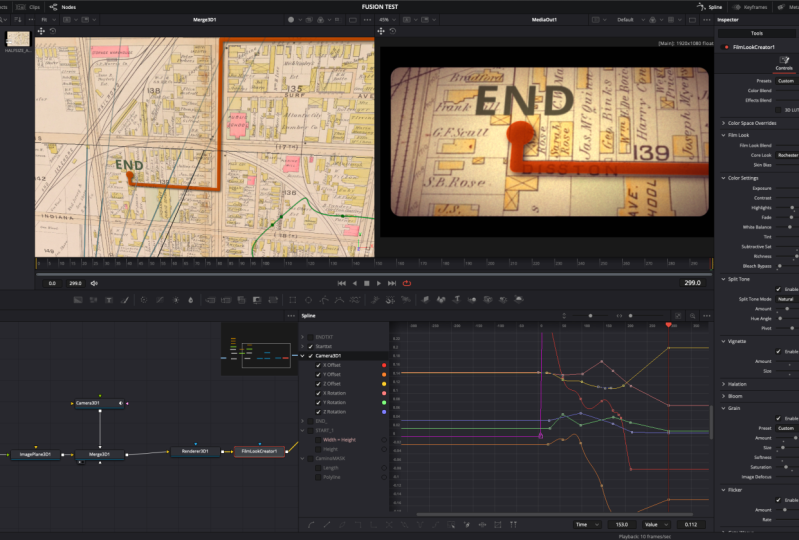
the center of the screen, and that is looking good. That's looking like
a good map there. Now we have it looking
how we want it to. Now let's go over to
the Deliver page. On the Deliver page here, we have all of our clips here. All we need to do because
we just want to render out just this one portion and put it back on the timeline, so we have fast playback, we're just going to
right-click on here and say render this clip. It's just going to set
the in and out points. When we render, it's
only going to render that little bit.
We can set a name. This is going to be map_01 because it's the first version, and then we're going to just
going to pick a location. Perfect. Once we're
done with that, then we go Add to Render Queue and then we
can render that. Now that we're done with that, we can go back over
to the edit page, and I'm just going to hit "Alt Z" to remove the in and outs. Let's add in that map. Add that map in. I can drop it on top and I
shouldn't have had audio. We didn't really need it audio. But what I'll do here
is just click on the Fusion comp and
hit "D" for disable. Now we can play this
back and it'll play back in real-time
of our animation. The big thing to remember
here is that we can always go back and modify it. If we needed to, we could
just disable this one, enable this one which
will bring us right back. We can come over here and let's say we needed that
line to be green. We can come into here and change that line to green,
back over to here. Now our line is green. We never lost anything, but we still have the
ability to come over here and start manipulating
this if we need it to. That's pretty much
working in Fusion and specifically making motion
graphics in Fusion. The big things to take away
here is that you don't have to worry about doing
any type of round tripping, and that all of your
motion graphic elements still will maintain
their space on the timeline and you
don't ever lose any of that work or have it in
multiple different projects. Sometimes people
think that once you add Fusion elements
onto your timeline, then it's going to slow it down. There are a couple of
workarounds to deal with that, either using the
Fusion memory render, you can use the render cache, or you can just render out the clip itself and then drop it back in the timeline
and then just disable the Fusion comp. But you still have the
flexibility of going back into that Fusion
comp and manipulating it if at a later point in
time you do need to without having to
go in and out of different projects or programs. A quick recap on the keyboard shortcuts that
we ended up using here. The first one was going to be
Alt or Option Z that allows us to remove the in and out
points on the timeline, and then we also use D for disabling the different
clips on the timeline. Now remember, even though we've done this much work this far, we still want to throw
in a save just in case we ever want to come back to this particular portion, so Command or Control S.
16. Conclusion: I hope you guys enjoyed this, and now I know that there was a lot of stuff to learn here, and I would definitely recommend going through the course again. But with everything
that was taught here, you really do have
the fundamentals to go and create all of your
own motion graphics. It's not that complicated. Fusion can be confusing when
you're first starting out. A lot of people do say that the learning curve
is relatively steep. But it's just steep because there's so much flexibility and so many different options
and it's just not like 10 different tools that
do 10 different things. There's hundreds of tools
that do thousands of things, and you can create just
about anything you want. I just try to
empower people to do all their motion
graphics infusion because it is definitely
capable of doing it. But with that being said, I'm going to stop rambling. Hopefully, you guys enjoyed this and until the next one,
my name is Justin. Thanks so much for
taking the class.
 Justin Robinson, Certified DaVinci Resolve Trainer