Transcripts
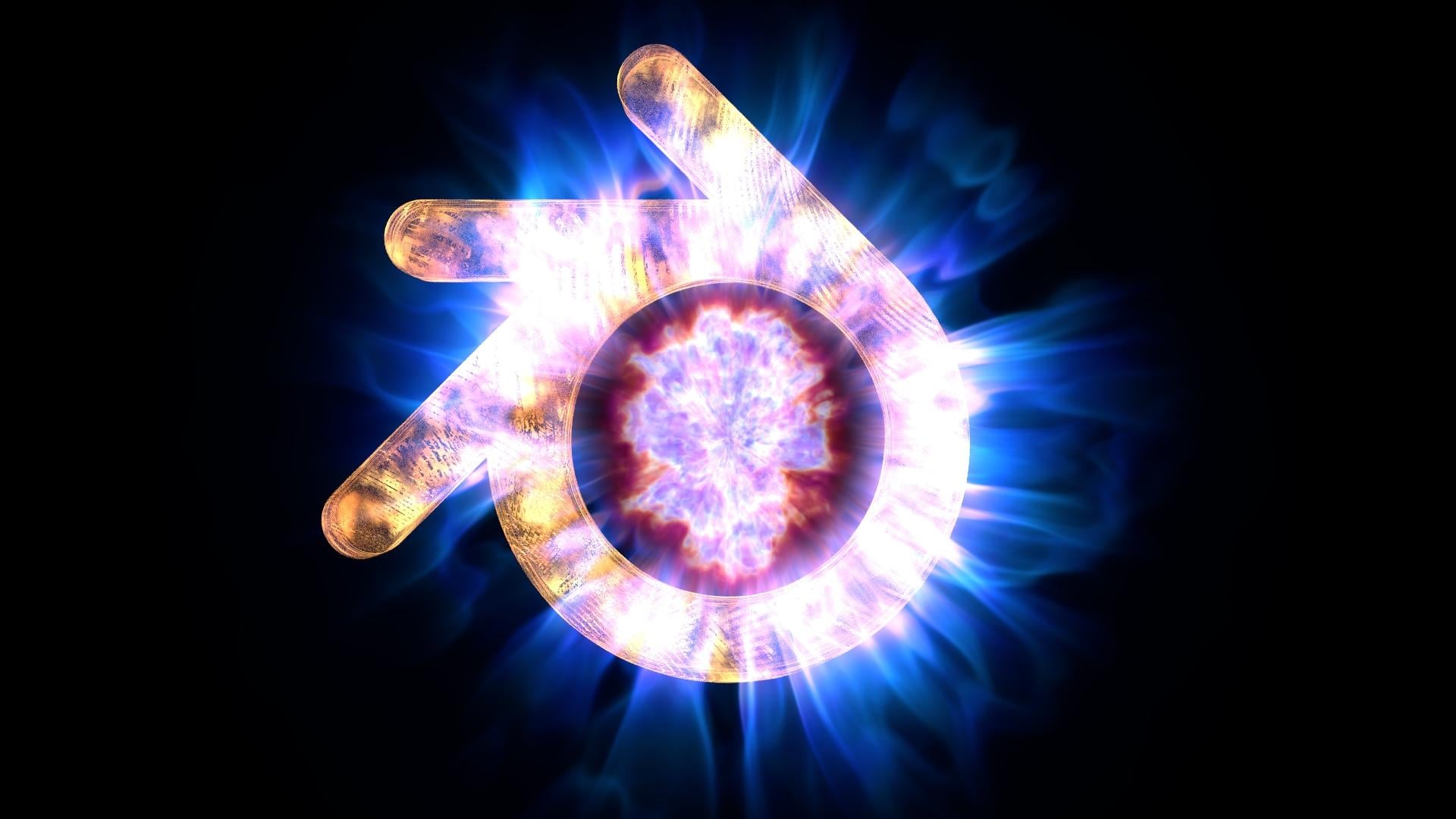
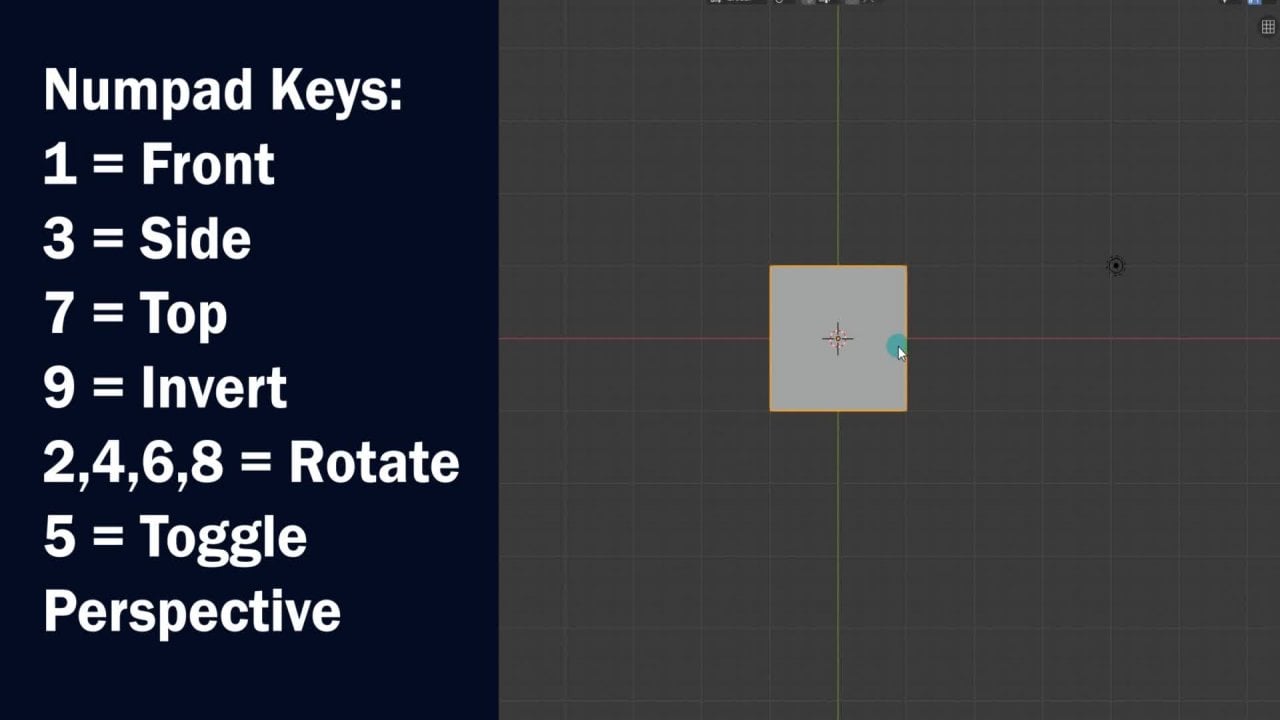
1. Lecture 1 - Modeling the blender logo: Hello. Welcome to the Blender Logo Animation project. In this project, we are going to create the blender logo animation that you just saw in this lecture. We will be modeling the blender logo object. One little thing we have to do is to activate a Edin called tiny cut mesh tools. Later in the video, I will show you where we will use this. We can search the head on with the letters a C a. D. In the search bar. You can find more information about this ad on fear. The documentation thing. We can close the user preferences window and the lead out Default Cube. Since we are not going to need it, we can change to front few with the NAM paths. Hiroki, we can open the properties with the n key and check background images. We can set the few to front view and click on open to find and select a blender logo image . Remember, you will probably have it saved in your download folder. After reading the logo image, we can send her the image by changing the coordinates. To start the modelling process, we can add a circle mashed. We can change the amount of Firdous ease off our circle to 80 and increase the radius to match the inner orange circle. We can also change the X rotation to 90 degrees. Then we can manually allying the circle a bit better by moving it with the jihad key or scaling it with the S hockey. We can duplicate the circle, which shift D and scary to match the outer orange rim. We can duplicate a circle again and place one at each end off the logo as shown. Remember, if you are unsure which husky was used or which most button was clicked, checked the mouse icon on the bottom left. Now we can switch to edit mode with a tacky and duplicate one for tax and extruded to make etch or line. We can tweet the angle by rotating the edge. With the are hot key, we can duplicate it and place it on the other side. Make sure the Etch Align With the Circle has shown in the video. We can then duplicate both etches and align them on the second enter part, - you may need to skill the smaller circles a little to match it up. - You can also scale it in edit mode. It does not really matter. Then we can select these two for disease and merge them fire the specials menu. We can do the same for the other side. Now we can select the two other small circle objects and merge them into one object with the less selected object with the control J. Key. Then we can also merge the selected for disease, as we did with the other small circle. - Now we can merge all the selected mess objects into one object with the control J. We can also merge the selective furnaces hair. Then we can use the tiny cat and on to create a for tax. Where the selected edges cross each other, we can see that a for tax was created. Where the edges intersect, we can the leader to selected edges. We can also use the cat toe with the other selected edges. As shown in the video, we can also delete the not needed edges. We can lead the not needed for dis ease with the circle selection toe, which you can activate with the sea hot key. - Now we can select all the foresees with the a hockey and extrude with the E hockey. After we can move the extruded for disease, you can decide yourself on the wit off the logo, but I think this looks good enough before continuing. You should use toe remove doubles to in edit mode, which you can excess fire the specials menu. I forgot to show this in the video. Now we can select the H that we used to get to before to create and apply ever fell on them . We can adjust the amount off befell and the amount of segments here. I will give it seven segments and increase the amount that the Bovell does not cross. Another edge hair You can select all the for to seize on the backside with edge loop Select with old plus right mouse button. Then we can dis elect the amount as shown in the video. Now we can create face with the selected for disease. With the F hockey. Now, we can do the same for the front side. Off the mash. We can close off the remaining openings by edge loop, selecting the foresees and using the F hot key. Now you can see our MASH is closed and water tied, as well as almost finished in terms off the modeling part. To finish off, we get back into edit Mount and select the faces on the front and back. We can only de select the four edges as shown now, with only the shown edge loop selected, we can add a bevel on the selected loops. Remember, the Ravel toe is in the specials menu. Remember to change the amount and segments. Hair days looks good enough. We can also set the shading type to smooth hair. It seems we're getting some strange artifacts on our mesh air. We can resolve this by going back into edit mode and select the faces on the front and back side off the logo. Then we can insert the selected faces with the I hot came, after which you can see a thin extra ring was created. This effectively solves the artifacts problem. We can use the same insecto on the selected Etch Loops. So now we finished modelling the blend the logo. Congratulations. We can go into front view and align the camera with the front view as well, using the control shift zero hot key with the camera selected. We can reposition it so that it aligns more with the grit. We can also adjust our border renders or that the logo fit inside to end the border. Then we can enable cycles few port render and adjust our song them to get some nice shot off our logo. Well, that was it for this lecture. I hope you learned something from this video off course. If you are a experience blender user, then you should have skipped this lecture in the next lecture. We are going to create the material for our logo. Thanks for watching and see you in the next video.
2. Lecture 2 - Creating the material for the blender logo: in this lecture, we're going to give a nice material to our logo, the same as shown on the left hair to start off. We can set our world background to black. Then we can select our logo object and apply to scale and rotation. This way, the current scale and rotation is the devolved. We can give our logo the developed material. First, by moving this window to decide, we create more space. Then we can drag out a new window and set it to the note editor. We can collapse the properties and tool shelf with the End and tiki, respectively. Let's increase the size off our note editor window. Then we can delete are diffuse shader. For the first part, we're just going to add the notes and later connect the sockets and tweet the values and settings. We start by adding the mix. Shader Note. This note allows you to mix to Shade er's. We can copy this note with shifty and place it has shown. Then we can add a transparent shader. The next one is the glossy Shater, and after that the emission shader. We will not yet connect the notes. This we will do when all the notes are placed. We can add a cholera, um note and duplicated as well. Then we can start adding some texture notes, beginning with noise texture, which we can also duplicate two times after and place them as I do after the noise texture . We can add a break texture. Then we add a for annoyed texture. Next up are two mapping notes to be placed as shown. The last note will be our texture Cordant notes usually placed on the far left. Now we can start connecting the sockets off the nodes. I suggest Just look what I am doing and copy it After connecting all the suckers, we can select a rectangle with border render select. We can also enable few port rendering so we can see our shader update in real time. So now we will start changing the settings in the notes to get the shader we want. I suggest just copying my actions and pause defeat Dio when you want to experiment with the values. To be honest, I do not know how it all mathematically works in the background with all these notes, so I would be very limited explaining the logic behind all the notes set up since I mostly got there myself by experimenting actually the effects I am going to teach you in this course I have not seen done by other blender users. So I guess not many are experimenting with volumetric shader like this. Remember to keep an eye out on the real time. If you put rendering, you can see that not much changed for our shader. The secret lies here in the color At nodes we can set both color ram notes on the east setting. Yes, you can see even a small change to the color and note can make a big difference. This is also because this colorant note functions as affect er for the emission and transparent, glossy Shader seems we do not need our lamb. We can select it and move it to another layer with E m hot key. After selecting our logo again, we can continue working on our nose. We can change the color off the middle handles toe orange, the left and right handle. We can give a yellow color. Yes, you can see we slowly starting to get the shader. We want to get the stripey effect. We can adjust the rotation in our mapping notes. Then we can move the Hendel off the scholar and now toe a just a noise texture level. Let's go back toe arm epic. Note and adjust the rotation some more nets Human closer to our logo to better see our shader. No, you can see a little bit better those lines. We can increase the size off the lines by decreasing the foreign oy skill value. We can try playing with the mapping rotation to get a better look. We can also connect the mapping no to the brake texture nodes. This will give us a more brick like effect. The point here is to tweet until you get something you like and use that now We can check our logo with a bigger few port render window. I would say our shader looks good enough. We can always tweak and play with the colors to get something which is pleasing to the eye . I am going to give it a more orange tend since the logo is orange. Now, I am just going to play a bit with the different notes to check out different looks for our shader. What I suggest before you start tweaking is to save your file so that you can always open the UNT Week Shader again. Here you can increase or decrease the size off your noise texture. I will leave it at cereal 0.6, since it looks decent. So I declare our shader as finished. You can always play around with the notes after you save your file to keep the created shader safe. Well, thanks for watching and see you in the next lecture.
3. Lecture 3 - Creating the big blob sphere & and small sphere: in this lecture, we're going to create the to volumetric spheres shown inside and around the blender logo. These two spheres are similar that we did before, but we are going over the creation process again since they are a bit different. First, we can snap the treaty cursor into the center off a few bored with the shift s key, we can then add a UV sphere which will be placed where the treaty cursor is positioned. We can then scale the U fi spare with the S key with the U V's were still selected with the MPAA King. We can place it on the second layer. Since our logo is on the first layer, we can then go ahead and give it the devolved shader. We cannot see any nodes in the note director window because they are out offsides with the Komaki on the NAM. Bet you can send her to selected nodes. So if usual, we can to lead to the Bush Shader and added emission shader instead. Next we add the Color Ram Shader. We can also start the cycles pre few render by defining the border first, which if b after the cholera um we can ads first a for annoying texture note and after that , the great in texture note and placed them accordingly. I will stop putting pointing arrows in case of notes that we have added a lot already. We can put the Grady it note on quadratic sphere setting, after which we can add the mapping note for the last note. We can add the texture corden of nodes. We see that we have too many lines in our sphere by setting our foreign oy scale value toe around. She'll 0.2, we make them go away. We can increase the strength off our mission. Shader. We can also put our cholera, um on the east setting end with left handle selected, we can set the position to around zero point Syria 07 We can move the right handle more to the left and give it a bluish color. Of course, In the end it is entirely up to you which color you prefer. I am actually going to give the left hand no opposition off 0.5 since it gives a slightly better fading effect. Now that we finished our small sphere, we can proceed, creating the big sphere around the logo on the third layer, we can again at au fie sphere and scale it up a bunch. We can also shift Select the first layer to see if the local object fits well inside the big sphere, we can scale bigger if needed. We can de select their one which shift, select as well and increase the note editor window so that we can start with the Shader by giving it to the vault Shader. We can also switch back to cycles, few port rendering and after the leader diffuse note, we can start by adding the emission Shader s usual. Then we can add the mad note and set it to multiply. Then the colorant notice next, followed by the brick texture notes as the last texture notes, we can add the foreign oy and the noise texture and connect the sockets as shown here. We can see that we are already getting some nice texture. Remember that the Dexter is actually throughout the volume off the sphere so you could fly through it with a camera. True, these textures we can duplicate the mat note and place it next to the foreign I note and said it to a minimum. Next to that, we can add the Grady in texture. Note. Then we can add a mapping note on duplicated as well. We can switch both mapping notes on the texture setting. Then, as the last note, we can head off course the texture. Coordinate note and connected with two mapping notes. You can see in a brief your render that are. Shader does not look like much, but a small change, such as setting the foreigner skill to 0.2 and switching the graded Noto quadratic sphere changes the whole thing. I am just going to change some small failures to slowly get the desired result. You can observe and do the same to your shader. Now, to make the most important change into our shader, we're going to tweak our cholera, um by setting it toe piece blind and change the handle position and change the color to blue. We can also add handle with the blood sign and said its color to black. Don't worry, us Fair did not disappear. We just need to increase the multiply, fail you off are met no to 6000 and there we almost have to shader that we set out to create. By setting the minimum value to 0.2, we removed the unwanted blobs from our shader. Now you can see how all that we have created looks like together by shift, selecting the 1st 3 layers. Let's move the big sphere a little to cover the local completely. So now we have completed the small and big sphere and the logo. I should say it looks quite good to conclude this lecture. I wanted to play a little with our bigs were on Layer three. By changing the location value off our mapping note, we can move the texture this fell. You can, of course, also be animated, which we will do in a later lecture. We can also play with the noise, texture, scale, detail or distortion. So I advise you before experimenting to save your file first and then play around, play around to your heart's delight. I hope you enjoy this lecture and see you in the next lecture, where we will create a more complicated shader. Thank you for watching
4. Lecture 4 - Create the inner energy cloud part 1: in this lecture, we are going to create a part off the logo animation that looks a bit like the I also Ron from Lord of the Rings. In this lecture, I am only going to show you which notes to add and connect the suckers. Shutting the failures to complete our shader will be done in the next video on layer one. We can add a new U fi sphere which shift a and scale it too, so it will be slightly bigger than the entering off the logo. We can give our new mashed the fold if you shader, we can give the note at the window the space it needs by moving the borders. As usual, we deleted a few shader and at the emission shader, we can add a cholera note and duplicate it with the shift tiki and blaze it in one. Rome, after moving to Colorado, knows a little bit to the left. We can add color mixed note in place and connect it next to the emission note. We can also duplicate the cholera am one more time and place it below the other one and make the socket connections. Now we can add a foreign, I note. Next up. A noise texture notes. Now we're going toe. Add mednotes and duplicate and place it a bunch of times. Please do the same and connect the sockets accordingly. Please don't be overwhelmed by all those mad notes. Most of the time, I also did not know the logic behind our placement, especially when it became complex. I mostly created the shade er's with experimentation and at the end only understood 50% off the logic of it. But it was enough to create something worthwhile after finishing. Duplicating the math knows we can add a Grady in texture notes. We can also duplicate the creating note two times and place them accordingly. We can add and duplicate annoys, texture, knowns. I forgot to duplicate and place to met nose up here, so let's do that right now. Now let's duplicate another noise texture note and place four of them up there with the Just edit math knowns. Let's add mapping, note and duplicate it six times and place them in a vertical row with one on the side. - We can also make the socket connections as shown for the less note we can add a texture cordant note and connect it with all the mapping notes. - Now that we have added all the needed notes, we can move our object from the first layer to the 11 layer, which is below the first layer which shift B. We can select Orender border and enable few port rendering just to check how it looks like . It seems it does not look very interesting yet, but we are going to change that in the next video. This video was probably a big boring Probably all my videos are boring with my robot like voice, but in the next one, at least we're gonna do some cool shading. Thanks for watching.
5. Lecture 5 - Create the inner energy cloud part 2: so in the second part off creating the inner blast. My cloud. We are going to set up the failures and settings off the nodes to get the results you see on the render. The first thing that we are going to adjust its disconnecting the color mixed note because we are only going to use one Colorado note in this video, your other one or for the next lecture. So this still connected Coloradan note we are going to modify later on. To start, we are going to give all our Met knows the correct settings needed to get a desire changer . I am going to help you with aero signs to point you to the right note that you then have to modify. - That's just in between. The math notes change the Grady in texture settings to quadratic sphere so that we can start seeing something in the few boards. After the map note, we can start giving all the texture notes, the right values and settings, so please pay attention to what changes I am making this noise Note. We are leaving for the next lecture. - Now we're going to shit all but the top mapping note to texture, setting the top one we set to normal. We are also going to change some off the location and rotation values in these two nodes. - Now we can start adjusting colorant note to finalize our shater on the colorant note. We can add two extra handles. The two new ones we can give a color and leave the most left and right handle Black. Moving the left handles slightly to the right or give to shader a better fading effect. We can give one handle a blue color to check in the few port. How it looks when in top few we can see that are shader is not symmetrical. So I I must have done something wrong when changing the rotation value in one off the mapping notes. So that's correct. This I can see that I changed the rotation in the wrong MEP unknowns. So now it is symmetrical. The reason the shader is not round is because off the changes I made to the location and rotation off these two mapping notes. So now back in camera few it looks more like an eye because of the changes in the mapping nodes. So let's continue with our color am note. We can give the second left handle the color black and move it more to the left. Then, with the middle handle selected, we can add three more handles. So all the handles except the black ones. We can give different colors to see how it looks. I am just going to decrease the few poor trend assemble so that it renders a bit smoother. - So I think we're starting to get the shader that we want hair. But let's tweak our colors a bit more. Please note that the distance between the handles are also important. So I advise you to tweak the handle similar to mind so that you end up with a similar result off course. Few free to experiment after saving your file first. I think we are nearly there. It is starting to look good. I am just going to experiment a bit with the colors here before I leave the selected handle on the color red. It is always good to experiment with different colors. This way you will get to feel or what you like and what you don't like. We can play a bit with emission strength obviously too much trained, really ruins to Shader. However, you could make a nice pulsating animation by animating the strength value. So let's zoom in on that pre few render. It looks good to me. But in the next lecture, I will show you how to spice it up a little more. So I hope you enjoyed this lecture and see you in the next one. Thanks for watching.
6. Lecture 6 - Create the inner energy cloud part 3: In this third part, we're going to experiment with colors and textures to get similar Assault has shown on the left to start. Wait, we're going to give our shader some call a variation with the help off a noise texture as the factor between two cholera arms. We can delete this cholera am and replace it with a duplicate off the one above it. Then we can connect both upper colorant notes with the color mix nose and connect the color mix. Note with the emission Shader. We do not see any change in the few port because our to colorant notes are identical. What we're gonna do first is to connect this noise texture no directly into our color mixed factor suckers so that you can clearly see why we need to Colorado note on the bottom. I am gonna put my pre few rend assembles a bit lower so that the few board renders faster. I will make my render border a bit smaller less well. Let us now start changing the colors of handles off the second color of nodes. Third handle on green does not look so bad. You can actually see slight tens of red in between the green, but it is subtle now to make that transition between colors more apparent, We can connect the third color and note as shown, and put it on the constant scenting. You start seeing the effect when moving the right handle to the left. When zooming in on the pre fuel render, we can see the clear border between direct and green color. Now when we boot are holograms, entangle knees and that just a handles a bit, you can see that the transition is more like a fading effect. Let's change the more colors to explore different looks and moods for our shader, choose any color. Go crazy. Later. You can always open the safe file or change the colors back. As you see in the video. Let's tweak the settings off her noise texture connected to the bottom. Colorant noi distortion their stores the noise. But I am not a fan of it on this shader. By increasing the detail, you add complexity to the noise giving our noise. A smaller scale actually looks quite good. In this case, it creates a bit off nebula effect. You can make one of the two top Qala rams dominate by adjusting boat handles off the bottom . Cholera am to the left or right. I really like the current noise scale family. You. I might keep it like that. Let's try out some different colors on the top. Cholera An Let's check out the different settings off our color mixed loans. Some settings might make it look better While older Studi Opposite this color something. It's not so bad. It brings out the colors more. Me just playing around again with the colors because it looks so pretty for now, I will keep the color. This is quite a nice look. Of course, you can go for another color scheme to your liking. Now I want to show you what you can do with the mapping notes. Some real magic going on there. These values that we are changing you can also animate something. We will do a lot. - Weaken me or shade a brighter but increasing the emission string. It seems I cannot stop touching those colors. I think this might be it. The color scheme. I am gonna settle writ a real cosmic look. I think I will save this blend file Assumes the shader actually looks cooler than in the promo video. Actually, I record my voice after the video so that things stay more organized. One downside is that the atmosphere off the video is more mechanical. Let's zoom in on this bad boy. Let's see what we get by playing with these mad nose up here. We can get a cool effect by switching it to Modelo and then adjusting the family. You I will just a just a vendor samples. Hair seems to adjust it. Shader needs more simple, so it renders with less noise. I think this looks pretty interesting as well. Although we're not going to use days after final shader. Let's see what adjusting those noise texture values does to our shader something what you can do yourself is to try connecting random chosen texture notes to some empty sockets and see what happens. This is the method I use to discover cool stuff, so let's check out some other settings off the mat. Note instead, off the modelo one we have now, this one looks interesting in a way. - Sometimes different setting does not always give good results, so basically you can tweet the settings and at Brendan notes the whole day, and chances are that you will come across something nice. Luckily, I spent months experimenting to get to all the shade er's thought and given as bonuses in this course so you can save time and create beautiful artworks written. So whatever you have discovered playing and experimenting with this file, you can say with a different name for discourse. We can just reload the previous saved file. - So let's stick to it. Is Shader scenting so that we can move on to the next part off this projects. Thanks for watching.
7. Lecture 7 - Create the blue iris flame part 1: in this lecture, we're going to start creating the iris like energy effect similar to the picture on the left has always we're going to start off without previously safe blend. From from the last lecture, we can put our few board shading on solid and switch to the first layer. With the shift s key, we can set the cursor to center. In orderto add a UV Sverre object. We can scale this you fi sphere toe almost a full size off the camera render area used to great lines as the reference and the size off the logo also plays it behind the logo. In respect to the location off your camera, we can move our U. V s fair with the M King to layer 12. If you would count the layers from left to right, we can give our sphere that the vault, shader and the needed a few shader in the note editor. So now I am just going to show you which notes we need to add and which sockets to connect . Please follow along and do the same in your file. In this case, we can just use defector Suncor to connect instead off the color. We are going to duplicate the Met note a couple of times hair. Now we can add a mapping note and duplicate it two times. - For the last note, we can add the texture coordinated note and connect it with all the tree happing knowns. So now we have added all the notes we needs. In the next lecture, we are gonna change the families and some things to get the right Shader. This lecture was a bit boring, but I promise in the next election we're gonna see some exciting effects. Thanks for watching and see you in the next video.
8. Lecture 8 - Create the blue iris flame part 2: Welcome to this lecture. Everybody in this video, we're going to pick up where we left off in the last video by changing the note values and settings in order to create a shader, which is similar or sort of identical to the vendor on the left, we can start by selecting a few port render border, which shift be in setting the shading to cycles few port rendering. Then we can change the mapping known settings off all three mapping notes as shown now. I am basically gonna change the notes row by row. In the next two videos, we will experiment with the nose to get different looks. After recording the last video, I discovered that the highlight of notes are actually obsolete so we can delete them. We can change all treat cholera. Um, something's to be splitting. We can also quickly modify the values in this noise texture notes. We can bring the two handles off the first column note closer together, as shown. Then we can add extra handles on the second color AM note and give the ones colors like I do observed that two handles on the far left and far right needs to be black. Since I am a fan of Superman, I am going to give the two handles in the middle, the color red and blue. Now we can select and then the lead, the third colorant note and duplicate the second column aunt note to take its place. And suddenly the Shader transforms into one more off our liking. We can tweet the founders off this noise texture. Note a little to see what we can improve off course. It is ultimately up to you to choose the settings your best see fit for your shader. This shader is a bit render intensive, so that is why you will see me using a smaller, pre few render border. We can duplicate the top color. I'm note and met. Multiply note and place them below the bottom color of note and make the connections as I do. We do this to make a better fading effect, which we can control better with. The multiply value in Colorado handles. Now we will use the top color of note as affect. Er toe makes the to Colorado knows below it to make the effect clear to see we will first put the setting to constant. Then we can start changing the colors off the middle toe handles off our third colorant note we can put this color makes now something toe add instead off mix. We can see that the transition is sharp in the pre fuel render. We can change the setting on the top colorant no to ease or be supplying. Since we are going to want a smooth transition. We can also experiment with skill value off the connected noise texture. Let's give this handle red color to more easily discerned the contrast between the colors off the two Coloradan notes. Here you can see the purple and blue color with self transition due to be spy setting on the top. Colorant note. Now I am just going to let you watch me play with the colors to get some nice looks. I recommend you do the same on your end. I do at five shoe not to move the handles that were already given a black color too much. Also leave them black, especially the ones on the left side. - You can also move the colored handles a little bit to shift the color border more outwards or inwards. Just experiment a little, and you will learn from this process as well. - Also , don't forget to experiment with a noise note connected to the top Colorado. Now, by moving the left handle on the bottom colorant note, you can adjust the fading to black on the edge off your spare. So I think I am done playing with the colors for this video. I think our shader looks good, so I'm gonna leave it as it is. I suggest you to save this file as a separate plan file as shoo shoot to after each video so that you can always come back to refute your steps in the creation process. In the next video, we're gonna create a black center off the shader, which will be done with a separate object. Well, thank you for watching and see you in the next video.
9. Lecture 9 - Create the blue iris flame part 3: in this turd part of creating this volumetric spear. We're going to create the darks rare in the middle as shown on the render on the left. Now, to create this effect, we're going toe add a new UV spare and place it in front off the sphere. With our place my Irish affect, we can change to solid shading, rendering and switch to top u with the number at 70. Then we center the treaty cursor to the grit with the shift s key. After adding the U fees rare, we can scale and place it like I am doing. Then we can give it to the vault. Shader and Leader Diffuse note in the note editor This time, instead of the emission shader, we can use the fall yume absorption Shader The volume absorption shader absorbs the light within This were Then we can add a metal and said it to multiply next to the Met note we add a color and known and then ingredient extra note. Next to that with the Grady in type two quick trot tricks were I forgot to set the interpolation off the cholera and now to be splitting. So let's do that now it's also to finish off adding the notes. We can add the texture cordon and not now that we have finished all the needed notes. We can move our spare toe layer 13 with the M key and then select only layer 13 so that we can check it with a few port rendering. Now we cannot see anything because I background color is black. We can now change the background color in our world settings. Now we can see something here. Let's move the left handle off color and more to the right to increase the fading effect on the edges. We can also change the multiply Failure 200 with the left handle off the colorant note, you can adjust a fading effect as you like it. Now we pretty much got our light absorbing sphere ready. We can change a background color back to black and shift select layer 12 so that we can see the dark sphere with our bless my iris Fair a Thwala. There we go. There I plasma, which is eye candy to me. L oh, well, we can skill are darks were to make the black off the I bigger or smaller. I would say this does not look so bad. Actually, in the next video, I am going to show you how to make this effect more like an I instead of a bless mom, remember, we put the Black Spear in front. You could experiment how it would look like when it is inside the iris. Fear. Now we can shift select layer one and 11 to check out how it all looks, a little logo and the intern every line. So now you see how it would look like with everything in the end of the animation, since in the beginning there are also the blue spheres, as mentioned before. After each lecture safe, you file with, for example, the name lecture X with X being the lecture number so that you can easily call back on previous steps in the creation process. So stick on for the next video, where we will modify our iris plasma to look more like a human iris. Things were watching and see you in the next video
10. Lecture 10 - Create the blue iris flame part 4: So in this video, we're going to modify the settings and failures off her iris plasma sphere to make it more look like a human iris with the magic touch as shown on the render on the left. So let's dive into the nodes and start making some changes in the preview render. You can see that the burble part is not so much. We can move this color more out worst by changing the value off this mad note. Higher now, to make the texture on our shader smaller and change the complexion, we can make some changes to the stream nose hair. So by making these small changes in failures, we get a more refined iris complexion. You can always post the video and play around with the values. You can always change them back by looking at my values. Since pre few rendering, it's more straining on my GPU. With this shader, I will select a smaller area. Since I honestly like this texture complexion, I will move over to start adjusting and experimenting with the color and notes. So now I am just going to experiment with different colors for some minutes. I suggest you do the same on your computer. - Perhaps some different setting on this color makes note might work well. It seems that the different settings gives a nice color contrast, so I think I might stick with that. Of course, feel free to try other settings as well. So let's get back to playing with those colors. We can also try adjusting the skill value off this noise note, which acts as the size off the noise that separate the two colorant colors. So now I am gonna do something special here. I am going to duplicate the selected nose and place them above. Assume also the emission shader, which I forgot. Then you can connect the suckers as I am doing us well to connect the copy bunch of notes with the main No tree. We can use a mix shader note and make the socket connections as shown. We cannot see any difference. Since the copied cholera ums have no been altered, we can start changing the colors off the top set off cholera notes. Let's give it a reddish tend let's switch between the two Cholera, um, sets by sliding the fact toe left or right. Let's give our top set, more fire like color effect. Please pay attention. Which cholera and handles I select. This is starting to look pretty cool. According to my opinion, I can definitely see this being used in some cool projects like dragon eyes that moved inevitably, to name one ORF Empire Eyes or just any bad I bad as eyes. Now, instead of having only two color options for our I, we can also combine them by duplicating the top column note and connected to the factor off our mix. Shader. Then we can also duplicate a for alloy texture note and connected to the Colorado note as sure we can adjust the transition between the two color sets with handles off the newly duplicated cholera. Um, note. So let's check out the pre few. Wow, that looks pretty awesome. And now you know how to create this awesomeness as well. With this a robot and you can flip the color sense to have greater control over the transition off the two color sense we can duplicate and mapping, note and connected to our foreign or texture note, and also connect the mapping note with the texture Corden note at the end We can also connect these two nodes with the cord in that knows as well perhaps not needed, depending on what you like more. So let's adjust our cholera handles in the for annoyed skill value to change the transition effect. Romantically, I would say with a smaller scale value, we get a nice look overall again, I am gonna have a swing at those colors. It looks pretty cool already, but a little experimentation can't hurt. So I think I'm gonna leave the colors as it is now. A few free to experiment further on your side. So I think our magical iris looks pretty finished. One thing that you could try is to change the setting off this mapping No to normal. This way, the color transition emanates from the center off the spare in streaks. You can make the streaks more numerous by increasing the skill family you. But I think the lower scale looks better. So let's change it back to two in the mapping, back to texture. So are awesome. Iris is finished. I hope you all enjoy this lecture and hope to see you in the next lecture where we will start to enemy our creations. Thanks for watching
11. Lecture 11 - Animating the objects: So in this lecture we're going to start animating are objects, the logo and the different Volumetrics fears. This video is all about animating the actual objects. In the next couple of lectures, we will be animating the nude values. The first thing that we can do is to switch to solid rendering in the few part and only select the first layer. We can place the treaty cursor to center with the shift s key and add empty s plane excess . We are going to use this empty to parent our logo, the two blue spheres and the nebulous fear to so they can be animated altogether. We add a second empty a circle as official aid and scaling hope to be bigger than the logo . Then we can shift, select layer one tree and 11 and go into a wire frame fume to see the hidden spheres. With only or one entry selected, we can switch to cycles few porta rendering and check. If everything looks good, let's scale up a little. A big blue sphere. Since it seems the logo, it's not fully inside it. I see that our blue spheres, it's fading, can be a bit improved. We can do this by moving the left handle off our Qala ram slightly to the right to a position off around 0.7 We can de select Layer three and select both empties and move them to layer. For for better organization, we can select Mayor one and four. Then we can select first our logo and then the excess empty and press control P, and you set parent toe object. Now our logo, it's parented toe are empty, which means that you can move the logo and the empty does not move with it, but FISA. First it will. We can de select layer one and select layer 11 and four, and in the same way we can first like this fear and then empty to parent a sphere to it. Then we can follow the same process for the spare. On their two and three, you can select the layers as I have selected them here. Then you can make sure that all the objects are parented to the empty. By selecting the empty and moving it around, we get increased the size of a few Port editor and direct out another few port window and change it to the timeline editor in the Render Properties panel. We can change the frame rate 30 in the end, train toe 1000 you consume in and out on the timeline, and they're just like in the few part we can select Frame 700 with our empty selected, we compress the I key in order to create a key friend we can choose, Look wrote from the list, which means location, rotation. Then we can select freeing 400 plays the empty just behind our camera. Rotate the empty so that the arms off the logo faces south. We can also place it a little bit on the left side of the camera and rolled it around 25 degrees anti clockwise. Let's place it a little bit more behind the camera. Then, with the I K, we can add a key frame on frame 400. As local adult that's drag through the frames with our mouths and see how it looks in wire frame. It still needs some adjustments. Let's place it more behind the camera so that the big sphere is barely touching the camera . We can also make the key frame, offering 300 instead of 400. We can also rotate the empty so that the logo is stilted and at the key frame on frame 300 . Don't forget to the lead the key frame on 400 with the old I K. Let's played in camera few. With the number zero key, we can drag out another window and set it to the graph editor, which is also editor. To modify your animations. Here, you can see the item that you have currently selected, and here you can see the different key frames. Your added with a different excess s standard in blender key frames. Get at it with the base year interpellation. Thus, with smooth curves, I decided that it looks better toe have to starting frame on 400 instead of 300. So we can then dragged the key phrase directly in the graph editor. So let's check the animation in wire frame few to see if we like the tempo off the animation. I think the speed off the animation looks good. However, I would like to get on logo a bigger tilt in the beginning. In animation, there's generally a lot of tweaking and playing back the animation to finally get to assault with which you are satisfied with. I think this animation is good enough. For now. The unused frames between 700,000 will be used for the nebula and iris effect, so let's briefly check how it looks like just a logo. No data vendor is noisy because it is pre few rendering. Now let's check out how it looks like we're just a blue sphere by selecting layer to entry and playing back the animation. So now we have finished animating the objects. In the next couple of lectures, we're going to animate the notes for the logo in all the spheres. Thanks for watching and see you in the next video.
12. Lecture 12 - Animating the node values part 1: Welcome back in this lecture, we will animate the procedural textures of her logo object before we get started with animating the logo. Shaner I first wanted to adjust the location on frame 400 off are empty. Since the central blue spare is too much in the camera, I think it would look better if the blue light in the center of the local approaches from the bottom left. So in order graphic front few we can move the empty a bit more to the bottom, left as shown an update. The key frame on frame 400. So let's check if this looks better. I think it looks better this way. So now we can go and start animating the logo. Shader. After making the note editor window bigger, we can select our logo. So basically, we're gonna make this green stuff on the local move that's open a timeline window and decrease our border. Render size. We can also decrease are few port render samples so that we can see it move in real time. Better now, to make the procedural texture move, we only need to animate the location. Why value on our medic note so we can put our active frame on one and make a key frame with the I G while hovering your cursor over the location values off the MEP IG notes on frame 1000. We can key frame a location wife value off minus five. With our mapping notes selected, we can go to the graph editor and pressed Numb Bat period to send to the few to the key frames. With all the key frame. Select that we can presti and choose the linear interpolation method. After few in the pre few, we see that the texture moves way too slow. We can correct this by key framing the location. Why value off minus 22 frame 1000 again. I think this speed of change of the texture seems to fit better. One thing we can also do is to increase intensity off the orange glow. At around 700 freemark, we can keep frame the current value off 10 to frame 700 then at frame 600 we can key frame it at five. So now we finished the animation off the procedural texture off our logo. After saving the foul, you can always experiment with the nose to get different effects for your logo. In the next lecture, we're going to enemy to do Blue spares. Thanks for watching.
13. Lecture 13 - Animating the node values part 2: So in this lecture, we're going to enemy to blue spares, like in the short animation shown on the right. First, we're going to change this window to the Note editor. Then we can select boat blue spheres on their two and three. We can also create a key frame on frame 6 25 for the skill. Then on frame 700 we can scale are big blue sphere so that it is bigger than the camera field, similar to how I am scaling it and create a skill key frame as well. We can play back the animation, fire the timeline to see how it looks. Let's decrease the Pew fuel render sample so that it's renders faster. I just quickly moved this key frame to frame 6 50 so that the expanding off the blue spare happens faster. We can select the left handle off this key frame and pull it down this way. The expansion will not slow down at the end. It seems that our big spare does not expand big enough so we can correct this by scaling and bigger and key framing it again while being on frame 700. When playing the animation we know. See, at the blue off the smear covers the entire camera field a few We can make the angle here a bit sharper hair with our active frame On 6 50 we can select our mednotes and key framed value. Then we set the active frame to 700 change the multiply failure to zero and key frame it as well. With our Met notes selected, we can change the fall off off the less key frame toe a sharp fall off and we can make the first key frame more softer by pulling the right handle to the right. So I decided to move the last key frame of her mad note to frame 7 25 so that the fading out continues even after the scaling off the spirit ends. So I think this loose Scoot. Now we can move on to animate a smaller blue spare which is on there too. With our smaller blue spare selected on layer to we can end a skill key frame on active frame 6 50 We can set the active frame to 700 scale of our sphere with E s hot gay and key frame that again under scale with the number period key we consuming on the active key frames in our graph editor what we can do here. Like the Big Blue spare, we can make the first key frame softer and the last one sharp as I am doing So now, when we played animation wit and then without the logo, we can see the effect as the bigger blue spare. I think I will just move the first key frame a few frames to deride to make the growing effect faster. Now I want the sphere to shrink again after Fame 700 so I can put my active frame on 7 25 and skill my spear down a lot and key frame it with skill. Off course, we see the new key frame in a graph editor as well. We can modify the middle key frame to make it more sharper. Three. Animation In general, it's a real trial and ever game. You may treat more complex animations for hours to get it right. Luckily, in this course, the animations are relatively simple. Wait are active frame on 700. We can select our mission shade Arnold and create a key frame on its current strength value . Then with active frame on 7 25 we can give frame value off zero. Then, with only the key frames off our mission shader visible in a graph editor, we can make the less key, sharper and the 1st 1 softer. Now let's check the animation with all the tree first layers active, my computer is having difficulties rendering in real time. I hope you have a better, cheaper you to give you an extract computational punch. Now we can animate the subtle voice off our big blue's rare only your three so that it looks a bit like a moving blob. Doing this is easy. We just have to keep frame one of thes location values off this mapping note. As you can see in the pre few, it is up to you which location excess you choose, depending on which one you like more so we can put our active frame on one and create a key frame on any off the location. Excess values. After with active frame on 1000 we can slide one of the location excess values to, let's say, five and key frame it then in the graph editor, with all the key selected, we can change the interpolation to linear instead of beige. When playing the animation, we do not notice. Much changed since the Value five was too little in arm Epic notes with active frame on 1000 we can change the family to 20 and key frame it again, so it will update if you wish. You can also try to animate another location. Access value in the medic. No, to give more variation. I am just gonna change this value toe around minus 16 because a bright part was too much in the beginning, when the Big spear appears Now the appearing of the big spare looks better. So I think we're finished with animating to blue spheres. I think it looks quite all right in my opinion. Now, after saving this file as a separate blend file, according to the lecture number, you can experiment a bit more with the setting, such as with the detail off the noise texture that set their up. So I thank you for watching and hope to see you in the next video where we will animate the nebula effect
14. Lecture 14 - Animating the node values part 3: Welcome to this lecture where we will animate the nebula Effect has shown in the short animation below on the right, the first thing that we can do is to duplicate one of the member notes and place it next to this noise. Texture notes that the sockets connect. Now we're gonna make the energy in our neighborhood effect move by simply moving the location. Why excess value of our second mapping note Moving the value to the minus range makes the animated effect look better because it seems that the swirling moves toe works you so we can set it to zero value and create a key frame for the serial value on active rain. One. After that, we can set the active frame 2000 and change the location. Why excess value initially toe minus tree and then key. Frame it with the I came then, in the graph editor. We can select all the notes with the A, K and Presti to choose that linear interpolation method. When playing the animation, we can see in the preview that it kind of goes too slow so we can change a key frame the value to minus 10 on active frame 1000. For me, it's still it. Did Bentos Loach Iook for him? It again on my abs 13 on frame 1000. I think this looks good enough, so let's go and enemy the next note, which is the one we added extra in the beginning off this lecture here, we're going to animate the transition noise that serves the factor between the two color I'm set with our active frame on one. We can keep framed, appointed to fail you 20 Then on Frame 1000 we can change the value from 0 to 1 and key frame. And also we can change the interpolation to linear for this note in the graph editor to give our neighborhood more dynamism in, We can animate the rotation wife value as well, so we can keep famed zero value to frame one in the 900 value to frame 1000 again with a, we can select all key frames in the graph editor and said it toe linear interpolation In the pre few, you can see that the red and blue border moves dynamically. So now what we do is to make our nebula light up from dormancy at the moment, the blue sphere on layer to brightens since the blue sphere on their tree is the brightest on frame 700 or nebula also will be bright there now to make or nebula appear and disappear, we need to change the value off the highlight. It meant note, so we can create a key frame on this value. When the nebula is small and dark, like in the pre few around value minus 1.2, we can choose frame 6 54 that then when we said the active frame to 7 10 and keep framed the value to zero point For now, when we few that you're two and 11 together, you see that it looks interesting like a dormant nebula that is going to manifest with playing the animation. You see that the brightening ISS synchronized. If you want to experiment with this nebula, make sure you say first. Since this shader is delicate, with all its met knowledge and stuff, you can always make the total shader brighter by increasing the emission strength. So I think we're finished animating or nebula effect. I think it turned out pretty well. So I want to thank you for watching and see you in the next lecture where we will animate the iris
15. Lecture 15 - Animating the node values part 4: Welcome back in this lecture, we're going to animate the iris. But before we start, I would like to add that after the end of the last video, I changed the scale off the foreign oil so that the red parts are smaller. I changed it to four instead of one. But you can choose what you want now in orderto enemy direct parts, we need to do something similar like we did toe are never line. We're going to animate the location wife value off our top mapping note and the rotation wife of U. S is hinted to entitle off the mapping note. So what are active frame on one? We can add a key frame for the location. When this value is zero, we can do the same for rotation. Then with our active fame and 1000 we can change the location. Why value toe minus three and create a key frame for the rotation wife value? We can keep famous value off 150 degrees. It is a bit difficult to pre sure, but I think it is all right. According to a small pre few rendering. We can also do the same for the third mapping note with the point setting. So for this one also key frame. 04 Location. Why excess on frame? Zero at minus tree owned frame 1000. We can also set the interpolation to linear in the graph editor. For this mapping notes, however, there's no need to enemy the rotation or this one. Now the Irish. We are also going to animate so that it appears around fame 700 life to never lie effect so we can set the active frame to 700 key friends scaling off the Irish spare object. Then we can set the active key frame at 7 25 and scale the Irish were very small and key. Frame it again on scale. Also, we can select the skill key frame in the graph editor and smooth it out a little like I am doing the right handle off the key frame in the same manner. We can sharpen the scale key frame on frame 700. But when we played animation, it seemed that it should smooth out in the end as well. So what? They're still selected Handle on frame 700. We can make a smooth transition, but still tightly Smoot. So now when we play back the animation, the scaling ends in a smoother way. Now, when we select layer 23 12 and 13 and school through their frames, we can see that appearing off the iris coincides with the other effects. - We can also check the pre few rendering within everyone and local objects on layer one and 11 . I cannot really play the animation real time, since my computer is not strong enough for that. So now we have finished animating the objects and the notes. I suggest you saved this plant file and then experiment further on what you think can be improved or simply played with to get different cool effects. But I think you were watching and see you in the next lecture.
16. Lecture 16 - Setting up the render layers: in the short lecture, I am going to show you how to set up the render layers. Render layers can be used to break up your seen in the render process and effects to them in the composite er. In the scene, tap off the properties you confined Orender layer options. First thing you see is the current red layer with a very original name, which you can change by double clicking on it. I will name this render layer logo and small smear with the plus sign. We had another in the layer, which we can call Nebula and Big Sphere. Then we add 1/3 render layer which we call Irish and black hole. No, With our first render layer selected, we can click the scene layers here that belongs to that render later. This small sphere inside the logo is on our second scene layer, as you can also see in the preview. So we can include this one too. In our first render layer. No for a second, when layer we can select seeing layer three and 11 where the big spirit and neighborhood or respective me, if you're not sure which layer things are a quick preview render were clear that up. What 1/3 and final render layer. We can select the scene there 12 and 13 now with the exclude layer selection, you can choose which she layers will not affect the scene. Layers in the selected render layers. For the first render layer, we can exclude layer 12 and 13. For the third render layer, we can exclude layer 23 and 11 and for the second layer 1 12 and 13 it is possible to change the amount of render symbols for each render layer hair, since some scenes need more samples than others to become noise free, this is very useful. Differs. Renda Layer needs 30 samples. The second needs five and 37. The 30 on the first is needed to clear out the noise off our logo. Object the fall. Your mental experience don't need many symbols. When using custom samples for the render layers, you need to make sure that you have set their layer samples on use in your ender properties . So that was it for setting up there in the layers and the rim. There, symbols forage in the next lecture. We're going to set up all the notes in the composite ER, things were watching until next. Video
17. Lecture 17 - Compositing the scene: in this lecture, we're going to connect all the end the layers in the composite ER and add some compositing effects to them on the left. You can see the finished result off to still renders in the Note editor. We can select this. I can't on the button to switch to the composite ER. We can click this check box, and you will discover that the combustion also works with notes. Just like with our shade. Er's two news could automatically add it. Your composite output and our first render their note. We can copy the render layer now two times and place them below each other, and we can change the renda layer off the second note to Nebula and the third toe iris. You can also collapse the notes to save space with the downwards arrow icon. Now, in order to put their end layers together, we are gonna use a color mix note, and by dragging the color mix known over a wire, it becomes yellow. And then we can release the note, and it connects automatically after duplicating the color mix. Note. We can make the connections as shown in the video and changed the setting for each of them to add. We can also add a fewer note, which enable asked a few Orender in the background off the composite er. Let's make a test surrender to see if our notes set up works. You will see that each render layer, render separately and then after each gets combined again, fear the composite ER notes set up. You only see apart since I selected small when the border in my few part. So now when we enable backdrop, we can see Orender directly in our composite ER. We can add other notes and see the effects in a composited background without re rendering are seen. No, it's at a glare note and the who saturation note and connect them as I do with the U Situation Value note connected to our iris renda layer, we can increase the saturation to give a greater color contrast. You can see it update in near real time. The glare note we can connect are never larva in the layer and changed the setting to FARC glow. By lowering the tresh hold, we can increase the effect off the glare off course. One can also overdo it. I think I will leave it at 0.5 we can duplicate are glare, note and edit to our first rental layer. I am again adjusting tresh hold to increase or decrease the glow effect it seemed that are glare. Note. Our local object does not work very well, so I guess I will disconnect it. Getting a good look is also a game of trial and error. By increasing dispel you, we can increase the overall brightness. So let's start Orender off the whole scene by selecting the entire camera field s render border or disabling the rending Orender border with control. Old B. So there we have our final render. I think it looks pretty cool and intense. Also, it took on Lee around two minutes to render so you could easily render animation with this . So let's render now a different frame, such as around 504 team. In the video editing, I left our most after rendering part to save us both Time Luke school. You can see the dormant nebula part, but that is about it for the composite er in this project. Off course, After saving the file, I urge you to experiment with different effect nose in the composite ER to check out different looks in the next and last video. For this project, we're going to set everything up to start the rendering process for the animation. Thanks for watching.
18. Lecture 18 - Rendering the scene: Welcome to the final lecture for this project, in which we're going to set up the render settings correctly for rendering the animation allowed to start to render. Let's make sure all that to include it, seeing layers are selected and that the three render Let your spark check India Vendor properties. We can make sure that the render presets are set toe HD TV 1080 p. But you can also render 7 20 B when you want a lower resolution taking less time to render . Make sure the frame rate is at 30 Phoebe s, so it runs smooth. Now for the start fame, we're going to check at what frame the big loose fair comes into the camera field with the hell off. Our brief you render frame for 30 seems to be right before the blue Starks bearing. Thus we can send the start fame at 430 as shown in our previous lecture, we're going to use to render layer symbols that we gave to each run the layer. Let's make it to 40 for Renda, layer one. Then at the output, we are going to choose a location to save our frames Of course, your foul bat obviously look different. I had this icon. We create a new folder and call it frames. Then we opened the folder and give the future frames the name frame blender. Will that save each fame separately as frame one frame toe, etcetera. We can press. Except now I am just going to save this Ben file esta lecture number now for the output form it. We're going to choose J Bag because we're going to render each frame as a picture file first. This is coming practice in the animation industry. We're also going to animate the seat value. Doing this makes sure the noise on each frame are not on the same place, making our animation of better. So on. Train one, we can keep frame a seats value off one and on frame 1000. We can keep Ramos heat value off 1000. Now you can see when scrolling through the frames that the seat value correspond with the active frame. Now at the performance section, I will leave the settings as ISS since there's something is best in combination with a GPU . So now when all the settings are properly set, we can go ahead and press this button that does all the magic in blender on top of the render, you will see more information such as frames, time and more. I know the render looks black. That is because the big blue sphere still needs to a pair. Now we can check in our Frames folder if the frames are actually safe there, which they are indeed. Now, in order to render all the frames in a movie file, we can open a new blend file. We can drag out a new window and set it to the fio sequence editor. Then we can choose the sequence off rendered images. Since we only rendered one frame, I would choose to frames from my intro animation. We can select all the frames with the A hot key, and we can press at Image Strip. We can adjust the N train to match the end off the purple stripped. Then, when pressing this button, we can preview the animation. Also, make sure your frame rate is a 30 bps, just like how you rendered your frames for the open format. We can choose what I am showing, but usually what I do is to first render in a V i J back and then conferred it in another program such as hand brake. More information about render form. It's you will find in the extra return information before this lecture. Then we can choose the folder to save our animation. Then finally, we can press animation. However we see up here that we get a our message. This is because I still have border under active in the Tree of Defu, part which we can disable with control Old B So now we can see the frames being rendered in tow. One movie file. So this concludes the final lecture off the blender local project. I hope you enjoyed following this project and that your version of the logo looks cooler than mine in the next project. We are going inter dimensional with our energy dimension project in which I am going to teach you how to create even cooler stuff. So I thank you for watching and see you in the next project.
 Roger Bootsma, Blender instructor & stuff