Transcripts
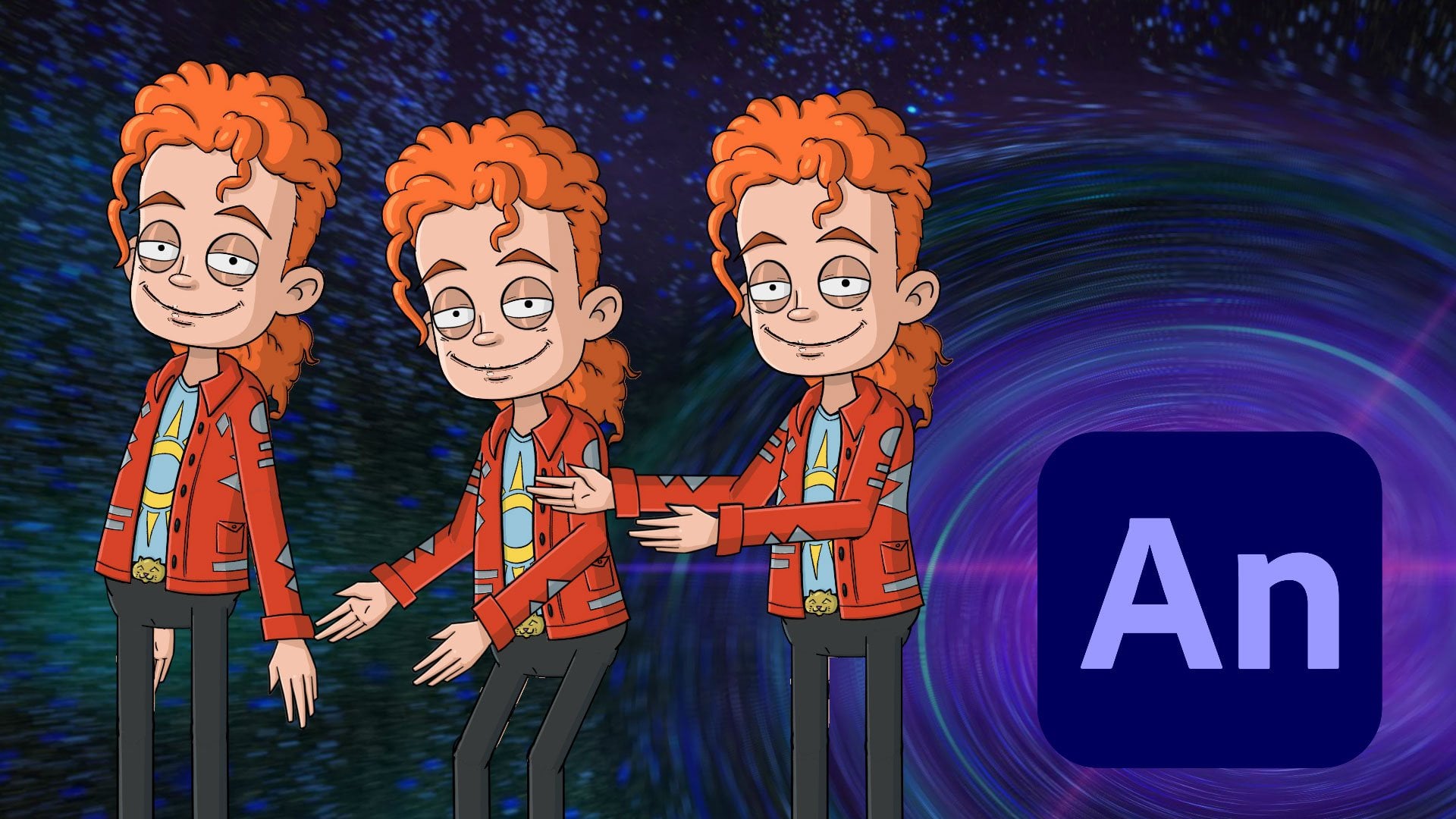
1. Introduction: Hi there. My name is Chad trough Gerben. And you are watching how to color, shade, and highlight a cartoon character. Previously on this platform, we went in and sketched out a character as well as added inclines to help define the character. This is now the final portion of that process where we take an already ain't character, apply colors, shades, and highlights. You can use this for any design project. Or if you're like me, you'll eventually be taking a character like this into an animation software like animate or Moho to bring him or her to life. And so that is the intent here. And up to this point, we've been building up our layers to accommodate for animation. And so we'll be continuing those techniques as well as simply coming in and adding more details to the character to help make them stand out. So if you're looking to add some color to an inked character, or perhaps get some tips on shading in highlighting, you are looking at the right class. So I hope you're ready because we're about to get started.
2. Coloring the Head: For this video, we're now going to focus on coloring the character. And we'll start with the head. To begin, we're just going to bring everything back here in terms of visibility so we can see what we're doing and just kind of get an idea of what this looks like. Now for your rough sketch and the reference, you can hide them or remove them if you wish. So we're just going to do that and keep the reference for right now so we can reference the colors. And once you have all that set, we can command in hide everything except the head. If you want to have a cleaner shot of what we're going to do here. So coming in here we can just hide it. All the main groups, all of the limbs, the body, and of course the front arm. Now, we can go into the head group, tap on the head so we can start on the main part of the head. And there are several ways you can color in layers inside of procreate. And so what we're going to be doing is referencing this layer and then creating a layer below, which will allow us to easily fill in. This will allow us to retain the line work of the original layer in safely fill things in. So with this new layer, we're going to place it underneath the head layer. This layer will eventually be merged with head. Here's something we can show you really quick. We merge these layers together. The bottom layer will always retain the name. And we could go into rename it to head. But one thing you can do that makes this easier is instead of making that new layer, you can as duplicates, head, tap on head underneath and then hit clear in the menu. So now you have an empty layer with the name Head ready to go. So that way you don't have to go through the process of renaming and bringing up the virtual keyboard. But that's completely up to you. Just a little tip. And going back here to the coloring, once again, we want to reference the top layer, which will allow us to reference the line work, tap on the thumbnail and choose reference on the bottom. Now this layer is tagged as reference. And so if we go to this head layer, and let's just pick a color for the skin. We're just going to quickly grab one here. It doesn't really matter. We're just going to demonstrate this for right now. And we can also hide the back hair just to make this even easier. And coming in here, we can drag and drop the color and it will adhere to the line work from the layer above that's referenced. Now we don't want that color is let's undo this. And we can use this reference and the side to reference the colors, but completely up to you. For our purposes, we're going to do that. Just take your finger and press down on any of the colors that you wish to reference. So in this case, we can tap on the face. You'll see we have the original color and the new colour contrasted within that oval. And when you release, you'll will be now referencing that color. So when we drag and drop, you can now do something like this. So what is this doing exactly? Well, let's visually show you here. We can hide some of these layers. That go along with the hair and such, and then even hide the outline. You can see that we only had the fill on this layer. Eventually we will merge these two layers together as discussed. But for right now, we can move on to the other pieces of the head. And we'll start with the mouth. As of right now, the mouth is only an outline and we don't have any flat colors to apply. So let's go up to the next group, which is the i's. We can drop that down. Before we do any more work. We need to make sure we reset the reference. You can only use reference on one layer at a time slot. Just duplicate the steps from before with the head. So we can select the whites of the eyes and duplicate that layer. Tap on the bottom layer and clear it. Then we will reference the top layer for whites. You'll notice that reference has been removed for the head now. And we can come in, tap and hold on the white of the eye for the reference. Or you can select your own. And then make sure you're in the whites bottom layer. And we're just going to come in and bring them in. It's a nice clean fill. You don't have to worry about any of the line work getting in the way. And we'll save the eyelids for last. Because we're gonna do something a little bit different for that. So let's go to the eyebrows. Grab the base color for the eyebrow, and we can bring it in. And you'll see it actually filled the whole screen. And that's because we forgot to set R reference. So duplicate that eyebrow, make sure you clear the bottom one. Reference the top one, go to the bottom one and then fill in. You'll notice that when we fill in, sometimes at the edges might not get covered or certain spots might not get covered. You can mentally come in and change that if you wish. However, when you bring the color and if you hold down and go to the left or right, you can adjust the threshold. And if you go higher, you can see now we're filling in those corners. If you go lower, it's going to be less. And so you can come in and adjust that. And you don't want to leave at high all the time because sometimes you might find that it will fill things in that you don't want it to fill in. So those are things you will have to play around with. For the back eyebrow, we can duplicate it. Referenced the back eyebrow, Go to the fill layer and then bring in our color. Threshold is looking good. So now we can go to the hair next. We'll turn on the hair and duplicate it. Clear the bottom layer, reference, the top layer. And we're gonna go through this pretty quick, since we've done this a few times now. But we're just going to grab that base color. Drag and drop. And by base color we mean not the highlights or the shades. Just see, you know that. And we bring that in. We now have the base color. And here's another tip. Since the hair is a little bit more complicated, you might have some line work that could be not connected. Let's say for instance, there's a spot right there that has a gap and you go to the fill there. Try to bring it in. It's just not going to work. You can fill that gap, but you could also come in with the threshold. And again, moving left or right, adjust until you get where you want it. Now you're sacrificing some of the details right there, and those won't be filled in. And so you kinda have to balance this. So make sure all of your line work is as close as possible. That way you can take advantage of threshold to fill in all the little details as intended. Now, with the main hair layer complete, we can move over to the banks. And this is going to be a little bit different. Just one extra step for the banks because we can't do that reference method right off the bat. Because we have a big gap with that shape, we can't fill it in. So here's how we can go about this. First, you'll want to duplicate your main layer to create that fill layer. And then go to the main bang once again. And we want to use the same base color we used for the hare, which is currently in our color swatch. We're going to use the brush and just come in and very carefully add a rounded off line like this. Just have it kinda taper in with the other line work. And even though it's a different color than the black lines, it will recognize this when we reference. So let's reference it. Go to the fill layer and just bring it in. And that's all you have to do. So now we can go to the bigger bang here. Duplicate that one. And we're just gonna do the same thing. We're going to clear that bottom layer, come up to the main one, and then use your brush and just come in. And just very gently come in here and add OFF a rounded edge. And then come in. We can reference that bang and then fill in with the bottom layer. Now we can tackle those eyelids, were going to approach these similar to how we did the bangs except there's going to be more to it. Let's grab the eyelid color from the reference. And then going into our layers, we need to locate the eyes group and then locate the whites outline layer and drop the opacity so we can reference that. Then go to the lids. And with the lids, there's a couple options we have here. We can just come in and draw an outline That's going around where we don't have outlines present. So we have one on the top there. And just make sure it's closed in enough. We can make some adjustments here as we go. But for now, we're just going to keep doing this for all sides that don't have the line work. So the bottom of the bottom eyelid just come in and try to trace to that line. You're a little bit inside of the eye. You're not tracing exactly on the line. You're just using it as a reference to come in and connect this line right there. And then we have the top one right here. Again, don't be afraid to zoom in really far to make sure you're capturing all those little areas that need to be hit with the line work so we can easily fill this in. So now we have the inking layer. We can duplicate it. And we're just going to clear the bottom one to take advantage of the name. We can reference the Eclair and then bring in the eyelid color and just fill it in. And here on this one we might have an issue with the line work. Let's just turn off the head here and see what we can do here with this. There might be some areas that are not closed in here. And again, this happens sometimes you just have to go in height some layers and trying to figure it out. Let's go back to that reference and try again. And now it works. With this all complete. We can come back, go to the whites outline and bring it back up to 100% for opacity, and then bring the head back as well. It's easy to see now that the line work isn't that great? And this is going to be one of these things where we're going to have to use precision. Go to the outline layer. So the top layer that we're currently referencing. And you're going to grab the eraser and just come in and very gently and slowly. Just trace over this line work and try to get some of it back. And you're just, you don't wanna go too far like that. Otherwise, you'll have something that doesn't look very good. But just by using a light touch, you can come in here and just kinda some of this line work to make it look better and you can go further in, once you have a first run at this, you might find, you just have to fill this out to get the original line width back in place. And we can just come in and do that. There we go. Top lid. And that's looking better. And we can finish the other eye off camera. It will implement the same procedure. But other than that, the head is now complete. So we'll pause the video here and up next, we will keep coloring the character.
3. Coloring the Body: Now it's time to move on to the back where we can come in and re-enable the visibility of the back hair. Duplicate it. We're going to clear the bottom back hair layer and then reference the top one. Go down to the back hair. We're going to reference the base hair color and just bring it in. Easy. We can now move on, hide that back hair layer just so it's easier to focus on the body. And we do have a few things in the body, but we'll just break it down one layer at a time and start with the shirt and pelvis were going to duplicate shortened pelvis. And then we will clear the bottom shortened pelvis layer and then reference the top shortened pelvis layer. And then once again, we're going to just reference the shirt color. Or again, bring in whatever color you want. Same with the pants. Just come in, bring in those colors. And again, you're just filling these in. It should all work given the line work is cleaned and nice. If you're having issues, you can always look at the line work or experiment with the threshold option. Next, we're going to just move up on this body Group and go to that cat belt buckle. So we can tap on that and duplicate it. Clear the bottom layer, reference the top ink layer, and then come in and just grab a color for the belt buckle and then just come in and bring it in. Up. Next is the jacket. We're just going to duplicate the jacket and repeat the same process we have been repeating. And the other are actually shortcuts you can implement with procreate with doing such tasks, since we are doing a lot of those. But anyway, going back here, we wanted to just use that Phil jacket layer, bringing the jacket color for the reference, and just bring it all in. And again, you can create your own colors if you're drawing your own character. Be creative in pick what appeals to you. For the designs, we can just come in, grab that color once again, and just bring it in. Again. There should be really no issue as long as your line work is filled in and complete and looking good. There we are. And the last part is the buttons. You could use basically whatever color you want, but we can just reference the jacket once again. And again. You're just going to come in one by one. Just drag and drop the color in. There you go. The base colors are now down for the jacket. We can hide those and then come up with the neck and color. We're going to duplicate this once again and clear the bottom layer. And this is going to be a little bit similar to how we handled the hair in the previous video with the banks, where we had to kind of fill in the line work. And let's just do this right now. Grab the jacket color and just come in and complete that line work. Right there. There we are. Just nice, simple and it connects. Now we can go back to the fill layer, actually reference the Eclair and just drop our colors. And you'll also see that we have a spot on the other side that's not completely filled in. So just once again, carefully just put in a little patch of color and then go back to your fill layer and just bring it in. We can grab the flesh color and just bring it over to match with the neck. Now if you look at the reference, the neck is actually darker given it's in the shadow of the head. So if you do want to make the neck darker, that is also something you can do and it does make sense to do that. And then we'll also add another shadow into that. So with that, we're now set up for the body in terms of all the colors. So we'll pause here and up next, move on to filling in the arms and legs.
4. Coloring the Limbs: For this video, we're going to jump back in and keep coloring. The first thing we want to do is hide the layers we don't need. So we have the body group, we can hide that. And then there's also the head. You can hide that as well. Next, we want to bring back the front arm as well as the other limbs. So you have your back arm and the legs. So just locate them and make them visible. We will duplicate the front arm, cleared the bottom layer. We're just going to do the same thing we did before. We need to make a reference of this, and we need to come in here and make our little patch. So let's reference the coat color and then come in and just add in that rounded line and make sure that it's connecting and we can create a natural taper doing that. Go to your fill layer and just drag and drop the color to fill it in, fill in the bottom part of the sleeve. And we can just grab the design colour next for the arm. That pale blue color and just drag and drop it into every spot where we have the ink for a design. With that arm complete, we can move on to the front leg and we will be going back to the hands and coloring those in. But for right now let's duplicate the front leg, clear that bottom layer, reference the top layer. And then we're going to grab the color from the pans, from the reference. And then using the brush. And making sure we are on the reference layer. For this, let's bring back the body. We want to do this simply because we can see where our boundaries are for the leg. And once we make that transparent and we can go back to the front leg reference. And keep in mind when you are designing patches for your limbs, you want to think of this as an oval or a circle because we are going to be pivoting from the center of that circle. That will allow for a clean looking motion when we are in animation. If you create a straight line, you risk the issue of having a jagged edge stick out when you move the leg. And you'll have different issues that can occur in different software and it can be a pain. So here, think of this as a circle. You can create that circle if you wish. Or you can just make something a bit more rounded, which will help for our purposes. And you can come in here and just taper off those lines so it looks more natural. And once you have that, you can go back to your fill layer and just drop the color in. And for the cuff part, we went a little bit later with that, so we can just reference that and drop it in. We can grab the ankle and just bring that in and drop it in. And then we have the SOC here, describe that base color, come in and drop it in. Now we're going to repeat these processes for the back limbs, starting with the back leg, we can duplicate it. Clear the bottom layer, reference the top layer. Grab the color from the first layer. And the back leg is more forgiving due to it being covered. However, it's good to practice making rounded off limbs no matter what. So let's just do that. Go to the fill layer, fill it in. And then we can just reference the colors from the front leg and drop them over to the other side. One more. Now we can move on to the back arm. Selects, just tap on that swipe and duplicate, clear the bottom layer. Then we can reference the top layer. Grab the red color. And on the reference we might want to, before we do anything, come up and just hide the color so we can see what we're doing here. We can also bring the body's opacity back up to 100% and then hide it. So that way we are prepared to go on to this next part. And yes, you're gonna be doing that a lot. Hiding layer is revealing layers. It's just all part of the process. But once again, on that reference layer, we just wanna come in and create that rounded off line. And you can go and really close. And again, just create a nice natural taper. And just come in here and add in those details. So everything is covered. And then we can go to the bottom layer, drop the color in, reference the color of the design. Once we get that sleeve down, so does come in, drop the blue color into all of your design areas. So there you go. And again, this is tedious, but once you do this a few times, I think you'll find the process goes pretty quick. The last part now is to focus on the hands. Let's go into our layers. We can go here to the top. And we just wanted to drop into the front hands after revealing it. Let's just zoom in here on the hands so we can see what we're doing. And getting up back to the hands. We just want to duplicate the bottom relaxed position, clear that bottom layer. And we can just do this all at once. That way we have our fill layer is intact and ready to go. So we can just duplicate all three hands and then clear the bottom layer for each. Before you start filling in. You can choose if you want to hide the other hand poses. It won't matter since we're referencing. But again, if you find it distracting, we can just do that and then reference the relaxed hand position. Let's just grab the hand to color from the reference and just drag and drop onto the fill layer. Once you do that, we can hide the relaxed hand layers and come in reference hand point and drop the color in, hide those layers. And then we're going to bring in the fist layers here, makes sure we reference the top layer for that and bring in the fill color. So now we're good there. We can close that up, go down to the back hands group. And we're just going to repeat this process, so duplicate all of your hands, clear the layers. And again, we do this just we don't have to go through the process of renaming. Again, you can just make new layers if you wish, but just a personal preference and do it this way. And we can just start with the bottom. Once again, we'll reference the hand relaxed pose and fill in on the bottom layer. Height. It go to the hand point, reference it, go to the fill, drop it in, and here you'll have to do this just a few more times to cover the fingers since those are also closed in. We can turn that off. And then we can go over here to your hand fist and then just drop into the fill layer with the ink layer being referenced. And there you go. So now the hands are complete and we now have all of the flat colors in place for those character. Will eventually have to go in and merge everything down. But for now, we'll pause here and up next, move on to adding shades and highlights.
5. Shading the Face and Hair: For this video, we're now going to jump in and start shading. Let's expand the head group. And we're going to go in here and locate the actual head layer. But the one that we use to fill in. So using the head, we're going to tap on the thumbnail to access its menu. Once you do that, tap on alpha luck. It's the fourth one from the bottom. You'll see now we have a transparent or grid looking background behind that thumbnail. If we hide the ink layer and while still on that fill layer, come in and with our brush, you can see that we can come in and color unlike any other time. But if we come down and start to color outside the lines, you'll see it will not allow you to do that. So you could come in and add any sort of design. Let's say this is an animal and you want to add stripes. You could very easily do that without creating a mess and going outside of your outline. And since the outline is on top of this, this will allow you to retain the line work while adding in these details. Now in the case of shading, we probably don't want to use this technical pen that we are currently using. So if we tap on the brush, we can go into the air brushing section and just grab the hard airbrushed. And you can play around with this if you want. And for this you can turn streamlined on. But in the case of Jimmy's preference, he's going to keep it low or off completely. Otherwise, when you're trying to make these detailed curves and such, the streamline process might take over and ruin the shape or trying to create. With that said, we can come back here to the layers and turn the inks back on. But let's stay on the fill layer. When it comes to the shading color, we could come in and reference the shade color we have on the side. But let's say you don't have a reference. Let's say you only have a base color and you're not really sure how to proceed, how to shade the character. Well, one thing you can do is start with the base color itself and then go to your color swatch. And we are under classic right now and you can see we have these three dials on the bottom. The bottom most dial allows you to adjust the brightness so we can go lighter or darker and you're retaining the color as well as the saturation. The middle allows you to adjust the saturation so you can go more orange or almost all the way to white. That's how saturation works. And then you have the main color dial, which allows you to adjust the actual color that you're working with. So let's sample the face color once again. And then we can just start to drop down the brightness. Bringing down the brightness. You'll notice that the two rectangles in the top left corner of the colors panel. Are now different, so we can compare the old color to the one that we currently selected, giving us a better idea of what we're about to do here. And if we come in and apply this, you can see we now have a shade color. Now, this might not be the exact color that you want. Let's say you want it to be a little bit more rich or perhaps darker. You can see that the original is a little bit more saturated. We can just undo with tapping two fingers on the screen, sample the face color, come in and let's darken it. But then using the saturation dial, bring it the saturation just a little bit. Now we can come in and start to apply the color. And we like this better. But again, it's all about personal preference. You can make it less saturated if you wish. And you can come in and just try to follow the lay of the face with your line work. If you don't feel comfortable with that, you can come in and make smaller strokes. So you could come in and just lay down one line like this. And then you could go in and fill in the area just like that and try to match exactly how we have it on the reference. Or you can make up your own shadows depending on how you have your scene laid out as well. And we can also turn off the hair for a little bit here and come in and just shade in the rest of the head. Although you'll never see that portion of the head, at least we have no plans to make the character loses hair and so are not going to really worry too much about that part. Now here's something else to keep in mind based on how we're doing this. Let's say you make a mistake like that. You put too much shading on. You can't use the eraser like we have in the past with our work. Because the shade and the color of the face or on the same layer. So you're going to punch a hole into that layer by erasing. To fix something like this, just grab your base color, come in and correct. If you correct too much, come back in with your shade color and just keep going back and forth until you get the shape that you want. And so that is one way you can work this way. Again, we've been using the eraser up to this point. So that might be an instinct to go and grab that. But when you are working on one layer, you'll have to jump back and forth between two colors. So now you can come in and just keep bolding this using a smaller brush and just very nice, distinctive strokes, creating a nice curve. To just come in here and round off that shading to make it look nice and smooth. And the forehead could also maybe have some deviation to the shape. Just come in and maybe arc the line work a little bit, shave off just some of it. And let's look in pretty good. Up next, we're going to focus on the other details of the face. So while still on that fill layer, we can command and just reduce the size of our brush. And start painting in some of the details here. So like the bottom of the nose as well as the underside of the nose just like that. And a little shadow. And we can look at our reference here and Everything else is looking pretty good. The only other area we could really add shading to on the face is the hair. We're not going to do the strands of hair. So let's just hide those bangs. And we now have our hairline pretty distinct here. And so while still on the head fill layer, we can come in and just add some nice even strokes here for the drop shadow of the hair. And it's not going to be that much you can do is make a nice little shade that comes in and does adds those details. Now looking at this, maybe we could add even a shade to the side of the nose like that, just to, again, add some dimension to the details. Now looking at the overall shade here, let's go in and just extend it that shade more to the bottom of the chin. And we can naturally tapered off just by coming in here and adding those deliberate strokes and creating that effect with the head. If we look at this closer, you'll see some details on the head such as the ear and knows have even darker shaded areas. So now we can come in and add that second layer of shading. Let's just darken the color a little bit. Command and just go around those outlines. And you can just kinda come in here and fill it out like so. It's added some shading in between those lines. I'll help pop that out a little bit. And then you can go to the nose and then just make the bottom shadow a little bit darker. There you go. And you could keep going and do more. And of course we have the mouth and the eyes, but those are separate layers, so we will be focusing on those separately here. So now, if we bring back our layers, we can move on to another section here. And you can have multiple layers on with alpha lock, unlike reference. So we're just going to leave head on alpha lock and then go to the front eyebrow. And we're going to alpha lock that bottom fill layer. And we're just going to repeat this process. We can sample the eyebrow color, bring it down a little bit. And we can come in and start applying our nice even shade lines. And it doesn't have to be too much for this one. You can just come in and add some light shade lines just to kinda help with the details. We can alpha lock the back eyebrow and just keep going here. Keep the shade lines on the right side. And that's because we are establishing a light source here. It's going to be coming from the left side as we have in the reference. So that's why the shades are symmetrical like that. And looking at this, let's just go in and keep moving here. We can alpha lock the hair. That is the fill layer for the hair. And We can grab the base color for the hair because the eyebrows are a different color than we had and we can just drop that color, come in and start applying the shade color. Now, again, if you don't like the colors, you can always play around with that. But this shape color should work for our purposes. And we might want to go a little bit bigger with the brush now, we can just kind of keep moving along here. And this is going to match the head in terms of where this shade is. So it's going to cover this right portion of the layer. And we can come in and add those little bumps and details to help with the shade and the shape of the hair. And then is fill it all in. And we can bring down the size of the brush and then come in with the smaller details. Were doing it pretty quickly here, but you can take your time and make more deliberate strokes. But here we're just trying to pop out the hair more by adding in shading here on the outlines here. And remember if you get into a spot where it's too messy, you can come in with the colour drop and just reference the base color and scale back the shading that way. And we can keep moving here. Just dropping Little Shadows end that, follow the line work that we've laid down. And you can just kinda keep moving along. And again, if you need to refine, you can grab your base color and come in and kinda into this and make your shapes more deliberate with a smaller brush. Nice sharp edges with your shades. And again, it's all a style choice. You can decide just how you want those shapes to pan out. But we can just keep moving along here, thinking about the light source. So we'll have some shade up there. And now we're starting to move towards that light. So the shade is going to be less dominant. Maybe just a little bit there. But we probably don't need much more than that. On that side. We can keep building the shading up. Let's just reference the shape color we just applied, and then drop it down a little bit more. We're just going to apply that second layer of shading like we did with the head. So we can start with the back part of the head where we have this hair and come in and just add this thin, nice darker shade. And you can follow the shape of the lines trying to get those little details in. And we're just going to add in wherever we feel it should be darker. And again, this is a matter of feeling it out and trying to reference or imagined where your light source would be. So we can punch this one out. Come in and punch this one out. And as you start to do more of these characters and build your scenes, the ability to sense where these lighting sources are will become easier. So hopefully by looking at this, it'll help you visualize where our light source could be. Command and built this up. And you don't even have to do to layer the shading, maybe one is enough. And again, it all depends on how you're going to lay out your scene, where the light source will be and how you plan to animate all that out. But it does give a nice effect, adding different layers of shading. And again, we can move back here and just keep bolstering the areas we feel need it. We can put a few on the top. Remember it's going to become less up here because of the light source. There we are. And we could keep going, but we should be okay for this and we could go darker. But again, what we've done here should be fine. You can play around with different settings on your own. For right now, we're going to pause here and up next, we can focus on shading the banks.
6. Shading Bangs, Eyes and Ponytail: We're now going to move on to shading the bangs. And we're going to implement a similar workflow as we did with the hair and the face. We can come in, we can re-enable the fill for the small bang as well as the large bang. And re-enable the inks as well. We can come in and alpha lock the small bang, Phil. And we're just going to reference the first shade color that we applied in the previous video. And come in and just start shading this in based on the line work. So those nice curves coming in to help pop out the original line work and does come in and apply nice even strokes. We can add a little bit underneath as well. There we are. And we can also apply the second shade of color if you wish. So we can grab that darker color from before and just come in and add a little bit here on the right side. Now we can go to the next Bang, again, tapping on the fill layer for this and making sure we enable alpha lock. We can come in and make sure we grab the shade color. Just start going in with the shapes and coloring everything in. When we get to the edge here you'll see we can't apply shading on the edge of the line. And the reason for this is because the original reference has that patch. And so it's going to clash with the shade colors since it's above the shade color, you'll see it's right there. Just to remind you. And so to correct something like this, what we can do is just go in to that outline for the Big Bang and come in and make sure you have the shade colors selected. And you can just come in and carefully painted over that area so that the line work is still intact and the shading tapers out naturally. We can then go back to the fill color layer and continue to shade in the rest of this bang. There we go. And we can just continue to fill this in. However we see fit. We can also sample the darker shade color and just add some little areas of that darker shade. Again to help pop things out. But again, since the Big Bang is closer to the light source, you might want to use the sparingly. With that, the banks are now shaded. We can now move down to the eyes. And we're going to focus first on the whites. Let's hide the eyelids. We can keep the pupils visible, and we just want to alpha lock the whites. Now. We can come in and grab the eye color and just do what we did before. Dropped the brightness down. And we can come in. And on the right side once again, just create a tapered off moon shape almost like a sliver of a moon coming in and overlaying on the eyeball. And we'll do the same over here since the light source is coming from the left. Just like that. And again, if you feel like you went too far or you can just grab the whites of the eyes and just scale back the shading. There you are. We could move on to the eyelids, however, we will save those for later. We're gonna do those a little bit differently. And let's now move on to the back hair. For the back hair, we're just going to come in here to our layers. And let's hide the head group and then come in and just reveal the back hair, the fill and the outline. At this stage, we could bring back the original hair layer to reference the shading color after we Alpha lock here. But here's something else that we can do to save some time, especially as we start to go back and forth with our layers. Let's say for instance, we want to be able to use that shaded color so we could tap on it to select it. Now we go and tap on the color drop. And you'll see on the bottom we have a palate. That's our quick pellet. But if we tap on pallets, which is on the bottom right, just tap on that and you'll see we have all these custom palette setup. But if we tap on the plus sign on the top, we can create our own custom palette. We could name it, for instance, Chad, since that's a character we're building. And it'll automatically set it to default once you create it. But you can also hit set default. But you can see here, the Chad palette is now available to us immediately on the classic view. Just tap anywhere within that pallet to save the color. So now we have that shade. We could come in and grab the darker shade. Go back to your palate and just tap into that pallet to save the color. And you could do that for all the colours if you wish. But for right now we're just going to do that for the back hair. We can hide that head once again, come into the palette, grab the first shade and makes your alpha lock is turned on and just start the shading process. We can use a bigger brush and just add in some strokes going in like this. Get a feeling for the shape of our shades here. And building upon this, we can just go in and bolster the summit since it is behind the character, it's probably going to exhibit some more. Shadows. And we can just kinda keep building it up, lower the brush. And like the hair, we can come in and outline over those lines that we established for the details. So does come in and fill it all in. There you go. And you can round off your little line marks here again to help with the shape of the hair. All the round areas that we're trying to emphasize. And it's just a matter of building it up. Matching the style of the line work and feeling things out. We can then cover the other line work here that we have yet to touch on. It just like that. Looking pretty good. Just get everything nice and even and looking like it belongs with the shape of the lines. And you can correct any areas that are needed. Again, just by sampling that base color, shrinking your brush down, you can shave off the shaded areas that are not as defined. So you can see here we're making more pointed edges with the shading just by coming in here in shaving off certain sections, tapering off the effect. So you can spend as much time on this as you want. Again, we're doing this pretty quick given the time for the tutorial, we don't want to spend hours on this for the video. But as you can see, there really is a process and an art to it. But for now, this is looking good for our purposes. Let's just grab the dark shade. Come in and just starting the darker shaded areas here. And just come in and hug that right side, get all that shading down and looking good. And again, as we get closer to the left, you're going to have less of that just due to the light source. But also you won't be seeing much with this hair past a certain point given the head is covering it. But it's just a matter of coming in and adding in your stroke lines and then cleaning up by sampling the base color. Tapering lines off shaping where needed. Reapplying the shade. And just doing what you need to do to make this look nice and presentable. And again, as you continue to do this type of thing, you'll get more familiar with how you should shade, where light sources, you just gotta think critically like that and the whole process starts to become easier. But this is looking pretty good. Again, we could spend all day on this for our purposes though, this second layer of shading works. So with that, we're going to pause here and move on to shading the body.
7. Other Ways to Shade: Now it's time to focus on the body. And before we continue, there's something that we want to point out. We designed this so that all of the elements of the body or separated out. And this is actually a good idea depending on how you want to animate. Perhaps you want to add physics to the jacket, or you're going into Moho, you might find having the neck separate is easier to animate versus having it attached to the body. Ultimately, in this course we're going to combine all the body parts because that's how I had the original rig set up. Before we dive into the animation courses I taught, such as rigging, a PSD and Moho, and recording and animating in character animator. And in those specific courses, we create the rig and the hierarchy of the layers specifically for the animation software that we're working on in that course. So I just wanted to point that out. So we're going to collapse the body Group, tap on the thumbnail and then choose flatten. Instead of now, the entire body is one piece and everything is looking good. Second, when it comes to doing a traditional shading effect, what we were doing in the previous videos works for simplified areas such as the face, which just has one color or one shade. However, with our body, we do have multiple things going on. We have multiple colors. And so in this video, we're going to teach you a different way to approach adding shades to more complicated objects. And what we're going to show here is actually my favorite approach for this. To begin, we're going to make a new layer and place it above the body. We can rename it to shade or shading and then tap return. Now, we can come in here and just to test this out, we can sample the shirt color. And let's just bring it down. And you could come in and you can start applying your shading effect like we did in the previous section. But as I said, when you get to this spot, it gets a little bit trickier because you have to match your colors and come in and do all of that work just to make sure you're not coloring things wrong. And so that can become a bit tedious, but you can do it this way if you wish. Let's just clear that shading for a moment and look at another option. First, we're going to select the body layer, which will act similar to alpha lock. It basically allows us to stay within the lines of the selected layer. So we tap on the thumbnail for body, we can choose Select, which is the second option on the top. Now, if we go back to the shading layer and we come in with our brush, we can just grab the brush tool and come in and just start applying colors. And you can see we can't go outside of those lines. We are, however, overlaying the line work. But by using different blend modes, we can. Help with this process. And so what we can do here, just to demonstrate this, is come in and choose black from the colors. And you can really choose any color you wish. But we'll just start with black here. And we can come in and just add in where we feel the shading should go. So you come in and you apply your shading to different areas, just like you would with any other layer. C can cover as much as you want and you can go in and you can just keep shading it up, putting in where you want these areas to be. Now, the thing about this is as we continue to build this up, we can come back to the layers and we can start to experiment with the opacity and the blend modes. So if we tap on the n, We have all these blend modes on the bottom that we can choose from. And depending on how you want to approach this, Let's tap on multiply. These will all have different effects. Now if we bring the opacity down, what multiply will do is sample the bottom color and then apply an appropriate darker shade for it. So it's just not referencing black and putting black over the top. It's actually going to reference the bottom color as well. And while it might be difficult to see, the blue has a slightly different shade than the orange on the jacket. And this is just a quick and easy way to apply shading without having to go in and select different colors, especially when you have more detailed layers like the one we're working on right now. And you can keep experimenting with this by adjusting the opacity as well as the different blend modes themselves. Overlay will give you a more saturated look. And again, that might be something that appeals to you. There's really no right or wrong when it comes to doing this. It just depends on the mood you want to set your scene, how you want your style to come through and all of that. So now if we come back here, we can set this to multiply and just bring the opacity down a little bit. And that's looking pretty good. But again, you might find that you want different colors. That will also give you different results. So if we clear that and just add in, let's just say some blue really quick to this. And again, we're just going to quickly add something here just to demonstrate. We don't even have the select feature turned on for this. But we can come in here and just overlay it really quick. Just like that. And then when you come back, we can even try green. And again, since we have multiply installed on this layer, you'll see that it gives us a nice shade, but it also tense it depending on the color that you're using. And that's because it's sampling the color that you have underneath, which makes shading and just working in this fashion a lot easier. And you can see that there is a difference between those two shades for the blue color. If you look close enough, it's subtle. But when it's subtle and it's giving you results, that's also very good because you don't always have to be so extreme with everything that you do. So by going about your shading like this, you can apply a light touch and not have to worry about clashing and with all those different details. So with that, we can pause the video and now we can move on to shading the body using the techniques we just learned.
8. Shading the Body: Alright, so now that we have an understanding of how we can shade a more complicated object, we're going to make sure that we have our shading layers set to multiply with an opacity of 22 and it's placed above the body. Tap on the body thumbnail. And you want to choose, select the second option on the list. Then go back to the shading layer. You're going to grab a color here. You can bring it all the way down to black, or we can bring it to blue or purple, whatever you wanna do. So now we can come in and just start applying the shading effect size. You can see here we can test this out, find the brush size that we want, and start with the color. And we can kind of bring the shade down like this. Just think about where your light sources at. And to start applying the colors. We can bring this up, then taper it to the shoulder. And we do this because of the arm, the tapering. This also helps with animation. So that way you don't have different shadows clashing when the arm is moving. We can come down and add a shadow on the bottom. And again, if you were to separate the jacket, you could put the jacket and the shading on separate layers and then animate those accordingly. But for right now we're just going to keep building this up. Applying the shading. There we are. And we can just keep painting in where we want these shadows to go. So we would have a shade here with the jacket just coming in here, adding a little bit of dimension to it. And again, if we did this the way we did it with the head, you can imagine that this would be a real pain to try to go in and match all the colors as we hit the yellows, the blues, and the reds. So we can just kinda keep coming in here and building up the shaded areas. Just like that. And the difference between alpha lock and what we're doing here is you can actually use the eraser tool. So if you have, for instance, a mistake, you can very easily erase it without having to match your colors. And again, you might prefer the other way and that's completely fine. That's why we are showing you both options here. So let's keep going here. We're just going to add some shading for the belt buckle. Just like that. Give them a drop shadow. And then we can just keep going here, bringing the brush size down. And just adding that drop shadow, keeping in mind that your light sources on the left. We can put a little shading underneath the nose and mouth at a little shading on the right side of the ears. And that's looking pretty good. We can now examine this and make sure that all of these shaded areas are covered. We can use the reference and there is a shadow underneath the head. And so we can bring back the head still remaining on that shading layer. We're just going to come in and add a line like this and just painted up like so. Again, to add to that shaded look. And once you have your lines that you can turn the head off and then just add in your big strokes here to get that area filled in. There you are. Now you can keep going and you could just go in and clean things up, work on these little details. But again, we'll keep that at your discretion. Going back to the layers panel, we can locate that shading layer. Let's first de-select the body just by tapping on the body layer and hitting S two D select the S on the top left. But going back to our shading, we can now come in and just adjust the opacity. Perhaps you want it darker or lighter. Again, it will depend on your scene. It depends on your needs, it depends on your style. But you have the option here to adjust this. And you can keep the shading on the outside so you can always adjust it or you can embed it right into the body. It just depends on how you want to work. But let's say you're happy with this and you want to embed it into the body. All we have to do is take two fingers and just squish them together. Or you can choose merged down with the shading layer and that will merge it together. So now this is nice and clean. You don't have that many layers to worry about for the body. So this will make a nice simple animation for most software. And again, there are exceptions. There might be times where you want things separated out. And for all of my animation courses, I do go through the process of showing you how to set up this character that we're designing for the process we need for that certain software. So just keep that in mind as we continue to build up. This is definitely a workflow you can use, but you might need to deviate depending on which software you ultimately plan to bring this to and which features you want to implement with that software.
9. Shading the Limbs: The next step is to go in and shade the arms. Let's get started by opening up the layers panel. We can hide the body. And let's turn on the front arm, fill as well as the stroke. We can also come down here to the bottom and turn-on the back arm fill and stroke. We're going to do the same thing that we've been doing before with shading in the different areas, simply because it's easier to compensate for the blues and the reds. So that way you don't have to pick and choose your shades as you go through that, we can just use the Color blend modes. You can also come in and blend your two layers together so you have your outline and filled together. Or you can keep them separate. In the end, it's up to you, but you'll want to keep the outline consistent. So as you add shading and all that, you might want to keep these things separate and then combine it when it's all done. So for now, let's go in and create a new layer and call it shading. We can place it above the fill front arm layer. We'll set this to multiply and bring it down to about 20%. And the color is black. We can select the front arm fill, go back to the shading layer. And then we can go in and start adding in the stroke lines for the shading. So we can create something on the right side of the arm. And you can see that dropping the color isn't going to work simply because we have to create a shape to do that. So we're just going to come in here and just with a wider brush, fill in the areas that we need. And really, it's as simple as that. You can come in and turn the body on to make sure the shading is matching what you did before. But we can come in here and just take a closer look at this. We can round this off a little bit more at the top. But that should work for what we set up here. Let's go down here to the back arm fill layer. We're going to create a new layer. And you can rename it if you wish. But we're just going to eventually merge it. So we'll just leave it as layer 55. Let's select the bottom fill layer. We can go to that new layer, set it to multiply, drop it down to 22% or whichever percent that you've been picking. To apply all this shading, you just want to keep it consistent and the body is in the way. So let's just hide that. And then we can come back here and start applying the different stroke lines we need for the shading. Again, it will be similar to how the front arm was set up. But we just wanted it to be nice and clean. You can come in here and spend as much time as you need. And in this case, maybe it's a little bit too much. We can come in here and just shave off a little bit of that shade. You can see that it's a little bit wider compared to the original on the front arm. So we can just command into shape a little bit off. And again, that's what's nice about this technique. You can erase and add color as you need it to get the shape and the style that you are going for. Now let's move on to the legs. We're just gonna keep all the layers separate for right now. And then reveal the legs, both the stroke and fill layers for each. And we're going to do the shading on the legs and then the shading on the feet separate. So we're going to tap on the front leg, phil there and then create a new layer above it. And that'll be our shading layer. And we can create a shading layer for the bottom leg as well while we're at it. And we can set these to be multiply at around 22% or whichever percent that you decided on. And of course, whichever blend mode you decided on as well. So once we have those layers set, we can select the fill color layer for this one, for the front leg. Make sure we're on the shading layer. And then just come in again it using your brush, we can apply the stroke lines here. And just like the arm, you just want to come in and on the right side of the limb, apply your shading just like that. And we can reference the original as well. We can lower the brush size, maybe add a little bit of shading underneath the pans like so at a little bit on the right side and then just keep building it up on the SOC as well. Again, following the strokes so that you can create the shape of the shading. So there you are. That's looking pretty good. So now we can go in and clean up this line work a little bit just to make sure everything is looking good. And perhaps taper it near the top. We wanted to blend in with the body. So you can kinda tapered a little bit like so. And again, we can always reference the original. And in the original We didn't taper it, but it's just a Sal choice. We can leave a tapered for this. Now let's go down to the back leg, fill air and select it. We can choose the shading layer then to come in and add in the stroke lines for the shading. So once again, just do something very similar to what you did with the front leg. We're just going to come in here. And you could also duplicate these layers and just put them over on the other side. So that way you don't have to color each one separately. But that's completely up to you. Sometimes it's nice to have a little bit of variation. And sometimes lighting can be different depending on the scene. So maybe the shading won't be consistent. It completely depends on the scene and your style and what you choose to do ultimately with your production. But we're just going to come in here and get this shading filled in it in little details. That way everything is accounted for. Just shave off any of the lines that you feel as needed. Again, take advantage of that separate layer. And there we go. We now have the shading complete for the limbs. We're going to pause the video here so it doesn't get too long. And up next, we can focus on the feet.
10. Shading the Feet: It came to our attention that we forgot to fill in the feet while going through this whole process. So between videos, Jimmy went through and just drop some color into the shoes. So that way we are good to go. So now we're just going to continue the process of shading in the feet. Here we have a new layer that's going above the fill color for the front foot. We have it set to multiply with an opacity of 22%, just like all the others. And the same as being done for the back foot. Just dropping the opacity with a Color blend mode of multiply. So once you have that, this is just like it was with everything else. We're going to come in here and first, select the front foot fill layer. Make sure we have our color set to black. And come in with the brush and just start painting over where we want the shading. And in this case, it's just going to hug the right side. Once again, taking advantage of the fact that we have a lighting source or we're making it up on the left side. So again, for these little details, we can add in some shading on the right as well as a little shadow for that piece. And then perhaps some shading near the bottom on the top and bottom of that bottom piece that we created. And you can come in and just shaded out just like that. For the back foot. A similar process, let's select the back foot fill color. And in this case, it might be in our benefit to hide the front foot because it is blocking what we need to directly color. So let's just command and makes sure we hide that and then go back to the shade layer for the back foot. And then command and just color in our details. And again, we can use the front foot as a reference if we want. Now that we have that he'll colored in. Or we can just go through and do what we need to do as long as we know what we need to do. And then in this case we do. So we're just going in and adding in the shade lines. Again, keeping it consistent with the front foot's look. We can come in and just add in those strokes really quick. And now everything is looking pretty good. So now we can just come in and let's reveal the front foot. And we can zoom out here and just take a look. Let's also come in and turn on all the other layers. So that way we can see the whole character. Just come in and reveal all that. And this is what we have going on right now. We have the back hair as well, and it's coming along. The last thing we're going to do is shade the hand poses. And again, a lot of this is redundant because it's going to be very similar to what we just did and have been doing throughout this chapter. But again, we want to show the whole process as much as possible so that way you can follow along and hopefully this is thorough enough so that you understand it, but not to throw so that it's boring. So we'll see you in the next video.
11. Shading the Hands: We're going to jump in and start shading the hands. We have everything hidden except the reference and our hands. And in the case of our workflow here, let's just start with the front hands and then we can go to the back. And for the front hands were going to come in and create a new layer above hand relaxed, which is the bottom hand for the front hands. And we might as well just come in and make these shading layers for every instance of the hand. And you can come in here as well and drop the opacity as well as change your Color blend mode. So we can come in and just do that for every single shading layer. So that way it's set up. And you can of course do this afterwards or at any point. So going in and changing it right now is a preference. You can always do it once you color everything in. And if you wanted to save some time, you could also have just come in and duplicated a blank layer with multiply with a lower opacity instead of changing it three times. But anyway, coming in here, we're going to select the hand relaxed fill layer. And we're going to tap on the shading layer. And we'll probably want a smaller brush for this so we can tap on the brush making sure it's a smaller size and black as the color. We can add in that shade on the right side. Now, there is a potential problem with this. You might recall when we shaded in the face, we used a different method and it is a more vibrant shade because of it. So let's do this. Let's come back here and grab that reference layer. And we're going to make sure we deselect the hand so we can move the reference down here. And we're even going to come in here and rotate it and get that shading on the face close to the hands. So that way we have it right next to the shading color. So that way we can match it using the color blend modes in a new color. So going back to that shaded layer, we're going to come in and clear it. And try this again. Let's select the hand relaxed pose again and come in. And our goal here is to match the shaded color with the shaded color on the face. So to begin, let's grab the color of the hand. And to do this, you're going to have to deselect the hand first just by tapping on that S, selecting the color. And then we can go back to that hand relaxed fill layer and selected again. And then we can come in here. Let's drop this color down just to a more brownish color. And we can come in. And that looks much closer to where we had it before. And we can keep playing around with us. We could try a darker color, see if that helps. It's a little bit richer. And. You can go in and just play around with that. And that's close enough for our purposes. So what we're gonna do is just come in here. We can remove that reference or just rotated back and move it back to where we need it, which is away from the hand has so that way we can work without having that distraction. So now we can come back here to that backend, select it, come back to that shaded layer and just keep going. So that was probably a little bit complicated just to shade something in. But it also shows you that there are multiple ways you can approach something even with blend modes. So anyway, we're just going to come in here and keep shading in the right side here. So let's come up like this. And we're just putting the shadows on the opposite side of where the light would come from. And you can come in and clean up the lines, taper them off. However you want to stylize your lighting source here. But you can spend as much time on this as you want. So there you are. You're going to repeat this process now. For the other hands. And we have our sheeted layer down. We have the same color. We've selected the pointed finger phase. And we're just going to come in here and do the shading on the right side, again, keeping that light source in mind. So we're just going to fill all this in. And we're doing this pretty quickly. You can spend as much time on this as you want. But this should give you an idea of how you could approach shading the hands. Again, don't be afraid to use that eraser. You can get a little bit too carried away with the shading. So always come in and make sure you check yourself with that eraser, making everything nice and clean. And again, there really isn't any new information we can give you regarding the fist. Just coming in on that shading layer, making sure you have your blend mode set to multiply and the opacity a set. You can then shade everything in on the right side and match it with the other hand poses. Going to the back hand. It's the same thing. Just come in on that shading layer. You're going to add your shading and shadows to the right side. Also on the back hand we have the pointed finger. Once again, same thing. Just coming in, adding nice clean strokes on the bottom of the fingers here, which would be on the right side for us, and on the bottom of the hand as well. And you can also add a nice shade line for the Palm line as well if you wish. And here we have the backhand fist. Once again, really no new information. Just think about where your shadows and shading would be based on the light source. In this case, we have a little bit of shadow casting from the knuckles. And then we have that other shading coming in on the right side of the hand. And again, don't be afraid to come in and erase, change the colors. Do you need to do in order to get the look that you're going for. And there we go. We have now shaded the hands. The entire characters should now be shaded. And we're going to pause here and move on to adding highlights. The character.
12. Highlighting the Head: It's now time to start highlighting will begin with the head. And when we go to our layers, you'll see that the fill for the head is still set to alpha lock because we have that grid behind that asset on the thumbnail. And that's good because that's how we're going to be filling this since we already combined the shading, you'll remember we showed two different types of shading here. So let's go ahead and just hide all of the different assets that make up the head except for the head, outline and fill. Using the color drop we can tap and hold on the head to sample the color. Go to our color palette. And we're just going to come in here and brighten this up a bit. So now we can test this out and just see what the color looks like. It's not too obvious. And again, this will be at your discretion. But let's bring back the color palette. And this time we're going to decrease the saturation a little bit more. So that middle dial just move it to the left and we can see what this does. That's much lighter. And again, you can decide if that's too light or not let enough. It'll depend on your scene and your shot and all that. But we'll go with this just for the sake of the tutorial. And we're going to come in and just add an, a thin, nice light effect. You can't make it thicker if you want. That will of course, be determined how harsh or dominant you have the lighting in the shot. And you can make all those determinations. But by using alpha lock and just using a lighter color, we can easily add in highlights. And the rule we want to keep in mind here is that the shading is on the right, so we want the highlights on the left. So let's go with a thinner highlight for this. And we can come in here and just fill it out a little bit more. There we are. Now. We can do something with the mouth, but that's going to be separate. So let's just move on to the nose. Since that is also on the head layer, we can come in and add that highlight on the top left. And there may be a circle to highlight the nose in the middle like so. From here, you can leave it or keep going. We could add some highlights on the cheeks. You could do whatever you want to do with that. However, we're going to follow the reference and just do a little bit of highlighting on the left and on the nose. Now, we're going to go to the next asset on the head. We're going to bypass the mouth for now because technically that is the next one on the list. But let's go to the eyes. You can add highlights to the whites of the eyes if you wish. We're going to probably skip that though. However, you could also do highlights on the pupils. So we can come in here and just zoom way in on the pupils. And we can come in and just add in a little highlight like so. And it gives you a different look. Depending on how you want to design your character. But again, we're gonna keep this the same as the reference we just want to point out. That's just one more small thing you can do to help create a different style. So let's go to the lids. Those have highlights. So we're on the lids fill layer and alpha lock is turned on. We can sample the eyelid color and just raise the brightness, come in and give this a test. That looks pretty good based on our reference. And coming in here for the highlights on the eyelids, you could put it on the left side like we had been with the other highlights. However, you can use your own discretion and in this case, for this character, it's going to look better to have it in the center. So let's just go ahead and do that. Now when adding in your highlights for the eyelids, you want to think of this as one shape are working through from top to bottom. So if we come in, for instance, on this back one you can see we have just one shape going through. So that way we have a consistent looking highlight between both eyelids. And we wanted again more in the center. It can be hugging closer to the left. But again, just come in and think of it as one shape coming down. And you can bring it all the way through. And you can just keep working on this and polishing it up. And that looks pretty good. And again, you can make it bigger. You can make it smaller. It just depends on your preference. Let's go to the eyebrows next. So we can turn on the eyebrows and then we can see that all the eyebrows are alpha log. So let's just jump to the front eyebrow fill layer, sample the color, bring up the brightness and come in here and give it a little test. And you don't need much for this. We just have a little highlight on that eyebrow. And we can use the same color on the back eyebrow again, just coming in and putting it on the top-left. So there you go. And again, you could add bigger highlights if you want. But this should work for our purposes. And we can come in here and reveal the hair, because that is the next thing on the list. We're going to sample the orange color come in and you'll notice that we can't bring up the brightness anymore. So we'll have to bring down the saturation. So he can't go lighter. Always just refer to your saturation. We can bring that down command and give this a test. And this will always again be based on your discretion. You might find this too bright, you might find it too bland, or maybe it blends too much with the hair. You can always go in and to suggest that saturation. Even try a lighter colors such as a yellow color. And you can come in and adjust just how much that brightness will be affecting the hair. If it's more yellow, if it's more white. And the yellow color gives us a more cartoony look. Arguably. But again, your preference. So we're just going to come in here now on the hair, we already blended the shading, so we're just going to hug the left side here. Or you can come in and be more particular with where the highlights will go. So in our case, we can just refer to the reference here. And just pick some spots to highlight. Near the peak of each of those little bumps on the hair is a good place. And again, we're just matching the reference here. You could put extra highlights in. Again, as you become more familiar with this process. I believe you'll be able to feel that out more. Use your discretion and be like, oh yeah, let's add a highlight here or there. And as you start to fill out more of your scenes and play with that lighting. I think it'll help you figure that out as well. So now let's just bring up a lighter color and we can come in here and just let me pop this out a little bit more. Again. It's not a huge difference, but looking at this, Jimmy wanted a lighter color and it gives a hairy, shiny look when you start putting in these little highlights as well. And that's something to keep in mind. And let's now go to the bangs really quick. And again, it's going to be a very similar process. Just tap on the small bang fill color and just using the same color we can come in and add in these little highlights. Now, we're adding them a little bit rounder than the reference. And you could do something like that if you wish. But let's just undo that and try to follow the reference a little bit closer, so thinner, not as bubbly. That will also probably go along with the design a little bit more. Since the line work isn't quite as round as we have those highlights initially. And again, remember if you need to correct, you don't use the eraser when using this method. You want to just come in and color with the base color and then you can tap on the highlight color again to color back. So now let's grab that highlight color again and go back to the Big Bang fill. And once again, we're just going to fill in some highlights near the left side. And we're just going to taper this off a little bit to help with the look of the hair. And I probably sound like a broken record. But as you continue to build this up, you'll become more familiar with how it all works, especially as you design your sets and scenes. Let's try to get in there and just get that little highlight like that. There we go. And that's looking pretty good. So that's how you would add highlights to layers that have shading already implemented. Just enable your alpha lock. Find a color that's lighter. And just think about where your light sources and apply it in that direction. We'll pause here and up next, move on to more highlighting.
13. Highlighting the Body: Let's move on to highlighting the body. Now, we're going to show a different method with highlighting in this video. And it's similar to how we went in and use the multiply Color blend mode and used shades on separate layers. So let's tap on the body and then make a new layer above it. Next, let's go to our colors and select white. Now, we can open up our layers, make sure we select the body. Go back to that new layer. And we're just going to come in. And like we applied the shades with the blend modes, we can come in with this white color and highlight the left side. You don't have to go all the way up to the line work. If you're using Color Dodge back and help with how it covers a line work. But what we're going to do is go to lighten and then choose screen from the list. And this will do nothing but as we drop the opacity, it does something similar to how we applied the shading. And that is going to work for our purposes. Again, you can also try using Color Dodge for the Blend Mode to help with the line work. If you are worried about the highlights intersecting the line work with the blend mode you're using. You can come in with your eraser and just zoom in and just come in and clean up any of those parts with the line work that you feel is necessary. So just like that, coming in and cleaning it up. Just a light touch. And there you go. We can now come in and continue to highlight on the body where you feel it's necessary. So on the Color right here. And again, try to avoid going on the outline when using the Screen blend mode. We can come in here and just add an, a highlight going down to that shading right there. And then just looking at the reference, we can gauge how we want to proceed. We really only have one area here that's noticeable from the reference and that's on the jacket on the side. We can come in and just add in a highlight. And again, if you go over the line a little bit, it's not a big deal because you can always come in with your eraser and just erase. And again, we will be doing something a little bit differently here once we get to the separated layers that are separated with the outlines and the fills. But it's good that you're witnessing how to do this in multiple ways because sometimes when you're working things will happen. You accidentally merge something before you need to, or you need to backtrack and sometimes need to implement these types of procedures to get it to work the way you want. And so far so good. So now we can come into the buckle here and just add a little shine to left side. Maybe on the mouth a little bit on the top of the head. And anywhere else you feel is necessary. We can do the eyes. And again, since this is a shiny surface, you can be more liberal with the highlights. So now for the pelvis, you can come in and just add a little highlight line like this. And again, just erase around any of the outlined areas. There we go. The last item on the body would be the highlights on the little triangles and design work on the jacket. And again, it just depends on how you want this to be perceived. Are these design pieces protruding out? Are they catching more light due to the material? It just depends on how you want to showcase this. And again, it just comes down to personal preference. Maybe you don't want these little highlights and that's completely fine. But we can come in here and again, just putting it on the left side to kind of keep that light source in mind and everything consistent that will help as well. And the buttons also could have some of that. So you can add these little shiny areas similar to how we could do that with the pupils. Or you could even do something hugging the left side. Again. However you want to do it. With all of the highlights in place for the body. Here's something else we can consider. You can go back to the highlight layer and you can adjust the blend modes or even the opacity. Of course, if we were to raise the capacity up, you would have more vibrant highlights. Lower will be of course less. But let's say you want to have some more dimension to this. And maybe you want to do some separate highlights, for instance, for the buckles since that's more shiny. Well, let's just make another layer. So now we have a layer above the highlight layer using the same techniques we have been implementing, just come in and maybe add some little highlights to the bigger highlights to really emphasize what's going on here. So now you'll look at this and that's pretty intense. But since this is a layer, we can go in and adjust the opacity and just kinda help bolster different areas of the design. So even if you do merge things together, for instance, we did this for character animator. So that's why the pelvis and the body and everything is merged. You still have control over the separate sections when highlighting in shading just by using your layers and then you can merge it altogether later on. So with that said, we're going to pause here and up next, move on to more highlighting.
14. Highlighting the Limbs, Feet and Hands: It's now time to jump over to the arms and add some highlights. This is going to be a similar process to what we just did with the body. The advantage we have now though, is that the outlines are separate from the fils, which allows us to highlight without worrying about overlaying the outlines. So let's just add a highlight a below the outline layer for the front arm. Change it to screen. We'll drop the opacity to around 22. And we can come in and select the fill layer by tapping on the thumbnail and choosing, select from the list. And then we want to come in and get this ready. And I believe jimmy accidentally chose the wrong layer, so he's just going to go back and then choose the highlight layer that we just made. So select the front arm, choose the highlight layer, come back and start applying your highlights. And again, you can use your own discretion with this. On the original reference. It's pretty thin. So we're just going to come in and mimic that look. A nice, clean look. Completely up to you how you want to implement this. So we can just do that. And another thing we can do is come into the design work and just add in little highlights. Maybe use a little smaller brush for that and just come in and add in little highlighted areas for the design work. And again, that's a preference. All of this as a preference, actually, but you understand hopefully what I mean by that. So now we're going to move over here, come down to the back arm. We can make another layer above the shading below the outline. We can lower the opacity choose screen for the blend mode. And we want to make sure that we select the back arm Fill Color. And then go back up to the highlight layer with our brush. We're going to come in and just apply another thin outline. And again, you can take advantage of holding down your brush to create those straight nights edges. And just come in and just play around with the highlighting again, you can have it bleed out a little bit on the sleeve like this. Taper it off and we can round it off a little bit at the top. And now looking at this highlight with the other, it doesn't match. And that isn't a huge deal, but we do want it to match in our case. So we're just going to come back here, select the front arm once again, and maybe come in here and just start to thicken this up a little bit so that it matches the original and we can taper it as well. And rounded off a little bit. Just to kinda help it match. Making it more symmetrical with the other arm. We're now going to move on to the legs. Starting with the front leg, we can create a new layer that's going to be the highlights layer. And we can drop the opacity on that and change it to screen and put it close to 22% for that opacity, make sure your brush is set to white. And we want to select the fill layer and then go back to the highlight layer, zoom in and start applying your highlight. You could put a highlight for the foot, but it probably won't be that noticeable. You can see that we did it here, but again, pretty hard to tell. Same with the socks. You probably don't need to add a highlight there. And we're going to do the same for the back leg. Once again, create a new layer above the back leg, fill there, bring it to screen and the opacity down to around 22%. Select the fill color for the back leg. Come over here to the highlight layer. And once again, using your brush, you're just going to mimic the front leg in terms of how thick that line work is for the Highlight. And we can just come in here and just add in that line work, habit. Hug the cuff of the pants a little bit perhaps. Again, you can play with that if you wish, and you can have it on the other side as well, but completely up to you. So with that, we now have the legs complete. Highlighting the feet is a similar process. You just want to make that new highlight layer change it to screen, lower the opacity of the layer. Makes sure the layer is below the outline layer. And we want to select the fill layer. And then coming in, we can start applying the highlights again close to the left side, since that's where we have established the light source. So it's come in and add that nice thin highlight line and we can reference the original. It doesn't have to be the same, but again, it can help us. So again, we can come in here and play with the opacity. Perhaps we can drop that a little bit just to match what we had with the original reference since it wasn't as vibrant. And once you have that front foot, establish, what we can do is just duplicate that highlight layer and bring it down so that we can line it up with the back foot. So bring it below the back foot outline layer and then transform it over and just line it up like so. So no need to go in and redraw it if you don't want to. So what we can do here is just try this again. And you can see it might need a little bit of work, just trying to get it lined up. You might have to come in and shrink it down a little bit. Something like that should work. You could also go in and just redo it if you need to. And even if you copy and paste it, you might find that you have to go into theory racer and just clean up some of the areas where the highlight is meshing with the shading. But there we go. We now have highlights on the feet, simple but effective. The last item that needs highlighted are the hands. And again, this is a similar process and you can pick and choose how you want to highlight them. In our case, we have the shading already applied to the fill layers. So with alpha lock on all of these Phil layers, Jimmy is just going to go in, sample the base color of the hand. And on the fill layer, just come in and start adding in those highlights. And again, there's not really much else to say here when it comes to technique. You just want to pay attention to the light source. Perhaps add some shine to the knuckles or at least some of the knuckles. And just go in and take it nice and easy. And make sure all of your line work is consistent in terms of how thick it is. And you can keep doing the same with all the other hands. So here we have hand point. Again, just going in and adding a quick highlight, keeping the light source in mind. So now we can come back to hand relaxed, which is on the bottom and on that fill layer with alpha lock enabled. Once again, apply our strokes. Now with front hand complete, we can jump down to the backhand. And the same process is essentially going to repeat. So we're on the fill layer for the fist. And just coming in, we can apply the highlights. Hide the fist, go to the point, and repeat again on the fill layer. And then there is hand relaxed. Once again, just moving in. We can apply the filled to the left side of the fingers. We probably don't want it on the back fingers since it's cast in shadow. But that's looking good. So we now have highlighted the entire character. We're going to pause here and up next. Merge all of these highlights and shades to the main layers. So that way we have a more streamlined character design moving forward.
15. Merging Shading and Highlighting Layers: We're now going to merge all of these layers that we didn't making to the main body parts. And there are advantages to this. We have a more streamlined process. When we do this, you can see we have quite a few layers. So when it comes to animation, having fewer layers will help us. But one thing we will also want to point out, if we go to the Canvas information for procreate, you'll see we are currently using 62 layers. We only have 91 for our limit based on the resolution of the document. And so that's another reason why you might want to consider merging layers as you start to work. But in the case here, we're mostly doing it to streamline animation. But before you start merging things together, it's very important that you create a backup where you're at, because as you start to merge, a mistake might be made and you might have to revert later on. Or perhaps you want just the base character without your highlights and shading, because that happens in animation. You might want to change the light source for the scene. You'll want to keep all those layers a loose. So let's just tap on Gallery to duplicate this file. You can just swipe to the left. And then she was duplicate. And now you have duplicated that file. You can come in and tap on this and we can rename it to Chad character underscore backup, something like that, just to differentiate it. And you know that it's an older version. And again, you can revert to it as you move forward. So that's just something to keep in mind. And you can do that for any step of the way, not just for what we're doing here. So now, when it comes to merging, it's pretty simple. The front arm, as an example, we have four different layers here making up the shading in highlighting and of course the arm. We're just going to take our fingers and pinch front arm to front arm. And those four layers are now merged together. Now for the hands, you could do the same thing, but you can just tap on the top outline layer and then choose merge down. Because that might be hard to pinch given how close those layers are, but you can try pinching as well. So now we go to the head and once again we're just going to merge down from the outline. Just keep merging down those outlines to the fill colors. And now we're going to move to the eyes. And this is a good example of what to pay attention to and merging. First, let's merge the outline whites, which are the two layers on the bottom of the group. So we've got those merged. Then you have your pupils and you have your lids for the fill. And we've hidden that. And now we're going to merge the outline with the fill. But look what happened. You'll see that the fill color is no longer there because we hit it and then we merge the outline with the hidden layer. So if we back up here, we can show that again. You'll see here that it's currently visible. And this is either a good or bad thing based on your preference because sometimes it can screw some people up, but if you hide that layer and you merge it down, it's just going to pretend it didn't exist. And so you have to pay attention to making sure that everything is visible when you're merging. So there we go. Now that final layer we have up here is a patch layer of sorts. We came in and tried to clean up the eyes using that layer. And there are a few ways you can handle that. It will probably depend on which animation software you are using, where you want to place that. So right now we're just going to leave that as it is. And again, it depends on which software you planned to bring this into. You might want to merge it with the original white outlines or you might want to do something else. But for right now, we're going to merge the head outline down to the fill. And then we can come down here now to the front foot. We have four layers for that so we can just squeeze them together. Same with the front leg. So you got that now merged together. We then have the body. So let's merge the highlights. And then we also have that cat belt buckle layer. You may recall we added that just to bolster the highlights on the belt. So let's make sure body is visible and we can merge that down as well. Merged the foot down. And then we can go to the back leg and once again just squeeze it together. Back arm can also be squeezed together. And then you have your back hands, which will be easier just to individually merged down does tap on the thumbnail of the outline and she was merged down on the list. Back here can also be merged down. So now we have way less layers than we did before. But we have a backup just in case we need to revert back and change those highlights and anything that would be required in terms of tweaking or exporting. And you can also see we are using way less layers and resources by doing this. So in the end, it's a good practice to merge your layers once you get to this part of the process. So that way it's easier to animate, but it's also important to keep a backup file in the event there's a mistake or you want to change your highlights and shading later on.
16. Conclusion: And there you go. You should now have a coloured, shaded and highlighted character ready to be implemented into any design or animation project. And again, there is a lot to this. And I'm hoping along the way you've come up with some ideas of your own to help you with the creation process. So that way you can create original works that appeal to you as well as your audience. And if you're looking to take this character into animated form, such as to Adobe Animate, to character animator, or perhaps Moho. I do have classes on that as well. They're either incoming depending on when you view this or they're already available on this platform. So with that said, I hope you continue this journey and follow me to the next step where we start the animation process. But if you decide that you want to end things here, that's totally understandable. I hope you feel free to share your character that you've designed with the class. Because sharing is caring. But it's also very inspirational to see who is doing what out there. You might look at a design and realize, hey, I could implement a similar technique on my design or perhaps get other inspiration and other areas. So feel free to share your work. I would love to see it and I'm sure your fellow classmates would love too as well. Thank you for watching. I hope you found this helpful and I'll see you next time.
 Chad Troftgruben, Freelance Animator and Screencaster