Transcripts
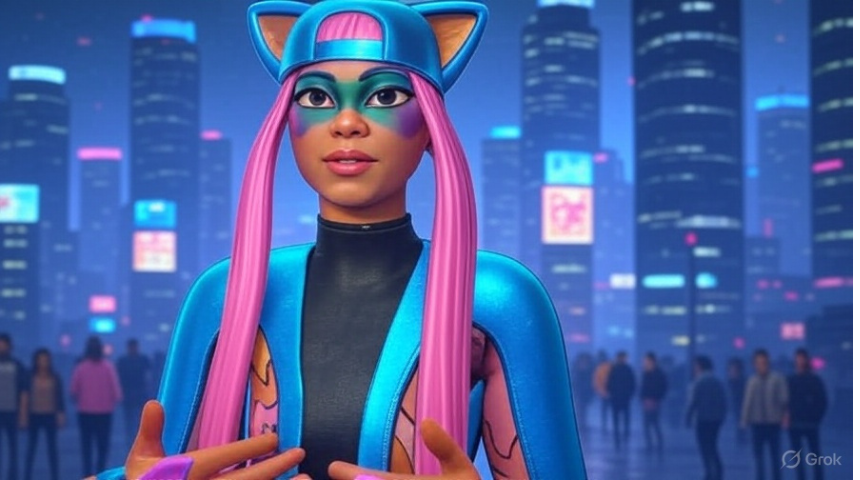
1. What you will learn in this class: Oh, Raven, you ever mess around with character
animation in Unreal Engine? I just found this dope
site called Mixamo. Free motion capture
animations, man. Like, I slapped a backflip on my custom skin in
like 5 minutes. Mixamo, huh? I've been diving into Unreals
animation tools myself. Those free Mixi moo
animations are solid. Tons of walks, runs, even some sick dance moves. You just drag them in and boom. Your character's
moving like a pro. Right? I downloaded
this Ninja run cycle, imported it into Unreal, and my guy was sprinting
like the flash. But like the real
magic retargeting. I can get all those cool
miximo animations to work on over 1,200
Fortnight characters. Right. Retargeting's
a game changer. You ever mess up the IK
bones and end up with your character's arms all
twisted like a pretzel. The built in retargeting
feature makes it so easy. Oh, dude, I'm still wrapping my head around
how cool that is. A couple of clicks, and
the retargeting is done. Audio to animation tool hands down is awesome. You
seen that thing? You feed it a sound clip, like, say, a dialogue track, and unreal generates a near
perfect lip sync animation that sinks to the dialogue
track. It's wild. No way. Audio to animation? That's next level. So what? You just import a wave file, and it automatically makes
your character lip sync to it. I'm totally trying
that out, my dude. Exactly. You just
plug in the audio, tweak a few settings, and Unreal does
the heavy lifting. And it's near perfect. You can even select the mood for the animation like angry, sad, or happy, and your character's face
will reflect that mood. Yo, bro. That's sick. I'm thinking about
adding sound effects to my animations, too. Like, I got this sword
swing animation, and I want to layer in
some whoosh sounds, maybe a metal clang
when it hits. You know how to sink
audio in Unreal? Yeah, it's pretty
straightforward. You can attach sound cues to specific places in
the level sequence, and it will trigger the
sound at the right moment. I did that for a zombie
growl in my last project. Scared the heck out of my
squad when it played in game. That's so like you. I'm gonna mess
with that tonight, maybe throw in some music for my character's
victory dance. You think I could retarget
a miximo break dance, sink it to some cool music, and add, like, spark effects? Go for it. Retarget
the animation. Use audio to animation
for the lip sync and toss in some Niagara
particles for the sparks. Unreals got all the
tools to make it pop. Deal. Man, Unreels animation
stuff is just too cool. MiximoRtargeting, audio tools. It's like we're building
our own fortnight movie. You in for a late night
animation session? You bet. Let's crank some tunes, animate some dialogue, and
make some fortnight magic. You're on. Let's make
some unreal magic happen.
2. 03 Download Unreal Engine 5: To begin the course,
the first thing you're going to want to do if you don't already have UnreLngine
and UEFN is to go to unrealengine.com
over to the website. And you're going to want
to download UnreLEngine and also Unreal
Editor for Fortnight. So for Unreal Engine, right here on the main page, right up here in the
top right corner, you'll see a blue
Download button. That's what you want to
do is just download it. You'll have instructions. It includes downloading and
installing the Epic Launcher, which is a hub kind of where
everything is, you know, where you can launch
nRLEngine and Unreal Editor for
Fortnite or UEFN. Also, this website here, the UnreLEngine website is a vast knowledge resource for
all things Unreal Engine. And you'll be fascinated at all the different things that are created
in Unreal Engine. Unreal Engine is used for not only top AAA
games, many, many, many games, but also used in feature films for
high end visual effects. It's used in the automobile
industry to, you know, create automobiles as far as the mock ups and
things like that. Medical community. I mean, it has a broad user base. Years ago, not too long ago, it was very expensive, and Unreal Engine used to
cost $10,000 per seat. So as you can imagine,
most of us that are independent filmmakers
or independent artists, no way we could afford $10,000. And then, luckily, I think
it was around I think it was around 2015 or 2016, somewhere around there, where they dropped the price and they made it a $50 monthly fee. So a lot of people
were able to jump in and use UnreLEngine
at that time. Not too long after that, they decided to make
it to where you could use Unreal
Engine for free. And if you were an
Indie developer or a small production company and you were making
less than $1 million on your project in a given year, you wouldn't have to pay
any royalties at all. After that, you would pay
at this time, it's 5%. So you want to learn about
licensing over here, read that and see
how that works. But Epic Games is
one of the most fair and artist friendly, developer friendly,
filmmaker friendly, you name it company that
I have ever seen because they give so much and they
ask so little in return. And they keep coming up with
more and more things that just make Unreal
Engine fantastic. I've been using UnreLEngine
for about eight years now. And every time I think I'm starting to get a handle on it, new features come out, and
it's just mind boggling. I mean, it's literally
a world within a world Unreal Engine
is, and none of us, no matter how long we've
been using Unreal Engine, we always feel like
there's just so much more that we haven't
learned or haven't grasped. So in this course, we're going to go over some
of the basic techniques that are going to get
you off to a fast start, kind of a crash course. That's my goal with
this, and also to make this course fun so you
can have fun doing it, and you'll also be
making a project. You'll be making
animation so you can share that
with other people. So with that, let's get going.
3. 04 Download UEFN: After you download Unreal Engine and get that all
installed because you're going to need that for UEFN, go back to the website
and then scroll down to the website,
you'll see a section here. These are really good to click on and just read
through this stuff. But what I want to point out is the Unreal Editor for Fortnight. So click on that, and
this is going to take you to the link right here to get Unreal
Editor for Fortnight. This is where we're
going to be spending the majority of our
time in this course. Here's the official
documentation. So you'll want to
click on that bookmark it because it's going to give you a lot of
information as well. So after UnreLEngine is downloaded for you and
the Epic launcher, you want to come back and get Unreal Editor for Fortnight.
4. 05 Create Project Using Animation Template: Animating a fortnight character, including facial animation and body animation is what we're
going to cover right now. So we need to find one
of the feature examples. So go down to feature
examples and click on that. And we need to start with
the animation template because this is what has
the tools for happiness. Let's just say, it's got the
control rigs for the body, the control rigs for the
face that will apply to all the fortnight
characters that we're going to use with the
character device. So go ahead and select
the animation template, give it a name. I'm going to call it
this one animation Oops. Tutorial. Create that. Yeah.
5. 06 Create Sequence import audio: Okay. So here we are, and we can see we have
a beautiful set piece to do our animation. Now, we could play this, and it's a good idea to go
through here and see some of the things that they
have in the template. But for our purposes, we're
going to kind of start from scratch and get an
animation going. So let's just position our
camera right around here. And if you don't want
the icons, remember, you can just press the
G key on your keyboard, and that'll make them go away, so the G key, all the lights
and everything go away. So the first thing I'm going
to do is I'm going to create a new folder by
animation tutorials, so I want to have it be where I'm going to
import my audio. And then with the
audio folder selected, I'm going to go in
this area here, right click, and
then I'm going to import into this folder. Now, I've got a file here. And it's called The Ghost
of Goldfield Story. It has to be a wave wave format. Can't be MP three. You'll
have to convert it. So you need a wave file. Now, go ahead and
import this in. I'm gonna provide an audio file for you for this tutorial, as well. And then if we play it. So picture this. The Goldfield Hotel sitting all only in the middle
of Goldfield, Nevada. Okay, so that's going
to tell the story of Creepy Ghost story called The
Ghost of Goldfield Hotel.
6. 07 Add Audio Track and Dialogue to Sequencer: Now we've got that. Let's
go back to the animation, and I'm going to make
another folder here and call it cinematics. And this is where I want to put my sequences for the animation. So go ahead and right click and let's make a level sequence. I'm going to name it S for level sequence,
underscore Goldfield. Underscore story. Okay. Save all. Okay, from here,
let's go ahead and double click on it
to get it open here. Don't need the curves right
now, need the sequencer. And the first thing
I want to add in here is I want to add
that dialog track. So go to the ad and
go up to Audio Track. And now we have an
audio track right here. Click on the Plus button. Wait, before we do that, let's look at the length
of the animation. I have mind set on seconds. You can do it on frames as well. Showtime as seconds or frames. I prefer seconds.
It's easier for me to do animations that way. So let's go ahead and move
this up to about 30 seconds. I can't remember how
long the audio is, but let's get it up here. Go back to the beginning,
click on Audio, and then I'm going to do
a search for Goldfield, the Ghosts of Goldfield
story. Here it is. And I've got a little bit of space here before the
animation starts, rather than the dialogue
just starting right away. And if we click
the AERO key here, we can see that we have volume
controls, pitch controls. Mainly, I'm going
to bump this up because if you see
when you first put your audio in
here, so picture this. It's pretty low. I
like to put that up to around five, so I
can hear it better. The Goldfield Hotel, so. Okay, then drag our end outpoint
right to the end there. Okay, so there's our CrfieldHtel sitting all lonely in
the middle of Goldfield, Nevada, a dusty little ghost
town that time forgot. 11 Labs does a really
good job text to audio, so you definitely want to check that out if
you haven't already.
7. 08 Create MetaHuman Identity: Okay, so now we have
our audio there. The next thing I want
to do is I want to create the animation,
the facial animation. So we need to do that in
a couple of ways here. And to keep us organized, let's just make
another folder here. Animation, underscore assets. And here, right click
and go up to Meta human, and we need to go to
Metahuman identity before metahumanPerformance. So make a metahuman identity. And I'm just going
to call it MI. Oops, underscore Gold field. Okay, and double click
that so we can open it up. And I'm gonna dock
my tab up here. So what we do is
we come up here, we click Add, and then add P, and we're going to add a face. So Okay? And what it's gonna give us
is a default solver here, a generic face solver. Skeletal mesh, you'll see if you look down here in the
skeletal mesh asset, it's created a little
face for us here. So this is what we need.
This is the identity. Now, when you're
using the iPhone app, it's going to create it
from all that data there, but we're doing it more of a simple direct way
because we're going to be using the audio
to animation tool, as you'll see in just a second. Okay, let's go back over here
to our animation assets, and you can see now we have the face here and we
have our identity. The next thing we need is we
need to right click again, go to Metahuman and we need
our metahumanPerformance. New meta human performance.
We could name this. I could name it Goldfield, which is probably
what I should do.
8. 09 Create audio to animation performance: Okay, now, double click. So we open up the performance. Now, in the Meta human
performance tab, the first thing we want
to do is go over to the right into the details tab, and you'll see depth footage. We don't want that,
so click on there, and we want to go to the
second one which says audio. Select audio and then
under the next dropdown, we're going to choose the
Ghost of Goldfield story. Bring this down so we can see
this more the control rig, we've got selected as the Control rig Fortnight
MH underscore face rig. That's the meta human face rig. And then the visualization mesh, this is going to be our
identity that we created. So it named it the
SK MI Gold field. So go ahead and select
that, and look at that. Bam, we got a face right there. So the next thing we want to do, I like to take the audio and bump it up so I can hear it better. So I put it up to five. And then way up on
the left hand side, you can see that our
waveform is in the timeline. We've got our preview
mesh up here, and now we want to process this. So just click on Process. Look at how fast this is
resolving everything. It's actually creating
this animation from the audio file faster
than real time. So, let's go back and bump this audio back up
so we can hear it. And now let's just
check out what we have. So picture this, the Goldfield hotel sitting all lonely in the
middle of Goldfield, Nevada, a dusty little ghost
town that time forgot. Back in 1902, this
place was the talk of the town fancy as heck with its sparkling chandeliers
and polished mahogany, built when gold fever had
everyone dreaming big. But, man, things
took a dark turn. Okay, so it looks really good. We want to save that now so we have our performance captured, but we're not done
here because we need to make an
animation of this.
9. 10 export animation from performance: So up here where it says Export
animation, click on that. And then up here, I need to make a new folder
and call it animations. This is where I'm going to put
all of the animations that I create so that's selected. That's where the
animation is gonna go. Click Save, and then we're going to get this window that pops up. The target skeleton or mesh, I like to choose
Fortnite Mannequin because that's where all of the animations are going
to be overlaid onto. So pick that we select Create, and it's going to tell us it may not work with all
these different things. There's a lot of controls
that don't work on the Fortnite characters
that are meta human. So just kind of disregard
that and just say, And then it went ahead
and saved that for us.
10. 11 The Character Device: Go back to our sequencer, and what we need
to do is we need to first create and
select our character. So I'm going to
go in the content browser and then down here under Fortnight, under devices. I'm going to search
for character device. And there it is right there. Drag it and drop it right
here into our scene. I'm gonna hit the
space bar so I get my manipulator to rotate. And actually, what we should
do since this is all lit up is select that back character back there, get rid of them. And move our character device into a good stage lit position. Hit my F key on the
keyboard to Zoom. Of course, you all know already
Alt key left mouse button to move around. So now we have our
character device, and we don't want
Mr. On Germanicin. Obviously, what we want
to do is we want to select one of the over 1,200 magnificent
Fortnite characters out of the library that
is built into UEFN. So we want to go here
under Fortnight. And I've got a pink folder here because I like to color my
folders, right click on it. You can set the color over here, in case you didn't know
where that was or forgot. So the characters, you
select that right there, and all of the characters
are right here. So you can just pick out and select any one of
these characters. I like Ali or Ali, whatever. So I'm going to select this character to put
on the mannequin. So what we do is we
click on our mannequin, and then we go into our Details tab over here or wherever
you've got yours docked. And then we've got
our character. So click with the
left mouse button and just drag right over there. And, boom, there she is. No more mannequin. Now we
got the cool character. Okay, it doesn't look like
her feed her all the way. I'm going to move her
around a little bit, get her spaced out, right. Okay. Back to our sequencer. Make sure we're at
the start position. I want to add our
character device or Allie. So I'm going to go in here
and press the Add button, go up to Add Actor,
add Character device. And here she is right here. Now what I want to
do is I want to add that facial animation. And I forgot to name
it something shorter, but here it is right here, AS New Meta human
performance Goldfield. And that is their
facial animation. So let's move in closer
and just check out and see what this looks like. Bah. My wheels set
too fast. Okay. So picture this, the Goldfield hotel sitting all lonely in the
middle of Goldfield, Nevada, a dusty little ghost
town that time forgot. Back in 1902, this
place was the talk of the town fancy as heck with its sparkling chandeliers
and polished mahogany, built when gold fever had
everyone dreaming big. But, man, things
took a dark turn. The creepiest story
Room one oh nine. Okay, that's looking good. Now, if by chance, the lip
sink was off a little bit, you can always just
click and drag the audio file left to right.
11. 12 Facial Animation Bake to Control Rig: The next thing we have to do, and this is really important. This was frustrating
for me because I would just slap on
a body animation, and then her facial animation was it would lose
half of the strength. So her mouth wasn't
opening all the way or, you know, whatever the
facial animation was. So I figured out
what you have to do is you have to
actually bake this to the control rig and then
get rid of this animation. And then when we bring
the body animation in, it will work. So
let's do that next. We click on the
character device, Right click Bake to Control rig, and we want to go down
here to the Fortnight H, the meta human face rig. It's going to give us all
these different options here. And I've found that just
leave it on the default in most cases is fine.
Click Create. Okay, now what we have here
all the keyframes in here. It's all been put
on all the eyes, jaw everything all the keyframes are there and editable
at this point. So go ahead and click
on the animation track here and delete it because we don't need
that anymore. Okay.
12. 13 Add body animation: So let's just do
this as a test for the body animation.
Click animation. And let's do the emote banana. Even though it's
really not going to match very well with
what she's doing. Usually, I'll use a conversation animation or
something like that. But these are the built in ones that come with
Fortnite characters, so it's real easy when you're
testing just to use those. Okay, so so picture this. The Goldfield Hotel sitting all lonely in the
middle of Goldfield, Nevada, a dusty little ghost
town that time forgot. The animation for the body and the facial animation is working,
but she's going really, really fast, so let's adjust that so it's a lot
slower so we can see. Let's right click
on the animation in the Track. Go
up to Properties. And under playback, you see here it says it's
playing back at 1.0. Let's make that go really slow, like 0.25, a quarter
of the speed. And we'll see that she's
going back in 1902, this place was the
talk of the town fancy as heck with its
sparkling chandeliers and polished mahogany built when gold fever had
everyone dreaming big. But, man, things
took a dark turn. The creepiest story
Room one oh nine. They say the hotel
facial animation and body animation both working together without losing the
strength of either one. So if you wanted to take this
body animation and edit it, you could just click on the
character device, I mean, right click and then go up
to Bake to Control Rig, and then you would choose
the mannequin control rig or the Fortnight body rig. Either one of these work, I usually will choose
the mannequin, Fortnite Mannequin control rig. And that'll do the same
thing as the facial. I'll put all the you'll get
a control rig built onto her for her body
for that animation. Okay, so I know that's a lot, and I know it's
detailed and tedious, but all these steps have
to be done, you know, in order in the correct
way if you want to get it, you know, if you want
to get the animation working the way you
want it to work.
13. 14 Export animation sequence of combined animation: So, now that we
have an animation, let's say we've spent some
time and we've revised things, and now we're ready to save this animation as a
combined animation. All we need to do now is click
on the character device, right click, and then
bake animation sequence. It's going to come up,
and I'm going to click on the folder animations. And let's call this one
animation sequence combined. And I'm just going to
call it face and body. So we know it's a
face and a body. Okay, it's going to
come up with again, I just leave these the default, and I say Export. And then we've got that.
So let's do this now. Let's take the animation, both of them, and
let's delete them out. So now all we have
is the audio again and our character device,
not doing anything. Picture this. Go back to the start. And now let's go up to add that animation that we just
created the combined one, combined face and body. Okay? There it is. Now,
if we've done it right, it should work.
Let's check it out. So picture this. The Goldfield hotel sitting all lonely in the
middle of Goldfield, Nevada, a dusty little ghost
town that time forgot. In 1902, this place was
the talk of the town fancy as heck with its
sparkling chandeliers and polished mahogany, built when gold fever had
everyone dreaming big. But, man, things
took a dark turn. The creepiest story
Room one oh nine. They say the hotel's big shot
owner, George Wingfield, chained a pregnant woman
named Elizabeth to a radiator there. Awful right. Her spirits supposedly still stuck, crying out in the night. People who have been inside
talk about weird stuff. Icy chills, whispers
when no one's around, and shadowy figures creeping through the lobby or
up on the third floor. The place has been
empty forever, but it's like the ghosts
don't know it's over. If you're ever out that
way, it's worth a peek. Just don't expect to
sleep easy after. Okay. And that's how we
combine the facial and the body animation and
then combine it into its own animation
that contains both.
14. 15 Animate Eye Blinks: Next we're going to create some eyeblinks because this will give our animation
more realism. And when we use the
audio to animation tool, it does throw in a little bit of the eyeblinks.
They're very subtle. From time to time,
you'll see it. But if we want it
more pronounced, we need to manually
put these in. So what we're going to
do, we're going to use a technique called an
additive animation track. And we want to go down to
our face rig down here. And we want to create another
track where we can revise the animation separately
in a non destructive way. So click on the plus
and then additive, and it's going to create
another track down here, and you see where it says additive down there
when we hover over it. I like to rename this, and let's just call it additive. Oops. Animation. Track. And this track is blank. So any changes we make here
will be non destructive. It's very easy if you
don't like it to, you know, just delete the
keyframes, that type of thing. So what I want to do is
I want to go in here, and I want to look in the
search bar for blinks. And expand this, and
it's going to give me the left eyeblink and
the right eye blink, which is exactly what we want. So to start off with, let's
just create a keyframe here by clicking the
keyframe, add keyframe. And I want to make sure that
I've got the auto key on. And what we're going to
do is we're going to zoom way in here so that we can see very clearly as we
make these changes. I'm going to click
the Play button. Dusty little And from here, I want to close the eyes. So open this up here. And here, I'm going slow because this is really
technical here. Move aside, you can see that
our controls are over here. We have our left eye blink, and go ahead and select
our with a control key. We want to select both of them. And now I'm going to close
them down like that. Press the Sky. Now let's move it forward
just a little bit. Down the tot. And I'm going to
take the control zoom in here so you can really
see what I'm doing here. See how we have the
facial control track in here and go ahead and left
click and open that back up. And now we should
have last least. Our blinks. There. So, we've done our very first
blink right there. Dusty little ghost town. You can see it's too slow. Until we do it, we really
don't know what the timing is. So what we need to do now is zoom further in here
with our timeline. And then it's just a matter of Moving this in
closer. The key frames. Okay, now let's take a
look at that blink now. Dusty little Gudge
Still too slow. Now, what I'm gonna do I'm
gonna mute the audio track. Select these keyframes
and move them closer. You can have this as quick or as slow as you want as a blink. Okay, I like that. That's
about the right timing. But now the reason that
I spend a lot of time on that first blink is
because once you get one, then to duplicate it, it's just a matter of
copying and pasting. So what we're gonna do is
left click and drag all of these keyframes and then
control C or copy those. And then I'm going
to move it forward a little bit and then control V on my keyboard to paste. And there's my so
from this point on, all you need to
do is just figure out where you want to
paste those blinks. And sometimes I'll do
blink blink, you know, right after two blinks in a row. And that looks
pretty good. So you see all we're going to do now is we're just going to be
pasting these keyframes, these blinks in for the
rest of the animation. And usually what I'll do instead of just doing one at
a time like that, I will go ahead and select
the whole amount like that. Control C, and then Control V, and it'll pace keyframes even beyond the end of
your animation. So let's back up and see how that looks
a little bit here. Put my sound back on. A dusty little ghost
town that time forgot. Back in 1902, this
place was the talk of the town fancy as heck with its sparkling chandeliers
and polished mahogany, built when gold fever had
everyone dreaming big. But, man, things
took a dark turn. The creepiest story. Okay, it looks good. So
the next thing we're gonna do in the next video is we're going to move her
eyes so her eyes move around. And that's another key thing
in an animation for realism.
15. 16 Animate Eye Movement: Now we're going to get some
realistic eye movement, so we want to search
for the control called Control underscore
C underscore I. You can see I have
it selected here, and then over here in
the animation outliner, you can see it. You can also search for
it and select it here. That particular control is going to move both the eyes
at the same time. So over here, you
can see it selected, kind of floating up
here in the viewport. And if I click and drag, you can see that I get a
nice eye movement where the eyellids are being
affected with the eyeball. So it looks really good. So what I want to do is I just want to create a keyframe right here and move it forward. Grab my control. Move the eye a little bit. Let's zoom in here again. I always like to makes it easier to select and
do the keyframes here. Time for good. And just sort of move
the eyes around. You know a real
person. Their eyes kind of dart around
a little bit. They don't just stare
straight ahead. So you can move it
up a little bit. Whoops. Don't want to
break the eyelid there. 19 oh. Two. This place was So I'm the talk. Kind of moving forward,
making a change to the eyes. Down. So they're not just
looking straight ahead. And like we did with the blinks, what we want to do now is just select these keyframes
so we don't have to do each one individually and control
C on our keyboard. Fuzzy. Forward, Control
V and paste that. I can zoom out a little bit, and now I'll just go
ahead and copy that. Dreaming bit. Paste that. Task Creek. God, all of them on there. Now, I need some in
the beginning where she's walking in the
beginning of the animation, so I'll just paste
these in here. Field Hotel. Okay, so now I have
enough eye animations. Let's just check out
what that looks like. So picture this, the Goldfield hotel sitting all lonely in the
middle of Goldfield, Nevada, a dusty little ghost
town that time forgot. Back in 1902, this
place was the talk of the town fancy as heck with its sparkling chandeliers
and polished mahogany, built when gold fever had
everyone dreaming big. But, man, things
took a dark turn. The creepiest story you
can see how much better that looks with the blinks and the eyes moving
around a little bit. And you can do the
same workflow, the same process
with the eyebrows, find where the
eyebrows controls are. You can make her smile
a little bit more. You know, there's all
these controls in there where you can alter her expressions
and totally change the mood and the performance
of the character. So the next thing
we're going to do here is we want to remember, once you do all this hard work, you don't want to
lose this animation. I mean, as long as you
save your level sequence, your cinematic
sequence separately, and you name it where you can
find it again, you're fine. But it's always better to
make a new facial animation or a facial antibody animation
with your character, so you don't have to bake it to the control rig each time. So let's do that. Remember what we do is we go to our character,
character mannequin, we select that, and
then we right click, we go up to Bake
animation sequence. Then I'm going to go
down to my animations. And we're going to just
pick a name for it. Let's say, animation sequence, underscore Blink, and
then underscore I move, and we'll just
save it like that. Leave these at the default
settings and click Export. Okay. So this just
popped up for me. So then in my animation, here is the new animation
blink and eye move. And I just save the
facial animation. And that's how we do that. And this way, we have a
brand new animation sequence made with the new blinking eyes and the new eyes moving around.
16. 17 Fix tongue poking thru mesh problem: One of the things
you may notice, especially for facial close ups, is you may notice that there's
a problem or an error with the tongue animation once you've baked the animation
to the control rig, let me just show you
here what I mean. You'll see the tongue kind of protruding through
the chin area. This was the talk of the
town fancy as heck with its sparkling chandeliers
and polished mahogany, built when gold fever had
everyone dreaming big. But, man, things
took a dark turn. So you can see that.
It continues on through the entire animation,
which kind of ruins it. So what we need to do is we
need to make sure that we are on our face rig and then go up here
in the search bar. Search for tongue. And I find it easier just to
open up the original track, and you'll see there's
different tongue controls here, a tongue roll, a
main tongue control, narrow wide, and the
tongue in and out. The one that's
causing this issue is the tongue going in and out. So the most direct way to
fix this problem is to just select all of those keyframes on that track on the
tongue in and out. And delete them. Night So now when we go back and we
play that same animation. This place was the talk
of the town fancy as heck with its sparkling chandeliers
and polished mahogany, built when gold fever had
everyone dreaming big. But tongue no longer sticks
out through the chin, poking through the mesh, but we still have
some tongue movement inside the mouth that
gives us some realism. So that's how you take
care of that issue.
17. 18 Find and Activate Arm IK Controls: If you've ever tried
to locate the hand and arm IK controls in the Unreal Engine control rig and been frustrated
trying to find them, you're going to love this
video because we're going to cover exactly where to find them and how to activate
them so that you can animate the your character. So, you remember we added characters before by coming
over here to the Add button, and add actor to track. There's also another way you
can do it in the outliner. Just select your
character device. And here I have
character device Athena. Left click and drag, you can drag it right
into your sequencer. So I've created a
new level sequence, and I'm called it Activate handeK because that's what we're going
to do in this one. And I have my character in
here right now, Athena. And the first thing I
want to do is I want to bake the character
to the control rig. So with it selected here in
the sequencer, right click. Go up to bake to Control rig, and then over here
to CR underscore, Fortnight underscore body rig. So that's Control rig
for Fortnite Body rig. You could also do it down
here to the FN Mannequin, but we're going to use
this one right here. The the different
settings come up for us. I just leave it on default
because it works fine, and click Create and now we have our control rig
baked onto our character. But if you notice down
here in her hands, there's the box
you're looking for. The controls for her
hands are not there. And so the only way you can
animate her hands or the arms are with forward kinematics,
which is difficult. I mean, we use it a
lot in some cases, but IK for some, you know, down and dirty
animations and for more simple animations
is a lot easier to use. So we need to find those
controls and turn them on. We want to go down here to our fortnight body
rig in the sequencer, click the down arrow and then go down a little bit
here to the global control. This is where you're going to find the controls
for happiness. So we want to click
the down arrow, and you'll see the
settings come up here, rotation, all kinds
of things like that. But here's where we
want to zero in. You'll see that the leg IC switches for the right and left leg are
already turned on. But if you notice the
arm, the left arm, and the right arm
are not turned on. They're unselected
here in the box. And you also notice we've got keyframes when the
control rig is created. It's created keyframes all
the way through the animation in the negative position where
we don't have the control. So the first thing we want
to do is we want to go to our arm IC switch, and then with our
mouse, left drag, select, all of these keyframes, Make sure they're all
selected like that, and then we want to
hit the delete key. Get rid of all of those.
Down here on the right arm, I want to do the same thing, select all of them right
there and delete them. Now, make sure that we're in the starting frame back to one right here
with the playhead. And then what we need to
do is we need to check the box for the left arm
and then the right arm. And you'll see that
I've got keyframes automatically created
because I have my auto keyframe turned on. If I didn't have that turned on, I would just go over here to
the plus and plus and add the keyframes manually or press the S key to add a
keyframe on the keyboard. So now, if we go in here, we can see that there's
our control for the arm. And here's the one for the Let me get both
of them selected. And we can see we got
both arms selected, and they're both working in IK. And all the way
through the animation, all the way to the end,
they're still showing up. They're not disappearing,
which is what we want. So now from here, we
can go ahead and create an additive track and
start our animation. But this is step one
that I like to do is go ahead and turn on the
arm hand K controls, and this is how you do it. So keep this video handy, so when you forget how to do it, you can just refer back to it.
18. 19 Edit existing body animation: The next thing we're going
to do is edit and revise an existing animation by putting the animation
on the body rig. So let's start a
little bit fresh. Let's create a new
level sequence. So let's go over here to
where the wrench icon is. Left click on that. And we're going to
save this existing one as S for level sequence, body animation Edit. Okay, and now we
have the new one. We can see over here the
name LS Body Animation Edit, so we don't have to
drag the character in all over again and
that kind of thing. There may be some things we
want to save like audio, which I don't have in here or different animations
in the scene. But for now, let's
go ahead and select the Fortnight body
rig and delete it. We're going to
start from scratch and make sure that we are
in the beginning position. We want to click the plus, and we want to bring in just
an ordinary idle animation. This one is in the assets
of the Fortnight project. So just type Idle, and you'll see Idle noise, and it's going to
bring in this idol, which is basically
a looping one. So we just want
to hover over it, and you'll get the little arrow, and we want to drag this
out all the way to the end. Okay, now, this is
going to give us the really nice
looping idle animation long enough for what
we want to do here. Okay, back to one
to the beginning. Now what we need to do first, let's say this is an animation we got from a mocap library, and we really like it, but we want our head to move
around a little bit more. We're not happy with, you know, the stationary
position of her head. So the first thing we
need to do is bake this animation to the
rig, the control rig. Okay, so we need to select
the character device, Athena, right click and go
up to Bake to Control Rig. And remember, just
like last time, we use the Fortnite Body
rig that works really good. Keep the default settings. Those are fine,
and click Create. And now this has
taken that animation, the idle animation and baked
it to the control rig. So we can see when we hit play, the control rig disappears so
we can watch the animation. We hit pause or stop, and there's our Control rig. Now, we don't need this
animation track anymore, so go ahead and select
that and delete. Let's go back to the beginning. Now, depending on how you can
edit any of these controls. And remember how we got the IK arm controls
in a previous video? This is where you
would activate that if that's what you wanted to do
with your animation animate, you know, the hands
and the arms. But for this video, we're just
going to animate the head. So go to the search
bar, type in head. And then we can see the
head control right here. And then when we go over
to the Animation Outliner, you'll also see all of the controls over
here to the right. Now, rather than
messing with you could delete all of these keyframes
and start all over again. But it's much
simpler and cleaner. If we go ahead, let's
start over here, and we go ahead and we
select our body rig, and then with this plus
button right here, we want to create
an additive track. So we create the additive track, and you can see here,
if you hover over it, it says additive right there. But it gives us the same
name which can be confusing. So what I usually do
is I'll select that. And if you press your F two key, to change the name, I'll
just put additive animation. That way, it's easier to see. Now, with this selected, we don't want this rig because we basically have
two rigs in here. We want this one selected. And now let's go to the head, again, hit the down
arrow key and move up, and you can see
our head control. And now up here, let's move in a little bit closer so
we can see head control. We don't want the
translate control. We don't want to move
it back and forth. We want the rotate control. So we're at the
beginning position. Let's go ahead and
create a keyframe by clicking right here or pressing the S key
on your keyboard. And since this is a
looping animation, we want the beginning and
the end to be the same. So go to the end of the
animation and set a keyframe there by hitting the S key
or clicking right here. Okay, so now we have the same and the beginning
and the end. From there, anything
we do in here, for example, let's
just hit SK here, and then I'm going to
make her look this way, move forward a little bit, make her look this way. You gonna make her look up. You know, whatever you
want to do, whatever you want the animation to be, it's all within your
control right here. And the beautiful thing about it is since this is
an additive track, if you mess up or you don't like the
way things are looking, you can just delete
the track and start over again or
delete the key frames. And you still have your
original animation intact. But this is overriding the
original one and giving you some different
head movements here. You'll see when you
get in there the timing of it and
everything like that. And remember, it's a real
time saver if you control C and control V for pasting. Okay. So now let's go back here and let's
see what that looks. So we can see that all of these keyframes to move
the head are working exactly how we intended
it to every keyframe. Obviously, this isn't
a very good animation. The head doesn't look real. But from this position here, it's very
straightforward to go in here and select your
keyframe and move it closer. So if you want that
head to snap faster, that's still very slow. So let's go in here like
that. That's better. Still too slow. You
get the idea anyway, how you can just go in here. Change the animation.
Okay. Back to the one. Now, once you get this edited the way you want and
changed on your animation, remember, the best thing to do, the best workflow is to now save this as another
animation on its own. So we have to select
the character device Athena at the top
here, right click. And we go up to Bake
animation sequence. And then we're going to go
to our animation folder, and we're going to name this AS for animation
sequence, underscore. I'll just call it
head head move. Gives us options. I usually just keep it at
the default and export. And now it has saved our
animation sequence new. So that's a good workflow
right there where you can take existing
animations that you've gotten from Mixamo
or different mocap places. And if they're not exactly
how you want them to be, you can easily revise the animation without having to do the whole
thing from scratch. And it's a huge timesaver.
19. 20 The Body Control: The next control we're going
to use is the body control, and this is a real handy
one because it can create a lot of
movement very quickly. So let's go back to
our additive track, our additive animation track. Go into the search
bar, search for body. And then over here in
our animation outliner, you can see the body control, and we can select
it there as well. So we have it
selected down here in our sequencer and in
the animation outliner. And you can see that the control is ready to go and animate. We want to make sure
this time we're on translate tools so we
can move up and down. That's the thing we're
going to do first. So just like we did with
the head animation, the first thing we want to do is create a keyframe
at the very beginning, press the key on your keyboard
or click right here at the plus sign and then go all the way to
the end of the animation. And create a keyframe. So that way, we don't mess
up our looping animation. We have the same keyframe at
the beginning and the end. Now, whatever we do in the
middle, doesn't really matter. So grab the translate tool and let's just move our character down. Just
bring it straight down. You can see that because
of the inverse kinematics, control, everything
just kind of moves. So she's just going
to squat down, and it's going to create
a keyframe because I have the auto keyframe selected on, which I like to
work in that way. So now let's move
forward just a little bit and then have
her stand back up. Move forward. Now,
we're not going here. The purpose is not to teach how to do
fantastic animations. I'm just showing you
where the controls are and how to get to the settings so you can
do what you want to do. Up and down. So
we're just basically doing an up and
down movement here. And I'm going to go ahead
and select these keyframes. Control C, and Control V. So when we go to the
beginning of the animation, let's hit play, and
we can see we have a super slow movement of her bending down or squatting down and
then coming back up. And again, if you want to change the speed
of the animation, you just select these keyframes and move them wherever
you want them to be. Now, let's say that
you wanted to rotate a little bit, too. Let's go. Let's go to the second keyframe
here and let's select it. Select our rotate key. Actually, let's go
to the next one. We're in the down position. And just move her body
and turn it this way. And then let's go to
the next keyframe. This setting right here is where you jump to the next
keyframe, very handy. And we'll turn her this
way on this keyframe. Let's go to the next keyframe, and she's down here, and we'll turn her to the
left a little more. Make her swivel a little
bit more on this one. You can see the total control on rotation and
translate up and down. Again, we're just doing
this just to show how to control these
different motions. And then it's gonna be
up to you to make a super cool, fantastic animation. Okay. So let's go to
the beginning and let's just check
out that animation. Now, here's the one where
we made her rotate. So, see, we had our
head movement animation that we did previously, and now we've added
little body rotation and her moving up and down along
with the idle animation. As you can see her arm is
going right through her leg, so that would have to be fixed. All right, so this
gives an idea of just how you can use those controls. Now, you can use any
of these controls in the control rig and
the additive track. You can also have more
than one additive track. You could have one
for the head, one for the hips, you know, et cetera, depending on
what works best for you. Let's go back to the beginning, all the way up And remember, always best to make
a new animation. So right click. You'll go up
to Bake animation sequence. Choose your folder you want
to save your animation to rename your
animation and hit Okay, and then you'll have a
brand new animation. Always good to have
more than less. You can have different
versions and variations. And that's how you
edit the body control.
20. 21 How to blend animations: For this next lesson, we are going to delve into blending animations where
we take one animation, put it behind another one, and then blend them together
pretty much seamlessly. So let's create another
level sequence animation. Remember how we do that
over here by the wrench? Click that, take our
existing one and save it. Let's just call it level
sequence, blended animation. Okay, so now we have a new
one called Blended Animation. Now. We are not going
to need the body rigs for this particular lesson. So let's go ahead and click on the Fortnight Body Rig to
select it and delete it. And the top one as well, which was our additive track. And let's go ahead
and delete that. Okay, so now we just have a
fresh we have our character. We're going to use the built in animations right here in
the Fortnite project. So let's go to the plus. Click on that. Go
up to animation. And let's choose the Idol
to begin with, Idle noise. I'll select that. So now
we have the idle animation in here and move
forward a little bit. You can have a space for now. Click the plus. And let's go in here, and I'm looking for the
banana, the emote banana. Okay, we'll put
that one in there. That's her kind of
dancing around. And let's pick a third one. This one's called Call Me. So we've got three
animations here. Let's go back to the beginning and grab our timeline
down here and let's bring it back this way
so we can zoom in and get a nice look at
our animations. Now, make sure we
have our snap on here and watch what happens when we just butt
these against each other. You're going to see it a little jerk between the
animations, of course. It's very abrupt. And you'll see that
it's not very smooth. So what we want to do, and
this is all built into UEFN and Unreal Engine. Let me pull these apart
a little bit again. I take it off snap
because it's smoother. But what we want to do is
just grab our second clip. And then overlap it. And if you see if we zoom in here, and you look over here, you'll see that we've
got kind of a curve, like a curve editor thing where one clip is going
into the other clip. So you can put this
in as much or as little as you'd like to get the blending effect
that you want. So let's press play here. See how smooth that went
into the next animation. And let's do the emote
call me as well. We'll just pull that over. Okay, very nice.
And then it stops. So you can pretty
much take, you know, as long as the animations
are within the same area, like, it can't be if
their beginning location is way far away,
it's not gonna work. But if these animations
are in the same proximity, this works very, very well. So we've gone from idle to the emote banana and smoothly
into the call me animation. And you can just keep on blending animation to
animation to animation and get much longer performances very quickly and in a
very direct, simple way.
21. 22 How to fine tune the blend: Along with the blending
of the animations, we can even dive deeper. If you hover over the
crossover section, you'll see that on the
left and right side, there's two blue
kind of triangles. And what this allows
us to do is to choose which clip we want more of
the animation to show on, so we can actually click and drag we can shorten this clip. We can lengthen this
one. And this way, you can get an exact, precise, very, very fine
tuned version of your blend. So it's very, very powerful. A lot of people don't
know this is just built in here and
it's overlooked. But I wanted to mention
that so that you would know where
that is and how to adjust that and fine
tune because it's a really handy and very
powerful adjustment.
22. 23 Mixamo how to download animations: What we're going to do next in this section is we're going to learn how to use a great
resource called Mixamo. It's a huge library created
by Adobe that's available for free with high quality
motion capture animation. So what I've done here and what I'd like you to do is
create a new level sequence and I've named mine level
sequence underscore Miximo and have our
character in there. I've got character
device Athena, because this is going to
be where we're going to bring our animations
from Miximo. Then you want to
go to your browser and go to www.mixamomxmo.com. And if you don't
have an account, you can sign up for free. There's no charge for this
because you do need to have an Adobe account in
order to access Miximo. So I'm going to go
ahead and log in here. And we're going to be
presented with this screen. By default, they give you this cool little kind of blocky
robot kind of character, which is fine because we
just want the animations, and we're going to
add these animations to our fortnight character. So go ahead and just
familiarize yourself. Basically, it's pretty
straightforward. There's characters. If you want to
download characters to use, you can use those. There's some kind of cool
simplistic characters. But mainly what we
want is we want the animations. So
let's go up here. And there's a couple
thousand of these, more than 2000, I believe. So there's quite a few. Let's
go up to the search bar, and let's go on to the dance. And it's going to filter,
and it's going to give us some really cool
dance moves here. So how to download
this is we just go over here and hover
over it, click on it, and it's going to add this Rumba dancing move to our character, which looks pretty cool, right? And it's extremely well done, and it's looping, so it can just animate over
and over and over. You can slow it down once
we get it over there in Unreal Engine or UEFN. There's also some
controls over here. You can play around with.
If you want to slow it down or make the arms a
little more exaggerated, character arm space,
you can trim it, make it a longer
animation or shorter. You can play around
with these characters, so it does give you
some flexibility on the animation right here. But what we want to do is we want to click on the
Download button, and the format we want to
use in our case is the FBX. And the first one
we need with skin. We need to download
the actual character. After this, we can just
do it without skin, and it'll save a little room. Because they're smaller files. 30 frames for second. But if you want 24
for cinematic or 60, that's available as an option. Keyframe reduction, I usually
just leave this to none, leave it on the default setting. And then I'm going to go
ahead and click Download. And here it is, you can see, it's in my download
file now Rumba dancing. And in the next video,
we're going to import this into Unreal Editor for Fortnit. And we're going to go
through the process of how we get this animation onto our Fortnight character
because we have to do a process called retargeting, and we'll go into that next.
23. 24 Import and Retarget Mixamo Anim to FN Character: Next, we are going to import our Miximo animation into our Unreal Engine
or UEFN project. So we start here at the
sequencer where we were before. We need to go over to
our content browser, and I have a folder
called Animations, and then I'm going to create a new folder and call it Miximo.
Remember how we do that? We right click, go
up in New folder. Miximo Make sure we're
on Miximo right here. And then over to
the right, should be empty, nothing in there yet. So we right click, go up to
import to current folder, and I find my animation
from MiximoRmember, it was called Rumba
Rumba dancing. Select that click Open. And since this is the
animation with the mesh, the first one that we
need, the rest of them, any other animations any
other animations from Miximo, we can just download
the animation without the skin or
without the mesh. But right now, we want to make sure that the skeletal
mesh is selected. Import mesh, and pretty much
we leave everything just on the defaults and
then click Import A. It's gonna tell us there's
a little something missing here from the bind pose and all that kind of stuff. That's fine. Just
close that window. And we'll see now that we have our character here
with the animation. Let me bring this
up a little bit. This is the skeletal mesh. Then we have our animation, and we have the tipos. And here's its skeleton. So the first thing
we want to do, you can check out the
animation by double clicking. Press the alt key so
we can spin around. You want to zoom in closer, we can see, here's our
mixi Mo animation. Looks like it's working fine. Minimize this window. But the first thing we
need to do is retarget this animation to the
Fortnight character. Otherwise, it won't work. So the way we do that is we
highlight over the animation, right click, go up to
retarget animations, and it's going to open
up our window here. And our source skeletal mesh, it will say Rumba dancing. This is the skeleton
from Miximo. Now, our target mesh, where we want this animation
to be converted over to or retargeted to click
the Down arrow key, and then we want to
go down here and find our Fortnight mannequin. It's the orange one right here. And then we can see the
mannequin shows up. Now, over to the
right, we want to find our Rumba dancing animation. And it was called Rumba Dancing
Anim Underscore Miximo. Double click that. And you'll see in the window, we have a very good almost
perfect retargeting animation from the Miximo character to the Fortnight character
or the skeleton. So we're not done yet. What we want to do is we want
to export this animation. So down over here to the right, we export animation
and then go down to my Animations folder and the one I created called
Miximo select that. And to make this easy to find. Of course, it's going
to be in this folder, but what I do is I put a
prefix on it of retargeting. So it's a capital RTG, which stands for retargeting and then underscore like that, and then click Export. Okay. And then just leave
these at their deport. Leave these at their default. And here we have it now. Retargeted Rumba
dancing animation. Okay, now what do
we do with that? Well, we go back
into sequin, sir, and remember we have our
character Athena right here. Let me back up so we can see more more of a
full body shot here. And the first thing we
want to do is click on this, the Plus button, go all the way up to animation and find the one that
we just retargeted, which starts with RTG, so it should be way down here. RTG, Rumba dancing, anim Miximo. So select that, and we'll see
that when we zoom in close, this is the animation
right there. So at this point, since this is a
looping animation, just go ahead and
click and drag this. All the way to the end. And then make sure we're at the start of the animation in the
animation sequencer here. Level sequencer. Click
Play. And here we go. We've got our dancing
the Rumba dance that we downloaded from Miximo
so that's the process, and this is how easy it is. The simple steps to get
it from Miximo bring it into either unreal or UEFN. The steps are the same, and then retarget it because
when you retarget it, there's a built in
re targeor that recognizes that this
is a Miximo animation. And it saves a
whole lot of steps. I used to be way
more difficult to do this and used to
take a lot longer, but now it's pretty
much just a few clicks, and we're all done. So here's our animation. It's working great. Give yourself a pat
on the back because you've done something
really cool. It
24. 25 QuickMagic create mocap from video: Now I'm going to introduce
you to a really, really powerful tool, and you're gonna love this because it's
a lot of fun to use, too. It's called Quick Magic AI, and it's a motion capture tool. And the thing about
this is you can take your ordinary iPhone
or any video camera and videotape yourself doing motions or any video
that you find, online that you have the
rights to use, of course. Can be uploaded, and
then it will create a three D motion capture
data file for you. So let's see how that works. Now, these are some
of the tests that I've been doing in Quick Magic. But I've got this one video
that I want to bring in. So let's go to the
AI Mocap right here. Click on that. It's going
to open up a window, and it's going to ask us
to import a video file. I have a video file that some
people were using online. It was from an emote, a Fortnight emote,
which was kind of cool. Let's see if I can open this up. And let's just take
a look at this here. Right. Don't have the
rights to this music, so I better shut it off. Anyway, you can
see the movement. It's pretty complex. Let me play it again. You can see her feet. She's
jumping around. Her fingers are
doing the P sign, and hands are moving all around. So it looks like a
pretty complicated move, and we're going to
see just how well Quick Magic can duplicate this. So we're going to go ahead
and import that file in, and it's going to
analyze the video. And then what we're
going to do is we're going to choose the
output formula. Now, I've found the
Unreal Mannequins don't work real well in UEFN. They work well in Unreal
Engine, 5.5 or 5.6. But we're going
to be using UEFN. So I found that the Miximo
skeleton works really good. So click on that one, and then we're going
to click on Next. And it's going to come up
here where we can name it, and I'm naming it Fortnight Dance leave it on the defaults. The full body in the hand, 30 frames per second. Select the first key
frame of the animation. I usually just leave it
in the original pose. Export format, Miximo. Okay. And then you
click Generate now. Now, I've already done this, so I don't want to I took
about 10 minutes for it to create this motion capture
animation from the video file. So rather than do that, let's
just click out of that. Go back to my project here, and here it is right here. So once it's all done, what you do is you click
on that and it's going to load the animation. It's put the miximo Let
me get rid of this sound. Can't find the off
button for that. So you can see how well that is. Look at how we go around on it, and we can see that the
animation is really quite good. The feet are planted
on the ground. They're not slipping and sliding or doing anything like that. There. That's how
I get rid of that. The feet are not
slipping and sliding. They're locked down
to the ground, which is one of the most
impressive things about quick magic that I've
found because most of the time in these AI
motion capture things, the feet are sliding
all over the place, and you have a whole bunch of cleanup that you have to do. And also notice the hands, the arms and the hands
and the movement. It even got the two fingers, the waving and
everything like that. Check that out. So it
does a fantastic job. Then from here,
all we need to do, there is a two D
refinement part in there. We're not going to
cover that right now because I like the
way it looks here. It doesn't look like it
needs some refinement, so we're just going to
go to the download. You click the download
and it's going to download it to the
folder that you have setup.
25. 26 QuickMagic import animation to UEFN: Now, the first thing
that we want to do, we've got to go through
some steps here. We want to make a folder. I've got animations over here, and I have a quick
magic mocap folder already 'cause I had already
tested out an animation, but I want to make a new folder. So let's do a new folder, and I'm gonna call it Fortnight. Oops. Dance. Double click that. And now right click in
the empty area here, and we want to import
our downloads. And here's the Fortnight
dance right here, the folder. Double
click on that. Double click on
that. And here we go Fortnight Dance, Miximo. Select that press open, and we're going to get
our import options here. So we want to make
sure that we have the skeletal mesh
selected and import mesh. Leave everything
else pretty much on the default and go all
the way down here. See, we want to make
sure that we've got the animation is going to be imported along with the skeletal mesh,
which is the miximo. Click Import A. And it's going to tell us a
little errors here, like the ring finger,
blah, blah, blah. Don't worry about that.
Everything's still going to work. And here we have
our materials and our fortnight skeleton and
our animation right here. This is a good time
to save everything in your project. And let's
go ahead in first. Let's double click on that
and open up our animation, and we can see
that, sure enough, the animation is
working really good. It's on the Miximoskeleton. So what we're going to need
to do is we're going to need to retarget this animation, the Miximo animation onto
our Fortnight character. Remember, we covered
that previously in our retargeting section.
26. 27 QuickMagic retarget animation to FN: Make sure you're on
the Mixamo Animation. Right click and go up
to retarget Animations. It's going to open up
our Fortnite Dance Mixamo as our source. And we want our target
skeletal mesh to be remember? We want it to be our
Fortnite mannequin. So scroll down here where
we can see it better. Fortnite Mannequin, and that's going to throw our
mannequin in there. Now we need to go and we
need to find the animation. And remember, we've got our
auto generate retarget here. Very, very important
that this is selected. It's on by default, but in case it gets unchecked,
make sure that's checked. Go down to our it's always
fun finding the There it is. Fortnite dance Mixamo.
And there we go. We just click on the animation, and we're retargeting from the Mixamo skeleton to
the Fortnite skeleton. And once we save this, this particular dance animations going to work on all
the Fortnite skins, all 1,200 plus characters
that are built into UEFN. So now remember the steps. We go to the Export
animations over here. Click on that.
Then we want to go down to our folder,
wherever you have it. I like to try to keep
things organized. Go to our QuickMagic mocap and
our Fortnite dance folder. This is where I want
to save the animation. And then I want to put that
prefix of retargeting, and I shorten it by saying RTG for retargeting and
then an underscore, and this is going
to append it to the front of the name
of the animation. Go ahead and click Export. And leave them at
the default export. And now it's going to be creating our
animation right here. Let's save all again.
27. 28 QuickMagic create Level Sequence: Okay, so now what we want to do is we want to put this
animation on our character. And in here in the level, I have a character that's called Ozy because she's
wearing Ozy pajamas. And we want to get this animation to work
on her in the Sequencer. So let's find let's create
a new Level Sequence. I got to find my SQN cinematics folder where I have all
my level sequences. And then I'm going to right
click, create a new one, and let's call this one Ls
Underscore Fortnight dance. And then double click.
Let's open that up. Now, we got the Sequencer here. And in our Viewport, let's
select our character. And remember, this character is a character device.
Remember how we did that? It's one of these
orange characters, the Character Device in
the Fortnite devices. And then we put we chose
this character for it. So click on add Add
actor to Track, add Character Device one Z. Now we have our
character in here. 5.5 seconds is not long enough, so go down here to
the bottom right, and let's click on that
and let's put 25 seconds. They'll make this a
little bit longer and take our endpoint and
just drag this to the end. We're preparing it
for our animation. Okay, now, over here, we want to click the track, and we want to go up
to the animation. And now we want to find
our Fortnite dance with the retarget one, the RTG. So I usually just search
for Fortnite. There it is. RTG Fortnite Dance. Immediately puts the
animation onto our character. And select our character. Okay,
so now let's go ahead and move our ending mark our outpoint right there to
the end of the animation. And let's check out
our new animation. Now, we don't have any music,
so it doesn't look as good. We need to throw on some music that goes with the
B to the dance. But check that
out. See, the feet are even with the
retargeting and everything, the feet are pretty much
locked on the floor. They're moving around
like the original one. And we can check it out by moving around our
character here. And notice her fingers, her hands, the wave,
and everything. Pretty good quality animation. So I give QuickMagic is a
very, very useful tool. You can start an account and get some free animations
to get you going. And then they have
some affordable plans, too, if you're going
to need, you know, a lot of motion
capture animation, it's a fantastic tool. So you made it this far. This is pretty advanced stuff, so you need to give
yourself a big pat on the back 'cause you're
doing really, really good.
28. 29 You finished the course: Congratulations on
finishing the course. So what's next? First, remember to
use this course as a resource rather than going
through it just one time. Because Unreal
Engine is so vast, it's easy to forget how
to do things if you're not doing them on a
consistent basis. If you forget how
to do something, just come back to this course
and rewatch some lessons, and it will come back to you. Okay.
 Michael Ricks, Animator, VFX Artist