Transcripts
1. Welcome, friends!: Hello, everyone. Welcome
to my Skillshare class. If you click on this workshop, perhaps you're feeling
overwhelmed by your to do list and your
jam packed schedule. So that's you. Hello. Welcome.
You're in Good Company. Today, I'm going
to show you how to transform your
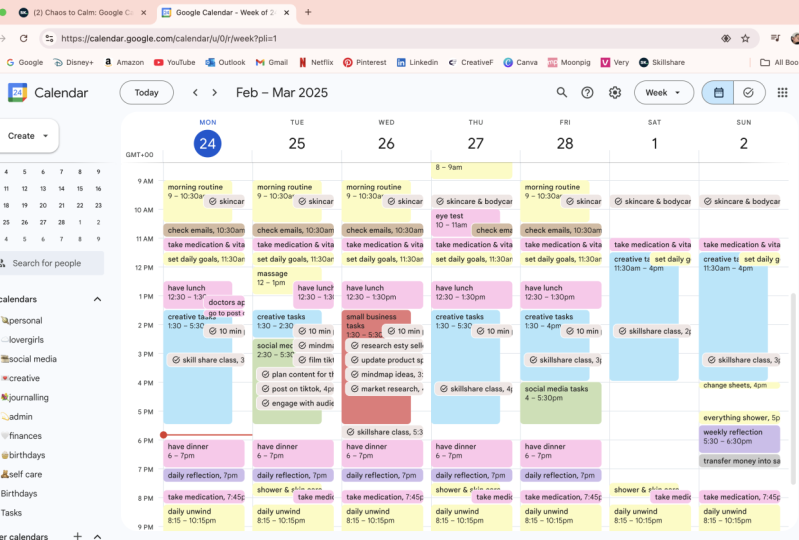
calendar from this. To this. By the end
of this workshop, we'll have created a calming
calendar that brings you more ease and allows you to see clearly what actually
needs to get done. We're going to keep
it really simple by using Google calendar, which is a tool many of us are already familiar with,
probably already using. And this will just make
it easy to customize your schedule to
perfectly fit your needs, your unique brain and
your creative business. Before we get started, just
a little bit about me. My name is Jules Acree. I'm a video creator
and entrepreneur. Since 2017, I've
been working for myself full time over
these past eight years, as I've scaled my business
and grew my team, I just found myself needing more structure to more efficiently
manage all the things. As you know, we wear many
different hats in this field. So through my own curiosity, through my own research
and trial and error, I found this sweet spot
of gentle productivity, which just blends my passion
for intentional living, slowing down and overall
finding what feels good. My personal approach to
productivity is fueled by my desire to live
a more aligned life, one that gives me more space. More freedom with my time and just allows me to get
the right things done, so I'm not just
spinning my wheels, being productive, just
to be more productive. So I started sharing my own
perspective and tools online. And now I have a
community that reaches hundreds of thousands of
mindful humans like yourself. So thank you very
much for tuning in for today's workshop. So if all that sounds good, let's dive in and
create more space. That way you can confidently
close your laptop at the end of the day and have more time to enjoy your
life outside of work. That is the goal,
right? Let's dive in.
2. Lesson 1: Task Batching & Time Blocking: Before we dive into the complete makeover
of our calendars. Let's talk about a game
changer for productivity, and that is Task batching. Task batching is a method where you group similar
tasks together, and then tackle
them all at once. If you've ever read
getting things done by David Allen or deep
work by Cal Newport, they talk about this
a lot. So for me, in my brain, this technique
has been super impactful, especially when I need to
get into the flow state. Task batching minimizes the mental exhaustion
that comes from switching between
different types of tasks and trying to
regain your focus. For example, if I'm deep into
writing for my newsletter, slow brough Sunday, I
try to keep my momentum going by batching other
riding related tasks. This way, I stay in my riding
mode instead of jumping all over the place to a completely different
activity like filming video or taking a call
with my accountant. Because all that task
switching then takes time to get back into the
zone, get back into the flow. Alongside Task batching we'll
also explore time blocking. This is where you divide your
day into dedicated chunks of time each reserved for
accomplishing specific tasks. As a fellow creative
running her own biz, I've found that time blocking really works for my
brain since there's just so many different kinds of
tasks that I do in a week. And for me, a little
structure goes a long way, especially if you tend to
get easily distracted or feel like your brain
has too many tabs open. Time blocking, Task batching. These have been my go
two methods for years. It's stuck with me the longest, and hopefully these
tools that I share with you today will
help you out too. Alright, now, let's put these
concepts into practice. Tune into the next module, and we're going to dive
into the calendar.
3. Lesson 2: Creating "Categories": In this lesson, we're going to be creating different
categories, AKA calendars for different
types of work that you do. So if you look over to the left, we're starting with
a blank slate. This is just a calendar on
one of my personal accounts, and this is kind of the default of what Google calendar
will give you. So right now, if you were to create an event on your
calendar, it would look a little something like this. And this is your
default calendar. You see, I'm toggling
it on and off. But this is just one calendar. So what I like to do is create
color coded categories. To get you started,
we're going to have five basic categories
to work from, and then as you get
more comfortable, feel free to customize these
categories to better fit your business. And as you get more into
the groove of this, I'm sure you'll create
even more categories. So the first thing
I'm going to do is rename my personal
default calendar. This is going to be
my meetings calendar. This is going to be
the default calendar that I use when I'm scheduling
a meeting with someone. So an obligation that I
have with another person. Now we're going to create
the other four calendars. So click this plus button, click Create New calendar, and we're going to
title this as potato. Potato days are
just the days where you are in the weeds
on your computer. You're probably
doing admin work, answering e mails,
paying invoices, trying to get to inbox zero. On potato days, I'm
just more relaxed, and it just gives me
permission to show up however I feel like
showing up because it's not going to be
documented on camera. However, that translates
to you and your business. Everybody needs a potato day or a potato morning,
wherever that fits. So now we're going
to do the same for our other calendars. Our creative calendar is
for tasks like filming, social media planning, writing, maybe designing
graphics in Canva, whatever is that creative brain, creative energy, we're going
to make a calendar for that. The next candar we're going to create is your
personal calendar. So this could be like
personal errands. Maybe you need to pop out for a doctor's appointment
or run to target. I don't know,
whatever you need to do in your personal
time. This is your personal calendar. My personal calendar is actually a shared calendar with
me and my husband. That way we can be on the
same page with maybe, like, a reservation for dinner or
maybe I need to take the car, and I want him to know that
I'll be out during that time. So whatever it is,
personal tasks. The next calendar we're creating is our self care calendar. This is one of my favorites. Your self care calendar is reserved for that do
not disturb time. So that's maybe it's your Pilates workout that you booked. Maybe it's your morning
routine or your reading time, or maybe you booked a facial that morning to treat yourself. These are the tasks
that helps you refill your cup so
you can better show up for your business and for all the different roles and responsibilities that
you have in your life. I think it's so
important to have a self care calendar to prioritize the things
that refill your cup. And that way, you're not scheduling meetings
on top of that. And just booking your
day back to back with tons of things and never
having time for yourself. As creative business owners, it's important for us
to block that time out. So we're creating that
self care calendar. So now we have our
meetings calendar, personal calendar, self
care, creative, potato. And if you want to keep
birthdays on there, by default tasks on there. We'll talk about tasks in a bit. Now that we have our
different categories, we're going to use that to build our template for the week.
4. Lesson 3: Creating a Template for the Week: In this lesson, we are going to create the template
for your week. As I said in the last video, everyone's business is
going to be different. So please customize to
however fits your needs. Let's pretend like we want
to have a morning routine. We're going to create an event. We're going to call it
our magical mornings. If you're a mac user, if you want the hot key for
pulling up the Emojis box, it's control command space, and we can choose our OGs. So put a little sunshine,
magical mornings. We're going to make
this seven to 8:00 A.M. Monday through Friday. And down here is where
I'm going to change our calendar AKAR category. So, this isn't a meeting. This is self care. Don't mind the
color. We're going to address that in a bit. We're going to have this repeat. Every weekday, from
7:00 to 8:00 A.M. Magical mornings are your time for your morning
routine. Hit save. There we go. So now we've got our magical mornings
Monday through Friday. In addition to our
morning routine, we're going to block
out a time for lunch because we all
deserve a lunch break. I'm going to block out an hour. We're going to have this
repeat every weekday, and we're going to
categorize this as personal. Now, if your goal is to end work at 5:00 P.M. Then we're going to put
that on our calendar. We're going to set
that intention. So 430-5 every weekday, we're going to wrap up. So I put this on here
to remind myself. Alright. Maybe check your
e mails one last time, revisit your to do list and see what stuff
has to carry over. For the next day so that you can pick
up where you left off. I'm going to call this a part of our potato calendar because
this is a potato task. Now that we have the
template of our day, we are going to create a couple of time blocks just so
you can get the gist. But as I mentioned, we need
to keep this flexible. And if you're creative, it might feel like too much to time block every
single bit of your day. What I have found
is you just got to test it out and see
what works for you. For me, on Mondays, I don't like to go
straight into my Monday. With meetings or straight
into my Monday filming. So if I'm filming on a
Monday like I am today, that's typically the second half of my day after
I've eaten lunch. I'm going to block
out my Mondays 9-11 and reserve that
for potato tasks. That's just going to make
me feel more at ease. And these are reserved
for tasks that I can just sit in my yoga pants
and be on my computer, just kind of chilling
in the weeds, answering e mails,
paying an invoice. Like any of these just
business catch up potato tasks is not
really a creative task. So I'm going to say Mondays, and Wednesdays are my
potato task time block. And now we're going to
create a time block for those more creative tasks. As I mentioned, that
could be filming, that could be planning out
your content calendar, whatever creative tasks that are allowing you to
get into the zone. We can task batch
those together. So you're going
to have to figure out what those
recurring tasks are, group those like minded ones together and create
your own time blocks. So, for me, I'm going
to say Tuesdays are typically my
batch filming days. I'm going to have that repeat
on Tuesdays and Thursdays. Put that under my
creative calendar. Fridays are also my
life Admin days. I have some entrepreneur friends that call it their CEO days. So this is a dedicated day or morning of your week to be in the weeds of your
business and do the task that you need to do
as a owner of your business. So you might like to block out Friday mornings for
your life Admin days. I'm going to just go ahead and put this as an all day event. We're going to repeat
it weekly on Fridays. This is going to be under
our potato calendar. The more potatoes, the better. I don't really do much
time blocking on Friday. I'm probably working from a cafe with friends on a Friday. It's a more chill day. As you can see, we've got
our time blocks for Monday, Tuesday, Wednesday and Thursday. I like to keep the second
half of my day kind of open and see how the
day kind of develops. It's definitely changed
over the years, where I used to plot out
every moment of my day. But now I just feel like
things are a lot more fluid because I'm a lot more
productive in the morning, so I get a lot of things
done that I need, and then the afternoon
is more overflow. But if you wanted to, you could create another
calendar called Hold. That way you can
block out meeting time. So say you only want
to take meetings 2-4 on Tuesdays and Thursdays, you could create a
block called Hold, and that way you know that
chunk of time is allotted. This is the general
gist of time blocking. So I hope that seeing it kind of mapped out gives you
some inspiration. Now that we've got our template, let's customize the colors.
See you in the next video.
5. Lesson 4: Customizing Your Calendar Colors: Friends, as promised,
this is the fun part, and that is customizing
your calendar colors. So I'm going to leave you with a few different hex code
combinations that you can pull from that are
really beautiful together. I just think that this is
a very loud color palette. And for me, if I'm looking
at my calendar every day, I want to feel calming
when I open it. I don't want to feel like it's cluttered and overwhelming. So we're going to go through and customize these hex codes. It's really, really easy to customize your calendar colors. You'll just hit
the three dots and click the plus to
add a custom color, and then you're
going to paste in whatever hex code you choose from the color
palettes that I give you. So be sure to download
that or you can go find your on Pintres
whatever works for you. For my personal calendar. We're going to change it to a nice little sky
blue for self care. We're going to change it
to this Crimsical color. Oh, much better for
creative tasks. Let's change it to
this cha color, beautiful potato
tasks, change to, like, a rose pink birthdays. I'm going to make this
strawberry color task. I'm going to make
it a sand color. Holidays. We'll just do
another version of orange. Okay. So these are
our new colors. Let's just toggle
over to a fresh week. This is what it looks like. Now our calendar is looking
gorgeous. It's functional. I hope this helps you start to compartmentalize and task batch. And like I said, as you get more comfortable, you can add more calendars. I'll put a screenshot of what my actual calendar looks like with all the
different categories. If you would like to
see more of that. But I think this
is a great start, and you can add or take away
whatever feels necessary. We've covered time blocking, task batching, creating
categories for your calendars. We have upgraded our calendars to a beautiful color palette. Now we're going to
actually dive into tasks. And this is a very
important feature. So be sure to tune
into the next video to learn all about Google tasks.
6. Lesson 5: Using Google Tasks + Bonus Tips: This is the last lesson of our Google calendar
chaos to Calm workshop. Now that your calendar
is looking beautiful, and there's some
structure within. Let's chat about
adding actual tasks. If you've tried using different task managers in the past, and you tend to
feel like you lose track of your to dos across
all the different platforms, I always recommend simplifying and meeting yourself
where you're at. So if you're already
in the habit of looking at your
calendar every day, Let's add your todos in there. Because there, it's
front of mind. You're not going to
lose track of it. You see it every single day. I'm going to give
you a quick rundown of Google tasks and drop some sample tasks
in there so you can get the gist
of how that works. But if you haven't used
Google task before, I hope you really enjoy
this and that it is actually game changing for you because it definitely
was for me. So, as you know, I
enjoy task matching, so grouping like
minded tasks together. We're going to drop
some potato tasks that are like minded and batch those. I'm going to click 9:00 A.M. Task, and I'm going
to write e mail. I'd like to start my
day with a clear inbox. So I might start a timer using this little kitchen
timer here for 30 minutes and just knock out
as many e mails as I can. After I do some e mails, I might respond to slack and notion messages,
notifications. That's how me and my
team communicate. So I need to catch
up and respond to their messages so that
they can go on and move forward with their task. Let's say Tuesday, I'm
filming for Skill Share. So I'm going to put a task. And because I'm already in that head space in
that creative zone, after I film SkillShare, then maybe I will
batch film some reels. Something that I have
is a recurring task every single week on Mondays at 1:00 P.M. Is draft
my newsletter. So I have a weekly newsletter that
goes out every Sunday. It's called slow Bruce Sunday, and we're usually two to
three weeks ahead of time. Beyond your daily to do, I also like to keep recurring reminders in my Google task. So here are some examples. I include a reminder to give my dogs their
monthly hardware meds. I track household duties
with my husband. I jot down a reminder to cancel a free trial or to cancel
subscription before it renews. When you complete a task, you can just mark
it as complete. So let's say that you didn't finish all of your
tasks that day. You can see my
entire pending list of tasks that have
not been completed, but it carries over each day. So it's not out of
sight out of I. It's still there, and I'm not
losing track of anything. With digital
planning, it's super flexible and you can
change things as needed. That's my little spiel
on Google tasks. Let me know what you
guys think about that. I'm going to share some
rapid fire tips to help you further customize your Google calendar and
make it work for you. So if you work with team members in different
parts of the world, like I do, then it's really
clutched to have a different time zone
added to your calendar. So, for me, I have
somebody that works in Australia. We're
going to go to settings. We're going to
click on time zone. And then we're going to click on Display secondary time zone, and you're just going to
choose the time zone. In there. So we're going
to label Australia as Oz and label my time zone as Austin because
that's where I live. And if you score on here, make sure your enable
keyboard shortcuts is checked on because
I'm going to show you some keyboard shortcuts. While we're in here, I'm
also going to change the start week to Monday because I personally
like to start my week. On Monday, and then keep
the weekends over here. So that already looks
so much better to me. So we've got our time
zones split here, which is just really,
really helpful. All right. So for
some hot key action, if you want to see things
from a daily view, you would just hit D, and now you can see your
day to see your full week, you'll hit W to see the month, you'll hit M. Ear is y. If you wanted to see your
schedule, you hit A. If you just want to see
the next four days, you can click X. So these are some hot keys, and if you ever forget, you can just click up here,
and it will tell you, You can also hide the weekends if you just don't even use a calendar
on the weekends, but I definitely do for
all my social plans. If it's not in my calendar,
then it's not in my brain. So I definitely
show the weekends. You can choose to show your
completed tasks or hide them. That's totally up
to you. Those are just a couple extra things
you can do pretty easy. People don't often click
around and customize things. You know, Google has
its default settings. These settings are meant to be customized and
change and adapted. We should definitely
take advantage of that, especially since it is free. Okay, my friends, don't forget to download the
different hex codes, so you can customize your
own Google calendar. I recommend just
setting aside some time to make these changes to your calendar
and implement them. It's a really fun time to
tweak and play around with. So just give yourself
some time to do that and just test it
out throughout the week, see how it goes,
adapt it as needed.
7. Final Thoughts: All right, friends, that is it. Congrats on making it to the end of the chaos
to Com workshop. Thank you so much
for joining me. I would love to see your
calendar transformation. So don't forget to
drop some photos in the project
gallery down below. I love seeing a good
before and after. It's been so much fun
hanging with you all. I hope you found this
workshop really helpful, and that these tips help you to not only create a calendar that you enjoy looking at and using every day,
but it also helps you clear their clutter and
get the right things done. Being a creative business
owner is so fulfilling. But it is definitely
a lot of hard work. So I'm really grateful that we have all these
different resources and tools available to us to
learn from on the Internet. So I appreciate you
tuning in to mine, and let's keep in touch. I'll see you over on Instagram, YouTube all the things
you can find me at Jules Acre until next time. I'll see you later. Bye for now.