Transcripts
1. Introduction: Have you ever wondered
how long it takes to create a coloring
book, literally, a traditional coloring
book, sketches, diagrams, publications,
arrangements, and whatnot. It's a time consuming process. It takes a lot of effort, and it takes a whole
team actually to compile a single coloring book. Well, not anymore. In this class, I'm
going to show you how to combine the
power of Canva and artificial intelligence
in an innovative way to create your own
unique coloring books with your own unique diagram. With your own limits, page numbers and compile the entire thing with
fraction of the time, fraction of the effort, and the output is uniquely
yours. You heard me right. You're able to create full on coloring books for whatever
purpose that you have, for your own creative journey, entrepreneurship
journey, for your own just simply
mindfulness activities where you'd like to color certain elements or
certain diagrams. You could do. This
current class, you learn how to create
these coloring books through the power of artificial
intelligence combined with Canva, where the only thing that you need is your own imagination, your own creativity, and
a bit of innovation, which I'm going to show
you along the way. That way, you have a
clear roadmap how to create coloring books with
fraction of the time, fraction of the effort, and this is what
we're going to be tackling in this current class.
2. Your Project: Your project for
the course revolves around creating your
own coloring book. Yes, you heard me
right. You're going to create your own
coloring book. The pages vary in numbers, minimum five, maximum ten, after which you're
going to be showcasing your end result with the rest of the community for feedback.
3. Creating Your Coloring Book in Canva With Few Clicks: Welcome back. Now, the
first thing that we need to do is set up an
account on Canva. You can use any
email if you'd like. You can just simply opt
in for the free account, and that will be more
than sufficient. This is the Canva homepage. We're going to navigate to
apps over here. Click on Apps. Now, you do have a lot of
apps integrated with Canva, workplace essentials, AI Power, productivity, design
essentials, and much more. Now, I'm going to show
you how to use this to create an actual coloring book, sketchbook for
various applications. Sky is dimi you
can get innovated, but I'm going to walk
you through the road of creating a coloring
book, for example. So I'm going to type in
over here, coloring book. Now, this will show
me the first thing, the first application,
the pops over here. I'm going to select
this. Coloring book. Now, this application
is going to use prompt engineering
practices, the same way you're
going to use it with other AI tools or language models to generate
books, coloring books. So I'm going to feel
free to, by the way, browse the application details
to have a clear idea about the app because these are third party applications which are integrated within Canva. And you have the option to use it within an
existing design. Or to use it in a completely
different design. So I'm going to use
in a new design. Feel free to select whatever template that
you'd like to go for. Based on your preference,
you can use this for a post. You can use it to share it on a whiteboard.
It's up to you. But the whole purpose
of this current class is to show you how to create actual coloring books from these powerful AI applications. And I'm going to
click on Custom Size. Let's keep it as is 2000 by 2000 or just keep it
a bit smaller 1080. And 10a0. And here's a pro typ. You can just simply research
the size of an A four, A three, or a five paper, which is quite typical
to some books. In terms of standard,
that way you are able to generate the image or the sketchbook accurately
because you don't want to create something
which is not easy to replicate or to
publish or to create. If you're planning on
creating multiple sketches, for example, click on
creating a new design. Now, this will open the interface for the
application over here. If you notice this
is the canvas, the basic plain canvas
that I have selected. And then if you notice
on the left side, we have the prompt windows, the display for the application. First of all, here, it says, describe your
coloring book style. A beautiful garden
with a fountain, a cute puppy playing in
the park. That's one. You could try an example,
by the way, okay? Now, your description
can be in any language, but English is likely to
give the best results. That's a good way
to go about this. If you're not able to
use it in English, you can actually try to
get a translation for the language and then
actually paste it overhear. Consistency mode when enabled outputs will be more
similar to each other. This is very powerful
if you are planning on creating multiple
sketches, right? So let's go ahead and add extra pages for you to be able to see how this work works. So I'm going to click on
Consistent mode. That's one. Now, the more detailed you get in terms of how
you imagine this, the actual pages, the more accurate the
end result will be. But from a basic prompt, you can just simply type
even a basic prompt and you get some solid
results. Let me show you how. A garden filled with various fruits and wild animals such as horses, simple as this. Try an example. Well, okay, once you click, try an example. This actually is
going to change this. So I'm going to try
this again. A garden. Filled with fruits and wild animals such as
horses. Here we go. Click Enter, generate the image, and let's see the end results. So this is going to
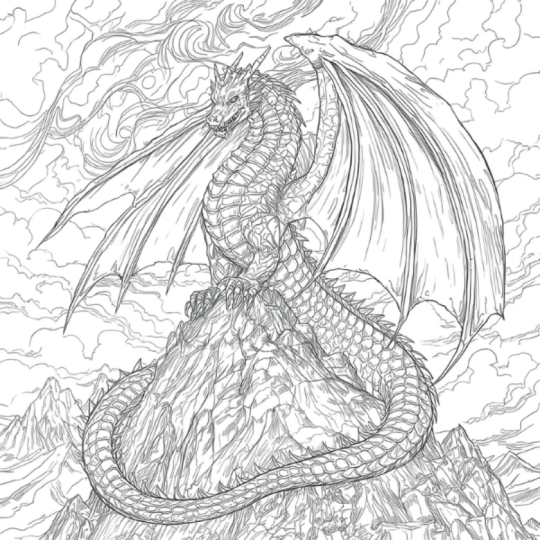
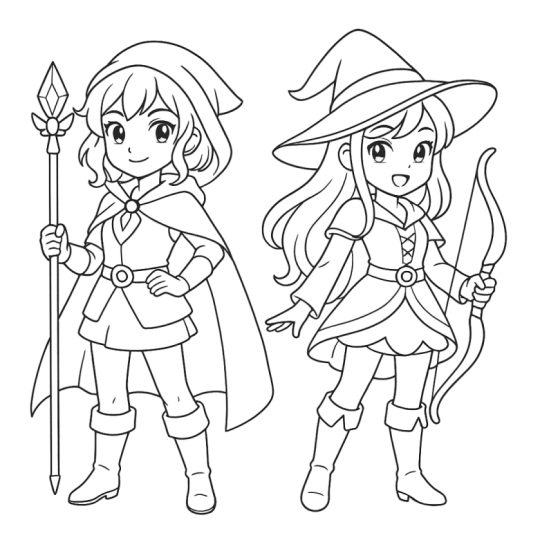
give me a sketchbook, an actual child's sketchbook. Now, when you are
creating these designs, it all depends on how good are you in terms
of crafting prompts, that's one, or how good are you in explaining
what you're imagining? Take a look at the end results. I'm going to stretch this
all the way from here. All the way to here. Take a
look at how powerful this is. This is really beautiful. If you take a look at the
details, you got a horse. You got fruits of
different kinds. This is basically a garden. This is very, very nice, right? So you're able to
create this just simply from adding a single
prompt over here. I was able to create a
page from a coloring book. Now, sky's the limit. You have the ability
to add more images. As sketches, the same way we've created right now,
you can just simply, let's say, you can copy
this and you can paste it. Okay, you can copy this over here and then paste
it over here. And the same thing
you can do with this, you can just simply add
a prompt and you prompt, and then this prompt will be reflected on the same design, and you could create another
image and another image and another sketch and another sketch over
and over again, that way, you have
a coloring book. Literally. So once you are done by adding
these prompts, now, I'm not going to be using the credits that I
have because I got zero credits remaining for the sketchbook, but
you get the idea. For the coloring book,
you got the idea. What we need to do
is just simply add more prompts and
keep adding prompts, and you build up the
pages of the book. And once you are
done, just simply navigate to the top
to share over here and you can just simply click on Download and you got
the pages of your book. Every single design will be just simply placed on the pages 1-4 as a document all pages. You can just simply export
this done and download or current pages if
you would like to hand select some designs, right, to compile
different books, different coloring books. See how powerful this is. So we were able to use
this application in a smart way in order to create sketches for coloring books
with a couple clicks, and then we're able
to actually export the designs or the
colored sketches or the coloring sketches
to a complete book or a simple one sketch page that you could print
on an A four paper. That's why I told you at the
beginning of the lesson, make sure that you get the sizes right because once
you print this, you would like to make sure that the sizes are quite proper, the dimensions over here because we're going
for the free version, we have no ability
to modify them. These are pro yes. Notice if I would like to go
ahead and increase the size, for example, I need to opt
in for the pro version. Now, feel free to go for a
free trial if you'd like. But if you're planning to keep
this as free as possible, let's say you don't want
to go for the pro version, then make sure that
from the get go, you get the sizing right
for the canvas in order to avoid the problem of trying
to modify this later. And this basically concludes it. Feel free to
experiment with this, create as much
images as possible, as many images as
possible and as much as possible in order for
you to experiment, first of all, with the
designs and to get better with crafting
these prompts. The better you get
with the prompt, the more realistic the
end result will be.
4. Wrapping Up: So what do you think? I truly hope that you found
the class helpful. If it helped you get inspired
for your own creative work, then it's a job well done. I make sure that you
follow my profile for the latest
releases and updates, and I look forward to receiving your feedback on
the current class.
 Engr. Hussein Attié, Entrepreneur I Engineer I Educator