Transcripts
1. Intro Trailer: My name is Jeremy, and
I'm a brand designer. I've been doing
this for ten years, and my branding
process has evolved. I'll share real world AI
workflows that I use to create amazing brand assets for the brand identities that
I've created for my clients. I'll teach you how to direct the AI to get studio
quality mockups, not just using generic prompts, but will break down how to get better results and consistency
with your generations. We'll dive into the editing
and fixing the images, using the inbuilt
AI tools to improve the quality of the image before shipping
it to the client. I'll even share
how you can build a reusable prompt kit that you can hand off to your
clients so they can create consistent brand
assets for their brand. If you want to change
up your process increase your creativity and get better results from your clients than enroll in the class today.
2. AI Tools for Designers: Now there are a ton of
AI tools out there. Most of them are mediocre, but I want to share my personal
favorites that I've used, and I think they are specific
to designers and creatives. And then I recommend
just trying them out on a free plan and testing them. But at the end of
the day, you can use whatever model within
the actual tools. So you can use things
like nano Banana and see dance for videos. I do recommend using magnific Magnific used to be free pick. They have a great stock
library that you can use, but they also have spaces, so you can create
different nodes, and you can have a full
infinite canvas with pages. And it's really good because
you can use any model, and it's probably the most
affordable out of the bunch. You just get way more value
than some of the other ones. Next, you've got recraftTRcraft, there's specifically
four designers. So if you're an
illustrator, logo designer, brand designer,
photographers, those type of designers, this
would work great for. Also do have access to
all the top tier models, and they have their own model. So they currently
have recrov 4.1. And so you can do
vector based graphics. It works really great for
typography, doing packaging. They also have studio
quality images for realism. So if you want to do
some nice mockups, if you have a luxury brand you're working on this
works great as well. And they also have
an infinite Canvas and an agent in built. So you can use
that. Next, you've got the classic mid Journey.
They've been around for Mid journey has a
unique aesthetic. It's really more I'd say more ethereal or more
on the extremes. It doesn't go the safe mode, but it has more of an artistic illustrative
approach or style. You can obviously customize how you get the
image generations, but mid journey is pretty good. So if you're looking for
something that is sort of needs more tweaking and
refining before you use it, then maybe avoid mid
journey for now. Next, you've got flora A. This is a great one
run by a solid team. This one is focused
on designers as well. It has a similar thing
to magnific where it has the nodes and a large infinite canvas space
that you can use. And they have an agent in built. It has a nice workflow and a
very nice UI. So this is a a
3. My Branding Workflow: I'm going to share a bit
about my branding workflow for a real client project. The first thing
that I do is have a clearly defined
style and brief, make sure you have keywords and know what the client wants. Usually, I have a
discovery workshop that I take my clients through. I do have a brand
identity course that you can watch to learn
how to do that. So for this project, specifically HRX, it's
a streetwear label. They already knew
the colors that they want and sort of the
logo that they wanted. And then I went through
the whole moodboard phase and logo design phase. And part of building
the identity is I needed to come up with
photography shots and social media, promotional shots
and images that they could use promoting
on Instagram and Shop BF. So one of the ways I like to
summarize the keywords from the brand brief in
the discovery session is Ito it into Claude, and I'll say summarize into some keywords I can put into
Cosmos to get inspiration. And I'll usually upload the PDF file from my
session with the client. And you can see here, I got
search keywords, topography, aesthetic mood,
reference brands, direction, mark symbol,
color texture, and apparel. Remember, my client already
had an idea of what they wanted even asked to do a quick, mood board, but I don't really
trust Claude to do that. Like, it's better
to research myself because it will just do
a bit of a mix mash. So then I'll use some of these keywords like
minimal street luxury. So after I clearly
define the keywords, in this case, it
was like a luxury, minimal streetwear brand,
using only blacks grays, and this burnt orange color. And so what I did is I always
go to Cosmos for research. So you can actually
upload visual references. In this case, I'll search
like luxury street wear, portrait, model shots,
studio quality. You can really
search any keywords, and it's going to give
you some relevant shots. So I'll typically start off just by searching using some of
the keywords from the brand. I'm going to say,
instead of portrait, I'll do model in studio minimal. And so just by
changing the keywords, you get different results. So you can see, I'm just freely working here. This
is typically what I do. And if I find something that
I like, then I'll use that. So because it's not too
luxurious, it's like street. We don't want to
go too out there. So I'm just going to
find a nice shot. Let's go for this one here. I'll click on that, and then usually I'll screenshot
that and save it into my folders or save
it to a collection. In this one's cool. So I usually
just quickly screenshot. That's the fastest
way you can click Save it to a moodboard.
I'll screenshot this. And what I'm doing
is just really gathering reference images. And once happy with
that, what I do is I usually take the images
and bring it into Claude. In this real example,
here some of the images that the client sent me they really, like, liked. I think these were
generated by AI, but that also had a
moodboard that I used as and we use this initially, and I put it inside a list. So you can right click Magnific create a list and just
put everything in here. So it just adds it
into like a group. And so I have all these images, and then I started
creating some concepts. So I said athletic tatted
male model, early 30s, wearing charcoal, oversized
hoodie, raw concrete wall. I described the lighting, dramatic side
lighting, the texture, urban editorial
fashion photography, full body shot, 916, no visible logos or text. And we can see we get
an image like this. It's very cool. And we can
see some of the other shots. I created multiple shots here. Some have a bit of a
different tone to it. But overall, it's a good start, and I did the same for here. You can also get Clau to write prompts for you that
align with that brief, and that will help you as well, even speed up the process. But if you just want
to do it manually, that's fine as well, because you probably
have ideas in your head that will work better. So I really like this image. I think this is really cool. It feels high end. And there's some more here initial images. So just starting to get
a feel for the brand, but then we tweak it, and sometimes the
client doesn't like it, so we need to adapt. So I'm just going
to go through here. Here's a variation I liked, and then you can get it to create
variations, as you can see. Then once I started
getting the vibe I liked, I really like this vibe here, some of the images
that I really liked, they really like that
street look minimal. They weren't 100% set on the colors of the clothing because they still
were deciding. So I started putting
things on mockups. I found used some more reference images
here that I really liked. Felt street and luxury with
the like studio shots. And you can see here some
of the ideas are created. You can see here the
prompte, elevate the images, make it more premium, change
proses and backgrounds. More stylized luxury street, and that's how I got these
images here that you see. In the next lesson,
I'll show you how to generate your
own brand assets. We'll do a live
example so you can
4. Consistent Images & Variety: So for this example,
I'm going to jump into Magnific and
click on spaces, and we're going to
go into a new space, and I'm just going to
say start from scratch. I'm going to start
off with a text node. Then I'm going to drop my
reference images that I found. Select the more Impress and
left click and drag and it should connect all those
references to this text. Then for this, what I want
to do is I'm going to paste in my first prompt, which will be this
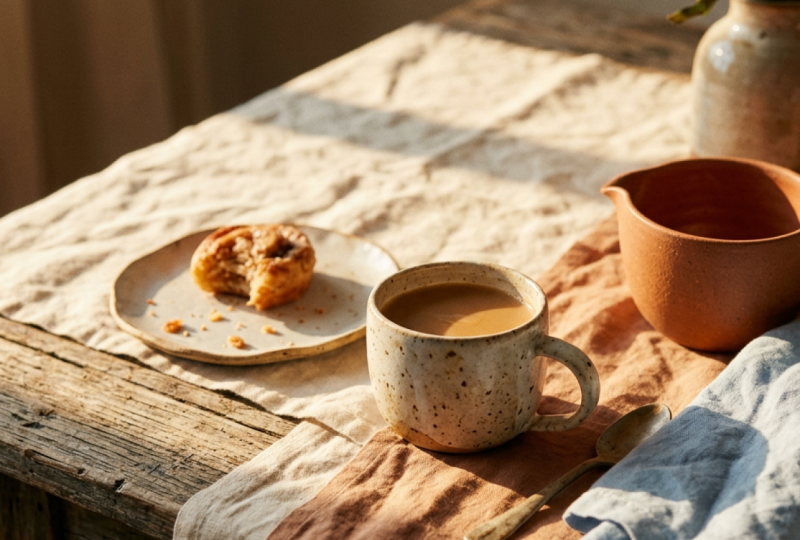
warm analog film photographed on 35 meals,
soft visual film grain, gentle faded blocks,
subtle haltian highlights, golden hour, amber, cream, palette with
caramel, terracotta, a touch of powder blue, hard low natural sunlight,
long graphic shadows, tactile handmade
ceramics, and linen, editorial food,
coffee, still life. Cool. And then I'm going to drag and bring it into a list. Now, what I want to do is you
can leave it on keep items. If you do want to switch where the items replace existing,
you can click on that. And then what we're going
to do, we can do plus, and then we can do a
few other prompts. So So I'm going to click Plus and then
paste that and press Enter, and then I'm going to
do a few other ones. This one will be
like a porta filter, Barista's hand pressing freshly ground
coffee into chrome, porta filter, loose
ground, spilling over. And you can get Claude to create some of these prompts once you have a fill
of what you want, or you can just at something
You know, very simple. So I can type in,
like, a hand holding a te with sunlit backgrounds
with shades, Shade blind shadows
lying over the top, film grain, cinematic, warm. So you can just say
something like that. Or you can be really specific. And so the more you have,
the more images it's going to create because
we're making a list. And so I'm going
to do a few more. Let's do a pastry one, bakery kind of pages under
glass dome, soft winded light. So I'm being very specific with these, asking what I want. So I know what I
want, whether it's a coffee or a
machine or a person. I'm just creating
these like this. And then what we can do
is I'm going to press drag and then we're going to
image Gen. And for this one, you can see how
now it's connected nine images, number
of generations. And then what we can
do is we can leave it on square or maybe go a
bit bigger and do like 4.5. And what you want to do
is you can leave on Auto, but typically I like to slack. So right now we've
got Nano Banana, 2.1. GBT is good, too, but I think the new model
will work really well. And then obviously, you got
some of the older models, but I think just stick into GPT or Nano Banana
is the best right now. Then we're going to
click Play and it's going to start to
generate all these. So we went from reference to some text and then to a list. And then we're now generating the images, and
it's going to create a list. And so, so we've got
our master style here, and we'll use that and it'll influence these
prompts a little bit. But you can also, you know, control paste these and
go straight to a list. And do it that way as well if
you don't want that prompt. And you can always left click on the connections and
get rid of the connections, if you want to remove
maybe a reference image or whatever or delete. And you can use Spacebar
to move around, which is really fast. Cool. So now it's generated
all those pretty quickly. I'm going to click on
gonna click on it, and it was going to open
up. That's beautiful. Cinnamon roll. Got
the Por of shot, macro shot of ice cubes. You've got the Bakeru counter, handholding a latte
suddenly background. That's the one that
I put just manually. And you can see
it's got that vibe. It's all consistent, has a
warm tone, overhead shot. And then we got this
nice warm analogue, which is like the hero shot
that I think is really good. So this first prompt that
we had here with the text, you can see it added
it into the text. Well, it added it into the list. So I think this is great. And that's how you get sort of consistent
details with this. And then what you want to do is we can actually
add some more. So like I said before, you can actually keep the
items or we can replace them. But if we keep and we
add some more text. So let's say we add another
one, let's add more. Let's get some more of,
you know, the beans. Right. And then we
can actually do this. We'll run it again. You can also change the resolution if you want to go two K as well, but one K is fine, or else
the credits will jump. But that's fine. You can also click the little
arrow to add to the board. So what I like to
do is select that. And then, so now add more text. I now registers as 13. And we can actually click Run. And so we'll go, uh we're going to click this and we're going
to say run from here, and it will start to add those new images that we just created. So there's three new
prompts that we added in. Which is cool. And it's doing another batch of
those other images. In case you maybe didn't like the angles
of the first one, you can always go
and tweak the prom. Maybe you want a
different angle, like do like sideshot or whatever. If you want, you can
do it like that, or it will generate
you different ones, so you can see some of these shots have
a different angle, like slight differences, but
still the same vibe to it, except for the cinnamon,
and that one is the same, but you can see even this
one's a bit different. So if you go look back
to the old images, let me just click If
you click the arrow, it goes add to the board,
and I'll add this. And just to show you
the differences, this one and this one, you can see it's got
slightly different. So this one, you
can see it's more of the side of the glass.
This one's the top. And then this angle
is different. He's away from the counter, and this guy is closer
to the counter. So that's one way to do it, or you can just make a new list. And what you can do is
you can actually add the the prompts like
this, add to the board, and then you can select this and drag it and make a
new list in case you don't want to add it to the same list because if
it's overwhelming for you, you can do it this way
and then do it what we did drag and image Gen, okay? Now, once we have, like,
all the images we like, so let me get you know, some of my favorite ones here. So once we have the
images we like what we're going to do
is we're going to select all these press drag out, and we're going to
add it into a list. So now we've got
these final images. I can double click
and type final. And what I can do is now
to the image upscala. And now you can see it's
reading it as five. If you don't do it this way, you have to do it
manually one by one, and that's why you
need to put it within the list as the
most efficient way. And we want to go to x. You can also do four x if
you want four x quality. And then you can choose you've got sublime
photo, de noise, et cetera. I typically use it on
the default because it's fine because it's
already stylized images. I'm gonna click
play, and it's going to upscale all those
images for me. As it's generating,
I'm gonna go in. I'm going to zoom in,
and it's two k quality. You can see it looks good. I can see that quality
is pretty good for two K. So it's 2,200 pixels. That should be plenty
for, you know, websites. If you want to go
further, that's fine, but you're going to have to compress it for our
website anyway. And so that's just how to create consistent
stylized images for a brand, once you do that, and
you can just repeat the process to get
some cool stuff. So you can see all
the variations here. It's the same image. It's all consistent. It's just literally giving
different angles. That's really cool shot. So that one's
different elements, but it's the same
mugs, as you can see. The flower is still the
same. So it's consistent. It's just literally
shifting the angles. That's the aerial shot. And I'll tell you what it
is, aerial shot, wide shot over the shoulder
shot, stream long shot. And it auto expands for you. So this is a really
fun way just to get crazy amounts of
angles and images for, like, one branded image. Now, maybe you wanted to create
some backgrounds as well. You know, we can easily just go Image generator and paste in one Pmtea and we can
generate a new image, we can use it as a reference. And I'm just going to
copy and paste this one. And let me press V
to select and move, then press L and connect
it as a reference. And while it's generating there. Let's say you want
to make a texture, I can just copy and duplicate
my original reference. We're going to press L
for the connector tool, drag and job get Imagen.
And I want to paste in. And I'm going to go ahead
and paste in this prompt, so it's reading the reference
E, paste in this prompt. And for this one, I'm going
to go like widescreen. Maybe I want it for, like, a hit background or thumbnail or something or maybe
doing a flyer. Um, I can generate a nice backdrop. And while I'm waiting for
that, I'm going to go ahead and copy this image.
I'm going to disconnect it. And I'll show you this other
cool tool that we have here. We've got variations, so I'm
going to connect this one. And so With variations, you can click on Drop
Down on the bottom, and it has different
perspectives. So we've got different
ones like close up, extra long shot, extreme
close up, back view. You can tick them off
and tick other ones. So we can do aerial. You've
got point of view, wide. You've got a whole
different things. So maybe you want
to go wide shot, maybe want not medium close up. Maybe we go over the shoulder
or something like that. Just the shoulder does.
And for this one, you can do 43 and two K is fine. And it's going to be three times through grid or you
can change the grid. It's really up to you.
And I'm gonna press play. Now, what's this going to
do? It's going to give me nine different images, nine different images
of this one image. Well that's load, I
want to go back to the gradient, which is cool. And that looks really
great. Really love that. And another trick we can do is actually use the
assistant for this one. So what we can say, it uses an LLM to help you, you know, build out your ideas faster and
understands your prompts. So with the assistance, I can come in here and just
type in a prompt. I'm going to change it from
GPT mini to something else. Let's just go with
Astra for now. But any Soul will do as well, but let's just go with
Astra, and I'll say, I want three new variations of the textu keeping the style, but changing the colors, green, the effect, angle, the
effect, the gradient amounts. I want one more experimental, one safe, and one fun texture. That sticks to the star. Okay. I want to click Play. And it's going to come up with three different
prompts that we can use to start generating some new images of
these textures. Perfect. Now we've got three different prompts
CFO on the scrollbar. We've got the experimental one. We've got Safe and we've got
fun here, which is great. And what we can do is you click little top button
click Export result. You can export as
a list or as text, whichever you want, but it'll
just do a text for you. And then what I want to
do is go image generator. And I can copy this
text, paste it in. And then what I like to
do is just create a list, add text, and we're just going to copy
and paste this text. Plus paste. Plus and paste that. And then like we did before, we go to the image gen
and Google Nano Banana. Let's go to the new one
and we'll run the credits. Now, you could click this bottom up here and click Export result, or you can also copy the text, and it will literally
paste the text. But sometimes what happens is it disconnects that texture
because it pastes it by itself, so you would have to
reconnect it like this. And then, you know,
do the image there. So now that one
image will pick it up or connect it to the list. So that's just keep in mind. But I think another way to do it is just do
a list like that. And then do it this
way. We can see here, we got the safe option, bit more of that peachy color gray, just really smooth and
muted colors here. And this one more experimental,
more hazy analog. I got a bit of acid fill to it. Feels like there's sort
of like glass there, and the grains a bit more dark. And then we've got one, as you can see, playing
on with the variation. So we can see what
we can create. Obviously, it's moving away
from this original one, but I asked for three
different options, but that's just
one way to get it. But this one we
definitely could use. And the next lesson
I'll show you how to create studio quality mockups.
5. Studio-Quality Mockups: I'm going to be
talking about how to get studio quality mockups. I'll show you some real
examples from recent projects. And I've also included a cheat
sheet in the notion page, so you can follow that
if you get stuck. Now, when I'm using
a specific design as a logo or pattern or
whatever element I'm using, I follow this six part formula. The first thing is keeping. What details do
you want to keep? So if I want to say, I want
to leave the logo as is. Make sure I say, keep
all details the same. I want to make sure
that the topography is preserved because sometimes it will mess up the typography. I will talk about the lighting. So what lighting is it? Is it soft and diffused? Is it a spotlight? Is there
a rim light, back light? Is it sunlight from a window? You got to mention the
scene that you're in. So think of the scene,
think of the lighting. Think of the background. So it's important to think about what texture you
have. Is there a wall? Is it just a flat color? You know, mention what
specifically you're trying to get. I always try and
go with, you know, three points softer fused lining with a blurred background, specifically if it's like a
product mockup or something. But I also try and add a bit of texture that's colored that, you know, matches the brand. Next is material. What type of material
is it? Is it cotton? Is it fiber? Is it wood? Is it aluminum? Is it thick GSM paper,
natural cardboard? Mention whatever
texture you want, specifically if it's like
a print material like a business card or a letterhead
or something like that. Talk about the paper details, talk about the colors
and the lighting. Mention the specific materials
you want on the product, on the background, on
the table that it's on, whatever you scene needs. Next is the frame. We ought to think about, is
it a top down angle shot? Is it a point of view
shot, a selfie shot? Is it just straight on direct? Is it a side angle or a side
view? Is it sharp focused? Is there a Boca effect? Is there depth of field? You know, these are
all camera terms. You can look them up, you
can use the cheat cheat. But knowing what frame you want will determine the quality
and style as well. Knowing how to frame it will make your images look unique, so it's not just, you
know, a standard, just normal front on
shot. Please avoid. Anything I want to avoid,
I always mention that. So if you don't want
any people, just say avoid people in the image. You don't want any
orange light, say, avoid orange warm tones. Whatever specifically
you don't want, just mention it, photography
and videography. And so I'm going to just
break you down what I did to achieve these results over here. So here was my logo. I
created in Illustrator, so I designed this logo, and we started off
with just mock up this logo on realistic mockups, one signature, one
business card, one T shirt, one cap. I used Google nano Banana, P, and I kept the ratio at one. Ratio is another thing, part of the formula.
It's pretty easy. You can just select
what you want, landscape or square
doesn't matter. So the initial result
was pretty cool. I like this lockup of
having like a cascade or just a boxy mood like
in type of image. So this is really
cool. And so also we that the text is
pretty well preserved. Sometimes you notice that
there is a few issues, like, for example,
that one there, the text is not doing
what I want it. So anything I don't want, I
can always just remove it. So I generated some
more just using the image dentur one I
mentioned separate each image, keep all details the same. So I actually liked the details. I just wanted to tweak
it a little bit. I really liked
this glass effect. I thought that was really cool. And then the hat was nice. Then literally just drap and it will connect
to the image, and it creates these
nice connections so it uses in the
context as a reference. And so every time I'm
referencing the logo, and I'm giving it a new prompt. So this one, a
hyperrealistic mockup with a logo on a modern
camera, studio lighting, smooth detail, cycloseu shot of a camera background should be dark navy color macro
shot with texture. So this one I didn't
mention the hex code because I have it right here. So this is just an
image with the color. I just ignore. I just screenshot
from Illustrator. So prick screenshot
illustrator I chop that in. And we can call
this brand colors. And so these colors
from that base shot really cool detail. The only thing is
it messed up there, which I had to fix. I said, do a different
angle of the camera, have the logo, no other text. So I used the avoid. So I mentioned no other text, and I was specific about
I just want the logo. Let me get this effect.
Let me zoom in there. Camera details really nice. This one I created a I didn't
mention the background, but it gave a pretty nice. I fit the brand anyway. And then I did the same
for my second variation. So I created some
other variations here. And so you can see
I'm referencing the logos and just
connecting them as a reference point to
create some other designs. And this one card, cinematic
studio style photography. You can see you got
this cool effect. You can see it's And we're finet then we upscaled it and you get this final image here
that looks really good. And just tweak whatever AM tool, removal tools, he adjustment
layers, things like that. Now, this one here
was for Amiga wraps. It is another business
I worked with, and they do vinyl wrapping
for cars in Canada. And we started off with using the images that they originally have on
their old website. So I designed a new
website for them, and I was working on so I dropped all these in and
used it as a reference point. So these are and
then I saw images. So I said, Take these cards,
I'll cinematic wide shot. Studio lighting
pristine photography. And I got this type of
effect, as you can see, then I started taking
out things like, Let's have only three cards, right? So I started
refining that. I'll take it work in
the car the same, and we get this type of look. It's sort of So
it's pretty cool. I like one of the ideas they had in
their three to a garage, and they had this checked thing, so I actually used
that in the image. So you can see in
the background, I started adding that what
it could look like, right? So this texture, and here are
some of the other images. I wanted to add this background. So I created this background
to use it for some portrait. So I took their just
basic portrait images, as you can see from
here, and I said, create a portrait with a prime lens image, no other details. So I added the booker effect, and I used that and I used the reference
from the background. And then it creates these
images here and the shading. So you can see these
portraits weren't that good until I kept tweaking it
to get something like this. A slight smile, happy look, make the polo more contrast, realistic shadows, prime
lens Sony portrait style. And you get something
really clean like this, high quality. So it's the same person
getting a nice portrait. That would have been
great, but this is just something else
you can do as well. Next, I'll be showing
you how you can fix and refine your image generations.
6. Bring It Into Your Design File: This lesson, I'll show
you how to export your images and bring it into your design file
so you can tweak, edit, and make the
changes you desire. Now, in magnific one of the cool things is I can
easily upscale an image. So once I'm happy with it, I'll press L for
the connector tool, left drag, and type upscale, and then we can upscale
with the image upscale la. So if it's a photo, whatever, but I usually leave on V two, sublime, and we can
do TX or four x. And I'm going to do plus, and that will generate the
image, as you can see. So this image here, for example, is upscale like this. And then what you can do
is you can just select it and click the little
Download button. Also, you have a bunch of
images you can select and then click Download and it will
download everything in one go. Usually, it'll put
it into a folder and you can see all
the images there. Then I can just view
more happy with that, I jump into Illustrator, and I just bring in the images
and start creating. So you can see I
have an image here, and I've actually got it
inside a clipping mask, and then I start overlaying
the logo and the text. So we've got the logo here, and we just a paragraph with
some of the copy I created. The website there,
this image as well. You can see everything
is grouped together. And I'm just overlaying
text on top. Some more examples
here. So you can create things for Instagram really
good. I made a mock up. So for example, I added one of the images here with the
logo, as you can see, and then did a quick mock up like a Shop of Fi
banner, for example, just to show what
could look like, and then added some of the merch there with
my logo design. So it's really easy to just
quickly whip something up. I would just bring this
one in, draw a box, use a clipping mask, and then grab the logo and
place it there. Dot com. Need a copy the
right tick, make that white. And then we have a simple image, and then I can export
for all screens, call it story one, and just save that to my
download folder for now. That's how I'll quickly whip
up a design for socials, and then we have we've
got the image now. And obviously, we
can fix the logo. So if you have a
mockup that, you know, has the logo there,
one of the cool things is I can go into photoshop.
That's one way to do it. Another way is to go into here and we want to
click the Edited Image, or you can do prompt Editor. But if I click Edit Image,
I can bring it into here, and we can actually
prompt it or we can click Visual and I can click Is and then I can
drop that annotation. And if I press Enter, you will start to edit
it. And there we have it. It's gotten rid of the
logo from the image. And if there's also a
logo on the bottom, it can say the same thing. A logo from the pants
and press Enter, and I'll get rid of it, and then we'll have an image we can use. And so you can see how
I'm misusing the images, mockups and just shapes
and text. Very easy to do. If you know, you know, any basic tools it's
pretty easy just to whip up. And there we have it. And then once you're
happy, we can export that so then I can go here and download that new
edited version, as you can see,
and it's upscale. So I got some good detail
there, and the logos gone. Didn't have to open Photoshop, and took about 30
seconds to 1 minute. Now, here's a version
two of some of the images and the
stories we created. We had to do a bunch of them. And so you can see the final
look at some of these images here with the real
logos on the models, and I created some banners here. So I can use whatever
image, strop it in, make sure it's upscaled, and I'll turn this
into a clipping mask, Command or Control seven. I usually use my shortcut F one. So you want this image and then and that's how we can
create a quick banner. Very easy to click. But using these images
works really great. This one looks cool,
as well. I'll make a logo embedded embossed. Next, I'll be going through some more examples of how
you can generate branded
7. Another Client Example: How you can create some
consistent branded images. Let's say you're
putting a website or a brand and you need
some cool photography. I originally started off with getting this
from the client. You can see it was for
a platinum fittings. It's like a steel
rigging business. So I had these three images, and then I used that. And then I went to
Claude to extract the style and the fill
to get the key words. And then from that, these were
the initial images I had, and I created a whole bunch, and I made a list. And this helped me get an
image for the hero image. So the hero image, I red the contrast of the blue
and the orange for these. But then we refine it some more. So they're calling about
Magnific you can type list, and then you just connect
an image to the list and it'll generate you can also add multiple layers of text to
create multiple prompts. So you can add media as well. So I can link up this one, and then we can
link up image Gen, then once I had some images
that I liked, I created this, and you can see in my prompt increased contrast
sharpness to crease golden. Our lighting, make
it more daylight, natural sunlight,
but not too bright, make a ratio landscape. And I got this few images here. And these and so you just can create heaps of
different images here. And then this one, get some more variations
and you can see that I was using decreasing
like the fog mist, texture make the still
beams not look rusted. As you can see, they were,
like, really rusted. And then another thing I did was create some three D icons. So you can see on
the actual website, I have these three icons. So I started off with finding a reference image on Cosmos. I really like this monochrome
still three D effect. And then using that
as a reference, it's really easy
just to say what you want and it'll create
something like this. And then it was my idea to, like, add what symbols
and what images. As you can see, at a crane,
holding up a steel bar. Now I took this, used
the assistant and said, Make a suite of similar
icons with this exact style. You can see use GP
mint for the text, and it's using that
as a reference, and then it starts
creating all of these. And obviously, it's in a grid, and it looks a bit condensed, but these ones on the
bottom look good. And we can in the next lesson, I'll show you how to create
your Brand Prompt Kit.
8. Prompt Guide for Your Client: I'll show you how you can create a simple prompt guide to give
to your clients so they can recreate and generate
their own images that align with
their brand style, and so it's consistent. So in Claude, I said, create a simple one pager
AI prompt PDF guide in using your design skill. For the AI warm
neutral tone images we generated, and
examples attached. So I took some screenshots of the workspace or the canvas
that I was working on, so you can see the images there. And I just said the
goal is so the client can reuse the prompts using
Nano Banana or similar. The cool thing about Claude is that they have all the
memory inside of here. So if you click on
the memory, it's got everything in there and all
the previous conversation, so it understands the context. And then I did a
few tweaks to it. So, I remove some parts
that I didn't want, you know, that didn't make
sense for the client. So I also said we want, add the textures and the lighting, the background, no
models or items. I want flat texture, and then
just removed a few things. But here is the result. So I got a one page PDF, and so it has AImagePmguide, and then we've got
outdoor lifestyle, and then we've got
studio portraits, and it gives you
prompts that they can plug and play
and copy and paste into the actual Magnific or
whatever tool they're using. And then they've got
color references here, and they've got usage notes. The usage notes is when they
want a certain look like I'm giving them what
to do, what to say, and what not to say because sometimes they'll
get a weird result. So I want to say avoid this. You've got style reference
ratios, grain and color. And then you can see, if you want texture
background as well, we've got flat concrete texture, grungy, deep charcoal tones. So basically, whatever prompts I was using
during my creative process, it's taking those keywords and putting them into
a one page guide, which is just a simple PDF, and I can just put
that in the design files for my client, so they can always just
go in and reference that. And so these are just
great to hand off to your client so they can start generating images as well. But also, you can pitch
your service if you want if they want you to generate and create
more images for them, then you can do that as
well and get on a retainer. So that's just how I do it.
9. Class Project Details: Thanks so much for
taking the class. I hope you build some
great branded images and improve on your AI workflow. For the class project,
build your one page Brand Prompt Kit that you could
use for a client project. The challenge is
to get specific, so someone else could
use your kit and still produce the same
images that you made, and then generate an image
set of nine images for a concept brand or maybe a
real brand that you want to refresh and make sure
that the challenge is to keep the consistency with images so that they have a
cohesive look and feel. Ask any questions in the
Skillshare discussions board, and I'll help you when
I can. Thanks so much.
 Jeremy Mura, Brand and Web Designer