Transcripts
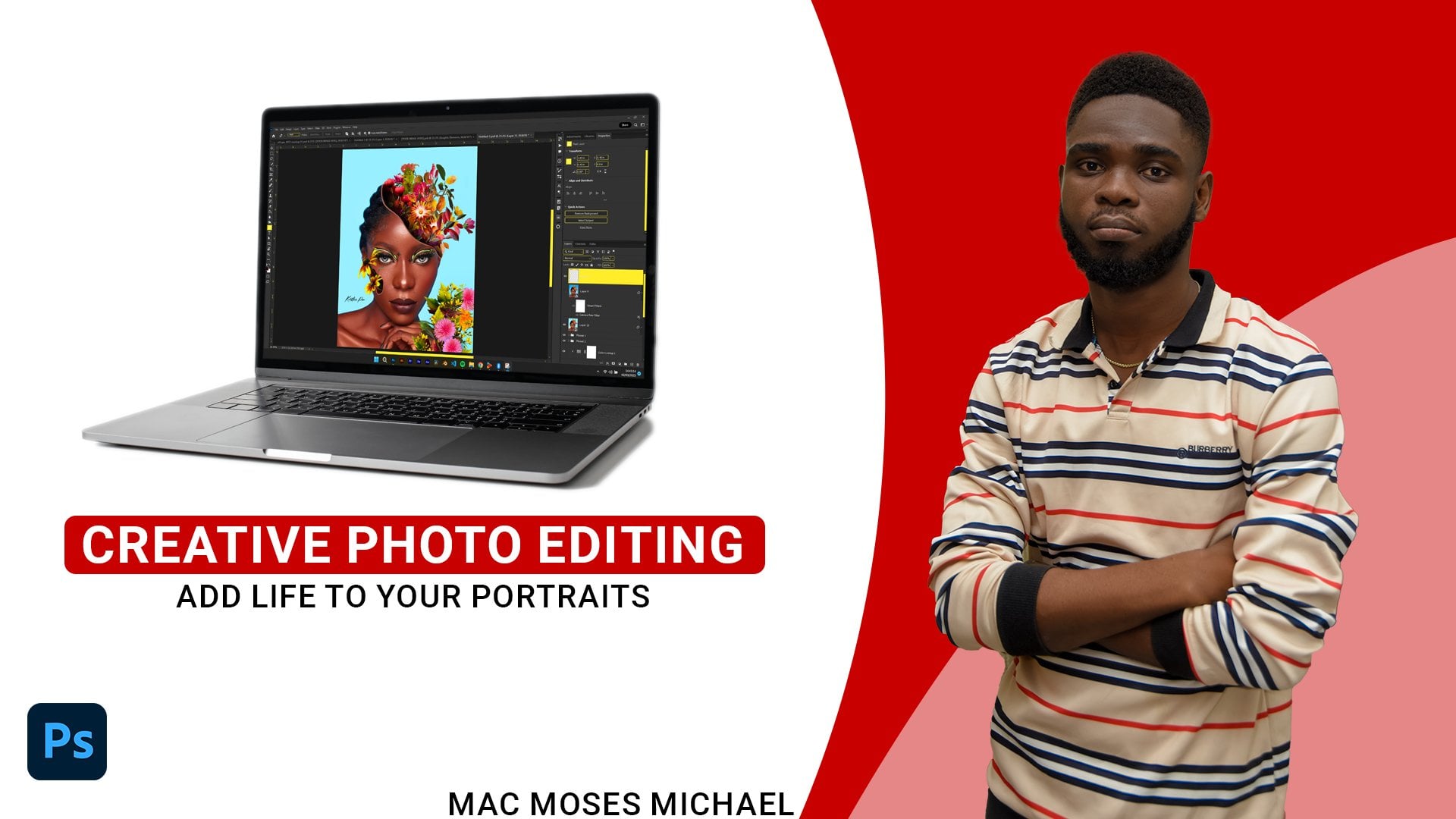
1. 0. Introduction: I Hi. I'm Mac Moses Michael, and welcome to Beauty
Retouch With AI, a complete guide to professional portrait
retouching that combines the power of artificial
intelligence with traditional
retouching techniques. In this course, I will
walk you through a clean, non-destructive worklop that
blends manner precision with smart AI tools to help you achieve stunning
realistic results. We start from the basics, imposing your photos and
preparing them for retouching. Then we dive into essential
techniques like healing, frequency separation,
dodge and bone, teeth whitening, and
eye enhancement, all designed to bring out the natural beauty
in your portraits. You will also learn
how to add sub to volume, balance skintone, enhance the background
and subject, and create harmony
throughout the entire image. Along the way, I will show
you how AI tools can speed up certain parts of the process while keeping
you in full control. By the end of this class, you will have a
solid understanding of how to blend AI efficiency with human artistry to create portraits
that look polished, professional, and truly alive. So if you are ready to
elevate your retouching and discover the perfect balance between skill and technology, let's get started with
beauty with touch, with AI. See you in the next lesson.
2. 1. Importing Your Photos: Before we get started, I
quickly want to show you guys something we are going to
be using in this course. So when we get into Photoshop, what I'm going to be
using for retouching, it's the Retouch for me and a combination with
manual retouching. Now, keep in mind that me
making use of Retouch for me in this course does not really
mean that you have to make use of Retouch for me
to retouch your own photos. There are so many
plugins out there like, Okay, so here we are
in camera of filter. You can just go ahead and make basic adjustment that is if this is not
really okay for you, but this is really okay. For me, but I'm still
doing something. So what I'm going to do
is to start with Auto and see what I'm going
to get with the auto. Okay, now, the author
did a great job, but this is still
too much for me. So what I'm going to do is
to go over to the exposure, and I'm going to reduce the exposure to somewhere
around -20 works well for me. And for the contra, the
contrast is okay, the shadows, I'm going to bring down
the shadows a little bit just to add more
contrast to it. I think plus 17,
works well for me. I think I'm going to bring down the exposure. This
is too bright. I can write this up or lighten the photo
back in Photoshop. So I think plus five or
let's go a bit higher. Yeah, plus 15 works well for me. So every other thing
stays the same. I love the vibrance. I
love the saturation. It already decreate
the saturation, which is actually fine by me because I can
work on that later, and everything looks perfect. So once you're done with
your basic adjustment in camera raw filter, what you want to do
is to hit on open. If you hit on done, it is
just going to save this to your raw photo and it's
just going to be there. Camera arrow fifth
is going to close, and it won't be open right
inside of Photoshop. But the good thing
is that if you input this photo
back into Photoshop, when it opens in camera arrow, all these adjustment
you have done so far, it's still going to
be on your photo, so you can just proceed and
open it up in Photoshop. Now, once I'm done right here, I'm just going to hit on open, and this is going to open the
photo inside of Photoshop. Okay, so here we are
inside of Photoshop. Now, I want you to
understand that my workspace is
completely different. And I'm quickly going
to explain that. Reason is I drop a
lot in Photoshop. So having my
workspace like this, this is just a way I use it
in drawing in Photoshop. But I can also make use of this too with touch
inside of Photoshop. It really depends on the kind of workspace you
want to make use of. I really don't need
anything much, and I prefer putting
up some things as just panel in Photoshop
to and when I'm done, I close it, but I just like my Photoshop
workspace like this. You can play around with
your Photoshop workspace, or you can just easily
go over to Windows. If you don't know anyone to use, just go to Workspace and
you select photography. When you select photography, it is going to give you
the photography workspace and Photoshop that you
can go ahead and make use of making you or
helping you to focus on just the photography tools
available in Photoshop. But I will go back
to my own workspace, which is what I'm going to use. So that is it for this lesson. In the next lesson,
we are going to start with the healing
process in Photoshop. So see you guys in the
next lesson and make sure before going over
to the next lesson, you have input your photo
right inside of Photoshop.
3. 2. Healing: In this lesson, we are
going to heal our photo. Normally, you make use of the traditional method to
heal photos in photoshop. Either you make use of the
spot healing brush tool, the healing brush too, or you make use of
the remove tool. Yeah, which is still okay. You can go ahead and do that. But this is all
about making use of the manual retouching and AI retouching to retouch a photo. So what I'm going to
do is to make use of the retouch for me
heal to heal my photo. But when I zoom in closely, I'm not really seeing anything much here,
but that's fine. I'm still going to
work with that. So the first thing
we are going to do is to hit on control. J to make a duplicate
of our layer. I'm going to double click on that layer and I'm
going to name that to ill and on enter. Now, since you are applying
a filter to this filter, you can just convert this
layer into a smart object, but I really don't think it is necessary because
everything we are going to be doing is just going to be
on this particular layer. When we are doing
something else, we are going to duplicate this layer again. So
keep that in mind. So when you duplicate
this layer, you want to go over to filter scroll down to Retouch for me. That is, if you are making
use of Retouch for me board, whatever plugin you
are making use of just go ahead and
locate that plugin. Then you want to
locate the Hull, which is this one right
here and click on that. Give it some time it
is going to open up. Okay, here in Retouch for me Hill we have
the front option. We have the Auto. We
have the close up, we have the half
length portrait, and we have the full
length portrait. So depending on the one
you want to make use of, that is what you
are going to use. So from here, I'm just
going to turn this to a close up photo and
allow this to process. Okay, this is finally
done processing. We can hit on Zoom to zoom in. So let's quickly
focus on the phase. Now, if you hit on space bar, it is going to show
you the before. And when you release
the space bar, it is going to show you after. So this is what we have before, and this is what we have after the before and after though, there are some issues here, but that is not
much of a problem. And let's scroll
all the way down. So this is the after,
and this is the before. Take a look at all these. Although it did
something weird here, but I think that
doesn't really matter. So let's take a
look at the hand. It also removed this from here, and everything here is really looking good. So I'm
going to zoom out. Now, once you are done, if
you want to fine tune this, you can go ahead
and fine tune this. The sensitivity is up to 100 and I am perfectly
okay with that. Now, once you are done with everything you want to do here, you can just hit on apply, and that is going to
take you back into Photoshop and apply the
retouch from a hill, which you just applied
not too long ago. So now we can quickly
see this right here. And we have this on
a different layer. You can apply this on
one particular layer, but the reason why we apply this on two layers is
just for two reasons. Number one, for us to be safe, if we have any issues
with this layer, we can delete this layer, it on Control J and continue
from where we left though. And number two, it's
that we are going to use this to see the progress of our retouching as we keep going. So this is what we have before, and this is what we have after. Now, if you have any other
thing left on your photo, which you think you
want to remove, like what we have here and here, you can just go over
to your tuba and look for the healing brush too, or you can make use of
any one of your choice. Now, one mistake
people do whenever they make use of this
healing brush, too, is that if they pick up the two, they'll just go ahead and make use of the two
just like that. I think I'm going to switch to the spot healing brush too. If they just pick up the two, they are just going to start working on it just like that. Now, at this point,
when you zoom in, you might not be able
to see that Aero pod. I let me just explain that. So the error we usually get or most people usually get is that when you pick
this brush two, this brush two, the
hardness is always set to probably 50 or 100%. Now, you can see that the
hardness is set to 100%. When you are retouching, you want to decrease this hardness. If you did not
decrease the hardness, it is going to some hard edge on your photo which you
won't be able to like, which you won't like
when you are done. So now you can take a
look at this and see. But of course, I did
this multiple times. That's why we have
this issue there. So before you make use
of the healing brush to, you want to make sure
that you go over to the hardness and set
the hardness to zero. Currently, I have the
size set to pen pressure, which is really okay by me. How hard I press on
my tablet determines how big the size of
the brush will go. So with this now, I can just
press a little on my tablet, and that is going to
take only that area. And it is going to help me
control all those issues. I'm going to have whenever I retouch or whenever I heal
with the spot healing brush. So I think I have
this on the lifts. I'm going to take that
away and even this one. And I have this one here, and I have this here, this here, this here,
including this. And this this one and this
one. I think this is okay. I'm not going to take
anything else away from here. Everything really looks
good, and that is fine. So I'm going to hit
on Control zero to fit back to screen. And right here,
I'll come down to my layers panel right click
and hit on new group. And I'm just going to
name this group here. Hit on Enter and drag this into the group and I can close it so we have the hill in a group. So now, once you're
done, you can just hit on save and proceed
to the next step. In the next lesson,
we are going to talk about the
frequency separation. Frequency separation it's yeah, a little bit stressful, but I think we just
really need to know. I'm going to see you
guys in the next lesson.
4. 3. frequency Separation: In this lesson, we are going to talk about frequency separation. Of course, I won't go in depth explaining this
frequency separation. I'm going to show you
guys how to create it, and we're just going
to touch or photo. Now, you can also
make use of the touch for me to create this
frequency separation, but I really don't
think I like that. You can just go over to
the plug in section, and let me quickly make
a duplicate of this. Now, at this point,
we already have a group and we
have a layer here. When it Control J, you are
going to duplicate the group. You can also open up the group, select the layer,
hit on Control J. When you hit on Control J, to duplicate the
layer, you can just drag this out of the group. But yeah, that's a
little bit stressful. So what we are going to do
at this point is to make a merge copy of all the
layers we have in Photoshop, leaving the first layer as the fourth progress of the merge copy we are
going to create in Photoshop. So to do that, you want to
hold on Control plus Shift, plus O and plus E.
On your keyboard, and that is going to
make a merged copy of all the whole layers. You can just go to
filter Retouch for me and frequency separation. This method is still a
little bit confusing to me, so I'm going to stick with the manual method of the
frequency separation. Okay, so now we've already
make a duplicate of our layer. We can just double click
on that and name that to color or you can name
that Low depending on you. So I'm going to hit on Enter, it on Control J, Dub
click on this one, and I'm going to name that
to details and hit on Enter. So we're going to
turn of the I of this layer and I'm going
to select this layer. Now we can go over to filter. You can go over to blur. You can make use of
gasianbl if you want to, but I'm going to make use of the surface blur
and click on that. When the open up, wow look at how the tt is
shown right here. So I think let me just
quickly zoom this out, right? This is a little bit better. Okay? So now, you can see
the effect of the blood. I think 15 as a
threshold is okay, or maybe I can take this up a bit to 17 because
if blood is out, we're still going to
bring back the details. So I think, 17 works well for me here I'm
going to click on Okay. And now you can see that we've lost in detail on our fourth. So we need to bring this back. So when we enable this, but I think this isn't
doing that much here, I'm going on Control Z to undo, and I will go back
to filth and I go to blow and select
the surface blow. Here. So I think I'm going
to increase the radius a bit and take these down. Let's look from here.
Let's take the threshold. I think, let's take the
threshold up Okay, this is okay. This is pretty okay. So
I'm going to hit on. Okay, to go back into Photoshop. Now we can see that because
I turn off the eye, I turn on the eye of
the details layer here. Okay, so this is what we
have with the surface blow, and now we're going to turn on the details layer and
select that layer. Then we'll go over to image, scroll all the way down to
the pad that says applyimage. Inside of this window, you just want to say the layer. The layer tab from here, you want to set it to the color because you are trying
to extract the details from the color layer and put
it onto the details layer. And the blend mode, you want to set
the blend mode to subtract because you
are subtracting. And the scale
you're going to set the scale to two and the offset, you're going to set
the offset to 128, and you're going to
hit on, Okay, now, if you want to know more about
this frequency separation, I have a dedicated
course which you can go through that is going to explain more of this
frequency separation. And you also have
the option of going over to YouTube
to check video or to look for several videos that explain frequency
separation in details. So from here, I think I have this here and
let me close this. From here, we go over
to our blend modes, and we just set the blend
modes to linear light, and you can see everything. It's really okay.
Now, at this point, we need to group them,
but before we do that, we're going to select
this layer here on Control J to duplicate
the color layer. Of course, we want to
smooth this layer. This happened twice. Okay, so I'm just going
to delete one of them. Drag and delete this. And for this one,
there is nothing really serious about
creating this layer. It's just to have a backup. So in case we are
smoothing the skin, we have any issues, we can just delete
this layer and on Control J again to
duplicate this layer. So now you can just
right click on this layer and create
a clipping mask. Like I said, this is not necessary. It
really depends on you. So now I'm going to select
this first one hold and shift and select this one, don't control G to group it, and I'm going to name that to Fs which is
frequency separation. Now, at this point,
we're just going to open this group select this layer
and we go over to our tuber. Under the brush section, we're going to select
the mixer brush. Now, inside of this mixer brush, there are some things
you really need to do. So here you want to make
sure that I'm going to select the Fourth soft
tram brush and Photoshop, which is this one here. And from here, you
want to make sure that you want to make
sure that you have a clean brush which
is this one here. So I think I might
want to reset this, this is pretty okay for me. No, I think the load
I will set the load to I'm going to
say the low to 90. The mix should be ten,
the weight should be 20, and the flow should be 100. Now, you can play around
with the settings and see what really
works well for you. As I keep working, if this
isn't really going well, I am going to adjust the
settings as I keep going. Of course, I have a
dedicated settings I usually make use of, but I just want us to try
something different and see. Okay, one thing you
need to uncheck a sample or layer as well.
I'm going to show you that. So let me zoom in and then increase the size of the rush very well
so that we can see, and I'm just going
to paint crazily. Alright, now take a look at it. You can really see what
we are having here. The reason is instead of this to just focus on
this particular layer, it is also sampling
from the detail layer, which is exactly
what we don't want. And this is happening because the sample layer is checked. So once we click on
this and check that, when we paint again, it's undo. Now we don't have the
clean brush here. So we just come back here again and enable
the clean brush. And when we paint, you can see that everything is going to be on that
particular layer. So I'm going to hit
on Control Z to undo. And as you paint, you don't
want to paint like me, dragging everything all around. It is going to be messy. You just want to do it gently. Now, most of the times, People
will tell you not to zoom in once you are doing frequency separation or once
you are smoothing the skin, yes, it is absolutely advisable not to zoom in when
you are smoothing the skin. But the only work
around for that it when you zoom in as you
are smoothing the skin, make sure you zoom
out from time to time just to be sure
that you are doing what's right because
you are going to focus on zooming in every
now and then. But when you are done
smoothing the skin, when you zoom back
out to 0% or to 50%, you find out that you've
done something crazy. So it is always advisable to zoom in and zoom out why
you keep retouching. Okay, now, as you
keep retouching, as you keep smoothing the skin, you don't want to go like this. No, it's not going
to make any sense. Any area you focus on, just focus on that
particular area. So if you're
smoothing this part, just make sure you focus only
on that particular layer. Do not drag it across any
other part of your subject, I said layer and it's not layer. So I'm just going
to smooth this and speed through this because
you really don't need this. You already know how to do it. But I'm going to delete this before I speed through
it so that you really see what I'm doing just in case you are new to
smoothing the skin. And another thing you
need to keep in mind, it's that as you keep
smoothing the skin, make sure to increase
and decrease the size of your brush
that is necessary. If you're trying to use one brush size across your whole photo, and
ending of the day, you're going to find
out that you have some issues all over your photo so just Make sure
when you get to large areas, you increase the
size of the brush. When you get to smaller areas, you decrease the size of the
brush. Keep that in mind. And when you are
smoothing again, don't really focus on
all this part as head. Don't just go over
there and smooth it. The eyelashes, the eyebrow, the eyelashes, don't do that. Don't do that. No,
no, don't do that. It's really going
to be so crazy. So you just want
to do it gently. As you keep smoothing. And I'm going to take
this out later on. And the places where
you have darker spot, try as much as you
can not to move it into the areas where you
don't have darker spot. Just concentrate only on
those areas like this, and see that I am
focusing only on that part where I
have the dark spot, not dragging it into any areas
that does not have that. So now you can see
at this point, I decrease the size of my
brush and I increase it again, depending on the particular area of my subject I am working on. So at this point
now you can zoom out and see what is going on. So this is the before,
and this is the after. You can really see what
we are doing here, the before and the after. So at this point, if you are having any issue just
like me here now, you can just easily adjust
the issue while you are zoom out and I have a little
bit of an issue here. And of course, you don't need
to worry because you are going to dodge and burn this. Okay, so this is the before
and this is the after. This is looking
good, so I can zoom in again and continue. One thing I keep
doing here is to always increase the size of my brush and decrease
it in some areas. And most importantly, not
dragging across my subject. You can see how I am doing it. Now, when you put your mouse when you
click on your mouse, as you keep smoothing, you want to make sure
you release your mouse click on on intervals. So you don't just click and
hold down, then you drag. It's not really
going to be okay. And if you're making
use of tablet, you want to repeat
the same thing. Okay, okay, I'm done. I'm done, too. Let's take a look at the before
and the after. So this is the
before, and this is the after the before
and the after. This is looking absolutely fine. I don't have any issues here. Here. This is looking good. So I can just hit on
Control Zero to zoom out, and now I'm going
to close the group. So take hat of time, smooth
the skin of your subject. And the next lesson,
we are going to proceed to the
dodge and the bone. See you guys in the next lesson.
5. 4. Dodge and Burn: In this lesson, we are going to dodge and burn our further. Now, after putting the skin, so we're going to lose some
light and some dethils. And, of course, we're going
to bring the back later on. But for now, let's just
focus on dodge and bone. Okay, now we've done with the frequency separation
and the hell. So before we proceed
to the dodge and burn, let's quickly take a look
at the before and after. So this is what we have
before and this is what we have after the before
and the After. Now, this isn't a big change, but it really did a lot. So now we're going to
make a merge copy of all the whole
layers we have here by holding down
Control plus Shift, plus eight plus E to make a merge copy of
all the whole layers. And this time, we're
going to name this to dodge slash Bon hit on, Enter. And now we'll go over
to Fa retouch from me, and Dodge Bon basically
conduct Okay, here in the Dodge boon, we have the same option
like we have in the hill. So we're just going to select the closer portrait and allow retouch form
to do its thing. Okay, so now the dodge
and burn is completed. Let's take a look
at the before and the after the before and the after the before
and the after. Not much of a big change. So what I'm going to do, I'm going to come down
to this blend, and I'm going to increase
the blend a lot. So now we can see the before and the after before. The after. Now, this is the before, and this is the
after the before and the after the before and
after, before and after. And pay close attention
to parts like this, the hands, the body, the nails over here,
this part of the body, you can really see before and the after the before
and the after. This is a nice change. So I think I'm just
going to drag this all the way up to 100. So let's see the before and
the after before. And after. This is really looking good. And you also have the option of turning this into
a sup light layer. And I think I don't
want to do that. I'm just going to hit on Apply. You have the option
to play around with wom as well if you want
to go ahead and do that. So I'm just going
to hit on Apply to go back into Photoshop. Alright, the dodge
bond has been applied, so this is the before, and this is the after. So we're going ahead on
Control G to group this, close the group, close the group, double
click on the group, and name that to Dodge
bond hit on enter. Okay, as you keep doing this, don't forget to hit
the controls to save. It is very important. If Photoshop crashes, you
are going to be frustrated. So hitting Control
is very important. And now, this is the
end of this lesson. In the next lesson, we are
going to take a look at how we start enhancing the features of our subject like the eyes, the Ts, and so on. So that is what we are going to start doing in the next lesson. Make sure you are done
with all these steps, and in the next step, this is the part where you
are going to add lots of details and draw attention
to your portrait. And this is actually the part why you were going to call this a beautiful retouch because
you pay close attention to most of those parts
where people want to see. So I'm going to see you guys in the next lesson and don't
forget to hit Control C, which is very important.
6. 5. teeth Whitening: In this lesson, we are going to enhance the **** of our subject. Okay? It's still
the same process. Everything is just
going to be repeated, just like we've been doing
it in the previous lesson. We're going to make a
match copy of our layer, and we're just going
to rename this to tat. Here, you can group that
and name that to whiten tit or tit whitening depending
on the one you want to do. Okay, so what we are going
to do now is to go back to filter score all the way
down to Retouch for me, and we're going to come down or locate the one that
says white tit. Okay, here in the white tit, you want to do the same thing, which is a closer portrait. There is another technique
I'm going to show you in making use of this
without show me plugin. But then we're going
to be doing it when we get to the
eye enhancement. That is what I'm going to
show you in the next lesson. But you can also use that
for the **** and so on. But I just feel like it's going to be okay
to do it this way. Okay, so now it is done. Let's take a look at the
before and the after before we do any adjustment. So
let's take a look at this. This is the before, and this is the after. Absolute lim night. So now you can increase
the white if you want to. So I think 33 is fine. And the brightness, I'm going
to increase the brightness to 40, which is good. So this is the before and the after the before
and the after. So now I'm going to hit on apply to go back into Photoshop. Okay, so this is
looking so good. Let's zoom in closely
to the portrait. Let's bring the face down just the face
alone, which is this. So now we're going
to hold down Earth and and click on this one to see the before you can take a
look at before and the after, take a look at it
before and the after. Okay, in the next lesson, we are going to
enhance the eyes. When you look at the
eyes, you can see that every other parts
of our subject, it's looking bright,
looking nice. Even the teeth, it's
looking fantastic. But the eyes is very dull. It's not really looking good. So we need to brighten the eyes. We need to enhance the eyes to make the eyes look good and match the retouching of our is what we're going to focus
on in the next lesson, and don't always forget to
group that is if you want to, but you can just leave
this on a separate layer. And I just prefer putting mine in groups and nothing else. So I'm going to name this to tat white name and he don't
enter and he don't control. And I'm going to see
you guys in the next
7. 6. Eye Enhancement: In this lesson, we are
going to work on the eyes. We are going to
enhance the eyes. In the previous
lesson, I told you guys that I am going
to be giving you a new technique that you
can use with retouch for me plugin to focus on a
specific area of your subject. The first thing we
need to do first is to make a merged copy of our layer. Now we can just double
click on that and name this to I enhancement. I hit on NA. Now,
we're going to hit on to select the
rectangular Markey two, and we're going to zoom in
closely to our subject. Now we want to have the focus
on just the eyes alone. So what I'm going
to do is to make a selection just on eyes alone. And with this selection,
we can go over to Fifth scroll all the way
down to Retouch for me, and we're going to
come down to the pad that says eye brilliance, which is this one,
eye brilliance. So let's click on that. When
you get into the plugin, it is only going to focus on that particular
selection you created. And at this point, I'm
going to stick with the author because the
auto it's really okay. I'm not going to do
anything right here, because we just have a
specific focus area here. Okay, let's take a look at it. So this is the before, and this is the after the
before and the after. Not doing that much, but you can increase this more and more. I think I'm going
to increase this, and if it's too
much, I'm going to reduce it inside of Photoshop. So this is the after, this is the before,
and this is the after. So now we can hit on, Okay, to go back into Photoshop. Of course, this is
doing a great job. And now you can hit on
Control D to the select. So this is where we have this is what we have
before the eye brilliance, and this is the eye enhancement
or the eye brilliance, and this is what we have after. Now, if you want
this to be much, you can just hit on Control
J to duplicate this layer. No, sorry, that is not
actually going to work. Yeah. You can also repeat this, but I think this is okay. Now, if you Sorry about that. Now, if you want to enhance
this more and more, you can just come down
to this part here, create a curves
adjustment layer. And when you create the curves, you can just increase
this a bit and go to the blend mode and
say this to let's say this Let's say this to
color dodge so that it is going to enhance the
the coves layer a bit, and now you're going to select the layer mask and
head on control. I to invert the layer mask. Once you done that hit on
B to select the brush to, select the brush to from here, if that is not working, select the brush to and make sure that you have the
soft round brush selected. Now, if you're making
use of a mouse, you want to select the
soft round brush and paint gradually by reducing the
flow and the opacity. But if you're making use
of a digital tablet, you want to select the
soft round pressure paxity and flow brush to select that and I'm going to decrease
the size of the brush and zoom in a B to focus
only on the eyes. And now, if you're working
with bi layer mask, make sure that your
foreground color is set to white because we have
a black layer mask here, we need to review. So I'm going to reduce
the size of the brush again and just paint in here. To review the curves. Now, before we complete that, you can see how bright and
sharp the eyes are looking. Okay, this is good. You can go ahead and do
this as long as you want. But this is really good. You can see that the ice is very bright, but it's making our
subject to look red. So we'll go over to
the layer and we can reduce the opaquity
to let's say 70%. Let's give it at 70%, but let's see before and after. So I think we need to go
down again to about let's say 60% should be fine. Et's say before and after, 60% is okay. That works well. So I'm going to
select both layers, head on Control G to group them, double click and name this to I enhancement, head on Enter. And in the next lesson, we are going to add
volume to our portrait. Now, let me show you something. When we do so many things, you can see now that our
subject is looking a bit flat. So let's go back to
the original image. Now, you can see that
we have a lot of depth on our subject.
You can really see. Now, you might not be able
to see that very well, but when we get into
the next lesson, you will understand
what I'm talking about. You see that we have a lot
of depth on our photo. But when I bring back
all these layer, you can see that our subject is just looking completely flat. After the dodge and
bond, the hills, and so on, it really make our
subject to look a bit flat. And that is what we are going
to fix in the next lesson. In the next lesson,
we are going to make our subject multi dimensional by adding depth to our photo. And I'm going to see you
guys in the next lesson.
8. 7. Adding Volume to Your Photo: In this lesson, we are going to add we are going to add volume to our portraits to make
it look multi dimensional. So now I'm going to hit
on Control eight plus Shift plus E to
make a merged copy. And I'm going to double click on this layer and name that to PV or you can name that
to portrait volume. It depends on you. I'm
going to hit on ENa. Now we'll go over to
filter research for me, and now we can select the
portrait volumes from here and we're just going to select the closer
portrait and wait. Okay, this is done. This is done. So let's hold down space bar. This is the before. And this is the after.
Take a look at this. You can see how flat our
photo is looking before. And when I release
this, you can now see how three dimensional
it is looking. So you have the
option to increase the blending or you can
also decrease the blending. So I want this to be merged. I want this to show very
well just like this. So let's weekly see the before. And the after more
three dimensional. So I think maybe I'm going
to reduce this a bit. So this is the
before, and this is the after the before
and the after. You can see some of all
those highlights that we lost are just
completely back. And the shadows, they
are completely back, which make our photo to look more outstanding
and really nice. So I'm going to hit on Apply
and go back into Photoshop. And I'm going to hit on ControG to group, close the group, double click on that
and name that to portrait volume
and hit on Enter. So now we can really see
what is going on here. So from here, I can hit
on this eye to disable, and now I'm going to enable all. So let's start from the hull. So let's zoom in a bit
closely to our subject. So we started from the
Hull, which is this, then we head over to the
frequency separation which did a massive
job on our photo. Then we head over
to the Dodge and boon that soften most
of the heart shadows, and we apply the
whitening of our teeth, and then we enhance the eyes, which is really looking
very beautiful. And now we added a
portrait volume. Amazing. Now, you can see how this is going from
where we started from. Okay, in the next lesson, we are going to
balance the skintone. Now, when you look
at the skintone, you can see there
are some areas. I don't really know
if you can see this, but I can't really see this. You can see there some
areas we have something like a touch of green, but not really that much. Something like a touch of green. But the skintone is
not just consistent. So we're going to fix
that in the next lesson. So don't always forget to
save. This is very important. At some point, Photoshop can
crash, keep that in mind. So in the next lesson,
we are going to enhance the skintone
of our subjects.
9. 8. Balancing Skintone: In this lesson, we are going to balance the skintone
of our subject. This might not really
be effective on this portrait because this seem to be more balanced than
it is supposed to be, but I can still see some
inconsistency on the skin, which is the reason why we
need to balance the skintone. So we're just going
to hit Control plus plus shift plus E to make a merged
copy of our layers, and we're going to name
this to skintone you, and now we can go over to fifth scroll way down to
Retouch for me, and we're going to
look for the one that says skintone and select that. And now we're going to select
the close up portraits. Okay, now we are done.
Let's take a look at this. This is the before,
and this is the after. You cannot see that much, but I can see it is
a sub to change. So I'm going to increase
the blending a bit. I think I'm going to take
this up all the way to 163. So this is the before,
and this is the after. And, of course, we
have some issues. You can see that it is
also affecting the lips which we are going to control when we get inside Photoshop. Now you can just put this
on a soft light layer that is if you want to just do this easily when
you get into Photoshop, but I'm going to leave
it on the layer itself. So this is the before
and this is the after. Now, you can see that we have
some greens, like I said, in the previous lessons,
the previous lesson. But when you look here after
we've applied the skin tune, everything is looking
more red and balanced. So now I'm going to hit on apply to go back into Photoshop. Okay, now, let's pay close
attention to the lips. So let's see this is the lips without the
skintone balancing, and this is the leaves with
the skintone balancing. It actually affected some
areas which are red. So what we are going to do
is to add a layer mask, and we're going to select the
fourth soft front brush in Photoshop and set our
foreground color to black. And we're going to paint
over those areas where we don't want the skintone
balancing we applied to affect. So I'm going to paint and
erase this from the lips Make sure to take your time
to do this so you don't leave some places covered. Okay, let them into the Okay, so I think that is
all that we need to do so we can head on Control
zero to zoom back out. So this is the before
and this is the after. So we're going to
head on Control G to group that and
we click on that, and we're going to name
these two skin enhancement. That is what we are
going to name that to skintone balancing. Okay. It on a balancing.
Yeah, that is fine. Now, at this point, we are almost done with anything that have
to do with Air. What we are going to
do in the next lesson is to apply some basic
makeup to the pace. When you look at
the original photo, you can see that
we have something like oblche or
whatever it's called. I'm not a female, so I really
can't tell what this is. So we are going to bring
this back and probably apply something else to our photo to make it look outstanding
and gorgeous. So hit the save button and
get ready for the next part. Now, we are also
going to be making use of the retouch we
plug in to do this. You can also do this
yourself in Photoshop. But of course, it is
going to take a lot of time to do this
yourself in Photoshop. That is why this is a combination of manor
retouching and AI. But I promise I absolutely
promise this is the last time we are
going to be making use of AI in this course. See you guys in the next lesson.
10. 9. Applying Make Up: In this lesson, we are going to apply makeup to the
face of our subject. So to do that, you
know, the drill, we're just going to hit
on Control plus out a plus shift plus E to make
a merged copy of our layer, and we're just going to
double click on this, and we're going to
name it to FasmaO you can name it to makeup depending
on what you want to do. Now we can go over to fifth, scroll all the way down to the pad that say
retouch from me, and we're going to locate the facemk from here,
which is this one. We're going to click on that. A lot of things going
on in this facemk. First, I'm just going to
give you a basic work through so that you really understand what
is going on here. When you look at the top here, you can see that we have
phase one, that is phase one. Now, if you have more than one subject in your fall through, you can select the
particular phase which want to apply the makeup. But we don't have that, so. We're just going to
leave it that way. So here we have efting. We have makeup, we have
displays, we have texture. And we have reshape. So when you click on
when you enable anyone, you are going to
get extra option. So first, let's work
with the lifting. So I'm going to click
on the lifting, and this is going to take
some time because it is processing on your device. So now you can see
what has happened. My subject is looking
really weird. So now I'm going to take this
down to somewhere around, let's just say, I think
20% will be fine, which is this what we have here. And I'm going to do it I'm going to make use of
the feminine lifting. So now let's take
a look at this. Let this finish loading. So this is before, and this is the after four, and the after four and after. You can see that four, it looks like the
forehead of my subject is a little bit smaller than the chain and down to the jaw. But now with the face make, you can see that this
is looking accurate. So keep that in mind. Now
I'm done with the lifting, so I'll head over to the I'm not going to make
use of the font mode. The font mode is
just going to help apply random effect
or random filters to your photo that maybe you can play around with that and see what you
are going to get. Maybe it is really going to
give you what you have in mind if you don't know
exactly what you want to do. So I'm going to
turn on the makeup. And take this down.
So for the eyes, you can see for the
eyes, we have none. So I'm going to zoom in closely to the eyes.
Let me bring this down. So for the eyes, I'm going to come down to
this spot that says, yes well we have none, so I'm going to click
here and select the smoke veil or smoke
Ve, whatever it is. Now, if this is what you
want to apply on your photo, just go ahead and do that. But, technically, I don't
like this because it makes my photo to look more
darker. A little bit weird. So I'm going to come down
to this part here to go to the next one to see
what's really going to be. Now, if you know exactly
what you want to use, just click on this job the
menu and you can select that. But if you don't know,
just select the first one and keep moving or keep checking all
the effects you have here with the forward
and the backward arrow. So I'm going to click on next so I think this is looking a
bit good. I like this one. But I don't still
feel like, Okay, this is looking a
little bit too much. Maybe I can come back to that, to the name is smoke whisper. So I'm going to come back
to that if I did not get anyone that works
well with my photo. And keep in mind that you
also have the option to change the hue and also
play around with the depth. If this is too much,
you can reduce it. So I'm going to go
to sparkle steel. Yeah, sparkle steel is
looking sparkling steel, it's looking beautiful, but m m, I'm not going to
make this of it. Oh, no, hold on. I think you, it's
causing a little bit of controversy on that particular
part of my subject. So I think the mocha drama is looking a little bit better. So let's just wait for this
load completely and see. The Mcardramas gorgeous,
absolutely gorgeous. So what I'm going to do is to reduce the depth of
the mocha drama. 70% works best for me. So let me quickly
see the before and the after the before
and the after. No, this is a little
bit different from what I have there before. So it's still causing a
little bit of controversy. So let's play around
with star doors. So I think the star dos might work with what
I have there before. So this is the before,
and this is the After. Okay, the star dos work, but let me see if I
can play around with the hube to get something. Let me see the black
this is not black, but, yeah, okay, this doesn't do much changes to what
I have there before. So what I'm going to do
is to reduce the depth, let's take it down to 25, and let's see what we
can get from here. So this is the
before, and this is the after before after before, after before, after. Awesome. I love this. I'm going
to stick with this. So now I'm going to
come down to the skin. From here, let's see the golden dots or let's
start with the sun kiss, and let's see where we can get. And this is absolutely fine. This is I really love
having focus on my artwork. But for photos, if it's not on your model, you
don't want to put it, but if it's on your mode and
you remove it by retouching, you can go ahead and apply that. So I'm going to make
use of the next to see. I don't like the golden dust. So let's see the nature touch. This is good, but
this is way too much. So we head over to the next one. Okay. I think I like the soft rose. The soft rose is
really looking good, but we have a little
bit of an issue here, but that is not going
to be a problem. The soft rose is
really looking good. But let me see if I can
get another one, okay? This is blushed radiance. And the blushed radiance,
too, it's not really bad. Looking absolutely fantastic. This is lovely. I love this. I love this. Okay, let's check
something else. Maybe we come back to
the blush radiance. So let me see this one. This looks good. Now, not as good as it can be, but this is exactly what
we have there before. So what I'm going to do now
is to go back to the eyes. And let me see if
I can match this. So let's see know that
it's not really matching. So let's go over to the green. So let's see, know that
it's still not matching. Let's go over to let me see. I think this is really looking a bit closer
to what I have here. So let me zoom out,
let me zoom out. Let me zoom out.
Let me zoom out. This should be looking like
what we have on the chain. I think I am close
to that. Let me see. Hold on. But I think
I can exaggerate. So let's go back to
the blush radiance. And let's take this all
the way down to this side. Okay, the blush radiance is
perfect, really perfect. But I think that let me see if I can get a little bit of red
on that, something like this. And let's see. Okay, let me zoom out. So I think this really
works, and that is fine. Now, you can go ahead
and do the reshaping, if you want to have different kinds of reshaping,
you can do from here, you can play around
with women women, too, and so on, but if you want to
do something funny, you can go ahead and try that. And for the leaves, you can also apply
different kind of lipstick. But keep in mind that this is actually not going
to work very well, so you can see, but I think
this really works well. Now, it's not really
going to work very well. Take a look at this
top part from here. You can see, and you can
also see from here that it is really not working
well. That is the reason. And this really works with
a portrait facing front. But that is really good. So now what we are going to do, we can play around
with the depth so that it is really going
to blend in very well, and it won't be that Off. So let's zoom out. You can
see that it's not off. So we can also reduce
the depth a bit, a little just like enhancing
the lifts a little bit. So now we can click on Apply
to go back into Photoshop. Take a look at this. Looking so beautiful. So let's zoom in
closely to the lives. Let's zoom in
closely to the labs. So you can see all these
extra as we have here. So now we can add layer
mask to this layer, and we're already selecting
the soaps and brush. So now we can just brush away
all these parts, the SS. We can just brush
away the SS areas. Awesome. And now you can also
create a new layer, and you can just with the soft front pressure
paxity and flow brush, you can just pick from here and paint over all these places. Let me switch that that is
painting different thing. The so when I pick a color, switch it to the
background color. You can just use it
to blend this not to paint that in completely. You get the idea, but I'm
just going to delete this. I don't want to do anything.
Everything looks good. So now I am going to Hein
Control G to group that and do a click on that name that
to face M and head on. Okay, so now we're
finally done rig AI, it is time for us
to go in and do the final enhancement to our
subject like color grading, enhancing the
skintone, separating the subject from the background. That is what we are going to start doing in the next lesson. But before we do that,
let's quickly see between the before
and the after. So this is what we have
before, where we start from, and this is what we have after
where we have gotten to. So don't forget to save, which is very important. And I'm going to see you
guys in the next lesson. Well, we're not going to spend much time in the next lesson. We are just going to
separate our subject from the background and
group them separately. And in the next lesson
after the next lesson, we are going to start
doing our adjustments. See you guys in the next lesson.
11. 10. Separating Subject From Background: In this lesson, we are going to separate our subject
from the background. So whether we are going to be
able to work on our subject separately and work on the
background separately. But before that,
looking at this, I think maybe I want to reduce this because
it's a bit too much. I think it's a bit too
much. It's a bit too much. No, I'm going to
leave it that way. You can reduce it in
yours if you want to. Okay, so first, we are
going to make a merge copy, but we don't need
that medge copy. You're going to delete that,
but we just need it to create the separation between our subject and the background. So I'm going to hold down
Control Alternate plus Shift plus E and make this merge copy. Okay, so what I'm going
to do now is to hit on W to select any
selection in Photoshop. So we have the I am going to select I'm
going to set up here. I really don't want
to do anything much. I'm just going to hit
on select subject and allow Photoshop to help
us select our subject. Okay, Photoshop is done
selecting our subject, it did a great job, but not as great
as it should be. So let me zoom in.
So just like here. So I'm going to hit to
select the last or two, and I'm going to
hold a shift to add to the selection
just, like, Liz. I'm going to see you guys when I'm done adding this selection. Okay, so I'm done with this. What I'm going to
do now is to create a new group I'm going to double click and name
that group to subject, hit on Enter, and I'm going
to add a layer mask to it. Now, it is going to mask
out to the background. At this point, anything I do, it's going to affect
only the subject layer. So at this point, I'm
going to hit on control. J, again, I'm going to select the mask and
hit on control I, and I'm going to invert this. Now I have masked the
subject from the bagram. So anything I do in
the second group, it is going to affect
only the bagram. So I'm going to double
click on that group. Me to background
and hit on enter. So this layer, we
don't need it anymore. I'm going to hit on the leak. So this is what we are
going to do in this lesson. In the next lesson, we are
going to start treating our subject separately
from the background, see you guys in the next lesson.
12. 11. Subject Enhancement: In this lesson, we are going to work on the subject alone. So there are so many
things we need to enhance or we need to
work on our subject. First, like the
bits we have here, we need to work on it to make
it shine and make it pop. And we also need to work on
the nails of our subject. We're also going to make it pop. So that is what we are
going to start with first. So I'm going to select
the subject group. I'm going to create an
exposure adjustment layer, and I'm going to increase
this just like this, my target is only on
the bids and the nails. So don't pay attention
to the other part. So I think this is fine. And I'm going to set
this to color dodge or maybe let's see let's
try overlay, so light. Now let's go to screen. And I think Color
Dodge works better. So I'm going to work
with the color dodge. So I'm going to select the
layer mask here on Control I. So invert the layer mask, and I'm going to select. I'm really going to
select the soft round. I'm going to select the regular soft round brush in Photoshop. I guess we can try that first. And now I can just paint with the foreground
color set to white, I can just paint over here. So this is way too much, really, really too much. So I'm going to
reduce the opaqity of this layer and I can
paint over on others. Well, let me just finish painting on every
other thing here. We can also play around
with the blend mode, do some adjustments to it. Okay, so let's take
a look at this. This is the B four, and this is the after the
before and the after. But this is way too much, so we're going to decrease
the opaquity of this, so let's see the before and the after before and the after. This is 50%. Let me
quickly say something. Yeah, so most of the highlights
are blown out completely. So let's try and play with the offset and gamma correction. So let's see before and after. I think I'm going to reduce
this and increase the offset. Now, just like this and I'm going to take down
the exposure. A bit. So I think this is fine. Let me see if I can plan
with the let me see, lighting, screen, lighting, screen,
lighting, screen, collage. I think the screen
works best for this. So let's see before
and the after. The screen work best for this. Okay, now, we need to add another curves
adjustment layer, and we're just going to brighten our subject
a little bit, so this is the before,
and this is the after. Now, you can go in depth. That is, if you want to
have lots of control, you can make use of the
labels where you can adjust the individual
parameters like the shadow, highlight and the mintin. So I think I'm going to darken
the maintain a little bit. I think this is fine, and I'm going to increase
the highlight just a bit. And for the shadow, no, I think a little
shadow is fine. So before and after, before and after, a subtle
change, and it did a lot. So the next thing I'm
going to do is to create a selective
color adjustment layer. And first, I'm going
to work on the red. I'm going to enhance the red. And here, it is set to absolute. So I'm going to enhance the red. Let's see, just a little bit. And I'm going to add yellow. I think plus nine, all the yellow is fine and black so that it's going
to make it punchy. So from here, I'm
going to select the yellow and I'm going
to add a little bit, just plus we say
plus one of yellow. A greens no, I don't want green I'm going to
Dicer to reset it. So I'm going to go I will add a little
bit of yellow here, a C plus two. I think this is a
little bit saturated. So let's say this is the before, and this is the after the
before and the after four. Enough. Yeah, that works. Okay, so now, what I'm going to do with this layer Im selected, I'm going to select
the brush to and switch my foreground
color to black. And I'm going to paint
over. Let me see. Let me paint over the scarf to take away color
grading from the scarf, just a little bit, a little bit. Not that much.
Okay, this is fine, so we can see before any
after, before any after. All these places are okay for now. So I'm
going to leave that. Alright. Now, let me see. You can go ahead and keep doing more and more
adjustment as you like, but I'm really okay with this. So the next lesson,
we are going to focus on the background alone. So let's weekly see what
we've done to the subject. So this is the before of our subject, and
this is the after. Look at how punchy our
subject is looking. It's completely standing
out from the background. And now let's head over
to the background.
13. 12. Background Enhancement: In this lesson, we are going
to work on our background separately just as we work on subjects separately in
the previous lesson. So we're going to select
the background layer. So the first thing we're going
to do is to add or curve. Most of the things
we are going to do here is just going to be the exact opposite of what
we did to the subject. So I'm going to reduce the highlight or
I'm going to darken my background a little
bit so that it is actually going to stand
up from the subject. So I'm creating a complete
sepreation between the background and the
subject so that my subject, it's going to stand out completely from the
background itself. So first, I'm going
to add a vibrant. I'm just going to reduce the vibrance of the
background a little bit and desaturate it just
at least minus five, so that it won't be that much, and I'm going to close this. Then I'll head over to
selective color adjustment. At this point, we're just going to select from here
and go over to neutral so that
we're going to do a lot of adjustment to
the background itself. So first, I'm going
to play with this. I'm going to add lots of cyan. And let's see, I
don't want the green. So I think that cyan is okay. So for the yellow, I think, I'm not going to
add much yellow. And I'm going to leave
the black that way. So from here, I'm going
to select the greens. Let me see if I can make
the green pop very well. So here, the green should pop. I don't want it to look here. I want to add that a little bit of warm feel to the green. So let me see if I'm going
to make it bright or let me increase the black a bit. So here I'm going
to come down to Cyan nothing really much
is going on in the cyan. So let's go to the green,
which is that one. I think I'm going to
take this all the way. I'm going completely
on that magenta, so this is going to
hold on that part. So let me enhance the
blue here as well. And the black, no, I'm not
going to play with the black. So the blues not really much
is going on with the blues, so I'm going to leave
the blues that way. So let's head over to
the white and let's see what we can do
with the white. Not really much going on with the white. And that is fine. So I think I'm going
to leave it this way. So this is the before,
and this is the after. So here, I can just
add a little bit of levels and just take this let me just bring this down a bit and increase
the highlight. And the shadow, I think the
shadow it okay, that way. Okay, so let's quickly
say this is the before, and this is the after. This is the before
of our subject, and this is the after. So now you can see
how we created the separation between the
subject and our background and treat the subject as something separate from
the background itself. I'm going to see you
guys in the next lesson.
14. 13. Summary: Add a watermark, go ahead
and add a watermark. If you want to do adjustment, go ahead and do your adjustment. It depends on you. So let's quickly
take a review of everything we've
done so far from the beginning of our retouching till the final stage
that we are now. So the first thing is to input our subject into Photoshop, make use of the camera arrow
to apply a basic adjustment. And then we apply the he
which we can see from here. And after you heal with
the frequency separation, where we duplicate our layer into two name one the
color and name one the detail and also
make a copy of the color layer and smooth
the skin of our subject. After that, we apply
the dodge and bone, which we use it to balance the shadow and the
highlight our subject. Now we head over to the teat. We brighten the teeth
to make it stand out. Then we enhance the eyes, making the eyes look so
much nice and outstanding, making our subject
pop out very well. And due to the fact that we've lost the three D
form of our subject, we need to apply the
portrait volume to give our subject lots of depth to
make it look more three D, and we head over to the skintone
due to the fact that we have inconsistency across
the skin of our subject, we applied a skintone
balancing to make our skin look the same on
every part of our subject. And finally, we did some manual, we did some adjustment
like applying makeup and adjusting the face to make our subject
look more beautiful. So this is what we had before, and this is what we have after. This is really looking
so good and perfect. And then we head over to separating our subject
from the background, we treat our subject as a
separating from the background. And now this is what we have after we are done
with our subject. And finally, with the d to
the background, and overall, this is what we have as the final retouching
of our photo. You don't need to
worry about that. You are going to get this
document in the project file. And I hope after you
watch this course, you are able to do a
beautiful researching. We just Photoshop and any
plugin of your choice. Keep in mind, I make
use of Retouch for me, and I make use of Photoshop
and this course does not mean that if you're making use of
sbts like Affinity Photo, Evoto AI, Retouch Pro, and so many other retoarching plugin and retouching software, you have to switch to Photoshop or switch to Retouch for me. No, these are my own tools that I feel comfortable
with researching. Now, if you want
to try them out, you can also go ahead
and try them out. That is if you wish to
and aside from that, just make sure to take
everything you've learned from this course and translate
it into what you can use in your own
day to day activities. You don't have to copy
everything I did. Now, every numbers I used, every slider I moved, you don't have to
copy those numbers, all the way I move
my own slider. Of course, there
is no specific way of doing all these things. You just do what works for you. And what works for your photo. Most importantly,
that is what you need to keep in mind whenever
you are retouching. The way we retoch this photo
is definitely going to be different from the way we are going to retouch another photo. There are lots of
photo in the project s. Go ahead and
make use of them. Do this retouching
multiple times repeatedly and make sure that
you understand something, you learn something and
you grab something. So I'm going to see you guys in my next course where I'm going to prepare something amazing. So until then, take
care practice a lot, and don't forget
to stay creative.
 Mac Moses Michael, Digital Artist/Photograper