Transcripts
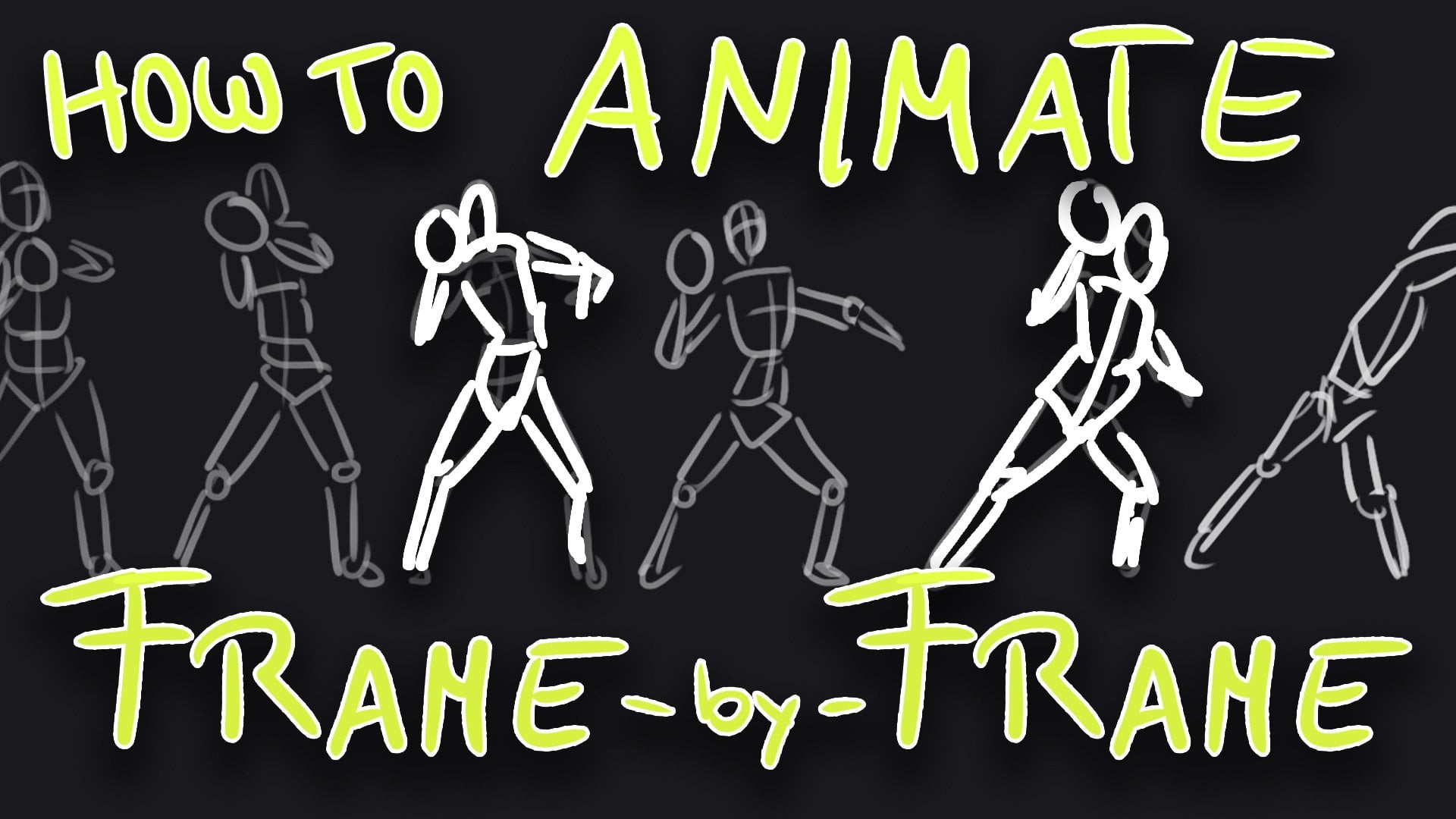
1. Introduction: Hey everyone, welcome to this class. I'm David Knight and I'm an illustrator & animator and this is...animate anything in...Adobe Animate no it's not Adobe Animate...I know I know After Effects no mate it's not that either oh oh, it has to be TV paint then. no, I've heard that seriously good, but I've never used it. Well what then? If you give me a chance I'll tell you mate, it's animate anything in Photoshop. Seriously, David that's a terrible idea. Yeah, that's true. Animating in Photoshop can be a bit clunky. And it's not the most, shall we say. Intuitive program for animation. But with some tweaking, you can make it work for you in a really fantastic way. So today we're gonna be doing this really simple animation, but we're going to be doing it three different ways. So you will get thoroughly familiar with the interface and the different methods that you can employ to make your animations. You can decide what suits you best, what combinations you want to use. If you're already a Photoshop fan and you probably are then... Imagine being able to design, illustrate, and animate in the program as well. You don't have to take your work into another program to create your animation, which is fantastic. I mean, I love Photoshop. I've been using it for a very long time and it's such an amazing program. There's just one caveat? And this is not for beginners, so you will need to know your way around in Photoshop already. And you can use really old programs actually to do this. You could use... you could go back as far as CS6 extended. You might not have all the features that we have now, but you could still get by using that and you can use right up to CC 2021. So in the first class will be having a quick look at the timeline interface just to get you familiar with that. And then we'll get into the animation properly. So let's jump right in. Quick recap. Next up, we'll look at the timeline interface. We'll look at using some shortcuts and also some actions as well, just to make life a bit easier.
2. Interface : Hi everyone. Welcome to this first lesson. And what we're gonna do is have a quick look at the timeline. And I'm going to show you some ways to streamline the process of working in Photoshop. Because as I've already said, it's not exactly the most intuitive program, but you can actually make it that way by using actions and hotkeys. And you can take to make the process so it fits your working process. And you're probably like me. I really love Photoshop because I think out of all the Adobe programs, I find if I have a problem. And I think I wonder if I can do that in Photoshop. You usually can nine times out of 10 you can. I'm sure that's true of most Adobe programs, but I'm probably most familiar with Photoshop. And because it's such a creative program, it's a really powerful animation tool as well. So there's no gap between designing something in Photoshop and illustrating something in Photoshop. You can then animate it as well. So you can animate all your textures. You can animate adjustment layers. Basically, you can animate anything you like. So that's the point from which we're starting at, which is quite exciting I think. I think what we'll do is we'll first of all create a new document. So if we choose film & video up here, and choose this setting, 1920 by 1080. Just create that. And if you don't have a timeline currently activated, then go up windows and just activate it. And then what we wanna do is just click on here, which is Create Timeline video. And by default, if we just expand this work area, Photoshop will creates a base layer, which is five seconds long. So that's the first thing that we need to change because that's a real pain, because every single subsequent layer we create after that is going to be five seconds long. And if we just click on here, we can look at timeline frame rate. So the default, I think is about 30 frames. Yes, it is. We're going to leave it at that. So that's a 150 frames. And we don't want that. We want it to be, we want it to be one frame or two frames. First thing we wanna do is create an action we can use to modify the new layers as we create them. So I'll just create a new, a new layer. And as you can see, it's five seconds. And what we wanna do is create an action that tells Photoshop, that we want to create a new layer which has one frame. Now, if you don't know about actions, great, because you're going to love them. Actions essentially automate the process that you would do over and over again. You might have to go through several stages. You might have to go to the menus and find what you're looking for. Find what you're looking for. And it's really tedious. But with an action, you can just attribute all of that to a hotkey. So all we wanna do is create our first action. So if we come up here, click on actions to bring out the actions panel, what we want to do is create a new action. So click on here. Hit record. Then you want to create a new layer and it creates it by default. Five seconds. And then what we're gonna do is click on this and drag it. So it's now one frame. Click Stop. Give the action a name. So let's call it one frame. And then double-click on it again. And we're going to give it a function key. And I'm going to give it shift F8 because I've already attributed all my actions. to these other keys, click OK action options and delete this layer here. And then let's try out the new hotkeys. So if I click...use shift F8, now, now we have a new one frame layer. And then I create another one, another one you get the idea there. Okay, So now we also want to create one which is two frames long, which might be useful. So what we're gonna do is create another action, hit record. So we create a new layer. And this time we want it to be two frames. So we pull it back to there. Let's just make sure it's two frames, It's not just two frames. And then we'll call it. New two frame layer. And this time I'm going to give it Shift Control F8 And hopefully I'll just delete that layer when we use those hockeys, those hotkeys, Yeah we've got a new layer. So that's the first thing. Next we want to exert a bit of control over the play area if I hit space. On my keyboard the playhead will just play the whole five seconds. Hit stop again. So if I just reduce the play area, so the playhead will just play between these two markers. And what we wanna do is have a bit more control over where those get placed. Because by default that I'll just go to the end of the layer. And if you are working. On a particular area and you don't want to have to play the whole animation through each time. It's a bit annoying if you have to re-size this area, drag the marker across like this. So I've already used a couple of keyboard shortcuts for this. And for me they control shift P to bring that into line with the playhead. So that's the end point and the beginning point is control shift O. For me, the way to do this, if you don't know about keyboard shortcuts, is to go up to edit, choose keyboard shortcuts and make sure you're on the panel menus for this. And you want to choose timeline video. Just scroll down. And here you are set start at playhead set end at playhead. And I've just used these combinations. So you can use whatever you need to use whatever works for you. Okay? Final thing, we need to have a quick look before we start the animation properly is something called Onion Skins. Onion skins let you see what you've drawn on your previous frames as you move across the timeline. And the best way to show you is to demonstrate it. So just delete those two layers now, create some new layers using your newly acquired actions and hotkeys. So I've created three 1 frame layers, which I'm going to just drag across so that they are sequential and we're timeline. When you draw onto a layer, you obviously need to make sure you select it, but you also need to make sure your play head is at the beginning of the layer. If it isn't, I'm going to select a brush now. It won't let me draw in it. So I'm going to move back. I'm just going to draw. I'm drawing with my mouse, by the way. Yes. If I haven't already mentioned and I'm sure it did, it would be really useful if you had a tablet. Okay, so let's move along to the next layer. And I am actually got my Onion Skins enabled so I can see what I've drawn. But if this was a sequence, and I guess it is a sequence. If we come over here, here we've got onions skins, I'll turn them off. Now I can't actually see what I've drawn. So we need to make sure we've enabled them. And I can draw on that layer by selecting it. And then again, oh my God. Now we've got our sequence which moves across the screen. I'll just turn off the Onion Skins. And if we wanted to play that, again, I'm going to use my hotkeys to, reduce the play area. And now if I just hit play there you there is this insane movement across the screen. But you get the idea. Now, Onion S kins. Onion skins, I've created my own hotkeys and you need to go up to... you don't have to create hotkeys. Obviously. You might not mind just clicking on that each time. But you need to go to keyboard shortcuts, panel menu. And it's in the timeline Video option again. and you use the options that suit you best. So that's probably all we need to know for now. One other thing we could just point out at this stage is if you want to move to a layer that you're working on, move the playhead just hit the up arrow key. And it'll take you to the beginning of that layer. Quite good to know. And there's one final thing I forgot to mention at the beginning. So up until very recently I was using a plugin, an extension called Animdessin2, which we don't get me wrong, is very useful. But since I started using hotkeys is using actions, I've kind of duplicated most of the things that I did with this anyway. So you don't actually need it. But if you want to experiment with it, I know it runs with CC 2018 and 2019. I don't know about earlier versions and I don't know about later versions either. But I'll give you a link or a download. So you can try and install the extension. at some point and see if you'd prefer using that. So in the next lesson we're going to start animating our bouncing ball. And we're going to use something called, we're going to use a layer method, which is exactly the same as doing this. Okay, so I'll see you then.
3. Layer Method Part 1: Hi everyone and welcome to the next lesson. What we're going to be doing is animating the ball sequence. So go ahead and create a new file. Give it a name. Make sure you are on this preset again. So it's film and video. Create a file, make sure your timeline is activated. Hit Create Video Timeline. Expand the play area. So when you create your first one formula, you can see it. So I'm going to end up now with my hockey, which is connected to the action that we made. And over here, remember we need to enable onion skins to see what we're drawing. It easier, okay, or do it here. And that's how I also have a quick look at the onion skin settings, which I believe so I did my hotkey to remember. And we can see, we can see up to eight frames before the law we working on and the same after as well. I'm going to have t frames before and one after a few more settings and we might change it later on anyway. So click Okay. And also just make sure you've got a default timeline frame rates at which is 29.97. So we're going to leave it at that. And just before we start, I just want to show the sequence, which you can use as a guide if you want to. Okay, So this is the sequence, this is what it all it all the frames look like. And at the beginning of the sequence, we've got less frames because the ball is travelling more quickly. And then when it strikes the ground, it starts to change shape and slow down and then speed up again, which we could call it easing and amazing arts, which are probably heard older few years, something like After Effects. And then it moves to the top of its trajectory here, and the ball slows down again as it comes to a halt in midair and done it speeds up again. But overall, as it's reaching the end of its trajectory is starting to slow down. And so we're starting to add more frames here. So by all means use aren't. Otherwise just experimental might your own frames. So that's the general idea. So it extracts to ground, it slows down, speeds up again, slows down, squeeze up again. You get the idea. And you could experiment and see what you end up with if you don't want to use this. The other thing I'm going to use, which is quite useful. And again, you can create your own if you want to or you can use this one. I'm going to use this as a Go ahead. I'm just going to copy this into my timeline on it. And we're ready to draw our first frame. Make sure we're on the correct layer. And your play head is at the beginning of the sequence and we'll get started. So just draw something like this. Let me rearrange this slightly smaller, tiny bit smaller. And actually I'm just going to duplicate that and drag it across the timeline and leaves the play head. You can use the up arrow key to maybe to that frame you want to work on. The onion skins are working so we can see the previous frame. And I'm just going to duplicate this one. And so it's just going to impact with the ground here. Okay, So this is the, getting the sequence. And now we want to create another frame. So d Phi prime prime. And we're gonna start squishing the bowl now. And then just work your way slowly through the rest of the sequence. And I'll see you at the other end. K music. Okay. So hopefully you made it to the end of the sequence. And I just turned on, I just maxed out the onion skin settings so I could see what I drew and prior to the end frames or in proportion with everything else. So that was quite useful. And I suppose what we want to do is play the sequence back. So make sure you put the playhead at the end of the sequence. Just the play area with your hotkey. And hit Spacebar and just turn off the onion skins as well because our style right down and hit Spacebar to play the sequence. And if we come down here, you can see the right is actually playing out. So it's not already playing at the, the full rate, which happens with odds. And the more we build up, the more we are sequences. And then if we add color and the slow it down even more. And you can counter that slightly by when you play something back, if you reduce the play area right back to its minimum, and also reduce the size of the image on the screen and try it again. It usually makes it a little better. But you might have that problem if you haven't got a really powerful machine, you might have that problem. When you've added a lot of detail to an animation which is bound to happen. The only other thing you can try is you can try purging it. I'm not sure if that really makes much difference, but you could try. And you can also just drop the resolution down to its lowest, which might help us. So now we're going to create the flow sequence, so that's tidy up our time. We're going to bet because it's getting a bit messy now. So just put what you've created already into a folder and call it, call it something. And now I'm going to take the pen tool. Let's create a new layer. So I'm going to create a to frame layer on top of this, this guy here. So here's your hotkeys and your actions again. And that's happening because my playhead wasn't right bucket the start of the sequence. So it's a good reminder. So always make sure your play head is where you want, where you went to your layer to pay. And if we just played, so drag the play head along to see where it impacts or impacts on two frames. And we're going to draw a line and so let me use the pen tool. Stroke. Thank you. Yeah. So again, make sure your play head is at the beginning of the layer, as you may have destroyed a brush. And I've got about 24 pixels, which is fine. Strikeouts. Get rid of the path. And then just play the sequence. Ok, and let's copy that. And we're going to hold this frame. So we're gonna keep it, make it longer. Until the bold tags off again. So that's nine frames. I think. I'm okay and I'm, I'm not impact. We're going to move this down a bit to get it. This has been amazing as guides, just to show me where it was in the previous frame. So I'm just going to leave it like that. Hello again. And then make another copy of this frame. And we'll resize it. And resize it to two frames. And just above its original place. So that's coming up. That's okay. Okay. And then copy that again. Bring it back down and bring it back down below its original, its original slightly. And then make another copy and make this wireframes that drag it. So it's just one frame, two frames over three frames. Let's now get not least sets. And then it comes back to its original level. Okay? And let's just have a look at my side. And all we're gonna do now is duplicate days. I'm derive them across here. I line up, just turn off the guides so you can see I'm sorry, one to that point. So it's 24 frames. 24 frames. It strikes again. Let's Statistics time. The final frame sets. It runs to the end of the sacrum. Okay. We've completed our skeleton sequence. If you need to do is I'm kind of
4. Layer Method Part 2 : So hi everyone and welcome back to part 2. And we need to add some color to our animation now. And we're going to do that by adding some color layers. So I just get this setup. What we need to do is create a layer under each one of these so we can add color to it. If we want to do this in the normal way. You might want to do it this way, so cheap, locate that layer. But I would still have the line drawn below. So I'd have to select it all and delete it. And then we could go through that with each layer, which is pretty arduous when we take some time, I think. And the other way, which is a more address, would be to make sure we're on that layer. I need to be on there. So I would create a whole new layer. Of course, it's five seconds long. So I would have to re-size black area and then drag, drag the frame across, and then we'd have our color layer there. Imagine doing that for bi-layers driver, you're pretty nuts, I think so. What we're gonna do is we're going to use another action, which is kind of my life a lot easier. So what we need to do is open up our actions and we're going to create this new action. Well, do it this way. So if you create a new action, call it and then hit record. And fasting we do is we duplicate that first layer. Then we want to hit open square brackets to take us down and control a to select everything on that layer. And we're going to delete that. And then Control D to deselect the area. And then alt brackets to take us back up to the original layer. And then I'm going to hit stop. And then I'm going to repeat a hotkey to this. So I'm going to use you can use whatever keys are suitable for you. Okay? Okay. And now we want to try out our action so if it works, so make sure the playhead is on at the beginning of the data. You're going to use the action on, make sure it's selected. I forget to do this a lot. And if you forget, the action just won't work. So make sure you are all lined up and then you try interactions. If it works. I'm just gonna make sure that it has actually done what I wanted to do. So I'm going to just turn that off. Yeah, so we've got a blank layer underneath that's protonated. So what you wanna do now is just work your way through the rest of these layers. And I'll see at the end. And also we can do that too for the, For the floor layers as well. So D, D both sets and I'll see you at the other side. So hopefully we're on the same page and have successfully created, we'll color layers. So the next obvious step is we're going to start filling our sequence for color. And we're gonna be using another action to data just to make life a lot easier. So let's start adding on color. Here will know from using Photoshop and when you come to use the paint bucket tool to fill an area like this, we get this nice pixelated white line around your film. And the way to get around that is to expand, to expand the magic wand, to expand. And doing this pretty arduous way of doing things. So we're going to use another action to get around this problem. And then we can fill our drawings really quickly. So if you haven't already got your actions, are kept them up. Make sure where we are at the beginning of the sequence. So we are on this first frame. Before we create the action, we need to make sure we selected the area we're going to fail and then we create an action. So it's a new action. And we'll call it expand, fill, hit record, and choose a color. And then we want to go up to Select, Modify, Expand two pixels is fine. And we want to drop down to the layer below, so that's open square brackets. And then Alt Backspace to fill that area. And alt Close square brackets to go back up to the original layer. Control D to de-select. Stop recording, give it a hotkey, and then see if it works. And where you need to remember to d h time your database goes before a is the action because it won't work otherwise, you need to use your magic one tool to select that area first. And number of times I've done that for the action is not working and cetera, and pondering, wondering why it's not working has always had. So I'm going to try it and it works fine. Okay. So hopefully you got your action working and just work your way through all the Franks. Fill with color, and then fill the fill frames with color as well. And I'll see you on the other side again now. Okay, just scurry into it. I just realized that I set the foreground color, which I didn't mean to say, if you put that into your action just today sets, because you won't get to change your foreground color when it comes to the flow. Okay. I'm just going to play them back. So it looks like there we go. We've got a color sequence. So we're pretty much at the end of the sequence. What I want to do now is add a bit more interest to it. And I'm going to do that using the Lasso tool. And skewed a bit of feathering. Make sure I'm on the color layer. Just do something like this. Spring up your levels. Just had a British I do it that way. I'm just work your way through a secret. Okay, So does the sequence. So I had a bit of an afterthought as I was working through my sequence. And I think we could attach a more interest as well. We could add a shadow as the ball moves towards the ground and then moves away. But we probably have to get rid of the line because I think that line is gonna get in the way. So if we just take out all the line, just gonna give this a go, see what it looks like. Whatever you just take over the line and the flow sequence like that. And then you select, select everything in that flow sequence and just transform it. So it's, it's just making a little bit bigger as well as meeting the bullet where it impacts for the floor. That's okay. Alright. So that's the face. But now what we're gonna do is add a layer on top of here. So just created one frame layer. And that's creates a better tone. Let's create some shadow, sorry. This color. Just use a darker ocean environment. He's my last eight. When I say TO, and it's got a bit of feathering on it. We can maybe are dependent on now, but let's just say this looks like. So I'll just make sure I'm on the layer. I just fell out. Okay, so we've got a bit of shadow there. Pretty make it a bit smaller actually. And it will get bigger as it reaches the ground. Okay. Now, let's just made it up so I can demonstrate something TSH. So that's also create a clipping mask. Let's make a copy of this on the sacrum. Somewhere in line with the bot. You might want to make it just a bit bigger. Copy it again. And then we can hold that frame for just drag a frame. That's probably a bit bigger. Today. I'm going to copy that again. I copy this layer again. Let's just say I'm trying to frame one. Copy that again. Trying to get across we can probably disease. I've already doesn't have to be that accurate because they're just want to give you an idea. Just a suggestion, and that's what's happening. And I'm going to leave that for many frames. I'm dragging that frame. It's a whole just YUI three. The rest of the sequence. As we have done. So to see what you end up with. So let's try playing the sequence part now. That's pretty good. So that should give me a good idea of what you can do using a direct method to create an animation sequence. And in the next lesson, what we're gonna do is we're going to look at creating the same sequence. So I'll see you then.
5. Video Groups: Hi everyone, welcome back. In this lesson, we're going to be looking at video groups. If your layers in a group of group folder like mine, just delete one of them so we can see a sea lions again. Okay? And this is going to be, it's going to be really easy to demonstrate what a video group is using these diagonals. So we've got, on the top, we've got our line, and underneath we've got our color layers. Now if I just grab the second car layer and drag it onto the same line as the first color layer when you create a video group. And we're going to do the same with the line. And then I'm going to give this a name. And then I'm just going to move through the rest of the animation so you get the idea. I'll see you when you're done on the other side. So there we go. So now animation sequence in peer groups. Now the most obvious advantage I suppose, says that your IQ space on your timeline. So when you look at it, it doesn't want to explain it. You don't want to tell your hair out. Because doing your head does this kind of a bit of a disadvantage of using video. There's going to be filling the line with color and I'll show you why. So just create another, another, another document and create a timeline. Expanding and create a few frames. And we're going to create two groups. So we've got two video groups. One for the, one for the color. And the other thing to remember too is that when you create, so when you create your new, once you've created your video grip, when you create new layers, I'll just finish out with organize it and stick it in that group for you. So let's draw on our first make sure the platelets and the correct area. And you're on the right, the right layer, draw a frame. Move it along the timeline. Okay, so we've got our basic sequence, and now we want to fill with color without having to fiddle around expanding the pixels and having to Trump town. It's like Pat layer. Here is the paint bucket tool. Okay, so let's try using our action is expended for us. So I might have to action and it won't work. And that's because, well, the layers look as though they are on top of one another. So this guy has put that up on all the timeline, obviously not in the layers panel. So there's a sort of a workaround by matter so much if you are just building up color. So this one, it's still a bit of a festival, but it's probably better than nothing. So let's create an action. So I'm going to use my magic one tool. Then I'm going to start my record. I'm going to go up to Select, Modify, expand by two pixels. And then I'm going to use Control Backspace to fill it. I'm going to stop it there. And I'm going to actually I need to add something else. Just record again. Sorry. Record again. And I should have just deselected that. So I'll stop it now. And hopefully that will work. And I'm just going to put this on control. I move onto my next magic wand. Now, I start to drop down to the next slide. But it will still fit it for me, which I think is a bit quicker and quicker clamps lag 1 if I expand. So that's, that's the sort of main disadvantages I found with using video layers. And I just want to show you a more complicated animation. So this is an animation I did last year. And I'll just show you these are all V8 has. And it's a real mass, even though it's video layers. Because I always start with good intentions and I'm wild. Flowers ends up being alive the place, whatever I'm doing days or illustrations. So it's probably less than that. Anyways. Oh yeah, listen, keyframes as well. So you can key-frame things like capacity, and you can transform objects as well. I'll show you how to do that later on. But I just wanna show you real problem I had with this. So if I come down and find these layers here, so that's my character line to this guy and the current color. So what I did, so this is a long haul because he's telling you in the door, I selected, I would select rely on the top layer. And then I'd have to use the magic ones on each area, individual area, and down is the paint bucket tool. So took a took a token age today this, and if I actually perhaps worked in video, just used layers as we did for the original pulse sequence. And then use the action to Pharaoh. And I believe it will be so much quicker. And I just wanna you some with us actually. So I built, I just want to show you what you can't do. This whole video has and what I built out was, so I built up the snow on the ground as a sequence runs through video grapes and I put down is footprints and also the snow accumulating on his body as well as knowing the foreground and the background. And also this moving screen, which case the image, a bit of noise as well, which I'll show you towards the end devices as well. So let's just go back to impulse sequence. So I'll see you in the next lesson and we're going to start having a look at video. So I'll see you then.
6. Video Layers Part 1 : Hi everyone, welcome back. In this lesson, we are going to be looking at video layers. Were probably combine videos with some of the other methods we've used his around. So you'll get a good feel for CT. What combinations? So make sure you've got a new document. I'm going to use this guide again. Let me do a sequence. And your timeline is activated. And will first thing we'll do is we'll go up to layers and just dropped down to video days. And these are all the commands we're going to be using these for. And I've already added my hotkeys. And I suggest you do the same because repeatedly coming back up here and dropping down to this menu. And today this you need to go to keyboard shortcuts, Application Menus, layer, and then scroll down to video layers and put pin because you want to use. Okay. So let's create our first video layer to make sure your plans at the beginning of the timeline and actually create for say. And we'll call the tailbone. And then this one. This one. Okay? Now if you could see inside a video layer which you can, which is a bit disconcerting. It would probably look something like this. So it's just a bunch of layers are bunched up together. But the only thing is, is that they are all one frame. You can't change that. So if you wanted to create a whole two and a whole dynamic HIV server parameter, you would have to duplicate the image. And we'll do that. And I'll also show you how to create holds. Combining this with layers as well, which might be pretty obvious to you already. Okay, so you're turning off saying let's just work our way through the sequence again. She's a brush. Make sure your onion skins are on. Just see how quickly you can work through this. Because I think using these methods kinda lends itself to working correctly and you see what you think. So draw the first frame. And then to move along the timeline, just use your arrow keys. This way. Ten on my hand and scans. Second frame. Do you remember in the first set of lessons when we're using the lemma that if I wanted to move this over, just transform it. So I'm going to try to transform this video. I'll ask you to confirm the hole and I add it to a smart object, which is not good. So what you can do, just to select the ERC 20, you can transform it that way. So let's move on. So next frame. So you get the idea. And I'll see. Okay, so just play sequence. So that's the first parent. So let's get on and do the flow sequence. So make sure you're on the floor. Plates at the beginning of the timeline. And draw a line. Okay. So let's move on one more frame. A frame two is where the ball smashes into the floor. So we wanted to duplicate this first layer for me that's Control B. And you can see it's moved one frame down. And then at this point, we want to move another frame. And then just come down here and create a new layer. And just compound one. Fine. Now I want to copy this frame on this layer. So let's try doing so. I'm going to copy it. Control C. Come up pair. I want that line on this layer, so I'm going to paste in place. And it doesn't work. It just copies the whole layer content that way. And come back and select what's on that frame. And using your asymptote. Let me copy and then paste it in place. And that does work. If you try and place between the video layers to other video that has o video layers to ordinary tasks. What happens if you don't do that? So we can put on guides now. And let's just move this down. So because we're on an ordinary, I can just use Transform as normal smashes. We want to hold that for 1, 2, 3, 4, 5, 6, 7, 8, 9. And I want to reduce the size of this, this layer. And I'll use my shortcut Control Flow, so it just resizes it for me. I think it's to six frames and then I can re-size that rather than having to reduce the size of the player and interact with lambda. Okay? So we've got our hold. And then let's copy this frame. So from, from the holding layer doesn't have to be this frame, but what is this one? So copy that. Move along one drop-down and then paste it into place. We want to transform this. I need to select it with. And we're just going to move it up. And then we're going to duplicate that frame on the video, which is 0 control bay for me. So that's standard for two frames. And then we went to paying it back down and copy it again. Then transform it. And then instead of a T frames. And then copy it again. Control obey and transform it into place. Okay, de-select. So it's pending nicely, and then move on to the next frame. Make a copy of this. I'm going to just move it around here like Transformers because we wanted to pay back the original starting point. And so we're going to hold this one we want is we're going to use this again because we want to drop down again as the bowl headset. So make a copy of the original target and wrong. It cannot. Yeah. Okay. And then we need to run that sequence again on the video or pings up and down. And you make a copy of this one. And we're competing for that line from the heart. Paste it in place. And at this stage it's pinning up again as transform it the original level and make a duplicate frame. So that's uncontrolled be for me. And then again transform and then copy that. And then we want to bring it back up to copy it again, to bring up my first time place. And then we need to hold that frame along the rest of the animation. I want it to them. We need to go back. I'm sorry, need to replicate this frame several times. Let's have a look at that. Say tiny running skins off. If not already off. Yeah. So we've done it. And if that did, you had an embed it? I take my hand and a bit as well. It took me five times, 56 times to get the idea right. So if he's struggled with that, I totally understand. I think it illustrates why you might not want to work with the data has because you can't really see what you're doing, but you cannot if you think about it, as long as you move along the timeline, you can see what you've created. In my preview of my kids. We could just put time t right, got into 3D. I craved. Couldn't we say that's a bit tidyr. Say Yeah, that's great.
7. Video Layers Part 2: So let's just get on and I add color to our sequence. And the good news is with video, that is, we can use our actions without the problems we had when we were using video grapes, we can just hit Expand info. Action works and works perfectly. But it's just callable. So make sure you're on that. Magic ones. For me. Just work your way through the sequence. So okay. So now we can add the tone to the bowl if you wanted to do that. So I'm going to do that feathering and then I'm just going to actually sequence. Okay, So as the tone on the ball, and we're on the home straight now, say Next Top Model at the color to the flow. So the first thing I'm doing is just carried at the video group because of the problem we're flying the color hazing options. So it just made them. Ryan's again. Okay. And then we'll, and then we'll add our color layer underneath, which is F5. Make sure you make the playhead, say the frame. So now my three colors for those sounds, Magic Wand. Okay? Okay, so that's those frames time. And then we'll work through the frames on the video layer as well. So make sure you use the magic one tool again. So let's play that sequence back now. So that's, that's great. So we've done what we've done in the secret and seizing. Pretty much three different methods, combine them. So you should get a feel for what's going to work for me. And in the next lesson, we're going to have a look at adding some noise to there. So we're just going to put a basic background and then add some noise. And I'm going to show you a couple of ways that we can do that. I'm also going to have a look at keyframes. So I'll see you then.
8. Adding Noisy Texture & Using Keyframes: Hi everyone. Welcome back. We're now reaching the business end of our animation class. I'm going to show you how to do in this lesson is just degrades a noisy boiling texture, which I'll just add a bit more interests to the animation. This is the one I prepared earlier. So this is the texture we are going to be making today. And it's really easy to make. And there was a couple of ways we can do it. First thing you need to do is put a background in because you might see it otherwise. And template going to create a new layer. Make sure your play heads at the beginning of the sequence. So credit a one frame right here. You can create one or two frame layer. If it's one frame, it will play more quickly. And if it's keyframes, it'll be a slow snowboarding texture. It's up to you. And then what we want to do is fill this foot, foot white, and then take your eraser. And I've got some sort of ink spotter time pressures which create this sort of texture to really useful for that. So What we're gonna do, come to this tiny holes. Okay, so you end up with something like this. And then we're going to expand it. And he wanted to be big enough that it doesn't. So when you rotate it, it doesn't content of the edges off. So you want it to cover the whole, the whole composition when you spin it. Okay? And in actual fact, you don't have to spin it. You could just move it around. It's up to you. I'm going to spin it. So here's my first frame. And I'm going to just duplicate that. Create a video group. And then make sure I'm on that frame and I'm just going to proteins it might work. And just create another, another frame. I'm going to use it again. And then just copy those. We just want to cover the whole sequence with essentially. And then just play that back. So you get the idea. So we've got our basic screen now. Just turn the opacity down to about four or five. And then you've got your noisy texture. So that's one way of doing it. Now, we can also do it using keyframes. I don't know which is easier. It's probably about the same actually, pretty texts about the same amount of time as well. The only thing we do need to do, if you come down here to the timeline and you click on the layer you want to transform. So we opened it up. And you have these three options where you can create keyframes. Now we only have a position option for keyframes here, and we will change that into transform. The way we do that is we need to make this into a smart object. And when we do that, we should then have the option to transform this with key frames. So if you extend the layer to the duration of the animation, bringing the playhead back to the beginning. And just click on the stopwatch here and we credit keyframe. And what we're gonna do is move one frame or two frames out here. Has tried to frames are less time. I wish I'm just going to move it around. And then when I transform that it creates, it creates another keyframe. Transform it again. So I'll just move it around. This time I'm going to spin it about. Create another key frame. And we'll do one more. Okay, so we've got our keyframes there. Now. It probably better if you create some shortcut keys for this, because if you're gonna use keyframes a lot and you want to copy them and paste them. What you have to deal with them is going to hold down shift. You have to copy them individually like this. And then right-click on that copy me if the player to where you want them. And then click on the last keyframe and hit Paste. So what I did was I went into preferences. Robots, it's an application money is. And it isn't, sorry, as Panel Menus. And its timeline video is there. So I've got to select your keyframes. I've got this, paste and copy our codebase. So you might want to do that. I'm just uncomfortable varies. So for me that's Control key. And move on keyframe around, and then it's Control Shift key. So now I've got my keyframes. I'm just gonna play it back now. So that's a simple boiling texture over keyframes. Now I also want to show you how we can use keyframes to animate things like masks, clipping masks can do adjustment layers and layer styles as well. So this is the really simple animation I did for the beginning of the class. What I did was I took, I took these five letters and I just copied them. And in the second, the second set here, I just turn off the planet, actually can't see it otherwise. I just added a filter, a wind filter. So this sequence is one frame of this and then one frame of ions. So it just plays throughout the animation and then for four years and also I've got a whole bunch of styles as well as how they come up every now and again, which gives it a sort of a Gucci and action. And then for the actual pledge, if you like. And what I did was I copied it again and then I just move that. So I'll just move it around every now and again anyway. So include that in the project files if you ever have a look at it. It's also called a screen on it. So what we can do is create contained to the banner is a selection tool. And just create a mask over that. Make sure the mask is unlocked from the layer. And then if we come down here and we look at the planner, we've got these options which allow us to keyframe. We can move the position of the mass and we can also enable it. So create a keyframe at the beginning of the sequence and make sure your planets at the beginning. You're on. You're on the correct layer obviously, and make a keyframe. And when we wanna do is this reveal, I think I'm going to reveal a snowy like that. So if we move, say to make this, and by that point, so it creates new keyframe. And then there's two frames. And then move it up to the top. And let's see what that looks really easy. And then let's just have a look at some look at clipping mask as well. So so created a number, create another layer moment. Taken brush. Take this lightening. I'm just going to do this. Now. Creates were talking minds. And we can also animate those same way. So jot down into that layer, we find the position setting. So credit keyframe. And I'm just going to move this along a timeline first. If you move clipping mask, he got a keyframe and then just move it back again, get the identity. So that's something else we can do. And then we're learning styles. You have all the same options so you could turn them off and say Highlight known as terms. So let's put a lifestyle on here and that's per color overlay on it. And we could turn that on and off if we want to say, I say there's sort of combinations are endless if you like. So I could turn the politicos style. And so it started that we can aim to keyframe and move alone. We'll set a keyframe. And then we'll just turn it on again. Say you got a sort of no clipping masters changing color. And you could say, so the combinations are really endless. So that's the first part of this lesson. And I'll see you.
9. Adding Sound & Exporting Your Animation: Is this a couple of other names I think I want to show you before we wrap this up. The next thing is, does adding sound, which is really easy to do. But it's a bit, if you're doing something complicated, like p-hat, a talking head, and you wanted to add what he's saying and we'd have to line it up with all his face movements, his mouth movements, and he'd been signed to try and do it in Photoshop because you can't actually see the wave form in Photoshop if it was quite general than it would be fine. So if it was sort of a general soundtrack, you can just add it. It's easy. He just important. You would just important MP3. And then add it to the auto track, which is what I've done. Now maybe I should show you how to actually see you would just go down here to the drop-down menu and add audio. If you don't know what I mean by a wave form. I mean deaths. So this is in Premier Pro. So I can align the buildup with the sound of it hitting the floor. So at the peak, That's where you went alone up to it in After Effects as well. So if we go back to Photoshop, if I just play that back, turn the sound on so you can toggle on and off with a sound settings. I possibly guess. Where the sound in this file is, where the wave form is, if you like, say, you can't do it. But it's probably better if you do it in a different program. I have seen a workaround, but to be honest with you, it's more I think it's more trouble than it's worth. So just do it and just turn in a different program. That's my advice anyway. There are a couple of other things we can look at when it comes to our exporting video. One of them is Export as PNG with a transparent background like this, which means you could superimpose it on to something else. We can do that using QuickTime and playing around with the alpha channels, which is something I'll show you how to do a bit later on. And you can also export as a PNG sequence, which is useful because there's something else you can do in Photoshop with PNG sequences, which I'll show you how to deal with. So what I'm going to do is I will turn this off, turn the screen off. I'm just going to export this. Actually. What I'm gonna do is export the ball bouncing. So I'll turn off all the other layers creating the background. So I'm going to go up to File, I'm going to come down to Render video. And then I'm going to choose Photoshop image sequence. I'm going to choose PNG. And then this is important because we want to work otherwise, you need to choose straight on mattered on the alpha channel and then render it. Okay? And somebody else. So that you can do with video layers. And you might find it useful, you might not, so that you can create our video layer. So I can create a video layer from that sequence I just saved as a PNG sequence. So I'm gonna say new video down from file. So come into my PNG sequence. And I just need to make sure I click on the first image, which automatically checks this box for us. And I'm gonna open it. So there we go. So we've got our image sequence as a video. So that's one of the film with worth knowing, I think. And if we wanted to export this as a QuickTime movie, by the way, you could import that PNG sequence directly into Premiere as well. He'd have a transparent bouncing ball, right? Sorry, you'd have a bouncing ball with a transparent background, which you could then superimpose over other images as well. If you're going to create it as a QuickTime movie, I don't know which is easier. I think QuickTime maybe it's probably quicker to export it. Go up here. We Media Encoder, read one QuickTime. And again, you need to make sure the alpha channel is on this. Before you render it muscular, you won't get a transparent background. And also India's export, an MP4 videos. Make sure my sound is on. I'm going to go to export, render video. And make sure I'm on this setting. That's fine. Everything's okay. We don't want anymore. So that should export as an MP4. And I'm just seeing where it goes. And when you when you come to render something, just make sure that the play area is just representative of the sequence that you want to export. Otherwise your export all of this as well. Now just import that. Say yeah, there's our MP4 video with sound. So that's pretty much it guys. Congratulations if you got this far, hope it was helpful, and I hope you find the best combination to create brilliant animations in Photoshop. And if you feel like it, maybe you could upload what you've done to the Skillshare calorie, but it's up to you. There's one last thing we do need to adequately account because I said our words. And that was the plug-in that I mentioned right at the beginning of the class, which is called out in doesn t. Which looks like this. And I'll just show you what I used it for a pretty much not many things. So I can create one or two foam layers here, which we created with our action. So if I want to create one frame layer and that's what it does, or a two frame layout. That's what it does. I can delete those. I think that is copy up so I can duplicate and easy in your onion skins on an unfair, so actually that's hearing in the skin I think. Onion skin option, sorry. That's turning on and off. This allows you to extend the length of your layer, which you can do just by doing that. But if I click on that, it makes it a longer. I'm not sure whether that's particularly useful or not. And you can also color kinda your frames, which might be quite useful in a sequence. If you were trying to figure out which timeframe you want to change that again. You can do this in Photoshop anyway. So I could holidays as well. I haven't used any of these. So it's up to you that I really think it's actually easier using fresh shot with your own actions. Shortcut keys, you just make them so they white for me. And what I'll do is I'll just add a couple of links that will take you to download and, um, doesn't take. And there's also a video by the maker on how to use it. 55 see suppose row. And thanks so much for watching my video. Camera enjoyed making this and I get to grips with friends. A shock because it is amazing how much you already know how to make animations. It's even more amazing. So take care my pace period. You guys all the best. Okay.
 David Knight, Illustrator & Animator