Transcripts
1. Course Introduction: Hi, everyone. And welcome to the AI with Cursor for
developers course. My name is Honor, and I'll be
instructor for this course. So the question on your mind is probably
what is cursor AI? So cursor AI is
essentially a cod editor that helps you write code
using artificial intelligence. Now it looks like a
normal coding program, but you can ask it questions. You can generate code, fix errors, and also
explain code as you work. Now, simplified way to treat
cursor AI is to see it as a smart coding assistant
that sits inside your editor and helps you to write code faster and with fewer mistakes. Now for those of you that have
experience with utilizing a code editor such as
Visual Studio code, for example, try to
see cursor AI as Visual Studio code plus
chat GPT all in one. So as you are working
within your editor, you can see your code and
everything is in place. You can also make use of a chat area where
you can prompt it, ask questions, generate
code, et cetera fix errors, all in one, you could say
editor together, cursor AI. So that's how I would like
you to in visualize it. Alright. So that's all I wanted to mention
for this introduction. So let's go on ahead and
get started with cursor AI.
2. Cursor AI Installation: Hi, everyone, and welcome
to the next lesson, which is going to be
focused on installing and setting up cursor
AI on our device. Now, the first thing
that you want to do is head on over to cursor.com. So in your URL, you just
want to type in cursor.com. And then it's going to lead you to the following page here. Now, of course, you can go
on ahead and download here. So since I am on
a Windows device, it's prompting
specifically for me to download for Windows. So what I'm going to do is
say download for Windows. Okay. So I'm just going
to download that setup. Okay, so we just
want to wait for it, and then we can go and
continue with the setup. All right. So we
can now see that the setup launcher is
ready to be executed, so we can go to download. And here we have it. I'm
going to select that. Okay. Just take a moment or so to open up
on your machine. So you just want to accept the agreement, go
to the next step. Say next, next, and I'm just going to create a desktop icon here just for basic purposes, and we can leave all
the default options set as they are according
to the checkboxes. Then we can say next and
we can say install. Right. So it's going to
take a moment to set cursor on our machine. So we just need to be a little bit patient for the time being. All right, so we can see that cursor AI was installed
successfully. So now you can see here it has an option to launch cursor. We can leave the checkbox
as is and just say finish. And you'll also notice
if you head onto your desktop that
it's going to show the cursor AI desktop on
your machine as well. Okay, so let's just give
it a moment to open up.
3. Cursor AI Setup: Okay, so we can now see
that curse AI is open. It might take a moment, so don't worry if
it takes a while. Now, what we want to do is
we want to say sign up. Okay. Now, we can go ahead
and say continue to sign in. Okay. And now we're going to
go and select sign up here. So how can I say the
directional workflow here? I can seem a bit confusing,
but don't worry. As long as you follow me
along, you'll be good. So sign up. Okay.
And what you can do is you can go ahead
and choose a few options. You can continue with Google, continue with Github,
continue with Apple, or you can manually put
in your first name, last name, email,
and then continue. It's really up to you as to
how you want to proceed. So what I'm going to
do is I'm just going to go on ahead and
continue with Github. So I want to go the
developer approach. So I'm going to follow
along with that. All right, so I'm going
to continue with Github. Okay, now I'm already
logged into a Gu account. If you don't have a Gu account, I'll recommend that you just
go ahead and set it up. So I'm going to just
say A summarize cursor. Okay, there's just
a few parts here. I'm just going to skip ahead.
You want to skip for now. There is a pro plan
available here, but I would recommend
just keeping it free. I'm going to say Skip for now, turn off data share, continue. The settings, I'm just going
to say continue for now, and I can, of course, go ahead and log in
to cursor desktops. I'm just going to go
on ahead and say, yes, log in. And there we go. Alright. So there you have it. That is how you can go
on ahead and just ensure that you are set up and ready to go and that you are
logged in to Utilize cursor. So now if we go back to cursor,
we can just say log in. Okay, we can just say, yes, log in here, Syndicate. Then we can go back and
we can say continue. Okay. And here we are. Welcome to Cursor. All right. So that is how you
can go on a hedge and install and set up cursor
AI on your machine. So the only part here
that you just need to adjust for yourself is just make sure that you create
that Github account, and then you can, of
course, continue. Remember, you don't
necessarily have to. There were other options. So technically, you can just use a simple email to
set everything up. So there are ways for you
to get to this point. All right. All right. So what we can do now is
say continue. Alright. And as you can see now, we are on the cursor desktop. So we can go ahead and
maximize the following. And we are on the free plan, as you can see, of course, you would like to upgrade. You can select the
upgrade option. So I'm just zooming out zooming in a bit here just
so it's a bit clearer. Now there are a few options. We can open a project. We can clone a repo or
we can connect via SSH. They couldn't keep it
quite simple here. And we would open a project. So what I'm going to do is
just minimize for the moment, and we can just close
these links for now. Okay. And what I'm
going to do is I'm going to show
you that you can also access cursory
here on your desktop. So let me go ahead and
close the following here. We can just go ahead and choose
the desktop app as well. So let's just open
it up that way. And that's just to get you into the habit of opening
it directly. So it's a bit of
a cleaner option for you to set everything up. Okay. So that is just
how we can go ahead and get everything
ready and open.
4. Explore Cursor AI and build a simple app: All right. So let's
continue with Cursor AI. Now, what we want
to do, essentially, is we want to dive
straight in and build a small demo
app or application. Now, in order to do
so, we would need to go on a hedge
and open a project. So what we're going to do is just create a very
simple folder on our desktop to open it up
here in our Cursor AI editor, you could say, I'm
going to minimize. And on my desktop,
I'm going to click a new folder and I'm going to call this demo. Very simple. Then I'm going to
go back to Cursor, and I'm going to
say Open Project. Then I'm going to
go to my desktop, and I'm going to select demo
and say select folder. Okay. So again, for those that
utilize Visual Studio code, you'll see it's very similar
in that set of vibe. All right, so here we can
see on the left hand side is our folder demo which we
currently has been opened, and we can see that there
are no files with it. We can technically create
files and folders, et cetera. But what we can see now
on the right hand side here is this chat box. So it's very similar, as
I mentioned to chat GPT, and the like where
you go ahead and type in what you want to occur. And I just want to close
this here for now. And as you'll see here, we can go on ahead and
adjust accordingly here. So for example, we can see
we have an agent mode. So essentially, you're probably wondering
what is an agent. So agents are essentially
AI helpers that can do tasks on their own instead of waiting for every instruction. So essentially an agent
and read your code, can go on ahead and decide
what needs to be done. Take actions like writing files, fixing bugs or running
steps in order. So try to think of an agent as an AI that doesn't
just answer questions, I actually acts upon. Okay. So of course, if I were to click on
the three dots here, I can, of course,
say hired chat. Okay. And if I wanted to open
that up and get started, I'll say new agent, and that's going to open
this up for me to continue. Now, we can also
switch the agent mode. So we are currently
utilizing agent, and that is the
recommended approach. So here we want to plan, we want to search, and we
want to build something. There are additional options
that you can switch if you specifically want to plan, if you want to debug, or if you want to ask a particular question
about your code base. We're going to keep it
on the default option here so we can have a
general approach at hand. So what I want us to do now
is to instantiate a command. I want to say build
a simple portfolio let's say app with only
HTML, CSS, and JavaScript. So we're going to
keep it very, very basic and very simple. So we can go ahead
and say go or enter. And as you can see now, the chat is going to be debugging here and the agent
is going to be at work. So we can also go on ahead and just evaluate as this
process is being completed, so we can just use the
scroll bar down here to see, Okay, an index of HMI
file is being created. And if we scroll down, we can see the styles dot css
files also being created, and that's being populated within our demo folder,
which we just created. So as we can see, it's
adding now the file, so the index at HTML file, script dot gs file, styles dot css file, it's all in one
folder here in demo. This is why we needed
to open our project at first so that it can
go ahead and build it. And this agent is doing
everything according to our commands to what
we instantiate it. We can also see some information
here. Terms of features. So we can see it's added in a navigation bar here
section about section, skill section, all
of the details. It also gives us
some information in terms of the files
that's been created. So as I went over them, the index dot HML file, stars dot cssle script dot gs fle and also provide us with information how
we can actually use. So we'll open our index on
HML file in the web browser, and we can also see what this
portfolio includes that it went on ahead and set up along
with a few other details. Now if you don't like
what was built here, you can just go on
ahead and say undo all. You can also review everything to just review these
changes in a deeper level. So if I were to say review, it's then going to open
that review option for me to go on ahead and look
into the details here. Now. Of course, you
would need to just ensure that you move
things around here. So what I'm going to do is
try and restructure this. So if I were to hide
my agent for now, so if I say hide chat, Okay, we can see it is a
little bit more clear. There are also a few options at the top here that you
can also move around. So you can just go ahead and
toggle the agent sidebar. Now we're in the review stage, and we're just reviewing
everything that we set up here with the
code that we set up. Now, of course, with
the editor as well, we can also choose to
adjust this as well. So we do have the three
options here at the top. Let's say I wanted
to toggle that away, I can just toggle
this primary sidebar to see my editor and all
of the associated files. That's just a good way
in which we can just move everything up so we
can read all the details. Can have a look here at the
review stage and see all of your code if you're happy with
it and everything is okay. And if you're, of course, happy, you can go on ahead
and just say, keep. So that's a very
good stage just to review your code as
you go on and such. And if you're happy
with all the reviews, we can go ahead and
close this option now, and then we can bring
out our sidebar, which, of course, has our code on the right hand side
and our agents. And of course, you
can go on ahead and open up your agent
here if you just want to continue adding more to this particular
thread you could. In any case, we now have
our application here, index on HML files script JSFLtyst CSS file
all ready to go. Now the next thing that we
need to focus on is how we can actually go
ahead and access it. And let's see if Cursor
AI is going to assist us with doing just that if we are unsure of
how to do it, per se.
5. Access our simple app: Alright, so what we can do now, assuming we don't have
the relevant knowledge, we can go ahead and just say how to access this portfolio. Yes, I'm going to say that. All right, so it gives
us the information, especially if we're
working in development. So we can see here,
let's move this down. Okay, so we can open
Index HML in our browser, so we can double click In
HM on our file browser, and we can see where this
file is currently located at. We can see the directory
and where it currently is. And alternatively, we
can open our browser, put press Control O, and then navigate
to the following. All right. So there are ways
in which we can do this. So what I'm going to do is I'm
going to go ahead and copy the following and then I'm going to head on
over to my browser, and I'm just going to
paste that in like so, and then I'm going to go on
a hedge and press Enter. And there we go. So
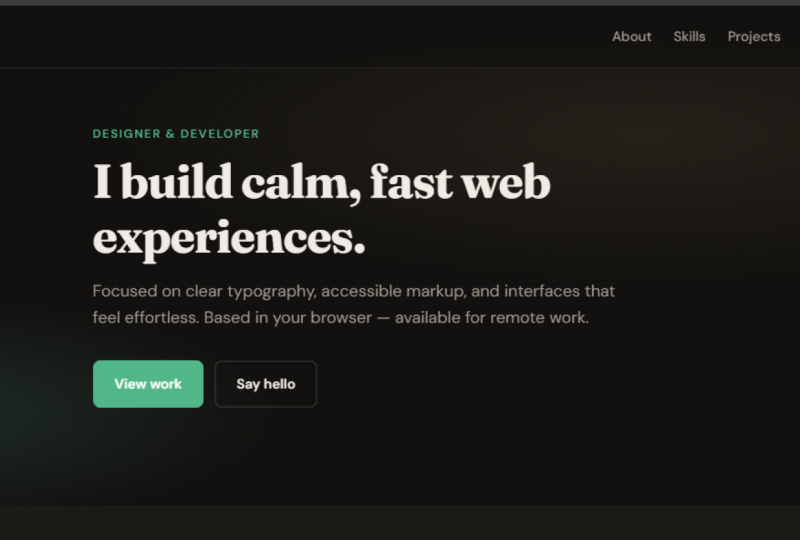
here we can see we have this very nice portfolio website that was
designed for us. You can see how quick
it was, how efficient, and it has gone ahead and set
something up quite decent. You can see we've
got basic navigation here. It's looking really nice. Contact form, project form, footer, everything here is looking really good
and really efficient. So is how we can also prompt Cursor AI to help us
with further details in terms of how we can go on ahead and move further
in our projects. So we don't necessarily just
want to build our project, we also want to access it, and let's say we don't have
the knowledge to do that. This agent here that's part of Cursor AI is going to
assist us in achieving our goals into what
we want to go on ahead and achieve at
the end of the day.
6. Update our simple app: Now the next thing that I
want to go through is how you can edit your
particular application. So what you can do is continue
in this particular thread, and you can say, for example,
let's have a look here. I don't like the fact that the design scheme here is
of a light background. I want it to be a
dark background. So I want this
adjustment to be made. So what I'm going to do here is in this particular
thread here, I'm going to say great design. However, I prefer prefer
my let's say my portfolio. App to have darker, let's say, darker
colors present. So to be clear, a dark seam and not so bright. Okay, so this will all depend on the particular prompt that
you are setting up here. So it doesn't need to
be exact like mine. So this is just
to be as human as possible with what we
are trying to achieve. And usually Cursor AI
is very intuitive. So as you can see
here, it's updating the CSS to a dark seam
with darker colors. As you can see, it is working through that styles dot CSS
file that we have here, and it's just adjusting as it is going here to remove
the background color, and we can see all of the
details here in terms of what it is changing and
setting up here accordingly. Again, you can go ahead and review this, review the changes, undo it if you're not
happy with anything, and you can also go ahead
and just keep them all. So I'm already happy. I'm just going to
say keep changes. And that's been set up. Those
adjustments have been made. And now, if I were to head on back and I can just
reload this page, you can now see I have a dark
seam that has been applied. Again, we can see the intuitiveness of
Cursor AI is great here. We've got something that's
already functional and it barely took us longer
than a few minutes here. So this is the perfect
tool if you have a very, very simple project or something
with a very basic scope. Cursor AI is great. Now, that's not to disqualify
it from anything bigger, but you can just really see the power here
and potential of Cursor AI. So this is just a lesson
just to focus on how you can go ahead and
make adjustments and changes with your agent. Here was in the chat box just to make some changes
and what not.
7. Exploring available models: Hi, John, and welcome
to the next lesson, which is going to be a very general and simplified lesson. I'm just going to explain a
few areas within Cursor AI, just to give you some
insight and whatnot. Okay. Now, another aspect that I want to mention is
the models that we get. So what I'm going to
do for now is I'm going to go on ahead
and say new chat. All right. And as
you can see here, we have the Auto option here. So this is set to auto models. So essentially Auto,
which of course, means Automdels is going
to automatically choose the best AI model for
the task you're doing. So instead of you deciding
which AI you should use, the system is going to
decide that for you based on a few behind the scenes
factors such as speed, complexity, cost, of course, the free tier, quality
needed, and whatnot. Of course, if you want to be a little bit picky and
choose a specific model, especially if you
have experience with AI models, you can of course, uncheck the following and you can choose the options here
that's provided for you. As you can see, the default
here is composer one. We have OPS, Sont GPT
five, GPT 5.2 codex, Gemini three flash, there are a few other
options in terms of Max mode and to utilize multiple
models at the same time. Now, for those of you that don't understand
what models are, so a simpler way for
me to explain here is that models are essentially
the brains behind the AI, and different models are good at different things
like writing code, explaining concepts, debugging,
reasoning step by step. And of course, common
types of models that we here will be faster models. These will be good with
giving you quick answers. Then we'll have models that are based on reasoning
that's very good for complex problems and
then larger models which are more accurate
but a lot slower. So if I can just sum up all of this for you is that there are different tools in
the toolbox and each one is better
for a specific job. So you can, of
course, experiment and choose what suits you. But this is, of
course, a little bit deeper into the entire process. So just a bit of information
here in terms of the models that we get here that you can
utilize as Cursor
8. Improving and optimising our simple app: Hi, everyone, and welcome
to the next lesson, which is going to be
focused at taking a deeper look into
improving our code base. But what we can do is
open up our sread here, which was initially to create an application based on
HTML CSS and JavaScript. However, what we did
eventually after doing so, we went on ahead and
altered the design. We asked Cursor AI to change the design for us to have
a bit of a darker theme. What we want to do in this
case is we want to go ahead and ask Curse AI to improve
the code quality for us. We wanted to improve
our application. So what I'm going to
say here, first of all, is suggest improvements to my application and then apply those improve
improvements. Okay. All right, so it's now going to
plan that out for us, first of all, to give
us the suggestions. And then, of course, as we
told it to then go ahead and apply those improvements
in one shot for us. Okay. We can see
it, of course, now. After proposing it to us, we can now see it's
reading from the files, exploring subag and
then of course, it's going to apply everything
accordingly for us. Okay. So we can
see now it's going to go on ahead and
adjust cordoning for us. So it's going to take a moment. So what I'll do is pause Va
and once it's been completed, we can then regroup and then continue after it's
been completed. All right. Welcome back. So we can now see everything
was completed. And of course, we pause at
the HML improvements here. We can see there were
added adjustments and reductions as well here. So you can see the HTML has better accessibility
structure accordingly. There's a lot more detail, but I'm not going to
bore you into that. The styles dot css file, we can now see that it has
made its adjustments as well. As we can see, it is focused on the project cards
that we have, the inputs, the focus styles,
reduced motion support, and its removed the
JS injected CSS, and we can also see
the changes here. And like I mentioned
before, you can review this like I went on earlier in the course
in our previous lesson. You can of course review
that. Then we can see went on ahead and updated
the script JS file as well. We can see it's made the necessary changes as
well here, quite a few. And we can see it
does give us that suggested improvements that it gave us and what it applied. So in a nutshell, fixing
the dark seam consistency, accessibility
upgrades, better UX, and mobile menu polish,
performance, maintainability, and we can see a lot more has been adjusted here
accordingly for us. P. So if I were to head
on back and reload, you will notice that there
will be some changes. They might not appear directly here because we didn't
set a particular seam, but we can see that there are changes that
have been applied. You can, of course, go
ahead and check the files individually and we can see
what was added and removed. All right, so I
just wanted to go through with you how
you can go ahead and proceed to improve
upon your application. So generally, I'm just
going over key prompts that you can technically go over and which you would think
yourself to go over. But what I think it's
important is just that I'm explicit about it and cover it in a lesson or a few
lessons so that you begin to learn what certain prompts you should
add to achieve what goal. So if you want to update, you will have a message
here that you're prompting the agent to update your code or to make
a specific change. And if, of course, you
want to plan something, and in that plan, you want to
have improvements of sorts, you want to communicate that. So in a also practicing our communication with
Cursor AI itself. So it can seem a bit repetitive, but this is just
how we ease into that entire process until
you eventually go ahead. After experimenting enough,
you go ahead and build your own apps and
just get comfortable with Cursor AI, I should say. All right, guys. So that's
all for this lesson.
9. Managing additional functionality: Hi, everyone, and welcome
to the next lesson, which is going to be
focused on adding in additional functionalities
to Cursor AI on our devices. So let's get started. Now, I did touch upon a few of these when we were
setting things up initially, but I just want to go a
little bit more into it. Okay. So of course, as we know, by more actions, we
can hide our chat. But what we can also do is we can maximize our chat as well. So if we want to see
it in its entirety, if you want it to
be a little bit more in our face,
we can do this. However, remember, everything
that you adjust here, we can only fit so
much on a screen, so you can see how
editor is now missing. So we would need to make the
necessary adjustments here. Now, of course, we can
change the layout. Now, you can also go ahead and select what you want
to have viewed. So here we currently
have the agents. Area here, which is
available and also the chat, which is right
here where we are, of course, instantiating
our agents. Now, of course,
let's say we wanted to add back the editor, it's going to add the
editor back here. And, of course, due to having more options
here available, that's going to change
the sizing for us here. We can also go ahead and
add in our panel as well. And that panel, as
we can see here is, of course, being blocked by
the view here accordingly, so we can just hide our chat. And this panel here
is our terminal. So very much similar to Visual
Studio code if you want to go on ahead and for
example, run your server. Let's say you're
creating an application. And with that
particular application, it has a local
development server. You can, of course,
go on ahead and add in the commands
here necessary. So try to see it as Visual Studio code,
basically the same thing, but you have that sort of
implementation here of AI, which you can prompt and
set up accordingly as well. Now, what you can also do here
is you can go on ahead and set a default sort of view
here according to the agent, the editor, then and browser. So if I were to say agent, Okay, it's just going
to take a moment here. And of course, it's going to set a default sort of
view here for me. So now on the left hand side
here we have our agents, and on the left side, you can say here on
the left most side, we also have our chat area here. Then, of course, if
you were to toggle your primary side bar you can now see on
the right hand side, now you will have access
to your files here. On the right hand
side, if you prefer to chat from this angle, you can adjust accordingly
to that angle. So that is an adjustment and change that
you can also make. So you can just play
around with the out here and see what you
want to prioritize. Now, of course, with each
segment that you select, it's going to adjust here, the settings automatically
as we can see here. And of course, we
can see the agent side bar has moved to the left. You can also go on ahead and set it here to
move to the right. That's going to move your code editor back
to where it was. If you want the agent side
bar back where it was, you can go ahead
and select left. Then it's going to move it
back accordingly as well. Okay, of course, you can
also see that you're able to manage your status bar if you want to match appearing
or not appearing. That's something that you
can also look into as you are setting everything up
accordingly, was in your view. Another aspect that
I wanted to go over with you is how you can go ahead and change
the theme here. So if you're not
loving the theme, I'm going to show
you how to do that. So what you can do is just go ahead and hide
this chat for now. We can go to, of course, our file option here
on the top left. Then you can scroll down, and then you'll see here
we have preferences, and then you can go to themes, and then here, we can
select color theme. And we can see we're on the
Dftode, which is Cursor dark. But of course, you can
switch around here to a few alternatives and
also scroll down here. So we have Cursor dark. We have Cursor midnight. Okay? And of course, that gets applied to us. But if you want to change it, you can go back to
preferences themes, color them, and then
you can, of course, change it back to what it
was before Cursor dark. But you can experiment here with the various options that
are available to you. Unfortunately, here,
each time you click it, you need to go back
to preferences and go ahead and rechange it. But here, you can
just go ahead and change the themes
that you prefer. So I'm going to move it
back to Cursor dark. So that is Sam changing.
10. Thank you!: Hi, everyone. And just
a final note by me, and that is just thank you for deciding to
take this course. I really hope that it helped you gain some insightful knowledge. So thank you again very much, and it is deeply
appreciated that you decided to enroll
with me on this journey. Another thing that I
wanted to mention is please consider leaving
a review for this class. It would be deeply appreciated. You don't have to if
you don't want to, but it's always useful
in my case to try to understand the
feedback that is being given to me and how to
better improve my classes. Thank you again and good
luck on your journey.
 Arno Pretorius, Computer Science Teacher | IT Freelancer