Transcripts
1. Welcome! Start here: Welcome. And
congratulations starting the AI video editing. You've probably seen people
on line saying that AI can edit full videos for you
now, and longs are short, it can't least not
the full video, and not at a level that people would actually
watch the videos. What AI can do is handle big chunks of the work if you
know exactly how to use it. That's what this course is.
It's an honest version. We don't have any magic buttons, what AI can really do
in videot right now and how to use it to work faster or do some of the things that you
weren't able to do before. Quick background told me.
Creating views is my job. I used to work with influencers, helping them get views. Now I work with big brands and help those brands get
views in social media. I use the same system
on my own channel. This year, at one point became the fastest growing YouTube
channel in the editing space. Everything here is the
actual workflow that I use. Now, over the lessons,
you will learn how to automatically
cut silences, how to build motion graphics, how to generate virol, how to add zooms, how to handle
music and sound effects. And along the way, also little hugs I use that you
probably weren't aware possible. And I'll also
show you how to decide when to actually use AI versus
when to not use AI. So you don't waste time
automating things that shouldn't exist in the first
place or the things that will just waste your time. I recommend watching
videos to not because every lesson builds
into the previous one. You can control the volume
and the playback to beauty of every video to
learn at your own pace. If you guys have any questions, be sure to drop them in
the QN section below. Just make sure to check the existing questions
first because there's a good chance that the
question you want to ask has already been
answered in detail. At some point, you'll be
asked to leave review. Please wait until
you had a chance to really experience
the material. Your honest feedback Hussman for the course and pets review
and for your students. Let's get started, and I'll
see you in the next video.
2. What Can AI Actually Edit?: Welcome. In this video,
let's talk about what a video consists of in terms of what things we can automate. And this is the part where I'll explain why
it's so much easier to automate talking head videos than something
that's recorded IRL, outside, logs, things like that. Those things are
much harder to do. So let's talk about
what the video consists of and then
which parts we can do. So first of all, it's a role. A role is, you know, if you're looking at me
right now, this is a role. This is the main
part of the footage, and it's either the person
speaking or that would be, you know, whatever
the video is about. This is called an Arol. And
for talking head videos, it's super easy to do A roll. All we have to do is
to cut out the sunss, cut out the repetition, cut out, you know, some weird
noises, whatever that is. And AI will struggle
even with this. I'll explain once we
actually get to that. But AI struggles with pacing. It doesn't actually
cut in terms of the specific words,
although it can do. But, yeah, I'll explain
everything a little bit later. So first of all, is Arol, then we have the Brol. Brol is something laying
on top of that, Al, meaning it's it's
supporting footage. So that would be some
sort of motion graphics, where that would be a
stock footage laid on top, and that can be both images, and that can be videos. So that would be ls. Then what we can also do
is for both ls and ls, what works great
is adding Zooms. There's a way to add different
zooms when we either zoom, zoom out or we can do, like, a faster Zoom to
emphasize something. So it's not necessarily to zoom in order to show
something on the screen, but to make the
video more engaging. And talking about the just
coming back to rolls, why AI would struggle to do something like
this in terms of the vlogs or for something
like a mystery Beast video, which is IRL, but not a vlog. The problem there is that it's impossible to systematize that because AI is automating
and systematizing. I like, you give it instructions, and
then it has to do it. It doesn't understand
things on its own, or maybe it does at this point, but it doesn't do it
in video editing. But when AI will be able to have its own
thoughts and have its own and has its own
almost like mind. It's thinking process.
Then we get to the AGI, that's when things become
scary for the whole world, but people are debating whether this will be
in the future or not. It's like, basically it's
creating an actual mind, but that's a different story. That's when AI will
be able to choose which footage to work with, which phrase to choose. But at this point, it's
not able to do that. So that's why we can only
automate some of the things. And this is the thing that you might have seen me talk
about on the Internet. AI cannot edit full videos because we can only
automate some of the parts, but we cannot make AI edit
the full video or at least, then the full video
would be really bad. So in terms of the Zooms, we can use AI for A role, B role for Zooms. And then for music
and sound effects, basically for sound design,
we can also use it. It's a little bit There are some limitations when
it comes to that, as well, so it's not super streamlined, but I will show you these
solutions that exist. So let's talk about the Al, l, Zooms, music, and
some small hugs here and there that I didn't
mention in this video. So once again, coming
back to why is it so easy to edit a
talking head video? Because a talking head video follows a very specific format. Well, if you're not sure
what is talking head video, it's me talking
to you right now. And these videos have these videos are much
easier than flog and RLs in terms of the decisions
that we have to make because we follow a very specific process
every single time. And this is the part
that we can automate. But once again,
talking about flocks, RLs, we cannot do that there. And even for talking a videos, EI cannot do everything. You will see that AI can do
when you see what AI can do, it will feel like magic
for the first time. But I will show you the
things to pay attention to. And once you see those patterns, you will understand that AI
is actually not that great. I mean, don't get me wrong. AI can do some crazy things. But some people put it online as a solution, and I
don't agree with that. AI is not a solution. It's a tool that we
can use in order to make the work faster, easier, better you can give a
description that you want, but it's not a solution. It's not at that level yet. And I'm not sure if it ever will be because looking at the
patterns over the years, because I've been
using AI for years, it makes the same
stupid mistakes. It becomes slightly better, but at the end of the day,
it makes the same mistakes. I use Claude and HGPT
I didn't use Claude. I used HGPT three years ago, and right now, Claude and HGPT make exactly the same
mistakes as they did then. And whatever instructions I give it, it doesn't
become better. So I think it will be similar
situation with AI Video. But, okay, let's end the fluff. Let's jump into how
we actually do this.
3. Auto-Cut Silences: Come. In this video, let's talk about how to work with AOL. In other words,
with deleting Sans. So there are a couple
of options that can be done and I'll show
you how to do it. So there's a way to do it
through JTPT and through Cloud, and that's when JTP or Cloud
control your computer, and they click the same buttons
you can click Manualin. Some people put it as
once again as a solution. I don't think it's a solution. It's just a little bit stupid, but I will show you that if you see that online, you
know, what this is. So for example, I
have this footage, and you will see that we have these three dots here or here. And if we zoom in on timeline, if I click on that, Zoom in, it highlights the pauses. And what we can do is just
click on this button, click on pauses and click
on Delete, Delete A, and it's just going
to automatically delete all pauses
throughout the video, which is useful to some extent, but honestly, it's not even close to the tools
that I'll show you later. So you can automatically delete pauses like
that. It's okay. It leaves a lot of sell emptiness throughout the
video, like, for example, inhaling and a lot
of other stuff, and it does there's no customization in terms
of how we can do it. And then there are also tools that do the
deletion automatically. The tool that I use to
delete soundst it's the most reliable and it's the best tool that I found is called fire gut. And by the way, Fire
CAD is a pay tool, but if you want to try FRCAD, there's going to be a link somewhere around
the video player that'll give you 10%
of the monthly plans. And some of the
tools that I'll be ening throughout the
course will give you some special deals or credits or they will
give you something if you use the
links specifically clicked on the links that
I will give it to you. It also, some of them
are affiliate links, meaning that I will
earn small commission if I purchas through them
at no extra cost to you. It will only give
you either discounts or something special
for using those links. So in terms of the fire
cd, why do I use Vicod? There are three alternative
alternatives to rect. But Fire card has
something very specific and I try to find
it in alternatives. There's no alternative
that's similar to fire Cut. And there's just one
specific thing that they do and that's why I'm paying monthly
every month for that. So if I go into Advanced
for Suns cutting. So there's a way to
do it automatically, but I don't like the
automatic stuff. So I'll press on option X or lx to diselect so that we don't
have the in and out points, go to Advanced, and
I'm going to select full sequence and click
on Analyze Audio. Once again, you can
give basic try, but Advanced is so much better. And specifically for fire cat, they have so the way it let
me explain the way it works. We have the sun's threshold, and it's saying
that, first of all, automatically detected and
saying that everything that's lower than 29 decibels is
going to be deleted and it automatically decides that threshold
based on the video. Now, minimum sounds duration pretty straightforward and then ignore sounds shorter than. This is the thing that doesn't exist anywhere else
in any other tool. This is the reason.
Basically, I'm paying money for
this specific tool. So let's say I will
not put anything here, and for this, I will
just press on 20 because this is how I like to cut
my videos very, very tight. Sometimes I might put
a little bit higher, but oftentimes I put this. And then if you scroll down, it will show you which ones
this is going to delete here. Let's go. Let's click and go, and it's all real time
and my mouse cursor here. If the video is much longer, it might take you to
another composition, and it will do the cutting
much, much faster. So if we zoom in, let's zoom in and find some
annoying things. Okay, so for example, here, this thing, this small selection is let's see how many
frames there is. One, two, three, four. So that's three or four frames. That's one of them.
Let's go further. Okay. And here we have a lot of them, a lot of small ones. And at the end, a couple
of small ones as well. What this is is when I
make some sorts of noise, I'm not even sure what
kind of noise that is, but Okay, so it's just me
producing some sort of noises. So, these small noises when
you have a longer video, will become a complete headache because sometimes
they are one frame, sometimes there are two frames, sometimes you won't see them, and it makes the if there's one just annoying
frame that exists, it will completely
ruin the video. And Water cut. If a person if I let's
do it like this, I will click on B I'll
click on and do at the top. Caformand. And we're
going to undo it. This thing here,
Ignore sounds shorter than I can put specific
val, for example, 150, and it means that I think this
number is three frames. So it's saying that
if there's a sound on the screen that's
three frames or less, it will automatically delete it. This is and it's going to delete those little
small annoying things. And if you have a video
that's, you know, I'm showing you this on, like, a five minute
example video. But if we have video that's 20, 30, 40, 1 hour, or 30 minutes or 1 hour, it becomes an honest headache. So if I put 150, click on Go. First of all, it's
going to delete 28 sounces instead of 35 or 33, which we had before,
meaning it's going to delete some of those
annoying things as well. Let's click on Go. Once again, not
cutting its all life. Here's the mouse, the cursor. It's not going to be perfect, but it's definitely
going to be better. So, for example, remember, we had a couple of
them at the end. We don't have the things
at the end there. And let's scroll through and see if we have
those small ones. And we have no small
ones in the middle. I cannot I cannot
explain how many time, like, it saved just the project and how much time it saves. Imagine cutting a video
manually by hand. You can still do it,
but this is just going to speed up the
process like ten times. For a 30 minute video, you can definitely
expect to spend an hour, maybe two, maybe 3
hours just cutting the silences. I'm not kidding. This is literally how I
used to work with clients. I would just sit and
cut the weird silences. Right now, it does a 10 minutes. And if I think about how
much my time is worth, and by the way, it doesn't limit you to how many
videos you can do. So if I edit like ten videos
per month or let's say, even more, but for each
math, let's say, 10 minutes. And for each video, I will save, let's say, like an hour cutting
silences on average. Then it will save me
10 hours per month, just cutting silences. It's mind blowing. And then if you think about
how much your time is worth, so the price for
fire cut, let's see. If we go into pricing, if you pay per year, then the monthly comes
out to $11 per year. Or if we do monthly, it's $19 per month. So I paid the $19 per month. And if I think about
this, if it saves me at least 10 hours per month, then if my time is worth, let's say, you know, depending on how
much time is worth. If your time if you
earn even $2 per month, then it's going to be worth it. Sorry, if you earn $2 per hour, if you earn more
than $2 per hour, this thing is definitely it's going to earn you
more money because if you work 10 hours and
your hourly rate is like $5, then it means in 10 hours, you will earn $50. But this thing is $19, which means you will
earn an extra $31. But this is like for simple
math. You get the idea. And if hour is worth more, then it becomes no brainer. It's like, it's a
thing that has to be. And by the way, they also
have more things here. So if you want to give
it a try, once again, link is going to be somewhere
around the video player for 10% of all monthly puns,
if you want to go for that. So this is how we cut distances. Once again, the alternatives, they don't have the
advanced mode in terms of the ignore silence shorter than one of the best
tools or the best tool, in my opinion, that exists. So if you have any
questions, let me know, but that I'll see you
in the next video.
4. AI Motion Graphics: Claude + After Effects: Welcome, everybody.
In this video, I'll show you how to create
motion graphics with AI. I think you have gotten
to a point where we can more or less reliably
use it in our videos. It's not perfect. It's not super reliable, but it can definitely
speed up some of the work. You can definitely
waste a lot of time, but speed up some of the work. And it's S, there's no one approach that will
make it super perfect. And so I'll show you
the best practices that I found using AI over the last like three
or four months in terms of motion graphics. So let's japen. First of all, it's incredibly
important to know exactly what you want to create because AI is just a tool. Imagine that AI is a person. I know might be a little
bit weird for some of you, but you have to
imagine that AI is a person and you have to
communicate with a person. If you cannot explain
something to a person, it means you cannot explain
this to AI and vice versa. AI will do what
you tell it to do, and if you don't tell
it to do something, it will invent things. So you want to be as
precise as you possibly can and know exactly
what you want. And I think it's
really hard part. And also not things that AI will not do something
that you cannot do, so you can still do a lot of the motion graphing
and things like that. And personally, I still do a lot of
motion graphics myself, but sometimes can
speed up the process. On top of this, I will also
tell you how to automate some of the work and how to reverse engineer specific
motion graphics and how to do it yourself, which by the way, I haven't seen used anybody, which I think is going to be really cool for everybody here. So I know exactly what you want. The hardest part. How do
you identify what you want? Well, I would just
take a look at what already exists and try
to get inspired by that. Not just copy
somebody one to one. Although, you know,
at this point, there's so much copying
going on that it's pretty hard to draw a line to what's acceptable
and what's not. Basically, if you like
a very specific style, you research that style, understand that style, and then you know, that would
be your style. And you'll want to
explain that to EI. So the kind of AIs that
exist also is we have Cloud that can do
motion graphics inside of itself. It's good. But in terms of the workload with premiere and after effect, it's not streamlined because
en changes we'll want to do. We'll have to manually
download and drag. So we'll create a
video in Cloud. Drag it to Premiere
or to after effect. And then we'll have to
if we make any changes, it's going to be a
complete headache. If we do the changes
in the software. But if we don't do
changes in the premiere and after effects and we want to change the
original file, we have to always
come back to Claude, ask you to redo
something, download it. It's a headache. So the best thing
would be to use Claude or something like
HGPT with after effects. It's at this point, or in the near future, I don't think Cloud or HGPT
will be able to control premiere really good because
it's not made for that. But after effects
because it's a coder, then it can work because
after effects is just a big coder. The whole software
exists on the codes. So what I do is I
chat to Cloude. It tells you exactly
what to do, and it will do work in after effects. So we can do it like this,
move myself somewhere. Now, I'm on a plan that I'm on the middle
plan for like $20. There's more expensive plan. I don't use the most
expensive plan. I also don't use clot a lot. So if you'll be using Cloud
for motion graphics a ton, then you might want to upgrade. But since I don't do it a ton, then I just pay $20. And we'll see about the usage. So today, let's see. Today, I use Claude usage. I created two animations
and it consumed 27% of the specific of
the current session, which will reset in
like 3 hours for me. It does limit you to this. And if you get a
more expensive plan, you can get more credit
for each session. This is another
aspect. You need to know exactly what you want,
because if you don't, you will consume a lot of
creds without going any further or doing
a lot of changes, which once again, will
consume a lot of creds. So let's create
something together. I'll just speak
directly to Claude. Hey, Claude, I need you to
create a title screen in after effects with three
floating buttons. Each one will have its own text. For now, we are just creating a template which we
can customize later. So create three
buttons on the screen. Put like default text there. The top one's going to be one, the second one's
going to be two, and the bottom one's
going to be number three. For the background, I'm looking for just some minimal gradients. And the theme needs
to be bright. So it's better to have,
brighter than darker. And I'd love to use maybe the elephant bone type of
color for the background, slightly what do you
call it, like milky. And each bat needs to
appear one by one. Once it appears, the buttons
will have no animation, but the background
should move slightly. But it shouldn't be
the main subject. It should just make the video just 1% better by having a slight animation
in the background. Okay, big front, let's end it. The more details we
give it the better. Once again, this is just
creating some simple stuff. In order to do this, I use the Hicksfeld MCP. So it's absolutely for free. You don't need to have a I mean, you might have to have
a Hicksfeld account, but you don't have to
have a subscription. I don't have a subscription,
and I'm able to use it. So you just need to go to Hicksfeld while it's doing that. Oop. While it's doing, let's go to Hicksfeld. Oh, let's actually start
doing something on screen. So let's see how it does it first and then I'll
show you how to. Like, this is all
real time. I'm not touching this offer or anything. The mouse is on the screen, so it's all doing itself. What I found is that the
more complex things get, the harder it's on the AI and starts making
stupid mistakes. I'm also going to
check the usage. So usage, you can
see is already 30%, and this is what it's created. Usually, it doesn't take
a lot of time anywhere under 5 minutes it's usually something easy on the
screen that it can do. But with the Hicks field MCP, you don't necessarily have
to use Hicks field MCP, but I tried to
create my own MCP, and Claude told me it will
take about 2 hours to do it. And I thought, I don't want to spend 2 hours
creating my own MCP. I'll just use the one by
Hicksfeld because it doesn't really make it better if we use the
HicksfelCP or this MCP. Sorry, if we use Hisfeld MCP or create our own, it
doesn't really matter. The thing is that You can customize your own MC
being created, even with, like, Cloud itself, but we can already use pre
made tools which are free. So 3 minutes for this. I might have been faster
to create it by hand. But the cool thing about
it is that if you give a very specific prompt and you can kind of
automate this stuff, while you're editing video, let's say you come up
to a point where you need to create motion graphics, then you can just tell it, continue working in the video, and it will do it
in the background. This is what I do sometimes. Let's see. Okay, interesting. But let's
see until it finishes fully. Okay, so finished. Before we watch this,
let me show you about the Hicks field
Hicks field, sorry. Hicks field MCP. Okay, so you can
just search for it. Okay, so it's there at the top on the Hicks field website, MCP, and we can use Claude or Other So interesting, they change things so
often that it changes to Hicks field MCP, after effects. Okay, so it's
nowhere at the top. Anyway, you'll find a link below the video player to this. So just download it, install it. Create Hicks field count. It's like it won't take
forever to do it. Okay. So once you have it insult, you need to make sure you
open it in after effects, and for some reason, it downloads things
from the Internet. So I have this folder. It downloads it every
single time I open it here. Literally, when I click,
it opens it here. So you just need
to have it open, and then in Cloud, you just sell it, do
specific after effects, and it will do it
in after effects. Maybe after effects will
have its own MCP later. We will not need Hicksville, but this point, this
is what we need to do. So let's take a look at
the nuation I'm going to press and play. Cool. Very cool, very
nice. 60 FPS four K. We don't really need four
K. See, this is the thing. I didn't specify
some of the things. I didn't specify
about the shadows. It came on its own. About the four K. I didn't
ask for four K. Usually, I would just go for 1920
paternity, so full HD. It did so automatically. But the animations really nice. So let's give it
something more complex, but let's check the usage
because if I run out of usage, I will not be able
to show it to you. So 34%, so it ate like
7% of the current usage. You have both usage by
week and by session, and we'll limit you
by session, as. But if you use the weekly, you know, you're
also out of credit. Hey, Claude. Okay, great. Now, create motion graphics
in a new composition. Specifically, now we
are looking to do a graph that will be
on the left side, there's going to be
a vertical line. On the bottom,
there's going to be horizontal line
and needs to show a graph going up and down, up and down, and everything
needs to be animated. For the left side, Actually, I'm just
going to delete for the left eye because
we don't really need that. And I'll tell you, use
the same color palette. I'm not sure how
to spell palette. Palette. That's not
how you spell it. Or it is. Was that
something different in any way? Let's see. Also, one thing I
love using Claude and Aftereffex because
every single thing in Aftereffects customizable. So I can go into every
single composition and, like, redo whatever I
want. This is really nice. So let's come back to Claude. So what are some of the cases
that I would use it for? I definitely would use
it for title screens. What are title screens? You might have
seen in my videos, something that I
just showed you on screens like Step one, two, and three, where I
show like this thing, this thing, this
thing because when you create this
kind of template, what we have right
now on the screen, we can ask Claude to do
a lot of stuff with it. I don't I stopped doing these title animations by
hand because I can ask Claude to create a lot of new compositions and do specific animations
in each composition. It's really cool. What it can do it saves a
lot of time on this front. Sometimes I waste a lot
of time, once again, if I'm not sure what
I'm doing or if I'm trying something new,
can be a headache. Like, for example, yesterday, I can show you quickly
what it's doing. I was doing this video about, I think, six UI hugs. Which will come out Okay. So we did this kind of
animation on the screen, similar to what I
just showed you. But it was a complete
headache to do I took me, I think, 1.5 hours
to create that, and it would have been faster for me to
just do it by hand. Okay, cool. So let's
see what Clau does. Created it. Let's see. Nice. Really cool. It would be much longer
to create this by hand. And if we press on you
to reveal the keyframes, we will see what
it does exactly. So each dot appears one by one as the line is going
there for the line, that'll be interesting
to graph line. So it's animating the
trim paths of that line. Now we can customize
every single thing. But this is the reason
you want to learn after effects on its own is
because if you want to customize anything
here yourself, then you need to
understand how this works. So how the scales animated, and then the graph editor
is animated, et cetera. One thing that Claude is good at is at precision because
it's a little like, it's much harder for me to make a super precise graph like
this than it is for Claude. I would be wasting a lot
of time making it precise. So this is how you can
create motion graphics. Once again, let's check
the usage credits. Usage, 37%. This one took 3%, so not a lot. So this is cool. Let's
this project was, what should we call
it motion graphics. Now, this is how you can
create something from scratch. And the great thing
about Cloud or TPT or these AIs is you can create skills.
What are skills? Skills are instructions. And let me open Cloud bigger and show you
how things are done. So sometime ago, I created this Hicksville MCP.
It's a project. So it's in top left
corner, this project. And then I have
specific instructions here so that before it creates, it will take a look at the
Apple language design. Don't worry about this. This is just another
set of instructions. Might be confusing if you're hearing this
for the first time, I'll try to explain it
as simple as possible. So you have your
project on left. You can create a new
project. What a project. Projects are just
basically folders, and in those projects, you can get specific
instructions, meaning that it will those instructions will
be just for that folder. So instead of having your whole account for these
specific instructions, you will just do it
in specific projects. So whenever you're
working after effects, you can do this. This is what I did
to Hicksvield MCP, as you can see, I
didn't use a lot of it. I started using
it recently more, but I also did it in
some other chats. So you can set specific instructions
for the whole project, and you can upload
specific context. For example, I uploaded this
Apple design style here, which was referenced here. Now, you can do multiple instructions on
multiple levels in clade. The reason they created so
many different ways to create instructions is so that you can choose when to
use those instructions. For example, you don't have to upload and give
instructions here. You can give it
in specific chat. If you don't want to do it
in specific chat every time, you do it here in
instructions and in context. Another thing you can
do is if you go into Settings, skills. This is the skills.
This is the place where you can create, once again, custom instructions. So a lot of ways, super
confusing, right? How do we actually
do it? Well, let me. So the way the best way
that I found to do this is create your
specific animation. So this is what we just
created in after effects. And then we can ask Claude to create a skill
or a set of instructions. Skill is basically a
set of instructions. So we'll ask Claude to create the set of
instructions so that we don't generate we don't
get random results, and we don't have to explain
ourselves every single time. This is the part of
automating this. So create a skill based on what we did now in AE. Don't create don't
add it to skills. Give me a file to download. Oh, sorry, I just stopped it. And we have to wait a
little bit. Mm hmm. By the way, Claude
and after effects, those motion graphics, we're talking generated
from scratch. If you want to work with real
footage, it's really bad, and it will consume all creates,
at least at this point, at the recording of this video, which is October 28, 2026. H. Okay, A E bone motion kit. Let's download it
and go to downloads. So we have this zip file. If we zip it, it will have
script for the graph, and then it will
have this skill. So the skill MD is the
set of instructions. And if we open tab,
there's a lot, but it gives specific
instructions. The problem with this
is that sometimes you have to read through
this and becomes a headache to really
understand what they're doing. Because you want
to double check. I don't always double check. Another way to do it is just
to try to use that skill. And if it works, great. If it doesn't work, ask
it to update the skill, but it takes quite a bit
of time to automate this. This is the thing that this is the problem with
all the YouTubers, not everybody, but with a lot of YouTubers showing that
it's really easy to do. It's not easy to do. It takes a lot of time to set that up, and it's also unreliable
once you set the system up. I'll show you in a second. So how can we do this? So for example, let's come
back to this Hicksville MCP. I can either start a new chat
and let's go to download, and I can upload the zip
file here so that it knows this set of
instructions every time. This is one way to do it.
Another way to do it is to upload it to context here,
literally like this. But I will delete it
so it's not here. And then instructions before
you create any animations, we can say it in after effects. Check your knowledge
base and look at the and you need to mention
your specific skill, which would be a E bone motion if you don't
know what to do here. Another way to do it is
to go into settings, go into skill and
upload it here. Click on ADUload skill, go through the same go through the process
of uploading a skill, and then what you can do is
you can click on this button. I'm not sure what
it's called, and you can type a specific
name of the skill. So apple design, for example, because I uploaded this before. You don't have it here. But this is, how to
create Apple UI design. So I can reference it here, which once again, we
can reference from the skills which are here
it is, Apple Apple design. And give instructions
using this thing, when you have a skill, it's
more like it's not perfect. It will still make mistakes, but it's more likely to create
the animation that you are looking to do instead of re explaining yourself ten times. So this is how you
worked with skills. Another thing that I found, which was pretty interesting, honestly, is you can reverse
engineer specific animation. You can ask Claude to reverse engineer specific animation and create a skill based on that. Claude doesn't descend
visual context, it doesn't intend videos because it can only take a
look at pictures. So we cannot really
upload a video, but what we can do
is use templates, like after effects templates. If you can download a
template, in this case, I will use Vato because they
have a lot of templates. If I search for email TVcation I go for after effects. I will give me this
after effects animation, or we can download any
sort of project file. If you download it,
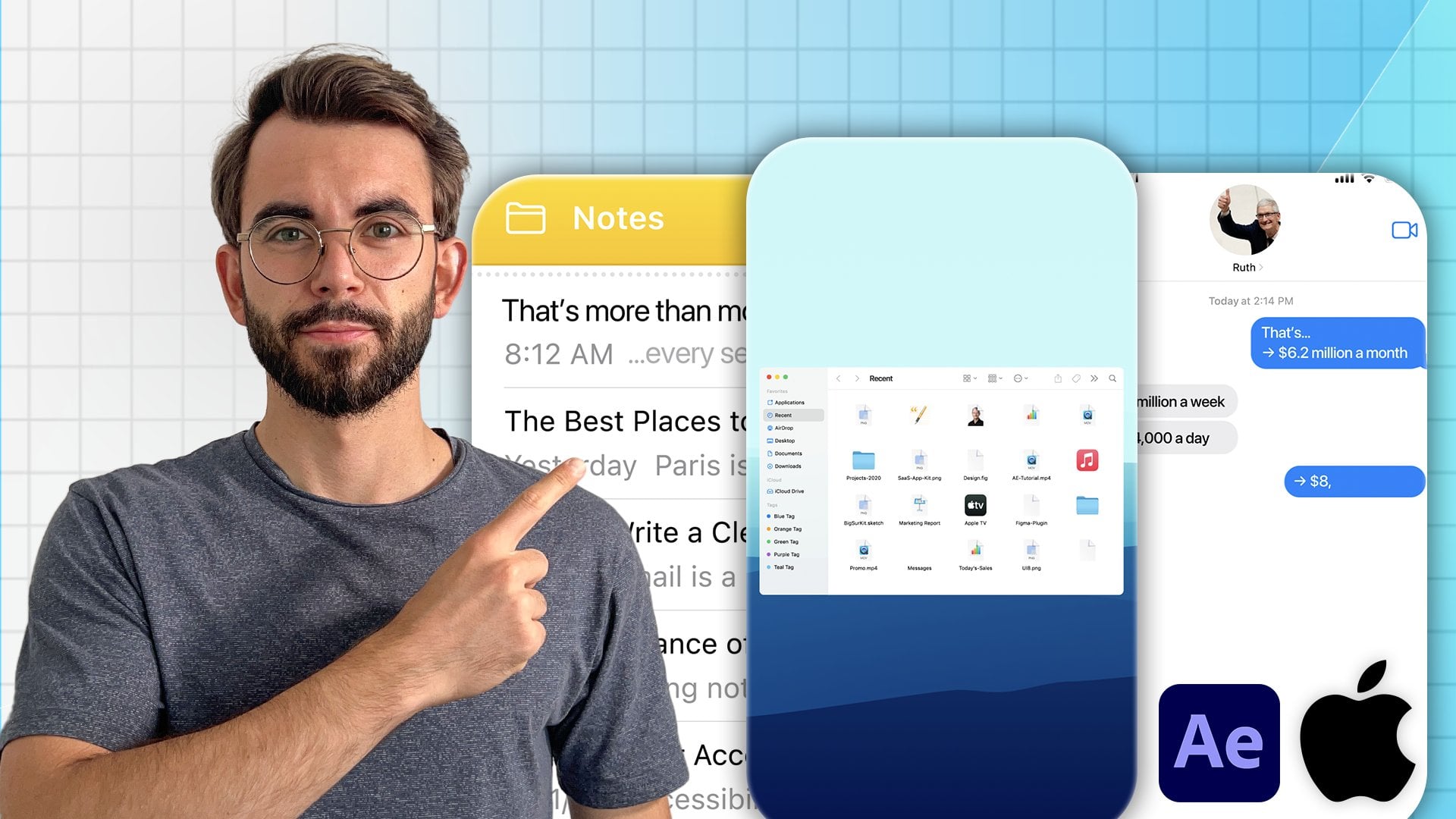
the thing is that I already downloaded it before. So let me delete this thing. This is phone mail UI. And if I open the project, so let me close this project. Actually, we can
just open this one. It will have these animations
on the screen already. Beautiful, absolutely
beautiful animations. Now we can ask Claude to
reverse engineer that, which is what I did today. I reverse engineered it. So I just asked Analyze. So let's find it.
If we can find. It's not this one. I
think it was this one. So I asked you to just
take a look after effects. I have an open project
in after effects. A lot of small animations. I asked you the question if
it's able to analyze it. I was able to analyze
it. And then I asked it. Basically, I went back and
forth because it didn't analyze the visual context
from the first try. It only analyzed the motion. And I asked it to do the
visual analysis as well. It took a bunch of screenshots. It took control of my
computer and just took a bunch of screenshots,
which is great. And then I asked it to some
of the things didn't work. I had to run a specific script, but I just followed
what it asked me to do. And then I asked it
to create a skill. So you can see it took like
a bunch of screenshots here. I asked it to create a skill, and now I can use that skill, which if I go into skills, there's UI pop up motion skill. And once I tried to
create something with it, and actually did
something with it. So let's see. It was it was PayPal
No, it was this one. I'm not going to save that one. So this is this is the original
style of the animation. Hmm. Why is it taking
forever to load. But this is the original style. And then this is
what Claude created. It's not perfect. You still have to customize it, but it's pretty cool
what it can do. It didn't do it perfectly
for the first time. I had to tell it to add a bounce expression
or to add bounds, which it just added
the expression. But pretty cool,
honestly, what it can do. One thing is that
here's the thing. If I wanted it to
be slightly better, I would just offset some of the animations
to make it even better. It's still not
perfect with timing. It's still not perfect
with everything, but it's definitely better than creating a lot
of this by hand, which the things that you
can just later customize. So I'd like to see how
is this thing animated? Or maybe we have the word as animated because this
thing is moving too fast. These things are it seems like
it's not really animated. Okay. Well, I'll have to move every single thing and
test which one that is. Okay, so it's this one.
It's controlled by a null. Okay, so But, yeah, we have to customize it further. Now, how do we go about
customizing things? Well, you just have to
look at what's on screen. You can ask Cloud
what it did exactly, how it created things and then just customize
things on screen. You can also give
instruction to Claude to do an animation specific way so that you know how to
customize it later. Because if you want a specific
controller, you can do it. Or you can just ask Cloud
to do specific changes. Like, for example, this
was the original one. And we can come here
and say, Hey, Claude. So in the current after
effects composition, the papal notification
animation that you created, it's not as smooth as in the example that we'll
be talking about before. So first of all, I need you
to do more of an overlap of the animations because
right now it's like it's going one
animation after the other, but I want it to be
at the same time. That's the first
thing. Second thing, I don't think there's
bounce animation on the or not necessarily
bounce animation, but there's no
bounds on the shape that's growing in
the background. And I think it would
be great to have that. So add bounds and do more keyframe overlap and also slow down the
animation just to touch because right
now the money icon is just going a little bit too fast and the bound for it is
a little bit too much. See, I'm also not super
perfect at creating prompts. There are some tools
that help you with that. Like, for example,
typeless or whisper flow. Actually, whisper
flow is just more of a dictation tool where typeless. I use typeless all the time. It's that pop up at the
bottom that you can see here. So what it's used
for is I give it just my thoughts and
puts it together nicely. It's a pay tool. They
do have a free plan, but you will not be able to get a lot if you don't
have a pay plan. Hmm. Interesting. I cannot
delete and move keyframes. It definitely can.
1,000% it can. Maybe because it's a new Maybe because we closed after
efect and opened up and closed clot and kind
of lost connection. But you can see, once again, it's not a perfect system.
It's not a perfect world. So it has to recreate
everything from scratch. So let's see. Oh So again, ask you to create something
in after effects, and then I will just drop
the same file in premiere. So in this case, that would
be this phone mail UI, or just drop it
directly in premiere. And the way it works
is you need to select a specific composition that you want to import in premiere. So while it's doing
that, we can do that. So while it's doing
that literally, we can do that at the same
time. That's how I do it. You can also tell it to do
it over a specific link. And another thing is that
if you are in premiere, you can just take
a screenshot of a specific So, for example, let's open this UI hig So you have your
text panel, right? And let's say we're
doing some sort of explanation over some time. This is what I did for
the previous video. This whole animation
was created by Cloud. What I did is they
just took a bunch of screenshot of a specific
explanation I have, and I told it to
create an animation over so literally just
take screenshots. Upload this to Cloude
and we'll do it. And then Okay, let me put
this look this and look this. And the way we do
it at the end is we drop our project here. And remember, it's going to be the same compositions as
it is in after effects. So we just select, for
example, the V two, and then I drop it
in the composition, and it will have the animation. But we don't really
need it right now. So let's take a look
at what is done. This is There's something so
wrong about this animation. Why did you go to here? Stay signed in not now. Oh, it shows me how
the animation is. I think we don't need Okay, so this is the interesting part. I wanted to ask Lo
to do something, but I realized it's
going to be much faster for me to do it by hand. So I will need to go to this
point and to press on you. And Wind we have a rotation
animation somewhere, so I think it's this one. Let's see. If we move this
one, no, it's not this one. Okay, so if I person R, this is the rotation, okay? And this is the rotation. So let's see, it's
going to be this one. And they have an
expression here, which if I delay it, I think the animation is
going to be much better. Let's see. And we need to move it a little
bit further away. Let's see. Yeah,
this is much better. The reason it didn't
work very well. Actually, there's still
a little bit of bounds. Where's the bounds coming from? It's from rotation. Maybe it's this one as well. So what if we delete this one? Let's see if it's going
to be Interesting. Seems like there's still
a bit of a bounce. So you have to
trouble shoot it like this and see exactly
where it's going wrong. Oh, I know what the problem is. So what if I go to
the graph editor? Yeah, there's the problem. That's why it's going negative. So we need to make it straight. Better, much better. This
was somewhere over here. I'm not sure what
this is used for. Maybe we should just do it
like this, select this. Go to the Graph Editor zoom in. Make it straight.
Okay. Let's see. Maybe it was better
before, with the bounds. Who knows? Let's see. So, we have to go
with like this, play around, see exactly
what the problem is. I'm still not perfect
with this result, so I would just go back
and forth with Claude. So a lot of the times it's just figuring out exactly what do you need and balancing
that and trying to understand whether
it's going to save you time by doing it with AI or not. Oftentimes, I still do most of the motion graphics work
by hand because it's much faster than to explain
exactly what I need. Sometimes it's a lot
easier to just do it with my brain and with my hands because they
have years of experience. So this is it for now. Once again, let's
do a quick summary. We can do motion
graphics with AI, but you need to
know exactly what you need, what you want. You can take inspiration from other people and
create animations. Once you've created
the animations once you've created
style, you want to, let's say, use specific
color palette, then save that as a skill
and use that skill. And if you want, you can also reverse engineer some of the animations,
like, for example, similar to what we have here, although I'm not sure
why you didn't use this color palette
by the way, here. But yeah, this is what we are. Okay, some of the links will
be below the video player. If you have any questions,
let me know. B t and that. I'll see you in the next video. Now, we need to stop this video. How do I do it? There it is.
5. AI B-Roll with OpenArt & Envato: We can talk about the
second way to create us, which is going to be
videos or images. And these are going
to be created by AI. And this is called AI
generation models, and my favorite website
to use these is called OpenR why is Because
before this, I actually used to use Hicks
felt a lot, but since, you know, they're
doing something dark, I mean, they're doing
a lot of dark things, and you can do some
research on your own, there's a website
called hicksfeldtx.com, if you would like
to explore that. And the best alternative
that I found is open art. It's I said, with a lot
of generation models. So let me show you how to use this and how to use
this in the workflow. So I would use it
similar to how we use stock footage, even before AI, because I used to work
with stock footage a lot, especially when I worked
with YouTube clients, we would need a lot
of stock footage because we would
need to visually explain what they
were talking about. If we had just a role, remember, a role is just me speaking to the screen or a person
speaking to the screen. Then in that case, the video
becomes pretty boring. But if we add virol, the video becomes much more full and much more
interesting to watch. So I approach these AI videos
and photos similar to that. I just go through the video. So I go to premiere, I
go through the video, I see what we have in
terms of the speech. So, you know, we can also
go to the transcript. See what we have here and think what kind of footage
can we lay on top? Whether that's going to
be video or a photo. And usually I try not to use AI unless something doesn't
exist in stock footage. So for the stock
footage, I use Invato. Once again, if you want
to use these tools, they're going to be linked somewhere around
the video player. For Invato, I use their
videos and photos, so the stock libraries,
there's a way to generate on vado as
well, directly on Vato. But the problem here is that you are not able to select
specific models, and I want to select specific models because I can decide how many
credits they eat, and some models are better at
one things than the other. So for stock footage, I use NVAto and then
if I don't use In Vato I use Open art for AI. Stuff. So the way it works with Open art is there's a way to chat with the bot
that will help you identify the best let's
say model to use, and it's going to be helper, or you can just go
into the tools on the left and just go into the video or image the thing
that you want to generate. There's also a way to generate audio, but most of the time, we don't need audio
because we are combining person speaking with footage. If we go into audio, then that's going to
be a fully AI rate. Right now, we're talking about combining real
footage once again. So if I go into image,
this is how it looks. They might change
their UI slightly, but this is how they do it. And you'll find a
lot of similarities in the previous videos and
the future videos as well, is when you communicate with AI, you need to know
exactly what you want. Because if you don't tell
EI exactly what you want, you will confuse
it or you will not get what you actually want. So think about
communicating with EI as if you're communicating
with a real person. If you cannot describe
it to a person, you cannot describe it
to AI or vice versa. The results are
agree to be great. So we need to know exactly what we need for videos and photos. For videos and for images first. I use the GPT, and some of these models become better, some of
them become worse. You can just ask your
AI chat bod of choice. It will tell you which
ones are better and why. So for example,
currently, at October 29, 2026, some of the best
ones are GPT Image 2.5. I use it for all the images. It's also incredibly
cheap to do, and it's unbelievable good. It's fantastically good. So I selected, and you can
also select the model. I go for So burst because I just decide to set it once,
it works really great. For the output,
you need to select which aspect pressure you
need and then the resolution. For resolution, if I keep it to the minimum gives
pretty good results, and then the quality
you can also set the higher you set the
quality and the resolution, the more it's going
to cost credits. So you can see it's 315 credits, but if I set it like this, it's going to be
only five credits. And a couple of things
you can do here. You can either just do text to speech or text to image through. So you just explain
what you want, or you can also use some reference in terms
of the visual reference. Let's describe something
that we are talking about millions of views
for my own client videos. I wouldn't use it, for
example, for here. Actually, because
I have a video, I would most likely use video, but sometimes I do need images, sometimes I need it for I mostly use it for
thumbnails on YouTube videos, so Okay, let me give
you a uk sample. Just be as precise as
you can with this. Hey, Claude, create,
actually, it's not Claude. It's open art, but
I use, by the way, a dictation tool called
typeless to dictate my speech. It's AI assisted, so it helps with if I'm struggling
to explain something, it will put it together better than just the exact
word for word. Generate an image
of a house near a bridge on an autumn day with
yellow leaves. It's also a cloudy
day, pretty cold day. That's it. Click on generate, and it's going to do Click
on generate should do. Fast job. Why is it
not doing fast job? Okay, there was a bit of
a bag for some reason. So I just looked outside and thought about what to generate. Usually, it's incredibly fast. But even now, it's
taking more than usual. Depends on how busy the bundle is. Hmm. This one's taking much longer. But you get the idea.
We have the images. We give a prompt. We can use references, and then it's going to
generate something for us. I use it a lot once again for thumbnails and not
so much for videos. For videos, I might use the AI video sometimes,
but not always. I use it very rarely in some
of the videos that I did. Okay, so there it is. Now, if you go into
video, by the way, this is a video that I generated for one of the videos that I needed because I used a video. I create a video recently,
and I'll show this to you. I think it's this,
these two side. I need to show an image
of Oh, there it is. So I generated this
video of a kid. This is like a kid. It does almost exactly what it. Just typing something on the
computer because I wasn't able to find something like
this on stock footage, and this is the prom
that I gave it. Creative video of a kid,
just little human being sitting in front of the computer and being super
serious in a suit, L you program your
typing like crazy. That's it, because I needed
to use it in actual video, and I just showed
you how we used it. And that's how I would go
in terms of the bureaus. There's no way to automate this. I mean, there's some ways
to automate this in terms of putting that
into the timeline. But it's such a
headache that you would waste a tremendous amount
of time automating that. Plus, it will take
so long to do that, that it's so much easier
to just do it here, generate an image or a video, download it, and then
put it into Premiere. So if I download, Oh, I put it into
Premiere. It's that fast. But you know to automate
this, that's a headache. Plus, it doesn't always
know where to put it, and you have to use Claude and Claude will not be able
to choose the best model. It's a headache, honestly. So if you need to
generate something, generate it on
Openart, then drop it. Do just download
it, drop it into Premiere is the best
way to go about this. There are other things that
you can do on this website, but this is mainly what I use it for in terms of
creating a video. So just images or videos. And that's it. There's also a
way to connect it to Cloud. But once again, as I told you, it's not the best because
if you connect it to Cloud, you will have to explain
everything to Claude. Then wait for Claude to generate things
directly on open art. And also going to be it's not going to
select the best model. I mean, it's going to ask you extra questions to which
model to generate. And if you tell it
to choose model, it will not choos
the best model. It's like, it's not
streamlined at all. So that's why just go to the website it's going
to be much easier. So if you have any
questions, let me know, and then I'll see you
in the next video.
6. Automatic Zooms with Claude in Premiere Pro: Welcome. In this video, we'll talk
about something that's super manual and something
that can be automated. But once again, but some news. So it's the Zooms. Zooming in, zooming out, doing it randomly
throughout the video, it sometimes takes a
lot of time to do it. Sometimes it doesn't, depending on the type of video
that you're working on. I still do it manually, but I'm trying to implement AI and I'll show you what
I've gotten to so far. The way to do it manually is I usually add an adjust
Miller in premier pro, so I create adjust
Miller, drop it in, and then I add a
transform effect, Transform there it is. And then I animate the
scale a little bit. Like this. The scale is
increasing over time. And we have this slide
Zoom, right, a little bit. It's okay to do it manually. The same I have to
do for the zoom out. And if I have to
do the zoom out, I can just change
the two keyframes. So literally just change sides so that's
going to zoom out. And I also can change
it to another color, put it in specific let's say, specific track and I'll know that this is zooming
in, this zooming out. So this is how I do it. And then going
throughout the video, because I already have a system in place, it's pretty
fast to do it. I know where things are,
what they do, et cetera. Now, like, how are we
going to do this with AI? And by the way, there's
also a way to do like Zoom in to make the video more engaging in terms of
increasing the scale. Okay, we are going to
increase the scale like this. So there's a way to do
it with AI, with Claude. Once again, you need to have the Hicks field MCP in
order to go about this, similar to how we do motion
graphics with Claude and premier after effects. And we need to be super
precise in the way it does it because Claude will do it automatically on
the footage itself. If you don't want to
be on the footage, then you ask you to do
the adjustment layers. And you need to give it
specific instructions because I found that it makes
it look weird. It's not the human wouldn't
do it the way Claude does it. So we need to say
precisely what we need. Hey, Claude, I need you
to in Premiere Pro, I'll send you a screenshot of the sequence that
I'm working on. So in this sequence, add Zooms, Zoom outs, and increase the
scale of some of the footage. And I'll give you
specific instructions so that you know what to do. So first of all, for
some of the clips, and you have to do it
almost like randomly. For some of the clips, you
need to increase the scale slightly so that we have a slide zoom on the footage to make
the video more engaging. For some of the clips, we
have to do the Zoom out. Some of the clips just need
to be increased in scale, but without the scale
increasing over time. So we just set, let's say, scale to 110, and we're just
going to have a jump cut. It's important to do it using
the adjustment layers over the clips on a new track
so that I can do it myself if I have to
or delete some of the things and do it in a way where it needs
to be pretty seamless, meaning that if a clip is, we cannot have one
clip be one size, the next clip be the same size, but start increasing
because it will be abrupt. Like we will see
the sudden increase in terms of the
scale, the zoom in. So it needs to be on
the big jump cuts. When we have the
change in the scale, that's when you increase that's when you start
zooming in on top of that. I forgot what I want
to say on top of that, so I'm just going to
intulate it and let it go. See, like, we need to tell it exactly
what it needs to do. Let's wait. But the good thing is that you can
save it as a skill, the same thing as we do
with motion graphics, and we'll just do
exactly the same thing. And once you have the skill, it should be able to do it
automatically. Pretty fast. It's more set up in the
beginning than later. It also exported a frame. Interesting, so it's looking at what it's doing, hopefully. It's weird. Sometimes it looks and
exports the screenshot. Sometimes it doesn't do
that for some reason. Who knows? Okay. Looks like it will be done soon. Also, the great thing
is that you can tell it to do at
a specific time. So if you don't
want to be through the whole footage,
you can just tame it. You can just tell
it the timestamps. So say, do it from minute two to minute
3.5, and we'll do it. You can tell it exactly
this specific minute, second, millisecond, everything. And whilst it's doing that, you can just do something
else in the meantime. So if you have
lots of tracks on, let's say, video,
what you can do, you're not sure and let's say you have also a lot of B role and graphics, et cetera, you can just take
specific footage, market with specific colors for your identification
cloud doesn't understand the different
colors at this point. So you need to take it on
a new track and tell it that every single clip on
that track needs to have this randomizing and give it specific instructions
and then tell it also that if it's just, let's say, a clip
that's on its own, meaning it doesn't
have adjacent clips to it to the left
and to the right, and you either do zoom in and zoom out and don't just increase the scale because
it will be on its own. It's taking significant
amount of time to do this. Let's see if it did anything. Oh, it didn't even do it. It just did it on the
first one. Genuinely good. But no more did
on the first one. I'm thinking for the
other ones, okay. Well, as you were seeing, the system is not perfect. I'm not sure if it
ever will be perfect. Ooh. Something happened. But actually found that
it does it much faster if it's not the adjustment layers, and it's on the clip itself. But then you might
have to do more. More customization
in the future, so there's going to be headache
in the future to do this. But it's doing it
somehow. 5 minutes. This This is so long. I've been editing since 2000. Yeah, it needs more
customization, for example, here,
didn't do a good job. It does 115, but
then the second clip starts 120 for the Zoom out. Millions of views for millions of views for
millions of views, for millions of views,
for my clients in my own Is for my clients
in my own videos. It's a little bit too
much. Multimillion dollar. My comments are full
of people telling me. I would say. And
then for this clip, it's also we have nothing here. What happened here it increasing the scale height and not
just the scale itself. So you can see how you can
see the limitations of this, but you can also, okay, did it. So it now finished took like, how long did you take more
than 5 minutes to do it? But then you can see, Yeah, I increased the scale height. And then it didn't do anything
for the rest of the clips. Okay. So, as you see, it's not as reliable, but it can still save you a significant
amount of manual work. When you're doing
something like this. If you have a more systematic, specific way to do it, then
you can tell it to do it, and I think it's going
to be pretty great with this because if you give it super specific
instructions, it does it. As you can see, I told
it to do it randomly, and it didn't do
the best job at it. So, if you have any
questions, let me know. But than that, I'll see
you in the next video. And that's how you do this one.
7. AI Music & Sound Design with Epidemic Sound: In this video, we
are going to do sound design for a video, including both music
and sound effects. There are two ways to use this. There's a way to
use through Cloud, and then there's another way to use through epidemic sound. Epidemic Sound is going
to be, in my opinion, better than using Cloud
because once again, I'll explain
everything in detail. So let's say we were
to do it with Cloud. First of all, we need to have a library of sounds and
sound effects somewhere. Well, where do we get it? I always recommend people
to get epidemic sound. Why is Because even if you use a free library, I used
it at some point. And the moment like I was trying to find a
free alternative because I was paying
for Epidemic Sound, and I found a free alternative. I was going to use it. I
decided to use their song, and even though it
it was free to use, I got a Capar strike the
moment the video was posted. So that's why I partnered
with Epidemic Sound. And if you want
to give it a try, there's going to be link somewhere on the video player
for a 30 day free trial. I cannot docu Med it enough. They are the best in the industry when it
comes to sound design. I've been using them since 2020, and I've never had any issues with
copyrights with anything. So if you want it for
yourself or for your client, I really recommend to
use Epidmic Sound. So we can go to Epidemic Sound. And we can download something. Okay, there it is. So we can download specific
sound effect, and we can create a library of sound effects
on our computer, and everything we
download from here, we'll be able to
ask Claude to dt. So, for example,
if we use the UI, that's fine UIsund Otis meta. So for example, this one, and we can tell Claude to
add it at specific points. So if I person command
and Hey, Claude, I need you to add a
sound effect that I just downloaded
from Epidemic Sound. It's in the Downloads folder, and I need you to add
it at 27 seconds, ten milliseconds on the
cut between the two clips. So the reason it's harder
to do it with Claude is because you basically need to tell it precisely
where to do what. It can do some of that stuff, but you have to sell
it super precisely. And then it's like instead of just explaining very long what exactly
to do where to cloud, you can just use it manually. Today, it's going to be
much faster, much better. So let's see. Okay, so you can see it added that
sound effect there. Give it a vague breath too.
Give it a vague breath. We can use some sort of
automation for some of the parts. Like, for example, if
you were to add, like, 100 sound effects and you knew
every single thing and you could easily systematize that and explain that to Cloude
then yes, you can do it. But than that, it's not going to be
sustainable long term. Because Cloud has
its own limitations, the MCPs have their
own limitations, and Cloud doesn't have
access to everything. If it did, you'd be able to edit full video, but it's not. So that's the situation. Now, when it comes
to epidemic sound, because you will
most likely have a subscription just because you will need to use some
sort of sound effects, then you will need to
click on first of all, they have an extension plugin right in premiere
into Click on Studio. And here, you can set the in and out points
for the video. Like, for example, in and
out points I have here, and you can give
custom instructions, or you can just
click on soundtrack the selection and
we'll do the job, or you can glive
specific instructions. Like, for example, you can give it you can tell it to
use specific song. You can ask it for specific
things. I will do. But they are limited
to only 4 minutes. So if you have a
video of 20 minutes, you might have to do
it multiple times. So, for example, I'll tell it this is the intro for the video. Do Add Seft and music. Add seffcs when the scene change on cuts, for example, and also and
also add sound effects throughout how do
you spell throughout throughout to make the
video more engaging? Add a high rocket junior What's this song
called? High rocket. Okay, let me check
on epidemic sound. Music, high rocket
high tech rocket Junior High tech rocket GR make sure it's not very loud. And let's click on
soundtrack the selection. There's a way to do it directly on the website of
epidemic sound. So it's just going
to do it like this. Scanning the video. I'll
show you the Epiding sound. So Epiing sound, you
can click on studio, and it's going to open
to the separate window, you can upload a video here
and it's going to do the job. This is the thing that I did previously for
another video of mine. It did a pretty good
job, so we can play it. This is how to create a proper
video in after effects. Some of the sound
designs, for example, this Thunder or
whatever this is. I don't feel it fits here
really well, but it's okay. So it does it automatically.
It's like magic. I'm not sure how
they do this stuff, but this is the best way
to automate sound design. And you have to understand that Epidemic Sound, it's a library. It's a company that's
worth over $1 billion. They have so much
so much resource in order to invest into
this, and they did. And this is the best
of the best so far. If you use other tools, it's
going to be much worse. So if you want to automate this as much as
possible, you can do it. I will say that
compared to, like, my sound design and
the way I do things, it's still not at
that level yet. But it's still pretty good. It gets better than nothing,
but it's not perfect. Okay, so it will do it on the left side of the
screen, which we can preview. Cut these two side by side, and almost anyone can tell
you which one is better. By the way, didn't
use that song. Wow. So interesting because I literally did it before
the video just to double check that I
can do it. And it did. It added the right song, but now it didn't. So we can preview it here and we can click on ATT Timeline, and it's going to literally
just add it to the timeline. And then we'll be able
to preview everything. You can see it does
it in real time. A lot of sound effects. Okay. So let's preview. Put
these two side by side, and almost anyone can tell
you which one is better. But most people can tell you
is why AI made the bad one. For a long time, I
couldn't either. I spent years editing
for other people. Clients had me brief
read some vague. My job was to figure out
what they actually wanted. Then AI showed up, and suddenly, I had
to switch sites. For the first time, I was
the one giving instructions. And honestly, I was pretty bad at it because AI is like a kid. It does almost exactly
what you tell it to. Give it a vague brief, and
you get a vague result. The AI wasn't the problem. My briefs work. So here are
six A hacks that fix that. And to make it easy
because I know it might be hard to
grasp the power of this, I'll take one project and you prove it one hack at a time. But the end, you can be the
judge, which one is better. And even though you use specific
tools for this example, these hacks are universal. They work with
whatever AI you use, including the tools I
wouldn't even mention here. And it all starts
with the reason the first version
looks the way it does. It's okay. It's okay. Now, one thing I will try
to do later is we are going to sound design
just the motion graphics because it's trying to
sound design a whole video, and I feel like it's
just it's doing okay. Like, it's as if we have an editor who just didn't
have a lot of experience. If I was to do it out of ten, let's say Human is
ten out of ten. This is like maybe
four out of ten. So it's doable, it's acceptable, but it's not it's not
at a premium level. Let's ask it to do
motion graphics. So let's go to here, leave. And let's mark the I
and the out point. Sound design, the
motion graphics for each thing that's
happening in the screen, add a sound and make sure to use UI sounds and make sure that it's not
very loud at the end. This is how you would explain something to a person
if you had, like, an employee maybe you would give slightly
more instructions, but if you were to work with
a person for some time, this is roughly
how I would do it. So you can see it added
the sound effect, it added the music,
but it's too loud. It's definitely like
too loud for my taste. So the sound effects are
just a little bit random. So let's see what
it will do here. Also, the Epidemic Sound tool, it's okay on left
side of the screen. I still like to use it
in the browser just because it gives me
a fuller experience. And also, it takes some time to think in the plug in
here on the left side. Like, some things are a
bit slower because in the browser, for some reason, it's just I have a
better experience and much more pleasant
experience here than here. Okay, I did it. By the way, I didn't ask you
to add music, but it did. You need to document
the workflow. I know exactly every single step you need in order
to produce elicit. Okay, add to the timeline. Let's do it. See, the problem is that it didn't follow
all the instructions. So that's how do I
do it like this? It added some of the sound
effects, document to workflow. I know exactly every single step you need in order to produce. What is this ambience? Why would it need to add
something like a cafeteria? Well, like some sort of fun in the background. I'm not sure. Well, delete every
single possible step, simplify and optimize, question every
single requirement, because you want your workflow, only then bring the AI. Hm. Class one is
actually really good. Only then bring the the music process as
much as possible. Delete every single
possible step, simplify and optimize, question
every single requirement. Yeah, once again, it's
like at four out of ten. Sound effects are not perfect. It's a little bit
allowed. It's random. So you still have to do
a bit of a manual job. And it's also super important. Something I mentioned already when it came to motion graphs. It's really important to learn how to actually properly
do it without AI being the first step
in the editing. AI should I mean, we'll talk about in next video, but people put EI
in the first place so that they can use it as a shortcut so
that they don't have to do the boring stuff of actually learning and knowing
how to do it. But you can only automate the stuff if you actually
know how to do it. If you don't know how to do it, then that becomes a problem. Yeah. So this is how to
do the sound design. I'd still recommend you to use Epidemic Sound
whenever you want to use this or you
don't want to use this tool just to have
some professional tools, and to make sure that
for your clients, you don't get the copyright
strike on the videos. So 30 day free trial linked somewhere around
the video player. So if you have any
questions, let me know, and I'll see you
in the next video.
8. When to Use AI (and When Not To): Welcome. In this
video, I want to talk about how and when to use EI because AI can speed
up some of the work. I can make it can waste
some of the time. So what's the system,
how to use it, how I use it in videos that I
produced every single week. That's my job
basically to use this. So to simplify this, there's a five step formula. It's taken from a book
called the algorithm. It's by a former
president of Tesla, which I have on the wall. Written. And it goes like this. Step number one is question
every requirement. Step number two is delete every possible step
in the process. Step number three is
simplify and optimize. Step number four is
accelerated cycle time. Step number five
is automate last. How to actually use
this in real life? You want to create a workflow in terms of document
your workflow and write every single step you
do in order to edit a video or use EI and whatever
process that you use. So literally write out
every single thing, every single thing,
every little small thing that you do in order
to do your process. Then you need to question
every requirement, meaning that think about, is that actually required
to produce a video or not? If not, then delete every single possible step
which is step number two. Step number three is
simplify and optimize, meaning that every single
thing that you do, you want to make it as
simple as possible. Literally just
simplify it as much as possible so that a kid
can understand this. Like, that's how
easy you want it to be as easy as possible. Then you want to
accelerate alcal time, meaning that you go through the first three steps
as fast as possible so that you can simplify it even further and
optimize it even further. And then only as the
last step, use AI. So AI is a great tool, but a lot of times you'll be trying to automate things that shouldn't
exist in the first place. And this is what this
formula is about and this algorithm is
about is making sure that you will not be
automating things that shouldn't exist in
the first place and then automating
them badly, also. So go through this
formula and simplify, delete, be brutal with it. Try to make it as simple as possible and as
easy as possible. And only after you
have that workflow, have that system set up, then and only then automate
some of that stuff. Don't do automation, which
is AI in the very beginning because you'll just be
wasting a ton of time. Trust me, the shortcut
is the long game. Don't try to search
for a shortcut that will so that you don't have
to do the boring work. It's just a waste of time. I think with AI, people are just people
became obsessed with AI and wanting to put
it as the first step. Don't actually do
the boring work, really understand
how things work, and then only then try to
optimize and simplify. With, I mean, simplify and
optimize and then automate it. But don't try to do
it as the first step. You'll waste a ton of time. So in reality, I
use AI for cutting soundss 100%, motion
graphics, 1,000%. Some of the B roles, yes, for some of the Zooms, still being tested,
music and sound design, to some extent, we can do it. But really reliably, we can do just parts of ls
and cutting sunss. And also, another
question to ask yourself is if EI can do it, what's
going to be faster? To do it with AI or do
it by hand manually? A lot of times it's going to be manually or what's going to
give you the better results? I AI can do 95% of
the work, sure, but sometimes AI will do
only 60% of the work well, and it will take as much time, and then you'll still
have to do it manually. Maybe the manual adjustment
will take even longer. So think about this.
You really need AI? Yeah, it's definitely
in the future. Like keep an eye on it.
Things are becoming better, but don't put it on
the pedestal and don't try to put it as the first
step for everything. Unprotective. You'll just
waste a lot of time, money. So this is the system
that I use not to do it. If you have any
questions, let me know, but then that, I'll see
you in the next video.
9. Last step!: Congratulations to you.
You're nearly 100% done with the AI video editing. There are just three small
steps you need to take. First, take action. Every big result starts
with small action. So if you haven't already, take your first step by actually
just giving it a try. All of the best information in the world means
nothing if you don't act on it and small steps that
lead to massive outcomes. Secondly, if you want to
continue learning with me, follow my profile
here on Skillshare. Lastly, if this course
gave you value, could it take 60 seconds
to leave an hones review? Your feedback helps
the next student decide whether this
course will help them to, and it helps me continue
creating better lessons though this course is complete, your journey has just begun. I'm excited to see Edison line, so be sure to keep me and
your fellow students posted. Thank you again for
choosing me as instructor, wishing you all the
best and looking forward to seeing you
in future courses.
 Vladislav Sateev, Video Editor