Transcripts
1. Intro: Adobe Illustrator or
Procreate Vctor or raster. This is the dilemma that many
digital artists are facing. If we draw in a raster based
sofers like Procreate, Adobe Fresco or Photoshop, it is easy to achieve a rich
hand drawn texture look, but the artwork become
resolution dependent, harder to scale, and
very difficult to edit. If we draw in a vector suffers like Affinity Designer
or Adobe Illustrator, we get precision, scalability, and a highly flexible,
efficient workflow. In vector environment,
without much effort, we can resize, edit, and create multiple variations or entire collection
from one single design. And that is exactly why many
art directors or clients specifically request for an AIFi for professional and
licensing artworks. But there is a trade off. Vctor artwork often look flat, overly keen, and digital
in the most obvious way. Well, in this class, we will learn that vector
do not have to appear flat. Hi, I'm Sahar Heumesser. I'm a graphic designer and a design instructor based
in Vienna, Austria. Alongside creating
my own artwork, I teach graphic
design topics and digital illustration
covering both vector and raster based workflows. In this sketcher class, I am going to share
my techniques, methods and practical
approach to transform a flat vector graphic into a textured hand-drawn style
using Adobe Illustrator. By the end of this class, you will be able to take any key vector illustration and give it character depth and
a handmade quality that feels intentional,
not forced. I'm super excited
to get started, see you on the
class, and fit in.
2. About The Class: Welcome to my Skillshare class, Transform vector
illustration into a textured hand-drawn style
with Adobe Illustrator. Thank you for joining me here. This class is divided
in two parts. First, we start with
a short overview of vector graphics and break down the visual
characteristics that make a vector
illustration look flat, predictable, and
obviously digital. Then we move into a
fully guided workflow where we systematically break those mechanical qualities
and we construct the illustration to achieve a more organic hand drawn field, similar to what you
might expect from a Rasta based tool
like Procreate. We are going to learn
different methods that shapes the hand drawn
look on a vector graphic, anchor points, stroke, feel or color, composition,
and texture. For each of these methods, we will learn
practical techniques to manipulate and refine them. Every technique is demonstrated
step by step inside Adobe Illustrator with a clear and repeatable
instruction. As for class project, you get to choose to either work on the exact
same artwork that I'm using in the class or work on one of your
own vector drawings. It is totally up to you. Your assignment is to start with some flat vector graphics, apply the techniques from this class and share your
work here on a sketch. I will be demonstrating
using a combination of desktop and iPad version
of Adobe Illustrator. To access your class
resources and references, go to the project
and resource tab and download the files. Make sure to download the
interactive practice file before you start this class. And during the class and
whenever you have a question, head to the discussion tab here, start the conversation
and post your question. Okay, we are all set. Let's open the Illustrator
up and get a starter.
3. Basic Vector Facts: In this video, we
are going to learn some basic facts about
vector graphics. In vector environment,
every object that we are drawing
is called a path. Regardless of which
drawing tool we are using, we are drawing a path, and each path has
three elements, fill stroke, and anchor point. Fill is the color
contained inside the path. Stroke is the
outline of the path, and anchor points are the points that defines the
boundary of segments. Path needs at least
two anchor points. The part between the two anchor
points is called segment, and segments can be straight
lines or curved one. A path with three or more anchor points
is called a shape. A shape can be open or closed. A closed shape is created
when two ending point merge. Each shape can have only a feel, only a stroke or both
of them applied. Now let's have a quick review. What is a vector graphic? Vctor is a mathematical
calculation that defines how a
path would appear. It works by keeping track
of anchor points and equation for any segments that connects those
anchor points together. Because these paths are
recalculated continuously, vector graphics can be scaled infinitely without any
loss of image quality. You can scale up
your vector artwork or zoom in as much as you want, and the resolution
will remain intact. Common vector file types
are EPS, SVG, and AI. AI is the Adobe
Illustrator file format. If you're interested
in vector drawing, check my Skillshare class
Adobe Illustrator on the iPad and learn how to
draw vector illustration. That is all the basics
you need to know for now. I see in the next video.
4. What Gives Away a Vector Graphic: In this lesson, we will review some common features that
gives away a vector graphic. The first giveaway is
perfection in shapes. Vector shapes are built with mathematically
calculated geometry, which makes them look precise, but it also removes
the small irregularity that we naturally associate
with something drawn by hand. Next vector sign is predictable anchor
points and clean edges. In both type of anchor points, corner points and smooth points, the edges follow a
very predictable path. Another giveaway is
stroke behavior. Vctor segments are
usually too smooth, too consistent and have equal thickness from
beginning to the end. But handraw lines usually
shift slightly in thickness, smoothness, and even texture. Other common giveaway
is flat uniform color. Vector shapes are
often filled with a single solid color and no internal variations
or details. Next common giveaway
is perfect symmetry. That mirror effect is a very
strong sign for vector. Slight shift in each side
can easily break that down. Another thing in the list is equally distributed
repetition. Evenly repeated elements reveal vector artwork very quickly. In handwrawn illustration,
repetition still exists, but usually with
variation in shape, spacing, placement,
and even size. Finally, we have
texture or lack of it. Absence of texture on
both feel and stroke reinforce a clean digital look that immediately
signals for vector. In more organic style, texture is not
something added on top. It is often integrated into the structure through
all elements. All right, open your
interactive practice file, and let's get started.
5. Round Corner: Before we begin, open the practice file and navigate
to Artboard Number one. You can use the slide number
shown in top right corner of my artboard to follow
along with each lesson. In this lesson, we
will talk about round corners and curved lines. We are starting with a
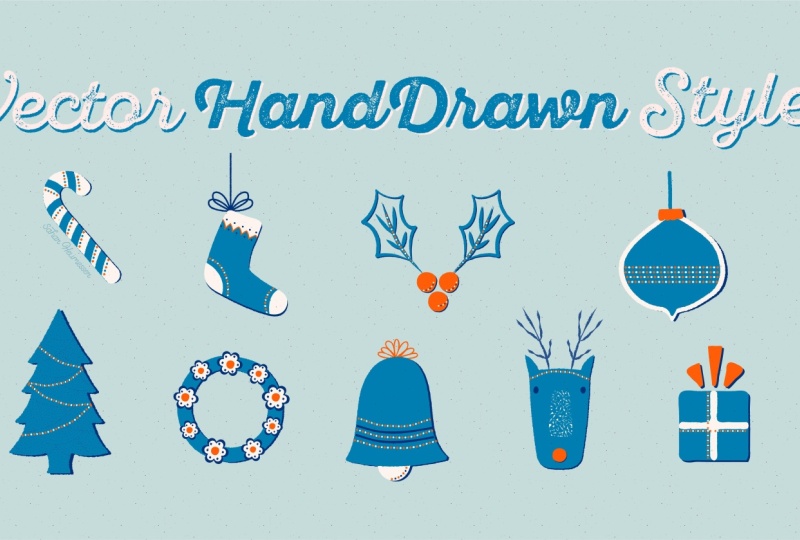
simple Christmas tree made entirely of
straight lines and corner points or
basically a combination of a few triangle
and one rectangle, very typical vector look. One of the first
techniques I like to use is to round the corners. Since this is an action
on the anchor points, I first need to
select a path with selection tool and
then switch to direct selection tool to be able to have access
to the anchor points. The moment I activate the
direct selection tool, the corner rigits appear. Since all of these
points are selected, I can grab any of these corner rigits and
round all of them at once. You don't need to overdo this just enough to break
that sharpness. You can also use
the control bar up here and enter an exact value. I will leave it at two pixel. Already, this small change
made the shape feel less aggressive and
slightly more natural. But if you look closely, it still feels very structured. So next, I'm going to
work on the lines. Instead of keeping these
segments perfectly straight, I'm going to start curving
them very slightly. There are different
ways to do this. I like using either
the curvature tool or the anchor point tool. With the curvature tool, if you click and
drag on the line, it adds a new point by curving the line on
that very point. But with the anchor point tool, it's here under the pen tool. If you click and drag, it curves the line without
adding any new point. I'm not trying to
distort the chef. I'm just removing the
perfect straightness. This is where the illustration start to feel more organic. This is one of the
simplest technique, but as you can see, a
very effective one. Okay, great. Now let's move to the next lesson and
learn more techniques.
6. Round Stroke Caps Imperfect Circles: In this lesson, we
will learn about round stroke caps and
imperfect circle shape. We're working with a slightly more detailed illustration here. We have some curved lines with sharp corners and some circles that look a bit too perfect. Let's start with rounding
the end of our strokes. First, make sure your
stroke panel is open. You can access it from
the window menu up here, and then I'm going to
zoom in a little bit. So let's select the strokes. Right now, the line endings are very sharp and aggressive. In the stroke panel, you can see the cap is set into butt cap, and yes, that's the name of it. So I'm going to change this from butt cap to round cap and change the end of
the stroke from that flat cut to a rounded end. Okay, great. Next,
I'm going to change the corners from the
meter join to round join. You see that already
make a huge difference. Now let's have a
look at the berries. Right now, they are
perfect circles, which is a very
strong vector signal. So I'm going to slightly distorting them using
the curvature tool. I will click and drag gently on the edges to introduce
small irregularities. Nothing extreme, just enough to break that perfect roundness. Now, each circle feel a bit more natural and less generated. As you can see, softening
the stroke ends and slightly distorting the geometric shapes was just a small adjustment, but made a great
impact on building a hand drawn character
into my illustration. All right, let's head to the next lesson and learn
some more techniques.
7. Freehand Drawing Instead of Shape Tool: In this lesson, we learn
about the impact of using different drawing tool on the style of vector drawing. So I'm going to draw the
same Christmas ornament using three different tools, shape tool, pencil tool, and blood brush tool and show you how that affects
the vector look. Just a heads up for the
lessons that involves drawing, I'll be working on the iPad
version of Adobe Illustrator, partly so the iPad users
don't feel left behind and mainly because I really struggle
drawing with a mouse. So, first, I would draw this Christmas ball
using the shape tool. I'm going to use a
very thin rectangle for the hanging ribbon, and then let's change
the color and draw another rectangle and then round the corners
for the hook part, and then switch the
color back and grab the apes tool and draw
the grass ball itself. This is the most typical
vector approach, and as you can see, it
looks super geometric. Now, I would draw
the same shape, but this time using
the pencil tool. I'm just drawing it free hand. Then I would draw the ball and then flip
the stroke to fill. You notice immediately that the shape already feels
a bit more natural. Okay, now for the third version, I will be using the
blood Brush tool. I'm on the basic brush and low smooth setting,
if you're curious. For this one, I am also drawing the glass bowl itself,
slightly atypical. I mean, not perfectly round. Blood Brush tool works a bit differently because I'm
not drawing strokes. I'm drawing field shape. So instead of outlining, I am building the shape from within in a loose
and organic way. This is a similar
feeling as if you would draw with a raster drawing brushes like in
Procreate or Photoshop. As you see, even for
the form itself, I'm introducing
some variations to make the result feel
even more hand drawn. When you use Shape tool, you already start
with perfection. But when you draw free hand, you introduce variation from the very beginning
and while drawing, and that difference is
immediately visible. Alright, that was the
impact of tool choice, and I see in the next video
with more techniques.
8. Asymetry: In this example, I want
to focus on something very simple yet
important asymmetry. Vector illustration
naturally tend to be very symmetrical. And while that can look
keen and balanced, it can also make the
artwork feel artificial. In the left side, we have a
perfectly symmetrical belb. Now, I'll start by
redrawing the belt, but I'm going to intentionally letting it be slightly
asymmetrical. Nothing dramatic, just
some small differences to avoid that perfect
mirror effect. The same idea applies for the details and
ornaments as well. Even though these are
smaller elements, I still keeping them slightly different from one side
to the other side. The goal is to not have
that mirror effect. Introducing small asymmetries, both in the main shape and in the details makes a
noticeable difference in how the illustration feels. Alright, let's move to the next technique I
see in the next video.
9. Uneven Spacing Distribution: In this lesson, we will
learn about the impact of un even spacing and distribution
on the vector look. Even when two shapes are
identical like these two kansa, the way they are
drawn and the way that details are spaced can completely change how vector and how hand drawn
the result feels. Let's demonstrate that by
making a flower wreath. So we want to repeat this flower all around this ring
and make a wreath. To do that vector way, select the element that
you want to repeat. In this case, is flower. The use keyboard shortcut
to activate the rotation to and then hold the option key on Mac
or art key on Windows. And while holding that, click in the center of this ring to determine the
position of rotation point. Now, the setting
window would pop up. I want nine flowers, so I divide 360 degree by nine, which gives me 40 degrees. Then instead of hitting Okay, I will click Copy. This creates a duplicate and rotates the second
copy at the same time. Now comes one of my
absolute favorite keyboard shortcut in
Adobe Illustrator. Command D on Mac or
Control D on Windows. This would repeat
the last action or last command that you
did on Illustrator. So I'm going to just
press Command D again and again and again until the
whole round is complete. This looks very clean, very precise and very vector. Now let's do the same thing, but this time in a
more intuitive way. I've already slightly distorted the ring itself with
the previous technique, so it feels a bit more organic. This time, instead of
using rotation tool, I'm going to hold the option
key on Mac or Alt key on Windows and drag the
flower manually. When you hold the option
key and drag an item, it creates a copy of
it while dragging. Because I'm not a machine, the spacing would never
be perfectly even, and that's exactly the point. This creates small variation
in distance and placement, which makes the result
feel more hand drawn. Now you can go even one step
further and resize some of these flowers to
bigger or smaller to add the size
variation as well. Sometimes letting go of control Jas deliverer creates a
more interesting result. Okay, let's head to the next lesson and
learn more techniques.
10. Distortion with Liquify Tool : In this lesson,
we will learn how to use the liquefied tools and create organic distortion to break that perfect vector look. Liquefied tools are over
here in the toolbar. Before we start
distorting anything, I will slightly soften
the corners because the sharp edges tend
to not distort nicely. Well select the ribbon on top and round the corners
to three pixel, and then the box itself
and round the corners to, let's say, six pixel. Just a small base adjustment
before we distort. Now with everything selected, I will begin with the Warp tool. If you click and hold, you would see the
full liquefied group, then you can hover over your
tool and click to Select. With your tool selected, if you double click on it, you can enter to the setting
option of that tool. For this example,
I'm going to set both width and height of
the brush to 40 pixel, and I'm going to keep
the intensity on 10%, the details on five, simplify at ten, and hit okay. You should play around and find the perfect setting for your own project and
your own drawing style. Now let's go back to our
shape and brush over it. You want to use
this very gently to introduce small
controlled imperfection. Otherwise, this can
easily backfire. So take it easy and go slow. Okay. Next, I will work
with the wrinkle tool and add some irregularities
along the edges. Let's have a click
and open the setting. I'm going to keep the width
and height on 40 pixel, the intensity on 10%, and this wrinkle size
both around 50%. I'm going to lower
the details to one. These options over here, I usually turn off these effect anchor
points because I don't want to aggressively
distort the structure. No, I would gently go
over the edges and just slightly pushing them to remove that perfect
straightness. Just enough to perfect
that clean vector edge. Remember, when it
comes to distortion, less is always always more. All right, great.
Now, let's head to the next video and learn
even more techniques.
11. Color Variation & Decorative Details: In this lesson, we
learn about the impact of color palettes and
decorative details. If you look at the first
example, the whole object, which is a sock is run
in one solid color. Large area filled with a single flat tone is a
very typical vector look. Feels flat and a bit digital. Instead of keeping everything
in one solid color, I'm going to expand my palette and add
some color diversity. So whenever possible, try to
divide the large area into smaller sections and
introduce shift in color by letting the color
move across the shape. To take this even further, we are going to add some
decorative ornaments. Adding small details,
even simple shapes, lines or patterns
can add a lot of hand drawn characters
in vector illustration. And together, these two things, the color variation and
decorative details, help to break the
uniform flat look. Make the shape
feel more layered, more intentional, and closer
to something hand crafted. Okay, let's head to the next lesson and learn
even more techniques.
12. Built in Vector Effects Roughen: In this lesson, we learn how to use built in vector effect of Adobe Illustrator and roughen the edges of our vector drawing. We will be using
the roughen effect from distort and
transform category. Okay, let's start with selecting this small shape here and
then going to menu Effect, Distort and Transform,
and let's choose Roughen. This would open
the setting panel. The size slider here
jumps one by one. So for the values
lower than one, we need to type in the value. I'm going to say 0.5 or
maybe four for the size, and then put it on
relative details on 60 points on a
smooth and hit okay. You can already see
that how this roughen the edges of this shape
just with one click. Now, I will try the
second variation by selecting the second shape. Again, effect, distort and
transform and roughen. This, I'm going to
set the size at 0.2 and the detail on 80. So you can see how
lower size and higher details can give you a finer and more detailed edge. You need to play around and find a perfect setting for your own project and
your own drawing style. Now, let's have a brief talk
about graphic style library. You can access
graphic style panel from the window menu up here and also bring your
property panel and make sure both of these
two options are checked. Scale corners and scale
stroke and effect. This is very important that you have both of these checked. Graphic Style library is an amazing feature to
speed your workflow. You can add the
effects that we just created to your
library by either dragging the effect
into the panel or by selecting the effect and then hitting the plus icon down here. Now, anytime you want to use it, you can just select any shape and then click on the
style from your library. And there you go, the effect
is applied instantly. This work with multiple
shapes as well. Just select everything. And then apply your effect. A protip here is to know
that this is a live effect, meaning you can readjust the setting even
after you applied it. So select the shape, then go either to
appearance panel or to property panel and
find the Fx sign. This stands for effect. You can even see
that here is telling you that you're using
the roughen effect. Then double click on icon, open the setting and
tweak whatever you need. The new changes
would only impact your selected shape and would not alter the effects
in your library. Adobe Illustrator
has quite a number of effects that can be combined in different ways and create texture
and hand drum look. If you want to explore the
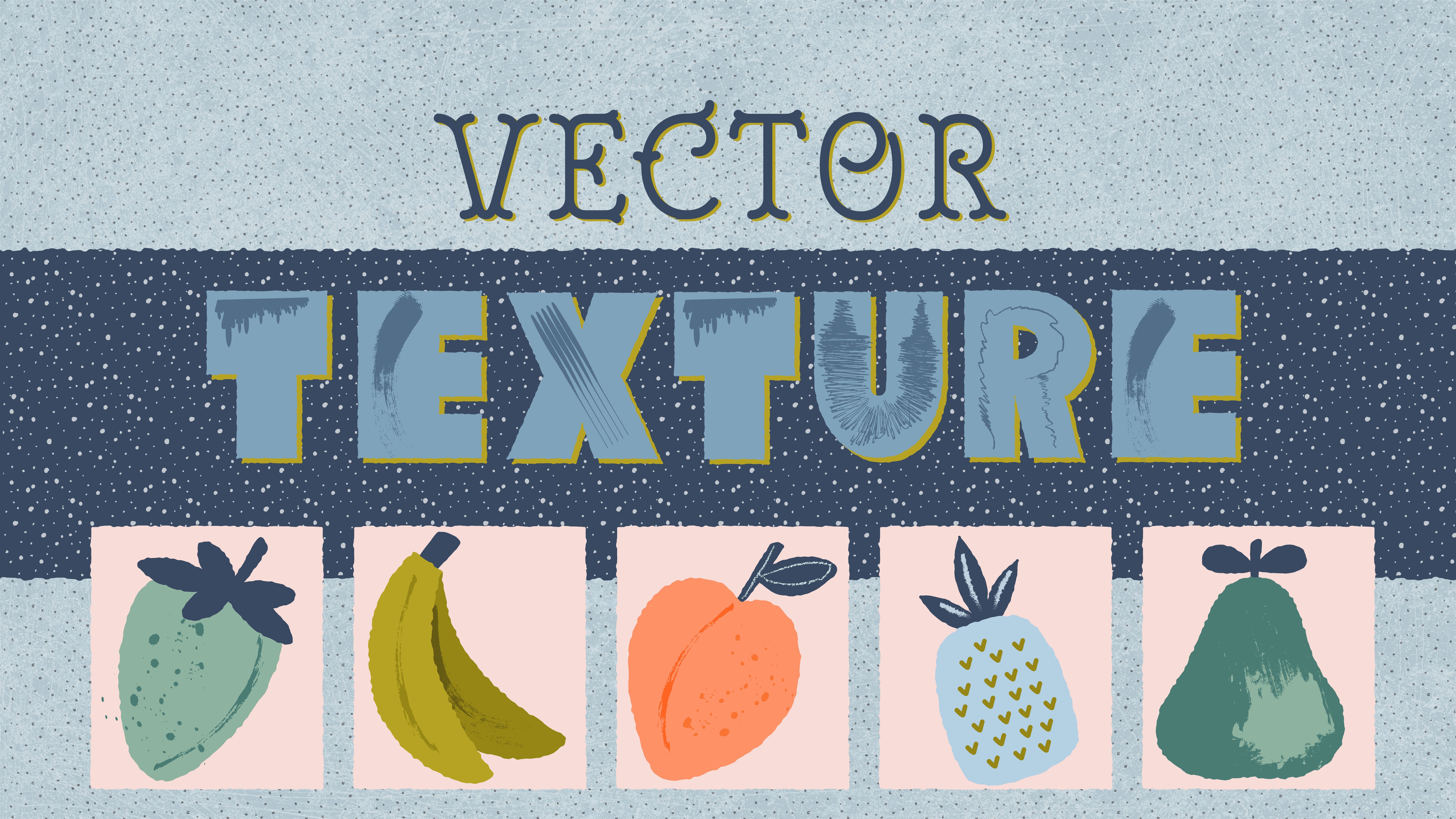
topic of vector texture, I have a full class
here on Skillshare. Focus just on how to create and use vector texture in
Adobe Illustrator. Make sure to check it
out. Alright, now let's head to the next lesson
and learn more techniques.
13. Pattern As Texture: In this lesson, I
want to show you how to use pattern as texture. We are not talking about
surface pattern design or pattern as an
individual artwork. We're talking about using patterns for the sake
of adding texture. So we need to make
sure that we are using very simple and very
minimal motives. First, make sure your
search panel is open. You can access it from
the window menu up here. And now let's head to
the pattern library. To do that, you need to click on the library icon here
and then go to patterns, basic graphics and texture. This will open a separate panel with different premade
pattern option. Now, I would select each of these squares one by one
and try some patterns. There are quite a
number of options here, so pick something
that fits your style. Every pattern that we
selected from the library is automatically added to our swatch panel
as Pattern Swatch. Now let's apply one of
these on an actual object. I'm going to select this tree. Now, if I would apply
the pattern directly, it would replace the field completely with the pattern.
But I don't want that. I want the pattern to be used as a texture on top of the color. So I will first duplicate the shape by pressing
Command C on Mac or Control C on window to copy and then Command
F to paste in front. Now, the front copy that we just created is
automatically selected. If I apply the
pattern on this now, the button shape
keeps the base color and the top one contains
the pattern texture. Perfect. Now, if you like
the style of the pattern, but you are not happy
with the color of it, you can change the
color by going to the swatch panel and double
click on this pattern swatch. Then you can select the motif, change the color, and click Done to update your
pattern swatch. We don't have to always apply the pattern on the
full area of a shape. Sometimes you can
apply the texture just on a small section of the shape as highlight
shadows or surface variation. I think creating
your own custom made vector texture library is where you can get creative and find a personal approach in
your vector drawing. All right, let's head to the next lesson and
learn more techniques.
14. Stroke Thickness: In this lesson, we will
learn how to adjust the stroke thickness and
break that perfect vector. We will learn that by using
two different techniques by changing the stroke profile
type or by using the V tool. With the V tool selected, when you hover over a stroke, you see the Vt point. Then you can click and drag the handle of that
point inward or outward to make the stroke thicker or thinner
on that very point. You can do this on any
part of the line from beginning to end or even on
multiple parts of the line. Play around with it and see what fits best for your
current drawing project. Next, we want to work on
a stroke profile type. Make sure your stroke
panel is available. As always, you can find it
in the window menu up here. When you select a stroke line, you can have access to the
profile setting either on the control bar up here or here directly in
the stroke panel. I'm going to choose the D profile number two for this one. And as you see, unlike the it
tool that was point based, this would apply the effect across the whole selected line. Let's try it again,
selecting the next one and choosing another profile
type. Right, great. Now, you can see how
adding variation in stroke thickness made your lin boo to feel more natural
and hand drawn. We are not done with
the strokes yet, so let's head to the next lesson and learn some more techniques.
15. Brush Type: In this lesson, we learn about
brushes style and how it can impact the overall feel
of vector illustration. When it comes to stroke line, we already talked
about round caps and joins and creating variety
in stroke thickness. Now, let's push that
a bit further by using the items in
our brush library. So with the stroke selected, we want to change
the brush type from standard basic to something
with more character. So let's go to the
brush library. I'm going to go to artistic. Then I'm going to chalk
charcoal pencils, grab chalk feather number two. Yes, that works well. Okay, now let's try that again. And this time we are going
to a different category. Let's say brush
library decorative, elegant curves and floor brush, and I choose scallop. This create a completely
different look, more stylized and
more illustrative. There are so many different
ways to play around with the brush stroke and add some sort of character
to your line bod. You should just play around and see what fits best
to your style. A handy tip here is that you should know
you can change the it profile even after you
change the brush type. So let's make a copy
of this and say, I wanted to also change
the profile of it, and then let's do
that again with the next one and also
change the profile. If you compare this, you can clearly see that
the combination of these two technique
can push the linework of your illustration into
the whole new level. There are a lot of brushes
available in Illustrator, but you can also expand your library by purchasing
vector brush pack from other artists or
even learn to create your own brushes based on
your personal drawing style. Alright, now let's
head to the next video and learn some very
interesting tips.
16. Creating the Class Project: In this lesson, we will start making our class
project together. If you wish to work on
your own vector drawing, you're more than
welcome to do that. But if you decided to
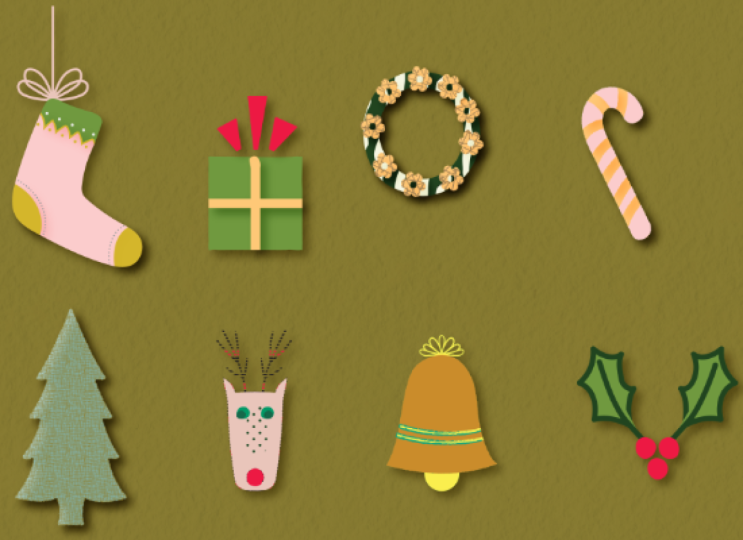
follow along with me, I want you to gather a copy of all the elements we've worked on so far and gather them all here. And as you do, resize them, so they all fit on
one single artboard. Arrange them into a
nice composition. You do not have to follow
the same order as I do. Just sort them out so they
look nice next to each other. This is where things
get interesting. So what we are going to do is to go over each element and start applying some of those
techniques that we've learned depending on
what each shape needs. This is actually a great
time for you to go through your notes and take what you've learned and apply
it as you see best. Just as a quick reminder, here are some of the
things that we learned. Breaking the perfection in shapes, adjusting anchor points, making the ends and
corners round and even the spacing and distribution,
asymmetry, color variation, adding decorative details, distorting with liquified tools, using built in effects, using pattern as texture, changing the stroke thickness
and profile variation, and adding some brush texture. I want you to take
your time here and look at this as
your practice stage. Okay, great. Next, we
will adjust the colors. I've prepared some
color palettes here for you to give
you a starting point, but feel free to use
your own color palette. My tip here is to start with the background color because all the other colors
would depend on that. So go to the layer panel and go all the way done and
unlock this layer, and then select your background, change the color,
and head back to the layer panel and
lock this layer again, so it is out of your way. I think there should
be no limit here. Do as you wish and always, always, always be creative. And don't forget to add
some details as well, making sure everything
feels consistent as a set. All right, this looks great. Let's head to the
next lesson and learn the very last technique and
finalize our class project.
17. Texture Overlay: In this video, we want to
talk about overlay texture. The first thing I would do
add in paper texture overlay. So go to fight, place, and bring in the
paper texture that I shared with you as
your class resources, or bring in any other paper
texture that you like. Then resize it so it covers the entire artboard and make sure to hit embed so
it is not linked. Then head to your
layer panel and drag this paper texture all the
way up on top of everything. Then make sure your
transparency panel is open. As always, you can access
it through Window menu, then the paper still selected, go to this transparency panel and change the blending
mode to multiply. This will pass the paper
texture all the way down through every layer and make it look like you've been
drawing on an actual paper. Then make sure you lock your paper texture layer
because this is on top of everything
and it would be selected accidentally
and bother you. Next, I want to add a
background texture. Why? Because the same
rule of not having a big flat color which is a strong vector sign applies for the
background color as well. To do that, I'm going to
go to the layer panel, go all the way down, unlock the background layer
and select it. Then I'm going to
duplicate it by pressing the Control C or Command C to copy it and Control
F or Command F to paste it in front. Then with the front
one still selected, I'm going to add a
pattern texture over it. Nothing too visible, just enough to break
that solid color. Then you want to
play around with the blending mode options
and opacity to adjust this in a way that it looks good on the color of
background that you chose. And if none of the
satisfied you, you can still double click on the pattern swatch and change
the color of the pattern. Now, once you're done here, make sure to lock
this away as well, so you don't
accidentally select it. We're almost done here. I just want to
share my last tip. This is something that I always like to do for my
vector drawings. I like to draw a rectangle
as big as my whole artboard. And then drag it on
top of everything. Then I'm going to add a pattern that goes
on top of everything, not just the background,
the whole illustration. Same as before,
I'm going to play around with the blending
mode with opacity. I'm going to play with color
until I'm happy with this. Kind of overlay texture
over everything creates a shared surface
across the whole illustration. To me, this is like a glue
that ties all the elements of my artwork together and gives it the last final hand
drawn character. And this final overlay
texture is where many artists like to create their own
hand crafted texture because this can be used across all your projects and be perceived as a part of your
personal drawing style. If you wish to
learn how to craft your own hand drawn
overlay texture, watch my other Skillshare
class that is all about creating custom made vector
texture in Adobe Illustrator. That's it. Now your
class project is ready to be uploaded
here on Skillshare. So let's head to the menu file, export, export as, and
select JPEG and save. We are almost done, as we see in the very last video
with final Talks.
18. Final Thought: Congratulations on finishing
this Skillshare class, and thank you so much for your
time and engagement here. I hope you had fun watching
this class and that you've sharpened your skills
or learned something new. I can't wait to see
what you've created, so please upload
your class project here on Skillshare in the
project and resource tab. I will personally go through every single project
and comment on it. If you have any question
about the lessons, I'll be more than happy to help head over to
the Discussion tab. Start a conversation and
post your questions. If you found this
class to be helpful, it would mean a lot to
me if you could leave a review and let me know what
you think about this class. And if you're up to learn
more graphic design skills, you can check my other
Skillshare class here or follow me here on Skillshare to get notification when I publish a new course. I also share design tips, tools, and tutorials on my blog
and my YouTube channel. Before you go, if
you end up sharing your project on Instagram
or other platforms, you can tag me at Sahar hi Messer so I can keep
in touch with you. Also, I occasionally give away one year of Skillshare
membership to one of those Skillshare projects that I randomly
find in my Insta. Thanks again for
joining this class and I see you in the
next one. Offend
 Sahar Heumesser, ⭐ Graphic Designer ⭐