Transcripts
1. Intro: Did you know that Colombia has the largest number of
orchids in the world? I'm Colombian and I'm
obsessed with orchids. And in this class,
I'll teach you how to paint one using
digital watercolors. Inappropriate. Follow
me as you learn my techniques for painting digital watercolors
on your ipad. I'm Santa Mejia and I'm a freelance illustrator
and pattern designer. And I license my
artwork companies around the world to
put on their products. The illustrations that
I have created in procreate have been used
in funds of products. And I want to show you
how I create them. I'll teach you how
to use the effect of control water colors. So something like
painting wet on dry as opposed to loose
and flowing water colors. I've included the
specific brush set that I developed to
create this effect. I'll walk you through every step from setting up your canvas, installing your brushes
on color palette, to using reference images, adapting them to fit your style and the whole painting process. Crafting the delicate
petals with adding details and textures and
the finishing touches, you'll transform your ipad into a canvass of
blooming beauty. With the included resources, you'll be able to start creating immediately and
at your own pace. Whether you're assistant
artist or just starting, this class is the
gateway for creating digital watercolors
that radiates the essence of real watercolors without the mess and purchasing
tons of tubes of pate. Enroll now and let
your creativity bloom.
2. Class Project: For the class project,
choose a flower or plant and Droid using
digital techniques. You can also practice by painting the same
flower as I do. Then when you have the skills
paint your own flower. This class includes
my watercolor brush, set color palette and
sketch and reference image. To download the resources, make sure you're
logged in through an internet browser
and not the app. Go to the projects
and resources tab and download them to your ipad so
they're easily accessible. When we start walking
through the lessons, remember to post your projects
to the project gallery, and if you have any questions, post them on the
discussion stab. Now let's go to the next
lesson to see how to install your brushes and color palettes and
set up your canvas.
3. Canvas Setup: In this lesson, I'm
going to show you how to set up your canvas, install the brushes,
and the color palette. Let's open Procreate, and I'm going to create a new canvas. You can create a new
canvas by selecting this plus sign here Here. Procreate has some
preset sizes here. It will start storing the
sizes you have created. I always work in either 11 by 15 " if I'm creating
a spot illustration, an illustration that
might be used for a grading card or something
like that, that's vertical. If I'm creating
square illustrations or illustrations for patterns, I always work at 12:12 inches. I have the presets saved here. I just have to tap them and they will create that new file. But if you don't
have those ready, just click on the plus sign. And here you can create
your own presets. I'm going to tap there on here, you can give a name
to your preset. It could be like vertical
card for example. Here you can choose the
size in either pixels, inches, centimeters,
or millimeters. I like to work in
pixels and inches. Let's say it's going
to be 11 by 15. I always work at 300 DPI. So you can print
this if you want. This is the minimum
resolution you want if you want to print this, and this will show me the
number of layers I have. This will vary depending
on the ipad you have here. You can set your color profiles. I always work on
this one in RGB. You can choose CMYK if
you want or if you have a specific color profile
you can imported here. I personally don't like how
CMYK looks in procreate. I always work in this one here you can change
your time lab settings, this is the video that it will record of your whole process. Here you can change your
canvas properties if you want to start always with a
different background color. Or if you want your
background to be hidden and work like in a
transparent background. But I never touch any of these, I just click Create. Then we have our new canvas. I'm going to turn it
like this because we're going to work on a
horizontal illustration. I'm going to show you how to import your brushes
and color palette. I have downloaded
them and I have saved them in my
files, in my ipad. I have them here. This is the swatches and
this is the brush set. You just have to tap
on it and click open, and it will import
automatically to procreate. If you go to your
color palettes, you'll see it added here
at the bottom. Here it is. If you tap here and
you set as default, this will be the palette
that will show here when you tap on these different
types of color palettes. Now let's go back and do
the same for the brushes. Tap on it and click open. Then they will be imported
to your brush sets. They might be at the
bottom of your stack or they might be up
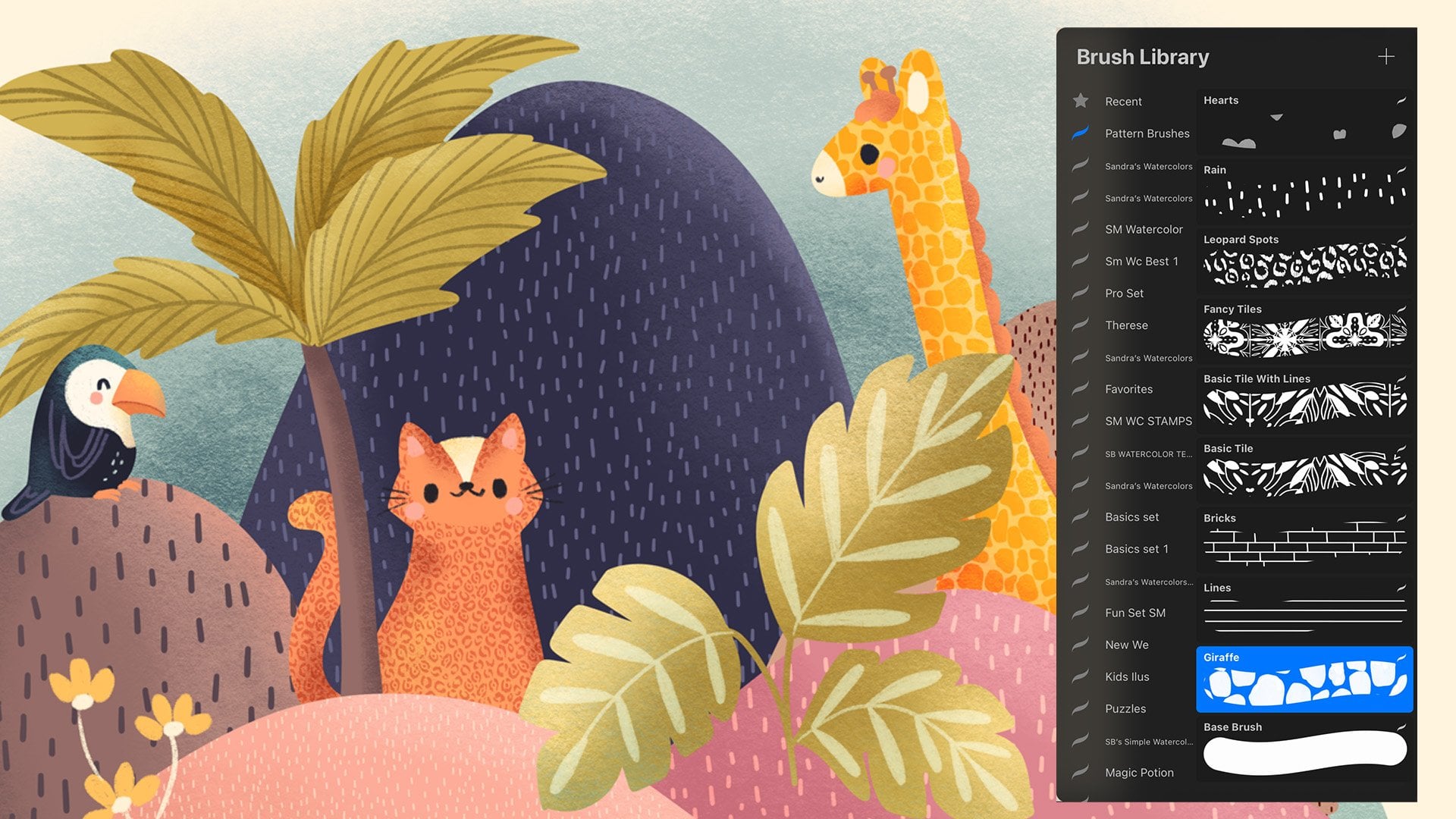
here. Here it is. Here you see your brushes. These two brushes are to add watercolor paper
textures to your canvas. I will show you how
to do that in class. For now, let me just
show you how they work. This is a very
transparent brush. You won't really see
what's happening, but you will see, it
will create a texture. If you tap here in the end
and you go to linear burn, it will ingrain itself
on the art underneath. If I create a layer and
bring it underneath, then I paint there, you'll see that the
water color texture will start to come up. I don't know if you can
see it in the video, but if you swim in a lot, you can see it there too. Let's choose any color, maybe. Let's choose this one. I'm going to show you
what the brushes can do. This one is to
create solid shapes. I like to create with
it my base layers. Then we have the detail brush. This one creates those wet edges that look like when you
paint with water colors. Then if you paint on
top of something, it just makes it
darker as if you were painting with different
layers of real water colors. Then we have this one
ultimate feel rough, which I absolutely love. It creates a rough edge. If you press softly, it starts like adding water. This one is very similar, just that it has a smooth edge. See, this one's a rough edge
and this one is more of a smooth edge then this
one is like adding water. And it's used to b***d colors
or like blurred edges. Now this one is more
of a stamp brush. If you paint with it like
that, it won't show up. It will just stamp It
creates this granulation. If you tap on it several times, it will start darkening areas. I really like using
these to create shadows. Now we have the wet
edges brush again. I'm pressing softly
now at the end, but see it creates some wet
edges as the name says. So then we have a soft wash. This one, let me make it bigger. This one just creates a
soft wash for a background. Or if you want to add like
more contrast to an area, you can just like overlay it. There's a super cool water color which if you press harder, it creates a texture
and if you push softer, it adds water to it. They mostly all
behave the same way. But this one really goes
like our dry brush, when you push hard on it. Then we have the alcohol, which works better with white. It simulates adding alcohol
to a watercolor painting. Then we have the splatters, which are like little
tiny splatters. You can change the
size, those are bigger. And then we have
the tiny splatter, which are really tiny ones that are more
constrained to an area. I'll show you how to use these
brushes as we move along. I don't use them all, I
just want you to have a variety and choose
whatever suits your better. You can also use any
brush you prefer. It doesn't have
to be these ones. The ones do include a
commercial use license. You can sell any artwork
you create with them. Just don't resell the
brush set as it is. In the next lesson, I'm
going to show you why I love creating digital
watercolors in procreate.
4. Why Paint Watercolors in Procreate: Sucky. I love creating
watercolors in procreate, and you will probably do too. I love the effects that normal watercolor creates when
it b***ds with the paper. Now, thanks to the
powerful procreate app and the brushes
that are available, you can do that on the ipad two. It will never be 100% the same, but you can get
something very similar. I want to tell you now that my way is not the
only way to do this, that this style resembles a lot my normal
style when I create actual watercolor
paintings where I want everything to be very controlled and I don't use loose watercolors
or huge blooms, if that is the style
you want to create. There's tons of brushes in the market that can
resemble that style. You can follow my class and use those brushes too to get
something totally different. But the techniques
will be very similar. It is very important that
you're not just following a teachers or another
artist style blindly. It's very important
that you learn the techniques and then
see what makes you happy, what brings you joy, and what comes naturally to you. That's the only way
your style will evolve. Your art is supposed to be a joyful process and that's how you're going
to get to that point. Always having fun and not
being very contrived. Thinking that your
art has to look a certain way or like
somebody else's. That's said there are
several advantages or using procreate over
traditional watercolors. The first reason is that you don't have to buy any materials. No paints, no brushes,
no paper, nothing. You have everything
you need in your ipad. The second one is no
mess, I don't know, Like watercolors are not so messy as other
painting techniques, but still having to take
out the water and napkins, and brushes and paper. Sometimes you don't want
to carry all that around. The ipad is great,
you just throw it in your bag and you go
and paint anywhere. The biggest thing
for me is that you don't have to spend
hours cleaning up icons, erasing the watercolor paper
texture after you scan it. To me, that is super
time consuming, and creating the watercolors on the ipad just eliminates
that step completely. And you end up with
icons that have transparent backgrounds and you can use in several
different ways. To me that's the biggest, biggest advantage because it makes my work so much faster. Now that you know
why it's so amazing, let's start working
with reference images.
5. Reference Images: In this lesson, we're
going to talk about reference images and
how to work with them. In procreate, using reference
images is up to you. Some people like to use
them, some people don't. I don't like to paint looking
at a reference image. I prefer to use them just as a study when I'm
trying to determine how the shapes of an object work or how a flower
looks like in real life. And then I'm sketching
just to figure it out, but then I don't like
to look at it much. If you're creating like scientific illustrations
or something, that has to be super accurate, then you're going to have to
look to a reference image like the whole time so that
it actually looks like that. Whatever your preference, just make sure that you
own the copyright to the image you're
using or that you have the right to use it as a copyright of the photographs is always owned by
the photographer. I took this picture. I'm giving you the rights to use
it however you want. There are several ways of using reference images or sketches in procreate. Let me show you. There's one way where we add the photo and then you
have it in your canvas. And you can modify
it, repaint it, trace over it, change
the size, everything. If you place it this way and
you start painting over it, once you play your
time lapse video, you will see that reference
image in the video. If you don't want people
to see that image, just go to actions add when you're going
to insert a photo instead of just tapping it to the left and insert
a private photo. Then when you choose your photo, place it and you add layers on top and you
start drawing on it. When you go see your
time lobs video, you won't see the
reference image. Nobody is going to
be able to see it. The other way you can do this is to go to the actions panel. And in Canvas, choose reference. Then you will see your
canvas or an image. And here you import an image. Let's say we're going
to import this one. You can clear it.
Import a new one. Let's say this one. That
way you'll have it here. You can swim in on it
and move it around, or you can just
leave it as it is. This way you'll have
it here on the side. If you're super summed in here, the image will still be
there as a reference. If you want to see the menu, just tap on it and then
it will come back. It's very useful to
see your canvas this way because if I'm working here, see you'll be able to see
what you're doing this way. You don't get lost in
the details and you see what the complete image
is going to look like. I'm going to show you
how I use a tool called Liquefy and it's here under
adjustments. Here it is. To me it's great to
create modifications in illustrations or in base images. Here you have this menu and it says what the Liquefy
tool is going to do, means it's going to
push things around. See it's pushing it
as I draw on it. And here you can
change the size. Now it's going to
push even more stuff, or it's going to
push very little, twirl, we'll just start twirling things to the right
and then twirl to the left, will tir them to the left,
pretty obvious pitch. We'll make things smaller
and then expand does the opposite and it will
make things bigger like a fish eye for crystals. Let's make it bigger so you can actually see
what's happening here. It's crystallizing the image. I don't like this effect. I don't know what
you would use it to, but maybe there's something fur or something that
it can be used for. Edge edge just creates like
a flat side to things. Reconstruct will bring back
the effects that you applied. You can reset, but that
will reset everything. But reconstruct will fix
only things that are under your pencil, adjust. You can change the strength, the amount of impact the
effects have on your image. Here you change the size as I already showed
you, the pressure. Let's if you have more pressure, it pushes up faster distortion is the amount of distortion
something can have. That's more distortion and
this is less distortion. See, the images do move around, but they don't lose their
shape as much momentum. Momentum is hard to show. But see that when I
stop moving at the end, it expands a bit more. I really don't touch this much and I just
play with the size, and the pressure, and
the different options. Let's reset all these. I'm going to alter this image, it suits my style more. For example, when I started
pinching this flower, I thought it looks so
cute, Being small, I'm going to reduce the size a bit and start pinching it in a bit. I like that better. I'm going to increase
the size a bit so I can reduce this one a lot. Yeah, I want to make these
guys a bit smaller too. I'm going to pinch on them now. I want to push them in because I don't want to be so long here. I'm going to make it
a really big size, so I can really push in here. I don't want to be
affecting this flower. I'm going to reduce
the size now. Now I want to move this
whole thing in a bit. I want to modify
the flowers a bit. This way you get to create
base images that are true to you and that
match your style better. Once you're happy with that, just stop here
twice and it's set. Now I'm going to make it a bit bigger and now we
can start painting. In the next lesson,
we're going to start creating our base layers.
6. Creating the Base Layers: In this lesson, we're
going to start creating the basic shapes of
our illustration. First, let's reduce
the opacity of our reference layer and
make sure it's hidden here. It shows it's a private image. You know it's not going to
show up in the time lapse. Now let's reduce the opacity and select Multiply In
this layer underneath. I'm going to start
painting my illustration. Let's get the color palette out. Choose whichever you like best. The summer one is also included in the class
for you to download. Set this one as default. Use whichever you prefer. I'm going to use the Earth
on Start with this yellow. Maybe we're going to be using
the watercolor brush set. I'm going to use a
shape builder solid, make sure it's 100% capacity
to create the shapes. And I'm going to create
the underneath petals first and fill them. I'm now, I'm going to
create a new layer, this one's back petals and
this one's front petals. I'm going to do the same thing. If you can see
what you're doing, you can turn off
the back petals. For example, I don't
like that area there, so I'm going to fix it in a new layer. I'm going to turn that one off. I'm going to create
this front part. I really have no idea
how that's called. It's these two petals
that go like that, and then there's one
that goes like that. I'm not even following
my picture so closely just because I like
a more stylized approach, but you can make it as
realistic as you want. Finally, there's a bud, well, what I call a bud, it's this middle thing here. We're done with these flowers, so I'm going to turn them on and group them, main flowers. Now I'm going to create
a layer underneath. I'm going to create this flower. This one is just
going to be one. Continue feeling, this one is
just going to be one shape. I'm going to paint this bud
that is behind the stem. Because this flower
is behind the stem and this one is also
behind the stem. I'm going to call
that other flower a new layer for the stem. And choose a darker green. I'm going to make this
longer because usually your kids just go
up and turn like that and that bumps great. Now we just need these butts. I'm going to create
another layer, rename this one stem and go back to the
yellowish color and just add them here. Okay, we have our
base layers ready. I don't want to be using
my reference anymore, I'm just going to turn it off. I'm going to bring out
my reference here. And choose an image that
import, choose my picture. I'm going to have it here just to see how
the patterns look. Let's strike this
down here. This here. I'm going to go on
top of all my layers, create a new layer, and add the paper texture. Choose this color, make sure it's the biggest
size of the brush. And go over the whole canvas
without lifting your pencil. And do it again and again. Now you can see it a bit in the dark colors but not
on the light colors. I'm going to go to
Linear Burn that way, it will be engraved
in the painting. I don't ever paint
on that layer, which I'm going to call texture. I'm going to swipe left
and lock it that way. I won't be painting on it
by mistake. Let's start. In the next lesson,
we're going to start adding textures
and details.
7. Adding Textures and Details: In this lesson, we're going
to start using the watercolor brushes to add textures and
details to our illustration. I'll show you how I do it, but again, I encourage you
to use different brushes, different techniques,
until you find something that you truly love
and that it's truly yours. Make these flowers
as realistic or as graphic as you
want, just have fun. Again, my brushes are made to resemble very controlled
water colors, very loose splashes and water
running around the paper. If that's something you want, just experiment
with other brushes and you're going to
get that effect. I'm going to start with
my main flowers and I'm going to swipe right
on each layer, just so the alpha lock is activated and we paint
only within the layer. Let's start with
the back petals. Choose our brushes. Here you have two options. You can use the
ultimate feel rough. If you press hard on this brush, it creates harsh lines. If you create softly,
it b***ds in. I'm just going to use
it to create shadows, so the petals are
differentiated. You can also increase the size. The more you do it,
the darker it gets. You can also use
this soft wash one. If you like this effect,
you can use that. But if you like a softer
effect, for example, the, where the edges
are more b***ded, you can use the soft wash brush. I'm going to use it a bit here to create even more shadows. I'm going to add these lines
here where the petal folds. For that, there's
like a darker area in the middle and then
lighter areas on the site. I can reduce the
size of my brush. And I'm going to show
you with a dark color, so you can see the difference
here of the brushes. I can create this
line like this, then it'll be very graphic. Or I can create it like this pressing softly
on the pencil. Then it will be more like
wet paint on wet paper. Or I can use a brush like the detailed brush and
create a very definite line. I can use a brush
like the ultimate, feel rough and make
it smaller and either press hard and make a line that has the jagged edges or press softly and
achieve a more faded look. I'm going to use this
one and go in with the yellow and create a darker area. I'm barely pressing my pencil. Same here because I
don't paint realistic. I'm being very loose a
following the reference. But if you're doing
something realistic, then you're going to be paying attention to your
reference a lot. Great. I'm happy
with how that looks. I'm now going to add the pink details because
we don't have pink here. I am going to be using this red. There's two ways to do this. One is you can draw them
with the same brush and press softly
at the end so you can smudge it or make them
very graphic like this. Or use the detail brush, which creates even
darker borders to create the details
in a very graphic way. I'm going to keep using
my ultimate feel, rough and this is the brush I use the most in
my illustrations. I'm just going to loosely
recreate these patterns here. This seems like a line. Then it seems to be
like lines of thought. I'm pressing softly here. My color is more b***ded. Let's see how that's
looking. I like that. But now I'm going to reduce the size of my brush and start creating more
definite shapes here. More thoughts when you're creating water colors
in procreate First, like they're not going to look exactly like regular
watercolors. Although some people
get very close, I just like the idea of having certain similarities
to water colors. Second, that it takes patient like regular watercolors
and layering, and layering of different
brushes and textures, just like the real thing. The more patient you are and the more textures
you add on brushes, the better it looks,
in my opinion. I'm going to split this up because I'm going to
add a lot of dots. You can also go here to make a selection and make sure
free hand is selected. And do this. For example, I'm creating the lines, close. Feather it a bit just so it
doesn't have harsh lines. And then go to your brushes. Select the splatter brush, let's make it maybe
nine and tap here. This brush works as a stamp. It's a brush that you tap. You don't draw with
it. If you draw it, it's going to be very dense. But if you use it as a stamp, then it's going to
be very random. It can help you speed
things up and also make a more random pattern release
that this is how it looks. I'm going to do it and keep on with my manual
way of doing it. Here I am dragging
more color in. I'm pressing darker in these areas where
there's more shadows and it's darker here and then
lighter in these areas here. For variation, you can
also use different colors. I'm going to add some
shadows to the borders here if you want. You can go in with
the detail and add darker edges because
Arial water colors normally have that effect. Let's keep on and I'm
going to start going a bit faster again. I'm pressing hard here and
releasing here, so it's soft. I'm now focusing on this one. This one seems to
have more thoughts than this dark area here. I might go to my details
and add some dark dots. The good thing about
this detail brush is that if you press softly, it creates small dots. And if you press hard,
it creates big dots. Great. Go back to
the ultimate feel. I'm going to add
some shadows here. Let's do the area, it starts around here, and that area of the
petal is darker. And now I'm going to start
adding lots of dots. I can use a darker
color to add dots too. Finally, add some shadows. There it is. I think it's looking good. I'm going to go to
the other layer, front petals, and start
working on those. It's basically the same process and I mostly use
just this brush. If you can create other effects, you can use other brushes, but just try them out and
see what you like best. This one is my favorite
favorite brush, that's why I use it so much. If you want to smudge something, go to the water b***d brush, and this really
smudges things up. If you want to soften any
transitions or something, this is the brush to use. If you want to create
granulation texture, then use the Bloom
brush, which is amazing. Let's go back to this one and start adding
some dots again. I'm going to add some pink, and now I just have
to do the other side. Now go to a darker shade, and I think that's great. I'm going to add
some white here. I'm lifting my
brush and tapping, and tapping just so
I make it darker. Because I want it
to be really white. Same here in the back petals, but maybe a bit less white, so you can actually
see the difference. Now I'm going to go to the front and create these
weird shapes here. I'm going to start with
this color, color this in. It has a rim there that I'm
going to leave because it also differentiates
it from this here. It's way darker. I'm pressing really
hard with my brush. I will go in with the water. B***d and b***d that
out a bit just so it's a smoother transition that one seems to have a
bit amount of dots. I'm just going to
add some dark dots here just to make it
more interesting. Then go to this side. And this side is the opposite, like the rim is like this. This is actually on top
of this middle area. What I'm going to do is because this is in front of everything, I'm just going to
cut off that area. I've done with three
fingers cut and paste. That will be on its own layer. I'm going to bring
that to the top and activate alpha so I
can keep painting it. I have realized that this is very round and it's not
in the proper location. See here, here, it's
more like up here. I'm going to go to that layer because in that layer we
also have some other buds. I'm going to select
it, modify it, make sure that free form is
selected so I can make it more oval like and
I can rotate it. Maybe I'll make it a bit bigger. Yeah, that seems much better said that because we move that, we now have a hole in here. Look, I'm going to
turn this off so you can see there's
a hole there. We need to go and modify it. I'm going to go to that layer and turn off the alpha lock, so I can actually
paint outside of it. And with a shape builder solid select the same color
and just fill that in. Great. Turn on the alpha lock. Again, I'm going to turn on my other layers and go
back to the ultimate feel, rough brush and using
this brown color, I'm just going to
create this area here. It's like a hard, I'm going to create
these textures here. Even go here to this last
area and add more details. I think that looks great. Now we just have to do this. I want this to b***d
into these other petals. I'm going to go to the bud, turn off alpha lock
so that I can go to my brushes and use the water b***d tool
and smudge it out. See, it's b***ding out. I think that looks better than just having
the harsh outline. I'm going to go back turn
on the alpha lock and go back to my brush ultimate feel rough and start filling it in. That is actually the
widest part of the image, so I'm going to choose white
and fill it in completely. Yeah, then just use some shading to create
this shape here. Maybe a bit of a shadow here. Yeah, I like how that looks. I'm just going to add a bit
more shadow here because here you can really
see the contrast between these petals and
we're not seeing that. Now. I'm going to go back
to that layer back petals. I'm going to add a layer. And set this layer to clipping
mask and then set it to multiply with a dark color. I'm just going to go over
it and add a shadow. This is a great way to add
shadows to your illustrations. I feel that when you add
darker colors like this, it starts to create
so much contrast that it's what brings your
illustrations to life. I'm exaggerating the shadows. There's obviously not
such harsh shadows in the original illustration, but I think it's just bringing
it to life a bit more. There we have it.
That's our orchid. Now, we have our first flower. I hope you like this technique. It does look a bit
like watercolor. I don't like rough
edges in watercolors, and that's why I use
a brush that's solid. If you wanted to mess
up your borders a bit, could go into each layer. For example, the front petals turn off the alpha
lock and then go in with the water
b***d brush softly, start to b***d out
some of the edges. If you like that look,
go ahead and do it. But I prefer having
my smooth edges. In the next lesson,
we'll paint the stem.
8. Painting the Stem: In this lesson will create a more rough edge brush to create a bit more unpredictable
effects on our stem. I'm going to close my main flowers group and
go to the stem. For things like
stems and leaves, I love using a lot of texture. I would use something like
the super cool water color, which I'll show you. I'm going to close
the reference. I'll show you how
this brush works. If I press harder, it's solid. If not, it's more transparent. And I can keep going
over it without lifting and get
different effects as if the water color had
dried in different layers. I love using these
for stems and leaves. Again, this is a
very graphic look, I'm not trying to
be realistic here. Then I'm going to use
the ultimate feel rough and make the brush
bigger softly. Just start adding
a bit more light. I love the textures this
brush creates there. I pressed really hard and it
bloomed. And I love that. I love that effect in
real water colors, and I really love
it in this one. That's why I tried to
recreate it in these brushes. Now I'm going to
add a bit of darts, just maybe more here
in the areas where the flowers would create
some certain shadows. Same with the buds, and
that's it for the Sam. In the next lesson, we'll
paint the rest of the flowers.
9. Painting the Rest of the Flowers: In this lesson, we'll paint
the rest of the flowers. I'll be going a bit faster as it's exactly the same technique. And I think you already
know how it goes. So let's go, I'm going to start
painting this one. I'll go into that
other flower layer, and I'm not going to
add too many details to this one just because
it's in the back. I want to add some green here. I'm going to add some white with a very thin brush here
so I can separate this petal here and here. Way, these petals become a
bit separated from this one. Then I'm going to add
just a tiny bit here, just a bit of that red and a little bit
of indication of dots just because you can
barely see them through here. I think that's enough for this. Now I'm going to do
this flowers with the main flowers and start
with the back petals again. I'm going to start
with this yellow, make my brush bigger, and then start going
in with the brown. Yeah, now I'm just going
to start adding that dot, and this one has way more
defined dots, I think. I think that's enough for that. So now I'm going to use the pink and a bigger brush size
and create some of the shadows here
and dark borders. I'm going to go into this layer where we created the
dark, multiplied shadows. And I'm going to
add them right now. Now I'm going to move
on to the front petals. It doesn't have alpha
lock activated. So I'm going to activate it because I have
the pink already. I'm going to start adding
some of the shadows with it. I'm going a bit faster in these flowers just because
I already showed you the technique and it's just repeating the same
steps over and over again. I push hard if I want
a darker color or I go in several times. I push softly. When I want colors to
b***d in like this, if something's very patchy, I just go in water, b***d brush and b***d the edges. Let's continue with the
ultimate feel and add some darker colors and reduce the size of the brush and get a darker color to start adding some dots, maybe a bit bigger. I'm going to go in
with a bigger brush and add some darker
areas like this, just to create a bit more depth. And then choose
this lighter color. And maybe add some here because the petals
are looking a bit flat. See here, you can see
they have some dimension. Yeah, I like how that looks. I'm going to add some white on the borders just because
you can see here, there's a bit of white,
maybe a bit of white here, and a bit of white here. Now I'm going to continue
onto the front part. This has this shape like
this also where it comes, and the shape is like this, and this is darker in here. I'm going to create this
darker area in here. And I'm just lifting my
pencil and putting it back down to create
dark, dark areas. I will come in with
my water b***d brush and just soften that up. I can use my shape
builder solid, pick up this color and define
these borders even more. Yeah, that looks better. Then I'll go back
to my ultimate feel rough and keep
adding some shadows. Actually, I'm going
to pick my pink and add some pink shadows here. But I'm going to add
a darker color so you can tell it apart from
the petals in the bottom. And this is artistic license. It's not like that
in the picture, but whatever makes
your picture work better than do that, Okay, now it has like a dark area
here and some little dots. Grab some yellow and add some
yellow dots in these areas. And then continue
shading these sites. I'm going to add a little
bit of white here and here, and then go on to the bud. Again, I want to
turn off the Alpha, use the water b***d
and b***d it in. And then turn on the
Alpha lock again and start painting it with
the ultimate feel rough. And then add some shadows here. Great, I'm liking
how that looks now. I just want to add a bit
more depth to the back. I'm going to go here to
that layer with this color. I'm going to add a
tiny bit more shadows and add some white here. In the next lesson, I'll
be painting the pots.
10. Painting the Buds: In this lesson, we will finish
painting our illustration. Let's go to the bots. I'm going to look
at them once and then turn off my
reference layer. Let's see, they're all there
except for this bottom one. I'm going to paint them
really fast with some green. I'm just going to darken
the bottom part here. The bloom is great for
that. You just stop here. It creates this very
pretty granulation. Remember I like mixing different colors so that
it looks more realistic. I'm going to add this yellow
because it seems that adding different shades of colors makes the water colors
look a bit more realistic. I'm darkening it
here with a green. Finally, I'm going to add a
tiny bit of white just to create some highlight because
those pots are shiny. I'm going to do the same
thing to all of them. I'm creating some
shadows with cranes. I'm not coloring the whole thing because they have lines there. I'm leaving them. I'm
avoiding painting there. I'm just making the
bottoms on the top darker. I don't want to focus a lot on the bots and add
a ton of details on them because I want the main focus to
be on the flowers. I'm going to go back in with
that loom up around here and then go back in with
the yellow and the white. Finally, I'm going to
paint that last pod, which was here with
the other flower, this one I'm simply coloring. I'm going to go into the
bloom and darken it there. I'm going to call this done. Let's close the palette and
here's our illustration. In the next lesson, I'll show
you some finishing touches.
11. Finishing Touches: In this lesson, I'll
show you how to add some finishing touches
to your illustration, and we'll wrap things up. If you want to add even more
watercolor texture to it, you can go ahead and
unlock this texture layer. And then swipe to
the left duplicated, and you'll see that
it's way more intense. It also gives it a
beige background because we used a yellowish
color to create it. If you don't want it
to be that yellow, you can go here hue saturation and then
remove the saturation. And do that to this one. To go here saturation and
reduce the saturation, then you'll have an actually white watercolor paper texture. Now I just want to make
my colors a bit brighter. I'm going to go to
my layers and add a new layer and fill the
capas with this yellow. I go to the layers
and set this to a brightens up the colors. If I'm using a light color here, I'm going to reduce
the opacity maybe to there see it's duller and
now it's a bit brighter. I'm just going to rename
this as Brighten. If you see here, it's
affecting the color of my paper and I
don't want that. I'm going to drag it underneath my texture. That's way better. I hope that you feel
confidence to apply these techniques to your
illustrations and that you practice with
different flowers or different plants or even
different subject matter. Now you know how to work
with reference images. Create the basic shapes, add details and textures, and finishing touches
to your illustrations. These watercolor
illustrations can be used for a lot of
different projects. For example, for creating
packaging design, or even a pattern
for textile design. I would love to see
what you create. Remember to post your
project and pack me on Instagram at
Art by Sandra Mahia. Remember to join my newsletter so you can keep
getting more freebies. And stay up to date
with all my news. If you like this class, share it with a friend
and leave a review. See you soon by.
 Sandra Mejia, Illustrator + Pattern Designer