Transcripts
1. Introduction : Hello and welcome. My name is James recounts and I my motion five, Apple pro certified trainer. I spent the past ten years helping people learn motion five from the ground up. In this course, we're learning how to import 3D objects into motion five. And in the process, we'll be making a short film. This class is for people who are new to motion five and have received free updates that came in September 20-20. Bush now enables us to use 3D objects in sudden motion will be learning how to use capitals, particle emitters, and paths for our 3D objects to follow. We'll also be looking at Final Cut ten towards the end. This is a software we'll be using to actually edit and cut off film if you haven't used for a cut ten before. This is a great example of getting started then that software, to sum up this course that will help us build a CVS, has shots that will accomplish building planets, solar systems, bringing in a spaceship and animating that spaceship to negate the Solar System will cover range of interior shots and exterior shots and take the audience on a journey through space. So what are you waiting for? Let's get started.
2. Creating the Earth & Atmosphere: Hello and welcome back. Here we can start our projects, the Space Shuttle projects. This is going to be parked ones. Let's go ahead and very quickly we'll go put in motion like so. And as always for this demo, I'm going to keep the resolution down because I'm obviously recording my screen while demonstrating this to use, let's go to a 25 frames there. As set our duration to ten seconds per Eclipse or won't need anymore. That's while we're doing each individual element. Ok, so that's what we wanted to make sure that all set to that I get obscene gives a tethered to anything. That's absolutely fine. Or even 4K if you wish. Right. So Newport measure products highlighted there, we're gonna press open. Okay, before we do anything else, we're gonna go File Save As with Sabre project straight away says no date where r can I lose this? I call it part one. Part one. Click media. Absolutely. We're gonna copy that to the folder and they get this par one done. Press Save. Now I've created the asset folder for sustainable bringing these objects into. So with Groupon, I did here, we're going to press Import. Ok. And as you see on our desktop, we've got 3D assets is the folder you're going to get with the course, okay? And in here you've got a folder called shuttling projects. And inside there I've got images and models. The movies may or may not be included. There'll be the NDA renders, okay, so normally the images will be using and the models will be using in here. Okay? So first of all, we don't need any knows. Just sort of show you that we're going to bring in a standard modulus. What do you built in it, which is FAB. Okay, so let's go to 3D objects. Ok, and inside here you've got something called Education harass evidence. And then there's Earth. This is a great model straight out the bag is really smart. So we press apply. There is, and there it is. Now if I press play, there isn't any animation with this, which is fine. All you did, we're going to move this to the far right's. Okay. And we're gonna go to you, Inspector here, properties and scale that up to something like that. So we quantitate on it quite larger than just to the right there. Okay, so that's pretty good. We've got that. Now. What we're gonna do is we're going to bring some animation here just to get it a little bit and movement India through it's rotating on its axis. So you can see this circle here. If I drag this, we can see we can rotate them. Okay, so let's, you're proving Africa there. You get over to Properties here and in position and rotation, just give it to clicks and all that does is good for the key frame at the start there. Ok, we're gonna move, I'll play it all the way to the end of our ten seconds there. And very simply scrap this one here and bring it in. So it's moving that way. Something like that. So if I let go, it's already created that keyframes. If I do that, let us all we need. Press play. A nice bit of movement on the earth then it was up to if you want to speed it up or slow it down. But that's looking pretty good at the bank. Okay, now a new tool that's actually built into motion. So when we have 3D objects built-in, We also had a, another new fills out and it's called the stroke filter. So if I go to click on the earth here, gotta filters border and it's got the word strokes. This is bringing you, this wasn't in that motion before. Give it a click and you'll see that the earth has this red line okay, around it, which is not what grafted, but if I had a different planet that maybe we could have air cool sort of atmosphere in there. So what I wanna do is change this to a gradients. Cool. Okay, so now we've got kind of pretty cool sort of halo effect, which surrender I think is a little bit more of a field too, as opposed to just sort of looks like a flower. I guess, as a static object. Sasha include the width lipid as you see, we can ramp this straighter day and like so. The gradient is strange colour here. Okay, so this monkey gets rid of that. And what we do is click on this little bucket is called buckets here. Give it a click. So there's the blue click on the blue. This should openness. Now if you don't see this, it's because one of these may have been highlighted previously. So the cranes highlights we're gonna get into I think I used ice Blue. It was actually called sky there. Yes, that's called sky. There we go. Now on the other bucket, Develop, click, click on this bit here, and then click sky. Like so. They'll go, they go and they've got that nice blue halo. It gets quite thick line at the moment. It doesn't look quite realistic, which want to go a little bit with a stick if we can in sort of this. So inside of here, we should see something called fade, a Woodside YOU cities. Then there. If I drag that, you'll start to see that call c, then it starts to kind of feather off the edge of a hologram of arsine there. So you could make it slightly wider. There we go, slightly wider on the drag it through and that fade outside they, again, this is just your artistic ability and so idea, so I'm really happy with that. So I guess my group, because as you see in my group exists, the earth objects are 3D object and there's the stroke that we've applied. So let's double-click the group. Let's call it earth. Keep us lovely and organized. And we go. And there is our first bit of animation pretty good. Okay, so that's it. We wind less. Can we give it a quick save where I make sure command S is the shortcut there. You'll see it's just going to pull that Earth and objects altogether and same folders is like copy it all in the folder force, we don't lose that. So next time we're going to do is we're going to bring in a white. Okay, so to do that, we can now go to objects and then light, the light will them. We're just gonna switch to 3D here. Costs from the 3D world that a light you'll see is going to interact with the Earth. Now what's happened is at the moment the earth has it's own light source where we brought in the actual object. It had its own light source. If I go to project properties and under ten, Dane. This thing called rendering 3D objects, environments. If I tennis right Dan, you'll see what's left. Is just the light that we've imported. Ok. Which is great in this. Like we can bring it backwards. And now we really get this really, really cool, sort of. Like New Dawn, isn't it? It's really good. So let's move it up there. Ok, so I'm happy with that now has its own attributes. If I get a little light tap here, you see we change intensity. Alright, so again, artistic, you know, you can go for what you want. You can change the color of the light. The yellow or the Earth is a fire, that sort of thing. Let's stick with the white for this. Okay, happy there. Now, what we're gonna do is we're going to bring in a new group. Ok, so with the light highlighted, we can go group. That's our group. And let's rename this group star field. Ok. So we're going to bring an image that's going to sit in the back of here. Okay, so star field hides it. We're gonna go imports and against shut the project images. And then as r star field there, press imports and they go perfect. And it's the same size as my project, which is great because we can scale it up by going to Properties and hit the scale there. But in this case, we just need to grab our Earth document and put it above. There they go. So now we have a really cool Starbuck grand to mimic what you want. That's looking pretty good. 4d, I'm really happy with that. So let's file and safe. So again, it's great because we had a copy of a factory and keeping our folders nice normalize. We see at a glance what's going on. Now we're gonna go and import the blind love this bit. This is going to be our model, and it's going to be our shuttle, nasa objects. Okay, and press Import. Now, you'll notice my play head CIA have been a bit and all t here, let's just turn off keyframe editor there. Normally what tends to happen is when you import an object, if your play head is here or here, it normally puts it at that position. So I've been a bit naughty by leaving it there. But lucky for me. He must be on the important sits at the start that timeline. But sometimes if you have the play had their important object, it'll actually start from there. If that is the case. And I see the Shuttle there very slightly. What'll happen is you'll see sort of this sort of like law. You sing. It drops it where the playhead stars, which could be handy there, not there, there, there there. So we can grab that and just grabbing the end left click holding and dragging through. So we'll see that exists for the whole of that, which is FAB. So next up what we're gonna do is we're going to have a little model here now. So we're gonna get these little rotation handles here. Really important not to just grab all the star moving around. What to make sure we've got it. So sitting in our staff your photo which we don't want. So let's go ahead and create a group. Let's name this shuttle. Ok. Let's drag our shuttling Trump in there, which it is much it Above this cutoff there as well. There we go. So I shuttle Earth magic and I'll star field. Nice normalized. Good time to save your photos. Command S, absolutely. There we go, right, so there's our shuttle. So we're going to highlight that we have. And if I click on this now, you see I can start to rotate ECS through. So the light source is doing a really good job of making listless, nice andrew, Real. Okay. So I'm gonna do is I'm going to move the Shuttle Out of the scene. So are seen as represented by this sort of black AND books here. So uses slip blue arrow here. So if I press Shift and zed, see it jumps up and fills the whole screen. So that's holding Shift and said, fills our canvas full. We grabbed that blue arrow. Like so. Second latte will do, will just lock them by grain and they're nasa. There we go. Click and hold and drag our spaceship and entered the scene here. So at commander minus, we'll just drop that became First, let's say. Alright, there it is this drunk. So there we go. So there is a space shuttle and what we'll do is we'll have it coming across the scene like that from right to left. Okay. And we're gonna give it a slight tariff, like it's banking around into there as well. Okay. So we're gonna pretty, it's here now you're wondering, you're probably wondering why. I can see all my elements. I started my main sort of scene window here. If you get a view and you'll see the word show, full view area that click on that, and you'll see now it's not there. Okay, which is quite handy, but we need to animate outside of us. We really need to see that. So click on there and we can see it. So one of the focuses of got my play head at the start. Very simply, if I go to properties on my shuttle there which is highlighted, we've got rotation and position. Okay, that's all I wanted to write an aim to be keyframes, you'll see little white dots appear if you see these little red dots by the waves because this little thing isn't clicked and now it is. So if I move my play a til the end, you'll seemed the earth spinning RAM, which is great. And now only going to do is grab hold of this and the 1d succession drag. Okay? And we're also going to do is look slanted, circular. So there's commanders at the zoom in. And I look for this little circle. Can you see that as I highlight it? And this was one for different areas there. And I'm going to do is going to give it a slight bend down like that. Ok, so as it comes, it's gonna spin as well. So they go, fabs, We've got a really nice motion there. Inside of that case. Listen. Let's drop us back to a 100% of their like that. Rewind press space and we go, and then there is our first bit of animation there. And that's coming into the light there, which is FAB, absolutely fab. That's kinda what I'm after. Now looks quite intense. There. Again, it's up to you. It's your projects be if I go to light that strobe light intensity down a little bit, just a little bit younger sibling leaves a bit on the earth, are biting on subsea fine. Maybe drop a bit. Yeah, that looks pretty good. Yeah, that's good. Loved that. Okay. Great. Lovely bit emotion there. And this is why I love 3D objects inside of motion, because as you can see, we built that up in no time at all. It looks pretty professional. Ok, and this is a little bit, little sort of 22nd, 32nd film we're gonna make. Okay, so that's that done. Now, you don't have to do this. But when we talk about sort of films and things like that, we include lens flares, people like lens flares. So I'm gonna go and adult traits group. Okay? And type in lens that we've got an import and we've got to images and there's our flare and press Import. And remember my play heads that stars, okay? And it's in there, but of course it's at the back. So we're going to bring it in front of the star field. And there it is. Okay, now what we'll do is go to a library. Sorry, respect to properties. And under scale is a scale that up, so it's roughly the size of our screen. Okay, so it's a little look, right? So what we'll do is add a bit of movements that lens flare as well. Okay, so to do that, we can see how this can look because I come right in there. Yeah, I see that. That's nice, right? So let's, let's start this bit emotion by going to position rotation. I would like to learn to drag it to here and then move this out. Like so. Nice. There we go. Okay, and that's that bid done. So if I hit rewind now and press Play, we've got a nice bit of lens flare inside of our first scene there. And I'll ship coming through their perfect of that. Right? We're going to notice there's a bit of a slower, so it kind of slows down a little bit. There's if I just press play kind of like it's almost kind of park up as net. This is because the keyframe is sort of ramping up her ramping down towards the end. So how do we change that? So if I lift my timeline up, I put my cursor in Dragon. You'll see inside here. We've got our sort of keyframe window. Okay, so let's go to the Shuttle, which is here. There it is. Okay, so in here is kind of all the animation that, that's just taken on. Okay, so that's that bit there. So then as you said, it's Tuesday and it's stones to kind of guess to slow down. Let me just nice because this curve, can you see it kinda coastal them. And so we're looking at that mood is gonna right-click on that. Right-click interpolation, interpolation and make kids linear. Now go it does, it gives it a straight line, see that as opposed to curve. So if I hit that press play, you see it's not slowing down anymore. Okay. Is just going at that pace? Yeah. And it's not slowing down anymore. Ok. Now, if you wanted to speed that shuttle up, just flat pace there. Okay. All you gotta do is with the Shuttle nasa there, grab that MPs and just drag it like so. And what we've got now is a faster, much faster, but of course our animation, we'll stop there as opposed to over here. So you just got to thinking about lamp again. When you put the project together as a full, you may do a bit of tweaking night's run by actually, I'll just really get back as it is, and I'm really happy with that. So all we will do now is go share. Export may be by default, okay? And then I'll render setting so you can see in change the quality chemistries, et cetera, and render quality wings. You have got this say here. It's using my projects. Things is also 72025 frames, which is what I want. This is called Part one and we'll press next. Guess what desktop? One and safe. And it's gonna render that last clip out. The wonders of working from home. And habia have N'Sync if I press play there. And they gave that CAN seen Odin. Thanks. Let's go on to Pompeii.
3. Adding & Animating the Moon : Welcome back to part two. So Nussbaum, we're gonna bring in the moon and the star field and our space shuttle again, but for different parts of the scene. So let's go ahead and bring in our staff feel first, let's press Import. And I was Schubert Not shuttle project images. And there she is, star fields. Let's import that. There it is. In a group. Go months her done there much it can you see my plans at the starlets again as always, a 10-second project, 25 frames per second. Perfect. Now let's go ahead and bring in what's next, what's gonna be our library? In our library now we've got a 3D objects. And inside here we've got educational. And lucky for us, we've got a whole moon. There it is. We'll press Apply. And there is our Moon. Really, we could model this one. So you can rotate it around wherever you wanna go, call at that solid budget, you see it's pretty accurate. So let's take our Moon. Let's move it over here. Now. Go to the inspector Properties and go to scale. So we're looking at is to be quite big. I cannot really want to see that much of the star field there. So the blue will push towards us is called zed space. So it push it back. Well, the affordance there, there we go. Some of that. And I want you to do is give the moon a slight turn. Just a slight to him, because unlike the Earth, it doesn't kinda rotate as much house. So to do that little slight Turner, What we can do is set our key fame on the rotation there, okay? Like so. Alright, you see, it's got all those axis for its D12. We're going to move it across here, playhead there to grab hold of this. This kind of rotate sees the three ways are rotating. This we had grabbed on to do a little slight. Again only a little bit when you want to see that. Just a tiny bit of movement in that scene. That's what we want. Okay, cool. Now let's get on to save File, Save to, let's call this Demo folder. And press safes is important. Keys all the assets together. Second TO desktop. There we go. I was important to save. Right next up, let's bring in our space shuttle. So import models, and there is our shuttle Nasser, press Import there. Now gets quite big models will take a second for it to come in. Okay, cool, and we'll see its inside here. So we need to do some quick shuffling around inside here. Says grab our nasa. There are moon needs to come out there just below it. So there we go. So we got moon has its own group. So we can still keep that call, that moon magic. It's their call that lesser. Well shuttle when they're so happy with star fields, we could kind of not that in place if you wanted to. That supports me me by accident. There's I'm doing, we're happy with the moon sort of collapse that. So here's on nasa and again, I'll just report to keep it organized, especially when the project starts to get very big. So with this dumb or we can do is with scale it down, like so. And then we'll rotate here. So magic and now go to Properties and against because we've got the Shuttle hides it here. We can change this right down to something like that and make it look tiny in comparison to the actual shot, the case. So we're going to have it coming from scene here and ending there. Okay, so remember when we have objects inside of our main sort of workspace scene, if I get a view under there, we've got show full view area. There we go to see a whole project. Even commander minus will just less zoom n_iter there as well. So if I sort of press play here, they're gonna sell slight movement. Can I just think it's really important to give it some sort of life to that shop, which is really important. Okay, so next let's move on, ship out where we want it to be. Only about their Co I've, it's now all we're gonna do. An if Atlas somewhat less animate that analysis to that right now. So under properties position, here are keyframe. There's a little dot there, member on little caveat there. I'm opening this little gutter there. That's a C, that keyframe. Drag it across. And with this little blue line here or I can do is make sure it's highlighted. Blue bubble. I'm just gonna move it up. Okay. There we go. And the red line is depicting it's all sick cause they're so press play. That's basically this scene which is super-simple. Bits, great. Just again gets us organized with everything. So to make it look a little bit more realistic, all we need to do now is go to our projects. Turned down our environmental lighting, which obviously puts everything that's kind of 3D out. There's no, there's nothing there. And you'll see everything your stock. So we could go ahead add our light. Absolutely switched to 3D. And there is our lights. Note, it's obviously right behind everything else. So this blue arrow here, this zed space, should bring it forward for us, okay? Which is where it's done there says I'm clicking and dragging. That sounds that space. If I drag this to the right. Love you see naked, that lovely arc there of darkness. And as we bring in our spatial wears me Space Shuttle, gone. Space Shuttle. Where are you? Where's it gone? Well, make sure unless the colour goes good, see, where's our position? We should be seeing him here. Not there. So let's look at the zed. There it is. Ok. As you can see, my my moon there was obscuring for some reason. The, the actual moon swan you do is take the moon. And in the zed space I was good. Push the Moon backwards if you like to. We can start to see our space shuttle, whereas it there she is there, see it pointing out there. So let's push the Moon backwards. There we go. Okay, let's change the scale of the Moon up. Push it back a little bit. There we go. Let's bring our spaceship closer to the camera. Cisco spaceship. That's she's here. First. There we go. So in this headspace, we're just gonna lift and then change the scale again slightly. Then you go see somethings can go amiss when, when not gary layer. So that's all that done as good to the minutes. A skeleton wound up a little bit or we don't want it clipping too much. There. There we go. Now normally, you know, it's most things is I mostly recording this and above C built the scene before because we sit in the end, results there. And sometimes at home, when you're following along something like can happen, you'll be sit there thinking, Well, what have I done wrong that you can see, I've just kinda undone that mess. I think sometimes it's important for you guys to see that. Sometimes it can vex me abet, right? You can actually make me think scattered on there. So strange one. So we just got the older kind of scale a little bit different there. So we're gonna do is just get this lighting a bit more. You can change it, make it provides if I wanted to. Let's ship. There. You see this, this is affecting it brilliantly. Heres what I want. So maybe have it there, but just changed the intensity down a little bit. There we go. And remember if I press Shift and said, what this will do is will fill ah, screen here. This will be that last shot. That lab. There we go. Perfect. And that's what we wanted from that one seat. So that is part to complete it. Or go do is go File, Save. Absolutely copy that over. Share. Export our movie. Okay. Parts you'd have absolutely interspersed next knit render light for us. Okay, so let's go off and do part three.
4. Bringing in Saturn & Scaling: So here we are in for part number three. So we've got our project again. There we go, 25 frames. Absolutely. Press open. So nice, new, clean projects again. And as before, we can go to you, open an images star field. So now our staff Hilts n star field. They gave DM. Alright, so that's that in there. Now, what we're gonna do now is add a, another elements as could a group. And this time, all we did was go to a library again. And luckily for us in 3D objects as default on the education, we've now got satin, brilliant, absolutely brilliant press Apply. And there's our Sutton and I love this one because if I move it to the right here, just grab that top thing that we see Saturn's rings, they're absolutely brilliant. Now again, like the moon previously, if you wish, you could probably give a slight tilt. So they get as little til there. Okay. So we've got our Saturday. That's what we're after. Now always do is go to impulse against another nice simple scene. This particular one is model shuttled, nasa, perfect import. I went in there again in a few seconds. There she is now grab hold of that green thing there, rotate like so. So in this case this is coming from the camera. Because cell pass, this particular one here is Fogler properties here. Under position. Can just for the shuttle here you'll see zed here says obviously push forward and backward circle out. All we need for Ms. Shaw here. So it's going to kind of just SO pass slightly there. So what we do is bring our shuttle hedged out of camera. Again, my MBA and a view shameful few areas we see what's going on command minus jump out there. There it is. It's just a plateau out of shot there. Perfect rights. Let's bring in Arusha that again, keyframe that start summation, I'll play head is there. Let's have our keyframe there. Move our play it to there. And again, simplify this. Just drag this. Click and hold, drag, keep dragging key dragging. There we go. And we kind of wanted to go. Maybe about their command that, sorry shifted said that again, that gives us our final get us what we want magic yet. And that's shot, don't believe or not simply zap. So we're gonna do is just simply go to our project again. Drop our 3D environment down to 0. Go to Add Object, bringing light in, absolute switch to 3D. And then we get this nice kind of light over here. Look, yeah. Let's change the intensity slightly there. Okay, good. So as it comes in, lovely, I love it. It just lights that belive shot up there. Loved that at the end and that's a really nice that's hit rewind there. Let's see like working there. Again, we'll guess scale of the ship there as well, which is really, really nice. Love that, perfect. And that is are seen done. Nice is simple that one. So again, File Save As Part three. Quick demo, OK. Collect media. Absolutely. Hit Save. Share, export moving to default. And they're going to love this little preview here that have you seen this before. But you can say that we've just done there is now inside of there. Again knows file size because it's just 728. And the next integral, so we'll create that file, right? We're ready to go to part four.
5. Building A Meteorite Field: Welcome back to Part four. Let's get Moshe started again. So in motion again, perfect. 25 frames, ten seconds on the clock. Press open. So very much the same as before. We're going to create this some satellites with this nebula knave. So as the ship is moving closer at, sorry, going further out in space, we can start to see the star field which are sitting on what all are the shots. But now we're going to add the nebula and the number one nebula. So it's, we can see that the can, the CNA telling us that we are going deeper into space name. And once we get into space, we are seen that go past a very old satellites. So there's our group was we couldn't name space. Ok. Now of course, I love this because the star field here, sorry, with a nebula. If I go to the inspector Properties, you'll see he got a pasty look. And again, it's really nice because you can make integrals. It's quite bright there, but you could if you want, and I think I will do that. I'll just drop it down a little bit. And of course you've got these handles to rotate off so you make it larger. We space and things like that. I'm really, really nice. Again, artistic flare. You could bring other elements into this part as well, or habit or find other sort of dot PNGs. This is dot PNG. So she's got a transparent bag which helps the scene with the star field, et cetera. So there's a nebula. We've added a bit of a past T2, which is great. And it's all sitting there. So I can knock that down because it's not going anywhere. So let's go ahead and now bring in our new model. So there's not the sharpest time, It's the satellite. Okay, so we're gonna press Import Cate. There she is, there's our satellite. Now. This is gonna kinda do a kind of aka, a movement, if you like from right to left and have a bit of a rotation as well, gives you the idea that is kind of slightly going pass the camera. So to do that with a satellite doneness, just move our satellites. We're not gonna interrupt it, nothing else. So to do that, let's click on sunlight. Misbehaving today. That's grappled with it. Of course, I've locked it and there we go. Nice to make a mistake. Every now and then, satellite just drank it above their lovely. And then look the rest day. They go, see, make mistakes. It's good. Teaches us the tool set and that's what it's all about. So I wanted to just press window here. Shift is that it brings us close to the action that is the satellite again, like the spaceship has gotten these rotation arms here that we can see. The tilt. Yet per fits everything we want. Spin on its axis there is what we just did quite good, right? So what we'll do is we're gonna give it a bit of a slight tilt here. Move the red sit of an arrow that's going to push over here. Like so. That's just reduced the scale there. So hopefully with a subtler Holland's hidden properties here, let's bring that scale down a little bit. Something like that there. And we're gonna give it a position and rotation keyframe right there. 12. Okay, lovely. Let's bring in the far right. And let's move this across our screen there. Okay. So ordinance moving from left to right. So hopefully it just as this we should does magic. And now as it gets to here, we're gonna do is I'm just going to, with the keyframe sort of still done there. I'm going to bring to the Blueprint thing there and bring it forward so it's coming closer to the camera. Okay? So it starts off their magic theories. This is coming close to the camera. Alright. Now what we'll do is we're gonna introduce a kind of a spin, if you like, between the one to the other. So as it gets to here, I can have what the rotation here. I think it's on the y. Yes, it is the boy and it bring that y so it's facing just off camera like so. Now remember command and minus. We'll just assume eight there plus, minus. So shortfall view for malaria, they guess we see there either that rotation on the y there. So I should happen now is you see that perfect? Yeah, all that animation done for us as it goes past that. So it kinda facing us. Lovely, shifted zed, struck back in full screen. Really happy with that movement they go. Now what we'll do is just add a slight rotation on the solar panels if you like. The whole thing twists slightly as it comes ran so satellite. But could be on the x. Yes, it is a bit of a twist there. Or maybe a slight dip as well. Again, because keyframe is on, it's gonna remember this endpoint heres is also at the end. They go look at a real. And again, just to make it look like it's floating there, look, let's just do the fantastic, that little bit of movement there. Really, really nice. Because gliding there. Perfect. So how easy was that just come into play with that rotation at the end Alus start position, we just kind of just flats. And at the end just change those small little rotations there to do that. So if we look at our menu him, you see, Let's just pause it so you can see what those figures are there, the end position and they're the old law under rotation there. So my positions there. So you can actually copy those in. From that they're straight into projects. I'm going to get exactly the same result I just displayed there. Hopefully guys. So they get that's Reno. So again, it's a very, very bright the whole thing is extremely bright. So as before, project turned down that environment. And you can see I love this because he gets just effect in the 3D objects in the scene here. So you'd go add object before added lights, switch to 3D. Of course. Go grab that red arrow there. Just drag it over here like so. So what we get now again is the idea that the sun over there look really, really nice. Love that. This is why again, 3D objects in motion five is just Berlin, you know, be able to cast what looks like shadows there isn't but the objects as we'll see hitting the lights. This gives you an idea of it in darkness, but we can see one there isn't, brings it to life. I love that. A huge bunch. Of course, you know, you could bring another light in and color it the same colors and negative if you wanted to be quite cool t. So just to tidy up this thing. Just because I sat, there we go. So in space, there's on there because there's well of i elements there. One light, super-simple. Let's go File, Save. Again, we're getting through this. Sat my BY. What part is this part four guys were getting good. Save them. And as always, share export meeting. And we know where we are that we just check the whole scene. Magic. All dance, just press next and it's going to finish the offers and create that movie file that we did't. Rightness go to part five.
6. Animating a Fly By: Welcome back to Part five. Next up is the meteor field. Ok, so let's do the nol. We're going to bring in our fantastic image of the star field that's being lovely. And also that's bringing in. Because we get closer, you see it's a nebulous. We're gonna bring in the nebula to this time, press Import. And you seen debits use quite small compared to the rest of the Sings willing, it is going to drag that up. We also see it's set transparent as well, Galaxy S3 inside the attributes inspector properties, and it's going to scale that up. So it kind of got like so let's just drag a little bit. There we go. Magic. And that's our background, dm, which is kind of where I want, I want to happen. Okay, so we'll call that star field, which has nebula too, and asked to have Phil. So as we're getting close to the black hole, we're going through this nebula and we come to this meteor field. So how are we going to produce this meteor field? Well, again, we can go to the library 3D objects and inside here, under nature, there's this rock. Okay, cool. So what we can do is get press Apply, bling are rocky and now is put into a star fields. So why should know to click drag, drop it above there. Let's lock our star field down stairs on rock. Star field. There has now is quite big as you can see. Okay. But again, it's a really good rocky Now it's quite nice. So strange thing to add into the asset and hyperreal motion, but I'm glad he did accessible from this. So let's go to Properties and just scare that database. We don't want it too big. So what we'll do here is to, because we want to create multiple elements, multiple instances of this should I say? We're gonna go to the replicator here, create a replicator. So because I have rock highlighted, we go create replicates and suddenly it gives me a whole bunch of rocks that might attract their needs. Seed was funky stuff here. Okay? So what I wanna do is, first of all, now you'll see hopefully replicates been highlights as here, we have C, shape is set to rectangle. We're gonna make that circle. Okay, so once again, we can grab like so. So I have some prebuilt settings already done here, so I'm going to read through those, right? And hence get the caret look that I'm once. So columns, 5-6, seven rows. Rows, there we go. 567. Okay, that's cool. Angle. Let's go to angle the here we go. Ways of angling. And suddenly one of these things which is really good and we should use always, especially with trying to make sure there's like different instances of this that in them looking the same is C angle randomness here, which we've got set to 417. So if I double-click inside there for 17, press enter. Boom, sigma. Fit. That's what I want to just kind of all different pointing in different directions a little bit like I've gone through and tried to hand animate it. And next after angle, random mister, you see, you'll see, change them through all of these settings. A really, really cool and get your creative juices flowing there. Next up we've got scale randomness down here. Okay, so I'm gonna set this to 107. So now you see big ones and small c, small That one is, it's made the hamburgers larger ones here. Okay. Right, so I think that's roughly where I want it to be. So look, angle. Have we got that one? They're just checking through each one of these. 29. That's a risk. That's fine. Just a little bit of change there. Again, you see me use my mouse and pushing elbows, do that but I can't. She hadn't put that in there. So I think that's pretty good now, all we can do. So you've got radius here, is we can just up that radius. Magic. Look at that. Perfect, See that? Great. And of course, if I click on replicates are there. So I wanted to just bring those through there. And I can drag that Rand and make it look for the full screen there like that. That's pretty good, right? So I'm kind of happy. So again, you know, it's treat this how you wish. It's yours for the plane. And I guess I could just different scales. It's really nice to have a play with each one of these. Just get something looking the way you wanted to see. So with that done, okay, got those them. Lots of different scales are small ones with, with larger ones is willing to do is I'm going to take this replicator Now before we do that less safe because that's some work there. So save part five demo that's due, that collected all up, press Save that sits on okay, so we're safe. So again, depending on your system, hopefully it's powerful enough. What we do is we're going to replicate a replicator. In fact, we're going to duplicate the cubic, the replicator they yo so holding command and tap dy. And while it looks like nothing's changed, we've now got two versions of this, replicates that we've just created. All right? And now if I look at properties here, rotation, okay? And then on the wire, think Is it, why know, it's the next Yes, it's the x one. It is like a drag that look. And you see that coming close to the camera. Excellent. Like that. And willing to do is they'll go to the somebody, somebody get that 16.8. We're gonna to either replicates on here. I'm going to bring that scaled down. Slightly smaller. Something like that. So we've just taken the kind of the circle of rocks that we just made. We replicate them, NK, duplicate them and just twisted the whole mesh OK, of those rocks. So the camp, so it's pointing towards the camera. Okay, magic. So now we're gonna go new camera. Ok, so a switcher, thrilling, absolutely. There's our camera. They who there? And what's going to have to do is we've now got our camera controls here on the right side. I can now go forward. You see? Backwards. Cool. So it looks like we can go through this star field, which is exactly what I want to happen. So lets start the camera back here. And the camber can be animated just like all the elements inside of here. So with the camera highlights it, we go to properties, okay? And on rotation and position, or position and rotation, we're going up the key frames in, moves to the far right as always. And it's just simply grab this click and hold and pull. Like and again, up to you how far you want to go. Let's let go. Let's hit rewind. Press play. Brilliance. Really, really good. Loved, that looks really good. Now what you can do. So lets save. Good time to save is take one of these. And you could actually animates kind of the way they get a spin around a little bit, okay? Cc Go angle randomness here. If I put my cursor in here, you see that I can click and drag and bring those in. So I'm gonna do is I'm gonna set keyframe there at the start the projects, since my play head is moved to here. And just change the angle, randomness look can just slightly, just few more points up from where it was. So what you get is a nice sort of idea that these things aren't static in space. That kinda creates in the Roman kind of little movements inside their loved that. Of course you could do the same for the other set of rocks that we've created. So let's look at angle randomness is 417 right now. Keyframe, it moved to the end and just add that little bit of a movement they're like so just slightly as it wind, snow, all those rocks. Meteorites if like now have a slight movement and again, you can speed it up or down as you wish. Loved that. So there's us as the ship, if you like, going into the meteor field there. Now as always, just to make this look a little bit more cool, let's just save. Let's get our project properties. Change down the environmental lighting. So there were black and then add object light. And there's the realistic part that I love this. So that's me this out the way, the rocks that maybe they're now again, this little blue arrow there. I can click and put behind the rocks. Bring it forward, look like so, which is quite cool. So let's just do maybe they're now Command D duplicates. So now we've got two lights. Perfect, and we can tell that red arrow there and move that over to this side. Again. And again he got intensity here. So you can drop this down and you see the differences making there. Just a slight thing there. So we've got that love that look about a completely different look and feel to that whole scene there, just by adding those two lights and a nice little bit of movement there. So really happy with that. Save. And again, just you see you can add more rocks. It's quite obviously intense on the processor. So if you compute a slowing down when I was having to generate all those instances of that one rock. And it could take hits. Just be patient with your computer what it renders those onscreen. Okay. I'm under render here. By the way, you could go to court to render. And what that does is it just basically it just basically takes that down and notch while you're looking at animating. Yeah, and it's less intensive for the processor to try and get that geometry working. Okay, so when we finished, let's go back up to dynamic. We get with a full as a set of running a quite hotspot map or care. So it's giving me what I want straight away at the back, which is super lucky to have the system and do this to show those to you. So really happy with that as we've saved it, polluted that render there. Just to have a look and make sure your computer's able to handle it again. He got draft calls. The there was what you could play with. So share export movie. We've got this as Part Five. Yep, and then off C Next and now creates that movie file for us. And that's that part. And so let's move over to part six.
7. Animating & Styling the Blackhole : So you join us at part six. Now. You'll see I've got part five already open because what we're gonna do is going to use these elements to move forward in the project. And we're going to have the spaceship fly past this kind of a meteorite belt here. So instead of trying to rebuild it all, we've done it already. So what we do to change a few elements inside of this. So we've got this camera movement, okay? Now what we'll do is we don't need that for this. Syncs with the ship will be moving past. So I'm gonna go ahead and delete the camera. Ok. So the camera is now out of the way and we now go back to rocks moving slowly. Now what we do is take our field and drag them out of the way a little bit. Let's see this. So just basically off-camera little bit. If I go to properties here and under position, we can push them back in that space a little bit further away. So it looks like it's kind of gone. The ship has gone past the field. So by maneuvering around a little bit and you could even give it a little twist like that, say, give it a little bit of light that seemed perfect. So we'll just take that existing part five and we're going to make this part six. So to do this, there's part of five we had before. So I'm just gonna give file and this time choose save hours. Okay, don't press Save. Otherwise it's gonna undo all that work we'd just done. Suppress, save as okay, magic changed that number six. There we go, and now we're happy to continue. What is now the next scene, which is really cool. So we've just moved those around us. Look at this second line here. See it's further away, so I'm just getting closer into here that you go. Again just trying to Command Z to undo that. Just make it look slightly different from the first scene. Looks quite cool. Okay, lovely. So we save this helps a whole bunch of work it just by taking that first scene and animating and move that around. There we go. So we're going to bring in our spaceship. So let's go field. Click on new group, call this nasa, and bring our fantastic little spaceship back in. So under models, shuttle, nasa, import. Again, give a second. Now remember, we're bringing another model on top of audi, like a whole bunch of models. So expect a little bit of a slowdown there as you've been at end. So there's our model now we're gonna do is it's going to tilt. Maybe add a bit of an angle here. That one I want sine angle. Make it a bit more interesting. There we go. And what we'll do is we're going to scale it up a little bit, a scalar. So they would go, and I love this because light over here, so the light off the same there that we had previously is there because the other light down on that ball. And we'll just grab that blue arrow and you see that we can now look at that magic. Go past that and you see it's clipping in on that. So what we're gonna do is go to our field here. This flap is when 3D objects start to interact with each other, they don't play very well. So we're trying to avoid all of that. That looks great. Said a little bit of angle there is. Well, it makes a huge difference. Okay, make sure our play head is at the start, which it is. Click on that. We've got some mad rotation. Let's just give it a key frame there as well. To rabbits there. Okay, we're gonna go to a top view. There it is. And just drag this. And you see as we go past the camera there, active camera and just basically drop it about it. They're like so. So hopefully when we go back to active Cameron name, we get the flybys shot that you want. There we go. Magic. And that's all we need from that. There we go. It's got nice bit of movement on the meteorites there. And the camera. Magic. That's great, that's perfect. So a kind of thing we don't do normally, but we've got the camera view sandwiched, jumped off the top view. And what was doing is enabling us to see that model. Because sometimes it's hard to pick up these points because it is a simple zed space as she zed where the bit of x and y, it's a tilt as well. It was made proving difficult for us to move that around. So we can zoom in, in a really kind of grab hold of that ship and make it go away we want to go. So I'm really happy with that. I'm actually happy when lighting there as well. But guys, you know that Tyvek press than light button there. That's Command and minus a little bit, we can bring this light in, you know, and have it wherever you want. By that kind of idea that we've just seen that edge of our ship like so. So there we go. Let's go to share export since these past six years. And then we're gonna press next and then render that aids. And that will be that part done. See you in part seven.
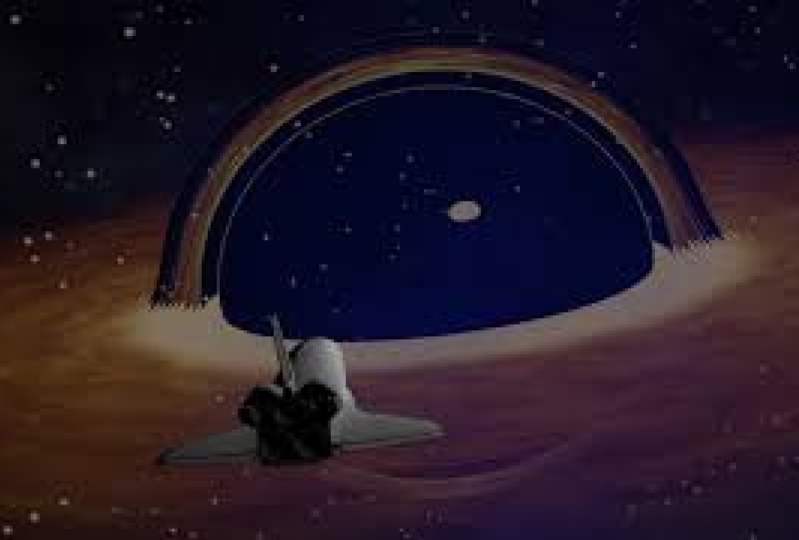
8. Animating the Star-field and Space: Hello and welcome back. Let's crack on with the next section. So at this point the spaceship has got sight of the black hole. So in this, we need to bring in R star field. There we go. And we also need to bring in nebula to. There we go. And again, as always, we need to kind of go to the properties of our nebula. Scale up. Lovely. So it's again, it's just a little bit different from before. So it's almost fill-in the screen there, there we go. Lynching. And inside of here now, so that's that name, this star field. So that's everything that we need to decide on their, let's create a new group. And now we're going to bring in our first time the actual black hole. So this is exciting me. Go import models, black hole, and then press imports. So there it is, it's inside of there. Okay. And that's we get slightly bigger. So we will ever hear this angular Dan a little bit. Kind of give us shape, maybe a slight angle as well. There we go. And let's see. So we're gonna add a filter in here. And it's under distortion. I think C is called bulge. Either given a click. And that bulge then gives us this. We're looking at things sealer and inside of here we can change the amount of bulge. Like so. Yes, it can really play with that. The scale of the bulge, Hamel, does it bulging? Yeah, we can move that inside of a thing. So there we go. So we get like a I think a better excuse me. Let's look for me my most today. Let's bring it back so I'm out there. So when I press Play, we gets really nice kind of while black hole looks like it's kind of like folding in that sample. So it was just, it was some amazing things. I won't even try to explain what he's actually doing. And as I'm not a space going, I'm just lights and the way it looks. So let's double-click lands and call it like, oh, okay, there we go. So I'll put that bulge on there and they can, It was a filter. Okay, so there's semi filters in here to play with. And I suggest again you have a little plate. So let's file save as seven-year. And let's collect a lot of media together, their computer folder. Okay, so I'm really happy with the way that looks and that movement made and that bulge is made that look so good. They're really happy with that. Let's bring in our spaceship. Yeah. So let's go keep this nice and organized group. That's our group that's important to nasa. Spaceship like so. Lovely again, once again, we're just going to take a second. That's a pop-in force. There it is. Okay. Now we're gonna do is I'm going to kind of have it off-center. And the idea is I want to make it look like it's heading to this app pace really. Look. It's a heightened here. This gets what properties make it slightly bigger. If you give a little bit of a push up with maybe a little should we have a little tilted? Maybe. Yep, that looks good. That's it. Okay. Great. So I kinda just wanna offscreen like reliant on such traveling with it, re into that. Again, really happen. Well, that's commandlets for really nice. So there's all my sort of elements set up there for the shot. So kind of again, we've done through the stars, gone through our RAM meets you might feel it and we've ended up with this shot here. Now gets super bright. So we need to go to our project here. Wave, where we saved it. Yeah, just a quick save. Take our object lines going down. Let's zoom in and out. And now let's bring in where lights, so ready, objects, light, switch, 3D. Absolutely. And now what you see is that life is pushed a lovely halo around the objects and I loved that. And this was actually by accident. I'll be honest with you, this is by x dot. I kind of added to it and I thought, Whoa, looks really, really good. So I went over here and looked at intensities, look to, to see how that would work for me. Had a bit of a play with some of these, but I think you just, it just looked great from the get-go, really, an obvious, really happy the way that interacted with all of that baggy. See My Space scene, if you like, is lifted up a little bit, just gets a little bit light casting across this is coming from here. It looks just fantastic and you see that if I move it around, we get different results. Thereby loved that kind of the halo it's kinda given are like they're so willing to do is go ahead and I'm going to basically make our star field group, if I unlock that new and reduce the kind of the capacity of all of that. Let's you see, as I bring that down, it kind of makes that little really kill more, more interesting to look at. And I love that he's from really, really nice. So I'm really happy with that. We could see that silt in that. I just love the way that looks is so good. Okay? So you see that it's spinning and suddenly this is gonna get a bit turbulent as well. So we again need, so add some turbulence to this shots here, which is pretty cool, we can do that. So to do that, we're going to click on our Nasser, okay, make sure with the star here. And in behaviors we've got something called simulations. Random motion. Ok, so if I press Play here, this is what's going to happen. Now that might be OK. But what we will do is calibrate stricter and little bit says carrying over here. So if I look over at my random motion, a maintenance is 15 Cepheid stars to say kinda be random, but be random in, in place if you like. So you can see now I've got a bit of drift happening, which is kind of what I want, okay? And your frequency here, so one, okay, so let's jump up to two. Let's look at it now. Again, depending on the scene, depending on the model, it will react differently. Okay. So some electronic key frame, a kind of a shudder or jolts within the system that it's a little bit of movement. It's enough for you to go, wow, that's, that's looking pretty cool. Cisco figures seen us do less. It's going to go the other side of this. We can have a look at that as well. Okay. So might not be what you're after, but you said that over ten seconds is doing quite a bit. So I'm happy kind of where we are there. I think it's pretty good noise. So it all sort of jumping around that. So look at that specimen. If you click anywhere off it, you said a bounded box disappears. We have a kind of a little bit of movement there as it's doing that. Cool, happy with that, right? So we've got bitten, they see if I speed up, you can see actually where it is kinda moving. You just saved you keyframe that and random motions, quite good little tool to add. Do that. Under shuttle filters. Blur. You could do kind of like see directional blur. Okay. Yeah, see that. And what I think I did is I added a slight blur to it. So the idea is that the edges aren't so sharp anymore. And as it gets closer, kind of it's kind of distorting the actual ship, if you like, and the court like that. So just how did the directional Blair in their sets of that, that's not an unhappy with that, but we can grab this as you see, we can, as we move in a SAS to do all sorts of so close to middle, the sharp, it's gonna get that a bit for me. I see it starts to blur those edges a little bit. So I wanted to kind of idea of that started to be pulled into this time. This big black hole time suck if you like. Really, really happy with that. And they go some that's, that's seen done again. So as always, let's go far. Lots of work done, they're safe. But it's hard to screw up there and type in shuttle. Just nasa, one of the two. And that's all it took to build that one scene that we're really, really happy with that share. Export me v. Again. We can have a little look at that, see what's happening there. That bulge is off slightly, so I need to go back and just fix that. This y like this because it does show you a preview of the NF films can look like. Let's look at the bulge there. And need to move that slightly. Share export, CSR, slightly off the need to move it a bit more. Share, export. They go cool, okay, see that much better. Okay, just hit Next. And that'll rendered I as that next pile of ill, perfect guy, little ship moving through space. Or dumb.
9. Keyframing Range of Motion in the Cockpit: Welcome back. And so here we see where left off from Part seven. And we're gonna jump straight into Part eight. So before we do anything else, we need to go to File Save As Part eight. Okay. So we'll create a new folder called partake just by doing that. So we can now get rid of it because again, it's going to save us so much time. We don't need the shuttle in this ok, so we can just click on the shell and hit delete, and we go off, she goes. So now we have our black hole there, which I'm one happy with. We're going to bring in a star field. Okay, so let's look at this star field. So let's create a group. As this star field is going to be an animator. Star fields, so star and then makes it okay. That's fine. And in library, okay, if you go to a particle emitters Here, we see that all is highlighted. And in here got some really nice bits and pieces that we can use in our project. Okay? So if I want to press search here and I just type in star, you'll see star field there is kind of where I'm at. That's what I want to bring it into here. And I, because I've got this highlighted, it should provide more myths, Spaceship my play heads at the start, really important there. Press Apply. Okay, now if I press the Play button, a magic key, Scilab, suddenly star field has appeared inside of my model. If I drag this up, move it over. Again. The idea is that kind of space is spilling out of this. For me. So loved that. Okay, so there's our star animated field there suddenly appeared in it. Great, just to have that pre-built for us inside of here. Go to scale and maybe made that larger particles, larger. Drop that file and safe. So we were using our part seven for this part A's graze nip. Okay, now if we round, we're now going to import our cockpit. Can look through the heads of the and now I'm gonna press Import again, make sharp plants that starts under images. She says have the word cock pit inside and then press Import. Boom, there she is. And I love this because we can also say through the copy of Australia, so it Library, sorry, inspector properties around that up a little bit. Like so. Okay, lovely. This is really cool. We're gonna move. If I sort of hold down, shift and click on the bomb, didn't stop. It highlights everything for me. Should be able to move this hole. Field to here, like so. Okay, it's a little hard to see how that's looking. Press play. My bulges left stayed where it is. That's bringing her bulge back in here. Like so. There we go. Love that. K c i star field is coming out of there like that. Light over here. This satellite is interacting with our cockpit. So what we'll do is on a turn that light down. Let's get under their light intensity, the string that tensity downlink. So case called those stars coming towards us breathless, looking really, really good, really happy with that. Okay, now we need to add some sort of motions this cockpit. So like we did previously with the shuttle from the outside. If we go to behavior simulations. And then we've got random motion again, some guess click on that. And you'll see now that we've got this brilliant, It's all over the place. It's a little bit more about it. I wanted to be this is why I made the copy higher, sorry, bigger in scale because it needs a bit of movement to build a flower that was going off fast you much. I mean, obviously if you're happy with its city though, you can leave it. But again, we're gonna set it as look at the amount. It's moving. And as I drag that, you'll see that little red line starts to lower solid press play here. So you see, we can start to see the kind of the whole thing. Just okay, probability much still. Let's change it to nine. Let's print the frequency to two. Yep. It's great that we can do this on emotions, so good. So we've got this spinning around. We've got a star field. And we've got now a cockpit doing some random motion, which would take ages as keyframe and I love it. But the fact is kind of got this sort of ability for us to do this inside of here. So have a play with those guys, see what affects you wanna create. Love that really, really good. So it's kinda the ship is moving into the position where it starts getting a little bit, little bit rough for the pilot on board. So we've still got that one light in our scene, which we've moved around here. So again, if you want to add an extra light in here, in my N film, I used the focus tool that's inside of Final Cut. And the idea is it focuses more on the Window section of the cockpit there. So if I go File, Save, that's all that say for us. Happy days, that's done. Once again, share can look out through here. We said that bulge is slightly off again, strange. This is interesting that it's doing that. So you see I need to move that bulge upwards here. So let's go to our Bulge. It suddenly it there. So it looks a bit scary. Wifi here been to share. It's almost it's looking at there it is. Look perfect and that's looking great from there. And we can print that in. Okay. I just press next and render that one-night. Thus that part done absolutely fabulous was press save. And let's move on.
10. Setting up the Final Shot: Welcome back to Part nine. Again, we've left off in part eight. We will use quite a fuse elements against, Let's go File Save house. Let's call this part nine against seizes him to import everything in change or grant, support Nina's time, press Save. Let's get rid of our cockpit. We don't need that anymore. And we've got the same scene here. So let's have a look at this scene. Okay, so a few things that have shifted around a bit. Let's make sure my star field is there. That's why we moved the whole thing. Every didn't weigh. Yeah, we did. I've got that where I want it to be. That's absolutely fine. We've got a star field emanating there which is brilliant sucking the thing in, which is what we want. So all we gotta do on this part, and I really IS press impulse, bringing our model, which is the nasa. Okay, here we go. And we're going to bring it to the right at a rotation. And that little dip RNA. So it's kind of pointing out slightly now so we can see it's really heading for this. Yet it's gonna come in and go to they're like so, so a bit of rotation there. So all we can do here is make sure our ship is off scene, which it is their properties, rotation, et cetera, everything you want there, which it has done like so let's compress command minus. And again, commandment is just jumps out so that space for us there, facts we need to just do but a scale here actually. So let's just jump back a second. Less hit the scale because of his skills quite large here. And as it's going away from us, we just want draw to scale only slightly but enough for us to see that it's going towards the black hole. So let's move a player to the answer, got a Keyframing for both that. As we move this forward. Yet coldness, Press Shifting Zed now through see where it is there and just going to drop that scale down. Ever so slightly. Ok. That's typically get 80. What's come of my mace today? That all DMAIC, right. Ok. Let's have a look. Look. Look about perfect. That's losing some scale. They're lovely. Now obviously we're going to cut at a certain point in there, so I'm not worried too much about kind of it hitting it on the mark, going directly into it. Because again, 3D shapes are quite odd. Will it start interacting with each other? But that looks kind of, that's what I'm after that sort of look there. Okay. Now what you could do if you'd like, is to take our shuttle here behavior. Okay. And EC got in here something called a basic motion fade in, fade out yet. Okay. So it's fading, which is fine. It's not going to affect our thing there. But as we get to here, you'll see it starts to fade out, which is quite nice, quite nice effects. And what you can do is move the fade in, fade out slightly here. Yeah, so it starts with fades out as it gets close to there. Okay. So you could do that if you wanted to make sure you bring the nasa probe in line with that as well. So as it fades out, obviously, the blue is saying it's still on the screen, even as Friday is still in scripts, we need to make sure those two things match. C could do that if you wanted to as its going in. But what's gonna happen is we're going to cut it probably about there. Now this y give yourself ten seconds because a lot of these scenes where we actually end up being four seconds, six seconds. I haven't also probably wanna build speed this up or slow it down later on. So give yourself a solid saw ten seconds in this enables me to give myself some playtime play play maneuvering with inside of that time frame. Okay. So hopefully that was OK. That's looking pretty well. Am I happy with that? And what it's doing is it's going towards it and we've done that. Hopefully, easy enough playing with that note. So again, share export movie magic. Look at that perfect. Yet next, export that eight. Okay, and I'll just file and save that. Copy anything over there. And there's that scene file saved. Perfect. Time to move on.
11. Finishing Touches, Lights, Movement : Welcome back to the final part, part ten. So we're gonna go File, Save as very carefully. Going to call this ten, hit safe. So we can reuse components. And what we've got here now is kind of the end part of this whole scenario. And the idea here is that we've got the ship going in, but it's kind of a closer version of that happening. Okay. There she is coming in. So what we're gonna do is we're gonna magnify this. Okay? So let's go to our black hole. And the idea is that the black holes huge at this point. And it's kinda like the end part of the film, if you like, this is actually going in. So the black hole highlights here, we're gonna go to scale. Scale is up, so it's huge. Okay? And we're going to add some rotation on this. So it kind of got this really amounts. And we see the spaces. It's just absolutely brilliant now it's really coming out there. Yep, Lovely. And what I'm gonna do, just a bit of variance. We're gonna delete the keyframes for the Shuttle. Okay, so delete, delete, locate, command and minus. And we see this space shuttles here. Yep. Okay, and we've deleted all the key frames for it, so there's nothing in it. Remove the fade in fade as well. Solved as we scaled at the black hole, we can a maneuver our ship slightly. Again, we don't want to mimic in it perfectly, but something close. Let's give it a little wiggle or they're older. So it's going to come in. And let's change the scale down because it's, it's, we want it to make it look like its base. Its, this black hole is huge at this point. So we wanna make our spaceship tiny in comparison, this press Shift and Z, C, C, this is going to come, it's going to look absolutely tied at this point with that light is there. So we're gonna begin the light it. So that's how the light, and then we're going to drag it over here. Up here. Movement here. There we go. Y I'm looking for guys is to light up part of the ships. You can see it's coming from that the angle here. So she's not just to pull them push, it's just I can get that gradient there. So it's gonna look like it's coming from there. And I think that's super as it goes in. There we go. So I want that movement and I still think it's probably a little bit smaller. When you make this black hole look like it's it's huge and it really is. It's a big thing. And it's going to end there. So let's command and minus makes sure our ship is a screen. Okay? Take our playhead battling sees because it's been one of this. This is a really good like n sequence proper dramatic. And all we can do is with BAM ship, hey, we're going to add that, that's a scale for each one of those. Bring it to the end. Like so. Press our green arrow and have it far it in over there, like so. Okay, so c is flowing in there. Now about here, wanna add a little wiggle, ok, inside the actual thing. So here, I can just give it a little twist there like so. And it makes the width band Look at that point. So it comes in. And then we want to correct it again. So by ear, let's drag that in like so social levels up. So it's a bit of a fight with the gravity of that, pulling that around. Once it hits that. In fact, you see that TWA previous projects, I've actually got it ending at that point. Look, which is pretty cured read that's them. That's actually come up quite well. There probably needs to extend a little bit further. So what's happening is it comes in and you see it's gone there. From slightly strike down the law back. Subsidise blue block represents the amount of time it's on-screen for CSR shifted such jump backends click on here shift and said, let's just see that. So it needs to be really about their strength and I think gone. I think probably what we'll do let's have it the full month. Yeah, that's sort of the full month. It's fine. And what we'll do is we'll just add that's basic motion fade in, fade out. So at that point, it's gone in much it kind of like it's gone through. Let's just probably extend. That's slightly. And you see the am, the fading is not finished yet. So if I press o, you see a steps ahead, we can draw it gets to that point and it'll snap it back out. So just click and drag that in. That finishes that point there. Job done. Guys. We finished. That is all the motion five. To create that last section, the collapse. Absolutely fabulous. If you've got this far. Congratulations. You've built this whole scene. Again, member, we can speed this up later on. Ok. It's sort of funnel cup. If you so wish. There it goes into the black hole magic. So all this have to do is file, save. Okay, share, export that out. Number ten, let's do it. Yep. Export our Finnish film. There we go. Magic, Love that. There we go. Let's it. Really hope you enjoyed that. In our next section, we will see how I broke that down into Final Cut and made that the film that you've seen as the trailer. Thanks very much. Hope you enjoyed it. See you in the next one.
12. Editing In Final Cut X: Hello and welcome back. So this is a first for me as I'm gonna show you some Final Cut stuff, okay. When I show you the projects that you've seen as part of the trader for this training. So let's open it up first, see kind of how I've done all of this. So I'm actually Final Cut ten certified trainer for Apple. So trend list for many years since its first inception to where we are now, I think I've used Premier Pro, which is another application. And there's something called a Da Vinci resolve if you're on a PC. Okay, so there's quite a few options to go edit your video. You can even edit in iMovie, but also even at emotion if you wanted to. But sometimes you need to get the right sorts of my job in this case, if you own a Mac, Final Cut ten is an amazing program and so many great things it can do. And in this case, you'll see how I could have taken all my motion files and just did something a bit interesting with each, each one of them really, ok. So this is the trader in its raw form. Ok, so why is it looked different? If you'd like to what we've done in Santa motion. Well, the first thing you'll notice is we've got these black bars. Top and bottom of our project is quite good here. See these black bars top and bottom. So I bought the helene inside of here and here, the R, These are the blue bars here. Okay? So this gives us a really nice look, a filmic look to our scenes, which basically just gives it a bit more edge. Okay? I've also added a few different effects. We've got some transitions in here, which makes it quite cool. In here we've got this defocus, I think inside of here as well, which is quite nice. So I'm going to, we're not quickly but just going through this because it's not really a lesson. But more of a case of this is how I achieved what you bought basically at the end. Ok, so if not used frontal cut ten before, what we can do is we'd start new projects. And this is really simple. All I going to do is go file new projects, okay? Once you hit that and asked you to name the projects, so file new projects. So I asked you to name it. It's gonna say n events and normally it puts a date code here. Don't worry about that, just leave it. So you named the projects in my case, I've called it Udemy trainer, but can be called whatever you want. I just press OK. But in this case, I've already done it. So this Clapper board that's called a clipboard, folks. That's what your, that's your projects. That's where all your content's going to go into and create your end film. So you see I've got two boards here to represent two movies I was working on. So in this case, for double-click it, we get one huge timeline down here. That's what this is a timeline. If I move down, you'll see that all my footage that I've used, including my sound effects here, are also in here. Ok. So all my footage okay. That we had from Motion five, that it's all in here, okay. And all I have to do to get my footage in here, super simple is File Import media. Okay, File Import media. Once we import media, we look at the location where we saved all those rent files out of sight of motion. Really, really simple guys. No problem. We'll just go to weigh in or where do we get that from? Well, in my case, I saved all my rendered files in my shuttle folder. Here, the second click through them and what happens is motion gives us a nice little. Oh, okay, cool. There. Yeah. There it is. Magic here. So all I do is hold down, shift, click on the button, clicking the top one. Okay? And I've got an option here to copy them into the library. So they basically get moved into faunal cuts own library. Okay, and it keeps them all organized for us there, or get a choice of leaving the files in place, which for me, if somebody's files are massive, but what we don't want to do is have them replicated again on my hard drive, taking up extra space. So as long as I don't know where they are, that they can leave them in place, which is my shuttle folder. So it's up to you what you wanna do. There's no right or wrong answer to say you wanna keep your files organized. In my case, I will just leave the files in place, but that's just personal to me. Then I'm going to hit import select. So again, 3D point and click on the top where may be hold shift and click on the bottom one that all highlighted. Or you can just click on one and import them one by one depends how you want to work, but I prefer to get them all in and press impulse like this. I'm not gonna do that because that already here. Array. So they end up in this little viewer here. Look and just create all the work we've done, folks, it's all here. So we just got to basically start adding these into our timeline. So we add them in. Recently, give it one-click highlights and press E. E stands for edit. Right? Click on press, ie. Could it be any easier? 8888. Actually, yeah, perfect. So this is all in time is great. If for reminding yourself about, hey, you did this initially what we go in here. Okay, so we've got that coming towards press E inside perfect, flying into our thing. And then I find a one, the SAT bit, the end, where we actually go inside the ship. So that's set E, just basically does it. Now what's really interesting about frontal car is remember I started do 1010 seconds or more. You might not need all the rest. You see the Ines pi here. The fin is still left inside that will maybe what I can do is I can actually on my keyboard if I take it to there and press o for out, okay, over eight. And what it does is it just says I've selected that part of this whole 10-second clip. So I'm gonna publish that three seconds. If I press, I, you see only creates this much. And the idea is I can actually press E. It sends just that sliver to my timeline colon. So I'll just press delete. So. And I, for n, We were here. Eight, selects the whole thing, or just click and press in the hall its whole thing. Ok. And e at it's into the timeline. Shifts said on day shift and undo that. So that's a cool way of kinda doing what I call a quick kind of edit of the workspace. But you can do all that down here. Okay, so don't worry too much, but if you know that you encounter, use all that. Ok. Well, let's not take up valley resources down here and do it all inside of here to the Quick Edit society here. Okay, So just for speed, I have just jumped into it. But really what you wanna do folks is trying to do an edit inside here. So maybe I got right Island that their eye for n. And that's enough over aids. And then I can actually click and hold, drag it into space. C. C, it moves out the way for me. Nice. Or you could just take out the end. Ok. So the hands that she's showing you, how much the clip you can drag in. Stack on top. We won't go there for stacking on top. That's for another session, I'm sure. So just as projected, guys, we've got in magic, magic. I'm really happy with the way all this has turned out. It's, it's such a nice little pointy. It's where with so once I've got it here, which I'm happy with, what I'm gonna do is I'm going to add those black bars to my scene. And this is quite simple. But cooking this object up here, okay, titles and generators. And the generator is kind of what I used to inside of hair. So it's called a solid. And a solid is a custom. Ok, so I can click and hold and drag this on top of my scene. Now I'm gonna do is I'm going to click and hold, extend, put on to the end. Now you'll see that because it's on top of the video here. And just a quick tip here. If I press Shift and zed extends the timeline to the size of the window, which is nice. You press like, like emotion command minus gamma plus or shifts at and it will just zoom them whole thing. So because the black generates a solid is on top of this, we can't see the footage underneath, but if you press V, It just disables it, which is quite handy. Quick tip V. Disabler footage, we've see straight through. And in this case, what we do is change the size of that. So I'm gonna click on here. Okay, see that, and navigate Spanish books is so I'm going to just do that simplest that folks look at that and they track that down. Like so. So that's the bottom black bit. It seems very easy to switch to. Well, yeah, that's it. That's the, that's the banner box. So I'll just click on that press Command C, Command V, Copy and Paste. Take the other Blackboard are there as before, and drag that one up here. There's blameless plug-ins that do this for you, which I find bizarre because it's sort of like an easy thing to do and makes your your spacings look ten times better with those little black bars on. So if you look in the house. Especially this moon seen here that is just brilliant because it looks so much more cinematic again, you can change the width of the just by moving it up or down however you wish. But just to show you this plug-ins that say, oh, you know, we can have these cinematic boss to your projects, but as you see, we've just done is super simple to do. And you see that the full length of their coal, really happy with that. Next up we can look at the focus of this because it's quite bright in here. So we'll click on the clip here. Look at this scene here, and I actually will no, set the brightness and the focus points in here. So to do this, we're going to look through distortion and the inhere because I've got a clip highlighted here and if I run left to right, it produces different results. See earthquake. So that was like the random motion we used in sign of final cup. So we can make the scene much scarier by clicking, dragging it on there. And if I press space bar now to see how much more dramatic that is, it's got a lot more wiggle to air. If I click on it, we'll see up here in our sort of project page report before. We've got more tools inside here so I can proper setup, luckily got that. And then we can see really wife Hanukkah is great because it renders on a beautifully and they can make that scene more dramatic if I wish. Love it. Yeah. Just brilliant so I can leave that they go, yeah, laughter. That's good. Like that. Okay. So under blur, I've got them in the end. Under blur, we've got focus. You see much more dynamic and dramatic that looks so click and hold, drag that onto there. Now, another thing we've got is transitions. So I use this thing called Bloom here. Look at this shot that and I'm gonna do is drag and drop that through sits in-between these two here and on the press crate transition. So what we get is this really super see blurt wanted the other Spacebar start and stop. They can't just so much more dramatic when you have that bilayer between one and the other. And then to the final clip, the hair, which is really nice. So let's put that either side so it can track this and put it wherever you like. Create transition, absolutely. Bang into there. So each one these becomes really, really nice. I love it, it's really good. And again, audio, I can't include the audio files for copyright reasons. But basically, you do the same with file import media. And you'd basically like the media file should bring in the audio files. And the audio files would sit underneath this. If I look at, if I go back over here, click on this one here, this will all my media is kept in there. This is all my media files. Okay. All I'd have to do is click on the audio here, click and hold, drag and drops with sits underneath the video. Somebody press V. That's just disable that video. Okay, so it's not playing C colon area, but basically that's how the audio is done. It is clicked and dragged from up here, like the movie file and sits underneath. So as you play your video, audio will go through that. Okay. And if the audio is too long, like before you can grab the end and just drag it allies. So that was Top Tip there. Okay, so the audio will now match the length of our clip. Okay? So basically that say I went obviously have not pulled the effects. And then as in like the other transitions. But you can see if I jump back to. So that's, yeah, that's the project down. I mean, if I went Shen a master file, so I love this because Moshe five does mimic what Final Cut does. And I get that whole kind of, yeah, now it's looking like we saw in the film. Perfect. And I can press next then it'll render that out for me. Okay, so it creates that final film. So obviously I'm not gonna do that for this because I've already done it. But if I go back to the top of my screen and I'm going to leave this project and I'm gonna jump to my initial film. And there I am, there. You'll see that. That's how it was created. We've got a few sound effect files in there. So there's my main audio file. There's my little incidental tracks of audio, four flybys and satellite signs, et cetera. You can get lots of these done free sound effects online that can simulate loose for you. So look, you threw that one probably last Skype not mentioned is kind of just the end part where we got this piece of text from here. Again, reassemble if we go to you titles and generates a member here, which generates therefore your Title. One thing I like to use is just basic titles. See that? And I've gotta do is click and hold. Drag it down. Let go. Move my play head over top of it. And over here. Thanks for watching. I've got all my fonts, sizes, trucking. Okay, so nice stuff in there. You can a keyframe is in this one if you wish. I can. This isn't a Final Cut ten tutorial. Is this just show you my workflow from motion five into four, lockout ten. So you can achieve the same thing that you saw when you saw the trailer for this. Okay. And that's really it folks. I hope you've enjoyed it. Really loved this course motion phi is an amazing piece of technology. It's so super cheap, really, really compare against other things in the LCA what it does. I can only say thank you to everybody who supported me so far with my training here on Udemy. You know, it's a life changer for me and I've enjoyed it so much. So thank you for supporting me, buying the trade-in. Hope you've enjoyed it and yeah, hit me up. Show me what you've been doing. Show me what you've been making. Love to hear from you and you'll find out more on, I discover dot tv. Thanks very much for watching and I'll see you next time.
13. 3D Objects Resources: Hello and welcome back. Next up we're going to look at how we can download on free and also paid for content for motion five library. So here are a few websites that I want to recommend to you. Some of them are free and some of them are paid for content. And straightway we got the word am Sketchfab. Have a look at the address is Sketchfab.com tags for such freight. I'll put a link in our notes. You'll find in the assets folder as well, so they'll be in there. So you can check that as well. But if we go to this website here, you'll see that we can now start searching for our own 3D models to use in Southern motion five. And some of them are just absolutely awesome. There is so much content here. It will take you an age to look through them. And pretty much what I've tested seems to work fine. So it's gonna be up to you to go in and find out which ones are going to work well for you in your projects. But as you can see, some of them have a very highly detailed and it's as simple as clicking on the model you want. Okay, so let's click on that. I lead up now I love this because even interface is pretty smart. Now you'll wait for a second for the texts load is that textures that we were talking about previously. Again, depending on machines that quick the load them in. And I can use my wheel on my master Zim in an eight like that. Look at the model. And if look down here. And this is a great websites, you just download model simple as that. But we will make sure that again, the license is enabling us to do that and use it in our own projects. So hit download model. You'll see here that it splits the model up into different formats, which is really, really important. So at the moment, motion five only supports us, tease us d, z we've already spoke about. But what's really cool is if remember our reality converted down here, remember this fellow. Okay, we are to converter this LacI convert OBJ files sought Adobe j m comes from the word object files. And the idea was you feed dragon object fall into that reality convertor. It will convert it for you, which is pretty cool, into us, d z. So if you get FBX, we can't do that. Gl, TF, I don't think until that moment might change. Again, all this can change in the future, but as you come. And so that's what we want is us t's, s, s Recall hit download. And of course that will turn out into our Downloads folder and we can import it in. Isn't that cool guys? It's a really fun pre-built assets that we'll start adding into our library. Another great website is CD trader. Again, just see the trade.com and the notes. And we assert in history. So I'll just type in chair example. There we go. And then see the words free here. Again, look at the short term, some very expensive holes that you can actually purchase. Some of these models will be highly detailed models. And, and yes, we can move the slider up and see how much we want to pay for that particular one. So here we go, PBL, there. It's a chair. And again, through these from different angles. And there's our free download there as well. All the information about that on there as well. And again, I want to hit free download. It should give us the option of file format. In this case, it's gonna ask us to wait cinema at time, a faster download that scientists can wait for that. So note, unless we say that's the word to OBJ is there looks and that's that you're unusual in that we can do stop zips. Zips inside them will be different formats. But in this case, to OBJ is what we can do, say download. That will go into our donors folder and allow us to texture that particular chair. So really good fun, lots for you to experiment with their. So what we'll do is minimize that. Let's go to our 3D assets folder. And you'll see inside of there I've already put Subaru, which I've downloaded. So if I go to Motion, import from our fantastic assets folder there, Subaru impressed, say USD. Here is inside of motion. Just really cool. Look at that guy's absolutely brilliant. And what's really cool about this is a set of cameras in here. This is why I'm really excited about having the ability to get a top view here. Having 3D objects in sort of motion. That is just so much, so much fun. Look at this top view there and, and animate that. So yeah, I'm animate, animate away as well as this myVar Carter there. Let's go to our specter Properties. Click on that, click on there. That's happy with that. Move our playhead to the end. And it looks strangely enough the only occurs there. Drag the name, so exists for the whole length of the clip. Just simply move across the screen. So there we go. So if I look back in a move in this simpler, let us go back to top, active camera. Press play. And there goes our car spinning through our scene that all the beautiful 3D, it's kind of what I wanted to be. Emotion motion initially when we first solids many years go there first command how we've got it inside there. And you know, with, with the advent of having these two fantastic website see trader and Sketchfab. But you know, it really is unlimited to what we can do inside emotion five names. So have fun with that. And I'll see you in the next one.
 James Rickards, Apple Certified Trainer