Transkripte
1. Einführung: Grundlagen des responsiven Webdesigns – HTML5 CSS3 Bootstrap: Hallo, da. Mein Name ist Daniel Scotts. Gemeinsam werden wir lernen, wie man responsive Websites aufbaut. Wir erstellen moderne professionelle Websites, die auf Mobilgeräten,
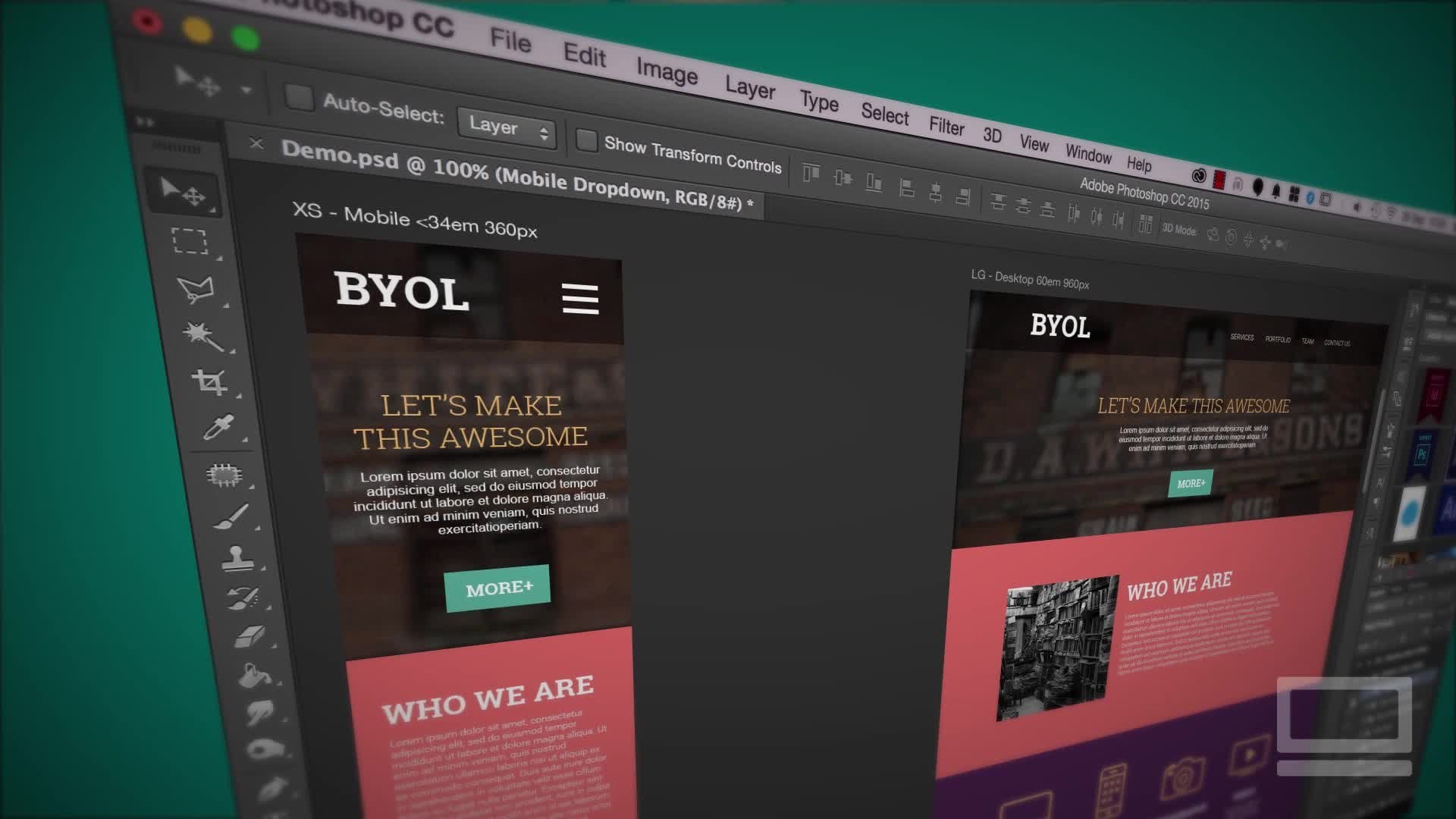
Tablet und Desktop gut aussehen . Wir werden gemeinsam für Websites bauen. Diese einfache Restaurant-Website, diese etwas fortschrittlichere Fahrradreparatur-Website. diese Responsive Portfolio-Website, und es gibt Bootstrap-Website für meine Prototyp-Joghurt-Firma. Jetzt lernen Sie alles, was Sie brauchen, um eine Website zu erstellen, beginnend bei Ihrer ersten Seite bis hin zum Hochladen ins Internet. Wir werden das weltweit beliebteste und überraschend kostenlose Website-Design-Tool
namens Visual Studio Code verwenden . Es gibt herunterladbare Übungsdateien
, so dass Sie mit mir und jedem Video folgen können. Am Ende jedes Videos werde
ich speichern, wo ich vorhabe,
so dass, falls Sie verloren gehen oder etwas nicht ganz richtig ist, Sie Ihre Dateien kopieren können, aber meine Dateien, es ist eine nette, einfache Möglichkeit, um sicherzustellen, dass Sie nicht verloren gehen. Wir werden all die guten Dinge abdecken, wie Sie Ihre ganz eigenen
[unhörbaren] von Grund auf mit etwas grundlegenden JavaScript und jQuery erstellen können. Erfahren Sie, wie Sie mit reaktionsfähigen Bildern und Symbolen
sowie ausgefallenen Hintergrundbildern im Vollbildmodus und wahrscheinlich 1:n-Farbverläufen arbeiten . Wir erfahren, wie Sie Schriftarten erstellen und wie Sie großartige Schriftarten für Ihre Website auswählen können. Wir lernen, wie Sie mit Bootstrap-Schriftarten arbeiten, Ihren eigenen Domainnamen und Hosting
direkt einrichten und wie Sie es live ins Internet hochladen, damit andere Personen Ihre Website sehen können. Während des Kurses habe ich
einige lustige Klassenprojekte eingerichtet , damit du alles, was du im Kurs lernst, üben
kannst. Am Ende dieses Kurses werden
Sie ein wirklich gutes Verständnis der
wichtigen Web-Design-Themen wie HTML5,
CSS3,Flexbox, Responsive Design Bootstrap haben wichtigen Web-Design-Themen wie HTML5,
CSS3, . Wenn das alles ein bisschen beängstigend und ein bisschen schick klingt , keine
Sorge, dieser Kurs richtet sich an Anfänger. Sie brauchen keine Erfahrung im Webdesign. Du brauchst keine einzige Zeile in deinem ganzen Leben codiert zu haben. Hier fangen wir gleich am Anfang an und arbeiten uns Schritt für Schritt durch. Wer bin ich? Mein Name ist Daniel Scotts und ich bin seit etwa 15 Jahren kein Webdesigner. Ich bin auch ein preisgekrönter Instruktor für die letzten zwei Jahre in Folge. einen ein Mx Masters Award auf der massiven Adobe MAX-Konferenz. Ich habe auch umrandete Brillen und ein cooles T-Shirt. Ich bin mir ziemlich sicher, dass die Justizkombination allein mich qualifizieren sollte, vielleicht. Wenn Sie endlich bereit sind, sich selbst zu aktualisieren, registrieren Sie sich für die coolsten, und lassen Sie uns gemeinsam ansprechende Websites erstellen.
2. Aufbau dieses Webdesign-Kurses: Hallo, willkommen auf dem Kurs. Dieses Video möchte ich darüber sprechen, wie dieser Kurs strukturiert ist. Es ist also in fünf Teile aufgeteilt, wird am Anfang mit einer echten grundlegenden Einführung in HTML und CSS beginnen. Dann starten wir unser allererstes Projekt. Also Phase eins, schnelle Einführung. Phase zwei wird diese Website erstellen. Also, wir nehmen Art der grundlegenden HTML- und
CSS-Einführung heraus und stimmen in dieser Website hier. Nur schön einfach, um loszuwerden.Das dritte was wir tun werden, ist, dass wir diese Regel Zyklen Website erstellen. Jetzt ist diese Website nur ein bisschen fortgeschrittener. Nehmen wir an, es handelt sich um Zwischen-HTML und CSS. Wir decken die Grundlagen und die erste, und dann bekommen wir in diesem ein wenig mehr Detail
hier.Dritter Teil ist, dass wir unsere Website reaktionsschnell machen. Das bedeutet nur, dass es sich für die verschiedenen Browser anpassen wird. Also Mobiltelefone, Tablets und Websites. Es ist dieser hier. Es ist eine Portfolio-Website, schön, einfach. Sie können hier sehen, es passt sich an verschiedene Browserbreiten an. Dann ist das Finale für den Kurs Blick auf ein Framework. Das Framework, das wir in diesem Kurs verwenden werden, heißt Bootstrap. Es ist super beliebt und es bedeutet nur, dass wir all das Wissen, das wir
bisher kennen, nehmen und es verdichten und wirklich schnell nutzen können, um Websites zu bauen. Wir werden Dinge wie diesen jQuery Slider hier vorstellen. Bilder gleiten über, gibt es diesen Cursor auf der Unterseite ist es einfach mobile Nev. Es ist eine wirklich großartige Ergänzung für jeden, der Websites baut. Ein Framework wie Bootstrap wird es super schnell machen, machen es super professionell aussehen, ohne dass Sie all das schwere Heben tun müssen. Ich hoffe, du bist bereit. Es ist Zeit, loszulegen, und tatsächlich beginnen, Websites zu erstellen. Wir sehen uns im Kurs.
3. Was man für den Webdesign-Kurs herunterladen sollte: In Ordnung. Lassen Sie uns darüber sprechen, was Sie herunterladen müssen und was Sie installieren müssen. Das Herunterladen ist einfach. Es gibt einige Übungsdateien. Es wird einen Link auf der Seite hier irgendwo geben, um diese herunterzuladen, und sie werden alles sein, was wir verwenden werden, wie Bilder und Ticks, die wir während des Kurses verwenden werden. Laden Sie diese herunter. In der exakt gleichen Datei, die Sie herunterladen, gibt es etwas, das als „Abgeschlossene Dateien“ bezeichnet wird. Da wird ein Ordner drin sein. Was sie sind, ist am Ende jedes Videos, was ich tue, ist, dass ich speichern, wo ich vor bin. Wenn Sie mitverfolgen und nicht die gleichen Ergebnisse erhalten, können
Sie sich einfach die Videonummer ansehen und dann
die fertigen Dateien ansehen und einfach meine Version mit Ihrer Version abgleichen und los gehen. Oft ist es nur vielleicht eine Rechtschreibung oder ein Syntaxfehler, aber Sie können Ihren vergleichen, der funktioniert oder meins, der mit Ihnen arbeitet, der vielleicht nicht sein kann. Sie befinden sich innerhalb der Übungsdateien und Abgeschlossene Dateien insgesamt. Eine andere Sache, über die Sie sprechen sollten, ist, was Sie herunterladen. Wir werden unsere Websites in Google Chrome testen. Stellen Sie sicher, dass Sie das herunterladen. Google Chrome ist im Moment bei weitem der beliebteste Browser. Laden Sie das herunter und wir werden alle unsere Tests darin durchführen. Es ist wie Firefox, oder Safari, oder Microsoft Edge oder Internet Explorer, aber es ist der beliebteste. Gehen Sie zur Google Chrome-Website und sie zeigen Ihnen, wie Sie es installieren. Die andere Sache zu installieren ist ein Code-Editor. Wir werden Visual Studio Code verwenden. Warum? Es gibt viele verschiedene Code-Editoren. Sie brauchen diese nicht speziell, aber Sie werden es für diesen speziellen Kurs benötigen. Denn im Grunde ist eine Website eine Mischung aus HTML, CSS und JavaScript, und Sie können jeden Code-Editor verwenden, um dies zu machen. Wir werden Visual Studio Code verwenden, nicht Visual Studio. Das ist ein größeres Produkt. Sie benötigen den spezifischen Visual Studio-Code. Es ist kostenlos. Es wurde von Microsoft hergestellt. Nur damit du es weißt, benutze ich das
hauptsächlich, weil es im Moment am beliebtesten ist. Wenn Sie nach diesem Kurs Arbeit suchen, werden
Sie wahrscheinlich in einem Studio landen, in dem sie Visual Studio Code verwenden. Sie müssen das Gleiche lernen. Die Techniken und Werkzeuge, die Sie in diesem Kurs lernen werden, gelten auch, wenn Sie einen anderen Code-Editor verwenden. Nehmen wir an, Sie verwenden Atom oder Sublime oder Notepad ++. Sie sind alle wirklich gute Redakteure, aber sie machen am Ende dasselbe. Die Verknüpfungen sind unterschiedlich, sie haben verschiedene Arten zu arbeiten, aber die Ausgabe ist die gleiche. Also schwitzen Sie es nicht, wenn Sie
all diese Dinge in Visual Studio Code lernen und dann einen anderen Editor verwenden müssen. Es wird alles schön gelten. Aber ja, installieren Sie Chrome, installieren Sie Visual Studio-Code. Beide sind kostenlos und ich werde es im nächsten Video sehen.
4. Erstellen und Testen der ersten HTML-Webseite: Hallo an alle. Dieses Video werden wir unsere erste Webseite machen. Es wird nicht wirklich aufregend sein, es wird sagen „Hallo Welt“, und in einem Browser, es wird Ihnen zeigen „Hallo Welt“. Der Kurs wird viel spannender, aber wir müssen die Grundlagen erledigen,
und das beinhaltet, wie man einen Ordner für unsere Website anlegt, wie man unsere erste HTML-Seite erstellt und wie man sie in einem Browser testen kann. Lass es uns tun. Also haben wir Visual Studio Code installiert, und wir haben es offen vor uns. Jetzt wird deine etwas anders aussehen als meins. Wir haben diese Willkommens-Registerkarte oben geöffnet,
Sie haben möglicherweise eine andere Registerkarte geöffnet, die besagt, neue Veröffentlichungsdokumente oder etwas Ähnliches, und auch Ihre könnte etwas anders aussehen, weil ich
einen Mac in diesem Kurs verwende und Sie könnten einen PC verwenden. Mach dir keine Sorgen, dass sie gleich funktionieren. Nur einige der Verknüpfungen sind etwas anders, aber wir werden diese während des Kurses behandeln. Es kann ein wenig einschüchternd diesen Willkommensbildschirm und alle anderen Registerkarten auf der Oberseite sein. Also nur um alles kristallklar und einfach zu machen, schließen Sie alle Tabs entlang der Oberseite, indem Sie dieses kleine Kreuz hier treffen, klicken Sie es einmal auf alle von ihnen, bis Sie mit dieser schönen, sauberen, klaren Anwendung enden. Der andere Unterschied, den Sie auch haben könnten, ist entlang der Seite hier hat eine Reihe von Tabs. Das wird hilfreich sein, aber für den Moment, wenn Sie einmal auf die obere klicken, verschwindet
zweimal, es ist alles schön und sauber, und lassen Sie uns gehen und unsere erste Datei erstellen. Um unsere erste Webseite zu erstellen, muss
sie in einen Ordner gehen. Es kann nicht nur in Ihrem Dokumentenordner oder auf Ihrem Desktop herumliegen, es muss in einen Ordner gehen und alles, was für diese Website in demselben Ordner gehen muss. Also, um diesen Ordner zu erstellen, gehen
wir zu Datei und gehen wir zu Öffnen, was seltsam ist. Gehen Sie zu einer Datei, öffnen und es steht: „Welchen Ordner möchten Sie öffnen?“ Wir haben es noch nicht erstellt. Halten Sie sich fest. Also, was wir tun, ist auf einem Mac, es gibt eine neue Ordner-Taste auf einem PC, es ist etwas anders, Sie suchen das, es ist ein kleines neues Ordnersymbol [unhörbar] gelbes mit einem kleinen Ausrufezeichen in der Ecke, und entscheiden, wo Sie es hinstellen wollen. Für diesen Kurs werde ich es auf meinem Desktop setzen. Schau dir an, wie sauber mein Desktop ist, ich bereinigen das für diesen Kurs völlig. Aber wie auch immer, Desktop, New Folder, wie werden wir es nennen? Wir werden es Projekt 0 nennen. Klicken Sie auf „Erstellen“, und das ist mein Ordner. Ich bin in Projekt 0, und ich werde auf „OPE"N klicken. Einige Male müssen Sie es auswählen und dann auf „Öffnen“ klicken. Sie wissen, dass es richtig ist, wenn Sie oben sind, und es steht „Willkommen bei Projekt 0" an der Spitze. Auf der Seite hier sollte es diese Option haben, Projekt 0. Es ist noch nichts drin. Aber diese Begrüßungsbildschirme kommen zurück. Geh weg. Also haben wir den Ordner und alles, was es auf meinem Desktop
ist, ist, dass ich einen Ordner mit nichts drin habe. Also machen wir nur so einen Ordner. Es spielt keine Rolle, wie Sie diesen Ordner erstellen, solange er existiert, und Sie haben VS Code darauf hingewiesen. Jetzt müssen wir unsere Seite erstellen. Wir werden unsere allererste HTML-Seite erstellen. Lassen Sie uns zu Datei gehen, gehen wir zu Neue Datei. Wir werden es speichern, Datei, Speichern, und wir werden es sagen. Nun, es sollte automatisch wissen, wohin sie gehen soll. Es geht in Projekt 0, und dieses wird helloworld.html genannt. Geben Sie es keine Leerzeichen, ein Wort und es hat be.html, lassen Sie uns auf „Speichern“ klicken, und nur hier in unserem Editor, lassen Sie uns Hallo Welt eingeben. Lassen Sie uns zu Datei gehen, Speichern. Ich werde aufhören, dir den langen Weg zu zeigen. Also mein Mac, es ist Command S. Auf einem PC, es ist Control S. Ich werde nur sagen Save von jetzt an. Jetzt müssen wir herausfinden, wie wir dieses Ding in der Vorschau sehen können, weil wir es geschafft haben, du hast eine Website erstellt, eine winzige. Aber wie überprüfen wir es? Wir müssen das Google Chrome verwenden. Also gehen Sie in Google Chrome öffnen. Also habe ich Google Chrome geöffnet und wir gehen zu Datei, und gehen Sie dann zu Datei öffnen, und dann werden wir unser Projekt 0 finden. Es ist auf meinem Desktop. Dort ist es Projekt 0, innerhalb der Hallo Welt. Bevor Sie auf Öffnen klicken, erinnern Sie sich an diesen Moment, wenn Sie eine Website gemacht haben, ist
es nicht so aufregend, aber wenn dies Ihre erste ist, machen Sie sich bereit für diesen Moment, diesen Moment der Herrlichkeit, bereit? Das war's. Das ist deine Hello World Webseite. Aber schau dich um, erinnere dich an diesen Moment. Dies ist das erste, was du je gemacht hast. Ich erinnere mich, als ich meine ersten Websites gemacht habe, es war ein bisschen spannender. Die Hello Welt, Ihre wird auch sein, und ich werde Ihnen die Website zeigen, dass ich meine erste eine kleine Weile später gemacht. Ich denke, wenn ich es dir hier zeige, könntest
du vielleicht nicht hören. Jedenfalls. Es war schlecht, aber es war vor 20 Jahren. Lassen Sie uns also den Prozess wieder in VS-Code zusammenfassen. Hier werden wir Ausrufezeichen setzen, dann drücken Sie „Datei“, „Speichern“, Ich verspreche Ihnen nicht langen Weg zu zeigen, habe ich. Gehen Sie dann zurück zu Google Chrome und es wurde nicht aktualisiert. Wenn Sie also eine Speicherung vornehmen oder eine Änderung in VS-Code vornehmen, drücken Sie diese kleine Schaltfläche Aktualisieren oder Neu laden. Wenn du es da oben nicht sehen kannst, wird
es irgendwo sein. Wo ist Reload? Ich weiß nicht einmal den langen Weg für Reload da ist es da. Also, wenn Sie neu laden, da ist es da. Ausrufezeichen. Das ist also der Prozess. Machen Sie die Codierung in VS Code, überprüfen Sie Ihre Website in Chrome, um sicherzustellen, dass
es funktioniert in Ordnung , es ist nicht gebrochen, und Sie tun ein wenig Tanz, weil Sie eine Website gemacht haben, wenn Ihre während dieses Prozesses gebrochen. Es ist ein schlechter Anfang. Es ist okay. Was wahrscheinlich passiert, ist, dass Sie vergessen, the.html hinzuzufügen, wenn das passiert. Sie haben gerade etwas namens Hello World und nicht den HTML. Das wird dir passieren. Du meinst: „Natürlich habe ich das getan. Ich bin Dan gefolgt.“ Später in diesem Kurs, wenn Sie neu sind, wird Ihnen das passieren. Also alles, was du tust, ist hier drüben in einem von ihnen. Dies kann ein wenig verwirrend sein, dieser Explorer. Dies sagt, Sie alle die Seite, die Sie hier geöffnet haben. Dies teilt Ihnen jede mögliche Datei in Ihrem Ordner mit. Nun ist das Problem damit, dass Sie nur eins und jeder haben, also wiederholen sie sich einfach. Jedenfalls. Sie können hier darauf doppelklicken. Nein. Sie können mit der rechten Maustaste darauf klicken und zu dem, der Umbenennen sagt, und um zu sagen, dass es missing.html war oder Sie es falsch geschrieben
haben, geben Sie es einfach ein, drücken Sie Return. Dann gehen Sie und testen Sie diese Datei in Chrome, und Sie wären in Ordnung. Das ist nicht wirklich Web Design. Es ist der Anfang. Lassen Sie uns auf das nächste Video gehen, wo wir tatsächlich anfangen, einige richtige HTML und einige richtige CSS zu tun.
5. Was ist HTML5 und CSS3 im Webdesign?: Hallo da. In diesem Video geht es darum, die absoluten Grundlagen dessen zu lernen, was HTML ist, im Vergleich zu dem, was CSS ist. Sie können dies überspringen, wenn Sie ein grundlegendes Verständnis haben. Wir werden einige echte einfache Sachen hier machen, wir werden einige HTML-Tags hinzufügen. Es wird so aussehen, und dann werden wir sie mit CSS aufhalten, und es wird so aussehen, hier gehen wir. Oh, das ist besser, nicht schlimmer. Aber Sie haben die Idee? Wir werden HTML machen und es dann mit CSS hübsch aussehen lassen. Lass uns in das Video springen und lernen, wie. Um zu beginnen, geben wir zuerst unser HTML ein. Also dieses Wort „Hallo Welt“, ist kein HTML, es ist nur ein einfacher alter Text, den wir eingegeben haben, löschen Sie das. Wenn wir HTML schreiben, müssen
wir einige Syntax folgen. Also werden wir in etwas namens Überschrift setzen, und in diesem Fall Überschrift 1, die wichtigste Überschrift auf einer Website, und ein HTML verwendet die Abkürzung von h1. Jetzt können wir nicht einfach h1 eingeben, wir müssen es in eckige Klammern einwickeln. Öffnen Sie also Winkel Klammern, <h1> und schließen Sie dann Winkelklammern. Sie können es hier sehen, es hat ein paar Dinge getan. Wir tippten in unsere, wir setzen die Klammern auf beiden Seiten, und Sie werden feststellen, dass VS-Code, automatisch in diesem zusätzlichen schließenden Tag setzen. So funktioniert HTML. Es ist ein Wrapper-Tag. Es ist ein Tag, das um den Anfang geht, und das Ende und alles in der Mitte. Das ist meine Überschrift, sogar eins. Solange es auf der einen Seite ist, auf der anderen Seite die in eckige Klammern eingewickelt, das Schließen, werden Sie feststellen, dass dieser Schrägstrich hat, und das sagt dem Browser, dass dies meine Überschrift ist. Lass es uns speichern, lass es uns in Google Chrome überprüfen. Sie können dort sehen, aktualisieren. Ich habe meine Überschrift 1, es ist groß, es ist fett, ist Times New Roman, ist schwarz. Dies ist eine Standardeinstellung für eine Überschrift 1. Lassen Sie uns ein paar andere HTML-Tags hinzufügen. Hier drinnen werden wir zurückkehren. Ich werde Winkelklammern eingeben, sie
schließen, Sie werden sehen, dass es die zusätzliche Syntax enthält. Wenn dies nicht der Fall ist, können Sie es aus irgendeinem Grund einfach eingeben. Also werde ich anfangen zu tippen, es will wirklich helfen. Danke, VS-Code. Lasst uns einfach Überschrift 2 schreiben. Das sind ein paar rohe grundlegende HTML-Tags. Eine andere wirklich häufige ist ein p-Tag, also Winkel Klammern,
, schließen Sie es ab, und ist Körpertext. Wahrscheinlich haben Sie nur einen auf Ihrer Seite, aber Sie werden viele verschiedene Absatztexte haben, weil es sich um den Haupttext handelt. Speichern Sie es, überprüfen Sie es in unserem Browser. Sie können sehen, dass dies das Standardstyling für diese drei Tags ist. Um das Styling zu überschreiben
, kommt deshalb CSS ins Spiel. Also, was wir tun müssen, ist unser HTML ist wie Dinge auf der Seite, und unser CSS ist das Styling dieser Dinge auf der Seite. Um dies zu tun, lassen Sie uns ein paar Renditen an der Spitze hier setzen, und Typ des Tags namens style. Schließe es ab, und wieder setzt es das schließende Tag ein, und was ich gerade dort gemacht habe, ist, dass ich ein paar Renditen einfüge. Rückgaben bedeuten nichts im Code, Sie können eine Million von ihnen haben. Es wird nicht auf der Seite angezeigt. Ich benutze nur eine Menge Renditen, wenn ich Dinge style, nur um
eine visuelle Trennung von verschiedenen Teilen zu bekommen , anstatt zu versuchen, sie alle zusammen zu stopfen. Denn was Sie hier unten bemerken werden,
ist, wenn ich das lösche, bringe ich es nur auf. In der gleichen Zeile, wenn ich es speichere, werden
Sie feststellen, wieder hier in Chrome, es ist genau das gleiche. Es spielt also keine Rolle, ob Sie Renditen hier ein nicht setzen, außer dass es schwer aussieht, daran zu arbeiten. In diesem Style-Tag ist
dies, wo unser CSS gehen wird. CSS hat eine andere Art von Syntax, während HTML einen öffnenden schließenden Winkel Klammern
und einen Schrägstrich dort hatte . Die CSS, Sie tun Dinge wie diese. Du sagst: „Ich will die H1.“ Dies wird als Selektor bezeichnet. Ich wähle die h1 aus. Dann legen Sie es in ein Leerzeichen und setzen Sie dann die geschweiften Klammern anstelle der Winkelklammern ein. Ich werde eine Rückkehr auf meine geschweiften Klammern setzen, nur um sie zu trennen,
nicht aus irgendeinem anderen Grund, als es
ein wenig einfacher aussieht , mit Ihnen zu kommunizieren. Hier drin werde ich etwas h1 Styling machen, und wir werden mit Farbe beginnen. Wir müssen es auf amerikanische Weise buchstabieren. Farbe, und danach ist
dies die Eigenschaft, also Selektor, ich wähle das h1 aus, ich möchte die Eigenschaftsfarbe hinzufügen. Es muss mit einem Doppelpunkt enden,
und dann wählen Sie eine Farbe aus, es ist auf Standardwerte da drin, ich werde nur ein Leerzeichen eingeben und rot eingeben, und am Ende von CSS müssen
wir ein Semikolon haben. Geschweifte Klammern, Doppelpunkt, Semikolon, das ist die Syntax ziemlich einfach für alle unsere CSS. Speichern Sie es, und lassen Sie uns sehen, ob es funktioniert. [ unhörbar] in den Browser und aktualisieren. Schau dir an, dass h1 gestylt ist. Jetzt weiß ich, das ist keine große Menge, die wir hier machen, aber ich bin aufgeregt. Ich freue mich auf dich. Ich erinnere mich daran, das Zeug gelernt zu haben, als ich auf Offenbarung war. Lass uns etwas anderes machen. Ich werde eine Rückkehr hier reinbringen. Wir werden CSS gruppieren. Wir wollen ein paar Dinge mit dem h1 tun, solange es innerhalb dieser geschweiften Klammern ist, können
wir etwas wie Schriftart eingeben. Ich werde in Font-Stil setzen. Sie können sehen, dass dieser Code wirklich helfen möchte,
Dinge wie Größe, Stil, Anzeige hängen vorzuschlagen . Ich werde Stil verwenden. Ich benutze jetzt meine Maus, anstatt sie einzugeben. Das ist nur eine der kleinen hilfreichen Dinge, die Sie mit
VS-Code tun können , oder Sie können Ihre Pfeiltasten auf Ihrer Tastatur verwenden. Sie können sehen, dass sich die kleine blaue Linie bewegt, ich kann dorthin gehen und, Ich kehre auf meiner Tastatur zurück. Wir haben fast alles davon, also haben wir unser Eigentum. Da ist der Doppelpunkt, wir haben unseren tatsächlichen Wert, der kursiv ist. Was am Ende läuft, hast du es, Semikolon. Lass uns speichern, mal sehen, was es tut. Lass uns Aktualisieren drücken. Es ist kursiv und es ist rot und es ist ein h1. Brillant. Also werde ich jetzt eine Klassenübung sagen. Ich möchte, dass Sie dieses h1 so ändern, dass es eine Schriftgröße von 100 Pixeln oder px ist. Ich möchte, dass du es jetzt pausierst, geh auf den Knopf klickst und du sollst sehen, ob du das schaffst. Schriftgröße bei einem 100 Pixel, gib es mal, ich gebe dir eine Hand in einer Sekunde. Pause, los. Möglicherweise haben Sie eine Pause gemacht oder nicht. Möglicherweise haben Sie es funktioniert oder nicht. Mal sehen, ob du mir gefolgt bist. Also Schriftgröße, hier gehen wir, gehen Sie zum Doppelpunkt, dann setzen Sie eine 100, und was die Leute oft vergessen, ist, dass Sie den px brauchen. Wir verwenden Pixel, wenn wir es im Moment mit Schriftarten zu tun haben, und was am Ende geht, Semikolon. Speichern Sie es, zurück in hier, aktualisieren, Riese h1. Lassen Sie uns die h2 zusammen wählen, und dann werde ich noch eine kleine Übung machen. Also h1, jetzt habe ich ein paar Returns hier, geschweifte Klammern, und Sie können sie mit diesem Selektor trennen. Die geschweiften Klammern, und alles geht in der Mitte, die Sie mit diesem bestimmten Selektor tun möchten. In diesem Fall werden wir eine Farbe von Blau, Semikolon, und wir machen eine Schriftgröße von 50 Pixel. Geben Sie das jetzt, und ich werde eine verbale Übung sehen. Ich möchte, dass Sie versuchen, das p-Tag zu machen. Ganz allein möchte ich, dass du es grün machst, und ich mag, dass du eine Schriftgröße von 20 Pixeln hast? Geben Sie ihm jetzt eine Pause, sehen Sie, wie Sie gehen und pausieren. Wie ist das gelaufen? Ich hoffe, Sie haben es gut gemacht, lassen Sie es uns gemeinsam verfolgen. P-Tag, geschweifte Klammern, Farbe grün. Es gibt ein paar verschiedene Grüns. Grün-gelb, das ist mein, Semikolon, und wir werden in einer Schriftgröße von 20 Pixeln setzen. Semikolon, speichern, wieder rein, aktualisieren. Sieh dir das alles an. Gutes Zeug. Das ist nur eine Einführung in das, was HTML ist und wie die Syntax aussieht. Das sind diese Typen hier unten, und das Styling von ihnen. Wir sprechen über Selektoren, ich benutze hier die Rentenwörter, so dass es für Sie ein bisschen natürlicher wird. Selector, das ist die Eigenschaft, das ist der Wert dieser Eigenschaft. Das sind die Grundlagen von Websites. Wir werden das nur noch ausweiten. Wir bauen ein paar Kisten, um das Zeug reinzubringen. Wir werden anfangen, einige interaktive Bits und Stücke zu machen, aber ja, das sind die Grundlagen von HTML und CSS. Lass uns in das nächste Video springen.
6. Was ist der Unterschied zwischen den Head- und Body- bzw. HTML-Tags in einer Seite im Webdesign?: In Ordnung, es ist Zeit, eine wirklich richtige Website zu erstellen. dem Moment, in dem wir einige HTML-Tags und einige grundlegende CSS eingefügt haben, aber das ist nicht alles, was wir brauchen. Wir brauchen ein paar andere Bits und Stücke wie den Doc-Typ, das Head-Tag, das Body-Tag. In diesem Video werden wir herausfinden, wie man diese schnell hinzufügt und was sie alle tun. Das erste ist, dass diese Seite, die wir erstellt haben, dieser helloworld HTML ist es hat die Grundlagen darin, aber es fehlt ein Stück Elemente, um es zu einer offiziellen Webseite zu machen. Lass es uns schließen und sieh uns die an. Schließen Sie es, lassen Sie uns eine neue Seite erstellen, also Datei neu, und speichern Sie sie, und diese wird als Verständnis bezeichnet werden. Setzen wir einen Bindestrich ein und lassen Sie uns bodyhtmlhead setzen. Stellen Sie sicher, dass Sie am Ende add.HTML. Am Ende der war es nicht weiß, was du tust. Die andere Sache, die Sie an dieser Stelle bemerken müssen, ist, dass Sie keine Leerzeichen
verwenden können oder Sie keine Leerzeichen verwenden sollten. Sie müssen Bindestriche oder Unterstriche verwenden, es spielt keine Rolle, welche. Ich benutze Bindestriche und lass uns speichern. Wenn Sie Dinge benennen, versuchen Sie nicht, Dinge wie $ Zeichen oder kaufmännisches Und-Zeichen zu verwenden. Verwenden Sie einfach Zahlen und Buchstaben. Um dies zu einer offiziellen Webseite zu machen, braucht
es ein paar Dinge. Es muss wissen, dass wir mit einer HTML-Seite zu
tun haben, also ist es etwas, das DOCTYPE genannt wird. es ist ein DOCTYPE von HTML, dann müssen wir feststellen, dass es sich um ein HTML-Dokument handelt, das in der Sprache Englisch festgelegt ist. Okay, schließen Sie das ab und es gibt wahrscheinlich noch fünf oder sechs Zeilen, die wir hinzufügen müssen, um das Ding offiziell zu machen. tippen wir nicht aus. Es gab eine einfache Verknüpfung, weil es eine
so konsistente und wiederholbare Sache ist, die jeder tun muss, Vs-Code verwendet etwas namens emmet, keine
Sorge, dass das Wort emmet, aber es ist ein wenig Code, der andeutet, dass hilft dir wirklich schnell zu gehen. Anstatt alle Dinge einzugeben, die wir brauchen, um eine offizielle Webseite zu erstellen, geben
wir ein Ausrufezeichen ein und wir drücken die Return auf der Tastatur. Das ist alles offizielle Zeug, das wir brauchen, um diese legitime HTML-Seite zu erstellen, da ist unser DOCTYPE, es ist englische Sprache. Dann hat es etwas namens Kopf und Körper, und dann ist es alles in diesem HTML-Tag eingewickelt. Was sind all diese Dinge? Der Doctype sagt uns nur, dass es HTML ist. Dieser hier, wenn ich hier, HTML, klicke, wirst
du sehen, dass am Ende hier ein entsprechender Wrapper ist, und wenn sich die gesamte Website innerhalb dieses HTML-Tags befindet. Wie wir hatten die h1 früher erinnern wir hatten h1, und es gab einen Anfang und eine Schließung und alles im Inneren war die h1. Es ist das gleiche mit allen HTML-Tags. All dies ist HTML. Vielen Dank. Nicht sehr spannende HTML-Tag, Sie werden nicht viel damit umgehen. Diese anderen zwei Tags im Inneren von hier, werden
Sie, da ist der Kopf, da ist der Körper, also das Kopf-Tag, ich werde ein paar zurückgeben, denken Sie daran,
Rückgaben, die alles bedeuten, nur damit wir segmentieren können, je mehr wir sind Lernen. Der Kopf hat ein Öffnen und Schließen und alles im Inneren von hier ist Zeug, dass der Browser funktionieren muss, also braucht Chrome das Zeug, aber der Benutzer sieht es nicht. Wenn wir diese Datei speichern, springen
wir zu Chrome, wir werden zur Datei gehen,
wir gehen, um Datei zu öffnen, und lassen Sie uns diese neue finden, Verständnis Körper HTML Kopf. Sie werden feststellen, dass es nichts auf der Seite ist, also ist dies der Körper all das weiße Quadrat auf der Unterseite, das ist der Körper. Der Kopf ist Zeug, das der Browser absorbiert, aber nicht zeigt,
man kann sehen, dass es viele Sachen gibt, die einfach nicht zeigen. Ich werde mich später mit all dem Zeug beschäftigen, aber die Grundlagen hier,
dieses hier die Zeichen, nur sagen wir es mit lateinischer Tastatur, ABC123. Wir werden später über diese Dinge sprechen, Responsive Design braucht dies, einige Probleme mit Microsoft edge, dass es mit Dingen kompatibel sein muss, würde
der Dokumenttitel im nächsten Video tun. Aber es ist alles, was der Browser braucht, die wir nicht wirklich brauchen, um ohne den Benutzer, unser Publikum muss nicht sehen, was das Publikum sagen muss, ist alles im Körper. Ok. Ich habe ein paar Renditen hier rein, Ladungen zu vielen behält das. Okay, aber im Körper,
das ist, wo wir Sachen hinzufügen. Lassen Sie uns ein h1 hinzufügen, also werden wir in eckigen Klammern h1 schließen Sie es ab und hier ist hallo Dan, oder Ihr Name. Wir werden es retten. Alles im Kopf-Browser hat nicht gespeichert, alles im Körper wird tatsächlich vom Benutzer gesehen. Werfen wir einen Blick in unseren Browser, lassen Sie uns aktualisieren, und da ist es Name. Los, also HTML, alles ist in ihrem Kopf. Sachen, die der Browser funktionieren muss, ist der
Körper das Zeug, das der Benutzer sieht. Das sind unsere drei Haupt-Tags. Nun, lasst uns ein paar Dinge machen. Schauen wir uns das Head-Tag an. Denken Sie daran, wir wollen diese h1 stylen. Wohin geht der Stil? Wir stecken es nicht in die Leiche. Ok. Wir stecken es nicht zwischen dem Verborgenen der Leiche. Es geht in die Seite des Kopfes, okay. Nach dem Titel, setzen Sie eine Rückkehr, dann können wir es in unseren Stil setzen. Denken Sie daran, öffnen Sie eckige Klammern, schließen Sie sie ab und kehren Sie zwischen den beiden zurück. Alles, was zwischen diesen beiden Tags liegt, ist das CSS, und ein CSS kann in den Kopf gehen. Wir wollen nicht wirklich, dass dieser Code auf der Seite erscheint. Wir wollen, dass es nur das Zeug beeinflusst, das im Körper ist, also sagen wir, erinnere dich an fantastische Tags, h1, geschweifte Klammern, und wir sagen, wir werden es zur Farbe der zufälligen Farbe aus dieser Liste machen. Dunkler Obstgarten dort gehen wir, denn am Ende, Semikolon, speichern Sie es, lassen Sie uns einen kleinen Blick in den Browser werfen. Browser aktualisieren, genial dunklen Obstgarten, beobachten Sie es. Ok. Kopf, Zeug, das auf die Seite geht. Ich habe das jetzt 10-20 Mal gesagt, aber du verstehst die Idee. Dinge wie diese können in den Kopf gehen, aber das, was die Leute sehen, ist im Körper. Ein paar Dinge, die ich erklären möchte, bevor wir weitermachen, ist, ich zwischen diesen beiden springe, wie hat er das gemacht? Auf einem Mac und Sie können die Befehlstaste gedrückt halten und Tab drücken, und diese kleinen Dinge öffnen sich, okay, und Sie können weiter drücken Tab, um durch sie zu bewegen. Auf einem PC ist es Steuerelement Tab, und Sie können zwischen ihnen auch, indem Sie einfach auf sie tippen, so steuern Sie Tab, Steuerelement Tab. Sie müssen das nicht tun, und was Sie tun könnten, ist, es einfach hier drüben zu haben, etwas Fenstergröße zu
machen, so dass Sie eine auf der einen Seite sehen können, eine auf der anderen, und es ist viel einfacher, so bis zu Ihnen zu arbeiten. Noch eine Sache, die ich tun will, bevor wir weitermachen werde
ich das völlig löschen, ist, dass ich nicht will, dass du an diesem Punkt zurückgehst, wie soll ich mich an all diese Dinge erinnern? Weil lassen Sie uns sagen, dass ich dieses Hallo Dan machen möchte, unterstrichen. Die coole Sache über das Internet und vor allem HTML, ist, eine Menge von Ressourcen. Ich möchte das unterstrichen machen, na ja, was macht es? Gehe ich hier rein und beginne einfach mit der Eingabe von Unterstreichung? Es scheint nicht zu funktionieren. Okay, also sagen wir, ich gehe zu Chrome. Okay, ich öffne das wieder. Ich werde ein neues Suchfeld erstellen, ich werde HTML- oder CSS-Code zur Unterstreichung sagen. Wir werden das während des Kurses tun, weil ich nicht hier bin, um
dir jedes einzelne Bit Syntax beizubringen . Ich will dich, ich bringe dir das Angeln bei. Ok. Schauen wir uns mal an. Ich habe nach dem Code für zugrunde liegende gefragt, wird drei Hauptplätze sein, die Sie in Ihren meisten Webdesignern verwenden werden. Es gibt etwas namens W3Schools.com. Das ist eine wirklich gute Ressource, CSS-Tricks, die eine erstaunliche Website hell Chris Qualia hat. Es gibt eine andere, die ziemlich oft erscheint und es scheint nicht so weniger, aber es wird Stapelüberlauf genannt. Das sind drei wichtigsten, die man aufschreiben und ja sagen kann, das sind
die richtigen Orte. Werfen wir einen Blick, sehen Sie eine Textdeklaration. Sie können hier mit einem h1 sehen, es gibt eine Überzeile, und es ist nicht das, was ich in der Zeile will. Anstatt sich an sie zu erinnern, können
Sie dies entweder kopieren, indem Sie es
einfach kopieren, wenn mein Tastaturbefehl C oder auf einem Mac oder Steuerelement C auf einem PC, und gehen Sie zurück in VS-Code, und ich werde es nur einfügen, speichern Sie es, okay, und dann springen Sie zu unserem Browser, Vorschau, und es ist unterstrichen. Weil es eine Menge davon geben wird, wenn du willst, Mann, muss ich das alles aufschreiben? Ist es oft, dass wir nicht mögen. Ich kann mich nicht erinnern, was die Syntax ist, also kannst du sie finden. Okay, denn es braucht Dekoration ist eine seltsame Art, zugrunde liegende zu diskutieren. Aber nach einer Weile werden
Sie einige Dinge lernen, die Sie ziemlich regelmäßig tun. Text, Dekoration, über Linie Ich habe das nie von meinem Leben benutzt. Aktualisieren. Sieh dir das gut an, dass du es schaffst. In Ordnung, das wird es für dieses Video sein. Lass uns in den nächsten springen. Wir fangen an, über den Meta-Titel zu sprechen, den wir ignoriert haben.
7. Wozu dienen Titel und Beschreibung in der Kopfzeile einer Webseite?: Hey, da. In diesem Video werden wir lernen, was der Titel in Ihrem Head-Tag
ist und wir werden uns ansehen, was eine Beschreibung ist. Die sehr kurze Version ist in den Google-Suchergebnissen. Das ist der Titel, das ist die Beschreibung. Wir müssen auf jede Seite bearbeiten und lassen Sie uns jetzt springen, zeigen Ihnen, wie Sie bearbeiten. Was die Vor- und Nachteile, was Sie tun sollten oder nicht tun sollten. Lasst uns anfangen. In Ordnung. Beginnen wir mit dem Titel-Tag. Dies wird am Anfang jeder Seite und dem Kopf hinzugefügt, ich wollte den automatisch von VSCode bearbeiten. Was ist das? Es ist eine Möglichkeit, zu beschreiben, was auf der Seite ist. Dies würde hier dokumentieren, ist nur ein Platzhalter. Sie können hier alles eingeben und Sie werden feststellen, dass alles nicht wirklich Code-Sprache ist. Sie können kaufmännische Unds schreiben und Sie können Klammern und alle möglichen Dinge schreiben, es könnte alles sein, was Sie hier schreiben möchten. Aber du willst nicht, dass es einfach irgendetwas ist. Nehmen wir an, dies ist eine Art von Gedanken, die wirklich beschreibt diese Seite. Es lernt HTML-Beschreibung und Titel-Tags und das wird wirklich die Seite beschreiben, die ich hier zu bauen versuche. Nun, wenn ich es speichere und ich gehe zu Chrome, mal sehen, wo es erscheint. Chrome, das ist das Dokument, an dem ich arbeite. Sie können das Wort Dokument dort sehen, das von früher an war, bevor wir es ersetzt haben. Wenn wir auf „Aktualisieren“ klicken, können
Sie sehen, dass es dort landet. Das ist dein Titel-Tag und landet in der Registerkarte, aber das ist nicht so aufregend. Was ist wirklich wichtig und ist, wo das von Google und eine Suchergebnisse verwendet wird. Denken Sie daran, dass wir früher nach einer Unterstreichung in HTML gesucht haben. Wir haben diese Suche gemacht. Sehen Sie diese Blöcke von blauem Text hier? Diese Blöcke des blauen Textes sind der Gesamttext. Was ist, wenn Sie dort schreiben, wird in dieser kleinen Liste erscheinen. Sie können sich vorstellen, wenn Sie es als Dokument heben. Zunächst einmal, das Wort Dokument, Google ist einfach nicht gehen, um Ihre Seite aufzulisten, weil es zu vage ist und es wahrscheinlich eine Million Seiten online mit dem Treffer Dokument. Sie müssen es einzigartig für jede Seite machen, die ein bisschen schmerzhaft ist. Sehen Sie, wir haben 20 Seiten auf Ihrer Website Sie benötigen 20 verschiedene Titel-Tags für jede Seite und es muss wirklich beschreiben, was auf dieser Seite ist. Es sind etwa 50 Zeichen und Sie können sehen, dass einige von ihnen ein wenig länger, einige von ihnen sind kürzer, aber wirklich prägnant und genau über das, was auf der Seite ist. Nennen Sie es nicht wie Homepage. Wenn ich für meine Website war, wissen
Sie, dass meine Webdesign-Tutorials von Daniel Scott genannt wird. Es wäre ein guter Homepage-Titel-Tag für mich. Das ist das Titelschild. Das andere Tag, das Sie hinzufügen sollten, und es ist nicht standardmäßig vorhanden. Eine sehr häufig gerade darunter ist das Hinzufügen der Beschreibung. Was ist die Beschreibung, bevor wir es machen? Das ist dieser Brocken. Dass es den Titel gibt, dass es nur Ihre Website-Adresse. Dieses Ding hier hast du die Kontrolle. Sie können Google sagen, was Sie in dieser Beschreibung einfügen sollen. Manchmal ignoriert es es, aber die meiste Zeit wird es nicht, es wird es hier auflisten. Das ist ein bisschen mehr Marketing als es ist. Wie dieser hier wirklich prägnante, wirklich gute Keywords, die wirklich beschreiben, was Sie tun. Hier unten ist, als ob wir es nicht wissen, wenn wir ein Ergebnis machen, dass wir suchen. Wir überprüfen das, um sicherzustellen, dass Sie im richtigen Ballpark sind, dann verwenden Sie dies nur, um zu bestätigen, dass Sie mehr
in die Details bekommen und nur überprüfen, dass Sie in der richtigen Art von Zone sind. Hier ist es mehr Marketing als es ist, sagen wir Codierung. Hier unten, lassen Sie uns die Meta-Beschreibung hinzufügen. Standardmäßig ist es nicht da drin, weil man ohne einen Titel nicht überleben kann, aber man kann ohne eine Beschreibung überleben, aber meiner Meinung nach sollten
Sie definitiv bearbeiten. Dies ist, wo es eine hässliche Syntax ist, aber du tippst es
einmal mit mir jetzt und später aus , kannst du einfach zurückkommen und diese kopieren und einfügen. Es heißt Emittername und Sie müssen all diese Syntax hinzufügen. Ich verwende nur die Verknüpfungen, die über VSCode angezeigt werden, aber Sie brauchen Namen, gleich und Sie brauchen die Anführungszeichen und hier heißt
diese Beschreibung. Es muss genau so geschrieben werden und wir brauchen den Namen als Beschreibung und der Inhalt wird sein, was Sie wollen, dass diese Beschreibung sein. Das ist, wo Sie hinstellen können. In hier möchten Sie etwa zwischen 120 Zeichen oder 150 Zeichen möchten.Hundertzwanzig ist, was wirklich in
mobilen Ergebnissen und 150 auf dem Desktop erscheinen . Sie können hier sehen, dass dieser hier ein ziemlich großes Stück gegeben wurde. Während dieser ziemlich klein [unhörbar] abgeschnitten wurde, wird eine wirklich kleine Meta-Beschreibung bekommen. Manchmal ist es auch egal, wie lange Sie es machen, Google wird es abschneiden. Stellen Sie sicher, dass all Ihre guten Sachen am Anfang dieses Absatzes stehen. Machen Sie es einfach zu einem und machen Sie es etwa 120 Zeichen. Nun ist die eine Sache dafür, dass irgendwie einen guten Punkt hervorbringt. Sie können diese kleine Wurzel sehen, diese wurde rot. Wenn ich das speichere und lass uns die Seite anzeigen, aktualisieren wir sie. Es ist etwas verrückt geworden. Es ist wie, naja, das war in der Kopfmarke, war es hier unten in der Leiche. Es ist, weil wir vergessen haben, dieses Meta-Beschreibungs-Tag zu schließen, also sage ich uns, ich. Es hat eine Öffnung dort gibt es Ihnen alle von ihnen haben dies bei schließenden Winkelklammern. Das Ende hier schließt Winkel Klammern, Sie werden sehen, die rot verschwindet und zurück hier, aktualisieren, ist wieder normal. Wenn Sie rote Sachen haben, schlecht und Sie oft werden Sie den Unterschied bemerken, wenn Sie in der Vorschau in Chrome bekommen, es wird Ihnen zeigen, alles wird Heuwire gehen. In Ordnung, das ist der Meta-Titel, Meta-Beschreibung. Kopieren Sie das und fügen
Sie es in einen Notizblock ein, damit Sie es beim nächsten Mal praktisch haben, damit Sie es nicht jedes Mal eingeben müssen. Wirklich wichtig für Seiten. Lasst uns zum nächsten Video gehen.
8. Welchen Code-Editor sollte ich verwenden – VS Code Sublime Dreamweaver Atom Brackets: Lassen Sie uns Code-Editoren sprechen. Wir haben VS-Code bisher verwendet und wir werden diesen Kurs fortsetzen. Warum? Weil es am beliebtesten ist und vor allem, weil es am modischsten ist. Es gibt einige Macken, die es genial machen, aber es gibt Leute da draußen, die argumentieren, dass Sublime Text das Beste ist, oder Klammern ist, oder Dreamweaver ist, oder Atom oder Notepad Plus. Es gibt viele verschiedene Redakteure. Lassen Sie uns in dieses Video springen und geben Sie einfach einen schnellen Durchlauf durch ein paar von ihnen. Zeig dir einfach, worauf du achten solltest und was wichtig ist. Lass uns da reingehen. Wir haben Visual Studio Code für unseren Texteditor verwendet. Nun, wir hätten diesen Kurs in jedem der Bearbeitungsprogramme machen können. Jetzt verwenden wir nur VS-Code in diesem Fall, weil VS-Code am beliebtesten ist. Meine vorherigen Kurse, ich habe Dreamweaver verwendet, weil ich oft mein Leben in der Adobe-Welt verbringe, aber ich denke, was ich Ihnen sehr schnell zeigen wollte, war vor allem wie diese Editoren wirklich hilfreich sind, aber oft sehr modisch. Wenn ich diesen Kurs vor einem Jahr oder zwei Jahren gemacht hätte, wäre
er wahrscheinlich in diesem
Sublime Text gewesen , weil er damals am beliebtesten war. Davor gab es Dinge wie Komodo und davor gab es Notepad Plus Plus. Es gibt viele verschiedene Redakteure, aber wir alle landen am selben Ort, um dasselbe zu tun. Die Leute gewöhnen sich an einige der Macken an sie. Ich habe Sublime Text heruntergeladen und installiert, nur um Ihnen zu zeigen, wenn Sie in Sublime anfangen, es ist viel sauberer. Wenn ich es in all meinem Dokument, Sachen für HTML, in diesem Fall anstelle von Ausrufezeichen und Tab einfügen möchte, ist
es HTML in einer Registerkarte. Sie können sehen, dass wir an einem sehr ähnlichen Ort kommen. Es hat nicht so viel im Dokumenttyp, nur die wirklichen Grundlagen, aber wir landen am selben Ort. Wir gehen hier runter und wir tippen h1, und wir fangen an zu tippen. Schauen wir uns Brackets an. Brackets ist ein weiterer beliebter. Die Registerkarte Ausrufezeichen funktioniert genauso wie in VS-Code. Sie haben nicht alle Bits und Stücke, die wir in VS-Code wollen. Sie haben sich für eine echte Mindestoption entschieden. Dreamweaver auch, großartiger Code-Editor. Wenn wir zu Datei Neu gehen, werden sie nicht automatisch. Wenn Sie sagen, dass Sie eine HTML-Seite möchten, sagen
Sie HTML5, klicken Sie auf „Erstellen“. Sie können sehen, es setzt in alle Bits und Stücke, die Sie brauchen, um loszulegen. Der Grund, warum ich Ihnen das zeige, ist, wenn Sie danach nach Arbeit suchen, also beginnen Sie mit verschiedenen Entwicklern zu arbeiten und sie verwenden verschiedene Editoren, sie haben ihre eigenen Vorteile und Macken, aber wir erstellen die Gleiche Sache. So wie ich es mache, als ich diesen Kurs entwarf, versuchte
ich herauszufinden, welchen ich verwenden sollte. Stack Overflow, ich erwähnte, dass sie am Ende des Jahres eine Entwicklerbefragung machen. Es ist 2019 jetzt, und dies ist die letztjährige Umfrage. Ich bin gerade durchgegangen und Sie können hier unten sehen, weit unten auf der Seite, die Ergebnisse zurück für Visual Studio Code sind bei weitem die beliebtesten. Sie können sehen, Visual Studio ist die große Version davon, Notepad Plus, Sublime Text, Atom, Ich dachte, war viel höher. Es gibt nur Leute, die ihre eigenen Editoren lieben, aber im Gegensatz zu etwas wie Photoshop, wo es nur ein Produkt und ein oder zwei Wettbewerber
gibt, gibt es viele verschiedene Code-Editoren. Einige von ihnen ziemlich allgemein, wie die, die wir verwenden. Einige von ihnen sind viel spezifischer für, sagen
wir, PHP oder Xcode. Aber jedenfalls dachte ich, ein kleines kurzes Video, das verschiedene Redakteure erklärt. Wenn Sie zu etwas anderem wechseln möchten oder etwas anderes verwenden möchten, können
Sie das, was Sie in diesem Kurs gelernt haben, in
einem anderen Editor verwenden . Gehen wir zum nächsten Video.
9. So strukturiert man eine Website mit Div-Tags: Hallo da. Dieses Video werden wir eine gelbe Box und dann eine rosa Box zu bauen, werden wir versuchen, zumindest. Wir werden lernen, es mit etwas zu tun, das als div-Tag bezeichnet wird. Es ist eine Aufteilung des Raumes und es gibt uns die Boxen, die wir bekommen, um unsere Website innerhalb zu setzen. Lass uns reinspringen und es lernen. Um zu beginnen, schließen wir die anderen Dokumente, an denen wir gearbeitet haben. Wir werden die nicht wieder benutzen. Wir werden eine neue erstellen, nur um alles in all unseren verschiedenen Lerneinheiten zu trennen. Neue Datei, speichern wir sie. Lassen Sie uns das hier divtags.html nennen. Vergessen Sie nicht den HTML-Code. Wir werden all das Kopf-Tag hinzufügen,
Güte, indem wir Ausrufezeichen setzen, Return
drücken, aber es ist ein wenig Chunking, wir stellen sicher, dass wir den Titel auf die Tags aktualisieren, wir setzen in der Beschreibung, aber wir sind im Moment nicht, weil es ein Wegwerfprojekt ist nur um zu erfahren, was das div-Tag ist. Das div-Tag geht auf den Körper, weil ich möchte, dass die Leute es sehen. Wie soll es aussehen? In Ihren Übungsdateien gibt es einen Ordner namens Wireframes und diesen hier namens HTML. Div 1. Ich werde das öffnen. Ohne Grund habe ich es auf mein Notizbuch gezeichnet, also habe ich vergessen, dass ich es dir zeigen würde. Das ist, was ich mache, wenn ich Drahtrahmen bin, es ist kein besonders gutes oder aufregendes Drahtmodell. Wir wollen eine gelbe Schachtel und wir wollen eine Pinky Box darunter. Erste Schachtel, zweite Schachtel. Das ist es, was wir machen werden. Um zu bearbeiten, fügen
wir ein Tag namens div hinzu. Ich werde hier in meinem Körper etwas Platz machen, ich werde aus keinem guten Grund außer es sieht schön aus, wir werden ein div-Tag einfügen. Div-Tag beginnt mit eckigen Klammern, div schließenden Klammern. Es ist sehr clever und setzt einen Abschluss dieses Tags ein und alles, was darin drin ist, wird mein Platz sein. Lassen Sie uns eine Vorschau auf das, was wir bisher gemacht haben. Lass es retten. Gehen Sie zu Google Chrome. Gehen wir zu Datei, gehen wir zu Öffnen. Wo ist diese Open File, lassen Sie uns eine setzen. Es gibt mein neues div-Tag, klicke auf Öffnen und gehe zum Titel, aber es gibt nichts hier oben auf der Seite. Ein div-Tag ohne CSS ist unsichtbar. Es ist da, aber wir haben es nicht gestylt. Was wir tun müssen, ist, ihm zu sagen, ein paar Sachen wie gelb zu sein und ihm eine Größe zu geben. Wir machen das mit unserem CSS, wir tun es im head-Tag. Denken Sie daran, bevor der Kopf sich schließt, werde ich eintippen. Erinnerst du dich, was hier oben oben geht? Du erinnerst dich, Stil. Stil, und schließen Sie es ab, aber wir werden einschalten. Ich werde alle meine Stile hier einfügen, ich werde in Tab rein, nur weil es schön aussieht. Ich benutze nur meine Tabulatortaste. Was werden wir tun? Wir müssen das div stylen. Denken Sie daran, dass wir h1 vorher hatten. Wir werden dieses div stylen und was geht als nächstes? Lockige Klammern, perfekt, dann lasst es uns stylen, lasst uns ihm eine Farbe geben. Nun, wenn Sie Text stylen, wird es immer nur als Farbe bezeichnet. Wenn Sie versuchen, eine Hintergrundfarbe zu machen, müssen
Sie den vollständigen Hintergrund gehen. Dort ist es, dass Sie Hintergrundfarbe sehen können. Welche Farbe werden wir verwenden? Ich werde in Gelb setzen. Denken Sie daran, was am Ende geht, Semikolon, speichern Sie es. Lassen Sie uns eine Vorschau im Browser anzeigen. Nichts erscheint, weil
dieses div-Tag im Moment gelb ist, aber es keine Dimensionen hat. Es braucht entweder eine Höhe oder es braucht ein paar Sachen darin. In diesem div werde ich Sachen darin eingeben. Wenn ich das tue, speichern Sie es und gehen Sie jetzt zurück zu meinem Browser. Zumindest jetzt mit etwas Text darin zwingt , dass das div-Tag ein wenig wischiges bisschen geöffnet wird, damit ich es sehen kann. Es weiß nicht, wie groß es ist, es zeigt mir nur genug, um den Text hinein zu drücken und er verschüttet sich. Geben wir ihm eine Höhe und eine Breite. Lassen Sie uns hier einfach ein p-Tag einfügen, anstatt nur einfachen alten Text. Wir werden in einigen Körpertexten setzen, erinnern Absatz für p, und lassen Sie uns einfach in die erste Box setzen. Speichern Sie es, und lassen Sie es uns stylen. Hier oben ist das div-Tag gelb. Ich werde danach eine Rückkehr setzen und geben wir ihm eine Breite und eine Höhe. Breite, ich werde es 600 mal 400 geben. Wir werden 600 Pixel für die Breite gehen, aber muss px haben und Sie müssen das Semikolon und die Höhe haben. Das gleiche, es waren 400. Ich habe es aufgeschrieben. Jetzt haben wir das gerettet. Lass uns in mein Google Chrome springen. Klicken Sie auf Aktualisieren. Das ist meine Struktur. Es könnte Ihre Navigation sein, ziemlich große Navigation, aber sie könnten die Mitte Ihrer Website oder Ihrer Fußzeile sein. Es ist ein schöner großer Würfel, den wir anfangen können, Dinge wie h1s oder p-Tags einzufügen. Grundsätzlich besteht Ihre Website aus strukturellen Bits, diesen div-Tags und Textelementen und Bildern, die in sie und Videos gehen, aber die div-Tags sind die Struktur. Was wir jetzt tun wollen, ist, dass wir hier unten in diesen zweiten Kasten stecken wollen. In VS-Code gehe ich hier unten, mache ein zweites div. Lassen Sie uns einfach den ersten kopieren. Lassen Sie uns etwas Zeit sparen, Kopie. Immer wenn Sie kopieren, stellen Sie sicher, dass Sie die Öffnung und das Schließen greifen. Es ist leicht zu wissen, wo die Schließung ist. Wenn Sie darauf klicken, hebt es es es hier, um Ihren Cursor
blinkend zu speichern und wie der Kopf hier, gibt es das Schließen. Ich muss sicherstellen, dass ich das alles packe, kopieren Sie es. Ich verwende nur Editierkopie und füge ein. Das Tabbing ist ein bisschen seltsam, und weil ich OCD darüber
habe, werde ich alles schön aussehen lassen. Die erste Box und die zweite Box, speichern Sie sie. Lassen Sie uns eine Vorschau in einem Browser anzeigen. Vorschau. Wir haben eine zweite Kiste. Das Letzte, was wir tun wollen, ist, dass wir es zu einer Farbe machen wollen. Wir wollen es so rosa machen. Auf VS-Code gehen wir hier hoch, und hier stoßen wir auf unser erstes Problem. Wir stylen dieses Ding namens HTML-Tag, dieses div. Das Problem damit ist, dass dieses div zweimal erscheint, aber wir können es nur einmal färben. Wieder werde ich im nächsten Video erfahren, was etwas, das als CSS-Klasse bezeichnet wird. Es erlaubt uns,
diese Faustbox und nicht die zweite Box einzeln anzugreifen und sie anders zu gestalten. Aber im Moment haben wir unser div-Tag angelegt. Es ist großartig. Jetzt brauchen wir zwei verschiedene Arten von Div-Tags, die unterschiedliche Größen und Farben haben, und wir werden lernen, wie man das mit einer CSS-Klasse im nächsten Video macht.
10. Was ist eine CSS-Klasse, wie färbt man einen Hintergrund damit?: Hallo, in diesem Video dreht sich alles um einen Klassenwähler. Es wird uns erlauben, dies zu tun, wo wir die gelbe Box anders als die rosa Box stylen. Wir machen dasselbe mit diesem p-Tag, wird ein p-Tag anders als das andere machen und das ist
die Aufgabe eines CSS-Klassenselektors. Lassen Sie uns jetzt springen und lernen, wie es funktioniert. Hier ist unser CSS, dieses Ding wird hier ein Typselektor genannt, es wählt alle div-Typen aus. Das Problem ist ziemlich generisch, weil jeder Typ, der zufällig ein div ist, das Zeug
dazu macht. Deshalb haben wir einen Klassenselektor. Was wir tun wollen, ist, dass wir all das
ablegen, meine Rücksendungen wieder in meine Registerkarte einlegen. Anstatt altes div auf jeder Seite desselben zu entscheiden, lassen Sie uns einen Klassenselektor erstellen. Alles, was es bedeutet, ist, dass ich einzigartig sein kann, ich werde nur sagen, ich werde eine Klasse erstellen, zu wissen, dass es eine Klasse ist und nicht wie dieser Typselektor, den wir gerade getan haben. Sie setzen einen vollständigen Halt in Ihrem CSS. Ich bin eine Klasse, welche Klasse? Ich werde ihm einen Namen geben, du kannst es nennen, wie du willst, das werden wir Box1 nennen. Dann ist es wie der Rest des CSS, den wir gemacht haben, das Gleiche. Geschweifte Klammern oder drehen, und dann stylen wir es. Dieser kleine Punkt am Anfang bedeutet, dass ich eine Klasse bin. Was machen wir mit dieser Klasse? Wir werden sagen, es ist eine Hintergrundfarbe von Gelb. Wir rufen ein, wir werden eine Breite und Höhe mit 600px durch Höhe von 400px haben. Wir haben Kiste 1. Jetzt gibt es noch keine Möglichkeit, diese beiden zu verbinden. Da steht: „Hey, Box 1 sei gelb.“ Aber hier unten lautet: „Nun, ich weiß nicht, worauf Sie es anwenden.“ Was Sie tun, ist, dass Sie das div verlassen und was Sie tun, ist danach ein Leerzeichen einzufügen und die Wortklasse einzugeben. Sie können sehen, dass VS Code wirklich helfen will. Wenn Sie es ausgeben, stellen Sie sicher, dass Sie ein Gleichheitszeichen und die Anführungszeichen setzen. Also haben wir eine div-Klasse. Was wir tun möchten, ist box1 anzuwenden. Jetzt ist das beigefügt. Die Unterschiede bestehen nur, um sicherzustellen, dass Sie, wenn Sie es hier in Ihrem CSS stylen, den vollen Stopp verwenden müssen, um zu sagen: „Ich bin eine Klasse“. Hier unten muss man etwas langwieriger sein. Also sagen Sie Klasse gleich und Sie setzen diesen Punkt nicht hinein, das wird nicht funktionieren. Klasse Langversion, kurze Ausführung. Jetzt hoffentlich sparen wir. Wir gehen zu unserem Browser, wir setzen zurück und die erste Box weiß jetzt, ist gelb und es weiß, dass es 600 mal 400 ist. Diese Kiste hier unten hat keine Ahnung, was sie sein muss, also sagen wir es. Wie ich schon sagte, lass uns eine zweite Klasse machen, bist du bereit? So.BOX2, in geschweifte Klammern setzen und wir werden es sagen : „Wir werden das immer noch tun.“ Das ist verrückt. Aber wir wollen, dass dieser nicht gelb ist, wir wollen, dass es diese rosa Farbe ist. Das ist keine Farbe, rosa zu sein. Speichern Sie es, die falsche Größe und Höhe, 400 mal 250. Ich habe gerade diese Größen zusammengestellt, Sie können alles eingeben, was Sie wollen, 400 mal 250, speichern Sie es. Jetzt wird es nicht funktionieren. Warum wird es nicht funktionieren? Lassen Sie uns überprüfen, aktualisieren, nur um zu bestätigen, dass es nicht funktioniert. Weil wir es nicht darauf angewendet haben. Wir haben es gestylt, jetzt müssen wir es hier unten anwenden. Nach dem Wort div geben Sie in der Klasse ein. Sie können dort sehen, wie ich arbeite, ich werde ein bisschen mehr Kurzschrift arbeiten, während wir durcharbeiten. Sie können anfangen zu schreiben und die ganze Syntax, wenn Sie möchten, aber Sie werden feststellen, dass ich, Leertaste C getroffen habe. Das ist alles, was ich getan habe, und ich werde nur Return auf meiner Tastatur oder der Eingabetaste
drücken und es füllt all diese schöne Syntax. Ich tippe Box2 ein, klicke auf Speichern. Nun, hoffentlich erfrischen. Da sind wir. Wir müssen die erste Schachtel und eine zweite Schachtel und sie ähneln uns vage. Cool. Wir haben gelernt, was ein Typenwähler ist. Sie müssen sich nicht an diesen Namen erinnern, aber ein Klassenselektor für CSS ist etwas, von dem wir
eine Million in dieser Klasse machen werden, und es ist eine Möglichkeit, dies individuell anzusprechen. Anstelle von Feld 1 könnte dies Header sein, und dies könnte Navigation sein, und dies könnte Hauptinhalt sein. Wir können sie stylen, färben und dimensionieren. Lassen Sie uns ein wenig weiter gehen und ein wenig
Styling hinzufügen und einen Klassenselektor betrachten, aber in einem anderen Kontext. Zurück in VS Code hier habe ich zwei p-Tags und sie sehen im Browser genau gleich aus. Nehmen wir an, ich möchte dies zu einer anderen Farbe und einer anderen Größe machen. Anstatt das p-Tag wie zuvor zu stylen,
denken Sie daran, dass wir alle h1s gemacht haben. Aber das Problem ist, dass jeder h1 auf jeder Seite. Während dieser hier, ich will nur, dass dieser kleine einzigartige Kerl in der ersten Box etwas tut. Hier oben unter Box1 oder Box2, werde
ich in eine andere Klasse setzen,
denken Sie daran, hat einen vollen Halt und ich werde dies nennen wenn mein Highlight Text. Sie müssen ein Leerzeichen hineinlegen, dann müssen Sie Ihre geschweiften Klammern einfügen. Geschweifte Klammern neben Ihrem p Schlüssel. Dann werden wir sagen, ich möchte, dass du eine Farbe hast. Die Hintergrundfarbe für die Hintergrundfarbe, es tut eine regelmäßige niedrige Farbe, wenn Sie Text formatieren möchten. Nehmen wir an, ich möchte das zu einer der verrückten Farben machen, die hier weg sind. Ich werde das dunkel grau machen. Sie buchstabieren es in beide Richtungen, schauen Sie sich das an, cool. Lassen Sie uns unser Semikolon setzen. Lassen Sie uns die Schriftgröße zu etwas wirklich Großem machen, so dass wir es einfach leicht sehen können. Ich habe es gerettet, jetzt muss ich es anwenden, und das ist dasselbe. Ich kann sagen, Sie als p-Tag, sondern auch eine Klasse für den Text, Ich fand meine im Text, markieren Text. Lass es uns retten. Lass es uns überprüfen, ich erfrischen. Es ist größer und es ist das Grau. Sie formatieren die Typselektoren, um große allgemeine breite Striche durchzuführen. Dann machen Sie kleine spezifische Dinge mit Klassen und Sie wenden sie auf einzelne kleine Bits und Stücke an, Sie können es zweimal verwenden, es gibt keinen Grund, warum wir Sie nicht sagen können, mein Freund hat auch eine Klasse von Highlight-Text und es wird für beide gelten, hoffentlich. Hat es nicht. Du bist so, als würdest du sehen, warum? Ich habe keine Ahnung, warum. Nun, ich tue so, als würde ich das absichtlich anlegen, aber das ist immer mein Problem. Du bist vielleicht nicht so grammatisch herausgefordert wie ich, aber ich finde es sehr schwer, dieses Zeug einzugeben, wenn ich keine Tutorials mache, versuche ich dich mit meiner Schreibgeschwindigkeit zu beeindrucken, ich kopiere und füge alles ein. Kopieren und Einfügen. Es ist schmerzhaft langsam, aber es geht um mein Problem, das falsche Wort einzugeben und dann zu versuchen, es zu beheben, nicht herauszufinden, was es war, es ist nur wegen Tippfehler. Lassen Sie uns das löschen und ich werde Ihnen einige andere Tricks zeigen, um nur sicherzustellen, dass. Ja, du kannst mithalten oder Fehler beheben. Der einfachste Weg ist, mit der Datei zu vergleichen, die ich mache. Sagen Sie, es sieht so aus, als hättest du das Gleiche getan, aber es funktioniert nicht wirklich aus irgendeinem Grund. Befindet sich in den von Ihnen heruntergeladenen Übungsdateien. Sie werden in diesem Ordner finden, dass es etwas namens „Abgeschlossene Dateien“ gibt. Dann habe ich hier gezippt. Das war das fünfte Video, das ich dieses sechste Video gemacht habe. Wenn du dir dieses Video ansiehst, ist es wahrscheinlich das, was du vorhast. Auf Video-Zinn, werden Sie finden, lassen Sie mich dieses Video hier beenden, finden
Sie einen Ordner hier namens Zinn. Du kannst das aufmachen, lass uns einfach eins machen. Ich habe es doppelt angeklickt, geöffnet und da ist das Zeug, an dem wir arbeiten. Sie können dies einfach in VS-Code öffnen. Also gehen Sie zu Datei öffnen und vergleichen Sie Ihre mit meiner. Das werde ich während des ganzen Kurses tun. Das ist eine der Möglichkeiten, wie Sie Ihren Code überprüfen können. Die anderen Dinge zu beachten, oder ich schätze, um zu überprüfen, und das sind die Dinge, auf die ich meine Schüler stoßen, wenn ich Live-Klassen
unterrichte ist, dass die Leute den vollen Halt vergessen. Um eine Klasse zu identifizieren, oder sie beginnen, den Klassenpunkt hier unten hinzuzufügen. Was du nicht willst. Eine, die immer Leute auffängt, ist, dass sie versehentlich eine von ihnen mit den geschweiften Klammern
löschen. Weil dieser sich öffnet und dann nicht schließt, er flippt aus, oder? Sie können sehen, dass es die Hervorhebungsfarbe ein wenig geändert hat, aber es fehlt nur. Oft können Sie durch gehen, ich klicke auf die erste Klammer und Sie können sehen, dass es hervorgehoben ist, die schließende. Wenn ich auf dieses klicke, würde
es nicht darauf klicken, weil es nicht weiß, wo das Ende ist. Es wird seinen Kumpel nicht hervorheben. Jetzt lass uns seinen Kumpel wieder anziehen, da ist er. Jetzt, wenn Sie auf sie klicken, sie verbinden sich einfach miteinander, da gehen wir. Die anderen Dinge sind Leute, die vergessen, Doppelpunkte und Semikolons einzugeben, nur grundlegende Syntaxprobleme, grundlegende Rechtschreibfehler wie ich es die ganze Zeit tue. Wir werden später ein bisschen mehr Fehlerüberprüfung durchführen, wir werden einige Plugins für VS-Code installieren, um uns bei diesen Syntaxfehlern zu helfen. Aber für den Moment, das sind die grundlegenden, und das wird es für dieses Video sein. Lasst uns zum nächsten gehen.
11. So verschachtelt man Divs ineinander in HTML und CSS: Hallo, da. In diesem Video werden wir über das Verschachteln von div-Tags sprechen. Was das bedeutet ist, dass wir das am Ende tun werden, wo wir
unsere originale gelbe und rosa Box haben und wir andere Kisten darin stecken. Es nennt sich Verschachtelung. So schick ist es nicht. Sie können hier Boxen innerhalb von Boxen sehen, sie am Ende sehen so aus. Am Ende werden wir Texte in eine Boxen setzen, die sich innerhalb von Boxen befindet. Lasst uns das jetzt machen. Ich werde es Ihnen in VS Code zeigen. Lasst uns gehen. Was wir tun, ist in Ihrem Wireframes Ordner in Ihren Übungsdateien, wir suchen, um dieses hier, HTML, div 2 zu machen. Also gleichen Boxen, wir werden das gleiche verwenden, was wir bisher erstellt haben. Wir werden zwei Kisten hineinlegen, eine graue Schachtel und eine violette Schachtel. Das sind die Höhen. Lassen Sie uns herausfinden, wie es geht. In VS Code werden wir tun, was heißt Verschachtelung. Das bedeutet nur, dass wir divs in divs setzen werden. Also haben wir ein div hier und ein zweites div hier. Lassen Sie uns an dem ersten arbeiten
, der unser Grau sein wird, ein 100 mal 300. Wo geht es hin? Es hängt davon ab, wo du es willst, schätze ich. Wir haben diesen Text hier drin, wir wollen nicht mehr wirklich. Das war nur, ich schätze, ich habe diesen p-Text reingesteckt um Ihnen zu zeigen, wie wir die Box mit einigen Inhalten hervorheben und entscheiden können. Lassen Sie uns das für den Moment löschen, nur um es schön und sauber und klar zu machen. Also, was wir tun werden, ist ein div sagen,
genau das, was dieser p-Text war. Also, wenn wir Winkel Klammern gehen, div. Jetzt werden wir hier oben kein Div in der Kreditklasse machen und dann zurückkommen und es nennen. Wir werden alles auf einen Schlag machen. Also, anstatt es einfach hier abzuschließen,
jetzt, um das rückgängig zu machen. Ich werde in die Klasse gehen, bevor ich es fertig bin. Dann werde ich das hier nennen, Feld drei. Dann werde ich es abschließen. Nur um etwas Zeit zu sparen, anstatt zurückzukommen und es später zu tun. Ich werde sagen, ob ich irgendetwas reinlegen? Nein, ich lasse es einfach leer. Aber denken Sie daran, dies ist, wo es in dieses div gehen würde. Lassen Sie es einfach leer. Dann speichern Sie es. Es wird noch nicht erscheinen. Aktualisieren. D er Text ist weg und das div-Tag ist da drin, aber ich kann es nicht sehen. Also müssen wir es stylen. Wir brauchen das nicht mehr, weil ich es losgeworden bin. Ich werde das hier nennen,
Punkt, erinnere dich an Box drei, geschweifte Klammern und wir werden all das stehlen, und wir werden grau auswählen, was in beide Richtungen buchstabieren ist. Das werde ich jedes Mal eingeholt. Grau sehen grau und grau aus, ich weiß nicht, warum ich das erstaunlich finde. Es ist das gleiche Grau. Einfach auf verschiedene Arten buchstabieren. Dieser war eine Breite von 100 und eine Höhe von 300. Los geht's. Tja, 3.000. Das wird nicht funktionieren, retten Sie es. Schauen wir es uns an. Mal sehen, ob wir es zum Laufen gebracht haben. Aktualisieren. Sieh dir das an. Wenn Sie eine Website erstellen, erstellen
Sie oft einen allgemeinen Website-Hintergrund, einen großen Container, und innerhalb dieses Containers verschachteln Sie viele verschiedene div-Tags wie den Header, die Navigation und die Bilder, und das Karussell und all diese Dinge. Das ist Verschachtelung. Machen wir es mit der zweiten Box. Ich möchte Ihnen nur ein paar Dinge zeigen, wenn Sie es nicht an der richtigen Stelle bekommen, also löschen wir das p-Tag von hier. Da sollte es hingehen. Aber sagen wir, wir machen es gleich außerhalb von hier. Also lasst uns gehen, Winkel Klammern, div, Leerzeichen, Klasse, Return. Das hier wird Box vier genannt. Schließen Sie es mit Winkelhalterung ab, lassen Sie uns sparen. Ganz oben hier werde ich das ganze Ding kopieren und einfügen. Wirklich faul. Box voll. Dieser war violett, und er war 120 mal 350. Eigentlich waren es 350 mal 120. Höhe von 120. Schauen wir uns mal an. Vorschau im Browser. Ehrfürchtig. Nun, nicht genial, es ist an der falschen Stelle. Also, wenn Sie es an der falschen Stelle bekommen, ist
es wirklich einfach im Code zu gehen, tatsächlich schneiden Sie und fügen Sie ein. Ich werde es ausrichten, so dass es schön aussieht und alles ausgerichtet ist. Klicken Sie auf Speichern und aktualisieren Sie jetzt. Es sollte da drin sein. Ehrfürchtig. Nun, wenn ich will, sagen Sie ein h2 innerhalb dieses lila Textes, ich könnte es einfach hier setzen. Es ist nichts falsch daran, h2 zu tippen, es
abzuschließen und hier einzutippen und zwei zu treffen, und das ist vollkommen grammatisch und syntaktisch,
ich bezweifle, dass das ein Wort ist, richtig. Also lassen Sie uns eine Vorschau geben. Es ist da drin. Was ich gerne tun, um alles schön aussehen zu lassen, ist zwischen all dem
zurückkehrt um die Verschachtelung wirklich freizulegen, damit ich weiß, dass es ein Body-Tag gibt, in dem sich ein Kasten befindet. Im Inneren befindet sich ein Kasten drei. Sie können die Einrückung Sprichwort mit diesem Feld zwei sehen und innen ist Box vier und innerhalb von Feld vier ist h2. Macht das Sinn? Also bekommen wir den Hang
dieser Div-Tag-Aufteilung der Raum-Sache und setzen Boxen in Boxen. Lasst uns auf das nächste Video gehen, wo wir ein Klassenprojekt sitzen. Hausaufgaben-Zeit.
12. Kursprojekt 01 – Div-Tags: Sagte er Hausaufgaben im letzten Video? Habe ich. Aber denken Sie es mehr als eine tolle Möglichkeit, Ihnen eine Fähigkeiten besser zu bekommen. Ich setze Projekte während des ganzen Kurses. Sie werden die Details von ihnen finden. Ich mache ein kleines Video wie dieses, um es zu erklären, aber auch in deinen Übungsdateien wird
es einen Ordner namens Klassenprojekte
geben, dort wird ein Word-Dokument drin sein, und so sieht es aus. Wir sind bis zur Klasse Projekt 01. Also werden wir durcharbeiten, was Sie tun müssen, und ich werde das weiter hinzufügen, während wir den Kurs durchlaufen. Wenn Sie Microsoft Word nicht haben, können
Sie dieses Dokument
und viele andere Programme nicht öffnen . Wenn Sie wirklich stecken bleiben, versuchen Sie Google Docs, Sie können das verwenden, um ein Word-Dokument zu öffnen. Wie auch immer, was musst du tun? Sie müssen zwei separate Websites erstellen. Was ich also tue, ist, im VS-Code alles zu
schließen, zu speichern und ein neues Dokument zu erstellen. Sie werden also ein neues machen, das erste wird Class Project 1A genannt. Diese beiden Teile, da sind 1A und 1B. Der erste, und das ist. Ich möchte, dass du das machst. Ich habe Ihnen ein bisschen Details gegeben, also der Name davon, sind die Boxen, und Sie können in diesem Bild hier sehen. Das nächste, was ich will, dass Sie tun, die grünen Boxen in der blauen Box, etc, etc. Die Größen sind hier unten, weil meine Handschrift ist nicht toll. Es gibt größere Versionen davon, Sie können es entweder hier auf Word vergrößern oder in Ihren Übungsdateien werde ich Kopie von ihnen in Wireframes einfügen und es ist Div 3, hier ist da, und Div 4. Das sind also die zwei Dinge, die du machen wirst. Das hier ist ziemlich einfach, wir haben es schon mal getan. Das hier ist ein bisschen wie ein Kurvenball. Weil ich will, dass du über Div-Tags nachdenkst und wie sie funktionieren. Also dieser hier, schauen wir uns die zweite an, der Unterschied ist, wir haben zwei Boxen ineinander,
das ist einfach, gelbe Box, graue Box. Aber dann will ich, dass du es in zwei H1s steckst. Es gibt eine in dieser gelben Schachtel. Setzen Sie etwas Text ein, es muss nicht sein, was ich hier geschrieben habe, aber ein Text in diesem, und dann ein anderer h1 hier draußen. Wie kriegen Sie es da raus? Es ist außerhalb der gelben Schachtel, aber in der grauen Box. Also möchte ich, dass du damit herumspielst. Sobald Sie es getan haben, sagen Sie, dass Sie alles in Visual Studio Code erstellen
, den ich in Chrome eine Vorschau anzeigen
und einen Screenshot erstellen werde . Nun, auf einem Mac, halten Sie die Befehlshalt 4 gedrückt, und Sie können einen Rahmen um ihn ziehen, klicken Sie gedrückt und ziehen, und das gibt Ihnen einen Screenshot. Es sollte es auf Ihrem Desktop setzen. Du musst meine hier unten sehen, und ich möchte, dass du das mit mir teilst. Auf einem PC ist es anders. Sie haben Druckbildschirm Taste auf Ihrer Tastatur, müssen
Sie möglicherweise überprüfen, wie es auf Ihrer Version von Windows zu tun. Es ist anders auf vielen verschiedenen Versionen von Microsoft Windows und ich bin nicht auf dem neuesten Stand mit ihnen alle. Also überprüfen Sie einfach, wie Sie einen Screenshot machen, ich denke, es ist nur Druck Bildschirm auf Ihrer Tastatur und dann können Sie es einfügen. Aber der Grund ist, dass du es für mich teilst, weil ich dich für diese Dinge zur Rechenschaft ziehen
will. Ich möchte, dass Sie mir beweisen, dass Sie es getan haben, und alles, was Sie tun müssen, ist es in den Kommentaren hier zu teilen, nur zu sagen: „Ich habe es getan.“ Wenn Sie Probleme haben, legen Sie es in den Kommentaren ab. Was ich möchte, dass Sie tun, weil wir in einem ziemlich einfachen Stadium sind,
wenn Sie auf ein Problem stoßen, und Sie so sind, ich kann das nicht funktionieren lassen, Ihre Fragen in den Kommentaren
posten und um Hilfe bitten. Für die Leute, die diesen Kurs machen, die es erfolgreich machen, möchte
ich ein bisschen helfen, allen anderen zu helfen. Also, wenn du da drin bist
und deins postest, und du hast es getan und du sagst:
„Ja, habe ich es“, geh da rein und wenn jemand ein Problem hat, und sie „Meines funktioniert wegen dieser x, y
und z nicht “, kannst du ihnen helfen. Erklären Sie einfach, was Sie getan haben, damit es funktioniert. Holen Sie sich dieses Stück Text außerhalb dieses Tags. Ich möchte das in die Gruppe einflößen, damit wir uns nicht nur alle darauf verlassen, dass ich reingehe und an jedem Code arbeiten soll. Ich möchte, dass du anderen Leuten hilfst, damit du es besser lernst. Du weißt, was ich meine. Wo posten Sie diese Dinger? Sie haben zwei Screenshots gemacht, und Ihr Microsoft-Dokument erklärt es. Es besagt, je nachdem, auf welcher Website Sie dies anzeigen, haben
Sie möglicherweise einen Zuweisungsabschnitt, es könnte einen Platz geben, um es tatsächlich zu setzen, oder es könnte nur einen Platz in den Kommentaren geben. Kleben Sie es einfach in die Kommentare. Auch, so, das, oder das, werde ich sie alle machen, in sozialen Medien. Also kleben Sie es auf Instagram, markieren Sie mich, Twitter, markieren Sie mich, Facebook-Gruppe hier, markieren Sie mich, nur damit ich sehen kann, dass Sie es getan haben. Was Sie bei all diesen tun sollten, ist ein Hashtag hinzuzufügen, ich habe früher darüber nachgedacht. So markieren Sie mich unter der #byolweb, nur damit ich sie alle zusammenfassen kann, und alle von ihnen, so dass ich, wenn ich es überprüfe, Web-Sachen betrachten kann, die sich von meinen anderen Kursen unterscheiden. Also Instagram, Twitter sind gute Orte, um visuelle Dinge zu posten, und in Facebook gibt es eine Gruppe hier. Es hat einen schrecklichen Namen, also besser die Verbindung, es heißt die, was heißt: Bringer Your Own Laptop Online Group. Es ist eine Gruppe, hallo me, wo wir viele teilen, im Moment gibt es eine Menge Web-Sachen, viele UI-Zeug, viele Illustrator, Photoshop, InDesign, ein bisschen UX UI, und jetzt wir werden die Web-Sachen mit diesem Kurs vorstellen. Posten Sie hier, fügen Sie diesen Hashtag hinzu und sagen Sie: „Ja, ich habe es geschafft, alles ist kaputt“ und hoffentlich wird jemand reinspringen und Ihnen helfen. Ich werde mein Bestes geben, um dort reinzukommen und zu helfen. Das sind deine Hausaufgaben. Betrachten Sie es nicht als Hausaufgaben. Betrachten Sie es als immer ehrfürchtiger im Webdesign. Ist es das? Das war's. Klassenprojekt vorbei. Ich werde Sie im nächsten Video sehen.
13. Wie erstellt man ein separates Cascading Style Sheet in HTML und CSS?: Hallo, da. In diesem Video geht es darum,
unser Stylesheet zu trennen, indem wir alles aus dem HTML nehmen, und wir werden es hier in den Kopf legen, und wir werden es entfernen und in ein eigenes Dokument einfügen und die beiden verbinden. Es ist ziemlich einfach. Lass uns reinspringen und es tun. Es ist ziemlich einfach, ein separates oder externes CSS-Stylesheet zu erstellen. Wir werden mit geschlossenem Ende alles arbeiten, was Sie aus dem vorherigen Teil des Kurses
geöffnet haben . Es ist schön und offen oder leer. Wenn Sie das nicht sehen können, klicken Sie hier auf die erste kleine Registerkarte. Wenn Sie hier nichts sehen können, gehen Sie zu Datei, öffnen Sie und suchen Sie Projekt Null. Es ist ein Ordner, den wir erstellt haben, und klicken Sie auf Öffnen. Sie sollten alle Dateien sehen. Wir werden an der divtags.html arbeiten, spielt keine Rolle, welche. Wir haben das hier. Was wir tun, ist, dass wir halb betrügen, also betrügen. Wir haben den Stil, alle CSS, in der Kopfzeile des HTML. Das funktioniert, es ist nichts falsch daran,
außer es ist ein bisschen schmerzhaft, wenn wir 20 Seiten haben, sagen wir, wir haben 2.000 Seiten, jede Seite hat eine Box 1. Wir müssen Feld 1 auf all unseren separaten 2.000 Seiten schreiben. Wenn wir es ändern wollten, würdest du es einfach nicht. Wenn der Kunde zurückgeht und sagte: „Können Sie es regelmäßig machen?“ Nein, es gibt 2.000 Seiten, die ich öffnen und wechseln muss. Was wir tun wollen, ist es in ein separates Blatt zu legen. Jetzt können 2.000 Seiten auf ein CSS-Blatt verweisen. Okay, also können wir es einmal auf diesem CSS-Blatt ändern und der HTML-Code
suchen alle nach einem Blatt und wir werden alles schön in einem Rutsch aktualisieren. Es ist schwer zu erklären, lass es uns einfach tun. Zunächst einmal, was wir brauchen, ist ein CSS-Dokument. Es hat eine Akte, gehen wir zur Akte, holen wir eine neue Akte. Lass es uns jetzt retten. Der Unterschied hier ist, dass wir es so nennen können, wie wir es mögen, solange es keine Leerzeichen gibt. Wir werden unseren Stil nennen, aber wir könnten einen Stil nennen, Stile Plural, und wie wird es sonst genannt? Ich denke nur nicht an andere generische Namen. Kann es alles nennen. Daran kann ich mir nichts einfallen. Wir nennen es Stil und es geht zu be.css. Klicken Sie auf Speichern. Grundsätzlich möchten wir
den Stil aus diesem Dokument kopieren und in dieses Dokument einfügen. Ich habe zwei Tabs geöffnet. Was brauchen wir aus diesem Dokument? Wir brauchen das Style-Tag nicht. Dieses Style-Tag ist hier, nur um dem Browser zu sagen : „Hey, das ist kein HTML.“ Innerhalb des Style-Tags ist
alles hier ein CSS, also lasst uns alles greifen. Wenn Sie kopieren und einfügen Dinge passiert mir die
ganze Zeit, da ich immer die schließenden Klammern vergesse,
stellen Sie sicher, dass Sie alle von ihnen greifen, und lassen Sie uns zu bearbeiten gehen. Wir gehen, um zu schneiden. Wir brauchen das Style-Tag jetzt nicht. Es war nur da, um uns zu sagen, wo CSS ist. Vor allem eine Menge sauberer. Hier in style.css gehen Sie einfach zum Bearbeiten Einfügen. Das ist alles, was Sie in einem Stylesheet tun müssen. Wie wir bereits gelernt haben, ist
es nur in einem separaten Blatt. Jetzt wird es nicht funktionieren. Lassen Sie es uns testen. Wir werden lernen und Sie funktionieren auch,
Datei, speichern Sie alle. Warum ist das nützlich? Ist das, weil wir Änderungen an HTML und CSS vornehmen werden und das sind Superdokumente. Lassen Sie uns einen Blick auf meinen Desktop werfen, und Projekt Null ist Tags und es gibt Stil von CSS. Diese beiden Typen sind getrennt. Es war einfacher, einfach zu gehen, alle zu retten. Ich lerne die Verknüpfung auf meinem Mac, es ist Befehl+Umschalt+3. Was ist es auf einem PC? Wenn Sie sich einen PC ansehen, gehen Sie zur Datei, er sollte es genau dort haben. Ich vermute es Control+ Alt+S. Also lassen Sie uns alles speichern und überprüfen Sie es in einem Browser. Zurück hier in Chrome, ich habe bereits DIV-Tags offen. Möglicherweise müssen Sie zu Datei gehen und die Datei öffnen. Ich werde es auffrischen und es wird alles schlimm gehen. Wir haben all das Styling verschoben, das es gibt, die DIV-Tags, die sie alle zusammengebrochen haben, weil wir Hype für sie mehr bekommen haben. Was wir tun müssen, der zweite Teil ist, dass wir alles von dort nach dort kopiert haben. Aber dieses HTML-Dokument weiß nicht, dass dieser Typ noch existiert. Er findet es nicht automatisch, also müssen wir es sagen. Lass uns das machen. Unter dem Titel ist es Push-Retain.Der lange Weg ist Klammer-Link und
wir werden es relativ zum Stylesheet haben. Sie können sagen, dass ich das nie getippt habe und Sie müssen tun oder werden
Sie es referenzieren und Sie geben den Stil ein. Wie nennen wir unsere? Wir nennen unsere Stile Plural, an den ich mich nicht erinnern kann. Wieder musst du sicherstellen, dass es abschließt und du meinst, Mann, daran werde ich mich nicht erinnern. Das musst du nicht. Der lange Weg ist der schlechte Weg. Schließen wir es und wir verwenden einen VS-Code, um uns zu helfen. Wir können Link eingeben und dann einfach hier nach unten scrollen und auf diesen klicken, weil Sie verschiedene Dinge verknüpfen können. Wo Sie zu einem Favoriten-Symbol verlinken können, können
Sie mit JavaScript verknüpfen. Wir suchen nach CSS und es bringt in Let Stuff für uns und setzt sogar den Namen hinein. Also das ging nicht automatisch und fand heraus, wie ich es nannte, das ist nur die Standardsache da drin. Wenn Sie Ihre Stile aufgerufen haben, müssen
Sie durchgehen und die s dort hinzufügen. Wenn Sie es nannten, kann ich nicht an einen anderen Namen denken, aber nennen wir es Ding, müssen
Sie gehen und es ändern, weil sie Stil setzen und sie einfach automatisch wahrscheinlich gute Angewohnheit, nur um es Stil zu kühlen. Lasst uns sparen drücken. Lassen Sie alles speichern. Show hat Zeit. Schauen wir uns jetzt im Browser an. Hier geht's, erfrischen. Es funktioniert alles. Es gibt eine Menge Arbeit, aber ich würde es einfach lassen. Sie können sagen, der Hauptgrund ist, dass alle HTML-Dokumente, die ich
jetzt erstelle, auf dieses eine Stylesheet verlinken werden und wenn ich hier eine Änderung vornehme, wird
es leicht durch eine ganze Genome-Website fließen, weil sie alle nach dieser Datei suchen. Es hält es auch schön und sauber, so dass wir unser HTML von unserem CSS getrennt halten können. Es bedeutet, dass das schön und ordentlich ist und dann ist das schön und ordentlich. Sie können sehen, wie CSS, ohne HTML eine wirklich sauber aussehende Sprache hat, es lieben. Bevor wir weitermachen, möchte ich Ihnen nur zeigen, schließen Sie das,
ein paar kleine Dinge, die mit CSS in einem Stylesheet zu tun haben, wenn Sie darüber schweben, sagen wir, es sagt mir, dass es ein Element ist, um über diesem zu schweben, können Sie es sehen, es ist nur sagt mir, es ist die Hintergrundfarbe des Elements. Dieser hier gibt die Breite an. Sie können nicht über diese Dinge schweben, wenn Sie unsicher sind, was sie tun oder Sie eine andere Website öffnen, die Sie mögen, was macht das Ding? Sie können Ihnen eine kurze Erklärung in VS Code geben und auch etwas, das
in CSS, aber nicht HTML standardmäßig integriert ist , ist, wenn Sie Fehler haben,
sagen Sie, ich lösche mit einer öffnenden Klammer versehentlich, Sie werden hier unten sehen, es gibt ein: „Hey, du hast hat einen Fehler bekommen.“ Wenn ich darauf klicke, heißt es, dass in Ihrem CSS-Blatt ein unerwarteter Fehler auftritt. Wie das Problem ist, ist, dass das nicht so hilfreich ist. Ich habe nie gefunden, dass diese Fehler tatsächlich hilfreich sind. Ich kann es entschlüsseln, weil ich es kaputt weil es dort am Anfang eine geschweifte Klammer erwartet. Sie können sehen, dass es viele Fehler
gibt, es gibt vier davon. Es gibt nur einen. Es ist, weil er wie dieses Rinnsal von Fehlern ist, so dass man bricht, damit er den Rest davon versteht. Aber wenn ich es wieder reinlege, könnte umarmen, brauchen Sie nicht die zweite. Das ganze Problem ist weg. Wir haben diese Funktionalität im Moment nicht in VS Code für HTML integriert, wenn Sie früher sagen: „Hey, nicht rot geworden und wie es getan wurde.“ Es ist eine Option, die wir ein wenig später hinzufügen werden, wenn wir anfangen, Aussterben zu
betrachten , aber wir müssen das ein wenig später im Kurs tun. Wenn Sie nun Fehler sehen, es wahrscheinlich Ihre Klammern, Ihr Doppelpunkt oder Ihr Semikolon, sie fehlen. Dadurch bricht es es, steckt es in Unbruch. Ich bekomme viele Schüler wie: „Hey, meine arbeitet nicht in Klassen und in Videos“ und ist normalerweise immer nur als Syntaxfehler. Die andere Sache, die Leute immer vergessen zu tun ist, dass sie vergessen, es in ihrem HTML zu verbinden. Sie machen es und sie trennen alles aus und dann vergessen sie, zurückzukommen, zu
verdoppeln und das zu verbinden, und ich werde es benutzen, es wird einfach so etwas sein. Es gibt Leute, viele Leute wie mich, die so sind, es funktioniert nicht und ich kann sehr deutlich sehen, dass es ein Rechtschreibfehler ist. Vielleicht kopieren und einfügen, nur um sicherzustellen, dass die Syntax richtig geschrieben ist. Jetzt werde ich jetzt ein kleines Projekt aufstellen. Es wird kein separates Klassenprojekt sein weil es keinen Sinn hat, es mir zu senden, weil es genau gleich aussehen wird. Ich möchte, dass Sie
im vorherigen Tutorial, Vorherige Hausaufgaben, zwei Dokumente erstellen . Wenn er es nicht getan hat, geh zurück und tu sie. Aber Sie haben diese beiden HTML-Dokumente. Ich möchte, dass Sie sie trennen und separate Stylesheets für beide haben. Wenn Sie nun darum bitten, sie auszudrucken, kann
man Stile nennen, aber da sie in denselben Ordner gehen, können
Sie nicht zwei Stile nennen. Ich habe zwei separate Stylesheets, nur um durch
die Bewegungen zu gehen , es herauszukopieren und sicherzustellen, dass Sie es richtig machen. Vielleicht nennen Sie diese style1.CSS und rufen Sie diese style2.CSS und sehen Sie, ob Sie es funktionieren können. Okay, das ist es für separate Stylesheets. Ich werde Sie im nächsten Video sehen.
14. So erstellt man einen Index in HTML & CSS: Wir sind auf dem Weg zum Projekt Nummer 1. Projekt 0 ist abgeschlossen. Das war, sich an Dinge zu gewöhnen und einfach nur die Grundlagen zu lernen. Jetzt fangen wir an, ein paar Sachen zu machen. Wir werden eine Struktur bauen. Das ist unsere Projekt-1-Struktur. Ich habe es oben geschrieben. Wir werden eine grundlegende div-Tag-Struktur machen, dann fügen wir einige Details hinzu. Das sind meine Drahtrahmen. Wir fügen ein Logo und einige Überschriften, und einige Schaltflächen und einige Karten und coole Sachen hinzu. Irgendwann, hoffentlich, sieht es so aus. Das wird eine letzte aussehende Sache sein. Ich weiß genau, es wird genau so aussehen, weil ich es schon geschafft habe. Aber vor allem müssen
wir in diesem Video herausfinden, wie man eine index.html Seite erstellt und wie man connect.css zusammen erstellt. Wir zeigen Ihnen auch, wie Sie die Dokumente wie diese nebeneinander trennen können. Bist du bereit? Projekt 1 steht kurz vor dem Start. Es ist Zeit für unsere neue Seite. Lassen Sie uns die Dinge aufräumen und unsere neue Website beginnen. Lassen Sie uns alles in VS-Codes schließen, ohne dass nichts offen ist. Wir haben in einem Ordner namens Projekt 0 gearbeitet. Wir sind bis zu Projekt 1, 0 war ein Wegwerfprojekte. sind Dinge, die wir nur getestet haben, zu
verstehen, was ein paar der grundlegenden
Dinge, die wir bisher gelernt haben. Was wir tun müssen, ist einen neuen lokalen Ordner zu erstellen. Wir nennen es den lokalen Ordner, weil er sich auf Ihrem Computer befindet, nicht im Internet. Es ist lokal, zumindest lokal für Sie. Wir müssen einen neuen Ordner erstellen unsere HTML
und CSS erstellen, ihnen Namen
geben und sie miteinander verknüpfen. Zuerst, lassen Sie uns zur Datei gehen, und wir erhalten eine erstellen einen neuen Ordner. Jetzt ist es egal, ob Sie es etwas schwierig finden, zu gehen, denn wir müssen einen Ordner öffnen und dann einen neuen Ordner erstellen. Es ist seltsam. Sie können dies über Ihr Betriebssystem tun. Wenn Sie Windows verwenden, ist es anders, aber auf einem Mac, es ist auf Finder. Gehen Sie zu Ihrem Desktop, und dann hier kann ich mit der rechten Maustaste klicken und Neuer Ordner sagen. Es spielt keine Rolle, wie Sie diesen neuen Ordner bekommen, aber wir brauchen ein Projekt 1. Wenn Sie auf einem PC sind, ist es sehr ähnlich. Öffnen Sie Ihre Eigene Dateien finden Sie Ihren Desktop, und klicken Sie mit der rechten Maustaste, erstellen Sie einen neuen Ordner. So oder so, wir wollen einen neuen Ordner haben, ich werde ihn öffnen. Auf meinem Desktop, bereits da, hier ist mein neues Ordnerprojekt 1. Klicken Sie auf „Öffnen“. Nichts passiert wirklich. Es blinkt nur, wenn Sie den Begrüßungsbildschirm wieder erhalten. Ich erinnere mich, als ich anfing, VS Code zu verwenden, und ich war wie „Mann, es ist verwirrend“. Also werde das loswerden. Lassen Sie uns ein neues Dokument erstellen. Akte, neue Akte. Wir werden zwei von ihnen erschaffen. Wir werden ein HTML erstellen. Datei, speichern. Nun, dieses HTML-Dokument, haben
wir ihm einen zufälligen Namen gegeben, wie divtags.html, oder helloworld.html. Jetzt benötigen Sie für eine Website mindestens eine Seite oder mindestens eine Seite. Sie brauchen Ihre Homepage, um genau so genannt zu werden. Es muss index.html genannt werden. Wenn Sie es homepage.html genannt haben, legen Sie es im Internet auf und der Browser würde zu Ihrer Website gehen, dansawesomewebsite.com, und suchen Sie nach Index, und konnte es nicht finden und wird einen großen Fehler auf Ihrer Seite laden. Sie benötigen also mindestens eine Seite namens index.html. Verwenden Sie Klein- oder Großbuchstaben. Keine Räume, muss genau das sein. Der Browser geht und sucht diese Seite als erste Seite. Nennen Sie es Index, klicken Sie darauf, speichern Sie es. Lassen Sie uns einige grundlegende HTML hinzufügen. Alle unsere Meda-Daten. Erinnern Sie sich an Ausrufezeichen, zurück. Geben wir ihm einen Titel. Dieser hier heißt das Adare Restaurant. [ Gelächter] Ich bin bis zum Restaurant gekommen. War ich in der Nähe? Es gibt keine Rechtschreibprüfung hier, und ich betrüge auch. Ich schaue mir meine Notizen an. Ich habe es geschrieben, ich wusste nicht mal, was dieser Zauber richtig ist. Jedenfalls. Adare Restaurant wird mein Titel sein. Wir müssen ein CSS-Blatt erstellen und verbinden. Lassen Sie uns das tun, indem Sie zu „Datei neu“ gehen. Gehen wir zu „Datei speichern“. Wir können ihm jeden Namen geben, den wir mögen. Ich habe darüber nachgedacht, vorher in zwischen den Videos, ich war wie es Stil gab. Ich nannte es ständig „main“, „main.css“. Es spielt keine Rolle, wie du es nennst. Das einzige Problem ist, wenn Sie es Stil nennen, und Sie sind ein Web-Entwickler oder Designer, und Sie machen viele Websites, werden
Sie viele Dateien auf Ihrem Desktop namens Style haben. Es macht es ein bisschen schwer, sie zu finden, wenn Sie wollen, aber nicht so schwer. Nennen wir es einfach Stil. Remember.css. Wenn du vergisst, wie ich es die ganze Zeit tue, ist es Stil. Es funktioniert nicht, aber hier drüben können Sie mit der rechten Maustaste darauf klicken, es
umbenennen und danach nur put.css. Es weiß also. Jetzt verbinden wir die beiden. Zurück zu HTML. Direkt unter hier, unter Titel, werden wir Link setzen, und klicken Sie dann auf CSS und es bekommt den richtigen Namen, weil ich ihm den richtigen Namen gegeben. Gehen Sie weiter und drücken Sie „Speichern“. Das sollte funktionieren. Lassen Sie uns testen, ob es funktioniert. Lass uns einfach die Leiche hier reinlegen. Lass es uns in ein h1 geben. Jetzt werde ich Ihnen eine etwas andere Arbeitsweise zeigen. Wir werden Verknüpfungen hinzufügen, während wir herumlaufen. Wenn Sie wie „Mann, ich bin nicht bereit für Abkürzungen.“ Geben Sie es einfach den langen Weg ein. Winkel Klammern, h1, schließen. Es gibt schon eine kleine Abkürzung, aber ich werde Ihnen eine kürzere Abkürzung zeigen. Ich werde nur h1 eingeben und ich kehre zurück. Sie können sehen, dass ich die Winkelhalterungen nicht nach vorne setzen musste. Ich werde das wahrscheinlich für den Rest des Kurses tun. Nur weil ich es zur Gewohnheit mache. Sie fragen sich vielleicht, warum, aber trotzdem. Nennen wir das hier „Do I Work“. Speichern. Gehen wir zu unseren Stilen. Lassen Sie uns einen Stil für h1, h1 geschweifte Klammern hinzufügen. Wir machen es einfach die Farbe ändern, als ob auf Spalten. Farbe. Wir geben diesem einen braun und es ist mit Semikolon rausgekommen. Wir werden es speichern und lassen Sie es in einem Browser testen. Das ist also unsere alte Seite, an der wir arbeiten. Ich gehe zu Datei öffnen. Gehen wir und finden es. Wir suchen nicht nach Projekt 0. Jetzt gehen Sie zu meinem Desktop. Wo sind Sie Desktop? Projekt 1. Hier ist meine index.html. Hey, da ist mein H1 und er ist braun. Jetzt ein paar andere Dinge, die ich Ihnen in VS Code zeigen möchte, ist dieses Ding, der Explorer. Es ist cool, wenn du es für eine Weile benutzt hast, aber am Anfang bist du wie „Es ist ein bisschen verwirrend“. Es gibt also zwei Abschnitte. Ich werde diese kleinen Chevrons hier hinzufügen, um alles zu binden. Also offene Redakteure, ich habe nie geöffnet. Was es bedeutet offene Editoren, das ist ein Editor. Es zeigt mir, dass ich diese beiden Dokumente offen habe. Ich finde das nicht nützlich, weil ich dort sehen kann. Projekt aber, es ist wirklich hilfreich. Das wird der Name Ihrer Website sein. Wir haben es Projekt eins genannt. Aber wenn Sie an dieser Website arbeiten, können Sie es Ideale Website nennen, und das wird der Name dort sein. Dann hier sind all die verschiedenen Seiten, die Sie haben. Wenn Sie hier in Projekt 1 landen, um eine Reihe von anderen Seiten zu erstellen, wir an, wir nennen diesen einen Kontakt uns, und wir machen eine Reihe von anderen Seiten und machen nur eine weitere. Ich betrüge nur. wirst du bemerken, kannst du hier drinnen sehen? Es fügt es zu diesem Projekt hinzu, es läuft gut. Ich habe in diesem Ordner nachgeschaut und sehe alles da drin. Öffnen Sie Editoren, es zeigt nur die beiden, die ich geöffnet habe. Ich bin mir nicht sicher, ob das für dich nützlich ist. Ich fand das ziemlich schwierig, meinen Kopf um den seltsamen kleinen Forscher dort herum zu kriegen. Ich öffne diese Typen, sie sind nichts. Sie werden sehen, dass es aktualisiert wird. Anstatt „Datei“, „Öffnen“ zu gehen, können
Sie einfach auf diese doppelklicken und es
öffnet sie , wenn sie nicht bereits geöffnet sind. So wie das. Die andere Sache, die ich tun möchte, ist, dass ich Index und Stil habe und ich werde
zwischen den beiden umschalten und du drehst für immer zwischen den beiden. Ich werde Ihnen einen kleinen Trick zeigen, nicht zu viele Tricks früher. Wir werden immer schwieriger, wenn wir gehen, aber dieser hier
ist gut fürs Unterrichten und praktisch für das, was wir tun. Wenn Sie klicken und halten Sie die Registerkarte an der Spitze, so dass ich das Wort Stil greifen werde, halten Sie es. Hören Sie auf, es herumzuziehen, Sie können sehen, diese Felder erscheint ein bisschen seltsam. Du meinst: „Ist es das?“ Bewegen Sie es hier vage herum. Nicht zu hoch, nicht zu niedrig. Da drüben. Sie können sehen, dass es die Hälfte braucht, um das Grau. Es ist die Hälfte davon. Da gehen wir. Das coole Ding ist jetzt, dass ich meinen Index und meinen Stil sehen kann, und ich muss nicht zwischen den beiden wechseln. Ich kann hier rüber gehen und sagen, dass ich das ändern werde. Ich werde einen h1,
h2 Tab hinzufügen , was ist damit, und hier drüben können Sie sehen, schauen, ich muss nicht zwischen zwei Tabs gehen oder wechseln. Ich mache das hier und eine Farbe aus Rot. Aktualisieren Sie jetzt im Browser. [ Gelächter] Es funktioniert überhaupt nicht. Warum funktioniert es nicht? Du hast bemerkt, dass du so bist: „Ich kann es nicht sehen.“ Rot. Arbeite ich? Speichern. Ich habe nicht alles gerettet. Da gehst du. Ich sagte schon, ich habe Probleme. Datei, Alle speichern, weil ich diese Seite gespeichert habe, aber nicht auf dieser Seite. Ich werde so tun, als hätte ich das absichtlich getan. Aber ich habe es nicht getan. Das ist eine nette kleine Helfersache, durch die man arbeiten muss. Du willst das loswerden, kannst du hier auf dieses kleine Icon klicken. kannst du nicht. Setzt es einfach wieder. Schließen Sie alle. Schließen, gespeichert. Ich muss wissen, auf welche Schaltfläche ich klicken soll. Sie können es auch ziehen, um hier nach unten zu sein. Wo ist sie? Da gehst du. Es kann darunter sein. In Ordnung. letzte kleine Sache, die ich Ihnen zeigen möchte, ist, dass Sie Ihr Leben von HTML zu gehen
, Dinge in und installieren Sie es in der CCS. Eine schöne Möglichkeit, diese einfach aufzuteilen, wie Sie auf einem dieser sein können, und klicken Sie auf dieses kleine Symbol in der rechten Seite hier. Klicken Sie darauf. Es wird sie trennen. Es tut etwas Seltsames. Ich finde diesen Knopf, obwohl es toll aussieht, finde
ich den einfacheren Weg, es zu tun, ist eigentlich nur ziehen. Also habe ich diese beiden. So style.css. Wenn Sie klicken, halten und ziehen Sie den Namen hier, Sie können einfach ziehen Sie es hier über, Sie können sehen, es macht diese große graue Box, die erscheint und es ist ein wenig zufällig in Bezug auf, wo es landet. Aber was wir suchen, ist vage oben genau hier, weil wir diese Hälfte wollen. Sie können sehen. HTML auf dieser Seite, CSS auf dieser Seite. Du kannst es schließen, wenn dir das nicht gefällt. Ich werde es retten. Mach es auf. Es sind zwei separate Tabs, aber ich werde es ziehen. Sie können es auch hier unten haben, abhängig von Ihren Laptops. Ich habe sie einfach verwechselt. Mann, das finde ich schwer. [ Lachen] Sie können HTML über CSS setzen. So mache ich es nie. Ich habe es immer hier drüben. Hier gehen wir Seite an Seite zu Ihnen. Jetzt kann ich hier hineingehen und sagen, dass ich eigentlich ein h2 Tab will und wie wäre es mit diesem. Hier drüben kann ich eintippen, meine Klammer dort
lassen, ich könnte ein h2 eingeben. Sie können sehen, dass es praktisch ist. Farbe, blau. Speichern. Checken Sie den Browser ein. Browser-Check, blau. Schön. Eine Sache, die Sie auch tun müssen, ist, dass Sie „Datei“, „Alle speichern“ gehen müssen. Ich habe versehentlich auf „Speichern“ geklickt. Mein Cursor blinkt hier drüben. Schauen Sie sich das an, wenn ich ein h3 hinzufüge, und so, und hier drüben beginne ich zu arbeiten und ich füge Stil meine h3 hinzu. Wieder Farbe. Was auch immer. Ich speichere es und sage „Aktualisieren, Aktualisieren, Aktualisieren.“ Ich habe es gerettet. Aber weil ich das CSS gespeichert habe, hat
es mein h3 nicht gespeichert. Ich kann Ewigkeiten damit verbringen, dieses Problem zu beheben. Ich sage: „Was stimmt nicht mit dem Code?“ Ich verbrachte Ewigkeiten damit, ein Problem zu beheben, das es nicht gibt. Es ist nur, dass ich albern bin und nicht „Save All“ als Abkürzung gehe. Wenn Sie in der Gewohnheit des Befehls S oder Control S sind, müssen
Sie den Befehl lernen, Alt S als Ihre Standardrasur. Oder auf einem PC ist Control Alt. Ja, um alles zu retten. Jetzt schau, erfrischen Sie sich. Ja, einfach. Lasst uns in das nächste Video einsteigen. Eigentlich. Nein, ich gehe für den Tag nach Hause. Ich habe den ganzen Tag aufgenommen und es ist Zeit für eine Pause. Morgen werden Sie entweder ein aufgeregter hören und je nachdem, wie gut sein Baby schläft oder ein weniger aufgeregt Dan je nachdem, wie viel Kaffee ich zwischen Videos hatte. Aber für Sie ist es egal, weil ich gleich hier in einer Sekunde mit
dem nächsten Video sein werde , wo wir anfangen, Plugins in VS-Code zu betrachten. Dann sehe ich dich.
15. Live-Test der Website mit einer Visual Studio Code-Erweiterung: Hey, da. Dieses Video wird zwei Zwecke tun; es wird uns zeigen, wie man eine Erweiterung in VS Code installiert. Diese Erweiterung wird uns zeigen, wie
Live-Updates in unserem Browser zu tun , anstatt zu gehen und schlagen jedes Mal aktualisieren. Ich habe die Erweiterung installiert, ich werde die Farbe hier zu grün ändern. Es wird grün gelb sein und zusehen, wie es sich hier ändert, wenn ich auf „Speichern“ klicke. Ich bin nicht auf „Refresh“ bereit, es aktualisiert natürlich. Ich zeige Ihnen, wie ich das benutze, wie ich meinen Arbeitsbereich,
meinen physischen Raum mit meinem Desktop, in meinem Laptop eingerichtet habe, und wir werden alles über Aussterben in VS Code erfahren. Um zu beginnen, öffnen Sie eine beliebige Datei. Nun, ich habe unsere index.html offen, Sie können alles offen haben und wir gehen zum Erweiterungs-Tab hier drüben. Es gibt eine Reihe von Symbolen, das ist das letzte, oder zumindest dieses mit dem Quadrat, mit einem Quadrat. Ich weiß nicht, wie ich das beschreiben soll. Klicken Sie darauf. Die andere Sache, es könnte anders aussehen als meine etwas wegen der Breite davon. Sehen Sie meinen Cursor, wenn ich in der Nähe dieser Kante ihr, Ich kann auf „Halten“ klicken, ziehen Sie es heraus, und schließlich, wenn ich ziehen Sie es groß genug. Ziehen wir es einfach groß genug, damit wir die Symbole sehen können. Es könnte ein bisschen groß für Sie sein, aber es wird es einfacher für uns
, herauszufinden , welche Erweiterung wir tatsächlich betrachten. Lassen Sie uns eine Suche an der Spitze hier machen, damit ich in Live-Vorschau setzen werde. Ich weiß genau, was wir installieren werden, aber lassen Sie uns so tun, als würden Sie es nicht tun. Ich möchte Live-Vorschau von meinem HTML machen. Sie suchen hier und Sie müssen möglicherweise
ein paar verschiedene Dinge eingeben , um die gewünschte Erweiterung zu erhalten. Nun, der, den wir verwenden werden, ist dieser hier namens Live Server. Jetzt ist das, ich denke, um klar zu sein, wie Erweiterungen gemacht werden. So haben Microsoft erstaunliche Leute VS Code erstellt und das kostenlos mit uns geteilt. Vielen Dank, Microsoft. Nun, sie taten auch und sagten: „Hey, Rest von Welten werden wir anderen erlauben, Erweiterungen für die Software zu bauen.“ Wir werden es nicht tun, nicht Microsoft, aber wir lassen andere Leute es tun. Es ist eine große Sache, sich daran zu erinnern, dass wir
Live-Server verwenden und es fühlt sich an, als wäre es Teil des Produkts, aber es ist nicht. Wenn ich darauf klicke, ist es etwas von Ritwick Dey gemacht. Eines Tages entschied er sich, ich werde dieses Plugin bauen, um mir zu helfen VS-Code zu
verwenden, weil es nicht standardmäßig eingebaut ist, also tat er es, er hat es geschafft, und andere Leute begannen es herunterzuladen. Jetzt ist das Problem,
ist, dass sie ein besserer Live Server da draußen sein könnten. Es könnte eine andere Person geben, die eine erstellt hat, und es könnte hier Live Server Preview. Das sieht ziemlich gut aus, aber es hat niedrigere Sterne, 3,5. Dieser hier hat 5 Sterne und es hat eine zillion Downloads, die ist, wie ich es beurteilen. Wenn ich nach einer Erweiterung suche, um
mein Problem zu lösen , tippe ich es ein und dann gehe ich durch und sage: „Wie oft wurde es heruntergeladen oder wie viele Sterne es hat?“ Dann ist es wie x Vektor. Ich vergleiche sie alle und sehe, wer die meisten Stars hat, wer die meisten Downloads hat, und dann wähle ich einfach das aus. Ich schätze, ich möchte Ihnen das zeigen, weil Sie das vielleicht in
dieser fernen Zukunft beobachten . Es könnte sein, dass Live Server nicht so gut ist, jetzt hat es zwei Sterne, denn Ritwick Dey wurde von einem Bus getroffen und niemand kümmert sich um diese Anwendung. Sie müssen hier Ihre eigenen Entscheidungen treffen, welche Sie verwenden könnten, und diese werden sich im Laufe der Zeit ändern. Wir werden das benutzen, und ich zeige Ihnen, es zu installieren. Es ist ziemlich einfach, und ich klicke darauf, es sollte hier erscheinen. Ein weiterer kleiner Tipp, das ist meine Website ist nicht weg, aber das ist die Erweiterung. Erzählt mir ein wenig darüber und ich habe es im Allgemeinen
durchgelesen , um sicherzustellen, dass es das tut, was ich tun musste, und es sagt Ihnen, wie Sie es installieren und „Es tut mir leid, dass ich jetzt beschäftigt bin, wenn Sie das Projekt beibehalten möchten.“ Sehen Sie, das ist ein guter. Es gibt hier eine Notiz von Ritwick, die sagt: „Ich werde dieses Produkt nicht mehr unterstützen.“ Ich weiß, dass es perfekt funktioniert, weil ich es heute benutzt habe. Aber es wird eine Zeit geben, in der es wahrscheinlich nicht funktionieren wird und die Sterne fallen. Er sagt: „Tut mir leid, ich bin beschäftigt. Will sich jemand darum kümmern?“ Das gilt für viele Programme jetzt eine Menge Software, XD tut es, sie erlauben Erweiterungen hinzugefügt werden, anstatt die Software-Hersteller. Sie machen nur den Kern und lassen andere Leute all die interessanten Extras machen. Um es zu installieren, klicken Sie einfach auf die Schaltfläche „Installieren“. Es sollte am Anfang sein. Sie können es hier sehen, das Ihr beliebiger visueller Hinweis ist, dass es
etwas tut , bis es Installiert steht und Sie können es deinstallieren, wenn es Ihnen nicht gefällt. Sie können ein paar von ihnen durchlaufen, sie ein- und ausschalten. Nun, für diesen speziellen, glaube ich nicht, dass wir VS-Code
neu starten müssen , aber viele von
ihnen werden es irgendwo hier sagen, und wenn es nicht funktioniert, ist
das ein ziemlich guter Weg, es zu tun. Wenn es nicht funktioniert, machen wir es trotzdem. Gehen wir zu „Code“, „Beenden Sie Visual Studio Code“, und jetzt werde ich es erneut öffnen und es wird wahrscheinlich funktionieren. Wie funktioniert dieses spezielle Plug-in? Wenn Sie die Dokumentation im Grunde lesen, heißt es, dass Sie
das Dokument geöffnet haben und klicken Sie hier unten auf diese Schaltfläche. Klicken Sie auf „Go Live“, es startet Google Chrome, und es sieht nicht viel anders aus, als wo wir vor sind, außer dieser es wird live aktualisieren. Wir zeigen Ihnen, was ich meine, indem wir es etwas kleiner machen, und ich werde es hier rüber
schieben, damit Sie es sehen können. Es stoppt im Grunde, dass Sie den „Aktualisieren“ -Button drücken. Sie könnten sagen: „Es macht mir nichts aus, auf die Schaltfläche „
Aktualisieren“ zu klicken, und installieren Sie dieses Plug-in nicht. Wir brauchen es nicht, es ist einfach praktisch, ich mag es, aber wenn Sie so sind: „Mann, das ist einfach zu viel Arbeit und zu viel Hektik,
ja, Sie können einfach tun, indem Sie „Refresh“ drücken. Aber ich denke, was ich tun möchte, ist vor allem in diesem Video zeigen Sie, wie Sie andere Erweiterungen installieren. Wir machen noch einen im nächsten Video. Was passiert am Ende? Sehen Sie sich das an, bevor ich „Aktualisieren“ drücken musste, arbeite ich
jetzt? Ja, das tue ich. Ich habe „Speichern“ können Sie sehen, dass ich über die Seite gespeichert, es wird nur automatisch aktualisiert? Ich werde Ihnen in einer Sekunde zeigen, wie ich das benutze, aber lassen Sie uns einfach schnell zusammenfassen. Suchen Sie die Erweiterung, geben Sie ein, was Sie tun möchten. Wir werden FTP später verwenden, und wir werden einige Codehinweise verwenden, es
finden, durchgehen und sagen, oh ich habe ungefähr die gleiche Frist. Das hier hat doppelt so viele, aber beide haben wirklich schlechte Kritiken. Dieser hat weniger, aber er hat höhere Sterne, also treffen Sie eine Entscheidung basierend auf Sternen gegen Downloads. Nun, dieser sieht gut aus, das ist der, den wir verwenden werden, weil er 2,3 Millionen Downloads hat, wird es anders sein, wenn man es ansieht, mit einer hohen Sternebewertung. Sie können die Erweiterungen schließen, indem Sie auf Ihre Erkundung zurückklicken. Wir werden hier eine Vorschau ansehen und was ich
getan habe , ist entweder eine Seite an Seite wie diese zu haben, die für meine wirklich große Leinwand funktionieren wird. Ich zeige dir, wie ich normalerweise arbeite, und ich werde jetzt auf mein Handy springen und es dir zeigen. Wie jeder ist es mir echt, nicht nur Computer Bildschirm mich. Ich will dir zeigen, wie ich arbeite. Laptop, großer Bildschirm, ich schließe sie an, damit sie verbunden sind. Wenn ich hier auf dem großen Bildschirm arbeite, habe ich das mit VS-Code
und VS-Code, werde ich die coole Live-Server-Sache starten. Also starte ich es, es geht groß. Was ich mache, ist, ich klicke einfach auf „Halten“ und ziehe es über diesen Bildschirm. Ich lasse es die ganze Zeit dort auf und so mache ich meine Bearbeitung. Over hören in VS-Code Ich werde versuchen, etwas zu tun, damit Sie eine Änderung live sehen können. H1, ich werde gehen und sagen, Schriftgröße Schriftgröße Schriftgröße wird 400 Pixel massiv sein. Klicken Sie auf „Speichern“ und das sollte es aktualisieren, es wird aktualisiert. Hey, also ein Ich hacke
hier immer weg und beobachte es, um sicherzustellen, dass die Ergebnisse der guten hier drüben, also müsste ich zwischen Bildschirmen wechseln oder zwischen ihnen und du wirst
ein zusätzliches Problem haben , während Sie lernen, weil Sie versuchen werden, dies zu tun, aber Sie müssen auch das Video sehen, das ich mache. Vielleicht benutzen einige Leute hier unten ein iPad, um das Video
anzusehen und dann die Dinge hier zu machen. Sie haben vielleicht nicht, Sie haben vielleicht einen winzigen Laptop, an dem Sie arbeiten, das wird einfach Spaß machen. Sie müssen zwischen allen drei Videos umschalten. Aber das ist es Erweiterungen, stellen Sie sicher, dass Sie die Sternebewertung im
Vergleich zu der wie oft es heruntergeladen wurde überprüfen und treffen Sie Ihre eigene Wahl. Der Live-Server ist im Moment ziemlich gut, aber es ist vielleicht nicht in einem Jahr, weil niemand sich um ihn kümmert. Das ist es. Wir haben unsere Erweiterung Live Server installiert ist halb voll und plappern. Es ist schwieriger, wenn Sie auf der Live-Kamera sind, es ist einfach, wenn Sie
bearbeiten können , wenn Sie einen Bildschirm Cast es viel sinnvoller klingen. Mehr spazieren Ich sehe dich im nächsten Video. Tschüss.
16. So überprüft man den Code in HTML mit VS Code auf Fehler: Hey, da. Wäre es nicht schön, wenn du einen Tippfehler machst oder vergessen würdest, etwas zu tun oder die Klammern abzulassen, dass es tatsächlich Fehler gab, die auftauchten und dir mitteilen, welche Zeile es gibt und wie man sie repariert. Es gibt so etwas. Es ist nicht standardmäßig installiert, es ist ein Aussterben. Ich werde Ihnen zeigen, wie Sie damit arbeiten und
andere Möglichkeiten, Ihren Code zu überprüfen und um Hilfe zu bitten. Lasst uns gehen. In Ordnung. Standardmäßig haben Sie Air Ticking in CSS aus irgendeinem Grund, aber nicht in HTML. haben Sie vielleicht schon bemerkt. Wenn ich hier drin etwas falsch mache und vergesse, einen Doppelpunkt zu setzen, oder ich einen Doppelpunkt hineinsetze,
kommen einige seltsame Dinge auf und es sagt, es weiß nicht, es erwartet keine Dinge und wie man schnell repariert. Diese schienen nie zu funktionieren. Keiner der schnellen Fixes funktioniert, Es wird an Ihnen liegen zu reparieren. Du musst einfach durchgehen und sagen, wo fängt das Problem an? Die Probleme beginnen hier. Etwas, kurz davor, stimmt nicht. Aber das ist hilfreich, nur um die seltsamen Anfänge zu kennen. Eigentlich auch das gelöscht, ich werde Ihnen zeigen, wo sonst es beginnt. Ich bin hier fertig, schätze, es ist wie ein kleiner Fehler unten links hier. Ich klicke darauf, das wird Doppelpunkt erwartet. Das ist eigentlich hilfreich. Es erwartet einen Doppelpunkt, Sie können einen bekommen. Auf Zeile drei, und es wirkt sich auch auf Zeile 15, also was sagen sie? Aber Linie auf unserem Charakter 15. Zeile drei, da ist es da, aber jetzt, wenn Sie ein wirklich großes ernstes Problem haben, wird
es nützlicher, wenn es wie auf Linie 1000 gibt. Auf Zeile drei ist es ein Problem und all der Rest davon, mach dir
keine Sorgen, bis du den ersten behältst, denn wenn du den ersten behältst, werden
sie alle verschwinden. Ist eine Kaskade von Fehlern, die durch die erste behoben werden. Dies funktioniert jetzt standardmäßig nicht in HTML. Wenn ich hier etwas reinstelle, das nicht da drin sein soll und das Ding nicht weiß, was zu tun ist, sagt
es mir nicht, dass es nichts zu tun gibt, wenn ich das Anfangs-Tag
verpasst habe und ich Teile davon mache, es ist weg gelesen, aber da ist kein Problem Fehler. Ich bin mir nicht einmal sicher, ob es standardmäßig gelesen wird. Ich bin mir ziemlich sicher, dass das wegen des Steckers ist, auf dem ich früher installiert habe. Lassen Sie uns diese Fehlerüberprüfung aktivieren. Wir werden genau dasselbe tun wie zuvor, also ist es das gleiche wie ein Aussterben zu installieren. Klicken Sie auf dieses Symbol hier, und ich werde es größer machen, so dass Sie sehen und diese oben hier und löschen, was da ist, und ich werde sagen, ich würde gerne HTML und Fehler. Das ist also, wo es ein bisschen erwischt wird, weil du so bist, wie nenne ich es? Es gibt keine gute Regel, Sie müssen nur anfangen zu tippen und zu sehen, welche Ergebnisse angezeigt werden. Möglicherweise führen Sie einige Google-Suchen durch. In Bezug auf die Fehlerprüfung, manchmal ist es kalt Jagd oder Fusseln mit einem L-I-N-T. Du kannst Dinge fusseln. Ich habe versucht, einen zu finden, und der, den ich verwende, heißt HTMLHint. Aber selbst dann ist es wirklich schwer, in dieser Liste zu finden. Ich mache einige Google-Suchen und ich habe die gefunden, die ich will. Es ist eigentlich nur ein Wort, HTMLhint, Sie sehen, dass Sie keine Chance haben, es zu finden. Okay, also wissen Sie, dass diese Aussterben-Suchleiste in Ordnung ist, um loszulegen und Dinge zu finden. Aber springen Sie einfach zu Google und finden Sie heraus und fragen Sie einfach die Frage, was ist ein gutes Plugin für diese Sache, die ich versuche zu tun. Sie können hier sehen, dass es ein sehr beliebtes ist. Vier Sterne funktionieren für mich, und es hat 0,5 Millionen Downloads. Ich klicke darauf, um einen Blick zu werfen. Sie lesen, was es tut und wie es funktioniert, und ich werde auf installieren klicken, und wir werden warten, und es funktioniert. Dieser sagt nicht „Neustart“, oder? Nein, einige von ihnen sagen Neustart, viele von ihnen tun es nicht mehr, sie verwenden es. Aber wenn es nicht funktioniert, können
Sie es ausschalten und neu starten. Lass es uns funktionieren. Lassen Sie uns diese kleine Registerkarte schließen, die mir nur eine kleine Vorschau auf das Produkt zeigte. Holen wir uns alle drei Set. Gehen wir zurück zu unserem Entdecker und lassen Sie uns das etwas kleiner machen. Nun, wenn ich einige Fehler mache, setze einige zufällige Codes ein, wo es nicht sein sollte, schau kleine grüne Sache und es sagt mir, dass es ein Sonderzeichen an der falschen Stelle gibt. Es sagt mir nicht wirklich viel wieder, aber zumindest weiß ich, wo der Fehler ist, es ist in Zeile 13, ich kann es finden. In Bezug auf die Fehlerüberprüfung ist
das ein guter Ort, um loszulegen. Schalten Sie die Erweiterung ein, ich werde sie für den Moment schließen und nur ein Auge darauf behalten. Wenn du so bist, funktioniert es nicht. Bevor Sie mir eine E-Mail schicken und sagen, hey, es funktioniert nicht, überprüfen Sie Ihre Fehler hier unten, können
Sie möglicherweise selbst diagnostizieren. Jetzt noch eine Sache zu tun, bevor Sie zu erreichen, um zu sehen ob es ein Problem gibt, weil es manchmal kein Problem ist. Sie könnten hier etwas tun und den Code ändern und ihn in Ihrem Browser überprüfen,
und der Browser wird nicht angezeigt und Sie sind so, als ob etwas nicht stimmt. Manchmal, wahrscheinlich einer von 50 Malen für mich, ist
es nicht wirklich kaputt. Ihr Code ist perfekt hier,
der Browser, in dem Sie eine Vorschau gesehen haben, als nur alte Daten festzuhalten. Sie können etwas tun, das Caching genannt wird,
und es speichert Ihre vorherige Version Ihrer Website im Cache. Wenn Sie also sagen, dass Update es geht, werde
ich diese andere zwischengespeicherte Version Ihrer Website verwenden, um schnell und intelligent zu sein und Sie sind wie, seien Sie
nicht schnell und smart, ich möchte, dass Sie jedes Mal neu laden, und die Art und Weise, es zu tun, aktualisieren kann funktionieren. Aber es gibt eine wirklich bestimmte Art, es neu zu laden. Wenn Sie Bilder hier heruntergeladen haben, oft geht der Browser, na ja, wenn es der gleiche Name des gleichen Bildes ist, werde
ich es nicht aktualisieren, weil es das gleiche Bild mit dem gleichen Namen ist. Aber Sie haben das Bild physisch geändert, so dass die Dinge manchmal nicht aktualisiert werden, obwohl sie sollten. Ich rede zu lange. Zeigen Sie ihnen, wie es geht, senden Sie dann eine Ansicht und schalten Sie diesen beängstigenden Satz von Werkzeugen ein. Sehen Sie sich Entwickler an und klicken Sie auf Entwicklertools. Okay, klicken Sie darauf. Dies öffnet das Panel unten unten, Ihre wird nicht wie meins aussehen,
verschieben, wie es standardmäßig aussieht. Ich werde das ausschalten. Ich kann mich nicht erinnern, aber lasst uns über die Hauptsache reden. Mach dir keine Sorgen darüber, was hier erscheint, was du tun möchtest, ist die Option. Jetzt, wenn Sie reload drücken, Sie können mit der rechten Maustaste darauf klicken und es gibt Ihnen diese beiden neuen Optionen, die nicht da waren, bevor, denn jetzt sind Sie unter der Haube mit den Chrome Developer Tools suchen. Sie haben diese Option, Cache leeren und Hard Reload. Sie vergessen alles, was Sie über meine Website wissen, und laden Sie es genau so, wie ich es hier in VS Code anzeige. Das kann manchmal, wenn ich Probleme mache, sicher sollte richtig sein, warum funktioniert es nicht? Alles ist perfekt. Ich gehe da rein, überprüfe das, tue es, und manchmal behebt es es und du bist wie wenige, anstatt Zeit zu verbringen, um herauszufinden, wie es kaputt ist. Es ist nicht wirklich kaputt, nur der Browser hat nicht aktualisiert. Alles klar, was kannst du sonst noch tun? Jetzt können Sie völlig Fragen zu diesem Kurs stellen, wie es Kommentare gibt. Ich benutze den Kommentarbereich, ich benutze soziale Medien, wie Sie alle sozialen Medien
in den Klassenübungsdateien sehen , erreichen Sie diese Weise. Aber oft bin es nur ich für diesen Kurs, es ist ein neuer Kurs. Ich versuche mein Bestes, um Fragen zu beantworten. Manchmal bekomme ich ein bisschen Rückstand Tür, es ist das Wochenende oder im Urlaub, also kann ich das definitiv als Option nutzen. Aber Sie werden auch Google-Suchen finden, ich weiß, es ist eine lahme Sache zu sagen, gehen und suchen Sie auf Google. Aber was Sie finden, ist, dass es ein paar Hauptplätze gibt, eigentlich ein Hauptplatz, es heißt Stack Overflow. Stack-Überlauf wird angezeigt, es sei denn, Sie haben Suchergebnisse. Aber die Suche auf dieser Seite, es ist einfach erstaunlich. Ich höre Podcasts von dem Kerl begann dies, es ist für Designer und Entwickler. Alles Web, stellen Sie eine Frage hier, Sie werden viele und viele
wirklich nützliche Antworten finden und sie sind kuratierte Antworten von anderen Benutzern. Was Sie wahrscheinlich finden, ist, dass Sie eigentlich keine Frage stellen müssen. Sie können sich einloggen und sich anmelden und eine Frage stellen, aber Sie werden feststellen, dass es wahrscheinlich bereits gefragt wurde, vor allem auf unserer Ebene hier, wo wir gerade erst anfangen. Stack Overflow ist eine erstaunliche Website und Sie erhalten sofort eine Antwort, und wenn Sie immer noch Probleme haben, fallen Sie mir eine Zeile. Die verschiedenen Möglichkeiten, die die Website angesehen wird, wird
dieser Videokurs angesehen, verwenden Sie die Kommentare oder Sie fragen Schaltfläche und oft, um Ihr Problem zu beheben, muss
ich den Code sehen, also zip es up. Es komprimiert es in wie einen kleinen Ordner und sendet das zusammen, wie ein Link vielleicht mit Dropbox. Ich brauche die Akten, du musst keinen Weg finden, der für dich funktioniert. Manchmal senden Sie es ein als System, um Dinge zu senden, Dropbox ist eine wirklich gute, weil offensichtlich seine Screenshots sind wirklich schwer, Ihren Code zu bearbeiten. Ansonsten muss ich anfangen, die ganze Sache neu zu tippen und herauszufinden, was schief gelaufen ist. Nun meine einzige Sache ist, wenn Sie Fragen stellen, sagen Sie, Sie stellen eine Frage, Sie einen Blick durch die anderen Kommentare oder Fragen und sehen, ob es eine gibt, die Sie beantworten können. Angenommen, Sie finden das,
nicht einfach, aber Sie haben dieses Konzept, seien Sie wie Mann, div-Tags, haben es eingesperrt und Sie sehen eine Frage, die jemand nach div-Tags fragt. Ich würde gerne versuchen, diesen Schwung zu stoppen, wo Sie, wenn
Sie eine Frage stellen, auch jemand anderes beantworten müssen, oder zumindest eine beste Meinung geben oder versuchen, es zu tun, damit wir schnell Antworten bekommen können. Für Sie, werden Sie es super wertvoll finden, wenn Sie in der Lage sind, die Fragen eines anderen zu beantworten, es ist ziemlich erstaunlich, wie in der Lage zu artikulieren, dass jemand anderes wirklich treibt es nach Hause in Ihrem eigenen Kopf über dieses Thema. Außerdem, wenn ich im Urlaub Erdnusskollider schlürfe,
jemand, der helfen muss, aber keine Sorge, ich habe ein Baby und einen Fünfjährigen. meiner nahen Zukunft gibt es keine Erdnusskollider. Um zusammenzufassen, führen Sie Ihre eigene Fehlerüberprüfung mit dem HTMLHint durch, das wir gerade in Visual Studio Code installiert haben. Überprüfen Sie, ob es kein Problem ist, indem Sie Ihren Browser aktualisieren. Aber denken Sie daran, dass Sie dies tun müssen, indem Sie in Ansicht gehen und in Entwickler gehen und Tools,
KL Developer Tools, überprüfen und dann mit der rechten Maustaste auf die Schaltfläche Aktualisieren klicken. Stack Skills ist ein erstaunlicher Ort, versuchen Sie es auch mit mir. Wheez in den Kommentaren oder schlug mich auf sozialen Medien. Eine letzte Sache, bevor wir gehen, ist es vielleicht ein, sagen passiert ein bisschen, alle gehen in mein Aussterben CN und ich werde wie, großartig, dieser hier funktioniert. Es sieht so aus, als ob es funktioniert. Ich installiere es und ich kann es einfach nicht funktionieren lassen oder es ist kaputt. Manchmal müssen Sie Auslöschungen deinstallieren. Um dies zu tun, klicken Sie auf diese kleine seltsame Clear Extension Inputs. das gelöscht wird, verschwindet Ihre Suche, und es sagt Ihnen genau, was aktiviert ist, was empfohlen wird, ich finde das nie nützlich, aber hier drüben, sagt mir die, die ich aktiviert habe. Ich kann darauf klicken und sagen, dass HTML nicht funktioniert, ich werde es deinstallieren und ein anderes ausprobieren. Sie können es vorübergehend deaktivieren. Sagen Sie, dass Sie wie tatsächlich sind, funktioniert
es, bricht es etwas anderes? Lassen Sie uns es einfach deaktivieren
und dann etwas tun und dann wieder aktivieren, um zu sehen, ob das Ding verschwindet. musste ich noch nie tun. Oft behebt die Sternbewertung das oder
garantiert zumindest ein halbes anständiges Plug-in oder Aussterben, und das war's. Das ist die HTML-Prüfung. Es ist standardmäßig für Ihr CSS aktiviert. Lassen Sie uns jetzt weitermachen und beginnen,
die Struktur für unser Projekt eins, das Restaurant, zu bauen. Wir sehen uns im nächsten Video.
17. Was sind die HTML5-Tags header, nav, section, article, main und footer?: Hey, da. In diesem Video geht es darum, zu lernen, was die HTML5-Struktur-Tags sind. Ok. Sie sind Dinge wie Kopf- und Haupt- und Fußzeile und Nav und Sie können das ziemlich einfache sehen. Es sind nur Container, in die wir Sachen genau wie ein div einlegen, außer wir geben ihnen spezielle Namen, weil sie besondere Dinge tun. Ziemlich einfach zu machen. Lass uns jetzt reinspringen und
lernen, was sie sind. In Ordnung. Also, was sind diese HTML5 Strukturelemente. Grundsätzlich, HTML4, was wir früher getan haben, ist das, was wir bis jetzt getan haben, wir machen nur ein div-Tag, das sich an eine Aufteilung des Raums erinnert. Es ist eine Art Box und wir würden ihr einen Klassennamen geben. Dann installieren Sie hier jetzt in unserem CSS und das funktioniert gut. Ok. Wir haben eine Box an der Spitze für unser Schlagen und eine Box für die Navigation und eine Box für die Hauptteile, eine Box für die Fußzeile und wir erstellen einfach all diese divs mit all diesen Namen hier drüben. Also, was sie in HTML5 entschieden haben, ist wie : „Hey, wir verwenden diese Dinge wieder. Wäre es nicht schön, ein tatsächliches Tag zu haben, anstatt div gleich zu schreiben.“ Du schreibst einfach nav. Ok. Am Ende schließen wir das Navi. Dasselbe mit diesem hier. Vielleicht ist dies der Hauptteil unseres Inhalts. Ok. Wir nennen es einfach „Haupt“ und nennen es „Haupt“. Ok. Schreibweise es richtig und hier drüben Stil das Wort main. Ok. Das ist also, was es ist. Ok. Sie ersetzen nur einige häufig verwendete div-Tags durch einige bereits vorhandene Namen. Nun, abgesehen davon, gibt es keinen großen Unterschied zwischen divs und diesen Arten von vordefinierten Namen. Sie sind nur bereit zu gehen. Es muss einige Eingabehilfen für wie Bildschirmlesegeräte geben, die diese Art von Tags
verwenden könnten , die ein bisschen mehr
Forschung machen müssen und dass es nie in meiner Arbeit kommt. Es wird das rückgängig machen, weil ich dieses Dokument arbeite. Also, was sind das für Tags? Es gibt einige der wichtigsten. Ok. Es gibt alle Arten von Anregungen. Also bin ich es w3schools.com und hier ist ein Haufen ihrer Art von neuen strukturellen Tags. Ok. Es sind im Grunde nur ein paar von ihnen, die sich gewöhnen. Sie sollten, wenn Sie wie
der beste HTML5-Implementierer
derWelt sein werden der beste HTML5-Implementierer
der , gehen Sie durch und recherchieren Sie alle und verwenden Sie sie alle perfekt. Was Sie feststellen werden, ist, dass die meisten Leute die guten auswählen und es gibt eine Menge Verwirrung über einige davon, wo Sie einige von ihnen verwenden sollten. Denn wie Vor- und Nachteile, na ja, die Profis sind riesig und um sie hinzuzufügen, außer es ist nur ein bisschen klarer, die Leute benutzen sie nicht. Ich schätze, ich wollte ehrlich darüber sein, damit wir nicht sagen, dass Sie diese Tags verwenden müssen. Jetzt habe ich ein wenig handlich gemacht. Neue Übungsdateien, eine kleine Zeichnung. Warum zeichne ich diese? Ich könnte Illustrator gebrauchen. Ich fühle mich, als wäre es richtig, wenn ich in Wireframes gehe. Wenn Sie in Wireframes und Ihre Übungsdatei gehen, habe ich diese beiden gemacht. Es gibt also HTML-Struktur a und b. Ich zeige Ihnen zwei wirklich häufige Verwendungen von ihnen. Also, anstatt div Header zu drucken, werden
wir nur das Header-Tag verwenden. Das Navi sagt, was ich normalerweise mache. Ich schmeiße eine Website, diese äußere Box, die Art von grünem hat keinen Namen. Sie hätten nur einen in einen kalten Behälter legen sollen, jeder im Webdesign verwendet, aber das taten sie nicht. Es gibt also keinen Namen dafür außerhalb. Wir müssen ihm einen div-Namen geben. Aber im Inneren von hier habe ich oft meinen Header gesetzt. In der Kopfzeile habe ich mein Logo hier drüben gesetzt. Es gibt kein spezifisches HTML-Tag für das Logo, also fügen Sie das als separates Element ein. Aber es gibt ein nav, so für das nav und sie oft oben rechts. Dieser große Abschnitt in der Mitte, ich nenne es die Haupt. Ok. Nun, ich nenne es das Haupt. Es ist eigentlich ein vordefiniertes. Sie können es hier drüben sehen. Es ist eigentlich ein vordefiniertes HTML5-Tag. Wir denken über Main ist, dass man sich nicht sehr oft gewöhnt. Ich sagte: „Warum sollten Sie nicht so eine gute Erklärung dafür, was dieser Bereich ist?“ Aber wie auch immer und Fußzeile ist eine wirklich einfache. Das ist es, was ich tue. Ich möchte Ihnen eine andere Art zu arbeiten zeigen, dass ich viele andere Websites erledigen sehe. Ok. Ich schätze, ich will nicht, dass ihr mir alle perfekt folgt, weil es verschiedene Möglichkeiten gibt, es zu tun. Also wieder, das große blaue Ding ist auf der Außenseite ist, hat keinen bestimmten Namen. Wir geben ihm einen Namen in einer Sekunde, aber Header. Also wollte ich Ihnen dieses auch zeigen weil das Navi nicht in der Kopfzeile sein muss, um zu arbeiten. Sie können die Kopfzeile haben und Sie können Ihr Logo und einige Grafiken haben. Ich will nicht dorthin gehen, aber Sie haben Ihre Navigation getrennt gegeben. Ihre Navigation kann beiseite gemacht werden, obwohl das niemand mehr tut. Dann hast du das, du hast deine Fußzeile. Wir haben bereits darüber gesprochen, und Sie haben diese drei. Diese sind üblich genug und beiseite ist ziemlich einfach. Wenn Sie ein Web-Design haben, wo Sie eine Sidebar oder so bekommen haben. Oft ist es wie verwandte Artikel oder neueste Twitter-Feeds. Du kannst das haben. Sie können es in ein div-Tag setzen, das beiseite genannt wird und es ist klare Traube. Diese beiden sind die, die wirklich verwirrend sind. So interpretiere ich, wie es dargelegt wurde. Sie haben also einen Artikel und es ist einzigartig für diese Seite. Es könnte ein Blog-Beitrag sein, der sein könnte. Du schreibst über ein Thema. Dann haben Sie in diesem Artikel Abschnitte. Ok. Sie haben vielleicht eine Hauptart von Artikel, aber Sie könnten einige Aufzählungspunkte haben
oder wenig, wenn eine Warteschlange oder eine Art Pull-Zitat, zusätzliche Bits. Ok. Möglicherweise haben Sie 10 Abschnitte oder zwei Abschnitte, aber Sie haben einen Hauptartikel. Es gibt Argumente auf Seiten, auf denen das völlig umgekehrt sein kann. Sie haben einen Abschnitt und Sie haben Artikel innerhalb des Abschnitts, und Sie haben mehrere Artikel auf der Seite. Die Dokumentation ist nicht super klar. Ich denke, ich wollte die Unklarheit teilen, weil Sie auf eine Website
mit sehr bewusst über die Verwendung von Artikeln und dann Abschnitte innerhalb der Artikel gelangen könnten . Dann kommen Sie zu einer anderen Seite und sie haben etwas implementiert diesen Artikel Abschnitt Sache, völlig anders und Sie würden wie „Huh.“ Also, wenn das passiert, wenn du dazu kommst, „Huh“ Moment. Es geht nicht um dich, sondern um das Internet. Klar Unkraut. Aber viele Leute benutzen nicht Haupt. Deshalb habe ich es hier nicht aufgenommen. In Ordnung. Also haben wir gelernt, was diese Art von Tags sind, nur Ersatz für divs durch spezielle Namen. Wir werden gehen und beginnen,
unsere tatsächliche Projektstruktur im nächsten Video zu bauen . Wir sehen uns in einer Sekunde.
18. So fügt man HTML5-Strukturelemente zu einer HTML-Website hinzu: Fangen wir an, die Website tatsächlich zu machen. Unser erstes Projekt wird dieses Restaurant sein. Wir werden die Struktur für den Header,
den Haupt- und das Nav einfügen. Es wird so etwas aussehen. Dies wird die Hauptstruktur sein, die wir in diesem Video aufbauen. Header, nav, main, footer, einfach. Machen wir es, und so sieht es aus und wir werden es auch zentrieren. Das ist die Aufgabe dieses Videos. Lassen Sie uns mit dem Programmieren beginnen. Je nachdem, wie gut Sie mitverfolgt haben, werde
ich alles schließen und hier außer, und ich öffne meinen Explorer. Ich bin in Projekt eins. Ich habe Index und Stil offen. Stellen Sie sicher, dass die offen sind. Jetzt im Stil CSS, löschen
wir den gesamten Code, den wir bisher haben, und reinigen Sie ihn, und das gleiche hier. Lassen Sie uns den ganzen Körper loswerden. Das ist also schön und sauber. Aber wenn du dich angespannt hast, weil verrückt, und wir brauchen viel Platz. Stellen Sie sicher, dass Ihr Stylesheet verknüpft ist und der Titel einen Titel enthält. Jede Art von Titel. Aber ich möchte auch tun, bevor ich weiterziehe, ist ich werde auf dem Explorer schließen. Ich will es immer in jedem Video machen, aber lass es uns jetzt tun. Gehen wir zur Ansicht. Nun, ich werde das wahrscheinlich nur tun. Wir gehen zu Ansicht Aussehen und C zoomen in. Du wirst dich sehen, wenn du es in einem Sasquatch machen willst, kannst
du alle Texte sehen, die ein bisschen größer geworden sind. Es ist wahrscheinlich zu helfen,
vor allem, um dem Editor zu helfen, herumzuzoomen. Sie werden wahrscheinlich schwindelig, da wir Seite an Seite gehen und CSS und HTML
überprüfen. Also machte die Zecken zu etwas größer. Du könntest gleich sein, du könntest sein,
ich trage eine Brille und ich muss das Zeug größer machen. So sehen Sie Aussehen und Sie können zoomen. Wenn Sie zurücksetzen, sind wir bereit zu gehen. Sobald Sie in den Rahmen des Geistes gekommen sind, sagen wir, wir sind aufgewacht, wir haben zwei Ideen, wir haben einen Kaffee und wir sind wie, okay, wir müssen eine Website für diese Idee Restaurantfirma machen. Wir haben unseren lokalen Ordner erstellt, der Projekt eins genannt wird, und wir haben zwei Dateien erstellt, Index und CSS. Wir haben unseren Titel hinzugefügt, und das ist alles, was wir getan haben. Eigentlich haben wir die style.css bereit angeschlossen. Als nächstes möchte ich anfangen, meine HTML5-Struktur-Tags hinzuzufügen. Jetzt werden wir ein Diagramm abarbeiten, das ich für Sie handgezeichnet habe. Es befindet sich in Project One auf Ihren Übungsdateien und es heißt diese, Drahtrahmen P1A. Wenn du das auf deinem Bildschirm öffnen willst, wie ich es bin, stellen wir es da drüben hin. Nur um die Größen und die Farben und das Zeug auszuarbeiten, braucht
man es nicht. Ich habe es sowieso gezeichnet. Wir werden unsere erste brauchen und die erste ist Header. Anstatt div gleich nav gleich header zu schreiben, werden
wir einfach schreiben, weil wir nicht einmal die eckigen Klammern mehr brauchen. Denken Sie daran, wir verwenden neue Tricks, also werden wir Header eingeben. Da ist es da. Setzen Sie zurück, so dass es ein wenig Platz gibt, weil ich Raum zwischen den Tags mag und jetzt
werden wir es hier in meinem CSS stylen. Der Unterschied zwischen dem, was wir jetzt tun und dem, was wir vorher getan haben, ist, wenn wir eine Klasse schreiben, müssen
wir sagen, was ist die Sache, die in die Front geht? Diese Periode oder Full Stop. Dann schreiben wir Header. Aber das ist keine Klasse,
Sie wissen, dass es eine Klasse ist, weil denken Sie daran, dass wir
hier div gleich Klasse geschrieben haben . Es ist sehr klar. Wenn es keine Klasse ist, ist
es nur ein einfaches altes Tag, es gibt keine Klasse davor. Wir müssen ihre Perioden nicht setzen, also setzen Sie diesen Punkt nur, wenn es eine Klasse ist. Das müssen wir nicht. Kopfzeile. Ehrfürchtig. Dann setzen wir unsere geschweiften Klammern ein und wir werden es stylen. Jetzt wie zuvor, werden wir öffnen [unhörbar] ist aus, um eine klare Box zu sein. Aber oft würden Sie ihm keine Hintergrundfarbe und eine Höhe geben, wie wir in
diesem Diagramm sind , das ich Ihnen gezeigt habe, weil Sie das Logo und alle Ticks die Lücke füllen lassen. Aber wir setzen die Struktur zuerst auf. Dann löschen wir Dinge wie die Höhe und die Hintergrundfarbe. Erster Header nach oben. Du, mein Freund, hast einen Hintergrund. Bindestrich Farbe, da sind Sie. Wir werden Blau für diesen hier benutzen. Wir werden auf „Speichern“ klicken. Wir gehen und starten coole kleine Live-Vorschau-Sache. Eigentlich geht meins immer noch vom letzten Mal. Geh live. Starten Sie es Backup. Da, [unhörbar] Groß. Blauer Hintergrund. Warum können wir es nicht sehen? Weil es keine Höhe hat. Also entweder setzen Sie Inhalte hinein, was Sie normalerweise tun würden, aber weil wir keine Inhalte machen, trennen
wir das alles in separate Videos, die wir zuerst aus Wissen bekommen
können, damit wir haben eine Höhe von 118 Pixeln. Deswegen habe ich mich ohne guten Grund entschieden. Jetzt gehen wir und schauen uns eine Vorschau an. Da gehen wir. Nun, ich gebe ihm gerne eine Breite, weil das Nähen den
ganzen Weg darüber sein könnte, was du willst. Aber im Moment wollen wir, dass es nett ist. Physische Breite. Wie breit sollten Sie Ihre Website machen? In diesem Teil unseres Kurses geben
wir ihm eine physische Breite. Wir werden sagen, Sie müssen eine bestimmte Breite haben. Später werden wir es dazu bringen, sich anzupassen oder zu reagieren. Wenn wir also in einen Abschnitt über Responsive Design kommen, werden
wir es bekommen, um auf verschiedene Größen zu reagieren. Aber im Moment werden wir nur wie eine Standard-Laptopgröße anvisieren. Grundsätzlich kann Ihre Breite alles sein. Es liegt an Ihnen, was Sie denken, die Breite sollte sein. Aber du bist neu, also brauchst du eine Anleitung. Oft mache ich meine 1024 Pixel breit. Das ist eine wirklich gängige generische Bahnbreite. Wie Laptops sind, sind standardmäßig etwa 1300 über, also 1300. Solange weniger als das, passt
es auf die meisten Bildschirme. Andere wirklich gängige Größen sind bei 960, wird ziemlich viel verwendet, weil es ist, werden wir uns das später ansehen, aber es ist leicht teilbar durch 12, was jetzt keinen Sinn macht, aber es wird sie auf lassen. Sind die Spalten, die wir später verwenden werden. Bootstrap, das wir später auch betrachten, verwendet 992. Es ist ein Rahmen, den wir uns ansehen werden. Aber mach dir keine Sorgen. Es kann vernetzte Tastatur sein. Es wird ziemlich kleine Website sein, dass man. Aber wenn ich es 987, niemand würde kümmern, würde den Browser nicht brechen, solange es kleiner als ein Laptop-Bildschirm ist, werden
wir 1024 verwenden. Die andere Sache ist auch, du musst 1024 sagen. Wenn Sie Web-Design-Gruppentreffen sind und Sie anfangen, über 1.024 zu sprechen, werden
sie wissen, dass Sie ein Neuling sind. Du musst 1024 sagen. Speichern wir es und schauen wir es uns an. Browser cool, 1024 passt auf meinen riesigen Bildschirm, und das wird auf kleinere Bildschirme passen. Es hat eine Höhe und sein Hintergrund ist blau. Die Hauptsache ist, dass wir Header verwendet haben, anstatt es ein div zu benennen, ihm eine Klasse zu geben und es hier drüben zu stylen. Das nächste, ein paar Leerzeichen, werde
ich nav eingeben. Also nav, drücken Sie Return, Space, los geht's. Ich mache das Gleiche hier drüben. Ich kann mich nicht erinnern, dass ich die geschweifte Klammer dort gelassen habe. Ich werde nav eingeben, braucht keinen vollständigen Halt davor. Wir werden eine Hintergrundfarbe hinzufügen. Wir werden betrügen, weil es dort schon oben gesprochen hat. Hintergrundfarben, werden Sie sich daran gewöhnen, das ist eine wirklich lange zu tippen, um den richtigen Vorschlag zu erhalten. Ist sowieso eine lange Gruppe von Zeichen. Schauen wir uns unser Diagramm an. Wo ist mein kleines Diagramm, er wird 40 hoch sein. Wir verwenden die gleiche Breite, aber wir verwenden die Höhe von 40. Das passiert ziemlich viel. Ich tue es und ich vergesse, die P erwarten zu setzen. Was passiert im Browser? Lassen Sie uns einfach überprüfen, ist nicht erschienen. Speichern, speichern Sie es hier oben. Warum? Du kannst es sehen. Weil es blau ist. Dann komm schon, das wird rot. Es war die ganze Zeit da. Immer noch nicht hier. Komm schon, Browser. Es soll automatisch aktualisiert werden, warum ist es nicht? Du weißt, warum. Weil ich das nicht gerettet habe. Ich trage Befehl S, es ist Control S auf einem PC. Ich klicke auf Speichern, aber ich bin nur in diesem Dokument. Aus der Gewohnheit heute Morgen Überschrift Befehl Alt S, die beide Seiten sagt, dann erscheint es. Ich tue so, als würde ich es dir beibringen, aber ich habe es nur versaut. Es gibt ein Navi, was haben wir sonst noch zu tun? Wir haben den Abschnitt hier, der mein Hauptteil sein wird, und das wird meine Fußzeile sein, 400, 100, lasst es uns überprüfen. Hier drüben werde ich sie massen. Ich werde in eine Notiz setzen, Ich werde in Haupt setzen,
Rückkehr, setzen einige Leerzeichen zwischen ihnen, so dass Sie sehen können. Auf der Unterseite hier werden wir in Fußzeile setzen. Beachten Sie, dass ich mit meinem Cursor herumgerissen habe. Ich lege einfach meinen Cursor davor, drücke den Tab, so dass alles aufgestellt ist. Das musst du nicht tun. Ich setze eine Rückkehr ein, um wie alle anderen von ihnen auszusehen. Ordnung, also gibt es meine Abschnitte, hier
drüben, ich werde betrügen, das
einfügen, dieser wird Haupt sein. Dieser wird Fußzeile sein. Wir machen viele Dinge einzeln. Aber oft, wenn Sie arbeiten, werden Sie
anfangen, dies ein wenig mehr Masse zu tun, Dinge zu tun. So orange, muss nicht die Farben sein, wie diese und zufällige Farben hier drin. Wir werden uns später mehr code-basierte Farben ansehen, aber ich verwende nur diejenigen, die bereits ausgefüllt sind. Es waren 400 und 100, ich kann mich nicht erinnern. Vierhundert und 1000 ist es. Also Höhe, 400, und das ist 100. Dann an der richtigen Stelle. Speichern Sie alle und gehen Sie dann zu Ihrem Browser. Da gehen wir. Es ist die Kernstruktur. Nun, das große Ding, das du magst, ich will es zentriert. Warum zentriert er es nicht? Seine nächste. Wir können also versuchen jede einzelne dieser Boxen zu
zentrieren und das würde funktionieren. Aber was wirklich üblich ist, ist, alles in
ein div oder in einen Container zu packen und das zentriert zu machen, so dass diese Jungs mitkommen. Eigentlich ist es einfach, es dir zu zeigen. Also in VS-Code gehen
wir hier hinein und sagen den Header. Um etwas zu zentrieren, ist es seltsam. Um ein Strukturelement wie dieses zu zentrieren, gibt es kein Make Mich zentriert. Es ist also ein Trick. Es ist sowieso immer noch so, wie es getan wird. So können Sie in einen Rand setzen, der der Raum um die Außenseite ist. Aber Sie können einen Rand auf der linken Seite setzen und ich werde darauf klicken. Anstatt es in eine tatsächliche Messung zu setzen, können
Sie einfach „Auto“ eingeben und sicherstellen, dass Semikolon am Ende geht. Die Syntax muss also so sein. Ich werde „Speichern“ drücken. Was das tut, ist, lassen Sie uns einen kleinen Blick auf diese Website werfen. Kannst du sehen, dass ich es an den Header getan habe und es ist, weil die Marge automatisch ist, es versucht nur, automatisch so viel zu
sein, wie es sein kann , und deshalb kann es sein, aber ich kann massiv sein. Es geht also massiv, aber um dem entgegenzuwirken, sagen Sie: „Ich will eine Marge auf der rechten Seite.“ Genau das gleiche, und sie kämpfen es aus und irgendwie magisch landen sie in der Mitte. So zentrieren Sie die Dinge. Also könnten wir es dafür tun und wir könnten es auch für dieses tun. Sie können sich langsam durch sie arbeiten. Es gäbe kein technisches Problem damit, außer dass es nur ein bisschen seltsam ist. Also werde ich all das packen, es
loswerden, es retten. Also sind wir wieder hier und ich werde all das Zeug in einen Behälter stecken. Jetzt gibt es keinen Container wie vordefinierte Tags, wir müssen unser old school div Tag verwenden. Also von der Spitze hier. Also möchte ich, dass es vor der Kopfzeile steht und ich möchte, dass es kurz nach der Fußzeile nah ist. Also hier werde ich einmal aussteigen und ich werde sagen: „Ich möchte ein div mit einer Klasse von Containern.“ Jetzt nenne ich es Container, du könntest es Banane nennen. Du kannst es so nennen, wie du willst. Niemand nennt es Banane. Nur für den Fall, Leute nennen es einen Wrapper, es könnte Box sein. Wir werden es Container nennen, für das wäre ein wirklich gemeinsamer Container. So Stil, dass, das Problem ist, dass es hier öffnet, und schließt nur hier. So öffnet und schließt er sich sofort. Ich brauche das Ende. Wir haben dies mit unserer div tag box Sache früher gespielt. Das ist der Grund, warum wir es getan haben. Weil ich das brauche, brauche ich einen Schnitt,
schnappen Sie sich alle kleinen Stücke und Stücke und nach der Fußzeile beendet, werde ich es einfügen. Also, wenn ich jetzt auf diese obere hier klicke, öffnet
es hier, schließt diese obwohl, alles eingewickelt. Lass es uns aufräumen, weil es etwas seltsam aussieht. Wir werden das tun. Ich habe alle diese ausgewählt. Es gibt eine hinterhältige Abkürzung, um alles aufzuräumen,
anstatt alles selbst zu tabben ,
besteht darin, mit der rechten Maustaste darauf zu klicken und zu diesem zu gehen, der sagt: „Formatauswahl“. Es zieht einfach alles schön ein. Die andere Sache, die ich tun könnte, um das ein bisschen schöner erscheinen zu lassen, ist, ich weiß, dass ich behalten habe, ich werde sie los. Also werde ich das klären, damit es schön für dich aussieht. Kannst du das etwas beschleunigen und ich sehe euch in einer Sekunde. In Ordnung, du bist wieder da. Jetzt könntest du gehen, das sah schmerzhaft aus und es ist, aber so arbeite ich. Ich mochte alles, um zu versuchen und so nett zu sein wie ich kann, und vor allem Tutorials, weil es schön für Sie ist, klar zu sein, wo alles ist und was es tut. Also ist es jetzt schön und klar,
dass das in einem Container ist, weil es eingerückt ist. Alles, was wir hier unten tun müssen, ist, dass wir den Container stylen müssen. Du sagst: „Er macht es falsch?“ Du bist wie „Definitiv“. Das war ein echter Test, den ich aufgebaut habe. Also müssen Sie, wenn Sie eine Klasse unterschreiben, denken Sie daran, die Periode geht vor und dann können wir sagen, wir fügen, dass wir nicht. Also mach es besser noch mal. Also machen wir Marge links. Wir machen es automatisch, Semikolon. Dasselbe, Rand rechts, Auto, Semikolon, speichern Sie es. Da alle diese Fellows innerhalb des Containers sind, sollten
sie nicht funktionieren. Speichern Sie alles, keinen Test. funktionierte nicht alle. Div Klasse Container. Rechts, links. Es gibt keine Fehler hier unten, ich habe alles gerettet. Was läuft schief? Ich weiß, was es ist. Also habe ich eine Breite hinzugefügt, weil wir das ein bisschen rückwärts machen. Ich habe die Breite zu diesen internen Jungs hinzugefügt, der Container braucht eine Breite. Wir müssen sie tauschen. Sie brauchen also eine Breite, keine Fenster. Wir brauchen eine Breite. Ich bin verflusteter, Breite von 1.024. Diese Kerle können runterkommen. Eigentlich können sie bleiben, beobachten. Schauen wir uns mal an. So hat der Container jetzt Breite. Jetzt wissen die Ränder, dass sie von den Seiten dort herausstoßen. Wir könnten das hier lassen, aber weil
div-Tags von Natur aus versuchen würden, sich zu dehnen, um den zur Verfügung gestellten Platz zu füllen, und wir haben gesagt, der bereitgestellte Platz ist Container, diese Jungs müssen nicht zweimal gesagt werden, hier gehen wir, es sieht genau gleich aus. Nun, in Bezug auf den Fluss hier, möchte
ich, dass der Container an der Spitze ist, nur weil später, wenn ich hier zurückkomme,
ich suche, wenn das CSS-Blatt ziemlich lang wird,
ich bin wie in ich suche, wenn das CSS-Blatt ziemlich lang wird, Ordnung, dass das Zeug im oben sind die überwiegendsten Dinge. Also Container dann Header. Dies sind denke ich, niedriger in der Kommissionierreihenfolge in Bezug auf die Struktur für die Website. In Ordnung, also wendet man die HTML-Tags an. Jetzt in einem vorherigen, wo ist es, dieser hier habe ich dir in Wireframes gezeigt, ich habe diese Struktur genannt A, und ich habe das nav in den Header gelegt. Also machen wir das zuerst. Das würde nur bedeuten, das auszuschneiden. Falsche Seite, schneiden Sie es aus und setzen Sie den Header in diesem. Das wäre also eine Möglichkeit, dieses Design zu strukturieren. Nehmen wir an, das andere Design benutzte Main nicht, sondern stattdessen den Abschnitt. Oder Abschnitt öffnen und schließen würden sie diesen und Stil Abschnitt hier drüben verwenden. Aber nichts würde sich wirklich ändern. Ich benutze Main, weil das genau die Art ist, wie ich es gerne mache, und ich werde durch Abschnitte und Artikel verwirrt. In Ordnung Kumpels, wir haben unsere Grundstruktur für unsere Seite mit einigen hässlichen Farben. Fangen wir an, zusätzliche Dinge hinzuzufügen, weil wir nur einfache Texte und Boxen gemacht haben. Wir beginnen mit dem Hinzufügen der richtigen Hintergrundfarben. Wir werden anfangen, Bilder und Texte und alles in den kommenden Videos hinzuzufügen. Ich sehe dich ein bisschen nach dem Mittagessen.
19. So färbt man den Hintergrund einer Webseite mit dem Tag body html ein: Hallo, da. In diesem Video werden
wir von diesem einfachen alten weißen Hintergrund zu dieser giftigen grünen Farbe gehen. Grundsätzlich alles, was ich werde Ihnen zeigen, wie Sie den Hintergrund
mit Ihrem HTML-Body-Tag färben und dann gehe ich auf ein bisschen
eine Tangente, um RGB-Farben in
hexadezimalen Farben zu diskutieren und wie man diese kleine Farbe Schieberegler Picker Sache zu verwenden. In dieser nächsten Klasse ist alles vor Ihnen. Alles klar, jetzt müssen wir diesen Hintergrundteil hier färben, also ist es weiß. Wir können nicht nur den Behälter färben, weil sie
Container sind , die nur hier in der Mitte sitzen, also brauchen wir einen anderen Weg. Stellen Sie sich vor, es gäbe ein Tag,
das um alles auf unserer Seite herum gewickelt wurde. Sieh dir das an. Körper-Tag. Es ist bereits da und dies ist das Tag, das Sie stylen, um die komplette Hintergrundfarbe zu ändern. Jetzt könnten wir die Leiche hier runterbringen, aber es ist sehr üblich, sie an der Spitze so Körper zu haben. Denken Sie daran, dass es keine Periode oder einen vollständigen Stopp davor benötigt. Geben Sie einfach Körper und wir werden
unsere Hintergrundbenutzer hinzufügen verlangsamt die Zeiten nach unten Hintergrundfarbe Dort ist er. Wir werden eine dieser zufälligen Farben für den Moment auswählen. Koralle. Lassen Sie die Kasse Korallen ist, und es ist ja. Ich mag es irgendwie. Es funktioniert nicht mit diesen Farben, aber das ist, wie Sie Ihre Hintergrundfarbe ändern. Wir werden später im Kurs Hintergrundbilder machen, aber für den Moment möchte
ich mich ein wenig auf Farbe konzentrieren, denn mit Korallen und Rot und Indianerrot und Rubinrot gibt es viele verschiedene Arten der Benennung. Ich weiß nicht, wer dafür verantwortlich war, diese Farben zu benennen, aber hey, das sind sie. Oftmals möchten wir einfach mit der Maus darüber schweben. Ich mache nichts, ich klicke nicht darauf, ich schwebe nur darüber. Es ist seltsam im VS-Code. Manchmal schaltet es sich ein und Sie können es nicht
einschalten lassen , obwohl Sie wirklich wollen, so einfach über ihm schweben, siehe wird nicht eingeschaltet. Jetzt wird es das. Okay, und dann hier unten können
wir ein paar Dinge tun. Dieser rechte Schieberegler ist der Farbton, also ziehen Sie ihn, um ihn grob in die Zone zu bringen. Sagen wir, wir wollen das ändern und
sagen wir leuchtend grün, nur weil wir es in den hellgrünen Bereich
bekommen und wir gehen willst du ein bisschen mehr gelb? Gelb-grün? Ein bisschen mehr von einem blau-grün? Lasst uns das Blau-Grün bekommen. Dann hier drüben ist die Deckkraft so wie durchsichtig. Für die Hintergrundfarbe können Sie nicht wirklich Durchsichtigkeit oder Deckkraft haben weil es nichts zu durchsehen gibt, aber später wird es nützlich sein, und hier ist
es, wo dieser Punkt endet, so dass Sie ihn gedrückt halten und ihn bewegen. Wenn ich hier rauf gehe, es egal, was der Farbton ist, ich werde weiß haben, was RGB 255 über alle von ihnen ist. Was ich tun möchte, ist, wieder in sie zu kommen, indem ich
darüber schwebe und wieder hinein gehe, das Grün schnappte, das Blau-Grün bekommen und dann hier reinklicke und einfach reinkomme, wo ich das Gefühl habe, dass es schön aussehen sollte und das ist, was ich will tun. Ich wähle eine zufällige Farbe für den Moment aus. Jetzt klicken Sie einfach im Hintergrund aus oder bewegen Sie die Maus weg. Sie bemerken, dass die Farben von RGB geändert wurden, tut mir leid, von einem Namen zu dieser roten, grünen und blauen Mischung und diese grüne Mischung mit Blau macht jetzt eine verrückte grüne Farbe. Lassen Sie es uns speichern und testen Sie es im Browser. Das ist der falsche Ort. Da ist es, da ist mein Grün. Eine andere Möglichkeit, Farben zu machen, ist die Verwendung von Hexadezimalfarben. Ich werde das alles löschen. Jetzt ist das für die Leute, die es schon wissen. Nehmen wir an, dass Sie wissen, was eine hexadezimale Zahlen. Beginnt mit Hash und oft verwenden Leute drei- oder sechsstelligen Code. Ich werde nur einen vortäuschen. Stellt sich heraus, wenn ich diese Tasten zufällig auf meiner Tastatur drücken, bekomme
ich eine grüne, also ist es entweder drei oder sechs Ziffern, hauptsächlich sechs Ziffern. Woher haben wir diese Farben von dort her? Sie bestehen tatsächlich aus Rot, Grün und Blau. Die ersten beiden Ziffern rot, zweiten zwei Ziffern grün, letzten zwei Ziffern blau. Sie müssen das nicht wissen, aber, und sagen wir, dass Sie mit Markenrichtlinien arbeiten, Sie suchen nach einem Firmenkunden, könnte Ihnen diese hexadezimale Zahl oder die RGB-Nummer geben, und Sie können je nachdem, was für Sie funktioniert. Für mich arbeite ich von diesem Mock-up hier in XD wir werden später auf XD schauen, aber diese Farbe im Hintergrund habe
ich hier oben auf meinen Namen geklickt. Mach dir keine Sorgen, wenn du XD noch nie benutzt hast und wir werden später im Kurs darüber sprechen. Ich klicke darauf und Sie können sehen, dass es mir meine hexadezimale Zahl gibt oder es könnte RGB gehen. Ich könnte die eintippen. Alle verschiedenen Arten von Web-Erstellung, Design-Produkte, können Sie Photoshop oder Illustrator alle XD oder Sketch verwenden, um
Ihre Website zu entwerfen , aber Sie bauen es in VS-Code und dann nur herausfinden, was die Farbcodes Sie verwenden möchten. Okay, das ist der Code, den ich will. Ich werde es kopieren und in VS-Code gehen und das, mein Freund, ist die Art von dunkelgrau, die ich will. Speichern Sie es, Browser, das ist das Dunkelgrau. Okay, der erste war einfach. Wir sprachen über das Hinzufügen des Body-Tags und dann ging
ich ein wenig zu lange über Farben. Es fühlte sich an, als wäre es der Zeitpunkt, es zu tun. Vielleicht ist es für später. Wir decken es wieder ab, wenn wir durchmachen, wenn sich das ein bisschen schnell anfühlt. Ich bin zurück vom Mittagessen, ich hatte einen Kaffee, rennen durch Sachen, verlangsamte sich dort, atme ein und ich werde dich im nächsten Video sehen. Wir atmen ein.
20. So fügt man Bilder in eine Website mit HTML ein und was ist alt: In diesem Video geht es um das Hinzufügen von Bildern zu Ihrem HTML. Es ist ziemlich einfach. Lass uns jetzt einspringen und lernen, wie es geht. Um unser Bild hinzuzufügen, werden wir es in den Header setzen. Klicken in zwischen der Kopfzeile, Winkel Klammern setzen Beibehaltung und wir werden IMG verwenden, das ist die verkürzte Version des Tags,
die ein Bild beschreibt und drücken Sie „Return“ und es setzt in all den Müll, den wir brauchen. Also die Bildquelle, genau da, wo sie ist und es ist im Moment nirgendwo, also müssen wir es an einem Ort innerhalb unseres lokalen Ordners platzieren, lassen Sie uns das zuerst tun. Was wir tun werden, ist, dass wir zu unserem Finder springen, auf einem Mac wird es Finder genannt, in Ihrem PC wird es ein Fenster genannt, also finden Sie Ihre Meine Dokumente Panel und auf Ihrem Desktop in Ihrem Projekt 1 Wir haben Index und Stil, aber wir müssen unser Bild hier reinbringen und es ist wirklich üblich, es nicht einfach mit diesen Jungs
zu verlassen. Sie legen sie in einer Gruppe in einem eigenen kleinen Ordner namens images. Wir werden mit der rechten Maustaste klicken, ich werde einen neuen Ordner machen, der im Grunde das gleiche auf Mac oder PC ist und Sie könnten es IMG oder Bilder nennen. Ich nenne es Bilder, die
Hälfte der Welt nennt es IMG und die andere Hälfte der Welt nennt es Bilder. Ich nenne es Bilder, es ist nicht gut oder schlecht, aber Sie müssen Seiten ergreifen. Wir haben einen Ordner, der Bilder genannt wird, da ist nichts drin. Also lassen Sie uns in unsere Übungsdateien gehen, gehen
wir zu Projekt 1 und im Inneren von hier gibt es ein PNG namens logo-adare-restaurant, ich werde mit der rechten Maustaste darauf klicken, ich werde es kopieren. Wo ist die Kopie? Ich benutze Verknüpfungen, können
Sie sagen, kann ich kopieren? Dort gehst du, kopiere oder befehle C oder steuere C auf einem PC. Gehen wir zurück zu unserem Desktop und fügen Sie es in, Desktop, Projekt 1, Bilder, Rechtsklick einfügen Element und es gibt, so hat nicht wirklich viel getan, ich denke, es bringt einen wirklich guten Punkt. Alles auf dieser Website muss in diesem Ordner namens Projekt eins sein. Denken Sie daran, es muss nicht Projekt 1 genannt werden, aber alles muss hier drin sein. Es wird das Stammverzeichnis der Website genannt, daher muss es wissen, dass es sich um eine Heimatbasis handelt
und es muss nicht wissen, dass der Rest Ihres Computers existiert. Ich muss nur wissen, dass dieser kleine Ordner seine eigene kleine Welt und Bildquelle ist, also werde ich einfach im tippen, ich habe gerade angefangen, im Sie sehen können, es geht „Hey, ich habe in Ihren Stammordner geschaut und ich habe diesen Ordner namens Bilder gesehen. Möchtest du das benutzen?“ Du sagst: „Das würde ich.“ Wenn es nicht angezeigt wird, ist es wahrscheinlich kaputt und Sie müssen gehen und stellen Sie sicher, dass Bilder Ordner an der richtigen Stelle ist. Aber wenn es immer noch nicht funktioniert, geben Sie es
einfach in IMG ein und dann brauchen Sie einen Schrägstrich, um zu sagen
, dass ich in diesem Ordner bin und was in diesem Ordner ist, gibt es nur eine Sache. Es ist ziemlich clever, jetzt lassen Sie es speichern, speichern Sie alles und lassen Sie uns eine Vorschau in einem Browser, da es ist, es ist links ausgerichtet wir werden es in die Mitte verschieben, aber so fügen Sie ein Bild ziemlich einfach hinzu. Der Alt-Text ist super wichtig, wenn Sie Bilder hinzufügen, und im Grunde ist
Alt-Text kurz für Alternative und es bedeutet nur, wenn dieses Bild nicht geladen wird, welcher Text würde dieses Bild am besten beschreiben? Dies wird das Logo für Adere Restaurant sein, ist das, was wir es nannten? Es ist das Adere Restaurant. Das ist mein Restaurant [unhörbar]. Das beschreibt also ein Bild und warum wir es tun, ist aus mehreren Gründen. Die Sehbehinderten haben einen Screenreader der sie die Website lesen wird, offensichtlich, wenn Sie das Logo nicht sehen können, müssen
Sie beschrieben werden, was es ist, also muss es ein sehr guter Deskriptor für Menschen sein, die immer lesen Sie Ihre Website aus. Die andere Sache ist, dass Google es verwendet, um herauszufinden, worum es auf Ihrer Website geht. Also, wenn Sie gerade ein Logo gekauft haben, das ist in Ordnung, aber Sie könnten genauso gut in, für Adere Restaurant, denn wenn jemand nach Adere Restaurants sucht und Ihre Website ist sehr klar für das Adere Restaurant,
es hilft Ihrem Rankings. Stellen Sie sicher, dass Alt-Text wirklich klar ist, was es ist, aber auch ist sehr spezifisch
für Ihr Ziel in unserem Fall wollen wir Leute, die nach Restaurants in dieser Stadt namens Aderesuchen für Ihr Ziel in unserem Fall wollen wir Leute, die nach Restaurants in dieser Stadt namens Adere ,
wo ich in ein paar Wochen umziehe, ich kann es kaum erwarten. Wie auch immer, das wird es für dieses Video sein, wir haben ein Bild eingefügt, wird tun, wie man Bilder aus Programmen später im Kurs erstellt, wir werden das trennen, wir machen Photoshop und Illustrator und XD, wie man Bilder macht. Das einzige, was Sie wissen müssen, wenn Sie sie jetzt erstellen ,
ist, dass sie keine Leerzeichen haben sollten. Wenn ich dort
oder zumindest in der Datei, die ich in meinem Image-Ordner erstellt habe, sollte
das keine Leerzeichen haben. gleichen Regeln wie die Benennung dieser, sollten Unterstriche oder Bindestriche haben oder,
egal, ob es keine Leerzeichen hat, stellen
Sie sicher, keine Leerzeichen. Jetzt das nächste Video, los geht's.
21. So zentriert man ein Bild in HTML mit CSS: Hallo, da. In diesem Video werden wir ein Bild herausnehmen, das standardmäßig nach links gleitet und es in die Mitte ändern. Es ist einfach. Lass uns reinspringen und es tun. In Ordnung. Wir möchten dieses Bild innerhalb der Kopfzeile zentrieren, und der einfachste Weg, dies in diesem Fall zu tun, ist der Header. Werfen wir einen Blick auf unser Design. Wir werden alles zentrieren, was drin ist, denn das ist das einzige, was in diesem Header ist. Es gibt nichts in den Navigationen außerhalb der Header-Box, also ist es nur ein Bild. Es ist schön und einfach. Lassen Sie uns den Header-Stil hier finden und lassen Sie uns es an der Mitte ausrichten und wir werden Text ausrichten. Sie sind wie, warum verwenden Sie Text ausrichten Mitte? Genau so ist es. Text ausrichten Mitte funktioniert wirklich gut für Horizontale. Ich verstehe das die ganze Zeit falsch. Horizontal oder vertikal, Sie wissen, was ich meine. In der Mitte, auf diese Weise. Text ausrichten Mitte funktioniert wirklich gut. Lassen Sie es uns testen. Lassen Sie uns eine Vorschau in einem Browser. Innerhalb meiner Kopfzeile ist alles text ausrichten zentriert. In Ordnung. So bekommen wir unser kleines Bild in die Mitte. Beginnen wir mit der Arbeit mit einem Teil des Textes in diesem Dokument. Nächstes Video, bitte.
22. So kann man die Schriftgröße und -farbe von h1 p in HTML CSS ändern: Hallo, meine Webdesigner. Dieses Video, wir werden von hier zu diesem gehen. Entfernen der Hintergründe, Hinzufügen von Texten, Styling der Texte, Blick auf Schriftfamilien, wir werden uns die Polsterung von außen und von oben betrachten, wir werden den Unterschied zwischen Polsterung und Rand betrachten. Wow, viel zu tun in diesem Video, lasst uns einspringen und loslegen. Was wir wollen, um es in unseren Text zu setzen und es so aussehen zu lassen. Okay, das ist in h1 und dann gibt es ein p-Tag. Lasst uns das Exemplar holen. Ich habe es in Ihre Übungsdateien gespeichert, also suchen Sie Ihre Übungsdateien und in Project 1 gibt es eine namens Project 1-Text. Öffne das in irgendwas, und ja, ich habe ein paar Sachen hier drin. Was wir wollen, ist, treffen wir uns, und lasst uns das zuerst einbringen, also Kleinbuchstaben, nur wenn du hinsiehst. Sie können den Großbuchstaben hinzufügen, wenn Sie möchten, und dann bringen wir das in einer Sekunde. Lass uns in VS Code springen. Wo wollen wir es? Ich will, dass es so ist, wir überspringen das Navi, das du magst, hey, lass uns ins Navi. Wir werden die einfachen Bits zuerst tun und wir werden in, wie wir auf unseren Fähigkeiten aufbauen, so h1 Tab, oder Rückkehr und Einfügen in diesen Text, speichern. Lassen Sie uns einen kleinen Blick in den Browser werfen. Da ist es. Lasst uns Fleisch. Fügen wir das p-Tag hinzu und lassen Sie uns den Text greifen, kopieren, einfügen. Jetzt bringt das einen guten Punkt auf sich. Speichern wir es und sehen Sie es in der Vorschau, stellen Sie sicher, dass es funktioniert. Wo sind wir? Los geht's. Es ist da drin. Jetzt in der Codeansicht kann dies, wenn Sie es mögen oder nicht und ich zeige Ihnen etwas, das ich tue, also geht der Text ab und sehen unten hier, es gibt viel Text, so dass Sie über scrollen müssen. Es liegt an dir, ob du es so lassen willst,
denn ich habe das Gefühl, dass das für beide Vor- und Nachteile ist. Ich werde das löschen, also das p-Tag, ich trage meinen „Delete Key“, weil du dort gehst. Da gehst du. Es ist alles in einer Zeile, die Ihnen gefallen könnte. Viele Leute und ich enthalten, ich flippe und flop, also zeige ich euch beide. Ich wollte mich umwickeln. Eine Sache, die ich möchte, dass Sie bemerken, ist, dass jede neue Zeile mit einer neuen Nummer beginnt und das macht es ganz klar. Zeile 22, obwohl es ziemlich lang ist, ist
es alles in Zeile 22, aber wenn ich zur Ansicht gehe und ich diesen hier gemacht habe, schalten Sie den Zeilenumbruch ein. Können Sie sehen, dass es eine Lücke in der Nummerierung öffnet, weil das normalerweise immer noch die nächste Zeile ist, aber es ist nur eine Art Umhüllung, weil es davon abhängt, wie breit der Abstand ist. Bekommen Sie, was ich meine? Es liegt an dir. Ich werde meine einpacken, aber das gefällt Ihnen vielleicht nicht. Es ist einfacher, es auszuschalten, indem Sie genau auf dieselbe Schaltfläche klicken. Alles klar, jetzt müssen wir beide Typen stylen und dann etwas Polsterung hinzufügen, denn das ist fett und weiß und es ist nicht Times New Roman. Wir verwenden in diesem Fall arial und Sie können diese Einbettung von den Rändern sehen. Während
Sie im Moment sehen, dass es den ganzen Weg entlang läuft, und wir müssen es zentrieren. Lasst uns all diese Dinge machen. Also hier drüben in meinem CSS, h1 und in geschweifte Klammern setzen und wir werden tun, wir werden mit der Schriftgröße beginnen. Wenn du es baust, wirst du viel mehr Zeit damit verbringen, sind es 40
oder vielleicht 60 und nur testen, weil ich diese Klasse schon für euch gemacht habe. Ich weiß schon, dass es 84 genau ist. Lassen Sie uns im Browser testen, werden
Sie in die Gewohnheit bekommen und dann aus der Gewohnheit, nur zu
versuchen, all das Styling zu tun, Sie gehen hinein, hier geht's. Jetzt bedeutet es Farbe von Weiß und dann machen Sie die nächste Sache und dann das nächste, ohne zu überprüfen und dann werden Sie überprüfen und etwas wird völlig falsch sein und Sie werden keine Ahnung haben, welchen Teil Ihres Codes Sie tatsächlich gebrochen haben. Mein Rat, vor allem am Anfang,
ist, eine Sache zu tun, es
zu überprüfen, dann wieder hier zu kommen und etwas anderes zu tun. Dieser Fall ist ein großer Spaß damit, den wir noch nicht gemacht haben, die Font-Familie. Stellen Sie sich vor, dass Sie die Schriftart oder den Typ von diesen Standardeinstellungen ändern. Wir werden die Standardeinstellungen für den Moment verwenden, es gibt nicht sehr viele, aber wir werden das erweitern, wenn wir durch gehen. Was ich benutzen werde, ist mit der Antenne. Ich gehe für Times New Roman nach Arial Helvetica sans-serif. Lassen Sie uns Semikolon drücken, speichern Sie es. Lassen Sie uns eine Vorschau anzeigen. Anstatt Times New Roman zu sein, lassen Sie mich das ausschalten und ich werde Ihnen zeigen, wie ich das in einer Sekunde mache, also mal, wenn Sie mit all den kleinen Füßen besitzen, wird
das serifenartige Schrift genannt. Es hat die kleinen Bits, um die Seite zu hängen und wenn ich es zu arial ändere, sehen Sie keine kleinen Füße. Es ist eine Sans-Seriif, ohne die Füße. Ich habe ein paar Dinge gemacht. Man würde in einer Sekunde kommentieren. Das hier, das wird warten. Warum sind drei Schriftarten? Sagen Sie, Sie wollen Helvetica. Nun, was wir hier tun, ist, dass wir eine so genannte Standardschriftart verwenden. Was passiert ist, ist, dass du nicht so bist, als ob du Luft in diese Webseite einbringst. Was passiert ist, sagen wir, ich habe die Seite gebaut und unser Freund Bob lädt Ihre Website. Was passiert ist, ist sein Browser geht hinein und überprüft sein System, also überprüft, Bobs Computer, um zu sehen, ob er Antenne hat und lädt es. Wenn er keine Luftaufnahme hat, wird
es die Helvetica überprüfen und wenn sie Helvetica nicht finden kann, wird
es danach suchen, jeder Computer mindestens serif hat. Es ist wie die Standardschriftart für den Kern der Maschine. Ich schlage Arial vor, aber Sie haben es nicht, ich schlage vor, Helvetica. Wenn Sie es nicht haben, schlage ich vor, Serif. Deshalb haben
wir, wenn Sie einige dieser längeren sehen, die Antenne ausgewählt, weil es einfach ist. Aber lassen Sie uns alle diese Art Familie löschen, Doppelpunkt, Familie, Raum, den ich geschrieben habe. Jetzt haben Sie das vielleicht nicht getan. Ich schätze, das habe ich auch übersprungen. Gehen wir zurück. Wenn ich in einer Familie tippe, anstatt den Doppelpunkt zu schlagen, klicke
ich darauf , weil es mir all diese coolen Vorschläge gibt. Wenn man sich diese Jungs ansieht, kann man „Gill Sans“, „Gill Sans
MT', „Calibri“, „Trebuchet“ sehen, es gibt viele in dieser Liste, richtig? Es heißt, überprüfen Sie Bobs Computer auf Gill Sans, wenn er ihn nicht hat, haben Sie Gill Sans MT. Wenn es nicht hat, dann in Calibri, wenn es nicht hat, dass Trebuchet. Es hat das nicht, ich gebe auf und benutze die Standardschriftgröße, serif. Sie werden feststellen, dass einige von ihnen weiß sind und einige nicht. Einige von ihnen haben diese kleinen Spuren um sie herum. Einige von ihnen tun es nicht. Einzelne Wörter brauchen sie nicht. Wörter oder Schriftarten, die zwei wie ein Leerzeichen dazwischen haben, brauchen diese Apostrophe. Ich gehe mit Apostrophen, kleinen kniffligen Dingen. Ich gehe zurück zu Arial, weil du hier schreiben könntest. Lassen Sie uns eine suggestive Schriftarten wählen. Was haben wir? Comic Sans. Sie könnten das dort eingeben und es wird wahrscheinlich auf den meisten Computern geladen, da die meisten Computer Comicsans haben. Aber wenn es nicht tut, wird es Gill Sans und dann Calibri haben, bekommen
Sie, was ich meine, richtig? Ich werde all das loswerden und anfangen, in der Luft zu tippen, stellen Sie sicher, dass das Semikolon am Ende geht. Das wird es tun. Die andere Sache, die ich da reingeschlichen habe, und ich wollte nicht, ich habe das Gefühl, dass das später im Kurs sein sollte, aber wir haben diese Box geöffnet,
ist, dass ich das hervorgehoben habe und ich alles
ausschalten wollte , weil es funktioniert. Es ist Arial. Wenn ich das deaktivieren möchte, kann ich einen hinterhältigen Trick machen, anstatt ihn zu löschen und ihn dann zu speichern und dann zu überprüfen, können
Sie ihn vorübergehend deaktivieren. Grundsätzlich benötigen Sie diese Syntax. Sie müssen einen Schrägstrich davor setzen. Dies ist nur für CSS. Sie müssen einen Schrägstrich setzen, dann müssen Sie Ihre Sternchen setzen, die mit Ihrer Acht,
Nummer acht Taste auf Ihrer Tastatur gebunden ist , und irgendwie umgekehrt davon am Ende. Wenn Sie das um irgendetwas setzen, so Schrägstrich, Apostroph und am Ende davon Apostroph. Das ist kein Apostroph. Das sind deine Sternchen, tut mir leid. Asterisk, Schrägstrich, kann sehen, solange es
innerhalb dieser kleinen Gruppe von Zeichen ist , es wird es ausschalten, wird grün und der Browser
weiß nicht mehr, dass es existiert, und es ist nur ein praktischer Trick. Aber du hättest auch bemerkt, dass es super schnell ist. Es gibt eine Abkürzung. Es ist ein bisschen früh für diese Abkürzungen, aber wir sind schon da. Was wir tun, ist, dass wir das Bit markieren, das wir ausschalten möchten, und wir halten die Befehlstaste auf einem Mac oder die Steuerungstaste auf einem PC gedrückt und drücken den Schrägstrich Taste. Auf meiner Tastatur ist es unten rechts auf meiner Tastatur. Ihre könnte irgendwo anders sein, im Grunde auf der Suche nach diesem Schlüssel, der Befehlstaste und klicken Sie darauf und es würde automatisch tun. Es ist wirklich praktisch. Markieren Sie es, Befehl Schrägstrich Schrägstrich, steuern Sie Schrägstrich. Gehen wir weiter und machen das P-Tag. Also P, dieser hier, was machen wir mit diesem? Wir haben die Schriftgröße gemacht. Ich will das alles. Mein faules Hirn sagt, kopiere es einfach. Okay, aber die Größe wird anders sein. Wir möchten, dass die Größe 18 Pixel beträgt. Und wir lassen die Farbe und die Schrift. Lasst es uns überprüfen. So sind es jetzt 18 Pixel. Es ist Arial und es ist weiß. Das nächste, was ich Ihnen zeigen möchte, ist, dass wir jetzt durchgehen und sagen können, weil wir wollen, dass es zu zeichnen scheint, um dies zu entsprechen, wir wollen alle in der Mitte. Was ich tun könnte, ist, ich kann in meinen TS-Code gehen und ich könnte sagen, wir haben diesen gemacht und dieser macht viel mehr Sinn. Text, ausrichten, zentrieren, perfekt. Wir sind fertig für das H1 und es ist erledigt. Aber es ist nicht für dieses untere getan, es ist nicht zentriert. Was wir mit B tun werden, weil es darum geht, mit Ihrem Code wirtschaftlich zu sein, tun Sie es einmal, anstatt es wie zehn Mal zu tun. Dasselbe, denken Sie daran, dass wir den Container gemacht haben, wir haben Auto links und rechts in der Sache, die alles einschließt, wir werden das Gleiche dafür tun. Was all das umschließt, ist das Haupt-Tag. Welches Wort ist das? Haupt. Wenn ich das Gleiche dafür tue, sagen Sie mein Freund, alles in Ihnen wird Text ausrichten Mitte sein, es wird dasselbe tun. Es spielt keine Rolle, aber wir suchen nach Style-Punkten als Front-End-Designer. Das funktioniert, das ist zentriert. Lassen Sie uns mit der Polsterung arbeiten, weil ich ein großes Stück
oben und ein großes Stück an den Seiten will . Jetzt könnten wir es wieder auf den spezifischen Typ tun, aber wir werden es mit dem Container tun. Nun, es ist ein Rand zu diesem Haupt-Tag. Wir werden Haupt tun, wir werden Polsterung machen und wir werden Polsterung nach oben verwenden. Was ich will, ich habe das schon herausgearbeitet, es sind 80 Pixel. Lasst es uns überprüfen. Ehrfürchtig. So gibt es oben 80 Pixel Polsterung. Machen wir es für links und rechts. Padding, links und in diesem Fall, es ist 240 gleichmäßige Pixel. Stellen Sie sicher, dass es am Ende Semikolon ist und tun Sie das gleiche für richtig. Schön. In Ordnung, lassen Sie uns einen Test machen, schauen, ob wir es kaputt haben. Nein, Polsterung oben, Polsterung an den Seiten. Schön. Nun, während dieses Kurses gibt es zwei Möglichkeiten, Leerzeichen zu setzen, es gibt Padding und Marge, und das ist eine wirklich gute Möglichkeit, es zu zeigen, den Unterschied zwischen den beiden. Was wir jetzt tun werden, ist wichtig. Wir haben das Polstern erledigt. Machen wir den Unterschied. Anstatt oben zu polstern, werden
wir Rand oben machen, weil es verwirrend werden kann, wie, welches verwende ich? Manchmal spielt es keine Rolle. Lassen Sie uns im Moment zeigen, weil es wirklich klar macht. Ich habe Rand oben anstelle von Polsterung oben gemacht. Sieh mal, was passiert. Es funktioniert. Der Text ist genauso weit unten von diesem roten Feld wie für das Padding, außer Rand ist die Außenseite dieses Feldes, weil wir sagten, Haupt sei orange. Rand oben schiebt es von der Oberseite der Box weg, die ganze Orangenkeit kommt nach unten, während Polsterung das Innere der Box ist, die inneren Teile. Der Text wird an der gleichen Stelle enden, aber die Polsterung ist das Innere der Box, also die Orange. Verstehst du, was ich meine? Schauen wir uns mal an. Text an der gleichen Stelle, aber die Box reicht nach außen. Marge schiebt die Box nach unten plus ein wenig mehr wie sagte Rand oben und Polsterung oben hoffentlich zu klären, wenn Sie möchten, Ich habe fast dieses Recht erklären. Wir machen das ein paar Mal. Lassen Sie uns weitere 80 Pixel machen. Um diese Idee hoffentlich zu festigen. Kannst du sehen, dass es 80 Pixel am Rand gibt, und dann gibt es noch weitere 80 Pixel hier kurz danach. Es gibt ein bisschen mehr hier, weil diese Schriftart hier standardmäßig ein bisschen darauf hat. Diese Polsterung wahrscheinlich auf der Oberseite dieses H1 standardmäßig, die sich später ausschalten wird, aber um ihm einen Hauptrand in der Außenseite zu geben, Polsterung auf der Innenseite. Dann sagte ich auch manchmal, dass es egal ist und es spielt keine Rolle, wenn Sie diese Hintergrundfarbe loswerden, weil wir nur diese Hintergrundfarbe verwenden, um nur eine Art von identifizieren diese Boxen. Ich will keine große orange Box oder eine blaue Box, also was wir tun werden, ist in Ihrem Rand, lasst uns das löschen. Auf Wiedersehen. Speichern Sie es. Schauen wir uns mal an. Das ist es, was ich will. Wenn ich jetzt Marge oder Padding hätte, können
Sie sehen, dass es keinen Unterschied machen würde. Weil der Text an der gleichen Stelle enden würde und weil es keine Hintergrundfarbe gibt, bekommen Sie, was ich meine. Dean, du hast es jetzt zehnmal gesagt. In Ordnung. Wir haben es. Wenn du es nicht getan hast, machen
wir es später noch einmal. Während wir hier sind, werden wir den Logo-Hintergrund loswerden. Wo ist die Kopfzeile? Die Hintergrundfarbe blau. Löschen Sie es. Los geht's. Letzte Sache, bevor ich gehe, wenn ich dieses Ding live unterrichte und immer eins in der Klasse war, könnten
Sie diese Person sein, die Leute vergessen, das PX zu setzen und es zu speichern und du bist wie, hey, es funktioniert nicht, ich ändere mich in der Zahlen, ich mach up und down und es funktioniert nicht. Es ist nur, weil Sie das PX haben, weil es nicht etwas Natürliches ist. Da gehen wir. Vergiss das nicht. Das ist es für dieses Video. Wir sehen uns in einer Sekunde in der nächsten.
23. So erstellt man einen anklickbaren Link in HTML und verändert die Farbe: Guten Tag. Es ist Zeit, über Hyperlinks zu sprechen, und manchmal werden sie h-refs oder ein Tags genannt. Sie sind anklickbare Links. So machen Sie eine Reservierung, wir werden bearbeiten und wenn ich darauf klicke, in diesem Fall wird es eine neue Registerkarte öffnen. Es wird zu Google gehen, weil ich keinen guten Ort habe um
zu gehen, aber das ist, was wir tun werden. Wir werden einen sowohl für sich selbst als auch inline mit dem Text oben hier machen. Lassen Sie uns einspringen und die Wege des Hyperlinks ausarbeiten. Um einen Link hinzuzufügen, wird
es dieser Kerl sein, der hier Reservation genannt wird. Es wird ein Hyperlink genannt, also lassen Sie uns in VS Code gehen. Es wird eigentlich als h-ref bezeichnet. Wo wollen wir es? Ich will es nach meinem p-Tag und Sie werden feststellen, dass meine Verpackung ausgeschaltet ist. Es schaltet sich jedes Mal aus, wenn Sie das Programm schließen, also wollte
ich zwischen den Videos nach Hause gehen und dann sagte ich: „Nein, ich mache heute Abend noch ein Video, bevor ich nach Hause kam.“ Ich habe VS Code geschlossen, es wieder
geöffnet und die Verpackung ist weg. Es ist eine gute Sache zu zeigen, dass es eine ziemlich einfache Abkürzung
hat, wenn man sich daran erinnert. Ich werde meins nur unter dem p-Tag hier setzen und was ist das? Es ist ein Etikett. Wenn ich ein a tippe und Return drücke, bringt
es all das, was wir brauchen. Es braucht h Referenz und zwischen den Anführungszeichen, wie die meisten Dinge hier drin,
ist, wo wir den Link setzen, den wir wollen, dass es gehen. In diesem Fall werde ich etwas in Yelp verwenden. Ich halte es hier an und bin in einer Sekunde mit einem Link zurück. Ich bin zurück, nur mit einem zufälligen Restaurant, das ich an einem Tag nach dem Zufallsprinzip gefunden habe. Ich ging mal dorthin, ich mochte das Essen, Neville's Cross. Wie auch immer, also habe ich einen Link für uns ergriffen, um zu gehen, damit wir wieder in Visual Studio-Code gehen. Wenn jemand auf diese Schaltfläche klickt, geht es wohin? Sie könnten HTTP-Doppelpunkt eingeben, wir hätten das einfach tun sollen. Du brauchst den ganzen Müll. Es ist am besten, den ganzen Müll zu haben, also HTTP-Doppelpunkt
Schrägstrich, Schrägstrich, Punkt und die URL, das ist, wo diese Schaltfläche gehen wird. Weil ich den ganzen Ärger durchgemacht habe und einen Link gefunden
habe, werde ich ihn darin eingeben, obwohl er wirklich groß ist. Jetzt im Moment wird es nicht wirklich etwas tun. Ich werde es speichern, Vorschau, schauen wir uns mal an. Es funktioniert nicht. Es braucht etwas Text und der Text geht als Tag hinein. Es gibt eine Öffnung und Sie können die zwei kleinen geschweiften Klammern zwischen den beiden h1-Tags sehen. Ich werde zwischen diesen Tags gehen und wir werden Reservierung
machen, das wird funktionieren. Ich habe es gerade eingegeben und es könnte alles sein, nur Text wie das p-Tag, aber weil Sie das in diesem h-ref-Tag eingewickelt haben, passiert nichts. Lasst uns retten. Nichts passiert. Das bringt einen guten Punkt auf sich. Erinnerst du dich, ich sagte, ich habe VS-Code geschlossen? Ich habe VS-Code geschlossen, aber ich habe dieses Vorschaufenster nicht geschlossen. Erinnerst du dich an den Live-Server? Das bringt einen guten Punkt auf sich. Ich nahm nur an, dass es noch verbunden ist. Ich weiß, das tut es nicht, aber ich vergesse es. Ich habe Visual Studio Code geschlossen, es wieder
geöffnet, und diese Verbindung brach zwischen diesen beiden. Ich werde das im Video lassen, weil es ein guter Punkt ist. Was ich tun werde, ist wieder live zu gehen. Es wird eine neue Seite starten, da ist meine alte, die nicht mehr verbunden ist, wir schließen sie, hier ist mein Trip Advisor, und jetzt ist es verbunden. Hier ist es. Cool. Jetzt könnte es blau sein, meine ist violett, weil ich schon mal an diesem Link war. Aber gib es einen Klick, lade es hoch, und da ist dieser reizende Trip Berater. So fügen Sie eine URL hinzu. Wir werden auch in einer Sekunde etwas Styling machen. Eine Sache, die Sie vielleicht tun möchten, ist, wenn Sie darauf klicken, im Moment klickt es darauf und es ist tatsächlich, diese Seite durch diese zu ersetzen, so dass Sie nicht wirklich leicht zurückgehen können. Was Sie tun, ist, dass es eine Option in Ihrem h-ref gibt. Was wir tun könnten, ist das Ganze loszuwerden. Ich fühle mich, als hätte es hässlich aussehen lassen. Ich bin mehr darüber, dass es für dich schön aussieht, also lass uns einfach Google, Google Dot com eintragen. Alles, was Sie tun müssen, ist nach dem h-ref, also ist ein Tag das, was wir verwenden, h-ref ist nur ein Teil davon. Danach, und wir werden etwas namens Ziel gleich leer hinzufügen. Eigentlich denke ich, es muss Unterstrich leer sein. Ich möchte, dass du das überprüfen musst. Lassen Sie uns eine Vorschau geben. Versuchen Sie, hier zu erraten, erinnern Sie sich, speichern Sie
alles, sehen Sie es in einem Browser, und lassen Sie uns gehen, um zu klicken und es funktioniert. Cool. Wenn Sie diesen Unterstrich leer hinzufügen, können Sie sehen, was er getan hat? Es verließ diesen Tab dort und startete diesen Link in einer eigenen Registerkarte. Manchmal ist im Fenster, Sie können das nicht wirklich steuern, aber wenn Sie nur Zielleer hinzufügen, kann es das tun. In diesem Fall ist es nicht das, was ich will, aber es wird etwas, das ich in diese Videos binden werde, damit Sie zurückkommen können. Ich lasse es da drin. Lass es uns da drin leben. Die andere Sache zu beachten ist, dass, wenn Sie URLs tun, sagen
wir, dies möchte zu einer anderen Seite auf dieser Website gehen, oft wissen Sie nicht, was das noch ist. Sie sagen: „Wird es die Über uns Seite dot HTML sein?“ Aber Sie haben das noch nicht, also was Leute neigen dazu, als Entwickler zu tun, ist, dass Sie in einen Hash setzen, oben in der Nähe der drei Schlüssel. Das Pfund-Symbol, Hash, wie wirst du es nennen? Was das tut, ist, dass ein wirklich guter Platzhalter ist. Es ist klar, dass das ein Platzhalter ist und wenn Sie es leer lassen, was
oft passieren kann, ist, dass es einen Fehler werfen kann. Wenn Sie es verlassen, nicht sicher, ob Chrome einen Fehler mehr ausführt. Lasst uns nachsehen. Startet einfach auf seinem eigenen Fenster. Das ist in Ordnung. Es funktioniert in Ordnung, aber einige Browser flippen aus, wenn es keinen Link gibt, also setzen Sie einen Hash. Ich habe dir das gezeigt, weil das wirklich üblich ist. Sie können eine Template-Website von
jemand anderem bekommen und sie haben Hashes dort hinterlassen und Sie sagen: „Was sind das?“ Sie sind nur Platzhalter, so dass, wenn die Schaltfläche geklickt
wird, es keinen Fehler auslöst. Cool. Wir lassen Hash da drin. Nein, gehen wir zurück zu Google. Jetzt lasst uns das stylen. Ich möchte, dass du jetzt eine Pause machst und ein kleines Pop-Quiz machst. Wie würde ich das stylen? Überlegen Sie es einfach. Du musst es nicht wirklich tun. Du könntest es tun, das wird cool. Aber ich möchte, dass du siehst, ob du dieses Ding stylen kannst und das erste, was ich will, ist, es weiß zu machen, weil es im Moment lila ist, manchmal blau ist, wenn es noch nicht angeklickt wurde. Ich möchte, dass du das tust. Hattest du mal nachgedacht? Keine Sorge, es ist nur zum Nachdenken oder spät am Nachmittag für mich. Es ist das „A“ -Tag. Es ist ein hier drüben. Ich werde sagen, Farbe, bitte, wird weiß sein. Es wird die Farbe ändern und auch wir werden sagen, ich möchte, dass die Schriftfamilie die gleiche ist wie der Rest davon, also werde ich all das eingeben. Sie können jetzt sehen, dass ich nicht so langsam gehe wie am Anfang der Klasse, Sie können Code ziemlich schnell hinzufügen, indem Sie all diese hilfreichen kleinen Hinweise verwenden. Wenn ich ein wenig schnell gehe, tut mir leid, aber das haben wir jetzt ein paar Mal gemacht. Schauen wir uns mal an. Hey, es ist die richtige Farbe, es ist die richtige Schriftart, und wir werden die Unterstreichung lassen, weil ich es hier will, weil ich manchmal das Gefühl habe, wenn es nicht sehr klar eine klickbare Schaltfläche ist, müssen
Sie die unterstreichen, aber sagen wir, es ist nicht und Sie wollen es loswerden. Es ist eine seltsame Sache. Es wird Textdekoration genannt, macht Sinn, aber es ist auch seltsam und Sie möchten es auf keine setzen. Textdekoration, keine, wird die Unterstreichung dort loswerden. Ich will die Unterstreichung. Ich werde das hier für Sie im Code belassen, also werde ich es einfach auskommentieren. Ich werde das in diesem Kurs ein wenig mehr tun, damit die Dinge, die ich
Ihnen gezeigt habe , in den gespeicherten abgeschlossenen Dateien sind, aber auch wenn ich sie nicht selbst verwenden möchte. Nun die andere Sache, die wir über diesen Hyperlink wissen, haben
wir es als eigene separate Tags gemacht, so dass es am Ende hier unten hängt. Nehmen wir an, Sie möchten dieses Wort wie das Wort machen, das einen Link befriedigt. Verwenden wir das Wort Adare. Angenommen, die Leute können darauf klicken und es geht zu einer Karte von Adare. Wo ist es drin? Ich werde nur ein paar Leerzeichen setzen, um alles zu löschen. Ich will nicht, dass es Räume gibt, aber ich möchte es Ihnen klar machen. Wir werden das Gleiche tun, ein Tag, das eine hat und die Rückkehr bringt es dort hinein. Wohin soll es gehen? Ich weiß es noch nicht. Es wird zum Hash gehen und in die Klammern hier, was ich erscheinen möchte, ich werde dieses [unhörbare] es wird hinein gehen. Speichern wir es, lassen Sie es uns überprüfen, und Sie können sehen, dass es unterstrichen ist. Es wurde gesagt, was in Bezug auf das a Tag zu tun ist. Das a-Tag bezieht sich immer noch auf dieses und dieses, und es fügt die Unterstreichung hinzu und es ist im Text. Dieser wird Inline genannt. Dies ist eine Inline-h-Ref oder ein Tag oder Hyperlink. Hält den Namen für das Gleiche. A. Wofür steht ein? Ich denke, es ist eine aktive Verbindung, ich sollte Küken. Aber weil es im Fluss dieses p-Tags platziert ist, fließt
es einfach entlang dieses, weil es von selbst außerhalb des p-Tags platziert wird. Es hängt von selbst ab, so dass Sie nicht wissen, ob sie tatsächlich etwas tun. Sie haben die anderen Räume bemerkt? Hat nichts geändert. Siehst du, ich habe gerade bearbeitet, um es ordentlich aussehen zu lassen, aber ich lege es wieder da rein. Das ist der Crashkurs auf Hyperlinks. Lasst uns in das nächste Video einsteigen.
24. So fügt man ein gestrecktes Hintergrundbild zu einer Website hinzu: Hallo an alle. Es ist Zeit, unseren langweiligen grauen Hintergrund durch unser spannendes Hintergrundbild zu ersetzen. Es ist cool, es hat eine dehnbare, passt da hinein, bedeckt den ganzen Hintergrund, sieht ordentlich aus. bin mir nicht sicher, was wir essen, aber es sieht schmackhaft aus. Die Ironie ist, dass ich Vegetarier bin, aber Fleisch sieht gut aus, besonders auf diesen Fotos. Wie auch immer, lasst uns reingehen und herausfinden, wie man den Hintergrund macht. Um unser Hintergrundbild hinzuzufügen, ist
es ein bisschen seltsam. Das vorherige Video oder eines der vorherigen Videos, bearbeiten wir unser Bild. Wir bearbeiten es in den HTML und es erschien oben in unserem Dokument hier, und es ist großartig. Das einzige Problem mit der Bearbeitung in Ihrem HTML ist, dass Sie die Dinge nicht oben
oder zumindest nicht sehr leicht haben können. Wir wollen es in diesem Hintergrund,
und wir wollen, dass es
eher ein Effekt ist, als etwas, mit dem Sie interagieren können, nur auf der Rückseite verstecken, so dass es eher wie ein Stil ist, sagen wir mal. Wir bearbeiten in den CSS-Stilen. Wir machen es hier in unserer styles.css und wir bearbeiten, zu welchem wir bearbeiten sollten? Denken Sie daran, unser Tag, das den ganzen Hintergrund kommt, den wir grau gemacht haben, es ist das gleiche Tag. Das Körper-Tag hier, das wir grau machen, können
wir dort grau lassen und ich lasse die Hintergrundfarbe dort normalerweise weil es manchmal eine Weile dauert, bis das Bild geladen wird, so dass zumindest etwas im Hintergrund ist, bis es geladen wird. So wie sie es tun, es ist ein wohlbenanntes, es nennt sich Hintergrundbild, nett. Eine Sache, die nicht sehr klar ist, ist, was als nächstes zu tun ist, und seine URL, es ist eine dieser Optionen dort drin. URL ist eine Hintergrundbild-URL innerhalb dieser Klammern, die
Sie eingeben, wohin es geht. Es wird in Bilder/ sein, es ist normalerweise am Schrägstrich und das CSS sagt: „Hey, meinst du dieses Bild, das Logo?“ Du bist wie, nein, nicht das Logo. Ich möchte ein anderes Bild, das ich für den Hintergrund verwendet habe. Ich habe es für dich gespeichert, es ist in deinen Übungsdateien. Sie müssen zu Ihrem Finder kommen, finden Sie Ihre Übungsdateien, finden Sie Projekt 1, dieses hier genannt Hintergrund, ich werde es kopieren, ich benutze Befehl C auf einem Mac, Control C auf einem PC, Desktop, du bist gehen, um es in diesen Bilderordner zusammen mit dem Logo einfügen. Nun, hoffentlich kann ich den Schrägstrich löschen, da gehst du, tippst ihn wieder ein und es steht: „Meinst du diesen Kerl?“ Ich bin wie ich, also der Typ. Wir gehen, lassen Sie uns unser Semikolon setzen, sparen
wir und sehen, ob es funktioniert hat. Das könnte genug sein. Du könntest wie erledigt sein, weitermachen. Aber wenn du wie ich bist und siehst der Moment nicht genau das tut, was ich will, könnte es dir gefallen. Aber im Moment wollte
ich mich bewegen. Wenn jemand auf einem kleineren Bildschirm schaut, dass das Bild noch heilig ist. Es ist eine wirklich schöne, einfache CSS-Klasse, die wir verwenden können. Wir sind kein Klassenattribut, es wird Hintergrund genannt, eine
andere gute, Hintergründe Größe und es gibt dieses hier Cover genannt. Hintergrundgröße Abdeckung ermöglicht es uns, das zu tun. Lass es uns mal ausprobieren. Größe ändern, schön. Nun, siehe, hat nicht von nativen Wiederholungen gehört, weil das Verhältnis dieser Sache ein bisschen seltsam ist und das Bild, das wir haben, passt nicht ganz in das hier, also muss es im Moment etwas tun, es wiederholt es. Werfen wir einen Blick darauf, die Wiederholung loszuwerden. Es wird die Hälfte von [unhörbaren] fixiert sein. Wir sagen Hintergrund, wiederholen. Hintergrund würde ich gerne sitzen, um keine Wiederholung bitte. Ehrfürchtig. Es ist gut zu gehen und es ist weg. Weil graue Kisten dort, musst
du entscheiden, wie sehr das dich ärgert. Denn das nächste, was wir tun müssen, ist ein bisschen seltsam. Damit das funktioniert, tun Sie die Körper,
das Tag, mit dem wir gearbeitet haben, richtig. Aber es gibt ein übergeordnetes Tag über alles coole HTML. Damit das verschwindet, musst du ein anderes Tag direkt darüber einfügen und sagen,
ich möchte, dass das HTML-Tag eine Höhe von 100 Prozent hat und das behebt. Ich bin mir nicht einmal sicher, warum, aber das ist es, was wir tun. Wie es manchmal in Web-Design, Ich werde es Ihnen erklären und manchmal kann ich nicht so, da Sie gehen. Es ist bedeckt, es passt, es ist schön. Eine weitere Sache, wenn Sie eine wählerische bekommen, ist, dass heilig und bleibt dort, aber es ist nicht ganz heilig. Du magst warum und du ganz zentriert? Sie können sich mit dem Hintergrund verwirren. Wie heißt es? Hintergrundelinie Wenn ich es buchstabiere. Hintergrundausrichtung, nein ist, Hintergrundposition. Das war's. Hintergrundposition und wir tippen in der Mitte; und das sollte beheben. Jetzt wird es von der Mitte gehen, anstatt links und rechts, ich mag es. Eine Sache, wenn Sie entlang auf einem wirklich kleinen Bildschirm folgen, den Sie Honig
mögen würde es tun, dass dann ist es wahr. Ich dachte nur, dass sie in ihnen, wie wenn Sie einen wirklich kleinen Bildschirm haben, wird
es sehr schwer sein, es groß
genug zu ziehen , um es alle Größenänderungsbits zu machen. Das ist etwas zu wissen. Ich schätze, was du tust,
da du wahrscheinlich mit so ziemlich all dem weg kommst. Das Problem wird sein, wenn jemand wie ich mit einem riesigen Bildschirm es öffnet und geht, es sieht nicht schön aus. Wenn du an einem wirklich kleinen Laptop arbeitest und das bist, kann
ich dieses Zeug nicht mal probieren. Später im Kurs werde ich Ihnen zeigen, wie man eine wirklich große Leinwand vortäuscht. Ich wollte nur hinzufügen, dass sie nur für den Fall haben, dass Sie das funktionieren möchten, aber es ist potenziell notwendig. Hintergrundbilder gemacht und bestäubt.
25. So macht man ein Div-Tag mit HTML und CSS in VS Code transparent: Hallo alle, wir werden uns ansehen, Dinge durchsehen zu lassen, normalerweise als Alpha-Transparenz oder Undurchsichtigkeit bezeichnet. Du verstehst, was ich meine, wir gehen von hier zu diesem, wo es ein bisschen durchschauen oder viel durchschauen ist. Ich werde Ihnen jetzt zeigen, wie man es in CSS macht. Alles klar, um die Transparenz zu machen, die wir tun es zu diesem nav Derzeit ist
es rot, lasst uns zuerst ändern, um eine Farbe, die schwarz machen musste. Also, das geht zu VS Code. Suchen wir unser Navi. Da ist ihre Farbe. Ich werde schwarz tippen. Wir mussten das nicht wirklich zuerst tun, aber stellen Sie sicher, dass Sie alles speichern und eine Vorschau anzeigen. Da ist es, es ist schwarz. Wir wollen es ein wenig transparent machen. Okay, ich habe das bereits erwähnt, aber wenn Sie das Wort schwarz markieren oder einfach nur auf verbessern klicken, ein wenig schwer, dieses Ding aktiviert zu bekommen. Ich finde Männer, hier geht's. Irgendwann kannst du das Ding in Gang bringen. Nun, es ist nicht wirklich wichtig. Du kannst hier im laufenden Betrieb einen Schwarzen machen. Was am Ende passiert ist, wenn Sie eine einfarbige Farbe wählen, erhalten
Sie drei Optionen. Rot, Grün und Blau im Moment, wenn sie alle auf Null gesetzt sind, bedeutet
das, dass Sie schwarz werden. Du hast sie alle auf 2,5,5 gesetzt, du kriegst sie alle. Aber schafft eine weiße Farbe. Hat nichts mit langem Aufsatz zu tun, außer dass Sie eine vierte Dimension hinzufügen können. Also hier drüben, wenn ich den Schieberegler nach unten ziehe, um zu sagen ,
ich schaue hier nach oben
, okay, wenn sie 0,0,0 sehen und es diese neue zusätzliche Bearbeitungsoption gibt. Betrachten Sie sie als Prozentsätze. Wenn ich hoch gehe, schaue ich, wenn ich fest bin, verschwindet man, aber wenn ich runterkomme 0,975 ist wie 97 Prozent, das sind 50 Prozent, durchsichtig und gleich hier unten, es ist wie 10 Prozent undurchsichtig, 10 Prozent undurchsichtig ist besser Erläuterung. Also bin ich 10 Prozent Farbe drauf 50 Prozent der Farbe, 90 Prozent bedeutet, ist fast komplett schwarz wieder, wenn ich erklärt habe, dass, okay, Sie ziehen es hoch und dann, Sie werden es ausarbeiten. Also werde ich meins etwa 30 Prozent haben. Okay, und du wirst sehen, dass es da ist. 0,3 bedeutet also, dass es 33 Prozent schwarz ist. Die nicht sehr speichern, lassen Sie es uns testen. Also schau hier, du gehst jetzt, wenn du altes Webdesign bist und diese hexadezimalen Zahlen
verwendest, erinnere dich an diesen Hash, wir haben den bloßen Run Hash gemacht, und ich wähle einige zufällige Farben aus. Sie können damit keine Alpha-Transparenz machen. Sie müssen dieses Ding namens RGBA verwenden. Das hat Rot, Grün, Blau und Alpha, das ist das Durchsicht-EBIT. So lassen sich einige Dinge durchsehen. Jetzt haben wir es für die Hintergrundfarbe hier in unserem Nav getan. Aber du könntest es mit Type machen. Sie können jede Farbe, die Sie angewendet haben, um Dinge und leicht undurchsichtig oder viel undurchsichtig machen. Das ist es. Wir sehen uns im nächsten Video.
26. So erstellt man eine einfache Website-Navigation in HTML und CSS: Hallo, da. Dieses Video werden wir diese einfache Text-Navigation machen. Wir werden eigentlich bauen, das ist das Mockup, das wir eigentlich bauen werden. Wir werden sowieso in diesem Video so weit kommen. Es ist einfach an der Spitze geklumpt, die Ausrichtung ist noch nicht perfekt, aber es ist da drin, es ist alles eine Verbindung. Wir werden einige süße neue Abkürzungen auf dem Weg lernen. Lasst uns gehen. Lasst uns zuerst unsere Links eintragen. Hier, in unserem
Navi, werde ich eine Rückkehr einbringen, und ich möchte, wie viele Optionen haben wir? Wir haben 1, 2, 3, 4, 5, 6. Ich will sechs Etiketten. Das hier wird ein ziemlich einfaches Menü sein. Wir werden wahrscheinlich vier in diesem gesamten Kurs bauen, einfacher Text ein, werden Schaltflächen im nächsten Projekt machen und dann Dropdown und
coole jQuery Burger-Menüs für mobile sein . Wir werden schicker und schicker, wenn wir mitmachen, aber nur ein einfaches zu beginnen. Was ich tun möchte, ist meine sechs Links hinzuzufügen. In Visual Studio Code möchte
ich ein Tag eingeben, zurückgeben. Wir werden in Hash setzen, damit es nirgendwohin geht. Der erste ist zu Hause. Jetzt können wir das sechsmal machen und das ist völlig in Ordnung. Sie können es kopieren und einfügen und den Text ändern. Ich werde Sie auf eine kleine Abkürzung führen. Ich werde versuchen, kleine Abkürzungen einzuführen, während wir durchziehen. Sie machen einfach Spaß und sie sind gut und sie sind nützlich und ich benutze sie, damit ich weiß, dass sie gut sind. Was wir in VS Code tun können, ist, dass wir dies auf einem Tag Kleinbuchstaben tun können, aber ich möchte drei von ihnen. Wir können die Zeiten sechs von ihnen benutzen. Zeiten in diesem ist der Sternchenschlüssel. Es ist darunter, oft kombiniert mit der Zahl acht, also halten Sie „Shift“ gedrückt und klicken Sie auf „Acht“. Also ein Sternchen sechs bedeutet, dass ich diese sechs von ihnen Hit „Return“, dass. Du bist ein Webdesigner und du bist ein Hardcore und du programmierst schnell. Was ich tun möchte, ist, dass ich einen Hash und all diese setzen möchte. Sie stellen sich vor, wenn es eine Abkürzung gibt, um all das zu tun, da ist es. Das ist ein bisschen langsamer Prozess. Eine Menge der Zeit, die Sie am Ende an
diesen mehreren Gruppen arbeiten , um mehrere Dinge gleichzeitig zu tun. Wir können das tun, ist, wir machen noch einen. Eine weitere Abkürzung und Sie können sie einfach einfach eingeben, aber wenn Sie auf einem Mac sind, ist es unter diesem hier. Das ist die Abkürzung, die Sie suchen. Es ist im Blick, nein, es ist unter Auswahl. Es ist dieser hier, Cursor unten hinzufügen. Auf einem Mac ist der Optionsbefehl und der Abwärtspfeil. Die Cursor sie rauf, runter, links rechts. Auf einem PC ist es „Control Alt nach unten“ Pfeil. Hier, wo ich blinke, also stellen Sie sicher, dass Sie Cursor dort blinkt. Auf meinem Mac halte ich Befehl, Alt,
Befehls-Option und drücke nach unten, unten, unten, unten, unten, unten, unten, dann werde ich Hash eingeben. Wenn Sie auf einem PC sind, ist es Control Alt down, down, down type Hash. Ich will das jetzt loswerden, weil ich nicht nach Hause und alle von ihnen will. Ich werde nur einmal irgendwo anders klicken. Ich klicke auf den ersten und in Ihrem Text erinnern Sie sich in den Übungsdateien ist eine Datei namens Project one text. Ich werde nur kopieren und einfügen überhaupt in. Kopieren Sie Einfügen, Sie können das gleiche tun, wenn Sie eingeben können, können Sie einfach alles eingeben. Du musst nichts reinlegen. Ich werde das beschleunigen. Alles klar, danke Redakteur, es ist Jason übrigens, ich nenne ihn ständig Redakteur, aber sein Name ist Jason und er ist fantastisch, danke Jason. Wir speichern nur alle und wir werden es im Browser Vorschau und, wird dieses Update? Da ist es da. Ich habe meine ganze SMS da drin. Es ist nicht ganz richtig, weil denken Sie daran, es ist, weil es ein Tag gibt und wir das a Tag hier unten gestylt haben. Diese Typen, hey, wir dasselbe, lasst uns dasselbe machen. Wir werden etwas spezifisches Styling
dafür tun müssen , damit es wie mein Mockup hier aussieht, aber wir können das tun. Das erste, was wir tun werden, ist, dass wir es zentrieren wollen. Was wir tun werden, ist, dass wir das schon mal getan haben. Wir wollen durch gehen und zentrieren mit Textcenter wird es auf das nav tun, wird sagen, den ganzen Text in mir, Es wird text-ausrichten, Zentrum, Semikolon, speichern, speichern Sie alle Vorschau in einem Browser, das hat uns, ausstehend um mit Unterstreichungen zu durcheinander zu bringen, aber das wird es für dieses Video sein. Zumindest haben wir die Navs gesetzt und wir haben einige Abkürzungen gelernt. In Ordnung, ich habe doppelt zurück. Ich habe das Video beendet. Ich war so, als sollte ich das erwähnen. Wir haben jetzt angefangen, Verknüpfungen zu machen. Ich fühlte mich, als wäre es an der Zeit, einige grundlegende zu machen. Wenn du so bist, wie soll ich mich an diese Dinge erinnern? Oder vielleicht haben Sie schon angefangen, sie aufzuschreiben. Ich habe einen Ordner in Ihren Übungsdateien erstellt, Übungsdateien, Verknüpfungsblätter öffnen das, und wir haben diesen für den Moment ignorieren. Wir werden es später betrachten, aber diese beiden werden praktisch sein, VS-Code wird zuerst aussehen. Je nachdem, was Sie verwenden, gibt es einen Mac oder PC. Ich werde meinen Mac eins öffnen. Nehmen wir an, es ist eine schöne Seite, dass Sie es
ausdrucken können und als nächstes Sie Computer markieren Sie diejenigen, die Sie nützlich finden,
Sie werden sich nicht an sie alle erinnern,
aber die, die wir gerade verwendet haben, kann Multi-Cursor-Auswahl sehen, das ist derjenige, den ich benutze, um den Cursor unten ein Du könntest das jetzt markieren, es ausdrucken, hervorheben und sagen, dass es nützlich war, dann werde ich versuchen, mich daran
zu erinnern, dass du vielleicht durchgelesen hast, vielleicht weiter in dem Kurs, den du durchlesen und bekommen könntest, dann erkennen, dass die Abkürzung war, kann wirklich praktisch sein. Nun, dieser hier rettet alles. Wenn Sie sich nicht erinnern können, markieren Sie das. Alles klar, das ist VS-Code. Der andere da drin heißt Emmet. Emmet, über das wir nicht wirklich gesprochen haben, Es hat einen separaten Namen,
die Verknüpfungen, die sie emmet Abkürzungen genannt haben. Aber für dich sind es diese, wenn wir sagen, dass alle emmet Dinge wie ein Tag sind. Wenn ich eine tippe und Return drücke, tut
emmet das, aber es spielt keine Rolle, wie es heißt, aber emmet, ist das, was es heißt. Das Gleiche, bevor wir mal sechs erinnerten. Das ist ein emmet. wir können
es emmet Abkürzung dort sehen Sie gehen. Sie haben es wahrscheinlich gesehen. Sie nennen es Emmet und ich habe eine kleine Abkürzung gemacht. Nun, ich hab's noch nicht geschafft. Ich habe das für dich gesammelt. Das Problem mit diesem, es ist wie 24 Seiten. Es hat alles, was du tun könntest. Ich finde dieses nützliche Drucken von den ersten beiden Seiten, weil der Rest von ihnen, es ist ziemlich schwierig. Sie haben die wirklich wichtigen für diejenigen hervorgehoben, die Sie wahrscheinlich verwenden werden. Vielleicht drucken Sie einfach die ersten beiden aus. Ich finde es wirklich interessant, diese Strukturen zu betrachten, die Sie tun können. Wir werden in diese weiter zu bekommen, aber es ist wahrscheinlich ein guter Zeitpunkt, diese jetzt auszudrucken, so dass Sie
anfangen können , Ihre süßen neuen Abkürzungen darauf zu kritzeln. Alles klar, jetzt ist das Ende des Videos. Wir sehen uns im nächsten.
27. So kann man mehr als einen Klassen-Tag gleichzeitig mit CSS stylen: Hey, alle. Wir werden unsere Speisekarte in diesem Video nehmen, das sieht derzeit so aus. Polsterung auf beiden Seiten, etwas Abstand zwischen ihnen, Schriftgrößen. Um dies zu tun, müssen wir lernen, was ein zusammengesetzter Selektor ist. Es ist ziemlich cool und schön und einfach. Es wird uns erlauben, schickere Web-Designer zu sein. Lass uns reinspringen und lernen, was es tut. Compound-Selektor. Was ist eine zusammengesetzte Klasse? Es ist nur mehr als eine. Wir haben jetzt ein Problem, denn was ich tun möchte, ist, dass
ich diese A-Tags stylen möchte. Ich möchte die Unterstreichung ausschalten, weil ich sie hier nicht will. Aber ich habe die A-Tags schon ins Stocken gebracht. Denken Sie daran, vorhin, wir sagten: „A-Tags, wir wollen gehen.“ Wir haben das deaktiviert, weil wir die Unterstreichung verlassen wollen. Wir haben ein A-Tag, das ein paar Dinge kontrolliert. Was wir tun können, ist etwas, das Spezifität genannt wird. Es bedeutet nur, es wird überschreiben, wenn Sie spezifischer werden. Im Allgemeinen tun alle A-Tags dies, aber wenn ich das a-Tag speziell im Nav sage, tun Sie diese andere Sache, das wird gewinnen, weil es spezifischer ist. Generic, ein bisschen spezifischer, weil wir die A-Tags im Navi sagen. Machen wir es einfach dann Visual Studio-Code. Die Art und Weise, wie Sie eine zusammengesetzte Klasse oder einen
zusammengesetzten Selektor strukturieren, zusammengesetzt, nur weil es zwei Teile gibt, können
Sie mehr als einen haben. Wir werden nur einen machen. Was wir sagen wollen, ist, wenn es ein Navi gibt, mit einem Inneren davon, man legt einfach Leerzeichen dazwischen. Da wir es mit Tag-Selektoren,
dem Nav und dem A zu tun haben, ist
es keine Klasse, wir brauchen nicht den vollen Halt. Es macht alles von selbst, mit Zwischenräumen. Wenn es ein A-Tag in einem Navi gibt, tun Sie diese andere Sache. Was wir sagen wollen, ist, Textdekoration auf keine gesetzt ist. Ok, cool. Semikolon, fertig, sparen. Schauen wir uns ein wenig an. Ist das, richtig? Es funktioniert, cool. Das ist in Ordnung, aber weil das sagt, dass die A-Tags im Navi sind, hast
du es verstanden. Compounds Selektoren. Super-nützlich. Wir machen es so, weil es der einfachste Weg ist, und es ist schön und sauber und klar. Du hättest das loswerden können. Ich werde es in meinen Befehls-Schrägstrich einschließen, um es auszukommentieren. Was ich hätte tun können, ist eine Klasse namens „no-underline“ zu erstellen. Ich möchte Ihnen beides zeigen, denn damit ist nichts wirklich falsch. Hier drüben werde ich sagen, Textdekoration wird auf keine gesetzt werden, und hier können wir sagen, eigentlich würde ich gerne, nach dem „HRF“ dort werde
ich eine Klasse namens „no-unterstrichen“ setzen. Speichern Sie es, und hoffentlich wird nur einer von ihnen jetzt funktionieren. Sie gehen. Das Problem damit ist, dass ich Klasse auf alle diese Tags
anwenden muss, und das ist in Ordnung. Wenn ich noch einen mache, muss ich in ihre Klasse gehen. Es gibt kein wirkliches Problem damit. Aber Sie können die Eleganz dieses ersten sehen. Ist Eleganz das Wort? Ich fühle mich, als wäre es. Ehrfürchtig. Wir haben gelernt, was zusammengesetzte Selektor ist und die Syntax dafür, Leerzeichen. Als nächstes möchte
ich die Polsterung hier aufräumen. Zentrierung in einer Schachtel. Horizontale Zentrierung ist perfekt. Vertikal ist sehr hart, überraschend hart. Frag mich nicht warum, aber das ist es. Später im Kurs, wenn wir uns etwas namens Flexbox ansehen, wird es einfacher. Aber im Moment, auf unserem derzeitigen Fähigkeitsniveau, ist es super schwer. Was wir tun werden, ist es vortäuschen. Wir werden nur etwas Polsterung oben und unten legen,
bis es aussieht, als wäre es in der Mitte. Der einfachste Weg, dies zu tun, gibt es ein paar Möglichkeiten, aber die Art und Weise, wie wir es tun werden, ist, werden
wir diesem Navi etwas Polsterung hinzufügen. Denn im Moment ist es rechts oben, so dass wir ein wenig nach
oben und ein wenig nach unten hinzufügen und vielleicht die Höhe loswerden. Lassen Sie uns das versuchen zu zeigen, was ich meine. Lassen Sie uns zuerst die Höhe loswerden, das wird es ein bisschen klarer machen. Hier ist meine Nav-Höhe. Sie können es entweder auskommentieren oder einfach löschen, weil ich es nicht will. Sehen Sie, dass es kollabiert ist, aber wenn ich etwas Padding an der Außenseite des Navigationsgeräts hinzufüge
oder ich es zu den tatsächlichen A-Tags selbst hinzufügen könnte, spielt keine Rolle. Wir werden es mit dem Navi machen, nur weil ich Lust habe. und wir werden „padding“ sagen und wir werden „padding top“ tun. Ich werde es 14 Pixel an der Spitze und das gleiche für den Boden machen. Gehen Sie einfach zu kopieren und fügen Sie es unten. Ehrfürchtig. Speichern wir es und lassen Sie uns eine Vorschau in einem Browser. Sie können sehen, dass wir zum selben Punkt kommen. Es war zusammengebrochen, jetzt gibt es eine Polsterung, die es herausdrückt. Wenn wir es mit Margen machen, würde es nicht richtig funktionieren. Ich trommle das nur in dich ein, der Unterschied zwischen den Rändern der Polsterung. Sie können sehen, dass es etwas Polsterung gibt. Da sind 14 Pixel oben und unten, denn wenn ich es auf eine 140 kurbel, kann
man sehen, dass dort viel Platz ist. Aber weil es die Außenseite der Box
ist, tut es nicht wirklich, was wir brauchen. „ Rückgängig“, „Rückgängig“, „Speichern“, Vorschau. Schön. Lassen Sie uns ein paar andere Dinge reparieren, die mich stören, wie die Schriftgröße ein bisschen groß ist und der Abstand zwischen den Menüschaltflächen winzig ist. Wir müssen das anpassen. Lass uns in VS Code springen. Was sollen wir tun? Wir werden es auf das nav als tun, weil ich dies eine Schriftgröße von 12 Pixeln machen möchte. Wir wollen, dass es ziemlich klein zu meinem Design passt? Schauen wir uns mal an. Speichern. Das ist besser. Nun, lassen Sie uns den Raum zwischen ihnen allen tun. Was wir tun werden, ist ein wenig Polsterung. Es spielt keine Rolle, ob es in diesem Fall Padding oder Marge ist. „ padding“ und „left“. Ich werde 10 Pixel einfügen, und ich werde dasselbe für die richtige Polsterung tun. „ Rechts“, 10 Pixel. Schauen wir uns mal an, genial. Warum habe ich beides getan? Denn wenn ich das tue, wird
es etwas schief sein. Es wird gut aussehen, aber es wird auf eine Seite geschoben werden, und ich denke, Sie können das nicht wirklich bemerken. Stellen Sie sich vor, wir haben ein bisschen Polsterung auf der einen Seite, aber nicht auf der anderen. Auf jedem von ihnen. Optisch sieht es nicht anders aus, aber Sie haben jetzt Polsterung auf beiden Seiten. Ich mache das einfach oft. Ich greife einfach meinen Cursor und klicke darüber und ziehe, um ihn hervorzuheben, und es gibt mir eine Art vage Vorstellung davon, was passiert. Das ist unsere grundlegende Navigation. Geh noch nirgendwohin. Wir haben eine Indexseite, wir müssten eine Menüseite
und eine Online-Bestellseite erstellen . Wir haben bisher nur eine gemacht, also verwenden wir nur diese Hashes oder Pfundsymbole, nur um sie aktiv zu machen, aber sie tatsächlich noch nicht irgendwo hingehen zu lassen. Das ist es für unsere wirklich einfache Navigation. Lasst uns auf das nächste Video gehen.
28. Kursprojekt 02 – Fußzeile: Überraschung, es ist Zeit für die Hausaufgaben. Du hast jetzt alle Fähigkeiten, um dieses Foto neu zu erstellen. In dem Moment, in dem es so aussieht im Browser, diese grüne Sache. Mach dir keine Sorgen um diese große Karte in der Mitte. Wir werden das in ein bisschen tun. Ich möchte, dass du dich von der Karte nach unten auf konzentrierst. Sie werden sich also auf diesen Teil konzentrieren. Was ich will, dass du tust, ist, dass du es so siehst. Ist es noch ausstehend? Ist es Marge? Wie kriegen wir es in die Mitte? Wie kann ich die Schriftart verkleinern? Ich möchte, dass Sie es in ein P-Tag einwickeln und ich möchte, dass der Hintergrund schwarz, aber transparent ist, aber nicht so transparent wie dieser. Das ist also etwas dunkler. Das sind die Regeln. Denken Sie daran, dass in Ihren Übungsdateien weit zurück zu Beginn der Übungsdateien ein Klassenprojekt genannt wird, und es gibt hier ein Wort doc. Das war's hier. Dies ist Klassenprojekt 2. Also rennen Sie das durch. Es gibt den Aufschlag, den ich gerade erklärt habe, es muss nicht pixelgenau sein. Sonst noch etwas? Ignorieren Sie die Karte, den Abstand über und unter der Fußzeile. Da ist der Text dafür. Stellen Sie einfach sicher, dass es in einem P-Tag ist. Du könntest überspringen, dass die Tasten richtig sind. Legen Sie es einfach in ein Absatz-Tag und formatieren Sie das dann. Kleiner Hinweis, Sie werden wahrscheinlich einen Compound-Selektor brauchen. Das ist es, was ich andeuten will, um dich dazu zu bringen, in diesem hier zu tun. Hintergrundfarben transparent, und das war's. Sobald Sie es getan haben, machen Sie einen Screenshot, stellen Sie sicher, dass es bei mir im Zuweisungsfenster ist. Machen Sie einfach einen Screenshot, stecken Sie ihn da rein. Je nachdem, wo Sie das sehen, in den Kommentaren, in den Aufgaben, und senden Sie es mir auf Instagram. Halten Sie ehrlich. Schicken Sie es mir und sagen „Schau, ich habe diese Akte und ich habe es getan, ohne zu betrügen.“ Was ich mit Betrug meine, ist
das Öffnen der fertigen Dateien und/oder das
Ansehen des nächsten Videos, wo ich es durchgehe und Ihnen zeigen, wie es geht. Es wird dir beweisen, dass du es schaffst. Teilen Sie es mit mir. Stellen Sie sicher, dass Sie diesen Hashtag #BYOLweb verwenden. Das ist es. Geh deine Hausaufgaben. Wir sehen uns im nächsten Video.
29. Kursprojekt 02 – Fußzeile KOMPLETT: Willkommen zurück. Wie sind die Hausaufgaben gelaufen? Entweder sitzen Sie dort und denken: „Ja, ich hab's getan. Ich bin Webdesignerin. Ich habe diese Fußzeile zerschmettert und sie sieht toll aus.“ oder du sitzt da und sagst : „Du bist nicht so ein guter Lehrer, wie du denkst, Dan. Es ging schlecht und die Website funktioniert nicht in meinem Computer fing Feuer, „die so oder so, ich bin wirklich glücklich mit. Weil es der Anfang ist, bist du neu. Wenn du es übersprungen hast, hier bin ich Nachhilfe, ich schüttele meinen Finger. Du kannst es nicht sehen, aber ich leite,
schüttele meinen Finger, tut, tut. Du hättest deine Hausaufgaben machen sollen. Aber wenn nicht, ist das in Ordnung, wir sind jetzt alle hier, lasst uns durchmachen, wie ich es machen würde. Es gibt ein paar Möglichkeiten, dies zu tun. Lass uns so machen, wie ich es getan habe. Wenn du zu einer guten Lösung gekommen bist, ist
das perfekt. Aber lass uns mal sehen. Gehen wir rüber zu VS Code, und wo haben wir angefangen? Ich frage mich, wo du angefangen hast. Ich habe das Gefühl, ich möchte den Hintergrund aus irgendeinem Grund zuerst färben. Gehen wir in die Fußzeile. Es ist ein einfacher. Beseitigen Sie das, und wir könnten einfach schwarz eingeben,
aber wir könnten tatsächlich einfach darüber schweben und es in diese untere Ecke ziehen. Ich ziehe es einfach dahin, wo es hingehen muss, lasse los und komme dann zurück und ziehe es einfach runter. Jetzt sitze ich etwa 80 Prozent (unhörbar), aber wie wär's damit? Speichern Sie es. Vorschau im Browser. Es ist durchsichtig, vielleicht, wie dunkel Rücken nicht wirklich wichtig ist. Aber wir haben die Idee, da ist etwas Schwarz und es ist transparent. Lassen Sie uns die Tics und außerhalb von hier bearbeiten. Suchen wir die Fußzeile. Lassen Sie uns unser p-Tag hinzufügen. Lassen Sie uns gehen und den Text finden, da ist er da und fügen Sie ihn ein. Awesome, retten Sie es, sehen, wie es aussieht. Da sind wir dran. Cool. Lass uns ein paar Dinge machen. Machen wir es vielleicht kleiner und zentrieren Sie es horizontal, weil das einfach ist. Sie könnten tatsächlich nur die Fußzeile formatieren. Man könnte sagen, ich möchte, dass es eine Schriftgröße hier ist, sagen 10 Pixel, was auch immer Sie gewählt haben und es würde funktionieren. Der Grund, warum ich vorgeschlagen habe, einen zusammengesetzten Selektor zu machen, also so etwas wie eine Fußzeile, die ein p-Tag enthält, ist, dass, wenn Sie wie ein Bild darin haben, oder einige Links oder viele verschiedene Dinge sagen, Sie können Sei wirklich spezifisch darüber. Sie können sagen, ich möchte die Absatztexte, die sich in der Fußzeile befinden. Es spielt keine Rolle, wie Sie es gemacht haben, solange es funktioniert hat. Wir machen die Schriftgröße. Ich habe 10 Pixel gemacht. Lassen Sie uns ein, dass jedes Mal einen Test geben. wir sicher, dass es funktioniert. Lassen Sie uns Text zentriert ausrichten. Wie gehst du so weit? Gibt es, äh Momente oder ist es wie : „Ja, ich habe das gemacht, ich habe es genagelt.“ Schauen wir uns mal an, es ist perfekt. Ich habe meine etwas dunkler gemacht. Es war nicht weiß. Aber das wusstest du nicht. Farbe Ich mache das nur, weil ich möchte, dass es eine etwas andere Farbe hat. Du änderst die Regeln, und ich möchte, dass es ein leicht gedämpftes Grau ist, weil es sich da unten zu hell anfühlt. Alles klar, das nächste, was ich tun möchte, ist die Abstände richtig zu bekommen. Wie hast du es gemacht? Hast du das unterste Spiel mit den Höhen verlassen, mit den Rändern
spielen? So werde ich tun, ich werde die Höhe der Fußzeile loswerden. Denken Sie daran, wo wir am Anfang viele Höhen hinzugefügt haben, und wir entfernen langsam alles, weil sie am Anfang
nur nützlich waren ,
um zu sagen, dass wir während des Lernens Dinge sehen können, aber jetzt ist es in Ordnung, Lassen Sie es so, weil ich später weiß, während ich es baue, kann
ich sagen: „Mache ich eine Fußzeile P oder zur Fußzeile.“ Ich denke, Sie können es auch tun. Ich frage mich, was du getan hast. Lassen Sie in den Kommentaren, was Sie getan haben. Wenn du magst: „Hey, ich habe diese andere Sache gemacht und es hat immer noch funktioniert.“ Tun Sie das, denn dann könnten andere Leute sagen: „Ja, auch ich habe es so anders gemacht. Es gibt einen besseren Weg. Dan schreibt es schlecht.“ Dafür freue ich mich. Im Moment werde ich etwas Polsterung von oben machen,
50 Pixel und das gleiche für den unteren Bereich. Untere 50 Pixel. Lass es uns überprüfen, und da wollte ich hin. Ich habe meinen ganzen Auftrag erfüllt. Ignoriere die Karte, habe Abstand oben und unten, perfekt. Fußzeile, das p-Tag, Hintergrundfarbe, wir haben es getan. Wenn Ihre nicht funktioniert hat, werde
ich diese Datei jetzt speichern und in die fertigen Dateien einfügen nur um
die abgeschlossenen Dateien zusammenzufassen, weil sie super praktisch sind. Unter Ihren Übungsdateien befindet sich ein Ordner mit dem Namen „Abgeschlossene Dateien“. Ich gebe sie getrennt, während ich in diesem Kurs arbeite, aber ich werde diesen ganzen Ordner dort ablegen, wenn ich fertig bin, und Sie werden
diesen finden, und Sie können sehen , das sind all die verschiedenen Videos, die wir gemacht haben. Öffnen Sie sie und Sie sollten den Code sehen, den ich hier habe, und Sie können vergleichen. Das war unser Fotoprojekt vorbei. Gut gemacht, Sie. Lasst uns auf ein paar neue schicke Sachen gehen.
30. So fügt man mit mailto eine einfache E-Mail-Schaltfläche zu einer Website hinzu: Hallo, da. In diesem Video geht es darum, eine wirklich einfache E-Mail-Button zur Website hinzuzufügen. Wir hatten diesen Link, den wir früher gemacht haben, und als wir darauf klickten, ging es zu Google, das war nicht so hilfreich. Was wir jetzt tun wollen, ist, wenn wir darauf klicken, es öffnet unsere E-Mail-Kampagne, und da es eine Website vor füllt und die Betreffzeilen fertig ist, ist
es ein nettes kleines handliches, schneller, super einfacher, schneller Trick, um diese Art von -Funktionalität auf Ihre Website. Springen wir rein und machen es möglich. Damit es funktioniert, werden wir es auf die Schaltfläche tun, die wir hier
haben , in dem Moment, in dem es nicht in Google geht. Es würde zu einer anderen Webseite gehen, Ich möchte es so bekommen, dass, wenn Sie es auf den Benutzer klicken, Ich bin auf dieser Website und die Idee, Ich möchte darauf klicken, und senden Sie eine E-Mail für über eine Reservierung. Ich mache ein Formular, wir werden es später im Kurs tun, weil es ziemlich schwer zu tun ist. Wird es später tun, aber für den Moment, eine kleine Mail zwei Sache wird schön und einfach sein, schnell und einfach zu tun. Alles, was wir tun müssen, ist, dass wir dies früher
getan haben, also wenn Sie dieses nicht gemacht haben, suchen Sie nach einem Hyperlink-Video früher, und alles, was wir tun müssen, ist, diesen Topf auszuschalten, also anstatt zu Google.com, wir werden es bekommen, um zu Mail zwei, Doppelpunkt, also muss es genau so aussehen, dann setzen Sie in die E-Mail-Adresse, keine Leerzeichen. Wenn du mir eine E-Mail schicken wolltest, würdest
du Daniel auf meiner website.com per E-Mail senden. Wenn jemand darauf klickt, werden
sie es zeigen, Ziel leer oder nicht, spielt in diesem Fall keine Rolle, weil es geladen wird und seine eigene leere Sache, und das ist es, die es zum Laufen bringen sollte. Lassen Sie uns es speichern, lassen Sie uns eine Vorschau geben. Lassen Sie uns darauf klicken, schauen Sie sich das an. Es hat mein E-Mail-System auf meinem Computer geöffnet. Ich tue jetzt so, als wäre ich der Kunde, also suche ich nur im Internet nach einem Restaurant und mag, naja, lass uns eine Reservierung machen. Klicken Sie auf die Schaltfläche, dies öffnet sich, und so öffnet es sich E-Mail, und möchte einen Betreff ausführen und ich könnte sagen, könnte ich eine Buchung bekommen? Es ist ein netter, preiswerter, einfacher, schneller Weg, also sind es fünf Sekunden, um zu implementieren, und es ist einfacher als ein Formular. Ein paar Dinge, die nützlich sein könnten, ist,
eine Betreffzeile zu beenden , wie es vorangestellt wird, also was
Sie tun können , können Sie es ein wenig extra bis zum Ende davon, also Mail zwei ist cool, aber am Ende des.com, setzen Sie ein Fragezeichen. Sie müssen ein Fragezeichen setzen und ein muss buchstabiert werden wie Kapital ist und es muss unterworfen sein. Ein Fragezeichen Kapital ist für das Thema, und dann können Sie eine gleich setzen, weil o genau so aussehen muss, dann können Sie einfach die Betreffzeile hinzufügen, so dass Sie Reservierung sagen können, los. Lassen Sie uns Speichern drücken, und lassen Sie uns eine Vorschau anzeigen. Lassen Sie es uns schließen, es wird im Browser in der Vorschau angezeigt. Klicken Sie darauf. Sie können eine Menge von meiner E-Mail sehen und den Betreff in cool setzen. Sie können einige andere Dinge tun, wie das CC zu bekommen und können Sie Kumpel Kopie setzen und ich denke, Sie können es auch. Ich kenne sie nicht auswendig, aber Sie können sich das jetzt selbst ansehen.
Alles, was Sie wirklich suchen müssen, ist, nach E-Mails zu einem HTML zu suchen, und Sie werden eine Seite finden, was Sie hinzufügen können und können, und es werden einfach andere Dinge wie diese sein. Ich stelle mir vor, es wird Fragezeichen sein, CC ist gleich, Sie setzen eine andere E-Mail-Adresse und, aber das ist eine Vermutung und nur ein netter kleiner billiger Trick zum Hinzufügen einer E-Mail, also das ist es für diese, lasst uns zum nächsten gehen, wenn du Ich denke, das wird der letzte für heute Abend sein, ich werde morgen noch etwas mehr tun. Mach den nächsten, der nächste ist genial. Einbetten von Codes, die uns großartig aussehen lassen, es ist diese Karte, es wird nicht zu lange dauern, ich sehe dich entweder in ein paar Sekunden, oder ich sehe dich morgen, wenn du aufwachst. Tschüss, jetzt.
31. So fügt man Google Maps mithilfe von Einbettungscodes zu einer Website hinzu: Hallo, gut aussehende Leute. In diesem Video werden wir uns etwas anschauen, das als
Einbettungscode bezeichnet wird, und wir werden mit diesem hier beginnen. Siehst du das? Es ist eine Karte. Es ist auf unserer Website. Es ist interaktiv. Es zeigt uns, wo unser Restaurant ist. Es ist super einfach zu tun. Google macht die ganze Arbeit alles, was wir tun, ist, Dinge zu kopieren und einzufügen, okay? Später fügen wir auch ein Video hinzu, okay? Von YouTube auf unsere Website und wir werden
diese coole Buchung Sache hinzufügen , wo jemand eine Reservierung machen kann. Wir machen es nicht. Wir programmieren es nicht. Wir stylen es nicht. Wir gehen nur auf diese Websites wie YouTube, Google Maps und OpenTable und sie geben uns alle Dinge, die wir brauchen. Wir kopieren es einfach und fügen es ein und wir sehen toll aus, richtig? Lass uns jetzt reinspringen und herausfinden, wie. Das wollen wir hinzufügen, oder? Es ist nur ein Screenshot in den Momenten. Es funktioniert nicht wirklich, also wollen wir es auf unserer Website und die coole Sache über Dinge wie diese hinzufügen, wir werden Google Maps hier tun, aber Sie könnten einen Kalender von Google Maps hier haben, eine Tabellenkalkulation von Google. Was sonst noch? Sie könnten Ticketing von Ticketmaster oder Eventbrite haben, Sie könnten Facebook-Feeds oder Twitter-Feeds haben. Sie alle verwenden die gleiche Methode. Es wird als Einbettungscode bezeichnet. In Deutschland in etwas namens iframe. Lassen Sie uns zuerst den Code holen. Wir benutzen Google Maps, okay? Ich habe gerade die neuseeländische Version geladen, aber gehe zu google.com/maps, okay? Ich bin zu.co.nz gegangen, aber trotzdem spielt es keine Rolle und tippen Sie dann das Geschäft ein, das Sie auflisten möchten, okay? Tippen Sie es und finden Sie es und sagen
wir, das ist, wo ich ziehen werde, richtig? Ich bin ziemlich aufgeregt, wie Adare. Adare Manor ist ein schicker großer Staat. Manor House Ding da. Das Carriage House im Adare Manor scheint ein wirklich cooler Ort zu meiner fiktiven Karte hinzuzufügen. Was ich tun werde, ist, dass ich darauf klicken werde, damit ich es hier drüben
isoliere , weil ich nicht all diese Dinge hier drüben will. Ich werde nur das Kutschenhaus im Adare Manor finden. Denn was immer du hier siehst, wird das sein, was auf deiner Karte ist. Es wird mir die anderen Restaurants zeigen. Wohin gehen die Restaurants? Es ist verschwunden. Ein paar Dinge, die Sie tun müssen, wenn Sie eine Karte machen, ist das Vergrößern und Verkleinern, denn dies ist die Größe, wenn Sie es in Bezug auf Dublin zeigen möchten, okay? Was meilenweit ist, Adare Irland, ich komme aus Neuseeland. Meine Frau ist irisch. Wie auch immer, damit Sie die Waage entscheiden können, okay? Sie können sehen, dass die Fahrstrecke zwischen Dublin? Dublin ist irgendwo da oben oder wollen Sie wirklich lokalisierte Karten, damit die Leute die Straße sehen können, die wirklich in der Nähe ist. Sie bekommen das richtig, klicken und ziehen Sie es, bis Sie die richtige Position haben. Dann, was Sie suchen, jetzt werde ich Ihnen zeigen, wie es im Moment ist. Jedes Mal, wenn ich diese Klasse unterrichte und ein Video mache, gehen
sie hin und bewegen sich, wo dieser Knopf ist, okay? Weißt du, wie man sich beschweren kann? Google ändert es mich, du musst es ausgraben und es finden. Wenn es an einem anderen Ort ist, schreiben Sie in die Kommentare, damit andere Schüler wissen, wohin es gegangen ist. Was ich suche, ist ein Einbettungscode. Wo ist es im Moment? Ist unter diesem genannt Share. Gibt Ihnen Optionen zum Teilen und Sie suchen nach diesem hier namens Embed, okay? Eingebettet eine Karte, klicken Sie darauf. Dann, was ich tun möchte, ist, dass Sie die verschiedenen Größen haben. Ich werde eine benutzerdefinierte Größe auswählen. Sie könnten einfach eine von diesen wie benutzerdefinierte Größe auswählen. Wie breit wollen wir, dass es sein soll? Ich möchte es sein, ich weiß, die Breite meiner Website ist 1.024, also könnte ich auch machen, es wird Breite, 1.024 sogar. Wie hoch? Ich vermute nur 500. Das ist eine Vorschau in der tatsächlichen Größe. So wird es aussehen, in Ordnung? Sobald es schließlich geladen wird, genial. Alles, was ich jetzt tun muss, ist HTML zu kopieren und dies auf meiner Website zu platzieren. Es ist zu einfach, so gut. Googeln darüber wird es uns wirklich gut aussehen lassen, wenn das funktioniert. Wo soll ich es hinstellen? Ich werde es in den Hauptbereich legen, also kurz davor. Ich setze ein paar Routinen ein und ich werde es dort passieren und vorbei. Cool, das gibt mir meinen Iframe. Mal sehen, ob es direkt ohne funktioniert, manchmal braucht es Anpassungen. Lasst uns nachsehen. Ich kann mich nicht erinnern und Vorschau im Browser. Ich werde sehen, wie das läuft. Bist du bereit? Welcher ist es? Ja, es sieht toll aus. Ich schätze, die zur Seite gestoßen ist, aber es ist da, sieh es dir an. Sie können hineinzoomen, verkleinern, Leute können es auschecken, Wegbeschreibungen
finden und es sieht gut aus auf Ihrer Website. Wir müssen nichts von diesem Hardcore-Zeug machen. Google macht die ganze harte Arbeitskraft. Warum ist alles vermasselt? Ist vor allem, weil wir es ein paar Dinge. Einer ist, dass wir es in dieses Haupt-Tag stecken, was ich vergessen habe. Wir hatten ein Polsterwerkzeug, okay? Ich lasse das im Kurs, denn das
sind Dinge, die passieren und du sagst: „Was ist dann passiert?“ Ich weiß, weil erinnere mich an unsere wichtigsten, wir sagten früher später, wir sagten, dass wir riesige Polsterung hinzugefügt. Was ich tun werde, ist, dass ich sagen werde „Lass es uns nicht in der Hauptsache haben. Lass es uns danach in einem Tag haben.“ Ok, was für ein Tag? Lasst uns einen Abschnitt benutzen, okay? Wir könnten, ja Abschnitt. Abschnitt ist eine nette Sache zu benutzen, okay? Was wir tun werden, ist, dass Sie einfach ein div verwenden können. Ich erkunde nur mit Abschnitten, okay? Legen Sie es da rein. Es wird einige unserer Probleme lösen, weil es in einem anderen ist, wird
die Polsterung hoffentlich nicht betroffen sein. Geh und das hat alle unsere Probleme behoben, nett. Okay, also diese unsere Karte, wir haben ein paar Polsterungsprobleme, die wir beheben müssen, okay? Aber das ist cool. Mach es einfach rein und sieht toll aus. Lassen Sie uns das Padding reparieren und dann zeige ich Ihnen einen schnellen kleinen Lauf durch einige der Einbettungscodes. Was ich tun werde, ist hier mein Abschnitt und ich werde ihm einen Klassennamen geben, okay? Ich werde das
nennen, wie ich diese Karte nennen werde, cool. Hier drüben, was ich tun möchte, ist, dass ich sagen möchte, wenn es .maps gibt, ich möchte, dass es etwas Padding oder Marge hat. Look Padding alle Rand funktioniert. Lassen Sie uns Polsterung unten und wie viele? Lassen Sie uns 100 Pixel eingeben, um zu sehen, wie aussieht. Los geht's. Ein bisschen Platz da. Mein Bild ist nicht groß genug, um es zu tragen. Wenn Sie auf einem kleinen Bildschirm arbeiten, werden
Sie wahrscheinlich nicht auf Bildprobleme stoßen, aber hier gehen wir. Schauen wir uns ein paar andere Einbettungscodes an, weil der Prozess der gleiche ist. Wir machen noch zwei. Wirklich häufig ist YouTube. Okay, also geh auf YouTube und finde ein Video, das du möchtest. Ich kenne ein gutes Video und Lesen, um tatsächlich dies zu starten, weil es wird Ihnen alle meine Suchverlauf zeigen. Was hat Dan gern zugesehen? Es ist nicht so schlimm. Lassen Sie uns Auto-Shows und Hausrenovierung Gebäude Zeug. Sie sagen: „Warum gibt es viele Webdesign-Shows?“ Weil ich gerne Web-Design-Videos machen, die sie sowieso nicht ansehen. Lassen Sie uns ein Video hinzufügen. Bringen Sie es hier in die Spitze. Es ist bestimmt, ein gutes Video dort zu sein. Sieh dir diesen Kerl an. Großartig, und lasst uns das schnappen. Okay, ist eines meiner alten Videos auf meinen anderen Videos. Was du tust, ist, dass du das Video findest, das du willst. Stellen Sie sicher, dass es einen hübschen Kiwi drin hat, okay? Sobald Sie gefunden haben, dass Sie nach der Freigabe-Schaltfläche suchen. Nun, das könnte sich ändern. YouTube ändert die Dinge rund um die ganze Zeit als auch, so suchen Sie nach Teilen. Es wird irgendwo dort sein und dorthin gehen, wo wir wollen. Teilen Link einbetten sehen, dass ein dort. Klicke drauf, okay? Das ist unser iframe wie zuvor. Sie können es von Position aus starten. Willst du, dass der Spieler kontrolliert? Willst du den Play-Button oder nicht? Ich wollte das alles kopieren. Es ist nur eine Kopie, hier gehst du und ich springe in meinen Studio-Code. Wo soll ich es hinstellen? Ich werde es direkt unter diesen Iframe legen. Ja, einfach hier unten. Ich weiß, wir werden es loswerden und Ihnen zum Beispiel zeigen, es einfügen. Mal sehen, ob es irgendwelche Probleme gibt. Schauen wir uns mal an. Es ist der alte. Der neue sieht so aus. Da ist eine Karte und darunter ein Video. Jetzt können Sie Dinge tun, wie es eine 100% Breite zu machen. Was kannst du sonst noch tun? Werfen wir einen kleinen Blick auf den Code, weil wir gesagt haben, dass es Höhe und Breite sein würde, okay? Ich werde es zu einer Breite von 124 machen. Was ist das gleich? Ich bin mir nicht mal sicher. Kann ich die Höhe löschen? Ich denke, Sie können einfach die Höhe löschen und es für Sie tun lassen. Nein, du musst herausfinden, was das Verhältnis ist und es größer machen. Es ist ein wirklich dünnes Video. Ich bin mir nicht sicher, was es ist, also werde ich es für den Moment verlassen. Es ist ein Chaos, das mein Gehirn jetzt nicht tun kann,
Zeit, um Nächte zu spät für Mathematik zu bekommen. Schauen wir uns mal an. Ja, füge Videos hinzu. Ich werde nur ein paar andere erwähnen, jetzt, wo Sie gehen und tun können. Twitter macht das Gleiche. Wenn Sie Ihren Twitter-Feed hinzufügen
möchten, um ein wenig Leben auf Ihrer Website hinzuzufügen. Gehe zu Twitter und sie haben einen Einbettungscode, damit du einen Stream deiner Tweets einbetten kannst, okay? Sie können auf Facebook gehen und Ihre Facebook-Gruppe auch hier in verschiedenen Beiträgen setzen. Was kannst du sonst noch tun? MailChimp hat einen. Angenommen, Sie möchten eine E-Mail-Anmeldung hinzufügen, okay? Echt schnell und einfach. Gehen Sie zu MailChimp, melden Sie sich an und sie werden Ihnen
einen kleinen Einbettungscode geben , den Sie einfach auf
Ihrer Website einfügen können und sie werden alle schweren Heben tun. Sie schnappen sich die E-Mails. Sie bestätigen sie für Sie. Sie fügen sie zu einer Liste hinzu, die Sie
ihnen E-Mails senden können , oder einer der, die ich Ihnen zeigen wollte, war OpenTable. OpenTable, es ist nicht schon groß hier auf Irland, aber ich spreche nicht auf der ganzen Welt. Aber wie auch immer, lassen Sie uns sagen, dass Sie eine Reservierung hinzufügen wollen, weil in dem Moment, in dem wir gerade diese einigermaßen lahme Sache haben, während es? Vielleicht sind wir da, der einen Knopf hat? Okay, aber sagen wir, wenn sie tatsächlich eine
Zeit und einen Ort buchen wollen und du das alles nicht programmieren musst, weil es wirklich kompliziert ist. Es kann sein, Sie können zu OpenTable gehen und wenn Sie in akzeptiert wurden,
sagen Sie, dass Sie der Restaurantbesitzer sind, okay? Oder der Webdesigner für das Restaurant, Sie müssen sie dazu bringen, sicherzustellen, dass sie
ihr Restaurant hinzufügen und durch Reifen springen müssen, um zu sagen:
„Ja, ich bin ein Restaurant und es ist ein OpenTable.“ Was Sie dann tun können, ist, dass sie Widget-Schöpfer haben, okay? Ich habe nur ein brandneues Restaurant gefunden, Philadelphia. Ich war noch nie da. Aber dieses Restaurant, weil es auf OpenTable ist,
ermöglicht es Ihnen, ein wirklich schnelles und einfaches Widget zu erstellen, okay? Sie können das Größenwerkzeug auswählen. Lassen Sie uns den Code kopieren, Ihre Website
ablegen und hoffen, dass er ihn nicht kaputt macht. Wo soll ich meins hinstellen? Ich habe es hier unten gesteckt. Einfügen, sehen, was es tut. Schauen wir uns mal an. Da ist es, cool. Es geht durch und jemand kann gehen, ich möchte eine Reservierung für jetzt und für zwei Personen um 19:00 Uhr machen und klicken Sie auf „Tisch finden“ und es wird eine Buchungsanfrage an OpenTable senden. Ich denke, ich habe dir das Ganze gezeigt, ich habe es ein paar Mal festgelegt, aber ich wollte dieses Einbettungscode-Zeug teilen, weil nicht alles von dir gemacht werden muss. Sie können auf den Schultern von Riesen stehen, die coole kleine Einbettungscodes machen. Du kannst sie einfach rausreißen und sie hier aufkleben. Haben wir über andere gesprochen? Ein paar andere, die ich benutze, ist Eventbrite. Ich habe mein Sit Down Classroom Business auf Basis von Eventbrites erstellt. Einbett-Codes erlaubten mir, einige Leute zu tun, um
Tickets zu nehmen und brach in meine Kurse ein, ohne dass ich tatsächlich viel tun muss. Ich werde jetzt durchgehen und es löschen. Ich werde es für dieses Video speichern, aber ich werde es für das nächste löschen. Wenn ich morgen aufwache und wir unser nächstes Video starten, werden
diese Jungs weg sein, weil die Karte bleibt, aber der Rest des Zeugs ist nur Zeug zum Lernen geworfen. Wie sind das gute Leute gelaufen? Ich werde im nächsten Video sehen.
32. So stellt man die Website mit einer eigenen Domain live ins Internet: Hey Kumpel, ich und du leben. Ich fühlte mich wie heute Morgen werden wir den Tag beginnen, wir werden eine Live-Videos zu machen, weil ich Gefühl, dass wir hinter dem Bildschirm zu lange stecken. Heute ist ein sehr aufregender Tag, um dieses Video zu veröffentlichen ist ein sehr spannendes Video, weil wir bekommen, um unser Internet, unser Internet. Unsere Website online. Wir werden zwei Dinge tun. Wir werden einen Domain-Namen kaufen und
etwas Hosting bekommen und dann werden wir es aufkleben und andere Leute werden es sehen können. Der Domainname ist so etwas wie www.adarerestaurant.com wir werden prüfen, ob dieser verfügbar ist und wir werden das kaufen. Dann brauchen wir etwas namens Hosting und das ist nur ein Service, wo sie sagen werden,
wir kümmern uns um Ihre Website für Sie, Ihre Bilder und Ihr HTML und CSS und kümmern uns darum und wir werden sicherstellen, dass es für jedermann verfügbar. Das ist der Hosting-Teil und der Name der Domain, es ist nur der Name. In Ordnung, aufregende Zeiten lassen sich wieder hinter
den Computer springen und sehen, ob wir alles einrichten können. Alles klar, bevor wir anfangen, möchte
ich Ihnen zeigen, was wir am Ende tun. Das ist es. Es ist jetzt plötzlich so, als hätte ich das schon mal gesehen. Wir haben es geschafft. Aber sieh mal, es ist jetzt bei adarerestaurant.com. Es ist tatsächlich live im Internet. Die Leute können es sehen. Die Leute werden anfangen, Reservierungen zu machen und uns auf unserer Karte zu überprüfen. Alles klar, das werden wir tun. Lass uns jetzt reinspringen. In Ordnung, also lasst uns das loslegen. Es wird zwei Teile sein, wir müssen uns für unseren Domain-Namen und unser Hosting registrieren. Wir tun das zusammen und dann müssen wir eine Möglichkeit
finden unseren VS-Code mit diesem Hosting zu verbinden, um ihn hochzuladen. Wo werden wir einen Domain-Namen und Hosting kaufen? Es liegt an dir. Das sind viele Websites, die es tun. Meine Empfehlung ist ein Ort namens Bluehost, und das werden wir in diesem Video tun, aber es gibt viele andere Alternativen. Warum wähle ich Bluehost? Wenn Sie zu Bluehost gehen möchten, gehen Sie zu BringYourownlaptop.com/blue und es wird Sie dorthin weiterleiten. Ich mag Bluehost, weil es derjenige ist, den ich benutze. Ich mag es auch, weil zwei Gründe, warum wir beide gewinnen und ich habe einen Affiliate-Deal mit ihnen, wo ich einen kleinen Schnitt
Ihrer Anmeldung bekomme , also wenn Sie sich anmelden, bekomme ich ein wenig. Wenn du nicht willst,
kannst du zu Bluehost.com gehen, das ist okay. Aber wenn Sie BringYourownlaptop.com/blue verwenden, passieren zwei Dinge. Ich bekomme ein bisschen extra und du bekommst einen großen Rabatt auf deine Anmeldung. Wenn du das benutzt, sieh mal, es ist Bluehost und es hat mein Gesicht drauf. Wir machen ein paar Sachen zusammen mit Bluehost. Es ist ein nettes bisschen, sie haben eine kleine Website für mich gemacht, was ich nicht glauben kann. Das coole daran ist, dass Sie Ihren Domain-Namen
kostenlos als Teil davon bekommen und es hat all die Dinge, die wir für
diese und zukünftige Klassen benötigen , die ich geplant
habe, wo werden wir WordPress zu tun. Das machen wir jetzt nicht. Wenn Sie nach anderen Alternativen für Hosting suchen, gibt es ein paar Dinge, auf die Sie nur aufpassen müssen. Nicht aufpassen, stellen Sie sicher, dass es im Lieferumfang enthalten ist. Sie benötigen eine Domain und Hosting. Das sind die Grundlagen. Danach wäre es wirklich cool, wenn sie wirklich einfache WordPress-Installation hatten. Du musst das nicht für diesen ganzen Kurs tun, weil wir es nicht tun. Aber wenn Sie planen, später Kurse zu folgen, wird es super praktisch sein. Die anderen kleinen Dinge, auf die man achten muss, ist etwas, das SSL-Zertifikat genannt wird. Stellen Sie sicher, dass sie das haben. Die meisten von ihnen haben es jetzt und es sollte kostenlos als Teil Ihres Hosting sein, dieser Bluehost tut man. Andere nerdy Sachen sind, um sicherzustellen, dass es ein Apache-Server ist und dass Sie PHP darauf ausführen können, weil
wir später in diesem speziellen Kurs einige grundlegende PHP ausführen werden, um einige coole Formular-Validierungs-Dinge zu machen. Wenn das gelaufen ist, dass ihr alle darin seid, wie was er redet, benutzt Bluehost und folgt mir. Alles klar, fangen wir an. Klicken Sie auf Jetzt loslegen. In Ordnung, wählen Sie jetzt unseren Plan. Ja, es gibt immer drei, warum gibt es immer drei? Für Sie, für diese Klasse, brauchen wir nur den grundlegenden Plan. Sie können das Plus oder die Wahl Plus tun. Es ist nicht viel teurer. Aber der Grund, warum Sie würden, ist, wenn ich nur eine Website entwerfe,
sagen, ich bin der Besitzer von Adare Restaurant und ich brauche nicht 10 andere Websites. Ich werde einfach einfach Basic benutzen, weil das hier unten das große Ding ist. Geparkte Domain, Subdomains, bedeutet nur, dass diese hier ich mehr ein Web-Designer sein kann und gehen, in Ordnung, ich habe 10 Clients und sie alle verwenden den gleichen Host. Ich muss 10 Domain-Namen kaufen, also adarerestaurants.com und dann mache ich etwas für unseren Dans Zahnarzt und dann Dans Webdesign und dann Dans Automechanik. Ich mache viele Websites für Leute,
das ist, wo Sie sich entscheiden könnten, dieses Plus oder Wahl plus zu verwenden, so dass Sie
viele Websites mit den gleichen monatlichen Kosten zu tun bekommen , anstatt
sich vorstellen, wie ich ein gekauft habe und dann musste ich eine zweite kaufen eins, ich bin bereits bei $5 pro Monat, so könnte ich genauso gut für so etwas gehen. Sie können später wechseln. Im Moment werden wir Select verwenden und wir werden einen neuen Domain-Namen auswählen. Jetzt haben
Sie in diesem Stadium zwei Optionen, drei Optionen tatsächlich, Ihren Domain-Namen, wo Sie your.com auswählen oder was auch immer Sie wollen. Wenn Sie bereits einen Domainnamen haben, geben Sie ihn hier ein und Bluehost wird Ihnen helfen. Im Grunde sind es zwei getrennte Dinge. Der Domain-Name wird auf das Hosting hingewiesen und wenn Sie bereits einen Domain-Namen haben, geben Sie ihn hier ein, Bluehost wird Ihnen helfen es auf das Hosting zu
verweisen, für das wir uns registrieren. Wenn Sie keins haben, setzen Sie es hier rein, wenn Sie versuchen, zu gehen, wo es
ist, denn wie manchmal Sie wirklich mögen, es
ist, denn wie manchmal Sie wirklich mögen,
ich bin mir nicht sicher, nicht hier gehen Sie. Ich wusste nicht, wie ich das aktivieren soll, aber es scheint, wenn Sie versuchen, dies zu verlassen, es heißt, hey, kann sich nicht für einen Domain-Namen entscheiden, Sie können es später tun. Sie erhalten nur ein Guthaben und können es später hinzufügen. Wenn Sie bereits eine Stunde damit verbracht haben, einen Domain-Namen herauszufinden, kommen Sie später zurück und tun Sie es. Wie man dieses kleine Popup aktiviert, keine Ahnung. Wackeln Sie einfach mit der Maus herum. Ich denke, wenn Sie darauf zugehen, es zu
überqueren, scheint es, es zu starten. Jetzt werden wir überprüfen, ob Adare Restaurant verfügbar ist. Klicken wir auf Weiter. Ich denke, Adare, es ist ein seltsames Wort, sowieso niemand hat es,
es ist verfügbar, was fantastisch ist. Als Nächstes wissen Sie natürlich, was zu tun ist. Paket-Details. Der Preis, den wir in Ordnung haben. Ich glaube, es ist 2,95 für US. Es ist ein bisschen weniger in Euro, aber das basiert auf 36 Monaten, also drei Jahre und Sie könnten wie wow,
großes Engagement sein . Du kannst runter auf 12 gehen. Es kostet Sie nur mehr pro Monat, das liegt an Ihnen. Die andere Sache zu denken ist diese, jetzt ist dies an Ihnen haben ein wenig durchgelesen und die wichtigste, über die ich sprechen werde, ist der Domain-Datenschutz. Wenn Sie die Details für einen Domainnamen wie dieses Zeug ausfüllen, ist
es eigentlich ein gemeinfreies Wissen. Leute können hineingehen und herausfinden, wem der Domain-Name gehört und die Adresse herausfinden. Was die Leute tun, nicht ich ist manche Leute nur eine falsche Adresse eingeben würden, die ich noch nie davon gehört habe. Aber ein anderer Weg ist, diesen Domain-Datenschutz zu tun. Ich habe keine Ahnung, wie sie monatlich Kosten machen, die es von Menschen blockiert, aber es tut, Sie müssen Bluehost kontaktieren, um die Informationen zu erhalten. Es ist einfach nicht leicht verfügbar. Aber haben Sie ein wenig davon gelesen. Ich benutze keine von denen. Sie sind nur optionale Extras haben ein Lesen durch sie. Ich bekomme ein bisschen und ich lese über einige dieser Dinge und so habe ein wenig durch sich selbst gelesen und entscheiden, ob sie richtig für dich sind und was sonst. Ich brauche das E-Mail-Hosting nicht. Kreditkartendaten. Unterschreiben Sie Ihr Leben weg, füllen Sie alle Details und ich werde Sie in einer
Sekunde sehen , nachdem Sie über diese Seite gekommen sind, wird den Rest tun. Ordnung, das ist die Seite, auf der du landest. Denken Sie daran, wenn Sie dies in der Zukunft beobachten, könnte
alles etwas anders sein, aber wir sollten an einem ähnlichen Ort enden. Wir werden unser Passwort für das Konto festlegen. Ich werde das tun, ohne dass du hinsiehst. Du schaust weg, versprich, und ich sehe dich in einer Sekunde. Passwort abgeschlossen. Gehen wir zum Login. Ordnung, ich gehe zu meinem Hosting-Login und ich werde mich anmelden. Wir sehen uns in einer Sekunde. Alles klar, es versucht, uns dazu zu bringen, WordPress zu installieren, was nur eine andere Art ist, eine Website zu erstellen. Sie sind nicht wirklich, na ja, Sie bauen es, ja, aber mit Vorlagen. Was wir tun wollen, ist diesen Schritt nach unten zu überspringen. Deiner könnte etwas anders sein. Sie ändern das Onboarding ständig. Sie sagen uns hier, sie werden
die WordPress-Installation auf eine temporäre Domain setzen . Wir werden es nicht verwenden, also lassen Sie uns überspringen, aufhören zu bauen, denn es ist aufhören, die WordPress-Website zu bauen, die wir gerade gehen, um unser Hosting-Konto zu gehen. Alles klar und das ist dein Dashboard. Erste Schritte. Ich will jetzt nicht kaufen. Nein, danke. Ich bin sicher, ich will es nicht. Vielen Dank. Was ich jetzt tun möchte, ist meine Website hochzuladen. Als Nächstes möchten wir Ihnen zwei Möglichkeiten zeigen Ihre Website auf Ihre neue Domain
hochzuladen. Wir werden die Höhlenmenschen Sprachen verwenden, super-einfach und können nicht gebrochen werden. Dann gibt es die Möglichkeit, es automatisch direkt aus VS-Code zu machen, was hilfreich ist, aber ein wenig schwieriger einzurichten ist. Wir suchen den Dateimanager. Es ist vielleicht nicht hier, wenn Sie hier gehen, können
sie dies etwas bewegen, aber Sie suchen irgendwo nach dem Datei-Manager. Datei-Manager wird geladen. Dieses große Ding öffnet sich. Das schaut sich an, denken Sie daran, bevor wir etwas hatten, das die lokale Website genannt wurde. Lassen Sie mich es Ihnen zeigen. Auf unserem Desktop haben wir diesen lokalen Ordner namens Projekt 1 erstellt, und darin befindet sich unsere Website. Das einzige Problem ist, dass wir eine Indexseite haben und sie sehen können, aber der Rest der Welt kann es nicht. Alles Hosting ist, dass es ein Unternehmen wie Bluehost gibt, das sagt, wir nehmen diese Dateien und wir werden sie mit
der Welt teilen und wir werden sicherstellen, dass es live und mit Ihrem Domain-Namen verbunden ist. Wenn die Leute zu adarerestaurant.com gehen, werden
sie diesen Index angezeigt werden und sie versprachen immer eine 100-prozentige Zeit zu haben, so dass jeder es die ganze Zeit sehen kann. Was passiert ist, ist, das ist die Ordnerstruktur, die Sie erhalten. Ihre Website wird in dieser Seite namens public_html aufbewahrt. Doppelklicken Sie auf public_html, um darin zu gelangen. Dies ist momentan, was auf Ihrer Website ist. Es ist nicht das, was wir brauchen, sondern es hat eine Platzhalter-Website hier für uns. Wir werden alles auswählen und löschen. „ Alle auswählen“ und oben hier „Löschen“. Wir werden das alles zum Löschen hinzufügen. Lassen Sie in den Müll. Du kannst in den Müll legen, es liegt an dir. Aber jetzt habe ich eine leere Datei. Jetzt möchte ich ein paar Sachen hochladen. Denken Sie daran, dass wir in der public_html sind. Gehen wir zum Hochladen. Hier können wir Dateien in ziehen oder klicken Sie sie nacheinander. Wählen Sie die Datei, lassen Sie uns Index tun, „Öffnen“. Es wird nicht funktionieren, es sei denn, wir haben alle anderen
Akten . Wir [unhörbar] halb arbeiten. Wir müssen sowohl CSS als auch HTML tun. Oder Sie können es einfach ziehen, es liegt an Ihnen. Sie können Ordner aus irgendeinem Grund nicht in dieses Ding ziehen. Deshalb ist es ein bisschen höllisch, es auf diese Weise zu tun. Aber ich habe meinen Index und meinen HTML hochgeladen. Jetzt möchte ich einen Image-Ordner hinzufügen und separat hochladen. Gehen wir zurück. Ich habe die beiden und wir müssen das nur wieder aufbauen. Wir brauchen diesen Ordner namens Bilder. Stellen Sie sicher, dass es genau gleich geschrieben ist. Ich mache einen Ordner, lege ihn in „Ordner erstellen“. Öffne es, indem du darauf doppelklickst, lade einige Sachen hoch. Finden Sie unsere Bilder. Ich habe nicht viel, zwei. Ich werde sie rüber ziehen. Das Hochladen von Bildern dauert etwas länger. Ich bin hier in einem schrecklichen Internet, also geht es ziemlich schnell. Ich bin der Webdesigner, der über Schatten
neben den Schafen arbeitet , mit schrecklichem Internet. Wie auch immer, es ist schnell genug. Gehen wir zurück. Sind wir da drin? Ja. Gehe zurück zu public.html, nur um zu sehen, du hast sie alle drin. Schauen wir uns das mal an. Bist du bereit? Das ist ein ziemlich großer Moment. Ich gehe zu einem neuen Fenster. Wir werden adarerestaurant.com eingeben. Bist du bereit? Halt an der Stelle. Dies ist genau wie ein [unhörbarer] gehen, es laden lassen. Es gibt eine Karte. Das Gute daran ist, dass Sie gerade jetzt, als ein Student kann zu adarerestaurant.com gehen und es wird wahrscheinlich hier sein. Sag mir Bescheid, wenn es nicht der Fall ist. Da ich meine Hosting-Gebühren nicht bezahlt habe, könnte
es irgendwann fallen, denn so sehr ich diese Website mag, sie dient keinem wirklichen Zweck außer Lernen. Das ist die coole Sache daran, dass jetzt jeder gehen und sehen kann, dass Sie. Sie können es an Ihre Mutter senden, Sie können es an Ihre Freunde senden und sagen, gehen Sie meine Website überprüfen. Sie können beginnen, posten auf sozialen Medien, Ich habe eine Website. Ich bin aufgeregt, denn selbst wenn es wie nur meine ist, Ich habe eine Million Websites gemacht, und es gibt nur diesen Moment, es ist wie die Geburt Ihrer Website. Es ist lebendig, all diese harte Arbeit, andere können es sehen. Das Problem ist, dass niemand es wirklich sehen wird. Niemand wird diese Website finden, außer ich fange an, Leute zu teilen und sie zu Listen hinzuzufügen, und so etwas. Aber es ist lebendig, es ist aufregend. Eine Sache, die Sie finden, wenn Sie anfangen, ist, dass, überraschend, ich nehme an, während dieses Kurses, wir würden es hier hochladen, kaufen Sie unseren Domain-Namen. Die Domainnamen dauern lange, bis sie ausgefüllt werden. Oft müssen Sie für einen Tag oder ein paar Stunden warten, bis adarerestaurant.com funktioniert. Ich bin wirklich überrascht, wie schnell Bluehost das erreicht hat. Ich weiß nicht, ob es nur so ist, weil sie genial sind. Es hat mich zwischen dem Aufnehmen und tatsächlich diesen Start dort gemacht, ich weiß nicht, ungefähr 15 Minuten wie so. Das ist ziemlich erstaunlich. Wenn Sie zu Ihrem Host und Ihrem Domain-Namen gehen und Sie haben danswebdesign.com und es wird immer noch nicht geladen wird kommt mit nicht erkannt oder kann es nicht finden, geben Sie es das Maximum von einem Tag. Wenn es nach einem Tag immer noch nicht funktioniert, wenden Sie sich an Bluehost. Bluehost sind genial im Kundenservice. Das ist der Grund, warum ich wirklich glücklich bin, Menschen auf ihren Weg zu schicken, weil Bluehost 24-Stunden-Support wirklich erstaunlich ist. Wo sind wir? Diese Jungs, Sie können sie anrufen, Sie können Live-Chat verwenden, Sie können sie per E-Mail senden. Sie sind verrückt, schnell wieder zu dir zu kommen. Es ist kein Haustier-Check, es ist nur mehr von, nicht alle Unternehmen sind so gut wie diese, Ich wünschte, mehr waren. Der Domain-Name kam durch. Vielleicht musst du noch eine Weile warten. Ich will hier nur sehr schnell reinspringen, weil ich sagte, warte nur eine Weile. Eigentlich müssen Sie nicht,
Sie müssen eine Weile warten, bis der Domain-Name aufgefüllt wird, aber es gibt einen temporären Domain-Namen, den Sie erhalten. Sie werden Ihnen wahrscheinlich drei E-Mails senden; Ihr Konto registrieren, einige Details wie diese. Überprüfen Sie alle, und Sie werden eine von ihnen finden, die diese wichtigen Kontoinformationen hat. Dies ist diejenige, die Sie vorübergehend verwenden können. Denn wenn du ein bisschen deflationiert bist, weil du magst, habe
ich einen Domainnamen und es funktioniert nicht. Verwenden Sie diese, kopieren Sie diese und fügen Sie sie in den Browser ein. Dies ist eine temporäre Aufbewahrung für Ihren Domainnamen, die später live werden würde. Benutze das einfach. Ihr wird nicht adarerest sein, Ihr wird der Domain-Name sein, den Sie verwenden, also wird dies für Sie anders sein. Springen wir zurück ins Video. Wieder, wenn Sie irgendwelche Probleme damit haben, mit dem Hosting, können Sie mich kontaktieren und ich werde Ihnen helfen, so gut ich kann. Aber weil das mehr von Bluehost ist, und sie Dinge ändern und Dinge bewegen, kann
es ein wenig werden, es wird einfacher für sie und wahrscheinlich schneller für sie, Ihnen zu helfen. Zuhause ist, wo wir angefangen haben. Lasst uns nur kurz zusammenfassen. Was Bluehost möchte, dass Sie sich für WordPress anmelden. Wir haben das ignoriert und das Template-Zeug von der Website gelöscht. Was Sie wollen, ist Datei-Manager und erstellen Sie einfach die Ordner neu und laden Sie sie manuell hoch. Andere interessante Teile über Ihren Gastgeber ist unter diesem Erweiterten ein. Klicken Sie darauf, Sie werden alle diese wieder sehen, aber es gibt einige andere nützliche Dinge hier,
hängt davon ab, wie nerdy Sie gehen wollen. Sie können Ihre E-Mail-Adresse von hier aus einrichten, können
Sie verfolgen, wie viele Leute auf Ihrer Website gewesen sind, alle Arten von coolen Sachen. Die andere Sache ist, dass etwas, das
SSL-Zertifikat genannt wird, erstellt und später darauf angewendet wird. Im Moment, wenn wir zu adarerestaurant.com gehen, werden
Sie sehen, dass es sagt nicht sicher. Das ist nur, weil es noch nicht gemacht und gemacht wurde. Das wird sicherer Brief auf. Wenn Sie auf Ihre Website gehen, sagt es, dass dies eine zwielichtige Website ist. Es liegt daran, dass die Sicherheit noch nicht auf sie gelegt wurde. Es ist in Ordnung, dass du es dir ansiehst. Es ist in Ordnung, wenn man es ansieht, weil es nicht bösartig ist. Aber es müssen wir schließlich dort sein, denn Google mag keine ungesicherten Websites. Aber das wird automatisch für dich passieren. Wenn dies nicht der Fall ist, wenden Sie sich an Bluehost und bitten Sie sie um Hilfe, aber es scheint ein automatisierter Prozess mit ihnen zu sein. Ich habe Ihnen versprochen, dass wir den langen Weg machen würden, der cPanel und Datei-Manager verwendet und ihn manuell aktualisiert. Jetzt wäre es schön, einfach im VS-Code zu sein und es einfach automatisch zu senden. Lass uns das jetzt machen. Dieses Video ist episch, richtig? Es ist ziemlich lang. Machen wir es im nächsten Video, trennen Sie es aus. Wir sehen uns in einer Sekunde.
33. So verbindet man Visual Studio VS Code über sftp mit dem Host bluehost: Hallo, da. In diesem Video werden wir VS Code verwenden, um direkt
mit unserem Host zu verbinden, anstatt etwas anderes zu verwenden. Also verwenden wir ihre Website [unhörbar] innerhalb von VS Code getan, wir werden dieses Plugin namens SFTP installieren. Das wird mir alles auf meiner Website schön zeigen,
und wenn ich Sachen hochladen möchte, klicke
ich einfach mit der rechten Maustaste darauf und sage Hochladen und landet auf meinen Website-Symbolen. In diesem Video werden wir uns direkt von VS Code verbinden. Wir werden etwas namens SFTP verwenden, und es ist eine der Erweiterungen, wie wir es zuvor getan haben. Denken Sie daran, dass wir Erweiterungen für HTML Hint und Lifesaver gemacht haben. Wie die anderen ist
SFTP derzeit am häufigsten. Es ist diejenige, die ich benutzt habe und es scheint wirklich gut zu funktionieren. Es hat 4,5 Sterne und hat einen Teil von Downloads. Also, Sie werden überprüfen, wenn Sie es tun. Es gibt andere hier drin, die Listenstars haben, das ist, was wir für den Moment verwenden werden. Haben Sie ein wenig gelesen, wie es funktioniert, ich werde Ihnen zeigen, wie es geht. Die wichtigste für diese ist die Verwendung. Da steht, dass du das tun musst. Sie müssen die Befehlszeile öffnen, das Befehlspellet und dieses Ding ausführen, und ich werde Ihnen zeigen, wie Sie das in einer Sekunde tun. Aber im Grunde, da gehen Sie, das ist, wo wir in die Details setzen müssen. Lassen Sie es uns zuerst installieren, geben Sie es eine Sekunde. Es ist installiert, nichts passiert wirklich. Sie haben vielleicht bemerkt, dass es hier drüben ein neues kleines Symbol gibt, das noch nicht ganz funktioniert, wir müssen es einrichten. Das ist es, was sie hier sehen. Sie sagen, tun Sie dies, führen Sie die Verknüpfung unter Windows oder Mac aus und geben Sie diese ein. Also werden wir das tun, und der lange Weg ist unter Ansicht und Befehlspalette. So Command Palette ist, dass Sie in der Lage sind, Befehle zu diesen Plug-Ins zu geben. Es ist eine grobe Art, es zu tun. Es hängt davon ab, Sie könnten mit der Terminal-Befehlszeile zufrieden sein, manche sind es nicht. Was ich tun möchte, ist, dass ich SFTP eingeben möchte, es sollte es vorfüllen. Um dies die Software zu konfigurieren, müssen wir dies eingeben. Lass uns gehen. Ich werde meinen HTML und mein CSS schließen. Ich werde das sogar schließen, indem ich darauf doppelklicke, also ist es schön und sauber. Diese kleine JSON-Datei ist die Details, die Sie füllen müssen, damit diese Sache funktioniert. Nun, Sie, „Woher bekomme ich all diese Details?“ Sie sind die Dinge, die in einer E-Mail durchgekommen sind. Sie kommen entweder über eine E-Mail von Bluehost oder wenn Sie zu Ihrem Bluehost-Konto gehen, finden
Sie sie von der Startseite aus, gehen Sie zu Erweitert, gehen Sie zu FTP-Konten und Sie werden sie unten finden. Dieses Top hier ist derjenige, der automatisch
generiert wird und das muss alle Details darin haben. Sie klicken auf „FTP-Konto konfigurieren“ und hier sind die Grundlagen, die Sie benötigen. Der Benutzername, der Server, zu dem Sie gehen, und der Port. Alternativ, wenn Sie dieses Plugin, das wir in VS Code verwenden, nicht verwenden möchten, wenn Sie besser mit der FileZilla oder Cyberduck für Mac vertraut sind, können Sie diese verwenden. Eine coole Anleitung, wie man es benutzt, es ist nur ein anderer Weg. Also lasst uns sie kopieren und quer einfügen. Was haben wir? Der Name des Servers heißt Bluehost. Das spielt keine Rolle, Sie können dort alles eingeben. Diese nächste, die Host-Adresse ist wirklich wichtig. Im Moment, ist lokale Hosting, auf meiner Maschine, es ist nicht das, was ich will. Ich hole das hier, FTP. Wenn Sie jetzt etwas anderes als Bluehost verwenden, kann es
manchmal das FTP nicht vor sich haben und manchmal tut es das. Also, wenn Sie mit einem anderen Hosting-Unternehmen, manchmal ist es da, FTP, manchmal ist es nicht, in diesem Fall ist es. Jetzt denke ich, in diesem Fall verwenden wir nur FTP nicht SFTP. Lasst uns nachsehen. Ich denke, Sie können entweder in diesem Fall verwenden. Ich habe mein Passwort eingegeben, wo ist mein Passwort? Wirklich hat es es nicht, ist eine Option. Ich erinnere mich daran, als ich es zuerst einrichtete. Dies benötigt ein Passwort, um einzusteigen, Passwort. Also geben Sie es einfach in die Anführungszeichen, Doppelpunkt und Ihr Passwort geht auch in Anführungszeichen und endet mit einem Komma. Also haben wir einen Namen, wir haben einen Host, wir haben ein Passwort, wir haben FTP, die Port-Nummer, oft ist es 22 im Falle von Bluehost. Sie sind 21 da. Ihr Benutzername, wo ist mein Benutzername? Da ist es. Adareres, und der abgelegene Pfad. In diesem Fall sagen sie, mein entfernter Pfad ist, jetzt, das ist es nicht. Im Allgemeinen für so ziemlich alle Hosting-Unternehmen, die ich jemals mit seiner beschäftigt haben, lassen Sie mich ein wenig sehen, Dateimanager. Erinnern Sie sich an public_html? Das ist das, was wir wollen. Erinnerst du dich an diesen? Das ist die Mappe. Da wir uns im Moment in diese große Direktive einloggen, die wir nicht brauchen, wollen
wir diesen public_html finden, um auf unsere Website zu gelangen. Also hier drinnen gehen wir zu public_html und das, einer liegt an Ihnen. Upload-on-save Ich tune es auf false, nur weil das Problem mit es als wahr es bedeutet, jedes Mal, wenn ich „Speichern“ drücken Sie die Datei speichern alle, es wird dann versuchen, und schieben Sie meine Website live auf adare-restaurant.com. Wenn ich einen Gürtel mit ihm vermisse und alles kaputt ist und halb aufwacht, wird
die Website halb auf der Seite aufwachen. Also habe ich meins auf falsch gesetzt. Jedenfalls, das ist es, was der Kerl braucht. Also werden wir es speichern und wir werden es schließen, und wir gehen zu dieser Option hier für unsere SFTP. Sie können unseren kleinen Gastgeber dort sehen, Sie werden es fallen lassen, dieser kleine blaue Balken wird für eine Weile über laufen, bis er sich mit Ihrem Server verbindet. Natürlich tut es das. Da gehst du. So hat es meinen Index und meinen Stil und meine Bilder gefunden. Die Sache ist, das ist nicht auf meinem Computer. Dies schaut tatsächlich diesen Ordner hier auf Bluehost an, der mit meiner URL verbunden ist, was dies ist. Das ist es, was das ist. Also, wenn ich jetzt hier reingehe und ich darauf klicke, und ich mit der rechten Maustaste darauf klicke und ich sage löschen, sei sehr vorsichtig. Sie sehen unten unten hier:
„Sind Sie sicher, dass Sie Ihre Indexseite löschen möchten?“ Ich bin okay damit, also werde ich es kurz sichern. Aber weil ich es hier gelöscht habe, wird
meine Website ausflippen, weil sie keine Indexseite hat. Ich werde „Refresh“ treffen. Schauen wir uns auch hier runter,
Sie sehen, wie es wegbrummt. Es denkt darüber nach, es überprüft den Server. Es ist nie ein schneller Prozess. Ich glaube, es ist weg, dann löschen. „ Bist du dir sicher?“ Löschen. Die Datei existiert nicht. Cool. Dieses Ding könnte ein wenig aktualisieren, obwohl ich auf „Aktualisieren“ geklickt habe, wurde es immer noch aufgelistet. Da, es ist weg. Also, wenn ich jetzt ins Adare Restaurant gehe, sagt: „Hey, ich flippe aus. Ich habe keine Indexseite.“ Das ist der Grund, warum wir index.html brauchen. Es zeigt mir andere Sachen hier drin. Ich habe Bilder sehen, aber das ist nicht sehr hilfreich. Also, wie kriege ich Sachen wieder auf? Nehmen wir an, dass ich in meinem Datei-Explorer bin, diesem Top, und hier werde ich zur Index-Seite und ich arbeite daran. Dieser Explorer ist mein lokales Zeug, das hier unten ist die Fernbedienung. Remote gilt als die Festplatte des Bluehost. Das ist für Ihre Website, wie für andere Leute, das sind Sie. Also machen Sie Ihre Arbeit lokal und dann schieben Sie es live. Um es live zu übertragen, klicken Sie mit der rechten Maustaste darauf und sagen Hochladen. Aus es geht, und es sollte hochgeladen werden. Hoffentlich kann
ich in einer Sekunde zu adarerestaurant.com gehen und ich sollte zurück sein. Schön. Nun, das wird gut funktionieren für Hälfte von Ihnen und der Rest von Ihnen, die andere Orte beherbergen, wird sein „Hey, es funktioniert nicht, war so nah.“ Wie beheben wir es? Ein paar Dinge ist, dass Sie die gleiche Sache wie zuvor öffnen müssen, um wieder in die Einstellungen zu tun. Das ist wirklich komisch. Wie auch immer, es ist nur die Art, wie Plug-Ins in VS Code funktionieren. Ich kann zu View gehen, zu Command Pellet gehen, und ist das Letzte, was ich getan habe, und ich kann diese JSON-Datei öffnen. Wenn Sie sich nicht erinnern können, wie es geht, gehen
Sie zur Erweiterung, ich werde diese schließen, und es zeigt mir die, die ich aktiviert habe, und Sie klicken darauf, und sie lesen die Dokumentation erneut, wie es geht . Sie können sehen, dass wir gerade ein paar grundlegende Sachen gemacht haben, da gibt es noch viel mehr, was da reingehen kann. Sie können Watcher Folders tun, die cool ist. Es gibt viele Dinge, die Sie tun müssen, um es funktionieren zu lassen, vielleicht an Ihrer Schule, an Ihrer Universität oder an Ihrer Arbeit. Also, was machen wir? Oh ja, Probleme. Also werde ich alle Erweiterungen schließen, und ich möchte zu View,
Command Pellet gehen und das wieder öffnen. Wenn es nicht funktioniert, ein paar Dinge, die Sie leicht selbst ausprobieren können, ist manchmal, dass Ihr Benutzername eine E-Mail-Adresse hat. Es könnte dies bei adarerestaurant.com sein, aber manchmal können einige Gastgeber das tun. Manchmal braucht man den öffentlichen Schrägstrich nicht. Es kann einfach von selbst angehoben werden. Lassen Sie einfach den Schrägstrich da. Manchmal funktioniert das. Manchmal muss es SFTP sein. Manchmal können Sie Ihr Passwort falsch bekommen. Wir sprachen über den Host manchmal braucht es nicht den FTP an der Vorderseite, Sie können das manchmal löschen. Der Hostname tut nichts. Nur beide werden hier in diesem kleinen Ordner aufgelistet. Wenn das immer noch nicht funktioniert, kopieren Sie das. Ich kopiere und füge das
jetzt in ein Word-Dokument ein und klebe es in deine Übungsdateien. Was Sie tun, ist, dass Sie Ihren Gastgeber kontaktieren. Sagen Sie mit GoDaddy, Ihrem HostGator oder jemand anderem. sehe nur das Support-Ticket und sag: „Hey, ich habe ein Konto bei dir und ich kann es nicht verbinden. Kannst du mir sagen, was ich darin einbringen soll?“ Sie könnten sagen: „Oh, wenn Sie es tun, liegen Sie falsch. Sie müssen in Port 23 oder 22 oder etwas anderes.“ Oder sie werden dir sagen, wie du es ändern kannst. Der Weg, es zu testen, ist, wenn Sie es getan haben, speichern Sie es. Das könnte auch ein Ding sein, das du falsch gemacht hast. Gehe zu Datei speichern, klicke auf diese, und klicke auf Bluehost, und hoffentlich wird dies schließlich mit den Dingen auf deiner Website füllen. Nun, was Sie fragen versuchen, ob es immer noch nicht funktioniert und FTP kann von Ihrem Internet blockiert werden bieten, nicht Ihren Internet-Provider, aber sagen Sie sind in, ich weiß nicht, ein Café oder ein Hotel, das Sie versuchen, dies zu tun in? Manchmal blockiert die Infrastruktur dort, das Wi-Fi-Netzwerk, Unkraut, solche Sachen, weil Sie versuchen, online mit einem Server zu verbinden, und sie flippen manchmal aus. Wenn das passiert oder zumindest Ihre defekt ist,
versuchen Sie, eine Verbindung zu einem anderen WLAN herzustellen. Sagen Sie, Sie sind bei der Arbeit, versuchen Sie es zu Hause. Wenn Sie zu Hause sind, versuchen Sie es bei einem Freund und versuchen Sie es genau
dasselbe, denn manchmal ist es Ihr Internet, das falsch ist. nicht die Details, es ist nicht der VS-Code. Ich habe manchmal einen Hotspot auf meinem Handy gemacht wie, wie nennst du es? Tethering auf einem iPhone oder einem mobilen Hotspot auf meinem Android-Handy, und ich verbinde meinen Laptop damit und gehe und probiere es aus und es funktionierte gut. Wenn es immer noch nicht funktioniert, wenden Sie sich an Ihren Gastgeber. Sie sind da, sie sind sehr schnell, Bluehost sind wirklich gut darin, sich an dich zu wenden und dir zu helfen. Das Gleiche. Ich werde das jetzt in ein Word-Dokument einfügen, versuchen und mich daran erinnern [unhörbar]. Ich werde es in einer Sekunde in Ihre Übungsdateien legen und es wird
unter Projekt 1 sein und ich nenne es FTP-Code und das war's, ich habe es verbunden, es ist online. Es ist spannende Leute können es sehen, wir können es aktualisieren, und wenn wir Änderungen vornehmen müssen, werden
wir es auf unsere Website hochladen. Was Sie jetzt tun müssen, ist klicken Sie darauf, Sie können tatsächlich ein Stück Sachen greifen,
Sie können sagen, ich will Bilder und all dies,
klicken Sie mit der rechten Maustaste auf alle und sagen Hochladen, und es wird auf Ihren Host hochladen. Das ist es für Projekt 1, wir sind fertig. Das ist so weit, wie wir mit diesem hier kommen werden. Wir werden in ein anderes Projekt einziehen, Projekt 2 sogar. Es gibt Fahrradwerkstatt, wir werden viel mehr Details hinzufügen. Wir werden Formulare hinzufügen, wird spannend sein, wird Zeilen zu Ihrer Pause sein. Schütteln Sie es ab, ich gehe auch und wir bereiten uns auf das nächste Projekt vor. Wir sehen uns in einer Sekunde.
34. Einrichten des neuen Webdesign-Projekts und Besprechung der Themen: Hallo an alle. Dieses Video wird zwei Teile haben. Wir werden über die Dinge sprechen, die wir
in diesem nächsten Abschnitt des Kursestatsächlich tun in diesem nächsten Abschnitt des Kurses und wir werden auch diese Art von coolen Sachen wie den Remote Folder einrichten und das CSS verbinden, diese Art von Sachen. Wir machen es zuerst, wir werden alles aufräumen und fertig machen, und dann werden wir alles durchmachen, was wir tun werden. Im Moment bin ich hier auf meinem Explorer. Wir verwenden derzeit den lokalen Ordner namens Projekt 1. Ich möchte hier keine zweite Website einbauen. Weil wir keine Dateien indizieren wollen, weil wir das nicht können. Wir gehen zu „Datei“ und wir gehen zu „Öffnen“. Hängt davon ab, wie Sie das machen möchten. Ich gehe zu meinem „Desktop“ und erstelle einen neuen Ordner. Ich gehe zu „Projekt 2“. Spannend. Klicken Sie auf „Öffnen“. Nichts passiert wirklich. Ich habe einen leeren Ordner, zurück zum Begrüßungsbildschirm. Umriss. Ich werde schließen, indem ich darauf klicke. Ich werde eine Indexdatei und Stile erstellen und sie beide verbinden. Datei, Neue Datei, diese Datei wird gespeichert und es geht an die richtige Stelle. Schön. Index.html. Wir werden es richtig buchstabieren. Alles muss Kleinbuchstaben sein. Lassen Sie uns eine zweite Datei erstellen. Dieser wird gerettet werden. Es wird Stil genannt werden. Style.css oder Haupt mit Stilen. Wir verbinden die beiden. Eigentlich lassen Sie uns einfach bewegen, indem Sie die Registerkarte greifen. Lassen Sie uns alles schön und schön aussehen, bevor wir anfangen. Lasst uns zwei miteinander verbinden. Denken Sie daran, Ausrufezeichen, drücken Sie „Zurück“. Steckt alles da rein, darunter. Es muss nicht darunter sein. Ich weiß nicht warum, ich habe das Gefühl, dass der Titel unten sein muss, aber es muss nicht sein. Es sind einige Probleme mit der Bestellung. Später, aber im Moment ist nicht wirklich wichtig mit Stilen, solange es vor dem Schließen des Kopfes ist. Also werden wir Link zu tun. Wir werden eine Verknüpfung von CSS machen. Lasst uns Stil wählen. Denken Sie daran, ich habe es nur erraten, aber das ist es, was wir haben. Ist es das? Ich glaube, das ist es. Ich mag es, Open Editors hochzudrehen, weil ich das verwirrend finde und das bin ich. Lassen Sie uns über die Dinge sprechen, die wir in diesem Kurs behandeln werden. Lasst uns das oben haben. Dies ist das Design, das ich in Adobe XD gemacht habe. Wenn Sie so sind, was bedeutet dieses Programm XD? Es ist ein anderes bisschen Software und es ist nur das Design. Es ist keine Codierung, es ist keine eigentliche Website. Es ist wie ein Mock-up. Es ist ein wirklich gutes Programm. Ich habe einen Kurs drauf, wenn du es überprüfen willst. Suchen Sie nach meinem XD-Kurs. Aber was werden wir in diesem hier abdecken? Wir werden Dinge wie Farbverläufe im Hintergrund tun. Da ist ein kleiner. Wir werden diese Art von Karten bauen. Wo wir haben, schauen wir uns Icons an. Wir werden uns die kleinen Module anschauen. Wahrscheinlich das Größte, was wir in
diesem Kurs behandeln werden, ist etwas namens Flexbox. Wir würden divs im Moment installieren und sie irgendwie bewegen. Wir werden einige coole Sachen machen müssen, wo sie alle nebeneinander stapeln und Bits auf der linken Seite und Bits auf der rechten Seite und
das letzte Projekt, um es ganz einfach zu halten, damit wir das Zeug herausstellen können. Ich werde hier nicht durch meine Liste schauen. Wir werden mit einem CSS-Reset beginnen. Was werden wir sonst noch tun? Wir werden uns die Kommentierung im Code ansehen. haben wir uns schon angesehen. Minimale Höhe. Flexbox ist die große. Wir werden Schriftarten machen, weil wir gerade diesen Arial haben. Wir werden Phantasie Google Fonts machen und wir werden auf verschiedene Schriftgrößen schauen, Dinge wie Ems und Rem. Wir werden Bilder richtig betrachten, wie man sie erstellt. Die Unterschiede zwischen JPEGs und PNGs. Wir machen diese Schaltflächen anstelle von nur Text. Da ist eins. Wir fügen ein paar Schlagschatten hinzu. Hier ist ein Schlagschatten auf diesem Kerl. Es gibt abgerundete Ecken. Ein paar große ist, dass wir ein Drop-Down-Menü machen. Wenn Sie online buchen, wird
das Drop-down und wird tatsächlich eine richtige Navigation haben. Wir werden uns das Erstellen eines Formulars ansehen, anstatt nur das wirklich einfache Mailto, das wir im letzten gemacht haben. Das wird es für dieses Projekt sein Was soll ich noch abdecken? Projekt drei, denken Sie daran, wird eine responsive Website sein. Im Moment wird sich dieser nicht für Mobilgeräte einstellen. Das werden wir im dritten Projekt eingehen. Der vierte wird Bootstrap sein. Ordnung. Bereit, setzen, gehen Sie auf dieses neue Projekt. Wir sehen uns im nächsten Video.
35. Was ist ein CSS-Reset – Zeroing Eric Meyer's vs Normalize?: Hallo da. In diesem Video werden
wir Dinge wie Normalisieren,
Neustart, HTML5, Dr. Eric Meyers Reset diskutieren . Grundsätzlich sind sie alle gleich. Es werden alle CSS Reset genannt. Was machen sie? Die echte schnelle Version ist, dass standardmäßig viele über Tags wie h1's, h2's. Wie einige unserer Listen in p-Tags, die Styling auf sie angewendet haben. einem CSS-Reset bearbeiten Sie Ihr CSS, um sie alle gleich aussehen zu lassen. Dies sind immer noch h1's, immer noch h2's und immer noch ungeordnete Listen. Aber sie sehen alle gleich aus und wir als Designer, kommen durch und entscheiden, was die Größen, was die Schrift ist, was das Gewicht ist, ohne die Standardwerte zu lassen oder gegen sie zu kämpfen. Das ist ein CSS Reset, beachten Sie
auch in diesem Video. Ich sage Eric Ries viel statt Eric Meyer, weil ich das Eric Ries Buch über
Lean Startup zum dritten Mal lese und er ist auf meinem Gehirn. Also werde ich zwischen diesen beiden Namen in diesem Video umschalten. Tut mir leid, Eric Meyer, springen wir rein. In Ordnung, ich weiß, dass wir gerade diese Dateien erstellt haben, aber es schließt sich. Wir werden zuerst wie eine Wurfdatei erstellen, nur um die Punkte zu beweisen, und dann werden wir wieder in die Anwendung auf unser tatsächliches Projekt. Wir werden zwei Dateien erstellen, zwei neue Dateien
hinzufügen. Lass es uns retten. Dieser wird aufgerufen werden löschen Sie mich 1, oder nennen Sie es einfach deleteme.html. Ich benutze das Wort löschen, also gebe ich meinem zukünftigen Selbst
die Erlaubnis , dies anzuheften, ohne es zu überprüfen. Du weißt, dass du diese Akten machst und sie auf deiner Maschine
hast, magst du das? Wenn ich es nenne löschen Sie mich, gebe ich mir die Erlaubnis, lösche es, ohne es zu überprüfen. Ich werde das speichern und ich habe deleteme.css. Wir haben zwei, deleteme.html, deleteme.css. Lassen Sie sie verbinden, trennen Sie sie wie die letzte. Setzen Sie Ihre Meta-Daten ein und verbinden Sie sie, es ist eine gute Praxis. Okay Link, CSS. Es wird in diesem Fall nicht Stil genannt. Es heißt delete.css. Alles klar, was bedeutet dieses CSS Reset Zeug, über das Sie sprechen? Grundsätzlich, wenn wir ein Dokument in HTML machen, das vordefinierte Zeug war. Also, wenn ich eine jeder mache, und ich das hier nenne, meine Überschrift und ich auf Speichern und dann eine Vorschau darauf und bitte beachten Sie, dass vor einer Sekunde nicht für mich funktioniert, konnte
ich diesen kleinen Knopf nicht finden. Wenn Sie diese kleine Schaltfläche nicht finden können, einfach mit der rechten Maustaste auf Ihre Seite und sagen Sie mit Live-Server öffnen. Die Freuden von Plug-Ins. Ein bisschen schnell dafür. Ich muss hier aufmachen. Wir wissen, wenn wir diese Überschrift anziehen, macht
es die große, kühne schwarze Times New Roman. Da ist Streicheln darüber. Es gibt einige Abstände auf der linken Seite. Es gibt definitiv einige Abstände darunter. Da sind die Standardwerte. Irgendwo in den Tagen des Internets hat
jemand entschieden, dass ein h1 die ganze Zeit aussehen sollte. Das erste, was ich als Designer mache,
ist, dass ich es ändern möchte und da kommt das CSS Reset ins Spiel. Ich möchte, dass die Überschrift genau so aussieht wie Überschrift zwei, genau wie ein Absatz. Ich werde entscheiden, welche Größe sie haben, nicht gegen die Standardwerte zu kämpfen. Schauen wir uns an, es zu tun, um zu sehen, was es zuerst tut. Hier drüben haben wir unsere Überschrift eins. Lass es uns in eine Rubrik zwei geben. Nun, ein Header zu setzen, braucht als lästige Pflicht, okay, denn man muss sich etwas einfallen lassen, um es so zu machen, als würde ich das die ganze Zeit tun. Also haben wir einige gefälschte Texte genannt Lorem ipsum. Wahrscheinlich sind Sie an verschiedenen Orten wieder darauf gestoßen. Aber im Grunde, wenn ich lorem mit einem e eintippe, okay und Hit return und es setzt eine Reihe von vermischten lateinischen Wörtern ein. Sie werfen Worte, aber sie sind alle irgendwie verwirrt. Aber als eine Art coole wie, ich werde es retten, sehen
Sie, es ist nur ein netter kleiner Platzhalter. Das ist ein bisschen lang. Ich werde ein paar Dinge tun. Einer ist, ich werde meine Verpackung wieder einschalten. Also, wenn Sie den Zeilenumbruch umschalten und was ich tun werde, ist, will
ich nicht so viele Wörter. So wird es noch besser. Lorem, das benutzt Emit. Denken Sie daran, dass wir vorher darüber geredet haben. So wenig Abkürzung und sagen wir, ich will nur fünf. Also emittieren keine Leerzeichen, fünf, drücken Sie zurück fünf Breiten. Nun, lassen Sie uns eine andere Art von Standard-Tags einfügen oder ein p-Tag setzen. Ich will, dass dieser Lorem von sagen 20 wird, Hit Return. Ich werde ein paar andere Tags einfügen, von denen Sie noch nicht wissen. Gehen wir UL, in die UL, setzen Sie ein LI. Es ist eine ungeordnete Liste mit einem Listenelement darin. Wenn du willst, was ist das? Das werden wir später erledigen. Also UL und ein OL mit LI's im Inneren. Wenn du das nicht schaffen kannst, mach dir keine Sorgen. Es ist nicht wirklich wichtig. Ich muss hier etwas in die Mitte schreiben, ich werde etwas in der Mitte hinzufügen. Du beobachtest mich. Manchmal wird es ein bisschen nicht fließend. Wie auch immer, so ungeordnete Liste ist ein Aufzählungspunkt, geordnete Liste und OL hat eine Zahl, aber sie hatten ihre eigenen Dinge, sind Leerzeichen zwischen diesen, dies ist eingerückt. Dieser hier hat eine große Lücke, der andere hat sogar eine größere Lücke. Das hier ist mutig, das ist es nicht. Lassen Sie uns also alle Standardwerte löschen, aber ein CSS-Reset durchführen. Gibt es einen bestimmten, den Sie verwenden können? Nein, es gibt eine Million von ihnen. Sie können Ihre eigenen machen. Die eine, die ich am meisten benutze und es ist sehr beliebt im Internet. Wenn Sie in Ihre Übungsdateien schauen, gibt es eines namens Projekt zwei und lassen Sie uns dieses hier, CSS Reset, Eric Meyer. Er war der berühmteste. Dieser Kerl hier. Wave-Entwickler, machte er einen CSS Reset. Jeder hat es benutzt. Es wird ein paar Mal aktualisiert. Ich benutze es immer noch. Ich liebe es, aber es gibt noch andere. Es gibt Dinge wie normalisieren, wir werden in diesem diskutieren, aber es gibt andere, die wir nicht decken, dass nur eine Art von Alternativen dafür. Es gibt einen namens „normalisiert“, das machen wir. Neustart, HTML5, Doktor, was sonst? Das sind diejenigen, die mir an die Spitze kommen, aber es gibt viele, und wenn du wie ich bist, beginnst
du mit jemandem wie Eric Meyers eins und passt es dann so an, wie du willst. Ich werde es öffnen. Ich werde all das Zeug daraus kopieren. Ich wähle nur alles aus, kopiere es, und ich gehe zurück zu Visual Studio Code. Nun, wo steckst du es hin? Was wir tun werden, ist, dass wir es in diese delete.css setzen. Wir fügen es ein und das war's. Das ist alles, was wir tun müssen. Ich werde alle retten, ein paar Seiten. Sehen wir uns nun das Dokument an. Es löscht einfach alles. Es sagt nur, dass wir alle gleich sind, wir sind hier alle gleich und Sie können jetzt als Designer durchgehen und sagen, Ordnung, jetzt unten hier, nach all dem kann
ich sagen, ich will, dass mein h1 arial ist und jetzt werden wir eine Schrift setzen, Familie von arial, Semikolon. Jetzt kann ich mich entscheiden und baue es von dort aus auf. Kannst du die Art der Logik darin sehen? Wenigstens gefällt es dir vielleicht nicht. Vielleicht möchten Sie mit allen Standardeinstellungen beginnen und es macht total Spaß. Was mache ich sonst noch? Ich versuche zu reden und zu programmieren. Da gehen wir. Ich habe es größer gemacht. Ich mache das, wenn ich eine neue Seite beginne, werde ich durchgehen, Eric Meyers eins
schnappen und es einfach in den Anfang legen und von unten nach unten arbeiten. Schauen wir uns das an. Dies ist sagen, normalisieren. Ich werde all dies löschen, es
löschen und mir das normalisierte ansehen. Es mag einen anderen Geschmack davon. Was Normalisieren tut, anstatt seine Standardwerte zurückzusetzen, was es tut, ist, ich werde all dies kopieren, es
einfügen, speichern und einen Blick werfen. Du bist so, das sieht wirklich ähnlich aus wie es war und es ist irgendwie. Was ich versuchen werde, ist, dass
ich das öffnen werde. Ich komme in einer Sekunde zurück, um sie zu vergleichen. Alles klar, so nebeneinander und du bist wie, sie sehen gleich aus, aber sehen die Paarungen da drin anders aus. Okay. Ich denke, der große Unterschied zwischen ihm ist, Köpfe Konsistenz über Browser
zu normalisieren. Wir wissen, dass wir Chrome verwenden, in diesem Fall ist es unser Browser, aber Sie können Microsoft Edge oder Microsoft Internet
Explorer, Mozilla Firefox, Safari verwenden . Es gibt viele verschiedene Browser und das Problem mit all diesen verschiedenen Browsern, sie haben alle beschlossen, es zu interpretieren, unsere h1's oder h2's oder p Tags. All diese Dinge sind etwas anders. Es ist ein wenig schwer, das Extrem zu zeigen. Also zeige ich dir in Safari, es sieht einfach anders aus. Firefox. Es sieht anders aus, der Abstand ist ein wenig anders. Nun, was normalisieren tut,
ist, dass es es konsistent über alle von ihnen. Alle von ihnen haben die gleiche Polsterung an der Seite, alle von ihnen haben sie genau die gleichen Zwischenräume zwischen ihnen. Das ist die Aufgabe der Normalisierung. Da sind sie. Anstatt zu versuchen, Dinge zu tun und in einem Browser zu testen, und es ist wie "Warum unterscheidet es sich hierbei, ist
normalisieren eine Möglichkeit, wirklich ziemlich viel CSS. Das versucht nur, denke
ich, alles konsistent aussehen zu lassen. Sie können hier sehen, dass es viele Kommentare gibt. Sie können diese kleine Option hier sehen, dies mit kleinen Hack wird die Schriftgrößen von h Einsen machen, wenn sie in
einem Abschnitt sind und Artikel in all diesen verschiedenen Browsern konsistent sind. Das ist seine Aufgabe, Konsistenz. Es ist immer noch ein CSS-Reset, aber es macht etwas anderes. Es macht nur alles gleich aussehen, während die für Eric Ries alles macht, nichts. Also gehen Sie alles weg, was dieser hier sieht dass
jeder das gleiche tut, das Sinn macht? Vielleicht der erste, aber nicht der zweite, das ist dann schlechte Lehre. Also, was ich jetzt tun werde, ist, es nicht anzuwenden, wir werden es in einer Sekunde tatsächlich tun, wir werden es auf unser Projekt anwenden, um zu zitieren, aber ein paar Dinge zu denken, wenn Sie es
tun, ist nie auf halbem Weg durch einen Job, weil es wie ein Haus von Karten. Wenn du aufhörst, Sachen zu bauen, alles auf alles andere angewiesen. Sie sahen ein Körper-Tag als Schriftart, aber dann ändern Sie die h, um eine andere Schriftart auszuwählen, und es ist
auf diesem ursprünglichen Body-Tag gebaut und es ist ein wahnsinniger Turm. Sie können also nicht einfach gehen und es an den Anfang
Ihres Dokuments werfen und hoffen, einige Probleme zu beheben, funktioniert nicht, lassen Sie es einfach aus. Wenn Sie eine Website haben, die es nicht hat, habe ich es Ihnen gezeigt, weil Sie Websites haben, die bereits dort haben. Du würdest so sein, wie soll das alles sein? Ich weiß nicht mal, was es tut, und du fängst an, Sachen zu löschen und es wird so sein, ja, es macht nichts. Es liegt daran, dass jemand einen CSS-Reset wie folgt verwendet hat. Die andere Sache zu beachten ist, dass es sehr eigensinnig ist. Die Leute mögen Eric Ries' eine nicht wegen X, Y und Z und einer anderen Person, denkt als gut, aber sie sollten das ändern und er hätte das nicht tun und es gab viele dieser verschiedenen Resets, ich habe bereits gegeben Ihnen ein Paar, aber es gibt viele von ihnen da draußen und Sie werden die Zeiten finden, die wir wirklich
mögen, dass seine Resets sieht es nicht für mich
funktioniert, so dass Sie wie ein Eric Ries',
Eric Reese und modifiziert von Dan zu erstellen . Ich sage immer wieder Eric Reese, er ist ein anderer Mensch, Eric Ries' ist er der schlanke Startup-Typ? Wie auch immer, du hast, was ich meine, richtig? In Ordnung, also lass uns gehen und das umsetzen. Ich werde es nicht speichern, weil es wie
eine kleine Wegwerf-Testseite war und was ich tun werde, ist, dass ich
es hier löschen werde , um es schön und sauber für unsere Notizen zu machen. Lässt gehen, um zu löschen, weg. Alles klar, öffnen Sie beide, doppelklicken Sie darauf. Sie öffnen zwei Tabs statt nur eine und wir sind wieder da. Um sie anzuwenden, können Sie sie nicht einfach im CSS ablegen und die meisten Leute, meine Leute enthalten, mögen es in ihrem eigenen separaten Blatt behalten. Also, was wir tun werden, ist, dass wir eine andere Datei erstellen, genannt, speichern, und ich werde es CSS-Reset nennen, aber keine Leerzeichen, CSS. Das ist Ruhe. Zurücksetzen, klicken Sie auf Speichern. Also haben wir zwei Stylesheets, nur eines davon ist verbunden und wir
müssen sie hinzufügen und das ist wirklich wichtig, wohin es geht. So gut an CSS ist, dass Sie so viele haben können, wie Sie möchten, Sie können zwei von ihnen haben, nur um alles andere zu trennen. Für eine kleine Website müssen
Sie dies nicht wirklich tun, es sei denn, Sie haben so etwas, wie ein CSS-Reset, wie nennen wir es? Wir nennen es CSS, Reset oder Ruhe? Die große Sache ist diese Reihenfolge, Sie werden zurücksetzen muss vor Ihrem Stylesheet sein sonst wird es wirklich seltsame Sachen tun, weil Sie wie B H ein und Ihr eigenes sagen, sagen
wir, es ist zurück in die andere Richtung . Die Seite wird von oben nach unten geladen. Das erste, was der Browser sieht, ist wie, Hey, ich bin HTML und es geht Daumen hoch und dann steht es, hey, ich bin in der englischen Sprache geschrieben und es geht Daumen hoch. Es liest es also von oben und kommt hierher, dann wirst du zu deinem Stil kommen und du sagst, ich will, dass mein Schlag weiß ist und im Reset sagt: Hey, alle sind schwarz und dann geht es weiter. So können Sie sehen, wie das Problem sein würde, die Dinge, die Sie getragen haben, werden immer wieder auf normal zurückgesetzt. So stellt es sicher, dass der Reset über Ihrem CSS liegt und ich habe meine Stile nichts in diesem ist. Mein CSS zurücksetzen, ich werde den Eric Ries' einfügen. Nicht normalisieren, kopieren. Ich werde Ihnen das jetzt zeigen, weil es seltsam aussieht, Sie werden Websites finden, die es haben und wenn wir später
Dinge wie Bootstrap machen und das wird es für uns tun, also sind wir irgendwie nett, es jetzt einzuführen. Sie können irgendwie sehen, was es tut, wenn es alle diese Tags sieht? Die Marge Null Null Null Null, Ich werde einfach alles los spielt und erinnere mich an die O L's wir hatten? Wo waren sie? Sind sie hier irgendwo? Sie sind da, die geordnete Liste, ungeordnete Listen, sagen List-Stil keine. Werde den Aufzählungspunkt los und die kleine Zahl, die anfangs gerade abgeräumt wurde, bitte. Alles klar und das wird sein, dass Sie sie jetzt schließen können. Wir werden ihn zuerst retten und jetzt wird nichts
geändert aussehen , aber ich habe dieses kleine Stilset im Hintergrund zurückgesetzt, was seine Sache tut. Also, wenn ich ein H hinzufüge und dort kleine Abkürzung praktiziere, speichere es. Ich öffne es in einem Browser, schalte es aus, schalte es ein. Da gibt es ein kleines H, aber er ist nett und klein und er ist nicht unstylt. Ordnung, wir werden den H loswerden, er war nur ein kleiner Platzhalter und wir werden kommentieren, nur um es uns klar zu machen. Wir haben hier rüber kommentiert, erinnerst du dich? Wir haben Sachen gemacht und dann haben wir es in diese Tags eingehüllt. Denken Sie daran, dass es Command Forward Schrägstrich auf meiner Tastatur ist, oder Sie müssen nur die Schrägstriche eingeben. Für HTML ist es ein anderes bisschen Code. Was ich tun möchte, ist zu sagen, dass dies Eric Meyers CSS-Reset ist. Nur um mir später zu helfen, mein zukünftiges Selbst zu gehen, ja, das ist es, was das ist. Also, aber ich kann es nicht einfach so lassen, irgendwie in mein Tag einbinden, Sie können den gleichen Shortcut-Befehl Schrägstrich auf meinem MAC verwenden, Schrägstrich auf einem PC
steuern und Sie können sehen, dass HTML-Kommentare viel größer ist. Sie müssen in eckige Klammern, Ausrufezeichen, zwei Bindestriche und die andere Seite ist nur zwei Bindestriche und eckige Klammern. Also, sobald du es da drin hast, ist das wirklich praktisch, also kann ich nur ein bisschen genauer mit meiner Nacht-Etikettierung sein. Dies ist mein eigenes Stylesheet, ich trenne sie mit den Renditen aus, denn so brüllt
Daniel und Dokumententitel, die wir fast vergessen haben. Es heißt Brüllen Zyklen und es ist Bike Repair in Dublin. Schöne saftige Schlüsselwort reiche Titellampe, tun Sie eine speichern alle und ich werde Sie im nächsten Video sehen.
36. Was ist eine Mindesthöhe im Vergleich zur Höhe für ein Div-Tag: Ordnung, dieses Video besteht aus zwei Teilen. Der Hauptteil ist zu lernen, welche Min-Höhe anstelle von Höhe ist. Dann machen wir nur noch etwas Hauswirtschaft. Wir werden eine Struktur zu unserer Seite hinzufügen. Wir fügen einen Container und Floater in der Mitte, Hitter und Main und diese Karten unten unten hier. Es ist Dinge, die du schon gemacht hast, aber wir müssen tun, bevor wir zum nächsten Video übergehen. Lassen Sie uns lernen, welche Min-Höhe im Code ist. Alles klar, zuerst, wir brauchen etwas, um etwas Höhe oder Min-Höhe zu geben. Zunächst einmal erstellen wir ein div, genannt Container. Drücken Sie „Space“ oder drücken Sie „Return“ auf Ihrer Tastatur, div Klasse entspricht Container. Ich werde ein [unhörbares] trennen es aus. Hier drüben, lasst es uns stylen. Denken Sie daran, Full Stop davor und Container, geschweifte Klammern. Dann geben wir ihm zuerst eine Breite. Wir machen dasselbe wie zuvor, 1024 Pixel. Vergessen Sie nicht die Pixel und vergessen Sie nicht das Semikolon. Lassen Sie uns eine Hintergrundfarbe geben. Ich werde alles aussuchen, okay? Ich werde die benannten nicht benutzen. Ich werde Variationen von Grün machen. Ich fange mit dunkelgrün an, beginnend mit. Stellen Sie sicher, dass das Semikolon am Ende geht. Schauen wir es uns an. Es wird nicht in der Lage sein, sichtbar zu sein, weil wir noch keine Höhe gegeben haben, aber lassen Sie uns das einfach in Gang halten. Ich habe etwas von meinem anderen Bildschirm. Komm her, Kumpel. Gut. Wir müssen ihm eine Höhe geben, und hier kommt min-height ins Spiel, denn wenn wir ihm
eine regelmäßige Höhe geben und ich sage, ich möchte, dass es sein , sagen
wir, ich werde nur 300 Pixel sagen, weil es mein Beispiel einfacher macht. Sie einen Blick, aber wir stoßen auf dieses Problem, bevor wir anfangen, etwas hinzuzufügen, sagen wir, ich füge ein P-Tag hinzu und ich habe einige Menge Inhalt, wir haben einen großen langen Artikel oder einen Bug Post. Ich möchte 500 Worte einbringen, was nicht massiv ist. Klicken Sie auf „Speichern“, springen Sie jetzt hier. Sie können sehen, dass es ausläuft. Anstatt eine Höhe zu verwenden, ist
es sehr einfach, dass wir nur eine minimale Höhe verwenden. Wir sagen nur, das Minimum, das Sie gehen können, ist 300, aber Sie können jede Größe größer als das gehen, wenn der Inhalt es benötigt. Wir werden das retten. Lassen Sie uns hier eine Vorschau anzeigen. Hier geht's. Es steht bei 300, es sei denn, du brauchst mehr, also wird es größer. Wann immer du jetzt so ziemlich für alles denkst, denke min-height. Ich möchte es zentrieren. Halten Sie es hier an und tippen Sie die Zentrierung ein. Erinnerst du dich an Centering Ich möchte, dass du es pausierst und siehst, ob du es schaffst. Geh. In Ordnung. Bist du wieder da? Erinnerst du dich, was es war? Es war Marge übrig. Mein Rand, links. Was war es? Das war Auto. Du hast es verstanden. Gute Arbeit. Dann Rand rechts, Rand rechts. In Ordnung, schauen wir es uns an. Es ist in der Mitte. In Ordnung, also werfen wir ein paar andere Brocken rein. Sehen wir uns das Mock an. Es ist in Ihren Dateien und Übungsdateien, Projekt 2, es gibt eines in namens Mock up Beispiel. Schauen Sie sich zuerst die Homepage an. Das kannst du aufmachen. Ich benutze die XT-Datei, nur weil es eine Direktive ist, aber dasselbe. Wir werden unseren Container haben. Wir werden eine Kopfzeile an der Spitze haben. Wir werden einen Hauptbereich haben, okay, dann werden wir auch ein paar Karten hinzufügen. der Haupt wird dieser Titel sein. Dieser Text hier würden sie getrennt, wir werden diese drei kleinen Jungs hier machen. Manche Leute bezeichnen sie als Kacheln oder Karten. Wir werden sie als Karten bezeichnen, aber Kacheln spielt keine Rolle. Kleine Boxen können Sie sie nennen, was Sie wollen. Setzen Sie die einfach und wir besprechen das später im Kurs. Alles klar, also lassen Sie uns diese Bits in mein Wrapping wieder auf werfen, nahm einen Zeilenumbruch, den ich auf den
falschen klickte . Ich wurde hier drüben geklickt, also ist es Wortumbruch auf CSS, das getrennt ist. Nun, es tut es hier, und ich will diesen riesigen P-Tag loswerden. War nur da als Beispiel. Was brauchen wir? Wir müssen Header, vordefiniert, schön. Was brauchen wir noch? Wir brauchen einen Hauptteil. Haben wir sogar eine Fußzeile auf diesem. Hat keine Fußzeile. Sie müssen keine Fußzeile haben. Ich habe das nicht entworfen, mit einem, also haben wir keines. Was ich gerne tun würde, ist in drei Karten zu legen. Es wird außerhalb dieses Hauptcontainers sein weil ich möchte, dass es nicht Teil dieses Hauptcontainers ist. Ich will, dass es auf allen Seiten ist und du gehst. Es ist auf dieser anderen Seite ist eine separate kleine Box. Es gibt so etwas wie einen vordefinierten wie den Container nicht. Es gibt keinen Namen für Karten, die wir ihm geben müssen. Ich glaube, es nennt man Karten parallel. Es waren fertig und wir werden
die separaten drei kleinen Karten machen und eine zweite wird wie eine Box zu tun, in die sie alle gehen, in zu gehen. Wir werden einen Wrap von Tag entwerfen, der um all diese Jungs geht, es ist der wichtigste dieser hier und dann werden wir
die kleinen einzelnen Bits hineinlegen . Das Gleiche mit dem Header. Wir haben das hier oben drinnen wie groß gemacht, das Logo, im Inneren werden diese kleinen Tags sein, sorry kleine Knöpfe. In Ordnung, also habe ich Karten, lasst uns Karten stylen. Wir haben Container, wir haben Header. Wir werden eine Hintergrundfarbe von was haben? Wir werden Visionen von diesem Grün anlegen. Hintergrundfarbe, war es im Begriff, heller und heller zu gehen, wie ich mitgehe. Wir; wird in einer Min-Höhe, Min-Höhe setzen. Jetzt können Sie das sehen, es funktioniert nicht. Es füllt es nicht aus. [ unhörbar] Entweder fängt das an, weil wir
vergessen haben , diese Eigenschaft an der Spitze dort zu schließen. Wenn wir anfangen zu tippen, ist sie zurück. Es wird 100 Pixel sein. Das ist alles, was ich damit machen möchte. Nun, wir werden es überprüfen, bevor wir weiter gehen, was habe ich getan? Ich habe nicht „Alle retten“ getroffen. Da sind sie da. Ich habe einen Container, der das dunkelgrüne ist ein Header und am Ende ist. Schauen wir uns mal an. Nun, Farben sind hier nur für Ihre Sehvergnügen, so dass Sie sehen können, wo die Dinge oben und Stil der Haupt und [unhörbar]. Dieser hier wird noch leichter sein. Schön. Dieser hier hat eine Höhe von 300. Wir machen das Gleiche für die Karten. Ich werde jetzt wirklich faul. Ehrfürchtig. Das hier nennt man. Karten. Dieser hier wird wieder noch leichter sein. Speichern Sie es. Mal sehen, was wir haben. Ordnung, also versteckt sich ein Container im Hintergrund. Es ist jetzt abgedeckt. Dann gibt es einen Header, dann gibt es einen Haupt, und dann gibt es meine Karten. Meine Karten sind zu groß, oder? Lassen Sie uns das in einer Sekunde ändern. Es ist in Ordnung. In Ordnung, das bringt uns die grundlegende Strukturierung raus. Im nächsten Video betrachten wir das Hinzufügen von Karten in und die Arbeit mit etwas namens Flexbox. In Ordnung, dann sehen wir uns.
37. Einfügen von Div-Tags in eine Zeile mit Flexbox in HTML und CSS: Hey, da. In diesem Video werden wir über das Stapeln von Boxen nebeneinander sprechen. Es scheint einfach zu sein. Im vorherigen Projekt und ich stapelte alles übereinander aus einem Grund, nur um diesen Teil des Kurses schön und einfach zu machen, um uns anzufangen. Aber Sie werden sehr schnell wollen, um
Dinge nebeneinander zu stellen , was ganz natürlich ist. Aber standardmäßig, Wenn Sie anfangen, Dinge zu stapeln, Ich habe diese kleinen Boxen, und ich kleben sie in meinem HTML und standardmäßig wollen sie wirklich übereinander sein. Du magst einfach dorthin zu gehen, wir werden etwas namens Flexbox benutzen, um sie dazu
zu bringen , nebeneinander zu bleiben, wie wir wollen. Bist du bereit? Ich bin bereit. Lasst uns gehen. Bevor wir unseren Flex hinzufügen können, müssen
wir ein paar Container erstellen. Ich werde innerhalb dieser Klasse von Karten erstellen, nehmen Sie hier, wir werden drei neue Divs in ihm erstellen, und wir werden es Karte eins nennen. Wir werden noch einen haben, wie es scheint, ich werde nur betrügen, kopieren, einfügen, einfügen. Alle drei, haben eins, ich werde sie Karte eins, zwei und drei nennen. Nun, ich gebe ihnen spezifische Namen, weil
ich später im Kurs ein wenig vorwärts denke, sie sind tatsächlich verschiedene Sachen zu tun, weil dieser einen Hintergrund dieses Bildes hat, dieser hat eine andere Bild, dass man ein anderes Bild hat. Sie machen verschiedene Dinge. Ich werde ihnen spezifische Namen geben. Wenn Sie Karten Generika sind, müsste
er ihnen keine separaten Namen geben. Jedenfalls, na ja, wenigstens könnte es alles als Karte eins bezeichnet werden. Jetzt fangen wir all diese Karten an. Wir fangen mit Karte 1 an und kopieren und fügen das ein paar Mal ein. Wir geben ihm eine Hintergrundfarbe und eine minimale Höhe, die gleiche wie diese. Wir werden die Farbe ändern, um etwas noch leichteres zu sein. Eigentlich werden wir Farbschemata wechseln , weil mein grüner Plan nicht perfekt funktioniert. Ich werde gehen für die, Ich bin nicht einmal sicher. Ich will sagen, Wassermelone? Nein, [unhörbar] Nein. Jedenfalls, Pink. Wir gehen das hier und spülen alles und wählen eine Farbe,
und wir werden die gleiche Höhe verwenden,
aber minimale Höhe für den Fall, dass es größer werden muss. Wir geben ihm eine Breite, weil ich drei von ihnen drinnen will. Ich möchte, du könntest ihm eine Pixelbreite geben, es hat eine absolute Breite. Du könntest trainieren. Ich will nicht 1024 geteilt durch drei gehen, es behindert es, und du kannst das tun. Oder ein netter einfacher Trick ist, es spielt keine Rolle, ob Sie Pixel verwenden oder in diesem Fall können
wir eine Breite von tun, Sie tun dies für alles, nicht nur für diese Karten. Wir können Breite der Prozentsätze tun. Wenn wir 33,3% gemacht haben, geht es zu anderen als, wir haben ein wenig verloren, aber es wird drei über leicht passen. Schauen wir uns mal an, was wir haben, retten wir alles und wir gehen, diese meine erste. Ich werde das ein paar Mal, zweimal duplizieren. Ich habe drei davon. Du, das musst du sein, und du, das muss drei sein. Ich werde die Farben ändern. Feuerzeug Damals hat sich nicht genug geändert. Dieser hier wird super leicht gehen. Ich habe drei verschiedene Schattierungen von meinem Rosa und standardmäßig richten sie sich immer übereinander, was genau so ist, wie es in der Karte funktioniert. Wenn Sie nichts anderes tun, werden
sie alle versuchen, schön übereinander zu stapeln. Hier wird Flexbox in dieses spezielle Video kommen. Wir werden sie gut zusammen stapeln, und die Art und Weise,
wie Flexbox funktioniert, ist es neu für, als wenn Sie einen vorherigen Kurs von mir gemacht haben, würden
wir links und rechts schweben. Das funktioniert immer noch, aber es ist nur schwieriger zu implementieren, weil Sie Float und diese Arten von Dingen löschen müssen. Wenn Sie noch nie von Floats gehört haben, keine Sorge, Flexbox macht die Dinge einfach einfacher und es ist neu für HTML5 und es funktioniert im Moment auf allen Browsern, was cool ist. Alles, was Sie tun müssen, ist, dass es ein übergeordnetes Tag geben muss. Das ist, warum diese Gruppe, diese Karten haben ihre eigene leichte kleine Bande, oder eigene kleine Eltern. Sie sind übergeordnetes Tag, dies sind die untergeordneten Elemente, da sie sich innerhalb des übergeordneten Elements befinden. Dieser Elternteil muss angewiesen werden, sich zu beugen und jeder darin wird sich schön aneinander stellen. Nur viel einfacher zu machen. Finden Sie Karten und wir sagen Anzeige. Vielen Dank. Wir sagen „Flex“. Stellen Sie sicher, dass das Semikolon am Ende und hoffentlich geht, während die Arbeit für uns erledigt ist. Sieh dir das an. Nun, wenn Sie neu im Webdesign sind und Sie so sind, ja, das ist cool. ( unhörbar) Lass uns gehen. Wenn du es vorher getan hast und du bist wie ich und hör auf, nein, das ist erstaunlich. Ich liebe es, aber vor dem Aufräumen von Schwimmern zu schweben war so ein Drama. Jetzt ist es nicht. Aber ich werde nicht weitermachen, weil du wahrscheinlich neu bist und dir wahrscheinlich nicht so viel und so viel wie ich es tue. Aber die Sache zu rekapieren ist, dass, weil ich damit davongekommen sein könnte, diesen Wrapper
hier nicht zu haben , weil es keinen wirklichen Grund gibt, weil die wichtigsten beendet sind und dann diese Jungs beginnen. Aber ich wollte diesen Wrapper, weil all dieses Elternteil, weil ich Flex darauf anwenden möchte. Sie können sie nicht einzeln anwenden, um die Kerle waren dudet. Sie müssen es stattdessen mit dem Elternteil tun. Das ist es, was wir gerade mit Flexbox machen werden. Sie können sich nicht überstürzen und mehr über Flexbox erfahren. Ich habe mich in diesen Kurs gefaltet, um es zu versuchen und ich weiß nicht, nicht alles in ein Video zu werfen. Es kommt mehr über Flexbox, aber für den Moment, meiste Zeit, die ich benutze, ist nur, um Dinge auf seiner eigenen Linie zu halten. Ja, und das war's für dieses Video und wir sehen uns das nächste.
38. Hinzufügen von gleichmäßigem Abstand zwischen Div-Tags mit Flexbox ohne Außenränder: Alles klar, du kommst zurück, ich bin wieder mit diesem Video. Wir reden über den Abstand und zwischen unseren kleinen Kisten hier unten. Super einfach mit Flex Box. Der Cheat ist nur hinzufügen, dass und Sie schwanken zu den Eltern. Aber lassen Sie uns im Video ein wenig mehr darüber reden, damit wir es wirklich verstehen. Und hängen Sie herum, es gibt ein Shortcut-Blatt am Ende. Wir sehen uns in einer Sekunde. Sie haben dies vielleicht im letzten Video gesehen, aber bevor wir anfangen können, müssen
wir mein Syntaxproblem beheben. Sie haben vielleicht bemerkt, dass ich vergessen habe,
die Semikolons am Ende zu setzen . Warum haben sie es nicht kaputt gemacht, immer noch gut funktioniert. Es ist, weil, es ist das Letzte, was auf dieser Liste. Als Hintergrund braucht
es das Semikolon, um zu wissen, dass das fertig ist. Dann das gleiche mit minimaler Höhe, es muss es wissen. Dann ist dieser, um loszulegen, aber es ist nichts danach, also ist es in Ordnung. Es ist nicht, bis du gehst, ich will etwas mit dem Display machen, aber es funktioniert einfach nicht. Es ist die falsche Farbe und wird nicht vorausgefüllt. Es liegt daran, dass ich diese Kerle habe. Das ist in Ordnung. Geh in die andere Richtung. Also, was wir tun wollen, ist, dass
wir einige Abstände hinzufügen und wir zeigen Ihnen den schlechten Weg und dann den wirklich einfachen Weg. Okay, wir könnten einfach durchmachen, weil wir die Kisten etwas
kleiner machen müssen , weil es im Moment keinen Platz für Abstände gibt. Also könnten wir jetzt einfach hier reingehen und es uns 30 Prozent für all diese machen. Jetzt werde ich meinen Multi-Cursor verwenden. Habe ich schon Multi-Cursor gemacht? Wenn nicht, können Sie die Ehre Mac halten. Es ist die Optionstaste. Auf einem PC ist es die Alt-Taste. Sie können einmal, zweimal,
dreimal klicken, sehen, wie mein Cursor blinkt oder alle von ihnen. Wir haben es auf etwas andere Weise gemacht. Wenn Sie sich der Abkürzung nicht sicher sind oder es nicht für Sie funktioniert, Es ist dieses hier. Sie können zwischen Befehls-Klick für Multi-Cursor wechseln, oder es gibt eine andere Option, die Alt-Klick ist. Sie können zwischen diesen beiden wechseln, nur herausfinden, welches für Sie funktioniert. Wir gehen zu Ihrem praktischen Dandy-Kurzbefehl PDF, das wir Ihnen gegeben haben. Erinnerst du dich daran? Lasst uns eine 30. Speichern Sie alle, Vorschau. Jetzt haben wir hier ein paar Räume, also wollen wir es dazwischen setzen. Wir könnten das tun, wir könnten Marge gehen. Also wird der erste ein bisschen Marge auf der rechten Seite haben, und sagen wir, wir wollen, dass es 20 Pixel sein. Dann will ich auch 20 Pixel rechts von diesem. Dann auf diesem fragen Sie gerne zu viel, also ist es erhöht. Das ist ein wenig, bis wir es an den Rand bekommen und Sie am Ende, das größte Problem ist, wenn Sie Prozentsätze mit physikalischen Größen mischen. Das wirklich einfache, was zu tun ist, ist das zu löschen. Ein weiterer der Vorteile von Flex Box. Wir werden viele Vorteile von Flex Box lernen. Wir brauchen die Breiten. Alles, was wir mit den Eltern tun müssen, ist zu sagen, ich möchte, dass Sie Inhalte rechtfertigen und ich möchte, dass es viele verschiedene gibt. Wir werden den Weltraum nutzen. Jetzt gibt es zwei, die Sie Raum um sie herum nutzen. Machen wir es herum, und setzen Sie dann ein weiteres Semikolon. Also werden alle Kinder schön ausräumen, lassen Sie uns ein wenig schauen. Also lassen Sie uns Platz auf beiden Seiten setzen. Also haben sie beide gleiche Mengen auf beiden Seiten. Sie verdoppeln sich in der Mitte, weil beide miteinander verbunden sind. Die andere Art und Weise, wie Sie es tun können, ist die andere. Also haben wir Raum herum gemacht, und der andere wird Raum dazwischen genannt. Speichern Sie es. Das ist diejenige, die ich will. Da gehst du. Also trennt sie einfach schön aus. Danke, Flex Box. Wenn du so bist, dieses Flex-Box-Zeug, werde
ich mich nie daran erinnern, weil ich das tue. Ist es rechtfertigen Inhalt? Es gibt noch einen, der als Rechtfertigungsgegenstände bezeichnet wird. Was ich getan habe, ist, dass ich dir in deinen Übungsdateien gegeben habe, in deinem Kurzbefehl, dieses Ding namens Flex Box Blatt von Joni Trythall, das wird tun. Das ist wirklich cool, wirklich hübsch als gut, gute Arbeit. Vielleicht möchten Sie es ausdrucken. Vielleicht wollen Sie es einfach so betrachten, und es gibt mir nur ein grundlegendes Verständnis von ihnen. Sie können hier sehen, um die Kräfte von Flex Box zu aktivieren, der Container muss Flex darauf zeigen, und dann die Kinder lassen Sie uns dieses hier sagen. Die, die wir wollten, war, was machen wir? Wir haben Inhalte Raum um gerechtfertigt, Raum zwischen gehen rechts zu den Rändern. Also hat es ein nettes kleines Bild davon, das ich finde, ist super-nützlich und du kannst einfach durchgehen. Wir werden viel davon im Kurs abdecken. Aber wir werden uns auf diese beziehen. Danke für diesen Joni. Ordnung, das ist es für diesen, den wir unsere Abstände gemacht haben, lasst uns ins nächste Video gehen.
39. So kann man 2 Div-Tags unterschiedlicher Größe in der gleichen Zeile haben – HTML CSS Flexbox: Hallo, da. In diesem Video werden
wir div-Tags erstellen, die unterschiedliche Größen haben. Wir haben gleichmäßig bestandene Dinge gemacht, schön und einfach, aber in diesem Fall möchte ich, dass dieses ein Drittel dieses Hauptteils meiner Website ist. Es wird nicht so hübsch aussehen, unsere Version wird so aussehen, aber es ist das gleiche Prinzip. Zwei Drittel, ein Drittel mit Flexbox und Display Flex. Um zu beginnen, müssen wir zwei Boxen hinzufügen. Diese Box hier, die mein H1 und das p-Tag und diesen Knopf darauf haben wird, und diese andere Box hier drüben, um das Bild darin zu haben. Es werden zwei große Boxen hier sein. Lassen Sie uns sie in unser HTML einfügen. Wo werden sie hingehen? Sie werden in den Hauptbereich gehen und eine Rückkehr setzen, und ich werde hineinlegen. Wie soll ich sie nennen? Ich könnte sie Sektionen nennen. Ich werde sie nur div-Tags nennen. Abschnitte, Artikel, mit denen ich verwechselt werde. Dieser wird div von herobox1 sein. Lassen Sie uns das zuerst setzen. Oft kann dieser Bereich, der Hauptmütterkopf als Herobox bezeichnet werden. Nun, das Heldenbild oder das Haupt-Leadbild, Held wird ein wenig verwendet, ich benutze es ein bisschen. Also haben wir zwei Kisten. Wir werden das haben, ich kopiere es, füge es ein. Also haben wir zwei, und ich werde ihnen
verschiedene Namen geben , weil wir wollen, dass sie unterschiedlich groß sind. Schön. Lassen Sie uns die ein wenig trennen. Ich sage, ich tue es für dich, aber wirklich für mich. Ich bin ein visueller Mensch, der Code macht. In der Herobox möchte ich ein paar Dinge hinzufügen. Ich möchte ein H1 hinzufügen, cool, und ich möchte vielleicht Lorem hinzufügen, vielleicht volle Breiten für das Schlagen, und ich werde ein p-Tag hinzufügen, und das p-Tag wird vielleicht 30 Gewichte haben. Ehrfürchtig. Speichern Sie es, lassen Sie es im Browser überprüfen. Da gehst du. Cool. Ich möchte dasselbe für die nächste Box tun. Ich werde das schnappen, es stehlen und einfach das gleiche Zeug reinlegen, Herobox2. Das sind meine beiden Boxen, sie haben genau den gleichen Inhalt, sie haben Namen. Ein paar Dinge, die wir tun müssen, ist zuerst, wir müssen im Grunde tun, was wir in den letzten Videos gemacht haben, sie stapeln nebeneinander. Sie stapeln sich nur nebeneinander, wenn sie eine Breite haben. Also müssen wir sagen: „Ihr habt eine Breite.“ Lasst uns das zuerst machen. Wir machen ein Zitat herobox1, und ich werde diesem eine Breite von sagen wir 50 Prozent geben. Es klingt nach einer guten Zahl, weil es halb ist, und wir machen dasselbe mit der zweiten Box. Das hier wird Herobox2 sein. Wir geben ihnen beide verschiedene Hintergrundfarben. Hintergrundfarbe, und diese wird sein, wir werden diese Farben aber Kornblumenblau loswerden. Schön. Dieser wird Hintergrundfarbe sein, und dieser wird eine zufällige Farbe nächste sein, Minzcreme. Lasst uns sie aufgreifen. Eigentlich arbeiten sie alle. - Ja. Also haben sie eine Breite, die ich nebeneinander stapeln würde. Wie machen wir das vor allem? Wir machen uns im Moment keine Sorgen um die Höhen, weil diese Stöcke und sie halten diese Kisten offen. Wenn Sie es ohne diese h1- und p-Tags tun, setzen Sie etwas Inhalte hinein oder geben Sie ihnen einige Höhen. Also stapeln sie nebeneinander. Erinnerst du dich an Pop-Quiz, bereit, Stadt, was hast du getan? Halten Sie es? Probieren Sie es aus, stapeln Sie es nebeneinander, das ist richtig. Das übergeordnete Element muss als Displayflex bezeichnet werden. Also in diesem Fall ist das Elternteil main. Also wichtig, ich sage Anzeige, und wir sagen Flex, bitte, und so müssen wir tun, alle Kinder, okay, das sind diese beiden Gefährten, werden hineingehen, nebeneinander gestapelt. Die andere Sache über Flexbox ist, dass, was sie tun will, ist, bevor sie wirklich kurz waren, also kamen sie nur an den unteren Rand des Textes, jetzt füllen sie den gesamten Platz zur Verfügung gestellt. Das ist wie eine Funktion von Flexbox. kannst du nicht ausschalten. Ich werde es jetzt nicht abdecken, aber Sie können zu Ihrem Shortcut-Blatt gehen und Sie können es so machen , dass sie einfach am unteren Rand des Textes aufstellen. Es liegt an dir, mir so zu erklären. Was ich tun will, ist dieser Typ hier.
Denk daran, dass dieser Typ etwa zwei Drittel einnimmt und das ist etwa ein Drittel. Es war einfach mit diesen Jungs, denn Flexbox wird sie nebeneinander stapeln. Ich möchte, dass sie getrennt werden, und ich könnte Prozentsätze verwenden. Es ist nichts falsch daran, das zu tun. Ich kann Flexbox1 zu 70 Prozent machen, und das hier 30, das würde funktionieren. Aber ich möchte Ihnen zeigen, wie Flexbox es macht. Es ist eine andere Methode, es zu tun, und Sie werden sehen, dass es online geladen wird. Sie müssen also wissen, wie es geht, besonders später im Kurs, wenn wir Bootstrap und einige andere Dinge machen, andere Frameworks, werden sie diese Methode verwenden. Was sie sagen werden, ist: „Ich will Flex
sein “, also ist das Flex: und du entscheidest, wie groß du willst, dass dieser sein soll. Ich will, dass es zwei ist. Ich möchte, dass dieser ein Flex von 1 ist. Es ist ein Verhältnis. Ich möchte, dass Sie zwei Teile nehmen und diesen einen Teil. Speichern wir es und lassen Sie es uns überprüfen. Vergessen Sie nicht, Semikolons fertig. Schauen wir uns mal an, da gehst du. Dies ist zwei Teile, das ist ein Teil. Ich brauche im Moment keine Getter in diesem hier, ich habe jetzt Farben hier, aber wir werden sie loswerden. Ich freue mich, dass das direkt daneben gekauft wurde, und wir werden etwas Polsterung an der Innenseite hinzufügen, um den Text zurück zu bringen. Um zusammenzufassen, wenn Sie reguläre Shapes möchten, können
Sie sie entweder angeben, später können Sie Pixel verwenden. Pixel sind schlecht, denn wenn wir versuchen, die Größe für ein Tablet zu ändern, auf das wir im nächsten Projekt eingehen, und es ist besser, Prozentsätze zu verwenden oder diese Option zu verwenden, wo es „Flex“
sagt, das eine oder andere, ist es egal. Ich möchte Ihnen nur beide Methoden zeigen, weil flex genial ist und Sie werden sehen, dass es online oder auf Websites anderer Leute
oder Websites lädt, die Sie erben,
es liegt an Ihnen, wie Sie arbeiten möchten. Die Funktionsweise ist, dass dieser Flex nur funktioniert, wenn der übergeordnete Anzeigeflex aktiviert ist. Es wirft die Frage auf, warum das nicht den Körper
greifen und sagen, eigentlich will ich, dass der ganze Körper flex wird, einfach auf Flex setzen und dann wird alles funktionieren. Der Grund, warum du das nicht tun willst, ist ein paar Gründe. Einer ist, dass es nicht funktionieren wird. Was am Ende passiert, ist, dass der Elternteil der direkte Elternteil sein muss. Kann nicht die Großeltern sein,
und diese Eltern-Kind-Sache , mit der ich gut gehen werde, aber du musst so sein, als ob du siehst, dass das hier Herobox ist? Display Flex muss auf diesem Kerl sein. Es kann nicht auf dem Behälter sein, der sich außerhalb des Körpers befindet. Diese sind ineinander verschachtelt. Es muss der direkte Nachkomme sein. Entschuldigung. Du verstehst die Idee, richtig? So wird es nicht funktionieren. Außerdem macht Flex Sachen, mischt Dinge zusammen. Nehmen wir an, ich möchte alles richtig ausrichten. Ich könnte Display Flex auf dem Körper verwenden und sagen: „Jeder rechtwinklig ausrichten“, aber dann ist alles rechtsbündig, die ganze Seite. In diesem Fall werden wir sehr spezifisch sein. Wir können nur das Haupt sagen, tun Sie
einfach diese eine Sache in unserem Fall, als wäre der letzte Raum zwischen den Karten, sei es. Das ist der Grund. Ich habe diese Frage gestellt, deshalb erzähle ich Ihnen die Antwort. [ unhörbar] lautete wie: „Das hat sich um die ganze Sache gedreht.“ kannst du nicht. In Ordnung. Das ist es, um unregelmäßige Größen in HTML zu haben.
40. So zentriert man den Inhalt in einem HTML-Div-Tag mit Flexbox-CSS vertikal: Hallo, da. In diesem Video geht es um vertikale Zentrierung, super einfach mit Flexbox. Dieser Text ist hier in dieser größeren lila Farbe, und er ist vertikal zentriert. Gleiches mit diesem Bild schwebt es hier in der Mitte. Lass uns jetzt einspringen und herausfinden, wie es geht. Ordnung, denken Sie daran, im letzten Video, das wir irgendwie dieses zentrierte Problem bekommen haben. Wir legen Polsterung oben und unten, um es irgendwie zu fälschen. Ok. Also, was wir jetzt tun werden, ist Flexbox zu verwenden, weil es super einfach zu tun ist. Also, was wir mit unserem anderen Mockup tun wollen, wollen
wir den Inhalt, ich werde diese kleinen Boxen überprüfen, die ich hinzugefügt habe, um in dieser Art von Haupt-div hier zentriert zu sein. Jetzt gibt es ein paar Dinge, die Sie tun müssen. Vor allem, das Haupt-div, das geht in, also sind diese beiden kleinen Jungs drin. Dieses Hauptdiv benötigt eine Höhe, eine Min-Höhe. Es hat also eine Min-Höhe von 300, die perfekt funktionieren wird. Dann müssen wir ihm sagen, dass wir etwas tun sollen. Wir möchten die Elemente ausrichten verwenden, Elemente an der Mitte
ausrichten. Lass es uns speichern, schauen wir es uns an. Los, los. Ok. Also standardmäßig haben wir im letzten Video gesehen, wenn Sie nur die Flexbox an, es dehnt sich irgendwie aus, um sein Elternteil zu passen, okay? Lassen Sie mich das einfach aussagen, speichern Sie es tatsächlich. Vielleicht sind unsere Inhalte nur so groß, aber es dehnt sich aus, so dass Sie es irgendwie überschreiben können, indem Sie verschiedene Dinge tun. Also sagen wir eigentlich, gehen Sie denselben Test, also geht es davon aus, dass ich all das zusätzliche Zeug aufgeben werde, und wir werden einfach die Mitte hier laufen. Los, los. Nun, das ist diejenige, die als Lesezeichen markiert werden soll. Das ist bei weitem die, die ich am meisten per E-Mail wie : „Hey, wie hast du dich wieder in der Mitte zentriert? Okay, vertikal, ja, es ist schwer sich daran zu erinnern. Aber wie würdest du dich erinnern? Ok. Entweder Lesezeichen dieses Video oder in Ihrem Spickzettel, Sie gehen einfach durch, und Sie sehen, und Sie sagen: „Ist das, was ich will?“ Rechtfertigen Inhalte bis zum Ende, es ist nicht das, was ich will. Begründen Sie Content-Center, das ist eine interessante, weil es alle Ihre Inhalte zentriert. Die meisten Leute benutzen das nicht. Sie tun nur Text zentriert ausrichten. Wir haben das früher für unser Image gemacht, das genauso gut aussieht. Aber wie auch immer, Abstand zwischen, wir haben das getan, du blätterst einfach durch, und ich liebe es, dass das alles visuell ist, weil ich so bin: „Oh, sieh dir das an.“ Sehen Sie, wir könnten Flex-End ausrichten, aber wir tun Zentrum, testen
Sie einfach Flex-End, nur [unhörbar]. Also unser Eltern-Tag, lasst uns Flex-End machen, macht es zu einem Flex-Start. Flex-Start ist standardmäßig und Vorschau, gehen flex-end. Flex-Start wäre nützlich, wenn Sie nicht möchten, dass es sich ausdehnt. Schauen wir uns mal an. Sie können sehen, dass es nach oben geht, ohne den Rest des Raumes
zu füllen . Ich werde das rückgängig machen. Es gibt ein paar Dinge, die wir tun wollen, bevor wir einfach
aufräumen , weil wir gerade Platzhaltertext haben. Bevor wir das tun, lassen Sie uns kurz zusammenfassen. Damit dies funktioniert, braucht es ein Elternteil. Ok. Also diese beiden Mädchen in der Mitte hier oder Jungs, sie sind meine kleinen Kinder und ich will ihnen das [Unhörbare] antun. Sie wenden es also auf das übergeordnete Element an. Also haben wir kein Elternteil in der Box. Angenommen, Sie schauen sich dieses Video später an und Sie sagen : „Meine Website hat kein übergeordnetes Tag.“ Legen Sie einfach einen herum. Wickeln Sie es einfach um und sagen Sie, nennen Sie es ein Wrapper-Tag. Alles, was Sie tun werden, ist eine Höhe darauf anzuwenden, und Sie werden sich bewerben. Display Flex muss eingeschaltet sein. Ok. Wir haben unsere standardmäßig in den letzten Videos eingeschaltet. Wenn du nur dieses Video ansiehst, muss
das auch eingeschaltet sein. Es braucht also eine Höhe, zeigt Flex und richtet dann Elemente an der Mitte aus, und alles, was darin liegt, wird das tun. Alles klar, was will ich jetzt tun? Ich möchte anfangen, einige meiner Farben zu entfernen. Also, wo ist das? Ich möchte die Hauptfarbe loswerden, sie
speichern oder einfach das testen, während wir weitermachen. Okay, und Sie sehen den Hintergrund, das ist die Farbe, die wir für den Container verwendet haben. Das werde ich jetzt auch loswerden. Wenn Sie sie mehr als nützlich finden, wir anfangen, Bits loszuwerden. Wo sonst? Wir werden das Blau loswerden. Es ist eine sehr hohe Farbe zu sehen, dass eine, Kegel hellblau und Minze Creme, Wiedersehen Minze Creme, gehen, weil das ist, was ich will. Wir werden den Hintergrund und
ein wenig mit diesem großen Hintergrundverlauf in diesem Bild füllen . [ unhörbar], ich möchte den Text hier und das Bild ersetzen. So ist der Text einfach. Es ist in deinen Übungsdateien. Okay, es gibt einen in Projekt zwei. Es gibt einen namens Text oder ist es Projekt zwei Text? Okay, und dann hier, Reparaturen von mobilen Fahrrädern. Sie könnten das auch eingeben und speichern. Dies ist der Körper, kopieren Sie die Art unter dem p-Tag. Stellen Sie sicher, wenn Sie dies tun, werde
ich oft versehentlich die letzten Winkel Klammern verlieren, und ich mache das, und dann geht alles schief. Seien wir vorsichtig. Sie können sehen, dass es in das steckt. Wir brechen hier ein, weil ich es von dieser Software kopiert und eingefügt habe [unhörbar] da drin. Es spielt keine Rolle, wenn es auf die andere Seite geht. Irgendwie ignoriert es. Sie mögen das vielleicht nicht, obwohl Sie es einfach aufräumen, wenn Sie wollen. Wenn Sie auf zwei Linien sein wollen, ist
das ein guter Punkt. Das haben wir nie abgedeckt. Wenn Sie also auf zwei getrennten Zeilen sein wollen, weil es nicht war, wird
es nur auf einer großen Linie sein. Selbst wenn Sie eine Rückkehr oder dünne Renditen setzen, spielt keine Rolle, okay? Also, was Sie tun müssen, ist es in zwei einzelne p-Tags zu setzen. Ich werde das ausschneiden. Lassen Sie uns versuchen, es schön und klar zu machen. Das ist dieser Typ. Alles klar, lassen Sie einen vollen Stopp setzen. Also brauche ich noch einen P-Tag hier drin. Ok. Also p, ich werde es in diesem einfügen. Da gehst du, zwei getrennte Tags. In Ordnung. Wir werden diesen Text durch ein Bild ersetzen. Also, wo sind wir? Ich will irgendwas davon hier drin. Ich werde ein Bild-Tag so img setzen, und woher kommt es? Wir haben es noch nicht in unserem lokalen Ordner abgelegt. Du erinnerst dich also. Jetzt Übungsdateien, es gibt eine namens. Ich habe keine Ahnung, wie es heißt. Warten Sie da. Da ist es da. Wir werden das hier benutzen, den Service A. Lassen Sie das für den Moment. sehen wir uns später an. Okay, benutze einfach das hier. Image-Bike-Reparatur, speichern Sie als ein, ich werde es kopieren. Eigentlich nein. Benutze das ohne das a. Es spielt keine Rolle, aber [unhörbar] mich für den Moment, du benutzst dieses. Wir werden uns diese ansehen, wenn wir reaktionsschnelle Bilder in ein wenig machen, und ich werde es in meinem Desktop, in meinem Projekt zwei. Ich möchte es hineinlegen, Images Ordner. Ok. Also ein neuer Ordner hier drin namens Images. Öffnen Sie es, fügen Sie es ein, erinnern Sie sich daran. Ich werde den Fehler beseitigen, er soll nicht da sein .
Hey, Mann, es ist weg. Jetzt in VS Code sollten
wir in der Lage sein, Bilder zu starten/bemerken, was da ist. Vergessen Sie nicht, etwas Alt-Text einzugeben. Ok. Denken Sie daran, dass der Alt-Text geladen wird. Wenn das Bild nicht geladen wird, sondern hauptsächlich das ist, was Google gerne sieht. Ich habe persönlich Service ein Fahrrad in Dublin, weil es wirklich das Foto erklärt, aber wirklich stopft gute Keywords in meine Website, so dass ich potenziell besser rangieren kann. Alles klar, das war's. Schauen wir uns das jetzt an. In Ordnung, ich habe ein Bild, und wir haben einen Text, den wir formatieren müssen, was wir in ein wenig tun werden. Alles klar, damit wir [unhörbar] reinkommen können. Es wird besser, ich verspreche es. Aber vorerst war's das. Ich werde Sie im nächsten Video sehen.
41. Kursprojekt 3 – Flexbox-Kopfzeile: In Ordnung. Es ist wieder Klassenprojekt. Ich werde jetzt ein paar Aufgaben stellen, und du kannst sie alleine erledigen. Im nächsten Video zeige
ich Ihnen, wie ich es gemacht habe, aber stellen Sie sicher, wenn dieses Video fertig ist,
machen Sie Ihre Arbeit, und senden Sie mir dann einen Screenshot und senden Sie ihn als Ihre Aufgabe, damit ich weiß, dass Sie es getan haben. Was wir tun, ist diese Struktur an der Spitze hier. So Bild und der Text. Der Text kann nur einfacher alter Text sein. Ich zeige Ihnen die fertigen Beispiele. So sieht deine Art aus. Nicht wirklich nett, aber im Vergleich zu dem, was du hattest, besser. Dieser Header hier, ich möchte, dass Sie ein Bild auf einer Seite setzen, also wird es ein div-Tag sein, das auf dieser Seite mit Ihrem Bild darin geht. Es wird ein Nav-Div über dieser Seite mit etwas Text darin sein. Jetzt ist der Text nur einfacher alter Text. Es gibt keine Hyperlinks oder [unhörbar] in Schaltflächen in einem zukünftigen Video, also keine P-Tags, nur einfachen alten Text, der dort drin sitzt, und die Regeln sind, ich möchte, dass es ein bisschen Padding entweder oben und unten hat. Wir werden die Höhe entfernen, sobald Sie das Logo eingeholt haben, entfernen Sie die Höhe der Kopfzeile, weil es überflüssig ist, weil wir der Kopfzeile oben und unten ein wenig Polsterung hinzufügen. Die Großen bekommen, dass das links bleibt und das stimmt. Das ist ein kniffliger. Wir haben es schon mal getan. Ich gebe Ihnen einen Hinweis. Es macht Sachen, das gleiche, was wir damit gemacht haben, um diese zu trennen. Wir möchten auch, dass es in diesem div zentriert wird. Also ist der Header an diese Show gebunden, aber der Header ist etwa so hoch, diese sitzen in der Mitte, So ist das Bild Art von dem gleichen wie dieses. Werfen wir einen kurzen Blick auf die Anforderungen hier. Denken Sie daran, in Ihren Übungsdateien, in Ihren Klassenprojekten, gibt es das Word-Dokument. Ich habe auch in Ihrem Projekt zwei Dateiklassenprojekt drei. Es ist wie ein Screenshot von dem, was Sie brauchen, um zu gehen. Ändern Sie auch die Hintergrundfarbe. Du hättest eine große Veränderung bemerkt. Das ist die Farbe dort. Entfernen Sie die Farbe aus der Kopfzeile, wenn Sie bereit sind, und fügen Sie das Feld „Kein Logo“ und „Navi“ hinzu. Das Bild befindet sich in Ihren Übungsdateien, sodass Sie es in Ihren lokalen Ordner kopieren müssen. Dies ist der Text, der eingefügt werden soll. Denken Sie daran, es zu entstylen. Das Navi muss rechtsbündig ausgerichtet sein. Entfernen Sie die Hintergrundfarbe und -höhe aus der Kopfzeile, fügen Sie die Polsterung oben hinzu
und stellen Sie sicher, dass beide vertikal zentriert sind. Wenn Sie fertig sind, posten Sie es entweder in den Zuweisungen. Okay, machen Sie einfach einen Screenshot, muss nicht der ganze Code sein. Zeigen Sie mir einfach, dass Sie es getan haben, und entweder posten Sie es hier in den Aufgaben oder Sie können
es in den Kommentaren auf dieser Seite oder in den sozialen Medien posten und mich markieren. Ok. Also in meinem Instagram, ich bin @bringyourownlaptop, Twitter Ich bin danlovesadobe und auf Facebook-Gruppe gibt es eine Facebook-Gruppe. Schauen Sie sich das an und
markieren Sie es einfach mit diesem, so dass es einfach ist, die Web-Sachen für mich zu finden. Ordnung. Genießen Sie das Klassenprojekt. Wir werden sehen, wie du weiterkommst. Richtig auszurichten, wird das härteste sein. Wenn du das frustrierend findest, ist
es okay, wir machen es zusammen im nächsten Video. Viel Glück. Wir sehen uns in ein bisschen.
42. Kursprojekt 3 – Flexbox-Kopfzeile KOMPLETT: In Ordnung. Denk dran, so wird es aussehen, wenn wir fertig sind. Auf der linken Seite ist ein Logo. Das nav auf der rechten Seite macht nicht wirklich viel Navy-Zeug, aber du bekommst, was ich meine, nur Platz ältere nimmt für den Moment. Lasst uns anfangen. Mal sehen, wie das läuft. Es wäre interessant zu sehen, ob du die Hausaufgaben gemacht hast und du deine mit meinen vergleichen wirst. - Ja. Mal sehen, wie deine anders ist. Es sieht so aus, als ob wir es beschrieben haben, es spielt keine Rolle, es gibt kein Richtiges oder Falsches. Es ist kaputt. Das ist falsch. Aber wenn es gut aussieht, ist es in Ordnung. Zunächst einmal in der Kopfzeile werden
wir zwei divs einfügen. Jetzt das erste gibt es kein vordefiniertes Logo, wir werden tatsächlich ein
Logo erstellen und wir werden unser Bild dort einfügen und wir werden ein anderes namens nav erstellen. Aber es gibt ein nav. Wenn Sie gegangen sind und es div Klasse gleich nav genannt haben, ist
das auch in Ordnung. Mach dir keine Sorgen darüber. Innerhalb des Logos hier, werde
ich in mein Bild setzen. Ich muss es kopieren und einfügen, weil es in meinen Übungsdateien ist, Projekt 2 und es heißt Logo, Wir verwenden das PNG. Mach dir keine Sorgen, wenn du das svg verwendest. Wir schauen uns SVGS später im Kurs an, im Moment werde
ich es auf meinem Desktop kopieren, meinen lokalen Ordner
finden und in meinen Bildern zu Projekt 2 gehen. Ich werde es hier reinkleben. Ich habe es bereits getan oder Ort. Das nächste, was ich tun möchte, ist die Bearbeitung, also Bilder Schrägstrich und da ist das Logo dort. Stellen Sie sicher, dass Sie den gesamten Text bearbeiten. Dies ist das Logo für Fahrrad-Reparaturwerkstatt brüllen Fahrräder. Lassen Sie uns es im Browser überprüfen. Awesome, unser Logo ist in. Als nächstes fügen wir das nav hinzu. Nun, ich sagte nur, fügen Sie den Text hinzu. Das könnte ein wenig verwirrend gewesen sein. Es wird es aus der Projektdatei kopieren. Ich werde es hineinkleben und das werde ich loswerden. Speichern Sie es. Schauen wir uns mal an. Ich habe ein paar SMS. Jetzt muss es hier drüben auf der rechten Seite sein. Wie hast du es gemacht? Es gibt ein paar Möglichkeiten und die Art und Weise, wie ich es tun werde, ist, dass ich sagen,
die Eltern, die die Kopfzeile ist, ich werde sagen, ich möchte, dass Sie anzeigen und ich möchte Flex anzeigen, bitte. Da gehst du. Sie sind Seite an Seite. Das nächste, was ich tun möchte, ist, dass ich es nach rechts schieben und in die Mitte bringen möchte. Lass uns das richtig machen. Ich wäre interessiert zu wissen, wenn es anders geht. Im VS-Code hier werde
ich Header sagen, und ich möchte, dass Sie sie für mich aufteilen. Ich möchte zum Header gehen, und ich möchte sagen, rechtfertigen. Ich möchte den Inhalt rechtfertigen und ich möchte sagen und Raum um. Ich will den Raum dazwischen, trennt sie aus. Das könnte derjenige sein, wenn du sagst : „Daran habe ich gar nicht gedacht.“ In sieht sie aus und legte Räume zwischen ihnen schön und gleichmäßig und keine Lücken an der Seite. Du hättest es anders machen können. Ich versuche, an einen anderen Weg zu denken. Sie könnten das Navi richtig ausgerichtet haben, schreiben Sie die Kommentare, wenn Sie einen anderen Weg gefunden haben, oh, ich weiß, wie Sie es getan haben könnten, Sie hätten Flex getan. Flex eins und dann flex zwei, es könnte erneut erhalten haben und dann den Text in ihm rechts mit einem zusammengesetzten Selektor ausrichten. Ich bin jetzt interessiert. Sag mir Bescheid, was du getan hast. Das nächste, was ich tun möchte, ist, es hier in die Mitte zu bringen. Wir werden etwas Ähnliches benutzen. Wir haben es vorher gemacht, Elemente
ausrichten und wir werden in den Mittelpunkt gehen. Schauen wir uns mal an. Da ist es da. Man wird manchmal verwirrt. Können Sie sehen, gibt es einen ausrichten Inhalt und Elemente. Grundsätzlich sind Elemente Single Align, Inhalt ist Gruppen von Ausrichten. Es ist wahrscheinlich einfacher, es dir zu zeigen. Ich werde verkleinern, damit der Editor hineinzoomen kann. Richten Sie den Inhalt an der Mitte aus. Kannst du sehen? Es handelt sich um mehr als eine Zeile des Inhalts. Es ist wie Gruppen von Sachen da drin. Es ist immer noch zentriert im div ausrichten, während wenn ich nach oben scrolle, Dinge ein bisschen nervös werden, es gibt Elemente an der Mitte auszurichten. Kannst du sehen? Es ist nur eine Reihe. Es wird auf eine Linie drücken. Einzelteile, Einzelteile, Inhalte, Gruppen von Sachen, keine
Sorge, ich vergesse, du wirst es vergessen. Versuchen Sie beides und wir werden später aktualisieren. Vielen Dank, Microsoft. Was habe ich sonst noch gesagt? Ich sagte, lasst uns die minimale Höhe loswerden und etwas Polsterung oben und unten hinzufügen. Wie viel Polsterung? erinnere mich nicht, ich werde nur hinzufügen, was hast du getan? Ich habe padding-top, und wir sagen 20 Pixel. Wir könnten das ändern, oben und gleich unten. Die Höhe könnte wahrscheinlich dort bleiben, aber ich will es. Ja, wir brauchen die Höhe nicht, also warum haben Sie sie dann? Ich habe ein bisschen Polsterung auf beiden Seiten. Habe ich noch was gesagt? Ich sagte Farben. Ich sagte, eine Hintergrundfarbe. Nun, wie hast du die Hintergrundfarbe gemacht? Hoffentlich haben wir das getan, um den Körper, weil es alles auf der Seite ist, wir gingen Hintergrundfarbe, da gehen wir, und wir werden in das setzen, da gehen wir. Beachten Sie, dass es ein paar zusätzliche Räume gibt, das spielt keine Rolle. Da gehen wir. Lassen Sie uns die Kopffarbe loswerden, Wiedersehen. Aufräumen. Das ist es. Wir haben alles, was wir brauchen, schauen wir uns mal an. Cool. Das war unsere Aufgabe. Ich frage mich, wie Sie dorthin gekommen sind, wenn es etwas anders ist. Hinterlassen Sie mir eine Nachricht, senden Sie mir einen Kommentar, senden Sie mir einen Screenshots. Ja, das war's. Wir sehen uns im nächsten Video.
43. So erstellt man einen vollständigen Hintergrund-Farbverlauf auf einer Website mit CSS: Hallo, da. In diesem Video lernen
wir, wie man einen Farbverlauf zum Hintergrund einer Website hinzufügen kann. Wir sorgen dafür, dass es den ganzen Weg geht. Wir werden mit der Richtung spielen, wir werden so enden mit einem schönen subtilen Farbverlauf. Aber wir werden uns schlechte ansehen,
wir werden Ihnen zeigen, wo Sie Inspiration für Steigungen an verschiedenen kühlen Orten erhalten können. Wie man sie von einer Website mit einem coolen kleinen Plug-in auswählt. Wenn du denkst, dass Farbverläufe genug sind, kannst
du dieses ganze Video komplett überspringen. Es ist wie 10 Minuten Leben, die du zurückhaben kannst. Wenn Sie an Farbverläufen interessiert sind, hören Sie auf. Einen Farbverlauf hinzuzufügen ist ziemlich einfach. Wir werden es mit dem Körper-Tag tun, weil das den gesamten Hintergrund abdeckt. Wir haben im Moment eine vorhandene Farbe. Lassen Sie uns das löschen. Cool, so Hintergrundfarbe. Stellen Sie sich vor, wir könnten einfach Hintergrundgrad eingeben. Es existiert nicht. Wir verwenden Hintergrundbild, um dies zu tun. Hintergrundbild und dann beginnen Sie mit der Eingabe entweder linear, so l. Sie können das oben sehen. Linearer Farbverlauf, während r, für radialen Farbverlauf. Es liegt an Ihnen, ob Sie einen Kreis oder eine gerade Linie wollen. Wir werden einen linearen Farbverlauf verwenden und in den Klammern hier geben wir zwei Farben ein, die durch ein Komma getrennt sind. Wir machen nur rot und gelb. Weil Sie bemerken, dass, wenn ich mit der
Eingabe beginne , die Farben nicht wie normal vorausgefüllt werden, nur weil es sowieso ein seltsamer Anwendungsfall ist. Setzen Sie Ihr schließendes Semikolon, Speichern Sie alle, Vorschau im Browser. Da ist es, feurig. Keine Sorge, dass es hier aufhört. Wir werden in einer Sekunde darüber reden. Aber im Moment, ja, das war's. Linearer Farbverlauf und standardmäßig geht es von oben nach unten. Sie können damit umgehen, indem Sie einen Wert direkt vor Rot setzen. Sie können entweder 90° verwenden, also 90 Grad. Speichern Sie es und jetzt geht es von links nach rechts, oder es gibt eine seltsame Syntax, wo Sie tun können. Es ist seltsam, es ist gut. Du kannst es nach rechts sagen. Einige davon ist wirklich seltsam wie, hey, du musst dieses zufällige Hintergrundbild verwenden, um einen Farbverlauf zu machen. Aber dann werden wir es als verschiedene Intervall wie,
ich weiß nicht, phonetisch korrekten Code verwenden . Das wird dasselbe tun. Nach rechts, nach links. Schauen wir uns mal an. Es geht umgekehrt. Es spielt keine Rolle. Sie können Grad oder das verwenden. Was auch immer für Sie funktioniert. Ich werde es auslassen. Ich will nur gerade rauf und runter gehen. Sie können mehr als einen Stopp hinzufügen. Im Moment geht es rot zu gelb, aber wir könnten sagen, rot zu gelb bis blau. Das wird gut aussehen. Bumm. Wenn Sie etwas wie Adobe Illustrator verwendet haben, habe ich das Gefühl, dass sie hier Ideen für Standardverläufe erhalten. Darin sind sie schrecklich. Wie auch immer, es gibt noch mehr Dinge, die Sie tun können. Ich kann mich nie an die Syntax dafür erinnern, also habe ich einen Link in Ihr Textdokument eingefügt. Es befindet sich in Ihrer Projekt-2-Datei namens Text. Das sind all die Inhalte, die wir bisher verwendet haben. Ich habe den Link hier reingesteckt. Für w3schools.com und das ist eine wirklich gute Erklärung für alles, was Sie tun können. Es wird schön, sieh dir das an. Schau, du kannst jede Menge Farben einfügen. Um sie zu trennen, können Sie hier sehen, um sie von einem Komma zu trennen. Sie können Transparenz setzen, Sie können sich wiederholende Sachen machen. Ich werde nicht alles abdecken, weil Sie vielleicht suchen, ich weiß nicht, wiederholen. Wow, ein paar gute. Es gibt viele verschiedene Dinge, die Sie
hier tun können und haben nur einen Durchlesen, um zu bekommen, was Sie brauchen. Hör dann auf zu scrollen. Du machst Menschen schwindelig. Die anderen Dinge, die ich Ihnen zeigen möchte, sind, wo ich meine Ideen für Steigungen bekomme. Es gibt ein paar Orte. Grabient ist ein wirklich guter. Eigentlich, bevor wir in das gehen, weil Sie sich vielleicht nicht um Steigungen kümmern, aber Sie könnten sich darum kümmern, wo das Ding aufhört. Ein paar Dinge ist, dieser hier hält an, weil unser Container hier fertig ist. Weil es im Moment eine ziemlich kleine Website ist. Es endet nur dort und es wiederholt sich tatsächlich. Es wiederholt sich im Hintergrund. Wir könnten versuchen, eine keine Wiederholung hinzufügen, aber dann haben Sie nur eine andere farbige Box hier unten. Der Weg, um das zu umgehen, ist, dass
ich weiß, wie ich diese Seite baue, es wird länger werden und das wird verschwinden. Es ist nur da, weil mein Bildschirm wirklich groß ist. Wenn ich es kleiner mache, wenn Sie einen kleineren Bildschirm verwenden, werden
Sie wahrscheinlich nicht einmal dieses Problem während dieses Kurses haben. Du meinst: „Es gibt kein Problem.“ Aber auf den Bildschirmen einiger Leute wie diesem ist das ein Problem. Wenn ich die Website baute, lasse ich sie einfach wissen, dass meine Website größer wird und es kein Problem sein wird. Weil sieh mal, das ist, wohin wir gehen. Dies ist die Geschmacksversion, die ich gemacht habe. Weil es so groß ist, geht es den ganzen Weg vom Bildschirm und es hat keinen Sinn, diese nächste Sache zu machen. Aber Sie könnten auf dieses Problem stoßen, und alles, was Sie tun müssen, um es zu beheben, ist Visual Studio Code. Ganz oben hier werden wir es bei unserem HTML-Tag markieren. Falsche Klammern. Denken Sie daran, unser HTML ist das ganze Dokument. Dann ist der Körper alles, was das benutzt. Sie können Sachen mit dem HTML tun. Dieses Ding hier, wenn ich die Höhe zu 100 Prozent mache, weiß
ich nicht wirklich, warum das funktioniert. Ich weiß nur, dass es unser Problem behebt. Ich sehe, dass es geladen ist, wenn Leute sagen: „Hey, zieh einen Farbverlauf an.“ Versteck dich an. Niemand erklärt, warum, und ich weiß immer noch nicht, warum. Schau, zurück zu unserem Original. Da gehen wir. Mein spektakulärer Gradienten, den ganzen Weg entlang. Lassen Sie uns von genug Farben weg und schauen wir uns an, woher ich meine Gradientenideen bekomme. Ein wirklich schöner Ort heißt Grabient. Gradient.com und sie haben einfach wirklich coole Farben. Sie haben eine Reihe von Seiten und wenn Sie einen meiner Kurse gemacht haben, werden
Sie wahrscheinlich einige davon sehen, weil ich sie nur als Idee oder als Leitfaden verwende. Ich mag diesen hier. Die Art, wie ich in VS Code komme, ist, können Sie hier unten sehen, wenn ich über dieser Farbe schwebe? Das gibt mir das. Ich kann darauf klicken sagen: „Du mein Freund, du kommst mit mir.“ Ich hole den Hash und alles. Alles, was ich tun muss, ist Rot durch das zu ersetzen. Diese hier, kopieren und einfügen. Es ist einfach ziemlich einfach. Paste und dann werde ich blau loswerden. Danke, Blau. Los geht's. Wir haben diesen Farbverlauf angewendet. Das ist ein einfacher Weg. Aber es geht ihnen gut. Es ist schön, sie vor Ort zu sehen. Ich zeige Ihnen ein paar Orte, an denen ich mich generell für Design,
Webdesign, aber auch für Farben inspiriere . Zwei Orte, die ich benutze. Ich benutze Dribble, dribble mit zwei bs und Behance, das ist Adobes eins. Ich gehe hier rein und eine davon. Sie sind sehr verschieden. Aus irgendeinem Grund machen sie eine ähnliche Arbeit, aber sie haben ein ganz anderes Aussehen oder Art von Anwendungen. Sie haben verschiedene Arten von Inhalten. Ich habe hier eine Suche nach Gradienten gemacht. Bringen Sie nur ein paar Steigungen auf, aber Sie müssen es nicht. Aber lassen Sie uns sagen, Sie können
meine Gefühle sehen , dass die Steigungen nur von dieser Art von Arbeit stammen. Das wird sich ändern. Wenn Sie in der Zukunft zuschauen und Sie so sind : „Steigungen sind so 2019. [unhörbar], verschwinde von hier.“ Das ist auch in Ordnung. Überspringen Sie das ganze Video. Aber sagen wir, Sie mögen etwas davon und Sie „Oh, ich möchte wirklich etwas mit einer Farbe machen.“ Ich scrollen nur, scrollen. Wo sind wir? Ich wähle einfach einen aus, den ich mag. Sagen Sie, dass Sie etwas von diesem Zeug mögen und ich werde nur eins auswählen und gehen. Ich wähle das aus. Sehen Sie diese Orange zu dieser anderen Orange. Ich will diese zwei Farben bekommen. Es ist schwer, es rauszukriegen. Wenn Sie Photoshop und Illustrator kennen, können Sie es einfach machen. Machen Sie einen Screenshot, bringen Sie ihn rein, verwenden Sie die Pipette. Aber nicht jeder wird diese Fähigkeiten haben. In Chrome hat Chrome einige coole Sachen, wo der Browser Sie etwas installieren können, das als Aussterben bezeichnet wird. Ein wirklich cooles ist das namens FileZilla. Aber wenn Sie gehen, um Chrome Aussterben, so tun Sie einfach Forschung für Chrome-Erweiterungen und dann, während Sie dort sind, suchen Sie nach Farbauswahl. Ein Farbwähler ist das allgemeine Wort für all das. Finden Sie eine, die hohe Bewertungen und viele
Downloads hat , und sagen Sie dann Installieren und es wird einfach oben rechts angezeigt. Sie können meinen Farbwähler sehen. Dann gehe ich einfach, Farbwähler, wähle Farbe von Seite und dann werde ich mich einfach bewegen, bis ich Sie hier sehen kann. Es ist schwer zu tun, weil meine Maus hier unten ist, aber du schaust mit deinen Augen hier hoch. Hören Sie, hier gehen Sie und wählen Sie es aus. Awesome, und es wird einfach oben hier zu
meinem Farbwähler hinzugefügt und es wird auch automatisch in meine Zwischenablage kopiert. Alles, was ich jetzt tun muss, ist hier zu gehen und zu sagen Löschen, Alles einfügen. Paste. Das ist diese Orange. Ich werde eine zufällige Farbe auswählen, denn wenn ich etwas in der Nähe dieses Rosa auswähle, wird
es kein gutes Beispiel sein. Ich werde nur dieses dunkelgrüne hier drinnen auswählen. Klicken Sie darauf. Lassen Sie uns in meine Zwischenablage kopieren, einfügen, speichern. Schauen wir uns unsere Seite an. Hey, cool. Ich bin unentschlossen. Aber du verstehst die Idee. Behance ist einfach gut, wenn du hier drin bist. In Bezug auf meine prahlenen Ideen für Webdesign und wie Proof Building die Themen für diese Klasse. Ich musste einen gefälschten Fahrradladen bauen. Woher bekomme ich die Ideen? Es gibt oft UI-Kit oder UI-Design. Benutzeroberfläche ist oft ein guter Ort, um Ideen und Farben und
Schemata und Struktur zu erhalten . Verwenden Sie es zur Inspiration. Tun Sie dasselbe bei Dribble. Du hast vielleicht deinen eigenen Platz, um coole Ideen zu bekommen, aber das gehört mir. Bevor wir gehen, werden wir die richtigen Farbverläufe aus unserem Markup hinzufügen. Vielleicht sind es diese Farben und sie sind in Ihrem Text hier. Das hier. Ich werde diese kopieren und einfügen, und wir werden weitermachen. Sie können jetzt fortfahren, während ich sie einfüge. Einfügen, Speichern, Textdokument. Wenn du fragst oder magst: „Hey, wie macht er das Springen von einem Programm zum anderen?“ Ich habe es dir vorhin gesagt, aber du hättest es vielleicht vergessen. Auf einem Mac ist es Befehl und Tab. Halten Sie die Befehlstaste gedrückt und tippen Sie einfach auf die Tabulatortaste, bis Sie zur rechten gelangen, oder Sie können mit der Maus darauf zeigen und einfach die Tasten loslassen. Auf einem PC ist es sehr ähnlich. Es ist Steuerelement Registerkarte, oder ist es halten Tab. oder PC. Nicht sicher. Probieren Sie beide aus. Schauen wir uns mal an. Haben wir unsere schöne satte Farbe? Das tun wir. Nur ein subtiler Farbverlauf. Nicht zu viel. Das wird es sein, ich werde Sie im nächsten Video sehen.
44. So ändert man die Standardschriftart und -größe auf einer Website mit HTML und CSS: Hallo, da. In diesem Video werden wir über die Standardschriftart sprechen und sie ändern, denn standardmäßig ist es schwarz und es ist Times New Roman. Wir möchten das für jedes Tag ändern, das auf der Seite ist, anstatt es einzeln zu tun. Bis jetzt haben wir es pro Tags gemacht, die h1 ist jetzt Arial, und dann ist das p-Tag jetzt Arial. Lass es uns einmal für die ganze Seite machen. Es ist ziemlich einfach. Die kurze Version ist nur bearbeiten Schriftfamilie auf den body-Tag, Job erledigt. Warum ist dieses Video so lang? Es ist, weil ich auch über Spezifität sprechen möchte, also bleib dafür rum. Ja, gehen wir los. Wir haben unsere Standardschriftart, es ist Times New Roman schwarz, und es ist 16 Punkte, das ist der Standard, wir wollen das ändern. Denn was wir im letzten Projekt gemacht haben,
ist jedes, das wir Arial gemacht haben, dann haben wir das p-Tag Arial gemacht, also haben wir es individuell gemacht, aber es wäre großartig, sie alle standardmäßig zu ändern. Es ist ziemlich einfach, wir verwenden das Body-Tag. Body Tag ist das Ganze auf der Seite. Also in diesem Tag hier, müssen
wir die Schriftfamilie sagen und es wird Arial in diesem Fall sein. Wir werden im nächsten Video ausgefallene Schriftarten machen, aber das wird jetzt diese sein, die Überschrift, also haben wir hier eine H1, wo ist sie? Es gibt ein h1 und das p-Tag, sie sind alle Arial. Außerdem möchte ich, dass die Standardeinstellung für die Website eine Farbe von Weiß, nicht Weizen ist. Das ist, was Sie am Anfang von allem oder Anfang einer Website tun müssen. Es ist nur in einigen allgemeinen Standard-Zeug. Dann können Sie es später überschreiben. Ich möchte wieder über Spezifität in CSS sprechen, weil dies ziemlich generisch ist, es ist an der Spitze des body-Tags, alles ist im body-Tag. Das ist sehr generisch. Alles, was Sie tun müssen, ist etwas sehr spezifisches zu setzen, wie ein h1. Sagen Sie einfach, eigentlich möchte ich, dass die h1 eine andere Größe hat. Wir werden die Schriftgröße sogar gehen und wir werden wie
80 Pixel auswählen , weil oben tatsächlich wir nicht die Größe hier oben gesagt haben, oder? Nehmen wir an, wir möchten die Farbe anstelle der Schriftgröße ändern. Wir werden sagen, dass wir eine Schriftart verwenden, oder wir werden Farbe verwenden. Das Gute an VS Code ist, dass, weil ich diese früher im Code verwendet habe, sie mir vorgeschlagen wird. Also werde ich es jetzt schwarz machen. Die Spitze, die es sagte, sei weiß, aber hier unten sagte es sei schwarz. Da dies spezifischer ist, Körper generisch und h1 ein wenig spezifischer ist, wird
es es überschreiben. Nun, wenn es keine wirklich klare Spezifität gibt, sagen Sie, dass Sie zwei h1 haben, also passiert dies. Es scheint jetzt dämlich zu sein, wenn sie direkt nebeneinander sind, aber wenn Sie ein wirklich langes CSS-Dokument
haben oder dass Sie die Website eines anderen
verwenden und Sie nicht wissen, wo es irgendwo in
diesem Code gibt , wird die h1 vielleicht weiß oder schwarz oder violett. Sie können einfach nicht herausfinden, wo,
alles, was Sie tun müssen, ist weiter unten in der Kaskade, also ist es Cascading Style Sheet, der Browser liest es von oben nach unten. Wenn es Dinge gibt, die gleichermaßen spezifisch sind, dann gewinnt der letzte. Also hier unten, wenn ich sage, sei rot, wird
dieser gewinnen, weil es danach ist. Die Spitze, die
es weiß ist, es wird so etwas wie, ich weiß nicht, es würde viel erzählt. Die Spitze sagt, sei weiß, jeder weiß und es sagt, sei schwarz, und dann sei rot. Das Rot wird gewinnen, weil es weiter unten auf der Liste ist. Das h1 gewinnt jedes Mal das body-Tag, egal wo es ist, weil es spezifischer ist. Lassen Sie uns das testen. Lasst uns das h1 schnappen, lasst es uns schneiden. Es ist nicht mehr da unten, es ist nur über allem. Hier gehen wir, fügen Sie es ein, speichern Sie es, und es sollte immer noch rot sein. Es ist eine Mischung aus der Strömung, der Kaskade, und das kann manchmal beunruhigend sein, weil man überall
Dinge hineinwirft und wie, warum ist es das? Ich habe gesagt, es soll weiß sein, weil es das Letzte in der Kaskade ist, also ist es eine Mischung aus dem Fluss, der Kaskade, dem Wasserfall, zu einer Mischung aus Spezifität
kommt. Es ist eine schwierige Art, das zu sagen. Ich werde dieses Rot loswerden und ich werde die Farbe zurück zu weiß ändern, ich lasse einfach die Schriftgröße dort. In Ordnung, lasst uns ins nächste Video gehen, wo wir anfangen,
ein paar ausgefallene Schriften hinzuzufügen , weil wir alle müde von euch Arial sind. Es ist Zeit zu gehen. Wir sehen uns im nächsten Video.
45. So wählt und installiert man Google-Schriftarten auf einer HTML-CSS-Website: Es ist Zeit, vom langweiligen alten Arial zu Playfair und Roboto zu gehen. Du bist vielleicht nicht so aufgeregt wie ich, aber es ist schmerzhaft, diese Klasse. Es beschäftigt sich mit den echten grundlegenden Schriften für lange Zeit. Jetzt können wir hübsche Schriftarten machen. Wir werden etwas verwenden, das Google Fonts genannt wird. Ich werde Ihnen zeigen, wie Sie sie auswählen, wie Sie sie einbetten und den Code in Gang bringen, sowie Möglichkeiten, wie Sie Schriftarten auswählen und wie Sie sie stylen können. Wo kann man etwas Inspiration bekommen. Genug Geschwätz, mehr zu tun. Wir sehen uns im Video. Um mit Google Fonts zu beginnen, warum verwenden wir
zunächst Google Fonts? Also fonts.google.com, es gibt Konkurrenten, Font Eichhörnchen, 1001 Fonts, Star Font, es gibt Konkurrenten. Alles, was Sie tun müssen, ist sicherzustellen, dass es sich um eine Schriftart
handelt, die Sie auf einer Website verwenden können. Es unterscheidet sich von Schriftarten, die Sie herunterladen, um auf Ihrem Computer zu verwenden. Wenn Sie zu DaFont gehen und eine kostenlose Schriftart herunterladen, ist
es nicht etwas, das Sie auf Ihrer Website verwenden können, muss etwas sein, das im Internet lebt. Ein guter Ort, um sie zu finden, ist so etwas wie fonts.google.com, sie sind kostenlos. Ich werde durchgehen, wie ich die Stile, die
Schriftpaarung und ein paar andere Dinge auswähle , nachdem wir die wirklichen Grundlagen dafür gemacht haben, wie man es einfügt und codiert, weil das alles sein könnte, wofür Sie hier sind. Also werde ich ein paar Schriftarten verwenden. Also hier oben bei der Suche, werde
ich Roboto eingeben. Ich bin nicht, weil es genau dort ist, aber Sie müssen es möglicherweise eingeben und auf Plus klicken. Das wird zu diesem kleinen hinzugefügt, hier unten, diese kleine Schriftart, ausgewählte meine kleine Gruppe von Schriftarten, die ich auf meiner Website verwenden werde. Die andere, die ich will, ist hier oben, es wird Playfair sein. Sind es zwei Worte? Nein, ich habe Zauberspiel. Gehirnarbeit. Also ist es Playfair, es ist ein Wort. Sie können es dort sehen, ich benutze nur das Playfair Display. Ich werde es bearbeiten. Lassen Sie uns hier unten bearbeiten. Das macht nicht viel. Lasst uns diesen kleinen Knopf drücken, um ihn zu öffnen. Was wir jetzt tun wollen, ist, dass wir anpassen wollen. Also im Moment, sagen wir Playfair, da ist es da, und Roboto, im Moment, wird
es nur eine Version dieser Schriftart laden. Jetzt müssen Sie sich entscheiden, basierend auf Ihrem Design, und das ist wirklich wichtig, wenn Sie ein Programm verwenden, um Ihre Website zu entwerfen,
sagen, es ist diese XD oder Sketch oder Illustrator oder Photoshop. Verwendung von vielen verschiedenen Schriftarten wird ein bisschen schmerzhaft sein, wenn Ihre Website geladen werden muss. Also im Moment habe ich nur eine Größe. Es ist die normale Größe, die ich in meinem Design verwendet habe. Hier unten, wo es zur Body Copy kommt, habe
ich Roboto benutzt und ich habe die Lichtversion benutzt und ich habe nichts anderes benutzt. Aber Sie finden wahrscheinlich, dass Sie möglicherweise auch ein fett verwenden müssen, vielleicht kursiv. Das einzige Problem mit dem oder der Sache, über die man sich Sorgen machen muss, ist zu sagen, ich brauche die kühne Version und die reguläre Kursivschrift, Sie können dieses Ding hier sagen: „Hey, Ihre Website wird eine moderate Zeit dauern, um zu laden.“ Deshalb bist du orange, aber hier unten und du sagst: „Eigentlich will ich regelmäßig und ich habe Licht, und ich will auch Medium und ich habe kühn benutzt.“ Sie können hier sehen, schlecht, es ist rot hier und sagte, Ihre Website wird ewig dauern, um zu laden. Warum ist das schlimm? Es ist schlecht für den Benutzer im Allgemeinen. Also die Person geht auf Ihre Website und es dauert Ewigkeiten, um wegen der Schriftarten zu laden, und das ist wahrscheinlich nicht wert sein oder
zumindest eine Überlegung, die Sie im Auge behalten müssen. Die andere Sache ist, dass Google Seitengeschwindigkeit oder Ladegeschwindigkeit als eines seiner Suchalgorithmusticks verwendet. Es ist nicht das einzige, aber es ist eines der Dinge zu beachten wenn Sie eine Website erstellen, die wirklich gut in Google-Ergebnissen rangieren muss, was die meisten Websites tun, müssen Sie nur sicherstellen, dass Sie sich
nicht töten, indem Sie zu viele Schriftarten auf. Also habe ich im Moment nur die reguläre und ich brauche nur die leichte Version. Ich werde wahrscheinlich in irgendeinem Stadium mutig brauchen, weil meine Website im Moment nicht sehr groß ist, sie ist nicht wirklich zu diesem Punkt gekommen, aber lassen Sie es einfach leicht halten. Wir haben es angepasst, wir wollen es, jetzt müssen wir es zu unserer Website hinzufügen. Eine coole Sache, die du tun kannst, während wir hier sind, ist ,
nein, ich werde das ein bisschen abdecken, lass uns auf die Seite gehen. Klicken Sie auf Einbetten. So wie wir es getan haben, als wir diese Google Map importiert haben, ist es wirklich einfach. Sie erledigen die ganze Arbeit für dich. Du schnappst dieses Bit und kopierst es. Ich benutze Befehl C auf meinem Mac, Control C auf einem PC, und es steht: „Leg dir das in den Kopf.“ Ich kann das tun. Also lassen Sie es uns hier in Visual Studio Code kopieren. Denken Sie daran, hier ist unser Head-Tag, öffnet, schließt sich. Wo soll es hin? Ich werde es dort in den Boden einfügen. Sie haben nicht gesagt, wo sie hinstellen sollen. Also werde ich es einfach dort einfügen. Sie können sehen, wo es hinzugefügt wird. Da stand: „Hey, wenn diese Seite geladen wird, hol dir die Schriftarten.“ Diese Schriftarten, ich will Roboto und Playfair, und die Weißen. Ich möchte, dass Sie diese herunterladen. Das muss für beide sein. Die andere heißt Anzeige. Also können Sie diese ändern, sagen Sie später: „Eigentlich möchte ich das nicht verwenden, ich möchte die 500 verwenden“, was die schwerere Schrift ist. Sie werden bemerken, dass sie ich nicht benutze, sie sagen fett, aber der Code bezieht sich auf ihn als 700. Also, wenn ich wollte 700 jetzt und nicht die 300, Ich kann einfach dort bearbeiten, anstatt zurück zu Google zu gehen und versuchen, es erneut anzupassen. Es ist halb bearbeitet, also fügen Sie es
dem HTML hinzu und dann müssen Sie bearbeiten, wo Sie es anwenden möchten. Also in unserem Fall haben wir meine Körperkopie. Ich möchte, dass alles Roboto ist. Im Moment habe ich es auf Arial eingestellt. Also werde ich einfach hier reingehen und die Einbettung schnappen. Also, dass im Kopf, das im CSS, und ich werde den Roboto eins greifen, all das kopieren und einfach all das ersetzen. Sparen Sie jetzt, und hoffentlich in meinem Browser, der jetzt Roboto ist, und Sie sind wie: „Sieht nicht viel anders aus als Arial.“ Es ist so gut, Roboto ist die generischste, Open Sans, Source Sans und Roboto sind die Body Copy für online. Es ist die am häufigsten verwendete. Lassen Sie uns eine anwenden, die ein wenig spezifischer oder zumindest ein bisschen visueller anders ist. Also ist es diese Playfair, klicken Sie auf Kopieren und ich werde auf meine Website zu bearbeiten, also werde ich es zu meinem h1 hinzufügen. Also hier unten, ich werde es einfügen, speichern, Vorschau. Sieh dir das an, Playfair. Die Ränder haben alle verpasst, wir werden bald mit denen herumspielen. Aber so implementieren Sie es, es
in den Kopf und bearbeiten Sie es dann in das CSS. Jetzt sagte ich, ich sage dir, wie ich Schriftarten auswähle. Also das ist ein bisschen mehr nur kreativ, wie ich gehe und wähle meine Schriftart, also nichts Technisches. Du gehst allein hier, damit du beim Einstellen auf das nächste Video beschleunigen kannst. Aber wenn nicht, bleib rum, lass uns darüber reden, weil ich diesen Designprozess mache. Ich verwende Adobe XD. Du könntest so etwas benutzen. Ich weiß nicht, PowerPoint, wenn das ist, wo Ihre Fähigkeiten sind oder Photoshop Web-Design zu tun, Illustrator zu tun Web-Design. Ich habe Kurse über all diese, wenn Sie die überprüfen wollen. Aber sagen wir, Sie verwenden XD und Sie werden nicht Roboto oder Playfair auf Ihrem Computer haben, um tatsächlich anfangen zu verwenden, aber Sie möchten es auf Ihrem tatsächlichen Design verspotten bevor Sie es in die -Webseite. Also, was Sie tun, ist an der gleichen Stelle, in Google Fonts erhalten Sie genau das gleiche Bit. Du gehst, ich möchte all diese herunterladen, und du fügst sie der Gruppe hinzu, wie wir es getan haben. Oben oben hier, oben
auf diesem kleinen, kleinen Pfeil hier zu sehen,
das war das, was ich versuchen wollte, dir vorhin zu zeigen, aber wir haben uns getrennt. Klicken Sie darauf. Das coole Ding daran ist, dass diese Schriften auf Deinen Computer herunterladen werden. Sie können auf sie doppelklicken, sie
öffnen und sie werden installieren, und sie sind frei zu verwenden, sie sind wirklich cool. Es ist eine gute Möglichkeit, freie Schriftarten zu bekommen. Was Sie tun könnten, wenn Sie sie für Ihren eigenen Computer herunterladen, wird tatsächlich anpassen und gehen durch und nehmen Sie sie alle. Die coole Sache an ihnen ist, dass Sie sie sowohl für Grafik-Design als auch für Webdesign verwenden können, nur eine großartige Ressource für Schriftarten. Sie wissen also, wie Sie sie herunterladen können. Lassen Sie uns darüber sprechen, wie man sie auswählt, wie Sie Stile auswählen. Also gehen wir zurück zu Google Fonts, also klicke ich nur auf das Logo hier. Google selbst hat einige nette Funktionen, während wir sagen, wir machen einige Überschriften, und ich möchte einige Überschriften Schriftarten finden, Display ist der allgemeine Begriff für ein wenig mehr kreative Schriftarten. Also kannst du das durchmachen, April, ich mag ihn und finde das Ding, das für dich funktionieren wird. Gleiches mit Body Copy, du wirst entweder eine Serif oder eine Sans-Serif machen. Der Unterschied ist, dass eine Serif-Schriftart wie Times New Roman ist. Es hat alle zusätzlichen kleinen Füße auf den
Ins, die Serifs genannt werden und Sans-Serif ist ohne Füße. Es ist also eine häufigere und eine wirklich einfache Sache zu tun. Dies wird nicht Font 101 sein, aber eine echte grundlegende Möglichkeit, Schriftarten für Ihre Website auszuwählen, besteht darin, immer ein Gegenteil auszuwählen. Also, wenn Sie Überschriften sind Serif Schriftart, wählen Sie eine Sans-Serif Body Copy, es gibt genug visuelle Änderung in ihnen. Es ist ein wirklich guter Ausgangspunkt. Es ist sehr schwer, zwei Serif-Schriftarten als Überschrift und
Body Copy-Schriftart zu bekommen , weil ihre Änderungen oft nicht groß genug sind, um eine schöne visuelle Unterscheidung zwischen den beiden zu haben. Ein netter einfacher Weg ist es, einen für den Titel und dann einen für die Body Copy auszuwählen. Eine andere Regel ist, wählen Sie einfach zwei Schriftarten. Eine Schriftart kann funktionieren, wenn es genug gibt, eine Sans-Serif-Schriftart wie Roboto, Sie für die gesamte Website verwenden könnten. Warum? Weil es eine Reihe von verschiedenen Größen dafür gibt. Das Schwarz ist also wirklich schwer und sehr unverwechselbar. Sie könnten das also für die Überschriften verwenden und dann das Medium oder das Regular für
die Body Copy verwenden . Das wird auch gut funktionieren. Einige dieser Schriftarten haben einfach nicht viel Abwechslung, sie können nur ein paar Größen haben. Eine andere Sache, die Sie hier tun können, ist, dass der Platzhalter hier tickt, Sie können tatsächlich darauf klicken. Sie können meinen Namen eingeben. Angenommen, Sie machen ein Design für jemanden und Sie müssen auf alle Schriftarten anwenden. Weil man manchmal eine Schriftart herunterlädt, sagt
man: „Das sieht toll aus.“ Dann laden Sie es herunter und geben Sie tatsächlich Ihre Liter ein, Sie sind wie : „Mann, sehen gut aus auf der Linie, aber wenn Sie es heruntergeladen haben, sieht nicht gut aus.“ Sie können alles hier tun, mit den Größen und Gewichten
spielen, und das macht Spaß. Andere Dinge, die Sie tun können, wenn Sie auswählen, vor allem eine Überschrift Schriftart, für unser Design hier, ist es nicht so schlimm. Siehst du, dass wir drei Worte oben haben? Aber draußen ist ziemlich klein. Nehmen wir an, Sie tun eine Website und es ist voll von Blog-Posts, oder Artikel, oder Rezepte oder ,
ich weiß nicht, aber Sie werden viele verschiedene Größen oder Längen der Titel haben. Einige sind möglicherweise nur 20 Zeichen und einige können 40 Zeichen lang sein. Sie müssen nicht, aber es ist eine Überlegung, die ich
definitiv berücksichtigen würde , ist mit der Breite zu tun. Wenn ich die Breite einschalte und sie nach unten ziehe, gebe
ich mir Zugriff auf , lassen Sie uns diese einschalten,
ich werde mir Zugriff auf Schriftarten geben, die nur dünner sind, und Sie können einfach mehr online bekommen. Sagen Sie diesen hier oder diesen hier und dann alles toll. Aber sagen wir, wir mögen es, lasst uns noch eins gehen, um ihm mehr Abwechslung zu geben. Es spielt keine Rolle, ich wähle nur eins aus. Sehen Sie dieses hier, anstatt das zu verwenden, das wir Playfair verwenden, hat
dieser hier ein Potenzial,
mehr Charaktere in eine Zeile zu passen und nicht in zwei zu brechen. Also Breite ist etwas, um zu betrachten. Aber sagen wir, Sie sind wie, ich weiß immer noch nicht, wie ich wählen soll, und verwenden Sie den Begriff Schriftartpaarungen. Schriftpaarungen sind ein wirklich nützlicher Tipp. Ich habe gerade Google-Schriftpaarungen eingefügt und ich habe es in das diesjährige Datum gesetzt. Weil es ein paar alte Sachen gibt, will
ich nur zeitgenössisches Zeug. Suchen Sie danach. Ich klickte auf die beiden obersten Ergebnisse. Sie sich keine Sorgen über diese Websites, tun Sie das Gleiche und sehen Sie, dass wir bei 2020 sind. Sie können sehen, dass die coole Sache über Schriftpaarungen ist, dass jemand, und in diesem Fall ist es ein DB Morgan. Sie ist durchgegangen und hat Schriftarten ausgewählt, die gut zusammen passen und sie in situ gesetzt, was ich wirklich mag. Weil Sie einige coole Design-Ideen bekommen können und sie ausgewählt ist, können
Sie Serifen,
Sans-Serifen, Serifen, Sans-Seriifed, Sans-Seriifed sehen, es ist nicht immer wahr, aber Sie können San-Seriifed, Serife sehen. Font Paarungen, du kannst einfach gehen, ich werde Raleway und Lato benutzen. Diese zwei oder Kombinationen von allem, Sie wählen Ihre eigenen, aber es ist einfach praktisch, andere Leute zu finden. Ich mag diesen hier. So beweglich habe ich noch nie gesehen. Font Paarung ist praktisch, Google Fonts ist ein Ort, es ist der wichtigste Ort. Es gibt andere Optionen dafür. Dobby tun es, Font Eichhörnchen tut es, es gibt ein paar andere Orte, die kostenlose Schriftarten oder sogar bezahlte Schriften machen. Aber um sie als super einfach zu implementieren, fügen Sie
einfach den Code zum head-Tag hinzu und fügen Sie ihn
dann zu Ihren CC der Sache hinzu, die Sie stylen möchten. Kumpels, das war es für Schriftarten. Unsere Website fängt an, ein wenig schöner aussehen jetzt mit unserem Farbverlauf und unseren Schriften, ich sehe dich im nächsten Video.
46. Was ist der Unterschied zwischen PX-, EM- und REM-Schriftgrößen?: Hallo an alle. In diesem Video werden wir darüber sprechen warum Sie nicht mehr Pixel für Schriftgrößen verwenden können. Wir werden Rems und Ems benutzen. Ja. Wir werden uns die Unterschiede zwischen ihnen ansehen, wie man sie berechnet. In diesem Video werde ich wirklich selbstbewusst über meinen Akzent. Ich habe das Gefühl, ich habe einen wirklich neutralen Akzent, bis ich beginne, über rems und ems zu sprechen. Ihr wie: „Sie haben keinen neutralen Akzent Dan.“ Ich fühle mich wie ich. Internationaler Mann. Nebenanmerkung, wissen Sie, wenn ich mich in Irland vorstelle und ich sage: „Mein Name ist Dan“, sagen sie immer „Hi Dean“. Ja. Ich bekomme SMS : „Hey Dean, wir sehen uns am Wochenende“. Mein Name ist Dan. - Dan. Also bin ich vor allem Daniel in Irland. Sachen, über die Sie nicht wissen müssen, kommen
wir in rems, ems, pixel. Lasst uns zuerst schließen, was wir jetzt vorhaben. Nur wir werden das in
seinem eigenen kleinen Dokument verschieben , weil wir ein kleines Experiment machen werden. Also gehen wir zu Datei Neu. Ich werde diese speichern, und ich werde diese eine Fontcraziness von html nennen. Nun, wir werden es mit Schriftarten zu tun haben, weil es ziemlich viel für diese verwendet wird, aber es ist eine Messung im Allgemeinen. Sie können es verwenden, um die Größe von Boxen. Lassen Sie uns alle unsere regulären Doc-Typ-Zeug hinzufügen. Dann unten unten, lasst uns ein paar Dinge hineinwerfen. Werfen wir zwei P-Tags ein. Geben Sie Ihren Namen in sie, duplizieren Sie sie. Haben wir schon mal dupliziert? Wenn nicht, decken wir es wieder ab. Halten Sie die Umschalttaste gedrückt und halten Sie dann auf einem Mac gedrückt, es ist die Wahltaste, und auf einem PC ist es die Alt-Taste. Dann drücken Sie den Abwärtspfeil. Das dupliziert die Zeile Ihre auf. Also haben wir zwei von ihnen. Nennen wir das hier, wie sollen wir das nennen? Lassen Sie uns diesem eine Klasse geben, und nennen wir diese eine schlechte Größe. Dieser hier wird eine Klasse von guter Größe haben. Also oben oben hier werden wir es stylen. Sie sollten ein externes Stylesheet verwenden, aber wir gehen zurück zur alten Schule. Wir werden es nur stylen und den Hit hier, nur um es einfach zu machen. Also lasst uns beide stylen. Bis jetzt haben wir sie Styling sagen, dass schlechte Größe Schriftgröße ist, sagen wir, wir wollen es, ich weiß nicht, 30 Pixel. Leider ist das eine schlechte Größe. Pixel sind so genannte absolute Schriftarten. Sie sind auf allen Computern gleich und können nicht geändert werden. Sie sind wie, du musst 30 sein. Pixel ist eine absolute Schriftart, kann nicht mit ihnen herumlaufen. Was wir brauchen, ist etwas,
das eine relative Schriftart genannt wird, und dort kommen es ins Spiel. Also lassen Sie uns einfach überprüfen, was zuerst los ist, lassen Sie uns in einem Browser beweisen. Schließen Sie es, öffnen Sie es wieder. Also haben wir ihm 30 Pixel gemacht. Anstatt Pixel zu verwenden, lassen Sie uns eine andere Schriftart machen, und lassen Sie uns dies tun, ist die gute Größe. Dieser hier wird die Schriftgröße von haben, wir werden verwenden, sagen
wir drei R-E-Ms. Das sind die Benutzerrems. Diese ems und rems, wir werden über den Unterschied von zwei sprechen, aber rems ist das, was wir verwenden werden und wahrscheinlich die aktuellste gemeinsame Sache zu verwenden. Sehen wir uns zuerst an, wie sie aussehen, und dann reden wir darüber, was sie sind. So speichern Sie es, beweisen Sie den Browser. Was ich für dieses Video tun könnte, ist es einfach hier zu haben, damit wir alle alles sehen können. Schön. Drei Rems sind also größer als 30 Pixel. Warum ist das? Ein Rem oder ein Em. Sie sind sehr häufig, zumindest sehr ähnlich. Also drei oder drei Rem, spielt keine Rolle. Sie sind drei davon, was auch immer die Standardschriftgröße im Browser ist. Also der Browser, wenn ich es in einem P-Tag mit nichts drin. Also ein P-Tag, und ich habe Daniel Scott hier unten gesteckt. Das ist die Standardschriftgröße. Ich habe es nicht gestylt, nichts getan, das ist nur eine Größe. Es sind 16 Pixel, in der Regel darüber. Verschiedene Browser haben etwas anderes Aussehen als ihre Schriftart, aber Google Chrome, das wir verwenden, hat 16 Pixel als Standardschriftgröße, 16. Was ein Rem oder ein em tut, ist, dass es sagt: „Ich bin dreimal, was auch immer der Standard ist“. Also drei mal 16 ist? Ich kann nicht so gut Mathematik machen, wie ich buchstabieren kann, es ist 48. Also drei Rems im Moment, das ist 48 Pixel hoch. Warum tun wir das eher als das, weil wir einfach 48 eingeben können und es sollte gleich sein? Achtundvierzig Pixel, gleiche Größe. Nur Typ 48 scheint einfacher zu sein. Nun
ist der Grund, warum wir dies tun, für Menschen, die es schwer haben, die Website zu sehen. Sagen Sie also, dass ich sehbehindert bin und das finde ich einfach zu klein. Die Standardschriftgröße ist viel zu klein. Ich kann in Chrome gehen und sagen Einstellungen, und ich kann sagen, tatsächlich in hier, Ich werde sagen, „Ich werde es größer machen, Ich werde es sehr groß machen.“ Weil ich das brauche,
genau das, was ich brauche, um Dinge zu sehen. Was Sie bemerken werden, ist sehr groß. Schauen wir uns unser Dokument an. Nun, was am Ende passiert ist, dass dieser Typ größer wurde, hat er es nicht getan. Denken Sie daran, dass sie die gleiche Größe hatten. Lassen Sie uns die Einstellungen überprüfen, lassen Sie es uns zurücksetzen. Mittlere Sie haben also genau die gleiche Größe. Ich habe gesagt: „Du bist 48 und du bist am Ende 48", aber eigentlich ist es eher mal in der Standardeinstellung, während ich es größer mache. Es wird größer für mich. Sie können sehen, ob ich sehbehindert bin, das ist nicht gut. Das ist großartig. Das ist also, was passiert. Das ist der Grund, warum Google es wirklich fördern will. Also werden wir dies verwenden, damit Menschen unsere Website besser nutzen können. Einer der anderen Gründe, ist, dass Google Ihre Website auf, wie zugänglich ist es für Menschen, die einige diese zusätzliche Hilfe benötigen basiert. Also wieder, zurück zu Rankings. Wenn Sie eine Website erstellen, möchten Sie, dass Google es liebt, so dass es Sie rangiert, und eine seiner Messungen, zusammen mit einer Million anderen, ist Ihre Website für die Menschen zugänglich, die diese Änderungen benötigen. Deshalb verwenden wir rems oder ems. Eigentlich gehen wir zurück zu meiner normalen Größe, normal. Denn hier drin die gleiche Größe. Wenn ich das von rems oder ems ändere, wird
es sich nicht ändern. Wir werden darüber als nächstes sprechen, der Unterschied zwischen rems und ems, aber vorher musst
du meinen Akzent überstehen, denn rems und ems klingt wahrscheinlich echt schlecht. Ich weiß, es ist mein Akzent. Ich weiß, Rems und Ems klingt komisch. Rems, Ems, da geht's. Das wird ein bisschen wie ein Gehirnbeuger. Also lasst uns anfangen. Also habe ich diese beiden. Lassen Sie uns dieses P-Tag hier loswerden. Speichern Sie es, also ist es weg. Sagen wir mal, ich habe hier unten ein P-Tag. Tab quer. Es wird hier ein anderes Wort haben, es wird Gurke haben, nur weil. Diese Gurke möchte ich ihm eine Klasse geben, Ich habe bereits einige Klassen. Ich werde verwenden, sagen wir schlecht, nein, gute Größe. Wir wollen keine Badsizes verwenden, also habe ich eine gute Größe. Sieht genau so aus wie der Rest von ihnen, aber wir wissen, dass wir auf einer Website Body-Tags haben, aber wir haben nie nur p-Tags, die von selbst hängen. Sie befinden sich auch in Containern, die sich innerhalb von Haupt-Tags befinden, die sich innerhalb von Abschnitten befinden. Sagen wir, dieser Kerl ist in einem Etikett, also werde ich ein Etikett um ihn herum setzen. Ich werde diesen Tag „Meine Box“ nennen. Ich werde das div-Tag greifen, also öffnet es sich dort und es schließt sich auf der anderen Seite, und dann macht es alles hübsch. Das geht uns gut. Dieser Typ ist in einem div namens 'My box'. Es sieht gleich aus. Fangen wir mit meiner Kiste an. Nehmen wir an, wir benutzen ems. Es sieht genau gleich aus. Hier kommt der Unterschied. Ich will, dass meine Kiste ein paar Sachen macht. Es wird einige Dinge für mich tun, es wird sagen, ich werde 2ems machen. Was am Ende passiert ist, dass sie sich zusammensetzen. Meine Box ist 2ems und dann gilt gute Größe auch selbst, so dass wir am Ende mit 5ems. Wir sind wie Verbindungen. Der Unterschied ist, wenn ich nur Rems verwende. So gute Größe jetzt, wenn es ein Rem ist, ignoriert die schnelle Größe der Tags und sagt:
„Mir ist egal, was du tust oder was der Rest der Welt mir sagt. Ich gehe zurück zur Quelle.“ R ist root, so root em. Es geht den ganzen Weg zurück zum Anfang und sagt: „In Ordnung, die Standardeinstellung ist immer noch 16, also bin ich 3 mal 16.“ Es ist nicht so kompliziert auf der Ebene, die wir jetzt sind, weil wir nicht viel los haben,
vor allem in diesem Video, aber selbst auf unseren anderen Websites, es ist einfach nicht so groß. Aber wenn Sie zu Frameworks und WordPress und großen, riesigen Dingen, die Sie verwenden oder zu bearbeiten versuchen, manchmal sagen Sie einfach: „Warum sind Sie so groß oder klein?“ Da sind all diese Dinge los. Wenn du es zu einem Rem machst, heißt es: „Vergiss all die anderen Dinge, die mir erzählt wurden. Ich werde nur drei Mal die Standardeinstellung sein.“ Können Sie einfach Pixel verwenden? Das kannst du total. Wenn du sagst: „Mann, das war wie Narnia. Was war das? Inzeption? Es gibt zu viele Informationen, Dinge in den Dingen, Rems, Ems, seinen verrückten Akzent.“ Sie können einfach Pixel verwenden. Die Website wird nicht explodieren, aber ich versuche, zwei Dinge zu tun, eins ist, dass Sie ein guter Web-Designer für Sehbehinderte sein müssen und auch, Sie werden in diese rems und ems später
laufen wenn Sie Arbeiten mit anderen Websites und Vorlagen. Eine andere nützliche Sache ist zu wissen, ist es nützlich?. Was sind drei Em? Angenommen, ich möchte hier eine Körperkopiegröße für diese auswählen, und ich möchte, dass es 20 Pixel hat, weil ich sie entworfen habe. Was ist das in rems? Es gibt Taschenrechner online. Sie können ems zu Pixelrechner oder rems zu Pixelrechner tun. Aber seltsam, mein kleiner Taschenrechner hier, wenn ich will, dass er 20 Pixel hat, kann
ich es mal um 0,0625. Schreiben Sie es auf, posten Sie es und notieren Sie es und es wird Ihnen die rems oder ems geben, dasselbe. Das wird es also sein. Wir benutzen die richtigen Rems. Das sind 20 Punkte. Wenn ich möchte, dass es 48 sein soll, tippe
ich 48 mal 0,0625 und wieder 3 Rems ein. Aber das wird dir wahrscheinlich nicht so in den Kopf stecken, wie es meins hat. Es gibt Taschenrechner, nur Google sie. Sie sind leicht zu machen, wissen, dass man etwa 16 ist. Wenn ich etwa 16 sage,
behandeln verschiedene Browser die Standardschriftgröße etwas anders. Sie bemerken, wie Google nicht gesagt 16 Pixel, es sagte Medium? Sie sollten sagen, 16 Pixel Mitteilungen Medium. Ordnung, also werde ich das speichern
und schließen, und wir werden jetzt unsere große Seite bearbeiten. Schließen Sie das, machen Sie es größer, öffnen Sie alles, unser Forscher brauchen Index,
Stil, denn wir müssen jetzt zurückgehen und die Dinge reparieren, die wir getan haben. Wir haben unsere Schriftgrößen gemacht, also was ich tun werde, ist, dass ich meine Standardschriftgröße von 16 auf
eine Schriftgröße von 1,125 REMs ändern werde . Du könntest einfach 1.1 setzen. Die 0.25, die extra 25, ändert
es sich wirklich viel? Es liegt an dir. Es ist, wie cool du wegen dieser Art von Sachen bist. Schauen wir uns mal an. Alle meine Standardschriftgröße ist ein wenig gestiegen. Schauen wir uns das hier an. In meinem XD-Dokument ist es 52. Also hier drinnen werde ich mein 'H1' finden und sagen: „80 ist nicht das, was ich will.“ Ich werde 52 machen. Also 52 mal 0.0625. Es ist ein bisschen größer als 3 Rems. Wie sehr kümmert ich mich um die 0,25? Wahrscheinlich nicht genug, um sich Sorgen zu machen, aber lassen Sie uns alles hineinlegen. Rems, schauen wir uns jetzt ein wenig an, und es ist die richtige Größe. Ja, es sieht gut aus, aber zumindest passt es zu meinem Modell hier. Eines der anderen Dinge, die ich gerade am Ende erwähnt habe , ist, dass, wenn ich dieses Design hier betrachte, diese Schriftart wirklich leicht anfühlt, und sie wird anders angezeigt als auf meiner Website. Es wird einfach anders gemacht. Das ist das richtige Gewicht, weil ich hier in Visual Studio Code oben gespart habe, und erinnere mich hier oben, ich würde sagen, Roboto ist 300. So zeigt es das richtige Gewicht an. Das Problem ist, dass bei XD Roboto 300 anders als Ihre Website verwenden wird. Die Sache ist, dass, wenn ich das auf Safari und dann auf Firefox anschaue, sie werden es alle etwas anders machen. Es stört mich als Designer, dass Schriftarten bei vielen Dingen nicht genau gleich aussehen. Ich denke, das ist die große Sache, die Sie loslassen müssen, wenn Sie aus einem eher traditionellen Designhintergrund kommen. Sie müssen nur die Dinge gehen lassen, weil Sie das Aliasing von Schriftarten nicht erzwingen können, und eine Sache, die mich daran erinnert hat, ist, dass wir nur eine Größe in der Hand hatten. Nehmen wir an, Sie haben zwei, es gibt 300 und 500 und 700. So haben Sie verschiedene Größen. Wir haben sie nicht implementiert, weil wir es nicht mussten. Angenommen, Sie haben verschiedene Größen, die Sie in Google-Schriften ausgewählt haben. Hier drinnen können Sie im Abschnitt den zu verwendenden Körper durchgehen, es ist dieser hier, es ist Schriftgewicht, und Sie sagen: „Eigentlich möchte ich, dass das 600 ist.“ Das war's. 600. Es wird eine 600 Schriftart sein, wenn Sie mehrere Optionen haben. Das musste ich nicht, weil ich nur einen habe. Alles klar, gehen wir weiter. Lasst uns all das reparieren, indem wir die Lücken und Zwischenräume ignorieren. Was ist Einbettung, Raum nach Absätzen, all das lustige Zeug im nächsten Video.
47. Zeilenhöhe, Abstand zwischen den Absätzen und Abstand danach: Hallo an alle. Wir gehen von schrecklichen Zeilenabstand und alle Arten von gebündelt bis zu schön und atmungsaktiv und lesbar zu unserem Modell passen. Wir werden etwas lernen, das Zeilenhöhe genannt wird. Dann schauen wir uns den Abstand zwischen den Absätzen an, das Leerzeichen danach, aber wirklich wird es nur Randunterseite genannt. Lass uns jetzt einspringen und herausfinden, wie es geht. In Ordnung, also Zeilenabstand und Zeilenhöhe. Wir werden zuerst Zeilenabstand machen. Es ist der Raum dazwischen. Das hier ist also ein Absatz. Es ist ein p-Tag, zerlegen
Sie sie einfach in zwei Zeilen. Das ist der Zeilenabstand. Der Abstand zwischen den Absätzen liegt zwischen diesen beiden separaten p-Tags, und sie sind unterschiedlich. Sie beginnen immer mit der Zeilenhöhe zuerst, weil die Zeilenhöhe
alles beeinflusst und wir dann den Abstand zwischen den Absätzen betrachten können. Zeilenabstand ist ziemlich einfach, wir gehen zu Visual Studio Code. Wir haben kein Styling für Ihre p-Tag bekommen. Wir werden sagen, das p-Tag ist, was werden wir tun? Was werden wir tun? Es nennt sich Zeilenhöhe. Die Zeilenhöhe hängt von den Messungen ab. Es hängt davon ab, ob Sie Rems verwenden, wie wir es haben. Wir verwenden rems für Zeilenhöhe, weil wir wollen, dass sie übereinstimmen. Wenn Sie Pixel für Schriftgrößen verwenden, verwenden Sie Pixel. Wie groß ist die Zeilenhöhe? Es gibt viel Raten. Einer wird nichts sein. Nun, was auch immer die Körperkopie groß ist. Wir haben hier alles entschieden,
was bedeutet, dass der p-Tag 1.125 ist. Da fangen wir an, also wird alles
darüber hinaus eine Lücke zeigen. Wenn wir also ein 1,5 Rem haben, wird
es eine winzige kleine Lücke sein. Rem sogar. Lasst es uns überprüfen. Es sind winzige, kleine Räume geöffnet. Werfen wir einen Blick auf 2.5, nur um Ihnen,
große Lücke zu zeigen . Du entscheidest. Was auch immer Sie Größen haben, etwa die Hälfte wird größer. Das ist immer ein guter Ausgangspunkt in meinem Kopf und funktioniert für mich. Aber ich möchte, dass dieser Absatz ein wenig ausräumt, cool. Um diesen Abstand zwischen Absätzen zu tun, gibt es keinen echten speziellen, den Sie im Rand
oder Padding unten verwendet haben . Es spielt keine Rolle. Rand unten oder Polsterung unten. Warum? Weil es optisch gleich aussehen wird. Wir wissen, dass es verschiedene Dinge tut, es schiebt von innen oder von außen, aber es spielt keine Rolle. Jetzt wird dies im Grunde alles über Null Ihnen
etwas zeigen , dass der Standard Null von unserem CSS-Reset ist. Schauen wir uns 0,5 rem an. Das ist wahrscheinlich das, was ich will. Nur eine größere Lücke hier drin. Du kannst da eine wirklich große Lücke setzen,
es liegt an dir. Hier geht's. Sie sollten eine Null davor setzen. Ich finde, wenn ich die Null von vorne lasse, funktioniert es immer, aber ich wette, es gibt einen Fall, in dem es nicht tut. Lassen Sie uns syntaktisch korrekt sein. Alles klar, das nächste, was ich tun möchte, ist das h-Tag, okay, das h_1 zumindest möchte ich ein bisschen Lücke darunter schieben. Ich muss meine H_1 finden, wir werden dasselbe tun, wir werden tun. Nun, mein h_1 bricht nicht auf zwei Zeilen. Wenn es so wäre, müssten wir anfangen, auf Zeilenhöhe zu schauen. Aber das tut es nicht, also werde ich nur margin-bottom verwenden. Wie groß sollte es sein? Keine Ahnung. 0,5 Rem, zu groß. Ich schließe da etwas. Ihr Jungs bringt alles zurück auf Platz eins. Das war zu groß. Was sollen wir tun? 0,1 bis 0,2. Schauen wir uns mal an. Vielleicht noch ein bisschen groß, lass uns 1 rem machen. Das ist schön. Dieser Raum unter dem h_1 funktioniert für mich. Alles klar, und was wir hier tun könnten, nur um alles aufzuräumen, Sie können sehen, dass dieses Div-Tag den ganzen Weg bis zum Rand hier geht. Wie heißt das div-Tag? Ich kann mich nicht erinnern, herobox1, wir könnten etwas Padding hinzufügen. Also herobox1, lassen Sie uns etwas Padding hinzufügen und wir werden es auf der rechten Seite hinzufügen. Ich werde für einige Pixel erraten, das funktioniert für mich. In Ordnung, Zeilenhöhe, der Abstand zwischen den Linien wird Zeilenhöhe genannt. Ich nannte es Zeilenabstand vorher, Zeilenhöhe. Es gibt keine solche Sache wie den Abstand nach oder ein Leerzeichen zwischen Absätzen wie in etwas wie Word oder InDesign, okay verwendet Rand oder Padding unten. Und dann stellen Sie sicher, dass die Messung, die Sie verwenden, identisch ist, oder zumindest die Maßeinheit ist mit der Einheit identisch, die Sie für die Schriftgröße verwenden. Also Pixel, das wären auch Pixel. Alles klar, weiter zum nächsten Video.
48. Wann sollte man ein SVG-Bild anstelle von JPG oder PNG im Webdesign verwenden?: Hey, da. Dieses Video wird über die Unterschiede zwischen JPEGs, PNGs und SVGs sprechen; wir werden sogar GIFs am Ende erwähnen. Wenn du das alles weißt, kannst du weiterspringen. Wir werden eigentlich nichts in dieser Klasse tun. Viele von mir reden und erklären. Aber wenn Sie vielleicht noch nie von einem SVG,
Scalable Vector Graphics gehört haben , Hangout, weil dieser ist genial. Ich zeige Ihnen ein Beispiel. Siehst du, verschwommenes PNG. Wirklich nette SVG, und es skaliert für immer. Uhr. Skalieren Sie weiter. Oh, sieh mal, wie gut er ist. Alles klar, springen wir rein und finden das alles heraus. Alles klar, lassen Sie uns über die wichtigsten Bildtypen sprechen: JPEG, PNG und SVG. JPEG und PNG gibt es schon seit einiger Zeit. JPEG ist wahrscheinlich die häufigste. JPG, JPEG; wie auch immer Sie es nennen möchten. Es ist erstaunlich für Bilder wie diese. Hallo, Dan. Fotografien tun wirklich gut wie JPEGs. Warum? Weil die Dateigröße in Bezug auf die Qualität, die Sie daraus erhalten können, sehr
klein ist. Sie können etwas bekommen, das wirklich gut aussieht, viele Farben; es gibt Millionen von Farben in einem JPEG, aber die Dateigröße im Vergleich ist sehr, sehr klein, also verwenden wir das. Wo haben JPEGs gestoppt, und Sie sagen : „Okay, wir werden einfach JPEGs für alles verwenden.“ Das große Problem mit JPEGs ist, dass es keine Transparenz gibt. Sie können kein JPEG durchsehen. Es gibt keine Möglichkeit, ein Loch darin zu haben, um Dinge durch zu zeigen, und dort beginnt PNG. Okay, jetzt schauen wir uns unser Logo an, das wir getan haben. Dieses Logo hier. Kannst du unsere Roar Bikes sehen? Eigentlich ist es ein Bild. Siehst du, wenn ich es herumziehe? Es ist tatsächlich durchsichtig. So kann ich die Farbe dahinter ändern und die Farbe ändert sich dort. Wenn dies ein JPEG wäre, wählen Sie eine Farbe für den Hintergrund und das wäre es für immer. PNGs sind genial. Sie haben auch viele Farben. Sie können Millionen von Farben in einem PNG verwenden, aber es hat auch Transparenz. Du sagst vielleicht: „Warum benutzen wir die nicht einfach?“ Weil die Dateigrößen für PNGs im Vergleich zu einem JPEG enorm sind. Du musst einen Tausch machen. Brauche ich Transparenz? Cool. Wenn Sie das tun, dann müssen Sie JPEG hinter sich lassen. Wenn Sie dies nicht tun, wie dieses Bild hier, definitiv ein JPEG, weil es keine Transparenz gibt, so könnte ich genauso gut die
ganze Güte der Farben mit der niedrigen Dateigröße haben . Nun, die dritte Option, die SVG. Es ist ganz neu. Wenn Sie nicht davon gehört haben, ist es eine skalierbare Vektorgrafik, und Vektor ist das coole Bit. Wenn Sie über Vektorgrafiken wissen, gehen
Sie zu gehen: „Wirklich, Sie können Vektor online machen.“ Ja, das kannst du total. Wenn Sie noch nie von Vektor gehört haben, können Sie den Begriff durchsuchen. Es ist Vektor, V-E-C-T-O-R, denn wir werden es hier nicht allzu viel abdecken, aber der Vorteil davon, solange es eine wirklich einfache Form wie ein Symbol oder ein Logo ist, wäre
ein SVG schrecklich dafür, selbst wenn Sie es wollten Transparenz, wäre
es schrecklich, weil es einfach so viel Details gibt. Aber für einfache Formen sind SVGs brillant. Das Logo ist also hier. Wir werden das für ein SVG ausschalten und uns die Vergünstigungen ansehen. Lassen Sie uns zuerst ausschalten und sehen Sie den Unterschied und dann werde ich die Vorteile für jedes SVG erklären. in Ihren Übungsdateien Wenn Sie
alsoin Ihren Übungsdateienzu „Übungsdateien“,
„Projekt 2" gehen , gab es einen Löwen-PNG, den wir früher verwendet haben. Wir werden dieses hier namens SVG benutzen. Kopieren Sie es. Wechseln Sie zu Ihrem Desktop, legen Sie ihn in Ihren Project 2-Ordner, in Ihre Bilder und fügen Sie ihn ein. nun in Ihrem Code Gehen Sienun in Ihrem Codezu Visual Studio Code drücken Sie unter Ihrem Bild-Tag in Ihrem Logo-div. PNG für SVG ausschalten. Lassen Sie uns einen kleinen Blick auf den Unterschied werfen. Dies ist das Original und machen Sie sich bereit, schauen Sie sich das zweite an. Bereit, knackig und klar. Du siehst offensichtlich dieses Video an. Manchmal, abhängig von Ihrem Internet, manchmal Leute schreiben Kommentare in den Boden wie: „Es sieht gleich aus.“ Vielleicht sehen Sie sich eine wirklich niedrige Auflösung des Videos an. Oft können Sie, wenn Sie unten rechts in Ihrem Video ankreuzen, die Qualität des Videos erhöhen oder senken, das Sie gerade ansehen. Nur damit Sie diese Details sehen können, aber lassen Sie uns es ein bisschen deutlicher machen. Ich kann hineinzoomen, also wenn ich dieses heranzoomen, halte
ich den Befehl und treffe ihn ein paar Mal. Das ist auf einem Mac, Control plus auf einem PC. Zoomen Sie in meine Website, so dass Sie den wirklich großen Unterschied sehen können. Ein PNG verwendet Pixel, um seine Grafik zu erstellen. Obwohl es wirklich klein war, war es in Ordnung. Hatte ein wenig verschwommene Kante, aber Vektor, diese SVG, skaliert es bis unendlich. Sie können es so groß skalieren, wie Sie möchten und die coole Sache daran ist, dass es immer scharf und klar auf der Außenseite ist und immer noch eine sehr kleine Dateigröße hat. Sie könnten ein PNG in dieser Größe wirklich gut aussehen. Sie können es größer machen oder es großartig machen, aber die Dateigröße wird wirklich groß werden. Sie werden viele Websites finden, die jetzt SVGs verwenden, Browser-Kompatibilität ist jetzt wirklich gut. Wenn es sich um ein Symbol oder ein Logo handelt, verwenden Sie ein SVG. Das ist eine gute Rahmenregel. Wenn es sich um ein Bild handelt, zeige
ich Ihnen ein gutes Beispiel. Das hier. Dies ist eine Grafik, die ich für einen späteren Teil
der Klasse erstellt habe und sagen wir, ich wollte genau so aussehen. Mein riesiger Unkrautfleischjoghurt, den ich für euch gemacht habe. Aber es hat eine Hintergrundfarbe. Dies würde am besten als JPEG funktionieren. Ich zeige Ihnen, wie Sie all diese in einer Sekunde exportieren können, aber lassen Sie uns sie zuerst verstehen. Dies wäre großartig als JPG, weil es hier viele Farben hat und es ziemlich fotografisch ist und die Dateigröße schön und klein sein wird. Aber sagen wir, ich brauche es, um einen leeren Hintergrund zu haben. Diese kleine Schachbrett-Sache ist die Art des Computers zu sagen, dass nichts dahinter steckt. Dies müsste ein PNG sein. Warum sollte es kein SVG sein? Ein SVG braucht diese wirklich einfachen Details. Wenn dies ein SVG wäre, wäre die
Dateigröße riesig und es würde schrecklich aussehen und es würde einfach nicht funktionieren. Ich kann das nicht in SVG machen. SVG perfekt für diese Art von Sache, wenn es eine wirklich einfache Zeilen. Alles, was in Illustrator getan wird, kann als SVG exportiert werden, da das wirklich einfach ist. Grundformen, einfache Farben, einfach. JPEGs für Bilder, PNGs für Bilder, die
Transparenz benötigen und alles, was wirklich einfache Linien wie Symbole und kleine kleine Grafiken, Pfeile, diese Art von Sache wäre perfekt für ein SVG. Du meinst: „Er hat keine GIFs erwähnt.“ Der einzige Grund, warum Sie GIFs heutzutage verwenden, wenn Sie sie animieren müssen. GIFs haben einen großen Nachteil. Sie haben nur 256 Farben, was ein Schmerz ist. Man kann nur kleine Dinge machen und die Farben können nicht zu breit sein. Es gibt keinen Grund, das zu verwenden, es sei denn, Sie möchten es animieren und selbst dann, GIFs
animieren, sind sie wirklich Nischenanwendungsfall. Sie können in CSS und vielen anderen besseren Möglichkeiten animieren. Ich werde hier keine GIFs abdecken. Ich decken viel mehr und meine anderen, sagen Photoshop und Illustrator Klassen. Wir machen alle Arten von animierten GIFs dort, aber wir werden diese Art von traditionellem Webdesign jetzt nicht verwenden. Was wir tun werden, ist jetzt, dass du das Zeug verstehst. Ich könnte tatsächlich den nächsten Teil
dieses Videos auf ein anderes Video verschieben , das man einfach sehen kann, dass schön und von selbst. Später können Sie zurückkommen und Ihnen zeigen, wie Sie diese SVGs,
PNGs und JPEGs einfach exportieren können. Ja, also lass uns das im nächsten Video machen.
49. So exportiert man SVG, PNG und JPG aus XD Photoshop Illustrator für die Gestaltung einer Website: Hallo an alle, dieses Video wird Ihnen zeigen, wie Sie Grafiken aus einer Reihe von Adobe-Softwareprodukten
exportieren können. Wir werden uns Illustrator, Adobe Photoshop und Adobe XD ansehen. Jetzt weiß ich, dass nicht jeder die Software haben wird, aber es ist wirklich üblich in, als Web-Designer, um Zugriff auf diese haben. Sie müssen keine bezahlten Produkte bezahlen. Es gibt kostenlose Testversionen für sie, es wird wahrscheinlich mal werden wir Sie müssen diese Software treffen,
oder zumindest, um die Grafik aus ihnen zu ziehen. Ich werde Ihnen zeigen, wie das alles geht, in diesem Video. In Ordnung. Das wird nur ein schneller Durchlauf sein. Ich möchte Ihnen ein paar grundlegende Fähigkeiten geben. Als Webdesigner müssen Sie es oft wissen. Angenommen, Sie arbeiten mit einem mehr Grafikdesigner, das tut das Layout, wer es entwirft. Du machst eigentlich nur die Codierung. Aber überreichen Sie einfach ein Photoshop-Dokument, die sind begierig, das zu tun, oder ein SD-Dokument, und sagen Sie, beheben Sie das zu Illustrator, oder Sie tun vielleicht das Ganze wie ich. Ich mache gerne den Designteil sowie die Codierung. Wir werden die Programme durchlaufen, die ich benutze. Es wird nicht alle von ihnen sein, aber sie sind wirklich üblich für die Branche. Fangen wir mit XD an. Adobe XD, es ist wie UX Design Program. Es ist ein neues, es gewinnt an Popularität, es ist ein wirklich großer Konkurrent zu skizzieren. In Ordnung. Das Exportieren von diesem ist sehr einfach. Klicken Sie auf die Grafik, die Sie in XD entworfen haben, und Sie drücken „Befehl E“ auf einer Markierung oder „Control E“ auf einem PC. Oder Datei-Export, und wir werden Export ausgewählt verwenden. Stellen Sie einfach sicher, dass es ausgewählt ist, und es sollte herauskommen. In diesem Fall geben wir ihm einen Namen. Ich rufe das hier an, Fahrradmänner. Sie verwenden Unterstriche oder Bindestriche. Sie können keine Leerzeichen verwenden, in denen es schlecht ist, Leerzeichen zu verwenden, da einige ältere Browser so beginnen. Dann werde ich nur meine Branche auf den Desktop stellen, nur um es Ihnen zu zeigen, und hier unten können Sie sich für Ihr Format entscheiden, Easy-peasy. PDS wird für unsere Website nicht funktionieren. Also wollen wir PNG, SVG, was ein JPEG. In diesem Fall haben wir wegen diesem bereits darüber gesprochen. Welchen wollen wir? Ja, JPEG. Dann ist da noch die Qualität. Für eine Website, nie 100 Prozent.Dies ist Vorschlag, zwischen 40 und 80, es hängt wirklich von der Grafik. Das hier ist ein Stockbild. Ok. Ist wirklich schön, dass andere Art und Weise, aber Sie erinnern sich, es ist wirklich gut, kann ziemlich niedrig gehen, wenn Sie einige Aufnahmen von den Kunden haben, und es wird auf einem Handy gezeigt, oft, die Qualität kann sinken so niedrig. Im Grunde bedeutet es, die Dateigröße kleiner wird, und das ist, was Sie wollen. Wir werden darüber sprechen, dass die Seitenladegeschwindigkeit ein wichtiger Teil des Rankings in Google ist. Also mein Fall, weil das ein ziemlich gutes Bild ist, würde
ich wahrscheinlich 80 Prozent bekommen. Für diese Jungs hier unten, dass es nur unterstützende Grafiken hinter, würde
ich wahrscheinlich auf zwischen 40 oder 60 gehen. Sie können es einfach eingeben und tatsächlich eine Symphonie machen. Jetzt werden wir nicht wie 2x und 3x abdecken, im Moment werden wir uns ansprechende Bilder ein wenig später im Kurs ansehen. Aber für den Moment ist das, wie ich meine JPEG. Hier gehen wir, und wir machen ein paar mehr von XD und dann gehen wir zu einem anderen Programm, da gehen wir. Ich klicke einfach auf meinen Desktop jetzt, ich habe JPEG, nur hängen nichts zu tun, das sind 36 Kilobyte, es ist gute Qualität. So bekommt man JPEG raus. Das hier. Was soll das nun sein? JPEG oder ein PNG oder ein SVG. So replizieren, Sie können mit der rechten Maustaste darauf klicken, manchmal hängt es davon ab ,
dass
dieser für den Export markiert wird, also werden wir eine Verknüpfung verwenden, Befehl E, den langen Weg zu verwenden. Dieser hier, wird wirklich gut funktionieren ist nicht SVG, lassen Sie alle Standardwerte, klicken Sie auf Export, und hoffentlich auf meinem Desktop, Ich habe SVG. Los geht's. SVG hat nicht sehr gut in der Vorschau angezeigt. Okay, aber nur dieses hier, ich habe vergessen, den Namen zu ändern. Ich schaffe es danach. Ich kann Bindestriche darauf setzen. Das tue ich jetzt nicht. Denken Sie daran, es zu tun. Nun, es gibt wahrscheinlich keinen Grund, tatsächlich ein JPEG,
PNG in diesem Fall zu exportieren , aber Sie wissen, wie es geht. Es ist in der gleichen kleinen Dropdown-Liste, und es gibt keine wirklichen Anpassungen für PNGs, nur gehen Sie und exportieren Sie es. Diese hier, für Unkraut Dimensionierung ist, wenn wir zu tun mobile Apps. Wenn wir für Android iOS entdecken, brauchen
wir es für den Moment nicht. Das sind die Grundlagen für XD. Jetzt gibt es noch viel mehr, wenn Sie meine Full-HD-Kurse machen, ein ganzes Kapitel darüber, wir werden das nicht alles hier tun. Es gibt dir das, komm durch das Zeug. Schauen wir uns die Verwendung von Photoshop, wirklich üblich, Photoshop zu verwenden, auch wenn es wie ein Fotobearbeitungsprogramm ist, ist
es wirklich üblich, dies im Web-Design noch zu verwenden. Also möchte ich dieses Ding als exportieren, und wollen wir den vollen Hintergrund? Das wird perfekt als JPEG sein, denn ich will Transparenz. Es wird ein PNG. Der Grund, warum dies kein SVG ist, es ist, weil es nicht wirklich einfache Grafiken ist zu viel los hier drin. In Ordnung. Um aus Photoshop zu exportieren, gibt es ein paar Möglichkeiten, der beste Weg ist der Dateiexport, und dieser unbedeutende Name hier heißt Export Da es brillant ist. Wenn Sie, Safe For Web verwenden, ist es in Ordnung. Es ist einfach nicht so gut wie das hier. Manche Leute da draußen könnten mich dagegen bekämpfen, aber das ist das Neue, und meine Erfahrung ist das Bessere. Also die coole Sache daran ist, dass
Sie es nicht brauchen, um es zu ändern, bevor Sie hierher kommen. Viele Leute werden sagen: „Oh, ich habe dieses große Bild. Jetzt muss ich zum Bild, zur Bildgröße gehen, es kleiner
machen und dann zum Exportieren. Dann machen sie die Bildgröße rückgängig, damit es wieder groß wird. Während XD, was bedeutet, dass Sie hier tun können. In Ordnung. Formatieren Sie hier oben. JPEG, GIF, SVG. Das ist alles, was du wirklich brauchst. Ich zeige dir ein paar andere kleine Vergünstigungen. Man könnte sagen: „Okay, es muss ein JPNG sein, aber ich brauche es 500 Pixel breit.“ Sie können das in diesem Stadium tun, was ziemlich schön ist. Aber nehmen wir an, Sie brauchen auch eine kleinere Version für einige Dinge, die Sie ein kleines Plus treffen können. So können Sie eine haben, die die Hälfte der Größe ist, also 0,5, na ja, vielleicht reicht eine, die doppelt so groß ist. Dies ist reaktionsfähigeres Design. Sie können verschiedene Versionen der Grafik, verschiedene Versionen, verschiedene Größen davon hinzufügen. Sonst noch etwas? Nein. Klicken Sie auf „Exportieren“, und ich binde einfach an meinen Desktop. Ich werde eine Reihe von SVGs in der richtigen Größe haben. Wir müssen es nicht wirklich abdecken, aber lassen Sie es uns schnell machen. Exportieren Sie ein JPEG gerade dort, und die Qualität Schieberegler nur entlang der Spitze hier. Wie wir bereits gesagt haben, gelten die gleichen Regeln für diesen Fall, weil er einen vollständigen Hintergrund hat. Jetzt sehen Sie die Transparenz, weil es das JPEG ist, sagen
wir, das ist okay, es ist das, was wir brauchen, und ich werde 60% bekommen, und die Qualität wird gut sein, weil es ein gutes Bild ist, das es in Adobe modelliert wurde. Ich werde es in der Dimension tun, was cool ist, kleines 3D-Programm, das sie haben. Ich werde nur eine Größe haben. Vielen Dank, und drücken Sie“ Export“. Jetzt wird SVG funktionieren. Dieser hier ist nicht wirklich, sondern auf einer Vektorgrafik. Es muss etwas mit Vektor gezeichnet werden, entschuldigen Sie, in Photoshop muss es etwas mit diesen Werkzeugen gezeichnet werden. Sie haben eine Reihe von
diesen, das sind alle Vektorformen, und Sie können sehen, dass dies wirklich einfach ist. Diese Export groß ist ein SVG, das ist nicht. Jetzt gibt es noch viel mehr, was Sie für Photoshop tun können, für Webdesign. Ich habe auch einen vollen Kurs darüber. Wenn Sie nach meinem Photoshop für Web-Design-Kurs suchen möchten. Aber das letzte, was ich Ihnen zeigen möchte,
ist, dass Sie die Ebene tatsächlich finden,
mit der rechten Maustaste darauf klicken und sagen: „Exportieren als“, oder verwenden Sie den Quick Export. Ihre wird wahrscheinlich sagen, „Quick Export“, vollständige JPEG. Das ist in Ordnung. Ich habe meine Präferenzen auch geändert, weil ich hauptsächlich als JPEG nutzen, um hier zu gehen. Sie exportieren nur diese eine Ebene. Nur eine andere Möglichkeit, es zu erreichen. Es gibt viele andere coole Dinge, über die ich dir zeigen möchte. Wieder, es ist ein ganz anderes Kapitel, und das logische. Schauen wir uns die letzte unserer kleinen Bande wird Adobe Illustrator sein. Also dieses kleine Logo hier, ich möchte dieses Add exportieren, ist eine solche Grafik hier. Jetzt in illustriert als cooles Panel, cooles Fenster, und es ist unter Asset-Export. Okay, diese kleine Tafel öffnet sich. Es gibt schon ein aus irgendeinem Grund. In Ordnung. Es sieht also so aus, und was Sie tun müssen,
ist, die Sache zu gruppieren, die Sie zusammenhalten möchten. Wenn es nicht gruppiert ist, macht es seltsame Sachen. Das ist also eine Gruppe. Ich ziehe es einfach hier rein, und da ist es. Wenn es nicht gruppiert ist, zeige ich Ihnen, was passiert, falls Sie es tun. Hier, weil es ein kleines Stück ist, wenn ich alles grafiere, und ziehen Sie es in Sie sehen, es wird wie nur kleine Grafiken exportiert werden. Also lasst uns das rückgängig machen. Cool, damit ich das hineinziehen kann, sagen wir, ich habe ein vollständiges Website-Design in einem Illustrator gemacht. Es ist absolut perfekt dafür. Nun, sollten diese 10 gruppieren, sie gruppieren. Ich habe ein paar von ihnen zusammengefasst, sie alle hier
reingeworfen, dann als eine große Gruppe, die Co. Ich kann sagen, dass ich sie alle als PNGs oder SVGs bezeichnen würde, und ich werde sie exportieren und sie auf meinen Desktop kleben. Es wird ein bisschen, gib mir einen [unhörbaren]. Ok. Es wird es exportieren. Was ist wirklich cool daran? Wo sind meine SVGs? Da sind sie. Illustrieren Sie wie sie in einer netten kleinen Gruppe zu setzen. Es gibt einen, der ein guter Punkt war. Sie können sehen, dass dieser auf blaue Linie um ihn herum geht. Also hat es nur diesen exportiert, der dich erwischen wird. Wählen Sie also beide aus, klicken Sie auf eine, halten Sie die Umschalttaste mit der nächsten. Oder ich denke, wenn Sie nichts ausgewählt haben, und Sie gehen ein wählen Sie sie alle. Ich würde auf meiner Tastatur verschieben, beide
anklicken, Export drücken, und wir sollten beide jetzt bekommen. Ersetzen Sie es. Da ist es auf meinem Desktop. Cool. Asset 2 und Vermögenswert 3. In Ordnung. Die andere coole Sache, die du hier drinnen tun kannst. Nun, was an diesem Asset-Panel schön ist, ist, das zu beobachten. Wenn ich dies in eine andere Farbe ändere,
anstatt den Farbverlauf zu haben, wähle ich einfach eine andere Farbe aus. Sie hier aktualisiert sehen, ich muss es nicht hineinziehen und es tun. Ich kann es hier auch einen Namen geben, damit ich es eine Rakete nennen kann. Ich kann wieder auf Export drücken, und es spart mir nur Zeit. Ich muss es wieder hineinziehen und es wieder identifizieren. Es wird nur sofort aktualisiert. Ich klicke einfach auf Export, und hier ist meine Rakete. Gleiche Dinge, wenn Sie brauchen, PNGs oder JPEG, es liegt an Ihnen. Sagen Sie drei gegen Software, das sind alte Adobe. Es ist ziemlich üblich, Adobe-Produkte zu verwenden. Die einzige andere, die ziemlich häufig verwendet wird, ist etwas, das Skizze genannt wird. Ich habe noch keinen Kurs über Skizze. Aber wenn Sie illustrieren, werde ich generische illustrierte Kurse wie Essentials und Fortgeschrittene bekommen. Aber ich habe ein wirklich spezifisches, für Webdesign, das für Sie nützlich sein könnte. Es heißt Illustrator für Web-Design, es ist coolste Strategie UI, und Web-Design, das gleiche für Photoshop. Diese generische Klassen ist ein Photoshop Essentials Werkzeuge und fortgeschritten. Aber es gibt eine speziell für Webdesign und XD. Ich habe zu XD ist nur nützliches Webdesign. Es gibt also nur einen Kurs, der einen auswählen muss. Aber ich hoffe, es gibt genug in diesem Video, um Ihnen zu zeigen, wie man sie herausholen kann, zumindest die Grundlagen daraus. Aber es ist die Software, und es war nicht zu viel von einem Cross-Selling-Versuch andere Kurse
zu schlanken, die Sie nicht tun müssen, um sie ,
weil Sie oft nur, anstatt viel von dem Design zu tun, könnten
Sie nur die Codierung in der Erstellung. In Ordnung. Aber es ist alles, was wir euch nächstes Video sehen werden.
50. Bilder auf Blockebene im Vergleich zu Hintergrundbildern in HTML und CSS: Hallo, da. In diesem Video werden wir die Kabeljau-Hintergrundbilder ähnlich dem Hintergrund, den wir in Projekt 1 gemacht haben, einfügen. Wir werden ein wenig
zusätzliche Fanciness mit Hintergrundposition hinzufügen und wir werden über
den Unterschied zwischen Block-Level-Bildern und diesen Bildern sprechen , die ich als CSS-Hintergründe festgelegt habe. Lässt uns einspringen und es ausarbeiten. Zuerst wollen wir diese Hintergrundgrafiken einbinden. Nun, ich möchte einen Punkt ansprechen, weil es Zeiten
gibt , in denen wir nur das Bild im HTML einfügen würden. Wir haben das bisher mit diesem hier gemacht, es ist Bildquelle und wir haben es in die eigentliche HTML-Seite gesetzt, und wir haben es getan, wenn wir es als Hintergrundbild gesetzt haben. Denken Sie daran, dass wir es im letzten Projekt gemacht
haben, wir hatten diese riesige Hintergrundgrafik. Warum würdest du beides tun? Nun, was passieren wird, ist, dass Sie eine Mischung aus beidem haben. Der Grund, warum Sie es hier im HTML haben, ist, weil, wenn es im HTML ist, es ein Block-Level-Bild genannt wird. Es bedeutet, dass es vom Browser
oder zumindest von der Suchmaschine gesehen wird . Die Suchmaschine kommt wie Google oder Bing und kommt hierher und sagt:
„Hey, sieh mal, es gibt eine Website, es geht um Fahrradreparaturen.“ Weil wir es in unserem Titel haben. Auch sagt: „Oh, es gibt auch einen Text über Fahrradreparaturen. Es gibt sogar ein Bild, es hat Outtakes von dem Kerl über Sachen mit Fahrrädern zu tun.“ Alles fügt hinzu, um die Suchmaschinen Fähigkeit zu verstehen, wie Ihre Website ist und wofür Sie Rang sollten. Während es hier im CSS es es ignoriert, sagt es:
„Es ist mir egal, ob Sie ewig mit
der obersten Überschrift spielen verbracht haben , weil es der Suche keinen Wert hinzufügt. Mit Ihrem Streicheln ist, dass, oder mit Ihrem Zeilenabstand, das gleiche Problem sind die Bilder in den Hintergrundverläufen. Sie werden ignoriert. Es ist am besten, so viele Bilder wie möglich im HTML zu haben, weil Sie es gegen Ihre Website oder gegen sie zu Ihrer Website zählen
wollen, sagen wir. Während der Grund, warum Sie Bilder in den Hintergrund stellen, wie wir es tun werden, in diesem Fall ist, weil zwei Dinge. One ist, [unhörbar] unterstützende Grafiken sind sie nicht wirklich so nützlich. Sie sind keine wichtigen Teile der Website. Sie sind einfach Stil. Der andere Grund ist, dass wir Sachen über die Spitze legen wollen und es
macht es super einfach, wenn es sich um eine CSS-Hintergrundgrafik handelt. Tu es einfach und es ist, wo du Sachen über die Spitze legst. Während, wenn man es mit einem Bild macht, ist
es wirklich schwer, die Dinge über die Spitze zu legen. Lassen Sie einen kurzen kleinen Blick mit meinem Bild hier. Da ist mein Bild, ich möchte ein P-Tag direkt darüber setzen. Ich werde ein P-Tag einfügen und ich werde einen Text setzen. Aber weil dies beide Dinge auf Blockebene sind, Block-Leveltext, Block-Level-Bilder, würden
sie versuchen, miteinander zu kämpfen. Sie können hier sehen, dass der Text diesen Kerl in die nächste Zeile geschoben hat. Es spielt keine Rolle, ob dieser Text davor oder dahinter steht. Sie wollen wirklich nicht mischen, sie sind wie Öl und Wasser. Es gibt Möglichkeiten, das zu erreichen. Sie müssen anfangen, mit Dingen wie
Positionierung und Z-Index zu spielen und es ist eine Menge Hektik. Um dieser Hektik zu
entfliehen, verwenden wir nur ein Hintergrundbild. Um es zu tun, müssen wir die Grafiken überkopieren. Wir finden die Übungsakte. Gehen wir zu Projekt 2, und ich will diese drei. Bildhintergrund 1, 2 und 3, lassen Sie es uns kopieren. Gehen wir zu meinem Desktop, suchen Sie Projekt 2, legen Sie es in unseren Bilderordner und schauen Sie, sie sind bereits da drin. Deiner wird es nicht sein, meins. Fügen Sie Ihre hier rein, meine sind schon hier drin, weil ich schon ein paar wie geht in diesem Video hatte und es ist schlecht gegangen. versucht habe, Blockebene gegen CSS-Hintergrund zu erklären, ich ein paar Schritte gedauert, aber ich habe das Gefühl, ich habe es dieses Mal genagelt, also ist es das letzte Mal, dass ich es trotzdem tun werde. Bilder von der, lassen Sie uns sie hinzufügen. Wir gehen auf Karte 1 und lassen Sie uns ein paar Dinge tun, lassen Sie die Hintergrundfarbe von all diesen loswerden. Hier, hier, hier, hier. Du brauchst sie nicht mehr. Karte 1, lassen Sie sich in einen Hintergrund stellen, erinnern
Sie sich, was es war? Hintergrundbild. Das ist ein leichtes. Der nächste Teil davon ist seltsam. Es ist URL. URL, ein paar Klammern und im Inneren von hier müssen Sie den Pfad zum Bild eingeben. In unserem Fall sind es Bilder, und dann kann ich auf „Image Background Card 1 klicken, und am Ende hier, in ein Semikolon setzen. Speichern Sie es. Lass uns nachsehen. Es funktioniert. Sie können sehen, dass es sich dort wiederholt, das Bild ist nicht groß genug, um zu passen. Sie werden das Bild nie perfekt passen. Sie können es erzwingen, aber weil wir einen Prozentsatz verwenden, das sind 30 Prozent, wird
es sehr schwer sein, es perfekt zu machen. Der Weg, um es perfekt in den Hintergrund zu passen, ist, erinnerst du dich, was das Ding war? Es hieß Hintergrund, erinnere ich mich? Hintergrundgröße, vielleicht diese, Abdeckung. Es ist wirklich praktische CSS-Eigenschaft, die nur an seinem Ende in die Box passt. Wenn die Box kleiner wird, sagen
wir, es sind 250. Eigentlich werde ich es wesentlich kleiner machen, nur damit du es sehen kannst. Eine Breite von, lassen Sie es auf, dass als minimale Höhe. Warum ist es immer noch groß? Karten hier. Ursprünglich haben wir Karten eine Höhe hinzugefügt, und das zeigt wirklich, warum es ein bisschen schmerzhaft ist, wenn man Höhen hinzufügt. Wir machen es in dieser Klasse, nur weil es mir leicht macht, dir zu zeigen:
„Hey, wir haben ein Div-Tag gemacht und wir wissen, dass es
an der richtigen Stelle ist , weil wir ihm eine Höhe und eine Farbe gegeben haben.“ Aber wann immer ich arbeite, füge
ich nie Höhen hinzu. Höhen kommen aus dem Inhalt. Ich werde Karten löschen, du machst das Gleiche. Hoffentlich funktioniert es jetzt noch? Nein. Alle diese Kerle kämpfen. Diese Jungs halten ihre Kiste schön groß. Es ist nicht das, was ich will, also werde ich die minimale Höhe auf dich und dich loswerden , und lass uns sehen. Los geht's. Das coole daran ist, wenn ich diese 100 Pixel breit mache und es 50 über mache,
kannst du sehen, dass das Bild versucht, sich zu dehnen, um die Lücke zu füllen? Wenn ich das 10 Prozent quer mache, versucht
Cover immer noch, die Box da drin zu passen. Das war eine schreckliche Erklärung. Was ich will, dass Sie tun, ist, dass Sie eine minimale Höhe von haben, sagen
wir 250 für den Moment für alle drei von ihnen. Ich glaube, es war 300 gesetzt. Lass es uns hier ändern, und ich möchte, dass du keine Höhe auf den Karten hast. Es gibt keine Farbe auf irgendwelchen von diesen. Schau dir ein wenig an. Du musst es retten und dir ein wenig ansehen. Wir werden es tun. Ich möchte dir ein bisschen mehr zeigen. Jetzt L Bild haben Heldentaten abgehackt, weil das, was passiert, ist diese Abdeckung standardmäßig versucht, alles zu heiligen. Nein, es benutzt die obere linke. Denn wenn ich das mache, nein, ich werde mich nicht mehr mit dem High verwirren, es benutzt die obere linke und wenn ich die Box kürzer mache, siehst du nur ihren Kopf. Es gibt eine Möglichkeit, es zu zwingen, zu tun, was Sie wollen. Anstatt es oben links zu sein, können
Sie es auf den Boden bringen. Sie würden etwas namens Hintergrundposition verwenden. Ich will nicht sagen, unten bitte, und jetzt, hoffentlich sollten wir ihre Füße sehen. Ich benutze Knopf, weil dieses Zeug oben hier, mir nichts aus, abgeschnitten zu werden. Sie können Center verwenden. Nehmen wir an, Sie möchten den Unterschied schneiden, weil Ihr Bild ein bisschen von beidem hat, Sie können Mitte verwenden und das bedeutet, dass es ein wenig von oben und ein wenig von unten abgeschnitten wird. Schauen wir uns mal an. Ich gehe zurück nach unten. Es wird rückgängig gemacht. Ich möchte, dass das bei allen steht. Ich werde das packen und ich mache das gleiche hier, und das gleiche für drei. Aber ich muss durchgehen und hier zu zwei und hier zu drei wechseln. Mal sehen, wie gut es war. Dieser hat funktioniert, einer hat nicht funktioniert. Nun, weil ich 12 gesetzt habe. Du hast es gesehen. Der Typ könnte anders sein. Sie könnten sich entscheiden, für das eine oder andere Zentrum zu gehen. Ich denke, das große Take weg davon ist, dass wir halb wissen was ein Block-Level-Bild im Vergleich zu einem CSS-Hintergrundbild ist, und wir haben ein paar zusätzliche Tricks wie das Spielen mit der Hintergrundposition gelernt. Das könnte jetzt gut sein. Denken Sie daran, unser erstes Projekt, das große Hintergrundbild, Sie könnten jetzt durchgehen und die Position ändern, um Mitte zu sagen, anstatt es oben zu sein. Wir lassen es für diesen hier da. Wir werden es als speziell die Hintergrundbilder einpacken. Im nächsten Video werden wir die beenden, oder zumindest loslegen, oder zumindest ein bisschen mehr von den Karten tun. Wir setzen die Tics ein, bekommen es Styling, wir werden einige lustige Dinge mit voll anklickbaren Karten machen. Wir sehen uns im nächsten.
51. Fertigstellung der Karten: In Ordnung. In aller Ehrlichkeit ist
dieses Video nicht super spannend. Wir werden die H2's hier unten hinzufügen. Wir werden unsere p-Tags hinzufügen und ein bisschen Styling machen. Es ist das Fleisch und die Kartoffeln des Kurses. wir das tun, wissen wir, wie es geht. Ich werde ein paar Tipps und Tricks einwerfen. Wir werden einige lustige Sachen mit Margen machen, aber wenn ich Spaß sage,
ich meine, es lohnt sich zu sehen, ist das, was ich meine. Wir werden diese hinzufügen. Lass uns hineinspringen. Ich habe es nicht wirklich verkauft, aber es ist die Wahrheit. Es sind keine Eureka Momente in diesem hier, es ist nur, Zeug zu machen Video. In diesem Video werden wir ein H2- und ein P-Tag zu allen unseren Boxen hinzufügen. Warum ein H2? paar Gründe; einer ist, dass es visuell kleiner sein wird, wie das Schlagen eines ist unsere wichtigste und diese und ist wichtig für die Rolle Bedeutung der Website, weil es nicht wichtig ist, aber es ist wichtiger, Ihre H 1 die ganze Kraft kann es nicht verdünnen. Wenn Sie am Ende wie zehn H1's auf Ihrer Homepage haben, wird
es schwierig für die Suchmaschinen zu wissen, worum es bei Ihrer Website geht. Halten Sie es auf ein oder zwei und diese Jungs werden H2 sein. Sie haben H2, 3er, 4er, 5er, 6er, damit Sie alles ausbreiten können. Fügen wir sie hinzu. Ich habe kein Exemplar, weil es nur online buchen ist. könnten wir tippen. Lass es uns reinstecken. Es hat eine Karte 1, ich muss eine Rückkehr in und dann zu einem H2 und dieser wird online buchen. Speichern Sie es. Schauen wir uns mal an. Wir schmecken immer, wie wir durchgehen. Dies wird nur ein P-Tag sein und wir werden in
einige grundlegende lorem ipsum setzen und 15 Wörter ist, was geklappt hat. Es wird schön sein, wegen einem kleinen Blick, das wird gut funktionieren. Lassen Sie uns dieses H2 stylen. In meinem CSS halte ich sie einfach zusammen. Es gibt keinen Grund, warum das H2 über dem P-Tag sein muss, aber es ist einfach schön, wenn Sie es durchsuchen, um alle Hs zusammen zu finden. Es ist billig und schnappen Sie sich alle H1-Zeug und spielen Sie einfach mit der Größe herum. Jetzt habe ich schon auf meine Größe ausgearbeitet. Es ist vielleicht mein verrücktes Verhältnis, die mal 0.0625. Es werden zwei Racken für die Größe sein, die ich will. Ich möchte, dass es hier platziert wird und eine Marge, für die ich mich nicht entschieden habe. Ich werde das löschen. Schauen wir uns mal an. Das ist mein H2, mein P-Tag. Im Moment verwendet es alles, was ich gerade für das P getan habe, aber in meinem Fall möchte
ich, dass sie tatsächlich klein sind. Kannst du mein Design hier sehen? Dieser Text ist viel kleiner als dieses P-Tag. Ich beginne das generische P-Tag. Ich möchte das ändern und wir werden einen zusammengesetzten Selektor verwenden. Wir haben uns die schon mal angesehen. Was ich sagen möchte, ist, dass es davon abhängt, wie spezifisch Sie sein wollen. Du könntest sagen, ich will, dass es in Karte 1 ist. Wenn es ein P-Tag gibt, tun Sie das Ding, aber weil es in allen Karten sein wird, was ich sagen werde, ist, dass ich dieses verwenden werde. Ich werde diesen Wrapper sagen, den ich draußen benutzt habe. Ich kann sagen, wenn es irgendwo ein P-Tag innerhalb all dieses riesigen div-Tags gibt, das dort öffnet und dort schließt, was Karten 1,
3 und 3 enthält , sollte es funktionieren. Was ich tun möchte, habe ich herausgefunden, dass ich möchte, dass die Schriftgröße etwa 0,85 beträgt, speichern Sie sie. Schauen wir uns mal mal an. Funktioniert nicht. Speichern Sie es, jig es, immer noch nicht funktioniert. Weißt du, warum? Ich weiß nicht, warum. Ich werde es pausieren und es herausfinden, und ich komme zurück. Ihr seid alle gesehen. Lernen. Ich habe vergessen, ein Rem und das Semikolon zu setzen. Es hebt den halben Index ab. Puh, leichtes. Jetzt müssen wir mit der Zeilenhöhe kämpfen, weil wir sie hier so eingerichtet haben, dass sie perfekt ist, aber jetzt funktioniert es nicht ganz. Wir werden eine Zeilenhöhe von nur etwas größer als 0,85 verwenden. Ich habe meine bereits mit 1,2 ausgearbeitet. Nun, ich möchte das und das untersuchen. Was ich tun könnte, ist, dass ich sagen könnte: „In Ordnung, ich möchte, dass du Text zentriert bist.“ Aber ich muss es zweimal tun. Ich müsste es für Sie tun, um zu arbeiten, kopieren Sie es, dann können Sie es tun und dann fügen Sie es hier und das würde gut funktionieren. Völlig. Aber lasst uns einfach clever sein und es
nicht auf diesen haben und es auf der Verpackung auf der Außenseite haben. Wir werden sagen, alles in den Karten wird die Linie in der Mitte stecken. Werfen Sie einen Blick jetzt macht die gleiche Arbeit. Das coole daran ist, dass es dafür tun wird, und im kommenden Video, wenn wir das Symbol hinzufügen, wird
es auch einfach sein. Nur ein bisschen klüger sein. Ein paar andere Dinge, die ich tun möchte gehen zu nah an den Rändern plus die Überschrift darüber und all das Zeug. Lassen Sie uns etwas Polsterung hinzufügen und ich möchte Ihnen eine coole kleine Abkürzung zeigen. Bis jetzt haben wir das getan. Wenn wir etwas Polsterung oben und unten und links und rechts wollen. Sie können sehen, ich möchte etwas Polsterung oben, links und rechts und unten und das kann schmerzhaft sein, wenn Sie es tun. Sie möchten etwas Padding oder einen Rand. In diesem Fall spielt es keine Rolle. Ich werde Marge machen, oben, und dann tun Sie das und Sie passen es unten, links ,
rechts, und Sie haben viele Zeilen. Was du normalerweise jetzt tust, da wir alle ein bisschen weiter dran sind,
ist, dass wir einfach „Margin“ eingeben. Es gibt eine Kurzschrift. Grundsätzlich beginnt es an der Spitze. Nehmen wir an, wir wollen, dass es eine Zehn an der Spitze ist. Hier sind zehn Pixel, kein Komma. Das ist die Spitze, und setzen Sie einfach einen Platz hinein und Sie wollen 30 auf der rechten Seite. Ich möchte, dass es unten 20 und dann 30 auf der linken Seite ist. Es funktioniert immer so herum,
oben, und dann geht es im Uhrzeigersinn. Oben, rechts, unten, links. Das macht Sinn. Im Uhrzeigersinn, und speichern Sie es. Schauen wir uns mal an. Bearbeiten wir die zehn oben, 30 dort, 20 unten und 30 dort. 20 unten macht im Moment keinen Sinn. Später auf dem Kurs, wenn wir das Symbol oben hinzufügen, dass es schiebt. Es ist nur ein wenig Platz darunter, so dass es hier
nicht rechts unten sitzt. Das ist eine coole kleine Kurzschrift. Nehmen wir an, wir wollen 20, denn im Moment haben wir zehn oben und 20 unten. Sagen wir einfach, dass es uns egal war. Es ist wirklich üblich, genau das gleiche an der Spitze zu tun. Ich will 20 oben und unten, ich will 30 auf der linken und der rechten. Sie können noch kürzer werden, Hentry. Wenn ich 20 und 30 mache und ich nur zwei Messungen habe, geht
es davon aus, dass Sie oben und unten, links und rechts meinen. Macht das Sinn. Sie können einfach Rand,
unten, oben links eingeben und vier Zeilen haben. Aber das ist die Super-Kurzschrift-Version. Ich konnte das nicht benutzen, weil ich die Oberseite anders als unten wollte. 20px und dann wieder 30. Cool. Wir werden auch ein wenig Polsterung auf dem H2 hinzufügen weil ich möchte, dass es nicht nur oben in dieser Box ist, sondern es wird aus dem Symbol, das wir später hinzufügen werden. Wir werden gehen. Dieser Fall und seine perfekte Form, Rand oben, weil wir keine anderen Maße haben, die wir hinzufügen möchten. Wir fügen 20 Pixel hinzu. Warum verwende ich Pixel und nicht Rems? Das ist eine gute Frage, weil man manchmal
auch Ringe für Größen wie diese verwenden kann , aber ich kann den Grund für Rems nicht sehen, dass, wenn jemand eine Schriftart skaliert, dass der Abstand von oben geändert werden muss. Ich glaube nicht, dass es nötig ist. Es spielt keine Rolle, ob diese Schriftart größer wird. Es kann immer noch 20 Pixel von oben bleiben. Ich finde Dinge wie Abstände, ich werde als Pixel, absolute Schriftgrößen und für Dinge wie tatsächliche Schriftmessungen belassen. Es ist, was eine relative Größe genannt. Es ist ein rem relativ zu dem, was auch immer die Standardgröße für den Browser eingestellt ist. Relativ, absolut. Lassen Sie uns diese anderen Felder bearbeiten und dann gehen wir weiter. Ich werde das alles packen. Ihr Leute kopiert, ich werde es da reinkleben. Ich werde es hier einfügen und es würde sich ändern. Was haben wir? Servicetypen. Vielen Dank. Der letzte, bitte, komm schon. Ich versuche, Verknüpfungen zu verwenden, um Rat zu rufen. Es wird der Letzte sein. Sie müssen diese nur eingeben. Hier gehen wir in unsere H2's. Es sollte in allen drei sein. Schauen wir uns mal an. Schön. Das ist es für dieses Video und das nächste Video, das wir machen das ganze Ding klickbar, was cool ist. Wolken kommen mit. Wir sehen uns im nächsten Video.
52. So fügt man mit Font Awesome VS Code Icons zu einer Website hinzu: Hallo, dieses Video werden wir in Symbole setzen. Du meinst: „Hey, das sieht einfach aus wie das Logo oder das Bild, wie schwer kann das sein? Warum ist das Video dann so lang?“. Es liegt daran, dass wir Schriftarten verwenden, um Symbole zu machen. Wir werden uns etwas namens Font Awesome ansehen, wir werden uns Googles Material für Symbole ansehen. Es ist eine clevere Möglichkeit, Symbole auf Ihrer Website zu implementieren, ohne Bilder zu verwenden. Es gibt Vor- und Nachteile, und es ist nur eine andere Möglichkeit, stattdessen Dinge wie PNGs oder Bilder für Symbole zu verwenden. Beachten Sie auch, dass ich am Ende ein falsches Ende habe. Ich sage: „Ja, danke und du bist fertig“, dann ein bisschen
weiter und zeigen Ihnen etwas extra Polsterung an der Spitze. Also hängen Sie für das letzte Stück herum. Dann springen Sie rein. Was hätten wir in der Vergangenheit getan? Wir hätten ein Bild hinzugefügt; ein PNG oder ein SVG zu unserer Grafik, oder zu unserem Code und dann in meiner Live-Ansicht hier, gibt es das Symbol hier, und das lädt ein JPEG, ein PNG oder ein SVG, so dass es heruntergeladen wird. Sie sind nicht sehr groß, also können Sie einfach Bilder verwenden, das ist in Ordnung. Aber wir werden uns die Verwendung von Schriftarten oder Symbolschriftarten in diesem speziellen Video ansehen. Ich möchte es Ihnen zeigen, weil es später viele
Frameworks gibt , auf die Sie stoßen könnten, dass sie
verwenden und die andere coole Sache an ihnen ist, dass es nur viele coole gibt, Sie müssen sie nicht selbst entwerfen. Sie sind alle in netten kleinen Gruppen, sie sind kostenlos, es gibt alle möglichen guten Gründe, Schriftarten zu verwenden, aber für mich persönlich ist
das erste, was ich tun möchte, wenn ich eine dieser Schriftarten herunterlade, in
Illustrator öffnen und es ändern und durcheinander um mit. Ich werde Ihnen das auch zeigen, aber lassen Sie uns diese Schriftartsymbole verwenden, die wirklich einfach zu bedienen sind. Lassen Sie uns also die beiden Hauptakteure in diesem betrachten. Nun, die Hauptfigur ist Font Awesome. Font Awesome funktioniert auf die gleiche Weise wie unsere Google Fonts, erinnern Sie sich früher in dem Kurs, als wir waren wie : „Ich wünschte, ich hätte einige tolle neue Schriften auf meiner Website“. Wir haben dieses bisschen CSS hinzugefügt, um zu Google Fonts zu gehen und wir haben Playfair und Roboto heruntergeladen. Es ist genau das gleiche Prinzip hier für die Verwendung von Font Awesome, außer der Schriftart, die sie das ABC in Speck, Kuchen, Burger geändert haben. Das ist also alles, was wirklich passiert. Gehen wir und machen es, machen wir eine Suche. Es gibt eine Pro-Version, und im Grunde bekommt die Pro-Version verschiedene Gewichte. Ich zeige dir, was ich meine, in einer Sekunde, lass es uns kostenlos benutzen. Ich werde nach Schriftarten suchen, ich werde sagen, „Bike“. Ich habe schon vorbereitet, also habe ich eine coole gefunden, die ein Fahrrad ist. Ich habe diese hier ignoriert. Ich habe versucht, einige zu finden, ich habe nur zufällig ausgewählt. Sie waren keine guten Ikonen, ich wähle neue, Fahrräder. Also der Unterschied zwischen Pro und Pay, das ist eine kostenlose Schriftart, das ist eine bezahlte Schriftart und wie: „Was ist der Unterschied?“ und es gibt nur verschiedene Gewichte. Man kann sehen, dass man ein schönes dünnes hat, dass man dünner ist, dass man irgendwie voll ist. Du musst entscheiden, ob du damit leben kannst oder ob du das wirklich willst. Das ist also der Unterschied und du siehst, dass der Preis nicht riesig ist. Abonnement, Sie erhalten viel mehr Symbole, alle ausgegraut, sind diejenigen, die Sie nicht verwenden können, aber es gibt eine kostenlose Version von allen. Jetzt, um sie zu verwenden, klicken Sie auf einen. Diese Seite lädt, scheint Farbe jedes Mal zu ändern, wenn ich diese Seite neu laden, rosa im Moment, Ihre wird anders sein. Also, was wir brauchen, ist das Zeug an der Spitze hier, hauptsächlich. Eigentlich ist es irgendwie ein paar coole Sachen zu zeigen, ich kann es als eine einfarbige Farbe sehen, wie weiß auf schwarz, verschiedene Größen, alle sehr cool. Also fangen wir an, dieses Symbol zu verwenden. Es gibt zwei Teile, die wir brauchen, wir brauchen diesen Teil und wir brauchen, wo ist er? Ich habe kein Projekt eingerichtet. Es ist ein bisschen versteckt. Lasst uns zuerst das Stück machen. Also, fangen Sie hier an und im Grunde ist das CDN, es ist ein Content-Delivery Network, es ist genau das gleiche wie wir es für Google-Schriften getan haben. Alles, was wir tun müssen, ist es zu kopieren und in unseren Code zu gehen. Legen Sie es hier, ich lege es direkt darunter. Was es wirklich tun muss, ist nur unter Ihrer style.css zu sein. und spielt keine Rolle, auf welche Weise Google-Fonts und diese Font Awesome geht, aber es muss nur oben sein. Alles klar, das nächste, was ich tun muss, ist, dass ich zurückgehe. Also, sobald das drin ist, müssen Sie das nur einmal pro Seite tun. Das muss auf jeder Seite sein, auf der Sie ein Symbol haben. Es braucht nicht auf Seiten, die keine Symbole verwenden,
so dass es nicht auf jeder Seite sein muss, sondern oft nur auf die Rolle werfen muss. Also was wir brauchen, ist dieses Ding hier, dieses bisschen Code, das geht in unser HTML, ich werde es kopieren. spielt keine Rolle, ob Sie es von dort oder von hier bekommen, dasselbe. Kopieren Sie es und lassen Sie uns in unseren Code gehen und es dort platzieren, wo Sie es wollen. Also werde ich dieses Bild-Icon loswerden und ich werde es hier einfügen. Ich werde es schön treffen und ausrichten und auf Speichern drücken und wir werden sehen
, wie es funktioniert und du bist da. Hier ist meine winzige Ikone. Standardmäßig ist es sehr klein, eigentlich ist die seltsame Sache, dass Sie sich das als eine Schriftart
vorstellen müssen , was wirklich schwer zu tun ist. Du meinst: „Okay, ich möchte das vergrößern, ich werde es zu einer Breite von 100 Pixeln machen“. Es wird nicht funktionieren. Sie brauchen es, um es zu einer Schriftgröße von 100 Pixeln zu machen, okay, denn das ist eine Schriftart, deshalb ist es so klein. Ihre könnte größer sein, weil es die Standardgrößen in Browsern 16 verwendet, was ändern wir diesen Standard in? Ich denke, es ist auf 18 Pixel, was auch immer es war, es ist die Standardschriftgröße. Also, um zu gehen und Stil dies, lassen Sie uns einen Blick auf unsere HTML werfen. So können wir dies stylen, wir haben ein i-Tag, es ist, was für Symbol verwendet wird, erinnere dich an p für Absatz h2, um zwei zu treffen, ich wird für
Symbole verwendet ich wird für
Symbole verwendetund es hat ein paar Klassen angewendet, die wir reden in einer Sekunde. Sie können also auf alle diese Ziele zielen, da ich nur eine Gruppe von Symbolen auf dieser ganzen Seite habe. Sie sind nur eins, zwei, drei. Ich werde nur alle Symbole markieren. Vielleicht müssen Sie etwas genauer sein. Also werde ich sagen, „alle Symbole haben eine Schriftgröße von, ich werde 100 Pixel verwenden“. Warum benutze ich Pixel, obwohl wir früher Ringe gemacht haben? Vor allem, weil, wenn ich einen Blick habe, es wird nicht helfen, Sehbehinderte, wenn es größer und kleiner wird. Es wird es nicht lesbarer machen, es ist ein Bild von einem wirklich stilisierten, einfachen Motorrad. Sie könnten argumentieren, dass es größer und kleiner werden muss, vielleicht verwenden Sie eine kleinere Größe. Es könnte also wirklich Ringe sein oder Sie verwenden es in Übereinstimmung mit Text,
sagen, es wird bis zum Ende, Sie verwenden dieses kleine Motorrad am Ende eines Satzes, dann wäre es eine gute Idee, ein Ring zu sein und so beginnen Sie sie zu benutzen. Also die coole Sache über sie, wir werden ein wenig mehr Details machen, aber im Grunde, es lädt eine Schriftart, die zufällig anstelle von Buchstaben ist, sie sind Symbole, es gibt viel zu wählen von Font Awesome, und es bedeutet, dass sie skalierbar sind ebenso wie Vektor, wissen Sie, wir sprachen darüber, wo sind alle meine Sachen, wir sprachen darüber, skalierbar zu sein. Wenn ich das vergrößere, sehen
Sie, dass mein Motorrad skaliert wird, wie ein SVG, aber es wird als Schriftart geladen und wenn jemand auf einer Website war, die Font Awesome verwendet, welche viele Websites es verwenden, bedeutet das, wenn sie zu Ihre Website, es könnte einfach noch schneller geladen werden, weil sie bereits vorinstalliert sind, aber wenn Sie denken „Hey, warum lade ich es nicht einfach, als ein Bild scheint eine einfache Sache zu tun, anstatt das CDN oben aufzurufen und, in aller Ehrlichkeit, Das ist es, was ich tue. Ich zeige Ihnen das, weil Sie Websites mit diesem finden werden und dieses kleine i-Tag implementiert und der Grund, warum ich es nicht so
tun würde , ist, weil das erste, was ich tun möchte, ist das Motorrad von Font Awesome
herunterladen als SVG und ich denke, Sie können es von hier aus einem SVG herunterladen, wo ist es, hier ist es an der Spitze hier sagt „Download, SVG“. Ich stimme zu und laden Sie herunter und Sie erhalten nur eine normale alte Grafik, denn was ich tun möchte, ist es herunterzuladen, öffnen Sie das in Illustrator und beginnen Sie dann mit ihm umzugehen und es zu ändern. Es gibt also keine richtige oder falsche Art, das zu tun, aber wir haben gelernt, wie es geht. Lassen Sie uns in ein kleines bisschen mehr Details gehen. Schauen wir uns die Struktur davon an. FAS, also hat es sich zwei Klassen gegeben, so gut, es wird zwei vorgeschlagen. FAS, und FA- Motorrad. Also FAS ist Font Awesome, also ist es zweimal dort geschrieben, Font Awesome dies ist eine solide Version, es gibt eine reguläre Version und eine leichte Version, also wenn ich dafür bezahlt hätte, könnte
ich die FAR Version bekommen die FAL-Version und die Sache ist, ich muss nicht losgehen und es ändern, ich muss die Website nicht verwenden, um es zu tun. Ich kann hier reingehen und sagen, ich habe jetzt dafür bezahlt und ich benutze... Sie werden Ihnen ein anderes CDN an der Spitze hier für
die bezahlten geben und Sie können hier reingehen und es in R ändern, oder Licht, aber wir verwenden solide Version kostenlos. Dieses andere bisschen hier, die FA sagt, das ist Font Awesome und Motorrad ist sehr klar, was das tut. Okay, gehen wir und schauen uns mal an. Also werde ich diese beiden anderen bearbeiten...
Ich werde es schlecht mit anderen Karten tun. Da sind wir los, Mann, ich bin in einem schlechten Morgen. Komm schon, du schaffst es. Alles klar, was wir jetzt tun können, ist durchzugehen und zu sagen, dass ich wirklich will, dass ich nach einem COG gesucht habe. Welcher wird der COG sein? Was haben wir? Wir haben Service-Typen, Call for Advised, also tun wir Service wird Cogs sein. Also fand ich, dass einige Cogs und ich
dieses mögen und anstatt eine Kopie und fügen Sie den Code, kann
ich einfach sagen, oh schau dir das an, wenn ein Zahnrad. Also das ist, was da geschrieben ist und ich werde einfach hier rüber gehen, ich gehe zu sagen, Sie sind Cog und ich schätze, das, Ich bin total erraten Telefon. Ich habe das noch nicht vorbereitet. Hat 'ne Arbeit geleistet? Dass ich es rette? Speichern. Hey, sieh mal, da war ein Telefon. Sie können auf das Beste hoffen und versuchen, zu erraten, außer ziemlich gut benannt. Was habe ich eigentlich ausgewählt? Ich benutzte Telefon, mein vorbereitetes Beispiel, die RNA-Seq, lebe es in. So verwenden Sie sie und wie Sie sie implementieren, wenn Sie
sie färben müssen, wie würden Sie sie färben? Denken Sie nach. Stoppen, pausieren, das Video pausieren, nachdenken. Haben Sie eine Pause gemacht? Was meinst du? Ich mache es so? Denken Sie daran, dass es sich nur um eine normale alte Schriftart handelt, also würden Sie sie mit allen Dingen formatieren, die Sie für Schriftarten können. Also würden wir jetzt blaue haben,
der einzige Grund, warum mir ein Weiß ist, weil ich oben in meinem Kopf-Tag hier oben sagte, dass alle Schriftarten, die im Body-Tag sind, weiß sind, es sei denn, ich sage etwas anderes. Deshalb kommt es durch White, ich muss es hier nicht nochmal sagen. Diese kleine Farbbox, die ich ihn ignorierte, habe
ich mich an ihn gewöhnt. Das wirst du wahrscheinlich nicht. Du fängst an, Sachen zu löschen und diese kleine weiße Box ist irgendwie weg. Es ist nur für eine Weile da und verschwindet. Wenn Sie es ärgerlich finden, so tun ich. Ärgerliche farbige Box, die nicht
scheint, bekommt die Art und Weise die Karten sagt cool kennen, aber es ist auch ein Schmerz. Nun eine andere Sache, die ich nur kurz erwähnen möchte
, ist , dass Font Awesome eine Option ist und es vielleicht nicht in der Zukunft, die Sie durchgehen könnten und es könnte etwas großartiger sein. Eine andere, die durchaus üblich ist, ist Material. material.io ist also mehr als nur Symbole. Font-Awesome ist nur Schriftarten, Symbole und Material als eine Menge Dinge. Wir haben darüber in anderen Kursen wie
unserem UI UX Kurs gesprochen , aber es hat wirklich gute Symbole als auch. Wenn Sie also zu material.io gehen und durchgehen und einen Blick darauf werfen, versuche ich zu erraten, wo es ist. Ich normalerweise nur Google material.io Symbol, da ist es, sie sind beliebt. Dies wird sich auch ändern, Ich wette Sie, bis Sie hier zu bekommen, aber wenn Sie Google Material Symbole werden Sie hier oder etwas, das vernünftigerweise so aussieht. Warum sollte ich das über Font Awesome verwenden? Diese hier verwenden Sie dies für eine Menge mehr Art von, wenn ich eine Bank Website oder eine App für etwas Accounting-weise,
etwas, das mehr institutionelle Symbole braucht, gibt es viel mehr institutionelle Symbole hier. Plus Font Awesome macht Spaß, aber einige der Symbole sind ein wenig mehrdeutig, während dieses Material Design scheinen,
neigt dazu, etwas mehr zu haben. Sie passen zu allen Dingen, die in Android-Anwendungen verwendet werden. So oft diese Symbole werden der Welt über Googles Apps gelehrt; Google Mail, Chrome, es ist eine Art universelle Sache, die Google verwendet, so ist es sehr nützlich. Es ist kostenlos zu benutzen. Es gibt keine kostenpflichtige Version davon, aber es gibt nicht so viele Schriftarten. Sie werden keine Ausgrabung finden oder wird es ein Instagram-Symbol geben? Ich bezweifle es. Es gibt wahrscheinlich ein Instagram auf, es wird keinen Clown auf einem Motorrad geben, während es wahrscheinlich einen Clown auf einem Motorrad in Font Awesome gibt. Hier drüben können Sie ähnlich tun, was Sie in Font Awesome getan haben. Es gibt verschiedene Stile, also gibt es eine gefüllte Version, Sie können es dort sehen, ich werde nach oben scrollen. Es gibt eine abgerundete Version, die nicht zu viel anders aussieht, Zwei-Ton, Sharp Version. So können Sie eine von diesen auswählen, machen Sie eine Suche oben hier. Sagen Sie, ich brauche ein Foto von einem Zahnrad, es wird keines haben. Keine Zahnräder, aber sie sind ein Wallet, es gibt keine Brieftasche [Gelächter] Es gibt Kreditkartenrad. Also klicke ich darauf und es ist eine sehr ähnliche Art von Sache, Sie können es entweder als SVG hier herunterladen, also können Sie SVG sagen, bitte herunterladen. Klicken Sie bereits auf Download gehen oder Sie können auf den kleinen Pfeil hier klicken, sehen Sie wenig Chevron, und Sie können es einbetten. Also müssen Sie zwei Dinge tun. Gehe zu den Anweisungen, es wird sich öffnen, wie es geht und du scrollen einfach, weil du magst, ich bin Hardcore Ich brauche nicht all das Zeug, ich brauche dich nur. Also greifen Sie es einfach, also ist es die gleiche Art von Google-Schriftarten wie wir es zuvor getan haben, aber die Schriftfamilie ist Material-Icons,
sagen, kopieren Sie das, kleben Sie es in den Kopf Ihres Dokuments. Hier oben könntest du es wahrscheinlich mit diesem kombinieren. Ja, du könntest definitiv oder du könntest einen separaten haben, der keine Rolle spielt. Laden Sie zweimal, und dann fügen Sie den HTML ein und genau wie wir es zuvor getan haben, so dass es ist. Alles klar, das sind nur zwei von ihnen. Es gibt viele verschiedene Optionen, aber zwei beliebtesten im Moment. Alles klar, es reicht über Symbole und Schriftarten. Dann gehen wir zum nächsten Video. Beeil dich. Alles klar, halt hoch. Halten Sie hoch. Halten Sie hoch. Sehen Sie sich das Symbol dort an. Sie berühren die Spitze, können sie nicht so lassen. Also gehen wir jetzt durch und schieben sie einfach Polsterung auf. Es ist nicht sehr lustig oder aufregend. Wie sollen wir das machen? Ich habe vor, es mit meinem zu tun, wie müssen wir es tun? Ich könnte es tun, wenn ich es mit der Karte mache, wenn ich sage, dass die Karte da drin steht, mache
ich es immer noch eins, zwei, drei Mal, weil wir die Karte eins, zwei und drei haben. Also werde ich das Symbol machen und ich tue es
nur, weil ich den Luxus habe, nur diejenigen, die ich bin,
die Symbole einmal auf einer Seite zu haben und das ist alles, wofür ich benutze. Wenn Sie verwenden, sind sehr Symbol schwere Website. Das fühlt sich wie eine wirklich schlechte Idee an,
denn dann werden Sie später in Ihrem Website-Design würden Sie wie, oh, ich werde ein Symbol hinzufügen und es wird die Shooting-Polsterung darauf sein. Also werden wir tun,
was wir tun könnten, ist padding-top und wir werden sagen, die Polsterung oben drauf, ich habe keine Ahnung. Pixel. Schauen wir uns mal an, du gehst dorthin. Nein, zu viel, 30. In Ordnung. Ja. Ich bin da. Ich bin da und eine Sache, die wir tun könnten ist, dass es keinen Schaden gibt, jetzt einen zusammengesetzten Selektor zu machen, also möchte ich, dass ich Tags will, aber nur, wenn sie sich in einer Karte befinden. Ich hätte keine Karten benutzen sollen, und es wird dasselbe tun. Es wird funktionieren. Aber später, wenn Sie das Symbol außerhalb dieser Karten verwenden, wird
dies nicht zutreffen. Sie könnten sich also selbst zukunftssicher sein. Das ist die Art von Dingen, an die ich denke, wenn ich so bin, das ist eine wirklich einfache Sache, die jetzt funktioniert. Das wird mir später große alte Kopfschmerzen bereiten. Alles klar, jetzt, das ist das Ende. Ich werde Sie im nächsten Video sehen.
53. So wird aus einem ganzen DIV-Container ein anklickbarer Link: Hallo, da. In diesem Video werden wir durchgehen und machen jeden Teil dieser Karte anklickbar. Alles in einem Schritt, anstatt einen Text,
jedes einzelne einzelne Element hinzuzufügen , wird
das Ganze schön und anklickbar sein an einen Ort
gehen. Lass uns reinspringen und herausfinden, wie es jetzt geht. Ich möchte, dass diese ganze Sache klickbar ist und ich möchte,
dass das Symbol klickbar , der Text klickbar ist, alles klickbar auf einmal an den gleichen Ort geht. So konnte ich durchgehen und langsam aber sicher gehen, ich konnte meine h2 in ein A-Tag einwickeln. Also am Anfang werde ich ein A eingeben. Brauchen Sie einen Raum, damit das ganze Pre-Hinting funktioniert. Also brauche ich den Abstand zwischen meinem h2 zu meinem A. Dann geht der Wrapper von hier. Ich lege das A-Tag öffnet sich davor und danach. Braucht nicht die Räume nur da, um es klar zu machen. Wo sonst wird es hingehen. Es wird an diesen zufälligen Ort gehen, den ich noch nicht entschieden habe. Das funktioniert. Es ist lila geworden, weil dies ein besuchter Link ist, der nicht cool ist, aber wir werden das beheben. Aber ich kann das immer für diese Schriftart tun, für dieses P-Tag. Ich könnte das für immer tun, aber es ist einfacher, den gesamten Code in ein Tag zu packen. Etwas rückgängig machen, zurückhalten. So problematischer Weg. Also, am Anfang von da ist ein Tag, werde
ich sagen, Anfang dieses Codes eins, werde
ich das ganze Ding einpacken, okay? Klicken Sie in das „Div“ und es sollte hervorheben, okay, also gibt es einen Anfang und das Ende. Also will ich anfangen, wie ich hier nehme. Es wird zum Hash gehen. Und wenn Sie bekommen haben, was der Hash tut, oder das Pfundzeichen, denken Sie daran, es ist nur ein Ort halten Sie den Link, weil ich keine anderen Seiten habe. Dieses spezielle Projekt wird andere Seiten machen, weil wir werden. Aber das wird es jetzt zu einer ganzen Verbindung machen, die normalerweise funktionieren würde, es funktioniert, alles ist lila, weil es ein besuchter Link ist, den wir es weiß machen. Aber es funktioniert tatsächlich. Ich kann sie alle anklicken, es ist alles aktiviert. Das Problem ist, dass es meine Kisten angeschossen hat, was ist dort passiert? Erinnerst du dich, als wir über Flexbox gesprochen haben, weil diese Karten Flexbox benutzen, okay? [ Unhörbar] Wir sagen Display Flex. Okay, und wir haben diese Jungs 30% gemacht. Und das coole Ding an Flexbox ist, es ist nur allgemein auf einer Linie und dann legen wir sie gleichmäßig ab. Also verwenden wir viele Flex-Box-Attribute. Und ich erinnere mich, dass eine der Rollen war, dass Ihre Karten direkte Kinder des Elternteils
sein müssen . Der Elternteil sagt, du wirst dich beugen und dann müssen diese Typen direkt darunter sein. Was wir gegangen und getan haben, ist, dass wir ein A-Tag zwischen der glücklichen Familie gesteckt haben. Codes eins, muss direkt der nächste Nachkomme von Codes sein. Ich habe die Familiensache zu weit gebracht. Ich habe eine dysfunktionale Familientherapie, Therapie für unsere Div-Tags. Also, was wir tun werden, ist, dass wir es rückgängig machen werden. Wie können wir das in diesem Fall umgehen? Wir werden sagen, dass wir das A-Tag nicht brauchen, um diese drei umzuspielen. Es muss nicht in der Nähe sein. Wir werden cool sein, weil ich das Ganze lieben würde, klickbar zu sein. Aber im Moment werden es nur alle Zutaten sein,
all das Zeug darin, und ich bin glücklich genug damit. Unser A-Tag, es wird zum Hash gehen. Ich werde das alles packen. Fügen Sie es dort ein, bringen Sie es an der richtigen Stelle, was werden Sie mit Ihnen tun? Dort klappen wir das ein bisschen auf. Ich mache jetzt nichts als Tabbing. Es sieht wirklich schön aus. Also codieren Sie eins darin, dann mein A-Tag, und dann all das Zeug. Diese sind alle gleichermaßen wichtig für nicht ineinander. Sie sind alle in der gleichen Art von Rand auf der Seite hier. Wenn Sie es eine Vorschau geben, einen Scheck; und es funktioniert. Du bist wie, es ist ganz lila, es funktioniert nicht. Die Standardfarbe für Links, die besucht wurden, ist lila. Wir werden das ändern. Also lasst uns gehen und es ändern. Das ist auch ein Pop-Quiz, bist du bereit? Pop-Quiz, du musst es in einer Sekunde ziehen und versuchen, es selbst
auszuarbeiten , und dann wiederkommen und sehen, ob du nah dran bist. In Ordnung, ich möchte, dass du ein Weiß machst und ich wollte, dass du das Unterstrichene loswirst. Wie würdest du es tun? Halten Sie es jetzt an und wir sehen uns in einer Sekunde. In Ordnung, du zurück, es gibt ein paar Möglichkeiten, wie du es tun kannst. Während du es tun könntest, kannst du sagen, ob diese Codes Plural, okay? Es gibt ein A-Tag mit einem h2 darin, du könntest es wie eine Multi-Kombination machen, es gibt h2-s, sie sind in einem A-Tag, das Codes sind. Ich möchte sagen, die Farbe wird weiß sein? Das ist ganz weiß. Sie können dort sehen; wenn es ein h2 ist, ist es da drin, es ist weiß. Und ich kann Textdekoration sagen. Das könnte sein, du hast das verstanden, oder? Du bist wie, wie wirst du das zugrunde liegende loswerden? Textdekoration Ok. Keiner. Keiner mal. In Ordnung, also ist die Linie darunter gegangen. Ist es nicht, weil ich etwas falsch gemacht habe. Was habe ich dort falsch gemacht? Textdekoration, oft brauche ich den Code, der hilft, sicherzustellen, dass meine Syntax richtig ist, meine Rechtschreibung richtig ist und die Zeile weg ist. Alles klar, damit das nicht funktioniert (unhörbar) okay, obwohl das gut scheint. Aber dann muss ich es durchgehen, einen für das A-Tag
und ein Symbol
machen und dann ist das eine Trommel weg. Also hättest du diesen Weg vielleicht hinuntergegangen. Vielleicht haben Sie ein paar verschiedene Klassen. Sie könnten eigentlich nur sagen, es muss nicht so spezifisch sein, nur A-Tags innerhalb von Klassen. Lass uns das mal gehen, Jackpot. Nun, was Sie auch tun könnten, ist, dass Sie gehen; Ich werde auf dieses Problem viele laufen. Ich wollte nie lila sein und ich wollte nie unterstreichen. Was Sie vielleicht beginnen zu entscheiden, ist, dass erinnern, Ich werde sehen, dass es vor kurzem an der Spitze hier steht. Wir haben unser eigenes CSS zurückgesetzt? Die Eric Meyers eine, wir könnten es den Schrägstrich von Eric Meyers Dan Scott nennen, weil wir vielleicht in dieses CSS-Reset gehen und aufhören, unsere eigene Version zu machen. Wir könnten hier reingehen und tatsächlich sagen, ich möchte, dass alle A-Tags sind, weiß bitte und keine Unterstreichung haben. Sie können das bearbeiten, dann brauche ich es hier nicht. Ich muss es nicht sagen. Sie könnten also feststellen, dass jedes Mal, wenn ich eine Website mache, ich nie die Unterstreichung will. So können Sie aufhören, Ihr eigenes CSS-Reset zu erstellen. Ich werde es nicht retten. Habe ich gesagt, dass Meyer's diesmal zurücksetzen? Ich bin mir nicht mal sicher. In Ordnung. Tut mir leid, Eric Meyers. Alles klar, wenn du es anders gemacht hättest, würde
ich es gerne in den Kommentaren sehen. Lassen Sie mich wissen, wie Sie es gemacht haben, machen Sie einen kleinen Screenshot, wie Sie eine Arbeit gemacht haben. Und ja, so habe ich es zum Laufen gebracht. Vielleicht finden Sie noch einen besseren Weg und haben einen guten Grund dafür. Aber was mir im Moment wirklich wichtig ist, ist, dass es anklickbar ist, und es ist ein Weiß ohne Unterstriche. Der Rest dieses Videos wird nicht
sehr aufregend sein und wir gehen durch und tun es. Nun, eine Sache, die ich tun möchte, während wir hier sind, fangen
wir an, an einen Punkt zu kommen, an dem, ich weiß nicht, abhängt. Du könntest so sein, als wäre das immer noch sehr hart und ich weiß nicht, was ich tue. Aber wenn Sie fühlen sich nur ein wenig weniger nervös darüber, und Blick auf Ihre Website, die Sie mögen, und Sie haben diesen Port gemacht. Ich will, dass du stolz bist. Ich möchte, dass du durchgehst und tatsächlich guckst, [unhörbaren] Code dort ist Code los. Ich codiere eine Website, es gibt viele Dinge zu lernen. Sie können sehen, dass es viele Videos in diesem Kurs übernommen haben, aber hoffentlich können
Sie ein Gefühl des Scrollens nach oben und unten Kickback bekommen und gehen, „schau mich an“, ich verstehe, wie das meiste davon im Moment funktioniert. Nicht nächste Woche, aber im Moment bist du wie: „Eigentlich könnte
ich durchgehen und anfangen, Dinge anzupassen oder zumindest
eine andere Seite von gleicher Komplexität dieses zu machen “. Ich will nicht, dass du das vergisst. Ich möchte, dass du stolz bist, weil es immer etwas zu lernen gibt. Ich bin in Ordnung als Webdesigner. Aber es gibt viele Menschen viel besser als ich. Aber es spielt keine Rolle, auch wenn ich eine Website fertigstelle und es ist ziemlich einfach, ich bin immer [unhörbar] Ich bin wie „Schau mir das Codieren“, fühlt sich gut an. Wie fühlst du dich gut? Und das reicht. Jetzt gehen wir und beenden die letzten Bits. Ich werde den ganzen Rest dieser Typen in Tags einwickeln. Ich werde das kopieren; Ich werde mehrere Cursor setzen. Eins hier, einer gerade da, gedrückt halten, auf meinem Mac, es ist „ALT“. Entschuldigung, auf meinem Mac seine „Option“ -Taste zweimal zu klicken. Auf Ihrem PC ist es wahrscheinlich „ALT“. Aber denken Sie daran, Sie können Multi-Cursor tun. Sie können gehen und überprüfen, was es hier ist. Du kannst ein Leerzeichen hineinlegen und das hineinlegen, ich gehe zurück, damit es irgendwie dort ist, wo ich sein wollte. Tab all dies, alle Cursor sind praktisch, oder? Über dort und dann schließe ich mein A-Tag ab. Also werde ich es Multi-Cursor machen und ich werde es in mein A-Tag setzen. Schließen des A, da gehen wir. Schön. In Ordnung. [ unhörbar] und der Browser hat es nicht gebrochen. Es ist alles anklickbar. Geht nirgendwohin. Wenn du so bist, „Mann, das funktioniert das Hashtag-Sache nicht“. Geben Sie einfach HTTP ein, Doppelpunkt Schrägstrich [unhörbar] Punkt, erhalten Sie einen [unhörbar]. Das ist meine Seite. Und wenn Sie bereits wissen, es wird Sie auf meine Website umleiten, zumindest einige der Blick, klicken Sie. Stellen Sie sicher, dass Sie auf „Speichern“ klicken. Klicken Sie auf, kodieren Sie zwei und dann kodieren Sie Alles klar, das reicht für dieses Video und die Shenanigans. Ich werde Sie im nächsten Video sehen. Hallo, ich.
54. So verwendet man die Rahmengröße von Flexbox in VS Code und Webdesign: Hallo alle, in diesem Video geht es um Box-Größe und Border-Box und es ist Magie. Wir haben diese Kisten hier. Ich möchte etwas Polsterung nach innen hinzufügen, um all diese Sachen einfach auszurichten, aber wenn ich das tue, Padding hinzu und die Boxen werden größer. Sie fügen Padding hinzu und es scheint die Boxen größer, seltsam zu machen. Wir werden Box-Dimensionierung, Border-Box hinzufügen, und magisch haben wir Padding, aber sie wurden nicht größer. Keine Minderung der Polsterung von der Größe und Breite der Boxen mehr. Seine Magie, schauen wir uns an, wie es jetzt in VS Code zu tun. Was bedeutet diese magische Box-Dimensionierung, Border-Box-Güte? Es bezieht sich wieder auf Flex-Box. Es ist eines seiner netten kleinen Add-ons für HTML5. Es hat eine großartige Browser-Kompatibilität, und was es bedeutet, dass wir Padding hinzufügen können, ohne Boxen auszubrechen. Sie werden feststellen, dass wir herumgetanzt haben, wir haben Polsterung am unteren Rand des p-Tags gesetzt, um den Boden nach unten zu drücken. Wir haben die Polsterung oben auf unserem Symbol hinzugefügt. Wir haben das p-Tag hier
auf der linken und der rechten Seite Polsterung hinzugefügt , um es von den Rändern fernzuhalten. Warum haben wir es nicht einfach zur Karte selbst hinzugefügt? Legen Sie einfach eine Grenze um die Außenseite. Das ist einfach, weil es es kaputt macht. Was wir tun werden, ist, den Punkt zu beweisen. Gehen wir zu unserem Code. Eigentlich können wir ein paar Klassen hinzufügen, machen Sie es eins auf einem Sprung. Lasst uns Karte 1, Karte 3, Karte 3 machen. Sie können sie alle in einem großen Durchgang erledigen. Da ist ein Komma. Sie werden bemerken, bevor wir eine Verbindung gemacht haben, während an diesem hier. Das bedeutet, dass diese Jungs eine Beziehung zueinander haben, ein Etikett innerhalb von Karten. Während dieses Ding, das wir jetzt machen, dieses Komma und das und jenes ist. Sie werden getrennte Kleinigkeiten mögen. Ein Komma trennt sie aus. Wenn es ohne Kommas wäre, würde
es nach einer card3 suchen, die sich innerhalb einer card2 befindet, diese in einer card1, die nicht existiert. Wir werden Padding hinzufügen, und wir werden es den ganzen Weg herum nur bis zu 20 Pixel tun. Speichern Sie es, und schauen wir uns ein wenig an. Es hat hier die Ränder ausgeblasen, ist zu weit gegangen. Es hat es nicht nach innen hinzugefügt. Seltsam in letzter Zeit endet es auf die Gesamtgröße. Wenn wir es noch größer machen, sagen wir, wir bekommen es auf 50, wir bemerken, dass nur Bananen geht. Sie werden aufhören, ineinander zu stoßen und das bricht nicht zu schlecht, aber die Polsterung ist da, 50 Pixel, aber es fügt es der Größe hinzu, und das ist, wo Border-Box funktioniert. Wir können sagen, ist tatsächlich hinzufügen, dass Padding, aber wir werden Box-Größe zu tun und wir werden Border-Box verwenden, und drücken Sie speichern. Das coole Ding daran ist, dass es es jetzt von den Breiten entfernt. Es ist nur ein schöner einfacher Weg, es zu tun. Wir werden das Zeug der Polsterung entfernen, und das haben wir getan. Auch nach dem p-Tag, so sauber wenig oben, weil ich es für
eine lange Zeit getanzt , weil ich das Gefühl, dass Sie jetzt lesen. Bereit für Border-Box. Ja. Denn was du tun könntest ist, dass du hier durchgehen und wirklich okay sagen könntest. Wir werden das tun, und dann werden wir aufhören, die Breite zu mindern. Ich werde sagen, Breite gleich minus, und Sie können anfangen zu versuchen, zu mindern, was Sie
das Padding hinzufügen , und es tut Sie einfach versteckt. Das musstest du tun. Lasst uns das reparieren. Wir haben Border-Box, Comeback Border-Box. Lassen Sie uns zuerst alle anderen Dinge loswerden, die wir getan haben. Unter dem p-Tag haben wir Marge unten gemacht, was wir brauchen. Es ist Karten unten und wir taten, also haben wir Margen um dieses Ding. Wir brauchen noch die Marge knapp darüber. Wir machen Margin-top anders. Margin-top, aber wir brauchen das alles nicht. Was benutzen wir? Wir haben bei 30 links und rechts und 20 unten verwendet. Du meinst: „Warum machen wir nicht einfach so weiter?“ Weil wir Border-Box nicht lernen konnten, wenn wir es tun. Lassen Sie es einfach so und Sie werden in
Code darauf stoßen und Sie werden auf dieses Problem stoßen, genau wie:
„Hey, das hat nur Polsterung um es herum.“ Warum fügt es hinzu? Gleich mit diesem Rand fügt es nur hinzu, aber wenn Sie den Rand des Auffüllens von
der Gesamtbreite der Box magisch abnehmen möchten , verwenden Sie border-box. Gehen wir und machen das. Ich verliere mich jetzt ein bisschen. Du könntest gleich sein. Wenn Sie nur ein Attribut einfügen, geht
es den ganzen Weg herum, denken Sie daran. Die Spitze in diesem Fall,
was, wenn wir über das i-Tag setzen? Padding-top 30, denn das ist, was wir in diesem top es hier. Wir werden diesen Kerl machen und sagen, Top wird sein, was ich gerade gesagt habe, 30. Dreißig Pixel oder g Pixel. Die linke und rechte wird 30 sein. Verwenden Sie keine Semikolons am Ende. Oben, rechts, unten, kann sich nicht einmal erinnern, 20? Wir schauen es uns mal an. Legen Sie das da rein. Der letzte ist 30. Ehrfürchtig. Das sollte funktionieren. Sieh mal an, los geht's. Wenn ich es gerettet habe, habe ich
einen netten, rückwärtsgerichteten Weg, es zu tun. Ich habe das etwas später im Kurs behalten. Nun, wahrscheinlich, als ich meine Karten zum ersten Mal reinlegte, würde
ich das Padding hinzufügen, bevor ich all das Zeug hineinlegte, und stelle sicher, dass ich Border-Box auf diesen Karten verwende. Sie können sie einzeln verwenden. Das könnte darin liegen, dass ich das schneiden und in alle Karten stecken könnte. Ich habe es in den drei Malen. Ich habe das für dieses Video getrennt gehalten und etwas besser. Ich bin mir nicht sicher, ob es viel Typ spart, aber trotzdem macht das Sinn? Ich hoffe, das hat es getan. Ohne es schalten Sie es aus, lassen Sie einen Blick. Die Boxen erhalten nur ihre ursprünglichen 30 Prozent plus diese Polsterung. Ich könnte es von den 30 Prozent abnehmen, aber 30 Pixel von Prozentsätzen zu mindern ist überwältigend. Für mich ist es zumindest besser, es einfach hinzuzufügen und Border-Box zu halten. Job erledigt High Five. Ich werde Sie im nächsten Video sehen.
55. So erstellt man eine farbige Schaltfläche in VS Code mit HTML und CSS: Hallo, da. Wir machen einen Knopf. Kein hässlicher alter Knopf wie dieser. Ein gut aussehender Knopf wie dieser. Ignoriere die oberste Überschrift, wir werden das im nächsten Video beheben. Aber wir haben einen Knopf, er ist anklickbar und es hat einen schönen Hintergrund. Lass uns reinspringen und herausfinden, wie es geht. Spoiler-Alarm, es ist nur ein A-Tag mit etwas Polsterung, aber lass es uns trotzdem zusammen machen. Um unseren Knopf zu machen, was Sie vielleicht wirklich geneigt sind, ist herauszufinden, wo wir es setzen werden. Ich möchte es kurz nach diesem P-Tag hier setzen. Da ist es, da herobox1, hier ist mein p-Tag. Also, kurz danach, werde ich in das, was vernünftig klingt, als Knopf setzen. Ich klicke hier und klicke auf „Speichern“. Ich werde es in der Vorschau sehen und wir bekommen das Ding. Es gibt die Formularschaltfläche. Das ist nicht das, was wir hier wollen, weil wir wollen, dass es wie unser Mock
hier oben aussieht und es ist einfach zu schwer, diesen Knopf zu benutzen. Sie können es ziemlich viel formatieren, um es so aussehen zu lassen, aber es ist einfacher, nur mit einem a-Tag zu beginnen, um ihm etwas Polsterung und Hintergrundfarbe zu geben. Also werden wir nicht Button verwenden. Gehen wir zur Schaltfläche Löschen. Auf Wiedersehen Knopf. Alles, was wir wollen, ist ein A-Tag. Das haben wir oft benutzt. Wo soll es hin? Bringen wir es tatsächlich irgendwohin. Ich bin sicher, dass du es satt hast, nur Hash zu setzen. Also lasst uns unsere Datei, neue Seite machen. Ich werde das speichern und das wird meine Testseite genannt. Wir können jetzt über unsere Links darauf verlinken. Das geht zu be.html. Ich werde es in einem h1 sagen: „Yippy haben wir es geschafft. Neue Seite.“ Ich werde es schließen. Also habe ich es geschafft, geschlossen, und ich werde jetzt darauf verlinken. Also, wie nennen wir es? Testseite. Es geht tatsächlich irgendwo hin. Was wird dieser Knopf tun? Es soll zu unserem Online-Buch gehen. Zwischen den A-Tags sagen
wir „Online buchen“. Wollte ich Großbuchstaben? Nein. Also verwenden wir Titelfall und so sieht es im Browser aus. Du meinst: „Wie ist das viel besser als der eigentliche hässliche Knopf?“ Es ist einfach, als eins zu stylen. Gehen wir und machen diese Grundlagen. Es hängt davon ab, ob Sie gegangen sind und sich früher erinnern, dass wir
unser a-Tag potenziell im Kopf oder im CSS gestylt haben, was wir den CSS-Reset nennen. Das wäre praktisch gewesen, aber ich habe es nicht getan. Ich werde sagen, eigentlich werde ich nicht wirklich spezifisch
sein. Ich werde ziemlich breit sein. Ich werde alle A-Tags hier oben sagen. Warum ist es an der Spitze? Weil ich das Gefühl habe, dass es ein wirklich breiter Schlag ist, also sollte es an der Spitze sein. Ich werde sagen, gut a-tags müssen jetzt eine Farbe von Weiß haben. Das wird wahrscheinlich zurückkommen und uns in den Hintern beißen. Es scheint immer zu passieren, wenn ich so Freestyle mache. Farbe und wir werden sagen, dass die Textdekoration auf keine gesetzt ist. Das bringt uns hoffentlich zum Einstieg. Da gehst du. Nichts geht wirklich nach Hause. In Ordnung, geben
wir ihm eine Hintergrundfarbe und färben den Text. Eigentlich, was wir tun könnten, ist, dass wir anfangen, unsere eigene Klasse zu erstellen ,
weil wir nicht alle A-Tags als Schaltflächen festlegen werden. Was ich tun werde, ist, kurz nach den Anführungszeichen hier, werde
ich ihm einen Klassennamen von mybutton geben. Hier drüben werde ich sagen, dass Mybutton ein paar Dinge tut. Das ist jetzt völlig nutzlos. Können wir es loswerden? Das können wir. Weil ich alle A-Tags weiß ohne Textdekoration gesetzt habe. Speichern Sie einen kurzen kleinen Scheck und stellen Sie sicher, dass ich alles gearbeitet habe. Ja, perfekt. Mybutton braucht einen Zeitraum davor und wir werden zu dieser Schaltfläche sagen: „Ich möchte eine Hintergrundfarbe von, lass mich weiß verwenden.“ Es wird aufzeichnen. Stellen Sie sicher, dass am Ende ein Semikolon steht und speichern Sie alles. Da gehst du. Es ist kaputt. Wenn Sie nichts sehen können, haben Sie
es entweder gar nicht gespeichert oder es gibt keinen Text in Ihrer Schaltfläche. Wenn Sie das einfach vergessen haben zu denken, dass Sie später darauf zurückkommen, und weil es nicht gesehen werden kann oder es keine Dinge gibt, die Sie umwickeln müssen, braucht
es einige Takes in das a-Tag. Die andere Sache könnte es sein, je nachdem, wo du das ansiehst und ja, wir werden uns im nächsten Video damit beschäftigen. Aber wenn Sie noch hier oben abgenutzt sind und Sie dort stecken bleiben, müssen Sie
möglicherweise Inline-Block oder Anzeigeblock anzeigen. Wir werden im nächsten darüber reden. Aber das könnte Ihnen auch Probleme bereiten. Also tun Sie das, das könnte Ihre reparieren. Unseres funktioniert gut. Das Problem bei uns ist, dass die Textfarbe auch weiß ist. Also gehen wir zur Textfarbe von, wir werden diese oben hier verwenden, um unseren Farbverlauf zu bilden. Das ist die coole Sache an VS Code ist, dass es durch dein CSS schaut und sagt: „Hey, du hast diese schon mal benutzt. Willst du sie wieder benutzen?“ Ich sage: „Ja.“ Sparen Sie Zeit, um ein wenig nachzusehen. Ich möchte es auch zum Playfair machen. Also Schriftfamilie, wir werden spielfair sein. Eigentlich kann ich mich nicht an all die Syntax dafür erinnern, also werde ich sie stehlen. Ich werde die Suchfunktion verwenden, die Befehl F auf einem Mac oder Control F auf einem PC ist. Ich werde „Play“ eingeben. Es gibt viel Spiel. Da ist Playfair. Also, der Grund, warum ich mich nicht erinnern kann, könnte
ich wahrscheinlich Playfair erraten, aber ich kann mich nie erinnern, ob es in zwei Worten oder einem Wort ist. Denken Sie daran, wenn es in zwei Worten
ist, es bekommt diese Zitate um ihn herum. Wenn die Schriftart, die Sie verwenden, nicht zwei Wörter
enthält, werden diese Anführungszeichen nicht enthalten. Also wird es dich scheißen. Schauen wir uns jetzt ein wenig an. Es ist gut und nett. Lassen Sie uns etwas Polsterung um ihn herum setzen. Also machen wir Polsterung. Jetzt machen wir unsere Abkürzung. Wir werden eine strenge Polsterung verwenden und wir werden oben und unten machen. Ich glaube, wir haben das schon mal abgedeckt. Wenn Sie also eine alte Schriftart setzen, geht es oben, und wir verwenden 11 und 25. Also Pixel für die Spitze, 25 für die rechte. So geht es im Uhrzeigersinn beginnend an der Spitze. Können wir den ganzen Weg herum gehen? Aber weil es sehr üblich ist, die gleiche X- und Y-Achse zu haben, so sind die Oberseiten und die Böden in der linken und die rechte ist gleich. Sie müssen nicht alle zusätzlichen Wiederholungen schreiben, die da drin ist. Es wird davon ausgegangen, wenn es zwei gibt meinen
Sie oben und unten für die erste und links und rechts für die zweite. Das sollte funktionieren. Los geht's. Wir brauchen ein wenig Spielraum darüber, aber das wird nicht funktionieren. Wir werden im nächsten Video mehr darüber reden. Rand oben. Es wird 10 Pixel haben, weil ich weiß, dass du es versuchen wirst. Es wird nicht funktionieren. mich auch wahnsinnig gemacht, als es anfangs funktionierte, was das tat. Also mach dir im Moment keine Sorgen darüber. Wir werden zu ihm zurückkommen. Es hat etwas mit Display-Inline-Block-Güte zu tun. Eigentlich werde ich es für ein anderes Video trennen, aber wenn Sie es nur beheben möchten, fügen Sie den Rand hinzu und geben Sie einfach „Display“ ein. Weil ich weiß, dass jedenfalls jeder zum nächsten Video weitergeht. Also anzeigen, gehen Sie Inline-Block. Wenn Sie das festlegen und jetzt den Rand ausführen, wird es funktionieren. Aber wir werden im nächsten Video ausführlicher darüber sprechen. In Ordnung. Also haben wir Polsterung, wir haben dich, wir haben das. Das ist alles, was wir dafür tun werden, weil wir einen Knopf haben. Wir klicken darauf und es funktioniert. Geht dort Ihre Yippy neue Seite. Yippy neue Seite sogar. Es ist verschwunden, warte. Ja. Was werden wir tun? Das ist es für diesen, Sie könnten einfach einen Rand am unteren Rand des p-Tags hinzufügen, aber es wird nicht nach oben funktionieren. Wir werden über Inline-und Block-Elemente im nächsten Video sprechen, um
tatsächlich zu wissen, was wir getan haben, wenn wir in
Display Inline-Block tippen . Lassen Sie uns im nächsten Video tun.
56. Warum kann man keinen Seitenrand oder Padding oben und unten am a-Tag hinzufügen? – Inline vs. Block Elements: Hallo frustrierte Leute. Wir können keinen Rand am oberen Rand unserer Schaltfläche hinzufügen. Wir haben ein Tag zum Stillstand gebracht und wir wollen es
entweder vom oberen Rand oder vom unteren Rand schieben , aber es funktioniert nicht. Warum funktioniert es nicht? Dies liegt daran, dass die Anzeigeeigenschaft auf Inline festgelegt ist. Die schnelle Version dieses Videos ist nur setzen Anzeige Inline-Block auf Ihre Schaltfläche und stellen Sie sicher, dass Sie es speichern und dann können Sie es tun. Halten Sie sich für dieses ganze Video herum, weil wir über die verschiedenen Anzeigeeigenschaften sprechen, blockieren Inline, und wir werden
einige ausgefallene CSS machen , wo wir ein paar Klassen und ein Tag miteinander verbinden. Bist du bereit? Lassen Sie uns den oberen Rand zu unserer Schaltfläche hinzufügen. Denken Sie daran, im letzten Video, wir hatten Probleme, die Marge
darüber zu setzen und es ist etwas mit seiner Anzeigeeigenschaft zu tun. Wir haben dieses kleine Wegwerf-Bit HTML erstellt. Du musst das nicht tun. Du kannst mitspielen, wenn du willst. Es ist nur ein einfaches Out Ticks HTML-Dokument. Es gibt viele Anzeigeeigenschaften. Wir werden über die wichtigsten sprechen, die Ihnen als Anfang passen, Web-Designer, und die inline und blockieren. Es gibt einige Dinge, die standardmäßig als Block angezeigt werden. Was das bedeutet, schauen wir uns ein p-Tag mit etwas Text an, eigentlich fügen wir einen Chunker-Text hinzu. Lorem, lass uns bei 50. Ein anderer ist h1, das standardmäßig eine Blockebene genannt wird, und all das bedeutet wirklich, lassen Sie uns ein paar weitere hinzufügen. Ich werde eine ungeordnete Liste hinzufügen,
die eine Aufzählungspunktliste mit einigen Listenelementen ist, aber ich möchte 10 von ihnen. Im Innern werde ich Gegenstände einlegen. Dies sind alle Blockebene. Was das bedeutet, ist, wenn ich das ansehe, kannst du sehen, dass der Kerl den Kerl auf seine eigene Linie drückt. Das ist sein eigener Block von Sachen. Das ist auch ein Typ so großer Block. All diese Typen, die einen kleinen Block laufen, schieben
sich gegenseitig hin. Das Gegenteil für diese Jungs sind inline. Sie sind nützlich für Dinge wie, sagen wir ein Tag. Ich werde ein Tag einfügen, und das hier wird hash, und es wird mein Link sein. Es ist ein Inline. Was uns dieses Problem gibt. Der Unterschied zwischen Inline ist, können Sie sehen, dass es nicht alle anderen weggestoßen hat. Es spielt gut mit anderen. Es funktioniert in Linie, während Block sagt: „Du musst in deiner eigenen Zeile sein“, eigene Zeile, in Zeilen, gleich mit einem Bild, wenn ich hier ein Bild hinzufügen muss IMG, die Quellen, Bilder, Schrägstrich setzen das ein und geben ihm eine Höhe bei zumindest so ist es nicht zu groß. Sie können Höhen im HTML machen, was seltsam ist. Es ist inline, so dass Sie sie ändern können. Man kann sagen: „Eigentlich möchte
ich hier oben meinen Stil.“ Ich verwende kein CSS-Blatt für dieses bestimmte, nur um Zeit zu sparen. Ich werde sagen: „Ich möchte, dass die Bilder als Anzeigeeigenschaft blockiert werden.“ Du blockierst die Dinge. Sein eigenes Ding zu tun. Cool. Eine der Eigenschaften für, sagen wir, ein Tag hier, weil es standardmäßig inline ist, ist, dass Sie keine Höhe setzen können, Sie können links und rechts tun. Ich kann sagen, eigentlich möchte ich ein Etikett, das einen großen Spielraum auf der rechten Seite hat. Das funktioniert perfekt, 200 Pixel. Schauen wir uns mal an, es hat einen großen Spielraum rechts, aber ich kann keinen großen alten Rand nach oben machen
, den wir bereits aus unserem letzten Video kennen. Lasst uns bitte 100 Pixel nach oben gehen. Es tut nichts, es schiebt es nicht 100 Pixel nach unten. Was Sie aber tun können, ist, dass Sie sagen können. „ Eigentlich möchte ich, dass Sie aufhören, inline zu sein und ich möchte, dass Sie ein Display sein“, Ich möchte nicht, dass es blockiert wird, weil Block in diesem Fall nicht tun würde, was ich will, dass es tun. Gott, Mann, ich habe Probleme. Komm schon. Da gehen wir, weil es auf seine eigene Linie drängt, und Sie sagen: „Eigentlich ist es das, was ich will. Ich will ein bisschen dazwischen.“ Dazwischen ist, ich möchte, dass du inline bleibst, aber auch ein bisschen blockig bist. Es macht ein bisschen von beidem. Im Grunde, was es für uns tun wird, ist, dass es inline bleiben wird. Es steht immer noch in derselben Zeile wie unser Absatz. Lassen Sie uns das Bild-Tag loswerden. Er lässt alles etwas verwirrend aussehen. Bleiben Sie in diesem Absatz, aber erlauben Sie mir, Dinge wie Schlagen oder Margin-top zu tun. Sie alle haben ihre natürliche Fähigkeit. Sagen Sie diese Listenelemente hier. Denken Sie daran, dass diese Jungs wirklich auf ihren eigenen Linien sein wollen, die Blockebene genannt werden. Sie werden eigentlich genannt, wie heißen sie? Ich habe einen besonderen für sie. Listet Elemente auf. Wir werden sagen: „Anzeige, bitte.“ Sie haben diesen hier angerufen, wo ist der Eins-Listeneintrag? Was das gleiche wie Block macht, mit ein paar zusätzlichen Streicheln. Anstatt blockiert zu sein, möchte ich, dass du inline bist. Schauen wir uns mal an, was es tut. Sehen Sie sich diese kleinen Listenelemente an, sie sind jetzt alle in derselben Zeile gestapelt, so dass es viele Male geben wird, in denen Sie es als Standard belassen müssen. Gelegentlich aber sagst du : „Sei eigentlich nur Teil der Bande.“ Ich möchte ein h1 mit dem p-Tag direkt daneben, weil ich ein paar coole Design-Sachen
gemacht habe und das implementieren muss. Während Hittings' wirklich auf ihrer eigenen Zeile sein wollen, weil sie Blockelemente haben. Hilft das, sich zusammenzufassen? Eine Tags sind standardmäßig inline, was bedeutet, dass sie in der gleichen Zeile bleiben wie alle anderen. P-Tags, h1s, Block, es gibt Anzeigeblockeigenschaft, so dass sie alle in ihrer eigenen Zeile sein könnten. Wenn Sie ein bisschen von beidem wollen, ist
Inline-Block ein großes kleines bisschen von beidem, bisschen Inline, ein bisschen Block, und vor allem, was es uns erlauben wird, jetzt zu tun, ist, wir gehen zurück zu dieser Seite. Doppelklicken Sie auf Sie, doppelklicken Sie auf Sie, ziehen
Sie ihn herum, Sie gehen hier rüber Ich werde zu meinem sagen, wo sind Sie? MyButton. Ich werde es nicht für alle tun, weil ich oben sagen könnte, dass alle Tags Inline-Block sind, aber ich möchte das nicht für alle tun. Ich werde es nur für dieses tun und du wirst inline-Block sein. Jetzt kann ich eine Marge an der Spitze machen. Wir werden es reinbringen, ich habe keine Ahnung, 20 Pixel, schauen wir uns mal an. Jetzt ist dieser Genie. Das hier funktioniert nicht. Speichern Sie alles. Um einen kleinen Blick zu werfen. Funktioniert immer noch nicht, MyButton. Es funktioniert nicht für diese Klasse, die auf mein Tag angewendet wird, also muss ich sagen: „Eigentlich möchte
ich, dass ein Tag mit MyButton angewendet wird.“ Das wird immer noch nicht funktionieren. Dies ist eine gute saftige Information. Wenn ich diese beiden packe und sage: „Du, ich möchte, dass du das tust.“ Es wird wahrscheinlich immer noch nicht funktionieren, immer noch nicht. Cool, denn was passiert ist, was es in Bezug auf das Kieselsäure sucht, das ich gerade gemacht habe,
ist es, dass es sagt: „Ich möchte einen MyButton innerhalb eines Tags finden.“ Aber es ist nicht drinnen. Ich habe ein Tag, das MyButton ist. Es ist nicht darin, wie wir es in der Vergangenheit getan haben, wo wir eine h1
haben , die in einer Heldenbox ist, die in meinem Haupt nicht darin ist,
es ist eigentlich nur ein Tag mit einem Etikett von MyButton. Wie reparierst du das? Es ist seltsam. Leerzeichen zeigen Ihnen diese Brotkrumen von MyButton ist innerhalb des a -Tags. Während, wenn ich sie verbinde, so dass es keinen Raum zwischen ihnen gibt, sieht
es ein, ein Tag, das ein MyButton ist. Übernehmen Sie das Zeug. Lass es uns speichern und sehen, ob es funktioniert. Es funktioniert immer noch nicht. Komm schon. Funktioniert immer noch nicht. Was machen wir sonst noch? Ich hatte dort ein Hirnbinder und ich lasse es im Kurs weil es wirklich nützlich ist Hirnbinder. Ich dachte, ich wüsste, was ich tue. Ich sagte: „Ja, also machen wir das einfach und wir können uns ihnen anschließen. Deshalb war es kaputt und es funktionierte immer noch nicht.“ Der Grund, warum es nicht funktionierte, ich passe das immer an. Ich sage: „Mann, der funktioniert.“ Ich habe die Syntax überprüft. Der Grund, warum es kein funktionierender Code war, war perfekt. Es war, weil wir diesen kleinen Wurfkurs gemacht haben. Ich öffne das, erinnerst du dich an den kleinen Tester? Ich öffnete es und testete es im Browser, und ich hatte eine Verbindung zwischen VS Code und dieser Seite hergestellt. Dann schloss ich es einfach ab, ging auf meine Geschäfte und ging mit diesem fort und schloss es ab. Was ich vergessen habe, ist, dass diese Verbindung, diese Live-Verbindung zwischen
meiner ursprünglichen Seite hier und VS Code unterbrochen wurde, weil ich losging und etwas anderes gemacht habe, Sie können nur an einer nach dem anderen anbinden. Jetzt feilsche ich über dieses Gehör, kratze mir den Kopf und sagte: „Ich weiß nicht, wie das funktioniert.“ Das ist, weil ich auf diese andere Seite ging, sah es jetzt in der Vorschau Ich werde es schließen müssen, öffnen Sie es wieder, so dass die Tether und die Verbindung zwischen der bestehenden Website. Jetzt wird es mir zeigen, aber verwirrt, bin ich. Jetzt funktioniert es. Wir haben ein paar Dinge gelernt. Ich will es einpacken und ich will in der Schlechtigkeit da drin nur, du wirst auf dieses Problem stoßen. Es ist eines der Dinge, die wir mögen: „Es funktioniert einfach nicht, ich gehe ins Bett“, und du wachst morgens auf und es wird anfangen zu arbeiten wie „Es war gestern Abend nicht aufgewacht, ich verspreche es.“ Weil du das geschlossen hast und wieder geöffnet hast. Wir haben ein paar Dinge gelernt. Wir haben etwas über Displays gelernt. Wir haben Block angezeigt, was unser Block-Level-Zeug ist. Deshalb setzen wir Labs-Tags auf Blockebene wie diese, wenn ich gesprochen habe. Sie haben Inline, was Dinge wie unsere Image-Tags und jetzt ein Tags ist, es sind viele Inline-Attribute, Elemente, aber es gibt einige von ihnen machen ein bisschen von beidem. Das wollten wir in diesem Fall. Möchten Sie, dass MyButton mir erlaubt, einen gewissen Rand an der Spitze zu machen. Die andere nette Sache, die wir herausgefunden haben, war diese andere Art, CSS zu schreiben. Wir haben Kommas gemacht. Wir haben es hier gemacht. Wo sind wir, Kommas, wir sagten:
„Ich möchte, dass Sie auf Karte 1 und Karte 2 und Karte 3 zielen“. Kommas tun die Unds. Wenn Sie einen Raum zwischen den Dingen setzen, versuche
ich, einen zu finden, der einen Raum hat, jetzt muss
es einen geben. Haben wir überhaupt einen? Das tun wir. Ich möchte p-Tags innerhalb von Karten und wende dieses Zeug an, aber nur, wenn es ein p-Tag drin ist. Dieser hier ist, ich möchte ein Tag mit dieser Klasse darauf angewendet. kannst du benutzen. Es wird buchstäblich darauf angewendet, es steckt direkt daneben. Es ist auf die Seite aufgetragen. Kein Platz, Raum schlecht. Wir haben auch gelernt, dass Sie
Ihre Browservorschau neu starten müssen , wenn Sie zwischen verschiedenen Projekten springen. Viel Glück dann vor den Menschen verloren gehen. Sie werden es als Lernerfahrung verwenden, so nenne ich es. Auf das nächste Video.
57. So fügt man abgerundete Ecken zu einer Schaltfläche oder einem Div-Tag in HTML und CSS hinzu: Hallo alle, in diesem Video dreht sich alles um Radien um die Ecken der Tasten. Aber wir werden es mit Bildern tun und wir werden es auch tun, um Tags zu div. Wir werden große hässliche Radien wie diese machen und schöne einfache wie diese, schön und klein. Außerdem werden wir die zufälligen tun, wie diese oder das, Sie bekommen die Idee, abgerundete Ecken. Dieses Video ist wie vier Minuten lang, aber wirklich nur Randradius zu Ihren Tasten
hinzufügen und Sie werden fertig sein. Aber wenn Sie die volle Ladung nach unten wollen, schauen wir uns bis zum Ende an. Um kleine abgerundete Ecken an den Rändern unserer
Knopf- oder Div-Tags oder jeder Box hinzuzufügen , ist es super einfach. In VS-Code werden wir mybutton finden und ich werde sagen, dass
Sie einen Grenzradius von dem haben, was Sie wollen. Ich werde Pixel verwenden und ich werde sagen,
ich möchte, dass es zwei Pixel sein, und das wird alle vier Ecken tun. Lassen Sie uns ein wenig schauen und schauen, ich habe kleine abgerundete Ecken. Lassen Sie uns sie ein bisschen deutlicher machen, nur damit Sie sehen können, 12 riesige abgerundete Ecken. Sie können einzelne Ecken machen. Ich zeige Ihnen ein paar Dinge, die mit dem Grenzradius zu tun haben, während wir hier sind. Zunächst einmal ist es egal, auf was Sie es anwenden, solange es eine Box ist und es Kanten hat. Was haben wir, diese Karten; Karten 1, 2 und 3. Sie werden funktionieren, Karten 1, 2 und 3. Sie kleben. Es ist Karte1 abgerundete Ecken. Dieses Bild ein wenig seltsamer. Es ist in einer Kiste. Aber wenn ich es in herobox2 mache, das ist die Box, in der er sitzt, während herobox2. Wenn ich es dazu mache, wird es nicht funktionieren. Die Box ist, aber dann gibt es dieses Bild in der Box. Wir müssen sagen, wenn es ein Bild gibt, wenn es innerhalb von herobox2 ist, dann wenden Sie es tatsächlich auf das Bild an. Der einzige Grund, warum ich es zu einer zusammengesetzten Klasse mache, ist, nur weil ich es nicht für alle Bilder im Dokument tun möchte. Das könnte dir gefallen. Bild im Inneren der herobox2. Tun Sie es auf alle Bilder, herobox2. Ist hier in herobox2 oder erfinde ich nur Namen zu Sachen? Das geht auf hero2, es nennt sich herobox2. Los geht's. Das ist es, könnte alles sein. Du verstehst die Idee. Die andere Sache, die Sie mit Border-Radius tun können, ist, dass wir es gerade für alle vier Ecken gemacht haben, wie wir es mit Polsterung getan haben. Sie können entweder eine verwenden, die sie alle tut,
zwei, die oben und unten, links und rechts tun. Ich könnte 12 machen und sagen wir drei oder Null. Lassen Sie uns Null für die obere und untere tun, damit Sie den ersten haben. Du verstehst, was ich meine, schwer zu erklären. Oben links ist der erste, dann wird dieser übersprungen. Du verstehst es. Ich weiß, dass du es kapierst, ich kann es nicht erklären. Das ist es, was das tut. Wenn Sie vier tun wollen, so starten Sie in der oberen linken, gehen Sie um die nächste wird drei oder sechs sogar, und dann wird die nächste 100 sein. Es wird all das durchgehen. Was am Ende für 100 passiert ist, ist, dass das nicht wirklich 100 Pixel sind. Es geht und so weit es kann, so weit es kann. Es kann 1000 sein und es wäre egal. Sie können das zu Ihrem Vorteil nutzen. Ich kann sie einfach alle 1000 Pixel machen und es gibt Ihnen die blasse runde Form Box, weil es nur versucht, es zu passen, bis es in einen Kreis geht und dann nicht weiter gehen kann. Sie können damit ordentliche Tricks machen. Sie können Null Pixel,
1000 und 1000 und dann 0 gehen . Ist das in Ordnung? Hier geht's. Sie können interessante kleine Formen damit machen. Aber Sie bekommen die Idee. Ich werde in zwei Pixel setzen, weil dieses hier genau wie echte subtile wie kleine Kante drauf ist. Das ist Grenzradius, meine Freunde. Schön und einfach, aber ich habe es für ein paar Minuten ausgestreckt. Lasst uns zum nächsten Video gehen.
58. So fügt man einen CSS-Schlagschatten zu einer Website-Schaltfläche hinzu – Div-Tags und Textschriftarten, Überschriften: Hallo, alle. In diesem Video dreht sich alles um Schlagschatten. Sprengen Sie Schatten ab, werfen Sie Schatten ein. Aus, ein, aus, ein. Das Problem mit mir ist, dass ich meinen subtilen Schlagschatten mag, also ist es ein bisschen schwieriger, auf dem Bildschirm zu spießen, so dass Sie verrückt werden. Aber du verstehst es richtig. Schlagschatten auf Texten, ob auf Schaltflächen oder auf großen alten Div-Tags, es ist eine Schlagschatten-Extravaganz. [ unhörbar] jetzt und finde heraus, wie man es in CSS macht. Wir beginnen, indem wir es zu unserer Schaltfläche hinzufügen. Wir haben unseren Knopf da, er ist hier, er ist nicht da, wo ist er? Hier ist dieser hier. Wie ich href in unserer Klasse namens „my button“ tagge, gibt es meine Schaltfläche und alles, wenn Sie dies tun, ist box-shadow hinzuzufügen, was seltsam ist. Box-Schatten. Die Syntax funktioniert. Es gibt x, y, Unschärfe und dann Farbe. Man kann nicht einfach ein x und y setzen. Man kann sagen, ich wollte eigentlich fünf Pixel nach
rechts sein und dann will ich fünf Pixel nach unten. Sie setzen keine Kommas ein. Legen Sie einfach Räume an. Nimmt nur an, dass Sie es dort lassen können. Sie können einfach einen Schlagschatten setzen, Bit
unten und rechts davon. Schauen wir uns mal an. Du siehst es da drin. Grundsätzlich ist das, was es benutzt, wirklich hart und wird den Editor zum Zoomen bringen und Sie können das kleine rosa Ding dort sehen? Es liegt daran, dass es die gleiche Farbe wie mein Text verwendet. In diesem Fall muss ich eine Farbe hinzufügen, die die dritte ist. Ich werde schwarz sagen. Los geht's. Ich kann noch einen hinzufügen, weil das wie ein Schlagschatten ist, hässlich. Was wir wollen, ist ein wenig verwischen, und so x, y, und dann wird die dritte Unschärfe sein. Ich werde sagen, dass ich auch um fünf Pixel verwischen möchte. Es macht nur eine Unschärfe. Aber Sie können auch mit Schlagschatten tun, wie wir schwarz verwendet haben. Schwarz ist cool. Aber wenn ich in Schwarz und Weiß für das mit Farbe abholen hier klicke, möchte
ich mit der Deckkraft herumspielen. Ich werde eine RGBA-Farbe verwenden, nur um die Deckkraft senken, so dass es einfach nicht so gewalttätig ist. Und wieder, ich denke, das ist ein großer Riesenknopf. könnte dir gefallen. Ich bevorzuge wirklich einfach also, ich mag nichts auf x. das ist, was ich normalerweise mache. Das musst du nicht. Aber so etwas gibt mir eine nette wie so Null über, also kommt es nur unten heraus. Es hat eine sehr kurze kleine Unschärfe und die Deckkraft ist niedrig. Es sind 22 Prozent. Lassen Sie uns das einen Test geben und sehen, wie es aussieht. Genau wie ein kleiner subtiler Knopf und manchmal braucht man ihn. Ich denke, das ist ziemlich klar, dass es ein Knopf ist, aber oft werde ich etwas entwerfen, das einfach nicht wie ein Knopf aussieht. Sie müssen ihm einige Schlagschatten geben, nur damit es sich anfühlt, als wäre es anklickbar. Jetzt haben wir es für diesen Knopf hier getan. Wir sind eigentlich nicht für einen Knopf. Wir haben wirklich nur für einen Tag getan. Sie können es für jedes Tag tun. Sagen wir h1. Lasst uns das alles schnappen. Kopieren Sie es. Finden Sie heraus, h1. Richtiger Kumpel, es ist hier, und Sie kleben. Wir haben das Gleiche und schickten es in den Block. Wir haben Box-Shadow gemacht. Box Schatten wird gut für Boxen funktionieren. Text wird gut für Textschatten funktionieren, das wissen
Sie. Los geht's. Nun, geh das subtile kleine [unhörbare]. Ich werde es wirklich hoch, also wenn Sie beobachten und die Qualität ist nicht großartig, und ich werde bis zu 90 Prozent setzen, können Sie wirklich starken Schlagschatten sehen. Feld für Felder, Text für Textschatten. Ich gehe zurück zu meinem netten kleinen subtilen Schlagschatten. Was wollen wir sonst noch tun? Wir haben es für unseren Tag getan, wir haben es für unsere h1 getan. Wir machen es auch für unsere Karten. Ich werde das Gleiche tun. Karten 1, 2 und 3. Es gibt 1 und 2. Ich will es nicht auf die Karten Plural
oder das Wrap-up anwenden , weil es gleich um die Außenseite sein wird. Sie können sehen, dass diese Jungs alle einen Schlagschatten haben und es ist wahrscheinlich nicht stark genug, dass auch für mich. Ich gehe durch und schiebe das nach links und rechts runter. Ich werde vielleicht gehen. Ich weiß es nicht mal. Lasst uns verrückt 10 werden und lasst uns eine Unschärfe 10 haben. Hoffentlich, wenn die Deckkraft für Karte 1 niedrig genug ist, ist die Distanz dafür
wahrscheinlich zu hoch. Vielleicht mit einer Unschärfe, aber fünf. Du kannst jetzt weitermachen. Ich gehe einfach hin und her, bis ich mit der Karte zufrieden bin. weiße Streifen an der Außenseite ärgerlich. Ich habe es ignoriert, also ist es tatsächlich von meinem Bild, das ich gemacht habe. Ich habe gerade ein schlechtes Bild gemacht. Es kann nicht loswerden. Ich muss reingehen und das JPEG treffen. Das gefällt mir. Lass es uns für alle tun. Kopieren. Cool. Drop Schatten auf all diese Jungs. Sieht nett aus. Jetzt eine Sache, die ich Ihnen zeigen werde, ist, dass wir die Grundlagen gemacht haben und es gibt noch mehr. Sie müssen sich auf die Menge an Schlagschatten vorbereiten, die Sie tun können. Ich bin zu w3schools.com/ gegangen. Sie können die URL dort sehen. Ich werde es über Projekt in den Text einfügen. Es ist unter Schlagschatten. Wenn Sie einen Blick haben wollen, gibt es einige schreckliche Dinge, die Sie tun können. Es geht einfach durch die ganze unterschiedliche Syntax. Du kannst Schlagschatten machen. Es gibt eine Unschärfe um sie herum. Können Sie sehen, wenn Sie 0, 0 setzen, ist
es unscharf um die Außenseite, wenn Sie das brauchen. Es könnte gut sein, wenn Sie Text über einem Bild haben. Was haben wir noch? Mehrere Schatten. Sieh dir das an. Sie können ein Komma setzen und zwei Schatten anziehen. Sie sehen sehr ähnlich aus, diese beiden Farben. Aber jedenfalls verstehst du die Idee. Schauen wir uns das an. Es gibt einen Schatten und noch einen Schatten. Sie können eine Grenze um die Außenseite setzen. Es gibt viele. Wird es schlimmer? Ich fühlte mich, als hätte ich mich daran erinnert, das zu sehen. Sie sind schlecht. Wisst, dass wir ein Stück davon bedeckt haben, aber nicht das Ganze. Ich mag diesen Kastenschatten. Nicht so ein Fan von diesem. Wir werden den Hover in ein wenig machen und wir werden uns Pseudo-Klassen in einem kommenden Video ansehen. Nicht ganz als nächstes, [unhörbar]. Das war's. Textschatten, Kastenschatten. Es geht x, y, Unschärfe, Farbe. Das war's. Ich sehe dich im nächsten Video.
59. So sichert man die Website während der Erstellung: Hey, alle. Wir werden uns die Sicherung Ihrer Website ansehen, falls alles schrecklich schief geht, Sie müssen es zurücksetzen, oder Sie werden gehackt, oder Ihr Hack selbst, indem Sie es brechen. Es gibt einen offiziellen Weg, wo es jeden Tag automatisch erledigt wird. Wenn Sie Bluehost verwenden, heißt es CodeGuard. Es ist eine Gebühr jeden Monat, aber sie behandeln alles. Sie senden es an Sie als ZIP-Datei, Sie können es einfach neu installieren, Rollback zu einem anderen Datum oder Ende. Ich zeige dir den Höhlenmenschen Weg, es zu tun. Sie sichern sich einfach selbst, im Grunde nur rollen es in einen Reißverschluss, geben ihm ein gutes Date, und Sie haben zwei Möglichkeiten, es zu sichern. Schauen wir uns an, wie man beides macht. Es gibt zwei Möglichkeiten, Ihre Website zu sichern. Es gibt den Höhlenmenschen Weg und dann ist der automatische Weg, und Sie werden wahrscheinlich nur beides tun. Mein Höhlenmensch macht es einfach lokal selbst manuell jedes Mal, wenn Sie Ihre Website berühren. Das ist es, was ich tue. Mein Prozess ist das, ich werde herausfinden, Desktop. Ich werde wie ein Spiel gehen, um sich mit den Seiten zu verwirren. Nur für den Fall, dass ich alles kaputt
mache, ist, dass ich alles auswähle. Ich klicke auf den oberen, halte die Umschalttaste gedrückt, klicke auf den letzten und klicke mit der rechten Maustaste darauf. Auf einem Mac ist es komprimiert, okay, auf einem PC wird es gesehen und dann gibt es wie einen Zip-Ordner. Wenn Sie es herausfinden können, überprüfen Sie, wie Sie eine Datei auf Ihrer Plattform komprimieren können. Ich habe den Reißverschluss hier auf meinem Mac. Was ich tue, ist, dass ich es das Datum nenne, also archivieren und es wird das Datum rückwärts sein. Heute ist der 19. Was ist der Tag heute, es ist der Juni, ich weiß nicht einmal, welches Datum es heute ist. Ich vermute, der 19., 20., ich glaube, es ist heute. Ich weiß, dass Amerikaner es umgekehrt machen, aber du musst es so machen. Am 20. des sechsten, 2019, bedeutet das,
dass, wenn ich einen anderen Tag mache,
sagen wir, dass es nächste Woche ist. Es ist in den Monat und ich komprimiere es. Hat das gleiche und ich habe gerade das Datum eingestellt ist,
so ist es immer noch in diesem Monat, aber es ist der 30. Es bedeutet, dass sie Alpha numerisch kleben. Wenn ich noch einen mache, verstehst du es richtig. Ich denke, es ist typischerweise das, was ich hier mache. Neunzehn heißt es, es ist später im Jahr, es ist fast das Ende des Jahres. Es bedeutet, dass der untere immer der neueste ist. Ich weiß, wenn ich Backups betrachte, kann
ich sie in chronologischer Reihenfolge sehen,
so neuestes, zweitneuestes, ältestes. Ich zeige Ihnen ein bisschen mehr in der Praxis. Wo ist eine meiner Akten, eine meiner Webseiten, ja, diese hier. Legen Sie es auch in einen Zold-Ordner
, über den ich auch in einer Sekunde sprechen werde. Sie können sehen, dass dies eine alte Website ist. Ich werde nur versuchen herauszufinden, wenn ich daran erinnert habe, dass ich habe und du
siehst , dass es ein wirklich altes Backup ist und das ist eine neue, das ist eine neue. Das ist wirklich praktisch, weil es 2019 jetzt ist und ich kann sagen, das ist ein altes. Es gibt eine von früher an, und das bedeutet, dass ich zurückgehen kann. Manchmal springt man einfach in eine schnelle kleine Änderung und lädt
dann die Seite hoch und dann geht man weg und dann merkt man
später, dass man eine andere Seite zerstört hat. Sie können zurückrollen. Zold, ich zeig dir, was ich mache, Zold. Desktop, Projekt 2. Ich habe immer die Backups, stattdessen unter Archiv, Ich habe sie in etwas namens Zold. Zold ist nur alt mit einem Z vorne, so dass es am Ende Ihrer alphanumerischen Liste endet, da es unten war, und dann werde ich meine kleine Archiv-Sache machen und sie dann dort hineinwerfen, wenn ich fertig bin, so dass es am Ende Ihrer alphanumerischen Liste endet,
da es unten war,
und dann werde ich meine kleine Archiv-Sache machen und sie dann dort hineinwerfen, wenn ich fertig bin,
Date auf sie und dann werde ich sie einfach in Zold behalten. - Ja. Ich bekomme ein bisschen organisatorischer Freak über solche Sachen. Du hast es eingelesen. Das ist der Höhlenmensch. Der automatische Weg, sollten Sie beides tun. Ich verlasse mich nie auf einen von ihnen. Bluehost hat einen ziemlich coolen Service, wo sind Ihr Bluehost. Da bist du ja. Dies ist Ihr Dashboard, wenn Sie sich bei Bluehost anmelden. Wenn Sie ein anderes Hosting-Unternehmen verwenden, haben
sie alle etwas Ähnliches. Bluehost nennt dies, ich habe aus irgendeinem Grund ein paar Namen, aber wenn Sie einen Marktplatz haben, ist
es eine kostenpflichtige Lösung. Dies heißt, wir gehen zu den Add-Ons zu gehen. Ja, Add-Ons und das heißt Bluehost CodeGuard. Ich habe gesehen, dass es als Backup-Pro bezeichnet wird. Es ist auch ein Preis. Es ist fast so viel wie mein Hosting. Du musst entscheiden, ob das das Richtige für dich ist. Auf Ihrer Bühne könnten Sie einfach glücklich sein, Höhlenmenschen Stil zu tun, aber Sie möchten vielleicht dieses zusätzliche Bit und es fügt nur zu Ihrem monatlichen Konto hinzu. Danke Bluehost. Denken Sie daran, wenn Sie sich nicht für Bluehost angemeldet haben, können
Sie zu bringyourownlaptop.com/blue gehen und das wird Sie dorthin und erhalten einen Rabatt auf sie und ich bekomme einen kleinen Prozentsatz Ihrer ersten Anmelden, kostet
nicht zusätzliche Kosten, die Sie leasen, aber Nur eine Erinnerung. Das war's, und ich warte nur, bis mein Bild geladen wurde. Ziemlich stolz, dass ich auf dieser Seite bin, sieh mich an. Das war's. Wir sehen uns im nächsten Video.
60. Wiederverwendung einer Schaltflächenklasse in der Navigation: Hey Kumpel, netter einfacher. Wir haben diesen schönen Button Stil gemacht, den wir für unsere Navigation wiederverwenden möchten, um es von diesem zu ändern. Also werden wir es wiederverwenden und wir werden
ein wenig extra hinzufügen , nur um es zu platzieren. Es ist ziemlich einfach. Lass uns reinspringen und es tun. Also, du willst unsere ausgefallene Arbeit wiederholen, die wir hier unten gemacht haben, entlang dieser kleinen Knöpfe hier unten und ein bisschen extra machen, um sie zu trennen. Um unseren Stil wiederzuverwenden, werden
wir VS Code öffnen. Wir werden hier ganz oben rauf. Wir haben einfach dieses grundlegende Zeug eingelegt, um loszulegen, erinnerst du dich? Wir werden eintippen, wir brauchen drei Links, also brauchen wir einen Tag. Jetzt könnte ich anfangen, sie alle auszutippen. Ich werde dir ein cooles kleines Ding zeigen. Also, wenn ein Tags mit meiner Schaltfläche auf sie angewendet wird. Solange sie miteinander verbunden sind, wird
das sagen, dass ich ein Etikett mit meinem Knopf haben werde. Auch ich will drei von ihnen bitte. Rückkehr und Cola. Ich werde meinen Mehrfach-Cursor haben. Jetzt habe ich keinen PC, ich habe einen Mac. Auf meinem Mac ist es Befehlsoption und ich benutze einfach meinen Abwärtspfeil und machte mehrere Cursor. Ihr wird Control Alt auf einem PC sein. Ich werde nur einen Hash zwei all diese Typen haben. Jetzt brauche ich Text, ich kann mich nicht erinnern, was es war, was war es? Wir hatten, zoomen Sie raus. Es war Buch online über in Kontakt. Also kann ich das tun, buchen Sie online darüber, dass ich wirklich schnell tippen würde, wenn ich buchstabieren kann. Ich habe es geschlossen, ich habe versucht, Sie mit meinen Abkürzungen zu beeindrucken. Es hat nicht geklappt. Es war ein großer Misserfolg. Ich tippe ziemlich schnell. Lassen Sie uns es im Browser überprüfen. Da ich nun zwischen
diesem Video und dem letzten zu Mittag gegessen habe , schalte ich
es einfach aus und schalte es wieder ein, nur um sicherzustellen, dass ich nicht wieder auf das gleiche Problem stoßen. Okay, und nicht aktualisieren. Also, geh weiter. Also haben wir gerade die gleiche Klasse hier wiederverwendet, aber ich wollte etwas etwas anderes machen. Ich möchte, dass es ein bisschen mehr Lücke zwischen ihnen gibt. Also, was ich hier tun werde, ist, dass ich sagen werde, tatsächlich würde ich gerne, wenn dieser eine.my Button erscheint, wenn er in einem Navi ist. Also denken Sie daran, Raum bedeutet dies in diesem Inneren. Ich möchte, dass du etwas tust und vielleicht ein bisschen Marge nach links, ich will links. - Ja. - Links. Wie viele Pixel? 30 Pixel. Also schauen Sie ein wenig nach, cool. Also wollte ich nicht, dass es beide Seiten offensichtlich ist, das ist die rechte, das ist die linke Seite ist ein bisschen da, ein bisschen da und es hängt tatsächlich Zeug hier drüben. Es gibt eine Marge auf dieser Seite, aber es macht keinen Unterschied zu meinem Design, also bin ich glücklich. In Ordnung, so kann man es wiederverwenden. Was wir in der nächsten tun werden, ist, dass wir es ein bisschen anpassen werden. Nun, wir werden eine enorm kommende anpassen. Wir werden Menüs und alles coole Sachen herunterklappen. Ja, so verwende ich eine Klasse, die du gemacht hast, und füge ein wenig extra hinzu. Alles klar, nächstes Video.
61. Kursprojekt 04 – benutzerdefinierte Schaltfläche: Sie können unter dem Namen [unhörbar] erkennen. Es ist ein anderes Klassenprojekt. Keine Sorge, das macht Spaß. Ich sage, es macht es nicht wahr. Wir werden es lernen. Klasse Projekt 04. Wenn Sie nach den
E-Notes suchen, finden Sie diese im Ordner Ihres Klassenprojekts. Es gibt ein Word-Dokument. Ein paar Dinge, die du tun willst. Die Hauptsache ist, es so aussehen zu lassen. Derzeit sieht es so aus mit diesen Schaltflächen, die wir wiederverwendet haben. Ich möchte, dass Sie es so aussehen lassen. Es gibt eine Linie um die Außenseite. Es gibt keine Füllung. Wir verwenden Playfear in der Mitte dort. Weiße Zecken, es gibt keine Unterstreichungen. Lass es einfach so aussehen. Wir werden das hier unten behalten. Lassen Sie meinen Knopf in Ruhe und Sie erstellen einen neuen. Ich habe einen Code nav Button vorgeschlagen. Sie können es nennen, wie Sie wollen, aber das sind die Dinge. Eines der großen Dinge ist, dass Sie noch nicht wissen, wie man Grenzen macht, wir es nicht getan haben. Also habe ich das absichtlich für den Moment aufgegeben. Lehren Sie, wie man dieses Ding fischen, wo entweder nur Google es oder suchen Sie nach Stack Overflow und eine Möglichkeit, eine Linie um die Außenseite zu setzen. Ich vermeide die Sprache, die tatsächlich gefunden wird,
weil ich möchte, dass Sie in der Lage sein, sie selbst zu finden und zu implementieren. Es gibt ein paar Möglichkeiten, es zu tun. Wir werden all die in der nächsten erkunden. Alles andere, was reingehen muss. Sie werden alle ein Tags sein, die sie bereits sind. Wir werden Schaltflächennav erstellen. Wir werden einen weißen Rand setzen, Playfair, nehmen dieses Weiß, keine Unterstreichung, Hintergrund, keine Hintergrundfarbe. Wenn Sie fertig sind, bevor Sie zum nächsten Video gehen, möchte
ich, dass Sie einen Screenshot davon machen und es einfach mit mir in den sozialen Medien teilen, um zu sagen: „Ja, ich habe es getan. Er hat es genagelt.“ Wenn es schrecklich schief geht, können
Sie dieses Bild auch teilen. Ich will nur, dass du zur Rechenschaft gezogen wirst und ich weiß, dass ich keine Möglichkeit habe wirklich zuzuweisen, dass du kein Foto davon machst. Es ist ein bisschen virtuell dieses Video Zeug, aber wir können uns über soziale Medien verbinden. Denken Sie daran, den Hashtag byolWeb zu verwenden. Bringen Sie Ihr eigenes Laptop-Web und die Facebook-Gruppe hierher. Vergiss das nicht. Ich werde es noch einmal erwähnen, weil
es wirklich praktisch ist und es wirklich gut wächst und es gibt viele Leute antworten. Ich liebe, dass es das neueste Projekt von Stephen Butler. Er ist einer der Moderatoren. Er verwandelte seine Neffen in das. Sieh dir an, wie cool es ist. Es gibt Video-Sachen, die Sie hier sehen können, dass einige der UX-Sachen von XD sind. Es gibt alle möglichen coolen Sachen hier drin, aber ich möchte noch ein paar Web-Sachen hier drauf. Im Moment ist es sehr anschaulich für unsere anderen Kurse. Also schau es dir an, es bringt deinen eigenen Laptop online. Es ist eine Gruppe, Sie müssen fragen, beitreten, aber Sie müssen kleine Screenshot dort posten. Ich werde Sie im nächsten Video sehen.
62. Kursprojekt 04 – benutzerdefinierte Schaltfläche KOMPLETT: Ordnung. Wie ist es gelaufen? Hast du es zuerst getan? Zweitens, ist es gut gelaufen? Daumen hoch. Ist es schlecht gelaufen? Daumen runter. Es ist in Ordnung. Wir werden uns jetzt durcharbeiten, wie es geht. Werfen wir einen kleinen Blick auf diesen Code. Was wir tun werden, ist, dass wir meinen Knopf entfernen, von all diesen und unsere eigene Klasse anwenden. Eine coole kleine Abkürzung ist, es spielt keine Rolle, ob Sie es ausgewählt haben, die nur einen Cursor innerhalb von etwas wie einer Klasse
macht, es kann in allem sein. Aber wenn Sie etwas weiter unten auf der Seite wollen, können
Sie Command D auf einem Mac drücken, Control D auf einem PC und beobachten, wie dieser Command DD das schließt. Wenn Sie das hier unten wieder wollen, D. Sie können es sehen nur springt auf alte Versionen davon. Das kann super handlich sein. In unserem Fall, weil sie übereinander gestapelt sind, könnten
Sie mehrere Cursor verwenden, aber DDD. Es ist Control D auf einem PC, Befehl D auf einem Mac. Dieser wird nav Button genannt werden. Schön, hier unten werde ich unseren Nav-Button erstellen. Setzen Sie einen vollen Halt oder eine Periode, nav Taste, holen Sie die Zahnspangen, was müssen wir tun? Nun, es gibt zwei Möglichkeiten, dies zu tun, abhängig davon, wie alte Schule die Lösung, die Sie gefunden haben, gibt es einen neuen Weg und einen alten Weg. Sie sind beide perfekt so gut wie die nächste, also Randstil und Sie setzen es auf solide, das ist eineinhalb davon. Dann sagen Sie Randgewicht dann Randgröße. Ist es Größe? Lasst uns nachsehen. Nein, es ist Rahmenbreite. Ja. Breite des Rahmens. Cool und ich werde meinen auf ein Pixel setzen. Das sollte uns nahe kommen. Schauen wir uns mal an. Es wird ein bisschen seltsam aussehen, aber hier geht's, das ist die Art von Grundlagen darin. Jetzt müssen wir Padding hinzufügen, um es und den ganzen Rest davon. Aber lassen Sie uns einfach in die andere Richtung reden. Anstatt dies zu tun, können
Sie tatsächlich nur Rand,
Doppelpunkt eingeben und dann können Sie es in einer Reihenfolge setzen so dass es für das Gewicht um die Außenseite geht, den Stil. Ich benutze nur Leerzeichen zwischen allen. Ich werde weiß benutzen. Muss ich weiß schreiben? Ich kann mich nicht erinnern, aber das wird genau dasselbe tun. Das ist nur eine kürzere Syntax, als sie separat als Rahmengröße,
Rahmenstil, Rahmenfarbe zu tun . Ich denke, standardmäßig nimmt es die Farbe des Textes darin, ein 100 Prozent. Aber das ist eine Möglichkeit, es zu tun. Wir werden Padding hinzufügen und wir werden unsere ausgefallene Polsterung verwenden. Hast du die ausgefallene Polsterung benutzt? Oder die Polsterung oben, Polsterung links, Polsterung rechts? Es spielt keine Rolle, dass Sie an den gleichen Ort kommen, aber denken Sie daran, wie die Ränder, beginnen
Sie an der Spitze. Ich möchte, dass die Spitze 11 Pixel Platz hat. Dann werden wir das Recht benutzen, und ich werde 25 Pixel machen. Wenn ich es so lasse, wie sich zwei erinnern, wird
das am Ende oben und unten liegen, sind sie links und rechts. Speichern Sie es. Schauen wir uns mal an. Cool. Ich möchte, dass es Playfair ist, und so Schriftart Nein, nicht Größe, Stil, und ich will es. komm weiter. Font-Familie. Tu nicht so, als wäre es ein Test, geh einfach stehlen. Hier geht's. Das hast du wahrscheinlich auch getan. Ich wette, du hast es getan. Weil ich immer vergesse, ist es zwei Worte, ist es sowieso ein Wort. Speichern Sie das. Schauen wir uns mal an. Ich glaube, wir haben es überhaupt getan, es ist ein Tag. Sie einen Blick auf unsere Liste ist ein Tag. Wir haben unsere eigene Klasse namens nav button erstellt. Wir haben einen weißen Rand um die Außenseite. Es ist Playfair. Es ist weiß. Es gibt keine Unterstreichung und es gibt keine Hintergrundfarbe. Nun, der Text ist weiß und unterstrichen, kann davon abhängen, wie Sie Ihre Website implementiert haben. Ihre war lila und es war unterstrichen oder blau und unterstrichen. Meines ist nicht, weil früher im Kurs, Ich kümmerte mich darum erinnern, Ich sagte, lassen Sie uns einfach ein Tag hinzufügen. Alle Tags auf unserer ganzen Website sind weiß, und haben keine Unterstreichung, Textdekoration, keine. Wenn Sie das nicht getan haben, müssten
Sie hier bearbeiten. Aber hoffentlich funktioniert das für Sie, und wenn das immer noch nicht funktioniert hat. Ich denke nur, wenn es immer noch blau unterstrichen , dann musst du das tun. Sie müssen ein, ein Tag, das mit
der Nav-Taste verbunden ist und Stil es Farbe weiß sein,
und ich werde mit der ganzen Sache zu tun. Wir gehen einfach, wir sind so weit gekommen. Textdekoration keine. Ich beschuldige einige meiner Schreibweise, ich kann meine Tastatur nicht sehen. Wenn du diese Kurse Videoaufnahmen machst, bist du es nicht, ich bin es. Da ist ein großes Mikrofon direkt vor meinem Gesicht. Du kannst mich und meinen großartigen Klang hören. Denn wenn ich zu weit weg bin, hörst du mich hier drüben, und es ist nicht
so cool, also muss ich nett sitzen, was bedeutet, dass es direkt vor meiner Tastatur ist, also schaue ich es entweder so um, oder ich kann einfach nicht sehen, was ich tippe und ich bin nicht ein gut genug Tippgeber, um nicht in der Lage zu sein, zu sehen, sowieso. Jetzt finde ich, dass später in diesen Kursen, na ja, ich bekomme Video Bazillion, und ich habe das Gefühl, dass wir vorbei an der Dan ist,
ein Super-Profi am Anfang zu sein und wir sind auf das Teilen zu viel. Du kannst sagen, dass du zu viel Dan teilst, und ich richte ihn wenigstens für eine Weile auf. Jetzt reden wir über Familien und meine Probleme mit meinem Mikrofon. Springen wir jetzt rein und gehen auf das nächste Video, bevor ich auf eine andere Tangente gehe. Tschüss jetzt.
63. So fügt man eine horizontale Regel mit HTML5 und CSS3 in VS Code hinzu: He, alle. Nett, einfach. Wir haben keine Schlange. Jetzt haben wir eine Schlange. Super einfach. Wir fügen dem Feld der Überschrift einen Rahmen hinzu. Wir werden über das '<hr>' -Tag sprechen und in VS-Code springen und es geschehen lassen. Lasst uns zuerst über die Linie reden, die wir brauchen, ist diese hier, richtig? Auf meinem Mock up habe ich diese Zeile, die über das Dokument auf der oberen Seite läuft, zwischen der Kopfzeile und dieser Hauptheld Box hier und es ist Cover wie ein hellgrau. Ich habe die Farbe der C-C-C-C-C ausgewählt, und zeigen wir Ihnen, wie es geht. Der schlechte Weg, na ja, es ist kein schlechter Weg, es scheint einfach nicht so oft benutzt zu werden und es hat einige Nachteile, also zwischen dem Header und dem Haupt, ich werde einfach hier in der Mitte herausragen und wir werden dieses Tag verwenden . Wenn Sie meine vorherigen Kurse gemacht haben, <hr> ist
dieses '' Tag das, was wir verwenden, die horizontale Regel. Es wird auf der Seite angezeigt. Es ist perfekt. Es hat eine Menge Stehen darauf, was das wahrscheinlich größte Problem damit ist. Seltsam über ein '' -Tag auch, es hat kein schließendes '' ', braucht es nicht. Ich weiß nicht, warum. Einfach nur Magie. Es muss nicht das Ganze tun. Es gibt ein paar Tags, die das tun, und der Grund, warum wir das nicht tun, ist, dass ich nicht in der HTML5-Dokumentation bin, es heißt: „Hey, wir verwenden das nicht mehr als Lineal. Wir verwenden es als Inhaltspause, und wir werden es verstecken.“ Sie sollten es so machen, dass es formatiert, dass Sie es nicht sehen können und es wird verwendet, um Inhalte aufzuteilen. Funktioniert immer noch, aber lass es uns einfach nicht
mehr benutzen und ich zeige dir den einfachsten Weg, um es zu umgehen, super-einfach, weil der andere Nachteil mit '' ist es etwas auf deiner Seite, und ich muss dies auf jedem einzelnen haben Seite unter jeder Kopfzeile. Ein netter Weg, um es zu umgehen, ist entweder wir werden einen Rahmen hinzufügen, wie wir es für
die Schaltflächen hier am unteren Rand entweder der Kopfzeile oder der Oberseite des Haupts getan haben , so wird uns an die richtige Stelle bringen. Lassen Sie uns die Kopfzeile und Sie werden bemerken, wie die Klammer da war, sie ist nicht kaputt. Es ärgert mich nur. Ich möchte, dass es so getrennt wird. Wir werden „Border“ benutzen. Zaubern Sie heute richtig. Rand unten, und genau wie wir es vorher getan
haben, können wir eine Reihe setzen, so dass die erste ist, wie breit es ist, und dann wird es solide und dann wird es grau sein. Ich liebe das. Sie können grau mit einem A oder einem E verwenden. Es ist die gleiche Farbe. Ich glaube nicht, dass es auch amerikanische oder englische Versionen der Rechtschreibung gibt. Ich denke, es sind nur zwei Schreibweisen desselben Wortes. liege ich vermutlich falsch. Aber wie auch immer, da gehst du. Es gibt ein hellgrau für beide von denen. Beide Zauber gleich. Sie können beide Schreibweisen haben. Sie können sehen, dass es genau die gleiche Arbeit macht und es ist nur eine einfachere Sache, während der andere all diese seltsame Tiefe hatte. Die '<hr>' hat etwas Gewicht Styling, Art der alten Schule. Du hast solide, du bist gepunktet. Es gibt viele verschiedene Styling dafür. Es ist Styling ist ziemlich klein. Ich mache es schön und groß, damit du es sehen kannst, falls du riesige Punkte willst, aber das war's. Schönes kurzes Video, einfach zu tun Linien. Verwenden Sie das '' nicht mehr, suchen Sie
einfach eine der Boxen, die zutreffend sind. Nun, es wird Zeiten geben, in denen Sie sagen „Eigentlich will ich eine kleine Linie über“, und Sie könnten das '<hr>' verwenden. Sie könnten es einfach stylen, um alle zusätzlichen Bits loszuwerden. Ich werde nicht abdecken, wie man all das auf Styling dafür baut entfernt. Sie könnten feststellen, dass es tatsächlich eine schöne gerade Linie
mit dem '' gibt , weil das CSS-Zurücksetzen, das Sie verwenden, es gelöscht haben könnte, aber das, das wir von Chris Meyer verwenden, ist es nicht. Alles klar, das war's. Wir sehen uns im nächsten Video.
64. So bricht man Div-Tags mit HTML5 CSS3 Flexbox in separate Zeilen um: Hey, alle. In diesem Video werden
Sie feststellen, dass wir all diese Zeugnisse hier haben. Sie sind hier, weil ich Ihnen zeigen möchte, wie Flex-Wrap funktioniert. Wir haben diese Jungs alle in einem Eltern-Tag. Sie befinden sich nicht in einzelnen Zeilen. Sie sind alle in ihrem eigenen einen Tag und es gibt eine coole kleine Funktion namens Text-wrap, oder zumindest Flex-Wrap, die sie auf ihre eigenen Zeilen aufbricht. Ja, also lasst uns lernen, wie man das macht und ein paar Zeugnisse hinzufügen. In meinem Mock-up habe ich hier vier verschiedene Zeugnisse verspottet. Was ich gerne tun würde, ist ich möchte, dass diese Seite nur wachsen, da ich immer wieder Zeugnisse hinzufügen, um länger und länger zu werden. Anstatt eine Zeile zu erstellen, könnte
ich ein div-Tag wie ein Elternteil und diese beiden darin einfügen und sie mit Flexbox teilen und dann eine zweite machen. Das Problem ist jedoch, dass ich für jeden einzelnen ein Elternteil erstellen muss und was ich tun möchte, ist, dass ich Ihnen das Flexbox-Attribut namens text-wrap zeigen möchte. Das bedeutet, dass wir einen Riesen oder einen Elternteil machen, in den sie alle
hineingehen und was wir sagen werden, ist, dass Jungs einfach in die nächste Zeile einpacken. Wenn es zu viele von Ihnen gibt und Sie nicht passen, gehen Sie zur nächsten Zeile. Denn standardmäßig versucht das, was es versucht, wie diese Fellows
hier zu tun , nur, sie alle auf der gleichen Zeile zu drücken. Jetzt brauchen wir eine Weile, um das aufzubauen. Wenn Sie nur auf das Verknüpfungsblatt in Ihren Übungsdateien unter Flexbox zuschneiden möchten, ist
dies das Attribut hier. Sie können sehen, was es dort macht. Es geht zum übergeordneten Tag. Fügen Sie einfach diese Wrap-Bedingung hinzu. Aber wenn du mit mir zusammen arbeitest, lass uns den Rest dieses Tutorials durchgehen, weil ich ein paar Bits und Stücke hinzufügen möchte. Denn es gibt einige Dinge später in diesem Kurs, wenn Sie denken: „Lasst uns das überspringen“. Es wird wieder kommen, weil ich später Pseudokurse und alle möglichen anderen lustigen Sachen machen möchte. Wo man sie hinzufügt, wird verwirrend hier unten und du bist wie, wo ist das alles? Ich klicke einfach in sie und du siehst, dass es irgendwie verheiratet ist, seinen Kumpel oben oben oben. Karten da drin. Nachdem die Karten fertig sind, möchte
ich, dass meine Zeugnisse beginnen. Ich werde eine schöne große Pause einlegen, um es jedem leichter zu machen. Ich werde eine Klasse namens Testimonials erstellen. Funktioniert genug für mich und da drinnen, werde
ich machen, wie viele? Wir brauchen drei von ihnen. Ich werde jetzt alle Klassen erstellen. Das hier, ich werde es T-Box nennen und im Gegensatz zu unseren Karten. Wir haben Karten eins, zwei und drei. Weil diese genau die gleichen sind, den ganzen Weg entlang. Ich werde nur die gleiche Klasse verwenden, um sie alle zu kontrollieren. Cool. Innerhalb dieser T-Boxen werden einige Ticks sein, die ich in Ihrem Projekt zwei Ordner
habe. Suchen Sie nach Projekt zwei Text und ich habe meine Zeugnisse. Ich werde Ihnen das zeigen. testimonial-generator.com, ich benutze das nicht für mich. Aber ich war auf der Suche nach etwas für diese Klasse und ich musste einfach
durchgehen und ich fand testimonial-generator.com. Du bringst deinen Projekt-Dienst ein, Dans Rückenmassage. Niemand will eins von denen, und da gehst du, generieren. Seit ich in Daniels Rückenmassage investiert habe, habe
ich über, Wow 100.000 Gewinn, ich wäre verloren [unhörbar] Aber du verstehst die Idee, richtig? Sie können all diese Dinge generieren. Ich habe es für diese getan, aber ich tue es nicht für meine eigenen. Ich setze Anmeldezyklen und was ich gerne tun würde, ist, dass ich das mag. Der Name, der von der Textkopie in zwei separate P-Tags getrennt ist. Ich werde das erste Stück kopieren und hier reingehen,
und ich werde es in ein P-Tag stecken und das einfügen,
und ich werde es aufräumen, denn das ist der Typ, den ich bin. Da gehen wir und wir machen ein weiteres P-Tag mit, ich könnte einfach den Namen richtig finden. Noch ein P-Tag, und ich werde das hier reinbringen. In Ordnung, also will ich das für drei von ihnen. Also werde ich sie einfach duplizieren. Kopieren, Einfügen, Einfügen. Sie werden alle bekommen. Meine Tabs werden alle durcheinander. Erinnerst du dich, was wir vorhin gemacht haben? Ich werde wählen, während all dies und ein Rechtsklick darauf und ich gehe zu Formatauswahl. Dort siehst du die Abkürzung. Wenn Sie finden, wissen Sie, dass Sie es die ganze Zeit tun wollen. Jetzt ist es schön und geräumig. Okay, es wird den Text ausschalten. Ich werde den Redakteur dazu bringen, es zu beschleunigen. Jetzt ist der Redakteur, Jason. Danke Jason. Aus irgendeinem Grund habe ich beschlossen, dass wir drei brauchen. Offensichtlich brauchten wir vier, okay. Hier gehen wir, fügen sie ein und legen den letzten ein und wir sehen uns in einer Sekunde. Na gut, du bist wieder da. Was Sie vielleicht bemerkt haben, ist, als ich meine Aufräumung gemacht habe und meinen Code aufgeräumt habe. Es ist ein seltsames Zeug, indem ich das da reinstelle und ich bin mir nicht sicher, warum. Vielleicht ist es der Apostroph. Nicht sicher. Habe es nicht wirklich aufgeräumt. Ich habe meine Tabs richtig. Aber das ist ein seltsames Zeug mit dem P-Tag. Denken Sie daran, wenn Ihre Seite von der Seite fließt, erhalten Sie eine Ansicht und schalten Sie den Zeilenumbruch ein. Okay, wenn es den ganzen Weg geht, könnte
es sein, wie es dir gefällt, das tue ich nicht. In Ordnung, also habe ich meine vier Sachen drin. Schauen wir uns das auf meiner Seite an. Ich habe diese vier Zeugnisse. Ich habe sie überhaupt nicht gestylt. Also gehen wir und machen das. Ich style zuerst die T-Box, okay. Weil sie diejenigen sind, die wie die Breite und Höhe hatten. Geh zur T-Box. Ich werde ein paar Dinge tun. Ich möchte ihm eine Breite geben. In diesem Fall werde ich Prozentsätze verwenden und ich werde tun. Ich habe das schon getestet, okay? Ich werde es 37% machen, ein wenig zu sehen. Denken Sie daran, eigentlich ist das ein wenig klein ja gute Arbeit, Dan testet es. Also sind sie perfekt. Ich möchte etwas Polsterung um ihn herum legen. Okay, also Padding den ganzen Weg herum, ich mache 50 Pixel. Ich will sie auf die gleiche Linie bringen. Eigentlich setzen Sie die Schnur auf die Außenseite, nur damit wir das Bit erledigen können. So wird Grenze tun. Ich buchstabiere es zum millionsten Mal falsch. Bordüre. Und wir werden dasselbe tun wie für die Knöpfe. Es wird eine Breite von eins haben. Es wird eine feste Grenze, es wird weiß sein. Also schauen Sie sich mal an. Wie nah ist das? Das ist ziemlich gut. Okay, jetzt will ich sie auf ihre eigene Linie bringen. Es wird im Moment nie passieren, weil wir unsere ein bisschen groß haben. Du kannst sehen, dass ich es 47% geschafft habe, okay. Aber es ist weit vorbei, es ist weit nach 50. Warum ist das so? Weißt du, warum? Weil wir die Polsterung hinzugefügt haben. Denken Sie daran, dass die Polsterung zur Gesamtbreite hinzugefügt wurde. Du bist so, okay. Ich könnte, deshalb hatte ich 37 in meinem Kopf, weil 37 plus meine Polsterung, es macht es weniger als die Hälfte. Oder ist es weniger als die Hälfte? Okay, und es gab nur einen hinterhältigen Trick. Das wollen wir nicht tun. Wir wollen alle offiziell sein. Denken Sie daran, wie es geht. Wir tun es an die Box oder die Wrapper Box. Ich denke, wir können es tun. Ich bin mir nicht mal sicher. Der Verstand ist leer. Lasst uns nachsehen. Lassen Sie uns unsere Testimonials bearbeiten. Denken Sie daran, was es war. Erinnerst du dich an Border-Box. Nein, seine Box-Größe. Box-Dimensionierung, Umrandungsbox. Da gehst du. Nein, du musst es tatsächlich mit den Dingen selbst tun. Natürlich tust du das. Das ergibt Sinn. Da gehst du. Okay, also, wenn wir das tun, minuiert das, und wir sind gut zu gehen. Alles klar, das nächste, was wir tun wollen, ist, sie auf dieselbe Linie zu bringen. Wie machen wir das? Ich möchte, dass du es innehalten und nur ein wenig nachdenkst. Keine Prüfung. Es ist irgendwie wie ein Pop-Quiz. Alles klar, was wir vorher getan haben. Denken Sie daran, dass wir das Display auf Flex einstellen. Okay, und standardmäßig, dass alle versuchen, auf der gleichen Zeile zu drücken, die, cool ist. Das nächste, was wir uns ansehen werden, ist das Stück, das wir haben. Nun, wir mussten es nicht erwähnen oder ganz darauf hinweisen. Ok. Aus deinem Flexbox-Spickzettel. Aus Ihren Übungsdateien und wir setzen den Flex-Wrap auf Wrap, weil das ist, was wir tun wollen. Okay, und schauen wir uns mal an. Gehen wir zu, hier. Lassen Sie uns den Flex-Wrap auf Wrap setzen. Da gehen wir. Sehen Sie, ob es funktioniert. Schön. Irgendwie möchte ich sie trennen. Ich könnte anfangen, Padding zwischen ihnen hinzuzufügen. Ich kann ein bisschen hart machen. Ok. Erinnern Sie sich an die Klasse, die wir von Flexbox hinzufügen, nur um sie alle zu trennen. Wir haben es dafür getan. Du kannst betrügen und gehen und das überprüfen. Okay, wo sind meine Karten? Da oben ist es, okay. Erinnerst du dich an diesen? Rechtfertigen, Inhalt, Abstand zwischen, in Ordnung, Karten. Er hielt nur ab, weil er sich nicht mehr an ein bisschen erinnern konnte. Aber das ist es, was es ist. Rechtfertigen, Inhalt, Abstand dazwischen, okay. Es sollte sie alle trennen. Jetzt will ich ein bisschen nach oben dran, okay. Also von diesen kleinen T-Boxen hier, werde
ich Marge sagen. Marge wird oben tun. Wie viel werden wir tun? 50 Pixel Los geht's, da gibt es ein wenig Grenzen. Okay, wir haben dieses seltsame Ding mit der Höhe hier los. Okay, ohne Farbverlauf im Hintergrund zufällig zu gehen. Was kontrolliert ihn? Die Spitze hier. Wir haben dies zuvor hinzugefügt, um ein Problem zu beheben, bei dem unsere Website zu klein war. Okay, und es hat diese erste Ansicht zu 100% gemacht, was uns bis zum unteren Rand meines Bildschirms bringt. Möglicherweise haben Sie dieses Problem nicht, da Ihr Bildschirm kleiner oder größer ist. Okay, aber wir brauchen die Höhe nicht mehr zu 100%. Weil meine Website schön und lang ist. Ich mache etwas Polsterung unter diesen Jungs. Eigentlich, wo fügen Sie jetzt die Polsterung hinzu? Ok. Wir haben keine Fußzeile auf dieser Seite. Wir haben wirklich nicht eins mit eins entworfen. Also muss ich keins haben. Wo soll ich es tun? Ich könnte es an die Unterseite der Zeugnisse stellen. Ich zögere es, die Unterseite des Körpers aufzufüllen, nur weil ich schüchtern bin. Durcheinander mit dem Body-Tag kann seltsame Dinge tun, besonders wenn Sie
mit Dingen wie Bootstrap, Flexbox arbeiten . Sie alle haben ihre Mythen, weil sie Sachen mit Körper machen wollen. Okay, ich werde einfach super vorsichtig sein und einfach die benutzen, die ich gemacht habe. Ich weiß, dass sie sich nicht damit anlegen werden. Ok? Ich sage Marge, unten. Ich sage 50, vielleicht 100. Verdoppeln wir es. Sieh mal, das ist mein Mock-up. Los geht's. Etwas Polsterung an der Unterseite oder zumindest Rand an der Unterseite. In Ordnung, also haben wir uns angesehen, was Flex-Wrap macht. Es bedeutet, dass diese Kerle alle voll sind, alle in einer Box. Das coole Ding daran ist, dass, wenn ich diese Jungs kleiner gemacht habe oder ich mehr von ihnen hinzugefügt habe. Okay, also lass uns kopieren gehen. Ich werde noch ein paar Paste hinzufügen, einfügen ,
einfügen und Lasten mehr machen. Das coole Ding an ihnen ist, es zu überprüfen. Sie können einfach in die nächste Zeile einwickeln. In Ordnung. Ich will nicht, dass all die Jungs gehen. Schön und sauber. Zurück dorthin, wo wir angefangen haben. Du da drüben, schnapp dir das Mikro. Wir sind fertig. Alles klar, ich sehe dich im nächsten Video.
65. So ändert man die Hover-Farbe und animiert die Schaltfläche in HTML und CSS: Hey, da. Bisher hat
unser Button nur dort eingestellt, nicht sehr viel zu tun. Aber jetzt schaue zu, wenn ich meine Mouseover bewegen, verblasst in grün. Das wird als Pseudo-Klasse bezeichnet. Wir werden den Pseudo-Hover benutzen. Ich werde Ihnen zeigen, wie es jetzt in diesem Code geht. Momentan hat mein Button keinen Hover. Wenn ich den Mauszeiger überziehe, bekomme
ich die Art von Mickey Maus-Hand, aber ich bekomme nicht, wie du es im Intro gesehen hast. Der Weg, das zu bekommen, ist etwas, das als Pseudo-Klasse bezeichnet wird. Weil dieses A-Tag hier mehr als einen Status hat. Es wurde nicht berührt Zustand und hat einen Hover-Zustand. Es hat, wenn ich es anklicke, Zustand und es habe ich dort vor Zustand gewesen. Ok. Es gibt noch andere technische Wörter, aber Sie bekommen, was ich meine, es gibt einen Code, er macht ein paar verschiedene Dinge und Sie können sie erkennen, indem Sie eine Pseudo-Klasse erstellen. Die Pseudo-Klasse funktioniert so. Ich werde es auf meinen Knopf tun, weil das ist, was ich auf dieses Ding angewendet habe. Du erstellst eine andere Klasse und sagst, mein Knopf. Ok. Spell es richtig, du brauchst, ich würde gerne den Hover nehmen, und die Art und Weise, wie eine Pseudoklasse funktioniert, ist, dass nur Geschwindigkeit verbunden ist und das speichern muss. Ich werde den Hover nehmen, den Hover-Zustand dieser Schaltfläche. Was werden wir tun? Ändern Sie die Hintergrundfarbe. Ich werde mir wahrscheinlich etwas aussuchen. Wählen Sie es aus. In Ordnung. Hoffentlich kann ich jetzt, wenn ich es
vorsehe, darüber schweben und du gehst. Das hat einen Pseudozustand von Hover, den ich gefunden und geändert habe. Cooler Hack. Du kannst es tun, vielleicht hast du im Intro bemerkt, ich habe es verblassen lassen. Lasst uns das machen. In CSS3 können wir einen Übergang machen, eine Übergangsdauer. Es wird tun, wie lange eine Sekunde dauern würde. Es wird also eine Sekunde dauern, bis dieses Ding aktiviert wird. Lassen Sie uns eine Vorschau geben. Bereit? Jetzt haben wir uns den Schwebezustand angeschaut, hier sind unsere anderen. Ich zeige Ihnen nur w3schools.com für die verschiedenen Pseudo-Klassen. Das ist die, über die wir gesprochen haben. Werfen wir einen Blick auf getan schweben. Es ist das Wichtigste, wenn Sie es tun. Ich berühre nie besuchten Link oder aktiv. Aber schauen wir uns mal an, um zu sagen, dass du weißt, was sie sind. Also im Moment ist es bereit, wenn Sie nicht darauf geklickt haben,
bereits darauf geklickt haben und es ist grün. Ich habe das hier besucht, so dass es grün ist. Wenn ich mit der Maus schwebe, ist es Hot Pink. Also, du gehst, das haben wir getan, der Schweber. Dieses hier, wenn es aktiv ist, wird es blau. Sehen Sie sich das an, wenn ich darauf klicke. Es wird für eine Sekunde blau. Ich färbe das nie, weil wer wird sehen? Weil ich es so anklicke, wie eine normale Person, superschnell und du siehst nie die Farbänderung. Es liegt an Ihnen, obwohl Sie liebevoll sein könnten, die aktive Farbe zu ändern. Sie können nur die Syntax sehen. Es ist ein Doppelpunkt, und dann sind diese vordefiniert. Es wird sicherstellen, dass das der Doppelpunkt dazwischen ist. Es gibt viele andere Pseudo-Klassen. Unten auf der Unterseite dieser W3-Schulen ist eine Reihe von verschiedenen. Ok. Im nächsten Video werden wir noch ein paar davon abdecken. Also ja, wir decken die, die ich sowieso benutze. Viele von ihnen hier drin. Ich hatte noch nie eine Chance, es zu benutzen. Aber ja, es gibt viele Pseudo-Klassen außerhalb von nur Hover. Lass uns in das nächste Video springen und ein paar von ihnen sehen.
66. So kann man gezielt bestimmte HTML-Tags mit Pseudoklassen auf CSS anwenden: Hallo, da. Wir werden Pseudo-Klassen auf eine nächste Stufe bringen. Wir werden dieses zweite P-Tag anvisieren und jetzt Testimonials und wir werden es kleiner machen, wir werden es eintippen. Sie werden jetzt feststellen, dass HTML wir keine Klasse darauf angewendet haben, denn das hätten wir bis jetzt getan. Wir wären gegangen, P-Tag eine Klasse zu bekommen, aber schauen Sie, dass nur alte P-Tags, aber irgendwie in unserem CSS magisch können wir dies mit einer Pseudo-Klasse isolieren. Wir tun es mit unserem Zeugnis, wir tun es mit diesem gut aussehenden Ding, jeder dritte Listeneintrag ist rot. Pseudo-Klassen Sie sind der Ort, um zu sein, es ist, wo es passiert. Begleite mich in diesem Video und auch du kannst cool sein mit Pseudo-Klassen. Wir haben den echten grundlegenden Pseudo-Klassen-Hover
im letzten Video gelernt , aber es gibt viele andere coole Dinge, die Sie mit Pseudo-Klassen tun können. Die W3-Schulversion, alles zu erklären, kann
sehr trocken sein und das ist manchmal wirklich, was ich will, aber manchmal ist es gut zu gehen und etwas wie CSS-Tricks zu überprüfen, Chris Coyier ist wirklich gut darin, Dinge zu geben eine praktische Anwendung und manchmal wird es sagen, dass Sie etwas nach dem Handbuch tun müssen. Aber dann bist du wie „Wirklich“ und dann kommst
du hierher und manchmal sagt Chris: „Ja,
das ist es, was du tun wolltest“, aber es ist nicht das, was Leute nicht
tun, was normale Designer tun oder Entwickler. Wie auch immer, dieser ist ziemlich gut, css-tricks.com/pseudo-classselectors, machen Sie einfach eine Suche auf dieser Seite und es gibt Ihnen mehr praktische Erklärungen. Nun, ich werde sie selbst durchgehen, weil es viel drin ist, aber nur wissen, dass es mehr gibt, was wir in diesem speziellen Video abdecken können. Es hat eine wirklich gewöhnliche. Wie wir diese gemacht haben, schauen wir uns diese an. Die Position und Nummerierung sind wirklich nützlich, denn was ich für
unsere Testimonials tun möchte , ist dieses letzte Ding hier, dieses letzte P-Tag. Ich möchte es kleiner machen, ein wenig
eingerückt, hier ist mein Mock-up. Ich habe das nicht einmal in meinem Mock-up gemacht,
aber ich möchte, dass der kleinere nach rechts geschoben und vielleicht kursiv dargestellt wird, damit wir Dinge wie diese mit Pseudo-Selektoren anvisieren können. Lassen Sie uns ein wenig schauen, also werden wir dieses
zuerst als erstes Kind benutzen und dann schauen wir uns den letzten Typ vielleicht an. Es ist etwas zu unserem Visual Studio Code. Beginnen Sie mit den etwas komplizierteren Pseudo-Klassen zu arbeiten. Schauen wir uns das erste Kind an, denn was ich gerne tun würde, ist, dass ich sagen würde, Stil der H1 in dieser Herobox. Wir können das tun, ist, dass wir in der Herobox 1 sagen können, dass ich das erste Kind stylen
möchte. Denken Sie daran, dass wir über Eltern und Kinder gesprochen haben, was jetzt ein bisschen mehr Sinn macht. Ich will das erste Kind finden und jetzt, was du damit machst, ist ein hier oben, schauen wir uns das frühere an. Wenn wir ein P-Tag innerhalb von Karten finden wollen setzen
wir ein Leerzeichen und es ist das gleiche mit diesen Pseudo-Klassen. Ich möchte es nicht direkt daran anhängen und das erste Kind machen, denn das ist nicht, was ich tun möchte, ist das erste Kind im Inneren zu finden. Ich habe nur diesen Platz hier drin, wie wir es früher für frühere zusammengesetzte Klassen getan haben. Ich möchte das erste Kind in einer Herobox finden, ich möchte die Farbe Blau machen. Es ist weit unten, wir hatten SMS an unsere geschickt, ich finde auch einen Weg. Cool. Ich habe das erste Kind gefunden, das du sagen könntest, das letzte Kind. Es wird auf Herobox schauen und das Letzte finden, was da drin ist, und das Letzte, was darin ist dieser Knopf hier und es wird die blaue Farbe auf den Text angewendet. Es wird für uns funktionieren, was wir tun wollen, ist keine Herobox, die wir unsere Karten finden wollen. Hier sind wir und wir werden sagen, ich würde gerne innerhalb von tbox, Ich würde gerne das letzte Kind finden, weil es das letzte, was in ihrem
letzten Kind ist, das ist, was ich will. Ein bisschen Syntax, weniger geschweifte Klammern und lassen Sie uns die Schriftgröße machen, stellen Sie einfach sicher, dass es funktioniert. Schriftgröße, ich werde mich auf 0,8 ems oder rems einstellen. Lass es uns retten, schauen wir uns mal an. Hat das geklappt? Hier geht's. Ich habe das letzte Kind dieser Kiste hier gerettet, um das zu tun. Was ich genauso gut tun könnte, ist, wenn diese mehr, da es ziemlich einfache Boxen sind, die Sie tun können, lasst uns das kommentieren, damit es da ist und wir uns
einen etwas anderen Weg ansehen , weil Ihr div-Tag komplizierter ist als das. Es gibt noch andere hier drin, lasst uns ein wenig nachsehen. Wir werden n des Typs oder Typ tun, dies ist ein guter. Kind hat es nur mit wem innerhalb des Elternteils und des Typs zu tun, sagen wir, wir wollen den letzten Typ finden und welche Art von Typ? Wir werden sagen, innerhalb der tbox,
Leerzeichen, weil ich wollte, dass es in tbox ist Ich möchte, dass Sie ein letztes und nicht letztes Kind finden das letzte vom Typ. Welche Art von Typ? Ich will, dass es das P-Tag ist, das diese beiden zusammen bekommen. Das letzte P-Tag innerhalb von tbox wird dasselbe tun. Ich werde Schriftgröße,
Schriftgröße von 0,8 Rems tun und wir werden ein bisschen Polsterung auf der tun, welche Seite ist, dass wir verstecken bleibt. Schieben Sie es einfach ein bisschen rüber. - Wie weit? Ich werde das für den Moment erraten. Schauen wir uns mal an und unser Typ ist da. Es ist der letzte vom P-Typ,
den wir am selben Ort
landen , aber Sie können sich vorstellen, ob Sie danach viele Dinge haben. Nach diesem P-Tag gibt es vielleicht ein Bild, das unser letztes Kind nicht mehr funktioniert, denn das ist jetzt das letzte Kind. So können Sie ein bisschen spezifischer damit sein. Nun, wieder werde ich sie nicht alle abdecken, weil es, denke
ich, ihren eigenen Platz haben wird . Schauen wir uns vielleicht nur ein paar mehr an, aber was wir tun könnten, ist, dass wir das verlassen könnten, weil es funktioniert und ich lasse, dass Sie dort entscheiden können, welche Sie verwenden möchten. Ich werde das nur schließen und ein neues Dokument erstellen. Was habe ich getan, das ich gerade wie ein Wegwerfdokument erstellt habe? Es gibt eine ungeordnete Liste, die eine Aufzählungsliste ist und es gibt 10 kleine Elemente darin, und es sieht so aus. Sie können mitspielen, Sie können dies erstellen, wenn Sie wollen, und dann werde
ich mein Styling in den Kopf Tag für den Moment tun. Schauen wir uns ein paar andere Dinge an. Sagen wir, ich will den dritten Kerl nur diesen Kerl anvisieren. Was ich tun kann, ist, dass ich innerhalb der UL einen Raum setzen kann, weil etwas in ihm, Ich möchte das n-te Kind anvisieren. In die Klammern geben Sie die Zahl, die Sie wollen, also möchte ich das dritte Kind in diesem Kerl anvisieren. Ich werde es in meine geschweiften Klammern setzen, ich werde sagen, machen Sie eine Farbe von einem Rot, das wir zu viel Blau verwendet haben. Lassen Sie uns einen Test im Browser geben, da Sie gehen. Das Coolste daran ist, wenn ich aufhöre, hier Äpfel reinzulegen, werde ich das beschleunigen. Lass uns das retten, schauen wir uns mal an. Also die Orange ist rot, aber die Sache daran ist, wenn ich die Reihenfolge von diesem verschieben, werde
ich die Orangen oben machen, es ist nicht wirklich wichtig, man kann sehen, Banane ist jetzt rot geworden. Es ist eine großartige Möglichkeit, es zu zielen und Sie können Sachen auf die Seite abwerfen und es spielt keine Rolle, dass die dritte Person rot wird. Dann kannst du auch statt nur das dritte Kind tun, du kannst eigentlich sagen, ich will den Buchstaben n danach. Es wird die zweite Version von ihm sein und wiederholen Sie einfach dasselbe, das Sie in den dritten Platz setzen könnten. Es gibt viele andere Dinge, die Sie tun können und in Bezug auf den Versuch, spezifische zu finden. Sie könnten viele Daten auf eine Seite deponieren und Sie müssen jede 20. Zeile
stylen, aber nur wenn, und das ist, was Sie in etwas wie Chris Coyier ein bisschen mehr springen könnten, wird
es in nette kleine Beispiele eintauchen. Aber ich denke, das sagte, es gibt Ihnen eine gute Erklärung. Das große, was man wissen muss, ist, dass es
anders als unsere andere Klasse oft einen Raum dazwischen gibt. Weil ich das n-te Kind in diesem Ding finden will. Aber wenn Sie wirklich spezifisch werden wollen, wenn ich das LI finden möchte, möchte
ich das n-te Kind finden, das nur auf die LIs innerhalb der UL abzielt, die verbunden wird. Seltsam, aber wahr. Machen wir wirklich L? Wir haben es getan, wir tippen die in das ist, was ich wirklich tun wollte, und deshalb haben wir unsere Testimonials erstellt. So können wir ein bisschen mehr über Pseudo-Klassen lernen. Wenn du so bist: „Männer, die wie ein großer schienen. Wofür machen wir das?“ Denn später im Kurs werden
wir ein wenig mehr über Pseudo-Klassen wissen müssen. Es ist eine gute Grundlage für uns, es wird es später sehr einfach machen. Das ist es für dieses Video, das ich dich im nächsten sehen werde.
67. So erstellt man ein einfaches Dropdown-Navigationsmenü mit HTML und CSS: Hallo, du. Bist du bereit für das kniffligste Webdesign, das wir bisher machen werden? Dropdown-Menü scheint einfach, und es ist einfach. Schritt für Schritt, ganz einfach. Alles zusammen das Ding. Ein bisschen CSS, das wir brauchen, um es funktionieren zu lassen, aber wir werden es Schritt für Schritt tun, um das nicht so beängstigend zu bekommen, wie ich drohe. Ich muss da etwas nonchalant sein, damit ja, nein, es ist in Ordnung. Es ist einfach und es ist einfach, es schnell zu tun. Dann schaust du dir die Länge des Videos an und du bist
so , als wären das 20 Minuten, 20 Minuten? Wahrscheinlich geht es jetzt darum. Aber trotzdem, Dropdown-Menü in einer Navigation ganz von selbst. Deshalb machen wir es hier drüben, damit wir es einfach ansehen können, und es ist reines Selbst, und du kannst es getrennt halten. Dann falten wir es in die eigentliche Website, die wir im nächsten Video erstellen. Lasst uns anfangen. Wir werden dies zuerst isoliert machen, und dann im nächsten Video werden wir es in unsere Rollenfahrräder Video-Website integrieren, sorry. Schließen Sie die Website und lassen Sie uns eine brandneue erstellen. Wir können Akte, Neu. Wir werden zwei Dateien erstellen. Man wird HTML sein und man wird CSS sein. Wir werden diese separat zu halten, nützlich
sein für Sie selbst zu behalten ist, dass Sie ein funktionierendes Dropdown-Menü ganz alleine haben. Speichern wir es, und lassen Sie uns dieses Drop-Down-CSS-Menü nennen. Es gibt viele Möglichkeiten, Menüs zu machen. Wir machen es in CSS, weil es einige der Fähigkeiten sind, die wir bereits kennen, wir werden Ihnen später mit jQuery zeigen, aber diese sind wirklich gut, einfach, gut, leicht, leicht, es ist leicht zu verstehen. Dies wird dot HTML sein. Ich werde ein zweites Dokument erstellen, das das CSS mit dem gleichen Namen sein wird. Eigentlich werde ich ihm den gleichen Namen geben, um es klar zu halten. Verbinden Sie sich mit zwei. Hier, Ausrufezeichen, Rückkehr, hier oben unter Titel, wir werden Stil sagen,
nein, wir werden sagen Link und wir werden die CSS zu verknüpfen. Wir werden uns etwas anderes nennen, nicht Stil. Wir werden es nennen, es macht seltsame Sachen. Das ist in Ordnung, ich möchte Dropdown-Menü CSS, nett. Ich habe diese beiden angeschlossen, den Tab zur Seite
gezogen, damit ich sie nebeneinander sehen kann. In unserem HTML, lassen Sie uns zuerst unsere verrückten Renditen und es ist in ein Nav gesetzt. Nur der Nav Container, um alles hineinzulegen. Wir werden es nicht in super Isolation tun, nur wenig Isolation. Nun, im letzten Video, was wir getan haben, ist, dass wir ein Tag in und dann gaben wir ihm einen Klassennamen namens mybutton und wir fingen an, wie eine Schaltfläche auszusehen. Wir werden hier etwas Ähnliches tun. Wir werden, anstatt ein Tag zu machen und eine Box um ihn herum vortäuschen, werden
wir tatsächlich ein div-Tag machen und farbig einlegen und das a-Tag darin einfügen. Ich zeige dir, was ich meine. Es wird nur machen Drop-Down-Menü, klobig einfacher. Wir werden ein div-Tag machen und wir werden diesen einen navbutton nennen. Innerhalb dieses div-Tags werden
wir ein Tag erstellen. Es wird zu nirgendwo Hash gehen, und dieser hier wird zu Hause genannt werden. Wir setzen das a-Tag, das ist, was wir in der letzten Art gemacht haben, wie wir unsere Navigation gemacht
haben, wir haben ein Tag gemacht und dann etwas Padding um es und eine Hintergrundfarbe gelegt. In diesem Fall werden wir ein kleines Rechteck machen, ein kleines div-Tag, und wir werden es mit einer Hintergrundfarbe füllen, sehr ähnlichem Prinzip. Lass uns das stylen. Mal sehen, was wir bisher haben. Ich werde es retten, ich werde live gehen. Wo ist es hin? Auf meinem anderen Bildschirm und wir haben diese hübsche Sache. Lass es uns zuerst wie ein Knopf aussehen. Hier drüben werden wir sagen, dass ich zuerst die Klasse anvisiere. Wir werden sagen navbutton, es wird eine Hintergrundfarbe zu machen und wir werden alles auswählen,
scrollen Sie nach unten, wählen Sie Ihre Lieblingsfarbe, Rasengrün, sieht gut aus für mich, Semikolon am Ende. Wer wird es langsam aufbauen? Wir werden es etwas Polsterung geben, also machen wir Polsterung den ganzen Weg und wir werden tun, was wir vorher getan haben. Elf Pixel und 25 oben und unten. Nun, links und rechts, hier gehen wir, das heißt Polsterung, geben wir ihm eine Breite. Ich werde mir eine Breite von machen, ich denke, das ist einer der großen Unterschiede zwischen dem A-Tag. Das a Tag war nur die Breite von allem, was es war. In diesem Fall mussten wir tatsächlich Takeaway geben, um ihm eine Größe zu geben. Weil es wirklich 100 Prozent sein will. Außerdem möchte ich sicherstellen, dass Text ausrichten in der Mitte ist. Wir werden die Farbe später stylen, wir werden sie lassen, nur damit ich aufhören kann, dieses Ding zu bauen. Lassen Sie uns alle drei Buttons erstellen. Wir haben diese kleine Gruppe hier, einen Home-Button, ich mache noch eine, und dann mache ich eine dritte. Was ich zu Hause habe, wird er Produkte genannt werden. Dieser wird er sein Kontaktieren Sie uns. Gleichmäßig verteilt, sollten wir jetzt drei kleine Tasten Go haben. Da es sein kann, dass Tags inline sind, gab es Techniken zueinander, dass diese entgegengesetzt sind, dies ist eine Blockebene, das sind div-Tags, sie stapeln übereinander. Ich möchte sie nebeneinander stapeln. Ich möchte sagen, dass du mein Freund bist, wir möchten Inline-Block anzeigen. Es ist ein bisschen höher. Stapel zueinander, genial, aber schiebt sich gegenseitig heraus. Das nächste, was ich tun möchte, ist, dass ich das kleine Dropdown-Menü erstellen möchte. Was wir tun werden ist, wir werden es hier setzen, damit wir es die ganze Zeit sehen können, und wir werden es standardmäßig ausschalten, bis wir eine Pseudo-Klasse von Hover auf diese Produkt-Schaltfläche
erhalten, die es wieder an. Schauen wir uns in eine echte Grundlagen dessen, was wir tun. Zuallererst müssen wir einige Sachen in Produkte stecken. Nach dem a-Tag, aber vor dem Schließen des div, bedeutet
das, dass es in dieser Box sein wird, und wir werden in fallen aus dieser Box nach dem Wort Produkte. Ich werde nur ein paar Melodien in machen es ein wenig einfacher. Was wird hier reingehen? Wir werden einen neuen Container setzen, ein neues div-Tag, und wir werden ihm einen Namen geben, ich werde diesen
nennen, wie werden wir das nennen? Das Drop-down-Menü. Es wird eine Box genannt, nur um zu versuchen, klar zu sein, was wir tun. In dieser Box, genau wie wir es vorher getan haben, will
ich einen Haufen dieser Knöpfe. Sie können sehen, wie wir in [unhörbare] Inschrift kommen, wir gehen in verschiedene Ebenen. Navigation, es gibt eine Schaltfläche, eine zweite Schaltfläche, diese mittlere hat den Link, aber es hat einen anderen Container direkt nach diesem Link. Wir nennen es eine Dropdown-Box, wir werden es stylen, und wir werden eine andere Farbe dafür wählen,
und wir werden, wie viele Drop-Down-Menüs hier drin haben? Drei. Innerhalb unseres Knopfes, unseres Produktknopfs, haben
wir den kleinen Link, der beendet ist, und bevor der ganze Knopf geschlossen wird, haben
wir diese andere kleine Gruppe im Inneren verschachtelt. Wir haben es genannt, Drop-Down-Box, und wir haben ein, zwei, drei Tasten drin. Bisher bist du bei mir? Ja, vielleicht? Der Versuch, es sauber aussehen zu lassen, einen kleinen Blick darauf zu werfen, wie es aussieht. Ha, Sie können sehen, was es tut, es setzt diese Knöpfe in diesen Produktknopf, und es klemmt da drin. Was wir als Nächstes tun, ist, dass wir es einfach standardmäßig ausschalten. Wir haben dieses Ding namens Drop-Down-Box. Lasst uns ihn ins Visier nehmen, es war eine Drop-Down-Box. Was wollen wir mit ihm machen? Wir wollen zeigen, und wir gehen keine anzeigen. Sie gehen für beide spätere Bar. Wir haben Display getan, wir haben andere Anzeige getan, wir haben Display flex, Anzeigeblock, Anzeige Inline-Block. Wir haben noch nichts getan. Was macht es? Es schaltet es einfach aus, es ist weg. Dies ist der Trick, wir werden es wieder mit einer Hover-Pseudo-Klasse aktivieren. Warum wir so lange damit verbracht haben, Pseudokurse zu lernen , wird
es praktisch und praktisch sein, wie die Klasse weitergeht. Wenn das Wort Produkt weg ist, magst du, ha, es ist weg. Es ist wahrscheinlich, weil Sie versehentlich diesen Einblick in die Luft hatten, Es wird gehen, es muss außerhalb der Drop-Down-Box, die Sie ausschalten, direkt darüber oder knapp darunter, es wird nicht wirklich wichtig sein. Was wir tun könnten, ist etwas Kommentar hinzuzufügen, denn es wäre nur, um uns zu erklären, was ist dieses Ding zu tun? Erinnern Sie sich an alle meine Marke, sein Befehl Schrägstrich gibt mir meinen Schrägstrich Sternchen, und endet dann mit einem Sternchen Schrägstrich. Auf einem PC ist es das gleiche oder ähnliche, es ist Steuerungsschrägstrich und mein Schrägstrich ist nach unten um mein Fragezeichen. Hier drin werde ich wirklich wenig für mein zukünftiges Selbst sein. Hier wird es deaktiviert, wenn die Dropdown-Liste nicht verwendet wird. Das ist seine Aufgabe. Nun, was wir es wieder einschalten möchten, werde
ich ein bisschen CSS hinzufügen, um zu sagen, dass dies es wieder aktiviert. Was ich tun möchte, ist die Dropdown-Box jetzt, was ich tun möchte, ist, dass ich es wieder einschalten, anzeigen und den Block. Sie können erscheinen, bitte. Block und keiner haben ein sehr ähnliches Gefühl wie dieser Name, aber wir verstehen Block jetzt, wegen der früheren Klassen, Inline-Block, ist es nur ein Stück Zeug. In dem Moment, in dem diese Jungs dagegen kämpfen, können wir
sagen, dass dieser Kerl nur eingeschaltet ist, wenn ich über meinem Nav-Button schwebe. Meine nav Taste, und da ist es, sie nehmen nav Taste mit der Pseudo-Klasse von Hover. Wenn dieses Ding schwebt, möchte
ich dann dieses k aktivieren, das Display-Block ist, und es muss so herum sein, kann man nicht
unter diesem k sein , weil denken Sie daran, dass von oben läuft, ist vor allem, bekommt ausgeschaltet. Dann, wenn diese Bedingung erfüllt ist, ist es der Host-Status, es wird diese Klasse auslösen, um etwas anderes zu tun,
überschreiben Sie diesen, um zu sagen, dass jetzt Block angezeigt wird. Macht das Sinn? Schauen Sie sich einfach mal an. Ich werde hübsch sein. Nun, nicht wahr? Hab schon seine. Ich ließ ihn da drüben nur vermisst. Los geht's. Ist er nicht, Rosie. Ich habe nur vergessen, es zu retten. Das ist es, was ich tun muss. Dann komm schon. Testen Sie es
jetzt, wir schweben. Es erscheint an der falschen Stelle, aber es scheint. Es macht ein paar seltsame Dinge. Was es tut, ist standardmäßig, alle diese Boxen hier haben eine Position von etwas namens relativ, sie sind alle relativ zueinander. Wenn diese Jungs erscheinen, entfalten sie sich alle und sie sagen: „Nun, ich bin relativ zu dir und du bist an der Spitze, also werde ich nach unten kommen und dann werde ich alles andere herumschieben.“ Das erklärt es vielleicht nicht sehr gut, aber es ist relativ zu seinem Kumpel. Um das auszuschalten, können Sie sagen: „Machen Sie eine Dropdown-Box, ich möchte nicht, dass Sie ein positionaler Verwandter sind“, was das ist. „ Ich möchte, dass du ein anderer bist, etwas, das absolut genannt wird.“ Das ist das Gegenteil, es ist der Nemesis für Verwandten. Es heißt: „Mir ist egal, wo meine Kumpels sind, ich gehe einfach dorthin, wo mir gesagt wird.“ Schauen wir uns mal an, da ist es. Es funktioniert. Zumindest ist nicht mit meinem Top-Menü durcheinander, ich muss sie stapeln, aber das ist okay. Wir erzählten dem Dropdown-Menü, diese Dropdown-Klasse. Eigentlich Dropdown-Box Position von absolut sein. Aber was ich gerne tun würde, ist, ich würde gerne zu der navbutton sagen: „Ich möchte Sie auf relativ setzen.“ Position zu relativ. Ich will, dass diese Jungs relativ zueinander sind und das
bedeutet, dass diese kleinen Jungs sich gegenseitig veredeln und übereinander stapeln. Das Dropdown-Menü selbst, der Container, ist auf absolut gesetzt, aber die eigentlichen navbuttons selbst veredelen sich gegenseitig und stapeln sich hintereinander. Dass meine Freunde ein ziemlich grobes Dropdown-Menü ist, auf Hover. Wir werden es ein bisschen mögen, aber das sind die Mechaniken dafür. Grundsätzlich schalten Sie es aus, es
sei denn, Sie haben eine Pseudo-Klasse, die sagt Hover, aktivieren Sie mich und dann gibt es eine Reihe von Spielen herum, um alles zum Aufstellen zu bringen. Wenn du so bist wie ich, im Grunde, wenn du dir das anschaust, was macht das alles dann? Sie können dies kopieren und einfügen, es getrennt
halten. Wenn Sie also anfangen, eine Website zu erstellen, greifen Sie
tatsächlich das gesamte Navigationsgerät und greifen Sie dieses CSS, und beginnen Sie einfach von dort. Wenn ich ehrlich bin, mache ich das manchmal. Eines der Dinge, die Sie vielleicht tun müssen, ist, weil es eine Isolation gibt, dieses Menü erscheint über diesem weißen Hintergrund, weil es hier unten nichts gibt. Manchmal, was passieren kann, ist dies, und das Home,
Home, Home endet unter dem Inhalt, also haben Sie ein großes Bild hier, das Dropdown-Menü erscheint darunter, eine einfache Lösung für das ist etwas als Z-Index bezeichnet. Der Z-Index denkt, dass Sie X und Y auf Ihrer Seite haben, wir haben darüber gesprochen. Z kommt zu Ihnen, also können Sie sagen, eigentlich möchte ich, dass es Z-Index von ist, solange es einer oder höher ist, wenn es immer noch nicht funktioniert, können
Sie bis zu hundert gehen, es muss einfach hoch sein. Grundsätzlich ist alles auf Null gesetzt, und solange Sie es über eins machen, sollte es funktionieren. Gelegentlich gibt es Zeiten, in denen man nur 99 oder etwas höher sein musste. Solange es höher als Null ist. Es wird meine im Moment nicht ändern, aber ich werfe [unhörbar], weil ich immer
Probleme mit Dropdown-Menüs habe , Tauchen hinter den Dingen. Das nächste, was ich tun möchte, ist, dass
sie sich dort überlappen, also überlappen sich diese Tasten. Lassen Sie uns das Wort Home ausschalten, weil das
verwirrend ist und wir werden das Dropdown-Menü ein wenig positionieren. Hier drüben, anstelle des Wortes Home, Home, Home, werden wir in Punkt 1 setzen. Befehl+D, schnapp dir beide, Punkt 2 und ich werde das letzte lösen, drei. Alles klar, dasselbe, nur mit Zahlen da drin und lasst uns die Positionierung machen. Die Dropdown-Box kommt darauf an, ich möchte, dass sie ein wenig runter ist, also wenn ich Margin-top benutze und sage: „Geh einfach wie 10px runter.“ Wir werden wahrscheinlich auf ein Problem stoßen, schauen wir uns mal an. Zehn Pixel haben es geschafft. Es ist unten aufgereiht, es ist schwer, weil sie alle die gleiche Farbe haben. Ich werde es nicht tun, aber was Sie tun können, ist, dass sie alle Navbutton benutzen, also sind sie alle so rasengrün. Sie könnten eine zweite navbutton erstellen, vielleicht nennen Sie es Dropdown-Schaltfläche und geben Sie ihm einfach eine andere Farbe, so dass es vielleicht ein wenig klarer ist und es hier anwenden. Braucht immer noch all diese Sachen, aber Sie könnten zwei verschiedene Farben haben. Oder du könntest schick sein, oh verdammt, sei nicht schick. Ein bisschen schick sein? In Ordnung, lass uns ein bisschen schick sein. Wenn es eine navbutton gibt, die zufällig in einer Dropdown-Box erscheint, aber nur, wenn sie sich innerhalb einer Dropdown-Box befindet, ändern Sie die Hintergrundfarbe. Dieser wird cadetblue sein. Sieht ideal für mich aus. Alles klar, fangen Sie an, zufällige Zeichen zu setzen, lassen Sie uns ein wenig sehen. Cool? Es wurde repariert. Jetzt setzen wir 10px ein, sagen wir, wir setzen 20 ein, mal sehen, was passiert. Das ist ein bisschen seltsam, wenn ich darüber schwebe und schnell bin, kann ich es erreichen. Aber wenn ich langsam gehe, gibt es diese leere Lücke, die ah geht, was ein bisschen nervig ist. Um zu umgehen, dass wir Marge darauf verwenden können, weil die Box um die Außenseite ist, die Dropdown-Box gibt ihm nicht diese Farbe. Diese grüne Farbe kommt von der Schaltfläche selbst, nicht von der Reper-Box, die Box hat keine Farbe. Ich kann Padding verwenden und niemand wird bemerken, dass es wie eine interne Sache ist, weil es keine Farbe hat. Was ich tun könnte, ist, anstatt Margin-top zu machen, werde ich Padding-top machen. Das ist eines der Dinge mit der Polsterung, es ist der Insider. Marge ist die Außenseite, Polsterung ist das Innere, also hoffentlich wird es gleich aussehen, aber sehen Sie diesen Bereich hier, es ist tatsächlich Teil dieses div-Tags. In Ordnung, also hoffe ich, dass das Sinn ergibt. Wenn wir das Dropdown-Menü verwenden, um die Hintergrundfarbe hinzuzufügen, wird
es nicht funktionieren, weil es seltsam wäre, dass es aus diesem heraus zu schieben, also verwenden wir Polsterung anstelle von Rand. Nun, ich will es ein bisschen nach links schieben. Sie können negative Ränder oder negative Padding verwenden. Kannst du negative Polsterung machen? Ich glaube nicht, dass du das wirklich kannst. Versuchen wir padding-links und lassen Sie uns eine negative 30 machen, nur um einen Punkt zu machen. Nein. Aber Sie können negative Marge machen. Margin-links, negativ 30, sparen wir das, lassen Sie uns einen Test machen. Da gehst du, bewegst es rüber. Ich habe dort noch nicht ganz eins bekommen, aber je nachdem, wo Sie wollen, dass es sitzen. Alles, was wir tun könnten, ist ein wenig Rollover zu machen, das haben
wir vorher getan, als wir Pseudokurse gelernt haben. Die navbuttons, die in dieser Dropdown-Box sind, haben
wir die Hintergrundfarbe geändert, aber tatsächlich, lasst uns ändern, wir sind da. Ich möchte alle diese, aber ich möchte einen Hover hinzufügen. In einer Dropdown-Box, wenn es einen navbutton gibt, der schwebt, möchte
ich, dass er etwas anderes macht. Ich wähle hier eine andere zufällige Farbe aus. Ich werde meine eigene zufällige Farbe auswählen, Magenta-ish. Speichern Sie es. Lass es uns mal gehen. Funktioniert es? Lass es uns auch verblassen. Eigentlich ist die Dauer das, was wir wollen, oder? Übergangsdauer und legen Sie es für eine Sekunde ein. Eine Sekunde ist lang. Es ist eine schöne Mischung aus Farben. Sie können Millisekunden verwenden. Ja, Millisekunden. Eine Millisekunde ist wahrscheinlich zu kurz, was ist es, sind es Tausende? Ich denke, es sind Tausende, also 500 ist eine halbe Sekunde, tausend ist eine Sekunde. Ich denke, es ist, wie Millisekunden funktionieren. Man kann sagen, nur doppelt so schnell wie eine Sekunde, und wenn man es macht, etwas Kleines wie eine Millisekunde, ist
es 0,1 Sekunde. Ja, super schnell, du wirst es nicht mal sehen. Ich wollte dir nur Millisekunden zeigen, weil, kein richtiger Grund. Alles klar, das wird es sein, wir haben die Fundamente. Damit dieses funktioniert, haben wir ein div-Tag als Box mit einem Tag im Inneren verwendet. Früher bekomme ich das a-Tag und wir haben das nur gestylt, um die Dinge einfacher zu halten. Es sieht hier etwas komplizierter aus, oder? Ich wünschte, ich könnte einfach mit all den A-Tags tun. Aber div-Klassen werden benötigt und Sie legen das a-Tag hinein. Dann gibt es diese verschachtelte Gruppe, die wir ihren eigenen kleinen Namen gegeben haben, und wir haben das deaktiviert, wir sagten: „Keine anzeigen“ oder ist da. Dann sagten wir später: „Eigentlich, wenn das Dropdown-Menü einen navbutton darin hat, der über den Mauszeiger bewegt wird, ändern Sie es von Display none zu Anzeigeblock“, dann schaltet es es ein. Dann mussten wir mit einigen der Positionierung herumspielen, so absolut, um sie von unten nach unten schieben zu lassen, und dann verwenden wir diese relative Positionierung, um sie oben relativ zueinander zu stapeln. Aber das weißt du, du hast gerade das Video beendet. In Ordnung. Es ist eine Zusammenfassung, das war das. Alles klar, wir werden das speichern, also Datei, Alles
speichern und alles schließen. Ich werde es schließen, nachdem das Video beginnt. Wir werden im Grunde ein anderes tun, aber wir werden es in die bestehende Website falten, weil es einige kleine Tricks
gibt , um sicherzustellen, dass das funktioniert. Machen wir das im nächsten Video.
68. Das CSS-Dropdown-Menü auf der Website von Roar Bikes einfügen: Hallo, gut aussehender Webdesigner. Wir werden im Grunde die Techniken aus dem letzten Video nehmen, anstatt es isoliert zu machen, werden
wir es auf unserer eigenen Seite tun. Wir gehen zum Dropdown-Menü und integrieren uns in eine bestehende Website, und es wird helfen, das Gelernte zu verstärken, aber auch ein paar Macken, die passiert, wenn Sie an einem größeren Beispiel arbeiten. Lass uns reinspringen und herausfinden, wie wir es in Gang bringen. Wir haben unser letztes Projekt geschlossen, öffnen
wir den Index, und wir werden alles zurücksetzen, weil es manchmal gut
ist sich daran zu erinnern, wie alles läuft. Öffnen Sie den Index, können Sie doppelklicken, um eine zweite Datei zu öffnen. Doppelklicken Sie beide, sie öffnen sich separat, in styles.css diese Registerkarte, ziehen Sie sie hier rüber, das HTML, ich mag es, mein Wrapping wieder einzuschalten, also wickelt es sich um, und ich werde Sie dorthin ziehen. Wir sind bereit. Wir werden es wieder tun, aber wir werden Ihnen auch einige Verknüpfungen zeigen, denn was wir tun, ist, wir haben ein erstellt <nav> und dann haben wir nur <a> Tags mit diesen Klassen erstellt. Aber denken Sie daran, dass
wir im letzten Video nicht einfach die <a> Tags verwenden können. Wir müssen sie in ein <div> Etikett einpacken. Die Wrap Dinge, Sie können einfach anfangen, es hier einzugeben und Sie können sagen, tatsächlich möchte ich hier einlegen, wir werden es nav Button nennen, das würde funktionieren. Aber dann können die <div's> dort und ich kann es schneiden und ich kann es nach meinem dort setzen, und Sie können den langsamen Prozess dort sehen. Sind Sie bereit für die Abkürzung? Was wir tun, ist, dass Sie diese Farbe hervorheben. Wir werden die Auswahl umwickeln. Ich zeige dir den langen Weg. Gehen Sie zu „Ansicht“ und gehen Sie zu „Befehlspalette“. Wir haben ihn schon einmal benutzt. Dieser Typ macht alles, es ist wie das Do-it-all. Was wir suchen ist, dass es das geben sollte. Ist es größer als Symbol, da? Die schließenden eckigen Klammern, und hier drin ist ein Haufen Zeug. Meine wurde erst kürzlich benutzt. Das ist der, den ich mit Abkürzung umwickeln möchte. Das ist, was ich will, aber Sie werden nicht haben, dass Sie dort anfangen, wrap zu tippen, und es schneidet es auf die Dinge, die Sie tun können, die den Wortumbruch darauf haben, und wir wollen dies mit Abkürzung. Ich zeige dir den langen Weg. Das ist die Abkürzung. Nun, denke Abkürzung als, was möchte ich dieses Tag nennen? Ich möchte es in ein <div> Tag namens „nav button“ einbinden. Du wirst sehen, was es da unten macht. Schau, wie schön das ist. Geben Sie zur Bestätigung ein. Fertig. Es ist nur eine wirklich praktische Sache. Schauen wir uns das noch einmal mit einem etwas mit ein wenig zusätzlichen Verknüpfungen an. Markieren Sie es, dann gehe
ich auf meinem Mac „Command Shift P.“ Ich nehme an, auf einem PC ist es „Control Shift P“. Wenn Sie sich nicht sicher sind, gehen Sie zu „Ansicht“, es ist die Verknüpfung auf Ihrem PC. Gehen wir zurück. Lassen Sie uns versuchen, den Fluss nach unten zu bringen. Ich habe das eingepackt, mich gut gefühlt, Command Shift P und weil es schon da ist, muss ich nichts tun. Sie könnten „Rep.“ eingeben. Ich mache das langsam. Aber ich kann einfach Return auf meiner Tastatur drücken und dann gehen, ich möchte das in „nav button“ einbinden. Dann glatt. Er hat das völlig zerstört. Ich habe nicht zugesehen. Bereit für den Fluss. Fließend, Hervorhebung, Befehl Shift P, wickeln Sie mit Abkürzung, setzen Sie in „nav button“, drücken Sie „Return“. Sieh dir das an. Das war besser. Markieren Sie diesen Kerl, „Command Shift P“, „Return“, und lassen
Sie uns einen Punkt setzen, setzen Sie uns in „nav button“, und wir machen einige coole Verpackung. Sie können sehen, wie es in das eingeht. Mal sehen, wenn ich langsam rede. Hilft das jemandem? Vielleicht nicht. Ich trenne es aus, nur um ganz klar zu sein, was wir tun. Wir haben drei Knöpfe. Wir haben sie alle in ein <div> Etikett eingewickelt. Schauen wir uns mal an, was wir gelandet haben. Ich werde in meinen Ports öffnen, weil ich an etwas anderem arbeite, ich werde es im Grunde schließen und es dann wieder öffnen. Es wird sich auf diesem Video hier öffnen, und ich habe alles kaputt gemacht. Wir haben total viele Dinge mit unserem Code eingebrochen, also gehen wir durch. Ich schätze, deshalb wollte ich es in seinem eigenen separaten Fenster machen. Wenn Sie es am Anfang tun, kann es einfacher sein, aber wenn Sie später Dinge hinzufügen,
gibt es dieses Hacking, um zu versuchen, es neu zu verwenden oder neu zu reparieren. Eigentlich haben wir bereits „nav button“ benutzt. Lass es uns einfach hier loswerden. Diese <a> Tags, weil es zweimal angewendet wird. Ich versuche es zweimal zu tun. Wir brauchen es nicht <a> mehr auf diesen Tags, weil wir es auf unserer <div class>. Ich werde all das loswerden, ich werde „Command D“ drücken, um das loszuwerden. Das tun wir nicht, fast. Ich gehe zu meinem Multi-Cursor. Ich halte es auf meiner „Option“ -Taste auf einem Mac oder „Alt“ -Taste auf einem PC. Jetzt habe ich gerade Plano-Klassen in diese <div> Tags mit demselben Stil eingewickelt. Schauen wir uns jetzt mal an. Besser. Die nächste Sache ist, lasst uns nebeneinander in den Scheiterhaufen steigen. Wir werden sagen, ihr meine Freunde, wer ist das? „Nav-Taste“? Haben wir eine Klasse von „nav button“? „ Nav Knopf“, wird sein, wie werden wir ihn nennen? Wir werden sagen, er ist Display, und er blockiert im Moment, also stapelt er sich auf unseren Rand. Der andere ist im Zeilenblock, hier ist er da. Sie sollten sich nebeneinander aufstellen. Cool. Jetzt werden wir das Dropdown-Menü zu tun. Es wird in diesem Buch online sein. Wir werden darüber schweben und es wird herausfallen. Schauen wir uns den Code an. Das ist in Ordnung. Buchen Sie online, es ist in diesem <div> Tag namens „nav button“. Der Anfang, die Eröffnung. Gleich nach dem <a tag> ist, wo ich alles setzen werde. Ich werde es in ein paar Renditen setzen, damit es schön aussieht. Wir können das jetzt einfach machen, das schnappen, kopieren und drei Knöpfe hineinlegen. Das funktioniert tatsächlich. Daran ist nichts falsch. Die Tags öffnen sich und sie schließen, aber das Tabbing ist alles seltsam. Ich könnte mit der rechten Maustaste darauf klicken und sagen, lasst uns die Auswahl formatieren, aber ich möchte versuchen, Phantasie zu sein und unsere Fähigkeiten zu verbessern. Ich mache das nur, wenn Leute hinter Ihnen vorbeigehen und Sie versuchen, sie zu beeindrucken, das ist es, was ich tue. Weil es eine Weile dauert, um zu trainieren. Ich möchte ein <div> Tag namens „nav button“. Innerhalb davon hätte ich gerne ein paar <a> Tags. Wie viele willst du? Du willst drei. Ich weiß, dass das nicht funktionieren wird, aber sagen wir einfach, lass es uns tun. Es hat getan, was ich gesagt habe. Machen Sie „nav button“ und dann nur mal die A um drei. Was du tun kannst, ist, dass du das alles einpacken wirst. Sie können sagen, offene Klammern, schließen Klammern. Tun Sie all das und dann mal sie alle um drei. Nicht nur die A, alle. Manchmal, wenn Sie das letzte Bit drei löschen, geben Sie es wieder ein, damit die Abkürzung wieder auftaucht und drücken Sie „Return“. Hey, wir machen Sachen. Multi Cursor, wir werden in Hash setzen. Wir werden die drei kleinen Stücke reinlegen. Ich werde es aus dem Text, den ich in deinen Übungsdateien habe, holen. Innerhalb des A-Tags werde ich das einfügen, Parts Delivery, und der letzte wird Requests Callback sein. Ich gehe sie meistens an der richtigen Stelle über. Schauen wir uns an, wo sie am Ende passieren. Also bist du drinnen und es hat gut geklappt. Aber ich weiß, dass dies in das A-Tag dort gehen musste. Jetzt ist die coole Sache daran, dass dieses Div ein A-Tag
darin hat und es genau das gleiche ist, wie es auf diese Weise zu tun. Wo wir ein Div mit einem A-Tag haben, sieht genau das gleiche hier einfach ein wenig anders aus. Vor allem, wenn ich es kaputt habe. Ich habe es nicht gebrochen, ich falte es einfach auf zwei Linien. Lass uns das etwas breiter machen, damit es passt. In Ordnung, also haben wir diese Typen, was wollen wir mit ihnen machen? Wir wollen sie ausschalten, weil sie im Moment erscheinen. Habe ich etwas gebrochen? Ein Div. Dieser Code half mir, ein schließendes Div einfach dort zu platzieren, was nicht das ist, was ich wollte. Los geht's. Es sieht jetzt alles schön aus, machen
wir diese Typen aus. Diese Jungs müssen in etwas sein, das ich ausschalten kann, weil es nicht ist. Denken Sie daran, den langen Weg, Ansicht, Befehlspalette, aber wir werden eine Verknüpfung verwenden. Ich versuche, dich hier zu beeindrucken. Befehl, Shift, P. Sieh dir das an, nur rumhängen. Das letzte, was kürzlich verwendet wurde, war [unhörbar]. Toll, ich werde es eintippen. Ich werde diese Drop-down-Liste nennen. Sehen Sie sich das an, drücken Sie die Rückkehr wieder. Wie lässig? Sieh uns an, indem wir Tags verpacken, gut aussehen eingerückt und lass es uns ausschalten. Wir sagen Drop Down, wie ich es nannte? Ist es? Wir sagen, keine anzeigen, geh weg Kumpel. Wenn ich jetzt alles rette, ist es weg. Jetzt möchte ich es wieder einschalten. Also würde ich gerne
herunterfallen, schalten Sie bitte wieder ein. Ich werde Block anzeigen, es verwandelt sich in einen Block, den wir sehen können, aber nur, wenn dieser navbutton über bewegt wird, dieser navbutton. Also, wenn die navbutton eine Art Klasse von Hover hat, dann tun Sie diese Sache, und es wird die Anzeige von keiner überschreiben, um ein Block zu werden. Es funktioniert nicht. Nun, es funktioniert, aber das Format ist etwas seltsam. Lassen Sie uns versuchen, das zu beheben. Du schätze, so wurde das gemacht. Das war eine harte Sache, ich erinnere mich nur, weil ich ein Lehrer dafür bin. Was ich am Ende mache, ist, es einmal zu tun, durch ein Tutorial zu
arbeiten und es dann immer wieder in vielen meiner Projekte zu kopieren und
einzufügen. Ich verstehe, wie es funktioniert, aber wenn ich es jedes Mal austippe, ist es ziemlich lang. Ich bin mir nicht einmal sicher, wie lange wir noch auf diesem Video sind. Es ist wahrscheinlich was? Ich vermute, vielleicht zehn Minuten. Vielleicht nicht so lange. Also, um es in Position zu bringen, werden
wir die Position sagen, anstatt relativ zueinander und alle seine Freunde werden wir Position als absolut zu tun. Hoffentlich hat er sich jetzt distanziert, er ist nicht relativ zu seinen Kumpels und das funktioniert. Diese kleinen Jungs, die herauskommen, um sie zu reparieren, müssen wir unseren Navbutton finden. Es ist da. Ich erinnere mich, dass wir das getan haben, bevor wir sagten ,
jetzt werden Sie Ihre Position, Verwandter, arbeiten. Wir müssen etwas breiter sein. Wir müssen etwas zentrieren, aber das sind die Grundlagen. Mein Z-Index muss nicht angepasst werden da das Zeug danach erscheint, also ist es oben. Aber wir müssen vielleicht gehen und sagen, nur für den Fall, Ihr Dropdown-Menü einen Z-Index von eins hat, nur um sie zu bekommen, oder 99 knapp über Null. Was wollen wir jetzt tun, ist, dass es ein bisschen nach unten drängt. Wir werden keine Marge verwenden, denken Sie daran, dass Marge eine Lücke hinterlassen hat, die dieses Ding geschlossen hat, also werden wir Padding verwenden. Wir tun Polsterung oben und wir werden ein bisschen hinzufügen, wie viel? 20 Pixel und sehen, wie das geht. Da reinkommen und wir wollen all diese navbuttons zentrieren. Kann ich es nur auf die Dropdown-Box tun? Weil diese Jungs alles in Ordnung sind, weil sie in ihre kleinen Boxen passen. Aber dieser Typ hier müssen wir vielleicht sagen, versuchen Sie es zusammen. So braucht es eine Linie, kann Mitte sein. Das passt auch zu den kleinen internen Jungs. Das ist also nett. Wir könnten die Kisten breiter machen. Können wir zum Dropdown-Menü gehen? Ich bezweifle, wir können. Wenn wir sagen, fügen wir Breite von, sagen
wir, 200 Pixel zusammen , nur um zu sehen, ob wir es tun können. Es begann zu arbeiten, aber es zwingt sie nicht, eine Größe zu haben, es gibt dieser Box schön und groß und es erlaubt ihnen, unabhängig von der Größe zu sein, die sie mögen. Das könnte funktionieren, wenn es nur Text ist, aber es macht die Boxen seltsam groß. Also ja und nein, es hat funktioniert. Also brauchen wir einen zusammengesetzten Selektor. Ich möchte diese navbuttons stylen, aber nicht alle, nur diejenigen, die sich innerhalb der Dropdown-Liste befinden. Also hier ist ein Raum, um dieses Ding in diesem Ding zu sagen. Du bekommst den Dreck. Ich möchte sagen, dass als eine Breite von 100 Pixeln, wenn es groß genug ist, um all diese Jungs zu passen. Es ist nicht groß genug. Bei 200 Pixeln, wahrscheinlich zu groß. Ich hebe die beiden ab. Es geht zu schnell. Los geht's. Ich habe total falsch gemacht. Es sind also keine Dropdowns, die sich innerhalb von navbuttons befinden, sondern die navbuttons, die sich innerhalb der Dropdowns befinden. Passiert den Besten von uns. Los geht's. Jetzt sind die 200 Pixel zu groß. Also vielleicht 90. Es ist nicht groß genug. Einhundertzwanzig, Ordnung, das ist perfekt. Vielleicht ein bisschen größer, ich lasse das auf zwei Zeilen. Wenn wir das wollten, weil diese Linien nebeneinander liegen, könnte
ich Marge gebrauchen, aber es wird ein paar Lücken öffnen. Ich könnte nur sagen, die Hintergrundfarbe dieser Jungs wird Hintergrundfarbe sein. Es wird etwas anders sein. Wir werden Weiß benutzen. Also sind sie alle weiß. Farbe des Textes. Denken Sie daran, die Farbe des Textes zu ändern, den ich verwenden werde. Funktioniert nicht. Also muss es sein, nicht du. Ich hätte es da lassen sollen. Aber lassen Sie uns Grenzen. Also, wenn es ein Drop-down-Menü gibt, werde
ich die Farbe hier unten setzen. Ich werde sagen, ich würde das mögen, aber ich möchte, dass es ein A-Tag gibt, das innerhalb eines Navbutton ist,
das in einem Drop-down-Menü liegt. Ich möchte, dass Sie eine Farbe Magenta machen. Los geht's, wir kommen dorthin. Du verstehst, was ich meine. Jetzt spiele ich nur herum und versuche, es schön aussehen zu lassen. Sie können Ihren Hover-Übergang hinzufügen. Sie können mit Ihrem Rand spielen, wenn Sie es nach links bewegen, wenn Sie wollen. Ich werde es aber stoppen, weil dieses Video wird lange und ich bin einfach nur über. Es ist 10 Minuten bis 23:00 Uhr in der Nacht und ich werde wahrscheinlich nur mit Waffeln beginnen. Also lass uns das Ende machen und wir sehen uns morgen früh.
69. Nützliche Kurzbefehle, Tipps und Tricks zur Beschleunigung des Arbeitsablaufs in VS Code: Guten Morgen, alle. Dieses Video wird wie ein Tipps und Tricks Video sein. Wir werden uns coole Abkürzungen ansehen, die wir vorher noch nicht behandelt
haben, und am Ende dieses Videos werde
ich in diejenigen werfen, die wir abgedeckt haben. Nur so gibt es ein Video mit all den Dingen an einem kleinen Ort. Unsere erste kleine Abkürzung wird der Weg sein, Eltern-Tags aufzulitzen. Ich werde in das Dropdown-Menü klicken, Ich habe in das Wort vor Ort geklickt. Auf einem Mac sind es Befehlstaste, Strg und Umschalttaste. Es ist eine seltsame Abkürzung, aber es lohnt sich zu lernen. Befehl, Strg, Umschalttaste auf einem Mac, wenn Sie auf einem PC sind, sind es Strg und Alt. Halten Sie beide nach unten. Halten Sie sie gedrückt, und Sie verwenden den Pfeil nach rechts, und Sie können es sehen erweitert. Wenn in meiner Auswahl war blinkt hier drin, es erweitert sich, um das Wort zu greifen. Drücken Sie erneut den Pfeil nach rechts. Dies ist Ihre wie Tastaturpfeile, die auf Ihrer Tastatur sind, tun Sie es wieder packt alles innerhalb dieses Tags, greifen Sie noch ein, es packt das Elternteil dieses ganzen Tags, das mein a ist, rechts wieder, packt das div, packt die ganze Zeile, packt den ganzen Weg hier, packt die Dropdown-Liste. Es ist nur eine gute Expansion. Sie können den Pfeil nach links verwenden, um wieder zu kommen. Oft, wenn Sie die ganze Dropdown-Liste greifen möchten, klicken
Sie einfach dort und zerschlagen weg, bis Sie die ganze Sache greifen. Dann können Sie es entweder löschen oder mit einem anderen Tag umschließen. Befehl, Strg, Umschalttaste auf einem Mac und auf einem PC ist es nur Shift und Alt, und dann verwenden Sie die kleine Pfeiltaste nach rechts, und dann links, wenn Sie wieder in gehen müssen. Hilfreiche Tipp Nummer 1. Hilfreiche Tipp Nummer 2 ist zusammenklappbare Linien. Wenn du dort drüben schwebst, kannst du diese Dinger hier oben sehen? Es bedeutet, dass ich tatsächlich kann, lass uns einfach den Kopf schließen und darüber schweben. Sie sehen diese kleine Linie hier. Sie können sehen, es öffnet sich dort und schließt sich am Kopf. Wenn ich auf das kleine Minus klicke, kollabiert es einfach. Sie können den Körper schließen, und ich bekomme nur eine nette kleine einfache HTML-Seite. Wirklich praktisch, wenn Sie möchten. Ich arbeite nicht am Kopf, ich werde ihn schließen. Ich arbeite nicht am Hauptteil, ich arbeite nur an diesen Karten. Nicht die Zeugnisse, halten Sie alles ordentlich. Sie sind alle da. Sie werden sehen, dass der Code nicht verschwindet. Es geht von 58-68, kollabiert es einfach. Du kannst das gleiche dafür tun, wenn du wirklich lange Sachen hast. Ich mache es nie wirklich auf meinem CSS. Aber ja, Code kollabiert. Hilfreich. Tipp Nummer 3 aktualisiert alle Vorkommen von etwas. Sagen wir, ich werde das alles runterdrehen. Sagen wir, nav Knopf. Ich habe es falsch geschrieben oder ich möchte es ändern. Hier drüben in Nav-Taste, werde ich einen Fund machen. Befehl F auf einem Mac, Strg F auf einem PC und nav Taste. Das ist nicht wirklich die Abkürzung. Befehl F war gerade in der Bearbeitung. Finden Sie, ich habe meinen Nav-Button gefunden, und sagen wir, dass ich es falsch geschrieben habe. Groß- und Kleinbuchstaben sind sehr wichtig. Sie können hier nicht oben und dann niedriger in neuem HTML verwenden, sie werden nicht übereinstimmen. Manchmal benutzen die Leute dieses Zeug namens Kamel-Fall, wo es niedrig anfängt und dann groß in der Mitte wird. Ich liebe Kamel-Koffer, tolles Wort. Aber da ich es hier geändert habe, muss es hier drüben aktualisiert werden. Was ich tun kann, finden Sie nur einen von ihnen, und ich weiß, dass es auf dieser Seite ist, also werde ich mit der rechten Maustaste darauf klicken und sagen, lasst uns einfach alle Vorkommen ändern. Dann werde ich es löschen, und dann werde ich die richtige Version eingeben. Cool. Eine schnelle Möglichkeit, sie alle zu aktualisieren. Ich werde das rückgängig machen, weil ich es nicht zerstören will. Die andere Sache, die wir tun könnten, ist, dass es daran gebunden
ist, dass wir es vorher gelernt haben, klicken Sie auf 1 und drücken Sie Befehl D oder Strg D auf einem PC. Es springt einfach nach unten erinnern, und packt das nächste Vorkommen davon. Weil Sie manchmal nicht
das gesamte Dokument auf einmal ändern möchten , möchten Sie gehen, ich werde nur diesen Hashtag ändern, aber für diese drei, nicht für alle. Es ist kein Hashtag, nur das Pfundzeichen. Aber Befehl D D ist nicht die schnelle einfache Möglichkeit, sie alle zu greifen und zu sagen, jetzt geht es auf die Kontaktseite zu gehen. Das ist ein schneller einfacher Weg. Aber das haben wir schon mal gemacht. Das ist Tipp Nummer 3, lasst uns auf den vierten Platz gehen. Dieser nächste Trick ist eine Möglichkeit, den ganzen Ärger zu retten. Wir vergessen, ich vergesse die ganze Zeit, um diese beiden Dokumente tatsächlich zu speichern. Datei, Alle speichern, und Sie gehen in Ihre Tests,
Sie sind, als ob es nicht funktioniert, dann vergessen Sie, dass Sie nicht gespeichert haben. Nehmen wir an, dass wir diesen nav Link hier aktualisieren wollen. Was wir tun können, ist, dass wir die Datei einschalten und einschalten können. Es sollte in VS-Code sein und zum automatischen Speichern gehen. Wenn ich das ändere, schau dir das an, mache ich alles Großbuchstaben. Machen Sie es in Großbuchstaben gleichmäßig. Buchen Sie online. Sie können sehen, es ist nur langsam, aber sicher immer automatisch speichern. Gleicher Weg, dann gehe ich und ändere sein h1 hier. Wo ist mein h1? Ich werde ihn schwarz machen. Setzen Sie mein Semikolon ein. Es wird automatisch gespeichert und aktualisiert. Automatisches Speichern, ich werde für den Rest dieses Kurses weitergehen. Ich werde die Änderungen ausschalten, die ich gemacht habe, etwas rückgängig machen. Rückgängig ist Bearbeiten, Rückgängig. Es ist schon gerettet. Ich muss gar nichts tun. Machen wir diesen Vollbildmodus erneut und fahren Sie mit dem nächsten Schritt fort. Der nächste heißt Zen-Modus. Du programmierst, du brauchst nicht all diesen Müll und alles andere. Was Sie tun können, ist, dass Sie zu Ansicht gehen können, und Sie können zum Erscheinungsbild gehen, und Sie können in den Zen-Modus gehen. Dann erinnere dich an die Verknüpfung. Es ist eine, die es wert ist, aufzuschreiben. Auf einem Mac heißt es Command, K, dann Z. Auf einem PC ist es Ctrl, K, Z. Du fühlst ein Zen. Vollbildmodus erhalten Sie viel mehr Platz für meinen Code, und ich habe alle Panels auf der Seite entfernt. Um rauszukommen, müssen Sie Esc Taste drücken. Oben links auf deiner Tastatur zweimal, seltsam. Doppeltippen Sie darauf und Sie kommen wieder raus. Nun, diese Tastenkombination Befehl, K, Z, ist eine seltsame. Wir sehen nicht zu viele Programme, die Verknüpfungen auf diese Weise verwenden. Die Art und Weise, wie es funktioniert, ist es nicht Befehl, K, und halten Sie dann weiter Befehl, Z. Sie müssen die Befehle loslassen, sehen Sie sich das an. Es ist das Gleiche für einen PC. Halten Sie entweder Ihren Befehl gedrückt, vom Mac, Strg auf einem PC, Tipp K, dann startet alle Verknüpfungen gehen. Es wartet auf die zweite Sache. Es gibt ein paar verschiedene. Befehl, K ist für viele Verknüpfungen, geht es los. Dann musst du die Befehlstaste loslassen und Z drücken. Du kannst nicht so lange warten, während du chattest. Befehlen Sie K und drücken
Sie dann Z. Sie können die Befehlstaste nicht gedrückt halten und beide Tasten antippen. Gleiches mit der Strg-Taste auf einem PC. Bekommen Sie, was ich meine? Wie kommen wir raus? Esc, Esc, kein Zen mehr. Der nächste wird Paniermehl sein. Lassen Sie uns innerhalb meiner Navigationsschaltfläche Drop-down-Liste klicken. Ich gehe zur Ansicht und ich möchte Paniermehl einschalten. Wo bist du? Da unten unten. Breadcrumbs sind parallel auf der Oberseite und es ist wirklich praktisch, wenn Sie versuchen,
wie zusammengesetzte Selektoren zu bauen , um zu wissen, wo Sie in der Welt sind. Ich werde das schließen, damit ich meine kompletten Paniermehl sehen kann. Mein Text ist genauso vergrößert. Also Command, minus, meine Tastatur, so sieht deine wahrscheinlich aus. Es ist Strg, Minus, auf einem PC, Strg, plus, um zu vergrößern, um Ihren Code größer oder kleiner zu machen, je nachdem, was Sie brauchen. Ich werde meins wegen dem großen verlassen. Es sagt mir, dass ich in einem Tag bin, das sich in einer div code nav-Taste befindet, die sich in einem div code Drop-down-Menü befindet. Wir haben es hier deutlich gemacht. Sie sind nicht so lustig darüber dass alles schön verteilt ist, so dass es nicht so leicht zu sehen ist. Wenn ich hier eine Stift-Sache wollte, könnte
ich sagen, dass ich einen zusammengesetzten Selektor möchte,
der das div-Dropdown-Menü und die div-Schaltfläche startet , die sich innerhalb des a-Tags befindet. Das sind Paniermehl. Wir lassen es für den Rest ein- oder ausschalten, ich bin mir nicht sicher. Ich benutze es manchmal, hängt davon ab. Wenn es meine eigene Seite ist, tue ich es oft nicht. Entweder eine Seite, an der ich lange nicht gearbeitet habe, und ich bin wie, ich weiß nicht einmal, wie ich dieses Ding gebaut habe. Nun, wie es konstruiert ist. Wo ist hier unten wirklich chaotisch. Es gibt also Paniermehl. Ein weiteres cooles für längere Dokumente ist im Blick und dies ist eine Minimap genannt. Ich werde meinen Bildschirm wieder aufteilen. Also werde ich die Stile hier drüben setzen und ich habe meinen HTML hier drüben. Sie haben eine Minikarte für beide Panels. Das alles, was es ist, es ist die Minikarte. Es ist sehr klar, was es tut. Sie können für das CSS sehen, es ist ziemlich lange Seite. Es bedeutet, dass ich nach unten springen kann. Unsere ist nicht zu groß, ernsthaft, unsere ist ziemlich klein. Sie werden auf riesige Websites mit einer Menge von Code gelangen. Sie können einfach die Minimap verwenden, um durch zu blättern. Gleiches mit hier, ich will runter in die Fußzeile. Ich brauche es für den Moment nicht, weil meine Website nicht groß genug ist. Also werde ich die Minikarte ausschalten. Das ist es für die, die du noch nicht gesehen hast. Ich werde die abdecken, die Sie haben, nur dass sie alle an einem Ort sind. Wrapping Tags, wir haben dies mit verschiedenen Erfolg während des Kurses getan. Dieses Dropdown-Menü hier möchte ich dieses gesamte Tag umschließen. Ich beginne mit all meinen Verknüpfungen, Strg, Befehl, Umschalttaste
und dem Pfeil nach rechts, um das ganze Dropdown-Menü zu greifen. Das haben wir schon gelernt. Denken Sie daran, das ist Strg, Alt, Pfeil nach
rechts auf einem PC. Schnapp dir die ganze Sache und dann bin ich wie, ich will alles einpacken. Auf dem Mac heißt es Command, Shift, P, und Sie erhalten unsere Kommandozeile. Eigentlich heißt es hier die Befehlspalette. Das ist die Abkürzung dort. Auf einem PC, Befehlspalette, nehme
ich an, es ist Strg, Shift, P auf einem PC. Aber werfen Sie ein wenig Blick unter die Ansicht, Befehlspalette. Wir wollen Wrap. Klicken Sie darauf. Dann kann ich es in etwas einpacken. Ich werde es in ein neues div-Tag einfügen. Sie können Ihren Emit-Code hier verwenden, so dass Sie keine div-Klasse gleich schreiben müssen. Ich will es in meine neuen Blöcke einpacken. Sie können es hier unten sehen, es ist alles im Sitzen und es ist schön. Nun, es gibt andere Dinge, die Sie diese Befehlspalette tun können, ich benutze einfach das Rep-Tag sehr oft. Schauen wir uns mal an. Öffnen Sie die Befehlspalette und Sie können hier ein wenig nachsehen. Es gibt viele Dinge hier drin, die Sie vielleicht entscheiden, dass es einfacher ist. Anstatt zu versuchen, herauszufinden, was die Verknüpfung von diesem Menü ist, können
Sie tatsächlich gehen, was will ich hier drin? Sagen wir, ich will alles retten, weil ich mir keinen guten aus meinem Kopf vorstellen kann. Sie möchten alle speichern und die Verknüpfungen nicht verwenden. Was Sie tun können, ist, können Sie sagen, Befehl, Shift, P, und dann speichern Sie alle. Es führt den gleichen Befehl aus, wie Sie darauf klicken. Viele Entwickler würden diese Methode gerne tun. Das coole Ding daran ist, wenn ich wieder reingekommen bin, kannst
du sehen, dass es das letzte weniger gebrauchte Zeug ist. Es bedeutet, dass ich nicht hineingehen muss und es wieder finden muss. Ich kann einfach Befehl, P gehen und dann „Alle speichern“ drücken und das funktioniert. Multicursors, wir haben abgedeckt, und mein Mac im Moment, können Sie das umschalten. Aber unter Auswahl, wird es entweder
Befehlsklick auf einem Mac oder mein Fall ist es Option, klicken Sie für Multicursor. Auf einem PC ist es die Alt-Taste. Option auf einem Mac, Alt auf einem PC, und es bedeutet, dass ich in viele verschiedene setzen kann. Ich werde hier eine Klasse hinzufügen. Ich möchte, dass der Cursor dort blinkt. Ich möchte es auch ohne guten Grund zu diesem hinzufügen. Dann füge ich es für diesen hinzu. Ich werde in der Klasse tippen, und Sie können sehen, dass es es auf all diese Dinge anwendet. So multicursor, hilfsbereit. Ein weiterer wirklich praktischer, anstatt Multi-Cursor zu machen,
wo Sie die Wahltaste gedrückt halten und klicken müssen, müssen Sie sehr spezifisch mit der Maus sein, und Sie müssen tatsächlich Ihre Maus verwenden. Die ganze Zeit, wenn ich codiere, möchte
ich die Maus nicht berühren, ich möchte nur meine Tastenkombinationen verwenden. Nehmen wir an, dass ich eine Änderung dieses Hashtags hinzufügen möchte, also werde ich darauf klicken und ich werde, auf einem Mac, Ich werde Befehl und Option gedrückt halten und zweimal meinen Pfeil nach unten drücken. Jetzt kann ich durchgehen und Kontakt mit uns aufnehmen. Wir haben das ein paar Mal gemacht, aber es gibt Zeiten, wo du das brauchst. Vielleicht der Befehl, D oder Strg, D, auf einem PC. Auf einem PC ist es eine sehr ähnliche Sache. Klicken Sie auf die Stelle, an der Sie beginnen möchten. Halten Sie die Alt-Taste und die Strg-Taste gedrückt und drücken Sie den Pfeil nach unten. Ich habe es zweimal gemacht, und du bekommst Multicursors. Die letzten beiden, alles aufzuräumen. Wenn Sie überall Bits haben und die Einrückung nicht ganz funktioniert und Sie sind wie,
ich wünschte, ich hätte das alles aufgeräumt, Sie können leicht alles greifen und mit der rechten Maustaste klicken und Sie können das ganze Dokument formatieren, aber es ist wahrscheinlich häufiger, nur die Auswahl zu formatieren. Es räumt einfach alles auf. Macht alles eingerückt aussehen. Es passt nicht zu allem, Sie können sehen, dass es es hier an den Rand geschoben hat. Wenn Sie das Ganze tun, können Sie den gesamten Teil auswählen und diese Formatauswahl durchführen. Es ändert es ein wenig von dem, was Sie natürlich gewünscht haben. Sie können sehen, dass alles schön eingerückt ist. Ich finde, wenn ich öffne, vielleicht ein Dokument, an dem jemand anderes arbeitet, oder es ist eine Vorlage, und es ist ein großes Chaos. Als erstes, was ich tue, wählen Sie alles aus, formatieren Sie es, damit ich zumindest eine Struktur sehen kann. Der letzte ist Word Wrap. Schaltet sich jedes Mal aus. Schalten Sie es wieder ein, nur so dass die Linien an der Kante hier brechen, nicht gegen das Ende der Linie. Aber am Ende haben Sie diese lustigen Lücken hier drüben. Es liegt an dir. Das ist es für unsere Beschleunigung Dinge Tipps und Tricks Spickzettel. Ich habe die Schlüsselwörter in diesen Titel gestopft. Aber ich hoffe, du hast ein paar nützliche Sachen gefunden. Wie alle guten Verknüpfungen funktionieren
sie nur, wenn Sie sie für eine Weile üben. Vielleicht wählen Sie ein oder zwei davon am Tag und gehen, heute werde ich den Multicursor Tag machen und, tun Sie es einfach. Am Ende von ein paar Tagen, wenn du so bist, Mann, es ist immer noch schmerzhaft, dann war es nie dazu bestimmt. Es ist eine Abkürzung, an die Sie sich nie erinnern sollten. Wählen Sie einfach eine andere aus und gehen Sie in Ordnung, ich werde das heute tun, weil es mir inkrementell jeden Tag ein wenig Zeit
erspart, wenn ich codiere, und ich kann diese zusätzliche Zeit nutzen, um eine andere bei Dans Kurse, das ist, was Sie tun werden. Wir sehen uns im nächsten Video.
70. So fügt man ein großes Hintergrundbild in ein Website-Design ein: Hallo, da. Dieses Video, wir werden den riesigen Löwen in den Hintergrund stellen, also kein Löwe, großer Löwe. Warum würdest du rumhängen? Weil wir Hintergrundbilder gemacht haben. Wir werden etwas etwas anderes tun, werden Positionierung und keine Wiederholung tun und wenn Sie interessiert sind, werden
wir die VS-Codierung Website Sachen für etwa die ersten drei Minuten machen. Sie werden feststellen, dass es viel mehr Zeit in diesem Video gibt. In den letzten Minuten zeigen
wir Ihnen, wie Sie es in Photoshop
mit dieser Transparenz und Schlagschatten erstellen können. Es ist nicht wirklich so wichtig, also schauen Sie sich die ersten drei Minuten an und überspringen Sie dann, wenn Sie sich nicht um Photoshop kümmern, aber wenn Sie das tun, werden wir eine kleine Exkursion machen, also brauchen Sie eine Notiz von Ihren Eltern. Der Bus kommt um drei Minuten in dieses Video. Sei bereit. Wir sehen uns dort. Ich habe meine Indexseite geöffnet und meine style.css geöffnet. Ich möchte mein Hintergrundbild hinzufügen. Jetzt [unhörbar], aber ich kann nicht zwei Hintergrundbilder hinzufügen und Sie sagen „Wir haben kein Hintergrundbild“, aber denken Sie daran, seltsamerweise müssen wir den Farbverlauf als Hintergrundbild verwenden. Wir können nicht zwei auf dem Körper-Tag machen. Was wir tun werden, wird dieses Hintergrundbild greifen,
das ist mein Farbverlauf. Wir werden es dem HTML-Tag hinzufügen. Wir werden das derzeit nicht verwenden, weil
ich denke, dass wir 100 Prozent gemacht haben, also wenn Sie es nicht haben, müssen Sie das HTML-Tag hinzufügen und es funktioniert gut. Sie ein wenig Blick, funktioniert immer noch, bekam meinen Hintergrundverlauf, schön. Hier drüben bekomme ich meinen anderen Hintergrundverlauf,
Hintergrund, nicht Farbverlauf, Hintergrundbild zu machen . Denken Sie daran, seine URL und ich muss gehen und das Bild zu meinem lokalen Ordner hinzufügen. In Ihren Übungsdateien unter Projekt 2
gibt es eine, die als Bild-Löwenhintergrund bezeichnet wird. Es ist ein wenig schwer zu sehen. Kannst du im Video sehen? Ich habe das gemacht. Ich werde Ihnen zeigen, wie Sie dies am Ende des Videos machen, aber es ist nur transparent Hintergrund Sache. Ich werde es kopieren, es auf meinem Desktop,
Projekt 2, innerhalb von Images. Wir kleben hier rein und gehen hier rüber. Wir gehen auf Bilder Schrägstrich oder ist es Bild Löwe Hintergrund. Stellen wir sicher, dass das Semikolon hineingeht und schauen wir einfach, wie es aussieht. So wie du es willst. Du könntest entscheiden, dass das großartig ist und so willst du es machen. Ich will nur einen in der Mitte. Sie können Hintergrundbild oder Hintergrundposition tun. Sie können stattdessen eine rückwärtige Position oben machen. Ich werde nur gehen, um es oben und in der Mitte zu machen. Es ist oben, es ist zentriert, ich möchte, dass es sich nicht wiederholt. Eigentlich, deaktivieren Sie das einfach, weil es mehr Sinn macht, wenn das deaktiviert ist. Wir machen Hintergrundwiederholung. Ich werde zu keiner gehen, oh nein, es ist keine Wiederholung. Güte zu dem Vorschlag. Ohne Wiederholung endet es einfach überall, wo Ihre Website ist, landet
einfach in der linken Seite. Jetzt möchte ich das wieder einschalten. Oh, Abkürzung, ich habe nicht
das letzte Shortcut-Blatt hinzugefügt oder das Shortcut-Video war unser Befehl Backslash. Sie wählen es aus, halten die Steuerung auf einem PC, Befehl auf einem Mac und drücken Schrägstrich. Mein Schrägstrich ist unten durch das Fragezeichen. Cool. Nun, es ist, wo ich will, dass es sein soll. Schön. Eigentlich, was ich tun will, ist es umzudrehen. Wir werden das jetzt tun, wenn wir Ihnen zeigen, wie Sie es machen, weil Sie sehen können, es ist cool mit dem Schlagschatten um den Rücken, aber Sie können durch den Hintergrundverlauf sehen. Wenn Sie keine Photoshop-Fähigkeiten haben, machen Sie sich keine Sorgen. Ich habe das Bild bereits offensichtlich bereit für Sie und Sie können zum nächsten Video überspringen, aber wenn Sie überprüfen möchten, wie es in Photoshop gemacht wird, dann ist es, wo Sie suchen. Ich zeig es dir in einer Sekunde. Sei gleich zurück. Ich habe Photoshop geöffnet. Ich benutze CC 2019. Es wird in so ziemlich jeder Version von Photoshop funktionieren. Warum sind wir in Photoshop? Ich fühle mich, als hätten wir einen Schulausflug gebraucht. Verschwinde von VS Code nur für die Hälfte des Videos. Zumindest musste ich es trotzdem. Ich weiß, dass ich solche Videos mache und wenn ich Dinge wie halb unsichtbare Linie benutze, werden die
Leute fragen: „Wie hast du es gemacht?“ also beantworte ich auch nur ihre Frage hier. Wenn Sie sagen: „Photoshop ist mir egal. Ich möchte zurück zu meinem Webprojekt“, könnte
man jetzt total überspringen. Wir werden nichts Code oder Web-basierte tun, wir machen nur ein Bild. Wenn du es tun willst, lass es uns tun. Gehen wir zu Datei, Neu. Hier drüben, wechseln Sie zu Pixel und wählen Sie eine Größe aus. Ich mache meine Linie ziemlich groß. Denken Sie daran, dass meine Website über 1024 ist, also mache ich diesen 1000, großen Platz. Auflösung spielt keine Rolle,
die Sache, die wirklich zählt, ist RGB. Klicken Sie darauf. Lassen Sie uns auf „Erstellen“ klicken. Wir haben eine große weiße Schachtel. Wir gehen zu Datei. Wir gehen zu Place Embedded. Wir werden etwas aus Ihren Übungsdateien unter Projekt 2 einbringen, und es heißt, Symbol Löwe schwarz. Klicken Sie auf „Platzieren“. Das coole daran ist, dass es ein SVG ist, was Scalable Vector Graphic bedeutet. Das bedeutet, ich kann das tun. Es spielt keine Rolle, wie groß es ist, ich kann es größer machen. Wenn Sie 2019 und höher verwenden, werden
Sie wahrscheinlich wissen, dass Sie jetzt einfach die Ecken greifen und ziehen, Sie müssen keine Tasten gedrückt halten. Sie können die Wahltaste auf einem Mac gedrückt halten, Alt-Taste in einem PC, um es von der Mitte zu bekommen. Wenn Sie CS6 oder eine wirklich alte Version verwenden, müssen
Sie die Shift gedrückt halten, um sicherzustellen, dass es skaliert wird, ohne diese Verzerrung zu tun. Meiner wird es dort füllen. Ich werde meinen etwas kleiner machen, weil ich
den Schlagschatten brauche , um draußen herum zu gehen. Ich habe die Rückkehr getroffen. Was ich tun könnte, bevor ich weiter gehe, ist ich gehe zu Bearbeiten und ich gehe zu, sorry, Bearbeiten sogar und wir gehen zu Transformieren und wir werden horizontal drehen, denn in meinem aktuellen, Bearbeiten sogar und wir gehen zu Transformieren und wir werden horizontal drehen,
denn in meinem aktuellen,
fühlt sich an, als ob er auf den falschen Weg steht. Er sieht das gleiche wie das Logo vor, aber es ist hinter all dem Zeug versteckt. Ich habe sie umgekippt. Wir werden ihm einen Schlagschatten hinzufügen. Sie in Ihrem Ebenenbedienfeld ausgewählt haben, gehen Sie zu fx, wir gehen zu Schlagschatten. Ja, Drop Shadows, lass es uns gleich nach oben kurbeln, damit wir alle die Deckkraft sehen können und dann das Hauptwerkzeug, mit dem du herumspielen wirst, ist Distanz und wie weit fühlt sich dieser Schlagschatten an, als wäre er weg von der Subjekt und dann ist die Größe, wie unscharf es ist. Wenn ich die „Größe“ bei Null nach unten treffe, können Sie sehen, es ist eine sehr starke, knusprige, Kante eins. In meinem Fall habe ich mich schon damit vermasselt. Ich will, dass es beide ziemlich niedrig ist. Die Distanz ist ziemlich niedrig, die Größe ziemlich niedrig, und es ist dieser kleine Schlagschatten und vielleicht ein bisschen größer in Bezug auf die Größe, aber flauschiger. Ich werde die Deckkraft ziemlich niedrig haben, was es ziemlich schwer machen wird, in diesem Tutorial zu folgen, weil es super niedrig sein wird. Sie können es dort kaum sehen,
aber es ist definitiv da. Lassen Sie uns auf „OK“ klicken. Der Haupttrick besteht darin, irgendwie
einzuschalten, weil wir die Deckkraft dieser Ebene zugelassen haben. Alles schaltet sich aus. Da kommt dieser hier auf. Jeder in Photoshop sagt : „Was ist der Unterschied zwischen diesen beiden?“ und Sie sagen: „Sie tun dasselbe, außer wenn Sie eine Ebene
haben, auf die Sie die Deckkraft deaktivieren möchten, aber nicht den Effekt.“ Sieh dir das an. Setzen Sie die Füllung auf Null. Können Sie die tatsächliche Ebene selbst abgeschaltet sehen, aber der Effekt ist immer noch vorhanden, können Sie sie jetzt sehen. Das nächste, was ich tun möchte, bevor ich es exportiere,
ist, dass ich diesen weißen Hintergrund nicht will, also mit ihm ausgewählt, werde ich in meinen Mülleimer schlagen und das ist bereit zu gehen. Alles, was ich tun muss, ist sicherzustellen, dass ich das richtige Dateiformat auswähle. Wir gehen zu Datei, ich gehe zu Export,
Export als, aber JPGs, keine Transparenz, schlecht. Es setzt das Weiße wieder rein, du sagst: „Geh weg“. Die, die ich will, ist PNG. Warum verwende ich SVG nicht? Weil SVG gut für Vektorgrafiken ist, all diese harten Kanten Dinge. Wenn ich beginne, in dieses verschwommene Hintergrund-Zeug zu kommen, wird
es einfach nicht funktionieren. Okay, also PNG. Nun, auch, was ich für dieses PNG tun könnte, ist, dass dieses PNG sehr wenig Informationen darin hat. Es hat ein paar Grautöne, das war's, und einige transparente Blöcke. Ich kann die Kleinere Datei verwenden, die nur 8-Bit-PNG ist. Es wird die Dateigrößen machen, einen Blick werfen, also geht es von 83 bis 46, und es gibt keinen visuellen Unterschied. Wenn Sie mit einem echten Bild in super hoher Qualität zu tun
haben, möchten Sie es ausschalten und die Standardeinstellung ist, was ist das, 16-Bit. Tut mir Leid. Schalten Sie einfach 8-Bit ein, es geht Ihnen gut. PNG, wo soll ich es kleben? Ich werde es auf meinem Desktop in meinen Project 2-Dateien in meinen Bildern kleben. Ich werde es umbenennen, Bild Löwen Hintergrund, das ist der, den wir zuvor hatten. Dieser Typ ist derselbe, aber er steht in die andere Richtung. Klicken wir auf „Speichern“ und ersetzen Sie es. Gib ihm eine Sekunde. Werfen wir einen kleinen Blick auf unsere Version. Oh, sieh dir das an, da ist unser Kerl. Er ist im Hintergrund und steht dem richtigen Weg oder unserem Weg gegenüber. So macht man diese Art von Sache. Das coole daran ist, dass es durch den Farbverlauf im Hintergrund zeigt. Natürlich, wenn Sie keinen Farbverlauf hatten, sondern nur eine Volltonfarbe, könnten
Sie diese Volltonfarbe in Photoshop einfügen. Ich habe eine neue Schicht gemacht, sie darunter gelegt. Sie können zu Bild gehen, sorry, Bearbeiten, Füllen, und mit dieser Ebene ausgewählt, können
Sie eine Farbe auswählen und in meinem Fall, Ich wähle „Farbe“ und Sie können
durch gehen und vielleicht die hexadezimale Zahl eingeben, die Sie verwenden. Ich kann mich nicht einmal erinnern, was man ist, aber das könntest du tun. Ich könnte es herumschleppen. Klicken Sie auf „OK“. Du könntest das da reinlegen, dann könnte es als JPG gehen, weil es keine Transparenz gibt. Alles klar, unsere Exkursion hinten im Bus. Gehen wir zum nächsten Video.
71. So verknüpft man 2 Seiten im HTML-Webdesign: Es ist Zeit für unsere Kontaktseite und wir werden sie mit der Homepage verknüpfen. Sie werden über unsere Navigation springen. Ich denke, ich habe einen der Buchstaben von der Kontakt-Schaltfläche gelöscht, aber im Grunde werden
wir die Homepage duplizieren und ich werde Ihnen
zeigen, worauf Sie achten müssen, wenn Sie Seiten
duplizieren und dann zeige ich Ihnen, wie Sie sie zusammen in diesem kleinen Video. Lass uns reinspringen. Lassen Sie uns unsere Kontaktieren Seite erstellen. Jetzt würde ich nicht zu Datei neu gehen und
anfangen, eine neue HTML-Seite zu erstellen, weil es keinen Sinn hat, all dies erneut zu tippen. Weil unsere Kontaktieren Sie uns Seite verwendet das gleiche Logo und das gleiche nav entlang der Spitze und haben ein süßes Dropdown-Menü. Es gibt viele Bits, die ich wiederverwenden möchte. Grundsätzlich werde ich nur diesen Brocken in der Mitte ausschalten. Hier ist es. Index-Seite, stellen Sie sicher, dass sie ausgewählt ist. Datei, Speichern unter, geben Sie ihm einen neuen Namen. Ich werde meinen Kontakt anrufen oder Kontaktieren Sie uns. Stellen Sie sicher, dass keine Leerzeichen, Bindestriche oder Unterstriche vorhanden sind. Die einzige Seite, die Sie explizit als Index aufrufen müssen, muss Index genannt werden. Alles andere liegt an dir. Cool. Das erste, was Sie tun müssen, wenn Sie eine Seite duplizieren, ist, den Titel zu ändern. Sie wollen nicht zwei Seiten mit dem gleichen Titel. Es ist sehr schwer zu wissen, was wir auf der Seite „Kontakt“ setzen
sollen, lassen Sie uns eine Adresse, Details, Telefonnummer, diese Art von Sache. Wenn Leute nach der Rufnummer von Roar Cycle suchen, gelangen
sie möglicherweise auf die richtige Seite, ohne auf die Startseite gehen zu müssen und wieder zurück zu gehen. Wir sollten unsere Meta-Beschreibung hinzufügen. Wir haben es nicht mit dieser ganzen Website gemacht. Das ist unsere große Aufsicht für mich. Es ist eines der Dinge, die Sie brauchen, wo es wirklich gut ist zu haben, aber nicht wesentlich. Meta-Beschreibung hat keine wirklich gute Abkürzung. Es ist nicht so, als würde ich im Moment nur Meta eingeben und Tab drücken, oder ich kann keinen Weg ausarbeiten. Die Meta-Beschreibung, du stehlst sie einfach von einem alten Ort. Das ist es, was ich tue. Aber es hat die gleiche Struktur wie Ansichtsfenster, wie diese hier oben. Das ist oft ein guter Weg für mich, zu betrügen. Meta-Name, dieser wird Beschreibung genannt. Es hat das gleiche, es sagt Inhalt, und das ist, wo die Meta-Beschreibung geht. Es sollte etwa 150 Zeichen sein, also würden wir anfangen, über die Kontaktdaten von zu sprechen, ich weiß nicht, wie Sie 150 Zeichen schreiben würden. Was ich tun könnte, ist, dass ich das beschleunigen werde und Ihnen zeigen werde, was ich getan habe. Ich bin wieder da. Stellen Sie sicher, dass am Ende Ihrer Meta-Beschreibung ein schließender Winkel Klammern ist. Ich mach meine Verpackung an. Ich habe dieses Zeug hinzugefügt, so dass, wenn es ein Suchergebnis, denken Sie daran, unsere Suchergebnisse, die Meta-Beschreibung ist dieses Ding, ist dieses graue Zeug hier. Sie wissen, wenn Sie an einer Website arbeiten, oft müssen Sie nicht auf eine Website wie, okay. Sie können alle Informationen aus der Beschreibung herausfinden. Was wir für unsere Leute getan haben. Ich muss zurückgehen und die Indexseite bearbeiten, was ich nicht tun werde, sollte ich. Nun, eine interessante Sache ist, wer dafür verantwortlich ist? Nehmen wir an, Sie sind der Besitzer von Roar Cycles. Sie sind dafür verantwortlich, alle Meta-Beschreibungen zu schreiben. Ich finde, es ist einfach, es im laufenden Betrieb zu machen. Geh nicht, das mache ich später. Du wirst es nie tun. Das war meine Erfahrung. Wenn Sie mit einem Client arbeiten, fragen Sie sie oder sagen Sie ihnen, dass sie sagen müssen, dass es kritisch ist, ich brauche den Titel jeder Seite und sagen ihnen, dass
es kurz sein muss, es muss so viele Zeichen sein, es muss diese gute Beschreibungen darin, und Sie benötigen eine entsprechende Beschreibung für jede Seite. Es kann ein wenig schwierig sein, Meta-Beschreibungen von Kunden zu bekommen, aber Ihre Seite kann ohne eine Beschreibung leben, aber sie kann nicht ohne einen Titel leben, oder zumindest, wenn Sie tatsächlich in einer Suchmaschine rangieren wollten. Lassen Sie uns tatsächlich die Seiten verbinden. Wir brauchen zwei von ihnen offen. Ich werde mein CSS schließen und ich werde
die Indexseite und die Kontakt-Us-Seite haben . Ich werde sie hier trennen. Ich habe das eine und das andere. Lassen Sie uns die Homepage verbinden. Lassen Sie uns es verbinden, wenn jemand dieses Dropdown-Menü verwendet, nun, tatsächlich verwendet dies, die Kontakt-Us-Seite, weil der Moment nirgends geht, es geht zu Hash. Wir verwenden nur dieses Pfund-Symbol, weil es einige Browser bedeutet, wenn Sie auf eine Schaltfläche klicken und hier nichts ist, wird
es mit einem Fehler kommen, und das ist nicht wirklich, was Sie wollen. Sie möchten nur fehlerfrei testen. Lassen Sie uns unseren Kontakt finden. Es ist da. Anstelle von Hash werden wir sagen, Sie löschen, wir werden anfangen, Kontakt einzugeben und hoffentlich, geht es, meinst du diese Seite? Ja, das tue ich. Lasst uns retten. Lassen Sie uns eine Vorschau im Browser anzeigen. Wir werden darauf klicken und uns das ansehen. Wir sind auf die Seite „Kontaktieren Sie uns“ gegangen. Nichts hat sich geändert. Sie sehen hier oben, dass sich das geändert hat. Machen wir einen offensichtlichen Unterschied. Gehen wir zu Kontaktieren und hier drüben, diese beiden Heldenboxen, die ich nicht mehr will. Es gibt eine, also werde ich alles in der Hauptsache loswerden. Auf Wiedersehen. Lass es uns retten. Das ist ein großer Unterschied, schauen wir uns jetzt ein wenig an. Gehen wir zurück. Mit meiner Indexseite können
wir auf Kontakt klicken und es springt auf die Kontaktseite. Jetzt wollen wir zurück auf die Homepage. Einige Seiten haben Zuhause und das ist in Ordnung. Sie können eine Home-Taste haben. Die meisten Websites jedoch, Sie klicken einfach auf das Logo. hättest du vielleicht erlebt. Um einen Link zu unserem Logo hinzuzufügen, wickeln
wir dieses Bild in ein A-Tag ein. Wir werden es einpacken. Wir werden unsere süße neue Abkürzung benutzen. Ich werde Wrapping einschalten, Zeilenumbruch. Ich werde all das auswählen. Ich werde Command shift P oder Control shift P auf einem PC verwenden, und dann werde ich mit Abkürzung umschließen. Möglicherweise müssen Sie Wrap eingeben und wir werden es in ein A-Tag einschließen, und ich werde ihm nichts anderes geben. Ich werde es nur A Tag nennen, drücken Sie die Eingabetaste auf meiner Tastatur. Sie können jetzt sehen, dass diese Farbe getrennt ist, so dass es Ihnen leicht zu sehen macht. Dieses Bild ist jetzt in ein A-Tag eingewickelt. Wohin wird es gehen? Es wird zum Index gehen. Speichern wir es und lassen Sie uns einen kurzen kleinen Scheck machen. Eigentlich gehen wir zurück zur Homepage. Es funktioniert nicht. Es sollte automatisch gespeichert werden. Hofu. Das Bild hat ein A-Tag umschlossen. Klicken Sie darauf, es funktioniert. Wir wollen, dass es auf beiden Seiten ist. Im Moment klicken Sie auf das Logo,
auf der Indexseite, geht es zurück auf das Logo, das ist nicht ganz, was wir wollen. Wir werden uns das Ganze schnappen. Wo ist das Logo? Logo beginnt dort, endet dort. Ich werde es kopieren und auf beiden Seiten einfügen. Wo ist das Logo? Es ist da, es wird die ganze Sache ersetzen. Es ist auf beiden. Jetzt gehen wir mal los. Gehen wir zu unseren Tests. Wenn ich auf Kontakt klicke, hat es keine Verbindung hergestellt. Ich wusste nicht mal, wie ich das brechen werde. Gehen wir zurück zur Homepage. Kontakt, Homepage. Es gibt ein bisschen ein Drama wie du es auf einem machst und du
musst es kopieren und einfügen auf beide mit der Navigation. Es ist einfach genug. Sie können die gesamte Navigation oder diesen ganzen Teil oder die gesamte Kopfzeile auswählen. Schnapp dir die ganze Kopfzeile und kopiere sie und füge sie auf beiden ein. Es wird kein riesiges Java für unsere Website sein, weil es nur sechs Schaltflächen sind. Wir haben möglicherweise nur sechs, sieben oder acht Seiten. Das nächste, was ich tun möchte, ist tatsächlich einige Inhalte auf unserer Website hinzuzufügen. Wir werden es in die Haupt stellen. Nun, das wird auf ein Problem stoßen. Ich habe das absichtlich gemacht, versprochen. Wir haben ein Problem, wo Main ein paar Sachen macht. Wir sagten, Haupt eine Höhe sein, die vollkommen in Ordnung ist für das, was ich will, eine minimale Höhe. Aber wir sagten, machen Sie einige Sachen wie Flex-Box und Center Items, weil wir einige lustige Sachen auf unserer Homepage
machen wollten, wo wir wollten, dass diese Jungs nebeneinander sitzen. Wir haben ein paar spezielle Sachen gemacht. Das Problem ist, dass ich die jetzt nicht tun möchte,
aber ich möchte weiter main verwenden, also können wir entweder diesen einen Abschnitt jetzt aufrufen und einen Stilbereich hier drüben aufrufen, oder wir tun, was jeder gute Webdesigner, der verloren geht, jeder Art von Person überall auf einem Computer tut. Wir machen am Ende Dinge, wie wir es einfach Main 2 nennen, und wir haben einen anderen namens Main 2 hier drüben. Du hast es getan, du hast dein Ding endgültig genannt. Es wäre mein letztes Dokument und du nennst es endgültig, und es ist wie der Fluch des Todes. Du lachst, weil du es getan hast. Du nennst es Final 2, sogar, du hast irgendwo Final Final auf deinem Computer, wette ich. Ja. Manchmal endet man mit Main 2. Nun, die Sache ist, dass wir dieses Main 2 nicht nennen können, weil main ein tatsächliches HTML-Tag wie Header ist, es ist vordefiniert, also müssen wir es nennen. Du musst das tun. Sie müssen sagen, dass diese Main 2 heißt, also muss es eine div-Klasse namens Main 2 sein. Es gibt noch ein paar andere Möglichkeiten, dies zu tun, es ist das, was wir im Moment tun werden. Es ist wie Realismus, auch bekannt als schlechte Codierung. Haupt 2. Was wollen wir für Main 2 tun? Hier, wir werden es stylen. Die andere Sache, die ich wirklich für Main 2 möchte, ist, ihm eine minimale Höhe zu geben, damit es sich nicht selbst zerquetscht. Das wird gut gehen. Ich denke, wir brauchen etwas Kontakt mit uns. Wir brauchen wahrscheinlich etwas Polsterung an der Spitze, aber wir werden sehen, wie es geht. Fügen wir hier ein H1 und darunter ein P-Tag hinzu. Lassen Sie uns einen Text aus unserem Projekt in eine Textdatei kopieren. Das H1 heißt Kontaktieren Sie uns. Nochmals, ich tippe das einfach da rein. Kontaktieren Sie uns, denken Sie daran, dass ich meine Finger nicht sehen kann, wenn ich tippe. Sieht nett und ordentlich aus. Lassen Sie uns es im Browser überprüfen, zu nah an der Spitze. Ich könnte einfach Main 2 hinzufügen, etwas Polsterung oben, bitte, Kumpel. Polsterung oben, 150 Wahrscheinlich zu viel. Viel zu viel. 50. Da gehen wir. Eigentlich, bevor wir gehen,
geben wir Ihnen das zum Beispiel. Lassen Sie uns das ignorieren. Lassen Sie uns so tun, als ob Main 2 nicht existiert, und wir verwenden nur das Haupt-Tag wieder. Haupt, dieser hier muss mit Haupt-, aber vordefinierten, vorgefertigten enden. Es funktionierte auf Seite 1, der Homepage, aber mal sehen, was es auf dieser Seite tut. Siehst du, es beugt sich, also bedeutet es, dass es nebeneinander bleibt und du meinst, es ist nicht das, was ich will. Deswegen haben wir diese separate Kiste. Ich habe nur erklärt, warum, ohne Ihnen tatsächlich zu zeigen, dass die schlechten Ergebnisse. Haupt 2. Gehen wir zum nächsten Video. Wir werden uns Formulare ansehen. Es wird gut sein, ein guter langer. Es ist ein guter herzhafter Teil der Klasse. Wir müssen es nicht mal retten. Was spart es für uns? Lasst uns auf das nächste Video gehen.
72. So funktioniert ein einfaches PHP-Formular auf einer HTML-Website: Um zu beginnen, gibt es zwei Teile, um ein Formular zu erstellen, das Ihnen,
dem Website-Besitzer, eine E-Mail sendet . Die HTML-Seite von Sachen, was ziemlich einfach ist, werden
wir das ziemlich schnell lernen. Der schwierigere Teil ist, was mit diesen Informationen zu tun ist. Jemand kommt auf Ihre Website, sie füllen das Formular aus, sie drücken einreichen was passiert? Wir haben ein wenig Workaround und wir werden die Formulardaten,
die wir geklickt haben, an ein besseres PHP senden, das auf unserem Server
gehostet wird und das uns,
dem Website-Besitzer, eine E-Mail mit allen Daten senden wird . Aber es ist ein bisschen ein Hack,
vor allem, weil es ziemlich schwierig ist, eine richtige E-Mail-Dienste einzurichten. Sie benötigen eine Datenbank, Sie müssen auf die Daten klicken, und Sie müssen sicherstellen, dass Sie keine
der sendenden E-Mail-Regeln brechen , aber diese nicht in den Geltungsbereich dieses Kurses fallen. Aber ich wollte nicht ans Ende kommen, einfach keine Formulare machen, du magst hier drüben pfeifen und hoffentlich
fragen sie nicht nach Formen und wenn sie die Formulare machen, machen
wir einfach nichts mit ihnen, das macht keinen Spaß. Nur wissen, dass es ein bisschen wie ein Hack ist und am Anfang, was am Ende passiert ist, Dinge wie Gmail und Hotmail erhalten eine E-Mail von Ihnen und sie werden gehen,
hey, das ist ein bisschen verdächtig und ich werde es in Spam stecken. Sie als Website-Besitzer, für die ersten paar E-Mails, die Sie von Ihrer Website erhalten, müssen
Sie in Ihren Spam-Ordner gehen, sagen nicht Spam, und dann schließlich lernt es. In Ordnung, also lasst uns anfangen. Eigentlich, bevor wir anfangen, die andere Sache, die am Anfang dieses einen extrahiert, dass
es auf einem Host gemacht werden muss. Sie können dies nicht lokal testen, da PHP auf Ihrem Host wie Bluehost leben muss, damit es diese E-Mail tatsächlich senden kann. Wir können alles hier in Gang bringen und wenn Sie kein Hosting-Setup haben, können
Sie es noch nicht testen. Alle Extrakte sind alles erledigt, lasst uns loslegen. Die ersten Dinge zuerst, wo wollen wir es hinstellen? Wir werden es hier setzen, direkt unten hier, also lasst uns das in deinem Code finden. Wo ist er? Da ist mein H1, da ist mein P-Tag, kurz nachdem es geschlossen ist. Wir werden in einem Formular bleiben und wir werden das Formular Post verwenden. Wir werden ein wenig später über Action reden
, da haben wir unser PHP gesetzt, aber wir werden das zweite machen. Alles innerhalb des Formulars ist, was in der E-Mail gesendet wird. Wenn Sie Eingabefelder wie Name und E-Mail außerhalb des Formulars haben, wird es nicht angezeigt. Die Dinge, die hineingehen, werden Eingabefelder genannt, gut die meisten von ihnen. Sie können sehen, dass es ein paar von ihnen gibt, wir werden einige von ihnen in diesem und
dem nächsten Video behandeln, aber wir werden nicht jeden einzelnen von ihnen abdecken. Machen Sie ein wenig Recherche für HTML-Formulareingaben und Sie können einen kleinen Blick auf jeden einzelnen von ihnen haben. Die wichtigsten sind, wir fangen mit, Text, wir werden diesen verwenden, um den Namen der Leute zu sammeln. Sie haben Namen und ID, Namen, was auch immer Sie zwischen diesen Anführungszeichen setzen, wird das, was Sie in einer E-Mail zu Ihnen kommen. Wenn ich nach ihrer Adresse gefragt habe und die Person sie ausfüllt, werde
ich eine E-Mail als Website-Besitzer bekommen, um zu sagen, dass die Adresse gleich ist, was sie ausgefüllt haben. Sie könnten A schreiben, Sie könnten dies schreiben, Sie gehen nur eine E-Mail von Ihrer Website zu bekommen sagen, diese Daten kamen durch und es ist gleich, was sie eingegeben haben. Jetzt wird der erste sein, ein Name, also will ich einen Namen. Wir werden Name und E-Mail und Submit-Button verwenden, echte einfache Form, um loszulegen. Jetzt ist die ID etwas spezieller. Es kann alles sein, was Sie mögen Stellen Sie sicher, dass Sie keine Unterstriche oder Bindestriche verwenden. Die ID ist eine eindeutige Kennung, die Sie zum Überhören eines CSS verwenden. Wenn ich dieses Formular stylen möchte oder lassen Sie uns eine kleine Vorschau haben. Das ist es, was es ist, das ist das Feld. Die ID ist hier drüben, ich würde dieses Ding namens Name stylen, wir verwenden einen Hash, wenn wir es stylen. Wir sagen den Namen Ich möchte es zu einer größeren Box machen und machen es eine Hintergrundfarbe von rosa. IDs werden verwendet, um dieses bestimmte Eingabefeld zu identifizieren. Sie könnten sich später auch gewöhnen, wenn Sie die Validierung für JavaScript verwenden möchten, ist
die ID ziemlich wichtig. Das ist die Sache, die zu dir kommt, ist
das unheimliche Hintergrund-Zeug. Das nächste, was wir tun werden, ist, wir machen die E-Mail, Eingabe von E-Mail, wo immer Sie E-Mails schreiben, oder? Da ist es. Gleich mit dem Namen, so dass Sie gehen, um eine E-Mail von diesem Formular zu erhalten sagen, die E-Mail ist dan@sample.com. und die ID sehr oft sind sie die gleichen, machen sie das gleiche. Lassen Sie uns einen kleinen Blick darauf werfen, wie bilden ihre Seite an Seite, es ist auf unserem Knopf und reparieren Sie es. Wir werden es einfach richtig grausam anfangen lassen. Die nächste Eingabe, die wir wollen, ist der Submit-Button, also Eingabe senden, da gehen wir, genial. Jetzt ist der Wert in diesem Fall, was auf der Schaltfläche erscheinen wird, also wenn ich in,
Feuer Weg, das ist die Häkchen, so dass es nicht so wichtig ist. Es unterscheidet sich strukturell von diesen Eingabefeldern, also werde ich den Feuerweg verlassen und wir müssen uns auch verdoppeln. Lassen Sie uns einen kurzen kleinen Blick, also, was wir haben? Wir haben Namen, E-Mail und das hier. Wir werden in einer Sekunde über Etiketten und Sachen sprechen, ich klicke auf die Schaltfläche und weiß nicht, was mit der Schaltfläche zu tun ist. Im Grunde, was die Schaltfläche sendet, ist, lasst uns dieses Ding posten und diese Aktion durchführen. Wir haben nichts drin. Jetzt werden wir über die erforderliche PHP sprechen. Was wir tun werden, ist eine PHP-Datei zu erstellen. Wir werden nicht durch die Syntax gehen, wie man PHP schreibt, wie wir HTML und CSS haben, weil wir diesen einfach kopieren und einfügen werden, denn das ist ein ganz anderer Kurs, der PHP lernt. Ist nur eine andere Sprache, es ist eine ganz andere, es ist Programmiersprache, wo dies eher eine so genannte
Markup-Sprache ist und jede existiert und es tut nichts, sitzt
einfach dort und tut Dinge und zeigt die -Client, wie das CSS. Es macht nichts wirklich, es gibt keine dynamischen Berechnungen, es ist nur sehr beschreibend,
also PHP, lasst uns eins machen. Lassen Sie uns Datei neu und speichern Sie es, Sie können es alles nennen, solange es keine Leerzeichen oder Bindestriche hat, aber wir werden dies ein PHP nennen. Drücken Sie „Speichern“, es wird zu PHP-Dokument gehen. Sie sehen kleine Icon ändert sich dort oben auf das PHP-Symbol, den kleinen Elefanten. Alles klar, und wir werden betrügen. Ich habe schon Code für dich. In Ihren Übungsdateien unter Projekt 2 gibt es eine Form 1 einfach genannt. Wir haben diesen Kerl, wir werden ihn kopieren und einfügen und ich werde die Grundlagen durchgehen. Grundsätzlich sucht es in meinem Dokument nach einer ID des Namens und dann wird es mir den Namen senden, was auch immer das Eingabeergebnis ist. Es ist auch auf der Suche nach einer ID einer E-Mail und dann wird es
mir die E-Mail senden , um diese weiter hinzuzufügen. Ich mache noch einen in seiner Adresse. Ich füge diese hier ein und gebe Adresse ein, solange der Name der ID übereinstimmt. Mach es noch nicht kaputt. Es wird von diesem Namen hier greifen, es geht an Empfänger. Dieser wird mich schicken, hier würden Sie Ihre E-Mail-Adresse eingeben. Ich habe Dan an Beispielen eingefügt, so dass mir niemand zillions Test-E-Mail schickt. Wenn Sie Ihre Adresse haben, könnte Ihre Adresse bob@gmail.com sein. Wer hat die E-Mail-Adresse? Ich wünschte, aber setzen Sie Ihre E-Mail-Adresse als Website-Besitzer, und das war's. Jetzt müssen wir es verbinden, damit wir es speichern. Schließen Sie es und das ist, wo es hier unter Aktion eingeht und sagen, ich möchte, dass es zu mail.php geht, bitte drücken Sie „Speichern“ und es wird nicht funktionieren. Warum? Wie ich am Anfang sagte, es muss auf Ihrem Server sein. Ich zeige dir, wie ich es machen werde. Wenn Sie Bluehost eingerichtet haben, können Sie loslegen. Das eine, was Sie tun müssen, um das zu überprüfen, sagen Sie, wenn Sie hosten und es nicht funktioniert, stellen Sie
einfach sicher, dass PHP auf dem Server eingerichtet ist. Es ist ziemlich üblich. Es ist sehr ungewöhnlich, es nicht zu tun. Ich sage es, weil ich ein billiges Hosting
hatte, das kein PHP-Setup hatte oder zumindest inaktiviert wurde. Wie auch immer, wenn es nicht funktioniert, wenden Sie sich an Ihren Host und sagen Sie, dass PHP auf meinem Server aktiviert ist. Sie werden sagen, natürlich ist es das und es ist wahrscheinlich eher ein syntaktisches Problem. Laden wir es auf unseren Gastgeber hoch. Um sich mit Ihrem Host zu verbinden, und wir haben es mit unserem letzten Projektmitglied, Projekt 1, wir haben es auf Bluehost hochgeladen, es war vorbei spannend. Diese hier, Sie bemerken, dass die Symbole nicht mehr da sind. Weil wir es nicht für diesen neuen lokalen Ordner eingerichtet haben. Es ist auf unserem Desktop namens Projekt 2. Sie könnten einfach gehen und den Höhlenmenschen Weg nutzen und in Ihr Bluehost-Hosting-Konto auf der Website
gehen, den Dateimanager
finden und einfach die Dateien hochladen. Sie möchten hochladen kontaktieren Sie uns und Mail plus wahrscheinlich alle Bilder und alles andere. Aber ich werde meine Verstärkung treten, wir machen es zusammen, weil du es wissen musst. Was wir tun werden, ist, dass wir all diese schließen. Wir werden von Projekt 2 zu unserem anderen früheren Projekt wechseln. Wir werden die Datei bekommen, sie öffnen und auf unserem Desktop. Dies ist das andere Projekt, an dem wir arbeiten, Projekt 1 blinkt und öffnet sich. Die Sache, nach der wir suchen, ist dieses Ding namens sftp.json, das alle Details hatte, die wir für die Verbindung mit unserem FTP oder unserem Host gemacht haben. Ich werde darauf klicken und die Bearbeitung wird meine Details verwischen, alles
auswählen, was hier drin ist, kopieren. Wenn du schon hier bist und wie: „Hey, ich habe das Video nicht gemacht“, springe früher im Kurs zurück. Wir haben herausgefunden, es gab ein Video, wie man auf einen Host hochladen, kopieren und schließen kann. Wechseln wir zurück zu unserem anderen aus dem Projekt 2. Also öffnen Sie Recent Projekt 2 ist da drin. Gehen Sie zurück zu unseren regulären Dateien und was wir tun wollen, ist, dass wir zu unseren Erweiterungen gehen wollen. Lassen Sie uns SFTP finden und es sagt, dass es aktiviert ist, aber ich kann dieses kleine Symbol nicht sehen. Lassen Sie uns es einfach deaktivieren, lassen Sie es uns aktivieren. Dann, wie wir es vorher getan haben, müssen
wir das durchmachen. Kommando Shift P, wir haben benutzt. Denken Sie daran, wir haben es früher verwendet, um ein Tag zu wickeln. Es ist das gleiche, was wir wollen, um unsere SFTP konfigurieren. Grundsätzlich machst du das Gleiche wieder. Wir werden den langen Weg gehen. Befehlspalette und hier müssen
Sie möglicherweise mit der Eingabe von SFTP beginnen. Aber meins ist schon da drin. Ich werde all das packen, löschen und meine andere einfügen, bereit für verschwommene Sachen. Unscharf. Sie werden es speichern, Sie werden es schließen und klicken Sie zurück auf meinem Server hier. Ich wollte, dass ein kleines Symbol zurückzahlt. Deaktivieren. Nachladen erforderlich. Ich möchte das wieder finden, kommen Sie zurück SFTP und lassen Sie es uns aktivieren. Es ist eingezogen. Es erscheint nicht hier drüben. Es ist in Ordnung. Manchmal machen mich diese Aussterben wahnsinnig. Es sieht so aus, als ob es jetzt funktioniert, außer den Symbolen, die nicht da sind. Hier drüben, und Entdecker, ich werde sehen, ob ich es hochladen kann. Wir versuchen die Kontakt-us-Seite. Wir werden mit der rechten Maustaste darauf klicken und verschwindet unten. Wenn dies nicht angezeigt wird, müssen Sie es deaktivieren und um es erneut zu aktivieren, müssen
Sie möglicherweise VS-Code neu starten. Ich werde es hochladen. Das wird nur ein Test geben. Es überprüft den Boden, es verbindet sich. Vorbei, erledigt. Ehrfürchtig. Was brauchen wir noch? Wir brauchen das. Das ist wirklich wichtig. Ich bin auch die Bilder hochkleben. Was brauche ich noch? Ich werde die Befehlstaste auf meinem Mac Control auf einem PC halten Sie. Wenn wir das bekommen, kichere ich die Bilder. Was muss noch hochgehen? Und auch zur Indexseite, der style.css. Alles andere war nur kleine Dinge, die wir getan haben. All den Stil zurücksetzen, den wir brauchen. Ich habe bereits bei einem getan, Klicken Sie mit der rechten Maustaste auf einen von ihnen. Hochladen. Aus, geht es zu unserer Silva. Ich komme in einer Sekunde zurück. Ich bin zurück, es ist hochgeladen, das Bild dauert ewig, FTPS ist super langsam. Aber es ist erledigt. Schauen wir uns die Website an. Denken Sie daran, dass wir lokal getestet haben. Sie können uns Ihre virtuelle lokale IP-Adresse mitteilen, okay, aber wir möchten adarerestaurant.com finden. Ich habe es halb geladen, während es auf halbem Weg
hochgeladen wurde , nur für den Fall, dass Sie dasselbe tun, was Sie mögen. Tough die alte Seite halb neue Seite. Ich werde „Refresh“ drücken und sehen passt alle hochgeladen. Jetzt ist es nicht, es wird tatsächlich hochgeladen. Das Problem ist, dass es zwischengespeichert ist, eine Reihe von Sachen, die wir ein wenig früher über das Caching gesprochen haben, aber es ist wirklich gut, es wieder abzudecken. Es ist wie der Browser kommt hier und geht, hey, ich war schon mal im adarerestaurant. Ich werde nicht wieder nach dem Hintergrundbild suchen, weil ich das schon habe. Wie oft wird es sich ändern? Wir als Webdesigner ändern sich ständig, während wir lernen, aber regelmäßig bleibt die Website immer gleich. Was wir tun müssen, ist eine dieser harten Erfrischungen. Wir machen es aus Sicht. Wir werden uns entwickeln, wir werden Elemente inspizieren und wir klicken mit der rechten Maustaste darauf und wir sagen hart nachladen. Wir machen leeren Cache hard reload. Es wird durchgehen und alles wegwerfen, was es vorher wusste. Es ist wieder da. Ich werde dieses kleine Kreuz unten rechts schließen, um zu meiner Website zurückzukehren. Gehen wir auf die Kontakt-uns-Seite. Wird es eine Verbindung herstellen? Das sind wirklich grundlegende Form. Wir werden es testen. Die einzige Sache, die ich tun werde, bevor ich gehe und überprüfe, ob es funktioniert, ist, dass hier drin ,
denken Sie daran, dass dies verwendet werden kann, weil dort die E-Mail gehen wird. Dies ist, wo ich es in dan@, meine E-Mail-Adresse. Sie geben Ihre E-Mail-Adresse ein. Ich sehe dich in einer Sekunde, sobald ich meine geheimen Details eingegeben habe. Da habe ich es getan. Ich habe die mail.php aktualisiert, und dann habe ich mit der rechten Maustaste darauf geklickt und hochgeladen. Jetzt kommt sie zu mir. Lassen Sie uns einen Test machen. Ich schaue mir jetzt die eigentliche Live-Seite an. Diese PHP ist fast Server. Ich werde Daniel Scott eintragen, den Namen. Ich werde meine E-Mail-Adresse eingeben, aber wenn ich hier reinklicke, habe ich es bereits getestet. Es listet alle verschiedenen E-Mail-Adressen auf, die ich habe. Ich bin nicht so, dass ich dir nicht traue, weil ich dir nicht traue. Wie auch immer, Social Media ist der beste Weg, um mit mir in Kontakt zu treten, weil ich zu viele E-Mails bekomme. Ich werde meine E-Mail-Adresse eingeben. Editor, kannst du etwas verschwommen? Ich klicke weit weg und es kommt E-Mail gesendet. Das ist das Laden des PHP-Formulars. Jetzt warten wir. Ich werde in einer Sekunde meine E-Mail durchgehen. Was Sie vielleicht finden, ist, dass es sich in Ihrem Spam-Ordner befindet. Das könnte für die ersten paar Male passieren. Dann etwas wie Gmail oder Outlook geht in sagen, das ist kein Spam. Nach ein bisschen fängt es an, sich zu erinnern und zu gehen. Das Zeug, das von einem lieben restaurant.com-Server kommt, ist kein Spam. Ich habe diese E-Mail-Adresse von mir selbst bekommen, von meiner Website. Es kam aus dem adarerestaurant. Das war die E-Mail-Adresse, die ich eingegeben habe. Es ist ein gefälschter und ja, kam von mir. Kein Thema. Ich werde diesen Code im PHP behalten, schön und sauber. Wir gehen durch und fügen ein bisschen mehr Details
hinzu , sobald wir noch ein paar davon ausarbeiten und Felder setzen. Aber ja, so schickt man eine E-Mail. Meiner ging nicht zu Spam. Manchmal tut es das. Hat nicht in meinem Fall, nur kommen direkt durch Gmail, sagte er gehen. Unsere E-Mail hatte gerade von dem Namen, den ich eingegeben habe, was mein Name ist. Aber Sie können viele verschiedene Textfelder haben, solange sie alle ihren eigenen Namen und ihre eigene ID haben, können
Sie viele Daten durchkommen. Erfolg. Aber erinnere dich an diese paar Vorbehalte. Sie müssen live auf
Ihrem tatsächlichen Server testen , um tatsächlich den PHP-Online-Server zu ermitteln. Wenn Sie auf Probleme stoßen, vergessen die Leute
sehr oft, mail.php aus VS Code hochzuladen. Stellen Sie sicher, dass Sie sie tatsächlich hochladen. Das andere, was die Leute vergessen, ist auf der Kontakt-Us-Seite hier auf dem Formular, wo sonst tut er? Dies hier, da wir Aktionsmethodenpost bilden und die Aktion nicht nur PHP eingehängt werden muss, muss
es sein, was Sie in Ordnung genannt haben. Wenn Sie es meine mail.php genannt haben, dann setzen Sie meine mail.php. Vergewissern Sie sich auch, dass dieser Name getrennt ist. Wenn es zwei Namen oder zwei E-Mails hat, auf zwei separaten Eingängen, wird
es Probleme haben und es muss eine Schaltfläche geben, weil niemand die Form eines Buttons senden kann. Das ist es für den Moment. Eine letzte Sache, aber manchmal, kann es ewig dauern, meine kann [unhörbar] weg. Aber ich hatte es je nach Server und je nach Spam-Filter, Ich habe es nicht für eine Stunde erscheinen lassen. Ich würde jetzt nicht weiterspringen, es funktioniert nicht. Ich würde es ein wenig Zeit geben, je nachdem, werden Sie Ihre E-Mails hosten, wenn Sie Outlook verwenden oder vielleicht 365 von Microsoft verwenden. Geben Sie ihm etwas Zeit, um durch zu kommen. Aber wenn das nach ein paar Stunden nicht durchgekommen ist, ist es wahrscheinlich kaputt. Was Sie tun können, ist, dass Sie die fertigen Dateien für
diese bestimmte herunterladen können und es sollte alles hier drin haben, wie es jetzt geht. Wenn es immer noch nicht funktioniert, müssen
Sie sich möglicherweise an Ihren Gastgeber wenden. Bluehost scheint perfekt zu funktionieren. Wenn du einen anderen Host verwendest, wende dich
vielleicht an sie und sag: „Hey, das ist es, was ich versuche zu tun. Es funktioniert nicht. Kannst du mir helfen?“ Es ist ein wenig außerhalb des Geltungsbereichs ihrer normalen Hilfe. Aber Sie könnten einige hilfreiche Support-Person bekommen, die Sie in die richtige Richtung zeigen
könnte, weil es etwas mit dem Server zu tun sein könnte. Deshalb ist das eine ekelhafte Lösung. Es funktioniert, aber es ist nicht dazu gedacht, es so zu machen, aber ich benutze es die ganze Zeit. Es ist wunderschön. Lassen Sie uns in das nächste Video kommen, wo wir anfangen, über viele weitere dieser Eingabefelder zu sprechen.
73. Hinzufügen von Platzhaltertext und Beschriftungen zu Textfeldern von Website-Formularen in HTML: In Ordnung. Wir werden mit Platzhalter beginnen und wir werden Labels zweite tun, weil Platzhalter, es ist super einfach. Also, wenn ich möchte, dass dieses Feld hier Platzhaltertext hat, schreiben
Sie einfach Platzhalter gleich und Sie setzen es in Anführungszeichen, und dann fügen Sie einfach ein, was Sie wollen. Nun, das kann alles hier drin sein. Ich werde „Speichern“ drücken. Da wir Dateien öffnen und schließen, stellen
Sie sicher, dass Sie die Testseite schließen und dann erneut öffnen. Stellen Sie sicher, dass Sie nicht an der Live-Version arbeiten, da sich das nicht anpassen oder ändern wird, es
sei denn, Sie klicken im Explorer mit der rechten Maustaste darauf. Ich sehe das online, ich werde es einfach schließen, um es klar zu machen, damit ich nicht verwirrt werde. Sie können den Platzhaltertext sehen, wenn Sie darauf klicken, geht er über den oberen Rand. Aber ja. Er füllt sich einfach da rein. So können Sie es auf jedem dieser tun. Also Platzhalter. Platzhalter. Wir setzen vielleicht dan@sample.com ein. Speichern Sie und Sie können es dort sehen. Kühle Länge. Jetzt ist ein Etikett anders. Es ist Text, der darüber hinausgeht. Was wir tun werden ist, machen
wir es für den Namen hier. Also lassen Sie uns Platzhalter entfernen. Du kannst beides haben, lass uns beides haben. Platzieren Sie einige Leerzeichen dazwischen, nur um es mir vor allem klar zu machen. Das Etikett kann überall auf der Seite gehen, es kann direkt davor sein, manchmal kurz nachdem es angemessener ist. Alles, was es ist, ist Etikett. Beschriften Sie sogar und für. Das ist der Weg, denn das sind völlig getrennte Dinge. Die Tatsache, dass sie übereinander sind, weil wir einfach ein p-Tag schreiben und sagen könnten, dass dies ein p-Tag Ihres Namens ist. Das würde funktionieren, es ist da und es beschreibt das Ding. Aber wir wollen dieses Label, denn dieses Label macht andere Dinge. So beschriften und stellen Sie sicher, dass Sie die ID verwenden. Also das Label für den Namen, weil es damit verbunden ist jetzt verknüpft. Hier setzen Sie die Ticks dafür, also ist dies Vorname. Wir werden ein wenig später Styling machen,
aber sagen, Vorname ist dafür, warum ist das anders? Es ist, weil hauptsächlich für Bildschirmlesegeräte und Barrierefreiheit. Weil ich jetzt auf Vorname klicken kann und das
tatsächlich sehen kann, dass sie das Feld Vorname markiert haben. Es ist tatsächlich damit verbunden,
ich könnte es überall haben, wo ich will. Ich werde es ausschneiden und auf meine Schaltfläche „Senden“ setzen. Es ist immer noch da, aber wenn ich darauf klicke, leuchtet es auf. Hatte es nie hier zurück, aber ich wollte dir nur die Verbindung zeigen, solange die ID übereinstimmt, dann ist das damit verbunden. Wir wollen eine gute Praxis für Formulare, weil dies
wahrscheinlich eines der schwierigsten Dinge für jemanden sein kann , der sehbehindert ist, das mit einem Bildschirmlesegerät, Hilfe benötigt. Wieder, wir könnten eins dafür tun. Du da. Aber dieser muss nur sicherstellen, dass zwei Dinge, das For geht auf die Idee von E-Mail und das hier wird E-Mail sein. Gut. Cool So das sind Platzhalter und Beschriftungen. Bevor wir gehen, sind sie alle in einer Zeile, ich habe ignoriert. Im Moment sind diese Formulareingaben standardmäßig eine Art von Anzeige. Welche Art von Display sind das? Sie sind nicht Block, weil sie auf der gleichen Linie sind. Weißt du, was sie sind? Sie sind Inline-Elemente. wollen wir ändern. Im Grunde, was wir tun werden, anstatt Label oder Label und Eingabe oder alle Arten von getrennten Dingen zu sagen, was wir tun werden, ist ein schnelles div-Tag zu erstellen, div-Tags sind standardmäßig Blockebene. Was wir tun werden ist, was sollen wir tun? Wir werden es um beide wickeln. Ich werde meinen Befehl Shift P oder
Control Shift P verwenden . Ich werde den Wrap verwenden und ich werde ihn umwickeln. Ich werde eine neue Klasse namens Inputwrapper erstellen, weil es eine Blockebene ist und das darin ist, beobachten, speichern, es landet in seiner eigenen Zeile. Wir müssen nichts tun und ich werde das tun, weil ich es in Linie stylen möchte, indem ich die Styler später anwende, um die Dinge darin zu stylen. Ich könnte sagen, machen Sie den ganzen Text hier kleiner oder größer. Ich werde das nur ein paar Mal wiederverwenden. Diese beiden Jungs gehen zusammen in ihrem eigenen kleinen. Befehl Umschalttaste P, Umschalttaste P, Umbruch. Wir gehen, nun, dieser hier war ein Code. Mann, wenn sie viel zu lang sind, kopieren wir sie und fügen sie ein. Dasselbe mit der Schaltfläche „Senden“. Eigentlich, weil er am Ende hier ist, muss er nicht in seinem eigenen div sein, weil dieses div ihn hier wegschiebt. In Ordnung. Es wird es ein bisschen schöner machen. Eigentlich trennen wir sie aus, nur weil sie zu nah beieinander sind. Wir werden ein wenig später richtig Styling machen. Aber nur für den Moment, nur für meine Vernunft als Designer, werde
ich mein CSS öffnen, nicht zurücksetzen. Ich werde nach styles.CSS suchen. Bewegen Sie es hier rüber. Ich werde den Inputwrapper stylen. Ich werde sagen, lasst uns nur etwas Spielraum haben. Setzen Sie Ihren Rand an die Spitze, Margin-top. Ich fing an, das zu tun, ich werde wirklich faul. Du siehst, ich habe nur ein Martop gesetzt und ich habe es. Ich weiß nicht, wie, seine Magie. Ich werde vielleicht 20 Pixel nur einlegen. Ich will auch meinen Hintern, nicht mein Oberteil, Margin-Bottom. Die Syntax ist falsch. Ich denke, es ist richtig, es ist in Ordnung. Nein, es hat eine schwippige Linie. Da gehst du, unten, so schlimm. In Ordnung. Da gehen wir, also habe ich einige Ränder unter ihnen, nur um es für den Rest der nächsten Videos ein wenig einfacher zu machen, werden
wir uns einige der anderen Eingaben ansehen. Wir haben Ticks eins ist fertig, oder der Submit-Button ist fertig. Schauen wir uns die anderen gemeinsamen an. Aber wir machen es in einem anderen Video, wir sehen uns dort in einer Sekunde.
74. So fügt man ein großes mehrzeiliges Textfeld in ein HTML-Formular ein: Hallo, da. Dieses Video zeigt Ihnen, wie Sie ein großes Häkchen mit mehreren Zeilen und Platzhaltertext einfügen. Wenn du es für das Leben von dir nicht finden kannst, dann weil es kein Input wie diese anderen ist. Es wird nur einfacher alter Textbereich genannt. Aber lassen Sie uns herausfinden, wie man es jetzt zusammen im Video macht. Erstens, lassen Sie es in sein eigenes kleines div wie wir hier haben, den Eingabe-Rapper, und halten Sie es einfach auf seiner eigenen Linie. Wie finden wir es? Das Seltsame ist, dass es kein Eingabetyp ist. Es gibt also viele Eingaben. Aber seltsam ist es keiner von denen. Es wird nur Textbereich genannt. Seltsam, weil eine Menge von der gleichen Funktionalität, nur seltsame Namen. Jetzt ist Name und ID gleich. Dies wird unsere Botschaft sein und in die gleiche für die Botschaft. Spalten und Zeilen sind interessant. Ich werde das Einwickeln wieder einschalten. Spalten und Zeilen. Zeilen sind einfach, es ist nur, wie groß es ist und Spalten sind keine Spalten, wie wir in dieser Klasse gesprochen
haben , ist wie viele Zeichen breit. Es sind 30 Buchstaben breit. Schauen wir uns standardmäßig ein wenig an und lassen Sie uns einen Blick werfen. Ich habe heute noch nicht gestartet. Wir gehen live. Da ist es, das ist mein Textbereich. Lassen Sie uns die Zeilen anpassen, auf etwa fünf, nur damit wir sehen können und wir gehen Spalten. Verrückte Zeiten, da gehst du. Sie können auch andere Dinge tun, um es wie zuvor. Das ist, wir sind eigentlich nichts geht in das, weil das ist, wo die tatsächlichen Leute tippen, aber kurz bevor es dort schließt. Nach Zeilen fünf werde ich im Raum setzen, und ich werde Platzhalter setzen. Dies ist nur der Platzhaltertext wie zuvor. Da ist es da. Nett, sonst nichts. Das kann ich dir wirklich erzählen. Das ist es, was wir es stylen und die Zecken darin später,
nachdem wir ein paar von ihnen durchgemacht haben. Ich halte diese alle getrennt, damit du sie leicht finden kannst. Das ist die große Box, in die Sie mehrere Zeilen eingeben können, auch als Textbereich bezeichnet. Nächstes Video.
75. So fügt man ein Kontrollkästchen in ein HTML-Formular ein: Es ist Zeit, ein Kontrollkästchen,
ein Häkchen, Kontrollkästchen zu machen , was auch immer Sie es nennen möchten, ist dieses Ding und ein Spoiler ist seine Eingabe Checkbox. Aber es gibt ein paar zusätzliche Dinge, die Sie für diesen tun müssen, wie einen Wert. Ich werde Ihnen zeigen, wie Sie das jetzt in diesem Video machen. In Ordnung. Wir werden es unterhalb dieses hier setzen, das ist unser Textbereichsfeld, also werden wir in unser Kontrollkästchen setzen. Jetzt wickeln wir alles in diesem ein, nur damit sie auf ihre eigene Linie brechen. Wenn Sie gerne zurück in dieses Video in der Zukunft, nicht während des ganzen Kurses, diese Schnelligkeit nicht wirklich
etwas tun , außer brechen auf seiner eigenen Linie. Was Sie wirklich suchen, ist eine Eingabe namens Checkbox. Ist da. Wir geben ihm einen Namen. Dies wird sein, möchten Sie sich für mein E-Mail-Abonnement anmelden? Der Name in dieser ID, wie alle anderen von ihnen getan haben, ist
oft wirklich genau der gleiche. Derjenige, den dies benötigt, der dort nicht als Wert vorausgefüllt
ist , weil wir sagen werden, im Moment ist dieser Name die Frage, aber Sie müssen wissen, ob er überprüft wird oder nicht, und das ist der Wert. Der Wert in diesem Fall wird sein,
ja, melden Sie mich an. Wenn ich meine E-Mail für mein PHP bekomme, wird
es sagen, dass es einen Namen namens E-Mail-Anmeldung gibt und es wird diesen Wert haben. Es meldet mich an. - Cool. Lasst es uns überprüfen. Also sieh mal, da ist mein kleines Häkchen. Da geht es. Cool. Häkchen, es ist eines jener Dinge, die wirklich ein Etikett brauchen. Einige dieser anderen können wir Halter einsetzen, um es zu erklären, also müssen wir nicht potenziell etikettieren, dies tut es. Nun kann das Etikett davor oder danach gehen, weil es seltsam ist, das Etikett in diesem Fall davor zu haben. Das große Ding mit dem Label erinnern, die für und die ID müssen übereinstimmen. In meinem Fall sind der Name und die ID gleich, ich habe den falschen kopiert. Aber solange diese beiden zusammenpassen, werden sie übereinstimmen. Das Label für diesen ist für den E-Mail-Newsletter anmelden. Cool. Schau dir ein wenig an. Denken Sie nun daran, dass dieses Label nicht am Anfang sein muss, es kann nur danach sein, solange dies für ist das gleiche wie die ID für das eigentliche Ding. Cool. Um das Häkchen zu bekommen. Das letzte, was Sie tun können, ist, dass Sie Pre-Ticket. Also ja, Sie sind bereits für meinen E-Mail-Newsletter angemeldet. Es ist in VS-Code und ja, melde mich ein Eingabetyp-Kontrollkästchen, nicht das Label. Trennen Sie das aus, lassen Sie es schön aussehen. Nach diesem Ende schreiben Sie einfach überprüft. Standardmäßig wird es aktiviert. In Ordnung. Lass es uns retten. Schau dir ein wenig an. Ich werde die Seite aktualisieren. Sieh dir das an, es ist schon überprüft. Du machst es aus. Da gehst du. In Ordnung. Das ist es für Häkchen. Es gibt einige Design-Sachen, die ich tun möchte, wie die Auskleidungs-Dinge und Schriftgrößen, aber keine Sorge, wir werden das in einem zukünftigen Video tun, das wirklich bald kommt. Für den Moment, auf Optionsfelder. Wir sehen uns im nächsten Video.
76. So fügt man eine runde Optionsschaltfläche mit einem Punkt in der Mitte in ein HTML-Formular ein: Hallo, da. Wir machen einen Radio-Knopf. Dies ist wie eine seltsame kleine dunkle Sache, die Sie
auf eine klicken können , aber Sie können nicht auf beide gleichzeitig klicken. Es ist ein Alles-, das eine oder das andere. Es ist ein Eingang von Radio. Verstehst du? Es fühlt sich nur ein bisschen Macken an, damit es funktioniert. Lassen Sie uns jetzt einspringen und lernen, wie es in VS Code geht. Alles klar, lassen Sie uns unser Optionsfeld setzen. Wie der Rest von ihnen werden wir es nur in unsere Episoden auf seiner Online setzen. In diesem, werden wir einen Eingang von Radio machen, es ist ein schönes einfaches, Radio. Radio hat aber keine Macken. Der Name, dieser wird sein, sagen wir „Kontakt“. Sie haben am Anfang ihre Kontaktpräferenz gesehen. Dies ist ein generisches für beide Optionen. Die ID ist spezifisch für diese bestimmte kleine Schaltfläche. Rufen wir das ein Telefon an. Speichern wir es und schauen Sie uns ein wenig an. Wir fehlen Bits, aber schauen wir uns mal an. Ich habe unser Optionsfeld, ich klicke darauf. Das Problem dabei ist, dass, wenn Sie nur ein Optionsfeld haben, es nicht aufgeklickt werden kann. Das nennt man einen „All-Knopf“. Ein Häkchen ist ein Ende. Wenn Sie mehr als ein Kontrollkästchen haben, lassen Sie uns das schnell tun. Wo ist meine Checkbox? Wir werden zwei davon haben. Weltraum. Check-Boxen ist cool. Ich will das und das und dann ein bisschen davon, Sie können sie alle und haben, A-N-D. Während ein Optionsfeld sein muss oder ich das oder etwas anderes bin. Du brauchst wenigstens einen Knopf da drin. Ich habe das hier, und ich kopiere es, füge es ein. Das große Ding, das du brauchst, diese müssen gleich sein. Der Name muss der gleiche sein, aber die Idee muss anders sein, um sie einzigartig zu machen. Sie brauchen auch Werte, so dass, wenn Sie Ihre E-Mails bekommen, es wird sagen, lassen Sie uns Wert setzen, es wird sagen, E-Mail. Ich werde eine E-Mail erhalten, die besagt, dass Kontaktpräferenz E-Mail entspricht, oder je nachdem, was der Benutzer wählt, Kontaktpräferenz entspricht Telefon. Das kommt von diesem Wert hier. Sie beide brauchen es. Dieser braucht einen Wert von fein für diesen. Wir sind fast da. Nun ist das große Ding, müssen diese die gleichen sein? Name und Name, weil sie umschalten, sind sie alle. Das hier oder das hier. Du kannst sie nicht dran haben. Es ist wie ein Optionsfeld, wie Sie vielleicht nicht zu alt, um sich an diese großen erinnern. Radios, du magst vielleicht ein bisschen vor meiner Zeit. Wird 1980 geboren, also waren die in einigen Autos, aber auf dem Weg nach draußen, aber im Grunde haben Sie eine Station ausgewählt. Wenn du einen anderen ausgesucht hast, wenn du diesen eindrückst, tauchte
dieser Knopf aus, war schon mechanisch. Deshalb geht das Optionsfeld und die Sprache weiter. Schmeiß das hier rein. Dieser muss rauskommen. Entweder das oder das. Sie können mehr Lasten von diesen haben, solange sie denselben Namen verwenden. Sie müssen ihnen verschiedene IDs geben, sonst werden Sie nicht wissen, was. Wie ist das Kontakt- und Rauchsignal? Wenn ich hier Bindestriche
einfüge, sollte ich auch Kleinbuchstaben verwenden. Aber das ist ein dummer, dann üblich. Eine Sache, die wir tun werden, um es aufzuräumen, ist, dass es Etiketten braucht, weil es wie geheimnisvolle Knöpfe ist. Labels, wir werden sie kurz danach setzen, wie wir unsere Checkbox gemacht haben. Wir werden in Etikett setzen,
Etikett für und muss das gleiche wie die ID sein. Dies ist das Etikett für das Telefon. Was soll es sagen? Es wird ein Telefon sagen. Ich sollte Kleinbuchstaben verwenden, nur müssen Sie es nicht, aber später, wenn ich versuche, dies mit einem anderen Code zu kontrollieren, müssen
Sie konsistent mit Dingen sein, denn sonst würden Sie sagen „Hey, warum funktioniert es nicht?“ Es liegt daran, dass Sie zufällig Großbuchstaben verwendet haben, wenn Sie nicht den Rest des Kurses haben, weil Leute nicht sehen, was in diesem Zeug ist. Sie sehen hier zwischen dem Etikett. Sie können aufbrauchen, wie in der niedrigsten. Das Label wieder für die Schaltfläche tut knapp darüber, es wird für E-Mail sein, übereinstimmt. Was wird E-Mail sein. Telefon oder E-Mail. Nun, in Bezug auf ein granderes Label, gibt es kein ähnliches Master-Label. Was wir tun müssen, ist knapp darüber ein p-Tag mit der Aufschrift
„ Wie möchten Sie kontaktiert werden?“ Es ist nur ein p-Tag, der darüber sitzt, um dies zu erklären. Meine Knöpfe klemmten alle da drin. Geh im Moment nirgendwohin. Das sind Radiobuttons. Ein bisschen alles, du oder du. Eine große Sache, die man sich daran erinnern muss, ist das große Takeaway, das man in den Sinn bringt, dass diese die gleichen sein müssen. Das ist eigentlich überprüfen, was, wenn Sie sich nicht selbst nennen, also nennen Sie das etwas anderes. Zweitens, was am Ende passiert, ist, dass Sie
zwei Dinge haben , die eingeschaltet werden können und nie ausgeschaltet werden können. Weil es keinen Umschalter gibt. Oh, noch eine Sache, bevor wir gehen, habe ich das Video fertig gemacht. Ich musste mich verdoppeln, weil etwa eine halbe Stunde später mir klar wurde, dass das passiert ist. Eine kleine quirlige grüne Linie und das kommt von einem Plug-in, das wir ausgeführt haben, namens HTML-Hinweis. Grundsätzlich, wenn ich darauf klicke und darüber schwebe, muss
die E-Mail eindeutig sein. Die IDs müssen eindeutig sein. Diese ID-E-Mail ist einzigartig für diese wie kleine Gruppe, die wir gemacht haben, weil die andere Telefon genannt wird. Aber denken Sie schon früher daran, wirklich verwenden wir die ID-E-Mail bereits. Weil das einzigartig sein muss. Hier unten siehst du diese kleine Warnung. Es sagt mir, dass es einzigartig sein muss. Sag mir, es ist online 95 und sein Charakter 60. Fünfundneunzig und ein wenig verrückte Linie. Dies könnte als E-Mail 2 bezeichnet werden, solange es
einzigartig ist und Ihr Label auch mit ihm übereinstimmen muss, der Wert musste nicht übereinstimmen. Speichern Sie es, jetzt sind wir mit Optionsfeldern fertig. Gehen wir zum nächsten.
77. So erstellt man ein Dropdown-Menü für eine Website in HTML: Hey, alle. In diesem Video geht es um Dropdown-Menüs. Wir müssen einen auswählen, mit einem beginnen. Es ist sehr aufregend. Die kurze Version ist, im Grunde, es ist ein Tag namens Select und Sie haben diese Optionswerte, und das ist, was erstellt Ihr Dropdown-Menü. Am Ende werden wir ein paar Eingabetypen einwerfen, weil wir nicht jeden einzelnen jemals erstellten durchlaufen werden, weil es sehr langes Video wäre, aber wir werden schnell auf die Datumsauswahl und Farbauswahl schauen, weil das spannend. Bringen Sie es an die Arbeit. Du musst dir eine schöne Farbe aussuchen. Lassen Sie uns herausfinden, wie Sie das Dropdown-Menü machen. Es ist nicht schwer, lasst uns jetzt reinspringen und herausfinden, wie es geht. Ich werde es in meinem Wrapper div, Eingabe-Wrapper, setzen. Schreiben Sie das viel zu lange, um es jedes Mal zu tippen. So heißt es Select. Es ist seltsam. Kein Dropdown-Menü. Es ist kein Eingabewert wie die meisten anderen von ihnen, es heißt Select. Geben Sie ihm einen Namen und einen Ausweis. Das ist wie ein generischer Name für die ganze Sache. Meins wird der Bezirk sein, in dem du bist. Verschiedene Landkreise in Irland. - Grafschaft sogar. Ich werde den gleichen Namen für die ID verwenden. Cool. Jetzt darin sind die Werte für das Dropdown-Menü. Diese werden als Optionen bezeichnet. Optionen geben ihm also einen Wert. Das wird Ihnen in der E-Mail zukommen. Der Wert für diesen wird also numerisch sein. Da ziehe ich mich um. In diesem kleinen Raum hier, ist das, was der Benutzer sehen wird. Wir werden ein paar von ihnen haben. Spring dorthin , weil ich versucht habe, meine Abkürzung zu verwenden, habe die falsche. Also dupliziere ich die Zeile, in der ich meinen Cursor
ausgewählt habe , indem ich die Umschalt- und die Wahltaste auf einem Mac gedrückt halte und den Abwärtspfeil auf einem PC verwende. Es ist Shift und Alt und verwenden Sie den Abwärtspfeil. Also habe ich diese beiden, Befehl D, um beide zu bekommen, weil ich den gleichen Namen verwenden werde. Ich werde Galway einlegen. Ich kommissioniere nur zufällig an Orten, an denen unsere Rollenräder gehen können. Wahrscheinlich auch irgendjemand für Dublin. Grafschaft Dublin. Das sind alles Drop-Downs. Schauen wir uns mal an. Da gehen wir. So sehr oft sind das diejenigen. Das ist cool. Sehr oft, obwohl Sie nicht das erste vorausgefüllt haben, haben
Sie hier eine Option. Sie können auch duplizieren. Wir verwenden die gleichen zwei Tastenkombinationen, indem Sie den Pfeil nach oben verwenden. Das ist Shift Option auf einem Mac, Control Shift Alt auf einem PC. Ich werde diesem einen Wert von nicht gewählt, ausgewählt, ausgewählt, ausgewählt, ausgewählt. Hier drüben, werde ich das hier als Wahlbezirk benutzen. Der Grund, warum ich nicht gewählt habe, ist, weil es das erste ist, es wird die Standardeinstellung sein, und wenn sie nichts auswählen, wird
es schließen, anstatt zu speichern. Öffnen wir es wieder. Einen guten Tag zu haben. Es sieht die Vorschau des Browsers. Vielleicht muss ich das schließen. Wieder öffnen. Also schauen wir uns ein wenig an. So können Sie sehen, dass dies der erste ist, es sagt gewählt, wählen Sie County. Wenn sie es auf diesem lassen, ich will nicht, dass ein Wert zurückkommt von wählen County, ich möchte, dass ein Wert zurück kommt, sie haben nichts ausgewählt. Also ist nichts ausgewählt oder so etwas, wenn ich es finden kann. Wo bist du? Cool. Sie können Dinge vorfüllen, sagen, Sie wollten mit Galway beginnen, Sie möchten diese Option hier nicht verwenden, Sie haben nur eine Standardoption. Sie können, hier, nach den Anführungszeichen, sagen Sie einfach ausgewählt. Das kann derjenige sein, der zuerst ausgewählt wird, und sie können es davon ändern. Sieh es dir an. Setzen Sie es zurück. Es wird gepflückt, geh weg. Gehen Sie weg. Dropdown-Menüs. Jetzt könnten wir für immer alle verschiedenen Optionen durchgehen. Also, was Sie tun können, ist, es gibt viel mehr, ich werde sie einfach schnell abhauen. Also diejenigen, die ich benutze, egal welche Daten wirklich schnell, ich werde nicht alle Daten eingeben, weil einige von ihnen nicht viel brauchen. Sie benutzen sie einfach, ohne etwas zu tun, aber ich schätze, ich möchte Ihnen nur eine kurze Vorstellung
von denen geben , auf die Sie wahrscheinlich stoßen werden. Datum eins praktisch, während Datum Zeit. Lass es uns retten. Schauen wir uns mal an. Also Datum-Zeit. Sie können eine Datums- und Uhrzeitsache auswählen. Sie können eine Farbe auswählen. Ich bin mir nicht sicher, wann sie eine Farbe auswählen werden, und ich habe keine Ahnung, wo das überhaupt ist. Welches Feld ist das? Datum-Zeit. Ich habe Date benutzt. Ich weiß nicht, was das ist. Es müssen mehr Werte sein. Aber es gibt noch viel mehr. Der beste Ort, um zu gehen und einen Blick zu werfen, ist der Platz der W3 Schule. Also die Form der W3-Schule. Also navigieren Sie auf dieser Seite in Form, beginne
ich mit einem Klick auf diese Schaltfläche hier, sagen wir, ich komme, ich will Sachen über HTML. Wenn man dann hier die Seite runterschaut, gibt es in diesem Fall eine Reihe von verschiedenen Untergruppen. Sie können an der Spitze beginnen und es gibt Ihnen eine allgemeine Formularstruktur. Dann gibt es Ihnen die verschiedenen Elemente, die in es gehen, Eingabetypen. Sie können dort sehen, und ich werde sie durchgehen und erklären und wie seine Syntax funktioniert. Nicht in meinem schönen Qui-Akzent, nur im Klartext geschrieben, aber wir können nicht jeden einzelnen von ihnen durchgehen, aber du bekommst die Vorstellung davon. Dinge wie Namen, Werte, IDs, sind alle wichtig. Wir haben an Etiketten gearbeitet. Ich denke, Sie haben jetzt genug, um zu gehen und in der Lage zu sein, all diese anderen Eingabetypen zu implementieren. Das ist es für Formulare. Wir werden in das Styling der Formulare bekommen, weil es Form ist abscheulich. Sieh dir unser Formular an. Wo ist sie? Hol sie. Sie sind alle gleich. Nicht schön. Wir müssen diese stylen und den Formteil etwas schöner aussehen lassen. Wir sehen uns im nächsten Video. Das werden wir tun.
78. So erstellet man Textfelder und Kontrollkästchen in einem HTML-Formular für eine Website: Hi, da. Lustige Tatsache, Webdesign lässt
dich besser aussehen. Tut es total. Es funktioniert nicht
wirklich für mich persönlich, aber es
funktioniert definitiv für dieses Formular. Hässliche Form, gut aussehende Form. Genau das gleiche Formular
wird gerade das CSS ändern. Es gibt ein paar Spaß beim Targeting
, das wir tun müssen, um uns
an diese
Jungs zu binden und sie zu stylen. Wir legen einen Abstand
zwischen den Dingen, Beschriftungen mit Lücken in ihnen. Wir lassen unseren Button etwas hübscher
aussehen. Wir werden den
Beispieltext hier aktualisieren. Lasst uns besser aussehen. Wir beginnen mit den
Textfeldern hier, dem Eingabetext.
Wie heißt es? Ist der Anfang meiner Form, also werden wir alle Dinge
darin
anfangen . Es wird ziemlich
groß. Hier ist das Formular. Dies ist mein erstes
, nicht das Label, wir werden
über den Eingabetext sprechen. Um dies in unserem CSS zu tun, müssen
wir eine
spezielle Syntax hinzufügen. Es ist Eingabe, aber dann
musst du es in eckige Klammern stecken, nicht geschweifte Klammern,
eckige Klammern. Sie entscheiden, um welche Art
von Typ es sich handelt und in unserem Fall ist es die Art von Text. Du kannst es hier sehen. Im Grunde
geben wir dies nur bei der Eingabe dieser beiden ein, der
Typ ist gleich Text. Nur ein anderes
Format hier in CSS, dann fügen wir unsere geschweiften Klammern hinzu, und so stylen wir es. Zunächst
füge ich außen etwas Polsterung hinzu, nur um das Textfeld ein bisschen größer zu machen. Ich möchte, dass es oben und
unten
12 ist und ich habe 20 und [LACHEN] oben und
unten, links und rechts. Sparen Sie es. Schauen wir uns
ein wenig und los geht's, es ist das. Jetzt sagst du: „Ich
muss das
auch machen , weil dieser einen
etwas anderen Namen hat.“ Dies hat eine Eingabe vom Typ E-Mail. Wir könnten das einfach kopieren
und ein Komma einsetzen. Ich mache beides. Ich muss nur sicherstellen, dass es sich bei
diesem um E-Mail handelt. Machen Sie auch Textarea,
während wir hier sind. Jetzt ist es nicht ganz
dasselbe. Es ist anders strukturiert. Denken Sie daran, diese
Eingabetypen unterschieden sich
von dieser Breite als
bei textarea , das nur ein eigenes Tag ist. Das Gleiche geht hier rüber. Wir machen einfach Textarea und es ist da.
Was müssen wir tun? Ich möchte die Textarea stylen.
Um einen kleinen Blick darauf zu werfen. Sieht gut aus, hab meine Polsterung.
Es wird netter. Sie können diesen Boxen Breiten geben. Alle diese Typen
könnten eine Breite von haben, man könnte
Prozentsätze oder Pixel verwenden, sagen
wir 40 Prozent. Da sind wir los. Sie
sind alle 40 Prozent des verfügbaren Platzes. Die darin enthaltenen Texte. Es ist ziemlich klein und es ist die falsche Schriftart. Das
können wir auch machen. Wir haben sie ins Visier genommen. Wir
werden Schriftfamilie sagen, und wir verwenden die, die wir bereits benutzt haben.
Was benutzen wir? Wir benutzen Roboto,
füllen es nicht vor, ich
werde es stehlen. Die Leiche ist Roboto.
Vielen Dank. Schauen wir es uns an. Jetzt muss
Roboto nur noch ein bisschen größer sein, Schriftgröße. Schauen wir uns einfach 1rem an und
sehen, wie es aussieht. Es ist das Gleiche wie
der Rest von ihnen. Eigentlich schaffe ich das vielleicht. Mache ich es ein bisschen kleiner? Ich habe das Gefühl, wenn ich es tue,
fühlt es sich gut an, als
Designer,
der dies
wie ein bisschen Hierarchie hat , großer Text ist der wichtigste. Das ist das Nächste
und dann
treten diese Jungs eine andere Schriftgröße zurück. Formen sind jedoch bekanntermaßen problematisch für Menschen, die sehbehindert
sind. Ich mache es kleiner und
es ist ziemlich hellgrau, wir umgehen einige
Probleme mit der Barrierefreiheit. Das haben wir. Eines der Dinge, die dich
vielleicht wahnsinnig ist, dass es auf der
gleichen Linie ist wie dieses. Das liegt an dir. Es gibt ein
paar Möglichkeiten, es zu beheben. Wir benutzen diesen Wrapper, ich könnte sagen, dass das Label tatsächlich in seinem eigenen Wrapper sein
könnte. Wir machen es zusammen. Nur um dir
die verschiedenen Wege zu zeigen , denn es gibt verschiedene
Zeiten, in denen du beide brauchst. Dieses Label kann einfach aus diesem Wrapper
herauskommen. Es gibt da und hat seine eigenen. Geh hier hoch. Ich
werde sie in meine einpacken, wie nennen wir es? Es heißt Input Wrapper. Kopiere es dort. Wir
müssen zuerst mit der
Abkürzung einwickeln
und dann einlegen. Jetzt ist er auf seiner eigenen Leitung. Das ist das
zweite. Wir werden plötzlich in Bezug auf den HTML-Code unordentlich. das ist unsere Art. Ich zeige dir einfach einen anderen
Weg. Was wir tun könnten, aber es
wird wahrscheinlich nicht funktionieren, ist, dass wir diese Labels angreifen
könnten. Wir könnten sagen:
„Label Ich möchte, dass
du in seiner eigenen Linie bist.“ Das ist wie ich ein Pop Quiz. Halten Sie es an, nachdem ich
die Frage gestellt habe und sehen Sie, ob Sie es klären können. Ich möchte in seiner eigenen Leitung sein, im Moment steht es im
Einklang mit diesem Kerl. Wie würde ich sie
dazu bringen, auf eine eigene Leitung zu gehen? Probieren Sie es aus. Wenn
du keine Ahnung hast. Denken Sie daran, dass ich aufzeige. Standardmäßig ist es inline, wir könnten sagen Displayblock. Alle Beschriftungen werden blockiert angezeigt. Das wird
funktionieren, aber du kommst hier
runter und du sagst: „Eigentlich wollte
ich diese Typen daneben“, nicht ganz das, was ich wollte. Was ich vielleicht tun könnte ist, dass
ich sagen könnte, dass ich das dort lasse,
aber anstatt
das Label
zu verwenden , werde ich mein eigenes erstellen. Wir werden Newline sagen. Ich benutze das
und wende es einfach
als Klasse speziell auf die
Labels an. Diese spezielle kurz
vor dem kleinen Tagging werde
ich sagen, Klasse des
Zeilenumbruchs. Ein kleiner Blick. Dieser Typ hat seine eigene Leitung. Was ich sagen könnte ist, dass er
Zeilenumbruch mit einem gewissen Rand unten von 20 Pixeln ist. Zu viel. Sagen wir 10 Pixel. Ja, das funktioniert für mich.
Stellen Sie sicher, dass Sie es schließen. Die andere Sache, die ich
tun könnte, ist einfach besser auszusehen,
denke ich mit mehr
Abstand zwischen ihnen, und es braucht wahrscheinlich etwas
Platz nach diesem p-Tag. Wir schauen uns das in einer
Sekunde an, aber lasst uns das machen. Ich kann diesen wiederverwenden und weil ich es
einigermaßen generisch gehalten habe. Ich könnte Zeilenumbruch auf meiner
gesamten Website verwenden, muss
nicht für
dieses spezielle Formular verwendet werden. Ich kann dir sagen, dass ich
es auch per E-Mail will. Bevor dieses kleine Label geschlossen wird, haben
Sie eine Klasse
von Zeilenumbruch. Was kommt als Nächstes? Könnte das Labor zentrieren, es gibt ein paar andere
Styles, die ich machen möchte. Vierzig Prozent ist es groß genug? Du schaffst es zu 100 Prozent. Wo ist es? VS-Code? Wir haben auf eine Breite festgelegt, all diese Felder
eine Breite von haben, los geht's. Sie gehen rüber und es sind 100
Prozent plus die Polsterung. Denken Sie daran, dass wir
zwei Seiten oder 30 hinzugefügt haben. Wir haben das plus
die 100 Prozent hinzugefügt. Es geht am Ende zu weit. Noch ein Pop-Quiz.
Wie kriegen wir es? Wir könnten einfach aufhören,
es zu minussieren. Wir könnten minus. Ich kann abheben, wir können
es zu 97 Prozent machen oder es fälschen. Denken Sie daran, es gab eine Eigenschaft , die es auf magische Weise für uns getan hat. Es nimmt die Gesamtgröße und Minuspunkte von Rändern und Polstern ab. Hatte einen seltsamen Namen, ich stelle ihn noch einmal vor.
Erinnerst du dich? Halten Sie es an, denken
Sie nach, testen Sie es sogar. Es ist wirklich schwer
sich zu merken. Ich vergesse immer, es heißt Box-Sizing,
go border-box. Hoffentlich erledigt es die Arbeit
für uns und los geht's. Polsterung abgeschnitten. Das ist schön, ich muss diesem hier ein Label
hinzufügen, was ich
noch nicht gemacht habe, es ist okay. Eines der Dinge, die ich machen möchte. All das sieht in Ordnung aus. Wir werden in einer Sekunde ein paar Schriften
machen, aber der Abstand
zwischen diesen beiden bin
ich froh, dass sie in ihrer eigenen Zeile sind
. Lasst uns sie ein wenig
auseinander schieben lassen. Wir könnten betrügen. Mein sofortiges
faules Gehirn sagt Cheat. In diesem Kurs sollten
wir dir nicht
zeigen, wie man betrügt, aber ich zeige dir den Cheat, weil du darauf stoßen
wirst. andere faule Person wird
es tun und du wirst sie unterrichten. Du sagst: „Ich kann nicht
glauben, dass sie das getan haben.“ Sie setzen ein kaufmännisches Und-Zeichen und setzen ein geschütztes Leerzeichen, Semikolon. Wir wissen, wenn wir
Leerzeichen einsetzen, lösche ich das. Wenn ich es in ein Feld wie dieses lege wird
es vom Code ignoriert. Es gibt dir keine
Leerzeichen, die es zurückgibt. Es ist immer noch dasselbe, machen wir das
rückgängig, machen Sie es sogar rückgängig. Ich könnte geschütztes Leerzeichen gehen und ich kann ein
paar davon einfügen, und es wird rübergehen. Das einzige Problem
dabei ist, dass Sie es im HTML
machen und die Stile es ist
böse, aber es funktioniert. [GELÄCHTER] Ich lege es da rein,
weil mein Gehirn sagte
: „Das sieht einfach besser aus.“ Dann dachte ich, ich
zeige es dir, weil
du auf
unsere Websites stößt , dass die
Leute es getan haben. Faule Leute wie ich,
mach es für den Abstand. Wir sollten es im
Code machen. In diesem Fall erstellen
wir eine neue Klasse. Ich habe ein paar
Hilfsklassen, die ich benutze. Ich nenne
das sehr generisch. Dies wird Marge genannt. Ich will
den Rand rechts oder links? Ich bin mir nicht mal sicher.
Ich will Marge, ich werde
es auf das Etikett anwenden. Marge auf der rechten Seite
, um rüber zu schieben. Es wird Margin-Right
heißen. Ich nenne das A, weil ich ein paar von ihnen mache. Dieser hier wird,
wie Sie sich vorstellen können,
margin-richtig sein . Ich setze 20 Pixel ein, schau dir
einfach an, was das ist. Ich werde es benutzen,
weil ich
meiner Rechtschreibung oder meiner
Eingabe zumindest nicht vertraue . Kopiere das und ich gehe hier
rüber und wende
es auf dieses Label an. Kurz bevor es schließt, werde
ich sagen, dass Sie
eine Klasse von diesem haben. Sie beim Kopieren
und Einfügen sicher, dass Sie nicht den vollen Stopp
einholen da der vollständige Stopp hier
nicht benötigt wird. Du lässt es rein, um
ein wenig hinzusehen, nicht erschienen, es funktioniert nicht. Manchmal kann es im HTML
erscheinen. Jedenfalls gibt es meine kleine Klasse , die ich
zielgerichtet hinzugefügt habe. Wenn Sie zielen möchten,
sagen Sie bereits Ereignisse, haben
Sie viele
Optionsfelder. Du willst sagen, schieb den
Abstand von hier weg. Denken Sie an die Eingabe und dann sind
es eckige Klammern. Dann erarbeitest du den Typ, den
du anvisieren willst. Wir werden
die Radios
im Moment als Typ Radio machen . So zielen Sie auf
diese Stipendiaten ab. Dann werde ich sagen, dass ich auch ein bisschen Rand
nach rechts
will , rechts. Du kannst sehen, dass du mit den Helfern
richtig faul werden kannst. Du tippst einfach mar ein
, um es nahe zu kommen, und dann habe ich gerade angefangen,
r zu tippen und dann ist das alles, was ich brauchte. Wir sind nah genug dran. Ich will vielleicht nur 10 Pixel
rechts von ihnen. Nur um sie
ein bisschen zu öffnen , weil wir einfach
nicht schon eine einfache Form gemacht haben. Du hast vielleicht eine große riesige Form. Das Letzte, was wir tun werden, ist
diesen Fire Away Button zu stylen. Unsere Schaltfläche „Absenden“. Dies sollte Mail sein, nicht mail2. Ich hab keine Post. Schaltfläche „Absenden“. Jetzt können
Sie damit beginnen, den Eingabetyp send
hier zu stylen, das würde funktionieren. Wir werden nicht faul sein. Wir werden einfallsreich sein. Wir werden eine Klasse
hinzufügen, die heißt mybutton? Es ist jetzt eine Weile her, ich
kann mich nicht erinnern. Da gehst du. Jetzt werden Sie feststellen, dass
es nicht ganz genau wie der Button ist, den wir auf
unserer Homepage hatten . Es ist sehr ähnlich. Wir sind nah dran, aber es gibt einige Stile, die
wir speziell
für diesen Button
ausschalten müssen. Für mich ist es nahe genug. Aber Sie könnten einen anderen
Stil erstellen und ihn anwenden. Aber die Schaltfläche „Senden“
hat diesen seltsamen Umriss, den
Sie ausschalten
müssen und die abgerundeten Ecken, die Sie
ausschalten müssen. Sie könnten eine andere Klasse erstellen. Beginnen Sie mit mybutton und fügen Sie dann einige Randstile hinzu, abgerundete Ecken von Null. Ich verlasse
einfach meins. Darunter brauche ich etwas Platz. Was ich das
Formular im Allgemeinen machen könnte, brauche
ich oben und unten ein paar Sachen. Ich könnte das Formular einfach stylen. Ich könnte bitte Formular sagen, kannst du etwas Spielraum haben? Wir verwenden die maximale Auflösung, wir geben Marge ein und
wir verwenden eine Kurzschrift. Oben und unten werden 40 Pixel betragen und links und rechts werden
Null sein. Siehst du, wie das läuft? Ein bisschen oben, ein
bisschen von unten. Ich bin glücklich genug damit. Bist du glücklich? Ich bin
glücklich. Wir haben ein Formular. Ich vermisse ein Label?
Es ist okay, dass wir es gestylt haben. Wir haben ein süßes
Dropdown-Menü. Das kannst du auch stylen. Nochmal, gib einfach ein. Eigentlich ist
es anders, es heißt
select, keine Eingabe. Hier geht es um
Formulare. Wir haben gerade den Service
in Bezug auf Formulare gekratzt. Wir haben einen kleinen Hack für etwas
PHP gemacht, um uns eine E-Mail zu schicken. Aber es gibt viel mehr als ein bisschen von einem Kaninchen,
das alle Formen warnt. Aber ich hoffe einen guten Überblick. Wir lassen die
Formulare vorerst dort und wir sehen uns
im nächsten Video.
79. Was bedeutet responsive Website-Design?: Hey, Kumpel. Dieses Video ist der Beginn unseres nächsten Projekts. Hier ist Projekt 3. Wir werden eine wirklich schnelle,
wirklich einfache Portfolio-Website erstellen und die große übergreifende Sache für diese eine wird über diese Sache namens Responsive Design sein, und wir werden darüber in einer Sekunde sprechen. Das übergeordnete Thema für unser erstes war, es uns gerade erst anfing. Es war wirklich einfach. Ich habe es ganz einfach gemacht, damit wir einfach die Grundlagen einholen können. Dann haben wir in diesem zweiten Projekt eine echte Tonne gelernt. Wir lernten Lasten und das übergeordnete Thema für dieses erste war die Einführung. Der zweite war wirklich, der große Teil davon war Flexbox, also gewöhnen Sie sich daran und wir werfen so viele verschiedene Teile ein, diese Art der gritty Foundation, HTML und CSS. Bei diesem nächsten Projekt geht es wenigstens um Responsive. Was bedeutet es, Responsive Design zu sein? wahrsten Sinne des Wortes bedeutet dies, dass Ihre Website auf verschiedene Gerätegrößen reagiert. Auf einem Desktop-Bildschirm wird
es so aussehen, aber wenn es auf einem Tablet geladen ist, wird
es am besten nutzen Sie den Bildschirm Immobilien. Ja, das ist die Art und Weise, die wir verwenden. Ein Bildschirm Immobilien. Dies ist wahrscheinlich besser für ein Tablet, Porträt und die Veränderungen sind, dass wir gehen von drei über und drei unten zu diesem hier, das ist zwei über und vier unten. Sie werden bemerken, dass wir eine vermissen, weil wir dort ungleiche Zahlen hatten. Wir werden einen ausschalten, um den Bildschirm bestmöglich zu nutzen. Immobilien werden dies auch tun. Hier geht es darum, auf dich zu warten. Du meinst: „Wieso haben wir noch nicht das große Menü gemacht?“ nächste Bild kommt in diesem Video-Chunk, Projekt 3, etwas später. Wenn wir das für meine [unhörbaren] entwerfen und es nur in
einen Strom von einem geht , wird den Kerl, den wir ausgeschaltet haben, wieder anschalten, dann haben wir neun davon. Wieder wird es auf dem Bildschirm punkten. Das ist reaktionsfähiges Design. Lassen Sie mich Ihnen einen zeigen, dass ich m Praxis bin. Schauen wir uns meine Website an. Bringyourownlaptop dot com, das ist, was es sieht aus wie auf einem riesigen Bildschirm. Ich habe jede Menge Platz zum Spielen, damit ich eine Menge von diesen kleinen Miniaturbildern bekommen kann, ich nenne sie Karten. Dann unten hier viele Zeugnisse. Aber wenn es auf eine kleinere Größe kommt, gehen wir nach unten. Sehen Sie, was passiert, so gab es eine Pause dort, um diese Karten zu überprüfen. Kann sechs über auf einem großen Bildschirm passen. Aber wenn Sie auf den kleinsten Bildschirm, nur vier. Es wurde nicht besser, drei, zwei. Irgendwann, wenn Sie auf Handy gehen, kann
ich es nicht auf Handy ziehen. Ich brauche einen Rechtsklick es, bekam von der Spitze hier zu inspizieren und es geht, sehen
Sie, es gibt unser Wort kann gehen holen iPhone 6. Siehst du, ich habe es auf eine
der kleinen Karten, die du durchfahren kannst, und auf eine der kleinen Zeugnisse hier drinnen. Wir haben viele von der Schriftgröße geändert, nur um unsere Bildschirm-Immobilien optimal zu nutzen. Schließen Sie es. Das ist Responsive Design ändert sich nur. Um dies zu erreichen, die beiden wichtigsten Dinge, die wir in diesem kleinen Abschnitt
lernen etwas, das als Medienabfrage bezeichnet wird, und wir werden
Flexbox wieder verwenden und ein
wenig mehr zu unserem Wissen über Flexbox und in geringerem Maße, reaktionsschnelle Bilder, die Größen anpassen, aber wirklich die großen sind Medienabfragen und dann Flexbox. Einstellen der Struktur wirklich, so dass wir wissen, was Flexbox ist und Medienabfrage ist nur mit der Website, fragt den Browser zu sagen, wie groß sind Sie? Weil es jedes Mal fragen muss, wenn du sagen musst: „Wie wär's mit dir?“ Es sagt, ich bin sagen wir, 700 Pixel über und startet dann einige CSS basierend darauf, wie breit es ist und das wird eine Medienabfrage genannt. Wenn das keine großartige Erklärung war, ist
es ein bisschen einfacher, es zu tun, und das ist, was wir am Anfang dieses Tutorials tun, ich muss ein wenig Bild machen. Es ist abgeschnitten in diesem hier. [ unhörbar], tolles Webdesign. In Ordnung, also werden wir gehen, um das hier zu bauen. Diese hübsche Portfolio-Website für Logo-Designer. Was sind andere coole Sachen, die Sie Hintergrundwiederholungen sehen können? Wirklich, es geht darum, für verschiedene Gerätegrößen einzustellen. Ich fühle mich, als würde ich jetzt nur wandern. Ich hoffe, du bist aufgeregt. Ich bin aufgeregt. Es ist schön, auf eine neue Website zu kommen. Ich habe die rosa satt. Lassen Sie uns einsteigen und bauen uns eine Logo-Portfolio-Website.
80. So ändert man die Farbe eines Website-Layouts bei unterschiedlichen Größen mithilfe von Medienabfragen: Lassen Sie uns zuerst die Dinge aufstellen. Wir müssen uns von unserem letzten Projekt aufräumen. Wir machen nicht mehr Projekt 2, wir machen Projekt 3. Ich werde eine Datei öffnen, ich werde einen Ordner auf meinem Desktop erstellen, Projekt 3. Klicken Sie auf „Öffnen, perfekt. Es ist ein Weg, um loszulegen. Wir werden erstellen, ich werde Willkommen schließen, und ich werde den Umriss schließen. Ich mache zwei Dateien, Datei neu, speichere diese. Daran gewöhnen Sie sich. Du bist so, ich weiß, wie man das macht. Gehen wir zu Datei, Speichern, lassen Sie uns eine andere erstellen, Datei Neu, speichern. Nennen wir es style.css. Verbinden Sie die beiden so zu verbessern, setzen Ausrufezeichen, Rückkehr, unter dem Titel, werden
wir einen Link zu schreiben. CSS-Stil entspricht dem gleichen Namen und ziehen Sie dies hier rüber, bereit zu gehen. Außer, dass wir den Titel nicht geändert haben, weiß ich, dass wir es tun müssen. Lasst uns das schnell machen. In Ordnung. Da ist mein Titel, alles ist bereit zu rollen. Außer Ansicht, Zeilenumbruch. Das sieht schöner aus. Das erste ist, dass wir etwas zum Stil hinzufügen müssen. In Ihrem Body-Tag hier werde
ich nur eine einfache h1 hinzufügen, und innerhalb dieses h1 fügen Sie einfach ein bisschen Text hinzu. Hier drüben werden wir es stylen. Wir werden unsere h1 stylen und wir werden sagen, Sie sind eine wirklich einfache Farbe, finden verrückte Farbe, lindgrün Werke, Semikolon. Wir haben diese Lasten lates Test im Browser getan. Was normalerweise passiert ist, ist dies nicht angezeigt, wenn Sie ein neues Projekt starten, Sie können das einfach wieder in Gang bringen, indem Sie mit der rechten Maustaste irgendwo in Ihrem HTML und mit Live-Server öffnen, tut das gleiche außer, wo ist meins? Wo er hin ist, da ist er da. Cool. Ich habe ein großes Stück h1, das limettengrün ist. Was ich jetzt tun möchte, ist einen Trigger einrichten, der sagt, wenn der Browser so groß ist, ändern Sie die Farbe. Dazu fügen Sie etwas hinzu, das als Medienabfrage bezeichnet wird. So geht eine Medienabfrage zumindest in Ihr CSS und es sieht so aus. Es ist diese Medienabfrage, jetzt ist die seltsame Sache über VS Code normalerweise, es ist wirklich hilfreich, viel Code vorzuschlagen. Ich verlasse mich jetzt so sehr darauf. Es ist nicht für Medienabfragen zu etwas, das im Moment nicht in der Feature-Liste enthalten ist. Hoffentlich, wenn Sie hier sind, wurde
es aktualisiert und hat viele hilfreiche Sachen. Weil die Syntax ein bisschen seltsam ist, aber es ist nicht so etwas, wie wir es vorher getan haben. Dieses Ding löst es aus, die Medien, und dann sucht es nach einer maximalen Breite. Was wir verwenden Doppelpunkt und dann eine Größe. Es ist auf der Suche nach einer maximalen Breite von werden wir 768 Pixel verwenden. Es ist nur eine wirklich gemeinsame Tablet-Größe, Tablet im Hochformat. Dann in geschweifte Klammern legen und Tune-in überlegen, das war's. Es wird sagen, in Ordnung, ich schaue heraus und überprüfe die Browsergröße von Null bis zu einer maximalen Breite davon. Jetzt wählen wir 768, Sie können jede Größe verwenden, die Sie mögen. Was auch immer Sie zielen, wenn Sie beobachten dies in 10 Jahren gibt es wahrscheinlich keine Chance, ein Tablet ist immer noch diese Größe. Es ist wahrscheinlich nicht einmal Tabletten, fliegende Autos hoffentlich. Jedenfalls. Was wir sagen werden, ist, sobald dies ausgelöst wird, also im Grunde ist dies, wenn das alles übereinstimmt,
es ist von 0-768 Trigger alle CSS hier drin. Das CSS, das wir schreiben werden, ist ein h1, ich werde Farbe, wir werden eine Farbe wählen, dunkelorange. Sieh dir das an. Lassen Sie uns zuerst einen Test machen. Lassen Sie uns unseren Browser überprüfen. Da ist das, er ist grün, aber wenn er unter 768 kommt, bist du bereit? Cool. Es gibt alle Medienanfragen. Das ist die eigentliche Struktur , auf der wir den Rest unserer responsive Website aufbauen werden. Wir werden die Dinge ein- und ausschalten, die Größen
schaufeln, die Navigation ein- und ausschalten, alles basierend auf diesen Medienabfragen. Wenn Sie arbeiten, seien Sie sehr stolz auf sich selbst. Als ich das erste Mal ausarbeitete, war ich wie heiliger Rauch, sieh mich an. Lass uns ein paar Dinge eingehen. Eins ist, lassen Sie uns etwas kommentieren, damit wir wissen, was wir tun, und alle Ihre Renditen und Sachen loswerden. Ich wollte eine Bandbreiten verwenden, lasst uns keine Bandbreiten verwenden. Ordnung über dieser Medienabfrage werde
ich einige Kommentare hinzufügen. Denken Sie daran, es ist Command Vorwärtsschrägstrich auf einem Mac, Control Schrägstrich auf einem PC gibt Ihnen die Kommentare, und dies wird meine Tablet-Ansicht sein. Jetzt eine Sache, die Sie nicht oder stellen Sie sicher, dass Sie haben, wenn Sie wie, immer noch nicht arbeiten, warum funktioniert es nicht? Sie müssen sicherstellen, dass die Syntax in Ordnung ist, manchmal werden meine Schüler mit anstelle von Breite tippen. Es muss dort einen Doppelpunkt haben, die Größe, man braucht auch doppelte Klammern, kann man dort geschweifte Klammern sehen, die dort enden. Dieses kleine h1 hat seine eigenen kleinen geschweiften Klammern. Du könntest das einfach tun. Nun, meine Renditen könnten nur sein, dich auszuspielen. Sieht so ein bisschen schöner aus. Funktioniert immer noch. Cool. Wir werden das tun, wir machen die mobile Ansicht als nächstes. Wenn das mobil ist und das Tablet ist, was macht das dann? Dies wird als die globale Ansicht betrachtet. Wish wird bekommen, dass ich getroffen habe, wie das. Wie auch immer, dies wird die globale Ansicht genannt. In unserem Fall, auch bekannt als die Desktop-Ansicht. Wir werden zuerst in einer Weile über mobile zuerst gegen Desktop sprechen, aber alles hier ist wie das generische Zeug. Wenn es nicht zufällig ist, war das kleiner. Sieben achtundsechzig oder kleiner, tun Sie das. Dasselbe für ein Handy, lassen Sie uns betrügen, und lassen Sie uns es Effizienz nennen. Ich werde das sagen, aber anstatt 768 zu sagen, werden
wir ein wirklich gemeinsames Handy im Hochformat verwenden. Vierhundert ist, was ich benutze, viele Leute benutzen 360,
320, 380, es ist hoch, weil Mobiltelefone alle sehr unterschiedliche Größen haben. Ich benutze 400, in diesem Video können
wir jedoch wegen dieses Problems nicht 400 verwenden. Ich kann meinen Browser kürzer,
dünn genug ziehen , um 400 Pixel zu sein. Ich würde mich einfach nicht mehr lassen. Gewöhnlich ging es hier herum, aber die neue Strömung wird es nicht. Deiner könnte es dir vielleicht gut gehen, aber für den Moment, in dem wir einfach gehen müssen, wollte
ich nur vortäuschen, dass es 500 ist, damit wir hier lokal testen können. Die andere Sache ist, dass ich dir in einem Video zeigen werde, das in einer Sekunde auftaucht, wie man auf allen mobilen Geräten testet, aber für den Moment, mach es einfach 500. Aber kannst du färben? Etwas, das alles andere kontrastiert. Was haben wir? Lass uns schwarz setzen, da gehst du. Das ist sehr kontrastiert. Sind Sie bereit, unsere reaktionsfreudige Ehrfurcht zu tun? Es ist schon zu klein. Tu so, als hättest du das nicht gesehen. Es ist grün, orange und schwarz. Dies ist ein wirklich einfaches Setup davon, wir werden div-Tags ein- und ausschalten, wir werden mit der Größe spielen,
aber ich hoffe, Sie sind stolz auf Ihr cooles kleines Setup. Wirklich einfach, nicht schrecklich kompliziert auf der Seite, und wir machen drei Medienabfragen, es liegt an Ihnen. Wenn ich faul bin und ich nur eine Seite wirklich schnell mache, werde ich diese beiden einfach machen. Ich werde sagen, ich kümmere mich nicht um Tablet, Ich werde nur global und mobil tun. Das ist schlimm, schlecht praktiziert. Gute Praxis, wenn Sie in einem wirklich großen,
größeren Unternehmen als Entwickler oder Designer arbeiten und von Ihnen erwartet werden, dass Sie
fünf oder sieben verschiedene Größen durchführen, um das Beste aus jeder einzelnen Ansicht herauszuholen. Aber wenn du eine schnelle Website für einen Freund machst, der dich in High Fives bezahlt, bekommt
er nur ein Handy und ein Global und ich mache nichts anderes. Eine letzte Sache, bevor ich gehe, ist, dass das wirklich brauchen wird. Das Ding ist Meta-Name, Ansichtsfenster. Dies kommt für uns standardmäßig, wenn wir
dieses ausgefallene Ausrufezeichen verwenden und dann zurückkehren. Es gibt andere Möglichkeiten, Bildverknüpfungen zu machen. Sie können html5 tun und Tab drücken. Funktioniert das hier? Nein, html:5, das wird dasselbe tun und das Ansichtsfenster ist etwas anders. Nicht, dass ich was sehen kann. Aber manchmal wird dieses Ansichtsfenster nicht standardmäßig eingefügt , wo Sie
im Tutorial eines anderen tun könnten, ich mache es rückgängig, also kommt es zurück, hier sind wir. Stellen Sie einfach sicher, dass das da drin ist. Wir müssen dem Browser nur sagen, was die ursprüngliche Ansicht ist, damit all diese Reaktionsfähigkeit funktioniert. In Ordnung, das war's. Ich möchte es nur noch ein Mal erklären, also geht der CSS-Fluss. Alles klar, alle sind in H1. Eigentlich machen wir ein letztes bisschen, nur um es wirklich nach Hause zu fahren. Nehmen wir an, dass h1 wird eine Schriftart der
Schriftfamilie von Courier New haben . Was am Ende passiert ist, beginnt hier es Jungs, h1 Ihre Farbe von Limettengrün, Ihre Schriftart Courier kommt hier und sagt, Hey, also sagen wir, wir bewegen den Browser nach unten zu html5. Das zieht es von hier nach oben. Ich lasse das in der Klasse, weil du,
Hey, ist das ein HTML5? Schalten Sie es aus, schalten Sie es wieder ein. Hey, das funktioniert. Wir sagen, sei grün und Courier, es sei denn, die Browser ändern sich. Was passiert, ist, es kommt zu hier und sagt, der Browser ist weniger als 768, also sagt es, ich widerspreche dir, also werde ich dich überschreiben, weil ich spezifischer bin und ich weiter unten im CSS bin. Aber es kommt zu h1 und es steht: In Ordnung, eine Schriftfamilie, es steht nichts im Widerspruch zu ihm,
also schwimmt es durch sie. Es wurde nicht berührt, weil es hier nichts anderes gibt, das Schriftartenfamilie sagt, es kommt hier runter und sagt:
Hey, soll ich hier eine andere Schrift sein? Da steht: Nein, ich werde dir nichts sagen. Wenn es nach oben geht, wird es den ganzen Weg durch schweben. Wenn ich die Schriftfamilie hier unten habe, wird
es etwas ganz anderes tun. Müssen Sie meine Halterung runter und drücken Sie sie da rein. Es ist also sehr anders, es hier zu machen. Es wird anfangen, und das wird nur ausgelöst, wenn es so groß ist?
Schauen wir uns mal an. Es kommt hierher und es wurde noch nicht aktiviert, weil dieser Auslöser, dass die Medienabfrage nicht aktiviert wurde, gleich mit hier, aber hier unten können Sie einige wirklich große Änderungen vornehmen. Wenn Sie möchten, dass es global auf alles ist, wenn nicht anders gesagt, tun Sie es an diesem Top-Chunk hier. Es braucht keine Medienabfrage, ich habe gerade dieses Bit hinzugefügt, um es ein wenig einfacher zu erklären. Alles klar, wie geht's uns? Medienanfragen? Ich bin glücklich, du bist glücklich. Wenn die Syntax nicht funktioniert, überprüfen Sie die abgeschlossenen Dateien, sie befinden sich in den Übungsdateien, und überprüfen Sie einfach den Namen dieses Videos. Da wird ein entsprechender Code drin sein
, der genau so aussieht. Alles klar, auf das nächste Video.
81. So testet man die Website auf einem Tablet oder Mobiltelefon mit Visual Studio Code: In Ordnung. Wir müssen das Ding testen. Während wir arbeiten, oft, ist
es einfach einfacher, in einem Browser zu testen, wo ist es, wie wir es getan haben, aber wir brauchen eine gefälschte es ein wenig mehr. Wir werden ein iPhone emulieren, in Tablet und Desktop über Chrome, wir werden das in einer Sekunde tun. Jetzt eine andere Möglichkeit, dass Sie es tun können, ist eigentlich nur wie ein Wegwerf-Domain-Namen und Hosting-Konto. Gehen Sie zu Blue Host, verwenden Sie das gleiche Konto, das Sie sitzen von einem neuen Domain-Namen namens Dans Test-Website, etwas eher. Etwas Professionelles, wenn Sie es potenziellen Kunden zeigen wollen. Blue Host teilt Ihr Hosting-Konto in zwei Teile, so dass Sie es verwenden können. Sie erhalten verschiedene Login-FTP-Details, sprechen Sie mit ihnen darüber. , sagen Sie ihnen, was Sie tun möchten, zwei Domain-Namen, dasselbe Hosting, und dann laden Sie es einfach hoch, wie wir es zuvor in diesem Kurs getan haben. Wir laden es einfach mit ihrem kleinen FTP hoch. Sie werden verschiedene Details dafür haben, dann können Sie es einfach auf alles testen. Sie können einfach diese Website auf Ihrem Handy oder Ihrem iPad,
Ihrem neuen iPad laden , und überprüfen Sie es einfach auf diese Weise. Ein anderer Weg, desto offizieller Weg ist die Verwendung eines lokalen Testdienstes. Wir werden nicht durchgehen, wie wir es in diesem Kurs einrichten, es ist ein wenig außerhalb des Geltungsbereichs. Wenn Sie auf einem Mac sind, ist es wirklich üblich, MAMP zu verwenden. Es ist Microsoft Apache-MySQL und PHP. Das habe ich total von da unten gelesen. MAMP, es ist schon ein Wort. Da ist XAMPP, da ist WAMP. Auf einem Mac wäre MAMP die häufigste auf einem PC. Ist es der WAMP oder XAMPP, wahrscheinlich XAMPP. Grundsätzlich ist es Software, die auf Ihrem Computer installiert wird und es Ihnen erlaubt, einen Server auf Ihrem Computer zu fälschen, als ob es sagen würde, blauer Host, aber niemand sonst auf der Welt kann es sehen, so dass Sie es schön und nah halten können. Aber es gab ein bisschen Ärger, es aufzustellen. Aber in Bezug auf das Testen werden die
meisten Leute nur lokal im Browser testen und emulieren, während [unhörbar] und erst ein wenig später offizielle Tests durchführen. In dem Moment, in dem wir das gerade gemacht
haben, machen wir die alte Drag-Option und das funktioniert. Ich tue so, als wäre ich ein Desktop, ich tue vage so, als ob ich auf meinem Tablet bin und jetzt bin ich fast ein Mobiltelefon. Um das zu umgehen oder es richtig zu emulieren, klicken Sie mit der rechten Maustaste irgendwo oder engagieren Sie sich zu inspizieren oder gehen Sie zu View Developer und gehen Sie zu Developer Tools oder inspizieren Sie Elemente, entweder oder diese bekommen es Ging.Diese beiden, Was wir suchen, ist etwas diese so diese kleine Slide Bar wahrscheinlich den ganzen Weg hier draußen für Sie. Ich bin mir nicht sicher, aber du musst vielleicht tun, ist, dass ich es nicht gerne wieder auf absolute Null bringen kann. Ich habe versucht, es für diesen Kurs zurückzusetzen, aber ich bin mir nicht genau sicher, was der Standard ist. oben oben hier, setzen Sie eine reaktionsschnelle, wenn es nicht schon ist und Sie können diese kleine Doppellinie hier rüber ziehen und Sie können sehen, dass ich eine Vergangenheit ziehen kann, ich kann einen kleinen winzigen ziehen, so dass ich die 500 nicht mehr verwenden muss. Ich kann es tatsächlich zu etwas Besserem bringen, um als volle 400 zu testen. Coole Sache ist, dass Sie einschalten können, die hilfreich sein könnte, ist hier oben, sehen Sie diese kleinen Punkte, diese sind alle hilfreich. Lassen Sie uns „Zeigen Sie mir die Abfragen“ aktivieren. Es zeigt mir meine Medienanfragen, das sind die, die ich hinzugefügt habe. Sie können sehen, ob ich über ihnen [unhörbar], es ist die 768, es ist 400. Sie können es zumindest ziehen, Sie wissen genau, wann dieses Ding ausgelöst wird. Ich finde das wirklich nützlich, wenn ich eine andere Website geöffnet habe und du magst, wie viele Medienabfragen da draußen und du kannst sie alle sehen. Sie können auch auf sie klicken, um es heraus zu springen, um einen kleinen Blick durch die verschiedenen Optionen zu haben. Wie sind die nützlichen Dinge das? Schauen Sie sich das an, es sieht aus wie ein iPad Pro. Es vergrößert das ein wenig, weil es Ihnen das Ganze zeigen will, aber es ist die richtige Breite in Bezug auf die Außenseite, 400, 600. So iPad Pro ist etwa 1000 Pixel über 1024. Was wir sonst noch haben, schauen wir uns an, sie haben sie nicht alle hier drin. Sie können sie bearbeiten und Ihre eigenen hinzufügen. Ich weiß, dass das ziemlich alt ist, es hat das ganze neue iPhone, aber nicht die neuen Pixel und nicht die neue Galaxie, also lass uns gehen X finden. Hier ist die Idee. Weil es versucht, alles in seiner Skala ein wenig nach unten zu passen, so dass Sie es
vielleicht nur bei 100 Prozent halten. So sind Sie nicht irgendwie, dass, das ist, was unsere [unhörbar] seltsam aussehen, verkleinert 41 Prozent,
man könnte sagen, eigentlich nur wollen, um es in der tatsächlichen Größe auf meinem iPad Pro zu sehen. Drosselung, du könntest da reinkommen. Wenn Sie es in Low in Handy setzen und jetzt Reset
drücken, was es tun wird, ist es wird versuchen, zu imitieren, wie lange es auf eine wirklich schlechte Internetverbindung dauern würde und das bin ich. Oder wir können unser iPad Pro umdrehen. Was können wir sonst noch tun? Andere nützliche Dinge, Geräterahmen. Hier werden wir wirklich aussehen, sie tatsächlich tun sie haben, nicht
wissen, auch wenn sie einen Geräterahmen haben, wo ist es gezeigt, Geräterahmen, nicht für das iPad Pro haben, es geht um iPhone 4. Ich scheine das zu haben. Vielleicht muss ich es wieder einschalten und den Geräterahmen verstecken. Sicherer Geräterahmen. Das funktioniert jedes zweite Mal, wenn ich es mache. Es wird das Bild auf einem iPhone oder auf der Außenseite haben. Verkleinern, vielleicht müssen sie etwas verkleinern. Es wird für dich funktionieren, verspreche ich. Funktioniert vielleicht ein anderes Mal. Was sonst noch? Es ist jedoch nicht so wichtig, Es wird nur wie ein iPhone aussehen. Sie können Screenshots machen. Pixelverhältnis, über das wir später sprechen werden. Ein Gerätetyp, das brauche ich nicht, das ist es. Ich lese nur durch, du weißt, wie man das macht. Das ist der super einfache Weg zu imitieren es aussehen wird und das ist, was wir immer mehr verwenden werden,
vor allem, wenn wir anfangen, Dinge wie Mobile zu tun. Die andere Sache ist, dass das vielleicht nicht genau so aussieht, wenn du es tust. Vielleicht machst du es in Zukunft mit den fliegenden Autos. Das ist vielleicht nicht an den richtigen Stellen, aber es wird wahrscheinlich an einem ähnlichen Ort eingeschaltet werden, in der Ansicht und einige dieser Schaltflächen könnten sich geändert haben und aktualisiert werden, aber der Kern davon wird dort sein, können Sie sich für Google entscheiden, wo Es ist alles umgezogen. Google mag es, Dinge zu bewegen. Das war's für dieses Video. Lasst uns zum nächsten gehen.
82. So ändert man das Layout einer responsiven Website für Mobilgeräte und Desktop: Hey da, in diesem Video werden wir
unsere süßen neuen Medien-Abfrage-Fähigkeiten zusammen mit einigen unserer früheren Flexbox-Fähigkeiten zu nehmen . Um dies zu tun, gehen Sie von der Desktop-Ansicht, wo es drei Kurs ist, Sie sind bereit für Tablet zwei und mobile eins. Nun ist dies die richtige Reaktionsfähigkeit, aber wir beginnen, die Struktur
einer Website zu ändern , um diesen Bildschirm mittleren Status am besten zur Verfügung zu stellen. Lassen Sie uns in VS-Code springen und herausfinden, wie es geht. Erster Schritt, lasst uns dieses Zeug loswerden. Brauchen Sie das h1 nicht, brauchen Sie nicht das Styling. Dann werden die Medienabfragen verlassen. Wenn Sie die h1 bei Medienabfrage löschen, löschen Sie
nicht die zweiten Klammern. Weil es haben wird, wo Browser ziemlich clever ist und sagt:
„Wow, ich vermisse das, aber ich werde immer noch arbeiten. Stellen Sie sicher, dass wir sie nicht verlassen. Wir werden einen Container hinzufügen. Denken Sie daran, Container, wir würden lernen, wo es sich anfühlt, als sollte es wie ein speziell benanntes HTML5-Tag wie ein div und Header nicht geben, wir müssen eine Klasse namens Container aufrufen. Hier wird alles hingehen. Lassen Sie uns diesen Container stylen. Wir werden all das in globaler Welt tun. Wir sagen Container. Ich möchte, dass du es bist. Wir setzen eine Hintergrundfarbe und stellen zuerst sicher, dass es tatsächlich erscheint Hintergrundfarbe. Ich habe diese Farben satt. Ich werde mein eigenes auswählen, indem ich darauf klicke und dann mit dem Farbwähler befasse. Hintergrundfarbe, lassen Sie uns eine Vorschau anzeigen und sicherstellen, dass es funktioniert. Nichts funktioniert. Warum nicht? Weil es keine Höhe hat. Das wusste ich. Wir brauchen eine Höhe und wir werden nicht als
normale Höhe verwenden und dass wir min-Höhe verwenden werden, in der Höhe sogar werden wir 500 Pixel werfen, nur so dass es einige bekommt es. Da ist es da. Das heißt nicht, es kann jede Größe sein. Eigentlich würde ich wahrscheinlich oft aufhören
zu bauen zu wissen, dass es irgendwann erscheinen wird, aber es ist Breite für Klassen. Wir werden eine Breite hinzufügen, wie wir es vorher getan haben. Wir sagen eine Breite von 1.024 Pixel breit. Nun, das Problem damit, eine Breite an sich so ist eine absolute Größe. Es wird immer 124 sein. Es ist mir egal, ob du ein Handy oder Tablet bist. Was wir tun werden, ist, dass wir sagen werden, dass Sie
ein Maximum bis zu dem sein können , denn das hat mich entschieden. Oh, das ist die Breite. Da gehen wir. gibt Computerprobleme. Eine maximale Breite wird nur sagen,
gehen Sie zu dem, aber nicht weiter, aber Sie können kleiner werden, weil dies die maximale Breite ist. Das letzte, was wir tun, ist, dass wir es zentrieren. Können Sie sich erinnern, was das war und dass es margin-links und rechts auf auto gesetzt war? Wir werden unsere Abkürzung benutzen. Wir werden zum Rand nach oben und unten werden Null sein, aber die linke und die rechte, es kann automatisch sein. Das ist der Raum zwischen ihnen. Das sollte gut funktionieren. Das ist mein Container. Ich werde jetzt in diesem Container ein paar Blöcke hinzufügen, die Sie da drin gesehen haben. Bis jetzt haben wir sie Karten und einige Instanzen, Kisten genannt. In diesem Fall werden wir anfangen, sie cols zu nennen, kurz für Spalte. Aus keinen guten Gründen ist es, ein vordefiniertes Tag hier nicht zu mögen. Es ist nur sehr üblich, es zu benutzen. Wenn wir später anfangen, Dinge zu betrachten, etwas namens Bootstrap, verwenden
sie das Wort col als Box anstelle von Box oder Kartentitel. Wir haben auch nur die Angewohnheit, das zu tun. Ich will 10 von ihnen und ich will in diesen Boxen, die ich h1 will. Ich werde versuchen, dich mit einem Bild zu beeindrucken. Was wollen wir? Wir wollen einen Col. Innerhalb dieses Farbs wird die größer als Klammer und innen ein h1 haben. Ich zeige dir noch eine schicke Sache. Wenn Sie hier geschweifte Klammern setzen und Zellenfeld dort sagen, werden
die geschweiften Klammern innerhalb dieses h1 setzen, um etwas Text als einfachen alten Text namens Box zu
setzen. Das ist die Hälfte von dem, was ich will. Die geschweiften Klammern und 10. Das ist es, was ich will. Aber wenn ich mal 10 mache, wird
es nicht ganz funktionieren, weil es mir einen Col und dann 10 Stunden geben wird. Denken Sie daran, wir haben das schon mal getan. Du steckst es in Klammern. Coding half versucht, zwei in sie zu setzen. All das zu funktionieren, und du bist, das war es nicht wert und es war völlig nicht. Ich denke, ich gewöhne Sie sich an diese Syntax zeige Ihnen eine coole hilfreiche Dinge wie das Setzen in geschweiften Klammern. Die andere seltsame Sache daran ist, dass eins davon, es gibt mir eine schöne Struktur, aber es sieht tatsächlich ein bisschen schöner aus, wenn ich es einfach auf dem langen Weg mache. Ich werde Col machen und wir werden den richtigen Fall verwenden. Ich werde es einfach duplizieren. Scheint einfacher, in diesem Fall. Der Col im Inneren ist ein h1 und das wird Box sein. Das war es, was ich wollte. Cool. Um es zu duplizieren, halten
Sie die Wahltaste auf dem Mac und die Umschalttaste gedrückt und drücken Sie den Pfeil nach unten. Das ist Option Umschaltpfeil nach unten. Das war für einen Mac. Wenn Sie auf einem PC sind, ist es Alt, Umschalttaste Pfeil nach unten und Sie sollten zählen. Ich habe nicht dazwischen gezählt. Ich werde ihnen eine Nummerierung hinzufügen. Das wird mir helfen und die ausgefallene Art und Weise, die ich kenne, das zu tun, außer dass ich mir das ansehen werde, nicht gut endete. Lassen Sie mich auch eine richtige Nummer holen. Es gab nur Pfeil nach unten und beginnen zu tippen. Wir schauen, was wir haben. Ein Haufen Kisten. Jetzt lasst uns diese Kisten stylen. Der angerufene Col, hier drüben meine globale, ich sage Punkt Col. Du wirst eine Farbe sein. Nein, Sie müssen eine Hintergrundfarbe sein. Hintergrundfarbe. Ich werde eine beliebige Farbe auswählen, damit ich darauf klicken und eine Farbe auswählen kann, die ich mag. Es macht keinen wirklichen Zweck von ihnen. Da gehen wir. Wählen Sie eine schöne Farben in. Wir speichern den Col mehrere Blicke, lassen Sie uns ihm eine Breite und eine Höhe geben. Tut mir leid, ich gehe sehr zuerst. Es macht das nur, weil ich ihm keine Dimensionen gegeben habe. Geben wir ihm eine Mindesthöhe von 200 Pixeln. Schön, geben wir ihm eine Breite. Weil sie die ganze Sache aufnehmen, mal sehen, ob die Breite es repariert. Anstatt eine maximale Breite oder eine Min-Breite zu machen, könnten
wir absolute Größen machen und aufhören, mit maximaler Breite zu spielen. Aber wir werden Prozentsätze verwenden, was im Grunde das Gleiche ist, weil es keine feste Größe ist. Was ich in diesem Fall will, ist, schauen wir uns unseren Aufschlag an. Dies ist die Desktop-Ansicht. Ich will, dass es darum geht, so drei über, zwei über und eins über. Ich habe eine Breite von 100 Prozent. Das hier wird 50 Prozent breit sein, das würde 33,3 sein. Ich lasse ein wenig Abstand zwischen ihnen, es könnte nur 50 Prozent betragen. Sieh mal, es wird nicht funktionieren. Der Grund, warum es nicht funktionieren wird, ist, warum stapeln sie übereinander und nicht an der Seite selbst oder inline. Du hast es verstanden. Wir könnten sagen, dass Spalten inline angezeigt werden, und Sie wären völlig Recht, Inline-Block. Das würde funktionieren, aber was wir verwenden, ist, zurück zu unserer Flexbox zu gehen. Erinnerst du dich, was wir mit Flexbox machen könnten? Über Anzeige, und wir werden Flex verwenden. Es wird die Dinge für uns antreiben. Oh, ich bin zum falschen gegangen. Es muss das Elternteil sein. Erinnerst du dich an das? Ich kann nicht für dich testen. Tun wir so, als wäre es ein Test. Sie wenden es auf die Eindämmung an, so gilt
es für alle Kinder, welche dieser cols. So wie jetzt funktioniert diese Art von Arbeit. Standardmäßig drückte es alle 10 von ihnen in die gleiche Zeile, und es machte es 100% des übergeordneten Elements. Was ich gerne tun würde, ist eigentlich Flex Wrap, und welche Art von Wrap? Nur die normale alte Wrap. Speichern Sie es, genial. Die 30%, sie wickeln. Okay, also, 30, 30, 30, wir kommen zu 90 und lassen hier eine Lücke. Also ein paar Dinge, eigentlich, bevor wir gehen, umkehren. Also Box 10 ist an der Spitze, ich benutze das nie, Knopf schien es. Ich hatte das Gefühl, dass ich das dort teilen wollte. Nun, was ich will, ist, den Abstand einzufügen. Wir könnten mit Rändern spielen, aber erinnern Sie sich an die Phantasie, die wir früher gelernt haben? Wir können den Inhalt rechtfertigen, und wir werden „Space dazwischen“ verwenden. Hier geht's. Du wirst es hier sehen. Ich musste es dir vorher zeigen, aber wir hatten einen weißen Hintergrund, also ist der Raum gleichmäßig auf beiden Seiten. Das will ich nicht mal. Ich will immer Abstand dazwischen. Lassen Sie uns ein wenig Polsterung an der Unterseite von ihnen hinzufügen. Also die Anrufe, lasst uns ein wenig Polsterung haben, Rand unten von 40 Pixeln. Alles klar, es sieht gut aus. Das Gute an ihnen, wegen der 30%, sie sind von selbst ansprechbar. Sie gehen auf eine maximale Breite, aber sie dürfen kleiner werden. Die Enthalten werden kleiner, aber sie können nicht daran vorbei gehen. Es wird im Moment für uns funktionieren. Sie könnten für ein bisschen größere Größe entwerfen, und es hängt von Ihrem Publikum ab, und es hängt von Ihrem Publikum ab,
aber Sie könnten eine ganze große Website für Leute, die einfach nie sehen werden. Sie sind vielleicht nicht so viele Menschen, die diese ginormöse Desktop-Ansicht haben. Alles klar, das ist es dafür. Jetzt bin ich bereit, sie für die verschiedenen Medienabfragen anzupassen. Also hier unten werde ich dasselbe benutzen. So col, an unseren geschweiften Klammern. Ich werde sagen, Col, was machst du die Breite? Die Breite hier unten wird also ein anderer Prozentsatz sein. Denken Sie also daran, 50% für unsere Tablet-Ansicht, aber ein bisschen weniger dafür. Also vielleicht 45%. Sie müssen Dinge
wie Rechtfertigen oder Flex-Wrap nicht wiederholen , da es bereits global auf alles angewendet wird. Also schauen wir uns ein wenig an. In Ordnung ,
also lassen wir unsere richtige Phantasie benutzen, mit der rechten Maustaste, inspizieren. Lassen Sie uns unsere Medienabfragen zeigen und dann standardmäßig anzeigen, anzeigen, anzeigen, anzeigen. Wir sind dort in Blau. Gehen wir zu dieser größeren Größe. Es passt sich nicht an. Es ist deswegen. Ich hebe es auf iPhone 4, und es wird sich nicht ändern. Klicken Sie darauf, um zu reagieren, und es wird sich ändern. Also lasst los. Große Vision, drei Boxen, geh zu der kleinen. Das ist erst 45. Die Lücke ist in der Mitte groß. Vielleicht sind 47 vielleicht ein besserer Prozentsatz, aber du verstehst die Idee. Wir haben es vorher mit einfachen alten H1s gemacht. Jetzt machen wir es mit tatsächlich der Struktur der Website, die Teams ist mehr, was Sie tun, und wir haben es für Tablet getan. Tablet, Desktop, Tablet Mobil, machen wir das als nächstes. Schauen wir uns unsere Medienabfrage hier an. Du bist immer noch. Setzen wir 100% ein. Wir haben also keine Lücken, und es wird es wahrscheinlich füllen. Hier geht's. Werde ein bisschen kleiner, größer. Drei, zwei, eins. Wie gut sind wir. Alles klar, und das ist die Art von wirklich großen Takeaway für dieses Video,
ist, dass wir genau dasselbe verwenden. Wir mussten etwas Styling machen, um es wie eine Website aussehen zu lassen. Wir haben einige Boxen gemacht, aber um es mit Struktur zu tun, müssen wir nur diese beiden Bits hinzufügen, wirklich, wir brauchen nur diese beiden, um sie in die Reihe zu bringen, und dann in die nächste Zeile zu wickeln. Dann haben wir gerade gesagt, bei dieser anderen Größe möchte ich das ändern. Ich will keine Breite mehr von 30% haben, es wird 45. Also sagen wir nicht wirklich zwei Zeilen, oder zwei in einer Reihe, wir machen es einfach so, dass das passiert, indem wir ihm eine Größe geben, die nur für zwei passt. In Ordnung, ein paar Kleinigkeiten. Eine, die ich ignoriert habe, ist hier bei Mobile erledigt. Sie werden feststellen, dass es immer noch eine weiße Linie um die Außenseite ist. Das ist eines der ersten Dinge, die ich tue. Standardmäßig haben Sie nun einen Standardwert. Das H1 ist schwarz, und es ist Times New Roman, und es ist schön und groß und mutig. Das Gleiche mit der Leiche. Der Körper hat eine globale Marge. Ich weiß nicht einmal, was es ist, aber ich gehe immer durch, und sage Marge 2-0. So dass es auf der Außenseite keine gibt. Ich wollte es für keines von ihnen, und es kommt von oben, von den Seiten, und für das Handy bekommt
es es direkt um die Außenseite. Es ist schön und irgendwie zusammengefügt, denn auf Mobilgeräten zählt jedes Pixel, also möchten
Sie so viel Details wie möglich in diese Breite bekommen. Wir haben es hier gemacht, und wir kämpfen mit den Standardwerten. Das ist also eine wirklich gute Gelegenheit zu sagen, eigentlich mache
ich das, ich bin dabei, selbst einige CSS-Resets auszubauen. Wie wäre es, wenn ich einfach diesen CSS-Reset benutze, den wir bereits haben? Wir haben schon einen, erinnerst du dich? Wir haben eine, also werde
ich das löschen. Also wird es wieder kommen. Ich habe eine, erinnere mich an die [unhörbar] Also werde ich nur kopieren, und einfügen, und das verwenden. Also werde ich Ihnen zeigen, was ich jetzt tue,
ist, dass ich in meinen Akten nach einem alten Ordner herumschaue. Ich werde hier hineingehen und sagen, erinnern Sie sich an Projekt 2 auf meinem Desktop, es gab diesen CSS-Reset. Ich werde es aus meinem Projekt 3 kopieren. Meiner ist auf meinem Desktop, ich brauche einige Verknüpfungen, um die Dinge zu beschleunigen. Ich füge es hier ein und füge es zu meinem CSS hinzu. Es ist ein Link und CSS ein. Wenn Sie den Text hier löschen, sollte
es hoffentlich vorschlagen, CSS-Reset. Ich habe es total falsch gemacht, und du meinst, er hat es falsch gemacht. Wenn nicht, werden wir diskutieren, was ich getan habe, weil es tatsächlich getan
hat, was wir wollten, der Rand um die Außenseite für alle Ansichten losgeworden
ist, es wurde auch der riesige Text losgeworden. Es ist jetzt nur eine normale alte Größe, aber was es nicht getan hat, was später auf Probleme stoßen
wird, ist sagen wir, dass ich das H1 aufhalten möchte. Also ich gehe, okay, H1 jetzt, du wirst eine Schriftgröße von 100 Pixeln haben. Ehrfürchtig. Überprüfe es. Überprüfen Sie es, überprüfen Sie es, nicht funktioniert. Warum funktioniert es nicht? Halten Sie es an. Müssen Sie darüber nachdenken, machen Sie es aus. Du bist jetzt nicht pausiert. Du hast es nicht pausiert, ich weiß, dass du es nicht getan hast. Es ist dieses Ding. Sie sind in der falschen Reihenfolge. Also wird mein Stil angewendet. Erinnern Sie sich an den Fluss, es geht weiter ,
und es steht, in Ordnung, ein H1 von Schriftgröße 100
sein, dann wird dieser geladen, und wenn wir uns das ansehen, nehmen Sie es hier rüber, es heißt, H1 ist eine Schriftgröße von 100%, und die anderen Dinge, die ihnen sagen, was zu tun ist, nein
, dieses Ding lässt uns einfach zu 100% des Einzigen gehen. Also werden wir nur sicherstellen, dass die Bestellung der richtige Weg ist? Das ist also da. Nun, diese Verknüpfung, müssen Sie es ausschneiden, und fügen Sie es darüber, aber wenn Sie in es irgendwo klicken, und halten Sie die „Wahltaste“ auf dem Mac, „OP“ -Taste auf dem PC. Nein, markieren Sie die gesamte Zeile, und halten Sie die „Wahltaste“ auf dem Mac, „OP“ -Taste auf dem PC gedrückt. Kannst du sehen, ich kann einfach auf meine Fehlertaste tippen, solange ich meine Option
oder ultimative PC gedrückt halte , kann ich dieses Ding einfach irgendwie entlang bewegen. Stellen Sie also sicher, dass das CSS zuerst zurückgesetzt wird, dann tun Sie das. Jetzt ist meine Schriftgröße schön und groß. Das will ich nicht. Holen Sie sich die Idee. Speichern Sie es. In Ordnung, das ist also die richtige Grundlage für unsere responsive Website. Es gibt noch viel mehr zu tun, aber das ist der Kern davon. Wir verwenden Flexbox, die wir bereits kennen oder ein wenig über,
und wir verwenden Medienabfragen, um eine Art von Abstimmung, aber es ist ein CSS ein- und ausgeschaltet. In Ordnung, ich hoffe, Sie fühlen sich gut mit Responsive Webdesign. Wir sehen uns im nächsten Video.
83. So schaltet man etwas auf responsiven Websites für Mobilgeräte, Tablets und Desktops ein und aus: Hallo, da. Ich kann aus Ihrem Gesicht sagen, dass Sie sich wünschen dies wäre ein Video über das Ein- und Ausschalten der Dinge,
je nachdem, ob es mobil oder Tablet war, Sie haben Glück, mein Freund. Auf der Tabelle der Ansicht, wir haben Box 1, 2, den ganzen Weg bis zu 10, alle von ihnen. Aber auf dem Desktop, weil wir drei Spalten haben, will ich neun, ich will 10 off, und es ist weg, sieh mal. Dann auf dem Handy, wir wollen, dass es Box 1, 2, 3, 4 und dann besuchen Sie ein Stück von ihnen aus und schalten Sie einfach 10 wieder ein nur für Kicks. Dieses Video wird Ihnen zeigen, wie Sie die Dinge mit CSS und
Medienabfragen ein- und ausschalten ,
je nachdem, ob Sie auf Handy oder Tablet sind, ist
die kurze Version im Grunde nur eine spezielle Klasse mit Display anwenden, keine angewendet auf die Dinge, die Sie ausschalten möchten, und es wird ausgeschaltet. Aber für die lange Version und all die guten Sachen, hängen Sie herum, lassen Sie uns einspringen und herausfinden, wie es geht. Um zu bearbeiten, müssen wir eine Klasse in unserem CSS erstellen, die sie ausgeschaltet und dann diese Klasse auf die Sache anwenden, die Sie deaktivieren möchten. Der Stil in unserem Fall ist in der Desktop-Ansicht zu erinnern, lassen Sie uns verkleinern. Ich will neun von ihnen zeigen, also ist es nett und selbst ich will nicht, dass diese zusätzliche,
die es momentan tut, ist dieser Kerl und ich will dich dort haben. Diese und dann so, wenn wir zu dieser Ansicht kommen, können
wir einstellen 10 wieder auf, obwohl ich nur acht hier 10 wird es noch schön füllen. Aber auf einem Handy wollen alles wieder einschalten, denn es spielt keine Rolle, wie viele ich habe. Werfen wir einen Blick darauf, das zu tun. Wir werden eine Klasse erstellen, okay? Wir nennen das hier nur „Desktop ausblenden“. Es ist ein bisschen lang und ich würde es nicht so nennen, ich nenne es wahrscheinlich H oder verstecke D. Nur um es kleiner zu machen, aber wir werden versuchen, es wirklich explizit zu machen, also ist es wirklich einfach, in dieser Klasse zu trainieren, okay. Was wir tun werden, ist Anzeige zu sagen, wir haben Block gemacht, wir haben Inline-Block gemacht, wir haben flex gemacht, können nichts tun. Auf Wiedersehen. Es ist in meinem globalen Zeug, was bedeutet, dass ich auf den Desktop abziele, okay. Wenn Sie es für Tablet ausschalten wollten, ändern
Sie wahrscheinlich den Namen davon, haben es hier drin, tatsächlich könnten wir das in diesem Video tun, nur um wirklich irgendwie zu erklären, was wir tun. Nun, ich muss es, weil es ziemlich lang ist, werde
ich es einfach kopieren, es auf etwas anwenden. Box 10 hier, wir wollen zwei Klassen hinzufügen. Stellen Sie also sicher, dass zwischen den beiden separaten Klassen ein Leerzeichen ist, stellen Sie sicher, dass es sich in Ihren Anführungszeichen befindet. Hoffentlich jetzt, auf dieser Ansicht hier wird es abschalten. Es ist weg, na ja nur von dir, aber es ist auch in dieser Ansicht weg. Tablet und Handy. Es ist wegen dieser Art von Fluss. Es fließt hier durch und es gibt nichts anderes, was ihm sagt, dass er wieder kommen soll. Wir müssen uns alle schnappen,
einschließlich der geschweiften Klammer und sicherstellen, dass, wenn Sie diesen Urlaub einfügen, der Typ dort, muss
er mit der Art der Schließung dieser Medienabfrage da sein und ich werde das einfügen. Ich möchte die Anzeige auf Blockierung drehen, um sie wieder zu zeigen. Ich muss es nicht dafür sagen, weil es auf Handy fließt, hoffentlich. Auf dem Desktop bekomme ich neun und ich kann nicht weiter nach unten scrollen. Auf dem Tablet, obwohl wir hier gehen, Box 10 erschienen und dann auf dem Handy, es sollte auch dort sein. Sagen wir einfach auf dem Handy, wir müssen ein paar von ihnen ausschalten, weil es nur vielleicht ist, dass es wirklich lang scrollt. Vielleicht haben Sie wie 50 und auf dem Tablet haben Sie 40, aber eine mobile Nutzung 10. wir einfach so, als ob wir das tun wollen. In VS-Code müssen wir eine andere Klasse erstellen, und ich möchte sie nicht auf Mobilgeräten aktivieren. Für die letzte geschweifte Klammer dort, werde
ich sagen, ich will eine anrufen, verstecken nur Handy. Aber sollte nur mobile verstecken, nur genannt, das scheint einfacher. Dasselbe, Anzeige, keine. Da es mit diesem CSS verknüpft ist, ist
es nur auf das, auf das Sie es anwenden, dass es wirksam wird, irgendwie Sinn ergibt. Was soll ich tun? Ich werde einige mehrere Cursor tun, das ist Command Option und mein Mac, oder Steuerungsoption auf einem PC. Bist du es satt, dass ich es [unhörbar] erzähle? Space und ich werde uns anrufen, während ich es anrufen werde, ich werde Hide Mobile greifen. Hoffentlich werden sich alle abschalten, 10 nicht es wird da sein, weil ich
das von dieser kleinen Gruppe gelassen habe . Schauen wir uns mal an. Diese ganze Ansicht, okay, hat neun, Tabellenansicht, ich habe alle 10 und dann ein Handy, ich habe, wir haben 1, 2, 3, 4 in 10. Wir machen reaktionsfreudiges Zeug. Es ist nicht sehr hübsch, aber wir wissen, wie man Aufnahmen in Bildern hinzufügt. Wir müssen es für die Website tun, weil reaktionsschnelle Bilder ziemlich wichtig sind. Wir kommen als Nächstes drauf. Aber ich hoffe, dass Sie sich an die Verwendung von Medienabfragen gewöhnen, sowohl um Ticks Änderungen zu tun, sondern auch Dinge wie strukturelle Veränderungen zu tun und Dinge ein- und auszuschalten. Wir haben gerade einfache Dinge wie das Ein- und Ausschalten von Boxen gemacht. Sie könnten Ihre Website für Mobilgeräte komplett ändern. Es könnte wichtig sein, dass, wenn Leute nach
Ihren Websites suchen , wie ich es für mein neuseeländisches Geschäft getan habe. Es ist eher ein wie ein Set-Down-Klassenzimmer Geschäft, oder? Die Leute kommen, um Adobe-Kurse oder Webdesign-Kurse zu machen. Aber tatsächlich physisch auftauchen, was wir tun, ist, wenn die Betrachtung es auf dem Desktop, zeigten
wir ihnen Informationen, weil wir wissen, dass wahrscheinlich Haube ist da und sie suchen, um einen Kurs zu kaufen, wir geben ihnen Informationen darüber. Aber wenn sie auf dem Handy sind, haben wir die Homepage geändert, um sehr klar zu sein, unsere Adresse und Telefonnummer, denn das ist nützlicher für jemanden auf ihrem Handy, wenn sie normalerweise eilen, um es zu versuchen und sie sind spät für die Klasse oder sie können das Gebäude nicht finden. Sie könnten eine riesige einschalten, Sie können Divs vollständig ein- und ausschalten, die eine schöne coole Karte darin haben. Oder eine Wegbeschreibung oder machen Sie die Telefonnummer wirklich klar auf der Homepage. Es ist nicht wirklich nützlich auf der Desktop-Ansicht, aber seien Sie wirklich cool, es auf Mobilgeräten zu haben. Sie bekommen die Idee, aber die Dinge mit Display ein- und ausschalten. Keiner, das hier. Wir sehen uns im nächsten Video.
84. Was bedeuten Pixeldichte, responsive Bilder und Pixelverhältnis (dppx) im Webdesign?: Hallo da. In diesem Video sich alles um reaktionsschnelle Bilder. Der Grund, warum es so lang ist, ist, dass es ein paar verschiedene Methoden gibt. Dieses Video wird nur eine Übersicht sein, die Ihnen die Vor- und Nachteile von jedem von ihnen zeigt. Es ist ein bisschen eine düstere Welt. Wenn Sie es bis zu diesem Punkt schwer finden, sich
keine Sorgen, es sind nicht Sie, es ist das Internet. Responsive Bilder sind ein wenig hart. Wir werden über SVGs sprechen. Wir werden kleine Tricks finden, wie das Bild auf 100 Prozent zu setzen. Wir verwenden die CSS-Cover-Methode. Wir werden auch die Quell-Set-Methode betrachten,
bei der wir unsere Bilder je nach Browsergröße wechseln und um alles zu verstehen, müssen
wir über etwas sprechen, das Pixeldichte oder das Pixelverhältnis oder die Punkte pro Pixel, DPPX. Es gibt viele Worte dafür. Grundsätzlich ist es, wie gut eine Qualität das Gerät, auf dem Ihre Zuschauer Ihre Bilder ansieht. Lassen Sie uns das alles jetzt im Video reden. In Ordnung. Lassen Sie uns zunächst beschreiben, warum wir reaktionsschnelle Bilder brauchen, und dann werden wir die verschiedenen Möglichkeiten, dies zu tun, behandeln. Grundsätzlich wollen wir, wenn unser Publikum auf unsere Website kommt, wollen
wir ihnen das beste Bild geben, das wir für die Größe ihres Gerätes können. Wenn Sie auf einem wirklich alten Handy sind, brauchen
sie nur diese kleine itty-bitty Version weil der Bildschirm keine bessere Gleichheit als diese anzeigen kann, so dass Sie nur geben es genau das, was es braucht. Warum machen Sie sich die Mühe? Weil Dateigrößen. Das Ding hier ist, Sie sehen können, riesig. Es hat keinen Sinn, diese Person zu zwingen, die auf einem Mobiltelefon ist, das vielleicht langsames Internet verwendet, um diese riesige Datei
herunterzuladen, wenn sie nur in der Lage sein, die Qualität von etwas dieser Größe zu sehen. Wir müssen eine Möglichkeit ausarbeiten, kleine Budget-Geräte, beschissene Bildschirme zu sagen, Sie bekommen dieses, aber super sexy wirklich hohe Pixeldichte Geräte, Sie bekommen dieses wirklich große schöne. Es sieht schön auf dem Bildschirm aus, auf dem Sie erstaunliche Mengen an Geld ausgegeben haben. Responsive bedeutet nur, dass es sich für die Bilder ändert. Das haben wir. Das ist einfach genug, oder? Wie entscheiden wir uns? Hier wird es etwas trüb. Physische Größe ist eine Sache. Wir alle wissen, dass physische Größe keine erstaunliche Qualität bedeutet. Wir alle haben unser Telefon in der zweiten Schublade unten in unserem Schlafzimmer, das
Typ drauf ist , und es ist alt und es ist Budget, und Sie schalten es ein und Sie sind überrascht, wie schlecht es aussieht. Als Sie es zum ersten Mal gekauft haben, vor vielen Monaten, sah
es toll aus wie: „Mann, dieses iPhone 3. Sieh dir die Qualität an.“ Aber jetzt vergleichen Sie es mit neueren Modellen und Sie sagen : „Wow, Sie können die Pixel zählen.“ Es geht also nicht nur um die physische Größe, weil Ihr altes Telefon und Ihr neues Telefon physisch in der Hand sind, ungefähr die gleiche Größe haben. Es hängt davon ab, wie alt du geworden bist. Wenn Sie eine One-Touch [unhörbar] oder ein altes Nokia hatten, ist das anders. Aber nur jedes alte Smartphone gegen neues Smartphone. Sie haben die gleiche Größe. Was ist dann anders? Es geht um Pixeldichte. Wir werden darüber reden. Es ist eine Mischung aus Pixeldichte und physischer Größe und es ist eine Kombination aus beidem, um zu entscheiden, welches Bild geladen wird. Physische Größe ist einfach. müssen wir nicht wirklich besprechen. Wenn Sie ein wirklich großes iPad Pro haben, braucht
es ein größeres Bild, weil es einfach größer ist. Während die physische Größe eines Handys ist viel kleiner. Sie können ein kleineres Bild verwenden. Pixeldichte ist der ungerade Ball. Lassen Sie uns das besprechen. In Ordnung, also werde ich die Pixeldichte besprechen. Es wird auch als das Pixelverhältnis bezeichnet. Einige Leute nennen es die Punkte pro Pixel oder DPPX. Das ist die verkürzte Version von Punkten pro Pixel. Wir reden alle über dasselbe. Wir reden darüber, wie gute Qualität dieses Ding auf verschiedenen Displays ist. Jetzt werde ich Ihnen meinen guten Überblick geben. Nun, so gut ich es kann. Wenn Sie dieses Kaninchenloch ein wenig mehr hinuntergehen wollen, ist
dies wahrscheinlich ein wirklich guter Artikel von Peter Nowell, ich habe einen Link dafür in Ihren Notizen,
in Ihren Übungsdateien unter Projekt 3, hinterlassen . Da ist es da. Medium und Sie können sehen, was es tut, oder? Dies ist ein einigermaßen gutes Beispiel. Dies ist ein Zoll, sagen wir, und es ist ein großer farbiger Block. Aber wenn ich diesen farbigen Block in vier Teile teile, bekomme
ich ein bisschen mehr Details. Ich kann ein paar Dinge tun. Ich kann diese Farbe färben, nicht diesen, diesen hier. Ich bekomme ein wenig mehr Details mit dieser Pixeldichte. Das ist doppelt so viel wie das hier. Dann kann ich dreimal so viel tun, indem ich in drei Pixel schneide. Sie können sich vorstellen, wenn ich das in etwa 1.000 kleine Linien und Würfel zerschneide, kann
ich eigentlich anfangen, Bilder zu zeichnen. Es gibt mir viel mehr Quadrate, so dass ich tatsächlich einige Details bekommen kann. Das ist nicht vernünftigerweise ein gutes Bild. Dieser hier mag ich aber am besten. Wenn ich nach unten scrolle, wird es angezeigt. Dies ist Ihr altes Telefon, das ist Ihr neues Telefon und das zeigt nur das Display für eins und dann zwei. Es geht bis zu drei, einige Telefone gehen vier. Sie können sich vorstellen, dass sie diese kleinen Quadrate aufschneiden, Sie können einfach wirklich, wirklich erstaunliche Details bekommen. Wir sprachen über Pixelverhältnis. Manchmal heißt es Netzhaut. Mac, ich glaube, das Wort Retina gehört. Niemand sonst scheint es zu benutzen. Google scheint etwas namens High DPI zu verwenden. Wir reden alle wieder über dasselbe, Pixelverhältnis,
Pixeldichte und Netzhaut ist die Art und Weise, wie Mac damit umgehen. Pre-Retina und sie sind wie mein MacBook Pro, das ich vor mir hier habe, hat einen Retina-Bildschirm. Es dauerte den alten Stil Mac zu diesem neuen schönen. Diese kleinen Quadrate sind offensichtlich übergroß, zum Beispiel. Warum ist es wichtig? Hier ist mein kleines Beispiel. Dieses kleine Bild hier, über das wir früher gesprochen haben. Wir können etwas haben, das physisch so groß ist, sagen wir ein Handy, ich werde vergrößern, aber es
braucht tatsächlich viel größeres Bild doppelt so groß, dass ich verkleinern kann. Denn wenn ich dieses Bild vergrößere, wenn ich nah genug heranzoomen, fängst
du an zu sehen, dass es aus kleinen Würfeln besteht, wie wir hier drüben gesehen haben. Kleine Würfel. Aber von weit genug weg kann
unser menschliches Gehirn den Unterschied zwischen dem wirklichen Leben und einem Haufen Punkte nicht erkennen. Was wir tun müssen, ist, wenn ich ein Bild will, also ist das mein wirklich beschissenes Telefon, sagen
wir, jetzt ist es mein schönes Telefon, ich muss ihm ein anderes Bild geben. Das kann ich nicht geben, tut mir leid. Ich muss ihm dieses Bild geben, das auf etwa diese Größe zerquetscht wird , weil ich all diese zusätzlichen Pixel brauche und manchmal funktioniert das nicht. Ich versuche meine Erklärung hier drüben. Nehmen wir an, das ist mein besseres Telefon und ich brauche ein Bild
dafür , das hohe DPI oder Netzhaut ist oder ein Pixelverhältnis von zwei anstelle von einem hat, ich werde es kopieren und einfügen und ausrichten. Ich brauche doppelte Pixel. Was ich mache, ist, dass ich es zerquetschen und dann muss ich es kopieren und einfügen, damit ich das habe. Sie können das Verhältnis sehen. Das Bild hat immer noch die gleiche Größe, aber ich habe noch viel mehr Punkte, mit denen ich spielen kann. Hilft das bei der Pixeldichte? Obwohl dieses Bild hier ist die gleiche Größe wie das Original, Wo ist es? Aber sagen wir, wir haben zwei Bilder, das kleine und das größere, das ich zerquetscht habe. Dieser hat physisch die gleiche Größe, aber er hat eine höhere Pixeldichte. Die Dateigröße ist viel huger. Wenn ich mein schlechtes Handy lade, gebe
ich ihm dieses Bild, das eine Pixeldichte von eins hat. Aber mein schickes Telefon bekommt etwas, das physisch die gleiche Größe hat, aber es hat eine Pixeldichte von zwei, drei oder vier. Sie können sich vorstellen, wir greifen diese weiter und wir kopieren und fügen es ein und wir machen es zu einer kleineren Version und wir machen es immer kleiner, bis das Telefon das Bild bekommt, das es will. Es bedeutet nur, dass ich bessere Details machen kann. Hoffe, Sie bekommen, was ich meine, die gleiche physische Größe, aber die Pixeldichte ist viel enger, so dass die Dateigröße viel größer ist. Zwei Dinge, die die physische Größe des Geräts betrachten, könnten nur größer sein, aber auch das gleiche Gerät könnte Pixeldichte
von zwei oder drei oder vier haben und der verrückte Teil ist, können
Sie 1.5, 1.75 haben. Es wird chaotisch in Bezug auf das Bild ist perfekt für welches Gerät, weil es so viele Geräte. Lassen Sie uns weitermachen und Ihnen tatsächlich nur zeigen, wie Sie sie implementieren anstatt nur darüber zu reden, was es ist. Wir mussten das abdecken, damit wir entscheiden können, welche Methode im Moment am besten ist. Lassen Sie uns über Methode Nummer 1 für den Export einer wirklich guten reaktionsfähigen Bilder sprechen. Das Beste ist ein SVG,
das ist, was diese kleinen Symbole hier Problem SVG es
muss ein wirklich sitzender Blick sein, Sie können sagen, das sind wirklich Symbole, Clip-Art-Stil, Logos mit wirklich gut für SVG und sie skalieren, Sie müssen nicht verschiedene Größen wie mit Bildern zu tun haben, um für die Unendlichkeit
zu skalieren. Sie werden größer und größer, als sie auf die Größe eines Berges gehen, wenn Sie möchten, und die Dateigröße wird immer noch winzig sein, hauptsächlich weil diese eher eine mathematische Gleichung sind, als sie tatsächlich sind, eine Gruppe von farbigen Pixeln Dies passt Ankerpunkte in x_y-Koordinaten an
und sie tun wirklich gut als SVG wie ein JPEG oder ein PNG, es ist nur eine Möglichkeit, diese Jungs zu exportieren. Ich habe es in einem früheren Video in diesem Kurs gemacht, wie man sie aus all den verschiedenen Programmen ausnutzt. Wir werden SVG dann verlassen, dass die nächste Methode und die
, die ich am meisten verwende, ist die 100 Prozent Breite Methode, Stretching es, um das Gerät zu passen. Es ist nicht die beste Methode, der einzige Grund, warum ich das so oft verwende, ist, dass es im Moment keine wirklich gute Möglichkeit gab, es zu tun. Da wird es sein. Niemand hat die absolut erstaunliche Regel noch herausgefunden. Gerade wenn ich das Gefühl habe, wird das alle Probleme lösen. Es hat entweder keine gute Browserunterstützung oder es ist wirklich schwer, in aller Ehrlichkeit zu implementieren, ich wende mich sehr auf diese Methode zurück. Es hat einige Pick, weil es super einfach zu tun ist. Es hat einige große Nachteile. Der wichtigste ist, das ist meine Website, sehen Sie diesen hübschen Mann im Hintergrund hier. Wenn ich auf einem großen Bildschirm bin, zeigt
es mir eine ziemlich gute Qualität Version davon, aber wenn ich zu einem kleinen Bildschirm komme, jetzt mit der rechten Maustaste könnte überprüfen, wenn Ihre nicht in diesem kleinen Gerät Vorschau eingeschaltet ist, um zu gehen ab, es nicht zu sehen, es als mein Telefon zu betrachten. Ich werde ein iPhone vier machen. Sehen Sie dieses Bild hier ist genau das gleiche wie das große Bild, das dort war. Das ist das hier. Ich habe es in ein anderes Fenster gesteckt. Dieses Genom ist Bild, lädt
leider auf einem wirklich kleinen Bildschirm. Wenn diese Person eine wirklich langsame Internetverbindung hat und sie es herunterladen muss. Das ist auf der riesigen Version gemacht, auch wenn sie es nicht auf dem Gerät anzeigen können. Das ist nur das Bild, das auf 100 Prozent eingestellt ist. Welcher Container, in dem er sich befindet, füllt ihn bis zu 100 Prozent aus. Die andere Sache, die wir in diesem Kurs gemacht haben ist sehr ähnlich, so dass ein 100 Prozent ist sehr ähnlich wie die Abdeckung vielleicht, wenn das CSS wir es in diesem Bild sehen hier sagen wir, in Ordnung, dieses Bild, wir wollen, dass Sie als CSS-Eigenschaft abdecken, so dass Wenn ich die Größe anpassen, können Sie sehen, dass es passt, es wird kleiner und größer. Cover tut 100 Prozent, aber es tut einige ausgefallene Dinge, wenn es es in der Mitte bewegen und zentrieren kann und so. Das ist Methode Nummer 2 einfach, aber Sie können sagen, dass es einige Nachteile hat, hauptsächlich mit dem Laden eines Bildes für alle zu tun. Es ist nicht wirklich gut für die Seitenladegeschwindigkeit. Google wird Ihre Seite nicht so sehr mögen, wie es wäre, wenn sie so klein wie Dateigrößen wie sie bekommen kann. Die nächste Methode ist ähnlich der, von der ich gerade gesprochen habe, eine 100-prozentige Breite, die Sie einfach eine Größe erzwingen können. Das ist das Projekt, an dem wir arbeiten. Ich werfe nur ein Bild Groß-/Kleinschreibung beachten, wir werden ein Bild hinzufügen, ich habe einige Bilder in meinem Ordner. Ich habe den Mops ist zurück. Was Sie tun können, ist, lassen Sie uns einen kleinen Blick auf ihn als die untere hängen und erreichen dies aus tatsächlich meine Gerätevorschau ausgeschaltet. Das ist mein Mops. Ich mag Mops und er zeigt sich an seinem riesigen Selbst so groß wie er kann. Leider hat er eine Pixeldichte von eins und es ist ein wenig schwer auf dem Bildschirm zu sehen, aber wahrscheinlich auf Ihrem Video kann
ich sagen, dass er kein gutes Bild ist. Was Sie tun können, ist, dass Sie sie zerquetschen können, wie wir es hier und Illustrator getan haben. Denken Sie daran, dass wir das ergriffen haben und wir sagten, lassen Sie uns das einfach kleiner machen und wir zerquetschten sie nach oben, um Gebot Pixeldichte zu erhalten, aber der Handel aus ist, dass die physische Größe kleiner wird. Das ist etwas zu beachten, wenn Sie das Bild auszunutzen, werden Sie wahrscheinlich größer ausbeuten müssen, als Sie brauchen,
doppelt so groß, wenn Sie planen, es um die Hälfte zu zerquetschen. Schauen wir uns mal an. Sie können in Ihrem HTML etwas Interessantes tun. Sie können sagen, ich kann einen Stil hinzufügen und ich kann eine Breite hinzufügen, normalerweise tun dies und CSS, aber das ist Hack, um dies in Gang zu bringen und es sagt, ich möchte es machen, welche Größe es ist? Ich denke, es sind 500 Pixel breit. Ich habe es schon überprüft. Wenn Sie nicht sicher sind, wie Sie auf einem Mac unter meinem Projekt 3 von konkurrierten in Bild-Cross überprüfen, klicken Sie mit der rechten Maustaste darauf, erhalten Sie Informationen auf einem PC, es ist etwas Ähnliches. Es muss einige gute Eigenschaften geben. Du kannst ihm sagen, dass er 500 Pixel hat. Was ich sagen werde, ist eigentlich eine 250 jetzt. Ich werde ihn nur zwingen, halb so groß zu sein, wie er war und hoffentlich jetzt. Er ist halb so groß, aber die doppelte Qualität und mein Bildschirm, den ich
physisch in der realen Welt betrachte , hat eine Pixeldichte von zwei, es ist eine hohe DPI oder geschriebenen Bildschirm. Das sieht magisch aus, wenn ich sie wieder zerquetschen, das ist ein Viertel, aber die Qualität ist nicht besser, ist keine extra wie Tiefe, um den Mops. Es gibt keine Notwendigkeit für mich, so tief in diesem Bildschirm zu gehen, das ist eine nette, einfache Reparatur frei jemand war der letzte. Ich werde mir nur eine Breite geben und der Browser hat die Höhe erraten. Die nächste Methode ist diese hier genannt die Quelle es. Wir haben die Quelle für Bilder gemacht. Wir werden dieses Ding namens Quelle es betrachten und das ist meiner Meinung nach
der beste Weg, die Bilder implementieren, die
Größen abhängig von der Breite des Browsers ändert . Es hat eine gute Browser-Unterstützung und in Bezug auf das Sein ein Designer, es ist nicht enorm wirkungsvoll in Bezug auf die Menge an Arbeit, die Sie tun müssen. Es gibt andere Methoden, die wir in diesem Kurs nicht behandeln werden, und ich habe sie vor allem wegen der schlechten Browser-Unterstützung alle super komplizierten erfordert Codierung, die außerhalb des Geltungsbereichs dieses Kurses liegt. Was wir tun werden, anstatt dieses kleine Video episch lang wird, werde
ich die Quelle es im nächsten Video genauer abdecken. Der Kern davon ist, dass diese verschiedenen Bilder auf
einer anderen Breite der Browsergröße 500, 1000, 1500 geladen werden. Wenn diese Quelle vom Browser nicht verwendet werden kann, weil es sich um einen alten Browser
handelt, wird es einfach das normale alte Bild verwenden, das wir haben. Wir werden ihm die kleine Version geben, denn wenn Sie ein echtes Surfen haben, haben
Sie wahrscheinlich eine wirklich auf dem Bildschirm, aber es ist schnitzen dies in sein eigenes Video und nahm so eingestellt.
85. So exportiert man responsive Bilder für Websites aus XD Photoshop Illustrator: Alles klar, ich wollte in diesem Video auf Bilder verdoppeln. Wir haben Bilder in einem früheren Video gemacht, aber ich möchte wirklich ansprechende Bilder hervorheben. Jetzt, da wir verstehen, was reaktionsschnell ist, werden
wir einige verschiedene Bilder benötigen. Jetzt für unsere 100-Prozent-Stretching-Methode, die wir als nächstes tun werden. Wir brauchen nur ein sehr großes Bild und wir werden es nach unten skalieren. Das ist einfach genug. Die Methode danach die SRC sit-Methode genannt, das ist alles gesetzt, es wird
verschiedene physikalische unterschiedliche Bilder in verschiedenen Größen erfordern . Wir werden sie ein- und ausschalten, abhängig von der physikalischen Breite und der Pixeldichte. Also ersten Schritt gehen wir mit Photoshop zu arbeiten. Stellen Sie sicher, dass das Bild, das Sie ändern möchten, darin geöffnet ist. Photoshop ist nicht das absolut beste Web-Design-Bildprogramm, aber es wird so häufig für Webdesign verwendet. Wir decken das zuerst ab. Wechseln Sie zu Datei. Gehen Sie zu Exportieren und wir werden erkunden als verwenden. Möglicherweise müssen Sie Ihre zurücksetzen. Ihre Qualität ist wahrscheinlich bei 100. Es wird das Letzte entfernen, was du getan hast. Sie können Ihre Skalierung auf 100 zurücksetzen. Du könntest bei einigen davon gewesen sein, wenn du es hast. Was ich tun möchte, ist ich möchte, dass es ein JPG ist, weil es ein Bild ist, das aussieht, als ob es ein JPG sein muss. Ich werde die Qualität vielleicht bei 60 runter haben, es sieht gut aus. Jetzt die kleinste Größe, werden wir mit der kleinsten beginnen. Nehmen wir an, ich möchte, dass es eine Breite hat. Sie benötigen Ihre Gesamtabmessungen. Meines ist standardmäßig 300 Pixel breit, solange es größer ist als das, was Sie brauchen, weil ich die kleine Größe
sein möchte , um 400, sehr ziemlich klein zu sein. Das Verhältnis funktioniert aus [unhörbar]. Du musst sichergehen, dass deine Arbeit dort ist, wenn sie ein bisschen runter kommt. Wir werden versuchen, unser Handy auf den Bildschirm zu bekommen, und das wird unsere Zeit eins sein. Dann füge ich noch eins hinzu. Dieser wird die mal zwei oder hohe DPI sein. Sie können sehen, dass Sie mal drei machen können. Ich werde sagen, dass es das ist, was ich tun werde und Hit Export und auf meinem Desktop, Ich werde sie setzen, klumpen sie dort. Ich habe ihnen keinen guten Namen gegeben. Hoffentlich wirst du das. Da ist das erste Bild und da ist mein zweites Bild. Jetzt werde ich sie wieder in Photoshop öffnen, nur um Ihnen den Größenunterschied zu zeigen. Das ist der kleine dort und das ist der große mit der doppelten Größe. So erhalten Sie zwei Versionen aus Photoshop. XD ist sehr ähnlich. Nehmen wir an, ich habe dieses Bild von meinem Mac hier oben. Ich wähle es aus, ich doppelklicke darauf. Ich habe das Bild Teil davon und ich gehe Datei, Export. Ich werde den ausgewählten exportieren und hier unten, das ist die Änderung. Hier unten, anstatt nur zu entwerfen, werden
wir ins Web gehen und es wird mir geben, du kannst diese winzige Schrift sehen. Der Editor vergrößert sich. Du würdest es jemals gut sehen, aber du kannst sehen, dass du ein 2_x und ein 1_x erhältst, wenn du Sachen für iOS machst. Das ist iPhones oder iPads, sie werden ein Mal drei benötigen. Android benötigt so viele. Aber wir werden nur ein und zwei Mal machen. Ich werde das auch auf meinen Desktop exportieren. Geben Sie ihm einen Namen. Es ist ein schlechter Name. Es wird durch das fliegen, weil wir es bereits getan haben. Ich wollte dir das nur zeigen. Deshalb landen Sie mit diesem mit dem 2_x bis zum Ende. Es ist nur doppelt so groß wie das Original. Ich öffne sie in Photoshop, nur um dir eine große Version zu zeigen, eine kleine Verson. Für eine 100-prozentige Methode werden wir diese nur verwenden und sie nach unten skalieren. Wenn wir setzen Methode, werden
wir zwischen diesen beiden Bildern in
Abhängigkeit von der Browsergröße und der Pixeldichte wechseln . Der letzte ist Illustrator, der häufig verwendet wird. Dieser hier, es hatte keinen Farbverlauf und war nicht, na ja dieser Schlagschatten, ich benutze wahrscheinlich nur SVG. Was wir tun müssen, ist Fenster. Sie müssen Ihre Assets öffnen, exportieren,
auswählen, was Sie exportieren möchten, ziehen Sie es in dieses Panel, geben Sie es einen besseren Namen als ich habe. Dann entscheidest du hier unten. SVG wird in diesem Fall nicht funktionieren. Ich muss mir ein JPG aussuchen. Ich wähle ein 50 Prozent JPG, gibt mir
keine 60, also werde ich 50 nehmen. Sagte, es braucht ein Suffix, um es. Das brauche ich nicht. Sie können es haben, es ist genau wie das Hinzufügen zum Dateinamen. Ich werde eine Version eins haben, ich werde eine Version haben, die Sie sehen können. Du kannst wirklich hoch werden. Ich werde nur eine Version zwei haben. Es wird dieses Suffix am Ende hinzufügen, um den Rest von ihnen zu entsprechen. Machen Sie es auch so. Es trifft das Minus. Es sagt minus 50, wirklich nur sagt, dass ich bei 50 Prozent Qualität JPG bin. Wir machen die beiden. Das werde ich auch. Was wir tun werden. Ich werde darauf klicken, damit es blau wird. Dann werde ich auf Export klicken und wir landen am selben Ort. Desktop, Export. Ich sollte zwei coole Hintergründe haben. Es hat es sogar in kleine Gruppen gesteckt. Danke, Illustrator. Ich bin mir nicht sicher, ob das danke ist. Aber jedenfalls habe ich zwei davon eins, zwei ich öffne sie beide bei Photoshop, so dass ich den Größenunterschied sehen kann. Ich weiß nicht, warum. Ich glaube nicht, dass du mir vertraust. Wie auch immer, kleine Version, gigantische Version und eigentlich ist das ein Zoomed out. Das ist die kleine Version mit 100 Prozent und das ist die andere Version. Verdoppeln Sie die Größe massiv. Wir haben unsere Bilder. Lassen Sie uns den Rest
dieses Responsive-Image-Abschnitts durcharbeiten und wir werden mit der Implementierung beginnen. Wir sehen uns in einer Sekunde.
86. So fügt man responsive Bilder mit 100 % Breite in HTML & CSS zu einer Website hinzu: Hey da, in diesem Video geht es um reaktionsschnelle Bilder. Dieser spezielle arbeitet mit einer 100 Prozent Breite. Wir haben es im Kurs getan und ich dachte, wir brauchen nicht wieder eine Abdeckung, aber ich fühle mich wie wir sollten nur wirklich ein bekommen es
an einem guten Ort, so dass Sie es später in diesem Kurs finden können, und auch nur zu bestätigen, was wir wissen wir es hier von einer etwas anderen Methode nehmen. Jetzt habe ich diese Bilder und Sie können sehen, dass sie die verschiedenen Größen in verschiedenen Browsern
ändern,
wegen dem , was ich mit meinen Spalten mache und Sie können jetzt wirklich sehen, wie 100 Prozent funktioniert. Solange sich die Spalte ändert, wird
das Bild nur angepasst, um es anzupassen. Wir müssen ein schönes großes Bild einfügen, es
skalieren, um die Spalte passen und es ist eine wirklich schnelle und einfache Möglichkeit, reaktionsschnelle Bilder zu erstellen. Lass uns in VS Code springen und es ausarbeiten. Um zu beginnen, löschen wir die BOX1 und es ist h1 Tag, also die ganze Sache. Weil ich das Schlagen nicht mehr will, werde
ich es in ein Bild stellen. Jetzt haben wir die Bilder nicht in unseren Übungsdateien. Gehen Sie zu Übungsdateien, suchen Sie Ihre Project 3-Datei. Lassen Sie uns die Bilder groß verwenden. Weil wir sie groß aufstellen und sie einfach nach unten skalieren. Ich werde all diese greifen, sie kopieren und auf unseren Desktop gehen, gehen
wir zu Projekt 3 und legen Sie in diesen Bilderordner. Innerhalb dieses Bilderordners werden
wir alle unsere Bilder einfügen. Lasst uns mindestens den ersten laden, also sind IMG und SRC die Quelle. Dieser wird ein Bilderordner sein. Ich werde all diese images1.png aufrufen. Sie sollten immer Ihren ganzen Text hinzufügen. Ich bin es nicht, weil ich es einfach nicht bin. Das solltest du. Speichern wir es und schauen wir uns es im Browser an. Schalt dich aus. Dreh dich wieder an. Cool, das ist ein riesiges Bild. Es ist viel zu groß. Es ist sogar doppelt so groß wie es sein muss. Um es zu kürzen, werden wir ein bisschen CSS verwenden. Wir haben unsere globale Ansicht, und bevor die Desktop-Ansicht beginnt, werde
ich das dort einfügen, damit ich hier bearbeiten kann. Was ich tun möchte, ist, dass ich alle Bilder halb so groß machen möchte. Ich weiß, dass ich die innerhalb des Col die Hälfte der Größe machen will, nicht die Com, die Col. Bilder nur, wenn sie in diesem div namens col sind, möchte
ich, dass du es bist. Eine Breite von 100 Prozent. Semikolon, das wird meistens funktionieren. Sie müssen auch in eine Höhe setzen. Du brauchst eine Höhe und ich will die Höhe nicht. Ich möchte, dass die Höhe automatisch ist. Ein 100 Prozent wird versuchen, es zu dehnen, während ich es einfach als Auto belassen werde und das funktioniert nicht. Warum arbeitest du? Zurücksetzen. Es funktioniert. Es ist ein schönes großes Bild. Es wurde zum Leben als eine Pixeldichte gemacht, aber wegen der Skalierung es nach unten, es nimmt jetzt eine Dichte von zwei oder es ist die
doppelte Auflösung oder hohe DPI, was auch immer Sie es nennen wollen. Das Problem ist, dass Sie sehen können, dass rosa die Unterseite dort auswählen und wenn ich die Größe ändere, können Sie sehen, dass es nicht ganz tut, was ich wollte. Es ist, als würde man da drin schrumpfen und die Box wird nicht
kleiner , weil ich eine physische Höhe zu dieser Box sage. Lassen Sie uns den rosa Hintergrund und die Höhe von dieser Spalte loswerden. Das haben wir früher gemacht. Hintergrundfarbe, minimale Höhe. Auf Wiedersehen. Speichern Sie es. Sieh mal, es funktioniert, und die Kisten sind zusammengebrochen, und es gibt keine Farbe in ihnen. Ehrfürchtig. Das ist der einfache Weg, um reaktionsschnelle Bilder zu implementieren. Es ist größer, als es sein muss, und es ist zerquetscht. Auf verschiedenen Geräten wird es die richtige physische Größe laden, aber es gibt mehr Maßstab, damit es zu einem hohen DPI-Bild oder PPI-Bild wird, wie nennen sie es? Punkte pro Pixel. Das Pixelverhältnis kann höher sein. All diese Worte bedeuten wirklich das Gleiche. Wir versuchen nur, die richtige Bildqualität für den verschiedenen Gerätebildschirm zu erhalten. Jetzt können Sie überspringen, weil ich nur alle Bilder hier hinzufügen werde, bis zu Ihnen. Du kannst rumhängen, wenn du willst. Es wird ziemlich langweilig. Sie zeigen, dass es die ganze Zeit falsch war. Es ist Befehlsoption auf einem Mac oder Steuerelement O auf einem PC und wir werden all das löschen, einschließlich der H1 und ich werde dieses Bild greifen. Mach das gleiche, meine Abkürzung, füge es ein, und ich werde nur die Bilder ausschalten, Bild 1, Bild 2 perfekt. Es ist eine, die 2 sein wird. Der nächste wird 3 sein. Das hier wird 4. Es ist schmerzhaft zu beobachten, es ist schmerzhaft, es zu tun. Lassen Sie uns ein paar Bild machen, das Schrägstrich oder setzen Sie ihn auf alle von ihnen. Es ist ein bisschen breiter, so dass wir es schön und einfach machen können und lassen Sie uns
alle Zahlen loswerden und aufhören, sie in einem nach dem anderen zu tippen. Was machst du vor? Eins, zwei, drei, vier, fünf, sechs, sieben, acht, neun. Ich habe den Kerl hier unten vergessen. Es geht nur darum, wer wir sind. Schnappen Sie sich das alles, kopieren Sie. Wir können unsere Auswahl oder unsere you-Tags verwenden. Vielleicht ist das im Blick und sagt, wenn er die Auswahl erweitert, eine Reihe von Verknüpfungen. Befehl Shift+ Control auf meinem Mac, ich werde diesen Kerl einfügen und dieser wird 10 sein. Alle meine Bilder in, was war viel einfacher, es zu tun, bevor ich begann, diese zu bearbeiten, aber hey, es ist nicht fließen den Kurs. Lasst uns überprüfen und sicherstellen, dass sie alle da drin sind. Das coole Ding an ihnen ist, sie zu reagieren. Ich muss es auf ein mobiles Gerät ausschalten, inspizieren, ich muss das Gerät besuchen. Schalten Sie wieder ein und so sieht es auf einem Mobiltelefon aus. Es sind nicht viele von ihnen, aber zumindest sind es 100 Prozent. Ich gehe zu reaktionsschnell und gehe. Los, los. Hier sind wir. Das ist eine 100-prozentige Skalierung. In der nächsten werden wir uns die andere Methode ansehen,
die andere Hauptmethode ist die Verwendung des Quellsitzes. Wir sehen uns in einer Sekunde.
87. So kann man srcset verwenden, um Bilder in HTML für responsive Websites zu ändern: Hallo, da. Dieses Video wird srcset abdecken. Es ist eine Möglichkeit, mit reaktionsfähigen Bildern wie diesem kleinen Kerl hier umzugehen. Sehen Sie, was passiert, wenn ich zu einem größeren Gerät, hey es wird eine mittelgroße Vision. Was passiert ist, ist, dass wir das Bild wechseln,
anstatt es einfach zu ändern, weil er einen rosa Hut hatte, jetzt hat er einen grünen Hut. Bereit für orangefarbenen Hut? Riesiger orangefarbener Hut Das Bild wird tatsächlich in Abhängigkeit von der Browserbreite ausgeschaltet. Es ist ziemlich einfach, in HTML etwas schwieriger zu implementieren, in Chrome zu testen, aber wir werden beide herausfinden, die jetzt im Video. Um damit zu beginnen, werden
wir alle anderen Dokumente schließen und wir werden
eine Wegwerfdatei erstellen , nur um das schön und isoliert zu halten. Wir werden es speichern, ihm einen Namen geben, es image-srcset nennen. Egal, wie es heißt, wird eine HTML-Datei sein. Vielleicht brauchen wir nicht SCSS, damit dies funktioniert, für diesen bestimmten Teil des srcset benötigen
wir alle Trefferdaten. Doctype, die englische Sprache wird lassen, die wichtigste ist dies. Sie können nicht leben, ohne dass das Ansichtsfenster festgelegt wurde Stellen Sie
daher sicher, dass sich dieses im Dokument befindet. Das nächste, was wir tun werden, ist ein echtes einfaches Bild-Tag, und ich habe eine Kopie von einigen Bildern über, also in Ihren Übungsdateien und Projekt drei unter Ihrem Mops. Mops ist hier drin, ich habe drei davon gemacht, die wir benutzen werden. Hier ist das Original, das ist von Charles, von Unsplash, Wenn Sie ein mich abholen müssen. Geh hier, Unsplash und suche nach Charles Arbeit mit seinem Mops. Was ich will, ist klein, mittel und groß. Ich werde diese kopieren, in meinen lokalen Ordner im Ordner Images anziehen. Schauen wir uns die Bilder an, die Sie wissen, was bevorsteht. Das ist eine kleine Vision, das ist eine mittlere Vision und eine große Vision. Ich werde etwas Text machen und die Farbe des Hutes ändern. Sie würden das normalerweise nicht tun; Sie lassen es einfach dasselbe Bild, aber ich wollte es sehr deutlich machen, wenn sich diese Dinge ändern. VScode, was wir tun? Lassen Sie uns zuerst in das Bild, Bilder Ordner und ich werde mit Mops klein beginnen. Du hast deinen ganzen Text angezogen. Lassen Sie uns eine Vorschau geben und werfen Sie einen Blick in den Browser. Ich lasse die Datei laufen und schalte sie aus,
schalte sie wieder ein. Da ist es. Cool, also fangen wir damit an,
das haben wir bisher getan,
also haben wir noch nichts ausgefallenes getan. Jetzt kommt für den Nicksport“. Nach unserem ganzen Text. Wir werden in srcset setzen und hier ist, wo wir in all den verschiedenen Größen setzen. Wirklich macht es keinen sehr hilfreichen Predictive Text hier drin, also werde ich betrügen und gehen, schnappen Sie sich die Kopie und legen Sie sie hier hinein. Jetzt müssen wir ihm eine Breite geben. Wir werden sagen, Sie aktivieren bei einer Breite von 500 Pixel breit. Es gibt viele verschiedene Messungen. Wir haben Ems und Rems und Pixel und Prozent gemacht. Es gibt noch eine, W4 Breite wird für diesen Fall funktionieren. Jetzt muss ich nur in die verschiedenen Größen setzen. Es macht das vorausschauende Zeug nicht wieder gut, wir werden es kopieren und du trennst sie durch Kommas aus. Fügen Sie es in ein Komma ein, fügen Sie es ein. Ich habe drei Visionen, meine drei Bilder, es wird zwei Dinge ändern. Wir haben Mittel, und das wird 1.000 Pixel sein, nicht 10.000. Dieser hier heißt groß, jpg-Check, und dieser wird 1.500 sein. Wir sehen, wie ich sie nannte. Groß, mittel, klein, großartig. Lassen Sie uns einen Test geben, wird funktionieren. Überprüfen Sie den Browser, es funktioniert technisch, aber es ist schwer, in einem Browser eine Vorschau anzuzeigen, denn was passiert , ist der Browser lädt den HTML herunter und sagt, großartig, habe es bekommen. Es hat keinen Sinn zu gehen und den Bildschirm damit zu überprüfen, es tut dies beim Laden. Die Cache-Seite muss geladen werden und dann wird sie überprüfen, wenn ich sie ziemlich klein herunterbekomme und ich „Reload“ drücke, funktioniert
es immer noch nicht, weil es zwischengespeichert ist. Caching bedeutet nur, dass, sobald der Browser ein Bild heruntergeladen hat, es nicht erneut herunterlädt, es geht. Ich habe das Bild schon. Es nennt sich den gleichen Namen. Ich werde mich nicht darum kümmern, es zu tun. Wir werden es zwingen, es zu tun. Es gibt ein paar Möglichkeiten, wie wir es vorher angesehen haben, Wenn Sie mit der rechten Maustaste darauf klicken, gehen Sie zu Inspect. Abhängig davon ist die Gerätevorschau möglicherweise nicht aktiviert Diese kleine Schaltfläche hier unten. Sie können nicht weiter mit der rechten Maustaste auf diese und gehen leere Kation wurde neu geladen, um zu sagen, irgendwann, bekam ein Netzwerk und schalten Sie dies ein, deaktivieren Sie den Cache. Wir werden es jetzt zurücksetzen, mit der rechten Maustaste darauf klicken, Cache
zurücksetzen, damit er ihn nicht speichert. Jedes Mal, wenn wir es neu laden oder die Größe der Seite ändert, wird
es versuchen, wieder nach dem Bild zu suchen. Was wir tun werden, ist, dass wir unsere Gerätevorschau einschalten. Wir gehen zu reaktionsschnell hier,
und wir fangen an , es zu ziehen. Wenn man groß anfängt, wird
es nicht viel kleiner. Ja, das kleine, etwas ungefähr mobile Größe. Ich schaue hier hoch, es sind etwa 300'. Ich werde die Seite aktualisieren und es funktioniert gut. Die Seite wird geladen, sie hat noch kein Bild. Es geht und sieht aus, es überprüft, macht einige Berechnungen und sagt, das ist die Breite, die ich brauche, also werde ich dieses bestimmte Bild verwenden. Beginnend klein, kann ich eine größere ziehen, beobachten. Siehst du, ich gehe an einem bestimmten Punkt vorbei und es wurde größer. Ich bin ein bisschen weiter gekommen und schließlich geht es zum großen Image. So schalten Sie sie aus. Eine Sache, die Sie hier oben in Bezug auf die Pixel bemerkt haben, wenn ich wieder zu etwas Kleines gehe, drücken Sie „Refresh“ zurück zum kleinen. Denken Sie daran, wir sehen live um 500, wir sehen live gehen zu 500. Sieh dir das an, wenn ich ziehe. Sieh zu, wenn es da wechselt, es ist halb da, wo wir es hatten. Ich frage mich, was los ist? Es ist, wie Pixeldichte, oder ein Pixelverhältnis oder die Dots Per Pixel, DPPX, hohe DPI, Retina-Bildschirme, gibt es viele Wörter für die gleiche. Nun, ich bin sicher, dass sie nicht identisch sind, aber sie beziehen sich darauf, dasselbe mit unseren Bildern zu tun. Es liegt daran, dass der Bildschirm, auf dem ich schaue, eine Pixeldichte von zwei hat. Sie können es hier vortäuschen,
sagen, Sie wollen es wieder auf eins setzen; das ist die grundlegende. Du kannst in diese drei kleinen Punkte gehen, nicht diesen, diesen. Ich möchte das Pixelverhältnis des Geräts anzeigen. Hier drüben ist der Standard zwei, ich werde es auf eins setzen und genau dasselbe tun. Fangen Sie klein an, drücken Sie „Aktualisieren“. Sie können jetzt sehen, ist so klein, bis ich 500. Nun, es ist nie perfekt, weil es
eine Berechnung macht und schaut, was es sein sollte, aber da gehst du, ist auf 100 umgestiegen. Ich steige auf 1.000 und sehe zu, wie es sich ändert, du hast den großen, riesigen Mops. Manchmal hilft das. Ich finde in der Klasse manchmal das Sprichwort in diesem Fall, wir können die Pixel im Vergleich zum Pixelverhältnis sehen und Sie können nachahmen. Ich hatte ein LG Handy dort für eine Weile und es war eine Pixeldichte von vier. Es war ziemlich verrückt, auch zu schauen, so war es ultra Leben, so drei wäre wirklich üblich für sagen, Ihr iPhone, wenn Sie ein iPhone 10 haben. Ich werde auf diese klicken. Gehen Sie klein und was Sie bemerken, ist, wenn ich „Refresh“, es ist mittlerer bereits bei dieser winzigen Größe. Hör zu, wenn ich nur auf eine normale gerollte. Sieh mal nach oben, es geht. Sehen Sie dort, Ihr iPhone X was geht es? Ich weiß nicht, die Breite davon, aber es ist bereits eine große bei dieser wirklich kleinen Dateigröße, weil es klemmt und so viele kleine Pixel, weil das Gerät Pixelverhältnis. Leute, die viele Namen für dieses Zeug haben, ist wirklich hoch und es kann höher werden. Das ist der Grund, warum, wenn Sie eine Vorschau und ein MacBook Pro, seine DPI ist zwei, aber wenn Sie eine Vorschau auf einem iPhone X, es ist drei, und Sie „Wie kann das MacBook Pro weniger als drei sein?“ Ich dachte, dass auch, aber es stellt sich heraus, dass es, weil Ihr Telefon Sie halten wirklich nah an Ihrem Gesicht, so dass Sie wirklich bemerken, die zusätzliche Qualität. Während iPad ist entworfen, um in Ihrem Schoß oder zumindest auf
Armlänge zu sitzen , so kann es mit Blick erstaunlich mit einem weniger Pixelverhältnis weg. Außerdem bin ich mir sicher, dass es Überlegungen zur Akkulaufzeit und -kosten gibt, alle möglichen Dinge. War das hilfreich? Ein bisschen wie ein Kaninchenloch. Nun, es gibt mehr zu diesem srcset, sind das 90 Prozent? Ich möchte sagen, dass ich dir 90 Prozent der Regeln dafür gegeben habe. Es gibt noch andere Dinge, die Sie tun können. Du kannst das alles auch ignorieren und arbeiten, ich habe dich nicht gerne mit etwas heben, das nicht funktioniert. Sie können nur auf Instanzen stoßen, in denen Sie ein bisschen mehr lernen müssen. Dieser Artikel hier war wahrscheinlich der beste, den ich darüber gelesen habe. Es ist ein weiterer von Chris Coyier bei CSS-Tricks, definitiv ein Mann zu folgen. Dies geht durch das Bildset mit etwas mehr Muttern und Schrauben. Die andere coole Sache, die Sie damit machen können, ist, weil sie
sich in reaktionsfähigen Bildern ständig ändern. Jedes Mal, wenn ich einen Kurs wiederhole und ich sage: „Okay, jetzt machen wir es manchmal auch, jetzt machen wir diese andere Sache, jetzt machen wir diese neue Sache.“ Anstatt einfach zu diesem Artikel zurückzugehen, können
Sie zu diesem Ding namens responsive Bilder gehen und das ist ein Trakt von ihm. Er taggt Artikel basierend auf reaktionsfähigen Bildern. Wenn Sie sich diesen Kurs ansehen, ist
dies 2019, es wird 2020 sein, wenn Sie sich diesen Kurs ansehen, wahrscheinlich. Gehen Sie und lesen Sie das, sehen Sie einfach, was die neuesten Dinge sind. Ich weiß nicht, was das ist. Ich werde nach dem suchen, was FUIF ist und einfach durchgehen und sehen, weil sie sagen könnten, Sie könnten einen Artikel namens Sources Dead finden, warum Sie ihn nie verwenden sollten. Dieses Ding entwickelt sich, verändert sich ständig, aber ich habe dir ein gutes Jim-Verständnis über diese Quelle gegeben. Es ist ziemlich praktisch, erfordert, dass Sie mehrere Bilder erstellen und es lässt uns Dinge
wie Pixeldichte in ein wenig detaillierter betrachten und hoffentlich etwas Licht darauf werfen . Es ist schwer zu überstehen. Das wird es für Bilder sein. Wir werden unsere Seite verlassen. Wir werden das hier nicht retten. Es wird in Ihren fertig gestellten Dateien sein. Ich werde diese Methode verlassen. Wir skalieren das einfach nach oben und unten und wieder setze ich einen fort. Ich werde im nächsten Video sehen.
88. So fügt man einen CSS-Stil in die erste Zeile eines p-Tags auf einer Website ein: Hey, in diesem Video schauen wir uns das Hinzufügen
einer CSS-Klasse an , um die Dinge nur für die erste Zeile fett zu machen. Es spielt keine Rolle, was in der Linie ist, alles wird mutig. Sie können es für den ersten Buchstaben oder die erste Zeile tun, es ist ein lustiges kleines bisschen CSS. Lassen Sie uns herausfinden, wie es jetzt in VS Code geht. ich meine Marke anschaue, möchte ich das tun. Ich möchte die erste Zeile fett und dann die zweite oder den Rest der Zeilen nicht fett machen. Wir werden uns ansehen, was wir getan haben, unsere kleine CSS-Klasse so Visual Studio Code. Das erste, was wir tun müssen, ist ein bisschen Text hinzuzufügen, falls wir es zu allen kleinen Boxen im Moment hinzufügen werden, haben wir nichts. Um alles zu bereinigen, lassen Sie uns die Hintergrundfarbe loswerden. Ich werde es für in der Hand auf im Hintergrund verwenden. Ich gehe zu VS Code, mein Container hat eine Farbe, die ich stehlen möchte und dann zurück zu den Spalten gehen möchte. Bevor ich es loswerden wollte, möchte ich
jetzt bearbeiten. Das ist unten,
aber es ist in Ordnung, ich werde Text hinzufügen und es wirklich groß machen. Was wir tun werden, machen wir es eigentlich rein. Die Spalte hier wird etwas Text darin enthalten. In dem Moment, in dem es ein Bild nach dem Bild hat, so dass mein Bild-Tag dort endet, werde
ich in einem p-Tag setzen, und ich werde einige Lorem Ipsum ein über wenige Worte setzen und ich will den Anfang hier. Ich setze das Wort Branding ein. Das ist, was ich Star will, ich will das Ziel. Schauen wir uns das hier an. Sie können sehen, was ich hier getan habe, ich habe die Kolumne gemacht. Es hat keine Höhe, also dehnt es sich für das Zeug aus, um es zu passen. Es ist ein Bild darin, weil sie nicht zusammenpassen, sie zerquetschen und die Spalte wird ein bisschen größer. Ich könnte es darunter sinken lassen, Namen
anrufen, das Grün und Hintergründe installieren, aber dieser Weg ist ein bisschen einfacher. Ich möchte es stylen, alle sehen wirklich gut aus, aber lassen Sie die kühne zuerst setzen, weil das ist, was Sie gekommen sind. Der Weg, es anzugreifen, ist, dass wir es in unsere globalen Stile setzen. Es ist keine verrückte andere Syntax, außer wir verwenden zwei Doppelpunkte, um sie zu verbinden. Ich möchte die erste Zeile stylen, Sie können den ersten Buchstaben machen, die Zeile, ich will wirklich das erste Wort, aber das ist keine Option. Ich werde First Line machen, ich werde das Schriftgewicht machen. Ich werde es mutig machen. Ich sollte 700 einfügen, ist eine sehr normale Fettgröße, aber ich habe noch keine Schriftart ausgewählt. Wir benutzen nur Times New Roman. Sie können in jedem Stil, den Sie mögen, so lange es Textstyling ist und es wird funktionieren, lassen Sie uns einen Blick werfen, perfekt aussehen. Der Grund, warum ich sage, ist, dass ich
alle p-Tags ersten Zeilen angreife und in unserem Mockup hier werden
wir mehr als ein bisschen Textfall haben. Es wird hier Text geben, hier,
hier, ich bin verpflichtet, eine andere Seite zu haben, ich habe eigentlich nur ein p-Tag auf dieser Website, aber wenn ich auf die Kontakt-Dush-Seite
gehe und ich das aus und wir verwenden viele p Tags. Ich will nicht, dass sie alle mutig sind. Wir werden sehr spezifisch sein, also sagen wir nur die erste Zeile von P-Tags, die sich innerhalb von Spalten befinden. Leerzeichen zwischen diesen beiden Spalten, um diese beiden nach oben zu verbinden. So macht man das. Lassen Sie uns durch und installieren Sie eine Schriftart, wir werden es so aussehen. Werden wir irgendetwas Neues abdecken? Nein. Wir werden nur etwas Polsterung einfügen, es breit
machen, es zur richtigen Schriftart machen, Sie können überspringen, wenn das für Sie leicht klingt, aber wenn es nicht weitergeht, wird es zusammen tun. Zuerst eine Schriftart, gehe
ich zu Google Fonts, google.com/fonts. Die Schriftart, die ich entschieden habe, ist etwas namens ASP. Nur ein wirklich guter kostenloser Allrounder, kommt rein, verdichtet auch, was wirklich cool ist. Ich werde nur die Stammgäste benutzen. Es wird Plus haben, wir haben dies vor,
aber es ist gut, diese Dinge zu erholen, wenig Minus, Sie können sie jetzt einfach nicht mit auf Ihrem Computer herunterladen, aber um sie auf Ihrer Website zu verwenden, verwenden
Sie die Einbettung. Passen Sie es an, weil ich beschlossen habe, regelmäßig und fett und keines der anderen zu verwenden. Ich werde es einbetten, ich werde Sie schnappen,
kopieren, weil, bis ich Tag drücken. Solange es vor dem Schließen des Kopfes ist und Sie gehen, werden
Sie auf dieser Website feststellen, wie viele, ich denke, es ist eine einfache Website. Aber ich habe beschlossen, stattdessen wie eine Anzeige für Honduras Serif Schriftart zu verwenden, ich verwende nur die fett und die leichte Version, um mit dem Versuch, die Hierarchie der Informationen zu organisieren. Ich habe die Schriftarten, wenden wir sie an. Was ich tun werde, ist, dass ich mich auf alles bewerben werde. Du erinnerst dich, wie man das macht. Alles in diesem Dokument möchte ich ASP sein. Du machst es mit der Leiche. Das Körper-Tag hier wird Schriftfamilie sein, und ich werde das aus der Familie holen, speichern. Lassen Sie ein wenig schauen, und ich werde Vorschau, da Sie gehen ist die richtige Schriftart zumindest. Lassen Sie uns eine Größe und eine Farbe und etwas paddind wählen. Ich werde mein Markup überprüfen, Sie haben Schriftgröße von 14. Jetzt werde ich meine eigene erstellen,
weil ich nicht möchte, dass es alte p-Tags gibt, das möchte
ich, dass die p-Tags, die sich in den Spalten befinden, diese Sache tun. Eigentlich könnten Sie es wahrscheinlich mit der Säule tun, alles in ihnen, aber wir machen es so. Lasst uns Farbe gehen. Es wird weiß sein und es ist die Schriftgröße zu tun. Denken Sie daran, der Rechner wird 14 mal 0,0625 zufällig sein, und das wird es sein, und es wird Ringe sein, wir werden etwas Polsterung machen, und wir werden unsere Phantasie den ganzen Weg herum machen, also Top wird keine Ahnung sein und Seite zu Seite wird keine Ahnung sein. Nur gute Vermutungen, schauen wir uns mal an. Es ist in Ordnung, es sieht nicht so definiert aus, also lassen Sie uns ein bisschen mehr hinzufügen. Ich schätze, ich zeige dir das, weil ich durch und vor der Klasse gehen könnte und ich schätze, ich schreibe das für mich selbst, damit es glatter erscheint, aber das ist das Zeug,
das ich am Ende mache und ich bin wie , nein, hier zurück. Testverfahren, vielleicht 25 für die Höhe. Das wird für mich tun. Sie werden bemerken, dass ein kühner verschwunden ist. Du hättest es vielleicht schon bemerkt. Beachten Sie, dass k y ist, weil wir versuchen, eine Schriftstärke anzuwenden, die nicht existiert. Dieser verwendet 700, nicht die Welle fett. Einige Schriftarten verwenden Fettdruck. Ich nehme an, das war es, nur stellt sicher, dass ich aktualisieren werde, Rechtsklick. Warum ladest du jetzt nicht? P First-Line-Anruf, das ist alles noch wahr. Geständniszeit, ich war für eine große Fünf-Minuten-Bühne schnell zählen weg, was ist passiert? Du hättest es vielleicht schon bemerkt. Es ist ein Syntaxproblem. Das Problem dort ist, dass dieser Kerl seinen kleinen vermisst hat, ich bin ein Klassenstopp vor ihm. Es hat aber eine Weile gedauert, und ich schätze, ich möchte das Gleiche verlassen, weil es jedem passiert. Ich werde mir die dünne Version von dem geben, was ich versucht habe, es zu defekten, wie ich es schließlich gemacht habe. Im Grunde, was rückwärts und du gehst raus, was war das Letzte, was ich getan habe? Ich war, als wäre das das Letzte, was ich getan habe. Lassen Sie uns das einfach ausschalten. Denken Sie daran, Command Schriftart Schrägstrich auf Mac, Control Schriftart Schrägstrich von p und fügt es zu kommentieren, es bedeutet, es schaltet es aus, so dass es nicht mehr vom Browser gelesen wird. Es ist so gut wie das Löschen, außer es ist immer noch da. Ihr werdet großartig sein. Eigentlich werden wir das behobene Problem hinzufügen. Das war das Problem. Wir werden das ignorieren. Ich habe es ausgeschaltet und es tat es immer noch nicht. Ich war so gut wie okay. Also mit ihm an, Es funktioniert nicht, mit ihm aus funktioniert nicht. Es liegt nicht an dir. Es sagt, vielleicht muss ich gehen und die Dinge ausschalten, und dann bin ich wie hier oben, vielleicht muss ich die Schriftgewichte hier oben sitzen, um 400 Faust zu sein. Vierhundert und dann später auf 700 drehen. Das hat auch nicht geklappt. Ich habe gerade ein Springen vermisst, irgendwann komme ich zu dem Punkt, wo ich wie keine Ahnung bin, nichts visuell, also habe ich gerade angefangen, es auszutippen. Schalten Sie das ein und aus, funktionierte nicht und dann bin ich wie : „Okay, lassen Sie es erneut eingeben.“ Ich ging gerade durch und ich begann zu tippen, und sofort können Sie beginnen zu sehen, es ist ein Zeichen aus bereits und ich war wie [unhörbar]. Das war's. Verlieren Sie nicht Ihren vollen Halt, also Ihre Perioden. Sind wir wieder da? Wir sind wieder da. Ich werde das wieder auf Ihre Anstrengungen zurückkehren. Schalten Sie das Zeug einfach an und aus, wir sehen gut aus. Eine andere Sache, die wir tun werden, ist, dass es zusammengeklemmt ist, weil wir einen CSS-Reset verwenden, so dass diese Spalte p auch eine Zeilenhöhe haben wird. Es ist fast, es ist über einer Zeilenhöhe. Es ist ein guter Ort, um loszulegen, 1,5 rem bis große 1,25, genial. Eigentlich in diesem Fall, solange es darüber ist, nicht einer. Solange es über was auch immer die Schriftgröße ist Seed. Solange es über 0,8 liegt, wird es größer. Alles weniger als das, und es wird kleiner werden. Negative Zeilenhöhe. Nicht etwas, das ich getan habe. Jetzt gehe ich durch und füge einfach weiter zu diesen Boxen hinzu, damit du mitspringen kannst. Ich werde nur kopieren und einfügen, aber wir können rumhängen, wenn du willst. Man weiß nie, was in Bezug auf Abkürzungen ausgraben oder verloren gehen und es reparieren wird. Ich werde eine Ansicht bekommen, ich bin tatsächlich könnte das jetzt schließen, eine vollständige Ansicht
bekommen, es ein wenig einfacher machen. Ich werde dieses p-Tag wiederholt verwenden. Ich werde es kopieren. Lassen Sie mich meinen Multi-Cursor verwenden, um meine Wahltaste auf einem Mac gedrückt zu halten oder die Taste auf dem PC gedrückt zu halten. schnappte all diese Typen, Kerl da und füge sie ein. Hoffentlich sollten Sie alle noch arbeiten, wenn ich es an der richtigen Stelle einfüge. Schön. Der Vorteil der ersten Zeilenklasse, anstatt dieses erste p-Tag zu wickeln und vielleicht hier p-Tags einzupacken und nur einen Stall in der ersten zu platzieren, ist, dass, wenn die Ticks länger werden oder sich ändern, also das Branding. Lasst uns das wirklich machen. Wenn Sie mehr als ein Lorem ipsum setzen, also Lorem, machen wir einen Test zusammen. Wenn ich noch mal acht Worte setze, wirst du anders, Lorem ipsum? Nein, jedes Mal genau das Gleiche. Meine Highschool Schreibklasse, du hast dich umarmt. okay und es ist schwer, ich kann meine Finger nicht sehen. Aber wir haben diese dritte und hier gehen wir, weil es die erste Zeile macht, es spielt keine Rolle, was du da drin tippst. Es wird eine große Menge sein, was praktisch ist. Sei süß. Wenn Sie einen Griffstil machen könnten. Stil, wo Sie das erste Wort bekommen können. Das ist alles, was wir tun wollten. Ein kleines Produktionsvideo, obwohl wir anfangen,
einige coole CSS zu lernen und dann gingen wir auf ein wenig Jury. Aber wir hier, wir haben es geschafft. Gehen Sie zum nächsten Video.
89. So kann man die Kopfzeile und die Fußzeile in voller Breite, aber zentriert darstellen: Hallo, da. Dieses Video werden wir eine Navigation entlang der Spitze hier machen, dass ein Teil davon erstreckt sich den ganzen Weg nach außen, aber ein Teil davon ist aufgereiht. Das Logo und die Navigation stehen hier im Einklang mit der Struktur des restlichen Internetauftritts. Codierung ist nicht besonders schwer. Wir haben gerade einen Wrapper-Container, der zu 100 Prozent geht, innen
verschachtelt ist sein Kind, und es ist nur mit Box repariert. Scheint einfach, aber ich bin gemein, als ich es zum ersten Mal versucht habe. Es ist eine seltsame alte Inschrift Art von Ding wo, wer geht wohin? Wo ist was? Innern von was? Hier? All diese Verrücktheit wird in diesem einfachen Video erklärt. Wir sehen uns in einer Sekunde. Du kannst mein Dilemma sehen. Ich habe zwei Dinge. Ich möchte, dass das bis zu den Rändern geht, aber die inneren Teile bleiben hier. Grundsätzlich sind es nur zwei verschachtelte Divs, nichts mit diesem Kerl hier unten zu tun, dieser Kerl konnte nicht existieren und es würde immer noch funktionieren. Wir werden den Container vergessen, und wir werden ihn nach unten bringen, und wir werden uns ein wenig schnappen und ihn hübsch aussehen lassen. Geht einfach, für meine Auswahl, da gehen wir. Es ist jetzt schön eingerückt. Dies ist der Anfang der Seite. Ich werde einen weiteren Container namens Header-Container hinzufügen. Dieser Kerl, alles, was er tun wird, ist 100 Prozent Breite zu dehnen, was er sowieso tut. Ich werde es nur weit über den Anfang der Achse ausdrücken. Dieser Typ ist Header-Container. Konsequent geschrieben, dass eine falsch. Wir müssen keine Breite machen, da sie standardmäßig links und rechts erreichen sollte. Lassen Sie uns eine Hintergrundfarbe setzen. Ich wollte grau pflücken, schwarz
auswählen und das herumziehen. Ja, das reicht. Wir haben ein Grau da drin und wir brauchen ein wenig Höhe, also legen wir es für den Moment einfach in eine Minute Höhe, nur damit wir es sehen können, setzen es in 100 Pixel. Werfen wir einen Blick in den Browser. Da gehen wir. Standardmäßig wird es den ganzen Weg lang gestreckt. Es ist ein Element auf Blockebene, weil es ein div ist, das es nach unten drückt, und es hat eine Hintergrundfarbe. Lassen Sie uns ein wenig Spielraum drauf setzen, während wir hier sind. Wir gehen am Rand, unten. Ich werde, ich bin mir nicht einmal sicher, 40 Pixel, schauen wir uns mal an. Ich halte [unhörbar] das falsche, ja 40 Pixel ist in Ordnung. Jetzt müssen wir diesen internen Behälter setzen, also brauchen wir nur innerhalb unseres Containers. Eigentlich werden wir den Header nicht verwenden, also können wir das vorgefertigte Tag verwenden. Du kannst hier reingehen und wir werden ihn stylen. Was müssen wir für diesen Kerl tun? Lassen Sie uns zuerst eine Hintergrundfarbe für ihn bekommen. Ein Header, braucht nicht den vollen Bestand, denken Sie daran, weil es ein normales altes HTML5-Tag ist, und ich werde zwei Dinge tun. Ich werde ihm eine Breite geben, also werden wir übereinstimmen, wofür wir Container haben, also lasst es uns einfach stehlen. Wir werden Breite machen, lassen Sie uns eine Hintergrundfarbe geben. Nicht aus irgendeinem guten Grund. Nur weil ich dir zeigen will, wo es fertig ist. Wir benutzen Blauviolett, es wird aufregend sein. Schauen wir uns mal an. Sicher, auch wenn es nicht so ist. Es braucht eine minimale Höhe. Ich werde diese minimalen Höhen loswerden, beide in einer Sekunde, weil ich sie nicht brauche und es ist fast da, also ist es die richtige Breite. Es ist drin, aber es muss synchronisiert werden. Erinnerst du dich, wie man das macht? Diese Header muss Marge sein, die linke muss automatisch sein und die rechte muss automatisch sein, aber die obere und die untere müssen Null sein, also Null, Auto sollte es tun. Los geht's, jetzt legen wir Sachen hier rein und es wird in der Mitte sein. Aber wenn wir die Hintergrundfarbe loswerden, wird
es nicht visuell sehbar sein. Es ist kein Wort, ich weiß, aber was wir
jetzt für den Rest des Videos tun , ist, dass Sie dasselbe für die Fußzeile tun, muss
nur außerhalb des Containers sein. Wir wollen es nicht innerhalb von dort, weil dieser Container es zwingt, eine Breite zu haben, also stellen Sie sicher, dass das außerhalb dieses Typen liegt und es in eine Fußzeile anstelle von Header, tun Sie genau das Gleiche. Wir brauchen einen Fußzeilencontainer und dann Ihre Fußzeile darin. Was ich jetzt tun möchte,
ist, einige grundlegende Elemente hinzuzufügen, so dass ich einige Aufgaben für Sie selbst im nächsten Video setzen
kann, also lassen Sie uns einige coole Teile. Im Moment haben wir einen Header mit einem großen lila Hintergrund
, den wir nicht mehr brauchen. Auf Wiedersehen. Eigentlich werde ich das am Ende auskommentieren lassen, damit, falls deine nicht funktioniert, du meins überprüfen kannst. In der Kopfzeile möchte ich zwei Tags, aber denken Sie daran, dass es kein Logo gibt,
wie ein vordefiniertes wie Header, also müssen Sie unsere eigene Klasse hinzufügen. Im Inneren wird es ein Text sein. Nun, es ist nur mein Name, eingefügt dort und auch dort gerade danach wird
ein anderes div-Tag namens nav sein , aber denken Sie daran, dass es einen bestimmten Namen für dieses Code nav gibt. Was ist, wenn du es nicht hast. Es würde keine Rolle spielen. Es würde genauso gut funktionieren, aber wir sollten versuchen, den richtigen semantischen Mark-up zu verwenden. Es gibt einen Text über Preiskontakt. Sie können diese einfach eingeben. Wie sieht es jetzt aus? Genug für immer, aber es ist genug, um uns für unser nächstes Projekt zu
machen, machen Sie sich bereit Hausaufgaben Zeit im nächsten Video, wir sehen uns in einer Sekunde.
90. Kursprojekt 05 – Entwurf der Kopfzeile: Alles klar, es ist wieder ein Klassenprojekt. Wir werden unser hässlich aussehendes Schlagen zu, oh, schauen Sie sich das an, die Hintergrundfarbe ändern, wir haben hier oben ein anderes schlagen, wir haben es gerade gestylt. Die Anforderungen sind wie immer in unseren Übungsdateien in einem Ordner namens Class Projects und öffnen sich, das würde andocken, und das sind die Anforderungen. Das ist es, was wir machen. Der Text sollte weiß sein, sobald er schwarz ist. Das Ding hier ist ein Forschungsprojekt. Wir haben noch keine Span-Tags oder Span-Klassen abgedeckt, aber ich möchte, dass Sie online schauen,
sehen, was Sie darüber erfahren können, und sehen, ob Sie dies implementieren können. Grundsätzlich ist die Spitze hier, und Sie können sehen, ein Teil davon ist fett und ein Teil davon ist nicht fett. Es wird wirklich hilfreich sein, Lernspan Tags, um solche Dinge zu tun. Ein Begriff span tag & span class sind die gleichen, schauen Sie sich beide an. Die große Sache ist, dass sie auf der gleichen Linie sind. Während ich CSS machen könnte, zwei verschiedene Tags und sie werden in separaten Zeilen und dann könnte ich sie verschmelzen, um sie zusammenzustellen, aber Span-Tags oder Span-Klassen sind wirklich hilfreich dafür. Das ist all die Hilfe, die du bekommst. Ich möchte, dass Sie sehen, ob Sie es herausfinden und umsetzen können. nächsten Dinge, die du tun wirst, sind Dinge, die wir vorher gemacht haben. Das Logo sollte links sein und die Navigation hier auf der rechten Seite, also links und rechts. Was sollen wir sonst noch tun? Ich möchte, dass Sie diese zentrieren, in der
Mitte des Hitter, nicht entlang der Spitze, vertikal, Fall schön zentriert. Tun Sie das für beide. Installieren Sie die Tasten, wie wir es getan haben. Das haben wir jetzt ein paar Mal gemacht. Sie können sehen, dies sind acht Tags, die praktikabel sind, ich habe einen schweben über ihnen, ich kann auf sie klicken, und sie haben einen Liner auf der Außenseite. Ich möchte, dass du das tust. Der letzte ist, den gesamten Hintergrund zu dieser Farbe hier zu setzen. Sie sehen den Unterschied vor dem Licht, dieser wird nur hellgrau, um diese Dinge zu trennen. Wenn du es getan hast, schick mir einen Screenshot, deinen Beweis dafür, dass ich es getan habe, und es sieht gut aus. Bevor Sie mit dem nächsten Video übergehen,
denken Sie daran, dass Sie sie in
den Zuweisungsbereich dieser Website einfügen können , je nachdem, ob es es hat oder nicht. Alle Kommentare auf dieser Seite ähnlich einem Screenshot,
Daumen hoch, lächeliges Gesicht oder wütendes Gesicht, wenn es nicht funktioniert. Sehen Sie auch das gleiche Bild, markieren Sie mich auf Instagram, markieren Sie mich auf Twitter, verwenden Sie diese Hashtags, Hashtag B-Y-O-L, es ist, was ich benutze um die verschiedenen Gruppen von Kursen zu trennen, die ich mache, und beitreten Sie der Facebook-Gruppe. Es ist nur eine Einladung, also bitten Sie, angenommen zu werden, und Sie werden akzeptiert, und veröffentlichen Sie dann Ihren Screenshot. Geh und mach es. Wenn du es nicht willst, machen
wir das alles im nächsten Video, wie wir es tun. Aber ich kenne die Leute, sie kümmern sich um diese zusätzliche Zeit zu nehmen und sich damit zu verirren und den Weg zu finden, sind andere Leute, die wirklich Webdesign finden,
es wird viel besser bleiben, wenn Sie tatsächlich gehen müssen und implementieren Sie es, anstatt mir Schritt für Schritt zu folgen. Ich versuche, dich diesmal schuldig zu machen, ich habe bedrohlich, Enttäuschungen versucht, ich habe mein enttäuschendes Gesicht, ich habe es ein paar Mal beigebracht,
diese, die ich für eine gerade Schuld. In Ordnung. Off, mach deine Arbeit und ich sehe dich im nächsten Video.
91. Kursprojekt 05 – Entwurf der Kopfzeile KOMPLETT: Wie ist es gelaufen? Ich frage mich, wo Sie stecken geblieben sind, welche Teile einfach waren, wie Sie mit Ihrem kleinen Forschungsprojekt gegangen sind? Ich mache es jetzt zusammen mit dir, und du kannst Notizen vergleichen. Mein Weg wird nicht der beste Weg sein, es zu tun, es wird ein Weg sein, es zu tun. Mal sehen. Wir fangen mit dem einfachen an, machen den Text weiß. Dieser Text ist weiß, aber der ist weiß, was ich tun könnte, ist klug zu sein und tatsächlich zu sagen, anstatt ihnen zu sagen, dass sie alle weiß sind, werde
ich diesen Kerl finden, ihn
loswerden, und sie werden alle schwarz. Ich werde hier oben sagen, mein Körper-Tag, eigentlich, Sie können alle weiß sein, bitte. Schönes, leichtes. Jetzt müssen wir diese Jungs trennen, weil sie normale Roll-Tags sind, sie sitzen übereinander, wir wollen sie aufteilen. Welchen Weg haben Sie benutzt? Welchen Weg werde ich tun? Wir benutzen Flexbox. Es muss auf das übergeordnete Element gehen, und das übergeordnete Element ist in diesem Fall Header-Container. Wir werden sagen, anzeigen, und wir werden Flex verwenden. Mal sehen, wie es geht. Was macht es? Das hat nicht geklappt. Du hättest vielleicht genauso angefangen, schauen wir uns mal an. Deswegen. Ich habe es als Elternteil gesetzt, ich habe Flexbox zu diesem Kerl hinzugefügt, Header-Container. Eigentlich wird das alles in ihm oder die direkten Kinder betreffen, und in diesem Fall ist es der Header. Ich will, dass diese Jungs angegriffen werden, nicht dieser Kerl, also müssen wir es auf den Header setzen, nicht diesen Außenwickler. Tut mir leid, Kumpel, du irrst dich. Es muss Header sein, es muss flex sein. Mal sehen, wie funktioniert. Besser, die Seite an Seite, jetzt wollen wir, dass der Abstand
funktioniert und wir werden den gleichen wie hier verwenden, um Inhalt zu rechtfertigen. Sie sollten alles aufteilen, Inhalte
rechtfertigen, Abstand dazwischen. Schauen wir uns das an, links und rechts. Wir bringen sie jetzt in die Mitte. Also werden wir Dinge ausrichten, und wir werden Zentrum tun. Mal sehen, wie das läuft, nett. Wir werden das Span-Tag bis zum Ende lassen,
vor allem, weil ich es in seinem eigenen Video trennen möchte, direkt am Ende, so dass wir voll denkwürdige Psych. Wenn Sie zu diesem Videokurs zurückwechseln, sie ihr eigenes separates Video sein. Was wir jetzt tun werden, ist das zu stylen. Wir haben es schon mal getan. Wenn du betrogen und zu deinem alten Auftrag gegangen bist und sie schnappst, bin ich stolz auf dich. Das ist Effizienz. Aber wir werden es zusammen tun. Bevor wir sie tatsächlich aufhalten können, müssen
wir sie trennen, weil der Moment und
das nav Tag hier, die nur Bits von Text sind. Was wir tun werden, ist ein paar Renditen einzusenden und sie dann wegzuräumen. Ich möchte drei A-Tags, und ich werde meine kleinen Verknüpfungen verwenden, Befehls-Option, Pfeil nach unten auf einem Mac, und es ist Alt, Strg, Pfeil nach unten auf einem PC. Ich werde meine Hashtags einfügen, und ich werde tatsächlich nur an diesen einen nach dem anderen arbeiten, und ich werde tatsächlich nur an diesen einen nach dem anderen arbeiten,
ich kopiere sie einfach hier, hier und hier. Mein Nav-Tag wieder hoch, komm her, Kumpel. Endlich aufstehen. Das sieht schön aus. Jetzt kann ich sie unten angreifen, bevor meine Tablet-Ansicht, ich werde sie jetzt stylen. Ich werde nicht alle A-Tags in meinem Fall stoppen. Du könntest nav A machen, also könntest du sagen, ich will alle A-Tags, die im nav sind, und wir könnten das tun. Du hättest also diesen Weg gegangen, das ist vollkommen in Ordnung. Du könntest hier raufgehen und sagen, ich werde eine Klasse erstellen, weil du vielleicht diesen Button wiederverwenden wirst. Also nennst du das hier „meinen Knopf“. Eigentlich machen wir es für alle drei gleichzeitig. Also wird der Unterricht mein Knopf sein, und wir werden das hier drüben aufhalten. So oder so, es spielt keine Rolle. Es hängt wirklich davon ab, ob Sie diese Schaltflächen irgendwo anders verwenden möchten, dann könnte diese spezielle Methode ein bisschen besser sein. Schauen wir uns sie zuerst an. Sie sind hier drüben, Purple. Ich werde zuerst die Farbe weiß machen. Was ich tun könnte, ist, alle aktiven Links in Weiß zu färben und den zugrunde liegenden Link auszuschalten. Sie haben es vielleicht nicht so gemacht, Sie können es in der Klasse tun, an der wir gerade arbeiten. Du musst es nur einmal tun, weil ich wette, dass ich das ein paar Mal machen muss. Alle A-Tags werden eine Farbe von Weiß haben und die Textdekoration haben keine, was die Unterstreichung loswird. Hier geht's. Du hättest es hier unten tun können, es hätte funktioniert. Polsterung in diesem Fall spielt
es keine Rolle, was Sie erraten haben. Ich glaube, ich habe 10 oben und unten und 25 links und rechts gemacht. Schauen wir uns mal an. Es funktioniert nicht wirklich, bis Sie den Rahmen hinzufügen. In diesem Fall wird der Rahmenstil solide sein, und wir haben eine Rahmengröße. Es gibt mir jedes Mal die Breite der Grenze, und wir werden nur ein Pixel haben. Schauen wir uns mal an. Das ist ziemlich genau das, was ich will. Wie wird es in meinem Mock-up aussehen? Hatte ein bisschen mehr Abstand, also werde ich nur etwas Marge links von ihnen allen setzen. Lassen Sie uns etwas Rand nach links setzen. Wie viel habe ich? Vielleicht etwa 20 Pixel. Schauen wir uns mal an. Speichern Sie es, es sieht gut aus. Klickbar, können Sie überall im Moment gehen. Noch etwas in unserer Liste? Span-Tag, wir machen es in einer Sekunde. Logo sollte links ausgerichtet sein, sie sollten vertikal in der Kopfzeile zentriert sein. Nav-Taste sollte funktionieren. Ganze Hintergründe, lass uns das machen. Das ist die Farbe, die ich will, und alles, was wir tun müssen, ist zu sagen: „Kumpel, du bist eine Hintergrundfarbe davon.“ Vergessen Sie nicht die Semikolons am Ende, und hoffentlich ist es diese hellgraue Farbe. Warum funktioniert das nicht? Weil ich meinen Hash vergessen habe. Da gehst du. Ist es das? Jetzt ist es Zeit für unser Span-Tag. Ich werde Sie in einer Sekunde im nächsten Video sehen, wo wir
Span-Tags in seinem eigenen kleinen leckeren Video erklären . Wir sehen uns in einer Sekunde.
92. So verwendet man ein Span-Tag oder eine Span-Klasse in HTML, um Text zu ändern: Hallo da. In diesem Video werden
wir diesen Teil der einzelnen Zeile fett machen,
indem wir dies nicht fett lassen, mit etwas, das ein span Tag genannt wird. Okay, es sieht so aus, als ob wir in diesem Fall eine Span-Klasse verwenden, sie umschließt nur die Wörter, die wir ändern möchten. Es bricht nicht auf zwei Zeilen auf, und Sie stylen es in Ihrem CSS. Lass uns ins Workout springen. Wie geht es, und warum wir es dann wollen? Außerdem, wenn Sie bereits ein Span-Tag gemacht haben, brauchen
Sie dieses nicht. Flip bis zum Ende dieses Videos, Ich habe wie ein geheimes extra kleines bisschen , das wir in Bezug auf die Änderung unserer Präferenzen tun werden. Kleiner Leckerbissen am Ende. Lasst uns anfangen. Okay, also lasst uns über den Zeilenumbruch reden, ich möchte hier nur mit diesen Worten umwickeln. Lassen Sie uns herausfinden, wie es geht. Es gibt zwei Möglichkeiten, abhängig von Ihrem Forschungsprojekt hängt
es davon ab, wen Sie haben. Ich werde Ihnen beide Wege zeigen, also zuerst den Text finden. Okay hier, und wir müssen es in eine Span-Tag einpacken. Okay, also werde ich meinen süßen Befehl Shift P verwenden, oder Kontroll-Shift P. Okay, und ich werde Wrap eingeben. Wir werden ohne Abkürzung zu wickeln, und wir werden in span eingeben. Jede Seite braucht Spannweite, S-P-A-N, es ist mein Aufstieg. Sie müssen es nicht umwickeln, Sie können es einfach in beiden Seiten eingeben. Jetzt haben Sie zwei Möglichkeiten, es zu implementieren. Sie haben gerade Inline-CSS, oder Sie können tun, was eine Span-Klasse genannt wird, also machen wir das gerade nach oben CSS direkt hier drin. Was Sie tun, ist, dass Sie es stylen, und Sie beginnen zu tun, was ist das? Es heißt in-line CSS, wir gehen zu unserem mutigen, und das sollte hoffentlich tun. Schauen wir uns ein wenig an, aktualisieren Sie, oder wenn es nicht funktioniert, gehen Sie live. Jetzt funktioniert es, genial. Alles klar, also alle Versionen, nicht sicher, warum das gestorben ist, aber jedenfalls sind wir zurück, und das hat es mutig gemacht, und das ist vollkommen gute Arbeit erledigt. Wenn du es so gemacht hast, sind wir im Geschäft. Das einzige Problem mit diesem Weg ist, sagen
wir, wir wollen es auch färben, also werden wir die Farbe ändern, also musst du in ein Semikolon setzen, du tippst Farbe wie, wir tun es normalerweise, Doppelpunkt, und ich werde eine zufällige Farbe weit Bildschirm, speichern Sie es. Schauen wir uns ein wenig an, und es ist für den Bildschirm. Nehmen wir an, wir wollen auch etwas anderes tun, und Sie können sehen, wie. Hässlich ist das Wort. Es wird einfach lang, und hier ist so viel los. Das sollte hier drüben in unserem CSS sein. Das andere Problem ist, dass es nicht wiederverwendbar ist. Sagen Sie, ich will das noch mal machen, okay, ich will etwas anderes einpacken, also muss ich mir das Stück schnappen. Okay, und sagen wir, ich wollte es mit diesem letzten Wort in unserem ersten Tab hier tun. Ich werde den Anfang dort einwickeln, und es gibt mir automatisch meine Spannweite und das Ende Schließung der Spannweiten. Es öffnet sich, da steht Zeug erlauben. Diese nach außen, schließt mit einer Schrägspanne, und es funktioniert, aber ich habe es jetzt zweimal, und es fängt an, groß und schwer zu werden. Im Wesentlichen nichts falsch daran, aber lassen Sie uns Ihnen eine klassischere Art zeigen, es zu tun, und das ist ein gutes Wort, um edel, weil seine Klasse, sehen, was ich dort getan habe. In Ordnung, wir werden dieser Klasse einen Namen geben. Wir werden das hier fett nennen, und hier drüben lasst es uns stylen, vielleicht kurz bevor die Tabletten beginnen. Okay, also das Ende meiner globalen, also wird das hier fett genannt werden, und irgendwie sehen die Nette davon, also was ist es, Schriftarten Gewicht, und wir werden 700 auswählen, und das ist nur ein klassischer Weg. Du kannst den Krug nicht zweimal benutzen, komm schon. Nur eine schönere Art, es anzuwenden, anstatt in-line ist es das, und das coole Ding daran
ist, dass es wiederverwendbar ist, weil wir das fett nennen könnten, und so können wir es wie ein Highlight nennen. Dann können wir ein paar Sachen hinzufügen. Hervorheben, und wir könnten sagen, alles klar, es wird eine zufällige Farbe sein. Was ist heute? Mittelviolett, und wir können Schriftgröße machen. Du bekommst, was ich meine, richtig, 20 Pixel nur zum Kichern, also ist das ganz schön. Hier drüben ist es etwas schwerer. Werfen wir einen kleinen Blick darauf, wie es geht. Okay, aber ich kann das auch wiederverwenden, also kann ich hier unten sagen, du wirst auch ein Span-Tag von zufälligen Abkürzungen sein. Da gehen wir, Sie werden meinen Befehl Shift P,
Kontrolle Shift P haben . Sie werden eine Spannweite Tag haben, und Sie werden eine Spannweite Plus von Highlight haben. Schauen wir uns mal an. Da gehen wir. Ordnung, ich werde es wieder auf fett umstellen, und eine Sache, die wir tun, bevor wir am Ende dieses Videos ein wenig lecker behandeln, werde
ich dir etwas Cooles zeigen, also lass mich das auch zurückholen. Ich werde es als Highlight belassen. Okay, und werde das einfach loswerden. Wie sieht es jetzt aus? Perfekt, aber die letzten sind mutig. Ich bin damit einverstanden, aber das war das, was ich tun wollte. Eine Sache, bevor wir gehen, ist,
erklären, warum wir es nicht tun,
wie zwei separate Klassen oder P-Tags, lassen Sie uns einfach ein wenig schauen, und ich werde den Stil für den Moment schließen, nur um Ihnen zu zeigen, wie es sieht so aus. Ich werde es duplizieren. Ich klicke irgendwo im div, und ich verwende seine Option Umschaltpfeil auf einem Mac, und das wird ALT Shift nach unten Pfeil auf einem PC sein, und ich werde es auf diese Weise betrachten, und wir werden sie ausdrucken, damit Sie sehen können. Sagen wir, wir werden unsere Span-Klasse loswerden, und wir werden einen etwas anderen Weg machen,
und ich werde so tun , als ob ich nur das Wort Daniel mag und es nur Daniel mutig machen würde. Was ich tun könnte, ist, dass ich ein div-Tag für Logo erstellen könnte. Ich kann zwei P-Tags machen. Ich werde das in ein P-Tag einwickeln. Nein, falsch. Lassen Sie uns gehen [unhörbar] P, wickeln Sie mit der Abkürzung P Tag. Großartig. Das ist irgendwie schön. Okay, ich werde das einpacken. Das erste große Problem ist, obwohl es sich in der gleichen Zeile befindet, weil ein P-Tag ein Block-Level-Tag ist, obwohl es sich in seiner eigenen Zeile befindet. Okay, lasst uns das in ein anderes P-Tag einpacken, und lasst uns wickeln und vorangegangene Tag markieren. Lass uns das aufräumen. Nun, wenn ich mich in diesen großen Brocken bewegen, einige auf einem Mac, weiß
ich nicht, ob das auf einem PC wahr ist, ist ich wahrscheinlich. Ich hatte es auf der Optionstaste, und benutze meinen linken und rechten Pfeil, das ist, wie über diese Linien springen. Probieren Sie es auf einem PC aus. Möglicherweise ALT, Pfeil nach links oder rechts, und wenn ich die Umschalttaste gleichzeitig gedrückt halten, so dass mein Mac es ist Option Shift, es wählt diesen großen Sprung, so kann ich halten Option und Shift,
und klicken Sie auf meine linke Pfeil, können
Sie sehen, dass es nur hervorhebt all das. Das war nicht das, worüber ich erzählt habe, aber das sind zwei separate P-Tags, und jetzt bekomme ich das mit einer Klasse von Highlight zu stylen. Es wird funktionieren, außer jetzt hier drin, da ist mein zweiter dort. Es ist auf zwei getrennten Linien. Also wollte ich in einer Zeile sein, und ein Span-Tag tut, das in Zeile ist, nicht blockieren. Ich könnte jetzt gehen und mein P-Tag finden
und sagen, ob es p-Tag innerhalb des Logo-Displays, Inline-oder Inline-Blocks ist, so dass es nicht in seine eigenen Zeilen fällt, und das würde funktionieren. Mein Problem damit ist jedoch, dass Google, seine Suchmaschine wird das als ein separates bisschen Inhalt von diesem sehen, also sagen wir, wir haben es für Logo getan, so dass Logo war fett, aber das war nicht. Das am Ende auf zwei separaten Linien, und Google würde nicht verbinden die beiden leicht. Ich weiß nicht, dass du dich ganz um Logo-Design drehst. Es weiß, dass Sie alles über Logo-Design sind. Also die beiden separaten Art von Teilen auf der Seite, so dass ich gerne sicherstellen, wie, vor allem für Dinge wie H diejenigen und Heizungen, sehr oft alle von ihnen auf zwei Linien, und ich möchte etwas anderes Styling zu diesen beiden tun Zeilen nur, weil ich ein Designer bin, und leider die Trennung mit P-Tags oder 2H1s wird den Inhalt aufteilen, so dass er möglicherweise nicht für die Suchmaschine zusammenhängt, und das ist nur ein wenig schöner. Auf Wiedersehen, lass uns aus deinem Schoß raus. Oh, ich habe am Ende ein wenig Leckerbissen versprochen. Ich öffne meine Stile, doppelklicken Sie darauf, ziehen Sie es hierher. Jedes Mal, wenn ich VS Code geschlossen habe, um zu Mittag zu essen
oder schlafen zu gehen , wache
ich wieder auf und ich muss das tun. Sie bemerken das, bevor wir zur Ansicht gehen müssen. Wir sind wie, das ist eine Abkürzung, aber stellen Sie sich vor, wenn wir es nur für immer eingeschaltet haben, also werde ich Ihnen einige Teile zeigen, wie Sie dieses Ding bearbeiten
und die Einstellungen ändern. Es ist seltsam im Vergleich zu anderen Programmen, also was Sie tun, ist, dass Sie gehen, um das Befehlspellet anzuzeigen. Wir haben eine Verknüpfung verwendet, Befehl Shift P auf einem Mac. Es ist Control Shift P auf einem PC, und du landest dabei, und wir haben es benutzt, um Wraps auszugeben. Was wir tun wollen, ist zu Sitzungen zu gehen. Okay, und von all diesen wollen
wir zu diesem hier gehen, der sagt,
Benutzereinstellungen, also öffnen Sie das, und hier drin lohnt es sich, sich etwas Zeit zu nehmen, um ein wenig durchzusehen. Dinge, wie du warst, würde ich das gerne ändern. Die eine, die ich will, ist Wortumbruch, also sucht dieses kleine Suchfeld hier oben die Sitzungen, und ich kann sagen, eine Wrap. Diese Zeilenumbruch und Steuerelemente sind standardmäßig deaktiviert, wir werden es standardmäßig aktivieren, und wir können es deaktivieren, wenn wir es nicht brauchen. Es gibt auch andere lustige Sachen drin, aber das ist das, was ich im Moment wollte. Es sind Close-Down Einstellungen, und jetzt jedes Mal, wenn ich es für den Rest dieses Kurses öffne, ist
es hoffentlich Zeilenumbruch. Das ist es. Span-Tags haben wir in-line CSS überspannt. Also nur ein Span-Tag, und jetzt haben wir eine Span-Klasse gemacht. Wenn Sie etwas anderes gemacht haben, wie hätten Sie es sonst tun können. Wenn Sie etwas anderes gemacht haben und es funktioniert, senden Sie mir einen Screenshot des Codes, mit dem Sie es funktioniert haben. Setzen Sie es in den Kommentaren, oder markieren Sie mich in sozialen Medien, Ich würde interessiert zu sehen, was sind die kreativen Möglichkeiten, wie Sie es funktionieren. Das ist es für Span-Tags.
93. So wird die Navigation an den oberen Rand einer Website gepinnt – fixed nav: Hallo, da. Wir werden unsere Navigation nach oben fixieren. Wir werden damit anfangen, wo es nach oben scrollt und verschwindet, und dann werden wir das tun, wo es fixiert bleibt und das Zeug darunter gleitet. Es ist super einfach zu tun. Lass uns einspringen und es jetzt in CSS tun. Zuerst müssen wir unser Ding identifizieren, das wir anheften werden. Wir wollen nicht nur diesen kleinen Brocken hier anstecken. Wir wollen die ganze große graue Schachtel. Werfen wir einen Blick darauf, wie es geht. Die große graue Box ist, wir nannten es Header Container, das ist dieser Kerl. Header Container, hat hier schon etwas Styling. Alles, was wir tun werden, ist zwei Bits hinzuzufügen, Hauptbit ist Position und fest. Super einfach. Lassen Sie uns eine Vorschau geben, und es funktioniert. Du bist wie, wow, das hat überhaupt nicht funktioniert. Es braucht auch eine Breite. Denn standardmäßig war es eine Breite von 100 Prozent, aber offensichtlich Position macht einige seltsame Dinge, um es, nicht Witwen, wir brauchen Breite. Wir machen Breite und wir sagen 100 Prozent. Jetzt sollte es funktionieren. Wenn ich scrolle, ist nicht viel los. Sie müssen das Scrollen vortäuschen, um nach oben und unten zu gehen. Du bist wie, ja, es funktioniert. Es ignoriert, dass alles darunter gerutscht ist. Indem Sie es fixieren, bedeutet es, dass es aus dem Fluss kommt und nicht mehr blockiert. Es blockiert nicht den Rest der Jungs und schiebt sie nach unten. Also müssen wir die Lücke dort vortäuschen. Ich möchte, dass du das Video jetzt pausierst und nur ein wenig nachdenkst, vielleicht ein paar Ideen ausprobierst, wie du das lösen könntest. Denn was ich am meisten am Webdesign liebe, ist, dass es ein großes altes Puzzle ist und es eine Lösung für alles gibt. Wenn Sie es auf der Website einer anderen Person gesehen haben, bedeutet dies, dass
es existiert. Wir alle wissen, dass es passieren kann, dass Sie
einen Header an der Spitze haben können und Dinge, die nicht darunter rutschen. Du wirst nur nachdenken und versuchen, herauszufinden, wie es geht. Wie auch immer, das ist, was ich am Webdesign liebe. Es ist ein lösbarer Zauberwürfel. Sie eine Pause, denken Sie nach, und ich mache es in einer Sekunde mit Ihnen. Hast du es pausiert? Hattest du mal nachgedacht? Hast du es funktionieren lassen? Oder Sie haben ein paar gute Vermutungen besprochen? Schauen wir uns mal an. Die Art, wie ich darüber nachgedacht habe, ist der Container darunter. Es muss nur ein bisschen nach unten geschoben werden. Wenn ich den Container finde und etwas an die Spitze,
Polsterung oder Rand hinzufüge , denke ich, dass beide funktionieren. Wir werden beide nur für den Fall versuchen, aber etwas Polsterung nach oben. In meinem Kopf sollten sie beide funktionieren. Lassen Sie uns etwa 150 Pixel hineinsetzen. Werfen Sie einen Blick. Los geht's. Es hat gut geklappt. Ist das genug? Ja. Hundertfünfzig Pixel. Großartig. Es gleitet darunter nach oben, beginnt
aber mit einer kleinen Lücke. Grundsätzlich setzen wir ein, wie hoch das war. Nun, wie hoch war der Header-Container? Es hatte eine mittlere Höhe von 100 plus etwas Polsterung an der Unterseite. Nehmen wir an, 140 sollte genau mit dem übereinstimmen, was wir früher hatten. Also die beiden zusammen. Wie viel brauchen wir für Margin-bottom? Das brauchen wir überhaupt nicht mehr. Tun wir das? Nein. Immer, wenn Sie eine Sache reparieren, versuchen Sie, die anderen Dinge zu löschen, denn später würden Sie so sein, gibt es einen Grund, warum ich in Margin-bottom setzen? Ist das unerlässlich? Während du mitten drin bist, brauchst
du das eigentlich nicht. So machen wir eine feste Navigation nach oben. Ziemlich einfach. Vergessen Sie nicht die Breite. Weiter zum nächsten Video.
94. So erstellt man ein einfaches responsives Menü für Mobilgeräte nur mit CSS: In Ordnung. Wir werden ein ansprechendes Menü machen. Es wird nicht das große Dropdown-Menü sein, wir werden das im nächsten Video tun, wir werden uns ein schönes,
einfaches, einfaches CSS ansehen , keine zusätzlichen Fähigkeiten basierend auf dem, was wir bisher gelernt haben, nur Ummischen der Dinge. Denn in dem Moment, wenn es das tut, geht
es runter und geht, Oh ja cool, und es wird zu hören, Ah auch schlecht. Wir werden es in diesem Video ändern, so dass es das Format von diesem ändert, wenn es auf eine bestimmte Ebene kommt, Boom. Es ist gut auf dem Handy. Wir werden das ändern, also ist es nicht nach oben fixiert. Die Schaltflächen sind einfach zu klicken, und es ist nur eine einfache Neumischung von CSS basierend auf einer Medienabfrage. Lass uns jetzt einspringen und herausfinden, wie es geht. Unsere Speisekarte, die Sie gesehen haben machen
wir es deswegen. Es kommt auf eine Tablet-Größe oder mobile Größe und fällt einfach auseinander. Wir müssen entscheiden, wann das auseinander fällt. Lassen Sie uns eine Vorschau auf einem iPad und dem Telefon. Wir werden mit der rechten Maustaste darauf klicken, gehen Sie zu Inspect, wir werden hier unten einschalten, eine kleine Gerätevorschau, und oben schauen wir uns das iPad an. Auf dem iPad schaut es auf 50 Prozent, gehen wir zu 100. Es ist eigentlich in Ordnung auf einem iPad. Ich könnte das Logo ein wenig überdrücken, aber es ist völlig nutzbar. Werfen wir einen Blick auf meine iPhone-Dose und es ist völlig nicht verwendbar. Alles kollabiert und fällt in Stücke. Das ist es, was wir anvisieren werden, unser Mobiltelefon, das ist etwa 375. Werfen wir einen Blick auf unsere Medienabfrage. Wo ist sie? Unsere Tablet-Medienabfrage wird es dieses sein, auf der mobilen Ansicht. Wir werden innerhalb dieser geschweiften Klammern arbeiten. Unmittelbar nach unserem kleinen Hide-Handy werden
wir anfangen, es abzuplatzen. Das erste, was wir tun werden, ist, dass wir außer Kraft setzen müssen. Früher sagten wir Display Flex vorsichtig. Unser Header, nein, nicht dieser, dieser hier. Wir haben gesagt, wie Header, die unser Logo und unsere Navigation darin hat, ich möchte, dass es flex angezeigt wird und dass es nebeneinander ausgerichtet ist. Was wir für dieses Video tun könnten, ist, ich das HTML nicht berühren werde, also werde ich es herunterfahren,
und ich werde es einfach hineinziehen,
und ich ziehe das hinüber,
der Luxus,meinerseits zu und ich ziehe das hinüber,
der Luxus, arbeiten, bedeutet, dass wir es sehen können Hier drüben. Ich werde es auf 100 Prozent verschieben und ich könnte es näher für die Verwendung machen so dass der Editor nicht zu weit herauszoomen muss. Lassen Sie uns das versuchen. Das erste, was wir tun wollen, ist, dass wir nicht Seite an Seite wollen. Es gibt viele Dinge zu tun, es muss nicht das erste sein. Dieser Kollege Header zeigt flex an, lassen Sie uns das in meinem Handy überschreiben. Hier unten werde ich sagen,
Header, nein, es ist keine Klasse, es ist ein vordefiniertes HTML-Tag, also wird Header angezeigt, anstelle von Flex werden
wir zu einem guten alten Block zurückkehren, also stapeln sie sich auf einander. Das Logo ist da jetzt das nav ist darunter. Jetzt zeigen diese kleinen nav Jungs auch keinen Block an, obwohl der Header sagte nav Elemente diese kleinen a-Tags sehen, die wir verwendet haben, scheinen
sie ihre eigenen Dinge zu tun. Wir werden sagen, und was wollen wir? Die a-Tags, die sich im Navigationsgerät befinden, können Sie Block auch anzeigen? Block anzeigen. Jetzt sind sie alle übereinander. Perfekt. Das ist das erste, das alles zentriert. Ich könnte es für das Nav und die Kopfzeile tun, aber wir müssen es auch für alles tun, gut das Logo, also tun wir es für die Kopfzeile, weil das sowohl den Logo-Text
als auch hoffentlich den ganzen Text innerhalb der Schaltflächen tun wird . Lassen Sie uns Text ausrichten und wir werden versuchen, es in der Mitte zu halten. Da gehen wir, nett. Das Logo, wir sagen.logo,
denken Sie daran, dass es kein vordefiniertes HTML-Tag ist, obwohl es sich anfühlt, wie es sein sollte. Wir geben ihm eine mittlere Höhe von 50 Pixeln. Wir wollen auch ein wenig Polsterung an der Spitze. Eigentlich könnten wir Polsterung oben und unten statt einer minimalen Höhe tun, lassen Sie uns das tun. Wir tun Polsterung und wir werden tun, oben und unten, wir werden 40 Pixel tun, und links und rechts wird Null sein. Sie müssen nicht wirklich px setzen, Sie setzen einfach Null und Null ist die Messung, die Sie verwenden werden, Semikolon. 40 oben und unten und Null links und rechts. Das hat uns etwas Freiraum gegeben. Die einzige wirkliche andere Sache ist, dass dies auf unsere Verbage verlagern muss. Es gibt einen gewissen Breitenabstand bei diesen Jungs. Ich dachte, es wäre Marge bei diesen Kerlen. Marge links Ich setze es auf Null. Das hat nicht funktioniert, also habe ich versucht, weil ich den HTML bereits dort angesehen hatte, beides ist es ein a-Tag innerhalb eines nav, aber wir haben auch diese Klasse angewendet. Das werde ich als Nächstes versuchen. Anstatt auf diesem zu sein, werde ich sagen, und unsere Klasse namens nav button, werden
wir es das gleiche versuchen hier. Wir werden sagen, Margin-links ist Null. Funktioniert es? Es funktioniert nicht. Ich nannte es das Richtige, aber nav, es heißt meinen Knopf und streckte ihn aus. Dass meine Freunde eine nette einfache Möglichkeit ist, es nur auf dem Handy neu zu definieren. Es ist nicht groß, ich meine, Sie werden das im nächsten Video tun, aber es ist ziemlich einfach zu implementieren. Schauen wir uns mal an. Ipad, ich tippe weg kann ich auf all diese Dinge klicken, machen wir es zu 100 Prozent. Ich kann auf alle tippen, aber wenn ich zu meinem Telefon komme, schaltet
es einfach das Layout aus, sieht
immer noch gut aus, eine Sache, die nicht gut aussieht, es versteckt viele Brocken, also müssen wir es runterdrücken, oder in diesem Fall Ich möchte wahrscheinlich das fix-Menü ausschalten, weil es eine
so große Menge der Immobilien auf meinem Handy besetzt . Werfen wir einen Blick darauf, das zu tun. Was steuert es hier oben? Es wurde Positionsfix genannt, dort ist es dort. Mein Hauptcontainer hatte die Position hier unten auf meinem Header-Container fixiert. Habe ich einen Header-Container? Tue ich nicht. Wir machen das hier. Header-Container, ich möchte das nicht wiederholen. Ich will das loswerden. Anstatt die Position fixiert, werden
wir sie relativ machen. Relativ bedeutet, dass ich relativ zu allen anderen Leuten auf der Seite bin, also bin ich mir dessen bewusst, was sie tun. Kannst du im Moment diese große Lücke sehen? Dies kommt von früher an,
denken Sie daran, dass wir Container, legte eine riesige große Polsterung an der Spitze. Jetzt muss ich sagen, Container-Polsterung oben, bitte gehen Sie weg. Hier unten gebe ich keine richtige Ordnung,
sondern versuche nur, eine Hierarchie darin zu setzen. Wir machen Polsterung oben. Ich denke, es kann wahrscheinlich Null sein. Setzen wir es auf Null. Schauen wir uns mal an. Es scrollt nach oben, was cool ist, aber ich möchte ein wenig Polsterung, vielleicht nur 40 Pixel, um die Lücke darunter zu entsprechen, und das ist wirklich einfach. Werfen wir einen Blick in reaktionsschnell. Mobil, hier gibt es eine seltsame Lücke. Was ich vielleicht tun muss, ist, das alles viel früher zu implementieren, als ich dachte. Ipad, aber es gibt kein Mannes Land wahrscheinlich horizontales Telefon. Lasst uns das reparieren. Alles, was ich tun muss, ist, dass du vorhin kommst, und das sind die Dinge, die wir gemacht haben. Ich werde sagen, du kommst weg, du bist eigentlich besser vor den schließenden geschweiften Klammern von diesem, es wird wahrscheinlich besser sein, es dort zu tun. Kommt Poof runter und kommt in einen schönen großen großen Knopf. Sieht gut aus bis ins winzige Land. Ehrfürchtig. Nettes einfaches CSS, das das Layout des CSS
ändert, aber das ist nicht das, wofür Sie hierher gekommen sind. Sie wollen das kleine größere Menü zu tun, wir klicken darauf und macht eine kleine coole Dropdown-Sache auf unserem Handy. Denken Sie daran, dass Sie das nicht haben müssen, aber es ist ziemlich cool. Um dies zu tun, werden wir ein wenig von
jQuery lernen und wir werden es im nächsten Video tun.
95. Was ist Javascript im Vergleich zu Jquery bei der Gestaltung von Websites?: Hallo, du hast mich für eine Weile nicht gesehen, von Angesicht zu Angesicht, wir stecken seit sehr langer Zeit hinter dem Bildschirm. Dieses Video wird über ein paar Dinge sprechen. Wir werden darüber sprechen, was JavaScript tut, den Unterschied zwischen JavaScript und jQuery. Wir werden uns ansehen, warum wir CSS nicht verwenden können, wie wir es bisher getan haben, und dann schauen wir uns Alternativen für jQuery an. Es gibt verschiedene konkurrierende Bibliotheken. Also lasst uns reinspringen und darüber reden. Erster Schritt, was ist JavaScript? Es ist leicht zu verstehen, wenn wir es mit dem vergleichen, was wir bereits wissen. Wir haben HTML, CSS, wir sind damit einverstanden. HTML sind die Dinge. Sie sind die Überschriften, die auf der Seite sind, die div-Tags, die Felder, die Navigationselemente, die Fußzeile, sie sind die Dinge, die auf der Seite sind und sie tun nicht viel, sie sind sehr statisch. CSS ist das Abhalten dieser Dinge. Wir machen sie blau oder eine 100 breit. Also speichern wir diese HTML-Blöcke. Jetzt, wo JavaScript hineinpasst, ist die Interaktion zwischen der Website und mir als Mensch, denn im Moment macht unsere Seite nicht wirklich viel. Sie können auf Links klicken und herumspringen, aber es ist alles sehr spannend. Was ist das, was? JavaScript tut. In diesem speziellen Fall werden
wir auf die Erstellung von Mobile Menu suchen und darauf klicken, und bekommen es zum Dropdown. Das ist eine indirektive Interaktion. Wir haben das jedoch in CSS getan, und ich werde diskutieren, warum wir es in diesem Fall nicht tun können, aber das ist ein bisschen menschliche Interaktion. Es könnte ein Bildschieberegler sein. Klicken Sie also links und rechts, blättern
Sie durch die Bilder. werden wir auch später im Kurs machen. Lassen Sie uns JavaScript machen diese Klicks, ziehen Sie Bilder ein und schieben Sie sie dann ab, Teil der menschlichen Interaktion. Menüs mit Registerkarten. Was sonst noch? Pop-up-Modale [unhörbar] auf Bildschirmen. Das ist alles JavaScript. Das ist es, was JavaScript ist. Nun, was bedeutet jQuery in Bezug darauf? Sie sehen es online viele, dass sie zusammengefaltet werden können. JavaScript ist der harte Kern hinter den Kulissen, Big Boy Vision dieser Programmiersprache. Das ist, was die Leute für eine lange Zeit verwenden, um all diese interaktiven Dinge, die Bildschieberegler und die Pop-up-Modelle zu machen. Einige clevere Design ist Web-Entwickler beschlossen, tatsächlich ein Mobile Menü zu schreiben, Drop-Down-hier. Um das ein- und auszuschalten, mussten
wir vielleicht
5-6 Codezeilen schreiben, um diese Arbeit zu erhalten. Die Sache ist, was sie sahen, war, als würden wir das jedes Mal tun. Warum müssen wir das alles ausschalten? Also, was sie beschlossen haben, ist, lasst uns diese andere Sache machen, wird passieren, jQuery zu programmieren und es ist eine Bibliothek von, wir werden die sechs Zeilen nehmen, wir werden sie alle zerquetschen und wir werden sie in eine kleine Funktion oder kleine Klasse. Diese Klasse wird hier als Toggle bezeichnet. Für mich als Webdesigner muss
ich nur das kleine Symbol für das Menü sagen, ich möchte, dass Sie umschalten. Was der Browser sieht, sieht er um- und entpackt dann den gesamten Code, der in Toggle vollgestopft wird, und er liest die sechs Codezeilen. Es ist also nur eine Abkürzung der größeren Programmiersprache, die JavaScript ist. Hoffe, das hat es erklärt. In Ordnung, ich habe das Video beendet und dachte, das wäre eine durchschnittliche Erklärung. Lassen Sie uns Ihnen einfach schnell zeigen, wie der Code aussieht. Ich möchte Ihnen auch zeigen, dass jquery.com Website. Dies ist Home-Base-Fuß und Sie können in die API-Dokumentation gehen, und ich werde scrollen. sind all die verschiedenen Dinge, die es tun kann. Ich werde nach unten scrollen, um umzuschalten. Finden wir den regulären alten Umschalter. In einem Toggle, den wir für unser Menü verwenden werden, wird
es sein, wo ist die lange Version? Das ist also die lange Version davon. Was ich sage, ist, ich möchte, dass dieses div-Tag namens „foo“ die Anzeige umschalten soll. Das ist einfach zu schreiben. Dies ist, was tatsächlich in der JavaScript passiert. Sie können sehen, dass die Syntax einfacher ist, es macht mehr Sinn, es ist nicht so viele gleich, und die Sprache ist einfach einfacher zu verstehen. Also packt jQuery dies nur und bindet es in etwas kleinere, leichter zu verständliche Syntax. Du hast es jetzt, oder? Zurück zum unrasierten Kerl in seinen Leseklassen. Eines der anderen Dinge, die ich besprechen möchte, ist, warum können wir nicht einfach CSS verwenden? Weil wir früher ein Drop-Down-Menü erstellt haben. Denken Sie daran, und wir verwenden für unser Fahrrad, eine Fahrradwerkstatt. Wir schwebten einfach darüber und die Drop-down-Liste kam. Was kann ich das einfach für Volleyball machen? Jetzt ist einer der Gründe, dass ich schweben kann, wie lassen Sie mich mein Handy direkt dort schnappen. Ich kann mit der Maus schweben, ich kann meine Maus bekommen und schweben, aber ich kann nicht mit meinem Handy schweben. Es weiß nicht, dass Ihre Finger schweben, also können wir diese einfache Funktion nicht verwenden. Wir müssen tatsächlich darauf klicken. CSS macht es nicht gerne. Es ist ein Styling-Code. Wir können CSS zu Stücken bitten, um es zu versuchen, die Dinge zu tun, die wir wollen, aber dafür ist JavaScript gebaut. Diese Art von menschlicher Interaktion, also werden wir das benutzen. Aber immer noch mit JavaScript werden
wir ein wenig betrügen und eine der Bibliotheken verwenden. Wir werden jQuery in diesem Fall verwenden. Deshalb können wir keinen süßen CSS Hover oder Roll-Over verwenden. Alles klar, nächster Punkt. Das letzte, was ich abdecken möchte, ist jQuery nur eine Option. So ist JavaScript immer am unteren Rand vorhanden, und oben darauf wird jQuery gebaut. Es ist schon lange her, tut genau das, was ich als Webdesigner tun musste. Aber andere kluge Leute mag ich jQuery, aber ich möchte etwas etwas anderes machen. So etwas wie React ist neuer und es macht verschiedene Dinge für jQuery. Es ist nur ein Vergleich, es ist nicht der richtige Weg, aber es nur eine Art und Weise, mit dem JavaScript zu interagieren. Es gibt auch Frameworks wie Angular und View. Sie alle verwenden JavaScript und machen es einfacher, andere Dinge zu erstellen, wie, es ist erstaunlich, was Sie mit JavaScript in Bezug auf
SAS-Produkte oder in Browser-Software tun können . Das ist, was jQuery ist, eine Option, die Sie verwenden können, um mit JavaScript zu interagieren. Das ist es. Ich muss mich rasieren, wo ich schießt, während ich trainiere. Was ist mit ihm? Lassen Sie uns zurück hinter den Bildschirm springen und das eigentliche Menü erstellen.
96. So erstellt man ein Burger-Menü mit 3 Zeilen mobiler Navigation für eine Website: Hallo da. In diesem Video werden wir ein Mobile Nav Sandwich
erstellen, dass, wenn Sie darauf klicken, ein Handy herausspringt. Es klickt wieder in zurück, wenn Sie erneut darauf klicken. Wir sind Gong, jQuery zu verwenden, um alles in VS Code zu tun. Lass uns jetzt einspringen und herausfinden, wie es geht. Für diesen, werden wir
unsere aktuelle Website schließen und wir werden es in
ihre eigenen Seiten kleben , nur so dass Sie eine Version davon haben, wie eine Vanille-Version. Denn wenn Sie anfangen, es jetzt in unsere Website zu implementieren, okay? Es gibt viele dieser Resets, mit denen wir vielleicht umgehen müssen und viele Dinge , die Sie vielleicht nicht, so dass es eine schöne reine Version davon tun wird. Dann werden wir es im nächsten Video wieder in unsere Website integrieren. Machen wir ein neues Dokument, okay? Akte, Neu. Dieser wird es retten. Ich werde das nennen, wie werden wir es nennen? Wir werden das hier Jquery-nav.html nennen. Okay, wir werden es retten. Wir werden unser normales Head-Tag-Zeug einfügen und wir werden zwei Dateien damit verknüpfen. Wir werden ein bisschen CSS haben. Gehen wir zu Neue Datei. Ich werde das speichern und wir nennen es jquery.nav.css. Schön, und wir haben noch eine Akte, okay? Das wir noch nicht hatten, ist eine JavaScript-Datei. Ich werde es this.js nennen. Es ist wahrscheinlich häufiger, es vielleicht Skript oder Skripte Plural k.js zu nennen. Es spielt keine Rolle, wie man es nennt. Okay, es geht um drei Akten. Lassen Sie uns sie alle zusammen mit dem HTML verknüpfen. Oben oben hier vor dem Schließen der HID, werden
wir CSS verlinken, also ein Link CSS. Da es nicht kalt ist, heißt
es j. Lassen Sie mich gehen, jquery.css. Jetzt wollen wir unser JavaScript verlinken, okay? In diesem Fall ist es kein Link, es heißt Skript. Wir wollen diesen hier namens Skript-Quelle, okay? Die Quelle wird sein, also jetzt Stammordner und es heißt jquery.js. Schön, also haben wir diese drei Seiten miteinander verbunden. Trennen wir sie ein wenig aus. Dies ist eine coole kleine Option. Jetzt, wo wir drei Akten haben, okay? Ich kann das hier ziehen und sagen, ich will es hier rüber und dann JS schnappen und es hier drüben haben. Ich gehe zu drei nach oben. Sieh dir das an. Das erste, was wir tun
müssen, ist, dass wir das kleine Nav-Icon einfügen. Du kannst alles haben. Es kann eine Schaltfläche sein, es kann Text sein. Wir werden hier nur in unserem Körper haben, wir werden ein Bild haben. Okay, also werden wir ein Bild benutzen und es wird, ich habe dieses für dich in deinen Übungsdateien, okay? Hier drin ist einer. Projekt 3 es ist ein Symbol hier Icon Burger Menu genannt. Sieht so aus, okay? Jetzt habe ich das von der Schrift genial bekommen. Ich habe gerade die SVG heruntergeladen und Sie könnten sich entscheiden, die Icon-Version zu verwenden. Denken Sie daran, wir lernten, wie man Symbole auf einer Seite macht, auf der wir es in
das head-Tag setzen und mit dem i-Tag darauf verlinken. Keine Sorge. Ich benutze nur ein Bild, du kannst alles verwenden, was du magst. Ich werde es kopieren, meinen lokalen Ordner finden, und wir werden es in meine Bilder einfügen. Falsch, Desktop, Projekt 3, in Bilder einfügen und einfügen und da ist es da. Okay, also lass uns gehen und das finden. Es ist in den Bildern. Bilder/Icon-Burger-Menü, okay? Dies wird mein mobiles Menü-Symbol sein. Angewohnheit, alten Text zu schreiben. Nun lassen Sie uns eine Vorschau in einem Browser. Schalten Sie es aus und schalten Sie es wieder ein. Riesige Ikone. Okay, denn das ist ein SVG kann bis an
die Grenzen des Dokuments skaliert werden und jetzt ist das Dokument so breit, okay? Es geht den ganzen Weg. Was wir tun werden ist, dass wir eigentlich sagen werden, bevor das Bild-Tag geschlossen wird, werden
wir einen Stil der Breite hinzufügen, okay? Wir sagen, Ihre Breite von 20 Pixeln. Speichern Sie es, schauen wir uns an, 20 Pixel. Ich werde meins ein bisschen größer machen, weil wir Tutorial
machen, es könnte ein wenig einfacher zu sehen sein,
anstatt die benachbarte, die der Editor wieder hineinzoomen und wieder herauszoomen muss. Es wird wahrscheinlich überhaupt nicht helfen. Aber wie auch immer, also haben wir unsere Ikone, okay? Es könnte nur ein Text mit einem Tag sein. Es spielt keine Rolle. Jetzt brauchen wir getrennt davon, okay? Wir brauchen die eigentlichen Menüpunkte. Ich werde sie in ein Nav-Tag setzen, okay? Das muss in ein Nav-Tag gehen, aber es ist eine gute HTML5-Praxis, okay? Ich will wie viele Tags? Ich werde vielleicht drei Tags haben, die wir mit dem übereinstimmen, was wir in der nächsten tun. [ unhörbar] Verknüpfungen dort? Es wird zum Hash gehen und in diesem werden
wir übereinstimmen, was wir vorher im letzten Projekt gemacht haben. Gehen Sie zu über Preise und kontaktieren Sie uns, cool. Schauen wir uns mal an, was wir haben. Wir werden es nicht stylen, es wird hässliche blaue Dinge sein,
aber wir wissen, wie man diese in gut aussehende Knöpfe stylt. Männer, ich habe Nebel in meinem durch, ich kann
es nicht loswerden , also werde ich in diesem Video ein wenig Husky klingen. Was werden wir tun? Wir wollen das ausschalten, weil ich nicht will, dass sie erscheinen. Ich möchte nur, dass sie erscheinen, wenn wir auf
die Schaltfläche klicken und das ist, was JavaScript tun wird. Es heißt: „Wenn diese Schaltfläche umgeschaltet ist, wird
diese angezeigt und dann wieder geschlossen.“ Was wir tun werden, ist es mit etwas CSS auszuschalten. Ich muss es kontrollieren. Das wird eine Nav-Klasse haben, ich werde dieses Handy-nav nennen. Gut. Was ich gerne möchte, ist, dass
ich dieses Mobile-Navi stylen möchte. Handy - Navi, nur um weg zu sein, okay? Wir haben das schon mal gemacht. Wir haben keine angezeigt, um die Dinge auszuschalten, und wir haben es mit Medienabfragen eingeschaltet. Jetzt werden wir es mit JavaScript ein- und ausschalten. Es sollte jetzt nicht erscheinen. Awesome, nichts funktioniert jetzt, als wäre nichts verbunden, oder? Es ist das JavaScript, das die
verbinden wird, so dass in dem Moment, in dem wir gerade das Symbol von selbst sitzen, wir haben ein nav darunter, dass es standardmäßig ausgeschaltet ist, nicht verbunden. Im nächsten Teil müssen wir unsere JavaScript-Bibliothek oder jQuery-Bibliothek aufrufen. Da JavaScript standardmäßig im Browser verstanden wird, aber jQuery braucht ein wenig Bibliotheksbearbeitung hier oben, so wie wir geladen haben, erinnern Sie sich an Google-Schriftarten an der Spitze, weil der Browser nicht weiß, was Google
Schriftarten, mit denen Sie beginnen möchten. Es muss hier oben geladen werden. Gleiches mit CSS erhalten, laden
wir es oben. Wir müssen gehen und es finden und code.jquery.com ist ein guter Ort. Es gibt andere CDNs, also ein Content-Delivery Network, aber jQuery ist ein großartiges. Das ist, was die meisten Leute verwenden und wir müssen es in die Seite laden. Im Moment sind wir bei jQuery 3, okay? Mit 3.4.1 in der Zukunft wird es 3.5.1 sein oder was auch immer es ist, okay? Aktualisieren Sie die neueste Version, aber Sie müssen sie nicht weiter aktualisieren, okay? Das Zeug, das wir jetzt machen werden, ist Zeug, das seit Ewigkeiten drin ist. Wir können grundsätzlich jede von ihnen verwenden. Wir werden die unkomprimierte Version verwenden und hier steht es:
„Dies ist das Skript, das Sie in Ihre Website einfügen können.“ Wir werden auf diese kleine Kopie Zwischenablage klicken. Wenn du das alles noch nicht hast, habe ich versucht, es einfacher zu machen. In Ihren Übungsdateien, Projekt 3 Ich habe, wie es nannte? jQuery Mobile Navi. Öffnen Sie das und das ist das CDN. Das ist der Link, an dem wir sind, okay? Das ist es, was ich gerade kopiert habe. Du kannst dir das schnappen, wenn du willst. Fügen Sie dies in den Code ein, wir werden schreiben, wenn Sie betrügen möchten. Eigentlich ist das das zweimal. Deine wird schöner aussehen, okay? Wir müssen das in den Kopf unseres Dokuments einfügen. Ich mache das vielleicht ein bisschen größer. Was wir tun werden, ist hier unten, wir werden es einfügen. Jetzt sind wir nicht, packte das Falsche. In die Zwischenablage kopieren. Kopiert, lassen Sie es in VS-Code. Es ist kein Kopieren, du lügst. Ich werde diese Version greifen, und es geht in das Skript-Tag. Genau wie das Skript kalt wird, das Skript als nächstes kalt. Nun, das ist ein großes Problem, weil es danach kalt wird. Dies ist die Bibliothek, das sagt dem Browser alles, was er
über jQuery wissen muss , damit er es ausführen kann, aber es lädt es falsch herum. Es muss alles lernen, bevor es deine laufen kann. Dies muss oben sein, und dann geht das darunter. Ich werde das CSS-Panel hier schließen, weil wir es nicht mehr brauchen, und schauen wir uns das benötigte JavaScript an. Zuerst werde ich anfangen, dieses JavaScript zu schreiben, und wir wollen es zuerst sagen, dass wir es mit jQuery zu tun haben. Damit dies richtig funktioniert, müssen
wir sicherstellen, dass ich sicherstellen muss, bevor es eines der Dinge tut, die ich tun
möchte, wie der Umschalter, sicherstellen muss, dass die Seite geladen ist. Also müssen wir sagen, dass das Dokument bereit sein muss, bevor Sie ausführen, eine Funktion oder die Funktion, die ich schreiben werde. Eine Funktion ist nur ein Platzhalter für das, was ich tun möchte. Sie geben ihm einige Parameter, indem Sie ein paar Klammern setzen, und im Inneren können Sie Parameter ausführen, wir lassen es kurz danach leer, aber bevor die letzte Klammer ist, wo wir unsere geschweiften Klammern setzen, und innerhalb dieser geschweiften Klammern ist, wo die ganze Magie gehen muss. Am Ende setzen Sie ein Semikolon wie CSS ein, um zu sagen, dass ich fertig bin. Im Moment ist alles, was es tut, zu sagen, ja, ich benutze jQuery. Ich möchte, dass Sie nicht alle Sachen in diesen geschweiften Klammern ausführen , bis die Seite geladen ist. Wie CSS werden wir eine Rückkehr geben, nur um sie zu trennen,
Sie können nicht alles zusammen haben. Was ich gerne tun würde, ist, wieder, ich möchte sicherstellen, dass es weiß, dass wir jQuery ausführen, aber die Kurzschrift für jQuery ist nur ein $ Zeichen. Also schreibt niemand jQuery, sie schreiben nur $ Zeichen. Was wir tun möchten, ist innerhalb von Klammern, wir möchten es, Klammern und dann innerhalb von Klammern, wollen Sie sagen, dass Anführungszeichen mit einzelnen kleinen Punkten. Ich möchte mich jetzt an das Symbol anhängen. In dem Moment, in dem wir ein Bild haben, gibt es ein Symbol und SVG, wir haben eine Möglichkeit, sich mit ihm zu verbinden, damit wir ihm einen Klassennamen geben werden. Wir werden sagen, Sie haben eine Klasse von, wir nennen es Burger-Menü. Wenn das Dokument fertig ist, möchte ich, dass Sie nach dem Burger-Menü suchen und wenn es auf Klick ist, möchte
ich, dass Sie diese Funktion ausführen. Dasselbe wieder setzen wir in die Klammern, kurz nach und zwischen den letzten beiden, setzen
wir in eine geschweifte Klammern, aber behalten in. Wir sagen, warten Sie, bis das Dokument geladen wird, und führen Sie dann diese Funktion aus. Dies ist die Funktion, weil es sich nur innerhalb der geschweiften Klammern befindet, also wenn es fertig ist, tun Sie dies. Was macht es? Es sagt, suchen Sie nach dem Burger-Menü und warten Sie auf einen Klick, und dann machen Sie diese andere Funktion. Diese Funktion, die gleiche Syntax, $ Zeichen,
sagen, dies ist jQuery innerhalb unserer umgekehrten Kommas, ich muss herausfinden, was der Name davon ist. Was ich möchte, dass Sie tun, ist auf meiner Seite zu finden, mein Handy nav und schalten Sie es ein. Lassen Sie uns sicherstellen, dass es mobile-nav ist, ich möchte, dass Sie es umschalten. Schalten Sie Klammern ein und beenden Sie das dann aus. Ich will nichts anderes tun. Nun, Toggle tut nicht wirklich etwas anderes, als es wird nach dem CSS suchen, das wir haben, und stimmen Sie es auf das Gegenteil. In dem Moment, in dem
es keine angezeigt wird, wird es das umschalten und werden Anzeigeblock. Awesome, das sollte funktionieren. Speichern Sie es, schauen wir uns ein wenig an. Sie wechseln, und dass meine Freunde eine super einfache,
super effektive mobile Navigation mit JavaScript ist , wirklich nur jQuery. Jetzt sind ein paar andere Dinge,
wichtige Dinge über die Verwendung von JavaScript zu wissen, in Visual Studio-Code hier, und es ist sehr üblich, die Skript-Tags zu haben, es ist alles, was JavaScript ist, also haben wir zwei Teile, wir Ich habe meine, die wir gemacht haben, und dann haben wir das, was das CDN ist, das von Code.jQuery.com geliefert wird. Dies ist alles JavaScript, es ist besser, es am Ende
der Seite kurz vor dem Schließen des Körpers zu haben . Es ist seltsam, glaubst du, du wirst es auf der Seite sehen? Schauen wir uns mal an. Nichts ändert sich, es funktioniert immer noch und es kann nicht gesehen werden, weil es sich in diesen Skript-Tags befindet. Es ist einfach wirklich gängige Praxis, dass Sie es nicht oben haben können, und es ist nur üblich, es unten zu haben. Der Hauptgrund ist die Seitenladegeschwindigkeit. Dies ist eigentlich eine ziemlich große Bibliothek zum Herunterladen, also was passieren kann, ist, dass der Browser
alle Dinge auf der Seite super-schnell laden kann, damit der Benutzer sie sehen kann, und dann später, wenn es endlich dazu kommt, die Seiten zu laden, Es kann die Skripte laden und kann es
dauern , das zu tun, aber wir reden hier wie Sekunden, Millisekunden, also ist es in Ordnung, es an der Spitze zu haben. Aber wenn Sie Leute haben, die durch Ihre Website wie klicken, klicken, klicken Sie,
was passieren könnte, ist, dass ich auf eine Seite zu bekommen, versuchen und klicken Sie auf etwas und nichts wird angezeigt, weil es immer noch versucht, seinen Weg durch diese zu arbeiten. Die andere große Sache ist nur sicherzustellen, dass die Bestellung richtig ist. Sie müssen also zuerst die Bibliothek und dann Ihr Skript laden. Wir haben die Grundlagen und ein paar kleine Dinge, die Sie tun können, um die jQuery zu optimieren,
diesen Toggle und Wert hier können wir tatsächlich einige Attribute hinzufügen. Wir können in Anführungszeichen sagen, wir können sagen, gehen langsam, speichern Sie es. Lassen Sie uns eine Vorschau anzeigen. Lassen Sie uns darauf klicken, es geht sehr langsam. Sie können sich vorstellen, ob Sie schnell eintippen könnten. Es ist wahr, Sie können es schnell gehen. Klicken Sie darauf, schön und schnell. Wenn Sie wirklich besonders sind, können Sie in Millisekunden eingeben. Sie werden die Anführungszeichen loswerden und tippen Sie einfach gerade nach oben ein. Das ist eine Sekunde, 1.000 Millisekunden, also könnte ich es für drei Sekunden einlegen. Schauen wir uns mal an. Extrem langsam. Los geht's, was sonst? Ich gehe zurück, um es einfach zu verlassen. Default, sehen nett aus. Wir haben gerade den einfachen alten Toggle benutzt. Es gibt einige andere ähnliche Möglichkeiten, es ein- und auszuschalten, umschalten. Ich bin nur bei W3Schools.com, es ist wirklich schön und klar beschrieben und als die Tutorials platziert. Wir werden uns JavaScript,
jQuery ansehen , und wir betrachten diese Effekte hier. Ich denke, wie es nur unseren normalen alten Toggle zeigt, und ist hier drin. Sie können ein jQuery Fade machen. Schauen wir uns mal an. Sie können sehen, dass es ein jQuery FadeToggle ist. Es muss dieser Kamelfall sein, was seltsam ist. Wir haben das noch nicht getan, weil Sie verstehen können, warum seine Kamelisierung, hat einen großen Buckel in der Mitte oder es hat oben
drinnen , also muss es genau so geschrieben werden. Ich kann sagen, fade, Großbuchstaben T für Toggle und lassen Sie uns ein wenig schauen. Geh zurück zu meiner Speisekarte, da es da ist, FadeToggle. Es gibt einen Schieberegler, und Schiebe-Umschalter Kapital T. Spannend. Wir werden nicht durchgehen und anfangen,
diese Menüs zu stylen , weil wir diese Struktur funktioniert haben, aber jetzt müssen wir sie in
unsere große Website implementieren , weil wir im Moment nur ein mobiles nav haben. Wir wollen den ganzen Wechsel von Desktop zu Handy machen, wir werden es im nächsten Video tun, aber im Grunde diese ganze Gruppe, wir werden es deaktivieren und nur alle für
Handy einschalten und wir werden ein völlig separates Menü für -Desktop. Einfach zu sagen, lassen Sie uns gehen und tatsächlich implementieren es im nächsten Video.
97. So wechselt man ein Menü von Desktop auf Mobiltelefon: Hallo, da. In diesem Video werden wir unsere wirklich einfache MobileNaV implementieren, die wir im letzten Video in unsere volle Website integriert haben, wo es von diesem auf Desktop zu Handy mit einem süßen kleinen Drop-Down-Modus geht. Jetzt haben wir diese getrennt gehalten, so dass wir uns wirklich auf die Implementierung von
jQuery konzentrieren könnten , aber jetzt werden wir es in unsere größere Website falten und wie diese Website hier, das ist, was wir derzeit bekommen. Wir haben Tasten und was wir tun, ist,
den Abstand auf Tablet und Handy anzupassen und ich mag das weil es uns wirklich zeigen wird, was in der realen Welt passiert, wenn Sie versuchen, Dinge zu implementieren, und es ist nie so einfach, wo Sie gerade so sauber, klar. Sie müssen kämpfen mit vorhandenen Code-Bits wie unserem Fall, wir haben diese seltsame kleine Drop-Down-Sache hier. Wir müssen das aussuchen, um zu versuchen, das zu funktionieren. Es ist eher ein praktisches Beispiel die Dinge, auf die Sie stoßen könnten, wenn Sie versuchen, es zu implementieren. Das ist ein wirklich langes Intro gemacht, lasst uns anfangen. Wir werden unsere bestehende Website öffnen und index.html
öffnen , doppelklicken, style.css
öffnen, Stil hierher ziehen und loslegen. Das erste, was ich tun möchte, ist, dass wir nav
ausschalten, wenn es auf den Tablet-Bildschirm kommt. Mein Mock-up entschied sich, selbst auf dem Tablet zu diesem mobilen Menü zu gehen. Es wird für beide eingeschaltet sein. Lassen Sie uns gehen und schalten, was wir derzeit haben und tatsächlich lassen Sie uns nur eine Vorschau, was wir haben? Es erscheint auf der falschen Seite und es kommt nach unten, und es schaltet aus, das ist, was wir vorher getan haben. Dass es definitiv ein einfacher Weg ist, es zu tun. Wir werden es jetzt ohne JavaScript tun. Was ich tun möchte, ist, anstatt zu flicken, ich möchte einfach alle diese Tasten ausschalten und wir werden unsere mobile Version einschalten. In VS-Code werden wir unser nav finden. Dieses nav hier wird sich ausschalten, wenn es auf Tablet kommt. Ich komme zur Tablet-Ansicht, ich werde überprüfen, ich habe nichts anderes versucht, nav dies hier zu kontrollieren. Ich werde sagen, gerade oben hier, werde
ich sagen, „Nav“, und Sie kommen in den Tablet-Modus, „Anzeige keine.“ Und du sagst: „Hey, was ist mit dem hier?“ Wir haben all das verblüffend in den letzten Videos gemacht, damit es all diese seltsamen Anzeigeänderungen für Mobilgeräte
machen kann. Das Ding hier ist überflüssig. Es gibt viele Dinge, die überflüssig sind, und ich lasse das
halb im Kurs, weil es
nicht so einfach ist , dass es nie so einfach ist, wie nur das zu tun, was ich in diesem ersten Video gemacht habe und es einfach hinzufüge, es gibt immer wie: „Oh, Dieses Bit steuert alles, diese Bits fehlen dabei. Dieser wird ein wenig chaotisch sein „, aber aus gutem Grund, damit wir lernen können, wie man es repariert. Wir werden das alles ignorieren. Stellen wir einfach sicher, dass es wirklich ausgeschaltet ist, bereit? Hier geht's. Wenn es in den Tablet-Modus und nach unten auf das Handy geht, schaltet es sich aus. Was wir jetzt tun wollen, ist etwas anderes auf einer kleinen gestreiften Linie hinzuzufügen. Gehen wir zurück zum VS-Code. Unter nav, was wir tun werden, ist, dass wir ein anderes Tag erstellen, und wir werden dieses eine.mob-wrapper nennen. Wir werden alles in das stecken. In meinem Mob-Wrapper werden wir unser Symbol
der kleinen drei gestreiften Linien aus meinem mobilen Navigationsgerät sowie einen weiteren Satz von diesen hinzufügen . Lassen Sie uns betrügen, greifen wir unser Bild, öffnen jQuery nav, und das ist der Brocken, den wir wollen. Das ist das Symbol, das wir in das Bild gebracht haben, SVG, wir haben einen kleinen Text hinzugefügt. Wir haben eine Breite hinzugefügt und wir gaben ihm eine Klasse von burgermenu. Wir werden nur betrügen, weil wir sagen: „Das ist schon getan.“ Wir haben eine Domain, es ist zufällig so falsch, los geht's. Lassen Sie uns einfach überprüfen, ob er tatsächlich erscheint, säubern Sie alles. Hier ist er. Er ist auf der Seite, aber ich möchte sie ausschalten, weil er ständig erscheint. Ich will nur, dass er auftaucht, wenn wir ins Handy kommen. Was wir tun, ist, dass wir drei Töpfe haben, erinnern Sie sich global? Was in unserem Fall dieses Top ist. Dann gehen wir runter zur Tablet-Ansicht, dann haben wir mobile Ansicht und weil wir ihn ausgeschaltet haben, schalten
wir ihn auf ein Tablet. Lassen Sie uns hier den Boden finden, aber wir vermeiden die letzte geschweifte Klammer. Die ganze Mittelschicht ist alles eingewickelt und öffnet geschweifte Klammer und sie schließt den ganzen Weg hier unten. Also haben Sie immer zwei am Ende, wenn Sie es nicht tun, wird die Dinge schief gehen. Wir werden sagen, wen wollen wir at.mob-wrapper? Ich möchte, dass Sie, mein Freund und alles, was in Ihnen steckt, sich umdrehen. Eigentlich wollen wir noch nichts für ihn tun. Ich möchte sie ausschneiden und ich möchte, dass er in der Desktop-Ansicht ausgeschaltet wird. Kurz vor dem Schließen oder Öffnen der Tablette, werde
ich sagen, „MOB-Wrapper Sie sind ein Display von keiner bitte.“ Er ist auf dem Desktop, was perfekt ist, aber er schaltet sich nie wieder ein. Jetzt müssen wir sagen: „Also ist er auf dem Desktop ausgeschaltet und dann, wie
es durchgeht , wird es sagen: „In Ordnung, auf Tablet obwohl, ich möchte sie einschalten.“ Unten unten hier, bevor ich geschweifte Klammer, du wirst sagen, „Display Block“ und er ist wieder an. Es ist auf dem Desktop und dann auf dem Handy, oder zumindest Tablet in diesem Fall und weil wir nicht sagen, wieder ausschalten, es fließt einfach durch Handy, so dass wir nicht zu sagen, dass wieder auf Handy. Als nächstes möchte ich alle Bits von der Seite, die wir in über all die Tasten ausschalten, die gehen, um zu springen,
dass wir durch diesen kleinen Klick aktiviert werden wollen. Was wir brauchen, ist, dass wir das alles stehlen können. All diese Knöpfe hier, eigentlich greifen wir diese Knöpfe. Da ist mein Bild unter meinem Bild, bevor unser Wrapper geschlossen wird. Da ist mein Wrapper, endet dort, kurz nach dem Bild, das ich in diese Jungs setzen werde, müssen
diese Jungs in ihrem eigenen <div> Tag sein. Warum? weil sie nur ein bisschen herumschweben, im Moment haben sie kein Einstechen. Der Kerl ist allein. Diese Typen, diese drei, diese Jungs müssen zusammengebunden sein. Befehl Shift P, Control Shift P. Starten Sie mit der Eingabe wrap und schauen Sie sich diese Wrap-Abkürzung an. Ich werde sie in etwas einpacken, das heißt,
etwas, das ich gerade erfinden werde, angerufen,
Mob-nav, nav kommt auf Dan kann die Schlüssel nicht sehen, Mob-nav und es muss eine Periode davor haben. REF Abkürzung. mob-nav. Diese Jungs hier lassen Sie uns ein wenig sehen, sie sollten auf dem Desktop ausgeschaltet sein weil sie alle in diesem Ding
namens Mob-Wrap eingewickelt sind, dass sie ein- und ausschalten, wenn Sie sie noch sehen, es bedeutet, dass Sie wahrscheinlich diese Jungs nach diesem Schließen haben <div> Es muss drin sein. Öffnen Sie Desktop, Tablet sie beide einschalten. Die Struktur ist alles seltsam. Wir werden das für das letzte, was wir tun wollen, ist nur dieses Ding zu bekommen, um auf und ab Faust zu klicken. Schalten wir es standardmäßig aus. Öffnen wir Mob-nav, deshalb hat es einen Wrapper, weil wir sie nicht alle auf einmal abgenommen haben. Ich werde auf Tablet-Ansicht sagen, „.mob-nav. Ich möchte, dass Sie einfach aus dem Display sind, keine anzeigen.“ Ich kann sie nicht sehen. Ich möchte sie mit JavaScript aktivieren, wenn auf dieses Ding geklickt wird. Um unser JavaScript oder unsere jQuery zu implementieren, müssen wir
in diesem Fall zwei Dinge tun,
denken Sie daran, dass wir die Bibliothek laden müssen, die alle Regeln rund um
JavaScript oder jQuery ist , und dann müssen wir tatsächlich um benutzerdefinierte Codierung. Genau wie wir es vorher getan haben, gehen wir zu unseren Übungsdateien. In Ihren Übungsdateien
gibt es Projekt drei, es gibt eines hier namens jQuery Mobile Nav. Öffne das und das ist das CDN, das die Bibliothek verlinkt, um
unserem Browser zu sagen , wie das alles funktioniert, und erinnere dich daran, wo
wir es platziert haben, wir können es hier nicht in den Kopf stellen, aber es ist häufiger, es hier in die Leiche. Wir haben über die Gründe gesprochen, warum vorher und eines der Dinge, die passiert, ist, wenn ich es einfüge, können Sie sehen, dass meine Datei
hier grün wird und eine Reihe von Fehlern unten erscheinen hier unten. Es liegt daran, dass wir einen Helfer verwenden, eine kleine Erweiterung, um uns Fehlersuche nach HTML zu geben, und es erkennt das einfach nicht. Es ist völlig in Ordnung und legitim. Es sucht nach einer schließenden Winkelklammer nach dem Skript, aber wir implementieren es etwas anders und es funktioniert gut, aber wir müssen das einfach ignorieren. Die Erweiterungen sind großartig, sie werden von anderen Leuten gebaut. Es ist ein Fehler in diesem speziellen. Wird diese Person, die diese Erweiterung betreibt, es reparieren, Mike? Ich bin mir nicht sicher. Vielleicht ist es etwas, das nicht behoben werden kann, weil er nur nach diesen verschiedenen Dingen suchen muss. Ich schätze, es sind nur ein paar Dinge. Einer ist, Sie werden sehen, dass es hier grün wird, und es hat drei Fehler, die Sie gehen und überprüfen sollten, und
in unserem Fall, in meinem Fall, funktioniert das gut. Wir haben die Bibliothek geladen. Jetzt möchten wir das benutzerdefinierte JavaScript laden. Wir werden unsere eigene Datei erstellen, Neue Datei, ich werde sie speichern und ich nenne diese scripts.js und ich werde in meinen Text einfügen. Das ist, was wir in der letzten eingegeben haben, wir werden es nicht wieder tun. Die Dinge, aus denen Sie arbeiten müssen ist, dass ich nicht gerne schiebe und wir müssen umschalten. Sie werden feststellen, dass der Umschalter von selbst nicht Großbuchstaben ist, sondern Camel Fall. Der erste ist immer kleiner und mittlerer Großbuchstabe. Die andere Sache, die ich tun möchte, ist sicherzustellen, dass diese passen. Denken Sie daran, wenn das Dokument geladen ist, möchte
ich, dass Sie nach einem Klick auf dieses Ding suchen. Dieses klassische burgermenu, das in unserem Fall wird, dass kleine gestreifte Ikone sein. Wenn Sie sehen, dass Sie auf das Stripy-Icon klicken, schalten Sie den mobilen NAV um. Sie müssen sicherstellen, dass dies und dieses übereinstimmen. Lassen Sie uns zuerst bearbeiten und dann sicherstellen, dass sie übereinstimmen. In index.html werden wir unser Skript laden. Wir gehen zum Drehbuch. Sie werden eine Menge mehr Fehler bekommen und wir werden sagen, es sitzt drin, es heißt nur script.js, da ist es. Wir müssen das tun, es ist geladen. Als nächstes möchte ich sicherstellen, dass dieses burgermenu mit dem Wrapper übereinstimmt, den ich habe. Die Klasse, die ich habe, gelten für mein Symbol dies ist mein Symbol und wenden Sie das klassische burgermenu perfekt an. Das stimmt mit dem überein. Nächstes heißt Mobile-Nav. Ich möchte das ein- und ausschalten. Ich habe es nicht mob-nav genannt, ich habe es MobileNav genannt. Ich habe den Namen verwechselt, muss nur sicherstellen, dass das Mob Navi hier drin ist. Ich werde nur das umschalten, um ein- und auszuschalten. Mal sehen, ob es funktioniert. Ich habe große Hoffnungen. Lass uns gehen. Wo sind wir? Hier sind wir, umschalten. Es schaltet es ein und aus, die Schichten sind kaputt, aber
das ist okay, die Mechanik funktioniert und das ist das Wichtigste für jetzt. Nun, der Grund, warum das passiert, und wenn Sie mit mir genau in diesem Kurs folgen, werden
Sie wahrscheinlich das gleiche Problem haben. Vielleicht nicht. Weil ich diesen Kerl neben ihm will,
und es ist in dieser Implementierung können Sie sehen, dass diese Jungs nebeneinander stecken, aber wenn sie unten sind, fallen sie auseinander. Der einzige Grund, warum sie das tun, ist, weil ich es herausgefunden habe und Ihnen meinen Prozess zeigen werde. Etwas macht sie nicht kleben und es sollte weil früher sagte ich, denken Sie daran, dass Hitter, Ich sagte Display flex und wenn es zwei Objekte in ihm, und in diesem Fall mob Wrapper und ein Logo. Sie sollten standardmäßig nebeneinander sitzen. Aber früher, wenn wir herumlaufen, versuchen zu tun, erinnern Sie sich an diesen Kerl. Als wir eine etwas andere Implementierung gemacht haben, wo wir es einfach durch Steintablette geändert haben. Hier ist mein Tablet und ich habe nur alles durchgelesen, was damit verwirrt sein könnte. Okay, in meinem Fall, alles in dem Header-Container. Also in Tablet gehe ich gut und traf einen Container oder darunter, um nichts damit zu tun. High Desktop scheint hier nur nichts mit dem gleichen Namen zu haben. Hit Es könnte sein, und hier ist das Problem. Wir haben früher gesagt, wir wollen, dass der Header und alles in der Kopfzeile Block anzeigen, und das bedeutet, dass sie übereinander stapeln. Wir könnten diese ganze Sache loswerden. Wir verwenden das nur, um und bauen diese andere Art von Menü und das ist, wo die Probleme kommen. Es scheint seltsam, dass ich es in die Klasse aufgenommen habe, schätze ich. Ich weiß sehr gut, wenn ich an einer Seite arbeite , dass es so viele Dinge gibt, die sich auf andere Dinge beziehen. Sie tun eine Sache, um ein Problem zu beheben, und es zerstört etwas anderes. Wenn ich also eine Klasse habe, die immer perfekt funktioniert, fühle
ich mich, dass sie unwahrheitsgemäß ist. Hier ist unsere Sache, jetzt kommt es darauf an, schalten Sie es aus, schalten Sie es ein. Also die Anzeige nebeneinander, was cool ist. Also dieser, der tut, was ich will. Jetzt möchte ich tun, ist, wenn dies klickt, es ist nicht springen wir werden ein bisschen mehr Stil zu tun, aber die Grundlagen sind da. Wer erinnert sich, was wir dafür getan haben? Wir haben es in einem früheren Menü gemacht, unserem Dropdown-Menü. Denken Sie daran, dass es sich nur gegenseitig herumgeschoben hat. Lassen Sie uns, zuerst stapeln Sie diese Tasten und tatsächlich lassen Sie uns nicht die meine Schaltfläche verwenden, denn gut, ich wollte das Styling von diesen ändern und ich möchte sie so auf dem Desktop aussehen
lassen. Ich will nicht meinen Knopf wechseln. Also lassen Sie uns das nennen und navbutton. Befehl D, Steuerung D auf dem PC, kleben Sie sie alle. Schauen wir uns sie jetzt an. Also sehen sie einfach aus wie einfacher alter Text. Also lasst uns sie übereinander stapeln, weil sie im Moment im Linienblock sind, also müssen wir sie dazu bringen, übereinander zu stapeln. Diese Jungs auf Tablet-Ansicht, vor dem Ende schließen lockige Klammer, werde
ich sagen, mobile navbutton. Ich möchte, dass Sie Block anzeigen. Vielen Dank. Hoffentlich, hey Kerl noch ein Oberteil von einander. Die andere seltsame Sache ist, dass das Tun dort ist, wenn sie stapeln, sie drücken den mobilen Knopf, wir wollen das so lassen, wie es war. Was wir also tun wollen, ist, dass wir die Position absolut machen wollen. Also dieser Typ hier, anstatt wie relativ zu all seinen Freunden zu sein. Als er erscheint, sagt er: „Hey, Leute. Wir sind Verwandte, ich bin relativ zu dir, also werde ich dich herumtreiben, damit ich passe.“ Also, was wir hier sagen, ist, dass Sie Mob nav eigentlich sagen, ich will eine Positionierung sein, kein Verwandter. Absolute bedeutet, dass ich alle anderen ignoriere. Alle meine Freunde, alle meine Verwandten und ich haben nur meine Eltern anerkannt, was in diesem Fall ist, wer ein Elternteil ist? Mob Wrapper. Es ignoriert alle anderen Dinge und in unserem Fall gibt es nur eine andere Sache, es ist dieses Bild, also ignoriert es ihn und geht einfach zurück zum Quadrat eins, das ist dieser Wrapper. In Ordnung. Sieh mal, kannst du sehen, dass er es ignoriert, aber er erkennt den Wrapper, den Elternteil um ihn herum, aber er ignoriert alle seine Freunde drinnen. Cool, es funktioniert. Wir müssen es herumschieben. Eines der anderen Dinge ist, dass nav auf der Seite dort eingeklemmt ist, was ärgerlich ist. Lass uns den Kerl finden. Also Mob Wrapper enthält das Symbol, also müssen wir sie überall schieben. Es ist ein Mob Wrapper und wir werden sagen, lasst uns ein wenig Polsterung haben. Ein wenig Polsterung auf dem, ich habe es in pa- eingegeben,
was nichts in der Nähe ist, aber es hat mich wirklich nah an der Polsterung richtig gebracht. Gehen wir auf die Polsterung auf der rechten Seite, ich werde sagen, 30 Pixel. Ja. Werfen Sie einen Blick. Es hat es genug hinübergeschoben. Lassen Sie uns tatsächlich anfangen, es in der Vorschau anzuzeigen, klicken Sie mit der rechten Maustaste und inspizieren und schauen wir es uns an. In meinem Fall gehe ich zum iPhone X oder vielleicht, wenn er das nicht sehen kann, klicken Sie auf dieses kleine Symbol unten hier, und wir werden dieses verwenden. Was wollen wir sonst noch tun? Also ist es vorbei, was cool ist und vielleicht etwas weit über. Aber lasst uns die Knöpfe starten. Also mein Nav-Taste, lasst uns ein paar Dinge tun. Lassen Sie uns eine Hintergrundfarbe geben, die tun wird. Wählen Sie eine Farbe aus. Sie wählen Korallen arbeitet mit dem, was ich tue. Schauen wir uns mal an. Lassen Sie uns etwas Polsterung um es legen und weil dies mobil ist, möchten
Sie sicherstellen, dass sie wirklich einfach zu klicken sind. Polsterung, ich gehe nach oben und unten, ein bisschen höher als das, was wir für den Rest von ihnen getan haben. So 15 Pixel oben und unten und wird vielleicht 30 links und rechts tun. Wenn ich sage, dass ich das
praktiziere, habe ich das vor der Klasse durchgelaufen und ich war ja, das ist groß genug. Nun, es funktioniert, aber ich möchte es hinüberbewegen. Wir bearbeiten zuerst alle unsere Polsterung, so dass wir wissen, wie weit wir es bewegen. Wir werden einige negative Marge hinzufügen. Do Marge links und wir werden
Marge rechts zu tun funktioniert nicht, nur weil wir die Position auf absolut gesetzt haben. Wir werden negative Links verwenden, anstatt etwas Positives, richtig. In diesem Fall werde ich neun negative 60 Pixel sagen, die es über seine Nähe bringen. Vielleicht gehen Sie ein bisschen weiter. Vorausgesetzt. Sieht gut aus, schaltet schön und der Text, lassen Sie es zentrieren. Also Text ausrichten, lassen Sie es zentrieren. In Ordnung, Mitte und in der Nähe. Schön. Ich will es vielleicht etwas von diesem Kerl runterschieben. Also der ganze Wrapper, könnte
ich etwas Polsterung an die Spitze hinzufügen. Also wird der ganze Wrapper und mein Fall nav genannt. Mob nav wird haben, fügen Sie etwas Polsterung hinzu. Oben von 10 Pixeln. Zu viel sieht jetzt in Ordnung aus. Es funktioniert gut. iPad funktioniert. Jetzt iPad Vorschau bei 50 Prozent, weil das sieht ein bisschen seltsam. Tasten sind vielleicht ein bisschen groß auf dem iPad und sagen damit können wir die Größe davon ändern. Offensichtlich hier unten. Um etwas kleineres zu setzen und die Tasten brauchen
vielleicht nicht so viel Polsterung, wie ich dachte. Eine Sache, die mich ärgert, ist, dass es eine schwarze gestreifte Linie ist. Sie haben ein paar Optionen, Sie können sie öffnen. Wir haben früher verwendet,
denken Sie daran, dass wir unsere Übungsdateien hatten, wir hatten Projekt drei. Wir hatten diesen svg Bugger meinen Sie und es ist eine schwarze gestreifte Linie. Ich könnte das einfach in öffnen,
sagen, Illustrator wäre der einfache, oder XD und ändern Sie es einfach in weiß und speichern Sie es. Das ist ein Weg. Ich zeige dir eine seltsame Sache, es wird das Letzte sein, was vorher in diesem Video war. Ist SVGs sind eine seltsame Sache, aber keine Bilddatei, wie wir es kennen. Der Code ist tatsächlich webfähig und Sie können tatsächlich sehen, wie ein SVG konstruiert wird. Schauen wir uns mal an, es hat eine Datei und es ist los, um zu öffnen. Lassen Sie uns in unserem Bilderordner finden, es ist ein Projekt drei Bilder Ordner. Ich befinde mich in meinem lokalen Ordner, nicht in der Übungsdatei. Hier ist der SVG, mit dem ich arbeite. Wenn ich auf Öffnen klicke, wird es als tatsächliches Skript geöffnet. Da ist es hier. Lass uns diese Jungs schließen nur damit du es sehen kannst und ich komme zu verwirrend. Es zeigt Ihnen tatsächlich alle Stile, die gerade darin eingewickelt sind. Es ist ein wenig anders als ein JPEG, weil Sie anfangen können zu sehen, was, wie es gebaut wird und es auf der Websyntax basiert, so dass Sie es tatsächlich verstehen können. Die, die wir wollen, also das ist der POS, wenn Sie aus der Victor-Pathworld sind, sind das eigentlich die XY-Koordinaten von allem. Ok. Es hat einige, das kann sehen, dass die alle von diesen Jungs hier sind. Es wurden Klassen hinzugefügt, was innerhalb einer Datei seltsam ist. Das ist font-genial. Denken Sie daran, diese Klassen, Schriftarten fa Bars, und was wir wollen, ist, dass wir für die Farbe suchen, kann es nicht sehen, mit aktuellen Farbe gefüllt. Wir werden das auf Weiß umstellen. Drücken Sie „Speichern“. Sieh mal an, jetzt ist es weiß. Sie könnten reguläre Hashes verwenden. So weiß ist f, f, f, f, f,
f oder wählen Sie eine beliebige Farbe, die Sie Korallen wollen, vielleicht eine Krawatte mit dem nav, und hier geht's, nett. Wir haben unser Mob Nav funktioniert, wo wir den Desktop ausschalten und dann das mobile Menü einschalten und das ist der einfache Teil. Einfach ein- und ausschalten und das JavaScript zum Laufen bringen, dann gibt es eine Menge Ärger mit dem Versuch herauszufinden, welche Stile sie stapeln können, wie schieben wir sie hinüber und das ist die reale unter den fiddly Teilen der Einrichtung eines mobile nav und deshalb ist das Testen wirklich wichtig. Denn was ich tun werde, ist, dass ich das direkt am Anfang und dann großartig
mache, beginne mit Sachen zu arbeiten und dann beginne
Dinge wie die Head-Tags anzupassen , um verschiedene Dinge aus verschiedenen Gründen zu machen. Dann später an einem Tag später, ich schaue in der mobilen nav funktioniert nicht du musst zurück gehen und herausfinden, was passiert ist und Problemlösung auf diese Weise. Wenn du dich darin befindest und du so bist, Mann, ich bin ein schrecklicher Webdesigner. Nein, du bist nur ein normaler Webdesigner. Es gibt eine Menge von dir,
vor allem, wenn du neu bist und Probleme nicht vorhersagen kannst. Ich finde mein größtes Problem ist, wenn ich versuche, Dinge wiederzuverwenden, anstatt eine separate Klasse oder eine zusammengesetzte Klasse zu erstellen, werde
ich einfach versuchen, Dinge zusammen zu schichten, um zu versuchen, clever zu sein und Dinge zu ruinieren. Alles klar, das wird es sein. Ich werde Sie im nächsten Video sehen.
98. Überblick über die Bedeutung von Bootstrap 4 für das Website-Design: Hey, Kumpel. Es ist Zeit für Projekt 4. Dies ist nixed Chunk gewidmet Bootstrap zu verstehen. Dieses Video wird erklären, was Bootstrap hoffentlich ist. Bootstrap ist, denken Sie daran, das große Wort ist Framework und ich werde Ihnen eine Geschichte erzählen. Stellen Sie sich vor, denn wir haben gerade viel Zeit damit verbracht
, die letzte Website zu bauen , unsere Portfolio-Website. Aber es gab viele Sachen, die du wiederholt gemacht hast. Wir starten Schaltflächen, die Navigation, denken Sie daran. Es gab viele wie „Block anzeigen, Medienabfragen
ausschalten, Medienabfragen gehen
lassen, JavaScript laden“. Nun, wenn Sie eine andere Seite gebaut haben, werden
Sie wahrscheinlich wieder auf all diese Dinge stoßen. Wenn Sie 100 Sites oder 1.000 Sites erstellt haben. Du wirst zu so ziemlich allen rennen. Sie werden alle Knöpfe haben. Sie werden Bilder haben. Sie werden alle eine sehr ähnliche Sache tun müssen. Anstatt jedes Mal von so zu starten, wie Sie CSS neu setzen. Wo alles nur leer ist und alles hinzufügt. Man kann gut darin werden, aber man langweilt sich davon. Oder wenigstens wirst du mit der Wiederholungsfähigkeit von [unhörbar] zu kämpfen. Schon muss nur für jede Seite erledigt werden. Dort kommt Bootstrap ins Spiel. Clevere Leute bei Twitter entschieden „Wir machen all diese Websites und was wir tun werden, ist, dass wir einige Konsistenz für sie alle
hinzufügen, aber auch machen es wirklich einfach zu bedienen.“ Ich breche es irgendwie in drei Teile: Da ist die Struktur, da sind die Komponenten, und dann gibt es die Stile. Grundsätzlich heißt es in den Strukturen: „Wir werden immer Medienanfragen haben. Wir werden immer haben, dass sie auf verschiedene Arten auf Handy,
Tablet und Desktop zusammenbrechen und wir machen das in CSS Blatt, das bereits existiert. Fangen Sie einfach mit dem an. Es gibt mobile Geräte, es gibt Tablets, die alle betreut werden, und sie sind alle drin. Das genau wie Kernstruktur“ und dann gingen sie, „lasst uns einige Komponenten haben, die wiederverwendbar sind. Wir haben das jQuery Dropdown-Menü von mobile erstellt“. Sie sagten: „Lasst uns das einfach machen. Alles, was Sie tun müssen, wie der Designer ist Snippet von HTML in Ihrer Website und dass Nav funktioniert. Es wird Dropdown sein. Es wird in allen Browsern gut sein. Sie müssen nicht alle Medienabfragen durchführen. Wo wir es blockieren und keine und all diese Art von Spaß zeigen.“ Sie sagen einfach: „Wir machen das“ und das ist eine Komponente. Auch wie ein Bildschieberegler. Wenn Sie einen Image-Schieberegler hinzufügen möchten, können
Sie es definitiv in jQuery tun. Es ist nicht verrückt hart, aber es gab eine Menge Geigen. Was wir tun mussten. Was sie getan haben, um zu sagen: „Hier geht's, bereit zu gehen, Fügen Sie das Wort Karussell zu Ihrem HTML hinzu und wir werden alle CSS und alle jQuery bereit zu gehen.“ Deshalb ist es ein Rahmen. Es ist wie etwas, um sich selbst in Gang zu bringen. Sie können das gesamte Styling ändern, aber sie werden
das harte schwere Heben in Bezug auf HTML, CSS und JavaScript tun . Grid-Komponenten wie Navigation und Bild Schieberegler. Der nächste ist das Styling. wir haben die Lasten gemacht, wo wir mögen : „Ich möchte, dass die Links nicht so schrecklich, blau und unterstrichen aussehen“. Sie haben das Styling bereits für Sie gemacht. Sie können es leicht überschreiben, aber sie haben
viele des Stylings gemacht , so dass die Dinge nicht saugen aussehen, um mit zu beginnen. Sie sehen aus, als wären sie ziemlich gut. Bootstrap hat ein sehr spezifisches Aussehen. Ich kann auf die Website gehen und „Bootstrap“ gehen. Weil der Designer oder Entwickler
sehr faul war und nur alle Stile vom Ende verwendet. Das Gute daran ist, dass Sie faul sein können und Sie sehr wenig Designwissen
haben und eine gut aussehende Seite haben können . Aber sie haben einen gewissen Blick auf sie, aber Sie können diese überschreiben. Bootstrap hilft uns mit dem Raster, gut die Struktur der Website, dann helfen sie uns mit Komponenten und dann tun sie alle Styling. Alles kann überschrieben werden, aber es ist da zu gehen und es ist ein guter Ort, um für eine Website zu stoppen. Ihre nächste Frage könnte lauten : „Warum haben wir das nicht am Anfang gemacht und ein kleines Zeug übersprungen?“ Ein paar Gründe. Eine ist, dass, um Bootstrap tatsächlich zu verwenden, Sie eine Grundlage in HTML und CSS benötigen und verstehen, dass, bevor Sie tatsächlich Änderungen an Bootstrap vornehmen können. Sie können nicht einfach in Bootstrap springen
und versuchen, sich damit zu verwirren. Es ist für Leute, die bereits diese Fähigkeiten haben, schnell zu gehen. Sie müssen diese Fähigkeiten haben, um Bootstrap verwenden zu können. Die andere Frage könnte sein : „Müssen wir Bootstrap verwenden?“ Die Antwort ist, nein. Bootstrap ist nur eine Option für Leute, die man zu diesem Punkt kommen könnte: „
Ich mag eigentlich all das Zeug und ich werde
das noch viel länger üben , bevor ich
mit Bootstrap anfange und ich wiederkommen kann zu diesem Teil des dichten Kurses“. Ich benutze es manchmal und manchmal nicht. Die Zeiten, die ich nicht benutzen würde, ist, dass ich mir eines meiner Designs anschaue und ich bin wirklich irgendwie, ich mag es, das ziemlich viel anzupassen. Ich will alles ändern. Ich sehe es aus und ich bin wie: „Eigentlich werde
ich einfach am Ende jedes einzelne Ding ändern, in das ich es über Bootstrap eingefügt habe. Er wird mich nicht retten. Ich werde Bootstrap in diesem speziellen Web-Build ignorieren.“ Aber dann könnte ich es mir ansehen. Ich sage eigentlich : „Ich muss das schnell machen. Es muss ziemlich gut aussehen. Ich werde mich auf Bootstrap verlassen, nur um ein Front-End wirklich schnell zu bauen“. Könnte ein Prototyp sein, oder es könnte etwas sein, wo ich es für Liebe oder Schnitzel mache. Wo ich keine Zeit oder Geld bekomme, um dafür auszugeben. Ich muss nur schnell erledigen und es sieht ziemlich gut aus. Dort könnte Bootstrap ins Spiel kommen. Müssen Sie es benutzen? Nein. Warum haben wir nicht schon angefangen? Es liegt daran
, dass wir diese Grundkenntnisse in HTML und CSS benötigen , bevor wir Bootstrap verwenden. Nun, ein weiterer guter Grund, Bootstrap zu verwenden, ist oder zumindest Bootstrap zu lernen , dass es viele andere Dinge geben wird, die es verwenden. Wir bauen unsere eigene Kundenseite mit Bootstrap. Aber sagen wir, Sie beginnen später mit Wordpress oder Shopify oder Drupal oder Joomla oder versuchen, über die CMS nachzudenken. Sie werden alle schweren Heben in Bezug auf die Website-Erstellung tun. Das werden sie dir wegnehmen. Aber was sie tun werden, ist, dass sie sagen: „Ich benutze ein Bootstrap-Thema“. Die coole Sache daran ist, dass, weil Sie Bootstrap verstehen, Sie können durch gehen und anpassen Wordpress und bewegen Sie es herum und ändern Sie es und machen Sie es Ihre eigenen. Es gibt viele andere Dinge wie CMS, die Bootstrap verwenden. Wir verwenden in diesem Fall oder den Rest dieses Kurses, um unsere eigenen Websites zu gestalten. Aber es wird verwendet, um viele andere CMS-Websites als auch zu stylen. Eine andere Sache zu erwähnen ist, dass Bootstrap nur eine Option ist. Es gibt Alternativen von Bootstrap, so
etwas wie Foundation wäre eine gute Alternative dafür. Bootstrap wäre meiner Meinung nach
die gebräuchlichste Option. Es gibt andere Spiele auf dem Block. Das ist nicht das Sprichwort, oder? Es gibt andere Dinge, Konkurrenten zu Bootstrap. Es ist nicht der Einzige. Was werden wir sonst noch tun? Was wir tun werden ist, denken Sie daran, Bootstrap ist drei große Töpfe. Es ist das Gittersystem, das die Struktur ist. Es gibt Komponenten, die Dinge wie Nav und Bild Schieberegler und Fußzeile; erledigt diese für Sie. Dann gibt es den Styling-Teil davon. Diese drei. Was wir in den nächsten Videos tun werden, werden
wir Bootstrap installieren, um mit zu beginnen. Dann werde ich keinen kurzen Überblick über diese drei Aspekte machen, bevor wir in den Aufbau einer vollständigen Website eintauchen. Weil ich das Gefühl habe, alles in diesem ersten Video zu erklären. Aber ich weiß, dass es ein wenig hart und abstrakt ist. Lassen Sie uns diese drei abdecken, es gibt drei Übersichtsvideos dieser drei Komponenten. Lass uns reinspringen, anfangen sie jetzt zu machen, und wir sehen uns im nächsten Video.
99. So installiert man Bootstrap 4 auf einer Website mit Visual Studio Code: Hallo da. In diesem Video werden wir Bootstrap 4 auf unserer Website mit VS Code installieren. Es ist super einfach, lasst uns jetzt reinspringen und es ausarbeiten. Erster Schritt, lassen Sie uns unseren eigenen neuen lokalen Ordner erstellen. Wir sind mit Projekt 3 fertig. Vielen Dank. Jetzt ist es Bootstrap-Zeit. Wir werden eine Datei zu bekommen, wir gehen zu öffnen und wir werden auf unserem Desktop einen neuen lokalen Ordner erstellen. In diesem Fall werden wir es Projekt 4 nicht überraschend nennen. Lassen Sie uns auf Öffnen klicken, und schließen Sie die Begrüßungsregisterkarte, die sich öffnet, und lassen Sie uns einfach binden. Lassen Sie uns diese Zeile loswerden und lassen Sie uns Alphas-Datei erstellen. Wir werden Index erstellen. Wir haben Datei neu gemacht, und das funktioniert gut. Ich werde Ihnen zeigen, dass Sie einfach mit der rechten Maustaste in diesem Bereich hier unten klicken, Sie können zu einer neuen Datei gehen und das ist eine andere Art und Weise, ich möchte es schöner. Erstellt meinen Index, es ist hier offen Ich werde es öffnen,
ich mag es nicht öffnen, entweder dieses Ding offen, genau das, was wir zumindest lernen. HTML-Datei benötigt alle grundlegenden Dinge. Wir brauchen Ausrufezeichen, drücken Return und das gibt uns den größten Teil des Dokumenttyps und all die Bits, die wir brauchen. Jetzt werde ich Ihnen die Bootstrap-Website vorstellen. Es heißt getbootstrap.com. Dies ist die offizielle Seite und Dokumentation und was war die Güte, die uns mit Bootstrap helfen wird. Jetzt verwenden wir Bootstrap 4, im Moment, wenn Sie dies auf
die Ferne Zukunft schauen und es liegt an Bootstrap 5, wird
es völlig anders aussehen, aber das Wesentliche wird wahrscheinlich dasselbe sein. Was wir wollen, ist, dass wir loslegen wollen. Sie können es lokal auf Ihrem Computer herunterladen. Wir werden es anders machen. Wir werden anfangen, und im Grunde wird es sagen, dass
Sie zwei Gruppen von Dingen brauchen. Sie benötigen, das CSS und das JavaScript. Wenn Sie nur vorhaben, sagen Sie,
das Framework wie das Gitter zu verwenden , haben wir
vielleicht mit dem Gitter,
der Struktur gesprochen, alles, was Sie brauchen, ist das CSS. Wenn Sie nicht vorhaben, eines der Kohle-Dropdown-Menüs oder Bildschieberegler zu tun, brauchen
Sie dieses Zeug nicht unten oder unten. Aber lassen Sie es uns ganz installieren, nur für den Fall, dass wir das später verwenden werden. Wenn Sie es nicht verwenden möchten, legen Sie es
nicht ein, weil es nur zur Ladezeit beiträgt. Wir werden das CSS kopieren und es sagt Ihnen, wo es setzen soll. Stecken Sie es in einen Link in Ihrem Kopf, aber sie geben Ihnen den Code bereit zu gehen. Ich habe es kopiert. Hier steht: „Legen Sie es an den Kopf“, und da ist es. Wir haben dies ein paar Mal mit verschiedenen CSS gemacht. Wir haben es mit Google Fonts geschafft. Zuletzt haben wir uns damit beschäftigt. Es ist alles, woran ich mich erinnern kann. Die andere Sache zu erinnern ist, dass, wenn Sie Ihr eigenes Stylesheet erstellen, was wir in einer Sekunde tun werden, es darüber liegen muss. Dies ist an der Spitze, Bootstrap, immer an der Spitze und Ihr Stil direkt darunter. Das haben wir noch nicht. Nächster Chunk ist dieses JavaScript hier. Da sind drei Teile dran. Lassen Sie uns alle drei kopieren und fügen Sie sie ein. Wenn Sie die Dokumentation lesen, heißt
es: „Es gibt ein gutes Beispiel für Startervorlagen. Sie können all dies einfach kopieren und auch in VS Code einfügen. Aber es sagt, stellen Sie sicher, dass es unten geht. Wie JavaScript, wie wir bereits besprochen haben. Ich wollte es unten kleben, kurz vor dem Schließen der Leiche. Ich werde meins hier setzen. Da gehen wir. Hier drinnen werde ich einige Kommentare eintragen. Denken Sie daran, Befehl vollständigen Schrägstrich oder Control Full Schrägstrich auf einem PC, und fügen Sie einfach einige Notizen hinzu. Nur um zu überprüfen, dass das CSS tatsächlich funktioniert, lassen Sie uns eine Vorschau der Seite anzeigen und dann anfangen, dort unten zu arbeiten, also wird es replizieren und sagen, öffnen Sie den Live-Server. Es wird sich heute auf dem rechten Bildschirm öffnen. Da ist nichts. Es funktioniert nicht, lassen Sie uns sehen, wie Sie überprüfen können, ob es funktioniert, ist nur ein h1 zu werfen, und geben Sie Hallo Welt erneut ein und überprüfen Sie einfach. Sie wissen, dass das CSS funktioniert, weil es nicht wie unser normales altes h1 aussieht. Es gab alte H1 sieht so aus, als würde ich das kommentieren. Im Inneren sieht es so aus, hübsch. Jetzt ist die eine Sache, in die VS Code es nicht einfügt, und jetzt denken Sie daran, dass wir Ausrufezeichen verwendet haben, um die meisten Informationen für die Seite einzugeben. Es gibt eine Sache, die hier vorgeschlagen wird, die nicht Teil dieses anfänglichen VS-Codes ist. Vielleicht gibt es etwas anderes. Wir haben uns die verschiedenen Code-Editoren angesehen und wie sie implementiert wurden. Wir werden nur den Kopf markieren. Das hier ist einer. Der Schrumpfen passt, nein, fehlt. Wir haben das alles, aber wir brauchen ein Komma und schrumpfen, um Nein zu passen. Was macht es? Setzen Sie es zuerst, also geht es hier vor dem Schließen der Anführungszeichen und ich denke, es deaktiviert etwas ist ein seltsames Sitzen in Safari, das mit Bootstrap vermisst, so dass Sie es ausschalten können. Es bedeutet nur, dass Sie Konsistenz über verschiedene Browser haben werden. Cool, und das ist es installiert. Jetzt ist das Verrückte, wenn wir auf unserem Desktop schauen,
ist, dass wir in Project 4 nur die Indexseite haben. Denken Sie daran, dass diese wie für mein Content-Delivery-Netzwerk geladen werden. Bootstrap kontrollieren das. Sie haben es auf diesem Server, gleich mit all diesen. Dass gerade geladen wird, wenn die Seite geladen wird, können
Sie sie von getbootstrap herunterladen. Das einzige Problem ist, dass der Browser sie von Ihrer Website laden muss, wenn wahrscheinlich die Person, die Ihre Website besucht,
wahrscheinlich bereits die CDN-Version von einer anderen Website heruntergeladen hat , also muss man wieder und es wird die Seite schön und schnell laden. Was sind das? jquery, wir haben gesprochen, um das zu haben. Dies lädt es von jquery. Wir haben das schon mal gemacht. Es ist eine etwas andere schlanke minimierte Version. Dasselbe, dieser hier, Popper, ist ein wirklich nützliches bisschen JavaScript, das für die Positionierung verwendet wird, Dinge wie Tool-Tipps und Pop-up-Modals und all die Benachrichtigungen, die innerhalb von Websites erscheinen. Dieser hier ist Bootstraps spezifisches JavaScript. Es ist ein bisschen gewöhnungsbedürftig und Sie meine Freunde haben Bootstrap installiert. Jetzt werden wir mit dem Kurs weitermachen, ein paar Notizen sind, die sicherstellen, dass das CSS für Bootstrap über Ihrem liegt. Sie würden jetzt den Link einfügen, CSS, also legen Sie Ihren darunter. Wenn du aufhörst zu machen, haben
wir das noch nicht, also werde ich es loswerden. Sie werden Ihr eigenes JavaScript erstellen. Sie müssen sicherstellen, dass das Skript-Tag unter diesen endet. Diese gehen zuerst rein, dann deine danach. Andernfalls kann Ihre immer anfangen, mit diesen zu kollidieren und jetzt ein großes Chaos. Speichern wir es und fahren mit dem nächsten Video fort.
100. Kurzer Überblick über die Funktionsweise des Bootstrap-Grid-Layouts in VS Code: Hallo da. Willkommen zur Übersicht für das Bootstrap-Layout System, okay, auch bekannt als das Grid-System oder vielleicht die Struktur. Es sind die Boxen, aus denen unsere Website besteht. Das coole daran ist, dass wir nur ein kleines bisschen Code schreiben werden, einen Container mit einigen div-Tags darin, im Grunde kein CSS, nur eine Hintergrundfarbe. Sieh mal, was wir tun können. Wir haben Boxen, die Größen anpassen, die gesintert sind. Wir haben nichts davon getan. Medienabfragen sind bereits vorhanden. Ich werde versuchen, Sie mit Bootstrap und es ist erstaunlich Layout-System zu überraschen. Lasst uns anfangen. In Ordnung, zuerst schließen wir unsere Indexseite. Wir werden ihn für wie unsere Hauptwebsite speichern, die wir gegen Ende dieses Abschnitts
bauen werden . Wir werden ein paar Wegwerfdateien erstellen. Wir werden mit der rechten Maustaste auf „Neue Datei“ klicken und wir werden sagen, dass diese eine Übersicht ist. Das wird sein, jetzt ist Raster ein klares Wort von Greeley von dem, was wir tun. Struktur ist ein weiteres gutes Wort, Bootstrap bezeichnet es als das Layout. Wir werden es so nennen. Layout.html. Lass uns unser Zeug hinzufügen. Ausrufezeichen. Stellen Sie sicher, dass wir hier unseren Koma Schrumpfen hinzufügen, um zu passen. Nein, es gibt noch ein paar andere Teile, die wir wollen. Wo wollen wir es? Wir wollen das. Das CSS Pop es knapp unter dem Titel. Wir brauchen das JavaScript für den Moment nicht, weil wir es nicht verwenden. Sie können alle diese erstaunlichen Medienabfragen im Grid-System verwenden, ohne eine der JavaScript zu berühren. Es ist nur, wenn Sie die Phantasie Thumbnail Pop-up-Dinge wollen. Lasst uns zuerst hier unten in unserem Körper in einen Behälter geben. Nun, lasst uns in.container setzen. Es ist ein netter Kurs. Lassen Sie uns etwas Styling hinzufügen. Nun, weil wir ein hübsches Wegwerfdokument machen, werde
ich mich nicht darum kümmern, den Stil in ein eigenes Blatt zu legen. Ich werde es hier oben in den Kopf stellen. Es ist das Gleiche, aber beachten Sie, dass ich pro Blatt sage. Ich werde sagen, geben
wir dem Container den vollen Stummel. Was werden wir tun? Nur eine Hintergrundfarbe. Hintergrundfarbe wird zufällig sein. Die heutige ist Distel, das ist nicht gut genug, um auf dem Bildschirm zu sehen. Ich brauche etwas Dunkleres, bitte. Zufälliges Drehen, wieder deaktiviert, gehen Sie zurück, um mit der Eingabe in Farbe zu beginnen und es sollte es vorfüllen. Du hast Magenta, schöne rosa Farbe. Lassen Sie uns einen kleinen Blick in den Browser werfen, da ist es. Das ist es nicht, weil es meine Indexseite ist. Schalten wir es aus, schalten Sie es wieder ein. Nichts passiert, ich muss etwas in den Behälter legen, also hier drüben lassen Sie uns unser h1 setzen. H1, stell etwas da rein. Bist du erstaunt? Worüber sind Sie erstaunt? Du magst es, sagt der Container. Aber es ist auch eine Breite. Es hat eine Breite drauf. Wir haben ihm keine Breite gegeben. Es ist auch gesintert. Es ist gesintert. Die H1 wird gestylt. haben wir schon herausgearbeitet. Das ist ein echter großer Vorteil, Bootstrap Sie zu verwenden. Selbst wenn Sie es nur für dieses Gitter-Layout-System verwenden, ist das einfach brillant. Die andere coole Sache ist, was passiert, wenn ich es verkleinere. Lassen Sie uns mit der rechten Maustaste überprüfen gehen. Lassen Sie es wechseln, um sicherzustellen, dass dies eingeschaltet ist. Das Gerät war ein gewickeltes Gerät, Toggle Toolbar. Schalten Sie das ein und stellen Sie sicher, dass es an der Spitze anspricht, denn wir wollen so gehen. Sehen Sie. Ich habe es verschenkt, aber sieh dir an, es passt sich bereits für viele Medienabfragen an. Sie können sie dort entlang der Spitze sehen, sie sind bereits bereit zu gehen und sogar mobil. Sie können sehen, dass es bereits einige Polsterungen in der Seite des Containers gibt. Das ist Bootstrap sagt niemand jemals, sobald sie gegen die Seite eingeklemmt und du bist wie das ist wahr. Danke Bootstrap. Die andere Sache, die es sagt, ist, lassen Sie uns den Container direkt an die Ränder auf mobilen Geräten legen . Aber hier draußen gibt Ihnen ein bisschen ein Gerücht auf der Außenseite. Sie können etwas richtiges Design machen, anstatt zu versuchen, alles auszudehnen. Es gibt nur ein paar nette Dinge, die Bootstrap tut. Um Bootstrap zu verwenden, müssen
Sie wirklich sicherstellen, dass Sie die richtige Sprache verwenden. Das, was wir in diesem Abschnitt tun werden, ist, dass Sie sich daran gewöhnen, die richtige Sprache zu verwenden. Ich habe versucht, dich für den Rest des Kurses zu bereiten. Deshalb haben wir es früher als Container oder Wrapper bezeichnet, wie es manche Leute nennen. Denn hier drinnen gehen wir zu unserem Layout. Wir werden die Dokumentation immer mehr verwenden. Aber unter dem Layout steht es, Sie können sehen, dass ein Container das Wort ist, das sie für dieses Ding verwenden. Flüssigkeitsbehälter sehen wir uns später an. Wir gehen hin und her durch die Dokumentationen, nur um dich daran zu gewöhnen. Das nächste, was ich Ihnen zeigen möchte, ist, was Sie hier tun können. Lassen Sie uns dieses h1 loswerden. Innerhalb des Behälters lassen Sie uns eine.row setzen. Zeilen sind, was sie als Wrapper-Container verwenden, die alles
umhergehen , das einen Container enthält, hat eine wirklich spezifische Verwendung, die jedes Mal heilig wird. Während dies wie ein Container ist, aber innerhalb des Hauptbehälters
verwendet wird , schreiben viele so falsch. Lasst uns es einfach nicht verstehen. Sie müssen eine Reihe von selbst haben. Es hat immer Dinge in sich. Diese Dinge darin werden normalerweise immer cols für Spalten,
Zeilen und Spalten genannt . Wie viele wollen wir? Wir werden drei haben. Denken Sie daran, es ist Shift Option Pfeil nach unten auf meinem Mac, und es ist Alt-Shift-Pfeil nach unten auf einem PC. Das sind drei Ziele. Geben wir ein paar Sachen darin ein. Dieser wird eins sein, dieser wird zwei sein, und du hast es drei erraten. Nun, was ist Phantasie? Ich muss sicherstellen, dass die Zeilen der anderen Rapa und diese Spalten die Dinge sind, die darin hineingehen. Lasst es retten. Schauen wir uns mal an. In unserem Dokument hier, können Sie sehen, ich habe die h1 losgeworden. Es gibt einen Container, der noch meinen Bildgebungs-Tab hat. Aber du siehst, was es getan hat, es trennte diese und brachte sie in eine nette kleine Gruppe. Was es hier tut, denken Sie daran, vor jedem Elternteil Rapa, wir mussten Display flex hinzufügen. Bootstrap von selbst ohne zu fragen, nimmt an, wenn Sie Zeile und innerhalb einer Zeile verwenden, werden alle Kinder zu flexen. Das ist etwas Handliches. Es ist nur eine andere Sache, die es abgeschnitten ist. Sie werden feststellen, dass unser Stylesheet im Moment nur Container
hat und es nicht einmal diesen Container-Hintergrund benötigt. Sie können sehen, wie weit wir haben, ohne
CSS als Hintergrund berührt zu haben, nur damit Sie es in der Mitte sehen können. Jetzt war das cool. trennen sie in drei gleichmäßige Gruppen, sie haben andere Dinge, die es wirklich cool machen. Nehmen wir an, wir wollen, dass die erste Box acht ist. Wir haben das gleiche 12-Säulen-Raster. Sie können Ihre Website in 12 kleine Gruppen oder 12 Spalten aufteilen. Ich kann sagen, -8 unter diesem Coll, also Col -8. Schauen wir uns mal an. Sie sehen es aktualisiert, das sind acht, und diese Jungs, weil sie keine Nummer haben, dass
sie den Rest davon passen. Also 8-19, also sind das zwei Reihen und 11,12 hier. Wir mussten gar nichts tun. Denken Sie daran, bevor wir die Prozentsätze und solche Sachen hatten. Es war schwer zu gehen. Das ist erstaunlich. Kann es besser werden? Es tut, [unhörbar] nicht nur die einfache alte Acht benutzen. Wir können ein bisschen mehr Medienabfrage spezifisch verwenden. Was meine ich damit? Ich meine, dass wir in unserer Vorschau hier sehen. Wir sahen uns die mediale Begeisterung vorher an. Diese sind standardmäßig alle hier drin. Was wir tun können, ist leicht zu sagen, von hier nach außen heißt Excel. Dies wird hier groß genannt. Dieser kleine Raum wird hier Medium genannt. Das hier heißt „Klein“. Irgendwo unten denke ich, es war 5, 7, 6 gilt als extra klein. Wir können diese Sprache verwenden, um diese zu identifizieren. Denn in dem Moment, in dem sie das Gleiche bei allen tun. Nichts ändert sich wirklich. Nehmen wir an, dass ich mein mehrfaches Quiz anziehen möchte, mache ich es einfach. Dieser erste hier werde ich -lg tun. Wir sagen, lass uns zehn machen. Diese erste Spalte wird versuchen, 10 Spalten zu besetzen. Es ist schön und einfach, aber Sie müssen diese Syntax verwenden. Lg ist für große und diese anderen beiden Fellows Befehl und halten Sie die Wahltaste gedrückt und verwenden Sie es Pfeil nach unten, um mehrere Cursor zu tun. Auf einem PC ist es Kontrolle und Alt- und Abwärtspfeil. In diesem Fall werde ich sagen, groß. Ich werde nur die anderen zwei füllen. Nein, muss einen füllen. Nun, wie die gleiche 12. Lassen Sie es im Browser überprüfen, und Sie können hier sehen. Ich bin im Moment klein und da ist dieser hier,
nein, es gibt mittelgroß und groß. Es geht 11, keine 10, dann 11, 12. Ich kann mehr als eine anvisieren. Im Großen und Ganzen tut
es, aber ich würde gerne sagen lassen, indem ich mehrere Vermutungen einfüge. Auf meinem Mac halte ich die Wahltaste gedrückt und klicke auf PC, es ist alt. Ich werde zu diesem sagen, also gibt es nur einen Raum. Sie müssen Kleinbuchstaben verwenden. Wir werden sagen, dass der Aufruf für, sagen
wir, der kleine, wird sechs sein, dann werden diese zwei drei und drei alle gleich 12 sein. Schau dir ein wenig an. Hier oben geht es immer noch um meine 10, 11. Jetzt hier unten können Sie es dort sehen. Es geht sechs und dann drei und drei. Sie können standardmäßig sehen, nur Bootstrap möchte wirklich, dass es
übereinander stapelt , wenn es extra klein ist. Sie werden feststellen, dass etwas, was wir versucht haben, viel zu tun, wenn wir unsere Website bauen, alles wurde horizontal gestapelt, bis es hier kam und wir stapeln sie übereinander. Sie können das überschreiben. Das Seltsame daran, und ich schätze, eine gute Sache zu erwähnen ist, dass es hier kein XS, [unhörbares] XS gibt. XS sogar. Es geht davon aus, wenn Sie nichts schreiben, was Sie meinen, also wenn ich
Col tat und das wird vier sein, geht es von XS aus. Es ist, was man mobile Faust nennt. Wir haben unsere letzte Website gebaut, die sagt, wir nehmen an, dass alles Desktop ist, wenn nicht anders gesagt, Bootstrap ist umgekehrt gebaut. Es geht davon aus, dass alles mobil ist. Wenn ich nur Anruf ohne Angabe setzen, geht
es davon aus, Mobiltelefon. Hier gehen wir dorthin, 3, 4, 4, 4. Cool. Wie war das? Das war eine kurze Einführung. Da ist noch viel mehr dran. Aber ich hoffe, Sie können die Macht davon so sehen, besonders weil unser Styling so ist. Das coole daran ist, dass jeder das gleiche Styling hat. Wenn Sie das Thema eines anderen oder das
CMS einer anderen Person oder die Website einer anderen Person annehmen und es auf Bootstrap basiert, wären
Sie wie ja, weil Sie wissen, was diese Dinge tun und sie sind auf die gleiche Weise geschrieben. Plus eine Menge der fiddly Zeug wird wie dieser Container gemacht. Die Medienabfragen sind bereits da drin. Sie machen standardmäßig nette Dinge. Sie können sie alle überschreiben, aber größtenteils tun sie genau das, was Sie wollen. In Ordnung, das ist also der schnelle Überblick für das Raster. Wir werden mehr tun, aber ich habe das Gefühl, wir sollten
alle drei Teile durchlaufen , bevor wir in die Muttern und Schrauben kommen, um unsere Website zu bauen. Wir sehen uns im nächsten Video.
101. Kurzer Überblick über die Funktionsweise von Bootstrap-Komponenten in VS Code: Hallo da. In diesem Video werden
wir uns einen Überblick über die Komponenten von Bootstrap ansehen. Die spannendsten Teile von Bootstrap Watch Slide ist bewegen, Ich werde bei diesem geben. Wir haben eine wirklich einfache Jumbotron Drop-Down-Menüs. Das Menü wechselt zu mobil, wenn es kleiner ist, wir haben diese Karten gehen, und buchstäblich tun wir dies in diesem Video. Sieh dir die Länge an, es ist da, was? 12 Minuten, schätze ich. Wir haben das alles sehr schnell gemacht. Komponenten sind erstaunlich. Lass uns reinspringen und arbeiten. Wir sind mit unserer Übersicht über das Layout fertig. Lass es uns schließen. Gehen wir zurück zur Indexseite. Was wir tun werden ist, wir werden alles hineinwerfen, wir werden h1 loswerden, und wir werden alle Komponenten einwerfen, die wir
verwenden werden, um unser Projekt 4 auszubauen. Das erste, was ich tun möchte, ist, fügen Sie unseren Container hinzu. Also lasst uns Dot Container gehen. Mitglied muss genau richtig geschrieben werden, so dass es Bootstraps Verwendung eines Containers entspricht, und innerhalb dieses werden
wir unsere Komponenten werfen. Jetzt sprechen wir kurz über Komponenten. Es sind Dinge wie Bildschieberegler und Navigationen. Werfen wir einen kleinen Blick darauf, woher wir sie bekommen. In Bootstrap gehen wir zur Dokumentation, wir werden einen Großteil dieses Abschnitts des Kurses ausgeben. Wir haben uns das Layout angesehen, wir haben uns die Komponenten als nächstes angesehen. Klicken Sie also darauf. Hier drin ist viel, aufregendes, cooles Zeug. Wir werden nicht jeden von ihnen durchgehen. Im Moment werfen wir nur das Zeug ein, das wir benutzen werden. Wir fangen mit einer Navbar an. Nicht Nevs, Navbar. Dann können Sie hier im Grunde nach unten scrollen und einfach nach dem suchen, den Sie wollen. Das hat man, ich denke, ist die Küchenspüle Version, es hat jede einzelne Sache. Viele verschiedene Optionen, nur mit Ticks, nur mit Navigation. Wir greifen die Küchenspüle Version, ganz oben hier. Es ist also der erste. Einfach unten hier, lasst uns das packen, klicken Sie auf „Kopieren“. Es gibt ein bisschen Code, der geht, im HTML. Aber schauen Sie sich das an, gehen wir zu VS-Code, innerhalb eines Containers. Lassen Sie es uns einfügen, speichern wir es, lassen Sie uns eine Vorschau in einem Browser anzeigen. Ich schalte es aus, schalte es wieder ein. Schauen wir uns mal an. Sieh dir das an, wir haben eine Navigation und ein Drop-down-Menü. Vielleicht sind wir hier, um eine Navigation zu machen. Es gibt eine Suchleiste, die nicht funktioniert, Button mit Hovers, all diese Sachen, die bereit sind zu gehen. Nun, in Ihrem HTML, werden
wir es nicht genau jetzt tun, aber Sie können durchgehen und sagen: „Anstelle des Wortes zu Hause, können
wir das den Dan Button nennen.“ Sie können sehen, dass Sie einen Danknopf haben. Wir werden einige fehlen mit dem Layout, oder bewegen und hinzufügen Dinge später,
aber ich denke, ich möchte Sie mit dem , was Bootstrap sehr schnell tun kann, begeistern. Nun, das nächste, was wir hinzufügen möchten, wollen wir etwas hinzufügen, das
funktioniert das Drop-Down-Funktioniert in diesem? Das tut es. Weil wir nicht auf unserer Indexseite hinzugefügt haben, haben
wir es getan, deshalb funktioniert es. Wir erinnern uns, dass wir diesen JS-Code hier hinzugefügt haben, oder dies sagt: „JavaScript-Code“. In unserem kleinen Wegwerfübersichts-Layout haben wir nur das CSS hinzugefügt und das JavaScript nicht eingefügt. Diese Indexseite, wenn Sie nur zusammen mit einer Wegwerfdatei folgen, müssen
Sie sicherstellen, dass das CSS im Versteck ist, und all das JavaScript befindet sich im unteren Teil hier, das ist, wo all diese Komponenten funktionieren. Da ist also mein Container, das wird mein Nav sein. Ich werde ein wenig Kommentar hinzufügen, das ist die Navigation. Cool. Das nächste, was ich hinzufügen möchte, wird mein Karussell sein. Karussell, ist das nah? Wie auch immer, gehen wir und suchen das Karussell. Wenn wir also ein Karussell wollen, schauen
wir nach Komponenten und finden Karussell. Okay,? Das Gleiche. Schauen Sie sich einige der Beispiele an. Das hier ist nur eine einfache alte Folie, diese hat ein paar Pfeile, wir können durch sie klicken. Entscheiden Sie, welche Sie wollen. Hier sind immer kleine Knöpfe drauf. Das hier hat Zecken. Entscheiden Sie also, welche Sie wollen. Ich werde für dieses erste gehen, weil es zu meinem Design passt. Klicken Sie auf „Kopieren“ des darunter liegenden Codes und fügen Sie ihn dann einfach in diesen Code ein. Sie möchten wieder eine Kopie, die leicht ist. Ja, es sind Freunde. Es sucht nach Bildern, eine Reihe von Bildern, die nicht da sind. Also werden wir ein paar Bilder aus unseren Übungsdateien holen und sie hineinwerfen. Also gehen wir zu Übungsdateien, wir werden uns jetzt Projekt 4 ansehen, unser kleines Joghurt-Projekt. Bilder, anstatt sie einzeln zu kopieren, funktioniert [unhörbar]? Du meinst: „Warum hast du sie nicht einfach
auf Single Go kopiert ?“ Das werde ich jetzt tun. Ich werde den Bilderordner greifen und das kopieren. Gehe zu meinem Desktop, auf meinem Projekt 4, ich werde es hier einfügen, die ganze Sache. Alle Bilder für das Projekt. Nun, was wir sagen können, anstatt dieses Bild namens Punkt, Punkt, Punkt zu laden, werden
wir sagen, Bilder und Produkt 1. Ich kann mich nicht erinnern, welche wir benutzen müssen. Nein, Joghurt 1. So Yogurts 1 perfekt. Lass uns das machen. Ich sollte beides gleichzeitig machen „Option“ auf einem Mac
halten. Dort gehen wir, halten Sie „Option“ auf dem Mac und klicken Sie zweimal auf einen PC, es ist „Alt“, um den Multiple Cursor zu erhalten. Geben wir Bilder ein. Ich werde Joghurt es zweimal reinlegen, was nur [unhörbar] drei ist. Jetzt gehen Sie definitiv durch und ändern Sie Ihren gesamten Text, um das Bild zu beschreiben. Schauen wir uns jetzt ein wenig an. So einfach ist es. Warten Sie darauf, hat es automatische Scrollen? Warte darauf. Wir warten auf Dan. Da ist es. Es gibt kleine Fehler dort, aber sie sind weiß. Du kannst sie nicht sehen. Wir müssen die Farbe ändern. Kannst du sehen, wie sie da drin blinken? Aber [unhörbar] Schau, wie cool das ist, ein einfach es zu implementieren war. Es gibt als Auto-Timer gehen, weil jQuerry Güte, ohne dass wir irgendwelche jQuerry tun. Also im Grunde ist es ein Codeausschnitt, den wir einfügen, und wir können es später ohne verrückte CSS und HTML-Fähigkeiten hinzufügen, so dass wir super gut aussehen, super schnell. Na gut, der nächste. Über dem Karussell, vergaß ich, dass ich das Jumbotron will. Also direkt darüber, werde ich es in mein CSS setzen, du bist wie: „Das was?“ Das Jumbotron. Da ich nicht aus Amerika kam, musste
ich Google, was der Jumbotron war, und macht jetzt vollkommenen Sinn. Das ist eine große, riesige Plakatwand, die in die Mitte geht. Also schauen wir uns nach einem Jumbotron an. Es ist dein Heldenbild. Du bist „Willkommen in der Welt. Hier ist, was wir tun, kaufen unsere Sachen.“ Finden Sie diejenige, die für Sie funktioniert, diese obere Taste ist. Okay, ich werde es kopieren und einfügen. Jumbotron ist dabei. Du kannst h1 sehen, ich weiß nicht, wie ich das machen soll. Es gibt einige Klassen, die speziell für Bootstrap sind, die wir lernen werden, wie wir gehen. Aber die coole Sache an ihnen ist, wenn sie implementiert wurden, schauen wir uns ein wenig an. Sie können sehen, es ist schön Tasten sind schön, es gibt einen schönen kleinen schweben dort. Wenn ich es zerteile, um kleiner zu werden, bricht
es schön zusammen. Oh, und das aufregendste bisschen, das ich fast verpasst habe, war die Navigation bereit? Du meinst: „Oh, das ist viel einfacher als Dans jQuery-Kursvideo, das er getan hat. Es ist wie 25 Minuten lang, aber wir müssen es wissen, damit wir Anpassungen vornehmen und reparieren können, wenn es kaputt ist. Für die Leute gibt es viele Leute, Bootstrap
nicht benutzen werden, und du sagst: „Warum solltest du das nicht?“ Weil ich alles anpassen möchte, aber ich bin begeistert auf der Bühne, wenn es schön und einfach ist,
und wir fangen an, Dinge zu werfen, und ich sage: „Ja, ich sollte Bootstrap mehr verwenden.“ Alles klar, nächstes Projekt, definitiv Bootstrap. Springen wir zurück in VS Code. Lassen Sie uns noch eine Sache hinzufügen, für diese Einführung. Wir haben das Gebäude beiseite, also werde ich etwas hinzufügen, das eine Karte genannt wird. Karten Plural in diesem Fall. Schauen wir uns mal an. Bootstrap, ich werde es größer machen, damit wir alle Bits sehen können, und ich möchte eine dieser Karten hinzufügen. Kann von ihnen als Fliesen denken, nur schön und einfach, wiederverwendbare Sache und eine Kopie sie. Ich werde drei von ihnen reinwerfen und zwischen allen
zurückkehren. Sie machen etwas Seltsames, von meinen Rückgaben. Ich werde sicherstellen, dass sie alle aufstellen, indem ich sie auswähle. Wechseln Sie zur Formatauswahl. Schön. Also schauen wir uns die Karten an. Dokumentieren Sie hier unten, sie stapeln übereinander, die Bilder sind ein wenig gebrochen. Wir Maulkorb tauschen sie jetzt. Also hier drin, während wir hier sind, werde
ich meinen mehrfachen Cursor verwenden [unhörbar], der mir jetzt die Abkürzung gibt. Es ist „Option“ auf dem Mac, „Alt“ auf einem PC, Ich mag es, machen Sie einen Traum von den Verknüpfungen. In Ordnung. Dann ändern wir das eins auf zwei, drei. In Ordnung, schauen wir uns das an, und Sie können anfangen zu sehen, dass unser Mock-up hier ist. So Navigation und einige Drop-down-, wir werden es einfach machen,
es ist einfach, Dinge zu entfernen, beginnend mit der Küchenspüle Menü, und gehen Peering es zurück. Das wird mein Jumbotron. Also werde ich das ziemlich stark stylen müssen. Das, ich werde Brauch machen. Dieses Ding hier ist meine kleine Schieber-Sache, geht nach links und rechts. Aber Sie können sehen, wie schnell wir das umsetzen. Diese kleinen Karten unten, wir haben sie ziemlich nah am Anfang. Bootstrap ist also eine schöne, schnelle Möglichkeit, eine Seite zusammenzuwerfen. So ist die gesamte Art von Funktionalität eingebaut,
einsatzbereit , und Sie können sie einfach ändern. Alles klar, Komponenten sind wahrscheinlich der aufregendste Teil von Bootstrap, und wir werden sie jetzt nicht alle durchlaufen, aber Sie können beginnen, einen kleinen Blick über all die verschiedenen Dinge zu werfen, die Sie implementieren können. Die coole Sache daran ist, weil sie die fleißigen verkaufen es an Ihren Kunden als Funktion,
zu wissen, dass Sie Bootstrap verwenden können, um eine Menge der harten Arbeit zu erledigen. Alles klar, das ist der kurze Überblick über Bootstrap-Komponenten. Schauen wir uns das letzte Stück an. Also haben wir einen Überblick über das Layout gemacht, dann haben wir uns diese Übersicht der Komponenten angesehen. Ich habe noch einen zu gehen. Nun, sieh dir die Stile an.
102. Schneller Überblick über die Funktionsweise von Bootstrap-CSS-Stilen in VS Code: Hallo da. In diesem Video werden wir uns einen Überblick über die Stile von Bootstrap ansehen. Wir haben uns sein Layout angesehen, wir haben uns seine Komponenten angesehen, jetzt werden wir uns diese dritte Option ansehen, für ihre Stile. Alles, was es ist, sind vorgefertigte Stile, die Bootstrap für uns gemacht haben, die wir mit einfachen Klassen
anwenden, die langwierige Dinge für uns schnell tun werden. Wie ein riesiger Knopf, der abgerundete Ecken in einer Linie um die Außenseite und einen Hover hat, können
wir ihn schnell anwenden. Es gibt viele verschiedene Optionen und Stile zur Auswahl, Bootstrap hat die ganze harte Arbeit erledigt, wir müssen nur herausfinden, welche Klasse zu Ed. Lassen Sie mich Ihnen zeigen, wie alles jetzt in VS Code funktioniert. Für dieses Video werden wir alles schließen und an einem Wegwerffall arbeiten. Was wir tun könnten, ist zum Index zu gehen und tatsächlich nur all dies zu packen, kopieren Sie es, damit es nicht den Shrink tun müsste, um Nein zu passen und das JavaScript wieder hinzuzufügen. Wir werden stehlen, es wird eine neue Akte hier machen. Wir werden diesen einen Überblick nennen und wir werden diese eine styles.html nennen. Fügen Sie es ein und wir werden alles löschen, was sich in diesem Container befindet. Ich hoffe, ihr kommt mit mir, ihr seid hier. Alles, was wir haben, ist hier drin ein Container. Lassen Sie uns einfach einige grundlegende HTML-Tags einwerfen, so dass mit einem h1 beginnen, darunter oder lassen Sie einige Dinge darin, ein P-Tag. Lassen Sie uns ein paar Loren ipsum, vielleicht nur 10 Worte. Lassen Sie uns eine Schaltfläche setzen und senden Sie uns sogar ein A-Tag setzen. Das geht nirgendwo hin. Aber wir werden Text hineinschreiben. Es wird sein, kontaktieren Sie uns Seite nur einige generische Sachen und lassen Sie uns einfach sehen, was Bootstrap standardmäßig tut. Nachdem Sie das geschlossen haben, öffnen Sie es wieder. Sie können sehen, es hat einen Blick auf es für einen Bootstrap-Look. Das Schöne daran ist,
vor allem, wenn Sie neu im Design sind oder das ist nicht wirklich das, was Sie lieben. Du magst den Build, aber nicht so sehr, dass du Schriftarten auswählst oder wenigstens bist du nicht gut darin. Bootstrap kann wirklich helfen, in nur sofort machen es schön aussehen. Die andere coole Sache ist, dass es nicht einfach so bleibt. Was Sie tun können, ist, dass Sie in Ihre
getbootstrap.com gehen und beginnen, durch die Dokumentation zu suchen. Es dauert eine Weile, um sich an alles zu gewöhnen. Aber es gibt ein paar super praktische Sachen hier drin. Schauen wir uns das mal an. Stile, die wir über Layout genommen haben. Es hat sein eigenes Bit, Komponenten, hat seinen eigenen Bit. Aber wenn es um die Stile geht, die Bootstrap verwendet, ist
es über viele von ihnen verschmiert. Viele von ihnen sind innerhalb von Dienstprogrammen. Aber einige von ihnen sind Komponenten. Ich zeige dir, was ich meine, während wir durchmachen. Wenn du jetzt mit anderen Leuten redest, werden
sie dir genau sagen können, wenn du sagst:
„Hey, erzähl mir von Bootstrap-Layout.“ Sie werden genau wissen, wovon du redest. Gleiches mit Komponenten. Wenn es um die Stile geht, ist es etwas, das ich
erfunden habe , um all die anderen Dinge zu umfassen, die es tut. Alle Dienstprogramme und zusätzliche Bits, alle Stile, die Freiheit für Sie hinzufügen. Bedeutet das nur, dass du im Wissen bist. Dienstprogramme beginnen mit Grenzen. Sie können sehen, dass Sie Ränder wirklich schnell hinzufügen können, indem Sie nur diese Klassen hinzufügen. Wir werden nicht alle durchgehen, aber schauen wir uns den Text an. Schönes, leichtes. Textausrichtung, super einfach. Sie können es auch für Medienabfragen tun, indem Sie, wenn ich möchte, Text auf kleinen Geräten links, aber dann wieder rechts verwenden. Für größere Geräte können Sie einfach diese Klasse hinzufügen, anstatt zu versuchen, zwei verschiedene Medienabfragen zu bearbeiten. Lass uns eigentlich etwas tun. Lassen Sie uns einen Blick und sagen, wir wollen alle Großbuchstaben. Sie können hier sehen, dass meine P-Klasse eine Klasse von Großbuchstaben sein kann und das ist alles, was ich tun muss. Lass uns das verschrotten. Im VS-Code werde ich sagen, dass mein p-Tag eine Klasse hat, sogar Text in einem Fall. Werfen wir einen Blick in den Browser und Sie können sehen, hoffentlich tut es in Großbuchstaben und nie etwas tun. Sagen wir, ich will, dass es etwas anderes ist. Schauen wir uns mal an. Wir haben Zecken für Gewicht. Nehmen wir an, wir schauen uns die P-Klasse an. Wir müssen keine fett gedruckte Klasse erstellen und sie dann darauf anwenden. Es ist schon bereit, da reinzugehen. Sie können fett, kursiv sehen. Kopiere das und geh hier rein. Ich werde sagen, ich möchte auch, dass es Großbuchstaben ist und sagen wir, dass ich ein Leerzeichen hineinlegen werde. Ich möchte, dass es auch ein Schriftgewicht von fett ist. Das wird Großbuchstaben und fett. Sie können sehen, Ticks Deklaration standardmäßig deaktiviert ist oder der zugrunde liegende. Er sitzt einfach schön da. Knöpfe haben ein paar nette Dinge. Schauen wir uns hier, das ist, wo es unordentlich wird, aber mein Gott, Groß,
gut, das ist eine Art Styling-Personal ist auf Dienstprogramme, aber dann Tasten ist unter Komponenten, Tasten. Sie können sehen, ob ich eine Klasse von btn-primär hinzufüge, es wird so aussehen, vorab mit Farben und all. Lassen Sie uns einen Blick Taste und primäre. Wo ist mein Knopf, okay, er wird eine Klasse von Knopf und primären haben. Schauen wir uns mal an. Er ist bereit zu gehen. Er hat abgerundete Ecken, er muss HAVA Rico. Nicht so spannend wie das Gitter, definitiv nicht so spannend wie die Komponenten. Aber das Schöne daran ist, dass viel von dem Zeug bereit ist zu gehen. Es ist sehr klar, was es tut. Oft sind sie alle bereit zu gehen, um sicherzustellen, dass sie für
verschiedene Medienabfragen und verschiedene Geräte wie dieses bereit sind . Es gibt auch einen primären Umriss der Schaltfläche. Es gibt einen großen Knopf, also schauen wir uns an. Es gibt nur noch ein paar hinzufügen. Ich versuche, es spannender zu machen. Wie vielleicht nicht, aber Sie können sehen, es ist nur Sie müssen nicht herausfinden, was die Unkraut-Grenze Stil solide und dann ein Pixel und dann fügen Sie das einfach hinzu. Es hat ein paar Standardwerte. Wenn wir anfangen, unsere Website zu bauen, zeige
ich Ihnen, wie Sie sie überschreiben können. Aber Sie können dort sehen, dass ich eine Taste
groß oder klein machen kann , indem ich einfach einen anderen hinzufüge. Sagte das letzte. Du wirst so sein, wir kriegen es in der letzten. Ich mache es zum großen Knopf. Ich muss nicht gehen Pick Größe ist nur ein riesiger Knopf mit einer Grundfarbe mit Liner auf der Außenseite. Der dritte, aber nicht so spannende Teil von Bootstrap. Was ist das Zeug? Vorgefertigt, sofort einsatzbereit. Ich wickle mich schnell ein, bevor wir gehen. Die Übersicht für das Raster war die eigentliche Struktur der Website. Die Boxen, in die wir Sachen stecken, und es beinhaltete alle Dinge wie Medienabfragen. Dann haben wir die Super 61, wo wir Komponenten hatten. Wir hatten einen Karussell Schieberegler, der über den Bildschirm in einer Navigation, die
brach für mobile und zurück in eine Haupt-Navigation für Desktop. Dann dieser Kerl, wo es nur viele und viele vorgefertigte Klassen sind, um Ihnen zu helfen, eine Website schnell zu bauen. Der Ärger ist verschwunden und versucht, sich an den Maulwurf zu erinnern. Die coole Sache über Bootstraps Website, getbootstrap.com, die Suche Sache funktioniert recht gut. Wenn ich mein Karussell finden muss, weil du es nirgendwo finden kannst, okay? Sie können sehen, ob ich es eintippe, es braucht mir zwei Beispiele von Karussells und ich kann dorthin springen und dorthin gehen. Manchmal musst du versuchen, das Wort zu erraten, das du magst. Wie ist das Ding, das das Bit mit dem fett Typ hat, okay? Sie können es einfach eingeben und nur sehen, wo Sie erhalten können und dieser Fall ist fehlgeschlagen. Grenzen auf entweder ist es ihre Schriftgewichte, Kühnheit. Was wir oft tun und kann ein wenig verwirrend sein, wenn Sie zum ersten Mal mit der Website beginnen,
ist, dass es zu ihm gekommen ist. Es gibt eine ganze Seite über Schriftgewichtungen. Es ist eigentlich nur auf diese Seite über Ticks kommen, die wir
vorher waren und rutschte die Seite nach unten zu diesem Marker, volle Schriftgewichte tatsächlich auf dieser Seite, wo wir vorher waren. Manchmal klicken Sie darauf und es führt Sie zu einer Gesamtseite und dann schiebt Sie nach unten und Sie gehen ein wenig verloren, manchmal. Das andere, was zu tun ist, ist eigentlich einfach zu gehen. Eigentlich, wie mache ich Bootstrap und stelle sicher, dass ich Bootstrap für
die neueste Version verwende und wie hebe ich die Linie an? Bootstraps Suchmaschine innerhalb seiner Website ist in Ordnung, aber oft ist es einfach, hier zu gehen und Google wird es in der Bootstrap Website für Sie finden, oder guten alten Stack Overflow. In Ordnung, das ist es für die Übersichten, lasst uns in das Gebäude gehen.
103. So passt man die Standard-CSS-Stile in Bootstrap 4 an: Guten Morgen, alle. Heute werden wir uns ansehen, wie man Bootstrap-Stile überschreibt. Es sieht sehr bootstrappy aus, um mit zu beginnen. Wir werden es ein wenig anpassen, um es so aussehen zu lassen. Da gehen wir, viel weniger bootstrappy. Wir werden ein paar Dinge tun. Wir werden Ihnen zeigen, wie Sie die Stile außer Kraft setzen,
sondern auch, wie Sie nur innerhalb der Stile arbeiten, die Bootstrap erstellt haben. Oft gibt es Stile, die angewendet wurden, die wir ändern möchten, und Bootstrap ist ziemlich hilfreich und haben tatsächlich Alternativen für sie erstellt, also werden wir eine Mischung aus überschreiben und einfach Alternativen finden, oder in der Video, wo ich die krähste Stimme, die ich loswerden kann, weil es wirklich früh ist. Wir sehen uns im Video. Um unsere Stile zu überschreiben, werden
wir schließen und ich werfe HTML, das wir verwendet haben. Wir werden unsere Indexseite öffnen, indem Sie darauf doppelklicken. Cool. Werfen wir einen kleinen Blick auf das CSS. Sie können hier tatsächlich auf diesen Link klicken, wenn Sie über ihm schweben. Auf meinem Mac ist es Befehl und klicken Sie auf. Ich bin sicher, auf einem PC ist es Control and click. Du wirst darauf klicken, es öffnen, und dass meine Freunde das CSS Bootstrap sind. Es gibt uns heiligen Rauch. Die vergrößerte Version, die komplizierter aussieht als sie ist, aber es ist alles da drin. Lassen Sie uns einfach auf die kleinste mögliche Größe schneiden. Wenn ich gehe „finden“, also verwende ich nur meine „finden“, und lass uns nach unserem h1 suchen. Sie können sehen, dass es fünf Vorkommen gibt, eins, zwei, drei, vier, fünf, und dieses erste ist mehr von Nullcode durch das Aussehen von ihm. Viel Zeug bekommt seine Ränder sitzen nur ein wenig. Rand oben Null, Rand unten wird überschrieben. Hier drüben Schriftart eins, die h1-Größe bekommt es auf 2.5. Es gibt ein paar Sachen, die ich herausfinden kann und dann anfangen zu überschreiben. Nun, was Sie nicht tun möchten, ist tatsächlich anfangen, diese Datei anzupassen, weil Sie bootstrap.min.css herunterladen und tatsächlich mit der Bearbeitung beginnen können. Get Bootstrap hat tatsächlich eine nicht verkleinerte Version, die Sie anpassen können, aber es ist am besten, Bootstrap einfach seine eigene Sache zu machen und es zu überschreiben. Es wird viel zu kompliziert, um mit der Anpassung der spezifischen Datei zu beginnen. Was wir
also tun, ist in Visual Studio Code, dass Sie Ihr eigenes CSS-Blatt erstellen. Also lassen Sie uns es zuerst hier erstellen, Rechtsklick, Neue Datei, nennen
wir es Styles. Nennen Sie es einfach style.css, ich werde es hier rüber ziehen, und in HTML werde
ich unter meinem Bootstrap CSS, ich werde meinen eigenen Link hinzufügen. Also Link: CSS, und es hieß es glücklicherweise style.css. Nicht standardmäßig, nur durch Glück. Die große Sache ist also, dass es unter Bootstrap sein muss, damit es richtig funktioniert. Lass uns etwas ändern. Also im Moment, lasst uns einen Blick werfen, ich werde den Browser starten. Es ist auf eine bestimmte Schriftart eingestellt. Lassen Sie uns gehen und ändern Sie die Schriftart für die Textkopie. Also hier drin können wir sagen Körper, wir werden im Moment einen Schriftstil auswählen. Ich werde nur eine der Schriftartfamilie auswählen, nicht die Schriftart. Wir werden einen der Standardwerte auswählen, und dieser wird etwas Seltsames sein. Wir benutzen Impact. Ich werde eine Vorschau auf den Browser, und Sie werden sehen, alles ist weg und geändert. Also werden wir das CSS den ganzen Weg allein lassen und einfach an der Spitze arbeiten. Wir werden tun müssen, ist manchmal herauszufinden, was Bootstrap Dinge genannt hat, um es richtig zu überschreiben, und ich werde Ihnen zeigen, wie man das ein wenig später macht. Lassen Sie mich Ihnen zeigen, was passieren wird und womit Sie kämpfen müssen, wenn Sie dies unter Ihrer style.css
erhalten. Sie können sehen, zurück zu der Art, wie es war, und Sie sind „Aber ich sagte, Körper sein, Impact
sein“ oder dieses Wort. Also musst du nur sichergehen, dass das so ist. Das überschreibt also einen Stil. Sehr oft müssen Sie jedoch keinen Stil überschreiben,
Sie werden nur einen anderen geeigneten Bootstrap-Stil finden, weil sie Ihnen Lasten geben. Also, was du am Ende tust, ist, dass
ich es hier kriege. Das Rutschen nach unten nervt mich. Aber sagen wir, das ist die h1. Dieses Ding hier, lasst uns herausfinden, was das vor allem ist. Es gibt einen kleinen Trick, den Sie in Chrome tun können. Sie können mit der rechten Maustaste darauf klicken und zu Inspect gehen, und was auch immer Sie hervorgehoben haben, es wird Ihnen im HTML zeigen, was es tatsächlich ist. Sie können sehen, es ist ein „p“ mit einer Klasse von Lead darauf, also lassen Sie uns gehen und werfen einen Blick auf unseren HTML. Wo ist sie? Also Navigation, es ist unter Navigation, Jumbotron. Also „p“ Klasse mit Blei darauf. Eigentlich möchte ich nur, dass es eine normale „p“ -Klasse ist, also anstatt zu versuchen, die Lead-Klasse zu stylen, und Sie möchten es so aussehen lassen, nur das normale alte „p“ -Tag, gehen Sie
einfach hinein und entfernen Sie dieses oder Finden Sie heraus, was es tut und sehen Sie, ob es eine Alternative gibt, die Sie möchten. Also greifen Sie es, kopieren Sie es, und werfen Sie einen Blick auf die Get Bootstrap Website. Dokumentation, und mal sehen, ob wir nach ihrem Lead suchen können. Ein bisschen schneller, es ist da. So ist es auf ihrer Typografie, also ist es unter Inhalt, Typografie, und es gibt eine Reihe von verschiedenen Optionen in Bezug auf Styling. Dies sind also die h1s standardmäßig, und dies ist wirklich eine „p“ -Klasse mit einem Stil von h1 angewendet. Sie müssen also nicht wirklich die Überschrift 1 haben, um ein schönes großes Stück Typ zu sein. Andere Dinge, es gibt hier eine Klasse für einen gedämpften Text, Sie können hier sehen, es ist alles verblasst. Hier fängst du an, Bootstrap zu erkunden und Dinge zu finden, die dir gefallen. Eine Anzeigeoption, so dass ein h1 mit einer Anzeige von einem wird riesig. Blei, macht ein Paar von hervorstechen durch Blei. Sie können es anpassen, Sie können jetzt gehen und
diese Klasse stylen , weil Sie möchten, dass alle Leads und alle Seiten etwas anders sein. Es wird kursiv oder so, oder Sie können es durchgehen und tatsächlich sagen: „Ich möchte es entfernen.“ Also lassen Sie uns gehen, und in unserem Fall, entfernen Sie
einfach die Klasse, also alles außer den eckigen Klammern. Jetzt sollte es nur ein normales altes Stück Text wie der oberste sein, oder wir können sagen, lasst uns einen der anderen verwenden, die wir gefunden haben. Was haben wir gefunden? Lassen Sie uns Display 1 verwenden. Ich bin mir nicht sicher, was passiert, wenn Sie Display 1 auf ein „p“ -Tag setzen. Es ist aufregend, lass es uns tun. Hier drin, mein „p“ -Tag, wird
es eine Klasse haben. Klasse von? Nicht Blei, wie hieß es? Display-1. Lassen Sie uns es im Browser überprüfen. Das ist ein großer erster Absatz, und dann die Schriftart, die wir ausgewählt haben, keine
Sorge, wir bleiben nicht an dieser Schriftart, es war nur ein, zum Beispiel, Impact. Am Anfang muss es ein bisschen Zeit geben, wo du bist „Wie viel Zeit will ich
damit verbringen, dieses Zeug zu lernen, anstatt es einfach zu überschreiben?“ Es ist nichts falsch daran zu überschreiben und nur zu
sagen, dass ich meine eigene Klasse hinzufügen und es tun werde, aber es ist praktisch, zu verstehen, was diese Dinge tun, herauszufinden, ob einige der harten Arbeit für Sie getan wird. Aber in unserem Fall ist Blei nicht super aufregend. Sie können es einfach überschreiben oder Ihre eigene erstellen. Aber werfen Sie einen kleinen Blick durch den Rest. Typografie eins, man kann sehen, es gibt viele coole Sachen hier, fett, kursiv. Sie können alle Verknüpfungen für alles sehen, Sie können sehen, dass es ein Highlight ist. Sie könnten hinzufügen, dass als ein wenig Spannweite Tag, wickelt um die Außenseite, und es wird es hervorheben, Phantasie. Wir werden sie nicht alle durchmachen. Was ich wirklich darauf hinweisen wollte, war, dass
man es manchmal überschreibt, indem man es tatsächlich einfach über die Spitze geht, und dann manchmal findet man tatsächlich heraus was die Klasse, die sie derzeit angewendet wird, und dann geh und ändere es. Es gibt viele Sachen, die wir später im Kurs behandeln werden. Das ist eine seltsame coole, wirklich mag es. Dadurch wird der Y-Achse ein Rand von vier Ringen hinzugefügt, also nach oben und unten. Es gibt also ein horizontales Lineal, das ist dieser Kerl hier. Wo ist mein Herrscher? Wo ist der Herrscher hin? Da ist es da. Sehen Sie diese Linie, die durch die Mitte läuft, müssen
Sie dort hineinzoomen, weil sie ziemlich klein und dünn ist, aber es gibt eine Polsterung von vier Ringen, oben und unten. Nicht links und rechts, oben und unten, weil es die y-Achse verwendet. Es gibt also einige Namenskonventionen, an die wir uns gewöhnen werden. Also für den Rest dieses Videos werde
ich nur Dinge tun, die wir vorher gemacht haben. Nur um das Ding aufzuräumen. Zuallererst werde ich meine Display-Klasse loswerden und meinen Lead wieder hinzufügen. Ich werde ein paar Schriftarten einbringen. Wir haben das schon mal gemacht, aber wenn du üben willst, dann folge mir mit. So google.com/fonts, und Sie enden bei fonts.google.com. Ich suche nach zwei Schriftarten für diese bestimmte Website. Also die, die ich will, ist diese hier namens Abril Fatface und der Rest des Textes wird Open Sans Light sein. Wahrscheinlich Open Sans Light plus mit ein bisschen Open Sans Bold. Ich glaube, das sind die Einzigen, die ich benutzt habe. In Ordnung, also lasst uns das machen. Lass uns Abril Fatface machen, ich werde ihn hinzufügen, und ich werde Open Sans machen. Schauen wir uns hier unten an und sagen wir Open Sans, lassen Sie es uns anpassen. Ich glaube nicht, dass ich regelmäßig benutzt
habe, ich habe das nur fett benutzt, und wenn ich zu Abril Fatface komme, verirre ich mich. Also das ist Open Sans, und darunter ist Abril. Nur gibt es nur eine Größe für diese Schriftart, also werden wir nur die reguläre verwenden. Was wir tun werden, ist, dass wir es einbetten werden. Wir werden das oben greifen, kopieren Sie es, stellen Sie
sicher, dass es über unser CSS Blatt geht.. Sie erinnern sich, geht es über Bootstrap oder unter Bootstrap? Es funktioniert so oder so. Lass es uns retten und was brauchen wir noch? Wir müssen das tatsächlich auf unsere Stile anwenden, also lasst uns beide greifen, weil wir beide verwenden werden. Also hier drüben werde ich sie einfach hier reinlegen, willy-nilly,
weil ich möchte, dass alle meine Schriftfamilie ein Standard von Open Sans ist, und ich werde es zu einem Standard machen. Ich muss es in weiß ändern, aber wahrscheinlich ein wenig später, wenn ich anfangen, meine Website zu färben. Wie sieht es im Moment aus? Wenn ich weiß zu früh, werde
ich nicht in der Lage sein, all diesen Text zu sehen. Wir werden es ein wenig später ändern,
aber ich möchte, dass es eine Schrift weiß des Lichts ist, das ich benutzte, und hier drüben wird es als 300 beschrieben. Das ist das Licht dafür, cool. Eine andere Schriftart, die ich tun möchte, ich möchte, dass es ein h1 macht, und dafür möchte ich meinen Abril verwenden. Eigentlich habe ich das Falsche gelöscht, geh zurück. Denken Sie daran, unsere Schrift sagt nur: „Ich möchte, dass Sie Abril sind, und wenn Sie sie nicht finden können, gehen Sie und finden Sie die Standard-Schreibschrift.“ Es ist diejenige, die der Phantasievollste auf deiner Maschine sein wird. Dieser sagt: „Open Sans, wenn du es nicht finden kannst, was auch immer der Standard Sans Serif ist“, was wahrscheinlich Aerial oder Helvetica sein wird. Aber es sollte geladen werden, weil wir es hier oben gesagt haben, „Laden von Google“, und Google ist ziemlich konsistent. Also haben wir einige Bits außer Kraft gesetzt, lassen Sie uns ein wenig mit dem Dokument schauen. Da ist es da. Also alles, was nicht unser h1 ist, ist jetzt Open Sans Light, und unsere Überschrift hier ist Abril. Alles klar, eine letzte Sache, die ich tun möchte, ist einen Hintergrundverlauf hinzuzufügen. Wir werden hier reinspringen und ich werde sagen, dass
Sie es jetzt pausieren, rechnen
und sehen, ob Sie es schaffen können. Erinnerst du dich an unseren Hintergrundverlauf? Ich habe die Farben in Ihren Übungsdateien in Project 4 erhalten. Da ist ein Dokument mit dem Namen Projekt 4 Text. Öffnen Sie das, und das sind die zwei Farben, für die Sie sich entscheiden sollen. Sehen Sie, ob Sie es tun können, ohne zu überprüfen und sehen Sie, wie Sie gehen, wenn Sie sich daran erinnern können. Also geh und pausiere es jetzt. Alles klar, wie ist es gelaufen? Hast du dich daran erinnert, wo du es auf den Körper legen kannst? Erinnerst du dich, wie es genannt wurde, weil es seltsam ist. Es ist Hintergrundbild. Dann entscheidest du, wohin es geht. Wir werden einen linearen Farbverlauf verwenden, und in diesen Klammern bestimmen
wir hier die Richtung. Ich liebe das. Es ist alles abgekürzt kurze Sachen. Unten rechts bedeutet es, dass es von oben links nach unten rechts gehen wird, Komma, und dann werden wir es in unsere zwei Farben setzen, also diese beiden. Sie können den Bindestrich nicht verwenden, ich werde das einfach bearbeiten. Ich sollte es eigentlich aus dem Text nehmen, es ist verwirrend, und nur ein Komma zwischen ihnen. Also brauche ich den kleinen Bindestrich dort nicht. Das sind die beiden Farben. werde nur sicherstellen, dass ich es abschließe die Seite nicht sehen
kann. Es ist den ganzen Weg hier drüben. Führen Sie die Kante da hin. Jetzt, da man es standardmäßig macht, warum wird es nicht auf dieser Seite eingewickelt? Es ist nur an der Kante, wo es wickeln sollte. Da gehen wir, schalten es wieder ein. Alles klar, lassen Sie es uns retten. Schauen wir uns mal an, und da gehen wir. Sieh dir das an, schön. In Ordnung, also haben wir unser Stylesheet angepasst, ein bisschen überschreibt Dinge, und außerdem wirst
du viel mehr Zeit damit verbringen, herauszufinden, was diese Klassen sind. Was ist das „bg-light“ und was macht es? Gibt es ein „bg-dark“? Ich wette, Sie gibt es, und einen Blick auf die Dokumentation und entweder etwas zu finden, das bereits existiert, oder zumindest nahe an dem, was Sie wollen und dann eine leichte Anpassung über die Spitze. Dass meine Freunde Bootstrap-Leben sind. Alles klar, weiter zum nächsten Video.
104. So verwendet man das Bootstrap Layout Grid – Experiment 1: Hallo, da. In diesem Video werden
wir uns Bootstraps Layout ein wenig mehr ansehen. Wir werden das hier verspotten. Es wird sich hier drüben in das verwandeln. Es wird einige wichtige Takeaways geben, die wir
lernen müssen , bevor wir anfangen, größere Website aufzubauen. Lass uns reinspringen und lernen, wie es geht. Um mit unserem ersten Bootstrap-Layout-Experiment zu beginnen, werden
wir unsere Hauptseite schließen und ein bisschen wie eine Wegwerfdatei erstellen. Wir werden das hier layout-a.html nennen. Lassen Sie uns unsere HTML-Sachen oben hinzufügen, und denken Sie daran, dass wir dieses hier aktualisieren müssen. Sie können immer zu den vorherigen Dingen zurückkehren, die wir in
Ihren Übungsdateien gemacht haben , obwohl in Project 4, in Ihrem Ticks Dokument, das gemacht haben. Hier ist ein Haufen Zeug, um uns zu helfen. Dies ist also das aktualisierte Ansichtsfenster. Hier oben, und wir fügen einfach hinzu, dass extra Schrumpfung an Anpassung gleich nein für Safari ist. Was habe ich noch hier reingesteckt? Das CSS, und ich sollte das von Bootstrap bekommen, falls sich die Dinge ändern, aber ich habe eins hier für dich. Denken Sie daran, nach oben zu gehen, werden wir im Moment nicht das ganze JavaScript einfügen, weil wir es nicht für das Raster brauchen. Es sind nur diese schicken Schieberegler und das Zeug. Wir werden unser eigenes CSS einfügen, und tatsächlich könnten wir in diesem Fall einfach faul sein und es einfach in diesem Dokument statt einer äußeren Form stylen. Es muss immer noch unter diesem CSS sein, also können wir es immer noch tun, aber es muss darunter sein. Alles klar, lass uns in unseren Behälter stecken. Hier werden wir setzen.container, und darin werden wir nur Sachen setzen, weil ich eine kurze kleine Vorschau haben möchte. Stellen Sie sicher, dass alles funktioniert, Bootstrap ist verbunden, also werde ich es ausschalten und wieder einschalten. Es wird in einem anderen Dokument auf einem anderen Bildschirm geladen. Sie können sehen, dass es funktioniert, weil ich weiß, dass es gesintert ist. Es ist auf diesen großen Bildschirmen gesintert, hat eine Lücke hier drüben. Das ist einer der Hauptmerkmale der Verwendung von Bootstrap, aber wir haben das bereits verknüpft. Also lassen Sie uns den Text löschen, um zu benennen, wir haben bewiesen, dass es funktioniert. Wir werden unseren obersten Teil einbauen. Also werde ich hier verspotten. Sie hätten gesehen, dass der Anfang, es in Ihrem Projekt 4 ist, es heißt Drahtmodell. Das ist es, was wir in diesem Fall bauen werden. Das ist Bootstrap-Layout A, wir werden einen 50-50 Split des Logos und NAV setzen. Es wird eine Box zu 100% geben, und es wird drei Kisten hier unten geben. Also lassen Sie es in diese ersten zwei das Logo, und den NAV. Die Art und Weise, wie es funktioniert, sind Zeilen und Container. Du kannst nie die Reihe überspringen. So Punkt Zeile, und innerhalb, dass Sie Ihre zwei Spalten setzen. Denken Sie daran, dass der Zeilenname die Sache ist, die den Spalten die Flexbox-Leistung verleiht, und es ist ein netter Wrapper für sie, damit sie nicht in andere Teile
oder andere Zeilen brechen oder sich verbinden. Also will ich eine Kolumne, aber ich will mal zwei davon. Ehrfürchtig. Also, jetzt haben wir unseren Text. Das hier wird das Logo sein, und das wird der NAV sein. Ehrfürchtig. Schauen wir uns ein wenig an und teilen Sie sie schön ab. Nun sagen wir, ich möchte diesen Boxen etwas Farbe hinzufügen. Dies wird einen wirklich guten Punkt bringen,
und eine wirklich gute Erklärung dafür, wie man Bootstrap benutzt,
ist, dass wir uns nicht nur auf den „col“ verlassen sollten. Der „col“ verwendet einen Wrapper, und Sie sollten nicht anfangen, ihn zu stylen. Wenn ich beginne, Padding zum „col“ hinzuzufügen
und Hintergrundfarben zu machen, wird es wahrscheinlich nicht schaden,
aber es gibt auch Dinge, die das tun. Dieses kleine Ding hier nicht versuchen und außer Kraft setzen, lassen Sie Bootstrap diese kontrollieren, und innerhalb dieser Fellows fügen Sie Ihre eigene Klasse hinzu. Also wirst du wie ein dreifach verschachteltes Ding haben. Okay, also, innerhalb von „Col“ hier werden wir in unsere eigene Klasse setzen. Ich werde ihm den Namen „mybox“ geben. Eigentlich werde ich das auf seine eigene Linie setzen. Wir machen es für zwei von ihnen hintereinander. Befehl, Option Abwärtspfeil oder Kontrolle Alt-Abwärtspfeil, um zwei davon zu erhalten. Ich werde es tatsächlich in Routine setzen, und dann werde ich in „mybox“ setzen. Okay, ich nenne Dinge meine Box, oder mein irgendetwas, wenn ich mit Bootstrap zu tun habe, wenn ich eine Spalte machen wollte, nenne
ich es meine Spalte, nur für den Fall, weil Bootstrap eine Menge Sachen hat, die bereits benannt ist. ganze Reihe von Klassen, und Sie sind wie, wenn Sie anfangen, clever zu sein, wie etwas fett zu nennen, können Sie überschreiben
oder anfangen, mit einer der Bootstrap-Klassen zu vermissen. Also habe ich mein immer in den Vordergrund gestellt,
damit ich weiß, welche meiner sind, und welche sind das? Sie haben keine Klasse, die mit meinem in Bootstrap beginnt. Also bedeutet es nur, dass ich sicher bin, weil ich Dinge installieren würde, und es funktioniert nicht, und dann findest du heraus, dass Bootstrap etwas genau dasselbe genannt hat und
versucht, etwas anderes zu tun. Jetzt in
diesen, hier kann ich anfangen, meine Sachen zu machen. Also, mehrere Fälle, Ich verwende die „Alt-Taste“, oder „Wahltaste“ auf dem Mac, „OP-Taste“ im PC zweimal klicken, lassen Sie uns jetzt ein wenig schauen. Es wird gleich aussehen, aber jetzt kann ich losgehen
und anfangen, meine Box zu stylen. Also hier oben in meinem kleinen Stil Ding hier, werde
ich sagen, Punkt meine Box. Es wird, lasst uns einfach ein paar grundlegende Sachen hinzufügen. Lassen Sie uns eine Hintergrundfarbe hinzufügen, damit wir sehen können. Okay, SV, Kleinbuchstaben, Hintergrundfarbe. Du kannst [unhörbar] zerschlagen und das ist ziemlich gut. Wir werden Hot Pink benutzen, um zu unserem kleinen Mock-up dort zu passen. Wir werden etwas Polsterung hinzufügen. Nun, das ist auch eine minimale Höhe. Minimale Höhen, die 200 Pixel sind. Ich habe immer noch meine knarrende Stimme. hat es viel zu früh angefangen und Kaffee hilft nicht mal. Also werden wir oben
und unten von etwa 20 Pixeln tun , nur um sie auseinander zu schieben, also gibt es ein bisschen weiße Lücke zwischen ihnen, und wir werden oben und unten von 10 Pixeln tun. Schauen wir uns ein wenig an, und wir gehen rein. Sieht gut aus, vielleicht eine Polsterung auf der Innenseite dieser Jungs. Also ein wenig Polsterung rund um 20 Pixel. Alles klar, jede Bearbeitung dieses Zeugs hier muss
es überhaupt nicht da sein. Ich will dir nur zeigen, was du tun sollst. Wenn Sie die Spalten formatieren möchten, sollten Sie die Spalten nicht formatieren. Du könntest Dot Col hier oben setzen und damit anfangen zu vermasseln, und es wird auseinander fallen. Wir fügen es hinzu, damit wir es sehen können, anstatt nur mich, sagen: „Keine Sorge, es ist da, vertrau mir.“ Alles klar, das nächste, was ich machen möchte, ist mit meinem Mock-up. Ich will diese große Heldenbox in der Mitte. Dies bringt eine weitere gute Bootstrap-Fremdheit hervor. Was ich tun werde, ist ein paar Renditen hier zu setzen, damit ich mich wirklich über den äußeren Wrapper
und all diese internen
klar bin. Also will ich eine Zeile, ich kann sie nicht einfach in eine Farbe setzen und anfangen, das zu stylen. Es muss innerhalb einer Reihe gehen, auch wenn Sie nur einen von ihnen brauchen,
denn denken Sie daran, dass die Zeile Wrapper gibt dem Col es ist großartiges Haus, mit seiner flexboxy Güte, plus sonst, diese Jungs, wenn ich einen anderen Col Darunter werden sie anfangen, zusammen zu rollen, und wir werden versuchen, auf die gleichen Linien zu drücken. Unsere Reihe ist also auch wie ein Zeilenumbruch. In diesem Fall wird es meine Heldenbox sein. Schauen wir uns mal an. Es wird nicht funktionieren. Nun, es wird funktionieren. Ich möchte dieses „div“ auf das Innere legen. Also hier drin werde ich eine namens „Mybox“ haben, und hier nenne ich diese eine Hero Box. Schön. Alles klar, der letzte Teil unseres Mockups ist, schauen wir uns sie an. Es ist eins, zwei, drei, die alle gleichmäßig verteilt sind. Okay, das ist ein netter, einfacher, mit dem man in Bootstrap anfangen kann. In Ordnung, also nochmal, um eine Reihe zu machen, aber lasst uns etwas Phantasie machen. Lassen Sie uns eine Reihe machen, innerhalb davon, dass etwas weniger, größer als. Im Inneren will ich ein Kind von Col. Wie viele will ich? Ich will drei von ihnen. Eine Zeile, drei Spalten, und dies wird Feature 1, 2 und 3 sein. Schauen wir uns mal an, was wir da haben. Okay, lasst uns löschen. Lasst uns das Zeug loswerden. Nehmen wir an, ich möchte meine Punkte,
meine Schachtel, und dann möchte ich das mal um drei mal machen. Es ist nicht das, was ich tun will. Ich denke nur nicht, es ist früh. Sagen wir, ich will alles auf einmal machen,
zeigen Sie mir, wie Sie alles auf einmal machen. Also lasst uns das auch loswerden. Wir wollen eine Reihe. Innerhalb dieser Reihe wollen wir Col setzen. Innerhalb dieses Cols wollen wir „mybox“ setzen, aber ich will drei von ihnen. Wenn ich es einfach so mache, wird
es mir geben, was ich will. Was ich also tun möchte, ist, diesen Teil in Klammern zu wickeln. Das ist vorausschauend und versucht, auch in die schließende Klammer zu setzen. Also will ich, dass all das zusammen eingewickelt wird, und dann mal um drei. Manchmal muss man wieder anfangen. Ordnung, ich werde meinen blinkenden Cursor hier setzen, und ich werde Feature 1, 2 und 3. Schauen wir uns mal an, wir haben es genagelt. Das ist unser Mock-up. Das war's in Bootstrap. Super einfach, aber die Takeaways dafür sorgen, dass Sie Zeilen verwenden, auch wenn Sie nur Zeilen von selbst verwenden möchten. Nur eine ganze Spalte, oder erstreckt sich den ganzen Weg über. Der andere Takeaway besteht darin, sicherzustellen, dass Sie die Zeile, die Spalte
oder den Container nicht formatieren . Es ist am besten, Ihre eigenen Klassen hinzuzufügen
und es seine Sache tun zu lassen. Ich könnte den Container hier stylen, aber es könnte schön sein, eine zweite Klasse namens meinen Container hinzuzufügen, oder etwas anderes, wie auch immer Sie es nennen möchten. Also gelten diese beiden Dinge, und Sie versuchen nicht, sich mit diesem zu mischen, was eine gute allgemeine Regel für Bootstrap ist. Warum gefällt es uns? A, es ist das Flexbox-Zeug für uns gemacht, und es ist Bearbeiten von Medienabfragen für uns, und es bricht gut auf kleinere Geräte. Lassen Sie uns mit der rechten Maustaste gehen, inspizieren,
sehen, ob es alle standardmäßig verschoben. Stellen Sie sicher, dass Ihre Gerätevorschau, kleine Kippschalter eingeschaltet ist. Ich gehe runter zum iPhone X, und es bricht gut zusammen. Alles klar, das ist unser erstes Experiment. Gehen wir zum nächsten.
105. So gestaltet man eine 100%ige Kopfzeile und ungleiche Breiten in Bootstrap 4: Hallo, da. Wir werden diese andere zufällige Gruppe von Boxen bauen. Warum? Damit wir verschiedene Teile des Bootstrap-Layouts lernen können. Der erste Teil in diesem Video Thema wird sein,
Sie können sehen, dass dieser graue Rand geht den ganzen Weg bis zum Rand des Browsers, aber dann sind diese internen Box verschachtelt und sie sind alle in der Mitte. Dies ist das Endergebnis, geht den ganzen Weg nach außen, und wenn sie kleiner werden, reagieren
die netten kleinen Boxen auf die Medienabfragen, aber sie sind alle in diesem internen Container gefangen. Die Abkürzung für diese, wenn Sie zu diesem Video zurückkommen, ist im Grunde der externe Wrapper braucht Container-Flüssigkeit und dann einen Behälter auf der Innenseite. Lassen Sie uns im Video ein bisschen mehr darüber reden. Lasst uns anfangen. Schließ zuerst alles, was du offen hast. Wir haben vorher an Layout-a gearbeitet, lassen Sie uns eine zweite Version machen, weitere Wegwerfdatei, um Dinge zu lernen, und halten Sie es schön und ordentlich, so dass Sie es später finden können. Dieser wird „layout-b“ genannt. Wir werden den ganzen Text hinzufügen. Wir werden es einfach aus dem Layout-A stehlen. Wählen Sie alles aus, kopieren Sie es, schließen Sie es, gehen Sie zu layout-b, fügen Sie es ein und löschen Sie die Dinge, die wir nicht brauchen. Zunächst einmal werden wir im Kopf beginnen, ich werde wahrscheinlich eine Menge von dem gleichen Zeug verwenden, die wichtigsten Dinge. Lassen Sie uns für den Moment alles im Körper loswerden. Um zu wissen, dass Sie alles haben, klicken Sie auf den oberen. Sie können dort sehen, dass es dort fertig ist, wird teilweise hervorgehoben. Also haben wir alles in der Leiche verschwunden. Ich werde ein paar Stile erstellen. Dieser wird mehr als einen Stil haben. Also werden wir mybox1 und 2 haben. Wir werden alles von vorher verwenden, die gleiche minimale Höhe, die Ränder, die Polsterung. Wir werden einfach verschiedene Farben auswählen, um übereinzustimmen, wo ist unser Wireframe-Layout B. Also „Exercise Files“, „Project 4" [unhörbar] und dieses hier namens „Layout B“. Das ist es, was wir tun. Wir werden ein paar Farben brauchen. Wir brauchen dieses Rot, wir brauchen ein Grün und ein Grau. Diese erste, ich habe „Tomate“ benutzt. Wir machen einen zweiten. Kopieren, Einfügen. Dies wird mybox2 sein, und dieser wird „spring green“ sein. Ich mag Frühlingsgrün. Also zwei Boxen, und ich brauche das nur weil ich eine Hintergrundfarbe darauf setzen werde, siehe diese Hintergrundfarbe hier, auf dem Grau, werde
ich dieser ganzen großen Überschrift mit voller Breite eine Hintergrundfarbe von Grau hinzufügen. Anstatt es „Überschrift“ zu nennen, werde
ich es einfach „dot bg1" oder „mybg1" nennen. Das wird nur mein Hintergrund sein. Weil ich es vielleicht an anderen Orten benutzen könnte. Ich freue mich, es „header grey background“ zu nennen weil es für etwas anderes als die Header verwendet werden könnte und es möglicherweise nicht grau ist. Also mybg1, falls ich einen Hintergrund von zwei brauche, und das wird eine Hintergrundfarbe haben, werde
ich Schiefergrau verwenden, gibt
es ein dunkles Schiefergrau? Es ist dunkles Schiefergrau. Wir werden sie benutzen, um unser Styling zu machen. Zuerst haben wir den Container gemacht, und unser Container sitzt in der Mitte. Werfen wir einen Blick auf die Bootstrap-Dokumentationen. Klicken Sie auf die Registerkarte „Dokumentation“ und klicken Sie auf „Layout“. Es wird Ihnen eine kurze Einführung geben. Dafür bin ich hier. Wir haben „Dot Container“ verwendet und es zentriert es auf der Website. Dieses „Container-Fluid“ bringt es bis an die Ränder. Also schauen wir uns ein wenig an,
schauen wir uns schnell die Struktur an. Wir werden zunächst diesen Flüssigkeitsbehälter haben, und drinnen werden wir den Behälter abstellen. Wir haben früher etwas Ähnliches gemacht und Dinge
verschachtelt. Aber anstatt unsere Margin Auto auf beiden Seiten zu verwenden, um die Dinge in die Mitte zu bringen, werden
wir unseren Container und unseren Fluid-Container verwenden. Lassen Sie uns ein div hier erstellen, das „container-fluid“ genannt wird. Lassen Sie uns mehr als eine Klasse anwenden. Also kurz danach dieses „Container-Fluid“, werden
wir „mybg1" hinzufügen. Lassen Sie uns einfach „etwas Text“ einfügen, nur damit wir es sehen können, stellen Sie sicher, dass es tatsächlich funktioniert. Wir werden schauen, live gehen. Also haben wir einen Flüssigkeitsbehälter, der den ganzen Weg rüber geht. Da ist „etwas Text“ drin, der ihn nur für den Moment offen hält. Ich werde keine Höhe hinzufügen. Ich werde den Header darin das tun lassen. Also in diesem einen, werden
wir ein anderes div-Tag setzen, aber dieser wird „Container“ genannt werden. Hoffentlich können wir hier einen Text einfügen, „etwas Text“. Eigentlich wollte ich ein wenig schauen,
sicherstellen, dass es zentriert ist. Vorschau im Browser, der Text ist ein wenig schwer zu sehen, Sie irgendwie sehen es dort. Es ist nach außen getrimmt. Es gibt also einen externen Flüssigkeitsbehälter, der an den Rand geht, und im Inneren befindet sich einer, der auf diesen Medienabfragen arbeitet, die Bootstrap hat. Als nächstes innerhalb dieses Containers wir „etwas Text“ loswerden, und wir werden in eine „Reihe“ setzen. In dieser Reihe, schauen wir uns unser Mockup an, wir haben zwei Spalten, setzen die zuerst. Ich werde mal zwei mal einen „Col“ haben, und ich wollte einen Text schreiben. Eigentlich werden wir keinen Text direkt in diesen Text einfügen, wir werden einen anderen Stil in ihn stecken. Denn denken Sie daran, ich will ihnen diese Farbe machen, ich will sie rot machen. Ich möchte es nicht zu
dieser äußeren Wrapper-Spalte hinzufügen , weil es am Ende Dinge durcheinander bringt. Also werden wir es als eine andere verschachtelte Sache ausdrücken. Wir werden ein div einfügen,
wir werden in diesem Fall „mybox1" verwenden. Wir brauchen zwei von ihnen. Wir brauchen einen Behälter. In unserem Fall brauchten wir zwei, weil wir zwei sehr unterschiedliche Dinge tun wollten. Wir wollten, dass es sich bis zu den Rändern dehnt, aber auch einen Container, der innen verschachtelt ist. Das ist es, was wir haben. Wir haben diesen Behälter, regelmäßig alten, der eine Breite in diesem dehnbaren Behälter hat, der die Flüssigkeit ist. Im Inneren wollte ich meine zwei Kisten. Diese beiden Spalten hier können nicht ohne eine Zeile existieren. Also müssen diese beiden Spalten in dieser einen Reihe sein,
denn denken Sie daran, dass die Reihe ihm seine ganze Kraft gibt. Dann möchte ich etwas ausgefallenes Styling, Chaos mit den Rändern und der Polsterung machen. Wenn ich es nicht brauchte, könnte
ich mein Logo in diesem „Col“ hier stylen. Aber weil ich etwas mit den Rändern, den Polsterungen und
den Höhen machen möchte , ist
es am besten, sich nicht zu sehr mit dem „Col“ anzulegen. Also werde ich es in diesem hier tun. Hier wird es so, als ob da drin viel los ist,
aber ich hoffe, du verstehst es. Werfen wir einen Blick in den Browser. Wie läuft's? Großartig. Aufgrund der Magie von Bootstrap sollten
wir in der Lage sein, mit der rechten Maustaste auf „Inspect“ zu klicken. Wenn Sie es nicht aktiviert haben,
schalten Sie das Symbol „Gerätevorschau“ ein,
dann gehen Sie zu Responsive und es sollte nach oben und unten in Bezug auf die Größe springen, meins ist auf 100 Prozent eingestellt. Sie können sehen, wie die Medienabfragen brechen. Gute Arbeit, Bootstrap. Lasst uns auf das nächste Video gehen.
106. So erstellt man ungleiche Spaltenbreiten in Bootstrap 4: Hallo, Jungs. Das Ziel dieser Klasse ist es,
diese Top-Navigation auszufüllen oder zumindest zu beenden. Im Moment sind sie gleichmäßig verteilt. Ich möchte, dass das LOGO kleiner ist als der NAV. Meine Zeichnung ist dort nicht toll, aber diese hier ist, die Breite ist nur kürzer als diese. Ich werde Ihnen zeigen, wie man Boxen in unterschiedlicher Größe hat. Dann zeige ich Ihnen nur ein Beispiel dafür, wo diese Dinge verschachtelt sind in Dingen, die verschachtelt sind, im Inneren Dinge sind, die verschachtelt sind. Nur sie haben ein wirklich gutes Verständnis davon, bevor wir weitermachen. Ich hoffe, du bist bereit. Ich bin bereit. Lasst uns gehen. Was wir tun werden, ist
auch diesen Mittelteil zu bauen und wir machen hier eine ungleichmäßige Kisten. Meine Zeichnung hier bedeutet, dass dies kleiner ist als diese Box. Ich bin mir nicht sicher, ob ich es genug übertrieben habe. Wir werden ungleichmäßige Kastenbreiten machen und wir werden auch innerhalb der
Verschachtelung tun , nur um Ihnen zu zeigen, wie alles funktioniert und aussieht. Tippen Sie zuerst in VS-Code. Die unebenen Kisten. Wir haben zwei von ihnen hier, richtig. Wir haben meine erste Zeile, die mein LOGO sein wird, und lassen Sie uns einen Text hineingeben, damit wir wissen, wer das ist wer. Wird LOGO sein und dieser wird die Navigation sein. Meine Zeichnung hier zeigt etwa vier, also wird der Rest sechs sein. Hier oben haben wir uns ein wenig früher angesehen, aber ich möchte das in
seinen eigenen kleinen Raum und ein kleines Video stellen und Ihnen ein paar verschiedene Wege zeigen. Wenn ich sage, dass das erste ein „col-4">
ist, muss es genau so geschrieben werden. Es wird erstaunliche Flexbox-Zeug machen und 4
sein und das wird nur erraten und den Rest davon füllen,
weil es in der gleichen Reihe ist, die innerhalb des Behälters ist,
der der Containerflüssigkeit. All diese Verschachtelung ist nützlich, obwohl es im HTML ein wenig chaotisch aussieht. Sie müssen nicht explizit schreiben, dass dies die Breite von 6 ist, Sie müssen nur sagen, dass dies 4 ist. Eine andere Sache, die Sie tun können, ist, dass Sie die Spalten nicht verwenden müssen, nur damit Sie es wissen, Sie werden auf Websites stoßen, die dies tun, okay. Anstelle von „col-4"> kann man sagen, es ist eine Breite von, sagen
wir 25 Prozent. W für Breite-25 Lassen Sie uns speichern, und es wird eine ähnliche Art von Ergebnis erhalten. Breite 75, Streifen, die auf der anderen Seite sind. Es spielt keine Rolle, ob Sie Prozentsätze oder diese Spalten verwenden möchten, ich verwende Spalten. Manche Leute verwenden Prozentsätze, das einzige Problem mit den Prozentsätzen ist, dass sie nur einige echte grundlegende Standardwerte haben. In der Dokumentation unter Dienstprogramme, unter Abstand, können
Sie Breite von 25 Prozent, 50,
75, 100 tun , es gibt keine Ähnlichkeit dazwischen. Wenn Sie versuchen, 52 einzutippen, wird es ausflippen. Es gibt auch eine Option für die Höhe, also können Sie H 25 Prozent, eine Höhe von 50 Prozent, 75, es ist das übergeordnete Element. Wenn Sie es in unserem Header oder in welchem Teil getan haben? Im Inneren haben wir ihm eine Höhe von 200 gegeben. Es wird das benutzen, denn es sind 25 Prozent dieses Raumbehälters, in dem es sich befindet. Ich habe es wieder auf „col-4"> gesetzt, und ich möchte Ihnen ein paar andere Dinge zeigen. Wir werden dieses große Heldendiv einbauen, und wir werden diese beiden Typen reinbringen, um Ihnen zu zeigen, wie diese Art von Verschachtelung funktioniert. Es ist nicht furchtbar kompliziert, aber manchmal ist es gut, es einfach zu sehen. Wir haben unseren Flüssigkeitsbehälter und er öffnet sich dort, und denken Sie daran, wenn Sie drinnen klicken, hebt ihn hier unten hervor. Was irgendwie dort ist, wo ich will, dass sie enden. Ich will nicht aufhören, mein Nestteil in die Flüssigkeit einzuspielen, sonst wird es hier unten grau und ich
möchte die graue Box gerade dort fertig lassen. Danach starten wir einen neuen Container. Ich brauche das nicht, um flüssig zu sein. Ich brauche keine Farbe, die sich nach außen erstreckt, und selbst wenn ich es täte, würde
ich wahrscheinlich nur das Körper-Tag einfärben, das sich darunter befindet. Wahrscheinlich färben Sie das, wenn Sie das tun wollten. Ich bin in den Container und es ist nur eine Kiste drin. Wir werden das in einer Sekunde tun. Wir haben eine Reihe, vielleicht musst du eine Reihe haben, und innerhalb davon werden wir eine Spalte haben. Sie haben immer eine Zeile, auch wenn Sie nur eine Spalte wollen. Darin werden wir ein paar Lorem ipsum setzen und 100 Worte eingeben. Sie müssen in das P-Tag gehen, also was ich tun könnte, ist, das erste P-Tag zu tun und dann Alarm 100 zu machen. Lassen Sie uns einen kleinen Blick in den Browser werfen, perfekt. Es passt zumindest zu meinem Design. Was ich auch tun möchte, ist, dass ich es rot machen möchte. Ich werde alles in diese meine Schachtel einpacken 1. Alle von Ihnen gehen hinein und Befehl+Umschalt+P, auf eine [unhörbare] Steuerung+Umschalt+P auf einem PC und dann ein Mitarbeiter mit Abkürzung. Das hier wird ein Punkt sein, meine Schachtel 1. Schauen wir uns jetzt ein wenig an. Da gehen wir. Es gibt eine Menge Verschachtelung, aber es ist nicht so schlimm. Wo es noch komplizierter wird, ist, wo wir meine Box in ein paar zusätzliche Teile teilen wollen . Wir wollen diese beiden grünen Kerle reinbringen. Sie werden gleich gespalten, obwohl meine schlechte Zeichnung aussieht, als wäre diese größer als die andere. Du kannst tun, was du willst. Wieder verschachtelt. Wo geht das hin? Es muss in meine Kiste gehen, denn der Typ macht etwas rot. Meine Schachtel sagt, sei diese Tomatenfarbe. Ich will drinnen drinnen. Ich werde auf das div klicken. Es sagt mir, dass es dort endet. Es muss drin sein. Ich werde einen behalten und ich werde in eine weitere Reihe und zwei Spalten setzen. Aber wir haben Zeile, jede Spalte muss der direkte Nachkomme einer Zeile sein, damit dies funktioniert, wie wir es in flexbox getan haben. Deshalb haben wir etwas Zeit damit verbracht, Flexbox zu lernen. Wir brauchen eine Reihe, wir werden versuchen, hier Lust zu machen, und in dieser Reihe brauche
ich zwei Cols. Aber wir haben zwei von ihnen, nett. Ich werde tatsächlich eine Klasse auf diese Befehlsoption
Pfeil nach unten anwenden , um Ihre Art von Cursor zu verdoppeln oder Strg+Alt+Abwärtspfeil zu erhalten. Du hast die Abkürzungen satt, oder? Aber Sie werden von den Abkürzungen träumen, aber Sie werden sie nicht vergessen. Dieser wird die andere grüne Klasse verwenden. Das hier wird meine Kiste 2 genannt. In ihnen, werde ich in Funktion tippen. Nein, was macht das? Verschachtelte, wird Nest 1 genannt. Ich schaue mir meine kleine Zeichnung an, die ich für euch gezeichnet habe. Nest 1, nest 2 lassen Sie uns einen Blick in den Browser werfen. Los geht's, das ist irgendwie seltsam, oder? Verschachtelung innerhalb anderer vorhandener Spalten Du brauchst die zweite Reihe, das brauchen diese Jungs. Dass sie ihre Macht bekommen, und so dass Sie später vielleicht auf Handy stapeln diese Jungs übereinander und es ist wirklich einfach zu tun, wenn diese Spalten in einer Reihe sind. Die großen Takeaways für dieses Video sind ungleiche Größen, okay? Denn wenn Sie es standardmäßig lassen, werden
sie nebeneinander sitzen. Fünfzig Prozent besetzen den Raum,
es sei denn, Sie setzen drei ein, dann nehmen sie nur drei Räume ein, oder sind jeweils etwa 33 Prozent. Sie werden nur unter ihnen aufgeteilt werden. Wenn du sie zwingen willst, musst
du nur wirklich den ersten erzwingen. In unserem Fall haben wir das „col-4"> gemacht, aber Sie könnten W-25 tun, um etwas Ähnliches zu bekommen. Freunde, ich sehe dich im nächsten Video.
107. So fügt man mit Bootstrap 4 in VS Code Padding & Margins hinzu: Hallo da. In diesem Video werden wir über Abstände in Bootstrap sprechen. Es ist ähnlich wie das, was wir vorher getan haben, als wir Rand oben gleich 16 Pixel gemacht haben, Rand unten entspricht 16 Pixel, diese Art von Sache, außer die Syntax ist viel vereinfacht, m für Rand, p für Padding, t für oben, b für unten. Es ist sehr gut. Schauen wir uns an, wie man es jetzt in Bootstrap anwendet. In diesem Video möchte ich, dass wir anfangen, mit Padding und Marge in der Bootstrap-Art zu arbeiten. Nehmen wir an, ich möchte eine schöne große weiße Lücke zwischen
dem grauen Flüssigkeitsbehälter und dieser roten Box darunter hinzufügen . Der alte Schulweg, die ganze Art und Weise, wie wir zuvor gemacht haben ,
ist in Ihren CSS-Stilen, könnte man sagen, ich möchte den Container Flüssigkeit nehmen und ich möchte ihm eine Marge am unteren
Rand geben, Rand unten von x, y, z, vielleicht 20 Pixel. Das ist so. Es funktioniert immer noch, es funktioniert total. Was wir tun werden, ist den Bootstrap-Weg zu verwenden, und lassen Sie mich Ihnen die Dokumentation zeigen. Bei getbootstrap.com unter Dokumentation, unter Dienstprogrammen, ist dies ein Spacing genannt. Abstand funktioniert so, ich habe gerade eine Kurzschrift gemacht, so dass ich sagte, anstatt Rand zu schreiben, tippen
Sie einfach in m und für Polsterung ist p. Dann für die verschiedenen Seiten haben Sie oben, unten, links und rechts in t, b , l, r. wenn Sie x tun wollen, die links und rechts zur gleichen Zeit, oder oben und unten ist y zur gleichen Zeit. Jetzt in Bezug auf die Größe haben Sie sechs Optionen, 0, 1, 2, 3, 4, 5. Lassen Sie uns einen kleinen Blick darauf werfen, wie sie angewendet werden. Die Syntax ist wichtig. Was ich tun möchte, ist, sagen wir diesen Flüssigkeitsbehälter, ich möchte etwas Marge an den Boden hinzufügen. Was ich mache, ist eine andere Klasse. Es ist ein vordefiniertes. Marge, wir werden unten, b, Bindestrich und dann die Größe zu tun. Wir machen das Maximum von fünf. Wir werden eine Vorschau davon im Browser zu bekommen. Hoffentlich können Sie sehen, dass Margin-bottom um fünf ausgedehnt wurde, und Sie sind wie, was ist fünf? Grundsätzlich verwenden sie den Abstand von ms. Wir wissen, dass das m standardmäßig etwa 16 Pixel beträgt. Wenn Sie drei verwenden, ein ganzes m verwendet. Denken Sie daran,
dass die Standardschriftgröße 16 Pixel beträgt. Wenn jemand geht in Chrome und in seinem Browser und passt es, diese Größen gehen, um auch anzupassen. Fünf ist die größte und einige dieser kleineren sitzt offensichtlich auf Null, aber Sie werden einige der Komponenten finden. Denken Sie daran, unsere Karussells und Karten, die wir früher gemacht haben, sie werden einige standardmäßig haben. Der Standardwert ist immer drei in Bootstrap. Wenn Sie eine Komponente finden, die bereits Ränder oder Padding hinzugefügt hat, sind es drei. Wenn ich eins auf etwas hinzufüge, das bereits in Bootstrap existiert, wird es es tatsächlich um 25 Prozent reduzieren. Oder bis zu 25 Prozent dieses Standard-Abstandshalters, d. h.
die 16 Pixel. Macht Sinn? Wenn Sie es selbst hinzufügen, wird
alles über Null größer sein. Aber wenn Sie etwas finden, das bereits Marge angewendet hat, fügen
Sie drei hinzu, tatsächlich wird nichts passieren. Es wird nur das Gleiche sein. Wenn ich zwei gehe, wird
es etwas kleiner. Vier werden etwas größer sein. Aber eines der Probleme, Probleme für mich, denke ich, es passiert nicht sehr oft, aber es gibt keine sechs, wie 6, 7, 8, 9, 10. Sie können die Abstände anpassen, um weitere Messungen hinzuzufügen, aber Sie müssen in die Sass-Datei gelangen, die in Bootstrap verwendet wird. Es ist ein Ausweg aus dem Umfang dieser Klasse. Wenn du es magst, wenn dies zwingend erforderlich ist und du wirklich hineingehen willst, kannst
du dir dieses Sass-Styling ansehen. Es ist, was ein CSS-Präprozessor genannt wird, und es ist eine Möglichkeit,
statt nur ein einfaches altes CSS das Zeug hier einfach echte grundlegende Mark-up in tatsächlich programmierbares CSS zu nehmen. Es wird ein bisschen nerviger, aber wenn du das Kaninchenloch runterkriegen willst, kannst
du nachsehen. Ich habe einen Kurs oder keinen Kurs,
ein Video, das ich für Adobe gemacht habe. Sie beauftragten mich, eine zu erstellen, und wenn Sie auf
helpx.adobe.com gehen und nach meinem Namen im Pre-Prozessor suchen, wird das auftauchen. Ich verbringe einige Zeit damit, es hier durchzugehen, wenn du aufholen willst. Ich habe einen Link dazu in Ihre Übungsdateien sowie unter Project 4-Text eingefügt. Aber wieder, außerhalb des Geltungsbereichs dieses Kurses, brauchen Sie sie nicht. Sie sind praktisch, wenn Sie es mit wirklich großen Folien zu tun haben, hauptsächlich. In Ordnung, fügen wir nun unsere drei Feature-Boxen hinzu und fügen ihnen einige Padding und Ränder hinzu. Ich wollte im Container sein. Mein Flüssigkeitsbehälter endet dort. Dieser Container wollte ich darin sein, weil ich wollte, dass er zentriert wird. Ich werde eine Reihe haben und innerhalb dieser Reihe werde
ich eine Spalte haben. In dieser Spalte werde
ich Mybox haben, und ich brauche drei davon. Eigentlich muss ich die in Klammern setzen. Danke. Code hilft, und ich will drei von ihnen. Innerhalb dieser Leute, werde ich sagen, ich möchte Feature 1, 2 und 3. In Ordnung, schauen wir uns mal an, wie das läuft. Ich habe sie hier. Es heißt nicht mybox, sondern mybox1. In Ordnung, also werden die passen. Nehmen wir an, ich möchte etwas Polsterung bis zum Ende dieser Funktion, all diese Feature-Boxen, ich könnte es für einen von ihnen tun. Ich mache es auch mit der Reihe, in der es ist. Die Reihe, ich werde sagen, ich will eine Polsterung oder Marge. Es wird in diesem Fall keine Rolle spielen, weil es keine Farbe in der Reihe gibt. Ich könnte padding-bottom oder margin-bottom benutzen, und ich werde die schönen großen fünf benutzen. Hör zu, ich habe einen schönen großen Brocken unten, was ich auch für diesen hier oben tun könnte, ist, dass die Seiten ein bisschen klein werden, ein bisschen größer, weil sie auf beiden Seiten etwas zu klein sind. Diese Nest-Boxen heißen mybox2. Was wir tun werden, ist, dass wir eine Marge von x setzen, was die linke und die rechte von vielleicht drei tun wird. Ich werde es für beide tun, mx_3. Überraschenderweise schwer zu tippen, wenn Sie die Tastatur nicht sehen können. Es sollte dir zeigen, dass mein großes Mikrofon im Weg ist. Sieh mal an, da gehst du. Drei sind nicht genug. Es ist das gleiche wie die Standardeinstellung kommen, dann fünf, da gehst du. Viel zu groß. Vier? Eines der anderen Dinge, die ich Ihnen zeigen möchte, ist sagen wir, dass Sie hinzufügen möchten. An diesem hier werden wir arbeiten, weil es eine negative Marge gibt. Ich bin mir nicht sicher, wann ich negative Marge brauche. Aber wir zeigen es dir trotzdem. Nehmen wir an, wir wollen hier eine negative Marge auf dieser Nestbox haben. In diesem werde ich das mx_5 loswerden, ich werde sagen, ich möchte eine Marge, sagen
wir, ist eine Marge von fünf, die es viel kleiner machen wird. Siehst du, da ist ein Rand auf der Außenseite, der ihn hineinschiebt. Eine negative Marge wird die gleiche grüne Box greifen, anstatt sie hinein zu drücken, wird es es herausschieben. Was seltsam ist. Alles, was Sie tun müssen, ist ein n vor die fünf zu stellen, was bedeutet, dass es ein Negativ ist. Das ist die Basis der Syntax für den Abstand. wir einen Blick, m, n, p, k, t, b, l, r, x, y, für die verschiedenen Größen,
Größen, und es gibt einige andere Dinge, die man hier durchlesen kann. Aber das war's für den Moment. Alles klar, ich habe gelogen, es gibt noch zwei Dinge, die ich abdecken möchte. Eins sind die Medienabfragen. Im Moment werden wir die Eigenschaft tun, das ist
die, entweder die marginale Polsterung, dann fügen Sie die Seiten hinzu, die oben, unten, links oder rechts ist, und dann der Bruchpunkt, dann die Größe. Wir werden diesen Haltepunkt hinzufügen, den wir vorher noch nicht haben. Bedeutet nur unsere Medienanfragen,
denken Sie daran, mit unserem Dokument hier zu arbeiten. Ich gehe, um die Gerätevorschau zu inspizieren und einzuschalten. Denken Sie daran, dass dies die Haltepunkte sind. Das ist extra groß, groß, mittel, klein, und es gibt keine Medienabfrage für extra kleine, es geht nur davon aus. Es ist etwas namens mobile-first, es nimmt nur alles an, was nicht spezifiziert
wird, nimmt an, dass es dieser Überschuss oder dieses extra klein ist, aber wenn Sie es tatsächlich schreiben. Lassen Sie uns das passieren. Lasst uns mit einer Polsterung für diesen P-Tag herumspielen. Nur zum Kichern. Schauen wir uns mal an. Mein P-Tag hier, ich werde eine Klasse von hinzufügen, sagen wir für,
aber eine Sache, die ich nicht abgedeckt habe, ist, wenn ich ein m_5 ohne oben oder unten oder x und y setze, es nimmt alle vier Ecken an. Das ist die andere Sache, die ich abdecken wollte. Nehmen wir an, ich will eine Marge von fünf um sie herum. Schauen wir uns mal an. Es gibt eine Marge von fünf an allen Haltepunkten. Es geht davon aus, dass Sie klein sind und weil nichts widerspricht, dass es für sie alle fließt. Aber lassen Sie uns ein Leerzeichen hineinlegen und sagen wir, ich möchte eine Marge von , sagen
wir Null, aber ich
möchte nicht die Null setzen und ich möchte sagen, wenn es ein Medium bekommt, ich möchte auf Null kommen. Sie fügen nur dieses interne zusätzliche Bit hinzu. Ich werde [unhörbar] die Ränder hier unten. Sagen wir zu fünf. Aber wenn ich bis zu Medium aufkomme, nicht das, das, geht es zurück zu seiner standardisierten Größe. Sie wollen vielleicht zu tun ist, wenn es zu groß wird, vielleicht gibt es, etwas Verrücktes zu tun. Ränder auf groß. Ich will negative fünf machen. Verrückter Dan, von einem Rand zu leben, da gehst du. Klein oder extra klein. Klein ist das gleiche, und es wird zu mittel, und das Medium ändert sich zurück auf Null. Wenn es zu groß wird, boom, und weil ich nicht extra groß angegeben habe, fließt
es durch die extra große. Es beginnt von der Mitte, mobile-first out. Macht das Sinn? Ich hoffe, das wiederholt das ganze extra kleine ist, dass ein und dann, weil ich nicht klein geändert habe, fließt es in diese. Es gibt keinen Unterschied zwischen diesen beiden Medienabfragen. Ich habe es nur geändert, als ich zu Medium kam, was der Typ dort ist. Es geht auf Null. In Ordnung, also zwei ist ein bisschen, ist, wenn Sie die Eigenschaft nicht setzen, sei es die Seiten setzen, es nimmt alle vier Ecken an. Dann können Sie auf verschiedene Medienabfragen abzielen. Das letzte, was ich tun möchte, bevor ich fortfahre, ist, dass ich Zeile und Spalte
verwendet habe und es in diesen div-Klassen endet. Früher haben wir im Kurs herausgearbeitet, vielleicht ist ein Header wirklich nützlich, nav ist wirklich nützlich, Hauptabschnitt-Artikel, nicht so nützlich, aber
das sind die spezifischen HTML5-Tags, die wir verwenden sollten, um unsere Dokumente zu markieren. Um sie gut für Bildschirmlesegeräte und Sehbehinderte wie Google weiß was. Nehmen wir an, ich möchte dies zu meinem Header machen, weil diese alle Header-Sachen darin eingehen. Es hat mein Logo darin, es hat meine Navigation. Es ist normalerweise das, was wir in den Header setzen. Wir haben es Containerflüssigkeit genannt. Was wir tun können, ist, dass wir es div, Containerflüssigkeit nennen. Nennen wir es einfach nicht div. Nennen wir es Header. Hier unten haben Sie den Schrägstrich
von div in Header geändert , so über das Öffnen und das Schließen zum Header. Nichts wird sich wirklich auf unserer Seite ändern. Schauen wir uns an, sieht genau so aus wie vorher. Lassen Sie mich zu 100 Prozent zurückkehren. Aber jetzt ist es richtig markiert. Gleiches mit unserer Navigation, den Navigationen hier drin, anstatt es div zu nennen, werde ich es nav nennen. muss sicherstellen, dass ich das abschließende Navigationsgerät geändert habe. So habe ich es für diese Klasse getrennt gehalten, nur um es schön und einfach zu machen. Aber jetzt, da wir uns daran gewöhnen, wir in unseren richtigen Container setzen, alles ist spezifisch für HTML5. Ich brauche ein Hauptschild. Ich werde das Haupt-Tag verlassen. Die Kopfzeile, die Navigation, die Fußzeile, wirklich klar und nützlich. Es gibt einen Hauptgrund hier. Es ist nützlich. Aber du verstehst die Idee richtig. Sie können einfach sicherstellen, dass Sie nav-Klassen verwenden. Hit eine Klasse mit einer Containerflüssigkeit oder div Klasse. Es spielt keine Rolle, aber wir sollten ein bestimmtes HTML5-Markup verwenden. Okay, das ist es für dieses Video, wir sehen uns im nächsten.
108. So ändert man das Layout von Bootstrap abhängig von Mobilgerät oder Desktop: Hey, da. In diesem Video betrachten
wir die Anpassung des Bootstrap-Layouts oder des Rasters abhängig von der unterschiedlichen Gerätegröße. Also im Moment sind wir auf einem wirklich schönen, großen, großen Bildschirm. Wir haben vier Feature-Boxen unten und zwei, das Logo und nav nebeneinander. Möchten Sie etwas tiefer runter kommen,
können Sie sehen, dass es in drei Feature-Boxen bricht? Diese Typen sind immer noch nebeneinander. Aber wenn es auf den wirklich kleinen Bildschirm kommt, gehen
sie alle einfach in voller Breite. Also Logo, Nav und alle Funktionen stapeln übereinander. Das ist das Ziel dieses Videos. Lassen Sie uns einspringen und erarbeiten, wie Feature-Boxen zu tun. In Ordnung, wenn du mitmachst, lass uns unser letztes kleines Projekt schließen und ein neues machen. Dies wird layout-c.html genannt. In diesem Fall werden wir auch eine
Layout-C-CSS-Datei erstellen, weil wir
ein wenig weiter in Dinge wie Medienabfragen bekommen werden. Also werden wir layout-c.css machen. Wir verknüpfen die beiden in einer Sekunde. Also werde ich sie trennen, damit sie Seite an Seite sind. Wir werden an der HTML arbeiten. Eigentlich lässt es gehen und betrügen und schnappen die meisten Sachen aus Layout B. Kopieren Sie alles, verschieben Sie es über, fügen Sie es ein. Wir werden die Stile löschen. Eigentlich könnten wir Box 1 behalten, wir werden ihn wiederverwenden. Aber alles andere im Style-Tag werden wir löschen. Alles im Body-Tag wird auch gehen. Sie sind sehr viel nur auf eine nette einfache Seite, die einen Link zum Bootstrap CSS enthält. Jetzt wollen wir auf unser eigenes CSS verlinken. Also werden wir mit dem Link verknüpfen, den wir gerade dort gemacht haben. Predictive kann nützlich und manchmal schmerzhaft sein. Es versuchte, das Zitat,
das Öffnen und Schließen hinzuzufügen , was cool ist, aber nicht wirklich, was ich damals wollte. Layout-c.css. Überprüfe einfach, dass es ist, bevor du losgehst. Lassen Sie uns das eine H1 mit Mybox nennen. Also H1 mit einer Klasse von mybox1. Ich werde hier einen Text schreiben. Es ist am besten, dies zu tun, besonders wenn man lernt weil man ziemlich weit durchkommt und man sagt: „Hey, ich bin ziemlich gut darin“, und dann ist etwas kaputt und man „Wo habe ich das kaputt gemacht, in welchem Stadium?“ Du wirst mit dem Auspacken beginnen. Ok. Also, hier geht's. Ich weiß, es funktioniert, weil wir in H1 mit einem großen Tomatenhintergrund sind. Es funktioniert also. Dafür wollte ich ihn. Schauen wir uns unser Mock-up an. Es ist in Ihrem Projekt vier Übungsdateien. Das ist der letzte hier. Du wirst sagen: „Du hast es nicht gezeichnet.“ Ich fing an, es zu zeichnen, und ich dachte „Eigentlich ist es einfach, dir so zu zeigen, vor allem wegen der seltsamen Abstände und Sachen
hier drin und sie im Vergleich zueinander zu zeigen.“ Meine Seite ist zu klein. Also werden wir eine große,
mittlere und mobile Version haben . Das ist wirklich wichtig, wenn es darum geht, es wird einfacher, das weiß ich. Also habe ich mein Design in XD gemacht oder sagen wir Photoshop oder Adobe Illustrator, was auch immer Sie es getan haben, Sie müssen überlegen, was auf diesem mobilen Gerät vor allem passiert. Sie können sehen, was wir auf diesem Top-Logo getan haben, Logo nebeneinander. Auf dem Tablet haben wir beschlossen, tatsächlich Effekt ist in Ordnung immer noch, aber auf Handy werden wir es teilen, so dass das Logo oben auf der Navigation ist. Das ist wirklich wichtig, weil ich will, dass die hier in einer Reihe stehen, aber nicht in einer Reihe hier drüben. Ich werde Ihnen zeigen, wie man das teilt. Ja, das ist der Grund, warum
dieser hier, dieser und der dritte nicht in einer Reihe stehen. Sie müssen getrennt sein, weil in keiner Phase durch all diese verschiedenen Designs, verbindet sich die Heldenbox mit diesen drei. Da musst du also denken „Kann ich ein Gummiband um alle drei von ihnen zu jeder Zeit setzen, auf einer Linie?“ Keiner von ihnen. Sie sind alle getrennt. Während die Feature-Boxen, all diese Jungs, obwohl sie hier getrennt sind, sind
sie alle zusammen auf diesem. Also müssen sie in einer Reihe sein und wir werden sie nur 12 Spalten breit machen. Also füllen sie das Ganze auf Handy. Mach dir keine Sorgen, wenn du es beim ersten Mal nicht richtig machst, aber du kannst anfangen, es anzuschauen und zu gehen: „Okay, wenn diese
also alle auf dieser Seite sind, also werde ich sie in einer Reihe zerbrechen und
die kleinen Spalten kleben und Trennen Sie sie später aus.“ In Ordnung, also lasst uns zuerst das erste Stück machen. Es bekräftigt, was wir getan haben. Wir machen ein paar kleine Abkürzungen, während wir weitermachen. Also fangen wir mit einem Punktbehälter an, weil wir ihn nicht brauchen, um flüssig zu sein. Im Inneren von hier werden wir unsere Zeile setzen und innerhalb dieser Zeile wird
zwei Mal zwei Spalten haben und innerhalb davon werden wir die mybox hinzufügen. Also werden wir einen anderen Container namens mybox1 machen, also „Enter“. Wenn diese Syntax und Sie sagen : „Mann, das kann ich nie verstehen. Es dauert ewig.“ Das tut es. Ich bin nicht mal so gut darin. Ich weiß, dass es mir viel spart, also lohnt es sich, sich daran zu gewöhnen. Da das funktioniert, habe ich einen Container mit einer Reihe. Es gibt zwei Aufrufe innerhalb davon mit mybox div. Werfen wir einen Blick in den Browser. Schalten Sie es aus, schalten Sie es wieder ein. Da ist es. Wir gehen von Tomate zu einer zufälligen anderen Farbe. Eigentlich klickst du einfach auf Tomate. Ich werde aussuchen. Wir haben noch kein Gelb benutzt. Lasst uns einen warmen Sonnenschein benutzen, nennen
wir diese Farbe. Wir haben den ersten Teil. Was müssen wir sonst noch tun? Wir müssen die Heldenbox machen, damit dies in einer eigenen Reihe sein kann, auf einer eigenen Spalte. Also sagen wir unten,
so Container, bevor das schließt, werde
ich in ein paar gute Räume setzen, nur damit ich weiß, wo alles ist, gleich mit dir. Gut. Ich zeige Ihnen ein wenig Codier-Syntax. Also haben wir das getan. Row, ich möchte nur eine Spalte darin, aber ich möchte einen Text darin, anstatt ihn schreiben zu müssen. Du steckst es in die geschweiften Klammern. Haben wir das schon mal besprochen? Ich weiß es nicht. kann mich nicht erinnern, ob ich es getan habe. Geschweifte Klammern am Ende dieser bedeutet, dass es in einigen Platzhaltertext eingefügt wird. Wir werden sagen: „Heldenbox“. Am Ende werden wir die Rückkehr treffen, nein. Wir werden wieder eine geschweifte Klammer einlegen. Sie müssen dies jedes Mal aktivieren, was ein wenig nervig ist. Also löschte ich es einfach und fing wieder an und es ging : „Oh, du meinst die Bildverknüpfungen.“ Du sagst: „Ja.“ Sie können sehen, dass es in Text gesetzt wird, zeigt automatischen Text an, wenn Sie Klammern am Ende haben. Werfen wir einen Blick auf unseren Browser. Wir haben noch eine Schachtel. Eigentlich habe ich es vergessen. Du meinst: „Das hat damals nicht geklappt.“ Ich weiß. In Ordnung, jetzt werden wir mybox1 mit den geschweiften Klammern im Inneren namens Heldenbox einfügen. Jetzt nicht viel Abkürzung, aber du bekommst, was ich meine. In Ordnung, ich habe ein Pop-Quiz für dich. Ich möchte, dass Sie es pausieren und ich möchte, dass Sie sehen, ob Sie diese vier machen können, alle in der gleichen Reihe. Es wird eine Reihe sein, vier Spalten. Innerhalb dieser vier Spalten wird unser mybox div sein und innerhalb des mybox div möchte ich Text alle sagen Funktion. Legen Sie nicht die eins, zwei und drei. Es wird nur das Gleiche auf alle setzen. Schreiben Sie einfach die Wort-Funktion und Sie können nachher eins, zwei und drei hinzufügen. Also pausieren Sie es jetzt und seien Sie frustriert und versuchen Sie zu sehen, ob Sie es mit der Suite-Syntax arbeiten können. Sie können es einfach eingeben. Ich zeige es dir in einer Sekunde. Geh, mach es. Hast du es getan? Wenn nicht, werde ich versuchen, es mit dir zu tun. Hier ist es ein bisschen wie ein Geist Bender. Also will ich eine Reihe. Innerhalb dieser Zeile möchte ich eine Spalte, ich möchte vier Spalten. Das ist, wo die meisten Leute falsch machen. Sie fügen die Zeiten vier weiter hinzu, nach der mybox. Also will ich vier von ihnen. Manchmal sogar vier. Okay, innerhalb dessen, obwohl ich eine.mybox will und in dieser mybox, will
ich das Wort „Feature“. Ich werde die Rückkehr auf der Tastatur drücken, weil es hübsch ist. Sie können den kleinen Punkt sehen, um auf den Bildschirm zu gelangen. Du kannst mich nicht zeigen sehen, aber du siehst die kleine Vorhersage. Ich bewege meine Maus. Da ist es, da. Es ist bereit zu gehen. Hat das geklappt? Irgendwie. Ich werde es verlassen. Ich weiß nicht, seine exotisch klingende Funktion. Schauen wir uns mal an. Hat überhaupt nicht funktioniert. Ich nannte es mybox und nicht mybox1. Das ist okay. Es läuft draußen, ich bin mir nicht sicher, ob du das wirklich hören kannst, es ist ziemlich cool. Ein bisschen Regen. Was wir tun wollen, ist, dass wir eigentlich nur den Text zu unserem Logo hinzufügen. Ich werde es unserem Nav hinzufügen und schauen, und wir wollen ein paar Dinge tun. Wir wollen, schauen wir uns unser Beispiel
an, auf dem Desktop, es ist in zwei geteilt, aber hier ist es nicht. Es ist hundert Prozent Breite, sie teilen oben gibt es die Linien. Sie beginnen immer zuerst mit Mobilgeräten zu arbeiten, wenn Sie mit Bootstrap arbeiten. Sagen wir einfach, ich will, dass diese beiden Anrufe 12 sind. Ich muss dem nicht sagen, dass er 12 sein soll, aber wir werden es trotzdem tun, nur um konsequent zu sein. Warum setze ich nicht, sagen wir, xs ein? Weil ich ein wirklich kleiner sein wollte, denken Sie daran, sie gehen davon aus, dass, wenn Sie ihm keine Messung geben,
sie annehmen, dass Sie die kleinste mögliche Größe meinen, die xs ist, oder die mobile Ansicht, schauen wir uns an und
lassen Sie uns mit der rechten Maustaste darauf klicken, gehen Sie zu Inspect, stellen Sie sicher, dass die Gerätevorschau eingeschaltet ist, und gehen wir zu reaktionsschnell, lassen Sie uns zum kleinsten gehen, und es ist wahr. Es hat es zwölf gemacht, weil den ganzen Weg über. Aber weil wir 12 auf der Unterseite
haben können und es nach oben fließt, sind sie alle 12. Was wir irgendwann tun müssen, müssen
wir entscheiden, dass es größer sein muss. Was wir tun werden, ist, dass wir es zu hundert Prozent dort lassen werden, aber sobald wir zu dieser Ansicht gekommen sind, die die xs, sm, md für Medium, das ist, wo ich mich ändern wollte, eine Tablettengröße. Ich werde sagen, du wirst zwölf sein, bis du Md anrufen kannst,
und ich will, dass du sechs bist, was die Hälfte der 12 ist. Die andere seltsame Sache ist, dass du es nicht tun musst, und ich brauche eigentlich nichts darin. Ich kann das nur als Anruf verlassen, denn wir schauen uns zuerst an. Wir werden auf kleine Version schauen, es ist 12 über, dann komme ich zu diesem Medium, und es teilt sich in zwei. Der Grund, warum ich nichts mit dem Nav machen muss,
ist, dass der Nav einfach geht, ich werde tun, was mir gesagt wird, basierend auf dem Kerl vor mir. Dieser Typ oder Mädchen sagt: „Ich bin sexy Jungs gut, ich werde den Rest der Reihe füllen, wenn dieser sagt: „Ich bin 12“, sagt er, „Nun, ich gehe runter in die nächste Reihe, weil es keinen Platz gibt“, sehr gehorsam. Zweites Kind, das stimmt nicht in meiner Familie, aber hey Hoo. Das nächste, was ich tun möchte, ist, dass ich mit diesen Feature-Boxen herumwirren möchte, und hier braucht Box nichts zu tun, es ist 12, 12, 12, es sind diese Feature-Jungs, also standardmäßig möchte
ich, dass sie 12 sind, so dass sie füllen Sie sich auf meinem mobilen Gerät, aber später möchte ich, dass sie drei in einer Reihe
und dann vier in einer Reihe sein . Es fehlt eine davon, die sich ein wenig später ausschalten wird. Wir müssen reingehen und wir müssen sagen, „Feature-Boxen“. Wir müssen sagen: „Oh, ich mag dich“, mal sehen, was es standardmäßig tut, und manchmal, schauen wir uns mal an, gehen wir runter. Können Sie sehen, wenn es auf eine wirklich winzige Größe kommt, geht es tatsächlich „Ich kann es nicht hacken“ Ihre Feature-Boxen müssen zu hundert Prozent gehen, weil es einfach nicht genug Platz für den Text gibt, um zu passen. Der Text sagt, er ist gerade, wenn der Text geht, wenn du einen großen Text hier entlang der Straße drin hättest, würde
es früher brechen, und du bist wie, oh, ich kann es so lassen, und du bist wie, nein, lass uns wirklich spezifisch mit ihm. Sagen wir es, wenn es bei xs ist. Ich musste keine xs schreiben, ich möchte, dass es 12 ist, und eigentlich sind es 12 für sie. Multi Curser, Halten Sie die Wahltaste auf dem Mac, Alt-Taste PC, und wir werden sagen, ich möchte, dass der Anruf 12 sein. Alle diese Jungs werden standardmäßig zwölf sein. Überprüfen Sie den Browser den ganzen Weg nach oben, und es ist nicht wahr, was es tut, ich habe etwas falsch gemacht. Meine Box, dieser Anruf habe ich es auf der falschen Sache getan. Ich habe es hier drin in meiner kleinen internen Kiste gemacht, du musst es tun, dieser Kerl. Wir gehen zu Befehl D, nur um mehr Abkürzungen zu werfen. Befehl D auf einem Mac, Control D auf dem PC, weil ich bekam, col, col, col, und ich werde sagen, tatsächlich ist es Anruf Bindestrich 12. Werfen wir einen Blick auf die Vorschau und Sie können sehen, es ist Funktion den ganzen Weg über, 12 auf alle von ihnen. Nun, was ich sagen möchte, ich habe ein Flub-Streaming und so tatsächlich, wenn ich zu md komme, sagen wir call md, würde ich gerne tun, was wir damit machen? Wir müssen 12 durch 3 teilen, ist 4, denke ich, lassen Sie uns ein wenig schauen, hier gehen wir. Es ist also klein, es ist 12, aber wenn ich zu diesem Medium dort komme, teilen
sie sich in drei Einheiten, weil ich die 12 Reihen durch 3 geteilt habe, was 4 entspricht, und wir werden das ausschalten und in einer Sekunde Lassen Sie uns das letzte tun, wenn es zu groß wird, was dieser ist, ich möchte es auf vier Zeilen über wechseln, es wird lg aufrufen, und es muss 3, 3, 3, 3,
3 gleich 12 sein , das sollte funktionieren. Zwölf quer, vier quer, drei Kreuz. Ich spreche von Spalten hier, die verwirrt werden, aber Sie bekommen, was ich meine richtig und alles, was wir tun müssen, ist nur sicherzustellen, dass wir diese Syntax verwenden. Ein paar Dinge, die du tun willst, lass es uns zuerst ausschalten und diesen Kerl
ausschalten, eigentlich, und wir werden es im nächsten Video machen,
ich möchte zusammenfassen, bevor wir das verlassen, ist, dass, hey Dan, du entwerfst für diese drei. Warum hast du noch keine für xl gemacht, oder sm, denn es gibt fünf Medienabfragen. Es gibt extra klein, klein, mittel, groß, extra groß. Warum hast du die hier in deinem Mock-up nicht verspottet? Ich finde, dass ich nicht
wirklich gute Designentscheidungen treffen kann , ohne es tatsächlich reagieren zu sehen, also mache
ich große Stopps, ich mache klein, mittel, groß, und dann werde ich den Kunden nur einmal verkaufen dies und dann werde ich mich für die anderen nur anpassen, wenn ich muss. Ich werde keine wirklich großen bewussten Entscheidungen treffen, weil es so viele verschiedene Größen gibt, also verspotte ich es dafür, und dann erst jetzt oder wenn ich anfange, ein paar Bilder und einen Teil des Textes zu bekommen, werde ich anfangen zu tun, Es macht seltsame Sachen zwischen diesem und diesem, und ich gehe einfach auf die Fliege, anstatt zurück zu meinen Mock-up-Tools wie xt oder einer Skizze zu gehen, werde
ich es einfach nur auf dem Flugcode machen und okay gehen, dass Bild aussehen, wie es gefüttert hätte, aber es tut nicht oder es nimmt wieder seltsam, so werde ich für diese besondere Feature-Box hinzufügen, Ich werde sagen, ich werde sagen, dass ich die tun, vielleicht die xl, weil ich fünf von ihnen über passen kann. Deshalb ignoriere ich die anderen Medienabfragen, du kannst sie ignorieren und einfach Anrufe verwenden, okay, und gehe davon aus, dass mobile o für deine Website sein wird, aber du brauchst wahrscheinlich ein Minimum an Umgang mit den extra kleinen, die winzige Größe, und die große. Das sind die beiden wie Minimums tun große Versionen, kleine Version, und dann alles dazwischen, es liegt an Ihnen, ob Sie möchten, wie viel Zeit Sie
verbringen möchten und die verschiedenen in-zwischen-zwischen. Aber wahrscheinlich, sie sind wirklich üblich, man ist klein oder extra klein und mittel für Tablets und dann groß für Desktop-Sachen und dann machen Sie sich keine Sorgen über die riesigen Bildschirme, oder die seltsame Landschaft Handy, das ist sm, der kleine. Das sind nur Dans Rollen. Glaub nicht, dass ich mir eine größere Firma ansehen könnte. Sie werden sagen, verwenden Sie alle Medienabfragen und sie könnten tatsächlich einige ihrer eigenen hinzufügen. Sie könnten sieben von ihnen hinzufügen, zehn von ihnen. Nur um sicherzustellen, dass ihr Browser am besten funktioniert. Amazon wird sich darum kümmern. Sie wollen Vollbild, beste Verwendung des Bildschirms, für mich und meine Kunden, ich gehe kleine Jobs für kleinere Unternehmen, also mache ich am Ende einfach genug und
mache nicht exakt die Verwendung all der verschiedenen Bildschirmgrößen, nur weil ich das auch nicht habe, die Kapazität oder das Budget dazu. Das ist meine Miete. Ausleihen, weiter zum nächsten Video.
109. So schaltet man Funktionen auf einer Website mit Bootstrap 4 ein und aus: Hallo, da. In diesem Video zeigen
wir Ihnen, wie Sie Boxen mit Bootstrap 4 ein- und ausschalten können. Sie haben hier vier Feature-Boxen unten. Wir werden es kleiner machen. Es sind immer noch vier. Ein Tablet ist nur drei, weil das ist, was passt basiert. Aber wir kommen runter zum Handy. Der vierte ist wieder zurück. Wir zeigen Ihnen, wie Sie das Display für verschiedene Boxen mit Bootstrap ein- und ausschalten können. Wir möchten eine dieser Feature-Boxen in der Tablet-Ansicht auf unserem MD deaktivieren. Denn im Moment können Sie es hier auf MD sehen. Ich habe diesen vierten Kerl, der verschwinden muss. Es ist super-einfach. Die Dokumentation ist getbootstrap.com Dokumentationsdienstprogramme, und es wird angezeigt. nach unten scrollen, enden Sie mit diesem, der als Ausblenden von Elementen bezeichnet wird. Es ist einfach und gleichzeitig in der Gehirnbeugung. Was sie glücklich gemacht haben, ist, dass sie dir wie all diese Anwendungsfälle gegeben haben. Fragen Sie sich einfach, was wollen Sie tun? Lesen Sie sie durch, wählen Sie welche, wenden Sie diese an. Grundsätzlich ist bei d, ist kurz für die Anzeige. Wir haben das in früheren Kursen getan, ich meine, wir zeigen keine und Anzeigeblock. Wir werden zwischen diesen beiden wechseln. Wenn ich keine sofortige Abfrageauslöschung wie klein schreibe, schreibe
ich einfach d-none. Es wird davon ausgehen, dass sie alle keine sind. So ist d-none im Grunde die Handyversion. Da es zuerst mobil fließt, fließt
es durch die kleinen, mittleren, großen und Excel. Das ist, wenn Sie sie alle ausschalten. Sie können hier nur auf dem extra kleinen versteckt sehen. Es ist für alle von ihnen ausgeschaltet, einschließlich extra klein. Aber dann haben Sie den nächsten Mediencode wieder eingeschaltet, indem Sie auf
den kleinen Block sagen und weil es MD und danach größer ist, werden
sie alle Block und alle sind sichtbar. Es wird ein wenig verwirrend. Lassen Sie uns es einfach für unser Beispiel in VS-Code tun. Es ist dieser vierte. Ich werde ihnen Zahlen hinzufügen. Machen wir es ein wenig einfacher, 2, 3, 4. Wir haben gerade eine weitere Klasse hinzugefügt, um zu sagen, was werden wir tun? D für die Anzeige. Welches werden wir für Medium tun? Wir werden keines tun. Speichern Sie es, um ein wenig zu sehen. In meinem Beispiel hier ist er weg. Bei Small ist er da. Unsere extra kleine ist da. Dann eine kleine, die diese Medienabfrage hier ist. Es ist da. Aber dann ist ein Medium weg. Aber im Großen und Ganzen, ist auch weg. Weil es flussabwärts fließt und weil es zuerst beim Handy beginnt, bekommt man die Idee. Wir werden es nach dem Medium wieder einschalten, weil wir uns um ein Medium gekümmert haben, schalten
wir es wieder ein. Nehmen wir an der Anzeige an, bei LG ist wieder zu blockieren. Hoffentlich, Boom. Es ist hier unten, schaltet das Medium aus und integriert sich im Großen. Dann wieder extra groß, immer noch da wegen dieser schönen Strömung. Eine letzte Sache, die ich erwähnen möchte, nur während wir
hier sind , ist, dass einige der Links, die ich hatte, oder einige der Suchvorgänge, die
Sie auf Google machen, Sie könnten auf getbootstrap.com und den Dokumenten landen. Es hat tatsächlich die Versionsnummer hier drin. Dies ist die allererste Version von, wenn es zu 4.0 ging, dauerte ewig, um dorthin zu gelangen, aber ging von 3-4. Wir sind tatsächlich bis zu, wenn Sie ein Zuhause haben. Nun, als ich dieses Video gemacht habe, sind
wir da, wo waren wir? 4.3.1, Sie werden wahrscheinlich viel höher sein. Wahrscheinlich sind Sie noch um 4 Uhr wach. Das ist 2019. Wenn du in den nächsten Jahren zusiehst, habe ich keine Ahnung. Aber du wirst das überprüfen und ich wette, es ist immer noch bei 4, aber das wird sich ändern. Das Dokument, wenn sie es ändern, müssen
sie tatsächlich die Dokumentation aktualisieren. Sie könnten an einer alten besseren Dokumentation wie dieser enden. Link, den ich gefunden habe, schickt mich zu 4. Wenn ich anstelle einer Google-Suche gehe, um sie zu finden, gehe
ich zu Bootstrap und gehe in die Dokumentation. Ich gehe den langen Weg. Anstatt Google zu verwenden, um es zu finden, gehe
ich in Dienstprogramme, Anzeige. Dann weiter unten versteckt
es Elemente. Es sieht genau gleich aus, aber Sie können sehen, dass wir bei 0.3 sind, weil eine dieser Änderungen von vielleicht 4.2-3 sein könnte, wir werden diese Anzeige-Sache ändern, weil es nicht funktioniert. Dieser Index kann völlig anders sein, oder Sie arbeiten möglicherweise an einer älteren Website. Sie arbeiten an der Website eines anderen, und sie haben diese Seite auf einer alten Version von Bootstrap erstellt. Sie können hier sehen, unsere Vision von Bootstrap ist, dass wir das CSS von
ihrer Website namens 4.3.1 referenzieren . Wenn ich mit nur 0 zu tun habe, einige der neuen Dinge, die
seitdem aktualisiert wurden , möglicherweise nicht funktionieren, Probleme haben. Im Grunde ist die Regel, ich denke, es ist nur etwas, worauf man sich bewusst sein muss. Wahrscheinlich wird es dich nicht erwischen. Denn was Sie tun, ist, wenn Sie die Website erstellen, Sie werden sie auf jeder Version aufbauen und Sie haben es hier explizit geschrieben. Was passiert, ist, dass Bootstrap nach dieser Version sucht und verwendet Ihre Website basierend auf allen Regeln, die angewendet wurden, als das gemacht wurde. Dies könnte in 10 Jahren sein, da fast Bootstrap Websites immer noch laufen, sie werden die 4.3.1
dort oben haben , die verweisen, um diese Website zu verwenden, also wird es weiter funktionieren. Auch wenn sie nach Vision 20 von ihnen sein könnten. Macht das Sinn? Alles, was ich tun möchte, ist nur sicherstellen, dass den langen Weg
durchgehen, nur um sicherzustellen, dass Sie auf die Dokumentation klicken, herausfinden, wo sie ist, oder zumindest halten Sie hier oben, um zu sehen mit
welcher Version Sie tatsächlich interagieren . Alles klar, das reicht für dieses Video. Lass uns in den nächsten springen.
110. So erstellt man die Bootstrap Medienabfragen im eigenen CSS neu: Hallo, da. In diesem Video werden wir alle Medienabfragen neu erstellen , die Bootstrap in unserem eigenen CSS verwenden, die wir unsere eigenen kleinen Verbesserungen machen können. Da Bootstrap einige vordefinierte hat, schaut in den Medienabfragen oben hier, wir wollen sie neu erstellen, weil wir diesen Text hier von rosa zu blau zu rot
ändern wollen . Lassen Sie uns die Medienabfragen neu erstellen und einen Song für den Rest des Tages in unserem Kopf stecken lassen. Für dieses Video möchten wir die Medienabfragen neu erstellen, damit wir sie überschreiben können. Wir wollen einmal mit dem Bootstrap übereinstimmen, du musst nicht, du kannst deine eigenen Medienabfragen machen, aber es wäre seltsam und hart, weil du Bootstrap gegen dich kämpfen lassen würdest. Dann, wenn Sie es einfach nicht tun wollen, dann könnten Sie wie Bootstrap das Richtige betrachten, oder sollte ich einfach mein eigenes Ding machen? Sie sagen, dass wir den MD lieben, und wir lieben den SM und die ILG und es gab gut, aber es gibt nur Dinge, die Bootstrap nicht tun kann oder nicht tun wird, wir können nicht herausfinden, wie es geht. Wir müssen hier die CSS-Medienabfragen neu erstellen. Es ist ziemlich einfach zu tun. Ich gehe zu getbootstrap.com. und die Dokumentation. Es ist unter kann sich nicht erinnern. Inhalt? Nein, es ist unter Layout. Scrollen Sie einfach ein wenig nach unten. Hier werde ich die Bruchpunkte. Sie können einfach all dies greifen,
kopieren Sie es, fügen Sie es in VS-Code ein. Wir werden es in ein paar seltsame Dinge einfügen, die wir tun müssen ist es mit einem Kommentar, das heißt, dieser Schrägstrich, ist ein einzeiliger Kommentar und funktioniert nicht für das, was wir tun. Wir werden alles packen und es einfach in l einpacken, wie richtiges CSS-Kommentieren. Ich verwende den Shortcut-Befehl Schrägstrich, und Sie müssen nur sicherstellen, dass Schrägstrich Hash beide Seiten davon geht. Für dich, mein Freund, wird es dasselbe sein. Ich denke, das ist für die CSS-Datei. Ich habe diesen Kommentar sowieso nie benutzt. Die andere Sache, die es passieren muss, ist, dass dies wirklich
an der Spitze sein muss , weil dies das globale ist. Nein, wir haben es vorher global gemacht. Extra klein, als global betrachtet. Wir haben Desktop früher über Bootstrap mag es, mobile Office zu tun. Cool die anderen Dinge ist diese Punkt nur Platzhalter. Ich kommandiere sie. Ich habe alle von ihnen steuern D auf einem PC und löschen sie, setzen ihre zehn auf, so dass ich alle meine separaten Media-Geräte bereit zu gehen. Um ihre Arbeit zu beweisen, gehen wir in unsere Logo-Hero-Box. Die Heldenbox ist in einem H1 innerhalb dieser Box ein klassischer Hitter. Ich werde sagen, dass der Standard dafür etwas H1 sein wird, sagen wir Farbe von Rot. Wir werden uns nur durch Medienanfragen ausarbeiten. Sie wissen, wie das funktioniert, so dass das Standard ist. Wenn ich es nirgendwo anders ändere, wird
es durch das Dokument fließen und das wird egal sein, auf welcher Gerätegröße es ist, es wird rot sein, es sei denn, ich sage auf klein. Ich werde dich dazu bringen, eine Schleife zu machen. Lass es uns bei ein paar von ihnen machen. Lassen Sie uns Medium überspringen. Lasst uns das hier machen. Lassen Sie uns etwas exotischere Farbe wählen. Sie gehen rosa und extragroß wird auch ignorieren. Es sollte funktionieren. Sie ein wenig Blick auf sollte bei rot beginnen dann auf blau überschrieben werden, dann geht es zu rosa auf meinem großen. Sie können dies hier haben, es passt perfekt zu Bootstrap, also wird es sich mit dem, sagen wir,
wie in diesem Fall L, ich würde versuchen, die Strukturänderungen zu ändern . Daher müssen Sie die H1 möglicherweise zu einer kleineren Größe oder einer anderen
Farbe machen , es gibt einige Standardgrößen, die Sie für Text verwenden können. Wir können uns das ein wenig später ansehen, aber es wird Zeit geben, wie ich mag zu essen. Tu einfach, was ich sage, bitte. Ein paar Dinge, die wir aufräumen müssen, bevor
wir gehen, sollten wir diesen Container wirklich nennen. Wir sollten dies anstelle eines div nennen, wir sollten es einen Hitter nennen. Dieser hier sollte Schrägstrich Hitter sein. Mit meinem Nav ist dies Box innerhalb des Hitter sollte dies sein und sollte das sein. Meine Heldenbox hier sollte ich nennen, dies ist ein Haupt. Die Schließung der Haupt. Ich habe im Moment kein Foto. Ich möchte mich daran gewöhnen, weil wir Zeilen und Spalten getrennt gehalten haben, aber Sie werden diese Klasse auf alle Arten von verschiedenen Tags in HTML angewendet finden. Das wird es sein. Danke, dass Sie zugesehen haben. Danke, dass du Medulla gebissen hast. Wir sehen uns im nächsten Video.
111. So verwendet man Google Chrome Inspect – überschreibende Bootstrap-Stile entfernen: Hey, da. In diesem Video geht es darum, wie die Hände weiß ich, was diesen Hintergrund grau und diesen Knopf blau macht und dass Textgröße und Bootstrap, wenn ich es nicht erstellt habe. Ich werde Ihnen zeigen, wie Sie Chrome-Inspect verwenden, um herauszufinden, was CSS es ist, und dann entscheiden, ob Sie überschreiben oder nicht überschreiben möchten. Das ist die Frage. Der Hauptteil ist die Verwendung der Chrome-Erweiterung oder Chrome-Entwickler-Tools. Aber wir werden tatsächlich den Hintergrund entfernen und die Größe und
die Farbe des H1 ändern , während wir hier sind. In Ordnung. Lassen Sie uns stecken bleiben. In Ordnung. Bevor wir anfangen, reden wir über den Kampf vor uns. Dies wird unser größter Test hier sein, und das letzte, was für diesen Kurs ist Projekt 4 unsere Medi yogourt Güte. Nun, das wird, obwohl unbekannt auf die Probe gestellt, okay, weil wir nicht nur auf uns selbst bauen,
mit Dingen, die wir wissen, wir werden tatsächlich anfangen, mit Bootstrap zu interagieren. Wir begannen mit dem Bau nur werfen und all die Stücke und Stücke, vielleicht ein Jumbotron und sind dort runter, und so werfen wir alles da rein, war super schnell. Jetzt werden wir mit Bootstrap kämpfen, indem all das Wissen nutzen, das wir zuvor im Kurs gelernt haben, und vielleicht denkst du es nicht als einen Kampf, du denkst es als ein Puzzle. Alles kann gelöst werden, und ich werde Ihnen Tricks in diesem gemischten Abschnitt des Kurses geben, um sie herauszufinden, und wir werden ein bisschen mehr Bootstrapiness ausarbeiten. In Ordnung. Lasst uns beschäftigt werden. Lassen Sie uns zurück in VS-Code springen. Ich habe geschlossen, woran wir zuvor gearbeitet haben und unseren Index und style.css erneut geöffnet. Sieht im Moment so aus, und nur für den Fall, weil wir in und aus
dieser Akte ein wenig gesprungen sind und Kumpel damit herumlaufen. Wenn Sie ein wenig durch diesen Kurs oder zumindest durch dieses Video finden, sind
Sie wie meins ist nicht das gleiche zu tun. Vielleicht möchten Sie zu den fertigen Dateien gehen und meine öffnen. Ich habe ein spezielles gemacht, anstatt es am Ende des Videos zu speichern, habe
ich diesen gemacht, der sagt beginnen. Die fertigen Dateien werden in einem Ordner in Ihren Übungsdateien sein, suchen Sie nach dem, der sagt beginnen, wenn Sie einfach mögen möchten, fangen
wir einfach mit Dans Version an, so dass, wenn ich folge, nichts schief geht. In Ordnung. Das erste, was ich tun möchte, ist, dass wir das Navigationsgerät
überspringen, weil es ein bisschen komplizierter ist, und wenn wir einige der leichteren Teile wie diesen Jumbotron und diese Karten lernen, dann können wir zurück in die Navigationsleiste kommen und es wird viel einfacher sein. Wir fangen mit einem Jumbotron an, was diese große Sache hier ist. Gehen wir zum VS-Code. Was ich tun möchte, ist, dass ich zuerst den grauen Hintergrund loswerden möchte. Weil ich es mir angesehen habe, ist
es nicht das, was ich in meinem Design will, also überprüfe ich. Sie haben ein Mock-up in Ihren Übungsdateien, um zu sehen, was wir tun. Übung Dateien, Projekt für Joghurt und es gibt ein Mock-up. Es gibt ein PDF mit der mobilen Version und der Desktop-Version. Ich werde die eigentliche Datei in XD öffnen. Es gibt keine Hintergrundfarbe, ich werde bis zum Hintergrund durchschauen. Wir haben den Farbverlauf bereits früher hinzugefügt, daher müssen wir jetzt die Hintergrundfarbe entfernen. Dies bringt einen wirklich guten Punkt wie woher weiß ich, was die Hintergrundfarbe eines Jumbotron steuert? Wir werden Google Chrome verwenden. Wir werden diese Inspektion benutzen. Dieses Ding hier wird mich wahnsinnig machen. Es wird weiter flicken, den ganzen Weg durch, nicht wahr? Das ist es. In Ordnung. Wir werden damit leben. Hier oben werden wir mit der rechten Maustaste irgendwo im grauen Hintergrund klicken. Wir gehen zu diesem, sagt Inspect. Was ich tun werde, ist, dass ich meine Gerätevorschau ausschalten werde, also zeigt es mir nur die ganze Sache. Ich muss meine App ein wenig verschieben. Ich werde das etwas verbergen, weil es mich ärgert. Wir werden diese Schaltfläche hier klicken. Dieses Ding hier ist wie ein interaktiver
Umzug Button, der beginnt, Dinge hervorzuheben. Können Sie den HTML sehen, halten Sie ein Auge auf hier unten. Es springt nur und öffnet sich je nachdem, was ich oben schwebt habe. Ich werde klicken, wo ich das Gefühl habe, ich habe den Hintergrund des Jumbotron. Es sagt Ihnen, welche Klassen auf das div angewendet werden,
also etwas, das Jumbotron genannt wird. Hier drüben steht die Jumbotron-Klasse und die Verwendung dieser kleinen Größe gibt es etwas Streicheln. Außerdem sagt Jumbotron im Allgemeinen, ohne eine Medienabfrage, dass er einen Rand am unteren Rand von zwei Rähmen
und eine Hintergrundfarbe dieses Grauen haben soll . Das ist es, was ich angehen möchte. Ich möchte das Jumbotron angehen, die Hintergrundfarbe und das ändern. Das ist die Art, in den Bootstrap zu graben und herauszufinden, was Sie ändern müssen. Sie könnten durch die Dokumentation gehen und versuchen, es herauszufinden, aber oft einfacher ist nur ein Rechtsklick und inspizieren und dann schalten Sie diese ein, und klicken Sie dann darauf. Lassen Sie uns das finden, machen wir eine Klasse namens Jumbotron, also jetzt CSS. Ich werde sagen, Dot Jumbotron wird eine Hintergrundfarbe haben. Hintergrundfarbe von. Ich werde nur eine alte Farbe auswählen und dann mein schließendes Semikolon einfügen, dann einen schweben darüber und dieses zufällige Ding bekommen, das herauskommt, dann gehe ich gerade runter, um vollständig durchzusehen. spielt keine Rolle, welche Farbe es ist, solange es vollständig transparent ist. Dieser letzte muss Null sein. Lassen Sie uns es im Browser überprüfen, und da gehen wir. Wir haben den Hintergrund entfernt, kleine
Kerl gleitet immer noch, aber wir haben die Hintergrundfarbe entfernt. In Ordnung. Als nächstes ist diese H1, lasst uns mit der Größe herumlaufen. Die Größe und Farbe, und es passt nicht ganz zu meinem Modell. Mein Mock-up, ich möchte, dass es etwa 70 Pixel sein, und hier, was ich wieder tun kann, kann
ich auf dieses kleine Inspect-Element klicken und dann darauf klicken. Eigentlich kann ich einfach darüber schweben. Es steht seine Schrift, können Sie direkt darüber sehen? Ich kann nicht wirklich darauf klicken. Aber es sagt, die Schriftart ist 56 Pixel, was seltsam ist. Du bist wie, hey, ich dachte, es wäre, du kannst es hier sehen, ich habe darauf geklickt. Es sagt, voll angezeigt zu werden, was es 1,5 reams macht. Warum sind es 50 hier drüben, oder 54? Es liegt daran, dass dies tatsächlich so ist, als würde es dem Browser sagen, dass es das 3,5-fache der Standardgröße
sein sollte . Der Browser führt die Berechnung durch und es endet 54. Das sagt das CSS, der Browser sieht das Endergebnis. Ich will, dass es genau 70. Dies wäre ein guter Fall, zu gehen und zu sagen, eigentlich werde
ich nur das H1 überschreiben und ich sage, Ihr H1 ist eine bestimmte Schriftgröße von 70. Schriftgröße 70 Pixel ist das, was gleich ist. Es ist 70 mal war ein 0.0625. Erinnerst du dich noch daran, dass du es irgendwo aufgeschrieben hast? Es ist ein 4.3, also geht ein bisschen höher. Ich könnte sagen, dass jetzt, ich will, dass es vier Punkte. Ich könnte nur sagen, 4.3 reams. Würden sie funktionieren? Wahrscheinlich nicht. Denn was drin ist, schauen wir uns mal an. Ich kann mit der rechten Maustaste darauf klicken, inspizieren. Sie können hier drüben sehen, es ist immer noch 3,5, und es sagt mir hier unten, schauen
Sie, Ihr H1 versucht zu sagen, dass es 4,3 ist, aber es wurde durchgestrichen und von diesem überschrieben. Warum? Zurück zu diesem Ding namens Spezifität. Hier ist H1 sehr vage, man kann sehen, dass H1 ist, was sich darauf bezieht. Aber dann gibt es eine Klasse darüber, die viel spezifischer ist zu sagen, diese andere Sache zu
tun. Es ist überwältigend. Wenn wir wollen, dass das wirksam wird, müssen
wir diese Klasse löschen und es wird funktionieren, also schauen Sie sich an. Jetzt können Sie sehen, dass es 4,3 Reams oder Felgen ist, und klicken Sie mit der rechten Maustaste hier oben, Inspect verwendet tatsächlich diese Option, und Sie können sehen, es ist 68,8 Pixel Fall, weil ich einige davon aufgehört habe, sollte in 3.75 gesetzt haben, um es zu bekommen exakt. Das könnte ein Fall sein, wir sind, als wäre das eine gute Idee. Ich werde das alles loswerden. Aber zu überschreiben oder nicht zu überschreiben, das funktioniert einfach total. Sagen wir mal, ich will das nicht tun. Ich möchte es schön sauber halten. Weil wir hier rüber gearbeitet haben und es rückgängig machen. Das Voll war nah, was wäre, wenn ich bis zu fünf gehen könnte. Was zeigt fünf wird in einer Sekunde überprüfen, aber lasst uns einfach mal gehen. Es ist viel kleiner. Es ist der andere Weg, wie wir drei gehen wollen, wird ein bisschen größer. Sie können dort sehen, es ist jetzt tatsächlich bei 72 Pixeln, was so ist, als wäre es gut, wie 68 war in Bezug auf ein wenig ausgeschaltet, also gibt es viele Klassen, um Dinge wie Schriftgrößen zu steuern. Schauen wir uns mal an. Unsere Bootstrap-Dokumentation, zu wissen, wo sie ist, ist ein lästiges Problem in der Dokumentation. Sie können mit der Suche beginnen, vielleicht eine Google-Suche durchführen, aber Sie werden unter Inhalt und Typografie enden. Hier sind unsere H1, 2 und 3, so sehen sie standardmäßig aus. Dann darunter ein bisschen weiter unten, sind die Displays, die wir zuvor berührt haben. Sie können 1, 2, 3, 4 sehen. Es gibt keine fünf, es vielleicht nur voreingestellt zurück auf keine, wenn ich auf fünf setzen. Sie können damit arbeiten. Wenn diese funktionieren, perfekt, auf
Ihre Art und Weise, sie nicht, dann müssen Sie aufhören, es mit Ihren eigenen benutzerdefinierten Stilen zu überschreiben. mit der Schriftfarbe sagen, sagen
wir, dass ich durchgehen möchte, könnte
ich dies stylen und ihm eine Farbe geben, damit ich Schriftfarbe weiß gehen könnte, aber gibt es eine Klasse? Dann hier auf Typografie, ich denke, ich habe erwähnt, dass unten unten, Farbe, Farbe, Farbe, irgendwo hier drin. Wo ist sie? Ich denke, ist eigentlich unter Utilities. Farben ist es da. Primäre Ticks Farben, Sie können sehen, es gibt eine Reihe von ihnen gibt es primäre, sekundäre Erfolg. Wir suchen nach Weiß, also Zecken weiß, wird funktionieren. Gehen wir und schnappen uns das. Anstatt hier eine Klasse zu erstellen, sie weiß zu machen, können
wir einfach sagen, Sie wirklich damit, und Sie tickt, was es sagt? Punkttext weiß Sie einen Blick auf unseren Browser und er ist weiß. Das ist ein sehr guter Punkt. Du bist wie, warum habe ich es getan, oder? Es spielt eine Rolle. Sie gehen zu der Hälfte daran gewöhnt, wenn Sie Bootstrap umarmen möchten, weil Sie auf anderen Websites arbeiten, die möglicherweise Bootstrap haben. Während die Zecken weiß ist nicht so wichtig,
was dazu neigt, ist, dass diese in mit anderen Dingen gebacken
werden, sie machen es nicht nur weiß oder in diesem Fall tut es. Aber schauen wir uns daran erinnern, dass wir die Farbe verwenden, für die Spalten. Wir wissen, dass es viele andere Dinge gibt, die los wo es auf verschiedenen Medienabfragen
und auch andere coole Dinge zusammenbricht . Als Rahmenregel würde
ich versuchen, es in Ihrem HTML mit vorgefertigten Klassen zu tun, Sie werden auf weniger Probleme stoßen,
bis, wenn Sie versuchen, viele Dinge zu überschreiben, kann
es wie Knock-on-Effekte verursachen . In Ordnung. Wir haben die Hintergrundfarbe des Jumbotron entfernt, wir haben das H1 hier geändert, mit Bootstrap-Zeug. Ich denke, der große Grund, warum wir dieses Video gemacht haben, ist Ihnen zu zeigen,
wie Sie Google Chrome-Inspect verwenden. Lassen Sie uns Ihnen eine andere coole Kleinigkeit zeigen, die Sie tun können, ist, sagen
wir, dass dies weitergeht, was sind das, was steuert diese? Wir werden mit der rechten Maustaste auf sie klicken, gehen Sie zu Inspect, und es wird es hervorheben und sagen, dass es ist. Was hat es hier unten gesagt? Es ist blau hervorgehoben, und es sagt, es ist die Klasse namens carousel-control-next-icon. Das ist es, was das tut. Du bist so, wie ich? Jetzt können Sie losgehen und diese Klasse finden und entweder Amine außer Kraft setzen oder andere Optionen mit der Bootstrap-Dokumentation finden. Was würden wir tun, wenn wir eingetippt, Ich weiß zufällig, dass es nicht vorher ist, und ich klicke irgendwo anders. Sehen Sie hier, es ist bewegt, um umgekehrt zu sein. Es ist nur ein gutes Beispiel dafür, dass ich den Code hier und hier drüben bearbeiten kann während ich in Chrome bin, nur um Dinge zu probieren, anstatt zurück zu hier zu gehen, es hier in meiner Arbeitskopie zu
tun
und dann zu testen, es dann rückgängig zu machen. Sie können es tatsächlich im Browser mit Google Chrome's Inspect tun. Nehmen wir an, wir wollen die Farbe dieses blauen Dings
oder die Farbe dieses blauen Dings ändern . Ich werde mit der rechten Maustaste darauf klicken und es untersuchen. Anstatt zurückzugehen und herauszufinden, was die primäre Taste ist, kann
ich hier reingehen und sagen, in Ordnung, es gibt eine Farbe, die diese nennt. Ich werde es ausschalten, um sicherzustellen, dass ich das Richtige nehme. Es scheint überhaupt nicht zu ändern, Grenze Farbe aus. Wohingegen, es bekommt seine Farbe von jetzt, weil das war der Hover. Sehen Sie hier unten. Da ist es. Ich will mich nicht mit dem Schweben anlegen, ich möchte mich mit diesem anlegen, denn dort bekommt er seine Anfangsfarbe, und ich kann es hier ändern. Ich kann sagen, dass Ihre, wenn weiß, weiß, nimmt einen weißen Hintergrund, gute Arbeit dann. Aber ich denke, ich gehe weiter, ich möchte Ihnen zeigen, wie Sie sich einfach mit Dingen hier drinnen
verwirren und
sie einfach mit Googles Inspect testen können, bevor Sie an Ihrem eigenen Dokument arbeiten. In Ordnung. Das war's für dieses Video. Google Chrome Inspect, die Entwickler-Tools, super-hilfreich. Lasst uns auf das nächste Video gehen.
112. So fügt man Schatten zu Text und Boxen in Bootstrap 4 hinzu: Hallo, da. In diesem Video werden wir Text an den Rand eins entlang der Spitze hier hinzufügen. Schöner kleiner subtiler. Wir werden auch diesen Leittext ändern, um größer und weiß zu sein. Wir werden die Schaltfläche nach oben verschieben, einen Teil von Sachen
löschen, die wir nicht brauchen, von unserer aktuellen Seite. Aber wirklich, was wir in diesem Video tun wollen, ist Ihnen zu
zeigen, wie Sie trainieren. Ist es in Bootstrap? Muss ich meinen eigenen benutzerdefinierten Stil machen? Die Prozesse davon, zumindest diejenigen, die ich benutze. Lass uns gehen. Dieses Video ist ein wirklich gutes Beispiel dafür, was passiert, wenn Bootstrap nicht alles macht und Sie Ihre eigenen Sachen machen müssen. Dies ist die Orte, die ich durchgehe, wo es bootstrap.com bekommt. Du bist wie, wenn ich Schatten fallen lasse, werde
ich eine Dokumentation bekommen, und ich werde eintippen und darauf warten, dass es jetzt Schatten wirft. Ich werde versuchen, Schatten zu werfen. Da gehen wir, wir haben Schatten, Beispiele, Dienstprogramme. Lasst uns eins davon versuchen. Ehrfürchtig. Einige vorgefertigte Schatten. Du sagst: „Ausgezeichnet“. In diesem Fall gibt es Beispiele, die Sie hier sehen können. Schatten, klein. Schatten muss der reguläre und dann der Schatten groß sein. Lassen Sie uns in der großen ging nur um zu sehen. Lasst uns es schnappen und es wird in Hören gebracht. Du sagst: „Leicht, Mann.“ Gute Arbeit. Bootstrap. Du weißt, es ist ein Punchline. Löschen Sie das. Es bricht in zwei Zeilen. Cool. Schauen wir uns ein wenig an und boom. Es ist nicht, was ich will, ich möchte einen Text ausführen, der den Block nicht ausführen, den H1-Block. Ich kann keine Vision von Text finden. Ich habe eine Google-Suche durchgeführt und niemand hatte eine Antwort. So kommt man schließlich zu dem Punkt, an dem man sich wie „Es fühlt sich an, als hätte es etwas haben sollen“, aber es hat nicht im Moment, mindestens 4,3 oder zumindest, dass ich folgen oder finden kann. Das ist, wenn es ein guter Fall ist, wie: „In Ordnung. Wir werden unser eigenes Ding machen.“ Wir werden eine [unhörbare] Klasse erstellen. Wir werden etwas erschaffen, das Schlagschatten genannt wird. Es existiert im Moment nicht, also schaffen wir es hier drüben. Wir werden es Schlagschatten,
Absprachen und Schlagschatten nennen . Jetzt können wir Bootstrap verwenden, um schnell zu gehen, aber wir können unsere eigenen Web-Design-Schulen verwenden, um Bootstrap zu erweitern. Haben Sie eine Ahnung, wie es genannt wurde? Du tust, was ich tue. Sie sollten zu dem alten Dokument zurückkehren, in dem
Sie Schlagschatten hatten , und die Klasse finden, die es funktioniert. Wir machen Google-Suche. Ich erinnere mich, dass ich wegen des Unterrichts Schatten nehme und weil wir viele Schlagschatten verwenden. Denken Sie daran, es ist, wie verschwommen es zuerst ist, denken Sie daran, es ist x ,
y, dann verschwommen und dann Farbe. Für das X, ich will nicht, dass es irgendwo hingeht. Das bedeutet Null. Für das y möchte ich nur ein paar Pixel nach unten gehen. Wie verschwommen willst du die Art von Schlagschatten. Ich werde es wie zwei Pixel verschwommen haben. Ich habe das schon praktiziert. Ich werde die Farbe für Schwarz nur eingeben, weil ich gerade zurückkommen und darauf klicken
und hier irgendwo hinuntergehen möchte . Ich habe 15 Prozent gebraucht, also 0.153, das funktioniert für mich. Also mal sehen, ob das alles funktioniert hat und schauen Sie sich an , dass Bootstrap und sich selbst zusammenarbeiten, um ein bisschen Website zu machen. Ein paar andere Dinge, die ich tun möchte, bevor wir gehen, ist, erinnerst du dich daran? Das hieß, glaube ich, Lead. Ich habe es etwas größer gemacht. Ich möchte es ändern, ich will es weiß machen und vielleicht ein bisschen größer, weil ich will, dass es zu meinem Mark-up hier mit echten fleischigen Brocken passt. Ich habe den Fleischjoghurt nicht anerkannt. Ich dachte nicht, dass es eine tolle Idee war. Ich dachte, es wäre eine lustige Idee. Du bist jetzt als Kursprojekt dabei. Ich verbringe viel zu viel Zeit damit, Logos und Produkte zu entwerfen. [ unhörbar] ist, ich bin total vegetarisch, aber es schien zu der Zeit lustig. Wir wollen das weiß und größer machen. Was Sie tun, ist, dass ich Ihnen den Prozess zeigen werde, weil wir das gesehen haben, was können wir damit machen? Denken Sie daran, wir rechtsklicken. Ich gehe zu Inspect. Ich werde es überprüfen und es benutzt dieses Ding namens Blei. Wir gehen zu Bootstrap und wir gehen hier hinein und wir sagen LED, erzählen mir mehr über einen Bootstrap. Wir sagen, das klingt gut. Typografie, führen. Es sagt, Blei macht das alles. Dann gibt es nichts anderes. Du meinst: „Es gibt keine Werbung wie Lead 1, Lead 2. Ich weiß, dass ich etwas Custom tun muss. Also werde ich in mein hier gehen. Ich werde sagen. Lead. Ich werde dich meistens benutzen, aber ich möchte, dass du eine Farbe von Weiß bist, nicht Weizen. Weiß sogar. Ich möchte die Größe ändern. Ich habe herausgearbeitet, dass die Schriftgröße mit meiner verrückten Berechnung ungefähr 2,2 Rems ist. Wir müssen den Textstil ändern, wir würden das tun, und wir werden einige der Zeilen hier unten loswerden. In Ihrem Textdokument, das ich Ihnen gegeben habe, können
Sie dies eingeben. Dick und cremig, es wird in statt hallo Welt gehen. Dick und cremig und mit echten Fleischstücken. Lassen Sie uns all diese Vor-Texte loswerden. Stellen Sie sicher, dass wir keine der Aufzeichnungen verlieren. Los geht's. Speichern Sie es. Jetzt schauen wir uns ein wenig an. Es nähert sich unserem Markup. Wo ist unser Markup, da ist er. Wir kommen dorthin. Eine andere Sache, die ich tun möchte, ist, dass ich die Schaltfläche will, weil das in meinem Markup dort
ist, ist die Schaltfläche, die wir ändern werden, aber es gibt keine Zeile und keinen Text, also wollte ich diese loswerden. Erst mal, Pop-Quiz. Was ist das? Pausieren Sie es, schauen Sie sich ein wenig an. Was ist die hr und da ist meine [unhörbare]? Ich warte. Hat es angehalten? Bist du zurück? Du bist zurück. Also hr erinnern ist ein horizontales Lineal. Es geht weg, obwohl ich in einem vorherigen Tutorial sagte, dass es nicht mehr als eine Stunde als Lineal
verwendet wird, ignorieren sie
in Bootstrap diese Rolle und verwenden sie wieder. Wofür steht mein mein? Erinnerst du dich? Du hast es verstanden. Es ist Marge und es ist die oben und unten, die y-Achse und vier ist nur die Größe davon. Also, wenn wir es größer machen, wird
es mehr Platz haben. Wenn wir einen kleineren machen, wird
es kleiner Platz haben. Aber wir wollen nichts davon. Wir wollen euch nicht alle. Auf Wiedersehen. Wir lassen den Knopf da drin, aber anstatt mehr zu sagen, mehr zu erfahren, steht
es, was sagt es? Da steht „Preisgestaltung“. Das wird es für dieses Video sein und es zeigt dir am wenigsten alles , was Bootstrap tut und mehr darüber, wie du trainierst, was Bootstrap macht, was du vielleicht selbst tun musst, wie unser Schlagschatten und unser Lead und du kannst mit sehen, wie [unhörbar] Fähigkeiten Pre-Bootstrap ein wirklich nützliches jetzt. Im Unterricht ist jetzt keine Sache, unsere eigenen benutzerdefinierten Klassen und ein Haufen Drama zu erstellen, wir werden gut darin, ich und du. Im nächsten Video werden wir noch besser. Wir sehen uns in einer Sekunde.
113. So ändert man die Standardgröße und -farbe der Bootstrap 4-Schaltflächen: Hallo da. Wir werden diesen Knopf hier anpacken. Wir gehen von blau und fest zu weiß und umrissen und größer und besser. Es wird auch ein cooles kleines Schweben haben. Wir werden all das jetzt mit einer Mischung aus unserem eigenen CSS und Bootstrap Güte tun. Ok. Was wollen wir mit dieser Schaltfläche tun? Zunächst einmal möchte ich es etwas nach unten schieben, weil
es bei meinem Aufschlag hier etwas weiter unten ist. Ich will gehen und das tun. Schönes, leichtes. Okay, also der Knopf hier, wo ist er? Jumbotron ist drin, da ist der Knopf. Wir werden eine Klasse von hinzufügen. Denken Sie daran, es war margiert und ich möchte es an die Spitze hinzufügen. Ich will, dass es so ist. Nicht sicher. Ich werde vier versuchen. Es ist gut zu gehen. Anders eine schöne größere Lücke. Das wird für mich tun. In Ordnung. Das nächste, was ich tun möchte, ist es skizzieren. Da es eine einfarbige blaue Farbe ist, möchte
ich es zu einem weißen Umriss machen, wie mein Modell hier. Sofort war ich so, dass Bootstrap das nicht macht. Was für eine gute Gliederungsschaltfläche. Okay, also fing ich an, meine eigene Klasse zu machen, nur um später dieses Tutorial zu entdecken, wie sie es tun. Guter. Okay, manchmal kannst du so sein, als ob sie das nicht tun. Manchmal müssen Sie nur wirklich überprüfen. Okay, hier drin habe ich Knöpfe eingegeben. Ok. Was bekommen wir? Knöpfe, Knopf-Tags Oh, sieh mal, es gibt einen Umriss-Knopf. Lassen Sie uns auf Schaltfläche klicken, Schaltflächen. Okay und gehen Sie auf die richtige Seite. Es gibt viele von ihnen. Ok. Es gibt umrissene Schaltflächen. Also muss ich nur die Gliederungsklasse von verwenden. Ich will das hier. Okay, also will ich den Button Umriss wahrscheinlich weiß. Wir haben ein leichtes. Haben sie dort Weiß? Sie scheinen es nicht dort zu haben? Lassen Sie uns es testen. Vielleicht konnten sie es nicht haben, weil man es nicht sehen konnte. Lassen Sie uns eine Rolle geben. Also werden wir BTN sagen, eigentlich nicht da und ich möchte Klasse trennen. Ich habe bereits eine, es ist bereits etwas angewendet, um es genannt BTN primär, BTN Umriss. Wir werden erraten, dass Weiß sieht, ob sie es tun. Lassen Sie es uns überprüfen. Das ist nicht weiß, weil es ausgeflippt ist. Ok. Es macht eine leichte Version und jetzt müssen Sie entscheiden, wie viel. Weil es ein leichtes ist, wie sehr will ich wirklich, dass es weiß ist? Warum hatten sie keinen weißen? Okay, also lassen Sie uns jetzt einen Blick werfen. Licht. Ja. Wie jetzt weiß sein muss. In Ordnung. Wie können wir es ändern? Jetzt gehen wir durch und sagen eigentlich diese Art von wie denken es durch. So gibt es ein paar Dinge, die sich auf diese Schaltfläche anwenden, ist etwas,
das als A-Tag bezeichnet wird,
gibt es etwas, das als BTN Umriss bezeichnet wird. Okay, dann gibt es einen Knopf Lodge nach dem Aussehen davon. Okay, also messen ich und ich kann ein SEM setzen, um
ein kleines zu bekommen , und wir haben die Marge an die Spitze von vier gesetzt. Also hier drüben könnten wir sagen, Alles klar, lassen Sie uns einfach alle Tasten tun ist BTN. Okay, Dot BTN. Komm schon, Daniel, BTN. Sagen wir, ich will die Farbe. Oder möchte ich die Farbe oder einen Hintergrund machen? Also lassen Sie uns ein wenig nachsehen. Hintergrundfarbe. Ich weiß, was es ist, aber ich versuche, hier eine Geschichte zu erzählen. Hintergrundfarbe weiß. Ist das richtig? Als ob es nicht das ist, was ich will. Ich möchte, dass der Umriss weiß ist. Das andere Problem ist, dass BTN Hintergrund weiß. Lassen Sie uns es rot ändern, nur um es Ihnen zu zeigen. Ich denke, es ist zu generisch, weil es sich da und hier gewöhnt. Okay, also müssen wir sicherstellen dass das Angreifen des Knopfes nicht ganz das ist, was wir tun wollen. Anstatt nur die Schaltfläche, werden
wir dies etwas spezifischer machen. Okay, BTN Umrissleuchte. Also dieser Kerl wird dies sein und es wird nicht die Hintergrundfarbe sein. Also werden wir das löschen, es wird
die Grenzfarbe von Weiß sein . Vielen Dank. Schön. Es ist also irgendwie genial. Sie haben es. Dann bist du wie, nicht die richtige Farbe. Also ein bisschen von beidem. Für mich, ein Bootstrap High Five, machen wir Sachen. Eines der anderen Dinge, die wir hier einschließen könnten, ist der Hover. Okay und das ist ich denke, einer der Vorteile der Verwendung von Bootstrap ist, dass Sie sich vielleicht entschieden haben. Sie werden hören, wie warum Sie
diese Klasse belästigen , wenn sie nichts oder wirklich tun, was Sie wollen, es hat die Zeile getan. Ok. Aber die andere Sache, die diese Art von aufruft, ist, dass sie wie die Hover-Klasse durchzieht, denn denken Sie daran, als ich es zum ersten Mal benutzte, war
es blau mit einem dunkelblauen Hintergrund. Also, als ich mich auf diesem abgekühlt habe, hat die leichte Version ,
okay, seine Art die Hover-Klassen ausgeschaltet, obwohl auch Pseudo-Klassen. Bootstrap macht also viele Dinge. Ok. Was wollen wir sonst noch tun? Wir wollen eine Pseudo-Klasse machen. Also werden wir all das packen und Sie emittieren eine Pseudo-Klassen, nicht wahr? Okay, also zerschlagen Sie am Ende einen Doppelpunkt ohne Leerzeichen und tippen Sie Hover ein. Okay, also möchte ich, dass diese spezielle Klasse angegriffen wird. Also möchte ich, dass diese bestimmte Klasse betrachtet wird und ich möchte, dass die Hover-Pseudo-Klasse damit arbeitet. Also will ich das nicht. Was ich tun möchte, ist vielleicht diese Hintergrundfarbe jetzt, ihre Hintergrundfarbe. Ich will, dass es weiß ist, aber ich will, dass es so ist. Ich klicke darauf und sage weiß, aber ziemlich transparent. Okay, so vorübergehend, 20%. So wird es aussehen, jetzt ein Schweben. Du siehst, dass du da andeutest, ein guter Hinweis auf Dan. Lassen Sie uns einige der anderen Buttony Dinge betrachten. Okay, so Größen. Ich war schon ein Knopf groß. Es scheint nur Knopf groß und klein zu sein. Ich will, dass meine extra groß ist. Es gibt hier kein extra großes. Okay, also werden wir es irgendwie etwas mehr stylen müssen. Also gibt es Sprung zurück und Sie sind wie, Okay, ich werde es nur zu diesem hier hinzufügen, fügen Sie ein paar Polsterungen
hinzu, die wir wie keine Möglichkeit haben, dass wir Klassen dafür haben, für Bootstrap. Auf keinen Fall. Okay, wir haben Rand oben. Okay, vielleicht können wir etwas Polsterung hinzufügen und die linke und die rechte okay, dann gibt es x und ich will, dass das fünf ist. Ich möchte, dass das oben und unten etwas ist, das ein bisschen kleiner von y ist. Okay, also Polsterung, links und rechts, fünf, oben und unten, drei. Wir können einen Riesenknopf machen. Nochmals, Teamwork, ich und Bootstrap machen Sachen zusammen, sind schnell, machen alle harten Yards. Aber dann verbringt der Designer Dan Versuch, mit Bootstrap zu kämpfen, um ihn dazu zu bringen, was er will. Aber mit all den Schecks und Salden für das, was ich in der Lage war, ihn wirklich schnell zu werfen, vor allem mit der Navigation und allen Medienanfragen Ich denke, wir sind zu einem Gewinner mit Bootstrap geschleudert. Danke Bootstrap.
114. So macht man Bilder in Bootstrap 4 responsiv und dehnbar: Hallo, da. Wir werden mit reaktionsfähigen Bildern arbeiten. Wir haben es früher gemacht, also werden wir diese süßen neuen Fähigkeiten nutzen, um es mit Bootstrap zu arbeiten. Wir werden dieses Bild hier bearbeiten, wir werden es bekommen, so dass es dehnbar ist. Sie können sehen, es ändert die Größe und eine andere Medienabfragen beobachten, es klebt unten unten. Wir werden jetzt alle verschiedenen Optionen mit
Bootstrap 4 in VS Code durcharbeiten . Wir schauen uns jetzt das Mock-up an. Wir haben unseren Text und ich möchte dieses Bild auf die Seite stellen. Es gibt ein paar Möglichkeiten, dies zu tun, und wir werden sie in diesem Video behandeln und es hängt wirklich von der Implementierung ab. Was ich wirklich tun möchte, ist dieses Bild, um
auf seine eigene Linie zu brechen , nachdem es zu meinem Ball geht. Sie können hier sehen, es ging darunter. Dasselbe mit der Gründerbotschaft, sie fängt dort oben an, bewegt sich nach unten. Aber diese kleinen Schieberegler, ich werde einfach ausschalten. Es gibt viele verschiedene Implementierungen, je nachdem, was Sie tun möchten. Lassen Sie uns das Bild zu VS-Code hinzufügen. Ich möchte in meinem Jumbotron sein, der dort endet, was nicht ganz aufgereiht ist. Da gehen wir. Ich möchte nur nachher, und ich werde es hier eingeben. Ich werde sagen, lassen Sie es uns mit allem anderen da drinnen ansprechen. Bildquelle, dieses wird zu Bilder/ und dieses wird hero1.png
genannt, weil es einen transparenten Hintergrund benötigt. Ich werde sicherstellen, dass ich meinen alten Text da reinfüge. Dans Fleischjoghurts. Du kannst ein paar Möglichkeiten ausdrücken, ich bin dazu bestimmt, dieses Wort zu scheitern. Aber da ist mein alter Text, ich habe ein Bild. Mal sehen, wie es natürlich aussieht. Es ist massiv. Standardmäßig versuchen Sie
in Bootstrap-Bildern, den ganzen Weg nach draußen zu strecken. Du bist so, das ist nicht das, was ich will. Ich will einen Kleinen hier drüben. Es gibt ein paar Dinge, die wir tun können. Schauen wir uns die Bootstrap-Dokumentation an. Schauen wir uns den Inhalt an. Ich weiß, dass es unter Inhalt und Bildern steht. Sie gehen müssen, um für eine lange Zeit klicken oder eine Suche. Ok. In Bildern sagt es Ihnen, was Sie tun müssen. In unserem Fall, wenn wir ein reaktionsfähiges Bild machen wollen, müssen
wir dieses Tag namens image oder
img-fluid hinzufügen , so dass es sich bewegt. Es gibt andere Wege. Wir können es Thumbnails drehen, indem wir es aufrufen. Schauen Sie sich das nur an, weil es interessant ist. Wir fügen diesem Ding die Klasse img Thumbnail hinzu. Wir haben Sie, vor dem Schließen des Image-Tags, haben
wir in der Klasse img-thumbnail gesetzt. Schauen wir uns sie jetzt an. Hier geht's. Es ist in einer großen weißen Box, weißem Hintergrund, mit abgerundeten Ecken, immer noch zu groß. Aber nur damit Sie es wissen, gibt es einige seltsamere Klassen, aber nur andere Anwendungsfälle. Wir haben nicht mehr dafür. Das könnte interessant sein. Ok. Ich will, dass es in der Klasse ist, vielleicht nach rechts gekippt. Ich kann es auf die rechte Seite schieben. Mal sehen, wie das funktioniert. Lass uns das machen und sehen, was passiert. Ok. Es funktioniert immer noch nicht, weil es zu groß ist. Was viele Leute mit Bootstrap machen, ist, dass sie ihm hier einfach eine Breite geben. Nehmen wir an, es ist eine Breite von, sagen
wir 500 Pixel. Es passt auf die Seite, und ich gebe ihm eine Höhe Auto, um das zu lösen,
ja, die Breite, die Sie definieren, und es wird nur das Äquivalenzverhältnis für die Höhe sein. Das ist eine Art, es zu tun. Du bist wie, okay, wir kommen dorthin. Jetzt weiß ich, dass ich in diesem Fall eine Verbindung herstellen wollte. Wir werden wie negative Margen hinzufügen müssen und versuchen, es auf diese Weise hochzuziehen, vielleicht eine absolute Positionierung. Ich werde dir einen anderen Weg zeigen, weil du vielleicht genau das bist, was du sein musst. Sie haben ein Bild, es reagiert auf verschiedene Größen. Werfen Sie einen Blick. Lass es uns runterholen. Ok. Wird nicht klein genug heruntergefahren, um zu passen. Ich habe das Bild nicht wirklich ansprechbar hinzugefügt. Ok. Gehen wir da rein und machen das. Ich habe es nach rechts gefaltet, aber ich will auch, so das Img-Fluid. Es ändert sich tatsächlich die Größe. Ok. Sie können sehen, dass sie immer größer und kleiner werden. Lassen Sie uns die Inspektion einschalten. Schauen wir uns die Gerätevorschau an. Jetzt schieben wir es hinein und heraus und Sie können das Bild sehen. Lassen Sie mich das etwas nach unten bewegen. Ok. Es wird größer und kleiner, weil ich das Bild reaktionsschnell hinzugefügt habe. Das funktioniert für uns, richtig? Es kommt hierher und ich will es einfach so auftauchen. Du könntest die negative Marge jagen, um sie hochzuziehen, vielleicht absolut positionieren. Es vergisst das und bewegt sich nach oben. Aber ich weiß, dass das mir Probleme bereiten wird, wenn ich auf Handy, denken Sie daran, brechen Sie es in seine eigene Zeile, um es hier zu trennen. Was ich tun möchte, ist, es einfach in eine Reihe zu setzen, als hätten wir viele Dinge getan. Legen Sie es in eine Reihe und dann haben zwei Spalten, die ich auf diesen beiden Teilen brechen kann. So scheint dieser etwas breiter zu sein als dieser. Dies kann sein, kann auf einer sieben sein und dieser kann fünf Spalten sein. Dann kann ich nur auf mobilen Geräten machen es 12 und 12. Lasst uns das mal aussuchen. Schauen wir uns mal an. Oft kommt man nur zu diesem Punkt, wir mögen eigentlich besser in zwei Spalten, nachdem Sie
einen Kampf mit umgekehrten rechten und negativen Rändern gehabt haben und Sie mögen, Ich gebe auf. Du bist eigentlich so. Lass uns Höhe,
Breite loswerden, okay, das Zeug. Wir werden das Bild flüssig halten und Float White loswerden. Wir sind wieder da, dass es nur da sitzt. Keine Höhe, keine Breite Wir lassen die Spaltenbreite entscheiden, wie groß sie ist. Zuerst werden wir das brauchen. Ich schneide es in meine Zwischenablage. Ich bin gegangen, um zu bearbeiten, zu schneiden. Ich habe es irgendwo. Sie können es ein anderes Dokument einfügen, wenn Sie sich Sorgen machen, es zu verlieren. Das tue ich immer. Mach dir wenigstens keine Sorgen. Hier drinnen will ich eine Reihe mit, in der ich zwei Spalten will, bitte. Diese erste Spalte wird all das Zeug haben, das ich eingefügt habe. Es wird mein H1 und mein P-Tag und
mein E-Tag und all das Zeug haben , außer dem Bild. E wird hier in diese andere Spalte gehen. Jetzt ist eine Frage, die Sie haben könnten, wie, hey, Sie haben das interne div nicht gesetzt? Wir haben den Anruf gemacht und dann normalerweise setzen wir Mitglied meine Box. Wir treten nur in meine Box ein, wenn wir die Spalte irgendwie ändern mussten. Wir haben viel Farbe in den Hintergrund bekommen und es sehr verändert. Wir werden nichts davon tun. Wir verwenden es nur als einen einfachen All-Container und wir machen Dinge damit drin. Ich muss mich nicht mit der Säule anlegen. Macht das Sinn? Wenn ich der Spalte Ränder hinzufügen
wollte, oben oder unten, würde
ich tatsächlich ein internes div hier, das meine Box genannt wird, einfügen, um das zu tun. Denn denken Sie daran, dass wir uns nicht gern mit dem Anruf verwirren. Der Anruf weiß, wo du wohnst und wir werden dich finden. Alles klar, das wird funktionieren. Nun, ich hoffe, es wird funktionieren. Schauen wir uns mal an. Es ist da. Ok. Es macht halb und halb. Diese Art von 50-50. Es ist nicht ganz das, was ich brauche. Ich muss es eigentlich sein, ich will, dass es nicht 50-50 ist, ungefähr sieben und fünf. Wir kommen zu 12 Spalten, was cool ist. Das wird funktionieren. Nun, es wird perfekt funktionieren. Außer jetzt wollen wir das Handy ausarbeiten. Das war großartig für diese Ansicht. Aber wenn ich auf diese Größe komme, wählt
es mich diese Medienabfrage hier. Das war es, was das war. Es gibt mir einen Hinweis, welche Medienabfrage das ist. Ist das das LG? Nein, ist es nicht. Der SM, so klein. Das weißt du. Du hast es. In Ordnung. Ich möchte sowohl dieses als auch dieses, ich möchte wahrscheinlich, dass sie oben gestapelt werden, weil das Bild klein wird. Es bricht das. Es hat genug Platz hier. Sieht gut aus. Lasst uns das angreifen. Was ich tun will, ist, anstatt zu sagen, dass dieser hier mein Medium und höher sein wird. Wahrscheinlich hast du den Donner im Hintergrund gehört. Es ist sehr aufregend hier heute. Nicht so gut, weil ich eine Aufmerksamkeit [unhörbar] aufregend genug bin. Ich bin vom Donner abgelenkt und der Erkenntnis, dass ich in einem Zinn großen Mittelschatten bin. Jedenfalls. Was machen wir denn? Ok. Wir haben beschlossen, dass es im Großen und Ganzen tun wird. Aber hier unten macht es nichts. Wir werden es zwingen, 12 zu sein. So verflustert. Wir werden einen Anruf 12 sagen, der
davon ausgeht, dass Sie extra klein meinen. Weil ich nicht klein sage, geht
es davon aus, dass es 12 ist, eins ist auch klein. Dann endlich, wenn es auf das Medium kommt, wird
es sagen, dass ich Sie überschreiben werde, ich bekomme eine Fünf. Nun, zuerst hast du es. Werfen Sie einen Blick. Ich weiß, dass es standardmäßig tut, aber manchmal ist es nur, weil der Inhalt es dazu zwingt, du machst es nicht wirklich. Ok. Sieht gut aus. Es ist alles übereinander gestapelt. Dann boom, und es kommt dorthin, es bewegt das. Deshalb habe ich mich für den Zwei-Säulen-Ansatz entschieden, weil es das schön und einfach macht. Es gibt noch ein paar andere Dinge, die ich tun möchte, vielleicht die Schriftgröße niedrig, wenn ich
zu diesem hier komme , weil es an seltsamen Orten bricht. Wir müssen mit Polsterung spielen und wir müssen es zentrieren, weil mein Mock-up hier das Häkchen auf Handy zentriert hat. Das machen wir im nächsten Video. Das ist natürlich, wenn ich hier im nächsten Video bin und nicht vom Blitz getroffen.
115. So zentriert man Text und Div-Tags auf einer Bootstrap 4-Website: Hallo, du. In diesem Video zeigen
wir Ihnen, wie Sie standardmäßig von links ausgerichtet gehen, bis
hin zu einem mobilen Gerät, wo es schön und zentriert ist. Wir werden
dem Button etwas Polsterung hinzufügen , weil es im Moment sehr nah dran ist, weil das ist, was wir machen werden. Lasst uns anfangen. Es sieht gut aus bei unseren größeren Desktops Größen, es sieht gut aus auf mittlere als auch. Wir wollen zu den kleineren Größen kommen, wo ich versuche, es übereinander
zu kleben und wir brauchen hier einige Abstände. Wir wollen, dass der Text zentriert ist, denn das habe ich in meinem kleinen Mock-up hier gemacht. Es ist schön und zentriert. Lasst uns diese Dinge in diesem Video machen. Es geht zu VS Code. Ich zeige Ihnen meinen Prozess. Ich ging durch und hatte Bootstrap, die Dokumentation, durchgesehen. Ich fand Dienstprogramme und den gleichen guten Abstand und ich war: „Okay, cool, das ist gut.“ Hier unten unten gibt es einen namens MX. Ränder links und rechts oder automatisch. Wir haben es schon mal getan. Margin-links, Margin-Rechts-Auto als Dinge gesehen. Ok? Ich habe das auf dem Eltern-Div versucht. Ok? also sehe ich dich. Ehrfürchtig, Arbeit erledigt. Okay, das wird nicht funktionieren. Herumgraben und ich habe etwas anderes gefunden, es ist ein bisschen davon in Bootstrap. Ok? Wir versuchen herauszufinden, was funktionieren wird. Dieser Fall auf dem Text, wenn Sie nach unten scrollen
, sieht man ziemlich gut aus für mich. Ich versuche hier zu finden, was es funktioniert. Text-Center. Ich werde Text-Center gehen und das hinzufügen und sehen, ob das funktioniert. Um ein wenig zu sehen und es ist der Text zentriert. Der Typ wird komisch sein. Was machst du da drüben? Oh nein. Ok. Er arbeitet perfekt. Wir können auf diesem finden, dass es großartig daran funktioniert. Aber wenn ich nebeneinander studiere, braucht
es immer noch Zentren. Denken Sie daran, wenn wir keine Medienbestätigung hinzufügen, nimmt
es die glatte Version an. Als nächstes möchte ich tun, ist es, sagen
wir, Text für Medium und oben bleiben. Ich habe gesehen, Mitte bis so geht es in für die kleinen in bis Mitte für die extra kleine standardmäßig, dann durch die kleine, die ich will. Dann tausche ich es, wenn es tatsächlich endlich zu md kommt, für Medium. Sm und dann Medium, nett. Das wird für mich funktionieren. Nun scheint das Bild auch schön zentriert zu sein. Okay, ich könnte geneigt sein, es auf
den Jumbotron zu setzen , nur damit alles, was er in Betracht gezogen hat, aber es sieht wirklich gut aus. Alles scheint gut zentriert zu sein. Eine Sache, die ich tun möchte, ist, dass
ich der Schaltfläche etwas Rand unten hinzufügen möchte. Wo ist mein Knopf? Da ist er da. Sagen wir, „Du mein Freund“ Margin unten wird sein, lasst uns einfach überprüfen fünf. Arbeit Rand unten fünf auf der Schaltfläche. Der Rand oben, da wir arbeiten, Rand unten, während Sie arbeiten. Sagen Sie das, sagte Blick, Magie, was ich normalerweise speichern funktioniert. das nicht, ich will, ich habe nichts getan. gerade selbst repariert. Das war perfekt. Jetzt sollte ich es wahrscheinlich ausschalten. Ok. Wenn ich zu dieser Phase komme, aber es fügt hier etwas Polsterung hinzu, die niemand je sehen kann, aber lasst uns offiziell darüber sein. Nehmen wir an, wenn ich aufstehe, also margin-bottom, wenn ich auf die mittlere Größe komme, setze es zurück auf Null. Ok. Ändern Sie die Struktur dieses hier, Sie können es nicht wirklich sehen. Es ist für extra klein und klein und
schaltet sich dann aus für diese anderen, die wir nicht sehen können. In Ordnung. Das wird es sein, um Text auf einem mobilen Gerät zu zentrieren, sogar Gerät. Ich hoffe, Sie fühlen sich ein wenig wohler mit Bootstrap und nur HTML und CSS im Allgemeinen. Fühlst du dich, als wäre es ziemlich cool, wenn du dir das ansiehst. Eigentlich weiß ich, was das tut, und ich bin mir ziemlich sicher, dass ich weiß, was das tut. Es macht ziemlich erstaunlich gute Sachen, ohne dass
wir viel von der harten Arbeit tun müssen, wie wir es am Anfang getan haben. Aber diese harte Arbeit, die Sie sehen können, zahlt sich aus, wenn wir anfangen,
Dinge zu reparieren , Dinge anzupassen und die richtige Sprache zu betrachten. Ich würde es nützlich finden Bootstrap. Lasst uns auf das nächste Video gehen.
116. So passt man die Navigationsleiste einer Website in Bootstrap 4 an: Hallo, du. Dieses Video, wir werden unsere Navigation nehmen, die derzeit alles in sich hat. Viele Sachen, wir werden es einfach so abschneiden. Wir gehen für das Nav auf der rechten Seite als auch, und wenn alles zusammenbricht, wird
es immer noch in eine schöne kleine Bewegung alle Menü neigen. Lassen Sie uns herausfinden, wie es jetzt in VS-Code und Bootstrap-Form geht. Es ist Navbar Anpassungszeit. Wir haben jede Menge Bootstrap-Fähigkeiten und wir werden es benutzen, um dieses Ding zum Laufen zu bringen. Lassen Sie uns zunächst einen Blick auf die Dokumentation werfen und ich möchte zu Utilities gehen. Ich möchte keine Dienstprogramme, ich möchte Komponenten und ich möchte nach unten gehen, nah am Boden. Zwei sind Navs und Navbar. Lassen Sie uns über den Unterschied zwischen den beiden sprechen. Navbar ist die, die Sie suchen, nur damit Sie es wissen, und Navs ist wie eine abgeschnittene Version. Es ist eine Navigation, aber es ist nicht die obere Navigation. Sieht so aus. Es ist eine Navigation, aber es hat auch Registerkarten Versionen für die Navigation, Sie können nach unten vertikalen Nav fallen gelassen haben. Die nicht wie die versteckte Navigation, über die du sprichst, oder zumindest sind sie ein Teil davon. Sie können sehen, dass es eine andere verknüpfte Navigation mit Registerkarten gibt. Was sonst noch? Du hast kleine Kisten. Hier sind alles drin und was wir suchen. Sie können sie verwenden, aber sie sind wie intern, Sie gelangen zu einer Seite und zum neuen Drop-down-Menü für Kategorien und wir definieren Ihre Suchvorgänge neu. Der, den Sie suchen, ist Navbar. Es enthält einen Teil des Nav, aber die Navbar ist wie der ganze Brocken entwickelt. Wir haben es uns früher angesehen. Das ist das alles. Es hat ein Suchfeld, es hat eine Drop-down-Liste, es hat viele verschiedene Möglichkeiten. Nun, was Sie tun möchten, ist diejenige zu finden, die am nächsten ist, was Sie wollen. Siehst du hier, nur die Marke eins. Es ist nicht sehr aufregend, du hast gerade Navbar. Sie können vorschlagen, dass
Sie für ein Bild Bild im Text haben können, und es zeigt Ihnen alle Dinge, die benötigt werden. Sie möchten nicht, dass ich denke, oder an jeder einzelnen Klasse arbeiten, die hier angewendet wurde, Sie möchten eine finden, die am nächsten aussieht und herausfinden, was Sie anpassen müssen. Das ist nahe, was wir wollen. Bis auf einen, den ich mit dem Dropdown-Menü möchte. Ich möchte nicht, dass ich versuchen muss, ein Dropdown-Menü zu integrieren. Ich werde einen finden. Das passt zu einem wirklich guten Ausgangspunkt. Ich habe diese Sache namens Marke, die wir uns ein wenig genauer ansehen werden, und ich habe eine Reihe von Links. Aus irgendeinem Grund
sind sie standardmäßig nach links überflutet. Niemand will, dass sie es nach links überflutet haben. Aber das bereits im Code, also wahrscheinlich besser mit diesem gestoppt werden. Weil wir eine ziemlich komplexe haben, würde
ich gerne das verlassen, das wir haben, weil ich
Ihnen zeigen möchte , wie man es modifiziert und trainiert. Löschen Sie die Bits, die Sie wollen, entfernen Sie die Bits, die Sie nicht. Das ist das gleiche, sagen Sie zweimal gut reißen. Was haben wir? Wir haben all das Zeug. Da ist die Marke. Was ist noch da drin? Schauen wir uns mal an. Was möchte ich zuerst loswerden? Schauen wir uns ein wenig an und benutzen Sie Inspect. Ich werde mit der rechten Maustaste darauf klicken, inspizieren und meinen kleinen Pfeil hier unten drücken. Arbeiten Sie einfach herum und finden Sie heraus, was das ist. Es gibt einige, machen das größer. Es gibt Eingabeklasse Formular-Steuerelement. Es ist in etwas, das Formklasse genannt wird. Das sieht aus, was ich will. Was sonst noch außerhalb davon ist. Siehst du, wenn ich zum Höheren gehe, komme
ich in dieses Zeug, das ich will. Dieses Ding namens Navbar,
Nav, scheint Dinge zu schließen. Es ist schwer, es hier drüben zu zeigen und auch hier drüben darauf zu zeigen. Du verstehst, was ich meine. Ich hoffe, wenn ich alles in dieser Formularklasse löschen kann, könnte
ich diesen großen Teil loswerden. Lassen Sie uns gehen und in diesem Code schauen. Das ist in Ordnung. Mein Formular, wo formst du? Oh, es ist da. Schließt es ein und schaltet ein und aus, um zu sehen, wo es geschlossen wird. Wenn es umgeschaltet ist, können Sie tatsächlich alles greifen und löschen. Sie können sehen, die Zahlen gehen von 48 und es überspringt ein paar auf 51, weil ich ein paar Sachen dort ausgewählt habe. Es ist eine nette Möglichkeit, große Stücke in einem Rutsch zu löschen. Einfach wie ein Nav. Wir können diesen Nav hier schnappen und ihn runterschalten. Wenn wir es löschen
oder zumindest den Jumbotron minimieren müssen , ist alles
wie ein vielleicht ein bisschen einfacher zu arbeiten. Ich wähle das aus. Le überprüft es und sieht, wie wir es geschafft haben. Awesome, er ist weg, geh und wir sind nicht eingebrochen. Lassen Sie uns überprüfen, scheint immer noch auszulösen. Das ist eine große Sache mit der Arbeit mit einem Navs ist wie versuchen, es zu beheben. Oh, versuchen Sie es zu ändern, aber dann versuchen Sie immer und überprüfen Sie es, um zu sehen, ob das immer noch funktioniert, weil Sie es ziemlich leicht brechen können. Das nächste, was wir tun wollen, ist, dass das nach rechts geht, was überraschend hart ist. Schauen wir uns mal ein wenig an. Ich werde meinen Inspect-Knopf hier schnappen, und ich werde schweben. Ich versuche zu finden, wo es ist, denn du siehst, ich will nicht nur dieses verdammte Ding. Ich will das ganze Stück und es sieht so aus. Das nennt sich der Navbar-Zusammenbruch. Was ich will, meine Maus herum zu bewegen, scheint
es richtig zu sein. Navbar-Zusammenbruch, im Inneren scheint es zu sein, das scheint zu funktionieren. Schauen wir uns das an. Navbar-Zusammenbruch dort ist es da. Es läuft hin, wohin geht es? Den ganzen Weg runter bis Linie 48. All das Zeug, was ich tun will. Ist einen kleinen Blick darauf. Eine Margin-Rechts-Reihenfolge, scheint eine einfache Lösung zu sein. Zu einfach, auf keinen Fall. Nein, hat nicht funktioniert. Oh, war es? Hat es getan. Sieh dir das an. Meine erste Ahnung wäre, nicht nach
denen zu suchen , weil ich nicht Bootstrap für jeden Build verwende. Ich bin wie „Okay“, also werde ich gehen, um zu suchen. Ich möchte vielleicht Text hinzufügen. Dann haben wir uns diesen Text angeschaut. Ich weiß, dass das nicht funktioniert, weil ich versucht habe, dass ich
bereits bei der Vorbereitung auf diesen Kurs Flexbox verwenden konnte. Vielleicht benutzen wir Flex rein, und ich spiele zuerst mit und es wurde einfach so überstolpert wie,
hey, wie wär's mit dir? Du siehst gut aus. Sieh dir zuerst mal an, was da drin ist, bevor du anfängst, Dinge neu zu ordnen. Gute alte Bootstrap haben das super einfach gemacht. Ich muss aus der Gewohnheit raus, es zu zwingen, Sachen mit meinem benutzerdefinierten CSS zu machen. Das war's für dieses Video. Wir gingen durch die gepflückte Navigation. Zumindest eine Navbar, die für uns funktioniert. Die Navbar enthält Nav Teile, kleine Nav Chunks darin. Das in Ihrer Dokumentation, wenn Sie hier und gehen, scheint
das wirklich verwirrend zu sein, da gibt es viel zu haben. Sieh dir viele Sachen an. Es kann es lesen, natürlich sollten Sie, aber
ich denke, wir verwenden Bootstrap, um zu überspringen, um zu versuchen, viel davon selbst zu lesen und zu tun. Werfen Sie eine dieser in der Nähe und machen Sie einige Anpassung, na ja, Farbe Dinge und einige andere Bit. Aber ja, Navigationen, nicht furchtbar hart und eigentlich super einfach, wenn man bedenkt, wie lange es gedauert hat, dieses kleine Mogul Nav hier zu machen. Schauen Sie sich die Dropdown-Liste funktioniert einfach und es hat eine schöne kleine Box um sie herum und hat ein Dropdown-Menü innen von hier. Danke Bootstrap. Oh, noch eine Sache, bevor wir gehen, stellen Sie sicher, dass Sie es wieder in Margin-rechts ändern, oder sogar Margin-links. Es ist Ordnung übrig, also drängt es den ganzen Weg dorthin. Den ganzen Weg rüber nach rechts. E-Mail ist das, was wir in diesem Fall brauchen. Nächstes Video.
117. Das eigene Logo in das Bootstrap 4-Website-Navigationsmenü einfügen 1: Hallo, da. In diesem Video werden wir von mir gehen, die für mich so aussieht. Es wird unsere Markierung gut passen, wir werden durch unsere Hausaufgaben gehen, wo wir auch die Hintergrundfarbe entfernen. Bist du bereit? Ich bin bereit, lass es uns tun. Bevor wir anfangen, werden
wir herausfinden, was mit dem Hintergrund passiert ist. Wie werden wir es loswerden? Wie hast du es gemacht? Solange es weg ist, ist das alles, was wirklich wichtig ist, werde
ich Ihnen zeigen, wie ich es getan habe. Ich werde mit der rechten Maustaste klicken und zu inspizieren und einen kleinen Blick hier rüber werfen. Denken Sie daran, mein kleines selektiertes Element zu verwenden, kann
ich auf das klicken, was ich denke, ist der ganze Nerv, es fühlt sich an wie dieses Ding. Sie können sehen, dass hier etwas Hintergrundlicht genannt wird, gibt ihm seine Hintergrundfarbe und ich kann ein- und ausschalten. Das ist nur ein Trick. Sobald Sie sich an die Verwendung der Google Chrome-Tools gewöhnen, Das kann wirklich praktisch sein, nur um herauszufinden, was. Was sagt das aus? Es ist nicht sehr gut, mir zu sagen, wo es ist, es referenziert das SSS, referenziert die CSS-Datei, was nicht das ist, was wir verwenden, wir verwenden nur Standard-CSS. Aber ich sollte in der Lage sein, das einfach zu suchen. BG-Light, schauen Sie sich mal an. Klicken Sie hier, ich kann gehen, um zu bearbeiten, finden und zu tippen bg-light. Es gibt zwei Gelegenheiten, und da bin
ich mir nicht sicher, welche es ist. Jetzt könnten Sie in die Dokumentation gehen und herausfinden, ob es eine Alpha-Null-Version davon gibt, was nicht ist, oder vielleicht eine Klasse erstellen, bg-light
greifen, sie hier drüben kopieren. Direkt in einer Klasse sagt es, dass das Alpha für bg-light Null ist, aber das funktioniert auch nicht wirklich. Der einfachste Weg, ist ziemlich einfach. Ich werde bg-light von diesem Top löschen. Muss ich die zweite löschen? Schauen wir es uns an. Nein, da gehst du. tue ich, weil hinter diesem Logo hier ein weißer Hintergrund ist. Beide bg-lights müssen gehen, weil es etwas dunkel war. Nur damit ich es dir zeigen kann. Es gibt eine primäre und alle anderen Farben, die Sie verwenden können, aber keine transparente, Sie werden es einfach loswerden. Gute Arbeit. Wenn Sie eine andere Art haben, es zu tun, würde
ich gerne, dass Sie in den Kommentaren teilen, nur um herauszufinden, das ist so wie: „Hey, ich habe das anders gemacht und es hat funktioniert.“ Um diesen anderen Leuten zu zeigen, wenn sie so finden, auf eine andere Weise, können Sie Notizen vergleichen, und so kann ich sehen. Vielleicht finden Sie einen besseren Weg als ich. Als nächstes möchte ich diese Schaltflächen anpassen. Ich möchte einige von ihnen wie mein Mark-up hier behalten, da ich ein Drop-Down-Menü habe. Schauen wir uns mal an. Du bist direkt drin, aber zu weit. Da habe ich hier ein Dropdown-Menü und nur eine einfache Schaltfläche bekommen. Ich werde alles loswerden, außer für Drop-Down-und vielleicht dieses hier. Wir werden nicht deaktiviert bleiben, wir behalten den regulären Link und diesen Dropdown-Link, vielleicht diese beiden, weil sie Farben entsprechen. Gehen wir und finden sie im Code. Wir werden sagen, wo sind wir? Die erste, die ich nicht will. Trennen wir alles aus. Das ist meine Marke, das ist meine erste. Dies ist der Umschaltknopf. Dies ist das Drop-Down-Menü, wenn es auf Handy kommt, so dass wir ihn nicht loswerden, und der Rest davon ist die Navigation. Diese hier suchen wir zu dieser Liste. Diese Elemente und all diese LIs sind die Tasten. Das ist ein Knopf LI, das ist ein Knopf, das ist ein wirklich großer Knopf. Das LI beginnt dort und Sie können sehen, dass es den ganzen Weg hier unten
endet, und es ist unser Dropdown-Menü. Du willst ihn und den davor behalten. Lassen Sie uns das erste loswerden. Das LI, das wir haben, das LI behalten wird, und das LI, das wir loswerden. Es zeigt Ihnen nur für Instanzen und wir
wollen nur diejenigen, die nur normale Raw-Schaltflächen sind. Nicht aktivierte oder versteckte oder deaktivierte. Hoffentlich funktioniert es jetzt noch, Drop-Downs arbeiten, um seine eigenen Farben zu verbessern. Navigation macht hier seltsame Sachen, wir werden das reparieren.
118. Das eigene Logo in das Bootstrap 4-Website-Navigationsmenü einfügen: Hallo, da. Wir werden unseren langweiligen Navbar-Text nehmen und das in ein bisschen grobes Logo verwandeln. Wir gehen voran und tun das jetzt in Bootstrap 4 mit unserem nav und tun etwas namens nav Marke. In Ordnung. Also der Moment ist nur ein paar einfache oder Texte, die wir kopiert haben, als wir zum ersten Mal in dieser Seite in Klumpen. Also wollen wir gehen und etwas finden, das die Marke genannt wird. Also unter der Dokumentation, unter den Komponenten, navbar, wollen wir versuchen und nach unten scrollen, bis wir Marke finden. Es gibt verschiedene Möglichkeiten, es zu implementieren. Es liegt an dir. Sie könnten Text verdienen,
und alles, was Sie jetzt tun müssen, ist gehen und in VS Code, gehen Sie und ändern Sie das Wort navbar zu Dans Joghurt. Sie werden sehen, dass es sich ändern wird. Ok? Sie könnten großartig für dich sein. Möglicherweise wählen Sie eine andere Schriftart aus. Siehst du, ich werde Name-Marke stilisieren. Sie werden wahrscheinlich dieses hier Stil, navbar Marke, und wählen Sie eine neue Schriftart. Sie würden wahrscheinlich das Stirngesicht verwenden, das wir verwendet haben, und Sie könnten glücklich genug damit sein, da sie besonders nützlich sind, wenn der Kunde noch kein Logo bekommen hat. Es ist also ein Neubau und sie haben noch keine Marke. Sie können ihnen stilisierten Text aus Google-Schriftarten geben. Was wir tun wollen, ist ein Bild, und Sie können ein Bild mit etwas Text bekommen, mit diesem einfachen alten Bild. Wir werden das alles packen, kopieren und ersetzen, was wir haben. Wir haben eine navbar, nur wirklich einfache navbar Marke, und es scheint dort zu enden. Der Toggler ist aus, schalten Sie ein Off Ding aus [unhörbar] Ich werde nur dort hineinsetzen. Schön. Was müssen wir ändern? Lassen Sie uns einen kleinen Blick werfen. Es wird wahrscheinlich das Bootstrap-Logo laden, irgendwann. Das will es nicht. Das haben wir nicht in unserem System. Schauen wir uns die Festplatte von oder zumindest die Website von Bootstrap an. Was wir tun wollen, ist es für unsere eigene SVG auszuschalten. Ich werde all das löschen, und ich werde innerhalb von Bildern speichern. So gibt es ihr Logo ist innerhalb dan's_meat_yorgurt_svg gross. Schauen wir uns mal mal an. Es ist da drin. Es wird gezwungen, von dem, was wir kopiert und eingefügt haben, von der Größe zu sein. Jetzt erhalten Sie einige Grafiken, einige SVGs, die keine Größeninformationen enthalten. Sie müssen ihnen eine Breite und eine Höhe geben. Meines macht es, weil es von XD,
oder Illustrator oder Photoshop kam . Im Code geben sie die Größe in ihnen an. Es gibt kein [unhörbares] sagen wie ein Symbol. [ unhörbar] genial. Sie haben es nicht und wir müssen ihm eine physische Größe geben. Für diesen hier müssen wir nicht. Also werden wir uns die Größe ansehen, von der ich wollte, dass es stammt. Es ist wahrscheinlich eine groß aussehende jetzt, aber es ist die Größe, die ich gemacht habe und ich bleibe daran. Andere Dinge, die Sie vor allem für unser Logo tun müssen,
ist, dass Sie wirklich in einige alte Takes setzen müssen, die wirklich beschreiben, was das ist. Das ist Dan's Meat Yogurt Company Logo. Gut. SEO, Suchmaschinen-Zeug, und wir haben ein Bild, wir haben eine Größe. Im Moment und es geht nach Href. Sobald wir dies in Gang gebracht haben, wird
es in HTML indiziert, so dass es wieder zu Hause kommt. Wir betreiben im Moment eine Homepage, und das war's. Nun, das war's. Ich möchte ein bisschen über Hausaufgaben sagen. Diese Polsterung an der Spitze scheint gut zu funktionieren, wie es ist. Was ich aber tun wollte, ist, dass ich gerne den Hintergrund durchziehen und entfernen möchte. Ich werde es als ein kleines Projekt für Sie festlegen, nur kein vollständiges Klassenprojekt mit einem Word-Dokument, so viel wie Sie den Hintergrund loswerden können. Im nächsten Video, bevor wir anfangen, werde ich Ihnen zeigen, wie es geht. Aber in der Zwischenzeit, nach diesem Video, sehen Sie, ob Sie ihr den Hintergrund geben können. Ich wollte nur durchschauen. So kann ich bis in den Hintergrund hindurchschauen. Probieren Sie es aus, und wir sehen uns im nächsten Video.
119. So ändert man die Standardstile für die Bootstrap 4-Navigationsleiste: Hallo da. In diesem Video werden wir aus dem Menü gehen, das so aussieht, um so zu sein. Es wird gut zu unserem Mock-up passen. Wir gehen durch unsere Hausaufgaben, wo wir auch die Hintergrundfarbe entfernt haben. Bist du bereit? Ich bin bereit. Lass es uns tun. Bevor wir anfangen, werden
wir herausfinden, was mit dem Hintergrund passiert ist? Wie werden wir es loswerden? Wie hast du es gemacht? Solange es weg ist, ist das alles, was wirklich wichtig ist. Ich werde dir zeigen, wie ich es getan habe. Nun, ich werde mit der rechten Maustaste klicken, zu inspizieren und einen kleinen Blick hier rüber werfen. Denken Sie daran, mein kleines Auswahlelement zu verwenden. Ich kann darauf klicken, was ich denke, ist der ganze Nerv, der sich wie dieses Ding anfühlt. Sie können sehen, dass hier etwas Hintergrundlicht genannt wird, das ihm seine Hintergrundfarbe verleiht, und ich kann ein- und ausschalten. Das ist nur ein Trick. Sobald Sie sich an die Verwendung der Google Chrome-Tools gewöhnen, kann
es wirklich praktisch sein, nur um herauszufinden, was. Was steht da? Es ist nicht sehr gut, mir zu sagen, wo es ist. Es verweist auf die CSS-Datei, was nicht das ist, was wir verwenden, wir verwenden nur Standard-CSS, aber ich sollte in der Lage sein, einfach danach zu suchen. BG-Light, schauen wir uns mal an. ich hier reinklicke, kann ich bg-light bearbeiten ,
finden und eingeben. Es gibt zwei Gelegenheiten da drüben und da. Ich bin mir nicht sicher, welches es ist. Jetzt könntest du in die Dokumentation gehen und herausfinden, ob es eine Null-Version von Alpha gibt, was nicht ist, oder vielleicht eine Klasse erstellen, bg-light
greifen, sie hier drüben kopieren. Direkt außerhalb der Klasse sagt es, dass die Alpha für bg-light Null ist, aber das funktioniert auch nicht wirklich. Der einfachste Weg ist ziemlich einfach. Hängen und löschen Sie bg-light von diesem oberen. Muss ich die zweite löschen? Schauen wir es uns an. Nein. Also, da gehst du hin. Was soll ich tun, weil es ein weißer Hintergrund hinter diesem Logo hier ist? Also müssen beide bg-lights gehen. Es gibt ein bg-dark und nur damit du es dir zeigen kannst. Es gibt eine primäre und alle möglichen anderen Farben, die Sie verwenden können, aber keine transparente, Sie werden es einfach loswerden. Gute Arbeit. Nun, wenn Sie eine andere Art haben, es zu tun, würde
ich gerne, dass Sie in den Kommentaren teilen, nur um herauszufinden, wie,
hey, ich habe es auf diese andere Weise gemacht und es hat funktioniert. Genau wie es andere Leute gibt, wenn sie ihren Weg finden, einen anderen Weg, können
Sie Notizen plus vergleichen, damit ich sehen kann, dass Sie vielleicht einen besseren Weg finden als ich. Nun, als nächstes möchte ich diese Schaltflächen anpassen. Ich möchte ein paar davon behalten, wie mein Mock hier oben sagt, ich habe ein Drop-Down-Menü. Schauen wir uns mal an. Vergrößern Sie das, was Sie finden? Sie können sehen, ich habe ein Dropdown-Menü und nur eine einfache Schaltfläche. Ich werde alles außer Dropdown und vielleicht dieses hier loswerden. Wir werden nicht deaktiviert bleiben, wir behalten den regulären Link und es ist Dropdown eins, vielleicht diese beiden, weil sie Farben entsprechen. Gehen wir und finden sie im Code. Ich werde das jetzt ein bisschen größer machen. Wir werden sagen, wo sind wir? Die erste, die ich nicht will, also trennen wir alles aus. Das ist meine Marke. Das ist mein Erster. Dies ist die Umschaltfläche, das ist das Dropdown-Menü, wenn es auf Handy kommt, so dass wir sie nicht loswerden wollen, und der Rest davon ist die Navigation. Das hier. Wir suchen nach dieser Liste, diesen Elementen und all diesen List 'andere Schaltflächen. Das ist ein Knopf, li, das ist ein Knopf. Das ist ein wirklich großer Knopf. Das Li beginnt dort und Sie können sehen, dass es den ganzen Weg hier unten
endet. Das ist unser Dropdown-Menü. Willst du sie und den vor ihm behalten. Lass uns den ersten loswerden. Das li wir haben das li, das wir behalten werden, und das li werden wir loswerden. Es zeigt Ihnen nur für Instanzen, und wir wollen nur diejenigen, die nur regulär sind alle Tasten, nicht aktiviert oder ausgeblendet oder deaktiviert. Ich denke, jetzt funktioniert es noch. Dropdowns Art von Arbeit hier unten ist es ihre eigenen Farben. Navigation macht hier seltsame Sachen, wir werden das reparieren, aber es funktioniert gut. Nächster Teil. Ich werde meine Suche schließen und ich möchte, sehen
Sie, ich merke, dass ich den gleichen Stil wie auf diesem verwendet habe, wie auf diesem. Ich gehe und stehle es Stil und wende es darauf an. Ich habe früher eine Klasse gemacht, die angerufen wurde, wie hieß es? Button Umriss Licht, das war die Sache, die wir verwenden, um es auf der Außenseite breiter zu machen. Lass uns das finden und es wiederverwenden. Es war im Jumbotron. Es war dies ein Klassen-Button hier und wir haben dieses Ding hinzugefügt. Ich weiß, wenn ich nur diesen Teil des Stils packe, oft funktioniert es nicht, es muss Button genannt werden und der Stil, den es umgeht. Ich werde es kopieren und lassen Sie uns gehen und ein wenig schauen, weil der Knopfteil dieser Klasse ihm seine Fülle und seine Klickbarkeit verleiht, und das ist nur die Linie um die Außenseite. Lasst es uns schnappen. Lassen Sie uns l Dropdown-Schaltfläche finden. Wo geht es nun hin? Es gibt eine ul, die die ganze Navigation ist. Es gibt diese Listenelemente, wie kleine Teile, und wohin geht es? Entweder geht es auf das Li oder das A-Tag, das eine oder das andere. Stellen Sie es hier rein und sehen Sie, wie das geht. Sieh es dir an. Funktioniert perfekt. Es ist das eine und lass es uns mit dem anderen Li machen, diesem hier, Knopflicht, nett. Ich werde den Text in diesen ändern, sie sind tatsächlich der falsche Weg herum, also will ich das Li für das Dropdown-Menü, all das, ich will es darüber. Ich könnte sie trennen, nur weil es ein wenig verwirrend wird. Vielleicht bin es nur ich. Ich brauche diese visuellen Lücken. Drop down zuerst und dann dieses andere und die beiden Worte sind Aromen und Kontakt. Hier werden wir es von Dropdown ändern, das ist das Wort zu Aromen, und, wo ist das? Kontakt. Im Dropdown-Menü sind dies die Optionen für das Dropdown-Menü, also müssen wir verschiedene Geschmacksrichtungen einfügen. Es gibt einen Schinkengeschmack, grob. Es gibt Rindfleischgeschmack. Du verstehst die Idee, richtig? Oh, das ist interessant. Diese Divider-Klasse, lassen Sie uns einen kleinen Blick auf das Dropdown-Menü. Brauchen wir die Trennwand? Sehen Sie dieses Ding hier, Sie können offensichtlich die Verwendung der Trennwand sehen, wie Zigaretten, diese Jungs, vielleicht ist dieser hier, ich weiß nicht, andere. Ich werde das loswerden, Teiler Dropdowns kühler, und nur die, wir werden Hühnchen haben. Geh wieder, nimm noch ein Fleisch. Ich habe versucht, an einen dort zu denken, Huhn, was ist mit den anderen Fleischgruppen. Oh, würde Fisch machen. Ich denke, das könnte das Schlimmste sein. Alter Fischgeschmack. Werfen wir einen Blick auf die Speisekarte. Sieht gut aus. Ein paar Dinge, die ich tun möchte, ist, dass
ich die Zecke weiß machen und einige Lücken dazwischen legen möchte. Machen Sie die Zecken weiß. Seltsamerweise vorher war es gut, weiß zu sein. Denken Sie daran, hier drüben, warum sind sie nicht weiß geworden? Es liegt daran, dass die Navigation versucht, viele andere Dinge gleichzeitig zu tun. Lassen Sie uns darauf klicken. Lassen Sie uns hier auf das Inspect-Element ganz links klicken. Lassen Sie uns darüber schweben. Lassen Sie uns versuchen und bekommen die, Sie können sehen, ich möchte Sie auf die Zecken auf der Innenseite klicken, weil ich herausfinden möchte, was ihn vielleicht kontrolliert. Was kontrolliert ihn? Ich denke, hier auf dem C ist so wichtig, navbar Licht. Ich suche nur nach Schlüsselwörtern, weil Navbar Name wahrscheinlich nicht tun wird navbar Licht scheint ziemlich gut. Cool. Lassen Sie uns gehen und versuchen, Navbar Licht auszuschalten. Navbar, wo ist es? Die Spitze. Navbar Licht Versuchen wir es dunkel. Das funktioniert. Damit kann ich leben. Die andere coole Sache über navbar dunkel ist, dass es sich ändert, nicht genug, es ist zu hell noch. Es gibt keine, navbar weiß, was wirklich hilfreich wäre. Geben Sie mir Navbar schwarz und weiß, nicht diese Hälfte dazwischen. Du siehst, wenn es blau wird, da steht, dass ich diese verrückte Klasse nicht finden kann, die du machst. Also werden wir navbar verwenden, wir werden dunkel und wir werden es ein wenig anpassen. Wir möchten den Text auf der Innenseite anpassen. Das Äußere scheint gut zu sein. Funktioniert das jetzt? Navbar dunkel, da ist es. Wir machen den Text weiß. Wie machen wir das? Wir müssen hinzufügen, wir haben das früher getan, vielleicht finden wir eine Text-weiße Option. Ich kann mich nicht erinnern, was wir vorher benutzt haben. Aber lasst uns durchgehen und es anwenden. Da ist mein Li für das Dropdown-Menü. Versuchen wir, es hier reinzustecken, wie wir es vorher getan haben. Gehen wir zum Text innerhalb dieses Li wird weiß sein. Es ist gut zu gehen. Sieh es dir an, es hat nicht funktioniert. Also genau die gleiche Klasse. Manchmal ist man einfach so, dass es keinen Sinn ergibt. Du probierst es in einer anderen Klasse aus, die du bist wie okay. Legen Sie es auf das A-Tag, in diesem Fall ist es genau das, was es wollte. Wir machen dasselbe für diesen anderen Listeneintrag, diesen hier. Auf dem A-Tag werde ich sagen, dass eine Klasse angewendet wird. Also ist es gut, es braucht weiß. Schön. Die nächste Sache ist wahrscheinlich das Hinzufügen etwas Streicheln zwischen diesen beiden, und gut verschmelzen zwischen ihnen und vielleicht machen sie die gleiche Größe. Stellen Sie sich einfach genug vor. Schauen wir uns unseren Code an. Bekommst du dasselbe wie ich, wie ein Mann, der aussieht, die Navbar ist so groß, und weil ich sie nicht gebaut habe, wird
es wie, es wird unsichtbar. Vielleicht könnte das eine wirklich gute Chance sein, das tatsächlich zu gehen, weil ich es irgendwann ausarbeite, aber ich werde einige Kommentare hinzufügen. Denken Sie daran, Befehl Schrägstrich oder Kontrolle Schrägstrich auf einem PC, und lassen Sie uns in Taste setzen. Ich werde in die Schaltfläche Dropdown setzen. Hier werde ich
in diesem einen Knopf normal setzen . Ist das hilfreich? Es ist hilfreich für mich. Was wir tun wollen, ist, fügen wir hinzu, wo fügen wir es hinzu? Vielleicht zu diesem Listenelement. Lassen Sie uns das versuchen. Lass uns Marge rechts MR gehen und wir machen vier. Schauen wir uns mal an. Es hat nicht funktioniert. Marge rechts 4, ich fühle mich wie es sollte, tat. Wow, erfrischen Sie sich. Normalerweise müssen Sie nicht aktualisieren, weil dieser VS-Code, aber haben Sie keine Angst, auf die Schaltfläche Aktualisieren zu klicken. Arbeite für mich, einfach rein. Wir haben unsere Dropdown-Liste. Du wirst bemerken, dass ich das so gemacht habe, weil das Ding mich wahnsinnig macht. Ich weiß nicht warum, wenn ich unterrichte, und das geht weiter, sehr ablenkend. Ich möchte sie die gleiche Breite machen, also werden wir in einer Breite zwingen, wir werden es hier für die li versuchen, die wir sagen werden, ulira, nicht in dieser Klasse, wir werden einen Stil verwenden. Stil wird eine Breite sein. Du bist wie, warum machst du das hier drüben, Dan, und du bist so, das ist total wahr. Ich sollte hier nur einen Stil erstellen, der eine Breite hat. Aber ich denke, ich möchte Sie daran gewöhnen,
hier auch hinzuzufügen , weil Bootstrap zu mögen scheint , dass viele der Stile in der Linie sind tatsächlich auf der tatsächlichen Grafik selbst. Es spielt keine Rolle. Diese Breite von vielleicht 200 Pixeln, lassen Sie uns einen Blick. Vielleicht ein bisschen zu viel. Hundertfünfzig, das funktioniert gut für mich. Nein, immer noch zu groß. Gehen wir 110, 120,
Dinge, die ich organisieren sollte, bevor ich mit der Aufnahme beginne, richtig? Komm schon, Dan. Ich würde dasselbe für diesen Knopf hier unten tun. Schnapp dir alles. Wo ist unser zweiter Knopf? Oh, schau, ein praktischer Kommentar. Wir sind gut. Jetzt haben sie die gleiche Breite. Es sieht gut aus, geht auf Mobile. Ich habe ein Dropdown-Menü. Es erscheint auf der falschen Seite. Wir werden das im nächsten Video ausarbeiten, und wir werden auch aussteigen, um klebrig zu sein. Das war's für den Moment. Gehen wir zum nächsten Video.
120. So fügt man eine feste Bootstrap 4-Navigationsleiste zu seinem Website-Design hinzu: Hallo da. In diesem Video werden wir unsere Navigation dazu bringen, klebrig zu sein. Wenn wir scrollen, bleibt es immer noch oben. Wir werden auch dieses kleine Problem beheben, wo wir auf Handy sind, und es ist vorbei auf dieser linken Seite hier. Wir werden es bewegen, so dass es schön auf der rechten Seite ausgerichtet ist. Denken Sie daran, früher im Kurs gingen wir und fixierten unseren Header nach oben. Wir haben eine Klasse gemacht, die die Position auf dem Navi fixiert hat und das funktioniert, aber es gibt einige ausgefallene Sachen, die Bootstrap haben. Es zu finden, ist immer der Spaß und Sie sagen: „Wo ist Ihre feste Überschrift?“ Position fixiert sieht gut aus. Dieser hier, navbar behoben. Sieh dir das an, es ist gut bei diesem. Sie enden auf dieser Beispielseite und Sie sind so, als ob es nicht ganz das ist, was ich wollte, gehen Sie zurück zur Dokumentation. Lets nachschlagen wieder behoben. Ich denke, ich möchte sicherstellen, dass, wenn du das
machst , du anfängst, das Gefühl zu haben, dass ich das richtig mache? Du bist ja. Es funktioniert nur, was Bootstrap getan haben. Fixed-Top perfekt sein. Fügen Sie das einfach dem div hinzu. Welches div? Wahrscheinlich der Erste. Das schließt alles ein. Meine Navigation, können Sie es hier bearbeiten. Fügen Sie es ein und Sie sind wie Bingo. Job erledigt, funktioniert. Es ist oben fixiert, aber es ist meine Navigation gebrochen. Wahrscheinlich ist Bootstrap großartig, sie haben etwas anderes. Das Klebrig ist das Wort. Schauen wir uns mal an. Klebrige Positionen, Sticky-top, es ist eigentlich nur darunter, wo wir waren. Es gibt fixed-top und nur ein wenig darunter, ist klebrige top. Los geht's. Kopieren Sie und lassen Sie uns versuchen, Sticky-top anstelle von fixed-top. Lassen Sie uns das einen Weg geben, und da gehen wir. Sie entscheiden, ob Ihnen unser Fixed-Top gefällt,
vor allem, weil es die Dinge für Sie durchsichtigt und verdeckt. Aber so beheben Sie oben, Navigation in Bootstrap-Form. Das Letzte, was ich tun möchte, bevor wir gehen, ist, dass mich
das ärgerte. Es gibt dieses Drop-down-Menü und es erscheint ganz hier auf der linken Seite und Sie sagen
: „Warum ist das so ? Habe ich es kaputt gemacht?“ Als ich mich ansah, dachte ich: „Kann ich das brechen?“ Dann musste ich auf unser altes zurückblicken, als wir es
gerade erst installiert haben und es angefangen haben. Lassen Sie uns dieses untersuchen und tatsächlich ist es ein Standard von Bootstrap. Dies ist, wie es kam aus der Box und Sie können sehen, es
schiebt es einfach hier mit etwas Hintergrundfarbe, die wir entfernt. Das ist die Standardeinstellung, wie man es repariert. Ich habe ein gutes Stück damit verbracht, das zu beheben. Ich habe versucht zu arbeiten, also habe ich versucht, Marge zu verwenden weil wir margin-left auto gemacht haben, vielleicht
überschreiben wir das, damit es den ganzen Weg über die Seite geht. Aber stellt sich heraus, es funktioniert nur für und denken Sie daran, dass wir es hier getan
haben, sagten wir auf dem ul Dropdown-Menü, wir sagten, es war auf der rechten Seite, und bedeutet, dass es so aussehen. Vielleicht war es gegen die Seite springen. Wir haben das angepasst und Sie würden annehmen, dass es auch die Tasten behoben hätte, aber nein. Sie sind immer noch hier oben, wenn es hier unten auf dem Handy ist. Ich habe ein paar Dinge ausprobiert. Ich habe versucht, Text zu verlassen, ich habe versucht, die ml-auto
auf ein paar verschiedene Elemente hier anzuwenden , konnte es immer noch nicht funktionieren. Irgendwann habe ich das gefunden. Es gibt eine Option, um Elemente zu schweben. Denn das ist wie keine alte Schule, sondern eine andere Art, links und rechts auszurichten. Ich werde schwimmen zu tun und ich werde einen Blick Dienstprogramme unter Schwimmer haben. Sie können Float-left, Float-right,
Float-none sehen und sie nach links oder rechts verschieben. Sie können dies für verschiedene Medienabfragen tun. Ich möchte, dass es an der richtigen Stelle schwebt. Lasst uns das mal ausprobieren, und lasst es uns in unseren Code geben. Wo geht es hin? Sehr guter Punkt. Lassen Sie uns einen kleinen Blick auf die Inspektion innerhalb von Chrome. Lass uns das runterwerfen. Lassen Sie diese kleine Option verwenden, um das Element zu inspizieren, und wir suchen nach dem Container. Wir wollen die eigentlichen Buttons nicht selbst. Wir bewegen nur unsere Maus herum, bis wir etwas finden, das sich wie der Container anfühlt. Ich werde darauf klicken, dann hier unten, ich werde es einfach daran festhalten und sehen, was geht. Die gleiche ul. Wo ist sie? Die ul Klasse, wir werden dies auch hinzufügen und sehen, wie das geht. Drop, hey, nett. Es wird ein bisschen zu weit gedrängt. Mein Logo ist zu groß. Ich muss das kleiner machen, damit dieses Navi diese große Lücke zwischen hier hat, aber das kann ich dich reparieren lassen, das Logo kleiner machen. Drop-Down-Arbeit, alles funktioniert. Es ist wunderschön. Weiter zum nächsten Video.
121. So fügt man ein volles Spaltenbild in Bootstrap 4 hinzu und färbt den Hintergrund der Spalten ein: Hallo, da. In diesem Video werden wir diese Gründerbotschaft machen. Auf der linken Seite haben wir hier ein Bild, das
uns helfen wird , unser Wissen über reaktionsschnelle Bilder wiederzuerlangen, was wir vor einiger Zeit gemacht haben. Wenn wir das zusammenfassen, werden wir diese eine Zeile,
zwei Spalten Layout hier aufbauen . Es wird unser Handy auf zwei Linien zerlegen. Riesige mich, Gründerbotschaft, wir werden Polsterung hinzufügen. Was sollen wir sonst noch tun? Wir werden es in die Mitte der Box bringen und es ist eine weitere Zusammenfassung
aller Flexbox, die die Elemente in der Mitte zentriert,
wie wir es vorher im Kurs getan haben . In Ordnung, lassen Sie uns diese sehr kryptische Botschaft unseres gut aussehenden Gründers hier eintragen. Lass es uns tun. Dies ist der Teil, den ich diese Gründerbotschaft hinzufügen möchte und die einzigartigen Teile davon ist, dass ich abgerundete Ecken ohne guten Grund habe, außer ich möchte Ihnen zeigen, wie das geht. Wir werden zwei separate Spalten machen, weil ich möchte, dass es auf dem Handy
zusammenbricht, um übereinander zu sein. In Ordnung, also schauen wir uns das an. Im VS-Code wird es unter meinem Jumbotron gehen, aber vor dem Karussell und ich werde das einbringen, wird
dies meine Gründerbotschaft sein. Was will ich? Ich will mindestens eine Reihe, und innerhalb davon will ich eine Spalte, aber ich will zwei von ihnen. Ich will die erste Kolumne. Da es zuerst mobil ist, müssen wir sagen, ich möchte, dass es auf seine eigenen Linien bricht, also möchte ich, dass es eine volle 12 Spalten breit für Mobilgeräte ist. Aber später, wenn es zu Medium wird, möchte
ich, dass es, nicht sicher ist, was ist das? Sagen wir mal vier und acht, also sagen wir vier. Dieser hier wird ein Col von MD sein. Es wird bis zu acht gehen. Jetzt lasst uns einfach einen grundlegenden Text hier reinlegen, nur damit wir sehen können, was los ist. Um die Tests zu halten, während wir arbeiten. Wo ist sie? Da ist es, Test. Weg runter zu mobil mit Probe. Aktualisieren. Seltsam. Ich lasse es in den Kurs, aber normalerweise erfrischt es gut. Ich musste nicht auf Aktualisieren klicken. Vielleicht, weil ich die Tests offen habe. Vielleicht friert der Code mit den Entwickler-Tools und dem Inspect-Ding ein. Das sieht so aus, als würde es funktionieren. Es ist auf vier und ich komme runter zum Handy und es sollte runter springen, um übereinander zu sein, 12 Säulen breit. Alles klar, als nächstes möchte ich etwas von diesem Text hinzufügen und dann fügen wir das Bild hinzu, tatsächlich machen Sie das Bild zuerst. In diesem hier werden wir unsere süßen reaktionsschnellen Bilder machen. Ich werde das loswerden. Dieser hier, das ist die erste Box. Wir werden eine IMG einbauen. Und es wird in unserem Bilderordner sein, und es ist der Anschlag von Dan. Wir möchten einige Klassen hinzufügen. Denken Sie daran, dass eine, die img-responsive sagt, tatsächlich img-fluid, alt-Text genannt wurde. Das wird Daniel Walter Scott, Fleischjoghurt-Gründer. Keyword-Füllung jetzt, aber ich hoffe. Schauen wir uns das mal an. Schauen wir es uns an. Es füllt die Spalte gut und füllt die Spalte hier ganz gut. Ich will runter zum Handy. Es kommt auf eine ansprechende mobile Größe. Es ist ein bisschen groß, aber lass es uns in voller Breite machen. Lassen Sie uns den Text zu diesem Teil hinzufügen. Es wird ein H2 und ein P-Text sein, ein H2, weil ich bereits ein H1 habe, das wird nur sagen: „Nachricht von unserem Gründer.“ Komischer Text, der da los ist. Cool, und ich will ein paar p-Text und das P, ich möchte etwas Lorem von nur etwa 60. Schön. Schauen wir uns mal an. Es ist da drin, mobil und es ist da drin in unserer Desktop-Ansicht. Was ich tun möchte ist, dass ich nicht möchte, dass es diesen klaren Hintergrund hat, ich möchte eine Hintergrundfarbe einfügen, weil ich möchte, dass es weiß und ich Ihnen auch zeigen wollte, wie man eine Hintergrundfarbe hinzufügt. Wir haben nicht unsere eigene Klasse hier reingebracht. Wir sind gerade bei unserer Klasse geblieben. Wo ist sie? Da ist unsere Reihe und er ist unsere Kolumne, und es ist diese Kolumne hier, die ich einen weißen Hintergrund machen möchte. Wenn ich in diesem Fall etwas Styling zu Col 12 hinzufügen würde, würde
ich hier rüber gehen und einen Stil dafür machen. Jetzt ist das Problem, denken Sie daran, dass ich das vorhandene Bootstrap-Zeug nicht stylen möchte, also würde ich wahrscheinlich einen eigenen Wrap ein Tag machen und es hier einfügen. Ich würde mit Abkürzung umwickeln, das ist die erste dort für mich und ich würde sagen, lass uns machen, eine Gründerklasse. Dann würde ich gehen und diese Gründerklasse so gestalten, dass sie einen weißen Hintergrund hat. Aber ich weiß, dass Bootstrap wahrscheinlich eine Hintergrundklasse hat und in diesem Fall wird
es BG von Weiß sein und das sollte alles sein, was ich tun muss. Sie haben eine BG, einen Hintergrund von weiß, schwarz, hell dunkel, primär, Gefahr. Es sind ein paar andere Farben, die Sie verwenden können. Lassen Sie uns auch etwas Polsterung hinzufügen. Lassen Sie uns hier hineingehen und sagen wir, dass dieses Ding hier einen Hintergrund von Weiß hat, aber auch eine Polsterung hat. Denken Sie daran, wenn ich nicht oben, unten, links nach rechts, es alle Seiten angenommen, ich werde es auf das Maximum setzen und da gehen wir. Es hat eine schöne Polsterung um sie herum. Eigentlich könnten wir versuchen, es in
der Mitte der eigentlichen Spalte selbst auszurichten . Wie machen wir das? Wir haben mit Flex gemacht, erinnern Sie sich an das letzte Mal. Wenn ich ein Zentrum mache, wie suchen Sie nach ausrichten. Verschiedene Arten von Ausrichtungen, vertikal ist das, was wir wollen. Schauen wir uns das an. Das wird nicht funktionieren. Align-Mitte funktioniert perfekt für Inline-Objekte. Es sagt, es
funktioniert hier oben, es heißt, großartig für Inline, Inline-Block. Aber nicht unsere Blockelemente, das ist unser H2 und unser P-Tag. Wir müssen zur Flex-Option gehen, es zu tun und hier drin gibt es ein paar von ihnen. Ich scrolle einfach nach unten zum kleinen Symbol. Nun, das kleine Beispiel erwähnt, was ich will, das ist das, was ich will. Ich nehme an, es ist der D-Flex. Artikelcenter ausrichten. Schön. Wir müssen den Displayflex nicht machen ,
da dies in dieser Klasse hier d-flex genannt wird. Wir erinnern uns, dass ausrichten Elemente von früher
an zentrieren und es wird teilweise funktionieren. Schauen wir uns mal an. Sie sind alle zentriert, aber diese Kerle werden zerquetscht, weil Flex ,
denken Sie daran, sie nebeneinander auszurichten versucht. Der Weg, um zu umgehen, ist, legen Sie sie auf ihren eigenen kleinen Wrapper. Diese Typen hier, Fab. Denken Sie daran, Flexbox will sie nebeneinander setzen. Wenn wir sie in ein div legen, wickeln
wir sie in ein einzelnes div ein. Es ist vor den Eltern geschützt, weil es zwei Stufen tief sein wird. Alles in ihrem eigenen P-Tag einpacken. „ Command Shift P“ auf einem Mac, „control shift P“ auf einem PC. Wir werden wrap eingeben und Wrap mit Abkürzung finden und wir werden sagen, wir könnten eine Klasse machen, aber wir werden nur das Abschnitt-Tag verwenden, weil ich es überhaupt nicht stylen muss. Ich werde nur Abschnitt verwenden. Es ist ein netter Wegwerfwagen. Whoop.Du musst tatsächlich auf die Eingabetaste drücken. Sonst funktioniert es nicht. Versuchen wir es noch einmal. Ich werde den Editor dazu bringen, das Bit zu beschleunigen. In Ordnung, eigentlich habe ich die Rückkehr getroffen. Nun, da es in einem schönen kleinen geschützten Wrapper gibt, sollte dies funktionieren. Gehen wir zum nächsten Video.
122. So fügt man einen Rahmen und abgerundete Ecken zu einer Box in Bootstrap hinzu: Hallo, da. In diesem Video werden
wir uns mit dem Hinzufügen von Grenzen beschäftigen. Wir werden einen schwarzen Rand um ihn legen, aber keine Grenze dran. Wir werden abgerundete Ecken auf der einen Seite hinzufügen, quadratische Ecken auf der anderen Seite. Es ist Bordüre und abgerundete Ecke Extravaganz. Wir wollen ein paar Dinge tun. Ich habe einen schwarzen Rand um die Außenseite hinzugefügt, nur so dass ich dies in das Tutorial
machen könnte , weil Sie die Grenzen ausarbeiten müssen. Ich habe auch abgerundete Ecken hinzugefügt, die ich nicht wirklich wollte ,
nur um sie dem Tutorial hinzuzufügen. Wir haben es geschafft. Das coole an den Grenzen ist, dass sie auf einer Seite abgerundet ist, aber nicht auf diesen inneren Lücken. Lassen Sie uns herausfinden, wie Sie das jetzt tun, überprüfen Sie die Dokumentation. Dokumentation, es heißt Grenzen und es ist cool wir haben.Das sieht gut aus für mich. Es ist unter Dienstprogrammen, Grenzen, da ist ein Haufen Zeug. Man kann sagen: „Grenze, nur die Spitze oder eine Grenze um die ganze Sache.“ Es gibt auch eine Grenze Farben. Also möchte ich eine Grenze setzen und dann ist es ein guter Grenzdokument. Beide werden auf meine Ticks Box gehen. Gehen wir zu VS Code. Lässt es dieser Klasse hier hinzufügen. Nun, dieses Div hat jetzt viele Dinge hier vor sich. Mal sehen, ob das funktioniert. Erfolg. Wir haben einen schwarzen Liner auf der Außenseite. Schauen wir uns die abgerundeten Teile an, sollten im gleichen Bit sein. Wir scrollen nach unten, da gehen wir Grenzradius. Sie haben zwei Möglichkeiten. Sie haben entweder nur ein wenig abgerundeten oder vollen Kreis, so können Sie entscheiden, ob Sie gerundet wollen, was nur unsere abgerundeten Ecken ist, oder Sie können runden Kreis machen. Eigentlich macht es das in einen vollen Kreis. Es gibt eine andere namens Pille, die das beginnt, aber das lange Ende und die abgerundete Null belässt, Sie verwenden nicht, wenn sagen, dass eine der Komponenten eine Standardrunde hat, Sie können es deaktivieren, indem Sie es auf Null runden. Sie haben zwei Größen für diese abgerundeten Ecken. Sie sehen genau gleich aus. Groß und klein, nicht sehr große Unterschiede. Die andere Sache ist, denken Sie daran, wie wir meine abgerundete rechts und links gemacht haben, so werden wir mit der ersten Box beginnen, das wäre links abgerundet. Jetzt haben wir die andere in die ganze Spalte für die zweite hier gespielt. Es funktioniert in diesem Fall nicht, weil wir dieses Bild haben, wir möchten es um das Bild anwenden, nicht die eigentliche Klasse. Ich zeig dir, was ich meine. Wir müssen zuerst sagen, dass es eine Grenze ist, vergessen Sie
nicht diesen Teil, und wir müssen sagen: „Eine abgerundete rechte oder abgerundete Linke“ Das wird nur teilweise funktionieren. Schauen wir uns mal an. Weil es eine Runde der Kante der Säule, das ist nicht, was ich will. Ich möchte es um dieses Bild legen, damit genau die gleichen Dinge auf dem Bild selbst gehen können. Bildquelle haben wir Klasse von Flüssigkeit, setzen sie beide auf und da gehen wir. Wir haben links abgerundet, rechts
Quadrat. Verwenden Sie den weißen Rand. Aber lassen Sie uns auch die Grenze groß machen, was keine wesentliche Änderung bewirkt, aber da ist sie. Schließlich erhält er einen weißen Liner auf der Außenseite. Es ist nicht das, was ich will, also lasst uns den Standard loswerden. Hier, lassen Sie uns einen Blick, eine Rahmenfarbe so keine Rahmenfarbe, weil ich keine Farbe hinzufügen
möchte , die ich versuchen möchte, und Sie können dort sehen, können wir ein Brett von Null hinzufügen. Schön. Gute Beispiele da oben. Auf meinem Bild hier, Grenze groß, lässt es Grenze Null machen und da gehst du. Es hat ein wenig abgerundete Ecken an den Rändern und es gibt keinen Strich um ihn herum. Lasst uns hier die Grenzen rechts machen. Also statt links, gehen
wir es zu dieser Spalte hier. Viele Dinge, die vor sich gehen, gehen zum Grenzdokument. Es wird links abgerundet, das hat nicht funktioniert, was rechts abgerundet werden muss. Schöne abgerundete Ecken. Die andere Sache, die ich tun möchte, ist sicherzustellen, dass es an der Grenze groß ist, da gehst du. Das war's für unser spannendes Border Video. Wir haben einige abgerundete Ecken gemacht, wir haben einige Linien um die Außenseite hinzugefügt. Lasst uns auf das nächste Video gehen.
123. So bearbeitet man das Bootstrap-Karussell für mobile Zeitüberblendungen: Hallo da. In diesem Video werden
wir uns mit unserem Karussell verwirren. Offensichtlich verarschen wir uns mit dem Timing, weil es fliegt. Wir vermasseln auch den Übergang,
so dass Sie sehen können, wie er verblasst, anstatt zu rutschen. Lass uns reinspringen und herausfinden, was wir tun. Karussell, ich, du. Du hast mich den ganzen Kurs geärgert. Ich liebe Karussells, nur nicht, wenn ich unterrichte. Sie lenken ab. Aber wir wollen ein paar Dinge tun. Der erste wird sein,
ist es, es auszuschalten, wenn es auf Handy kommt. Einfach zu klein und es ist nicht das, was ich auf mobilen Geräten will, also lassen Sie uns gehen und deaktivieren Sie es. Wir haben das früher gemacht, es ist eine gute Zusammenfassung. Wie deaktiviere ich? Wir wissen, dass es wie keine Anzeige ist. Erinnerst du dich an unsere früheren Tage? Hier unter Dienstprogramme gibt es eine so genannte Anzeige. Sie können einen Blick durchschauen. Ich finde diese kleine Liste sehr hilfreich. Es gibt Ihnen eine Erklärung und dann, was zu tun ist. Versteckt nur auf xs, was ich will, werde
ich es für alle von ihnen ausschalten und es wieder für kleine einschalten. In meinem Fall werde ich es nur für Medium wieder einschalten. Also werde ich mir das alles schnappen. Eigentlich will ich nicht den ganzen Full-Stop, wir fügen ihn ein. Wo ist mein Karussell? Da bist du, Kumpel. Was ich gerne tun würde, ist, dass ich ein paar Klassen habe, ich habe Karussellrutsche im Moment. Ich werde diese ohne die Full-Stopps oder Perioden hineinsetzen. Du, du und ich wollen, dass dieser eingeschaltet wird, wenn er auf das größere Gerät kommt, wie ein iPad. Schauen wir uns mal an. Es ist da drauf. Es gibt den großen Schieberegler und dann schaltet er sich irgendwann aus. Immer noch da, noch da, weg. Wir haben es ausgeschaltet und bei dieser etwas größeren Größe wieder eingeschaltet. Das nächste, was ich tun möchte, ist, dass ich das Fade machen möchte. Lassen Sie uns einen kleinen Blick auf die verschiedenen Optionen werfen, die verfügbar sind. Es ist in den Komponenten. Wo ist unser Karussell? Es ist interessant, einen Blick durch all das zu werfen und
zu erklären, was es tut, die verschiedenen Kontrollen. Was wir tun wollen, ist, dass ich die mit Untertiteln finden möchte, Crossfade. Karussell verblassen ist das, was ich tun will. Wie sieht das aus? Ja, das funktioniert für mich. Komm her, Kumpel. Wir werden es hinzufügen und es einfach danach bearbeiten. Da gehen wir. Hoffentlich haben wir einen schönen verblassenden. Sehen Sie, wie es geht. Bringen wir es auf eine größere Größe. Warten Sie drauf. Meine eins ist nicht perfekt. Da ich Transparenz auf dem Hintergrund von mir habe, habe
ich PNGs als
diese kleinen Bilder verwendet , so dass ich durch den Hintergrund strahlend durchsehen konnte. Wenn Sie ein vollständiges Bild haben, Fade sieht viel schöner aus. Ein bisschen nervös, weil ich einen transparenten Hintergrund habe, aber schöne Arbeit. Ich schätze, wir sind jetzt an einem Punkt, an dem wir tatsächlich wissen, wie wir hineingehen , mit der Dokumentation
arbeiten , mit der Dokumentation
arbeiten, Dinge selbst
herausfinden, und ich denke, das ist der ganze Sinn. Wir können durch jede Funktion von Karussell und Endkarten und alle von ihnen gehen. Ich bringe uns nur zu einem Punkt, an dem unser Mock-up
gut aussieht und hoffentlich
die verschiedenen Techniken in dich schlägt , um zu finden, was du in
Bootstrap brauchst und deine Website in VS Code anzuwenden. Ich komme dem Ende dieses Kurses nahe. Es ist ziemlich aufregend. Ich hoffe, Sie gewöhnen sich daran, es zu finden und ein bisschen Problemlösung. Nehmen wir an, ich möchte mit dem Timing arbeiten. Ich mag diesen hier. Intervall sieht ziemlich gut aus. Datenintervall sieht ziemlich gut aus. Denken Sie daran, das sind Millisekunden, also sind das 10 Sekunden, zwei Sekunden. Es sieht so aus, als müsste es auf etwas gehen, das Karussell-Element aktiv genannt wird. Lasst uns diesen Teil packen und sehen, ob wir bearbeiten können, weil ich standardmäßig keine Ahnung habe, was es ist. Mal sehen, was es hier ist. Vielleicht hat es keinen Standard. Es ist mein Karussell aktiv, es gibt keine Standardeinstellung. Sagen wir, ich habe das hier reingesteckt, und sagen wir, wir haben es auf etwas wirklich schnelles gebracht. Wir werden es allen tatsächlich antun, nur um einen Punkt zu beweisen. Eine halbe Sekunde. Ich habe es tatsächlich an den falschen Ort gebracht, also stecken Sie es in die Klasse. Lassen Sie uns nur einen kleinen Blick auf die Dokumentation werfen. Es ist außerhalb der Klasse. Es ist eigentlich nur eine andere Eigenschaft. Ich mache das Gleiche auch hier und diesem hier. Füge diese Typen ein
und lass uns sehen, wie es funktioniert. Schauen wir uns unser Beispiel an. Da gehen wir. Es hat eine Weile gedauert, um loszugehen. Es ist wie, warum arbeitest du nicht? Sie können sehen, dass es schnell durch sie flimmert. Offensichtlich können Sie sich ändern und individuell sein. Vielleicht haben Sie Zeugnisse. Einige von ihnen sind länger als andere, so könnte man etwa anderthalb Minuten sein, während die anderen Jungs nett und schnell sein könnten. Du musst dir das nicht ansehen, oder? Du verstehst, was ich meine. Auch hier nähern wir uns dem Ende des Kurses und decken jeden einzelnen Teil von Bootstrap oder Webdesign im Allgemeinen ab. Ich hoffe, obwohl Sie ein gutes Gefühl dafür bekommen, wie Sie finden und angehen und wo Dinge gehen müssen, was Sie selbst tun müssen und worauf Sie sich für Dinge wie Bootstrap verlassen können. Lasst uns auf einen der letzten Teile gehen, wo wir anfangen,
die Karten anzuschauen und diese abzuschließen. Wir sehen uns im nächsten Video.
124. So platziert man Bootstrap-Karten in einer Zeile mit Kartengruppen, Decks und Spalten: Hallo da. Wir nehmen unsere Karten, die alle übereinander gestapelt sind, und machen sie
nebeneinander mit Kartengruppen, Kartendecks und Kartenspalten. In Ordnung. Lass es uns tun. Okay, unser Mock-up hier hat unsere Karten nebeneinander. Aber in unserer aktuellen Version, als wir sie alle früher abgeladen
haben, sehen Sie, sie sind alle einfach übereinander. Also könnten wir etwas Zeit damit verbringen, sie umzudrehen, oder wir könnten wahrscheinlich D-Flex machen. Denken Sie daran, Display Flex, wir verwenden nur das letzte Video. Aber lassen Sie uns ein wenig in der Dokumentation graben, um zu sehen, was wir tun können. Karten unter Komponenten, Karten haben eine Menge, wie dies wahrscheinlich die längste hier auf Bootstrap ist. Scrollen, Scrollen, Scrollen, Scrollen. Also kann ich verstehen, wenn du sagst : „Mann, das ist viel zu lesen.“ Es hat eine durchgelesen, es gibt auch Surfen, die kommt zusammen. In meinem Fall, was ich suche, ist, dass ich Ihnen diese Kartenlayouts zeigen möchte. Also schauen wir uns zuerst Kartengruppen an. Grundsätzlich, wenn Sie eine Kartengruppe hinzufügen, ist
es nur die Display-Flex anzuwenden, aber auf eine bestimmte Art und Weise. Was ist Art, sie alle zusammen zu gruppieren, alle in der gleichen Zeile. Lasst uns das mal ausprobieren. So heißt es, wickeln Sie sie alle, sind einzelne Karten. Wickeln Sie sie alle in dieses Ding, das eine Kartengruppe genannt wird. Also lassen Sie uns das in diesem Code tun. Hier sind meine Karten. Ich werde sie alle schnappen. Da gehen wir. Ich gehe Command Shift P, beginne mit der Eingabe eines Wrap. Wickeln Sie mit Abkürzung, und ich werde es in einen Punkt setzen, und ich werde in Kartengruppe setzen. Siehst du, es schließt alles in diese Kartengruppe ein. Lassen Sie uns überprüfen, um zu sehen, was es tut, und Jackpot. Na ja, irgendwie. Sie sind alle mindestens in der gleichen Ausrichtung. Also Kartengruppe schien zu funktionieren. Aber vergessen Sie alles weiter, es gibt verschiedene Kartengruppen. Sieh dir das an. Es ist ein Kartendeck. Nun wurde in der Vergangenheit darauf hingewiesen, dass das Wort Deck für eine Kiwi wahrscheinlich missverstanden wird. Deck ist das, was ich zu sagen versuche. Aber wenn du es lachst, bist du wahrscheinlich nicht der Erste. Nur weil es lustig ist, Google oder gehen Sie auf YouTube und schauen Sie sich Neuseeland Werbung, Deck, so buchstabiert. Es ist PG. Wenn du erwachsen bist, wirst du es für lustig halten. Es ist nicht grob, nicht zu grob. Jedenfalls. Geh, sieh dir das an, halt es an, komm zurück. In Ordnung. Also, wenn Sie es haben, fügen Sie es Ihrem System hinzu. In Ordnung. Also werden wir das Deck benutzen, und wir sagen Kartendeck. Ich weiß. Schauen wir uns mal an. Sieh dir das an. Das Deck ist das, was wir wollen. Es hat Leerzeichen und Links dazu. Das ist ein netter. Schauen wir uns an, was Sie sonst noch tun können. Also schauen wir uns ein paar andere Dinge an. Es gibt Kartensäulen. Wir werden keine Spalten machen, aber Sie könnten sehen, das ist cool richtig. Obwohl es übereinander gestapelt ist, verschiedene Größen. Das wäre gut gewesen,
erinnerst du dich an diesen, den wir vorhin gemacht haben? Im Moment sind sie alle gleich groß. Aber sagen wir, mein Design war ganz gezackt und rauf und runter. Ich kann sehen, wie das mit den Kartensäulen super cool wäre. In Ordnung. Also das sind Kartengruppen, Karten D-E-C-K und Kartensäulen. Lasst uns in das nächste Video gehen.
125. So fügt man einen Schlagschatten zu einer Box oder einer Karte in Bootstrap 4 hinzu: Hallo gibt.In diesem Video werden wir Schlagschatten zu unseren Karten hinzufügen. Sie können sehen, wie es darauf hinweist. Wir werden etwas Polsterung oben und unten hinzufügen. Wir werden versuchen, dieses Karussell zu ignorieren, das oben viel zu schnell geht. Also hier in meinem Markup habe ich einige Schatten zu den Karten hinzugefügt. Ich möchte sehen, ob ich das in Bootstrap machen kann. Wir sind früher darüber gestolpert, denken Sie daran, also wollten wir dem Text einen Schlagschatten hinzufügen. Wir haben in Schatten getippt. Ich habe das Falsche, aber das ist das, was wir jetzt wollen. Okay, also sind es nicht die Dienstprogramme und die Schatten, und da geht's, ein paar nette Beispiele. So können Sie Schatten klein sehen, wie dieser, Schatten regelmäßig ist, denke ich, einfach ohne irgendetwas, und das ist der große. Lassen Sie uns einfach Schatten verwenden, und gehen Sie in Visual Studio Code. Wo lege ich es dann hin? Lass es uns mal ausprobieren. Legen wir es hier unter das Karten-Deck. Lassen Sie es uns einfügen. Das ignoriere ich jetzt. Das ist ein Schatten. Mal sehen, wie es geht. Geh, und es funktioniert. Es fügt einen Schlagschatten auf der Außenseite von allem. Es ist nicht das, was ich will. Ich brauche einen Abstand unten, also lass uns beide Dinge machen. Lassen Sie uns das loswerden, und vielleicht können
wir hier die Marge zu den X und Y hinzufügen. Tut das noch jemand? Ich kann mich nie an x und y erinnern. Also muss ich horizontal,
vertikal, x und y gehen . Das ist das Nach oben und unten. Die Marge nach oben und unten wird fünf sein. Lass es uns mal gehen, nur um einige Abstände zwischen dort und unten hinzuzufügen, und mal sehen, ob wir den Schatten irgendwo setzen können. Jetzt hat es nicht auf unserem Kartendeck funktioniert, es wird wahrscheinlich auf eine Karte gehen. Also lassen Sie uns Schatten hinzufügen, tatsächlich machen wir es alles in einem Rutsch, weil ich ziemlich zuversichtlich bin, dass das funktionieren wird. Ich habe das schon getan. Lass es uns retten. Schauen wir uns mal an. Hey, du hast Schlagschatten den ganzen Weg durch. Gute Arbeit. High Five, alle. Wir nähern uns dem Ende. Ich bin irgendwie nervös, irgendwie aufgeregt. Es ist ein langer Kurs, der sich darauf freut, den Abschluss zu machen und ihn zu Ihnen zu bringen. Wussten Sie, wer wahrscheinlich aufgeregter ist als jeder andere? Es ist der Redakteur. Jason ist wahrscheinlich aufgeregter als jeder andere, dass das zu einem Ende kommt. Lassen Sie uns eines der letzten Videos machen. Es springt jetzt rein.
126. So macht man ein Div-Tag zu einem riesigen anklickbaren Link in Bootstrap 4: Du hast vielleicht nach den letzten 30 Videos gefragt. „ Sind wir schon da?“ Wir sind da. Endlich, ich habe noch eine kleine Sache zu tun. Wir werden diese blauen Primärtasten unten stylen. Wir werden sie zu dieser schönen grünen Farbe machen. Lassen Sie uns einspringen und herausfinden, wie es jetzt in Bootstrap und VS Code geht. Im Moment meine Karte hier, das einzige, was Sie klicken können, ist die Schaltfläche und das ist völlig in Ordnung, aber ich möchte die gesamte Karte anklickbar machen. Bootstrap hat eine spezielle Klasse dafür, unter Dienstprogrammen gibt es einen gestreckten Link genannt. Grundsätzlich müssen wir dies nur zu dieser netten kleinen Klasse dem a-Tag hinzufügen. Es wird das scheinbare okay alle anklickbar machen, anscheinend. Lass es uns mal gehen. Lasst uns das schnappen. Lassen Sie uns in unseren Visual Studio-Code gehen. Lasst uns das „A“ -Tag finden. Da ist es, da in meiner Karte und wir werden es dazu hinzufügen. Lassen Sie uns den Link ändern, um irgendwo hin zu gehen. Ich weiß nicht, nicht irgendwohin zu gehen fühlt sich wie ein [unhörbarer]. Gehen wir zu einer alten Website und speichern Sie sie. Lass es uns mal gehen. Als Erster oben. Wir haben die Mickey Mouse Hand, diese nicht, sehen die Mickey Mouse Hand erscheint nur dort drüben. Wenn Sie die Mickey Mouse Hand nicht haben, haben
verschiedene Betriebssysteme unterschiedliche Ursachen. Aber da gehen wir und wenn ich darauf klicke, hey, presto. Hey, ich bin's. Okay. Wirklich einfach, ich liebe das scheint, als wäre es so eine nette, einfache Sache zu tun. Alles klar, machen wir es für die anderen Links. Lasst uns wahrscheinlich den Knopf stylen und dann werden wir das sein. Wir werden es hier zu diesem Link hinzufügen. Wir werden primär machen. Wir werden beide machen. wir sicher, dass sie zuerst funktionieren. Lass uns eins zurückgehen. Das hier funktioniert, das tut es nicht. Warum nicht? Aktualisieren. Oh, erfrischen Sie sich, dass es funktioniert hat. Manchmal muss man auf Refresh drücken, das haben
wir durch den Kurs gelernt. Es ist alles klickbar lassen Sie uns diese Schaltfläche ändern, weil diese Schaltfläche
im Moment einen Hover hat, den wir nicht mögen und die Farbe ist falsch. Wir haben unsere eigenen Stile für die primäre Gliederung erstellt. Wir werden das gleiche tun für dieses hier, nur Taste primäre, wir wollen nicht die Gliederungsversion. Machen wir hier eine Klasse, um eine Finale-Klasse zu geben, wir nennen es. Eigentlich machen wir die Hintergrundfarbe, und wir werden verwenden, es ist eine Farbe, die ich vorher irgendwo benutzt habe, O-O-B-B-B-C-9, es wird uns das Grün geben. Überprüfe es. Perfekt. Ich muss den Hover ändern, weil er immer noch blau wird. Wir machen eine Pseudo-Klasse, eigentlich machen wir eine Verbindung und Pseudo-Klasse. Lassen Sie uns in einer Flamme von CSS-Ruhm gehen, Komma, ich möchte das noch einmal tun, aber ich möchte, dass dieser der Doppelpunkt ist, schweben. Denken Sie daran, Komma trennt sich, also machen wir zwei getrennte Dinge und die einzelnen Dinge waren zufällig das reguläre oder primäre Plus, die Pseudo-Version davon, wo wir oben schweben. Lassen Sie uns es überprüfen und jetzt schweben ist die gleiche Farbe, ich warte darauf, dass es sich ändert. Ich habe keine andere Farbe gewählt. Ich will nur, dass es das Gleiche ist. Lassen Sie uns hier auch an der Rahmenfarbe arbeiten. Farbe des Rahmens. Wir machen es in der gleichen Farbe wie, können Sie es auf keine setzen? Lassen Sie uns ein wenig sehen. Nein, du musst es auf eine Farbe setzen. Wir könnten wahrscheinlich die Größe drauf abdrehen. Aber wir werden es tatsächlich nur auf die gleichen Farben wie alles andere setzen. Da gehen wir. Sieh uns an. Das wird es für unsere gemeinsame Codierung sein, hängen Sie herum für das nächste Video, wo wir Ihre nächsten Schritte besprechen. Natürlich nehme ich Ihre Zahlungsdaten für den Joghurt, den Sie bestellen möchten. Wir sehen uns in einer Sekunde.
127. Was kommt als Nächstes in unserem Kurs über Webdesign-Grundlagen?: Hallo und herzlich willkommen am Ende. Heiliger Rauch. Es war ein großer, langer Kurs. Herzlichen Glückwunsch. Während Ihre Freunde zu Hause sitzen und Netflix beobachten, haben
Sie Upskilling, lernen Sie Web-Design kennen und ich hoffe, Sie haben den Kurs genossen, aber was als nächstes zu tun? Es gibt zwei Möglichkeiten, die
Sie gehen könnten , Sie beide tun. Wir haben diese Website hier erstellt, aber das Design wurde für uns gemacht, es hat
bereits für uns gemacht. Sie können diesen Weg gehen und lernen, wie Sie mehr auf der Designseite zu tun, bevor Sie mit dem Erstellen einer Website beginnen. Dafür werden wir über Adobe XD sprechen. Oder Sie gehen, wo wir jetzt sind, wie schiebe ich dieses Webdesign weiter und beginne, die Webentwicklung zu betrachten? Das wäre so etwas wie PHP oder MySQL, wo Sie tatsächlich anfangen, mit dem Benutzer
auf Ihrer Website zu interagieren , indem Sie Namen und E-Mail-Adressen nehmen und sich all diese Arten von Dingen anmelden. Wir werden über beide reden. Der nächste logische Schritt wird wahrscheinlich
sein, wie Sie diesen Pfad des Webdesigns weiter hinunterkommen? Wir haben eine sehr statische Website erstellt. Es ist ziemlich visuell ansprechend, wie ein interaktives. Es macht Menüs und dieses Karussell, und es sieht interaktiv aus, aber es gibt keine tatsächliche Benutzerinteraktion in Bezug auf das Ziehen von Daten und das Tun von Sachen damit. Es könnte Dinge sein wie, wir reden über, Anmeldung auf Website, Registrierung für Dinge, nehmen E-Mails für E-Mail-Newsletter, und Zahlungen Kürzungen, diese Art von Sachen. Um in das zu kommen, müssen Sie sich mehr Web-Entwicklung ansehen. Ich bin definitiv ein Webdesigner und Web-Entwicklung ist, wo meine Fähigkeiten nicht anfangen. Was ich getan habe, ist, dass ich mich mit einem anderen Lehrer namens Malcolm Knott zusammengetan habe, und er nimmt es von hier aus. Die coole Sache über seinen Kurs, es dauert die Meet Yoga Website, die wir bereits gebaut haben, und tatsächlich fügt eine einfache Datenbank. Es braucht nur Namen und E-Mail-Adressen für einen e-Mailer, aber es wird Sie durch die Grundlagen der Einrichtung einer Datenbank mit MySQL führen. Es führt Sie durch die Grundsprache, die Sie verwenden werden, PHP. Dadurch können Sie Ihrer Website
etwas dynamischere und datenbankgesteuerte Teile hinzufügen . Sieh dir das an. Sein Name ist Malcolm Knott. Ich habe einen kleinen Link dort, seine Websites oder sein Kurs heißt, Erstellen eines einfachen E-Mail-Newsletters mit MySQL und PHP, so etwas. Es steht dort geschrieben. Ich habe es falsch gelesen, nicht wahr? Sieh dir das an. Als nächstes reden wir über XD. Datenbanken ist das, was Sie tun können, im Anschluss an diesen Kurs. Was Sie tun und/oder tun könnten, ist tatsächlich zurück zum Anfangsteil, wo
ich für diesen Kurs tatsächlich viele der Design-Arbeit bereits eingebracht habe und wir es gerade gebaut haben. Denken Sie daran, ich habe sie alle entworfen und wir haben sie gerade auf dieser Seite codiert. Vielleicht schauen Sie sich diese Menge an Dingen an, wie kann ich verstehen, wie man eigentlich einen kurzen Brief nimmt? Schau dir an, was in diesem Brief geht und wie man den Kunden abmeldet, wie man Designideen
und eigentlich Prototypen bekommt , bevor ich es tatsächlich mit dem Bau anfange. Für Sie wäre das Adobe XD. Ich habe einen Kurs namens User Experience, Design Essentials mit Adobe XD. Sieh dir das an. Das ist der Weg, um zu beginnen, wie der Vorläufer der Programmierung der Website. Es könnte für Sie nützlich sein. Das nächste, was Sie besprechen müssen, ist, wie Sie üben. Es hängt davon ab, wohin du gehst. Wenn ich an meinen eigenen Projekten arbeite, zu hart, weil der Umfang, Sie haben sich nicht wirklich für das entschieden, was Sie wollen,
und Sie verbringen am Ende Tage mit der Kommissionierung von Schriftarten und Farben. Also gehen Sie zu Ihrem wirklich engen Kreis von Menschen, und fragen, ob die Leute eine Website wollen. Sie haben einen Onkel, Sie haben ein Sportteam, Eltern,
jemanden, der eine Website potenziell nutzen könnte, und engagieren sich mit ihnen in einem Projekt. Versuchen Sie es kostenlos zu tun. Free neigt immer dazu, zu schlechtem Blut zu führen. Wenn ich Onkel John sage,
hey, du solltest dir eine Website besorgen, denn diese hier ist schrecklich, und er sagt, sicher, und das ist so, da ist dieser kostenlose Deal los. Er hat ihm keine Verpflichtung gesetzt. Du hast viel Zeit verbracht. Sie werden viel Mühe damit verbringen, dieses Ding zu tun, aber weil es keinen echten Wert von ihm gibt, na ja ,
Engagement für ihn, wird er nicht auf E-Mails antworten. Er wird nicht einmal den Job erledigen, und dann endet dieses peinliche Familientreffen, bei dem Onkel John nie wieder zu mir zurückkam. Er hat dieses Projekt nie beendet. Also finde ich eine kleine Gebühr. Sie können es stark rabattieren. Sag Dinge wie, hey, Onkel John, ich will diese Website machen. Ich brauche ein Projekt. Normalerweise sind es $2.000. Würden Sie einige meiner Stunden abdecken? Ich mache es für 500 oder mache es für 100. Nur um einige der winzigen Ausgaben zu decken, die Sie decken werden, um es zu tun. Wenn er nein sagt, dann würde das nie ein guter Job sein. Es ist nur geboten, es dort zu beenden und
jemanden zu finden , der dieses kleine bisschen Engagement hat, das Ihnen ein bisschen Geld gibt, denn dann, ihr Engagement, würden wir wechseln, wo die Leute sagen, auch wenn es $5, es gibt eine Verpflichtung und die Leute ändern ihre Meinung darüber, wie sie den Job sehen. Sie werden viel mehr auf E-Mails reagieren und Sie sind wahrscheinlicher, dass Sie den Job in Gang bringen. Tun Sie Dinge wie, hey, es sind normalerweise 2.000, aber für Sie will ich nur ein paar Stunden, wenn das okay ist. Vielleicht 500 oder 100, nur damit Sie ein Projekt in Gang bringen können. Ich finde, das ist der einfachste Weg, nur um Leute in deinem engen Kreis zu finden. Beginnen Sie mit dem Erstellen eines Projekts, und das ist ein guter Weg, um loszulegen. Schließlich folgen Sie mir in den sozialen Medien. Sie werden alle in einer Sekunde hier erscheinen. Facebook ist wahrscheinlich der beste. Am interaktivsten. Posten Sie Fragen, die Sie über den Kurs haben. Posten Sie Ihre Projekte. Bringen Sie Ihren eigenen Laptop dot com, slash fb bringt Sie in die Gruppe. Auch auf Instagram, Ich bin Bringen Sie Ihren eigenen Laptop, und auf Twitter Ich bin Dan liebt Adobe, so melden Sie sich für diese und das wird das Ende sein. Ich werde für eine Weile winken und ich werde den Editor dazu bringen, in ein Fade zu schwarz zu setzen, aber eigentlich, wollen wir versuchen, zu Tomate verblassen. Erinnerst du dich an diese Farben Wahrscheinlich ist es ein bisschen mörderisch. Lassen Sie uns versuchen, zu Frühlingsgrün zu verblassen. Das war ein guter. Tschüss jetzt.
 Daniel Scott, Designer & Teacher



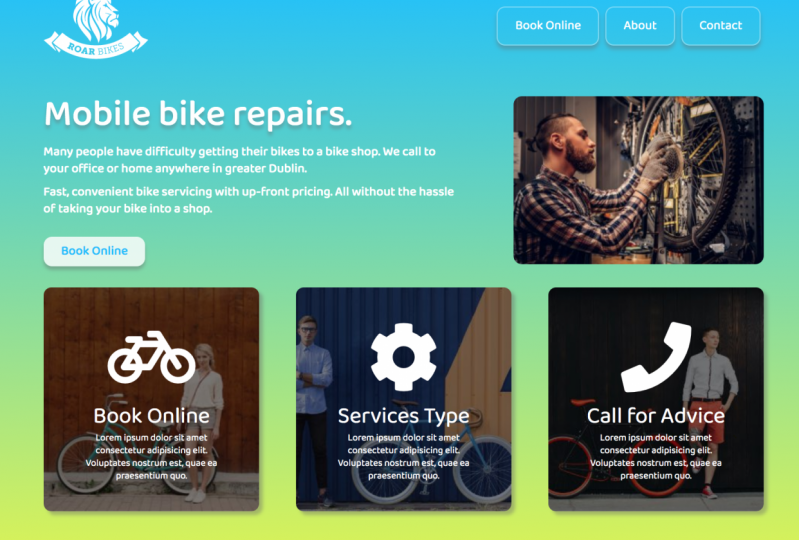



 6.675
17 Std. 11 Min.
6.675
17 Std. 11 Min.