Transcripciones
1. ¡Introducción a la clase!: No planear, planear fracasar. Es una cotización simple pero poderosa porque sin organización, nunca se
puede esperar
lograr la finalización. Hola a todos, Mi
nombre es Will y soy el creador detrás de
mi brote de marca, una comunidad global que
faculta a las personas para vivir una vida más satisfactoria a través la
construcción de la mentalidad correcta. Ahora trato de hacer esto
desde una variedad de ángulos. Y es posible que
me hayas encontrado de videos de YouTube, un boletín semanal,
estos cursos en línea, o muchas de las otras
plataformas en redes sociales. En la clase de hoy,
voy a estar usando Noción para enseñarles
a organizar, construir, y crear una variedad de
herramientas geniales para planear su vida, para decirlo súper simplemente, si no
conocen ya un noción es que es una aplicación de gestión de
proyectos
y productividad. Y para mí personalmente,
lo uso para literalmente todo lo que
manejé mi negocio, rastreo mis gastos, plan, otros documentos con
creadores y mucho más. Mi motivación detrás de
crear este curso es el personalmente que he
tenido una batalla de toda la vida con tratar de entender
cómo las personas que
ya tienen éxito han
logrado su éxito. Y creo que esa noción es una herramienta
tan importante porque es el único lugar en el que puedes organizar las cosas en
tu vida personal y tu carrera, tus
relaciones, etcétera Y así si sabes cómo
usarlo y lo puedes usar bien, va a cambiar
mucho por ti. Así que he estado trabajando en construir mi espacio de trabajo Noción desde hace
poco más de un año, y es bastante
complicado en este punto. Entonces lo que voy a hacer
en este curso es tomar las partes más objetivamente
importantes de él. Y voy a
descomponerlos todos por
ti para que entiendan
cómo construirlos tú mismo. Sin embargo, antes de hacer eso, vamos a
entender realmente cómo usar Noción. Entonces cómo construir tablas,
páginas, secciones, todas las diferentes
cosas que puedes hacer ahí para que se vea bonita, que
se vea organizada. Y así que eventualmente,
cuando aprendes lo básico, también aprendes a
construir unas cuantas herramientas geniales. Entonces tendrás una profunda
comprensión de cómo usar Noción y será capaz arrancarte en tu propio rumbo. Al final
de todas las lecciones, te
voy a dar un mini-proyecto, un poco de tarea. Es muy guay la tarea aunque no
es como en la escuela. Esta tarea va a ser
que vas a tener diseñar tu propio espacio de trabajo
Noción. Y sólo vas
a tener que compartir algunas plantillas y diseños y cómo se ve
con la clase de esa manera, no sólo voy
a poder ayudarte dándote herramientas y plantillas y lecciones
de lo que he aprendido. Pero tus compañeros
también podrán hacer lo
mismo por ti. Bien, bienvenidos al curso. Ahora es el momento de dirigirse
a la primera parte,
que es entender
los fundamentos de la noción. Te veré ahí.
2. Parte 1: ¿qué es o cómo utilizar Notion?: Bienvenido a la parte número uno. Los fundamentos de usar
Notion, Notion muy brevemente
es
una productividad en una
aplicación de gestión de proyectos que puedes usar, ya sea que seas un negocio
o si eres un individuo. Yo personalmente, como dije
en la introducción, lo
uso para literalmente
todo en mi vida, ya sea administrar
mi planificación empresarial, mis videos de YouTube, escribir en un diario diario
, reformar toda mi
vida y mucho más. Antes de meternos en todos
los diferentes conceptos básicos de ello, solo te
voy a
mostrar cómo puedes inscribirte. Es súper fácil. Simplemente dirígete
a Notion dot. Por lo que te traerá derecho a la página de inicio
y luego haces clic este botón rojo en
la esquina superior derecha que dice probar noción gratis. Personalmente, me inscribí
con mi correo electrónico de Google. Y una vez que entres ahí, te va a dar
la opción de inscribirte como un negocio que tendrías que pagar, o inscribirte como individuo que no
tendrías que pagar, noción es completamente libre. Harías clic en
el botón individual y luego tienes la opción de usar noción en tu
escritorio o usar la aplicación. Personalmente, descargo la app. Y así vamos a ir
ahí mismo y
empezar en la siguiente lección, que es cómo incorporar
páginas y plantillas.
3. 1.1 Explorar plantillas: Bienvenido a la Lección 1.1, que es cómo
incorporar plantillas. Por lo que asumo por ahora
ya hemos creado nuestra cuenta
Notion. Ahora sabemos lo que es. Ojalá hayas
descargado la app. Una vez que descargues
la app y una vez empieces a usar Notion
por completo, verás páginas que
ya han sido introducidas, como las que estás
viendo en la pantalla en este momento. A estas se
les llama obviamente plantillas. Tengo mi propia configuración de Notion que te voy a
mostrar más tarde, pero he creado
una cuenta
gratuita completamente nueva solo para que pueda hacer esto contigo y
mostrarte cómo construir y mirar
cosas desde cero. Ahora una de las cosas realmente
geniales de Notion es su uso de plantillas. Entonces si ves dónde está el
ratón en este momento, hago clic en este
botón de plantilla y
me muestra una variedad de plantillas
diferentes para una
variedad de propósitos diferentes. Entonces, si eres diseñador, puedes usar cosas
como nuestra hoja de ruta. Si eres estudiante, literalmente
hay plantillas para nodos de clase
calculando tus calificaciones, haciendo espacio para tus compañeros de cuarto, puedes crear un
currículum por aquí. Incluso puedes establecer metas. Entonces realmente si solo
navegas por esta sección de
plantilla, comenzarás a
moverte, en mi opinión, un poco motivado por usar Notion
porque te está dando ideas de todas estas cosas que típicamente no era
capaz de rastrear antes, pero ahora puede rastrear porque tendrá la
infraestructura para hacerlo. Ahora cuando acababa de empezar,
hice lo mismo. Busqué a las plantillas, creé unas cuantas que realmente disfruté. Y entonces como
que empecé a mezclar y emparejar y
sacar cosas que no me gustaban, añadir cosas que me gustaban. Y eso es lo que me llevó a averiguar mi espacio de trabajo. Ahora a pesar de que te voy a
mostrar algunas plantillas y cómo construir tus propias cosas
desde mi experiencia personal, sí
te recomiendo que
al principio, empieces descargando algunas de estas
plantillas y agregándolas a tu espacio de trabajo
solo para que puedas obtener una idea fundamental de cómo funciona Notion. Sólo va a
poder llevarte a
una perspectiva más avanzada
sobre cómo puedes usar Notion. En tanto que si acabas de empezar
con un montón de páginas en blanco, te tomaría años
averiguar qué hacer. Genial. Por lo que has navegado
por tus plantillas, eliges las pocas con las que
crees que serían geniales
para empezar. Ahora veamos cómo podemos hacer algunas páginas y algunas secciones.
4. 1.2 Construcción de páginas y secciones: Bienvenido de nuevo a la Lección 1.2, que es cómo incorporar
páginas y sección. Ahora si volvemos a la página
Getting Started on Notion, entonces vemos que
hay un montón de pestañas en el
lado izquierdo y la barra lateral. Estas son esencialmente pestañas, pero también son páginas. Si hago clic en una, por ejemplo, la de casa personal, empiezo a ver que
hay dos secciones. Ahí está la sección diaria, hay una sección en vivo, y estas cuatro cosas, estos objetivos anualmente, planes de
viaje, recetas, lista de
películas, estas son
todas páginas individuales. Si haces clic en uno,
te trae a la lista de películas. Y luego si regresas, puedes hacer click en las recetas diseño
completamente diferente en un sentido amplio muy típico. El motivo por el que usamos
páginas es profundizar un poco más en cuanto a proporcionar un poco más organizaciones. Porque si acabas de tener una, unas 100 pestañas bajando por tu barra lateral, no estaría organizando. El punto es organizarse
tanto como sea posible. Así que me gusta profundizar en
cada pestaña de cada página agregando más páginas y agregando más secciones y
organizando así. Ahora, ¿cómo
creamos nuestra página de inicio? Digamos que íbamos a crear
una página completamente diferente, una pestaña diferente aquí
en la barra lateral. Genial, tenemos página en blanco, así que llamemos a esta
nuestra sección de inicio. Ahora si hago clic aquí, dice escriba el
botón de barra inclinada para los comandos. Entonces si hago clic en el botón de barra, me lleva a una
variedad de bloques básicos. Y estas son todas cosas
diferentes que solo
puedes insertarte. Y así es como
vas a crear este diseño de la página. Se puede poner en un cuadro de texto. Puedes hacer una nueva
página, una lista de tareas pendientes, una variedad de encabezados,
tablas, lista con viñetas. Ves que realmente hay muchas cosas
que realmente puedes hacer. Si hago la barra y
hago clic en la página, me lleva a una nueva página. Entonces esta es una página
dentro de la página. Entonces ahora
llamémoslo nuestra lista de hacer. Entonces si vuelvo a
la sección Inicio, veo ahora tengo una página en la
que puedo dar click. Así es como
crearías una página. Y lo siguiente que harías
si quisieras hacer la sección es que
volverías a presionar la barra y crear un encabezado. Si apenas empiezas a escribirlo, verás que esa
noción lo reconoce y ya aparece
automáticamente para ti. Entonces H1, H2, H3, y H4. Entonces digamos que queríamos
crear un H1. Boom, acabo de presionar Enter. Tengo un automático. Entonces si quiero
hablar de horarios matutinos, entonces ahora puedo tener una sección. Y si quiero añadir un divisor, entonces escribe en divisor. Y ahora puedo arrastrar mi página. Entonces usando estos cuatro puntos que están justo en el
lado izquierdo de la página. Puedes arrastrarlo debajo. Ahora. Está organizado. Yo quería hacer
lo mismo y quería hablar de mi horario
vespertino. Podría hacer lo mismo. Añadir otra página para hacer lista. Ahora tendría una
lista de tareas pendientes por la mañana, una lista de tareas pendientes por la noche. Entonces eso es solo lo básico de cómo se crea una
página y luego secciones.
5. 1.3 Creación de bases de datos: Bienvenido de nuevo a la Lección 1.3. Esta vez vamos a repasar bases de datos que
se llaman tablas, tableros
Kanban, calendarios,
y mucho más. Por lo que una base de datos es una estructura realmente
genial para usar cuando tienes
múltiples entradas o mucha información
que quieres
obstruir a un área específica. Un ejemplo de eso sería si estás creando una
revista diaria y
quieres que toda tu
entrada mensual se vea en una tabla, o por ejemplo, si estás
rastreando tu presupuesto. Entonces, ¿cómo
crearíamos uno de esos? Bueno, vamos a seguir de nuevo a la misma página que estábamos
haciendo en la última lección, que tiene nuestro horario matutino, nuestra lista de tareas pendientes, o
horario vespertino en nuestra lista de tareas pendientes. Si entro en la lista de
tareas de la mañana, por ejemplo, si hago clic y vuelvo
a presionar
el botón de barra para sacar la variedad de opciones que tengo
para los bloques básicos. Ahora no queremos
una mesa simple. Lo que queremos en cambio es que
queremos ir todo el camino
hasta la base de datos y ver
que tienes TableView, una vista de tablero, una vista de galería. Tienes una variedad de uso. Ahora lo que haces no es tan importante porque eres
capaz de cambiar a través de ellos. Te mostraré eso
en tan solo un momento. Aquí tienes un consejo profesional. Si subes a
la barra superior aquí, ves el botón compartir, el comentario, las
estrellas, todo. Haz clic en los tres puntos. Verás que
tienes la capacidad de
alternar entre
diferentes estilos de fuente. Y puedes hacer que tu
texto sea un poco más pequeño y que puedas hacer
la página de ancho completo. Me encantó hacer el ancho completo cuando estoy haciendo una
mesa o una base de datos, porque es más
espacio, mejor. Entonces ahora tengo una plantilla en blanco y ¿qué puedo hacer con ella? Bueno,
digamos que vamos a hacer esta lista de tareas maestras. Como dijimos,
íbamos a hacer. Ahora tengo una variedad
de diferentes secciones que puedo usar para organizar esto. Entonces, por ejemplo, tengo esta primera cosa
que es el nombre. Aquí está mi cosa que hacer. Si entro a eso, entonces se convierte en lo mío. Así que haz mi cama, limpia mi habitación, y diario. Ahora tengo tres
entradas que solo puedo manejar todo en un solo espacio. Estoy seguro de que entiendes lo
básico de una base de datos, pero por el bien de la discusión, te
estoy enseñando como
si fueras un novato. Y luego si hace
clic en el inmueble, dirá Editar Propiedades. Básicamente puedes escoger por aquí qué tipo de propiedad
quieres en el tipo. Se puede tener un texto,
podría ser un número. Podrías seleccionar, fechas de
selección múltiple, archivos de
persona, URL, correos electrónicos. Al igual que incluso puedes
convertirla en una fórmula. Esto es lo que hace que el uso de
Notion sea realmente genial, es que se
pone colorido , se pone bonito, pero también
se organiza realmente. Entonces, por el bien de no
perder el tiempo, no
voy a
traerte a través de
todo esto haciendo un
proceso de junta todavía. Vamos a esperar,
vamos a hacer uno juntos. Entonces dejemos esto
como una opción selecta. Y podrías hacer como
alto, medio, bajo. Y esto sería simplemente, si lo renombrara, lo
haría,
digamos prioridad. Entonces lo que puedes hacer es que
si vas por aquí, solo
pasas el cursor sobre
el botón de la mesa. Dice Agregar vista. Si hago clic en Agregar vista
me da opción para nueva vista. Puede ser un tablero,
una línea de tiempo de la
lista de galerías, o un calendario. Este es exactamente los mismos datos, excepto que está
enchufado a una vista diferente. Un calendario realmente no
funciona aquí en una lista de tareas pendientes. No funcionaría en un
presupuesto, por ejemplo. Pero definitivamente hay
diferentes puntos de vista que hacen que sea más
fácil de entender. Lo último cool que puedes
hacer antes de pasar a
la siguiente sección es si
ves estos botones Calcular, puedes hacer click en ellos y
tienes opciones para organizar
tus cosas
aún más y para ver total
valor haciendo clic en contar todo me dice la cantidad total de
cosas que tengo que hacer. Si por ejemplo, quería convertir esta propiedad en un número. Entonces haciendo clic en el
número y el formato, digamos que hice un dólar
canadiense, podría escribir en un $100.50
dólares, veinte dólares. Y si quisiera
saber el
costo total de hacer todo, entonces podría tomar la suma. Y C, me diría el cálculo total para contar todos los
costos de las cosas por hacer. Lo último que
puedes hacer es que si te
desplazas por el
lado derecho de la mesa, podrás ver unas nuevas
plantillas que puedes hacer, pero entraremos en eso más adelante. También puedes filtrar
y ordenar por datos. Para que pueda ordenar por la
prioridad en lista ascendente. Ahora he decidido que todo lo que sea de alta
prioridad aparece primero. Cualquier cosa que sea baja
aparecerá por último. En mi opinión, esta es la característica
más cool de Notion. Yo solía hacer muchas cosas en Excel y luego porque no
sabía compartir
un documento en Excel, entonces lo haría
en Google Sheets. Tenía a veces estaba
trabajando en un Excel, estaba trabajando en Google
Sheets y algunos de mis amigos trabajaban
en diferentes apps. Por lo que sólo fue un proceso realmente
confuso para crear
realmente tablas y tableros y organización de esa
manera, noción le permite incorporar todas esas diferentes
aplicaciones en una sola. Ahora, diré si eres
un usuario profesional de Excel, es
decir, si trabajas en finanzas o trabajo cuantitativo o todo eso, esto no va a
reemplazar por completo eso y aún no
usarías tu Excel. Pero en términos de organización muy
básica, estas bases de datos, esa noción te permite
hacer nuestro genio. De acuerdo, entonces esa es la
idea básica de cómo configurar la base de datos y usar
una tabla, por ejemplo. Ahora vamos a pasar
a la siguiente sección, que va más
profundamente en ella y creando una plantilla
dentro de ese obeso.
6. 1.4 Construir plantillas en bases de datos: Bienvenido de nuevo a la clase. Esto es menos de 1.4, que es cómo crear una
plantilla dentro de una base de datos. Entonces, ¿por qué hacer esto? Bueno, al inicio pasamos de crear una plantilla sencilla y luego actualizar
esa plantilla
creando páginas y
creando secciones. Y dentro de esas páginas, hemos creado tablas
y bases de datos, calendarios, lo que sea
que elijas hacer. Ahora queremos agregar
plantillas porque queremos tener múltiples
entradas y queremos
tener algún tipo de similitud
y aumentar la profundidad en los datos que
realmente estamos introduciendo. Por lo que se está
complicando muy rápidamente. Pero al mismo tiempo, también
estás aprendiendo mucho como ojalá supiera esto
cuando estaba empezando. Solo te estoy dando una guía
muy rápida
sobre cómo enfocarte en
lo importante,
vale, así que todavía estamos
en la lista de tareas pendientes este momento, la misma mesa. Ahora lo que voy a hacer es que nos
vamos a imaginar que
queremos sumar más detalles a las tareas reales
que estamos haciendo. Entonces sigamos adelante y eliminemos
las entradas anteriores. Voy a eliminar el costo porque es un poco
confuso en este momento. Y vamos a sumar
tres cosas más. Entonces digamos que lo primero que
queremos hacer es
que queremos trabajar. Lo siguiente que queremos hacer
es que nos gustaría estirar. Después de eso nos
gustaría limpiar nuestra habitación. Ahora, si ves cuando pongo el puntero sobre una de estas casillas
sobre lo que hay que hacer, tengo la
oportunidad de abrirla. Entonces si lo abro, me lleva a una página
completamente nueva. Y ya ves aquí, presiona Enter para continuar con una página vacía o
crear una plantilla. Ahora si hago clic en
crear una plantilla, entonces puedo diseñar una página maestra. Entonces digamos que lo vamos a
hacer por el primero. Y en cualquier momento tenemos un entrenamiento
que se agrega a la lista, queremos hacer una plantilla. Entonces lo que
vamos a hacer es decir crear
un encabezado y que
va a hacer ejercicios para hacer. Creamos una pequeña
sección como esa. Y entonces por ejemplo, simplemente, simplemente
te irías, lo
dejarías ahí. Lo siguiente que harías es
crear una sección y podrías hacer cardio para hacer, justo como ejemplo. Realmente estoy inventando
esto en el acto. Puedes hacerlo. Puedes hacerlo sin embargo
prefieres hacerlo. Y luego vamos a Back. Ahora tenemos
aquí una plantilla pequeña que dice entrenamiento. Entonces si hago clic en
él, cambiará automáticamente la página a esa plantilla exacta. Y así es como
se puede crear. Verás que
el ícono está ahí. Esa será la siguiente
sección que vamos a repasar cómo cambiarlos. Pero ahora cada vez
que tengas algo que hacer cuando quieras presionar
este botón abierto, tienes la oportunidad de
seleccionar entre diferentes plantillas. solo puedas escoger
la página vacía, o puedes hacer que sea un entrenamiento, o puedes hacer
tu propia plantilla. Puedes tener cinco o diez plantillas
diferentes. Y solo puede
ayudarte a organizar las cosas de
una manera más concisa
dependiendo de qué datos lo estés poniendo. Ahora solo para mostrarte un fragmento
realmente breve sobre cómo podría parecer. Iré a mi actual espacio de trabajo y te mostraré todo el
camino en mis redes sociales. Si estaba planeando algo, esta es literalmente una plantilla que hice para mis videos de
YouTube. Entonces esto es solo un ejemplo de cómo en profundidad
puedes tomar las cosas. Pero de nuevo,
repasaremos eso un poco más tarde.
7. 1.5 Hacer todo bonito: Bienvenido de nuevo a la clase. Esto es menos de 1.5, que es toda la ayuda para hacer las cosas se vean bonitas
y organizadas. Ahora volveremos a
esta homepage que hemos creado juntos
y volverás a ver, el diseño es muy sencillo,
muy blanco y negro. Digamos que quería
añadir un poco de color. Lo que podría hacer es dar click en los cuatro puntos justo a la
izquierda del encabezado, y verás la opción de
cambiar el color. Ahora podría cambiar el color
del texto o puede
agregar un fondo. Entonces si hiciera un fondo verde, lo resaltaría en verde. Por el contrario, si
quisiera guionista, solo podría hacer
eso y se puede hacer esto con prácticamente cualquier cosa. Pero en cualquier momento que estés
escribiendo textos llanos, Hey, ahí estás muy MALA
frase a error tipográfico, pero puedes convertir eso en textos
verdes y así puedes organizar y codificar por colores
cosas así. Otra cosa que
puedes hacer es que
en realidad puedes crear diferentes
columnas en Noción. Entonces, si no te gusta ver
todo verticalmente como tendido uno encima del
otro y
prefieres tenerlo lado a lado, entonces lo que puedes hacer
es crear columnas. Así que si realmente
arrastro esto de nuevo, tengo que presionar
esos cuatro botones. Lo arrastro hacia costado y lo alinearlo con
mis horarios matutinos. Y ahora tengo dos bloques, pero lo que pasa es que no se
sincroniza correctamente de inmediato. Así que tenemos un arrastre. De nuevo, siempre usa los
cuatro puntos si estás tratando de mover algo,
arrastra todo. Y luego a partir de ahí, en realidad
puedes crear dos columnas llenas de
lado a lado. Y otra cosa que puedes hacer
es que puedas cambiar los iconos. Los iconos son una forma muy
juguetona y divertida diseñar cosas que me encantan es, verás en la barra lateral
aquí todo tiene un icono a excepción de la
página de inicio que hemos diseñado. Entonces en la parte superior, si
me estoy desplazando y flotando sobre el texto de inicio, puedo agregar un ícono aquí mismo. Se va a
tirar automáticamente entró por mí, pero claro que
queríamos cambiar eso. Digamos que realmente nos gusta
nuestra homepage y queremos
que parezca un hogar porque
somos Eso es lo que decidimos. Ahí están tus iconos,
aparece en la barra lateral, pero también aparece en la parte superior. Ahora también puedes hacer esto para
cualquier página que la diseñes. Por ejemplo, hago
clic en la página, entro a la lista de tareas pendientes. Lo mismo por uno podría
pensar que es un aguacate. Es un aguacate. También puedo hacer click aquí, que sea un aguacate también. Siempre que quieras, puedes escoger, pero no solo
puedes elegir
un emoji de la lista
estándar de emoji de iOS. Pero también puedes
subir tu propia imagen. Por ejemplo, si quisiera
entrar en mis
cosas personales, no lo sé. Digamos que quería
hacerme la cara, aquí está mi cara. Literalmente puedo enchufar eso. Ahora el icono de mi lista de tareas pendientes
después de un Lowe's es mi cara. La otra cosa que puedes
hacer en cualquier momento que creas una página es
también puedes agregar una portada. Entonces si vuelvo a estar flotando sobre el encabezado de casa,
agregué portada. Se le da automáticamente
su imagen de banner, pero puedo cambiarla. Y de nuevo, puedo subirlo. Puedo elegir una imagen si
quisiéramos volver a hacerme la cara. Entonces ahí vas. Ahí está mi cara cargada y luego
puedo reposicionarla. Por lo que dice
espeluznante como posiblemente puede ser. Pero de nuevo, si no
quieres que sea tu cara, puedes cambiar la
portada y luego
puedes usar esta cosa llamada Unsplash, que es increíble. Estoy, cuando descubrí por primera vez esa noción y Unsplash
por asociarme juntos, me quedé honestamente realmente,
realmente impresionado. Unsplash es solo una enorme base
de datos de imágenes gratuitas
que puedes usar, pero todas son de
súper alta calidad. Para que puedas buscar
lo que quieras. Así que no sé
zapatilla para correr, puedo escoger eso. Es una imagen 4k y
es tu nuevo banner. La oportunidad aquí
realmente es infinita. Puedes hacer todo lo que
quieras con la noción de diseño. También puedes cambiar. Si volvemos a
las plantillas, digamos que queríamos
cambiar y agregar una nueva plantilla o
queríamos editar una. Si hago clic en los tres
puntos y
edito, también puedo añadir un
icono genial, mi plantilla. Así que ahora cada vez
que elijo un entrenamiento, se actualizó automáticamente para poner a alguien poniendo
algo de peso sólido. Así es como diseñarías un organizar tu espacio de trabajo Notion. Y sé que cuanto más bonito busca mucha
gente incluyéndome a mí
mismo, más probabilidades
vas a querer
usarlo y
mantenerlo y mantenerlo. Ahora vamos a
entrar en la parte final de los conceptos básicos sobre
cómo usar Notion, que es cómo enlazar
páginas entre sí.
8. 1.6 Consejos profesionales: páginas de enlace: Bienvenido de nuevo a la clase. Esto es menos de 1.6,
que es cómo enlazar páginas entre sí y ahorrar mucho tiempo
en el proceso. Ahora esta es una lección muy corta. Es un consejo realmente bueno que
honestamente no conocía hasta hace
unas semanas usando Notion, y te permite tomar
una página e ingresar directamente el mismo enlace para dirigirte
a esa página en un variedad de diferentes lugares
donde sea que lo necesites. Entonces digamos que
tenemos nuestra página de inicio aquí están el horario de luto. Y sólo por el amor de la simplicidad, vamos a renombrar esto como lista de tareas de la
mañana para que
pueda diferenciarlo entre
la mañana y la tarde. Ahora digamos por ejemplo, estaba en esta plantilla de
lista de lectura y por alguna razón realmente
solo quería referirme de nuevo a mi
mañana para hacer es, digamos, estoy leyendo un
libro llamado Hábitos Atómicos. Genial. Esto es parte de mi mañana por hacer porque todos los días decides
que quieres leer. Entonces, ¿cómo puedo conectar
eso para hacer lista directamente a esta página
si acabo de escribir en, ya
ves ahora puedo mencionar a
una persona, una página, una fecha, o también puedo
enlazar a una página aquí. Si sigo
tecleando en la página A hacer lista, verás que hay la
página que realmente aparece. Ahora tengo este enlace de referencia
directa a esa página exacta. Estoy en la lista de lectura, pero hago clic en ella y me trae derecho a mi mañana para hacer lista. Puedes hacer esto con cualquier página. Puedes insertarlo
en plantillas. Puedes ponerlo dondequiera
que se te permita escribir, excepto en una base de datos
real. Y es un consejo realmente simple, pero realmente
consejos que ahorran tiempo también. Genial. Entonces ahora hemos cubierto
casi todo lo que creo que necesitas saber
en cuanto a aprender
los fundamentos de la noción, ya
sabes usar
plantillas, cómo encontrarlas, sabes crear páginas, cómo dividir esas
páginas en secciones. Y si quieres un diseño
vertical o quieres un diseño lado a lado ahora sabes cómo hacer eso. También has entendido
cómo hacer una base de datos y verla
desde diferentes puntos de vista. Entonces haz una mesa o un
tablero o un calendario, y luego organiza tus
datos de esa manera. Pero incluso has ido más allá y puedes crear una
plantilla dentro de tu base de datos para
mayor especificidad y organizar tus datos. Y por supuesto, ya sabes cómo
hacer que se vea bonita. Ya sabes cómo agregar un icono, cómo agregar un banner,
cómo colorear tus textos. Yo diría sólo desde
un punto de vista
personal haber usado la noción
por más de un año, ya
sabes, todo lo que necesitas
saber ahora mismo para empezar. Vamos a entrar en la segunda parte, que va a empezar por
mí mostrándote mi espacio de trabajo. Y luego después de eso,
vamos a ponernos prácticos y prácticos
y aprender a construir
algunas herramientas notables a través de la
noción que al final, deberían ayudarte a convertirte en
un profesional al usar esta app y organizar tu gran
poder que uno ha hecho. Ahora vamos a la segunda parte.
9. Parte 2: mi espacio de trabajo y herramientas de construcción: Bienvenido de nuevo a la clase. Esta es la segunda parte, que va a ser
sobre construir tu propio espacio de trabajo Notion y
construir algunas herramientas que
garantizo objetivamente ayudarán a cambiar el rumbo
de tu vida actual. Ahora voy a
empezar la segunda parte de este curso
trayéndote a través de mi propio espacio de trabajo de noción
personal. Nuevamente, si lo ves y
te sientes intimidado por ello, debes saber que he
estado trabajando en ello y cambiándolo durante
un año y medio. Entonces es realmente un juego a largo plazo cuando estás construyendo
algo, cuando estás planeando toda
tu vida en tu negocio y
todo en una app, sabes que tu personalidad
va a cambiar, tus preferencias
van a cambiar. Así que ten en cuenta eso por ti mismo y cuando
estés viendo esto. Así que vamos a meternos en ello.
Empezaremos con la página de inicio. Muy claramente quería poner
mi nombre en grande como una foto. Y así mi homepage, para ser totalmente honesto contigo, no
es una página que realmente
usé, pero es sólo una especie
de sentada ahí. Tengo esta cosa
donde decidí hacer objetivos semanales. Es un poco como una
visión general muy amplia de una lista de tareas pendientes. Tendría ese tipo de tareas que sería si fuera negocio, trabajo de
clientes, Finanzas,
salud, YouTube. Y entonces yo rastrearía si en realidad
sucedió o no. Y como que hice
lo mismo cada semana. Claramente, como se puede ver cuáles son las fechas que estoy grabando esto, es el 16 de marzo, así que ya no uso la tabla de
objetivos semanales. En cambio, solo uso este diario de papel y me
ayuda a rastrearlo mucho
mejor que en línea. Notion no tiene que
ser tu única fuente, pero realmente estoy
tratando de hacerte entender que debería ser
tu única fuente digital. Todavía se puede emparejar
con cosas físicas como calendarios
y planificadores y revistas y demás. Tengo una barra lateral en la
página de inicio que básicamente solo enlaza todas las diferentes páginas
que necesitaría usar. Y por supuesto sólo tiene una pequeña lista de metas
que tengo para este año. Por lo que la siguiente sección
sería finanzas. Ahora no voy a
saltar a esto de
inmediato porque tiene información
sensible, pero vamos a
meternos en cómo construir su propio rastreador de presupuesto
en unas pocas lecciones, esencialmente, sigo toda la información empresarial
que tengo aquí, cualquier cosa que sea importante
para la contabilidad. Y luego en el lado izquierdo, tengo el presupuesto
para cada año, ya sea de negocios
o gastos personales, son como estados de cuenta de
ingresos y me ayuda personalmente a rastrear mi gasto y me ayuda a entender si estoy
gastando demasiado, si pudiera estar gastando más y dónde viene realmente el dinero que estoy
haciendo. Así que de nuevo, ya sea
un individuo o un negocio, esto es realmente recomendable
y subestimado. A continuación, tengo una página de goles. Realmente no uso
esto para ser honesto, habían vuelto un poco demasiado
complicados para mí. En cambio, lo que hice es simplemente
establecer metas personales y metas
empresariales y una
manifestación de mi vida. Después de eso, tenemos
la página de redes sociales. Ahora aquí es donde
creo todo mi contenido, toda la planeación para
ello, la programación, la organización, el scripting, todas las ideas que
vienen de esta sección. Y así se ve
realmente simple cuando solo
lo miras brevemente. Pero si abres
las notas, ya sabes, tengo muchas páginas
diferentes por aquí. Nuevamente, enlaces a las licencias
comerciales, información
importante,
cualquier medio, niños, cosas así. Solo puedes tirarlos aquí. Sistemas de planificación de video para
viajes, para videos de Tiktok, tengo una lista maestra
donde es una mesa, y me permite
guionar estos videos y rastrear si
están publicados y cuándo han estado publicado. Ahora si abro una página, tenemos un script estándar o si iba a
crear uno nuevo. Y hice nuevo video,
lo abro. Tengo mi video tiktok con
el ícono de Tiktok por ahí. Si hago clic en él, sólo
me da este esbozo muy breve. Eso es lo que decidí hacer. Yo uso principalmente esta página aunque
para mis videos de YouTube, que es una tabla
muy, muy compleja. Esto me ha llevado mucho
tiempo averiguarlo, honestamente, lo
aprendí principalmente
de ver a otros YouTubers que han hecho sus propios videos de
espacio de trabajo Notion. Recomiendo encarecidamente que
además de ver esto, si eres un creador, que también veas lo
que están haciendo también. Simplemente ver 23 o cuatro de
ellos te inspirará a ver formatos que podrías
pensar que son mejores para ti y trabajar más fácil en
tus ojos y todo eso. Después de eso, tengo
la página de brote. Aquí es donde manejé
literalmente todo mi negocio. Tengo diferentes productos que estoy tratando de
construir aquí mismo. Tengo listas de cosas para trabajo de
mi cliente de identidad de marca que necesito hacer, planeando mis viajes y así sucesivamente. Después de eso, tenemos
esta mega lista de tareas pendientes, que es algo que les
estaba mostrando cómo hacer en las primeras
partes de este curso. Esta es una página en la pestaña que decidí
poner por sí sola para que no
tuviera que hacer clic a través cinco botones diferentes solo para llegar a ver lo que necesito hacer. Y es una mega lista que tiene diferentes tipos de tareas
que necesito hacer. Simplemente anotando literalmente cualquier cosa que me venga a la mente, como si estoy fuera de casa, estoy caminando por ahí y
pienso en algo realmente necesito hacer
o algo que veo. Yo entro en mi Noción, entro en mi mega lista de tareas pendientes. Agregué, dije en
el tipo, el estado, la fecha, la prioridad, y luego puedo ir y volver a
comprobarlo más tarde. Es sólo cuestión
de hecho que
en realidad conseguí mis jeans de ahí,
así que nos quitaremos eso. Ahora. El tramo final es
la sección William. Esta es una sección personal es donde manejo toda mi vida. Así que aquí voy a través de
revisiones anuales, reseñas mensuales, y tengo algunas herramientas de
auto-crecimiento que serían un diario
matutino, rastreador de
fitness, pista de alimentación o aprendizaje de idiomas,
y una lista de lectura. Todas estas son cosas muy
importantes que te voy a mostrar
cómo hacerlo muy pronto. Esa es esencialmente la vista a nivel de
superficie de cómo se ve mi
espacio de trabajo Notion. Ahora vamos a empezar a
entrar en cómo realmente construir algunas herramientas aquí.
10. 2.1 Crea un rastreador de presupuestos: Bienvenido de nuevo a la clase. Entonces esto va a
ser menos de 2.1. Y en la lección de hoy, vamos a estar creando un Rastreador
de Gastos desde cero completo. Entonces, al final,
podrás tener esta herramienta que te permite
rastrear todos tus ingresos, todos tus gastos,
y luego ver una gran visión general de
tu beneficio anual. Ahora, te voy a mostrar brevemente lo que hice
por mi personal. Así es como se ve. Tienes la primera sección, que es tu beneficio anual. Tiene un total de
sus ingresos de años, un total de sus gastos, y luego su beneficio neto. Y luego tienes
dos mesas diferentes que organizan tus
ingresos totales por mes. Por lo que hay una mesa
para cada mes, ingresos
gratuitos, una mesa para
cada mes para tus gastos. Y entonces ahora vamos a crear esa misma
cosa exacta desde cero. Por lo que he ido a hacer clic en esta página en blanco llamada la
plantilla de presupuesto de muestra, que de nuevo, he hecho clic en los tres puntos
aquí y le permití ir todo
el ancho para
que puedas conseguir un mejor vista de toda
la mesa. Y lo que vamos a
hacer es que vamos a crear tres mesas juntas. Entonces vamos a
entrar en nuestra base de datos y crear un TableView. Ahora esto no va a
estar vinculado a nada. Y lo que vamos a
hacer es que
lo llamaremos tu beneficio anual. Después de eso, vamos a
crear otra mesa y
vamos a
llamarla tus ingresos. Entonces lo que vamos a hacer
es que primero vamos a construir la tabla de ingresos. Y luego vamos a
hacer básicamente una
copia exacta de la misma y convertirla
en los gastos después. Por lo que no tenemos
que hacer tanto del trabajo. Empezaremos haciendo nuestra
primera pestaña nombrada la fuente. Entonces esto es simplemente básicamente cualquiera que sea tu
fuente de ingresos. Tú lo describes, di de
dónde viene. A continuación vamos a hacer
algo realmente genial, que es que lo vamos a
organizar para el mes. Entonces vamos a hacer
una nueva propiedad y el tipo de inmueble va
a ser es sólo para seleccionar. La diferencia entre
select y multi-select es que solo puedes tener
una opción con el select. Y eso es lo que
realmente
nos va a permitir diferenciar realmente los ingresos y
gastos y poder
ver una buena visión general
del trabajo de cada mes. Entonces si agregamos una opción, vamos a sumar
literalmente cada mes del año juntos. Y en realidad solo voy a cambiar eso
y revertir el orden para que los primeros meses
del año lleguen primero y los últimos meses del año
la columna del año pasado. En lugar de tenerlo sea lo contrario de
lo que es en este momento. Ahora de nuevo, si quieres
cambiar los colores, eres bienvenido a hacer eso. Acabas de hacer clic en los
cuatro puntos al lado de cualquiera de las opciones y luego introducir
lo que sea, si lo prefieres. Voy a dejarlo como es
sólo por el amor de la simplicidad. Y luego vamos a
sumar otra propiedad y lo vamos a
llamar la cantidad. Y esta vez el tipo
va a ser un número. Ahora ves cuando ingresas
el tipo como número, también
obtienes un formato numérico. Podemos cambiar esto y
podría ser un Rublo o rupia. Uno podría ser cualquiera que sea la moneda con la
que estés trabajando
o un número simple. Para mí trabajo en dólares
canadienses, así que lo vamos a mantener en dólares canadienses
y vamos a
acortarlo un poco. Ahora lo que voy a hacer es que
voy a ir a pasar por debajo estas diferentes
propiedades que
tengo para las fuentes que
voy a hacer con contar todo. Por lo que puedo ver a partir de un breve resumen
cuántos recursos, ingresos, o fuentes de gastos que realmente
tengo cada mes. Y luego por la cantidad que
vamos a hacer el sol, sólo para que podamos ver
cuánto en total estaban ganando o cuánto en total eventualmente
vamos a estar gastando. Me gusta hacer todo
lo más organizado posible. Por lo que siempre me gusta incluir otra propiedad que sea un tipo, y esta otra vez es un selecto. Y las opciones
sólo van a variar en
función de qué tipo
de trabajo que hagas. Digamos que haces trabajo de cliente, entonces eso podría ser un tipo. O si ganas dinero en YouTube, eso también sería un tipo. O si obtienes dinero de
la familia, eso también es un tipo. Así como ejemplo, podrías hacer esas tres
cosas y esas serían la forma en que diferencias qué tipo de fuente
de ingresos tienes. Y luego eventualmente
si estás mirando atrás en tus años
y eres meses, puedes ver qué tipo de ingresos hizo
más dinero para ti. Después de eso,
vamos a tener la fecha en que incurrió este ingreso. Voy a crear una columna de
fecha, muy simple. Se hace clic en él y
le permite poner en cualquier
día en que los ingresos
realmente ocurrieran. Esto es perfecto. Ahora ya
puedes ver que tienes esta mesa hazte que estoy
rondando aquí mismo. Ahora esto es lo que vamos a
hacer para que sea muy guay. Lo que vamos a hacer
es que vamos a hacer clic derecho y
vamos a duplicar. Si duplico,
ahora puedo cambiar el nombre de esto
al mes que me
gustaría que fuera esto. Por lo que voy a renombrar esto a enero. Y ahora ves básicamente que estoy organizando
las cosas para el mes. Ahora esto es lo que
vamos a hacer para que te asegures de que cada fuente de datos que realmente
ingreses entra en el mes correcto. Entonces lo que voy a hacer
es volver
a la sección de enero, la original que hicimos. Voy a hacer clic en Filtrar. Lo que voy a hacer es hacer clic en mes y el mes es enero. Así que ahora tenemos un filtro que la única forma en que
vas a ver que algún dato aparece en el
mes de enero es si has hecho clic en Enero, la pestaña de selección para ellos. Debido a eso,
ves en cualquier momento hago clic cualquier nueva fuente de
ingresos en enero, actualiza automáticamente
para que se llene el mes. Entonces así es como
sabes que cada vez
que pones algo de
enero a tipo de aparecer. Por el contrario, si estoy
en febrero
ahora mismo y olvidé que
había algo que necesitaba hacer en
enero y añadí entonces aparecerá en
la sección de enero. Entonces así es como acabas de
hacer las cosas organizadas. Entonces vamos a
entrar en febrero. Vamos a hacer
lo mismo. Vamos a ir Filtrar mes, pero esta vez
va a ser febrero. Ahí vas. Aparece así febrero,
enero, febrero. Entonces no te voy a
mostrar cómo hacer esto, pero básicamente estás haciendo botón derecho duplicado
y vas a, lo
vas a nombrar March, y luego vas a cambiar
el filtro de nuevo en marzo por lo que el filtro y el mes
es el mismo mes coincidente. Y verás que va a
aparecer así. No te voy a mostrar
cómo hacerlo por todos los 12. En cambio, vamos a entrar en
hacer la pestaña de gastos. Así que lo que vamos a
hacer es que vamos a tomar toda la mesa, vamos a hacer clic en ella y
vamos al Comando D, lo que significa que
vamos a duplicarlo. Esto nos traerá
una copia exacta de esa tabla y lo vamos
a nombrar Gastos. Ahora lo único que
voy a añadir a los gastos que
va a ser un poco diferente a los ingresos es solo la tarjeta que usaste. Esto, no es realmente relevante si solo
tienes una tarjeta de crédito,
pero si tienes una tarjeta de débito, las tarjetas de
crédito usan la tarjeta de un padre y usan una tarjeta de crédito comercial, entonces esto es algo que definitivamente quieres
estar incorporando. Nuevamente, es una opción selecta. Podrías hacer Amex, Visa, MasterCard, débito,
lo que sea que uses. De esa manera en cualquier momento
que tengas un gasto, puedes rastrear donde
gastas la mayor parte de él. Quizás de dónde vienen puntos
o tal vez estás pagando con
cosas con la tarjeta equivocada
o tu débito demasiado o lo que no. Sí, genial. Entonces tenemos todo lo mismo. Tendrás que hacer
exactamente lo mismo básicamente para febrero,
enero, marzo. Pero si creas
toda tu pestaña de Ingresos con los 12 meses antes incluso de
copiar tus gastos, entonces ahorrarás tiempo así. Por lo que ahora tenemos los ingresos
a una mesa terminada, tenemos terminada la
tabla de gastos ahora
solo necesitamos llenar
la tabla anual de ganancias. Entonces todo lo que nos va a
requerir es una fila. Vamos a nombrar,
vamos a cambiar el nombre la primera propiedad que
acaba de llamarse el profeta con el fin de realmente hacer lo que tengo es muy
complejo y para ser honesto, no
creo que
quiera recomendar que lo intentes enseguida. Entonces lo que vamos a hacer
es que vamos a cambiar los dos tipos diferentes de propiedades por los
ingresos totales y los gastos totales, pero ya no van a
ser roll-ups. En cambio, van
a ser dólar canadiense. Y las ganancias van a ser tus ingresos menos
tus gastos. Y eso es todo. Así que lo que vamos a hacer es que
vamos a tomar todos nuestros ingresos. Digamos que el dinero de mamá. Mamá te da $20. Impresionante. Vas a ver que
eso es que algunos aparecen, digamos dinero de YouTube
que te hace un $100. Entonces tienes unos 120 dólares que van a
aparecer como tus ingresos. Entonces digamos. Pero nueva cámara en
febrero, 5 mil dólares. Por lo que ahora tienes un $120 de ingresos en enero y febrero, tienes $5 mil
de gastos. Entonces lo que puedes hacer
es solo sumar todos
estos valores de suma total a tus ingresos y
gastos y
podrás rastrear
tu beneficio total. Entonces ahí lo tienes. Así es como usted sería
capaz de hacer su presupuesto. Y a partir de ahí puedes
rastrear cuánto gastas y cuánto
ganas cada mes. Puedes duplicar esta página y crear una separada
para tu negocio. Y eso es todo.
Así que sigamos adelante.
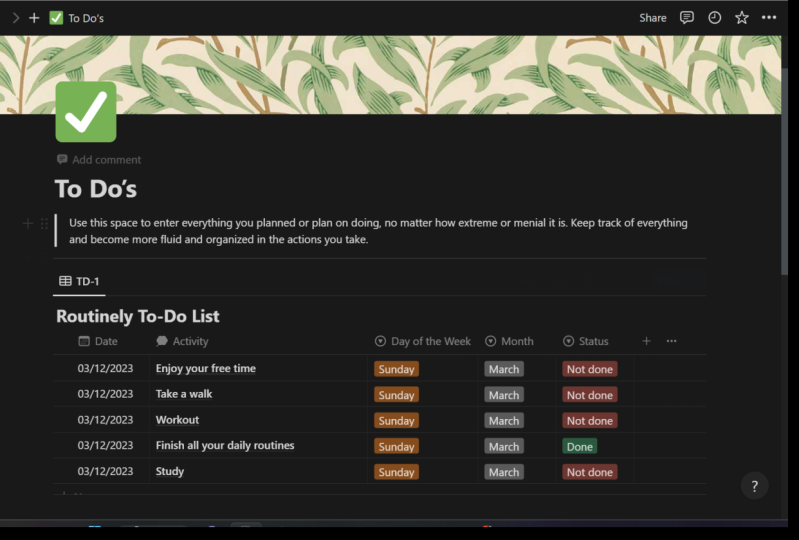
11. 2.2 Crea una lista de tareas: Bienvenido de nuevo a la clase. En esta lección,
vamos a repasar cómo hacer una mega lista de tareas pendientes. Ahora probablemente hayas
hecho una tonelada de lista de tareas pendientes en algún
momento de tu vida. Lo que me encanta
de usar Noción
para la lista de tareas pendientes es lo fácil que es realmente organizar y
filtrar las cosas
para que
reconozcas lo que es importante y para que realmente
hagas esas cosas. Ahora si acabas de enterrar tu lista de
tareas pendientes en cualquiera de las pestañas que ya existen en tu barra lateral o en otra página. Te garantizo que no
vas a poder encontrarlo y no vas a hacer nada, no te
vas a apegar a ello. Sólo va a ser
otro desperdicio de espacio. Confía en mí, he estado
ahí y uno de los problemas con
manejar mucha de tu vida es online diferentes pestañas y no
poder ver todo a la vez. Realmente quieres
asegurarte de que cuando tengas algo tan importante
como una lista de tareas pendientes, está justo delante de
tu cara cada vez. Por eso vamos a
volver a nuestro espacio de trabajo y lo vamos a
hacer su propia pestaña. Entonces comenzaremos con
una mega lista de tareas pendientes. Ahora verás que esta misma página exacta existe
apenas un poco más arriba. Eso es porque lo estoy
recreando con ustedes chicos. Escoge un ícono. Me
gusta la marca de verificación. Suena como una muy buena manera de mantenerse
al tanto de las cosas. Y por supuesto, soy un gran fan de las páginas de ancho completo en cualquier momento vamos a estar
haciendo una mesa. Ese es nuestro siguiente paso. Vamos a entrar en nuestra
base de datos aquí, TableView. Va a ser una nueva base de datos. Esta va a ser
nuestra lista maestra. Por lo que sólo necesita una vista, básicamente sólo la mesa. Y vamos a
organizar esta tabla de
la manera en que sus artículos y su lista de
tareas pendientes se van a clasificar por su categoría
de importante. Vamos a entrar en eso. Primero. Cambiaremos el nombre de nuestra propiedad
original y lo llamaremos nuestra tarea. Lo siguiente que
vamos a hacer es que vamos a cambiar esta propiedad etiquetada. Vamos a cambiarle el nombre
a prioridad. Y el tipo va a pasar de multi-select a solo seleccionar. Y luego vamos a
ir bajo, medio y alto. Y voy a cambiar
los colores para reflejar que queremos que el verde
como alta prioridad, medio sea amarillo,
bajo para ser rojo. Eso es preferencia personal. Por supuesto que puedes
cambiarlo si quieres. Lo haremos un poco más pequeño. Y lo que vamos a hacer de
inmediato es que vamos a
saltar al
lado derecho de la mesa. Vamos a entrar en especie. Entonces lo vamos a ordenar inmediato por la propiedad
en vista ascendente. Así que en cualquier momento que tengas
algo que es alto automáticamente va a ser clasificado por algo que es más bajo. Entonces si de repente
decidí ir alto, entonces verás cómo
cambia y así sucesivamente. El siguiente inmueble que
vamos a crear es un tipo. Como se puede ver en probablemente decir, soy un gran fan de
explicar las cosas
tanto como sea posible porque cuanto
más obvio es algo, más probable es que realmente lo
vas a hacer. Para el tipo. Puede ser lo que quieras. No necesariamente
tienes que llenar esto. La forma en que lo tengo es
como operaciones empresariales, Finanzas, vida personal,
YouTube, etc, etc, etcétera Hay una variedad de cosas
diferentes que puedes poner. Puedes tener tantas
opciones como quieras,
así que te dejaré eso para que
lo averigas. Y luego la siguiente propiedad
que vas a poner es el estado. Así que esto es otra vez va a ser un selecto y sólo
vas a tener dos opciones, así que vas a ir
no hecho ni hecho. Y de nuevo, vamos a
hacer esto obvio. Mukden verde
hará que no se haga rojo. Ahora lo que vamos a hacer de
nuevo es que vamos a filtrar todo en tus mesas. Entonces si dejé esta
cosa de estatus como hecho o no hecho, eventualmente después de agregar
decenas y cientos de elementos y
tareas diferentes a tu lista de tareas pendientes. Vas a tener esta loca larga lista de tareas pendientes
y no se va a organizar
en absoluto en algún momento. Entonces lo que vamos a hacer
es que vamos a crear un filtro para que cada vez que termines una
tarea, desaparezca. Por lo que volveremos a hacer clic en
el lado derecho de la mesa, presionaremos Filtrar. Y lo que
vamos a hacer es que
vamos a hacer clic en el status. Sólo queremos mostrar
cosas que no se hacen. Lo que significa que si sucede
que eventualmente se hace, verás que desaparecerá. Entonces digamos que haga la cama, digamos que limpie mi habitación. Y digamos que hagamos la
lavandería por ejemplo. Digamos que termino haciendo la colada y presiono
Hecho. Ahora se ha ido. Es el chicle. No lo volverás a ver, pero puedes quitar el
filtro del estado. Digamos que lo borras y luego todo aparece después de eso. En realidad no está perdido. Simplemente no se puede ver
porque le hemos puesto un filtro para
simplificar todo. Y digamos que hacer mi cama es un brote de baja prioridad
limpiar mi habitación es alta. Eso aparecerá primero. Fantástico. Ahora lo último que
vamos a hacer muy simple es que
vamos a ser fecha de entrada. Me gusta poner esto, no es necesariamente
lo
más importante, pero es interesante
porque si tienes tareas o pensamientos que
acabas de meter en esta lista de tareas pendientes, y ya han pasado dos meses desde lo has hecho o desde
que lo has pensado. Uno, al menos está
ahí pero dos, ya
sabes cuánto tiempo
llevas
sosteniendo ese pensamiento y
no actuando al respecto. Y ojalá te
motive para que
empieces en ello. Así que me gusta volver a poner una
fecha de entrada, vamos a poner un tipo
diferente. Ahora, se puede ver en una especie vamos a ir
fecha de entrada ascendente. Ahora si miras de cerca, ves que hay un ranking. El tipo prioritario es primero, la fecha es segunda, lo que significa que aunque
esto sea el 16 de marzo, es el más reciente. Pero esto lo hice en febrero. No va a
revertir el orden porque la prioridad de
limpiar mi habitación es alta, pero hacer mi cama es baja. Ahora si acabo
haciéndolos altos a ambos, entonces verás que la
fecha cambiará. Esto es exactamente todo lo que necesitas. Acabas de poner toda una
lista de tus tareas, definirla por su tipo, para encontrarla por su prioridad. Y luego eventualmente
cuando lo golpeas,
desaparece y
sigues agregando esto, te vas en tu barra de pestañas. Confía en mí, es perfecto.
12. 2.3 Crea un diario diario: Bienvenido de nuevo a la clase. En esta lección,
vamos a estar
aprendiendo a hacer un diario
diario por cero. Ahora, estés
interesado o no en
usar realmente esta revista, recomiendo encarecidamente
que lo hagas y escuches y lo
hagas de todos modos, porque en términos de
superación personal y autocrecimiento, diario ha sido la
actividad más profunda que he usado. Lo he estado haciendo durante cuatro o cinco años realmente,
realmente consistentemente. Y cuando
empecé, estaba en un
punto muy bajo de mi vida. Y de verdad creo
que hacer diario y canalizar mis propios pensamientos y entender más sobre
mí mismo fue realmente lo desbloqueó todos esos secretos al crecimiento que tenía. sabes, si
eres un chico o una niña, mayor, más joven, no
importa. Diario, súper importante, tienes que
conocerte a ti mismo. Tengo que ser consciente de sí mismo. Y si puedes hacer eso, entonces te prometo que te
ayudará a construir la mentalidad correcta para lograr
el éxito que quieras. Noción de nuevo, una
herramienta muy valiosa en cuanto a eso. Y así que hoy
vamos a estar construyendo una plantilla de diario noción. Pero al mismo tiempo,
al construir esto, vas a aprender de
nuevo a usar una mesa y cómo usar filtros
y clases y todo. Pero también vas
a aprender cómo puedes diseñar tu propia plantilla de
base de datos de tablas. Entonces es una lección muy fructífera. Nuevamente, tengo mi
propio diario matutino aquí escrito en mí mismo, Growth Tools, que está
en mi página personal. Lo que he hecho se
ha ido a la parte inferior y acaba de crear una plantilla de
diario, página
en blanco, ícono de lápiz, nuevo, tres puntos, ancho completo. Base de datos de tabla. Nuevamente, la mayoría de las cosas que
tengo para ser honesto
contigo que uso en Notion,
nuestras bases de datos de mesa. Esa es realmente la mejor
parte de la noción para mí. Entonces hemos creado nuestra mesa
y lo que vamos a hacer es que la vamos a
enumerar para el mes. Entonces digamos que
comenzaremos con enero. O lo vamos a hacer aquí
es que vamos a cambiar
el nombre de la primera propiedad
y llamarlo el día. Todo lo que vas a
hacer cada vez que ingreses una entrada de diario es que
sólo literalmente vas a escribir la fecha,
enero 12345. Y aquí
vamos a empezar cambiando el nombre de la propiedad. Va a ser el
día de la semana. Por lo que esta ahora va a
ser una propiedad diferente. Vamos a hacer que sea un selecto
en lugar de un multi-select. Entonces vamos a agregar opciones. Entonces domingo, sábado,
viernes, etc. Vamos a hacer todos
los días de la semana. Y entonces todo lo que
vamos a hacer después de eso es agregar un nivel de felicidad. Nivel de felicidad de formato numérico muy
simple. Y puedes agregar emojis si
quieres hacer esto más feliz. Y sólo vas a hacer
básicamente un ranking en diez. Te sientes como
uno, te sientes como un nueve, te sientes como un bronceado, te sientes como 7.6.
No importa. Lo que vas a hacer es
simplemente escribir tu sentimiento a las
diez en el momento exacto en que
estás iniciando un diario. Después de eso, vas a
escribir lo más destacado de ayer. Este es un cuadro de texto. Vas a escribir una cosa
increíble que
pasó ayer, aunque no pase nada de lo
que creas agradable, pero tal vez veas
un buen episodio en Netflix o tuviste
un almuerzo realmente agradable. Eso podría ser algo que quieras anotar
tu punto culminante. Y luego después de eso,
voy a escribir un motor, una cita motivacional para
ti mismo, mensaje motivacional. Por lo que a veces esta es una cita favorita que
me gusta incluir. A veces soy como
la riqueza, la chupa. Es hora de dejar de ser duro
contigo mismo, dejar de estar triste. Hay muchas cosas
positivas en el
mundo que están pasando,
enfocarse en lo positivo. Y ahora básicamente lo que
tienes es esta visión general que puedes rastrear
cada mes de cómo te sientes
en qué días. Y también puedes recapitular lo que
te ha pasado todos los días del año. Entonces si escribes
tus puntos destacados, podrás ver
qué te hizo feliz, qué día sucedió,
por qué te hizo feliz, y entonces también tienes
tu nivel de felicidad. Y el día de la semana tal vez encuentres que
eres más feliz los
domingos pero más
****** de descuento los lunes. Al igual que esa es una tendencia
que se puede analizar haciendo un seguimiento de
estas entradas de diario. Así que ahora mismo eres dorado. Pero lo que vamos a hacer
eso va a cambiar esto. Vamos a hacerlo un
poco más complejo, es que vamos a añadir
una propiedad más cuando llamarlo el mes. Ahora, de nuevo, esto
va a ser un selecto. Y lo que vamos a hacer es hacer exactamente
lo mismo que hemos hecho. Y vamos a nombrar todos
los meses para nosotros mismos. Y la razón por la
que vamos a hacer esto es porque
vamos a empezar a crear filtros para nosotros mismos para
que seamos capaces de
rastrear diferentes
meses y no tener un montón de
clústeres diferentes en una página. Tenemos el mes aquí. Esto es enero 2022, por lo que esto es enero, 1 de enero. Perfecto. Lo que vamos a
hacer es agregar un filtro. Y sólo vamos a mostrar esta entrada si corresponde
al mes específico. El mes tiene que ser enero. Si no es enero,
no aparecerá. Ahora lo que vamos a hacer muy similar a lo que hiciste
cuando hiciste el presupuesto, es que vas a
duplicar esto. Se va a convertir en febrero. Vas a tener exactamente
el mismo esquema, pero el mes que lo
vas a cambiar a febrero y eso es
todo lo que va a ser. No va a ser ninguna otra
entrada de ningún otro mes. Nuevamente, copiar pegar, duplicar. Vas a crear
esto por 12 meses. Así que ahora lo final que
vamos a hacer es que nos vamos
a ir a la primera columna, nuestra pestaña de día, y
vamos a abrirla como página. Ahora ya ves,
entramos en esto antes en la Sección uno que podrías
crear tu propia plantilla. Para crear tu propia plantilla, trimestre va a hacer clic en ese
botón y va a ser una entrada de diario. Y lo que voy a hacer es que
sólo voy directamente a copiar pegar lo que he escrito
en mi plantilla personal. Entonces esto es lo que te
recomiendo que hagas. Nuevamente, totalmente subjetivo. Empiezo por
incluir un hoy, me siento así que en esta sección solo
vas
a estar escribiendo puntos de
bala de
emociones y sentimientos. Podrían ser solo palabras, podrían
ser oraciones. Y no hablaste de
tu día. ¿Cómo fue tu día? ¿ Cómo te sientes Qué
pasa, ¿Qué está pasando? Básicamente eres como
difuminarlo como si estuvieras en terapia excepto que te
lo estás escribiendo a ti mismo en la computadora. Después de eso, muy sencillamente, vas a clasificar
tus niveles de felicidad para tu carrera, relaciones de vida
social,
salud, emocional, ambiciones, realmente los componentes
esenciales de vivir una vida satisfactoria. Y luego después de eso, solo
vas a escribir
¿qué puedo hacer hoy en esta semana para mejorar
cualquiera de esas calificaciones? ¿ Cuáles son algunas cosas pequeñas? ¿ Puedo trabajar más? ¿ Puedo diario más? ¿ Puedo ir a ver amigos? ¿ Cómo podemos mejorar esos números para que se hagan más altos
en algún momento. Después de eso, siempre me
gusta recordarme dos goles que tengo para esta semana, este
mes, este año. De nuevo, esto se remonta a fijación de metas para estar seguro de que
estás encima de las cosas, ya sea en un
entorno de negocios o en tu vida personal. Y luego por último pero no menos importante, es una manifestación legítima. Una frase, ¿Qué es
una cosa que
quieres que no
tengas en este momento? Para mí mucho de las veces es como si quisiera 100
mil suscriptores, pero a veces
lo cambio y digo que quiero ser un buen bailarín.
Nunca se sabe. Pero ahora tienes esta plantilla. Se puede ver aquí mismo
que es una entrada de diario. Esto aparecerá en cualquier momento que
quieras crear una nueva entrada. Cuando copie, pegue sus tablas y las duplique
en los diferentes meses, esta plantilla se va
a quedar contigo, por lo que no tendrás que volver a
importarla cada vez. Esencialmente eso es todo. Por cada vez que
ingreses a tu diario, vas a ver que tu
plantilla cuando abres la página está ahí mismo. Y para que puedas introducirlo
todos los días de la semana, rastrear cómo se ve y se siente. Y garantizo que esto es
lo mejor que puedes agregar en cuanto a tu
bienestar personal en tu plantilla
Notion. Lo hago cada mañana por 20 minutos y me cambia la vida. Entonces ahora ya sabes cómo hacer una plantilla de diario sobre
Notion para conseguir después de ella.
13. Conclusión: ¡gracias por ver!: Eso resume más o menos cómo
usar Notion para organizar, planificar y mapear tu vida. Te he mostrado los fundamentos de mostrarte cómo
usarlo desde cero, crear plantillas,
secciones de Paige, bases de datos, todas las cosas necesarias que necesitas para poder
trabajar alrededor de la app y empieza a usar tu
propia creatividad en tus propios deseos para hacer
esas páginas que quieras. He compartido mi espacio de trabajo
personal con ustedes chicos no
cambió nada. Se ve exactamente así. Entonces si quieres volver
a esos videos, pausar, mira lo que hice y solo un poco ver el
formato de las cosas, entonces puedes empezar
a construir tus ideas. Y podría ser algo bueno para la inspiración
porque sé que
eso es lo que hice cuando estaba viendo otros videos de noción. Entonces, finalmente, te he
mostrado algunas herramientas,
el diario, la lista de tareas pendientes, y también el Budget Tracker. Estas son tres cosas que
son realmente importantes para tu bienestar personal
y por supuesto, solo en la vida en general. Entonces sé que hay
muchas aplicaciones
y herramientas diferentes para la productividad
y las organizaciones. De verdad os animo
chicos a usar Notion para mí. Me considero un adicto a la autoayuda de
toda la vida. Siempre leo libros y escucho podcasts
e intento descifrar las mejores herramientas y formas en las que puedo organizarme
y tener éxito. La noción ha sido esa una cosa, verdaderamente la única aplicación. Cuando empecé a
usarlo y me metí en
ello, se hizo cargo de todo. Entonces si le das tiempo
suficiente y lo descargaste a totalmente gratis, no cuesta nada. Entonces creo que
vas a llegar a disfrutarlo de
verdad y
realmente me encantó. Muchas gracias chicos por
acompañarme en este curso. De nuevo, soy Will y soy la
fundadora de mi brote de marca. Y si ustedes
quieren ver algunos de esos videos de YouTube o suscribirse a mi newsletter
o consultar mi página web, o incluso simplemente ponerse
en contacto conmigo. Todo eso va
a estar vinculado en la sección Acerca de mí de este curso y en mi
perfil personal en Skillshare, podrás conseguir todos
esos enlaces ahí mismo. Sí, cuando ustedes empiecen a
trabajar en sus espacios de trabajo, por favor tomen capturas de pantalla y compártelas y añada sus
propias plantillas a los proyectos de
este curso para que todos los demás que estén viendo
puedan hacer el misma cosa. Y puedes tener
tantos ejemplos diferentes para elegir y
comparar y contrastar y solo
tipo de construir a partir comparar y contrastar y solo de lo que ya
piensas. Espero que este curso,
aunque sea bastante corto, pueda cambiar tu dirección de tu vida y te ponga
en un mejor camino al tener una herramienta que
siempre estará ahí contigo
para ayudarte a mejorar. Así que muchas gracias chicos. Espero que tengas un día impresionante y te
veré la próxima vez.
 Sprouht, YouTube Creator