Transcripts
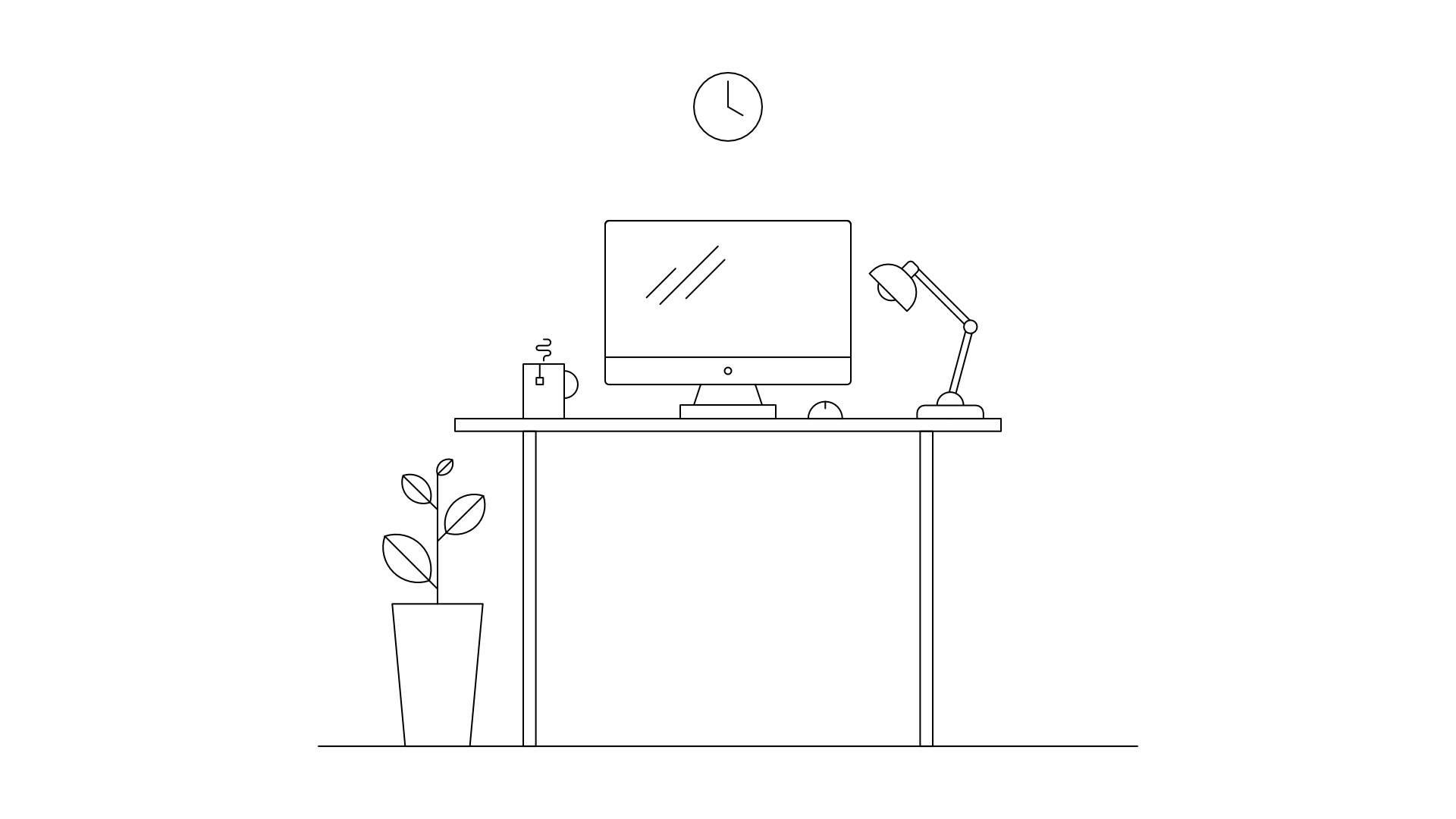
1. Introduction: Hello everyone. My name is Sergeant women. I am a graphic designer to endless deterred. And in this class, I'm going to explain you how to create this blank workspace illustration enough entity designer with a startup planning and sketching. And then we'll refer that sketch to create our illustration. This class is designed for beginners. So what I will do this, I wouldn't be using Affinity Designer while commuting facilitation and Mubarak spin them before I am excited to share my process with you. So let's get started.
2. Planning & Sketching: For this kind of illustration which has so many objects, I usually start by making a list so I don't get overwhelmed. Foreigner friends, you can go to Pinterest and Mugler and such for some homes today, ideas all workspace ideas. You can even look at your own workspace. We are creating a Flagler sessions though it doesn't have any kind of depth. Flat illustration is basically an orthographic view off any object or seen. So it can be frightening side or top view. In our case, we are creating a flier and we all workspace. Let's start creating our list. I have divided this list into different categories. So first category will be the key objects. So in key objects, I would like to include a desk first and then monitor, mouse, desk, lamp, and coffee mug or team on whatever you would like to call it. Second category would be essential objects. So inside, essential objects will add printer or dustbin and plug board. Third category would be plants. So applied on floor, plant on desk maybe. And a shelf plant. Fourth will be the shelf itself. So we'll add the two shelf or chair and final category would be declarative. So indicatives we will add a photo frame, wall clock, and some sticky notes here and there. Now let's start sketching. Let's start by creating a ground plane, or in this case, a floor play. So just create a line the bottom of the page and add a line to the top Also, just to give an illustration of breathing space. If you look at their desk from front view, the top, the tabletop just look like a rectangle. So to draw a rectangle, take half of the height and 80 to 85% of width because I would like to draw wider table to draw simple lines. Was tired also draw simple vertical rectangle. Now do this side, I would like to add some storage. So in this case I'll add some draws. Make this portion wider and divide these into three. So join them to other. Now add us Lord here is to pool their door out. Let's add them monitors for wider. You can refer your own monitor. I would like to draw IMF type monitor right to the center. Doesn't need to be precise. Try to draw it in the center. Draw the Stan. As you can see, these shapes are quite simple. Most of them are rectangles. So it's not really hard to create. Not draw this button area. If you look at your malls, which will look like a semicircle from Frank view. So draw a semicircle. And to add a tiny detail just to draw our ticker line on the top. So it will give you a feel lake Scroll button. Let's add the coffee button, sorry, coffee mug. Again, create a simple rectangle. Draw semicircle for the Handel. Adds some smoke, and I'll add a coffee or tea bag to add some tiny detail. Now let's create our labs to create the lemon just phosphate the base, which would be rectangle. And its nature again, add a semicircle, urine which will act like a joint, nor draw some diagonal lines, can use your ruler also, add a circular joined here. Create a semicircle. Broad joined here to get some ship join. And a bulb. Design all our key objects. Now let's add some essential objects or big data fast. Again, printer is rectangular in basic nature. So draw rectangle. I think I need to increase the height of this. Let's add some button here, the sprinter or Rick curvy. And we'll do that in our illustration. Add a paper trail. And a paper itself. This depth area here. And again, add people to make it look like that. Bring this coming on and fill this area. Let's add a blackboard. Oddest switchboard. For blood. Creator. Triangle shape will give you an illusion of plug and make a wire. Let's add a dust bin on the floor. Now add a blind on tour. Let's add a simple clock here. Just create a circle. Create a photo frame. So merrier, greater landscape type illusion to it. Now add the shelf. So let's add a shelf fear there's so much space available year. To make it look compositionally deliberated. Try to balance it. Add some books here. Let's add a simple camera on top of the MOOC. I think we need to add one more shellfish. If you have any ideas in mind, you can add something else also. Waters. Yeah, let's add a plant on the desk and the shell of I think everything is done. Some sticky notes sticking on something that you've done on it. T k naught. Again, add a sticky note on wondering why not. Good. Let's add a chair. Finally. I think we are done here. Next to click a photo or scan it and cooperating your competitor and will refer it back and forth while creating ILL station to you in the next lesson.
3. Preparing the Document: All right, if you are using Affinity Designer for first time and if you have started it for first time, you can see our welcome screen here. In this area. There will be some ads running related to their products and sale. And you can find some samples of illustration here and some tutorials here. There's support for, um, Link and social media lip, let's close this panel. In order to create a new file, you have to go to menu bar. Now in marijuana, there are different options, but we have to select File. And in file you have to select new. Now you can see our new window. And this window, there are different kinds of categories. Underneath those categories, they are different kinds of research. If you are new to design field, it can be easier to you to select the precepts, especially if you don't have any idea. For our purpose, I'm going to web and inside web I'm going to select 800 by 600. Now, if we want to create a portfolio piece, 800 by 600 is quite ideal size because we can upload it on Dribble Behance, even on Instagram. So it's quite convenient for everywhere. Now if you look at here, you can see the page width, which is 800 pixel height. We can change the resolution and document unit. Right now our orientation is landscape, which is ideal for our illustration. Create a new file. Now you can see a blank canvas here. We are going to refer us to create Ireland station. Now we have to place inside our canvas. So to do that, go to file again and select Place. You can see on new window, you can look at your file from here. I have kept it on desktop, so I'll go to desktop and select my sketch file and split on open. Now you can see that your icon has changed. If implicate, if oblique to the canvas now, your image will be placed here. Right now it's too big and you can see its size to the Transform panel. Can not see Transform panel in your software. You can get it from your go to View and studio and leptons from whatever object you create inside of energy designer or whatever pillow images you place a text or anything, you can change its size and transforms from here. So right now it's too big and its size is 366025 to nine. And our kindness sizes too small, so let's reduce your size. So foster a ton on this log aspect ratio, so it will scale it down proportionately. So click on that and put the value of 800 and wheat and press enter. Now to align it to the center, go to this context toolbar and click on Align Center and align middle. So you can see your sketch in the center of the page. Now let's take a look at the layer bundle. So whatever object you create or imagine you place inside the Affinity Designer, It will show in layer. So if I create any other object, it will create an individual layer for that object. So you can select your sketch image from here or directly from Canvas. Let's log this layer so we cannot move it excellently and we can change its opacity from here. So we are using it as a reference or a blueprint. Or it is its opacity to 50. And let's create our down plane. So for ground pin, we have to create a simple line. To do that, go to a toolbar and select Pen tool are the hot key for that is P, to create the line, just click on Canvas once and you will see a node here. Right now it's nothing but node. But if you have to convert it into shape, you can click anywhere on Canvas and it will create a line. If you click it again, it will create a glide continuously. Let's go back. Press Control Z to undo in order to create a straight line. Press once on Canvas. And if you hold, Shift and click again anywhere on Canvas, it will create a straight line. Now go back to your Move Tool and change its width to 800. So go to Transform panel and type 800. Press Enter. So aligning the 800 pixels allow align it to the center and middle. Press Shift and drag to move it on straight line. So right now I would like to make a precise position for this line. So I'll put a value of 550 pixel. That way you are illustration will look balanced and proportionate. Let's create a copy of this line. Press control c and control v. And you can see your layer better that, that it will create a copy and press Shift and drag again to move it to the top. Go back to the Transform panel again and put the value of 50 pixel and press Enter. Let's rename this layer. So if you select your line and if you go to layer panel and click ones, you can now have the option to rename it so that stripe, ground plane. And for bow plane. Again, click and right top plane. Let's select both of them and click on Log button. Let's create our desk. To create their desk, we will use Rectangle Tool, hotkey for rectangular dual is m. And into select Rectangle Tool. Or you'll see cross icon here. You can click and drag and Emir on Canvas to create a custom rectangle. Let's release your button. And you can see that every shape has fill and stroke. And we can change its field from here. Right now we don't want and if we'll call up, so click on fill color and use this sarcoma diagonal line. Click on that to remove the film. Stock is black but there's no value. That is why you cannot see any scope. So click on this and put the value of 1 in weight. Now you can see the stroke. Let's move it to the centre. Now again, use Transform panel to make precise size and position. So four, I'll turn off the lock aspect ratio now and 700 pixel, I will put the value of 700 pixel in width and then pixel in higher. Let's align it to centre of the page. And for position, let us put the value of 300. Now let's create the stand again. Use a rectangle. Draw rectangle. Changes with 210 and high two to 40. Align it here, sum. Let's put the value of 680 pixel or exposition. Let's create this storage space TO press all shift and drag using leftmost button to create a copy and snap together. That's changed his position to 110 pixel. Now you can use Control N Scroll button to zoom and press spacebar to pan. We can also change with manually. So this is the bounding box. And if you select this side and click and drag, it will increase your weight. So let's put the value of 150 pixels for width. And let's divide this door into two parts. So right now the height of our rod is 240. If we divide it into three equal parts, will be 80 pixel. So press Control-C, Control-V to create a copy and put the value of 80 pixels in height. Now press Alt Shift, leftmost button, drag and snap together. So it will create a copy. And now breast control JetBlue created duplicate special copy. But I want my draw QV small in size to do that selector top box and reduce its width to 130 pixel. Undoing. We can use this function which actually locate our anchor points are right now our anchor point is on the corner. If, if I choose my anger wind turbin center, and if I reduce my width to 130 pixel, it will scale it from center. Let's put the value of 60 pixels in height. Now breaths all shift and drag to create a copy and snap together, you will see stab guide will help you agree with. Again, press control j to make a copy. Now, delete this previous doors. Let's create the handle part. Again, 2s rectangle and create a rectangle here. Tried to align it to centre. Changes with two phi, sorry 50 and height to five pixel. Loose control, scroll to zoom and Motier. Now, I wonder trapezoid like shape. To do that, select your shape and use Kahneman calls option. If you click on convert to curves and if you go to your node tool, it will give you individual loads. Now you can add, now you can edit individual nodes. So if I select this node and if I move it, I can move it right, left, top, bottom, using my arrow keys, buttons from keyboard. Every time I move it, it moves on pixel. And if I use shift and arrow button, it will move ten pixel. So bring it back, and let's move it inside ten pixels. So press shift and right arrow button to move it ten pixel. Select this node and left side, Shift plus arrow, and it will move ten pixels. Let's change its fill color to black and create a copy plus all shift and drag it down to create a copy and press control j. So our desk is ready. We can hide the sketch and we can look at it, guys looking nice. Let's Unidos sketch and select all law part or desk. And if you press Control G, it will create a group in layer bundle. The press control g to create a group and rename it to desk just to be organized. And we can lock it also. In next lesson, we'll start creating our key on next. See you soon.
4. Key Objects: Alright, let's start by creating our monitor. So again, select Rectangle tool and zoom in a bit and create a rectangle. Disabled the films. So what do you feel? And click on this icon and change its size to one AD and hide to 120. I wanted the corners to be rounded. So to do that, just go to the context toolbar and you can see the partner option easier. And if you click on the arrow, you can see different options. So selected rounded. And right now it's too much and we can change the percentage from here. We can use the slider or we can dive it manually. So let's put the value of n. I think it's too much for me. So let's put the value of five and create one more copy of rectangle to create screens or press control c and control v. Now let's just reduce its height 200 pixel and aligning to the top. But we don't want these corner to be rounded. So to change it, click on single radius. So it will give you individual radius. And now you can move b, l, which is bottom left and bottom right, and open the slider and reduce the percentage to 0. So it will change it to the corner. Let's create the button. So again, user ellipse too simple. The hotkey for that is M and this drag or anywhere on Canvas and to create your ellipse. But if you want to create a perfect circle, you have to hold Shift value-creating your ellipse. So press Shift to create exact circle and change its size to five maybe. And move it here. You'll see smart diodes are helping you to align it to centre. You don't need to worry about the alignment so much. So place it to the sender. And let's create the stand. So create this Dan, using, again that dangled Loon. Let's create. Thus, we do 50 pixel may be and height of 15 pixel and 50 pixel. Okay, done off your lock aspect ratio and gender with 250 pixel. Align it to the center. Again, I want to make it tachyzoites convert two curves. Go to your node tool hotkey for that is a select that top node now and press shift and right arrow to move it inside. And for this press Shift and left arrow to move it inside. Let's create a second part of the stan. Create a rectangle again, changes with 270 pixel and hide where we tend to pixel. Move it here. Now select all the parts of minder. Just click on your canvas and drag to marquee select and create a group Prescott dot G to create a group sibling. Now press Shift to move your group down and use the modern rename it to monitor. Now to create dumb mouse, I'll use some other shapes. So go here. If you see the triangle shape, you will see a small triangle here. And if you click it to that triangle, it will give you a list of custom shapes. In these shapes I am going to use segment Tool. So click on segment dual and press Shift and drag to create this shape. Let's reduce its lower line to 50% to create a semi-circle, because I want a semicircle far my mouse. And let's change its value to 25 pixel, done on lock aspect ratio to make, to scale it proportionately. So there's 25 pixel value, zooming numbered. Move it some barrier. Now to create the scroll and you spend Boole again. Let's create a node here simply and create one more load. Change its size to ten pixel. I think it's too much. Let's put the value of five pixel yard. This will work and align it to the DOM selected and group them together, rename them. They, them their group to mouse and locket, lockdown monitor layer, as in. Now let's get it on coffee mug. Again, one coffee mug we are going to use rectangle. Create rectangle again. And this time let's put down value of full 40, maybe 30 pixel forward. And for height, let's put the value of 40 out to big mug and align in here somewhere. Again, you segment Tool to create the handle, this shift and drag to draw lower light to 50% again and put the value of 25 pixel forehead for width and height. Sorry, and let's rotate it 90 degrees. So to do that, go to tans home and put the value of 90 degree here. Actually minus 90 degree, but nobody's, we can use the flip button here. So if you flip it, it will make a mirror. And I'll, I need some barrier. Now create dirty bag or coffee bank. You spend to login and create a straight-line. Let's put the value of ten pixel for height. Create a square, mol squared. Maybe five pixel. Alignment here. Changes, fill color to black. And this is ready. Now let's create this MOOC. So you spend rule again. And to create this MOOC, created one node here and press Shift to create a straight line. Now we want to create a horizontal line. So move your pen tool here and create one more point. Now, a vertical line. Just keep adding the nodes. And this is fine, but we want these edges to be around it. So to do that, let's use the new goal, which is corner to the hotkey is c. Now if you select the corner tool, it will give you notes. And let's select this node. So select is applying and select all the notes. And go do radius. And doesn't bring all the way to 50 pixels to make them go. We're so smoke is also ready. Select all log tips and eschatology to create a group, rename it to mug. Now let's create the lamp. So lamp is little complex, but it's not that complex. It's easy. But there's so much parts, so we have to keep them in mind. So create a stand first using rectangle. Again, disabled LoveFilm. Chain its width 250 pixel and hype to ten pixel. Let's convert this two corners. So again, use corner and choose rounded. But we don't want this bottom part, do we rounded? So again, uncheck single radius and reduce it to 0. And let's increase the DOM value. Abated. Maybe all the way to a 100%. Yeah, it's looking nice. Let's create this part again. We are going to use segment to create this party. Let's put the value of maybe when d is 20 pixels on this, let's put the value of 20 pixel and aligning here. Let's reduce the lower length of 50 again and align it here. Now to create this diagonal bar, use untangle again. So create a rectangle done Off Lock aspect ratio. For hide, put the value of 50 pixel and forward put the value of five pixel. Morbid here a bit. Now let's use the rotate button to rotate it. Put the value of minus 15 degree. Move it here. Create one more copy plus control c and control me. And use the flip button. This Time article were done to flip it and move it to the top. Let's rotate it more. So maybe our value of 135 will do R, 145. Let's put the value of minus 145. And aligning here. Let's create this circle join. So we'll use our circle. Make it ten pixel. Alignment here. Now changes, fill color to white. Select all these three parts and move it down chin, It's fill color to white. Now in order to move this level, the DOM go to layer panel, select your layer and sorry, select and drag it to the top. So it will move it to the DOM. And now let's create this part. So again, untangle and the width and height 15. And let's rotate it to victory or minus 50 degree. Sorry. Let's put the value of models minus 45 degree for this. And aligning here. Use corner tool. Select these two modes and put the value of a 150, sorry, 50 pixels. Now let's create this lab part, main part. So again, new segment dual for that. And this time let's put the value of 45 pixels, maybe lower line percentage to p. So it will give us a semicircle and audited 45-degree, sorry, minus 45 degree. And align it here. Let's create dumbbell for that clean. Copy this button press control c and control v. Move it here and increase its size to 20 pixel. And it's looking fine. Alright, lamp is also done. Select all aparts and create a group, rename it to land. In the next lesson, we'll start creating our essential objects.
5. Essential Objects: Let's start with printer. So again, use our good old rectangle and create a rectangle here. Disabled the film. It was moved to, let us say in the width to 120 ton on the log aspect ratio and change height to 70. Maybe seventies too much. Let's bring it down to 60 pixel. Over here. We can also reduce the width to 110 pixel. Let's create a small printer. Make this corner grounded. So go to garner and slipped rounded uncheck singularities again and bring back this bottom-left to 0 and bottom-right to 0 as well. Let's reduce its value to 15. Yaakov didn't work. Let's create a tray. So again, use rectangle. Change the width to 70 or 80 and hide 30 more wheat here. Try to align it to centre. Actually you don't even have to try. Smart guide will help you anyways, graven not copy. Prescott Lucien control V. And Jane is filled to white. This time, reduced over to 60 pixel and hi to 50 pixel. So it will give you a look like a paper. This will be the tray and this will be the paper. Let's create this area. So create a copy of this part, press ALT and shift together and bring it down, change its height to ten, fill it black, move it here somewhere. Let's create a copy of paper. Press control c and control v. Move it here, reduce the height to 30 pixel maybe, and try to align it here. The authentic accelerator work, it will give you a look that predicts coming out. Let's make it rounded. So 2s rounded, four corners, yard twenty-five percent will do. And I want all the sides to be rounded. Now let's create the buttons. So you circle. Create a button and disable its fill. Put the value of five pixel to be precise. That's all shift and drag to create one more copy. This time, make it small. So three-pixel, and change the fill color to black so it will give you a look like a light indication light or something. Let's add, let's create a partition here somewhere. So use your Rectangle, press all shift and drag to create a copy. Reduce a height of ten pixel or maybe 20 pixels this time. And unlocked this. Actually move it here. Move it here. Kaitlyn, using the bounding box and now put the value of 20 in height. Move it up a bit. So we'll give you a look like a partition. The operator is ready, select all the parts, create a group, rename it to render. Of course. Let's hide our sketch and leg. And let's take a look at our illustration so far. According to me, everything is going fine. Let's select the printer and move it here. Just some parts. Whenever you feel like. And let's move the mouse. Pointer, actually unlock the mouse. Or you cannot move it. Alright, let's bring back the sketch and let's create this blackboard. Looks quite simple. It was Rectangle, press Shift to create a perfect square. Disabled the field, change the value of height and width to 30 pixel. Created tangle. For plug. Again, press Shift to create a perfect shape. Over here. Change the value to 15 pixel. Sorry, go back, turn off lock aspect ratio and sorry, done on log aspect tissue and put the value of 15 pixel, aligning it to the center. And let's make the edges corner. So go to your corner tool, select all the edges and put the venue of fun pixel. Let's bring it down to 0.5 pixel. This will bug, created this part here. So for that, we can use a rectangle or a circle or segment bool, but let's use the rectangle. Put the value of five pixel, and for hide, put the value of three pixel. Fill it black, and it's ready. Let's create the wire, like we created this MOOC. So you spend to create a point somewhere here. Vertical line, then a horizontal line, again, vertical, horizontal. And join it here. Now go to your corner to select this point, this point, press Shift to add the node. Press Shift and drag to add the node. Again, press Shift and drag. Go to the radius and bring all the way to 50 pixel. This is looking fine. Let's create a group of this. I think it's when Gu far. So select this node using no tool and move it back. I was looking fine. Select all apart and press control G renamed it to Blackboard. Right? Let's go to create our dustbin. It's quite simple. Let's use rectangle again to create this trapezoid type shape. Disabled Nuffield obviously, and change the width two, and height to 90 Or nineties, too small, I guess let's put the value of a 100 pixel. Alright, this robot cannot do coughs and go to your nor tune, select this node, press shift and right arrow keys to move it back. Move it in rather, and press again, shift and narrow to move ten pixel, again ten pixels. So altogether we have moved three pixel in. Now move this point will shift and left arrow 123. Now do create this net. We will use rectangle to create a box. And we would change its size to ten pixel for width and height to create a perfect square. Now press alt, Shift and drag to create a copy. And now press Control J. Keep pressing Control J2, create multiple copies. Now select all these boxes. Again, press all shift and drag down to create the copy. Again, press Control J. Keep pressing Control J to create the duplicate special copies. Now select all boxes, press control g to create a group. Let's rotate it 45 degrees, so protons on panel and put the value of 45 degree to entire group, so it will rotate them together. Now we will use glib mosque to insert this net inside the bin. So to do that, use your group in layered, better selectivity grouping layer banded, and move it to the top of the bin. It will automatically put that group inside the bin. So just leave it there. Now if you want to add did this group, you can do it by clicking this arrow button and you will see the group here. You can select the group and move it anywhere you want. You can change the rotation anywhere. You can also scale it if you want. You can open the group and delete some of the rectangles if you want. You can do anything inside that clip mass. So this is the great functioning of interior designer. Okay, let's take a look at our illustration. First. Let's change its name to be or dustbin. All right, so far it's looking good. Our next lesson, we'll add some small details to it.
6. Shelves: Alright, let's create the shelves. So let's look at this shall first. Use Control and scroll always to zoom in and zoom out. These are some simple shell, so let's use the rectangle. Simply not going to worry about anything used. Value to a 104% 085 for maybe 105. And Lou, let's move it in. It's going out. Wit some men here are maybe let's put the value of a 110 pixel and 700 pixel for x. Let's move, let's move it down of it. Let's put the value of one grain D or maybe one tardy. Because we need, we need to add some books here also. Let's create some books. Books are quite simple to career. Again, use rectangle every time. Use a value of seven pixel, height, 40 mixer. For a book and greater copy to add us more detail. Let's scale it for width and height. Ten, maybe more video. So it will look like a title or something selected and press all shift drag to create a copy and move together or increase its height. 50 pixel. This to differentiate and create one more copy of this. And then just to create a variation, can do anything you want. If you have anything special in mind, you can do it for sure. Now, let's create one more copy and now greater group and rotated as minus 50 degree. Just to look more organic. Let's change this part also. Let's move it to the top, somewhere here. Scale and it goes something like this. Create one more copy. And here. So some real changes. Select the group and movie. Here. This keep in mind that it's not causing anything or overlapping any objects. Doesn't look good. Let's add some book here and then we'll create the camera. So our MOOC here, 50 pixel by pixel grid, one more copy, create a small box. So three-pixel and ten pixel. Some small details. Pixel, groupby, and create one more copy. Flip it horizontally. Move this one here. This one, some merrier. Prior to try different things if you want and does, do the experiments. And sometimes it works, sometimes it doesn't, but you have to try. Let's create this camera. Again, quite simple camera. Put the value of 40 in width and height 25. These are some simple objects, but it gives the depth to the illustration. Every time you add any object, it gives their depth and detail to the illustration, so don't try to add some details. Grade 11 copy of the rectangle, and then reduce the height to 20 or maybe 15 through cleared this inside part. Create this button on the top, which is shutter button. So create the shutter button, Put the value of 74040. Hiv pulled out a value of three. Maybe. Let's add a flashier, press all shift and drag to create a copy reduced to six or five and height to two. And move it here. Let's create the lens. So again, news ellipse. Create a lens here. Let's put the value of 30 pixel or 25 pixel. Maybe 27 pixel. Create one more copying. Sorry, put the value of 24 pixel or 22 pixel. Now select your previous ellipse and change its fill color to black. And regular DOP ellipse and chain. It's fill color to white to make it look more natural. Looking fine. I guess. I think we should decrease the size of this part. So 20 pixel yard, the Slovak group does shelf. It's complete now. And rename it to write shelf. Now create this left shell. So create a copy of the shelf only and move it somewhere here. Let's put the position of 90 pixel. Did this camera, or shall we don't even want to cameras near, sorry, cylinder. This is part four books also. We don't want this much books. Here. We are going to add up plan in upcoming lessons to the shelf. So two books here. Let's change this part so it doesn't all look same. Sometimes smart guides doesn't work or smart napping doesn't work. And thus, when the objects are too small. Let's take this book. This book. We can also select from layer panel, sociolinguist, Ooh, press control c and control v. Moving down and flip it. To make some variations. Yeah, we have added append importance gets, so why not create append 14 illustration as well? So create a rectangle for the pen port. And let's print a squared, a perfect square to create the penicillin. Again, user rectangle, iron. Now many times I'm going to use rectangle in this kind of illustration where there's no organic shapes, you fully layer on geometric shapes available. So you are going to use those similar tools again and again, but the output will be different because you have graded your idea. So let's create the pencil. Maybe reduced W2 two or 2.5. This time. First time I've used the decimal, increase the height to 30. Now this is looking good. Let's use the solid triangle. To complete the pencil and align UDL. We are done. Group it. Move this part to the top. Rotate these spends five degree. Let's create a copy or deduct ten degree, or maybe 20 degree. So falling or something. Let's create the group of this shelf and rename it to left shelf. Let's hide the sketch and see the output. So far it's looking good. I think the shelf I literally loose model, but we'll see in upcoming lessons if we feel like it's too small, scale it and we'll figure it out.
7. Decoratives : All right, it's time to add some small details. Toilet station. So let's start with this clock. I think you have already guessed it what to use to create this clock. So select your ellipse and create a list press Shift, and create a perfect circle. And if you press control it will create a circle from center. So release the button now and change its width to 40 and height to 40. Also. Align it to the center of the page. Now to create this hands you spent too. So you can use a hotkey for pen tool is p and create a light form center. Click to create a node. Now to create a second norm, go to the top and click again to create second node. Now let's change its size to 15 pixel and create one more copy of it. There's control c and control v to create a copy. Not check that your anchor point is here. Change the rotation to minus 105 degree, sorry, a 105 degree minus a 105 degree, press enter. Now reduce its height to ten pixel. So it will be on our end. And greater group. Rename it to clock. Let's create a frame now. Again, use rectangle. Straw rectangle here some change its size to 90. Wait 90 and hide 16. Creative and multi-copy press Control-C, Control-V, chain width two and height to 50 pixel. Move it to the center. Now, it's looking like a frame. Let's create this landscape illustration for frame. So you strangler tool for that and create a triangle while holding your shift key. To edit this diagonal, you have to convert it into coughs. And what do you know tool? Select the top node and move it down little to creator mountain. Go back to your Move tool and move it here. Press Shift to scale up a bit. Again, I'm going to use node tool to edit detail when we're down. Again. And Philip wide, create a copy of this tunnel. Press Control-C, Control-V. Now select the previous triangle from layer panel and move it here. And press Shift to scale down. Adjust them a bit. I think have to scale it up and scale this one number also. Let's create this son using our elites to press Shift and altogether, sorry, press Shift and control together, change its value to 15 pixel and move it here between the mountains. Stoking Good. It's color to white. Glue them together. Moving down number, I think it's too big. Let's reduce the overall size offering. So put the value of 80 pixels in width. Maybe put the value of 50 pixels in height. Now this is looking good. Try to adjust this summer. Strive to balance a composition, overall composition of the illustration. Now let's create our sticky notes. So to create the sticky notes, just use the Rectangle tool. Create a perfect square losing shift, but change size to 25 pixel. Now I want my sticky notes to be folded from here. So for that I'm going to create one more rectangle. In fact, I'm going to create a copy of this. So press control c and control v. You shift to scale it down. Let's put the value of five pixel alignment here. Now one more new thing I'm going to introduce here is Boolean operations. So if you want to use Boolean operations, you can go to this context toolbar, and this is the Boolean operations are labeled. So these other different types of Boolean operations, phosphine is add. Secondly, subtract. So we are going to use subtract Boolean operation for this. So if I select my top object and now I press shift to select the second object which is in bottom. And if I use my Subtract button, it will remove that top part from my bottom object. So it will look like a stick in order. But to create a folder here, again, create some square and now convert it to curves. And go do your node tool and select this node simply, and just hit the delete button. So it will create a triangle, but it will look like a folded bit. Undo to move it back. Lets you spend two to create the illusion that something is written here. All shift and died to create a copy. Now press control g to keep creating the copies. Let's edit this one. Used node tool to move this back. Again, use Node to, to move this back. Make them uneven so it will look natural. Select all of them and create a group. And move your summer. Chain the anchor position two here and wrote it 15 degree. Looking fine. Actually, we need to reduce its size, so make it 20 pixel. Create one more copy, move it here. So press all shift and drag to create a copy. So let's change its rotation. So ten degree. And let's change the content inside. Let's delete this line. The second line. Let's create this one which is flying alerting. So to do that, create a clarity and put the value of 20 pixels in width and height weight here. Now to make it look like flying, we have to add some nodes here to do that. First converted to curves. And if you look at your node tool closely while you come over here, we'll see are zigzag line attached to it. It indicates that you can add a node here. So click here to add an old click here as well to add a node. Now select both nodes and move it to the left side of it. Press Shift and move, and move these two nodes to avert 1-2. Right now these nodes are sharp, but we wanted to look smoother. So go to your toolbar and he the option to convert to smooth. If you click at it, you can see that your nodes are converted to a smooth and now you can select it and move it here. We can also edit the handles, undo it. Said both of the notes and move it up away. And move these two nodes back a little. Sit at these bottom ones and move it here somewhere. Let's move it back. Create the lines. So creating one line here, copy it. Selectable, no pool and changed the lens a bit. Select them and group them. This is it for this lesson. We'll see you in the next lesson.
8. Plants: Let's start creating our plans. So zoom here. Let's create the desk bland first. So two-port creator, a tangled here, changes size to 44 width and four, maybe four height, let's say 44 weightless in 30. My start working. Let's put the withdrawals of 14. Move it here. Cannot be to call and user Note tool to move these nodes. Press shift and right arrow keys to move ten pixels in and do the same here. Let's select the top notes and move it down. Let's create this characters. So for that again, create a rectangle. Changes size tool well and height to predict five or 24. Align it here, converted to curves and select the top nodes using the corner too long. Select the top nodes and change the radius to create one more copy of this and move the bottom one to here. Now press Shift and drag it down to scale. Select both of them and move it to the center. Now let's add some tongs here. So for that you spent to create a small length. Here. Changed its size to two pixel. Here. Now Create a Copy. Move it five degrees, sorry, rotated five degree or ten degree. Over here. Based on Lucien, contribute to create one more copy with 20 or 25 or maybe 30 degree. So create them by multiple copies and arranged them randomly, change its rotation and position. Keep doing that. Alright, I think it's done. So select all of them and group them and rename it to desk plant. Let's create a copy of this part and move into the shelf aligned here. And let's delete the plant. Let's ungroup it so we wouldn't get confused. Just right-click on the layer and ungroup it. Let's create the characters, different kinds of characters. So again, use the Rectangle tool, disabled LA Phil and change the stroke color to black. Changes size to hire 25. And forward, let's put the value of ten. Let's review the size a bit like 15 or maybe 20 loop elided here. Go to the node dual Saudi and select top nodes and bring the radius to 50 pixel. Now to create this part, we will use spent to facilitate your pen tool. And right now let's create this custom shape. So to do that, click on the canvas so it will trigger foss more. Now create a horizontal Lane. Now go to the top to create a vertical line. Let's make a horizontal line again. Go back down to create a vertical line. Now a horizontal line alien. Now if you look at your pen tool globally, it will give you a small circle icon, which basically is indicating that if you click on this node, it will close the girl. So click on the node and it has completed your shame. So right now it's not exact straight. So go to n2 and try to move it here. To create a straight line. Let's select this two modes or the bottom two nodes and move them down to make it look more proportionate. I think it's still large-scale distributed. Now go to the corner tool and select this corners and bring the radius 250 pixel. And move it here. Press control c and control we press Shift and hold your left mouse button to move it here. Flip it horizontally. Moving here, press shift and scale it down to create some variation. I think this one is looking takes all. Let's reduce it to a pixel and move this one here. Select all three of them. And move it here with a center. Now and let's create the tons. Alright there looking good. So select all of them and create a group. Changed its name to shelf. Like. Let's create this large one now. So for that, create a rectangle here. And moiety here, some men, let's change its value to 16 or hide to 70 or maybe seventies tool as I guess, maybe 110 years. This will look candidate two curves. Use node tool to move this point inside. And let screener leaves so hot that I'm not going to create this curvy Dietz. I'm going to create a straight line to make it look more geometrical. Create this straight line. And four leaves. Let's use our rectangle. Create a square, and change its value 250 pixel. Now to create the live, I'll use dark corner, and I'll use this node and this node. And let's say the radius 250 pixel, all loving. So our leaf is ready. And just Kannada took calls and move it here somewhere. We are going to use only the single live. We'll distribute the size. So let's create a line here. Change its value to 40 or 50. Rotate 45-degree. Place it somewhere here, and move your live on it. We down. Try to align it here. Select both of them and move them down. Create a one more copy, press control c and control being flipped them horizontally. Press Alt, sorry, press Shift to scale them down. And move this one. Here will create a copy of this lipid horizontal login. Scale it down, move it here. And again, create a copy. Flip again. And put the last one here, scale down. Let's move it down a bit. Move this one here. And it's looking good. Let's select all of them and create a group. And finally rename it to your floor. Land. Right? We are almost done. We just need to add a chair here. So see you in the next lesson.
9. Chair: All right, let's create our last part, which is the chair. So user entangled to create this back portion. Create a rectangle. You change size to one grantee for width and height, maybe 150 Lu Plain City or some. There's no exact position for this. First, let's move this plant here because the two planets will be close to move this lamp here. And while this plant here, this sticky notes opened a group and move this one, some barrier. And move this one also. Now close the group and select your rectangle for chair. Convert two curves and use corner to, let's put the value of 50 pixel photos because I think it's not enough. Let's try and put a value of 5000 pixels, sorry. So you cannot use slider to create a 100 pixel value by two can IBD or manually, a 100 pixel will do. And let's create the seed data again. We can use this one also that's going to c and control v. Change the height to 50 or maybe 30 would down chained height to 20 pixel. We don't even need to change its radius. Maybe let's bring them down numbered. So 50 pixel or an d, 1010 pixels will go down a bit. Let's create this line which is acting like a joint. You spend boots for that and create a straight line. Till here. Let's make it 80 pixel approx. Now let's create this handled part. So for that again, you spend to create a point from here, create a horizontal line, the number Diigo link. Go to your corner to select this one and put the value of 50 pixel or 25 pixel. Ten pixels to be our ten pixels will do. Let's create this part. So we can use segment tools for that. Or we can use a rectangle then converted to curves and use corner tool to create, Put the value of 15 lower Lane and move it here. Let's make it a little pig. So maybe gratified to exert mobility or silicon Bordeaux objects and create a copy, clip them horizontally and move them to this side. Now let's create this bottom part. So for that, we need to use our pen tool to create this part. So I created one node here, node, one node here, and create a last point here. Let's see if they are in line. Yeah, I think they are. Now lets use ellipse to create these wheels. Change its value to 20, maybe. Press all shift and create one more copy. And let's control g to create another copy. Move this node here. Don't legislator or lab. And select this one and move it here. I think we are almost done. Let's add do part here, which acts like a coward. Created are entangled. Simple. Change its value to 1530 with some barrier. Or maybe let's put the value of 20 in with our right. Now it's aligned with the circle properly because the diameter of circle is also 20. Let's actually increase the height also 40 pixel. Sort of to look more proportionate. Yeah, VR almost done. Let's select all the part of chair. And if you have selected accidentally something is just a shift and select on that group. So it will remove the US election and we have selected the mouse also suppress Shift and click on the mouse so it will remove discussion. Now to check that if you are selected the rights of just boiled somewhere. We have done in pride and press Control Z to Undo. And let's create a group. Finally renaming Stipe chair. Hide us sketch to see what it is looking like. Alright, I think we are almost done. I would like to add some detail in bag around or something. And I might change the placement of some stuff or I'll move it here and there to just to balance it out. So see you in the next class where we will add some color and we'll add some extra details for the background.
10. Coloring: Let's add some color to our illustration, and I would like to keep it simple. So I'm going to use only single color with white. And all of my objects will be outlined to make some contrast between them. First thing I would like to add a background here. So for that I'm going to create a rectangle same size as the canvas. So creator entangled and change its size to eight hundred and four hundred and four height. Let's keep 600. Align it to centre of the page and change its color to a green one I would like, do you use a green sheet for this illustration? So I will choose a green color from this colour panel. Now this colour panel is pretty straight forward to understand. So this is the fill color which is disabled now and since the stroke color, so if you want to disable the stroke color, you can click on this book color and use this circle icon on the circle icon to disable the stroke color. And if you want to choose a fill color, you have to click on this field color so it will come to the top. Now you can change the color of LED and you can also disable it. And you can change the stroke color now. And if you choose your field color to a blue one, and now if you want to reverse them, you can use this double-sided arrow, click it once, and it will reverse the color of that. So now your stroke is blue and the red color is your films. So disabled that fill and stroke for now. And he was, I don't want to use token this. So let's change the fill color to a green shade. So I'll click here somewhere and I can choose a shade of green now and save I can do for blue and red. So let's go back to green. I would like to use a lighter shade of green, so move your cursor somewhere here. Now I will use this RGB slider to create my color, or I can put a value here also. So for green, let's put the value of 250 almost since green is, are dominating color. And I would like to mix up some blue. So maybe 110 for blue. Let's reduce the red here. Let's go to five. And we can add some blue here, more, maybe 130. Let's try to add some more wind, maybe 250. Let's go back to 245. Let's move this layer to the bottom. Your rectangle is on the top in the layer panel. If you want to move it in the bottom, you have to press control shift and open bracket key on your keyboard to move it down all the way. And you can check it in the layer panel. It's on the bottom now. And now press log p So we don't move it accidentally. And let's change the color of our objects. So first I will go for Monitor. Just unlock your monitor group. And let's change the color of this panel too wide. So click here and go all the way to the top corner to select white. And first screen I will use this green color. So for that use color pickle. The hotkey for that is i. And if you press i, keep your objects elected and just press on this color and it will change to that color. So go back to your Move tool, use a hotkey. Now, press V To go back to your Move Tool. Select this button and again press i2, Go back to your color picker and click on this area to fill in green. Go back to V to select this bottom panel, sorry, bottom Stan, and use color picker again. Now this time, click on this white colour and it will go white. Let's change the color of our frame so the outer part will be white and inside part will be green. Right now your frame is group, and if you want to select individual object inside their group, double-click on that object to click it to selected. And now we can change its color to green. So color beaker again and Jane is its color to green. Select DOM mountains now, and also select the sun to chain them to green. For the plan, it's looking fine, bodies white and obviously the plan itself is green. Let's say in the color of the spin bought two green again. And everything else here is fine. For camera. It's looking fine now, but let's change the color of this shutter button and flash to white, and change the color of this plant to green. Keep the color of B2 wide. Let's change the color of the spot to white. So select color picker and select the white color from your fork chair. Select this bad part and see. And change its color to white again. And select this bottom part. And the wheels. You can see that there is a color picker here too. And beside that these white color. So right now Affinity Designer load that your last color, you have used his wide. So if you click to this color picker, it will use the last color and fill your object. So you can use dad also fill this 12 greens. So it won't look tons for it. Let's go to the coffee mug. And Jane, the color of coffee mug to white. And change the color of this T back to green. Saudi green, let's change the color of this fall to green. So use this and change to green. Will the same for this one? Let's zoom out and look at it. And let's check if you want to change something else. Right now I think everything is looking fine. Printer is looking final ready? Let's change the color of this lamb so far bulb. Let's use green and main parties. Fine. Let's change the color of this join to green. This one is fine. Let's invert this. So for this, let's use white and what disjoined with, let's use Black, sorry, green. Zomato or illustration and check again if something is required. And let's move this year or rather the monitor. Let's move this mortar and sticky notes here. So because we cannot see down mouse right now, and select your mouse from your layer banner if you cannot see on the canvas and move it here. Now we can see the mouse use arrow key to move one pixel if you want. And select this parts, sorry, notes and wonder and move them here. And they're looking good. Let's move them mug year. And just some of your objects if they are looking unbalanced and if you want to manage the competition. So move this one here. I think we should do increase the size of these shells also. So all right, none of it is a 100 pixel. Let's lock this aspect ratio button and change its value to one-way ticket cell. So it will scale them diagonally and proportionately and not squeeze them. Move it here somewhere. And I think we have not created group of this shelves or select all of them and create a group, renamed them to the left shelf. Change the size to one pixel in width, and move it here you will see that smart guide will help you to align with this shelf. Let's move the frame somewhere here down so it won't overlap or getting more closer to this shelf. Now let's delete this top line. We don't need it anymore. So unlocked the ln n, this deleted, let's say in the size of this clock per 50 pixel and seems to be Moody eyes looking fine. Align it to centre. Moved here somewhere. Looking fine. Now, I guess it's moved this shelf inside of it. Let's add some reflection to are monitored. And so for that, use your pen to create straight like, change the stroke color to black. Jane divert 80. And create one more copy, press all shift and drag to create a copy and reduce it to 16. Create one more copy. Movies here. Change the width for these one to 50. And Moby dear, select all three of them. Create a group. Move these group inside the monitor group. Select and drag here, and move it on the top. So it will go inside that one intergroup, change its rotation to 45 degree, and move it here somewhere. I think they're looking little big. So open your monitor group and select this group, change its size to 70 pixel, are 65, maybe 60, and move it here. I think we need to change the position of lines also also opened a group and move it little far and make it a little uneven. Select this one and move it here. Reduce its size to tidy, maybe. Now it's looking more better. Motility flows. Close the group. Let's add that texture to the background. So I would like to add the brick texture for that. Just create a rectangle using your rectangle tool obviously. And change the width to 60 pixel and hide to 20 pixel to create a small brick. Move this one here, the top corner, you can use a lane options also. So if you click this one, it will aligned to the left of the canvas. And this option, it will align to the top of the canvas. Now create copy of these bricks or press alt Shift and dragged using left mouse button to create a copy and snap the straight line together. Now release your mouse button. Press control g to create duplicate spatial copies. Create more copies out of the canvas. Yeah, select all of them first of all in and just disabled the film. We just want our plane. Now select all of them and press Shift to create one more copy of it. Now you shift to move it. Here in the center of this big select both rows, press alt, Shift and drag to create copies have been press Control J. Yeah, this is looking fine. Now go do your layer Panel and select your first rectangle, such for your last rectangle. This is your last rectangle. So press Shift and click on this one. So it will select all the rectangles between, between the first and last one. Now press can do to create a copy. And look at this copy. And this is the group we have created for this rectangles. So at a bricks and we are willing to use glib mask to move them inside a box. So create a rectangle, again. Change its size to 800, as same as the psi we talked to our Canvas. And for hide. This time let's use 550. Move it to the center, sorry, align it to the sender and aligned top. Now use this rectangle to create clipping mask for these bricks. So first of all, disable its stroke right now and select the group of these bricks and move on the top of the rectangle so it will create a clip mask. So all the bricks are inside this rectangle. You can use this arrow button to open the group, sorry, clip mask and move the group anywhere you want. So move it here. You can move them down on right or left. Anybody want move this layer to the bottom, so press or sorry, control shift and open bracket but, and to move it down, let's go to the bottom of the layer battle. But we want it on the top of this background. So for that use to control this time, don't you shift user close bracket button to move it one step up. So it will come up to the background. If you want to move it to the bottom, we can use Control and open bracket to boredom. And if you want to move it to the top, press Control key and grows back in. But now let's change its name to change the name of this layer also which is background. So despite BG for background and open these big clear or group, and inside that clip mask, we have created a group of her brakes. So now I will delete them randomly because it's looking very cluttered now. So select your group and move some rectangle or bricks rather randomly. So select this part, this marquee, select this part and delete the bricks for this area. Do the same for this part. Select these bricks and delete some of them already. I think it's looking good. I'm happy with this output. You can change anything you want. You can add some objects that you want. In next lesson, we will talk about assignment.
11. Class Project: For assignment, create your own workspace illustration. And if you are absolute beginner, and if you think it's too overwhelming for you, I would suggest you to just start with a simple desk. Don't add drawers to it. And after that, add monitor end mouse to it. Then a coffee mug may be then a lamp at her desk plant or floor plan, and add a simple clock. And that's all, add some colors and use some variations. You can use two or more colours also if you want. And if you have any confusions and cushions, you can ask me on comments section. And I will definitely try to help you. Thanks for watching this course. See you soon.
 Sajid Memon, Designer & Illustrator